DISCOVERING
COMPUTERS 2014
Madeline Olson | Medaille College | Semester One
CHAPTER ONE
Digital Literacy: Introducing a World of Technology
A WORLD OF TECHNOLOGY
• Technology can enable you to more efficiently and effectively complete tasks.
• Because technology changes, you must keep up with the changes to remain digitally
literate.
• Digital literacy involves having a current knowledge and understanding of computers,
mobile devices, the Internet, and related technologies.
COMPUTERS
• A computer is an electronic device, operating under the control of instructions
stored in its own memory, that can accept data (input), process the data according
to specified rules, produce information (output), and store the information for future
use.
• Computers contain many electric, electronic, and mechanical components known as
hardware.
• Electronic components in computers process data using instructions, which are the
steps that tell the computer how to perform a particular task.
• A collection of related instructions organized for a common purpose is referred to as
software or a program.
• Using software, you can complete a variety of activities, such as gaming.
COMPUTERS
• A personal computer (PC) is a computer that can perform all of its input,
processing, output, and storage activities by itself and is intended to be used by one
person at a time.
• Most PCs today also can communicate with other computers and devices.
• Types of PCs include laptops, tablets, and desktops, with the first two sometimes called
mobile computers.
• A mobile computer is a portable personal computer, designed so that a user can
carry it from place to place.
• A user is anyone who interacts with a computer or mobile device, or utilizes the
information it generates.
LAPTOPS
• A laptop, also called a notebook computer, is a thin, lightweight mobile computer
with a screen in its lid and a keyboard in its base.
• Designed to fit in your lap and for easy transport, they weigh up to 10 pounds (varying
by manufacturer and specifications).
• A laptop that is less than one inch thick and weighs about 3 pounds or less is
sometimes referred to as an ultrathin laptop.
• Most laptops can operate on batteries or a power supply or both.
TABLETS
• A tablet is a thin, lighter-weight mobile computer that has a touch screen.
• A popular style of tablet is the slate, which doesn’t contain a physical keyboard.
• Like laptops, tablets run on batteries or a power supply or both.
• However, batteries in a tablet typically last longer than those in laptops.
HOW TO 1-1:
INTERACT WITH A TOUCH SCREEN
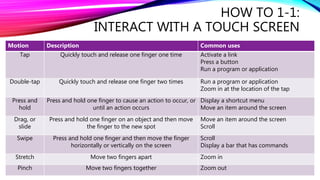
• You can usually interact with a touch screen using gestures.
• Gestures are motions you make on a touch screen with the tip of one or more fingers or
your hand.
• Touch screens are convenient because they do not require a separate device for
input.
• Tablets and smartphones typically have touch screens.
HOW TO 1-1:
INTERACT WITH A TOUCH SCREEN
Motion Description Common uses
Tap Quickly touch and release one finger one time Activate a link
Press a button
Run a program or application
Double-tap Quickly touch and release one finger two times Run a program or application
Zoom in at the location of the tap
Press and
hold
Press and hold one finger to cause an action to occur, or
until an action occurs
Display a shortcut menu
Move an item around the screen
Drag, or
slide
Press and hold one finger on an object and then move
the finger to the new spot
Move an item around the screen
Scroll
Swipe Press and hold one finger and then move the finger
horizontally or vertically on the screen
Scroll
Display a bar that has commands
Stretch Move two fingers apart Zoom in
Pinch Move two fingers together Zoom out
DESKTOPS
• A desktop, or desktop computer, is a PC designed to be in a stationary location,
where all of its components fit on or under a desk or a table.
• On many desktops, the screen is houses in a device that is separate from a tower, which
is a case that contains the processing circuitry.
• Other desktops, sometimes called all-in-one desktops, do not contain a tower and
instead use the same case to house the screen and processing circuitry.
• Some screens for desktops support touch.
SERVERS
• A server is a computer dedicated to providing one or more services to other computers or
devices on a network.
• A network is a collection of computers and devices connected together.
• The connection is often wirelessly, and when a computer or device connects to a network, they are
considered to be online.
• Services provided by servers include storing content and controlling access to hardware,
software, and other resources on a network.
• A server can support from two to several thousand connected computers and devices at the
same time.
• Servers are available in a variety of sizes and types for business applications.
• Smaller applications, such as at home, sometimes use a high-end desktop as a server.
• Larger corporate, government, and Internet applications use powerful, expensive servers to
support their daily operations.
MOBILE AND GAME DEVICES
• A mobile device is a computing device small enough to hold in your hand.
• Because of their reduced size, the screens are small—often between 3-5 inches.
• Some mobile devices are Internet capable, meaning that they can connect to the
Internet wirelessly.
• You often can exchange information between the Internet and a mobile device or
between a computer or network and a mobile device.
• Popular types of mobile devices are smartphones, digital cameras, portable media
players, and e-book readers.
SMARTPHONES
• A smartphone is an Internet-capable phone that usually also includes apps.
• Smartphones typically communicate wirelessly with other devices or computers.
• With several models, you can also listen to music and take pictures.
• Many smartphones have touch screens.
• Instead of or in addition to a touch screen, some have a built-in mini keyboard on the front of
the phone or a keyboard that slides in and out from behind the phone.
• Instead of calling someone, there are three types of messages you can send:
• A text message is a short note, typically fewer than 300 characters, sent to or from a
smartphone or other mobile device.
• A picture message is a photo or other image, sometimes along with sound and text, sent to
or from a smartphone or other mobile device.
• A phone that can send picture messages sometimes is called a camera phone.
• A video message is a short video clip, usually about 30 seconds, sent to or from a
smartphone or other mobile device.
DIGITAL CAMERAS
• A digital camera is a device that allows you to take photos and store the
photographed images digitally.
• While many look like a traditional camera, some are built into mobile devices.
• They typically allow you to review, and sometimes modify, the stored images.
• You can also transfer images from a digital camera to a computer, so that you can
review, modify, share, organize, or print the images.
• They often can connect to or communicate wirelessly with a computer, a printer, or the
Internet, enabling you to access the photos without a cable.
• Some digital cameras can also record videos.
PORTABLE MEDIA PLAYERS
• A portable media player, or a personal media player, is a mobile device on which
you can store, organize, and play or view digital media files.
• Digital media includes photos, videos, and music files.
• With most, you transfer the digital media from a computer (or the Internet, if the device
is capable of it) to the portable media player.
• They usually include a set of earbuds, which are small speakers that rest inside each
ear canal.
• Some have a touch screen, while others have a pad that you operate with a thumb or
finger, so that you can navigate through digital media, adjust volume, and customize
settings.
• Some models also offer a calendar, address book, games, and other apps.
E-BOOK READERS
• An e-book reader, or electronic book reader, or e-reader, is a mobile device that is
used primarily for reading e-books.
• An e-book, or digital book, is an electronic version of a printed book, readable on
computers and other digital devices.
• In addition to books, you typically can purchase and read other forms of digital media
such as newspapers and magazines.
• Most models have a touch screen and some are Internet capable.
• These devices usually are smaller than tablets but larger than smartphones.
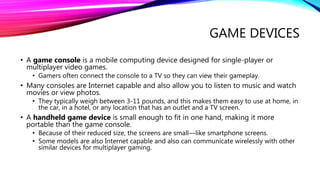
GAME DEVICES
• A game console is a mobile computing device designed for single-player or
multiplayer video games.
• Gamers often connect the console to a TV so they can view their gameplay.
• Many consoles are Internet capable and also allow you to listen to music and watch
movies or view photos.
• They typically weigh between 3-11 pounds, and this makes them easy to use at home, in
the car, in a hotel, or any location that has an outlet and a TV screen.
• A handheld game device is small enough to fit in one hand, making it more
portable than the game console.
• Because of their reduced size, the screens are small—like smartphone screens.
• Some models are also Internet capable and also can communicate wirelessly with other
similar devices for multiplayer gaming.
MINI FEATURE 1-1:
LIVING DIGITALLY—GAMING
• Gamers spend billions of dollars each year on gaming consoles and games.
• With outstanding 3D graphics and challenging gameplay, nearly ¾ of American households own game
hardware and software/applications.
• This is due to the social aspect of gathering people to play together as a group or online with each other and
those around the world.
• The more popular consoles work with a wide variety of accessories and input technologies for directing
movements and actions of on-screen objects.
• Gamepads: Holding the gamepad with both hands, press buttons with your thumbs or move sticks in
various directions to trigger events.
• Air gestures: Moving your body or a handheld device in predetermined directions through the air; you
may need open space for the movements.
• Voice commands: Speaking instructions toward the console, ensure no background noise is in the room,
or use a headset.
• Fitness accessories: Working with fitness accessories, you can make it fun and functional.
• Gamers have several options available for purchasing games for consoles.
• You can purchase/rent discs or other media that contain games.
• You can download games, or transfer them from online stores to a console.
• You can sign up for cloud gaming services that stream or transfer games on demand.
• For tablets and smartphones, you can download games from an app store.
MINI FEATURE 1-1:
LIVING DIGITALLY—GAMING
• The wide variety of gaming genres offers a favorable experience for just anyone.
• Action and adventure: Characters move through their world by running, jumping, and climbing in
an attempt to reach the next level of play and eventually defeat a villain or rescue a prisoner.
• Education: Engaging and entertaining puzzles and problems present practical instruction and
possible assessment to teach skills and concepts that are applicable in real-world circumstances.
• Music and fitness: Individuals and groups improve their physical and mental fitness while engaging
in athletic competitions, aerobics, dance, and yoga.
• Puzzle and strategy: Players use their skills and intelligence to solve problems, generally with the
goal of moving objects to create a pattern.
• Racing and sports: Athletes and drivers strive to complete a course or to cross a finish line in record
time.
• Role-playing: Gamers assume the role of a character and experience adventures while on a major
quest.
• Stimulation: Players control an activity in a stimulated situation, such as playing in a band.
DATA AND INFORMATION
• Computers process data (input) into information (output) and often store the data and
resulting information for future use.
• Data is a collection of unprocessed items, which can include text and digital media.
• Information conveys meaning to users.
• Both businesses and home users can make well-informed decisions because they have
instant access to information from anywhere in the world.
• Many daily activities either involve the use of or depend on information from a computer.
INPUT
• An input device is any hardware component that allows you to enter data and
instructions into a computer or mobile device.
• A keyboard contains keys you press to enter data and instructions into a computer
or mobile device.
• All desktop keyboards have a typing area with letters, numbers, punctuation marks, and
other basic command keys. They also contain more keys than others.
• Some users prefer to use a wireless keyboard to avoid the clutter of cords.
• Many of the keys on mobile computers and devices serve two or three purposes.
• Instead of a physical keyboard, users also can enter data via an on-screen keyboard of a
virtual keyboard, which projects from a device to a flat surface.
INPUT
• A pointing device allows the user to control a small symbol on a screen (the pointer).
• Desktops typically use a mouse as their pointing device, and laptops use a touchpad.
• A mouse fits under the palm of your hand comfortably, and allows you to control movement of
the pointer and to send instructions to the computer or mobile device.
• Like keyboards, some users prefer working with a wireless mouse.
• A touchpad is a small, flat, rectangular device that’s sensitive to pressure and motion.
• To control the pointer, slide your fingertip across the surface of the pad.
• On most, you tap the pad’s surface to imitate mouse operations such as clicking.
• Some mobile devices and computers enable you to use voice and video input.
• This involves the user speaking data instructions or capturing live full-motion images.
• With a smartphone, you may be able to use your voice to call someone or do other tasks.
• Some people opt for video calling instead of a traditional phone call, so that you and the person
you called can see each other as you chat on a computer or mobile device.
• Video input usually works in conjunction with voice input.
• For voice input you use a microphone, and for video input you use a webcam.
INPUT
• A microphone is a device that enables you to speak into a computer or device.
• Many computers and devices contain built-in microphones.
• You can also talk into a headset, which contains bot a microphone and a speaker.
• Many communicate wirelessly with the computer or mobile device.
• A webcam is a digital video camera that allows you to capture video and usually audio
input for your computer or mobile device.
• A scanner is a light-sensing input device that converts printed text and images into a
form the computer can process.
• A popular type works in a manner similar to a copy machine, except that instead of creating a
paper copy of the document or photo, it stores it electronically.
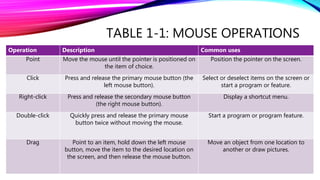
TABLE 1-1: MOUSE OPERATIONS
Operation Description Common uses
Point Move the mouse until the pointer is positioned on
the item of choice.
Position the pointer on the screen.
Click Press and release the primary mouse button (the
left mouse button).
Select or deselect items on the screen or
start a program or feature.
Right-click Press and release the secondary mouse button
(the right mouse button).
Display a shortcut menu.
Double-click Quickly press and release the primary mouse
button twice without moving the mouse.
Start a program or program feature.
Drag Point to an item, hold down the left mouse
button, move the item to the desired location on
the screen, and then release the mouse button.
Move an object from one location to
another or draw pictures.
OUTPUT
• An output device is any hardware component that conveys information from a computer or
mobile device to one or more people.
• A printer produces text and graphics on a physical medium, such as paper.
• Printed content is sometimes referred to as a hard copy or printout.
• Most today can print in both black-and-white and color on a variety of paper types.
• Some models also can print lab-quality photos, and a variety support wireless printing.
• A display visually conveys text, graphics, and video information.
• They consist of a screen and the components that produce the information onto it.
• The display for a desktop typically is a monitor, which is a separate, physical device.
• Mobile computers and devices typically integrate the display in their same physical case.
• Some displays have a touch screen.
OUTPUT
• A speaker allows you to hear audio, that is, music, voice, and other sounds.
• Most PCs and mobile devices have a small internal speaker.
• Many users attach a higher-quality speaker to their computers, devices, and consoles.
• Earbuds and headphones allow you to only hear the sound you’re listening to.
• Both usually include noise-cancelling technology to reduce the interference of sounds from the
surrounding environment.
• To eliminate the clutter of cords, users can opt for wireless speakers or headphones.
• Memory consists of electronic components that store instructions waiting to be executed
and the data needed by those instructions.
• Although some forms are permanent, most memory keeps data and instructions temporarily,
which means its contents are erased when the computer is shut down.
OUTPUT
• Storage media is where a computer keeps its data, instructions, and information.
• Storage holds data, instructions, and information for future use.
• Examples of the media include hard disks, solid-state drives, USB flash drives, etc.
• The amount of storage for each type of storage media varies.
• Some are portable, meaning you can move them from one computer to another.
• A storage device records and/or receives items to and from storage media.
• They often also function as a source of input and output because they transfer items from
storage to memory and vice versa.
• Some types only accept specific kinds of storage media.
• A hard disk is a device that contains one or more inflexible, circular platters that use
magnetic particles to store data, instructions, and information.
• The entire device is enclosed in an airtight, sealed case to protect it from contamination.
• Desktops and laptops often contain at least one that is mounted inside the computer’s case,
called a fixed disk because this hard disk is not portable.
• External hard disks are separate, portable, freestanding hard disks that usually connect to the
computer with a cable.
OUTPUT
• A solid-state drive (SSD) is a storage device that typically uses flash memory to store data,
instructions, and information.
• Flash memory contains no moving parts, making it more durable and shock resistant than other
types of media.
• Some manufacturers are using SSDs instead of hard disks for desktops, laptops, and tablets.
• A USB flash drive is a portable flash memory storage device that you plug in a USB port,
which is a special, easily accessible opening on a computer or mobile device.
• USB flash drives are convenient for mobile users because they are small and light-weight enough
to be transported on a keychain or in a pocket.
• A memory card is removable flash memory, usually no bigger than 1.5 inches in height or
width, that you insert in and remove from a slot in a computer, mobile device, or card
reader/writer.
• With a card reader/writer, you can transfer the stored items from a memory card to a computer
or printer that does not have a built-in card slot.
OUTPUT
• An optical disc is a type of storage media that consists of a flat, round, portable
metal disc made of metal, plastic, and lacquer that is written and read by a laser.
• CDs (compact discs) and DVDs (digital versatile discs) are two types of this.
• Cloud storage is an Internet service that provides storage to computer users.
• Types of services offered by cloud storage providers vary.
• Some provide storage for specific types of media, whereas others store any content and
provide backup services.
• A backup is a duplicate of content on a storage medium that you can use in case the original
is lost, damaged, or destroyed.
SECURE IT 1-1:
BACKING UP COMPUTERS AND MOBILE DEVICES
• Many factors, including power outages and hardware failure, can cause loss of data, instructions,
or information on a computer or mobile device.
• To protect against loss, you should back up the contents of storage media regularly.
• The best advice is to back up often using a variety of methods, just to be safe.
• A backup plan for computers could include the following:
• Use a backup program, either included with your computer’s operating system or one that you
purchased separately, to copy the contents of your entire hard disk to a separate device.
• Regularly copy music, photos, videos, documents, and other important items to a USB flash drive,
external hard disk, or DVD.
• Subscribe to a cloud storage provider.
• Schedule your files to be backed up regularly.
• Backup plans for mobile devices are less specific, and apps for doing so are available.
• You can also back up a mobile device to your computer’s hard disk by synchronization.
• Some mobile device manufacturers provide cloud storage to the device owner.
• Other services allow subscribers to use a friend’s computer as a backup storage location.
THE INTERNET
• The Internet is a worldwide collection of computer networks that connects millions
of businesses, government agencies, educational institutions, and individuals.
• It provides society with access to global information and instant communications.
• Businesses, called Internet Service Providers (ISPs), offer users and organizations
access to the Internet for free or for a fee.
• By subscribing to one, you can connect to the Internet though you computers and
mobile devices.
• Today, more than two-billion home and business users around the world access a
variety of services on the Internet, with the World Wide Web being the most widely
used Internet service.
• Other popular services include email, instant messaging, VoIP, and FTP.
THE WORLD WIDE WEB
• The World Wide Web (or web, for short) is a global library of information available to anyone
connected to the Internet.
• People around the world access the web to accomplish a variety of online tasks, including
searching for information, downloading and accessing digital media, etc.
• Downloading is the process of transferring content from a server on the Internet to a computer or
mobile device.
• The web consists of a worldwide collection of electronic documents.
• Each electronic document on the web is called a webpage, which can contain text, graphics,
audio, and video.
• Webpages often contain links, or hyperlinks, which are built-in connections to other documents,
graphics, audio files, videos, webpages, or websites.
• To activate an item associated with a link, you tap or click the link.
• A text link often changes color after you tap or click it to remind you visually that you previously
have visited the webpage or downloaded the content associated with it.
• Links allow you to obtain information in a nonlinear way, which is more direct.
• Some people use the phrase surfing the web to refer to the activity of using links to explore the
web.
• A website is a collection of related webpages, which are stored on a web server.
• A web server is a computer that delivers requested webpages to your computer or mobile
device.
WEB BROWSING
• A browser is software that enables users with an Internet connection to access and
view webpages on a computer or mobile device.
• Some widely used browsers include Google Chrome, Internet Explorer, etc.
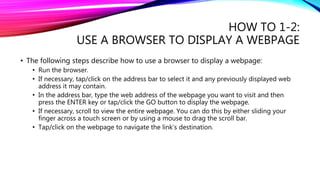
HOW TO 1-2:
USE A BROWSER TO DISPLAY A WEBPAGE
• The following steps describe how to use a browser to display a webpage:
• Run the browser.
• If necessary, tap/click on the address bar to select it and any previously displayed web
address it may contain.
• In the address bar, type the web address of the webpage you want to visit and then
press the ENTER key or tap/click the GO button to display the webpage.
• If necessary, scroll to view the entire webpage. You can do this by either sliding your
finger across a touch screen or by using a mouse to drag the scroll bar.
• Tap/click on the webpage to navigate the link’s destination.
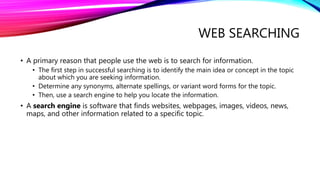
WEB SEARCHING
• A primary reason that people use the web is to search for information.
• The first step in successful searching is to identify the main idea or concept in the topic
about which you are seeking information.
• Determine any synonyms, alternate spellings, or variant word forms for the topic.
• Then, use a search engine to help you locate the information.
• A search engine is software that finds websites, webpages, images, videos, news,
maps, and other information related to a specific topic.
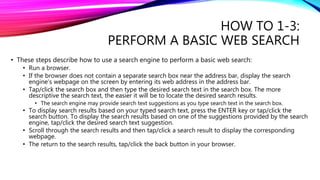
HOW TO 1-3:
PERFORM A BASIC WEB SEARCH
• These steps describe how to use a search engine to perform a basic web search:
• Run a browser.
• If the browser does not contain a separate search box near the address bar, display the search
engine’s webpage on the screen by entering its web address in the address bar.
• Tap/click the search box and then type the desired search text in the search box. The more
descriptive the search text, the easier it will be to locate the desired search results.
• The search engine may provide search text suggestions as you type search text in the search box.
• To display search results based on your typed search text, press the ENTER key or tap/click the
search button. To display the search results based on one of the suggestions provided by the search
engine, tap/click the desired search text suggestion.
• Scroll through the search results and then tap/click a search result to display the corresponding
webpage.
• The return to the search results, tap/click the back button in your browser.
ONLINE SOCIAL NETWORKS
• An online social network, or a social networking site, is a website that encourages
members in its online community to share their interests, ideas, stories, photos,
music, and videos with other registered users.
• Popular sites include Facebook, Twitter, Tumblr, Pinterest, LinkedIn, etc.
• Some sites have no specialized audience, and others are focused.
• A photo sharing site is a specific type of social networking site that allows users to
create an online photo album and store and share their digital photos.
• A video sharing site is a type of social networking site that enables users to store and
share their personal videos.
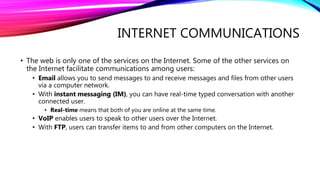
INTERNET COMMUNICATIONS
• The web is only one of the services on the Internet. Some of the other services on
the Internet facilitate communications among users:
• Email allows you to send messages to and receive messages and files from other users
via a computer network.
• With instant messaging (IM), you can have real-time typed conversation with another
connected user.
• Real-time means that both of you are online at the same time.
• VoIP enables users to speak to other users over the Internet.
• With FTP, users can transfer items to and from other computers on the Internet.
DIGITAL SECURITY AND SAFETY
• People rely on computers to create, store, and manage their information.
• To safeguard this information, it’s important that users protect their computers and
mobile devices.
• Users should be aware of health risks and environmental issues associated with using
computers and mobile devices.
VIRUSES AND OTHER MALWARE
• Malware, or malicious software, is software that acts without a user’s knowledge
and deliberately alters the operations of a computer or device.
• Examples include viruses, worms, trojan horses, rootkits, spyware, adware, and zombies.
• Each type of malware attacks your computer or device differently.
• Some are harmless pranks that temporarily freeze, play sounds, or display messages on
your computer or device.
• Others destroy or corrupt data, instructions, and information stored on the infected
computer or device.
• If you notice any unusual changes in the performance of your computer or device, it
may be infected with malware.
SECURE IT 1-2:
PROTECTION FROM VIRUSES AND OTHER MALWARE
• Although it’s impossible to ensure a virus or malware never will attack a computer, you
can take steps to protect your computer by following these practices:
• Use virus protection software. Install a reputable antivirus program and then scan the entire
computer to be certain it’s free of viruses and other malware. Update the antivirus program
and the virus signatures regularly.
• Use a firewall. Set up a hardware firewall or install a software firewall that protects your
network’s resources from outside intrusions.
• Be suspicious of all unsolicited email attachments. Never open an email attachment unless
you’re expecting it and it’s from a trusted source. When in doubt, ask the sender to confirm the
attachment is legitimate before you open it. Delete or quarantine flagged attachments
immediately.
• Disconnect your computer from the Internet. If you don’t need Internet access, disconnect
the computer from the Internet. Some recommend disconnecting before opening any and all
email attachments.
SECURE IT 1-2:
PROTECTION FROM VIRUSES AND OTHER MALWARE
• Although it’s impossible to ensure a virus or malware never will attack a computer, you can
take steps to protect your computer by following these practices:
• Download software with caution. Download programs or applications only from websites you
trust, especially those with music and movie sharing software.
• Close spyware windows. If you suspect a pop-up window may be spyware, close the window.
Never click an agree or ok button in a suspicious window.
• Before using any removable media, scan it for malware. Follow this procedure even for newly
purchased software from major developers. Some commercial software has been infected and
distributed to unsuspecting users. Never start a computer with removable media inserted unless
you’re certain the media are uninfected.
• Keep current. Install the latest updates for your computer software. Stay informed about new
virus alerts and virus hoaxes.
• Back up regularly. In the event your computer becomes unusable due to a virus attack or other
malware, you’ll be able to restore operations if you have a clean backup.
PRIVACY
• Nearly every life event is stored in a computer somewhere.
• In many instances, where personal and confidential records were not protected properly,
individuals have found their privacy violated and identities stolen.
• Some techniques you can use to prevent identity theft include shredding financial documents
before discarding them, never tapping/clicking links in unsolicited emails, and enrolling in a credit
monitoring service.
• People of all ages around the world are using social networks to share their personal
information, photos, videos, and music publicly.
• Some of these people have fallen victim to crimes committed by dangerous strangers.
• Protect yourself and your loved one from criminals by being cautious in email messages and on
websites.
• Don’t share information that would allow others to identify or locate you and do not
disclose identification numbers, user names, passwords, or other personal security
details.
• A user name is a unique combination of characters that identifies one specific user.
• A password is a private combination of characters associated with a user name.
SECURE IT 1-3:
CREATING STRONG PASSWORDS
• A good password is easy for you to remember but difficult for criminals and password-
breaking software to guess. Use these guidelines to create effective, strong passwords:
• Personal information: Avoid using any part of your name, birthday, phone number, etc.
• Length: Use at least eight characters.
• Difficulty: Use a variety of uppercase and lowercase letters, numbers, punctuation, and
symbols. Select characters located on different parts of the keyboard, not the ones you
commonly use or that are adjacent to each other.
• Modify: Change the password frequently, at least every three months.
• Variation: Don’t use the same password for all accounts.
• Passphrase: A passphrase, which is similar to a password, consists of several words separated
by spaces. It’s recommended to misspell a few word and to add numbers.
• Common sequences: Avoid numbers or letters in recognized patterns, such as 1234.
HEALTH CONCERNS
• Prolonged or improper computer use can lead to injuries or disorders of the body.
• Computer users can protect themselves from these risks through proper workplace design,
good posture while at the computer, and appropriately spaced breaks.
• Two behavioral health risks and technology addiction and technology overload.
• Technology addiction occurs when someone becomes obsessed with using technology.
• Technology overload occurs when someone becomes distressed when deprived of
computers and mobile devices.
• Once recognized, both addiction and overload are treatable disorders.
ENVIRONMENTAL ISSUES
• Manufacturing processes for devices along with e-waste are depleting natural resources
and polluting the environment.
• E-waste is considered to be discarded computers and mobile devices.
• When technological devices are stored in basements or other places, disposed in landfills, or
burned in incinerators, they can release toxic materials and potentially dangerous levels of
lead, mercury, and flame retardants.
• Green computing involves reducing the electricity consumed and environmental waste
generated when using a computer.
• Strategies that support this include recycling, using energy efficient hardware and energy
saving features, regulating manufacturing processes, extending the life of computers, and
immediately donating or properly disposing of replaced computers.
• When you purchase a new computer, some stores offer to properly dispose of your old
computer.
SOFTWARE
• Software, or a program, consists of a series of related instructions, organized for a
common purpose, that tells the computer what tasks to perform and how to
perform them.
• Two categories of software are system and application software.
• System software consists of the programs that control or maintain the operations
of the computer and its devices.
• Operating systems are a widely recognized example.
• Other types, sometimes called tools, enable the user to perform maintenance-type tasks
usually related to managing devices, media, and programs used by computers and
mobile devices.
OPERATING SYSTEMS
• An operating system (OS) is a set of programs that coordinates all the activities
among computer or mobile device hardware.
• It provides a means for users to communicate with the computer or device and other
software.
• To use application software, your computer or device must be running an OS.
• Popular examples of operating systems include:
• Microsoft’s Windows
• Apple’s Mac OS
• Apple’s iOS
• Google’s Android
TABLE 1-2:
CATEGORIES OF APPLICATIONS
Category Sample Applications Sample Uses
Productivity Word processing, presentation,
schedule/contact management,
etc.
Create letters/reports/other
documents, create visual aids for
presentations, etc.
Graphics and media Photo/video/audio editing, media
player, etc.
Modify photos/videos/music,
view images, listen to music,
watch videos, etc.
Personal interest Travel/mapping/navigation,
reference, educational, etc.
View maps, get directions,
prepare for a test, etc.
Communications Browser, email, VoIP, FTP, etc. Access/view webpages, send
emails, receive emails, etc.
Security Antivirus, personal firewall,
spyware, etc.
Protect a computer against
viruses, detect spyware, etc.
INSTALLING AND RUNNING APPLICATIONS
• Installing software is the process of setting up software to work with a computer, printer,
and other hardware.
• When you buy a computer, it usually has some preinstalled on its hard disk.
• Installed operating systems often include other programs like browsers.
• To use additional desktop apps, you need to install the software.
• Mobile apps typically install automatically after you transfer the app’s files to your device
from its website.
• You usually do not need to install web apps before you can run them.
• Once installed, you can run an app so that you can interact with it.
• When you instruct a computer to run an app, the computer loads its software, which means
the app is copied from storage to memory.
• Once in memory, the computer can carry out, or execute, the instructions in the app so that
you can use it.
• You interact with a program or app through its user interface, which controls how you enter
data and instructions and how information is displayed on the screen.
• Often, you work with icons or tiles, which are mini images that link to programs, media, etc.
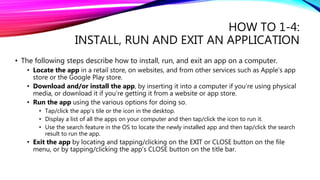
HOW TO 1-4:
INSTALL, RUN AND EXIT AN APPLICATION
• The following steps describe how to install, run, and exit an app on a computer.
• Locate the app in a retail store, on websites, and from other services such as Apple’s app
store or the Google Play store.
• Download and/or install the app, by inserting it into a computer if you’re using physical
media, or download it if you’re getting it from a website or app store.
• Run the app using the various options for doing so.
• Tap/click the app’s tile or the icon in the desktop.
• Display a list of all the apps on your computer and then tap/click the icon to run it.
• Use the search feature in the OS to locate the newly installed app and then tap/click the search
result to run the app.
• Exit the app by locating and tapping/clicking on the EXIT or CLOSE button on the file
menu, or by tapping/clicking the app’s CLOSE button on the title bar.
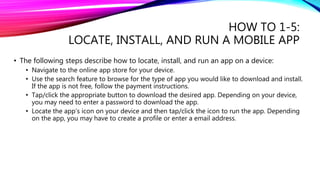
HOW TO 1-5:
LOCATE, INSTALL, AND RUN A MOBILE APP
• The following steps describe how to locate, install, and run an app on a device:
• Navigate to the online app store for your device.
• Use the search feature to browse for the type of app you would like to download and install.
If the app is not free, follow the payment instructions.
• Tap/click the appropriate button to download the desired app. Depending on your device,
you may need to enter a password to download the app.
• Locate the app’s icon on your device and then tap/click the icon to run the app. Depending
on the app, you may have to create a profile or enter a email address.
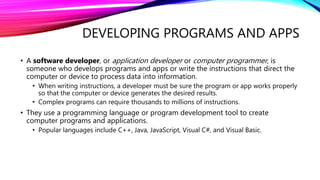
DEVELOPING PROGRAMS AND APPS
• A software developer, or application developer or computer programmer, is
someone who develops programs and apps or write the instructions that direct the
computer or device to process data into information.
• When writing instructions, a developer must be sure the program or app works properly
so that the computer or device generates the desired results.
• Complex programs can require thousands to millions of instructions.
• They use a programming language or program development tool to create
computer programs and applications.
• Popular languages include C++, Java, JavaScript, Visual C#, and Visual Basic.
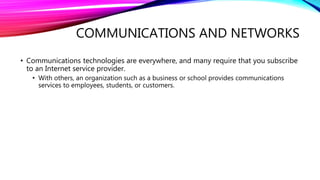
COMMUNICATIONS AND NETWORKS
• Communications technologies are everywhere, and many require that you subscribe
to an Internet service provider.
• With others, an organization such as a business or school provides communications
services to employees, students, or customers.
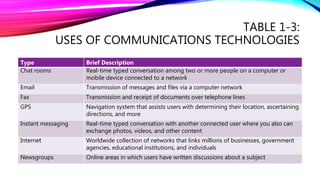
TABLE 1-3:
USES OF COMMUNICATIONS TECHNOLOGIES
Type Brief Description
Chat rooms Real-time typed conversation among two or more people on a computer or
mobile device connected to a network
Email Transmission of messages and files via a computer network
Fax Transmission and receipt of documents over telephone lines
GPS Navigation system that assists users with determining their location, ascertaining
directions, and more
Instant messaging Real-time typed conversation with another connected user where you also can
exchange photos, videos, and other content
Internet Worldwide collection of networks that links millions of businesses, government
agencies, educational institutions, and individuals
Newsgroups Online areas in which users have written discussions about a subject
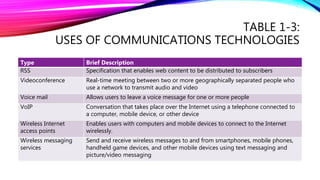
TABLE 1-3:
USES OF COMMUNICATIONS TECHNOLOGIES
Type Brief Description
RSS Specification that enables web content to be distributed to subscribers
Videoconference Real-time meeting between two or more geographically separated people who
use a network to transmit audio and video
Voice mail Allows users to leave a voice message for one or more people
VoIP Conversation that takes place over the Internet using a telephone connected to
a computer, mobile device, or other device
Wireless Internet
access points
Enables users with computers and mobile devices to connect to the Internet
wirelessly.
Wireless messaging
services
Send and receive wireless messages to and from smartphones, mobile phones,
handheld game devices, and other mobile devices using text messaging and
picture/video messaging
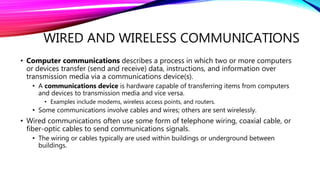
WIRED AND WIRELESS COMMUNICATIONS
• Computer communications describes a process in which two or more computers
or devices transfer (send and receive) data, instructions, and information over
transmission media via a communications device(s).
• A communications device is hardware capable of transferring items from computers
and devices to transmission media and vice versa.
• Examples include modems, wireless access points, and routers.
• Some communications involve cables and wires; others are sent wirelessly.
• Wired communications often use some form of telephone wiring, coaxial cable, or
fiber-optic cables to send communications signals.
• The wiring or cables typically are used within buildings or underground between
buildings.
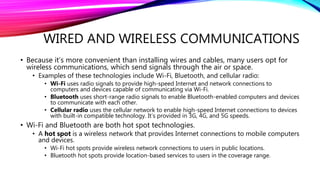
WIRED AND WIRELESS COMMUNICATIONS
• Because it’s more convenient than installing wires and cables, many users opt for
wireless communications, which send signals through the air or space.
• Examples of these technologies include Wi-Fi, Bluetooth, and cellular radio:
• Wi-Fi uses radio signals to provide high-speed Internet and network connections to
computers and devices capable of communicating via Wi-Fi.
• Bluetooth uses short-range radio signals to enable Bluetooth-enabled computers and devices
to communicate with each other.
• Cellular radio uses the cellular network to enable high-speed Internet connections to devices
with built-in compatible technology. It’s provided in 3G, 4G, and 5G speeds.
• Wi-Fi and Bluetooth are both hot spot technologies.
• A hot spot is a wireless network that provides Internet connections to mobile computers
and devices.
• Wi-Fi hot spots provide wireless network connections to users in public locations.
• Bluetooth hot spots provide location-based services to users in the coverage range.
SECURE IT 1-4:
USING PUBLIC WI-FI HOT SPOTS SAFELY
• Connecting wirelessly to a public hot spot can be convenient and practical.
• Using this can be risky, because cybercriminals lurk in these areas hoping to gain access to
confidential information on your computer or mobile device.
• Follow these guidelines for a safer browsing experience:
• Avoid typing passwords and financial information. Identity thieves are on the lookout for
people who log into accounts, enter their payment information, or who conduct banking
transactions. If unavoidable, be sure the web address begins with “https” not “http”. If it
changes to “http”, sign out immediately.
• Sign out of websites. When finished using an account, sign out and close it.
• Disable your wireless connection. If you’ve finished working online, disconnect from the
wireless connection and continue with your offline work.
• Don’t leave your computer unattended. Leaving your computer unattended gives thieves a
few seconds to steal sensitive information that may be displayed.
• Beware of over-the-shoulder snoopers. The person sitting behind you may be watching you
or video recording what you’re doing. Beware of others around you.
NETWORKS
• A network is a collection of computers and devices connected together, often wirelessly, via
communications devices and transmission media.
• They allow computers to share resources, such as hardware, software, data, etc.
• This saves time and money.
• In many networks, one or more computers acts as a server.
• The server controls access to the resources on a network.
• The other computers on a network, each called a client, request resources from the server.
• The major differences between the server and client are that the server typically has more power,
more storage space, and expanded communications capabilities.
• Many houses and most businesses and schools network their computers.
• Most allow users to connect their computers wirelessly to the network.
• Users often are required to sign in to, or log on, a network, which means they enter a user
name and password to access the network and its resources.
HOME NETWORKS
• Home networks save the home user money and provide many conveniences.
• Each networked computer or device on a home network has these capabilities:
• Connect to the Internet at the same time.
• Share a single high-speed Internet connection.
• Access photos, music, videos, and other content on computers and devices at home.
• Share devices such as a printer, scanner, or external hard disk.
• Play multiplayer games with players on other computers and devices at home.
• Connect game consoles to the Internet.
• Subscribe to and use VoIP.
• Home networks usually are small, existing within a single structure, and use wireless technologies.
• You don’t need extensive knowledge of networks to set one up.
• You’ll need a communications device, like a router, which usually includes setup instructions.
• Most operating systems also provide tools enabling you easily to connect all the devices at home.
BUSINESS NETWORKS
• Business and school networks can be small or widespread, connecting computers and
devices across a city, country, or the globe.
• Some reasons that businesses network their devices together include the following:
• Facilitate communications. Using a network, employees and customers communicate efficiently
and easily via email, instant messaging, blogs, online social network, and more.
• Share hardware. In a networked environment, each computer on the network can access the
hardware on the network, instead of providing each user with the same piece of hardware.
• Share data, information, and software. In a networked environment, any authorized computer
user can access data, information, and software stored on other computers on the network.
USES OF TECHNOLOGY IN SOCIETY: EDUCATION
• Educators and teaching institutions use technology to assist with education.
• Most equip classrooms with computers, and some provide them to students.
• Many require students to have a mobile computer or device to access the school’s network
or Internet wirelessly, or to access digital-only content.
• To promote education by computer, vendors offer substantial student discounts on hardware
and software.
• Educators may use an interactive whiteboard, which displays images on a connected
computer screen, it’s similar to a dry-erase board.
• They may also use a course management system, which is software that contains tools for
class preparation, distribution, and management.
• Many schools offer distance learning classes, where the delivery of education occurs at one
place while the learning occurs at other locations.
• They provide time, distance, and place advantages for students who live far from a campus or
work full-time.
• A few school offer entire degrees online.
USES OF TECHNOLOGY IN SOCIETY: GOVERNMENT
• Most government offices have website to provide citizens with up-to-date
information.
• People in the U.S. access government websites to view census data, file taxes, apply for
permits and licenses, pay parking tickets, buy stamps, report crimes, apply for financial
aid, and renew vehicle registrations and driver’s licenses.
• Employees of government agencies use computers in their daily routines.
• 911 call centers use computers to dispatch calls, and the police use them to access the
FBI’s NCIC that contains criminal records, mug shots, etc.
USES OF TECHNOLOGY IN SOCIETY: FINANCE
• Many people and companies use online banking or finance software to pay bills,
track personal income and expenses, manage investments, and evaluate financial
plans.
• The difference between using a financial institutions’ website versus finance software on
your computer is that all your information is stored on their computer instead of yours.
• The advantage is you can access your financial records from anywhere.
• Investors often use online investing to buy and sell stocks and bonds—without using a
broker. The transaction fee for each trade usually is less than when through a broker.
USES OF TECHNOLOGY IN SOCIETY: RETAIL
• You can purchase just about any product or service on the web.
• To do this, you visit the business’s storefront, which contains product descriptions,
images, and a shopping cart.
• When ready to complete the sale, they enter their personal data and the method of
payment, which should be through a secure Internet connection.
• Many mobile apps make your shopping experience more convenient.
• Some enable you to manage rewards, use coupons, locate stores, or pay for goods and
services directly from your phone or other mobile device.
• Other mobile apps will check a product’s price and availability at stores.
USES OF TECHNOLOGY IN SOCIETY:
ENTERTAINMENT
• You can use computers and devices to listen to access digital media.
• In some cases, you can download the media from the web to a device.
• Some websites support streaming, where you access the media content while it
downloads.
• You can also create videos, take photos, or record audio and upload your media content
to the web to share with others, such as on a social network.
USES OF TECHNOLOGY IN SOCIETY: HEALTH CARE
• Nearly every area of health care today uses computers for various tasks:
• Hospitals and doctors use devices to maintain and access patient records.
• Devices monitor patients’ vital signs, and to manage health conditions as well.
• Robots deliver medication to nurses’ stations in hospitals.
• Devices assist medical professionals with medical tests.
• Doctors use the web and medical software to assist with diagnosing and research.
• Doctors use email, texts, and other communications services to contact patients.
• Patients use devices to refill prescriptions, and pharmacists use them to file insurance
claims and provide customers with vital information about their meds.
• Surgeons use implanted devices to allow patients to live longer.
• Surgeons use devices to provide them with greater precision during operations.
USES OF TECHNOLOGY IN SOCIETY: TRAVEL
• No matter your method of travel, your goal is to arrive safely at your destination.
• You may interact with a GPS or navigation system on the way, which would assist you with
creating maps, determining good routes, etc.
• Vehicles manufactured today typically include some type of navigation system.
• Many mobile devices also have built-in navigation systems.
• In preparing for a trip, you may need to reserve a cat, hotel, or a flight.
• Many websites offer these services to the public where you can search for and compare
flights and prices, order airline tickets, or reserve a rental car.
• You also can print driving instructions and maps from the web.
USES OF TECHNOLOGY IN SOCIETY: SCIENCE
• All branches of science use computers to assist them with collecting, analyzing, and
modeling data.
• Scientists also use the Internet to communicate with colleagues globally.
• Breakthroughs in surgery, medicine, and treatments often result from scientists’ use of
computers.
• Tiny computers now imitate functions of the central nervous system, retina of the
eye, and cochlea of the ear.
• A neural network is a system that attempts to imitate the behavior of the brain.
• Scientists create them by connecting thousands of processors together, like neurons.
• The capacity of a PC to recognize spoken words is a direct result of scientific
experimentation with neural networks.
USES OF TECHNOLOGY IN SCIENCE:
PUBLISHING
• Many publishers of books and such make their works available online.
• Organizations and individuals publish their thoughts/ideas using these options:
• A blog is an informal website consisting of time-stamped articles in a diary or journal format,
usually listed in reverse chronological order. Posts can contain text, photos, links, and more. As
others read the posts, you can enable them to reply to them.
• A blog that contains video is called a video blog.
• Podcasts are recorded media that users can download or stream to a device.
• Podcasters register them so that subscribers can select content to automatically download.
• Wikis are collaborative websites that allow users to create, add to, modify, or delete the
content via their browser. Many are open to modifications by the general public.
• The difference between a wiki and a blog is that users cannot modify original posts
made by a blogger like they can on wikis.
USES OF TECHNOLOGY IN SOCIETY:
MANUFACTURING
• Computer-aided manufacturing (CAM) refers to the use of computers to assist
with manufacturing processes such as fabrication and assembly.
• Industries use CAM to reduce production development costs, shorten a product’s time
to market, and to stay ahead of the competition.
• Often, robots carry out processes in a CAM environment.
• Special components on the shop floor record actual labor, material, machine, and
computer time used to manufacture a particular product.
• The computers process this data and automatically update inventory, production,
payroll, and accounting records on the company’s network.
TECHNOLOGY USERS
• People around the world use various technologies in different locations.
• Depending on the hardware, software, and communications requirements, users
generally can be classified in one (or more) or five categories:
• A home user is any person who spends time using technology at home.
• A small/home office includes employees of companies with fewer than 50 employees, as well
as the self-employed who work from home.
• A mobile user includes any person who works with computers or devices while away from a
main office, home, or school.
• A power user requires the capabilities of a powerful computer.
• An enterprise user has hundreds or thousands of employees or customers who work in or do
business with offices across a region, the country, or the world.
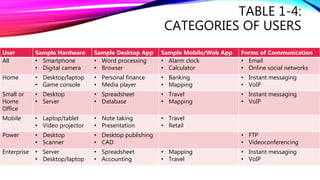
TABLE 1-4:
CATEGORIES OF USERS
User Sample Hardware Sample Desktop App Sample Mobile/Web App Forms of Communication
All • Smartphone
• Digital camera
• Word processing
• Browser
• Alarm clock
• Calculator
• Email
• Online social networks
Home • Desktop/laptop
• Game console
• Personal finance
• Media player
• Banking
• Mapping
• Instant messaging
• VoIP
Small or
Home
Office
• Desktop
• Server
• Spreadsheet
• Database
• Travel
• Mapping
• Instant messaging
• VoIP
Mobile • Laptop/tablet
• Video projector
• Note taking
• Presentation
• Travel
• Retail
Power • Desktop
• Scanner
• Desktop publishing
• CAD
• FTP
• Videoconferencing
Enterprise • Server
• Desktop/laptop
• Spreadsheet
• Accounting
• Mapping
• Travel
• Instant messaging
• VoIP

Discovering Computers 2014: Chapter One

  • 1.
    DISCOVERING COMPUTERS 2014 Madeline Olson| Medaille College | Semester One
  • 2.
    CHAPTER ONE Digital Literacy:Introducing a World of Technology
  • 3.
    A WORLD OFTECHNOLOGY • Technology can enable you to more efficiently and effectively complete tasks. • Because technology changes, you must keep up with the changes to remain digitally literate. • Digital literacy involves having a current knowledge and understanding of computers, mobile devices, the Internet, and related technologies.
  • 4.
    COMPUTERS • A computeris an electronic device, operating under the control of instructions stored in its own memory, that can accept data (input), process the data according to specified rules, produce information (output), and store the information for future use. • Computers contain many electric, electronic, and mechanical components known as hardware. • Electronic components in computers process data using instructions, which are the steps that tell the computer how to perform a particular task. • A collection of related instructions organized for a common purpose is referred to as software or a program. • Using software, you can complete a variety of activities, such as gaming.
  • 5.
    COMPUTERS • A personalcomputer (PC) is a computer that can perform all of its input, processing, output, and storage activities by itself and is intended to be used by one person at a time. • Most PCs today also can communicate with other computers and devices. • Types of PCs include laptops, tablets, and desktops, with the first two sometimes called mobile computers. • A mobile computer is a portable personal computer, designed so that a user can carry it from place to place. • A user is anyone who interacts with a computer or mobile device, or utilizes the information it generates.
  • 6.
    LAPTOPS • A laptop,also called a notebook computer, is a thin, lightweight mobile computer with a screen in its lid and a keyboard in its base. • Designed to fit in your lap and for easy transport, they weigh up to 10 pounds (varying by manufacturer and specifications). • A laptop that is less than one inch thick and weighs about 3 pounds or less is sometimes referred to as an ultrathin laptop. • Most laptops can operate on batteries or a power supply or both.
  • 7.
    TABLETS • A tabletis a thin, lighter-weight mobile computer that has a touch screen. • A popular style of tablet is the slate, which doesn’t contain a physical keyboard. • Like laptops, tablets run on batteries or a power supply or both. • However, batteries in a tablet typically last longer than those in laptops.
  • 8.
    HOW TO 1-1: INTERACTWITH A TOUCH SCREEN • You can usually interact with a touch screen using gestures. • Gestures are motions you make on a touch screen with the tip of one or more fingers or your hand. • Touch screens are convenient because they do not require a separate device for input. • Tablets and smartphones typically have touch screens.
  • 9.
    HOW TO 1-1: INTERACTWITH A TOUCH SCREEN Motion Description Common uses Tap Quickly touch and release one finger one time Activate a link Press a button Run a program or application Double-tap Quickly touch and release one finger two times Run a program or application Zoom in at the location of the tap Press and hold Press and hold one finger to cause an action to occur, or until an action occurs Display a shortcut menu Move an item around the screen Drag, or slide Press and hold one finger on an object and then move the finger to the new spot Move an item around the screen Scroll Swipe Press and hold one finger and then move the finger horizontally or vertically on the screen Scroll Display a bar that has commands Stretch Move two fingers apart Zoom in Pinch Move two fingers together Zoom out
  • 10.
    DESKTOPS • A desktop,or desktop computer, is a PC designed to be in a stationary location, where all of its components fit on or under a desk or a table. • On many desktops, the screen is houses in a device that is separate from a tower, which is a case that contains the processing circuitry. • Other desktops, sometimes called all-in-one desktops, do not contain a tower and instead use the same case to house the screen and processing circuitry. • Some screens for desktops support touch.
  • 11.
    SERVERS • A serveris a computer dedicated to providing one or more services to other computers or devices on a network. • A network is a collection of computers and devices connected together. • The connection is often wirelessly, and when a computer or device connects to a network, they are considered to be online. • Services provided by servers include storing content and controlling access to hardware, software, and other resources on a network. • A server can support from two to several thousand connected computers and devices at the same time. • Servers are available in a variety of sizes and types for business applications. • Smaller applications, such as at home, sometimes use a high-end desktop as a server. • Larger corporate, government, and Internet applications use powerful, expensive servers to support their daily operations.
  • 12.
    MOBILE AND GAMEDEVICES • A mobile device is a computing device small enough to hold in your hand. • Because of their reduced size, the screens are small—often between 3-5 inches. • Some mobile devices are Internet capable, meaning that they can connect to the Internet wirelessly. • You often can exchange information between the Internet and a mobile device or between a computer or network and a mobile device. • Popular types of mobile devices are smartphones, digital cameras, portable media players, and e-book readers.
  • 13.
    SMARTPHONES • A smartphoneis an Internet-capable phone that usually also includes apps. • Smartphones typically communicate wirelessly with other devices or computers. • With several models, you can also listen to music and take pictures. • Many smartphones have touch screens. • Instead of or in addition to a touch screen, some have a built-in mini keyboard on the front of the phone or a keyboard that slides in and out from behind the phone. • Instead of calling someone, there are three types of messages you can send: • A text message is a short note, typically fewer than 300 characters, sent to or from a smartphone or other mobile device. • A picture message is a photo or other image, sometimes along with sound and text, sent to or from a smartphone or other mobile device. • A phone that can send picture messages sometimes is called a camera phone. • A video message is a short video clip, usually about 30 seconds, sent to or from a smartphone or other mobile device.
  • 14.
    DIGITAL CAMERAS • Adigital camera is a device that allows you to take photos and store the photographed images digitally. • While many look like a traditional camera, some are built into mobile devices. • They typically allow you to review, and sometimes modify, the stored images. • You can also transfer images from a digital camera to a computer, so that you can review, modify, share, organize, or print the images. • They often can connect to or communicate wirelessly with a computer, a printer, or the Internet, enabling you to access the photos without a cable. • Some digital cameras can also record videos.
  • 15.
    PORTABLE MEDIA PLAYERS •A portable media player, or a personal media player, is a mobile device on which you can store, organize, and play or view digital media files. • Digital media includes photos, videos, and music files. • With most, you transfer the digital media from a computer (or the Internet, if the device is capable of it) to the portable media player. • They usually include a set of earbuds, which are small speakers that rest inside each ear canal. • Some have a touch screen, while others have a pad that you operate with a thumb or finger, so that you can navigate through digital media, adjust volume, and customize settings. • Some models also offer a calendar, address book, games, and other apps.
  • 16.
    E-BOOK READERS • Ane-book reader, or electronic book reader, or e-reader, is a mobile device that is used primarily for reading e-books. • An e-book, or digital book, is an electronic version of a printed book, readable on computers and other digital devices. • In addition to books, you typically can purchase and read other forms of digital media such as newspapers and magazines. • Most models have a touch screen and some are Internet capable. • These devices usually are smaller than tablets but larger than smartphones.
  • 17.
    GAME DEVICES • Agame console is a mobile computing device designed for single-player or multiplayer video games. • Gamers often connect the console to a TV so they can view their gameplay. • Many consoles are Internet capable and also allow you to listen to music and watch movies or view photos. • They typically weigh between 3-11 pounds, and this makes them easy to use at home, in the car, in a hotel, or any location that has an outlet and a TV screen. • A handheld game device is small enough to fit in one hand, making it more portable than the game console. • Because of their reduced size, the screens are small—like smartphone screens. • Some models are also Internet capable and also can communicate wirelessly with other similar devices for multiplayer gaming.
  • 18.
    MINI FEATURE 1-1: LIVINGDIGITALLY—GAMING • Gamers spend billions of dollars each year on gaming consoles and games. • With outstanding 3D graphics and challenging gameplay, nearly ¾ of American households own game hardware and software/applications. • This is due to the social aspect of gathering people to play together as a group or online with each other and those around the world. • The more popular consoles work with a wide variety of accessories and input technologies for directing movements and actions of on-screen objects. • Gamepads: Holding the gamepad with both hands, press buttons with your thumbs or move sticks in various directions to trigger events. • Air gestures: Moving your body or a handheld device in predetermined directions through the air; you may need open space for the movements. • Voice commands: Speaking instructions toward the console, ensure no background noise is in the room, or use a headset. • Fitness accessories: Working with fitness accessories, you can make it fun and functional. • Gamers have several options available for purchasing games for consoles. • You can purchase/rent discs or other media that contain games. • You can download games, or transfer them from online stores to a console. • You can sign up for cloud gaming services that stream or transfer games on demand. • For tablets and smartphones, you can download games from an app store.
  • 19.
    MINI FEATURE 1-1: LIVINGDIGITALLY—GAMING • The wide variety of gaming genres offers a favorable experience for just anyone. • Action and adventure: Characters move through their world by running, jumping, and climbing in an attempt to reach the next level of play and eventually defeat a villain or rescue a prisoner. • Education: Engaging and entertaining puzzles and problems present practical instruction and possible assessment to teach skills and concepts that are applicable in real-world circumstances. • Music and fitness: Individuals and groups improve their physical and mental fitness while engaging in athletic competitions, aerobics, dance, and yoga. • Puzzle and strategy: Players use their skills and intelligence to solve problems, generally with the goal of moving objects to create a pattern. • Racing and sports: Athletes and drivers strive to complete a course or to cross a finish line in record time. • Role-playing: Gamers assume the role of a character and experience adventures while on a major quest. • Stimulation: Players control an activity in a stimulated situation, such as playing in a band.
  • 20.
    DATA AND INFORMATION •Computers process data (input) into information (output) and often store the data and resulting information for future use. • Data is a collection of unprocessed items, which can include text and digital media. • Information conveys meaning to users. • Both businesses and home users can make well-informed decisions because they have instant access to information from anywhere in the world. • Many daily activities either involve the use of or depend on information from a computer.
  • 21.
    INPUT • An inputdevice is any hardware component that allows you to enter data and instructions into a computer or mobile device. • A keyboard contains keys you press to enter data and instructions into a computer or mobile device. • All desktop keyboards have a typing area with letters, numbers, punctuation marks, and other basic command keys. They also contain more keys than others. • Some users prefer to use a wireless keyboard to avoid the clutter of cords. • Many of the keys on mobile computers and devices serve two or three purposes. • Instead of a physical keyboard, users also can enter data via an on-screen keyboard of a virtual keyboard, which projects from a device to a flat surface.
  • 22.
    INPUT • A pointingdevice allows the user to control a small symbol on a screen (the pointer). • Desktops typically use a mouse as their pointing device, and laptops use a touchpad. • A mouse fits under the palm of your hand comfortably, and allows you to control movement of the pointer and to send instructions to the computer or mobile device. • Like keyboards, some users prefer working with a wireless mouse. • A touchpad is a small, flat, rectangular device that’s sensitive to pressure and motion. • To control the pointer, slide your fingertip across the surface of the pad. • On most, you tap the pad’s surface to imitate mouse operations such as clicking. • Some mobile devices and computers enable you to use voice and video input. • This involves the user speaking data instructions or capturing live full-motion images. • With a smartphone, you may be able to use your voice to call someone or do other tasks. • Some people opt for video calling instead of a traditional phone call, so that you and the person you called can see each other as you chat on a computer or mobile device. • Video input usually works in conjunction with voice input. • For voice input you use a microphone, and for video input you use a webcam.
  • 23.
    INPUT • A microphoneis a device that enables you to speak into a computer or device. • Many computers and devices contain built-in microphones. • You can also talk into a headset, which contains bot a microphone and a speaker. • Many communicate wirelessly with the computer or mobile device. • A webcam is a digital video camera that allows you to capture video and usually audio input for your computer or mobile device. • A scanner is a light-sensing input device that converts printed text and images into a form the computer can process. • A popular type works in a manner similar to a copy machine, except that instead of creating a paper copy of the document or photo, it stores it electronically.
  • 24.
    TABLE 1-1: MOUSEOPERATIONS Operation Description Common uses Point Move the mouse until the pointer is positioned on the item of choice. Position the pointer on the screen. Click Press and release the primary mouse button (the left mouse button). Select or deselect items on the screen or start a program or feature. Right-click Press and release the secondary mouse button (the right mouse button). Display a shortcut menu. Double-click Quickly press and release the primary mouse button twice without moving the mouse. Start a program or program feature. Drag Point to an item, hold down the left mouse button, move the item to the desired location on the screen, and then release the mouse button. Move an object from one location to another or draw pictures.
  • 25.
    OUTPUT • An outputdevice is any hardware component that conveys information from a computer or mobile device to one or more people. • A printer produces text and graphics on a physical medium, such as paper. • Printed content is sometimes referred to as a hard copy or printout. • Most today can print in both black-and-white and color on a variety of paper types. • Some models also can print lab-quality photos, and a variety support wireless printing. • A display visually conveys text, graphics, and video information. • They consist of a screen and the components that produce the information onto it. • The display for a desktop typically is a monitor, which is a separate, physical device. • Mobile computers and devices typically integrate the display in their same physical case. • Some displays have a touch screen.
  • 26.
    OUTPUT • A speakerallows you to hear audio, that is, music, voice, and other sounds. • Most PCs and mobile devices have a small internal speaker. • Many users attach a higher-quality speaker to their computers, devices, and consoles. • Earbuds and headphones allow you to only hear the sound you’re listening to. • Both usually include noise-cancelling technology to reduce the interference of sounds from the surrounding environment. • To eliminate the clutter of cords, users can opt for wireless speakers or headphones. • Memory consists of electronic components that store instructions waiting to be executed and the data needed by those instructions. • Although some forms are permanent, most memory keeps data and instructions temporarily, which means its contents are erased when the computer is shut down.
  • 27.
    OUTPUT • Storage mediais where a computer keeps its data, instructions, and information. • Storage holds data, instructions, and information for future use. • Examples of the media include hard disks, solid-state drives, USB flash drives, etc. • The amount of storage for each type of storage media varies. • Some are portable, meaning you can move them from one computer to another. • A storage device records and/or receives items to and from storage media. • They often also function as a source of input and output because they transfer items from storage to memory and vice versa. • Some types only accept specific kinds of storage media. • A hard disk is a device that contains one or more inflexible, circular platters that use magnetic particles to store data, instructions, and information. • The entire device is enclosed in an airtight, sealed case to protect it from contamination. • Desktops and laptops often contain at least one that is mounted inside the computer’s case, called a fixed disk because this hard disk is not portable. • External hard disks are separate, portable, freestanding hard disks that usually connect to the computer with a cable.
  • 28.
    OUTPUT • A solid-statedrive (SSD) is a storage device that typically uses flash memory to store data, instructions, and information. • Flash memory contains no moving parts, making it more durable and shock resistant than other types of media. • Some manufacturers are using SSDs instead of hard disks for desktops, laptops, and tablets. • A USB flash drive is a portable flash memory storage device that you plug in a USB port, which is a special, easily accessible opening on a computer or mobile device. • USB flash drives are convenient for mobile users because they are small and light-weight enough to be transported on a keychain or in a pocket. • A memory card is removable flash memory, usually no bigger than 1.5 inches in height or width, that you insert in and remove from a slot in a computer, mobile device, or card reader/writer. • With a card reader/writer, you can transfer the stored items from a memory card to a computer or printer that does not have a built-in card slot.
  • 29.
    OUTPUT • An opticaldisc is a type of storage media that consists of a flat, round, portable metal disc made of metal, plastic, and lacquer that is written and read by a laser. • CDs (compact discs) and DVDs (digital versatile discs) are two types of this. • Cloud storage is an Internet service that provides storage to computer users. • Types of services offered by cloud storage providers vary. • Some provide storage for specific types of media, whereas others store any content and provide backup services. • A backup is a duplicate of content on a storage medium that you can use in case the original is lost, damaged, or destroyed.
  • 30.
    SECURE IT 1-1: BACKINGUP COMPUTERS AND MOBILE DEVICES • Many factors, including power outages and hardware failure, can cause loss of data, instructions, or information on a computer or mobile device. • To protect against loss, you should back up the contents of storage media regularly. • The best advice is to back up often using a variety of methods, just to be safe. • A backup plan for computers could include the following: • Use a backup program, either included with your computer’s operating system or one that you purchased separately, to copy the contents of your entire hard disk to a separate device. • Regularly copy music, photos, videos, documents, and other important items to a USB flash drive, external hard disk, or DVD. • Subscribe to a cloud storage provider. • Schedule your files to be backed up regularly. • Backup plans for mobile devices are less specific, and apps for doing so are available. • You can also back up a mobile device to your computer’s hard disk by synchronization. • Some mobile device manufacturers provide cloud storage to the device owner. • Other services allow subscribers to use a friend’s computer as a backup storage location.
  • 31.
    THE INTERNET • TheInternet is a worldwide collection of computer networks that connects millions of businesses, government agencies, educational institutions, and individuals. • It provides society with access to global information and instant communications. • Businesses, called Internet Service Providers (ISPs), offer users and organizations access to the Internet for free or for a fee. • By subscribing to one, you can connect to the Internet though you computers and mobile devices. • Today, more than two-billion home and business users around the world access a variety of services on the Internet, with the World Wide Web being the most widely used Internet service. • Other popular services include email, instant messaging, VoIP, and FTP.
  • 32.
    THE WORLD WIDEWEB • The World Wide Web (or web, for short) is a global library of information available to anyone connected to the Internet. • People around the world access the web to accomplish a variety of online tasks, including searching for information, downloading and accessing digital media, etc. • Downloading is the process of transferring content from a server on the Internet to a computer or mobile device. • The web consists of a worldwide collection of electronic documents. • Each electronic document on the web is called a webpage, which can contain text, graphics, audio, and video. • Webpages often contain links, or hyperlinks, which are built-in connections to other documents, graphics, audio files, videos, webpages, or websites. • To activate an item associated with a link, you tap or click the link. • A text link often changes color after you tap or click it to remind you visually that you previously have visited the webpage or downloaded the content associated with it. • Links allow you to obtain information in a nonlinear way, which is more direct. • Some people use the phrase surfing the web to refer to the activity of using links to explore the web. • A website is a collection of related webpages, which are stored on a web server. • A web server is a computer that delivers requested webpages to your computer or mobile device.
  • 33.
    WEB BROWSING • Abrowser is software that enables users with an Internet connection to access and view webpages on a computer or mobile device. • Some widely used browsers include Google Chrome, Internet Explorer, etc.
  • 34.
    HOW TO 1-2: USEA BROWSER TO DISPLAY A WEBPAGE • The following steps describe how to use a browser to display a webpage: • Run the browser. • If necessary, tap/click on the address bar to select it and any previously displayed web address it may contain. • In the address bar, type the web address of the webpage you want to visit and then press the ENTER key or tap/click the GO button to display the webpage. • If necessary, scroll to view the entire webpage. You can do this by either sliding your finger across a touch screen or by using a mouse to drag the scroll bar. • Tap/click on the webpage to navigate the link’s destination.
  • 35.
    WEB SEARCHING • Aprimary reason that people use the web is to search for information. • The first step in successful searching is to identify the main idea or concept in the topic about which you are seeking information. • Determine any synonyms, alternate spellings, or variant word forms for the topic. • Then, use a search engine to help you locate the information. • A search engine is software that finds websites, webpages, images, videos, news, maps, and other information related to a specific topic.
  • 36.
    HOW TO 1-3: PERFORMA BASIC WEB SEARCH • These steps describe how to use a search engine to perform a basic web search: • Run a browser. • If the browser does not contain a separate search box near the address bar, display the search engine’s webpage on the screen by entering its web address in the address bar. • Tap/click the search box and then type the desired search text in the search box. The more descriptive the search text, the easier it will be to locate the desired search results. • The search engine may provide search text suggestions as you type search text in the search box. • To display search results based on your typed search text, press the ENTER key or tap/click the search button. To display the search results based on one of the suggestions provided by the search engine, tap/click the desired search text suggestion. • Scroll through the search results and then tap/click a search result to display the corresponding webpage. • The return to the search results, tap/click the back button in your browser.
  • 37.
    ONLINE SOCIAL NETWORKS •An online social network, or a social networking site, is a website that encourages members in its online community to share their interests, ideas, stories, photos, music, and videos with other registered users. • Popular sites include Facebook, Twitter, Tumblr, Pinterest, LinkedIn, etc. • Some sites have no specialized audience, and others are focused. • A photo sharing site is a specific type of social networking site that allows users to create an online photo album and store and share their digital photos. • A video sharing site is a type of social networking site that enables users to store and share their personal videos.
  • 38.
    INTERNET COMMUNICATIONS • Theweb is only one of the services on the Internet. Some of the other services on the Internet facilitate communications among users: • Email allows you to send messages to and receive messages and files from other users via a computer network. • With instant messaging (IM), you can have real-time typed conversation with another connected user. • Real-time means that both of you are online at the same time. • VoIP enables users to speak to other users over the Internet. • With FTP, users can transfer items to and from other computers on the Internet.
  • 39.
    DIGITAL SECURITY ANDSAFETY • People rely on computers to create, store, and manage their information. • To safeguard this information, it’s important that users protect their computers and mobile devices. • Users should be aware of health risks and environmental issues associated with using computers and mobile devices.
  • 40.
    VIRUSES AND OTHERMALWARE • Malware, or malicious software, is software that acts without a user’s knowledge and deliberately alters the operations of a computer or device. • Examples include viruses, worms, trojan horses, rootkits, spyware, adware, and zombies. • Each type of malware attacks your computer or device differently. • Some are harmless pranks that temporarily freeze, play sounds, or display messages on your computer or device. • Others destroy or corrupt data, instructions, and information stored on the infected computer or device. • If you notice any unusual changes in the performance of your computer or device, it may be infected with malware.
  • 41.
    SECURE IT 1-2: PROTECTIONFROM VIRUSES AND OTHER MALWARE • Although it’s impossible to ensure a virus or malware never will attack a computer, you can take steps to protect your computer by following these practices: • Use virus protection software. Install a reputable antivirus program and then scan the entire computer to be certain it’s free of viruses and other malware. Update the antivirus program and the virus signatures regularly. • Use a firewall. Set up a hardware firewall or install a software firewall that protects your network’s resources from outside intrusions. • Be suspicious of all unsolicited email attachments. Never open an email attachment unless you’re expecting it and it’s from a trusted source. When in doubt, ask the sender to confirm the attachment is legitimate before you open it. Delete or quarantine flagged attachments immediately. • Disconnect your computer from the Internet. If you don’t need Internet access, disconnect the computer from the Internet. Some recommend disconnecting before opening any and all email attachments.
  • 42.
    SECURE IT 1-2: PROTECTIONFROM VIRUSES AND OTHER MALWARE • Although it’s impossible to ensure a virus or malware never will attack a computer, you can take steps to protect your computer by following these practices: • Download software with caution. Download programs or applications only from websites you trust, especially those with music and movie sharing software. • Close spyware windows. If you suspect a pop-up window may be spyware, close the window. Never click an agree or ok button in a suspicious window. • Before using any removable media, scan it for malware. Follow this procedure even for newly purchased software from major developers. Some commercial software has been infected and distributed to unsuspecting users. Never start a computer with removable media inserted unless you’re certain the media are uninfected. • Keep current. Install the latest updates for your computer software. Stay informed about new virus alerts and virus hoaxes. • Back up regularly. In the event your computer becomes unusable due to a virus attack or other malware, you’ll be able to restore operations if you have a clean backup.
  • 43.
    PRIVACY • Nearly everylife event is stored in a computer somewhere. • In many instances, where personal and confidential records were not protected properly, individuals have found their privacy violated and identities stolen. • Some techniques you can use to prevent identity theft include shredding financial documents before discarding them, never tapping/clicking links in unsolicited emails, and enrolling in a credit monitoring service. • People of all ages around the world are using social networks to share their personal information, photos, videos, and music publicly. • Some of these people have fallen victim to crimes committed by dangerous strangers. • Protect yourself and your loved one from criminals by being cautious in email messages and on websites. • Don’t share information that would allow others to identify or locate you and do not disclose identification numbers, user names, passwords, or other personal security details. • A user name is a unique combination of characters that identifies one specific user. • A password is a private combination of characters associated with a user name.
  • 44.
    SECURE IT 1-3: CREATINGSTRONG PASSWORDS • A good password is easy for you to remember but difficult for criminals and password- breaking software to guess. Use these guidelines to create effective, strong passwords: • Personal information: Avoid using any part of your name, birthday, phone number, etc. • Length: Use at least eight characters. • Difficulty: Use a variety of uppercase and lowercase letters, numbers, punctuation, and symbols. Select characters located on different parts of the keyboard, not the ones you commonly use or that are adjacent to each other. • Modify: Change the password frequently, at least every three months. • Variation: Don’t use the same password for all accounts. • Passphrase: A passphrase, which is similar to a password, consists of several words separated by spaces. It’s recommended to misspell a few word and to add numbers. • Common sequences: Avoid numbers or letters in recognized patterns, such as 1234.
  • 45.
    HEALTH CONCERNS • Prolongedor improper computer use can lead to injuries or disorders of the body. • Computer users can protect themselves from these risks through proper workplace design, good posture while at the computer, and appropriately spaced breaks. • Two behavioral health risks and technology addiction and technology overload. • Technology addiction occurs when someone becomes obsessed with using technology. • Technology overload occurs when someone becomes distressed when deprived of computers and mobile devices. • Once recognized, both addiction and overload are treatable disorders.
  • 46.
    ENVIRONMENTAL ISSUES • Manufacturingprocesses for devices along with e-waste are depleting natural resources and polluting the environment. • E-waste is considered to be discarded computers and mobile devices. • When technological devices are stored in basements or other places, disposed in landfills, or burned in incinerators, they can release toxic materials and potentially dangerous levels of lead, mercury, and flame retardants. • Green computing involves reducing the electricity consumed and environmental waste generated when using a computer. • Strategies that support this include recycling, using energy efficient hardware and energy saving features, regulating manufacturing processes, extending the life of computers, and immediately donating or properly disposing of replaced computers. • When you purchase a new computer, some stores offer to properly dispose of your old computer.
  • 47.
    SOFTWARE • Software, ora program, consists of a series of related instructions, organized for a common purpose, that tells the computer what tasks to perform and how to perform them. • Two categories of software are system and application software. • System software consists of the programs that control or maintain the operations of the computer and its devices. • Operating systems are a widely recognized example. • Other types, sometimes called tools, enable the user to perform maintenance-type tasks usually related to managing devices, media, and programs used by computers and mobile devices.
  • 48.
    OPERATING SYSTEMS • Anoperating system (OS) is a set of programs that coordinates all the activities among computer or mobile device hardware. • It provides a means for users to communicate with the computer or device and other software. • To use application software, your computer or device must be running an OS. • Popular examples of operating systems include: • Microsoft’s Windows • Apple’s Mac OS • Apple’s iOS • Google’s Android
  • 49.
    TABLE 1-2: CATEGORIES OFAPPLICATIONS Category Sample Applications Sample Uses Productivity Word processing, presentation, schedule/contact management, etc. Create letters/reports/other documents, create visual aids for presentations, etc. Graphics and media Photo/video/audio editing, media player, etc. Modify photos/videos/music, view images, listen to music, watch videos, etc. Personal interest Travel/mapping/navigation, reference, educational, etc. View maps, get directions, prepare for a test, etc. Communications Browser, email, VoIP, FTP, etc. Access/view webpages, send emails, receive emails, etc. Security Antivirus, personal firewall, spyware, etc. Protect a computer against viruses, detect spyware, etc.
  • 50.
    INSTALLING AND RUNNINGAPPLICATIONS • Installing software is the process of setting up software to work with a computer, printer, and other hardware. • When you buy a computer, it usually has some preinstalled on its hard disk. • Installed operating systems often include other programs like browsers. • To use additional desktop apps, you need to install the software. • Mobile apps typically install automatically after you transfer the app’s files to your device from its website. • You usually do not need to install web apps before you can run them. • Once installed, you can run an app so that you can interact with it. • When you instruct a computer to run an app, the computer loads its software, which means the app is copied from storage to memory. • Once in memory, the computer can carry out, or execute, the instructions in the app so that you can use it. • You interact with a program or app through its user interface, which controls how you enter data and instructions and how information is displayed on the screen. • Often, you work with icons or tiles, which are mini images that link to programs, media, etc.
  • 51.
    HOW TO 1-4: INSTALL,RUN AND EXIT AN APPLICATION • The following steps describe how to install, run, and exit an app on a computer. • Locate the app in a retail store, on websites, and from other services such as Apple’s app store or the Google Play store. • Download and/or install the app, by inserting it into a computer if you’re using physical media, or download it if you’re getting it from a website or app store. • Run the app using the various options for doing so. • Tap/click the app’s tile or the icon in the desktop. • Display a list of all the apps on your computer and then tap/click the icon to run it. • Use the search feature in the OS to locate the newly installed app and then tap/click the search result to run the app. • Exit the app by locating and tapping/clicking on the EXIT or CLOSE button on the file menu, or by tapping/clicking the app’s CLOSE button on the title bar.
  • 52.
    HOW TO 1-5: LOCATE,INSTALL, AND RUN A MOBILE APP • The following steps describe how to locate, install, and run an app on a device: • Navigate to the online app store for your device. • Use the search feature to browse for the type of app you would like to download and install. If the app is not free, follow the payment instructions. • Tap/click the appropriate button to download the desired app. Depending on your device, you may need to enter a password to download the app. • Locate the app’s icon on your device and then tap/click the icon to run the app. Depending on the app, you may have to create a profile or enter a email address.
  • 53.
    DEVELOPING PROGRAMS ANDAPPS • A software developer, or application developer or computer programmer, is someone who develops programs and apps or write the instructions that direct the computer or device to process data into information. • When writing instructions, a developer must be sure the program or app works properly so that the computer or device generates the desired results. • Complex programs can require thousands to millions of instructions. • They use a programming language or program development tool to create computer programs and applications. • Popular languages include C++, Java, JavaScript, Visual C#, and Visual Basic.
  • 54.
    COMMUNICATIONS AND NETWORKS •Communications technologies are everywhere, and many require that you subscribe to an Internet service provider. • With others, an organization such as a business or school provides communications services to employees, students, or customers.
  • 55.
    TABLE 1-3: USES OFCOMMUNICATIONS TECHNOLOGIES Type Brief Description Chat rooms Real-time typed conversation among two or more people on a computer or mobile device connected to a network Email Transmission of messages and files via a computer network Fax Transmission and receipt of documents over telephone lines GPS Navigation system that assists users with determining their location, ascertaining directions, and more Instant messaging Real-time typed conversation with another connected user where you also can exchange photos, videos, and other content Internet Worldwide collection of networks that links millions of businesses, government agencies, educational institutions, and individuals Newsgroups Online areas in which users have written discussions about a subject
  • 56.
    TABLE 1-3: USES OFCOMMUNICATIONS TECHNOLOGIES Type Brief Description RSS Specification that enables web content to be distributed to subscribers Videoconference Real-time meeting between two or more geographically separated people who use a network to transmit audio and video Voice mail Allows users to leave a voice message for one or more people VoIP Conversation that takes place over the Internet using a telephone connected to a computer, mobile device, or other device Wireless Internet access points Enables users with computers and mobile devices to connect to the Internet wirelessly. Wireless messaging services Send and receive wireless messages to and from smartphones, mobile phones, handheld game devices, and other mobile devices using text messaging and picture/video messaging
  • 57.
    WIRED AND WIRELESSCOMMUNICATIONS • Computer communications describes a process in which two or more computers or devices transfer (send and receive) data, instructions, and information over transmission media via a communications device(s). • A communications device is hardware capable of transferring items from computers and devices to transmission media and vice versa. • Examples include modems, wireless access points, and routers. • Some communications involve cables and wires; others are sent wirelessly. • Wired communications often use some form of telephone wiring, coaxial cable, or fiber-optic cables to send communications signals. • The wiring or cables typically are used within buildings or underground between buildings.
  • 58.
    WIRED AND WIRELESSCOMMUNICATIONS • Because it’s more convenient than installing wires and cables, many users opt for wireless communications, which send signals through the air or space. • Examples of these technologies include Wi-Fi, Bluetooth, and cellular radio: • Wi-Fi uses radio signals to provide high-speed Internet and network connections to computers and devices capable of communicating via Wi-Fi. • Bluetooth uses short-range radio signals to enable Bluetooth-enabled computers and devices to communicate with each other. • Cellular radio uses the cellular network to enable high-speed Internet connections to devices with built-in compatible technology. It’s provided in 3G, 4G, and 5G speeds. • Wi-Fi and Bluetooth are both hot spot technologies. • A hot spot is a wireless network that provides Internet connections to mobile computers and devices. • Wi-Fi hot spots provide wireless network connections to users in public locations. • Bluetooth hot spots provide location-based services to users in the coverage range.
  • 59.
    SECURE IT 1-4: USINGPUBLIC WI-FI HOT SPOTS SAFELY • Connecting wirelessly to a public hot spot can be convenient and practical. • Using this can be risky, because cybercriminals lurk in these areas hoping to gain access to confidential information on your computer or mobile device. • Follow these guidelines for a safer browsing experience: • Avoid typing passwords and financial information. Identity thieves are on the lookout for people who log into accounts, enter their payment information, or who conduct banking transactions. If unavoidable, be sure the web address begins with “https” not “http”. If it changes to “http”, sign out immediately. • Sign out of websites. When finished using an account, sign out and close it. • Disable your wireless connection. If you’ve finished working online, disconnect from the wireless connection and continue with your offline work. • Don’t leave your computer unattended. Leaving your computer unattended gives thieves a few seconds to steal sensitive information that may be displayed. • Beware of over-the-shoulder snoopers. The person sitting behind you may be watching you or video recording what you’re doing. Beware of others around you.
  • 60.
    NETWORKS • A networkis a collection of computers and devices connected together, often wirelessly, via communications devices and transmission media. • They allow computers to share resources, such as hardware, software, data, etc. • This saves time and money. • In many networks, one or more computers acts as a server. • The server controls access to the resources on a network. • The other computers on a network, each called a client, request resources from the server. • The major differences between the server and client are that the server typically has more power, more storage space, and expanded communications capabilities. • Many houses and most businesses and schools network their computers. • Most allow users to connect their computers wirelessly to the network. • Users often are required to sign in to, or log on, a network, which means they enter a user name and password to access the network and its resources.
  • 61.
    HOME NETWORKS • Homenetworks save the home user money and provide many conveniences. • Each networked computer or device on a home network has these capabilities: • Connect to the Internet at the same time. • Share a single high-speed Internet connection. • Access photos, music, videos, and other content on computers and devices at home. • Share devices such as a printer, scanner, or external hard disk. • Play multiplayer games with players on other computers and devices at home. • Connect game consoles to the Internet. • Subscribe to and use VoIP. • Home networks usually are small, existing within a single structure, and use wireless technologies. • You don’t need extensive knowledge of networks to set one up. • You’ll need a communications device, like a router, which usually includes setup instructions. • Most operating systems also provide tools enabling you easily to connect all the devices at home.
  • 62.
    BUSINESS NETWORKS • Businessand school networks can be small or widespread, connecting computers and devices across a city, country, or the globe. • Some reasons that businesses network their devices together include the following: • Facilitate communications. Using a network, employees and customers communicate efficiently and easily via email, instant messaging, blogs, online social network, and more. • Share hardware. In a networked environment, each computer on the network can access the hardware on the network, instead of providing each user with the same piece of hardware. • Share data, information, and software. In a networked environment, any authorized computer user can access data, information, and software stored on other computers on the network.
  • 63.
    USES OF TECHNOLOGYIN SOCIETY: EDUCATION • Educators and teaching institutions use technology to assist with education. • Most equip classrooms with computers, and some provide them to students. • Many require students to have a mobile computer or device to access the school’s network or Internet wirelessly, or to access digital-only content. • To promote education by computer, vendors offer substantial student discounts on hardware and software. • Educators may use an interactive whiteboard, which displays images on a connected computer screen, it’s similar to a dry-erase board. • They may also use a course management system, which is software that contains tools for class preparation, distribution, and management. • Many schools offer distance learning classes, where the delivery of education occurs at one place while the learning occurs at other locations. • They provide time, distance, and place advantages for students who live far from a campus or work full-time. • A few school offer entire degrees online.
  • 64.
    USES OF TECHNOLOGYIN SOCIETY: GOVERNMENT • Most government offices have website to provide citizens with up-to-date information. • People in the U.S. access government websites to view census data, file taxes, apply for permits and licenses, pay parking tickets, buy stamps, report crimes, apply for financial aid, and renew vehicle registrations and driver’s licenses. • Employees of government agencies use computers in their daily routines. • 911 call centers use computers to dispatch calls, and the police use them to access the FBI’s NCIC that contains criminal records, mug shots, etc.
  • 65.
    USES OF TECHNOLOGYIN SOCIETY: FINANCE • Many people and companies use online banking or finance software to pay bills, track personal income and expenses, manage investments, and evaluate financial plans. • The difference between using a financial institutions’ website versus finance software on your computer is that all your information is stored on their computer instead of yours. • The advantage is you can access your financial records from anywhere. • Investors often use online investing to buy and sell stocks and bonds—without using a broker. The transaction fee for each trade usually is less than when through a broker.
  • 66.
    USES OF TECHNOLOGYIN SOCIETY: RETAIL • You can purchase just about any product or service on the web. • To do this, you visit the business’s storefront, which contains product descriptions, images, and a shopping cart. • When ready to complete the sale, they enter their personal data and the method of payment, which should be through a secure Internet connection. • Many mobile apps make your shopping experience more convenient. • Some enable you to manage rewards, use coupons, locate stores, or pay for goods and services directly from your phone or other mobile device. • Other mobile apps will check a product’s price and availability at stores.
  • 67.
    USES OF TECHNOLOGYIN SOCIETY: ENTERTAINMENT • You can use computers and devices to listen to access digital media. • In some cases, you can download the media from the web to a device. • Some websites support streaming, where you access the media content while it downloads. • You can also create videos, take photos, or record audio and upload your media content to the web to share with others, such as on a social network.
  • 68.
    USES OF TECHNOLOGYIN SOCIETY: HEALTH CARE • Nearly every area of health care today uses computers for various tasks: • Hospitals and doctors use devices to maintain and access patient records. • Devices monitor patients’ vital signs, and to manage health conditions as well. • Robots deliver medication to nurses’ stations in hospitals. • Devices assist medical professionals with medical tests. • Doctors use the web and medical software to assist with diagnosing and research. • Doctors use email, texts, and other communications services to contact patients. • Patients use devices to refill prescriptions, and pharmacists use them to file insurance claims and provide customers with vital information about their meds. • Surgeons use implanted devices to allow patients to live longer. • Surgeons use devices to provide them with greater precision during operations.
  • 69.
    USES OF TECHNOLOGYIN SOCIETY: TRAVEL • No matter your method of travel, your goal is to arrive safely at your destination. • You may interact with a GPS or navigation system on the way, which would assist you with creating maps, determining good routes, etc. • Vehicles manufactured today typically include some type of navigation system. • Many mobile devices also have built-in navigation systems. • In preparing for a trip, you may need to reserve a cat, hotel, or a flight. • Many websites offer these services to the public where you can search for and compare flights and prices, order airline tickets, or reserve a rental car. • You also can print driving instructions and maps from the web.
  • 70.
    USES OF TECHNOLOGYIN SOCIETY: SCIENCE • All branches of science use computers to assist them with collecting, analyzing, and modeling data. • Scientists also use the Internet to communicate with colleagues globally. • Breakthroughs in surgery, medicine, and treatments often result from scientists’ use of computers. • Tiny computers now imitate functions of the central nervous system, retina of the eye, and cochlea of the ear. • A neural network is a system that attempts to imitate the behavior of the brain. • Scientists create them by connecting thousands of processors together, like neurons. • The capacity of a PC to recognize spoken words is a direct result of scientific experimentation with neural networks.
  • 71.
    USES OF TECHNOLOGYIN SCIENCE: PUBLISHING • Many publishers of books and such make their works available online. • Organizations and individuals publish their thoughts/ideas using these options: • A blog is an informal website consisting of time-stamped articles in a diary or journal format, usually listed in reverse chronological order. Posts can contain text, photos, links, and more. As others read the posts, you can enable them to reply to them. • A blog that contains video is called a video blog. • Podcasts are recorded media that users can download or stream to a device. • Podcasters register them so that subscribers can select content to automatically download. • Wikis are collaborative websites that allow users to create, add to, modify, or delete the content via their browser. Many are open to modifications by the general public. • The difference between a wiki and a blog is that users cannot modify original posts made by a blogger like they can on wikis.
  • 72.
    USES OF TECHNOLOGYIN SOCIETY: MANUFACTURING • Computer-aided manufacturing (CAM) refers to the use of computers to assist with manufacturing processes such as fabrication and assembly. • Industries use CAM to reduce production development costs, shorten a product’s time to market, and to stay ahead of the competition. • Often, robots carry out processes in a CAM environment. • Special components on the shop floor record actual labor, material, machine, and computer time used to manufacture a particular product. • The computers process this data and automatically update inventory, production, payroll, and accounting records on the company’s network.
  • 73.
    TECHNOLOGY USERS • Peoplearound the world use various technologies in different locations. • Depending on the hardware, software, and communications requirements, users generally can be classified in one (or more) or five categories: • A home user is any person who spends time using technology at home. • A small/home office includes employees of companies with fewer than 50 employees, as well as the self-employed who work from home. • A mobile user includes any person who works with computers or devices while away from a main office, home, or school. • A power user requires the capabilities of a powerful computer. • An enterprise user has hundreds or thousands of employees or customers who work in or do business with offices across a region, the country, or the world.
  • 74.
    TABLE 1-4: CATEGORIES OFUSERS User Sample Hardware Sample Desktop App Sample Mobile/Web App Forms of Communication All • Smartphone • Digital camera • Word processing • Browser • Alarm clock • Calculator • Email • Online social networks Home • Desktop/laptop • Game console • Personal finance • Media player • Banking • Mapping • Instant messaging • VoIP Small or Home Office • Desktop • Server • Spreadsheet • Database • Travel • Mapping • Instant messaging • VoIP Mobile • Laptop/tablet • Video projector • Note taking • Presentation • Travel • Retail Power • Desktop • Scanner • Desktop publishing • CAD • FTP • Videoconferencing Enterprise • Server • Desktop/laptop • Spreadsheet • Accounting • Mapping • Travel • Instant messaging • VoIP