Digipak Editing Process
1
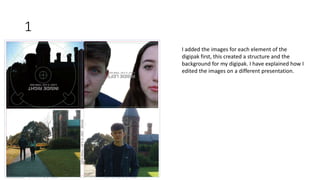
I added the images for each element of the
digipak first, this created a structure and the
background for my digipak. I have explained how I
edited the images on a different presentation.
2
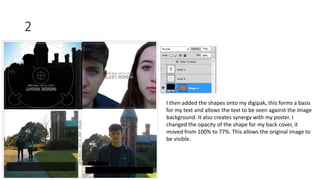
I then added the shapes onto my digipak, this forms a basis
for my text and allows the text to be seen against the image
background. It also creates synergy with my poster. I
changed the opacity of the shape for my back cover, it
moved from 100% to 77%. This allows the original image to
be visible.
3
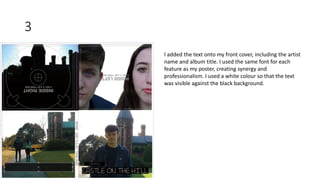
I added the text onto my front cover, including the artist
name and album title. I used the same font for each
feature as my poster, creating synergy and
professionalism. I used a white colour so that the text
was visible against the black background.
4
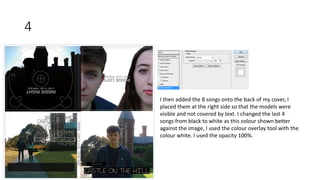
I then added the 8 songs onto the back of my cover, I
placed them at the right side so that the models were
visible and not covered by text. I changed the last 4
songs from black to white as this colour shown better
against the image, I used the colour overlay tool with the
colour white. I used the opacity 100%.
5
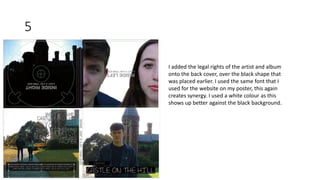
I added the legal rights of the artist and album
onto the back cover, over the black shape that
was placed earlier. I used the same font that I
used for the website on my poster, this again
creates synergy. I used a white colour as this
shows up better against the black background.
6
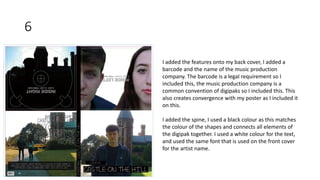
I added the features onto my back cover, I added a
barcode and the name of the music production
company. The barcode is a legal requirement so I
included this, the music production company is a
common convention of digipaks so I included this. This
also creates convergence with my poster as I included it
on this.
I added the spine, I used a black colour as this matches
the colour of the shapes and connects all elements of
the digipak together. I used a white colour for the text,
and used the same font that is used on the front cover
for the artist name.
7
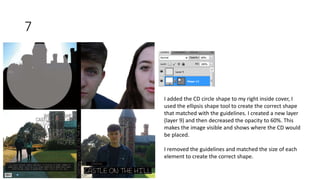
I added the CD circle shape to my right inside cover, I
used the ellipsis shape tool to create the correct shape
that matched with the guidelines. I created a new layer
(layer 9) and then decreased the opacity to 60%. This
makes the image visible and shows where the CD would
be placed.
I removed the guidelines and matched the size of each
element to create the correct shape.

Digipak Editing Process

  • 1.
  • 2.
    1 I added theimages for each element of the digipak first, this created a structure and the background for my digipak. I have explained how I edited the images on a different presentation.
  • 3.
    2 I then addedthe shapes onto my digipak, this forms a basis for my text and allows the text to be seen against the image background. It also creates synergy with my poster. I changed the opacity of the shape for my back cover, it moved from 100% to 77%. This allows the original image to be visible.
  • 4.
    3 I added thetext onto my front cover, including the artist name and album title. I used the same font for each feature as my poster, creating synergy and professionalism. I used a white colour so that the text was visible against the black background.
  • 5.
    4 I then addedthe 8 songs onto the back of my cover, I placed them at the right side so that the models were visible and not covered by text. I changed the last 4 songs from black to white as this colour shown better against the image, I used the colour overlay tool with the colour white. I used the opacity 100%.
  • 6.
    5 I added thelegal rights of the artist and album onto the back cover, over the black shape that was placed earlier. I used the same font that I used for the website on my poster, this again creates synergy. I used a white colour as this shows up better against the black background.
  • 7.
    6 I added thefeatures onto my back cover, I added a barcode and the name of the music production company. The barcode is a legal requirement so I included this, the music production company is a common convention of digipaks so I included this. This also creates convergence with my poster as I included it on this. I added the spine, I used a black colour as this matches the colour of the shapes and connects all elements of the digipak together. I used a white colour for the text, and used the same font that is used on the front cover for the artist name.
  • 8.
    7 I added theCD circle shape to my right inside cover, I used the ellipsis shape tool to create the correct shape that matched with the guidelines. I created a new layer (layer 9) and then decreased the opacity to 60%. This makes the image visible and shows where the CD would be placed. I removed the guidelines and matched the size of each element to create the correct shape.