


THE SELECTION
TOOLS
Prepared by: Sef CambalizaSource: Adobe Photoshop CS6 (2013). Jemma Development Group
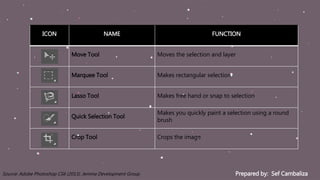
ICON NAME FUNCTION
Move Tool Moves the selection and layer
Marquee Tool Makes rectangular selection
Lasso Tool Makes free hand or snap to selection
Quick Selection Tool
Makes you quickly paint a selection using a round
brush
Crop Tool Crops the image
Prepared by: Sef CambalizaSource: Adobe Photoshop CS6 (2013). Jemma Development Group
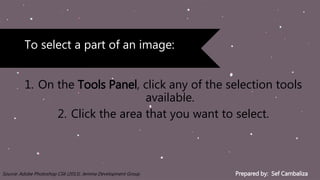
1. On the Tools Panel, click any of the selection tools
available.
2. Click the area that you want to select.
To select a part of an image:
Prepared by: Sef CambalizaSource: Adobe Photoshop CS6 (2013). Jemma Development Group
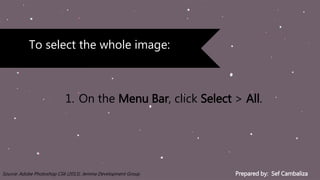
1. On the Menu Bar, click Select > All.
To select the whole image:
Prepared by: Sef CambalizaSource: Adobe Photoshop CS6 (2013). Jemma Development Group
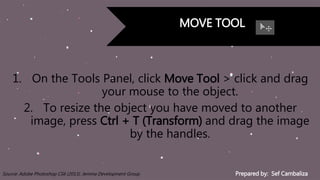
MOVE TOOL
1. On the Tools Panel, click Move Tool > click and drag
your mouse to the object.
2. To resize the object you have moved to another
image, press Ctrl + T (Transform) and drag the image
by the handles.
Prepared by: Sef CambalizaSource: Adobe Photoshop CS6 (2013). Jemma Development Group
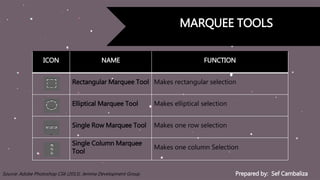
MARQUEE TOOLS
ICON NAME FUNCTION
Rectangular Marquee Tool Makes rectangular selection
Elliptical Marquee Tool Makes elliptical selection
Single Row Marquee Tool Makes one row selection
Single Column Marquee
Tool
Makes one column Selection
Prepared by: Sef CambalizaSource: Adobe Photoshop CS6 (2013). Jemma Development Group
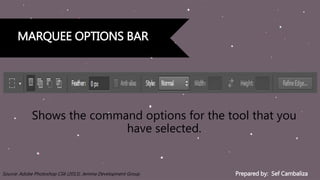
MARQUEE OPTIONS BAR
Shows the command options for the tool that you
have selected.
Prepared by: Sef CambalizaSource: Adobe Photoshop CS6 (2013). Jemma Development Group
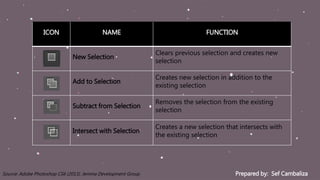
ICON NAME FUNCTION
New Selection
Clears previous selection and creates new
selection
Add to Selection
Creates new selection in addition to the
existing selection
Subtract from Selection
Removes the selection from the existing
selection
Intersect with Selection
Creates a new selection that intersects with
the existing selection
Prepared by: Sef CambalizaSource: Adobe Photoshop CS6 (2013). Jemma Development Group
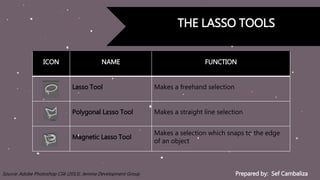
THE LASSO TOOLS
ICON NAME FUNCTION
Lasso Tool Makes a freehand selection
Polygonal Lasso Tool Makes a straight line selection
Magnetic Lasso Tool
Makes a selection which snaps to the edge
of an object
Prepared by: Sef CambalizaSource: Adobe Photoshop CS6 (2013). Jemma Development Group
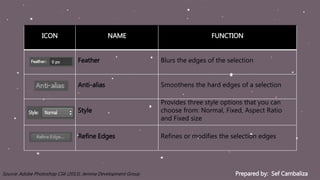
ICON NAME FUNCTION
Feather Blurs the edges of the selection
Anti-alias Smoothens the hard edges of a selection
Style
Provides three style options that you can
choose from: Normal, Fixed, Aspect Ratio
and Fixed size
Refine Edges Refines or modifies the selection edges
Prepared by: Sef CambalizaSource: Adobe Photoshop CS6 (2013). Jemma Development Group
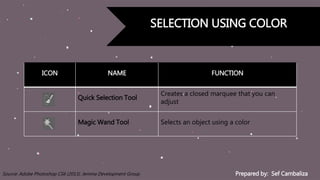
SELECTION USING COLOR
ICON NAME FUNCTION
Quick Selection Tool
Creates a closed marquee that you can
adjust
Magic Wand Tool Selects an object using a color
Prepared by: Sef CambalizaSource: Adobe Photoshop CS6 (2013). Jemma Development Group
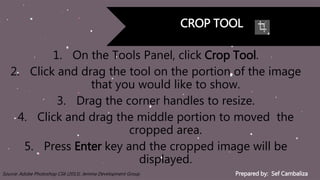
CROP TOOL
1. On the Tools Panel, click Crop Tool.
2. Click and drag the tool on the portion of the image
that you would like to show.
3. Drag the corner handles to resize.
4. Click and drag the middle portion to moved the
cropped area.
5. Press Enter key and the cropped image will be
displayed.
Prepared by: Sef CambalizaSource: Adobe Photoshop CS6 (2013). Jemma Development Group
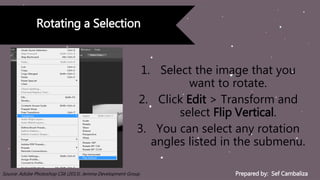
Rotating a Selection
1. Select the image that you
want to rotate.
2. Click Edit > Transform and
select Flip Vertical.
3. You can select any rotation
angles listed in the submenu.
Prepared by: Sef CambalizaSource: Adobe Photoshop CS6 (2013). Jemma Development Group
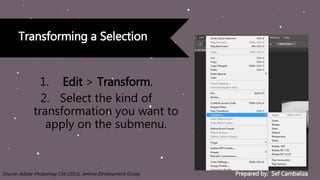
Transforming a Selection
1. Edit > Transform.
2. Select the kind of
transformation you want to
apply on the submenu.
Prepared by: Sef CambalizaSource: Adobe Photoshop CS6 (2013). Jemma Development Group
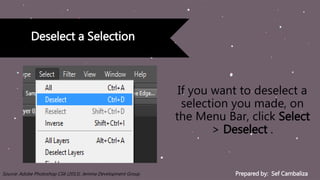
Deselect a Selection
If you want to deselect a
selection you made, on
the Menu Bar, click Select
> Deselect .
Prepared by: Sef CambalizaSource: Adobe Photoshop CS6 (2013). Jemma Development Group
Inverting a Selection
You can invert a selection to
deselect what is currently
selected and select other
parts of the image.
Prepared by: Sef CambalizaSource: Adobe Photoshop CS6 (2013). Jemma Development Group
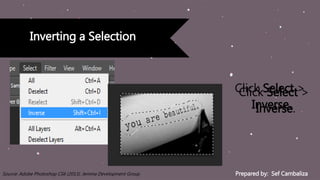
Inverting a Selection
Click Select >
Inverse.
Click Select >
Inverse.
Prepared by: Sef CambalizaSource: Adobe Photoshop CS6 (2013). Jemma Development Group
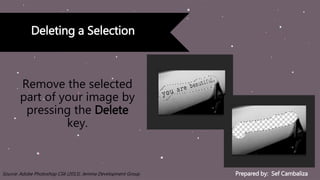
Deleting a Selection
Remove the selected
part of your image by
pressing the Delete
key.
THANK YOU.THANK YOU.

DAY 3 - THE SELECTION TOOLS

  • 2.
  • 3.
    Prepared by: SefCambalizaSource: Adobe Photoshop CS6 (2013). Jemma Development Group ICON NAME FUNCTION Move Tool Moves the selection and layer Marquee Tool Makes rectangular selection Lasso Tool Makes free hand or snap to selection Quick Selection Tool Makes you quickly paint a selection using a round brush Crop Tool Crops the image
  • 4.
    Prepared by: SefCambalizaSource: Adobe Photoshop CS6 (2013). Jemma Development Group 1. On the Tools Panel, click any of the selection tools available. 2. Click the area that you want to select. To select a part of an image:
  • 5.
    Prepared by: SefCambalizaSource: Adobe Photoshop CS6 (2013). Jemma Development Group 1. On the Menu Bar, click Select > All. To select the whole image:
  • 6.
    Prepared by: SefCambalizaSource: Adobe Photoshop CS6 (2013). Jemma Development Group MOVE TOOL 1. On the Tools Panel, click Move Tool > click and drag your mouse to the object. 2. To resize the object you have moved to another image, press Ctrl + T (Transform) and drag the image by the handles.
  • 7.
    Prepared by: SefCambalizaSource: Adobe Photoshop CS6 (2013). Jemma Development Group MARQUEE TOOLS ICON NAME FUNCTION Rectangular Marquee Tool Makes rectangular selection Elliptical Marquee Tool Makes elliptical selection Single Row Marquee Tool Makes one row selection Single Column Marquee Tool Makes one column Selection
  • 8.
    Prepared by: SefCambalizaSource: Adobe Photoshop CS6 (2013). Jemma Development Group MARQUEE OPTIONS BAR Shows the command options for the tool that you have selected.
  • 9.
    Prepared by: SefCambalizaSource: Adobe Photoshop CS6 (2013). Jemma Development Group ICON NAME FUNCTION New Selection Clears previous selection and creates new selection Add to Selection Creates new selection in addition to the existing selection Subtract from Selection Removes the selection from the existing selection Intersect with Selection Creates a new selection that intersects with the existing selection
  • 10.
    Prepared by: SefCambalizaSource: Adobe Photoshop CS6 (2013). Jemma Development Group THE LASSO TOOLS ICON NAME FUNCTION Lasso Tool Makes a freehand selection Polygonal Lasso Tool Makes a straight line selection Magnetic Lasso Tool Makes a selection which snaps to the edge of an object
  • 11.
    Prepared by: SefCambalizaSource: Adobe Photoshop CS6 (2013). Jemma Development Group ICON NAME FUNCTION Feather Blurs the edges of the selection Anti-alias Smoothens the hard edges of a selection Style Provides three style options that you can choose from: Normal, Fixed, Aspect Ratio and Fixed size Refine Edges Refines or modifies the selection edges
  • 12.
    Prepared by: SefCambalizaSource: Adobe Photoshop CS6 (2013). Jemma Development Group SELECTION USING COLOR ICON NAME FUNCTION Quick Selection Tool Creates a closed marquee that you can adjust Magic Wand Tool Selects an object using a color
  • 13.
    Prepared by: SefCambalizaSource: Adobe Photoshop CS6 (2013). Jemma Development Group CROP TOOL 1. On the Tools Panel, click Crop Tool. 2. Click and drag the tool on the portion of the image that you would like to show. 3. Drag the corner handles to resize. 4. Click and drag the middle portion to moved the cropped area. 5. Press Enter key and the cropped image will be displayed.
  • 14.
    Prepared by: SefCambalizaSource: Adobe Photoshop CS6 (2013). Jemma Development Group Rotating a Selection 1. Select the image that you want to rotate. 2. Click Edit > Transform and select Flip Vertical. 3. You can select any rotation angles listed in the submenu.
  • 15.
    Prepared by: SefCambalizaSource: Adobe Photoshop CS6 (2013). Jemma Development Group Transforming a Selection 1. Edit > Transform. 2. Select the kind of transformation you want to apply on the submenu.
  • 16.
    Prepared by: SefCambalizaSource: Adobe Photoshop CS6 (2013). Jemma Development Group Deselect a Selection If you want to deselect a selection you made, on the Menu Bar, click Select > Deselect .
  • 17.
    Prepared by: SefCambalizaSource: Adobe Photoshop CS6 (2013). Jemma Development Group Inverting a Selection You can invert a selection to deselect what is currently selected and select other parts of the image.
  • 18.
    Prepared by: SefCambalizaSource: Adobe Photoshop CS6 (2013). Jemma Development Group Inverting a Selection Click Select > Inverse. Click Select > Inverse.
  • 19.
    Prepared by: SefCambalizaSource: Adobe Photoshop CS6 (2013). Jemma Development Group Deleting a Selection Remove the selected part of your image by pressing the Delete key.
  • 20.