Veronica Zayas
vzayas@mdc.edu
    7-0614
Workshop Objectives
As a result of successful completion of the workshop, participants will be
able to:

   Configure a points-based gradebook using the Gradebook wizard
   Configure a percentage-based gradebook using Gradebook wizard
   Customize a gradebook to use highest or drop lowest score
   Configure extra credit
   Describe report categories
   Customize report results
   Save, print, export and send report results
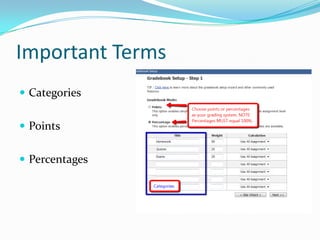
Important Terms
 Categories


 Points


 Percentages
More Terms
 Use All Assignments: All assignments will be
 included.

 Use Highest: The highest grade the student earns will
 be used.

 Drop Lowest: The lowest grade will be dropped from
 the scale. Avoid this one.
2 Ways to Grade Assignments
 Through the Content Item
Find content item > Submissions > Grade Item > Input
Grades/Comments > Save

 Through the Gradebook Console
Manage Tab > Gradebook > Grade by Assignment

TIP: Avoid Grading by User.
3 ways to setup Assignments in Gradebook
 Linking in Gradebook Wizard


 Through Gradebook


 Via Content Item
Most Common Report Categories
 Learner Profile (various)


 WhoDunIt (completion, last logon, grading)


 Grades (for individual student)


 Class (performance of the entire group)
TODAY’S ASSIGNMENT:
ALL OF THESE ACTIVITIES WILL TAKE PLACE IN SANDBOX
 Run Gradebook Wizard
 Create 2 assignments (Discussion Post & Drop box)
 Link it to the Gradebook
 Grade Content Items
 Manual Assignment
Additional Resources
 CTD Open Lab Hours:
http://www.mdc.edu/ctd/openlab.asp


 CTD ANGEL Resources Page:
https://sites.google.com/a/mymdc.net/ctd/angel
Workshop Evaluation
2 minutes, I promise 

http://bit.ly/J52xCH


Thank You…

Ctd0324 ange lgradebookandreportsfinal

  • 1.
  • 2.
    Workshop Objectives As aresult of successful completion of the workshop, participants will be able to:  Configure a points-based gradebook using the Gradebook wizard  Configure a percentage-based gradebook using Gradebook wizard  Customize a gradebook to use highest or drop lowest score  Configure extra credit  Describe report categories  Customize report results  Save, print, export and send report results
  • 3.
    Important Terms  Categories Points  Percentages
  • 4.
    More Terms  UseAll Assignments: All assignments will be included.  Use Highest: The highest grade the student earns will be used.  Drop Lowest: The lowest grade will be dropped from the scale. Avoid this one.
  • 5.
    2 Ways toGrade Assignments  Through the Content Item Find content item > Submissions > Grade Item > Input Grades/Comments > Save  Through the Gradebook Console Manage Tab > Gradebook > Grade by Assignment TIP: Avoid Grading by User.
  • 6.
    3 ways tosetup Assignments in Gradebook  Linking in Gradebook Wizard  Through Gradebook  Via Content Item
  • 7.
    Most Common ReportCategories  Learner Profile (various)  WhoDunIt (completion, last logon, grading)  Grades (for individual student)  Class (performance of the entire group)
  • 8.
    TODAY’S ASSIGNMENT: ALL OFTHESE ACTIVITIES WILL TAKE PLACE IN SANDBOX  Run Gradebook Wizard  Create 2 assignments (Discussion Post & Drop box)  Link it to the Gradebook  Grade Content Items  Manual Assignment
  • 9.
    Additional Resources  CTDOpen Lab Hours: http://www.mdc.edu/ctd/openlab.asp  CTD ANGEL Resources Page: https://sites.google.com/a/mymdc.net/ctd/angel
  • 10.
    Workshop Evaluation 2 minutes,I promise  http://bit.ly/J52xCH Thank You…