STEP 1: Create Required Directories
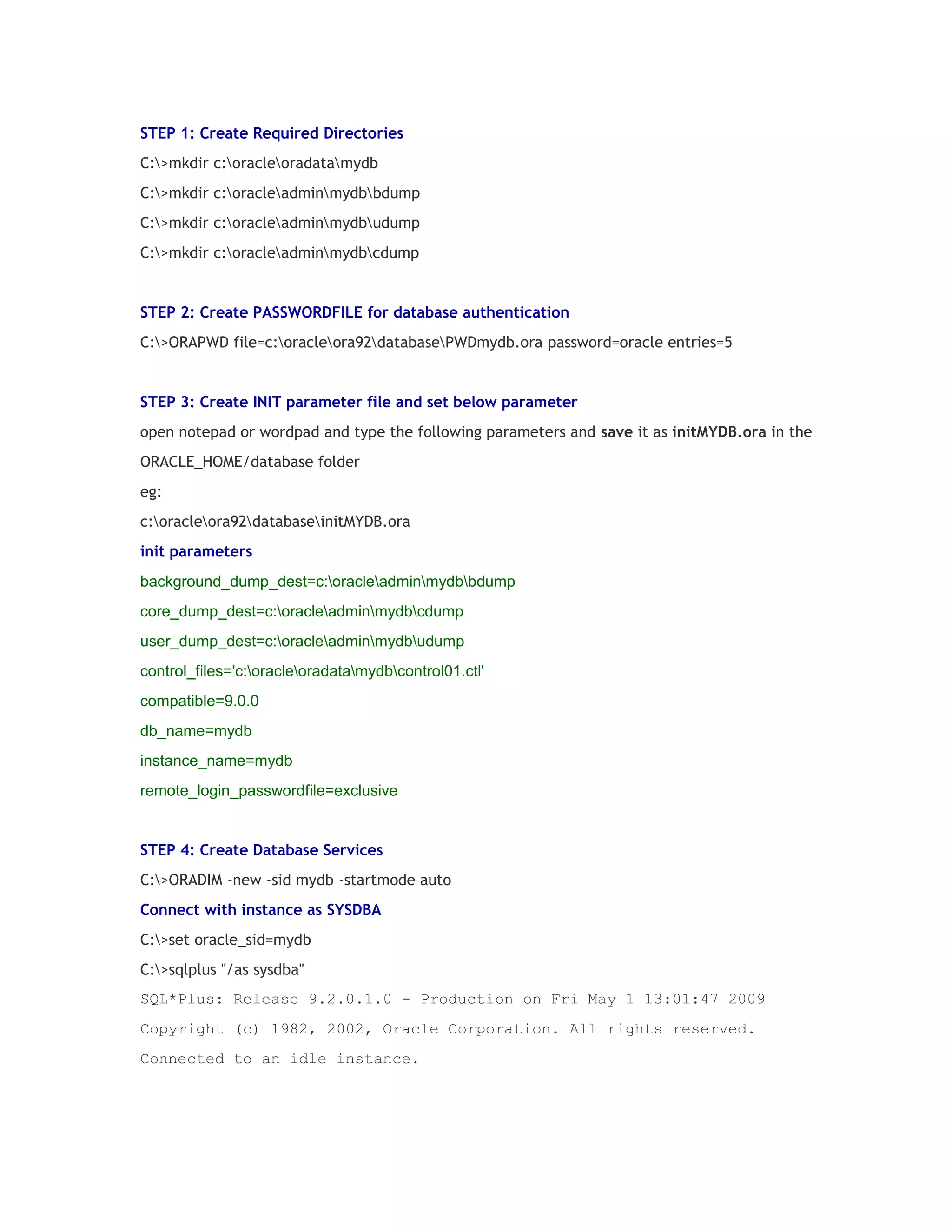
C:>mkdir c:oracleoradatamydb
C:>mkdir c:oracleadminmydbbdump
C:>mkdir c:oracleadminmydbudump
C:>mkdir c:oracleadminmydbcdump

STEP 2: Create PASSWORDFILE for database authentication
C:>ORAPWD file=c:oracleora92databasePWDmydb.ora password=oracle entries=5

STEP 3: Create INIT parameter file and set below parameter
open notepad or wordpad and type the following parameters and save it as initMYDB.ora in the
ORACLE_HOME/database folder
eg:
c:oracleora92databaseinitMYDB.ora
init parameters
background_dump_dest=c:oracleadminmydbbdump
core_dump_dest=c:oracleadminmydbcdump
user_dump_dest=c:oracleadminmydbudump
control_files='c:oracleoradatamydbcontrol01.ctl'
compatible=9.0.0
db_name=mydb
instance_name=mydb
remote_login_passwordfile=exclusive

STEP 4: Create Database Services
C:>ORADIM -new -sid mydb -startmode auto
Connect with instance as SYSDBA
C:>set oracle_sid=mydb
C:>sqlplus "/as sysdba"
SQL*Plus: Release 9.2.0.1.0 - Production on Fri May 1 13:01:47 2009
Copyright (c) 1982, 2002, Oracle Corporation. All rights reserved.
Connected to an idle instance.
STEP 5: Startup the instance at NOMOUNT stage
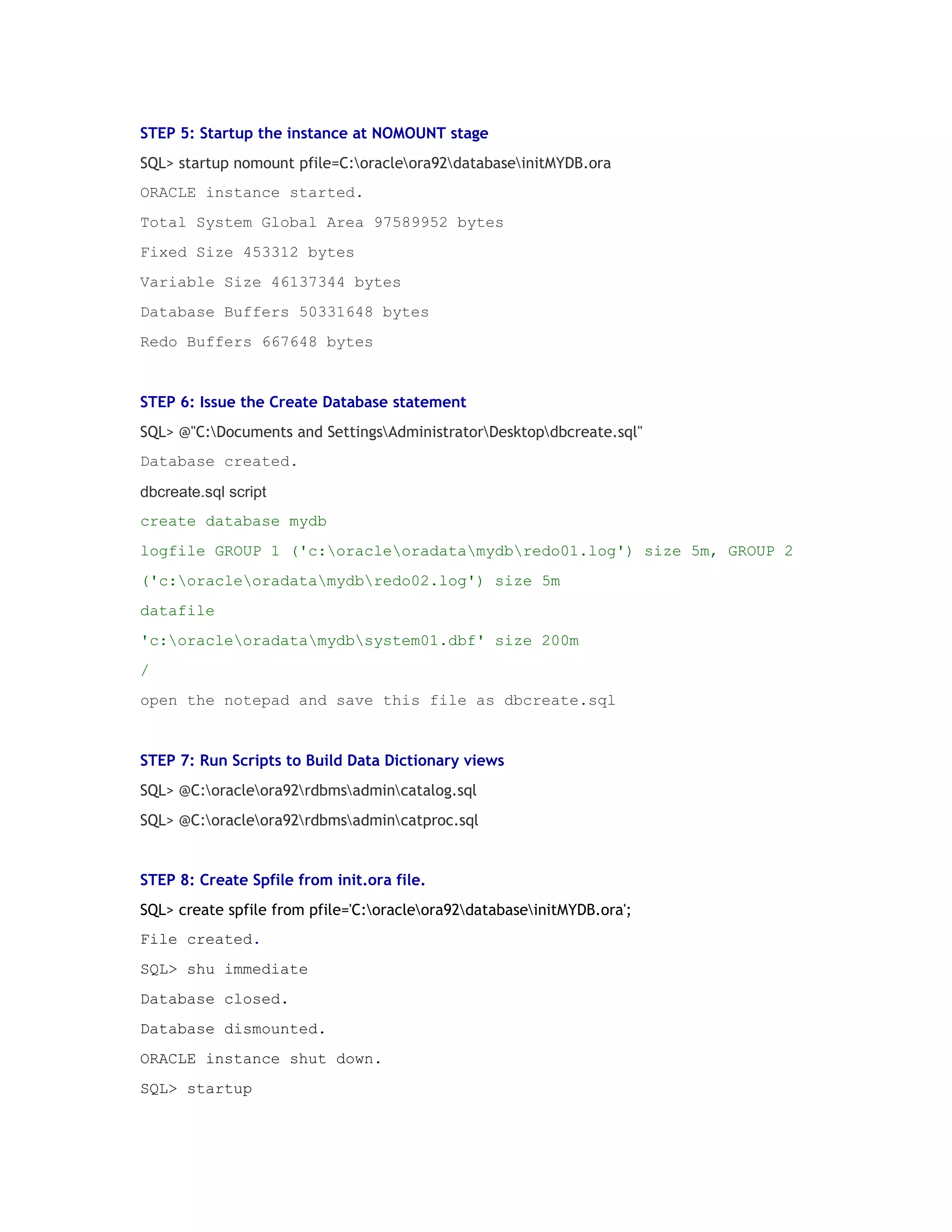
SQL> startup nomount pfile=C:oracleora92databaseinitMYDB.ora
ORACLE instance started.
Total System Global Area 97589952 bytes
Fixed Size 453312 bytes
Variable Size 46137344 bytes
Database Buffers 50331648 bytes
Redo Buffers 667648 bytes

STEP 6: Issue the Create Database statement
SQL> @"C:Documents and SettingsAdministratorDesktopdbcreate.sql"
Database created.
dbcreate.sql script
create database mydb
logfile GROUP 1 ('c:oracleoradatamydbredo01.log') size 5m, GROUP 2
('c:oracleoradatamydbredo02.log') size 5m
datafile
'c:oracleoradatamydbsystem01.dbf' size 200m
/
open the notepad and save this file as dbcreate.sql

STEP 7: Run Scripts to Build Data Dictionary views
SQL> @C:oracleora92rdbmsadmincatalog.sql
SQL> @C:oracleora92rdbmsadmincatproc.sql

STEP 8: Create Spfile from init.ora file.
SQL> create spfile from pfile='C:oracleora92databaseinitMYDB.ora';
File created.
SQL> shu immediate
Database closed.
Database dismounted.
ORACLE instance shut down.
SQL> startup
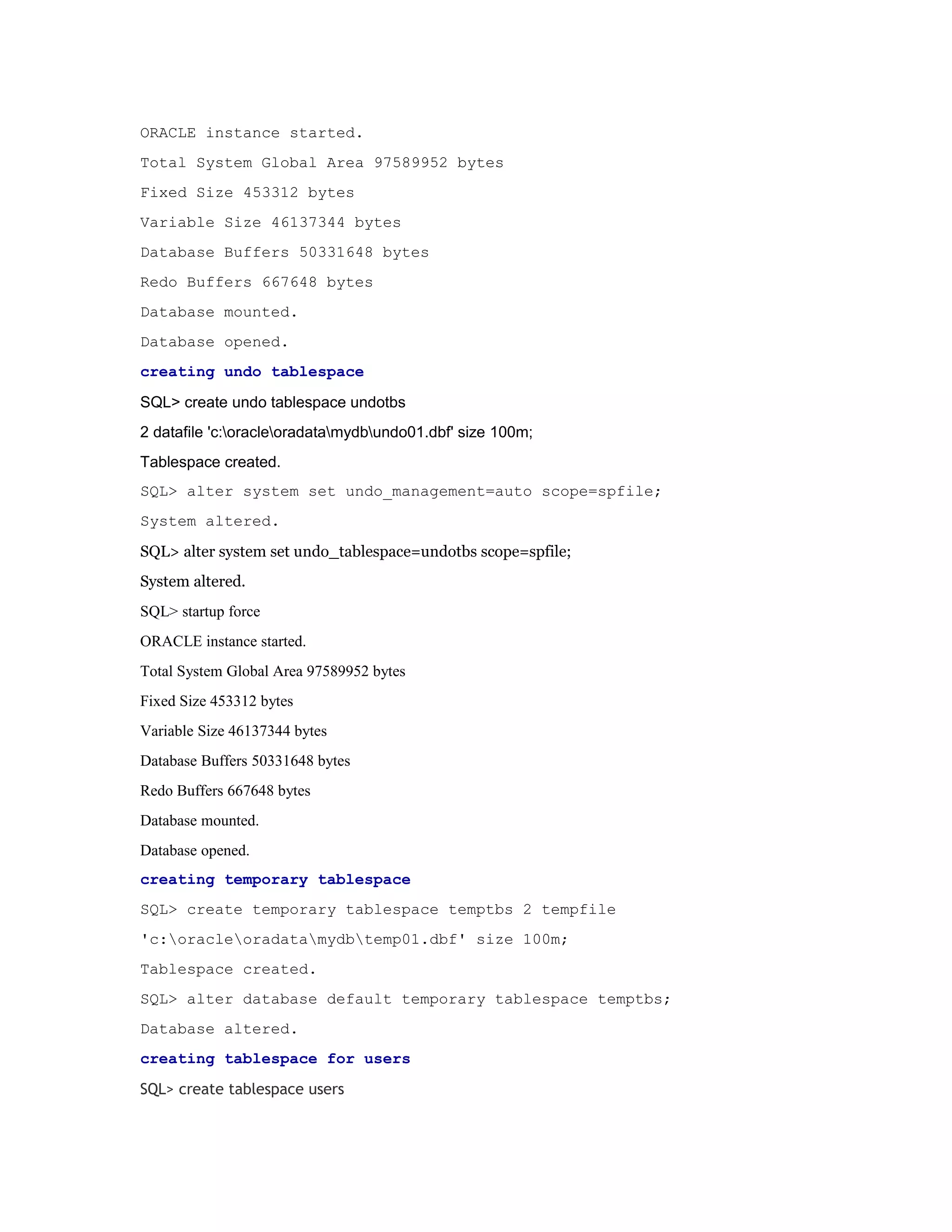
ORACLE instance started.
Total System Global Area 97589952 bytes
Fixed Size 453312 bytes
Variable Size 46137344 bytes
Database Buffers 50331648 bytes
Redo Buffers 667648 bytes
Database mounted.
Database opened.
creating undo tablespace
SQL> create undo tablespace undotbs
2 datafile 'c:oracleoradatamydbundo01.dbf' size 100m;
Tablespace created.
SQL> alter system set undo_management=auto scope=spfile;
System altered.
SQL> alter system set undo_tablespace=undotbs scope=spfile;
System altered.
SQL> startup force
ORACLE instance started.
Total System Global Area 97589952 bytes
Fixed Size 453312 bytes
Variable Size 46137344 bytes
Database Buffers 50331648 bytes
Redo Buffers 667648 bytes
Database mounted.
Database opened.
creating temporary tablespace
SQL> create temporary tablespace temptbs 2 tempfile
'c:oracleoradatamydbtemp01.dbf' size 100m;
Tablespace created.
SQL> alter database default temporary tablespace temptbs;
Database altered.
creating tablespace for users
SQL> create tablespace users
2 datafile 'c:oracleoradatamydbuser01.dbf' size 100m;
Tablespace created.
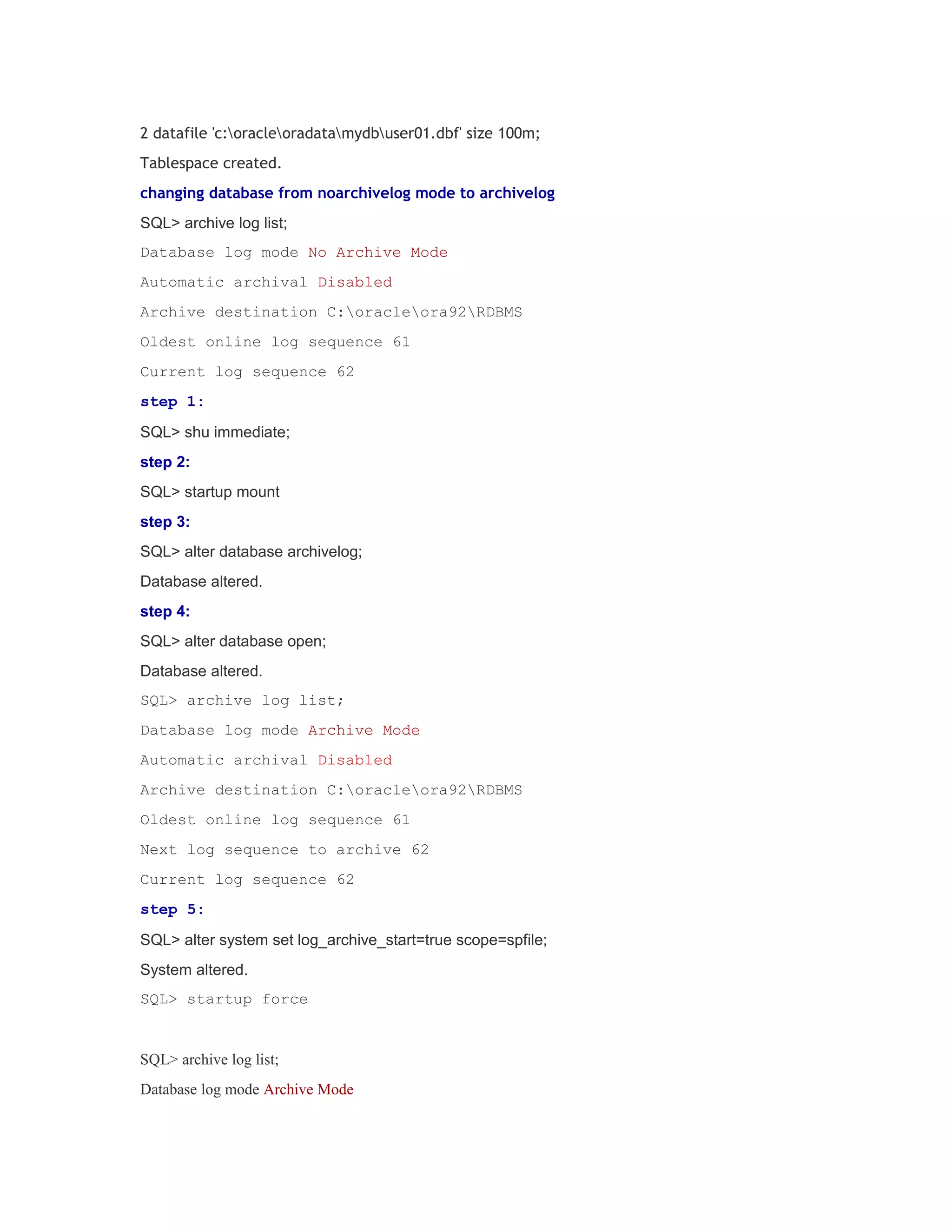
changing database from noarchivelog mode to archivelog
SQL> archive log list;
Database log mode No Archive Mode
Automatic archival Disabled
Archive destination C:oracleora92RDBMS
Oldest online log sequence 61
Current log sequence 62
step 1:
SQL> shu immediate;
step 2:
SQL> startup mount
step 3:
SQL> alter database archivelog;
Database altered.
step 4:
SQL> alter database open;
Database altered.
SQL> archive log list;
Database log mode Archive Mode
Automatic archival Disabled
Archive destination C:oracleora92RDBMS
Oldest online log sequence 61
Next log sequence to archive 62
Current log sequence 62
step 5:
SQL> alter system set log_archive_start=true scope=spfile;
System altered.
SQL> startup force

SQL> archive log list;
Database log mode Archive Mode
Automatic archival Enabled
Archive destination C:oracleora92RDBMS
Oldest online log sequence 62
Next log sequence to archive 63
Current log sequence 63
I HOPE THIS DOCUMENTATION WILL HELPS YOU DO CREATE A DATABASE.
THANKS FOR READING THIS DOCUMENTATION.
POSTED BY RAJESHKUMAR GOVINDARAJAN AT TUESDAY, MAY 26, 2009 0 COMMENTS
TO THIS POST
LABELS: 9I CONCEPTS, DATABASE CREATION

WEDNESDAY, MAY 13, 2009

creating database with dbca
creation of database using database configuration assitant(DBCA):
steps for creating a database using dbca in a oracle server for both windows and linux
environment follow the same procedure.
for linux:
open the terminal type dbca in the terminal
eg:
[oracle@localhost ~]$dbca
welcome screen will appear if not
[oracle@localhost ~]$$ORACLE_HOME/bin/dbca
for windows open command prompt and type dbca, welcome screen will appear
step 1:

click NEXT to proceed.
step 2:

LINKS
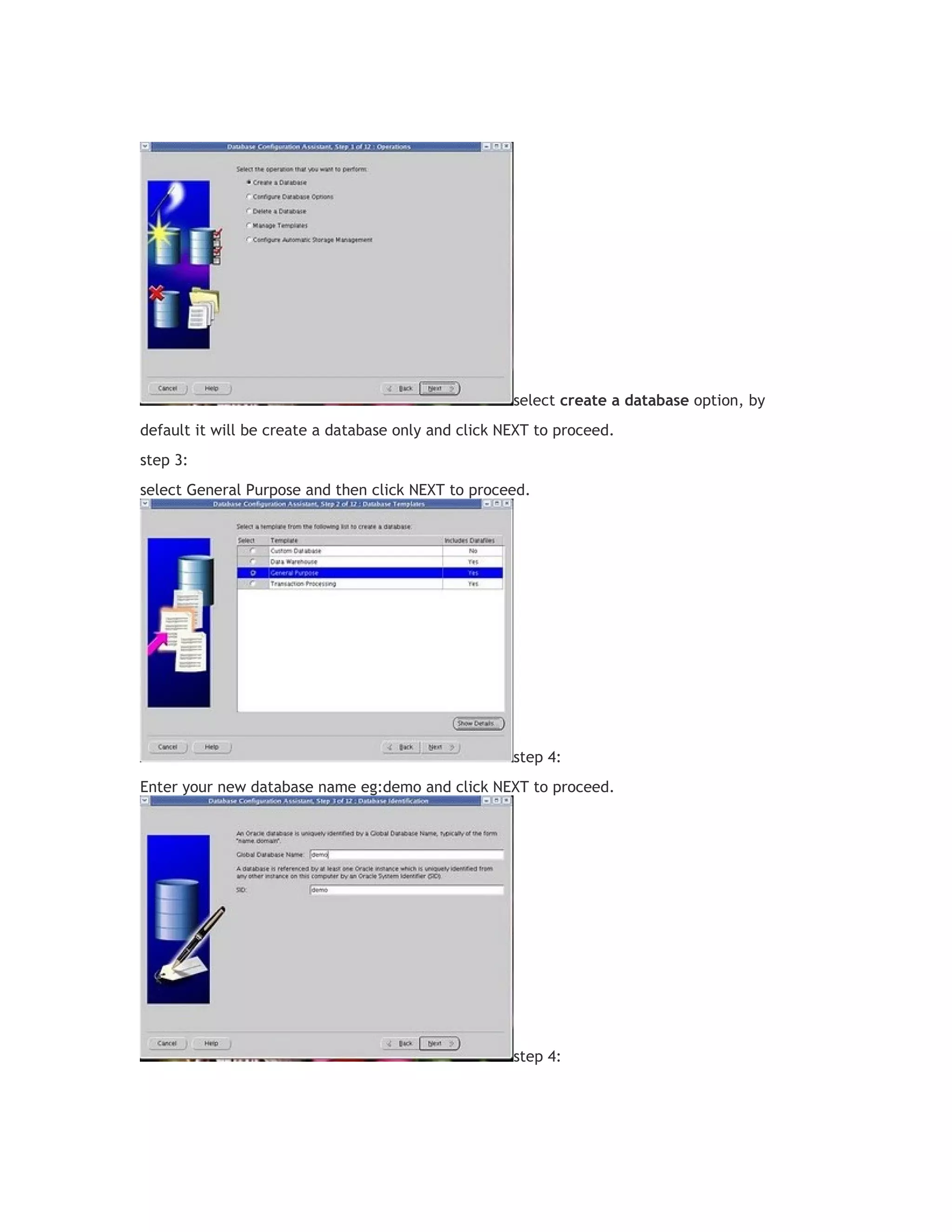
select create a database option, by
default it will be create a database only and click NEXT to proceed.
step 3:
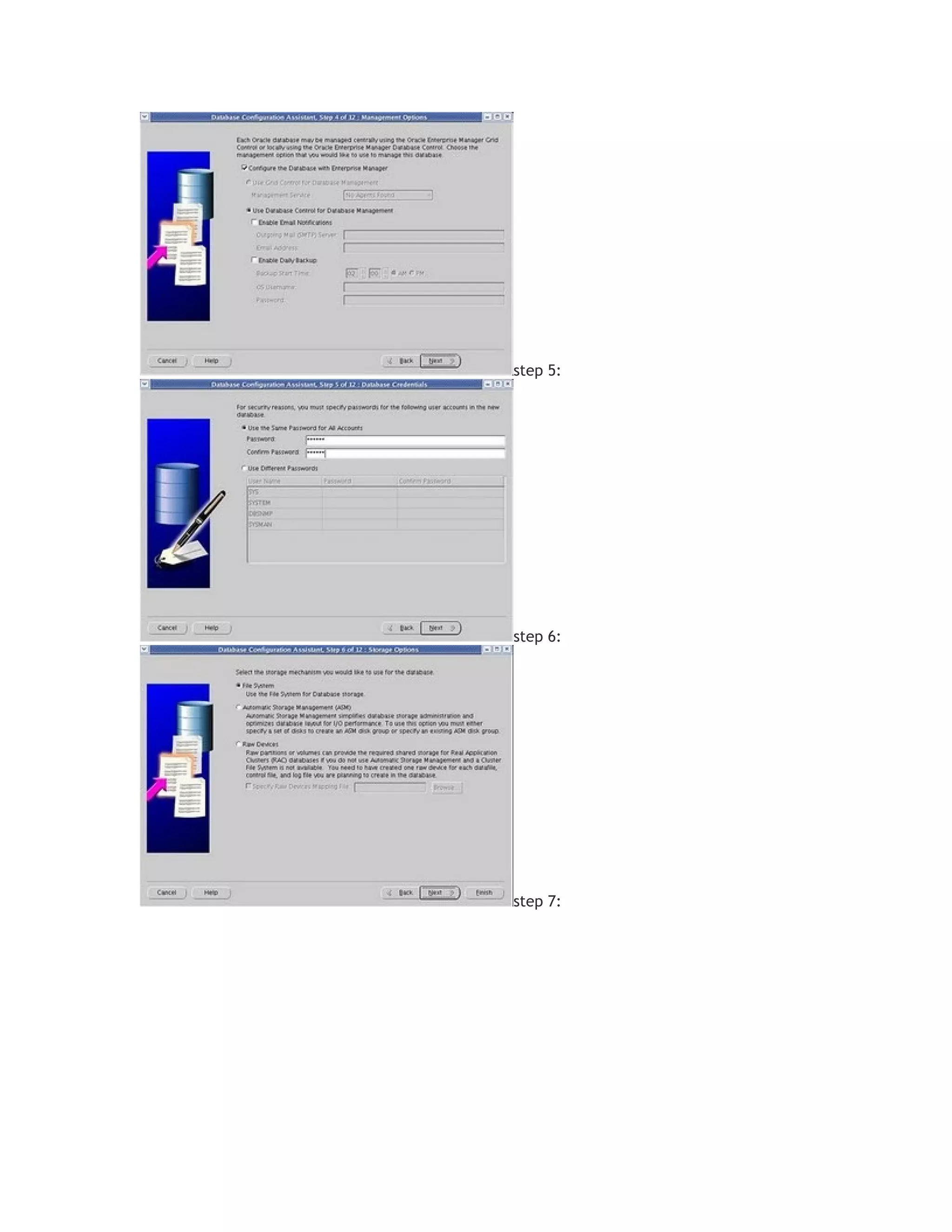
select General Purpose and then click NEXT to proceed.

step 4:
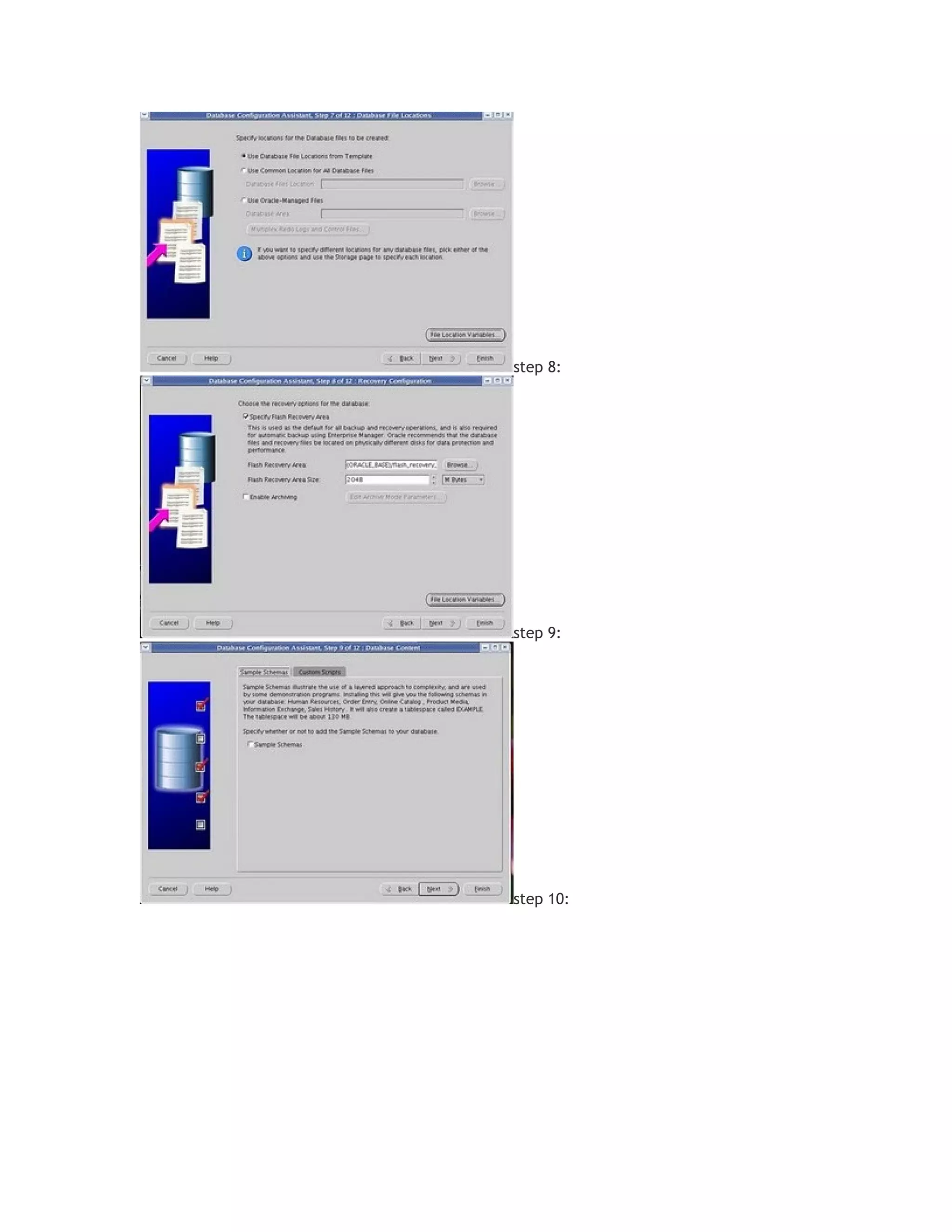
Enter your new database name eg:demo and click NEXT to proceed.

step 4:
step 5:

step 6:

step 7:
step 8:

step 9:

step 10:
step 11:

step 12:

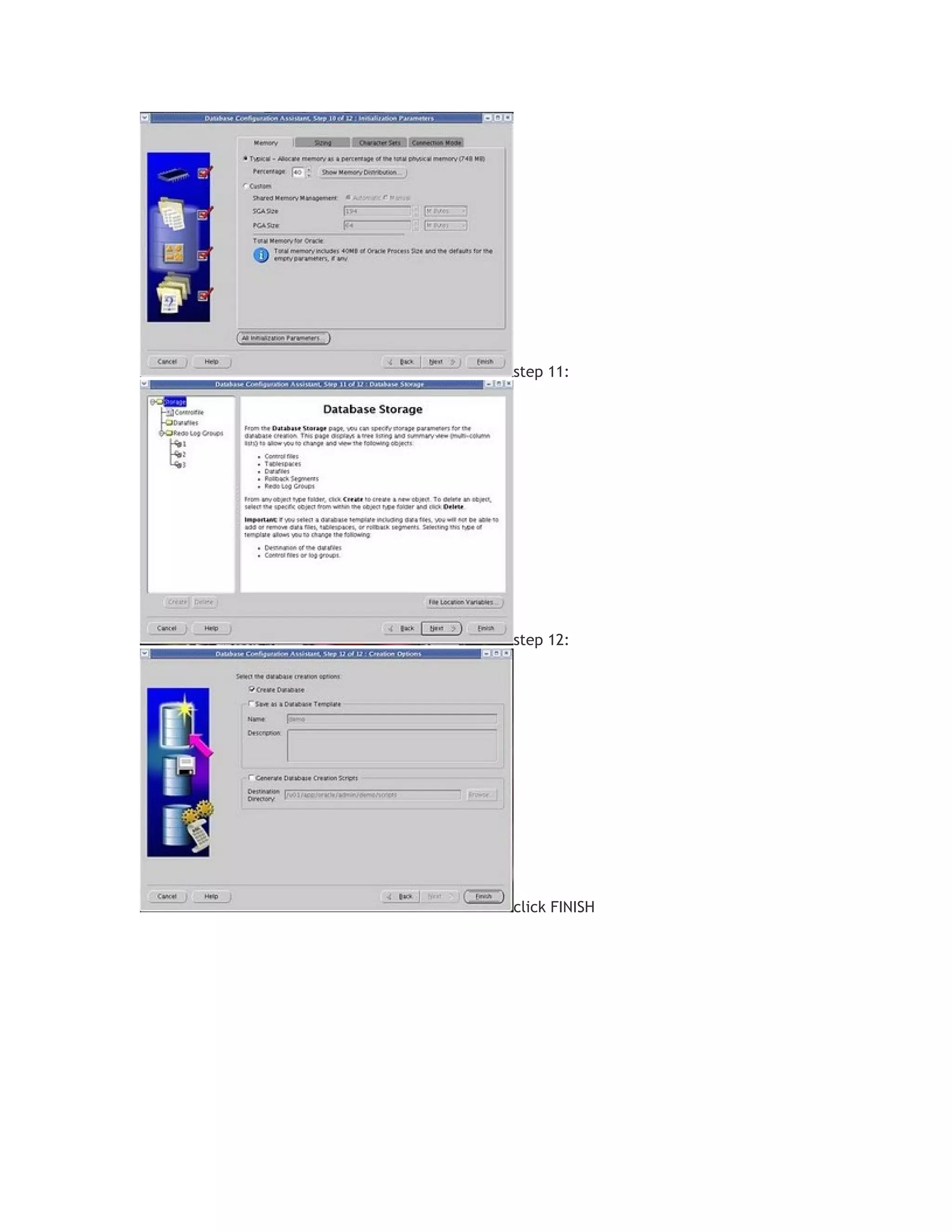
click FINISH
now you can connect and work with your new database
[oracle@localhost ~]ORACLE_SID=demo
[oracle@localhost ~]sqlplus '/as sysdba'
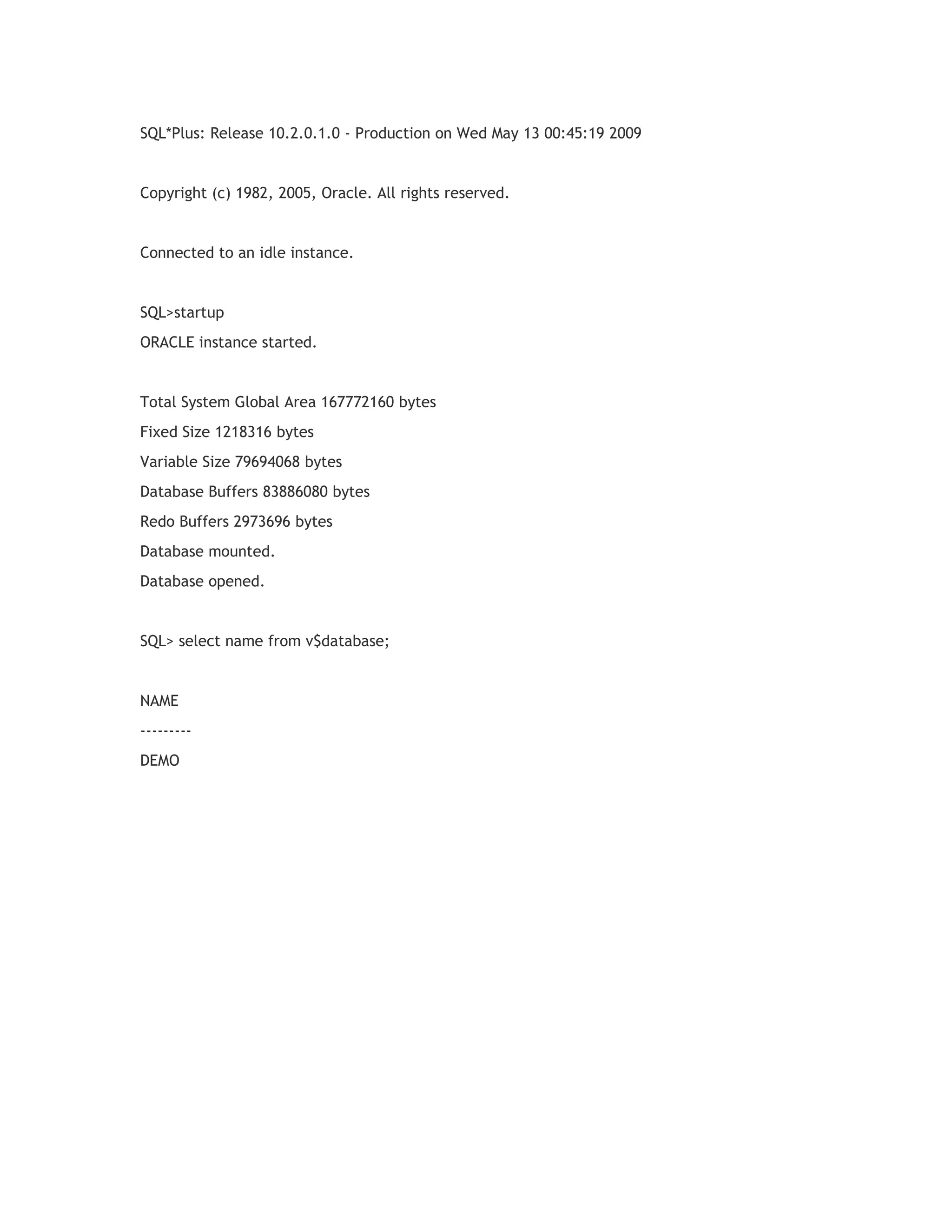
SQL*Plus: Release 10.2.0.1.0 - Production on Wed May 13 00:45:19 2009

Copyright (c) 1982, 2005, Oracle. All rights reserved.

Connected to an idle instance.

SQL>startup
ORACLE instance started.

Total System Global Area 167772160 bytes
Fixed Size 1218316 bytes
Variable Size 79694068 bytes
Database Buffers 83886080 bytes
Redo Buffers 2973696 bytes
Database mounted.
Database opened.

SQL> select name from v$database;

NAME
--------DEMO

Create manula and automaticly database

  • 1.
    STEP 1: CreateRequired Directories C:>mkdir c:oracleoradatamydb C:>mkdir c:oracleadminmydbbdump C:>mkdir c:oracleadminmydbudump C:>mkdir c:oracleadminmydbcdump STEP 2: Create PASSWORDFILE for database authentication C:>ORAPWD file=c:oracleora92databasePWDmydb.ora password=oracle entries=5 STEP 3: Create INIT parameter file and set below parameter open notepad or wordpad and type the following parameters and save it as initMYDB.ora in the ORACLE_HOME/database folder eg: c:oracleora92databaseinitMYDB.ora init parameters background_dump_dest=c:oracleadminmydbbdump core_dump_dest=c:oracleadminmydbcdump user_dump_dest=c:oracleadminmydbudump control_files='c:oracleoradatamydbcontrol01.ctl' compatible=9.0.0 db_name=mydb instance_name=mydb remote_login_passwordfile=exclusive STEP 4: Create Database Services C:>ORADIM -new -sid mydb -startmode auto Connect with instance as SYSDBA C:>set oracle_sid=mydb C:>sqlplus "/as sysdba" SQL*Plus: Release 9.2.0.1.0 - Production on Fri May 1 13:01:47 2009 Copyright (c) 1982, 2002, Oracle Corporation. All rights reserved. Connected to an idle instance.
  • 2.
    STEP 5: Startupthe instance at NOMOUNT stage SQL> startup nomount pfile=C:oracleora92databaseinitMYDB.ora ORACLE instance started. Total System Global Area 97589952 bytes Fixed Size 453312 bytes Variable Size 46137344 bytes Database Buffers 50331648 bytes Redo Buffers 667648 bytes STEP 6: Issue the Create Database statement SQL> @"C:Documents and SettingsAdministratorDesktopdbcreate.sql" Database created. dbcreate.sql script create database mydb logfile GROUP 1 ('c:oracleoradatamydbredo01.log') size 5m, GROUP 2 ('c:oracleoradatamydbredo02.log') size 5m datafile 'c:oracleoradatamydbsystem01.dbf' size 200m / open the notepad and save this file as dbcreate.sql STEP 7: Run Scripts to Build Data Dictionary views SQL> @C:oracleora92rdbmsadmincatalog.sql SQL> @C:oracleora92rdbmsadmincatproc.sql STEP 8: Create Spfile from init.ora file. SQL> create spfile from pfile='C:oracleora92databaseinitMYDB.ora'; File created. SQL> shu immediate Database closed. Database dismounted. ORACLE instance shut down. SQL> startup
  • 3.
    ORACLE instance started. TotalSystem Global Area 97589952 bytes Fixed Size 453312 bytes Variable Size 46137344 bytes Database Buffers 50331648 bytes Redo Buffers 667648 bytes Database mounted. Database opened. creating undo tablespace SQL> create undo tablespace undotbs 2 datafile 'c:oracleoradatamydbundo01.dbf' size 100m; Tablespace created. SQL> alter system set undo_management=auto scope=spfile; System altered. SQL> alter system set undo_tablespace=undotbs scope=spfile; System altered. SQL> startup force ORACLE instance started. Total System Global Area 97589952 bytes Fixed Size 453312 bytes Variable Size 46137344 bytes Database Buffers 50331648 bytes Redo Buffers 667648 bytes Database mounted. Database opened. creating temporary tablespace SQL> create temporary tablespace temptbs 2 tempfile 'c:oracleoradatamydbtemp01.dbf' size 100m; Tablespace created. SQL> alter database default temporary tablespace temptbs; Database altered. creating tablespace for users SQL> create tablespace users
  • 4.
    2 datafile 'c:oracleoradatamydbuser01.dbf'size 100m; Tablespace created. changing database from noarchivelog mode to archivelog SQL> archive log list; Database log mode No Archive Mode Automatic archival Disabled Archive destination C:oracleora92RDBMS Oldest online log sequence 61 Current log sequence 62 step 1: SQL> shu immediate; step 2: SQL> startup mount step 3: SQL> alter database archivelog; Database altered. step 4: SQL> alter database open; Database altered. SQL> archive log list; Database log mode Archive Mode Automatic archival Disabled Archive destination C:oracleora92RDBMS Oldest online log sequence 61 Next log sequence to archive 62 Current log sequence 62 step 5: SQL> alter system set log_archive_start=true scope=spfile; System altered. SQL> startup force SQL> archive log list; Database log mode Archive Mode
  • 5.
    Automatic archival Enabled Archivedestination C:oracleora92RDBMS Oldest online log sequence 62 Next log sequence to archive 63 Current log sequence 63 I HOPE THIS DOCUMENTATION WILL HELPS YOU DO CREATE A DATABASE. THANKS FOR READING THIS DOCUMENTATION. POSTED BY RAJESHKUMAR GOVINDARAJAN AT TUESDAY, MAY 26, 2009 0 COMMENTS TO THIS POST LABELS: 9I CONCEPTS, DATABASE CREATION WEDNESDAY, MAY 13, 2009 creating database with dbca creation of database using database configuration assitant(DBCA): steps for creating a database using dbca in a oracle server for both windows and linux environment follow the same procedure. for linux: open the terminal type dbca in the terminal eg: [oracle@localhost ~]$dbca welcome screen will appear if not [oracle@localhost ~]$$ORACLE_HOME/bin/dbca for windows open command prompt and type dbca, welcome screen will appear step 1: click NEXT to proceed. step 2: LINKS
  • 6.
    select create adatabase option, by default it will be create a database only and click NEXT to proceed. step 3: select General Purpose and then click NEXT to proceed. step 4: Enter your new database name eg:demo and click NEXT to proceed. step 4:
  • 7.
  • 8.
  • 9.
  • 10.
    now you canconnect and work with your new database [oracle@localhost ~]ORACLE_SID=demo [oracle@localhost ~]sqlplus '/as sysdba'
  • 11.
    SQL*Plus: Release 10.2.0.1.0- Production on Wed May 13 00:45:19 2009 Copyright (c) 1982, 2005, Oracle. All rights reserved. Connected to an idle instance. SQL>startup ORACLE instance started. Total System Global Area 167772160 bytes Fixed Size 1218316 bytes Variable Size 79694068 bytes Database Buffers 83886080 bytes Redo Buffers 2973696 bytes Database mounted. Database opened. SQL> select name from v$database; NAME --------DEMO