3
Copyright © Oracle Corporation, 2001. All rights reserved.
Managing an Oracle Instance
3-2 Copyright © Oracle Corporation, 2001. All rights reserved.
Objectives
After completing this lesson, you should be able to do
the following:
• Create and manage initialization parameter files
• Start up and shut down an instance
• Monitor and use diagnostic files
3-3 Copyright © Oracle Corporation, 2001. All rights reserved.
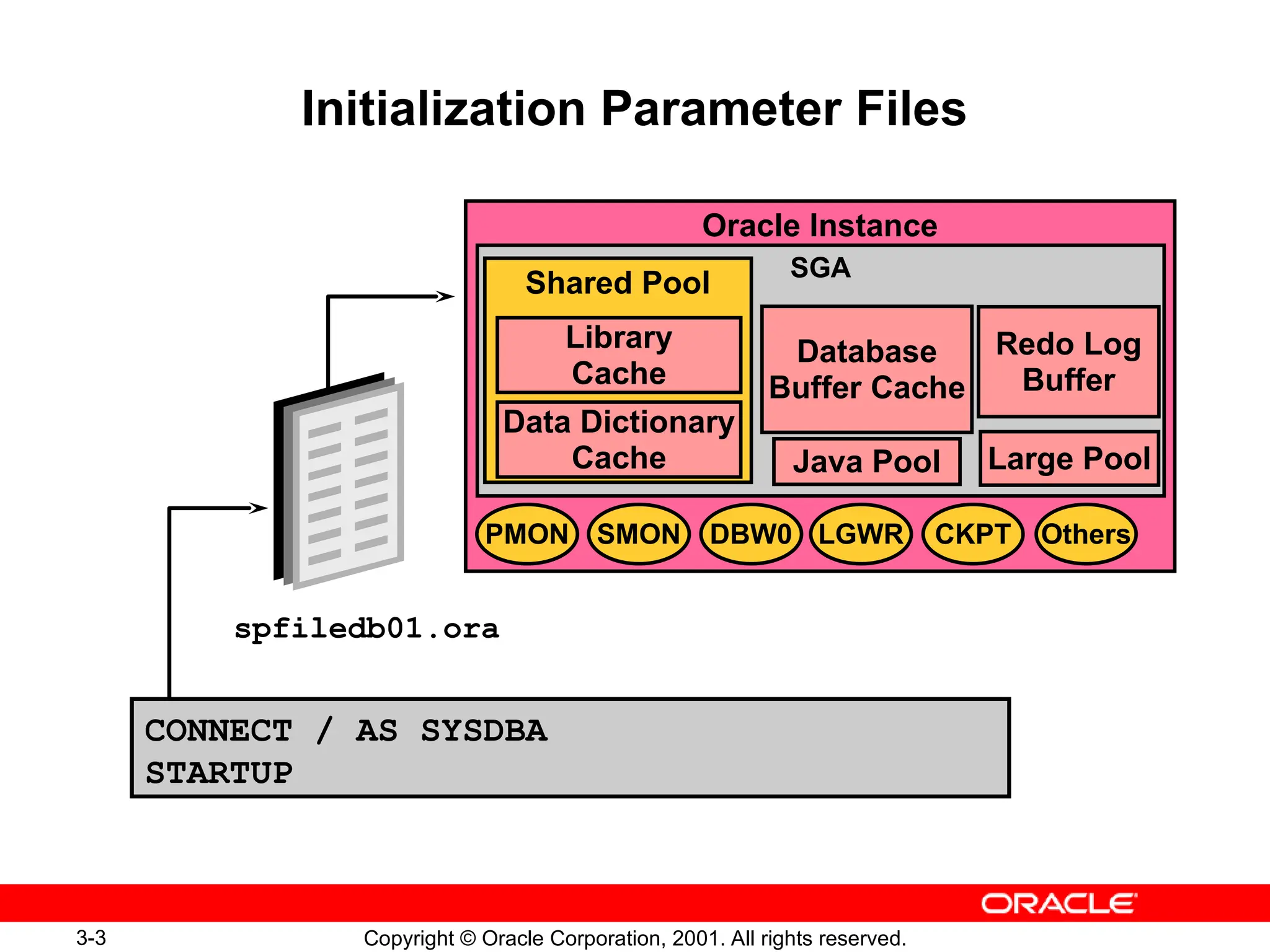
spfiledb01.ora
Initialization Parameter Files
CONNECT / AS SYSDBA
STARTUP
Oracle Instance
SGA
Redo Log
Buffer
Shared Pool
Data Dictionary
Cache
Library
Cache
DBW0
SMON
PMON CKPT
LGWR Others
Database
Buffer Cache
Java Pool Large Pool
3-4 Copyright © Oracle Corporation, 2001. All rights reserved.
Initialization Parameter Files
• Entries are specific to the instance being started
• Two types of parameters:
– Explicit: Having an entry in the file
– Implicit: No entry within the file, but assuming the
Oracle default values
• Multiple initialization parameter files can exist
• Changes to entries in the file take effect based on
the type of initialization parameter file used
– Static parameter file, PFILE
– Persistent parameter file, SPFILE
3-6 Copyright © Oracle Corporation, 2001. All rights reserved.
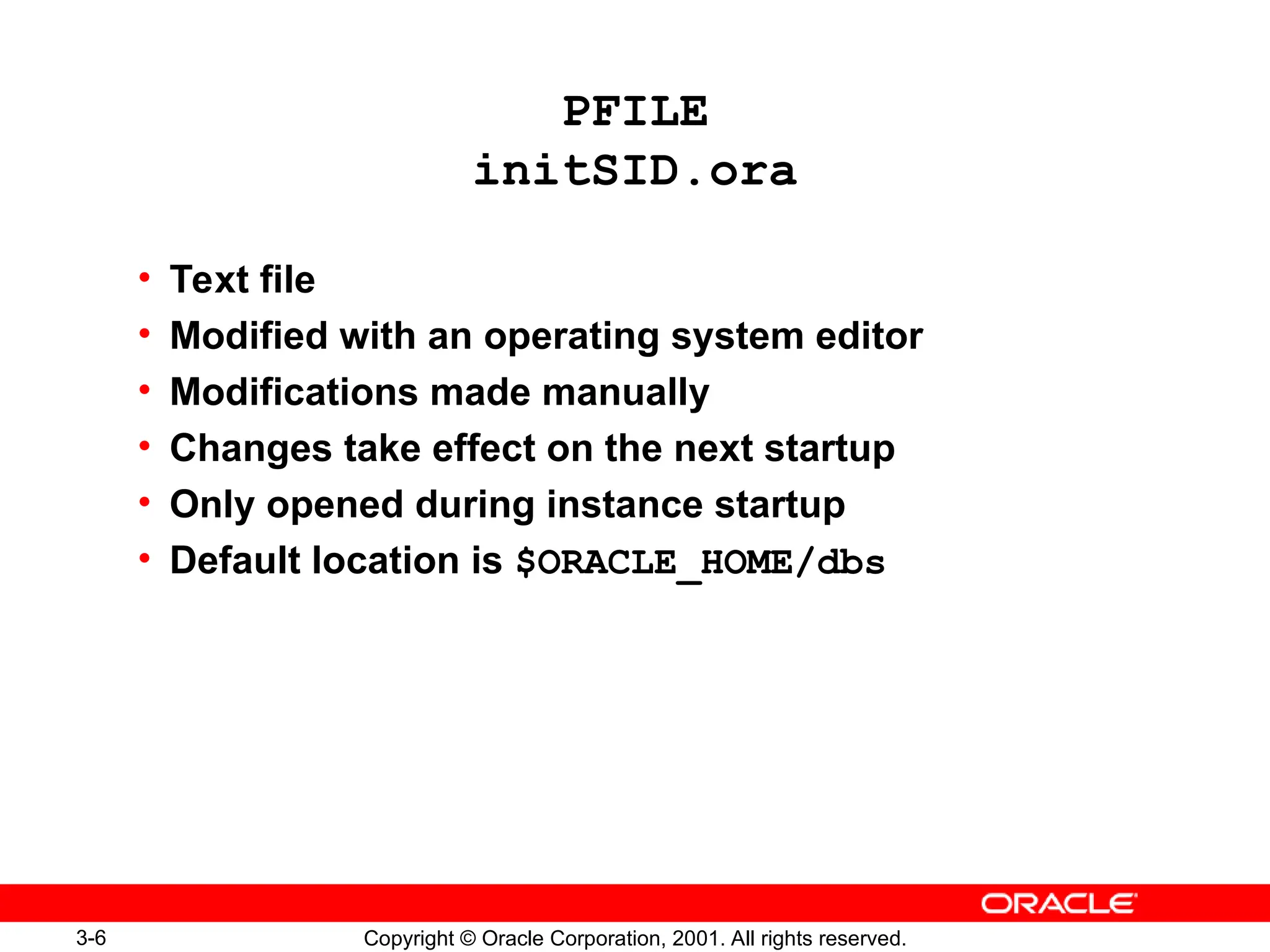
PFILE
initSID.ora
• Text file
• Modified with an operating system editor
• Modifications made manually
• Changes take effect on the next startup
• Only opened during instance startup
• Default location is $ORACLE_HOME/dbs
3-7 Copyright © Oracle Corporation, 2001. All rights reserved.
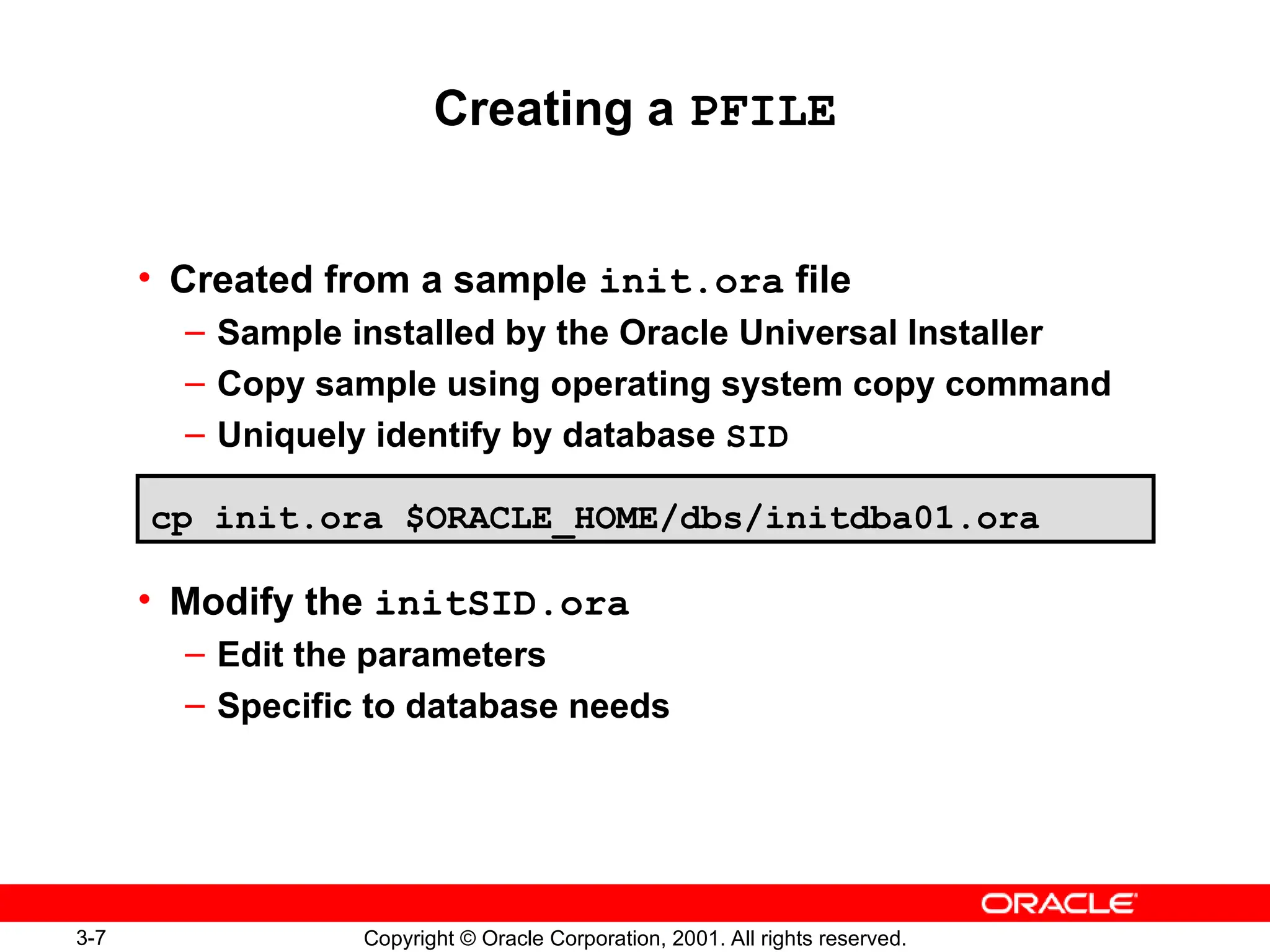
Creating a PFILE
• Created from a sample init.ora file
– Sample installed by the Oracle Universal Installer
– Copy sample using operating system copy command
– Uniquely identify by database SID
• Modify the initSID.ora
– Edit the parameters
– Specific to database needs
cp init.ora $ORACLE_HOME/dbs/initdba01.ora
3-8 Copyright © Oracle Corporation, 2001. All rights reserved.
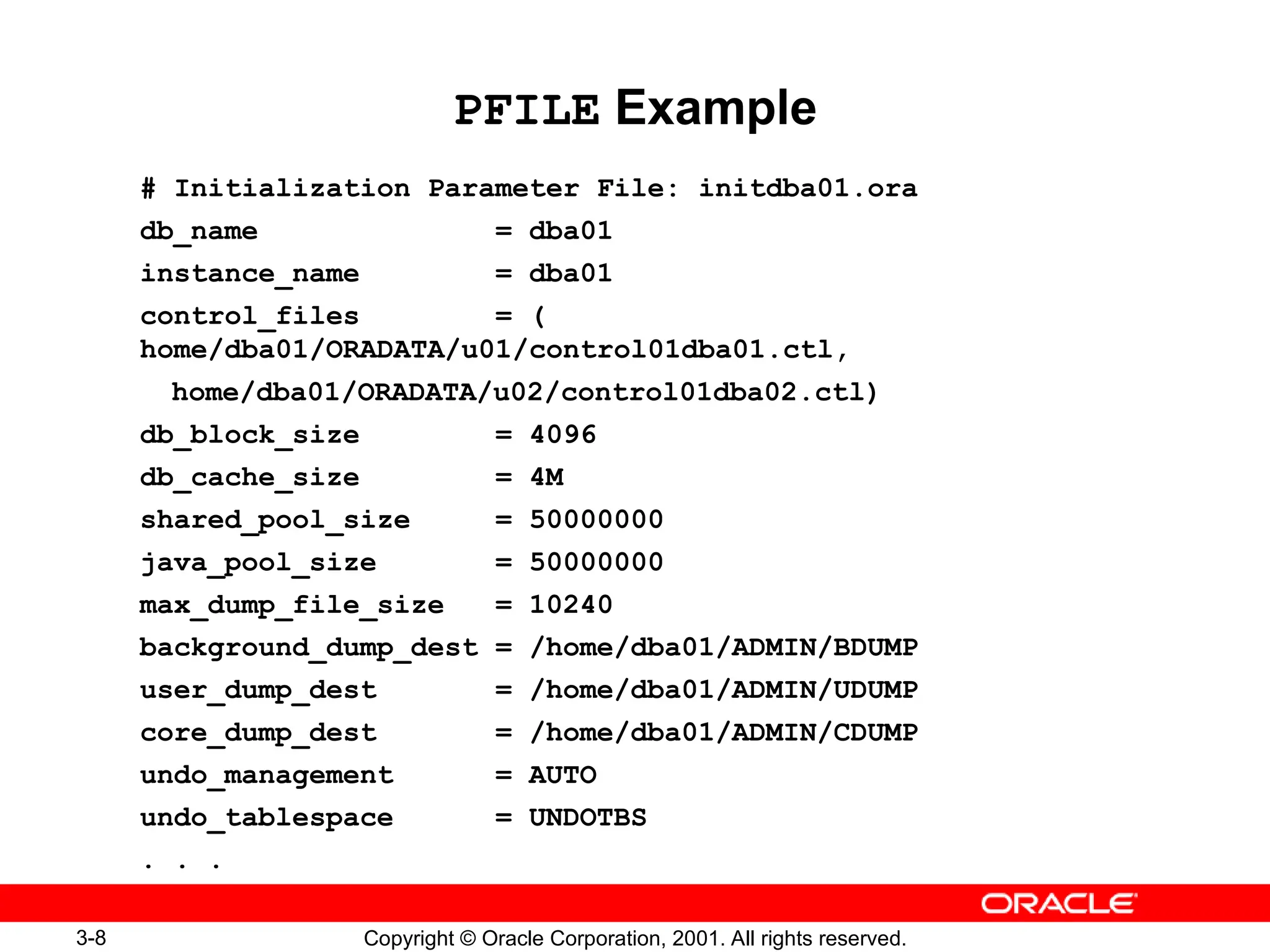
PFILE Example
# Initialization Parameter File: initdba01.ora
db_name = dba01
instance_name = dba01
control_files = (
home/dba01/ORADATA/u01/control01dba01.ctl,
home/dba01/ORADATA/u02/control01dba02.ctl)
db_block_size = 4096
db_cache_size = 4M
shared_pool_size = 50000000
java_pool_size = 50000000
max_dump_file_size = 10240
background_dump_dest = /home/dba01/ADMIN/BDUMP
user_dump_dest = /home/dba01/ADMIN/UDUMP
core_dump_dest = /home/dba01/ADMIN/CDUMP
undo_management = AUTO
undo_tablespace = UNDOTBS
. . .
3-9 Copyright © Oracle Corporation, 2001. All rights reserved.
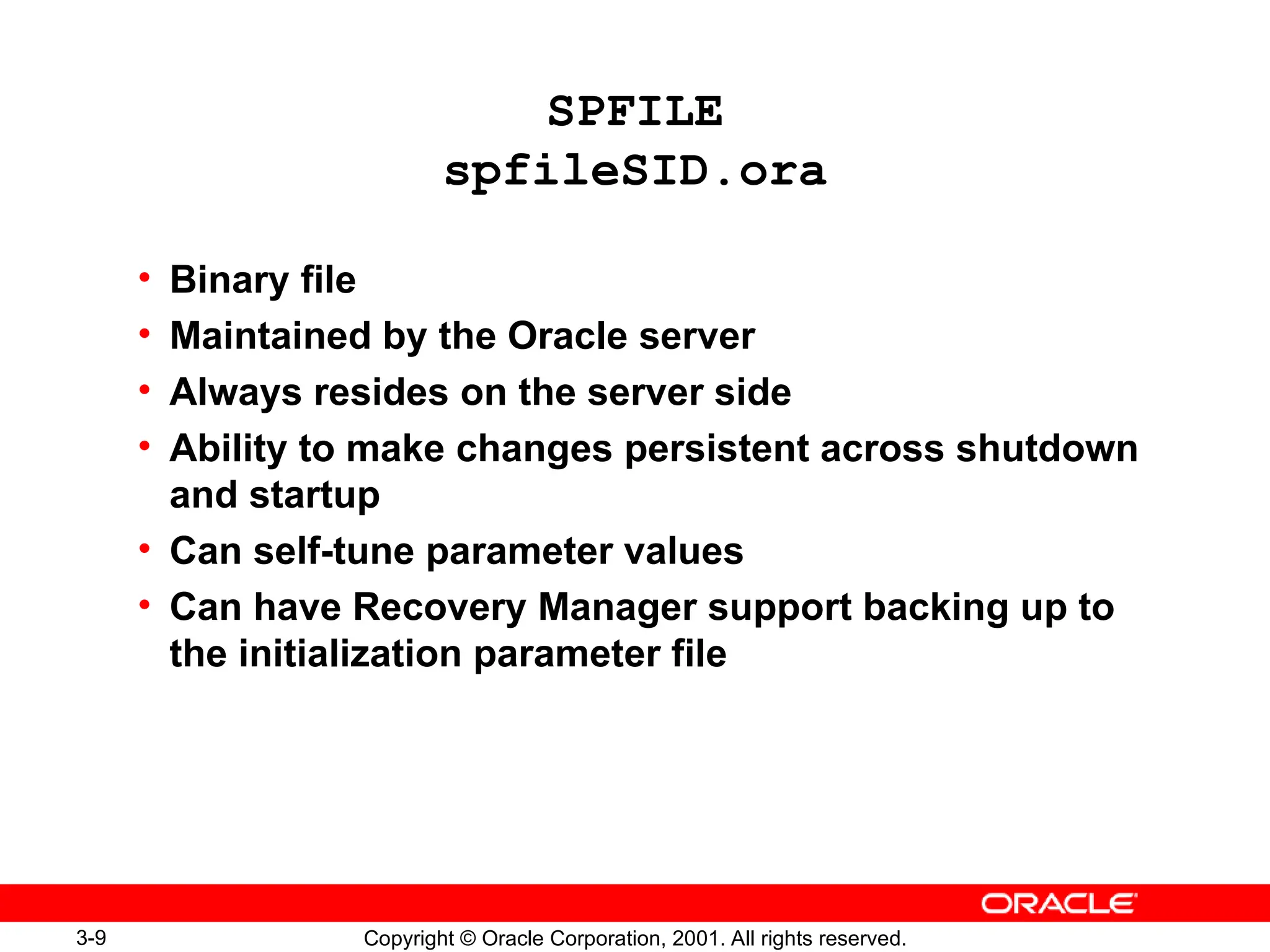
SPFILE
spfileSID.ora
• Binary file
• Maintained by the Oracle server
• Always resides on the server side
• Ability to make changes persistent across shutdown
and startup
• Can self-tune parameter values
• Can have Recovery Manager support backing up to
the initialization parameter file
3-10 Copyright © Oracle Corporation, 2001. All rights reserved.
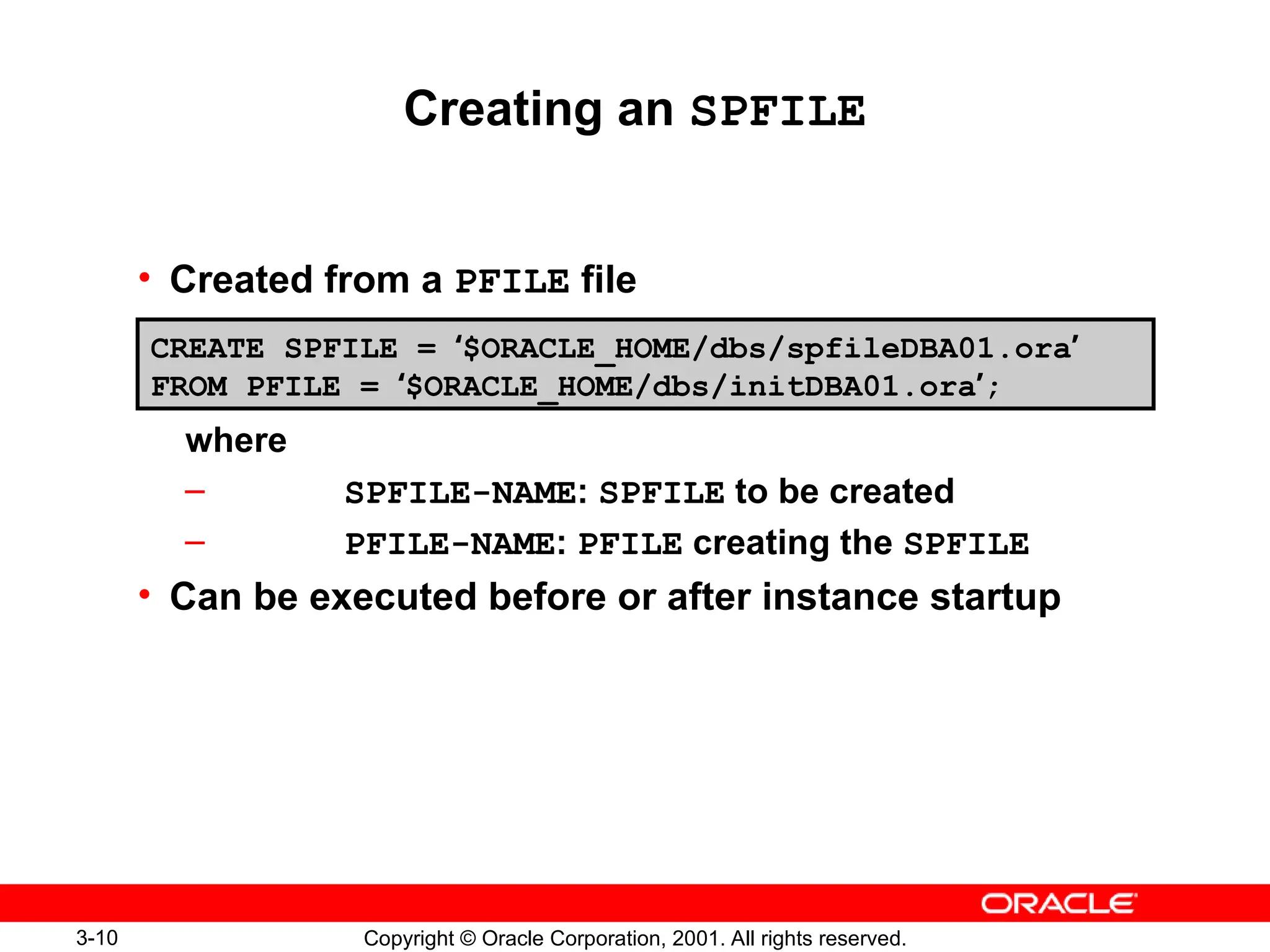
Creating an SPFILE
• Created from a PFILE file
where
– SPFILE-NAME: SPFILE to be created
– PFILE-NAME: PFILE creating the SPFILE
• Can be executed before or after instance startup
CREATE SPFILE = ‘$ORACLE_HOME/dbs/spfileDBA01.ora’
FROM PFILE = ‘$ORACLE_HOME/dbs/initDBA01.ora’;
3-13 Copyright © Oracle Corporation, 2001. All rights reserved.
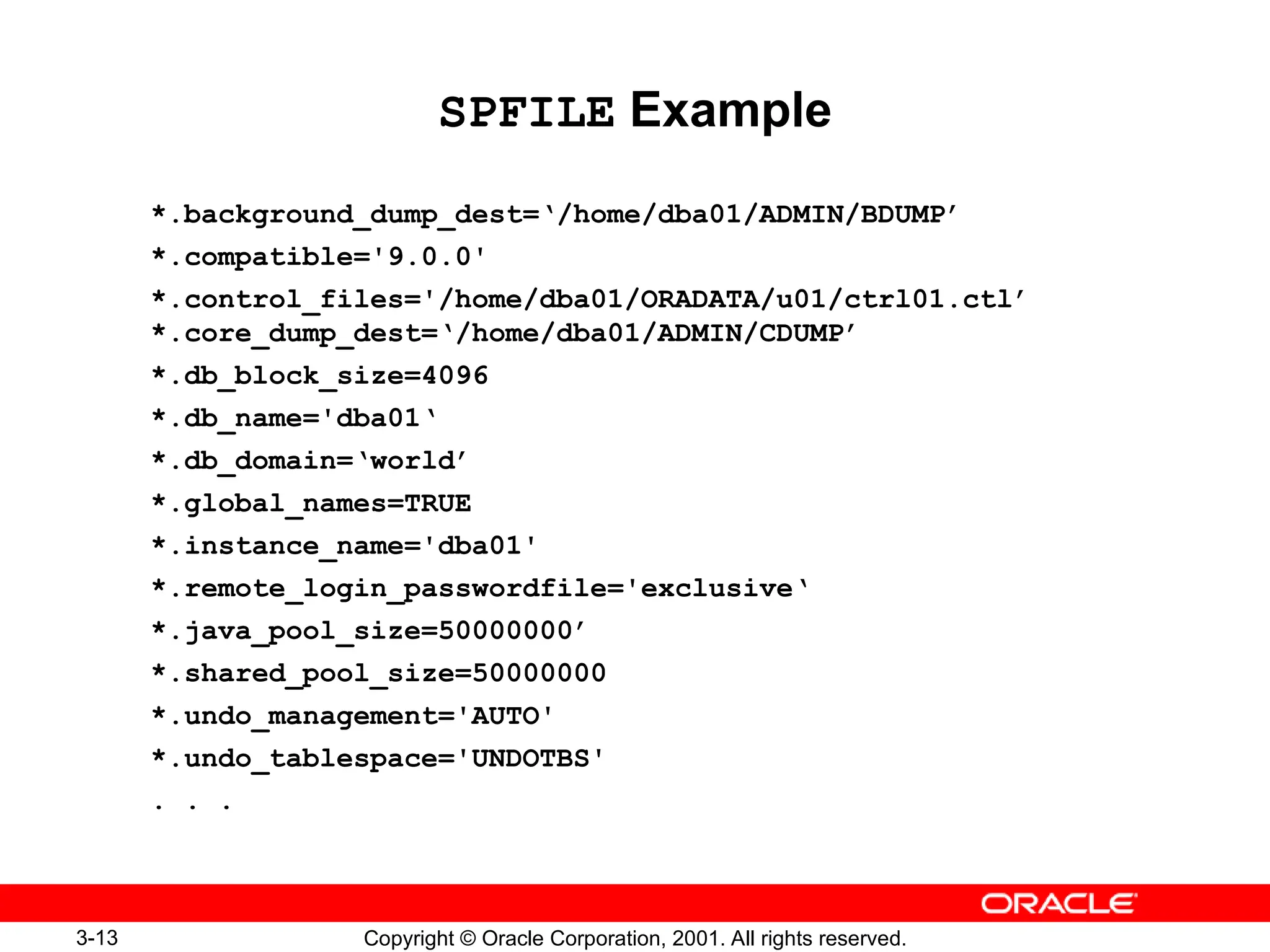
SPFILE Example
*.background_dump_dest=‘/home/dba01/ADMIN/BDUMP’
*.compatible='9.0.0'
*.control_files='/home/dba01/ORADATA/u01/ctrl01.ctl’
*.core_dump_dest=‘/home/dba01/ADMIN/CDUMP’
*.db_block_size=4096
*.db_name='dba01‘
*.db_domain=‘world’
*.global_names=TRUE
*.instance_name='dba01'
*.remote_login_passwordfile='exclusive‘
*.java_pool_size=50000000’
*.shared_pool_size=50000000
*.undo_management='AUTO'
*.undo_tablespace='UNDOTBS'
. . .
3-14 Copyright © Oracle Corporation, 2001. All rights reserved.
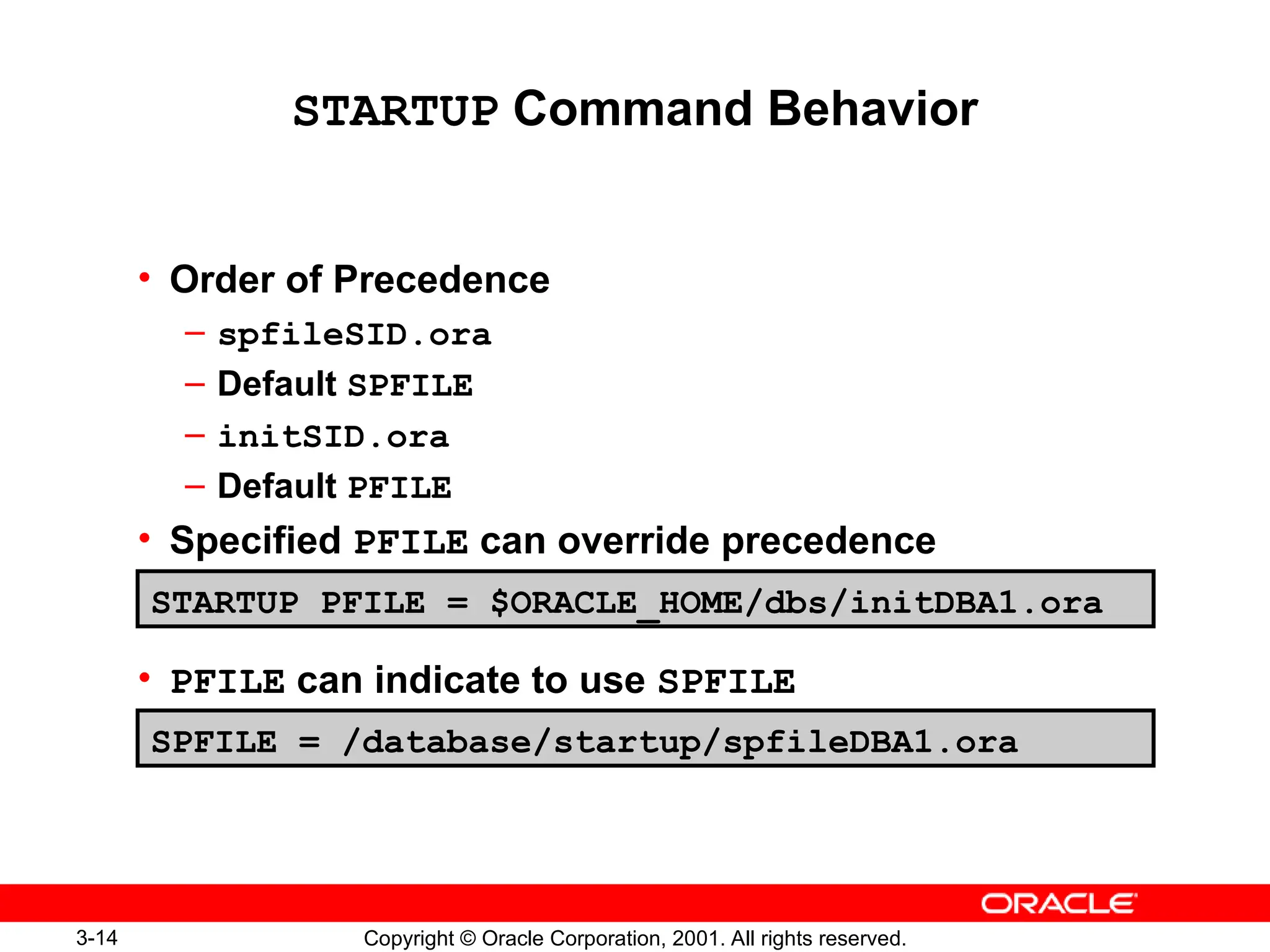
STARTUP Command Behavior
• Order of Precedence
– spfileSID.ora
– Default SPFILE
– initSID.ora
– Default PFILE
• Specified PFILE can override precedence
• PFILE can indicate to use SPFILE
STARTUP PFILE = $ORACLE_HOME/dbs/initDBA1.ora
SPFILE = /database/startup/spfileDBA1.ora
3-15 Copyright © Oracle Corporation, 2001. All rights reserved.
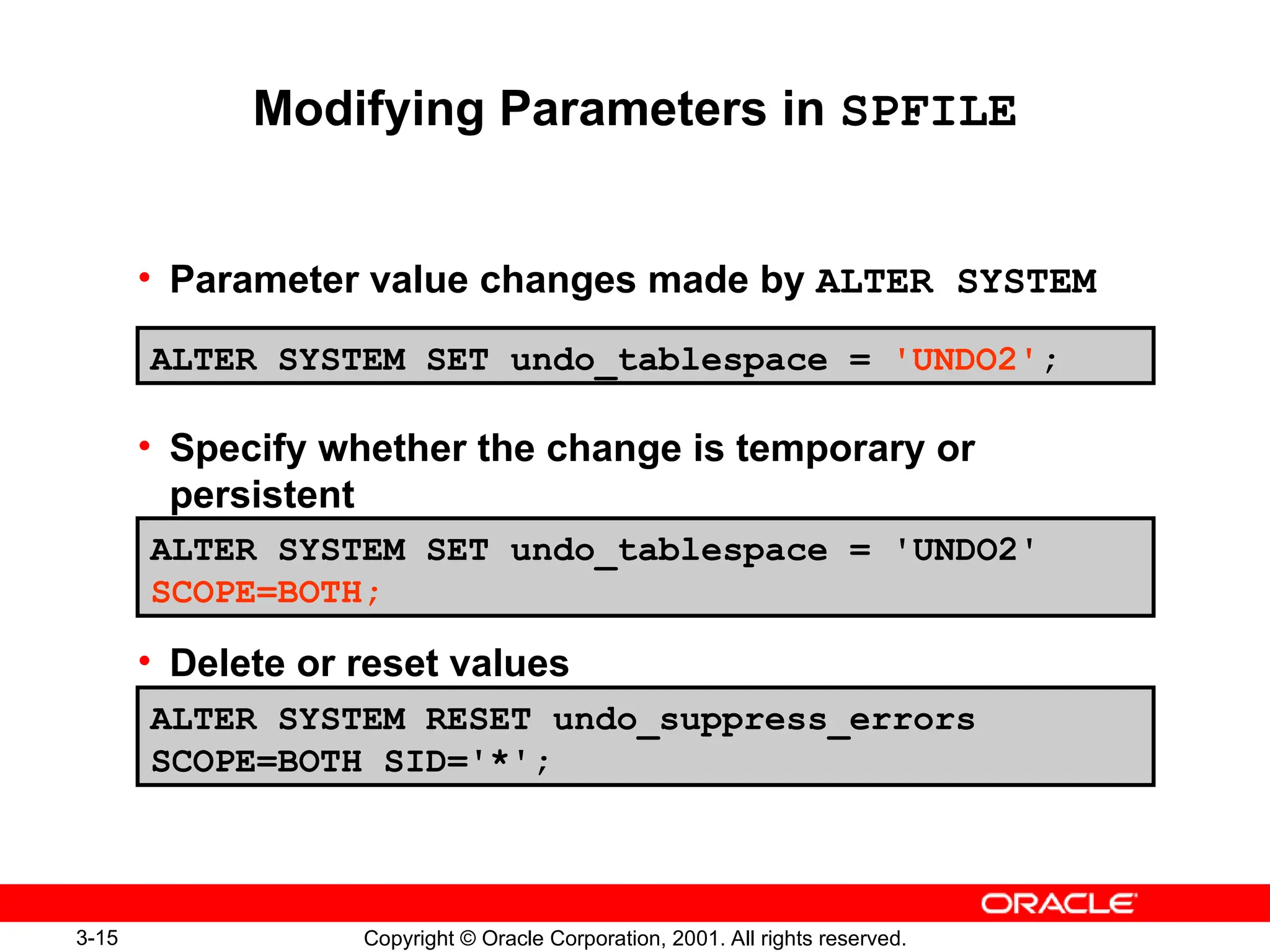
Modifying Parameters in SPFILE
• Parameter value changes made by ALTER SYSTEM
• Specify whether the change is temporary or
persistent
• Delete or reset values
ALTER SYSTEM SET undo_tablespace = 'UNDO2';
ALTER SYSTEM SET undo_tablespace = 'UNDO2'
SCOPE=BOTH;
ALTER SYSTEM RESET undo_suppress_errors
SCOPE=BOTH SID='*';
3-19 Copyright © Oracle Corporation, 2001. All rights reserved.
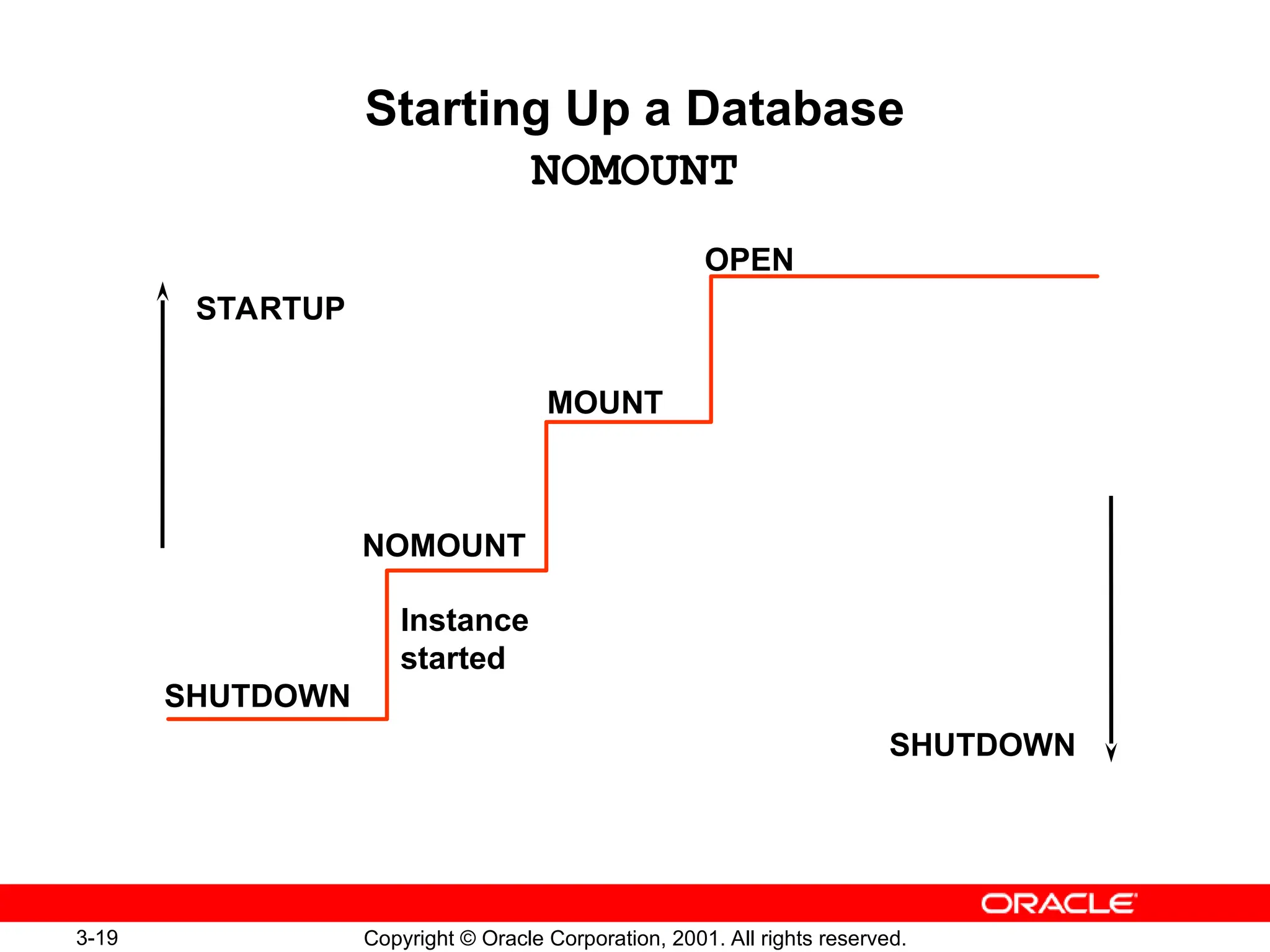
Starting Up a Database
NOMOUNT
OPEN
MOUNT
NOMOUNT
SHUTDOWN
Instance
started
STARTUP
SHUTDOWN
3-20 Copyright © Oracle Corporation, 2001. All rights reserved.
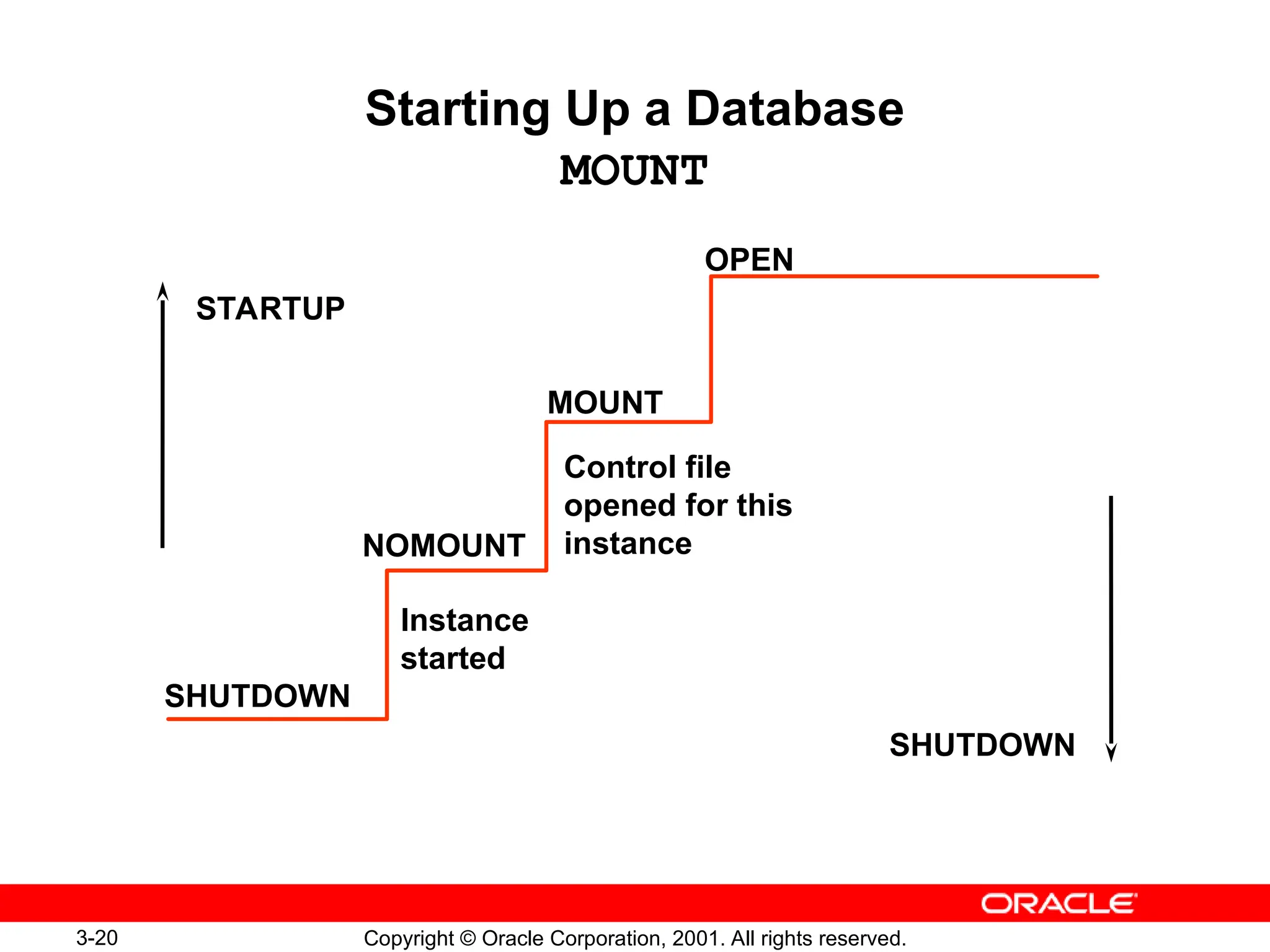
Starting Up a Database
MOUNT
OPEN
MOUNT
NOMOUNT
SHUTDOWN
Control file
opened for this
instance
Instance
started
STARTUP
SHUTDOWN
3-21 Copyright © Oracle Corporation, 2001. All rights reserved.
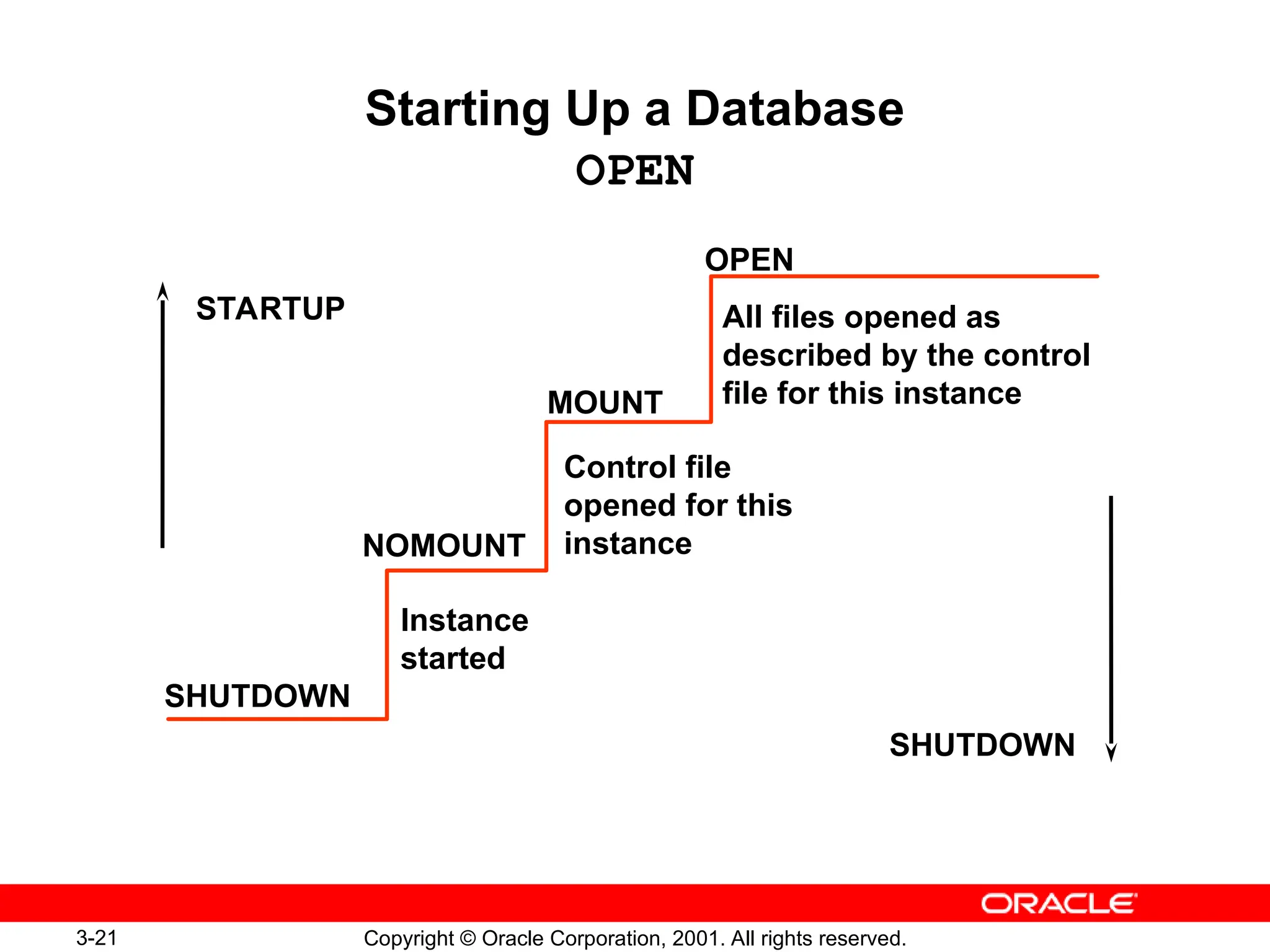
Starting Up a Database
OPEN
OPEN
MOUNT
NOMOUNT
SHUTDOWN
All files opened as
described by the control
file for this instance
Control file
opened for this
instance
Instance
started
STARTUP
SHUTDOWN
3-22 Copyright © Oracle Corporation, 2001. All rights reserved.
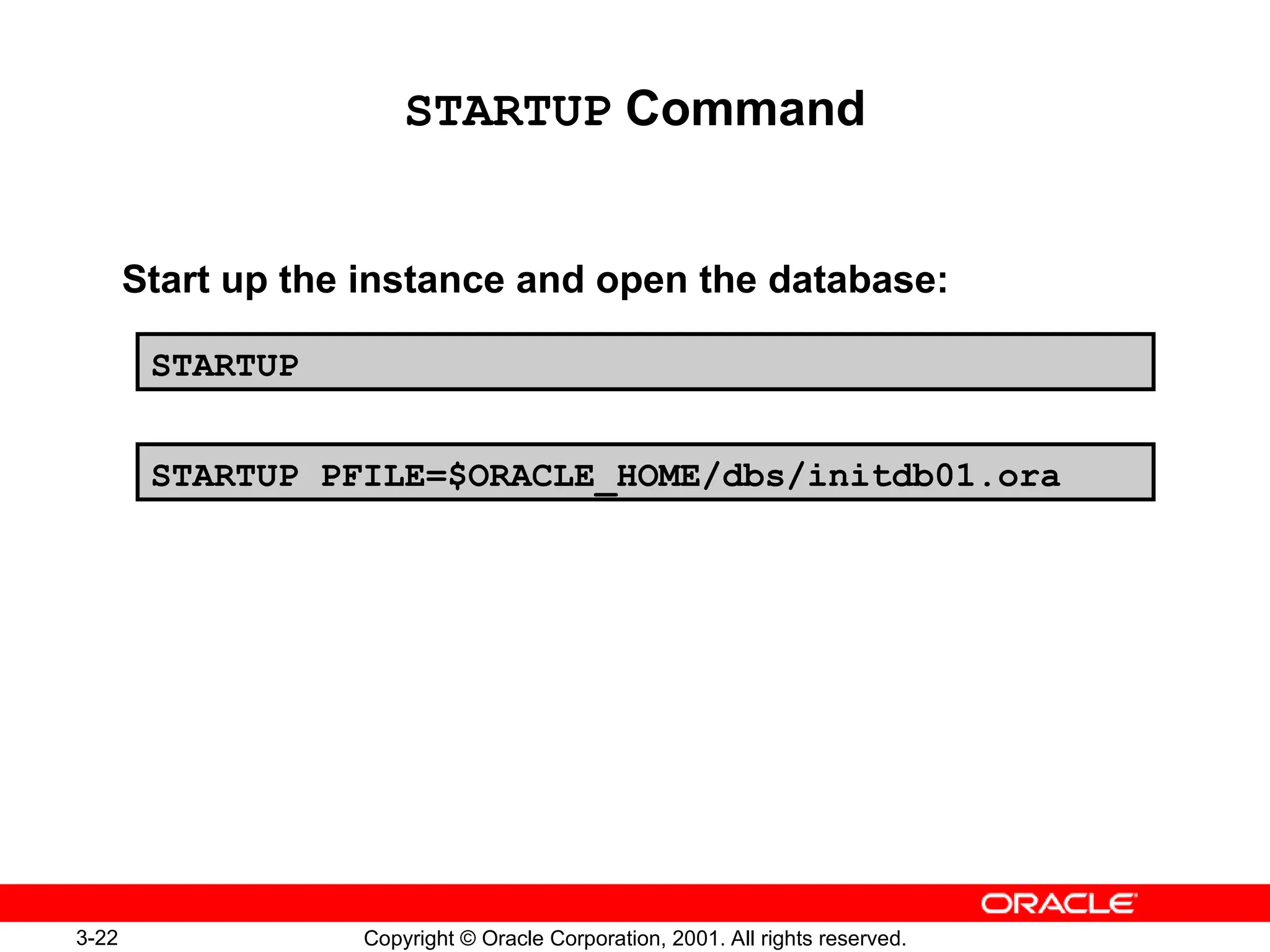
STARTUP Command
Start up the instance and open the database:
STARTUP
STARTUP PFILE=$ORACLE_HOME/dbs/initdb01.ora
3-25 Copyright © Oracle Corporation, 2001. All rights reserved.
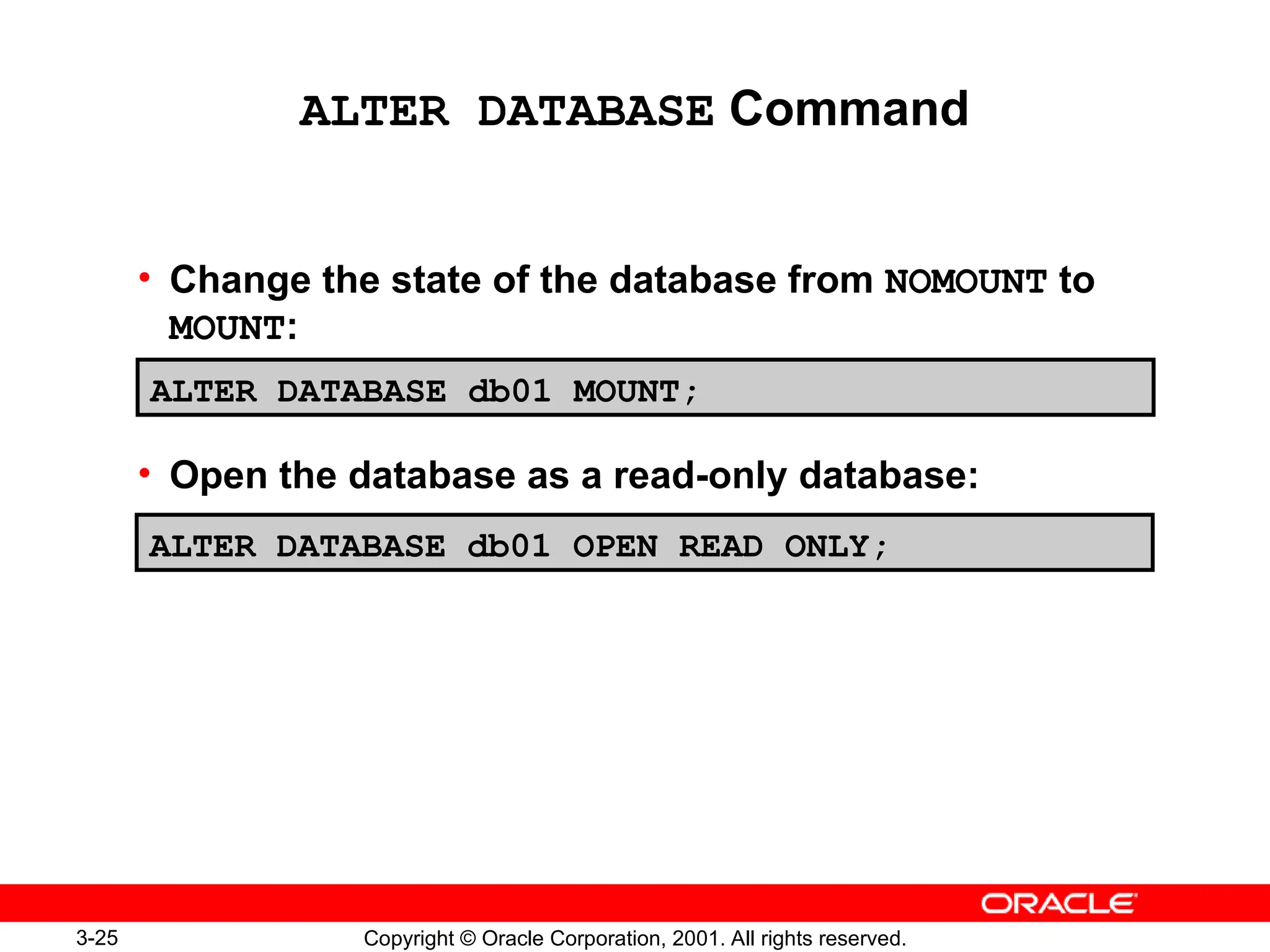
ALTER DATABASE Command
• Change the state of the database from NOMOUNT to
MOUNT:
• Open the database as a read-only database:
ALTER DATABASE db01 MOUNT;
ALTER DATABASE db01 OPEN READ ONLY;
3-26 Copyright © Oracle Corporation, 2001. All rights reserved.
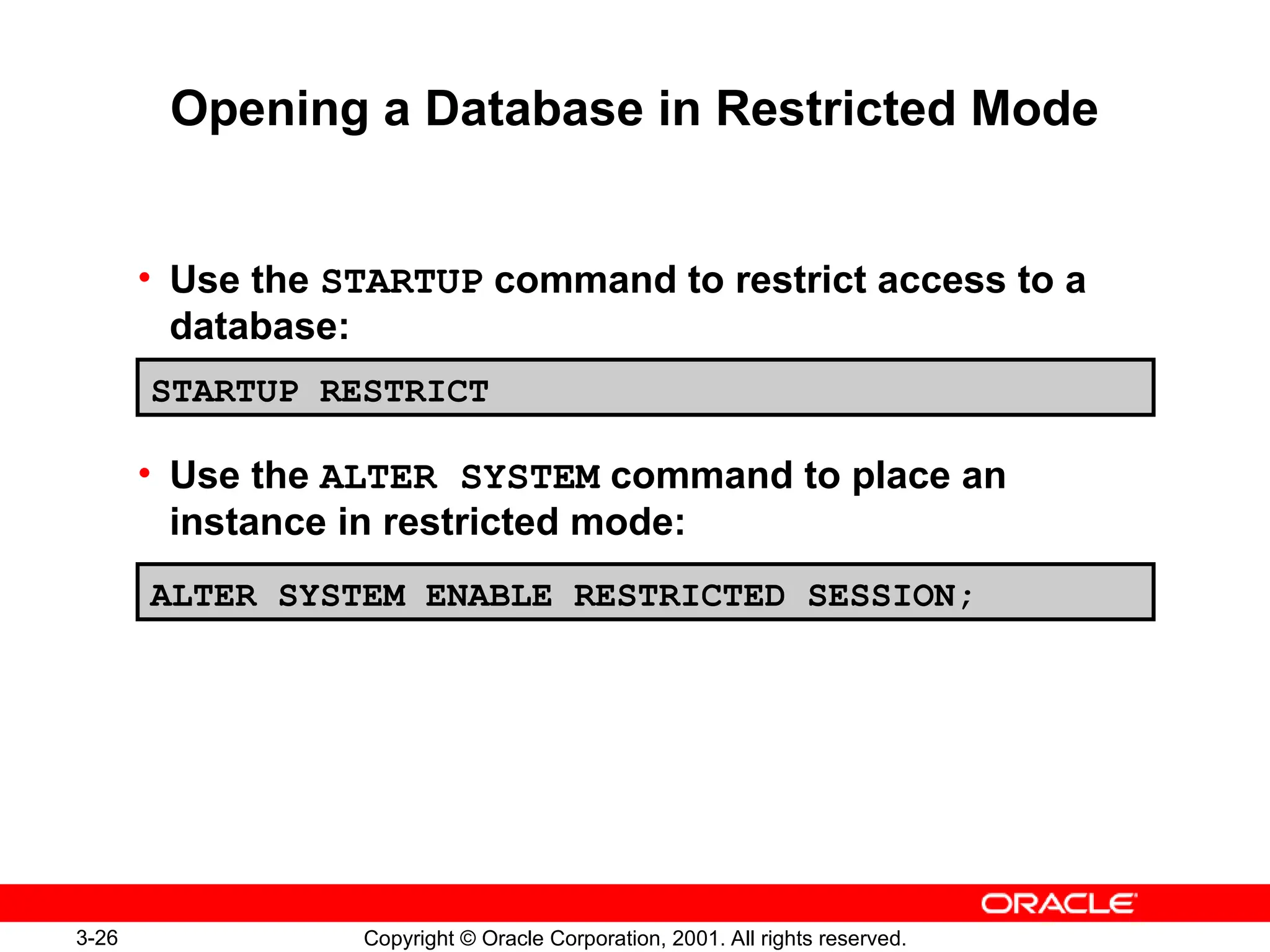
Opening a Database in Restricted Mode
• Use the STARTUP command to restrict access to a
database:
• Use the ALTER SYSTEM command to place an
instance in restricted mode:
STARTUP RESTRICT
ALTER SYSTEM ENABLE RESTRICTED SESSION;
3-29 Copyright © Oracle Corporation, 2001. All rights reserved.
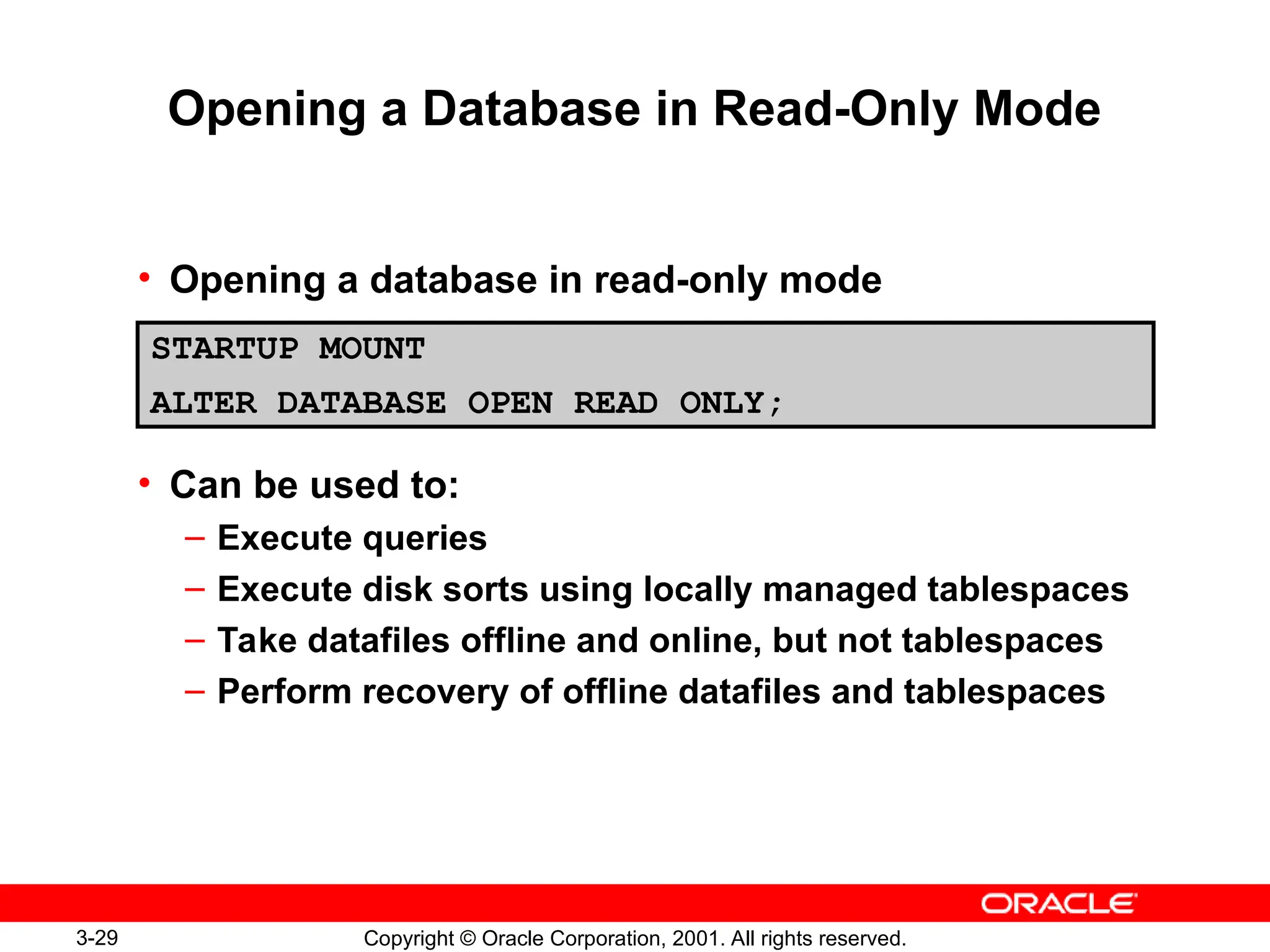
Opening a Database in Read-Only Mode
• Opening a database in read-only mode
• Can be used to:
– Execute queries
– Execute disk sorts using locally managed tablespaces
– Take datafiles offline and online, but not tablespaces
– Perform recovery of offline datafiles and tablespaces
STARTUP MOUNT
ALTER DATABASE OPEN READ ONLY;
3-31 Copyright © Oracle Corporation, 2001. All rights reserved.
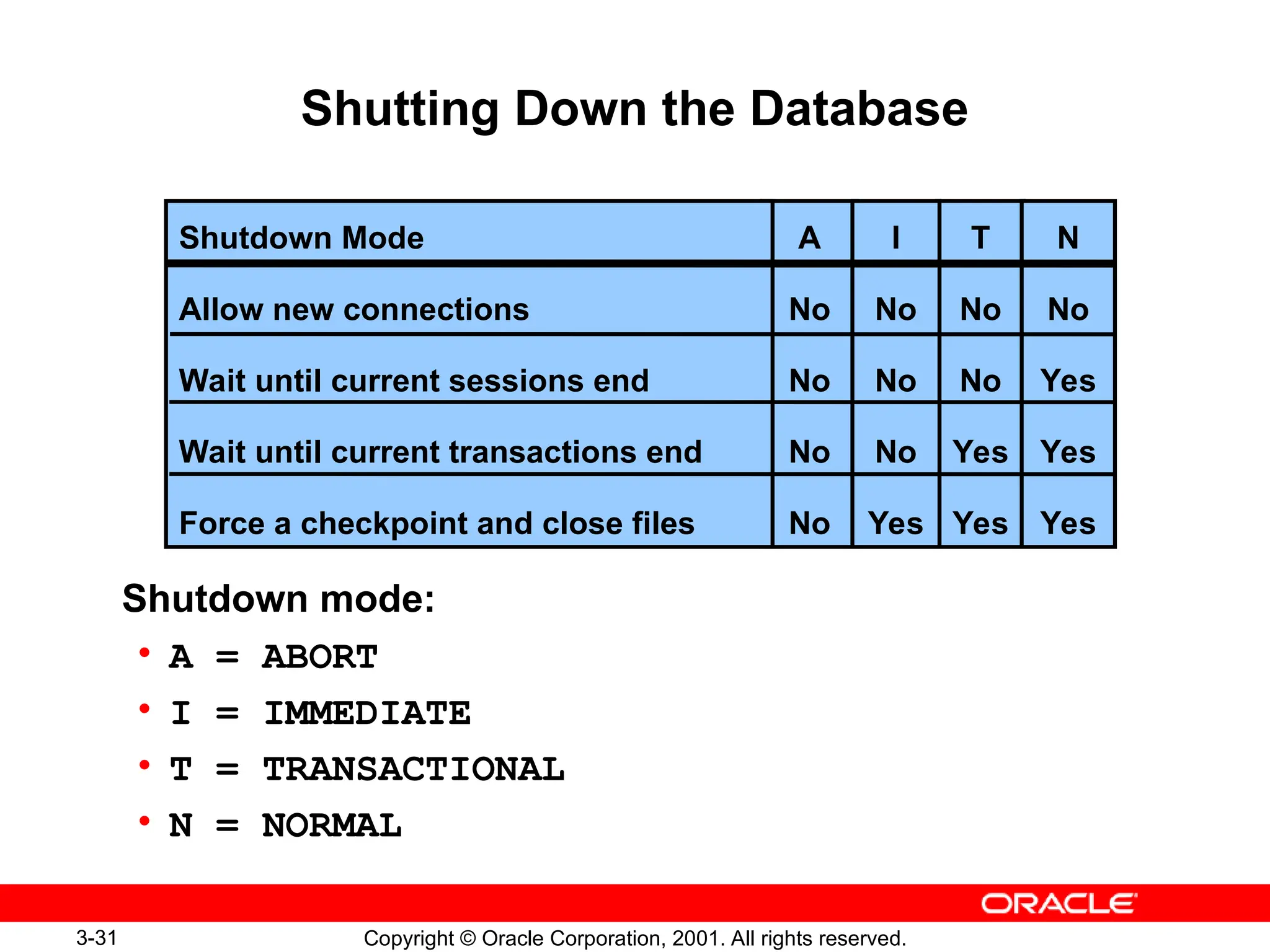
Shutting Down the Database
Shutdown mode:
• A = ABORT
• I = IMMEDIATE
• T = TRANSACTIONAL
• N = NORMAL
A
No
No
No
No
T
No
No
Yes
Yes
I
No
No
No
Yes
Shutdown Mode
Allow new connections
Wait until current sessions end
Wait until current transactions end
Force a checkpoint and close files
N
No
Yes
Yes
Yes
3-32 Copyright © Oracle Corporation, 2001. All rights reserved.
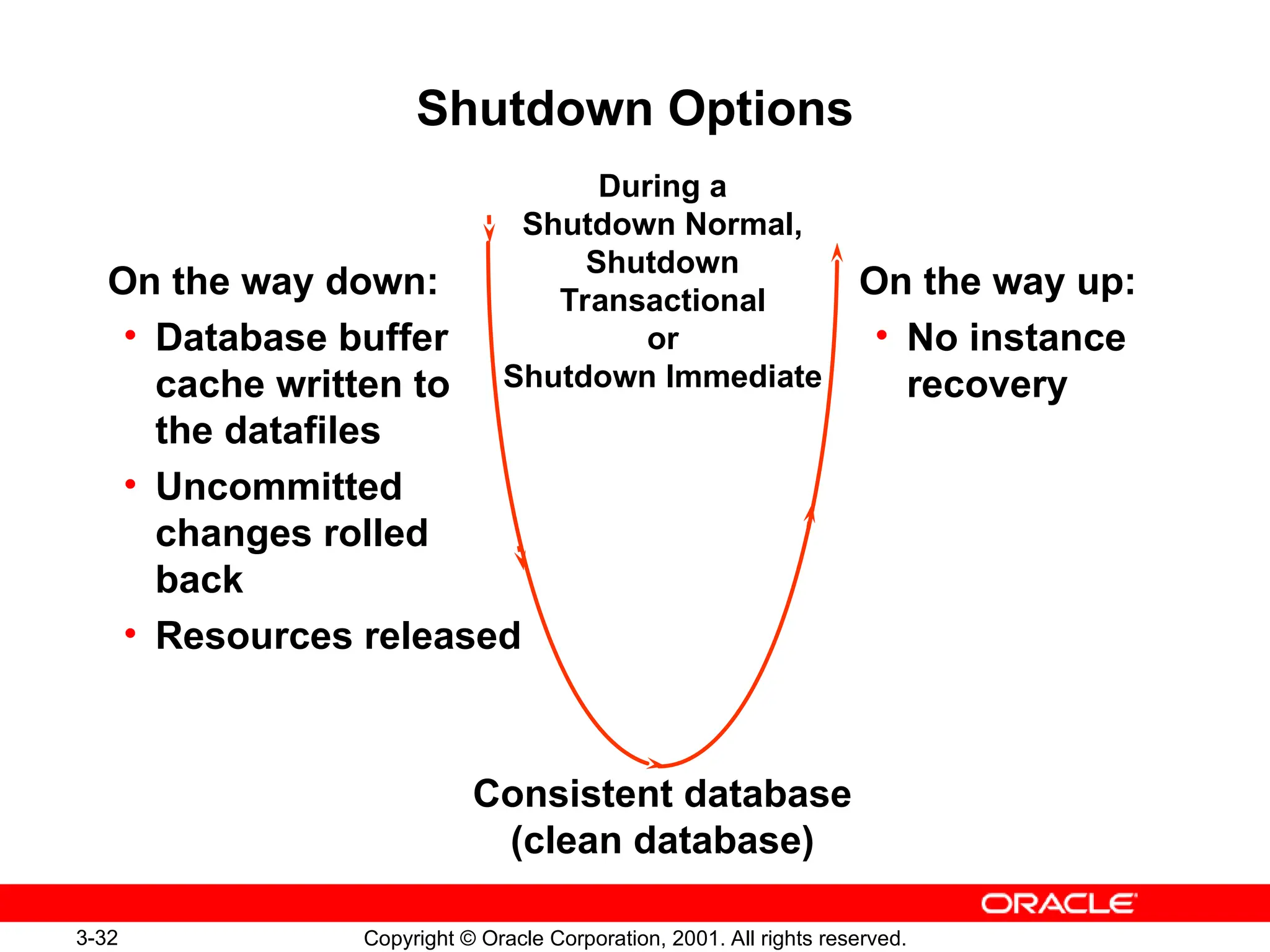
Shutdown Options
On the way down:
• Database buffer
cache written to
the datafiles
• Uncommitted
changes rolled
back
• Resources released
On the way up:
• No instance
recovery
During a
Shutdown Normal,
Shutdown
Transactional
or
Shutdown Immediate
Consistent database
(clean database)
3-34 Copyright © Oracle Corporation, 2001. All rights reserved.
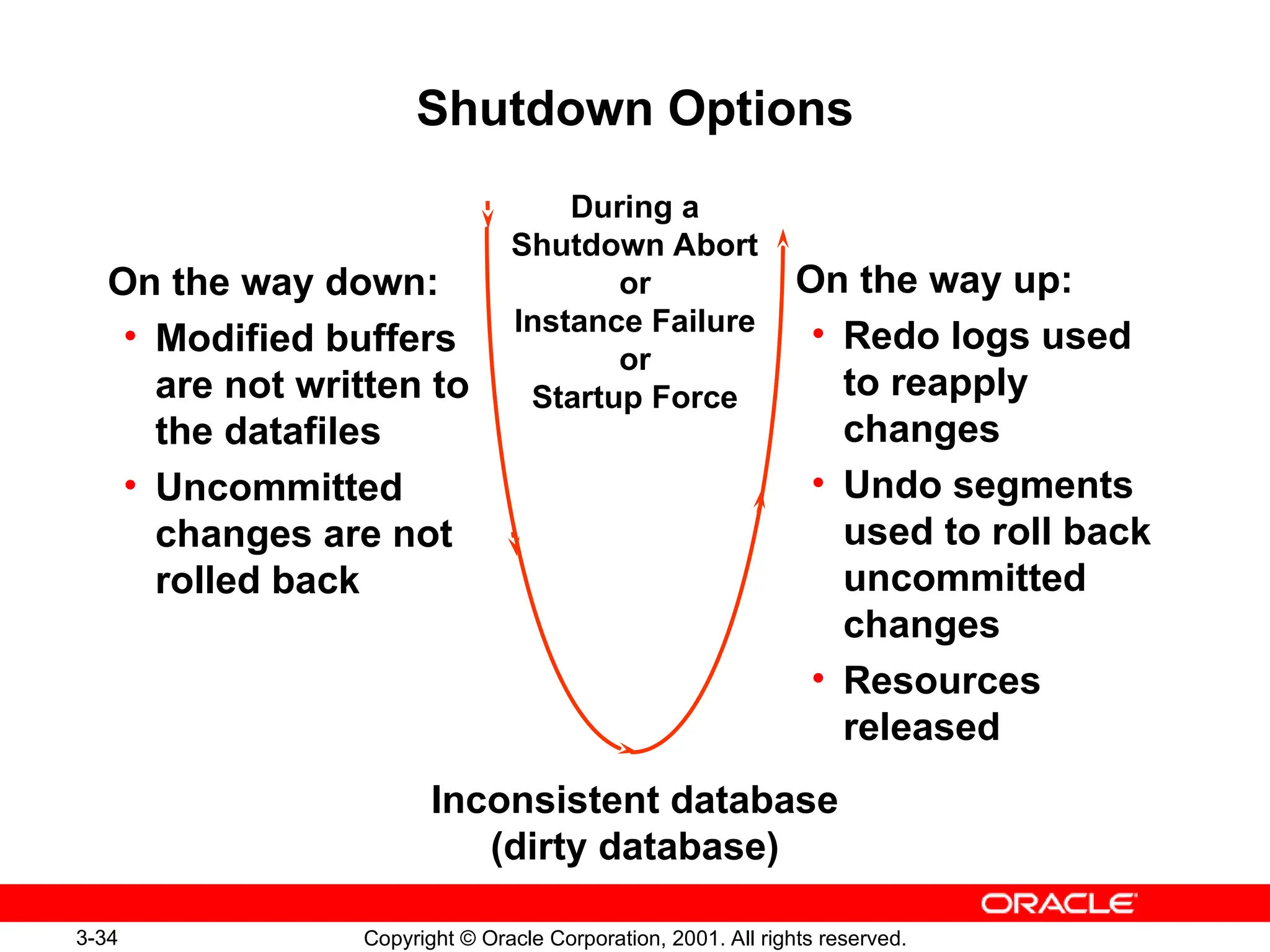
Shutdown Options
On the way down:
• Modified buffers
are not written to
the datafiles
• Uncommitted
changes are not
rolled back
On the way up:
• Redo logs used
to reapply
changes
• Undo segments
used to roll back
uncommitted
changes
• Resources
released
During a
Shutdown Abort
or
Instance Failure
or
Startup Force
Inconsistent database
(dirty database)
3-36 Copyright © Oracle Corporation, 2001. All rights reserved.
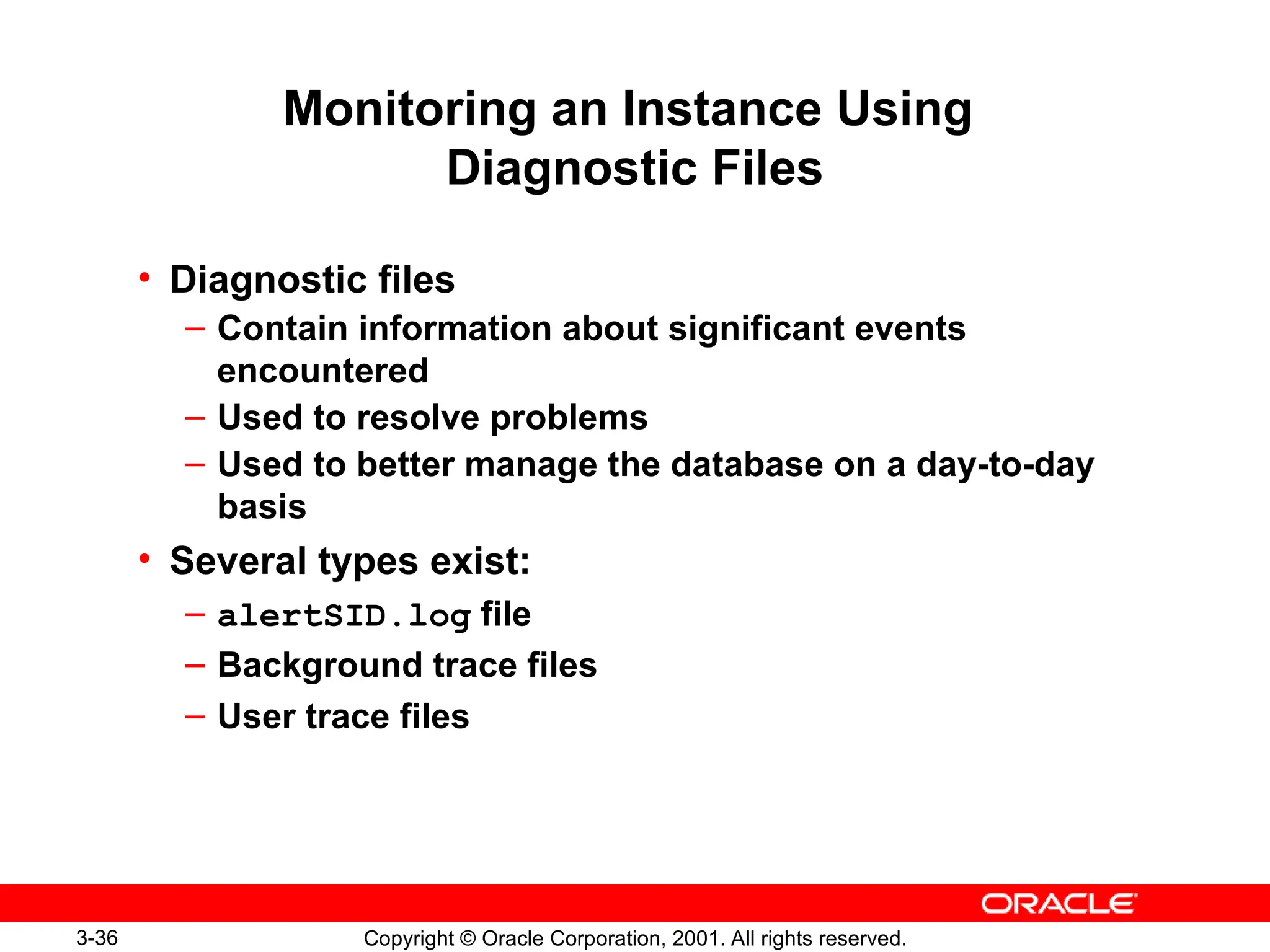
• Diagnostic files
– Contain information about significant events
encountered
– Used to resolve problems
– Used to better manage the database on a day-to-day
basis
• Several types exist:
– alertSID.log file
– Background trace files
– User trace files
Monitoring an Instance Using
Diagnostic Files
3-37 Copyright © Oracle Corporation, 2001. All rights reserved.
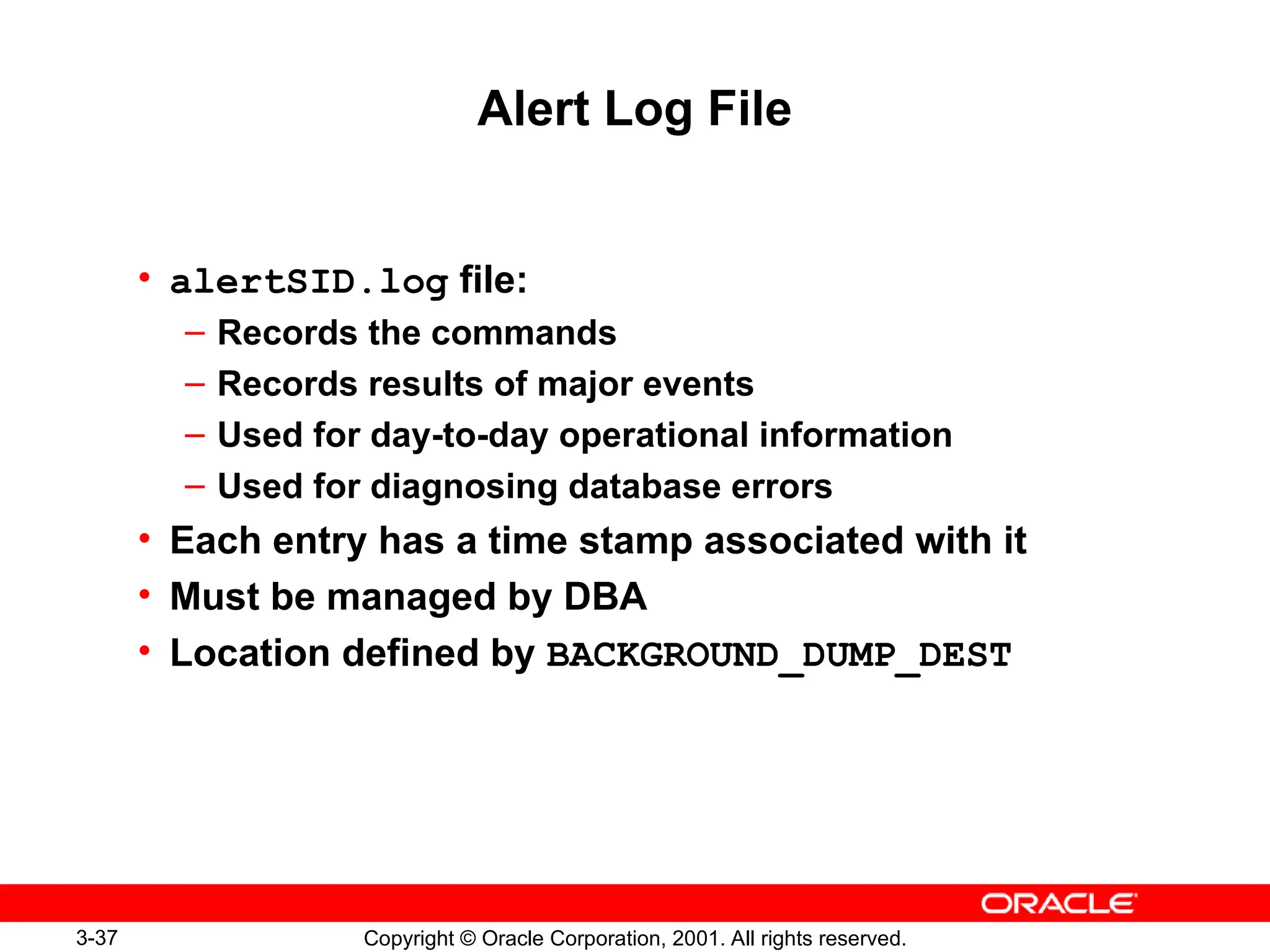
Alert Log File
• alertSID.log file:
– Records the commands
– Records results of major events
– Used for day-to-day operational information
– Used for diagnosing database errors
• Each entry has a time stamp associated with it
• Must be managed by DBA
• Location defined by BACKGROUND_DUMP_DEST
3-39 Copyright © Oracle Corporation, 2001. All rights reserved.
Background Trace Files
• Background trace files
– Logs errors detected by any background process
– Used to diagnose and troubleshoot errors
• Created when a background process encounters an
error
• Location defined by BACKGROUND_DUMP_DEST
3-40 Copyright © Oracle Corporation, 2001. All rights reserved.
User Trace File
• User trace file
– Produced by the user process
– Can be generated by a server process
– Contains statistics for traced SQL statements
– Contains user error messages
• Created when a user encounters user session errors
• Location is defined by USER_DUMP_DEST
• Size defined by MAX_DUMP_FILE_SIZE
3-41 Copyright © Oracle Corporation, 2001. All rights reserved.
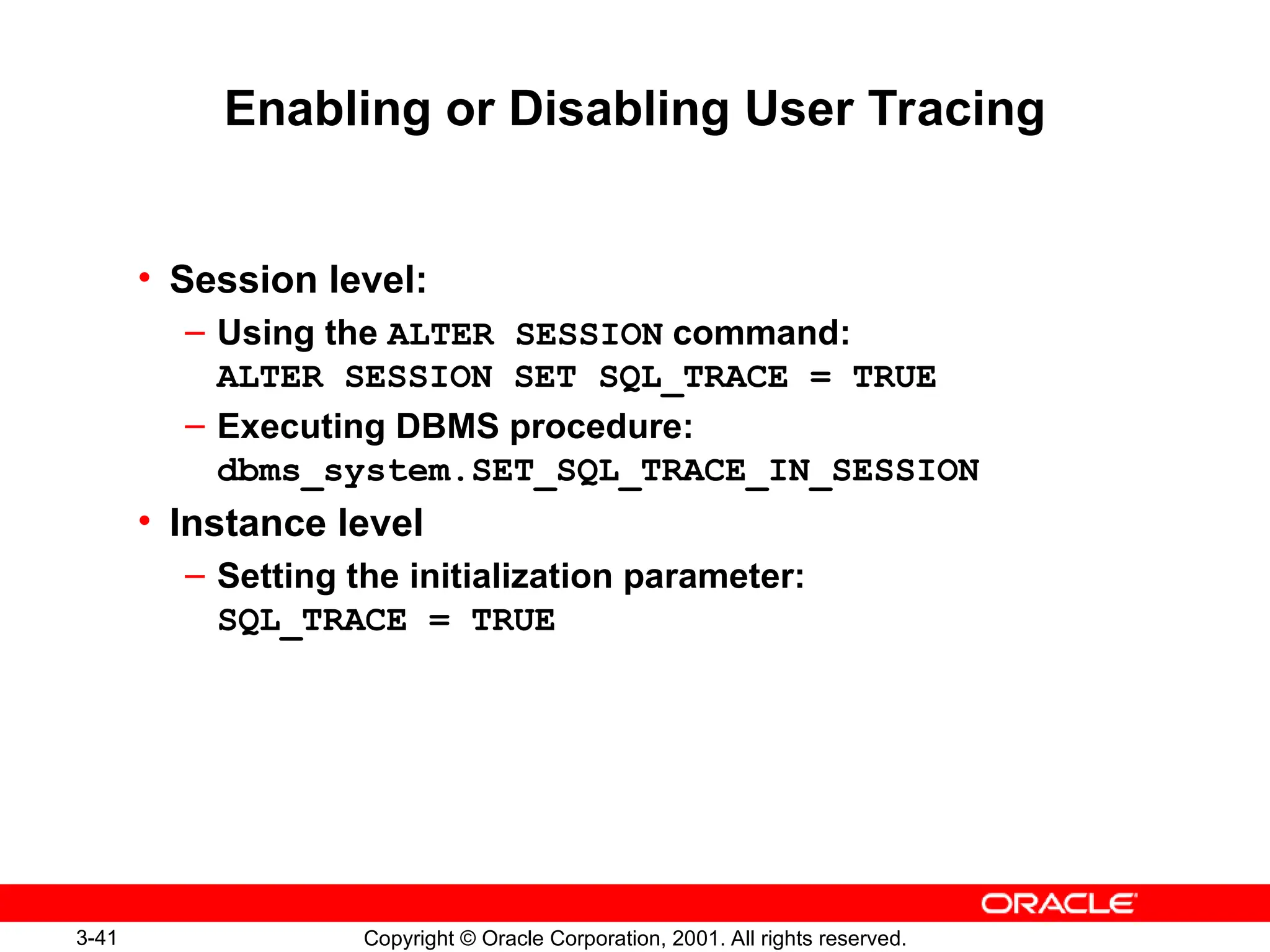
Enabling or Disabling User Tracing
• Session level:
– Using the ALTER SESSION command:
ALTER SESSION SET SQL_TRACE = TRUE
– Executing DBMS procedure:
dbms_system.SET_SQL_TRACE_IN_SESSION
• Instance level
– Setting the initialization parameter:
SQL_TRACE = TRUE
3-43 Copyright © Oracle Corporation, 2001. All rights reserved.
Summary
In this lesson, you should have learned how to:
• Create and manage initialization parameter files
• Start up and shut down an instance
• Monitor and use diagnostic files
3-44 Copyright © Oracle Corporation, 2001. All rights reserved.
Practice 3 Overview
This practice covers the following topics:
• Creating an SPFILE
• Starting up and shutting down the database in
different modes
3-46 Copyright © Oracle Corporation, 2001. All rights reserved.

Overview of Primary Components of the Oracle

  • 1.
    3 Copyright © OracleCorporation, 2001. All rights reserved. Managing an Oracle Instance
  • 2.
    3-2 Copyright ©Oracle Corporation, 2001. All rights reserved. Objectives After completing this lesson, you should be able to do the following: • Create and manage initialization parameter files • Start up and shut down an instance • Monitor and use diagnostic files
  • 3.
    3-3 Copyright ©Oracle Corporation, 2001. All rights reserved. spfiledb01.ora Initialization Parameter Files CONNECT / AS SYSDBA STARTUP Oracle Instance SGA Redo Log Buffer Shared Pool Data Dictionary Cache Library Cache DBW0 SMON PMON CKPT LGWR Others Database Buffer Cache Java Pool Large Pool
  • 4.
    3-4 Copyright ©Oracle Corporation, 2001. All rights reserved. Initialization Parameter Files • Entries are specific to the instance being started • Two types of parameters: – Explicit: Having an entry in the file – Implicit: No entry within the file, but assuming the Oracle default values • Multiple initialization parameter files can exist • Changes to entries in the file take effect based on the type of initialization parameter file used – Static parameter file, PFILE – Persistent parameter file, SPFILE
  • 5.
    3-6 Copyright ©Oracle Corporation, 2001. All rights reserved. PFILE initSID.ora • Text file • Modified with an operating system editor • Modifications made manually • Changes take effect on the next startup • Only opened during instance startup • Default location is $ORACLE_HOME/dbs
  • 6.
    3-7 Copyright ©Oracle Corporation, 2001. All rights reserved. Creating a PFILE • Created from a sample init.ora file – Sample installed by the Oracle Universal Installer – Copy sample using operating system copy command – Uniquely identify by database SID • Modify the initSID.ora – Edit the parameters – Specific to database needs cp init.ora $ORACLE_HOME/dbs/initdba01.ora
  • 7.
    3-8 Copyright ©Oracle Corporation, 2001. All rights reserved. PFILE Example # Initialization Parameter File: initdba01.ora db_name = dba01 instance_name = dba01 control_files = ( home/dba01/ORADATA/u01/control01dba01.ctl, home/dba01/ORADATA/u02/control01dba02.ctl) db_block_size = 4096 db_cache_size = 4M shared_pool_size = 50000000 java_pool_size = 50000000 max_dump_file_size = 10240 background_dump_dest = /home/dba01/ADMIN/BDUMP user_dump_dest = /home/dba01/ADMIN/UDUMP core_dump_dest = /home/dba01/ADMIN/CDUMP undo_management = AUTO undo_tablespace = UNDOTBS . . .
  • 8.
    3-9 Copyright ©Oracle Corporation, 2001. All rights reserved. SPFILE spfileSID.ora • Binary file • Maintained by the Oracle server • Always resides on the server side • Ability to make changes persistent across shutdown and startup • Can self-tune parameter values • Can have Recovery Manager support backing up to the initialization parameter file
  • 9.
    3-10 Copyright ©Oracle Corporation, 2001. All rights reserved. Creating an SPFILE • Created from a PFILE file where – SPFILE-NAME: SPFILE to be created – PFILE-NAME: PFILE creating the SPFILE • Can be executed before or after instance startup CREATE SPFILE = ‘$ORACLE_HOME/dbs/spfileDBA01.ora’ FROM PFILE = ‘$ORACLE_HOME/dbs/initDBA01.ora’;
  • 10.
    3-13 Copyright ©Oracle Corporation, 2001. All rights reserved. SPFILE Example *.background_dump_dest=‘/home/dba01/ADMIN/BDUMP’ *.compatible='9.0.0' *.control_files='/home/dba01/ORADATA/u01/ctrl01.ctl’ *.core_dump_dest=‘/home/dba01/ADMIN/CDUMP’ *.db_block_size=4096 *.db_name='dba01‘ *.db_domain=‘world’ *.global_names=TRUE *.instance_name='dba01' *.remote_login_passwordfile='exclusive‘ *.java_pool_size=50000000’ *.shared_pool_size=50000000 *.undo_management='AUTO' *.undo_tablespace='UNDOTBS' . . .
  • 11.
    3-14 Copyright ©Oracle Corporation, 2001. All rights reserved. STARTUP Command Behavior • Order of Precedence – spfileSID.ora – Default SPFILE – initSID.ora – Default PFILE • Specified PFILE can override precedence • PFILE can indicate to use SPFILE STARTUP PFILE = $ORACLE_HOME/dbs/initDBA1.ora SPFILE = /database/startup/spfileDBA1.ora
  • 12.
    3-15 Copyright ©Oracle Corporation, 2001. All rights reserved. Modifying Parameters in SPFILE • Parameter value changes made by ALTER SYSTEM • Specify whether the change is temporary or persistent • Delete or reset values ALTER SYSTEM SET undo_tablespace = 'UNDO2'; ALTER SYSTEM SET undo_tablespace = 'UNDO2' SCOPE=BOTH; ALTER SYSTEM RESET undo_suppress_errors SCOPE=BOTH SID='*';
  • 13.
    3-19 Copyright ©Oracle Corporation, 2001. All rights reserved. Starting Up a Database NOMOUNT OPEN MOUNT NOMOUNT SHUTDOWN Instance started STARTUP SHUTDOWN
  • 14.
    3-20 Copyright ©Oracle Corporation, 2001. All rights reserved. Starting Up a Database MOUNT OPEN MOUNT NOMOUNT SHUTDOWN Control file opened for this instance Instance started STARTUP SHUTDOWN
  • 15.
    3-21 Copyright ©Oracle Corporation, 2001. All rights reserved. Starting Up a Database OPEN OPEN MOUNT NOMOUNT SHUTDOWN All files opened as described by the control file for this instance Control file opened for this instance Instance started STARTUP SHUTDOWN
  • 16.
    3-22 Copyright ©Oracle Corporation, 2001. All rights reserved. STARTUP Command Start up the instance and open the database: STARTUP STARTUP PFILE=$ORACLE_HOME/dbs/initdb01.ora
  • 17.
    3-25 Copyright ©Oracle Corporation, 2001. All rights reserved. ALTER DATABASE Command • Change the state of the database from NOMOUNT to MOUNT: • Open the database as a read-only database: ALTER DATABASE db01 MOUNT; ALTER DATABASE db01 OPEN READ ONLY;
  • 18.
    3-26 Copyright ©Oracle Corporation, 2001. All rights reserved. Opening a Database in Restricted Mode • Use the STARTUP command to restrict access to a database: • Use the ALTER SYSTEM command to place an instance in restricted mode: STARTUP RESTRICT ALTER SYSTEM ENABLE RESTRICTED SESSION;
  • 19.
    3-29 Copyright ©Oracle Corporation, 2001. All rights reserved. Opening a Database in Read-Only Mode • Opening a database in read-only mode • Can be used to: – Execute queries – Execute disk sorts using locally managed tablespaces – Take datafiles offline and online, but not tablespaces – Perform recovery of offline datafiles and tablespaces STARTUP MOUNT ALTER DATABASE OPEN READ ONLY;
  • 20.
    3-31 Copyright ©Oracle Corporation, 2001. All rights reserved. Shutting Down the Database Shutdown mode: • A = ABORT • I = IMMEDIATE • T = TRANSACTIONAL • N = NORMAL A No No No No T No No Yes Yes I No No No Yes Shutdown Mode Allow new connections Wait until current sessions end Wait until current transactions end Force a checkpoint and close files N No Yes Yes Yes
  • 21.
    3-32 Copyright ©Oracle Corporation, 2001. All rights reserved. Shutdown Options On the way down: • Database buffer cache written to the datafiles • Uncommitted changes rolled back • Resources released On the way up: • No instance recovery During a Shutdown Normal, Shutdown Transactional or Shutdown Immediate Consistent database (clean database)
  • 22.
    3-34 Copyright ©Oracle Corporation, 2001. All rights reserved. Shutdown Options On the way down: • Modified buffers are not written to the datafiles • Uncommitted changes are not rolled back On the way up: • Redo logs used to reapply changes • Undo segments used to roll back uncommitted changes • Resources released During a Shutdown Abort or Instance Failure or Startup Force Inconsistent database (dirty database)
  • 23.
    3-36 Copyright ©Oracle Corporation, 2001. All rights reserved. • Diagnostic files – Contain information about significant events encountered – Used to resolve problems – Used to better manage the database on a day-to-day basis • Several types exist: – alertSID.log file – Background trace files – User trace files Monitoring an Instance Using Diagnostic Files
  • 24.
    3-37 Copyright ©Oracle Corporation, 2001. All rights reserved. Alert Log File • alertSID.log file: – Records the commands – Records results of major events – Used for day-to-day operational information – Used for diagnosing database errors • Each entry has a time stamp associated with it • Must be managed by DBA • Location defined by BACKGROUND_DUMP_DEST
  • 25.
    3-39 Copyright ©Oracle Corporation, 2001. All rights reserved. Background Trace Files • Background trace files – Logs errors detected by any background process – Used to diagnose and troubleshoot errors • Created when a background process encounters an error • Location defined by BACKGROUND_DUMP_DEST
  • 26.
    3-40 Copyright ©Oracle Corporation, 2001. All rights reserved. User Trace File • User trace file – Produced by the user process – Can be generated by a server process – Contains statistics for traced SQL statements – Contains user error messages • Created when a user encounters user session errors • Location is defined by USER_DUMP_DEST • Size defined by MAX_DUMP_FILE_SIZE
  • 27.
    3-41 Copyright ©Oracle Corporation, 2001. All rights reserved. Enabling or Disabling User Tracing • Session level: – Using the ALTER SESSION command: ALTER SESSION SET SQL_TRACE = TRUE – Executing DBMS procedure: dbms_system.SET_SQL_TRACE_IN_SESSION • Instance level – Setting the initialization parameter: SQL_TRACE = TRUE
  • 28.
    3-43 Copyright ©Oracle Corporation, 2001. All rights reserved. Summary In this lesson, you should have learned how to: • Create and manage initialization parameter files • Start up and shut down an instance • Monitor and use diagnostic files
  • 29.
    3-44 Copyright ©Oracle Corporation, 2001. All rights reserved. Practice 3 Overview This practice covers the following topics: • Creating an SPFILE • Starting up and shutting down the database in different modes
  • 30.
    3-46 Copyright ©Oracle Corporation, 2001. All rights reserved.

Editor's Notes

  • #3 Initialization Parameter Files To start an instance, the Oracle server must read the initialization parameter file.
  • #4 Initialization Parameter Files To start an instance, the Oracle server reads the initialization parameter file. Two types of initialization parameter files exist: Static parameter file, PFILE, commonly referred to as initSID.ora. Persistent parameter file, SPFILE, commonly referred to as spfileSID.ora. Initialization parameter file contents: A list of instance parameters The name of the database the instance is associated with Allocations for memory structures of the System Global Area (SGA) What to do with filled online redo log files The names and locations of control files Information about undo segments Multiple initialization parameter files can exist for an instance in order to optimize performance in different situations.
  • #5 Initialization Parameter Files Using Oracle Enterprise Manager to View Initialization Parameters From the OEM Console: 1. Navigate to Databases > Instance > Configuration. Select All Initialization Parameters from the General page.
  • #6 PFILE The PFILE is a text file that can be maintained using a standard operating system editor. The PFILE is read only during instance startup. If the file is modified, the instance must be shut down and restarted in order to make the new parameter values effective. By default, located in the $ORACLE_HOME/dbs directory and named initSID.ora.
  • #7 Creating a PFILE A sample init.ora file is created by the Universal Installer during installation. This sample init.ora file can be used to create an instance-specific initSID.ora. A text editor can be used to modify the parameters within the initSID.ora file.
  • #8 PFILE Example Specify the values in the following format: keyword=value. The server has a default value for each parameter. This value may be operating system dependent, depending on the parameter. Parameters can be specified in any order, although there are some exceptions. Comment lines begin with the # symbol. Enclose parameters in double quotation marks to include character literals. Additional files can be included with the keyword IFILE. If case is significant for the operating system, then it is also significant in filenames. Multiple values are enclosed in parentheses and separated by commas. Note: Develop a standard for listing parameters; either list them alphabetically or group them by functionality. The PFILE varies from instance to instance and does not necessarily look like the preceding example.
  • #9 SPFILE An SPFILE, new to Oracle9i, is a binary file. The file is not meant to be modified manually and must always reside on the server side. Once the file is created it is maintained by the Oracle server. If modified manually, the SPFILE is rendered useless. The SPFILE provides the ability to make changes to the database persistent across shutdown and startup. It also provides the ability to self-tune parameter values, which are recorded in the file. RMAN support for backing up the initialization parameter file is possible because the SPFILE resides on the server side. By default, the file is located in $ORACLE_HOME/dbs and has a default name in the format of spfileSID.ora.
  • #10 Creating an SPFILE An SPFILE is created from a PFILE file using the CREATE SPFILE command. This command requires the SYSDBA privilege to execute. This command can be executed before or after instance startup. SQL> CREATE SPFILE [='SPFILE-NAME'] 2 FROM PFILE[='PFILE-NAME'] where: SPFILE-NAME: Name of the SPFILE to be created PFILE-NAME: Name of the PFILE being used to create the SPFILE. The PFILE must be available on the server side If the SPFILE-NAME and PFILE-NAME are not included in the syntax, Oracle will use the default PFILE to generate an SPFILE with a system generated name. SQL> CREATE SPFILE FROM PFILE;
  • #11 Creating an SPFILE (continued) Exporting an SPFILE: The contents of an SPFILE can be exported into a PFILE. SQL> CREATE PFILE FROM SPFILE; The PFILE is created as a text file on the server side. This command can be executed either before or after instance startup. This provides an easy way to view the SPFILE and make modifications by: Exporting the SPFILE to a PFILE Editing the PFILE Recreating the SPFILE from the edited PFILE Exporting an SPFILE to a PFILE can also serve as another alternative to creating a backup of the persistent parameter file. Note: With Oracle9i, RMAN can also back up persistent parameter files. V$SPPARAMETER As shown above, there are several options for viewing the parameter settings within the SPFILE. V$SPPARAMETER is another source for presenting and viewing contents of the SPFILE.
  • #12 Creating an SPFILE Using Oracle Enterprise Manager to Create an SPFILE From the OEM Console: 1. Select Object > Create spfile from the main menu. Using Oracle Enterprise Manager to Export an SPFILE From the OEM Console: Select Object > Create pfile from the main menu.
  • #13 SPFILE Example The comments specified on the same lines as a parameter setting in the PFILE are maintained in the SPFILE. All other comments are ignored. Although the text of an SPFILE is easily viewed in UNIX, the SPFILE is binary, and manual modification of the SPFILE will render it unusable. If you need to view the specific contents of an SPFILE or make some modification, export the SPFILE to a PFILE.
  • #14 STARTUP Command Behavior Order of precedence: When the command STARTUP is used, the spfileSID.ora on the server side is used to start up the instance. If the spfileSID.ora is not found, the default SPFILE on the server side is used to start the instance. If the default SPFILE is not found, the initSID.ora on the server side will be used to start the instance. A specified PFILE can override the use of the default SPFILE to start the instance. A PFILE can optionally contain a definition to indicate use of an SPFILE. This is the only way to start the instance with an SPFILE in a non-default location. To start the database with an SPFILE not in the default location, SPFILE=<full path and filename> must be placed in the PFILE. Example: SPFILE=$HOME/ADMIN/PFILE/$ORACLE_SID.ora.
  • #15 Modifying Parameters in SPFILE The ALTER SYSTEM SET command is used to change the value of instance parameters. ALTER SYSTEM SET parameter_name = parameter_value [COMMENT 'text'] [SCOPE = MEMORY|SPFILE|BOTH] [SID= 'sid'|'*'] where parameter_name: Name of the parameter to be changed parameter_value: Value the parameter is being changed to COMMENT: A comment to be added into the SPFILE next to the parameter being altered SCOPE: Determines if change should be made in memory, SPFILE, or in both areas MEMORY: Changes the parameter value only in the currently running instance SPFILE: Changes the parameter value in the SPFILE only BOTH: Changes the parameter value in the currently running instance and the SPFILE SID: Identifies the ORACLE_SID for the SPFILE being used 'sid': Specific SID to be used in altering the SPFILE '*': Uses the default SPFILE
  • #16 Modifying Parameters in SPFILE (continued) Example: SQL> SHOW PARAMETERS undo_suppress_errors NAME TYPE VALUE ---------------------- ----------- ------- undo_suppress_errors boolean FALSE SQL> ALTER SYSTEM SET undo_suppress_errors = TRUE 2 COMMENT = ‘temporary testing’ SCOPE=BOTH 3 SID=‘DBA01’; SQL> SHOW PARAMETERS undo_suppress_errors NAME TYPE VALUE ---------------------- ----------- ------- undo_suppress_errors boolean TRUE The ALTER SYSTEM RESET command is used to delete or revert to the default value. SQL> ALTER SYSTEM RESET parameter_name [SCOPE = MEMORY|SPFILE|BOTH] [SID= ‘sid’|’*’] Example: SQL> ALTER SYSTEM RESET undo_suppress_errors 2 SCOPE=BOTH SID=‘dba01’; Several ways exist to remove a parameter from the SPFILE: Set the parameter back to its default value to simulate deleting using ALTER SYSTEM SET. Recreate the SPFILE using CREATE SPFILE FROM PFILE. Use ALTER SYSTEM RESET to delete the parameter from the SPFILE.
  • #17 Modifying Parameters in SPFILE (continued) Using Oracle Enterprise Manager to Modify the SPFILE Configuration From the OEM Console: Navigate to Databases > Instance Click Configuration. 3. In the General page, click All Initialization Parameters. 4. Modify a parameter in the value column. 5. Click OK.
  • #18 Parameters That Should Be Specified in the Initialization Parameter File Note: The default values depend on the version of the Oracle server. Commonly Modified Parameters
  • #19 Starting Up a Database When starting the database, you select the state in which it starts. The following scenarios describe different stages of starting up an instance. Starting the instance (NOMOUNT): An instance would be started in the NOMOUNT stage only during database creation or the re-creation of control files. Starting an instance includes the following tasks: Reading the initialization file from $ORACLE_HOME/dbs in the following order: First spfileSID.ora If not found then, spfile.ora If not found then, initSID.ora Specifying the PFILE parameter with STARTUP overrides the default behavior. Allocating the SGA Starting the background processes Opening the alertSID.log file and the trace files The database must be named with the DB_NAME parameter either in the initialization parameter file or in the STARTUP command.
  • #20 Starting Up a Database Mounting the database (MOUNT): To perform specific maintenance operations, you start an instance and mount a database but do not open the database. For example, the database must be mounted but not open during the following tasks: Renaming datafiles Enabling and disabling redo log archiving options Performing full database recovery Mounting a database includes the following tasks: Associating a database with a previously started instance Locating and opening the control files specified in the parameter file Reading the control files to obtain the names and status of the datafiles and redo log files. However, no checks are performed to verify the existence of the datafiles and online redo log files at this time.
  • #21 Starting Up a Database Opening the database (OPEN): Normal database operation means that an instance is started and the database is mounted and open. With normal database operation, any valid user can connect to the database and perform typical data access operations. Opening the database includes the following tasks: Opening the online datafiles Opening the online redo log files If any of the datafiles or online redo log files are not present when you attempt to open the database, the Oracle server returns an error. During this final stage, the Oracle server verifies that all the datafiles and online redo log files can be opened and checks the consistency of the database. If necessary, the System Monitor (SMON) background process initiates instance recovery.
  • #22 STARTUP Command To start up an instance, use the following command: STARTUP [FORCE] [RESTRICT] [PFILE=filename] [OPEN [RECOVER][database] |MOUNT |NOMOUNT] (Note: This is not the complete syntax.) where: OPEN: Enables users to access the database MOUNT: Mounts the database for certain DBA activities but does not provide user access to the database NOMOUNT: Creates the SGA and starts up the background processes but does not provide access to the database PFILE=parfile: Enables a nondefault parameter file to be used to configure the instance
  • #23 Starting Up (continued) FORCE: Aborts the running instance before performing a normal startup. RESTRICT: Enables only users with RESTRICTED SESSION privilege to access the database. RECOVER: Begins media recovery when the database starts. Automating database startup: On UNIX: Automating database startup and shutdown can be controlled by the entries in a special operating system file; for example, oratab in the /var/opt/oracle directory. Note: Refer to the installation guide of your operating system for more information. Troubleshooting: If any errors are encountered while issuing the STARTUP command the SHUTDOWN command must be issued before another STARTUP. Note: STARTUP and SHUTDOWN commands are SQL*Plus commands, not SQL commands.
  • #24 Shutdown Options (continued) Using Oracle Enterprise Manager to Start Up a Database From the OEM Console: Navigate to Databases > Instance Click Configuration From the General tab, select the Open option. Click Apply. Note: You must be connected to the database with SYSDBA privileges to perform startup.
  • #25 ALTER DATABASE Command To move the database from the NOMOUNT to a MOUNT stage or from the MOUNT to an OPEN stage, use the ALTER DATABASE command: ALTER DATABASE { MOUNT | OPEN } To prevent data from being modified by user transactions, the database can be opened in read-only mode. To start up an instance, use the following command: ALTER DATABASE OPEN [READ WRITE| READ ONLY] where: READ WRITE: Opens the database in read-write mode, so that users can generate redo logs. READ ONLY: Restricts users to read-only transactions, preventing them from generating redo log information.
  • #26 Opening a Database in Restricted Mode A restricted session is useful, for example, when you perform structure maintenance or a database export and import. The database can be started in restricted mode so that it is available only to users with the RESTRICTED SESSION privilege. The database can also be put in restricted mode by using the ALTER SYSTEM SQL command: ALTER SYSTEM [ {ENABLE|DISABLE} RESTRICTED SESSION ] where: ENABLE RESTRICTED SESSION: Enables future logins only for users who have the RESTRICTED SESSION privilege DISABLE RESTRICTED SESSION: Disables RESTRICTED SESSION so that users who do not have the privilege can log on Terminate sessions: After placing an instance in restricted mode, you may want to kill all current user sessions before performing administrative tasks. This can be done by the following: ALTER SYSTEM KILL SESSION 'integer1,integer2' where: integer1: Value of the SID column in the V$SESSION view integer2: Value of the SERIAL# column in the V$SESSION view
  • #27 Opening a Database in Restricted Mode (continued) Note: The session ID and serial number are used to uniquely identify a session. This guarantees that the ALTER SYSTEM KILL SESSION command is applied to the correct session even if the user logs off and a new session uses the same session ID. Effects of terminating a session: The ALTER SYSTEM KILL SESSION command causes the background process PMON to perform the following steps upon execution: Roll back the user’s current transaction Release all currently held table or row locks Free all resources currently reserved by the user
  • #28 Shutdown Options (continued) Using Oracle Enterprise Manager to Open a Database in Restricted Mode From the OEM Console: Navigate to Instance > Configuration. Select the General page. Under Instance State, select the Shutdown option. Select Apply. The Shutdown Options dialog box will appear. Select the Immediate option. Select OK. Select Close when processing is complete. Under Instance State, select the Open option. Select OK. The Startup Options dialog box will appear. Select Restrict access to database option. Select OK. Click Close when processing complete. Note: You must be connected to the database with SYSDBA privileges.
  • #29 Opening a Database in Read-Only Mode A database can be opened as read-only, as long as it is not already open in read-write mode. The feature is especially useful for a standby database to offload query processing from the production database. If a query needs to use a temporary tablespace, for example, to do disk sorts, the current user must have a locally managed tablespace assigned as the default temporary tablespace; otherwise, the query fails. For user SYS, a locally managed tablespace is required. Note: Locally managed tablespaces are discussed in a later lesson. Read-only mode does not restrict database recovery or operations that change the database state without generating redo data. For example, in read-only mode: Datafiles can be taken offline and online. Recovery of offline datafiles and tablespaces can be performed. Disk writes to other files, such as control files, operating system audit trails, trace files, and alert log files, can continue in read-only mode.
  • #30 Shutdown Options (continued) Using Oracle Enterprise Manager to Start a Database in Read Only Mode From the OEM Console: Navigate to Instance > Configuration. Select the General page. Under Instance State, select the Shutdown option. Select Apply. The Shutdown Options dialog box will appear. Select the Immediate option. Select OK. Select Close when processing is complete. Under Instance State, select the Open option. Select OK. The Startup Options dialog box will appear. Select Read Only Mode option. Select OK. Click Close when processing complete. Note: You must be connected to the database with SYSDBA privileges.
  • #31 Shutting Down the Database Shut down the database to make operating system offline backups of all physical structures and to have modified static initialization parameters take effect when restarted. To shut down an instance you must connect as SYSOPER or SYSDBA and use the following command: SHUTDOWN [NORMAL | TRANSACTIONAL | IMMEDIATE | ABORT ]
  • #32 Shutdown Options Shutdown normal: Normal is the default shutdown mode. Normal database shutdown proceeds with the following conditions: No new connections can be made. The Oracle server waits for all users to disconnect before completing the shutdown. Database and redo buffers are written to disk. Background processes are terminated, and the SGA is removed from memory. Oracle closes and dismounts the database before shutting down the instance. The next startup does not require an instance recovery. Shutdown transactional: A transactional shutdown prevents clients from losing work. A transactional database shutdown proceeds with the following conditions: No client can start a new transaction on this particular instance. A client is disconnected when the client ends the transaction that is in progress. When all transactions have finished, a shutdown immediately occurs. The next startup does not require an instance recovery.
  • #33 Shutdown Options (continued) Shutdown immediate: Immediate database shutdown proceeds with the following conditions: Current SQL statements being processed by Oracle are not completed. The Oracle server does not wait for the users, who are currently connected to the database, to disconnect. Oracle rolls back active transactions and disconnects all connected users. Oracle closes and dismounts the database before shutting down the instance. The next startup does not require an instance recovery.
  • #34 Shutdown Options Shutdown abort: If the normal and immediate shutdown options do not work, you can abort the current database instance. Aborting an instance proceeds with the following conditions: Current SQL statements being processed by the Oracle server are immediately terminated. Oracle does not wait for users currently connected to the database to disconnect. Database and redo buffers are not written to disk. Uncommitted transactions are not rolled back. The instance is terminated without closing the files. The database is not closed or dismounted. The next startup requires instance recovery, which occurs automatically. Note: It is not advisable to backup a database that is in an inconsistent state.
  • #35 Shutdown Options (continued) Using Oracle Enterprise Manager to Shut Down a Database From the OEM Console: Navigate to Databases > Instance Click Configuration From the General tab, select the Open option. Click Apply. Note: You must be connected to the database with SYSDBA privileges to perform shutdown.
  • #36 Monitoring an Instance Using Diagnostic Files Diagnostic files are a means to capture information about the database’s activities. They are also useful tools for you when you are managing an instance. Several types exist. The type of diagnostic file created depends on the problem that occurred or the information that is needed to be disseminated. alertSID.log file: Information for day-to-day operation of the database Background trace files: Vital information when background processes, such as SMON, PMON, DBWn, and others fail User trace files: Vital information for fatal user errors or user forced traced files
  • #37 Alert Log File Each Oracle Instance has an alert log file. If not already created, it is created during instance startup. The alert log file is managed by you, as it continues to grow while the database continues to work. The alert log file should be the first place you look when diagnosing day-to-day operations or errors. The alert log file also contains pointers to trace files for more detailed information. The alert log file keeps a record of the following information: When the database was started or shut down A list of all non-default initialization parameters The startup of background processes The thread being used by the instance The log sequence number LGWR is writing to Information regarding a log switch Creation of tablespaces and undo segments Alter statements that have been issued Information regarding error messages such as ORA-600 and extent errors
  • #38 Alert Log File (continued) The alert_SID.log location is defined by the BACKGROUND_DUMP_DEST initialization parameter.
  • #39 Background Trace Files Background trace files are used to log errors that have been encountered by a background process, such are SMON, PMON, DBWn, and other background processes. These files exist only when an error requires writing to the trace files.You use these files to diagnose and troubleshoot problems. Initially when a background trace file is created it contains header information indicating the version number of the data server and the operating system. Naming convention for user trace file: sid_processname_PID.trc (db01_lgwr_23845.trc). Its location is defined by the BACKGROUND_DUMP_DEST initialization parameter.
  • #40 User Trace Files User trace files contain statistics for traced SQL statements, which are useful for SQL tuning. In addition, user trace files contain user error messages. Naming convention for user trace file: sid_ora_PID.trc(db01_ora_23845.trc). Its location is defined by the USER_DUMP_DEST initialization parameter.
  • #41 Enabling or Disabling User Tracing Note: Setting SQL_TRACE=TRUE at the instance level will produce a significant volume of trace data. This option should be used with care. User tracing is covered in detail in the Oracle9i SQL Statement Tuning course.
  • #42 Enabling or Disabling User Tracing Using Oracle Enterprise Manager to Enable or Disable User Tracing From the OEM Console: 1. Navigate to Databases > Instance > Configuration. Select All Initialization Parameters from the General page. Set the parameter SQL_TRACE = TRUE. Select OK.
  • #44 Practice 3 Overview Note: Practice can be accomplished using SQL*Plus or using OEM and SQL*Plus Worksheet.
  • #45 Practice 3: Managing an Oracle Instance 1 Connect to the database as user SYS and shutdown the database. 2 With the database shutdown, create an SPFILE from the PFILE. Place the SPFILE in the directory $HOME/ADMIN/PFILE with the file name format spfileSID.ora. Use your instance name in place of SID. Create the SPFILE from the PFILE located in $HOME/ADMIN/PFILE. 3 From the operating system, view the SPFILE. 4 Connect as user SYS, and start the database using the SPFILE. 5 a Shutdown the database and open it in read-only mode. b Connect as user HR password HR and insert a row into the REGIONS table as follows: INSERT INTO regions VALUES (5, ‘Mars’); What happens? c Put the database back in read-write mode. 6 a Connect as user HR password HR and insert the following row into the table REGIONS; do not commit or exit. INSERT INTO regions VALUES ( 5, ‘Mars’ ); b In a new telnet session start SQL*Plus. Connect as SYS AS SYSDBA and perform a shut down transactional. c Rollback the insert in the HR session and exit. What happens to the HR session? What happens to the SYS session? 7 a As user SYS start the database. b Start another session as user HR. Note: Keep the two SQL*Plus sessions open, one session as user SYS and one as user HR. c As user SYS enable restricted session. d As user HR, SELECT from the REGIONS table. Is the SELECT successful? Exit the session, then reconnect as HR. What happens? e As user SYS disable restricted session.