Word Documents using Google
Docs
Create a new file
Choose an option:
 From the Docs homepage, above Blank, click Create +.
In Drive, click New > Google Docs/Sheets/Slides > Blank
document or From a template.
Import and convert existing files
If you have existing files, you can import and convert them
to Docs, Sheets, or Slides.
Go to Drive.
 Click New > File Upload.
 Choose the file you want to import from your computer to
add it to Drive.
 In the Upload complete window, click Show file location.
Right-click the file and select Open with > Google Docs.
Converting your file from another program creates a copy of
your original file in a Docs format. You can then edit the file
in your browser.
Have a Microsoft file?
If you've already stored Microsoft files in Drive, you
can also update them without converting them.
Add and
edit text
Rename your document:
At the top of the
page, click Untitled
document, enter a new
title, and click OK.
Add or edit text:
Just click in the
page and start
typing.
Customize your document
Depending on what
you want to change,
choose an option:
To customize
margins, page color,
and orientation, click
File > Page setup.
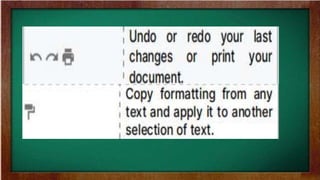
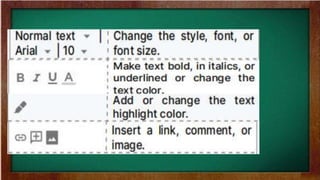
To customize text,
images, tables, and
more, use the toolbar
options.
Note:
Some options only appear for certain
types of content, such as tables or images.
Add pictures, links, tables, and more
The Insert menu lets you add different
features to your document. Here are
the highlights:
Image
Insert an image
from your computer,
the web, Drive, and
more.
Table
Select the number
of columns and rows
to create a table.
Drawing
Create shapes,
pictures, and
diagrams right in your
document.
Link
Add a link to another
page or to a header or
bookmark in the same
document.
Bookmark
Add shortcuts to
specific places within
your document.
Table of contents
Create an auto- generated
table of contents that links to
each heading in your
document that has a
heading style applied.
Create page columns
If you’re working on an
academic paper or
another large document,
you can organize your text
Click Format > Columns.
 Select the number of columns you want.
 (Optional) To adjust the spacing, or add lines
between columns, click Format > Columns >
More options.
 Click Apply.
Share and collaborate on files or share files with large
groups of people
Share your documents,
spreadsheets, and presentations with
your team or people outside your
company. People can make changes at
the same time, and you can see their
changes as they happen.
Share a file or folder with specific
people:
1. Select the file
you want to
share.
2. Click Share or Share .
3. Under "Share with people and groups," enter the email
address you want to share with.
• Important: If you share with an email address that isn’t a
Google Account, they can only view the file.
4. To change what people
can do to your doc, on the
right, click the Down arrow
Viewer, Commenter, or
Editor.
5. Choose to notify people.
• If you want to notify people that you shared a doc with
them, check the box next to Notify people. If you notify
people, each email address you enter will be included in
the email.
• If you don't want to notify people, uncheck the box.
6. Click Share
or Send.
Stop sharing a file or folder you
own:
1. Open the homescreen
for Google Drive, Google
Docs, Google Sheets, or
Google Slides.
2. Select a
file or folder.
3. Click Share or Share.
4. Find the person
you want to stop
sharing with.
5. To the right of their name, click
the Down arrow remove.
6. To save
changes, click
Save.
Remove a link to a file or folder you
own:
1. Open the
homescreen for
Google Docs.
2. Open or
select a file or
folder.
3. Click Share or Share get
link.
4. Under “Get Link”, click the Down
arrow m.
5. Select
Restricted.
6. Click
Done.
Print your file
 To print your file, click File Print or
click Print .
 For documents and presentations: In

the preview that appears, you can
scroll through your document on the
right, or choose print options on the

left.
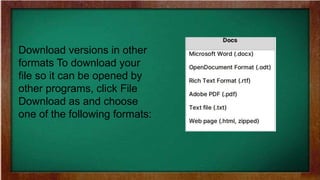
Download versions in other
formats To download your
file so it can be opened by
other programs, click File
Download as and choose
one of the following formats:
Make a copy
Copying a file is useful for creating
templates. For example, if you write a
lot of proposals, you can make copies
of one proposal and then update each
copy for a new project without having to
format it again.
1. Click File Make a copy.
2. (Optional) You can
rename the copy, change
where you save it in Drive,
and share it with the same
collaborators.
Email a copy as an attachment
If you need to collaborate with
someone on your file in a different program
or format, such as Word, Excel,
PowerPoint, or PDF, you can email it as an
attachment. However, this sends a copy of
the document instead of sharing the
original, so you won’t be able to use
1. Click File Email as
attachment.
2. Select a
format.
3. Enter the email
addresses or Groups
you want to send
copies to.
4. (Optional)
Enter a
message.
5. Click
Send

Word documents using google docs

  • 1.
  • 2.
    Create a newfile Choose an option:  From the Docs homepage, above Blank, click Create +. In Drive, click New > Google Docs/Sheets/Slides > Blank document or From a template.
  • 3.
    Import and convertexisting files If you have existing files, you can import and convert them to Docs, Sheets, or Slides. Go to Drive.  Click New > File Upload.  Choose the file you want to import from your computer to add it to Drive.  In the Upload complete window, click Show file location. Right-click the file and select Open with > Google Docs.
  • 4.
    Converting your filefrom another program creates a copy of your original file in a Docs format. You can then edit the file in your browser.
  • 5.
    Have a Microsoftfile? If you've already stored Microsoft files in Drive, you can also update them without converting them.
  • 6.
  • 7.
    Rename your document: Atthe top of the page, click Untitled document, enter a new title, and click OK.
  • 8.
    Add or edittext: Just click in the page and start typing.
  • 9.
    Customize your document Dependingon what you want to change, choose an option:
  • 10.
    To customize margins, pagecolor, and orientation, click File > Page setup.
  • 11.
    To customize text, images,tables, and more, use the toolbar options.
  • 12.
    Note: Some options onlyappear for certain types of content, such as tables or images.
  • 17.
    Add pictures, links,tables, and more The Insert menu lets you add different features to your document. Here are the highlights:
  • 18.
    Image Insert an image fromyour computer, the web, Drive, and more.
  • 19.
    Table Select the number ofcolumns and rows to create a table.
  • 20.
  • 21.
    Link Add a linkto another page or to a header or bookmark in the same document.
  • 22.
    Bookmark Add shortcuts to specificplaces within your document.
  • 23.
    Table of contents Createan auto- generated table of contents that links to each heading in your document that has a heading style applied.
  • 24.
    Create page columns Ifyou’re working on an academic paper or another large document, you can organize your text
  • 25.
    Click Format >Columns.  Select the number of columns you want.  (Optional) To adjust the spacing, or add lines between columns, click Format > Columns > More options.  Click Apply.
  • 26.
    Share and collaborateon files or share files with large groups of people Share your documents, spreadsheets, and presentations with your team or people outside your company. People can make changes at the same time, and you can see their changes as they happen.
  • 27.
    Share a fileor folder with specific people:
  • 28.
    1. Select thefile you want to share.
  • 29.
    2. Click Shareor Share .
  • 30.
    3. Under "Sharewith people and groups," enter the email address you want to share with. • Important: If you share with an email address that isn’t a Google Account, they can only view the file.
  • 31.
    4. To changewhat people can do to your doc, on the right, click the Down arrow Viewer, Commenter, or Editor.
  • 32.
    5. Choose tonotify people. • If you want to notify people that you shared a doc with them, check the box next to Notify people. If you notify people, each email address you enter will be included in the email. • If you don't want to notify people, uncheck the box.
  • 33.
  • 34.
    Stop sharing afile or folder you own:
  • 35.
    1. Open thehomescreen for Google Drive, Google Docs, Google Sheets, or Google Slides.
  • 36.
    2. Select a fileor folder.
  • 37.
    3. Click Shareor Share.
  • 38.
    4. Find theperson you want to stop sharing with.
  • 39.
    5. To theright of their name, click the Down arrow remove.
  • 40.
  • 41.
    Remove a linkto a file or folder you own:
  • 42.
    1. Open the homescreenfor Google Docs.
  • 43.
    2. Open or selecta file or folder.
  • 44.
    3. Click Shareor Share get link.
  • 45.
    4. Under “GetLink”, click the Down arrow m.
  • 46.
  • 47.
  • 48.
    Print your file To print your file, click File Print or click Print .  For documents and presentations: In the preview that appears, you can scroll through your document on the right, or choose print options on the left.
  • 49.
    Download versions inother formats To download your file so it can be opened by other programs, click File Download as and choose one of the following formats:
  • 50.
    Make a copy Copyinga file is useful for creating templates. For example, if you write a lot of proposals, you can make copies of one proposal and then update each copy for a new project without having to format it again.
  • 51.
    1. Click FileMake a copy.
  • 52.
    2. (Optional) Youcan rename the copy, change where you save it in Drive, and share it with the same collaborators.
  • 53.
    Email a copyas an attachment If you need to collaborate with someone on your file in a different program or format, such as Word, Excel, PowerPoint, or PDF, you can email it as an attachment. However, this sends a copy of the document instead of sharing the original, so you won’t be able to use
  • 54.
    1. Click FileEmail as attachment.
  • 55.
  • 56.
    3. Enter theemail addresses or Groups you want to send copies to.
  • 57.
  • 58.