TheUltimateGuide to
DROPBOX
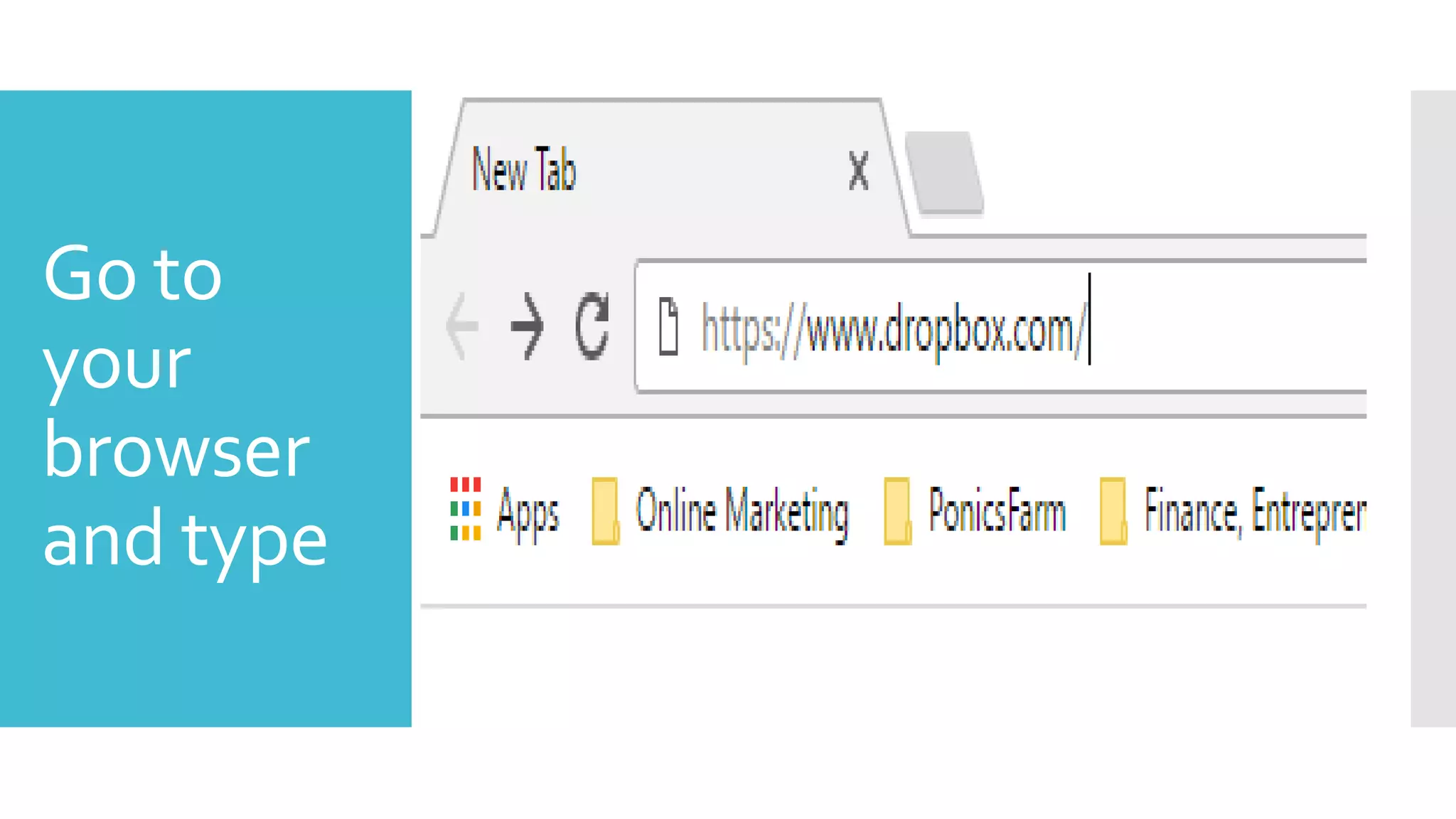
Go to
your
browser
and type
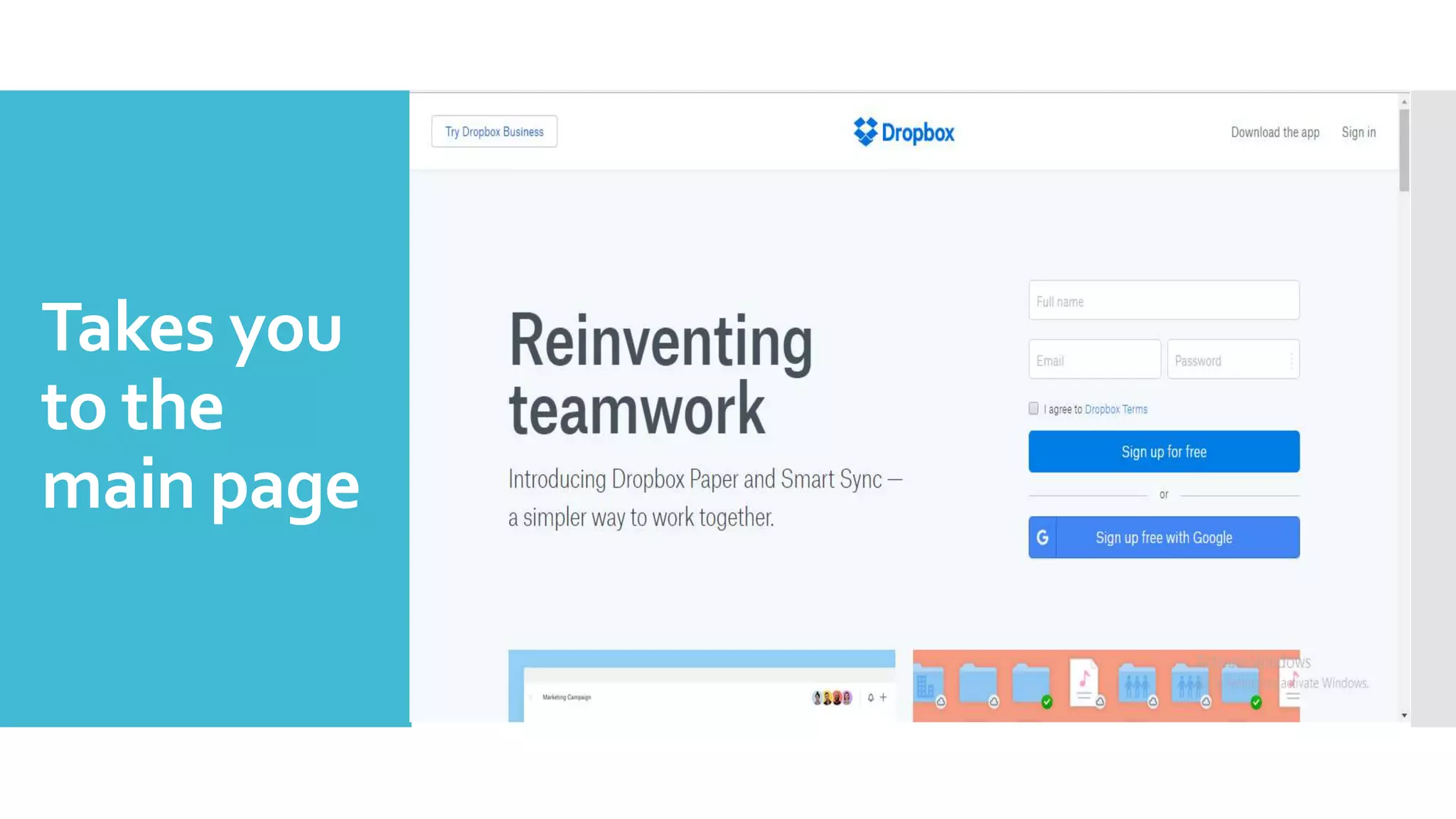
Takes you
to the
main page
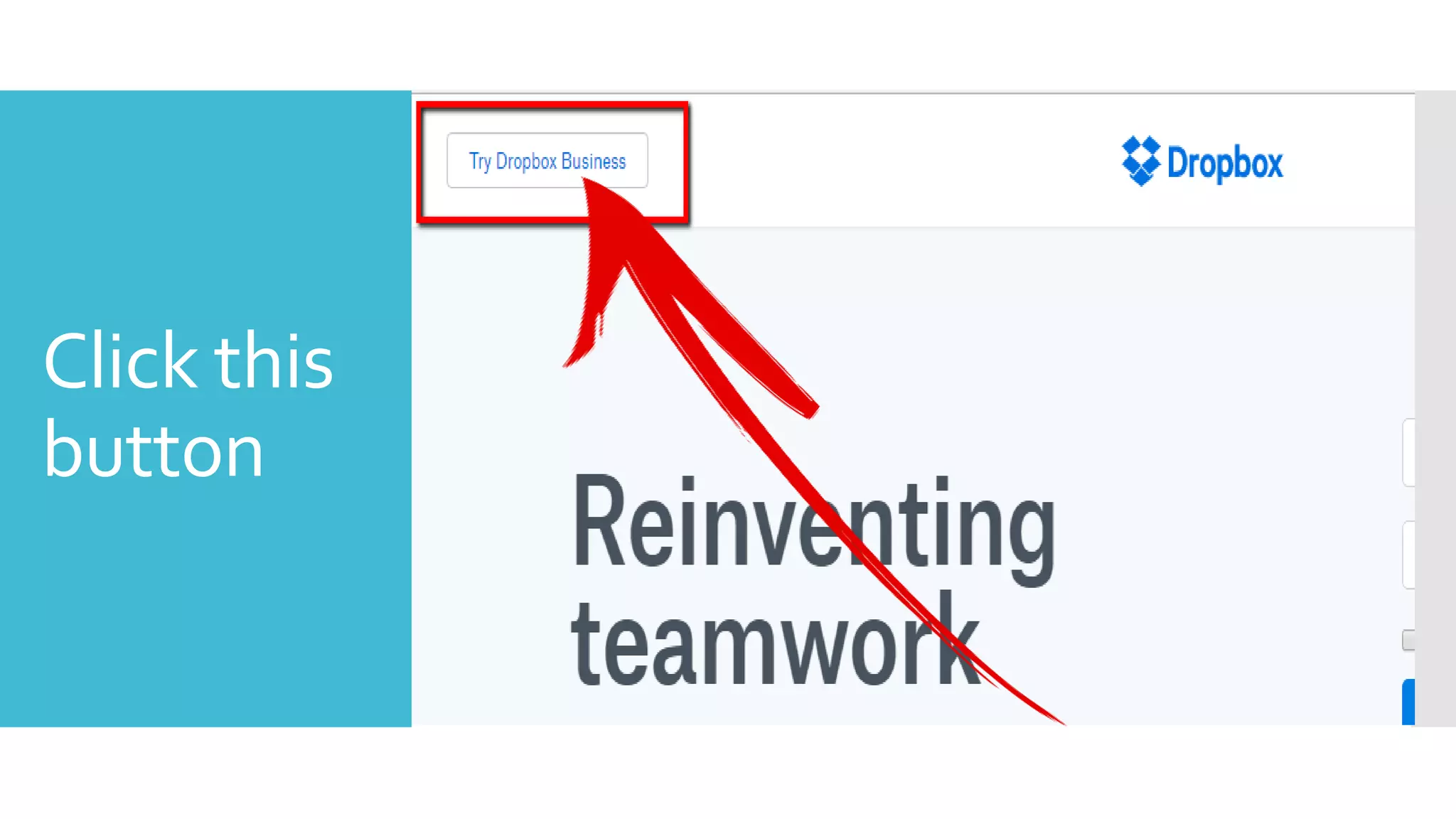
Click this
button
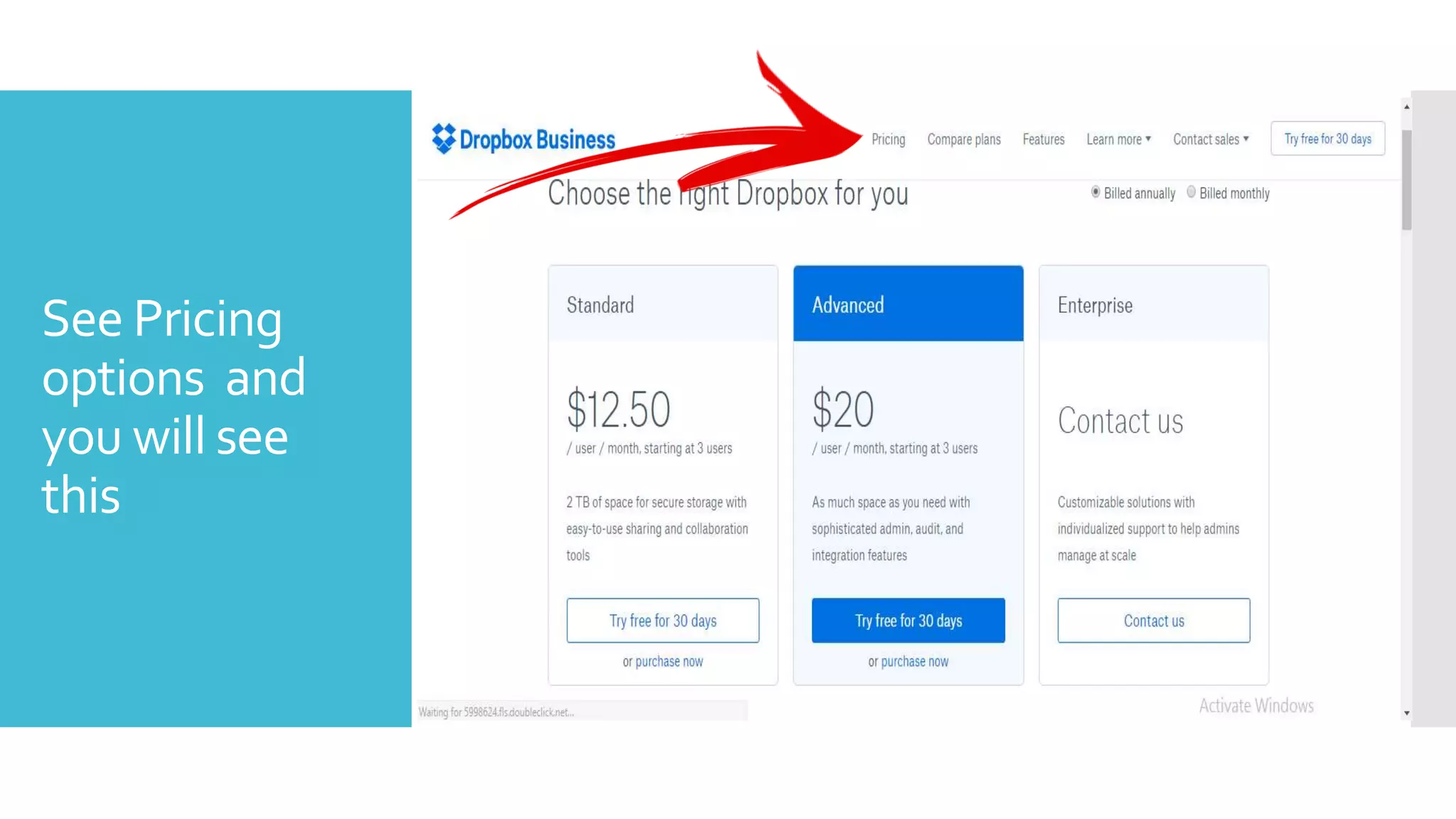
See Pricing
options and
you will see
this
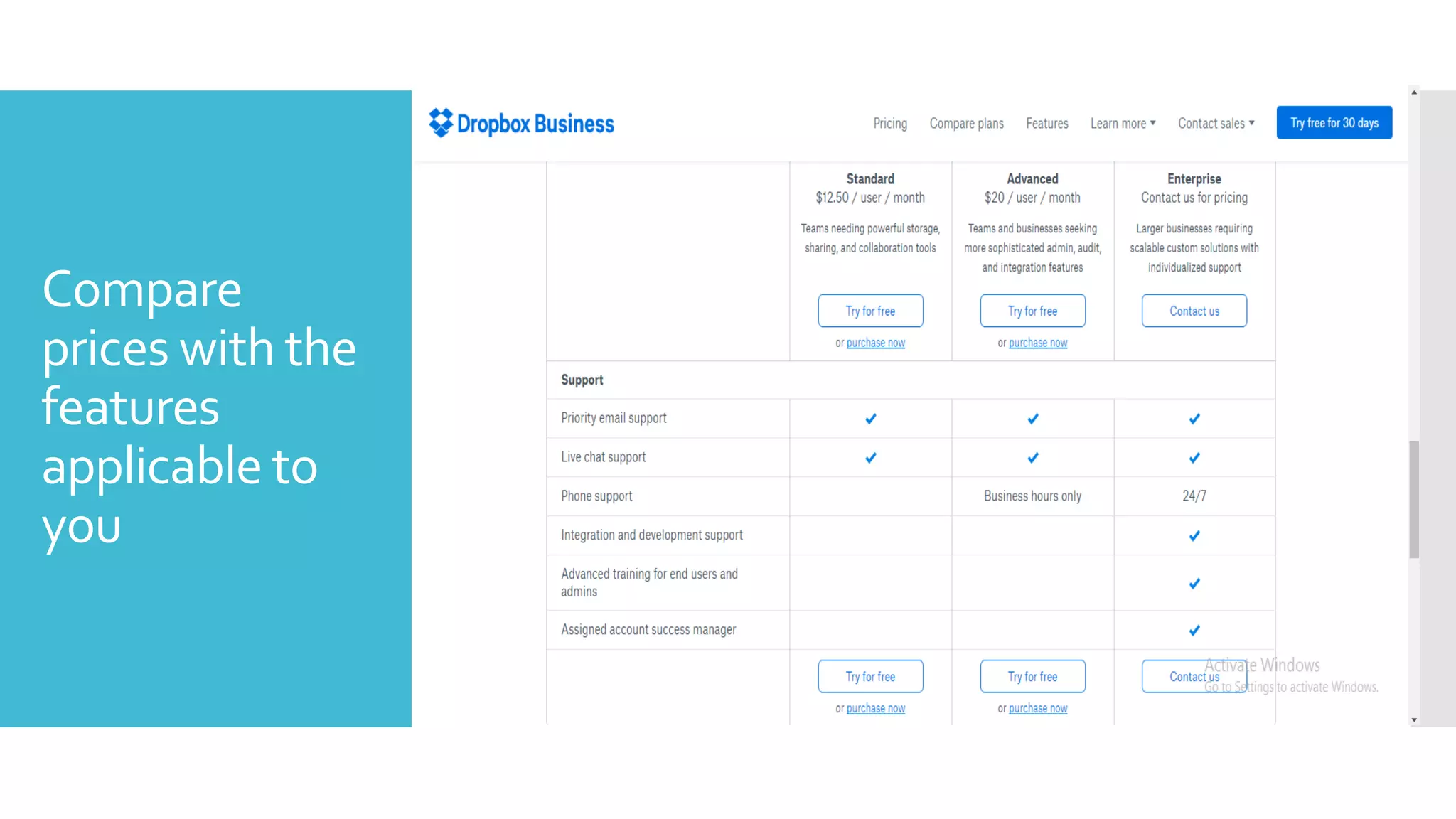
Compare
prices with the
features
applicable to
you
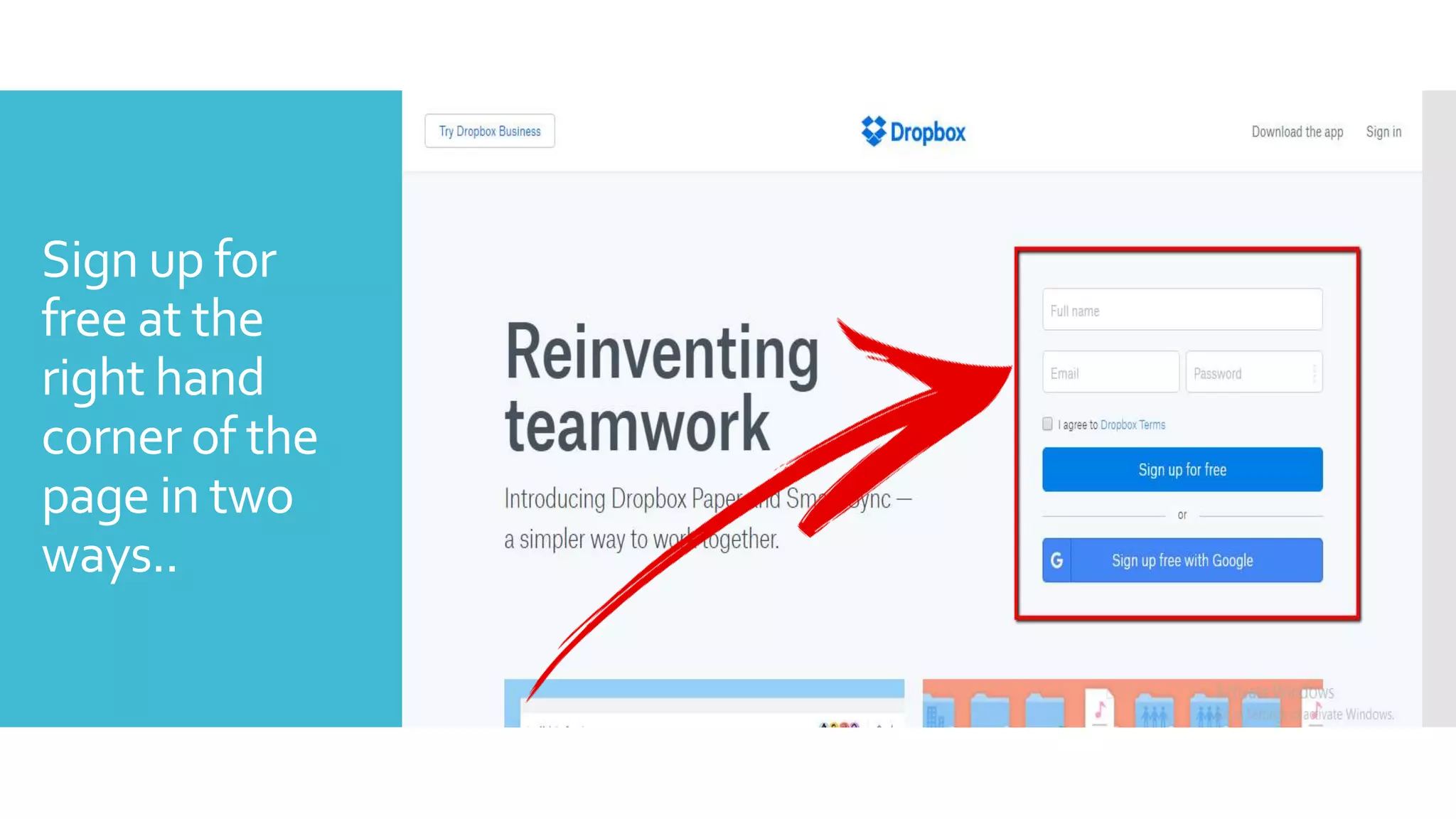
Sign up for
free at the
right hand
corner of the
page in two
ways..
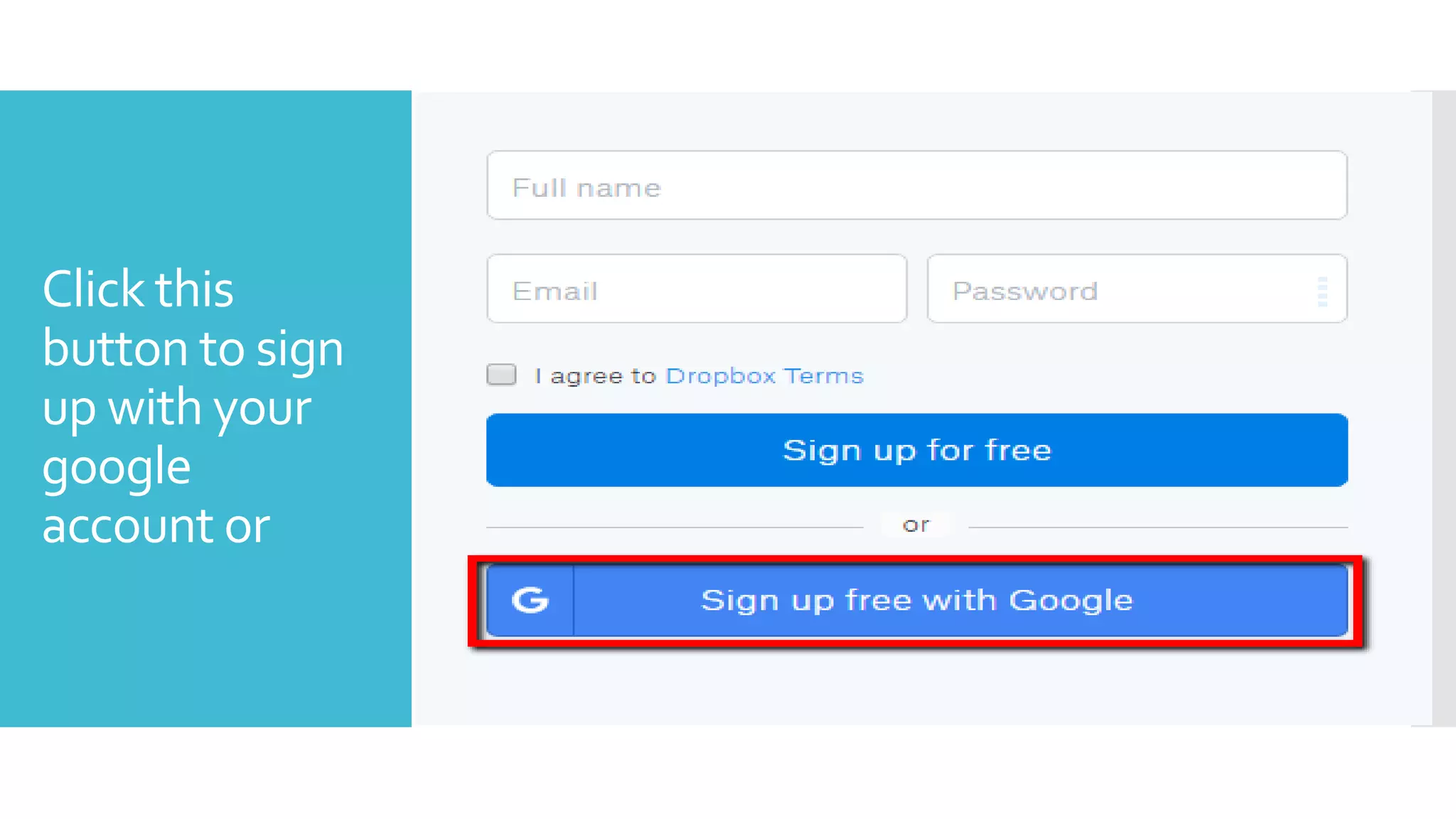
Click this
button to sign
up with your
google
account or
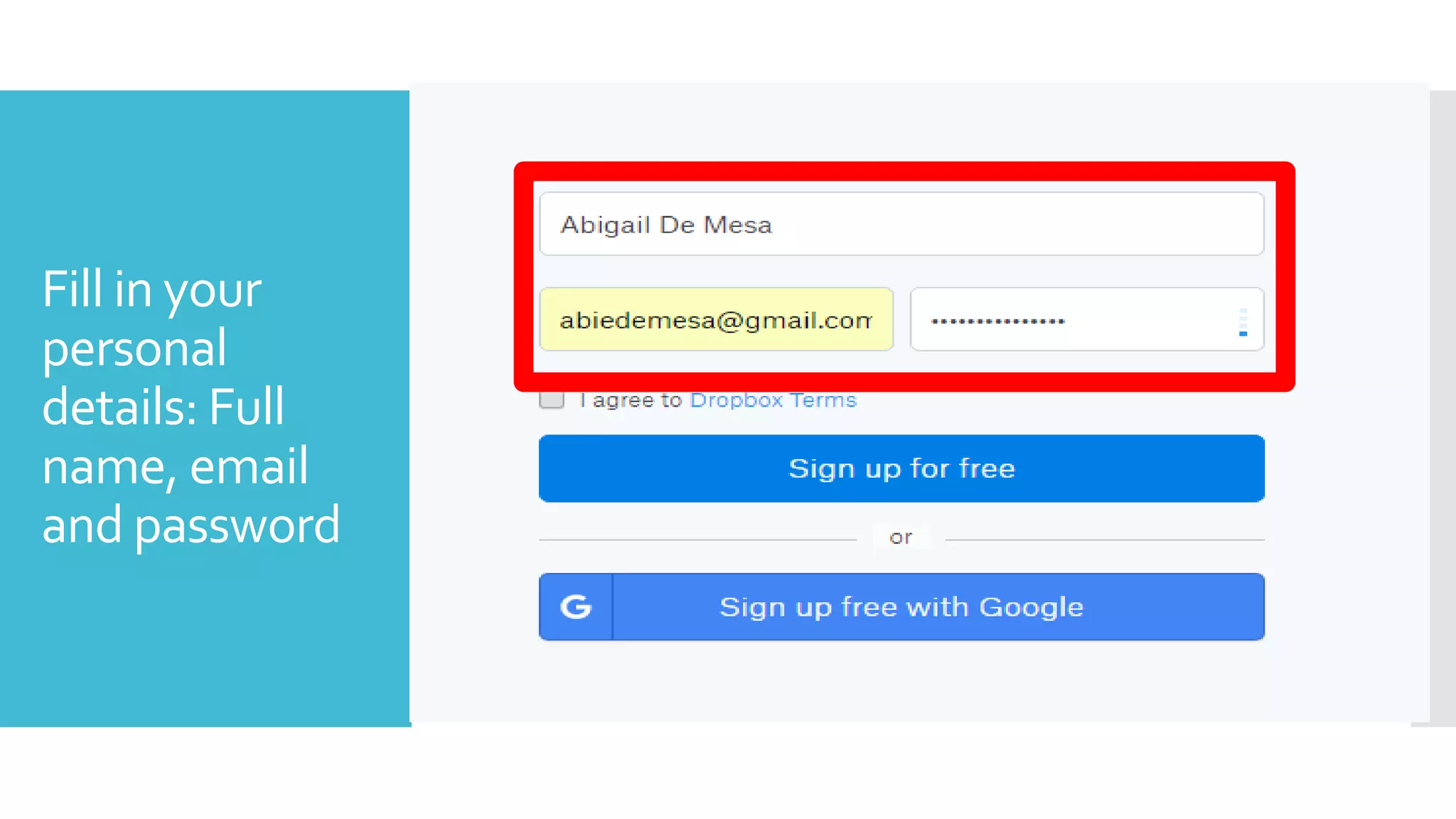
Fill in your
personal
details: Full
name, email
and password
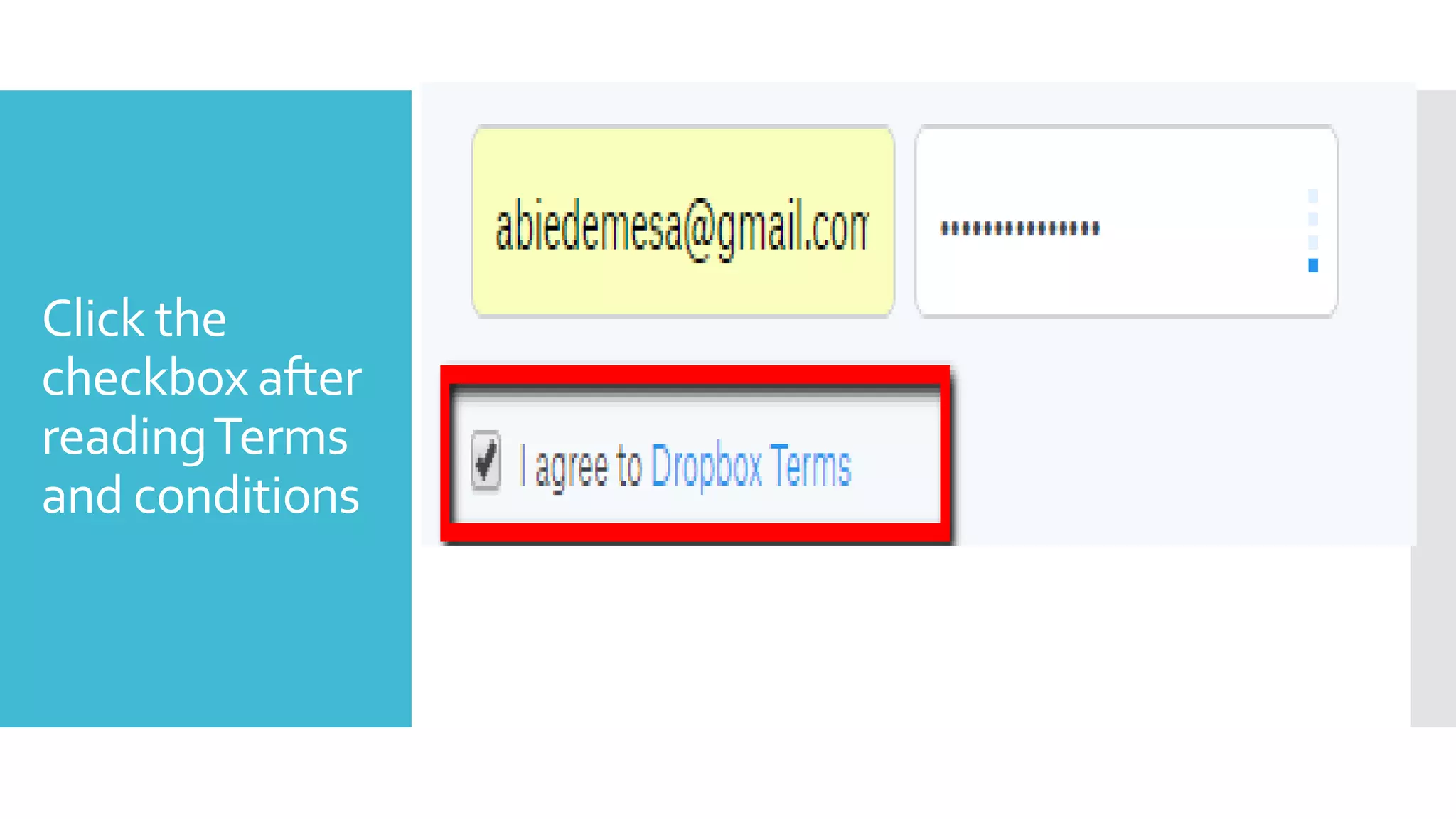
Click the
checkbox after
readingTerms
and conditions
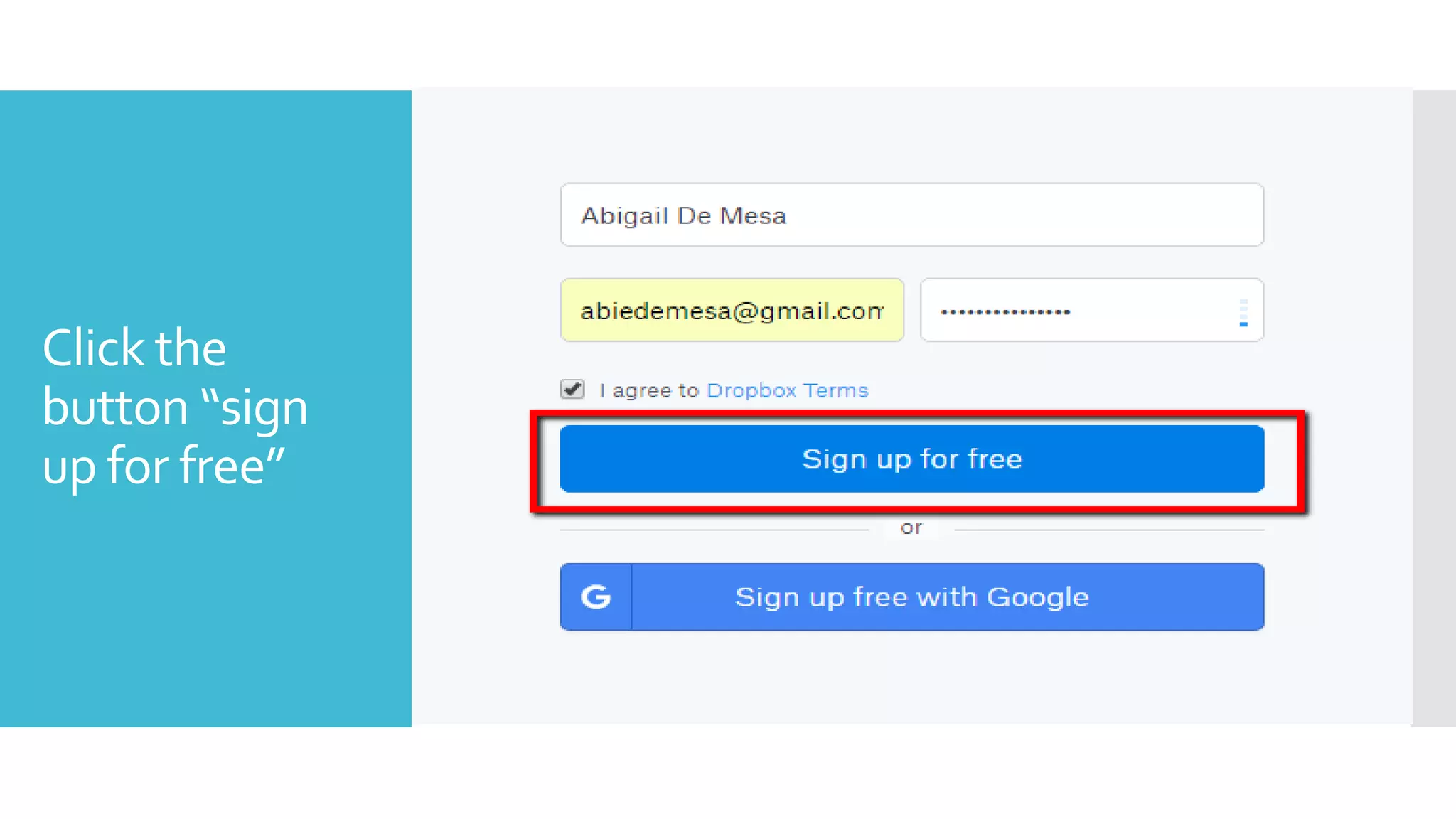
Click the
button “sign
up for free”
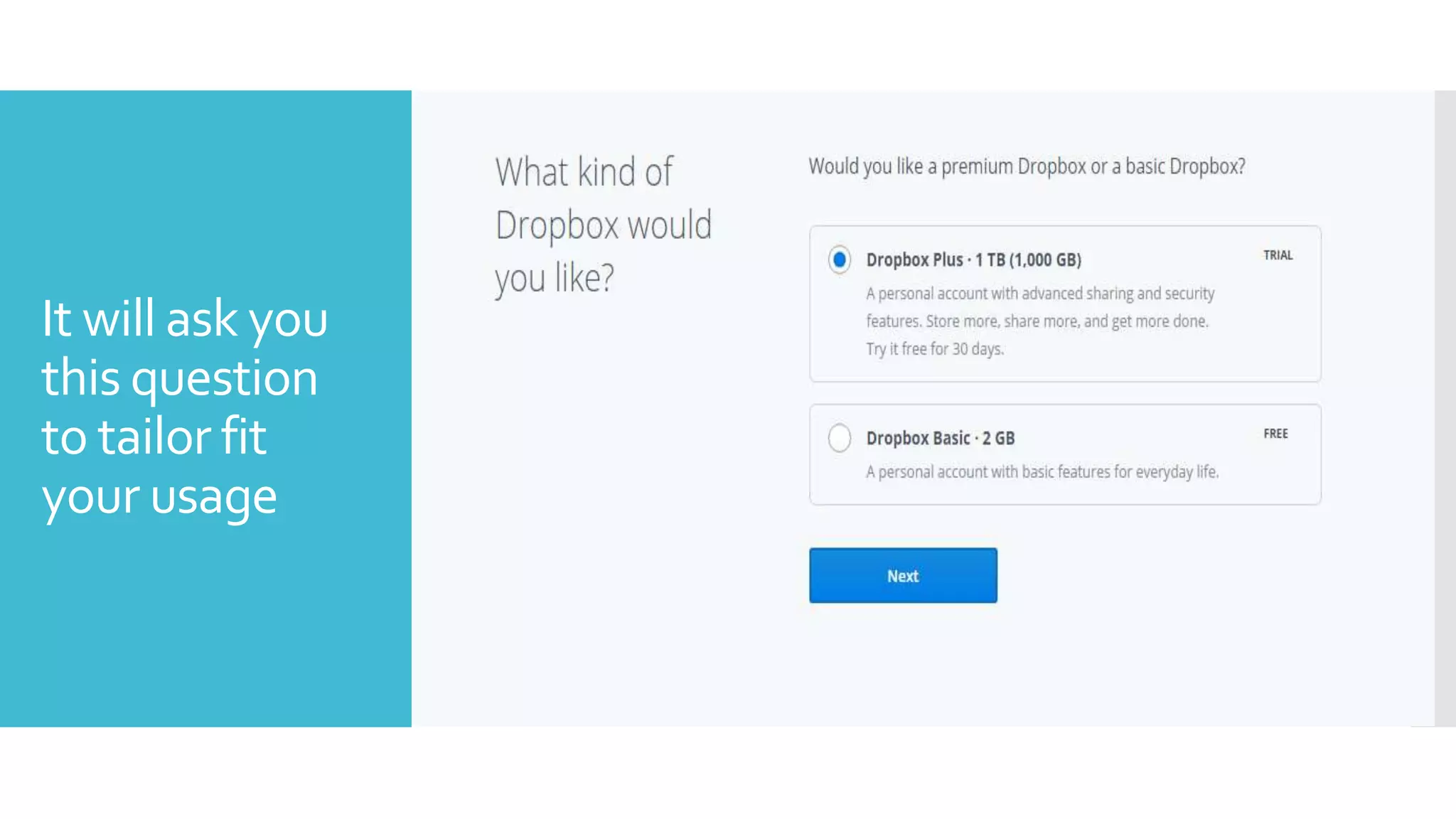
It will ask you
this question
to tailor fit
your usage
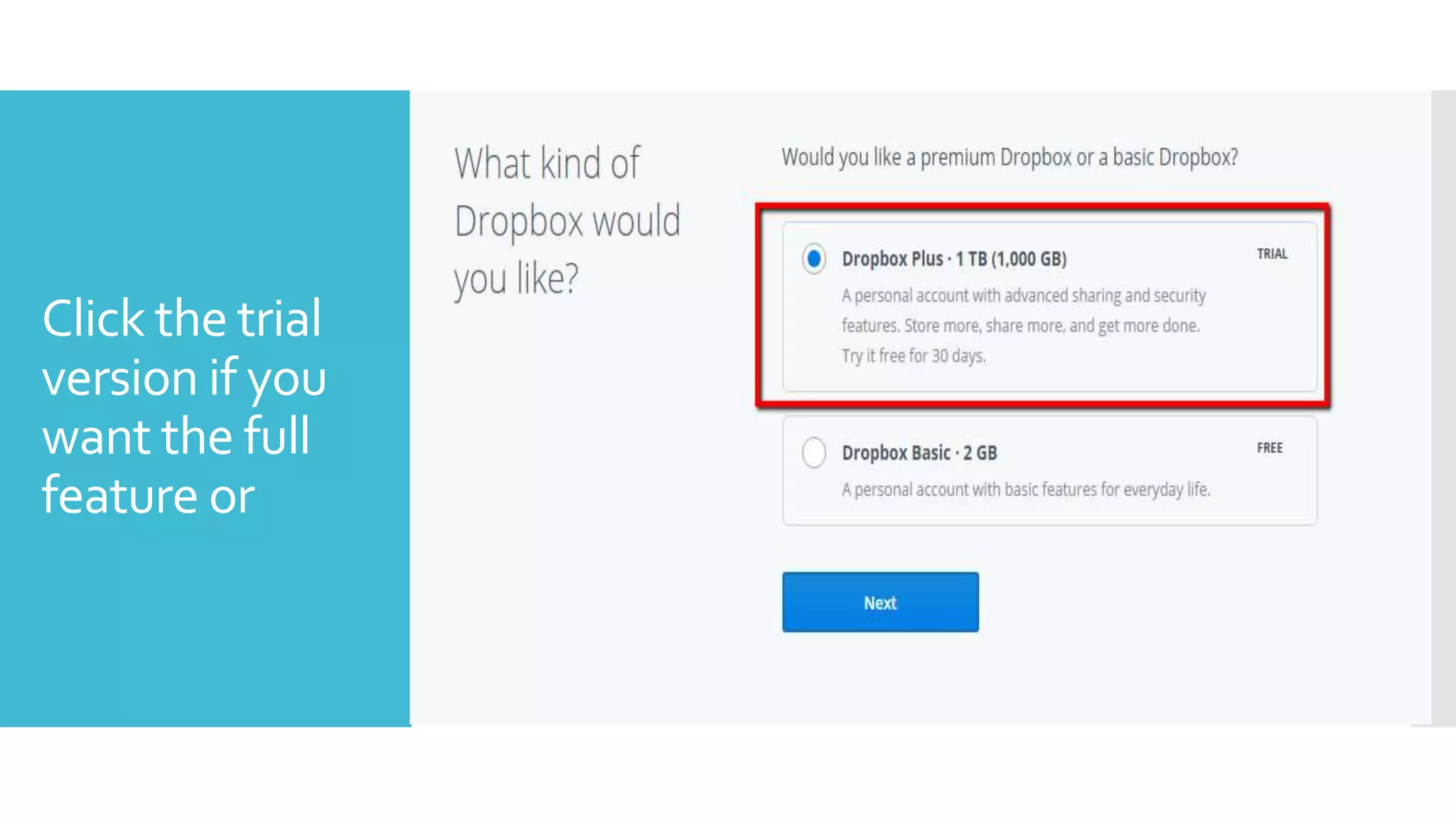
Click the trial
version if you
want the full
feature or
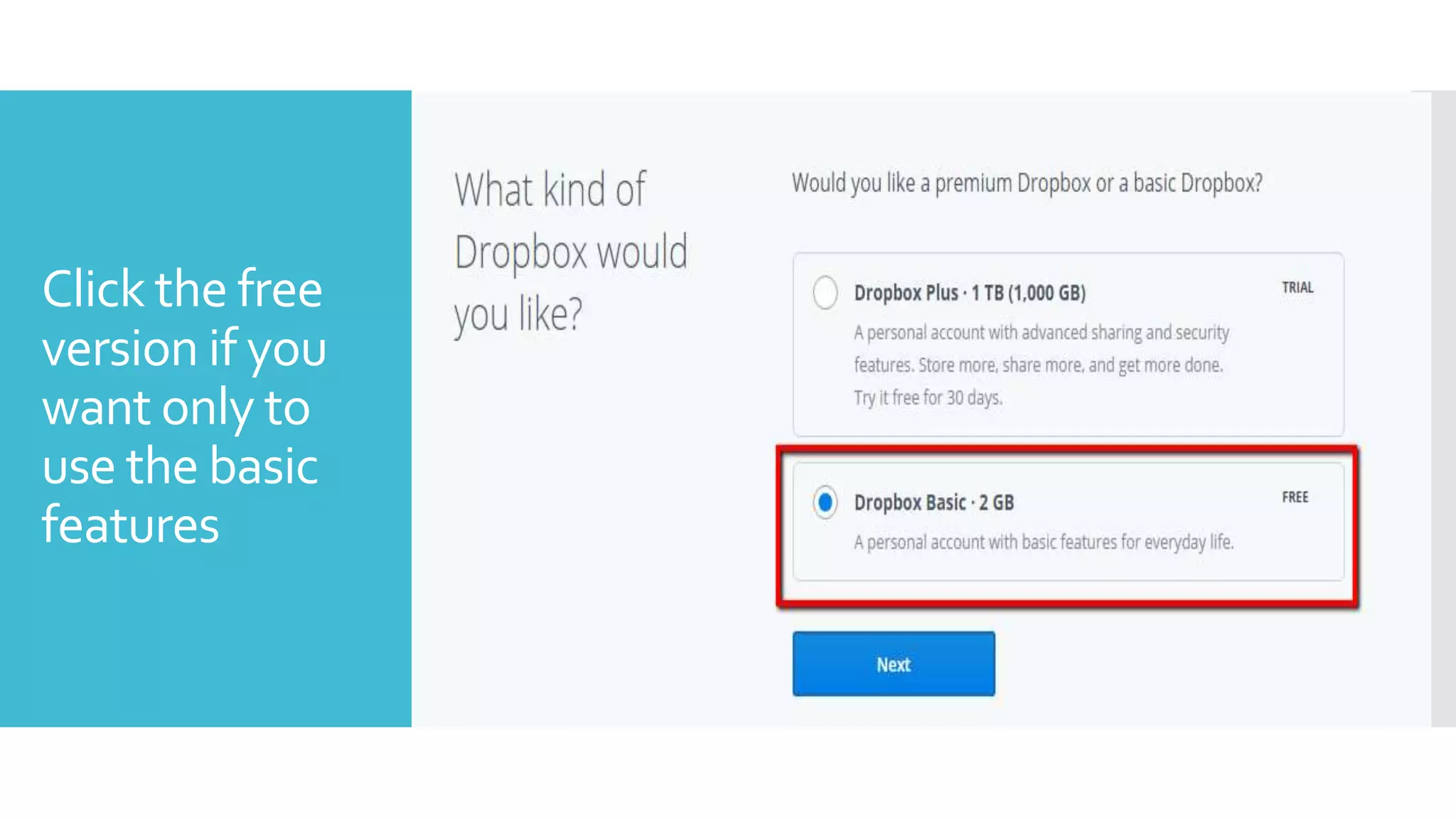
Click the free
version if you
want only to
use the basic
features
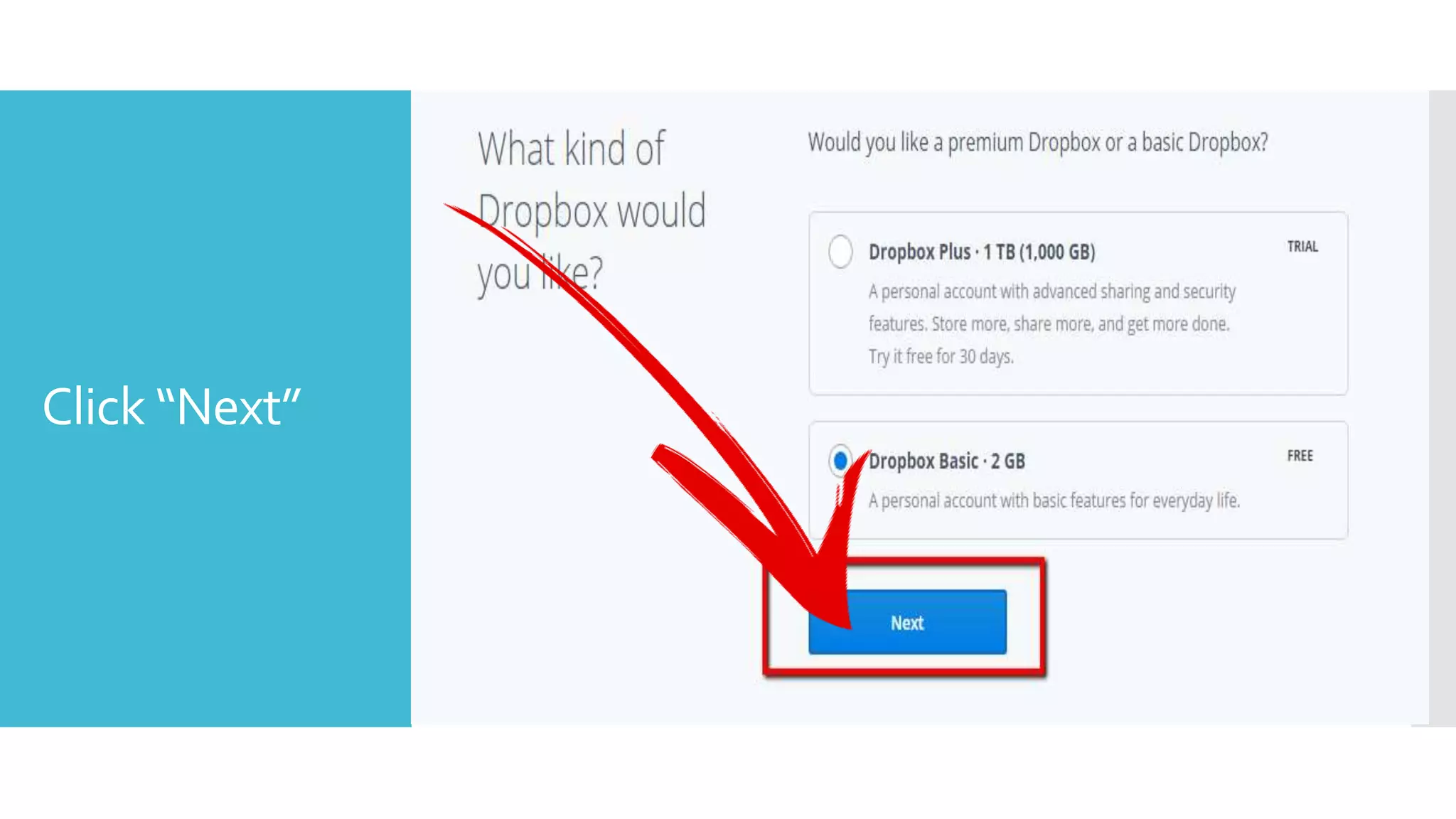
Click “Next”
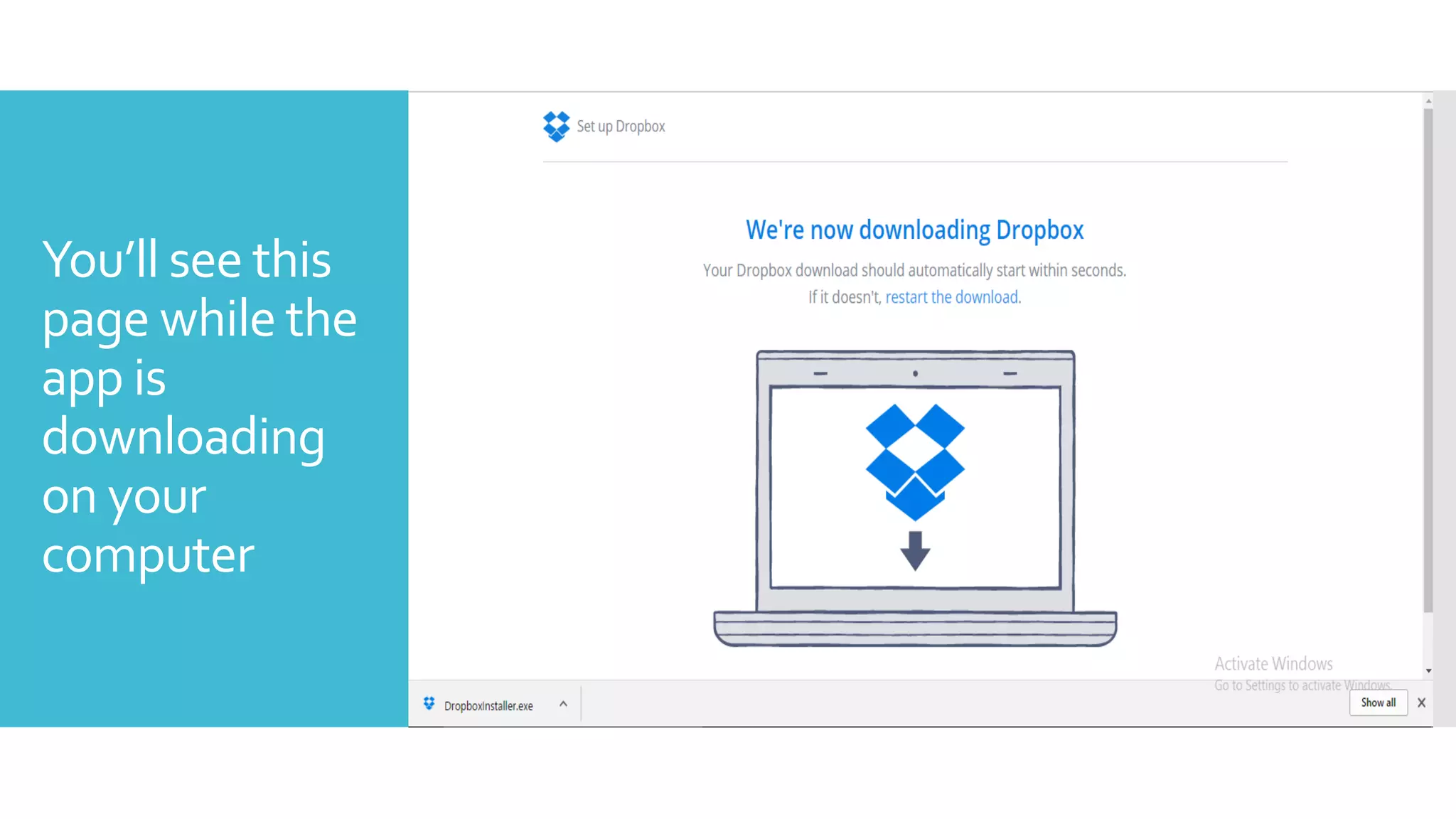
You’ll see this
page while the
app is
downloading
on your
computer
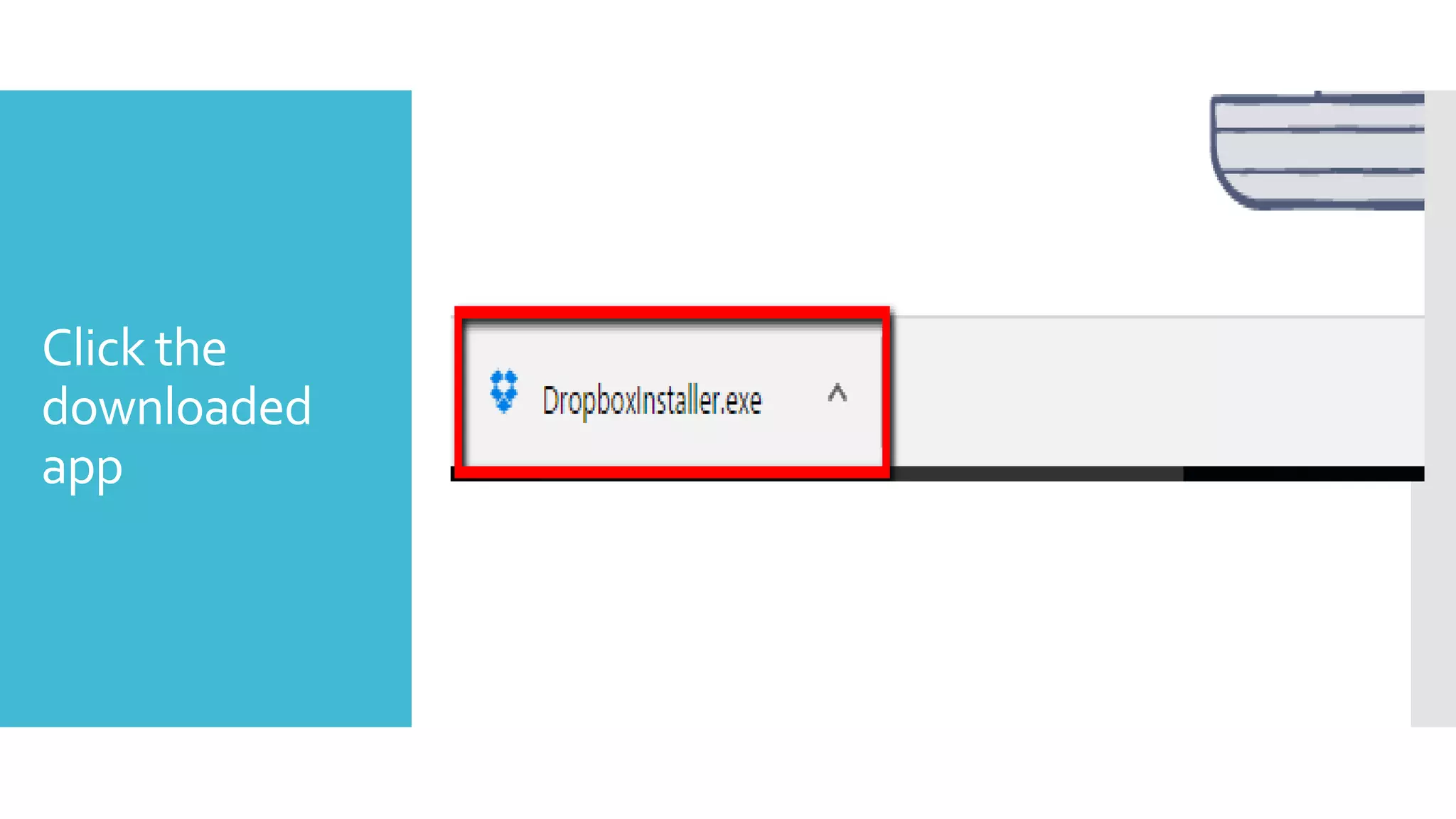
Click the
downloaded
app
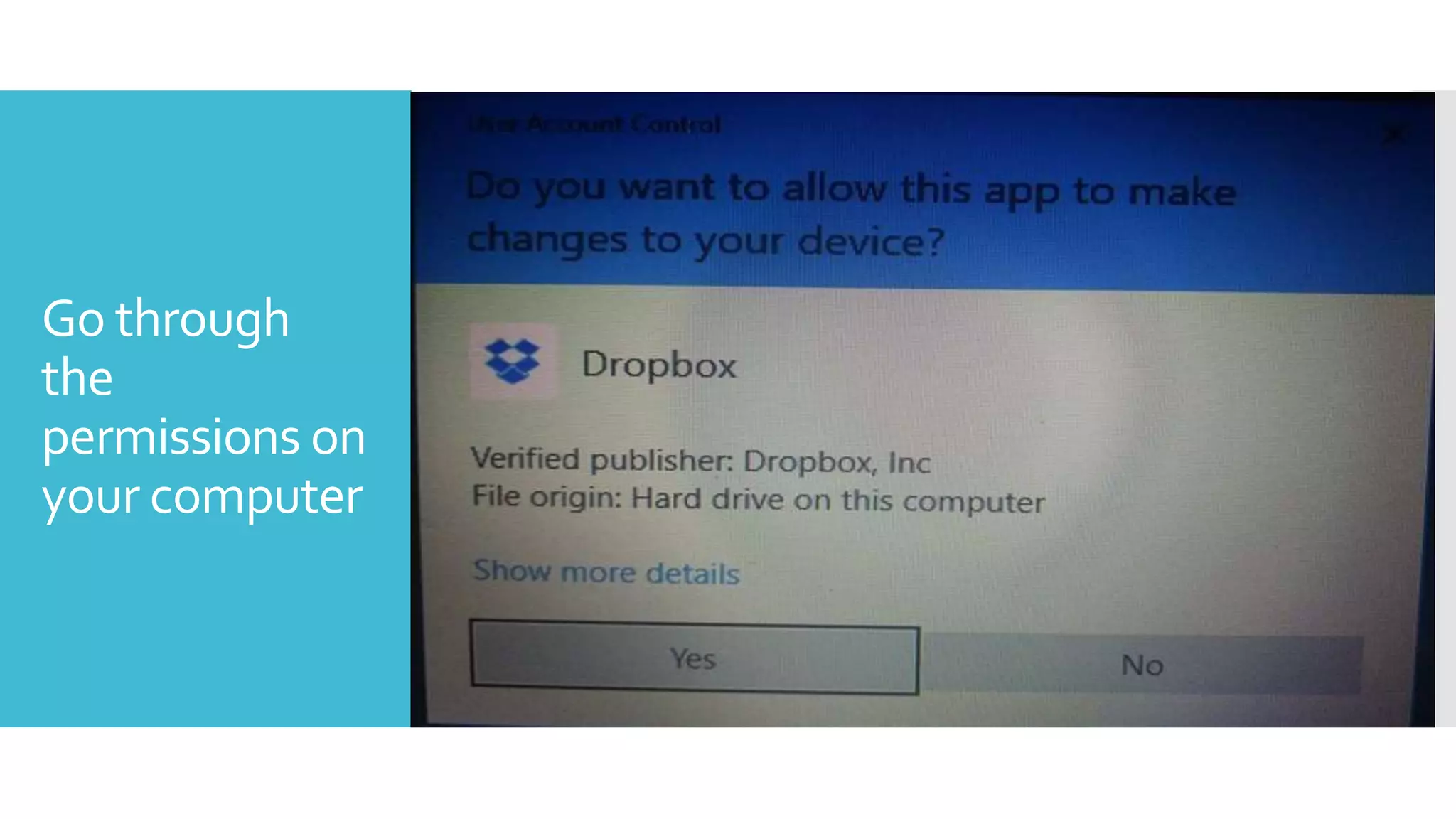
Go through
the
permissions on
your computer
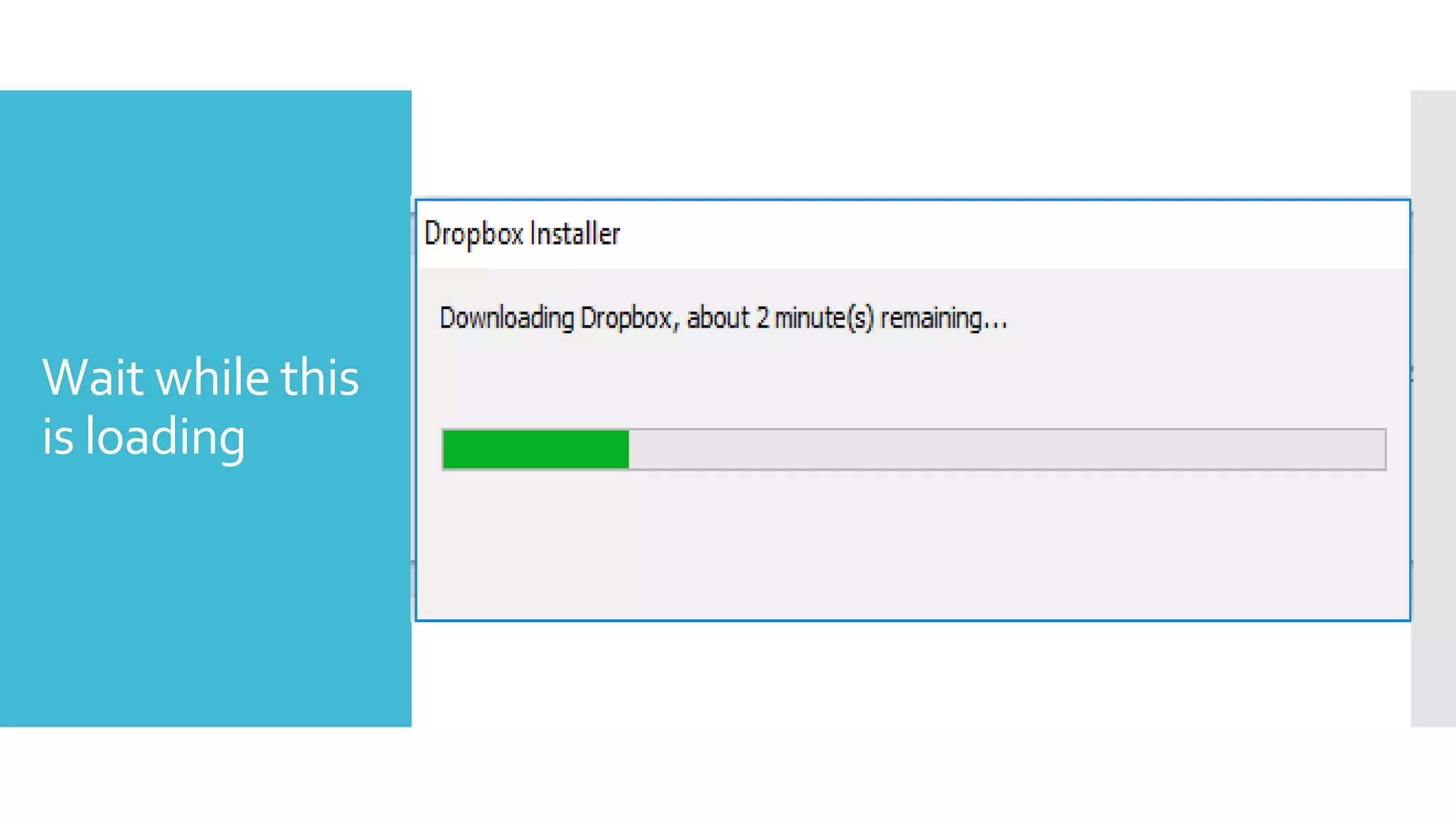
Wait while this
is loading
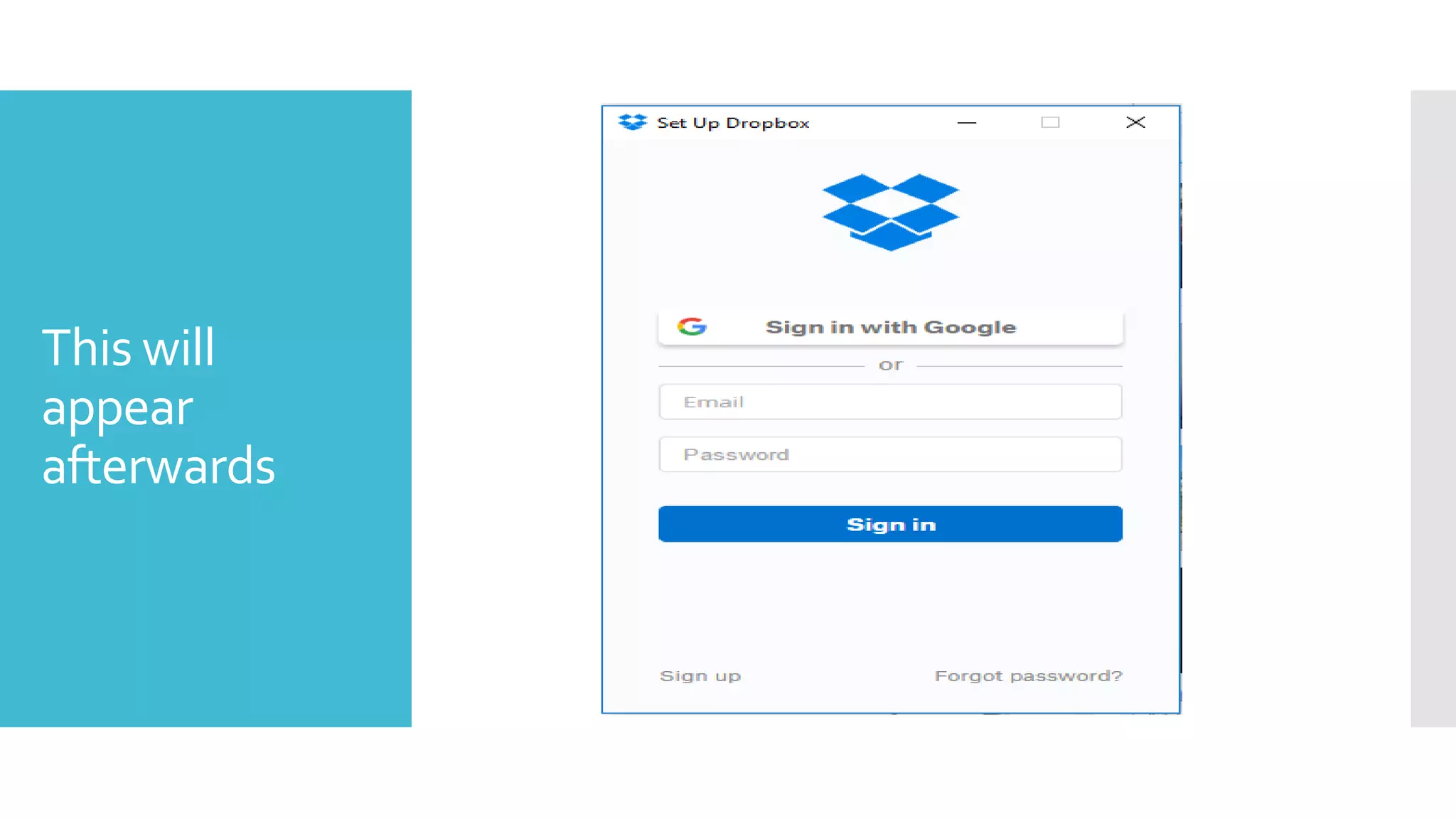
This will
appear
afterwards
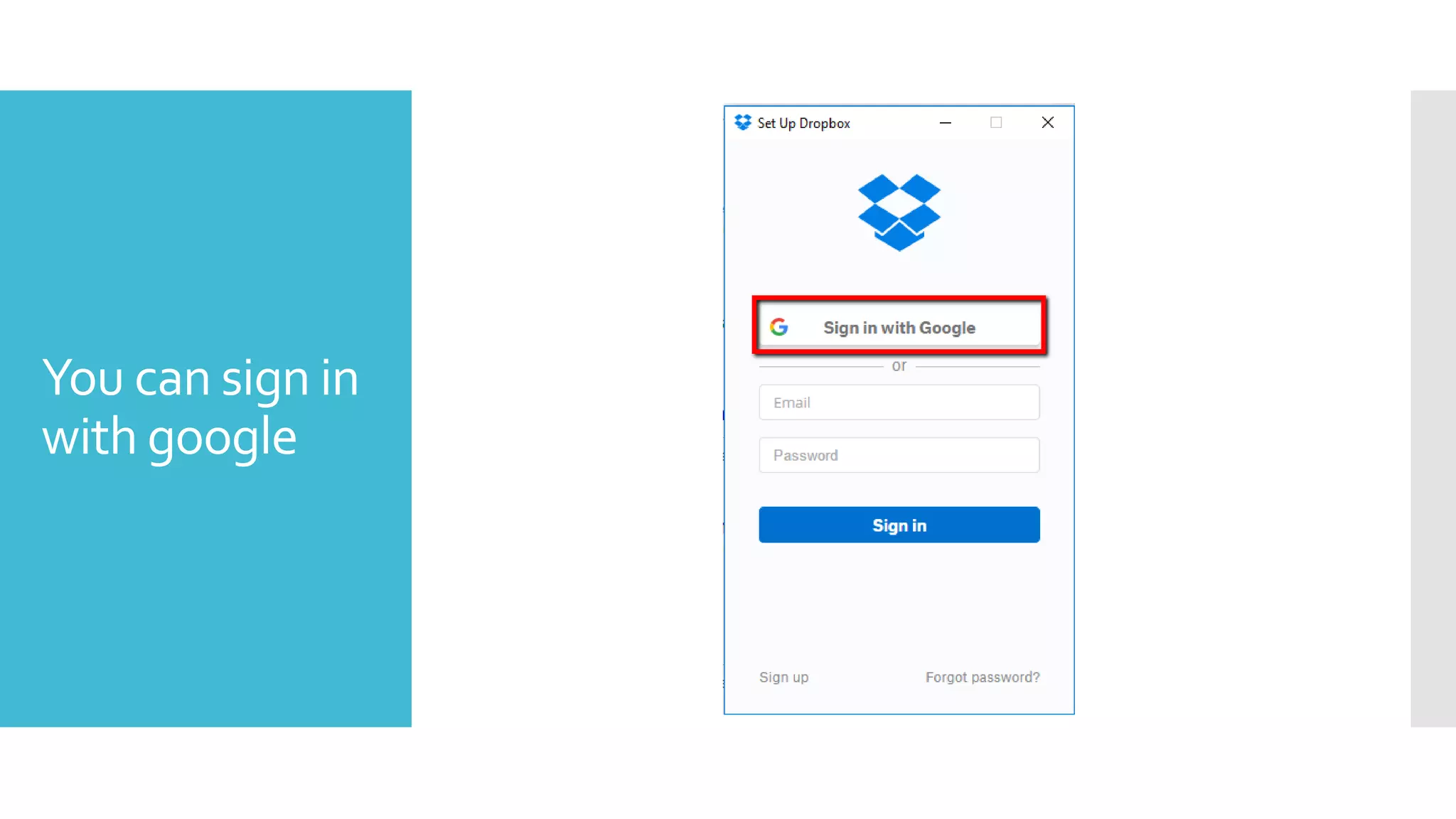
You can sign in
with google
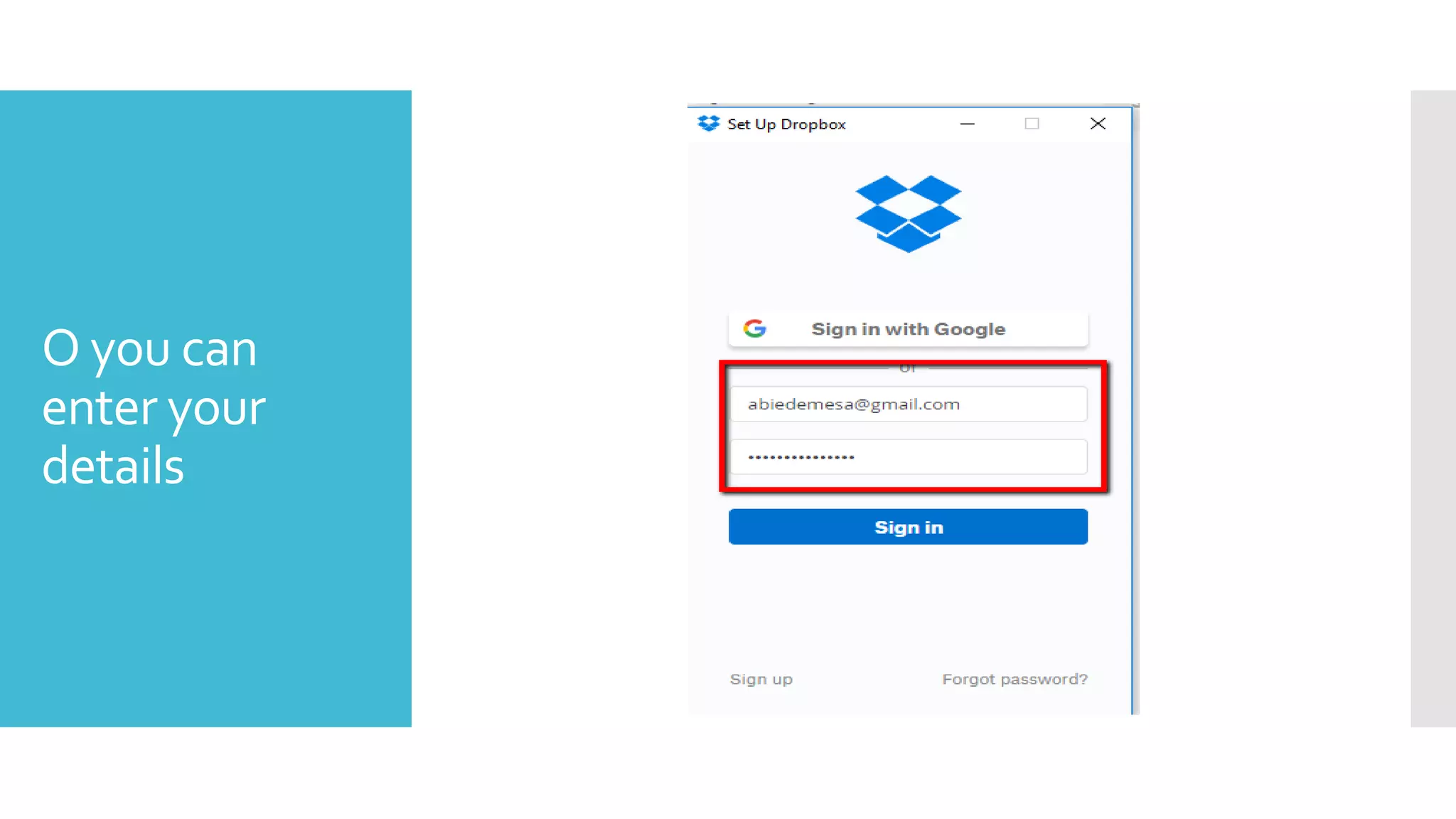
O you can
enter your
details
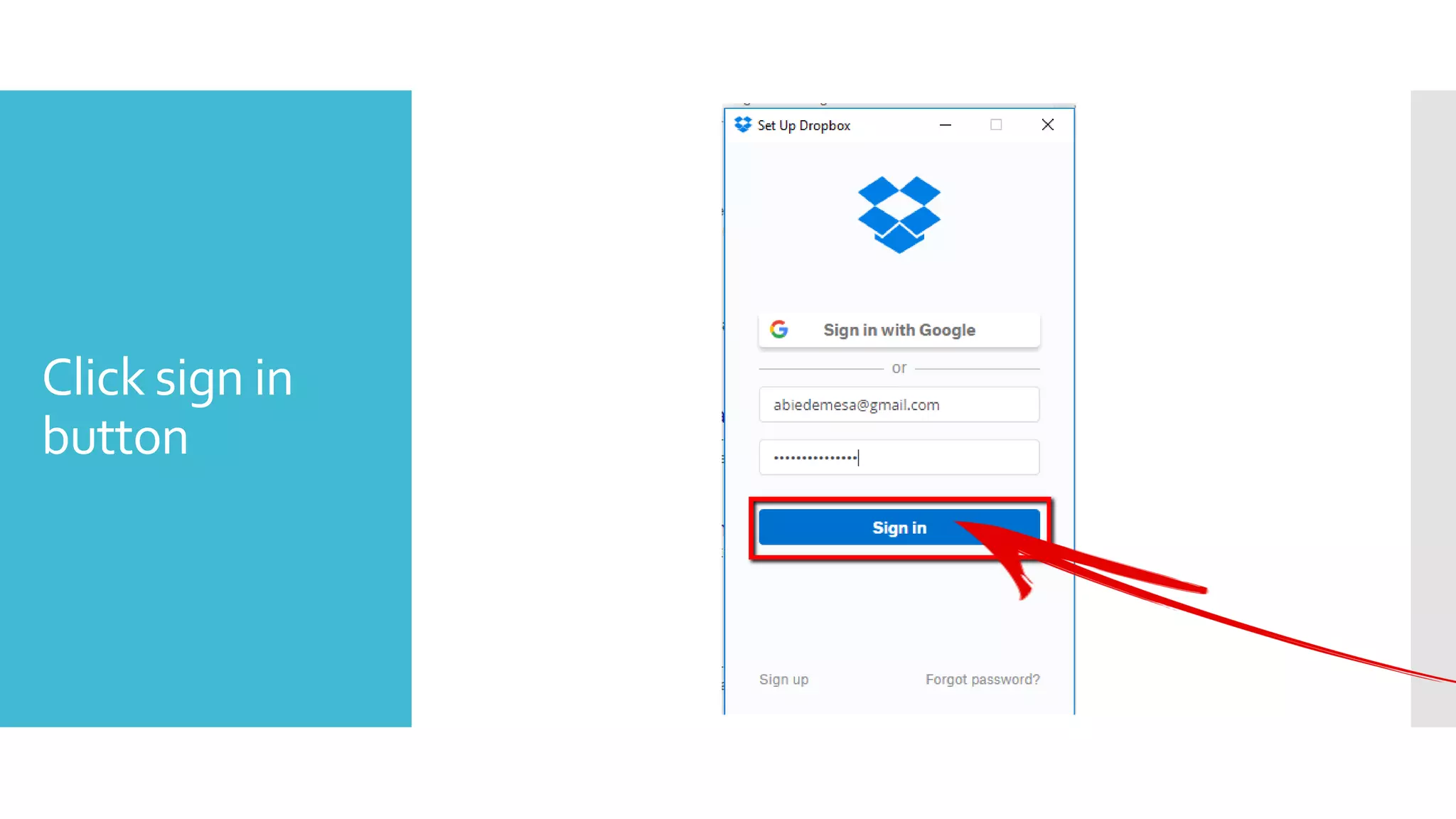
Click sign in
button
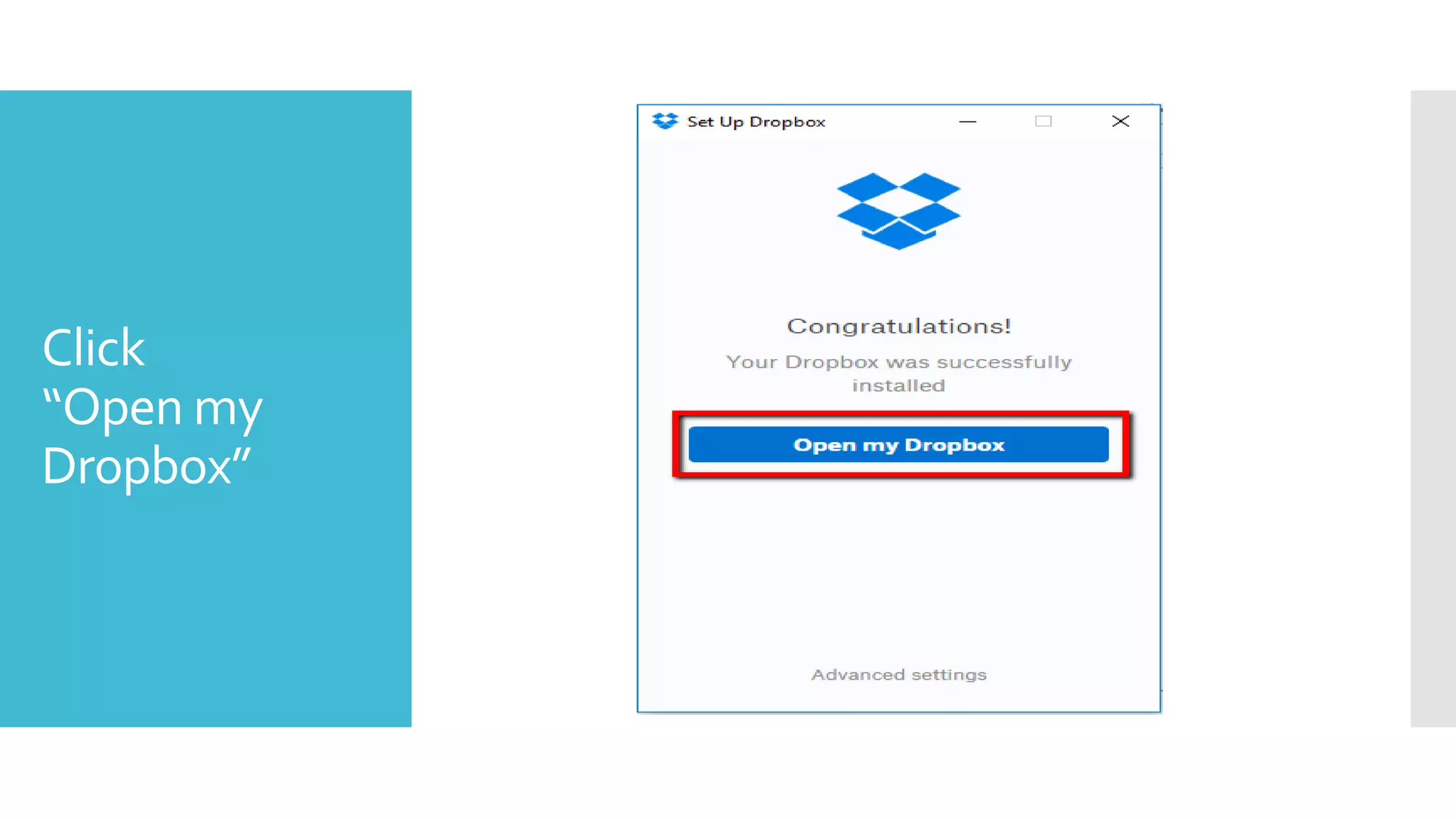
Click
“Open my
Dropbox”
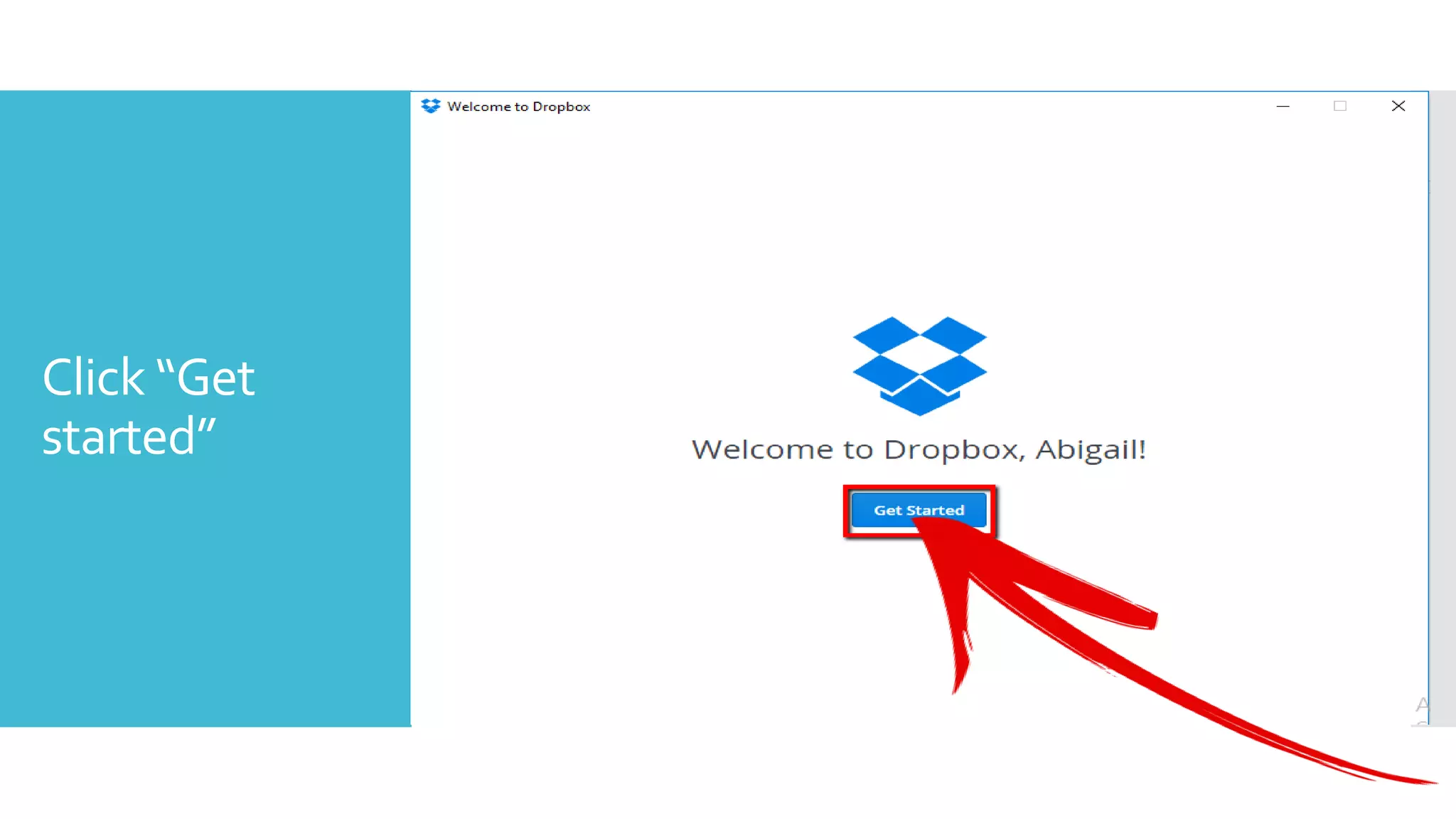
Click “Get
started”
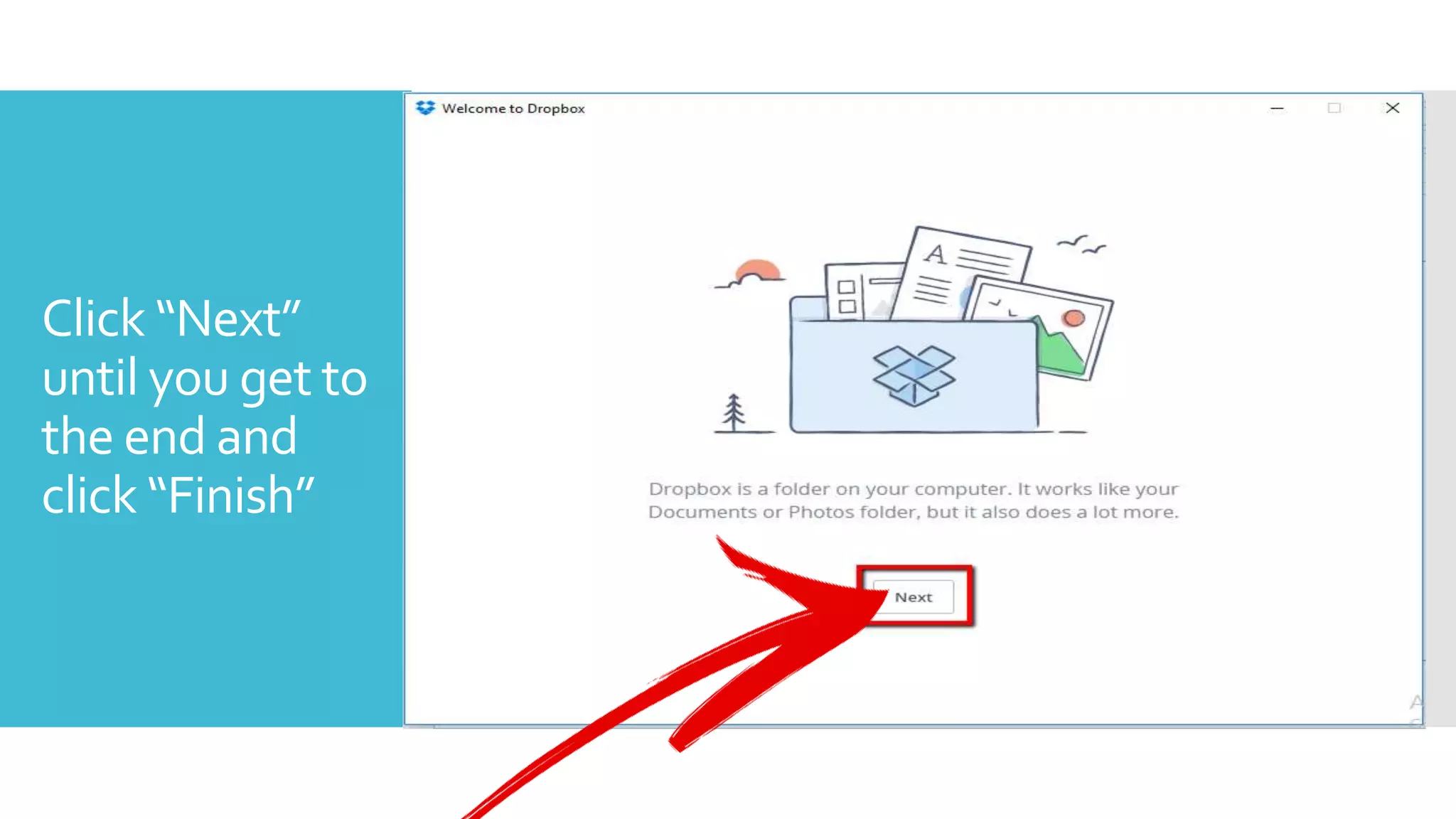
Click “Next”
until you get to
the end and
click “Finish”
AND YOUR DONE!
Part one:
SETUP
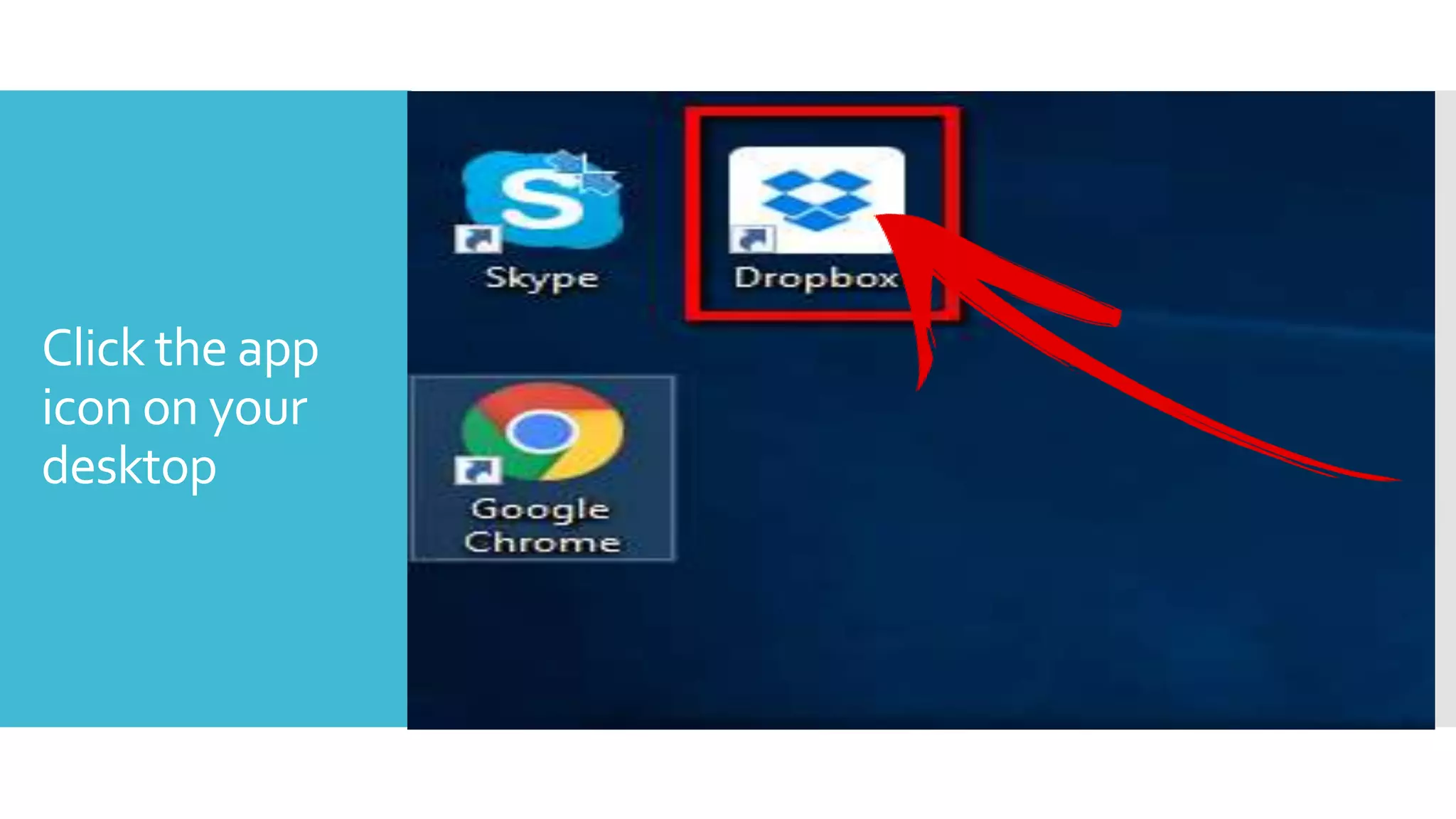
Click the app
icon on your
desktop
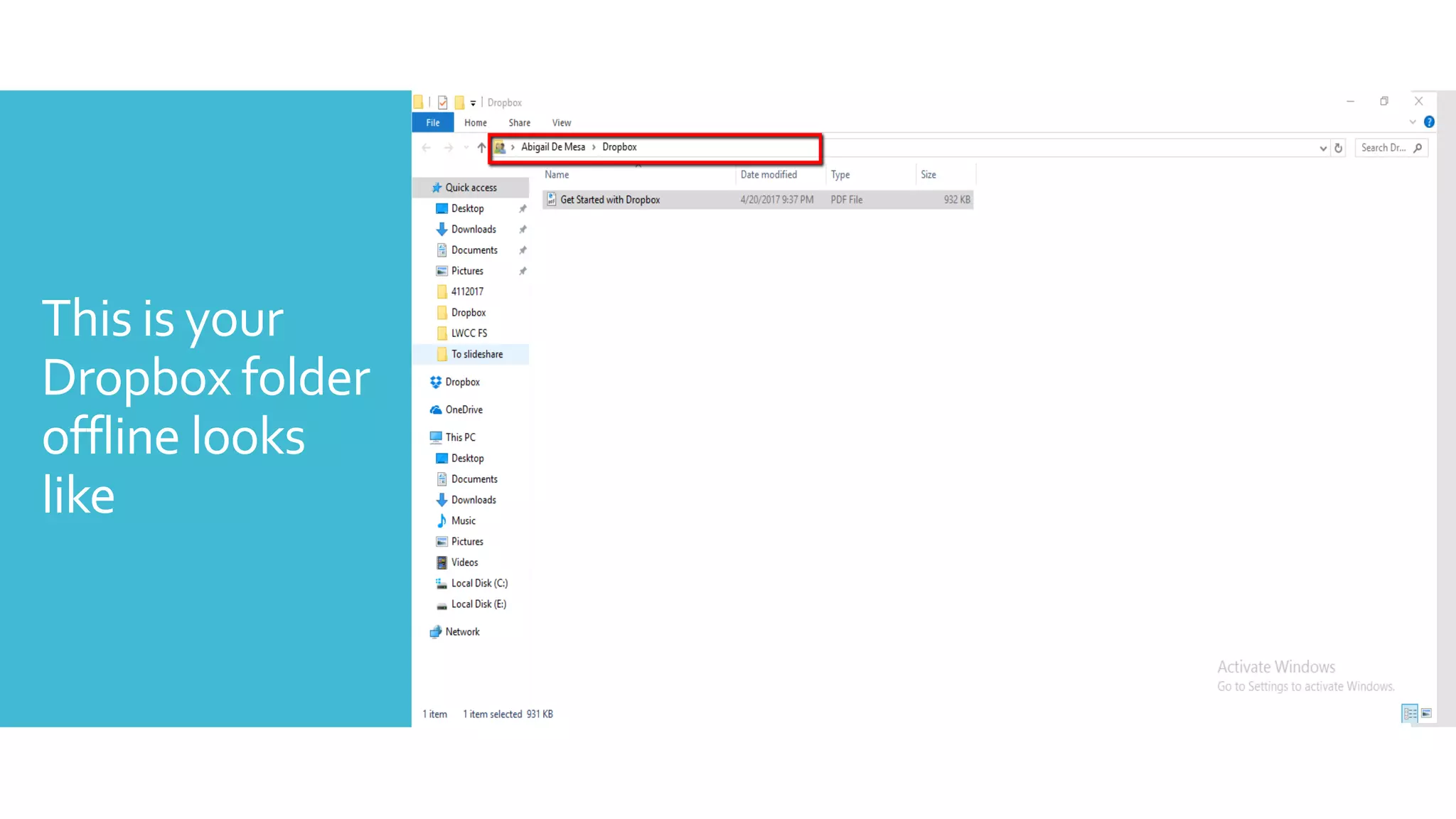
This is your
Dropbox folder
offline looks
like
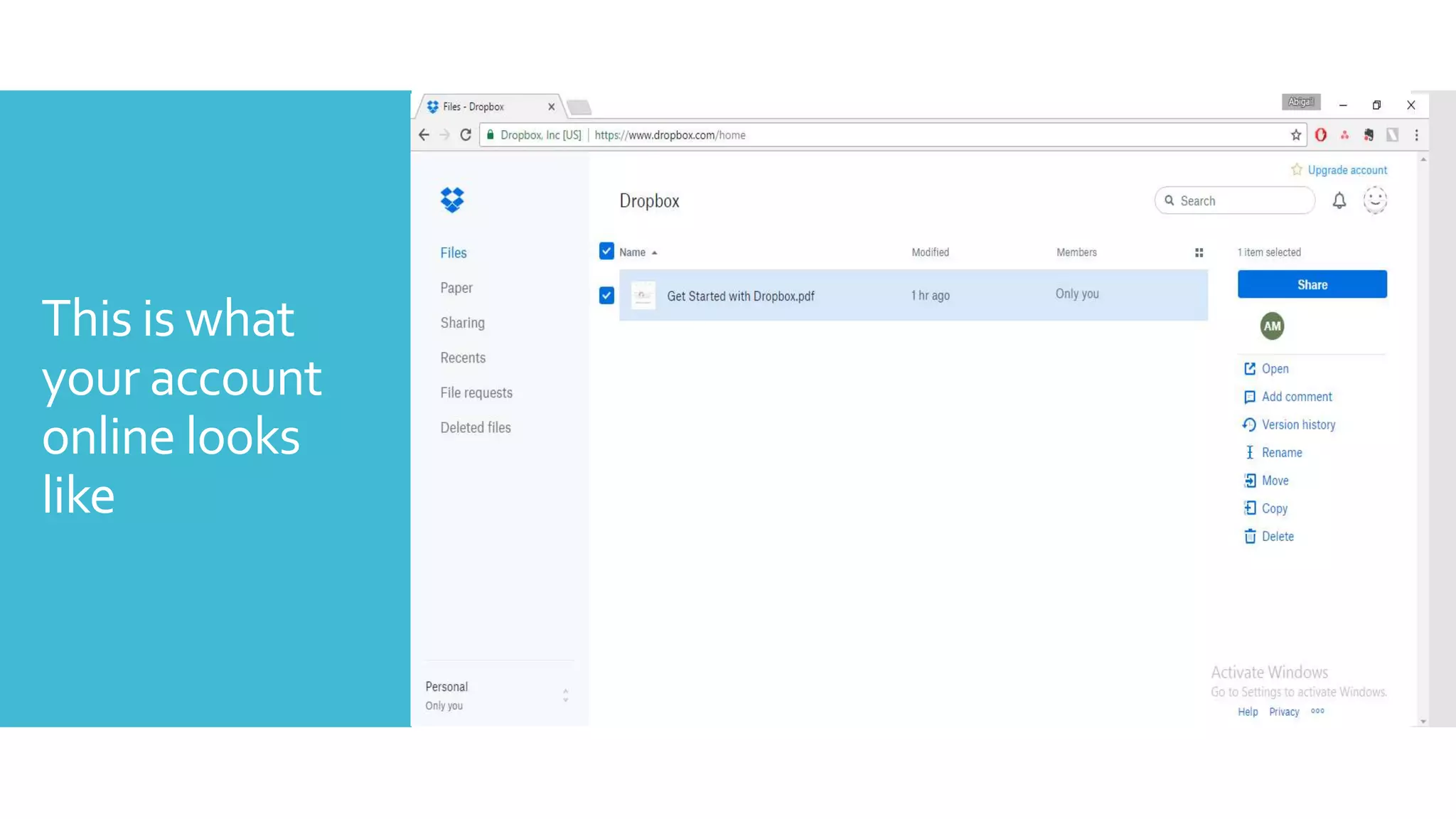
This is what
your account
online looks
like
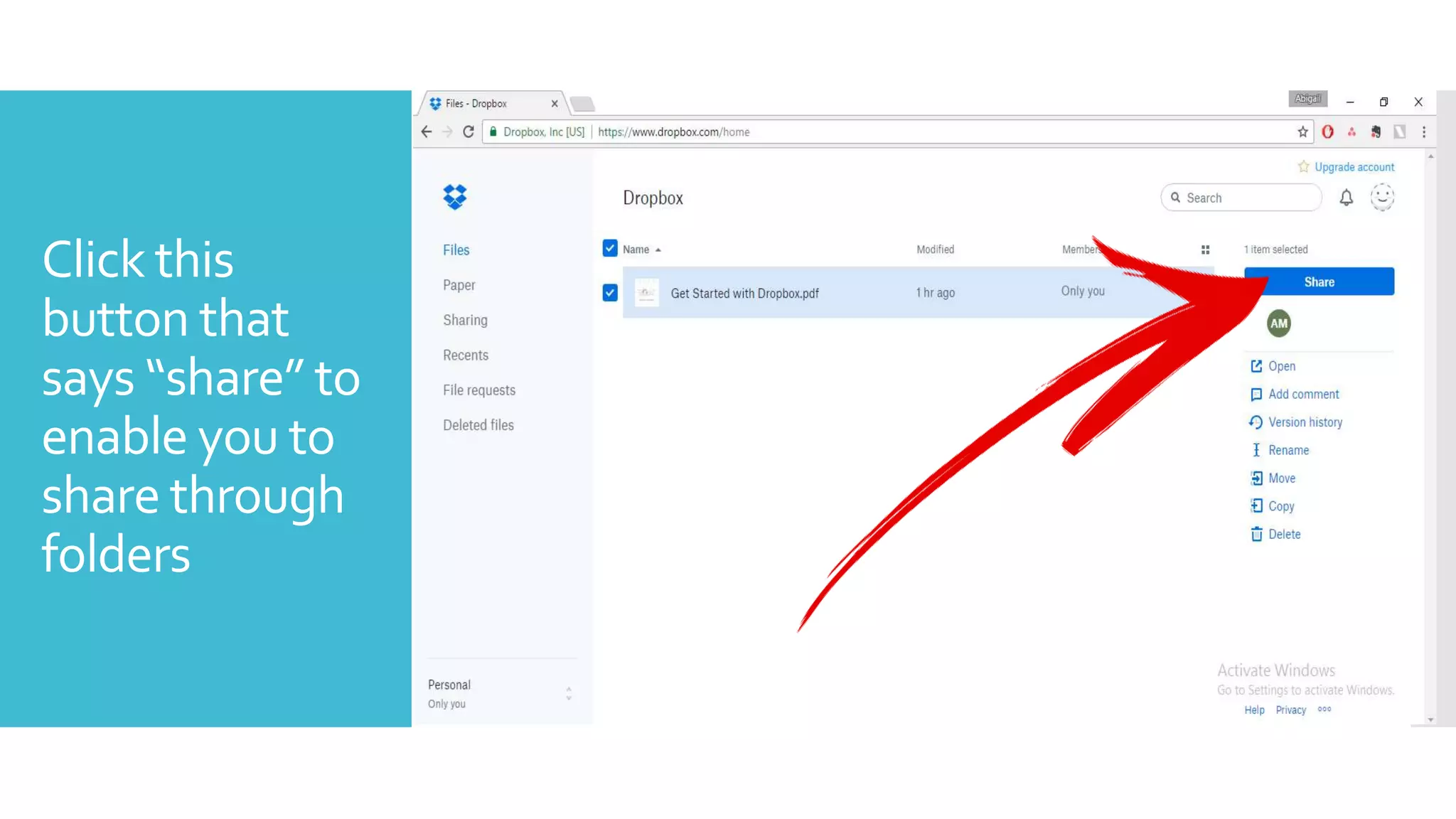
Click this
button that
says “share” to
enable you to
share through
folders
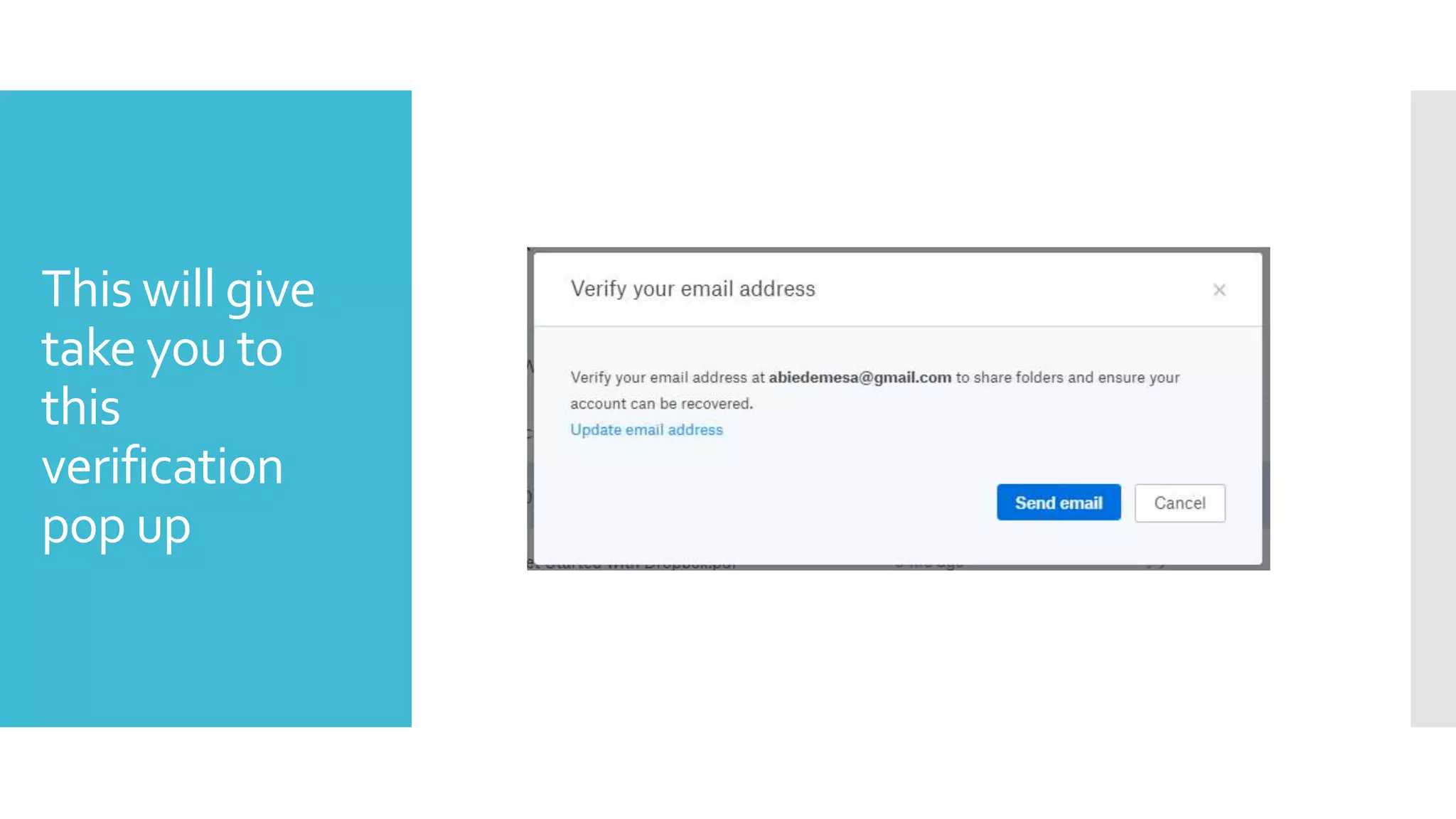
This will give
take you to
this
verification
pop up
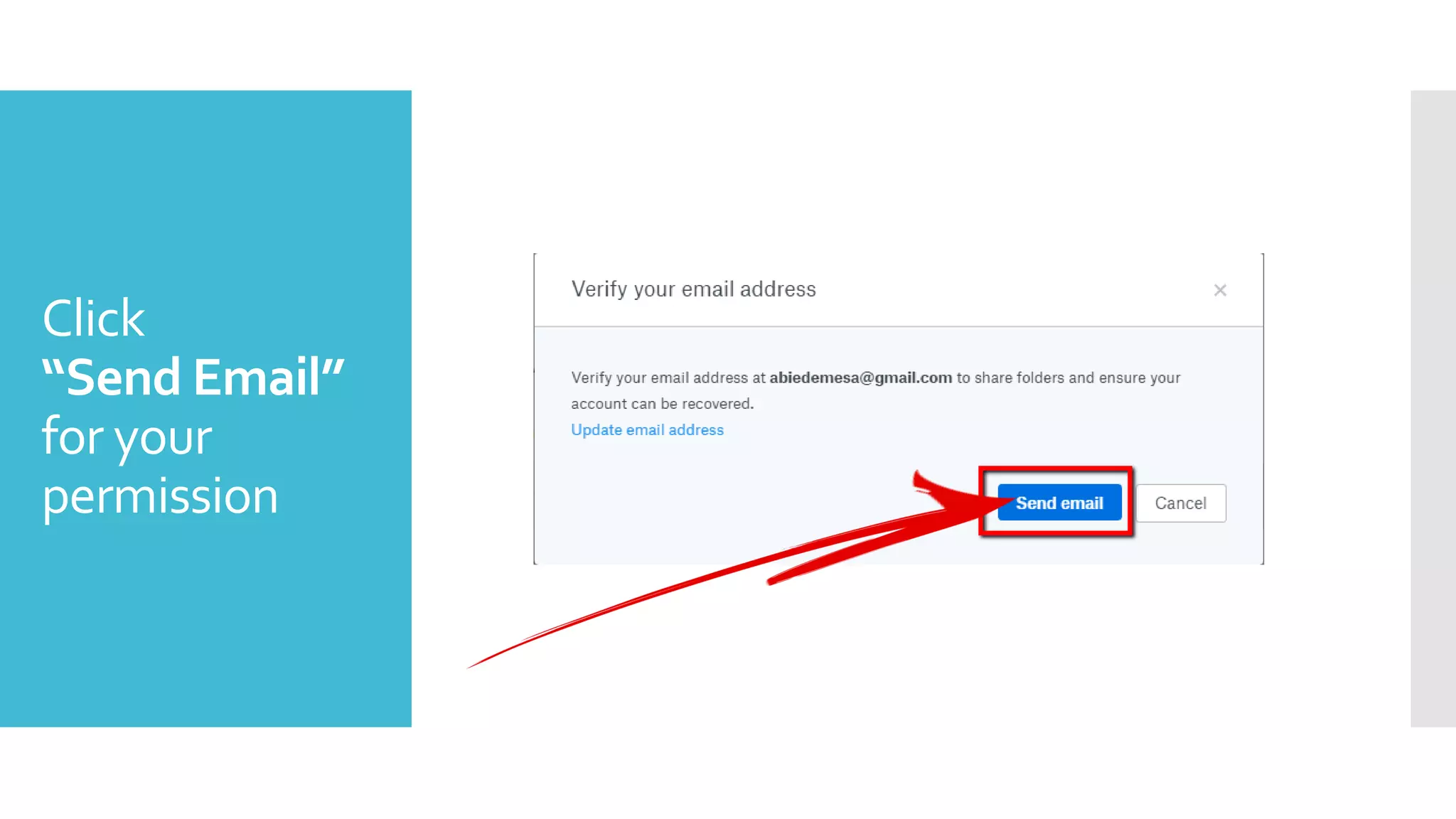
Click
“Send Email”
for your
permission
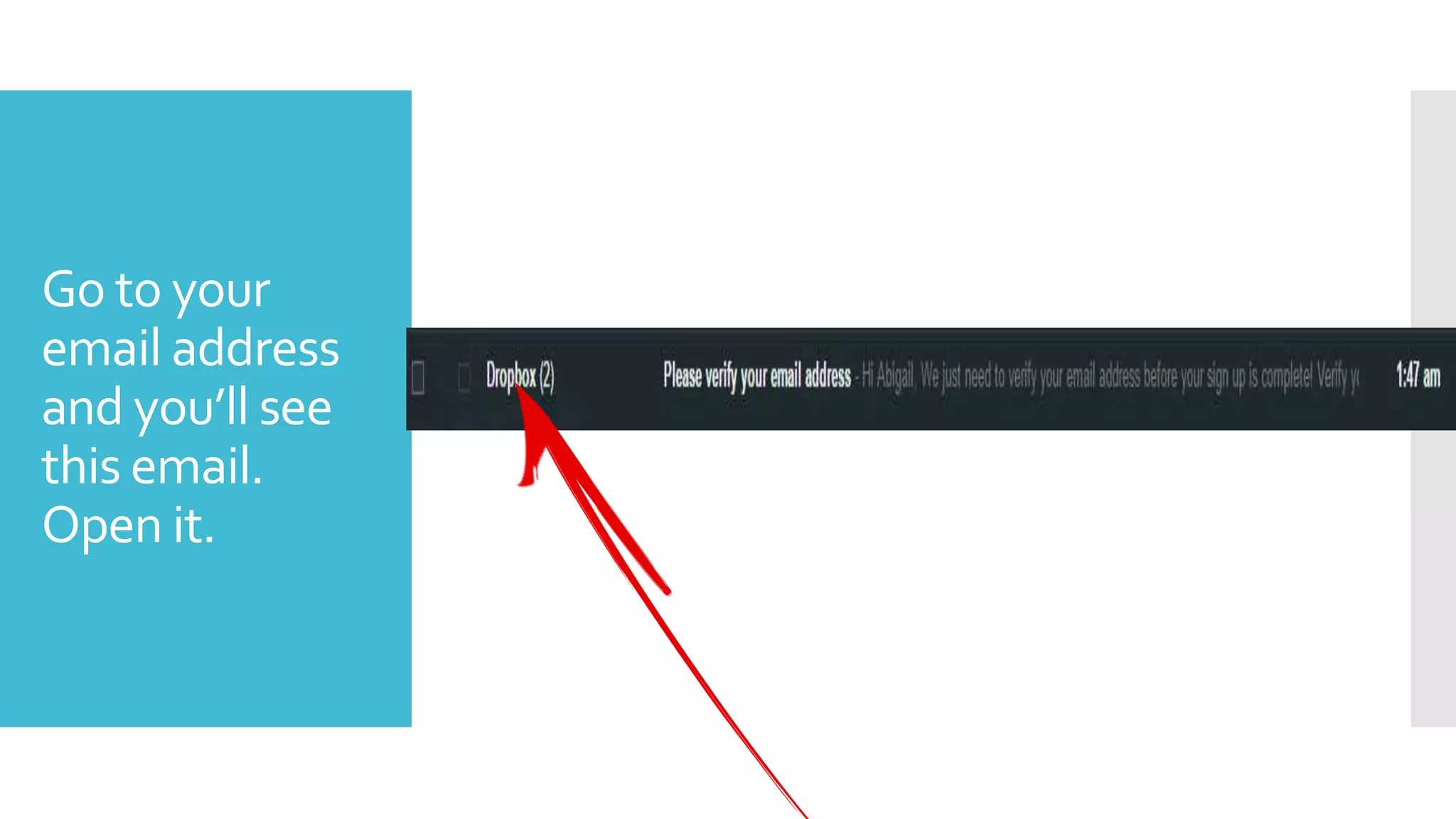
Go to your
email address
and you’ll see
this email.
Open it.
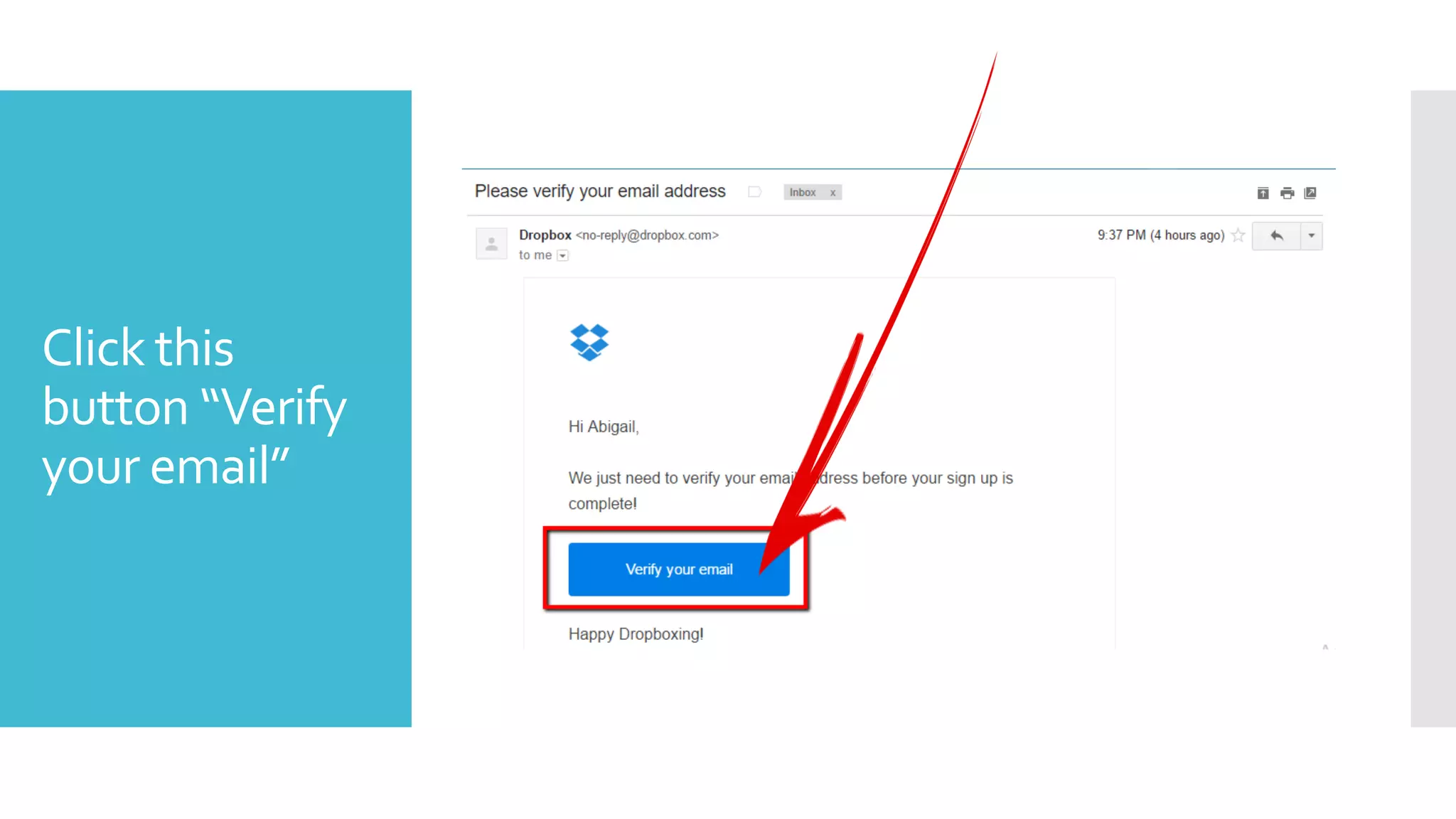
Click this
button “Verify
your email”
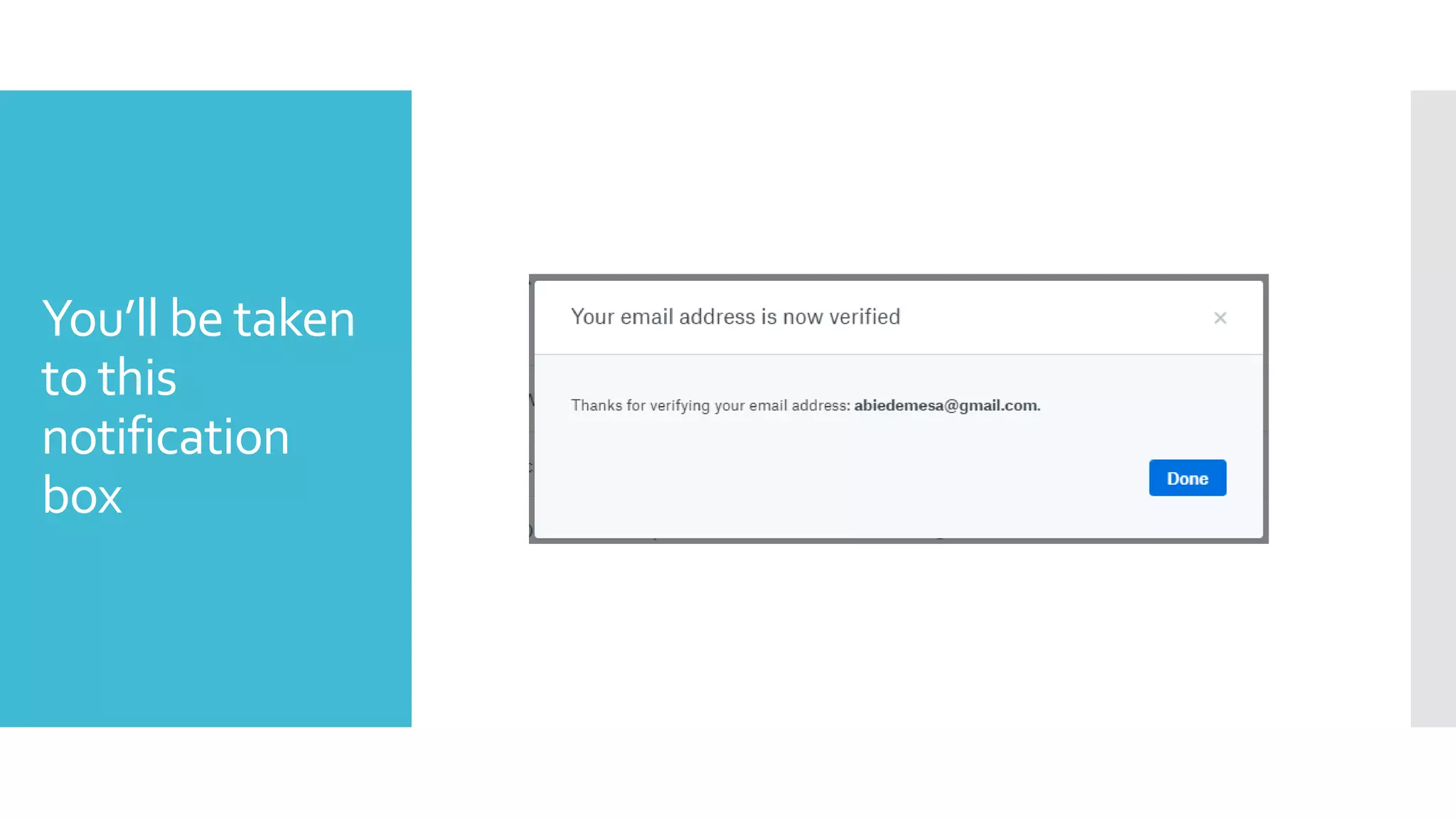
You’ll be taken
to this
notification
box
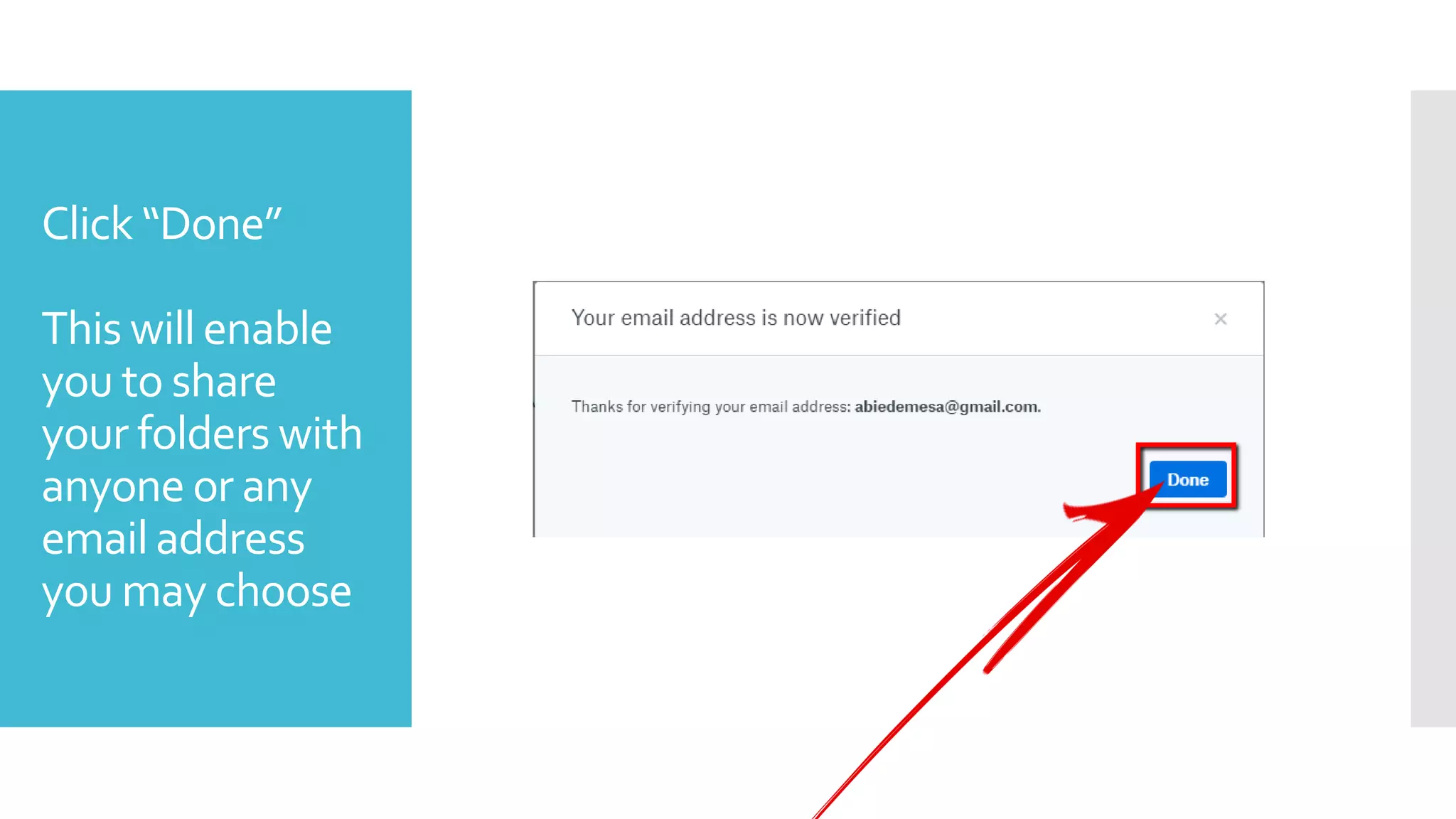
Click “Done”
This will enable
you to share
your folders with
anyone or any
emailaddress
you may choose
Uploading
files on
DROPBOX
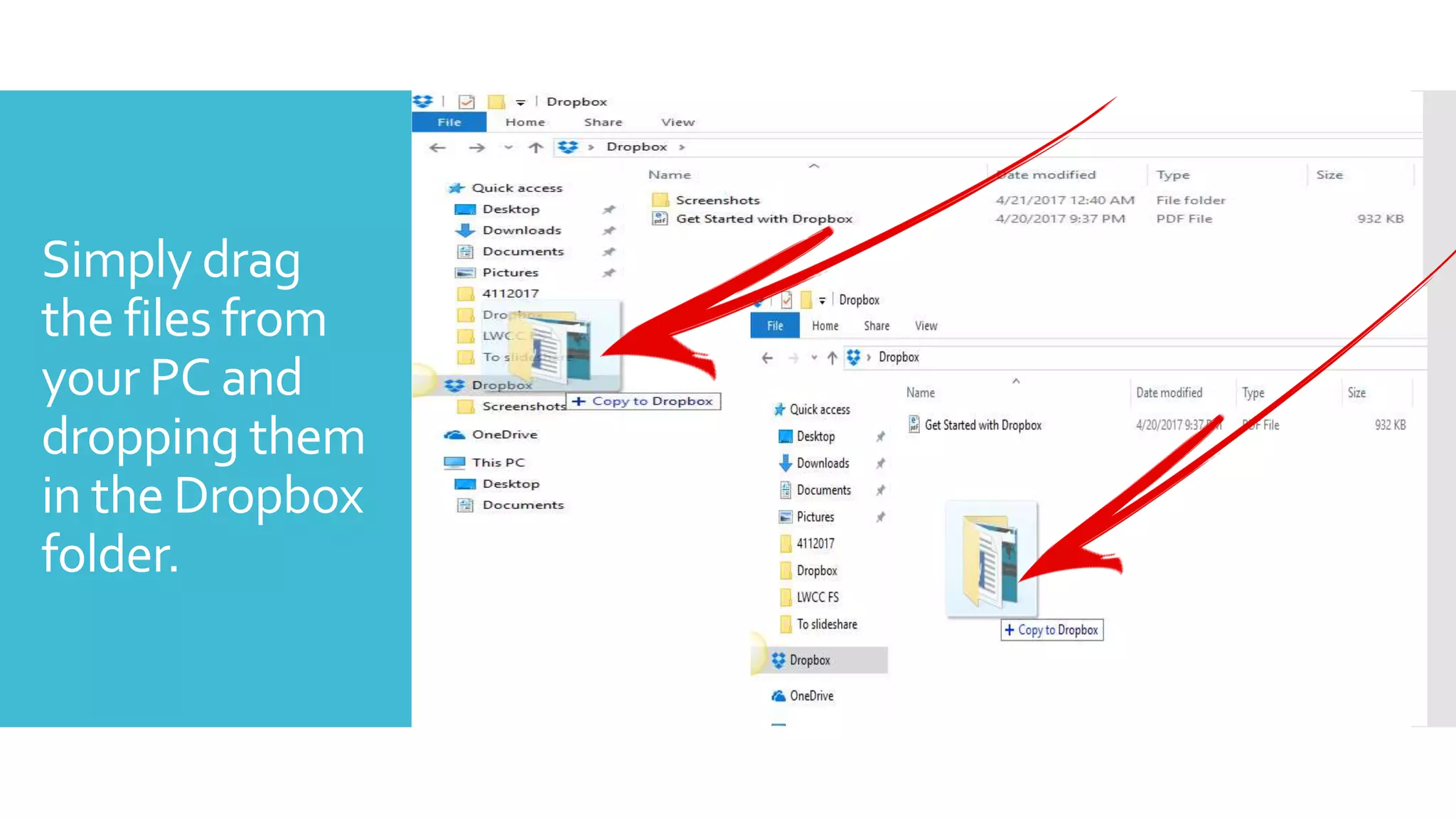
Simply drag
the files from
your PC and
dropping them
in the Dropbox
folder.
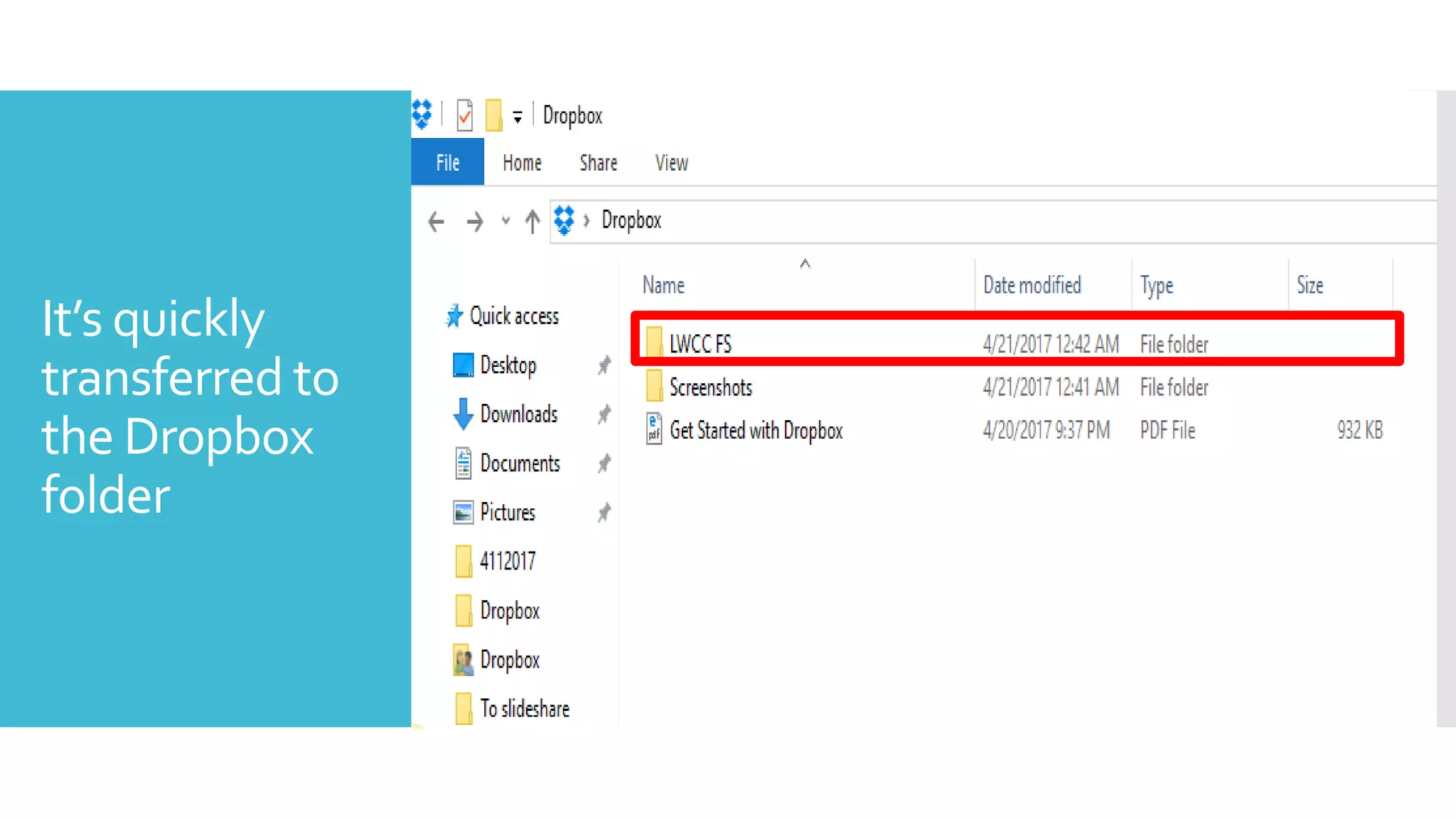
It’s quickly
transferred to
the Dropbox
folder
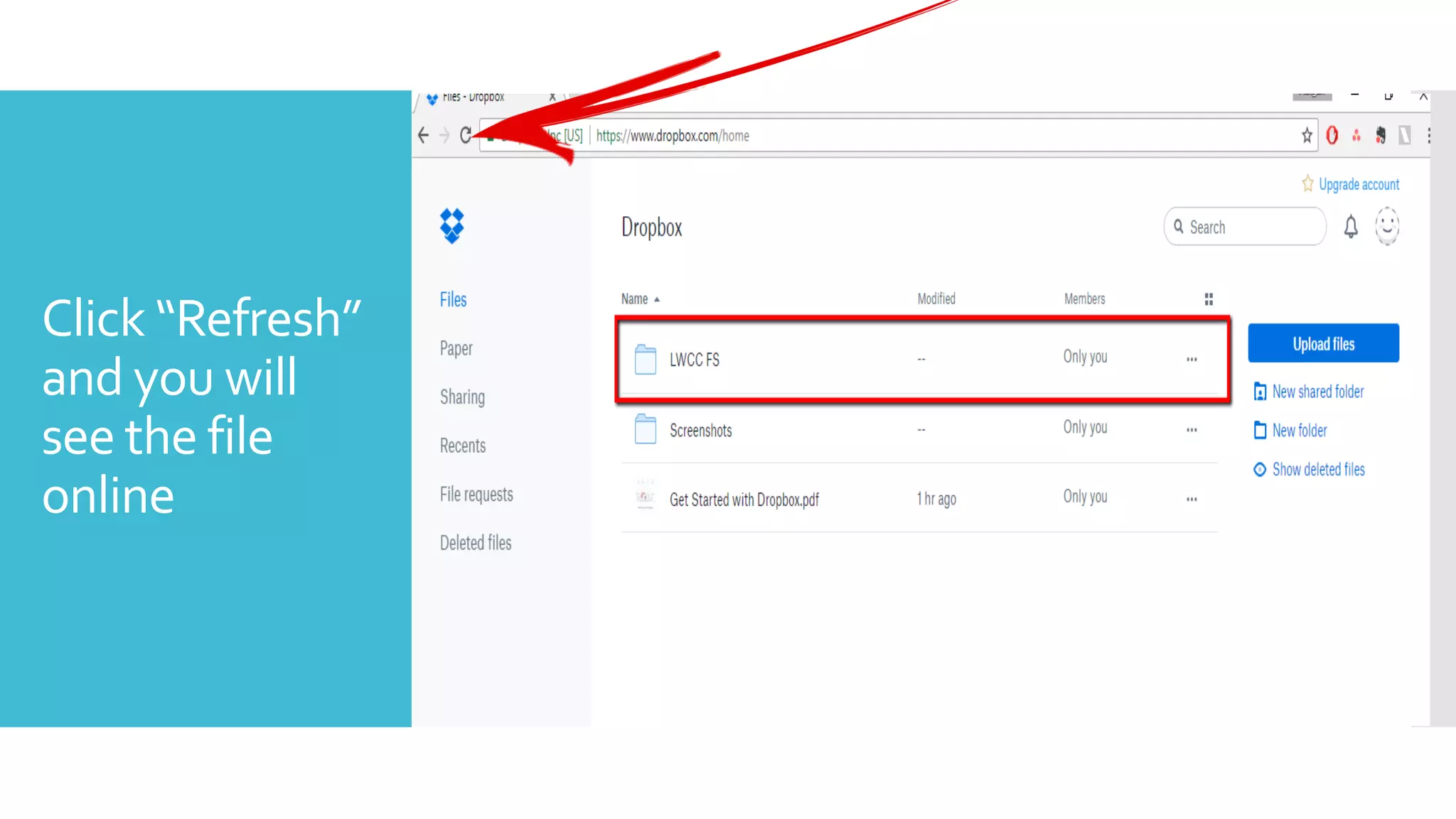
Click “Refresh”
and you will
see the file
online
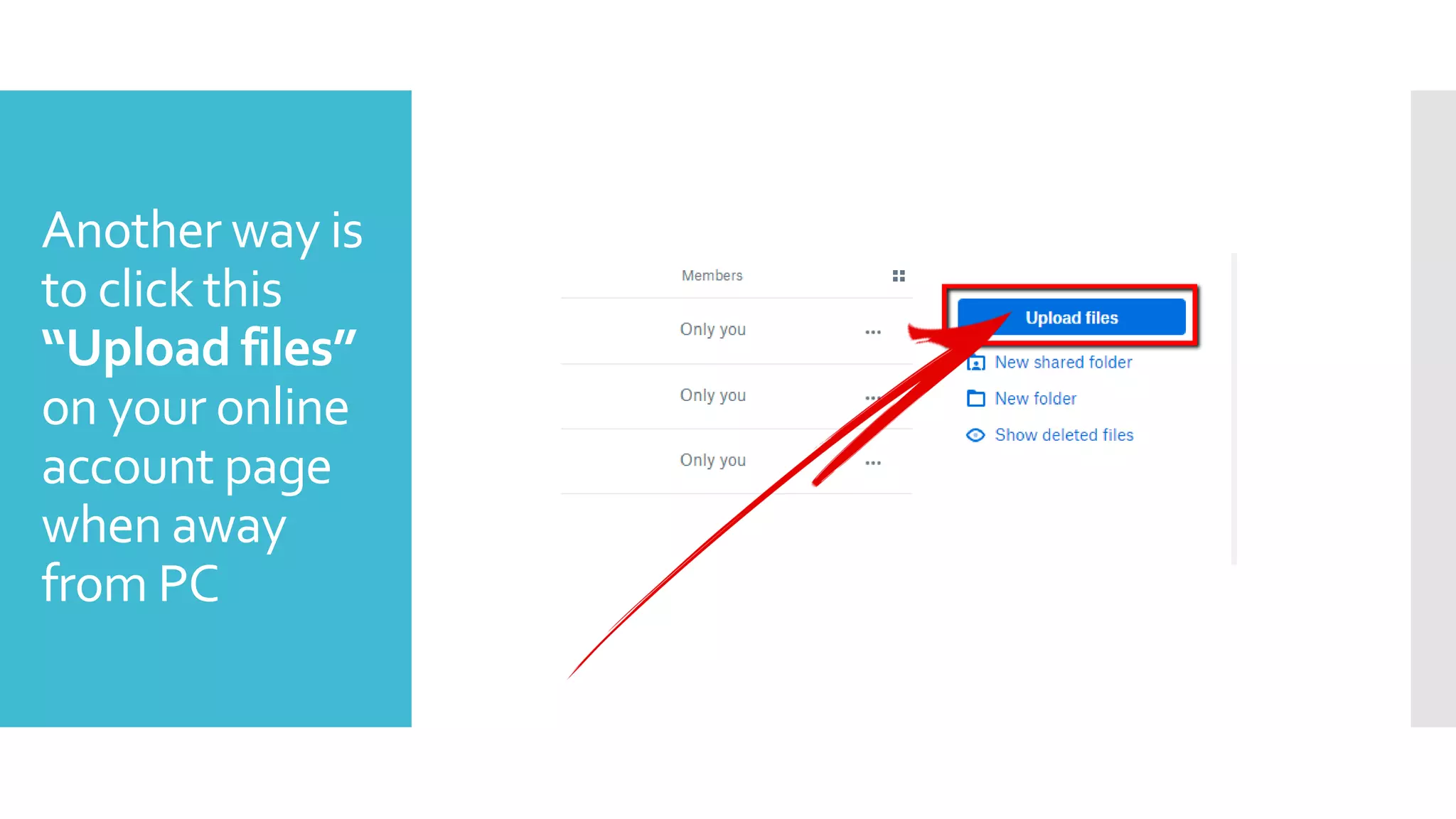
Another way is
to click this
“Upload files”
on your online
account page
when away
from PC
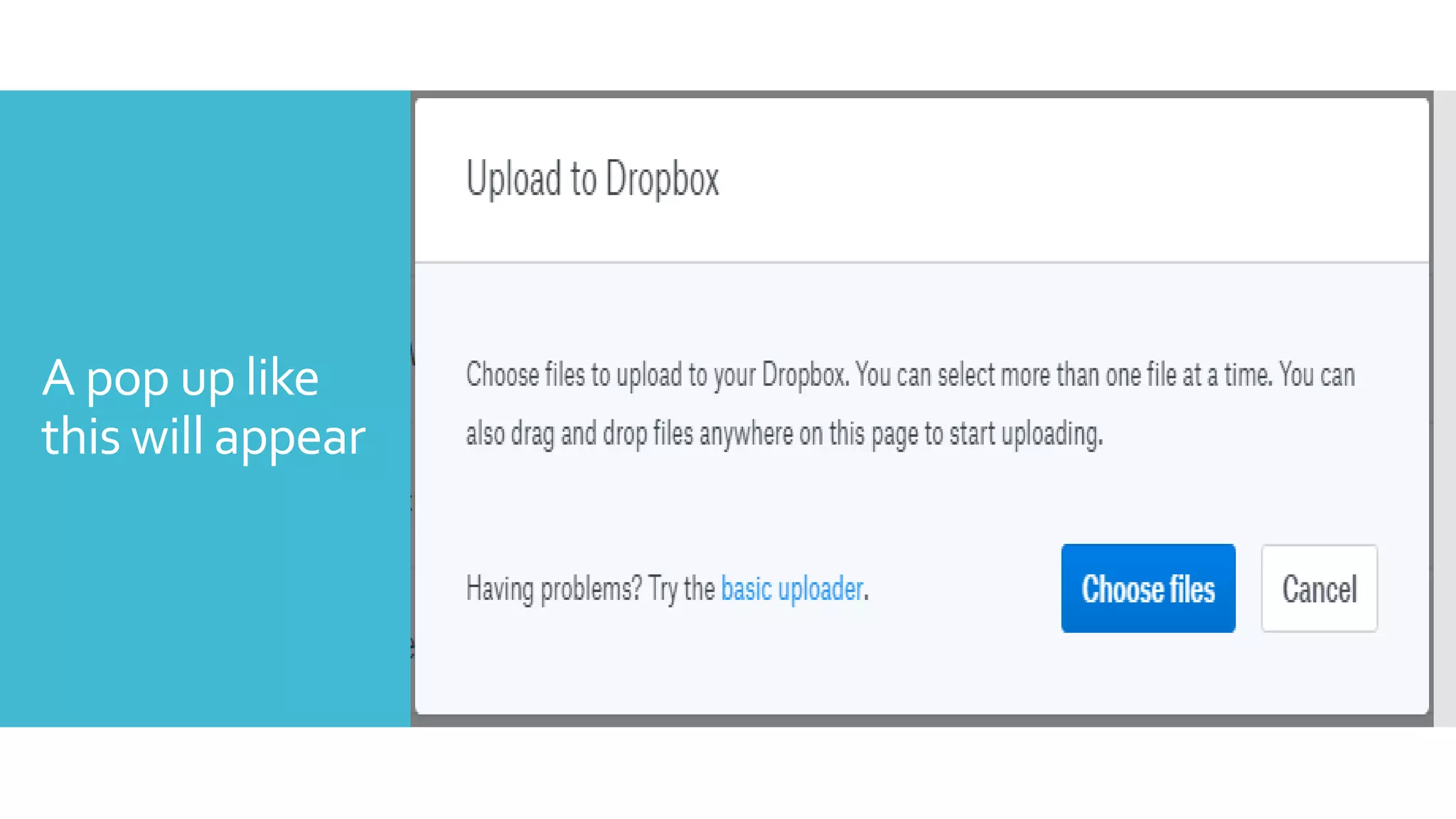
A pop up like
this will appear
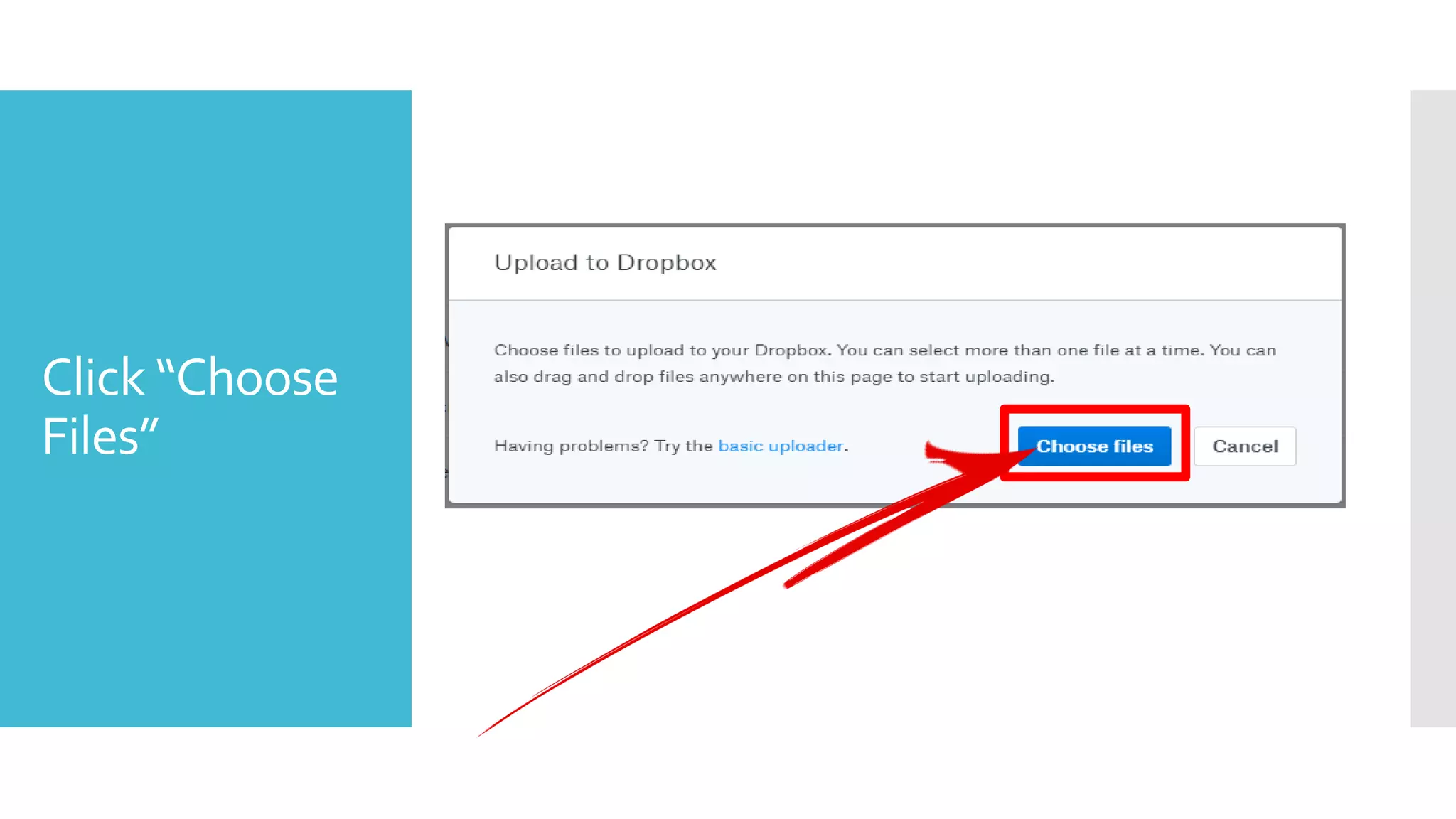
Click “Choose
Files”
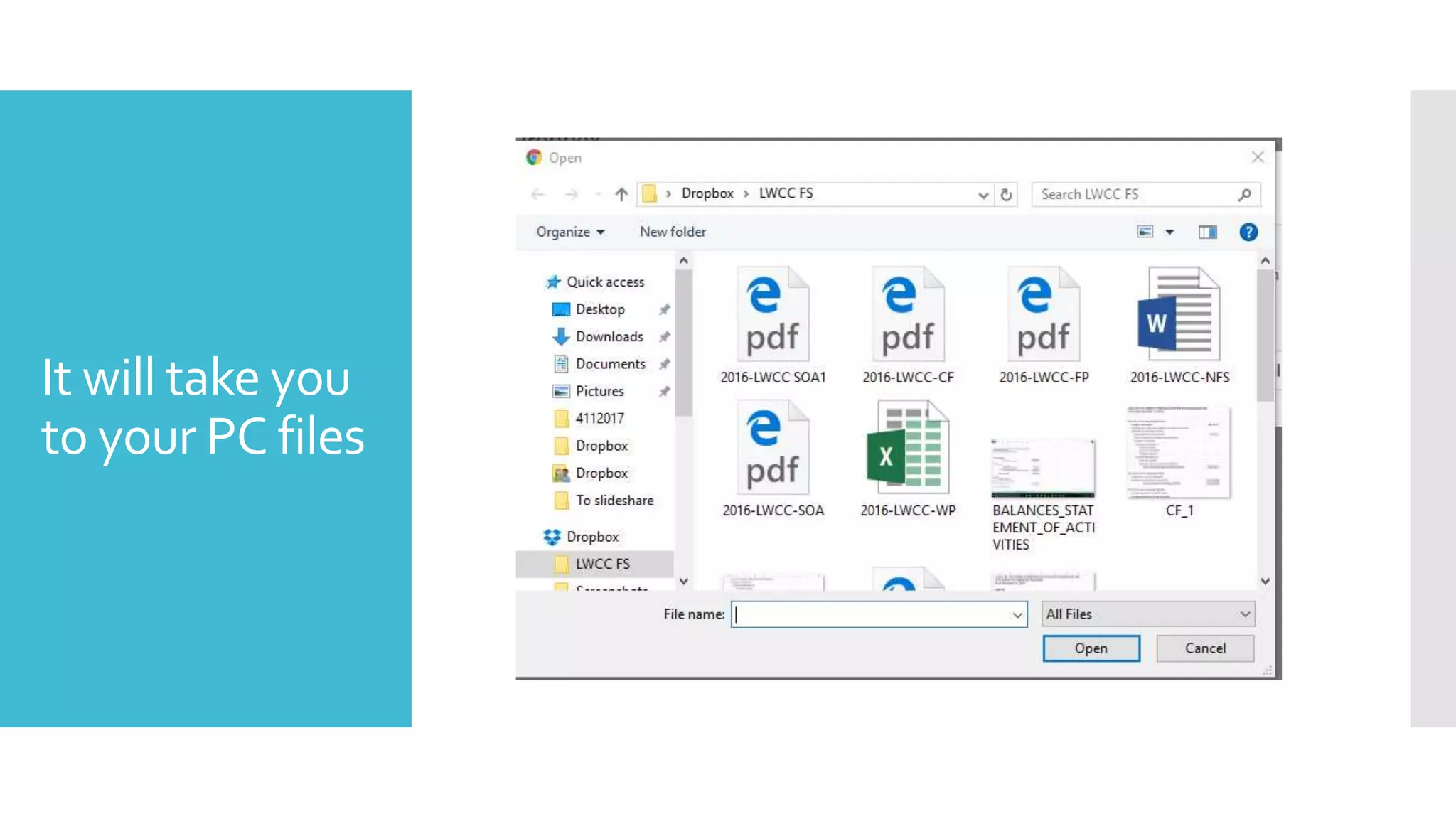
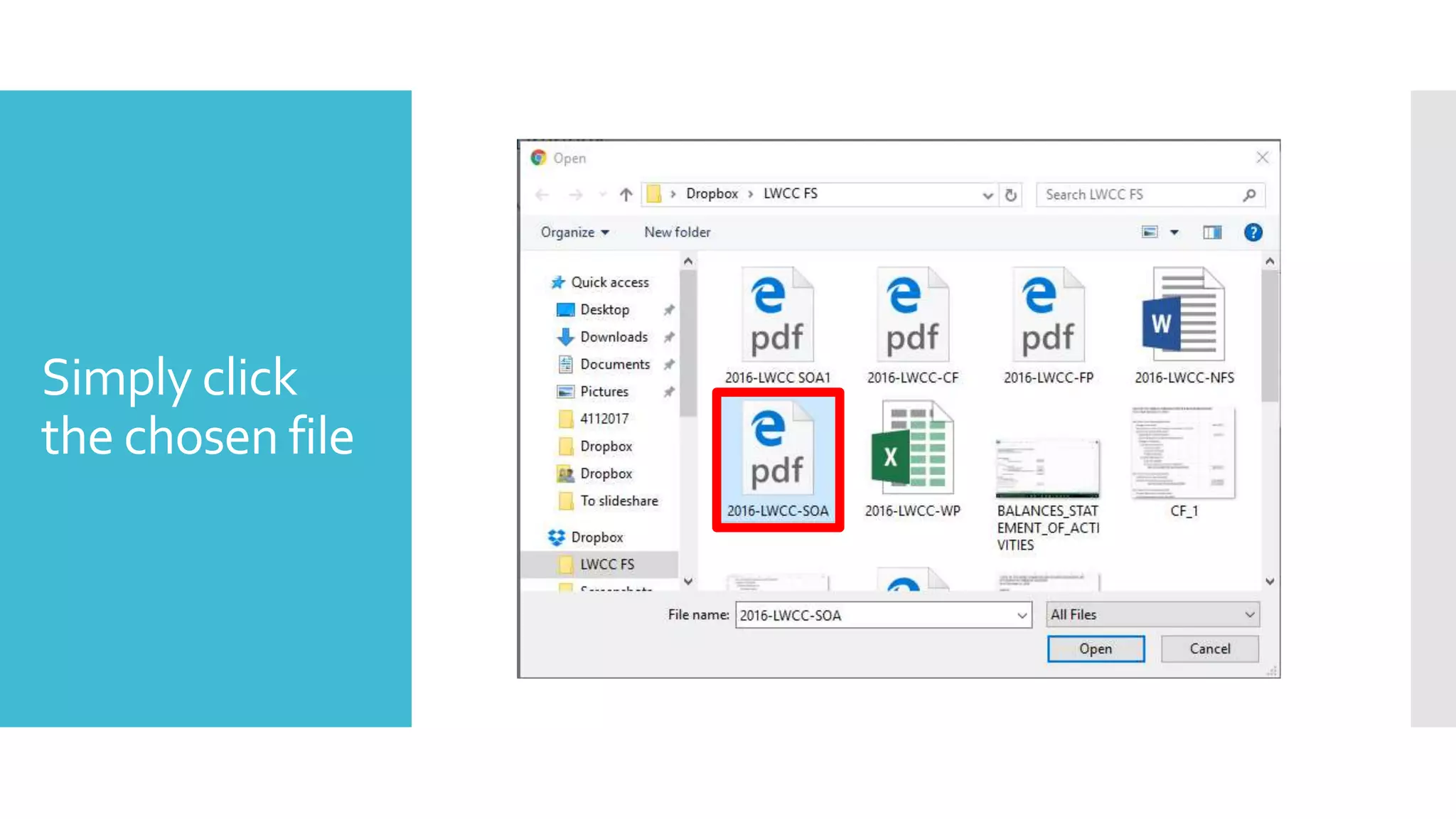
It will take you
to your PC files
Simply click
the chosen file
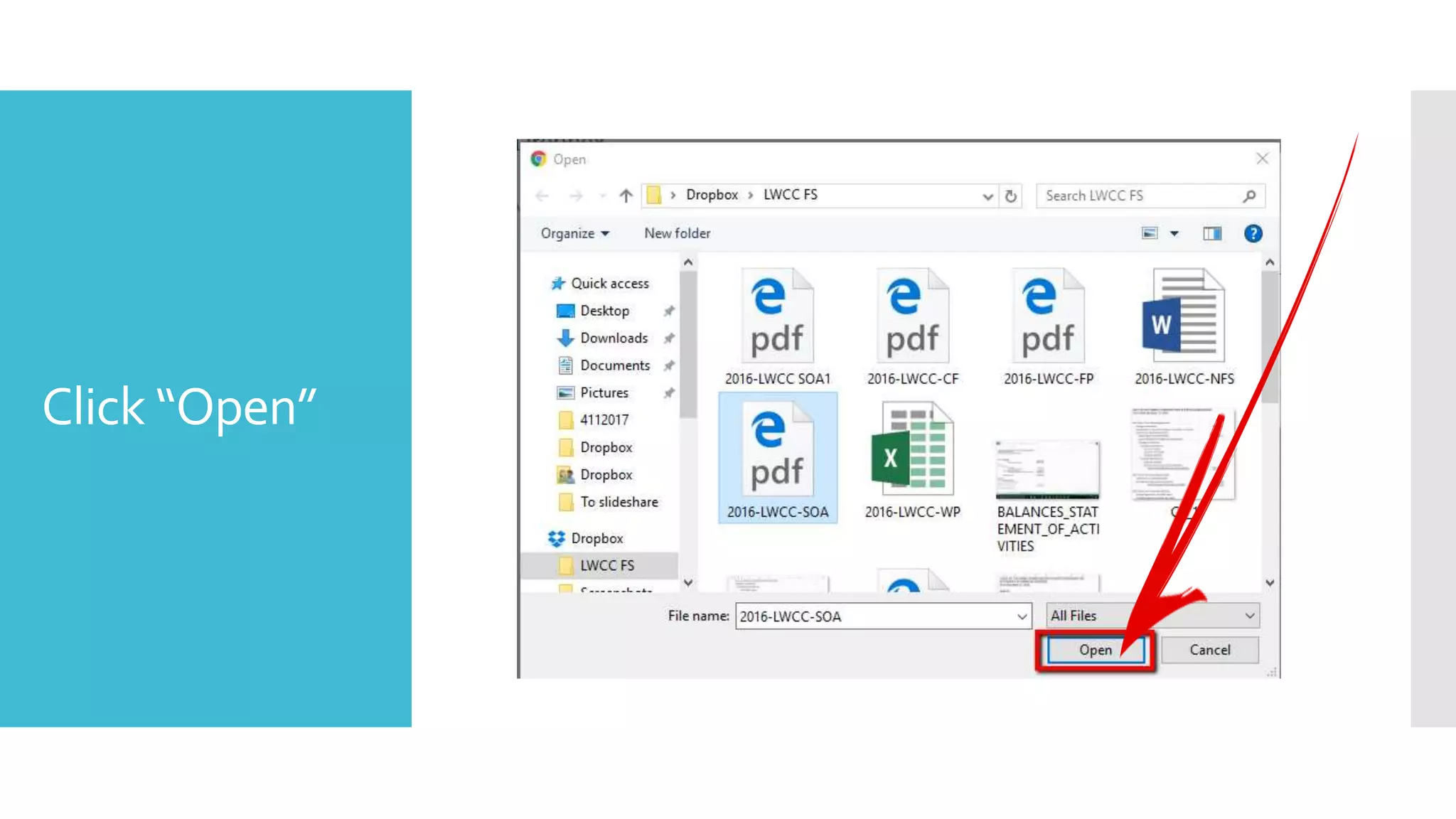
Click “Open”
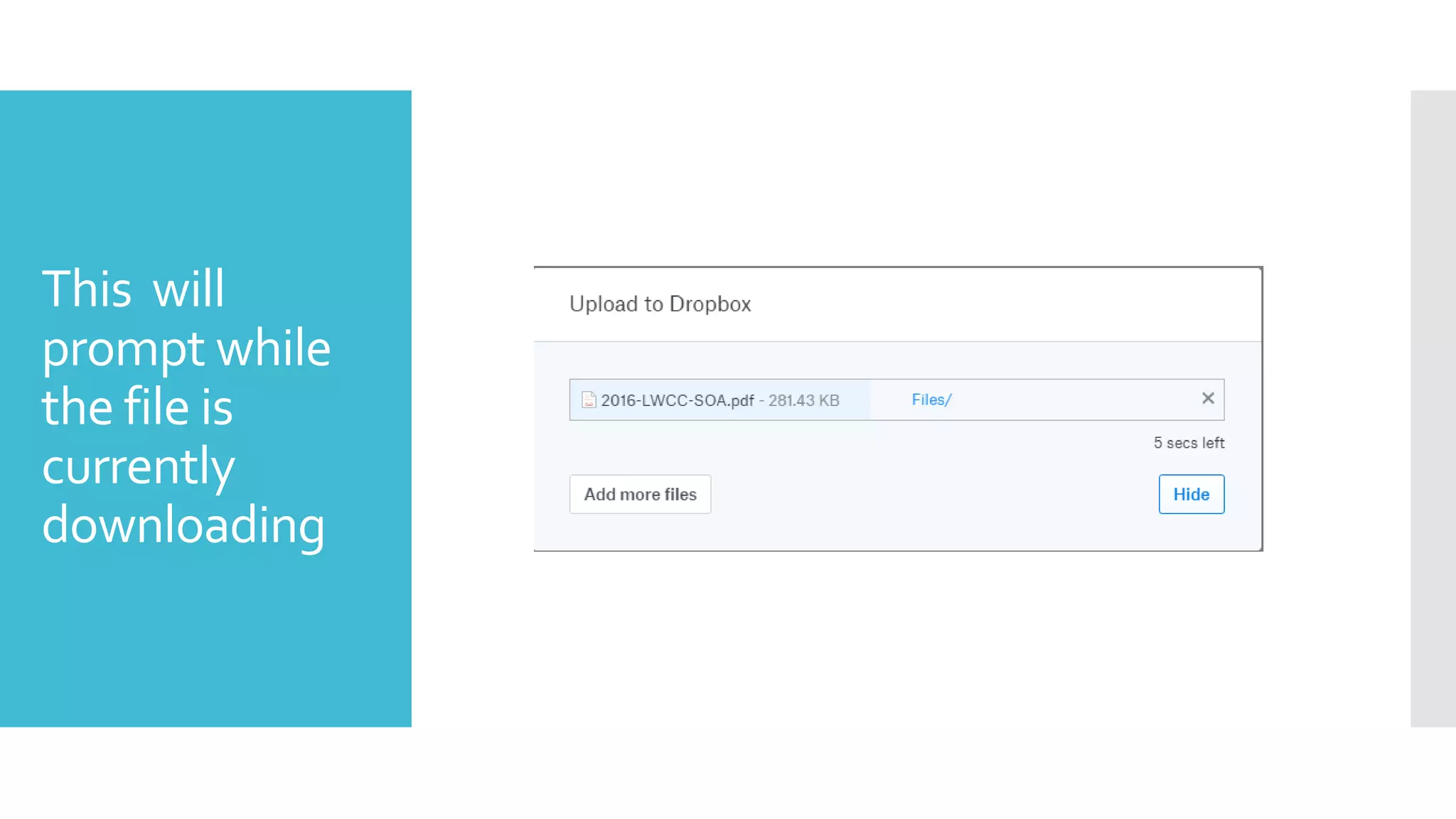
This will
prompt while
the file is
currently
downloading
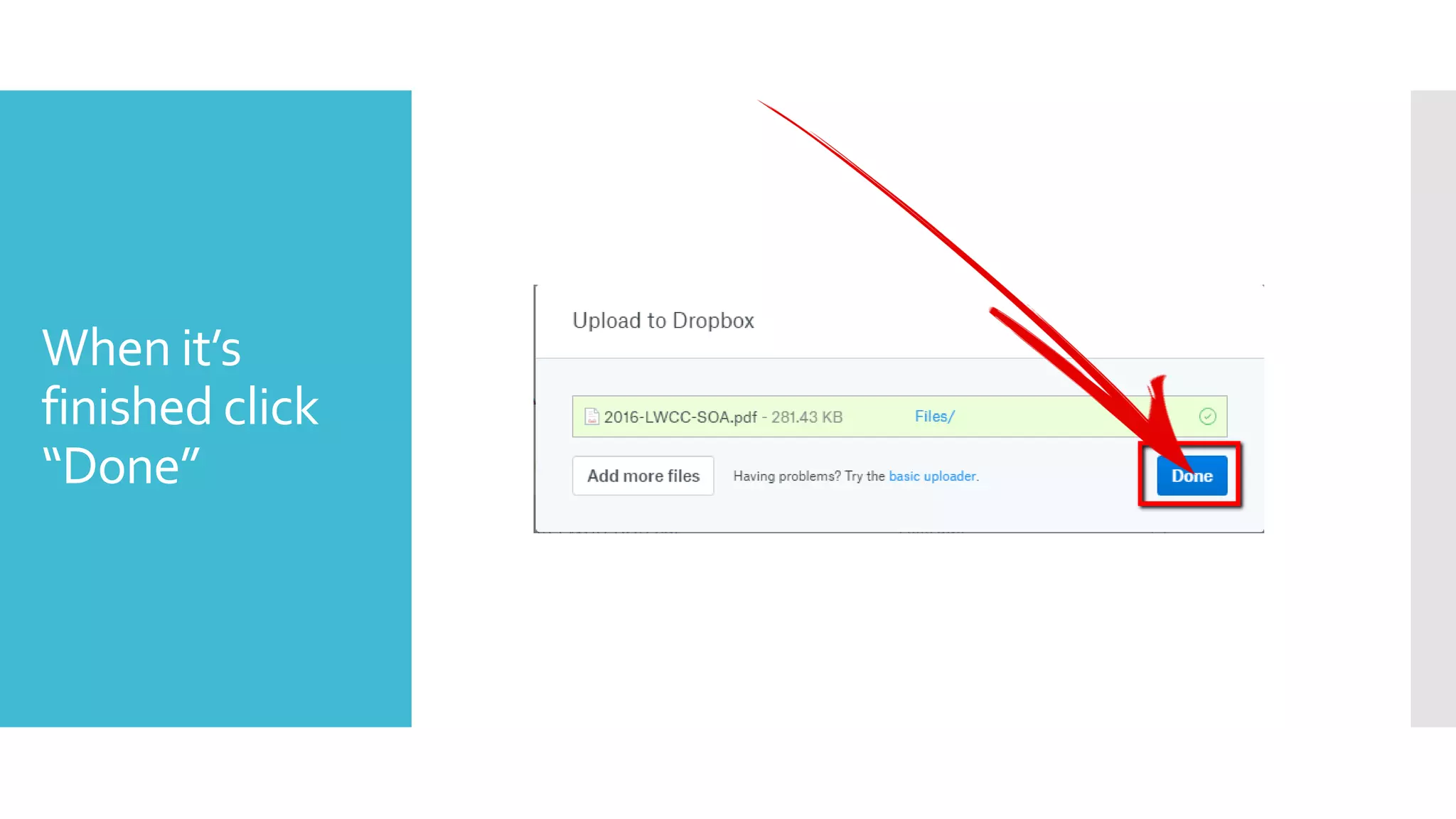
When it’s
finished click
“Done”
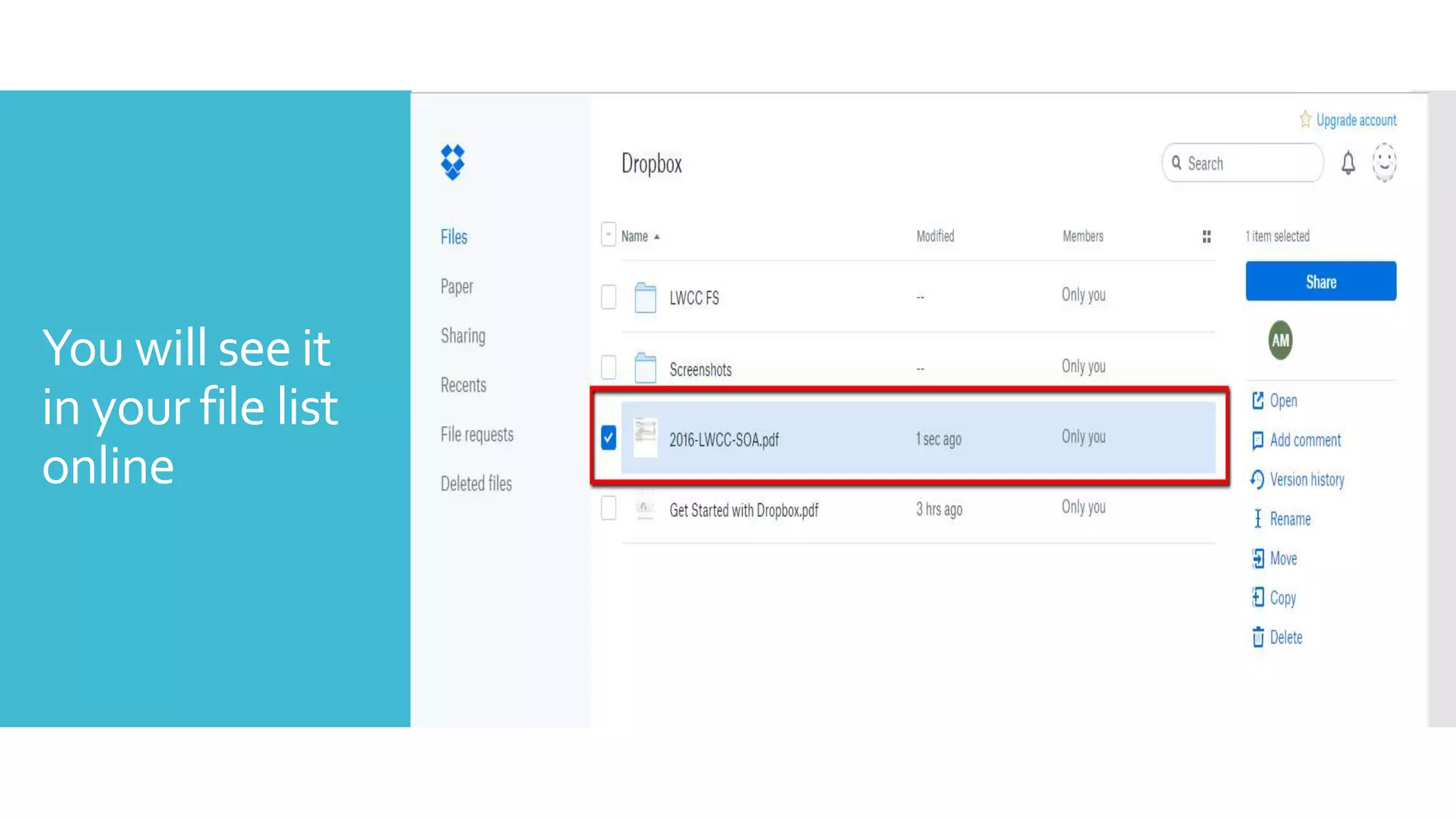
You will see it
in your file list
online
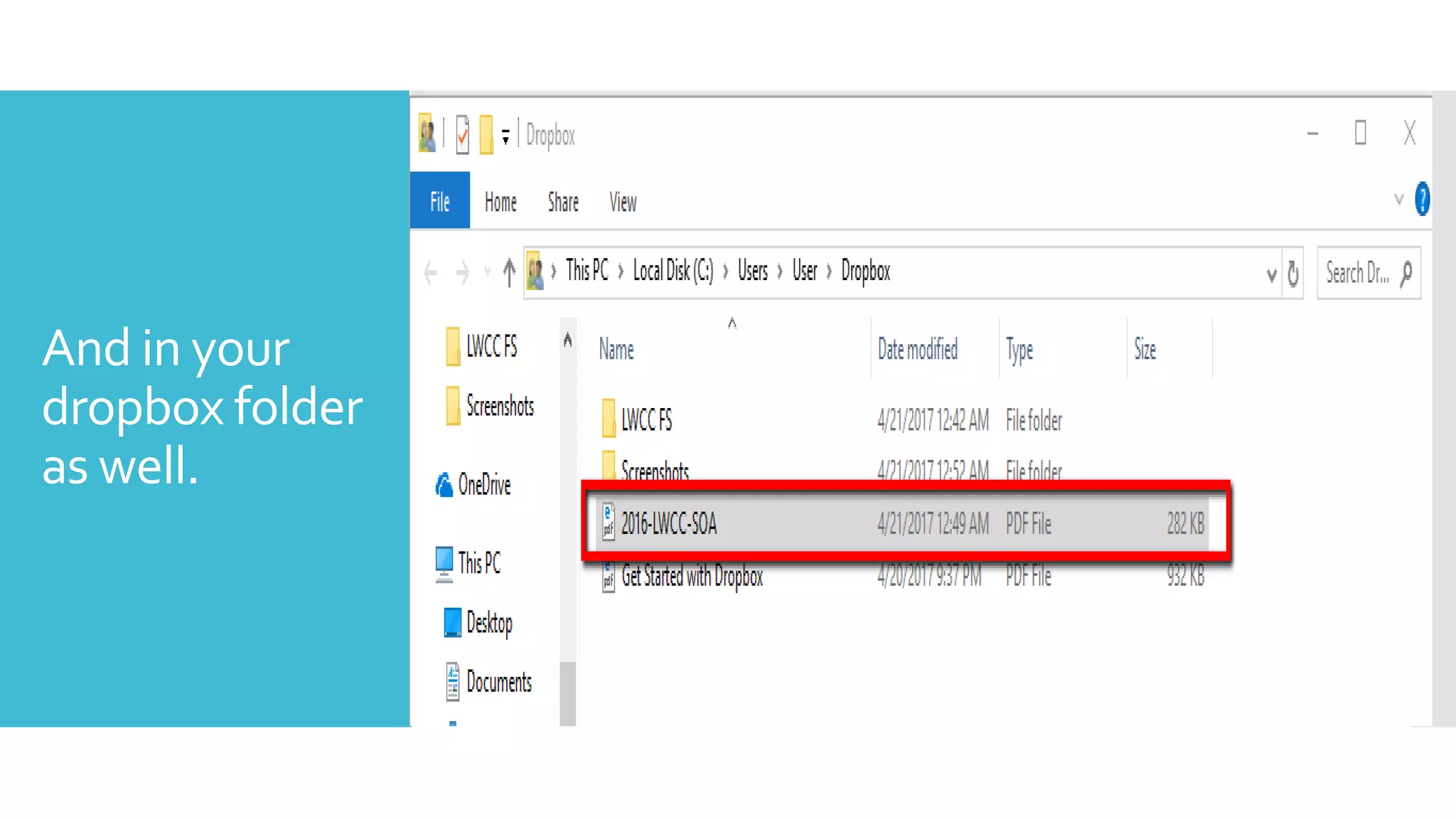
And in your
dropbox folder
as well.
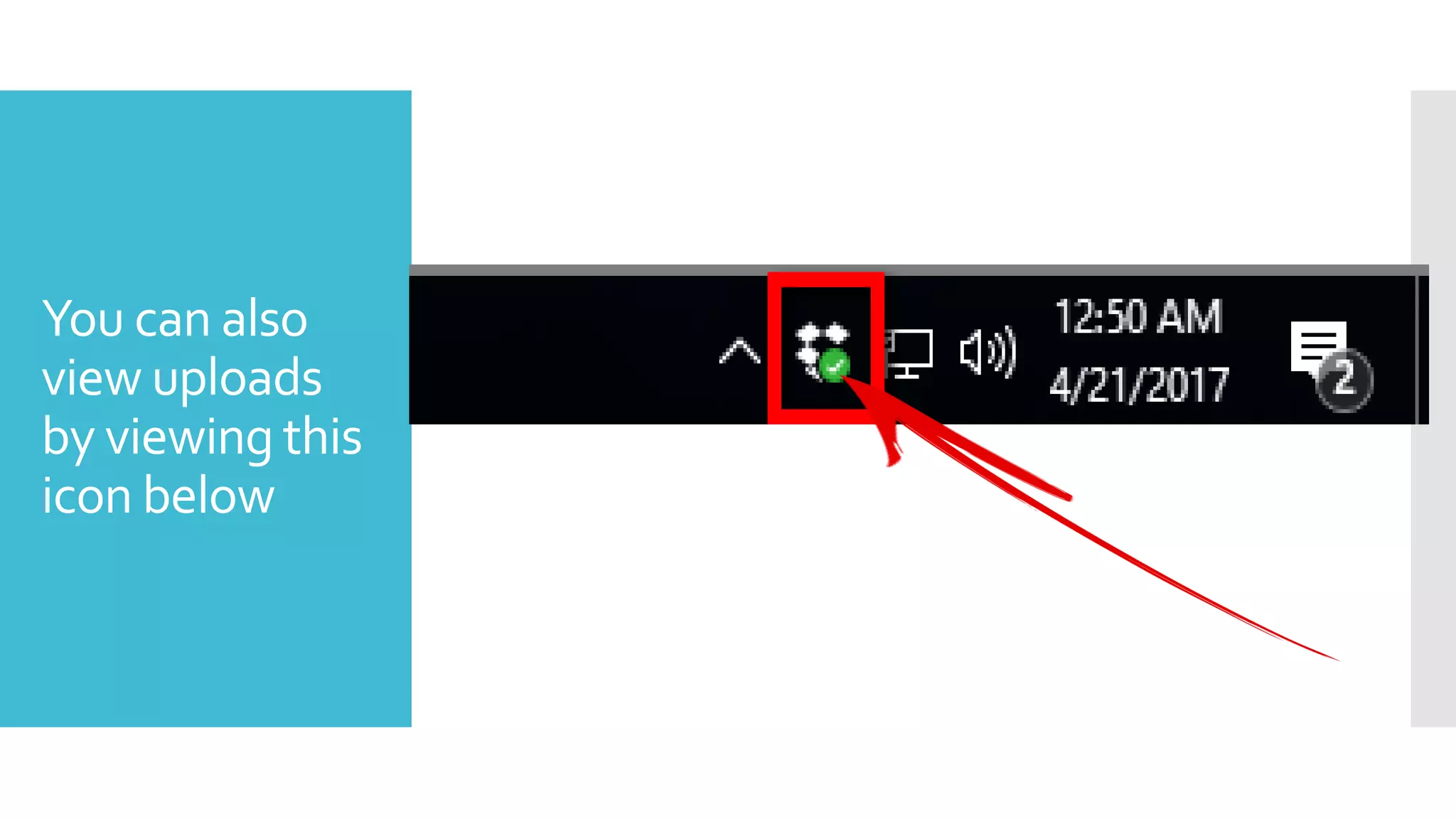
You can also
view uploads
by viewing this
icon below
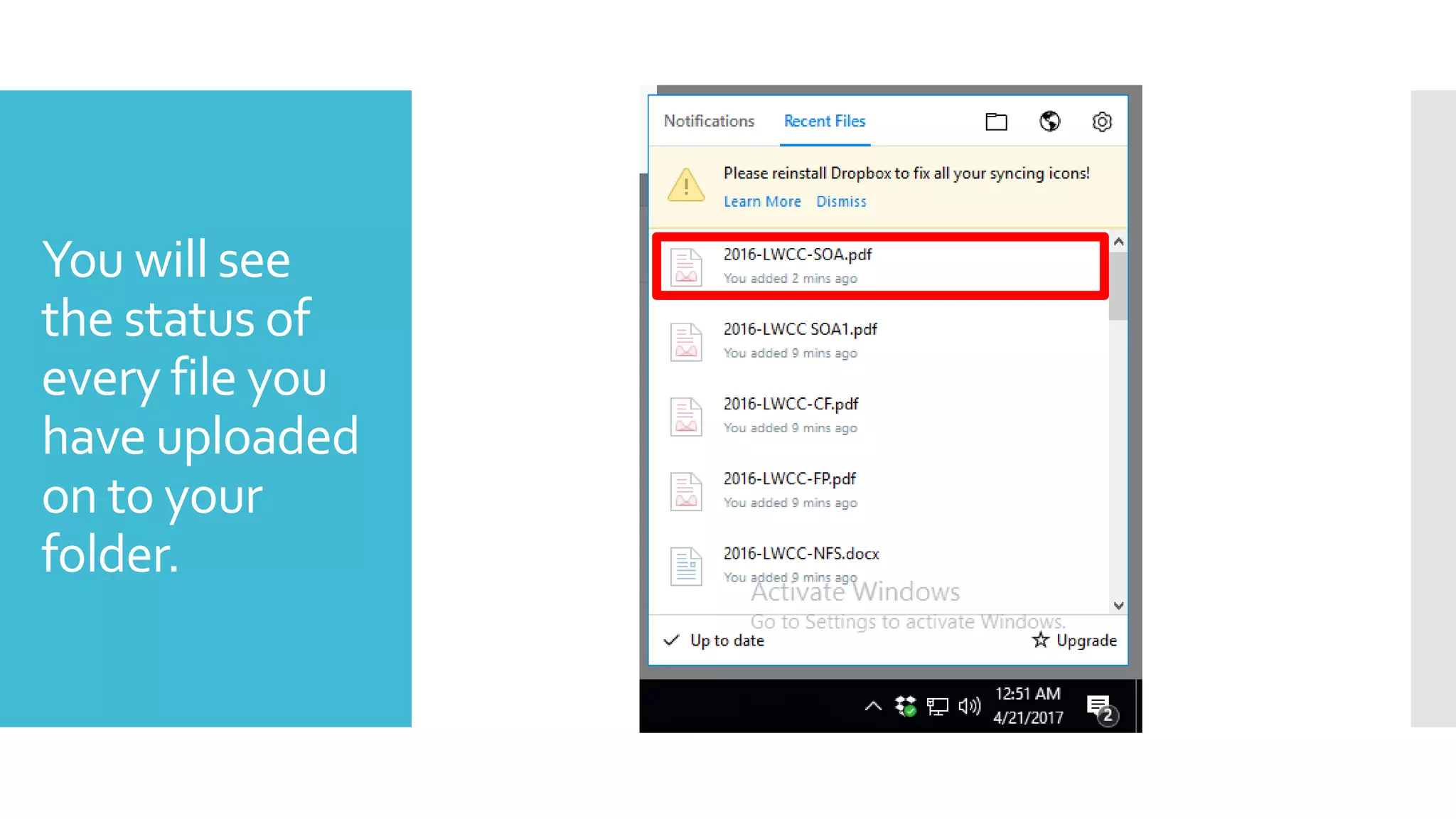
You will see
the status of
every file you
have uploaded
on to your
folder.
How toShare
files
There are many ways
to share your
document on
the app
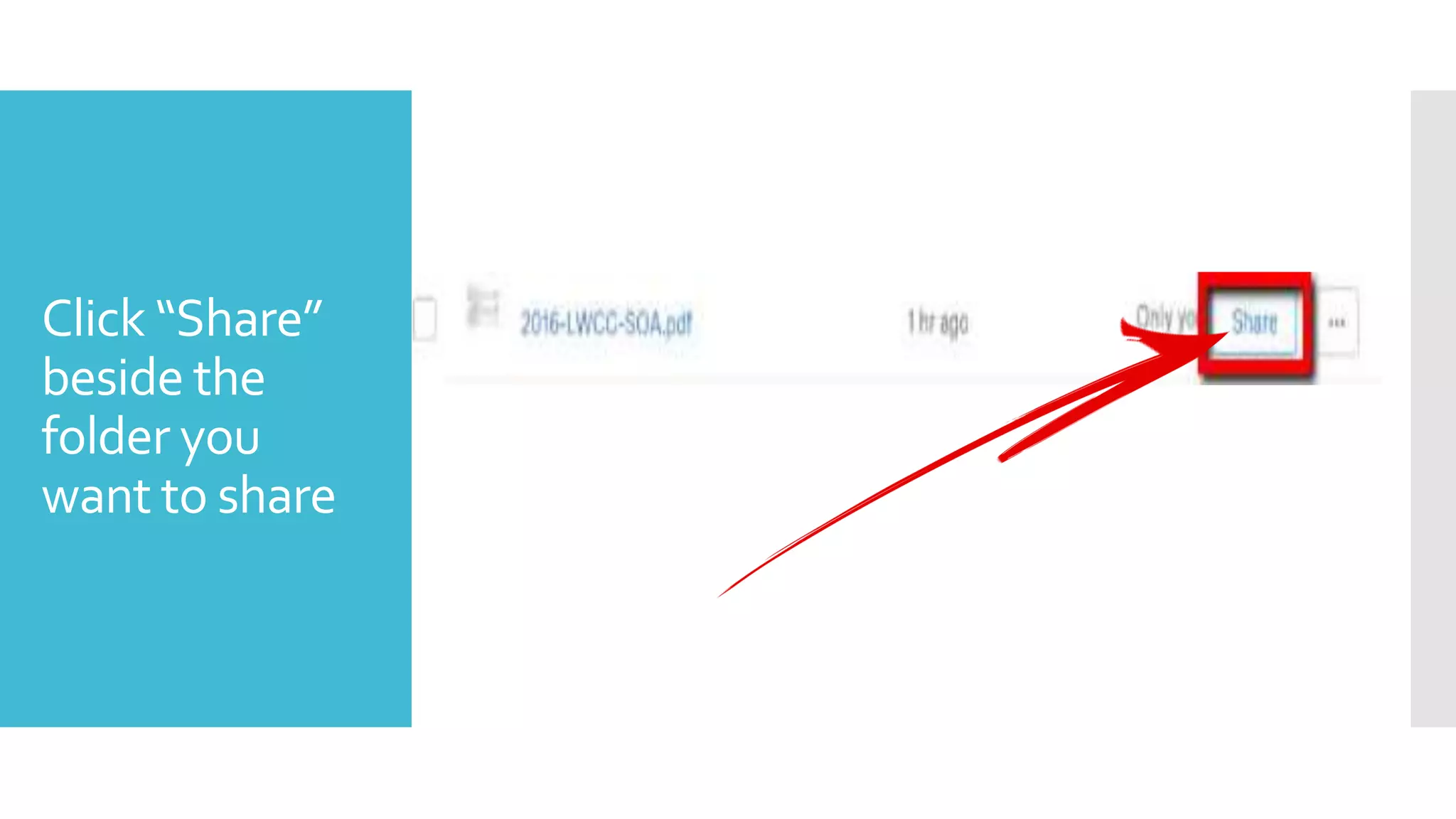
Click “Share”
beside the
folder you
want to share
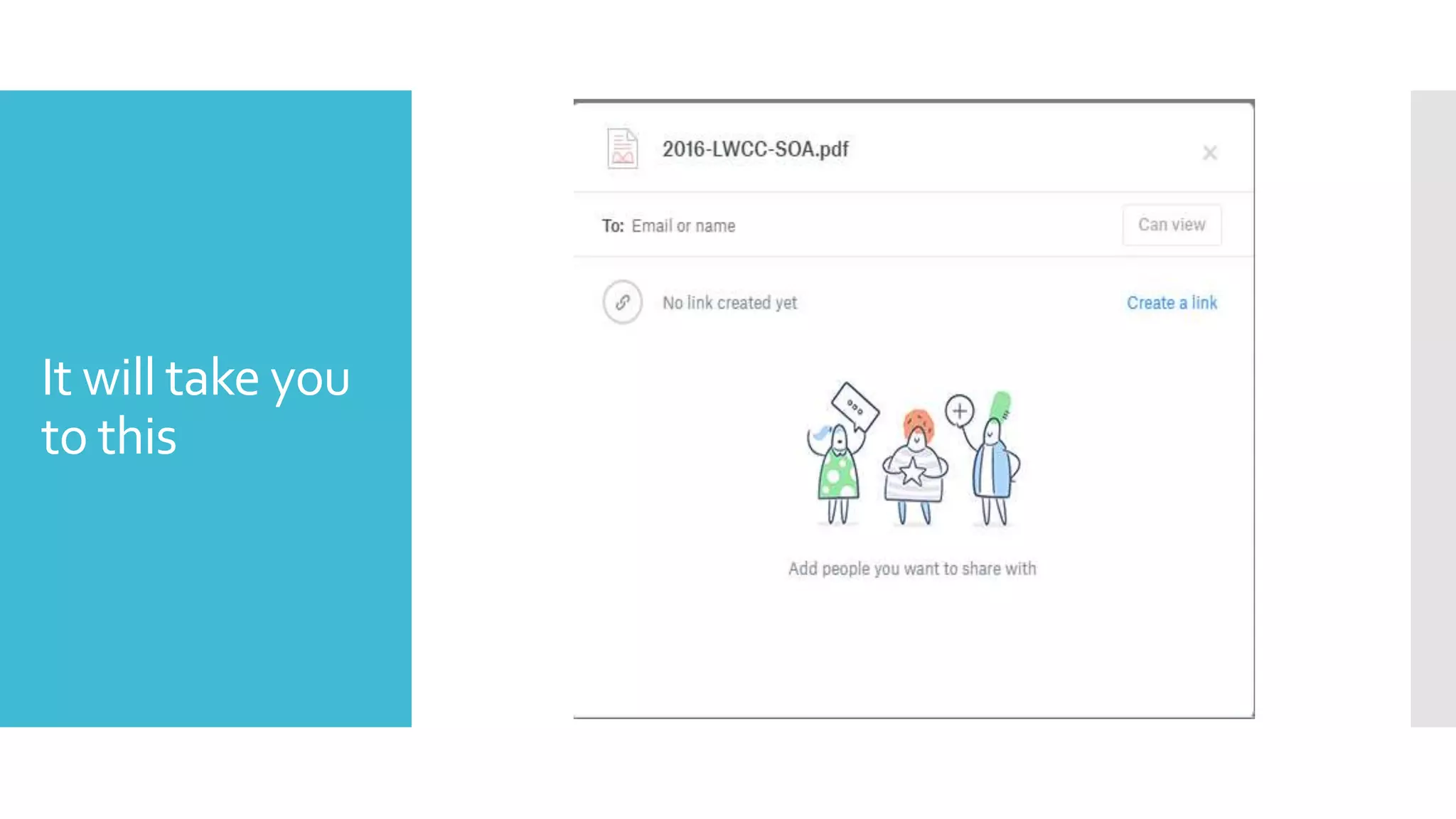
It will take you
to this
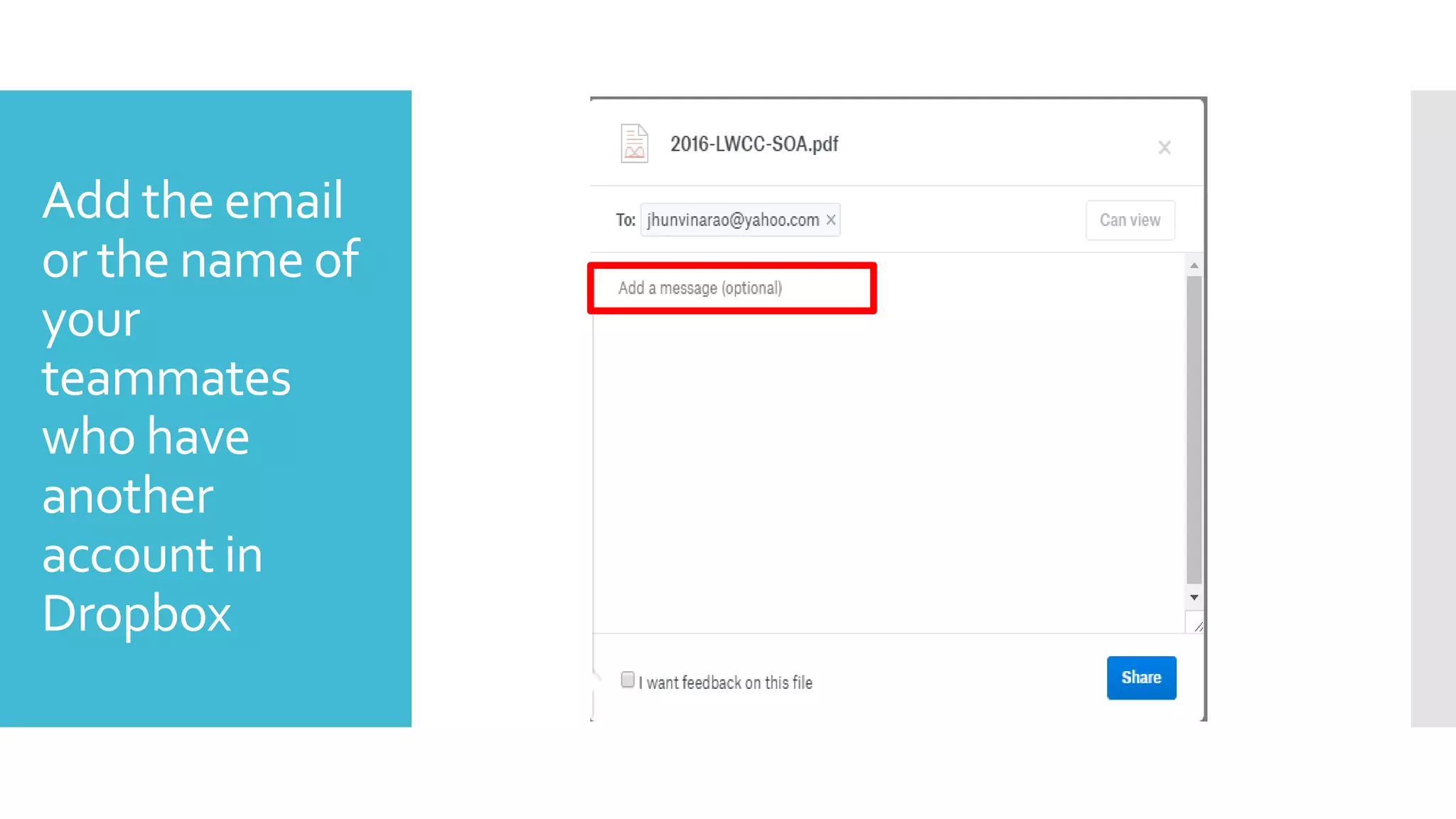
Add the email
or the name of
your
teammates
who have
another
account in
Dropbox
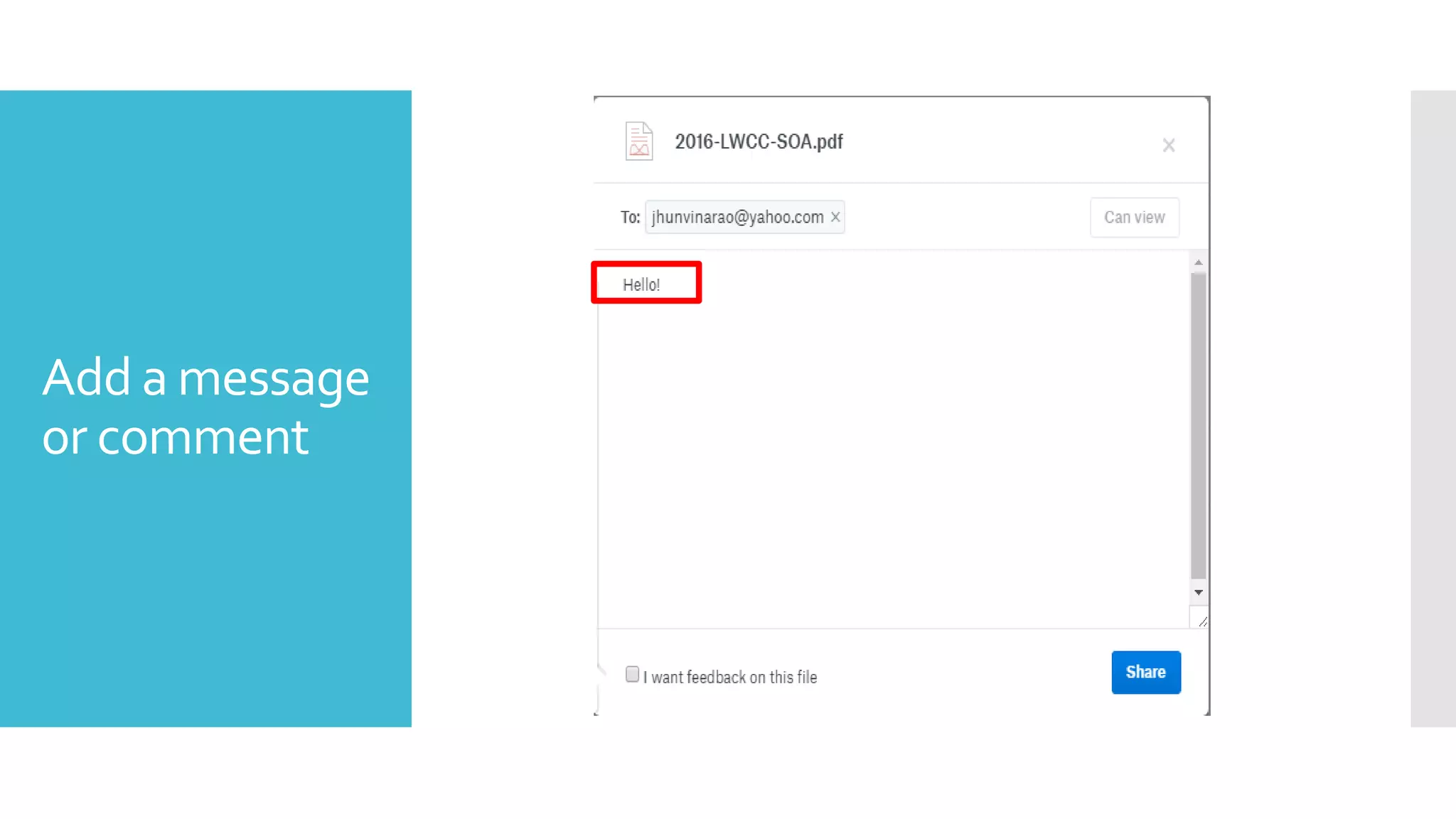
Add a message
or comment
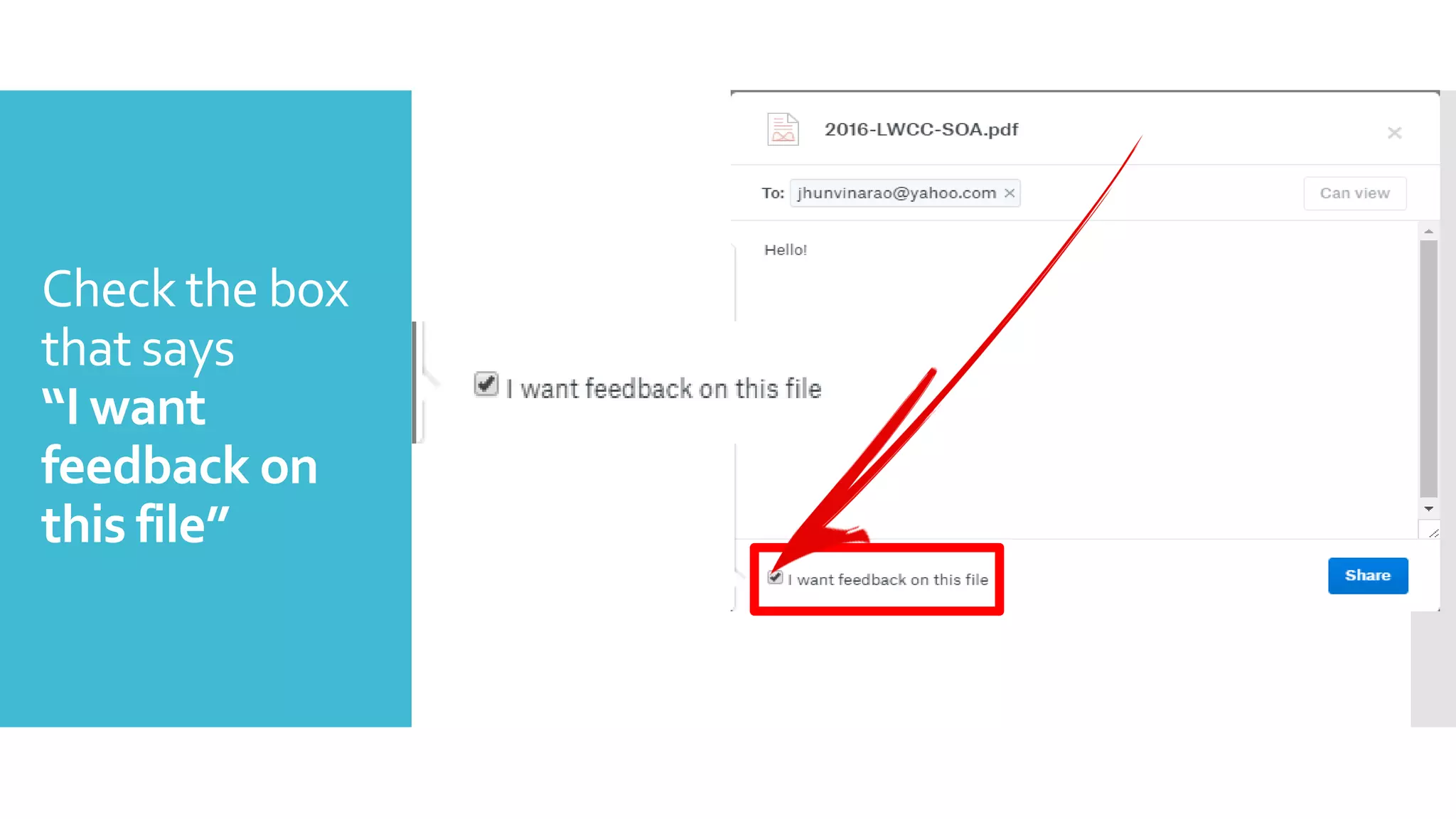
Check the box
that says
“I want
feedback on
this file”
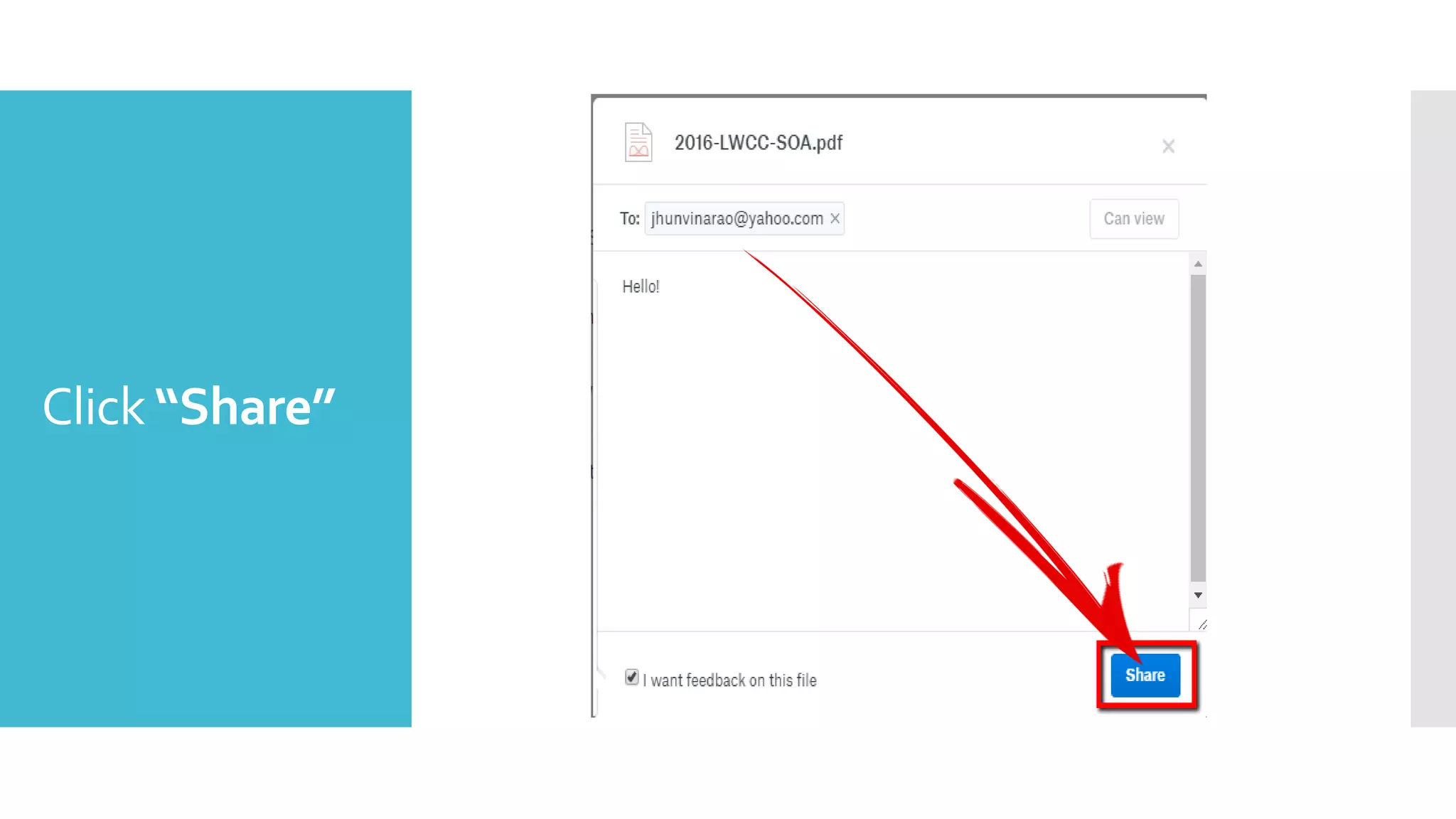
Click “Share”
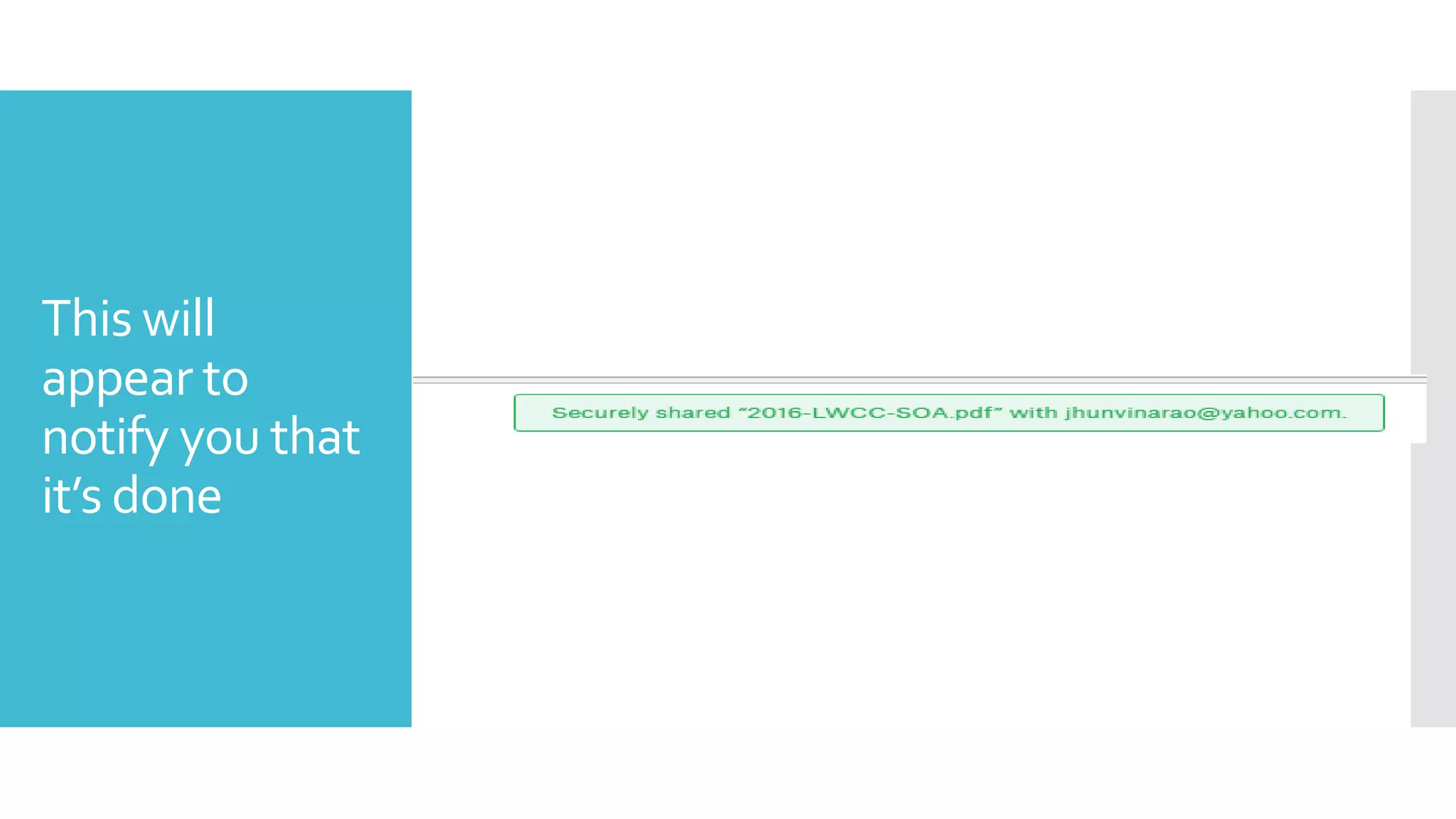
This will
appear to
notify you that
it’s done
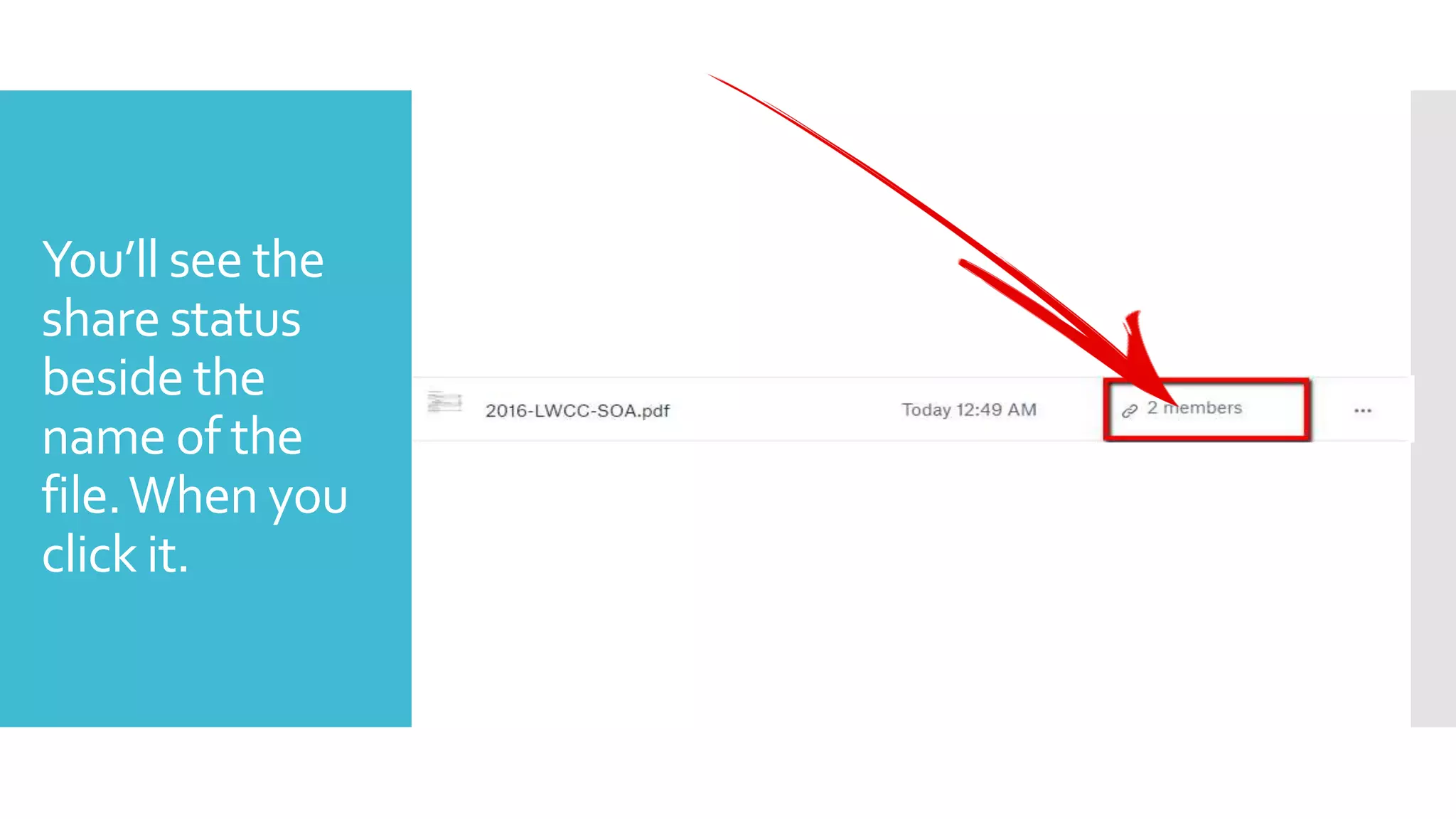
You’ll see the
share status
beside the
name of the
file.When you
click it.
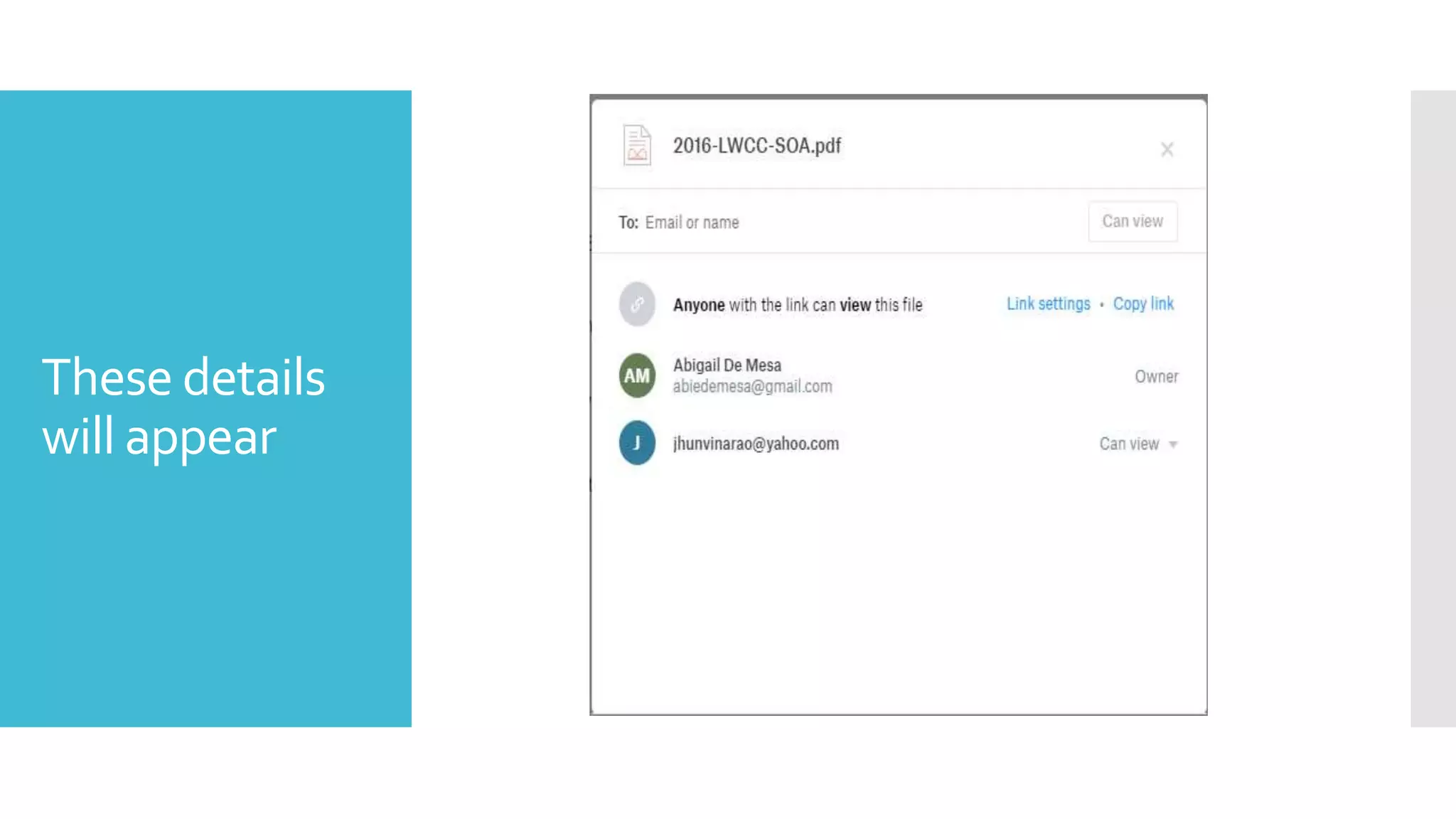
These details
will appear
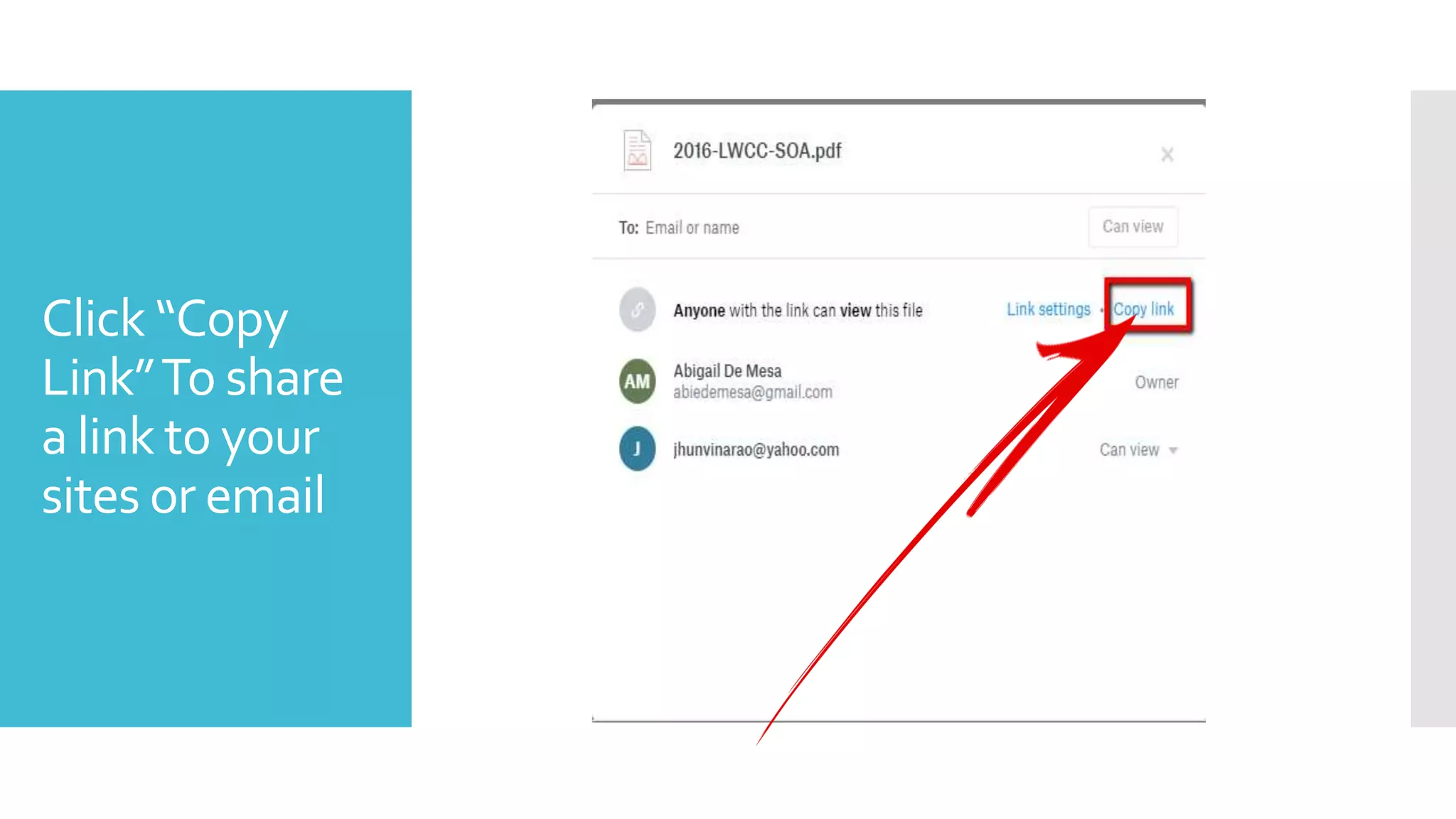
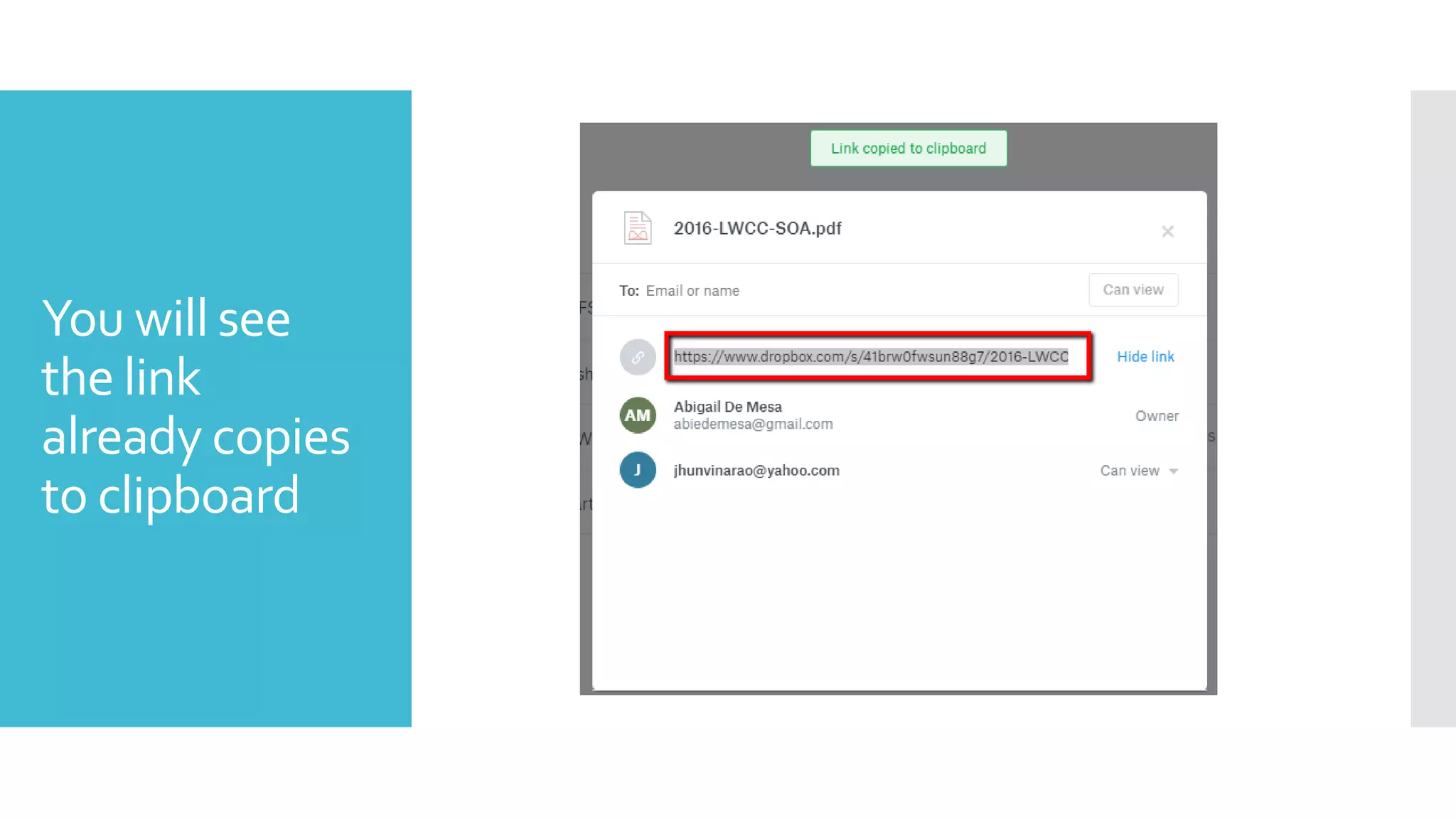
Click “Copy
Link”To share
a link to your
sites or email
You will see
the link
already copies
to clipboard
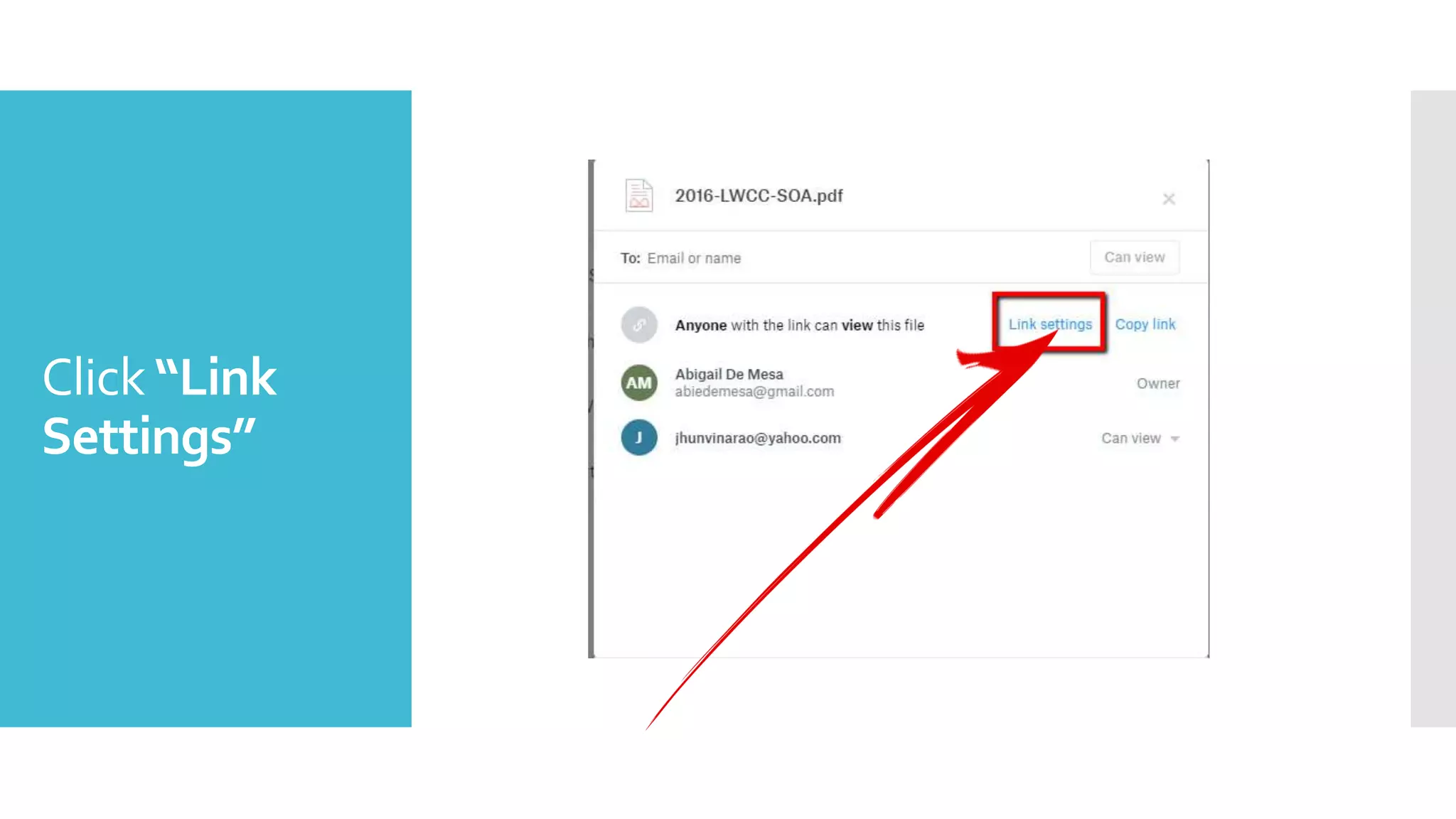
Click “Link
Settings”
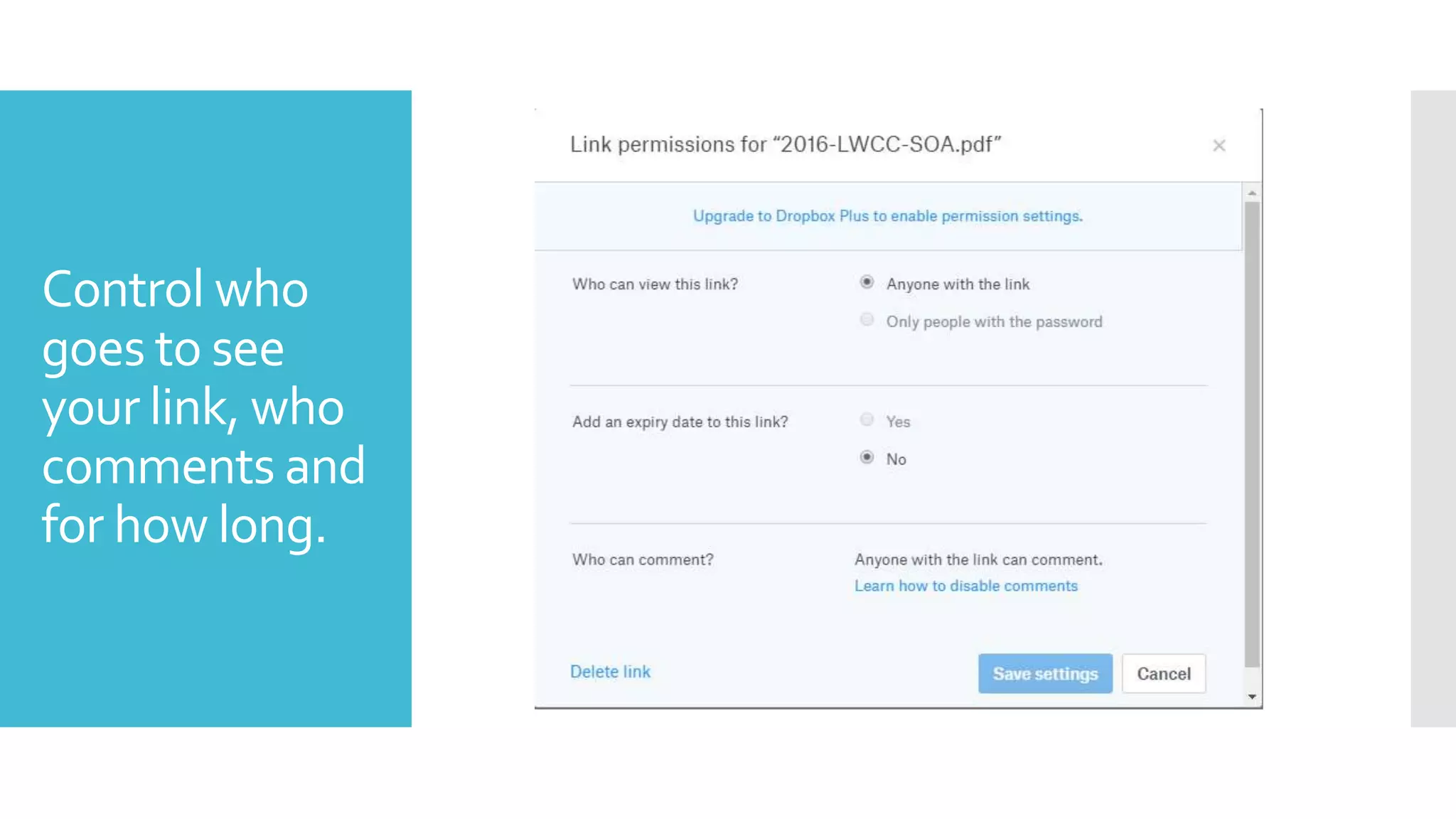
Control who
goes to see
your link, who
comments and
for how long.
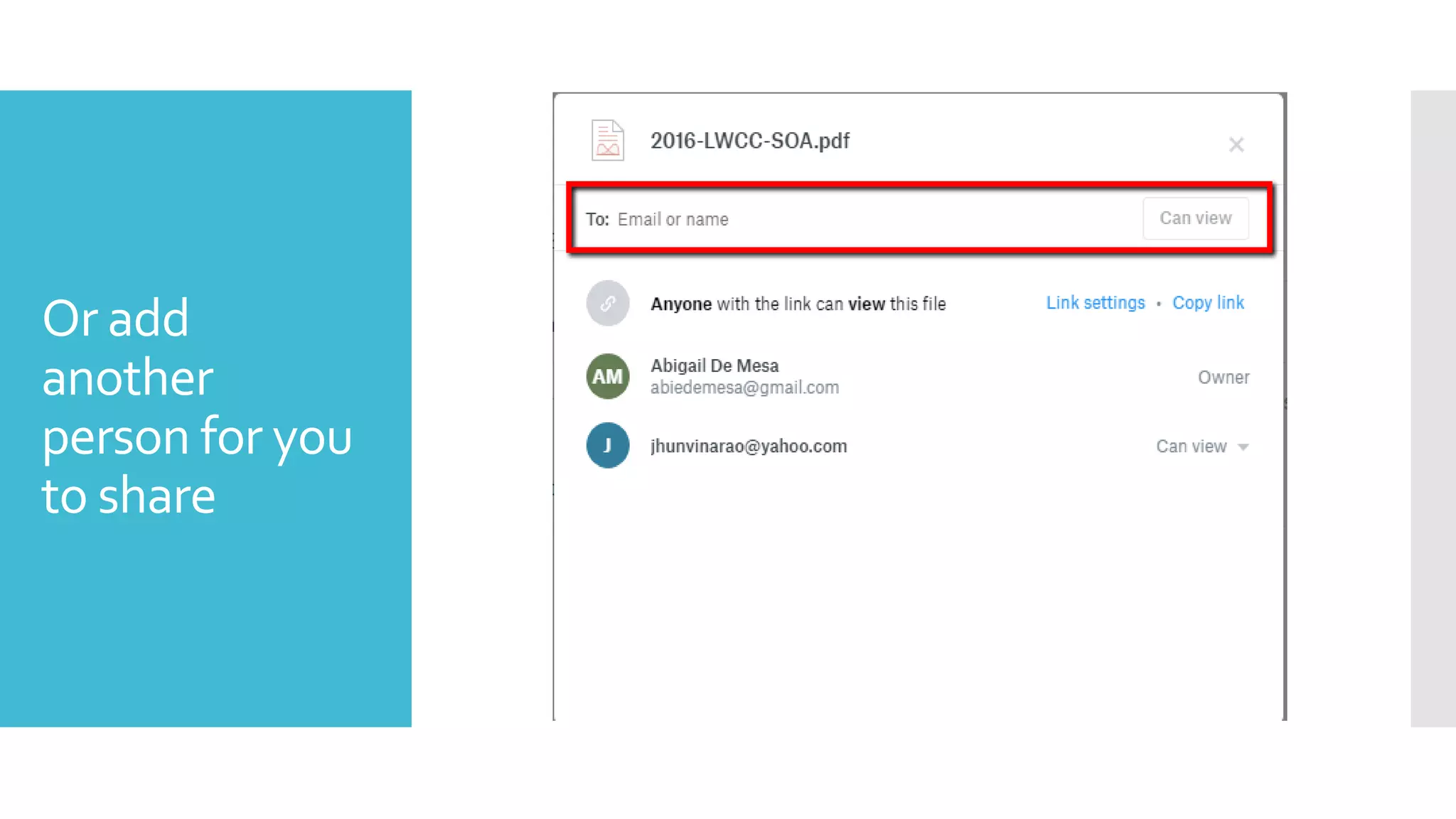
Or add
another
person for you
to share
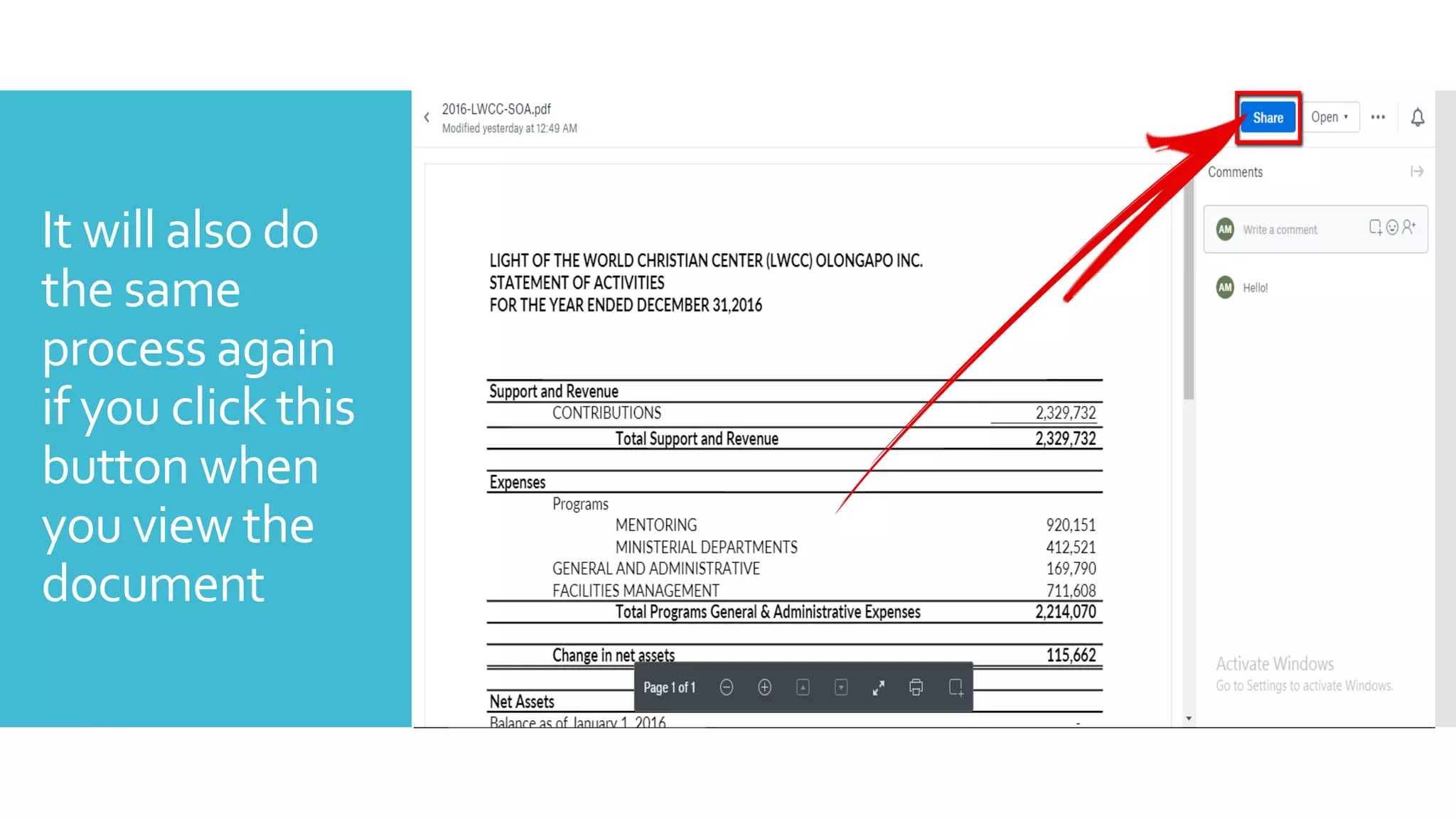
It will also do
the same
process again
if you click this
button when
you view the
document
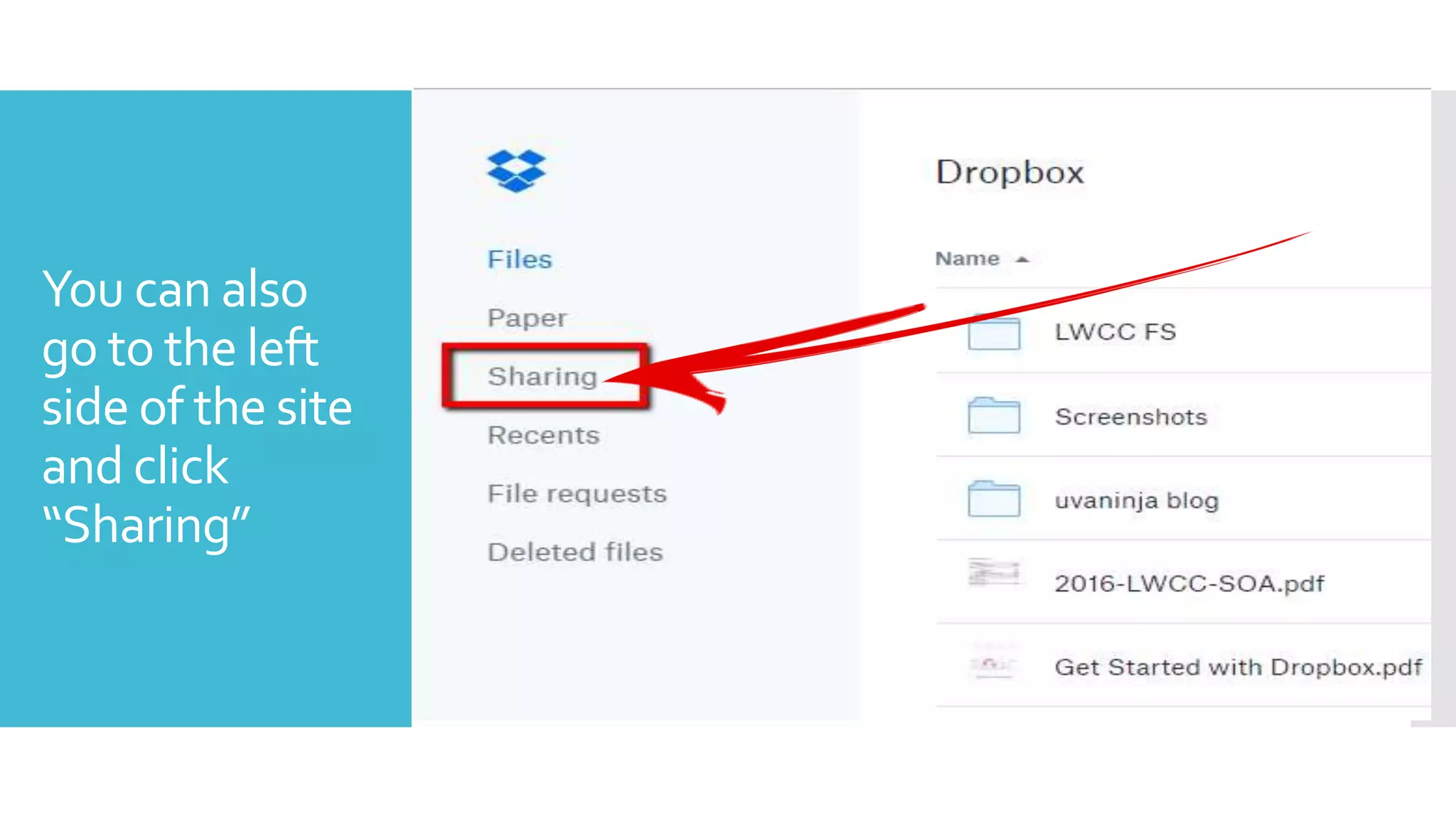
You can also
go to the left
side of the site
and click
“Sharing”
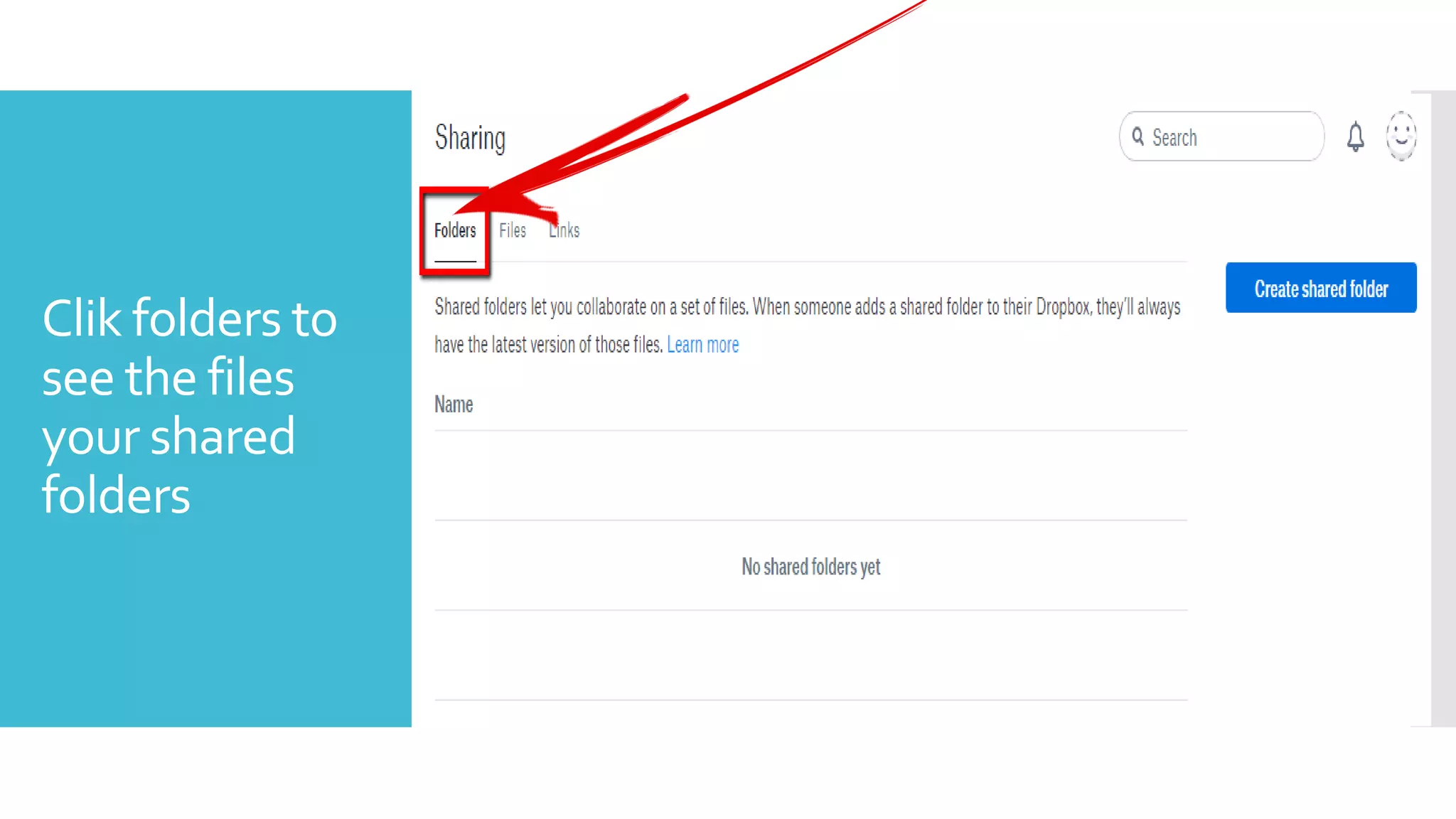
Clik folders to
see the files
your shared
folders
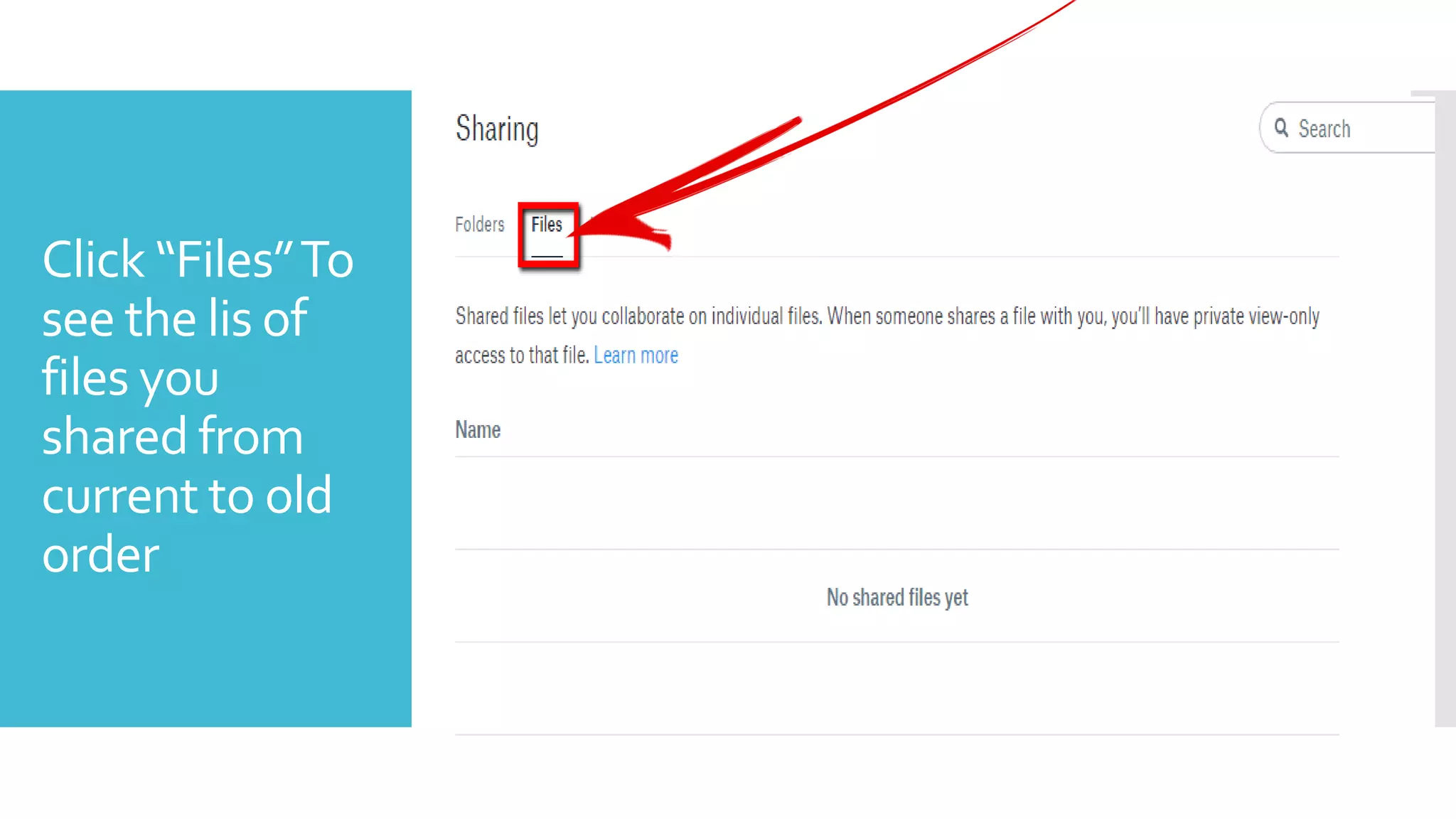
Click “Files”To
see the lis of
files you
shared from
current to old
order
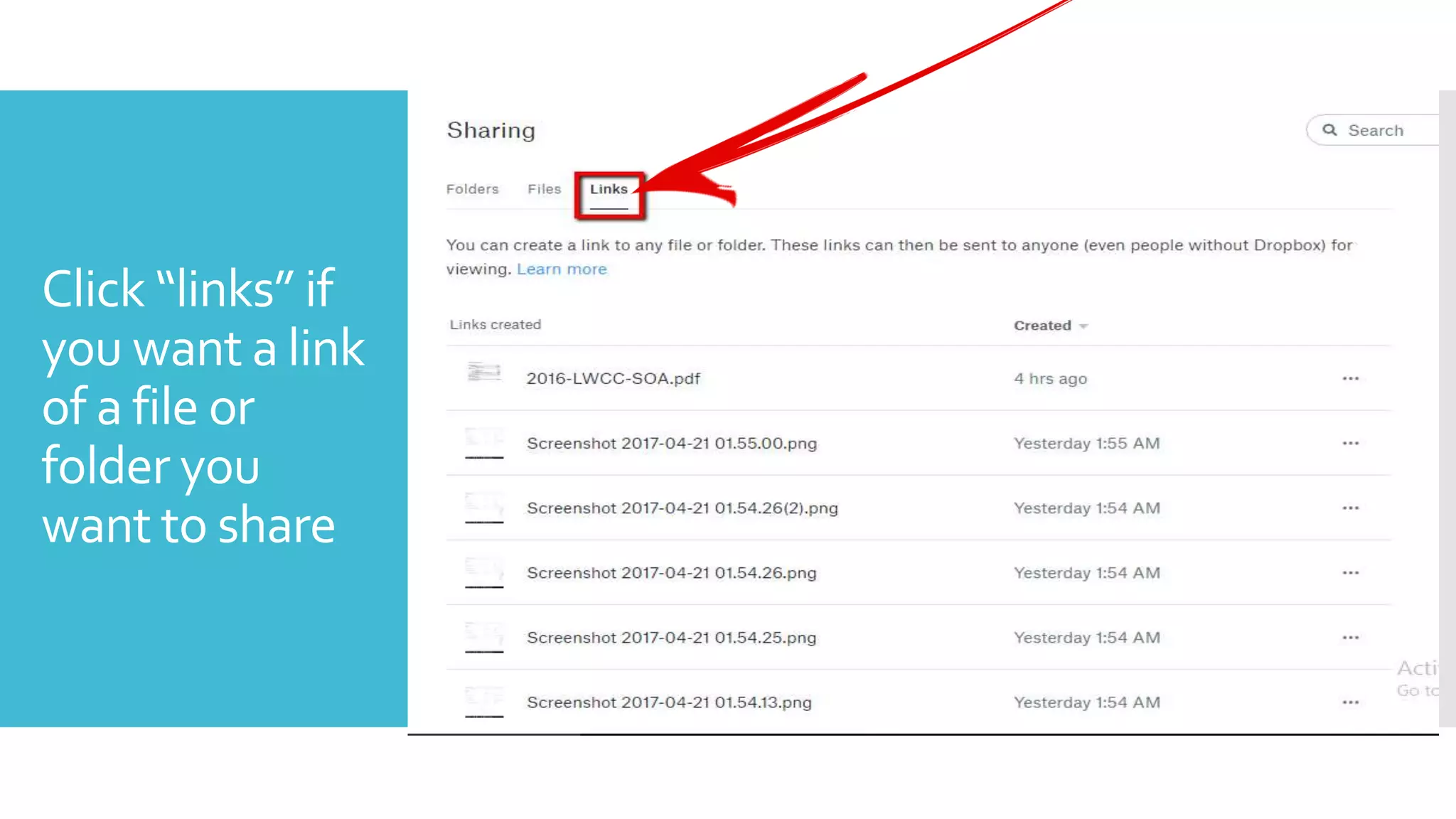
Click “links” if
you want a link
of a file or
folder you
want to share
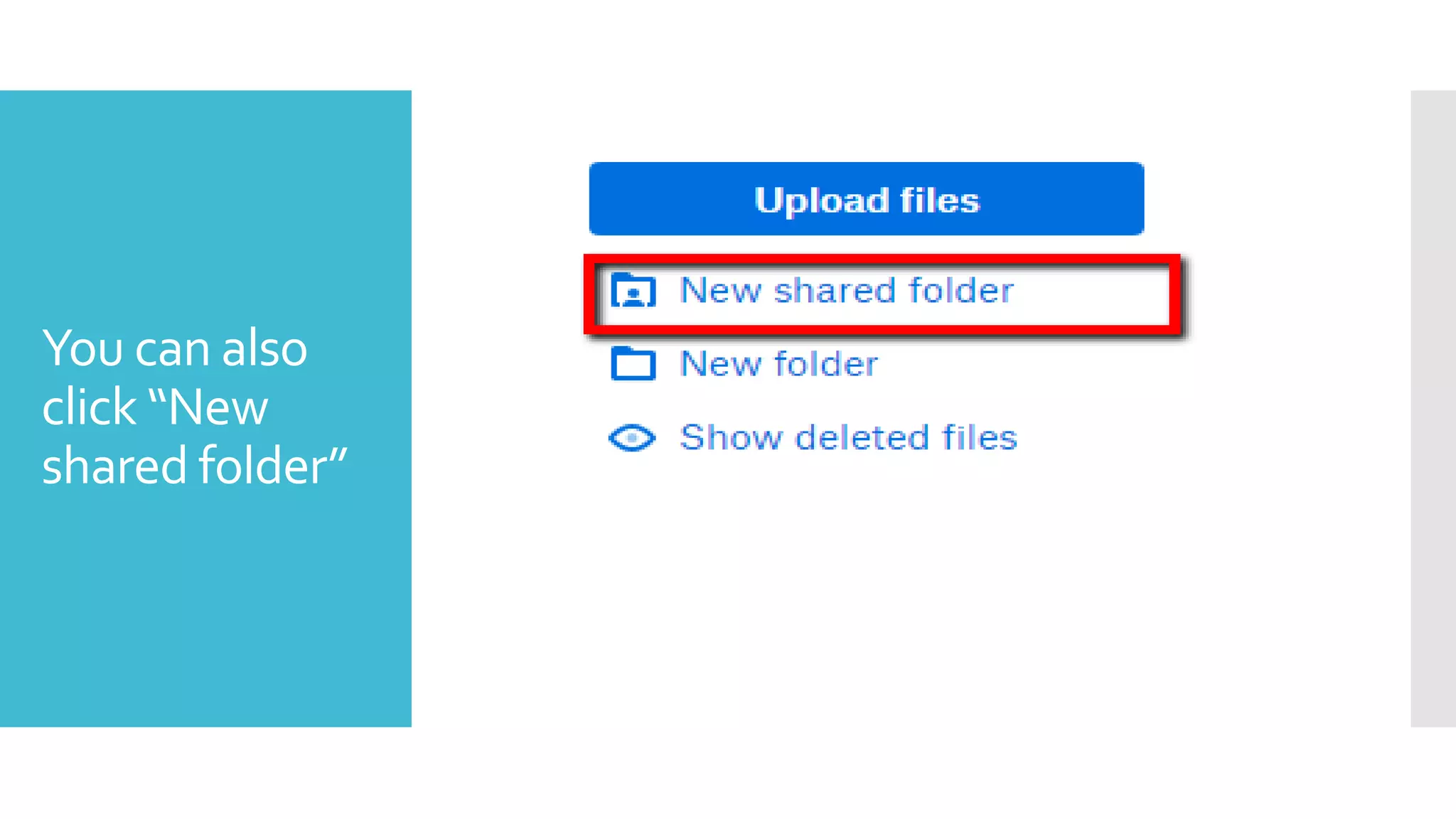
You can also
click “New
shared folder”
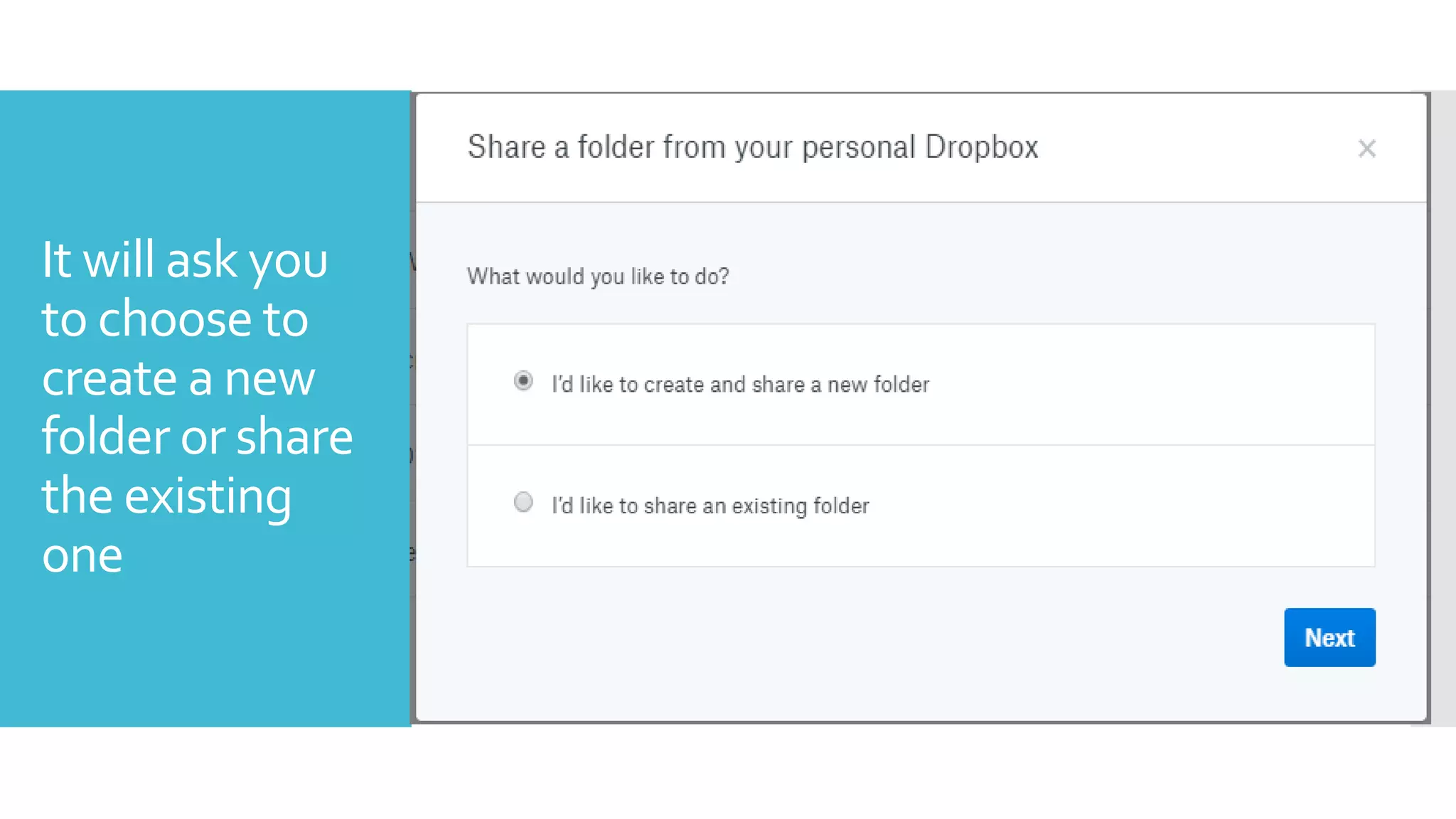
It will ask you
to choose to
create a new
folder or share
the existing
one
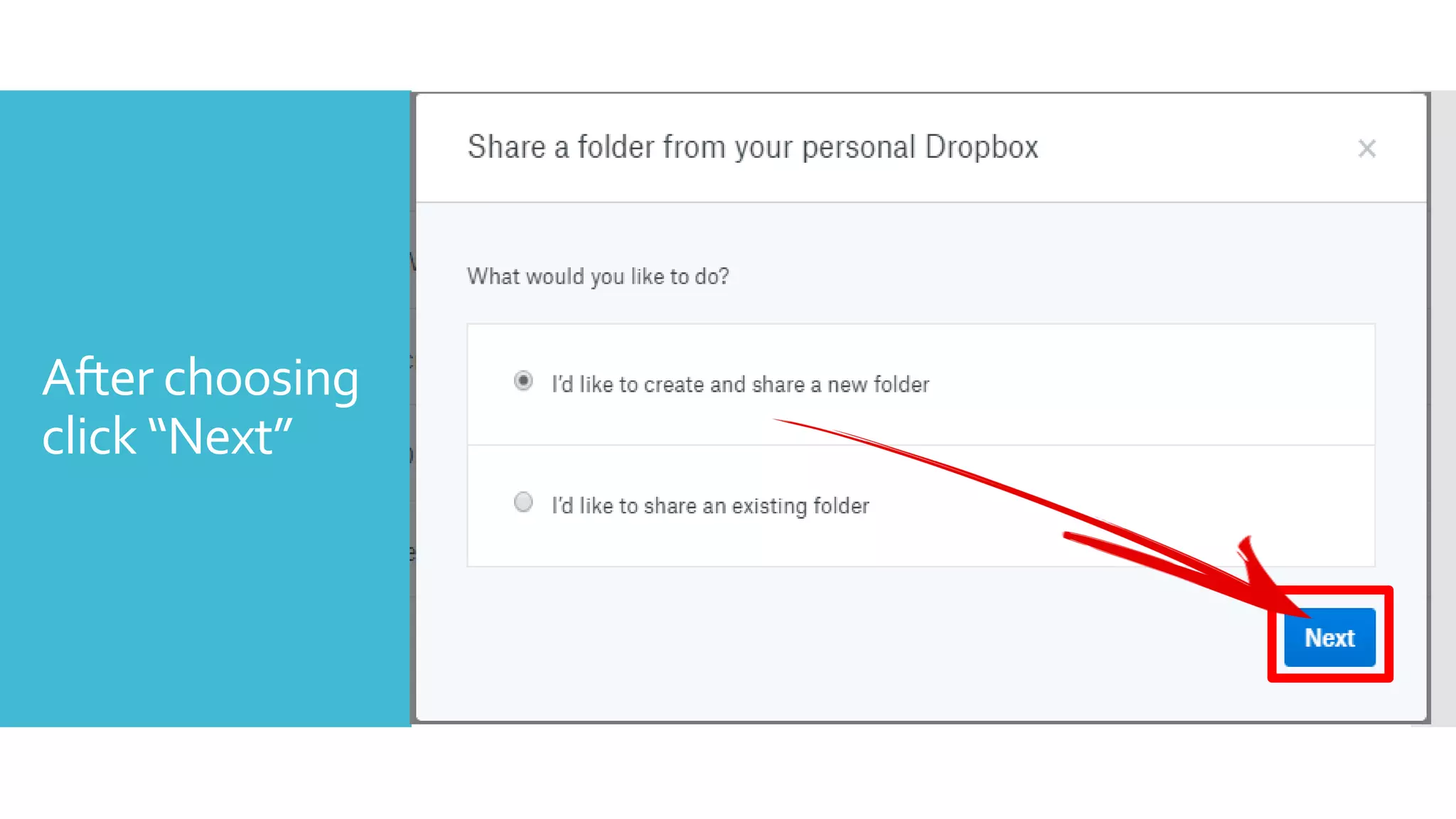
After choosing
click “Next”
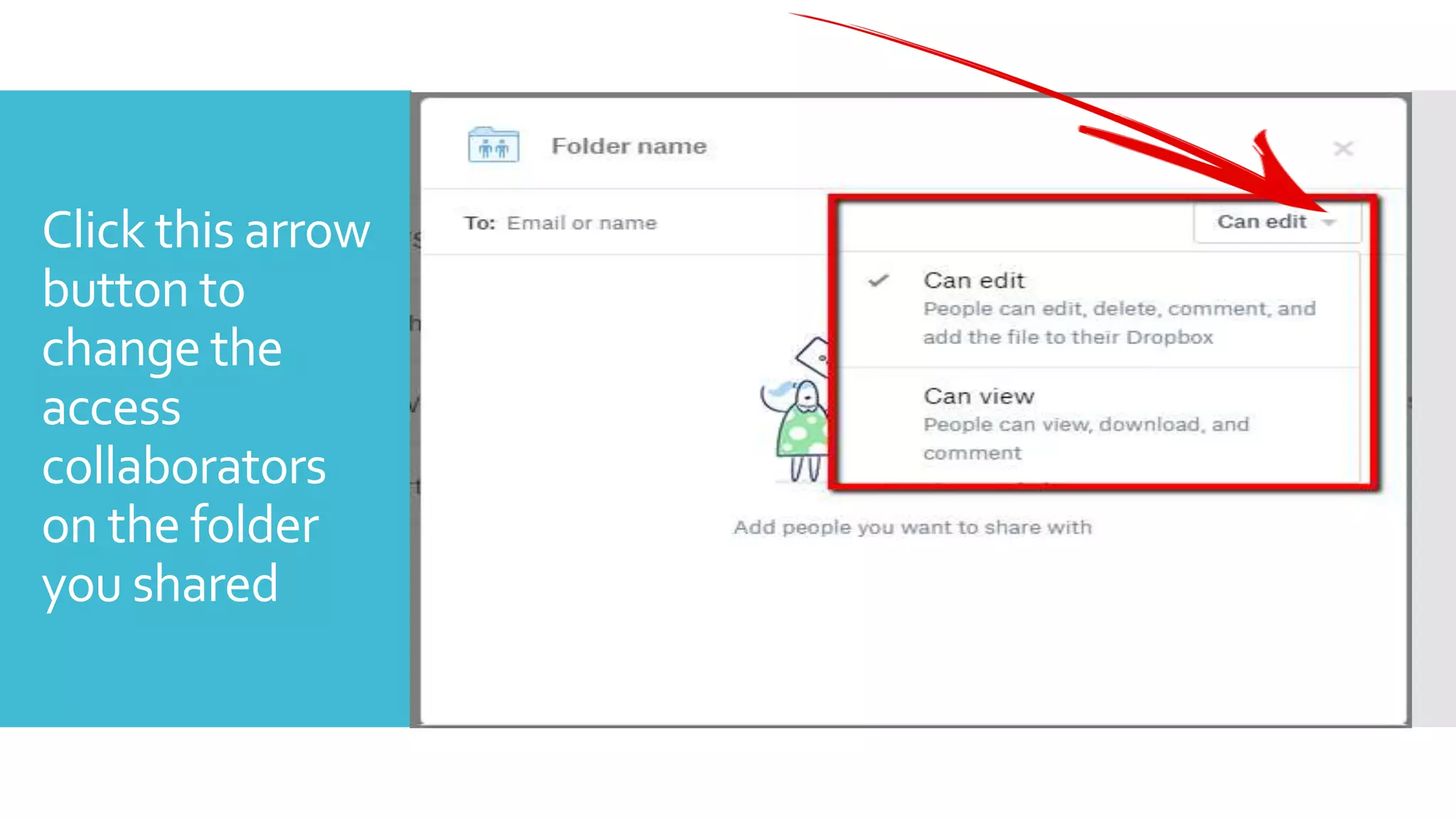
Click this arrow
button to
change the
access
collaborators
on the folder
you shared
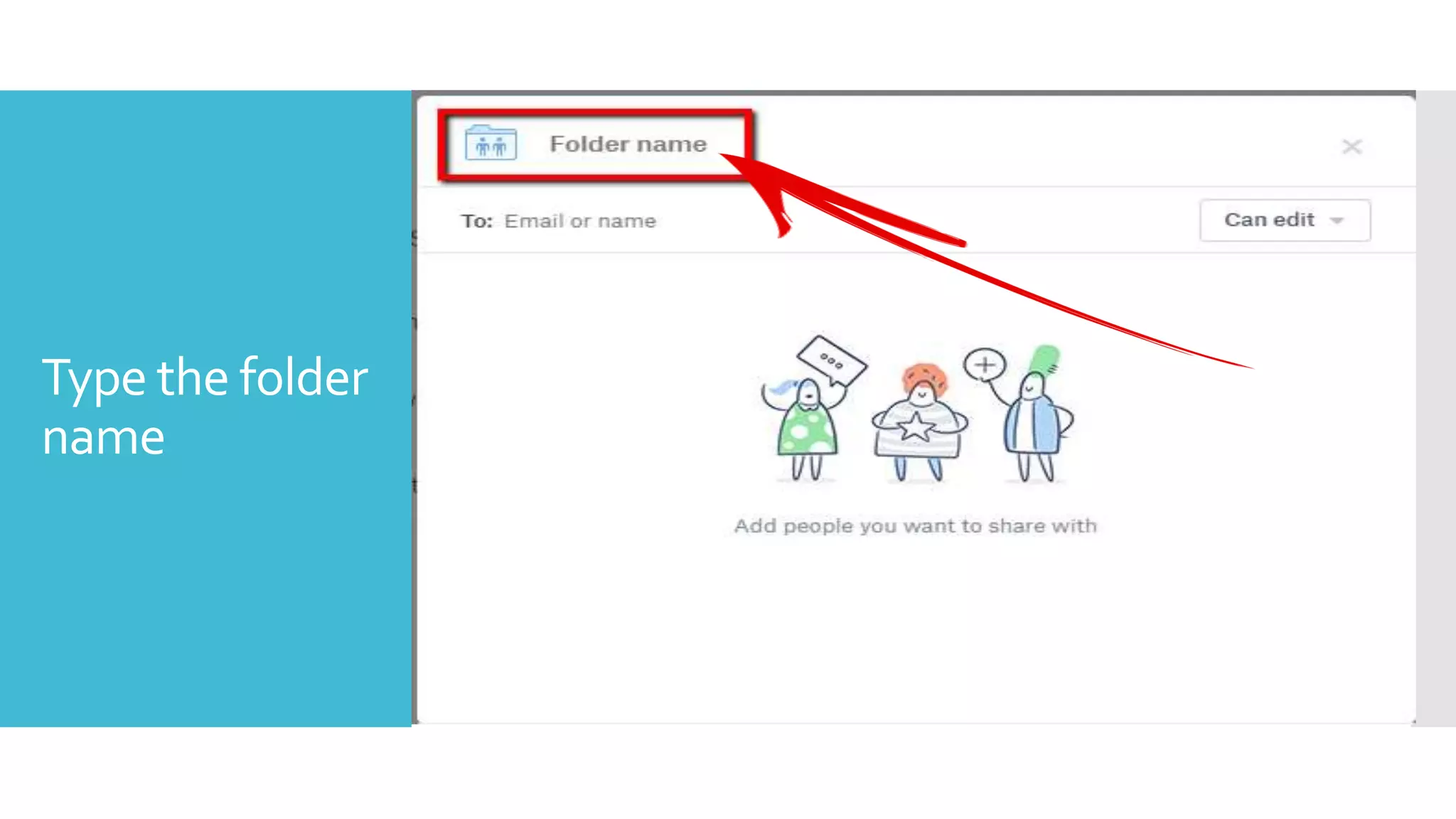
Type the folder
name
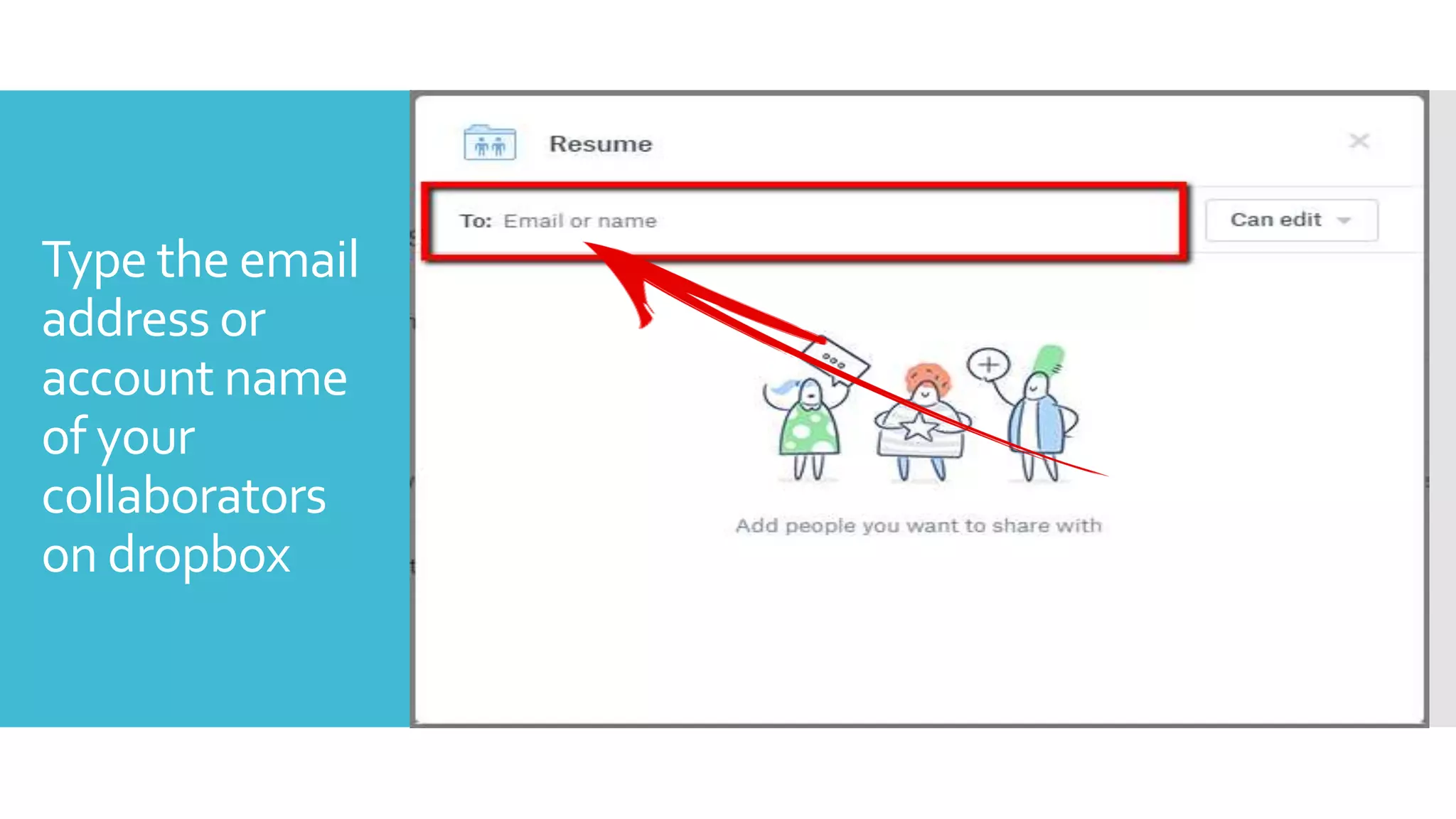
Type the email
address or
account name
of your
collaborators
on dropbox
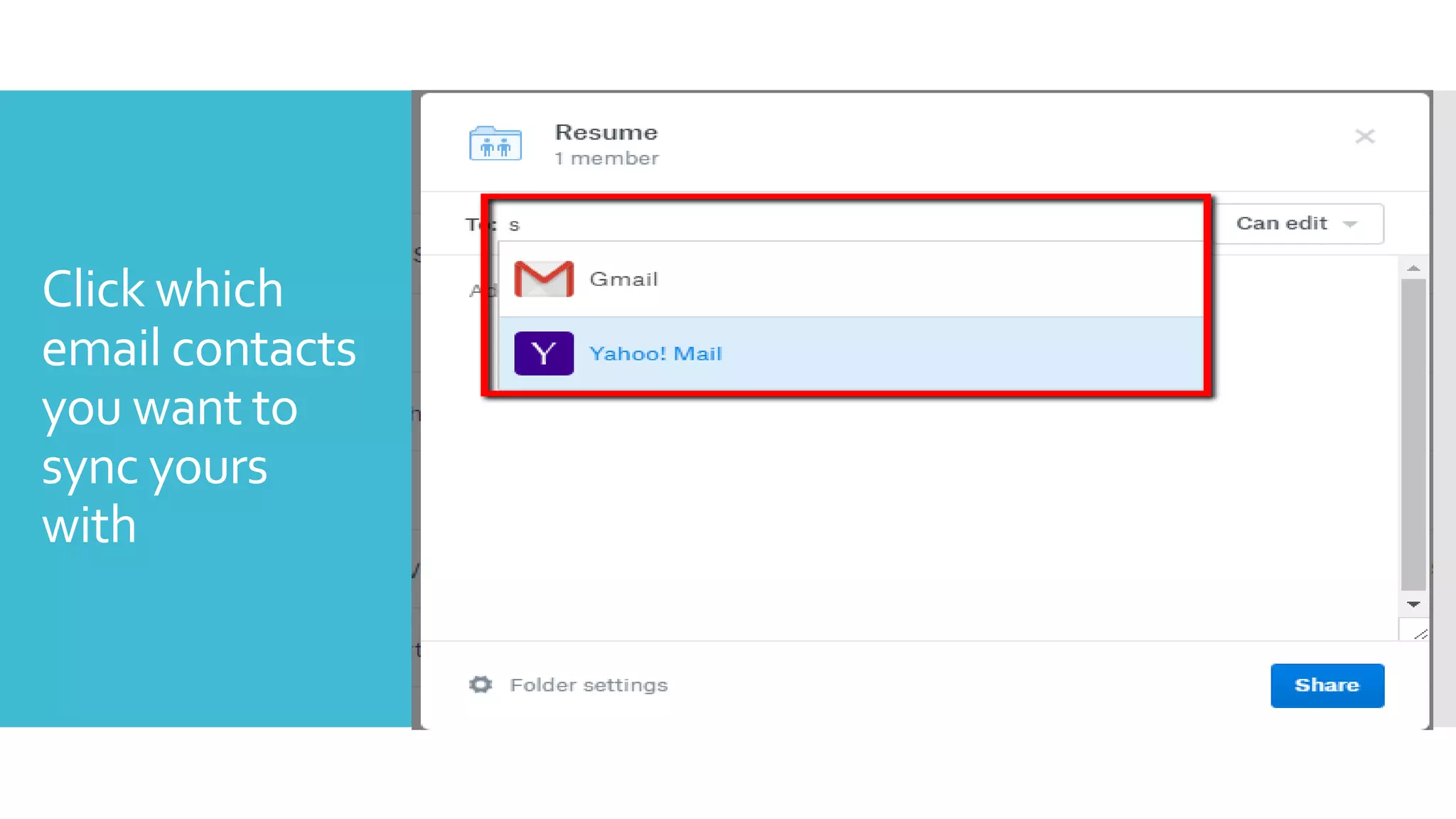
Click which
email contacts
you want to
sync yours
with
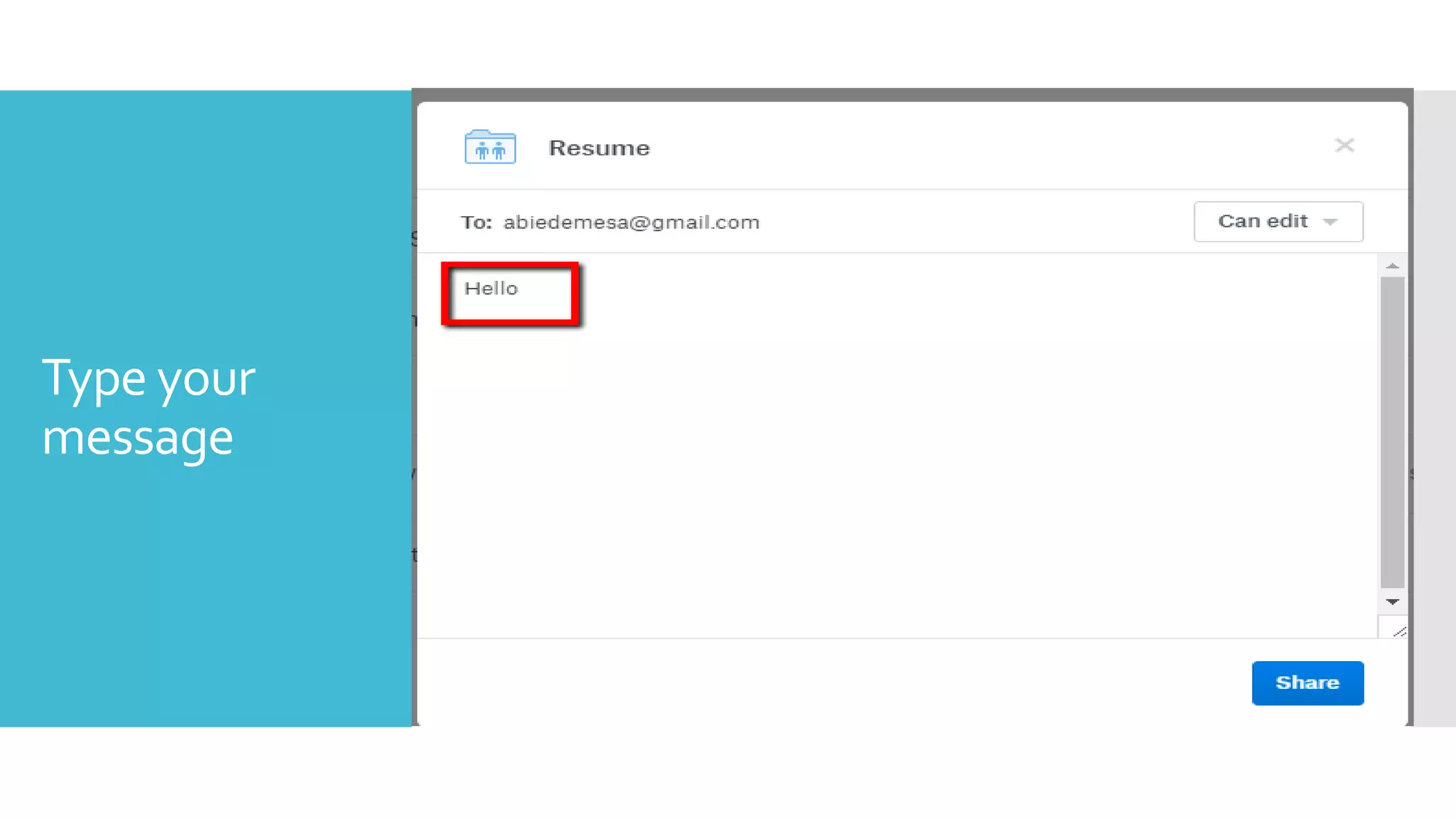
Type your
message
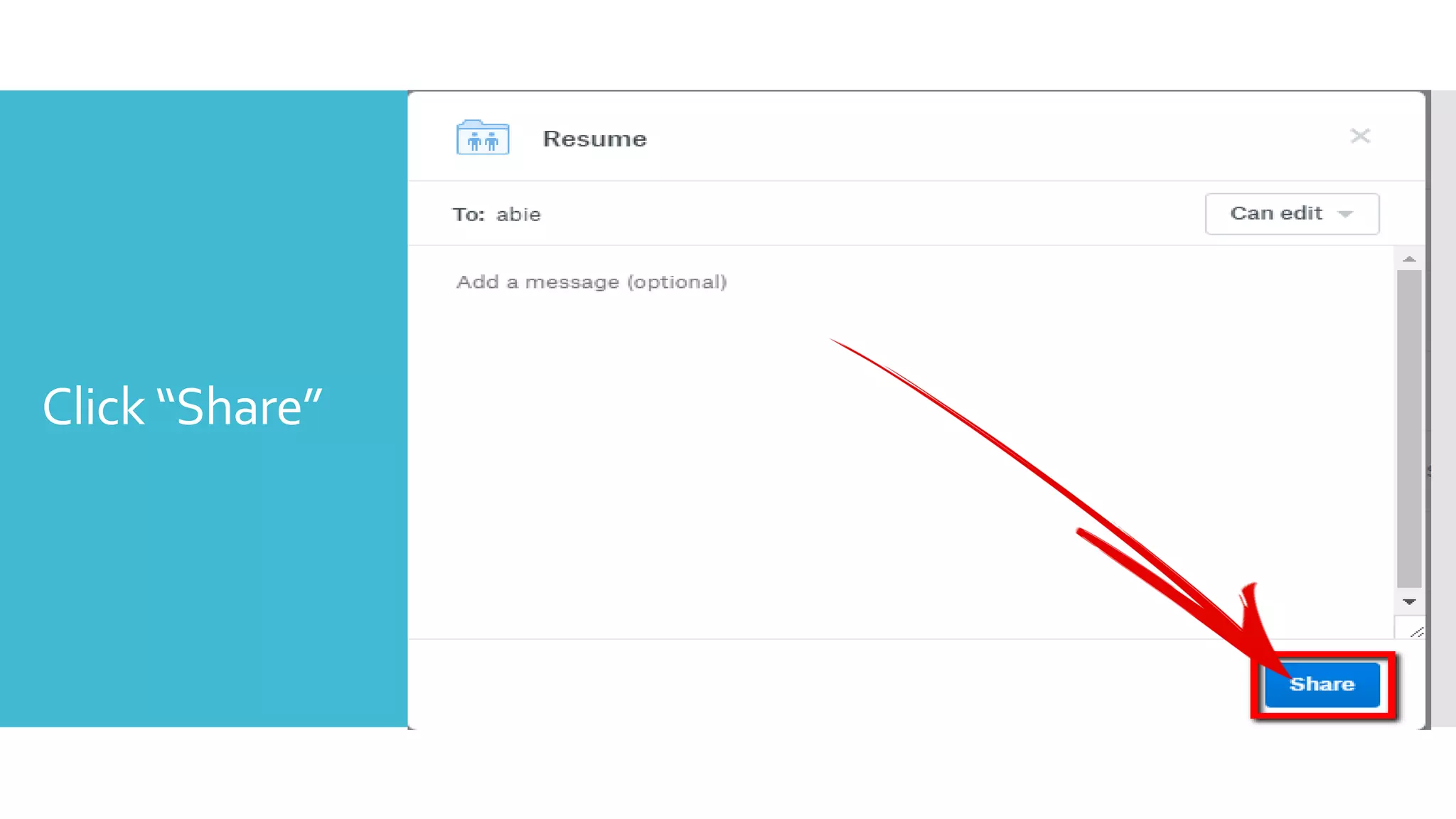
Click “Share”
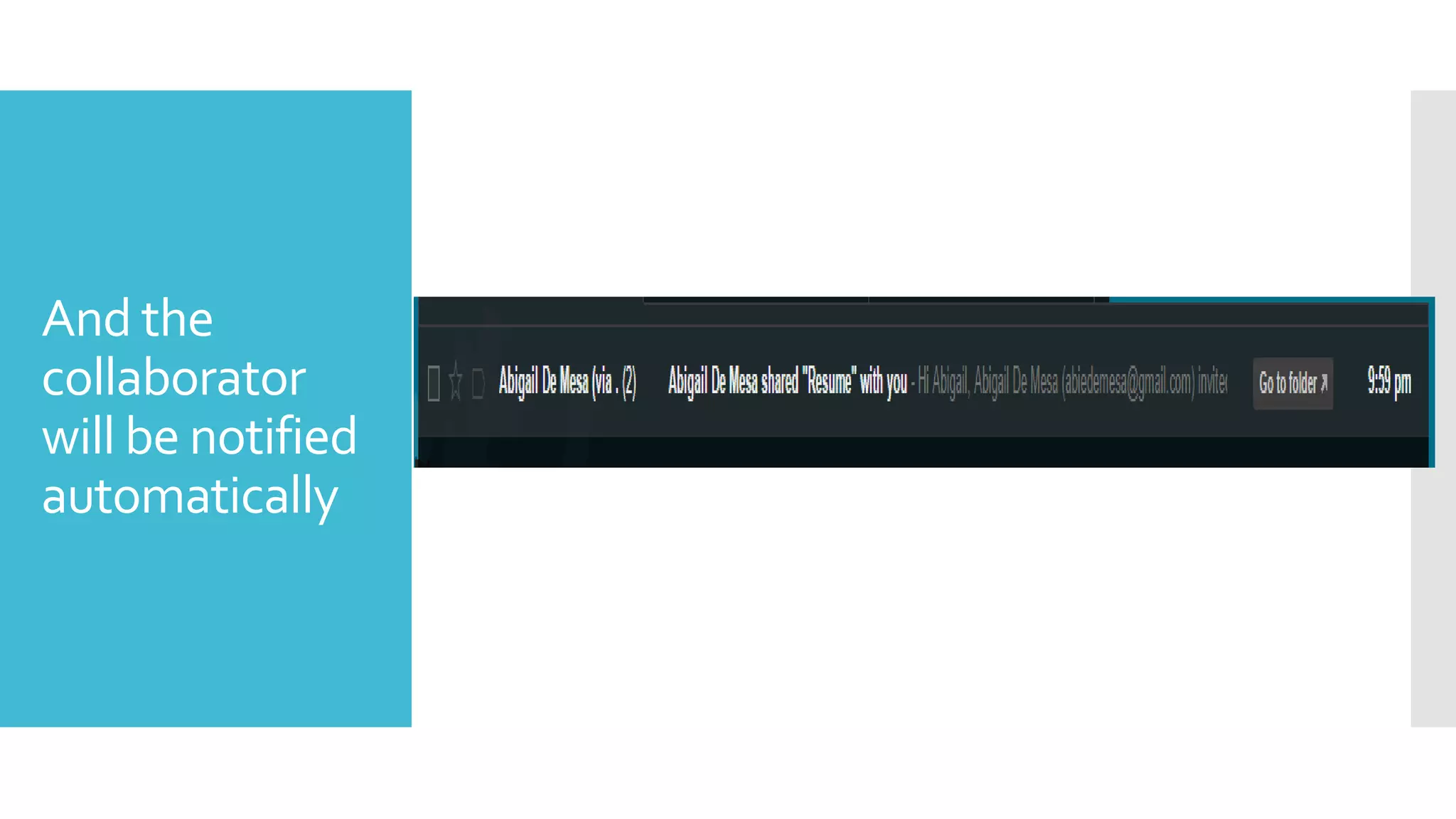
And the
collaborator
will be notified
automatically
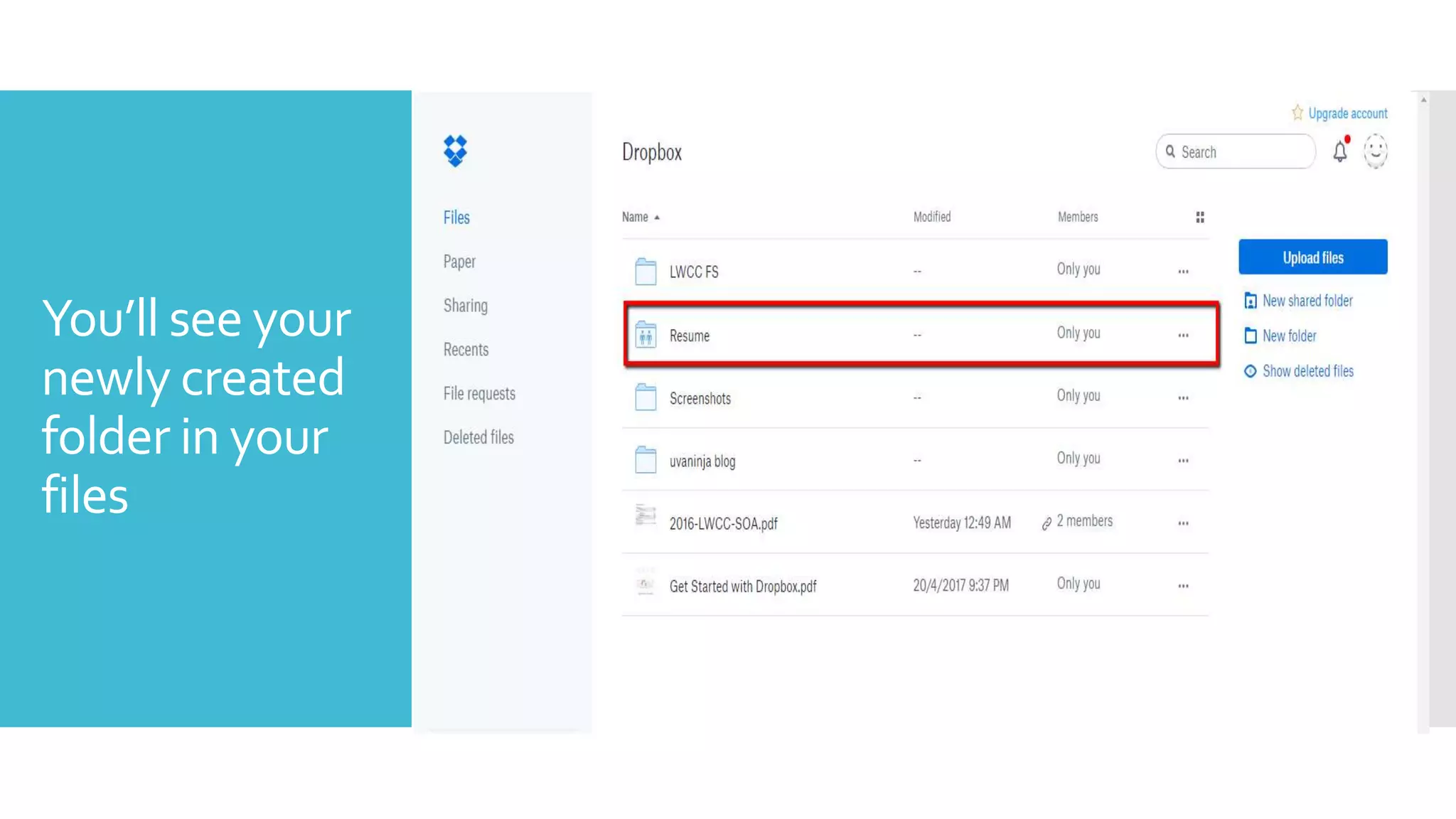
You’ll see your
newly created
folder in your
files
Viewing Files
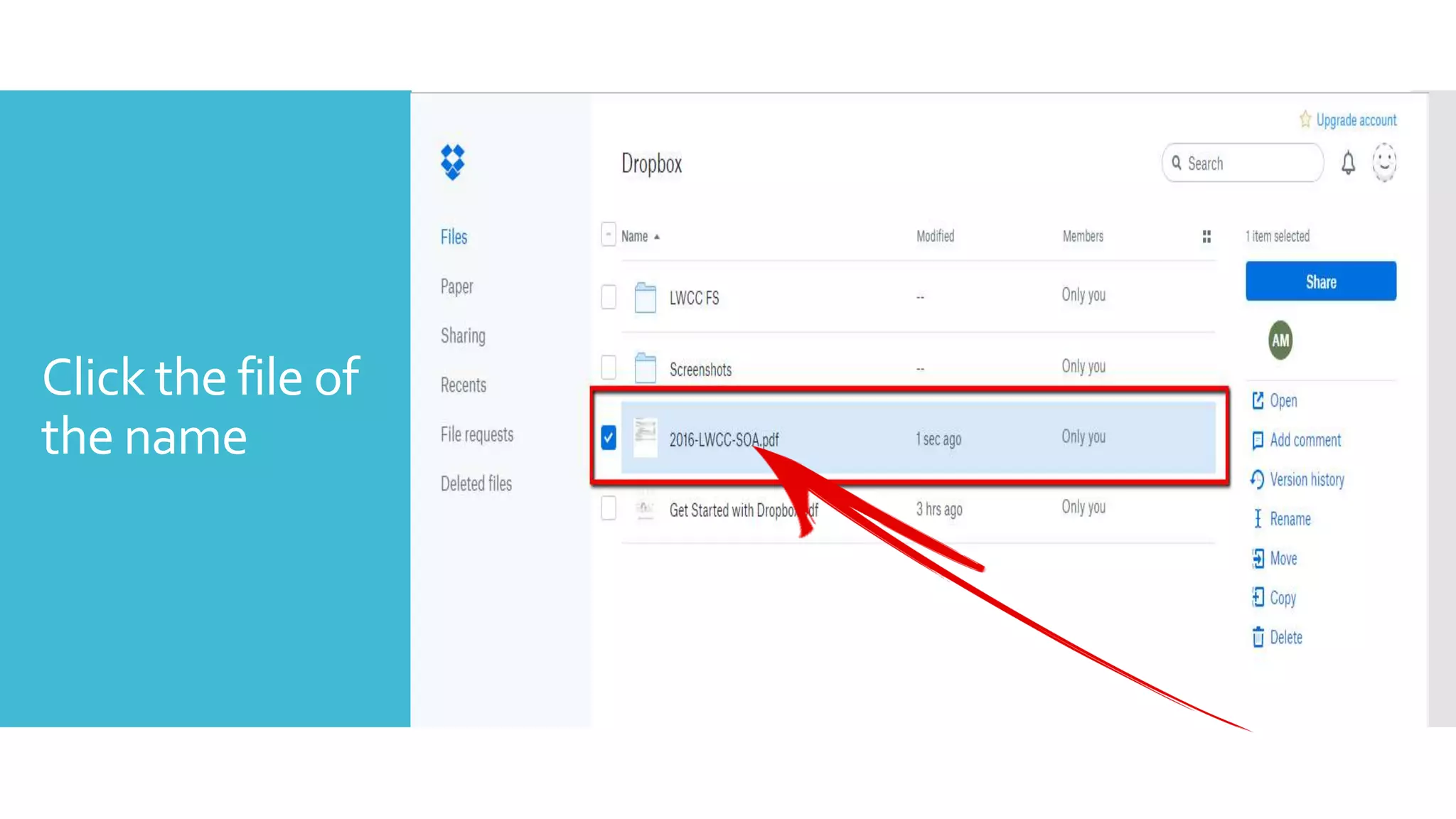
Click the file of
the name
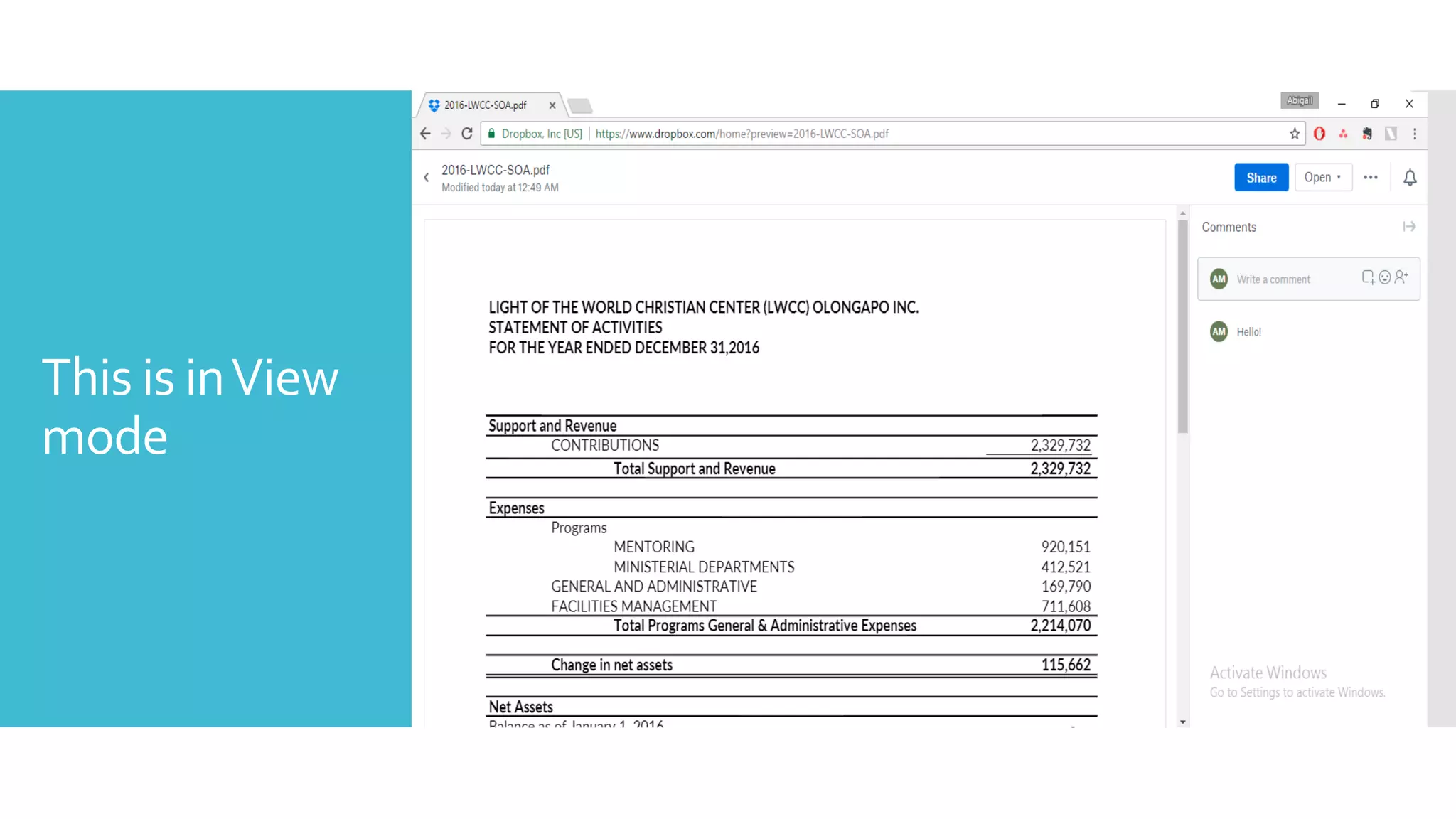
This is inView
mode
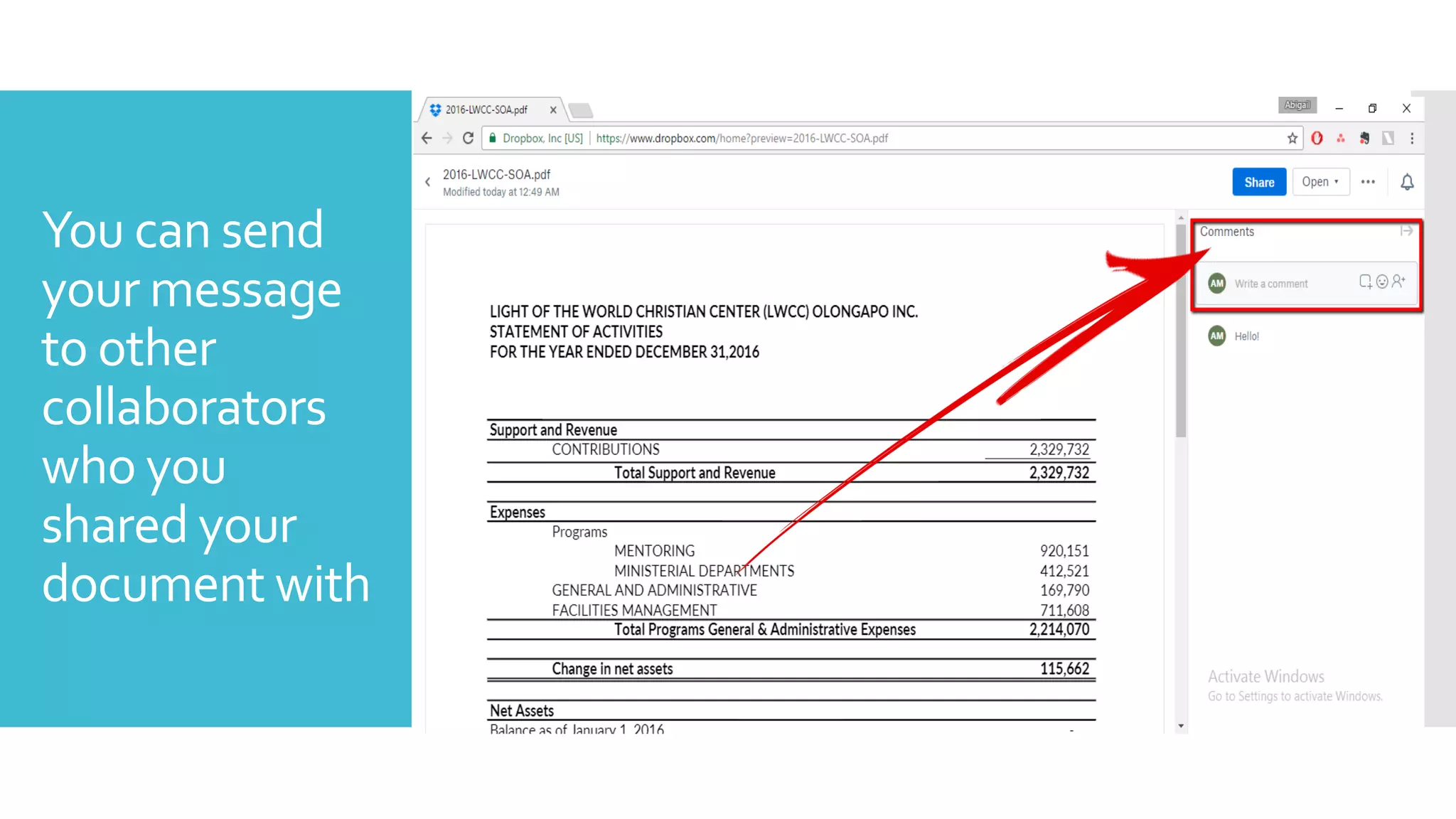
You can send
your message
to other
collaborators
who you
shared your
document with
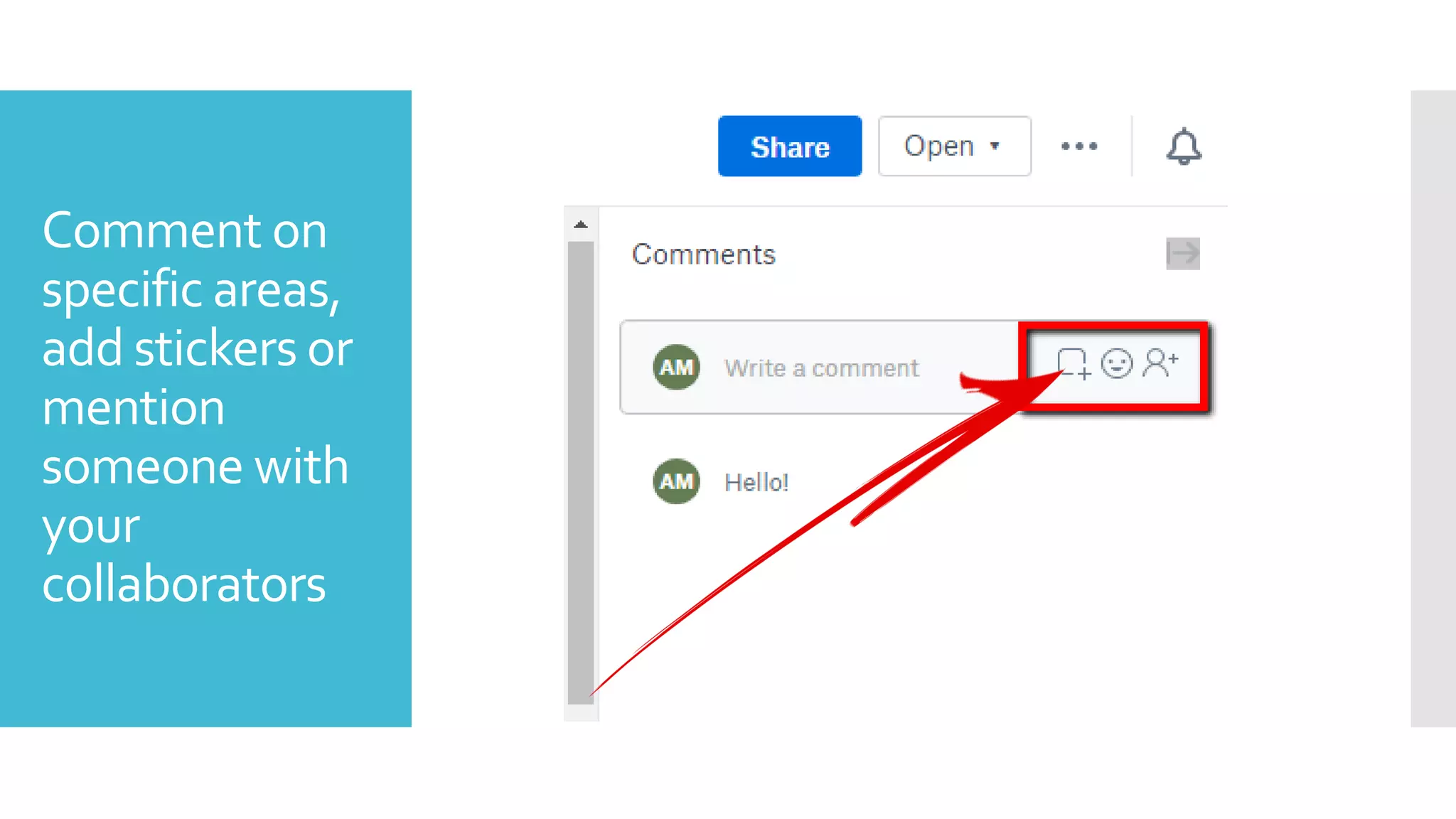
Comment on
specific areas,
add stickers or
mention
someone with
your
collaborators
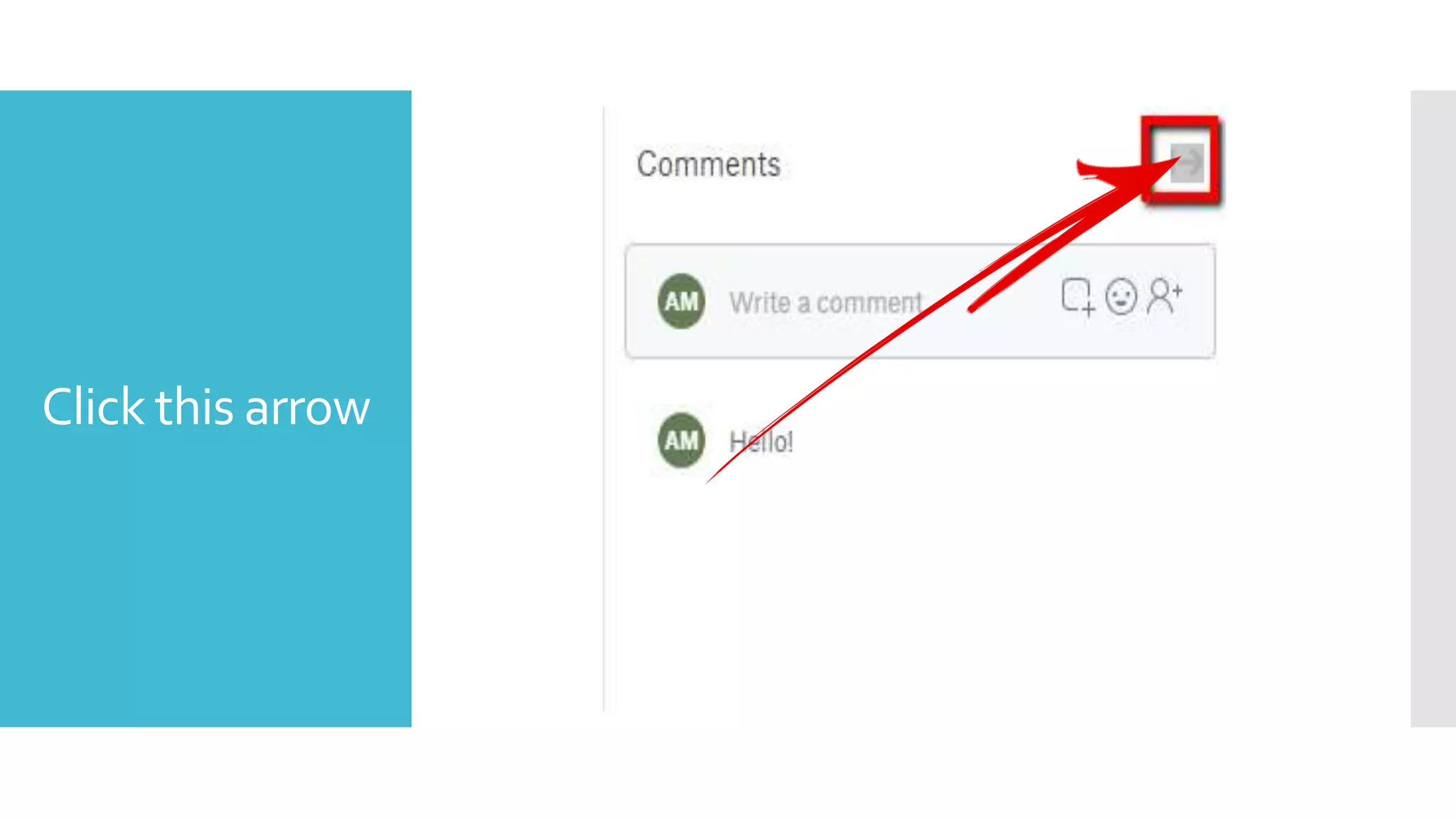
Click this arrow
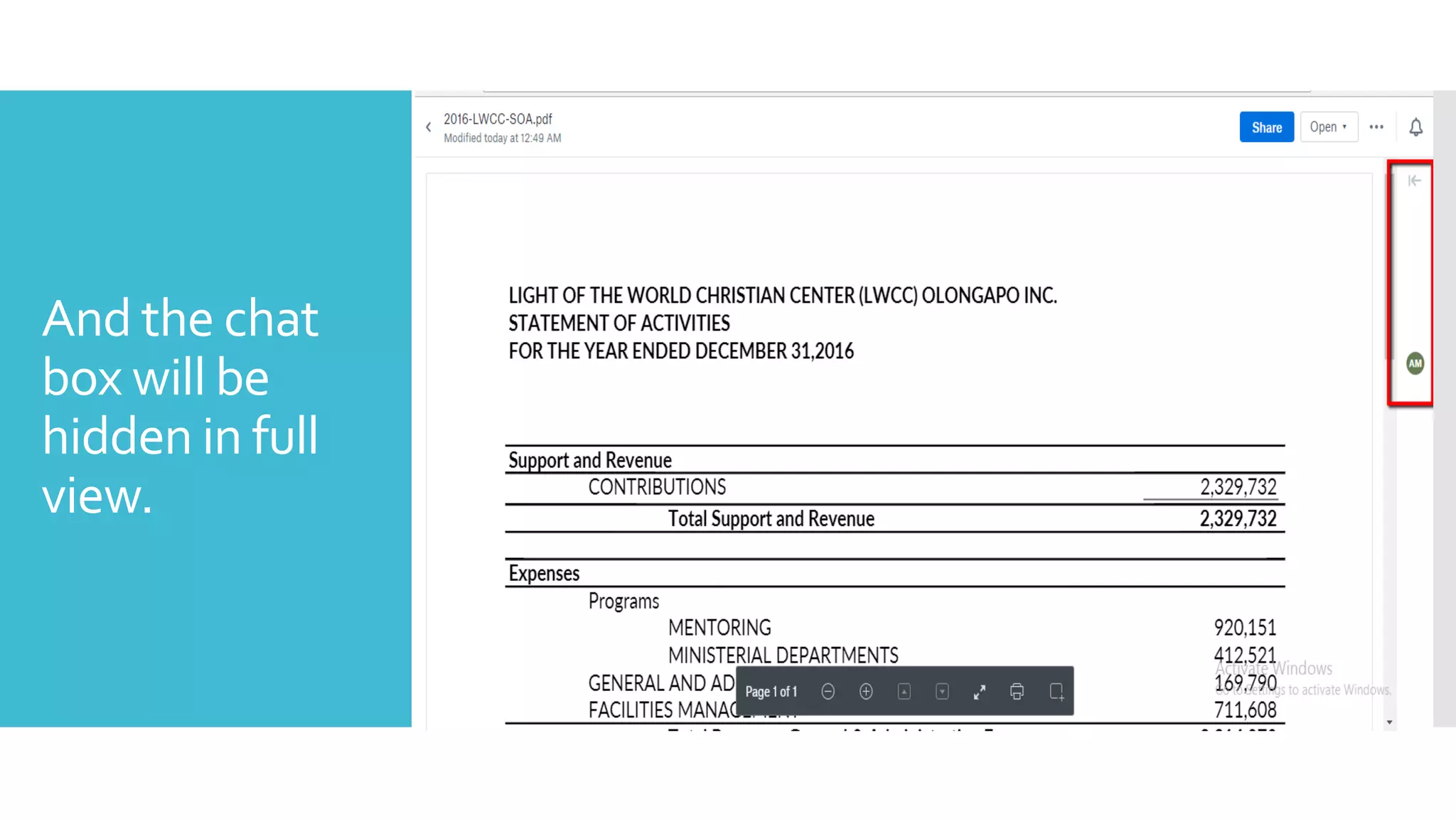
And the chat
box will be
hidden in full
view.
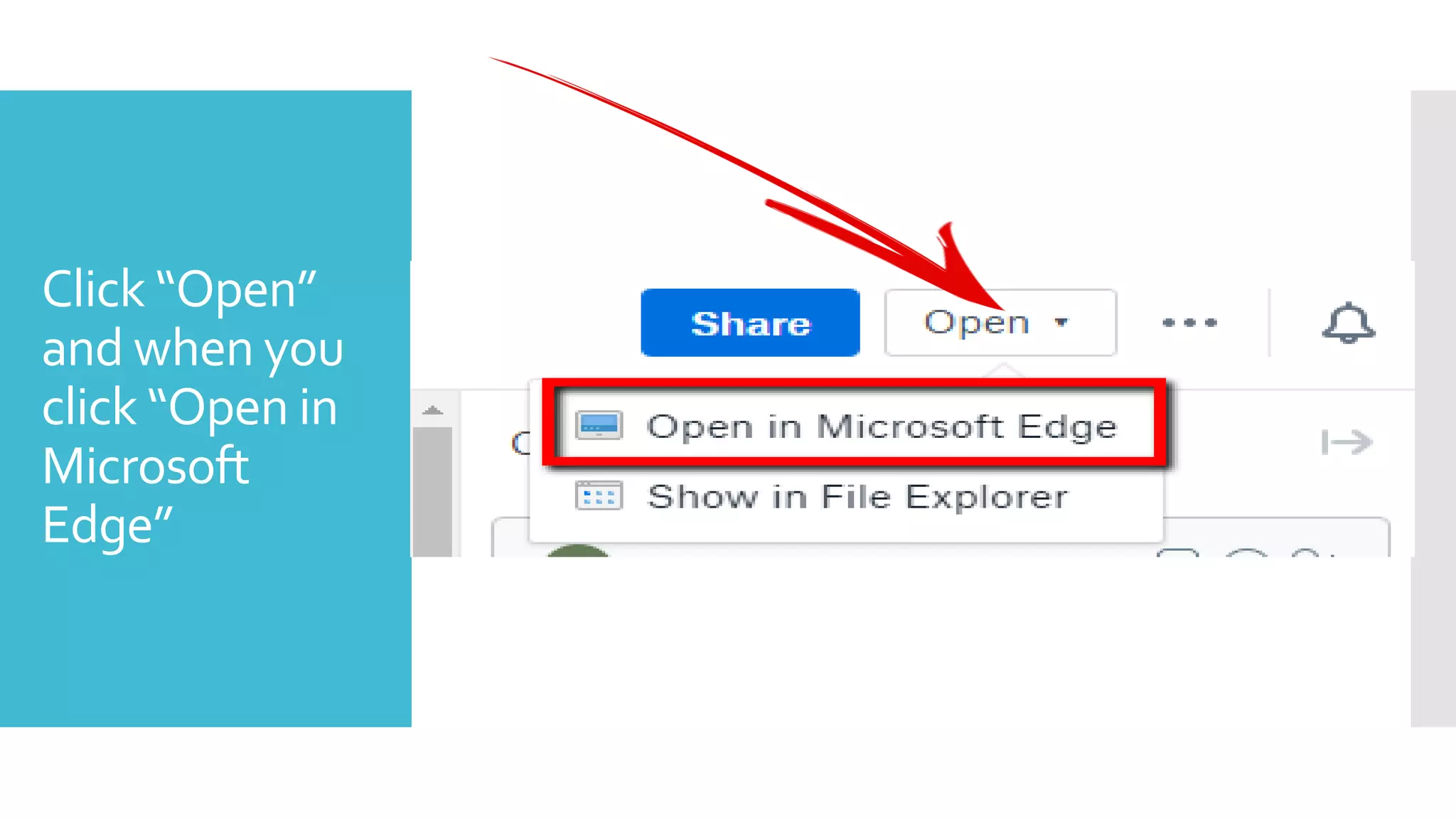
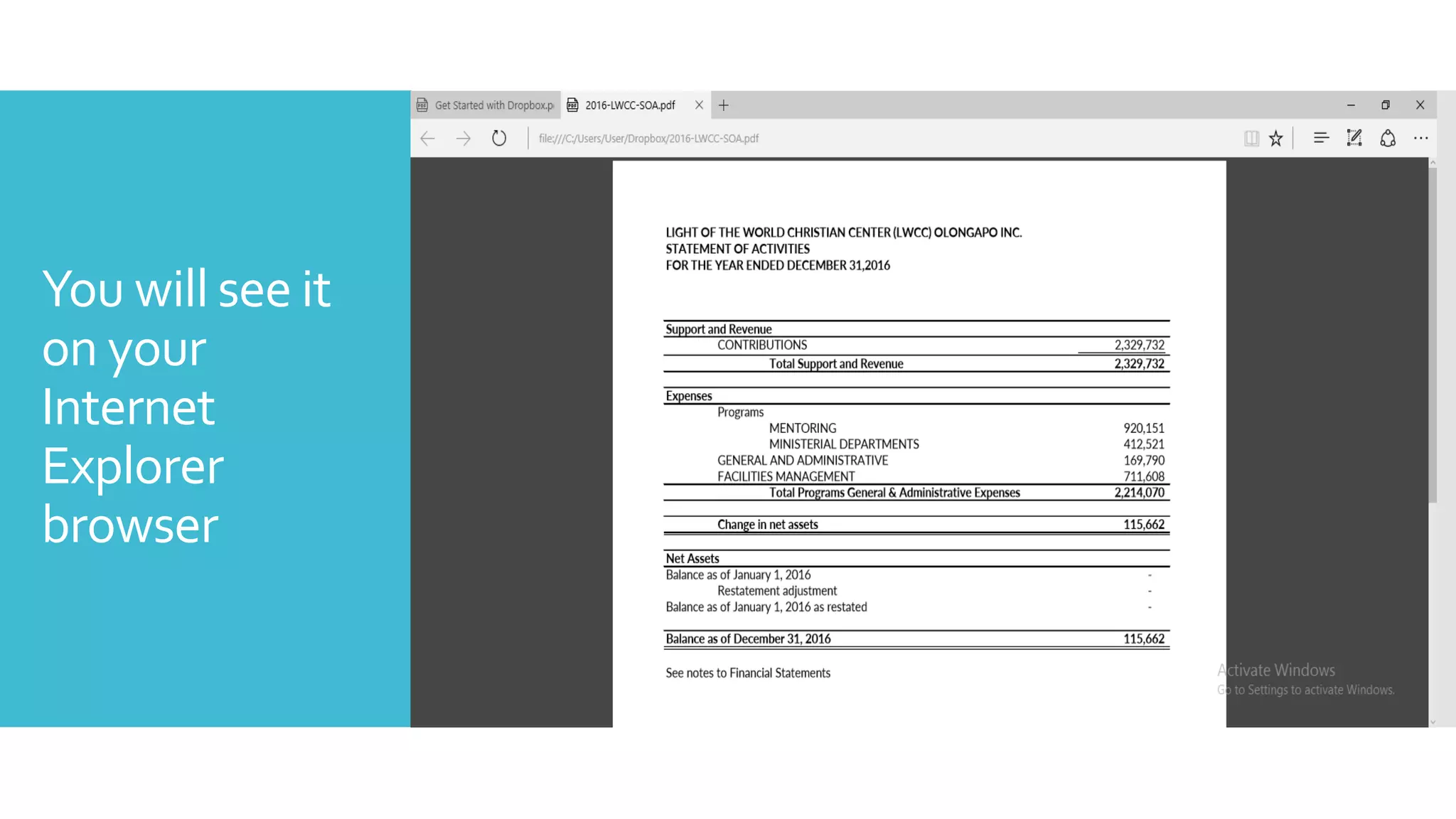
Click “Open”
and when you
click “Open in
Microsoft
Edge”
You will see it
on your
Internet
Explorer
browser
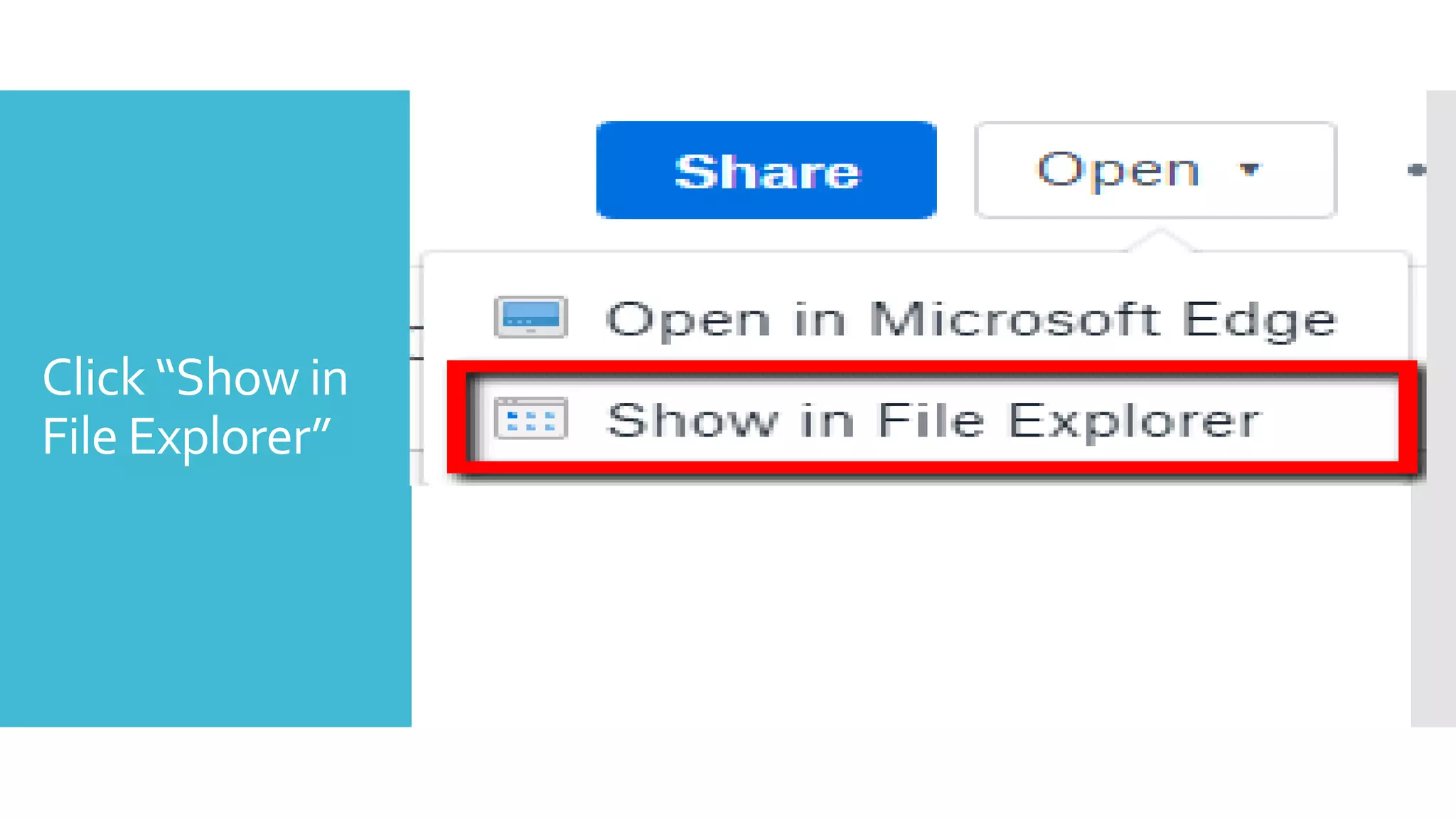
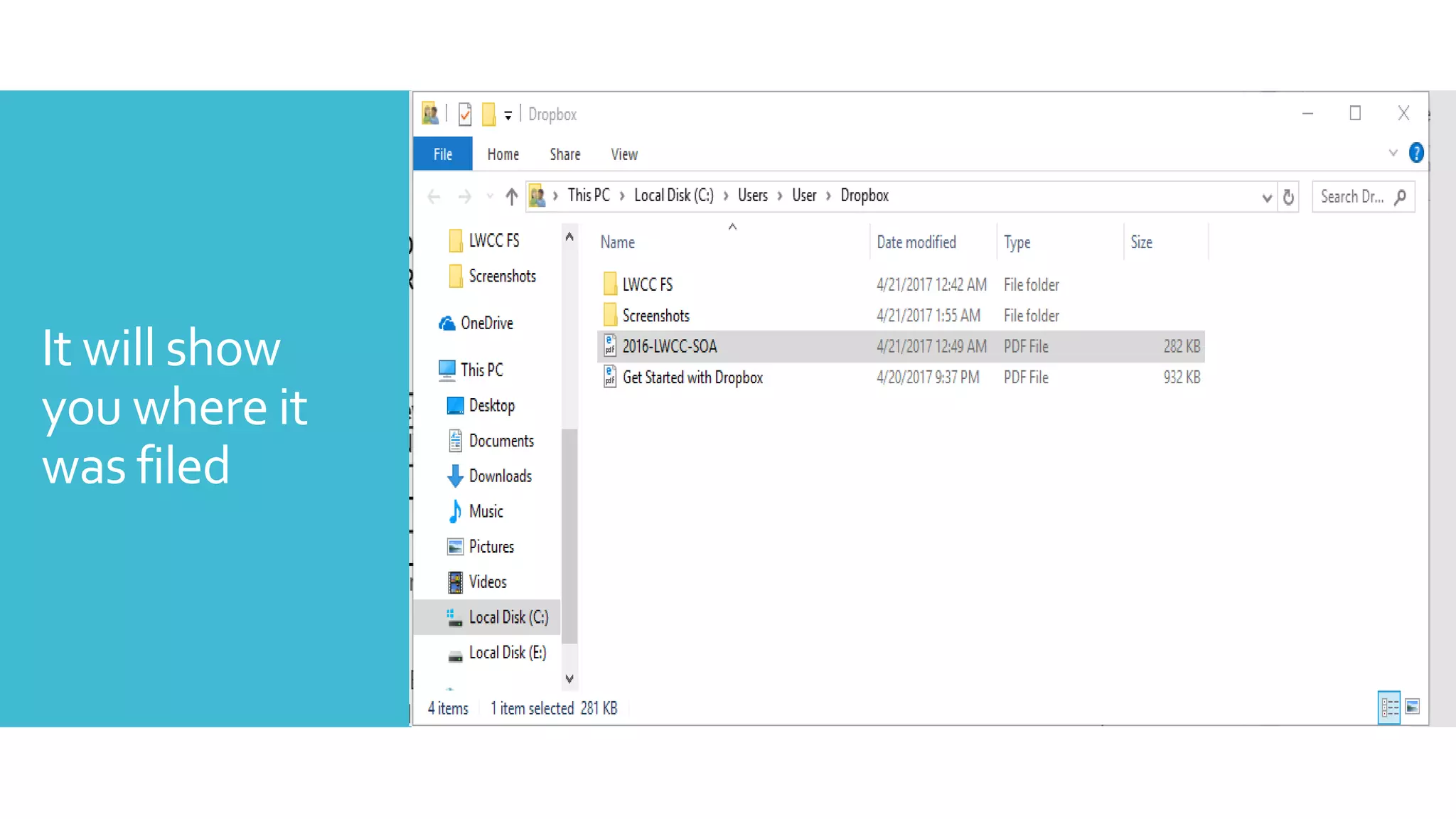
Click “Show in
File Explorer”
It will show
you where it
was filed
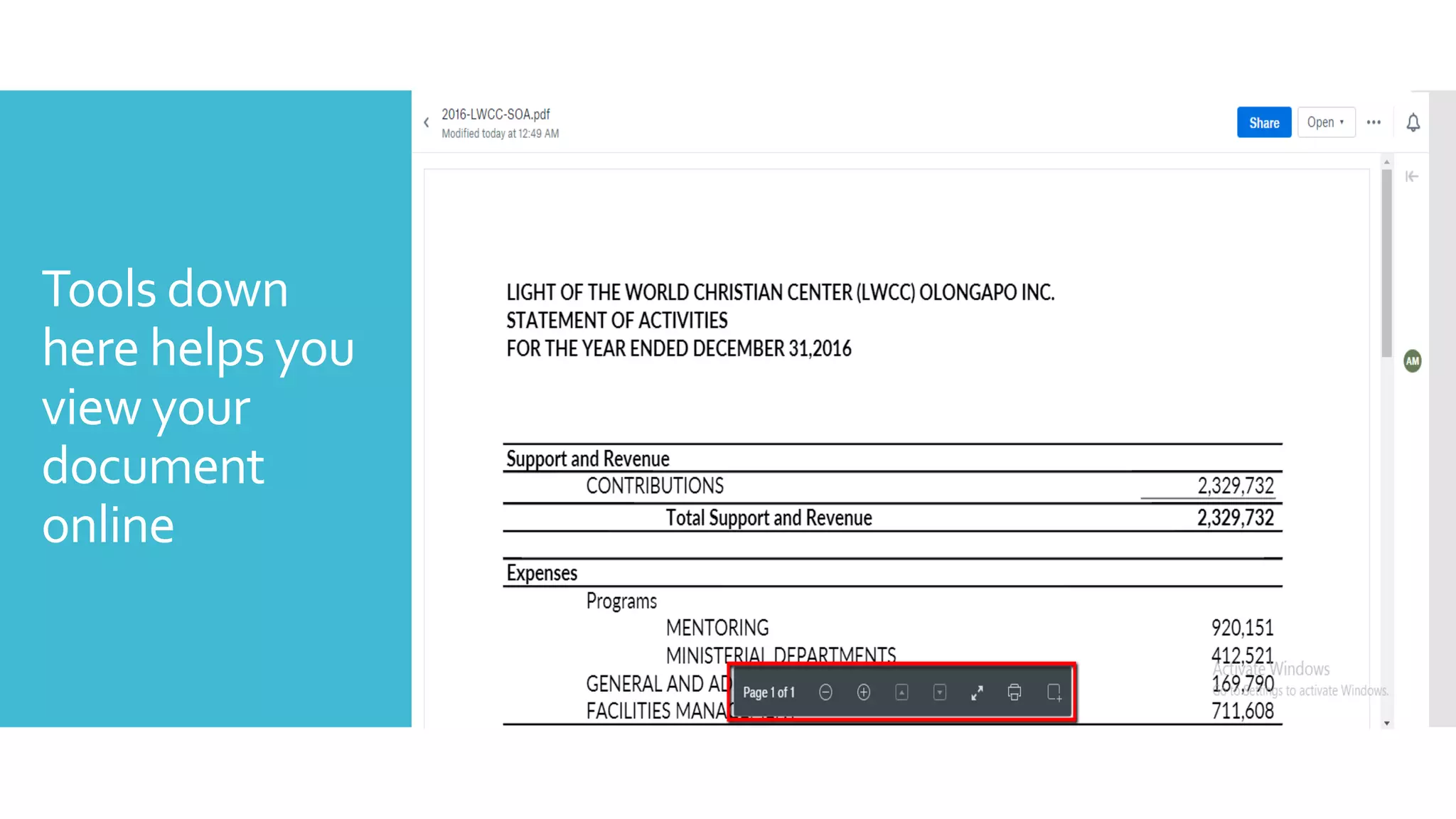
Tools down
here helps you
view your
document
online
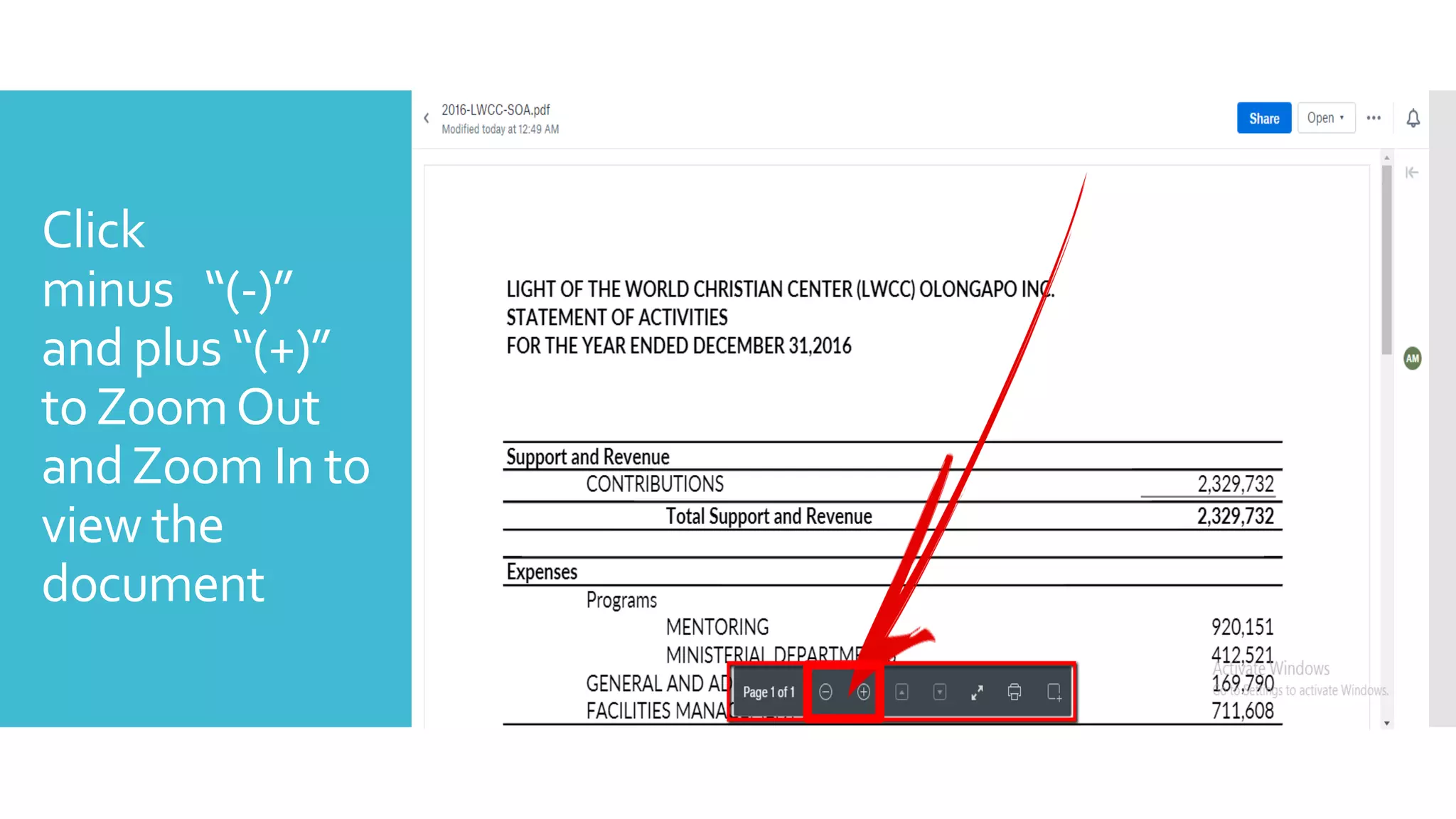
Click
minus “(-)”
and plus “(+)”
toZoomOut
andZoom In to
view the
document
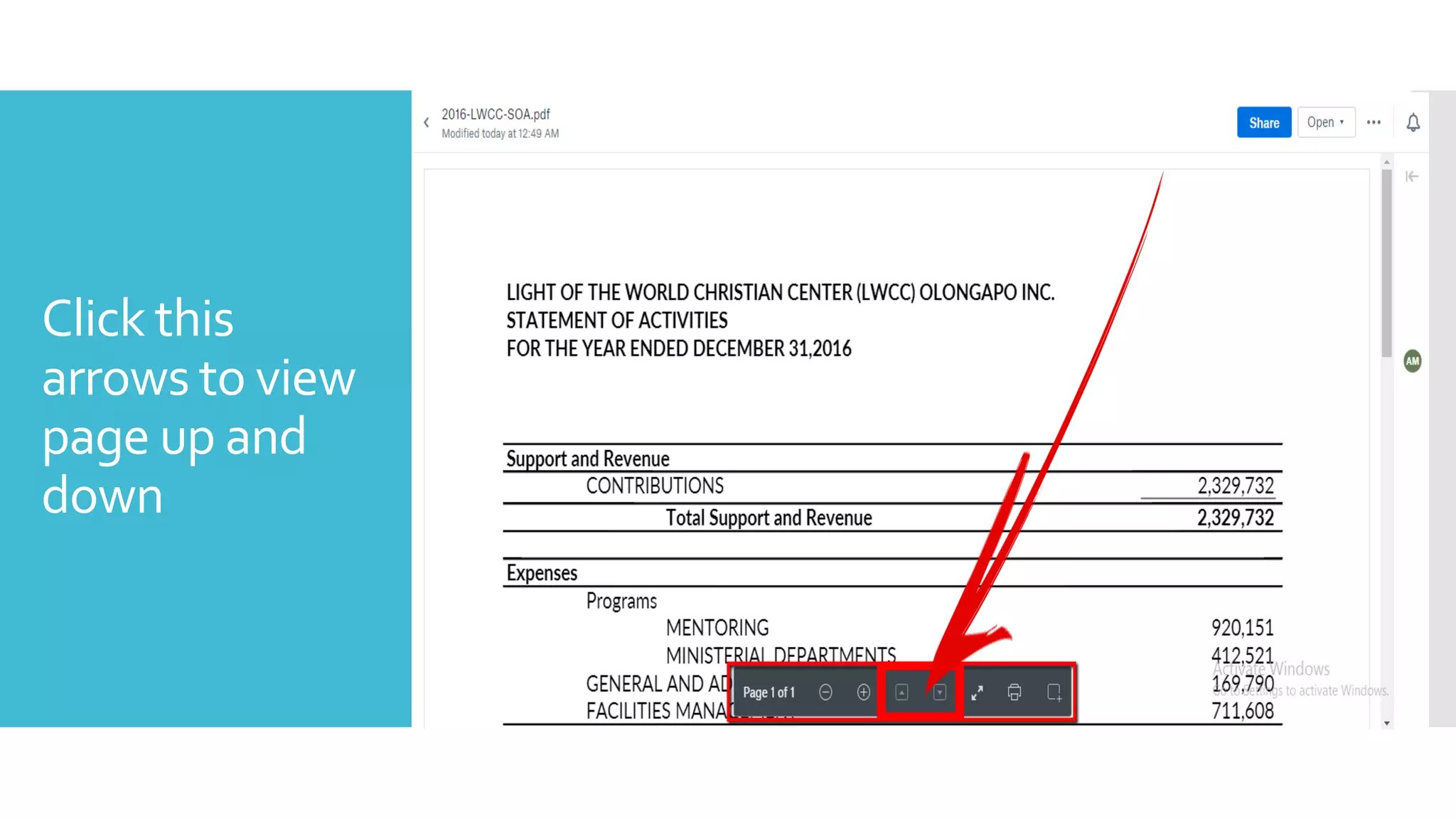
Click this
arrows to view
page up and
down
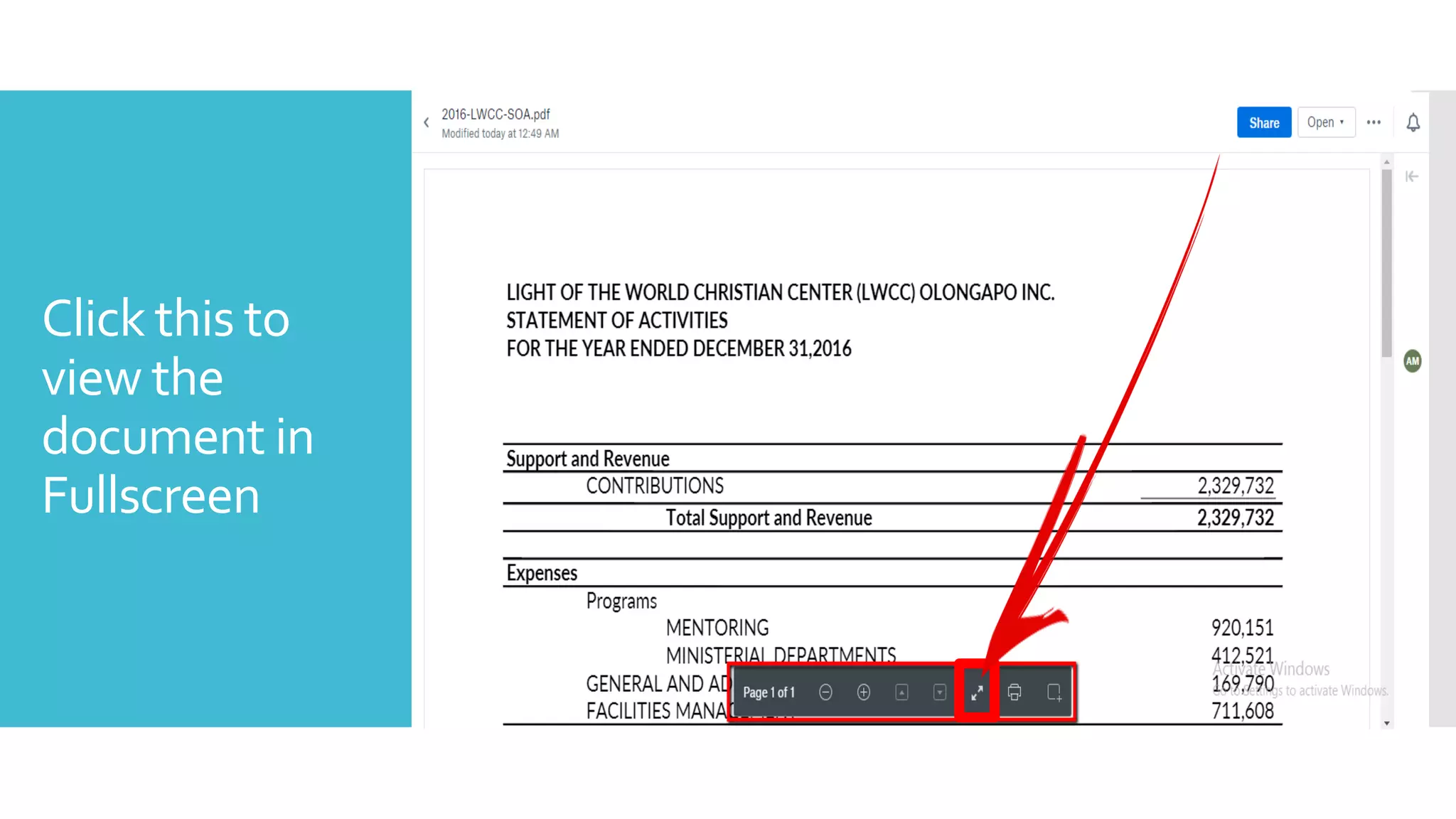
Click this to
view the
document in
Fullscreen
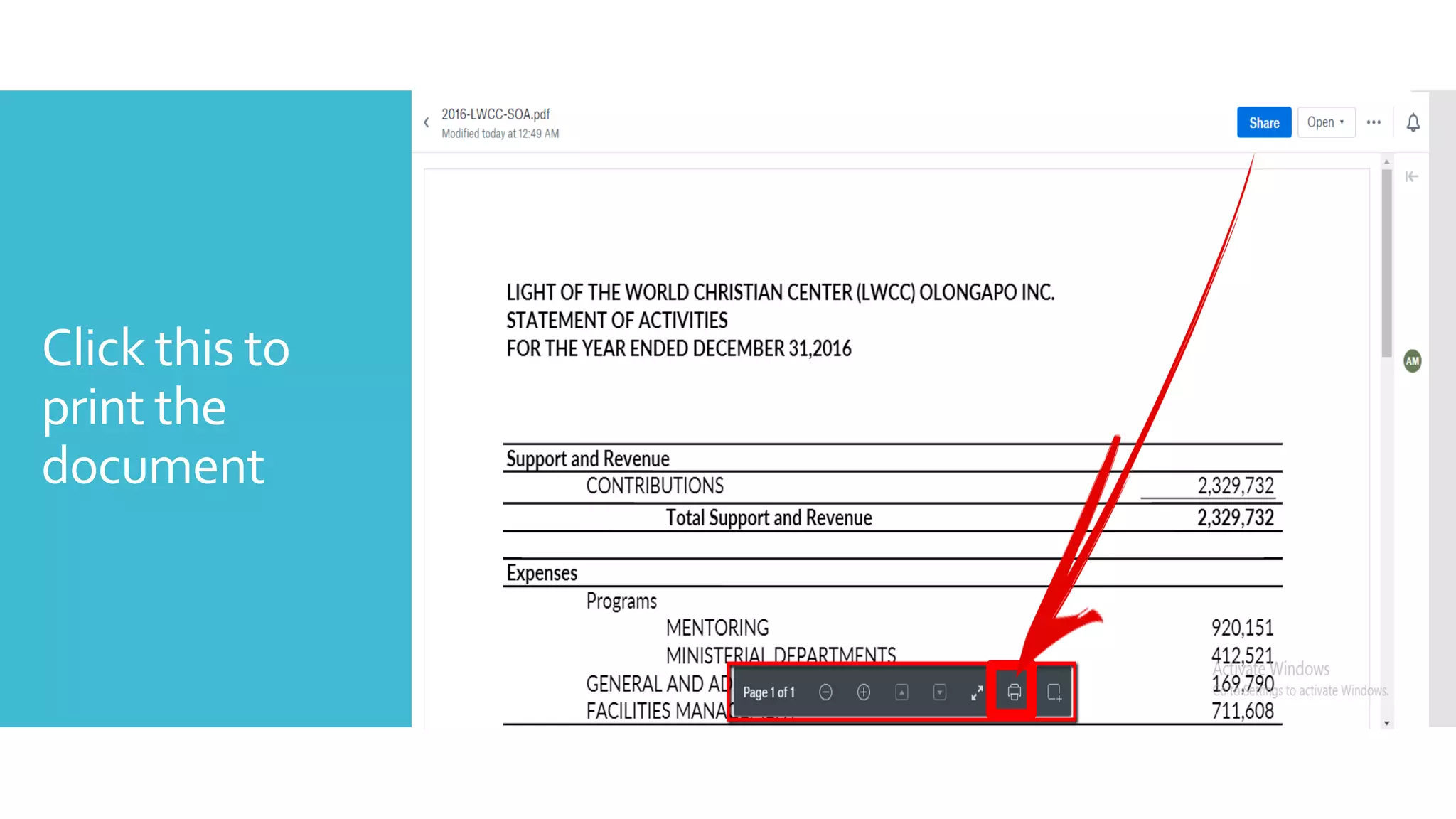
Click this to
print the
document
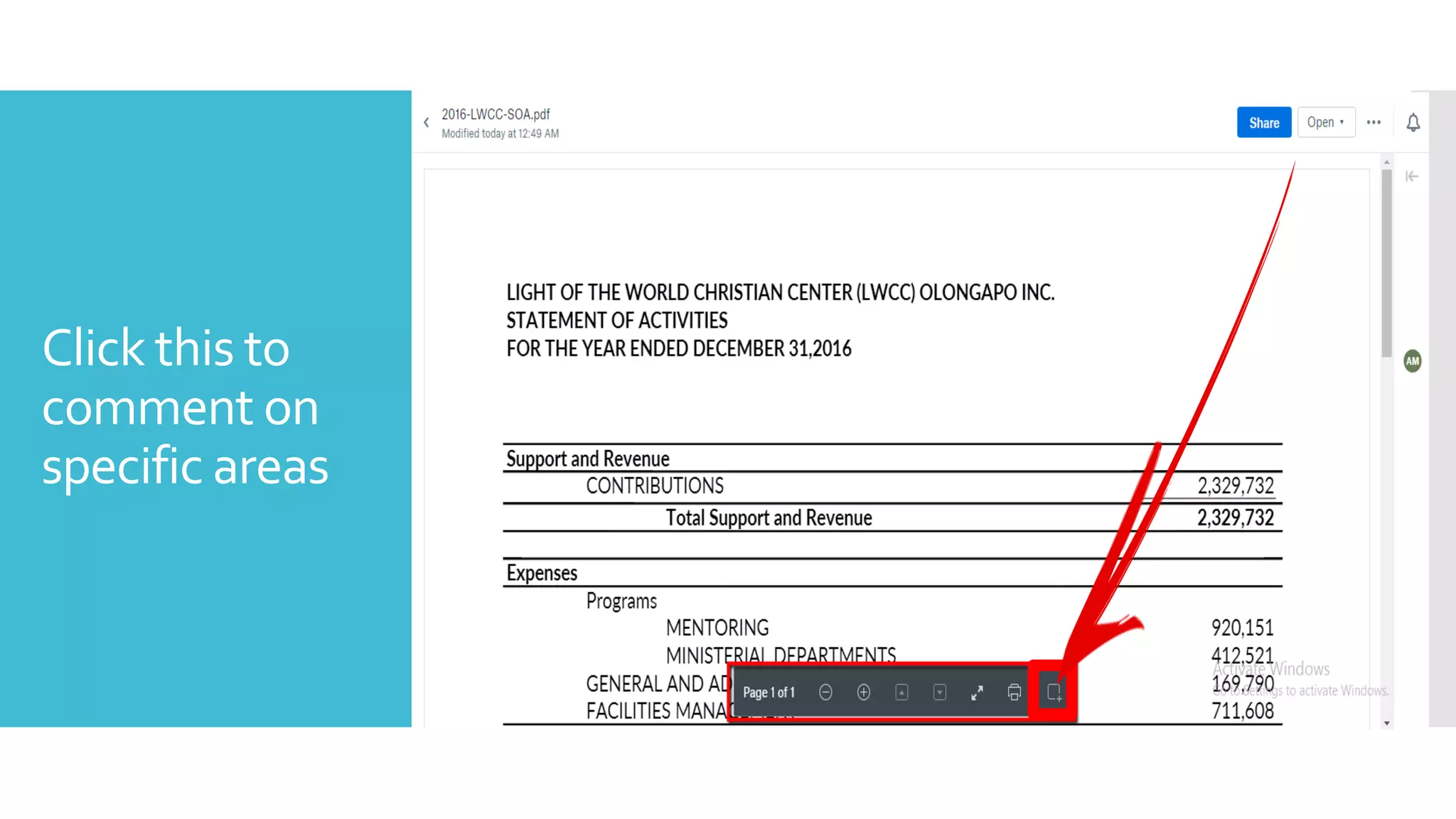
Click this to
comment on
specific areas
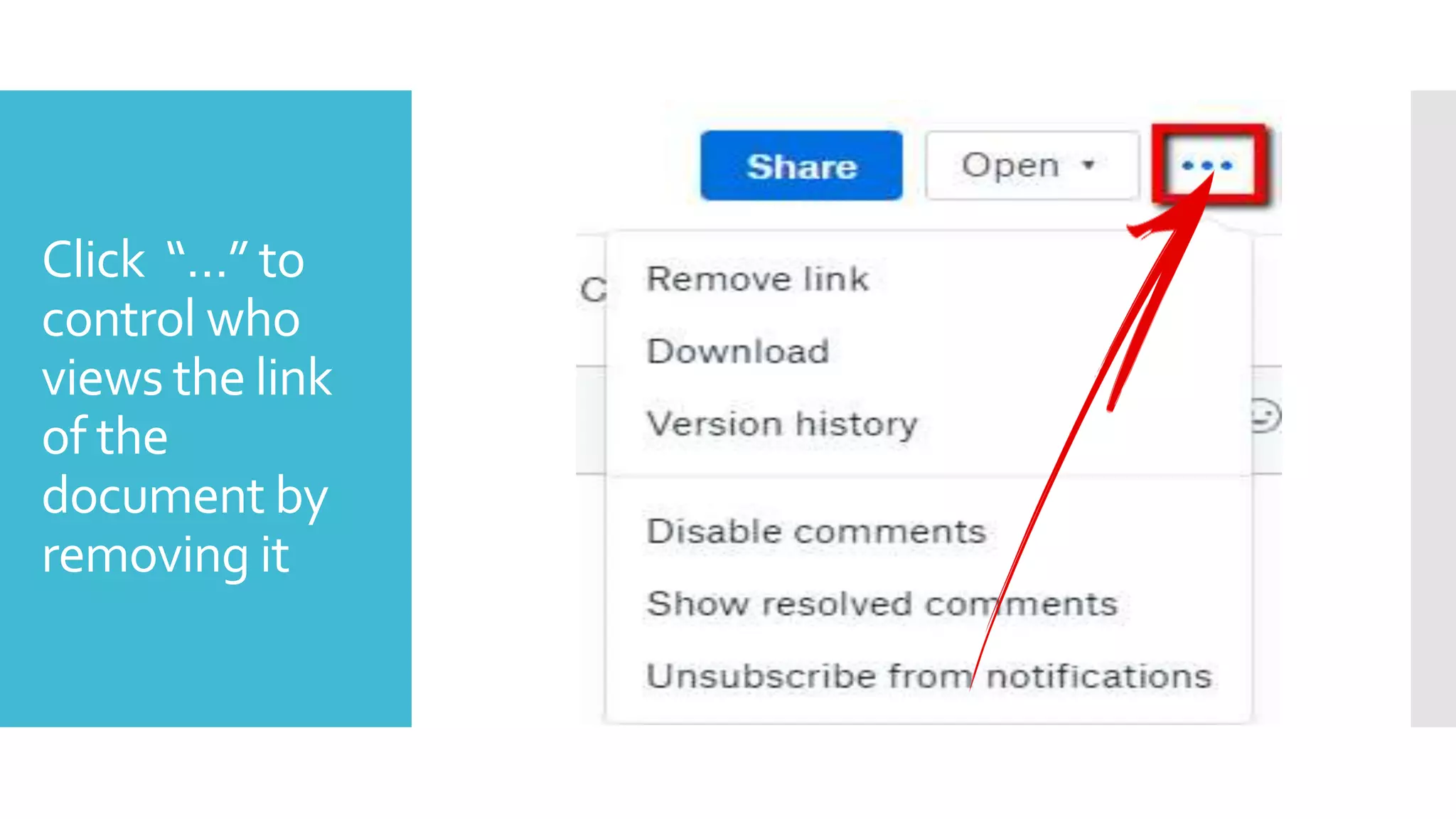
Click “…” to
control who
views the link
of the
document by
removing it
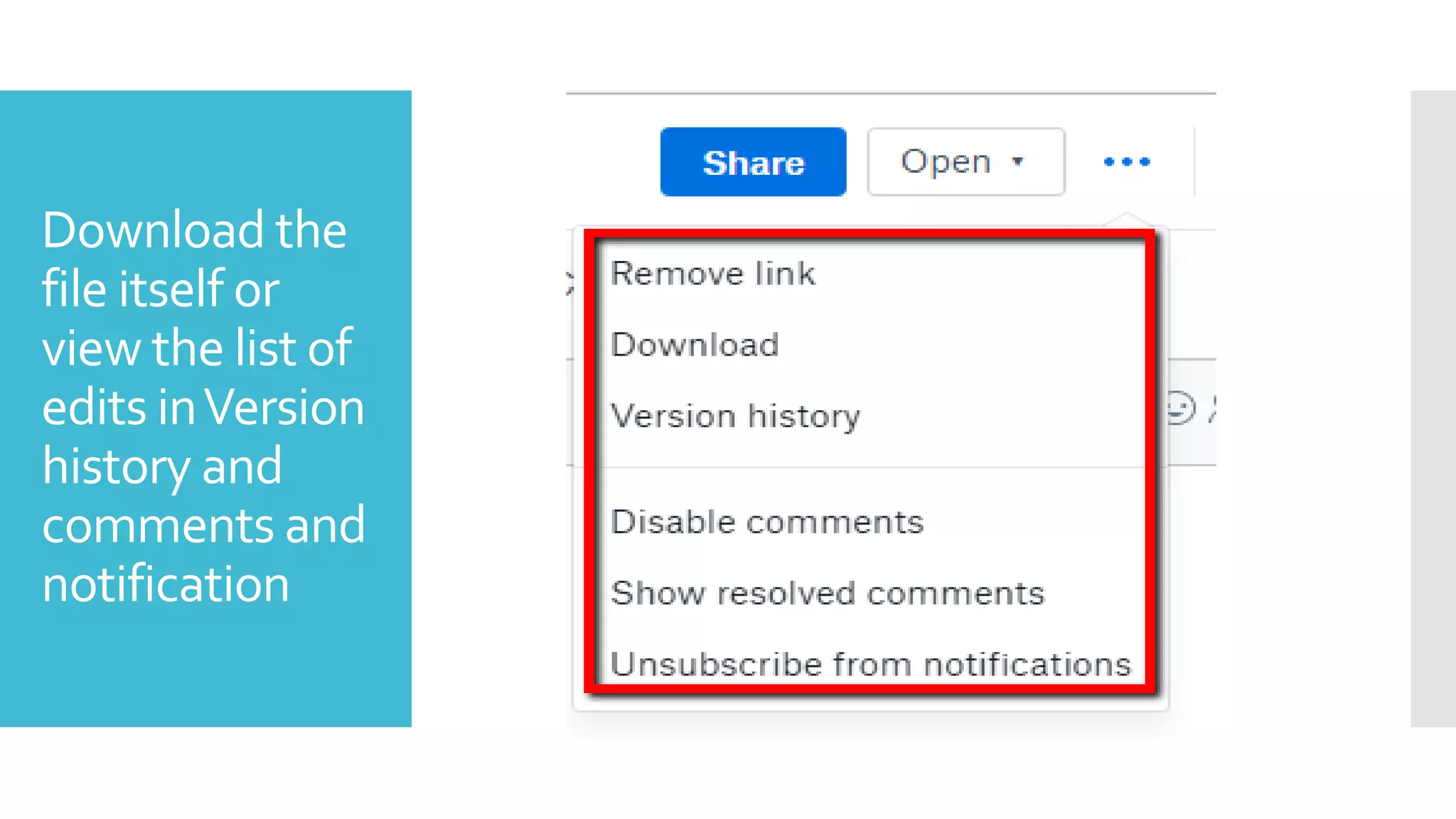
Download the
file itself or
view the list of
edits inVersion
history and
comments and
notification
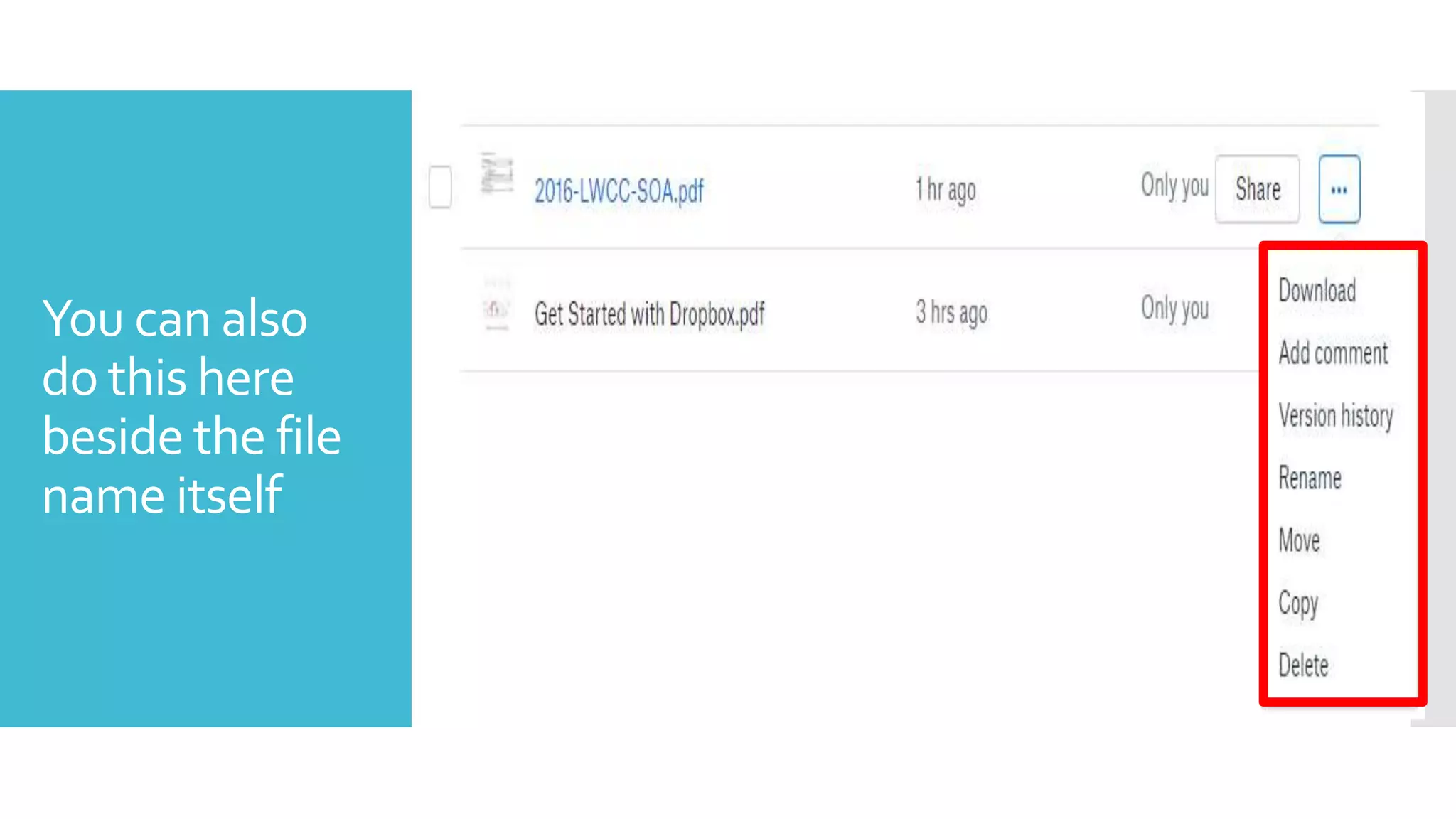
You can also
do this here
beside the file
name itself
Other File
Management
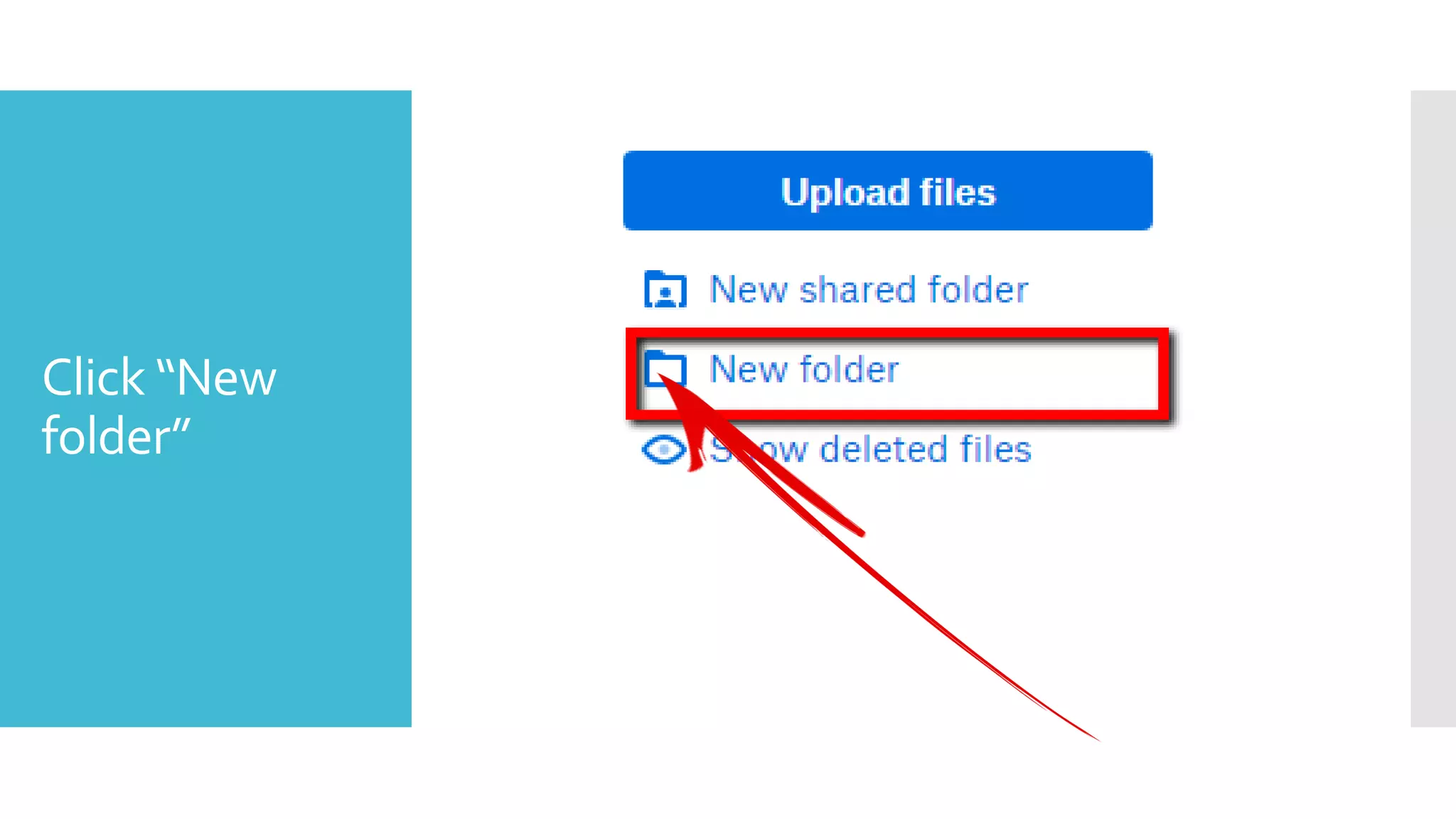
Click “New
folder”
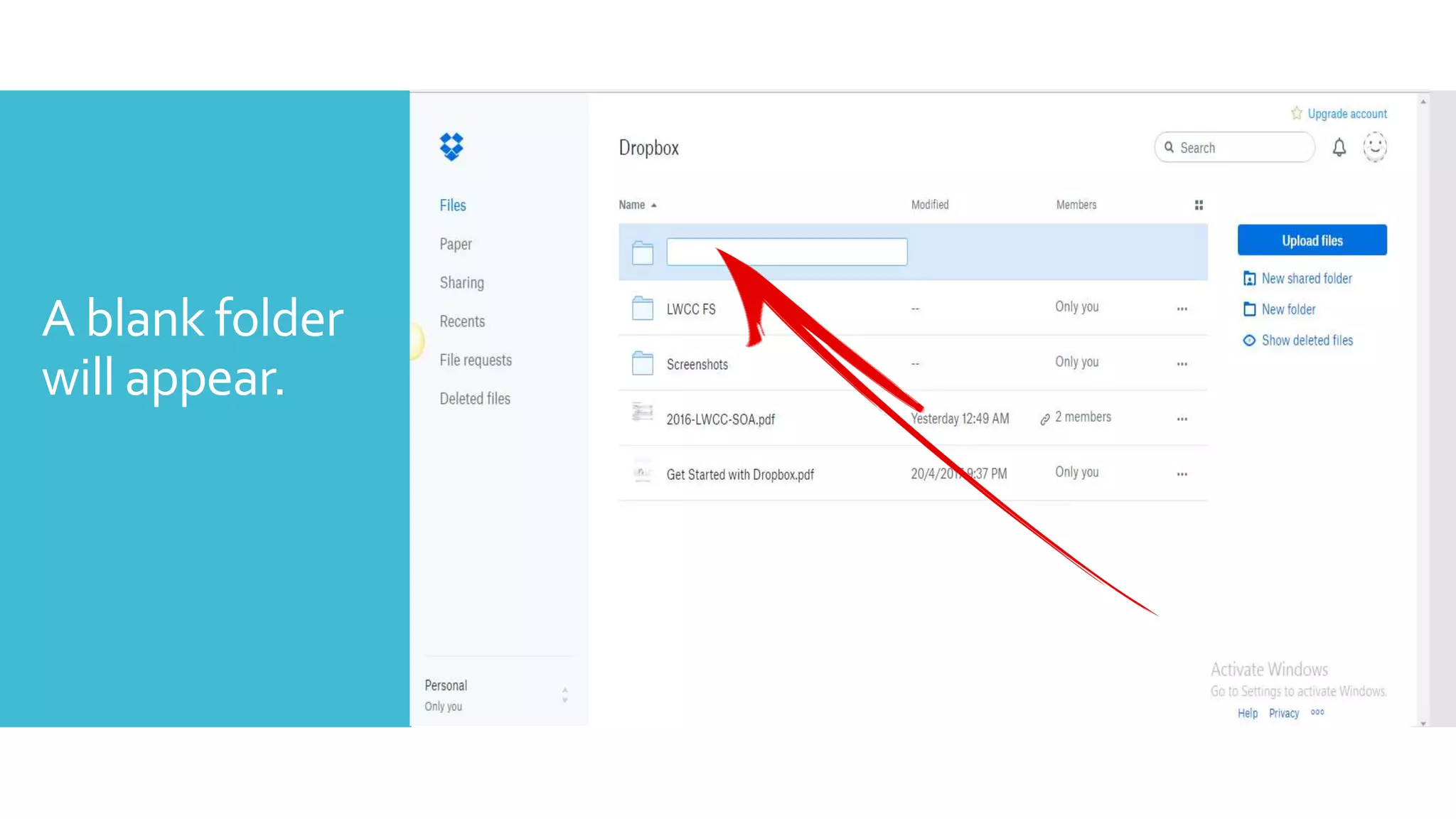
A blank folder
will appear.
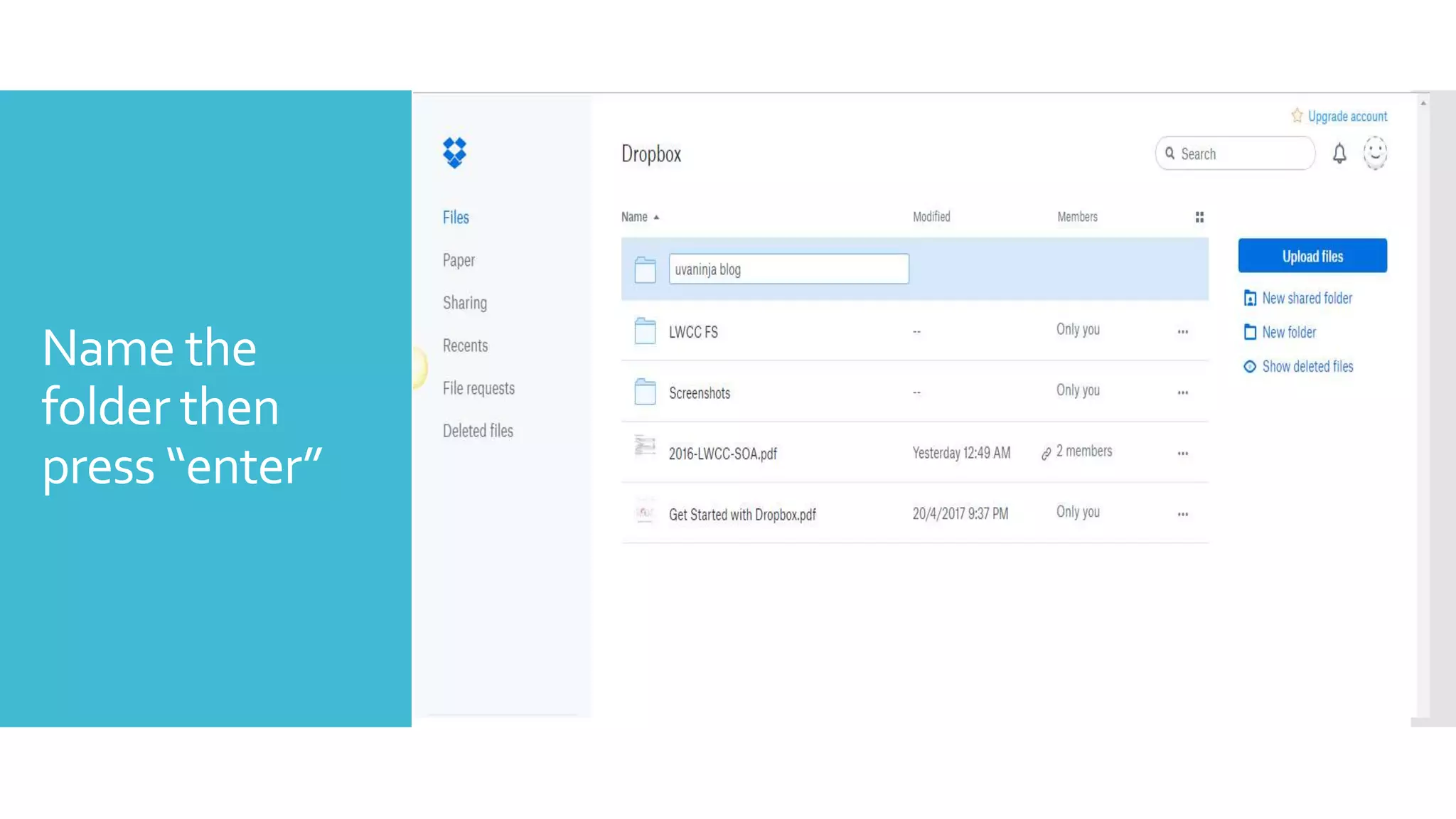
Name the
folder then
press “enter”
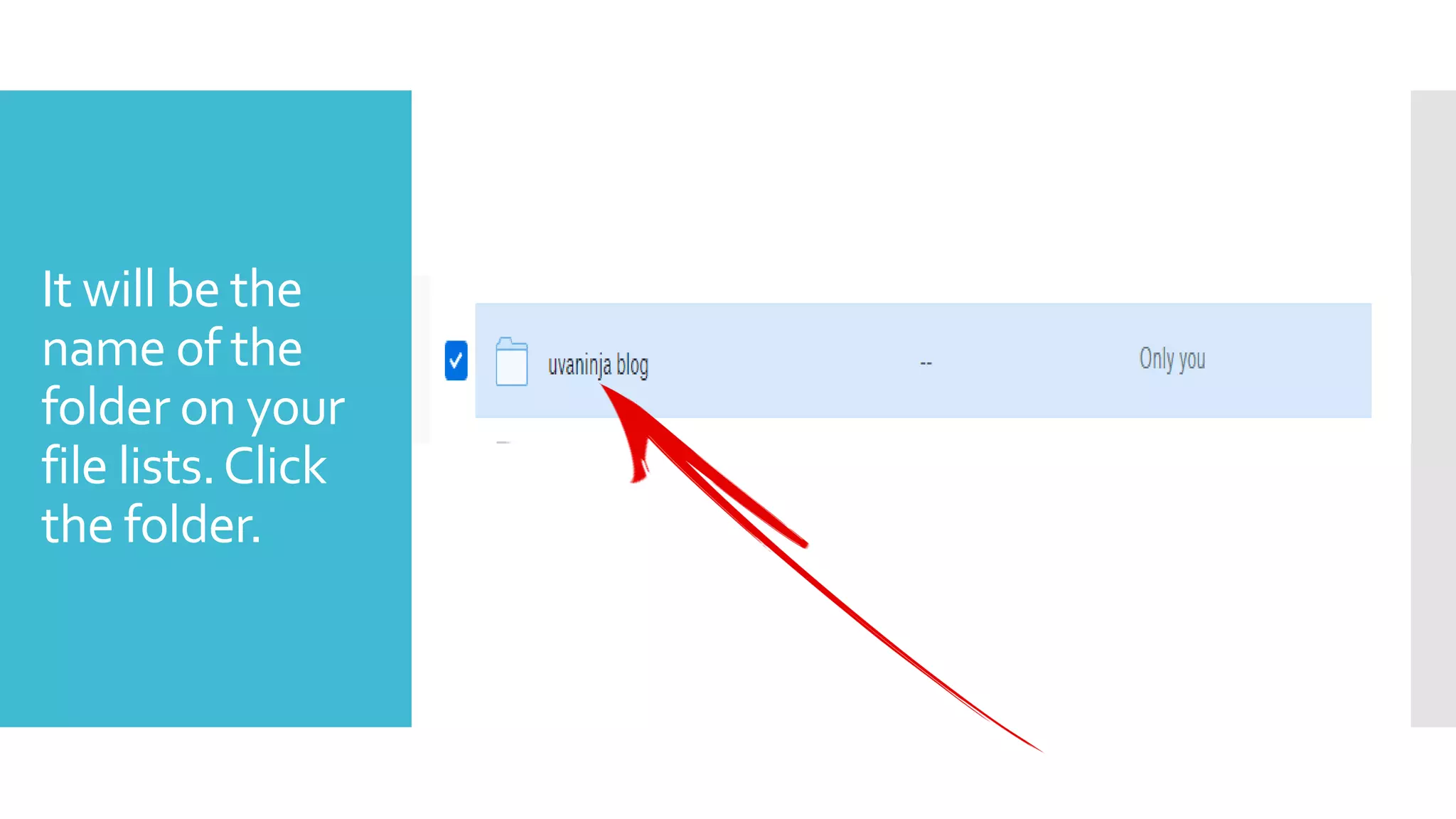
It will be the
name of the
folder on your
file lists.Click
the folder.
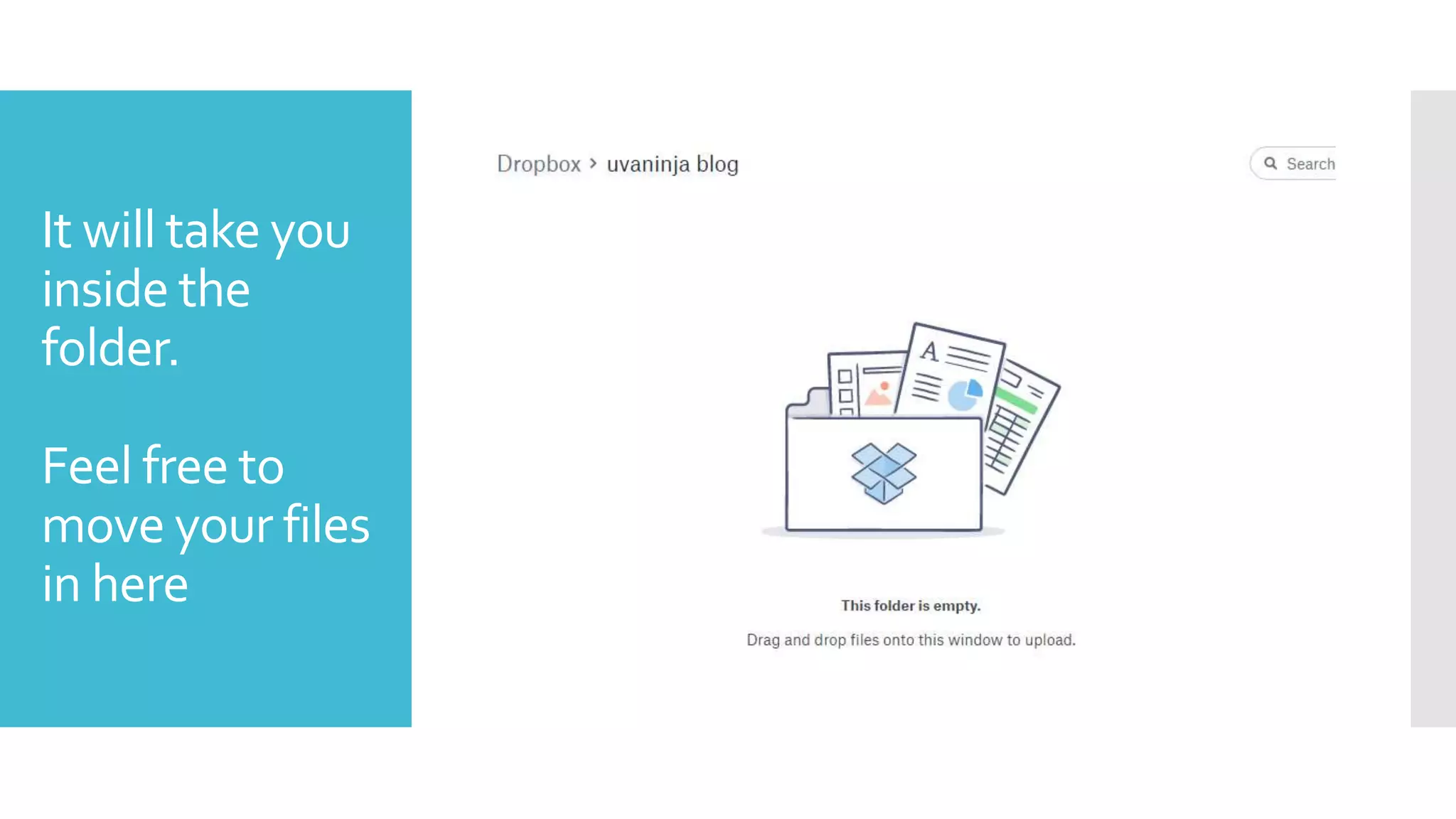
It will take you
inside the
folder.
Feel free to
move your files
in here
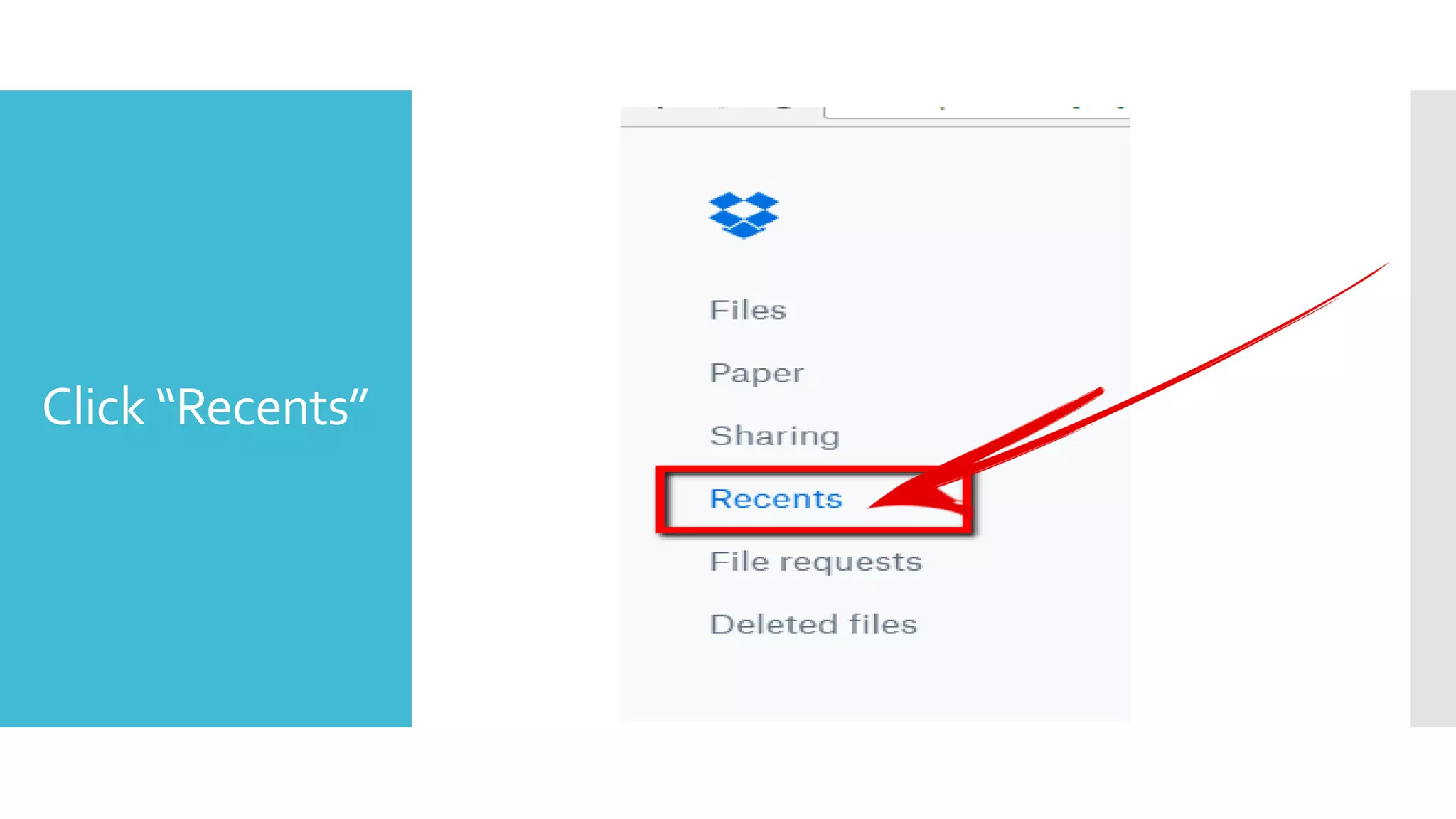
Click “Recents”
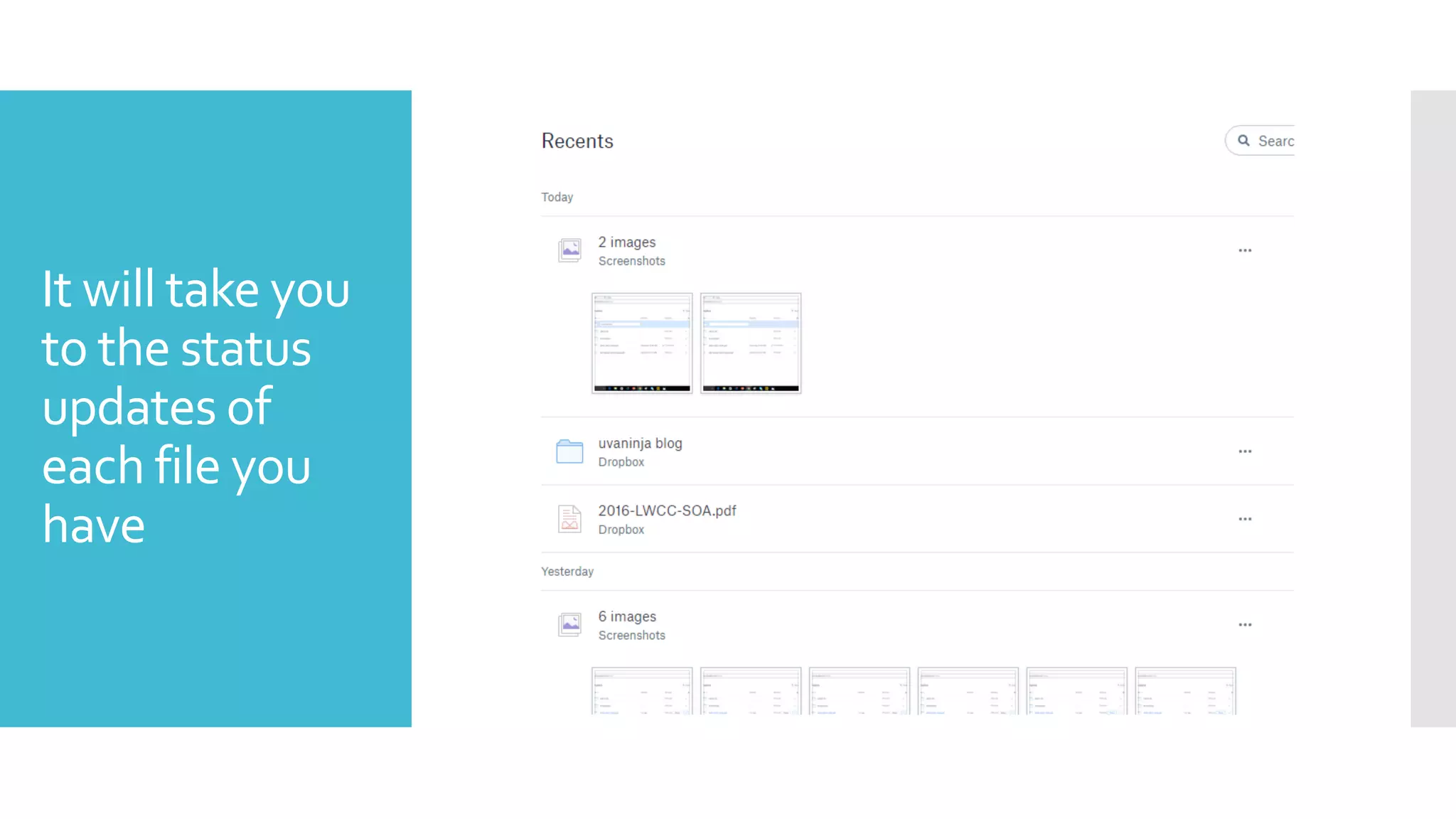
It will take you
to the status
updates of
each file you
have
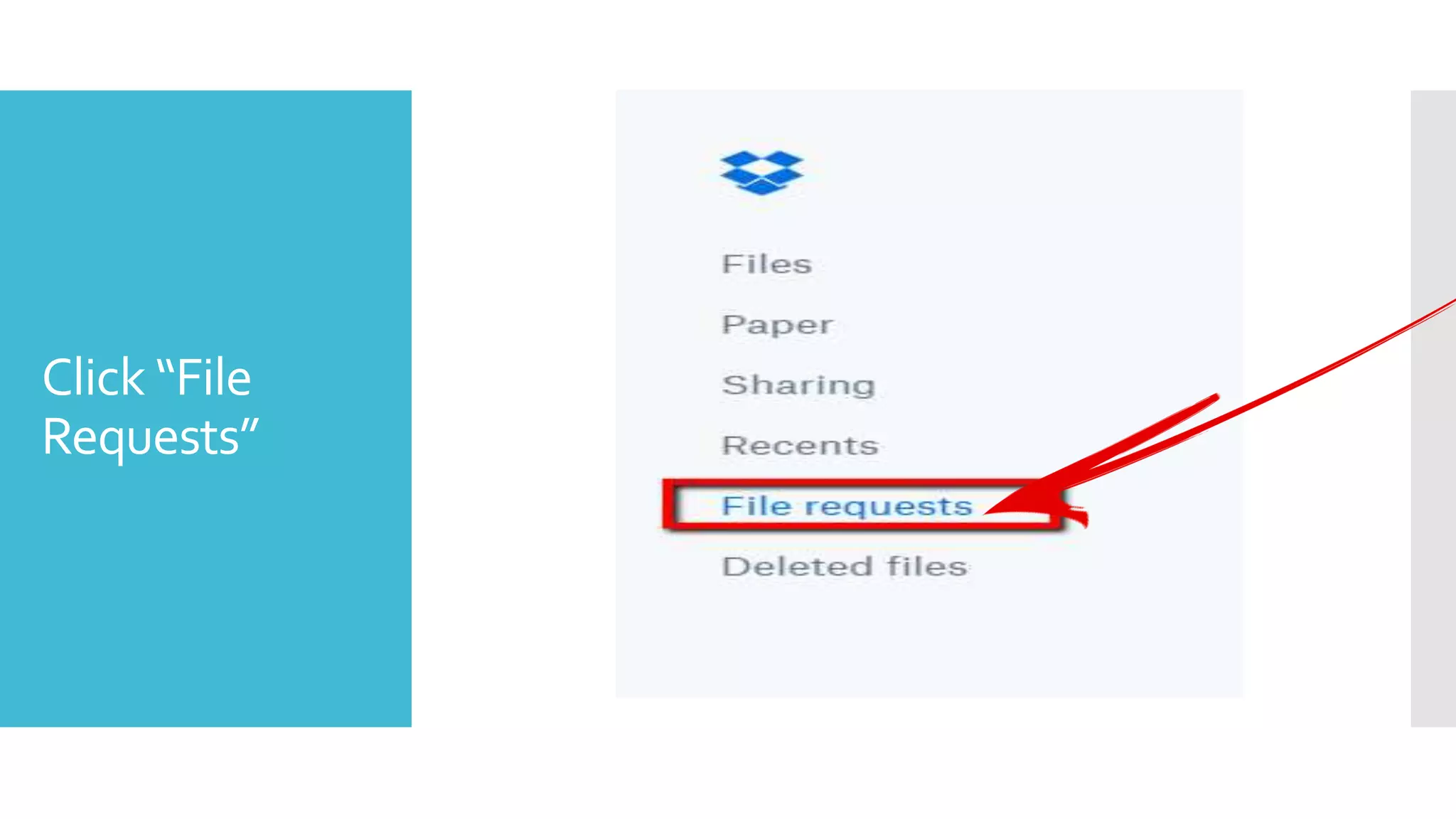
Click “File
Requests”
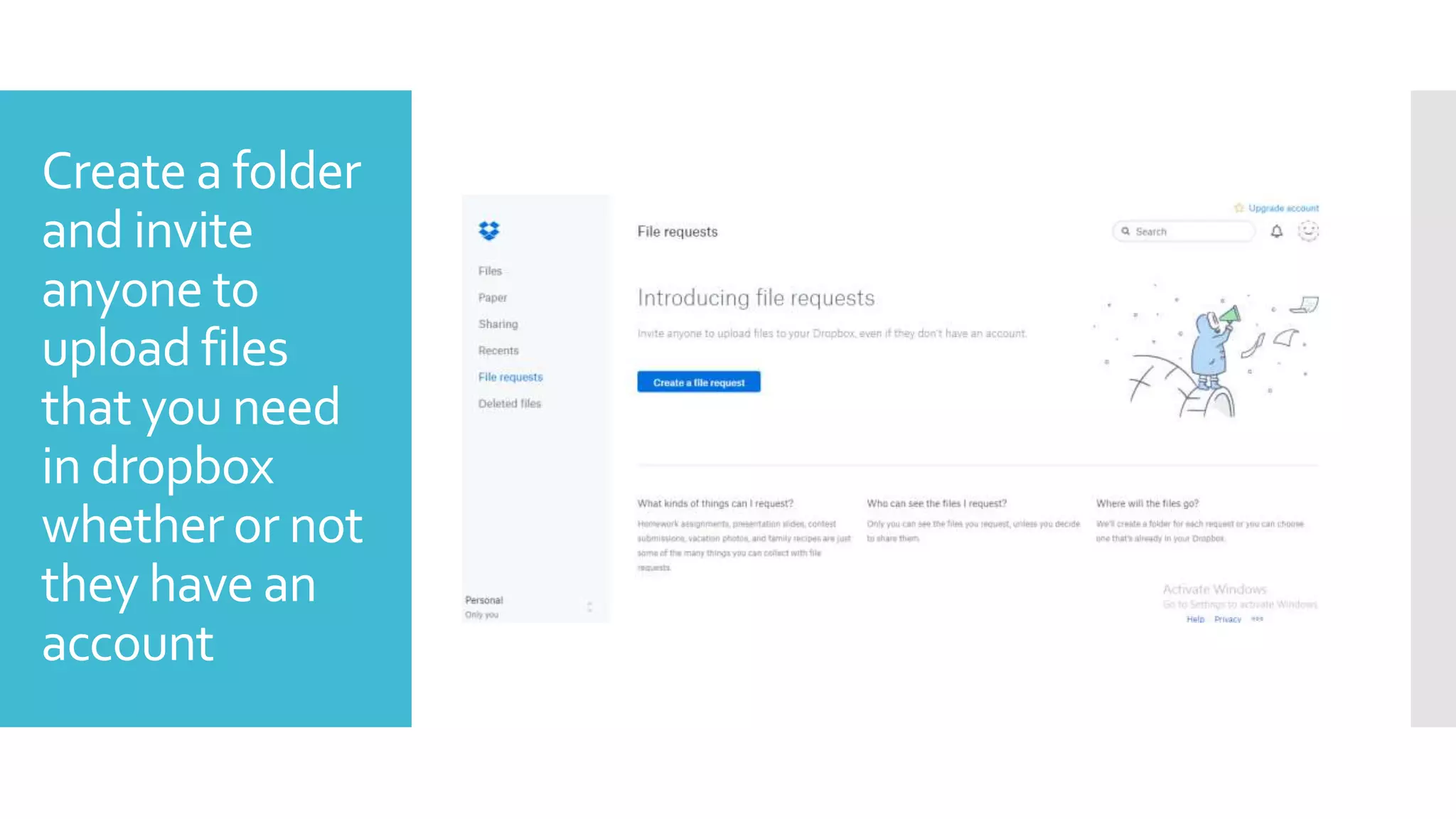
Create a folder
and invite
anyone to
upload files
that you need
in dropbox
whether or not
they have an
account
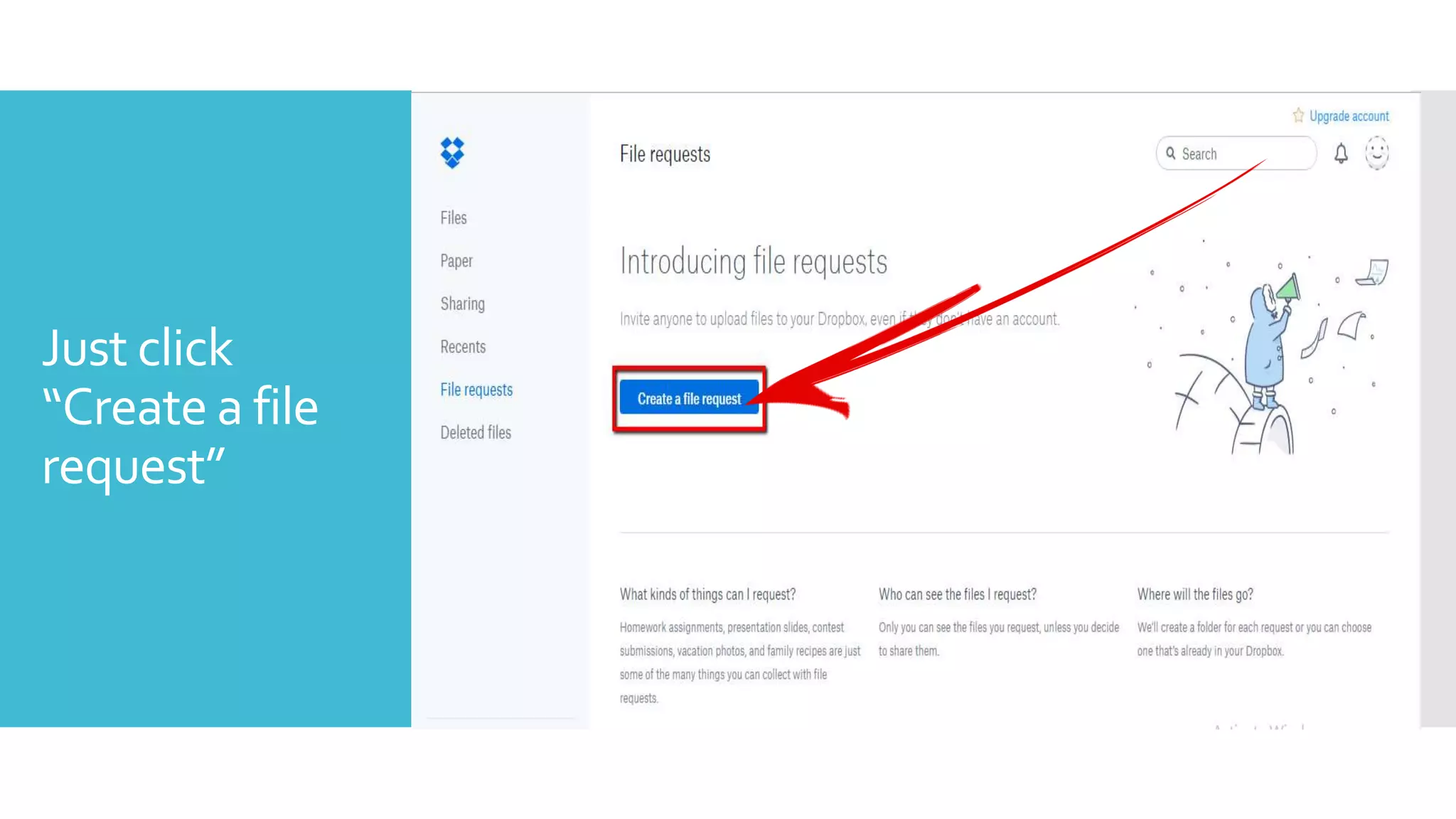
Just click
“Create a file
request”
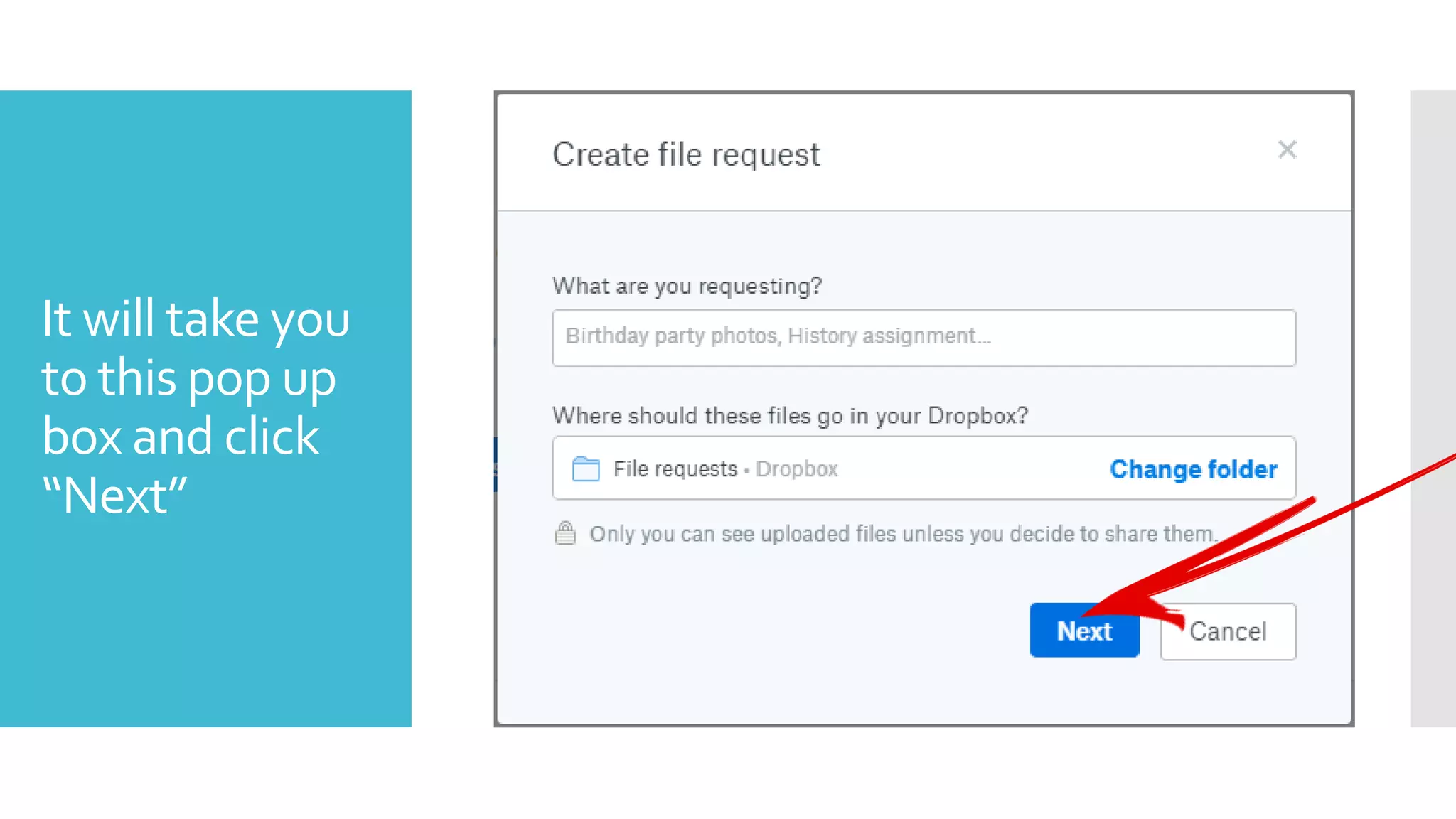
It will take you
to this pop up
box and click
“Next”
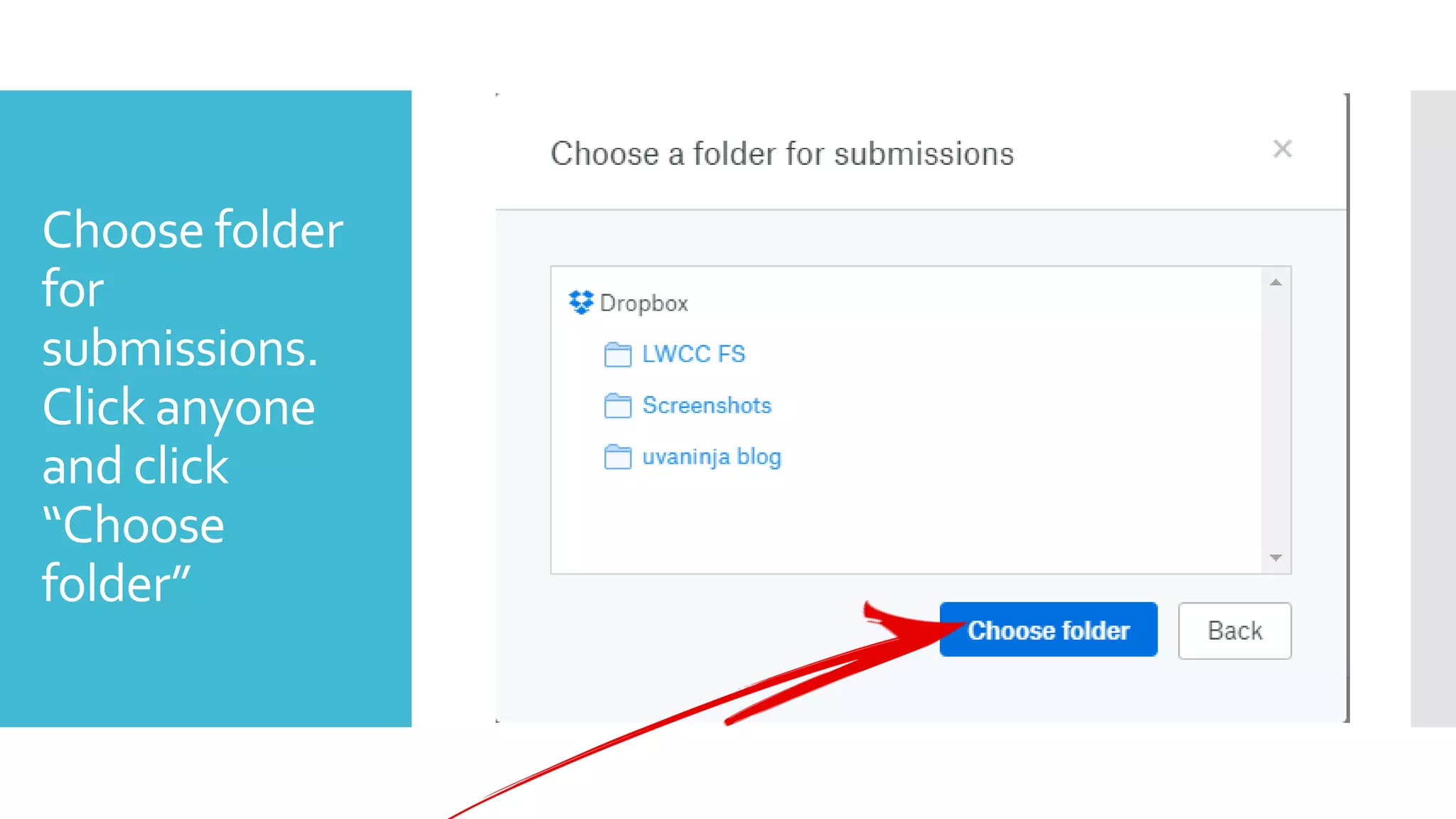
Choose folder
for
submissions.
Click anyone
and click
“Choose
folder”
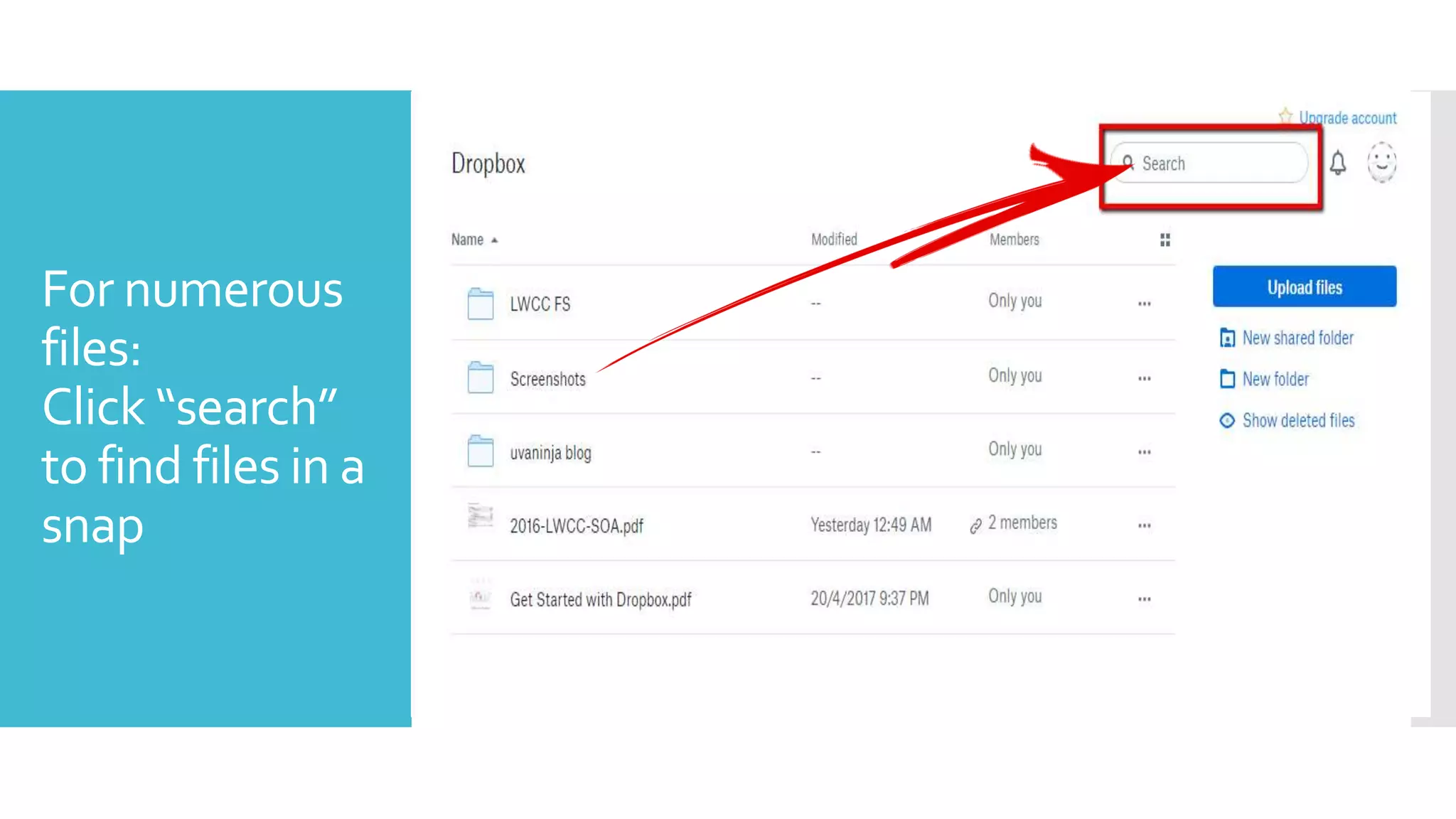
For numerous
files:
Click “search”
to find files in a
snap
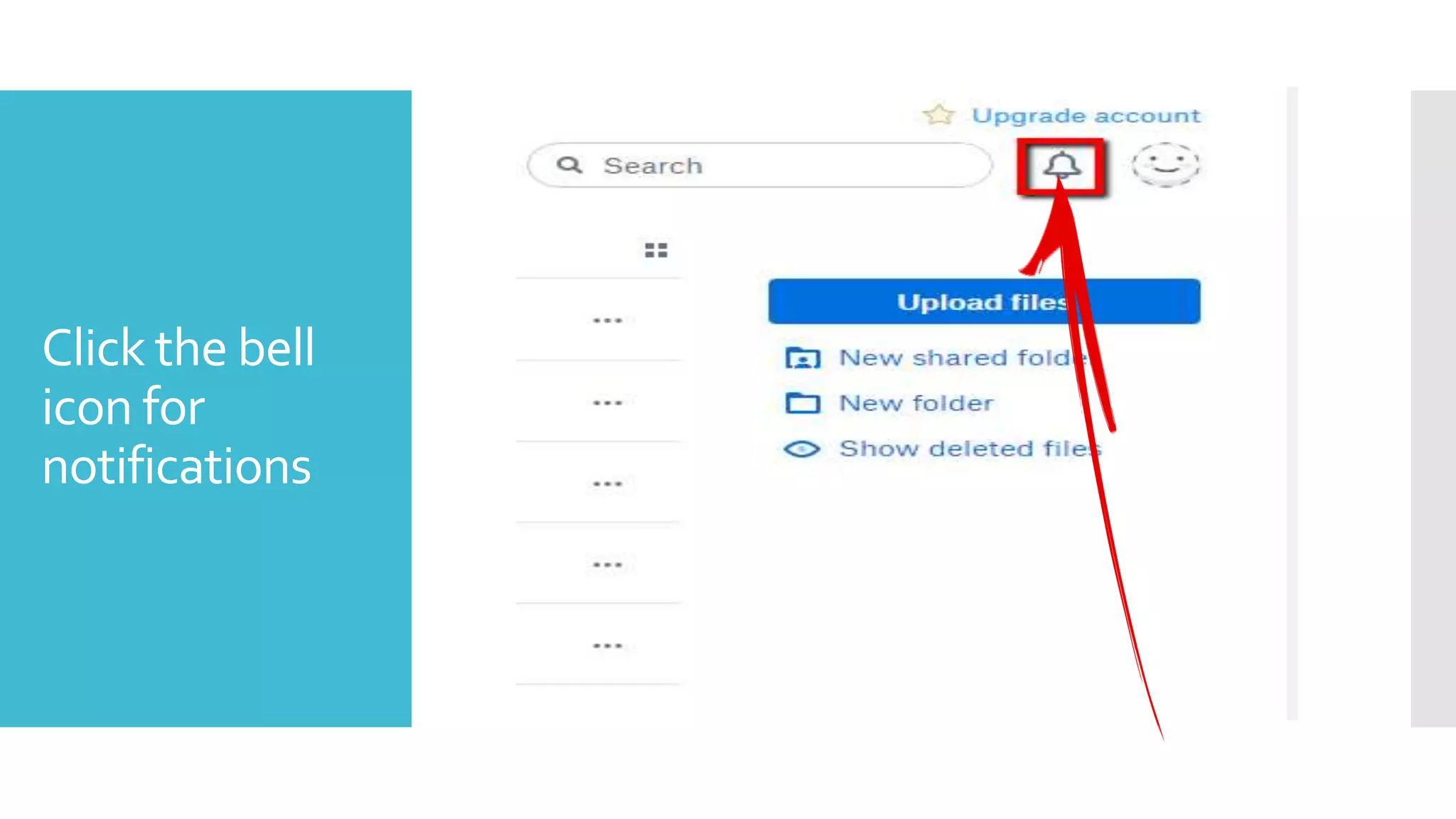
Click the bell
icon for
notifications
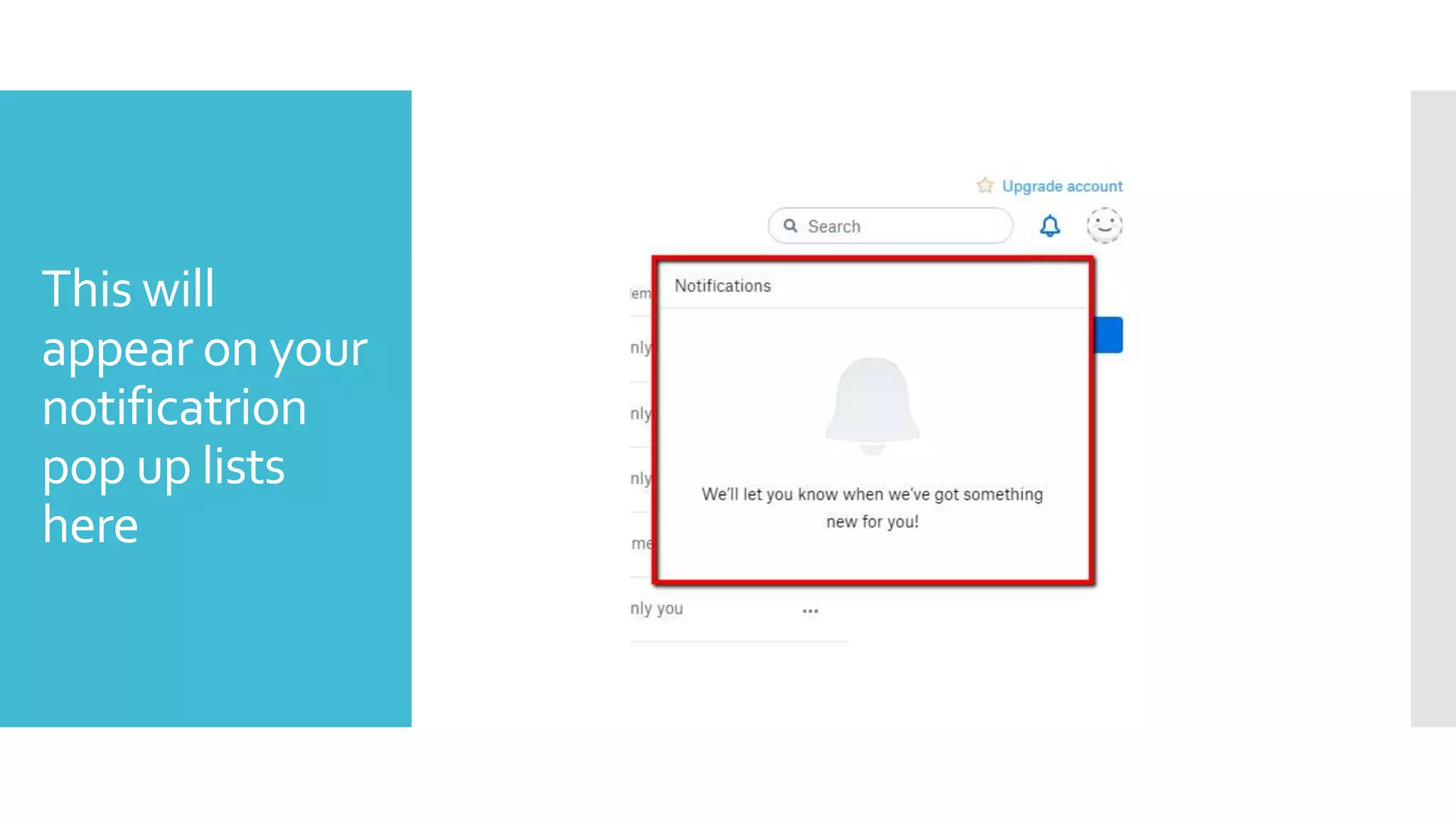
This will
appear on your
notificatrion
pop up lists
here
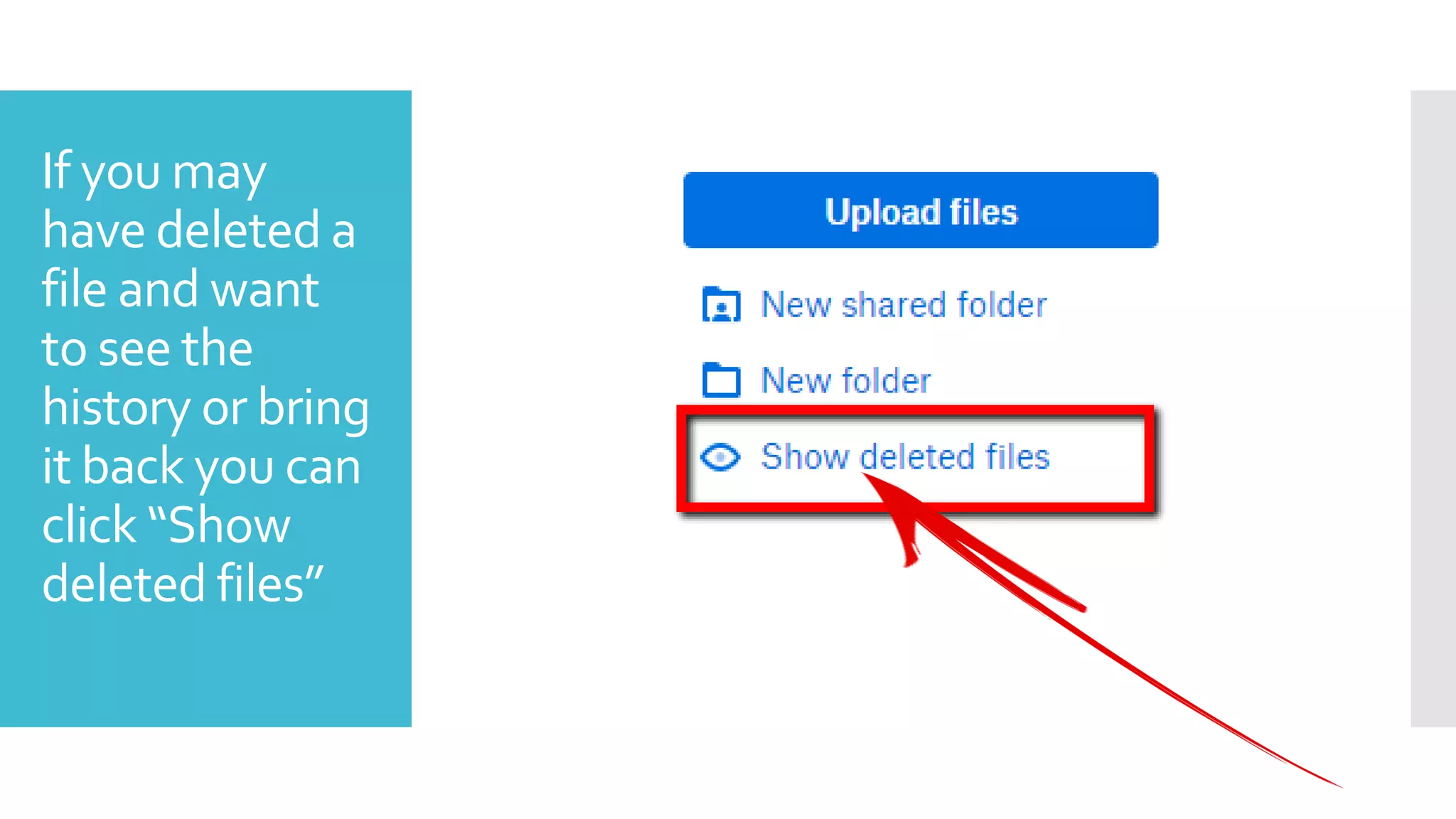
If you may
have deleted a
file and want
to see the
history or bring
it back you can
click “Show
deleted files”
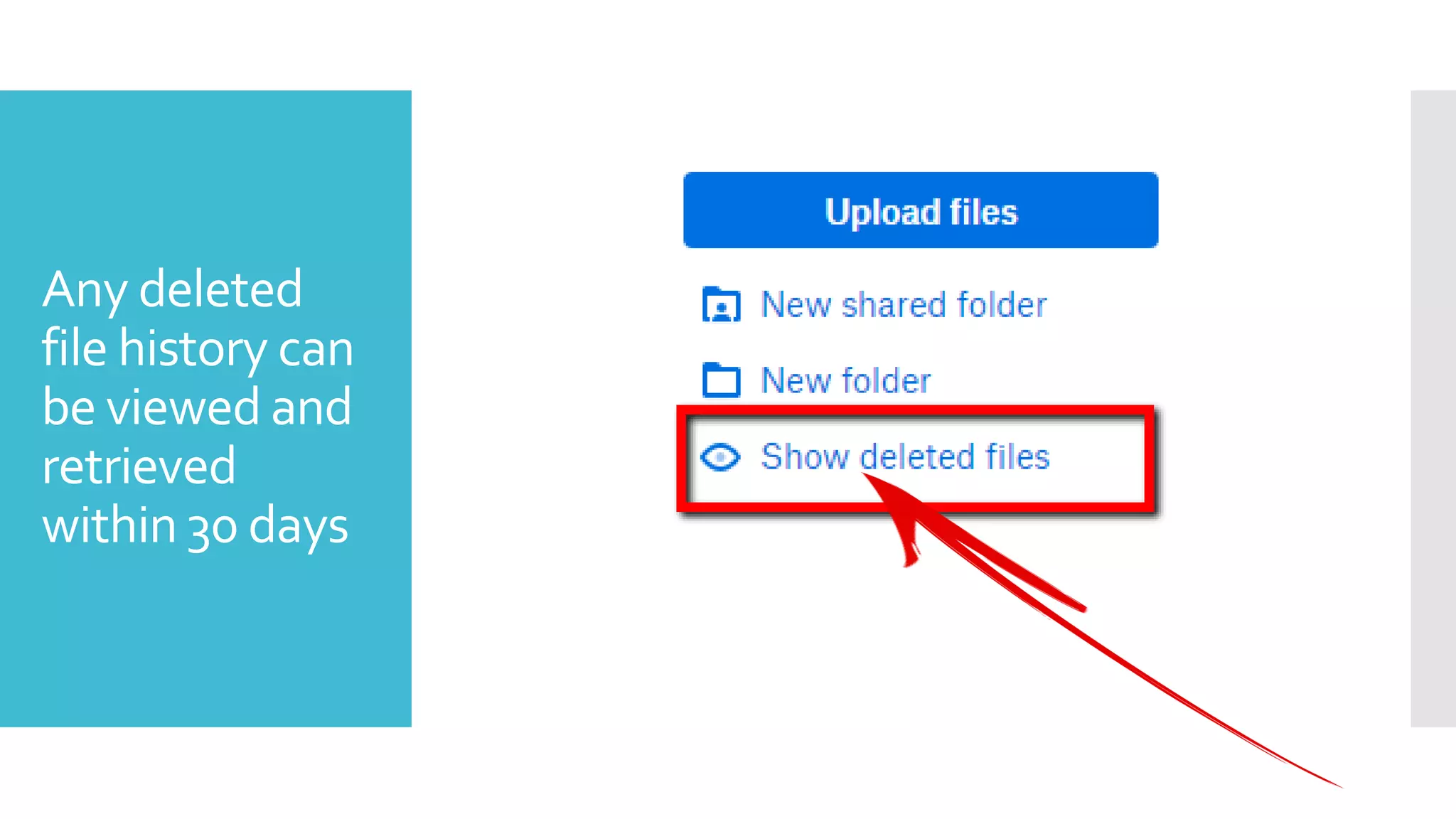
Any deleted
file history can
be viewed and
retrieved
within 30 days
The End

The Ultimate Guide to Dropbox