Understanding PortalGuard’s


      Contextual Authentication:
       A Multi-factor Approach


Highlighting the Multi-factor Authentication Layer of the
                 PortalGuard Platform
By the end of this tutorial you will be able to…

 • Define PortalGuard
 • Understand the barriers to increasing security
 • Discover PortalGuard’s Contextual Authentication (CBA)
 • See the Step-by-step Authentication Process
 • Know the Technical Requirements
The PortalGuard software is a Contextual Authentication platform
   which is focused on enhancing usability, while maintaining a
 balance between security, auditing and compliance for your web,
                 desktop and mobile applications.

   Usability                       Security
   • Single Sign-on                • Knowledge-based
   • Password Management           • Two-factor Authentication
   • Password Synchronization      • Contextual Authentication
   • Self-service Password Reset   • Real-time Reports/Alerts
Before going into the details…


• Configurable by user, group or application
• Stop making assumptions about who is accessing your applications
• Adjust the authentication method dynamically with every access request
• Gain insight into user access scenarios
• Cost effective and competitively priced
• Tailored Authentication for an exact fit
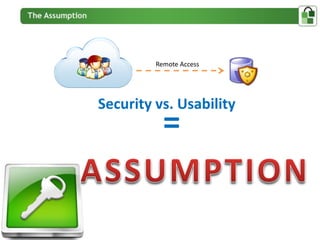
Remote Access


Security vs. Usability
           =
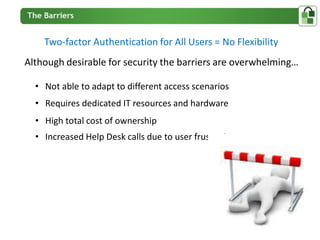
Two-factor Authentication for All Users = No Flexibility
Although desirable for security the barriers are overwhelming…

  • Not able to adapt to different access scenarios
  • Requires dedicated IT resources and hardware
  • High total cost of ownership
  • Increased Help Desk calls due to user frustrations
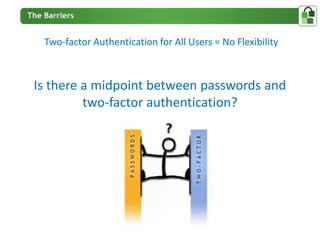
Two-factor Authentication for All Users = No Flexibility


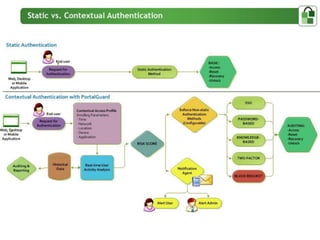
Is there a midpoint between passwords and
         two-factor authentication?
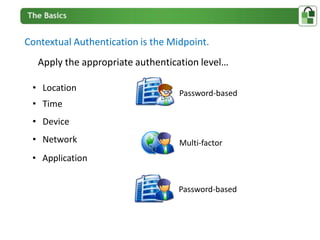
Contextual Authentication is the Midpoint.
   Apply the appropriate authentication level…

 • Location
                                   Password-based
 • Time
 • Device
 • Network                         Multi-factor
 • Application


                                   Password-based
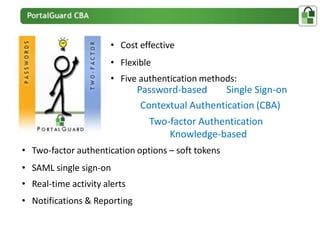
• Cost effective
                       • Flexible
                       • Five authentication methods:
                              Password-based      Single Sign-on
                               Contextual Authentication (CBA)
                                Two-factor Authentication
                                    Knowledge-based
• Two-factor authentication options – soft tokens
• SAML single sign-on
• Real-time activity alerts
• Notifications & Reporting
• Increased security – without impacting the user experience
• Increase usability for authorized users while creating barriers for
  unauthorized users
• Flexibility - configurable to the user, group or application levels
• Lower total cost of ownership than hard token two-factor
  authentication alternatives
• Reduce threats using a proactive approach
• Gather Insight – analyze contextual data reports
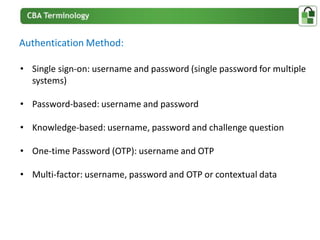
Authentication Method:

• Single sign-on: username and password (single password for multiple
  systems)

• Password-based: username and password

• Knowledge-based: username, password and challenge question

• One-time Password (OTP): username and OTP

• Multi-factor: username, password and OTP or contextual data
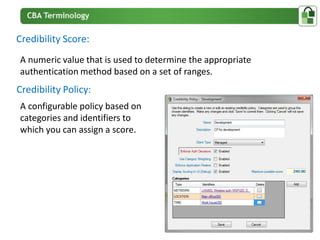
Credibility Score:
A numeric value that is used to determine the appropriate
authentication method based on a set of ranges.
Credibility Policy:
A configurable policy based on
categories and identifiers to
which you can assign a score.
Weight:

An optional percentage for each category that adjusts the
category’s impact on the credibility score versus other categories.
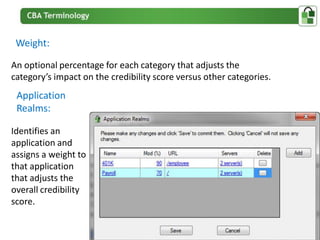
 Application
 Realms:

Identifies an
application and
assigns a weight to
that application
that adjusts the
overall credibility
score.
HOW IT WORKS
Analysis Mode:
Recommended for a 60-90 day period to establish a baseline for the
environment.
Client-side Browser Add-on:
Optional to collect users contextual data and can be installed silently
using a standard MSI.
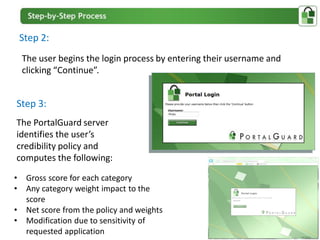
Step 2:
    The user begins the login process by entering their username and
    clicking “Continue”.


Step 3:
The PortalGuard server
identifies the user’s
credibility policy and
computes the following:

•    Gross score for each category
•    Any category weight impact to the
     score
•    Net score from the policy and weights
•    Modification due to sensitivity of
     requested application
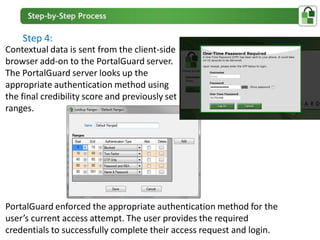
Step 4:
Contextual data is sent from the client-side
browser add-on to the PortalGuard server.
The PortalGuard server looks up the
appropriate authentication method using
the final credibility score and previously set
ranges.


PortalGuard enforced the appropriate authentication method for the
user’s current access attempt. The user provides the required
credentials to successfully complete their access request and login.
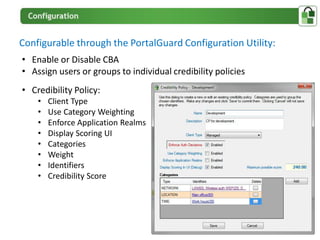
Configurable through the PortalGuard Configuration Utility:
• Enable or Disable CBA
• Assign users or groups to individual credibility policies
• Credibility Policy:
    •   Client Type
    •   Use Category Weighting
    •   Enforce Application Realms
    •   Display Scoring UI
    •   Categories
    •   Weight
    •   Identifiers
    •   Credibility Score
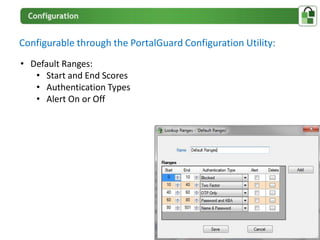
Configurable through the PortalGuard Configuration Utility:
• Default Ranges:
   • Start and End Scores
   • Authentication Types
   • Alert On or Off
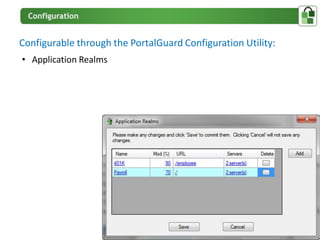
Configurable through the PortalGuard Configuration Utility:
• Application Realms
TECHNICAL REQUIREMENTS
A MSI is used to install PortalGuard on IIS 6 or 7.x.
This version of PortalGuard supports direct access and authentication
to cloud/browser-based applications, only.

•   IBM WebSphere/WebSphere Portal v5.1 or higher
•   Microsoft IIS 6.0 or higher
•   Microsoft Windows SharePoint Services 3.0 or higher
•   Microsoft Office SharePoint Server 2007 or later

• .NET 2.0 framework or later must be installed
• (64-bit OS only) Microsoft Visual C++ 2005 SP1 Redistributable Package (x64)

•   Microsoft Windows Server 2000
•   Microsoft Windows Server 2003 (32 or 64-bit)
•   Microsoft Windows Server 2008 (32 or 64-bit)
•   Microsoft Windows Server 2008 R2
THANK YOU
For more information visit PortalGuard.com or Contact Us

Context Based Authentication

  • 1.
    Understanding PortalGuard’s Contextual Authentication: A Multi-factor Approach Highlighting the Multi-factor Authentication Layer of the PortalGuard Platform
  • 2.
    By the endof this tutorial you will be able to… • Define PortalGuard • Understand the barriers to increasing security • Discover PortalGuard’s Contextual Authentication (CBA) • See the Step-by-step Authentication Process • Know the Technical Requirements
  • 3.
    The PortalGuard softwareis a Contextual Authentication platform which is focused on enhancing usability, while maintaining a balance between security, auditing and compliance for your web, desktop and mobile applications. Usability Security • Single Sign-on • Knowledge-based • Password Management • Two-factor Authentication • Password Synchronization • Contextual Authentication • Self-service Password Reset • Real-time Reports/Alerts
  • 4.
    Before going intothe details… • Configurable by user, group or application • Stop making assumptions about who is accessing your applications • Adjust the authentication method dynamically with every access request • Gain insight into user access scenarios • Cost effective and competitively priced • Tailored Authentication for an exact fit
  • 5.
  • 6.
    Two-factor Authentication forAll Users = No Flexibility Although desirable for security the barriers are overwhelming… • Not able to adapt to different access scenarios • Requires dedicated IT resources and hardware • High total cost of ownership • Increased Help Desk calls due to user frustrations
  • 7.
    Two-factor Authentication forAll Users = No Flexibility Is there a midpoint between passwords and two-factor authentication?
  • 8.
    Contextual Authentication isthe Midpoint. Apply the appropriate authentication level… • Location Password-based • Time • Device • Network Multi-factor • Application Password-based
  • 9.
    • Cost effective • Flexible • Five authentication methods: Password-based Single Sign-on Contextual Authentication (CBA) Two-factor Authentication Knowledge-based • Two-factor authentication options – soft tokens • SAML single sign-on • Real-time activity alerts • Notifications & Reporting
  • 11.
    • Increased security– without impacting the user experience • Increase usability for authorized users while creating barriers for unauthorized users • Flexibility - configurable to the user, group or application levels • Lower total cost of ownership than hard token two-factor authentication alternatives • Reduce threats using a proactive approach • Gather Insight – analyze contextual data reports
  • 12.
    Authentication Method: • Singlesign-on: username and password (single password for multiple systems) • Password-based: username and password • Knowledge-based: username, password and challenge question • One-time Password (OTP): username and OTP • Multi-factor: username, password and OTP or contextual data
  • 13.
    Credibility Score: A numericvalue that is used to determine the appropriate authentication method based on a set of ranges. Credibility Policy: A configurable policy based on categories and identifiers to which you can assign a score.
  • 14.
    Weight: An optional percentagefor each category that adjusts the category’s impact on the credibility score versus other categories. Application Realms: Identifies an application and assigns a weight to that application that adjusts the overall credibility score.
  • 15.
  • 16.
    Analysis Mode: Recommended fora 60-90 day period to establish a baseline for the environment.
  • 17.
    Client-side Browser Add-on: Optionalto collect users contextual data and can be installed silently using a standard MSI.
  • 18.
    Step 2: The user begins the login process by entering their username and clicking “Continue”. Step 3: The PortalGuard server identifies the user’s credibility policy and computes the following: • Gross score for each category • Any category weight impact to the score • Net score from the policy and weights • Modification due to sensitivity of requested application
  • 19.
    Step 4: Contextual datais sent from the client-side browser add-on to the PortalGuard server. The PortalGuard server looks up the appropriate authentication method using the final credibility score and previously set ranges. PortalGuard enforced the appropriate authentication method for the user’s current access attempt. The user provides the required credentials to successfully complete their access request and login.
  • 20.
    Configurable through thePortalGuard Configuration Utility: • Enable or Disable CBA • Assign users or groups to individual credibility policies • Credibility Policy: • Client Type • Use Category Weighting • Enforce Application Realms • Display Scoring UI • Categories • Weight • Identifiers • Credibility Score
  • 21.
    Configurable through thePortalGuard Configuration Utility: • Default Ranges: • Start and End Scores • Authentication Types • Alert On or Off
  • 22.
    Configurable through thePortalGuard Configuration Utility: • Application Realms
  • 23.
  • 24.
    A MSI isused to install PortalGuard on IIS 6 or 7.x. This version of PortalGuard supports direct access and authentication to cloud/browser-based applications, only. • IBM WebSphere/WebSphere Portal v5.1 or higher • Microsoft IIS 6.0 or higher • Microsoft Windows SharePoint Services 3.0 or higher • Microsoft Office SharePoint Server 2007 or later • .NET 2.0 framework or later must be installed • (64-bit OS only) Microsoft Visual C++ 2005 SP1 Redistributable Package (x64) • Microsoft Windows Server 2000 • Microsoft Windows Server 2003 (32 or 64-bit) • Microsoft Windows Server 2008 (32 or 64-bit) • Microsoft Windows Server 2008 R2
  • 25.
    THANK YOU For moreinformation visit PortalGuard.com or Contact Us