Parts of Computer System
Riphah International University Lahore
Muhammad Umar Nasir
Hardware & Software
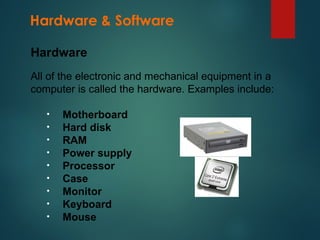
All of the electronic and mechanical equipment in a
computer is called the hardware. Examples include:
• Motherboard
• Hard disk
• RAM
• Power supply
• Processor
• Case
• Monitor
• Keyboard
• Mouse
Hardware
Hardware & Software
The term software is used to describe computer
programs that perform a task or tasks on a computer
system. Software can be grouped as follows:
• System software - Operating System etc.
• Utility programs - Antivirus etc.
• Applications Software - Word, SolidWorks etc.
Software
PC Components
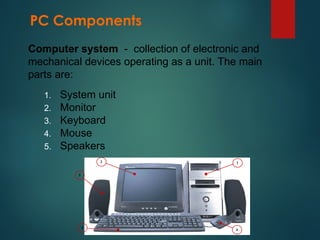
Computer system - collection of electronic and
mechanical devices operating as a unit. The main
parts are:
1. System unit
2. Monitor
3. Keyboard
4. Mouse
5. Speakers
2
3
4
5
1
System Unit
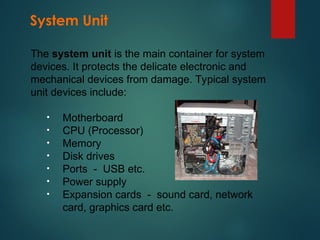
The system unit is the main container for system
devices. It protects the delicate electronic and
mechanical devices from damage. Typical system
unit devices include:
• Motherboard
• CPU (Processor)
• Memory
• Disk drives
• Ports - USB etc.
• Power supply
• Expansion cards - sound card, network
card, graphics card etc.
Peripherals
Peripherals are devices that connect to the system
unit using cables or wireless technologies. Typical
peripherals include:
• Monitor
• Keyboard
• Printer
• Plotter
• Scanner
• Speakers
Plotter
System Devices
An integrated circuit (IC) supplied on a single silicon
chip. It’s function is to control all the computers
functions. The main processor manufacturers are:
• AMD - Athlon and Turion (mobile)
• Intel - Pentium and Centrino (mobile)
Processor
AMD
Processor
System Devices
Computer program - a series of instructions. When a
program is run, the processor carries out these
instructions in an orderly fashion. Typical instructions
include:
• Arithmetic - addition, subtraction etc
• Logical - comparing data and acting according
to the result
• Move - move data from place to place within the
computer system - memory to the processor for
addition - memory to a printer or disk drive etc.
System Devices
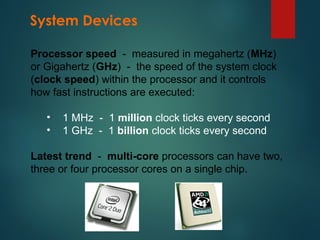
Processor speed - measured in megahertz (MHz)
or Gigahertz (GHz) - the speed of the system clock
(clock speed) within the processor and it controls
how fast instructions are executed:
• 1 MHz - 1 million clock ticks every second
• 1 GHz - 1 billion clock ticks every second
Latest trend - multi-core processors can have two,
three or four processor cores on a single chip.
System Devices
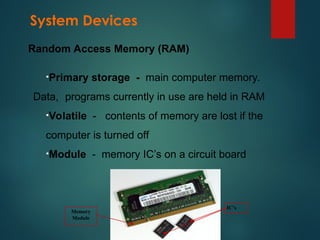
•Primary storage - main computer memory.
Data, programs currently in use are held in RAM
•Volatile - contents of memory are lost if the
computer is turned off
•Module - memory IC’s on a circuit board
Random Access Memory (RAM)
IC’s
Memory
Module
System Devices
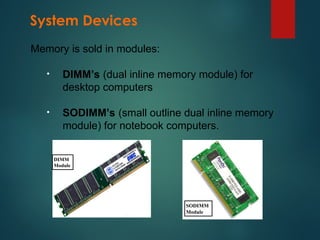
Memory is sold in modules:
• DIMM’s (dual inline memory module) for
desktop computers
• SODIMM’s (small outline dual inline memory
module) for notebook computers.
DIMM
Module
SODIMM
Module
System Devices
DIMM’s and SODIMM’s are available in modules of
256MB, 512MB, 1GB, 2GB
The current technology is called DDR (double data ram)
and there are three types: DDR1, DDR2, DDR3
Any particular computer system is only compatible with
one type.
Module name
Module capacity
Module type Module speed
System Devices
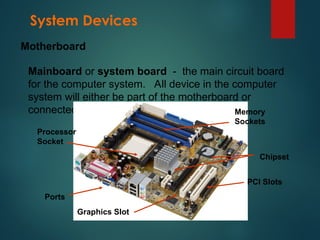
Mainboard or system board - the main circuit board
for the computer system. All device in the computer
system will either be part of the motherboard or
connected to it.
Motherboard
Processor
Socket
Memory
Sockets
Ports
PCI Slots
Graphics Slot
Chipset
System Devices
A computer power supply has a number of functions:
• Converts Alternating current (AC) Direct
current (DC)
• Transforms mains voltage (240 Volts) to the
voltages required by the computer. The main
voltages are:
• 12 volts for the disk drives as they have motors
• 3.3 and 5 volts for the circuit boards in the computer
Power Supply
System Devices
Computer ports are interfaces between peripheral
devices and the computer. They are mainly found at
the back of the computer but are often also built into the
front of the computer chassis for easy access.
Ports at the rear of the computer
Ports at the front of the computer
Ports
System Devices
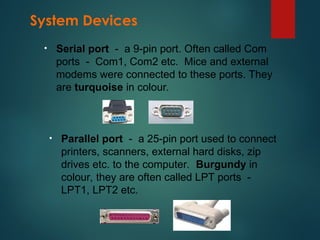
• Serial port - a 9-pin port. Often called Com
ports - Com1, Com2 etc. Mice and external
modems were connected to these ports. They
are turquoise in colour.
• Parallel port - a 25-pin port used to connect
printers, scanners, external hard disks, zip
drives etc. to the computer. Burgundy in
colour, they are often called LPT ports -
LPT1, LPT2 etc.
System Devices
• Video port - used to connect a monitor to the
computer system. There are two types:
• VGA port - This is a 15-pin port and is blue in
colour. It is an analogue port and is being replaced
by the DVI port.
• DVI port - white in colour, it is a digital port. This
means that no conversion is necessary between the
computer and the monitor and that means that
images can be produced more quickly on the monitor
System Devices
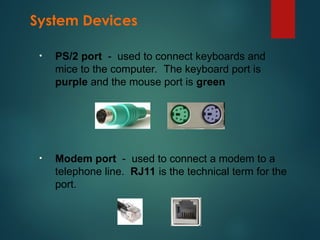
• PS/2 port - used to connect keyboards and
mice to the computer. The keyboard port is
purple and the mouse port is green
• Modem port - used to connect a modem to a
telephone line. RJ11 is the technical term for the
port.
System Devices
• USB port - intended to replace Serial, Parallel
and PS/2 ports with a single standard. 127
devices can be connected to a single USB port.
Hot swappable - devices can be connected
and disconnected while the computer is on
There are different USB standards in use:
• USB 1 - original standard - transfer data of 1.5MBps.
• USB 2 - current standard - transfer rate of 60MBps.
• USB3 - future standard (2009) transfer rate of
600MBps.
System Devices
• FireWire port - (IEEE 1394) is an Apple
technology There are two versions available
and a third is planned:
• FW 400 - transfer rate of 50MBps.
• FW 800 - transfer rate of 100MBps.
• FW S3200 - transfer rate of 400MBps.
• USB devices must be connected to a host
computer while FireWire devices can be
connected to each other without using a
computer.
System Devices
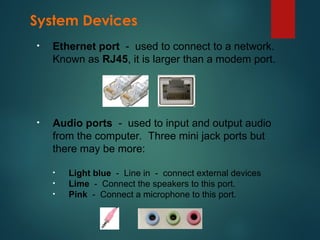
• Ethernet port - used to connect to a network.
Known as RJ45, it is larger than a modem port.
• Audio ports - used to input and output audio
from the computer. Three mini jack ports but
there may be more:
• Light blue - Line in - connect external devices
• Lime - Connect the speakers to this port.
• Pink - Connect a microphone to this port.
System Devices
Graphic card - screen images are made up of dots
called pixels (picture elements). The graphics card
must process each of these pixels to create the image.
The resolution of a screen is the number of pixels
being displayed. Typical resolutions include:
• 800 x 600 - 480,000 pixels
• 1024 x 768 - 786,432 pixels
• 1280 x 1024: - 1,310,720 pixels
• 1600 x 1200: - 1,920,000 pixels
System Devices
• allows computers join a network. Can be wired
or wireless. The standard used is called
Ethernet - covers wired and wireless
networks.
The wired standards include:
• Fast Ethernet - transmission speed of
100Mbps.
• Gigabyte Ethernet - transmission speed of
1000Mbps.
PCI PC card USB
Network card
System Devices
The wireless standards include:
• The B standard - introduced in 1999, it has
a transmission rate of 11Mbps and a range
of 30 Metres.
• The G standard - introduced in 2003, it has
a transmission rate of 54Mbps and a range of
30 Metres.
• The N standard - introduced in 2006, it has
a transmission speed of 540Mbps and a
range of 50 metres.
PCI PC Card USB
System Devices
• Primary storage (memory) - volatile - contents
lost when power is turned off.
• Secondary storage (disk drives) - non-volatile -
can store files when power is turned off.
• In memory, voltages are used to store data as
binary 1’s and binary 0’s. It was decided to mimic
the situation for secondary storage using
magnetism instead of electrical voltages to
represent the binary data.
Hard Disk
System Devices
• A metal disk (platter) is coated with tiny iron
particles which can be magnetised to north and
south to represent the binary digits 0 and 1.
• A read-write head is used to magnetise the
particles on the disk surface to represent the data
held in RAM. The computer can now be switched
off and a copy of the data is safe for later use.
Metal disk
(platter)
covered with
iron particles.
Read-write
head
System Devices
Hard disks can be internal or external. The internal
standards are:
• IDE ( Integrated Drive Electronics). The disks
connect to the motherboard using a ribbon cable.
Each cable can hold two drives - master and
slave. The drive is set as master or slave by
positioning a jumper switch on the back of the
drive. There are two IDE connectors and a total
of four drives can be connected.
M/board
Master Slave Jumper
System Devices
• SATA (Serial Advanced Technology
Attachment) allow faster data transfer speeds
than IDE. There is no master/slave
arrangement with SATA and each drive has it’s
own cable. The cables are much smaller and
allow better air circulation in the system unit.
SATA
Cable
SATA
IDE
Motherboard connectors
System Devices
External hard disk drives can be IDE or SATA and
can be mains powered or host powered. Host
powered drives receive their power from the USB port.
Host
Powered
Mains
Powered
Hard disk drives are also now found in video recorders,
digital music players, digital camcorders, digital
cameras and mobile phones.
2½ inch Notebook Drive
1 inch Microdrive
Microdrive
System Devices
A computer monitor displays images generated by the
graphics card.
Monitors are almost exclusively LCD (Liquid Crystal
Display). CRT (Cathode Ray Tube) monitors are rare
and are now as expensive as LCD monitors.
Monitors
19 inch Widescreen LCD
System Devices
The aspect ratio of a computer monitor is the ratio
between the width and height of the screen. The
aspect ratios are:
• Standard monitor - 4:3
• Widescreen monitor - 16:9
Most LCD monitors offer a VGA and a DVI connection.
The VGA connector is used for analogue signals and
the DVI connector is used for digital. As the computer
is a digital machine, it is best if no conversion is
required and so the best option is the DVI connection.
DVI VGA
System Devices
Resolution
Standard monitor
• XGA (Extended Graphics Array) - 1024 x 768
• SXGA (Super Extended Graphics Array) - 1280 x 1024
• UXGA (Ultra Extended Graphics Array) - 1600 x 1200
• QXGA (Quad Extended Graphics Array) - 2048 x 1536
Widescreen
• WXGA (Wide XGA) - 1280 x 800
• WSXGA (Wide SXGA) - 1680 x 1050
• WUXGA (Wide UXGA) - 1920 x 1200
LCD monitors - native resolution at which the image is crisp.
Other resolutions are possible but the image quality decreases.
System Devices
Keyboard
Primary input device - divided into sections:
• Typing keys - contains the letter and number
keys, shift keys, spacebar, return key etc.
• Numeric keypad - These keys are arranged as
on a calculator.
• Function keys - programmable keys used by
software for special functions. E.g. - F1 - Help.
• Control keys - screen and cursor control.
System Devices
• Most common arrangement is called
QWERTY after the first six keys.
• Other arrangements are available including
Dvorak, ABCDEF, AZERTY etc.
QWERTY
Dvorak
System Devices
Keyboards are available wired or wireless:
• Wired - These are either PS/2 or USB.
• Wireless - The keyboard uses batteries.
Rubber keyboard - useful for use with notebook
computers. Leaves users less prone to RSI (Repetitive
Strain Injury)
Wireless keyboard
System Devices
Mouse
Input device - uses point and click technology
There are two main types:
• Ball mouse - uses a ball to roll across the surface and move
rollers attached to sensors inside the mouse - reflecting the
ball movement as cursor movement.
• Optical mouse - camera takes thousands of images per
second and sends them for digital processing. The red LED
lights up the surface for the camera.
Ball mouse
Optical
mouse

CE Lecture 1 ICT Computer System Keyboard

  • 1.
    Parts of ComputerSystem Riphah International University Lahore Muhammad Umar Nasir
  • 2.
    Hardware & Software Allof the electronic and mechanical equipment in a computer is called the hardware. Examples include: • Motherboard • Hard disk • RAM • Power supply • Processor • Case • Monitor • Keyboard • Mouse Hardware
  • 3.
    Hardware & Software Theterm software is used to describe computer programs that perform a task or tasks on a computer system. Software can be grouped as follows: • System software - Operating System etc. • Utility programs - Antivirus etc. • Applications Software - Word, SolidWorks etc. Software
  • 4.
    PC Components Computer system- collection of electronic and mechanical devices operating as a unit. The main parts are: 1. System unit 2. Monitor 3. Keyboard 4. Mouse 5. Speakers 2 3 4 5 1
  • 5.
    System Unit The systemunit is the main container for system devices. It protects the delicate electronic and mechanical devices from damage. Typical system unit devices include: • Motherboard • CPU (Processor) • Memory • Disk drives • Ports - USB etc. • Power supply • Expansion cards - sound card, network card, graphics card etc.
  • 6.
    Peripherals Peripherals are devicesthat connect to the system unit using cables or wireless technologies. Typical peripherals include: • Monitor • Keyboard • Printer • Plotter • Scanner • Speakers Plotter
  • 7.
    System Devices An integratedcircuit (IC) supplied on a single silicon chip. It’s function is to control all the computers functions. The main processor manufacturers are: • AMD - Athlon and Turion (mobile) • Intel - Pentium and Centrino (mobile) Processor AMD Processor
  • 8.
    System Devices Computer program- a series of instructions. When a program is run, the processor carries out these instructions in an orderly fashion. Typical instructions include: • Arithmetic - addition, subtraction etc • Logical - comparing data and acting according to the result • Move - move data from place to place within the computer system - memory to the processor for addition - memory to a printer or disk drive etc.
  • 9.
    System Devices Processor speed- measured in megahertz (MHz) or Gigahertz (GHz) - the speed of the system clock (clock speed) within the processor and it controls how fast instructions are executed: • 1 MHz - 1 million clock ticks every second • 1 GHz - 1 billion clock ticks every second Latest trend - multi-core processors can have two, three or four processor cores on a single chip.
  • 10.
    System Devices •Primary storage- main computer memory. Data, programs currently in use are held in RAM •Volatile - contents of memory are lost if the computer is turned off •Module - memory IC’s on a circuit board Random Access Memory (RAM) IC’s Memory Module
  • 11.
    System Devices Memory issold in modules: • DIMM’s (dual inline memory module) for desktop computers • SODIMM’s (small outline dual inline memory module) for notebook computers. DIMM Module SODIMM Module
  • 12.
    System Devices DIMM’s andSODIMM’s are available in modules of 256MB, 512MB, 1GB, 2GB The current technology is called DDR (double data ram) and there are three types: DDR1, DDR2, DDR3 Any particular computer system is only compatible with one type. Module name Module capacity Module type Module speed
  • 13.
    System Devices Mainboard orsystem board - the main circuit board for the computer system. All device in the computer system will either be part of the motherboard or connected to it. Motherboard Processor Socket Memory Sockets Ports PCI Slots Graphics Slot Chipset
  • 14.
    System Devices A computerpower supply has a number of functions: • Converts Alternating current (AC) Direct current (DC) • Transforms mains voltage (240 Volts) to the voltages required by the computer. The main voltages are: • 12 volts for the disk drives as they have motors • 3.3 and 5 volts for the circuit boards in the computer Power Supply
  • 15.
    System Devices Computer portsare interfaces between peripheral devices and the computer. They are mainly found at the back of the computer but are often also built into the front of the computer chassis for easy access. Ports at the rear of the computer Ports at the front of the computer Ports
  • 16.
    System Devices • Serialport - a 9-pin port. Often called Com ports - Com1, Com2 etc. Mice and external modems were connected to these ports. They are turquoise in colour. • Parallel port - a 25-pin port used to connect printers, scanners, external hard disks, zip drives etc. to the computer. Burgundy in colour, they are often called LPT ports - LPT1, LPT2 etc.
  • 17.
    System Devices • Videoport - used to connect a monitor to the computer system. There are two types: • VGA port - This is a 15-pin port and is blue in colour. It is an analogue port and is being replaced by the DVI port. • DVI port - white in colour, it is a digital port. This means that no conversion is necessary between the computer and the monitor and that means that images can be produced more quickly on the monitor
  • 18.
    System Devices • PS/2port - used to connect keyboards and mice to the computer. The keyboard port is purple and the mouse port is green • Modem port - used to connect a modem to a telephone line. RJ11 is the technical term for the port.
  • 19.
    System Devices • USBport - intended to replace Serial, Parallel and PS/2 ports with a single standard. 127 devices can be connected to a single USB port. Hot swappable - devices can be connected and disconnected while the computer is on There are different USB standards in use: • USB 1 - original standard - transfer data of 1.5MBps. • USB 2 - current standard - transfer rate of 60MBps. • USB3 - future standard (2009) transfer rate of 600MBps.
  • 20.
    System Devices • FireWireport - (IEEE 1394) is an Apple technology There are two versions available and a third is planned: • FW 400 - transfer rate of 50MBps. • FW 800 - transfer rate of 100MBps. • FW S3200 - transfer rate of 400MBps. • USB devices must be connected to a host computer while FireWire devices can be connected to each other without using a computer.
  • 21.
    System Devices • Ethernetport - used to connect to a network. Known as RJ45, it is larger than a modem port. • Audio ports - used to input and output audio from the computer. Three mini jack ports but there may be more: • Light blue - Line in - connect external devices • Lime - Connect the speakers to this port. • Pink - Connect a microphone to this port.
  • 22.
    System Devices Graphic card- screen images are made up of dots called pixels (picture elements). The graphics card must process each of these pixels to create the image. The resolution of a screen is the number of pixels being displayed. Typical resolutions include: • 800 x 600 - 480,000 pixels • 1024 x 768 - 786,432 pixels • 1280 x 1024: - 1,310,720 pixels • 1600 x 1200: - 1,920,000 pixels
  • 23.
    System Devices • allowscomputers join a network. Can be wired or wireless. The standard used is called Ethernet - covers wired and wireless networks. The wired standards include: • Fast Ethernet - transmission speed of 100Mbps. • Gigabyte Ethernet - transmission speed of 1000Mbps. PCI PC card USB Network card
  • 24.
    System Devices The wirelessstandards include: • The B standard - introduced in 1999, it has a transmission rate of 11Mbps and a range of 30 Metres. • The G standard - introduced in 2003, it has a transmission rate of 54Mbps and a range of 30 Metres. • The N standard - introduced in 2006, it has a transmission speed of 540Mbps and a range of 50 metres. PCI PC Card USB
  • 25.
    System Devices • Primarystorage (memory) - volatile - contents lost when power is turned off. • Secondary storage (disk drives) - non-volatile - can store files when power is turned off. • In memory, voltages are used to store data as binary 1’s and binary 0’s. It was decided to mimic the situation for secondary storage using magnetism instead of electrical voltages to represent the binary data. Hard Disk
  • 26.
    System Devices • Ametal disk (platter) is coated with tiny iron particles which can be magnetised to north and south to represent the binary digits 0 and 1. • A read-write head is used to magnetise the particles on the disk surface to represent the data held in RAM. The computer can now be switched off and a copy of the data is safe for later use. Metal disk (platter) covered with iron particles. Read-write head
  • 27.
    System Devices Hard diskscan be internal or external. The internal standards are: • IDE ( Integrated Drive Electronics). The disks connect to the motherboard using a ribbon cable. Each cable can hold two drives - master and slave. The drive is set as master or slave by positioning a jumper switch on the back of the drive. There are two IDE connectors and a total of four drives can be connected. M/board Master Slave Jumper
  • 28.
    System Devices • SATA(Serial Advanced Technology Attachment) allow faster data transfer speeds than IDE. There is no master/slave arrangement with SATA and each drive has it’s own cable. The cables are much smaller and allow better air circulation in the system unit. SATA Cable SATA IDE Motherboard connectors
  • 29.
    System Devices External harddisk drives can be IDE or SATA and can be mains powered or host powered. Host powered drives receive their power from the USB port. Host Powered Mains Powered Hard disk drives are also now found in video recorders, digital music players, digital camcorders, digital cameras and mobile phones. 2½ inch Notebook Drive 1 inch Microdrive Microdrive
  • 30.
    System Devices A computermonitor displays images generated by the graphics card. Monitors are almost exclusively LCD (Liquid Crystal Display). CRT (Cathode Ray Tube) monitors are rare and are now as expensive as LCD monitors. Monitors 19 inch Widescreen LCD
  • 31.
    System Devices The aspectratio of a computer monitor is the ratio between the width and height of the screen. The aspect ratios are: • Standard monitor - 4:3 • Widescreen monitor - 16:9 Most LCD monitors offer a VGA and a DVI connection. The VGA connector is used for analogue signals and the DVI connector is used for digital. As the computer is a digital machine, it is best if no conversion is required and so the best option is the DVI connection. DVI VGA
  • 32.
    System Devices Resolution Standard monitor •XGA (Extended Graphics Array) - 1024 x 768 • SXGA (Super Extended Graphics Array) - 1280 x 1024 • UXGA (Ultra Extended Graphics Array) - 1600 x 1200 • QXGA (Quad Extended Graphics Array) - 2048 x 1536 Widescreen • WXGA (Wide XGA) - 1280 x 800 • WSXGA (Wide SXGA) - 1680 x 1050 • WUXGA (Wide UXGA) - 1920 x 1200 LCD monitors - native resolution at which the image is crisp. Other resolutions are possible but the image quality decreases.
  • 33.
    System Devices Keyboard Primary inputdevice - divided into sections: • Typing keys - contains the letter and number keys, shift keys, spacebar, return key etc. • Numeric keypad - These keys are arranged as on a calculator. • Function keys - programmable keys used by software for special functions. E.g. - F1 - Help. • Control keys - screen and cursor control.
  • 34.
    System Devices • Mostcommon arrangement is called QWERTY after the first six keys. • Other arrangements are available including Dvorak, ABCDEF, AZERTY etc. QWERTY Dvorak
  • 35.
    System Devices Keyboards areavailable wired or wireless: • Wired - These are either PS/2 or USB. • Wireless - The keyboard uses batteries. Rubber keyboard - useful for use with notebook computers. Leaves users less prone to RSI (Repetitive Strain Injury) Wireless keyboard
  • 36.
    System Devices Mouse Input device- uses point and click technology There are two main types: • Ball mouse - uses a ball to roll across the surface and move rollers attached to sensors inside the mouse - reflecting the ball movement as cursor movement. • Optical mouse - camera takes thousands of images per second and sends them for digital processing. The red LED lights up the surface for the camera. Ball mouse Optical mouse