COMPUTER SYSTEM
AND NETWORK
CONFIGURATIONS
COMPUTER NETWORK
 DEFINTION:
A computer network isdefined asthe interconnection oftwo or more
computers.
Networksare collections of computers, software,and hardwarethat are all
connected tohelp theirusers worktogether.
APPLICATIONS:
i. Sharingof resources such as printers
ii. Sharingof expensive software's and database
iii. Communication from one computer to another computer
iv. Exchange of data and information among users via network
v. Sharingof information over geographically wide areas.
LOCAL AREA NETWORK(LAN)
 Connects computers withina singlegeographical
location,such as one office building,office suite, or
home
WIDE AREA NETWORK(WAN)
 Spandifferent cities or even countries, using phone lines or satellite
links.
Computer Network
Computer Network
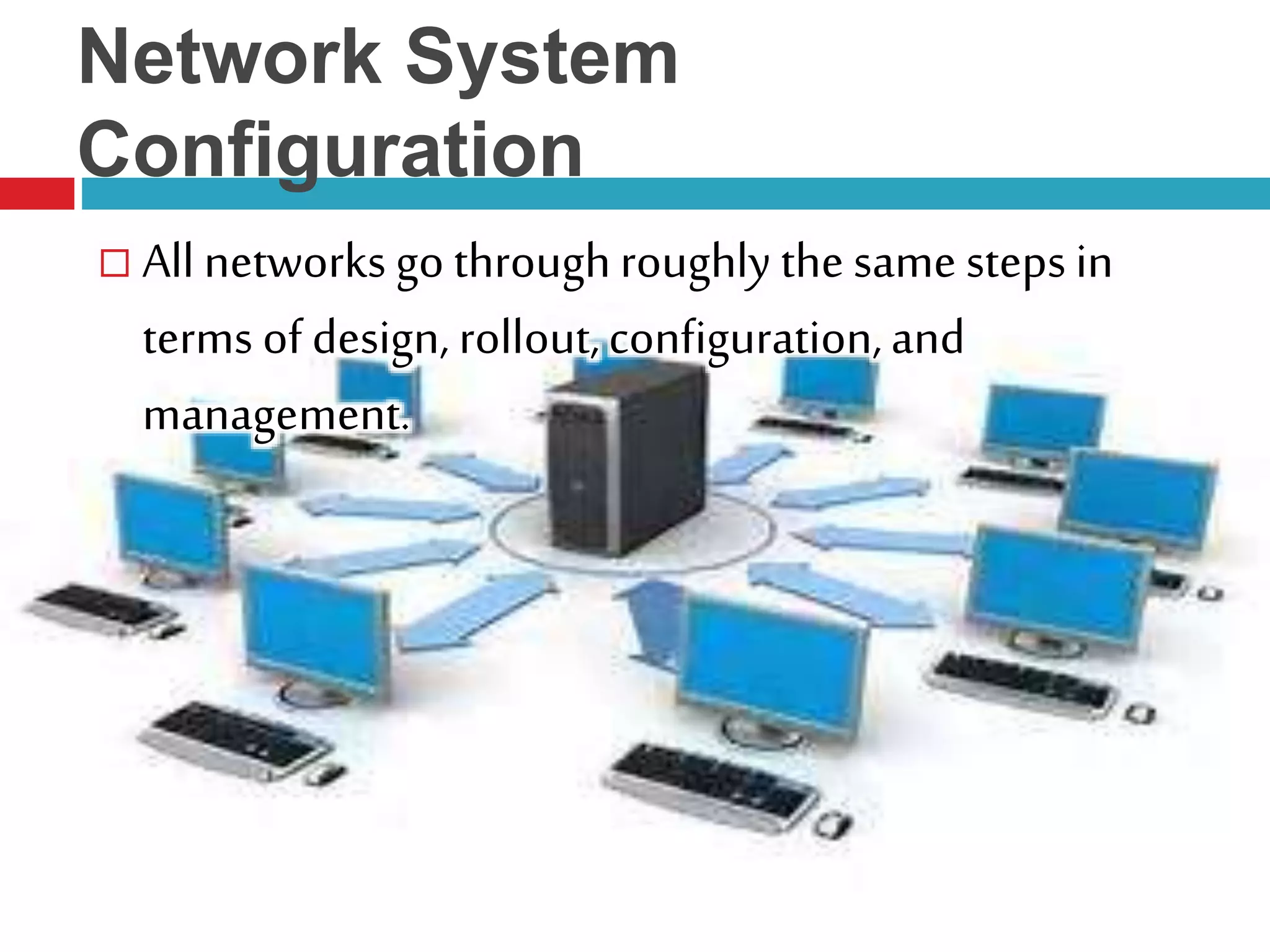
Network System
Configuration
 All networks go throughroughly the same steps in
terms of design, rollout,configuration,and
management.
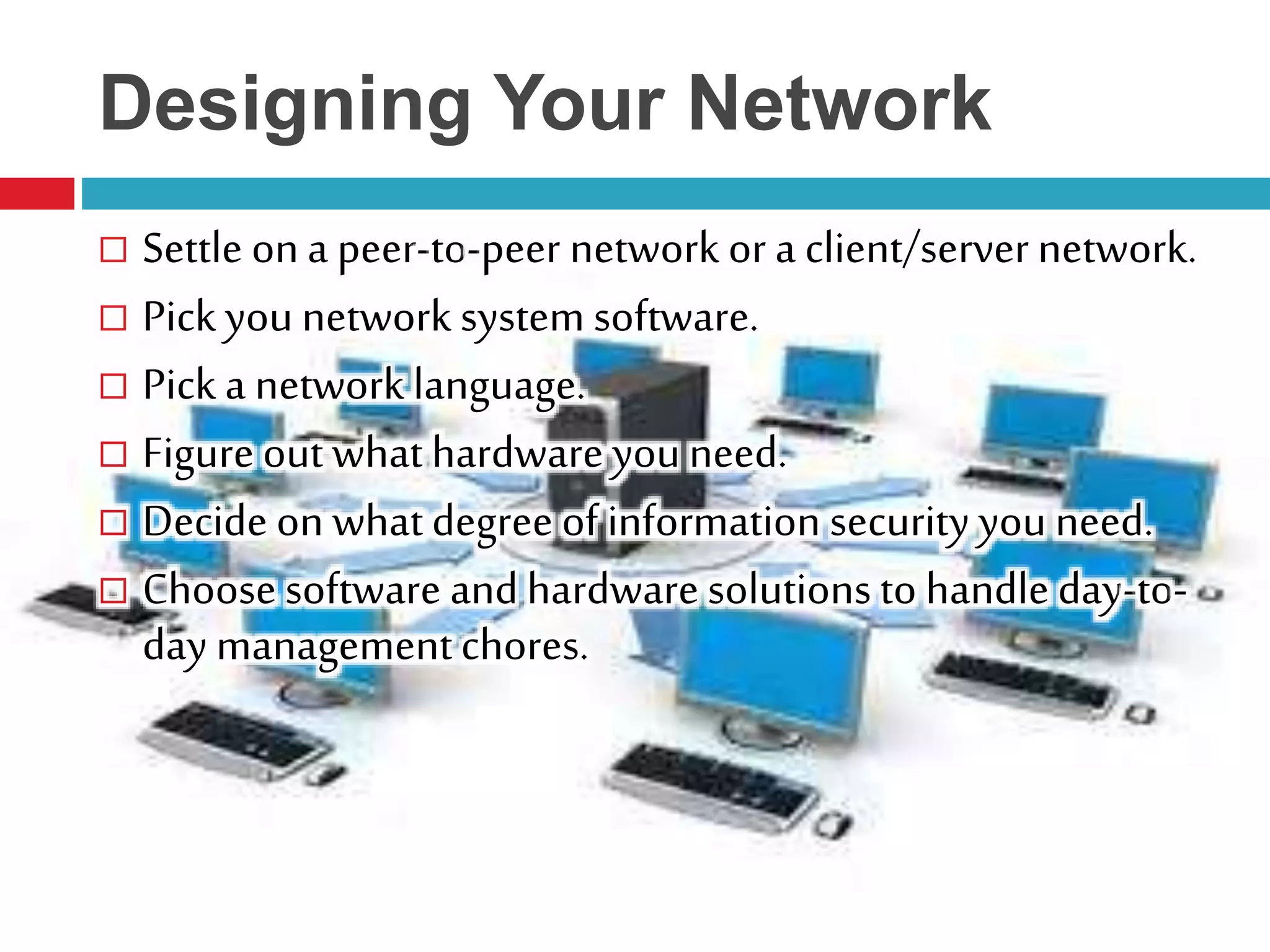
Designing Your Network
 Settle ona peer-to-peer network or a client/servernetwork.
 Pick you network system software.
 Pick a network language.
 Figure out what hardware you need.
 Decide on whatdegree of information security you need.
 Choose software and hardware solutions to handle day-to-
day managementchores.
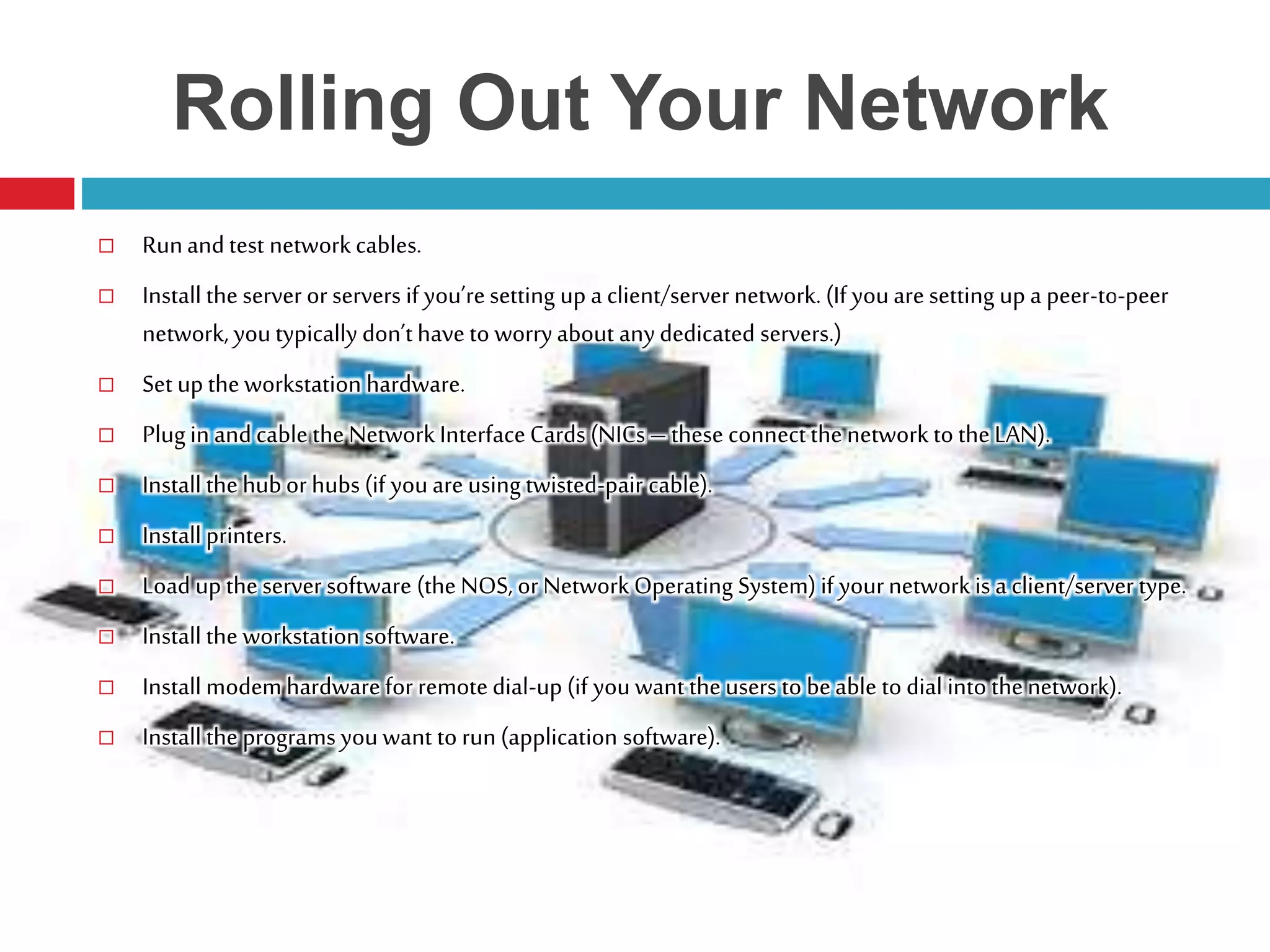
Rolling Out Your Network
 Runand test networkcables.
 Install the server or servers if you’resetting up a client/server network.(If youare setting up a peer-to-peer
network, you typically don’t have to worryabout anydedicated servers.)
 Set upthe workstation hardware.
 Plug in and cable the NetworkInterfaceCards (NICs – these connectthe network to the LAN).
 Install the hubor hubs (if youare using twisted-pair cable).
 Install printers.
 Load up the server software (the NOS, or NetworkOperating System) if yournetworkis a client/server type.
 Install the workstation software.
 Install modem hardware for remotedial-up (if youwant the users to beable to dial into thenetwork).
 Install the programs youwant to run(application software).
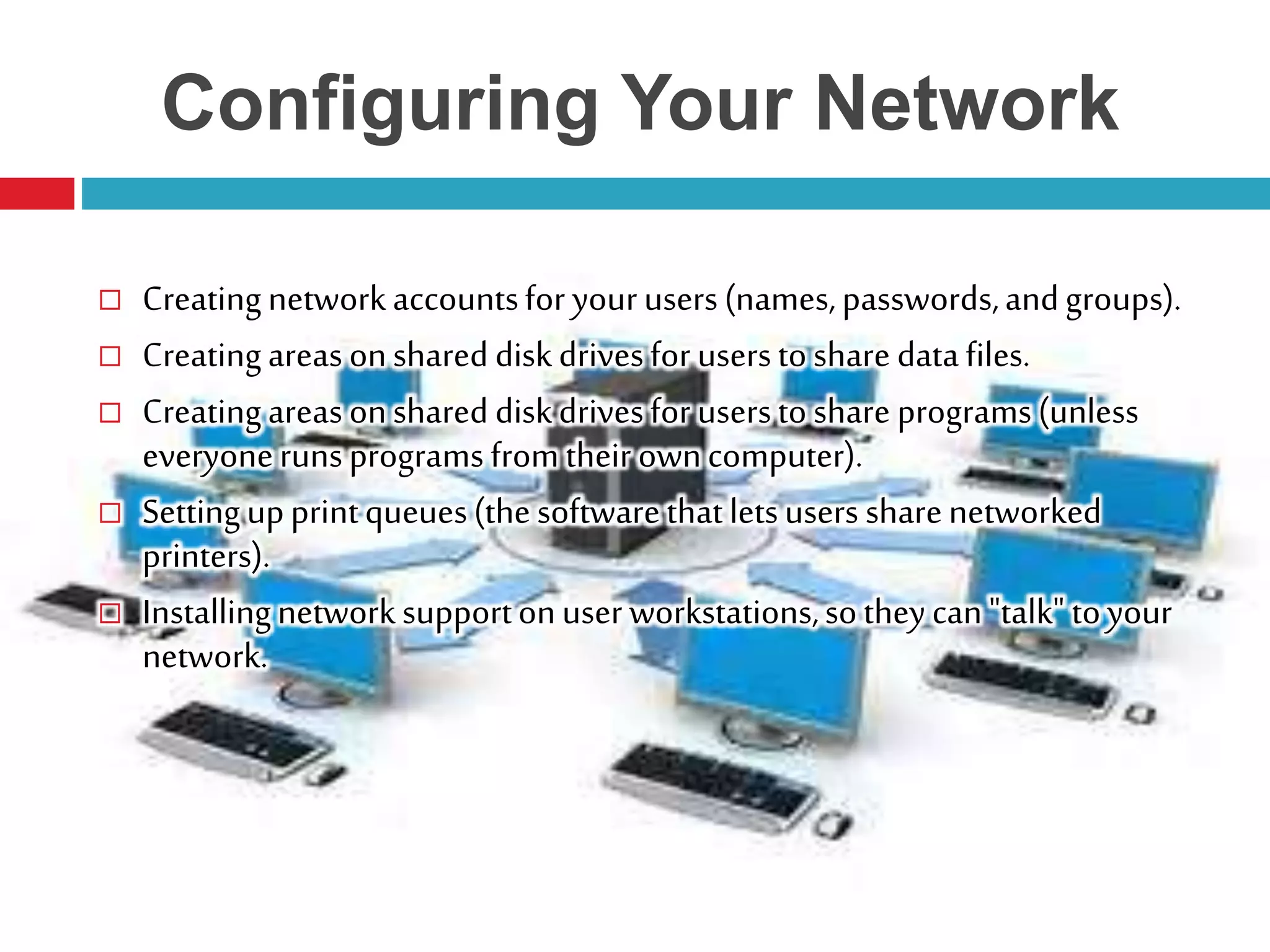
Configuring Your Network
 Creatingnetworkaccountsforyourusers(names,passwords,andgroups).
 Creatingareasonshared diskdrivesforuserstoshare datafiles.
 Creatingareasonshared diskdrivesforuserstoshare programs(unless
everyonerunsprogramsfromtheir owncomputer).
 Settingupprintqueues(thesoftwarethatletsusers sharenetworked
printers).
 Installingnetworksupportonuserworkstations,sotheycan"talk" toyour
network.
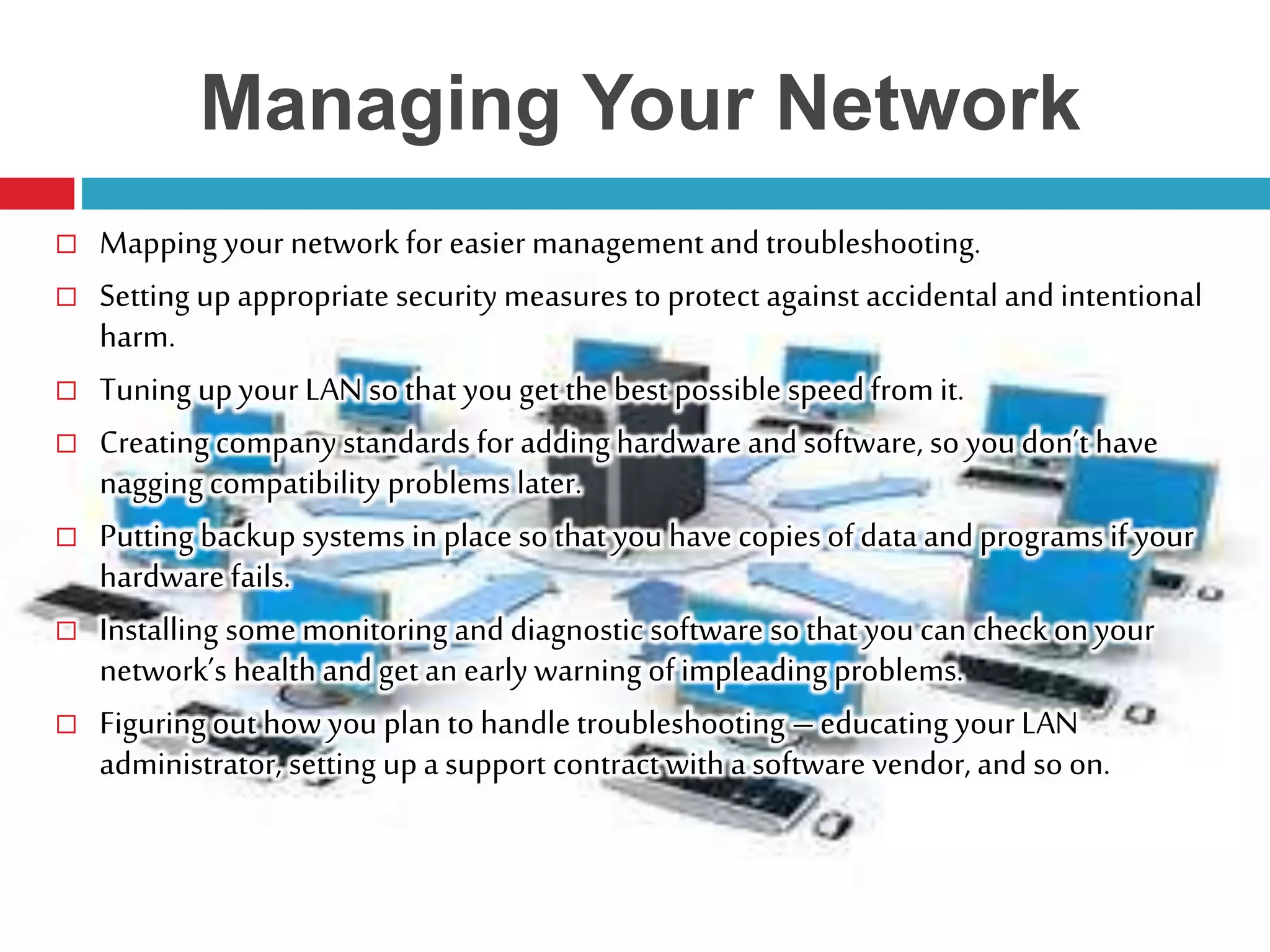
Managing Your Network
 Mapping your network for easier managementand troubleshooting.
 Setting up appropriate security measures to protect against accidental and intentional
harm.
 Tuning upyour LAN so that you get the best possible speedfrom it.
 Creating company standards for adding hardware andsoftware, so you don’t have
nagging compatibility problems later.
 Putting backupsystems in place so that you have copies of data and programs if your
hardware fails.
 Installing some monitoring and diagnostic software so that you can checkon your
network’s health and get an early warning of impleading problems.
 Figuring out howyou plan to handle troubleshooting –educating yourLAN
administrator, setting upa support contract with a software vendor, and so on.
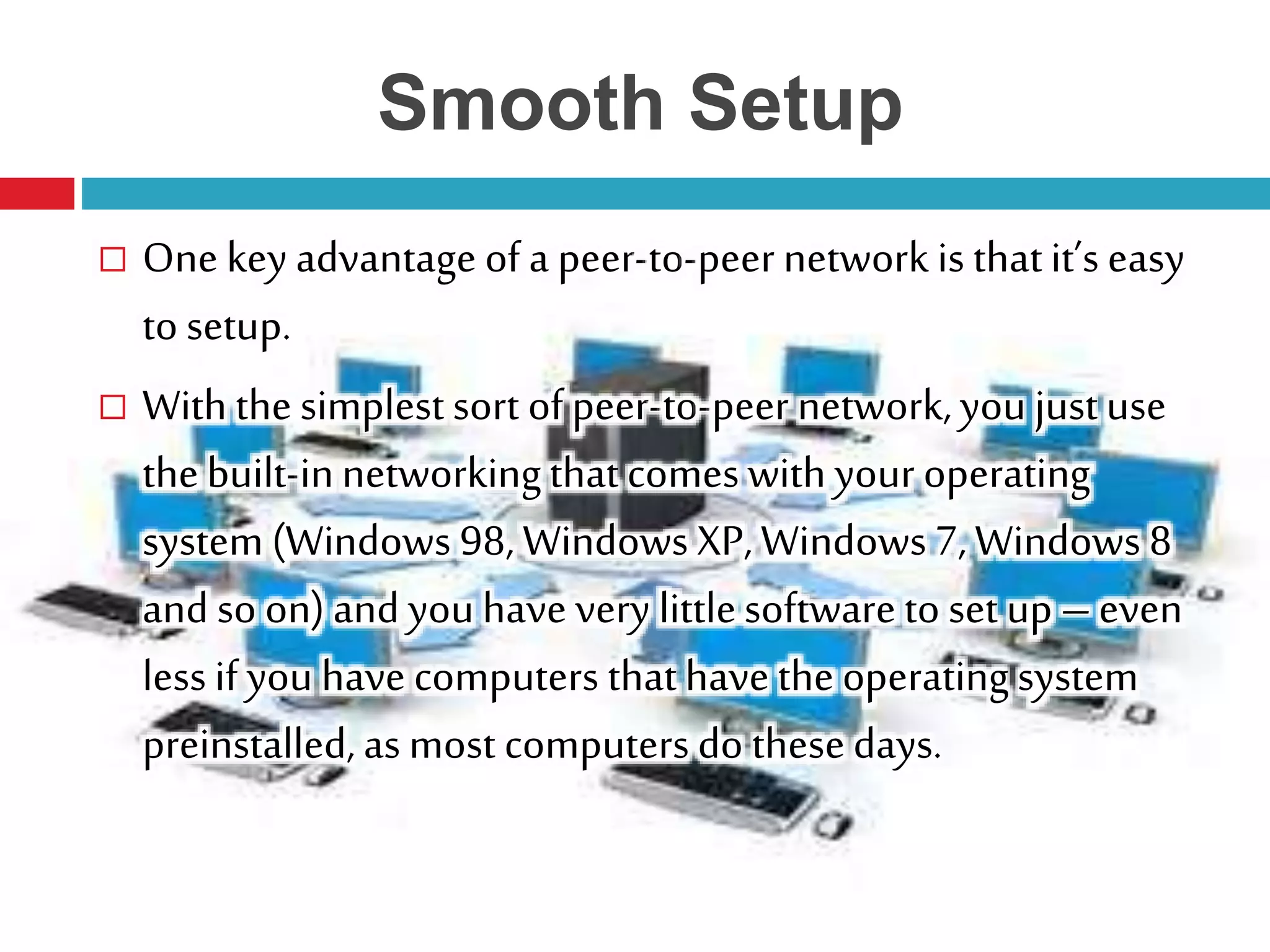
Smooth Setup
 One key advantage of a peer-to-peer network is thatit’s easy
to setup.
 With the simplest sort of peer-to-peer network,you justuse
thebuilt-innetworkingthatcomes with your operating
system (Windows 98, Windows XP, Windows 7, Windows 8
and so on) and you have very littlesoftware to set up – even
less if you have computers thathave the operating system
preinstalled, as most computers do thesedays.

Computer system and network configuration

  • 1.
  • 2.
    COMPUTER NETWORK  DEFINTION: Acomputer network isdefined asthe interconnection oftwo or more computers. Networksare collections of computers, software,and hardwarethat are all connected tohelp theirusers worktogether. APPLICATIONS: i. Sharingof resources such as printers ii. Sharingof expensive software's and database iii. Communication from one computer to another computer iv. Exchange of data and information among users via network v. Sharingof information over geographically wide areas.
  • 3.
    LOCAL AREA NETWORK(LAN) Connects computers withina singlegeographical location,such as one office building,office suite, or home
  • 4.
    WIDE AREA NETWORK(WAN) Spandifferent cities or even countries, using phone lines or satellite links.
  • 5.
  • 6.
  • 7.
    Network System Configuration  Allnetworks go throughroughly the same steps in terms of design, rollout,configuration,and management.
  • 8.
    Designing Your Network Settle ona peer-to-peer network or a client/servernetwork.  Pick you network system software.  Pick a network language.  Figure out what hardware you need.  Decide on whatdegree of information security you need.  Choose software and hardware solutions to handle day-to- day managementchores.
  • 9.
    Rolling Out YourNetwork  Runand test networkcables.  Install the server or servers if you’resetting up a client/server network.(If youare setting up a peer-to-peer network, you typically don’t have to worryabout anydedicated servers.)  Set upthe workstation hardware.  Plug in and cable the NetworkInterfaceCards (NICs – these connectthe network to the LAN).  Install the hubor hubs (if youare using twisted-pair cable).  Install printers.  Load up the server software (the NOS, or NetworkOperating System) if yournetworkis a client/server type.  Install the workstation software.  Install modem hardware for remotedial-up (if youwant the users to beable to dial into thenetwork).  Install the programs youwant to run(application software).
  • 10.
    Configuring Your Network Creatingnetworkaccountsforyourusers(names,passwords,andgroups).  Creatingareasonshared diskdrivesforuserstoshare datafiles.  Creatingareasonshared diskdrivesforuserstoshare programs(unless everyonerunsprogramsfromtheir owncomputer).  Settingupprintqueues(thesoftwarethatletsusers sharenetworked printers).  Installingnetworksupportonuserworkstations,sotheycan"talk" toyour network.
  • 11.
    Managing Your Network Mapping your network for easier managementand troubleshooting.  Setting up appropriate security measures to protect against accidental and intentional harm.  Tuning upyour LAN so that you get the best possible speedfrom it.  Creating company standards for adding hardware andsoftware, so you don’t have nagging compatibility problems later.  Putting backupsystems in place so that you have copies of data and programs if your hardware fails.  Installing some monitoring and diagnostic software so that you can checkon your network’s health and get an early warning of impleading problems.  Figuring out howyou plan to handle troubleshooting –educating yourLAN administrator, setting upa support contract with a software vendor, and so on.
  • 12.
    Smooth Setup  Onekey advantage of a peer-to-peer network is thatit’s easy to setup.  With the simplest sort of peer-to-peer network,you justuse thebuilt-innetworkingthatcomes with your operating system (Windows 98, Windows XP, Windows 7, Windows 8 and so on) and you have very littlesoftware to set up – even less if you have computers thathave the operating system preinstalled, as most computers do thesedays.

Editor's Notes

  • #3 A network connects computers by means of cabling systems, specialized software, and devices that manage data traffic. A network enables users to share files and resources, such as printers, as well as send messages electronically (e-mail) to each other.
  • #9 Plan on the design phase to take anywhere from one to three working days, depending on how much help you have ad how big your network is.
  • #12 The work you do right after your LAN is up and running and configured can save you huge amounts of time in the coming months.