Computer Skills
Ph.D Research
Rishikul Campus, Haridwar
Gurukul Campus, Haridwar
Ayurved Faculty Main Campus, Dehradun
Vishal Majumdar
B.Tech CSE
Unit - 1
Characteristics of Computer
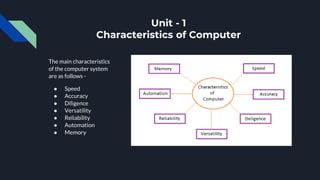
The main characteristics
of the computer system
are as follows -
● Speed
● Accuracy
● Diligence
● Versatility
● Reliability
● Automation
● Memory
Speed -
A computer works with much higher
speed and accuracy compared to
humans while performing
mathematical calculations.
Computers can process millions
(1,000,000) of instructions per
second. The time taken by computers
for their operations is microseconds
and nanoseconds.
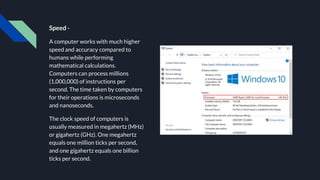
The clock speed of computers is
usually measured in megahertz (MHz)
or gigahertz (GHz). One megahertz
equals one million ticks per second,
and one gigahertz equals one billion
ticks per second.
Accuracy -
Computers perform calculations with 100% accuracy. Errors may occur due to data
inconsistency or inaccuracy.
Accuracy is an important feature of computers. Any type of task or calculation by a computer is
always correct. The computer also does not make erroneous calculations by mistake. Under no
circumstances can a computer give us wrong results, you can always trust the accuracy of the
computer.
Diligence -
The capacity of computer of performing repetitive task without getting tired is called diligence.
A computer is free from tiredness, lack of concentration, fatigue etc therefore it can work for
hours without creating any errors.
A computer can perform millions of tasks or calculations with the same consistency and
accuracy. It doesn’t feel any fatigue or lack of concentration. Its memory also makes it superior
to that of human beings.
Versatility -
Versatility refers to the capability of a computer to perform different kinds of works with same
accuracy and efficiency.
The capacity of computer of performing more than one task at the same time is called versatility
of computer. It can also be termed as the means of capacity to perform different types of work
completely.
Reliability -
A computer is reliable as it gives consistent result for similar set of data i.e., if we give same set of input
any number of times, we will get the same result. Reliability of any computer-related component is an
attribute that denotes its consistent performance according to the specifications.
As the world is becoming more computerised, people want assurance that the system is reliable and
would be able to work properly even if a few modules fail.Computers need to be reliable for people to
use them and have confidence in them. If they are not reliable, then they will quickly be abandoned.
Automation -
Computer performs all the tasks automatically i.e. it performs tasks without manual
intervention.
Automation is the use of electronics and computer-controlled devices to assume control of
processes. The aim of automation is to boost efficiency and reliability. In most cases, however,
automation replaces labor.
It’s simply - “Replacing manual operations with electronics and computer-controlled devices.”
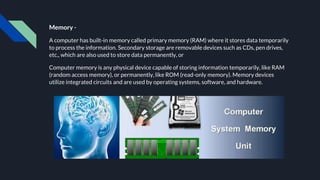
Memory -
A computer has built-in memory called primary memory (RAM) where it stores data temporarily
to process the information. Secondary storage are removable devices such as CDs, pen drives,
etc., which are also used to store data permanently, or
Computer memory is any physical device capable of storing information temporarily, like RAM
(random access memory), or permanently, like ROM (read-only memory). Memory devices
utilize integrated circuits and are used by operating systems, software, and hardware.
Unit - 2
Input & Output Devices
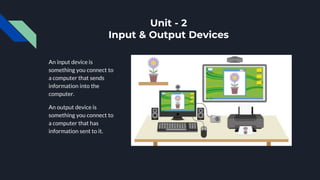
An input device is
something you connect to
a computer that sends
information into the
computer.
An output device is
something you connect to
a computer that has
information sent to it.
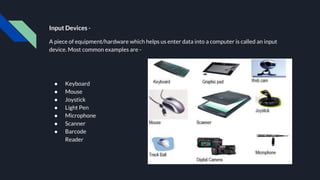
Input Devices -
A piece of equipment/hardware which helps us enter data into a computer is called an input
device. Most common examples are -
● Keyboard
● Mouse
● Joystick
● Light Pen
● Microphone
● Scanner
● Barcode
Reader
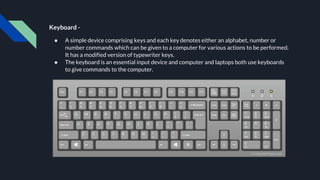
Keyboard -
● A simple device comprising keys and each key denotes either an alphabet, number or
number commands which can be given to a computer for various actions to be performed.
It has a modified version of typewriter keys.
● The keyboard is an essential input device and computer and laptops both use keyboards
to give commands to the computer.
Some Commonly Used Keyboard Shortcuts-
● Ctrl + C = Copy
● Ctrl + X = Cut
● Ctrl + V = Paste
● Ctrl + A = Select All
● Ctrl + P = Print
● Ctrl + F = Find
Function Keys Shortcuts -
● F1 = Help
● F2 = Rename
● F5 = Refresh/Reload
Other Shortcuts -
● Alt + F4 = Close Application/Window
● Alt + Tab = Switch Windows
● Ctrl + Z = Undo
● Ctrl + Y = Redo
● Shift + 1 = !
● Shift + 2 = @
● …
● …
● Shift + 9 = )
● Shift + a = A
● Shift + b = B
● …
● …
● …
● Shift + z = Z
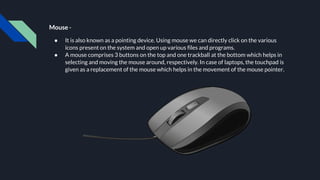
Mouse -
● It is also known as a pointing device. Using mouse we can directly click on the various
icons present on the system and open up various files and programs.
● A mouse comprises 3 buttons on the top and one trackball at the bottom which helps in
selecting and moving the mouse around, respectively. In case of laptops, the touchpad is
given as a replacement of the mouse which helps in the movement of the mouse pointer.
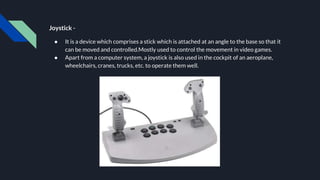
Joystick -
● It is a device which comprises a stick which is attached at an angle to the base so that it
can be moved and controlled.Mostly used to control the movement in video games.
● Apart from a computer system, a joystick is also used in the cockpit of an aeroplane,
wheelchairs, cranes, trucks, etc. to operate them well.
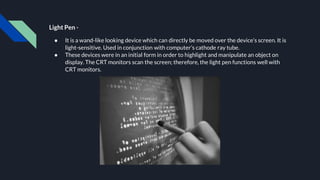
Light Pen -
● It is a wand-like looking device which can directly be moved over the device’s screen. It is
light-sensitive. Used in conjunction with computer’s cathode ray tube.
● These devices were in an initial form in order to highlight and manipulate an object on
display. The CRT monitors scan the screen; therefore, the light pen functions well with
CRT monitors.
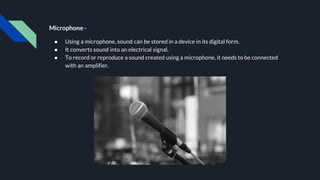
Microphone -
● Using a microphone, sound can be stored in a device in its digital form.
● It converts sound into an electrical signal.
● To record or reproduce a sound created using a microphone, it needs to be connected
with an amplifier.
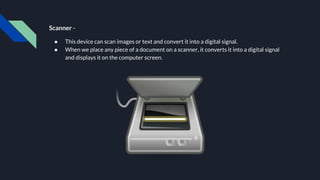
Scanner -
● This device can scan images or text and convert it into a digital signal.
● When we place any piece of a document on a scanner, it converts it into a digital signal
and displays it on the computer screen.
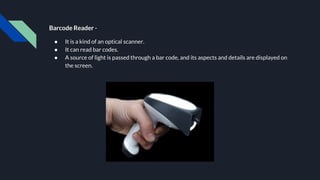
Barcode Reader -
● It is a kind of an optical scanner.
● It can read bar codes.
● A source of light is passed through a bar code, and its aspects and details are displayed on
the screen.
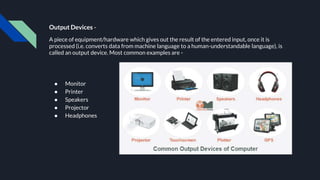
Output Devices -
A piece of equipment/hardware which gives out the result of the entered input, once it is
processed (i.e. converts data from machine language to a human-understandable language), is
called an output device. Most common examples are -
● Monitor
● Printer
● Speakers
● Projector
● Headphones
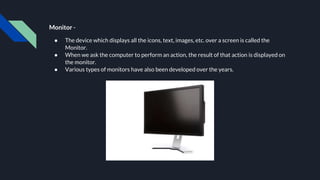
Monitor -
● The device which displays all the icons, text, images, etc. over a screen is called the
Monitor.
● When we ask the computer to perform an action, the result of that action is displayed on
the monitor.
● Various types of monitors have also been developed over the years.
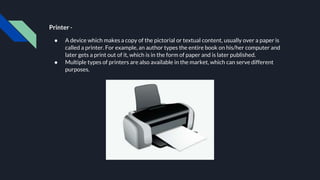
Printer -
● A device which makes a copy of the pictorial or textual content, usually over a paper is
called a printer. For example, an author types the entire book on his/her computer and
later gets a print out of it, which is in the form of paper and is later published.
● Multiple types of printers are also available in the market, which can serve different
purposes.
Grouping of Printers -
● Impact Printers - It’s a type of printer that works with paper via direct contact with the ink ribbon.
Usually these printers are noisy but remain in use today as they are remarkable for their multi-
part features.
● Non-Impact Printers - It is a type of printer that doesn’t touch a ribbon to print it. They used
technologies such as laser, xerographic, electrostatic, chemical, and inkjet.
Types of Printers -
● Dot-Matrix Printers - The dot-matrix printer uses 9 to 24 pin print heads. (Inexpensive)
● Daisy-Wheel Printers - A daisy-wheel impact printer can be used to get quality found in
typewriters.
● Line Printers - The character-at-a-time printers are too slow in a business where large quantities
of material are printed; therefore these users need line-at-a-time printers. Drum printers, chain
printers, and band printers are line-in-time printers.
● Inkjet Printers - The inkjet printer is the first and most common type. In most homes, you’re likely
to see inkjet printers.
● Laser Printers - The users who only print pictures from time to time would probably use the laser
color printer. Laser printers are typically reserved for office settings and similar environments that
depend on printing many text documents.
● LED Printers - LED printers also use toner and a spinning drum and are somewhat similar to laser
printers.
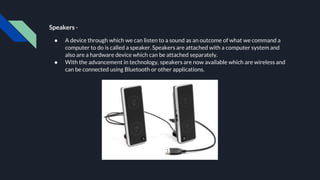
Speakers -
● A device through which we can listen to a sound as an outcome of what we command a
computer to do is called a speaker. Speakers are attached with a computer system and
also are a hardware device which can be attached separately.
● With the advancement in technology, speakers are now available which are wireless and
can be connected using Bluetooth or other applications.
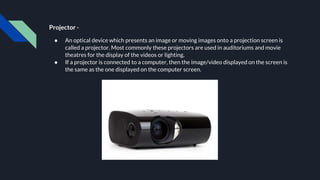
Projector -
● An optical device which presents an image or moving images onto a projection screen is
called a projector. Most commonly these projectors are used in auditoriums and movie
theatres for the display of the videos or lighting.
● If a projector is connected to a computer, then the image/video displayed on the screen is
the same as the one displayed on the computer screen.
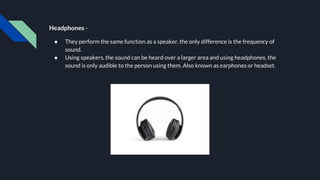
Headphones -
● They perform the same function as a speaker, the only difference is the frequency of
sound.
● Using speakers, the sound can be heard over a larger area and using headphones, the
sound is only audible to the person using them. Also known as earphones or headset.
Unit - 3
Storage Devices
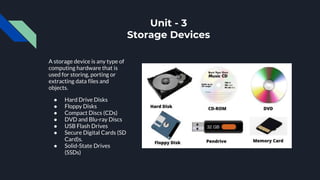
A storage device is any type of
computing hardware that is
used for storing, porting or
extracting data files and
objects.
● Hard Drive Disks
● Floppy Disks
● Compact Discs (CDs)
● DVD and Blu-ray Discs
● USB Flash Drives
● Secure Digital Cards (SD
Card)s.
● Solid-State Drives
(SSDs)
Storage devices are available in different forms, depending on the type of
underlying device. For example, a standard computer has multiple storage devices
including RAM, a cache, and a hard disk. The same device may also have optical
disk drives and externally connected USB drives.
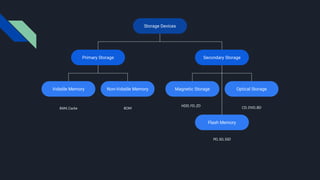
There are two different types of storage devices -
● Primary storage devices - Generally smaller in size, primary storage devices are
designed to hold data temporarily and are internal to the computer. They have the
fastest data access speed. These types of devices include RAM, ROM and cache
memory.
● Secondary storage devices - Secondary storage devices usually have larger
storage capacity, and they store data permanently. They can be either internal or
external to the computer. These types of devices include the hard disk, the optical
disk drive and USB storage device.
Storage Devices
Secondary Storage
Primary Storage
Volatile Memory Non-Volatile Memory Magnetic Storage Optical Storage
Flash Memory
RAM, Cache ROM
HDD, FD, ZD
CD, DVD, BD
PD, SD, SSD
What is the Difference Between RAM and ROM?
● RAM - It is volatile memory, which means that the information temporarily stored in the module is erased
when you restart or shut down your computer. Because the information is stored electronically on
transistors, when there is no electric current, the data disappears. Each time you request a file or
information, it is retrieved either from the computer's storage disk or the internet. The data is stored in
RAM, so each time you switch from one program or page to another, the information is instantly available.
When the computer is shut down, the memory is cleared until the process begins again. Volatile memory
can be changed, upgraded, or expanded easily by users.
● ROM - It is non-volatile memory, which means the information is permanently stored on the chip. The
memory does not depend on an electric current to save data, instead, data is written to individual cells
using binary code. Non-volatile memory is used for parts of the computer that do not change, such as the
initial boot-up portion of the software, or the firmware instructions that make your printer run. Turning
off the computer does not have any effect on ROM. Non-volatile memory cannot be changed by users.
Note - Both are primary storage devices because they communicate directly with the CPU while secondary storage
devices don’t communicate directly. Instead their data is loaded up in the RAM then CPU performs operations on it as
instructed.
Click to Read More in Detail
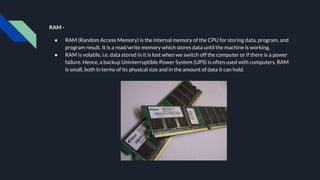
RAM -
● RAM (Random Access Memory) is the internal memory of the CPU for storing data, program, and
program result. It is a read/write memory which stores data until the machine is working.
● RAM is volatile, i.e. data stored in it is lost when we switch off the computer or if there is a power
failure. Hence, a backup Uninterruptible Power System (UPS) is often used with computers. RAM
is small, both in terms of its physical size and in the amount of data it can hold.
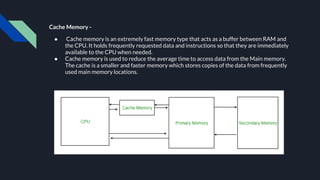
Cache Memory -
● Cache memory is an extremely fast memory type that acts as a buffer between RAM and
the CPU. It holds frequently requested data and instructions so that they are immediately
available to the CPU when needed.
● Cache memory is used to reduce the average time to access data from the Main memory.
The cache is a smaller and faster memory which stores copies of the data from frequently
used main memory locations.
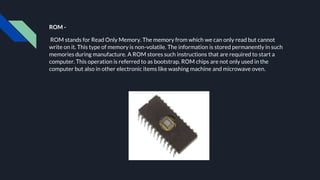
ROM -
ROM stands for Read Only Memory. The memory from which we can only read but cannot
write on it. This type of memory is non-volatile. The information is stored permanently in such
memories during manufacture. A ROM stores such instructions that are required to start a
computer. This operation is referred to as bootstrap. ROM chips are not only used in the
computer but also in other electronic items like washing machine and microwave oven.
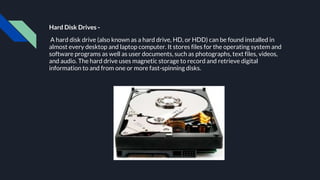
Hard Disk Drives -
A hard disk drive (also known as a hard drive, HD, or HDD) can be found installed in
almost every desktop and laptop computer. It stores files for the operating system and
software programs as well as user documents, such as photographs, text files, videos,
and audio. The hard drive uses magnetic storage to record and retrieve digital
information to and from one or more fast-spinning disks.
Floppy Disks -
Also know as a diskette, floppy, or FD, the floppy disk is another type of storage medium that
uses magnetic storage technology to store information. Floppy disks were once a common
storage device for computers and were very common from the mid-1970s through to the start
of the 21st century. The earliest floppies were 8 inches (203 mm) in size, but these were
replaced first by 5.25-inch (133 mm) disk drives and finally by 3.5-inch (90 mm) versions.
Tapes -
In the past, magnetic tape was often used for digital data storage because of its low cost
and ability to store large amounts of data. The technology essentially consisted of a thin,
magnetically coated piece of plastic wrapped around wheels. Its relative slowness and
unreliability compared to other data storage solutions have resulted in it now being
largely abandoned as a storage medium.
Compact Discs (CDs) -
The compact disc, (or CD for short) is a form of optical storage, a technology that employs
lasers and lights to read and write data. Initially, compact discs were used purely for music, but
in the late 1980s, they began to be used for computer data storage. Initially, the compact discs
that were introduced were CD-ROMs (read-only), but these were followed by CD-Rs (writable
compact discs) and CD-RWs (rewritable compact discs).
DVD and Blu-ray Discs -
The DVD (digital versatile disc) and Blu-ray disc (BD) are formats of digital optical disc
data storage which have superseded compact discs, mainly because of their much
greater storage capacity. A Blu-ray disc, for example, can store 25 GB (gigabytes) of data
on a single-layer disc and 50 GB on a dual-layer disc. In comparison, a standard CD is the
same physical size, but only holds 700 MB (megabytes) of digital data.
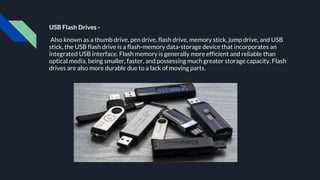
USB Flash Drives -
Also known as a thumb drive, pen drive, flash drive, memory stick, jump drive, and USB
stick, the USB flash drive is a flash-memory data-storage device that incorporates an
integrated USB interface. Flash memory is generally more efficient and reliable than
optical media, being smaller, faster, and possessing much greater storage capacity. Flash
drives are also more durable due to a lack of moving parts.
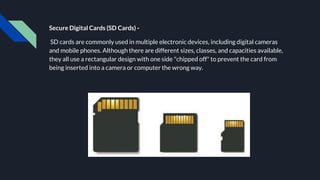
Secure Digital Cards (SD Cards) -
SD cards are commonly used in multiple electronic devices, including digital cameras
and mobile phones. Although there are different sizes, classes, and capacities available,
they all use a rectangular design with one side "chipped off" to prevent the card from
being inserted into a camera or computer the wrong way.
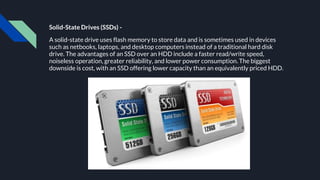
Solid-State Drives (SSDs) -
A solid-state drive uses flash memory to store data and is sometimes used in devices
such as netbooks, laptops, and desktop computers instead of a traditional hard disk
drive. The advantages of an SSD over an HDD include a faster read/write speed,
noiseless operation, greater reliability, and lower power consumption. The biggest
downside is cost, with an SSD offering lower capacity than an equivalently priced HDD.
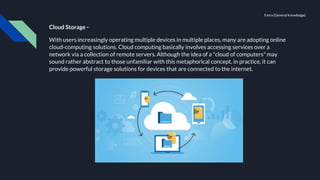
Cloud Storage -
With users increasingly operating multiple devices in multiple places, many are adopting online
cloud-computing solutions. Cloud computing basically involves accessing services over a
network via a collection of remote servers. Although the idea of a "cloud of computers" may
sound rather abstract to those unfamiliar with this metaphorical concept, in practice, it can
provide powerful storage solutions for devices that are connected to the internet.
Extra (General knowledge)
Unit - 4
CPU
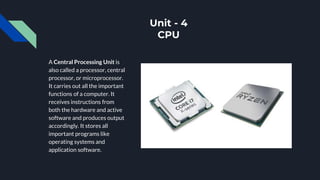
A Central Processing Unit is
also called a processor, central
processor, or microprocessor.
It carries out all the important
functions of a computer. It
receives instructions from
both the hardware and active
software and produces output
accordingly. It stores all
important programs like
operating systems and
application software.
CPU also helps Input and output devices to communicate with each other. Owing to
these features of CPU, it is often referred to as the brain of the computer.
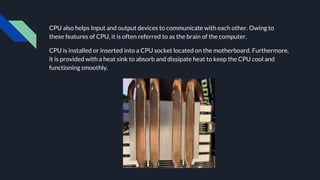
CPU is installed or inserted into a CPU socket located on the motherboard. Furthermore,
it is provided with a heat sink to absorb and dissipate heat to keep the CPU cool and
functioning smoothly.
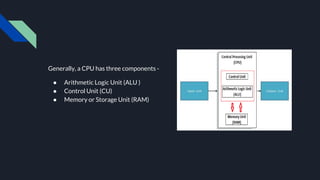
Generally, a CPU has three components -
● Arithmetic Logic Unit (ALU )
● Control Unit (CU)
● Memory or Storage Unit (RAM)
Control Unit - This unit controls the operations of all parts of the computer but does not carry out any actual data
processing operations. Functions of this unit are −
● It is responsible for controlling the transfer of data and instructions among other units of a computer.
● It manages and coordinates all the units of the computer.
● It obtains the instructions from the memory, interprets them, and directs the operation of the computer.
● It communicates with Input/Output devices for transfer of data or results from storage.
● It does not process or store data.
ALU (Arithmetic Logic Unit) - This unit consists of two subsections namely,
● Arithmetic Section - Function of arithmetic section is to perform arithmetic operations like addition,
subtraction, multiplication, and division. All complex operations are done by making repetitive use of the above
operations.
● Logic Section - Function of logic section is to perform logic operations such as comparing, selecting, matching,
and merging of data.
Memory or Storage Unit/ Registers - This unit can store instructions, data, and intermediate results. This unit supplies
information to other units of the computer when needed. It is also known as internal storage unit or the main memory
or the primary storage or Random Access Memory (RAM). Its size affects speed, power, and capability. Primary
memory and secondary memory are two types of memories in the computer. Functions of the memory unit are −
● It stores all the data and the instructions required for processing.
● It stores intermediate results of processing.
● It stores the final results of processing before these results are released to an output device.
● All inputs and outputs are transmitted through the main memory.
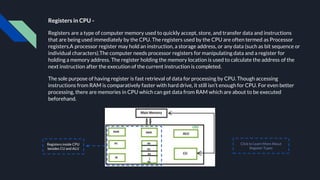
Registers in CPU -
Registers are a type of computer memory used to quickly accept, store, and transfer data and instructions
that are being used immediately by the CPU. The registers used by the CPU are often termed as Processor
registers.A processor register may hold an instruction, a storage address, or any data (such as bit sequence or
individual characters).The computer needs processor registers for manipulating data and a register for
holding a memory address. The register holding the memory location is used to calculate the address of the
next instruction after the execution of the current instruction is completed.
The sole purpose of having register is fast retrieval of data for processing by CPU. Though accessing
instructions from RAM is comparatively faster with hard drive, it still isn’t enough for CPU. For even better
processing, there are memories in CPU which can get data from RAM which are about to be executed
beforehand.
Registers inside CPU
besides CU and ALU
Click to Learn More About
Register Types
What is CPU Clock Speed?
The clock speed of a CPU or a processor refers to the number of instructions it can process in a second. It is measured in
gigahertz. For example, a CPU with a clock speed of 4.0 GHz means it can process 4 billion instructions in a second.
Types of CPU:
CPUs are mostly manufactured by Intel and AMD, each of which manufactures its own types of CPUs. In modern times, there
are lots of CPU types in the market. Some of the basic types of CPUs are described below:
● Single Core CPU - Single Core is the oldest type of computer CPU, which was used in the 1970s. It has only one core
to process different operations. It can start only one operation at a time; the CPU switches back and forth between
different sets of data streams when more than one program runs. So, it is not suitable for multitasking as the
performance will be reduced if more than one application runs. The performance of these CPUs is mainly dependent
on the clock speed. It is still used in various devices, such as smartphones.
● Dual Core CPU - As the name suggests, Dual Core CPU contains two cores in a single Integrated Circuit (IC).
Although each core has its own controller and cache, they are linked together to work as a single unit and thus can
perform faster than the single-core processors and can handle multitasking more efficiently than Single Core
processors.
● Quad Core CPU - This type of CPU comes with two dual-core processors in one integrated circuit (IC) or chip. So, a
quad-core processor is a chip that contains four independent units called cores. These cores read and execute
instructions of CPU. The cores can run multiple instructions simultaneously, thereby increases the overall speed for
programs that are compatible with parallel processing.
Quad Core CPU uses a technology that allows four independent processing units (cores) to run in parallel on a single chip. Thus by
integrating multiple cores in a single CPU, higher performance can be generated without boosting the clock speed. However, the
performance increases only when the computer's software supports multiprocessing. The software which supports multiprocessing
divides the processing load between multiple processors instead of using one processor at a time.
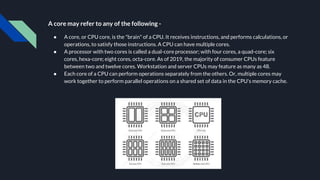
A core may refer to any of the following -
● A core, or CPU core, is the "brain" of a CPU. It receives instructions, and performs calculations, or
operations, to satisfy those instructions. A CPU can have multiple cores.
● A processor with two cores is called a dual-core processor; with four cores, a quad-core; six
cores, hexa-core; eight cores, octa-core. As of 2019, the majority of consumer CPUs feature
between two and twelve cores. Workstation and server CPUs may feature as many as 48.
● Each core of a CPU can perform operations separately from the others. Or, multiple cores may
work together to perform parallel operations on a shared set of data in the CPU's memory cache.
Unit - 5
System Software & Application Software
Software is a set of programs,
which is designed to perform a
well-defined function. A
program is a sequence of
instructions written to solve a
particular problem.
There are two types of
software −
● System Software
● Application Software
System Software -
System software is software designed to provide a platform for other software. Examples of
system software include operating systems like macOS, Linux, Android and Microsoft Windows,
computational science software, game engines, industrial automation, and software as a service
applications. It is generally prepared by the computer manufacturers. These software products
comprise of programs written in low-level languages, which interact with the hardware at a very
basic level. System software serves as the interface between the hardware and the end users.
Here is a list of some of the most prominent features of a system software −
● Close to the system
● Fast in speed
● Difficult to design
● Difficult to understand
● Difficult to manipulate
● Generally written in low-level language
macOS by Apple - Unix
macOS -
The family of Macintosh operating systems developed by Apple Inc.
includes the graphical user interface-based operating systems it has
designed for use with its Macintosh series of personal computers
since 1984, as well as the related system software it once created
for compatible third-party systems.
Mac OS is the computer operating system for Apple Computer
MacIntosh line of personal computers and workstations. A popular
feature of its latest version, “macOS 11 Big Sur” , is a desktop
interface with some 3D appearance characteristics. Big Sur has a
modular design intended to make it easier to add new features to
the operating system in the future. It runs UNIX applications as well
as older Mac applications.
Mac OS comes with Apple Computer's iMac and Power Macintosh
line of computers.
Ubuntu -
It is a Linux distribution based on Debian and composed mostly of
free and open-source software. Ubuntu is officially released in three
editions: Desktop, Server, and Core for Internet of things devices
and robots. All the editions can run on the computer alone, or in a
virtual machine. Ubuntu is a popular operating system for cloud
computing, with support for OpenStack.
Ubuntu contains a wide range of software that includes LibreOffice,
Firefox, Thunderbird, Transmission, and several lightweight games
such as Sudoku and chess.
Ubuntu aims to be secure by default. User programs run with low
privileges and cannot corrupt the operating system or other users'
files.
Other distributions include - Kubuntu, Lubuntu, Xubuntu, Manjaro,
POP OS & Elementary OS etc.
Ubuntu by Canonical - Linux
Windows -
Microsoft Windows, commonly referred to as Windows, is a group of
several proprietary graphical operating system families, all of which
are developed and marketed by Microsoft.
Microsoft introduced an operating environment named Windows on
November 20, 1985, as a graphical operating system shell for MS-
DOS in response to the growing interest in graphical user interfaces
(GUIs). Microsoft Windows came to dominate the world's personal
computer (PC) market with over 90% market share, overtaking Mac
OS, which had been introduced in 1984.
Apple came to see Windows as an unfair encroachment on their
innovation in GUI development as implemented on products such as
the Lisa and Macintosh (eventually settled in court in Microsoft's
favor in 1993).
Windows 11 is an upcoming major release of the Windows NT
operating system developed by Microsoft.
Windows 10 by Microsoft - MS
Windows NT
Application Software -
Application software products are designed to satisfy a particular need of a particular
environment. Application software may consist of a single program, such as Microsoft's notepad
for writing and editing a simple text. It may also consist of a collection of programs, often called
a software package, which work together to accomplish a task, such as a Microsoft Office.
Here is a list of some of the most prominent features of a application software −
● Close to the user
● Easy to design
● More interactive
● Easy to understand
● Easy to manipulate and use
● Generally written in high-level language
Examples of Application software are the following −
Student Record Software, Income Tax Software, Railways Reservation Software, Microsoft
Office Suite, VLC Media Player & Adobe Photoshop, Google Chrome etc.
MS Office -
Microsoft Office, or simply Office, is a family of client software, server
software, and services developed by Microsoft. It was first announced by
Bill Gates on August 1, 1988, at COMDEX in Las Vegas.
MS Office helps simplify basic office tasks and improve work productivity.
Each application is designed to address specific tasks, such as word
processing, data management, making presentations and organizing
emails.
Microsoft has developed multiple versions of Office that can be supported
by different operating systems, including Windows and macOS. Microsoft
Office is also offered in 35 different languages.
Microsoft Office is either available as a package or you can buy stand-
alone Microsoft Office applications, such as Word or Excel separately.
Most basic packages come with Word, Excel, PowerPoint, and Outlook,
while some also include other Microsoft Office programs, such as
Publisher, Access and/or OneNote.
Microsoft Office Suite
VLC Media Player -
VLC media player is a free and open-source, portable, cross-platform
media player software and streaming media server developed by the
VideoLAN project. VLC is available for desktop operating systems
and mobile platforms, such as Android, iOS, iPadOS, Windows 10
Mobile, and Windows Phone.
VLC Media Player
Google Chrome -
Google Chrome is a cross-platform web browser developed by
Google. It was first released in 2008 for Microsoft Windows built
with free software components from Apple WebKit and Mozilla
Firefox. It was later ported to Linux, macOS, iOS, and Android where
it is the default browser built into the OS.
Google Chrome
Unit - 6
Applications of Computer for Research
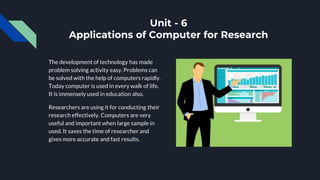
The development of technology has made
problem solving activity easy. Problems can
be solved with the help of computers rapidly.
Today computer is used in every walk of life.
It is immensely used in education also.
Researchers are using it for conducting their
research effectively. Computers are very
useful and important when large sample in
used. It saves the time of researcher and
gives more accurate and fast results.
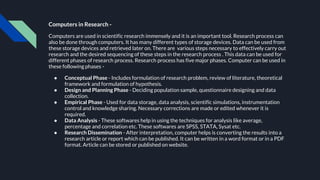
Computers in Research -
Computers are used in scientific research immensely and it is an important tool. Research process can
also be done through computers. It has many different types of storage devices. Data can be used from
these storage devices and retrieved later on. There are various steps necessary to effectively carry out
research and the desired sequencing of these steps in the research process . This data can be used for
different phases of research process. Research process has five major phases. Computer can be used in
these following phases -
● Conceptual Phase - Includes formulation of research problem, review of literature, theoretical
framework and formulation of hypothesis.
● Design and Planning Phase - Deciding population sample, questionnaire designing and data
collection.
● Empirical Phase - Used for data storage, data analysis, scientific simulations, instrumentation
control and knowledge sharing. Necessary corrections are made or edited whenever it is
required.
● Data Analysis - These softwares help in using the techniques for analysis like average,
percentage and correlation etc. These softwares are SPSS, STATA, Sysat etc.
● Research Dissemination - After interpretation, computer helps is converting the results into a
research article or report which can be published. It can be written in a word format or in a PDF
format. Article can be stored or published on website.
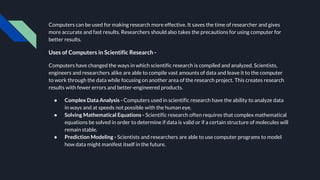
Computers can be used for making research more effective. It saves the time of researcher and gives
more accurate and fast results. Researchers should also takes the precautions for using computer for
better results.
Uses of Computers in Scientific Research -
Computers have changed the ways in which scientific research is compiled and analyzed. Scientists,
engineers and researchers alike are able to compile vast amounts of data and leave it to the computer
to work through the data while focusing on another area of the research project. This creates research
results with fewer errors and better-engineered products.
● Complex Data Analysis - Computers used in scientific research have the ability to analyze data
in ways and at speeds not possible with the human eye.
● Solving Mathematical Equations - Scientific research often requires that complex mathematical
equations be solved in order to determine if data is valid or if a certain structure of molecules will
remain stable.
● Prediction Modeling - Scientists and researchers are able to use computer programs to model
how data might manifest itself in the future.
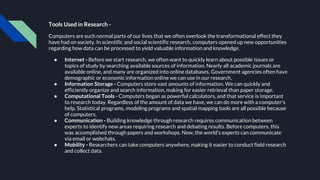
Tools Used in Research -
Computers are such normal parts of our lives that we often overlook the transformational effect they
have had on society. In scientific and social scientific research, computers opened up new opportunities
regarding how data can be processed to yield valuable information and knowledge.
● Internet - Before we start research, we often want to quickly learn about possible issues or
topics of study by searching available sources of information. Nearly all academic journals are
available online, and many are organized into online databases. Government agencies often have
demographic or economic information online we can use in our research.
● Information Storage - Computers store vast amounts of information. We can quickly and
efficiently organize and search information, making for easier retrieval than paper storage.
● Computational Tools - Computers began as powerful calculators, and that service is important
to research today. Regardless of the amount of data we have, we can do more with a computer's
help. Statistical programs, modeling programs and spatial mapping tools are all possible because
of computers.
● Communication - Building knowledge through research requires communication between
experts to identify new areas requiring research and debating results. Before computers, this
was accomplished through papers and workshops. Now, the world’s experts can communicate
via email or webchats.
● Mobility - Researchers can take computers anywhere, making it easier to conduct field research
and collect data.
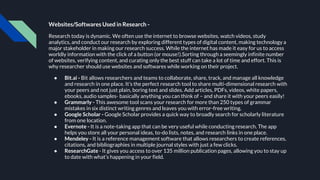
Websites/Softwares Used in Research -
Research today is dynamic. We often use the internet to browse websites, watch videos, study
analytics, and conduct our research by exploring different types of digital content, making technology a
major stakeholder in making our research success. While the internet has made it easy for us to access
worldly information with the click of a button (or mouse!).Sorting through a seemingly infinite number
of websites, verifying content, and curating only the best stuff can take a lot of time and effort. This is
why researcher should use websites and softwares while working on their project.
● Bit.ai - Bit allows researchers and teams to collaborate, share, track, and manage all knowledge
and research in one place. It’s the perfect research tool to share multi-dimensional research with
your peers and not just plain, boring text and slides. Add articles, PDFs, videos, white papers,
ebooks, audio samples- basically anything you can think of – and share it with your peers easily!
● Grammarly - This awesome tool scans your research for more than 250 types of grammar
mistakes in six distinct writing genres and leaves you with error-free writing.
● Google Scholar - Google Scholar provides a quick way to broadly search for scholarly literature
from one location.
● Evernote - It is a note-taking app that can be very useful while conducting research. The app
helps you store all your personal ideas, to-do lists, notes, and research links in one place.
● Mendeley - It is a reference management software that allows researchers to create references,
citations, and bibliographies in multiple journal styles with just a few clicks.
● ResearchGate - It gives you access to over 135 million publication pages, allowing you to stay up
to date with what’s happening in your field.
● Free Online Statistical Testing Tools - One of the most important requirement while writing up
your research is the use of appropriate statistical methods and analysis to backup your claims.
There are plenty of research tools available. For example -
○ GraphPad
○ Easy Calculation
○ Daniel Soper
● Microsoft Excel - One of the widely used tools for research is Microsoft Excel. MS Excel has
plenty of features that will come in handy when you are doing a research project. Excel is a must
have research tool if your study involves a lot of quantitative analysis. Excel offers a wide range
of statistical functions such as AVERAGE, MIN, MAX, SUM, etc that you can apply to the cells in a
few clicks.
● Plagiarism Detection Software - Plagiarism is seen as academic misconduct. Plagiarism is not
taken lightly by academic and research institutions and is punished and penalized severely. This
is seen as copying and taking credits for somebody’s work. Even if you paraphrase the text and
use it in your text, it will still be seen as plagiarism.
There are plenty of plagiarism detection software and online checking tools available that we can use to
check how much of your text overlap with previously published materials. We can fix these mistakes
before submitting your academic essay or research paper. Some of the tools for checking plagiarism are
listed below.
○ Plagiarism Detector
○ Plagiarism Software
○ DupliChecker
○ Plagium
○ Scribbr
○ Viper
● Project Management Tools - It is so easy for your research project to go out of hands when you
are multitasking and dealing with multiple deadlines. It is good practice to choose a project
management tool to keep on top of your research project.
○ Microsoft OneNote
○ Asana
○ Trello
Unit - 7
Multimedia & Presentation Devices
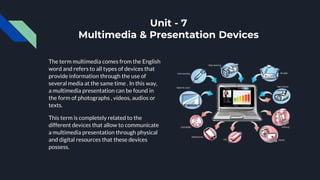
The term multimedia comes from the English
word and refers to all types of devices that
provide information through the use of
several media at the same time . In this way,
a multimedia presentation can be found in
the form of photographs , videos, audios or
texts.
This term is completely related to the
different devices that allow to communicate
a multimedia presentation through physical
and digital resources that these devices
possess.
There are several types of media, including video, audio, and text. A multimedia device allows a
person to deal with a variety of these media while eliminating the need to have a separate
device for each. There are numerous tasks that may be accomplished on these devices, such as
creating, editing, and transferring files. Many of these devices are compatible with computers,
which allows them to be easily dealt with in ways that may not otherwise be possible. Some are
mentioned below -
● Sound Cards
● Speakers
● MP3 players
● Smartphones
● Television
● Webcam
● Digital Camera
● Microphone
● Video Capture Card
● Projector, Screen, Light Pen
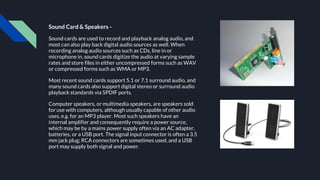
Sound Card & Speakers -
Sound cards are used to record and playback analog audio, and
most can also play back digital audio sources as well. When
recording analog audio sources such as CDs, line in or
microphone in, sound cards digitize the audio at varying sample
rates and store files in either uncompressed forms such as WAV
or compressed forms such as WMA or MP3.
Most recent sound cards support 5.1 or 7.1 surround audio, and
many sound cards also support digital stereo or surround audio
playback standards via SPDIF ports.
Computer speakers, or multimedia speakers, are speakers sold
for use with computers, although usually capable of other audio
uses, e.g. for an MP3 player. Most such speakers have an
internal amplifier and consequently require a power source,
which may be by a mains power supply often via an AC adapter,
batteries, or a USB port. The signal input connector is often a 3.5
mm jack plug; RCA connectors are sometimes used, and a USB
port may supply both signal and power.
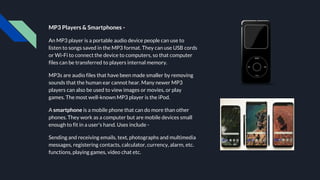
MP3 Players & Smartphones -
An MP3 player is a portable audio device people can use to
listen to songs saved in the MP3 format. They can use USB cords
or Wi-Fi to connect the device to computers, so that computer
files can be transferred to players internal memory.
MP3s are audio files that have been made smaller by removing
sounds that the human ear cannot hear. Many newer MP3
players can also be used to view images or movies, or play
games. The most well-known MP3 player is the iPod.
A smartphone is a mobile phone that can do more than other
phones. They work as a computer but are mobile devices small
enough to fit in a user's hand. Uses include -
Sending and receiving emails, text, photographs and multimedia
messages, registering contacts, calculator, currency, alarm, etc.
functions, playing games, video chat etc.
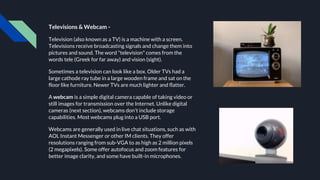
Televisions & Webcam -
Television (also known as a TV) is a machine with a screen.
Televisions receive broadcasting signals and change them into
pictures and sound. The word "television" comes from the
words tele (Greek for far away) and vision (sight).
Sometimes a television can look like a box. Older TVs had a
large cathode ray tube in a large wooden frame and sat on the
floor like furniture. Newer TVs are much lighter and flatter.
A webcam is a simple digital camera capable of taking video or
still images for transmission over the Internet. Unlike digital
cameras (next section), webcams don't include storage
capabilities. Most webcams plug into a USB port.
Webcams are generally used in live chat situations, such as with
AOL Instant Messenger or other IM clients. They offer
resolutions ranging from sub-VGA to as high as 2 million pixels
(2 megapixels). Some offer autofocus and zoom features for
better image clarity, and some have built-in microphones.
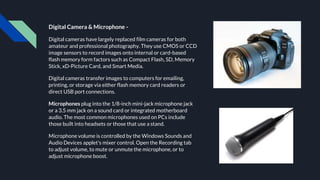
Digital Camera & Microphone -
Digital cameras have largely replaced film cameras for both
amateur and professional photography. They use CMOS or CCD
image sensors to record images onto internal or card-based
flash memory form factors such as Compact Flash, SD, Memory
Stick, xD-Picture Card, and Smart Media.
Digital cameras transfer images to computers for emailing,
printing, or storage via either flash memory card readers or
direct USB port connections.
Microphones plug into the 1/8-inch mini-jack microphone jack
or a 3.5 mm jack on a sound card or integrated motherboard
audio. The most common microphones used on PCs include
those built into headsets or those that use a stand.
Microphone volume is controlled by the Windows Sounds and
Audio Devices applet's mixer control. Open the Recording tab
to adjust volume, to mute or unmute the microphone, or to
adjust microphone boost.
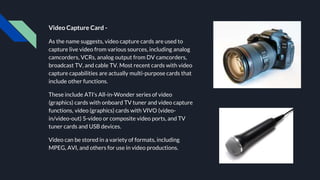
Video Capture Card -
As the name suggests, video capture cards are used to
capture live video from various sources, including analog
camcorders, VCRs, analog output from DV camcorders,
broadcast TV, and cable TV. Most recent cards with video
capture capabilities are actually multi-purpose cards that
include other functions.
These include ATI's All-in-Wonder series of video
(graphics) cards with onboard TV tuner and video capture
functions, video (graphics) cards with VIVO (video-
in/video-out) S-video or composite video ports, and TV
tuner cards and USB devices.
Video can be stored in a variety of formats, including
MPEG, AVI, and others for use in video productions.
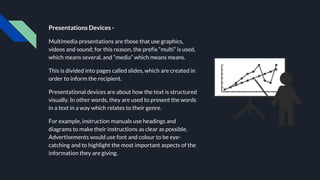
Presentations Devices -
Multimedia presentations are those that use graphics,
videos and sound; for this reason, the prefix “multi” is used,
which means several, and “media” which means means.
This is divided into pages called slides, which are created in
order to inform the recipient.
Presentational devices are about how the text is structured
visually. In other words, they are used to present the words
in a text in a way which relates to their genre.
For example, instruction manuals use headings and
diagrams to make their instructions as clear as possible.
Advertisements would use font and colour to be eye-
catching and to highlight the most important aspects of the
information they are giving.
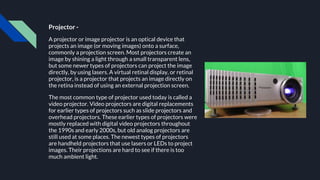
Projector -
A projector or image projector is an optical device that
projects an image (or moving images) onto a surface,
commonly a projection screen. Most projectors create an
image by shining a light through a small transparent lens,
but some newer types of projectors can project the image
directly, by using lasers. A virtual retinal display, or retinal
projector, is a projector that projects an image directly on
the retina instead of using an external projection screen.
The most common type of projector used today is called a
video projector. Video projectors are digital replacements
for earlier types of projectors such as slide projectors and
overhead projectors. These earlier types of projectors were
mostly replaced with digital video projectors throughout
the 1990s and early 2000s, but old analog projectors are
still used at some places. The newest types of projectors
are handheld projectors that use lasers or LEDs to project
images. Their projections are hard to see if there is too
much ambient light.
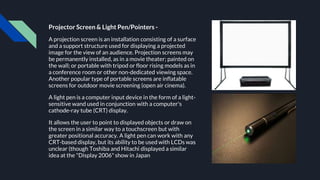
Projector Screen & Light Pen/Pointers -
A projection screen is an installation consisting of a surface
and a support structure used for displaying a projected
image for the view of an audience. Projection screens may
be permanently installed, as in a movie theater; painted on
the wall; or portable with tripod or floor rising models as in
a conference room or other non-dedicated viewing space.
Another popular type of portable screens are inflatable
screens for outdoor movie screening (open air cinema).
A light pen is a computer input device in the form of a light-
sensitive wand used in conjunction with a computer's
cathode-ray tube (CRT) display.
It allows the user to point to displayed objects or draw on
the screen in a similar way to a touchscreen but with
greater positional accuracy. A light pen can work with any
CRT-based display, but its ability to be used with LCDs was
unclear (though Toshiba and Hitachi displayed a similar
idea at the "Display 2006" show in Japan
Unit - 8
What is Internet?
The Internet or “Net” (network of networks)
is the largest computer network in the world
that connects billions of computer users.
The word internet comes from combination
between “interconnection” and “Network”
Network is a collection of computers and
devices connected via communication
channels and transmission media allow to
share resources (hardware, software, data,
information).
Generally nobody own internet
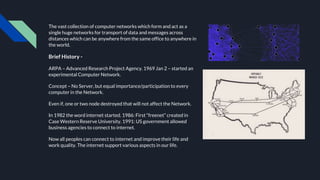
The vast collection of computer networks which form and act as a
single huge networks for transport of data and messages across
distances which can be anywhere from the same office to anywhere in
the world.
Brief History -
ARPA – Advanced Research Project Agency. 1969 Jan 2 – started an
experimental Computer Network.
Concept – No Server, but equal importance/participation to every
computer in the Network.
Even if, one or two node destroyed that will not affect the Network.
In 1982 the word internet started. 1986: First “freenet” created in
Case Western Reserve University. 1991: US government allowed
business agencies to connect to internet.
Now all peoples can connect to internet and improve their life and
work quality. The internet support various aspects in our life.
Types of Network -
LAN (Local Area Network) - A Local Area Network (LAN) is a private network that connects
computers and devices within a limited area like a residence, an office, a building or a campus. On
a small scale, LANs are used to connect personal computers to printers. However, LANs can also
extend to a few kilometers when used by companies, where a large number of computers share a
variety of resources like hardware (e.g. printers, scanners, audiovisual devices etc), software (e.g.
application programs) and data.
MAN (Metropolitan Area Network) - A Metropolitan Area Network (MAN) is a larger network
than LAN. It often covers multiple cities or towns. It is quite expensive and a single organization
may not have own it.
WAN (Wide Area Network) - A Wide Area Network (WAN) is a much larger network than LAN
and MAN. It often covers multiple countries or continents. It is quite expensive and a single
organization may not have own it. Satellite is used to manage WAN.
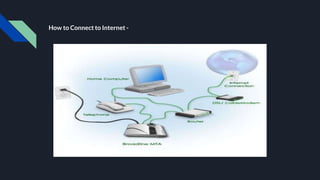
How to Connect to Internet -
Protocol -
A set of guidelines or rules. Communications
protocol is a formal description of message formats
and the rules for exchanging those messages.
Format that agreed to transfer data between two
devices.
● Hypertext Transfer Protocol (HTTP)
○ Hypertext Transfer Protocol Secure (HTTPS)
● Internet Protocol (IP)
● File transfer protocol (FTP)
● Simple Mail Transfer Protocol (SMTP)
● Networks News File Transfer Protocol
(NNTP)
● Transmission Control Protocol (TCP);
Normally use together with IP
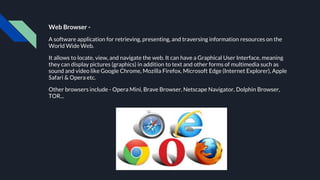
Web Browser -
A software application for retrieving, presenting, and traversing information resources on the
World Wide Web.
It allows to locate, view, and navigate the web. It can have a Graphical User Interface, meaning
they can display pictures (graphics) in addition to text and other forms of multimedia such as
sound and video like Google Chrome, Mozilla Firefox, Microsoft Edge (Internet Explorer), Apple
Safari & Opera etc.
Other browsers include - Opera Mini, Brave Browser, Netscape Navigator, Dolphin Browser,
TOR...
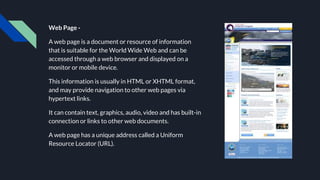
Web Page -
A web page is a document or resource of information
that is suitable for the World Wide Web and can be
accessed through a web browser and displayed on a
monitor or mobile device.
This information is usually in HTML or XHTML format,
and may provide navigation to other web pages via
hypertext links.
It can contain text, graphics, audio, video and has built-in
connection or links to other web documents.
A web page has a unique address called a Uniform
Resource Locator (URL).
Advantages -
● Communication
○ Process of transmitting and receiving symbol,
data, image, text, document, graphic etc
● Research
○ One such thing which has got lots of benefit
from this evolution of internet
● Education
○ One of the best things that the internet can
provide
● Financial transactions
○ The term which is used when there is exchange
of money.
● For Updates/News
○ We can gather news from different news
portals, also can check weather forecasts.
Disadvantages -
● Theft of Personal Information
○ Often makes our personal information
vulnerable to theft.
● Spamming
○ Refers to sending unwanted emails, which
serve no purpose and needlessly obstruct the
computer system.
● Malware Threats
○ One of the most annoying problems with the
Internet is the ease with which any malware
can infect our computers.
● Social Isolation,Obesity and Depression
○ Biggest problem with having the Internet is, its
ability to create rifts between the real and
virtual world.
○ There is an addiction for everything that
pertains to the web and that includes
excessive surfing, online gambling, social
networking, and gaming addiction.
Unit - 9
Use of Internet
The Internet is a virtual networking medium
that can be connected and used on various
devices these days. It enables the users to
send, receive, collect, store, update, delete,
and many other operations of the data
across the world.
Internet usage is expanding its boundaries
every day, as the technological growth is
huge. A few of the Internet’s major uses are
e-commerce, e-learning, knowledge sharing,
social connectivity, variety of media, file
transfer, communication, etc.
Why we use the Internet -
● Seek information on anything across the globe
on a real-time basis.
● Communicate, collaborate with others.
● Telecommute to the office or work from home.
● Do transactions with business entities.
● Download files from a remote.
● Get educated and entertained.
● Carry out social or do group activities.
● Collect operational data from remote
equipment (stationary as well as moving).
● Process data while it is streamed to the central
server.
● Get real-time data on the surrounding devices,
systems, weather to automate activities.
● Design a decision-taking system as against the
decision support system.
● Connect people, stakeholders, machines and
everything.
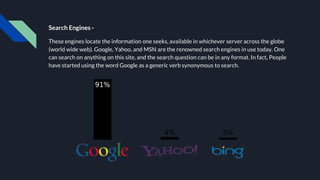
Search Engines -
These engines locate the information one seeks, available in whichever server across the globe
(world wide web). Google, Yahoo, and MSN are the renowned search engines in use today. One
can search on anything on this site, and the search question can be in any format. In fact, People
have started using the word Google as a generic verb synonymous to search.
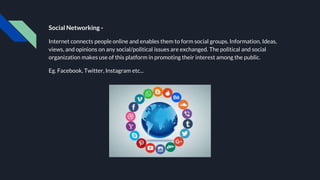
Social Networking -
Internet connects people online and enables them to form social groups. Information, Ideas,
views, and opinions on any social/political issues are exchanged. The political and social
organization makes use of this platform in promoting their interest among the public.
Eg. Facebook, Twitter, Instagram etc...
Collaboration -
Online chat tools like messenger, Skype, and other video conferencing tools help people to get
connected 24 x7 and have a hassle-free business and personal discussion. This avoids unwanted
travel by people and saves their time for productive use. The Internet has also facilitated work
from home with seamless connectivity to the office and avoid daily commuting.
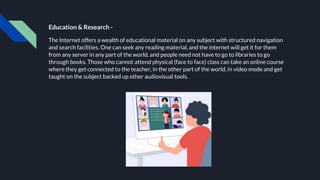
Education & Research -
The Internet offers a wealth of educational material on any subject with structured navigation
and search facilities. One can seek any reading material, and the internet will get it for them
from any server in any part of the world, and people need not have to go to libraries to go
through books. Those who cannot attend physical (face to face) class can take an online course
where they get connected to the teacher, in the other part of the world, in video mode and get
taught on the subject backed up other audiovisual tools.
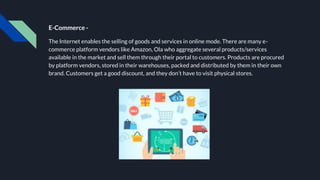
E-Commerce -
The Internet enables the selling of goods and services in online mode. There are many e-
commerce platform vendors like Amazon, Ola who aggregate several products/services
available in the market and sell them through their portal to customers. Products are procured
by platform vendors, stored in their warehouses, packed and distributed by them in their own
brand. Customers get a good discount, and they don’t have to visit physical stores.
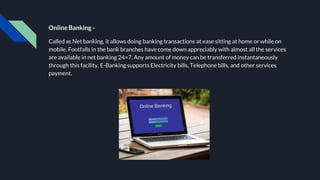
Online Banking -
Called as Net banking, it allows doing banking transactions at ease sitting at home or while on
mobile. Footfalls in the bank branches have come down appreciably with almost all the services
are available in net banking 24×7. Any amount of money can be transferred instantaneously
through this facility. E-Banking supports Electricity bills, Telephone bills, and other services
payment.
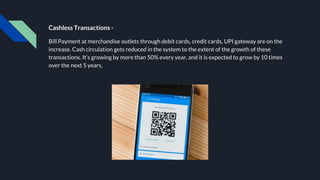
Cashless Transactions -
Bill Payment at merchandise outlets through debit cards, credit cards, UPI gateway are on the
increase. Cash circulation gets reduced in the system to the extent of the growth of these
transactions. It’s growing by more than 50% every year, and it is expected to grow by 10 times
over the next 5 years.
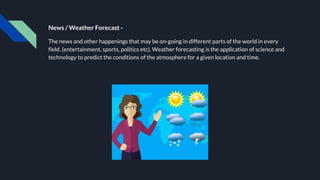
News / Weather Forecast -
The news and other happenings that may be on-going in different parts of the world in every
field. (entertainment, sports, politics etc). Weather forecasting is the application of science and
technology to predict the conditions of the atmosphere for a given location and time.
Unit - 10
Electronic Mail (e-mail) & WWW
The Internet is a network that gives access to a
user to get connected with the world.
Email is a way of sending messages (text, images
or graphics, attachments) electronically.
The World Wide Web (WWW), commonly
known as the Web, is an information system
where documents and other web resources are
identified by Uniform Resource Locators (URLs,
such as https://example.com/), which may be
interlinked by hyperlinks, and are accessible
over the Internet.
Electronic Mail (email) -
The first major use of the internet is Email. People
thronged to Email for sharing information, data files,
Photos, Videos, Business communications, and any
other files instantaneously with others. This had
enabled faster communication between people and
improve business efficiency. An email has reduced
the usage of paper considerably and reduced the
load on physical mail systems.
Though other latest collaboration tools provide
many rich features, they are not able to de-
popularize Email, and it still rules official and
personal communication. There are many free Email
websites offering mail services, and practically every
individual has an Email address and connected by
Email. Email concepts paved the way for developing
many innovative tools for improved collaboration.
Examples (email) -
Gmail is a free email service provided by Google. As
of 2019, it had 1.5 billion active users worldwide.
Outlook.com is a personal information manager web
app from Microsoft consisting of webmail,
calendaring, contacts, and tasks services.
Yahoo! Mail is an email service launched on October
8, 1997, by the American company Yahoo!, now a
subsidiary of Verizon.
Rediff.com is an Indian news, information,
entertainment and shopping web portal. It was
founded in 1996.
ProtonMail is an end-to-end encrypted email service
founded in 2013 in Geneva, Switzerland by scientists
who spent time at the CERN research facility.
WWW -
The World Wide Web, commonly known as the Web, is a
system of interlinked hypertext/hypermedia documents
accessed via the Internet.
Hypertext is text displayed on a computer or other
electronic device with references to other text that the
reader can immediately access, usually by a mouse click
or key press sequence.
Hypermedia is used as a logical extension of the term
hypertext in which graphics, audio, video, plain text and
hyperlinks are used to display information.
Creator: Tim Berners-Lee, 1989.
Difference between WWW and Internet -
Internet - collection of networks that connect millions of
businesses, government agencies, educational institutions,
and individuals.
WWW - the means we use to access information over the
internet
● Different communication protocols
● Special link (hyperlink) that enable users to jump from
one place to another on the web.
Unit - 11
Downloading & Uploading
File transfer is the transmission of a
computer file through a communication
channel from one computer system to
another.Typically, file transfer is mediated
by a communications protocol. In the history
of computing, numerous file transfer
protocols have been designed for different
contexts.
In this modern age, file transfer also happens
between mobile devices. Even cross-device
file transfers are possible using several
modern-day applications.
Protocols -
A file transfer protocol is a convention that describes
how to transfer files between two computing endpoints.
As well as the stream of bits from a file stored as a single
unit in a file system, some may also send relevant
metadata such as the filename, file size and timestamp -
and even file system permissions and file attributes.
Some examples:
● FTP is an older cross-platform file transfer
protocol
● SSH File Transfer Protocol a file transfer protocol
secured by the Secure Shell (SSH) protocol
● Secure copy (scp) is based on the Secure Shell
(SSH) protocol
● HTTP can support file transfer
● Bittorrent, Gnutella and other distributed file
transfers systems use peer-to-peer
Downloading -
Downloading is the transmission of a file from one computer
system to another, usually smaller computer system. From
the Internet user's point-of-view, to download a file is to
request it from another computer (or from a Web page on
another computer) and to receive it.
Uploading -
Uploading is transmission in the other direction: from one,
usually smaller computer to another computer. From an
Internet user's point-of-view, uploading is sending a file to a
computer that is set up to receive it. People who share images
with others on bulletin board systems (BBS) or social
networking site upload files to them respectively.
The File Transfer Protocol (FTP) is the Internet protocol for downloading and uploading files
and a number of special applications can furnish FTP services for you. (However, if you are
downloading through a Web page, the FTP request is set up for you by the Web page. You are
usually asked where you want the downloaded file placed on your hard disk, and then the
downloading transmission takes place.)
When you send an attached file with an e-mail note, this is just an attachment, not a download
or an upload. In practice, many people use "download" and "upload" rather indiscriminately so
you just have to understand the context. For example, if someone says to you "Download (or
upload) such--and-such a file to me by e-mail," they clearly mean "Send it to me as an
attachment."
In general, from the ordinary workstation or small computer user's point-of-view, to download
is to receive a file and to upload is to send a file. Some examples of commonly used FTP client
and Download Managers are -
● FTP Client - FileZilla etc.
● Download Managers - Internet Download Manager (IDM), Free Download Manager
(FDM) etc.
Unit - 12
Access of e-Journals
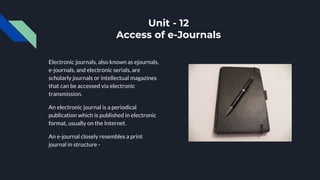
Electronic journals, also known as ejournals,
e-journals, and electronic serials, are
scholarly journals or intellectual magazines
that can be accessed via electronic
transmission.
An electronic journal is a periodical
publication which is published in electronic
format, usually on the Internet.
An e-journal closely resembles a print
journal in structure -
● there is a table of contents which lists the articles,
● many electronic journals still use a volume/issue model, although some titles now publish on a
continuous basis.
Online journal articles are a specialized form of electronic document -
● they have the purpose of providing material for academic research and study,
● they are formatted approximately like journal articles in traditional printed journals.
Often a journal article will be available for download in two formats - as a PDF and in HTML format,
although other electronic file types are often supported for supplementary material. Electronic journals
have several advantages over traditional printed journals -
● We can search the contents pages or the full text of journals to find articles on a certain subject.
● We can read journal articles on your desktop, we don't have to be in the Library.
● We can email articles to ourself or download them for printing.
● The article that we want to read will always be available, even when the library is closed.
● Hypertext links allow us to move to different sections within individual journals or articles and can
link you to related resources on the Internet.
● Journals can include more images and audio-visual material.
● Journals can be interactive - we can email the author or editor with your comments.
Access -
While researching an important paper, we come across an online journal database that claims to
connect academics to high-quality peer-reviewed research. Intrigued, we search for keywords
related to our topic, only to discover that we must pay a hefty subscription fee to access the
service.
Subscription fees and paywalls are often the bane of students and academics, especially those at
small institutions who don't have access to many article directories and repositories. Some Free
Online Journal and Research Databases are -
● CORE is a multidisciplinary aggregator of open access research. It allows users to search
more than 66 million open access articles.
● ScienceOpen offers open access to more than 28 million articles in all areas of science.
Although we do need to register to view the full text of the articles, registration is free.
● The Directory of Open Access Journals (DOAJ) gives researchers access to high-quality,
peer-reviewed journals.
DOAJ -
DOAJ is a community-curated online directory that indexes and provides access to high quality,
open access, peer-reviewed journals.
All DOAJ services are free of charge including being indexed. All data is freely available.
The DOAJ (Directory of Open Access Journals) was launched in 2003 with 300 open access
journals. Today, this independent database contains over 15 000 peer-reviewed open access
journals covering all areas of science, technology, medicine, social sciences, arts and humanities.
Open access journals from all countries and in all languages are welcome to apply for inclusion.
DOAJ is financially supported by many libraries, publishers and other like-minded
organisations.
Unit - 13
e-Library
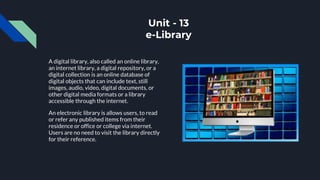
A digital library, also called an online library,
an internet library, a digital repository, or a
digital collection is an online database of
digital objects that can include text, still
images, audio, video, digital documents, or
other digital media formats or a library
accessible through the internet.
An electronic library is allows users, to read
or refer any published items from their
residence or office or college via internet.
Users are no need to visit the library directly
for their reference.
Benefits of Electronic Library -
● E-libraries are the best tool for providing online resources for research which will make
easy to its users.
● Retrospective search is easy and most convenient than print resource.
● Literacy is increases when searching made by the educators.
● Searching of index is also easy.
● It supports for searching with the combination of keyword.
● While searching made by patrons for their project to retrieve a manageable amount of
content, quickly and easily.
● Provision for simultaneous access of multiple file.
● E-libraries facilitate to its patrons for research solution.
● Provision for print out and saved the download items for future references.
● The distance learners are also searching their requirement from e-library.
● E-Library provides the benefit to integrated search to dictionary, encyclopedia, almanacs,
and etc. through the reference desk.
● The simplest functionality like Point-and-click promotes the users interest.
Some online libraries where we can read free e-books online and download them legally -
● The National Digital library of India (NDLI) is a project under Ministry of Education,
Government of India.
● Project Gutenberg is a volunteer effort to digitize and archive cultural works, to encourage
the creation and distribution of eBooks.
● Questia is the premier online research and paper writing resource. Since its founding,
Questia has helped students find and cite high-quality scholarly research.
● Open Library is an initiative of the Internet Archive, a nonprofit organization. It is an online
project intended to create "one web page for every book ever published".
● The Online Books Page is a website that facilitates access to books that are freely readable
over the Internet.
● Read Print is a free online library which provides thousands of free online books for
students, teachers, and the classic enthusiast.
● The Literature Network offers searchable online literature for the student or enthusiast.
● Classic Reader offers thousands of free classic books, poems, plays and short stories from a
wide range of authors spanning several centuries.
● The Classic Bookshelf is packed full with hundreds of readable classics.
Unit - 14
Search Engines, Searching the Keywords
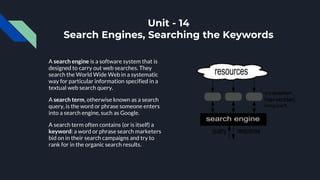
A search engine is a software system that is
designed to carry out web searches. They
search the World Wide Web in a systematic
way for particular information specified in a
textual web search query.
A search term, otherwise known as a search
query, is the word or phrase someone enters
into a search engine, such as Google.
A search term often contains (or is itself) a
keyword: a word or phrase search marketers
bid on in their search campaigns and try to
rank for in the organic search results.
How a Search Engine Works -
Because large search engines contain millions and sometimes billions of pages, many search
engines display the results depending on their importance. This importance is commonly
determined using various algorithms.
The source of all search engine data is collected using a spider or crawler that visits each page on
the Internet and collects its information. Once a page is crawled, the data contained in the page is
processed and indexed. Often, this can involve the steps below.
● Strip out stop words.
● Record the remaining words on the page and the frequency they occur.
● Record links to other pages.
● Record information about any images, audio, and embedded media on the page.
The data collected is used to rank each page. These rankings then determine which pages to show
in the search results and in what order. Finally, once the data is processed, it's broken up into files,
inserted into a database, or loaded into memory where it's accessed when a search is performed.
Do all Search Engines Give the Same Results -
Not necessarily. Search engines use proprietary algorithms to index and correlate data, so every
search engine has its own approach to finding what you're trying to find. Its results may be based
on where you're located, what else you've searched for, and what results were preferred by other
users searching for the same thing.
What is the Best Search Engine?
There isn't one search engine that is better than all the others. Many people could argue that
Google's search engine is the best, and it is the most popular and well-known. It's so popular that
people often use it as a verb when telling someone to search for their question.
Microsoft's Bing search engine is also popular and used by many people. Bing does an excellent
job of finding information and answering questions. Bing is also what powers the search in
Windows 10 and the Yahoo search engine.
Users concerned with privacy, enjoy using DuckDuckGo. This search engine makes its users
anonymous and is an excellent solution for users concerned with how much information Google
and Bing collect on its users.
What Are Keywords -
● In terms of search engines, a keyword is any search term entered on Google (or another
search engine) that has a results page where websites are listed.
● Keywords are search terms that a website owner or SEO professional will use to optimize a
website in the hopes of ranking at the top of Google’s results for specific keywords.
Searching the Keywords -
● Anything searched on a search engine, whether a single word or a phrase, is considered a
keyword.
Google Dork -
The Google Search Engine finds answers to our questions, which is helpful in our daily lives. You
can search for your school assignments, reports, presentations, and more.
A Google Dork query, sometimes just referred to as a dork, is a search string that uses advanced
search operators to find information that is not readily available on a website.
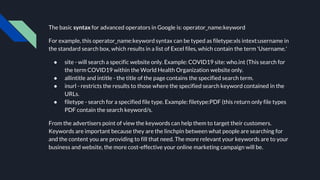
The basic syntax for advanced operators in Google is: operator_name:keyword
For example, this operator_name:keyword syntax can be typed as filetype:xls intext:username in
the standard search box, which results in a list of Excel files, which contain the term 'Username.'
● site - will search a specific website only. Example: COVID19 site: who.int (This search for
the term COVID19 within the World Health Organization website only.
● allintitle and intitle - the title of the page contains the specified search term.
● inurl - restricts the results to those where the specified search keyword contained in the
URLs.
● filetype - search for a specified file type. Example: filetype:PDF (this return only file types
PDF contain the search keyword/s.
From the advertisers point of view the keywords can help them to target their customers.
Keywords are important because they are the linchpin between what people are searching for
and the content you are providing to fill that need. The more relevant your keywords are to your
business and website, the more cost-effective your online marketing campaign will be.
Unit - 15
Overview of Google Applications
Our mission is to organise the world’s
information and make it universally
accessible and useful.
- Google
Search & Explore -
● Search - Ask questions. Find answers.
● Maps - Explore your neighborhood and get around with real-time traffic information.
● Translate - Speak, scan, type, or draw to translate in over 100 languages.
● Chrome - One fast, simple, and secure browser for all your devices.
Watch & Play -
● YouTube Music - A new music streaming app. Made by YouTube.
● Chromecast - Stream movies, music and more from your phone to your TV.
● Google Play Movies & TV - The newest releases, plus all your favorites, even on your TV.
● YouTube - Discover, watch, and share your favorite videos and music.
Talk & Text -
● Gmail - Email by Google—secure, smart and easy to use—helping you save time and do
more with your inbox.
● Messages - Simple, helpful messaging to help you connect with those who matter.
● Google Duo - Simple, high quality video calling for Android and iOS.
● Google Chat - Google Chat allows you to securely message with your team.
Stay Organised -
● Google Photos - All your photos, organized, and easy to find.
● Contacts - Keep your address book clean, safely backed up, and available everywhere.
● Calendar - Organize your schedule and share events with those in your life.
● Keep - Save your thoughts as notes, lists, and voice memos from anywhere.
Work Smarter -
● Docs - All your documents, editable and shareable, wherever you are.
● Sheets - Smart spreadsheets you can work on from anywhere.
● Slides - Tell stories with presentations you can create and take anywhere.
● Drive - A safe place to keep, access, and share your files.
Grow Your Business -
● Google Ads - Show up when customers search for what you offer.
● AdSense - Monetize your content with ads.
● Analytics - Gain customer insights across your channels.
● Google My Business - Stand out to customers looking for you on Google Search and Maps,
for free.
Unit - 16
Microsoft Word
Microsoft Word is a word processor
developed by Microsoft. It was first
released on October 25, 1983, under
the name Multi-Tool Word for Xenix
systems.
The extension for any word file is “.doc”
or “.docx”
MS Word is used to make professional-quality documents, letters, reports, etc., It has advanced
features which allow you to format and edit your files and documents in the best possible way. MS
Word enables users to do write-ups, create documents, resumes, contracts, etc. This is one of the
most commonly used programs under the Office suite.
Follow these simple steps to open MS Word on your personal computer:
● Start → All Programs → MS Office → MS Word.
Toolbar -
A toolbar is a set of icons or buttons that are part of a software program's interface or an open
window. Microsoft Word has a toolbar with icons that allow you to open, save, and print
documents, as well as change the font, text size, and style of the text. Like many programs, the
Word toolbar can be customized by adding or deleting options. It can even be moved to different
parts of the screen.
The Toolbar has been changed to Ribbon and Tabs in new editions of MS Word or MS Office.
Some of the tabs that can be seen on the ribbon in MS Word are -
● Home - Common formatting and editing tools like cut, copy, paste, color, etc.
● Insert - To insert something like images, symbols, shapes, charts, tables, graphs, header,
footer, page number, etc.
● Page Layout - To modify the page settings like margins, border, background, orientation,
columns, lines, indentation, spacing, etc..
● References - Useful for those who are creating a thesis or writing books or lengthy
documents. Options like citation, footnote, table of contents, caption, bibliography, etc. can
be found under this tab.
● Mailings - Mail Merge (When one letter or document is sent to multiple recipients.)
● Review - Spell check, grammar, Thesaurus, word count, language, translation, comments,
etc.
Menu -
The menu begins with the word File and continues with Edit, View, Insert, Format, Tools, Table,
Window, and Help. You use the menu to give instructions to the software. Note: These menus
disappeared in Word versions 2007 and 2010.
Options like - New, Open, Save, Save As, Print, Prepare, Send, Publish & Close can be seen in MS
Word 2007 and later version when clicked on the Office Button at the top left of the window.
Editing a Document -
Making changes in a document like inserting or deleting text, copying or moving text, replacing
text, etc. is called text Editing. To make changes in the block of text, it is necessary to select it. you
can select a word, line, paragraph or entire document text.
● To Select a Word - place the mouse pointer on the word to be selected and double click the
left mouse button to select that word. The selected word will appear in reverse color.
● To Select a Line - Bring the mouse pointer to the beginning of the line in the left margin.
Click the left mouse button to select the line.
● To Select a paragraph - keep the mouse pointer anywhere within the paragraph and triple
click left mouse button to select that paragraph or bring the mouse pointer to the left side
of the paragraph and double click left mouse button.
● To Move the Text -
○ Select the text to be moved.
○ Click the Cut option from the Clipboard group under the Home tab.
○ The selected text will disappear from the document.
○ Bring the cursor to the new position where you want to shift the text.
○ Click Paste option from the Clipboard group.
○ The text will appear at the cursor position.
● Copy
● Undo
● Redo
● Find
● Replace
● Change Case
● Spellings & Grammar
File Handling & Various Formats of File -
File management in Word is done by using either the Open or Save As dialog boxes. Both feature
similar tools, although you’ll probably do more file manipulation in the Save As dialog box,
especially when saving new documents.
● Creating a File
● Opening a File
● Saving a File and it’s Changes
● Creating a Folder
● Renaming a File
● Deleting a File
● Copying and Moving Files
● Printing a File
● Closing a File
Formats of a File -
● .doc - Word 97-2003 Document
● .docx - Word Document
● .htm, .html - Web Page
● .odt - OpenDocument Text
● .pdf - PDF (developed by Adobe Systems)
● .rtf - Rich Text Format
● .txt - Plain Text
● .xps - XPS Document
Mail Merge -
Mail Merge is a handy feature that incorporates data from both Microsoft Word (Document or a
Letter) and Microsoft Excel (Address List) and allows you to create multiple documents at once,
such as letters, saving you the time and effort of retyping the same letter over and over.
Or
Mail merge lets you create a batch of documents that are personalized for each recipient. For
example, a form letter might be personalized to address each recipient by name. A data source,
like a list, spreadsheet, or database, is associated with the document. Placeholders--called merge
fields--tell Word where in the document to include information from the data source.
Document Types -
● Letters, Email, Envelopes or Labels, Directory.
Basics of Latex -
● The open-source software system — used to create and precisely format scientific
manuscripts — is more akin to coding than writing.
● Since its development in 1985, LaTeX has become popular in disciplines such as
mathematics, physics and computer science.
● Word users can also write directly in LaTeX syntax, and then click to convert it into a
formatted equation. Microsoft says that “most” LaTeX expressions are supported, although
its website lists 20 keywords that are not (such as degree, the degree symbol).
Click to Read More on Latex
Unit - 17
Microsoft Excel
Microsoft Excel is a spreadsheet
developed by Microsoft for Windows,
macOS, Android and iOS. It features
calculation, graphing tools, pivot tables,
etc.
MS Excel is a spreadsheet program where one can record data in the form of tables. It is easy to
analyse data in an Excel spreadsheet.
To open MS Excel on your computer, follow the steps given below:
● Click on Start
● Then All Programs
● Next step is to click on MS Office
● Then finally, choose the MS-Excel option
Alternatively, you can also click on the Start button and type MS Excel in the search option
available.
Cell - A spreadsheet is in the form of a table comprising rows and columns. The rectangular box at
the intersection point between rows and columns forms a cell.
Cell Address - It is the name by which is cell can be addressed. For example, if row 7 is interested
in column G, then the cell address is G7.
Toolbar -
A toolbar is a set of icons or buttons that are part of a software program's interface or an open
window. Microsoft Excel has a toolbar with icons that allow you to open, save, and print
spreadsheets, as well as change the font, text size, and style of the text. Like many programs, the
Excel toolbar can be customized by adding or deleting options. It can even be moved to different
parts of the screen.
The Toolbar has been changed to Ribbon and Tabs in new editions of MS Excel or MS Office.
Some of the tabs that can be seen on the ribbon in MS Word are -
● Home - Comprises options like font size, font styles, font colour, background colour,
alignment, formatting options and styles, insertion and deletion of cells and editing options.
● Insert - Comprises options like table format and style, inserting images and figures, adding
graphs, charts and sparklines, header and footer option, equation and symbols.
● Page Layout - Themes, orientation and page setup options are available under the page
layout option.
● Formulas - Since tables with a large amount of data can be created in MS excel, under this
feature, you can add formulas to your table and get quicker solutions.
● Data Adding external data (from the web), filtering options and data tools are available
under this category.
● Review - Proofreading can be done for an excel sheet (like spell check) in the review
category and a reader can add comments in this part.
● References - Useful for those who are creating a thesis or writing books or lengthy
documents. Options like citation, footnote, table of contents, caption, bibliography, etc. can
be found under this tab.
● View - Different views in which we want the spreadsheet to be displayed can be edited
here. Options to zoom in and out and pane arrangement are available under this category.
Menu -
The menu begins with the word File and continues with Edit, View, Insert, Format, Tools, Table,
Window, and Help. You use the menu to give instructions to the software. Note: These menus
disappeared in Word versions 2007 and 2010.
Options like - New, Open, Save, Save As, Print, Prepare, Send, Publish & Close can be seen in MS
Word 2007 and later version when clicked on the Office Button at the top left of the window.
Office Button Contains.
● New - To Open New Workbook (Ctrl+N)
● Open - To Open Existing Document (Ctrl+O)
● Save - To Save A Document (Ctrl+S)
● Save As - To Save Copy Document (F12)
● Print - To Print A Document (Ctrl+P)
● Prepare - To Prepare Document For Distribution.
● Send - To Send A Copy Of Document To Other People.
● Publish - To Distribute Document To Other People.
● Close - To Close A Document (Ctrl+W).
Three parts of a ribbon are -
● Tabs - There are seven tabs across the top of the excel window.
● Groups - Groups are sets of related commands, displayed on tabs.
● Commands - A command is a button,a menu or a box where you enter information.
Creating Worksheets -
● Microsoft excel consists of workbooks. Within each workbook, there is an infinite number
of worksheets. Each worksheet contains Columns and Rows.
● The tabs at the bottom of the screen represent different worksheets within a workbook.
You can use the scrolling buttons on the left to bring other worksheets into view.
● Shift + F11 = New Worksheet
Charts -
A chart is a tool you can use in Excel to communicate your data graphically. Charts allow your
audience to more easily see the meaning behind the numbers in the spreadsheet, and to make
showing comparisons and trends much easier.
Creating a chart -
Charts can be a useful way to communicate data. When you insert a chart in Excel, it appears in
the selected worksheet with the source data by default.
To create a chart:
● Select the worksheet you want to work with.
● Select the cells you want to chart, including the column titles and row labels.
● Click the Insert tab.
● Hover over each Chart option in the Charts group to learn more about it.
● Select one of the Chart options.
● Select a type of chart from the list that appears.
Sorting & Filtering -
Sorting lists is a common spreadsheet task that allows you to easily reorder your data. The most
common type of sorting is alphabetical ordering, which you can do in ascending or descending
order.
To sort in alphabetical order -
● Select a cell in the column you want to sort.
● Click the Sort & Filter command in the Editing group on the Home tab.
● Select Sort A to Z. Now the information in the Category column is organized in alphabetical
order.
You can Sort in reverse alphabetical order by choosing Sort Z to A in the list.
Filtering, or temporarily hiding, data in a spreadsheet is simple. This allows you to focus on
specific spreadsheet entries.
To filter data -
● Click the Filter command on the Data tab. Drop-down arrows will appear beside each
column heading.
● Click the drop-down arrow next to the heading you would like to filter.
● Select the option that you want to filter.
● Click OK. All other data will be filtered, or hidden, and only the selected data is visible.
Use of Formulas -
A function is a predefined formula that performs calculations using specific values in a particular
order.
One of the key benefits of functions is that they can save you time because you do not have to
write the formula yourself. For example, you could use an Excel function called Average to quickly
find the average of a range of numbers or the Sum function to find the sum of a cell range.
Parts of a function - Each function has a specific order, called syntax, which must be strictly
followed for the function to work correctly.
Syntax order -
● All functions begin with the = sign.
● After the = sign, define the function name (e.g., Sum).
● Then there will be an argument. An argument is the cell range or cell references that are
enclosed by parentheses. If there is more than one argument, separate each by a comma.
Excel's Different Functions - There are many different functions in Excel 2007. Some of the more
common functions include -
● Statistical functions -
○ SUM - Adds a range of cells together
○ AVERAGE - Calculates the average of a range of cells
○ COUNT - Counts the number of chosen data in a range of cells
○ MAX - Identifies the largest number in a range of cells
○ MIN - Identifies the smallest number in a range of cells
● Financial functions -
○ Interest rates
○ Loan payments
○ Depreciation amounts
● Date and time functions -
○ DATE - Converts a serial number to a day of the month
○ DAYS360 - Calculates the number of days between two dates based on a 360-day year
○ TIME - Returns the serial number of a particular time
○ HOUR - Converts a serial number to an hour
Benefits of MS Excel -
● Easy To Store Data - Since there is no limit to the amount of information that can be saved
in a spreadsheet, MS Excel is widely used to save data or to analyse data. Filtering
information in Excel is easy and convenient.
● Easy To Recover Data - If the information is written on a piece of paper, finding it may take
longer, however, this is not the case with excel spreadsheets. Finding and recovering data is
easy.
● Application of Mathematical Formulas - Doing calculations has become easier and less
time-taking with the formulas option in MS excel
● More Secure - These spreadsheets can be password secured in a laptop or personal
computer and the probability of losing them is way lesser in comparison to data written in
registers or piece of paper.
● Data at One Place - Earlier, data was to be kept in different files and registers when the
paperwork was done. Now, this has become convenient as more than one worksheet can be
added in a single MS Excel file.
● Neater and Clearer Visibility of Information - When the data is saved in the form of a table,
analysing it becomes easier. Thus, information is a spreadsheet that is more readable and
understandable.
MS Excel – Points To Remember
There are certain things which one must know with respect to MS Excel, its applications and
usage
● An MS Excel file is saved with an extension of .xls
● Companies with large staff and workers use MS Excel as saving employee information
becomes easier
● Excel spreadsheets are also used in hospitals where the information of patients can be
saved more easily and can be removed conveniently once their medical history is cleared
● The sheet on which you work is called a Worksheet
● Multiple worksheets can be added in a single Excel file
● This is a data processing application
Unit - 18
Microsoft PowerPoint
Microsoft PowerPoint is a presentation
program, created by Robert Gaskins
and Dennis Austin at a software
company named Forethought, Inc. It
was released on April 20, 1987, initially
for Macintosh System Operating
system based computers only.
Presentations -
● A presentation is a collection of data and information that is to be delivered to a specific
audience.
● A PowerPoint presentation is a collection of electronic slides that can have text, pictures,
graphics, tables, sound and video. This collection can run automatically or can be controlled
by a presenter.
Ribbon -
● The ribbon is the panel at the top portion of the document It has seven tabs: Home, Insert,
Design, Animations, Slide Show, Review and View.
● Each tab is divided into groups. The groups are logical collections of features designed to
perform function that you will utilize in developing or editing your PowerPoint slides.
○ Home - Clipboard, Slides, Font, Paragraph, Drawing, and Editing
○ Insert - Tables, Illustrations, Links, Text, and Media Clips
○ Design - Page Setup, Themes, Background
○ Animations - Preview, Animations, Transition to this Slide
○ Slide Show - Start Slide Show, Set Up, Monitors Review: Proofing, Comments, Protect
○ View - Presentation Views, Show/Hide, Zoom, Window
Quick Access Toolbar -
● The quick access toolbar is a customizable toolbar that contains commands that you may
want to use. You can place the quick access toolbar above or below the ribbon.
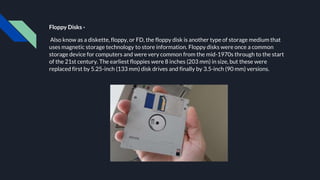
● To change the location of the quick access toolbar - click Show Below the Ribbon.
● You can also add items to the quick access toolbar. Right click on any item in the Office
Button or the Ribbon and click Add to Quick Access Toolbar and a shortcut will be added.
Navigation -
● Navigation through the slides can be accomplished through the Slide Navigation menu on
the left side of the screen. Also, an outline appears from materials that have been entered in
the presentation. To access the outline, click the outline tab.
Creating Presentation -
● Start → All Programs → MS Office → MS Word.
● Click the Microsoft Office Button
● Click New
● Click Blank Presentation
Slide Effects -
● Slide Transitions -
○ Transitions are effects that are in place when you switch from one slide to the next. To add slide
transitions:
○ Select the slide that you want to transition
○ Click the Animations tab
○ Choose the appropriate animation or click the Transition dialog box.
○ To adjust slide transitions:
■ Add sound by clicking the arrow next to Transition Sound
■ Modify the transition speed by clicking the arrow next to Transition Speed
○ To apply the transition to all slides:
■ Click the Apply to All button on the Animations tab
○ To select how to advance a slide:
■ Choose to Advance on Mouse Click, or
■ Automatically after a set number of seconds
● Slide Animation -
○ Slide animation effects are predefined special effects that you can add to objects on a slide. To apply
an animation effect:
○ Select the object
○ Click the Animations tab on the Ribbon
● Slide Animation -
○ Click Custom Animation
○ Click Add Effect
○ Choose the appropriate effect
● Animation Preview
○ To preview the animation on a slide:
■ Click the Preview button on the Animations tab
● Slide Show Options
○ The Slide Show tab of the ribbon contains many options for the slide show. These options include -
■ Preview the slide show from the beginning
■ Preview the slide show from the current slide
■ Set up Slide Show
Unit - 19
Plagiarism Software
Plagiarism checker detects duplication
from your content online against
billions of web pages.
Plagiarism is seen as academic misconduct. Plagiarism is not taken lightly by academic and
research institutions and is punished and penalized severely. This is seen as copying and taking
credits for somebody’s work. Even if you paraphrase the text and use it in your text, it will still be
seen as plagiarism.
There are plenty of plagiarism detection software and online checking tools available that we can use to
check how much of your text overlap with previously published materials. We can fix these mistakes
before submitting your academic essay or research paper. Some of the tools for checking plagiarism are
listed below.
○ Plagiarism Detector
○ Unicheck
○ Plagiarism Software
○ DupliChecker
○ Plagium
○ Scribbr
○ Viper
The End

Computer Skills - PhD Research

  • 1.
    Computer Skills Ph.D Research RishikulCampus, Haridwar Gurukul Campus, Haridwar Ayurved Faculty Main Campus, Dehradun Vishal Majumdar B.Tech CSE
  • 2.
    Unit - 1 Characteristicsof Computer The main characteristics of the computer system are as follows - ● Speed ● Accuracy ● Diligence ● Versatility ● Reliability ● Automation ● Memory
  • 3.
    Speed - A computerworks with much higher speed and accuracy compared to humans while performing mathematical calculations. Computers can process millions (1,000,000) of instructions per second. The time taken by computers for their operations is microseconds and nanoseconds. The clock speed of computers is usually measured in megahertz (MHz) or gigahertz (GHz). One megahertz equals one million ticks per second, and one gigahertz equals one billion ticks per second.
  • 4.
    Accuracy - Computers performcalculations with 100% accuracy. Errors may occur due to data inconsistency or inaccuracy. Accuracy is an important feature of computers. Any type of task or calculation by a computer is always correct. The computer also does not make erroneous calculations by mistake. Under no circumstances can a computer give us wrong results, you can always trust the accuracy of the computer.
  • 5.
    Diligence - The capacityof computer of performing repetitive task without getting tired is called diligence. A computer is free from tiredness, lack of concentration, fatigue etc therefore it can work for hours without creating any errors. A computer can perform millions of tasks or calculations with the same consistency and accuracy. It doesn’t feel any fatigue or lack of concentration. Its memory also makes it superior to that of human beings.
  • 6.
    Versatility - Versatility refersto the capability of a computer to perform different kinds of works with same accuracy and efficiency. The capacity of computer of performing more than one task at the same time is called versatility of computer. It can also be termed as the means of capacity to perform different types of work completely.
  • 7.
    Reliability - A computeris reliable as it gives consistent result for similar set of data i.e., if we give same set of input any number of times, we will get the same result. Reliability of any computer-related component is an attribute that denotes its consistent performance according to the specifications. As the world is becoming more computerised, people want assurance that the system is reliable and would be able to work properly even if a few modules fail.Computers need to be reliable for people to use them and have confidence in them. If they are not reliable, then they will quickly be abandoned.
  • 8.
    Automation - Computer performsall the tasks automatically i.e. it performs tasks without manual intervention. Automation is the use of electronics and computer-controlled devices to assume control of processes. The aim of automation is to boost efficiency and reliability. In most cases, however, automation replaces labor. It’s simply - “Replacing manual operations with electronics and computer-controlled devices.”
  • 9.
    Memory - A computerhas built-in memory called primary memory (RAM) where it stores data temporarily to process the information. Secondary storage are removable devices such as CDs, pen drives, etc., which are also used to store data permanently, or Computer memory is any physical device capable of storing information temporarily, like RAM (random access memory), or permanently, like ROM (read-only memory). Memory devices utilize integrated circuits and are used by operating systems, software, and hardware.
  • 10.
    Unit - 2 Input& Output Devices An input device is something you connect to a computer that sends information into the computer. An output device is something you connect to a computer that has information sent to it.
  • 11.
    Input Devices - Apiece of equipment/hardware which helps us enter data into a computer is called an input device. Most common examples are - ● Keyboard ● Mouse ● Joystick ● Light Pen ● Microphone ● Scanner ● Barcode Reader
  • 12.
    Keyboard - ● Asimple device comprising keys and each key denotes either an alphabet, number or number commands which can be given to a computer for various actions to be performed. It has a modified version of typewriter keys. ● The keyboard is an essential input device and computer and laptops both use keyboards to give commands to the computer.
  • 13.
    Some Commonly UsedKeyboard Shortcuts- ● Ctrl + C = Copy ● Ctrl + X = Cut ● Ctrl + V = Paste ● Ctrl + A = Select All ● Ctrl + P = Print ● Ctrl + F = Find Function Keys Shortcuts - ● F1 = Help ● F2 = Rename ● F5 = Refresh/Reload Other Shortcuts - ● Alt + F4 = Close Application/Window ● Alt + Tab = Switch Windows ● Ctrl + Z = Undo ● Ctrl + Y = Redo ● Shift + 1 = ! ● Shift + 2 = @ ● … ● … ● Shift + 9 = ) ● Shift + a = A ● Shift + b = B ● … ● … ● … ● Shift + z = Z
  • 14.
    Mouse - ● Itis also known as a pointing device. Using mouse we can directly click on the various icons present on the system and open up various files and programs. ● A mouse comprises 3 buttons on the top and one trackball at the bottom which helps in selecting and moving the mouse around, respectively. In case of laptops, the touchpad is given as a replacement of the mouse which helps in the movement of the mouse pointer.
  • 15.
    Joystick - ● Itis a device which comprises a stick which is attached at an angle to the base so that it can be moved and controlled.Mostly used to control the movement in video games. ● Apart from a computer system, a joystick is also used in the cockpit of an aeroplane, wheelchairs, cranes, trucks, etc. to operate them well.
  • 16.
    Light Pen - ●It is a wand-like looking device which can directly be moved over the device’s screen. It is light-sensitive. Used in conjunction with computer’s cathode ray tube. ● These devices were in an initial form in order to highlight and manipulate an object on display. The CRT monitors scan the screen; therefore, the light pen functions well with CRT monitors.
  • 17.
    Microphone - ● Usinga microphone, sound can be stored in a device in its digital form. ● It converts sound into an electrical signal. ● To record or reproduce a sound created using a microphone, it needs to be connected with an amplifier.
  • 18.
    Scanner - ● Thisdevice can scan images or text and convert it into a digital signal. ● When we place any piece of a document on a scanner, it converts it into a digital signal and displays it on the computer screen.
  • 19.
    Barcode Reader - ●It is a kind of an optical scanner. ● It can read bar codes. ● A source of light is passed through a bar code, and its aspects and details are displayed on the screen.
  • 20.
    Output Devices - Apiece of equipment/hardware which gives out the result of the entered input, once it is processed (i.e. converts data from machine language to a human-understandable language), is called an output device. Most common examples are - ● Monitor ● Printer ● Speakers ● Projector ● Headphones
  • 21.
    Monitor - ● Thedevice which displays all the icons, text, images, etc. over a screen is called the Monitor. ● When we ask the computer to perform an action, the result of that action is displayed on the monitor. ● Various types of monitors have also been developed over the years.
  • 22.
    Printer - ● Adevice which makes a copy of the pictorial or textual content, usually over a paper is called a printer. For example, an author types the entire book on his/her computer and later gets a print out of it, which is in the form of paper and is later published. ● Multiple types of printers are also available in the market, which can serve different purposes.
  • 23.
    Grouping of Printers- ● Impact Printers - It’s a type of printer that works with paper via direct contact with the ink ribbon. Usually these printers are noisy but remain in use today as they are remarkable for their multi- part features. ● Non-Impact Printers - It is a type of printer that doesn’t touch a ribbon to print it. They used technologies such as laser, xerographic, electrostatic, chemical, and inkjet. Types of Printers - ● Dot-Matrix Printers - The dot-matrix printer uses 9 to 24 pin print heads. (Inexpensive) ● Daisy-Wheel Printers - A daisy-wheel impact printer can be used to get quality found in typewriters. ● Line Printers - The character-at-a-time printers are too slow in a business where large quantities of material are printed; therefore these users need line-at-a-time printers. Drum printers, chain printers, and band printers are line-in-time printers. ● Inkjet Printers - The inkjet printer is the first and most common type. In most homes, you’re likely to see inkjet printers. ● Laser Printers - The users who only print pictures from time to time would probably use the laser color printer. Laser printers are typically reserved for office settings and similar environments that depend on printing many text documents. ● LED Printers - LED printers also use toner and a spinning drum and are somewhat similar to laser printers.
  • 24.
    Speakers - ● Adevice through which we can listen to a sound as an outcome of what we command a computer to do is called a speaker. Speakers are attached with a computer system and also are a hardware device which can be attached separately. ● With the advancement in technology, speakers are now available which are wireless and can be connected using Bluetooth or other applications.
  • 25.
    Projector - ● Anoptical device which presents an image or moving images onto a projection screen is called a projector. Most commonly these projectors are used in auditoriums and movie theatres for the display of the videos or lighting. ● If a projector is connected to a computer, then the image/video displayed on the screen is the same as the one displayed on the computer screen.
  • 26.
    Headphones - ● Theyperform the same function as a speaker, the only difference is the frequency of sound. ● Using speakers, the sound can be heard over a larger area and using headphones, the sound is only audible to the person using them. Also known as earphones or headset.
  • 27.
    Unit - 3 StorageDevices A storage device is any type of computing hardware that is used for storing, porting or extracting data files and objects. ● Hard Drive Disks ● Floppy Disks ● Compact Discs (CDs) ● DVD and Blu-ray Discs ● USB Flash Drives ● Secure Digital Cards (SD Card)s. ● Solid-State Drives (SSDs)
  • 28.
    Storage devices areavailable in different forms, depending on the type of underlying device. For example, a standard computer has multiple storage devices including RAM, a cache, and a hard disk. The same device may also have optical disk drives and externally connected USB drives. There are two different types of storage devices - ● Primary storage devices - Generally smaller in size, primary storage devices are designed to hold data temporarily and are internal to the computer. They have the fastest data access speed. These types of devices include RAM, ROM and cache memory. ● Secondary storage devices - Secondary storage devices usually have larger storage capacity, and they store data permanently. They can be either internal or external to the computer. These types of devices include the hard disk, the optical disk drive and USB storage device.
  • 29.
    Storage Devices Secondary Storage PrimaryStorage Volatile Memory Non-Volatile Memory Magnetic Storage Optical Storage Flash Memory RAM, Cache ROM HDD, FD, ZD CD, DVD, BD PD, SD, SSD
  • 30.
    What is theDifference Between RAM and ROM? ● RAM - It is volatile memory, which means that the information temporarily stored in the module is erased when you restart or shut down your computer. Because the information is stored electronically on transistors, when there is no electric current, the data disappears. Each time you request a file or information, it is retrieved either from the computer's storage disk or the internet. The data is stored in RAM, so each time you switch from one program or page to another, the information is instantly available. When the computer is shut down, the memory is cleared until the process begins again. Volatile memory can be changed, upgraded, or expanded easily by users. ● ROM - It is non-volatile memory, which means the information is permanently stored on the chip. The memory does not depend on an electric current to save data, instead, data is written to individual cells using binary code. Non-volatile memory is used for parts of the computer that do not change, such as the initial boot-up portion of the software, or the firmware instructions that make your printer run. Turning off the computer does not have any effect on ROM. Non-volatile memory cannot be changed by users. Note - Both are primary storage devices because they communicate directly with the CPU while secondary storage devices don’t communicate directly. Instead their data is loaded up in the RAM then CPU performs operations on it as instructed. Click to Read More in Detail
  • 31.
    RAM - ● RAM(Random Access Memory) is the internal memory of the CPU for storing data, program, and program result. It is a read/write memory which stores data until the machine is working. ● RAM is volatile, i.e. data stored in it is lost when we switch off the computer or if there is a power failure. Hence, a backup Uninterruptible Power System (UPS) is often used with computers. RAM is small, both in terms of its physical size and in the amount of data it can hold.
  • 32.
    Cache Memory - ●Cache memory is an extremely fast memory type that acts as a buffer between RAM and the CPU. It holds frequently requested data and instructions so that they are immediately available to the CPU when needed. ● Cache memory is used to reduce the average time to access data from the Main memory. The cache is a smaller and faster memory which stores copies of the data from frequently used main memory locations.
  • 33.
    ROM - ROM standsfor Read Only Memory. The memory from which we can only read but cannot write on it. This type of memory is non-volatile. The information is stored permanently in such memories during manufacture. A ROM stores such instructions that are required to start a computer. This operation is referred to as bootstrap. ROM chips are not only used in the computer but also in other electronic items like washing machine and microwave oven.
  • 34.
    Hard Disk Drives- A hard disk drive (also known as a hard drive, HD, or HDD) can be found installed in almost every desktop and laptop computer. It stores files for the operating system and software programs as well as user documents, such as photographs, text files, videos, and audio. The hard drive uses magnetic storage to record and retrieve digital information to and from one or more fast-spinning disks.
  • 35.
    Floppy Disks - Alsoknow as a diskette, floppy, or FD, the floppy disk is another type of storage medium that uses magnetic storage technology to store information. Floppy disks were once a common storage device for computers and were very common from the mid-1970s through to the start of the 21st century. The earliest floppies were 8 inches (203 mm) in size, but these were replaced first by 5.25-inch (133 mm) disk drives and finally by 3.5-inch (90 mm) versions.
  • 36.
    Tapes - In thepast, magnetic tape was often used for digital data storage because of its low cost and ability to store large amounts of data. The technology essentially consisted of a thin, magnetically coated piece of plastic wrapped around wheels. Its relative slowness and unreliability compared to other data storage solutions have resulted in it now being largely abandoned as a storage medium.
  • 37.
    Compact Discs (CDs)- The compact disc, (or CD for short) is a form of optical storage, a technology that employs lasers and lights to read and write data. Initially, compact discs were used purely for music, but in the late 1980s, they began to be used for computer data storage. Initially, the compact discs that were introduced were CD-ROMs (read-only), but these were followed by CD-Rs (writable compact discs) and CD-RWs (rewritable compact discs).
  • 38.
    DVD and Blu-rayDiscs - The DVD (digital versatile disc) and Blu-ray disc (BD) are formats of digital optical disc data storage which have superseded compact discs, mainly because of their much greater storage capacity. A Blu-ray disc, for example, can store 25 GB (gigabytes) of data on a single-layer disc and 50 GB on a dual-layer disc. In comparison, a standard CD is the same physical size, but only holds 700 MB (megabytes) of digital data.
  • 39.
    USB Flash Drives- Also known as a thumb drive, pen drive, flash drive, memory stick, jump drive, and USB stick, the USB flash drive is a flash-memory data-storage device that incorporates an integrated USB interface. Flash memory is generally more efficient and reliable than optical media, being smaller, faster, and possessing much greater storage capacity. Flash drives are also more durable due to a lack of moving parts.
  • 40.
    Secure Digital Cards(SD Cards) - SD cards are commonly used in multiple electronic devices, including digital cameras and mobile phones. Although there are different sizes, classes, and capacities available, they all use a rectangular design with one side "chipped off" to prevent the card from being inserted into a camera or computer the wrong way.
  • 41.
    Solid-State Drives (SSDs)- A solid-state drive uses flash memory to store data and is sometimes used in devices such as netbooks, laptops, and desktop computers instead of a traditional hard disk drive. The advantages of an SSD over an HDD include a faster read/write speed, noiseless operation, greater reliability, and lower power consumption. The biggest downside is cost, with an SSD offering lower capacity than an equivalently priced HDD.
  • 42.
    Cloud Storage - Withusers increasingly operating multiple devices in multiple places, many are adopting online cloud-computing solutions. Cloud computing basically involves accessing services over a network via a collection of remote servers. Although the idea of a "cloud of computers" may sound rather abstract to those unfamiliar with this metaphorical concept, in practice, it can provide powerful storage solutions for devices that are connected to the internet. Extra (General knowledge)
  • 43.
    Unit - 4 CPU ACentral Processing Unit is also called a processor, central processor, or microprocessor. It carries out all the important functions of a computer. It receives instructions from both the hardware and active software and produces output accordingly. It stores all important programs like operating systems and application software.
  • 44.
    CPU also helpsInput and output devices to communicate with each other. Owing to these features of CPU, it is often referred to as the brain of the computer. CPU is installed or inserted into a CPU socket located on the motherboard. Furthermore, it is provided with a heat sink to absorb and dissipate heat to keep the CPU cool and functioning smoothly.
  • 45.
    Generally, a CPUhas three components - ● Arithmetic Logic Unit (ALU ) ● Control Unit (CU) ● Memory or Storage Unit (RAM)
  • 46.
    Control Unit -This unit controls the operations of all parts of the computer but does not carry out any actual data processing operations. Functions of this unit are − ● It is responsible for controlling the transfer of data and instructions among other units of a computer. ● It manages and coordinates all the units of the computer. ● It obtains the instructions from the memory, interprets them, and directs the operation of the computer. ● It communicates with Input/Output devices for transfer of data or results from storage. ● It does not process or store data. ALU (Arithmetic Logic Unit) - This unit consists of two subsections namely, ● Arithmetic Section - Function of arithmetic section is to perform arithmetic operations like addition, subtraction, multiplication, and division. All complex operations are done by making repetitive use of the above operations. ● Logic Section - Function of logic section is to perform logic operations such as comparing, selecting, matching, and merging of data. Memory or Storage Unit/ Registers - This unit can store instructions, data, and intermediate results. This unit supplies information to other units of the computer when needed. It is also known as internal storage unit or the main memory or the primary storage or Random Access Memory (RAM). Its size affects speed, power, and capability. Primary memory and secondary memory are two types of memories in the computer. Functions of the memory unit are − ● It stores all the data and the instructions required for processing. ● It stores intermediate results of processing. ● It stores the final results of processing before these results are released to an output device. ● All inputs and outputs are transmitted through the main memory.
  • 47.
    Registers in CPU- Registers are a type of computer memory used to quickly accept, store, and transfer data and instructions that are being used immediately by the CPU. The registers used by the CPU are often termed as Processor registers.A processor register may hold an instruction, a storage address, or any data (such as bit sequence or individual characters).The computer needs processor registers for manipulating data and a register for holding a memory address. The register holding the memory location is used to calculate the address of the next instruction after the execution of the current instruction is completed. The sole purpose of having register is fast retrieval of data for processing by CPU. Though accessing instructions from RAM is comparatively faster with hard drive, it still isn’t enough for CPU. For even better processing, there are memories in CPU which can get data from RAM which are about to be executed beforehand. Registers inside CPU besides CU and ALU Click to Learn More About Register Types
  • 48.
    What is CPUClock Speed? The clock speed of a CPU or a processor refers to the number of instructions it can process in a second. It is measured in gigahertz. For example, a CPU with a clock speed of 4.0 GHz means it can process 4 billion instructions in a second. Types of CPU: CPUs are mostly manufactured by Intel and AMD, each of which manufactures its own types of CPUs. In modern times, there are lots of CPU types in the market. Some of the basic types of CPUs are described below: ● Single Core CPU - Single Core is the oldest type of computer CPU, which was used in the 1970s. It has only one core to process different operations. It can start only one operation at a time; the CPU switches back and forth between different sets of data streams when more than one program runs. So, it is not suitable for multitasking as the performance will be reduced if more than one application runs. The performance of these CPUs is mainly dependent on the clock speed. It is still used in various devices, such as smartphones. ● Dual Core CPU - As the name suggests, Dual Core CPU contains two cores in a single Integrated Circuit (IC). Although each core has its own controller and cache, they are linked together to work as a single unit and thus can perform faster than the single-core processors and can handle multitasking more efficiently than Single Core processors. ● Quad Core CPU - This type of CPU comes with two dual-core processors in one integrated circuit (IC) or chip. So, a quad-core processor is a chip that contains four independent units called cores. These cores read and execute instructions of CPU. The cores can run multiple instructions simultaneously, thereby increases the overall speed for programs that are compatible with parallel processing. Quad Core CPU uses a technology that allows four independent processing units (cores) to run in parallel on a single chip. Thus by integrating multiple cores in a single CPU, higher performance can be generated without boosting the clock speed. However, the performance increases only when the computer's software supports multiprocessing. The software which supports multiprocessing divides the processing load between multiple processors instead of using one processor at a time.
  • 49.
    A core mayrefer to any of the following - ● A core, or CPU core, is the "brain" of a CPU. It receives instructions, and performs calculations, or operations, to satisfy those instructions. A CPU can have multiple cores. ● A processor with two cores is called a dual-core processor; with four cores, a quad-core; six cores, hexa-core; eight cores, octa-core. As of 2019, the majority of consumer CPUs feature between two and twelve cores. Workstation and server CPUs may feature as many as 48. ● Each core of a CPU can perform operations separately from the others. Or, multiple cores may work together to perform parallel operations on a shared set of data in the CPU's memory cache.
  • 50.
    Unit - 5 SystemSoftware & Application Software Software is a set of programs, which is designed to perform a well-defined function. A program is a sequence of instructions written to solve a particular problem. There are two types of software − ● System Software ● Application Software
  • 51.
    System Software - Systemsoftware is software designed to provide a platform for other software. Examples of system software include operating systems like macOS, Linux, Android and Microsoft Windows, computational science software, game engines, industrial automation, and software as a service applications. It is generally prepared by the computer manufacturers. These software products comprise of programs written in low-level languages, which interact with the hardware at a very basic level. System software serves as the interface between the hardware and the end users. Here is a list of some of the most prominent features of a system software − ● Close to the system ● Fast in speed ● Difficult to design ● Difficult to understand ● Difficult to manipulate ● Generally written in low-level language
  • 52.
    macOS by Apple- Unix macOS - The family of Macintosh operating systems developed by Apple Inc. includes the graphical user interface-based operating systems it has designed for use with its Macintosh series of personal computers since 1984, as well as the related system software it once created for compatible third-party systems. Mac OS is the computer operating system for Apple Computer MacIntosh line of personal computers and workstations. A popular feature of its latest version, “macOS 11 Big Sur” , is a desktop interface with some 3D appearance characteristics. Big Sur has a modular design intended to make it easier to add new features to the operating system in the future. It runs UNIX applications as well as older Mac applications. Mac OS comes with Apple Computer's iMac and Power Macintosh line of computers.
  • 53.
    Ubuntu - It isa Linux distribution based on Debian and composed mostly of free and open-source software. Ubuntu is officially released in three editions: Desktop, Server, and Core for Internet of things devices and robots. All the editions can run on the computer alone, or in a virtual machine. Ubuntu is a popular operating system for cloud computing, with support for OpenStack. Ubuntu contains a wide range of software that includes LibreOffice, Firefox, Thunderbird, Transmission, and several lightweight games such as Sudoku and chess. Ubuntu aims to be secure by default. User programs run with low privileges and cannot corrupt the operating system or other users' files. Other distributions include - Kubuntu, Lubuntu, Xubuntu, Manjaro, POP OS & Elementary OS etc. Ubuntu by Canonical - Linux
  • 54.
    Windows - Microsoft Windows,commonly referred to as Windows, is a group of several proprietary graphical operating system families, all of which are developed and marketed by Microsoft. Microsoft introduced an operating environment named Windows on November 20, 1985, as a graphical operating system shell for MS- DOS in response to the growing interest in graphical user interfaces (GUIs). Microsoft Windows came to dominate the world's personal computer (PC) market with over 90% market share, overtaking Mac OS, which had been introduced in 1984. Apple came to see Windows as an unfair encroachment on their innovation in GUI development as implemented on products such as the Lisa and Macintosh (eventually settled in court in Microsoft's favor in 1993). Windows 11 is an upcoming major release of the Windows NT operating system developed by Microsoft. Windows 10 by Microsoft - MS Windows NT
  • 55.
    Application Software - Applicationsoftware products are designed to satisfy a particular need of a particular environment. Application software may consist of a single program, such as Microsoft's notepad for writing and editing a simple text. It may also consist of a collection of programs, often called a software package, which work together to accomplish a task, such as a Microsoft Office. Here is a list of some of the most prominent features of a application software − ● Close to the user ● Easy to design ● More interactive ● Easy to understand ● Easy to manipulate and use ● Generally written in high-level language Examples of Application software are the following − Student Record Software, Income Tax Software, Railways Reservation Software, Microsoft Office Suite, VLC Media Player & Adobe Photoshop, Google Chrome etc.
  • 56.
    MS Office - MicrosoftOffice, or simply Office, is a family of client software, server software, and services developed by Microsoft. It was first announced by Bill Gates on August 1, 1988, at COMDEX in Las Vegas. MS Office helps simplify basic office tasks and improve work productivity. Each application is designed to address specific tasks, such as word processing, data management, making presentations and organizing emails. Microsoft has developed multiple versions of Office that can be supported by different operating systems, including Windows and macOS. Microsoft Office is also offered in 35 different languages. Microsoft Office is either available as a package or you can buy stand- alone Microsoft Office applications, such as Word or Excel separately. Most basic packages come with Word, Excel, PowerPoint, and Outlook, while some also include other Microsoft Office programs, such as Publisher, Access and/or OneNote. Microsoft Office Suite
  • 57.
    VLC Media Player- VLC media player is a free and open-source, portable, cross-platform media player software and streaming media server developed by the VideoLAN project. VLC is available for desktop operating systems and mobile platforms, such as Android, iOS, iPadOS, Windows 10 Mobile, and Windows Phone. VLC Media Player Google Chrome - Google Chrome is a cross-platform web browser developed by Google. It was first released in 2008 for Microsoft Windows built with free software components from Apple WebKit and Mozilla Firefox. It was later ported to Linux, macOS, iOS, and Android where it is the default browser built into the OS. Google Chrome
  • 58.
    Unit - 6 Applicationsof Computer for Research The development of technology has made problem solving activity easy. Problems can be solved with the help of computers rapidly. Today computer is used in every walk of life. It is immensely used in education also. Researchers are using it for conducting their research effectively. Computers are very useful and important when large sample in used. It saves the time of researcher and gives more accurate and fast results.
  • 59.
    Computers in Research- Computers are used in scientific research immensely and it is an important tool. Research process can also be done through computers. It has many different types of storage devices. Data can be used from these storage devices and retrieved later on. There are various steps necessary to effectively carry out research and the desired sequencing of these steps in the research process . This data can be used for different phases of research process. Research process has five major phases. Computer can be used in these following phases - ● Conceptual Phase - Includes formulation of research problem, review of literature, theoretical framework and formulation of hypothesis. ● Design and Planning Phase - Deciding population sample, questionnaire designing and data collection. ● Empirical Phase - Used for data storage, data analysis, scientific simulations, instrumentation control and knowledge sharing. Necessary corrections are made or edited whenever it is required. ● Data Analysis - These softwares help in using the techniques for analysis like average, percentage and correlation etc. These softwares are SPSS, STATA, Sysat etc. ● Research Dissemination - After interpretation, computer helps is converting the results into a research article or report which can be published. It can be written in a word format or in a PDF format. Article can be stored or published on website.
  • 60.
    Computers can beused for making research more effective. It saves the time of researcher and gives more accurate and fast results. Researchers should also takes the precautions for using computer for better results. Uses of Computers in Scientific Research - Computers have changed the ways in which scientific research is compiled and analyzed. Scientists, engineers and researchers alike are able to compile vast amounts of data and leave it to the computer to work through the data while focusing on another area of the research project. This creates research results with fewer errors and better-engineered products. ● Complex Data Analysis - Computers used in scientific research have the ability to analyze data in ways and at speeds not possible with the human eye. ● Solving Mathematical Equations - Scientific research often requires that complex mathematical equations be solved in order to determine if data is valid or if a certain structure of molecules will remain stable. ● Prediction Modeling - Scientists and researchers are able to use computer programs to model how data might manifest itself in the future.
  • 61.
    Tools Used inResearch - Computers are such normal parts of our lives that we often overlook the transformational effect they have had on society. In scientific and social scientific research, computers opened up new opportunities regarding how data can be processed to yield valuable information and knowledge. ● Internet - Before we start research, we often want to quickly learn about possible issues or topics of study by searching available sources of information. Nearly all academic journals are available online, and many are organized into online databases. Government agencies often have demographic or economic information online we can use in our research. ● Information Storage - Computers store vast amounts of information. We can quickly and efficiently organize and search information, making for easier retrieval than paper storage. ● Computational Tools - Computers began as powerful calculators, and that service is important to research today. Regardless of the amount of data we have, we can do more with a computer's help. Statistical programs, modeling programs and spatial mapping tools are all possible because of computers. ● Communication - Building knowledge through research requires communication between experts to identify new areas requiring research and debating results. Before computers, this was accomplished through papers and workshops. Now, the world’s experts can communicate via email or webchats. ● Mobility - Researchers can take computers anywhere, making it easier to conduct field research and collect data.
  • 62.
    Websites/Softwares Used inResearch - Research today is dynamic. We often use the internet to browse websites, watch videos, study analytics, and conduct our research by exploring different types of digital content, making technology a major stakeholder in making our research success. While the internet has made it easy for us to access worldly information with the click of a button (or mouse!).Sorting through a seemingly infinite number of websites, verifying content, and curating only the best stuff can take a lot of time and effort. This is why researcher should use websites and softwares while working on their project. ● Bit.ai - Bit allows researchers and teams to collaborate, share, track, and manage all knowledge and research in one place. It’s the perfect research tool to share multi-dimensional research with your peers and not just plain, boring text and slides. Add articles, PDFs, videos, white papers, ebooks, audio samples- basically anything you can think of – and share it with your peers easily! ● Grammarly - This awesome tool scans your research for more than 250 types of grammar mistakes in six distinct writing genres and leaves you with error-free writing. ● Google Scholar - Google Scholar provides a quick way to broadly search for scholarly literature from one location. ● Evernote - It is a note-taking app that can be very useful while conducting research. The app helps you store all your personal ideas, to-do lists, notes, and research links in one place. ● Mendeley - It is a reference management software that allows researchers to create references, citations, and bibliographies in multiple journal styles with just a few clicks. ● ResearchGate - It gives you access to over 135 million publication pages, allowing you to stay up to date with what’s happening in your field.
  • 63.
    ● Free OnlineStatistical Testing Tools - One of the most important requirement while writing up your research is the use of appropriate statistical methods and analysis to backup your claims. There are plenty of research tools available. For example - ○ GraphPad ○ Easy Calculation ○ Daniel Soper ● Microsoft Excel - One of the widely used tools for research is Microsoft Excel. MS Excel has plenty of features that will come in handy when you are doing a research project. Excel is a must have research tool if your study involves a lot of quantitative analysis. Excel offers a wide range of statistical functions such as AVERAGE, MIN, MAX, SUM, etc that you can apply to the cells in a few clicks. ● Plagiarism Detection Software - Plagiarism is seen as academic misconduct. Plagiarism is not taken lightly by academic and research institutions and is punished and penalized severely. This is seen as copying and taking credits for somebody’s work. Even if you paraphrase the text and use it in your text, it will still be seen as plagiarism.
  • 64.
    There are plentyof plagiarism detection software and online checking tools available that we can use to check how much of your text overlap with previously published materials. We can fix these mistakes before submitting your academic essay or research paper. Some of the tools for checking plagiarism are listed below. ○ Plagiarism Detector ○ Plagiarism Software ○ DupliChecker ○ Plagium ○ Scribbr ○ Viper ● Project Management Tools - It is so easy for your research project to go out of hands when you are multitasking and dealing with multiple deadlines. It is good practice to choose a project management tool to keep on top of your research project. ○ Microsoft OneNote ○ Asana ○ Trello
  • 65.
    Unit - 7 Multimedia& Presentation Devices The term multimedia comes from the English word and refers to all types of devices that provide information through the use of several media at the same time . In this way, a multimedia presentation can be found in the form of photographs , videos, audios or texts. This term is completely related to the different devices that allow to communicate a multimedia presentation through physical and digital resources that these devices possess.
  • 66.
    There are severaltypes of media, including video, audio, and text. A multimedia device allows a person to deal with a variety of these media while eliminating the need to have a separate device for each. There are numerous tasks that may be accomplished on these devices, such as creating, editing, and transferring files. Many of these devices are compatible with computers, which allows them to be easily dealt with in ways that may not otherwise be possible. Some are mentioned below - ● Sound Cards ● Speakers ● MP3 players ● Smartphones ● Television ● Webcam ● Digital Camera ● Microphone ● Video Capture Card ● Projector, Screen, Light Pen
  • 67.
    Sound Card &Speakers - Sound cards are used to record and playback analog audio, and most can also play back digital audio sources as well. When recording analog audio sources such as CDs, line in or microphone in, sound cards digitize the audio at varying sample rates and store files in either uncompressed forms such as WAV or compressed forms such as WMA or MP3. Most recent sound cards support 5.1 or 7.1 surround audio, and many sound cards also support digital stereo or surround audio playback standards via SPDIF ports. Computer speakers, or multimedia speakers, are speakers sold for use with computers, although usually capable of other audio uses, e.g. for an MP3 player. Most such speakers have an internal amplifier and consequently require a power source, which may be by a mains power supply often via an AC adapter, batteries, or a USB port. The signal input connector is often a 3.5 mm jack plug; RCA connectors are sometimes used, and a USB port may supply both signal and power.
  • 68.
    MP3 Players &Smartphones - An MP3 player is a portable audio device people can use to listen to songs saved in the MP3 format. They can use USB cords or Wi-Fi to connect the device to computers, so that computer files can be transferred to players internal memory. MP3s are audio files that have been made smaller by removing sounds that the human ear cannot hear. Many newer MP3 players can also be used to view images or movies, or play games. The most well-known MP3 player is the iPod. A smartphone is a mobile phone that can do more than other phones. They work as a computer but are mobile devices small enough to fit in a user's hand. Uses include - Sending and receiving emails, text, photographs and multimedia messages, registering contacts, calculator, currency, alarm, etc. functions, playing games, video chat etc.
  • 69.
    Televisions & Webcam- Television (also known as a TV) is a machine with a screen. Televisions receive broadcasting signals and change them into pictures and sound. The word "television" comes from the words tele (Greek for far away) and vision (sight). Sometimes a television can look like a box. Older TVs had a large cathode ray tube in a large wooden frame and sat on the floor like furniture. Newer TVs are much lighter and flatter. A webcam is a simple digital camera capable of taking video or still images for transmission over the Internet. Unlike digital cameras (next section), webcams don't include storage capabilities. Most webcams plug into a USB port. Webcams are generally used in live chat situations, such as with AOL Instant Messenger or other IM clients. They offer resolutions ranging from sub-VGA to as high as 2 million pixels (2 megapixels). Some offer autofocus and zoom features for better image clarity, and some have built-in microphones.
  • 70.
    Digital Camera &Microphone - Digital cameras have largely replaced film cameras for both amateur and professional photography. They use CMOS or CCD image sensors to record images onto internal or card-based flash memory form factors such as Compact Flash, SD, Memory Stick, xD-Picture Card, and Smart Media. Digital cameras transfer images to computers for emailing, printing, or storage via either flash memory card readers or direct USB port connections. Microphones plug into the 1/8-inch mini-jack microphone jack or a 3.5 mm jack on a sound card or integrated motherboard audio. The most common microphones used on PCs include those built into headsets or those that use a stand. Microphone volume is controlled by the Windows Sounds and Audio Devices applet's mixer control. Open the Recording tab to adjust volume, to mute or unmute the microphone, or to adjust microphone boost.
  • 71.
    Video Capture Card- As the name suggests, video capture cards are used to capture live video from various sources, including analog camcorders, VCRs, analog output from DV camcorders, broadcast TV, and cable TV. Most recent cards with video capture capabilities are actually multi-purpose cards that include other functions. These include ATI's All-in-Wonder series of video (graphics) cards with onboard TV tuner and video capture functions, video (graphics) cards with VIVO (video- in/video-out) S-video or composite video ports, and TV tuner cards and USB devices. Video can be stored in a variety of formats, including MPEG, AVI, and others for use in video productions.
  • 72.
    Presentations Devices - Multimediapresentations are those that use graphics, videos and sound; for this reason, the prefix “multi” is used, which means several, and “media” which means means. This is divided into pages called slides, which are created in order to inform the recipient. Presentational devices are about how the text is structured visually. In other words, they are used to present the words in a text in a way which relates to their genre. For example, instruction manuals use headings and diagrams to make their instructions as clear as possible. Advertisements would use font and colour to be eye- catching and to highlight the most important aspects of the information they are giving.
  • 73.
    Projector - A projectoror image projector is an optical device that projects an image (or moving images) onto a surface, commonly a projection screen. Most projectors create an image by shining a light through a small transparent lens, but some newer types of projectors can project the image directly, by using lasers. A virtual retinal display, or retinal projector, is a projector that projects an image directly on the retina instead of using an external projection screen. The most common type of projector used today is called a video projector. Video projectors are digital replacements for earlier types of projectors such as slide projectors and overhead projectors. These earlier types of projectors were mostly replaced with digital video projectors throughout the 1990s and early 2000s, but old analog projectors are still used at some places. The newest types of projectors are handheld projectors that use lasers or LEDs to project images. Their projections are hard to see if there is too much ambient light.
  • 74.
    Projector Screen &Light Pen/Pointers - A projection screen is an installation consisting of a surface and a support structure used for displaying a projected image for the view of an audience. Projection screens may be permanently installed, as in a movie theater; painted on the wall; or portable with tripod or floor rising models as in a conference room or other non-dedicated viewing space. Another popular type of portable screens are inflatable screens for outdoor movie screening (open air cinema). A light pen is a computer input device in the form of a light- sensitive wand used in conjunction with a computer's cathode-ray tube (CRT) display. It allows the user to point to displayed objects or draw on the screen in a similar way to a touchscreen but with greater positional accuracy. A light pen can work with any CRT-based display, but its ability to be used with LCDs was unclear (though Toshiba and Hitachi displayed a similar idea at the "Display 2006" show in Japan
  • 75.
    Unit - 8 Whatis Internet? The Internet or “Net” (network of networks) is the largest computer network in the world that connects billions of computer users. The word internet comes from combination between “interconnection” and “Network” Network is a collection of computers and devices connected via communication channels and transmission media allow to share resources (hardware, software, data, information). Generally nobody own internet
  • 76.
    The vast collectionof computer networks which form and act as a single huge networks for transport of data and messages across distances which can be anywhere from the same office to anywhere in the world. Brief History - ARPA – Advanced Research Project Agency. 1969 Jan 2 – started an experimental Computer Network. Concept – No Server, but equal importance/participation to every computer in the Network. Even if, one or two node destroyed that will not affect the Network. In 1982 the word internet started. 1986: First “freenet” created in Case Western Reserve University. 1991: US government allowed business agencies to connect to internet. Now all peoples can connect to internet and improve their life and work quality. The internet support various aspects in our life.
  • 77.
    Types of Network- LAN (Local Area Network) - A Local Area Network (LAN) is a private network that connects computers and devices within a limited area like a residence, an office, a building or a campus. On a small scale, LANs are used to connect personal computers to printers. However, LANs can also extend to a few kilometers when used by companies, where a large number of computers share a variety of resources like hardware (e.g. printers, scanners, audiovisual devices etc), software (e.g. application programs) and data. MAN (Metropolitan Area Network) - A Metropolitan Area Network (MAN) is a larger network than LAN. It often covers multiple cities or towns. It is quite expensive and a single organization may not have own it. WAN (Wide Area Network) - A Wide Area Network (WAN) is a much larger network than LAN and MAN. It often covers multiple countries or continents. It is quite expensive and a single organization may not have own it. Satellite is used to manage WAN.
  • 78.
    How to Connectto Internet -
  • 79.
    Protocol - A setof guidelines or rules. Communications protocol is a formal description of message formats and the rules for exchanging those messages. Format that agreed to transfer data between two devices. ● Hypertext Transfer Protocol (HTTP) ○ Hypertext Transfer Protocol Secure (HTTPS) ● Internet Protocol (IP) ● File transfer protocol (FTP) ● Simple Mail Transfer Protocol (SMTP) ● Networks News File Transfer Protocol (NNTP) ● Transmission Control Protocol (TCP); Normally use together with IP
  • 80.
    Web Browser - Asoftware application for retrieving, presenting, and traversing information resources on the World Wide Web. It allows to locate, view, and navigate the web. It can have a Graphical User Interface, meaning they can display pictures (graphics) in addition to text and other forms of multimedia such as sound and video like Google Chrome, Mozilla Firefox, Microsoft Edge (Internet Explorer), Apple Safari & Opera etc. Other browsers include - Opera Mini, Brave Browser, Netscape Navigator, Dolphin Browser, TOR...
  • 81.
    Web Page - Aweb page is a document or resource of information that is suitable for the World Wide Web and can be accessed through a web browser and displayed on a monitor or mobile device. This information is usually in HTML or XHTML format, and may provide navigation to other web pages via hypertext links. It can contain text, graphics, audio, video and has built-in connection or links to other web documents. A web page has a unique address called a Uniform Resource Locator (URL).
  • 82.
    Advantages - ● Communication ○Process of transmitting and receiving symbol, data, image, text, document, graphic etc ● Research ○ One such thing which has got lots of benefit from this evolution of internet ● Education ○ One of the best things that the internet can provide ● Financial transactions ○ The term which is used when there is exchange of money. ● For Updates/News ○ We can gather news from different news portals, also can check weather forecasts.
  • 83.
    Disadvantages - ● Theftof Personal Information ○ Often makes our personal information vulnerable to theft. ● Spamming ○ Refers to sending unwanted emails, which serve no purpose and needlessly obstruct the computer system. ● Malware Threats ○ One of the most annoying problems with the Internet is the ease with which any malware can infect our computers. ● Social Isolation,Obesity and Depression ○ Biggest problem with having the Internet is, its ability to create rifts between the real and virtual world. ○ There is an addiction for everything that pertains to the web and that includes excessive surfing, online gambling, social networking, and gaming addiction.
  • 84.
    Unit - 9 Useof Internet The Internet is a virtual networking medium that can be connected and used on various devices these days. It enables the users to send, receive, collect, store, update, delete, and many other operations of the data across the world. Internet usage is expanding its boundaries every day, as the technological growth is huge. A few of the Internet’s major uses are e-commerce, e-learning, knowledge sharing, social connectivity, variety of media, file transfer, communication, etc.
  • 85.
    Why we usethe Internet - ● Seek information on anything across the globe on a real-time basis. ● Communicate, collaborate with others. ● Telecommute to the office or work from home. ● Do transactions with business entities. ● Download files from a remote. ● Get educated and entertained. ● Carry out social or do group activities. ● Collect operational data from remote equipment (stationary as well as moving). ● Process data while it is streamed to the central server. ● Get real-time data on the surrounding devices, systems, weather to automate activities. ● Design a decision-taking system as against the decision support system. ● Connect people, stakeholders, machines and everything.
  • 86.
    Search Engines - Theseengines locate the information one seeks, available in whichever server across the globe (world wide web). Google, Yahoo, and MSN are the renowned search engines in use today. One can search on anything on this site, and the search question can be in any format. In fact, People have started using the word Google as a generic verb synonymous to search.
  • 87.
    Social Networking - Internetconnects people online and enables them to form social groups. Information, Ideas, views, and opinions on any social/political issues are exchanged. The political and social organization makes use of this platform in promoting their interest among the public. Eg. Facebook, Twitter, Instagram etc...
  • 88.
    Collaboration - Online chattools like messenger, Skype, and other video conferencing tools help people to get connected 24 x7 and have a hassle-free business and personal discussion. This avoids unwanted travel by people and saves their time for productive use. The Internet has also facilitated work from home with seamless connectivity to the office and avoid daily commuting.
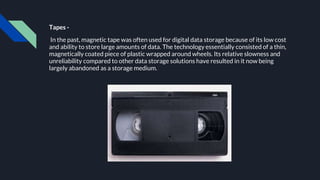
  • 89.
    Education & Research- The Internet offers a wealth of educational material on any subject with structured navigation and search facilities. One can seek any reading material, and the internet will get it for them from any server in any part of the world, and people need not have to go to libraries to go through books. Those who cannot attend physical (face to face) class can take an online course where they get connected to the teacher, in the other part of the world, in video mode and get taught on the subject backed up other audiovisual tools.
  • 90.
    E-Commerce - The Internetenables the selling of goods and services in online mode. There are many e- commerce platform vendors like Amazon, Ola who aggregate several products/services available in the market and sell them through their portal to customers. Products are procured by platform vendors, stored in their warehouses, packed and distributed by them in their own brand. Customers get a good discount, and they don’t have to visit physical stores.
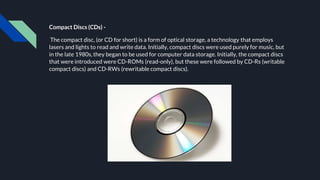
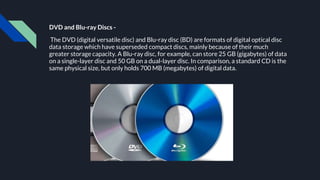
  • 91.
    Online Banking - Calledas Net banking, it allows doing banking transactions at ease sitting at home or while on mobile. Footfalls in the bank branches have come down appreciably with almost all the services are available in net banking 24×7. Any amount of money can be transferred instantaneously through this facility. E-Banking supports Electricity bills, Telephone bills, and other services payment.
  • 92.
    Cashless Transactions - BillPayment at merchandise outlets through debit cards, credit cards, UPI gateway are on the increase. Cash circulation gets reduced in the system to the extent of the growth of these transactions. It’s growing by more than 50% every year, and it is expected to grow by 10 times over the next 5 years.
  • 93.
    News / WeatherForecast - The news and other happenings that may be on-going in different parts of the world in every field. (entertainment, sports, politics etc). Weather forecasting is the application of science and technology to predict the conditions of the atmosphere for a given location and time.
  • 94.
    Unit - 10 ElectronicMail (e-mail) & WWW The Internet is a network that gives access to a user to get connected with the world. Email is a way of sending messages (text, images or graphics, attachments) electronically. The World Wide Web (WWW), commonly known as the Web, is an information system where documents and other web resources are identified by Uniform Resource Locators (URLs, such as https://example.com/), which may be interlinked by hyperlinks, and are accessible over the Internet.
  • 95.
    Electronic Mail (email)- The first major use of the internet is Email. People thronged to Email for sharing information, data files, Photos, Videos, Business communications, and any other files instantaneously with others. This had enabled faster communication between people and improve business efficiency. An email has reduced the usage of paper considerably and reduced the load on physical mail systems. Though other latest collaboration tools provide many rich features, they are not able to de- popularize Email, and it still rules official and personal communication. There are many free Email websites offering mail services, and practically every individual has an Email address and connected by Email. Email concepts paved the way for developing many innovative tools for improved collaboration.
  • 96.
    Examples (email) - Gmailis a free email service provided by Google. As of 2019, it had 1.5 billion active users worldwide. Outlook.com is a personal information manager web app from Microsoft consisting of webmail, calendaring, contacts, and tasks services. Yahoo! Mail is an email service launched on October 8, 1997, by the American company Yahoo!, now a subsidiary of Verizon. Rediff.com is an Indian news, information, entertainment and shopping web portal. It was founded in 1996. ProtonMail is an end-to-end encrypted email service founded in 2013 in Geneva, Switzerland by scientists who spent time at the CERN research facility.
  • 97.
    WWW - The WorldWide Web, commonly known as the Web, is a system of interlinked hypertext/hypermedia documents accessed via the Internet. Hypertext is text displayed on a computer or other electronic device with references to other text that the reader can immediately access, usually by a mouse click or key press sequence. Hypermedia is used as a logical extension of the term hypertext in which graphics, audio, video, plain text and hyperlinks are used to display information. Creator: Tim Berners-Lee, 1989.
  • 98.
    Difference between WWWand Internet - Internet - collection of networks that connect millions of businesses, government agencies, educational institutions, and individuals. WWW - the means we use to access information over the internet ● Different communication protocols ● Special link (hyperlink) that enable users to jump from one place to another on the web.
  • 99.
    Unit - 11 Downloading& Uploading File transfer is the transmission of a computer file through a communication channel from one computer system to another.Typically, file transfer is mediated by a communications protocol. In the history of computing, numerous file transfer protocols have been designed for different contexts. In this modern age, file transfer also happens between mobile devices. Even cross-device file transfers are possible using several modern-day applications.
  • 100.
    Protocols - A filetransfer protocol is a convention that describes how to transfer files between two computing endpoints. As well as the stream of bits from a file stored as a single unit in a file system, some may also send relevant metadata such as the filename, file size and timestamp - and even file system permissions and file attributes. Some examples: ● FTP is an older cross-platform file transfer protocol ● SSH File Transfer Protocol a file transfer protocol secured by the Secure Shell (SSH) protocol ● Secure copy (scp) is based on the Secure Shell (SSH) protocol ● HTTP can support file transfer ● Bittorrent, Gnutella and other distributed file transfers systems use peer-to-peer
  • 101.
    Downloading - Downloading isthe transmission of a file from one computer system to another, usually smaller computer system. From the Internet user's point-of-view, to download a file is to request it from another computer (or from a Web page on another computer) and to receive it. Uploading - Uploading is transmission in the other direction: from one, usually smaller computer to another computer. From an Internet user's point-of-view, uploading is sending a file to a computer that is set up to receive it. People who share images with others on bulletin board systems (BBS) or social networking site upload files to them respectively.
  • 102.
    The File TransferProtocol (FTP) is the Internet protocol for downloading and uploading files and a number of special applications can furnish FTP services for you. (However, if you are downloading through a Web page, the FTP request is set up for you by the Web page. You are usually asked where you want the downloaded file placed on your hard disk, and then the downloading transmission takes place.) When you send an attached file with an e-mail note, this is just an attachment, not a download or an upload. In practice, many people use "download" and "upload" rather indiscriminately so you just have to understand the context. For example, if someone says to you "Download (or upload) such--and-such a file to me by e-mail," they clearly mean "Send it to me as an attachment." In general, from the ordinary workstation or small computer user's point-of-view, to download is to receive a file and to upload is to send a file. Some examples of commonly used FTP client and Download Managers are - ● FTP Client - FileZilla etc. ● Download Managers - Internet Download Manager (IDM), Free Download Manager (FDM) etc.
  • 103.
    Unit - 12 Accessof e-Journals Electronic journals, also known as ejournals, e-journals, and electronic serials, are scholarly journals or intellectual magazines that can be accessed via electronic transmission. An electronic journal is a periodical publication which is published in electronic format, usually on the Internet. An e-journal closely resembles a print journal in structure -
  • 104.
    ● there isa table of contents which lists the articles, ● many electronic journals still use a volume/issue model, although some titles now publish on a continuous basis. Online journal articles are a specialized form of electronic document - ● they have the purpose of providing material for academic research and study, ● they are formatted approximately like journal articles in traditional printed journals. Often a journal article will be available for download in two formats - as a PDF and in HTML format, although other electronic file types are often supported for supplementary material. Electronic journals have several advantages over traditional printed journals - ● We can search the contents pages or the full text of journals to find articles on a certain subject. ● We can read journal articles on your desktop, we don't have to be in the Library. ● We can email articles to ourself or download them for printing. ● The article that we want to read will always be available, even when the library is closed. ● Hypertext links allow us to move to different sections within individual journals or articles and can link you to related resources on the Internet. ● Journals can include more images and audio-visual material. ● Journals can be interactive - we can email the author or editor with your comments.
  • 105.
    Access - While researchingan important paper, we come across an online journal database that claims to connect academics to high-quality peer-reviewed research. Intrigued, we search for keywords related to our topic, only to discover that we must pay a hefty subscription fee to access the service. Subscription fees and paywalls are often the bane of students and academics, especially those at small institutions who don't have access to many article directories and repositories. Some Free Online Journal and Research Databases are - ● CORE is a multidisciplinary aggregator of open access research. It allows users to search more than 66 million open access articles. ● ScienceOpen offers open access to more than 28 million articles in all areas of science. Although we do need to register to view the full text of the articles, registration is free. ● The Directory of Open Access Journals (DOAJ) gives researchers access to high-quality, peer-reviewed journals.
  • 106.
    DOAJ - DOAJ isa community-curated online directory that indexes and provides access to high quality, open access, peer-reviewed journals. All DOAJ services are free of charge including being indexed. All data is freely available. The DOAJ (Directory of Open Access Journals) was launched in 2003 with 300 open access journals. Today, this independent database contains over 15 000 peer-reviewed open access journals covering all areas of science, technology, medicine, social sciences, arts and humanities. Open access journals from all countries and in all languages are welcome to apply for inclusion. DOAJ is financially supported by many libraries, publishers and other like-minded organisations.
  • 107.
    Unit - 13 e-Library Adigital library, also called an online library, an internet library, a digital repository, or a digital collection is an online database of digital objects that can include text, still images, audio, video, digital documents, or other digital media formats or a library accessible through the internet. An electronic library is allows users, to read or refer any published items from their residence or office or college via internet. Users are no need to visit the library directly for their reference.
  • 108.
    Benefits of ElectronicLibrary - ● E-libraries are the best tool for providing online resources for research which will make easy to its users. ● Retrospective search is easy and most convenient than print resource. ● Literacy is increases when searching made by the educators. ● Searching of index is also easy. ● It supports for searching with the combination of keyword. ● While searching made by patrons for their project to retrieve a manageable amount of content, quickly and easily. ● Provision for simultaneous access of multiple file. ● E-libraries facilitate to its patrons for research solution. ● Provision for print out and saved the download items for future references. ● The distance learners are also searching their requirement from e-library. ● E-Library provides the benefit to integrated search to dictionary, encyclopedia, almanacs, and etc. through the reference desk. ● The simplest functionality like Point-and-click promotes the users interest.
  • 109.
    Some online librarieswhere we can read free e-books online and download them legally - ● The National Digital library of India (NDLI) is a project under Ministry of Education, Government of India. ● Project Gutenberg is a volunteer effort to digitize and archive cultural works, to encourage the creation and distribution of eBooks. ● Questia is the premier online research and paper writing resource. Since its founding, Questia has helped students find and cite high-quality scholarly research. ● Open Library is an initiative of the Internet Archive, a nonprofit organization. It is an online project intended to create "one web page for every book ever published". ● The Online Books Page is a website that facilitates access to books that are freely readable over the Internet. ● Read Print is a free online library which provides thousands of free online books for students, teachers, and the classic enthusiast. ● The Literature Network offers searchable online literature for the student or enthusiast. ● Classic Reader offers thousands of free classic books, poems, plays and short stories from a wide range of authors spanning several centuries. ● The Classic Bookshelf is packed full with hundreds of readable classics.
  • 110.
    Unit - 14 SearchEngines, Searching the Keywords A search engine is a software system that is designed to carry out web searches. They search the World Wide Web in a systematic way for particular information specified in a textual web search query. A search term, otherwise known as a search query, is the word or phrase someone enters into a search engine, such as Google. A search term often contains (or is itself) a keyword: a word or phrase search marketers bid on in their search campaigns and try to rank for in the organic search results.
  • 111.
    How a SearchEngine Works - Because large search engines contain millions and sometimes billions of pages, many search engines display the results depending on their importance. This importance is commonly determined using various algorithms. The source of all search engine data is collected using a spider or crawler that visits each page on the Internet and collects its information. Once a page is crawled, the data contained in the page is processed and indexed. Often, this can involve the steps below. ● Strip out stop words. ● Record the remaining words on the page and the frequency they occur. ● Record links to other pages. ● Record information about any images, audio, and embedded media on the page. The data collected is used to rank each page. These rankings then determine which pages to show in the search results and in what order. Finally, once the data is processed, it's broken up into files, inserted into a database, or loaded into memory where it's accessed when a search is performed.
  • 112.
    Do all SearchEngines Give the Same Results - Not necessarily. Search engines use proprietary algorithms to index and correlate data, so every search engine has its own approach to finding what you're trying to find. Its results may be based on where you're located, what else you've searched for, and what results were preferred by other users searching for the same thing. What is the Best Search Engine? There isn't one search engine that is better than all the others. Many people could argue that Google's search engine is the best, and it is the most popular and well-known. It's so popular that people often use it as a verb when telling someone to search for their question. Microsoft's Bing search engine is also popular and used by many people. Bing does an excellent job of finding information and answering questions. Bing is also what powers the search in Windows 10 and the Yahoo search engine. Users concerned with privacy, enjoy using DuckDuckGo. This search engine makes its users anonymous and is an excellent solution for users concerned with how much information Google and Bing collect on its users.
  • 113.
    What Are Keywords- ● In terms of search engines, a keyword is any search term entered on Google (or another search engine) that has a results page where websites are listed. ● Keywords are search terms that a website owner or SEO professional will use to optimize a website in the hopes of ranking at the top of Google’s results for specific keywords. Searching the Keywords - ● Anything searched on a search engine, whether a single word or a phrase, is considered a keyword. Google Dork - The Google Search Engine finds answers to our questions, which is helpful in our daily lives. You can search for your school assignments, reports, presentations, and more. A Google Dork query, sometimes just referred to as a dork, is a search string that uses advanced search operators to find information that is not readily available on a website.
  • 114.
    The basic syntaxfor advanced operators in Google is: operator_name:keyword For example, this operator_name:keyword syntax can be typed as filetype:xls intext:username in the standard search box, which results in a list of Excel files, which contain the term 'Username.' ● site - will search a specific website only. Example: COVID19 site: who.int (This search for the term COVID19 within the World Health Organization website only. ● allintitle and intitle - the title of the page contains the specified search term. ● inurl - restricts the results to those where the specified search keyword contained in the URLs. ● filetype - search for a specified file type. Example: filetype:PDF (this return only file types PDF contain the search keyword/s. From the advertisers point of view the keywords can help them to target their customers. Keywords are important because they are the linchpin between what people are searching for and the content you are providing to fill that need. The more relevant your keywords are to your business and website, the more cost-effective your online marketing campaign will be.
  • 115.
    Unit - 15 Overviewof Google Applications Our mission is to organise the world’s information and make it universally accessible and useful. - Google
  • 116.
    Search & Explore- ● Search - Ask questions. Find answers. ● Maps - Explore your neighborhood and get around with real-time traffic information. ● Translate - Speak, scan, type, or draw to translate in over 100 languages. ● Chrome - One fast, simple, and secure browser for all your devices. Watch & Play - ● YouTube Music - A new music streaming app. Made by YouTube. ● Chromecast - Stream movies, music and more from your phone to your TV. ● Google Play Movies & TV - The newest releases, plus all your favorites, even on your TV. ● YouTube - Discover, watch, and share your favorite videos and music. Talk & Text - ● Gmail - Email by Google—secure, smart and easy to use—helping you save time and do more with your inbox.
  • 117.
    ● Messages -Simple, helpful messaging to help you connect with those who matter. ● Google Duo - Simple, high quality video calling for Android and iOS. ● Google Chat - Google Chat allows you to securely message with your team. Stay Organised - ● Google Photos - All your photos, organized, and easy to find. ● Contacts - Keep your address book clean, safely backed up, and available everywhere. ● Calendar - Organize your schedule and share events with those in your life. ● Keep - Save your thoughts as notes, lists, and voice memos from anywhere. Work Smarter - ● Docs - All your documents, editable and shareable, wherever you are. ● Sheets - Smart spreadsheets you can work on from anywhere. ● Slides - Tell stories with presentations you can create and take anywhere. ● Drive - A safe place to keep, access, and share your files.
  • 118.
    Grow Your Business- ● Google Ads - Show up when customers search for what you offer. ● AdSense - Monetize your content with ads. ● Analytics - Gain customer insights across your channels. ● Google My Business - Stand out to customers looking for you on Google Search and Maps, for free.
  • 119.
    Unit - 16 MicrosoftWord Microsoft Word is a word processor developed by Microsoft. It was first released on October 25, 1983, under the name Multi-Tool Word for Xenix systems. The extension for any word file is “.doc” or “.docx”
  • 120.
    MS Word isused to make professional-quality documents, letters, reports, etc., It has advanced features which allow you to format and edit your files and documents in the best possible way. MS Word enables users to do write-ups, create documents, resumes, contracts, etc. This is one of the most commonly used programs under the Office suite. Follow these simple steps to open MS Word on your personal computer: ● Start → All Programs → MS Office → MS Word. Toolbar - A toolbar is a set of icons or buttons that are part of a software program's interface or an open window. Microsoft Word has a toolbar with icons that allow you to open, save, and print documents, as well as change the font, text size, and style of the text. Like many programs, the Word toolbar can be customized by adding or deleting options. It can even be moved to different parts of the screen. The Toolbar has been changed to Ribbon and Tabs in new editions of MS Word or MS Office.
  • 121.
    Some of thetabs that can be seen on the ribbon in MS Word are - ● Home - Common formatting and editing tools like cut, copy, paste, color, etc. ● Insert - To insert something like images, symbols, shapes, charts, tables, graphs, header, footer, page number, etc. ● Page Layout - To modify the page settings like margins, border, background, orientation, columns, lines, indentation, spacing, etc.. ● References - Useful for those who are creating a thesis or writing books or lengthy documents. Options like citation, footnote, table of contents, caption, bibliography, etc. can be found under this tab. ● Mailings - Mail Merge (When one letter or document is sent to multiple recipients.) ● Review - Spell check, grammar, Thesaurus, word count, language, translation, comments, etc. Menu - The menu begins with the word File and continues with Edit, View, Insert, Format, Tools, Table, Window, and Help. You use the menu to give instructions to the software. Note: These menus disappeared in Word versions 2007 and 2010.
  • 122.
    Options like -New, Open, Save, Save As, Print, Prepare, Send, Publish & Close can be seen in MS Word 2007 and later version when clicked on the Office Button at the top left of the window. Editing a Document - Making changes in a document like inserting or deleting text, copying or moving text, replacing text, etc. is called text Editing. To make changes in the block of text, it is necessary to select it. you can select a word, line, paragraph or entire document text. ● To Select a Word - place the mouse pointer on the word to be selected and double click the left mouse button to select that word. The selected word will appear in reverse color. ● To Select a Line - Bring the mouse pointer to the beginning of the line in the left margin. Click the left mouse button to select the line. ● To Select a paragraph - keep the mouse pointer anywhere within the paragraph and triple click left mouse button to select that paragraph or bring the mouse pointer to the left side of the paragraph and double click left mouse button.
  • 123.
    ● To Movethe Text - ○ Select the text to be moved. ○ Click the Cut option from the Clipboard group under the Home tab. ○ The selected text will disappear from the document. ○ Bring the cursor to the new position where you want to shift the text. ○ Click Paste option from the Clipboard group. ○ The text will appear at the cursor position. ● Copy ● Undo ● Redo ● Find ● Replace ● Change Case ● Spellings & Grammar File Handling & Various Formats of File - File management in Word is done by using either the Open or Save As dialog boxes. Both feature similar tools, although you’ll probably do more file manipulation in the Save As dialog box, especially when saving new documents.
  • 124.
    ● Creating aFile ● Opening a File ● Saving a File and it’s Changes ● Creating a Folder ● Renaming a File ● Deleting a File ● Copying and Moving Files ● Printing a File ● Closing a File Formats of a File - ● .doc - Word 97-2003 Document ● .docx - Word Document ● .htm, .html - Web Page ● .odt - OpenDocument Text ● .pdf - PDF (developed by Adobe Systems) ● .rtf - Rich Text Format
  • 125.
    ● .txt -Plain Text ● .xps - XPS Document Mail Merge - Mail Merge is a handy feature that incorporates data from both Microsoft Word (Document or a Letter) and Microsoft Excel (Address List) and allows you to create multiple documents at once, such as letters, saving you the time and effort of retyping the same letter over and over. Or Mail merge lets you create a batch of documents that are personalized for each recipient. For example, a form letter might be personalized to address each recipient by name. A data source, like a list, spreadsheet, or database, is associated with the document. Placeholders--called merge fields--tell Word where in the document to include information from the data source. Document Types - ● Letters, Email, Envelopes or Labels, Directory.
  • 126.
    Basics of Latex- ● The open-source software system — used to create and precisely format scientific manuscripts — is more akin to coding than writing. ● Since its development in 1985, LaTeX has become popular in disciplines such as mathematics, physics and computer science. ● Word users can also write directly in LaTeX syntax, and then click to convert it into a formatted equation. Microsoft says that “most” LaTeX expressions are supported, although its website lists 20 keywords that are not (such as degree, the degree symbol). Click to Read More on Latex
  • 127.
    Unit - 17 MicrosoftExcel Microsoft Excel is a spreadsheet developed by Microsoft for Windows, macOS, Android and iOS. It features calculation, graphing tools, pivot tables, etc.
  • 128.
    MS Excel isa spreadsheet program where one can record data in the form of tables. It is easy to analyse data in an Excel spreadsheet. To open MS Excel on your computer, follow the steps given below: ● Click on Start ● Then All Programs ● Next step is to click on MS Office ● Then finally, choose the MS-Excel option Alternatively, you can also click on the Start button and type MS Excel in the search option available. Cell - A spreadsheet is in the form of a table comprising rows and columns. The rectangular box at the intersection point between rows and columns forms a cell. Cell Address - It is the name by which is cell can be addressed. For example, if row 7 is interested in column G, then the cell address is G7.
  • 129.
    Toolbar - A toolbaris a set of icons or buttons that are part of a software program's interface or an open window. Microsoft Excel has a toolbar with icons that allow you to open, save, and print spreadsheets, as well as change the font, text size, and style of the text. Like many programs, the Excel toolbar can be customized by adding or deleting options. It can even be moved to different parts of the screen. The Toolbar has been changed to Ribbon and Tabs in new editions of MS Excel or MS Office. Some of the tabs that can be seen on the ribbon in MS Word are - ● Home - Comprises options like font size, font styles, font colour, background colour, alignment, formatting options and styles, insertion and deletion of cells and editing options. ● Insert - Comprises options like table format and style, inserting images and figures, adding graphs, charts and sparklines, header and footer option, equation and symbols. ● Page Layout - Themes, orientation and page setup options are available under the page layout option.
  • 130.
    ● Formulas -Since tables with a large amount of data can be created in MS excel, under this feature, you can add formulas to your table and get quicker solutions. ● Data Adding external data (from the web), filtering options and data tools are available under this category. ● Review - Proofreading can be done for an excel sheet (like spell check) in the review category and a reader can add comments in this part. ● References - Useful for those who are creating a thesis or writing books or lengthy documents. Options like citation, footnote, table of contents, caption, bibliography, etc. can be found under this tab. ● View - Different views in which we want the spreadsheet to be displayed can be edited here. Options to zoom in and out and pane arrangement are available under this category. Menu - The menu begins with the word File and continues with Edit, View, Insert, Format, Tools, Table, Window, and Help. You use the menu to give instructions to the software. Note: These menus disappeared in Word versions 2007 and 2010.
  • 131.
    Options like -New, Open, Save, Save As, Print, Prepare, Send, Publish & Close can be seen in MS Word 2007 and later version when clicked on the Office Button at the top left of the window. Office Button Contains. ● New - To Open New Workbook (Ctrl+N) ● Open - To Open Existing Document (Ctrl+O) ● Save - To Save A Document (Ctrl+S) ● Save As - To Save Copy Document (F12) ● Print - To Print A Document (Ctrl+P) ● Prepare - To Prepare Document For Distribution. ● Send - To Send A Copy Of Document To Other People. ● Publish - To Distribute Document To Other People. ● Close - To Close A Document (Ctrl+W). Three parts of a ribbon are - ● Tabs - There are seven tabs across the top of the excel window. ● Groups - Groups are sets of related commands, displayed on tabs. ● Commands - A command is a button,a menu or a box where you enter information.
  • 132.
    Creating Worksheets - ●Microsoft excel consists of workbooks. Within each workbook, there is an infinite number of worksheets. Each worksheet contains Columns and Rows. ● The tabs at the bottom of the screen represent different worksheets within a workbook. You can use the scrolling buttons on the left to bring other worksheets into view. ● Shift + F11 = New Worksheet Charts - A chart is a tool you can use in Excel to communicate your data graphically. Charts allow your audience to more easily see the meaning behind the numbers in the spreadsheet, and to make showing comparisons and trends much easier. Creating a chart - Charts can be a useful way to communicate data. When you insert a chart in Excel, it appears in the selected worksheet with the source data by default.
  • 133.
    To create achart: ● Select the worksheet you want to work with. ● Select the cells you want to chart, including the column titles and row labels. ● Click the Insert tab. ● Hover over each Chart option in the Charts group to learn more about it. ● Select one of the Chart options. ● Select a type of chart from the list that appears. Sorting & Filtering - Sorting lists is a common spreadsheet task that allows you to easily reorder your data. The most common type of sorting is alphabetical ordering, which you can do in ascending or descending order. To sort in alphabetical order - ● Select a cell in the column you want to sort. ● Click the Sort & Filter command in the Editing group on the Home tab.
  • 134.
    ● Select SortA to Z. Now the information in the Category column is organized in alphabetical order. You can Sort in reverse alphabetical order by choosing Sort Z to A in the list. Filtering, or temporarily hiding, data in a spreadsheet is simple. This allows you to focus on specific spreadsheet entries. To filter data - ● Click the Filter command on the Data tab. Drop-down arrows will appear beside each column heading. ● Click the drop-down arrow next to the heading you would like to filter. ● Select the option that you want to filter. ● Click OK. All other data will be filtered, or hidden, and only the selected data is visible.
  • 135.
    Use of Formulas- A function is a predefined formula that performs calculations using specific values in a particular order. One of the key benefits of functions is that they can save you time because you do not have to write the formula yourself. For example, you could use an Excel function called Average to quickly find the average of a range of numbers or the Sum function to find the sum of a cell range. Parts of a function - Each function has a specific order, called syntax, which must be strictly followed for the function to work correctly. Syntax order - ● All functions begin with the = sign. ● After the = sign, define the function name (e.g., Sum). ● Then there will be an argument. An argument is the cell range or cell references that are enclosed by parentheses. If there is more than one argument, separate each by a comma.
  • 136.
    Excel's Different Functions- There are many different functions in Excel 2007. Some of the more common functions include - ● Statistical functions - ○ SUM - Adds a range of cells together ○ AVERAGE - Calculates the average of a range of cells ○ COUNT - Counts the number of chosen data in a range of cells ○ MAX - Identifies the largest number in a range of cells ○ MIN - Identifies the smallest number in a range of cells ● Financial functions - ○ Interest rates ○ Loan payments ○ Depreciation amounts ● Date and time functions - ○ DATE - Converts a serial number to a day of the month ○ DAYS360 - Calculates the number of days between two dates based on a 360-day year ○ TIME - Returns the serial number of a particular time ○ HOUR - Converts a serial number to an hour
  • 137.
    Benefits of MSExcel - ● Easy To Store Data - Since there is no limit to the amount of information that can be saved in a spreadsheet, MS Excel is widely used to save data or to analyse data. Filtering information in Excel is easy and convenient. ● Easy To Recover Data - If the information is written on a piece of paper, finding it may take longer, however, this is not the case with excel spreadsheets. Finding and recovering data is easy. ● Application of Mathematical Formulas - Doing calculations has become easier and less time-taking with the formulas option in MS excel ● More Secure - These spreadsheets can be password secured in a laptop or personal computer and the probability of losing them is way lesser in comparison to data written in registers or piece of paper. ● Data at One Place - Earlier, data was to be kept in different files and registers when the paperwork was done. Now, this has become convenient as more than one worksheet can be added in a single MS Excel file. ● Neater and Clearer Visibility of Information - When the data is saved in the form of a table, analysing it becomes easier. Thus, information is a spreadsheet that is more readable and understandable.
  • 138.
    MS Excel –Points To Remember There are certain things which one must know with respect to MS Excel, its applications and usage ● An MS Excel file is saved with an extension of .xls ● Companies with large staff and workers use MS Excel as saving employee information becomes easier ● Excel spreadsheets are also used in hospitals where the information of patients can be saved more easily and can be removed conveniently once their medical history is cleared ● The sheet on which you work is called a Worksheet ● Multiple worksheets can be added in a single Excel file ● This is a data processing application
  • 139.
    Unit - 18 MicrosoftPowerPoint Microsoft PowerPoint is a presentation program, created by Robert Gaskins and Dennis Austin at a software company named Forethought, Inc. It was released on April 20, 1987, initially for Macintosh System Operating system based computers only.
  • 140.
    Presentations - ● Apresentation is a collection of data and information that is to be delivered to a specific audience. ● A PowerPoint presentation is a collection of electronic slides that can have text, pictures, graphics, tables, sound and video. This collection can run automatically or can be controlled by a presenter. Ribbon - ● The ribbon is the panel at the top portion of the document It has seven tabs: Home, Insert, Design, Animations, Slide Show, Review and View. ● Each tab is divided into groups. The groups are logical collections of features designed to perform function that you will utilize in developing or editing your PowerPoint slides. ○ Home - Clipboard, Slides, Font, Paragraph, Drawing, and Editing ○ Insert - Tables, Illustrations, Links, Text, and Media Clips ○ Design - Page Setup, Themes, Background ○ Animations - Preview, Animations, Transition to this Slide ○ Slide Show - Start Slide Show, Set Up, Monitors Review: Proofing, Comments, Protect ○ View - Presentation Views, Show/Hide, Zoom, Window
  • 141.
    Quick Access Toolbar- ● The quick access toolbar is a customizable toolbar that contains commands that you may want to use. You can place the quick access toolbar above or below the ribbon. ● To change the location of the quick access toolbar - click Show Below the Ribbon. ● You can also add items to the quick access toolbar. Right click on any item in the Office Button or the Ribbon and click Add to Quick Access Toolbar and a shortcut will be added. Navigation - ● Navigation through the slides can be accomplished through the Slide Navigation menu on the left side of the screen. Also, an outline appears from materials that have been entered in the presentation. To access the outline, click the outline tab. Creating Presentation - ● Start → All Programs → MS Office → MS Word. ● Click the Microsoft Office Button ● Click New ● Click Blank Presentation
  • 142.
    Slide Effects - ●Slide Transitions - ○ Transitions are effects that are in place when you switch from one slide to the next. To add slide transitions: ○ Select the slide that you want to transition ○ Click the Animations tab ○ Choose the appropriate animation or click the Transition dialog box. ○ To adjust slide transitions: ■ Add sound by clicking the arrow next to Transition Sound ■ Modify the transition speed by clicking the arrow next to Transition Speed ○ To apply the transition to all slides: ■ Click the Apply to All button on the Animations tab ○ To select how to advance a slide: ■ Choose to Advance on Mouse Click, or ■ Automatically after a set number of seconds ● Slide Animation - ○ Slide animation effects are predefined special effects that you can add to objects on a slide. To apply an animation effect: ○ Select the object ○ Click the Animations tab on the Ribbon
  • 143.
    ● Slide Animation- ○ Click Custom Animation ○ Click Add Effect ○ Choose the appropriate effect ● Animation Preview ○ To preview the animation on a slide: ■ Click the Preview button on the Animations tab ● Slide Show Options ○ The Slide Show tab of the ribbon contains many options for the slide show. These options include - ■ Preview the slide show from the beginning ■ Preview the slide show from the current slide ■ Set up Slide Show
  • 144.
    Unit - 19 PlagiarismSoftware Plagiarism checker detects duplication from your content online against billions of web pages.
  • 145.
    Plagiarism is seenas academic misconduct. Plagiarism is not taken lightly by academic and research institutions and is punished and penalized severely. This is seen as copying and taking credits for somebody’s work. Even if you paraphrase the text and use it in your text, it will still be seen as plagiarism. There are plenty of plagiarism detection software and online checking tools available that we can use to check how much of your text overlap with previously published materials. We can fix these mistakes before submitting your academic essay or research paper. Some of the tools for checking plagiarism are listed below. ○ Plagiarism Detector ○ Unicheck ○ Plagiarism Software ○ DupliChecker ○ Plagium ○ Scribbr ○ Viper
  • 146.