
Computer Mouse
BIKRAM KUMAR
Computer mouse
• A computer mouse is a handheld hardware input device that controls a
cursor in a GUI (graphical user interface) and can move and select text,
icons, files, and folders on your computer.
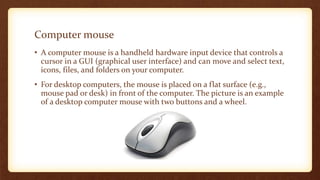
• For desktop computers, the mouse is placed on a flat surface (e.g.,
mouse pad or desk) in front of the computer. The picture is an example
of a desktop computer mouse with two buttons and a wheel.
Who invented the mouse?
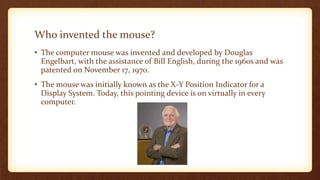
• The computer mouse was invented and developed by Douglas
Engelbart, with the assistance of Bill English, during the 1960s and was
patented on November 17, 1970.
• The mouse was initially known as the X-Y Position Indicator for a
Display System. Today, this pointing device is on virtually in every
computer.
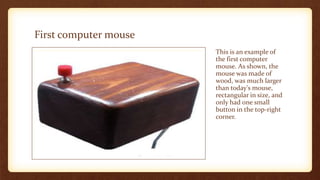
First computer mouse
This is an example of
the first computer
mouse. As shown, the
mouse was made of
wood, was much larger
than today's mouse,
rectangular in size, and
only had one small
button in the top-right
corner.
What are the uses of a mouse?
Below is a list of computer mouse functions to give you an idea of all
the things a mouse is capable of doing.
 Move the mouse cursor - The primary function is to move the mouse
pointer on the screen.
 Open or execute a program - Once you've moved the pointer to an icon,
folder, or another object clicking or double-clicking that object opens
the document or executes the program.
 Select - A mouse also allows you to select text or a file or highlight and
select multiple files at once.
 Drag-and-drop - Once something is selected, it can also be moved
using the drag-and-drop method.
 Hover - Moving the mouse cursor over objects with hover information
helps discover each object's function. For example, hover the mouse
over the "hover" link to see an example.
 Scroll - When working with a long document or viewing a long web
page, you may need to scroll up or down. To scroll, use the mouse
wheel, or click-and-drag the scroll bar.
 Perform other functions - Many desktop mice also have buttons that
can be programmed to perform any function. For example, many mice
have two side buttons on the thumb portion of the mouse. The button
closest to the palm can be programmed to go back to the previously
viewed web page in a browser.
How has the mouse increased computer usability?
• By using a computer mouse, you don't have to memorize commands,
such as those utilized in a text-based command line environment like
MS-DOS. For example, in MS-DOS, you would need to know the cd
command and dir command and type the commands on the keyboard
to open a directory (folder) and view its files. Whereas a Windows user
only has to double-click to open a folder and see its contents.
• Mouse vs. mice or mouses
• When talking about one (singular), refer to a computer mouse as a
"mouse." When talking about two or more (plural), refer to them as
"mice" (preferred), or "mouses."
Computer mouse ports
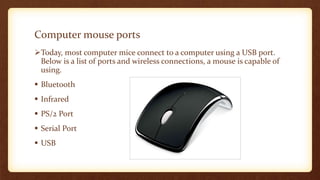
Today, most computer mice connect to a computer using a USB port.
Below is a list of ports and wireless connections, a mouse is capable of
using.
 Bluetooth
 Infrared
 PS/2 Port
 Serial Port
 USB
What are the parts of a computer mouse?
The parts of a computer mouse can differ by the type of computer
mouse. Below is a general overview of the parts found on most
computer mice.
 Buttons
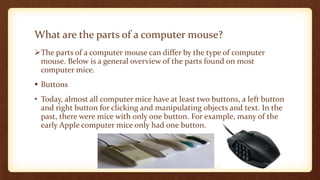
• Today, almost all computer mice have at least two buttons, a left button
and right button for clicking and manipulating objects and text. In the
past, there were mice with only one button. For example, many of the
early Apple computer mice only had one button.
 Ball, laser, or LED
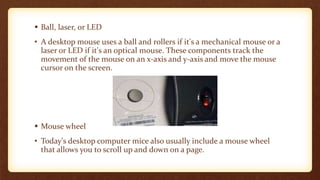
• A desktop mouse uses a ball and rollers if it's a mechanical mouse or a
laser or LED if it's an optical mouse. These components track the
movement of the mouse on an x-axis and y-axis and move the mouse
cursor on the screen.
 Mouse wheel
• Today's desktop computer mice also usually include a mouse wheel
that allows you to scroll up and down on a page.
 Circuit board
• To transmit (input) all mouse signal information, clicks, and other
information, the mouse must also have a circuit board with integrated
circuits.
 Cable or wireless receiver
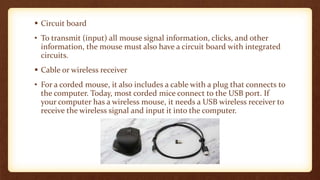
• For a corded mouse, it also includes a cable with a plug that connects to
the computer. Today, most corded mice connect to the USB port. If
your computer has a wireless mouse, it needs a USB wireless receiver to
receive the wireless signal and input it into the computer.
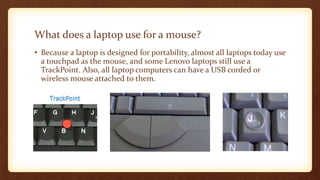
What does a laptop use for a mouse?
• Because a laptop is designed for portability, almost all laptops today use
a touchpad as the mouse, and some Lenovo laptops still use a
TrackPoint. Also, all laptop computers can have a USB corded or
wireless mouse attached to them.
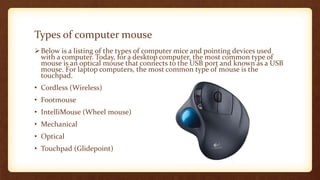
Types of computer mouse
Below is a listing of the types of computer mice and pointing devices used
with a computer. Today, for a desktop computer, the most common type of
mouse is an optical mouse that connects to the USB port and known as a USB
mouse. For laptop computers, the most common type of mouse is the
touchpad.
• Cordless (Wireless)
• Footmouse
• IntelliMouse (Wheel mouse)
• Mechanical
• Optical
• Touchpad (Glidepoint)
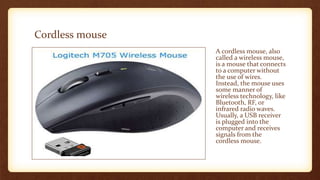
Cordless mouse
A cordless mouse, also
called a wireless mouse,
is a mouse that connects
to a computer without
the use of wires.
Instead, the mouse uses
some manner of
wireless technology, like
Bluetooth, RF, or
infrared radio waves.
Usually, a USB receiver
is plugged into the
computer and receives
signals from the
cordless mouse.
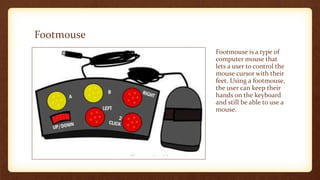
Footmouse
Footmouse is a type of
computer mouse that
lets a user to control the
mouse cursor with their
feet. Using a footmouse,
the user can keep their
hands on the keyboard
and still be able to use a
mouse.
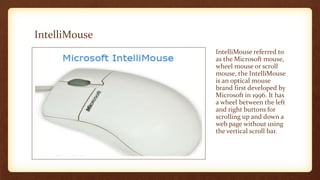
IntelliMouse
IntelliMouse referred to
as the Microsoft mouse,
wheel mouse or scroll
mouse, the IntelliMouse
is an optical mouse
brand first developed by
Microsoft in 1996. It has
a wheel between the left
and right buttons for
scrolling up and down a
web page without using
the vertical scroll bar.
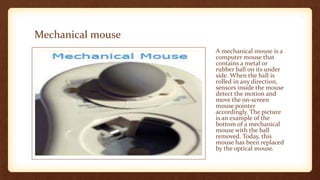
Mechanical mouse
A mechanical mouse is a
computer mouse that
contains a metal or
rubber ball on its under
side. When the ball is
rolled in any direction,
sensors inside the mouse
detect the motion and
move the on-screen
mouse pointer
accordingly. The picture
is an example of the
bottom of a mechanical
mouse with the ball
removed. Today, this
mouse has been replaced
by the optical mouse.
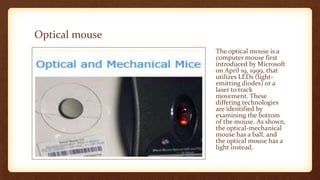
Optical mouse
The optical mouse is a
computer mouse first
introduced by Microsoft
on April 19, 1999, that
utilizes LEDs (light-
emitting diodes) or a
laser to track
movement. These
differing technologies
are identified by
examining the bottom
of the mouse. As shown,
the optical-mechanical
mouse has a ball, and
the optical mouse has a
light instead.
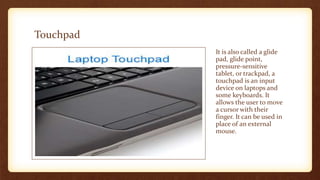
Touchpad
It is also called a glide
pad, glide point,
pressure-sensitive
tablet, or trackpad, a
touchpad is an input
device on laptops and
some keyboards. It
allows the user to move
a cursor with their
finger. It can be used in
place of an external
mouse.
Thank You….

Computer mouse

  • 1.
  • 2.
    Computer mouse • Acomputer mouse is a handheld hardware input device that controls a cursor in a GUI (graphical user interface) and can move and select text, icons, files, and folders on your computer. • For desktop computers, the mouse is placed on a flat surface (e.g., mouse pad or desk) in front of the computer. The picture is an example of a desktop computer mouse with two buttons and a wheel.
  • 3.
    Who invented themouse? • The computer mouse was invented and developed by Douglas Engelbart, with the assistance of Bill English, during the 1960s and was patented on November 17, 1970. • The mouse was initially known as the X-Y Position Indicator for a Display System. Today, this pointing device is on virtually in every computer.
  • 4.
    First computer mouse Thisis an example of the first computer mouse. As shown, the mouse was made of wood, was much larger than today's mouse, rectangular in size, and only had one small button in the top-right corner.
  • 5.
    What are theuses of a mouse? Below is a list of computer mouse functions to give you an idea of all the things a mouse is capable of doing.  Move the mouse cursor - The primary function is to move the mouse pointer on the screen.  Open or execute a program - Once you've moved the pointer to an icon, folder, or another object clicking or double-clicking that object opens the document or executes the program.  Select - A mouse also allows you to select text or a file or highlight and select multiple files at once.
  • 6.
     Drag-and-drop -Once something is selected, it can also be moved using the drag-and-drop method.  Hover - Moving the mouse cursor over objects with hover information helps discover each object's function. For example, hover the mouse over the "hover" link to see an example.  Scroll - When working with a long document or viewing a long web page, you may need to scroll up or down. To scroll, use the mouse wheel, or click-and-drag the scroll bar.  Perform other functions - Many desktop mice also have buttons that can be programmed to perform any function. For example, many mice have two side buttons on the thumb portion of the mouse. The button closest to the palm can be programmed to go back to the previously viewed web page in a browser.
  • 7.
    How has themouse increased computer usability? • By using a computer mouse, you don't have to memorize commands, such as those utilized in a text-based command line environment like MS-DOS. For example, in MS-DOS, you would need to know the cd command and dir command and type the commands on the keyboard to open a directory (folder) and view its files. Whereas a Windows user only has to double-click to open a folder and see its contents. • Mouse vs. mice or mouses • When talking about one (singular), refer to a computer mouse as a "mouse." When talking about two or more (plural), refer to them as "mice" (preferred), or "mouses."
  • 8.
    Computer mouse ports Today,most computer mice connect to a computer using a USB port. Below is a list of ports and wireless connections, a mouse is capable of using.  Bluetooth  Infrared  PS/2 Port  Serial Port  USB
  • 9.
    What are theparts of a computer mouse? The parts of a computer mouse can differ by the type of computer mouse. Below is a general overview of the parts found on most computer mice.  Buttons • Today, almost all computer mice have at least two buttons, a left button and right button for clicking and manipulating objects and text. In the past, there were mice with only one button. For example, many of the early Apple computer mice only had one button.
  • 10.
     Ball, laser,or LED • A desktop mouse uses a ball and rollers if it's a mechanical mouse or a laser or LED if it's an optical mouse. These components track the movement of the mouse on an x-axis and y-axis and move the mouse cursor on the screen.  Mouse wheel • Today's desktop computer mice also usually include a mouse wheel that allows you to scroll up and down on a page.
  • 11.
     Circuit board •To transmit (input) all mouse signal information, clicks, and other information, the mouse must also have a circuit board with integrated circuits.  Cable or wireless receiver • For a corded mouse, it also includes a cable with a plug that connects to the computer. Today, most corded mice connect to the USB port. If your computer has a wireless mouse, it needs a USB wireless receiver to receive the wireless signal and input it into the computer.
  • 12.
    What does alaptop use for a mouse? • Because a laptop is designed for portability, almost all laptops today use a touchpad as the mouse, and some Lenovo laptops still use a TrackPoint. Also, all laptop computers can have a USB corded or wireless mouse attached to them.
  • 13.
    Types of computermouse Below is a listing of the types of computer mice and pointing devices used with a computer. Today, for a desktop computer, the most common type of mouse is an optical mouse that connects to the USB port and known as a USB mouse. For laptop computers, the most common type of mouse is the touchpad. • Cordless (Wireless) • Footmouse • IntelliMouse (Wheel mouse) • Mechanical • Optical • Touchpad (Glidepoint)
  • 14.
    Cordless mouse A cordlessmouse, also called a wireless mouse, is a mouse that connects to a computer without the use of wires. Instead, the mouse uses some manner of wireless technology, like Bluetooth, RF, or infrared radio waves. Usually, a USB receiver is plugged into the computer and receives signals from the cordless mouse.
  • 15.
    Footmouse Footmouse is atype of computer mouse that lets a user to control the mouse cursor with their feet. Using a footmouse, the user can keep their hands on the keyboard and still be able to use a mouse.
  • 16.
    IntelliMouse IntelliMouse referred to asthe Microsoft mouse, wheel mouse or scroll mouse, the IntelliMouse is an optical mouse brand first developed by Microsoft in 1996. It has a wheel between the left and right buttons for scrolling up and down a web page without using the vertical scroll bar.
  • 17.
    Mechanical mouse A mechanicalmouse is a computer mouse that contains a metal or rubber ball on its under side. When the ball is rolled in any direction, sensors inside the mouse detect the motion and move the on-screen mouse pointer accordingly. The picture is an example of the bottom of a mechanical mouse with the ball removed. Today, this mouse has been replaced by the optical mouse.
  • 18.
    Optical mouse The opticalmouse is a computer mouse first introduced by Microsoft on April 19, 1999, that utilizes LEDs (light- emitting diodes) or a laser to track movement. These differing technologies are identified by examining the bottom of the mouse. As shown, the optical-mechanical mouse has a ball, and the optical mouse has a light instead.
  • 19.
    Touchpad It is alsocalled a glide pad, glide point, pressure-sensitive tablet, or trackpad, a touchpad is an input device on laptops and some keyboards. It allows the user to move a cursor with their finger. It can be used in place of an external mouse.
  • 20.