The mouse
                 The mouse
• The mouse may seem like a relatively new
  gadget, but get this: It’s about to turn 50.
• The first model was invented in the early
  1960s by Douglas Engelbart and Bill English at
  Stanford University. Made of wood and
  featuring a bright red push button, the
  contraption was more matchbox than
  computer device.
• Still, the “mouse” (so named because the
  cord looked like a tail) took off, and
  before long sleeker versions popped up
  in R&D labs and in stores as the PC—and
  computing itself—became more
  mainstream.
• Whereas today’s mice are sleek and
  curved, early models were blocky and
  bulky, much like other hardware at the
  time. Many companies, including
  Microsoft, Apple, Hewlett-Packard, and
  Logitech, produced innovative models in
  the 1980s and ‘90s that resembled
  space-age toys or garage-door openers.
• Some models succeeded, many didn’t.
  And the types of mice varied by
  technology as much as color: mechanical
  mice, gyroscopic mice, 3D mice, optical
  mice, tactile mice, and most
  recently, wireless mice and touch mice.
• Input device:

• It enables you to input information and
  commands into the computer.
• Any machine that feeds data into a computer.
• An input device is any device that provides
  input to a computer.
• It allows you to open programs, type
  messages, drag objects, and perform many
  other functions on your computer.
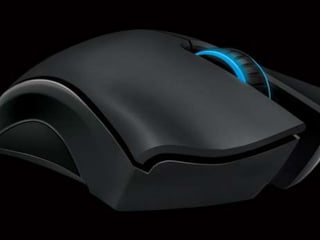
• A mouse is an input device that rolls around on a
  flat surface. And controls the pointer
• The pointer is an on- screen object. Usually an
  arrow, that is used to select text, access menus
  and interact with programs, files or data that
  appear on the screen.
• The mouse first gained widespread recognition
  when it was package with the Apple Macintosh
  computer in 1984.
• A mouse lets you position the cursor anywhere
  on the screen quickly and easily without having
  to use the cursor-movements keys
• The mouse let you to choose commands from
  easy to use menus and dialog boxes.
• It allows you to create graphics
  lines, curves, and freehand shapes on the
  screen
• The mouse helped to establish the computers
  as a versatile tool for graphic designers.
• Using the mouse
• You use a mouse to point to a location on the
  screen. You simply use the mouse to place the
  pointer on top o the object or location.
Four techniques
• Clicking, double-clicking, dragging, and right-clicking

• Clicking: means to move the pointer to the item on the
  screen and to press and release the mouse button
  once.
• Double-clicking: press and release the mouse button
  twice in rapid succession.
• Dragging: press the mouse button, and hold it down as
  you move the mouse. As you move the pointer, the
  item is dragged along with it. You can drop the item in
  a new position in the screen (drag-and-drop-editing)
• Right-clicking: it is used to open shortcut menus.
• Wheel: one of the purposes is scrolling through long
  documents
Variants of the mouse
• Provide ease of use while taking up less space
  than a mouse

The trackball
Trackpad
Pointers in the keyboard
The trackball
• It works like an upside-down mouse
• To move the pointer around the screen you
  roll the ball with your thumb.
The trackpad
• also called touchpad
• Is a stationary pointing device, the
  movement of a finger across a small
  touch surface is translated into
  pointer movement on the computer
  screen.
They are strike sensitive
You can tap the pad with your fingertip instead
  of bottoms

They must be kept clean, dust and oil from the
  user’s fingers can affect a trackpad’s
  performance less sensitive to the touch
Pointers in the keyboard
• Integrated pointing device
• Consisting in a small joystick positionated in
  the middle of the keyboard, (generally
  between G & H keys)
Jimmy Gaviria

The mouse

  • 2.
    The mouse The mouse • The mouse may seem like a relatively new gadget, but get this: It’s about to turn 50. • The first model was invented in the early 1960s by Douglas Engelbart and Bill English at Stanford University. Made of wood and featuring a bright red push button, the contraption was more matchbox than computer device.
  • 3.
    • Still, the“mouse” (so named because the cord looked like a tail) took off, and before long sleeker versions popped up in R&D labs and in stores as the PC—and computing itself—became more mainstream.
  • 4.
    • Whereas today’smice are sleek and curved, early models were blocky and bulky, much like other hardware at the time. Many companies, including Microsoft, Apple, Hewlett-Packard, and Logitech, produced innovative models in the 1980s and ‘90s that resembled space-age toys or garage-door openers.
  • 5.
    • Some modelssucceeded, many didn’t. And the types of mice varied by technology as much as color: mechanical mice, gyroscopic mice, 3D mice, optical mice, tactile mice, and most recently, wireless mice and touch mice.
  • 7.
    • Input device: •It enables you to input information and commands into the computer. • Any machine that feeds data into a computer. • An input device is any device that provides input to a computer. • It allows you to open programs, type messages, drag objects, and perform many other functions on your computer.
  • 8.
    • A mouseis an input device that rolls around on a flat surface. And controls the pointer • The pointer is an on- screen object. Usually an arrow, that is used to select text, access menus and interact with programs, files or data that appear on the screen. • The mouse first gained widespread recognition when it was package with the Apple Macintosh computer in 1984. • A mouse lets you position the cursor anywhere on the screen quickly and easily without having to use the cursor-movements keys
  • 9.
    • The mouselet you to choose commands from easy to use menus and dialog boxes. • It allows you to create graphics lines, curves, and freehand shapes on the screen • The mouse helped to establish the computers as a versatile tool for graphic designers. • Using the mouse • You use a mouse to point to a location on the screen. You simply use the mouse to place the pointer on top o the object or location.
  • 10.
    Four techniques • Clicking,double-clicking, dragging, and right-clicking • Clicking: means to move the pointer to the item on the screen and to press and release the mouse button once. • Double-clicking: press and release the mouse button twice in rapid succession. • Dragging: press the mouse button, and hold it down as you move the mouse. As you move the pointer, the item is dragged along with it. You can drop the item in a new position in the screen (drag-and-drop-editing) • Right-clicking: it is used to open shortcut menus. • Wheel: one of the purposes is scrolling through long documents
  • 11.
    Variants of themouse • Provide ease of use while taking up less space than a mouse The trackball Trackpad Pointers in the keyboard
  • 12.
    The trackball • Itworks like an upside-down mouse • To move the pointer around the screen you roll the ball with your thumb.
  • 14.
    The trackpad • alsocalled touchpad • Is a stationary pointing device, the movement of a finger across a small touch surface is translated into pointer movement on the computer screen.
  • 15.
    They are strikesensitive You can tap the pad with your fingertip instead of bottoms They must be kept clean, dust and oil from the user’s fingers can affect a trackpad’s performance less sensitive to the touch
  • 17.
    Pointers in thekeyboard • Integrated pointing device • Consisting in a small joystick positionated in the middle of the keyboard, (generally between G & H keys)
  • 20.