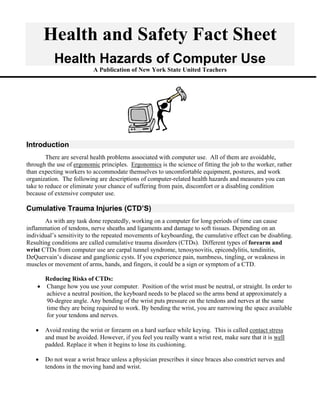
Health and Safety Fact Sheet
           Health Hazards of Computer Use
                           A Publication of New York State United Teachers


Introduction
        There are several health problems associated with computer use. All of them are avoidable,
through the use of ergonomic principles. Ergonomics is the science of fitting the job to the worker, rather
than expecting workers to accommodate themselves to uncomfortable equipment, postures, and work
organization. The following are descriptions of computer-related health hazards and measures you can
take to reduce or eliminate your chance of suffering from pain, discomfort or a disabling condition
because of extensive computer use.

Cumulative Trauma Injuries (CTD’S)
       As with any task done repeatedly, working on a computer for long periods of time can cause
inflammation of tendons, nerve sheaths and ligaments and damage to soft tissues. Depending on an
individual’s sensitivity to the repeated movements of keyboarding, the cumulative effect can be disabling.
Resulting conditions are called cumulative trauma disorders (CTDs). Different types of forearm and
wrist CTDs from computer use are carpal tunnel syndrome, tenosynovitis, epicondylitis, tendinitis,
DeQuervain’s disease and ganglionic cysts. If you experience pain, numbness, tingling, or weakness in
muscles or movement of arms, hands, and fingers, it could be a sign or symptom of a CTD.

        Reducing Risks of CTDs:
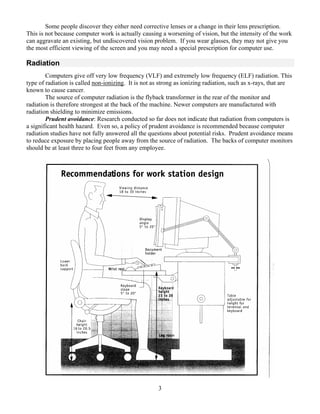
    •   Change how you use your computer. Position of the wrist must be neutral, or straight. In order to
        achieve a neutral position, the keyboard needs to be placed so the arms bend at approximately a
        90-degree angle. Any bending of the wrist puts pressure on the tendons and nerves at the same
        time they are being required to work. By bending the wrist, you are narrowing the space available
        for your tendons and nerves.

   •    Avoid resting the wrist or forearm on a hard surface while keying. This is called contact stress
        and must be avoided. However, if you feel you really want a wrist rest, make sure that it is well
        padded. Replace it when it begins to lose its cushioning.

   •    Do not wear a wrist brace unless a physician prescribes it since braces also constrict nerves and
        tendons in the moving hand and wrist.
Back, Neck and Shoulder Problems
       Neck and shoulder pain and stiffness can occur from improper placement of the computer monitor,
mouse or document you are working from. If these items are not placed correctly, the muscles of your
neck and shoulders are constantly working to keep the head and arms in an awkward position. Phone use
while keying can also contribute to neck and shoulder pain from cradling the phone to your ear.

       Reducing Risks for Back, Neck and Shoulder Problems:
        • Your line of vision should hit the top of the monitor, the mouse should be next to the
          keyboard at the same height, and a document holder should be used to make sure paperwork
          is at the same distance, angle and height as the monitor.

           •    Arrange the computer equipment in a straight line so you are not twisting your back.

           •    To reduce telephone related muscle stress, use the speaker function or purchase a headset.

        A chair that does not provide support for the lower back, or lumbar, can cause back pain. If there
is no lumbar support, back muscles experience fatigue because they must do more work to keep the body
in an upright position. An unsuitable chair also adds to poor posture, such as slouching, that puts pressure
on the spine.
        •      Get a good chair that is adjustable and allows the user to move the seat pan up and down, the
               arm rests in and out and the seat back forward and back. Chairs should be adjusted so the feet
               can be placed squarely on the ground or a footrest. Chairs should also come in a few different
               sizes to best fit the user.

Vision
         Many people who use computers for prolonged periods of time complain of eyestrain, eye fatigue,
eye irritation and blurred vision. Fortunately, correcting these problems can be relatively easy and
inexpensive.

       Helpful Hints:
       • To reduce glare, tilt the screen down slightly so that that overhead lighting does not hit the
          screen. Place monitors at right angles to windows so glare does not hit the screen or the user’s
          eyes. Use blinds or curtains for controlling sunlight glare. Reduce room lighting to half-normal
          office levels and use task lighting for paper work and other tasks. Try these methods before
          relying on glare screens, as they are dust collectors and require continuous cleaning.

       •       If there is flicker, or small and illegible characters, make sure the computer is operating
               properly and that the screen and characters are big enough to read comfortably. Prolonged,
               intense viewing of the monitor can also cause flickering sensations.

       •       Take breaks by looking away from the screen for ten seconds; make phone calls or do other
               work and give your eyes a rest.

       •       Dryness and irritation are also common complaints. Keep computers and desk areas clean to
               keep dust levels down and help reduce eye irritation. Don’t forget to blink when working at a
               computer. Eyes need lubrication and with computer work, especially in a dry workplace,
               blinking is especially important, as is drinking plenty of water throughout the day. Wearing
               contact lenses can aggravate the problem.

                                                        2
Some people discover they either need corrective lenses or a change in their lens prescription.
This is not because computer work is actually causing a worsening of vision, but the intensity of the work
can aggravate an existing, but undiscovered vision problem. If you wear glasses, they may not give you
the most efficient viewing of the screen and you may need a special prescription for computer use.

Radiation
        Computers give off very low frequency (VLF) and extremely low frequency (ELF) radiation. This
type of radiation is called non-ionizing. It is not as strong as ionizing radiation, such as x-rays, that are
known to cause cancer.
        The source of computer radiation is the flyback transformer in the rear of the monitor and
radiation is therefore strongest at the back of the machine. Newer computers are manufactured with
radiation shielding to minimize emissions.
        Prudent avoidance: Research conducted so far does not indicate that radiation from computers is
a significant health hazard. Even so, a policy of prudent avoidance is recommended because computer
radiation studies have not fully answered all the questions about potential risks. Prudent avoidance means
to reduce exposure by placing people away from the source of radiation. The backs of computer monitors
should be at least three to four feet from any employee.


                                                      3
REMEMBER:
         •   Organize your work area so things you need are close at hand

         •   Adjust lighting levels or reposition the monitor so that glare is eliminated and lighting is
             appropriate for the task.

         •   Adjust your workstation so you are in proper alignment with your computer. It’s important
             that the equipment adjust to your comfort.

         •   Contact your eye doctor or occupational health practitioner if vision problems persist.

         •   Report symptoms of computer-related health problems immediately to your supervisor, union
             and physician. Don’t wait to get treatment and/or help for changing your workstation.

         •   TAKE BREAKS! Every 30 minutes or so, get up or do alternate work like filing or
             phones. Short stretch breaks will help revive you. Taking 30 seconds to stop and stretch or
             breathe deeply while closing your eyes can be very effective. You’ll probably notice your
             concentration and productivity improving too. Don’t forget to periodically look away from the
             screen and blink.

How NYSUT can Help
        Your NYSUT Labor Relations Specialist can help you work with your employer to adopt an
ergonomic policy and purchase adjustable equipment and furniture. In each of NYSUT’S regional
offices, staff is also available to assist with ergonomic training and can give you information about the
area occupational health clinic if medical evaluation is necessary. NYSUT regional staff also has access
to a wide range of resources on this and other safety and health issues, including NYSUT Health and
Safety Fact Sheets on a variety of topics.


                       Published by New York State United Teachers, Division of Field Services
              159 Wolf Road, P.O. Box 15008, Albany, New York 12212-5008. Telephone: (518) 459-5400.
                                 This publication is made possible by a grant from the
                   New York State Occupational Safety and Health Training and Education Program.

                                                       4


[6/99]

Computer facts sheet

  • 1.
    Health and SafetyFact Sheet Health Hazards of Computer Use A Publication of New York State United Teachers Introduction There are several health problems associated with computer use. All of them are avoidable, through the use of ergonomic principles. Ergonomics is the science of fitting the job to the worker, rather than expecting workers to accommodate themselves to uncomfortable equipment, postures, and work organization. The following are descriptions of computer-related health hazards and measures you can take to reduce or eliminate your chance of suffering from pain, discomfort or a disabling condition because of extensive computer use. Cumulative Trauma Injuries (CTD’S) As with any task done repeatedly, working on a computer for long periods of time can cause inflammation of tendons, nerve sheaths and ligaments and damage to soft tissues. Depending on an individual’s sensitivity to the repeated movements of keyboarding, the cumulative effect can be disabling. Resulting conditions are called cumulative trauma disorders (CTDs). Different types of forearm and wrist CTDs from computer use are carpal tunnel syndrome, tenosynovitis, epicondylitis, tendinitis, DeQuervain’s disease and ganglionic cysts. If you experience pain, numbness, tingling, or weakness in muscles or movement of arms, hands, and fingers, it could be a sign or symptom of a CTD. Reducing Risks of CTDs: • Change how you use your computer. Position of the wrist must be neutral, or straight. In order to achieve a neutral position, the keyboard needs to be placed so the arms bend at approximately a 90-degree angle. Any bending of the wrist puts pressure on the tendons and nerves at the same time they are being required to work. By bending the wrist, you are narrowing the space available for your tendons and nerves. • Avoid resting the wrist or forearm on a hard surface while keying. This is called contact stress and must be avoided. However, if you feel you really want a wrist rest, make sure that it is well padded. Replace it when it begins to lose its cushioning. • Do not wear a wrist brace unless a physician prescribes it since braces also constrict nerves and tendons in the moving hand and wrist.
  • 2.
    Back, Neck andShoulder Problems Neck and shoulder pain and stiffness can occur from improper placement of the computer monitor, mouse or document you are working from. If these items are not placed correctly, the muscles of your neck and shoulders are constantly working to keep the head and arms in an awkward position. Phone use while keying can also contribute to neck and shoulder pain from cradling the phone to your ear. Reducing Risks for Back, Neck and Shoulder Problems: • Your line of vision should hit the top of the monitor, the mouse should be next to the keyboard at the same height, and a document holder should be used to make sure paperwork is at the same distance, angle and height as the monitor. • Arrange the computer equipment in a straight line so you are not twisting your back. • To reduce telephone related muscle stress, use the speaker function or purchase a headset. A chair that does not provide support for the lower back, or lumbar, can cause back pain. If there is no lumbar support, back muscles experience fatigue because they must do more work to keep the body in an upright position. An unsuitable chair also adds to poor posture, such as slouching, that puts pressure on the spine. • Get a good chair that is adjustable and allows the user to move the seat pan up and down, the arm rests in and out and the seat back forward and back. Chairs should be adjusted so the feet can be placed squarely on the ground or a footrest. Chairs should also come in a few different sizes to best fit the user. Vision Many people who use computers for prolonged periods of time complain of eyestrain, eye fatigue, eye irritation and blurred vision. Fortunately, correcting these problems can be relatively easy and inexpensive. Helpful Hints: • To reduce glare, tilt the screen down slightly so that that overhead lighting does not hit the screen. Place monitors at right angles to windows so glare does not hit the screen or the user’s eyes. Use blinds or curtains for controlling sunlight glare. Reduce room lighting to half-normal office levels and use task lighting for paper work and other tasks. Try these methods before relying on glare screens, as they are dust collectors and require continuous cleaning. • If there is flicker, or small and illegible characters, make sure the computer is operating properly and that the screen and characters are big enough to read comfortably. Prolonged, intense viewing of the monitor can also cause flickering sensations. • Take breaks by looking away from the screen for ten seconds; make phone calls or do other work and give your eyes a rest. • Dryness and irritation are also common complaints. Keep computers and desk areas clean to keep dust levels down and help reduce eye irritation. Don’t forget to blink when working at a computer. Eyes need lubrication and with computer work, especially in a dry workplace, blinking is especially important, as is drinking plenty of water throughout the day. Wearing contact lenses can aggravate the problem. 2
  • 3.
    Some people discoverthey either need corrective lenses or a change in their lens prescription. This is not because computer work is actually causing a worsening of vision, but the intensity of the work can aggravate an existing, but undiscovered vision problem. If you wear glasses, they may not give you the most efficient viewing of the screen and you may need a special prescription for computer use. Radiation Computers give off very low frequency (VLF) and extremely low frequency (ELF) radiation. This type of radiation is called non-ionizing. It is not as strong as ionizing radiation, such as x-rays, that are known to cause cancer. The source of computer radiation is the flyback transformer in the rear of the monitor and radiation is therefore strongest at the back of the machine. Newer computers are manufactured with radiation shielding to minimize emissions. Prudent avoidance: Research conducted so far does not indicate that radiation from computers is a significant health hazard. Even so, a policy of prudent avoidance is recommended because computer radiation studies have not fully answered all the questions about potential risks. Prudent avoidance means to reduce exposure by placing people away from the source of radiation. The backs of computer monitors should be at least three to four feet from any employee. 3
  • 4.
    REMEMBER: • Organize your work area so things you need are close at hand • Adjust lighting levels or reposition the monitor so that glare is eliminated and lighting is appropriate for the task. • Adjust your workstation so you are in proper alignment with your computer. It’s important that the equipment adjust to your comfort. • Contact your eye doctor or occupational health practitioner if vision problems persist. • Report symptoms of computer-related health problems immediately to your supervisor, union and physician. Don’t wait to get treatment and/or help for changing your workstation. • TAKE BREAKS! Every 30 minutes or so, get up or do alternate work like filing or phones. Short stretch breaks will help revive you. Taking 30 seconds to stop and stretch or breathe deeply while closing your eyes can be very effective. You’ll probably notice your concentration and productivity improving too. Don’t forget to periodically look away from the screen and blink. How NYSUT can Help Your NYSUT Labor Relations Specialist can help you work with your employer to adopt an ergonomic policy and purchase adjustable equipment and furniture. In each of NYSUT’S regional offices, staff is also available to assist with ergonomic training and can give you information about the area occupational health clinic if medical evaluation is necessary. NYSUT regional staff also has access to a wide range of resources on this and other safety and health issues, including NYSUT Health and Safety Fact Sheets on a variety of topics. Published by New York State United Teachers, Division of Field Services 159 Wolf Road, P.O. Box 15008, Albany, New York 12212-5008. Telephone: (518) 459-5400. This publication is made possible by a grant from the New York State Occupational Safety and Health Training and Education Program. 4 [6/99]