Class 6 Multimedia & Hypermedia
Devotions
Assignment 1 Using Microsoft’s Clipart Gallery ( http://office.microsoft.com/clipart/) ... Search and download at least three clip art graphics that you could use in your class someday (either for a handout or a presentation) Create a Word document for each, adding the appropriate labels (or creating blanks for students to label) for maximum effectiveness
Assignment 2 Read (and blog comments for): Perera, Rosie. &quot;Loving God, Loving Technology.&quot; 9 February 2007. Comment Magazine. 8 September 2007  <http://www.wrf.ca/comment/article.cfm?ID=234>
Assignment 3 Articulate (word document) a plan for an effective video lesson (to be delivered via YouTube) Include the context of the lesson, what visuals you might use, multimedia aids (sound & video clips), how you would integrate your faith, what other technology you might be able to use, transitions & special effects, and (most importantly) what the students should know by the end The video can be as short as 90 seconds, or as long as 4 minutes. Quality over quantity...
Assignment 4 Choose one of the map activities For the election results, Ruby = Democrats & Mandy = Republicans
Option 1 for homework – State map activity Open a new Word document Download the appropriate state picture (of your homeland) from the class site – save it to your Graphics folder In the Word document Insert > Picture > From File and put in your state picture
Option 2 for homework - Demographic map of the election results Open Paint Download & open from the class site – Handout 02 http://www.cnn.com/ELECTION/2008/ Pick a party (one each please) and use a color-coding method for showing the winner of each state (with a legend) Color the states who haven’t voted a common color Make a title (e.g. Democratic Candidates)
Multimedia and Hypermedia
Open Powerpoint New presentation From Design Template – pick one Apply a Design Template Under the View menu, look through all of your options Normal View is the most common for creating a new presentation
Adding text to the title slide Type the title Using the Scientific Method in your Science Fair Project Do not press Enter In the sub-title box, type Your name Name of your school (you choose)
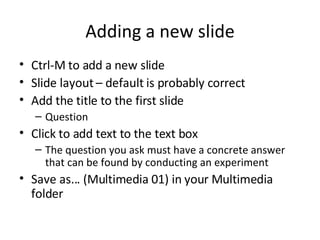
Adding a new slide Ctrl-M to add a new slide Slide layout – default is probably correct Add the title to the first slide Question Click to add text to the text box The question you ask must have a concrete answer that can be found by conducting an experiment Save as... (Multimedia 01) in your Multimedia folder
Next four slides Make them look like the following:
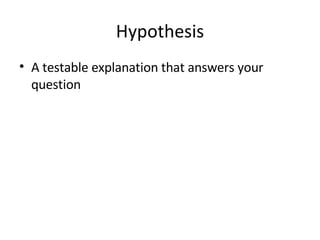
Hypothesis A testable explanation that answers your question
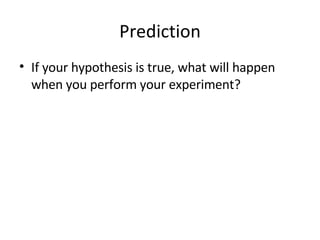
Prediction If your hypothesis is true, what will happen when you perform your experiment?
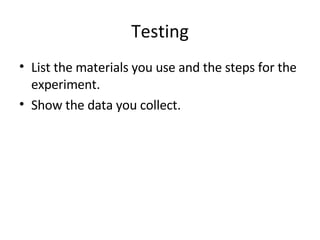
Testing List the materials you use and the steps for the experiment. Show the data you collect.
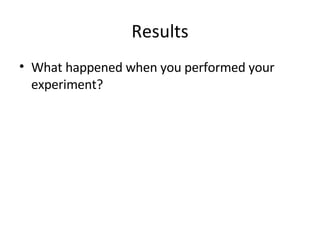
Results What happened when you performed your experiment?
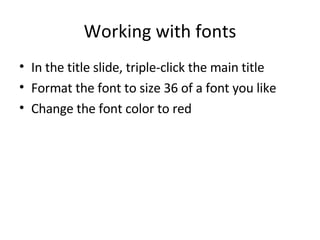
Working with fonts In the title slide, triple-click the main title Format the font to size 36 of a font you like Change the font color to red
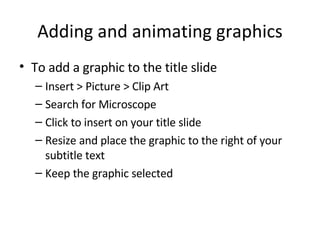
Adding and animating graphics To add a graphic to the title slide Insert > Picture > Clip Art Search for Microscope Click to insert on your title slide Resize and place the graphic to the right of your subtitle text Keep the graphic selected
Animate the graphic Choose Custom Animation (2007) Entrance > Fly In Click Play to see how this affects the graphic Save
Adding and animating text In slide 2, click in the text box after the word “experiment” Press Enter twice Turn off bullets Tab once Type “Why do highway trucks pour sand on icy roads in the winter?” Keep the text box selected
Animating the text Choose Custom Animation 2003 & before: Task pane (on the right) 2007 Animations tab Choose an effect that you like Click Preview to try it out Save
Text to add Do the same as you just did, only adding the following text: Slide 3: I know that salt is used to melt ice and I think that sand is used for the same reason. Slide 4: If my hypothesis is true, an ice cube with sand on it will melt faster than a bare ice cube
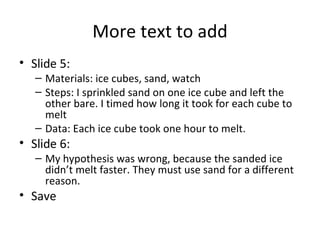
More text to add Slide 5:  Materials: ice cubes, sand, watch Steps: I sprinkled sand on one ice cube and left the other bare. I timed how long it took for each cube to melt Data: Each ice cube took one hour to melt. Slide 6: My hypothesis was wrong, because the sanded ice didn’t melt faster. They must use sand for a different reason. Save
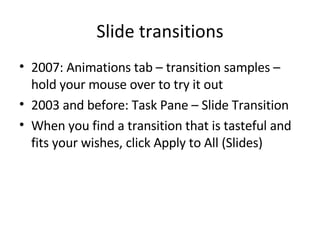
Slide transitions 2007: Animations tab – transition samples – hold your mouse over to try it out 2003 and before: Task Pane – Slide Transition When you find a transition that is tasteful and fits your wishes, click Apply to All (Slides)
Adding sound effects Experiment with this (briefly please) and then don’t bother adding a sound effect – those are usually annoying and don’t fit the presentation at all
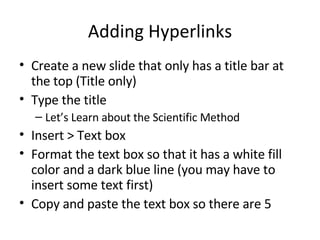
Adding Hyperlinks Create a new slide that only has a title bar at the top (Title only) Type the title Let’s Learn about the Scientific Method Insert > Text box Format the text box so that it has a white fill color and a dark blue line (you may have to insert some text first) Copy and paste the text box so there are 5
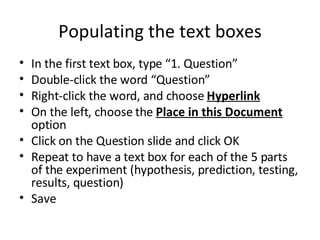
Populating the text boxes In the first text box, type “1. Question” Double-click the word “Question” Right-click the word, and choose  Hyperlink On the left, choose the  Place in this Document  option Click on the Question slide and click OK Repeat to have a text box for each of the 5 parts of the experiment (hypothesis, prediction, testing, results, question) Save
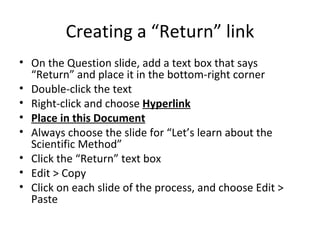
Creating a “Return” link On the Question slide, add a text box that says “Return” and place it in the bottom-right corner Double-click the text Right-click and choose  Hyperlink Place in this Document Always choose the slide for “Let’s learn about the Scientific Method” Click the “Return” text box Edit > Copy Click on each slide of the process, and choose Edit > Paste
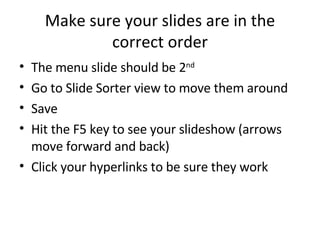
Make sure your slides are in the correct order The menu slide should be 2 nd Go to Slide Sorter view to move them around Save Hit the F5 key to see your slideshow (arrows move forward and back) Click your hyperlinks to be sure they work
Printing (don’t actually print) File > Print Under Print what, choose one of the options and Print Preview (but don’t print)
Multimedia - Powerpoint Example – Life cycle of a butterfly
Assignment 1 Visit the following site : http://www1.umn.edu/ohr/teachlearn/tutorials/powerpoint/index.html Visit and look through all of the links in the menu on the left, including all of the videos in the video workshop
Assignment 2 Prensky, Marc. “Digital Natives, Digital Immigrants.” October 2001. On the Horizon. 8 September 2007  http://www.marcprensky.com/writing/default.asp Read and blog your thoughts and comments
Assignment 3 http://www.slideshare.net/ Create an account (free & painless) Look through the possibilities Search for something meaningful for your classes Download the presentation and tweak it (but give credit to the original author as well) At least two slideshows that seem helpful
Assignment 4 Create a slideshow for “Back to School” night You may use templates from Microsoft: http://office.microsoft.com/en-us/templates/default.aspx ...or from Brainy Betty http://www.brainybetty.com/K_to_12_powerpoint_templates.htm Enter realistic information you would use (even if it’s not all accurate yet)
Assignment 5 Download the Jeopardy template from the class site Adapt at least one round to fit a specific unit you may study in your classroom (or ask your cooperating/mentor teachers for information that you can create something for them)
Assignment 6 - Interactivity In Powerpoint: Create a multiple-choice quiz or activity that gives feedback – at least 3 questions with four possible answers
Assignment 7 (yeah, I know...lots of work) On the blog site, view the two powerpoint slideshows linked there and comment on them and/or respond to my comments
http://www.eschoolnews.com/news/top-news/?i=51475;_hbguid=b88698a6-3d62-4e5f-a4a2-0922383fb794 Discussion http://technologymeaningful.wikispaces.com/getting+started Click simulations on the left Look through an example that is applicable to you

Class 06

  • 1.
    Class 6 Multimedia& Hypermedia
  • 2.
  • 3.
    Assignment 1 UsingMicrosoft’s Clipart Gallery ( http://office.microsoft.com/clipart/) ... Search and download at least three clip art graphics that you could use in your class someday (either for a handout or a presentation) Create a Word document for each, adding the appropriate labels (or creating blanks for students to label) for maximum effectiveness
  • 4.
    Assignment 2 Read(and blog comments for): Perera, Rosie. &quot;Loving God, Loving Technology.&quot; 9 February 2007. Comment Magazine. 8 September 2007 <http://www.wrf.ca/comment/article.cfm?ID=234>
  • 5.
    Assignment 3 Articulate(word document) a plan for an effective video lesson (to be delivered via YouTube) Include the context of the lesson, what visuals you might use, multimedia aids (sound & video clips), how you would integrate your faith, what other technology you might be able to use, transitions & special effects, and (most importantly) what the students should know by the end The video can be as short as 90 seconds, or as long as 4 minutes. Quality over quantity...
  • 6.
    Assignment 4 Chooseone of the map activities For the election results, Ruby = Democrats & Mandy = Republicans
  • 7.
    Option 1 forhomework – State map activity Open a new Word document Download the appropriate state picture (of your homeland) from the class site – save it to your Graphics folder In the Word document Insert > Picture > From File and put in your state picture
  • 8.
    Option 2 forhomework - Demographic map of the election results Open Paint Download & open from the class site – Handout 02 http://www.cnn.com/ELECTION/2008/ Pick a party (one each please) and use a color-coding method for showing the winner of each state (with a legend) Color the states who haven’t voted a common color Make a title (e.g. Democratic Candidates)
  • 9.
  • 10.
    Open Powerpoint Newpresentation From Design Template – pick one Apply a Design Template Under the View menu, look through all of your options Normal View is the most common for creating a new presentation
  • 11.
    Adding text tothe title slide Type the title Using the Scientific Method in your Science Fair Project Do not press Enter In the sub-title box, type Your name Name of your school (you choose)
  • 12.
    Adding a newslide Ctrl-M to add a new slide Slide layout – default is probably correct Add the title to the first slide Question Click to add text to the text box The question you ask must have a concrete answer that can be found by conducting an experiment Save as... (Multimedia 01) in your Multimedia folder
  • 13.
    Next four slidesMake them look like the following:
  • 14.
    Hypothesis A testableexplanation that answers your question
  • 15.
    Prediction If yourhypothesis is true, what will happen when you perform your experiment?
  • 16.
    Testing List thematerials you use and the steps for the experiment. Show the data you collect.
  • 17.
    Results What happenedwhen you performed your experiment?
  • 18.
    Working with fontsIn the title slide, triple-click the main title Format the font to size 36 of a font you like Change the font color to red
  • 19.
    Adding and animatinggraphics To add a graphic to the title slide Insert > Picture > Clip Art Search for Microscope Click to insert on your title slide Resize and place the graphic to the right of your subtitle text Keep the graphic selected
  • 20.
    Animate the graphicChoose Custom Animation (2007) Entrance > Fly In Click Play to see how this affects the graphic Save
  • 21.
    Adding and animatingtext In slide 2, click in the text box after the word “experiment” Press Enter twice Turn off bullets Tab once Type “Why do highway trucks pour sand on icy roads in the winter?” Keep the text box selected
  • 22.
    Animating the textChoose Custom Animation 2003 & before: Task pane (on the right) 2007 Animations tab Choose an effect that you like Click Preview to try it out Save
  • 23.
    Text to addDo the same as you just did, only adding the following text: Slide 3: I know that salt is used to melt ice and I think that sand is used for the same reason. Slide 4: If my hypothesis is true, an ice cube with sand on it will melt faster than a bare ice cube
  • 24.
    More text toadd Slide 5: Materials: ice cubes, sand, watch Steps: I sprinkled sand on one ice cube and left the other bare. I timed how long it took for each cube to melt Data: Each ice cube took one hour to melt. Slide 6: My hypothesis was wrong, because the sanded ice didn’t melt faster. They must use sand for a different reason. Save
  • 25.
    Slide transitions 2007:Animations tab – transition samples – hold your mouse over to try it out 2003 and before: Task Pane – Slide Transition When you find a transition that is tasteful and fits your wishes, click Apply to All (Slides)
  • 26.
    Adding sound effectsExperiment with this (briefly please) and then don’t bother adding a sound effect – those are usually annoying and don’t fit the presentation at all
  • 27.
    Adding Hyperlinks Createa new slide that only has a title bar at the top (Title only) Type the title Let’s Learn about the Scientific Method Insert > Text box Format the text box so that it has a white fill color and a dark blue line (you may have to insert some text first) Copy and paste the text box so there are 5
  • 28.
    Populating the textboxes In the first text box, type “1. Question” Double-click the word “Question” Right-click the word, and choose Hyperlink On the left, choose the Place in this Document option Click on the Question slide and click OK Repeat to have a text box for each of the 5 parts of the experiment (hypothesis, prediction, testing, results, question) Save
  • 29.
    Creating a “Return”link On the Question slide, add a text box that says “Return” and place it in the bottom-right corner Double-click the text Right-click and choose Hyperlink Place in this Document Always choose the slide for “Let’s learn about the Scientific Method” Click the “Return” text box Edit > Copy Click on each slide of the process, and choose Edit > Paste
  • 30.
    Make sure yourslides are in the correct order The menu slide should be 2 nd Go to Slide Sorter view to move them around Save Hit the F5 key to see your slideshow (arrows move forward and back) Click your hyperlinks to be sure they work
  • 31.
    Printing (don’t actuallyprint) File > Print Under Print what, choose one of the options and Print Preview (but don’t print)
  • 32.
    Multimedia - PowerpointExample – Life cycle of a butterfly
  • 33.
    Assignment 1 Visitthe following site : http://www1.umn.edu/ohr/teachlearn/tutorials/powerpoint/index.html Visit and look through all of the links in the menu on the left, including all of the videos in the video workshop
  • 34.
    Assignment 2 Prensky,Marc. “Digital Natives, Digital Immigrants.” October 2001. On the Horizon. 8 September 2007 http://www.marcprensky.com/writing/default.asp Read and blog your thoughts and comments
  • 35.
    Assignment 3 http://www.slideshare.net/Create an account (free & painless) Look through the possibilities Search for something meaningful for your classes Download the presentation and tweak it (but give credit to the original author as well) At least two slideshows that seem helpful
  • 36.
    Assignment 4 Createa slideshow for “Back to School” night You may use templates from Microsoft: http://office.microsoft.com/en-us/templates/default.aspx ...or from Brainy Betty http://www.brainybetty.com/K_to_12_powerpoint_templates.htm Enter realistic information you would use (even if it’s not all accurate yet)
  • 37.
    Assignment 5 Downloadthe Jeopardy template from the class site Adapt at least one round to fit a specific unit you may study in your classroom (or ask your cooperating/mentor teachers for information that you can create something for them)
  • 38.
    Assignment 6 -Interactivity In Powerpoint: Create a multiple-choice quiz or activity that gives feedback – at least 3 questions with four possible answers
  • 39.
    Assignment 7 (yeah,I know...lots of work) On the blog site, view the two powerpoint slideshows linked there and comment on them and/or respond to my comments
  • 40.