Graphics & Images
COMFREE / INTRO TO MULTIMEDIA
Table of Content
1. Introduction
2. Types of graphics
3. Resolution
4. Memory/Storage requirement
5. Types of images
6. Image colour schemes
7. Colour dithering
8. Image processing
9. Graphic file formats
Introduction
 Image is a spatial representation of an object or a scene. (image of a person,
place, object)
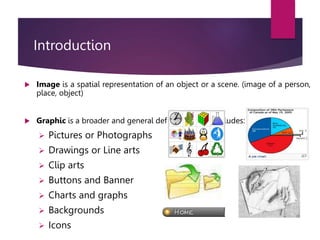
 Graphic is a broader and general definition which includes:
 Pictures or Photographs
 Drawings or Line arts
 Clip arts
 Buttons and Banner
 Charts and graphs
 Backgrounds
 Icons
What are still images?
 Still images are visual representations that do not move.
Text is ideal for transmitting information in a highly
articulate manner that can be consistently interpreted
irrespective of the user. Still images, however, allow the
content creator to convey information which can be more
freely interpreted by the user. A picture does indeed paint
a thousand words but the meaning of the picture will vary
from user to user.
Picture Vs Graphics / Image
Pictures:
 Pictures are found in the world which is external to the
computers.
Images / Graphics:
 Images are the 2-Dimensional digital representations of
pictures found in computers.
 Computer attempts to duplicate the “look and feel” of a
picture via storing and processing.
 Therefore, an image is a “realistic” version of the original
picture ; dependant on the quality and capabilities of the
computer and the graphic artist’s ability to use the software.
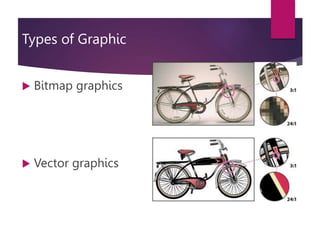
Types of Graphic
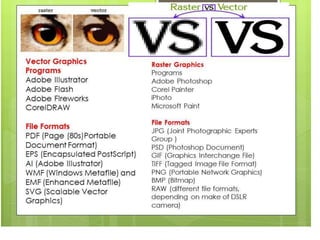
 Bitmap graphics
 Vector graphics
Bitmap graphics
 The most common and comprehensive form of storage for images on
computers is bitmap image.
 Bitmap use combination blocks of different colours (known as pixels)
to represent an image. Each pixel is assigned a specific location and
colour value.
 There are also called pixelized or raster graphics.
 Software to edit bitmapped graphics are :
 Adobe Photoshop
 Paint Shop Pro
Vector Graphics
 Vector images are based on drawing elements/objects to
create an image.
 The elements and objects are stored as a series of command
that define the individual objects.
 Packages that allow to create vector graphics include :
 Macromedia Freehand MX
 Macromedia Flash MX
 Adobe Illustrator
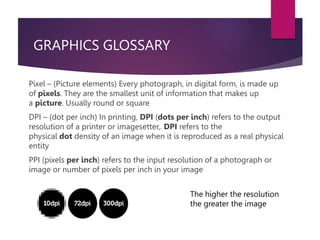
GRAPHICS GLOSSARY
Pixel – (Picture elements) Every photograph, in digital form, is made up
of pixels. They are the smallest unit of information that makes up
a picture. Usually round or square
DPI – (dot per inch) In printing, DPI (dots per inch) refers to the output
resolution of a printer or imagesetter,. DPI refers to the
physical dot density of an image when it is reproduced as a real physical
entity
PPI (pixels per inch) refers to the input resolution of a photograph or
image or number of pixels per inch in your image
The higher the resolution
the greater the image
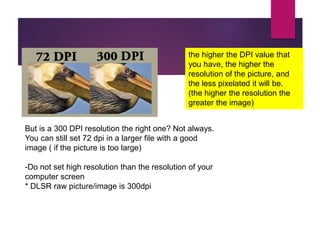
the higher the DPI value that
you have, the higher the
resolution of the picture, and
the less pixelated it will be.
(the higher the resolution the
greater the image)
But is a 300 DPI resolution the right one? Not always.
You can still set 72 dpi in a larger file with a good
image ( if the picture is too large)
-Do not set high resolution than the resolution of your
computer screen
* DLSR raw picture/image is 300dpi
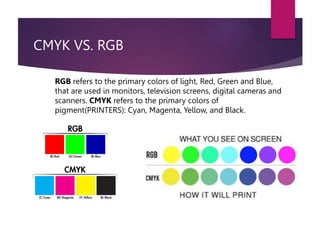
CMYK VS. RGB
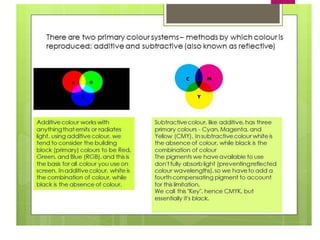
RGB refers to the primary colors of light, Red, Green and Blue,
that are used in monitors, television screens, digital cameras and
scanners. CMYK refers to the primary colors of
pigment(PRINTERS): Cyan, Magenta, Yellow, and Black.
Image resolution
 Image resolution measures the pixel dimension of an
overall image or how many pixel the image has.
 Image resolution is measured in width and height.
 For example, 100 * 100-pixel image has a total of 10,000
pixels.
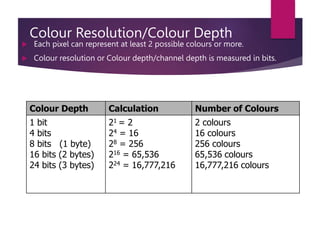
Colour Resolution/Colour Depth
 Each pixel can represent at least 2 possible colours or more.
 Colour resolution or Colour depth/channel depth is measured in bits.
Colour Depth Calculation Number of Colours
1 bit
4 bits
8 bits (1 byte)
16 bits (2 bytes)
24 bits (3 bytes)
21 = 2
24 = 16
28 = 256
216 = 65,536
224 = 16,777,216
2 colours
16 colours
256 colours
65,536 colours
16,777,216 colours
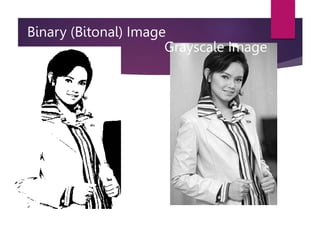
Binary (Bitonal) Image
Grayscale Image
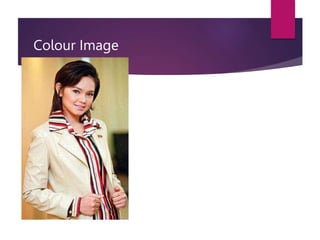
Colour Image
Image Colour Schemes
1. Get inspired. Assemble your props
What’s the theme of your flat lay? Pick a lot of props (more
than you would conceivably use) so that you can swap things
in and out while you’re composing your shot. Also, try to
pick objects of varying sizes and shapes in order to create
visual interest
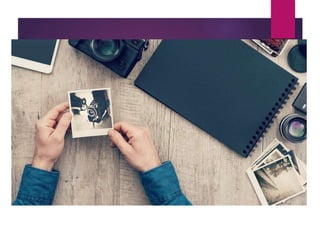
Grab an extra pair of hands
Some of our favorite flat lay designs look more “candid” becau
se they include people (or, more accurately, body parts). If yo
u want to create a look that has a sense of movement and act
ion, consider enlisting the help of a friend/hand model. It’ll be
way easier/less impossible than trying to pose and photograp
h yourself.
Pick a background
 When choosing a background, it’s best to keep things
simple. A plain white background works well because it
won’t distract from your props, but you can also pick a
neutral like a wood floor or table. If you want to use a
colored background, you can get crafty by taping some
matte wrapping paper to a floor or table. Or, consider
investing in some vinyl backdrops to easily create a rustic
look.
Compose your shot
 Set up next to a window and try to shoot in the morning or late afternoon,
when you’ll get the best light. Try not to use a flash, as this is going to create
create shadows.
 When setting up your shot, leave a little bit of space between each object.
This will help highlight each prop and keep your shot from looking cluttered.
Create balance in your photo by mixing smaller objects with larger objects
and placing objects of similar colors on both sides of the image.
 a square layout will look really nice. If you’re shooting with your phone, it’s
easy to set up a shot by picking the square setting in your camera.
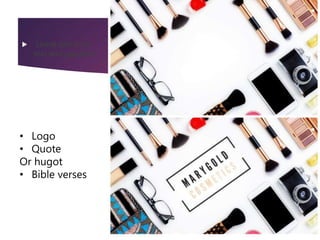
 Leave space for
text and graphics
• Logo
• Quote
Or hugot
• Bible verses
Shoot from above
 Climb up on a ladder or step stool and get shooting.
Creating distance between you and the flat lay will help
you fit everything into the shot. This is also one of the
only ways to ensure that your photo really looks flat.
 Once you’re up there, take a few test shots and don’t be
afraid to keep moving props around until it looks just
right. When you have your perfect shot, it’s time to get
editing.
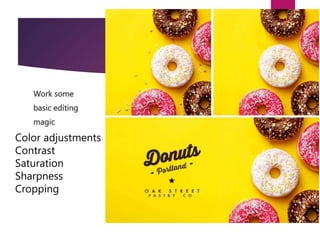
Work some
basic editing
magic
Color adjustments
Contrast
Saturation
Sharpness
Cropping
multimedia image.ppt

multimedia image.ppt

  • 1.
    Graphics & Images COMFREE/ INTRO TO MULTIMEDIA
  • 2.
    Table of Content 1.Introduction 2. Types of graphics 3. Resolution 4. Memory/Storage requirement 5. Types of images 6. Image colour schemes 7. Colour dithering 8. Image processing 9. Graphic file formats
  • 3.
    Introduction  Image isa spatial representation of an object or a scene. (image of a person, place, object)  Graphic is a broader and general definition which includes:  Pictures or Photographs  Drawings or Line arts  Clip arts  Buttons and Banner  Charts and graphs  Backgrounds  Icons
  • 5.
    What are stillimages?  Still images are visual representations that do not move. Text is ideal for transmitting information in a highly articulate manner that can be consistently interpreted irrespective of the user. Still images, however, allow the content creator to convey information which can be more freely interpreted by the user. A picture does indeed paint a thousand words but the meaning of the picture will vary from user to user.
  • 6.
    Picture Vs Graphics/ Image Pictures:  Pictures are found in the world which is external to the computers. Images / Graphics:  Images are the 2-Dimensional digital representations of pictures found in computers.  Computer attempts to duplicate the “look and feel” of a picture via storing and processing.  Therefore, an image is a “realistic” version of the original picture ; dependant on the quality and capabilities of the computer and the graphic artist’s ability to use the software.
  • 7.
    Types of Graphic Bitmap graphics  Vector graphics
  • 8.
    Bitmap graphics  Themost common and comprehensive form of storage for images on computers is bitmap image.  Bitmap use combination blocks of different colours (known as pixels) to represent an image. Each pixel is assigned a specific location and colour value.  There are also called pixelized or raster graphics.  Software to edit bitmapped graphics are :  Adobe Photoshop  Paint Shop Pro
  • 9.
    Vector Graphics  Vectorimages are based on drawing elements/objects to create an image.  The elements and objects are stored as a series of command that define the individual objects.  Packages that allow to create vector graphics include :  Macromedia Freehand MX  Macromedia Flash MX  Adobe Illustrator
  • 10.
    GRAPHICS GLOSSARY Pixel –(Picture elements) Every photograph, in digital form, is made up of pixels. They are the smallest unit of information that makes up a picture. Usually round or square DPI – (dot per inch) In printing, DPI (dots per inch) refers to the output resolution of a printer or imagesetter,. DPI refers to the physical dot density of an image when it is reproduced as a real physical entity PPI (pixels per inch) refers to the input resolution of a photograph or image or number of pixels per inch in your image The higher the resolution the greater the image
  • 11.
    the higher theDPI value that you have, the higher the resolution of the picture, and the less pixelated it will be. (the higher the resolution the greater the image) But is a 300 DPI resolution the right one? Not always. You can still set 72 dpi in a larger file with a good image ( if the picture is too large) -Do not set high resolution than the resolution of your computer screen * DLSR raw picture/image is 300dpi
  • 12.
    CMYK VS. RGB RGBrefers to the primary colors of light, Red, Green and Blue, that are used in monitors, television screens, digital cameras and scanners. CMYK refers to the primary colors of pigment(PRINTERS): Cyan, Magenta, Yellow, and Black.
  • 13.
    Image resolution  Imageresolution measures the pixel dimension of an overall image or how many pixel the image has.  Image resolution is measured in width and height.  For example, 100 * 100-pixel image has a total of 10,000 pixels.
  • 14.
    Colour Resolution/Colour Depth Each pixel can represent at least 2 possible colours or more.  Colour resolution or Colour depth/channel depth is measured in bits. Colour Depth Calculation Number of Colours 1 bit 4 bits 8 bits (1 byte) 16 bits (2 bytes) 24 bits (3 bytes) 21 = 2 24 = 16 28 = 256 216 = 65,536 224 = 16,777,216 2 colours 16 colours 256 colours 65,536 colours 16,777,216 colours
  • 15.
  • 16.
  • 17.
  • 20.
    1. Get inspired.Assemble your props What’s the theme of your flat lay? Pick a lot of props (more than you would conceivably use) so that you can swap things in and out while you’re composing your shot. Also, try to pick objects of varying sizes and shapes in order to create visual interest
  • 21.
    Grab an extrapair of hands Grab an extra pair of hands Some of our favorite flat lay designs look more “candid” becau se they include people (or, more accurately, body parts). If yo u want to create a look that has a sense of movement and act ion, consider enlisting the help of a friend/hand model. It’ll be way easier/less impossible than trying to pose and photograp h yourself.
  • 23.
    Pick a background When choosing a background, it’s best to keep things simple. A plain white background works well because it won’t distract from your props, but you can also pick a neutral like a wood floor or table. If you want to use a colored background, you can get crafty by taping some matte wrapping paper to a floor or table. Or, consider investing in some vinyl backdrops to easily create a rustic look.
  • 24.
    Compose your shot Set up next to a window and try to shoot in the morning or late afternoon, when you’ll get the best light. Try not to use a flash, as this is going to create create shadows.  When setting up your shot, leave a little bit of space between each object. This will help highlight each prop and keep your shot from looking cluttered. Create balance in your photo by mixing smaller objects with larger objects and placing objects of similar colors on both sides of the image.  a square layout will look really nice. If you’re shooting with your phone, it’s easy to set up a shot by picking the square setting in your camera.
  • 25.
     Leave spacefor text and graphics • Logo • Quote Or hugot • Bible verses
  • 26.
    Shoot from above Climb up on a ladder or step stool and get shooting. Creating distance between you and the flat lay will help you fit everything into the shot. This is also one of the only ways to ensure that your photo really looks flat.  Once you’re up there, take a few test shots and don’t be afraid to keep moving props around until it looks just right. When you have your perfect shot, it’s time to get editing.
  • 27.
    Work some basic editing magic Coloradjustments Contrast Saturation Sharpness Cropping