Intro to Web Design
4.   Understands how to jazz up web pages using the
     table feature by being able to:
     ◦ Define a table and write codes for tables and nested
       tables
     ◦ Insert attribute for the table tag and the table data tags
     ◦ Insert table borders
     ◦ Add text inside table cells
     ◦ Insert and format both page layout tables and data tables
     ◦ Insert advanced formatting features for tables
     ◦ Insert page layout structural tags (masthead, content,
       footer)
     ◦ Create a home page and relative pages for a website
     ◦ Use all codes from Chapter 1 to present
     ◦ Define key terms within the chapter
   Flag Key  (Windows) + E: Opens
    up the Computer Dialog Box
   Flag Key  + D: Places all open
    documents on the task bar
   Alt + Tab: Allows you to move
    through all open documents
   Ctrl + C: copies
   Ctrl + V: pastes
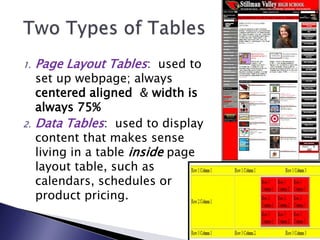
1.   Page Layout Tables: used to
     set up webpage; always
     centered aligned & width is
     always 75%
2.   Data Tables: used to display
     content that makes sense
     living in a table inside page
     layout table, such as
     calendars, schedules or
     product pricing.
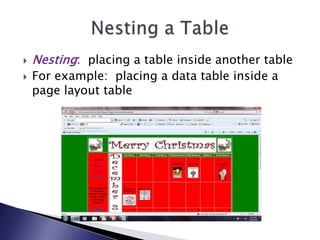
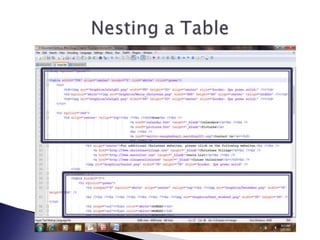
   Nesting: placing a table inside another table
   For example: placing a data table inside a
    page layout table
   Insert table: <table></table>:
    paired element tag
   Insert rows: <tr></tr>:
    paired element tag
   Insert columns: <td></td>:
    paired element tag
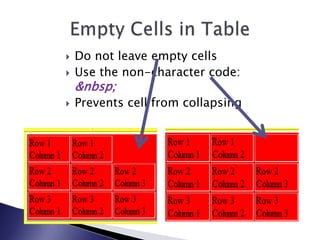
   Do not leave empty cells
   Use the non-character code:
    &nbsp;
   Prevents cell from collapsing
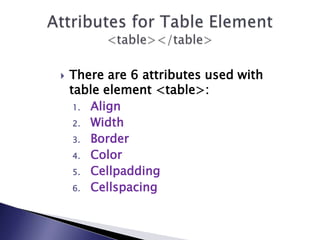
   There are 6 attributes used with
    table element <table>:
     1. Align
     2. Width
     3. Border
     4. Color
     5. Cellpadding
     6. Cellspacing
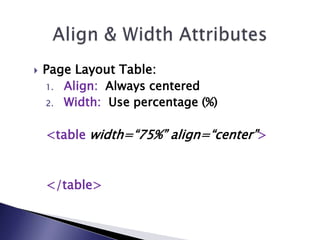
   Page Layout Table:
    1. Align: Always centered
    2. Width: Use percentage (%)


    <table width=“75%” align=“center”>


    </table>
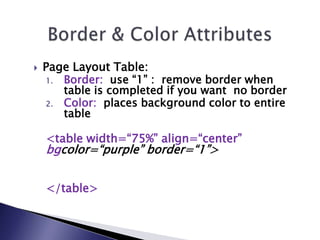
   Page Layout Table:
    1. Border: use “1” : remove border when
       table is completed if you want no border
    2. Color: places background color to entire
       table

    <table width=“75%” align=“center”
    bgcolor=“purple” border=“1”>


    </table>
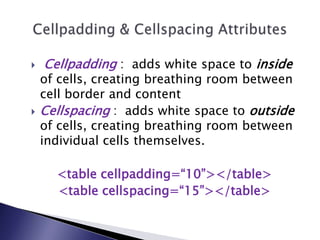
   Cellpadding : adds white space to inside
    of cells, creating breathing room between
    cell border and content
   Cellspacing : adds white space to outside
    of cells, creating breathing room between
    individual cells themselves.

      <table cellpadding=“10”></table>
      <table cellspacing=“15”></table>
   5 attributes with the table
    data tag
    1. Align
    2. Valign
    3. Background color
    4. Nowrap
    5. Width
   Horizontal alignment: aligns data going
    across page: left, center, right
   Vertical alignment: aligns data up &
    down: top, middle, bottom

         <td align=“center”></td>

<td align=“center” valign=“top”></td>
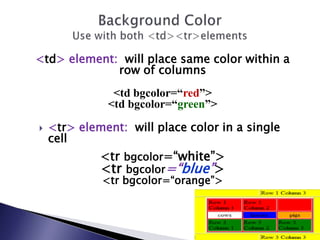
<td> element: will place same color within a
             row of columns
               <td bgcolor=“red”>
              <td bgcolor=“green”>

   <tr> element: will place color in a single
    cell
             <tr bgcolor=“white”>
             <tr bgcolor=“blue”>
             <tr bgcolor=“orange”>
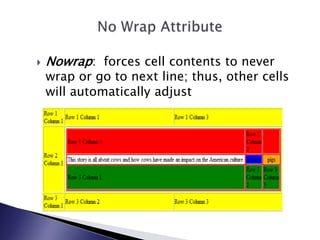
   Nowrap: forces cell contents to never
    wrap or go to next line; thus, other cells
    will automatically adjust
   4 Advanced formatting
    features:
    1.   Spanning (Attribute)
    2.   Table Head (Element)
    3.   Scope (Attribute)
    4.   Caption (Element)
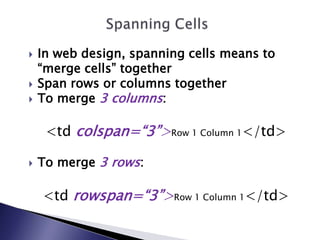
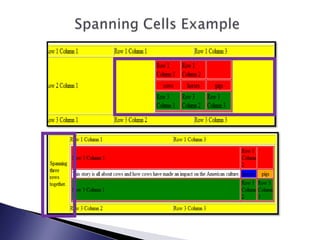
   In web design, spanning cells means to
    “merge cells” together
   Span rows or columns together
   To merge 3 columns:

     <td colspan=“3”>Row 1 Column 1</td>

   To merge 3 rows:

    <td rowspan=“3”>Row 1 Column 1</td>
   Table Heading: creates a title for each
    individual column or row

                    <th></th>

   Table Heading Attribute

       <th scope=“row”>Data here</th>
      <th scope=“column”>Data here</th>
   Caption for the Table

            <caption></caption>

   Visually positioned above or below
    table with “align” attribute

       <caption align= “top”>Minnesota Viking
         Merchandise Discounted</caption>
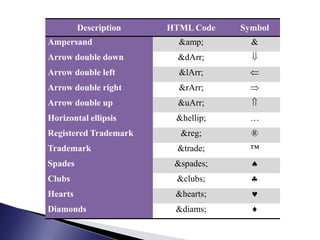
Description   HTML Code   Symbol
Ampersand                &amp;       &
Arrow double down        &dArr;
Arrow double left        &lArr;
Arrow double right       &rArr;
Arrow double up          &uArr;
Horizontal ellipsis     &hellip;     …
Registered Trademark     &reg;       ®
Trademark               &trade;      ™
Spades                  &spades;
Clubs                   &clubs;
Hearts                  &hearts;
Diamonds                &diams;
Intro to Web Design

Chapter 4 class presentation

  • 1.
  • 2.
    4. Understands how to jazz up web pages using the table feature by being able to: ◦ Define a table and write codes for tables and nested tables ◦ Insert attribute for the table tag and the table data tags ◦ Insert table borders ◦ Add text inside table cells ◦ Insert and format both page layout tables and data tables ◦ Insert advanced formatting features for tables ◦ Insert page layout structural tags (masthead, content, footer) ◦ Create a home page and relative pages for a website ◦ Use all codes from Chapter 1 to present ◦ Define key terms within the chapter
  • 3.
    Flag Key  (Windows) + E: Opens up the Computer Dialog Box  Flag Key  + D: Places all open documents on the task bar  Alt + Tab: Allows you to move through all open documents  Ctrl + C: copies  Ctrl + V: pastes
  • 4.
    1. Page Layout Tables: used to set up webpage; always centered aligned & width is always 75% 2. Data Tables: used to display content that makes sense living in a table inside page layout table, such as calendars, schedules or product pricing.
  • 5.
    Nesting: placing a table inside another table  For example: placing a data table inside a page layout table
  • 7.
    Insert table: <table></table>: paired element tag  Insert rows: <tr></tr>: paired element tag  Insert columns: <td></td>: paired element tag
  • 8.
    Do not leave empty cells  Use the non-character code: &nbsp;  Prevents cell from collapsing
  • 9.
    There are 6 attributes used with table element <table>: 1. Align 2. Width 3. Border 4. Color 5. Cellpadding 6. Cellspacing
  • 10.
    Page Layout Table: 1. Align: Always centered 2. Width: Use percentage (%) <table width=“75%” align=“center”> </table>
  • 11.
    Page Layout Table: 1. Border: use “1” : remove border when table is completed if you want no border 2. Color: places background color to entire table <table width=“75%” align=“center” bgcolor=“purple” border=“1”> </table>
  • 12.
    Cellpadding : adds white space to inside of cells, creating breathing room between cell border and content  Cellspacing : adds white space to outside of cells, creating breathing room between individual cells themselves. <table cellpadding=“10”></table> <table cellspacing=“15”></table>
  • 13.
    5 attributes with the table data tag 1. Align 2. Valign 3. Background color 4. Nowrap 5. Width
  • 14.
    Horizontal alignment: aligns data going across page: left, center, right  Vertical alignment: aligns data up & down: top, middle, bottom <td align=“center”></td> <td align=“center” valign=“top”></td>
  • 15.
    <td> element: willplace same color within a row of columns <td bgcolor=“red”> <td bgcolor=“green”>  <tr> element: will place color in a single cell <tr bgcolor=“white”> <tr bgcolor=“blue”> <tr bgcolor=“orange”>
  • 16.
    Nowrap: forces cell contents to never wrap or go to next line; thus, other cells will automatically adjust
  • 17.
    4 Advanced formatting features: 1. Spanning (Attribute) 2. Table Head (Element) 3. Scope (Attribute) 4. Caption (Element)
  • 18.
    In web design, spanning cells means to “merge cells” together  Span rows or columns together  To merge 3 columns: <td colspan=“3”>Row 1 Column 1</td>  To merge 3 rows: <td rowspan=“3”>Row 1 Column 1</td>
  • 20.
    Table Heading: creates a title for each individual column or row <th></th>  Table Heading Attribute <th scope=“row”>Data here</th> <th scope=“column”>Data here</th>
  • 21.
    Caption for the Table <caption></caption>  Visually positioned above or below table with “align” attribute <caption align= “top”>Minnesota Viking Merchandise Discounted</caption>
  • 22.
    Description HTML Code Symbol Ampersand &amp; & Arrow double down &dArr; Arrow double left &lArr; Arrow double right &rArr; Arrow double up &uArr; Horizontal ellipsis &hellip; … Registered Trademark &reg; ® Trademark &trade; ™ Spades &spades; Clubs &clubs; Hearts &hearts; Diamonds &diams;
  • 23.