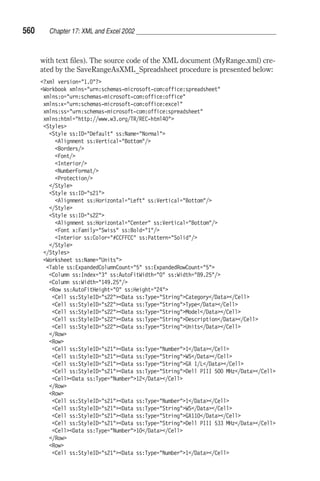
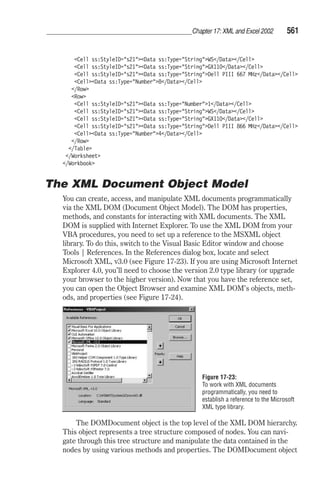
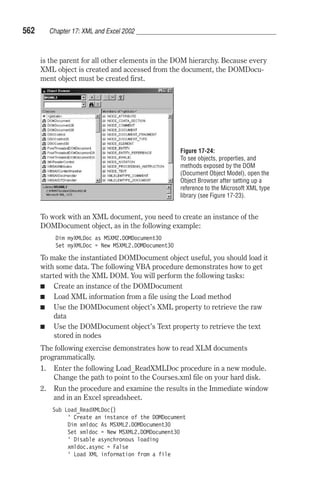
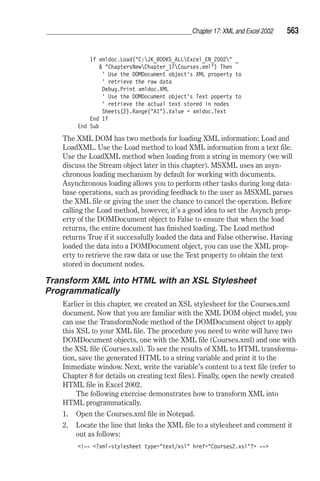
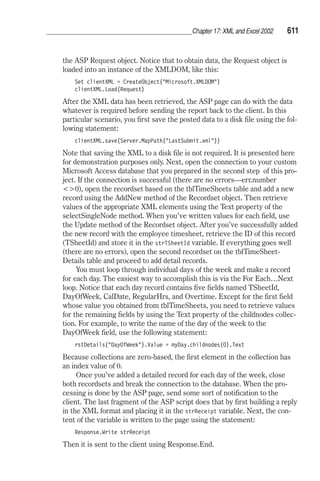
Learn Microsoft 
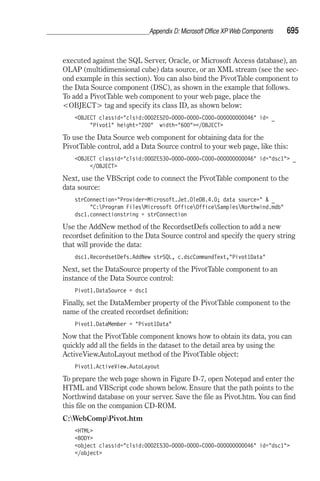
Excel 2002 VBA 
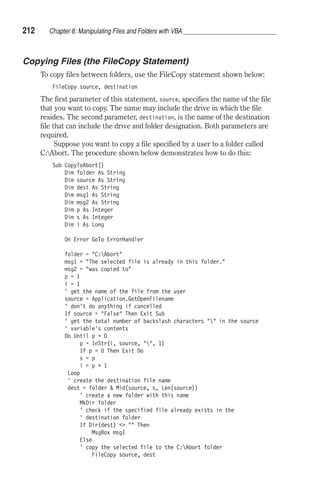
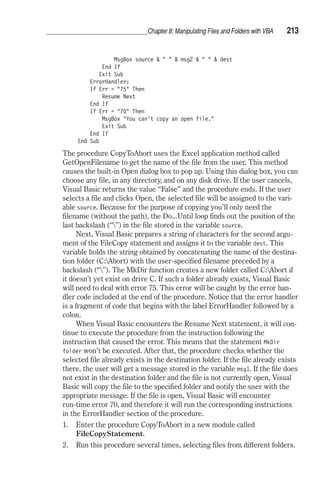
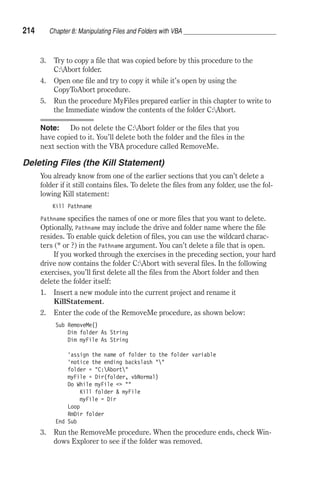
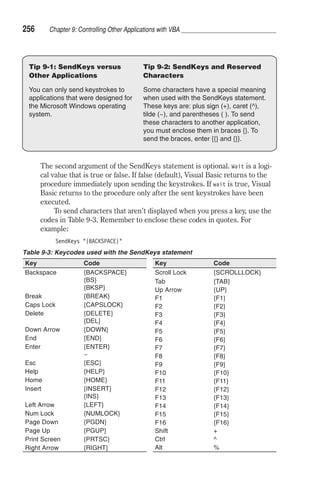
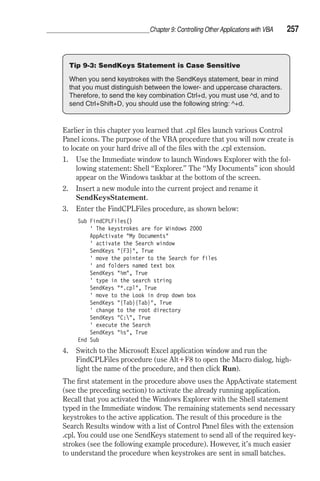
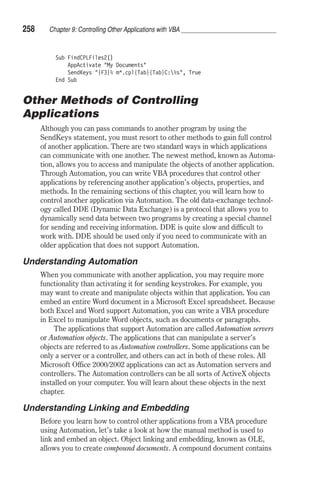
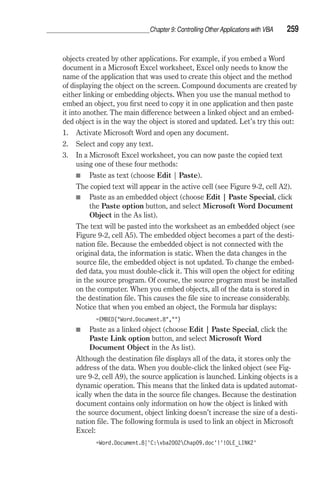
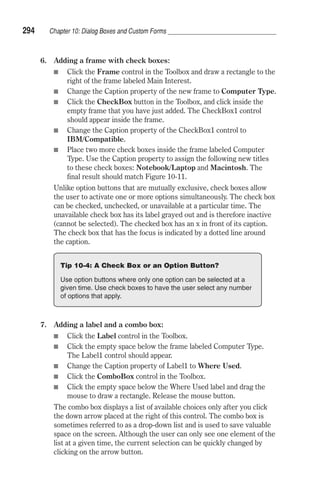
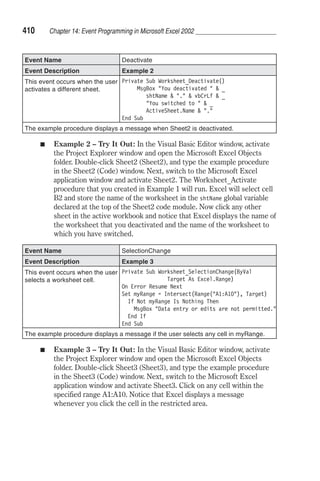
Programming with 
XML and ASP 
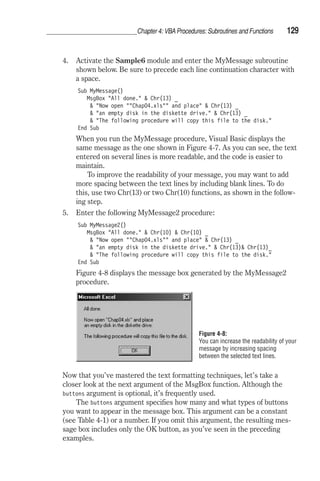
Julitta Korol 
Wordware Publishing, Inc.
Library of Congress Cataloging-in-Publication Data 
Korol, Julitta. 
Learn Microsoft Excel 2002 VBA programming with XML and ASP / by Julitta Korol. 
p. cm. 
Includes index. 
ISBN 1-55622-761-2 (pb.) 
1. Microsoft Excel (Computer file) 2. Microsoft Visual Basic for Windows. 
3. Active server pages. 4. Electronic spreadsheets. 5. Computer software-- 
Development. 6. XML (Document markup language) I. Title. 
HF5548.4.M523 K686 2002 
005.369--dc21 2002152725 
CIP 
© 2003, Wordware Publishing, Inc. 
All Rights Reserved 
2320 Los Rios Boulevard 
Plano, Texas 75074 
No part of this book may be reproduced in any form or by any means 
without permission in writing from Wordware Publishing, Inc. 
Printed in the United States of America 
ISBN 1-55622-761-2 
10 9 8 7 6 5 4 3 2 1 
0301 
Microsoft is a registered trademark of Microsoft Corporation in the United States and/or other countries. 
Other product names mentioned are used for identification purposes only and may be trademarks of their respective 
companies. 
All inquiries for volume purchases of this book should be addressed toWordware Publishing, 
Inc., at the above address. Telephone inquiries may be made by calling: 
(972) 423-0090
Dedication 
To my mother and my mother-in-law, Genowefa Malinowska and 
Alfreda Korol. They have always been against the long hours and long 
nights it takes to write technical books. My life may not have been very 
comfortable during the past 10 years (I certainly could have slept more 
and relaxed more, and tried all the other highly recommended things); 
however, the decade that I’ve dedicated to writing so that others can 
benefit may be that special mission I was born to complete. Hey, you 
never know.
This page inten tion ally left blank
Contents 
Acknowledgments . . . . . . . . . . . . . . . . . . . . . . . . . . . . . . . xiii 
Introduction . . . . . . . . . . . . . . . . . . . . . . . . . . . . . . . . . . . xv 
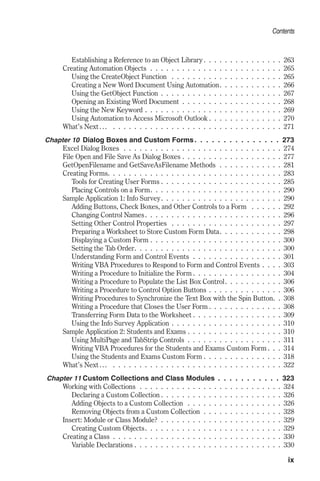
Chapter 1 Introduction to Spreadsheet Automation . . . . . . . . . . . . 1 
Understanding Macros . . . . . . . . . . . . . . . . . . . . . . . . . . . . . . 2 
Common Uses for Macros . . . . . . . . . . . . . . . . . . . . . . . . . . 2 
Planning a Macro . . . . . . . . . . . . . . . . . . . . . . . . . . . . . . . 3 
Recording a Macro . . . . . . . . . . . . . . . . . . . . . . . . . . . . . . 5 
Running the Macro . . . . . . . . . . . . . . . . . . . . . . . . . . . . . . 8 
Modifying the Macro . . . . . . . . . . . . . . . . . . . . . . . . . . . . . 8 
Adding Comments . . . . . . . . . . . . . . . . . . . . . . . . . . . . . . 12 
Analyzing the Macro Code. . . . . . . . . . . . . . . . . . . . . . . . . . 13 
Cleaning Up the Macro Code . . . . . . . . . . . . . . . . . . . . . . . . 14 
Testing the Modified Macro . . . . . . . . . . . . . . . . . . . . . . . . . 15 
Two Levels of Macro Execution . . . . . . . . . . . . . . . . . . . . . . . 16 
Improving Your Macro . . . . . . . . . . . . . . . . . . . . . . . . . . . . 17 
Renaming the Macro. . . . . . . . . . . . . . . . . . . . . . . . . . . . . 20 
Other Methods of Running Macros . . . . . . . . . . . . . . . . . . . . . 20 
Saving Macros . . . . . . . . . . . . . . . . . . . . . . . . . . . . . . . . 26 
Printing Macros . . . . . . . . . . . . . . . . . . . . . . . . . . . . . . . 27 
Storing Macros in the Personal Macro Workbook. . . . . . . . . . . . . . 27 
Opening Workbooks Containing Macros . . . . . . . . . . . . . . . . . . 29 
The Visual Basic Editor Window . . . . . . . . . . . . . . . . . . . . . . . . 31 
Understanding the Project Explorer Window . . . . . . . . . . . . . . . . 31 
Understanding the Properties Window . . . . . . . . . . . . . . . . . . . 32 
Understanding the Code Window . . . . . . . . . . . . . . . . . . . . . . 33 
Other Windows in the Visual Basic Editor Window. . . . . . . . . . . . . 35 
What’s Next…. . . . . . . . . . . . . . . . . . . . . . . . . . . . . . . . . . 36 
Chapter 2 First Steps in Visual Basic for Applications. . . . . . . . . . 37 
Understanding Instructions, Modules, and Procedures . . . . . . . . . . . . 38 
Assigning a Name to the VBA Project. . . . . . . . . . . . . . . . . . . . 39 
Renaming the Module . . . . . . . . . . . . . . . . . . . . . . . . . . . . 40 
Calling a Procedure from Another Project. . . . . . . . . . . . . . . . . . 41 
Understanding Objects, Properties, and Methods . . . . . . . . . . . . . . . 43 
Learning about Objects, Properties, and Methods . . . . . . . . . . . . . 45 
Syntax Versus Grammar . . . . . . . . . . . . . . . . . . . . . . . . . . . . 48 
Breaking Up Long VBA Statements. . . . . . . . . . . . . . . . . . . . . 51 
Understanding VBA Errors . . . . . . . . . . . . . . . . . . . . . . . . . 51 
v
Contents 
In Search of Help. . . . . . . . . . . . . . . . . . . . . . . . . . . . . . . 54 
On-the-fly Syntax and Programming Assistance . . . . . . . . . . . . . . 55 
Using the Object Browser. . . . . . . . . . . . . . . . . . . . . . . . . . . . 60 
Using the VBA Object Library . . . . . . . . . . . . . . . . . . . . . . . . . 66 
Locating Procedures with the Object Browser . . . . . . . . . . . . . . . 68 
Using the Immediate Window. . . . . . . . . . . . . . . . . . . . . . . . . . 68 
Obtaining Information in the Immediate Window. . . . . . . . . . . . . . 71 
Learning about Objects . . . . . . . . . . . . . . . . . . . . . . . . . . . . . 72 
Doing Things with Spreadsheet Cells . . . . . . . . . . . . . . . . . . . . 73 
Using the Range Property . . . . . . . . . . . . . . . . . . . . . . . . . . 73 
Using the Cells Property . . . . . . . . . . . . . . . . . . . . . . . . . . 73 
Using the Offset Property . . . . . . . . . . . . . . . . . . . . . . . . . . 75 
Other Methods of Selecting Cells . . . . . . . . . . . . . . . . . . . . . . 77 
Selecting Rows and Columns . . . . . . . . . . . . . . . . . . . . . . . . 77 
Obtaining Information about the Worksheet . . . . . . . . . . . . . . . . 78 
Entering Data in a Worksheet . . . . . . . . . . . . . . . . . . . . . . . . 78 
Returning Information Entered in a Worksheet. . . . . . . . . . . . . . . 78 
Finding Out about Cell Formatting . . . . . . . . . . . . . . . . . . . . . 79 
Moving, Copying, and Deleting Cells . . . . . . . . . . . . . . . . . . . . 80 
Doing Things with Workbooks and Worksheets . . . . . . . . . . . . . . 80 
Doing Things with Windows. . . . . . . . . . . . . . . . . . . . . . . . . 82 
Managing the Excel Application . . . . . . . . . . . . . . . . . . . . . . . 83 
What’s Next…. . . . . . . . . . . . . . . . . . . . . . . . . . . . . . . . . . 83 
Chapter 3 Understanding Variables, Data Types, and Constants . . . . 85 
Saving Results of VBA Statements . . . . . . . . . . . . . . . . . . . . . . . 86 
What Are Variables?. . . . . . . . . . . . . . . . . . . . . . . . . . . . . . . 86 
Data Types. . . . . . . . . . . . . . . . . . . . . . . . . . . . . . . . . . . . 87 
How to Create Variables . . . . . . . . . . . . . . . . . . . . . . . . . . . . 88 
How to Declare Variables . . . . . . . . . . . . . . . . . . . . . . . . . . . . 89 
Specifying the Data Type of a Variable . . . . . . . . . . . . . . . . . . . . . 92 
Assigning Values to Variables . . . . . . . . . . . . . . . . . . . . . . . . . . 94 
Forcing Declaration of Variables . . . . . . . . . . . . . . . . . . . . . . . . 98 
Understanding the Scope of Variables . . . . . . . . . . . . . . . . . . . . . 99 
Procedure-Level (Local) Variables . . . . . . . . . . . . . . . . . . . . . 100 
Module-Level Variables . . . . . . . . . . . . . . . . . . . . . . . . . . 100 
Project-Level Variables. . . . . . . . . . . . . . . . . . . . . . . . . . . 102 
Lifetime of Variables . . . . . . . . . . . . . . . . . . . . . . . . . . . . . . 102 
Understanding and Using Static Variables. . . . . . . . . . . . . . . . . . . 102 
Declaring and Using Object Variables . . . . . . . . . . . . . . . . . . . . . 104 
Using Specific Object Variables. . . . . . . . . . . . . . . . . . . . . . . 106 
Finding a Variable Definition. . . . . . . . . . . . . . . . . . . . . . . . . . 106 
Using Constants in VBA Procedures . . . . . . . . . . . . . . . . . . . . . 107 
Built-in Constants . . . . . . . . . . . . . . . . . . . . . . . . . . . . . 108 
What’s Next… . . . . . . . . . . . . . . . . . . . . . . . . . . . . . . . . . 110 
vi
Contents 
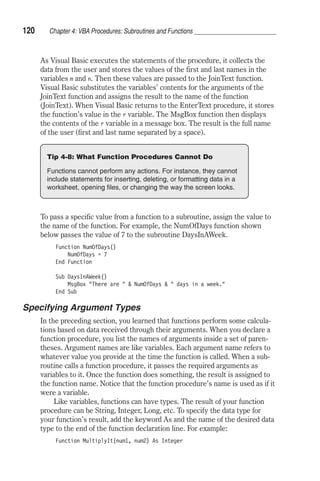
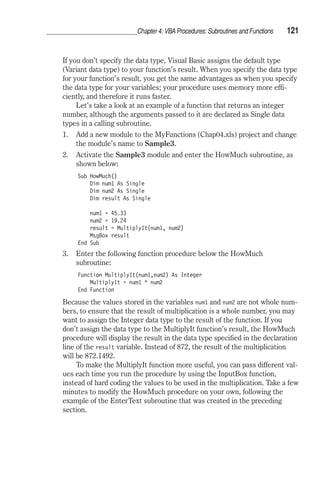
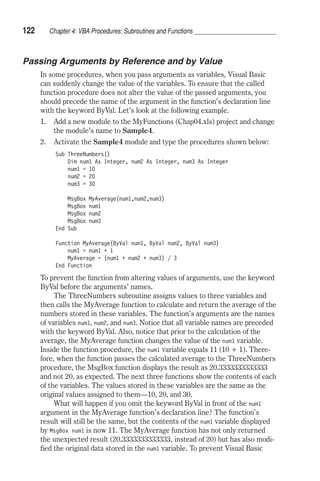
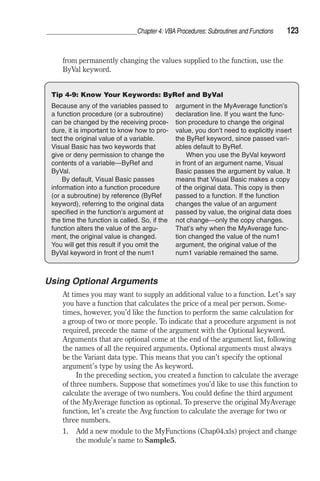
Chapter 4 VBA Procedures: Subroutines and Functions . . . . . . . . 111 
About Function Procedures . . . . . . . . . . . . . . . . . . . . . . . . . . 112 
Creating a Function Procedure. . . . . . . . . . . . . . . . . . . . . . . 112 
Executing a Function Procedure . . . . . . . . . . . . . . . . . . . . . . 115 
Passing Arguments . . . . . . . . . . . . . . . . . . . . . . . . . . . . . . 118 
Specifying Argument Types . . . . . . . . . . . . . . . . . . . . . . . . 120 
Passing Arguments by Reference and by Value . . . . . . . . . . . . . . 122 
Using Optional Arguments . . . . . . . . . . . . . . . . . . . . . . . . . 123 
Locating Built-in Functions . . . . . . . . . . . . . . . . . . . . . . . . . . 125 
Using the MsgBox Function . . . . . . . . . . . . . . . . . . . . . . . . 127 
Using the InputBox Function. . . . . . . . . . . . . . . . . . . . . . . . 134 
Using the InputBox Method . . . . . . . . . . . . . . . . . . . . . . . . 138 
Using Master Procedures and Subprocedures . . . . . . . . . . . . . . . . 142 
What’s Next… . . . . . . . . . . . . . . . . . . . . . . . . . . . . . . . . . 145 
Chapter 5 Decision Making with VBA . . . . . . . . . . . . . . . . . . 147 
Relational and Logical Operators . . . . . . . . . . . . . . . . . . . . . . . 148 
If…Then Statement . . . . . . . . . . . . . . . . . . . . . . . . . . . . . . 149 
Decisions Based on More Than One Condition . . . . . . . . . . . . . . . . 152 
The If…Then…Else Statement . . . . . . . . . . . . . . . . . . . . . . . . 154 
The If…Then…ElseIf Statement . . . . . . . . . . . . . . . . . . . . . . . 158 
Nested If…Then… Statements . . . . . . . . . . . . . . . . . . . . . . . . 160 
Select Case Statement. . . . . . . . . . . . . . . . . . . . . . . . . . . . . 161 
Using Is with the Case Clause . . . . . . . . . . . . . . . . . . . . . . . 163 
Specifying a Range of Values in a Case Clause. . . . . . . . . . . . . . . 164 
Specifying Multiple Expressions in a Case Clause. . . . . . . . . . . . . 165 
What’s Next… . . . . . . . . . . . . . . . . . . . . . . . . . . . . . . . . . 166 
Chapter 6 Repeating Actions in VBA. . . . . . . . . . . . . . . . . . . 167 
Do Loops: Do…While and Do…Until . . . . . . . . . . . . . . . . . . . . . 168 
Watching a Procedure Execute . . . . . . . . . . . . . . . . . . . . . . . . 173 
While…Wend Loop . . . . . . . . . . . . . . . . . . . . . . . . . . . . . . 174 
For…Next Loop . . . . . . . . . . . . . . . . . . . . . . . . . . . . . . . . 174 
For Each…Next Loop . . . . . . . . . . . . . . . . . . . . . . . . . . . . . 177 
Exiting Loops Early . . . . . . . . . . . . . . . . . . . . . . . . . . . . . . 178 
Nested Loops . . . . . . . . . . . . . . . . . . . . . . . . . . . . . . . . . 179 
What’s Next… . . . . . . . . . . . . . . . . . . . . . . . . . . . . . . . . . 180 
Chapter 7 Managing Lists and Tables of Data with VBA . . . . . . . . 181 
Understanding Arrays . . . . . . . . . . . . . . . . . . . . . . . . . . . . . 182 
Declaring Arrays. . . . . . . . . . . . . . . . . . . . . . . . . . . . . . . . 184 
Array Upper and Lower Bounds. . . . . . . . . . . . . . . . . . . . . . . . 185 
Using Arrays in VBA Procedures . . . . . . . . . . . . . . . . . . . . . . . 185 
Arrays and Looping Statements . . . . . . . . . . . . . . . . . . . . . . . . 187 
Using a Two-Dimensional Array. . . . . . . . . . . . . . . . . . . . . . . . 189 
Static and Dynamic Arrays. . . . . . . . . . . . . . . . . . . . . . . . . . . 190 
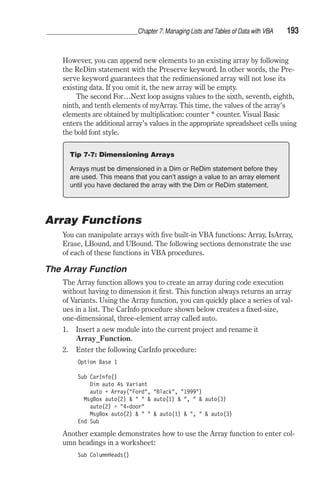
Array Functions . . . . . . . . . . . . . . . . . . . . . . . . . . . . . . . . 193 
The Array Function. . . . . . . . . . . . . . . . . . . . . . . . . . . . . 193 
vii
Contents 
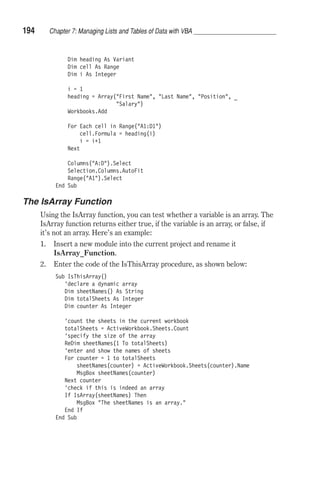
The IsArray Function. . . . . . . . . . . . . . . . . . . . . . . . . . . . 194 
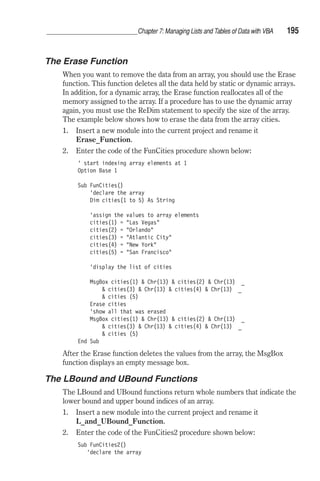
The Erase Function. . . . . . . . . . . . . . . . . . . . . . . . . . . . . 195 
The LBound and UBound Functions . . . . . . . . . . . . . . . . . . . . 195 
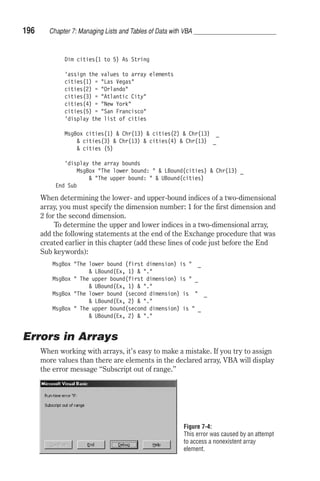
Errors in Arrays . . . . . . . . . . . . . . . . . . . . . . . . . . . . . . . . 196 
Parameter Arrays . . . . . . . . . . . . . . . . . . . . . . . . . . . . . . . 198 
What’s Next… . . . . . . . . . . . . . . . . . . . . . . . . . . . . . . . . . 199 
Chapter 8 Manipulating Files and Folders with VBA . . . . . . . . . . 201 
Manipulating Files and Folders . . . . . . . . . . . . . . . . . . . . . . . . 202 
Finding Out the Name of the Active Folder (the CurDir Function) . . . . 202 
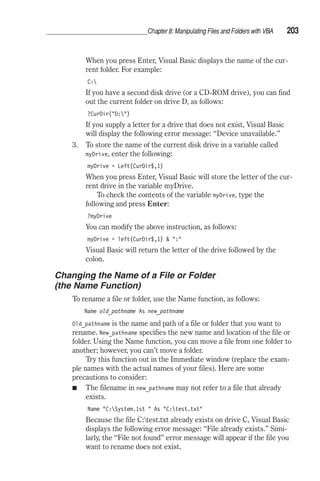
Changing the Name of a File or Folder (the Name Function) . . . . . . . 203 
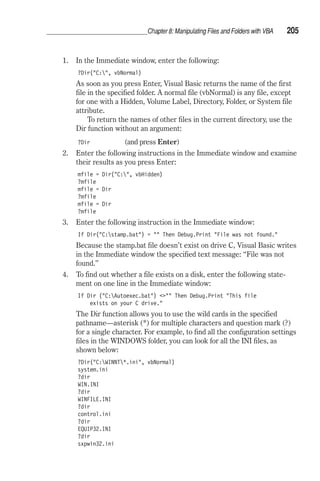
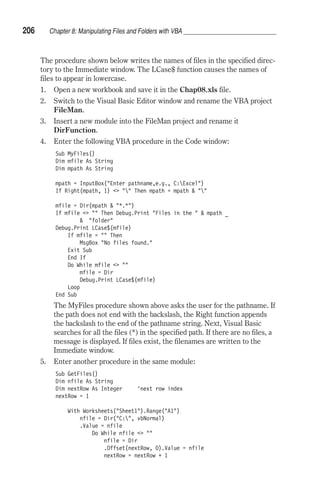
Checking the Existence of a File or Folder (the Dir Function) . . . . . . 204 
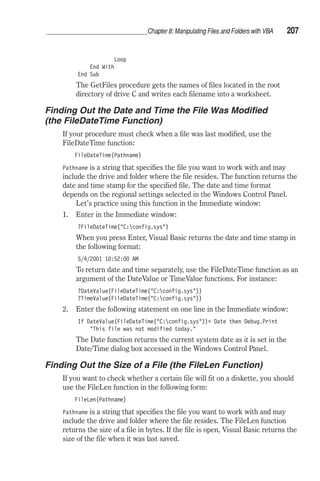
Finding Out the Date and Time the File Was Modified 
(the FileDateTime Function) . . . . . . . . . . . . . . . . . . . . . . 207 
Finding Out the Size of a File (the FileLen Function) . . . . . . . . . . . 207 
Returning and Setting File Attributes (the GetAttr 
and SetAttr Functions). . . . . . . . . . . . . . . . . . . . . . . . . . 208 
Changing the Default Folder or Drive (the ChDir and 
ChDrive Statements) . . . . . . . . . . . . . . . . . . . . . . . . . . 210 
Creating and Deleting Folders (the MkDir and RmDir Statements) . . . 211 
Copying Files (the FileCopy Statement) . . . . . . . . . . . . . . . . . . 212 
Deleting Files (the Kill Statement). . . . . . . . . . . . . . . . . . . . . 214 
Writing to and Reading from Files (Input/Output) . . . . . . . . . . . . . 215 
File Access Types . . . . . . . . . . . . . . . . . . . . . . . . . . . . . . . 215 
Working with Sequential Files . . . . . . . . . . . . . . . . . . . . . . . 215 
Working with Random Access Files . . . . . . . . . . . . . . . . . . . . 224 
Working with Binary Files . . . . . . . . . . . . . . . . . . . . . . . . . 230 
Modern Methods of Working with Files and Folders . . . . . . . . . . . . . 232 
Finding Information about Files with the WSH . . . . . . . . . . . . . . 234 
Properties of the File Object . . . . . . . . . . . . . . . . . . . . . . . . 239 
Properties of the Folder Object. . . . . . . . . . . . . . . . . . . . . . . 240 
Properties of the Drive Object . . . . . . . . . . . . . . . . . . . . . . . 241 
Creating a Text File Using WSH . . . . . . . . . . . . . . . . . . . . . . 242 
Performing Other Operations with WSH . . . . . . . . . . . . . . . . . 244 
What’s Next... . . . . . . . . . . . . . . . . . . . . . . . . . . . . . . . . . 247 
Chapter 9 Controlling Other Applications with VBA . . . . . . . . . . 249 
Launching Applications . . . . . . . . . . . . . . . . . . . . . . . . . . . . 250 
Moving between Applications . . . . . . . . . . . . . . . . . . . . . . . . . 254 
Controlling Another Application. . . . . . . . . . . . . . . . . . . . . . . . 255 
Other Methods of Controlling Applications . . . . . . . . . . . . . . . . . . 258 
Understanding Automation. . . . . . . . . . . . . . . . . . . . . . . . . 258 
Understanding Linking and Embedding . . . . . . . . . . . . . . . . . . 258 
Linking and Embedding with VBA . . . . . . . . . . . . . . . . . . . . . 260 
COM and Automation . . . . . . . . . . . . . . . . . . . . . . . . . . . 261 
Understanding Binding . . . . . . . . . . . . . . . . . . . . . . . . . . . . 261 
Late Binding . . . . . . . . . . . . . . . . . . . . . . . . . . . . . . . . 261 
Early Binding . . . . . . . . . . . . . . . . . . . . . . . . . . . . . . . . 262 
viii
Contents 
Establishing a Reference to an Object Library. . . . . . . . . . . . . . . 263 
Creating Automation Objects . . . . . . . . . . . . . . . . . . . . . . . . . 265 
Using the CreateObject Function . . . . . . . . . . . . . . . . . . . . . 265 
Creating a New Word Document Using Automation. . . . . . . . . . . . 266 
Using the GetObject Function . . . . . . . . . . . . . . . . . . . . . . . 267 
Opening an Existing Word Document . . . . . . . . . . . . . . . . . . . 268 
Using the New Keyword . . . . . . . . . . . . . . . . . . . . . . . . . . 269 
Using Automation to Access Microsoft Outlook . . . . . . . . . . . . . . 270 
What’s Next . . . . . . . . . . . . . . . . . . . . . . . . . . . . . . . . . . . 271 
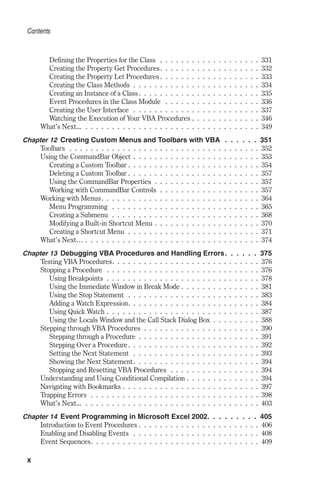
Chapter 10 Dialog Boxes and Custom Forms. . . . . . . . . . . . . . . 273 
Excel Dialog Boxes . . . . . . . . . . . . . . . . . . . . . . . . . . . . . . 274 
File Open and File Save As Dialog Boxes . . . . . . . . . . . . . . . . . . . 277 
GetOpenFilename and GetSaveAsFilename Methods . . . . . . . . . . . . 281 
Creating Forms. . . . . . . . . . . . . . . . . . . . . . . . . . . . . . . . . 283 
Tools for Creating User Forms . . . . . . . . . . . . . . . . . . . . . . . 285 
Placing Controls on a Form. . . . . . . . . . . . . . . . . . . . . . . . . 290 
Sample Application 1: Info Survey. . . . . . . . . . . . . . . . . . . . . . . 290 
Adding Buttons, Check Boxes, and Other Controls to a Form . . . . . . 292 
Changing Control Names. . . . . . . . . . . . . . . . . . . . . . . . . . 296 
Setting Other Control Properties . . . . . . . . . . . . . . . . . . . . . 297 
Preparing a Worksheet to Store Custom Form Data. . . . . . . . . . . . 298 
Displaying a Custom Form . . . . . . . . . . . . . . . . . . . . . . . . . 300 
Setting the Tab Order. . . . . . . . . . . . . . . . . . . . . . . . . . . . 300 
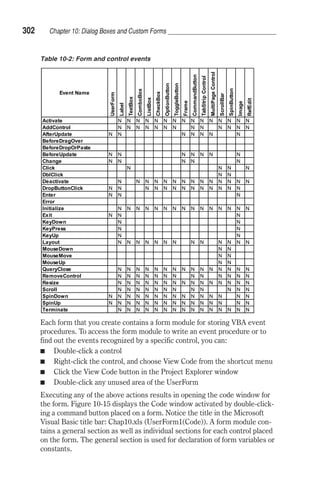
Understanding Form and Control Events . . . . . . . . . . . . . . . . . 301 
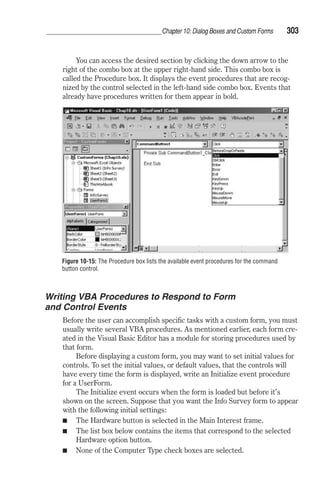
Writing VBA Procedures to Respond to Form and Control Events . . . . 303 
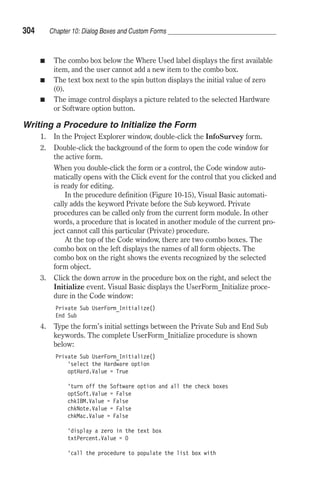
Writing a Procedure to Initialize the Form. . . . . . . . . . . . . . . . . 304 
Writing a Procedure to Populate the List Box Control. . . . . . . . . . . 306 
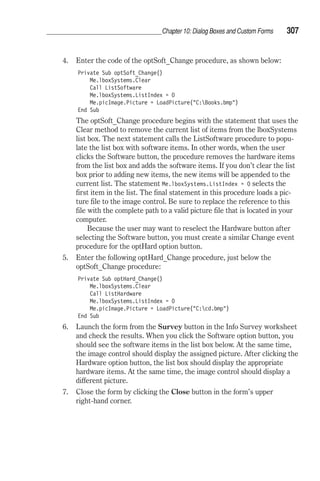
Writing a Procedure to Control Option Buttons . . . . . . . . . . . . . . 306 
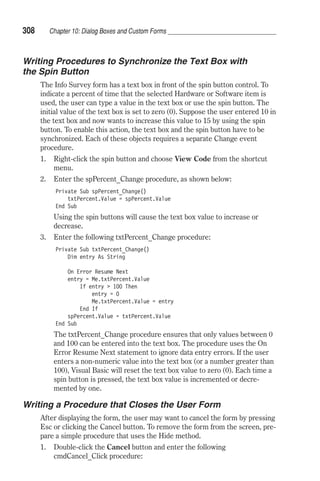
Writing Procedures to Synchronize the Text Box with the Spin Button. . 308 
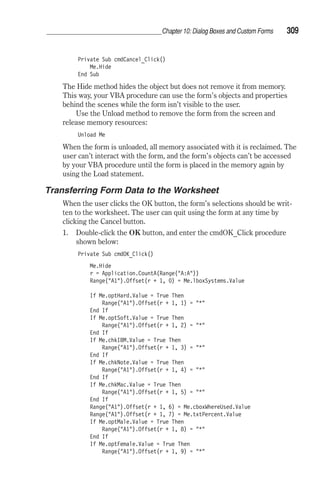
Writing a Procedure that Closes the User Form. . . . . . . . . . . . . . 308 
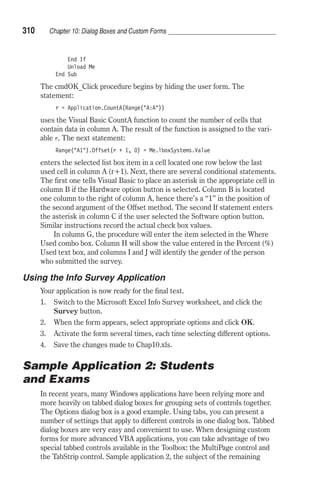
Transferring Form Data to the Worksheet . . . . . . . . . . . . . . . . . 309 
Using the Info Survey Application . . . . . . . . . . . . . . . . . . . . . 310 
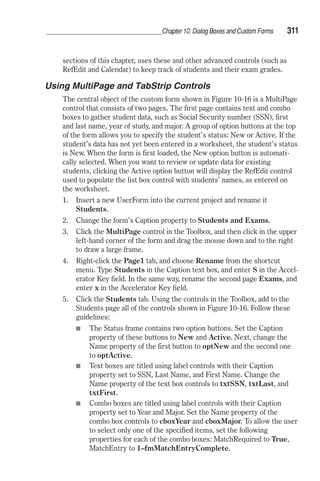
Sample Application 2: Students and Exams . . . . . . . . . . . . . . . . . . 310 
Using MultiPage and TabStrip Controls . . . . . . . . . . . . . . . . . . 311 
Writing VBA Procedures for the Students and Exams Custom Form. . . 314 
Using the Students and Exams Custom Form . . . . . . . . . . . . . . . 318 
What’s Next . . . . . . . . . . . . . . . . . . . . . . . . . . . . . . . . . . . 322 
Chapter 11 Custom Collections and Class Modules . . . . . . . . . . . 323 
Working with Collections . . . . . . . . . . . . . . . . . . . . . . . . . . . 324 
Declaring a Custom Collection . . . . . . . . . . . . . . . . . . . . . . . 326 
Adding Objects to a Custom Collection . . . . . . . . . . . . . . . . . . 326 
Removing Objects from a Custom Collection . . . . . . . . . . . . . . . 328 
Insert: Module or Class Module? . . . . . . . . . . . . . . . . . . . . . . . 329 
Creating Custom Objects. . . . . . . . . . . . . . . . . . . . . . . . . . 329 
Creating a Class . . . . . . . . . . . . . . . . . . . . . . . . . . . . . . . . 330 
Variable Declarations . . . . . . . . . . . . . . . . . . . . . . . . . . . . 330 
ix
Contents 
Defining the Properties for the Class . . . . . . . . . . . . . . . . . . . 331 
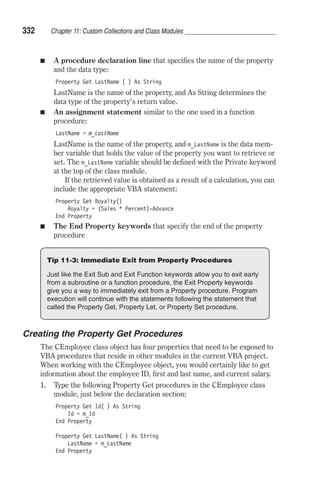
Creating the Property Get Procedures. . . . . . . . . . . . . . . . . . . 332 
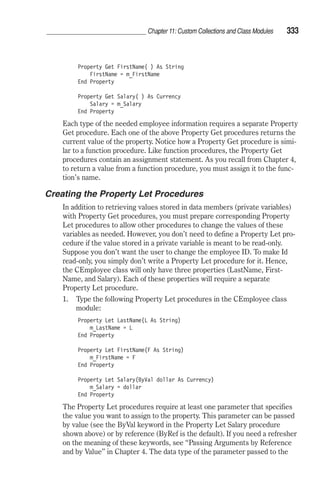
Creating the Property Let Procedures. . . . . . . . . . . . . . . . . . . 333 
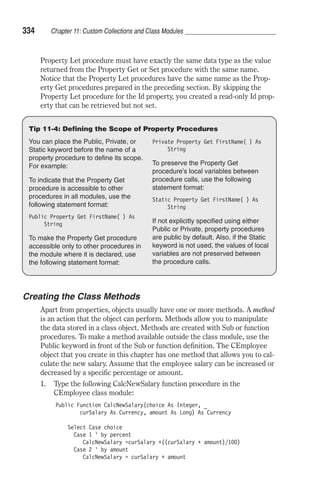
Creating the Class Methods . . . . . . . . . . . . . . . . . . . . . . . . 334 
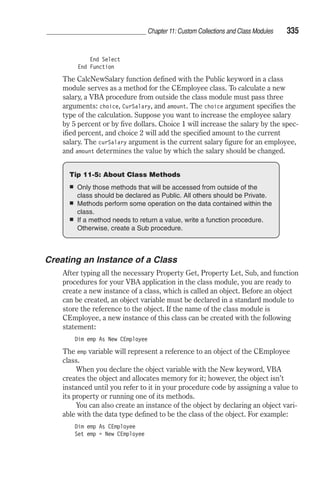
Creating an Instance of a Class. . . . . . . . . . . . . . . . . . . . . . . 335 
Event Procedures in the Class Module . . . . . . . . . . . . . . . . . . 336 
Creating the User Interface . . . . . . . . . . . . . . . . . . . . . . . . 337 
Watching the Execution of Your VBA Procedures . . . . . . . . . . . . . 346 
What’s Next... . . . . . . . . . . . . . . . . . . . . . . . . . . . . . . . . . 349 
Chapter 12 Creating Custom Menus and Toolbars with VBA . . . . . . 351 
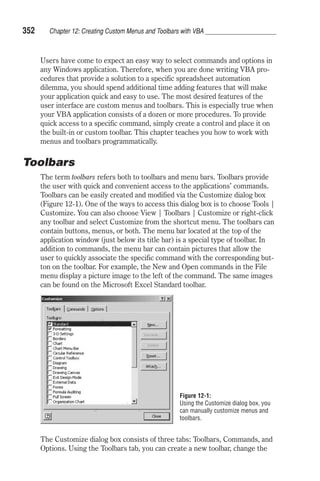
Toolbars . . . . . . . . . . . . . . . . . . . . . . . . . . . . . . . . . . . . 352 
Using the CommandBar Object . . . . . . . . . . . . . . . . . . . . . . . . 353 
Creating a Custom Toolbar . . . . . . . . . . . . . . . . . . . . . . . . . 354 
Deleting a Custom Toolbar . . . . . . . . . . . . . . . . . . . . . . . . . 357 
Using the CommandBar Properties . . . . . . . . . . . . . . . . . . . . 357 
Working with CommandBar Controls . . . . . . . . . . . . . . . . . . . 357 
Working with Menus. . . . . . . . . . . . . . . . . . . . . . . . . . . . . . 364 
Menu Programming . . . . . . . . . . . . . . . . . . . . . . . . . . . . 365 
Creating a Submenu . . . . . . . . . . . . . . . . . . . . . . . . . . . . 368 
Modifying a Built-in Shortcut Menu . . . . . . . . . . . . . . . . . . . . 370 
Creating a Shortcut Menu . . . . . . . . . . . . . . . . . . . . . . . . . 371 
What’s Next… . . . . . . . . . . . . . . . . . . . . . . . . . . . . . . . . . 374 
Chapter 13 Debugging VBA Procedures and Handling Errors. . . . . . 375 
Testing VBA Procedures. . . . . . . . . . . . . . . . . . . . . . . . . . . . 376 
Stopping a Procedure . . . . . . . . . . . . . . . . . . . . . . . . . . . . . 376 
Using Breakpoints . . . . . . . . . . . . . . . . . . . . . . . . . . . . . 378 
Using the Immediate Window in Break Mode . . . . . . . . . . . . . . . 381 
Using the Stop Statement . . . . . . . . . . . . . . . . . . . . . . . . . 383 
Adding a Watch Expression. . . . . . . . . . . . . . . . . . . . . . . . . 384 
Using Quick Watch . . . . . . . . . . . . . . . . . . . . . . . . . . . . . 387 
Using the Locals Window and the Call Stack Dialog Box . . . . . . . . . 388 
Stepping through VBA Procedures . . . . . . . . . . . . . . . . . . . . . . 390 
Stepping through a Procedure . . . . . . . . . . . . . . . . . . . . . . . 391 
Stepping Over a Procedure. . . . . . . . . . . . . . . . . . . . . . . . . 392 
Setting the Next Statement . . . . . . . . . . . . . . . . . . . . . . . . 393 
Showing the Next Statement. . . . . . . . . . . . . . . . . . . . . . . . 394 
Stopping and Resetting VBA Procedures . . . . . . . . . . . . . . . . . 394 
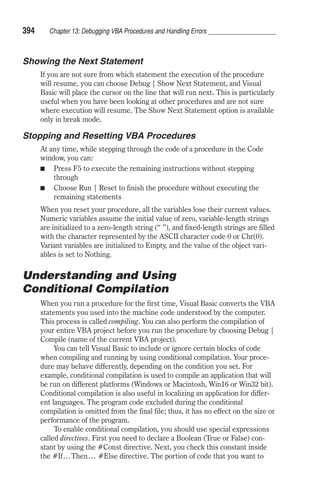
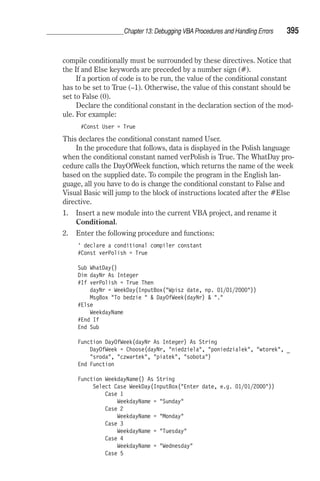
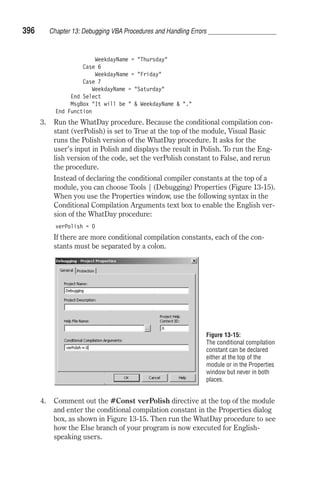
Understanding and Using Conditional Compilation . . . . . . . . . . . . . . 394 
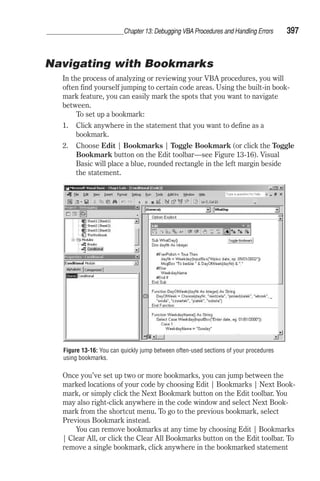
Navigating with Bookmarks . . . . . . . . . . . . . . . . . . . . . . . . . . 397 
Trapping Errors . . . . . . . . . . . . . . . . . . . . . . . . . . . . . . . . 398 
What’s Next... . . . . . . . . . . . . . . . . . . . . . . . . . . . . . . . . . 403 
Chapter 14 Event Programming in Microsoft Excel 2002. . . . . . . . . 405 
Introduction to Event Procedures . . . . . . . . . . . . . . . . . . . . . . . 406 
Enabling and Disabling Events . . . . . . . . . . . . . . . . . . . . . . . . 408 
Event Sequences. . . . . . . . . . . . . . . . . . . . . . . . . . . . . . . . 409 
x
Contents 
Worksheet Events . . . . . . . . . . . . . . . . . . . . . . . . . . . . . . . 409 
Workbook Events . . . . . . . . . . . . . . . . . . . . . . . . . . . . . . . 415 
Chart Events. . . . . . . . . . . . . . . . . . . . . . . . . . . . . . . . . . 427 
Embedded Chart Events . . . . . . . . . . . . . . . . . . . . . . . . . . 431 
Events Recognized by the Application Object. . . . . . . . . . . . . . . . . 432 
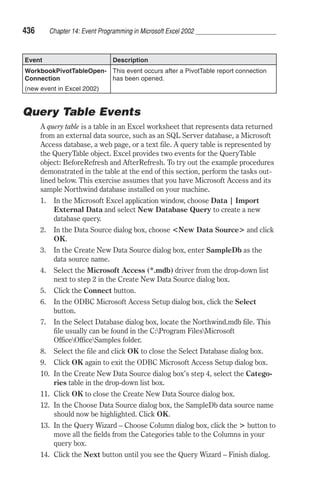
Query Table Events . . . . . . . . . . . . . . . . . . . . . . . . . . . . . . 436 
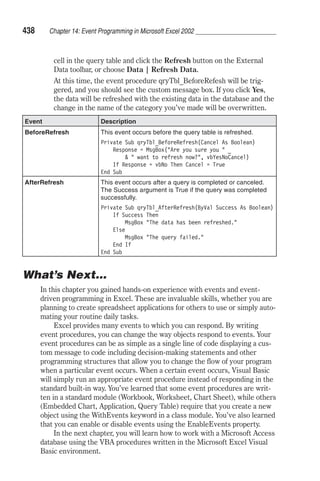
What’s Next... . . . . . . . . . . . . . . . . . . . . . . . . . . . . . . . . . 438 
Chapter 15 Using Excel with Microsoft Access. . . . . . . . . . . . . . 439 
Object Libraries . . . . . . . . . . . . . . . . . . . . . . . . . . . . . . . . 440 
Setting Up References to Object Libraries. . . . . . . . . . . . . . . . . 442 
Connecting to Microsoft Access. . . . . . . . . . . . . . . . . . . . . . . . 443 
Using Automation to Connect to a Microsoft Access Database . . . . . . 443 
Using DAO to Connect to a Microsoft Access Database. . . . . . . . . . 447 
Using ADO to Connect to a Microsoft Access Database. . . . . . . . . . 448 
Performing Microsoft Access Tasks from Excel . . . . . . . . . . . . . . . 449 
Creating a New Microsoft Access Database . . . . . . . . . . . . . . . . 450 
Opening a Microsoft Access Form . . . . . . . . . . . . . . . . . . . . . 451 
Opening a Microsoft Access Report . . . . . . . . . . . . . . . . . . . . 454 
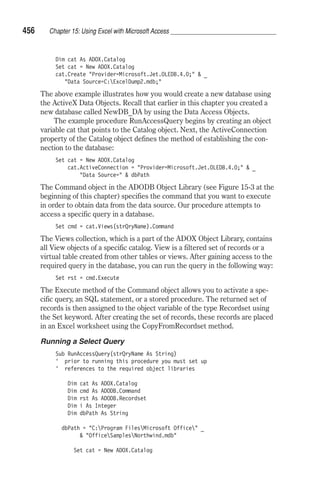
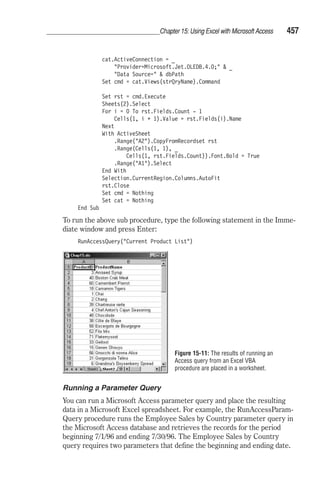
Running a Microsoft Access Query . . . . . . . . . . . . . . . . . . . . 455 
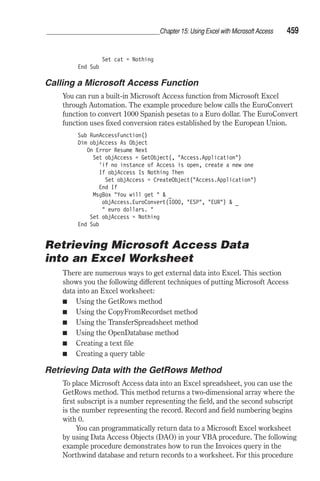
Calling a Microsoft Access Function . . . . . . . . . . . . . . . . . . . . 459 
Retrieving Microsoft Access Data into an Excel Worksheet . . . . . . . . . 459 
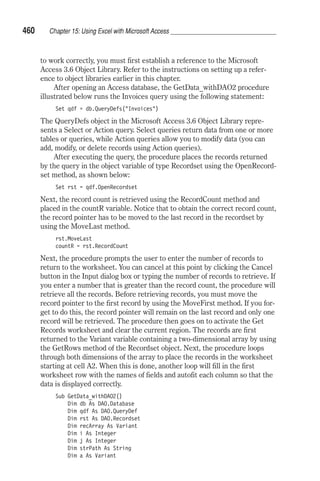
Retrieving Data with the GetRows Method . . . . . . . . . . . . . . . . 459 
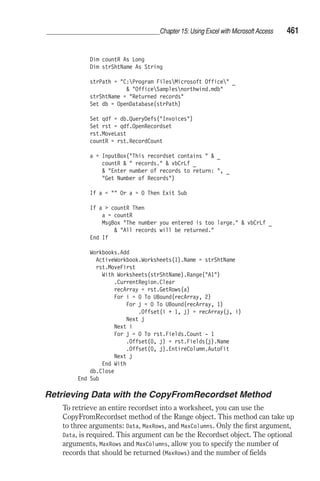
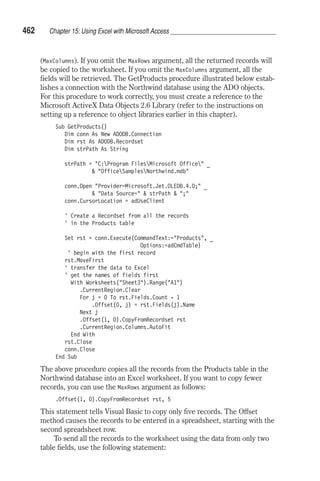
Retrieving Data with the CopyFromRecordset Method . . . . . . . . . . 461 
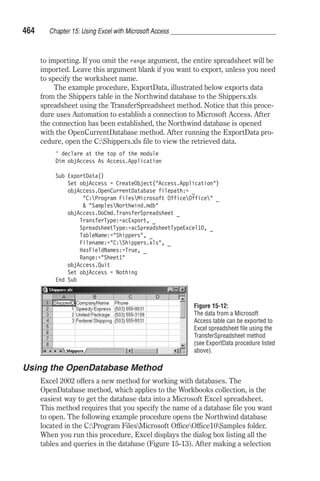
Retrieving Data with the TransferSpreadsheet Method . . . . . . . . . . 463 
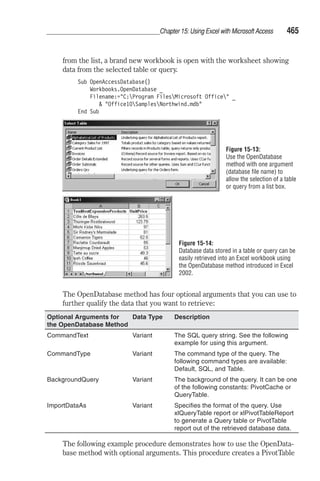
Using the OpenDatabase Method . . . . . . . . . . . . . . . . . . . . . 464 
Creating a Text File from Microsoft Access Data . . . . . . . . . . . . . 466 
Creating a Query Table from Microsoft Access Data . . . . . . . . . . . 468 
Using Microsoft Access Data in Excel. . . . . . . . . . . . . . . . . . . . . 470 
Creating an Embedded Chart from Microsoft Access Data . . . . . . . . 470 
Transferring the Excel Spreadsheet to an Access Database . . . . . . . . . 472 
Linking an Excel Spreadsheet to a Microsoft Access Database. . . . . . . . 472 
Importing an Excel Spreadsheet to a Microsoft Access Database . . . . . . 474 
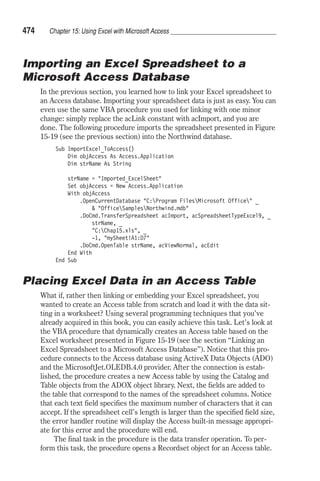
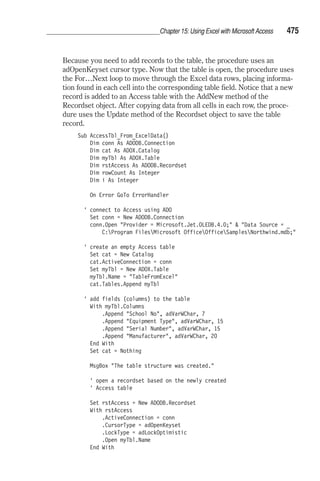
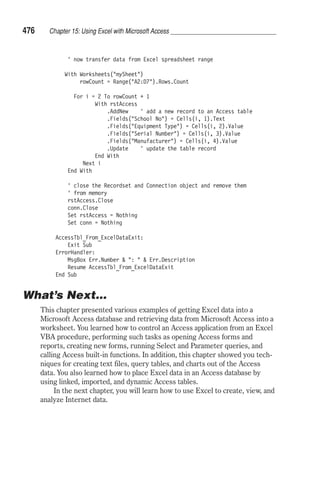
Placing Excel Data in an Access Table. . . . . . . . . . . . . . . . . . . . . 474 
What’s Next… . . . . . . . . . . . . . . . . . . . . . . . . . . . . . . . . . 476 
Chapter 16 Excel and the Internet . . . . . . . . . . . . . . . . . . . . . 477 
Creating Hyperlinks Using VBA. . . . . . . . . . . . . . . . . . . . . . . . 478 
Creating and Publishing HTML Files Using VBA. . . . . . . . . . . . . . . 482 
Web Server—Storing and Opening Workbooks . . . . . . . . . . . . . 488 
Web Queries . . . . . . . . . . . . . . . . . . . . . . . . . . . . . . . . . . 488 
Creating and Running Web Queries with VBA. . . . . . . . . . . . . . . 490 
Web Queries with Parameters . . . . . . . . . . . . . . . . . . . . . . . 493 
Dynamic Web Queries . . . . . . . . . . . . . . . . . . . . . . . . . . . 497 
Refreshing Data. . . . . . . . . . . . . . . . . . . . . . . . . . . . . . . 499 
Excel and Active Server Pages . . . . . . . . . . . . . . . . . . . . . . . . 499 
Creating an ASP Script . . . . . . . . . . . . . . . . . . . . . . . . . . . 501 
Installing Internet Information Services (IIS) or Personal Web Server . . 504 
xi
Contents 
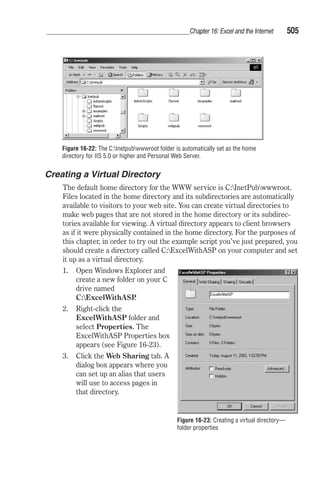
Creating a Virtual Directory . . . . . . . . . . . . . . . . . . . . . . . . 505 
Running Your First ASP Script . . . . . . . . . . . . . . . . . . . . . . . 508 
Generating a Tab-delimited File on the Web Server. . . . . . . . . . . . 509 
Creating an Excel File from User Input . . . . . . . . . . . . . . . . . . 514 
Printing Excel Data to an Internet Browser 
using the GetString Method . . . . . . . . . . . . . . . . . . . . . . . 523 
Creating Charts in ASP. . . . . . . . . . . . . . . . . . . . . . . . . . . 525 
What’s Next... . . . . . . . . . . . . . . . . . . . . . . . . . . . . . . . . . 530 
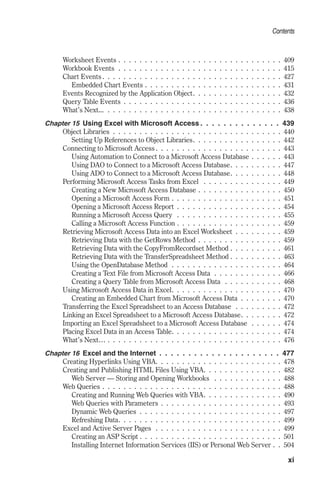
Chapter 17 XML and Excel 2002 . . . . . . . . . . . . . . . . . . . . . . 531 
What is XML? . . . . . . . . . . . . . . . . . . . . . . . . . . . . . . . . . 532 
XML Support in Excel 2002 . . . . . . . . . . . . . . . . . . . . . . . . . . 533 
Creating XML Spreadsheet Files with VBA. . . . . . . . . . . . . . . . . . 534 
Viewing the XML Source File in Notepad. . . . . . . . . . . . . . . . . . . 536 
Well-Formed XML Documents . . . . . . . . . . . . . . . . . . . . . . . . 539 
Viewing the XML Source File in Internet Explorer. . . . . . . . . . . . . . 540 
Building XML Files Outside of Microsoft Excel 2002. . . . . . . . . . . . . 542 
The XML Flattener . . . . . . . . . . . . . . . . . . . . . . . . . . . . . . 543 
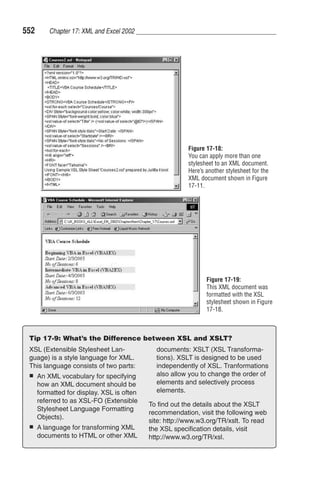
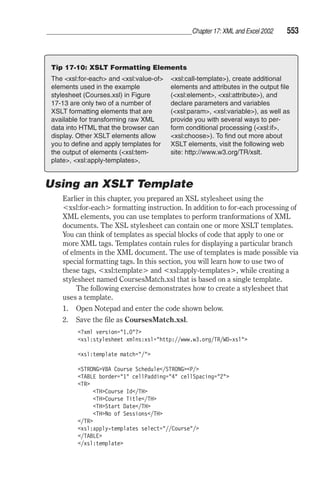
Formatting XML Data with Stylesheets. . . . . . . . . . . . . . . . . . . . 545 
Linking an XML Document to a Stylesheet. . . . . . . . . . . . . . . . . . 550 
Viewing XML Documents Formatted with Stylesheets. . . . . . . . . . . . 550 
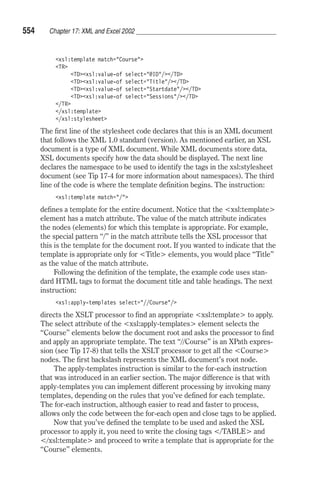
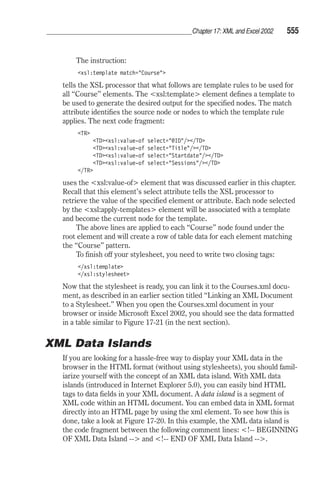
Using an XSLT Template . . . . . . . . . . . . . . . . . . . . . . . . . . . 553 
XML Data Islands . . . . . . . . . . . . . . . . . . . . . . . . . . . . . . . 555 
Using VBScript to Transform the Contents of XML Data Islands. . . . . 557 
Saving a Range of Cells as an XML Document . . . . . . . . . . . . . . . . 559 
The XML Document Object Model . . . . . . . . . . . . . . . . . . . . . . 561 
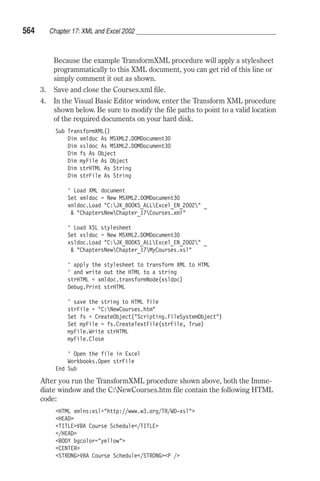
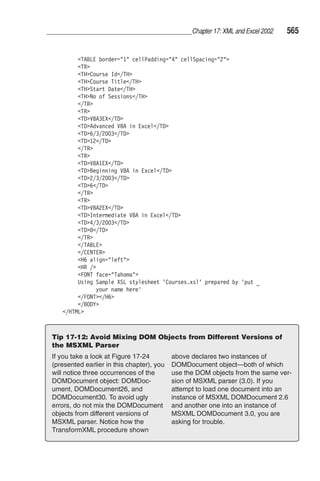
Transform XML into HTML with an XSL Stylesheet Programmatically . 563 
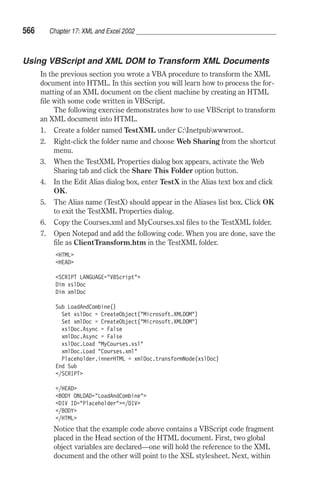
Using VBScript and XML DOM to Transform XML Documents . . . . . 566 
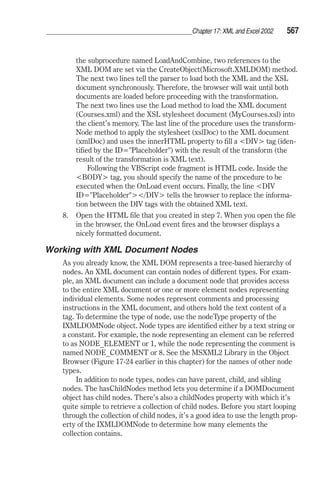
Working with XML Document Nodes . . . . . . . . . . . . . . . . . . . 567 
Retrieving Information from Element Nodes . . . . . . . . . . . . . . . 569 
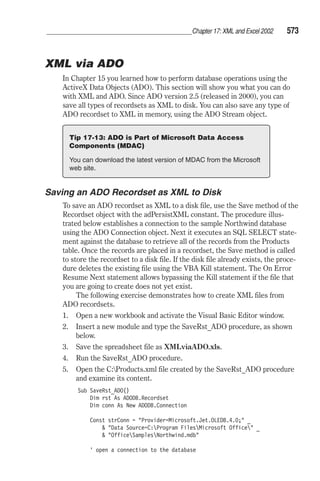
XMLviaADO . . . . . . . . . . . . . . . . . . . . . . . . . . . . . . . . . 573 
Saving an ADO Recordset as XML to Disk . . . . . . . . . . . . . . . . 573 
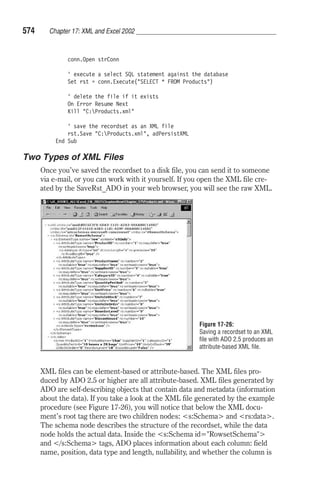
Two Types of XML Files . . . . . . . . . . . . . . . . . . . . . . . . . . 574 
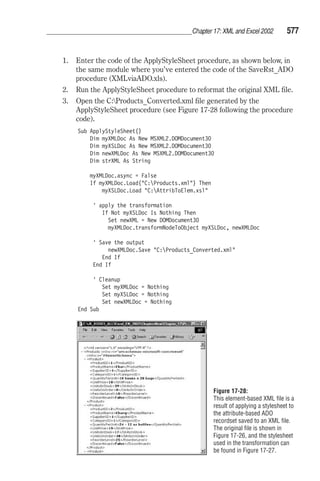
Applying an XSL Stylesheet . . . . . . . . . . . . . . . . . . . . . . . . 576 
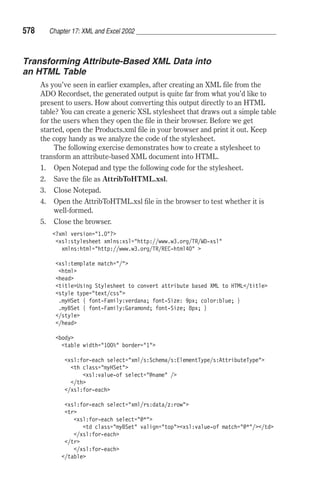
Transforming Attribute-Based XML Data into an HTML Table. . . . . . 578 
Loading an ADO Recordset . . . . . . . . . . . . . . . . . . . . . . . . 580 
Saving the ADO Recordset to XML in Memory . . . . . . . . . . . . . . 581 
Saving the ADO Recordset into the XML DOMDocument Object . . . . 584 
XMLandASP . . . . . . . . . . . . . . . . . . . . . . . . . . . . . . . . . 586 
Posting Excel XML Data to a Web Server. . . . . . . . . . . . . . . . . . . 591 
What’s Next… . . . . . . . . . . . . . . . . . . . . . . . . . . . . . . . . . 613 
Appendix A—Programming PivotTables and PivotCharts . . . . . . . . . . 615 
Appendix B—Programming Special Features. . . . . . . . . . . . . . . . . 643 
Appendix C—Introduction to Using and Programming Smart Tags . . . . . 661 
Appendix D—Microsoft Office XP Web Components. . . . . . . . . . . . . 675 
Index . . . . . . . . . . . . . . . . . . . . . . . . . . . . . . . . . . . . . . 698 
xii
Acknowledgments 
I would like to express my grateful appreciation to all the people involved 
in the creation of this book. Special thanks go to Wordware Publishing, Inc. 
editors Beth Kohler and Heather Hill for their help, comments, and thor-ough 
review of this book. It was a pleasure to work with you ladies. Your 
queries were so skillfully put together that I’ve decided to bind them for 
future reference. 
Many thanks to Wes Beckwith for all his efforts and patience in coordi-nating 
this project. 
To Witold Sikorski of Mikom Publishing, Warsaw, Poland, a big thank 
you for introducing me to Jim Hill of Wordware Publishing, Plano, Texas. 
Needless to say, if these two hadn’t met several years ago at a book fair in 
Frankfurt, Germany, I would have never become a bilingual author. 
A special thanks goes to Terrence Joubert for taking the time to review 
several chapters from the previous version of this book (Learn Microsoft 
Excel 2000 VBA Programming) and for his list of suggestions to include in 
this new release. Due to time constraints and the size of the book, I could 
not implement all of his great suggestions. I am looking forward to Ter-rence’s 
book, ADO .NET Programming, also from Wordware Publishing. 
Thanks to the readers of the previous version of this book for their 
praise and criticism. I’m happy to hear that so many of you have found the 
book very useful in self-teaching Excel VBA programming. I apologize to 
those of you who have found some subjects missing or not adequately cov-ered. 
I have tried to do a better job this time; however, please keep in mind 
this book isn’t a know-it-all reference but a step-by-step manual. To take 
you through the subjects in an easy-to-follow manner I had to make choices 
as to what goes in and what’s not covered. 
To my close friends, Ludmila Larmor, Jolanta and Dariusz Partyka, and 
Mariola Weyna for their encouragement and support. 
Finally, I’d like to thank my husband, Paul, simply for being my husband 
and sharing with me the same fields of interest. Paul has been gaining expe-rience 
with the .NET technology while I was busy writing. 
xiii
This page inten tion ally left blank
Introduction 
This book shows you what’s doable with Microsoft Excel 2002 beyond the 
standard user interface. If you ever wanted to open a new worksheet with-out 
using the menu or create a fully automated custom form to gather data 
and store the results in a spreadsheet, you’ve got to learn some program-ming. 
This book shows you how to become more productive by delegating 
many time-consuming and repetitive tasks to Excel. Using Excel’s built-in 
language, VBA (Visual Basic for Applications), you can bring a lot of auto-mating 
power to your spreadsheets, whether you are creating them for 
yourself or others. By using a number of built-in programming tools, you 
can work smarter than you ever thought possible. There is no extra cost 
except for your willingness to become familiar with a secret window behind 
the Microsoft Excel application window. For a quick peek, while in Excel, 
hold down Alt while pressing F11. You will end up in the Visual Basic Editor 
(VBE) screen—Excel’s programming interface. 
Now that this well-guarded secret is out, let me tell you more. Apart 
from VBA, this book introduces you to two hot Internet technologies that 
can be used with Microsoft Excel. One is ASP (Active Server Pages) and 
the other is XML (Extensible Markup Language). You also learn a number 
of other supporting technologies. So, if you really want to gain some hot 
skills, purchase this book and waste no time beginning studying. 
Learn Microsoft Excel 2002 VBA Programming with XML and ASP 
leads you through the process of creating VBA procedures, VBScripts, ASP 
pages, XML documents, and XSL stylesheets from start to finish. Along the 
way, there are detailed, practical “how-to” examples and plenty of illustra-tions. 
The book’s approach is to learn by doing. This book begins by 
addressing basic VBA concepts in the early chapters and progresses to 
more complex topics in later chapters. Each of the 17 chapters should be 
worked through in order. In addition, there are four appendices that discuss 
working with and programming special features in Excel. Consider this 
book as a sort of private course that you can attend in the comfort of your 
office or home. 
xv
Introduction 
Some courses have prerequisites and so does this one. Learn Microsoft 
Excel 2002 VBA Programming with XML and ASP does not explain to the 
user how to use Excel features such as menus and keyboard shortcuts. The 
book assumes that you are comfortable working with an Excel spreadsheet 
and are interested in becoming more productive by learning how to commu-nicate 
with Excel in its own language and learning how to integrate it with 
the current Internet technologies. 
xvi
Chapter 1 
Introduction to 
Spreadsheet 
Automation 
Understanding Macros  Common Uses for Macros  
Planning a Macro  Recording a Macro  Running the 
Macro  Modifying the Macro  Adding Comments  
Analyzing the Macro Code  Cleaning Up the Macro 
Code  Testing the Modified Macro  Two Levels of 
Macro Execution  Improving Your Macro  Renaming 
the Macro  Other Methods of Running Macros  
Saving Macros  Printing Macros  Storing Macros in 
the Personal Macro Workbook  Opening Workbooks 
Containing Macros  The Visual Basic Editor Window  
Understanding the Project Explorer Window  Under-standing 
the Properties Window  Understanding the 
Code Window  Other Windows in the Visual Basic Edi-tor 
Window  What’s Next... 
1
2 Chapter 1: Introduction to Spreadsheet Automation 
Are you ready to build intelligence into your Microsoft Excel 2002 spread-sheets? 
By automating routine tasks, you can make your spreadsheets 
quicker and more efficient. This first chapter walks you through the process 
of speeding up spreadsheet tasks with macros. You learn what macros are, 
how and when to use them, and how to write and modify them. Getting 
started with macros is easy. Creating them requires nothing more than what 
you already have—a basic knowledge of Microsoft Excel 2002 menus and 
spreadsheet concepts. Are you ready to begin? Make sure you are seated at 
a computer and launch Microsoft Excel 2002. 
Understanding Macros 
Macros are programs that store a series of commands. When you create a 
macro, you simply combine a sequence of keystrokes into a single command 
that you can later “play back.” Because macros can reduce the number of 
steps required to complete tasks, using macros can significantly decrease 
the time you spend creating, formatting, modifying, and printing your 
worksheets. 
You can create macros by using Microsoft Excel’s built-in recording 
tool, or you can write them from scratch by using the Visual Basic Editor. 
Microsoft Excel 2002 macros are created with the powerful programming 
language Visual Basic for Applications, commonly known as VBA. 
Tip 1-1: The Common Language 
Excel 5 was the first application on the market to feature Visual Basic 
for Applications. Since then, VBA has made its way into all Microsoft 
Office applications. This means that what you learn about VBA in this 
book can be used later in creating macros automating other Microsoft 
Office products such as Word, PowerPoint, Outlook or Access. 
Common Uses for Macros 
Microsoft Excel 2002 comes with dozens of built-in, timesaving features 
that allow you to work faster and smarter. Before you decide to automate a 
worksheet task with a macro, make sure there is not already a built-in fea-ture 
that you can use to perform that task. Consider, however, creating a 
macro when you find yourself performing the same series of actions over 
and over again or when Excel does not provide a built-in tool to do the job. 
Macros enable you to automate just about any part of your spreadsheet. 
For example, you can automate data entry by creating a macro that enters 
headings in a worksheet or replaces column titles with new labels. Macros 
also enable you to check for duplicate entries in a selected area of your 
worksheet. With a macro, you can quickly apply formatting to several
Chapter 1: Introduction to Spreadsheet Automation 3 
worksheets, as well as combine different formats, such as fonts, colors, bor-ders, 
and shading. Even though Excel has an excellent chart facility, macros 
are the way to go if you wish to automate the process of creating and for-matting 
charts. Macros will save you keystrokes when it comes to setting 
print areas, margins, headers, and footers, and selecting special print 
options for printouts. 
Planning a Macro 
Before you create a macro, take a few minutes to consider what you want to 
do. Because a macro is a collection of a fairly large number of keystrokes, it 
is important to plan your actions in advance. The easiest way to plan your 
macro is to manually perform all the actions that the macro needs to do. As 
you enter the keystrokes, write them down on a piece of paper exactly as 
they occur. Don’t leave anything out. Like a voice recorder, Microsoft 
Excel’s macro recorder records every action you perform. If you do not plan 
your macro prior to recording, you will end up with unnecessary actions 
that will slow it down. Although it’s easier to edit a macro than it is to erase 
unwanted passages from a voice recording, performing only the actions you 
want recorded will save you editing time and trouble later. 
Suppose you want to see at a glance which areas of a worksheet are 
text, numbers, and formulas. Figure 1-1 shows a simple spreadsheet for-matted 
with distinct font colors and styles to help identify the contents of 
the underlying cells. 
Figure 1-1: 
Finding out “what’s what” in a 
spreadsheet is easy with 
formatting applied by an Excel 
macro. 
To produce the formatting results shown in Figure 1-1, open any existing 
spreadsheet that contains calculations or create the one shown in the figure. 
If you decide to use the worksheet example in the above figure, make sure 
you use the SUM function to calculate the monthly and quarterly totals. 
Before you record the macro, manually perform the following actions: 
1. Select a single cell. 
2. Select Edit | Go To. 
3. In the Go To dialog box, click the Special button.
4 Chapter 1: Introduction to Spreadsheet Automation 
4. In the Go To Special dialog box, click the Constants option button and 
then remove the check mark next to Numbers, Logicals, and Errors. 
Only the Text check box should be checked. 
5. Click OK to return to the worksheet. Notice that the cells containing 
text are now selected. Be careful not to change your selection until you 
apply the necessary formatting in the next step. 
6. With the text cells still selected, choose Format | Cells. 
7. In the Format Cells dialog box, click the Font tab. Set the Font style to 
Bold and the Color to Violet. Then click OK to close the dialog box. 
Notice that the cells containing text now appear in a different color. 
Steps 1 to 7 allowed you to locate all the cells that contain text. To select 
and format cells containing numbers, perform the following actions: 
8. Select a single cell. 
9. Select Edit | Go To. 
10. In the Go To dialog box, click the Special button. 
11. In the Go To Special dialog box, click the Constants option button and 
remove the check mark next to Text, Logicals, and Errors. Only the 
Numbers check box should be checked. 
12. Click OK to return to the worksheet. Notice that the cells containing 
numbers are now selected. Be careful not to change your selection until 
you apply the necessary formatting in the following step. 
13. With the number cells still selected, choose Format | Cells. 
14. On the Font tab of the Format Cells dialog box, set the Color to Dark 
blue. Then click OK to close the dialog box. 
Steps 8 to 14 took care of locating and formatting cells with numbers. To 
select and format cells containing formulas, perform the following actions: 
15. Select a single cell. 
16. Select Edit | Go To. 
17. In the Go To dialog box, click the Special button. 
18. In the Go To Special dialog box, click the Formulas option button. 
19. Click OK to return to the worksheet. Notice that the cells containing 
numbers that are results of formulas are now selected. Be careful not to 
change your selection until you apply the necessary formatting in the 
next step. 
20. With the formula cells still selected, choose Format | Cells. 
21. On the Font tab of the Format Cells dialog box, set the Font style to 
Bold and the Color to Red. Then click OK to close the dialog box.
Chapter 1: Introduction to Spreadsheet Automation 5 
Steps 15 to 21 allowed you to locate and format cells containing formulas. 
To make it easy to understand all the formatting applied to the worksheet’s 
cells, you will now add the color legend. 
22. Select cells A1:A3 and choose Insert | Rows. 
23. Select cell A1. 
24. Choose Format | Cells, and on the Patterns tab click the Purple color 
in the Cell shading box. Click OK to return to the worksheet. 
25. Select cell B1 and type Text. 
26. Select cell A2. 
27. Choose Format | Cells, and click the Dark blue color in the Cell 
shading box. Click OK to return to the worksheet. 
28. Select cell B2 and type Numbers. 
29. Select cell A3. 
30. Choose Format | Cells, and click the Red color in the Cell shading 
box. Click OK to return to the worksheet. 
31. Select cell B3 and type Formulas. 
32. Select cell A1. 
After completing steps 22 to 32, cells A1:A3 will display a simple color leg-end, 
as shown in Figure 1-1. 
As you can see, no matter how simple your spreadsheet task appears at 
first, many steps may be required to get exactly what you want. Creating a 
macro that is capable of playing back your keystrokes can be a real 
time-saver, especially when you have to repeat the same process for a num-ber 
of worksheets. 
Recording a Macro 
Now that you know what actions you need to perform, it’s time to turn on 
the macro recorder and create your first macro. 
Before you follow the recording steps outlined below, be sure to 
remove the formatting from the example worksheet. To do this, press 
Ctrl+A to select the entire worksheet. Then choose Edit | Clear | For-mats. 
Select cells A1:A3 and choose Edit | Delete. In the Delete dialog box, 
select the Entire row option button. Then click OK. 
To create your first macro, follow these steps: 
1. Select a single cell. 
Before you record a macro, you should decide whether or not you want 
to record the positioning of the active cell. If you want the macro to 
always start in a specific location on the worksheet, turn on the macro 
recorder first and then select the cell you want to start in. If the loca-tion 
of the active cell does not matter, select a single cell first and then 
turn on the macro recorder.
6 Chapter 1: Introduction to Spreadsheet Automation 
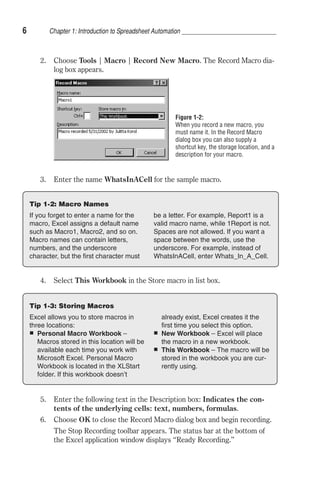
2. Choose Tools | Macro | Record New Macro. The Record Macro dia-log 
box appears. 
Figure 1-2: 
When you record a new macro, you 
must name it. In the Record Macro 
dialog box you can also supply a 
shortcut key, the storage location, and a 
description for your macro. 
3. Enter the name WhatsInACell for the sample macro. 
Tip 1-2: Macro Names 
If you forget to enter a name for the 
macro, Excel assigns a default name 
such as Macro1, Macro2, and so on. 
Macro names can contain letters, 
numbers, and the underscore 
character, but the first character must 
be a letter. For example, Report1 is a 
valid macro name, while 1Report is not. 
Spaces are not allowed. If you want a 
space between the words, use the 
underscore. For example, instead of 
WhatsInACell, enter Whats_In_A_Cell. 
4. Select This Workbook in the Store macro in list box. 
Tip 1-3: Storing Macros 
Excel allows you to store macros in 
three locations: 
 Personal Macro Workbook – 
Macros stored in this location will be 
available each time you work with 
Microsoft Excel. Personal Macro 
Workbook is located in the XLStart 
folder. If this workbook doesn’t 
already exist, Excel creates it the 
first time you select this option. 
 New Workbook – Excel will place 
the macro in a new workbook. 
 This Workbook – The macro will be 
stored in the workbook you are cur-rently 
using. 
5. Enter the following text in the Description box: Indicates the con-tents 
of the underlying cells: text, numbers, formulas. 
6. Choose OK to close the Record Macro dialog box and begin recording. 
The Stop Recording toolbar appears. The status bar at the bottom of 
the Excel application window displays “Ready Recording.”
Chapter 1: Introduction to Spreadsheet Automation 7 
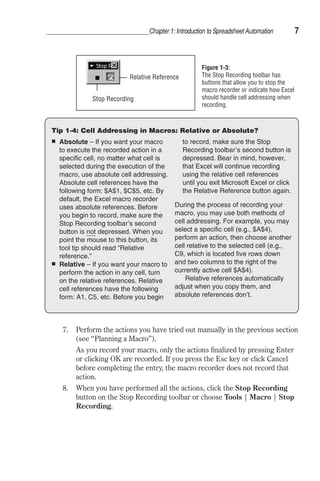
Figure 1-3: 
The Stop Recording toolbar has 
buttons that allow you to stop the 
macro recorder or indicate how Excel 
should handle cell addressing when 
recording. 
Relative Reference 
Stop Recording 
Tip 1-4: Cell Addressing in Macros: Relative or Absolute? 
 Absolute – If you want your macro 
to execute the recorded action in a 
specific cell, no matter what cell is 
selected during the execution of the 
macro, use absolute cell addressing. 
Absolute cell references have the 
following form: $A$1, $C$5, etc. By 
default, the Excel macro recorder 
uses absolute references. Before 
you begin to record, make sure the 
Stop Recording toolbar’s second 
button is not depressed. When you 
point the mouse to this button, its 
tool tip should read “Relative 
reference.” 
 Relative – If you want your macro to 
perform the action in any cell, turn 
on the relative references. Relative 
cell references have the following 
form: A1, C5, etc. Before you begin 
to record, make sure the Stop 
Recording toolbar’s second button is 
depressed. Bear in mind, however, 
that Excel will continue recording 
using the relative cell references 
until you exit Microsoft Excel or click 
the Relative Reference button again. 
During the process of recording your 
macro, you may use both methods of 
cell addressing. For example, you may 
select a specific cell (e.g., $A$4), 
perform an action, then choose another 
cell relative to the selected cell (e.g., 
C9, which is located five rows down 
and two columns to the right of the 
currently active cell $A$4). 
Relative references automatically 
adjust when you copy them, and 
absolute references don't. 
7. Perform the actions you have tried out manually in the previous section 
(see “Planning a Macro”). 
As you record your macro, only the actions finalized by pressing Enter 
or clicking OK are recorded. If you press the Esc key or click Cancel 
before completing the entry, the macro recorder does not record that 
action. 
8. When you have performed all the actions, click the Stop Recording 
button on the Stop Recording toolbar or choose Tools | Macro | Stop 
Recording.
8 Chapter 1: Introduction to Spreadsheet Automation 
Running the Macro 
After you create a macro, you should run it at least once to make sure it 
works correctly. Later in this chapter you will learn various ways to run 
macros, but for now, use the menu command. 
To see the results of your macro, be sure to remove the formatting 
from the example worksheet. To do this, press Ctrl+A to select the entire 
worksheet, and then choose Edit | Clear | Formats. Select cells A1:A3 and 
choose Edit | Delete. In the Delete dialog box, select the Entire row option 
button. Then click OK. Later on you can record the steps of clearing the 
worksheet formats in a separate macro. 
1. Open any worksheet containing text, numbers, and formulas. 
2. Choose Tools | Macro | Macros to open the Macro dialog box. 
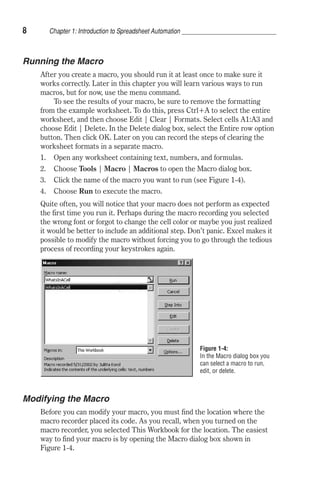
3. Click the name of the macro you want to run (see Figure 1-4). 
4. Choose Run to execute the macro. 
Quite often, you will notice that your macro does not perform as expected 
the first time you run it. Perhaps during the macro recording you selected 
the wrong font or forgot to change the cell color or maybe you just realized 
it would be better to include an additional step. Don’t panic. Excel makes it 
possible to modify the macro without forcing you to go through the tedious 
process of recording your keystrokes again. 
Modifying the Macro 
Figure 1-4: 
In the Macro dialog box you 
can select a macro to run, 
edit, or delete. 
Before you can modify your macro, you must find the location where the 
macro recorder placed its code. As you recall, when you turned on the 
macro recorder, you selected This Workbook for the location. The easiest 
way to find your macro is by opening the Macro dialog box shown in 
Figure 1-4.
Chapter 1: Introduction to Spreadsheet Automation 9 
1. Choose Tools | Macro. 
2. Select the name of the macro (WhatsInACell, in this case). 
3. Click the Edit button. 
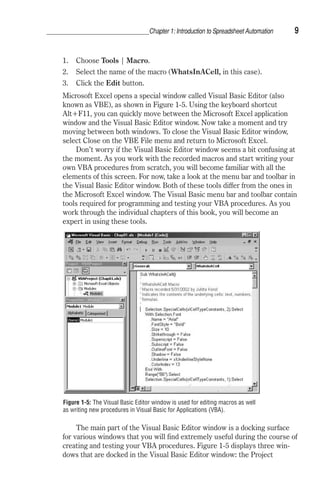
Microsoft Excel opens a special window called Visual Basic Editor (also 
known as VBE), as shown in Figure 1-5. Using the keyboard shortcut 
Alt+F11, you can quickly move between the Microsoft Excel application 
window and the Visual Basic Editor window. Now take a moment and try 
moving between both windows. To close the Visual Basic Editor window, 
select Close on the VBE File menu and return to Microsoft Excel. 
Don’t worry if the Visual Basic Editor window seems a bit confusing at 
the moment. As you work with the recorded macros and start writing your 
own VBA procedures from scratch, you will become familiar with all the 
elements of this screen. For now, take a look at the menu bar and toolbar in 
the Visual Basic Editor window. Both of these tools differ from the ones in 
the Microsoft Excel window. The Visual Basic menu bar and toolbar contain 
tools required for programming and testing your VBA procedures. As you 
work through the individual chapters of this book, you will become an 
expert in using these tools. 
Figure 1-5: The Visual Basic Editor window is used for editing macros as well 
as writing new procedures in Visual Basic for Applications (VBA). 
The main part of the Visual Basic Editor window is a docking surface 
for various windows that you will find extremely useful during the course of 
creating and testing your VBA procedures. Figure 1-5 displays three win-dows 
that are docked in the Visual Basic Editor window: the Project
10 Chapter 1: Introduction to Spreadsheet Automation 
window, the Properties window, and the Code window. The Project window 
shows an open Module folder in which Module1 is selected. Excel records 
your macro actions in special worksheets called Module1, Module2, and so 
on. In the following chapters of this book, you will use modules to write the 
code of your own procedures. A module resembles a blank document in 
Microsoft Word. Individual modules are stored in folders called modules. 
Tip 1-5: Macro or Procedure? 
A macro is a series of commands or 
functions recorded with the help of a 
built-in macro recorder or entered 
manually in a Visual Basic module. 
Beginning with Excel 5.0, the term 
“macro” is often replaced with the 
broader term “procedure.” Although the 
words can be used interchangeably, 
many programmers are in favor of 
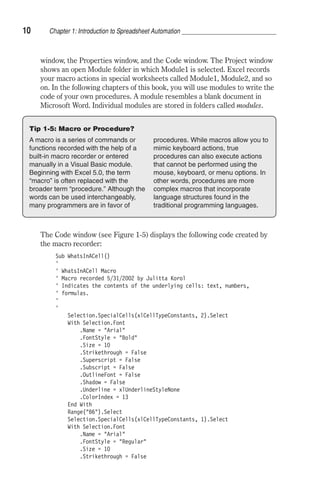
The Code window (see Figure 1-5) displays the following code created by 
the macro recorder: 
Sub WhatsInACell() 
' 
' WhatsInACell Macro 
' Macro recorded 5/31/2002 by Julitta Korol 
' Indicates the contents of the underlying cells: text, numbers, 
' formulas. 
' 
' 
Selection.SpecialCells(xlCellTypeConstants, 2).Select 
With Selection.Font 
.Name = Arial 
.FontStyle = Bold 
.Size = 10 
.Strikethrough = False 
.Superscript = False 
.Subscript = False 
.OutlineFont = False 
.Shadow = False 
.Underline = xlUnderlineStyleNone 
.ColorIndex = 13 
End With 
Range(B6).Select 
Selection.SpecialCells(xlCellTypeConstants, 1).Select 
With Selection.Font 
.Name = Arial 
.FontStyle = Regular 
.Size = 10 
.Strikethrough = False 
procedures. While macros allow you to 
mimic keyboard actions, true 
procedures can also execute actions 
that cannot be performed using the 
mouse, keyboard, or menu options. In 
other words, procedures are more 
complex macros that incorporate 
language structures found in the 
traditional programming languages.
Chapter 1: Introduction to Spreadsheet Automation 11 
.Superscript = False 
.Subscript = False 
.OutlineFont = False 
.Shadow = False 
.Underline = xlUnderlineStyleNone 
.ColorIndex = 11 
End With 
Range(C6).Select 
Selection.SpecialCells(xlCellTypeFormulas, 23).Select 
With Selection.Font 
.Name = Arial 
.FontStyle = Bold 
.Size = 10 
.Strikethrough = False 
.Superscript = False 
.Subscript = False 
.OutlineFont = False 
.Shadow = False 
.Underline = xlUnderlineStyleNone 
.ColorIndex = 3 
End With 
Range(A1:A3).Select 
Selection.EntireRow.Insert 
Range(A1).Select 
With Selection.Interior 
.ColorIndex = 13 
.Pattern = xlSolid 
.PatternColorIndex = xlAutomatic 
End With 
Range(B1).Select 
ActiveCell.FormulaR1C1 = Text 
Range(A2).Select 
With Selection.Interior 
.ColorIndex = 5 
.Pattern = xlSolid 
.PatternColorIndex = xlAutomatic 
End With 
Range(B2).Select 
ActiveCell.FormulaR1C1 = Numbers 
Range(A3).Select 
With Selection.Interior 
.ColorIndex = 3 
.Pattern = xlSolid 
.PatternColorIndex = xlAutomatic 
End With 
Range(B3).Select 
ActiveCell.FormulaR1C1 = Formulas 
Range(B4).Select 
End Sub 
For now, let’s focus on finding answers to two questions: How do you read 
the macro code, and how can you edit macros?
12 Chapter 1: Introduction to Spreadsheet Automation 
Adding Comments 
Take a look at the recorded macro code. Notice the lines that begin with an 
apostrophe. These lines indicate comments. By default, comments appear 
in green. When the macro code is executed, Visual Basic ignores the com-ment 
lines. Comments are often placed within the macro code for 
documenting the meaning of certain lines that aren’t obvious. Let’s now add 
some comments to the WhatsInACell macro. 
1. Activate the Visual Basic Editor window. 
2. Click in front of Selection.SpecialCells(xlCellTypeConstants, 2).Select 
and press Enter. 
3. Move the pointer to the empty line above and add the comment shown 
below. Be sure to start with an apostrophe. 
' Find and format cells containing text 
4. Click in front of Selection.SpecialCells(xlCellTypeConstants, 1).Select 
and press Enter. 
5. Move the pointer to the empty line above and add the following 
comment: 
' Find and format cells containing numbers 
6. Click in front of Selection.SpecialCells(xlCellTypeFormulas, 23).Select 
and press Enter. 
7. Move the pointer to the empty line above and add the following 
comment: 
' Find and format cells containing formulas 
8. Click in front of Range(A1:A3).Select and press Enter. 
Tip 1-6: About Comments 
 In the VBE Code window, every line 
that begins with an apostrophe is a 
comment. The default comment color 
is green. You can change the color of 
comments in the Options dialog box 
(Tools | Options | Editor Format tab). 
 You can also add a comment at the 
end of the line of code. For example, 
to add a comment following the line 
.ColorIndex = 11, click at the end of 
this line, press Tab, enter the apos-trophe, 
and then type the text of your 
comment. When you are done, the 
commented line should look as 
follows: 
.ColorIndex = 11 ' Sets the font 
color to Violet 
 The comment lines don’t do anything 
except provide information to the 
user about the purpose of a macro or 
macro action. When you write your 
own VBA procedures, don’t forget to 
include comments. Comments will 
make your life easier if you need to 
return to the macro procedure sev-eral 
months later. They will also allow 
others to quickly understand various 
parts of your procedure.
Chapter 1: Introduction to Spreadsheet Automation 13 
9. Move the pointer to the empty line above and add the following 
comment: 
' Create legend 
Analyzing the Macro Code 
All macro procedures begin with the keyword Sub and end with the 
keywords End Sub. After the Sub keyword comes the actual name of the 
macro, followed by a set of parentheses. Between the keywords Sub and 
End Sub are statements that Visual Basic executes each time you run your 
macro. Visual Basic reads the lines from top to bottom, ignoring the state-ments 
preceded with an apostrophe (see the previous section on 
comments) and stops when it reaches the keywords End Sub. 
Notice that the recorded macro contains many periods. The periods 
appear in almost every line of code and are used to join various elements of 
the Visual Basic for Applications language. How do you read the instruc-tions 
written in this language? They are read from the right side of the last 
period to the left. Here are a few statements from the WhatsInACell 
procedure: 
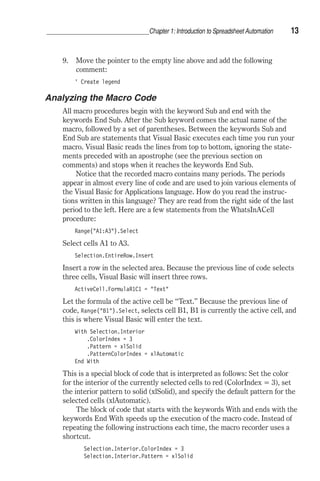
Range(A1:A3).Select 
Select cells A1 to A3. 
Selection.EntireRow.Insert 
Insert a row in the selected area. Because the previous line of code selects 
three cells, Visual Basic will insert three rows. 
ActiveCell.FormulaR1C1 = Text 
Let the formula of the active cell be “Text.” Because the previous line of 
code, Range(B1).Select, selects cell B1, B1 is currently the active cell, and 
this is where Visual Basic will enter the text. 
With Selection.Interior 
.ColorIndex = 3 
.Pattern = xlSolid 
.PatternColorIndex = xlAutomatic 
End With 
This is a special block of code that is interpreted as follows: Set the color 
for the interior of the currently selected cells to red (ColorIndex = 3), set 
the interior pattern to solid (xlSolid), and specify the default pattern for the 
selected cells (xlAutomatic). 
The block of code that starts with the keywords With and ends with the 
keywords End With speeds up the execution of the macro code. Instead of 
repeating the following instructions each time, the macro recorder uses a 
shortcut. 
Selection.Interior.ColorIndex = 3 
Selection.Interior.Pattern = xlSolid
14 Chapter 1: Introduction to Spreadsheet Automation 
Selection.Interior.PatternColorIndex = xlAutomatic 
It places the repeating text, Selection.Interior, to the right of the keyword 
With and ends the block with the keyword End With. 
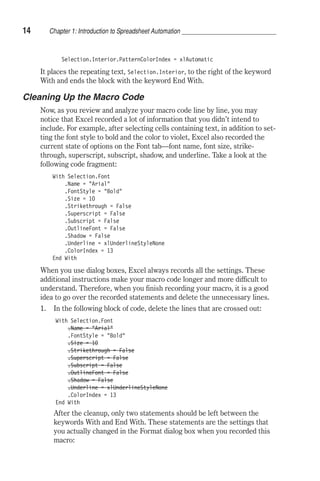
Cleaning Up the Macro Code 
Now, as you review and analyze your macro code line by line, you may 
notice that Excel recorded a lot of information that you didn’t intend to 
include. For example, after selecting cells containing text, in addition to set-ting 
the font style to bold and the color to violet, Excel also recorded the 
current state of options on the Font tab—font name, font size, strike-through, 
superscript, subscript, shadow, and underline. Take a look at the 
following code fragment: 
With Selection.Font 
.Name = Arial 
.FontStyle = Bold 
.Size = 10 
.Strikethrough = False 
.Superscript = False 
.Subscript = False 
.OutlineFont = False 
.Shadow = False 
.Underline = xlUnderlineStyleNone 
.ColorIndex = 13 
End With 
When you use dialog boxes, Excel always records all the settings. These 
additional instructions make your macro code longer and more difficult to 
understand. Therefore, when you finish recording your macro, it is a good 
idea to go over the recorded statements and delete the unnecessary lines. 
1. In the following block of code, delete the lines that are crossed out: 
With Selection.Font 
.Name = Arial 
.FontStyle = Bold 
.Size = 10 
.Strikethrough = False 
.Superscript = False 
.Subscript = False 
.OutlineFont = False 
.Shadow = False 
.Underline = xlUnderlineStyleNone 
.ColorIndex = 13 
End With 
After the cleanup, only two statements should be left between the 
keywords With and End With. These statements are the settings that 
you actually changed in the Format dialog box when you recorded this 
macro:
With Selection.Font 
.FontStyle = Bold 
.ColorIndex = 13 
End With 
Chapter 1: Introduction to Spreadsheet Automation 15 
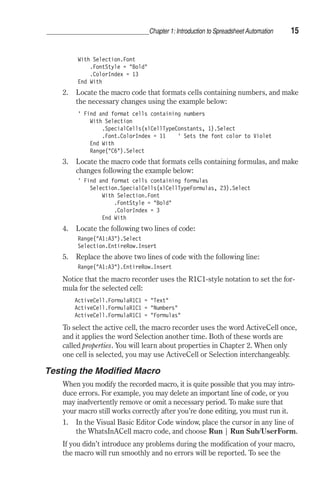
2. Locate the macro code that formats cells containing numbers, and make 
the necessary changes using the example below: 
' Find and format cells containing numbers 
With Selection 
.SpecialCells(xlCellTypeConstants, 1).Select 
.Font.ColorIndex = 11 ' Sets the font color to Violet 
End With 
Range(C6).Select 
3. Locate the macro code that formats cells containing formulas, and make 
changes following the example below: 
' Find and format cells containing formulas 
Selection.SpecialCells(xlCellTypeFormulas, 23).Select 
With Selection.Font 
.FontStyle = Bold 
.ColorIndex = 3 
End With 
4. Locate the following two lines of code: 
Range(A1:A3).Select 
Selection.EntireRow.Insert 
5. Replace the above two lines of code with the following line: 
Range(A1:A3).EntireRow.Insert 
Notice that the macro recorder uses the R1C1-style notation to set the for-mula 
for the selected cell: 
ActiveCell.FormulaR1C1 = Text 
ActiveCell.FormulaR1C1 = Numbers 
ActiveCell.FormulaR1C1 = Formulas 
To select the active cell, the macro recorder uses the word ActiveCell once, 
and it applies the word Selection another time. Both of these words are 
called properties. You will learn about properties in Chapter 2. When only 
one cell is selected, you may use ActiveCell or Selection interchangeably. 
Testing the Modified Macro 
When you modify the recorded macro, it is quite possible that you may intro-duce 
errors. For example, you may delete an important line of code, or you 
may inadvertently remove or omit a necessary period. To make sure that 
your macro still works correctly after you’re done editing, you must run it. 
1. In the Visual Basic Editor Code window, place the cursor in any line of 
the WhatsInACell macro code, and choose Run | Run Sub/UserForm. 
If you didn’t introduce any problems during the modification of your macro, 
the macro will run smoothly and no errors will be reported. To see the
16 Chapter 1: Introduction to Spreadsheet Automation 
result of your macro, you must switch to the Microsoft Excel window. To do 
this, click the button on the taskbar, or press Alt+F11. 
If the Visual Basic Editor encounters an error during the execution of 
your macro, you will see a dialog box displaying the type of error found. 
Before you run macros, you must make sure that your macro can run in the 
worksheet that is currently selected. For example, if you try to run the 
WhatsInACell macro when a blank sheet is selected, you will get the “Run 
time error ‘1004’—No Cells were found” error message. Click the End but-ton, 
and make sure that you select the correct worksheet before you try to 
run the macro again. 
If the selected worksheet contains only cells with text and you try to 
run the WhatsInACell macro, Visual Basic will encounter a problem when 
attempting to select cells with numbers. The same “No cells found” mes-sage 
will be displayed. 
If you omit the period in With Selection.Font on running this line of 
code, Visual Basic will generate the “Run time error ‘424’—Object 
required” message. Click the Debug button in the message box, and you 
will be placed in the Code window. At this time, Visual Basic will enter into 
break mode and will use the yellow highlighter to indicate the line that it 
had trouble executing. As soon as you correct your error, Visual Basic may 
announce “This action will reset your project, proceed anyway?” Click OK 
in response to this message. Although you can edit code in break mode, 
some edits prevent continuing execution. After correcting the error, run the 
macro again, as there may be more errors to be fixed before the macro can 
run smoothly. You will find more information on how to handle VBA errors 
in Chapters 2 and 13. 
Two Levels of Macro Execution 
You can run your macros from either the Microsoft Excel window or the 
Visual Basic Editor window. When you execute the WhatsInACell macro 
from the VBE screen, Visual Basic executes the macro behind the scenes. 
You can’t see when Visual Basic selects and applies formatting to the text 
cells or when it inserts three empty rows for the color legend. To watch 
Visual Basic at work, you must run your macro from the Microsoft Excel 
window by choosing Tools | Macro, or arrange your screen in such a way 
that both Microsoft Excel and the Visual Basic windows can be viewed at 
the same time (see Figure 1-6). 
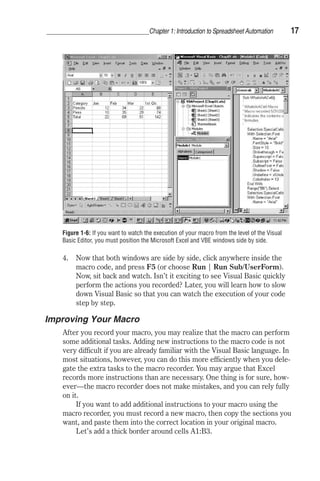
To arrange your screen so that it matches Figure 1-6, perform the fol-lowing 
steps: 
1. Right-click the empty section of the Windows taskbar. The taskbar is 
the bottom area of the screen where the Start button is located. 
2. From the Windows shortcut menu, select Tile Windows Vertically. 
3. Minimize the windows that are not needed, and repeat step 1 above.
Chapter 1: Introduction to Spreadsheet Automation 17 
Figure 1-6: If you want to watch the execution of your macro from the level of the Visual 
Basic Editor, you must position the Microsoft Excel and VBE windows side by side. 
4. Now that both windows are side by side, click anywhere inside the 
macro code, and press F5 (or choose Run | Run Sub/UserForm). 
Now, sit back and watch. Isn’t it exciting to see Visual Basic quickly 
perform the actions you recorded? Later, you will learn how to slow 
down Visual Basic so that you can watch the execution of your code 
step by step. 
Improving Your Macro 
After you record your macro, you may realize that the macro can perform 
some additional tasks. Adding new instructions to the macro code is not 
very difficult if you are already familiar with the Visual Basic language. In 
most situations, however, you can do this more efficiently when you dele-gate 
the extra tasks to the macro recorder. You may argue that Excel 
records more instructions than are necessary. One thing is for sure, how-ever— 
the macro recorder does not make mistakes, and you can rely fully 
on it. 
If you want to add additional instructions to your macro using the 
macro recorder, you must record a new macro, then copy the sections you 
want, and paste them into the correct location in your original macro. 
Let’s add a thick border around cells A1:B3.
18 Chapter 1: Introduction to Spreadsheet Automation 
1. Activate the Microsoft Excel window with the worksheet shown in Fig-ure 
1-6. 
2. Choose Tools | Macro | Record New Macro. 
3. In the Macro dialog box, click OK to accept the default macro name and 
begin recording. 
4. Select cells A1:B3. 
5. Choose Format | Cells and click the Border tab. 
6. In the Presets section of the dialog box, click the Outline button. 
7. Click the thickest line in the Style box and click OK to close the dialog 
box. 
8. Click cell A1. Notice the thick border around cells A1:B3. 
9. Click the Stop Recording button on the Stop Recording toolbar, or 
choose Tools | Macro | Stop Recording. 
To view the recorded macro, switch to the Visual Basic Editor window. The 
macro code that adds a thick border around cells A1:A3 is shown here: 
Sub Macro2() 
' 
' Macro2 Macro 
' Macro recorded 5/31/2002 by Julitta Korol 
' 
' 
Range(A1:B3).Select 
Selection.Borders(xlDiagonalDown).LineStyle = xlNone 
Selection.Borders(xlDiagonalUp).LineStyle = xlNone 
With Selection.Borders(xlEdgeLeft) 
.LineStyle = xlContinuous 
.Weight = xlThick 
.ColorIndex = xlAutomatic 
End With 
With Selection.Borders(xlEdgeTop) 
.LineStyle = xlContinuous 
.Weight = xlThick 
.ColorIndex = xlAutomatic 
End With 
With Selection.Borders(xlEdgeBottom) 
.LineStyle = xlContinuous 
.Weight = xlThick 
.ColorIndex = xlAutomatic 
End With 
With Selection.Borders(xlEdgeRight) 
.LineStyle = xlContinuous 
.Weight = xlThick 
.ColorIndex = xlAutomatic 
End With 
Selection.Borders(xlInsideVertical).LineStyle = xlNone 
Selection.Borders(xlInsideHorizontal).LineStyle = xlNone 
Range(A1).Select 
End Sub
Now let’s analyze the recorded code. Do you think you can get rid of some 
instructions? Before you go ahead and delete the unnecessary lines of code, 
think of how you can use the comment feature. Before you delete any 
macro code, comment it out and run the macro with the commented code. If 
the Visual Basic Editor does not generate any errors, you can safely delete 
the commented lines. If you follow this guideline, you will never find your-self 
recording the same keystrokes more than once. And if the macro does 
not perform accurately, you can remove the comments from the lines that 
may be needed after all. For details on working with comment blocks, 
please see Chapter 2. 
When you create macros with the macro recorder, you can quickly learn 
the VBA equivalents for the Excel menu options and dialog box settings. 
Then you can look up the meaning and the usage of these Visual Basic com-mands 
in the online help. It’s quite obvious that the more instructions 
Visual Basic needs to read, the slower the execution of your macro. Elimi-nating 
extraneous commands will speed up your macro. However, to make 
your macro code easier to understand, you may want to put on your detec-tive 
hat and search for a better way to perform a specific task. For example, 
take a look at the code the macro recorder generated for placing a border 
around selected cells. It appears that the macro recorder handled each line 
separately. It seems hard to believe that Visual Basic does not have a simple 
one-line command that places a border around a selection of cells. Learning 
the right word or expression in any language takes time. If you look long 
enough, you will find that Visual Basic has a BorderAround method that 
allows you to add a border to a range of cells and set the Color, LineStyle, 
and Weight for the new border. 
Using Visual Basic for Applications, the quickest way to create the 
thick border around a selection of cells is with the following statement: 
Range(A1:B3).BorderAround Weight:=xlThick 
The above instruction uses the BorderAround method of the Range object. 
It uses the thick line to create a border around cells A1:B3. (The next chap-ter 
covers Visual Basic objects, properties, and methods.) 
Now let’s add the above instruction to the WhatsInACell macro: 
1. Activate the Code window with the WhatsInACell macro. 
2. Enter a new line after ActiveCell.FormulaR1C1 = Formulas. 
3. In the blank line, enter the following instruction: 
Range(A1:B3).BorderAround Weight:=xlThick 
4. Place the cursor anywhere in the macro code and press F5 to run the 
modified macro. 
Chapter 1: Introduction to Spreadsheet Automation 19
20 Chapter 1: Introduction to Spreadsheet Automation 
Tip 1-7: Including Additional Instructions 
 To include additional instructions in 
the existing macro, add empty lines 
in the required places of the macro 
code by pressing Enter and type in 
the necessary Visual Basic 
statements. 
 If the additional instructions are key-board 
actions or menu commands, 
you may use the Macro recorder to 
generate the necessary code and 
then copy and paste the necessary 
lines into the original macro. 
Let’s say you would like Visual Basic to notify you when it has finished exe-cuting 
the last macro line. This sort of action cannot be recorded, as Excel 
does not have a corresponding menu option. However, using the Visual 
Basic language, you can add new instructions to your macro by hand. 
1. In the Code window, click in front of the End Sub keywords and press 
Enter. 
2. Place your cursor on the empty line and type the following statement: 
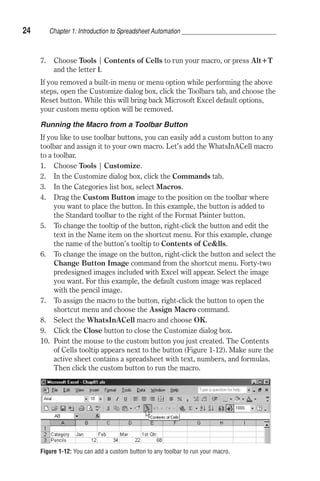
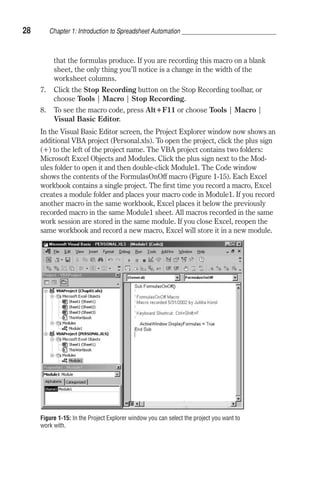
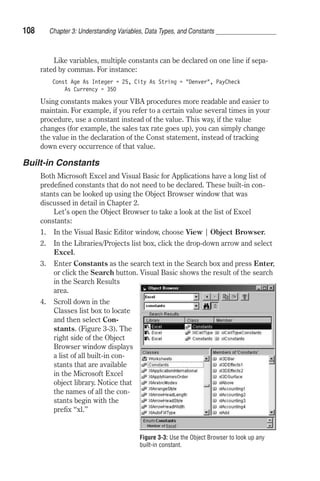
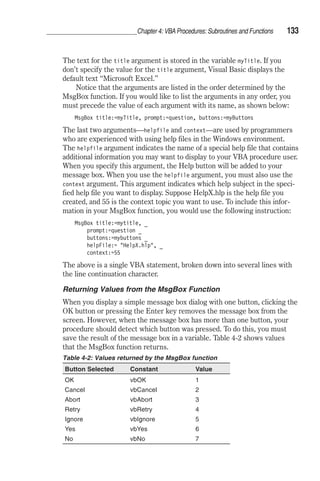
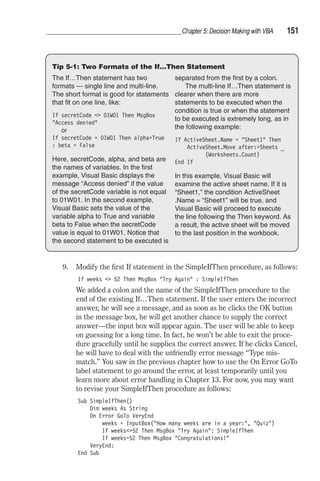
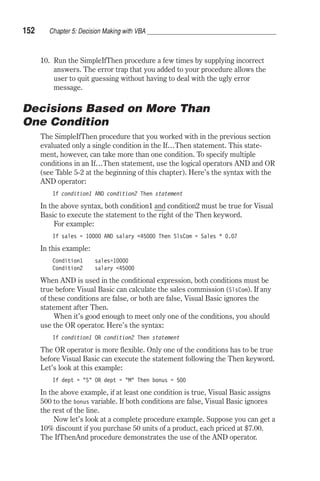
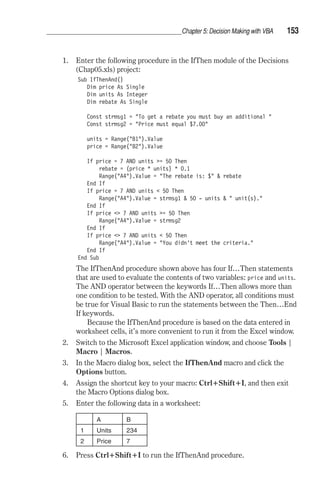
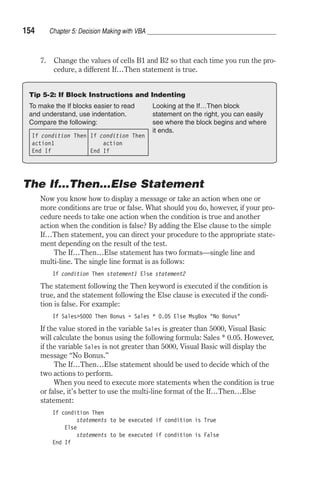
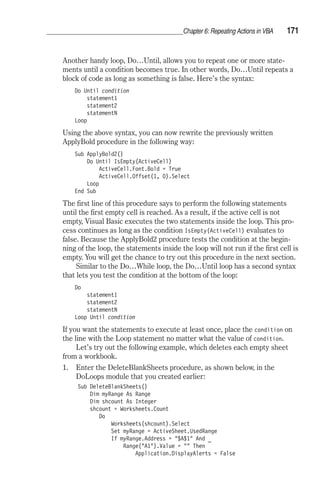
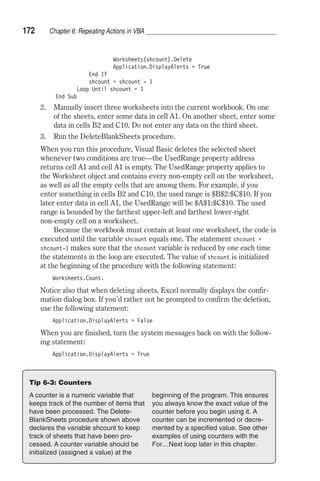
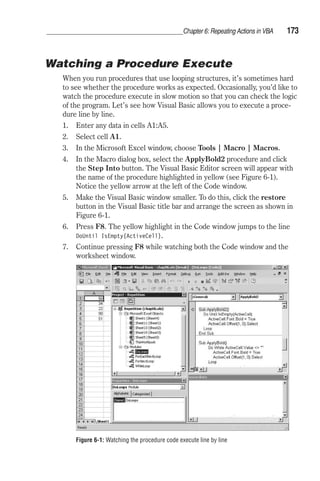
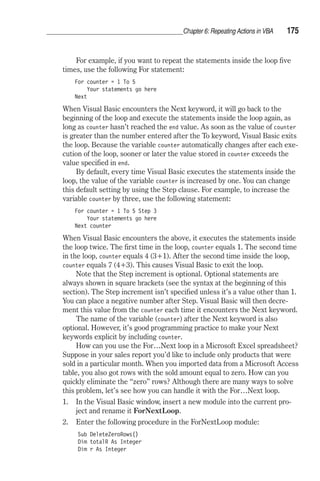
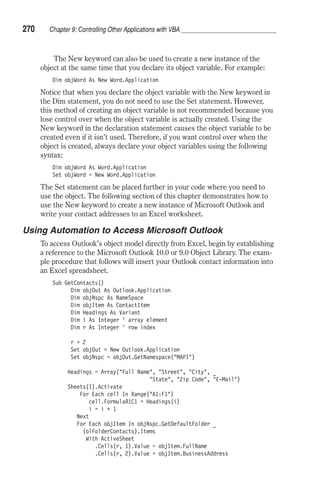
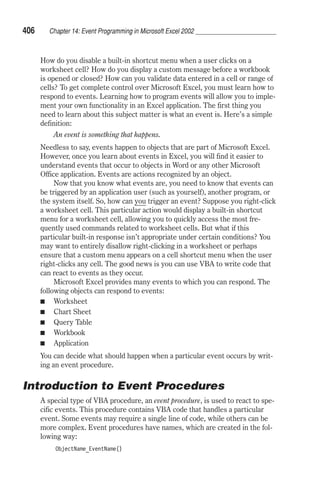
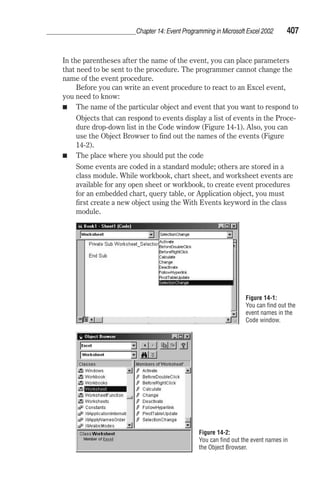
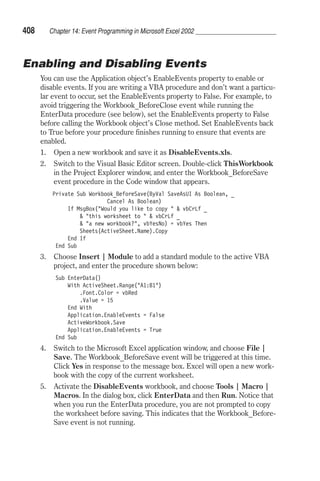
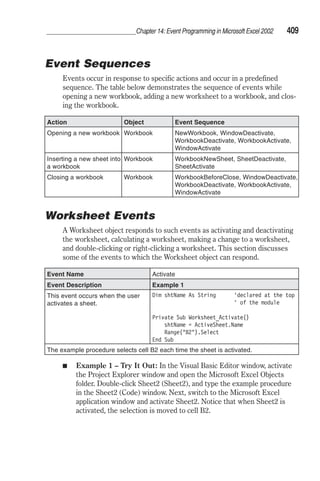
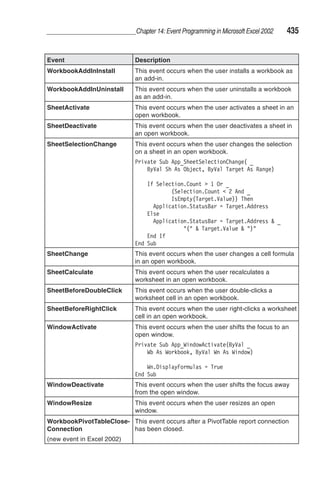
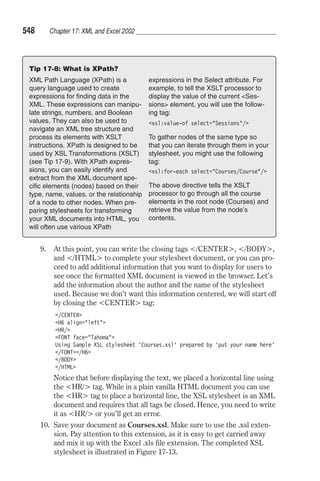
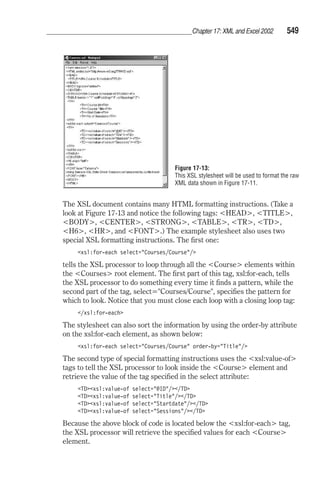
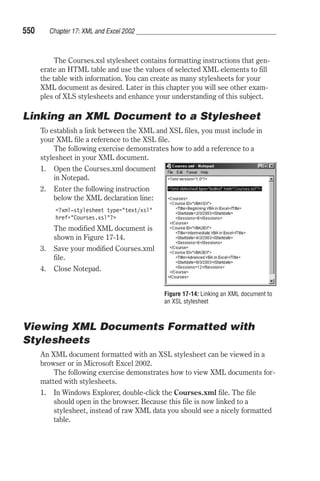
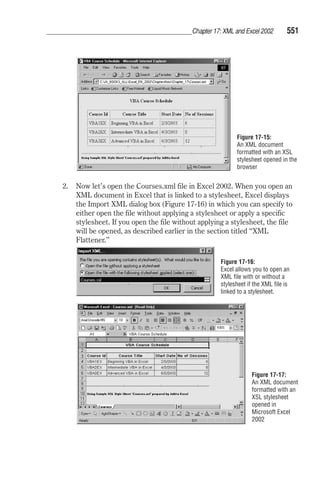
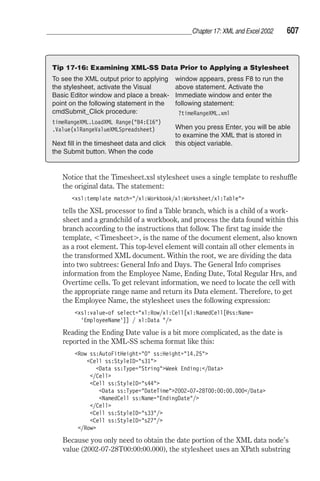
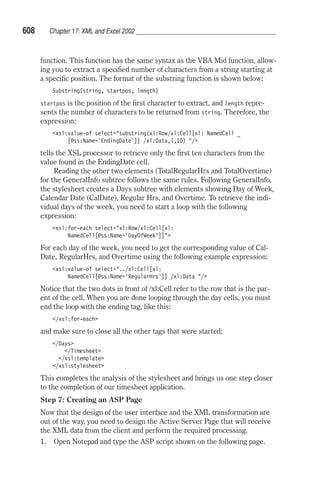
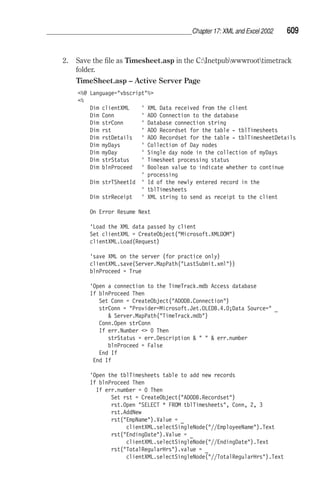
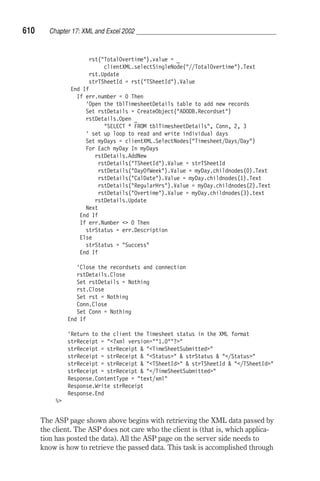
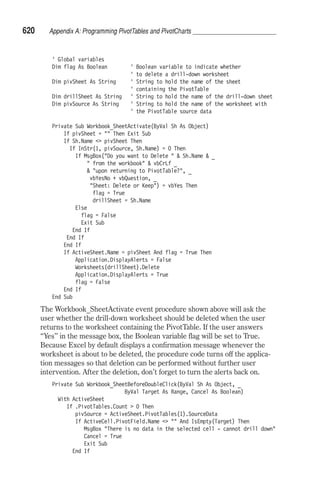
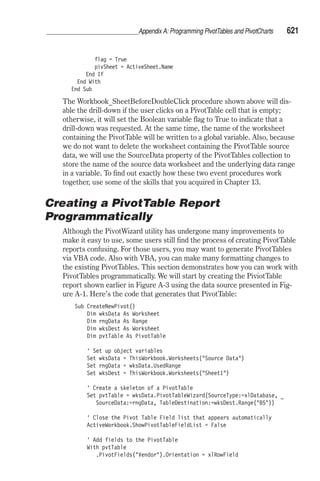
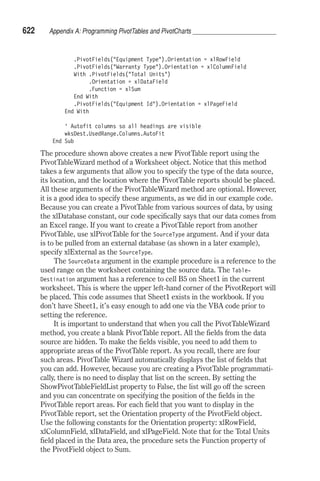
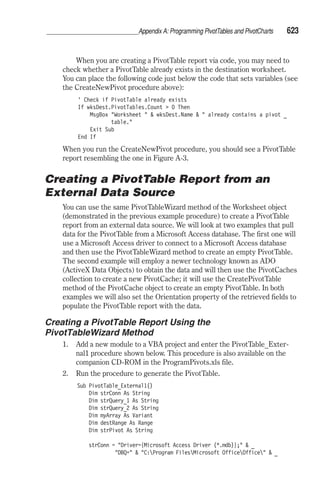
MsgBox All actions have been performed. 
3. Make sure the cursor is located anywhere in the macro code, and press 
F5. 
4. When Visual Basic completes the last recorded instruction, it displays 
the message. Click OK. You now know for sure that the macro has fin-ished 
running. 
MsgBox is one of the frequently used VBA functions. You will learn more 
about its usage in Chapter 4. 
Renaming the Macro 
When you add additional actions to your macro, you may want to change its 
name to better indicate the purpose of the macro. The name of the proce-dure 
should communicate its function as closely as possible. To change the 
macro name, you don’t need to press a specific key. In the Code window, 
simply delete the old macro name and enter the new name following the 
Sub keyword. 
Other Methods of Running Macros 
So far, you have learned three methods of running macros. You already 
know how to run a macro by choosing Tools | Macro | Macros. Unfortu-nately, 
this method of running a macro is not convenient if you need to run 
your macro often. You also ran the macro in the VBE Code window with the 
keyboard shortcut F5 or by choosing Run | Run Sub/UserForm. In addition, 
you can run a macro from the Visual Basic Editor window by clicking a but-ton 
on the Standard toolbar (Figure 1-7) or choosing Tools | Macro.
Chapter 1: Introduction to Spreadsheet Automation 21 
Figure 1-7: The Visual Basic procedure can be run from the toolbar button. 
Running the Macro Using a Keyboard Shortcut 
A popular method to run a macro is by using an assigned keyboard shortcut. 
It is much faster to press Ctrl+Shift+D than it is to activate the macro 
from the Macro dialog box. Before you use the keyboard shortcut, you must 
assign it to your macro. 
1. Press Alt+F8 to quickly open the Macro dialog box. 
2. In the list of macros, click the name of the WhatsInACell macro, and 
then choose the Options button. 
3. The Macro Options dialog box appears, as shown in Figure 1-8. The 
cursor is located in the Shortcut key text box. 
Figure 1-8: 
Using the Macro Options dialog box, 
you can assign a keyboard shortcut 
for running a macro. 
4. Hold down the Shift key and press the letter I on the keyboard. Excel 
records the keyboard combination as Ctrl+Shift+I. 
5. Click OK to close the Macro Options dialog box. 
6. Click Cancel to return to the worksheet. 
Tip 1-8: Avoid Shortcut Conflicts 
If you assign to your macro a keyboard shortcut that conflicts with 
the Microsoft Excel built-in shortcut, Excel will run your macro if the 
workbook containing the macro code is currently open. 
To run your macro using the newly assigned keyboard shortcut, make sure 
the Microsoft Excel window is active and press Ctrl+Shift+I.
22 Chapter 1: Introduction to Spreadsheet Automation 
Running the Macro from a Menu 
If you’d rather work with the menus, you can add your macro as a menu 
option. Using the Customize dialog box, you can quickly add your own 
menu command to any of Excel’s built-in menus. 
1. In the Microsoft Excel window, right-click the empty area of the menu 
bar and select Customize from the shortcut menu. 
2. In the Customize dialog box, click the Commands tab. 
3. In the Categories list box, select Macros. 
Figure 1-9: 
Creating a custom menu item 
(Step 1) 
4. Drag Custom Menu Item to the Tools menu. As the menu opens up, 
drop the button image to the position where you want to place it. Fig-ure 
1-10 shows the custom command placed as the last option on the 
Tools menu. 
5. To change the name of the custom menu item, right-click the menu 
item and edit the text in the Name item on the shortcut menu (Figure 
1-11). For this example, change the name to Contents of Cells. 
The ampersand () character is used to indicate a keyboard shortcut. 
Place the ampersand immediately before the letter you want to be 
underlined. If you named the custom option Contents of Cells, the 
custom menu option will be displayed as Contents of Cells. Notice that 
menu options can contain spaces between the words. 
6. To assign a macro to the Contents of Cells menu option, select the last 
option—Assign Macro—on the shortcut menu (Figure 1-11). In the 
Macro dialog box, select the WhatsInACell macro and click OK. Click 
Close to close the Customize dialog box.
Chapter 1: Introduction to Spreadsheet Automation 23 
Figure 1-10: Creating a custom menu item (Step 2). You can place the custom option in 
any Excel menu or submenu. 
Figure 1-11: Creating a custom menu item (Step 3). Using the shortcut menu, you can 
rename the menu option and assign your own macro to it. To use this shortcut menu, you 
must first open the Customize dialog box. 
Your macro can now run from your custom menu option. If you close 
the shortcut menu before assigning a macro to the menu option, Excel 
will prompt you for the macro name when you attempt to use your 
menu option for the first time.
24 Chapter 1: Introduction to Spreadsheet Automation 
7. Choose Tools | Contents of Cells to run your macro, or press Alt+T 
and the letter l. 
If you removed a built-in menu or menu option while performing the above 
steps, open the Customize dialog box, click the Toolbars tab, and choose the 
Reset button. While this will bring back Microsoft Excel default options, 
your custom menu option will be removed. 
Running the Macro from a Toolbar Button 
If you like to use toolbar buttons, you can easily add a custom button to any 
toolbar and assign it to your own macro. Let’s add the WhatsInACell macro 
to a toolbar. 
1. Choose Tools | Customize. 
2. In the Customize dialog box, click the Commands tab. 
3. In the Categories list box, select Macros. 
4. Drag the Custom Button image to the position on the toolbar where 
you want to place the button. In this example, the button is added to 
the Standard toolbar to the right of the Format Painter button. 
5. To change the tooltip of the button, right-click the button and edit the 
text in the Name item on the shortcut menu. For this example, change 
the name of the button’s tooltip to Contents of Cells. 
6. To change the image on the button, right-click the button and select the 
Change Button Image command from the shortcut menu. Forty-two 
predesigned images included with Excel will appear. Select the image 
you want. For this example, the default custom image was replaced 
with the pencil image. 
7. To assign the macro to the button, right-click the button to open the 
shortcut menu and choose the Assign Macro command. 
8. Select the WhatsInACell macro and choose OK. 
9. Click the Close button to close the Customize dialog box. 
10. Point the mouse to the custom button you just created. The Contents 
of Cells tooltip appears next to the button (Figure 1-12). Make sure the 
active sheet contains a spreadsheet with text, numbers, and formulas. 
Then click the custom button to run the macro. 
Figure 1-12: You can add a custom button to any toolbar to run your macro.
Chapter 1: Introduction to Spreadsheet Automation 25 
Running the Macro from a Worksheet Button 
Later in this book, you will learn how buttons placed in a worksheet can 
help beginning Excel users with data entry. For now, let’s go over the steps 
that will attach the WhatsInACell macro to a worksheet button. 
1. Activate the example worksheet containing the data. 
2. Choose View | Toolbars and select Forms. The Forms toolbar 
appears, as shown in Figure 1-13. 
3. On the Forms toolbar, click Button. 
4. Click anywhere in the worksheet. 
5. When the Assign Macro dialog box appears, choose the name of the 
macro (WhatsInACell) and click OK. 
6. To change the name of Button 1, make sure the button is selected, and 
enter the name Contents of Cells. When the button is selected, it 
looks like the one shown in Figure 1-13. If the selection handles are not 
displayed, right-click Button 1 on the worksheet and choose Edit Text 
on the shortcut menu. Select the default text and enter the new name. 
7. When you’re done renaming the button, click anywhere in the 
worksheet and outside the button to exit the Edit mode. 
8. To run your macro, click the button you just created. 
Figure 1-13: You can attach your macro to a button placed in a worksheet.
26 Chapter 1: Introduction to Spreadsheet Automation 
Tip 1-9: Adding Controls to a Worksheet 
 You can add controls to a worksheet 
using the Forms toolbar (see Figure 
1-13) or the Control Toolbox (see 
Figure 1-14). Both toolbars can be 
accessed from the View menu by 
selecting the Toolbars option. 
 Controls accessed via the Forms 
toolbar are compatible with earlier 
versions of Excel (5.0, 7, and 97) 
and can be used on chart sheets, 
old XLM macro sheets, and 
worksheets when all you want to do 
is run a macro by clicking a control. 
 The controls in the Control Toolbox 
are known as ActiveX controls. You 
can place the ActiveX controls on 
Saving Macros 
Figure 1-14: 
Default tools in the Control 
Toolbox 
worksheets or your custom forms 
that you create by using the Visual 
Basic Editor. While the controls 
located on the Forms toolbar can 
only respond to the Click event, the 
ActiveX controls have many different 
actions, or events, that can occur 
when you use the control. 
 When you use a control from the 
Forms toolbar, you assign a macro 
to it that is stored in a module of This 
Workbook, New Workbook, or Per-sonal 
Macro Workbook. When you 
use an ActiveX control, write macro 
code that is stored with the control 
itself. 
The WhatsInACell macro you created in this chapter is located in a 
Microsoft Excel workbook. To save the macro on a disk, you need to save 
the open workbook. I suggest that you save your macro now in a workbook 
file named Chap01.xls. After you save the workbook, close it and then open 
a brand new workbook. Notice that your custom toolbar button is still avail-able, 
as is the Contents of Cells option on the Tools menu. Before you try to 
run your macro using any of these tools, enter the text “Addition” in cell 
A1, the number 2 in cell A2, the number 4 in cell A3, and =Sum(A2:A3) in 
cell A4. When you run the macro, Excel opens the appropriate workbook 
file and executes the procedure assigned to your custom tool.
Printing Macros 
Chapter 1: Introduction to Spreadsheet Automation 27 
If you want to document your macro or perhaps study the macro code when 
you are away from the computer, you can print your macros. You can print 
the entire module sheet where your macro is stored or indicate a selection 
of lines to print. 
To print the entire module sheet that contains your macro: 
1. Place the cursor anywhere in the module sheet. 
2. Choose File | Print. 
3. In the Print—VBA Project dialog box, the Current Module option but-ton 
should be selected. 
4. Click OK to print the module sheet. 
To print selected text: 
1. In the module sheet, highlight the text you want to print. 
2. Choose File | Print. 
3. In the Print—VBA Project dialog box, the Selection option button 
should be selected. 
4. Click OK to print the highlighted text. 
Storing Macros in the Personal Macro Workbook 
When you record a macro, you can specify storing the macro code in the 
Personal Macro Workbook. When you store a macro in the Personal Macro 
Workbook, Excel creates a file named Personal.xls and places it in the 
XLStart folder, which is a subdirectory of Program FilesMicrosoft 
OfficeOffice. Files that were saved to the XLStart folder are loaded auto-matically 
each time you start Excel. The Personal Macro Workbook is a 
convenient place to store general-purpose macros like the following one. 
You will now record a general-purpose macro called FormulasOnOff. The 
purpose of this macro is to toggle the display of worksheet formulas on and 
off. 
1. Choose Tools | Macro | Record New Macro. 
2. In the Record Macro dialog box, enter FormulasOnOff in the Macro 
name box. 
3. Choose Personal Macro Workbook from the Store macro in drop-down 
list. 
4. Click in the Shortcut key text box, and press Shift+F. 
5. Choose OK to exit the Record Macro dialog box. 
6. Press Ctrl+~ (tilde character) to turn on the display of formulas, or 
choose Tools | Options and click the Formulas check box on the 
View tab in the Windows options area. When you turn on the display of 
formulas, the worksheet cells show the formulas instead of the values
28 Chapter 1: Introduction to Spreadsheet Automation 
that the formulas produce. If you are recording this macro on a blank 
sheet, the only thing you’ll notice is a change in the width of the 
worksheet columns. 
7. Click the Stop Recording button on the Stop Recording toolbar, or 
choose Tools | Macro | Stop Recording. 
8. To see the macro code, press Alt+F11 or choose Tools | Macro | 
Visual Basic Editor. 
In the Visual Basic Editor screen, the Project Explorer window now shows an 
additional VBA project (Personal.xls). To open the project, click the plus sign 
(+) to the left of the project name. The VBA project contains two folders: 
Microsoft Excel Objects and Modules. Click the plus sign next to the Mod-ules 
folder to open it and then double-click Module1. The Code window 
shows the contents of the FormulasOnOff macro (Figure 1-15). Each Excel 
workbook contains a single project. The first time you record a macro, Excel 
creates a module folder and places your macro code in Module1. If you record 
another macro in the same workbook, Excel places it below the previously 
recorded macro in the same Module1 sheet. All macros recorded in the same 
work session are stored in the same module. If you close Excel, reopen the 
same workbook and record a new macro, Excel will store it in a new module. 
Figure 1-15: In the Project Explorer window you can select the project you want to 
work with.
Chapter 1: Introduction to Spreadsheet Automation 29 
When you recorded your macro, you turned on the display of formulas. The 
macro name suggests that the macro can toggle the formulas on and off. To 
make this macro behave exactly this way, you must edit it. 
The recorded macro line sets the display of formulas in the active win-dow 
to True: 
ActiveWindow.DisplayFormulas = True 
The False setting will turn off the display of formulas: 
ActiveWindow.DisplayFormulas = False 
To make a toggle in VBA, you need to connect both statements in the fol-lowing 
way: 
ActiveWindow.DisplayFormulas = Not ActiveWindow.DisplayFormulas 
Replace the recorded macro line with the statement above and run the 
macro. No matter how many times you play this macro, it always knows 
what to do. You can use the same idea to create macros that toggle the dis-play 
of gridlines or other Microsoft Excel features on and off. 
When you close Microsoft Excel, you will be prompted to save the 
changes you made to the Personal Macro Workbook. Click OK to save the 
changes. When you restart Excel, the Personal Macro Workbook will auto-matically 
load in the background. 
If you want to store other macros in the Personal Macro Workbook, you 
can take one of the following routes: 
 Record a new macro and choose the Personal Macro Workbook for its 
storage location. 
 Switch to the Visual Basic Editor and open the project that contains the 
macro you want to move to the Personal Macro Workbook. Cut the 
macro code from the current location and open the Personal Macro 
Workbook project. Paste the macro code into the existing module, or 
create a new module prior to pasting. 
 Choose File | Import File… to bring the macro code from a text file or 
another Visual Basic project file (*.frm, *.bas, *.cls). 
Opening Workbooks Containing Macros 
Whenever you open a workbook that contains macros, Excel displays a 
warning message, as shown in Figure 1-16. To prevent Excel from display-ing 
this message, you can turn off the virus protection using the Security 
dialog box (Figure 1-17). 
When the virus message comes up, you can select: 
 Disable Macros—Click this button if you are opening a workbook 
from an unfamiliar source, such as an Internet site or an e-mail, and you 
want to protect your computer from any macro viruses that may be in 
the workbook. The workbook will be opened without running any
30 Chapter 1: Introduction to Spreadsheet Automation 
auto-macros it may contain. You will then be able to switch to the 
Visual Basic Editor and review the macros if they are not password 
protected. After checking the macros, you can close the workbook and 
then reopen it with macros enabled. 
 Enable Macros—If you know that the workbook comes from a trusted 
source and contains useful macros, click the Enable Macros button. 
 More Info—Click this button if you need more information before you 
decide whether to open the workbook with the macros enabled or 
disabled. 
Microsoft Excel 2002 has a useful feature that allows you to 
automatically disable all macros that are not signed and sent from a 
trusted source. To access this feature, choose Tools | Macro | Security. 
When you create macros that you want to distribute to others, you can use 
the Digital Signature feature available in the Visual Basic Editor’s Tools 
menu to confirm that the macro does not introduce a virus. 
A digital signature on a macro is similar to a handwritten signature on a 
printed letter. Search the Microsoft Excel online help for information on 
how to install and create your own digital signature. To access related top-ics, 
type “digital signature” in the Answer Wizard. 
Figure 1-16: 
If the virus protection is turned 
on, Excel displays a warning 
message when the workbook 
contains macros. 
Figure 1-17: 
Selecting the Medium option button 
will allow you to choose whether to 
run or not to run macros upon 
opening a workbook.
Chapter 1: Introduction to Spreadsheet Automation 31 
The Visual Basic Editor Window 
Now that you know how to record, run, and edit macros, let’s spend some 
time in the Visual Basic Editor window and become familiar with some of 
its features. 
With the tools located in the Visual Basic Editor window, you can: 
 Write your own VBA procedures 
 Create custom forms 
 View and modify object properties 
 Test VBA procedures and locate errors 
The Visual Basic Editor window can be accessed in two ways: 
 From the Tools menu in the Microsoft Excel application window: 
Choose Tools | Macro | Visual Basic Editor. 
 From the keyboard: Press Alt+F11. 
Understanding the Project Explorer Window 
The Project Explorer window displays a hierarchical list of currently open 
projects and its elements. 
The VBA project can contain the following elements: 
 Worksheets 
 Charts 
 This Workbook—the workbook where the project is stored 
 Modules 
 Classes—special modules that allow you to create your own objects 
 Forms 
 References to other projects 
With the Project Explorer you can manage your projects and easily move 
between projects that are currently loaded into memory. 
You can activate the Project Explorer window in one of three ways: 
 From the View menu by selecting Project Explorer 
 From the keyboard by pressing Ctrl+R 
 From the toolbar by clicking the Project Explorer button (see Figure 
1-18) 
The Project Explorer window contains three buttons. 
The first button from the left (View Code) displays the Code window 
for the selected module. The middle button (View Object) displays the 
selected sheet in the Microsoft Excel Object folder or a form located in the 
Forms folder. The first button from the right (Toggle Folders) hides and 
unhides the display of folders in the Project Explorer window.
32 Chapter 1: Introduction to Spreadsheet Automation 
Figure 1-18: Buttons on the Standard toolbar provide a quick way to access many 
Visual Basic features. 
Understanding the Properties Window 
The Properties window allows you to review and set properties of various 
objects in your project. The name of the currently selected object is dis-played 
in the Object box located just below the Properties window’s title 
bar. Properties of the object can be viewed alphabetically or by category by 
clicking on the appropriate tab (Figure 1-19). 
 Alphabetic Tab—Alphabetically lists all properties for the selected 
object. You can change the property setting by selecting the property 
name and typing or selecting the new setting. 
 Categorized Tab—Lists all properties for the selected object by 
category. You can collapse the list so that you see the categories, or you 
can expand a category to see the properties. The plus (+) icon to the 
left of the category name indicates that the category list can be 
expanded. The minus (–) indicates that the category is currently 
expanded. 
The Properties window can be accessed in three ways: 
 From the View menu by selecting Properties Window 
 From the keyboard by pressing F4 
 From the toolbar by clicking the Properties Window button (see Figure 
1-18)
Chapter 1: Introduction to Spreadsheet Automation 33 
Figure 1-19: The Properties window displays the current settings for the 
selected object. 
Understanding the Code Window 
The Code window is used for Visual Basic programming as well as for view-ing 
and modifying the code of recorded macros and existing VBA 
procedures. Each module can be opened in a separate code window. 
There are several ways to activate the Code window: 
 From the Project Explorer window, choose the appropriate UserForm 
or module. Then click the View Code button. 
 From the menu, choose View | Code. 
 From the keyboard, press F7. 
At the top of the Code window, there are two drop-down list boxes (Figure 
1-20) that allow you to move quickly within the Visual Basic code. In the 
Object box on the left side of the Code window, you can select the object 
whose code you want to view. The box on the right side of the Code window 
lets you quickly choose a particular procedure or event procedure to view. 
When you open this box, the names of all procedures located in a module 
are sorted alphabetically. If you select a procedure in the Procedures/Events 
box, the cursor will jump to the first line of this procedure. 
By dragging the split bar (Figure 1-20) down to a selected position in 
the Code window, you can divide the Code window into two panes (Figure 
1-21). You can then view different sections of a long procedure or a different
34 Chapter 1: Introduction to Spreadsheet Automation 
Figure 1-20: The Visual Basic Code window has several elements that make it easy to locate 
procedures and review the VBA code. 
procedure in each pane. Setting up the Code window for the two-pane dis-play 
is often used for copying or cutting and pasting sections of code 
between procedures of the same module. To return to the one-window dis-play, 
simply drag the split line all the way to the top of the Code window. 
At the bottom of the Code window, there are two icons. The Procedure 
View icon displays only one procedure at a time in the Code window. To 
select another procedure, use the Procedures/Events box. The Full Module 
View icon displays all the procedures in the selected module. Use the verti-cal 
scroll bar to scroll through the module’s code. 
The margin indicator bar is used by the Visual Basic Editor to display 
helpful indicators during editing and debugging. If you’d like to take a quick 
look at some of these indicators, skim through Chapter 13.
Chapter 1: Introduction to Spreadsheet Automation 35 
Other Windows in the Visual Basic Editor Window 
In addition to the Code window, there are other windows that are frequently 
used in the Visual Basic environment: 
The Form window is used for creating custom dialog boxes and user 
forms. You will learn how to do these sorts of things in Chapter 10. 
Figure 1-22 displays the list of windows that can be docked in the 
Visual Basic Editor window. You will learn how to use some of these win-dows 
in Chapter 2 (Object Browser, Immediate window) and others in 
Chapter 13 (Locals window, Watches window). 
Figure 1-21: 
For reviewing longer 
procedures, you can divide 
the Code window into two 
panes. 
Figure 1-22: 
The Docking tab in the 
Options dialog box allows 
you to choose which 
windows you want to be 
dockable.
36 Chapter 1: Introduction to Spreadsheet Automation 
What’s Next… 
By following along with some spreadsheet automating examples, you 
have learned not only how to record a macro but also how to view, read, and 
modify the Visual Basic code. In addition, you tried various methods of run-ning 
macros. You ended the chapter with a quick tour of the Visual Basic 
Editor window. The next chapter introduces you to the fundamentals of 
Visual Basic for Applications. You will learn many new terms and, most 
importantly, you will acquire a useful VBA vocabulary that will let you dele-gate 
even more tasks to Excel.
Chapter 2 
First Steps in 
Visual Basic for 
Applications 
Understanding Instructions, Modules, and Procedures  
Assigning a Name to the VBA Project  Renaming the Module  
Calling a Procedure from Another Project  Understanding 
Objects, Properties, and Methods  Learning about Objects, 
Properties, and Methods  Syntax Versus Grammar  Breaking 
Up Long VBA Statements  Understanding VBA Errors  In 
Search of Help  On-the-fly Syntax and Programming Assistance 
 Using the Object Browser  Using the VBA Object Library  
Locating Procedures with the Object Browser  Using the Imme-diate 
Window  Obtaining Information in the Immediate Window 
 Learning about Objects  Doing Things with Spreadsheet Cells 
 Using the Range Property  Using the Cells Property  Using 
the Offset Property  Other Methods of Selecting Cells  
Selecting Rows and Columns  Obtaining Information about the 
Worksheet  Entering Data in a Worksheet  Returning Informa-tion 
Entered in a Worksheet  Finding Out about Cell Formatting 
 Moving, Copying, and Deleting Cells  Doing Things with 
Workbooks and Worksheets  Doing Things with Windows  
Managing the Excel Application  What’s Next… 
37
38 Chapter 2: First Steps in Visual Basic for Applications 
Language study is a long-term activity in which you pass through various 
stages of proficiency. The same is true about learning how to program in 
Visual Basic for Applications. There are no shortcuts. To become proficient 
in VBA, you must start at a novice level (Chapters 2-4). Only after you have 
a good understanding of some of the basics behind Visual Basic for Applica-tions 
may you go on to the intermediate level (Chapters 5-7) and advanced 
level (Chapters 8-17). But, first things first. Before you can customize 
Microsoft Excel with VBA, you need to acquire new vocabulary and gram-mar. 
How do you say in Visual Basic, “Add a new worksheet to a 
workbook,” “Delete the contents of cell A5,” “Copy the formula from cell 
A1 to cell B1”? You may already know the individual words. However, do 
you know how to combine them correctly so that Excel can carry out these 
tasks? In this chapter, you will learn the terms and rules of VBA. 
Understanding Instructions, Modules, 
and Procedures 
In Chapter 1, you learned that Microsoft Excel’s macro recorder creates a 
series of instructions that are the exact equivalents of the actions you per-form. 
These instructions are automatically placed in a workbook sheet 
called a module. Excel stores the module in a module folder located in the 
current workbook, a new workbook, or in the Personal Macro Workbook. To 
review the recorded macro code, you must activate the Visual Basic Editor 
window and double-click the module folder in the Project Explorer window. 
When the module sheet opens up in the Code window, you are finally able 
to analyze your procedure’s code. 
A procedure contains all of the recorded instructions. Each line in a pro-cedure 
is an instruction. There are various types of instructions, such as 
keywords, operators, or calls to other procedures. Keywords words carry a 
special meaning in Visual Basic. In Chapter 1, you learned the most popular 
VBA keywords—the words Sub and End Sub, which begin and end a proce-dure. 
By default, keywords appear in blue. Because keywords are reserved 
by Visual Basic, don’t use these words for other purposes. 
In addition to keywords, Visual Basic instructions can contain opera-tors. 
There are four types of operators: arithmetic, string concatenation, 
logical, and comparison. Operators allow you to combine, join, and manipu-late 
certain values. For example, the division operator (/) can be used to 
calculate the percentage of the total. In this book, you get many opportuni-ties 
to see how operators are used in VBA procedures. 
Another type of a Visual Basic instruction is a call to a procedure. Calls 
to procedures allow you to quickly jump to other procedures and execute 
other sets of instructions. Is it hard to picture this? Let’s take the WhatsIn- 
ACell macro you recorded in Chapter 1. Suppose you also want to include 
the statement you entered in the FormulasOnOff macro in this procedure.
Chapter 2: First Steps in Visual Basic for Applications 39 
How can you do this? You could copy the required line of code from one pro-cedure 
to another. However, there is an easier and quicker way. Instead of 
copying instructions between procedures, you can call the procedure by 
specifying its name. For example, if you want to process the FormulasOnOff 
macro instructions before Visual Basic encounters the instruction MsgBox 
All actions have been performed, you can add the following line of code: 
FormulasOnOff 
When Visual Basic reaches this line, it will jump right into the FormulasOn- 
Off procedure and execute its code. Next, it will return to the WhatsInACell 
macro to continue on with the remaining code, stopping when it reaches the 
End Sub keywords. 
Before you can try out this example, you must learn how to assign 
names to VBA projects and modules, as well as how to call procedures from 
different projects. 
Assigning a Name to the VBA Project 
A project is a set of Microsoft Excel objects, modules, forms, and references. 
Instead of the default name, VBAProject, that precedes the name of the 
workbook in the Project Explorer window, each project requires a unique 
name. 
Let’s assign names to VBAProject (Chap01.xls) and VBAProject 
(Personal.xls): 
1. Start Microsoft Excel, and open Chap01.xls where your WhatsInACell 
macro code is stored. The Personal Macro Workbook where you 
recorded the FormulasOnOff macro will be automatically loaded. 
2. Switch to the Visual Basic Editor window. 
3. In the Project Explorer window, select VBAProject (Chap01.xls). 
4. Double-click the (Name) property in the Properties window. This 
action selects the default project name VBAProject. 
5. Type FirstSteps for the name of the VBA project, and press Enter. 
Notice that the Project Explorer window now displays FirstSteps 
(Chap01.xls) as the name of the VBA project. 
6. In the Project Explorer window, select VBAProject (Personal.xls). 
7. Double-click the (Name) property in the Properties window. 
8. Type Personal for the name of the VBA project, and press Enter.
40 Chapter 2: First Steps in Visual Basic for Applications 
Tip 2-1: Avoid Naming Conflicts 
To avoid naming conflicts between your 
VBA projects, give your projects unique 
names. You can change the name of 
the project in one of the following ways: 
 In the Project Explorer window, 
select the name of the project, dou-ble- 
click the (Name) property in the 
Properties window, and enter a new 
name. 
Renaming the Module 
 In the Project Explorer window, 
right-click the name of the project, 
and select ProjectName Properties, 
where ProjectName is the name of 
the highlighted project. The Project 
Properties dialog box appears, as 
shown in Figure 2-1. Type the new 
project name in the Project Name 
text box. 
Figure 2-1: 
The Project Properties window 
can be used for changing the 
name and description of the 
selected VBA project. 
When you record a macro or create a new procedure from scratch, Visual 
Basic creates a module folder to store your VBA code. The first folder is 
called Module1, the second one Module2, and so on. When you open up a 
new workbook and create VBA procedures, module folders in the new VBA 
project are again named Module1, Module2, and so on. Having modules 
with the same name can be very confusing not only to you but also to Visual 
Basic, as it tries to execute your macros or Visual Basic procedures in an 
environment where several projects are open. 
To avoid the module confusion, assign unique names to Module1 in the 
FirstSteps (Chap01.xls) project and Personal (Personal.xls) project. 
1. In the Project Explorer window, select the FirstSteps (Chap01.xls) 
project and choose Module1. 
2. Double-click the (Name) property in the Properties window. This 
action selects the default module name Module1.
3. Type WorksheetFormatting for the name of Module1, and press 
Enter. Notice that the Project Explorer window now displays 
WorksheetFormatting as the name of the VBA module. 
4. In the Project Explorer window, select Personal (Personal.xls). 
5. Double-click the (Name) property in the Properties window. 
6. Type Switches for the name of Module1, and press Enter. 
Calling a Procedure from Another Project 
You can call a procedure located in any module in the same project by speci-fying 
the procedure name. 
Let’s suppose that the procedure FormulasOnOff is located in another 
module in the same project as the WhatsInACell macro. To call the proce-dure 
FormulasOnOff from the WhatsInACell macro, all you need to do is 
specify the procedure name, as shown in the following example: 
Sub WhatsInACell() 
place recorded macro instruction here 
FormulasOnOff 
End Sub 
However, if two or more modules contain a procedure with the same name, 
you must include the module name in addition to the procedure name. 
Let’s suppose that the FirstSteps (Chap01.xls) project has three mod-ules. 
Module FormulaFormatting contains the WhatsInACell macro, while 
module Switches and module Formulas both contain the FormulasOnOff 
macro. To call FormulasOnOff (located in the Switches module) from the 
WhatsInACell macro, precede the procedure name with the module name, 
as shown in the following example: 
Sub WhatsInACell() 
place recorded macro instruction here 
Switches.FormulasOnOff 
End Sub 
Chapter 2: First Steps in Visual Basic for Applications 41 
Figure 2-2: 
The Project Explorer window shows unique 
names that were assigned to VBA projects and 
modules using the Name property in the 
Properties window.
42 Chapter 2: First Steps in Visual Basic for Applications 
To call a procedure from a different project, you must set up the reference 
to the project. You do this in the References dialog box. Because the 
FormulasOnOff macro is located in the Personal (Personal.xls) project, 
before you can call this macro from the WhatsInACell macro, you must add 
the reference to the Personal project in the following way: 
1. In the Project Explorer window, click FirstSteps (Chap01.xls). 
2. Choose Tools | References. 
3. In the References dialog box, click the check box next to Personal 
(Figure 2-3). Then click OK. 
Figure 2-3: 
The References dialog 
box lists all the 
references available to 
your project. If you 
want to execute a 
procedure located in a 
different project, you 
must establish a 
reference to the other 
project. 
Now that the reference to the Personal project has been established, let’s 
call the FormulasOnOff macro from the WhatsInACell procedure. 
1. In the Project Explorer window, select FirstSteps (Chap01.xls) and 
locate the module with the WhatsInACell procedure. 
2. Enter a new line before MsgBox All actions have been performed and 
type the following line of code: FormulasOnOff. 
3. Return to the Microsoft Excel window and make sure that Sheet1 con-tains 
the example spreadsheet (see Figure 1-1 in Chapter 1). 
4. Run the WhatsInACell macro using any of the techniques you learned 
in Chapter 1. 
If you give the same name to two different procedures in two different pro-jects, 
you must specify a project name when you call that procedure. 
Let’s suppose that the FormulasOnOff macro is located both in the 
FirstSteps (Chap01.xls) project and in the Personal (Personal.xls) project. 
To call the FormulasOnOff macro in the Personal (Personal.xls) project 
(remember that the reference to the Personal project must be established 
first), include the project name:
Sub WhatsInACell ( ) 
place recorded macro instruction here 
Personal.Switches.FormulasOnOff 
End Sub 
Understanding Objects, Properties, 
and Methods 
Using Visual Basic for Applications, you can create procedures that control 
many features of Microsoft Excel. You can also control a large number of 
other applications. The power of Visual Basic comes from its ability to con-trol 
and manage various objects. But what is an object? 
An object is a thing you control with VBA. A workbook, a worksheet, a 
range in a worksheet, a chart, or a toolbar are just a few examples of things 
you may want to control while working in Excel. These things are objects. 
Excel contains over a hundred objects that you can manipulate in different 
ways. All Visual Basic objects are organized in a hierarchy. Some objects 
may contain other objects. For example, Microsoft Excel is an Application 
object. The Application object contains other objects, such as workbooks or 
command bars. The Workbook object may contain other objects, such as 
worksheets or charts. In this chapter, you will learn how to control the fol-lowing 
Excel objects: Range, Window, Worksheet, Workbook, and 
Application. I have listed the Range object first for a very important reason: 
you can’t do much work in spreadsheets unless you know how to manipu-late 
ranges of cells. 
Chapter 2: First Steps in Visual Basic for Applications 43 
Tip 2-2: How Visual Basic 
Locates the Called Procedure 
When you call a procedure, Visual 
Basic first looks for it in the same 
module where the calling procedure 
(WhatsInACell) is located. If the 
called procedure (FormulasOnOff) is 
not found in the same module, 
Visual Basic searches other 
modules in the same project. If the 
procedure still can’t be found, Visual 
Basic checks the references to other 
projects. 
Tip 2-3: Project Name is Missing 
in the References Dialog Box 
If you want to call a procedure from a 
project that is currently closed, when you 
open the References dialog to establish 
the reference to this project, the name of 
the project is not listed. Click the Browse 
button, and open the folder where the 
project is located. By default, the Add 
Reference dialog box lists Library Files 
(*.olb, .tlb, .dll). Choose Microsoft Excel 
Files (*.xls, *.xla) from the Files of Type 
drop-down list, select the file that contains 
the procedure you want to set the 
reference to, and click Open. The name of 
the project will be added as the last entry 
in the References dialog box.
44 Chapter 2: First Steps in Visual Basic for Applications 
Certain objects look alike. If you open a new workbook and examine its 
worksheets, you won’t see any differences. A group of like objects is called 
a collection. For example, a collection of worksheets includes all worksheets 
in a particular Workbook, and the collection of CommandBars contains all 
the toolbars and menu bars. Collections are also objects. In Microsoft Excel, 
the most frequently used collections are the Sheets collection that repre-sents 
all the worksheets and charts, the Workbook collection, the 
Worksheets collection, and the Windows collection. When you work with 
collections, you can perform the same action on all the objects in the 
collection. 
Each object has some characteristics that allow you to describe the 
object. In Visual Basic, the object’s characteristics are called properties. For 
example, a Workbook object has a Name property, and the Range object has 
such properties as Column, Font, Formula, Name, Row, Style, and Value. 
The object properties can be set. When you set an object’s property, you 
control its looks or its position. Object properties can only take on one spe-cific 
value at any one time. For example, the active Workbook can’t be 
called two different names at the same time. The most difficult part of 
Visual Basic is understanding the fact that some properties can also be 
objects. Consider the Range object. You can change the looks of the 
selected range of cells by setting the Font property. But Font can have a dif-ferent 
name (Times New Roman, Arial, …), different size (10, 12, 14, …), 
and different style (Bold, Italic, Underline, …). These are Font properties. If 
the Font has properties, then the Font is also an object. 
Properties are great. They let you change the look of the object, but 
how can you control the actions? Before you can make Excel carry out 
some tasks, you need to know another term. Objects have methods. Each 
action you want the object to perform is called a method. The most impor-tant 
Visual Basic method is the Add method. Using this method, you can 
add a new workbook or worksheet. Objects can use various methods. For 
example, the Range object has special methods that allow you to clear the 
cell contents (ClearContents method), formats (ClearFormats method), and 
both contents and formats (Clear method). Other methods allow the objects 
to be selected, copied, or moved. 
Methods can have optional parameters that specify how the method is 
to be carried out. For example, the Workbook object has a method called 
Close. You can close any open workbook using this method. If there are 
changes to the workbook, Microsoft Excel displays a message asking 
whether you want to save the changes. You can use the Close method with 
the SaveChanges parameter set to False to close the workbook and discard 
any changes that have been made to it, as in the example below: 
Workbooks(Chap01.XLS).Close SaveChanges:=False
Chapter 2: First Steps in Visual Basic for Applications 45 
Learning about Objects, Properties, and Methods 
When you learn new things, theory can give you the necessary background, 
but how do you really know what’s where? The majority of people think in 
pictures. To make it easy to understand the Microsoft Excel object hierar-chy, 
the Visual Basic online help offers a diagram of the object model, as 
shown in the following figures. 
Figure 2-4: Microsoft Excel object hierarchy (Page 1) 
Notice that the Application object is positioned at the very top of the dia-gram. 
The Application object represents Microsoft Excel itself. Other Excel 
objects are located at lower levels. 
Suppose you want to control the Range object. Before you can control 
an Excel object, you must create a reference to it. To get to the Range 
object from the top of the diagram, just follow the lines. Every time you see 
a line leading to a different level, make a mental note and replace the line
46 Chapter 2: First Steps in Visual Basic for Applications 
Figure 2-5: 
Microsoft Excel objects 
(Workbook) (Page 2) 
Figure 2-6: 
Microsoft Excel objects 
(Worksheet) (Page 3)
Chapter 2: First Steps in Visual Basic for Applications 47 
with a dot operator (a simple period). This way, when you reach the Range 
object, you will end up with the following reference to the Range object: 
Application.Workbook.Worksheet.Range 
Using the Microsoft Excel object diagrams, find the paths to other objects, 
such as Window, Comment, AutoFilter, or ChartArea. Analyzing the object 
model is a great way to learn about Excel objects. The time you spend here 
will pay big dividends later when you start writing VBA procedures from 
scratch. Often, you will be required to specify the exact name of the object 
that is to be referenced. 
Now let’s make it even more practical. Suppose you want to delete the 
contents of cell A4. To do this manually, select cell A4 and press the Delete 
key on your keyboard. To perform the same operation using Visual Basic, 
you first need to find out how to make Excel select an appropriate cell. Cell 
A4, like any other worksheet cell, is represented by the Range object. 
Visual Basic does not have the Delete method for deleting contents of cells. 
Instead, use the ClearContents method, as in the following example: 
Range(A4).ClearContents 
Notice the dot operator between the name of the object and its method. 
This instruction gets rid of the contents of cell A4. However, how do you 
make Excel delete the contents of cell A4 located in the first sheet of the 
Chap02.xls workbook? Let’s also assume that there are several Excel work-books 
open. If you don’t want to end up deleting the contents of cell A4 
from the wrong workbook or worksheet, you must write a detailed instruc-tion 
so that Visual Basic knows where to locate the necessary cell: 
Application.Workbooks(Chap02.xls).Worksheets(Sheet1) 
.Range(A4).ClearContents 
The above instruction should be written on one line and read from right to 
left as follows: Clear the contents of cell A4, which is part of a range located 
in a worksheet named Sheet1 contained in a workbook named Chap02.xls, 
which in turn is a part of the Excel application. Notice the letter “s” at the 
end of the collection names: Workbooks and Worksheets. All references to 
the names of workbooks, worksheets, or cells must be enclosed in quota-tion 
marks. 
To locate Microsoft Excel object diagrams, choose Help | Microsoft 
Excel Help in the Microsoft Excel application window. On the Contents tab, 
click Programming Information | Microsoft Excel Visual Basic Reference | 
Microsoft Excel Object Model. 
In addition to Microsoft Excel objects, you can use the Microsoft Office, 
Microsoft forms, and DAO and ADO object models. Objects that belong to 
these libraries can be used in Excel, as well as in other applications that are 
members of the Microsoft Office family of products. See Chapter 15 for 
examples of using DAO and ADO object models in accessing the Microsoft 
Access databases from Excel.
48 Chapter 2: First Steps in Visual Basic for Applications 
Tip 2-4: VBA and Prior Versions of Microsoft Excel 
Microsoft Excel online help lists 
changes made to the Microsoft Excel 
object model from prior versions of 
Excel. Many objects, properties, and 
methods have been replaced with 
newer and improved features. To 
provide backward compatibility, 
replaced objects have been hidden. 
Syntax Versus Grammar 
Now that you know the basic elements of VBA (objects, properties, and 
methods), it’s time to start using them. But how do you combine objects, 
properties, and methods into correct language structures? Every language 
has grammar rules that people follow in order to make themselves under-stood. 
Whether you speak English, Spanish, French, or any other language, 
you apply certain rules to your writing and speech. In programming, we use 
the term “syntax” to specify language rules. You can look up the syntax of 
each object, property, or method in the online help or in the Object Browser 
window. 
Listed below are a few general Visual Basic rules you can’t go without. 
To make Excel always understand what you mean, just stick to the follow-ing 
rules: 
 Rule #1: Referring to the property of an object 
If the property does not have arguments, the syntax is as follows: 
Object.Property 
Object is a placeholder. It is where you should place the name of the actual 
object that you are trying to access. Property is also a placeholder. Here you 
place the name of the object’s characteristics. For example, to refer to the 
value entered in cell A4 on your worksheet, write the following instruction: 
Range(A4).Value 
Notice the period between the name of the object and its property. When 
you need to access the property of an object that is contained within several 
other objects, you must include the names of all objects in turn, separated 
by the dot operator, as shown below: 
ActiveSheet.Shapes(2).Line.Weight 
For more information, activate the 
online help from the Visual Basic Editor 
window. Hidden objects can also be 
located in the Object Browser. If you 
right-click in the Object Browser 
window, you can choose the option 
Show hidden members. You will learn 
how to use the Object Browser later in
Chapter 2: First Steps in Visual Basic for Applications 49 
This example references the Weight property of the Line object and refers 
to the second object in the collection of Shapes located in the active 
worksheet. 
Some properties require one or more arguments. For example, using 
the popular Offset property, you can select a cell relative to the active cell. 
The Offset property requires two arguments. The first argument indicates 
the row number (rowOffset), and the second one determines the column 
number (columnOffset). 
ActiveCell.Offset(3, 2) 
In the example above, assuming the active cell is A1, Offset(3, 2) will refer-ence 
the cell located three rows down and two columns to the right of cell 
A1. In other words, cell C4 is referenced. 
Because the arguments placed between parentheses are often difficult 
to understand, it’s common practice to precede the value of the argument 
with its name, as in the following example: 
ActiveCell.Offset(rowOffset:=3, columnOffset:=2) 
Notice that a colon and an equal sign always follow the named arguments 
(:=). When you use the named arguments, you can list them in any order. 
The above instruction can also be written as follows: 
ActiveCell.Offset(columnOffset:=2, rowOffset:=3) 
The revised instruction does not change the meaning; you are still 
referencing cell C4. However, if you transpose the arguments in 
ActiveCell.Offset(3, 2), you will end up referencing D3 instead of C4. 
 Rule #2: Changing the property of an object 
Object.Property = Value 
Value is a new value that you want to assign to the property of the object. 
The value can be: 
• A number 
Range(A4).Value = 25 
The above instruction enters the number 25 in cell A4 of the selected 
worksheet. 
• Text entered in quotes 
ActiveCell.Font.Name = Times New Roman 
The above instruction changes the font of the active cell to Times New 
Roman. 
• A logical value (True or False)
50 Chapter 2: First Steps in Visual Basic for Applications 
ActiveCell.Font.Bold = True 
The above instruction applies bold formatting to the active cell. 
 Rule #3: Returning the current value of the object property 
Variable = Object.Property 
Variable is the name of the storage location where Visual Basic is going to 
store the property setting. You will learn about variables in Chapter 3. 
CellValue = Range(A4).Value 
The above instruction saves the current value of cell A4 in the variable 
named CellValue. 
 Rule #4: Referring to the object’s method 
If the method does not have arguments, the syntax is as follows: 
Object.Method 
Object is a placeholder. It is where you should place the name of the actual 
object that you are trying to access. Method is also a placeholder. Here you 
place the name of the action you want to perform on the object. For exam-ple, 
to clear the formatting in cell A4, use the following instruction: 
Range(A4).ClearContents 
If the method can take arguments, the syntax is as follows: 
Object.Method (argument1, argument2, … argumentN) 
For example, using the GoTo method, you can quickly select any range in a 
workbook. The syntax of the GoTo method is: 
Object.GoTo(Reference, Scroll) 
The Reference argument is the destination cell or range. The Scroll argu-ment 
can be set to True to scroll through the window or to False to not 
scroll through the window. 
For example, the following VBA statement selects cell P100 in Sheet1 
and scrolls through the window: 
Application.GoTo _ 
Reference:=Worksheets(Sheet1).Range(P100), _ 
Scroll:=True 
The above instruction did not fit on one line, so it was broken into sections 
using the special line continuation character (the underscore), as described 
in the next section.
Chapter 2: First Steps in Visual Basic for Applications 51 
Breaking Up Long VBA Statements 
Although one line of VBA code can contain as many as 1,024 characters, it 
is a good idea to break up a long statement into two or more lines to make 
your procedure more readable. Visual Basic has a special line continuation 
character that can be used at the end of a line to indicate that the next line 
is a continuation of the previous one, as in the following example: 
Selection.PasteSpecial _ 
Paste:=xlValues, _ 
Operation:=xlMultiply, _ 
SkipBlanks: =False, _ 
Transpose:=False 
The line continuation character is the underscore ( _ ). You must precede 
the underscore with a space. You can use the line continuation character in 
the following locations in your code: 
 Before or after operators; for example: , +, Like, NOT, AND 
 Before or after a comma 
 Before or after a colon and an equal sign (:=) 
 Before or after an equal sign 
You cannot use the line continuation character between a colon and equal 
sign. For example, the following use of the continuation character is not rec-ognized 
by Visual Basic: 
Selection.PasteSpecial Paste: _ 
=xlValues, Operation: _ 
=xlMultiply, SkipBlanks: _ 
=False, Transpose: _ 
=False 
Also, you may not use the line continuation character within the text 
enclosed in quotes. For example, the following usage of the underscore is 
invalid: 
MsgBox To continue the long instruction, use the _ 
line continuation character. 
The above instruction should be broken up as follows: 
MsgBox To continue the long instruction, use the   _ 
line continuation character. 
Understanding VBA Errors 
In the course of writing or editing VBA procedures, no matter how careful 
you are, you’re likely to make some mistakes. For example, you may mis-spell 
a statement, misplace a comma or quote, or forget a period or ending 
parenthesis. These kinds of mistakes are known as syntax errors. Fortu-nately, 
Visual Basic is quite helpful in spotting this kind of error. To have 
Visual Basic automatically check for correct syntax after you enter a line of
52 Chapter 2: First Steps in Visual Basic for Applications 
code, choose Tools | Options in the Visual Basic window. Make sure the 
Auto Syntax Check setting is checked on the Editor tab. 
Figure 2-7: 
The Auto Syntax Check setting 
on the Editor tab of the Options 
dialog box lets you find typos in 
your VBA procedures. 
When Visual Basic finds a syntax error, it displays an error message box and 
changes the color of the incorrect line of code to red (Figure 2-8) or another 
color as indicated on the Editor Format tab in the Options dialog box. 
If the explanation in the error message isn’t clear, you can always click 
the Help button for more help. And if the Visual Basic online help cannot 
point you in the right direction, return to your procedure and carefully 
examine the offending instruction for missed letters, quotes, periods, 
colons, equal signs, and beginning and ending parentheses. Finding syntax 
errors can be aggravating and time-consuming. Certain syntax errors can be 
caught only during the execution of the procedure. While attempting to run 
your procedure, Visual Basic can find errors that were caused by using 
invalid arguments or omitting instructions that are used in pairs, such as If 
statements and looping structures. 
Tip 2-5: Program Bugs 
You’ve probably heard more than once 
that “computer programs are full of 
bugs.” In programming, errors are 
called bugs, and debugging is the 
process of eliminating errors from your 
programs. The first step in debugging a 
procedure is to correct all syntax 
errors. Visual Basic provides a myriad 
of tools with which to track down and 
eliminate bugs. In this chapter, you will 
find out how you can use Visual Basic’s 
assistance in writing code with a 
minimum amount of errors. In Chapter 
13, you will learn how to use special 
debugging tools to trap errors in your 
VBA procedures. 
In addition to syntax errors, there are two other types of errors: run-time 
and logic. Run-time errors occur while the procedure is running. A typical
Chapter 2: First Steps in Visual Basic for Applications 53 
Figure 2-8: 
This error message 
was caused by a 
missing beginning 
parenthesis in front 
of xlCellType- 
Constants. 
run-time error is shown in Figure 2-9. Run-time errors are often caused by 
those unexpected situations that the programmer did not think of while 
writing the code. These occur, for example, when the program is trying to 
access a drive or a file that does not exist on a user’s computer or copy a 
file to a floppy disk without first checking whether the user had inserted a 
floppy disk and closed the drive door. 
Figure 2-9: When 
Visual Basic tries to 
select text cells 
when none exist in 
the selected 
worksheet or range 
of cells, a run-time 
error occurs. 
The third type of error, logic error, often does not generate a specific error 
message. The procedure may have no flaws in its syntax and may even run
54 Chapter 2: First Steps in Visual Basic for Applications 
without errors, yet it produces incorrect results. Logic errors are usually 
very difficult to locate, and those that happen intermittently are so 
well-concealed that you can count on spending long hours, and even days, 
trying to locate the source of the error. 
In Search of Help 
When you use the macro recorder, all your actions are translated into VBA 
instructions and placed in a module. When studying the recorded procedure, 
don’t forget that help is within your reach. While the meaning of some of 
the instructions may be pretty straightforward, you will probably find some 
of them less obvious. This is the time to ask for help. When you’re working 
alone, your VBA tutor is just a click or keypress away. Using Visual Basic 
online help is quick and easier to use than a paper dictionary or reference 
manual. If you hate thumbing through the pages of a dictionary to find the 
needed term, you’ll be amazed at how quick you can get to the necessary 
help page from the Visual Basic Code window. 
Let’s examine how, with the help of the built-in VBA tutor, you can 
make the first instruction in the WhatsInACell procedure a part of your 
VBA vocabulary: 
Selection.SpecialCells(xlCellTypeConstants, 2).Select 
The above instruction can be broken into three parts. What parts? Is Selec-tion 
an object or a property? What is SpecialCells? What is Select? To 
answer these questions, perform the following: 
1. Activate the Code window with a procedure you want to analyze. 
2. Click anywhere within the word that you don’t understand. 
3. Press F1. 
The help system opens on the correct page. If your cursor is located within 
the word Selection, you already know that Selection can be a property of an 
Application or a Window object. If you position the cursor within the next 
unknown term (SpecialCells) and again follow the steps above, you end up 
on the SpecialCells help screen (Figure 2-10). 
Notice that each help screen contains lots of information. The type of 
instruction being looked up is shown at the top of the help window. The 
type of instruction allows the word to be classified. For example, 
SpecialCells is a method. The names of objects to which this method can 
apply are listed under the heading Applies To. The See Also and Example 
headings below the name of the instruction allow you to quickly jump to 
other instructions with similar usage or meaning and view a code example 
that uses this instruction. 
The meaning of the instruction is shown below the See Also and Exam-ple 
headings. Next comes the syntax with the required arguments and other
Chapter 2: First Steps in Visual Basic for Applications 55 
parameters. The Remarks section gives situations where using this particu-lar 
instruction is recommended over using another instruction. 
You can easily copy the code in the Example window into your own pro-cedure. 
Simply highlight the lines you want to copy and press Ctrl+C, or 
right-click the selection and choose Copy from the shortcut menu. Switch 
to the Visual Basic Code window, click in the location where you want to 
paste the code example, and press Ctrl+V or choose Edit | Paste. 
On-the-fly Syntax and Programming Assistance 
Figure 2-10: 
Objects, 
properties, and 
methods of 
Visual Basic for 
Applications are 
explained in 
detail in the 
online help. 
The Edit toolbar in the Visual Basic Editor window contains several buttons 
that let you enter correctly formatted VBA instructions with speed and 
ease. If the Edit toolbar isn’t currently docked in the Visual Basic Editor 
window, you can turn it on by choosing View | Toolbars. 
Figure 2-11: 
Buttons located 
on the Edit 
toolbar make it 
easy to write 
and format VBA 
instructions.
56 Chapter 2: First Steps in Visual Basic for Applications 
Writing procedures in Visual Basic requires that you use hundreds of 
built-in instructions and functions. Because most people cannot learn the 
correct syntax of all the instructions that are available in VBA, the 
IntelliSense technology provides you with syntax and programming assis-tance 
on demand. While working in the Code window, you can have special 
windows pop up and guide you through the process of creating correct VBA 
code. 
List Properties/Methods 
Each object can contain a number of properties and methods. When you 
enter the name of the object and a period that separates the name of the 
object from its property or method in the Code window, a pop-up menu may 
appear. This menu lists the properties and methods available for the object 
that precedes the period (Figure 2-12). To turn this automated feature on, 
choose Tools | Options. In the Options dialog box, click the Editor tab, and 
make sure the Auto List Members check box is selected. 
To choose an item from the pop-up menu (Figure 2-12), start typing the 
name of the property or method that you want to select. When Excel high-lights 
the correct item name, press Enter to insert the item into your code 
and start a new line. Or, if you want to continue writing instructions on the 
same line, press the Tab key instead. You can also double-click the item to 
insert it in your code. To close the pop-up menu without inserting an item, 
simply press Esc. 
When you press Esc to remove the pop-up menu, Visual Basic will not 
display it again for the same object. To display the properties/methods 
pop-up menu again, you can: 
 Press Ctrl+J 
 Use the backspace key to delete the period and type the period again 
 Right-click in the Code window and select List Properties/Methods 
from the shortcut menu 
Figure 2-12: 
While entering VBA 
instructions, Visual 
Basic suggests 
properties and methods 
that can be used with 
the particular object.
Chapter 2: First Steps in Visual Basic for Applications 57 
 Choose Edit | List Properties/Methods 
 Click the List Properties/Methods button on the Edit toolbar 
List Constants 
Earlier in this chapter, you learned that to assign a value to a property, you 
need to use the following rule: Object.Property = Value. If the Options dia-log 
box (Editor tab) has a check mark next to the Auto List Members 
setting, Excel displays a pop-up menu listing the constants that are valid for 
the property that precedes the equal sign. A constant is a value that indi-cates 
a specific state or result. Excel and other applications in the Microsoft 
Office Suite have a number of predefined, built-in constants. You will learn 
about constants, their types, and usage in Chapter 3. 
Suppose you want your program to turn on the Page Break Preview for 
your worksheet. The Edit menu has two options: Normal View, which is the 
default view for most tasks in Excel, and Page Break Preview, which is the 
editing view that displays the worksheet as it prints. Both of these options 
are represented by a built-in constant. Microsoft Excel constant names 
begin with the “xl” characters. As soon as you enter in the Code window 
the instruction: 
ActiveWindow.View = 
a pop-up menu will appear with the names of valid constants for the 
property. 
Figure 2-13: 
The List 
Constants 
pop-up menu 
displays a list 
of constants 
that are valid 
for the 
property typed. 
To work with the List Constants pop-up menu, use the same techniques as 
the List Properties/Methods pop-up menu outlined in the previous section. 
The List Constants menu can be activated by pressing Ctrl+Shift+J or 
clicking the List Constants button on the Edit toolbar. 
Parameter Info 
If you’ve had a chance to work with Excel functions, you already know that 
many functions require one or more arguments (or parameters). If a Visual 
Basic function requires an argument, you can see the names of required and 
optional arguments in a tip box that appears just below the cursor as soon 
as you type the left parenthesis (Figure 2-14). The Parameter Info feature
58 Chapter 2: First Steps in Visual Basic for Applications 
makes it easy for you to supply correct arguments to a VBA function. In 
addition, it reminds you of two other things that are very important for the 
function to work correctly: the order of the arguments and the required data 
type of each argument. You will learn about data types in the next chapter. 
To see how this works, enter the following in the Code window: 
ActiveWorkbook.SaveAs( 
As soon as you enter the beginning parenthesis, a tip window appears just 
below the cursor. The current argument is displayed in bold. When you 
supply the first argument and enter the comma, Visual Basic displays the 
next argument in bold. Optional arguments are surrounded by square 
brackets [ ]. 
Figure 2-14: A tip window displays a list of arguments utilized by a VBA function or 
instruction. 
To close the Parameter Info window, press Esc. To open the tip window 
using the keyboard, enter the instruction or function, follow it with the left 
parenthesis, and press Ctrl+Shift+I. You can also click the Parameter Info 
button on the Edit toolbar or choose Edit | Parameter Info. 
Quick Info 
When you select an instruction, function, method, procedure name, or con-stant 
in the Code window and then click the Quick Info button on the 
Edit toolbar (or press Ctrl+I), Visual Basic will display the syntax of the 
highlighted item, as well as the value of a constant. The Quick Info feature 
can be turned on or off using the Options dialog box. To use the feature, 
click the Editor tab and choose the Auto Quick Info option. 
Figure 2-15: 
The Quick Info 
feature provides a 
list of function 
paramenters, as 
well as constant 
values and VBA 
statement syntax.
Chapter 2: First Steps in Visual Basic for Applications 59 
Complete Word 
Another way to increase the speed of writing VBA procedures in the Code 
window is with the Complete Word feature. As you enter the first few let-ters 
of a keyword and press Ctrl+Spacebar, or click the Complete Word 
button on the Edit toolbar, Visual Basic will save you time entering the 
remaining letters by completing the keyword entry for you. 
For example, enter the first four letters of the keyword Application in 
the Code window and press Ctrl+Spacebar: 
Appl 
Visual Basic will complete the rest of the word, and in the place of Appl, you 
will see the entire word Application. 
If there are several VBA keywords that begin with the same letters, 
when you press Ctrl+Spacebar, Visual Basic will display a pop-up menu 
listing all the keywords. To try out this example, enter only the first three 
letters of the word Application, press the Complete Word button on the 
toolbar, and select the appropriate word from the pop-up menu. 
Indent/Outdent 
As you have seen, the Editor tab in the Options dialog box contains a num-ber 
of settings that you can turn on to make many automated features 
available in the Code window. If the option Auto Indent is turned on, you 
can automatically indent the selected lines of code the number of characters 
specified in the Tab Width text box. The default entry for Auto Indent is 
four characters. You can easily change the Tab Width by typing a new value 
in the text box. 
Why would you want to use indentation in your code? When you indent 
certain lines in your VBA procedures, you make them more readable and 
easier to understand. Indenting is especially recommended for entering 
lines of code that make decisions or repeat actions. You will learn how to 
create these kinds of Visual Basic instructions in Chapters 5 and 6. For now, 
let’s practice indenting and outdenting lines of code using the WhatsInACell 
macro that you recorded in Chapter 1. 
1. In the Project Explorer window, select the FirstSteps (Chap01.xls) 
project and activate the WorksheetFormatting module that contains 
the code of the WhatsInACell macro. 
2. Select any block of code beginning with the keyword With and ending 
with the keywords End With. 
3. Click the Indent button on the Edit toolbar, or press Tab on the 
keyboard. 
4. The selected block of instructions will move four spaces to the right if 
you are using the default setting in the Tab Width box in the Options 
dialog box (Editor tab).
60 Chapter 2: First Steps in Visual Basic for Applications 
5. Click the Outdent button on the Edit toolbar, or press Shift+Tab 
to return the selected lines of code to the previous location in the Code 
window. 
The Indent and Outdent options are also available from the Edit menu. 
Comment Block/Uncomment Block 
In the first chapter you learned that an apostrophe placed at the beginning 
of a line of code denotes a comment. Not only do comments make it easier 
to understand what the procedure does, but they are also very useful in 
testing and troubleshooting VBA procedures. For example, when you exe-cute 
a procedure, it may not run as expected. Instead of deleting the lines 
that may be responsible for the problems, you may want to skip these lines 
of code for now and return to them later. By placing an apostrophe at the 
beginning of the line you want to avoid, you can continue checking the 
other parts of your procedure. While commenting one line of code by typing 
an apostrophe works fine for most people, when it comes to turning entire 
blocks of code into comments, you’ll find the Comment Block and 
Uncomment Block buttons on the Edit toolbar very handy and easy to use. 
To comment a few lines of code, simply select the lines and click the Com-ment 
Block button . To turn the commented code back into VBA 
instructions, click the Uncomment Block button . 
If you don’t select text and click the Comment Block button, the apos-trophe 
is added only to the line of code where the cursor is currently 
located. 
Using the Object Browser 
If you want to move easily through the myriad of VBA elements and fea-tures, 
examine the capabilities of the Object Browser. This special built-in 
tool is available in the Visual Basic Editor window. 
To access the Object Browser, use any of the following methods: 
 Press F2 
 Choose View | Object Browser 
 Click on the toolbar 
The Object Browser allows you to browse through the objects that are 
available to your VBA procedures, as well as view their properties, meth-ods, 
and events. With the aid of the Object Browser, you can move quickly 
between procedures in your own VBA projects, as well as search for objects 
and methods across type libraries. 
The Object Browser window is divided into three sections (see Figure 
2-16). The top of the window displays the Project/Library drop-down list 
box with the names of all libraries and projects that are available to the 
currently active VBA project. A library is a special file that contains
Chapter 2: First Steps in Visual Basic for Applications 61 
information about the objects in an application. New libraries can be added 
via the References dialog box (Tools | References). The entry for All 
Libraries lists the objects of all libraries that are installed on your com-puter. 
When you select the library called Excel, you will only see the names 
of the objects that are exclusive to Microsoft Excel. As opposed to the 
Excel library, the VBA library lists the names of objects that are exclusive 
to Visual Basic for Applications. 
Figure 2-16: The Object Browser window allows you to browse through all the 
objects, properties, and methods available to the current VBA project. 
Below the Project/Library drop-down list box, there is a Search text box 
that allows you to quickly find information in a particular library. This field 
remembers the last four items for which you searched. To find only whole 
words, right-click anywhere in the Object Browser window and choose Find 
Whole Word Only from the shortcut menu. The Search Results section of 
the Object Browser (Figures 2-16 and 2-17) displays the Library, Class, and 
Member element that met the criteria entered in the Search text box. When 
you type the search text and click the Search button , Visual Basic 
expands the Object Browser dialog box to show the Search Results. You can 
hide or show the Search Results by clicking the button located to the right 
of the binoculars.
62 Chapter 2: First Steps in Visual Basic for Applications 
Figure 2-17: Searching for answers in the Object Browser 
The Classes list box displays the available object classes in the selected 
library. If you select a VBA project, this list shows objects in the project. In 
Figure 2-16 the CommandBarComboBox object class is selected. When you 
highlight a class, the list on the right-hand side (Members) shows the prop-erties, 
methods, and events available for that class. Figure 2-16 shows some 
of the members of the CommandBarComboBox class. By default, members 
are listed alphabetically. You can, however, organize the members list by 
group type (properties, methods, or events) using the Group Members 
command from the Object Browser shortcut menu. 
If you select a VBA project in the Project/Library list box, the Members 
list box will list all the procedures available in this project. To examine the 
code of a procedure, simply double-click its name. If you select a VBA 
library, you will see a listing of Visual Basic built-in functions and constants. 
If you need more information on the selected class or member, click the 
question mark button at the top of the Object Browser window. 
The bottom of the Object Browser window displays a Code template 
area with the definition of the selected member. If you click the green 
hyperlink text in the Code template, you can quickly jump to the selected 
member’s class or library in the Object Browser window. Text displayed in 
the Code template area can be copied to the Windows clipboard and then 
pasted to the Code window. If the Code window is visible while the Object 
Browser window is open, you can save time by dragging the highlighted 
code template and dropping it into the Code window.
Chapter 2: First Steps in Visual Basic for Applications 63 
You can easily adjust the size of the various sections of the Object 
Browser window by dragging the dividing horizontal and vertical lines. 
Now that you’ve discovered the Object Browser, you may wonder how 
you can put it to use in VBA programming. Let’s assume that you placed a 
text box in the middle of your worksheet. How can you make Excel move 
this text box so that it is positioned at the top left-hand corner of the sheet? 
1. Open a new workbook. 
2. Choose View | Toolbars and click Drawing. 
3. Click Text box on the Drawing toolbar. Draw a box in the middle of the 
sheet and enter any text. 
Figure 2-18: Excel displays the name of the inserted object in the Name box 
above the worksheet. 
4. Select any cell outside the text box area. 
5. Press Alt+F11 to activate the Visual Basic Editor window, and select 
Personal (Personal.xls) in the Project Explorer window. 
6. Choose Insert | Module to add a new module sheet to the Personal 
Macro Workbook. 
7. In the Properties window, enter the new name for this module: 
Manipulations. 
8. Choose View | Object Browser, or press F2.
64 Chapter 2: First Steps in Visual Basic for Applications 
9. In the Libraries/Projects list box, click the drop-down arrow and select 
the Excel type library. 
10. Enter textbox as the search text in the Search box and click the 
Search button . Make sure you don’t enter a space in the search 
string. 
Visual Basic searches the Excel library and displays the search results. It 
appears that the Shapes object is in control of our text box operations (Fig-ure 
2-19). Looking at the members list, you can quickly determine that the 
AddTextbox method is used for adding a new text box to a worksheet. 
The Code template at the bottom of the Object Browser shows the cor-rect 
syntax for using this method. If you select the AddTextbox method and 
press F1, you will see the Help window with more details on how to use 
this method (Figure 2-20). 
When you examine the arguments of the AddTextbox method and their 
explanations in the Help window, you can quickly figure out that the Left 
and Top properties determine the position of the text box in a worksheet. 
All you have to do now is return to the Code window and write the proce-dure 
to move the text box to the upper left-hand corner. 
11. Close the Object Browser window and the Help window (if it is still 
open). 
Figure 2-19: 
Using the Object Browser window, 
you can find the appropriate VBA 
instructions for writing your own 
procedures.
Chapter 2: First Steps in Visual Basic for Applications 65 
Figure 2-20: To get detailed 
information on any item found 
in the Object Browser, select 
the item and press F1. 
12. Double-click the Manipulations module, and enter the procedure 
MoveTextBox: 
Sub MoveTextBox() 
With ActiveSheet.Shapes(Text box 1) 
.Select 
.Left = 0 
.Top = 0 
End With 
End Sub 
13. Choose Run | Run Sub/UserForm to try out this procedure. 
When you return to the worksheet where you placed your text box, the box 
will be positioned at the top left-hand corner of the worksheet. 
Notice that the MoveTextBox procedure selects Text box 1 in the col-lection 
of Shapes. Text box 1 is the default name of the first object placed in 
the worksheet. Each time you add a new object to your worksheet, Excel 
assigns a new number (index) to it. Instead of using the object name, you 
can refer to the member of a collection by its index. 
For example, instead of: 
With ActiveSheet.Shapes(Text box 1) 
you can enter: 
With ActiveSheet.Shapes(1). 
Let’s manipulate another object with Visual Basic. Try this on your own. 
Place a small circle in the same worksheet where you originally placed the 
text box. Use the Ellipse tool on the Drawing toolbar to draw the circle. 
Insert a new procedure in the Manipulations module and write the VBA 
code to place the circle inside the text box. Keep in mind that Excel
66 Chapter 2: First Steps in Visual Basic for Applications 
numbers objects consecutively. The first object is assigned a number 1, the 
second one a number 2, and so on. The type of object, whether it is a text 
box, a circle, or a rectangle, does not matter. 
The MoveCircle procedure shown below demonstrates how to move a 
circle to the top left-hand corner of the active worksheet: 
Sub MoveCircle() 
With ActiveSheet.Shapes(2) 
.Select 
.Left = 0 
.Top = 0 
End With 
End Sub 
Moving a circle is similar to moving a text box or any other object placed in 
a worksheet. 
Notice that instead of referring to the circle by its name, Oval 2, the 
procedure uses the object’s index. When you run the MoveCircle proce-dure, 
it places the circle inside the text box object. 
Using the VBA Object Library 
In the previous example, you used the properties of objects that are mem-bers 
of the Shapes collection in the Excel object library. While the Excel 
library contains objects specific to using Microsoft Excel, the VBA object 
library provides access to many built-in VBA functions grouped by catego-ries. 
These functions are general in nature. They allow you to manage files, 
set the date and time, interact with users, convert data types, deal with text 
strings, or perform mathematical calculations. In the following exercise, you 
will see how to use one of the built-in VBA functions to create a new 
subfolder without leaving Excel. 
1. Return to the Manipulations module where you entered the 
MoveTextBox and MoveCircle procedures. 
2. Enter on a new line the name of the new procedure: Sub 
NewFolder(). 
3. Click Enter. Visual Basic will enter the ending keywords End Sub. 
4. Press F2 to activate the Object Browser. 
5. Click the drop-down arrow in the Libraries/Project list box and select 
VBA. 
6. Enter file as the search text in the Search box, and press Enter. 
7. Scroll down in the Members list box and highlight the MkDir method 
(see Figure 2-21 on the following page). 
8. Click the Copy button in the Object Browser window to copy the 
selected method name to the Windows clipboard.
Chapter 2: First Steps in Visual Basic for Applications 67 
9. Return to the Manipulations window and paste the copied instruction 
inside the procedure NewFolder. 
10. Enter a space, followed by “C:Study”. Make sure to enter the name of 
the entire path in the quotes. The NewFolder procedure is: 
Sub NewFolder() 
MkDir C:Study 
End Sub 
11. Run the NewFolder procedure. 
Figure 2-21: 
When writing procedures from 
scratch, consult the Object 
Browser for names of the built-in 
VBA functions. 
When you run the NewFolder procedure, Visual Basic creates a new folder 
on drive C. To see the folder, activate Windows Explorer. After creating a 
new folder, you may realize that you don’t need it after all. Although you 
could easily delete the folder while in Windows Explorer, how about getting 
rid of it programmatically? The Object Browser displays many other meth-ods 
that are useful for working with folders and files. The RmDir method is 
just as simple to use as the MkDir method. To remove the Study folder 
from your hard drive, simply replace the MkDir method with the RmDir 
method, and then rerun the NewFolder procedure. Or, create a new proce-dure 
called RemoveFolder, as shown here: 
Sub RemoveFolder() 
RmDir C:Study 
End Sub 
The RmDir method allows you to remove unwanted folders from your hard 
disk.
68 Chapter 2: First Steps in Visual Basic for Applications 
Locating Procedures with the Object Browser 
In addition to locating objects, properties, and methods, the Object Browser 
is a handy tool for locating and accessing procedures written in various VBA 
projects. The following example demonstrates how you can see, at a glance, 
which procedures are stored in the Personal workbook. 
1. Activate the Object Browser and select Personal from the Pro-ject/ 
Library drop-down list. 
Figure 2-22: 
The Object Browser lists all the 
procedures available in a particular 
VBA project. 
The left side of the Object Browser displays the names of objects that 
are included in the selected project. The list box on the right shows the 
names of all the available procedures. 
2. Double-click the name of the NewFolder procedure. Visual Basic posi-tions 
the cursor in the first line of the selected procedure. 
3. Close the Object Browser window. 
Using the Immediate Window 
Before you start creating full-fledged VBA procedures (this awaits you in 
the next chapter!), begin with some warm-up exercises to build up your 
VBA vocabulary. How can you do this quickly and painlessly? How can you 
try out some of the newly learned VBA statements? Here are some short, 
interactive language exercises: enter a simple VBA instruction, and Excel 
will check it out and display the result in the next line. Let’s begin with set-ting 
up your exercise screen. 
1. In the Visual Basic Editor window, choose View | Immediate 
Window. 
The Immediate window is used for trying out various instructions, 
functions, and operators present in the Visual Basic language before 
deciding to use them in your own VBA procedures. It is a great tool for 
experimenting with your new language. Instructions that you enter in 
this window immediately display results.
Chapter 2: First Steps in Visual Basic for Applications 69 
The Immediate window can be moved anywhere on the Visual Basic 
Editor screen, or it can be docked so that it always appears in the same 
area of the screen. The docking setting can be turned on and off on the 
Docking tab in the Options dialog box (Tools | Options). 
To quickly access the Immediate window, simply press Ctrl+G while 
in the Visual Basic Editor screen. To close the Immediate window, click 
the Close button in the top right-hand corner of the window. 
The Immediate window allows you to type VBA statements and test 
their results immediately without having to write a procedure. The 
Immediate window is like a scratch pad. Use it to try out your state-ments. 
If the statement produces the expected result, you can copy the 
statement from the Immediate pane into your procedure (or you can 
drag it right onto the Code window if it is visible). 
2. Arrange the screen so that both the Microsoft Excel window and the 
Visual Basic window are placed side by side. 
Figure 2-23: Positioning Microsoft Excel and Visual Basic windows side by side allows you to 
watch the execution of the instructions entered in the Immediate window. 
3. In the Immediate window, type the instruction shown below, and press 
Enter: 
Worksheets(Sheet2).Activate 
When you press the Enter key, Visual Basic gets to work. If you 
entered the above VBA statement correctly, VBA activates a second 
sheet in the current workbook. The Sheet2 tab at the bottom of the 
workbook should now be highlighted.
70 Chapter 2: First Steps in Visual Basic for Applications 
4. In the Immediate window, type another VBA statement and make sure 
to press Enter when you’re done: 
Range(A1:A4).Select 
As soon as you press Enter, Visual Basic highlights the cells A1, A2, 
A3, and A4 in the active worksheet. 
5. Enter the following instruction in the Immediate window: 
[A1:A4].Value = 55 
When you press Enter, Visual Basic places the number 55 in every cell 
of the specified range, A1:A4. Although the above statement is an 
abbreviated way of referring to the Range object, its full syntax is more 
readable: Range(A1:A4).Value = 55. 
6. Enter the following instruction in the Immediate window: 
Selection.ClearContents 
When you press Enter, VBA deletes the results of the previous state-ment 
from the selected cells. Cells A1:A4 are now empty. 
7. Enter the following instruction in the Immediate window: 
ActiveCell.Select 
When you press Enter, Visual Basic makes the cell A1 active. 
Figure 2-24 shows all the instructions entered in the Immediate window in 
the above exercise. Every time you pressed the Enter key, Excel executed 
the statement on the line where the cursor was located. If you want to exe-cute 
the same instruction again, click anywhere in the line containing the 
instruction and press Enter. 
For more practice, rerun the statements shown in Figure 2-24. Start from 
the instruction displayed in the second line of the Immediate window. Exe-cute 
the instructions one by one by clicking in the appropriate line and 
pressing the Enter key. 
Figure 2-24: 
Instructions entered in the 
Immediate window are 
executed as soon as you press 
the Enter key.
Obtaining Information in the Immediate Window 
So far you have used the Immediate window to perform actions. These 
actions could have been performed manually by clicking the mouse in vari-ous 
areas of the worksheet and entering data. The Immediate window also 
allows you to ask questions. Suppose you want to find out the answers to 
the following: “ What cells are currently selected?”, “What is the value of 
the active cell?”, “What’s the name of the active sheet?”, “What’s the num-ber 
of the current window?” When working in the Immediate window, you 
can easily get answers to these and other questions. 
In the preceding exercise, you entered several instructions. Let’s 
return to the Immediate window to ask some questions. Excel remembers 
the instructions entered in the Immediate window even after you close this 
window. The contents of the Immediate window are automatically deleted 
when you exit Microsoft Excel. 
1. Click the mouse in the second line of the Immediate window where you 
previously entered the instruction Range(A1:A4).Select. 
2. Press Enter to have Excel reselect cells A1:A4. 
3. Click in the new line of the Immediate window and enter the following 
question: 
?Selection.Address 
When you press Enter, Excel will not select anything in the worksheet. 
Instead, it will display the result of the instruction on a separate line in 
the Immediate window. In this case, Excel returns the absolute address 
of the cells that are currently selected ($A$1:$A$4). The question mark 
(?) tells Excel to display the result of the instruction in the Immediate 
window. Instead of the question mark, you can use the Print keyword. 
Let’s now ask for the name of the worksheet using the Print keyword. 
4. In a new line in the Immediate window, enter the following question: 
Print ActiveWorkbook.Name 
When you press Enter, Excel enters the name of the active workbook 
on a new line in the Immediate window. 
How about finding the name of the application? Who’s the parent of 
Chap02.xls? 
5. In a new line in the Immediate window, enter the following question: 
?Application.Name 
Excel will reveal its full name: Microsoft Excel. 
The Immediate window can also be used when you require a quick 
calculation. 
6. In a new line in the Immediate window, enter the following question: 
?12/3 
Chapter 2: First Steps in Visual Basic for Applications 71
72 Chapter 2: First Steps in Visual Basic for Applications 
When you press Enter, Excel shows the result of the division on the next 
line. But what if you want to know right away the result of 3+2 and 12*8? 
Instead of entering these instructions on separate lines, you can enter them 
on one line, as in the following example: ?3+2:?12*8. 
Notice the colon separating the two blocks of instructions. When you 
press the Enter key, Excel displays the results 5, 96 on separate lines in the 
Immediate window. 
Below are all the instructions you entered in the Immediate window 
including Excel’s answers to your questions: 
Worksheets(Sheet2).Activate 
Range(A1:A4).Select 
[A1:A4].Value = 55 
Selection.ClearContents 
ActiveCell.Select 
?Selection.Address 
$A$1:$A$4 
Print ActiveWorkbook.Name 
Chap02.xls 
?Application.Name 
Microsoft Excel 
?12/3 
4 
?3+2:?12*8 
5 
96 
To delete the instructions from the Immediate window, highlight all the 
lines and press Delete. 
Learning about Objects 
Creating custom applications in Excel requires a working knowledge of 
common objects or collections of objects such as Range, Workbook (Work-books), 
Worksheet (Worksheets), Window (Windows), and Application. In 
preceding sections, you explored several methods of learning about Visual 
Basic. Here’s a summary of when to use a specific tool: 
 When in doubt about objects, properties, or methods in an existing 
VBA procedure, fire up the online help by pressing F1. 
 If you need a quick listing of properties and methods for every available 
object or have trouble locating a hard-to-find procedure, go with the 
Object Browser. 
 If you want to experiment with VBA and see the results of the VBA 
commands immediately, activate the Immediate window. 
To help you better understand the VBA syntax, the remaining pages of this 
chapter contain a number of VBA language drills. You will get the most out 
of these drills if you take the time to work through them in the Immediate 
window.
Doing Things with Spreadsheet Cells 
When you are ready to write your own VBA procedure to automate a partic-ular 
spreadsheet task, you will most likely begin searching for instructions 
that allow you to manipulate spreadsheet cells. You will need to know how 
to select cells, how to enter data in cells, how to assign range names, how 
to format cells, and how to move, copy, and delete cells. Although these 
tasks can be easily performed with the mouse or keyboard, mastering these 
techniques in Visual Basic for Applications requires a little practice. 
You must use the Range object to refer to a single cell, a range of cells, a 
row, or a column. If you take a look at the Excel object model, you will notice 
that the Range object is a part of another larger object—the Worksheet 
object. There are three properties that allow you to access the Range object: 
the Range property, the Cells property, and the Offset property. 
Using the Range Property 
The Range property returns a cell or a range of cells. The reference to the 
range must be in an A1-style and in quotation marks (for example: “A1”). 
The reference can include the range operator, a colon, (for example 
“A1:B2”) or the union operator, a comma, (for example “A”, “B12”). 
To render this into VBA: Enter this in the Immediate window: 
Select a single cell (e.g., A5). Range(A5).Select 
Select a range of cells (e.g., A6:A10). Range(A6:A10).Select 
Select several non-adjacent cells (e.g., 
Range(A1, B6, C8).Select 
A1, B6, C8). 
Select several non-adjacent cells and 
cell ranges (e.g., A11:D11, C12, D3). 
Range(A11:D11, C12, D3).Select 
Using the Cells Property 
When you want to select a specific cell, the Cells property requires two 
arguments. The first argument indicates the row number; the second one is 
the column number or the column letter. Arguments are entered in paren-theses. 
When you omit arguments, Excel selects all the cells in the active 
worksheet. 
Chapter 2: First Steps in Visual Basic for Applications 73 
Figure 2-25: 
The Range object in the 
Excel object model
74 Chapter 2: First Steps in Visual Basic for Applications 
To render this into VBA: Enter this in the Immediate window: 
Select a singe cell (e.g., A5). Cells(5, 1).Select Cells(5, 
A).Select 
Select a range of cells (e.g., A6:A10). Range(Cells(6, 1), Cells(10, 
1)).Select 
Select all cells in a worksheet. Cells.Select 
Notice how you can combine the Range property and the Cells property: 
Range(Cells(6, 1), Cells(10, 1)).Select 
In the above example, the first Cells property returns cell A6, while the 
second one returns cell A10. The cells returned by the Cells properties are 
then used as a reference for the Range object. As a result, Excel will select 
the range of cells where the top cell is specified by the result of the first 
Cells property and the bottom cell is defined by the result of the second 
Cells property. 
A worksheet is a collection of cells. You can also use the Cells property 
with a single argument that identifies a cell’s position in the collection of a 
worksheet’s cells. Excel numbers the cells in the following way: cell A1 is 
the first cell in a worksheet, cell B1 is the second one, cell C1 is the third 
one, and so on. Cell 256 is the last cell in the first spreadsheet row. You may 
recall that there are 256 columns in the Microsoft Excel worksheet. 
To render this into VBA: Enter this in the Immediate window: 
Select cell A1. Cells(1).Select or Cells.Item(1).Select 
Select cell C1. Cells(3).Select or Cells.Item(3).Select 
Select cell IV1. Cells(256).Select or Cells.Item(256).Select 
Select cell A2. Cells(257).Select or Cells.Item(257).Select 
Notice that the word Item is a property that returns a single member of a 
collection. Because Item is the default member for a collection, you can 
refer to a worksheet cell without explicitly using the Item property. 
Now that you’ve discovered two ways to select cells (Range property 
and Cells property), you may wonder why you should bother using the 
more complicated Cells property. It’s quite obvious that the Range property 
is more readable; after all, you used the Range references in Excel formulas 
and functions long before you decided to learn about VBA. Using the Cells 
property is more convenient, however, when it comes to working with cells 
as a collection. Use this property to access all the cells or a single cell from 
a collection.
Chapter 2: First Steps in Visual Basic for Applications 75 
Using the Offset Property 
Another very flexible way to refer to a worksheet cell is with the Offset 
property. When automating worksheet tasks, you may not know exactly 
where a specific cell is located. How can you select a cell whose address 
you don’t know? You can have Excel select a cell based on an existing selec-tion. 
The Offset property calculates a new range by shifting the starting 
selection down or up a specified number of rows. You can also shift the 
selection to the right or left a specified number of columns. In calculating 
the position of a new range, the Offset property uses two arguments. The 
first argument indicates the row offset, and the second one is the column 
offset. Let’s try out some examples. 
To render this into VBA: Enter this in the Immediate window: 
Select a cell located one row down and 
Range(A1).Offset(1, 3).Select 
three columns to the right of cell A1. 
Select a cell located two rows above and 
one column to the left of cell D15. 
Range(D15).Offset(-2, -1).Select 
Select a cell located one row above the 
active cell. 
ActiveCell.Offset(-1, 0).Select 
In the first example above, Excel selects cell D2. As soon as you enter the 
second example, Excel chooses cell C13. 
If cells A1 and D15 are already selected, you can rewrite the two above 
examples in the following way: 
Selection.Offset(1, 3).Select 
Selection.Offset(-2, -1).Select 
Notice that the third example in the practice table above displays zero (0) in 
the position of the second argument. Zero entered as a first or second argu-ment 
of the Offset property indicates the current row or column. The 
instruction ActiveCell.Offset(-1, 0).Select will cause an error if the active 
cell is located in the first row. 
When working with the Offset property, you may occasionally need to 
change the size of a selection of cells. Suppose that the starting selection is 
A5:A10. How about shifting the selection two rows down and two columns 
to the right and then changing the size of the new selection? Let’s say the 
new selection should highlight cells C7:C8. The Offset property can only 
take care of the first part of this task. The second part requires another 
property. Excel has a special Resize property. You can combine the Offset 
property with the Resize property to answer the above question. Before 
you combine these two properties, let’s see how you can use them 
separately: 
1. Arrange the screen so that the Microsoft Excel window and the Visual 
Basic window are side by side. 
2. Activate the Immediate window and enter the following instructions:
76 Chapter 2: First Steps in Visual Basic for Applications 
Range(A5:A10).Select 
Selection.Offset(2, 2).Select 
Selection.Resize(2, 4).Select 
The first instruction above selects the range A5:A10. Cell A5 is the active 
cell. The second instruction shifts the current selection to cells C7:C12. 
Cell C7 is located two rows below the active cell A5 and two columns to the 
right of A5. Now the active cell is C7. The last instruction resizes the cur-rent 
selection. Instead of range C7:C12, cells C7:C8 are selected. Like the 
Offset property, the Resize property takes two arguments. The first argu-ment 
is the number of rows you intend to include in the selection, and the 
second argument specifies the number of columns. Hence, the instruction 
Selection.Resize(2, 4).Select resizes the current selection to two rows and 
four columns. 
Tip 2-6: Recording a Selection of Cells 
By default, the macro recorder selects 
cells using the Range property. If you 
turn on the macro recorder and select 
cell A2, enter any text, and select cell 
A5, you will see the following lines of 
code in the Visual Basic Editor window: 
Range(A2).Select 
ActiveCell.FormulaR1C1 = text 
Range(A5).Select 
You can have the macro recorder use 
the Offset property if you tell it to use 
relative references. To do this, click the 
Relative Reference button on the 
Recording toolbar prior to recording. 
The macro recorder produces the 
following lines of code: 
ActiveCell.Offset(-3, 0).Range _ 
(A1).Select 
ActiveCell.FormulaR1C1 = text 
ActiveCell.Offset(3, 0).Range _ 
(A1).Select 
When you record a procedure using 
relative references, the procedure will 
always select a cell relative to the 
active cell. Notice that the first and third 
line in the above instructions reference 
cell A1, even though nothing was said 
about cell A1. As you remember from 
Chapter 1, the macro recorder has its 
own way of getting things done. To 
make the above instructions less 
complex, you can delete the reference 
to Range(“A1”): 
ActiveCell.Offset(-3, 0).Select 
ActiveCell.FormulaR1C1 = text 
ActiveCell.Offset(3, 0).Select 
After recording a procedure using the 
Relative Reference button, don’t forget 
to click this button again if your next 
procedure does not require the use of 
relative addressing. 
The last two instructions can be combined in the following way: 
Selection.Offset(2, 2).Resize(2, 4).Select 
In the example above, the Offset property calculates the beginning of a new 
range, the Resize property determines the new size of the range, and the 
Select method selects the specified range of cells.
Chapter 2: First Steps in Visual Basic for Applications 77 
Other Methods of Selecting Cells 
If you often have to quickly access certain remote cells in your worksheet, 
you may already be familiar with the following keyboard shortcuts: End+Up 
Arrow, End+Down Arrow, End+Left Arrow, and End+Right Arrow. In 
VBA, you can use the End property to quickly move to remote cells. 
To render this into VBA: Enter this in the Immediate window: 
Select the last cell in any row. ActiveCell.End(xlright).Select 
Select the last cell in any column. ActiveCell.End(xldown).Select 
Select the first cell in any row. ActiveCell.End(xleft).Select 
Select the first cell in any column. ActiveCell.End(xlup).Select 
Notice that the End property requires an argument that indicates the direc-tion 
you want to move. Use the following Excel built-in constants to jump in 
the specified direction: xlright, xleft, xlup, xldown. 
Selecting Rows and Columns 
Excel uses the EntireRow and EntireColumn properties to select the entire 
row or column. 
To render this into VBA: Enter this in the Immediate window: 
Select an entire row where the active 
Selection.EntireRow.Select 
cell is located. 
Select an entire column where the 
active cell is located. 
Selection.EntireColumn.Select 
When you select a range of cells you may want to find out how many rows 
or columns are included in the selection. Let’s have Excel count rows and 
columns in Range(A1:D15). 
1. Enter the following VBA statement in the Immediate window: 
Range(A1:D15).Select 
If the Microsoft Excel window is visible, when you press Enter, VBA 
will highlight the range A1:D15. 
2. To find out how many rows are in the selected range, enter the follow-ing 
statement: 
?Selection.Rows.Count 
As soon as you press Enter, VBA displays the answer on the next line. 
Your selection includes 15 rows. 
3. To find out the number of columns in the selected range, enter the fol-lowing 
statement: 
?Selection.Columns.Count
78 Chapter 2: First Steps in Visual Basic for Applications 
Now VBA tells you that the selected Range(A1:D15) occupies the width 
of four columns. 
4. Position the cursor anywhere within the word Rows or Columns, and 
press F1 to find out more information about these useful properties. 
Obtaining Information about the Worksheet 
How big is an Excel worksheet? How many cells, columns, and rows does it 
contain? If you ever forget the details, use the Count property. 
To render this into VBA: Enter this in the Immediate window: 
Find out the total number of cells in an 
?Cells.Count 
Excel worksheet. 
Find out the total number of rows in an 
Excel worksheet. 
?Rows.Count 
Find out the total number of columns in 
an Excel worksheet. 
?Columns.Count 
The Microsoft Excel 2002 worksheet has 16,777,216 cells, 65,536 rows, and 
256 columns. 
Entering Data in a Worksheet 
The information entered in a worksheet can be text, numbers, or formulas. 
To enter data in a cell or range of cells, you can use any of the two proper-ties 
of the Range object: the Value property or the Formula property. 
Value property: 
ActiveSheet.Range(A1:C4).Value = =4 * 25 
Formula property: 
ActiveSheet.Range(A1:C4).Formula = =4 * 25 
In both examples shown above, cells A1:C4 display 100—the result of the 
multiplication 4 * 25. 
To render this into VBA: Enter this in the Immediate window: 
Enter in cell A5 the following text: 
Range(A5).Formula = Amount Due 
“Amount Due”. 
Enter the number 123 in cell D21. Range(D21).Formula = 123 
Range(D21).Value = 123 
Enter in cell B4 the following formula: 
=D21 * 3 
Range(B4).Formula = =D21 * 3 
Returning Information Entered in a Worksheet 
In some Visual Basic procedures you will undoubtedly need to return the 
contents of a cell or a range of cells. Although you can use either the Value
Chapter 2: First Steps in Visual Basic for Applications 79 
or Formula property, this time the two Range object properties are not 
interchangeable. 
 The Value property displays the result of a formula entered in a 
specified cell. If, for example, cell A1 contains the formula = 4 * 25, 
then the instruction ?Range(A1).Value will return the value 100. 
 If you want to display the formula instead of its result, you must use 
the Formula property: ?Range(A1).Formula. Excel will display the 
formula = 4 * 25 instead of its result (100). 
Finding Out about Cell Formatting 
A frequent spreadsheet task is applying formatting to a selected cell or a 
range. Your VBA procedure may need to find out the type of format applied 
to a particular worksheet cell. To retrieve the cell formatting, use the 
NumberFormat property: 
?Range(A1).NumberFormat 
Upon entering the above question in the Immediate window, Excel displays 
the word “General,” which indicates that no special formatting was applied 
to the selected cell. To change the format of a cell using VBA, enter the fol-lowing 
instruction: 
Range(A1).NumberFormat = $#,##0.00 
If you enter 125 in cell A1 after it has been formatted with the above VBA 
instruction, cell A1 will display $125.00. You can look up the necessary for-mat 
codes in the Format Cells dialog box in the Microsoft Excel window 
(Format | Cells). 
If the format you want to apply is not listed in the Format Cells dialog 
box, refer to the online help for guidelines on creating user-defined formats. 
Figure 2-26: 
You can apply different 
formatting to selected cells and 
ranges using the format codes 
displayed in the Custom category 
in the Format Cells dialog box.
80 Chapter 2: First Steps in Visual Basic for Applications 
Moving, Copying, and Deleting Cells 
In the process of developing a new worksheet model, you often find your-self 
moving and copying cells and deleting cell contents. Visual Basic allows 
you to automate these worksheet editing tasks with simple-to-use meth-ods: 
Cut, Copy, and Clear. 
To render this into VBA: Enter this in the Immediate window: 
Move the contents of cell A5 to cell A4. Range(A5).Cut 
Destination:=Range(A4) 
Copy a formula from cell A3 to cells 
D5:F5. 
Range(A3).Copy 
Destination:=Range(D5:F5) 
Delete contents of cell A4. Range(A4).Clear 
Range(A4).Cut 
Notice that both the Cut and Copy methods used with the Range object 
require a special argument called Destination. This argument specifies the 
address of a cell or a range of cells where you want to place the cut or cop-ied 
data. In the last example, the Cut method is used without the 
Destination argument to remove data from the specified cell. 
The Clear method deletes everything from the specified cell or range, 
including any applied formats and cell comments. If you want to be specific 
about what you want to delete, use the following methods: 
 ClearContents—clears only data from a cell or range of cells 
 ClearFormats—clears only applied formats 
 ClearComments—clears all cell comments from the specified range 
Doing Things with Workbooks and Worksheets 
Now that you’ve got your feet wet working with worksheet cells and 
ranges, it’s time to move up one level and learn how you can control a sin-gle 
workbook, as well as an entire collection of workbooks. You cannot 
prepare a new spreadsheet if you don’t know how to open a new workbook. 
You cannot remove a workbook from the screen if you don’t know how to 
close a workbook. These important tasks are handled by two VBA methods: 
Add and Close. The next series of drills will give you the language skills 
necessary for dealing with workbooks and worksheets. 
To render this into VBA: Enter this in the Immediate window: 
Open a new workbook. Workbooks.Add 
Find out the name of the first workbook. ?Workbooks(1).Name 
Find out the number of open workbooks. ?Workbooks.Count 
Activate the second open workbook. Workbooks(2).Activate 
Activate the Chap02.xls workbook. Workbooks(Chap02.xls).Activate
Chapter 2: First Steps in Visual Basic for Applications 81 
To render this into VBA: Enter this in the Immediate window: 
Save the active workbook as 
“NewChap.xls.” 
ActiveWorkbook.SaveAs 
Filename:=NewChap.xls 
Close the first workbook. Workbooks(1).Close 
Close the active workbook without 
saving recent changes to it. 
ActiveWorkbook.Close 
SaveChanges:=False 
Close all open workbooks. Workbooks.Close 
If you worked through the last example in the practice table above, all work-books 
are now closed. Before you experiment with worksheets, make sure 
to open a new workbook. 
When you deal with individual worksheets, you must know how to add 
a new worksheet to a workbook, select a worksheet or a group of 
worksheets, name a worksheet, and copy, move, and delete worksheets. In 
Visual Basic, each of these tasks requires a special method or property. 
To render this into VBA: Enter this in the Immediate window: 
Add a new worksheet. Worksheets.Add 
Find out the name of the first worksheet. ?Worksheets(1).Name 
Select a sheet named “Sheet3.” Worksheets(3).Select 
Select sheets 1, 3, and 4. Worksheets(Array(1,3,4)).Select 
Activate a sheet named “Sheet1.” Worksheets(“Sheet1”).Activate 
Move “Sheet2” before “Sheet1.” Worksheets(Sheet2).Move 
Before:=Worksheets(Sheet1) 
Rename worksheet “Sheet2” to 
“Expenses.” 
Worksheets(Sheet2).Name = 
Expenses 
Find out the number of worksheets in 
the active workbook. 
?Worksheets.Count 
Remove the worksheet named 
“Expenses” from the active workbook. 
Worksheets(Expenses).Delete 
Notice the difference between the Select and Activate methods: 
 The Select and Activate methods can be used interchangeably if only 
one worksheet is selected. 
 If you select a group of worksheets, the Activate method allows you to 
decide which one of the selected worksheets is active. As you know, 
only one worksheet can be active at a time.
82 Chapter 2: First Steps in Visual Basic for Applications 
Tip 2-7: Sheets Other Than Worksheets 
In addition to worksheets, the collection 
of workbooks contains chart sheets. To 
add a new chart sheet to your 
workbook, use the Add method: 
Charts.Add. To count the chart sheets, 
use: ?Charts.Count. 
In Microsoft Excel prior to version 
97, the Workbooks collection included 
Doing Things with Windows 
two additional sheets: DialogSheets 
and Modules. Dialogs have been 
replaced with the much friendlier 
UserForms. Beginning with Microsoft 
Excel Version 97, both dialogs and 
modules were created in the Visual 
Basic Editor window. 
When you work with several Excel workbooks and need to compare or con-solidate 
data or when you want to see different parts of the same 
worksheet, you are likely to use the options available from the Microsoft 
Excel Window menu: New Window and Arrange. 
Let’s see how you can arrange your screen with Visual Basic for 
Applications. 
To render this into VBA: Enter this in the Immediate window: 
Show the active workbook in a new 
ActiveWorkbook.NewWindow 
window. 
Display all open workbooks on screen. Windows.Arrange 
Activate the second window. Windows(2).Activate 
Find out the title of the active window. ?ActiveWindow.Caption 
Change the active window’s title to “My 
Window.” 
ActiveWindow.Caption = My Window 
When you display windows on screen, you can decide how to arrange them. 
The Arrange method has many arguments. The argument that allows you 
to control the way the windows are positioned on your screen is called 
ArrangeStyle. If you omit the ArrangeStyle argument, all windows are tiled. 
Constant Value Description 
xlArrangeStyleTiled 1 Windows are tiled (the default value). 
xlArrangeStyleCascade 7 Windows are cascaded. 
xlArrangeStyleHorizontal 2 Windows are arranged horizontally. 
xlArrangeStyleVertical 3 Windows are arranged vertically. 
Instead of the names of constants, you can use the value equivalents shown 
above. 
To cascade all windows, write the following VBA instruction: 
Windows.Arrange ArrangeStyle:=xlArrangeStyleCascade
Or simply: 
Chapter 2: First Steps in Visual Basic for Applications 83 
Windows.Arrange ArrangeStyle:=7 
Managing the Excel Application 
In the beginning of this chapter, you learned that objects are organized in a 
special structure called the object model. The topmost object in an applica-tion’s 
object model is the application itself. By controlling the Application 
object, you can perform many tasks, such as saving the way your screen 
looks at the end of a day’s work or quitting the application. As you know, 
Excel allows you to save the screen settings by using the Save Workspace 
option from the File menu. The task of saving the workspace can be easily 
performed with VBA: 
Application.SaveWorkspace Project 
The above instruction saves the screen settings in the workspace file 
named “Project.” The next time you need to work with the same files and 
arrangement of windows, simply open the Project file and Excel will bring 
up the correct files and restore your screen to your liking. 
To render this into VBA: Enter this in the Immediate window: 
Check the name of the active 
?Application.Name 
application. 
Change the title of the Excel application 
to “My Application.” 
Application.Caption = My 
Application 
Change the title of the Excel application 
back to “Microsoft Excel.” 
Application.Caption = Microsoft 
Excel 
Find out what operating system you are 
using. 
?Application.OperatingSystem 
Find out the name of the person or firm 
to whom the application is registered. 
?Application.OrganizationName 
Find out the name of the folder where 
Excel.exe resides. 
?Application.Path 
Quit working with Microsoft Excel. Application.Quit 
What’s Next… 
In this chapter you learned many basic VBA terms and built-in tools that 
make it easier to write and troubleshoot VBA statements. You should now 
have a good idea of how the most common Microsoft Excel objects are orga-nized 
and controlled. I tried to keep the descriptions down to an absolute 
minimum and focus on teaching you how to use your new language skills to 
gain control over Microsoft Excel immediately without writing procedures. 
For this reason, I focused on the Immediate window. Visual Basic proce-dures 
usually contain more than one line of code. In fact, they can become
84 Chapter 2: First Steps in Visual Basic for Applications 
quite complex. Before you can start creating complete VBA procedures, you 
still need to learn a couple of things. For example, how can you save infor-mation 
returned by Excel so that your procedures can use it later? While 
entering instructions in the Immediate window, you learned how to ques-tion 
Excel for vital information. You got answers to questions such as “How 
many worksheets are in the active workbook?” or “What’s the contents of 
cell A4?” Excel did not mind any of your “nosy” questions. As long as you 
phrased your question by following the strict VBA syntax rules, Excel gave 
you the answer. When you start writing your own procedures, you will need 
to know how to save Excel answers. In the next chapter, you will learn how 
to save this kind of information for later by using variables. You will also 
explore the topic of data types and constants.
Chapter 3 
Understanding 
Variables, Data 
Types, and 
Constants 
Saving Results of VBA Statements  What Are Vari-ables? 
 Data Types  How to Create Variables  How 
to Declare Variables  Specifying the Data Type of a 
Variable  Assigning Values to Variables  Forcing 
Declaration of Variables  Understanding the Scope of 
Variables  Procedure-Level (Local) Variables  Mod-ule- 
Level Variables  Project-Level Variables  Lifetime 
of Variables  Understanding and Using Static Vari-ables 
 Declaring and Using Object Variables  Using 
Specific Object Variables  Finding a Variable Defini-tion 
 Using Constants in VBA Procedures  Built-in 
Constants  What’s Next… 
85
86 Chapter 3: Understanding Variables, Data Types, and Constants 
In programming, just as in life, certain things need to be done at once while 
other tasks can be put off until later. When you postpone a task, you may 
enter it in your mental or paper “to-do” list. The individual entries on your 
list are often classified by their type or importance. When you delegate the 
task or finally get around to doing it, you cross it off the list. This chapter 
shows you how your VBA procedures can memorize important pieces of 
information for use in later statements or calculations. You will learn how a 
procedure can keep a “to-do” entry in a variable, how variables are 
declared, and how they relate to data types and constants. 
Saving Results of VBA Statements 
In Chapter 2, while working in the Immediate window, you tried several 
Visual Basic instructions that returned some information. For example, 
when you entered ?Cells.Count, you found out that there are 16,777,216 
cells in a worksheet. However, when you write Visual Basic procedures 
outside of the Immediate window, you can’t use the question mark. When 
you omit the question mark and enter Cells.Count in your procedure, Visual 
Basic won’t stop suddenly to tell you the result of this instruction. If you 
want to know the result after executing a particular instruction, you must 
tell Visual Basic to memorize it. In programming, results returned by Visual 
Basic instructions can be written to variables. 
What Are Variables? 
A variable is simply a name that is used to refer to an item of data. Each 
time you want to remember the result of a VBA instruction, think of a name 
that will represent it. For example, if the number 16,777,216 has to remind 
you of the total number of cells in a worksheet, you can make up a name 
such as AllCells, NumOfCells, TotalCells, and so on. 
The names of variables can contain characters, numbers, and some 
punctuation marks, except for the following: 
, # $ %  @ ! 
The name of a variable cannot begin with a number or contain a space. If 
you want the name of the variable to include more than one word, use the 
underscore ( _ ). Although the name of a variable can contain as many as 
254 characters, it’s best to use short and simple variable names. Using 
short names will save you typing time when you need to refer to the vari-able 
several times in your Visual Basic procedure. Visual Basic doesn’t care 
whether you use uppercase or lowercase letters in variable names. How-ever, 
most programmers use lowercase letters in variable names, and when 
the variable names are comprised of one or more words, they use the title 
case. That is, they capitalize each word, as in the following: NumOfCells, 
First_Name.
Tip 3-1: Reserved Words Can’t 
Be Used for Variable Names 
You can use any label you want for a 
variable name, except for the reserved 
words that VBA uses. Visual Basic 
statements and certain other words that 
have a special meaning in VBA cannot 
be used as names of variables. For 
example, words such as Name, Len, 
Empty, Local, Currency, or Exit, if used 
as a variable name, will generate an 
error message. 
Data Types 
Chapter 3: Understanding Variables, Data Types, and Constants 87 
Tip 3-2: Meaningful Variable 
Names 
Give variables names that can help 
you remember their roles. Some 
programmers use a prefix to identify 
the type of a variable. A variable name 
that begins with a “str” prefix (for 
example, strName) can be quickly 
recognized within the code of your 
procedure as the one holding the text 
string. 
When you create Visual Basic procedures, you have a purpose in mind. You 
want to manipulate data. Because your procedures will handle different 
kinds of information, you should understand how Visual Basic stores data. 
The term data type determines how the data is stored in the computer’s 
memory. For example, data can be stored as a number, text, date, object, 
etc. If you forget to tell Visual Basic the type of your data, Visual Basic 
assigns the Variant data type. The Variant type has the ability to figure out 
on its own what kind of data is being manipulated and then take on that 
type. The Visual Basic data types are shown in Table 3-1. In addition to the 
built-in data types, you can define your own data types. (You will see an 
example of a user-defined data type in Chapter 8.) Because data types take 
up different amounts of space in the computer’s memory, some of them are 
more expensive than others. Therefore, to conserve memory and make 
your procedure run faster, you should select the data type that uses the 
least amount of bytes and, at the same time, is capable of handling the data 
that your procedure has to manipulate. 
Table 3-1: The VBA data types 
Data Type (Name) Size (Bytes) Description 
Boolean 2 A logical value of True or False 
Byte 1 Integer from 0 to 255 
Integer 2 Integer from –32,768 to 32,767 
Long 4 Integer from –2,147,483,648 to 2,147,483,647 
Single 4 Single precision floating-point real number: 
Negative numbers: –3.402823E38 to 
–1.401298E–45 
Positive numbers: 1.401298E–45 to 3.402823E38
88 Chapter 3: Understanding Variables, Data Types, and Constants 
Data Type (Name) Size (Bytes) Description 
Double 8 Double precision floating-point real number: 
Negative numbers: –1.79769313486231E308 to 
–4.94065645841247E–324 
Positive numbers: 4.94065645841247E–324 to 
1.79769313486231E308 
Currency 8 (scaled integer) Used in fixed-point calculations: 
–922,337,203,685,477.5808 to 
922,337,203,685,477.5807 
Decimal 14 +/–79,228,162,514,264,337,593,543,950,335 
with no decimal point; 
+/–7.9228162514264337593543950335 with 28 
places to the right of the decimal; 
smallest non-zero number is 
+/–0.0000000000000000000000000001 
Date 8 Date from January 1, 100, to December 31, 9999 
String 
10 bytes + 
A variable-length String can contain up to 
(variable-length) 
string length 
approximately 2 billion characters. 
String 
(fixed-length) 
Length of 
string 
A fixed-length String can contain up to 
approximately 65,400 characters. 
Object 4 Object variable used to refer to any Excel object 
Variant 
16 Any numeric value up to the range of a Double 
(with numbers) 
Variant 
(with characters) 
22 bytes + 
string length 
Same range as for a variable-length String 
User-defined 
(using Type) 
Number 
required by 
elements 
The range of each element is the same as the 
range of its data type. 
How to Create Variables 
You can create a variable by declaring it with a special command or by just 
using it in a statement. When you declare your variable, you make Visual 
Basic aware of the variable’s name and data type. This is called the explicit 
variable declaration. 
If you don’t let Visual Basic know about the variable prior to using it, 
you are implicitly telling VBA that you want to create this variable. Vari-ables 
declared implicitly are automatically assigned the Variant data type 
(Table 3-1). Although implicit variable declaration is convenient (it allows 
you to create variables on the fly and assign values without knowing in 
advance the data type of the values being assigned), it can cause several 
problems, as outlined in Tip 3-4.
Chapter 3: Understanding Variables, Data Types, and Constants 89 
Tip 3-3: Advantages of the 
Explicit Variable Declaration 
 Explicit variable declaration 
speeds up the execution of your 
procedure. Since Visual Basic 
knows the data type, it reserves 
only as much memory as is abso-lutely 
necessary to store the data. 
 Explicit variable declaration 
makes your code easier to read 
and understand because all the 
variables are listed at the very 
beginning of the procedure. 
 Explicit variable declaration helps 
prevent errors caused by mis-spelling 
a variable name. Visual 
Basic automatically corrects the 
variable name based on the spell-ing 
used in the variable 
declaration. 
Tip 3-4: Disadvantages of the 
Implicit Variable Declaration 
 If you misspell a variable name in your 
procedure, Visual Basic may display a 
run-time error or create a new variable. 
You are guaranteed to waste some time 
troubleshooting problems that could 
have been easily avoided had you 
declared your variable at the beginning 
of the procedure. 
 Since Visual Basic does not know what 
type of data your variable will store, it 
assigns it a Variant data type. This 
causes your procedure to run slower 
because Visual Basic has to check the 
type of data every time it deals with 
your variable. Because Variant can 
store any type of data, Visual Basic has 
to reserve more memory to store your 
data. 
How to Declare Variables 
You declare a variable with the Dim keyword. Dim stands for Dimension. 
The Dim keyword is followed by the name of the variable and then the vari-able 
type. 
Suppose you want the procedure to display the age of an employee. 
Before you can calculate the age, you must feed to the procedure the 
employee’s date of birth. To do this, you declare a variable called 
DateOfBirth, as follows: 
Dim DateOfBirth As Date 
Notice that the Dim keyword is followed by the name of the variable 
(DateOfBirth). If you don’t like this name, you are free to replace it with 
another word, as long as the word you are planning to use is not one of the 
VBA keywords. Specify the data type the variable will hold by including the 
As keyword followed by one of the data types from Table 3-1. The Date data 
type tells Visual Basic that the variable DateOfBirth will store a date. 
To store the employee’s age, declare the Age variable as follows: 
Dim Age As Integer 
The Age variable will store the number of years between today’s date and 
the employee’s date of birth. Since age is displayed as a whole number, the 
Age variable has been assigned the Integer data type.
90 Chapter 3: Understanding Variables, Data Types, and Constants 
You may also want your procedure to keep track of the employee’s 
name, so you declare another variable to hold the employee’s first and last 
name: 
Dim FullName As String 
Since the word “Name” is on the VBA list of reserved words, using it in 
your VBA procedure would guarantee an error. To hold the employee’s full 
name, call the variable FullName, and declare it as the String data type 
because the data it will hold is text. 
Declaring variables is regarded as good programming practice because 
it makes programs easier to read and helps prevent certain types of errors. 
Now that you know how to declare your variables, let’s take a look at a pro-cedure 
Tip 3-5: Implicitly Declared Variables 
Variables that are not explicitly 
declared with Dim statements are said 
to be implicitly declared. These 
variables are automatically assigned a 
data type called Variant. They can hold 
numbers, strings, and other types of 
that uses them: 
Sub AgeCalc( ) 
‘variable declaration 
Dim FullName As String 
Dim DateOfBirth As Date 
Dim Age As Integer 
'assign values to variables 
FullName = John Smith 
DateOfBirth = #01/03/1967# 
information. You can create a variable 
by simply assigning some value to a 
variable name anywhere in your VBA 
procedure. For example, you can 
implicitly declare a variable in the 
following way: DaysLeft = 100. 
'calculate age 
Age = Year(Now())-Year(DateOfBirth) 
'print results to the Immediate window 
Debug.Print FullName   is   Age   years old. 
End Sub 
The variables are declared at the beginning of the procedure where they are 
going to be used. In the procedure above, the variables are declared on sep-arate 
lines. If you want, you can declare several variables on the same line, 
separating each variable name with a comma, as shown below: 
Dim FullName As String, DateOfBirth As Date, Age As Integer
Chapter 3: Understanding Variables, Data Types, and Constants 91 
Notice that the Dim keyword appears only once at the beginning of the vari-able 
declaration line. 
When Visual Basic executes the variable declaration statements, it cre-ates 
the variables with the specified names and reserves memory space to 
store their values. Then specific values are assigned to these variables. To 
assign a value to a variable, begin with a variable name followed by an equal 
sign. The value entered to the right of the equal sign is the data you want to 
store in the variable. The data you enter here must be of the type deter-mined 
by the variable declaration. Text data should be surrounded by 
quotation marks and dates by the # characters. 
Using the data supplied by the DateOfBirth variable, Visual Basic calcu-lates 
the age of an employee and stores the result of the calculation in the 
variable called Age. Then the full name of the employee as well as the age 
are printed to the Immediate window using the instruction Debug.Print. 
When the Visual Basic procedure is finished, you must open the Immediate 
window to see the results. 
Let’s see what happens when you declare a variable with the incorrect 
data type. The purpose of the following procedure is to calculate the total 
number of cells in a worksheet and then display the results to the user in a 
dialog box. 
Sub HowManyCells( ) 
Dim NumOfCells As Integer 
NumOfCells = Cells.Count 
MsgBox The worksheet has   NumOfCells   cells. 
End Sub 
A wrong data type can cause an error. In the procedure above, when Visual 
Basic attempts to write the result of the Cells.Count statement to the vari-able 
NumOfCells, the procedure fails and Excel displays the message 
“Run-time error 6—Overflow.” This error results from selecting an invalid 
data type for that variable. The number of cells in a spreadsheet does not fit 
the Integer data range. To correct the problem, you should choose a data 
type that can accommodate a larger number. However, to quickly correct 
the problem you encountered in the above procedure, you can delete the 
variable type As Integer. When you rerun the procedure, Visual Basic will 
assign to your variable the Variant data type. Although Variants use up more 
memory than any other variable type and also slow down the speed at 
which your procedures run (because Visual Basic has to do the extra work 
to check the Variant’s context), when it comes to short procedures, the cost 
of using Variants is barely noticeable.
92 Chapter 3: Understanding Variables, Data Types, and Constants 
Tip 3-6: What is the Variable 
Type? 
You can quickly find out the type of a 
variable used in your procedure in the 
following way: right-click the variable 
name and select Quick Info from the 
shortcut menu. 
Tip 3-7: Concatenation 
You can combine two or more strings to 
form a new string. The joining operation 
is called concatenation. You have seen 
the example of concatenated strings in 
the AgeCalc and HowManyCells 
procedures. Concatenation is 
represented by an ampersand () 
character. For instance, “His name is ” 
 FirstName will produce the following 
string: His name is John or His name is 
Michael. The name of the person is 
determined by the contents of the 
FirstName variable. Notice that there is 
an extra space between is and the 
ending quotes: “His name is ”. 
Concatenation of strings also can be 
represented by a plus sign (+). 
However, many programmers prefer to 
restrict the plus sign to operations on 
numbers to eliminate ambiguity. 
Specifying the Data Type of a Variable 
If you don’t specify the variable’s data type in the Dim statement, you end 
up with the untyped variable. Untyped variables in VBA are always Variant 
data types. It’s highly recommended that you create typed variables. When 
you declare a variable of a certain data type, your VBA procedure runs 
faster because Visual Basic does not have to stop to analyze the Variant 
variable to determine its type. 
Visual Basic can work with many types of numeric variables. Integer 
variables can only hold whole numbers from –32,768 to 32,767. Other types 
of numeric variables are Long, Single, Double, and Currency. Long variables 
can hold whole numbers in the range –2,147,483,648 to 2,147,483,647. As 
opposed to Integer and Long variables, Single and Double variables can hold 
decimals. String variables are used to refer to text. When you declare a vari-able 
of String data type, you can tell Visual Basic how long the string should 
be. For instance: 
Dim extension As String * 3 
declares the fixed-length String variable named extension that is three char-acters 
long. 
If you don’t assign a specific length, the String variable will be dynamic. 
This means that Visual Basic will make enough space in computer memory 
to handle whatever amount of text is assigned to it. 
After you declare a variable, you can only store the type of information 
in it that you indicated in the declaration statement. Assigning string values 
to numeric variables or numeric values to string variables results in the 
error message “Type mismatch” or causes Visual Basic to modify the value.
Chapter 3: Understanding Variables, Data Types, and Constants 93 
For example, if your variable was declared to hold whole numbers and your 
data uses decimals, Visual Basic will disregard the decimals and use only 
the whole part of the number. Try out the MyNumber procedure, as shown 
below, to see how Visual Basic modifies the data to fit the variable data 
type: 
Sub MyNumber() 
Dim myNum As Integer 
myNum = 23.11 
MsgBox myNum 
End Sub 
If you don’t declare a variable with a Dim statement, you can still designate 
a type for it by using a special character at the end of the variable name. To 
declare the FirstName variable as String, you can append the dollar sign to 
the variable name, as shown below: 
Dim FirstName$ 
The above declaration is the same as Dim FirstName As String. Other type 
declaration characters are shown in Table 3-2. 
Table 3-2: Type declaration characters 
Data Type Character 
Integer % 
Long  
Single ! 
Double # 
Currency @ 
String $ 
Notice that the type declaration characters can only be used with six data 
types. To use the type declaration character, append the character to the 
end of the variable name. 
The AgeCalc2 procedure demonstrates the use of the type declaration 
characters shown in Table 3-2: 
Sub AgeCalc2() 
'variable declaration 
Dim FullName$ 
DateOfBirth As Date 
Dim Age% 
'assign values to variables 
FullName$ = John Smith 
DateOfBirth = #01/03/1967# 
'calculate age 
Age% = Year(Now())-Year(DateOfBirth)
94 Chapter 3: Understanding Variables, Data Types, and Constants 
'print results to the Immediate window 
Debug.Print FullName$   is   Age%   years old. 
End Sub 
Tip 3-8: Declaring Typed Variables 
The variable type can be indicated by the As keyword or by 
attaching a type symbol. If you don’t add the type symbol or the As 
command, the variable will be the default data type, which is the 
Variant type in VBA. 
Assigning Values to Variables 
Now that you know how to name and declare variables, it’s time to start 
using them. Let’s begin by learning how to create a variable. In Visual Basic 
you can create a variable anywhere within your procedure by assigning it a 
specific value. 
1. Open a new workbook and save it as Chap03.xls. 
2. Activate the Visual Basic Editor window. 
3. In the Project Explorer window, select the new project and change the 
name of the project in the Properties window to Chap03. 
4. Choose Insert | Module to add a new module to the Chap03 project. 
5. In the Properties window, change the name of Module1 to Variables. 
6. In the Code window, enter the CalcCost procedure shown below. This 
procedure calculates the cost of purchasing a calculator using the fol-lowing 
assumptions: the price of a calculator is 35 dollars and the sales 
tax equals 8.5%. 
Sub CalcCost() 
slsPrice = 35 
slsTax = 0.085 
Range(A1).Formula = The cost of calculator 
Range(A4).Formula = Price 
Range(B4).Formula = slsPrice 
Range(A5).Formula = Sales Tax 
Range(A6).Formula = Cost 
Range(B5).Formula = slsPrice * slsTax 
Cost = slsPrice + (slsPrice * slsTax) 
With Range(B6) 
.Formula = Cost 
.NumberFormat = 0.00 
End With 
strMsg = The calculator total is   $  Cost  . 
Range(A8).Formula = strMsg
End Sub 
Chapter 3: Understanding Variables, Data Types, and Constants 95 
The CalcCost procedure uses four variables: slsPrice, slsTax, Cost, and 
strMsg. Because none of these variables have been explicitly declared, they 
all have the same data type—Variant. The variables slsPrice and slsTax 
were created by assigning some values to variable names at the beginning 
of the procedure. The Cost variable was assigned a value that is a result of a 
calculation: slsPrice + (slsPrice * slsTax). The cost calculation uses the 
values supplied by the slsPrice and slsTax variables. The strMsg variable 
puts together a text message to the user. This message is then entered as a 
complete sentence in a worksheet cell. 
When you assign values to variables, place an equal sign after the name 
of the variable. After the equal sign, you should enter the value of the vari-able. 
This can be a number, a formula, or text surrounded by quotation 
marks. While the values assigned to the variables slsPrice, slsTax, and Cost 
are easily understood, the value stored in the strMsg variable is a little more 
involved. Let’s examine the contents of the strMsg variable. 
strMsg = The calculator total is   $  Cost  . 
 The string “The calculator total is ” is surrounded by quotation marks. 
Notice that there is an extra space before the ending quote. 
 The  character allows appending to the string another string or the 
contents of a variable. 
 The dollar sign in quotes (“$”) is used to denote the type of currency. 
Because the dollar symbol is a character, it is surrounded by the 
quotes. 
 The  character must be used every time you want to append a new 
piece of the information to the previous string. 
 The Cost variable is a placeholder. The actual cost of the calculator will 
be displayed here when the procedure runs. 
 The  character attaches yet another string. 
 The period is surrounded by quotes. When you require a period at the 
end of the sentence, you must attach it separately when it follows the 
name of the variable. 
Now try out this procedure. Position the cursor anywhere within the 
CalcCost procedure and choose Run | Run Sub/UserForm. 
Tip 3-9: Variable Initialization 
When Visual Basic creates a new 
variable, it initializes the variable. 
Variables assume their default value. 
Numerical variables are set to zero (0), 
Boolean variables are initialized to 
False, string variables are set to the 
empty string (“”), and Date variables 
are set to December 30, 1899.
96 Chapter 3: Understanding Variables, Data Types, and Constants 
Note: When you run this procedure, Visual Basic may display 
the following message: “Compile error: Variable not defined.” If 
this happens, click OK to close the message box. Visual Basic will 
select the slsPrice variable and highlight the name of the Sub 
CalcCost procedure. The title bar displays “Microsoft Visual 
Basic – Chap03.xls [break].” The Visual Basic break mode allows 
you to correct the problem before you continue. Later in this 
book, you will learn how to fix problems in the break mode. For 
now, if you encounter the above-mentioned error, exit this mode 
by choosing Run | Reset. Next, go to the top of the Code window 
and delete the statement Option Explicit that appears on the first 
line. The Option Explicit statement means that all variables used 
within this module must be formally declared. You will learn 
about this statement in the next section. When the Option 
Explicit statement is removed from the Code window, rerun the 
procedure. 
When the procedure has run, switch to Microsoft Excel. The result of the 
procedure should match Figure 3-1. 
Figure 3-1: 
The VBA procedure can enter data and 
calculate results in a worksheet. 
Cell A8 displays the contents of the strMsg variable. Notice that the cost 
entered in cell B6 has two decimal places, while the cost in strMsg displays 
three decimals. To display the cost of a calculator with two decimal places in 
cell A8, you must apply the required format not to the cell but to the Cost 
variable itself. 
VBA has special functions that allow you to change the format of data. 
To change the format of the Cost variable, you will now use the Format func-tion. 
This function has the following syntax: 
Format(expression, format) 
Expression is a value or variable that you want to format, and format is the 
type of format you want to apply. 
1. Change the calculation of the Cost variable in the CalcCost procedure: 
Cost = Format(slsPrice + (slsPrice * slsTax), 0.00)
Chapter 3: Understanding Variables, Data Types, and Constants 97 
2. Replace the With…End With block of instructions with the following: 
Range(B6).Formula = Cost 
3. Replace the statement Range(B5).Formula = slsPrice * slsTax with the 
following instruction: 
Range(B5).Formula = Format((slsPrice * slsTax), 0.00) 
4. Rerun the modified procedure. 
After trying out the CalcCost procedure, you may wonder why you should 
bother declaring variables if Visual Basic can handle undeclared variables so 
well. The CalcCost procedure is very short, so you don’t need to worry 
about how many bytes of memory will be consumed each time Visual Basic 
uses the Variant variable. In short procedures, however, it is not the mem-ory 
that matters but the mistakes you are bound to make when typing 
variable names. What will happen if the second time you use the Cost vari-able 
you omit the “o” and refer to it as Cst? 
Range(B6).Formula = Cst 
What will you end up with if instead of slsTax, you use the word Tax in the 
formula? 
Cost = Format(slsPrice + (slsPrice * Tax), 0.00) 
The result of the CalcCost procedure after introducing the above mentioned 
mistakes is shown in Figure 3-2. 
Figure 3-2: 
Mistakes in the names of variables can 
produce wrong results. 
Notice that in Figure 3-2 cell B6 does not show a value because Visual 
Basic does not find the assignment statement for the Cst variable. Because 
Visual Basic does not know the sales tax, it displays the price of the calcula-tor 
as the total cost (see cell A8). Visual Basic does not guess. It simply 
does what you tell it to do. This brings us to the next section, which 
explains how to make sure that errors of this kind don’t occur. Before you 
continue, make sure to replace the names of the variables Cst and Tax with 
Cost and slsTax.
98 Chapter 3: Understanding Variables, Data Types, and Constants 
Forcing Declaration of Variables 
Visual Basic has the Option Explicit statement that automatically reminds 
you to formally declare all your variables. This statement has to be entered 
at the top of each of your modules. The Option Explicit statement will cause 
Visual Basic to generate an error message when you try to run a procedure 
that contains undeclared variables. 
1. Return to the Code window where you entered the CalcCost 
procedure. 
2. At the top of the module window (in the first line), enter Option 
Explicit and press Enter. Excel will display the statement in blue. 
3. Run the CalcCost procedure. Visual Basic displays the error message 
“Compile error: Variable not defined.” 
4. Click OK to exit the message box. 
Visual Basic highlights the name of the variable slsPrice. Now you have 
to formally declare this variable. When you declare the slsPrice variable 
and rerun your procedure, Visual Basic will generate the same error as 
soon as it encounters another variable name that was not declared. 
5. Enter the following declarations at the beginning of the CalcCost 
procedure: 
'declaration of variables 
Dim slsPrice as Currency 
Dim slsTax as Single 
Dim Cost as Currency 
Dim strMsg as String 
6. Press F5 to run the procedure. The revised CalcCost procedure is 
shown below: 
Option Explicit 
Sub CalcCost() 
'declaration of variables 
Dim slsPrice As Currency 
Dim slsTax As Single 
Dim Cost As Currency 
Dim strMsg As String 
slsPrice = 35 
slsTax = 0.085 
Range(A1).Formula = The cost of calculator 
Range(A4).Formula = Price 
Range(B4).Formula = slsPrice 
Range(A5).Formula = Sales Tax 
Range(A6).Formula = Cost 
Range(B5).Formula = Format((slsPrice * slsTax), 0.00)
Chapter 3: Understanding Variables, Data Types, and Constants 99 
Cost = Format(slsPrice + (slsPrice * slsTax), 0.00) 
With Range(B6).Formula = Cost 
strMsg = The calculator total is   $  Cost  . 
Range(A8).Formula = strMsg 
End Sub 
The Option Explicit statement entered at the top of the module forced you 
to declare variables. Because you must include the Option Explicit state-ment 
in each module for which you want to require variable declaration, you 
can have Visual Basic enter this statement for you each time you insert a 
new module. 
To automatically include Option Explicit in every new module you cre-ate, 
follow these steps: 
1. Choose Tools | Options. 
2. Make sure the Require Variable Declaration check box is selected in 
the Options dialog box (Editor tab). 
3. Choose OK to close the Options dialog box. 
From now on, every new module will be added with the Option Explicit 
statement in line 1. If you want to require variables to be explicitly declared 
in a previously created module, you must enter the Option Explicit state-ment 
manually by editing the module yourself. 
Tip 3-10: More about Option Explicit 
Option Explicit forces formal (explicit) 
declaration of all variables in a 
particular module. One big advantage 
of using Option Explicit is that 
mistypings of the variable name will be 
Understanding the Scope of Variables 
Variables can have different ranges of influence in a VBA procedure. The 
term scope defines the availability of a particular variable to the same proce-dure, 
other procedures, or other VBA projects. Variables can have the 
following three levels of scope in Visual Basic for Applications: 
 Procedure-level scope 
 Module-level scope 
 Project-level scope 
detected at compile time (when Visual 
Basic attempts to translate the source 
code to executable code). The Option 
Explicit statement must appear in a 
module before any procedures.
100 Chapter 3: Understanding Variables, Data Types, and Constants 
Procedure-Level (Local) Variables 
From this chapter, you already know how to declare a variable by using the 
Dim keyword. The position of the Dim keyword in the module sheet deter-mines 
the scope of a variable. Variables declared with the Dim keyword 
placed within a VBA procedure have a procedure-level scope. 
Procedure-level variables are frequently referred to as local variables. 
Local variables can only be used in the procedure where they were 
declared. Undeclared variables always have a procedure-level scope. 
A variable’s name must be unique within its scope. This means that 
you cannot declare two variables with the same name in the same proce-dure. 
However, you can use the same variable name in different procedures. 
In other words, the CalcCal procedure can have the slsTax variable, and the 
ExpenseRep procedure in the same module can have its own variable called 
slsTax. Both variables are independent of each other. 
Module-Level Variables 
Local variables help save computer memory. As soon as the procedure 
ends, the variable dies, and Visual Basic returns the memory space used by 
the variable to the computer. In programming, however, you often want the 
variable to be available to other VBA procedures after the procedure in 
which the variable was declared has finished running. This situation 
requires that you change the scope of a variable. Instead of a procedure-level 
variable, you want to declare a module-level variable. To declare a 
module-level variable, you must place the Dim keyword at the top of the 
module sheet before any procedures (just below the Option Explicit 
keyword). 
For instance, to make the slsTax variable available to any other proce-dure 
in the Variables module, declare the slsTax variable in the following 
way: 
Option Explicit 
Dim slsTax As Single 
Sub CalcCost( ) 
place procedure instructions here 
End Sub 
In the example above, the Dim keyword is located at the top of the module, 
just below the Option Explicit statement. 
Before you can see how this works, you need another procedure that 
uses the slsTax variable. 
1. In the Code window, cut the declaration line Dim slsTax As Single in the 
Variables module from the CalcCost procedure and paste it at the top of 
the module sheet below the Option Explicit statement.
Chapter 3: Understanding Variables, Data Types, and Constants 101 
2. Enter the code of the ExpenseRep procedure in the same module 
where the CalcCost procedure is located: 
Sub ExpenseRep() 
Dim slsPrice As Currency 
Dim Cost As Currency 
slsPrice = 55.99 
Cost = slsPrice + (slsPrice * slsTax) 
MsgBox slsTax 
MsgBox Cost 
End Sub 
The ExpenseRep procedure declares two Currency type variables: slsPrice 
and Cost. The slsPrice variable is then assigned a value of 55.99. The 
slsPrice variable is independent of the slsPrice variable that is declared 
within the CalcCost procedure. The ExpenseRep procedure calculates the 
cost of a purchase. The cost includes the sales tax. Because the sales tax is 
the same as the one used in the CalcCost procedure, the slsTax variable has 
been declared at the module level. After Visual Basic executes the CalcCost 
procedure, the contents of the slsTax variable equals 0.085. If slsTax is a 
local variable, the contents of this variable would be empty upon the termi-nation 
of the CalcCost procedure. The ExpenseRep procedure ends by 
displaying the value of the slsTax and Cost variables in two separate mes-sage 
boxes. 
When you run the CalcCost procedure, Visual Basic erases the con-tents 
of all the variables, except for the slsTax variable, which was declared 
at a module level. As soon as you attempt to calculate the cost by running 
the ExpenseRep procedure, Visual Basic retrieves the value of the slsTax 
variable and uses it in the calculation. 
Tip 3-11: Private Variables 
When you declare variables at a 
module level, instead of the Dim 
keyword, you can use the Private 
keyword. For instance: 
Private slsTax As Single 
Private variables are available only 
to the procedures that are part of 
the module where they were 
declared. Private variables are 
always declared at the top of the 
module after the Option Explicit 
statement. 
Tip 3-12: Keeping the Project- 
Level Variable Private 
To prevent a project-level variable’s con-tents 
from being referenced outside its pro-ject, 
you can use the Option Private 
Module at the top of the module sheet, just 
below the Option Explicit statement and 
before the declaration line. For example: 
Option Explicit 
Option Private Module 
Public slsTax As Single 
Sub CalcCost( ) 
place procedure instructions here 
End Sub
102 Chapter 3: Understanding Variables, Data Types, and Constants 
Project-Level Variables 
Module-level variables that are declared with the Public keyword (instead of 
Dim) have project-level scope. This means that they can be used in any 
Visual Basic for Applications module. When you want to work with a vari-able 
in all the procedures in all the open VBA projects, you must declare it 
with the Public keyword. For instance: 
Option Explicit 
Public slsTax As Single 
Sub CalcCost( ) 
place procedure instructions here 
End Sub 
Notice that the slsTax variable declared at the top of the module with the 
Public keyword will now be available to any other procedure or VBA 
project. 
Lifetime of Variables 
In addition to scope, variables have a lifetime. The lifetime of a variable 
determines how long a variable retains its value. Module-level and project-level 
variables preserve their values as long as the project is open. Visual 
Basic, however, can reinitialize these variables if required by the program’s 
logic. Local variables declared with the Dim statement lose their values 
when a procedure has finished. Local variables have a lifetime as long as a 
procedure is running, and they are reinitialized every time the program is 
run. Visual Basic allows you to extend the lifetime of a local variable by 
changing the way it is declared. 
Understanding and Using Static 
Variables 
A variable declared with the Static keyword is a special type of local vari-able. 
Static variables are declared at the procedure level. As opposed to 
local variables declared with the Dim keyword, static variables do not lose 
their contents when the program is not in their procedure. For example, 
when a VBA procedure with a static variable calls another procedure, after 
Visual Basic executes the statements of the called procedure and returns to 
the calling procedure, the static variable still retains the original value. 
The CostOfPurchase procedure demonstrates the use of the static vari-able 
named allPurchase. This variable keeps track of the running total. 
Sub CostOfPurchase() 
'declare variables 
Static allPurchase
Chapter 3: Understanding Variables, Data Types, and Constants 103 
Dim newPurchase As String 
Dim purchCost As Single 
newPurchase = InputBox(Enter the cost of a purchase:) 
purchCost = CSng(newPurchase) 
allPurchase = allPurchase + purchCost 
'display results 
MsgBox The cost of a new purchase is:   newPurchase 
MsgBox The running cost is:   allPurchase 
End Sub 
The above procedure begins with declaring a static variable named 
allPurchase and two other local variables: newPurchase and purchCost. The 
InputBox function used in this procedure displays a dialog box and waits for 
the user to enter the value. As soon as the user inputs the value and clicks 
OK, Visual Basic assigns this value to the variable newPurchase. The 
InputBox function is discussed in detail in Chapter 4. Because the result of 
the InputBox function is always a string, the newPurchase variable was 
declared as the String data type. You can’t, however, use strings in mathe-matical 
calculations. That’s why the next instruction uses a type conversion 
function (CSng) to translate the text value into a numeric variable of the 
Single data type. The CSng function requires one argument—the value you 
want to translate. The number obtained as the result of the CSng function is 
then stored in the variable purchCost. 
Tip 3-13: Type Conversion Functions 
To find out more about the CSng function (and other 
type conversion functions), position the insertion point 
anywhere within the word CSng and press F1. 
The next instruction, allPurchase = allPurchase + purchCost, adds to the 
current purchase value the new value supplied by the InputBox function. 
When you run this procedure for the first time, the content of the 
allPurchase variable is the same as the content of the purchCost variable. 
When you run the procedure the second time, the value of the static vari-able 
is increased by the new value supplied in the dialog box. You can run 
the CostOfPurchase procedure as many times as you want. The allPurchase 
variable will keep the running total for as long as the project is open. 
To try out this procedure, follow these steps: 
1. Position the cursor anywhere within the CostOfPurchase procedure 
and press F5. 
2. When the dialog box appears, enter a number. For example, enter 100 
and press Enter. Visual Basic displays the message “The cost of a new 
purchase is: 100.”
104 Chapter 3: Understanding Variables, Data Types, and Constants 
3. Click OK in the message box. Visual Basic displays the second mes-sage 
“The running cost is: 100.” 
4. Rerun the same procedure. When the input dialog appears, enter 
another number. For example, enter 50 and press Enter. Visual Basic 
displays the message “The cost of a new purchase is 50.” 
5. Click OK in the message box. Visual Basic displays the second mes-sage 
“The running cost is: 150.” 
6. Run the procedure several more times to see how Visual Basic keeps 
track of the running total. 
Declaring and Using Object Variables 
The variables that you’ve learned so far are used to store data. Storing data 
is the main reason for using “normal” variables in your procedures. In addi-tion 
to the normal variables that store data, there are special variables that 
refer to the Visual Basic objects. These variables are called object variables. 
In Chapter 2, you learned a few things about various objects. Now, you will 
learn how you can represent an object with the object variable. 
Object variables don’t store data. They tell where the data is located. 
For example, with the object variable you can tell Visual Basic that the data 
is located in cell E10 of the active worksheet. Object variables make it easy 
to locate data. When writing Visual Basic procedures, you often need to 
write long instructions, such as: 
Worksheets(Sheet1).Range(Cells(1,1), Cells(10, 5).Select 
Instead of using long references to the object, you can declare an object 
variable that will tell Visual Basic where the data is located. Object variables 
are declared in a similar way to the variables you already know. The only 
difference is that after the As keyword, you enter the word Object as the 
data type. For instance: 
Dim myRange As Object 
The statement above declares the object variable named myRange. 
Well, it’s not actually enough to declare the object variable. You also 
have to assign a specific value to the object variable before you can use this 
variable in your procedure. Assign a value to the object variable by using 
the Set keyword. The Set keyword is then followed by the equal sign and 
the value that the variable will refer to. For example: 
Set myRange = Worksheets(Sheet1).Range(Cells(1,1), Cells(10, 5)) 
The above statement assigns a value to the object variable myRange. This 
value refers to cells A1:E10 in Sheet1. If you omit the word Set, Visual 
Basic will display an error message—“Run-time error 91: Object variable or 
With block variable not set.”
Chapter 3: Understanding Variables, Data Types, and Constants 105 
Again, it’s time to see a practical example. The UseObjVariable proce-dure 
shown below demonstrates the use of the object variable called 
myRange: 
Sub UseObjVariable() 
Dim myRange As Object 
Set myRange = Worksheets(Sheet1). _ 
Range(Cells(1, 1), Cells(10, 5)) 
myRange.BorderAround Weight:=xlMedium 
With myRange.Interior 
.ColorIndex = 6 
.Pattern = xlSolid 
End With 
Set myRange = Worksheets(Sheet1). _ 
Range(Cells(12, 5), Cells(12, 10)) 
myRange.Value = 54 
Debug.Print IsObject(myRange) 
End Sub 
Let’s examine the code of the UseObjVariable procedure line by line. The 
procedure begins with the declaration of the object variable myRange. The 
next statement sets the object variable myRange to Range A1:E10 on Sheet1. 
From now on, every time you want to reference this range, instead of using 
the entire object’s address, you’ll use the shortcut—the name of the object 
variable. The purpose of this procedure is to create a border around range 
A1:E10. Instead of writing a long instruction: 
Worksheets(Sheet1).Range(Cells(1, 1), _ 
Cells(10, 5)).BorderAround Weight:=xlMedium 
you can take a shortcut by using the name of the object variable: 
myRange.BorderAround Weight:=xlMedium 
The next series of statements changes the color of the selected range of 
cells (A1:E10). Again, you don’t need to write the long instruction to refer-ence 
the object that you want to manipulate. Instead of the full object name, 
you can use the myRange object variable. The next statement assigns a new 
reference to the object variable myRange. Visual Basic forgets the old refer-ence, 
and the next time you use myRange, it refers to another range 
(E12:J12). After the number 54 is entered in the new range (E12:J12), the 
procedure shows you how you can make sure a specific variable is of the 
Object type. The instruction Debug.Print IsObject(myRange) will enter True 
in the Immediate window if myRange is an object variable. IsObject is a VBA 
function that indicates whether a specific value represents an object 
variable.
106 Chapter 3: Understanding Variables, Data Types, and Constants 
Tip 3-14: Advantages of Using Object Variables 
The advantages of object variables are 
as follows: 
 They can be used instead of the 
actual object. 
 They are shorter and easier to 
 You can change their meaning while 
Using Specific Object Variables 
remember than the actual values to 
which they point. 
your procedure is running. 
The object variable can refer to any type of object. Because Visual Basic has 
many types of objects, to make your programs more readable and faster, it’s 
a good idea to create object variables that refer to a particular type of object. 
For instance, in the UseObjVariable procedure, instead of the generic object 
variable (Object), you can declare the myRange object variable as a Range 
object: 
Dim myRange As Range 
If you want to refer to a particular worksheet, you can declare the 
Worksheet object: 
Dim mySheet As Worksheet 
Set mySheet = Worksheets(Marketing) 
When the object variable is no longer needed, you can assign Nothing to it. 
This frees up memory and system resources: 
Set mySheet = Nothing 
You will see additional examples of using object variables in Chapter 9. 
Finding a Variable Definition 
When you find an instruction in a VBA procedure that assigns a value to a 
variable, you can quickly locate the definition of the variable by selecting 
the variable name and pressing Shift+F2. Or you can choose View | Defini-tion. 
Visual Basic will jump to the variable declaration line. To return your 
mouse pointer to its previous position, press Ctrl+Shift+F2 or choose 
View | Last Position. Let’s try it out. 
1. Locate the code of the CostOfPurchase procedure. 
2. Locate the statement purchCost = CSng(newPurchase). 
3. Right-click the variable name and choose Definition from the shortcut 
menu. 
4. Return to the previous location by pressing Ctrl+Shift+F2.
Chapter 3: Understanding Variables, Data Types, and Constants 107 
5. Try finding definitions of other variables in other procedures created in 
this chapter. Each time use a different way to jump to the variable 
definition. 
Tip 3-15: What Type is this Variable? 
You can find out the type of a variable by using one of the Visual 
Basic built-in functions. See Chapter 4 for a sample usage of the 
VarType function. 
Using Constants in VBA Procedures 
The contents of a variable can change while your procedure is executing. If 
your procedure needs to refer to unchanged values over and over again, you 
should use constants. A constant is like a named variable that always refers 
to the same value. Visual Basic requires that you declare constants before 
you use them. Declare constants by using the Const statement, as in the 
following examples: 
Const dialogName = Enter Data As String 
Const slsTax = 8.5 
Const ColorIdx = 3 
A constant, like a variable, has a scope. To make a constant available within 
a single procedure, declare it at the procedure level, just below the name of 
the procedure. For instance: 
Sub WedAnniv( ) 
Const Age As Integer = 25 
place procedure instructions here 
End Sub 
If you want to use a constant in all the procedures of a module, use the Pri-vate 
keyword in front of the Const statement. For instance: 
Private Const dsk = B: As String 
The Private constant has to be declared at the top of the module, just before 
the first Sub statement. 
If you want to make a constant available to all modules in the work-book, 
use the Public keyword in front of the Const statement. For instance: 
Public Const NumOfChar = 255 As Integer 
The Public constant has to be declared at the top of the module, just before 
the first Sub statement. 
When declaring a constant, you can use any one of the following data 
types: Boolean, Byte, Integer, Long, Currency, Single, Double, Date, String, 
or Variant.
108 Chapter 3: Understanding Variables, Data Types, and Constants 
Like variables, multiple constants can be declared on one line if sepa-rated 
by commas. For instance: 
Const Age As Integer = 25, City As String = Denver, PayCheck 
As Currency = 350 
Using constants makes your VBA procedures more readable and easier to 
maintain. For example, if you refer to a certain value several times in your 
procedure, use a constant instead of the value. This way, if the value 
changes (for example, the sales tax rate goes up), you can simply change 
the value in the declaration of the Const statement, instead of tracking 
down every occurrence of that value. 
Built-in Constants 
Both Microsoft Excel and Visual Basic for Applications have a long list of 
predefined constants that do not need to be declared. These built-in con-stants 
can be looked up using the Object Browser window that was 
discussed in detail in Chapter 2. 
Let’s open the Object Browser to take a look at the list of Excel 
constants: 
1. In the Visual Basic Editor window, choose View | Object Browser. 
2. In the Libraries/Projects list box, click the drop-down arrow and select 
Excel. 
3. Enter Constants as the search text in the Search box and press Enter, 
or click the Search button. Visual Basic shows the result of the search 
in the Search Results 
area. 
4. Scroll down in the 
Classes list box to locate 
and then select Con-stants. 
(Figure 3-3). The 
right side of the Object 
Browser window displays 
a list of all built-in con-stants 
that are available 
in the Microsoft Excel 
object library. Notice that 
the names of all the con-stants 
begin with the 
prefix “xl.” 
Figure 3-3: Use the Object Browser to look up any 
built-in constant.
Chapter 3: Understanding Variables, Data Types, and Constants 109 
5. To look up VBA constants, choose VBA in the Libraries/Projects list 
box. Notice that the names of the VBA built-in constants begin with the 
prefix “vb.” 
The best way to learn about predefined constants is by using the macro 
recorder. Let’s take a few minutes to record the process of minimizing the 
active window: 
1. In the Microsoft Excel window, choose Tools | Macro | Record New 
Macro. 
2. Type MiniWindow as the name of the macro. Under Store macro in, 
select This Workbook. Then click OK. 
3. Click the Minimize button. Make sure you minimize the document 
window and not the Excel application window. 
4. Click the Stop Recording button on the Stop Recording toolbar. 
5. Maximize the minimized document window. 
6. Switch to the Visual Basic Editor window and double-click the Module 
folder in the Project Explorer window. The code window displays the 
following procedure: 
Sub MiniWindow( ) 
ActiveWindow.WindowState = xlMinimized 
End Sub 
Sometimes you may see VBA 
procedures that use values 
instead of built-in constant 
names. For example, the 
actual value of xlMaximized 
is –4137. The xlMinimized 
constant has a value of –4140, 
and xlNormal has a value of 
–4143 (Figure 3-4). 
Figure 3-4: You can see the actual value of a constant 
by selecting its name in the Object Browser.
110 Chapter 3: Understanding Variables, Data Types, and Constants 
What’s Next… 
This chapter introduced several new VBA concepts, including information 
about data types, variables, and constants. You learned how to declare vari-ous 
types of variables. You also saw the difference between a variable and a 
constant. Now that you know what variables are and how to use them, you 
are capable of creating VBA procedures that can manipulate data in more 
meaningful ways than you saw in previous chapters. In the next chapter, 
you will expand your VBA knowledge by using procedures with arguments 
and function procedures. In addition, you will learn about functions that will 
allow your VBA procedure to interact with users.
Chapter 4 
VBA Procedures: 
Subroutines and 
Functions 
About Function Procedures  Creating a Function Pro-cedure 
 Executing a Function Procedure  Passing 
Arguments  Specifying Argument Types  Passing 
Arguments by Reference and by Value  Using Optional 
Arguments  Locating Built-in Functions  Using the 
MsgBox Function  Using the InputBox Function  
Using the InputBox Method  Using Master Procedures 
and Subprocedures  What’s Next… 
111
112 Chapter 4: VBA Procedures: Subroutines and Functions 
In Chapter 2 you learned that a procedure is a group of instructions that 
allows you to accomplish specific tasks when your program runs. VBA has 
three types of procedures: 
 Subroutine procedures (subroutines) perform some useful tasks but 
don’t return any values. They begin with the keyword Sub and end with 
the keywords End Sub. Subroutines can be recorded with the macro 
recorder (as you did in Chapter 1) or written from scratch in the Visual 
Basic Editor window (see Chapters 2 and 3). In Chapter 1, you learned 
various ways to execute this type of procedure. 
 Function procedures (functions) perform specific tasks that return 
values. They begin with the keyword Function and end with the 
keywords End Function. In this chapter, you will create your first 
function procedure. Function procedures can be executed from a 
subroutine or accessed from a worksheet just like any Excel built-in 
function. 
 Property procedures are used with custom objects. With property 
procedures you can set and get the value of an object’s property or set a 
reference to an object. You will learn how to create custom objects and 
use property procedures in Chapter 11. 
In this chapter, you will learn how to create and execute custom functions. 
In addition, you find out how variables (see Chapter 3) are used in passing 
values to subroutines and functions. Later in the chapter, you will take a 
thorough look at the two most useful VBA functions: MsgBox and 
InputBox. 
About Function Procedures 
With hundreds of built-in Excel functions you can perform a wide variety of 
calculations automatically. However, there will be times when you may 
require a custom calculation. With VBA programming, you can quickly fulfill 
this special need by creating a function procedure. You can build any func-tions 
that are not supplied with Excel. 
Creating a Function Procedure 
Like Excel functions, function procedures perform calculations and return 
values. The best way to learn about functions is to create one. So let’s get 
started. After setting up a new VBA project, you will create a function pro-cedure 
that sums up two values. 
1. Open a new Excel workbook and save it as Chap04.xls. 
2. Switch to the Visual Basic Editor window and select VBAProject 
(Chap04.xls). 
3. In the Properties window, change VBAProject to MyFunctions.
Chapter 4: VBA Procedures: Subroutines and Functions 113 
4. Select MyFunctions (Chap04.xls) in the Project Explorer window, 
and choose Insert | Module. 
5. In the Properties window, change the Module1 name to Sample1. 
6. In the Project Explorer window, click Sample1 and choose Insert | 
Procedure. The Add Procedure dialog box appears, as shown in Figure 
4-1. 
7. Make the following entries in the Add Procedure dialog box: 
Name: SumItUp 
Type: Function 
Scope: Public 
Figure 4-1: 
When you use the Add Procedure dialog 
box, Visual Basic automatically creates 
the procedure type you choose. 
Tip 4-1: About Function Names 
Function names should suggest the 
role that the function performs and 
must conform to the rules for naming 
variables. 
Tip 4-2: Scoping VBA 
Procedures 
In the previous chapter you learned 
that the variable’s scope determines 
which modules and procedures it can 
be used in. Like variables, VBA 
procedures have scope. A procedure 
scope determines whether it can be 
called by procedures in other modules. 
By default, all VBA procedures are 
public. This means they can be called 
by other procedures in any module. 
Since procedures are public by default, 
you can skip the Public keyword if you 
want. If you replace the Public keyword 
with the Private keyword, your 
procedure will be available only to 
other procedures in the same module, 
not to procedures in other modules. 
8. Click OK to exit the Add Procedure dialog box. Visual Basic enters an 
empty function procedure that looks like this:
114 Chapter 4: VBA Procedures: Subroutines and Functions 
Public Function SumItUp() 
End Function 
The first statement declares the name of the function procedure. The 
Public keyword indicates that the function is accessible to all other pro-cedures 
in all other modules. The Public keyword is optional. Notice 
the keyword Function followed by the name of the function (SumItUp) 
and a pair of empty parentheses. In the parentheses, you will list the 
data items that the function will use in the calculation. Every function 
procedure ends with the End Function statement. 
9. Modify the function declaration as follows: 
Public Function SumItUp(m,n) 
End Function 
The purpose of this function is to add up two values. Don’t pass the 
actual values to the function. To make the function flexible, provide the 
function with the arguments in the form of variables. This way your 
custom function will be able to add up any two numbers that you supply. 
The variables each represent a value. You will supply the values for 
each of these variables when you run this function. 
Tip 4-3: Some Reasons for Using Functions 
Custom VBA functions can be used to: 
 Analyze data and perform calculations 
 Modify data and report information 
 Take a specific action based on supplied or calculated data 
10. Type the following statement between the Public Function and End 
Function statements: 
SumItUp = m + n 
This statement says to add the value stored in the n variable to the 
value stored in the m variable and return the result to the SumItUp 
function. To specify the value that you want the function to return, type 
the function name followed by the equal sign and the value you want it 
to return. In the statement above, set the name of the function equal to 
the total of m + n. The completed custom function procedure is shown 
below: 
Public Function SumItUp(m,n) 
SumItUp = m + n 
End Function
Chapter 4: VBA Procedures: Subroutines and Functions 115 
Congratulations! You have now created your first function. However, a func-tion 
procedure is useless unless you know how to execute it. The next 
section shows you how to put your new function to work. 
Executing a Function Procedure 
In Chapter 1, you learned various ways to execute a subroutine procedure. 
Unlike a subroutine, a function procedure can be executed in just two ways. 
You can use it in a worksheet formula or you can call it from another proce-dure. 
Function procedures that you create in VBA cannot be accessed by 
choosing Tools | Macro | Macros in the Microsoft Excel window. And they 
cannot be run by pressing the F5 key when the mouse pointer is located 
inside the code of the function procedure. In the following sections, you will 
learn special techniques for executing functions. 
Running a Function Procedure from a Worksheet 
A custom function procedure is like built-in function. If you don’t know the 
exact name of the function or its arguments, you can use the Insert Func-tion 
dialog box to help enter the required function in a worksheet. 
1. Switch to the Microsoft Excel window, and select any cell. 
2. Click the Insert Function (fx) button on the formula bar. Excel dis-plays 
the Insert Function dialog box. The lower portion of the dialog 
box displays an alphabetical listing of all the functions in the selected 
category. 
3. In the category drop-down box, select All or User Defined. Then 
scroll down in the function name box to locate and select the SumItUp 
function that was created earlier in this chapter. 
When you highlight the name of the function in the function name box, 
the bottom part of the Insert Function dialog box displays the function’s 
syntax: SumItUp(m,n). 
Figure 4-2: 
VBA custom function 
procedures appear in the 
same list as the built-in 
Microsoft Excel function.
116 Chapter 4: VBA Procedures: Subroutines and Functions 
4. Click OK to begin writing a formula. The Function Arguments dialog 
box appears, as shown in Figure 4-3. This dialog displays the name of 
the function and each of its arguments: m and n. 
5. Enter the values for the arguments as shown in Figure 4-3, or enter 
your own values. As you type the values in the argument text boxes, 
Excel displays the values you entered and the current result of the 
function. Because both arguments (m and n) are required, the function 
will return an error if you skip either of the arguments. 
6. Click OK to exit the Function Arguments dialog box. 
Excel enters the SumItUp function in the selected cell and displays its 
result. To edit the function, select the cell that displays the function’s 
result and click the Insert Function button (fx). Select the function and 
click OK to access the Function Arguments dialog box. Type in differ-ent 
values for the function’s m and n arguments and click OK. To edit 
the arguments’ values directly in the cell, double-click the cell contain-ing 
the function and make the necessary changes. 
Figure 4-3: 
The Formula 
Palette feature is 
helpful in entering 
any worksheet 
function, whether 
built-in or custom 
made with the VBA 
programming. 
Tip 4-4: Private Functions are 
Not Visible to Users 
Functions declared with the Private 
keyword do not appear in the Insert 
Function dialog box. Private functions 
cannot be used in a formula. They 
can only be run from another VBA 
procedure. 
Tip 4-5: Quick Access to Custom 
Functions 
As soon as you create your first VBA 
function with the Public scope, Excel 
adds a User Defined category in the 
Insert Function dialog box. By selecting 
this category, you can gain quick access 
to your custom VBA functions.
Running a Function Procedure from Another VBA Procedure 
As mentioned earlier, you cannot run a function procedure from the Visual 
Basic Editor window by placing the mouse pointer within the code of the 
function procedure and pressing F5 or choosing Run | Run Sub/UserForm. 
To run a function, you must call the function name from another procedure. 
To execute a custom function, write a VBA subroutine and call the function 
when you need it. 
The following procedure calls the SumItUp function and prints the 
result of the calculation to the Immediate window: 
Sub RunSumItUp() 
Dim m As Single, n As Single 
m = 370000 
n = 3459.77 
Debug.Print SumItUp(m,n) 
MsgBox Open the Immediate window to see the result. 
End Sub 
 The above subroutine uses the Dim statement to declare the m and n 
variables, which will be used to feed the data to the function. 
 The next two statements assign the values to the variables. 
 Next, Visual Basic calls the SumItUp function and passes the values 
stored in the m and n variables to it. When the function procedure 
statement SumItUp = m + n is executed, Visual Basic returns to the 
RunSumItUp subroutine and uses the Debug.Print statement to print 
the function’s result to the Immediate window. 
 The MsgBox function informs the user where to look for the result. 
To try out the above procedure example, follow these steps: 
1. Type the RunSumItUp procedure in the same module where you 
entered the code of the SumItUp function. 
2. Place the mouse pointer anywhere within the RunSumItUp procedure, 
and press F5. 
Chapter 4: VBA Procedures: Subroutines and Functions 117 
Tip 4-6: Ensure Availability of Your Custom Functions 
Your custom VBA function is only 
available as long as the workbook 
where the function is stored is open. If 
you close the workbook, the function is 
no longer available. To make sure that 
your custom VBA functions are 
available every time you work with 
Microsoft Excel, you can do one of the 
following: 
 Store your functions in the Personal 
Macro Workbook. 
 Save the workbook with your custom 
VBA function in the XLStart folder. 
 Set up a reference to the workbook 
containing your custom functions 
(please see Chapter 2 for informa-tion 
on setting up the reference to 
another project).
118 Chapter 4: VBA Procedures: Subroutines and Functions 
Tip 4-7: A Quick Test of a Function 
After you write your custom function, 
you can quickly try it out in the 
Immediate window. To display the 
value of a function, open the 
Immediate window and type a question 
mark (?) followed by the function 
name. Remember to enclose the 
function’s arguments in parentheses. 
For example, type: 
Passing Arguments 
? SumItUp(54, 367.24) 
and press Enter. Your function 
procedure runs, using the values you 
passed for the m and n arguments. 
The result of the function appears on a 
line below: 
421.24 
So far you’ve created simple VBA procedures that carried out specific tasks. 
These procedures did not require that you provide additional data before 
they could be run. However, in real life, procedures (both subroutines and 
functions) often take arguments. Arguments are one or more values needed 
for a procedure to do something. Arguments are always entered between 
parentheses. Multiple arguments are separated with commas. 
Having used Excel for a while, you already know that Excel’s built-in 
functions can produce different results based on the values you supply to 
them. For example, if cells A4 and A5 contain numbers 5 and 10, respec-tively, 
the Sum function =SUM(A4:A5) will return 15, unless you change 
the values entered in the specified cells. Just like you can pass any values to 
Excel built-in functions, you can pass values to custom VBA procedures. 
Now let’s see how you can pass some values from a subroutine to the 
SumItUp function that you created earlier in this chapter. The purpose of 
this custom function is to get the sum of characters in a person’s first and 
last name. 
1. Type the following NumOfCharacters subroutine in the same module 
(Sample1) where you entered the SumItUp function. 
Sub NumOfCharacters() 
Dim f As Integer 
Dim l As Integer 
f = Len(InputBox(Enter first name:)) 
l = Len(InputBox(Enter last name:)) 
MsgBox SumItUp(f,l) 
End Sub 
2. Place the mouse pointer within the code of the NumOfCharacters pro-cedure 
and press F5. Visual Basic displays the input box asking for the 
first name. This box is generated by the following function:
Chapter 4: VBA Procedures: Subroutines and Functions 119 
InputBox(Enter first name:) 
3. Enter any name, and press Enter or click OK. Visual Basic takes the 
text you entered and supplies it as an argument to the Len function. 
The Len function calculates the number of characters in the supplied 
text. Visual Basic places the result of the Len function in the f variable 
for further reference. After that, Visual Basic displays the next input 
box, this time asking for the last name. 
4. Enter any last name, and press Enter or click OK. 
Visual Basic passes the last name to the Len function to get the num-ber 
of characters. Then that number is stored in the l variable. What 
happens next? Visual Basic encounters the MsgBox function. This 
function tells Visual Basic to display the result of the SumItUp function. 
However, because the result is not yet ready, Visual Basic jumps 
quickly to the SumItUp function to perform the calculation using the 
values saved earlier in the f and l variables. Inside the function proce-dure, 
Visual Basic substitutes the m argument with the value of the f 
variable and the n argument with the value of the l variable. Once the 
substitution is done, Visual Basic adds up the two numbers and returns 
the result to the SumItUp function. There are no more tasks to perform 
inside the function procedure, so Visual Basic returns to the subroutine 
and provides the SumItUp function’s result as an argument to the 
MsgBox function. Now the message appears on the screen displaying 
the total number of characters. 
5. Click OK to exit the Message box. 
You can run the NumOfCharacters procedure as many times as you’d 
like, each time supplying a different first and last name. 
Let’s look at another example of passing arguments using variables. 
1. Add a new module to the MyFunctions (Chap04.xls) project and change 
the module’s name to Sample2. 
2. Activate the Sample2 module and enter the EnterText subroutine: 
Sub EnterText() 
Dim m As String, n As String, r As String 
m = InputBox (Enter your first name:) 
n = InputBox(Enter your last name:) 
r = JoinText(m, n) 
MsgBox r 
End Sub 
3. Enter the following function procedure: 
Function JoinText(k,o) 
JoinText = k +   + o 
End Function 
4. Run the EnterText procedure.
120 Chapter 4: VBA Procedures: Subroutines and Functions 
As Visual Basic executes the statements of the procedure, it collects the 
data from the user and stores the values of the first and last names in the 
variables m and n. Then these values are passed to the JoinText function. 
Visual Basic substitutes the variables’ contents for the arguments of the 
JoinText function and assigns the result to the name of the function 
(JoinText). When Visual Basic returns to the EnterText procedure, it stores 
the function’s value in the r variable. The MsgBox function then displays 
the contents of the r variable in a message box. The result is the full name 
of the user (first and last name separated by a space). 
Tip 4-8: What Function Procedures Cannot Do 
Functions cannot perform any actions. For instance, they cannot 
include statements for inserting, deleting, or formatting data in a 
worksheet, opening files, or changing the way the screen looks. 
To pass a specific value from a function to a subroutine, assign the value to 
the name of the function. For example, the NumOfDays function shown 
below passes the value of 7 to the subroutine DaysInAWeek. 
Function NumOfDays() 
NumOfDays = 7 
End Function 
Sub DaysInAWeek() 
MsgBox There are   NumOfDays   days in a week. 
End Sub 
Specifying Argument Types 
In the preceding section, you learned that functions perform some calcula-tions 
based on data received through their arguments. When you declare a 
function procedure, you list the names of arguments inside a set of paren-theses. 
Argument names are like variables. Each argument name refers to 
whatever value you provide at the time the function is called. When a sub-routine 
calls a function procedure, it passes the required arguments as 
variables to it. Once the function does something, the result is assigned to 
the function name. Notice that the function procedure’s name is used as if it 
were a variable. 
Like variables, functions can have types. The result of your function 
procedure can be String, Integer, Long, etc. To specify the data type for 
your function’s result, add the keyword As and the name of the desired data 
type to the end of the function declaration line. For example: 
Function MultiplyIt(num1, num2) As Integer
Chapter 4: VBA Procedures: Subroutines and Functions 121 
If you don’t specify the data type, Visual Basic assigns the default type 
(Variant data type) to your function’s result. When you specify the data type 
for your function’s result, you get the same advantages as when you specify 
the data type for your variables; your procedure uses memory more effi-ciently, 
and therefore it runs faster. 
Let’s take a look at an example of a function that returns an integer 
number, although the arguments passed to it are declared as Single data 
types in a calling subroutine. 
1. Add a new module to the MyFunctions (Chap04.xls) project and change 
the module’s name to Sample3. 
2. Activate the Sample3 module and enter the HowMuch subroutine, as 
shown below: 
Sub HowMuch() 
Dim num1 As Single 
Dim num2 As Single 
Dim result As Single 
num1 = 45.33 
num2 = 19.24 
result = MultiplyIt(num1, num2) 
MsgBox result 
End Sub 
3. Enter the following function procedure below the HowMuch 
subroutine: 
Function MultiplyIt(num1,num2) As Integer 
MultiplyIt = num1 * num2 
End Function 
Because the values stored in the variables num1 and num2 are not whole num-bers, 
to ensure that the result of multiplication is a whole number, you may 
want to assign the Integer data type to the result of the function. If you 
don’t assign the data type to the MultiplyIt function’s result, the HowMuch 
procedure will display the result in the data type specified in the declaration 
line of the result variable. Instead of 872, the result of the multiplication 
will be 872.1492. 
To make the MultiplyIt function more useful, you can pass different val-ues 
each time you run the procedure by using the InputBox function, 
instead of hard coding the values to be used in the multiplication. Take a few 
minutes to modify the HowMuch procedure on your own, following the 
example of the EnterText subroutine that was created in the preceding 
section.
122 Chapter 4: VBA Procedures: Subroutines and Functions 
Passing Arguments by Reference and by Value 
In some procedures, when you pass arguments as variables, Visual Basic 
can suddenly change the value of the variables. To ensure that the called 
function procedure does not alter the value of the passed arguments, you 
should precede the name of the argument in the function’s declaration line 
with the keyword ByVal. Let’s look at the following example. 
1. Add a new module to the MyFunctions (Chap04.xls) project and change 
the module’s name to Sample4. 
2. Activate the Sample4 module and type the procedures shown below: 
Sub ThreeNumbers() 
Dim num1 As Integer, num2 As Integer, num3 As Integer 
num1 = 10 
num2 = 20 
num3 = 30 
MsgBox MyAverage(num1,num2,num3) 
MsgBox num1 
MsgBox num2 
MsgBox num3 
End Sub 
Function MyAverage(ByVal num1, ByVal num2, ByVal num3) 
num1 = num1 + 1 
MyAverage = (num1 + num2 + num3) / 3 
End Function 
To prevent the function from altering values of arguments, use the keyword 
ByVal before the arguments’ names. 
The ThreeNumbers subroutine assigns values to three variables and 
then calls the MyAverage function to calculate and return the average of the 
numbers stored in these variables. The function’s arguments are the names 
of variables num1, num2, and num3. Notice that all variable names are preceded 
with the keyword ByVal. Also, notice that prior to the calculation of the 
average, the MyAverage function changes the value of the num1 variable. 
Inside the function procedure, the num1 variable equals 11 (10 + 1). There-fore, 
when the function passes the calculated average to the ThreeNumbers 
procedure, the MsgBox function displays the result as 20.3333333333333 
and not 20, as expected. The next three functions show the contents of each 
of the variables. The values stored in these variables are the same as the 
original values assigned to them—10, 20, and 30. 
What will happen if you omit the keyword ByVal in front of the num1 
argument in the MyAverage function’s declaration line? The function’s 
result will still be the same, but the contents of the num1 variable displayed 
by MsgBox num1 is now 11. The MyAverage function has not only returned 
the unexpected result (20.3333333333333, instead of 20) but has also modi-fied 
the original data stored in the num1 variable. To prevent Visual Basic
Chapter 4: VBA Procedures: Subroutines and Functions 123 
from permanently changing the values supplied to the function, use the 
ByVal keyword. 
Tip 4-9: Know Your Keywords: ByRef and ByVal 
Because any of the variables passed to 
a function procedure (or a subroutine) 
can be changed by the receiving proce-dure, 
it is important to know how to pro-tect 
the original value of a variable. 
Visual Basic has two keywords that 
give or deny permission to change the 
contents of a variable—ByRef and 
ByVal. 
By default, Visual Basic passes 
information into a function procedure 
(or a subroutine) by reference (ByRef 
keyword), referring to the original data 
specified in the function’s argument at 
the time the function is called. So, if the 
function alters the value of the argu-ment, 
the original value is changed. 
You will get this result if you omit the 
ByVal keyword in front of the num1 
Using Optional Arguments 
argument in the MyAverage function’s 
declaration line. If you want the func-tion 
At times you may want to supply an additional value to a function. Let’s say 
you have a function that calculates the price of a meal per person. Some-times, 
however, you’d like the function to perform the same calculation for 
a group of two or more people. To indicate that a procedure argument is not 
required, precede the name of the argument with the Optional keyword. 
Arguments that are optional come at the end of the argument list, following 
the names of all the required arguments. Optional arguments must always 
be the Variant data type. This means that you can’t specify the optional 
argument’s type by using the As keyword. 
In the preceding section, you created a function to calculate the average 
of three numbers. Suppose that sometimes you’d like to use this function to 
calculate the average of two numbers. You could define the third argument 
of the MyAverage function as optional. To preserve the original MyAverage 
function, let’s create the Avg function to calculate the average for two or 
three numbers. 
1. Add a new module to the MyFunctions (Chap04.xls) project and change 
the module’s name to Sample5. 
procedure to change the original 
value, you don’t need to explicitly insert 
the ByRef keyword, since passed vari-ables 
default to ByRef. 
When you use the ByVal keyword 
in front of an argument name, Visual 
Basic passes the argument by value. It 
means that Visual Basic makes a copy 
of the original data. This copy is then 
passed to a function. If the function 
changes the value of an argument 
passed by value, the original data does 
not change—only the copy changes. 
That’s why when the MyAverage func-tion 
changed the value of the num1 
argument, the original value of the 
num1 variable remained the same.
124 Chapter 4: VBA Procedures: Subroutines and Functions 
2. Activate the Sample5 module and enter the function procedure shown 
below: 
Function Avg(num1, num2, Optional num3) 
Dim totalNums As Integer 
totalNums = 3 
If IsMissing(num3)Then 
num3 = 0 
totalNums = totalNums –1 
End If 
Avg = (num1+num2+num3)/totalNums 
End Function 
3. Now call this function from the Immediate window: 
?Avg(2,3) 
As soon as you press Enter, Visual Basic displays the result: 2.5. 
?Avg(2,3,5) 
This time the result is: 3.3333333333333. 
As you’ve seen, the Avg function allows you to calculate the average of two 
or three numbers. You decide which values and how many values (two or 
three) you want to average. When you start typing the values for the func-tion’s 
arguments in the Immediate window, Visual Basic displays the name 
of the optional argument enclosed in square brackets. 
Let’s take a few minutes to analyze the Avg function. This function can 
take up to three arguments. The arguments num1 and num2 are required. The 
argument num3 is optional. Notice that the name of the optional argument is 
preceded with the Optional keyword. The optional argument is listed at the 
end of the argument list. Because the type of num1, num2, and num3 arguments 
is not declared, Visual Basic treats all of these arguments as Variants. 
Inside the function procedure, the totalNums variable is declared as Inte-ger 
and then assigned a beginning value of 3. Because the function has to be 
capable of calculating an average of two or three numbers, the handy 
built-in function IsMissing checks for the number of supplied arguments. If 
the third (optional) argument is not supplied, the IsMissing function puts in 
its place the value of zero (0), and at the same time it deducts the value of 
one from the value stored in the totalNums variable. Hence, if the optional 
argument is missing, totalNums is 2. The next statement calculates the aver-age 
based on the supplied data, and the result is assigned to the name of the 
function. 
The IsMissing function allows you to determine whether or not the 
optional argument was supplied. This function returns the logical value 
True if the third argument is not supplied, and it returns False when the 
third argument is given. The IsMissing function is used here with a decision 
making statement If…Then (see Chapter 5 for a detailed description of this 
and other decision-making statements used in VBA). If the num3 argument is 
missing (IsMissing), then (Then) Visual Basic supplies a zero for the value
Chapter 4: VBA Procedures: Subroutines and Functions 125 
of the third argument (num3 = 0) and reduces the value stored in the argu-ment 
totalNums by one (totalNums = totalNums – 1) . 
How else can you run the Avg function? On your own, run this function 
from a worksheet. Make sure you run it with two and then with three 
arguments. 
Tip 4-10: Testing a Function Procedure 
To test whether a custom function does 
what it was designed to do, write a 
simple subroutine that will call the 
function and display its result. In 
addition, the subroutine should show 
the original values of arguments. This 
way, you’ll be able to quickly determine 
when the values of arguments were 
altered. If the function procedure uses 
optional arguments, you’ll also need to 
check those situations in which the 
optional arguments may be missing. 
Locating Built-in Functions 
VBA comes with many built-in functions. These functions can be looked up 
easily in the Visual Basic online help. To access an alphabetical listing of all 
VBA functions, choose Help | Microsoft Visual Basic Help in the Visual 
Basic Editor window. On the Contents tab, open the Visual Basic Language 
Reference folder. Then click Functions. 
Take, for example, the MsgBox or the InputBox function. One of the 
features of a good program is its interaction with the user. When you work 
with Microsoft Excel, you interact with the application by using various dia-log 
boxes. When you make a mistake, a dialog box comes up and displays a 
message informing you of the error. When you write your own procedures, 
you can also inform the users about an unexpected error or the result of a 
specific calculation. Do this with the help of the MsgBox function. So far 
you have seen a simple implementation of this function. In the next section, 
you will find out how to control the looks of your message. You will also 
learn how to get information from the user with the InputBox function. But 
before we go on to discuss these functions in detail, let’s take a look at one 
VBA function that can be especially useful to you now that you have famil-iarized 
yourself with variables and their data types. 
Visual Basic has the VarType function that returns an integer indicating 
the type of a variable. Figure 4-4 displays the VarType function’s syntax and 
the values it returns.
126 Chapter 4: VBA Procedures: Subroutines and Functions 
Figure 4-4: With the built-in VarType function, you can tell the data type the variable 
holds. 
Now, let’s see how you can use this function in the Immediate window. 
1. Open the Immediate window. 
2. Type the following statements that assign values to variables: 
age = 18 
birthdate = #1/1/1981# 
firstName = John 
3. Now ask Visual Basic what type of data each of the variables hold: 
?varType(age) 
When you press Enter, Visual Basic returns 2. As shown in Figure 4-4, 
the number 2 represents the Integer data type. 
?varType(birthdate) 
Visual Basic returns 7 for Date. If you make a mistake in the variable 
name (let’s say you type birthday instead of birthdate), Visual Basic 
returns zero (0). 
?varType(firstName) 
Visual Basic tells you that the value stored in the variable firstName is a 
string (8).
Chapter 4: VBA Procedures: Subroutines and Functions 127 
Using the MsgBox Function 
The MsgBox function that you have used so far was limited to displaying a 
message to the user in a simple, one-button dialog box. You closed the mes-sage 
box by clicking the OK button or pressing the Enter key. Create a 
simple message box by following the MsgBox function name with the text 
enclosed in quotation marks. In other words, to display the message “The 
procedure is complete,” you should prepare the following statement: 
MsgBox The procedure is complete 
You can quickly try out the above instruction by entering it in the Immedi-ate 
window. When you type this instruction and press Enter, Visual Basic 
displays the message box shown in Figure 4-5. 
Figure 4-5: 
To display a message to the user, place the text 
as the argument of the MsgBox function. 
The MsgBox function allows you to use other arguments that make it possi-ble 
to determine the number of buttons that should be available in the 
message box or change the title of the message box from the default, 
Microsoft Excel. You can also assign your own help topic. The syntax of the 
MsgBox is shown below. 
MsgBox (prompt [, buttons] [, title], [, helpfile, context]) 
Notice that while the MsgBox function has five arguments, only the first 
one, prompt, is required. The arguments listed in square brackets are 
optional. 
When you enter a long text string for the prompt argument, Visual Basic 
decides how to break the text so it fits the message box. Let’s do some 
exercises in the Immediate window to learn various text formatting 
techniques. 
1. Enter the following instruction in the Immediate window. Make sure to 
enter the entire text string on one line, and then press Enter. 
MsgBox All done. Now open Chap04.xls and place an empty 
disk in the diskette drive. The following procedure will copy 
this file to the disk. 
As soon as you press Enter, Visual Basic shows the resulting dialog 
box.
128 Chapter 4: VBA Procedures: Subroutines and Functions 
Figure 4-6: This long message will look more appealing when you take the 
text formatting into your own hands. 
If you get the Compile error, click OK. Then make sure that the name 
of the file is surrounded by double quotation marks—““Chap04.xls””. 
When the text of your message is particularly long, you can break it 
into several lines using the VBA Chr function. The Chr function 
requires one argument and a number between 0 and 255, and it returns 
a character represented by this number. For example, Chr(13) returns a 
carriage return character (this is the same as pressing the Enter key), 
and Chr(10) returns a linefeed character (this is useful for adding spac-ing 
between the text lines). 
2. Modify the instruction entered in the previous step in the following 
way: 
MsgBox All done.  Chr(13)  Now open Chap04.xls and place 
 Chr(13)  an empty disk in the diskette drive.  Chr(13)  
The following procedure will copy this file to the disk. 
You must surround each text fragment by quotation marks. Quoted text 
embedded in a text string requires an additional set of quotation marks, 
as in ““Chap04.xls””. The Chr(13) function indicates a place where 
you’d like to start a new line. The string concatenation character () is 
used to add a carriage return character to a concatenated string. 
When you enter exceptionally long text messages on one line, it’s 
easy to make a mistake. As you recall, Visual Basic has a special line 
continuation character (an underscore _) that allows you to break a long 
VBA statement into several lines. Unfortunately, the line continuation 
character cannot be used in the Immediate window. 
3. Add a new module to the MyFunctions (Chap04.xls) project and change 
the module’s name to Sample6. 
Figure 4-7: 
You can break a long text into several 
lines by using the Chr(13) function.
4. Activate the Sample6 module and enter the MyMessage subroutine 
shown below. Be sure to precede each line continuation character with 
a space. 
Sub MyMessage() 
MsgBox All done.  Chr(13) _ 
 Now open Chap04.xls and place  Chr(13) _ 
 an empty disk in the diskette drive.  Chr(13) _ 
 The following procedure will copy this file to the disk. 
End Sub 
When you run the MyMessage procedure, Visual Basic displays the 
same message as the one shown in Figure 4-7. As you can see, the text 
entered on several lines is more readable, and the code is easier to 
maintain. 
To improve the readability of your message, you may want to add 
more spacing between the text lines by including blank lines. To do 
this, use two Chr(13) or two Chr(10) functions, as shown in the follow-ing 
step. 
5. Enter the following MyMessage2 procedure: 
Sub MyMessage2() 
MsgBox All done.  Chr(10)  Chr(10) _ 
 Now open Chap04.xls and place  Chr(13) _ 
 an empty disk in the diskette drive.  Chr(13) Chr(13)_ 
 The following procedure will copy this file to the disk. 
End Sub 
Figure 4-8 displays the message box generated by the MyMessage2 
procedure. 
Now that you’ve mastered the text formatting techniques, let’s take a 
closer look at the next argument of the MsgBox function. Although the 
buttons argument is optional, it’s frequently used. 
The buttons argument specifies how many and what types of buttons 
you want to appear in the message box. This argument can be a constant 
(see Table 4-1) or a number. If you omit this argument, the resulting mes-sage 
box includes only the OK button, as you’ve seen in the preceding 
examples. 
Chapter 4: VBA Procedures: Subroutines and Functions 129 
Figure 4-8: 
You can increase the readability of your 
message by increasing spacing 
between the selected text lines.
130 Chapter 4: VBA Procedures: Subroutines and Functions 
Table 4-1: Settings for the MsgBox buttons argument 
Constant Value Description 
Button settings 
vbOKOnly 0 Displays only an OK button. This is the default. 
vbOKCancel 1 OK and Cancel buttons 
vbAbortRetryIgnore 2 Abort, Retry, and Ignore buttons 
vbYesNoCancel 3 Yes, No, and Cancel buttons 
vbYesNo 4 Yes and No buttons 
vbRetryCancel 5 Retry and Cancel buttons 
Icon settings 
vbCritical 16 Displays the Critical Message icon 
vb Question 32 Displays the Question Message icon 
vbExclamation 48 Displays the Warning Message icon 
vbInformation 64 Displays the Information Message icon 
Default button settings 
vbDefaultButton1 0 The first button is default 
vbDefaultButton2 256 The second button is default 
vbDefaultButton3 512 The third button is default 
vbDefaultButton4 768 The fourth button is default 
Message box modality 
vbApplicationModal 0 The user must respond to the message before 
continuing to work in the current application 
vbSystemModal 4096 All applications are suspended until the user 
responds to the message box 
Other MsgBox display settings 
vbMsgBoxHelpButton 16384 Adds Help button to the message box 
vbMsgBoxSetForeground 65536 Specifies the message box window as the 
foreground window 
vbMsgBoxRight 524288 Text is right aligned 
vbMsgBoxRtlReading 1048576 Text appears as right-to-left reading on Hebrew 
and Arabic systems 
When should you use the buttons argument? Suppose you want the user of 
your procedure to respond to a question with Yes or No. Your message box 
may then require two buttons. If a message box includes more than one but-ton, 
one of them is considered a default button. When the user presses 
Enter, the default button is selected automatically. 
Because you can display various types of messages (critical, warning, 
information), you can visually indicate the importance of the message by
Chapter 4: VBA Procedures: Subroutines and Functions 131 
including in the buttons argument the graphical representation (icon) for the 
chosen message type. 
In addition to the type of message, the buttons argument can include a 
setting to determine if the message box must be closed before a user 
switches to another application. It’s quite possible that the user may want 
to switch to another program or perform another task before responding to 
the question posed in your message box. If the message box is application 
modal (vbApplication Modal), the user must close the message box before 
continuing to use your application. On the other hand, if you want to sus-pend 
all the applications until the user responds to the message box, you 
must include the vbSystemModal setting in the buttons argument. 
The buttons argument settings are divided into five groups: button set-tings, 
icon settings, default button settings, message box modality, and 
other MsgBox display settings (see Table 4-1). Only one setting from each 
group can be included in the buttons argument. 
To create a buttons argument, you can add up the values for each set-ting 
you want to include. For example, to display a message box with two 
buttons (Yes and No), the question mark icon, and the “No” button as the 
default button, look up the corresponding values in Table 4-1 and add them 
up. You should arrive at 292 (4+32+256). To quickly see the message box 
using the calculated message box argument, enter the following statement 
in the Immediate window: 
MsgBox Do you want to proceed?, 292 
The resulting message box is shown below. 
Figure 4-9: 
You can specify the number of buttons to include in the 
message box by using the optional buttons argument. 
When you derive the buttons argument by adding up the constant values, 
your procedure becomes less readable. There’s no reference table where 
you can check the hidden meaning of 292. To improve the readability of 
your MsgBox function, it’s better to use the constants instead of their val-ues. 
For example, enter the following revised statement in the Immediate 
window: 
MsgBox Do you want to proceed?, vbYesNo + vbQuestion + vbDefaultButton2 
The above statement produces the same result as shown in Figure 4-9. 
The following example shows how to use the buttons argument inside 
the Visual Basic procedure. 
1. Add a new module to the MyFunctions (Chap04.xls) project and change 
the module’s name to Sample7.
132 Chapter 4: VBA Procedures: Subroutines and Functions 
2. Activate the Sample7 module and enter the MsgYesNo subroutine 
shown below: 
Sub MsgYesNo() 
Dim question As String 
Dim myButtons As Integer 
question = Do you want to open a new workbook? 
myButtons = vbYesNo + vbQuestion + vbDefaultButton2 
MsgBox question, myButtons 
End Sub 
In the above subroutine, the question variable stores the text of your mes-sage. 
The settings for the buttons argument are placed in the myButtons 
variable. Instead of using the names of constants, you can use their values, 
as in the following: 
myButtons = 4 + 32 + 256 
However, by specifying the names of the buttons argument’s constants, you 
make your procedure easier to understand for yourself and others who may 
work with this procedure in the future. 
The question and myButtons variables are used as arguments for the 
MsgBox function. When you run the procedure, you see the result dis-played, 
as shown in Figure 4-9. Notice that the No button is now selected. 
It’s the default button for this dialog box. If you press Enter, Excel removes 
the MsgBox from the screen. Nothing happens because your procedure 
does not have any more instructions following the MsgBox function. To 
change the default button, use the vbDefaultButton1 setting instead. 
The third argument of the MsgBox function is title. While this is also 
an optional argument, it’s very handy, as it allows you to create procedures 
that don’t provide visual clues to the fact that you programmed them with 
Microsoft Excel. Using this argument, you can set the title bar of your mes-sage 
box to any text you want. 
Suppose you want the MsgYesNo procedure to display in its title the 
text “New workbook.” The following MsgYesNo2 procedure demonstrates 
the use of the title argument: 
Sub MsgYesNo2() 
Dim question As String 
Dim myButtons As Integer 
Dim myTitle As String 
question = Do you want to open a new workbook? 
myButtons = vbYesNo + vbQuestion + vbDefaultButton2 
myTitle = New workbook 
MsgBox question, myButtons, myTitle 
End Sub
Chapter 4: VBA Procedures: Subroutines and Functions 133 
The text for the title argument is stored in the variable myTitle. If you 
don’t specify the value for the title argument, Visual Basic displays the 
default text “Microsoft Excel.” 
Notice that the arguments are listed in the order determined by the 
MsgBox function. If you would like to list the arguments in any order, you 
must precede the value of each argument with its name, as shown below: 
MsgBox title:=myTitle, prompt:=question, buttons:=myButtons 
The last two arguments—helpfile and context—are used by programmers 
who are experienced with using help files in the Windows environment. 
The helpfile argument indicates the name of a special help file that contains 
additional information you may want to display to your VBA procedure user. 
When you specify this argument, the Help button will be added to your 
message box. When you use the helpfile argument, you must also use the 
context argument. This argument indicates which help subject in the speci-fied 
help file you want to display. Suppose HelpX.hlp is the help file you 
created, and 55 is the context topic you want to use. To include this infor-mation 
in your MsgBox function, you would use the following instruction: 
MsgBox title:=mytitle, _ 
prompt:=question _ 
buttons:=mybuttons _ 
helpFile:= HelpX.hlp, _ 
context:=55 
The above is a single VBA statement, broken down into several lines with 
the line continuation character. 
Returning Values from the MsgBox Function 
When you display a simple message box dialog with one button, clicking the 
OK button or pressing the Enter key removes the message box from the 
screen. However, when the message box has more than one button, your 
procedure should detect which button was pressed. To do this, you must 
save the result of the message box in a variable. Table 4-2 shows values 
that the MsgBox function returns. 
Table 4-2: Values returned by the MsgBox function 
Button Selected Constant Value 
OK vbOK 1 
Cancel vbCancel 2 
Abort vbAbort 3 
Retry vbRetry 4 
Ignore vbIgnore 5 
Yes vbYes 6 
No vbNo 7
134 Chapter 4: VBA Procedures: Subroutines and Functions 
The MsgYesNo3 procedure is a revised version of MsgYesNo2. It shows 
how you determine which button the user chose. 
Sub MsgYesNo3() 
Dim question As String 
Dim myButtons As Integer 
Dim myTitle As String 
Dim myChoice As Integer 
question = Do you want to open a new workbook? 
myButtons = vbYesNo + vbQuestion + vbDefaultButton2 
myTitle = New workbook 
myChoice = MsgBox(question, myButtons, myTitle) 
MsgBox myChoice 
End Sub 
In the above procedure, you assigned the result of the MsgBox function to 
the variable myChoice. Notice that the arguments of the MsgBox function are 
now listed in parentheses: 
myChoice = MsgBox(question, myButtons, myTitle) 
Tip 4-11: MsgBox Function — with or without Parentheses? 
Use parentheses around the MsgBox 
function’s argument list when you want 
to use the result returned by the 
function. By listing the function’s 
arguments without parentheses, you 
tell Visual Basic that you want to ignore 
the function’s result. Most likely, you 
will want to use the function’s result 
when the MsgBox contains more than 
one button. 
When you run the MsgYesNo3 procedure, a two-button message box is dis-played. 
By clicking on the Yes button, the statement MsgBox myChoice 
displays the number 6. When you click the No button, the number 7 is dis-played. 
In Chapter 5, you will learn how to make your procedure carry out a 
task depending on a button’s selection. 
Using the InputBox Function 
The InputBox function displays a dialog box with a message that prompts 
the user to enter data. This dialog box has two buttons—OK and Cancel. 
When you click OK, the InputBox function returns the information entered 
in the text box. When you select Cancel, the function returns the empty 
string (“ ”). The syntax of the InputBox functon is as follows: 
InputBox(prompt [, title] [, default] [, xpos] [, ypos] _ 
[, helpfile, context]) 
The first argument, prompt, is the text message that you want to display in 
the dialog box. Long text strings can be entered on several lines by using
Chapter 4: VBA Procedures: Subroutines and Functions 135 
the Chr(13) or Chr(10) functions (see examples of using the MsgBox func-tion 
earlier in this chapter). All of the remaining InputBox arguments are 
optional. 
The second argument, title, allows you to change the default title of 
the dialog box. The default value is “Microsoft Excel.” 
The third argument of the InputBox function, default, allows the dis-play 
of a default value in the text box. If you omit this argument, the empty 
edit box is displayed. 
The following two arguments, xpos and ypos, let you specify the exact 
position where the dialog box should appear on the screen. If you omit 
these arguments, the input box appears in the middle of the current win-dow. 
The xpos argument determines the horizontal position of the dialog box 
from the left edge of the screen. When omitted, the dialog box is centered 
horizontally. The ypos argument determines the vertical position from the 
top of the screen. If you omit this argument, the dialog box is positioned 
vertically approximately one-third of the way down the screen. Both xpos 
and ypos are measured in special units called twips. One twip is an equiva-lent 
of approximately 0.0007 inches. 
The last two arguments, helpfile and context, are used in the same way 
as the corresponding arguments of the MsgBox function discussed earlier 
in this chapter. 
Now that you know the meaning of the InputBox arguments, let’s see 
some examples of using this function. 
1. Add a new module to the MyFunctions (Chap04.xls) project and change 
the module’s name to Sample8. 
2. Activate the Sample8 module and enter the Informant subroutine 
shown below: 
Sub Informant() 
InputBox prompt:=Enter your place of birth:  Chr(13) _ 
  (e.g., Boston, Great Falls, etc.)  
End Sub 
The above procedure displays a dialog box with two buttons. The input 
prompt is displayed on two lines. 
Figure 4-10: 
A dialog box generated by the 
Informant subroutine 
As with the MsgBox function, if you plan on using the data entered by 
the user in the dialog box, you should store the result of the InputBox
136 Chapter 4: VBA Procedures: Subroutines and Functions 
function in a variable. The Informant2 procedure shown below assigns 
the result of the InputBox function to the variable town: 
Sub Informant2() 
Dim myPrompt As String 
Dim town As String 
Const myTitle = Enter data 
myPrompt = Enter your place of birth:  Chr(13) _ 
 (e.g., Boston, Great Falls, etc.) 
town = InputBox(myPrompt, myTitle) 
MsgBox You were born in   town  ., , Your response 
End Sub 
Notice that this time, the arguments of the InputBox function are listed 
between parentheses. Parentheses are required if you want to use the 
result of the InputBox function later in your procedure. The Informant2 
subroutine uses a constant to specify the text to appear in the title bar 
of the dialog box. Because the constant value remains the same 
throughout the execution of your procedure, you can declare the input 
box title as a constant. However, if you’d rather use a variable, you still 
can. 
When you run a procedure using the InputBox function, the dialog 
box generated by this function always appears in the same area of the 
screen. To change the location of the dialog box, you must supply the 
xpos and ypos arguments, as explained earlier. 
3. To display the dialog box in the top left-hand corner of the screen, mod-ify 
the InputBox function in the Informant2 procedure, as follows: 
town = InputBox(myPrompt, myTitle, , 1, 200) 
Notice that the argument myTitle is followed by two commas. The sec-ond 
comma marks the position of the omitted default argument. The 
next two arguments determine the horizontal and vertical position of 
the dialog box. If you omit the second comma after the myTitle argu-ment, 
Visual Basic will use the number 1 as the value of the default 
argument. If you precede the values of arguments by their names (for 
example, prompt:=myPrompt, title:=myTitle, xpos:=1, ypos:=200), you 
won’t have to remember to place a comma in the place of each omitted 
argument. 
What will happen if, instead of the name of a town, you enter a num-ber? 
Because users often supply incorrect data in the input dialog box, 
your procedure must verify that the data the user entered can be used 
in further data manipulations. The InputBox function itself does not 
provide a facility for data validation. To validate user input, you must 
use other VBA instructions that are presented in the next chapter.
Chapter 4: VBA Procedures: Subroutines and Functions 137 
Converting Data Types 
The result of the InputBox function is always a string. If the user enters a 
number, the string value the user entered should be converted to a numeric 
value before your procedure can use this number in mathematical computa-tions. 
Visual Basic is capable of converting values that weren’t possible in 
earlier versions of Excel from one data type to another. 
1. Activate the Sample8 module in MyFunctions (Chap04.xls) project and 
enter the following AddTwoNums procedure: 
Sub AddTwoNums() 
Dim myPrompt As String 
Dim value1 As String 
Const myTitle = Enter data 
Dim mySum As Single 
myPrompt = Enter a number: 
value1 = InputBox(myPrompt, myTitle, 0) 
mySum = value1 + 2 
MsgBox mySum   (  value1   + 2) 
End Sub 
The above procedure displays the dialog box shown in Figure 4-11. Notice 
that this dialog box has two special features that are obtained by using the 
InputBox function’s optional title and default arguments. Instead of the 
default “Microsoft Excel,” the dialog box displays a text string defined by 
the contents of the myTitle constant. The zero entered as the default value 
in the edit box suggests that the user enters a number instead of text. 
Once the user provides the data and clicks OK, the user’s input is 
assigned to the variable value1. 
value1 = InputBox(myPrompt, myTitle, 0) 
Figure 4-11: 
To suggest that the user enter a 
specific type of data, you may 
want to provide a default value in 
the edit box. 
The data type of the variable value1 is String. You can check the data type 
easily if you follow the above instruction with the statement shown below: 
MsgBox varType(value1) 
When Visual Basic runs the above line, it will display a message box with 
the number 8. If you look at Figure 4-4 earlier in this chapter, you will 
notice that this number represents the String data type.
138 Chapter 4: VBA Procedures: Subroutines and Functions 
Tip 4-12: Define a Constant 
To ensure that all the title bars in a 
particular VBA procedure display the 
same text, assign the title text to a 
constant. By following this tip, you will 
save yourself time typing the title text 
more than once. 
Tip 4-13: Avoid the Type 
Mismatch Error 
If you attempt to run the AddTwoNums 
procedure in previous versions of 
Microsoft Excel (prior to version 2000), 
you will get the Type Mismatch error 
when Visual Basic tries to execute the 
following line of code: 
mysum = value1 + 2 
To avoid the Type Mismatch error, use 
the built-in CSng function to convert a 
string stored in the value1 variable to a 
Single type number. Write the following 
statement: 
mysum = CSng(value1) + 2 
The next line, mySum = value1 + 2, adds 2 to the user’s input and assigns the 
result of the calculation to the variable mySum. Because the value1 variable’s 
data type is String, prior to using this variable’s data in the computation, 
Visual Basic goes to work behind the scenes to perform the data type con-version. 
Visual Basic has the brains to understand the need for conversion. 
Without it, the two incompatible data types (text + number) would gener-ate 
the Type Mismatch error. 
The procedure ends with the MsgBox function displaying the result of 
the calculation and showing the user how the total was derived. 
Using the InputBox Method 
In addition to the InputBox function, there is the InputBox method. If you 
activate the Object Browser window and type “inputbox” in the Search 
box and then press Enter, Visual Basic will display two occurrences of 
InputBox—one in the Excel library and the other one in the VBA library 
(Figure 4-12). 
The InputBox method available in the Microsoft Excel library has a 
slightly different syntax than the InputBox function that was covered earlier 
in this chapter. Its syntax is: 
expression.InputBox(Prompt, [Title], [Default], [Left], [Top], 
[HelpFile], [HelpContextID], [Type] ) 
All bracketed arguments are optional. The Prompt argument is the message 
to be displayed in the dialog box, Title is the title for the dialog box, and 
Default is a value that will appear in the text box when the dialog box is ini-tially 
displayed. The Left and Top arguments specify the position of the 
dialog box on the screen. The values for these arguments are entered in 
points (one point equals 1/72 inch). The arguments HelpFile and 
HelpContextID identify the name of the help file and specific number of the 
help topic to be displayed when the user clicks the Help button. The last
Chapter 4: VBA Procedures: Subroutines and Functions 139 
Figure 4-12: 
Don’t forget to use the Object Browser 
in researching Visual Basic functions 
and methods. 
argument of the InputBox method, Type, specifies the return data type. If 
you omit this argument, the InputBox method will return text. The values 
of the Type argument are shown in Table 4-3. 
Table 4-3: Data types returned by the InputBox method 
Value Type of Data Returned 
0 A formula 
1 A number 
2 A string (text) 
4 A logical value (True or False) 
8 A cell reference, as a Range object 
16 An error value; for example, #N/A 
64 An array of values 
You can allow the user to enter a number or text in the edit box if you use 3 
for the Type argument. This value is obtained by adding up the value for a 
number (1) and a string (2), as shown in Table 4-3. The InputBox method is 
quite useful for those VBA procedures that require a user to select a range 
of cells in a worksheet. 
1. Close the Object Browser window if you opened it before. 
2. In the Sample8 module, enter the following WhatRange procedure: 
Sub WhatRange() 
Dim newRange As Range 
Dim tellMe As String 
tellMe = Use the mouse to select a range: 
Set newRange = Application.InputBox(prompt:=tellMe, _
140 Chapter 4: VBA Procedures: Subroutines and Functions 
Title:=Range to format, _ 
Type:=8) 
newRange.NumberFormat = 0.00 
newRange.Select 
End Sub 
The WhatRange procedure begins with a declaration of an object vari-able— 
newRange. As you recall from Chapter 3, object variables point to 
the location of the data. The range of cells that the user selects is 
assigned to the object variable newRange. Notice the keyword Set before 
the name of the variable: 
Set newRange = Application.InputBox(prompt:=tellMe, _ 
Title:=Range to format, _ 
Type:=8) 
The Type argument (Type:=8) enables the user to select any range of 
cells. When the user highlights the cells, the next instruction: 
newRange.NumberFormat = 0.00 
changes the format of the selected cells. The last instruction selects 
the range of cells that the user highlighted. 
3. Run the WhatRange procedure. Visual Basic displays a dialog box 
prompting the user to select a range of cells in the worksheet. 
4. Use the mouse to select any cells you want. As you drag the mouse to 
select the cells, Visual Basic enters the selected range reference in the 
edit box. 
Figure 4-13: 
Using Excel’s InputBox 
method, you can get 
the range address from 
the user.
Chapter 4: VBA Procedures: Subroutines and Functions 141 
5. When you’re done selecting cells, click OK in the dialog box. The 
selected range is now formatted. To check this out, enter a whole num-ber 
in any of the selected cells. The number should appear formatted 
with two decimals. 
6. Rerun the procedure, and when the dialog box appears, click Cancel. 
The WhatRange procedure works fine if you click OK after selecting a 
cell or a range of cells. Unfortunately, when you click the Cancel button 
or press Esc, Visual Basic displays an error message—“Object 
Required.” When you click the Debug button in the error dialog box, 
Visual Basic will highlight the line of code that caused the error. 
Because you don’t want to select anything when you cancel the dialog 
box, you must find a way to ignore the error that Visual Basic displays. 
Using a special statement, On Error GoTo labelname, you can take a 
detour when an error occurs. This instruction has the following syntax: 
On Error GoTo labelname 
This instruction should be placed just below the variable declaration 
lines. labelname can be any word you want, except for a Visual Basic 
keyword. If an error occurs, Visual Basic will jump to the specified 
label, as shown in step 8 below. 
7. Choose Run | Reset to cancel the procedure you were running. 
8. Modify the WhatRange procedure so it looks like the WhatRange2 pro-cedure 
shown below: 
Sub WhatRange2() 
Dim newRange As Range 
Dim tellMe As String 
On Error GoTo VeryEnd 
tellMe = Use the mouse to select a range: 
Set newRange = Application.InputBox(prompt:=tellMe, _ 
Title:=Range to format, _ 
Type:=8) 
newRange.NumberFormat = 0.00 
newRange.Select 
VeryEnd: 
End Sub 
9. Run the WhatRange2 procedure, and click Cancel as soon as the input 
box appears. 
Notice that this time the procedure does not generate the error when 
you cancel the dialog box. When Visual Basic encounters the error, it 
jumps to the VeryEnd label placed at the end of the procedure. The 
statements placed between On Error Goto VeryEnd and the VeryEnd 
label are ignored. In Chapter 13 you will find other examples of trapping 
errors in your VBA procedures.
142 Chapter 4: VBA Procedures: Subroutines and Functions 
Tip 4-14: Subroutines and Functions: Which Should You Use? 
Create a subroutine when: 
 You want to perform some 
actions 
 You want to get input from the 
Using Master Procedures and 
Subprocedures 
When your VBA procedure gets larger, it may be difficult to maintain its 
many lines of code. To make your program easier to write, understand, and 
change, you should use a structured approach. When you create a struc-tured 
program, you simply break a large problem into small problems that 
can be solved one at a time. In VBA, you do this by creating a master proce-dure 
and one or more subordinate procedures. Because both master 
procedures and subordinate procedures are subroutines, you declare them 
with the Sub keyword. The master procedure can call the required subrou-tines 
and pass arguments to them. It may also call functions. 
The following example shows the AboutUser procedure. The procedure 
requests the user’s first and last name and then extracts the first and last 
name from the full name string. The last statement displays the user’s last 
name followed by a comma and the first name. As you read further, this pro-cedure 
will be broken down into several tasks to demonstrate the concept 
of using master procedures, subprocedures, and functions. 
Sub AboutUser() 
Dim fullName As String 
Dim firstName As String 
Dim lastName As String 
Dim space As Integer 
'get input from user 
fullName = InputBox(Enter first and last name:) 
'get first and last name strings 
space = InStr(fullName,  ) 
firstName = Left(fullName, space – 1) 
lastName = Right(fullName, Len(fullName) – space) 
'display last name, first name 
MsgBox lastName  ,   firstName 
End Sub 
user 
 You want to display a mes-sage 
on the screen 
Create a function when: 
 You want to perform a simple calculation 
more than once 
 You must perform complex computations 
 You must call the same block of instruc-tions 
more than once 
 You want to check if a certain expression 
is true or false
Chapter 4: VBA Procedures: Subroutines and Functions 143 
The AboutUser procedure can be divided into smaller tasks. The first task 
is obtaining the user’s full name. The next task requires that you divide the 
user-supplied data into two strings: last name and first name. These tasks 
can be delegated to separate functions (for example: GetLast and GetFirst). 
The last task displays a message showing the reordered full name string. 
Now that you know what tasks you should focus on, let’s see how you can 
accomplish each task. 
1. Add a new module to your current VBA project and rename it 
Sample9. 
2. Enter the following AboutUserMaster procedure in the Sample9 mod-ule 
window. 
Sub AboutUserMaster() 
Dim first As String, last As String, full As String 
Call GetUserName(full) 
first = GetFirst(full) 
last = GetLast(full) 
Call DisplayLastFirst(first, last) 
End Sub 
The master procedure shown above controls the general flow of your 
program by calling appropriate subprocedures and functions. The mas-ter 
procedure begins with the declaration of variables. The first state-ment, 
Call GetUserName (full), calls the GetUserName subroutine (see 
step 3) and passes it an argument—the contents of the full variable. 
Because the variable full is not assigned any value prior to the exe-cution 
of the Call statement, it has the value of an empty string (“ ”). 
Notice that the name of the subprocedure is preceded by the Call state-ment. 
Although you are not required to use the Call keyword when call-ing 
a procedure, you must use it when the call to the procedure 
requires arguments. The argument list must be enclosed in 
parentheses. 
3. Enter the following GetUserName subroutine: 
Sub GetUserName(fullName As String) 
fullName = InputBox(Enter first and last name:) 
End Sub 
The procedure GetUserName demonstrates two very important Visual 
Basic programming concepts: how to pass arguments to a subprocedure 
and how to pass values back from a subprocedure to a calling proce-dure. 
In the master procedure (see step 2), you called the GetUserName 
procedure and passed it one argument: the variable full. This variable 
is received by a fullName parameter declared in the GetUserName 
subprocedure’s Sub statement. Because at the time Visual Basic called 
the GetUserName subprocedure the variable full contained an empty 
string, the fullName parameter receives the same value—an empty
144 Chapter 4: VBA Procedures: Subroutines and Functions 
string (“ ”). When Visual Basic displays the dialog box and gets the 
user’s last name, this name is assigned to the fullName parameter. A 
value assigned to a parameter is passed back to the matching argument 
after the subprocedure is executed. Therefore, when Visual Basic 
returns to the master procedure, the full variable will contain the 
user’s last name. 
Arguments passed to a subprocedure are received by parameters. 
Notice that the parameter name (fullName) is followed by the declara-tion 
of the data type (As String). Although the parameter’s data type 
must agree with the data type of the matching argument, different 
names may be used for an argument and its corresponding parameter. 
Tip 4-15: Arguments Versus Parameters 
 An argument is a variable, constant, or expression that is 
passed to a subprocedure. 
 A parameter is simply a variable that receives a value passed 
to a subprocedure. 
4. Enter the following GetFirst function procedure: 
Function GetFirst(fullName As String) 
Dim space As Integer 
space = InStr(fullName,  ) 
GetFirst = Left(fullName, space - 1) 
End Function 
The second statement in the master procedure (see step 2), first = 
GetFirst(full), passes the value of the full variable to the GetFirst 
function. This value is received by the function’s parameter—fullName. 
To extract the first name from the user-provided full name string, you 
must find the location of the space separating the first name and last 
name. Therefore, the function begins with a declaration of a local vari-able— 
space. 
The next statement uses the VBA built-in function InStr to return 
the position of a space character (“ ”) in the fullName string. The 
obtained number is then assigned to the variable space. Finally, the Left 
function is used to extract the specified number of characters (space – 
1) from the left side of the fullName string. The length of the first name 
is one character less than the value stored in the variable space. The 
result of the function (user’s first name) is then assigned to the func-tion’s 
name. When Visual Basic returns to the master procedure, it 
places the result in the variable first. 
5. Enter the following GetLast function procedure: 
Function GetLast(fullName As String) 
Dim space As Integer
Chapter 4: VBA Procedures: Subroutines and Functions 145 
space = InStr(fullName,  ) 
GetLast = Right(fullName, Len(fullName) - space) 
End Function 
The third statement in the master procedure (see step 2), last = 
GetLast(full), passes the value of the full variable to the GetLast func-tion. 
This function’s purpose is to extract the user’s last name from the 
user-supplied fullName string. The GetLast function uses the built-in 
Len function to calculate the total number of characters in the fullName 
string. The Right function extracts the specified number of characters 
(Len(fullName) – space) from the right side of the fullName string. The 
obtained string is then assigned to the function name, and upon return-ing 
to the master procedure, it is stored in the variable last. 
6. Enter the following DisplayLastFirst subroutine: 
Sub DisplayLastFirst(firstName As String, lastName As String) 
MsgBox lastName  ,   firstName 
End Sub 
The fourth statement in the master procedure (see step 2), Call 
DisplayLastFirst(first, last), calls the DisplayLastFirst subroutine 
and passes two arguments to it: first and last. To receive these argu-ments, 
the DisplayLastFirst subprocedure is declared with two 
matching parameters—firstName and lastName. Recall that different 
names can be used for arguments and their corresponding parameters. 
The DisplayLastFirst subprocedure then displays the message box 
showing the user’s last name followed by the comma and the first 
name. 
Tip 4-16: Advantages of Using Subprocedures 
 It’s easier to maintain several 
subprocedures than one large 
procedure. 
 A task performed by a subprocedure 
can be used by several other 
procedures. 
What’s Next… 
 Each subprocedure can be tested 
In this chapter you learned the difference between subroutine procedures 
that perform actions and function procedures that return values. While you 
can create subroutines by recording or typing, function procedures cannot 
be recorded because they can take arguments. You must write them manu-ally. 
You saw examples of function procedures called from a worksheet and 
from another Visual Basic procedure. 
individually before being placed in 
the main program. 
 Several people can work on individ-ual 
subprocedures that constitute a 
larger procedure.
146 Chapter 4: VBA Procedures: Subroutines and Functions 
You learned how to pass arguments to functions and determine the data 
type of a function’s result. You increased your repertoire of VBA keywords 
with the ByVal, ByRef, and Optional keywords. You also saw how problems 
can be broken into simpler and smaller tasks to make your programs easier 
to understand. Finally, you learned how subprocedures can pass values back 
to the calling procedures with the help of parameters. 
After working through this chapter, you should be able to create some 
custom functions of your own that are suited to your specific needs. You 
should also be able to interact easily with your procedure users by employ-ing 
the MsgBox and InputBox functions. Chapter 5 introduces you to 
decision making. You will learn how to change the course of your VBA pro-cedure 
based on the results of the conditions that you supply.
Chapter 5 
Decision Making 
with VBA 
Relational and Logical Operators  If…Then State-ment 
 Decisions Based on More Than One Condition 
 The If…Then…Else Statement  The If…Then… 
ElseIf Statement  Nested If…Then… Statements  
Select Case Statement  Using Is with the Case Clause 
 Specifying a Range of Values in a Case Clause  Spec-ifying 
Multiple Expressions in a Case Clause  What’s 
Next… 
147
148 Chapter 5: Decision Making with VBA 
We make thousands of decisions every day. Some decisions are spontane-ous. 
We make them automatically without having to stop and think. Other 
decisions require that we weigh two or more options or even plan several 
tasks ahead. Visual Basic for Applications, like other programming lan-guages, 
offers special statements that allow you to include decision points 
in your own procedures. But what is decision making? Let’s say someone 
approaches you with the question, “Do you like the color red?” After giving 
this question some thought, you’ll answer “yes” or “no.” If you’re unde-cided 
or simply don’t care, you might answer “maybe” or “perhaps.” In 
programming, you must be decisive. Only “yes” or “no” answers are 
allowed. In programming, all decisions are based on supplied answers. If the 
answer is positive, the procedure executes a specified block of instructions. 
If the answer is negative, the procedure executes another block of instruc-tions 
or simply doesn’t do anything. In this chapter, you will learn how to 
use VBA conditional statements to alter the flow of your program. Condi-tional 
statements are often referred to as “control structures,” as they give 
you the ability to control the flow of your VBA procedure by skipping over 
certain statements and “branching” to another part of the procedure. 
Relational and Logical Operators 
You make decisions in your VBA procedures by using conditional expres-sions 
inside the special control structures. A conditional expression is an 
expression that uses a relational operator (Table 5-1), a logical operator 
(Table 5-2), or a combination of both. When Visual Basic encounters a con-ditional 
expression in your program, it evaluates the expression to 
determine whether it is true or false. 
Table 5-1: Relational operators in VBA 
Operator Description 
= Equal to 
 Not equal to 
 Greater than 
 Less than 
= Greater than or equal to 
= Less than or equal to 
Table 5-2: Logical operators in VBA 
Operator Description 
AND All conditions must be true before an action can be taken. 
OR At least one of the conditions must be true before an action 
can be taken. 
NOT Used for negating a condition. If a condition is true, NOT 
makes it false. If a condition is false, NOT makes it true.
If…Then Statement 
Chapter 5: Decision Making with VBA 149 
The simplest way to get some decision-making into your VBA procedure is 
to use the If…Then statement. Suppose you want to choose an action 
depending on a condition. You can use the following structure: 
If condition Then statement 
For example, to delete a blank row from a worksheet, first check if the 
active cell is blank. If the result of the test is true, go ahead and delete the 
entire row that contains that cell: 
If ActiveCell =  Then Selection.EntireRow.Delete 
If the active cell is not blank, Visual Basic will ignore the statement follow-ing 
the Then keyword. 
Sometimes you may want to perform several actions when the condi-tion 
is true. Although you could add other statements on the same line by 
separating them with colons, your code will look clearer if you use the 
multi-line version of the If…Then statement, as shown below: 
If condition Then 
statement1 
statement2 
statementN 
End If 
For example, to perform some actions when the value of the active cell is 
greater than 50, you can write the following block of instructions: 
If ActiveCell.Value 50 Then 
MsgBox The exact value is   ActiveCell.Value 
Debug.Print ActiveCell.Adress  :   ActiveCell.Value 
End If 
In the above example, the statements between the Then and the End If 
keywords are not executed if the value of the active cell is less than or 
equal to 50. Notice that the If…Then statement must end with the 
keywords End If. How does Visual Basic make a decision? It evaluates the 
condition it finds between the If…Then keywords. 
Let’s try to evaluate the following condition: ActiveCell.Value 50 
1. Select any cell in a blank worksheet and enter 50. 
2. Switch to the Visual Basic Editor window. 
3. Activate the Immediate window. 
4. Enter the following statement, and press Enter when you’re done. 
? ActiveCell.Value 50 
When you press Enter, Visual Basic writes the result of this test—false. 
When the result of the test is false, Visual Basic will not bother to read 
the statement following the Then keyword in your code. It will simply
150 Chapter 5: Decision Making with VBA 
go on to read the next line of your procedure, if there is one. However, 
if there are no more lines to read, the procedure will end. 
5. Now change the operator to less than or equal to, and have Visual Basic 
evaluate the following condition: 
? ActiveCell.Value = 50 
This time, the test returns true, and Visual Basic will jump to whatever 
statement or statements it finds after the Then keyword. 
6. Close the Immediate window. 
Now that you know how Visual Basic evaluates conditions, let’s try the 
If…Then statement in a VBA procedure. 
1. Open a new workbook and save it as Chap05.xls. 
2. Switch to the Visual Basic Editor screen and rename the VBA project 
Decisions. 
3. Insert a new module in the Decisions (Chap05.xls) project and rename 
this module IfThen. 
4. In the IfThen module, enter the following procedure: 
Sub SimpleIfThen() 
Dim weeks As String 
weeks = InputBox(How many weeks are in a year:, Quiz) 
If weeks52 Then MsgBox Try Again 
End Sub 
The SimpleIfThen procedure stores the user’s answer in the variable 
named weeks. The variable’s value is then compared with the number 
52. If the result of the comparison is true (that is, if the value stored in 
the variable weeks is not equal to 52), Visual Basic will display the mes-sage 
“Try Again.” 
5. Run the SimpleIfThen procedure and enter a number other than 52. 
6. Rerun the SimpleIfThen procedure and enter the number 52. 
When you enter the correct number of weeks, Visual Basic does noth-ing. 
The procedure simply ends. It would be nice to display a message 
when the user guesses right. 
7. Enter the following instruction on a separate line before the End Sub 
keywords: 
If weeks = 52 Then MsgBox Congratulations! 
8. Run the SimpleIfThen procedure again and enter 52. 
When you enter the correct answer, Visual Basic does not execute the 
statement MsgBox “Try Again.” When the procedure is executed, the 
statement to the right of the Then keyword is ignored if the result from 
evaluating the supplied condition is false. As you recall, a VBA proce-dure 
can call another procedure. Let’s see whether it can also call itself.
9. Modify the first If statement in the SimpleIfThen procedure, as follows: 
If weeks  52 Then MsgBox Try Again : SimpleIfThen 
We added a colon and the name of the SimpleIfThen procedure to the 
end of the existing If…Then statement. If the user enters the incorrect 
answer, he will see a message, and as soon as he clicks the OK button 
in the message box, he will get another chance to supply the correct 
answer—the input box will appear again. The user will be able to keep 
on guessing for a long time. In fact, he won’t be able to exit the proce-dure 
gracefully until he supplies the correct answer. If he clicks Cancel, 
he will have to deal with the unfriendly error message “Type mis-match.” 
You saw in the previous chapter how to use the On Error GoTo 
label statement to go around the error, at least temporarily until you 
learn more about error handling in Chapter 13. For now, you may want 
to revise your SimpleIfThen procedure as follows: 
Sub SimpleIfThen() 
Dim weeks As String 
On Error GoTo VeryEnd 
weeks = InputBox(How many weeks are in a year:, Quiz) 
If weeks52 Then MsgBox Try Again: SimpleIfThen 
If weeks=52 Then MsgBox Congratulations! 
VeryEnd: 
End Sub 
Chapter 5: Decision Making with VBA 151 
Tip 5-1: Two Formats of the If…Then Statement 
The If…Then statement has two 
formats — single line and multi-line. 
The short format is good for statements 
that fit on one line, like: 
If secretCode  01W01 Then MsgBox 
“Access denied” 
or 
If secretCode = 01W01 Then alpha=True 
: beta = False 
Here, secretCode, alpha, and beta are 
the names of variables. In the first 
example, Visual Basic displays the 
message “Access denied” if the value 
of the secretCode variable is not equal 
to 01W01. In the second example, 
Visual Basic sets the value of the 
variable alpha to True and variable 
beta to False when the secretCode 
value is equal to 01W01. Notice that 
the second statement to be executed is 
separated from the first by a colon. 
The multi-line If…Then statement is 
clearer when there are more 
statements to be executed when the 
condition is true or when the statement 
to be executed is extremely long, as in 
the following example: 
If ActiveSheet.Name = Sheet1 Then 
ActiveSheet.Move after:=Sheets _ 
(Worksheets.Count) 
End If 
In this example, Visual Basic will 
examine the active sheet name. If it is 
“Sheet1,” the condition ActiveSheet 
.Name = “Sheet1” will be true, and 
Visual Basic will proceed to execute 
the line following the Then keyword. As 
a result, the active sheet will be moved 
to the last position in the workbook.
152 Chapter 5: Decision Making with VBA 
10. Run the SimpleIfThen procedure a few times by supplying incorrect 
answers. The error trap that you added to your procedure allows the 
user to quit guessing without having to deal with the ugly error 
message. 
Decisions Based on More Than 
One Condition 
The SimpleIfThen procedure that you worked with in the previous section 
evaluated only a single condition in the If…Then statement. This state-ment, 
however, can take more than one condition. To specify multiple 
conditions in an If…Then statement, use the logical operators AND and OR 
(see Table 5-2 at the beginning of this chapter). Here’s the syntax with the 
AND operator: 
If condition1 AND condition2 Then statement 
In the above syntax, both condition1 and condition2 must be true for Visual 
Basic to execute the statement to the right of the Then keyword. 
For example: 
If sales = 10000 AND salary 45000 Then SlsCom = Sales * 0.07 
In this example: 
Condition1 sales=10000 
Condition2 salary 45000 
When AND is used in the conditional expression, both conditions must be 
true before Visual Basic can calculate the sales commission (SlsCom). If any 
of these conditions are false, or both are false, Visual Basic ignores the 
statement after Then. 
When it’s good enough to meet only one of the conditions, you should 
use the OR operator. Here’s the syntax: 
If condition1 OR condition2 Then statement 
The OR operator is more flexible. Only one of the conditions has to be true 
before Visual Basic can execute the statement following the Then keyword. 
Let’s look at this example: 
If dept = S OR dept = M Then bonus = 500 
In the above example, if at least one condition is true, Visual Basic assigns 
500 to the bonus variable. If both conditions are false, Visual Basic ignores 
the rest of the line. 
Now let’s look at a complete procedure example. Suppose you can get a 
10% discount if you purchase 50 units of a product, each priced at $7.00. 
The IfThenAnd procedure demonstrates the use of the AND operator.
Chapter 5: Decision Making with VBA 153 
1. Enter the following procedure in the IfThen module of the Decisions 
(Chap05.xls) project: 
Sub IfThenAnd() 
Dim price As Single 
Dim units As Integer 
Dim rebate As Single 
Const strmsg1 = To get a rebate you must buy an additional  
Const strmsg2 = Price must equal $7.00 
units = Range(B1).Value 
price = Range(B2).Value 
If price = 7 AND units = 50 Then 
rebate = (price * units) * 0.1 
Range(A4).Value = The rebate is: $  rebate 
End If 
If price = 7 AND units  50 Then 
Range(A4).Value = strmsg1  50 - units   unit(s). 
End If 
If price  7 AND units = 50 Then 
Range(A4).Value = strmsg2 
End If 
If price  7 AND units  50 Then 
Range(A4).Value = You didn't meet the criteria. 
End If 
End Sub 
The IfThenAnd procedure shown above has four If…Then statements 
that are used to evaluate the contents of two variables: price and units. 
The AND operator between the keywords If…Then allows more than 
one condition to be tested. With the AND operator, all conditions must 
be true for Visual Basic to run the statements between the Then…End 
If keywords. 
Because the IfThenAnd procedure is based on the data entered in 
worksheet cells, it’s more convenient to run it from the Excel window. 
2. Switch to the Microsoft Excel application window, and choose Tools | 
Macro | Macros. 
3. In the Macro dialog box, select the IfThenAnd macro and click the 
Options button. 
4. Assign the shortcut key to your macro: Ctrl+Shift+I, and then exit 
the Macro Options dialog box. 
5. Enter the following data in a worksheet: 
A B 
1 Units 234 
2 Price 7 
6. Press Ctrl+Shift+I to run the IfThenAnd procedure.
154 Chapter 5: Decision Making with VBA 
7. Change the values of cells B1 and B2 so that each time you run the pro-cedure, 
a different If…Then statement is true. 
Tip 5-2: If Block Instructions and Indenting 
To make the If blocks easier to read 
and understand, use indentation. 
Compare the following: 
If condition Then 
action1 
End If 
The If…Then…Else Statement 
Now you know how to display a message or take an action when one or 
more conditions are true or false. What should you do, however, if your pro-cedure 
needs to take one action when the condition is true and another 
action when the condition is false? By adding the Else clause to the simple 
If…Then statement, you can direct your procedure to the appropriate state-ment 
depending on the result of the test. 
The If…Then…Else statement has two formats—single line and 
multi-line. The single line format is as follows: 
If condition Then statement1 Else statement2 
The statement following the Then keyword is executed if the condition is 
true, and the statement following the Else clause is executed if the condi-tion 
is false. For example: 
If Sales5000 Then Bonus = Sales * 0.05 Else MsgBox “No Bonus” 
If the value stored in the variable Sales is greater than 5000, Visual Basic 
will calculate the bonus using the following formula: Sales * 0.05. However, 
if the variable Sales is not greater than 5000, Visual Basic will display the 
message “No Bonus.” 
The If…Then…Else statement should be used to decide which of the 
two actions to perform. 
When you need to execute more statements when the condition is true 
or false, it’s better to use the multi-line format of the If…Then…Else 
statement: 
If condition Then 
statements to be executed if condition is True 
Else 
statements to be executed if condition is False 
End If 
If condition Then 
action 
End If 
Looking at the If…Then block 
statement on the right, you can easily 
see where the block begins and where 
it ends.
Chapter 5: Decision Making with VBA 155 
Notice that the multi-line (block) If…Then…Else statement ends with the 
End If keywords. Use the indentation shown above to make this block 
structure easier to read. 
In the following example, if the condition ActiveSheet.Name = “Sheet1” is 
true, Visual Basic will execute the statements between Then and Else and 
ignore the statement between Else and End If. If the condition is false, 
Visual Basic will omit the statements between Then and Else and execute 
the statement between Else and End If. 
If ActiveSheet.Name = Sheet1 Then 
ActiveSheet.Name = My Sheet 
MsgBox This sheet has been renamed. 
Else 
MsgBox This sheet name is not default. 
End If 
Let’s look at the procedure example: 
1. Insert a new module into the Decisions (Chap05.xls) project. 
2. Change the module name to IfThenElse. 
3. Enter the following WhatTypeOfDay procedure: 
Sub WhatTypeOfDay() 
Dim response As String 
Dim question As String 
Dim strmsg1 As String, strmsg2 As String 
Dim myDate As Date 
question = Enter any date in the format mm/dd/yyyy: _ 
 Chr(13)  (e.g., 11/22/1999) 
strmsg1 = weekday 
strmsg2 = weekend 
response = InputBox(question) 
myDate = Weekday(CDate(response)) 
If myDate = 2 AND myDate = 6 Then 
MsgBox strmsg1 
Else 
MsgBox strmsg2 
End If 
End Sub 
The above procedure asks the user to enter any date. The user-supplied 
string is then converted to the Date data type with the built-in CDate func-tion. 
Finally, the Weekday function converts the date into an integer that 
indicates the day of the week (see Table 5-3). The integer is stored in the 
variable myDate. The conditional test is performed to check whether the 
value of the variable myDate is greater than or equal to two (=2) and less 
than or equal to six (=6). If the result of the test is true, the user is told 
that the supplied date is a weekday; otherwise, the program announces that 
it’s a weekend.
156 Chapter 5: Decision Making with VBA 
Table 5-3: Values returned by the built-in Weekday function 
Constant Value 
vbSunday 1 
vbMonday 2 
vbTuesday 3 
vbWednesday 4 
vbThursday 5 
vbFriday 6 
vbSaturday 7 
4. Run the procedure from the Visual Basic window. Run it a few times, 
each time supplying a different date. Check the Visual Basic answers 
against your desktop or wall calendar. 
Tip 5-3: What is Structured Programming? 
Structured programming requires that 
all programs have a modular design 
and use only three types of logical 
structures: sequences, decisions, and 
loops. Sequences are statements that 
are executed one after another. 
Decisions allow you to execute specific 
statements based on a test of some 
condition. Loops make it possible to 
execute one or more statements 
repeatedly, as long as a specified 
condition is true. Loops are the subject 
of the next chapter. In structured 
programming, other logical statements, 
such as GoTos, are not allowed. The 
code of a structured program is easy to 
follow—it flows smoothly from top to 
bottom without jumping around to 
specified labels. Following is an 
example of a structured and 
unstructured program: 
Unstructured program: 
Sub GoToDemo() 
Dim num, mystr 
num = 1 
If num = 1 Then 
GoTo line1 
Else 
GoTo Line2 
Line1: 
mystr = “Number equals 1” 
GoTo LastLine 
Line2: 
mystr = “Number equals 2” 
LastLine: 
Debug.Print mystr 
End sub 
Structured program: 
Sub Structure() 
Dim num, mystr 
num = 1 
If num = 1 Then 
mystr = “Number equals 1” 
Debug.Print mystr 
Else 
mystr = “Number equals 2” 
End if 
End Sub 
When you write your VBA procedure 
from scratch and it needs to jump from 
one line of a program to another, you 
may be tempted to use the GoTo 
statement. Don’t jump around. Relying 
on GoTo statements for changing the 
course of your procedure leads to 
confusing code referred to as spaghetti 
code. You can easily arrive at the 
required destination in your procedure 
by using structured programming.
Chapter 5: Decision Making with VBA 157 
Here’s another practice procedure to demonstrate the use of the 
If…Then…Else statement: 
Sub EnterData() 
Dim cell As Object 
Dim strmsg As String 
On Error GoTo VeryEnd 
strmsg = Select any cell: 
Set cell = Application.InputBox(prompt:=strmsg, Type:=8) 
cell.Select 
If IsEmpty(ActiveCell) Then 
ActiveCell.Formula = InputBox(Enter text or number:) 
Else 
ActiveCell.Offset(1, 0).Select 
End If 
VeryEnd: 
End Sub 
The EnterData subroutine shown above prompts the user to select any cell. 
The cell address is then assigned to the cell object variable. The 
If…Then…Else structure checks if the selected cell is empty. IsEmpty is 
the built-in function that is used to determine whether a variable has been 
initialized. IsEmpty returns true if the variable is uninitialized. Recall that a 
variable is said to be initialized when it is assigned an initial value. In this 
procedure, if the active cell is empty, Visual Basic treats it as a zero-length 
string (“ ”). 
Instead of: 
If IsEmpty(ActiveCell) Then 
you can use the following instruction: 
If ActiveCell.Value =  Then 
If the active cell is empty, the statement following Then is executed. This 
statement prompts the user to enter text or number data, and once the input 
is provided, the data is entered in the active cell. If the active cell is not 
empty, Visual Basic will jump to the instruction following the Else clause. 
This instruction will cause Visual Basic to select the next cell in the same 
column. 
When you run this procedure and the input box prompts you to select a 
cell, click any cell in the worksheet. The selected cell address will appear in 
the edit box. Click OK to exit the input box. Visual Basic will check the 
contents of the selected cell and jump to the true or false section of your 
procedure (the true section follows Then, and the false section follows 
Else).
158 Chapter 5: Decision Making with VBA 
The If…Then…ElseIf Statement 
Quite often you will need to check the results of several different condi-tions. 
To join a set of If conditions together, you can use the ElseIf clause. 
Using the If…Then…ElseIf statement, you can supply more conditions to 
evaluate than is possible with the If…Then…Else statement, which was 
the subject of the preceding section. Here’s the syntax of the 
If…Then…ElseIf statement: 
If condition1 Then 
statements to be executed if condition1 is True 
ElseIf condition2 Then 
statements to be executed if condition2 is True 
ElseIf condition3 Then 
statements to be executed if condition3 is True 
ElseIf conditionN Then 
statements to be executed if conditionN is True 
Else 
statements to be executed if all conditions are False 
End If 
The Else clause is optional; you can omit it if there are no actions to be exe-cuted 
when all conditions are false. 
Tip 5-4: ElseIf Clause 
Your procedure can include any number of ElseIf statements and 
conditions. The ElseIf clause always comes before the Else clause. 
The statements in the ElseIf clause are executed only if the 
condition in this clause is true. 
Let’s look at the following example: 
If ActiveCell.Value = 0 Then 
ActiveCell.Offset(0, 1).Value = zero 
ElseIf ActiveCell.Value 0 Then 
ActiveCell.Offset(0, 1).Value = positive 
ElseIf ActiveCell.Value 0 Then 
ActiveCell.Offset(0, 1).Value = negative 
End If 
This example checks the value of the active cell and enters the appropriate 
label (zero, positive, negative) in the adjoining column. Notice that the Else 
clause is not used. If the result of the first condition (Active.Value = 0) is 
false, Visual Basic jumps to the next ElseIf statement and evaluates its con-dition 
(ActiveCell.Value0). If the value is not greater than zero, Visual Basic 
skips to the next ElseIf and the condition ActiveCell.Value0 is evaluated.
Chapter 5: Decision Making with VBA 159 
Let’s see how the If…Then…Else statement works in a complete 
procedure: 
1. Insert a new module into the current project. 
2. Rename the module IfThenElseIf. 
3. Enter the following WhatValue procedure: 
Sub WhatValue() 
Range(A1).Select 
If ActiveCell.Value = 0 Then 
ActiveCell.Offset(0, 1).Value = zero 
ElseIf ActiveCell.Value  0 Then 
ActiveCell.Offset(0, 1).Value = positive 
ElseIf ActiveCell.Value  0 Then 
ActiveCell.Offset(0, 1).Value = negative 
End If 
End If 
End Sub 
Because you need to run the WhatValue procedure several times to 
test each condition, let’s have Visual Basic assign a temporary key-board 
shortcut to this procedure. 
4. Open the Immediate window and type the following statement: 
Application.OnKey ^+y, WhatValue 
When you press Enter, Visual Basic runs the OnKey method that 
assigns the WhatValue procedure to the key sequence Ctrl+Shift+Y. 
This keyboard shortcut is only temporary—it will not work when you 
restart Microsoft Excel. To assign the shortcut key to a procedure, use 
the Options button in the Macro dialog box accessed from the Tools 
menu in the Microsoft Excel window. 
5. Now switch to the Microsoft Excel window and activate Sheet1. 
6. Enter zero (0) in cell A1, and press Ctrl+Shift+Y. Visual Basic calls 
the WhatValue procedure and enters “zero” in cell B1. 
7. Enter any number greater than zero in cell A1, and press 
Ctrl+Shift+Y. 
Visual Basic again calls the WhatValue procedure. Visual Basic evalu-ates 
the first condition, and because the result of this test is false, it 
jumps to the ElseIf statement. The second condition is true, so Visual 
Basic executes the statement following Then and skips over the next 
statements to the End If. Because there are no more statements follow-ing 
the End If, the procedure ends. Cell B1 now displays the word 
“positive.” 
8. Enter any number less than zero in cell A1, and press Ctrl+Shift+Y. 
This time, the first two conditions return false, so Visual Basic goes to 
examine the third condition. Because this test returns true, Visual 
Basic enters the “negative” label in cell B1.
160 Chapter 5: Decision Making with VBA 
9. Enter any text in cell A1, and press Ctrl+Shift+Y. Visual Basic’s 
response is “positive.” However, this is not a satisfactory answer. You 
may want to differentiate between positive numbers and text by dis-playing 
a “text” label. To make the WhatValue procedure smarter, you 
need to learn how to make more complex decisions by using nested 
If…Then statements. 
Nested If…Then… Statements 
You can make more complex decisions in your VBA procedures by placing 
an If…Then or If…Then…Else statement inside another If…Then or 
If…Then…Else statement. Structures in which an If statement is contained 
inside another If block are referred to as nested If statements. 
The following TestConditions procedure is a revised version of the 
WhatValue procedure created in the previous section. The WhatValue pro-cedure 
was modified to illustrate how nested If…Then statements work. 
Sub TestConditions() 
Range(A1).Select 
If IsEmpty(ActiveCell) Then 
MsgBox The cell is empty. 
Else 
If IsNumeric(ActiveCell.Value) Then 
If ActiveCell.Value = 0 Then 
ActiveCell.Offset(0, 1).Value = zero 
ElseIf ActiveCell.Value  0 Then 
ActiveCell.Offset(0, 1).Value = positive 
ElseIf ActiveCell.Value  0 Then 
ActiveCell.Offset(0, 1).Value = negative 
End If 
Else 
ActiveCell.Offset(0, 1).Value = text 
End If 
End If 
End Sub 
To make the TestConditions procedure easier to understand, each If...Then 
statement is shown with different formatting. You can now clearly see that 
the procedure uses three If…Then blocks. 
The first If block (in bold) checks whether the active cell is empty. If 
this is true, the message is displayed, and Visual Basic skips over the Else 
part until it finds the matching End If. This statement is located just before 
the End Sub keywords. 
If the active cell is not empty, the IsEmpty (ActiveCell) condition 
returns false, and Visual Basic runs the single underlined If block following 
the Else formatted in bold. This (underlined) If…Then…Else statement is 
said to be nested inside the first If block (in bold). This statement checks if 
the value of the active cell is a number. Notice that this is done with the 
help of another built-in function—IsNumeric. If the value of the active cell
Chapter 5: Decision Making with VBA 161 
is not a number, the condition is then false, so Visual Basic jumps to the 
statement following the underlined Else and enters “text” in cell B1. 
However, if the active cell contains a number, Visual Basic runs the 
double-underlined If block, evaluating each condition and making the appro-priate 
decision. 
The first If block (in bold) is called the outer If statement. This outer 
statement contains two inner If statements (with single and double 
underlining). 
Tip 5-5: Nesting Statements 
Nesting means placing one type of control structure inside another 
control structure. You will see more nesting examples with the 
looping structures discussed in Chapter 6. 
Select Case Statement 
To avoid complex nested If statements that are difficult to follow, you can 
use the Select Case statement instead. The syntax of this statement is: 
Select Case testexpression 
Case expressionlist1 
statements if expressionlist1 matches testexpression 
Case expressionlist2 
statements if expressionlist2 matches testexpression 
Case expressionlistN 
statements if expressionlistN matches testexpression 
Case Else 
statements to be executed if no values match testexpression 
End Select 
You can place any number of cases to test between the keywords Select 
Case and End Select. The Case Else clause is optional. Use it when you 
expect that there may be conditional expressions that return false. In the 
Select Case statement, Visual Basic compares each expressionlist with the 
value of testexpression. 
Here’s the logic behind the Select Case statement. When Visual Basic 
encounters the Select Case clause, it makes note of the value of 
testexpression. Then it proceeds to test the expression following the first 
Case clause. If the value of this expression (expressionlist1) matches the 
value stored in testexpression, Visual Basic executes the statements until 
another Case clause is encountered and then jumps to the End Select state-ment. 
If, however, the expression tested in the first Case clause does not 
match the testexpression, Visual Basic checks the value of each Case 
clause until it finds a match. If none of the Case clauses contain the expres-sion 
that matches the value stored in testexpression, Visual Basic jumps to
162 Chapter 5: Decision Making with VBA 
the Case Else clause and executes the statements until it encounters the 
End Select keywords. Notice that the Case Else clause is optional. If your 
procedure does not use Case Else and none of the Case clauses contain a 
value matching the value of the testexpression, Visual Basic jumps to the 
statements following End Select and continues executing your procedure. 
Let’s look at an example of a procedure that uses the Select Case state-ment. 
In Chapter 4, you learned about the MsgBox function that allows you 
to display a message with one or more buttons. You also learned that the 
result of the MsgBox function can be assigned to a variable. Using the 
Select Case statement, you can now decide which action to take based on 
the button the user pressed in the message box. 
1. Insert a new module into the current project. 
2. Rename the new module SelectCase. 
3. Enter the following TestButtons procedure: 
Sub TestButtons() 
Dim question As String 
Dim bts As Integer 
Dim myTitle As String 
Dim myButton As Integer 
question = Do you want to open a new workbook? 
bts = vbYesNoCancel + vbQuestion + vbDefaultButton1 
myTitle = New Workbook 
myButton = MsgBox(prompt:=question, buttons:=bts, _ 
title:=myTitle) 
Select Case myButton 
Case 6 
Workbooks.Add 
Case 7 
MsgBox You can open a new book manually later. 
Case Else 
MsgBox You pressed Cancel. 
End Select 
End Sub 
The first part of the TestButtons procedure displays a message with 
three buttons: Yes, No, and Cancel. The value of the button selected by 
the user is assigned to the variable myButton. 
If the user clicks “Yes,” the variable myButton is assigned the vbYes 
constant or its corresponding value—6. If the user selects “No,” the 
variable myButton is assigned the constant vbNo or its corresponding 
value—7. Lastly, if Cancel is pressed, the contents of the variable 
myButton equals vbCancel or 2. 
The Select Case statement checks the values supplied after the 
Case clause against the value stored in the variable myButton. When 
there is a match, the appropriate Case statement is executed.
The TestButtons procedure will work the same if you use the con-stants 
instead of button values: 
Select Case myButton 
Case vbYes 
Workbooks.Add 
Case vbNo 
MsgBox You can open a new book manually later. 
Case Else 
MsgBox You pressed Cancel. 
End Select 
You can omit the Else clause. Simply revise the Select Case statement 
as follows: 
Select Case myButton 
Case vbYes 
Workbooks.Add 
Case vbNo 
MsgBox You can open a new book manually later. 
Case vbCancel 
MsgBox You pressed Cancel. 
End Select 
4. Run the TestButtons procedure three times, each time selecting a dif-ferent 
button. 
Using Is with the Case Clause 
Sometimes a decision is made based on the testexpression’s condition, such 
as whether it is greater than, less than, equal to, or uses some other rela-tional 
operator (see Table 5-1). The Is keyword lets you use a conditional 
expression in a Case clause. The syntax for the Select Case clause using 
the Is keyword is shown below: 
Select Case testexpression 
Case Is condition1 
statements if condition1 is True 
Case Is condition2 
statements if condition2 is True 
Case Is conditionN 
statements if conditionN is True 
End Select 
Chapter 5: Decision Making with VBA 163 
Tip 5-6: Capture Errors with Case Else 
Although using Case Else in the Select Case statement isn’t 
compulsory, it’s always a good idea to include one, just in case the 
variable you are testing has an unexpected value. The Case Else 
clause is a good place to put an error message.
164 Chapter 5: Decision Making with VBA 
For example, let’s compare some numbers: 
Select Case myNumber 
Case Is 10 
MsgBox The number is less than 10 
Case 11 
MsgBox You entered eleven. 
Case Is =100 
MsgBox The number is greater than or equal to 100. 
Case Else 
MsgBox The number is between 12 and 99. 
End Select 
Assuming that the variable myNumber holds 120, the third Case clause is true, 
and the only statement executed is the one between the Case Is =100 
and the Case Else clause. 
Specifying a Range of Values in a Case Clause 
In the preceding example you saw a simple Select Case statement that uses 
one expression in each Case clause. Many times, however, you may want to 
specify a range of values in a Case clause. Do this by using the To keyword 
between the values of expressions, as in the following example: 
Select Case unitsSold 
Case 1 to 100 
Discount = 0.05 
Case Is = 500 
Discount = 0.1 
Case 501 to 1000 
Discount = 0.15 
Case Is 1000 
Discount = 0.2 
End Select 
Let’s analyze the above Select Case block with the assumption that the 
variable unitsSold currently holds the value 99. Visual Basic compares the 
value of the variable unitsSold with the conditional expression in the Case 
clauses. The first and third Case clauses illustrate how to use a range of val-ues 
in a conditional expression by using the To keyword. Because unitsSold 
= 99, the condition in the first Case clause is true; thus, Visual Basic 
assigns the value 0.05 to the variable Discount. 
How about the second Case clause, which is also true? Although it’s 
obvious that 99 is less than or equal to 500, Visual Basic does not execute 
the associated statement Discount = 0.1. The reason for this is that once 
Visual Basic locates a Case clause with a true condition, it doesn’t bother to 
look at the remaining Case clauses. It jumps over them and continues to 
execute the procedure with the instructions that may be following the End 
Select statement.
Chapter 5: Decision Making with VBA 165 
To get more practice with the Select Case statement, let’s use it for a 
change in a function procedure. As you recall from Chapter 4, function pro-cedures 
allow you to return a result to a subroutine. Suppose a subroutine 
has to display a discount based on the number of units sold. 
You can get the number of units from the user and then run a function 
to figure out which discount applies. 
1. Enter the following subroutine in the SelectCase module: 
Sub DisplayDiscount() 
Dim unitsSold As Integer 
Dim myDiscount As Single 
unitsSold = InputBox(Enter the number of sold units:) 
myDiscount = GetDiscount(unitsSold) 
MsgBox myDiscount 
End Sub 
2. Enter the following function procedure: 
Function GetDiscount(unitsSold As Integer) 
Select Case unitsSold 
Case 1 To 200 
GetDiscount = 0.05 
Case Is =500 
GetDiscount = 0.1 
Case 501 To 1000 
GetDiscount = 0.15 
Case Is 1000 
GetDiscount = 0.2 
End Select 
End Function 
3. Place the cursor anywhere within the code of the DisplayDiscount pro-cedure 
and press F5 to run it. 
The DisplayDiscount procedure passes the value stored in the variable 
unitsSold to the GetDiscount function. When Visual Basic encounters 
the Select Case statement, it checks whether the value of the first Case 
clause expression matches the value stored in unitsSold. If there is a 
match, Visual Basic assigns a 5 percent discount (0.05) to the function 
name, and then jumps to the End Select keywords. Because there are 
no more statements to execute inside the function procedure, Visual 
Basic returns to the calling procedure—DisplayDiscount. Here it 
assigns the function’s result to the variable myDiscount. The last state-ment 
displays the value of the retrieved discount in a message box. 
Specifying Multiple Expressions in a Case Clause 
You may specify multiple conditions within a single Case clause by separat-ing 
each condition with a comma: 
Select Case myMonth 
Case January, February, March 
Debug.Print myMonth  : 1st Qtr.
166 Chapter 5: Decision Making with VBA 
Case April, May, June 
Debug.Print myMonth  : 2nd Qtr. 
Case July, August, September 
Debug.Print myMonth  : 3rd Qtr. 
Case October, November, December 
Debug.Print myMonth  : 4th Qtr. 
End Select 
Tip 5-7: Multiple Conditions with Case Clause 
The commas used to separate conditions within a Case clause have 
the same meaning as the OR operator used in the If statement. The 
Case clause is true if at least one of the conditions is true. 
What’s Next… 
Conditional statements, which were introduced in this chapter, let you con-trol 
the flow of your procedure. By testing the truth of a condition, you can 
decide which statements should be run and which ones should be skipped 
over. In other words, instead of running your procedure from top to bottom, 
line by line, you can execute only certain lines. If you are wondering what 
kind of conditional statement you should use, here are a few guidelines: 
 If you want to supply only one condition, the simple If…Then 
statement is the best choice. 
 If you need to decide which of two actions to perform, use the 
If…Then…Else statement. 
 If your procedure requires two or more conditions, use the 
If…Then…ElseIf or Select Case statements. 
 If your procedure has many conditions, use the Select Case statement. 
This statement is more flexible and easier to comprehend than the 
If…Then…ElseIf statement. 
Some decisions have to be repeated. For example, you may want to repeat 
the same actions for each cell in a worksheet or each sheet in a workbook. 
The next chapter teaches you how to perform the same steps over and over 
again.
Chapter 6 
Repeating Actions 
in VBA 
Do Loops: Do…While and Do…Until  Watching a 
Procedure Execute  While…Wend Loop  For…Next 
Loop  For Each…Next Loop  Exiting Loops Early  
Nested Loops  What’s Next… 
167
168 Chapter 6: Repeating Actions in VBA 
Now that you’ve learned how conditional statements can give your VBA 
procedures decision-making capability, it’s time to get more involved. Not 
all decisions are easy. Sometimes you will need to perform a number of 
statements several times to arrive at a certain condition. On other occa-sions, 
however, after you’ve reached the decision, you may need to run the 
specified statements as long as a condition is true or until a condition 
becomes true. In programming, performing repetitive tasks is called loop-ing. 
VBA has various looping structures that allow you to repeat a sequence 
of statements a number of times. In this chapter, you will learn how to loop 
through your code. 
Do Loops: Do…While and Do…Until 
Visual Basic has two types of Do loop statements that repeat a sequence of 
statements either as long as or until a certain condition is true. 
The Do…While loop lets you repeat an action as long as a condition is 
true. This loop has the following syntax: 
Do While condition 
statement1 
statement2 
statementN 
Loop 
When Visual Basic encounters this loop, it first checks the truth value of 
the condition. If the condition is false, the statements inside the loop are not 
executed. Visual Basic will continue to execute the program with the first 
statement after the Loop keyword. If the condition is true, the statements 
inside the loop are run one by one until the Loop statement is encountered. 
The Loop statement tells Visual Basic to repeat the entire process again, as 
long as the testing of the condition in the Do While statement is true. 
Let’s now see how you can put the Do…While loop to good use in 
Microsoft Excel. In Chapter 4, you learned how to make a decision based on 
the contents of a cell. Let’s take it a step further and see how you can 
repeat the same decision for a number of cells. The decision is to apply bold 
formatting to any cell in a column, as long as it’s not empty. 
1. Open a new workbook and name it Chap06.xls. 
2. Switch to the Visual Basic Editor screen, and change the name of the 
new project to Repetition (Chap06.xls). 
3. Insert a new module into the Repetition project and rename it 
DoLoops. 
4. Enter the following procedure: 
Sub ApplyBold() 
Do While ActiveCell.Value  
ActiveCell.Font.Bold = True 
ActiveCell.Offset(1, 0).Select
Loop 
End Sub 
Chapter 6: Repeating Actions in VBA 169 
5. Enter any data (text or numbers) in cells A1:A7. 
6. Select cell A1. 
7. Choose Tools | Macro | Macros. In the Macro dialog box, double-click 
the ApplyBold procedure (or highlight the procedure name and 
click Run). 
When you run the ApplyBold procedure, Visual Basic first evaluates the 
condition in the Do While statement—ActiveCell.Value . The condition 
says: perform the following statements as long as the value of the active 
cell is not an empty string (). Because you have entered data in cell A1 
and made this cell active (see step 6 above), the first test returns true. So 
Visual Basic executes the statement ActiveCell.Font.Bold = True, which 
applies bold formatting to the active cell. Next, Visual Basic selects the cell 
in the next row (see the Offset property in Chapter 2). Because the state-ment 
that follows is the Loop keyword, Visual Basic returns to the Do 
While statement and again checks the condition. If the newly selected 
active cell is not empty, Visual Basic repeats the statements inside the loop. 
This process continues until the contents of cell A8 are examined. Because 
this cell is empty, the condition is false, so Visual Basic skips the state-ments 
inside the loop. Because there are no more statements to execute 
after the Loop keyword, the procedure ends. 
Let’s look at another Do…While loop example. Curious to find out how 
to display today’s date and time in Microsoft Excel’s status bar? Here’s how 
to do this for ten seconds: 
Sub TenSeconds() 
Dim stopme 
stopme = Now + TimeValue(00:00:10) 
Do While Now  stopme 
Application.DisplayStatusBar = True 
Application.StatusBar = Now 
Loop 
Application.StatusBar = False 
End Sub 
In the above procedure, the statements inside the Do…While loop will be 
executed as long as the time returned by the Now function is less than the 
value of the variable called stopme. The variable stopme holds the current 
time plus ten seconds (see the online help for other examples of using the 
built-in TimeValue function). 
The statement Application.DisplayStatusBar tells Visual Basic to turn 
on the display of the status bar. The next statement places the current date 
and time in the status bar. While the time is displayed (and this lasts only 
ten seconds), the user cannot work with the system (the mouse pointer 
turns into the hourglass). After the ten seconds are over (that is, when the
170 Chapter 6: Repeating Actions in VBA 
condition Now  stopme evaluates to true), Visual Basic leaves the loop and 
executes the statement after the Loop keyword. This statement returns the 
default status bar message “Ready.” 
Tip 6-1: What is a Loop? 
A loop is a programming structure that causes a section of a 
program code to execute repeatedly. VBA provides several 
structures to implement loops in your procedures: Do…While, 
Do…Until, For…Next, For…Each, and While…Wend. 
The Do…While loop has an alternative syntax that lets you test the condi-tion 
at the bottom of the loop in the following way: 
Do 
statement1 
statement2 
statementN 
Loop While condition 
When you test the condition at the bottom of the loop, the statements 
inside the loop are executed at least once. Take a look at this example: 
Sub SignIn() 
Dim secretCode As String 
Do 
secretCode = InputBox(Enter your secret code:) 
If secretCode = sp1045 Then Exit Do 
Loop While secretCode  sp1045 
End Sub 
Notice that by the time the condition is evaluated, Visual Basic has already 
executed the statements one time. In addition to placing the condition at 
the end of the loop, the SignIn procedure shows how to exit the loop when a 
condition is reached. When the Exit Do statement is encountered, the loop 
ends immediately. 
Tip 6-2: Avoid Infinite Loops 
If you don’t design your loop correctly, 
you get an infinite loop—a loop that 
never ends. You will not be able to stop 
the procedure by using the Escape key. 
The following procedure causes the 
loop to execute endlessly because the 
user forgot to include the test condition: 
Sub SayHello() 
Do 
MsgBox Hello. 
Loop 
To stop the execution of an infinite 
loop, you must press Ctrl+Break. When 
Visual Basic displays the message 
“Code execution has been interrupted,” 
click End to end the procedure.
Chapter 6: Repeating Actions in VBA 171 
Another handy loop, Do…Until, allows you to repeat one or more state-ments 
until a condition becomes true. In other words, Do…Until repeats a 
block of code as long as something is false. Here’s the syntax: 
Do Until condition 
statement1 
statement2 
statementN 
Loop 
Using the above syntax, you can now rewrite the previously written 
ApplyBold procedure in the following way: 
Sub ApplyBold2() 
Do Until IsEmpty(ActiveCell) 
ActiveCell.Font.Bold = True 
ActiveCell.Offset(1, 0).Select 
Loop 
End Sub 
The first line of this procedure says to perform the following statements 
until the first empty cell is reached. As a result, if the active cell is not 
empty, Visual Basic executes the two statements inside the loop. This pro-cess 
continues as long as the condition IsEmpty(ActiveCell) evaluates to 
false. Because the ApplyBold2 procedure tests the condition at the begin-ning 
of the loop, the statements inside the loop will not run if the first cell is 
empty. You will get the chance to try out this procedure in the next section. 
Similar to the Do…While loop, the Do…Until loop has a second syntax 
that lets you test the condition at the bottom of the loop: 
Do 
statement1 
statement2 
statementN 
Loop Until condition 
If you want the statements to execute at least once, place the condition on 
the line with the Loop statement no matter what the value of condition. 
Let’s try out the following example, which deletes each empty sheet 
from a workbook. 
1. Enter the DeleteBlankSheets procedure, as shown below, in the 
DoLoops module that you created earlier: 
Sub DeleteBlankSheets() 
Dim myRange As Range 
Dim shcount As Integer 
shcount = Worksheets.Count 
Do 
Worksheets(shcount).Select 
Set myRange = ActiveSheet.UsedRange 
If myRange.Address = $A$1 And _ 
Range(A1).Value =  Then 
Application.DisplayAlerts = False
172 Chapter 6: Repeating Actions in VBA 
Worksheets(shcount).Delete 
Application.DisplayAlerts = True 
End If 
shcount = shcount - 1 
Loop Until shcount = 1 
End Sub 
2. Manually insert three worksheets into the current workbook. On one 
of the sheets, enter some data in cell A1. On another sheet, enter some 
data in cells B2 and C10. Do not enter any data on the third sheet. 
3. Run the DeleteBlankSheets procedure. 
When you run this procedure, Visual Basic deletes the selected sheet 
whenever two conditions are true—the UsedRange property address 
returns cell A1 and cell A1 is empty. The UsedRange property applies to 
the Worksheet object and contains every non-empty cell on the worksheet, 
as well as all the empty cells that are among them. For example, if you 
enter something in cells B2 and C10, the used range is $B$2:$C$10. If you 
later enter data in cell A1, the UsedRange will be $A$1:$C$10. The used 
range is bounded by the farthest upper-left and farthest lower-right 
non-empty cell on a worksheet. 
Because the workbook must contain at least one worksheet, the code is 
executed until the variable shcount equals one. The statement shcount = 
shcount-1 makes sure that the shcount variable is reduced by one each time 
the statements in the loop are executed. The value of shcount is initialized 
at the beginning of the procedure with the following statement: 
Worksheets.Count. 
Notice also that when deleting sheets, Excel normally displays the confir-mation 
dialog box. If you’d rather not be prompted to confirm the deletion, 
use the following statement: 
Application.DisplayAlerts = False 
When you are finished, turn the system messages back on with the follow-ing 
statement: 
Application.DisplayAlerts = True 
Tip 6-3: Counters 
A counter is a numeric variable that 
keeps track of the number of items that 
have been processed. The Delete- 
BlankSheets procedure shown above 
declares the variable shcount to keep 
track of sheets that have been pro-cessed. 
A counter variable should be 
initialized (assigned a value) at the 
beginning of the program. This ensures 
you always know the exact value of the 
counter before you begin using it. A 
counter can be incremented or decre-mented 
by a specified value. See other 
examples of using counters with the 
For…Next loop later in this chapter.
Watching a Procedure Execute 
When you run procedures that use looping structures, it’s sometimes hard 
to see whether the procedure works as expected. Occasionally, you’d like to 
watch the procedure execute in slow motion so that you can check the logic 
of the program. Let’s see how Visual Basic allows you to execute a proce-dure 
line by line. 
1. Enter any data in cells A1:A5. 
2. Select cell A1. 
3. In the Microsoft Excel window, choose Tools | Macro | Macros. 
4. In the Macro dialog box, select the ApplyBold2 procedure and click 
the Step Into button. The Visual Basic Editor screen will appear with 
the name of the procedure highlighted in yellow (see Figure 6-1). 
Notice the yellow arrow at the left of the Code window. 
5. Make the Visual Basic window smaller. To do this, click the restore 
button in the Visual Basic title bar and arrange the screen as shown in 
Figure 6-1. 
6. Press F8. The yellow highlight in the Code window jumps to the line 
DoUntil IsEmpty(ActiveCell). 
7. Continue pressing F8 while watching both the Code window and the 
worksheet window. 
Chapter 6: Repeating Actions in VBA 173 
Figure 6-1: Watching the procedure code execute line by line
174 Chapter 6: Repeating Actions in VBA 
While…Wend Loop 
The While…Wend statement is functionally equivalent to the Do…While 
loop. This statement is a carryover from earlier versions of Microsoft Basic 
and is included in VBA for backward compatibility. The loop begins with the 
keyword While and ends with the keyword Wend. Here is the syntax: 
While condition 
statement1 
statement2 
statementN 
Wend 
The condition is tested at the top of the loop. The statements are executed 
as long as the given condition is true. Once the condition is false, Visual 
Basic exits the loop. Let’s see an example of a procedure that uses the 
While…Wend looping structure. 
1. Insert a new module into the current project. Rename the module 
WhileLoop. 
2. Enter the following procedure in the WhileLoop module: 
Sub ChangeRHeight() 
While ActiveCell  
ActiveCell.RowHeight = 28 
ActiveCell.Offset(1, 0).Select 
Wend 
End Sub 
3. Enter some data in cells B1:B4. 
4. Select cell B1 and run the ChangeRHeight procedure. 
The ChangeRHeight procedure shown above sets the row height to 28 
when the active cell is not empty. 
For…Next Loop 
The For…Next loop is used when you know how many times you want to 
repeat a group of statements. The syntax of a For…Next loop looks like 
this: 
For counter = start To end [Step increment] 
statement1 
statement2 
statementN 
Next [counter] 
The code in the brackets is optional. Counter is a numeric variable that 
stores the number of iterations. Start is the number at which you want to 
begin counting. End indicates how many times the loop should be executed.
For example, if you want to repeat the statements inside the loop five 
times, use the following For statement: 
For counter = 1 To 5 
Your statements go here 
Next 
When Visual Basic encounters the Next keyword, it will go back to the 
beginning of the loop and execute the statements inside the loop again, as 
long as counter hasn’t reached the end value. As soon as the value of counter 
is greater than the number entered after the To keyword, Visual Basic exits 
the loop. Because the variable counter automatically changes after each exe-cution 
of the loop, sooner or later the value stored in counter exceeds the 
value specified in end. 
By default, every time Visual Basic executes the statements inside the 
loop, the value of the variable counter is increased by one. You can change 
this default setting by using the Step clause. For example, to increase the 
variable counter by three, use the following statement: 
For counter = 1 To 5 Step 3 
Your statements go here 
Next counter 
When Visual Basic encounters the above, it executes the statements inside 
the loop twice. The first time in the loop, counter equals 1. The second time 
in the loop, counter equals 4 (3+1). After the second time inside the loop, 
counter equals 7 (4+3). This causes Visual Basic to exit the loop. 
Note that the Step increment is optional. Optional statements are 
always shown in square brackets (see the syntax at the beginning of this 
section). The Step increment isn’t specified unless it’s a value other than 1. 
You can place a negative number after Step. Visual Basic will then decre-ment 
this value from the counter each time it encounters the Next keyword. 
The name of the variable (counter) after the Next keyword is also 
optional. However, it’s good programming practice to make your Next 
keywords explicit by including counter. 
How can you use the For…Next loop in a Microsoft Excel spreadsheet? 
Suppose in your sales report you’d like to include only products that were 
sold in a particular month. When you imported data from a Microsoft Access 
table, you also got rows with the sold amount equal to zero. How can you 
quickly eliminate the “zero” rows? Although there are many ways to solve 
this problem, let’s see how you can handle it with the For…Next loop. 
1. In the Visual Basic window, insert a new module into the current pro-ject 
and rename it ForNextLoop. 
2. Enter the following procedure in the ForNextLoop module: 
Sub DeleteZeroRows() 
Dim totalR As Integer 
Dim r As Integer 
Chapter 6: Repeating Actions in VBA 175
176 Chapter 6: Repeating Actions in VBA 
Range(A1).CurrentRegion.Select 
totalR = Selection.Rows.Count 
Range(B2).Select 
For r = 1 To totalR-1 
If ActiveCell = 0 Then 
Selection.EntireRow.Delete 
totalR = totalR – 1 
Else 
ActiveCell.Offset(1, 0).Select 
End If 
Next r 
End Sub 
3. Switch to the Microsoft Excel window and prepare the following 
spreadsheet: 
A B 
1 Product Name Sales (in Pounds) 
2 Apples 120 
3 Pears 0 
4 Bananas 100 
5 Cherries 0 
6 Blueberries 0 
7 Strawberries 160 
4. Run the DeleteZeroRows procedure. 
Let’s examine the DeleteZeroRows procedure line by line. The first two 
statements calculate the total number of rows in the current range and 
store this number in the variable totalR. Next, Visual Basic selects cell B2 
and encounters the For keyword. Because the first row of the spreadsheet 
contains the column headings, decrease the total number of rows by one 
(totalR–1). Visual Basic will need to execute the instructions inside the loop 
six times. 
The conditional statement (If…Then…Else) nested inside the loop 
tells Visual Basic to make a decision based on the value of the active cell. If 
the value is equal to zero, Visual Basic deletes the current row and reduces 
the value of totalR by one. Otherwise, the condition is false, so Visual Basic 
selects the next cell. Each time Visual Basic completes the loop, it jumps to 
the For keyword to compare the value of r with the value of totalR–1. When 
the procedure ends, the sales spreadsheet does not include products that 
were not sold. 
Tip 6-4: Paired Statements 
For and Next must be paired. If one is missing, Visual Basic 
generates the error message “For without Next.”
For Each…Next Loop 
Chapter 6: Repeating Actions in VBA 177 
When your procedure needs to loop through all of the objects of a collection 
or elements in an array (arrays are covered in Chapter 7), the For 
Each…Next loop should be used. This loop does not require a counter vari-able. 
Visual Basic can determine how many times the loop should execute. 
Let’s take, for example, a collection of worksheets. To remove a 
worksheet from a workbook, you have to first select it and then choose Edit 
| Delete Sheet. To leave only one worksheet in a workbook, you have to 
use the same command several times, depending on the total number of 
worksheets. Because each worksheet is an object in a collection of 
worksheets, you can speed up the process of deleting worksheets by using 
the For Each…Next loop. This loop looks like this: 
For Each element In Group 
statement1 
statement2 
statementN 
Next [element] 
In the above syntax, element is a variable to which all the elements of an 
array or collection will be assigned. This variable has to be of the Variant 
data type for an array and an Object data type for a collection. Group is the 
name of a collection or an array. 
Now let’s use the For Each…Next loop to remove some worksheets. 
1. Insert a new module into the current project and rename it 
ForEachNextLoop. 
2. Type the following procedure in the ForEachNextLoop module: 
Sub RemoveSheets() 
Dim mySheet As Worksheet 
Application.DisplayAlerts = False 
Workbooks.Add 
Worksheets(Sheet2).Select 
For Each mySheet In Worksheets 
ActiveWindow.SelectedSheets.Delete 
Next mySheet 
End Sub 
3. Run the RemoveSheets procedure. 
Visual Basic will open a new workbook and delete all the sheets except for 
Sheet1. Notice that the variable mySheet represents an object in a collection 
of worksheets. Instead of declaring an object variable in a generic way as 
type Object, your procedure will perform better when you declare object 
variables according to their specific type. In this particular case, instead of 
Dim mySheet As Object, you can use the following declaration: Dim mySheet As 
Worksheet. The first instruction, Application.DisplayAlerts = False, makes 
sure that Excel does not display alerts and messages while the procedure is 
running. If you omit this statement, Excel will ask you to confirm the
178 Chapter 6: Repeating Actions in VBA 
deletion of the selected worksheet. Next, the procedure opens a new work-book 
and selects Sheet2. The For Each…Next loop steps through each 
worksheet (starting from the selected Sheet2) and deletes it. When the pro-cedure 
ends, the workbook has only one sheet—Sheet1. 
Here’s another example that checks whether a certain sheet is part of 
a workbook: 
Sub IsSuchSheet() 
Dim mySheet As Worksheet 
Dim counter As Integer 
counter = 0 
For Each mySheet In Worksheets 
If mySheet.name = Sheet2 Then 
counter =counter + 1 
End If 
Next mySheet 
If counter = 1 Then 
MsgBox This workbook contains Sheet2. 
Else 
MsgBox Sheet2 was not found. 
End if 
End Sub 
Exiting Loops Early 
Sometimes you may not want to wait until the loop ends on its own. It’s 
possible that a user enters the wrong data, a procedure encounters an error, 
or perhaps the task has been completed and there’s no need to do additional 
looping. You can leave the loop early without reaching the condition that 
normally terminates it. Visual Basic has two types of Exit statements: 
 The Exit For statement is used to end either a For…Next or a For 
Each…Next loop early. 
 The Exit Do statement immediately exits any of the VBA Do loops. 
The following procedure demonstrates how to use the Exit For statement 
to leave the For Each…Next loop early: 
1. Enter the following procedure in the current module: 
Sub EarlyExit() 
Dim myCell As Range 
For Each myCell in Range(A1:H10) 
If myCell.Value =  Then 
myCell.Value = empty 
Else 
Exit For 
End If 
Next myCell 
End Sub 
The EarlyExit procedure examines the contents of each cell in the 
specified range—A1:H10. If the active cell is empty, Visual Basic enters
Chapter 6: Repeating Actions in VBA 179 
the text “empty” in the active cell. When Visual Basic encounters the 
first non-empty cell, it exits the loop. 
2. Open a new workbook and enter a value in any cell within the specified 
range—A1:H10. 
3. Run the EarlyExit procedure. 
Tip 6-5: Exiting Procedures 
If you want to exit a subroutine earlier than normal, use the Exit 
Sub statement. If the procedure is a function, use the Exit 
Function statement instead. 
Nested Loops 
So far in this chapter you have tried out various loops. Each procedure dem-onstrated 
the use of each individual looping structure. In programming 
practice, however, one loop is often placed inside of another. Visual Basic 
allows you to “nest” various types of loops (For and Do loops) within the 
same procedure. When writing nested loops, you must make sure that each 
inner loop is completely contained inside the outer loop. Also, each loop has 
to have its own unique counter variable. When you use nesting loops, you 
can often execute the specific task more effectively. 
The ColorLoop procedure shown below illustrates how one For…Next 
loop is nested within another For…Next loop: 
Sub ColorLoop() 
Dim myRow As Integer 
Dim myCol As Integer 
Dim myColor As Integer 
myColor = 0 
For myRow = 1 To 8 
For myCol = 1 To 7 
Cells(myRow, myCol).Select 
myColor = myColor + 1 
With Selection.Interior 
.ColorIndex = myColor 
.Pattern = xlSolid 
End With 
Next myCol 
Next myRow 
End Sub 
The ColorLoop procedure shown above uses two For…Next loops to 
change the color of each cell located in the first eight rows and seven col-umns 
of a worksheet. While the outer loop keeps track of the row number, 
the inner loop does more than one thing. It determines the current column
180 Chapter 6: Repeating Actions in VBA 
number, selects the appropriate cell based on the current row and column 
index, keeps track of the color index, and then applies the color to the 
selected cell. 
The inner For…Next loop applies a different color to seven cells in the 
first spreadsheet row (A1, B1, C1, D1, E1, F1, and G1). When the variable 
myCol is greater than 7, Visual Basic jumps back to the outer loop to incre-ment 
the variable myRow by one and returns to the inner loop to color the 
next set of cells in the second row. When the procedure ends, 56 cells (8*7) 
are formatted with all the colors available in the current color palette. The 
first cell, A1, is formatted with a black color (color index number 1). The 
second cell, B1, is formatted as white (color index number 2). Each time the 
cell address changes—Cells(myRow, myCol).Select—the contents of the vari-able 
myColor change as well—myColor = myColor + 1. 
What’s Next… 
In this chapter you learned how to repeat certain groups of statements in 
procedure loops. While working with several types of loops, you saw how 
each loop performs repetitions in a slightly different way. As you gain expe-rience, 
you’ll find it easier to choose the appropriate flow control structure 
for your task. 
In the following chapters of this book, there are many additional exam-ples 
of using loops. In the next chapter, for instance, you will see how using 
arrays and nested loops can create a VBA procedure that picks your lottery 
numbers for you. In the next chapter, you will learn how to work with larger 
sets of data without getting lost in the sea of variables.
Chapter 7 
Managing Lists and 
Tables of Data with 
VBA 
Understanding Arrays  Declaring Arrays  Array 
Upper and Lower Bounds  Using Arrays in VBA Pro-cedures 
 Arrays and Looping Statements  Using a 
Two-Dimensional Array  Static and Dynamic Arrays  
Array Functions  The Array Function  The IsArray 
Function  The Erase Function  The LBound and 
UBound Functions  Errors in Arrays  Parameter 
Arrays  What’s Next… 
181
182 Chapter 7: Managing Lists and Tables of Data with VBA 
In previous chapters, you worked with many VBA procedures that used 
variables to hold specific information about an object, property, or value. 
For each single value that you wanted your procedure to manipulate, you 
declared a variable. But what if you have a series of values? If you had to 
write a VBA procedure to deal with larger amounts of data, you would have 
to create enough variables to handle all of the data. Can you imagine the 
nightmare of storing in your program currency exchange rates for all the 
countries in the world? To create a table to hold the necessary data, you’d 
need at least three variables for each country: country name, currency 
name, and exchange rate. Fortunately, Visual Basic has a way to get around 
this problem. By clustering the related variables together, your VBA proce-dures 
can manage a large amount of data with ease. In this chapter, you’ll 
learn how to manipulate lists and tables of data with arrays. 
Understanding Arrays 
In Visual Basic an array is a special type of variable that represents a group 
of similar values that are of the same data type (String, Integer, Currency, 
Date, etc.). The two most common types of arrays are one-dimensional 
arrays (lists) and two-dimensional arrays (tables). 
A one-dimensional array is sometimes referred to as a list. A shopping 
list, a list of names of the week, or an employee list are examples of 
one-dimensional arrays, or numbered lists. Each value in the list has an 
index. Below is a diagram of a list that contains six elements (items): 
item(1) 
item(2) 
item(3) 
item(4) 
item(5) 
item(6) 
Notice that the column representing the one-dimensional array is currently 
empty. If you want to fill this array with data, instead of six individual labels, 
simply use one variable name followed by a number in parentheses. In the 
diagram above, item is a variable name and the numbers in parenthe-ses—( 
1), (2), (3), (4), (5), and (6)—identify individual elements of the array. 
All elements of the array must be of the same data type. In other 
words, one array cannot store both strings and integers. The diagrams on 
the following page are two examples of one-dimensional arrays: a 
one-dimensional array called cities is populated with text (String data 
type—$), and a one-dimensional array called lotto contains six lottery num-bers 
(Integer data type—%).
Chapter 7: Managing Lists and Tables of Data with VBA 183 
One-dimensional array named 
cities$ (of String data type): 
One-dimensional array named 
lotto% (of Integer data type): 
cities(1) Baltimore lotto(1) 25 
cities(2) Atlanta lotto(2) 4 
cities(3) Boston lotto(3) 31 
cities(4) Washington lotto(4) 22 
cities(5) New York lotto(5) 11 
cities(6) Trenton lotto(6) 5 
As you can see, the contents assigned to each array element match the 
variable type. If you want to store values of different data types in the same 
array, you must declare the array as Variant. 
Two-dimensional arrays are tables of data represented in rows and col-umns. 
The position of each element in a table is determined by its row and 
column number. Below is a diagram of an empty two-dimensional array. 
rows 1 2 3 columns 
1 (1,1) (1,2) (1,3) 
2 (2,1) (2,2) (2,3) 
3 (3,1) (3,2) (3,3) 
4 (4,1) (4,2) (4,3) 
5 (5,1) (5,2) (5,3) 
Notice how items in a two-dimensional array are identified with row and 
column indices. In this diagram, the first element of the array is located in 
the first row and the first column (1, 1). The last element of the array is 
positioned in the fifth row and third column (5, 3). Let’s now populate this 
array with some values. The two-dimensional array shown below stores the 
name of the country, its currency, and the value per U.S. dollar. 
Two-dimensional array named 
exchange (of Variant data type): 
Japan 
(1,1) 
Japanese Yen 
(1,2) 
128.2 
(1,3) 
Mexico 
(2,1) 
Mexican Peso 
(2,2) 
9.423 
(2,3) 
Canada 
(3,1) 
Canadian Dollar 
(3,2) 
1.567 
(3,3) 
Norway 
(4,1) 
Norwegian Krone 
(4,2) 
8.351 
(4,3) 
Hungary 
(5,1) 
Hungarian Forint 
(5,2) 
266.7 
(5,3)
184 Chapter 7: Managing Lists and Tables of Data with VBA 
Although VBA arrays can have up to 60 dimensions, most people find it dif-ficult 
to picture dimensions beyond 3D. A three-dimensional array is a 
collection of tables where each table has the same number of rows and col-umns. 
Each element of a three-dimensional array is identified by three 
pieces of data: row, column, and table. 
Tip 7-1: What is an Array 
Variable? 
An array is a group of variables that 
have a common name. While a typical 
variable can hold only one value, an 
array variable can store a large number 
of individual values. You refer to a 
specific value in the array by using the 
array name and an index number. 
Declaring Arrays 
Tip 7-2: Subscripted Variables 
The numbers inside the parentheses of 
the array variables are called 
subscripts, and each individual variable 
is called a subscripted variable or 
element. For example, cities(6) is the 
sixth subscripted variable (element) of 
the array cities(). 
Because an array is a variable, you must declare it in a similar way that you 
declare other variables—by using the Dim statement. When you declare an 
array variable, you set aside the required memory space to hold its values. 
Let’s take a look at some examples of array declarations: 
Dim cities(6) As String 
Dim daysOfWeek(7) As String 
Dim lotto(6) As Integer 
Dim exchange(5, 3) As Variant 
Notice that the names of variables are followed by some numbers in paren-theses. 
One-dimensional arrays require one number between parentheses. 
This number specifies the maximum number of elements that can be stored 
in a list. The name of a two-dimensional array is always followed by two 
numbers—the first number is the row index, and the second number is the 
column index. In the example above, the exchange array can hold a maxi-mum 
of 15 values (5*3=15). 
The last part in the array declaration is the definition of the data type 
that the array will hold. An array can hold any of the following data types: 
Integer, Long, Single, Double, Variant, Currency, String, Boolean, Byte, or 
Date. 
When you declare an array, Visual Basic automatically reserves enough 
memory space. The amount of the memory allocated depends on the array’s 
size and data type. When you declare a one-dimensional array named lotto 
with six elements, Visual Basic sets aside 12 bytes—2 bytes for each ele-ment 
of the array (recall that the size of the Integer data type is 2 bytes, 
hence 2*6 = 12). The larger the array, the more memory space required to
Chapter 7: Managing Lists and Tables of Data with VBA 185 
store the data. Because arrays can eat up a lot of memory and impact your 
computer’s performance, it’s recommended that you declare arrays with 
only as many elements as you think you’ll use. 
Array Upper and Lower Bounds 
By default VBA assigns zero (0) to the first element of the array. Therefore, 
number 1 represents the second element of the array, number 2 represents 
the third, and so on. With numeric indexing starting at 0, the one-dimen-sional 
array cities(6) contains seven elements numbered from 0 to 6. If 
you’d rather start counting your array’s elements at 1, you can explicitly 
specify a lower bound of the array by using an Option Base 1 statement. 
This instruction must be placed in the declaration section at the top of a 
VBA module before any Sub statements. If you don’t specify Option Base 1 
in a procedure that uses arrays, VBA assumes that the statement Option 
Base 0 is to be used and begins indexing your array’s elements at 0. 
You can have the array indexing start at a number other than 0 or 1. To 
do this, you must specify the bounds of an array when declaring the array 
variable. The bounds of an array are its lowest and highest indices. Let’s 
take a look at the following example: 
Dim cities(3 To 6) As Integer 
The above statement declares a one-dimensional array with four elements. 
The numbers enclosed in parentheses after the array name specify the 
lower (3) and upper (6) bounds of the array. The first element of this array 
has the number 3, the second—4, the third—5, and the fourth—6. Notice 
the keyword To between the lower and the upper index. 
Tip 7-3: The Range of the Array 
The spread of the subscripts specified by the Dim statement is called 
the range of the array (for example: Dim mktgCodes(5 To 15)). 
Using Arrays in VBA Procedures 
After you declare an array, you must assign values to its elements. This is 
often referred to as “filling an array” or “populating an array.” Let’s try out 
a VBA procedure that uses a one-dimensional array to programmatically 
display a list of six American cities: 
1. Open a new workbook and save it as Chap07.xls. 
2. Switch to the Microsoft Visual Basic Editor window and rename the 
VBA project Tables.
186 Chapter 7: Managing Lists and Tables of Data with VBA 
3. Insert a new module into the Tables (Chap07.xls) project, and rename 
this module StaticArrays. 
4. Enter the following FavoriteCities procedure: 
' start indexing array elements at 1 
Option Base 1 
Sub FavoriteCities() 
'now declare the array 
Dim cities(6) As String 
'assign the values to array elements 
cities(1) = Baltimore 
cities(2) = Atlanta 
cities(3) = Boston 
cities(4) = Washington 
cities(5) = New York 
cities(6) = Trenton 
'display the list of cities 
MsgBox cities(1)  Chr(13)  cities(2)  Chr(13) _ 
 cities(3)  Chr(13)  cities(4)  Chr(13) _ 
 cities (5)  Chr(13)  cities(6) 
End Sub 
Before the FavoriteCities procedure begins, the default indexing for an 
array is changed. Notice that the position of the Option Base 1 state-ment 
is at the top of the module window before the Sub statement. 
This statement tells Visual Basic to assign the number 1 instead of the 
default 0 to the first element of the array. 
The array cities() is declared with six elements of String data type. 
Each element of the array is then assigned a value. The last statement 
uses the MsgBox function to display the list of cities. When you run 
this procedure, the city names will appear on separate lines (see Figure 
7-1). You can change the order of the displayed data by switching the 
index values. 
Figure 7-1: 
You can display the elements of a 
one-dimensional array with the 
MsgBox function. 
5. Run the FavoriteCities procedure and check the results. 
6. Modify the FavoriteCities procedure so that it displays the names of the 
cities in the reverse order (from 6 to 1).
Chapter 7: Managing Lists and Tables of Data with VBA 187 
Tip 7-4: Initial Value of an Array Element 
Until a value is assigned to an element of an array, the element has its 
default value. Numeric variables have a default value of zero (0), and 
string variables have the default value of the empty string (“”). 
Arrays and Looping Statements 
Several looping statements that you learned in Chapter 6 (see the 
For…Next loop and For Each…Next loop) will come in handy now that 
you’re ready to perform tasks such as populating an array or displaying the 
elements of an array. It’s time to combine the skills you’ve learned so far. 
How can you rewrite the FavoriteCities procedure so that it shows the 
name of each city in a separate message box? 
The FavoriteCities2 procedure shown below replaces the last state-ment 
of the original procedure with the For Each…Next loop: 
Sub FavoriteCities2() 
'now declare the array 
Dim cities(6) As String 
Dim city As Variant 
'assign the values to array elements 
cities(1) = Baltimore 
cities(2) = Atlanta 
cities(3) = Boston 
cities(4) = Washington 
cities(5) = New York 
cities(6) = Trenton 
'display the list of cities in separate messages 
For Each city in cities 
MsgBox city 
Next 
End Sub 
Notice that the For Each…Next loop uses the variable city of Variant data 
type. As you recall from the previous chapter, For Each… Next allows you 
to loop through all of the objects in a collection or all of the elements of an 
array and perform the same action on each object or element. When you 
run the FavoriteCities2 procedure, the loop will execute as many times as 
there are elements in the array. 
Let’s take a look at yet another variation of the FavoriteCities proce-dure. 
In Chapter 4 you practiced passing arguments as variables to 
subroutines and functions. The procedure FavoriteCities3 demonstrates 
how you can pass elements of an array to another procedure. 
1. In the current module, enter following the two procedures:
188 Chapter 7: Managing Lists and Tables of Data with VBA 
Sub FavoriteCities3() 
'now declare the array 
Dim cities(6) As String 
'assign the values to array elements 
cities(1) = Baltimore 
cities(2) = Atlanta 
cities(3) = Boston 
cities(4) = Washington 
cities(5) = New York 
cities(6) = Trenton 
'call another procedure and pass the array as argument 
Hallo cities() 
End Sub 
Sub Hallo (cities() As String) 
Dim counter As Integer 
For counter = 1 to 6 
MsgBox Hello   cities(counter) 
Next 
End Sub 
The declaration of the Hallo procedure includes an array type argument 
—cities( ). 
2. Run the FavoriteCities3 procedure. Passing array elements from a sub-routine 
to a subroutine or function procedure allows you to reuse the 
same array in many procedures without unnecessary duplication of the 
program code. 
Tip 7-5: Passing Arrays between Procedures 
When an array is declared in a 
procedure, it is local to this procedure 
and unknown to other procedures. 
However, you can pass the local array 
to another procedure by using the 
array’s name followed by an empty set 
Here’s how you can put to work your newly acquired knowledge about 
arrays and loops in real life. If you’re an avid lotto player who is getting 
tired of picking your own lucky numbers, have Visual Basic do the picking. 
The Lotto procedure below populates an array with six numbers from 1 
to 51. 
Sub Lotto() 
Const spins = 6 
Const minNum = 1 
Const maxNum = 51 
of parentheses as an argument in the 
calling statement. For example, the 
statement Hallo cities() calls the 
procedure named Hallo and passes to 
it the array cities().
Chapter 7: Managing Lists and Tables of Data with VBA 189 
Dim t As Integer ‘looping variable in outer loop 
Dim i As Integer ‘looping variable in inner loop 
Dim myNumbers As String ‘string to hold all picks 
Dim lucky(spins) As String ‘array to hold generated picks 
myNumbers =  
For t = 1 To spins 
Randomize 
lucky(t) = Int((maxNum-minNum+1) * Rnd )+ minNum) 
'see if this number was picked before 
For i = 1 To (t-1) 
If lucky(t)=lucky(i) Then 
lucky(t) = Int((maxNum–minNum+1) * Rnd)+ minNum) 
i = 0 
End If 
Next i 
MsgBox Lucky number is   t  lucky(t) 
myNumbers = myNumbers   –  lucky(t) 
Next t 
MsgBox Lucky numbers are   myNumbers 
End Sub 
The Randomize statement initializes the random number generator. The 
instruction Int((maxNum-minNum+1) * Rnd + minNum) uses the Rnd function to 
generate a random value between the specified minNum and maxNum. The Int 
function converts the resulting random number to an integer. Instead of 
assigning constant values for minNum and maxNum, you can use the InputBox 
function to get these values from the user. 
The inner For…Next loop ensures that each picked number is 
unique—it may not be any one of the previously picked numbers. If you 
omit the inner loop and run this procedure multiple times, you’ll likely see 
some occurrences of duplicate numbers pop up. 
Using a Two-Dimensional Array 
Now that you know how to programmatically produce a list (a one-dimen-sional 
array), it’s time to take a closer look at how you can work with tables 
of data. The following procedure creates a two-dimensional array that will 
hold the country name, currency name, and exchange rate for three 
countries. 
Sub Exchange() 
Dim t As String 
Dim r As String 
Dim Ex(3, 3) As Variant 
t = Chr(9) 'tab 
r = Chr(13) 'Enter 
Ex(1, 1) = Japan
190 Chapter 7: Managing Lists and Tables of Data with VBA 
Ex(1, 2) = Yen 
Ex(1, 3) = 128.2 
Ex(2, 1) = Mexico 
Ex(2, 2) = Peso 
Ex(2, 3) = 9.423 
Ex(3, 1) = Canada 
Ex(3, 2) = Dollar 
Ex(3, 3) = 1.567 
MsgBox Country   t  t  Currency  t  per US$ _ 
 r  r _ 
 Ex(1, 1)  t  t  Ex(1, 2)  t  Ex(1, 3)  r _ 
 Ex(2, 1)  t  t  Ex(2, 2)  t  Ex(2, 3)  r _ 
 Ex(3, 1)  t  t  Ex(3, 2)  t  Ex(3, 3), , _ 
Exchange 
End Sub 
When you run the Exchange procedure, you will see a message box with 
the information presented in three columns (Figure 7-2). 
Figure 7-2: 
The text displayed in a message box can be 
custom formatted. 
Static and Dynamic Arrays 
The arrays introduced so far in this chapter are static. A static array is an 
array of a specific size. Use a static array when you know in advance how 
big the array should be. The size of the static array is specified in the 
array’s declaration statement. For example, the statement Dim Fruits(10) As 
String declares a static array called Fruits that is made up of ten elements. 
But what if you’re not sure how many elements your array will contain? 
If your procedure depends on user input, the number of user-supplied ele-ments 
might vary every time the procedure is executed. How can you 
ensure that the array you declare is not wasting memory? 
You may recall that after you declare an array, VBA sets aside enough 
memory to accommodate the array. If you declare an array to hold more ele-ments 
than what you need, you’ll end up wasting valuable computer 
resources. The solution to this problem is making your arrays dynamic. A 
dynamic array is an array whose size can change. You use a dynamic array 
when the array size is determined each time the procedure is run.
Chapter 7: Managing Lists and Tables of Data with VBA 191 
Tip 7-6: Fixed-dimension Arrays 
A static array contains a fixed number of elements. The number of 
elements in a static array isn’t going to change once it has been 
declared. 
To declare a dynamic array, don’t place a number inside the parentheses 
after the array name: 
Dim Fruits( ) As String 
A dynamic array is declared by placing empty parentheses after the array 
name. Before you use a dynamic array in your procedure, you must use the 
ReDim statement to dynamically set the lower and upper bounds of the 
array. The ReDim statement redimensions arrays as the code of your proce-dure 
executes. The ReDim statement informs Visual Basic about the new 
size of the array. This statement can be used several times in the same pro-cedure. 
Now let’s see how your procedure could use a dynamic array. 
1. Insert a new module into the current project and rename it 
DynamicArrays. 
2. Enter the following DynArray procedure: 
Sub DynArray( ) 
Dim counter As Integer 
'declare a dynamic array 
Dim myArray( ) As Integer 
'specify the initial size of the array 
Redim myArray(5) 
Workbooks.Add 
'populate myArray with values 
For counter = 1 to 5 
myArray(counter) = counter +1 
ActiveCell.Offset(counter-1, 0).Value = myArray(counter) 
Next 
'change the size of myArray to hold 10 elements 
Redim Preserve myArray(10) 
'add new values to myArray 
For counter = 6 To 10 
myArray(counter) = counter * counter 
With ActiveCell.Offset(counter-1, 0) 
.Value = myArray(counter) 
.Font.Bold = True 
End with 
Next counter 
End Sub 
3. Set your screen so that the Microsoft Excel application window and 
Visual Basic Editor window are positioned side by side.
192 Chapter 7: Managing Lists and Tables of Data with VBA 
4. Run the DynArray procedure step by step. To do this, place the mouse 
pointer inside the code of this procedure and press F8 to execute each 
statement. The result of the DynArray procedure is shown in the fol-lowing 
illustration. 
Figure 7-3: An array showing ten values 
In the DynArray procedure, the statement Dim myArray() As Integer 
declares a dynamic array called myArray. Although this statement declares 
the array, it does not allocate any memory to the array. The first ReDim 
statement specifies the initial size of myArray and reserves ten bytes of 
memory for it to hold its five elements. As you know, every Integer value 
requires two bytes of memory. The statement Workbooks.Add opens a new 
workbook, and the For…Next loop populates myArray with data and writes 
the array’s elements to a worksheet. The value of the variable counter 
equals 1 at the beginning of the loop. The first statement in the loop: 
myArray(counter) = counter + 1 
assigns the value 2 to the first element of myArray. The second statement: 
ActiveCell.Offset(counter-1, 0).Value = myArray(counter) 
enters the current value of myArray’s element in the active cell. The active 
cell is A1. Because the variable counter equals 1, the statement above 
results in the following: 
ActiveCell.Offset(1-1, 0).Value = myArray(1) 
or 
ActiveCell.Offset(0,0).Value = myArray(1) 
The above instruction enters data in cell A1. The statements inside the 
loop are executed five times. Visual Basic enters data in the appropriate 
worksheet cells and proceeds to the next statement: 
ReDim Preserve myArray(10) 
Normally, when you change the size of the array, you lose all the values that 
were in that array. The ReDim statement alone reinitializes the array.
Chapter 7: Managing Lists and Tables of Data with VBA 193 
However, you can append new elements to an existing array by following 
the ReDim statement with the Preserve keyword. In other words, the Pre-serve 
keyword guarantees that the redimensioned array will not lose its 
existing data. If you omit it, the new array will be empty. 
The second For…Next loop assigns values to the sixth, seventh, eighth, 
ninth, and tenth elements of myArray. This time, the values of the array’s 
elements are obtained by multiplication: counter * counter. Visual Basic 
enters the additional array’s values in the appropriate spreadsheet cells using 
the bold font style. 
Tip 7-7: Dimensioning Arrays 
Arrays must be dimensioned in a Dim or ReDim statement before they 
are used. This means that you can’t assign a value to an array element 
until you have declared the array with the Dim or ReDim statement. 
Array Functions 
You can manipulate arrays with five built-in VBA functions: Array, IsArray, 
Erase, LBound, and UBound. The following sections demonstrate the use 
of each of these functions in VBA procedures. 
The Array Function 
The Array function allows you to create an array during code execution 
without having to dimension it first. This function always returns an array 
of Variants. Using the Array function, you can quickly place a series of val-ues 
in a list. The CarInfo procedure shown below creates a fixed-size, 
one-dimensional, three-element array called auto. 
1. Insert a new module into the current project and rename it 
Array_Function. 
2. Enter the following CarInfo procedure: 
Option Base 1 
Sub CarInfo() 
Dim auto As Variant 
auto = Array(Ford, Black, 1999) 
MsgBox auto(2)     auto(1)  ,   auto(3) 
auto(2) = 4-door 
MsgBox auto(2)     auto(1)  ,   auto(3) 
End Sub 
Another example demonstrates how to use the Array function to enter col-umn 
headings in a worksheet: 
Sub ColumnHeads()
194 Chapter 7: Managing Lists and Tables of Data with VBA 
Dim heading As Variant 
Dim cell As Range 
Dim i As Integer 
i = 1 
heading = Array(First Name, Last Name, Position, _ 
Salary) 
Workbooks.Add 
For Each cell in Range(A1:D1) 
cell.Formula = heading(i) 
i = i+1 
Next 
Columns(A:D).Select 
Selection.Columns.AutoFit 
Range(A1).Select 
End Sub 
The IsArray Function 
Using the IsArray function, you can test whether a variable is an array. The 
IsArray function returns either true, if the variable is an array, or false, if 
it’s not an array. Here’s an example: 
1. Insert a new module into the current project and rename it 
IsArray_Function. 
2. Enter the code of the IsThisArray procedure, as shown below: 
Sub IsThisArray() 
'declare a dynamic array 
Dim sheetNames() As String 
Dim totalSheets As Integer 
Dim counter As Integer 
'count the sheets in the current workbook 
totalSheets = ActiveWorkbook.Sheets.Count 
'specify the size of the array 
ReDim sheetNames(1 To totalSheets) 
'enter and show the names of sheets 
For counter = 1 to totalSheets 
sheetNames(counter) = ActiveWorkbook.Sheets(counter).Name 
MsgBox sheetNames(counter) 
Next counter 
'check if this is indeed an array 
If IsArray(sheetNames) Then 
MsgBox The sheetNames is an array. 
End If 
End Sub
The Erase Function 
Chapter 7: Managing Lists and Tables of Data with VBA 195 
When you want to remove the data from an array, you should use the Erase 
function. This function deletes all the data held by static or dynamic arrays. 
In addition, for a dynamic array, the Erase function reallocates all of the 
memory assigned to the array. If a procedure has to use the dynamic array 
again, you must use the ReDim statement to specify the size of the array. 
The example below shows how to erase the data from the array cities. 
1. Insert a new module into the current project and rename it 
Erase_Function. 
2. Enter the code of the FunCities procedure shown below: 
' start indexing array elements at 1 
Option Base 1 
Sub FunCities() 
'declare the array 
Dim cities(1 to 5) As String 
'assign the values to array elements 
cities(1) = Las Vegas 
cities(2) = Orlando 
cities(3) = Atlantic City 
cities(4) = New York 
cities(5) = San Francisco 
'display the list of cities 
MsgBox cities(1)  Chr(13)  cities(2)  Chr(13) _ 
 cities(3)  Chr(13)  cities(4)  Chr(13) _ 
 cities (5) 
Erase cities 
'show all that was erased 
MsgBox cities(1)  Chr(13)  cities(2)  Chr(13) _ 
 cities(3)  Chr(13)  cities(4)  Chr(13) _ 
 cities (5) 
End Sub 
After the Erase function deletes the values from the array, the MsgBox 
function displays an empty message box. 
The LBound and UBound Functions 
The LBound and UBound functions return whole numbers that indicate the 
lower bound and upper bound indices of an array. 
1. Insert a new module into the current project and rename it 
L_and_UBound_Function. 
2. Enter the code of the FunCities2 procedure shown below: 
Sub FunCities2() 
'declare the array
196 Chapter 7: Managing Lists and Tables of Data with VBA 
Dim cities(1 to 5) As String 
'assign the values to array elements 
cities(1) = Las Vegas 
cities(2) = Orlando 
cities(3) = Atlantic City 
cities(4) = New York 
cities(5) = San Francisco 
'display the list of cities 
MsgBox cities(1)  Chr(13)  cities(2)  Chr(13) _ 
 cities(3)  Chr(13)  cities(4)  Chr(13) _ 
 cities (5) 
'display the array bounds 
MsgBox The lower bound:   LBound(cities)  Chr(13) _ 
 The upper bound:   UBound(cities) 
End Sub 
When determining the lower- and upper-bound indices of a two-dimensional 
array, you must specify the dimension number: 1 for the first dimension and 
2 for the second dimension. 
To determine the upper and lower indices in a two-dimensional array, 
add the following statements at the end of the Exchange procedure that was 
created earlier in this chapter (add these lines of code just before the End 
Sub keywords): 
MsgBox The lower bound (first dimension) is  _ 
 LBound(Ex, 1)  . 
MsgBox  The upper bound(first dimension) is  _ 
 UBound(Ex, 1)  . 
MsgBox The lower bound (second dimension) is  _ 
 LBound(Ex, 2)  . 
MsgBox  The upper bound(second dimension) is  _ 
 UBound(Ex, 2)  . 
Errors in Arrays 
When working with arrays, it’s easy to make a mistake. If you try to assign 
more values than there are elements in the declared array, VBA will display 
the error message “Subscript out of range.” 
Figure 7-4: 
This error was caused by an attempt 
to access a nonexistent array 
element.
Chapter 7: Managing Lists and Tables of Data with VBA 197 
Suppose you declare a one-dimensional array that consists of six elements 
and you are trying to assign a value to the eighth element. When you run 
the procedure, Visual Basic can’t find the eighth element, so it displays the 
error message. Click the Debug button. Visual Basic will highlight the line 
of code that caused the error (Figure 7-5). Look at the array’s declaration 
statement and change the index number that appears in the parentheses in 
the highlighted line of code. 
The error “Subscript out of range” is often triggered in procedures 
using loops. The procedure Zoo1 shown below serves as an example of 
such a situation. The statements in the loop are to be executed until the 
user cancels out from the input box. While executing this procedure, Visual 
Basic will not be able to find the fourth element in a three-element array 
when the variable i equals 4, so the error message will appear. The modi-fied 
procedure Zoo2 demonstrates how using the LBound and UBound 
functions introduced in the preceding section can prevent errors caused by 
an attempt to access a nonexistent array element. 
Figure 7-5: 
When you click the 
Debug button in the error 
message, Visual Basic 
highlights the statement 
that triggered the error. 
1. Insert a new module into the current project and rename it 
Errors_In_Arrays. 
2. Enter the following procedures: Zoo1 and Zoo2: 
Sub Zoo1() 
'this procedure triggers an error Subscript out of range 
Dim zoo(3) As String 
Dim i As Integer 
Dim response As String 
i = 0 
Do 
i = i +1 
response = InputBox(Enter a name of animal:) 
zoo(i) = response
198 Chapter 7: Managing Lists and Tables of Data with VBA 
Loop until response =  
End Sub 
Sub Zoo2() 
'this procedure avoids the error Subscript out of range 
Dim zoo(3) As String 
Dim i As Integer 
Dim response As String 
i = 1 
Do While i=LBound(zoo) And i =UBound(zoo) 
response = InputBox(Enter a name of animal:) 
If response =  Then Exit Sub 
zoo(i) = response 
i = i + 1 
Loop 
For i = LBound(zoo) To UBound(zoo) 
MsgBox zoo(i) 
Next 
End Sub 
Another frequent error you may encounter while working with arrays is a 
type mismatch. To avoid this error, keep in mind that each element of an 
array must be of the same data type. If you attempt to assign to an element 
of an array a value that conflicts with the data type of the array declared by 
the Dim statement, you’ll receive the “Type mismatch” error during code 
execution. To hold values of different data types in an array, declare the 
array as Variant. 
Parameter Arrays 
In Chapter 4 you learned that values can be passed between subroutines or 
functions as required or optional arguments. If the passed argument is not 
absolutely required for the procedure to execute, the argument’s name is 
preceded by the keyword Optional. 
Sometimes, however, you don’t know in advance how many arguments 
you want to pass. 
A classic example is addition. You may want to add together two num-bers, 
or, you may use three, ten, or fifteen numbers. Using the keyword 
ParamArray, you can pass an array consisting of any number of elements to 
your subroutines and function procedures. 
The following AddMultipleArgs function will add up as many numbers 
as you require. This function begins with the declaration of an array, 
myNumbers. Notice the use of the ParamArray keyword. The array must 
be declared as an array of type Variant, and it must be the last argument in 
the procedure definition. 
1. Insert a new module into the current project and rename it 
ParameterArrays.
Chapter 7: Managing Lists and Tables of Data with VBA 199 
2. Enter the following AddMultipleArgs function procedure: 
Function AddMultipleArgs(ParamArray myNumbers() As Variant) 
Dim mySum As Single 
Dim myValue As Variant 
For each myValue in myNumbers 
mySum=mySum+myValue 
Next 
AddMultipleArgs = mySum 
End Function 
3. To try out the above function, activate the Immediate window and type 
the following instruction: 
?AddMultipleArgs(1, 23.24, 3, 24, 8, 34) 
When you press Enter, Visual Basic returns the total of all the numbers 
in parentheses: 93.24. You can supply an unlimited number of argu-ments. 
To add more values, enter additional values in parentheses and 
press Enter. Notice that each function argument must be separated by a 
comma. 
What’s Next… 
In this chapter you learned that by creating an array, you can write proce-dures 
that require a large number of variables. You worked with examples of 
procedures that demonstrated how to declare and use a one-dimensional 
array (list) and a two-dimensional array (table). You also learned the differ-ence 
between a static and dynamic array. This chapter ended by introducing 
you to five built-in VBA functions that are frequently used with arrays, as 
well as the ParamArray keyword. You now know all the control structures 
that can make your code more intelligent: conditional statements, loops, 
and arrays. 
Later in this book you will learn how to use collections instead of 
arrays to manipulate large amounts of data. By using the knowledge 
acquired in Chapters 1 through 7, you can now begin writing VBA proce-dures 
that can automate tasks that seemed impossible to automate before 
you began reading this book. The next chapter explains how to 
programmatically manage files and folders.
This page inten tion ally left blank
Chapter 8 
Manipulating Files 
and Folders with 
VBA 
Manipulating Files and Folders  Finding Out the 
Name of the Active Folder  Changing the Name of a File 
or Folder  Checking the Existence of a File or Folder  
Finding Out the Date and Time the File Was Modified  
Finding Out the Size of a File  Returning and Setting 
File Attributes  Changing the Default Folder or Drive 
 Creating and Deleting Folders  Copying Files  
Deleting Files  Writing to and Reading from Files  File 
Access Types  Working with Sequential Files  
Working with Random Access Files  Working with 
Binary Files  Modern Methods of Working with Files 
and Folders  Finding Information about Files with 
WSH  Methods and Properties of the FileSystem- 
Object  Properties of the File Object  Properties of 
the Folder Object  Properties of the Drive Object  
Creating a Text File Using WSH  Performing Other 
Operations with WSH  What’s Next… 
201
202 Chapter 8: Manipulating Files and Folders with VBA 
In the course of your work, you’ve surely accessed, created, renamed, cop-ied, 
and deleted hundreds of files and folders. However, you’ve probably 
never performed these tasks programmatically. So here’s your chance. This 
chapter focuses on VBA functions and instructions that specifically deal 
with files and folders. By using these functions, you’ll be able to: 
 Find out the name of the current folder (CurDir function) 
 Change the name of a file or folder (Name function) 
 Check whether a file or folder exists on a disk (Dir function) 
 Find out the date and time a file was last modified (FileDateTime 
function) 
 Get the size of a file (FileLen function) 
 Check and change file attributes (GetAttr and SetAttr functions) 
 Change the default folder or drive (ChDir and ChDrive statements) 
 Create and delete a folder (MkDir and RmDir statements) 
 Copy and delete a file or folder (FileCopy and Kill statements) 
In addition, this chapter gives you a working knowledge of writing to and 
retrieving data from three types of files: sequential, random access, and 
binary files. Instead of using the application’s interface, you will learn how 
to work with files directly. At the end of this chapter, you will be introduced 
to the newest method of working with files and folders by utilizing the tool 
known as the Windows Scripting Host (WSH). 
Manipulating Files and Folders 
This section discusses a variety of functions for working with files and 
folders. 
Finding Out the Name of the Active Folder 
(the CurDir Function) 
When you work with files, you often need to find out the name of the cur-rent 
folder. You can get this information easily with the CurDir function: 
CurDir([drive]) 
Drive is an optional argument. If you omit drive, VBA uses the current 
drive. 
The CurDir function returns a file path as Variant. To return the path as 
String, use CurDir$ (where $ is the type declaration character for a string). 
To get some practice using these functions, let’s perform a couple of exer-cises 
in the Immediate window: 
1. Open a new workbook and switch to Microsoft Visual Basic Editor. 
2. Activate the Immediate window and type the following: 
?CurDir
Chapter 8: Manipulating Files and Folders with VBA 203 
When you press Enter, Visual Basic displays the name of the cur-rent 
folder. For example: 
C: 
If you have a second disk drive (or a CD-ROM drive), you can find 
out the current folder on drive D, as follows: 
?CurDir(D:) 
If you supply a letter for a drive that does not exist, Visual Basic 
will display the following error message: “Device unavailable.” 
3. To store the name of the current disk drive in a variable called 
myDrive, enter the following: 
myDrive = Left(CurDir$,1) 
When you press Enter, Visual Basic will store the letter of the cur-rent 
drive in the variable myDrive. 
To check the contents of the variable myDrive, type the 
following and press Enter: 
?myDrive 
You can modify the above instruction, as follows: 
myDrive = left(CurDir$,1)  : 
Visual Basic will return the letter of the drive followed by the 
colon. 
Changing the Name of a File or Folder 
(the Name Function) 
To rename a file or folder, use the Name function, as follows: 
Name old_pathname As new_pathname 
Old_pathname is the name and path of a file or folder that you want to 
rename. New_pathname specifies the new name and location of the file or 
folder. Using the Name function, you can move a file from one folder to 
another; however, you can’t move a folder. 
Try this function out in the Immediate window (replace the exam-ple 
names with the actual names of your files). Here are some 
precautions to consider: 
 The filename in new_pathname may not refer to a file that already 
exists. 
Name C:System.1st  As C:test.txt 
Because the file C:test.txt already exists on drive C, Visual Basic 
displays the following error message: “File already exists.” Simi-larly, 
the “File not found” error message will appear if the file you 
want to rename does not exist.
204 Chapter 8: Manipulating Files and Folders with VBA 
 If new_pathname already exists, and it’s different from old_pathname, the 
Name function moves the specified file to a new folder and changes its 
name, if necessary. 
Name C:System.1st  As D:test.txt 
Because the test.txt file doesn’t exist in the root directory on drive D, 
Visual Basic moves the C:System.1st file to the specified drive; how-ever, 
it does not rename the file. 
 If new_pathname and old_pathname refer to different directories and both 
supplied filenames are the same, the Name function moves the 
specified file to a new location without changing the filename. 
Name D:test.txt  As C:DOStest.txt 
The above instruction moves the test.txt file to the DOS folder on 
drive C. 
Tip 8-1: You Can’t Rename an Open File 
You must close the file before renaming it. The name of the file 
cannot contain the wildcard characters * or ?. 
Checking the Existence of a File or Folder (the Dir Function) 
The Dir function, which returns the name of a file or folder, has the follow-ing 
syntax: 
Dir[(pathname[, attributes])] 
Both arguments of the Dir function are optional. pathname is a name of a file 
or folder. You can use one of the following constants or values for the 
attributes argument: 
Table 8-1: File attributes 
Constant Value Attribute Name 
vbNormal 0 Normal 
vbHidden 2 Hidden 
vbSystem 4 System 
vbVolume 8 Volume label 
vbDirectory 16 Directory or Folder 
The Dir function is often used to check whether a file or folder exists on a 
disk. If a file or folder does not exist, the null string (“”) is returned. 
Let’s try out the Dir function in several exercises in the Immediate 
window:
Chapter 8: Manipulating Files and Folders with VBA 205 
1. In the Immediate window, enter the following: 
?Dir(C:, vbNormal) 
As soon as you press Enter, Visual Basic returns the name of the first 
file in the specified folder. A normal file (vbNormal) is any file, except 
for one with a Hidden, Volume Label, Directory, Folder, or System file 
attribute. 
To return the names of other files in the current directory, use the 
Dir function without an argument: 
?Dir (and press Enter) 
2. Enter the following instructions in the Immediate window and examine 
their results as you press Enter: 
mfile = Dir(C:, vbHidden) 
?mfile 
mfile = Dir 
?mfile 
mfile = Dir 
?mfile 
3. Enter the following instruction in the Immediate window: 
If Dir(C:stamp.bat) =  Then Debug.Print File was not found. 
Because the stamp.bat file doesn’t exist on drive C, Visual Basic writes 
in the Immediate window the specified text message: “File was not 
found.” 
4. To find out whether a file exists on a disk, enter the following state-ment 
on one line in the Immediate window: 
If Dir (C:Autoexec.bat)  Then Debug.Print This file 
exists on your C drive. 
The Dir function allows you to use the wild cards in the specified 
pathname—asterisk (*) for multiple characters and question mark (?) 
for a single character. For example, to find all the configuration settings 
files in the WINDOWS folder, you can look for all the INI files, as 
shown below: 
?Dir(C:WINNT*.ini, vbNormal) 
system.ini 
?dir 
WIN.INI 
?dir 
WINFILE.INI 
?dir 
control.ini 
?dir 
EQUIP32.INI 
?dir 
sxpwin32.ini
206 Chapter 8: Manipulating Files and Folders with VBA 
The procedure shown below writes the names of files in the specified direc-tory 
to the Immediate window. The LCase$ function causes the names of 
files to appear in lowercase. 
1. Open a new workbook and save it in the Chap08.xls file. 
2. Switch to the Visual Basic Editor window and rename the VBA project 
FileMan. 
3. Insert a new module into the FileMan project and rename it 
DirFunction. 
4. Enter the following VBA procedure in the Code window: 
Sub MyFiles() 
Dim mfile As String 
Dim mpath As String 
mpath = InputBox(Enter pathname,e.g., C:Excel) 
If Right(mpath, 1)   Then mpath = mpath   
mfile = Dir(mpath  *.*) 
If mfile   Then Debug.Print Files in the   mpath _ 
 folder 
Debug.Print LCase$(mfile) 
If mfile =  Then 
MsgBox No files found. 
Exit Sub 
End If 
Do While mfile   
mfile = Dir 
Debug.Print LCase$(mfile) 
Loop 
End Sub 
The MyFiles procedure shown above asks the user for the pathname. If 
the path does not end with the backslash, the Right function appends 
the backslash to the end of the pathname string. Next, Visual Basic 
searches for all the files (*) in the specified path. If there are no files, a 
message is displayed. If files exist, the filenames are written to the 
Immediate window. 
5. Enter another procedure in the same module: 
Sub GetFiles() 
Dim nfile As String 
Dim nextRow As Integer 'next row index 
nextRow = 1 
With Worksheets(Sheet1).Range(A1) 
nfile = Dir(C:, vbNormal) 
.Value = nfile 
Do While nfile   
nfile = Dir 
.Offset(nextRow, 0).Value = nfile 
nextRow = nextRow + 1
Loop 
End With 
Chapter 8: Manipulating Files and Folders with VBA 207 
End Sub 
The GetFiles procedure gets the names of files located in the root 
directory of drive C and writes each filename into a worksheet. 
Finding Out the Date and Time the File Was Modified 
(the FileDateTime Function) 
If your procedure must check when a file was last modified, use the 
FileDateTime function: 
FileDateTime(Pathname) 
Pathname is a string that specifies the file you want to work with and may 
include the drive and folder where the file resides. The function returns the 
date and time stamp for the specified file. The date and time format 
depends on the regional settings selected in the Windows Control Panel. 
Let’s practice using this function in the Immediate window: 
1. Enter in the Immediate window: 
?FileDateTime(C:config.sys) 
When you press Enter, Visual Basic returns the date and time stamp in 
the following format: 
5/4/2001 10:52:00 AM 
To return date and time separately, use the FileDateTime function as an 
argument of the DateValue or TimeValue functions. For instance: 
?DateValue(FileDateTime(C:config.sys)) 
?TimeValue(FileDateTime(C:config.sys)) 
2. Enter the following statement on one line in the Immediate window: 
If DateValue(FileDateTime(C:config.sys)) Date then Debug.Print 
This file was not modified today.” 
The Date function returns the current system date as it is set in the 
Date/Time dialog box accessed in the Windows Control Panel. 
Finding Out the Size of a File (the FileLen Function) 
If you want to check whether a certain file will fit on a diskette, you should 
use the FileLen function in the following form: 
FileLen(Pathname) 
Pathname is a string that specifies the file you want to work with and may 
include the drive and folder where the file resides. The FileLen function 
returns the size of a file in bytes. If the file is open, Visual Basic returns the 
size of the file when it was last saved.
208 Chapter 8: Manipulating Files and Folders with VBA 
Suppose that you want to find out the total size of all the files that store 
the configuration settings in the Windows directory. 
1. Insert into the current project a new module and rename it 
FileLenFunction. 
2. Enter the TotalBytesIni procedure in the Code window: 
Sub TotalBytesIni() 
Dim iniFile As String 
Dim allBytes As Long 
iniFile = Dir(C:WINDOWS*.ini) 
allBytes = 0 
Do While iniFile   
allBytes = allBytes + FileLen(C:WINDOWS  iniFile) 
iniFile = Dir 
Loop 
Debug.Print Total bytes:   allBytes 
End Sub 
Returning and Setting File Attributes 
(the GetAttr and SetAttr Functions) 
Files and folders can have characteristics such as “read-only,” “hidden,” 
“system,” and “archive.” 
These characteristics are called attributes. To find out the attributes of 
a file or folder, use the GetAttr function. The only argument of this function 
is the name of the file or folder that you want to work with: 
GetAttr(Pathname) 
The above function returns an integer that represents the sum of one or 
more of the constants shown below: 
Table 8-2: File and folder attributes 
Constant Value Attribute 
VbNormal 0 Normal (other attributes are not set) 
VbReadOnly 1 Read-only (file or folder can’t be modified) 
vbHidden 2 Hidden (file or folder isn’t visible under normal setup) 
vbSystem 4 System file 
vbDirectory 16 The object is a directory 
vbArchive 32 Archive (the file has been modified since it was last 
backed up) 
To find out whether a file has any of the attributes shown above, use the 
AND operator to compare the result of the GetAttr function with the value 
of the constant. If the function returns a non-zero value, the file or folder 
specified in the pathname has the attribute for which you are testing.
Chapter 8: Manipulating Files and Folders with VBA 209 
What are the attributes of C:MsDos.sys? You can find out quickly in 
the Immediate window: 
?getattr(C:MsDos.sys) AND vbReadOnly 
1 
?getattr(C:MsDos.sys) AND vbHidden 
2 
?getattr(C:MsDos.sys) AND vbSystem 
4 
?getattr(C:MsDos.sys) AND vbArchive 
32 
Now let’s put this information together in a procedure: 
1. Insert a new module and rename it GetAttrFunction. 
2. Enter the following GetAttributes procedure: 
Sub GetAttributes() 
Dim attr As Integer 
Dim msg As String 
attr = GetAttr(C:MSDOS.SYS) 
msg =  
If attr AND vbReadOnly Then msg = msg  Read-Only (R) 
If attr AND vbHidden Then msg = msg  Chr(10)  Hidden (H) 
If attr AND vbSystem Then msg = msg  Chr(10)  System (S) 
If attr AND vbArchive Then msg = msg  Chr(10)  Archive (A) 
MsgBox msg, , MSDOS.SYS 
End Sub 
3. When you run the above procedure, you should see the message box 
shown in Figure 8-1. 
Figure 8-1: 
You can get the attributes of any file using the GetAttr 
function. 
The opposite of the GetAttr function is the SetAttr function, which allows 
you to set the attributes for a file or a folder. Its syntax is: 
SetAttr Pathname, Attributes 
Pathname is a string that specifies the file or folder that you want to work 
with. The second argument, Attributes, is one or more constants that spec-ify 
the attributes you want to set. See Table 8-1 earlier in this section for 
the list of constants. 
Suppose you have a file called “C:stamps.txt” and you want to set two 
attributes, “read-only” and “hidden.” To set the file attributes, enter the
210 Chapter 8: Manipulating Files and Folders with VBA 
following instruction in the Immediate window (replace the “C:stamps.txt” 
with the name of a file that exists on your disk): 
SetAttr C:stamps.txt, vbReadOnly + vbHidden 
Tip 8-2: Invoking the SetAttr Statement 
You cannot set the attributes of an open file. You must close 
the file before using the SetAttr function. 
Changing the Default Folder or Drive (the ChDir and 
ChDrive Statements) 
You can easily change the default folder by using the ChDir statement, as 
follows: 
ChDir Path 
In the statement above, Path is the name of the new default folder. Path may 
include the name of the disk drive. If Path doesn’t include a drive designa-tion, 
the default folder will be changed on the current drive. The current 
drive will not be changed. 
Suppose the default folder is “C:DOS.” The statement: 
ChDir D:MyFiles 
changes the default folder to “D:MyFiles”; however, the current drive is 
still drive C. 
To change the current drive, you should use the ChDrive statement in 
the following format: 
ChDrive drive 
The drive argument specifies the letter of the new default drive. For 
instance, to change the default drive to drive D or E, enter one of the fol-lowing 
instructions in the Immediate window: 
ChDrive D 
or 
ChDrive E 
If you refer to a nonexistent drive, you will get the message “Device 
unavailable.”
Creating and Deleting Folders (the MkDir and 
RmDir Statements) 
You can create a new folder using the following syntax of the MkDir 
statement: 
MkDir Path 
Path specifies the new folder that you want to create. If you don’t include 
the name of the drive, Visual Basic will create the new folder on the current 
drive. Let’s run through some examples: 
1. Enter the instruction in the Immediate window to create a folder called 
“Mail” on drive C: 
MkDir C:Mail 
2. Change the default folder to “C:Mail”: 
ChDir C:Mail 
3. Find out the name of the active folder: 
?CurDir 
To delete a folder you no longer need, use the RmDir function. This 
function has the following syntax: 
RmDir Path 
Path specifies the folder you want to delete. Path may include the drive 
name. If you omit the name of the drive, Visual Basic will delete the 
folder on the current drive if a folder with the same name exists. Oth-erwise, 
Visual Basic will display the error message “Path not found.” 
4. Delete the C:Mail folder that was created earlier: 
RmDir C:Mail 
Chapter 8: Manipulating Files and Folders with VBA 211 
Tip 8-3: RmDir Removes Empty Folders 
You cannot delete a folder if it still contains files. You should 
first delete the files with the Kill statement (discussed later in 
this chapter).
212 Chapter 8: Manipulating Files and Folders with VBA 
Copying Files (the FileCopy Statement) 
To copy files between folders, use the FileCopy statement shown below: 
FileCopy source, destination 
The first parameter of this statement, source, specifies the name of the file 
that you want to copy. The name may include the drive in which the file 
resides. The second parameter, destination, is the name of the destination 
file that can include the drive and folder designation. Both parameters are 
required. 
Suppose you want to copy a file specified by a user to a folder called 
C:Abort. The procedure shown below demonstrates how to do this: 
Sub CopyToAbort() 
Dim folder As String 
Dim source As String 
Dim dest As String 
Dim msg1 As String 
Dim msg2 As String 
Dim p As Integer 
Dim s As Integer 
Dim i As Long 
On Error GoTo ErrorHandler 
folder = C:Abort 
msg1 = The selected file is already in this folder. 
msg2 = was copied to 
p = 1 
i = 1 
' get the name of the file from the user 
source = Application.GetOpenFilename 
' don’t do anything if cancelled 
If source = False Then Exit Sub 
' get the total number of backslash characters  in the source 
' variable’s contents 
Do Until p = 0 
p = InStr(i, source, , 1) 
If p = 0 Then Exit Do 
s = p 
i = p + 1 
Loop 
' create the destination file name 
dest = folder  Mid(source, s, Len(source)) 
' create a new folder with this name 
MkDir folder 
' check if the specified file already exists in the 
' destination folder 
If Dir(dest)   Then 
MsgBox msg1 
Else 
' copy the selected file to the C:Abort folder 
FileCopy source, dest
Chapter 8: Manipulating Files and Folders with VBA 213 
MsgBox source     msg2     dest 
End If 
Exit Sub 
ErrorHandler: 
If Err = 75 Then 
Resume Next 
End If 
If Err = 70 Then 
MsgBox You can’t copy an open file. 
Exit Sub 
End If 
End Sub 
The procedure CopyToAbort uses the Excel application method called 
GetOpenFilename to get the name of the file from the user. This method 
causes the built-in Open dialog box to pop up. Using this dialog box, you can 
choose any file, in any directory, and on any disk drive. If the user cancels, 
Visual Basic returns the value “False” and the procedure ends. If the user 
selects a file and clicks Open, the selected file will be assigned to the vari-able 
source. Because for the purpose of copying you’ll only need the 
filename (without the path), the Do...Until loop finds out the position of the 
last backslash (“”) in the file stored in the variable source. 
Next, Visual Basic prepares a string of characters for the second argu-ment 
of the FileCopy statement and assigns it to the variable dest. This 
variable holds the string obtained by concatenating the name of the destina-tion 
folder (C:Abort) with the user-specified filename preceded by a 
backslash (“”). The MkDir function creates a new folder called C:Abort if 
it doesn’t yet exist on drive C. If such a folder already exists, Visual Basic 
will need to deal with error 75. This error will be caught by the error han-dler 
code included at the end of the procedure. Notice that the error handler 
is a fragment of code that begins with the label ErrorHandler followed by a 
colon. 
When Visual Basic encounters the Resume Next statement, it will con-tinue 
to execute the procedure from the instruction following the 
instruction that caused the error. This means that the statement MkDir 
folder won’t be executed. After that, the procedure checks whether the 
selected file already exists in the destination folder. If the file already exists 
there, the user will get a message stored in the variable msg1. If the file does 
not exist in the destination folder and the file is not currently open, Visual 
Basic will copy the file to the specified folder and notify the user with the 
appropriate message. If the file is open, Visual Basic will encounter 
run-time error 70, and therefore it will run the corresponding instructions 
in the ErrorHandler section of the procedure. 
1. Enter the procedure CopyToAbort in a new module called 
FileCopyStatement. 
2. Run this procedure several times, selecting files from different folders.
214 Chapter 8: Manipulating Files and Folders with VBA 
3. Try to copy a file that was copied before by this procedure to the 
C:Abort folder. 
4. Open one file and try to copy it while it’s open by using the 
CopyToAbort procedure. 
5. Run the procedure MyFiles prepared earlier in this chapter to write to 
the Immediate window the contents of the folder C:Abort. 
Note: Do not delete the C:Abort folder or the files that you 
have copied to it. You’ll delete both the folder and the files in the 
next section with the VBA procedure called RemoveMe. 
Deleting Files (the Kill Statement) 
You already know from one of the earlier sections that you can’t delete a 
folder if it still contains files. To delete the files from any folder, use the fol-lowing 
Kill statement: 
Kill Pathname 
Pathname specifies the names of one or more files that you want to delete. 
Optionally, Pathname may include the drive and folder name where the file 
resides. To enable quick deletion of files, you can use the wildcard charac-ters 
(* or ?) in the Pathname argument. You can’t delete a file that is open. 
If you worked through the exercises in the preceding section, your hard 
drive now contains the folder C:Abort with several files. In the following 
exercises, you’ll first delete all the files from the Abort folder and then 
delete the folder itself: 
1. Insert a new module into the current project and rename it 
KillStatement. 
2. Enter the code of the RemoveMe procedure, as shown below: 
Sub RemoveMe() 
Dim folder As String 
Dim myFile As String 
‘assign the name of folder to the folder variable 
‘notice the ending backslash  
folder = C:Abort 
myFile = Dir(folder, vbNormal) 
Do While myFile   
Kill folder  myFile 
myFile = Dir 
Loop 
RmDir folder 
End Sub 
3. Run the RemoveMe procedure. When the procedure ends, check Win-dows 
Explorer to see if the folder was removed.
Chapter 8: Manipulating Files and Folders with VBA 215 
Writing to and Reading from Files (Input/Output) 
You already know from the preceding chapters how to open a spreadsheet 
file with VBA. For example, the instruction: 
Application.Workbooks.Open Filename:= C:ExcelReport.xls 
opens the Report.xls workbook located in the folder C:Excel. If, in addition 
to opening files within a particular application, you also want to create VBA 
procedures that are capable of opening other types of files and working with 
their contents, you should learn a few things about the process known as 
low-level file I/O (input/output). The following sections of this chapter on 
sequential, ramdom, and binary files will put you in direct contact with your 
data. 
File Access Types 
There are three types of files used by a computer: 
 Sequential access files are files where data is retrieved in the same 
order as it is stored, such as files stored in the CSV format 
(comma-delimited text), TXT format (text separated by tabs), or PRN 
format (text separated by a space). Sequential file access is often used 
for writing text files, such as error logs, configuration settings, and 
reports. Sequential files have the following modes: Input, Output, and 
Append. The mode specifies how you can work with a file after it has 
been opened. 
 Random access files are text files where data is stored in records of 
equal length and in fields separated by commas. Random access files 
have only one mode—Random. 
 Binary access files are graphic files and other non-text files. Binary 
files can only be accessed in a Binary mode. 
Working with Sequential Files 
The hard drive of your computer contains hundreds of sequential files. Con-figuration 
files, error logs, HTML files, and all sorts of plain text files are all 
sequential files. These files are stored on disk as a sequence of characters. 
The beginning of a new text line is indicated by two special characters. One 
is called the carriage return and the other line feed. When you work with 
sequential files, you start at the beginning of the file and move forward 
character by character, line by line, until you encounter the end of the file. 
Sequential access files can be easily opened and manipulated by just about 
any text editor.
216 Chapter 8: Manipulating Files and Folders with VBA 
Tip 8-4: What is a Sequential File? 
A sequential file is one in which the 
records must be accessed in the order 
they occur in the file. This means that 
before you can access the third record, 
you must first access record number 1 
and then record number 2. 
Tip 8-5: Opening Files with 
the Open Statement 
When you use sequential access to 
open a file for input, the file must 
already exist. 
Reading Data Stored in Sequential Files 
Let’s take one of the sequential files that is already present on your com-puter 
and read its contents with VBA straight from the Microsoft Excel 
Visual Basic Editor window. You can read the Autoexec.bat file or any other 
text file that you want. To read data from a file, you must first open the file 
with the Open statement. Here’s the general syntax of this statement, fol-lowed 
by an explanation of each component: 
Open pathname For mode [Access access][lock] As [#]filenumber 
[Len=reclength] 
The Open statement has three required arguments. They are: pathname, 
mode, and filenumber. In the syntax shown above, these arguments are pre-ceded 
by keywords that appear in bold. 
 Pathname is the name of the file you want to open. 
 Pathname may include the name of a drive and folder. 
 Mode is a keyword that determines how the file was opened. Sequential 
files can be opened in one of the following modes: Input, Output, or 
Append. Use Input to read the file, Output to write to a file by 
overwriting any existing file, and Append to write to a file by appending 
any existing information. 
 Access is a keyword that determines the file’s read and write permis-sions. 
Access can be: Shared, Lock Read, Lock Write, or Lock Read 
Write. 
 Lock determines which file operations are allowed for other processes. 
For example, if a file is open in a network environment, lock deter-mines 
how other people can access it. The following lock keywords can 
be used: Read, Write, or Read Write. 
 Filenumber is a number from 1 to 511. This number is used to refer to 
the file in subsequent operations. You can obtain a unique file number 
by using the Visual Basic built-in FreeFile function. 
 The last element of the Open statement, reclength, specifies the total 
number of characters in the sequential files or the size of the record for 
random access files.
Chapter 8: Manipulating Files and Folders with VBA 217 
Taking the preceding into consideration, to open C:Autoexec.bat or any 
other sequential file in order to read its data, you should use the following 
instruction: 
Open C:Autoexec.bat For Input As #1 
If a file is opened for input, it can only be read from. After you open a 
sequential file, you can read its contents with the following statements: 
Line Input # or Input # or by using the Input function. 
Reading a File Line by Line 
To read the contents of the Autoexec.bat or any other sequential file line by 
line, use the following Line Input # statement: 
Line Input #filenumber, variableName 
#filenumber is the file number that was used in the process of opening the 
file with the Open statement. variableName is a String or Variant variable 
that will store the line being read. 
The statement Line Input # reads a single line in an open sequential file 
and stores it in a variable. Bear in mind that the Line Input # statement 
reads the sequential file one character at a time, until it encounters a car-riage 
return (Chr(13)) or a carriage return-linefeed sequence (Chr(13)  
Chr(10)). These characters are omitted from the text retrieved in the read-ing 
process. 
The ReadMe procedure that follows demonstrates how you can use the 
Open and Line Input# statements to read the contents of the Autoexec.bat 
file line by line. Try to apply the same method for reading other sequential 
files. 
1. Insert a new module into the current project and rename it SeqFiles. 
2. Enter the ReadMe procedure shown below: 
Sub ReadMe() 
Dim rLine As String 
Dim i As Integer ' line number 
i = 1 
Open C:Autoexec.bat For Input As #1 
' stay inside the loop until the end of file is reached 
Do While Not EOF(1) 
Line Input #1, rLine 
MsgBox Line   i   in Autoexec.bat reads:  _ 
 Chr(13)  Chr(13)  rLine 
i = i + 1 
Loop 
MsgBox i   lines were read. 
Close #1 
End Sub 
3. Execute the procedure step by step by pressing F8.
218 Chapter 8: Manipulating Files and Folders with VBA 
The ReadMe procedure opens the Autoexec.bat file in the Input mode as 
file number 1 in order to read its contents. The Do…While loop tells Visual 
Basic to execute the statements inside the loop until the end of the file has 
been reached. The end of the file is determined by the result of the EOF 
function. 
The EOF function returns a logical value of true if the next character to 
be read is past the end of the file. Notice that the EOF function requires one 
argument—the number of the open file you want to check. This is the same 
number that has been used previously by the Open statement. Use the EOF 
function to ensure that Visual Basic doesn’t read past the end of the file. 
The Line Input # statement stores each line’s contents in the variable 
rLine. Next, a message is displayed that shows the line number and its con-tents. 
Then, VBA increases the line counter by one and begins reading the 
next line in the open file if the result of the EOF function is false (the end of 
the file has not been reached). Visual Basic exits the Do…While loop when 
the result of the EOF function is true. Before VBA ends the procedure, two 
more statements are executed. A message is displayed with the total num-ber 
of lines that have been read. The last statement closes the open file. 
Reading Characters from Sequential Files 
Suppose that your procedure needs to check how many colons appear in the 
Autoexec.bat file. Instead of reading entire lines, you can use the Input 
function to return the specified number of characters. Next, the If state-ment 
can be used to compare the obtained character against the one you are 
looking for. Before you write a procedure that does this, let’s review the 
syntax of the Input function: 
Input(number, [#]filenumber) 
Both arguments of the Input function are required. number specifies the 
number of characters you want to read, and filenumber is the same number 
that the Open statement had used to open the file. The Input function 
returns all the characters being read, including commas, carriage returns, 
end of file markers, quotes, and leading spaces. 
1. In the SeqFile module, enter the Colons procedure: 
Sub Colons() 
Dim counter As Integer 
Dim char As String 
counter = 0 
Open C:Autoexec.bat For Input As #1 
Do While Not EOF(1) 
char = Input(1, #1) 
If char = : Then 
counter = counter + 1 
End If 
Loop
Chapter 8: Manipulating Files and Folders with VBA 219 
If counter  0 Then 
MsgBox Characters found:   counter 
Else 
MsgBox The specified character has not been found. 
End If 
Close #1 
End Sub 
2. Execute the procedure step by step. 
3. Replace the colon character with any other character you’d like to find 
and execute the procedure again. 
The Input function allows you to return any character from the sequential 
file. And if you use the Visual Basic function called LOF as the first argu-ment 
of the Input function, you’ll be able to quickly read the contents of the 
sequential file without having to loop through the entire file. The LOF func-tion 
returns the number of bytes in a file. Each byte corresponds to one 
character in a text file. The ReadAll procedure shows how to read the con-tents 
of the System.ini file to the Immediate window: 
Sub ReadAll() 
Dim all As String 
Open C:WINNTSystem.ini.bat For Input As #1 
all = Input(LOF(1), #1) 
Debug.Print all 
Close #1 
End Sub 
Instead of printing the file contents to the Immediate window, you can read 
it into a text box placed in a worksheet (see Figure 8-2). The procedure that 
does this is shown here: 
Sub WriteToTextBox() 
Dim mysheet As Worksheet 
Set mysheet = ActiveWorkbook.Worksheets(1) 
On Error GoTo CloseFile 
Open C:WINNTSystem.ini For Input As #1 
mysheet.Shapes(1).Select 
Selection.Characters.Text = Input(LOF(1), #1) 
CloseFile: 
Close #1 
End Sub 
Before you run the above procedure, draw a text box on Sheet1 in the 
Chap08.xls workbook. Notice that the statement On Error GoTo CloseFile 
activates error trapping. If an error occurs during the execution of a line of 
the procedure, the program will jump to the error-handling routine that fol-lows 
the CloseFile label. The statement Close #1 will be executed, whether 
or not the program encounters an error.
220 Chapter 8: Manipulating Files and Folders with VBA 
Figure 8-2: 
The contents of 
the System.ini file 
are displayed in a 
text box placed in 
an Excel 
worksheet. 
Reading Delimited Text Files 
In some text files (files usually saved in CSV, TXT, or PRN format), data 
entered on each line of text is separated (or delimited) with a comma, tab, 
or space character. These types of files can be read faster with the Input # 
statement rather than the Line Input # statement introduced in the preced-ing 
sections. The Input # statement allows you to read data from an open 
file into several variables. This function looks like the following: 
Input #filenumber, variablelist 
filenumber is the same file number that was opened with the Open state-ment. 
variablelist is a comma-separated list of variables that you will want 
to use to store the data being read. You can’t use arrays or object variables. 
You may, however, use a user-defined variable (this type of variable is 
explained later in this chapter). 
An example of a sequential file with comma-delimited values is shown 
below: 
Smith,John,15 
Malloney,Joanne,28 
Ikatama,Robert,15 
To read text formatted in this way, you must specify one variable for each 
item of data: last name, first name, and age. 
1. Open a new workbook and enter the data shown below: 
A B C 
1 Smith John 15 
2 Malloney Joanne 28 
3 Ikatama Robert 15 
2. Save the file as C:Winners in the CSV format (comma-delimited). 
Excel will display a message that the selected file type does not
Chapter 8: Manipulating Files and Folders with VBA 221 
support workbooks that contain multiple sheets. Click OK to save only 
the current sheet. 
3. Enter the Winners procedure shown below: 
Sub Winners() 
Dim lname As String, fname As String, age As Integer 
Open C:Winners.csv For Input As #1 
Do While Not EOF(1) 
Input #1, lname, fname, age 
MsgBox lname  ,   fname  ,   age 
Loop 
Close #1 
End Sub 
4. Before you run the Winners procedure, make sure that the file is in the 
specified path or change the path in the code of this procedure to point 
to the actual location of the Winners.csv file on your hard drive. 
The above procedure opens the Winners.csv file for input and sets up a 
Do…While loop that runs through the entire file until the end of the file is 
reached. The Input #1 statement is used to write the contents of each line 
of text into three variables: lname, fname, and age. Then a message box dis-plays 
the contents of these variables. The procedure ends by closing the 
Winners.csv file. 
Writing Data to Sequential Files 
When you want to write data to a sequential file, you should open the file in 
the Append or Output mode. The differences between these modes are 
explained below: 
 Append allows adding data to the end of an existing text file. For 
example, if you open the Readme.txt file in the Append mode and add 
to this file the text “Thank you for reading this document,” Visual Basic 
won’t delete or alter in any way the text that is currently in the file but 
will add the new text to the end of the file. 
 Output. When you open a file in the Output mode, Visual Basic will 
delete the data that is currently in the file, and if the file does not exist, 
a brand new file will be created. For example, if you open the 
Readme.txt file in the Output mode and attempt to write some text to 
it, the previous text that was stored in this file will be removed. If you 
don’t back up the file prior to writing the data, this mistake may be 
quite costly. You should open an existing file in the Output mode only if 
you want to replace its entire contents with new data. 
Here are some examples of when to open a file in the Append or Output 
mode: 
 To add new text to the end of C:Readme.txt, open the file in the 
Append mode as follows:
222 Chapter 8: Manipulating Files and Folders with VBA 
Open C:Readme.txt For Append As #1 
 To enter some text in a brand new file called “C:Result.txt,” open the 
file in the Output mode as follows: 
Open “C:Result.txt” For Output As #1 
 To replace the contents of an existing file C:Winners.csv with a list of 
new winners, first prepare a backup copy of the original file, and then 
open the original file in the Output mode: 
FileCopy C:Winners.csv,C:Winners.old 
Open C:Winners.csv For Output As #1 
Tip 8-6: Can’t Read and Write 
at the Same Time 
Sequential files have to be opened 
separately to perform read and write 
operations. You cannot perform 
these operations simultaneously. 
For instance, after a file has been 
opened for output and data has 
been written to the file, the file 
should be closed before being 
opened for input. 
Tip 8-7: Advantages and Disadvan-tages 
of Sequential Files 
Although sequential files are easy to 
create and use, and don’t waste any 
space, they have a number of 
disadvantages. For example, you can’t 
easily find one specific item in the file 
without having to read through a large 
portion of the file. Also, an individual item 
of the file cannot be changed or deleted 
easily—you must rewrite the entire file. 
And as stated in Tip 8-6 sequential files 
have to be opened separately for 
read/write operations. 
Using Write # and Print # Statements 
Now that you know both methods for opening a text file with the intention 
of writing to it (Append or Output), it’s time to learn the Write # and Print 
# statements that will allow you to send data to the file. 
When you read data from a sequential file with the Input # statement, 
you usually write data to this file with the Write # statement. This state-ment 
looks like the following: 
Write #filenumber, [outputlist] 
filenumber, which specifies the number of the file you’re working with, is 
the only required argument of the Write # statement. outputlist is the text 
you want to write to the file. outputlist can be a single text string or a list of 
variables that contain data that you want to write. If you specify only the file 
number, Visual Basic will write a single empty line to the open file. 
To illustrate how the data is written to a file, let’s prepare a text file 
with the first name, last name, birthdate, and number of siblings for three 
people:
1. Enter the DataEntry procedure in the current module: 
Sub DataEntry() 
Dim lname As String 
Dim fname As String 
Dim birthdate As Date 
Dim s As Integer 
Open C:My DocumentsFriends.txt For Output As #1 
lname = Smith 
fname = Gregory 
birthdate = #1/2/63# 
s = 3 
Write #1, lname, fname, birthdate, s 
lname = Conlin 
fname = Janice 
birthdate = #5/12/48# 
s = 1 
Write #1, lname, fname, birthdate, s 
lname = Kaufman 
fname = Steven 
birthdate = #4/7/57# 
s = 0 
Write #1, lname, fname, birthdate, s 
Close #1 
End Sub 
The above procedure opens the C:My DocumentsFriends.txt file for out-put. 
Because this file does not yet exist on your hard disk, Visual Basic 
creates a brand new file and writes three records to it. The data written to 
the file is stored in variables. Notice that the strings are delimited with dou-ble 
quotes (“ ”) and the birthdate is surrounded by pound signs (#). 
When you open the Friends.txt file using the Windows Notepad, you 
will see the following entries: 
Smith,Gregory,#1963-01-02#,3 
Conlin,Janice,#1948-05-12#,1 
Kaufman,Steven,#1957-04-07#,0 
Notice that the Write # statement automatically inserts commas between 
the individual data items in each record and places the end-of-line character 
at the end of each line of text (Chr(13)  Chr(10)) so that each new record 
starts on a new line. In the above example, each line of text shows one 
record—each record begins with the last name and ends with the number of 
siblings. 
If instead of separating data with commas you’d rather show the con-tents 
of a file in columns, write the data with the Print # statement. For 
example, if you replace the Write # statement in the DataEntry procedure 
above with the Print # statement, Visual Basic will write the data in the fol-lowing 
way: 
Chapter 8: Manipulating Files and Folders with VBA 223
224 Chapter 8: Manipulating Files and Folders with VBA 
Smith Gregory 1/2/63 3 
Conlin Janice 5/12/48 1 
Kaufman Steven 4/7/57 0 
Although the Print # statement has the same syntax as the Write # state-ment, 
Print# writes data to the sequential file in a format ready for printing. 
The variables in the list may be separated with semicolons or spaces. To 
print out several spaces, you should use the Spc(n) instruction, where n is 
the number of spaces. Similarly, to enter a word in the fifth column, you 
should use the instruction Tab(5). 
Let’s look at some formatting examples: 
 To add an empty line to a file, use the Write# statement with a comma: 
Write #1, 
 To enter the text “fruits” in the fifth column: 
Write #1, Tab(5); fruits 
 To separate the words “fruits” and “vegetables” with five spaces: 
Write #1, fruits; Spc(5); vegetables 
Working with Random Access Files 
When a file contains structured data, open the file in the Random mode. A 
file opened for random access allows you to: 
 Read/write data at the same time 
 Quickly access a particular record 
In random access files, all records are of equal length, and each record has 
the same number of fixed-size fields. The length of a record or field must be 
determined prior to writing data to the file. 
If the length of a string that is being written to a field is less than the 
specified size of the field, Visual Basic automatically enters spaces at the 
end of the string to fill in the entire size of the field. If the text being written 
is longer than the size of the field, the characters that don’t fit will not be 
written. 
To find out how to work with random access files, you will now create a 
small database for use in a foreign language study. This database will con-tain 
records made up of two fields to store an English term and its foreign 
language equivalent. 
Tip 8-8: What is a Random Access File? 
A random access file is one in which data is stored in records that can be 
accessed in a random order. This means that any record of a random 
access file can be read without having to read every record preceding it.
Chapter 8: Manipulating Files and Folders with VBA 225 
Creating a User-Defined Data Type 
In addition to the built-in data types introduced in Chapter 3 (see Table 3-1), 
Visual Basic allows you to define a non-standard data type using a 
Type...End Type statement placed at the top of the module. This non-stan-dard 
data type is often referred to as a user-defined data type. The 
user-defined data type can contain items of various data types (String, Inte-ger, 
Date, and so on). When you work with files opened for random access, 
you often create a user-defined variable because such a variable provides 
you with easy access to the individual fields of a record. 
1. Insert a new module into the current project and rename it 
RandomFiles. 
2. Enter at the top of the module, just below the Option Explicit state-ment, 
the following type definition: 
Option Explicit 
' define a user-defined type 
Type Dictionary 
en As String * 16 ' English word up to 16 characters 
sp As String * 20 ' Spanish word up to 20 characters 
End Type 
The user-defined type called Dictionary contains two items declared as 
String with the specified size. The en item can accept up to 16 charac-ters. 
The size of the second item (sp) cannot exceed 20 characters. If 
you add up the lengths of both of these items, you will get the following 
record length—36 (16+20). 
Do not enter the Option Explicit statement again if it already 
appears in your module. 
3. Enter the EnglishToSpanish procedure shown below: 
Sub EnglishToSpanish() 
Dim d As Dictionary 
Dim RecNr As Long 
Dim choice As String 
Dim totalRec As Long 
RecNr = 1 
'open the file for random access 
Open Translate.txt For Random As #1 Len = Len(d) 
Do 
' get the English word 
choice = InputBox(Enter an English word, ENGLISH) 
d.en = choice 
' exit the loop if cancelled 
If choice =  Then Exit Do 
choice = InputBox(Enter the Spanish equivalent for  _ 
 d.en, SPANISH EQUIVALENT   d.en) 
If choice =  Then Exit Do 
d.sp = choice
226 Chapter 8: Manipulating Files and Folders with VBA 
' write to the record 
Put #1, RecNr, d 
' increase record counter 
recNr = recNr + 1 
Loop Until choice =  'ask for words until Cancel 
totalRec = LOF(1) / Len(d) 
MsgBox This file contains   totalRec   record(s). 
' close the file 
Close #1 
End Sub 
The EnglishToSpanish procedure begins with the declaration of four vari-ables. 
The variable d is declared as a user-defined type called Dictionary. 
This type was declared earlier with the Type statement (see step 2). After 
the initial value is assigned to the variable RecNr, Visual Basic opens the 
Translate.txt file for random access as file number 1. The Len(d) instruction 
tells Visual Basic that the size of each record is 36 characters. (The variable 
d contains two elements; sp is 20 characters, and en is 16 characters. Con-sequently, 
the total size of a record is 36.) Next Visual Basic executes the 
statements inside the Do…Until loop until you cancel. The first statement 
in the loop prompts you to enter an English word and assigns it to the vari-able 
choice. The value of this item is then passed to the first element of the 
user-defined variable d (d.en). 
As soon as you stop entering data, Visual Basic exits the Do loop and 
executes the final statements in the procedure that calculates and displays 
the total number of records in the file. The last statement closes the file. If 
you enter an English word and click OK, the next dialog box will prompt 
you to supply a foreign language equivalent. 
Of course, if you decide to quit now, Visual Basic will exit the loop and 
continue with the remaining statements. If everything goes fine and you 
enter the foreign language equivalent, Visual Basic will assign it to the vari-able 
choice and then pass it to the second element of the user-defined 
variable d (d.sp). Next, Visual Basic will write the entire record to the file 
using the following statement: 
Put #1, recNr, d 
After writing the first record, Visual Basic will increase the record counter 
by one and repeat the statements inside the loop. The EnglishToSpanish 
procedure allows you to enter any number of records into your dictionary. 
When you quit supplying the words, the procedure uses the LOF and Len 
functions to calculate the total number of records in the file. After display-ing 
the message, Visual Basic closes the text file (Translate.txt). 
Creating a random access file is only the beginning. Next, the 
VocabularyDrill procedure illustrates how to work with records in a file 
opened for random access. Here you will learn statements that will allow 
you to quickly find the appropriate data in your file.
Chapter 8: Manipulating Files and Folders with VBA 227 
Tip 8-9: Understanding the Type Statement 
The Type command allows you to 
create a custom grouping of mixed 
variable types, called a “user-defined 
data type.” The Type statement is 
generally used with random access 
files to store pieces of information as 
fields within records of a fixed size. 
Instead of declaring a separate variable 
for each field, cluster the fields used 
with a random access file into a 
user-defined variable using the Type 
statement. For example, define a 
record containing three fields in the 
following way: 
Type MyRecord 
country As String * 20 
city As String * 14 
rank As Integer 
End Type 
Once the general type is defined, you 
must give a name to the particular 
variable that will be of that type: 
Dim myInfo As MyRecord 
Access the interior variables (country, 
city, rank) by using the variable name 
separated by a period (.) from the 
name of the interior variable. For 
example, to specify the city, enter: 
MyInfo.city = Warsaw 
4. Below the EnglishToSpanish procedure, enter the VocabularyDrill pro-cedure 
shown below. The explanation of this code follows. 
Sub VocabularyDrill() 
Dim d As Dictionary 
Dim totalRec As Long 
Dim recNr As Long 
Dim randomNr As Long 
Dim question As String 
Dim answer As String 
' open a random access file 
Open Translate.txt For Random As #1 Len = Len(d) 
' print the total number of bytes in this file 
Debug.Print There are   LOF(1)   bytes in this file. 
' find out and print out the total number of records 
recNr = LOF(1) / Len(d) 
Debug.Print Total number of records:   recNr 
Do 
' get a random record number 
randomNr = Int(recNr * Rnd) + 1 
Debug.Print randomNr 
' find the random record 
Seek #1, randomNr 
' read the record 
Get #1, randomNr, d 
Debug.Print Trim(d.en);  ; Trim(d.sp) 
' assign answer to a variable 
answer = InputBox(What's the Spanish equivalent?, d.en) 
' finish if cancelled
228 Chapter 8: Manipulating Files and Folders with VBA 
If answer =  Then Close #1: Exit Sub 
Debug.Print answer 
' check if the answer is correct 
If answer = Trim(d.sp) Then 
MsgBox Congratulations! 
Else 
MsgBox Invalid Answer!!! 
End If 
' keep on asking questions, until Cancel is pressed 
Loop While answer   
' close file 
Close #1 
End Sub 
After declaring variables, the VocabularyDrill procedure opens a file for ran-dom 
access and tells Visual Basic the length of each record: Len = Len(d). 
Next, two statements print in the Immediate window the total number of 
bytes and records in the open file. The number of bytes is returned by the 
LOF(1) statement. 
The number of records is computed by dividing the entire file (LOF) by 
the length of one record—Len(d). Next, Visual Basic executes the state-ments 
inside the loop until Esc is pressed or Cancel is clicked. The first 
statement in the loop assigns the result of the Rnd function to the variable 
randomNr. The next statement writes this number to the Immediate window. 
The instruction Seek #1, randomNr moves the cursor in the open file to the 
record number specified by the variable randomNr. 
The next instruction reads the contents of the found record. To read the 
data in a file opened for random access, you must use the Get statement. 
The instruction: 
Get #1, randomNr, d 
tells Visual Basic the record number (randomNr) to read and the variable (d) 
into which data is being read. The first record in a random access file is at 
position 1, the second record at position 2, and so on. Omitting a record 
number causes Visual Basic to read the next record. 
The values of both elements of the user-defined type dictionary are 
then written to the Immediate window. The Trim(d.en) and Trim(d.sp) func-tions 
print the values of the record being read without the leading and 
trailing spaces that the user may have entered. 
Next, Visual Basic displays an input box with a prompt to supply the 
foreign language equivalent of the shown word. The word is assigned to the 
variable answer. If you press Esc instead of clicking OK, Visual Basic closes 
the file and ends the procedure. Otherwise, Visual Basic prints your answer 
to the Immediate window and notifies you whether or not your answer is 
correct. You can press Esc or click the Cancel button in the dialog box 
whenever you want to quit the vocabulary drill.
Chapter 8: Manipulating Files and Folders with VBA 229 
Figure 8-3: The contents of a random access file opened in Notepad 
Figure 8-4: The contents of a random access file on attempt to open it 
with Microsoft Excel. Notice that Excel correctly recognizes the original 
data type—the data in a random access file is fixed width. 
If you decide to continue and click OK, a new random number will be 
generated, and the program will retrieve the English word and ask you for 
the Spanish equivalent. 
You can modify the VocabularyDrill procedure so that every incorrectly 
translated word is written to a worksheet. Also, you may want to write all 
the records from the Translate.txt file to a worksheet so that you always 
know the contents of your dictionary. You will find both of these procedures 
on the companion CD-ROM. 
Tip 8-10: Advantages and Disadvantages of Random Access Files 
Unlike sequential files, data stored in 
random access files can be accessed 
very quickly. Also, these files don’t 
need to be closed down between 
placing information into them and 
reading from them. Random access 
files don’t need to be read or filled in 
order. Random access files also have 
some disadvantages. For example, 
they often store the data inefficiently. 
Because they have fixed-length fields 
and records, the same number of bytes 
is used regardless of the number of 
characters being stored. So if some 
fields are left blank or contain strings 
shorter than the declared field size, you 
may waste a lot of space.
230 Chapter 8: Manipulating Files and Folders with VBA 
Working with Binary Files 
Unlike random access files that store data in records of fixed length, binary 
files are a collection of records with variable lengths. For example, the first 
record can contain ten bytes, the second record can have only five bytes, 
while the third record can have 15 bytes. This method of storing data saves 
a lot of disk space. 
Because Visual Basic doesn’t need to add additional spaces to the 
stored string to ensure that all the fields are of the same length (as when 
writing data to a random access file), there is no wasted space in binary 
files. It’s no wonder that binary files occupy less space on disk than the two 
types of files discussed earlier. Just like random access files, binary files can 
be open for simultaneous read and write operations. However, because 
records in binary files are of variable length, it is more difficult to manipu-late 
these files. In order to retrieve the data correctly, you must store 
information about the size of each field and record. 
To work with binary files, you will use the following four statements: 
 The Get statement is used to read data. 
 The Put statement allows you to enter new data to a binary file. 
 The Loc statement returns the number of the last byte that was read 
(in random access files the Loc statement returns the number of a 
record that was last read). 
 The Seek statement moves the cursor to the appropriate position 
inside the file. 
To quickly master the usage of the above statements, open the Immediate 
window and enter the instructions shown in the left column below. The pur-pose 
of this exercise is to enter your first and last name in a binary file 
called MyData.txt and then retrieve the information you entered. 
Enter in the Immediate window: Explanation: 
Open MyData.txt For Binary As 
#1 
Open the file “MyData.txt” for binary access as 
file number 1. 
MsgBox Total bytes:   LOF(1) Show the number of bytes on opening the file. 
(The file is currently empty.) 
fname = Julitta Assign a value to the variable fname. 
ln = len(fname) Assign to the variable ln the length of string 
stored in the variable fname. 
Put #1, , ln Enter the value of the variable ln in the binary file 
in the position of the next byte. 
MsgBox The last byte:   
LOC(1) 
Display the position of the last byte. 
Put #1, , fname Enter the contents of the variable fname in the 
next position. 
lname = Korol Assign a value to the variable lname.
Chapter 8: Manipulating Files and Folders with VBA 231 
Enter in the Immediate window: Explanation: 
ln = len(lname) Assign to the variable ln the length of string 
stored in the variable lname. 
Put #1 , ,ln Enter the value of the variable ln in the binary file 
in the position of the next byte. 
Put #1,,lname Enter the contents of the variable lname in the 
next byte position. 
MsgBox The last byte:   
LOC(1) 
Display the position of the last byte. 
Get #1,1, entry1 Read the value stored in the position of the first 
byte and assign it to the variable entry1. 
MsgBox entry1 Display the contents of the variable entry1. 
Get #1, , entry2 Read the next value and assign it to the variable 
entry2. 
MsgBox entry2 Display the contents of the variable entry2. 
Get #1, , entry3 Read the next value and store it in the variable 
entry3. 
MsgBox entry3 Display the contents of the variable entry3. 
Get #1, , entry4 Read the next value and store it in the variable 
entry4. 
MsgBox entry4 Display the contents of the variable entry4. 
Debug.Print 
entry1;entry2;entry3;entry4 
Print in the Immediate window all the data. 
7 Julitta 5 Korol The result of the previous instruction as displayed 
in the Immediate window. 
Close #1 Close the file. 
Note: The above instructions can be found in the 
EnterAndDisplay procedure on the companion CD-ROM. 
When entering data to a binary file, use the following guidelines: 
 Before writing a string to a binary file, assign the length of the string to 
an Integer-type variable. Usually the following block of instructions can 
be used: 
string_length = Len(variable_name) 
Put #1, , string_length 
Put #1, , variable_name 
 When reading data from binary files, first read the string length and 
then the string contents. To do this, use the Get statement and the 
String$ function: 
Get #1, , string_length 
variable_name=String(string_length,  ) 
Get #1, , variable_name
232 Chapter 8: Manipulating Files and Folders with VBA 
Tip 8-11: Advantages and Disadvantages of Binary Access Files 
In comparison with sequential and 
random access files, binary files are 
the smallest of all. Because they use 
variable-length records, they can 
conserve disk space. Like files opened 
for random access, you can read and 
write to a file opened for binary access. 
One big disadvantage of binary access 
files is that you must know precisely 
how the data is stored in the file to 
retrieve or manipulate it correctly. 
Modern Methods of Working with Files 
and Folders 
There is a hidden treasure in your computer called Windows Scripting Host 
(WSH), which allows you to create little programs that control the Windows 
operating system and its appli-cations 
as well as retrieve 
information from the operating 
system. WSH is an ActiveX con-trol 
found in the Wshom.ocx 
file. This file is automatically 
installed in the Windows Sys-tem32 
folder if you are running 
Windows 95, 98, NT 5.0, 2000, 
XP or Internet Explorer 4, 5, 
or 6. 
WSH is a scripting lan-guage. 
A script is a set of 
commands that can be run auto-matically. 
Scripts can be created 
and run directly from the com-mand 
prompt by using the 
Command Scripting Host 
(Cscript.exe) or from Windows 
by using the Windows Scripting 
Host (Wscript.exe). In the fol-lowing 
sections of this chapter, 
you will learn how the Windows 
Scripting Host works together 
with VBA. 
Figure 8-5: Windows Scripting Host is an ActiveX 
control used to create scripts that perform simple 
or complex operations which previously could only 
be performed by writing batch files (.bat) in the 
MS-DOS operating system. 
WSH has its own object hierarchy. Using the CreateObject function, 
you can refer to WSH objects from your VBA procedure. Before you start 
writing VBA procedures that utilize WSH objects, let’s take a look at some 
of the objects you will be able to control.
Chapter 8: Manipulating Files and Folders with VBA 233 
1. In the Visual Basic Editor window, choose Tools | References. 
2. In the References dialog box, locate and select Microsoft Scripting 
Runtime. 
Figure 8-6: 
Creating a reference 
to the Microsoft 
Scripting Runtime 
3. Now press F2 to open the Object Browser. 
4. In the combo box All libraries choose Scripting. You will see a list 
of objects that are part of the Windows Scripting Host library. 
Figure 8-7: 
After establishing a reference to 
the Microsoft Scripting Runtime 
(see Figure 8-6), the Object 
Browser displays many objects 
that allow you to work with disks, 
folders, files, and their content. 
The Windows Scripting Host allows you to quickly obtain answers to such 
questions as “On which disk can I locate a particular file?” (GetDrive 
method), “What is the extension of a filename?” (GetExtensionName 
method), “When was this file last modified?” (DateLastModified property), 
and “Does this folder or file exist on a given drive?” (FolderExists and 
FileExists methods).
234 Chapter 8: Manipulating Files and Folders with VBA 
Finding Information about Files with the WSH 
The Windows Scripting Host exposes an object called FileSystemObject. 
This object has several methods for working with the file system. 
Let’s see how you can obtain some information about a specific file: 
1. Insert a new module into the current VBA project and rename it WSH. 
2. In the WSH module, enter the following FileInfo procedure: 
Sub FileInfo() 
Dim fs As Object 
Dim objFile As Object 
Dim strMsg As String 
Set fs = CreateObject(Scripting.FileSystemObject) 
Set objFile = fs.GetFile(C:WINNTSystem.ini) 
strMsg = File name:   _ 
objFile.Name  vbCrLf 
strMsg = strMsg  Disk:   _ 
objFile.Drive  vbCrLf 
strMsg = strMsg  Date Created:  _ 
objFile.DateCreated  vbCrLf 
strMsg = strMsg  Date Modified:  _ 
objFile.DateLastModified  vbCrLf 
MsgBox strMsg, , File Information 
End Sub 
The FileInfo procedure shown above uses the CreateObject VBA function 
to create an ActiveX object (FileSystemObject) that is a part of the Win-dows 
Scripting library. This object provides access to a computer’s file 
system. 
Dim fs As Object 
Set fs = CreateObject(Scripting.FileSystemObject) 
The above code declares an object variable named fs. Next it uses the 
CreateObject function to create an ActiveX object and assigns the object to 
an object variable. 
The second line of code in the above procedure: 
Set objFile = fs.GetFile(C:WINNTSystem.ini), 
creates and returns a reference to the File object for the System.ini file in 
the C:WINNT folder and assigns it to the objFile object variable. The File 
object has many properties that you can read. For example, the statement 
objFile.Name returns the full name of the file. The statement objFile.Drive 
returns the drive name where the file is located. The statements obj- 
File.DateCreated and objFile.DateLastModified return the date the file was 
created and last modified. This procedure can be easily modified so that it 
also returns the type of file, its attributes, and the name of the parent folder. 
Try to modify this procedure on your own by placing within its code the fol-lowing 
instructions: objFile.Type, objFile.Attributes, objFile.ParentFolder,
and objFile.Size. Check in the Object Browser for what else you can learn 
about the file by referencing the File object. 
Methods and Properties of the FileSystemObject 
The FileSystemObject is an ActiveX control that provides access to a com-puter’s 
file system. This object offers a number of methods, some of which 
are shown in Table 8-3. 
Table 8-3: Selected methods of the FileSystemObject 
Method Description 
FileExists Returns True if the specified file exists 
Sub FileExists() 
Dim fs As Object 
Dim strFile As String 
Set fs = CreateObject(Scripting.FileSystemObject) 
strFile = InputBox(Enter the full name of the file:) 
If fs.FileExists(strFile) Then 
MsgBox strFile   was found. 
Else 
MsgBox File does not exist. 
End If 
End Sub 
GetFile Returns a File object 
GetFileName Returns the filename with a path 
GetFileVersion Returns the file version 
CopyFile Copies a file 
Sub CopyFile() 
Dim fs As Object 
Dim strFile As String 
Dim strNewFile As String 
strFile = C:Hello.doc 
strNewFile = C:Program FilesHello.doc 
Set fs = CreateObject(Scripting.FileSystemObject) 
fs.CopyFile strFile, strNewFile 
MsgBox A copy of the specified file was created. 
Set fs = Nothing 
End Sub 
MoveFile Moves a file 
DeleteFile Deletes a file 
Sub DeleteFile() 
Dim fs As FileSystemObject 
Set fs = New FileSystemObject 
fs.DeleteFile C:Program FilesHello.doc 
MsgBox The requested file was deleted. 
End Sub 
Chapter 8: Manipulating Files and Folders with VBA 235
236 Chapter 8: Manipulating Files and Folders with VBA 
Method Description 
DriveExists Returns True if the specified drive exists 
Function DriveExists(disk) 
Dim fs As Object 
Dim strMsg As String 
Set fs = CreateObject(Scripting.FileSystemObject) 
If fs.DriveExists(disk) Then 
strMsg = Drive   UCase(disk)   exists. 
Else 
strMsg = UCase(disk)   was not found. 
End If 
DriveExists = strMsg 
' run this function from the worksheet 
' by entering in any cell the following: =DriveExists(E:) 
End Function 
GetDrive Returns a Drive object 
Sub DriveInfo() 
Dim fs, disk, infoStr, strDiskName 
strDiskName = InputBox(Enter the drive letter:, _ 
Drive Name, C:) 
Set fs = CreateObject(Scripting.FileSystemObject) 
Set disk = fs.GetDrive(fs.GetDriveName(strDiskName)) 
infoStr = Drive:   UCase(strDiskName)  vbCrLf 
infoStr = infoStr  Drive letter:   _ 
UCase(disk.DriveLetter)  vbCrLf 
infoStr = infoStr  Drive Type:   disk.DriveType  vbCrLf 
infoStr = infoStr  Drive File System:   _ 
disk.FileSystem  vbCrLf 
infoStr = infoStr  Drive SerialNumber:   _ 
disk.SerialNumber  vbCrLf 
infoStr = infoStr  Total Size in Bytes:   _ 
FormatNumber(disk.TotalSize / 1024, 0)   Kb  vbCrLf 
infoStr = infoStr  Free Space on Drive:   _ 
FormatNumber(disk.FreeSpace / 1024, 0)   Kb  vbCrLf 
MsgBox infoStr, vbInformation, Drive Information 
End Sub 
GetDriveName Returns a string containing the name of a drive or network share 
Function DriveName(disk) 
Dim fs As Object 
Dim strDiskName As String 
Set fs = CreateObject(Scripting.FileSystemObject) 
strDiskName = fs.GetDriveName(disk) 
DriveName = strDiskName 
' run this function from the Immediate window 
' by entering ?DriveName(D:) 
End Function
Method Description 
FolderExists Returns True if the specified folder exists 
Sub DoesFolderExist() 
Dim fs As Object 
Set fs = CreateObject(Scripting.FileSystemObject) 
MsgBox fs.FolderExists(C:Program Files) 
End Sub 
GetFolder Returns a Folder object 
Sub FilesInFolder() 
Dim fs As Object 
Dim objFolder As Object 
Dim objFile As Object 
Set fs = CreateObject(Scripting.FileSystemObject) 
Set objFolder = fs.GetFolder(C:) 
Workbooks.Add 
For Each objFile In objFolder.Files 
ActiveCell.Select 
Selection.Formula = objFile.Name 
ActiveCell.Offset(0, 1).Range(A1).Select 
Selection.Formula = objFile.Type 
ActiveCell.Offset(1, -1).Range(A1).Select 
Next 
Columns(A:B).Select 
Selection.Columns.AutoFit 
End Sub 
GetSpecial- 
Folder 
Returns the path to the operating system folders: 
0 – Windows folder 
1 – System folder 
2 – Temp folder 
Sub SpecialFolders() 
Dim fs As Object 
Dim strWindowsFolder As String 
Dim strSystemFolder As String 
Dim strTempFolder As String 
Set fs = CreateObject(Scripting.FileSystemObject) 
strWindowsFolder = fs.GetSpecialFolder(0) 
strSystemFolder = fs.GetSpecialFolder(1) 
strTempFolder = fs.GetSpecialFolder(2) 
MsgBox strWindowsFolder  vbCrLf _ 
 strSystemFolder  vbCrLf _ 
 strTempFolder, vbInformation + vbOKOnly, _ 
Special Folders 
End Sub 
Chapter 8: Manipulating Files and Folders with VBA 237
238 Chapter 8: Manipulating Files and Folders with VBA 
Method Description 
CreateFolder Creates a folder 
Sub MakeNewFolder() 
Dim fs, objFolder 
Set fs = CreateObject(Scripting.FileSystemObject) 
Set objFolder = fs.CreateFolder(C:TestFolder) 
MsgBox A new folder named   _ 
objFolder.Name   was created. 
End Sub 
CopyFolder Creates a copy of a folder 
Sub MakeFolderCopy() 
Dim fs As FileSystemObject 
Set fs = New FileSystemObject 
If fs.FolderExists(C:TestFolder) Then 
fs.CopyFolder C:TestFolder, C:FinalFolder 
MsgBox The folder was copied. 
End If 
End Sub 
MoveFolder Moves a folder 
DeleteFolder Deletes a folder 
Sub RemoveFolder() 
Dim fs As FileSystemObject 
Set fs = New FileSystemObject 
If fs.FolderExists(C:TestFolder) Then 
fs.DeleteFolder C:TestFolder 
MsgBox The folder was deleted. 
End If 
End Sub 
CreateTextFile Creates a text file 
OpenTextFile Opens a text file 
Sub ReadTextFile() 
Dim fs As Object 
Dim objFile As Object 
Dim strContent As String 
Dim strFileName As String 
strFileName = C:WINNTSystem.ini 
Set fs = CreateObject(Scripting.FileSystemObject) 
Set objFile = fs.OpenTextFile(strFileName) 
Do While Not objFile.AtEndOfStream 
strContent = strContent  objFile.ReadLine  vbCrLf 
Loop 
objFile.Close 
Set objFile = Nothing 
ActiveWorkbook.Sheets(3).Select 
Range(A1).Select 
Selection.Formula = strContent 
End Sub
Chapter 8: Manipulating Files and Folders with VBA 239 
The FileSystemObject has only one property called Drives, which returns a 
reference to the collection of drives. Using this property. you can create a 
list of drives on a computer, as shown below: 
Sub DrivesList() 
Dim fs As Object 
Dim colDrives As Object 
Dim strDrive As String 
Set fs = CreateObject(Scripting.FileSystemObject) 
Set colDrives = fs.Drives 
For Each Drive In colDrives 
strDrive = Drive   Drive.DriveLetter  :  
Debug.Print strDrive 
Next 
End Sub 
Properties of the File Object 
The File object allows you to access all of the properties of a specified file. 
The following lines of code create a reference to the File object: 
Set fs = CreateObject(Scripting.FileSystemObject) 
Set objFile = fs.GetFile(“C:My DocumentsmyFile.doc”) 
You will find an example of using the File object in the FileInfo procedure 
that was created earlier in this chapter. 
Table 8-4: Selected properties of the File object 
Property Description 
Attributes Returns file attributes (compare this property to the GetAttr VBA 
function explained at the beginning of this chapter) 
DateCreated File creation date 
DateLastAccessed File last-access date 
DateLastModified File last-modified date 
Drive Drive name followed by a colon 
Name The name of the file 
ParentFolder The parent folder of the file 
Path The full path of the file 
Size File size in bytes (compare this property to the FileLen VBA 
function explained at the beginning of this chapter) 
Type File type. This is the text that appears in the Type column in the 
Windows Explorer (e.g., Configuration settings, Application, 
shortcut)
240 Chapter 8: Manipulating Files and Folders with VBA 
Properties of the Folder Object 
The Folder object provides access to all of the properties of a specified 
folder. The following lines of code create a reference to the Folder object: 
Set fs = CreateObject(Scripting.FileSystemObject) 
Set objFolder = fs.GetFolder(“C:My Documents”) 
Table 8-5 gives examples of VBA procedures that access the Folder object. 
Table 8-5: Selected properties of the Folder object 
Property Description 
Attributes Folder attributes 
DateCreated Folder creation date 
Drive Name of the folder 
Files Collection of files in the folder 
Sub CountFilesInFolder() 
Dim fs, strFolder, objFolder, colFiles 
strFolder = InputBox(Enter the folder name:) 
If Not IsFolderEmpty(strFolder) Then 
Set fs = CreateObject(Scripting.FileSystemObject) 
Set objFolder = fs.GetFolder(strFolder) 
Set colFiles = objFolder.Files 
MsgBox The number of files in the folder   _ 
strFolder  =  colFiles.Count 
End If 
End Sub 
The above procedure calls the IsFolderEmpty function, which is 
discussed with the Size property in this table. 
IsRootFolder Returns True if the folder is the root folder 
Name The name of the folder 
ParentFolder The parent folder of the specified folder 
Path The full path to the folder 
Size Folder size in bytes 
Function IsFolderEmpty(myFolder) 
Dim fs, objFolder 
Set fs = CreateObject(Scripting.FileSystemObject) 
Set objFolder = fs.GetFolder(myFolder) 
IsFolderEmpty = (objFolder.Size = 0) 
End Function 
SubFolders Collection of subfolders in the folder 
Type Folder type (e.g., File folder or Recycle Bin)
Chapter 8: Manipulating Files and Folders with VBA 241 
Properties of the Drive Object 
The Drive object provides access to the properties of the specified drive on 
a computer or a server. The following lines of code create a reference to the 
Drive object: 
Set fs = CreateObject(Scripting.FileSystemObject) 
Set objDrive = fs.GetDrive(“C:”) 
You will find several procedure examples that use the Drive object in the 
table below. 
Table 8-6: Selected properties of the Drive object 
Property Description 
AvailableSpace Available space in bytes 
FreeSpace Same as AvailableSpace 
DriveLetter The drive letter (without the colon) 
DriveType The type of drive: 
0 – Unknown 
1 – Removable 
2 – Fixed 
3 – Network 
4 – CD-ROM 
5 – RAM Disk 
Sub CDROM_DriveLetter() 
Const CDROM = 4 
Dim fs, colDrives 
Set fs = CreateObject(Scripting.FileSystemObject) 
Set colDrives = fs.Drives 
For Each Drive In colDrives 
If Drive.DriveType = CDROM Then 
MsgBox The CD-ROM Drive:   _ 
Drive.DriveLetter 
End If 
Next 
End Sub 
FileSystem File system, such as FAT, NTFS, or CDFS 
IsReady Returns True if the appropriate media (CD-ROM disk) is inserted 
and ready for access 
Function IsCDROMReady(strDriveLetter) 
Dim fs, objDrive 
Set fs = CreateObject(Scripting.FileSystemObject) 
Set objDrive = fs.GetDrive(strDriveLetter) 
IsCDROMReady = (objDrive.DriveType = 4) And _ 
objDrive.IsReady = True 
' run this function from the Immediate window 
' by entering: ?IsCDROMReady(D:) 
End Function
242 Chapter 8: Manipulating Files and Folders with VBA 
Property Description 
Path The path of the root folder 
SerialNumber Serial number of the drive 
TotalSize Total drive size in bytes 
Creating a Text File Using WSH 
Windows Scripting Host (WSH) offers three methods for creating text files: 
CreateTextFile, OpenTextFile, and OpenAsTextStream. The syntax of each 
of these methods and example procedures are presented in the following 
table. 
Table 8-7: Various methods of creating text files 
Method/Syntax Example 
CreateTextFile object.CreateTextFile(filename[, overwrite[, unicode]]) 
Object is the name of the FileSystemObject or the Folder object. 
Filename is a string expression that specifies the file to create. 
Overwrite (optional) is a Boolean value that indicates whether 
you can overwrite an existing file. The value is True if the file 
can be overwritten and False if it can't be overwritten. If omitted, 
existing files are not overwritten. 
Unicode (optional) is a Boolean value that indicates whether the 
file is created as a Unicode or ASCII file. The value is True if the 
file is created as a Unicode file and False if it’s created as an 
ASCII file. If omitted, an ASCII file is assumed. 
Sub CreateFile_Method1() 
Dim fs, objFile 
Set fs = CreateObject(Scripting.FileSystemObject) 
Set objFile = fs.CreateTextFile(C:Phones.txt, True) 
objFile.WriteLine (Margaret Kubiak: 212-338-8778) 
objFile.WriteBlankLines (2) 
objFile.WriteLine (Robert Prochot: 202-988-2331) 
objFile.Close 
End Sub 
The above procedure creates a text file to store the names and 
phone numbers of two people. Because there is a Boolean 
value of True in the position of the overwrite argument, the 
C:Phones.txt file will be overwritten if it already exists in the 
specified folder. 
OpenTextFile object.OpenTextFile(filename[, iomode[, create[, format]]]) 
Object is the name of the FileSystemObject. 
Filename is a string expression that identifies the file to open. 
Iomode (optional) is a Boolean value that indicates whether a 
new file can be created if the specified filename doesn’t exist. 
The value is True if a new file is created and False if it isn’t 
created. If omitted, a new file isn't created. The iomode 
argument can be one of the following constants:
Method/Syntax Example 
OpenTextFile 
(cont.) 
Chapter 8: Manipulating Files and Folders with VBA 243 
ForReading (1) 
ForWriting (2) 
ForAppending (8) 
Create (optional) is a Boolean value that indicates whether a 
new file can be created if the specified filename doesn’t exist. 
The value is True if a new file is created and False if it isn’t 
created. If omitted, a new file isn’t created. 
Format (optional) is one of three Tristate values used to indicate 
the format of the opened file. If omitted, the file is opened as 
ASCII. 
TristateTrue = Open the file as ASCII. 
TristateFalse = Open the file as Unicode. 
TristateUseDefault = Open the file using the system default. 
Sub CreateFile_Method2() 
Dim fs, objFile 
Set fs = CreateObject(Scripting.FileSystemObject) 
Set objFile = fs.OpenTextFile(C:Shopping.txt, _ 
ForWriting, True) 
objFile.WriteLine (Bread) 
objFile.WriteLine (Milk) 
objFile.WriteLine (Strawberries) 
objFile.Close 
End Sub 
OpenAsTextStream object.OpenAsTextStream([iomode, [format]]) 
Object is the name of the File object. 
Iomode (optional) indicates input/output mode. It can be one of 
three constants: 
ForReading (1) 
ForWriting (2) 
ForAppending (8) 
Format (optional) is one of three Tristate values used to indicate 
the format of the opened file. If omitted, the file is opened as 
ASCII. 
TristateTrue = Open the file as ASCII. 
TristateFalse = Open the file as Unicode. 
TristateUseDefault = Open the file using the system default. 
Sub CreateFile_Method3() 
Dim fs, objFile, objText 
Set fs = CreateObject(Scripting.FileSystemObject) 
fs.CreateTextFile New.txt 
Set objFile = fs.GetFile(New.txt) 
Set objText = objFile.OpenAsTextStream(ForWriting, _ 
TristateUseDefault) 
objText.Write Wedding Invitation 
objText.Close 
Set objText = objFile.OpenAsTextStream(ForReading, _ 
TristateUseDefault)
244 Chapter 8: Manipulating Files and Folders with VBA 
Method/Syntax Example 
OpenAsTextStream 
(cont.) 
MsgBox objText.ReadLine 
objText.Close 
End Sub 
Performing Other Operations with WSH 
WSH makes it possible to manipulate any Automation object installed on 
your computer. In addition to accessing the file system through 
FileSystemObject, WSH allows you to perform such tasks as handling WSH 
and ActiveX objects, mapping and unmapping printers and remote drives, 
manipulating the registry, creating Windows and Internet shortcuts, and 
accessing the Windows NT Active Directory service. The WSH object 
model is made of the following three main objects: WScript, WshShell, and 
WshNetwork. This section demonstrates how you can take advantage of the 
WshShell object to write procedures to start other applications and create 
shortcuts. 
Running Other Applications 
In the next chapter of this book, you will learn various methods of launching 
external applications from Excel. You can add to these methods what you 
are about to find out in this section. 
Suppose you want to start up Windows Notepad from your VBA proce-dure. 
The procedure that follows shows you how easy it is to run an 
application using the WshShell object that is a part of Windows Scripting 
Host. If you’d rather launch the built-in calculator, just replace the name of 
the Notepad application with Calc. 
Sub RunNotepad() 
Dim WshShell As Object 
Set WshShell = CreateObject(WScript.Shell) 
WshShell.Run Notepad 
Set WshShell = Nothing 
End Sub 
The above procedure begins by declaring and creating a WshShell object: 
Dim WshShell As Object 
Set WshShell = CreateObject(WScript.Shell) 
The next statement uses the Run method to run the required application: 
WshShell.Run Notepad 
Using the same concept, it is easy to run Windows utility applications such 
as Calculator or Explorer: 
WshShell.Run “Calc” 
WshShell.Run “Explorer”
Chapter 8: Manipulating Files and Folders with VBA 245 
The last line in the procedure destroys the WshShell object because it is no 
longer needed: 
Set WshShell = Nothing 
Instead of launching an empty application window, you can start your appli-cation 
with a specific document, as shown in the following procedure: 
Sub OpenTxtFileInNotepad() 
Dim WshShell As Object 
Set WshShell = CreateObject(WScript.Shell) 
WshShell.Run Notepad C:Phones.txt 
Set WshShell = Nothing 
End Sub 
To launch the MS-DOS window and print out the list of files in the current 
directory, try the following procedure: 
Sub RunDOSCommand() 
Dim WshShell As Object 
Set WshShell = CreateObject(WScript.Shell) 
WshShell.Run (Command /c Dir lpt1:) 
End Sub 
Creating Shortcuts 
When you start distributing your VBA applications, users will likely request 
that you automatically place a shortcut to your application on their desktop. 
VBA does not provide a way to create Windows shortcuts. Luckily for you, 
you now know how to work with WSH, and you can use its Shell object to 
create shortcuts to applications or web sites without any user intervention. 
The WshShell object exposes the CreateShortcut method, which you can 
use in the following way: 
Set myShortcut = WshShell.CreateShortcut(Pathname) 
Pathname is a string indicating the full path to the shortcut file. All shortcut 
files have the .lnk extension, and this extension must be included in the 
pathname. The CreateShortcut method returns a shortcut object that 
exposes a number of properties and one method, as shown in Table 8-8. 
Table 8-8: Properties/methods of the CreateShortcut object 
Property/Method Description 
TargetPath The TargetPath property is the path to the shortcut’s 
executable. 
WshShell.TargetPath = ActiveWorkbook.FullName 
WindowStyle The WindowStyle property identifies the type of window style 
used by a shortcut. 
1 – Normal window 
3 – Maximized window 
7 – Minimized window 
WshShell.WindowStyle = 1
246 Chapter 8: Manipulating Files and Folders with VBA 
Property/Method Description 
HotKey The HotKey property is a keyboard shortcut (for example, 
Alt+f, Shift+g, Ctrl+Shift+z, etc.) 
WshShell.Hotkey = Ctrl+Alt+w 
IconLocation The IconLocation property is the icon location of the shortcut. 
Because icon files usually contain more than one icon, you 
should provide the path to the icon file followed by the index 
of the icon number in this file. If not specified, Windows uses 
the default icon for the file. 
WshShell.IconLocation = notepad.exe, 0 
Description The Description property contains a string value describing a 
shortcut. 
WshShell.Description = Wordware Web Site 
WorkingDirectory The WorkingDirectory property identifies the working 
directory used by a shortcut. 
strWorkDir = WshShell.SpecialFolders(Desktop) 
WshShell.WorkingDirectory = strWorkDir 
Save This is the only method of the Shortcut object. After using the 
CreateShortcut method to create a shortcut object and set 
the shortcut object’s properties, the Save method must be 
used to save the shortcut object to disk. 
Creating a shortcut is a three-step process: 
1. Create an instance of a WshShortcut object. 
2. Initialize its properties (see Table 8-8 above). 
3. Save it to disk with the Save method. 
The following example creates a WshShell object and uses the 
CreateShortcut method to create two shortcuts: a Windows shortcut to the 
active Microsoft Excel workbook file and an Internet shortcut to the 
Wordware Publishing web site. Both shortcuts are placed on the user’s 
desktop. The procedure uses the SpecialFolders property of the WshShell 
object to return the path to the Windows desktop. 
Sub CreateShortcut() 
' this script creates two desktop shortcuts 
Dim WshShell As Object 
Dim objShortcut As Object 
Set WshShell = CreateObject(WScript.Shell) 
' create an internet shortcut 
Set objShortcut = WshShell.CreateShortcut(WshShell. _ 
SpecialFolders(Desktop)  Wordware.url) 
objShortcut.TargetPath = http://www.wordware.com 
objShortcut.Save 
' create a file shortcut 
Set objShortcut = WshShell.CreateShortcut(WshShell. _ 
SpecialFolders(Desktop)    ActiveWorkbook.Name  .lnk) 
With objShortcut 
.TargetPath = ActiveWorkbook.FullName 
.WindowStyle = 7
.Save 
Chapter 8: Manipulating Files and Folders with VBA 247 
End With 
Set objShortcut = Nothing 
Set WshShell = Nothing 
End Sub 
Tip 8-12: Using the SpecialFolders Property 
You can find out the location of a special folder on your machine using 
the SpecialFolders property. The following special folders are available: 
AllUsersDesktop, AllUsersStartMenu, AllUsersPrograms, AllUsers- 
Startup, Desktop, Favorites, Fonts, MyDocuments, NetHood, 
PrintHood, Programs, Recent, SendTo, StartMenu, Startup, and Tem-plates. 
If the requested special folder is not available, the 
SpecialFolders property returns an empty string. 
What’s Next... 
In the course of this chapter, you learned and tried out VBA functions and 
statements that allow you to work with the file system. You found out how 
to read and modify information pertaining to files and folders, as well as 
how to perform the read and write operations on files opened for sequential, 
random, and binary access. You also learned how to use the Windows 
Scripting Host (WSH) to access the FileSystemObject and perform other 
operations, such as launching applications and creating Windows shortcuts 
with the WshShell object. If you are interested in details of the discussed 
functions or statements, spend some time now browsing the Visual Basic 
online reference. 
The next chapter introduces you to more automating tasks. You will 
learn, for example, how to use VBA to control other applications. You will 
learn various methods of starting applications and find out how to manipu-late 
them directly from Microsoft Excel.
This page inten tion ally left blank
Chapter 9 
Controlling Other 
Applications with 
VBA 
Launching Applications  Moving between Applica-tions 
 Controlling Another Application  Other 
Methods of Controlling Applications  Understanding 
Automation  Understanding Linking and Embedding  
Linking and Embedding with VBA  COM and Automa-tion 
 Understanding Binding  Late Binding  Early 
Binding  Establishing a Reference to an Object Library 
 Creating Automation Objects  Using the Create- 
Object Function  Creating a New Word Document using 
Automation  Using the GetObject Function  Opening 
an Existing Word Document  Using the New Keyword  
Using Automation to Access Microsoft Outlook  
What’s Next… 
249
250 Chapter 9: Controlling Other Applications with VBA 
Every day, while working on your computer at work or at home, you are 
using various applications. To find a specific file on your hard drive or a 
floppy disk, you launch Windows Explorer. When you want to set the sys-tem 
time or change the looks of your screen, you click the appropriate icon 
in the Control Panel. If you have the Microsoft Office Suite installed on your 
computer, you use Word to create all sorts of documents and rely on Excel 
to perform all of your computations. Microsoft Access is great for keeping 
tables of your very important data, while PowerPoint helps you with sound 
and graphics. Finally, Microsoft Outlook makes it easy to keep your con-tacts, 
schedules, and appointments organized and easy to share with others. 
While working with these applications, you constantly switch between pro-grams. 
You may enter data directly by using the keyboard or simply copy or 
move data between applications. These operations—launching applications 
and transferring data between them—do not need to be a manual process. 
These tasks can be automated with some very interesting VBA functions 
and instructions. In this chapter you will learn various methods of launching 
applications from your VBA procedures and find out how to control other 
applications directly from Microsoft Excel by using the technology referred 
to as Automation. 
Launching Applications 
There’s more than one way to launch an application. In fact, there are at 
least five ways you can manually start a program: via the Start | Programs 
menu, a shortcut menu, the Run command, the MS-DOS window, or by 
double-clicking an executable file in Windows Explorer. 
This section assumes that you are familiar with the manual techniques 
of launching applications and that you are anxious to experiment with addi-tional 
techniques to start applications from inside the Microsoft Excel 
Visual Basic Editor window. 
Let’s begin with the simplest of all—the Shell function. This function 
allows you to start any program directly from a VBA procedure. Suppose 
that your procedure must open Windows Notepad. To launch Notepad, all 
you need is one statement between the keywords Sub and End Sub. Or 
better yet, you can type the following statement in the Immediate window 
and press Enter to see the result immediately: 
Shell notepad.exe, vbMaximizedFocus 
In the above statement, “notepad.exe” is the name of the program that you 
want to start. This name should include the complete path (the drive and 
folder name) if you have any concerns that the program may not be found. 
Notice that the program name is in double quotes. The second argument of 
the Shell function can be omitted. This argument specifies the window style 
(that is, how the program will appear once it is launched). In the above 
example, Notepad will appear in a maximized window. If the window style is
Chapter 9: Controlling Other Applications with VBA 251 
not specified, the program will be minimized with focus (see Table 9-1 
below). 
Table 9-1: Window styles used in the Shell function 
Window Style Constant Value Window Appearance 
vbHide 0 Window is hidden 
vbNormalFocus 1 Normal size with focus 
vbMinimizedFocus 
(default setting) 
2 Minimized with focus (this is the default 
setting) 
vbMaximizedFocus 3 Maximized with focus 
vbNormalNoFocus 4 Normal without focus 
vbMinimizedNoFocus 6 Minimized without focus 
If the Shell function is capable of launching the specified executable file, it 
returns a number called the Task ID. This number uniquely identifies the 
application that has been launched. If the Shell function is unsuccessful 
(that is, it cannot start the specified program), Visual Basic generates an 
error. 
If you want to work with the program launched by the Shell function, do 
not enter any other statements in the procedure after the Shell function. 
The Shell function starts the program asynchronously. That means that 
Visual Basic starts the program specified by the Shell function, and immedi-ately 
after launching, it returns to the procedure to continue with the 
execution of the remaining instructions (therefore not giving you a chance 
of working with the application). 
How would you use the Shell function to launch the Control Panel? 
1. Open a new workbook and save it as Chap09.xls. 
2. In the Visual Basic Editor window, insert a new module in the 
Chap09.xls VBA project. 
3. Rename the project WorkWApplets, and change the module name to 
ShellFunction. 
4. Enter the StartPanel procedure shown below: 
Sub StartPanel() 
Shell Control.exe, vbNormalFocus 
End Sub 
The Control Panel contains several icons. Each of these icons performs one 
or more tasks. As you know, behind every icon, there is a program that is 
activated when the user double-clicks the icon or selects the icon with the 
arrow keys and then presses Enter. As a rule, you can check what filename 
drives a particular icon by looking at the icon’s properties. Unfortunately, 
the icons in the Control Panel have the Properties option disabled. You can, 
however, find out the name of the control panel icon file by creating a short-cut 
to the icon. For example, before you create a procedure that changes the
252 Chapter 9: Controlling Other Applications with VBA 
regional settings in your computer, let’s find out the name of the file that 
activates this icon. 
1. From the Start menu, choose Settings, and then Control Panel. 
2. In the Control Panel window, right-click the Regional Options icon 
and choose Create Shortcut from the shortcut menu. 
3. Click Yes to place the shortcut on the desktop. 
4. Close the Control Panel window. 
5. Back on the desktop, click the Shortcut to Regional Options icon 
with the right mouse button and choose Properties. 
6. In the Properties window, click the Shortcut tab and then click the 
Change Icon button. 
Figure 9-1: 
Each Control Panel icon has a file with the 
.cpl extension. 
7. Write down the name of the .cpl file (Control Panel Library) or a 
Dynamic Link Library file (.dll) and close all the windows that were 
opened in this exercise. 
Table 9-2: Some of the files that activate Control Panel icons 
Icon in the Control Panel .cpl or .ddl File 
Phone and Modem Options TELEPHON.CPL or MODEM.CPL 
Add/Remove Programs APPWIZ.CPL 
Network and Dial-up Connections NETCPL.CPL or NETSHELL.DLL 
32-Bit ODBC ODBCCP32.CPL 
System SYSDM.CPL 
Mail MLCFG32.CPL 
Users and Passwords PASSWORD.CPL or NETPLWIZ.DLL 
Date/Time TIMEDATE.CPL 
Regional Options INTL.CPL 
Internet Options INETCPL.CPL
Chapter 9: Controlling Other Applications with VBA 253 
Icon in the Control Panel .cpl or .ddl File 
Sounds and Multimedia Properties MMSYS.CPL 
Display DESK.CPL 
Mouse MAIN.CPL 
The ChangeSettings procedure shown below demonstrates how to launch 
the Control Panel’s Regional Settings icon using the Shell function. Notice 
that the arguments of the Shell function must appear in parentheses if you 
want to use the returned value later in your procedure. 
1. Enter the current module of the ChangeSettings procedure, as shown 
below: 
Sub ChangeSettings() 
Dim nrTask 
nrTask = Shell(Control.exe intl.cpl, vbMinimizedFocus) 
Debug.Print nrTask 
End Sub 
2. Run the ChangeSettings procedure several times, each time supplying 
a different .CPL file according to the listing presented in Table 9-2. You 
may want to modify the above procedure as follows: 
Sub ChangeSettings2() 
Dim nrTask 
Dim iconFile As String 
iconFile = InputBox(Enter the name of the CPL or DLL file:) 
nrTask = Shell(Control.exe   iconFile, vbMinimizedFocus) 
Debug.Print nrTask 
End Sub 
If a program you want to launch is a Microsoft application, instead of the 
Shell function, it’s more convenient to use the Visual Basic ActivateMicro-softApp 
method. This method is available from the Microsoft Excel 
Application object. For example, to launch PowerPoint from the Immediate 
window, all you need to do is type the following instruction and press Enter: 
Application.ActivateMicrosoftApp xlMicrosoftPowerPoint 
Notice that the ActivateMicrosoftApp method requires a constant to indi-cate 
which program to start. The above statement starts Microsoft 
PowerPoint if it is not already running. If the program is already open, this 
instruction does not open a new occurrence of the program; it simply acti-vates 
the already running application. You can use the following constants 
with the ActivateMicrosoftApp method. The name of the constant indicates 
the application name.
254 Chapter 9: Controlling Other Applications with VBA 
Application Name 
Access 
FoxPro 
Mail 
PowerPoint 
Project 
Schedule 
Word 
Constant 
xlMicrosoftAccess 
xlMicrosoftFoxPro 
xlMicrosoftMail 
xlMicrosoftPowerPoint 
xlMicrosoftProject 
xlMicrosoftSchedulePlus 
xlMicrosoftWord 
Moving between Applications 
Because the user can work simultaneously with several applications in the 
Windows environment, your VBA procedure must know how to switch 
between the open programs. Suppose that in addition to Microsoft Excel, 
you have two other applications open: Microsoft Word and Windows 
Explorer. To activate an already open program, use the AppActivate state-ment 
using the following syntax: 
AppActivate title [, wait] 
Only the title argument is required. This is the name of the application as 
it appears in the title bar of the active application window or its task ID 
number as returned by the Shell function. 
Note: The application title is compared to the title string of 
each running application. If there is no exact match, any applica-tion 
whose title string begins with title is activated. 
The second argument, wait, is optional. This is a Boolean value (True or 
False) that specifies when Visual Basic activates the application. The value 
of False in this position immediately activates the specified application, 
even if the calling application does not have the focus. If you place True in 
the position of the wait argument, the calling application waits until it has 
the focus. Then it activates the specified application. 
For example, to activate Microsoft Word, you should enter the following 
statement: 
AppActivate “Microsoft Word” 
Notice that the name of the application is surrounded by double quotation 
marks. 
You can also use the return value of the Shell function as the argument 
of the AppActivate statement: 
‘ run Microsoft Word 
ReturnValue = Shell(C:Microsoft OfficeOfficeWord.exe,1) 
‘ activate Microsoft Word 
AppActivate ReturnValue
Chapter 9: Controlling Other Applications with VBA 255 
The AppActivate statement is used for moving between applications and 
requires that the program is already running. This statement merely 
changes the focus. The specified application becomes the active window. 
The AppActivate statement will not start an application running. For an 
example of using this statement, see the FindCPLFiles procedure in the 
next section. 
Let’s practice some of these recently introduced VBA statements: 
1. Open Windows Explorer by typing in the Immediate window the follow-ing 
statement: 
Shell Explorer 
After you press Enter, the requested application is opened. On the 
Windows taskbar the icon with the My Documents folder should 
appear. 
2. Enter the following statement in the Immediate window: 
AppActivate My Documents 
After pressing Enter, the focus moves to the My Documents window. 
Controlling Another Application 
Now that you know how to use VBA statements to start a program and 
switch between applications, let’s see how one application can communicate 
with another. The simplest way for an application to get control of another 
is by means of the SendKeys statement. This statement allows you to send 
a series of keystrokes to the active application window. You can send a key 
or a combination of keys and achieve the same result as if you worked 
directly in the active application window using the keyboard. The SendKeys 
statement looks as follows: 
SendKeys string [, wait] 
The required argument string is the key or key combination that you want 
to send to the active application. For example, to send a letter “f,” use the 
following instruction: 
SendKeys f 
To send the key combination Alt+f, use: 
SendKeys %f 
The percent sign (%) is the string used for the Alt key. 
To send a combination of keys, such as Shift+Tab, use the following 
statement: 
SendKeys +{TAB} 
The plus sign (+) denotes the Shift key. To send other keys and combina-tions 
of keys, see the corresponding strings listed in Table 9-3.
256 Chapter 9: Controlling Other Applications with VBA 
The second argument of the SendKeys statement is optional. Wait is a logi-cal 
value that is true or false. If false (default), Visual Basic returns to the 
procedure immediately upon sending the keystrokes. If wait is true, Visual 
Basic returns to the procedure only after the sent keystrokes have been 
executed. 
To send characters that aren’t displayed when you press a key, use the 
codes in Table 9-3. Remember to enclose these codes in quotes. For 
example: 
SendKeys “{BACKSPACE}” 
Table 9-3: Keycodes used with the SendKeys statement 
Key Code 
Backspace {BACKSPACE} 
{BS} 
{BKSP} 
Break {BREAK} 
Caps Lock {CAPSLOCK} 
Delete {DELETE} 
{DEL} 
Down Arrow {DOWN} 
End {END} 
Enter {ENTER} 
~ 
Esc {ESC} 
Help {HELP} 
Home {HOME} 
Insert {INSERT} 
{INS} 
Left Arrow {LEFT} 
Num Lock {NUMLOCK} 
Page Down {PGDN} 
Page Up {PGUP} 
Print Screen {PRTSC} 
Right Arrow {RIGHT} 
Key Code 
Scroll Lock {SCROLLLOCK} 
Tab {TAB} 
Up Arrow {UP} 
F1 {F1} 
F2 {F2} 
F3 {F3} 
F4 {F4} 
F5 {F5} 
F6 {F6} 
F7 {F7} 
F8 {F8} 
F9 {F9} 
F10 {F10} 
F11 {F11} 
F12 {F12} 
F13 {F13} 
F14 {F14} 
F15 {F15} 
F16 {F16} 
Shift + 
Ctrl ^ 
Alt % 
Tip 9-1: SendKeys versus 
Other Applications 
You can only send keystrokes to 
applications that were designed for 
the Microsoft Windows operating 
system. 
Tip 9-2: SendKeys and Reserved 
Characters 
Some characters have a special meaning 
when used with the SendKeys statement. 
These keys are: plus sign (+), caret (^), 
tilde (~), and parentheses ( ). To send 
these characters to another application, 
you must enclose them in braces {}. To 
send the braces, enter {{} and {}}.
Chapter 9: Controlling Other Applications with VBA 257 
Tip 9-3: SendKeys Statement is Case Sensitive 
When you send keystrokes with the SendKeys statement, bear in mind 
that you must distinguish between the lower- and uppercase characters. 
Therefore, to send the key combination Ctrl+d, you must use ^d, and to 
send Ctrl+Shift+D, you should use the following string: ^+d. 
Earlier in this chapter you learned that .cpl files launch various Control 
Panel icons. The purpose of the VBA procedure that you will now create is 
to locate on your hard drive all of the files with the .cpl extension. 
1. Use the Immediate window to launch Windows Explorer with the fol-lowing 
statement: Shell “Explorer.” The “My Documents” icon should 
appear on the Windows taskbar at the bottom of the screen. 
2. Insert a new module into the current project and rename it 
SendKeysStatement. 
3. Enter the FindCPLFiles procedure, as shown below: 
Sub FindCPLFiles() 
' The keystrokes are for Windows 2000 
AppActivate My Documents 
' activate the Search window 
SendKeys {F3}, True 
' move the pointer to the Search for files 
' and folders named text box 
SendKeys %m, True 
' type in the search string 
SendKeys *.cpl, True 
' move to the Look in drop down box 
SendKeys {Tab}{Tab}, True 
' change to the root directory 
SendKeys C:, True 
' execute the Search 
SendKeys %s, True 
End Sub 
4. Switch to the Microsoft Excel application window and run the 
FindCPLFiles procedure (use Alt+F8 to open the Macro dialog, high-light 
the name of the procedure, and then click Run). 
The first statement in the procedure above uses the AppActivate statement 
(see the preceding section) to activate the already running application. 
Recall that you activated the Windows Explorer with the Shell statement 
typed in the Immediate window. The remaining statements send necessary 
keystrokes to the active application. The result of this procedure is the 
Search Results window with a list of Control Panel files with the extension 
.cpl. You could use one SendKeys statement to send all of the required key-strokes 
(see the following example procedure). However, it’s much easier 
to understand the procedure when keystrokes are sent in small batches.
258 Chapter 9: Controlling Other Applications with VBA 
Sub FindCPLFiles2() 
AppActivate My Documents 
SendKeys {F3}% m*.cpl{Tab}{Tab}C:%s, True 
End Sub 
Other Methods of Controlling 
Applications 
Although you can pass commands to another program by using the 
SendKeys statement, you must resort to other methods to gain full control 
of another application. There are two standard ways in which applications 
can communicate with one another. The newest method, known as Automa-tion, 
allows you to access and manipulate the objects of another application. 
Through Automation, you can write VBA procedures that control other 
applications by referencing another application’s objects, properties, and 
methods. In the remaining sections of this chapter, you will learn how to 
control another application via Automation. The old data-exchange technol-ogy 
called DDE (Dynamic Data Exchange) is a protocol that allows you to 
dynamically send data between two programs by creating a special channel 
for sending and receiving information. DDE is quite slow and difficult to 
work with. DDE should be used only if you need to communicate with an 
older application that does not support Automation. 
Understanding Automation 
When you communicate with another application, you may require more 
functionality than activating it for sending keystrokes. For example, you 
may want to create and manipulate objects within that application. You can 
embed an entire Word document in a Microsoft Excel spreadsheet. Because 
both Excel and Word support Automation, you can write a VBA procedure 
in Excel to manipulate Word objects, such as documents or paragraphs. 
The applications that support Automation are called Automation servers 
or Automation objects. The applications that can manipulate a server’s 
objects are referred to as Automation controllers. Some applications can be 
only a server or a controller, and others can act in both of these roles. All 
Microsoft Office 2000/2002 applications can act as Automation servers and 
controllers. The Automation controllers can be all sorts of ActiveX objects 
installed on your computer. You will learn about these objects in the next 
chapter. 
Understanding Linking and Embedding 
Before you learn how to control other applications from a VBA procedure 
using Automation, let’s take a look at how the manual method is used to 
link and embed an object. Object linking and embedding, known as OLE, 
allows you to create compound documents. A compound document contains
Chapter 9: Controlling Other Applications with VBA 259 
objects created by other applications. For example, if you embed a Word 
document in a Microsoft Excel worksheet, Excel only needs to know the 
name of the application that was used to create this object and the method 
of displaying the object on the screen. Compound documents are created by 
either linking or embedding objects. When you use the manual method to 
embed an object, you first need to copy it in one application and then paste 
it into another. The main difference between a linked object and an embed-ded 
object is in the way the object is stored and updated. Let’s try this out: 
1. Activate Microsoft Word and open any document. 
2. Select and copy any text. 
3. In a Microsoft Excel worksheet, you can now paste the copied text 
using one of these four methods: 
 Paste as text (choose Edit | Paste). 
The copied text will appear in the active cell (see Figure 9-2, cell A2). 
 Paste as an embedded object (choose Edit | Paste Special, click 
the Paste option button, and select Microsoft Word Document 
Object in the As list). 
The text will be pasted into the worksheet as an embedded object (see 
Figure 9-2, cell A5). The embedded object becomes a part of the desti-nation 
file. Because the embedded object is not connected with the 
original data, the information is static. When the data changes in the 
source file, the embedded object is not updated. To change the embed-ded 
data, you must double-click it. This will open the object for editing 
in the source program. Of course, the source program must be installed 
on the computer. When you embed objects, all of the data is stored in 
the destination file. This causes the file size to increase considerably. 
Notice that when you embed an object, the Formula bar displays: 
=EMBED(Word.Document.8,) 
 Paste as a linked object (choose Edit | Paste Special, click the 
Paste Link option button, and select Microsoft Word 
Document Object in the As list). 
Although the destination file displays all of the data, it stores only the 
address of the data. When you double-click the linked object (see Fig-ure 
9-2, cell A9), the source application is launched. Linking objects is a 
dynamic operation. This means that the linked data is updated automat-ically 
when the data in the source file changes. Because the destination 
document contains only information on how the object is linked with 
the source document, object linking doesn’t increase the size of a desti-nation 
file. The following formula is used to link an object in Microsoft 
Excel: 
=Word.Document.8|'C:vba2002Chap09.doc'!'!OLE_LINK2'
260 Chapter 9: Controlling Other Applications with VBA 
 Paste as a hyperlink (choose Paste | Hyperlink). 
The pasted data appears in the worksheet as underlined, colored text 
(see Figure 9-2, cell A14). You can quickly activate the source file by 
clicking on the hyperlink. 
Figure 9-2: A demonstration of linking and embedding 
Linking and Embedding with VBA 
The InsertLetter procedure demonstrates how to programmatically embed 
a Word document in an Excel spreadsheet. Replace the reference to 
C:Hello.doc with your own document name. The InsertLetter procedure 
uses the AddOleObject method. This method creates an OLE object and 
returns the Shape object that represents the new OLE object. To find addi-tional 
arguments that the AddOLEObject method can use, look it up in the 
online Visual Basic documentation. 
1. Insert a new module into the current project and rename it OLE. 
2. Enter the InsertLetter procedure, as shown below: 
Sub InsertLetter() 
Workbooks.Add 
ActiveSheet.Shapes.AddOLEObject FileName:=C:Hello.doc 
End Sub 
The above procedure opens a new workbook and embeds the indicated 
Word document in it. To link a document, you must specify an additional 
argument, Link, as shown below: 
ActiveSheet.Shapes.AddOLEObject _ 
FileName:=C:Hello.doc, Link:=True
COM and Automation 
The driving force behind Automation is the Component Object Model 
(COM), which determines the rules for creating objects by the server appli-cation 
and specifies the methods that both the server and the control 
application must apply when using these objects. The COM standard con-tains 
a collection of functions that are made available as Automation 
interfaces. 
When a server application creates an object, it automatically makes 
available an interface that goes along with it. This interface includes proper-ties, 
methods, and events that can be recognized by the object. The 
controller application doesn’t need to know the internal structure of the 
object in order to control it. It only needs to know how to manipulate the 
object interface that is made available by the server application. 
Understanding Binding 
For a controller application to communicate with the Automation object 
(server), you must associate the object variable that your VBA procedure 
uses with the actual Automation object on the server. This process is 
referred to as binding. There are two types of binding: late binding and early 
binding. Your choice of binding will have a great impact on how well your 
application performs. 
Late Binding 
When you declare a variable As Object or As Variant, Visual Basic uses late 
binding. Late binding is also known as run-time binding. Late binding sim-ply 
means that Visual Basic doesn’t associate your object variable with the 
Automation object at design time but waits until you actually run the proce-dure. 
Because the declaration As Object or As Variant is very general in 
nature, Visual Basic cannot determine at compile time that the object your 
variable refers to indeed has the properties and methods your VBA proce-dure 
is using. 
Chapter 9: Controlling Other Applications with VBA 261 
Tip 9-4: Objects—Linking versus Embedding 
When you have to make a decision on 
whether to embed or link an object, use 
object embedding if: 
 You don’t mind the size of a docu-ment 
or you have enough disk 
space and memory to handle large 
files. 
 You will never need the source file or 
use source text in other compound 
documents. 
 You want to send the document to 
other people by e-mail or on a dis-kette, 
and you want to make sure 
that they can read the data without 
any problems.
262 Chapter 9: Controlling Other Applications with VBA 
The following declaration results in late binding of the specified object: 
Dim mydoc As Object 
The advantage of late binding is that all the Automation objects know how 
to use it. 
The disadvantage is that there is no support for built-in constants. 
Because Visual Basic does not know at design time the type library your 
object is referring to, you must define constants in your code by looking up 
the values in the application’s documentation. Also, querying an application 
at run time can slow down the performance of your solution. 
Note: Late binding makes it possible to access objects in a type 
library of another application without first establishing a refer-ence 
to the object library. Use late binding if you are uncertain 
that your users will have the referenced type libraries installed on 
their machines. 
The following procedure demonstrates how to use late binding to print out a 
Word document. 
Sub PrintWordDoc() 
Dim objWord As Object 
Set objWord = CreateObject(Word.Application) 
With objWord 
.Visible = True 
.Documents.Open C:Hello.doc 
.Options.PrintBackground = False 
.ActiveDocument.PrintOut 
End With 
objWord.Documents.Close 
objWord.Quit 
Set objWord = Nothing 
End Sub 
Tip 9-5: What Kind of Binding is This? 
Think of late binding whenever you declare object variables by using the 
generic Object or Variant data type. The main difference between late 
binding and early binding is how you declare your object variables. 
Early Binding 
When you declare object variables as specific object types, Visual Basic 
uses early binding. Early binding is also known as compile-time binding. 
This means that Visual Basic associates your object variable with the Auto-mation 
object in the period during which the procedure source code is 
translated to executable code. The general syntax looks like this:
Chapter 9: Controlling Other Applications with VBA 263 
Dim objectVariable As Application.ObjectType 
In the above syntax, Application is the name of the application as it appears 
in the Object Browser’s Project Library drop-down list (for example, Word 
and Excel). ObjectType is the name of the object class type (for example, 
application, document, workbook, worksheet). 
The following declarations result in early binding: 
Dim mydoc As Word.Document 
Dim mydoc As Excel.Worksheet 
Early binding allows you to take full advantage of many of the debugging 
tools that are available in the Visual Basic Editor window. For example, you 
can look up external objects, properties, and methods with the Object 
Browser. Visual Basic Auto Syntax Checking, Auto List Members, and Auto 
Quick Info (all discussed in Chapter 2) can help you write your code faster 
and with less errors. In addition, early binding allows you to use built-in 
constants as arguments for methods and property settings. Because these 
constants are available in the type library at design time, you do not need to 
define them. The handy built-in syntax checking, IntelliSense features, and 
support for built-in constants aren’t available with late binding. Although 
VBA procedures that use early binding execute faster, some very old Win-dows 
applications can only use late binding. 
Note: In order to use early binding, you must first establish a 
reference to the object library (see the following section). Use 
early binding when you are certain that your users will have the 
referenced type libraries installed on their machines. 
Establishing a Reference to an Object Library 
If you decide to use early binding to connect to another application via Auto-mation, 
you should start by establishing a reference to the object library 
whose objects you are planning to manipulate. Follow these steps to create 
a reference to the Microsoft Word Object Library: 
1. Activate the Visual Basic Editor window. 
2. Select the current project in the Project Explorer window, and choose 
Tools | References. 
3. In the References dialog box, choose the name of the application in the 
Available References list box. For this example, click the check box 
next to Microsoft Word 9.0 Object Library or Microsoft Word 10.0 
Object Library (Figure 9-3). Scroll down in the Available References 
list box to locate this object library. If the type library for an object 
application that is installed on your computer doesn’t appear in the list 
of available references, click the Browse button. 
4. Click OK to close the References dialog box.
264 Chapter 9: Controlling Other Applications with VBA 
The References dialog box lists the names of the references that are avail-able 
to your VBA project. The references that are not used are listed 
alphabetically. The references that are checked are listed by priority. For 
example, in Excel, the Microsoft Excel 10.0 Object Library has a higher pri-ority 
than Microsoft Word 10.0 or 9.0 Object Library. When a procedure 
references an object, Visual Basic searches each referenced object library in 
the order in which the libraries are displayed in the References dialog box. 
Figure 9-3: 
In order to manipulate 
objects of another 
application, you should set 
a reference to the required 
object library. 
After setting a reference to the required object library, you can browse the 
object properties and methods by using the Object Browser. 
Figure 9-4: 
All of the Microsoft Word objects, 
properties, and methods can be 
accessed from a Microsoft Excel 
VBA project after adding a reference 
to the Microsoft Word 9.0 Object 
Library (see Figure 9-3).
Chapter 9: Controlling Other Applications with VBA 265 
Creating Automation Objects 
To create an Automation object in your VBA procedure, follow these steps: 
 Declare an object variable using the Dim…As Object or Dim…As 
Application.ObjectType clause (see the topics on using late and early 
binding in the preceding sections). 
 If you are using early binding, use the References dialog box to 
establish a reference to the application object type library. 
 If the Automation object doesn’t exist yet, use the CreateObject 
function. If the Automation object already exists, establish the 
reference to the object by using the GetObject function. 
 Assign the object returned by the CreateObject or GetObject function 
to the object variable by using the Set keyword. 
Using the CreateObject Function 
To create a reference to the Automation object from a VBA procedure, use 
the CreateObject function with the following syntax: 
CreateObject(class) 
The argument class is the name of the application you want to reference. 
This name includes the object class type as discussed earlier (see the 
section on early binding). The Automation object must be assigned to the 
object variable by using the Set keyword, as shown below: 
Set variable_name = CreateObject(class) 
For example, to activate Word using the Automation object, include the fol-lowing 
declaration statements in your VBA procedure: 
'early binding 
Dim wordAppl As Word.Document 
Set wordAppl = CreateObject(Word.Application) 
or 
'late binding 
Dim wordAppl As Object 
Set wordAppl = CreateObject(Word.Application) 
As a rule, the CreateObject function creates a new instance of the specified 
Automation object. Some applications, however, register themselves as 
so-called “single-instance” applications. This means that you cannot run 
more than one instance of the application at a time. Microsoft Word and 
PowerPoint are such single-instance applications. Therefore, if Word or 
PowerPoint are already running, the CreateObject function will simply ref-erence 
a running instance instead of creating a new instance.
266 Chapter 9: Controlling Other Applications with VBA 
Creating a New Word Document Using Automation 
Let’s see how you can apply what you have learned in the preceding sec-tions 
about binding in a real-life example. Sometimes you may be required 
to open a Word document programmatically and write some data to it 
straight from Excel. The following example uses early binding. 
1. Insert a new module into the current project and rename it 
Automation. 
2. In the Project Explorer window, select the project name and choose 
Tools | References. 
3. If the Microsoft Word 9.0 Object Library or Microsoft Word 10.0 Object 
Library is not selected in the Available References list box, locate this 
object library and click the check box to select it. Click OK when done. 
4. Enter the WriteLetter procedure shown below: 
Sub WriteLetter() 
Dim wordAppl As Word.Application 
Application.StatusBar = Creating Word Application Object... 
Set wordAppl = CreateObject(Word.Application) 
With wordAppl 
.Visible = True 
Application.StatusBar = Creating a new document... 
.Documents.Add 
.ActiveDocument.Paragraphs(1).Range.InsertBefore Invitation 
Application.StatusBar = Saving document... 
.ActiveDocument.SaveAs C:Invite.doc 
Application.StatusBar = Exiting Word... 
.Quit 
End With 
Set wordAppl = Nothing 
Application.StatusBar = False 
End Sub 
5. Switch to the Microsoft Excel application window and choose Tools | 
Macro | Macros. Locate the WriteLetter procedure in the list of mac-ros 
and click Run. 
The WriteLetter procedure begins with the declaration of the object vari-able 
of the specific object type (Word.Application). Recall that this type of 
declaration (early binding) requires that you establish a reference to the 
Microsoft Word Object Library (this is covered in an earlier section of this 
chapter). The Automation object returned by the CreateObject function is 
assigned to the object variable called wordAppl. Because the applications 
launched by Automation don’t appear on the screen, the statement: 
wordAppl.Visible = True 
makes the launched Word application visible so that you can watch VBA at 
work. The remaining statements of this procedure open a new document
Chapter 9: Controlling Other Applications with VBA 267 
(the Add method), enter text in the first paragraph (the InsertBefore 
method), save the document in a disk file (the SaveAs method), and close 
the Word application (the Quit method). Each statement is preceded by an 
instruction that changes the message displayed in the status bar at the bot-tom 
of the Microsoft Excel application window. When the Word application 
is closed, the instruction: 
Set wordAppl = Nothing 
clears the object variable to reclaim the memory used by the object, and the 
statement: 
Application.StatusBar = False 
restores the default “Ready” message in the status bar. 
As mentioned earlier, Microsoft Word is a single-instance application. 
This means that you cannot run more than one instance of Word at a time. 
In short, the CreateObject function used in the WriteLetter procedure will 
launch Word if it is not already running; otherwise, it will use the currently 
active instance of Word. 
Using the GetObject Function 
If you are certain that the Automation object already exists or is already 
open, consider using the GetObject function. This function looks like this: 
GetObject([pathname][, class]) 
The GetObject function has two arguments, both of which are optional. Use 
the first argument to specify the name of the file that you want to open. The 
full path should be given. If you omit this argument, you have to specify the 
class argument that indicates the type of object to work with. For example: 
Excel.Application 
Excel.Sheet 
Excel.Chart 
Excel.Range 
Word.Application 
Word.Document 
PowerPoint.Application 
To create an Excel object based on the Invite.xls spreadsheet and force the 
object to be an Excel 5 spreadsheet, you could use the following 
declaration: 
‘ late binding 
Dim excelObj As Object 
Set excelObj = GetObject(C:Invite.xls, Excel.Sheet.5) 
To set the object variable to a specific Word document, you would use: 
‘early binding 
Dim wordObj As Word.Application 
Set wordObj = GetObject(C:Invite.doc)
268 Chapter 9: Controlling Other Applications with VBA 
To access a running Office application object, leave the first argument out: 
Dim excelObj As Object 
Set excelObj = GetObject(, Excel.Application) 
When the GetObject function is called without the first argument, it returns 
a reference to an instance of the application. If the application isn’t running, 
an error will occur. 
Opening an Existing Word Document 
The CenterText procedure that follows demonstrates the use of the 
GetObject function to access the Invite.doc file. As you recall, this file was 
created earlier in this chapter by the WriteLetter procedure. The Center- 
Text procedure will center the first paragraph in the specified Word 
document. The procedure uses a custom function named DocExists to 
check for existence of the specified document. Another custom function 
(IsRunning) checks whether the copy of Microsoft Word is already running. 
Based on the findings, the CreateObject or GetObject functions are used. If 
an error occurs, the error number and error description are displayed. 
Sub CenterText() 
Dim wordDoc As Word.Document 
Dim wordAppl As Word.Application 
Dim mydoc As String 
Dim myAppl As String 
On Error GoTo ErrorHandler 
mydoc = C:Invite.doc 
myAppl = Word.Application 
'first find out whether the specified document exists 
If Not DocExists(mydoc) Then 
MsgBox mydoc   does not exist.  Chr(13)  Chr(13) _ 
 Run the WriteLetter procedure to create   mydoc  . 
Exit Sub 
End If 
'now check if Word is running 
If Not IsRunning(myAppl) Then 
MsgBox Word is not running - will create a new instance of _ 
Word.  
Set wordAppl = CreateObject(Word.Application) 
Set wordDoc = wordAppl.Documents.Open(mydoc) 
Else 
MsgBox Word is running - will get the specified document.  
'bind the wordDoc variable to a specific Word document 
Set wordDoc = GetObject(mydoc) 
End If 
'center the 1st paragraph horizontally on page 
With wordDoc.Paragraphs(1).Range 
.ParagraphFormat.Alignment = wdAlignParagraphCenter
Chapter 9: Controlling Other Applications with VBA 269 
End With 
wordDoc.Application.Quit SaveChanges:=True 
Set wordDoc = Nothing 
Set wordAppl = Nothing 
MsgBox The document   mydoc   was reformatted. 
Exit Sub 
ErrorHandler: 
MsgBox Err.Description, vbCritical, Error:   Err.Number 
End Sub 
Function DocExists(ByVal mydoc As String) As Boolean 
On Error Resume Next 
If Dir(mydoc)    Then 
DocExists = True 
Else 
DocExists = False 
End If 
End Function 
Function IsRunning(ByVal myAppl As String) As Boolean 
Dim applRef As Object 
On Error Resume Next 
Set applRef = GetObject(, myAppl) 
If Err.Number = 429 Then 
IsRunning = False 
Else 
IsRunning = True 
End If 
'clear object variable 
Set applRef = Nothing 
End Function 
Using the New Keyword 
Instead of using the CreateObject function to assign a reference to another 
application, you can use the New keyword. The New keyword tells Visual 
Basic to create a new instance of an object, return a reference to that 
instance, and assign the reference to the object variable being declared. For 
example, you can use the New keyword in the following way: 
Dim objWord As Word.Application 
Set objWord = New Word.Application 
Dim objAccess As Access.Application 
Set objAccess = New Access.Application 
Object variables declared with the New keyword are always early-bound. 
Using the New keyword is more efficient than using the CreateObject func-tion. 
Each time you use the New keyword, Visual Basic creates a new 
instance of the application. If the application is already running and you 
don’t want to start another instance, you should use the GetObject function.
270 Chapter 9: Controlling Other Applications with VBA 
The New keyword can also be used to create a new instance of the 
object at the same time that you declare its object variable. For example: 
Dim objWord As New Word.Application 
Notice that when you declare the object variable with the New keyword in 
the Dim statement, you do not need to use the Set statement. However, 
this method of creating an object variable is not recommended because you 
lose control over when the object variable is actually created. Using the 
New keyword in the declaration statement causes the object variable to be 
created even if it isn’t used. Therefore, if you want control over when the 
object is created, always declare your object variables using the following 
syntax: 
Dim objWord As Word.Application 
Set objWord = New Word.Application 
The Set statement can be placed further in your code where you need to 
use the object. The following section of this chapter demonstrates how to 
use the New keyword to create a new instance of Microsoft Outlook and 
write your contact addresses to an Excel worksheet. 
Using Automation to Access Microsoft Outlook 
To access Outlook’s object model directly from Excel, begin by establishing 
a reference to the Microsoft Outlook 10.0 or 9.0 Object Library. The exam-ple 
procedure that follows will insert your Outlook contact information into 
an Excel spreadsheet. 
Sub GetContacts() 
Dim objOut As Outlook.Application 
Dim objNspc As NameSpace 
Dim objItem As ContactItem 
Dim Headings As Variant 
Dim i As Integer ' array element 
Dim r As Integer ' row index 
r = 2 
Set objOut = New Outlook.Application 
Set objNspc = objOut.GetNamespace(MAPI) 
Headings = Array(Full Name, Street, City, _ 
State, Zip Code, E-Mail) 
Sheets(1).Activate 
For Each cell In Range(A1:F1) 
cell.FormulaR1C1 = Headings(i) 
i = i + 1 
Next 
For Each objItem In objNspc.GetDefaultFolder _ 
(olFolderContacts).Items 
With ActiveSheet 
.Cells(r, 1).Value = objItem.FullName 
.Cells(r, 2).Value = objItem.BusinessAddress
Chapter 9: Controlling Other Applications with VBA 271 
.Cells(r, 3).Value = objItem.BusinessAddressCity 
.Cells(r, 4).Value = objItem.BusinessAddressState 
.Cells(r, 5).Value = objItem.BusinessAddressPostalCode 
.Cells(r, 6).Value = objItem.Email1Address 
End With 
r = r + 1 
Next objItem 
Set objItem = Nothing 
Set objNspc = Nothing 
Set objOut = Nothing 
End Sub 
The GetContacts procedure starts by declaring an object variable called 
objOut to hold a reference to the Outlook application. This variable is 
defined by a specific object type (Outlook.Application); therefore, VBA will 
use early binding. 
Notice that in this procedure, we use the New keyword (discussed in 
the previous section) to create a new instance of an Outlook Application 
object, return a reference to that instance, and assign the reference to the 
objOut variable being declared. 
In order to access contact items in Outlook, you also need to declare 
object variables to reference the Outlook Namespace and Item objects. The 
Namespace object represents the message store known as MAPI 
(Messaging Application Programming Interface). The Namespace object 
contains folders (Contacts, Journal, Tasks, etc.), which in turn contain 
items. An item is a particular instance of Outlook data, such as an e-mail 
message or a contact. 
After writing column headings to the worksheet using the 
For…Each…Next loop, the procedure uses another For…Each…Next loop 
to iterate through the Items collection in the Contacts folder. The 
GetDefaultFolder method returns an object variable for the Contact folder. 
This method takes one argument, the constant representing the folder you 
want to access. After all the contact items are written to an Excel spread-sheet, 
the procedure releases all object variables by setting them to 
Nothing. 
Note: When you run the GetContacts procedure, you may get a 
warning message that the program is trying to access e-mail 
addresses. Click OK in the message box to allow the operation. 
What’s Next . . . 
In this chapter, you learned how to launch, activate, and control other appli-cations 
(Word and Outlook) from VBA procedures. You learned how to send 
keystrokes to another application by using the SendKeys method. You also 
learned how to manually and programmatically link and embed objects. 
Finally, you used Automation to create a new Word document from Excel 
and accessed this document later to change some formatting. You also
272 Chapter 9: Controlling Other Applications with VBA 
learned how to retrieve your contact addresses from Microsoft Outlook and 
place them in an Excel worksheet. You expanded your knowledge of VBA 
statements with two new functions—CreateObject and GetObject. You also 
learned how and when to use the New keyword. To learn how to control 
Microsoft Access from Excel, see Chapter 15. 
In the next chapter, you will find out how to collect more data from a 
user with the help of custom forms.
Chapter 10 
Dialog Boxes and 
Custom Forms 
Excel Dialog Boxes  File Open and File Save As Dialog Boxes  
GetOpenFilename and GetSaveAsFilename Methods  Creating 
Forms  Tools for Creating User Forms  Placing Controls on a 
Form  Sample Application 1: Info Survey  Adding Buttons, Check 
Boxes, and Other Controls to a Form  Changing Control Names  
Setting Other Control Properties  Preparing a Worksheet to Store 
Custom Form Data  Displaying a Custom Form  Setting the Tab 
Order  Understanding Form and Control Events  Writing VBA Pro-cedures 
to Respond to Form and Control Events  Writing a 
Procedure to Initialize the Form  Writing a Procedure to Populate 
the List Box Control  Writing a Procedure to Control Option But-tons 
 Writing Procedures to Synchronize the Text Box with the Spin 
Button  Writing a Procedure that Closes the User Form  Trans-ferring 
Form Data to the Worksheet  Using the Info Survey 
Application  Sample Application 2: Students and Exams  Using 
MultiPage and TabStrip Controls  Writing VBA Procedures for the 
Students and Exams Custom Form  Using the Students and Exams 
Custom Form  What’s Next… 
273
274 Chapter 10: Dialog Boxes and Custom Forms 
In Chapter 4 you learned how to use the built-in InputBox function to col-lect 
single items of data from the user during the execution of your VBA 
procedure. But what if your procedure requires more data at run time? The 
user may want to supply all the data at once or make appropriate selections 
from a list of items. If your procedure must collect data, you can: 
 Use the collection of the built-in dialog boxes 
 Create a custom form 
This chapter teaches you how to display the built-in dialogs from your VBA 
procedures and design your own custom forms from scratch. 
Excel Dialog Boxes 
Before you start creating your own forms, you should spend some time 
learning how to take advantage of dialog boxes that are built into Excel and 
are therefore ready for you to use. I’m not talking about your ability to man-ually 
select appropriate options but how to call these dialog boxes from your 
own VBA procedures. 
Microsoft Excel has a special collection of built-in dialog boxes that are 
represented by constants beginning with xlDialog, such as xlDialogClear, 
xlDialogFont, xlDialogDefineName, and xlDialogOptionsView. These 
built-in dialog boxes are Microsoft Excel objects that belong to the built-in 
Dialogs collection. Each dialog object represents a built-in dialog box. 
Table 10-1: Frequently used built-in dialog boxes 
Dialog Box Name Constant 
New xlDialogNew 
Open xlDialogOpen 
Save As xlDialogSaveAs 
Page Setup xlDialogPageSetup 
Print xlDialogPrint 
Font xlDialogFont 
To display a dialog box, use the Show method in the following format: 
Application.Dialogs(constant).Show 
For example, the following statement displays the Font dialog box: 
Application.Dialogs(xlDialogFont).Show 
The list of constants identifying Excel built-in dialog boxes is available in 
the Object Browser window after selecting the Excel library and searching 
for xlDialog (see Figure 10-1). 
1. Open a new workbook and save it as Chap10.xls. 
2. Switch to the Visual Basic Editor window.
Chapter 10: Dialog Boxes and Custom Forms 275 
Figure 10-1: 
Constants prefixed with “xlDialog” 
identify Excel built-in dialog boxes. 
3. Open the Immediate window. 
4. Enter the following statements and see the results: 
Application.Dialogs(xlDialogClear).Show 
Application.Dialogs(xlDialogFont).Show 
Application.Dialogs(xlDialogFontProperties).Show 
Application.Dialogs(xlDialogDefineName).Show 
Application.Dialogs(xlDialogOptionsView).Show 
The last instruction displays the Options dialog box View tab. 
Figure 10-2: 
Settings available on the 
Options dialog box View 
tab are identified by the 
xlDialogOptionsView 
constant. 
After displaying a built-in dialog box, you can select an appropriate option, 
and Excel will format the selected cell or range, or the entire sheet. 
Although you can’t modify the looks and behavior of a built-in dialog box, 
you can decide which initial setting the built-in dialog box will display when 
you show it from your VBA procedure. If you don’t change the initial set-tings, 
VBA will display the dialog box with its default settings.
276 Chapter 10: Dialog Boxes and Custom Forms 
Suppose you want to display the Clear dialog box with the All option 
button selected. Normally, when Excel displays this dialog box, the Con-tents 
option button is selected. Enter the following statement in the 
Immediate window: 
Application.DialogS(xlDialogClear).Show 1 
You can include a list of arguments after the Show method. In the Clear 
dialog box, the All option button appears first in the group of four option 
buttons. Excel often numbers the available options. Therefore, All = 1, 
Formats = 2, Contents = 3, and Comments = 4. The built-in dialog box 
argument lists are available by searching the online help (see Figure 10-3). 
To display the Font dialog box where the Arial 14-point font is already 
selected, try out the following instruction in the Immediate window: 
Application.Dialogs(xlDialogFont).Show Arial, 14 
To specify only the font size, enter a comma in the position of the first 
argument: 
Application.Dialogs(xlDialogFont).Show , 8 
Figure 10-3: Microsoft Excel built-in dialog box argument list 
The following instruction displays the Define Name dialog box, enters 
“John” in the Names in workbook text box, and places the reference to cell 
A1 in the Refers to box: 
Application.Dialogs(xlDialogDefineName).Show John, =$A$1 
The Show method returns True if you click OK and False if you cancel.
Chapter 10: Dialog Boxes and Custom Forms 277 
File Open and File Save As Dialog Boxes 
A new and quite powerful object in Office XP is FileDialog. This object 
allows you to display the File Open and File Save As dialog boxes from your 
VBA procedures. Because the FileDialog object is a part of the Microsoft 
Office 10.0 Object Library, it is available to all Office XP Applications. Pro-grammers 
in all previous versions of Excel have used two special methods 
for displaying File Open and File Save As dialog boxes. These methods 
(GetOpenFilename and GetSaveAsFilename) are explained later in this 
section. 
To display the File Open dialog box from your VBA procedure using the 
new FileDialog object, enter the following statement: 
Application.FileDialog(msoFileDialogOpen).Show 
To display the File Save As dialog box, use the following statement: 
Application.FileDialog(msoFileDialogSaveAs).Show 
For now, take a quick look at the File Open and File Save As dialog boxes by 
typing the above statements in the Immediate window. 
In addition to File Open and File Save As dialog boxes, the FileDialog 
object is capable of displaying a Browse dialog box with a list of files and 
folders (Figure 10-4) or a list of folders (Figure 10-5): 
‘ browse the list of files and folders 
Application.FileDialog(msoFileDialogFilePicker).Show 
‘ browse the list of folders 
Application.FileDialog(msoFileDialogFolderPicker).Show 
Figure 10-4: 
The File Picker 
dialog box lets 
users select 
one or more 
files. This 
dialog box 
displays a list 
of files and 
folders and 
shows Browse 
in the title bar.
278 Chapter 10: Dialog Boxes and Custom Forms 
The constants that the FileDialog object uses are listed in the table below. 
The “mso” prefix denotes that the constant is a part of the Microsoft Office 
Object Model. 
msoFileDialog Constants Value 
msoFileDialogOpen 1 
msoFileDialogSaveAs 2 
msoFileDialogFilePicker 3 
msoFileDialogFolderPicker 4 
To control the types of files that are displayed, use the FileDialog Filters 
property. If you open the Files of type drop-down list box at the bottom of 
the File Open dialog box, you will see quite a selection of file filters to 
choose from. While there are 24 preset file filters, you can also add your 
own filters to this list. 
Enter the following in the Immediate window to find out the default 
number of filters: 
set f = Application.FileDialog(msoFileDialogOpen).Filters 
?f.count 
Filters are stored in the FileDialogFilters collection for the FileDialog 
object. Let’s create a simple procedure that returns the list of default file fil-ters 
to an Excel worksheet: 
1. Insert a new module into the current VBA project and rename it 
DialogBoxes. 
2. In the DialogBoxes Code window, enter the ListFilters procedure, as 
shown below: 
Sub ListFilters() 
Dim fdfs As FileDialogFilters 
Dim filt As FileDialogFilter 
Figure 10-5: 
The Folder 
Picker dialog 
box lets users 
select a path. 
This dialog box 
displays a list of 
directories and 
shows Browse 
in the title bar.
Dim c As Integer 
Set fdfs = Application.FileDialog(msoFileDialogOpen).Filters 
Sheets(3).Cells(1, 1).Select 
Selection.Formula = List of Default Filters 
With fdfs 
c = .Count 
For Each filt In fdfs 
Selection.Offset(1, 0).Formula = filt.Description  _ 
:   filt.Extensions 
Selection.Offset(1, 0).Select 
Next 
MsgBox c   filters were written to Sheet3. 
End With 
End Sub 
This procedure declares two object variables. The fdfs variable returns a 
reference to the FileDialogFilters collection of the FileDialog object, and 
the filt object variable stores a reference to the FileDialogFilter object. 
The Count property of the FileDialogFilters collection returns the total 
number of filters. Next, the procedure iterates through the collection and 
retrieves the description and extension of each defined filter. 
Using the Add method of the FileDialogFilters collection, you can easily 
add your own filter to the default filters. The following modified ListFilters2 
procedure demonstrates how to add a filter to filter out temporary files 
(*.tmp). The last statement in this procedure will open the File Open dialog 
box so that you can check for yourself that the custom filter Temporary files 
(*.tmp) has indeed been added to the Files of type drop-down list. 
Sub ListFilters2() 
Dim fdfs As FileDialogFilters 
Dim filt As FileDialogFilter 
Dim c As Integer 
Set fdfs = Application.FileDialog(msoFileDialogOpen).Filters 
Sheets(3).Cells(1, 1).Select 
Selection.Formula = List of Default Filters 
With fdfs 
c = .Count 
For Each filt In fdfs 
Selection.Offset(1, 0).Formula = filt.Description  _ 
:   filt.Extensions 
Selection.Offset(1, 0).Select 
Next 
MsgBox c   filters were written to Sheet3. 
.Add Temporary Files, *.tmp, 1 
c = .Count 
MsgBox There are now   c   filters.  vbCrLf _ 
 Check for yourself. 
Application.FileDialog(msoFileDialogOpen).Show 
End With 
End Sub 
Chapter 10: Dialog Boxes and Custom Forms 279
280 Chapter 10: Dialog Boxes and Custom Forms 
You can remove all the preset filters using the Clear method of the 
FileDialogFilters collection. Modify the above procedure to clear the 
built-in filters prior to adding the custom filter Temporary files (*.tmp). 
When you select a file in the Open File dialog box, the selected file 
name and path is placed in the FileDialogSelectedItems collection. Use the 
SelectedItems property to return the FileDialogSelectedItems collection. 
By setting the AllowMultiSelect property of the FileDialog object to True, a 
user can select one or more files by holding down the Shift or Control keys 
while clicking filenames. 
The following procedure demonstrates how to use the above-men-tioned 
properties. The procedure opens a new workbook and inserts a list 
box control. The user is allowed to select more than one file. The selected 
files are then loaded into the list box control, and the first filename is 
highlighted. 
Sub ListSelectedFiles() 
Dim fd As FileDialog 
Dim myFile As Variant 
Dim lbox As Object 
Set fd = Application.FileDialog(msoFileDialogOpen) 
With fd 
.AllowMultiSelect = True 
If .Show Then 
Workbooks.Add 
Set lbox = Worksheets(1).Shapes. _ 
AddFormControl(xlListBox, _ 
Left:=20, Top:=60, Height:=40, Width:=300) 
lbox.ControlFormat.MultiSelect = xlNone 
For Each myFile In .SelectedItems 
lbox.ControlFormat.AddItem myFile 
Next 
Range(B4).Formula = _ 
You've selected the following   _ 
lbox.ControlFormat.ListCount   files: 
lbox.ControlFormat.ListIndex = 1 
End If 
End With 
End Sub 
Figure 10-6: 
User-selected 
files are loaded 
into a list box 
control placed in 
a worksheet by 
the ListSelect-edFiles 
procedure 
(shown above).
Notice that the Show method does not open the files selected by the user. It 
merely displays the File Open dialog box. When the user clicks the Open 
button, the names of the files are retrieved from the SelectedItems collec-tion 
via the SelectedItems property. If you’d like to immediately carry out 
the file open operation when the user clicks the Open button, you should 
use the Execute method of the FileDialog object. 
The following procedure demonstrates how to open the user-selected 
files right away. 
Sub OpenRightAway() 
Dim fd As FileDialog 
Dim myFile As Variant 
Set fd = Application.FileDialog(msoFileDialogOpen) 
With fd 
.AllowMultiSelect = True 
If .Show Then 
For Each myFile In .SelectedItems 
.Execute 
Next 
End If 
End With 
End Sub 
GetOpenFilename and 
GetSaveAsFilename Methods 
For many years now, Excel has offered its programmers two handy VBA 
methods for displaying the File Save As and File Open dialog boxes: 
GetOpenFilename and GetSaveAsFilename. These methods are available 
only in Excel and can still be used in Excel 2002 if backward compatibility is 
required. 
The GetOpenFilename method displays the Open dialog box, where 
you can select the name of a file to open. The second method 
(GetSaveAsFilename) shows the Save As dialog box. 
1. Try out the following instructions in the Immediate window: 
Application.GetOpenFilename 
Application.GetSaveAsFilename 
Application.GetSaveAsFilename (Plan2.xls) 
The GetOpenFilename method gets a filename from the user without 
actually opening the specified file. This method has four optional argu-ments. 
The most often used are the first and third arguments, as shown 
in the following table: 
Chapter 10: Dialog Boxes and Custom Forms 281
282 Chapter 10: Dialog Boxes and Custom Forms 
GetOpenFilename 
Arguments 
Description 
fileFilter This argument determines what appears in the dialog box’s 
Save as type field. For example, to display the text “Excel 
Files(*.xls)” in the Files of type drop-down list, you should 
enter the following text as fileFilter: “(Excel Files(*.xls), 
*.xls”). The first part of the filter (before the comma) 
determines the text to be displayed in the Files of type 
drop-down list. The second part (after the comma) 
specifies which files are to be displayed. Be sure to try out 
the example following the table. 
title This is the title of the dialog box. If omitted, the dialog box 
will appear with the default title “Open.” 
To see how these arguments are used, enter the following statement in the 
Immediate window (be sure to enter it on one line): 
Application.GetOpenFilename(Excel Files(*.xls), *.xls),,Highlight _ 
the File 
The GetOpenFilename method returns the name of the selected or speci-fied 
file. This name can be used later by your VBA procedure to open the 
file. For example: 
yourFile = Application.GetOpenFilename 
?yourFile 
C:EXCELMark.xls 
Workbooks.Open Filename:=yourFile 
In the example above, the filename is assigned to the variable yourFile. The 
two entries that follow inquire about the filename (?yourFile) and display its 
name (C:EXCELMark.xls). The fourth line opens the file as specified by 
the contents of the variable yourFile. The GetOpenFilename method 
returns false if you cancel the dialog box by pressing Esc or clicking Cancel. 
The GetSaveAsFilename method returns a filename and path; however, 
it does not automatically save the specified file. To suggest the name of the 
file, enter the following instruction: 
Application.GetSaveAsFilename (Plan2.xls) 
If you omit the filename, Excel will display the name of the active file. 
When using the GetSaveAsFilename method, you can specify the file filter 
as well as the dialog box’s custom title: 
yourFile = Application.GetSaveAsFilename(“Plan2.xls”, _ 
Excel Files(*.xls), *.xls,,Name your file) 
To display the Save As dialog box, assign the result of the GetSaveAs- 
Filename method to a variable, as shown above.
Creating Forms 
Chapter 10: Dialog Boxes and Custom Forms 283 
Although ready to use and convenient, the built-in dialog boxes will not 
meet all of your VBA application’s requirements. Apart from displaying a 
dialog box on the screen and specifying its initial settings, you can’t control 
the dialog box’s appearance. You can’t decide which buttons to add, which 
ones to remove, and which ones to move around. Also, you can’t change the 
size of the built-in dialog box. If you’re looking to provide a custom inter-face, 
your only solution is to create a user form. 
A user form is like a custom dialog box. You can add various controls to 
the form, set properties for these controls, and write VBA procedures that 
respond to form and control events. Forms are separate objects that you add 
to your VBA project by choosing Insert | UserForm from the Visual Basic 
Editor menu. 
Forms can be shared across applications. For example, you can reuse 
the form you designed in Microsoft Excel in Microsoft Word or any other 
application that uses Visual Basic Editor. 
To create a custom form, follow these steps: 
 Switch to the Visual Basic Editor window 
 Choose Insert | UserForm 
A new folder called Forms appears in the Project Explorer window. This 
folder contains a blank UserForm. The work area automatically displays the 
form and the Toolbox with the necessary tools for adding controls. 
Figure 10-7: 
A new form can be added 
to the open VBA project by 
selecting UserForm from 
the Insert menu. 
The Properties window (Figure 10-8) displays a number of properties that 
you can set, depending on your needs. The form properties are arranged 
into seven categories: Appearance, Behavior, Font, Misc, Picture, Position,
284 Chapter 10: Dialog Boxes and Custom Forms 
and Scrolling. To list form properties by category, click the Categorized tab 
in the Properties window. To find out information about a specific property, 
click the property name and press F1. The online help will be launched with 
the property description topic. 
After adding a new form to your VBA project, you should assign a 
unique name to this form by setting the Name property. In addition to the 
name, each form should contain a title. You can set the title for your form by 
using the Caption property. 
Tip 10-1: Sharing Forms between VBA Applications 
All VBA applications that use the Visual 
Basic Editor share features for creating 
custom forms. You can share your 
forms by exporting and importing form 
files or by dragging a form object to 
another project. To import or export a 
form file, choose File | Export or File | 
Import. Before you export a form file, 
make sure to select it in the Project 
Explorer window. Before dragging a 
form to a different VBA application, 
arrange the VBE windows so that you 
can see the Project Explorer window in 
both applications. Drop the form on the 
name of another project in the Project 
Explorer. 
Figure 10-8: 
Using the Properties window, you can easily 
change the appearance, behavior, and other 
features of your custom form.
Tools for Creating User Forms 
When you design a form, you can insert appropriate controls to make it use-ful. 
The Toolbox contains standard Visual Basic buttons for all the controls 
that you can add to a form. It can also contain additional controls that have 
been installed on your computer. Controls available in the Toolbox are 
known as ActiveX controls. These controls can respond to specific user 
actions, such as clicking a control or changing its value. You will learn how 
to use the Toolbox controls in the remaining sections of this chapter. 
The Microsoft Office Suite offers additional ActiveX controls that can be 
placed in the Toolbox for quick access. If you have other applications 
installed on your computer that contain ActiveX controls, you can also place 
them in the Toolbox. 
To add a new ActiveX control to the Toolbox, follow these steps: 
1. Right-click the New Page tab in the Toolbox and choose Rename. 
2. In the Caption box, type the new name: Extra Controls. In the Control 
Tip Text box, type Additional ActiveX Controls. Click OK to return 
to the Toolbox. 
3. Right-click anywhere within the new page area and choose Additional 
Controls from the shortcut menu. If this option is not available, make 
sure you are right-clicking the page area and not the Extra Controls tab 
itself. 
4. When the Additional Controls dialog box appears, click the check box 
for each control you want to add. Figure 10-10 shows the Calendar Con-trol 
highlighted. When you click OK, this control will appear on the 
Toolbox active page. 
Chapter 10: Dialog Boxes and Custom Forms 285 
Figure 10-9: 
The Toolbox displays the controls that 
can be added to your custom form.
286 Chapter 10: Dialog Boxes and Custom Forms 
Figure 10-10: 
You can add to the Toolbox 
additional ActiveX controls that 
are installed on your computer. 
The standard Visual Basic controls are described in the next few sections. 
Label 
Labels allow you to add text to your form. The label control is often used to 
add captions, titles, headings, and explanations. You can use the label to 
assign a title to those controls that don’t have the Caption property (such as 
text boxes, list boxes, scroll bars, and spin buttons). You can define an accel-erator 
(shortcut) key for the label. For example, by pressing Alt and a 
specified letter, you can activate the control that was added to the form 
immediately after adding the label control and setting its Accelerator prop-erty. 
To add a title or a keyboard shortcut to an existing control, add a label 
control and type a letter in its Accelerator property in the Properties win-dow. 
Next, choose View | Tab Order, and make sure that the name of the 
label appears before the name of the control that you want to activate with 
the assigned keyboard shortcut. You will learn how to use the Tab Order 
dialog box later in this chapter (see Figure 10-14). 
Text Box 
Text boxes are the most popular form controls because they can be used to 
display or request data from the user. You can enter text, numbers, cell ref-erences, 
or formulas in them. By changing the setting of the MultiLine 
property, you can enter more than one line of text in a text box. The text 
lines can automatically wrap around when you set the WordWrap property. 
And if you set the EnterKeyBehavior property to True when the MultiLine 
property is also set to True, you’ll be able to start a new line in the text box 
by pressing Enter. Another property, EnterFieldBehavior, determines 
whether the text is selected when the user selects the text field. Setting 
this property to 0 (fmEnterFieldBehaviorSelectAll) will select the text 
within the field. Setting this property to 1 (fmEnterFieldBehaviorRecall- 
Select) will only select the text that the user selected the last time he 
activated this field. If you want to limit the number of characters the user
Chapter 10: Dialog Boxes and Custom Forms 287 
can enter inside a text box, you can do this by specifying the exact number 
of characters in the MaxLength property. 
Frame 
Frames allow you to visually organize and logically group various controls 
placed on the form. When you use the frame control around the option but-tons, 
Visual Basic treats these buttons as mutually exclusive and allows you 
to only select one of the options. Thus, if a user selects one of the available 
option buttons, the other option buttons cannot be selected. Later in this 
chapter, you will find an example of the Info Survey form that uses two 
frames. One of them organizes the Hardware and Software option buttons 
into one logical group, while the second frame groups the check boxes 
related to the type of the computer (see Figure 10-11). 
Option Button 
The option button lets you select one of many mutually exclusive options. 
Option buttons usually appear in groups of two or more buttons surrounded 
by a frame control. At any given moment, only one option button can be 
selected. When you select a new option button, the previously selected 
option button is automatically deselected. To activate or deactivate an 
option button, set its Value property to True or False. True means that the 
option is activated. False means that the option is deactivated. 
Check Box 
Check boxes are used for turning specific options on and off. Unlike option 
buttons that allow you to select only one option at a time, the user can 
select concurrently one or more check boxes. If the check box is selected, 
its Value property is set to True. If the check box is not selected, its Value 
property is set to False. 
Toggle Button 
The toggle button looks like a command button and works similarly to an 
option button. When you click the toggle button, the button stays pressed. 
The next click on the button returns it to the normal (unpressed) state. The 
pressed toggle button has its Value property set to True. 
List Box 
Instead of prompting the user to enter a specific value in a text box, some-times 
it’s better to present him with a list of available choices from which to 
select. The list box reduces the possibility of data entry errors. The list box 
entries can be typed in a worksheet or loaded directly from a VBA proce-dure 
using the AddItem method. The RowSource property indicates the 
source of data displayed in the list box. For example, the reference $A$1: 
$B$8 will display in the list box the contents of the specified range of cells.
288 Chapter 10: Dialog Boxes and Custom Forms 
The list box can display one or more columns when you set the Column- 
Count property. Another property, ColumnHeads, can be set to True to 
display the column titles in the list box. The user is not limited to selecting 
just one option. If the procedure requires that two or more list items be 
selected, you can set the MultiSelect property to True. 
Combo Box 
The combo box is a control that combines a text box and a list box. This 
control is often used to save space on the form. When the user clicks the 
down-arrow located to the right of the combo box, the box will open up to 
reveal a number of items to choose from. If none of the displayed choices is 
applicable, by setting the MatchRequired property to False, you can allow 
the user to enter a new value. The ListRows property determines how 
many items will appear when the user drops the list down. The Style prop-erty 
determines the type of combo box. Use 0 (fmStyleDropDownCombo) 
to let the user select an item from the list or enter a new item in the text 
box. To limit the user’s selection of the items available in the combo box, 
set the Style property to 2 (fmStyleDropDownList). 
Scroll Bar 
This control allows you to place horizontal and vertical scroll bars on your 
form. Although normally used to navigate windows, scroll bars can be used 
on your form to enter values in a predefined range. The current value of the 
scroll bar is set or returned by the Value property. The scroll bar’s Max 
property lets you set its maximum value. The Min property determines the 
minimum value. The LargeChange property determines by what value the 
Value property should change when the user clicks inside the scroll bar. 
When programming the behavior of the scroll bar, don’t forget to set the 
SmallChange property that determines how the Value property changes 
when you click one of the scroll arrows. 
Spin Button 
The spin button works similarly to a scroll bar. You can click the spin arrow 
to increment or decrement a value. The spin button is often used together 
with a text box. The user can then type the exact value in the text box or 
select a value by using spin arrows. The technique of using the spin button 
with a text box is discussed later in this chapter. 
Image 
The image control lets you display a graphical image on a form. This control 
supports the following file formats: *.bmp, *.cur, *gif, *.ico, *.jpg, and 
*.wmf. Like other controls in the Toolbox, the image control has a number 
of properties that you can set. For example, you can control the appearance 
of the picture with the PictureSizeMode property. This property has three
Chapter 10: Dialog Boxes and Custom Forms 289 
settings: 0 (fmPictureSizeModeClip crops a part of a picture that does not 
fit within the picture frame), 1 (fmPictureSizeModeStretch stretches the 
picture horizontally or vertically until it fills the entire frame area), and 3 
(fmPictureSizeModeZoom enlarges the picture without distorting its 
proportions). 
MultiPage Control 
The MultiPage control displays a series of tabs at the top of the form (see 
Figure 10-17). Each tab acts as a separate page. Using the MultiPage con-trol, 
you can design forms that contain two or more pages. You can place a 
different set of controls on each form page. When a form contains a lot of 
data, it can become less readable. It’s much easier to click a form tab than 
move around in a long form using scroll bars. By default, each MultiPage 
control appears on your form with two pages. New pages can be added by 
using the shortcut menu or the Add method from within a VBA procedure. 
The second hands-on example in this chapter demonstrates how to use this 
control to keep track of students’ exam grades. 
TabStrip Control 
Although the TabStrip and MultiPage controls look almost alike, each one of 
these controls has a different function. The TabStrip (see Figure 10-17) lets 
you use the same controls for displaying multiple sets of the same data. 
Suppose that the form shows students’ exams. Each student has to pass an 
exam in the same subjects. Each subject can be placed on a separate page 
(tab). Each tab will contain the same controls to collect data showing the 
grade received and the date of the exam. When you activate any subject tab, 
you will see the same controls. Only the data in these controls will change. 
See the second hands-on example in this chapter to see how to use the 
TabStrip control. 
RefEdit Control 
The RefEdit control is specific to forms created in Microsoft Excel, as it 
allows you to select a cell or a range of cells in a worksheet and pass it to 
your VBA procedure. You can see how this control works by taking a look at 
some of the built-in dialog boxes in Excel. For example, the Consolidate dia-log 
accessed from the Data menu has a RefEdit control labeled Reference 
that lets you specify the range of data that you want to consolidate. To tem-porarily 
hide the dialog box while selecting a range of cells, click the button 
to the right of the RefEdit control. The second hands-on example in this 
chapter uses the RefEdit control to populate a list box with students’ 
names.
290 Chapter 10: Dialog Boxes and Custom Forms 
Placing Controls on a Form 
When you create a custom form, you place various controls that are avail-able 
in the Toolbox (Figure 10-9) on an empty form. The type of control you 
select depends on the type of data the control will have to store and the 
functionality of your form. The Toolbox is always visible when you work 
with your form. You can move it around on the screen, change its size, or 
close it when all controls are already on the form and all you want to do is 
work with their properties. The Toolbox that was temporarily removed 
from the screen can be redisplayed by choosing View | Toolbox. 
Working with the Toolbox is easy. To add a new control to a form, first 
click the control image in the Toolbox and then click the form or draw a 
frame. Clicking on a form (without drawing a frame) will place a control in 
its default size. The standard settings of each control can be looked up in 
the Properties window. For example, the standard text box size is 18 x 72 
points (see the Height and Width properties of the text box). 
After placing a control on a form, the Select Object button (represented 
by the arrow) becomes the active control in the Toolbox. When you double-click 
a control in a Toolbox, you can draw as many instances of this control 
as you want. For example, to quickly place three text boxes on your form, 
double-click the text box control in the Toolbox and then click three times 
on the form. To deactivate the selected control, click the Select Object but-ton 
in the Toolbox. 
Tip 10-2: Setting Grid Options 
When you drag a control on a form, Visual Basic adjusts the control so 
that it aligns with the form’s grid. You can set the form’s grid to your 
liking by using the Options dialog box. To access grid options, choose 
Tools | Options and click the General tab in the Options dialog box. The 
Form Grid Settings area lets you turn off the grid, adjust the grid size, 
and decide whether you want the controls aligned to the grid. 
Sample Application 1: Info Survey 
Now that you’ve read through the theory of creating user forms and under-stand 
the differences between various controls available in the Toolbox, you 
are ready for some hands-on experience. As you already know, the best way 
to understand a complex feature is to apply it in a real-life project. In this 
section, you will create a custom form for a coworker who requested that 
you streamline the tedious process of entering survey data into a 
spreadsheet. 
As you work with this form (Figure 10-11), you will have the chance to 
experiment with many controls and their properties. Also, you will learn 
how to transfer data from your custom form to a worksheet (Figure 10-12).
Chapter 10: Dialog Boxes and Custom Forms 291 
By the end of this section, you will have the skills necessary to create a 
custom form to fit the unique requirements of your VBA application. 
1. In the Project Explorer window, highlight the current project 
VBAProject (Chap10.xls) and change the project name in the Prop-erties 
window to CustomForms. 
2. Choose Insert | UserForm to add a blank form to your VBA project. 
3. In the Properties window, double-click the Name property and type 
InfoSurvey to change the default form name (UserForm1). This is the 
name you will use to refer to this UserForm object in your VBA 
procedure. 
4. Double-click the Caption property and type the new title for the form: 
Info Survey. This name will appear in your form’s title bar. 
5. Double-click the BackColor property, click the Palette tab, and select 
a color for the form background. 
Figure 10-11: 
The Info Survey 
custom form allows 
the user to quickly 
enter data by 
making appropriate 
selections. 
Figure 10-12: 
Each time the Info 
Survey form is 
used, the user 
selections are 
written to the 
worksheet.
292 Chapter 10: Dialog Boxes and Custom Forms 
Adding Buttons, Check Boxes, and Other 
Controls to a Form 
After setting the initial properties for a custom form (Name and Caption), 
proceed with placing the required controls on your form. Here are the 
step-by-step instructions for how to prepare the form shown in Figure 
10-11. 
1. Changing the size of the form 
When a default form inserted in your project is too small to fit all the 
controls required by your VBA application, you can change its size in 
one of the following ways: 
a. Sizing the form with the mouse: 
 Click on an empty part of the form. Several selection handles will 
appear around the form. 
 Position the mouse pointer over the selection handle located on 
the middle of the right side and drag it to the right to the position 
you want. Release the mouse button. 
 Position the mouse pointer over the selection handle located on 
the middle of the bottom and drag the handle down to the position 
you want. Release the mouse button. 
b. Sizing the form using the Properties window: 
Each new form has a default size of 180 x 240. The form’s dimensions 
are in points. One point equals 1/72 inch. To change the size of the 
form, enter new values for the form’s two properties: Height and 
Width. 
 Click in the form’s title bar (where the words Info Survey appear). 
 In the Properties window, double-click the Height property and 
enter the following value: 252.75. Change the Width property to 
405.75. 
To avoid extra work, always resize the form before adding the desired 
controls. 
2. Adding a frame: 
 Click the Frame control in the Toolbox. The mouse pointer 
changes to a cross accompanied by the symbol of the selected 
control. 
 Point to the upper left-hand side of the form. Then click and drag 
the mouse to draw a small rectangle. When you release the mouse 
button, you will see a small rectangle titled Frame1. When the 
frame is selected, various selection handles appear in its sides, and 
the Properties window’s title bar displays Properties—Frame1. 
 In the Properties window, double-click the Caption property and 
replace the selected default caption Frame1 with Main Interest.
3. Adding option buttons: 
Chapter 10: Dialog Boxes and Custom Forms 293 
 Click the OptionButton control in the Toolbox. Click the mouse 
pointer inside the Main Interest frame that you’ve just added to 
your form. Click and drag the mouse to the right until you see a 
rectangle with the default label OptionButton1. 
 In the Properties window, change the option button’s Caption 
property to Hardware. 
 Using the same technique, add another option button to the Main 
Interest frame and change its Caption property to Software. 
The option buttons are used whenever the user has to select one 
choice from a group of mutually exclusive choices. If the user has to 
select more than one choice, check boxes are used. 
Tip 10-3: Duplicating and Moving Controls 
If you want to copy controls, select the 
control (a selected control will have 
handles at its sides), hold down the Ctrl 
key, position the mouse pointer inside 
the control, and press the left mouse 
button. Drag the pointer to the position 
you want, and then release the mouse 
button. Change the button’s Caption 
property. 
To select and move an entire group 
of controls, click the Select Objects tool 
in the Toolbox and start drawing a 
4. Adding a list box: 
rectangle around the group of controls 
that you want to move together. When 
you release the mouse button, all the 
controls will be selected. (You can also 
select more than one control by holding 
down the Shift key while clicking each 
of the controls you want to select— 
don’t just read it, try it now!) To move 
the selected group of controls to 
another position on the form, click 
within the selected area and drag the 
mouse to the desired position. 
 Click the ListBox control in the Toolbox. The mouse pointer will 
change to a cross accompanied by the symbol of the selected 
control. Click below the Main Interest frame, and drag the mouse 
down and to the right to draw a list box. When you release the 
mouse button, you will see a white rectangle. 
Figure 10-11 shows the list box populated with Hardware entries. In a 
later section of this hands-on project, you will learn how to display 
appropriate lists of items in a list box. 
5. Adding a frame with option buttons: 
 Follow step 2 above to insert a frame below the list box that you 
added in step 4. Change the frame’s Caption property to Gender. 
Add two option buttons inside this frame, and change the first 
button’s Caption property to Male and the second one to Female. 
See Figure 10-11.
294 Chapter 10: Dialog Boxes and Custom Forms 
6. Adding a frame with check boxes: 
 Click the Frame control in the Toolbox and draw a rectangle to the 
right of the frame labeled Main Interest. 
 Change the Caption property of the new frame to Computer Type. 
 Click the CheckBox button in the Toolbox, and click inside the 
empty frame that you have just added. The CheckBox1 control 
should appear inside the frame. 
 Change the Caption property of the CheckBox1 control to 
IBM/Compatible. 
 Place two more check boxes inside the frame labeled Computer 
Type. Use the Caption property to assign the following new titles 
to these check boxes: Notebook/Laptop and Macintosh. The 
final result should match Figure 10-11. 
Unlike option buttons that are mutually exclusive, check boxes allow 
the user to activate one or more options simultaneously. The check box 
can be checked, unchecked, or unavailable at a particular time. The 
unavailable check box has its label grayed out and is therefore inactive 
(cannot be selected). The checked box has an x in front of its caption. 
The check box that has the focus is indicated by a dotted line around 
the caption. 
Tip 10-4: A Check Box or an Option Button? 
Use option buttons where only one option can be selected at a 
given time. Use check boxes to have the user select any number 
of options that apply. 
7. Adding a label and a combo box: 
 Click the Label control in the Toolbox. 
 Click the empty space below the frame labeled Computer Type. 
The Label1 control should appear. 
 Change the Caption property of Label1 to Where Used. 
 Click the ComboBox control in the Toolbox. 
 Click the empty space below the Where Used label and drag the 
mouse to draw a rectangle. Release the mouse button. 
The combo box displays a list of available choices only after you click 
the down arrow placed at the right of this control. The combo box is 
sometimes referred to as a drop-down list and is used to save valuable 
space on the screen. Although the user can only see one element of the 
list at a given time, the current selection can be quickly changed by 
clicking on the arrow button.
Chapter 10: Dialog Boxes and Custom Forms 295 
8. Adding a label, a text box, and a spin button: 
 Click the Label control in the Toolbox. 
 Click on the empty place of the form just below the Where Used 
combo box. A label control will appear. Change the Caption 
property for this label to Percent (%) Used. 
 Click the TextBox control in the Toolbox. 
 Click to the right of the Percent (%) Used label control to place a 
default size text box. 
 Click the SpinButton control in the Toolbox, and then click to the 
right side of the text box control. A default size spin button will 
appear. The final result is shown in Figure 10-11. 
The spin button has two arrows that are used to increment or decre-ment 
a value in a given range. The maximum value is determined by 
the setting of the Max property, and the minimum value is set with the 
Min property. The spin button has the same properties as the scroll bar, 
with two differences: the spin button does not have a scroll box, and it 
lacks the LargeChange property. A text box is usually placed next to 
the spin button. This allows the user to enter a value directly into the 
text box or use the spin buttons to determine the value. If the spin but-ton 
has to work with the text box, your VBA procedure must ensure 
that the value of the text box and the spin button are synchronized. In 
this example, you will use the spin button to indicate the percent of 
interest that the user has in the selected hardware or software product. 
9. Adding command buttons: 
 Double-click the CommandButton control in the Toolbox. Recall 
that by double-clicking the control in the Toolbox, you indicate that 
you want to create more than one control using the selected tool. 
 Click in the top right-hand corner of the form. This will cause the 
CommandButton1 to appear. 
 Click below CommandButton1. CommandButton2 will appear. 
 Change the Caption property of CommandButton1 to OK and 
CommandButton2 to Cancel. 
Most custom forms have two command buttons, OK and Cancel, that 
enable the user to accept the data entered on the form or dismiss the 
form. In this example, the OK button will transfer the data entered on 
the form onto a worksheet. The user will be able to click the Cancel 
button whenever he is done inputting the data. To make the buttons 
respond to user actions, you will write appropriate VBA procedures 
later in this chapter. 
10. Adding an image control: 
 Click the Image button in the Toolbox.
296 Chapter 10: Dialog Boxes and Custom Forms 
 Click with the mouse below the Cancel button, and drag the mouse 
to draw a rectangle. Release the mouse button. The final result is 
shown in Figure 10-11. The form will display a different picture 
depending on whether the Hardware or Software option button is 
selected. The images will be loaded by a VBA procedure. 
11. Checking the appearance of the form: 
 Click the title bar, or click on any empty area of the form to select 
it. 
 Press F5 or choose Run | Run Sub/UserForm to display the 
form as the user will see it. 
 Visual Basic switches to the active sheet in the Microsoft Excel 
window and displays the custom form you designed. If you forget 
to select the form, the Macro dialog box will appear. Close the 
dialog box, and repeat the two previous steps. 
 Click the Close button (x) in the top right-hand corner of the form 
to close the form and return to the Visual Basic Editor. Recall that 
the OK and Cancel buttons placed on the form aren’t yet 
functional. They require VBA procedures to make them work. 
After you’ve added controls to the form, use the mouse or Format menu 
commands to adjust alignment and spacing of the controls. 
Tip 10-5: Working with the UserForm Toolbar 
The UserForm toolbar contains a number of useful shortcuts for 
working with forms, such as making controls the same size, 
centering a control horizontally or vertically, aligning control edges, 
and grouping and ungrouping controls. To display this toolbar, 
choose View | Toolbars | UserForm. 
Changing Control Names 
Before you begin to write procedures to control the form, you should assign 
your own names to the individual controls placed on the form. Although 
Visual Basic automatically assigns a default name to each control, these 
names are difficult to distinguish in a procedure that may reference objects 
of the same class that have almost identical names: OptionButton1, 
OptionButton2, and so on. Assigning meaningful names to the controls 
placed on your form makes VBA procedures referencing these controls 
much more readable. 
To assign a new name to a control: 
 Click the appropriate control on the form. 
 Double-click the Name property in the Properties window.
Chapter 10: Dialog Boxes and Custom Forms 297 
Caution: Before you change the Name property, make sure 
that the title bar of the Properties window displays the correct 
type of the control. For example, to assign a new name to the 
frame control, click the frame control on the form. When the 
Properties window displays “Properties—Frame1,” double-click 
the Name property and type the new name in place of the high-lighted 
default name. 
Do not confuse the name of the control with the control’s title 
(caption). For example, on the Info Survey form, the default name 
of the frame control is Frame1, but the title of this control is Main 
Interest. The control title can be changed by setting a Caption 
property. While the control’s caption allows the user to identify 
the purpose of the control and may suggest the type of data 
expected, it is the name of the control that will be used in the 
code of your VBA procedures to make things happen. 
1. Assign names to the controls placed on the Info Survey form as shown 
in the following table: 
Object Type Name Property 
First option button optHard 
Second option button optSoft 
List box lboxSystems 
Third option button optMale 
Fourth option button optFemale 
First check box chkIBM 
Second check box chkNote 
Third check box chkMac 
Combo box cboxWhereUsed 
Text box txtPercent 
Spin button spPercent 
First command button butOK 
Second command button butCancel 
Image picImage 
Setting Other Control Properties 
The controls that you placed on the Info Survey form are objects. Each of 
these objects has its own properties and methods. In the previous section, 
you changed the Name property for all the objects that will be referenced 
later from within VBA procedures. The control properties can be set during 
the design phase of your custom form or at run time (that is, when your 
VBA procedure is executed). 
Let’s now set some control properties for selected controls. To set a 
property, click a control on the form, locate the desired property in the
298 Chapter 10: Dialog Boxes and Custom Forms 
Properties window, and type the new value in the space to the right of the 
property name. For example, to set the ControlTipText property of the 
lboxSystems control, click the list box control on the Info Survey form and 
locate the ControlTipText property in the Properties window. In the right-hand 
column of the Properties window, type the text you want to display 
when the user positions the mouse pointer over the list box control: Select 
only one item. 
1. Change the object properties as shown below. 
Object Name Property Change to 
lboxSystems ControlTipText Select only one item 
spPercent Max 100 
spPercent Min 0 
OK button Accelerator O 
Cancel button Accelerator C 
picImage PictureSizeMode 0 - fmPictureSizeModeClip 
The Accelerator property indicates which letter in the object name can be 
used to activate the control in the keyboard shortcut combination. The 
specified letter will appear underlined in the caption (title) of the object. For 
example, after displaying the form, you will be able to quickly select OK by 
pressing Alt+O. 
The other properties of the Info Survey form objects will be set directly 
from VBA procedures. 
Preparing a Worksheet to Store Custom Form Data 
After the user selects appropriate options on the custom form and clicks 
OK, the selected data will be transferred to a worksheet. However, before 
this happens, you must prepare a worksheet to accept the data and give the 
user an easy interface for launching your form. Follow the steps below to 
get your worksheet ready: 
1. Activate the Microsoft Excel window. 
2. Double-click the Sheet1 tab in the Chap10.xls workbook, and type the 
new name for this sheet: Info Survey. 
3. Enter the column headings shown in Figure 10-13. 
4. Select column K and row 1, and change the background of all cells to 
your favorite color (use the Fill Color button on the Formatting 
toolbar). 
The easiest way to launch a custom form from a worksheet is by 
clicking on a button. The remaining steps walk you through the process 
of adding the Survey button to your Info Survey worksheet: 
5. Choose View | Toolbars, and select Forms.
Chapter 10: Dialog Boxes and Custom Forms 299 
6. Click the Button control on the Forms toolbar. Click in column K and 
row 2 (cell K2) to place a button. When the Assign Macro dialog box 
appears, type DoSurvey in the Macro name box, and click OK. You 
will write this procedure later. 
7. When you return to the worksheet, the button (Button1) to which you 
assigned the DoSurvey macro should still be selected. Type the new 
name for this button: Survey. If the button is not selected, use the 
right mouse button to select it. Choose Edit Text from the shortcut 
menu, and type Survey for the button’s new name. To exit the Edit 
mode, click outside the button. 
8. Save the changes you’ve made to Chap10.xls. 
Figure 10-13: The Survey button will launch the Info Survey form. When the user 
clicks OK on the form, the form entries will be placed in this worksheet.
300 Chapter 10: Dialog Boxes and Custom Forms 
Displaying a Custom Form 
Each UserForm has a Show method that allows you to display the form to 
the user. In the example below, you will prepare the DoSurvey procedure. 
Recall that in the previous section you already assigned this procedure to 
the Survey button placed in the Info Survey worksheet. 
1. In the Visual Basic Editor window select the CustomForms 
(Chap10.xls) project in the Project Explorer window and choose 
Insert | Module. 
2. In the Properties Window, change the new module’s name to 
ShowSurvey. 
3. Enter the following procedure to display the custom form: 
Sub DoSurvey() 
InfoSurvey.Show 
End Sub 
Notice that the Show method is preceded by the name of the form 
object as it appears in the Forms folder (InfoSurvey). 
4. Save the changes made to Chap10.xls. 
5. Switch to the Microsoft Excel window and click the Survey button. 
The Info Survey form appears. 
Note: If an error message appears after you click the Survey 
button, you have not assigned the required macro to this button 
as instructed in step 6 in the previous section. To correct this 
problem, click OK in response to the message. Right-click the 
Survey button and choose Assign Macro from the shortcut menu. 
Click the DoSurvey macro name in the list box, and click OK. 
Now click the Survey button to display the form. 
6. Close the Info Survey form by clicking the Close button (x) in the top 
right-hand corner of the form. 
Setting the Tab Order 
The user can move around a form by using a mouse or Tab key. Because 
many users prefer to navigate through the form using the keyboard, it is 
important to determine the order in which each control on the form is acti-vated. 
Follow these steps to set the tab order in the Info Survey form: 
1. In the Forms folder in the Project Explorer Window, double-click the 
InfoSurvey form. 
2. Choose View | Tab Order. The Tab Order dialog box appears. This 
box displays the names of all the controls on the InfoSurvey form in the 
order that they were added. The right side of the dialog box has buttons 
that allow you to move the selected control up or down. To move a
Chapter 10: Dialog Boxes and Custom Forms 301 
control, click its name and click the Move Up or Move Down button 
until the control appears in the position you want. 
3. Rearrange the controls of the Info Survey form as shown in Figure 
10-14. 
4. Close the Tab Order dialog box by clicking OK. 
5. Return to the Microsoft Excel worksheet, and click the Survey button. 
6. Press the Tab key to move forward. Press Shift+Tab to move 
backward. 
7. Close the Info Survey form. 
If you’d like to change the order in which the controls are activated, 
reopen the Tab dialog box and make the appropriate changes. 
Figure 10-14: 
The Tab Order dialog box lets you 
determine which control will be 
activated when you press the Tab 
key. 
Understanding Form and Control Events 
In addition to having properties and methods, each form and control has a 
predefined set of events. An event is some type of action, such as clicking a 
mouse button, pressing a key, selecting an item from a list, or changing a 
list of items available in a list box. Events can be triggered by the user or 
the system. To specify how a form or control should respond to events, 
write event procedures. 
When you design a custom form, you should anticipate and program 
events that can occur at run time (while the form is being used). The most 
popular event is the Click event. Every time a command button is clicked, it 
triggers the appropriate event procedure to respond to the Click event for 
that button. A form itself can respond to more than 20 separate events, 
including Click, DblClick, Activate, Initialize, and Resize. 
Table 10-2 lists events that are recognized by various form controls. If a 
control does not recognize a specific event, the table cell displays “N”; oth-erwise, 
it is blank. Take a few minutes now to familiarize yourself with the 
names of the events. For example, take a look at the AddControl event in 
the table. You can see at a glance that this event is only available for three 
objects: Frame, MultiPage control, and the UserForm itself.
302 Chapter 10: Dialog Boxes and Custom Forms 
Table 10-2: Form and control events 
Event Name 
UserForm 
Label 
TextBox 
ComboBox 
ListBox 
CheckBox 
OptionButton 
ToggleButton 
Frame 
CommandButton 
TabStrip Control 
MultiPage Control 
ScrollBar 
SpinButton 
Image 
RefEdit 
Activate N N N N N N N N N N N N N N N 
AddControl N N N N N N N N N N N N N 
AfterUpdate N N N N N N N 
BeforeDragOver 
BeforeDropOrPaste 
BeforeUpdate N N N N N N N 
Change N N N N N 
Click N NN N 
DblClick N N 
Deactivate N N N N N N N N N N N N N N 
DropButtonClick N N N N N N N N N N N N N 
Enter N N N 
Error 
Initialize N N N N N N N N N N N N N N N 
Exit N N N 
KeyDown N N 
KeyPress N N 
KeyUp N N 
Layout N N N N N N N N N N N N N 
MouseDown N N 
MouseMove N N 
MouseUp N N 
QueryClose N N N N N N N N N N N N N N N 
RemoveControl N N N N N N N N N N N N N 
Resize N N N N N N N N N N N N N N N 
Scroll N N N N N N N N N N N N 
SpinDown N N N N N N N N N N N N N N N 
SpinUp N N N N N N N N N N N N N N N 
Terminate N N N N N N N N N N N N N N N 
Each form that you create contains a form module for storing VBA event 
procedures. To access the form module to write an event procedure or to 
find out the events recognized by a specific control, you can: 
 Double-click a control 
 Right-click the control, and choose View Code from the shortcut menu 
 Click the View Code button in the Project Explorer window 
 Double-click any unused area of the UserForm 
Executing any of the above actions results in opening the code window for 
the form. Figure 10-15 displays the Code window activated by double-click-ing 
a command button placed on a form. Notice the title in the Microsoft 
Visual Basic title bar: Chap10.xls (UserForm1(Code)). A form module con-tains 
a general section as well as individual sections for each control placed 
on the form. The general section is used for declaration of form variables or 
constants.
Chapter 10: Dialog Boxes and Custom Forms 303 
You can access the desired section by clicking the down arrow to the 
right of the combo box at the upper right-hand side. This combo box is 
called the Procedure box. It displays the event procedures that are recog-nized 
by the control selected in the left-hand side combo box. Events that 
already have procedures written for them appear in bold. 
Figure 10-15: The Procedure box lists the available event procedures for the command 
button control. 
Writing VBA Procedures to Respond to Form 
and Control Events 
Before the user can accomplish specific tasks with a custom form, you must 
usually write several VBA procedures. As mentioned earlier, each form cre-ated 
in the Visual Basic Editor has a module for storing procedures used by 
that form. 
Before displaying a custom form, you may want to set initial values for 
controls. To set the initial values, or default values, that the controls will 
have every time the form is displayed, write an Initialize event procedure 
for a UserForm. 
The Initialize event occurs when the form is loaded but before it’s 
shown on the screen. Suppose that you want the Info Survey form to appear 
with the following initial settings: 
 The Hardware button is selected in the Main Interest frame. 
 The list box below contains the items that correspond to the selected 
Hardware option button. 
 None of the Computer Type check boxes are selected.
304 Chapter 10: Dialog Boxes and Custom Forms 
 The combo box below the Where Used label displays the first available 
item, and the user cannot add a new item to the combo box. 
 The text box next to the spin button displays the initial value of zero 
(0). 
 The image control displays a picture related to the selected Hardware 
or Software option button. 
Writing a Procedure to Initialize the Form 
1. In the Project Explorer window, double-click the InfoSurvey form. 
2. Double-click the background of the form to open the code window for 
the active form. 
When you double-click the form or a control, the Code window auto-matically 
opens with the Click event for the control that you clicked and 
is ready for editing. 
In the procedure definition (Figure 10-15), Visual Basic automati-cally 
adds the keyword Private before the Sub keyword. Private 
procedures can be called only from the current form module. In other 
words, a procedure that is located in another module of the current pro-ject 
cannot call this particular (Private) procedure. 
At the top of the Code window, there are two combo boxes. The 
combo box on the left displays the names of all form objects. The 
combo box on the right shows the events recognized by the selected 
form object. 
3. Click the down arrow in the procedure box on the right, and select the 
Initialize event. Visual Basic displays the UserForm_Initialize proce-dure 
in the Code window: 
Private Sub UserForm_Initialize() 
End Sub 
4. Type the form’s initial settings between the Private Sub and End Sub 
keywords. The complete UserForm_Initialize procedure is shown 
below: 
Private Sub UserForm_Initialize() 
'select the Hardware option 
optHard.Value = True 
'turn off the Software option and all the check boxes 
optSoft.Value = False 
chkIBM.Value = False 
chkNote.Value = False 
chkMac.Value = False 
'display a zero in the text box 
txtPercent.Value = 0 
'call the procedure to populate the list box with
'hardware options 
Call ListHardware 
'populate the combo box 
Chapter 10: Dialog Boxes and Custom Forms 305 
With Me.cboxWhereUsed 
.AddItem home 
.AddItem work 
.AddItem school 
.AddItem work/home 
.AddItem home/school 
.AddItem work/home/school” 
End With 
'select the first element in the combo box 
Me.cboxWhereUsed.ListIndex = 0 
'select the first element in the list box 
Me.lboxSystems.ListIndex = 0 
'load a picture file for the Hardware option 
Me.picImage.Picture = LoadPicture(C:cd.bmp) 
End Sub 
To simplify the event procedure code, you can use the Me keyword instead 
of the actual form name. For example, instead of using the statement: 
InfoSurvey.cboxWhereUsed.ListIndex = 0 
you can save time typing by using the following statement: 
Me.cboxWhereUsed.ListIndex = 0 
This technique is especially useful when the form name is long. Notice also 
that the first element of the list box has the index number zero (0). There-fore, 
if you’d like to select the second item in the list, you must set the 
ListIndex property to 1. 
The procedure ends with loading a picture into the image control. Make 
sure that the specified graphics file can be located in the said folder. If you 
don’t have this file, enter the complete path of a valid picture file that you 
want to display. 
The UserForm_Initialize procedure calls the outside procedure 
(ListHardware) to populate its list box control with the hardware items. 
5. Activate the ShowSurvey module and enter the code of the 
ListHardware procedure, as shown below: 
Sub ListHardware 
With InfoSurvey.lboxSystems 
.AddItem CD-ROM Drive 
.AddItem Printer 
.AddItem Fax 
.AddItem Network 
.AddItem Joystick 
.AddItem Sound Card
306 Chapter 10: Dialog Boxes and Custom Forms 
.AddItem Graphics Card 
.AddItem Modem 
.AddItem Monitor 
.AddItem Mouse 
.AddItem Zip Drive 
.AddItem Scanner 
End With 
End Sub 
Now that you’ve prepared the UserForm_Initialize procedure and the 
ListHardware procedure, you can run the form to see the results. 
6. Launch the form from the Survey button in the Info Survey worksheet. 
After the form is displayed, the user can select appropriate options or click 
the Cancel button. When the user clicks the Software option button, the list 
box below should display different items. At the same time, the image con-trol 
should load a different picture. The next section explains how you can 
program these events. 
Writing a Procedure to Populate the List Box Control 
In the preceding section, you prepared the ListHardware procedure to pop-ulate 
the lboxSystems list box with the Hardware items. You can use the 
same method to load the Software items into the list box. 
1. Activate the ShowSurvey module and enter the code of the 
ListSoftware procedure, as shown below: 
Sub ListSoftware() 
With InfoSurvey.lboxSystemy 
.AddItem Spreadsheets 
.AddItem Databases 
.AddItem CAD Systems 
.AddItem Word Processing 
.AddItem Finance Programs 
.AddItem Games 
.AddItem Accounting Programs 
.AddItem Desktop Publishing 
.AddItem Imaging Software 
.AddItem Personal Information Managers 
End With 
End Sub 
Writing a Procedure to Control Option Buttons 
1. Activate the InfoSurvey form, and double-click the Software option 
button located in the Main Interest frame. 
2. When the code window appears with the optSoft_Click procedure skel-eton, 
highlight the code and press Delete. 
3. Click the down arrow in the upper right-hand side combo box, and 
select the Change event procedure. Visual Basic will automatically 
enter the beginning and end of the optSoft_Change procedure for you.
4. Enter the code of the optSoft_Change procedure, as shown below: 
Private Sub optSoft_Change() 
Me.lboxSystems.Clear 
Call ListSoftware 
Me.lboxSystems.ListIndex = 0 
Me.picImage.Picture = LoadPicture(C:Books.bmp) 
End Sub 
The optSoft_Change procedure begins with the statement that uses the 
Clear method to remove the current list of items from the lboxSystems 
list box. The next statement calls the ListSoftware procedure to popu-late 
the list box with software items. In other words, when the user 
clicks the Software button, the procedure removes the hardware items 
from the list box and adds the software items. If you don’t clear the list 
box prior to adding new items, the new items will be appended to the 
current list. The statement Me.lboxSystems.ListIndex = 0 selects the 
first item in the list. The final statement in this procedure loads a pic-ture 
file to the image control. Be sure to replace the reference to this 
file with the complete path to a valid picture file that is located in your 
computer. 
Because the user may want to reselect the Hardware button after 
selecting the Software button, you must create a similar Change event 
procedure for the optHard option button. 
5. Enter the following optHard_Change procedure, just below the 
optSoft_Change procedure: 
Private Sub optHard_Change() 
Me.lboxSystems.Clear 
Call ListHardware 
Me.lboxSystems.ListIndex = 0 
Me.picImage.Picture = LoadPicture(C:cd.bmp) 
End Sub 
6. Launch the form from the Survey button in the Info Survey worksheet 
and check the results. When you click the Software option button, you 
should see the software items in the list box below. At the same time, 
the image control should display the assigned picture. After clicking the 
Hardware option button, the list box should display the appropriate 
hardware items. At the same time, the image control should display a 
different picture. 
7. Close the form by clicking the Close button in the form’s upper 
right-hand corner. 
Chapter 10: Dialog Boxes and Custom Forms 307
308 Chapter 10: Dialog Boxes and Custom Forms 
Writing Procedures to Synchronize the Text Box with 
the Spin Button 
The Info Survey form has a text box in front of the spin button control. To 
indicate a percent of time that the selected Hardware or Software item is 
used, the user can type a value in the text box or use the spin button. The 
initial value of the text box is set to zero (0). Suppose the user entered 10 in 
the text box and now wants to increase this value to 15 by using the spin 
button. To enable this action, the text box and the spin button have to be 
synchronized. Each of these objects requires a separate Change event 
procedure. 
1. Right-click the spin button and choose View Code from the shortcut 
menu. 
2. Enter the spPercent_Change procedure, as shown below: 
Private Sub spPercent_Change() 
txtPercent.Value = spPercent.Value 
End Sub 
Using the spin buttons will cause the text box value to increase or 
decrease. 
3. Enter the following txtPercent_Change procedure: 
Private Sub txtPercent_Change() 
Dim entry As String 
On Error Resume Next 
entry = Me.txtPercent.Value 
If entry  100 Then 
entry = 0 
Me.txtPercent.Value = entry 
End If 
spPercent.Value = txtPercent.Value 
End Sub 
The txtPercent_Change procedure ensures that only values between 0 
and 100 can be entered into the text box. The procedure uses the On 
Error Resume Next statement to ignore data entry errors. If the user 
enters a non-numeric value into the text box (or a number greater than 
100), Visual Basic will reset the text box value to zero (0). Each time a 
spin button is pressed, the text box value is incremented or decre-mented 
by one. 
Writing a Procedure that Closes the User Form 
After displaying the form, the user may want to cancel the form by pressing 
Esc or clicking the Cancel button. To remove the form from the screen, pre-pare 
a simple procedure that uses the Hide method. 
1. Double-click the Cancel button and enter the following 
cmdCancel_Click procedure:
Chapter 10: Dialog Boxes and Custom Forms 309 
Private Sub cmdCancel_Click() 
Me.Hide 
End Sub 
The Hide method hides the object but does not remove it from memory. 
This way, your VBA procedure can use the form’s objects and properties 
behind the scenes while the form isn’t visible to the user. 
Use the Unload method to remove the form from the screen and 
release memory resources: 
Unload Me 
When the form is unloaded, all memory associated with it is reclaimed. The 
user can’t interact with the form, and the form’s objects can’t be accessed 
by your VBA procedure until the form is placed in the memory again by 
using the Load statement. 
Transferring Form Data to the Worksheet 
When the user clicks the OK button, the form’s selections should be writ-ten 
to the worksheet. The user can quit using the form at any time by 
clicking the Cancel button. 
1. Double-click the OK button, and enter the cmdOK_Click procedure 
shown below: 
Private Sub cmdOK_Click() 
Me.Hide 
r = Application.CountA(Range(A:A)) 
Range(A1).Offset(r + 1, 0) = Me.lboxSystems.Value 
If Me.optHard.Value = True Then 
Range(A1).Offset(r + 1, 1) = * 
End If 
If Me.optSoft.Value = True Then 
Range(A1).Offset(r + 1, 2) = * 
End If 
If Me.chkIBM.Value = True Then 
Range(A1).Offset(r + 1, 3) = * 
End If 
If Me.chkNote.Value = True Then 
Range(A1).Offset(r + 1, 4) = * 
End If 
If Me.chkMac.Value = True Then 
Range(A1).Offset(r + 1, 5) = * 
End If 
Range(A1).Offset(r + 1, 6) = Me.cboxWhereUsed.Value 
Range(A1).Offset(r + 1, 7) = Me.txtPercent.Value 
If Me.optMale.Value = True Then 
Range(A1).Offset(r + 1, 8) = * 
End If 
If Me.optFemale.Value = True Then 
Range(A1).Offset(r + 1, 9) = *
310 Chapter 10: Dialog Boxes and Custom Forms 
End If 
Unload Me 
End Sub 
The cmdOK_Click procedure begins by hiding the user form. The 
statement: 
r = Application.CountA(Range(A:A)) 
uses the Visual Basic CountA function to count the number of cells that 
contain data in column A. The result of the function is assigned to the vari-able 
r. The next statement: 
Range(A1).Offset(r + 1, 0) = Me.lboxSystems.Value 
enters the selected list box item in a cell located one row below the last 
used cell in column A (r+1). Next, there are several conditional statements. 
The first one tells Visual Basic to place an asterisk in the appropriate cell in 
column B if the Hardware option button is selected. Column B is located 
one column to the right of column A, hence there’s a “1” in the position of 
the second argument of the Offset method. The second If statement enters 
the asterisk in column C if the user selected the Software option button. 
Similar instructions record the actual check box values. 
In column G, the procedure will enter the item selected in the Where 
Used combo box. Column H will show the value entered in the Percent (%) 
Used text box, and columns I and J will identify the gender of the person 
who submitted the survey. 
Using the Info Survey Application 
Your application is now ready for the final test. 
1. Switch to the Microsoft Excel Info Survey worksheet, and click the 
Survey button. 
2. When the form appears, select appropriate options and click OK. 
3. Activate the form several times, each time selecting different options. 
4. Save the changes made to Chap10.xls. 
Sample Application 2: Students 
and Exams 
In recent years, many Windows applications have been relying more and 
more heavily on tabbed dialog boxes for grouping sets of controls together. 
The Options dialog box is a good example. Using tabs, you can present a 
number of settings that apply to different controls in one dialog box. Tabbed 
dialog boxes are very easy and convenient to use. When designing custom 
forms for more advanced VBA applications, you can take advantage of two 
special tabbed controls available in the Toolbox: the MultiPage control and 
the TabStrip control. Sample application 2, the subject of the remaining
Chapter 10: Dialog Boxes and Custom Forms 311 
sections of this chapter, uses these and other advanced controls (such as 
RefEdit and Calendar) to keep track of students and their exam grades. 
Using MultiPage and TabStrip Controls 
The central object of the custom form shown in Figure 10-16 is a MultiPage 
control that consists of two pages. The first page contains text and combo 
boxes to gather student data, such as Social Security number (SSN), first 
and last name, year of study, and major. A group of option buttons at the top 
of the form allows you to specify the student’s status: New or Active. If the 
student’s data has not yet been entered in a worksheet, the student’s status 
is New. When the form is first loaded, the New option button is automati-cally 
selected. When you want to review or update data for existing 
students, clicking the Active option button will display the RefEdit control 
used to populate the list box control with students’ names, as entered on 
the worksheet. 
1. Insert a new UserForm into the current project and rename it 
Students. 
2. Change the form’s Caption property to Students and Exams. 
3. Click the MultiPage control in the Toolbox, and then click in the upper 
left-hand corner of the form and drag the mouse down and to the right 
to draw a large frame. 
4. Right-click the Page1 tab, and choose Rename from the shortcut 
menu. Type Students in the Caption text box, and enter S in the Accel-erator 
Key field. In the same way, rename the second page Exams, and 
enter x in the Accelerator Key field. 
5. Click the Students tab. Using the controls in the Toolbox, add to the 
Students page all of the controls shown in Figure 10-16. Follow these 
guidelines: 
 The Status frame contains two option buttons. Set the Caption 
property of these buttons to New and Active. Next, change the 
Name property of the first button to optNew and the second one 
to optActive. 
 Text boxes are titled using label controls with their Caption 
property set to SSN, Last Name, and First Name. Change the 
Name property of the text box controls to txtSSN, txtLast, and 
txtFirst. 
 Combo boxes are titled using label controls with their Caption 
property set to Year and Major. Set the Name property of the 
combo box controls to cboxYear and cboxMajor. To allow the user 
to select only one of the specified items, set the following 
properties for each of the combo boxes: MatchRequired to True, 
MatchEntry to 1–fmMatchEntryComplete.
312 Chapter 10: Dialog Boxes and Custom Forms 
 Place the Name Range label above the RefEdit control. Set the 
Name property of the RefEdit control to refNames. 
 Set the Name property of the list box control to lboxStudents. Set 
the ColumnCount property to 2 to display two columns of data. 
 Set the Caption property of the command buttons to OK and 
Cancel, and set their Name property to cmdOK and cmdCancel. 
Figure 10-16: 
The MultiPage 
control can 
contain two or 
more pages. Each 
page shows a 
different set of 
controls. 
The second page of the MultiPage control (Figure 10-17) is used to record 
and display information related to exams taken. This page contains two 
objects. The label control has a temporary title “Last, First.” At run time, 
this label will display the student’s name as selected on the previous page. 
The second object on this page is the TabStrip control. It contains four 
tabs with the names of the exam subjects. Although this example displays 
the tabs at the top of the form, Visual Basic also allows you to set the orien-tation 
of the tabs to bottom, left, or right. As you navigate from tab to tab, 
you can see the same controls. Only the data displayed inside each control 
changes. 
1. Click the Exams tab in the MultiPage control. 
2. Click the Label control in the Toolbox and click in the upper left-hand 
corner of the Exams page. Drag a rectangle large enough to hold a per-son’s 
first and last name. 
3. In the Properties window, set this label’s Name property to lblWho. 
Set the label’s Caption property to Last, First. Set the Font property 
to Arial, Bold, 14 point. 
4. Click the TabStrip control in the Toolbox. Click on the form just below 
the label control, and drag the mouse until the strip is the size and 
shape you want (see Figure 10-17). By default, the TabStrip control will 
display two tabs: Tab1 and Tab2. To add new tab pages, first click inside
Chapter 10: Dialog Boxes and Custom Forms 313 
the TabStrip control to select the TabStrip object. Click again until the 
hatched frame around the TabStrip object appears in bold. Right-click 
any tab, and choose New Page from the shortcut menu. Visual Basic 
will add Tab3. Use the same method to add Tab4. Right-click each of 
the tabs, and choose Rename from the shortcut menu. See Figure 
10-17 for the names of all the tabs. Notice that each tab name has an 
underlined letter, which allows the user to access the tab from the key-board. 
For example, pressing Alt+E will activate the English tab. 
5. Click the English tab and begin drawing the following controls: 
 If the Toolbox contains only one page titled Controls, go back to the 
earlier section in this chapter titled “Tools for Creating User 
Forms” to find out how to add a Calendar control to the Toolbox. 
Then place the Calendar control inside the TabStrip control, as 
shown in Figure 10-17. Set the ShowDateSelectors property for 
the Calendar control to True. 
 Add the Enter/Change Grade label and a combo box control. Set 
the Name property for the combo box to cboxGrade. 
 Add two labels with the Caption property set to Grade and Date 
and the Name property set to lblGrade and lblDate. Change 
the SpecialEffect property for both labels to 3-fmSpecialEffect- 
Etched. 
Figure 10-17: 
The outside 
frame contains 
the MultiPage 
control. The 
inside frame 
contains the 
TabStrip control. 
Tip 10-6: Setting the TabStrip Control 
The best way to set up a TabStrip control is to add it as the first 
control to the form and then place other controls inside it. However, 
if you already have controls placed on the form, you can draw the 
TabStrip control over these controls and use the Send to Back 
command to send the TabStrip to the bottom of the Z-order.
314 Chapter 10: Dialog Boxes and Custom Forms 
The Students and Exams custom form allows you to enter new data or dis-play 
data as entered in the worksheet. Figure 10-18 shows the worksheet 
used by this form. 
1. Prepare the worksheet displayed in Figure 10-18. 
2. Add the Display Form button to your worksheet and assign to it the 
DoStudents procedure. 
3. In the Visual Basic Editor screen, add a new module to the current pro-ject, 
and set the module’s Name property to InfoStudents. 
4. Enter the following DoStudents procedure in the InfoStudents module: 
Sub DoStudents() 
Students.Show 
End Sub 
Figure 10-18: Supporting spreadsheet for Students and Exams sample application 
5. Return to the worksheet, and click the Display Form button to test 
the DoStudents procedure. 
6. Close the form by clicking the Close button in the upper right-hand 
corner of the form. 
Writing VBA Procedures for the Students and Exams 
Custom Form 
The custom form Students and Exams contains about a dozen VBA proce-dures, 
which are shown below. The code of these procedures has to be 
entered in the form module. To activate the form module, double-click the 
form background. 
1. From the combo box at the top left-hand side of the Code window, 
choose (General). The Procedure selection combo box on the right 
should display (Declarations). Type the following variable declarations: 
'Declarations 
Dim r As Integer 
Dim nr As Integer 
Dim indexPlus As Integer 
Dim YesNo As Integer
2. Enter the code of the UserForm_Initialize procedure to set the form’s 
initial settings: 
Private Sub UserForm_Initialize() 
'select first page of the MultiPage control 
'page numbering begins from zero (0) 
Me.MultiPage1.Value = 0 
'choose the New option button 
optNew.Value = True 
'hide three controls on startup 
lblLast.Visible = False 
refNames.Visible = False 
lboxStudents.Visible = False 
'populate the Year combo box 
With Me.cboxYear 
.AddItem 1 
.AddItem 2 
.AddItem 3 
.AddItem 4 
End With 
' populate the Major combo box 
With Me.cboxMajor 
.AddItem English 
.AddItem Chemistry 
.AddItem Mathematics 
.AddItem Linguistics 
.AddItem Computer Science 
End With 
' populate a combo box with grades 
With Me.cboxGrade 
.AddItem A 
.AddItem B 
.AddItem C 
.AddItem D 
.AddItem F 
End With 
'display date in the lblDate label control 
Me.lblDate.Caption = Me.Calendar.Value 
'activate the first tab in the TabStrip control 
Me.TabStrip1.Value = 0 
'activate the SSN text box 
Me.txtSSN.SetFocus 
End Sub 
Chapter 10: Dialog Boxes and Custom Forms 315
316 Chapter 10: Dialog Boxes and Custom Forms 
3. Enter two procedures to control the option buttons (optNew_Click and 
optActive_Click): 
Private Sub optNew_Click() 
lblNames.Visible = False 
refNames.Visible = False 
lboxStudents.Visible = False 
Me.MultiPage1(1).Enabled = False 
If lboxStudents.RowSource    Then 
Me.txtSSN.Text =  
Me.txtLast.Text =  
Me.txtFirst.Text =  
Me.cboxYear.Text =  
Me.cboxMajor.Text =  
Me.txtSSN.SetFocus 
End If 
Me.txtSSN.SetFocus 
End Sub 
Private Sub optActive_Click() 
lblNames.Visible = True 
refNames.Visible = True 
refNames.SetFocus 
If lboxStudents.RowSource    Then 
lboxStudents.Visible = True 
Call lboxStudents_Change 
End If 
End Sub 
4. Enter the code of the lboxStudents_Change and refNames_Change pro-cedures. 
These control the behavior of the RefEdit and list box control 
placed on the Students page: 
Private Sub lboxStudents_Change() 
indexPlus = lboxStudents.ListIndex + 3 
With ActiveWorkbook.Worksheets(Sheet2) 
Me.txtSSN.Text = Range(A  indexPlus).Value 
Me.txtLast.Text = Range(B  indexPlus).Value 
Me.txtFirst.Text = Range(C  indexPlus).Value 
Me.cboxYear.Text = Range(D  indexPlus).Value 
Me.cboxMajor.Text = Range(E  indexPlus).Value 
Call TabStrip1_Change 
Me.MultiPage1(1).Enabled = True 
End With 
End Sub 
Private Sub refNames_Change() 
lboxStudents.RowSource = refNames.Value 
lboxStudents.ListIndex = 0 
lboxStudents.Visible = True 
Call lboxStudents_Change 
End Sub 
5. Enter the code to control the command buttons OK (cmdOK_Click) and 
Cancel (cmdCancel_Click):
Private Sub cmdOK_Click() 
Chapter 10: Dialog Boxes and Custom Forms 317 
If Me.optNew.Value = True Then 
Me.Hide 
ActiveWorkbook.Sheets(Sheet2).Select 
r = ActiveSheet.UsedRange.Rows.Count 
nr = r + 1 
Range(A  nr).Value = Me.txtSSN.Text 
Range(B  nr).Value = Me.txtLast.Text 
Range(C  nr).Value = Me.txtFirst.Text 
Range(D  nr).Value = Me.cboxYear.Text 
Range(E  nr).Value = Me.cboxMajor.Text 
Me.txtSSN.Text =  
Me.txtLast.Text =  
Me.txtFirst.Text =  
Me.cboxYear.Text =  
Me.cboxMajor.Text =  
Me.txtSSN.SetFocus 
'redisplay the form 
Me.Show 
Else 
MsgBox This control is currently unavailable. 
End If 
End Sub 
Private Sub cmdCancel_Click() 
Unload Me 
Set Students = Nothing 
End Sub 
6. Enter the procedure cboxGrade_Click to control the Grade combo box 
located on the Exams page: 
Private Sub cboxGrade_Click() 
YesNo = MsgBox(Enter the grade in the worksheet?, _ 
vbYesNo, Modify Grade) 
If YesNo = 6 Then 
Me.lblGrade.Caption = cboxGrade.Value 
Select Case TabStrip1.Value 
Case 0 
Range(F  indexPlus).Value = Me.lblGrade.Caption 
Case 1 
Range(H  indexPlus).Value = Me.lblGrade.Caption 
Case 2 
Range(J  indexPlus).Value = Me.lblGrade.Caption 
Case 3 
Range(L  indexPlus).Value = Me.lblGrade.Caption 
End Select 
cboxGrade.Value =  
End If 
End Sub 
7. Enter the Calendar1_Click procedure, as shown below: 
Private Sub Calendar1_Click()
318 Chapter 10: Dialog Boxes and Custom Forms 
YesNo = MsgBox(Enter the date in the worksheet?, vbYesNo, _ 
Modify Date) 
If YesNo = 6 Then 
Me.lblDate.Caption = Calendar1.Value 
Select Case TabStrip1.Value 
Case 0 
Range(G  indexPlus).Value = Me.lblDate.Caption 
Case 1 
Range(I  indexPlus).Value = Me.lblDate.Caption 
Case 2 
Range(K  indexPlus).Value = Me.lblDate.Caption 
Case 3 
Range(M  indexPlus).Value = Me.lblDate.Caption 
End Select 
End If 
End Sub 
8. Enter the TabStrip1_Change and MultiPage1_Change procedures, as 
follows: 
Private Sub TabStrip1_Change() 
indexPlus = lboxStudents.ListIndex + 3 
With ActiveWorkbook.Worksheets(Sheet2) 
Select Case TabStrip1.Value 
Case 0 ' English 
Me.lblGrade.Caption = Range(F  indexPlus).Value 
Me.lblDate.Caption = Range(G  indexPlus).Value 
Case 1 'French 
Me.lblGrade.Caption = Range(H  indexPlus).Value 
Me.lblDate.Caption = Range(I  indexPlus).Value 
Case 2 'Math 
Me.lblGrade.Caption = Range(J  indexPlus).Value 
Me.lblDate.Caption = Range(K  indexPlus).Value 
Case 3 'Physics 
Me.lblGrade.Caption = Range(L  indexPlus).Value 
Me.lblDate.Caption = Range(M  indexPlus).Value 
End Select 
End With 
End Sub 
Private Sub MultiPage1_Change() 
Me.lblWho.Caption = Me.txtLast.Value  ,  _ 
 Me.txtFirst.Value 
Call TabStrip1_Change 
End Sub 
Using the Students and Exams Custom Form 
Now that you’ve prepared all of the required VBA procedures, let’s see how 
the form responds to the user’s actions: 
1. Switch to Microsoft Excel window and activate Sheet2. 
2. Click the Display Form button.
Chapter 10: Dialog Boxes and Custom Forms 319 
Clicking the Display Form button runs the DoStudents procedure. This 
procedure displays the Students and Exams custom form. Before the 
form appears on the screen, Visual Basic executes each statement 
entered in the UserForm_Initialize procedure. The result is the form 
shown in Figure 10-19. 
Figure 10-19: The Display Form button on the worksheet lets you 
quickly access the Students and Exams custom form to view or enter 
data. When the form is loaded, only the controls that apply to the 
selected option button are shown. 
After the form is displayed, you can enter a new student and click OK 
to transfer the student’s data to the worksheet. When you click the OK 
button, the cmdOK_Click procedure is executed. Notice that you can’t 
enter the exams taken by the new student because the second page 
(Exams) of the MultiPage control is disabled at this time. Once the new 
student’s data is written to the worksheet, the form is redisplayed. You 
can continue entering the data, or you can click Cancel to remove the 
form from the screen. When you click the Cancel button, the 
cmdCancel_Click procedure is run. 
3. Using the Students and Exams custom form, enter data for two new 
students. At any time, you can click the Active option button and load 
the data for the existing students. When you click the Active option 
button, the Name Range label and the RefEdit control become visible. 
4. Click the Active option button, and then click the minus button in the 
RefEdit control. 
5. Select the range of names in the worksheet, as shown in Figure 10-20.
320 Chapter 10: Dialog Boxes and Custom Forms 
Figure 10-20: Using the RefEdit control, you can specify the range of cells containing the data that 
you want to work with. 
Using the RefEdit control, you can select a range of cells in a 
worksheet. In this example, select cells containing students’ last and 
first names. It’s important that you select valid data. Start by clicking 
the first name below the Last Name column heading (cell B3) and drag 
down and to the right to include students’ first names. Notice that the 
form is temporarily hidden while you work with the RefEdit control. 
The range of cells that you select appears in the RefEdit control. Click 
the minus button in the RefEdit control to return to the form. As you 
return to the form, the refNames_Change procedure is run. This proce-dure 
uses the range address to populate the list box control with the 
names of students. 
Figure 10-21: 
The list box on the 
form is populated 
via the RefEdit 
control with the 
data stored in a 
worksheet. 
The last statement of this procedure calls the lboxStudents_Change 
procedure to ensure that the form’s text and combo boxes are synchro-nized 
with the student selection in the list box. 
The list box displays the names of active students. The selected 
student’s data is displayed in the text and combo boxes on the left (see 
Figure 10-21).
Chapter 10: Dialog Boxes and Custom Forms 321 
6. Click any name in the list box, and check the student’s data. 
7. Click any name in the list box, and click the Exams tab. 
The Exams page displays the name of the selected student (see Figure 
10-22). The TabStrip control shows the exam subjects. If the selected 
student has taken any of the exams, the date and the exam grade are 
displayed when you click the appropriate subject tab. 
Figure 10-22: 
The Exams 
page shows 
the date and 
exam grade 
for the 
selected 
student and 
subject. 
You can enter or change a student’s grade and exam date by using 
the provided combo box and calendar control. Visual Basic asks that 
you confirm the modification of data (review the VBA code for the 
Calendar1_Click and cboxGrade_Click procedures). After responding 
Yes in the dialog box, the selected date or grade is written to the corre-sponding 
column in a worksheet (see Figure 10-23). 
The TabStrip1_Change procedure ensures that when you click the 
subject tab, Visual Basic displays the exam grade and date from the 
appropriate spreadsheet cell. The MultiPage1_Change procedure 
ensures that when you click the Exams page, the lblWho label control 
displays the last and first name of the student who is currently selected 
in the list box. 
Figure 10-23: Data in columns F-M on the spreadsheet is entered via the Exams tab on the 
Students and Exams user form.
322 Chapter 10: Dialog Boxes and Custom Forms 
What’s Next . . . 
Now that you’ve reached the end of this rather long chapter, you have the 
necessary skills for designing useful forms. Let’s quickly summarize all that 
you’ve learned in this chapter. Built-in dialog boxes can be displayed from 
your own VBA procedures. For custom VBA applications that require user 
input, create a custom form. Make sure the user can move around the form 
in a logical order by setting the tab order. For the form to respond to user 
actions, write VBA procedures in a form module. Set the initial values of 
controls by using the Properties window or writing the UserForm_Initialize 
procedure. Make sure to include procedures to transfer form data to a 
worksheet. In the next chapter, you will get more hands-on experience with 
custom forms when you explore the subject of collections and custom 
objects.
Chapter 11 
Custom Collections 
and Class Modules 
Working with Collections  Declaring a Custom 
Collection  Adding Objects to a Custom Collection  
Removing Objects from a Custom Collection  Insert: 
Module or Class Module?  Creating Custom Objects  
Creating a Class  Variable Declarations  Defining the 
Properties for the Class  Creating the Property Get 
Procedures  Creating the Property Let Procedures  
Creating the Class Methods  Creating an Instance of a 
Class  Event Procedures in the Class Module  
Creating the User Interface  Watching the Execution 
of Your VBA Procedures  What’s Next… 
323
324 Chapter 11: Custom Collections and Class Modules 
In Chapter 9, you learned how to control the objects of another application 
by using Automation. Recall that after setting up a reference to the 
Microsoft Word 10.0 Object Library, you were able to control the Word 
application remotely by calling upon its own objects, properties, and meth-ods. 
You’ve also learned how to use Automation to retrieve a list of contacts 
from Microsoft Outlook to an Excel spreadsheet. The good news is that you 
are not limited to using objects built into Microsoft Excel or objects 
exposed by other applications. VBA allows you to create your own objects 
and collections of objects, complete with their own methods and properties. 
In this chapter, you will learn how to work with collections, including how 
to declare a custom Collection object. You will also learn how to use class 
modules to create user-defined objects. 
Before diving into the theory and hands-on examples in this chapter, 
let’s start by going over several terms that will be used throughout this 
chapter: 
Collection—An object that contains a set of related objects. 
Class—A definition of an object that includes its name, properties, meth-ods, 
and events. The class acts as a sort of object template from which 
an instance of an object is created at run time. 
Instance—A specific object that belongs to a class is referred to as an 
instance of the class. When you create an instance, you create a new 
object that has the properties and methods defined by the class. 
Class Module—A module that contains the definition of a class, including 
its property and method definitions. 
Module—A module containing Sub and Function procedures that are avail-able 
to other VBA procedures and are not related to any object in 
particular. 
Form Module—A module that contains the VBA code for all event proce-dures 
triggered by events occurring in a user form or its controls. A 
form module is a type of class module. 
Event—An action recognized by an object, such as a mouse click or a key-press, 
for which you can define a response. Events can be caused by a 
user action or a VBA statement or can be triggered by the system. 
Event Procedure—A procedure that is automatically executed in response 
to an event initiated by the user or program code or triggered by the 
system. 
Working with Collections 
A set of similar objects is known as a collection. In Microsoft Excel, for 
example, all open workbooks belong to the Workbooks collection, and all 
the sheets in a particular workbook are members of the Worksheets collec-tion. 
In Microsoft Word, all open documents belong to the Documents
Chapter 11: Custom Collections and Class Modules 325 
collection, and each paragraph in a document is a member of the Paragraphs 
collection. Collections are objects that contain other objects. 
No matter what collection you want to work with, you can do the 
following: 
 Refer to a specific object in a collection by using an index value. For 
example, to refer to the second object in the Worksheets collection, use 
either one of the following statements: 
Worksheets(2).Select 
or 
Worksheets(Sheet2).Select 
 Determine the number of items in the collection by using the Count 
property. For example, when you enter in the Immediate window the 
statement: 
?Worksheets.Count 
VBA will return the total number of worksheets in the current 
workbook. 
 Insert new items into the collection by using the Add method. For 
example, when you enter in the Immediate window the statement: 
Worksheets.Add 
VBA will insert in the current workbook a new worksheet. The 
Worksheets collection now contains one more item. 
 Cycle through every object in the collection by using the For 
Each . . . Next loop. 
Suppose that you opened a workbook containing five worksheets with 
the following names: “Daily wages,” “Weekly wages,” “Bonuses,” 
“Yearly salary,” and “Monthly wages.” Use this procedure to delete the 
worksheets that contain the word “wages” in the name: 
Sub DeleteSheets() 
Dim ws As Worksheet 
Application.DisplayAlerts = False 
For Each ws In Worksheets 
If InStr(ws.Name, wages) Then 
ws.Delete 
End If 
Next 
End Sub 
While writing your own VBA procedures, you may come across a situation 
where there’s no built-in collection to handle the task at hand. The solution 
is to create a custom collection. From Chapter 7, you already know how to 
work with multiple items of data by using dynamic or static arrays. Because 
collections have built-in properties and methods that allow you to add, 
remove, and count their elements, it’s much easier to work with collections 
than arrays.
326 Chapter 11: Custom Collections and Class Modules 
Declaring a Custom Collection 
To create a user-defined collection, you should begin by declaring an object 
variable of the Collection type. This variable is declared with the New key-word 
in the Dim statement, as shown below: 
Dim collection_name As New Collection 
Adding Objects to a Custom Collection 
After you’ve declared the Collection object, you can insert new items into 
the collection by using the Add method. The objects with which you popu-late 
your collection do not have to be of the same data type. The Add 
method looks like the following: 
object.Add item, key, before, after 
You are only required to specify object and item. object is the collection 
name. This is the same name that was used in the declaration of the Collec-tion 
object. item is the object that you want to add to the collection. 
Although other arguments are optional, they are quite useful. It’s 
important to understand that the items in a collection are automatically 
assigned numbers from 1 on. However, they can also be assigned a unique 
key value. Instead of accessing a specific item with an index (1, 2, 3, and 
so on), you can assign a key for that object at the time an object is added to 
a collection. For instance, if you are creating a collection of custom sheets, 
you could use a sheet name as a key. To identify an individual in a collec-tion 
of students or employees, you could use Social Security numbers as 
a key. 
If you want to specify the position of the object in the collection, you 
should use either the before or after argument (do not use both). The 
before argument is the object before which the new object is added, and 
the after argument is the object after which the new object is added. 
The GetComments procedure shown on the following page declares 
the custom collection object called colNotes. The procedure prompts for an 
author’s full name and then loops through all the worksheets in the active 
workbook to locate this author’s comments. Only comments entered by the 
specified author are added to the custom collection. The procedure assigns 
a key to the first comment and then adds the remaining comments to the 
collection by placing them before the comment that was added last (notice 
the use of the before argument). If the collection includes at least one com-ment, 
the procedure displays a message box with the text of the comment 
that was identified with the special key argument. Notice how the key argu-ment 
is used in referencing an item in a collection. The procedure then 
prints the text of all the comments included in the collection to the Immedi-ate 
window. Text functions (Mid and Len) are used to get only the text of 
the comment without the author’s name. Next, the total number of
comments in a workbook and the total number of comments in the custom 
collection are returned by the Count property. 
Before you try out the GetComments procedure, set up the workbook 
file as follows: 
1. Open a new workbook and save it as Chap11.xls. 
2. Right-click any cell in Sheet1 and choose Insert Comment from the 
shortcut menu. Type any text you want. Click outside the comment 
frame to exit the comment edit mode. Use the same technique to enter 
two comments in Sheet2. Type different text for each comment. Add a 
new sheet (Sheet4) to the workbook, and add a comment. You should 
now have four comments in three worksheets. 
3. Choose Tools | Options and click the General tab. The User name 
text box should display your name. Delete your name and enter Joan 
Smith, and click OK. Now, enter one comment anywhere on Sheet2 
and one comment anywhere on Sheet4. These comments should be 
automatically stamped with Joan Smith’s name. When you’re done 
entering the comments text, return to the Options dialog box and 
change the entry in the User Name text box on the General tab back to 
your name. 
4. Switch to the Visual Basic Editor, and rename the VBA project 
ObjColClass. 
5. Add a new module to the current project, and rename it MyCollection. 
6. Enter the GetComments procedure, as shown below: 
Sub GetComments() 
Dim sht As Worksheet 
Dim colNotes As New Collection 
Dim myNote As Comment 
Dim I As Integer 
Dim t As Integer 
Dim fullName As String 
fullName = InputBox(Enter author's full name:) 
For Each sht In ThisWorkbook.Worksheets 
sht.Select 
I = ActiveSheet.Comments.Count 
For Each myNote In ActiveSheet.Comments 
If myNote.Author = fullName Then 
MsgBox myNote.Text 
If colNotes.Count = 0 Then 
colNotes.Add Item:=myNote, key:=first 
Else 
colNotes.Add Item:=myNote, Before:=1 
End If 
End If 
Next 
t = t + I 
Chapter 11: Custom Collections and Class Modules 327
328 Chapter 11: Custom Collections and Class Modules 
Next 
If colNotes.Count  0 Then MsgBox colNotes(first).Text 
MsgBox Total comments in workbook:   t  Chr(13)  _ 
Total comments in collection:  colNotes.Count 
Debug.Print Comments by   fullName 
For Each myNote In colNotes 
Debug.Print Mid(myNote.Text, Len(myNote.Author) + 2, _ 
Len(myNote.Text)) 
Next 
End Sub 
7. Run the GetComments procedure and check its results. 
Removing Objects from a Custom Collection 
Removing an item from a custom collection is as easy as adding an item. To 
remove an object, use the Remove method in the following format: 
object.Remove item 
object is the name of the custom collection that contains the object you 
want to remove. item is the object you want to remove from the collection. 
To demonstrate the process of removing an item from a collection, let’s 
modify the GetComments procedure that you prepared in the preceding 
section. At the end of this procedure, we’ll display the contents of the items 
that are currently in the colNotes collection one by one and ask the user 
whether the item should be removed from this collection. 
1. Add the following declaration lines to the declaration section of the 
GetComments procedure: 
Dim response 
Dim myId As Integer 
The first statement declares the variable called response. You will use 
this variable to store the result of the MsgBox function. The second 
statement declares the variable myId to store the index number of the 
collection object. 
2. Locate the following statement in the GetComments procedure: 
For Each myNote In colNotes 
Precede the above statement with the following: 
myId = 1 
3. Locate the following statement in the GetComments procedure: 
Debug.Print Mid(myNote.Text, Len(myNote.Author) + 2, _ 
Len(myNote.Text)) 
Enter the following block of instructions below that statement: 
response = MsgBox(Remove this comment?  Chr(13) _ 
 Chr(13)  myNote.Text, vbYesNo + vbQuestion) 
If response = 6 Then 
colNotes.Remove Index:=myId
Else 
myId = myId + 1 
End If 
Chapter 11: Custom Collections and Class Modules 329 
4. Enter the following statements at the end of the procedure: 
Debug.Print The following comments remain in the collection: 
For Each myNote in colNotes 
Debug.Print Mid(myNote.Text, Len(myNote.Author) + 2, _ 
Len(myNote.Text)) 
Next 
5. Run the GetComments procedure, and remove one of the comments 
displayed in the message box. 
The revised GetComments procedure, GetComments2, can be found in 
Chap11.xls on the companion CD-ROM. This procedure removes the speci-fied 
comments from the custom collection. It does not delete the comments 
from the worksheets. 
Tip 11-1: Reindexing Collections 
Collections are reindexed automatically when an object is removed. 
Therefore, to remove all objects from a custom collection, you can 
use 1 for the Index argument, as in the following example: 
Do While myCollection.Count 0 
myCollection.Remove Index:=1 
Loop 
Insert: Module or Class Module? 
There are two module commands available in the Visual Basic Editor’s 
Insert menu: Module and Class Module. These were defined at the begin-ning 
of this chapter. So far, you’ve used the standard module to create Sub 
and Function procedures. You’ll use the class module for the first time in 
this chapter to create a custom object and define its properties and 
methods. 
Creating Custom Objects 
Creating a new, non-standard VBA object involves inserting a class module 
into your project and adding code to that module. However, before you do 
so, you need a basic understanding of what a class is. 
If you refer back to the beginning of this chapter, you will find out that a 
class is a sort of object template. A frequently used analogy is comparing an 
object class to a cookie cutter. Just as a cookie cutter defines what a particu-lar 
cookie will look like, the definition of the class determines how a 
particular object should look and behave. Before you can actually use an
330 Chapter 11: Custom Collections and Class Modules 
object class, you must first create a new instance of that class. Object 
instances are the cookies. Each object instance has the characteristics 
(properties and methods) defined by its class. Just as you can cut out many 
cookies using the same cookie cutter, you can create multiple instances of a 
class. You can change the properties of each instance of a class independ-ently 
of any other instance of the same class. 
A class module lets you define your own custom classes, complete with 
custom properties and methods. Recall that a property is an attribute of an 
object that defines one of its characteristics, such as shape, position, color, 
title, and so on. A method is an action that the object can perform. You can 
create the properties for your custom objects by writing property proce-dures 
in a class module. The object methods are also created in a class 
module by writing the Sub or function procedures. 
After building your object in the class module, you can use it in the 
same way you use other built-in objects. You can also export the object 
class outside the VBA project to other VBA-capable applications. 
Creating a Class 
The remaining sections of this chapter demonstrate the process of creating 
and working with a custom object called CEmployee. This object will repre-sent 
an employee. The CEmployee object will have properties such as Id, 
FirstName, LastName, and Salary. It will also have a method for modifica-tion 
of the current salary. 
1. Highlight ObjColClass (Chap11.xls) in the Project Explorer window 
and choose Insert | Class Module. 
2. Highlight Class module in the Project Explorer window and use the 
Properties window to rename the class module CEmployee. 
Tip 11-2: Naming a Class Module 
Every time you create a new class module, give it a meaningful name. Set 
the name of the class module to the name you want to use in your VBA 
procedures using the class. The name you choose for your class should 
be easily understood and identify the “thing” the object class represents. 
As a rule, the object class name is prefaced with an uppercase “C”. 
Variable Declarations 
After adding and renaming the class module, the next step is to declare the 
variables that will hold the data you want to store in the object. Each item of 
data you want to store in an object should be assigned a variable. Class vari-ables 
are called data members and are declared with the Private keyword. 
This keyword ensures that the variables will be available only within the
Chapter 11: Custom Collections and Class Modules 331 
class module. Using the Private keyword instead of the familiar Dim state-ment 
hides the data members and prevents other parts of the application 
from referencing them. Only the procedures within the class module in 
which the variables were defined can modify the value of these variables. 
Because the name of a variable also serves as a property name, use 
meaningful names for your object’s data members. It’s traditional to preface 
the variable names with m_ to indicate that they are data members of a 
class. 
1. Type the following declaration lines at the top of the CEmployee class 
module: 
Option Explicit 
'declarations 
Private m_LastName As String 
Private m_FirstName As String 
Private m_Salary As Currency 
Private m_Id As String 
Notice that the name of each data member variable begins with the 
prefix “m_”. 
Defining the Properties for the Class 
Declaring the variables with the Private keyword guarantees that the vari-ables 
cannot be accessed directly from outside the object. This means that 
the VBA procedures from outside the class module will not be able to set or 
read data stored in those variables. To enable other parts of your VBA appli-cation 
to set or retrieve the employee data, you must add special property 
procedures to the CEmployee class module. There are three types of prop-erty 
procedures: 
 Property Let—This type of procedure allows other parts of the 
application to set the value of a property. 
 Property Get—This type of procedure allows other parts of the 
application to get or read the value of a property. 
 Property Set—This type of procedure is used instead of Property Let 
when setting the reference to an object. 
Property procedures are executed when an object property needs to be set 
or retrieved. The Property Get procedure can have the same name as the 
Property Let procedure. You should create property procedures for each 
property of the object that can be accessed by another part of your VBA 
application. 
The easiest of the three types of property statements to understand is 
the Property Get procedure. Let’s examine the syntax of the property pro-cedures 
by taking a closer look at the Property Get LastName procedure. 
The property procedures contain the following parts:
332 Chapter 11: Custom Collections and Class Modules 
 A procedure declaration line that specifies the name of the property 
and the data type: 
Property Get LastName ( ) As String 
LastName is the name of the property, and As String determines the 
data type of the property’s return value. 
 An assignment statement similar to the one used in a function 
procedure: 
LastName = m_LastName 
LastName is the name of the property, and m_LastName is the data mem-ber 
variable that holds the value of the property you want to retrieve or 
set. The m_LastName variable should be defined with the Private keyword 
at the top of the class module. 
If the retrieved value is obtained as a result of a calculation, you can 
include the appropriate VBA statement: 
Property Get Royalty() 
Royalty = (Sales * Percent)-Advance 
End Property 
 The End Property keywords that specify the end of the property 
procedure 
Tip 11-3: Immediate Exit from Property Procedures 
Just like the Exit Sub and Exit Function keywords allow you to exit early 
from a subroutine or a function procedure, the Exit Property keywords 
give you a way to immediately exit from a Property procedure. Program 
execution will continue with the statements following the statement that 
called the Property Get, Property Let, or Property Set procedure. 
Creating the Property Get Procedures 
The CEmployee class object has four properties that need to be exposed to 
VBA procedures that reside in other modules in the current VBA project. 
When working with the CEmployee object, you would certainly like to get 
information about the employee ID, first and last name, and current salary. 
1. Type the following Property Get procedures in the CEmployee class 
module, just below the declaration section: 
Property Get Id( ) As String 
Id = m_Id 
End Property 
Property Get LastName( ) As String 
LastName = m_LastName 
End Property
Chapter 11: Custom Collections and Class Modules 333 
Property Get FirstName( ) As String 
FirstName = m_FirstName 
End Property 
Property Get Salary( ) As Currency 
Salary = m_Salary 
End Property 
Each type of the needed employee information requires a separate Property 
Get procedure. Each one of the above Property Get procedures returns the 
current value of the property. Notice how a Property Get procedure is simi-lar 
to a function procedure. Like function procedures, the Property Get 
procedures contain an assignment statement. As you recall from Chapter 4, 
to return a value from a function procedure, you must assign it to the func-tion’s 
name. 
Creating the Property Let Procedures 
In addition to retrieving values stored in data members (private variables) 
with Property Get procedures, you must prepare corresponding Property 
Let procedures to allow other procedures to change the values of these 
variables as needed. However, you don’t need to define a Property Let pro-cedure 
if the value stored in a private variable is meant to be read-only. 
Suppose you don’t want the user to change the employee ID. To make Id 
read-only, you simply don’t write a Property Let procedure for it. Hence, 
the CEmployee class will only have three properties (LastName, First- 
Name, and Salary). Each of these properties will require a separate 
Property Let procedure. 
1. Type the following Property Let procedures in the CEmployee class 
module: 
Property Let LastName(L As String) 
m_LastName = L 
End Property 
Property Let FirstName(F As String) 
m_FirstName = F 
End Property 
Property Let Salary(ByVal dollar As Currency) 
m_Salary = dollar 
End Property 
The Property Let procedures require at least one parameter that specifies 
the value you want to assign to the property. This parameter can be passed 
by value (see the ByVal keyword in the Property Let Salary procedure 
shown above) or by reference (ByRef is the default). If you need a refresher 
on the meaning of these keywords, see “Passing Arguments by Reference 
and by Value” in Chapter 4. The data type of the parameter passed to the
334 Chapter 11: Custom Collections and Class Modules 
Property Let procedure must have exactly the same data type as the value 
returned from the Property Get or Set procedure with the same name. 
Notice that the Property Let procedures have the same name as the Prop-erty 
Get procedures prepared in the preceding section. By skipping the 
Property Let procedure for the Id property, you created a read-only Id prop-erty 
that can be retrieved but not set. 
Tip 11-4: Defining the Scope of Property Procedures 
You can place the Public, Private, or 
Static keyword before the name of a 
property procedure to define its scope. 
For example: 
To indicate that the Property Get 
procedure is accessible to other 
procedures in all modules, use the 
following statement format: 
Public Property Get FirstName( ) As 
Creating the Class Methods 
Apart from properties, objects usually have one or more methods. A method 
is an action that the object can perform. Methods allow you to manipulate 
the data stored in a class object. Methods are created with Sub or function 
procedures. To make a method available outside the class module, use the 
Public keyword in front of the Sub or function definition. The CEmployee 
object that you create in this chapter has one method that allows you to cal-culate 
the new salary. Assume that the employee salary can be increased or 
decreased by a specific percentage or amount. 
1. Type the following CalcNewSalary function procedure in the 
CEmployee class module: 
Public Function CalcNewSalary(choice As Integer, _ 
curSalary As Currency, amount As Long) As Currency 
Select Case choice 
Case 1 ' by percent 
CalcNewSalary =curSalary +((curSalary + amount)/100) 
Case 2 ' by amount 
CalcNewSalary = curSalary + amount 
String 
To make the Property Get procedure 
accessible only to other procedures in 
the module where it is declared, use 
the following statement format: 
Private Property Get FirstName( ) As 
String 
To preserve the Property Get 
procedure’s local variables between 
procedure calls, use the following 
statement format: 
Static Property Get FirstName( ) As 
String 
If not explicitly specified using either 
Public or Private, property procedures 
are public by default. Also, if the Static 
keyword is not used, the values of local 
variables are not preserved between 
the procedure calls.
End Select 
End Function 
Chapter 11: Custom Collections and Class Modules 335 
The CalcNewSalary function defined with the Public keyword in a class 
module serves as a method for the CEmployee class. To calculate a new 
salary, a VBA procedure from outside the class module must pass three 
arguments: choice, CurSalary, and amount. The choice argument specifies the 
type of the calculation. Suppose you want to increase the employee salary 
by 5 percent or by five dollars. Choice 1 will increase the salary by the spec-ified 
percent, and choice 2 will add the specified amount to the current 
salary. The curSalary argument is the current salary figure for an employee, 
and amount determines the value by which the salary should be changed. 
Tip 11-5: About Class Methods 
 Only those methods that will be accessed from outside of the 
class should be declared as Public. All others should be Private. 
 Methods perform some operation on the data contained within the 
class. 
 If a method needs to return a value, write a function procedure. 
Otherwise, create a Sub procedure. 
Creating an Instance of a Class 
After typing all the necessary Property Get, Property Let, Sub, and function 
procedures for your VBA application in the class module, you are ready to 
create a new instance of a class, which is called an object. Before an object 
can be created, an object variable must be declared in a standard module to 
store the reference to the object. If the name of the class module is 
CEmployee, a new instance of this class can be created with the following 
statement: 
Dim emp As New CEmployee 
The emp variable will represent a reference to an object of the CEmployee 
class. 
When you declare the object variable with the New keyword, VBA 
creates the object and allocates memory for it; however, the object isn’t 
instanced until you refer to it in your procedure code by assigning a value to 
its property or running one of its methods. 
You can also create an instance of the object by declaring an object vari-able 
with the data type defined to be the class of the object. For example: 
Dim emp As CEmployee 
Set emp = New CEmployee
336 Chapter 11: Custom Collections and Class Modules 
If you don’t use the New keyword with the Dim statement (as shown 
above), VBA does not allocate memory for your custom object until your 
procedure actually needs it. 
Event Procedures in the Class Module 
An event is basically an action recognized by an object. Custom classes 
recognize only two events: Initialize and Terminate. These events are trig-gered 
when an instance of the class is created and destroyed, respectively. 
The Initialize event is generated when an object is created from a class 
(see the preceding section on creating an instance of a class). In the 
CEmployee class example, the Initialize event will also fire the first time 
that you use the emp variable in code. Because the statements included 
inside the Initialize event are the first ones to be executed for the object 
before any properties are set or any methods are executed, the Initialize 
event is a good place to perform initialization of the objects created from the 
class. 
As you recall, in the CEmployee class, Id is read-only. You can use the 
Initialize event to assign a unique five-digit number to the m_Id variable. 
1. In the CEmployee class module, enter the following Class_Initialize 
procedure: 
Private Sub Class_Initialize() 
Randomize 
m_Id = Int((99999 - 10000) * Rnd + 10000) 
End Sub 
The Class_Initialize procedure initializes the CEmployee object by assign-ing 
a unique five-digit number to the variable m_Id. To generate a random 
integer between two given integers where ending_number = 99999 and 
beginning_number = 10000, the following formula is used: 
=Int((ending_number–beginning_number)*Rnd +beginning_number) 
The Class_Initialize procedure also uses the Randomize statement to 
reinitialize the random number generator. For more information on using 
Rnd and Integer functions, as well as the Randomize statement, search the 
online help. 
The Terminate event occurs when all references to an object have been 
released. This is a good place to perform any necessary cleanup tasks. The 
Class_Terminate procedure uses the following syntax: 
Private Sub Class_Terminate() 
[cleanup code goes here] 
End Sub 
To release an object variable from an object, use the following syntax: 
Set objectVariable = Nothing
Chapter 11: Custom Collections and Class Modules 337 
When you set the object variable to Nothing, the Terminate event is gener-ated. 
Any code in this event is executed then. 
Creating the User Interface 
If you skipped the previous chapter, you may need to turn back. Imple-menting 
your custom CEmployee object requires that you design a custom 
form. 
1. Highlight the current VBA project in the Project Explorer window and 
choose Insert | UserForm. 
2. Prepare the form shown in Figure 11-1: 
Figure 11-1: This form demonstrates the use of the CEmployee custom object. 
3. Set the following properties for the form and its controls: 
Object Property Setting 
UserForm1 Name 
Caption 
Salaries 
Employees and Salaries 
label1 Caption Last Name 
text box below the Last Name label Name txtLastName 
label2 Caption First Name 
text box below the First Name label Name txtFirstName 
label3 Caption Salary 
text box below the Salary label Name txtSalary
338 Chapter 11: Custom Collections and Class Modules 
Object Property Setting 
frame1 Caption Salary Modification 
text box in the frame titled “Salary 
Name txtRaise 
Modification” 
option button 1 Name 
Caption 
optPercent 
Percent (%) 
option button 2 Name 
Caption 
optAmount 
Amount ($) 
frame2 Caption Change the Salary for 
option button 3 Name 
Caption 
optHighlighted 
Highlighted Employee 
option button 4 Name 
Caption 
optAll 
All Employees 
list box Name 
Height 
Width 
lboxPeople 
91.45 
180.75 
command button 1 Name 
Caption 
cmdSave 
Save 
command button 2 Name 
Caption 
cmdClose 
Close 
command button 3 Name 
Caption 
cmdUpdate 
Update Salary 
command button 4 Name 
Caption 
cmdDelete 
Delete Employee 
command button 5 Name 
Caption 
cmdEmployeeList 
Update List 
4. Prepare a data entry worksheet, as shown in Figure 11-2: 
Figure 11-2: Data entered on the Employees and Salaries form will be 
transferred to the worksheet. 
5. Switch back to the Visual Basic Editor window, and double-click the 
form background to activate the form module.
Chapter 11: Custom Collections and Class Modules 339 
6. Enter the following variable declarations at the top of the form Code 
window: 
Option Explicit 
Dim emp As New CEmployee 
Dim CEmployees As New Collection 
Dim index As Integer 
Dim ws As Worksheet 
Dim extract As String 
Dim cell As Range 
Dim lastRow As Integer 
Dim empLoc As Integer 
Dim startRow As Integer 
Dim endRow As Integer 
Dim choice As Integer 
Dim amount As Long 
The first statement declares the variable emp as a new instance of the 
CEmployee class. The second statement declares a custom collection. 
The CEmployees collection will be used to store employee data. Other 
variables declared here will be used by VBA procedures assigned to 
various controls on the form. 
7. Type the following UserForm_Initialize procedure to enable or disable 
controls on the form: 
Private Sub UserForm_Initialize() 
txtLastName.SetFocus 
cmdEmployeeList.Visible = False 
lboxPeople.Enabled = False 
Frame1.Enabled = False 
txtRaise.Value =  
optPercent.Value = False 
optAmount.Value = False 
txtRaise.Enabled = False 
optPercent.Enabled = False 
optAmount.Enabled = False 
Frame2.Enabled = False 
optHighlighted.Enabled = False 
optAll.Enabled = False 
cmdUpdate.Enabled = False 
cmdDelete.Enabled = False 
End Sub 
The statements entered inside the UserForm_Initialize procedure will 
enable only the desired controls when the form is loaded (Figure 11-3).
340 Chapter 11: Custom Collections and Class Modules 
8. Enter the following cmdSave_Click procedure to transfer the data 
entered on the form to the spreadsheet: 
Private Sub cmdSave_Click() 
If txtLastName.Value =  Or txtFirstName.Value =  Or _ 
txtSalary.Value =  Then 
MsgBox Enter Last Name, First Name and Salary. 
txtLastName.SetFocus 
Exit Sub 
End If 
If Not IsNumeric(txtSalary) Then 
MsgBox You must enter a value for the Salary. 
txtSalary.SetFocus 
Exit Sub 
End If 
If txtSalary  0 Then 
MsgBox Salary cannot be a negative number. 
Exit Sub 
End If 
Worksheets(Salaries).Select 
index = ActiveSheet.UsedRange.Rows.Count + 1 
lboxPeople.Enabled = True 
'set and enter data into the CEmployees collection 
With emp 
Cells(index, 1).Formula = emp.Id 
.LastName = txtLastName 
Cells(index, 2).Formula = emp.LastName 
.FirstName = txtFirstName 
Cells(index, 3).Formula = emp.FirstName 
.Salary = CCur(txtSalary) 
If .Salary = 0 Then Exit Sub 
Cells(index, 4).Formula = emp.Salary 
CEmployees.Add emp 
End With 
‘delete data from text boxes 
txtLastName =  
Figure 11-3: 
The UserForm_Initialize 
procedure disables 
certain controls that 
cannot be used when the 
form is first loaded.
Chapter 11: Custom Collections and Class Modules 341 
txtFirstName =  
txtSalary =  
‘enable hidden controls 
cmdEmployeeList.Value = True 
cmdUpdate.Enabled = True 
cmdDelete.Enabled = True 
Frame1.Enabled = True 
txtRaise.Enabled = True 
optPercent.Enabled = True 
optAmount.Enabled = True 
Frame2.Enabled = True 
optHighlighted.Enabled = True 
optAll.Enabled = True 
txtLastName.SetFocus 
End Sub 
The cmdSave_Click procedure starts off with validating the user’s 
input in the Last Name, First Name, and Salary text boxes. If the user 
entered correct data, VBA assigns to the variable Index the number of 
the first empty row on the active sheet for data entry purposes. The 
next statement enables the form’s list box control. 
When the program reaches the With emp . . . construct, a new 
instance of the CEmployee class is created. The LastName, FirstName, 
and Salary properties are set based on the data entered in the corre-sponding 
text boxes, and the Id property is set with the number 
generated by the statements inside the Class_Initialize event proce-dure. 
Each time VBA sees the reference to the instanced emp object, it 
will call upon the appropriate Property Let procedure located in the 
class module. 
The last section of this chapter demonstrates how to walk through 
this procedure step by step to see exactly when the property proce-dures 
are executed. After setting the object property values, VBA 
transfers the employee data to the worksheet. The last statement 
inside the With emp. . . construct adds the user-defined object emp to a 
custom collection called CEmployees. 
Next, Visual Basic removes the current entries from the form’s text 
boxes and enables command buttons that were turned off by the 
UserForm_Initialize procedure. Notice the first instruction in this 
block: cmdEmployeeList.Value = True. This statement causes the auto-matic 
execution of the cmdEmployeeList_Click procedure attached to 
the Update List command button (by the way, this is the only control 
that the user never sees). The code for this procedure is shown below. 
9. Type the cmdEmployeeList_Click procedure, as shown here: 
Private Sub cmdEmployeeList_Click() 
lboxPeople.Clear 
For Each emp In CEmployees 
lboxPeople.AddItem emp.Id  ,   _ 
emp.LastName  ,   emp.FirstName  , $  _
342 Chapter 11: Custom Collections and Class Modules 
Format(emp.Salary, 0.00) 
Next emp 
End Sub 
The cmdEmployeeList_Click procedure is attached to the Update List 
command button. This button is controlled by the cmdSave_Click pro-cedure 
and causes the new employee data to be added to the list box 
control. The cmdEmployeeList_Click procedure begins with clearing 
the contents of the list box and then populating it with the items stored 
in the custom collection CEmployees. 
10. Type the following cmdClose_Click procedure: 
Private Sub cmdClose_Click() 
Unload Me 
End Sub 
The cmdClose_Click procedure allows you to remove the user form 
from the screen and finish working with the custom collection of 
employees. When you run the form again, the employees you enter will 
become members of a new CEmployees collection. 
11. Type the following cmdDelete_Click procedure: 
Private Sub cmdDelete_Click() 
' make sure that an employee is highlighted in the 
' list control 
If lboxPeople.ListIndex  -1 Then 
MsgBox Selected item number:   lboxPeople.ListIndex 
extract = CEmployees.Item(lboxPeople.ListIndex + 1).Id 
MsgBox extract 
Call FindId 
MsgBox empLoc 
Range(A  empLoc).Delete (3) 
Figure 11-4: 
The list box control 
displays employee data 
as entered in the 
custom collection 
CEmployees.
MsgBox There are   CEmployees.Count  _ 
 items in the CEmployees collection.  
CEmployees.Remove lboxPeople.ListIndex + 1 
MsgBox The CEmployees collection has now   _ 
CEmployees.Count   items. 
cmdEmployeeList.Value = True 
If CEmployees.Count = 0 Then 
Call UserForm_Initialize 
End If 
Else 
MsgBox Click the item you want to remove. 
End If 
End Sub 
The cmdDelete_Click lets you remove an employee from the 
CEmployees custom collection. To delete an employee, you must click 
the appropriate item in the list box. When you click a list item, the 
cmdEmployeeList_Click procedure is automatically executed. This pro-cedure 
makes sure that the list box contents are refreshed. The 
employee is removed both from the collection and from the list box. If 
the list box contains only one employee, VBA calls the UserForm_Ini-tialize 
procedure to disable certain form controls after removing the 
last employee from the collection. 
The cmdDelete_Click procedure contains several MsgBox state-ments, 
which allow you to examine the contents of the list box control 
as you make deletions. In addition to removing the employee from the 
custom collection, the cmdDelete_Click procedure must also remove 
the corresponding row of employee information from the worksheet. 
Locating the employee data in the worksheet is handled by the FindId 
function. (The code of this procedure is in step 12 below.) This function 
returns to the cmdDelete_Click procedure the row number that has to 
be deleted. 
12. Type the following function procedure: 
Private Function FindId() 
Set ws = ActiveWorkbook.Sheets(Sheet5) 
startRow = ActiveSheet.UsedRange.Rows.Count + _ 
1 - CEmployees.Count 
endRow = ActiveSheet.UsedRange.Rows.Count 
For Each cell In ws.Range(Cells(startRow, 1), _ 
Cells(endRow, 1)) 
If cell.Value = extract Then 
empLoc = cell.Row 
FindId = empLoc 
Exit Function 
End If 
Next 
End Function 
Chapter 11: Custom Collections and Class Modules 343
344 Chapter 11: Custom Collections and Class Modules 
The FindId function procedure returns to the calling procedure the row 
number that contains the data of the employee who is currently 
selected in the form’s list box. The search for the data in the worksheet 
is based on the contents of the variable extract that stores the unique 
employee number. The search for the employee ID is limited to the 
first worksheet column and begins with the row in which the first col-lection 
item was placed. This approach makes the search faster. You 
don’t want to search the entire used area of the worksheet. Recall that 
if you use the form more than once, the contents of your custom collec-tion 
will not include the previously entered employees. 
13. Type the following cmdUpdate_Click procedure: 
Private Sub cmdUpdate_Click() 
If optHighlighted = False And optAll = False Then 
MsgBox Click the 'Highlighted Employee' or  _ 
  'All Employees' option button. 
Exit Sub 
End If 
If Not IsNumeric(txtRaise) Then 
MsgBox This field requires a number. 
txtRaise.SetFocus 
Exit Sub 
End If 
If optHighlighted = True And _ 
lboxPeople.ListIndex = -1 Then 
MsgBox Click the name of the employee. 
Exit Sub 
End If 
If lboxPeople.ListIndex  -1 And _ 
optHighlighted = True And _ 
optAmount.Value = True And _ 
txtRaise.Value   Then 
extract = CEmployees.Item(lboxPeople.ListIndex + 1).Id 
MsgBox extract 
Call FindId 
MsgBox empLoc 
choice = 2 
amount = txtRaise 
CEmployees.Item(lboxPeople.ListIndex + 1).Salary = _ 
emp.CalcNewSalary(choice, _ 
CEmployees.Item(lboxPeople.ListIndex + 1).Salary, amount) 
Range(D  empLoc).Formula = CEmployees. _ 
Item(lboxPeople.ListIndex + 1).Salary 
cmdEmployeeList.Value = True 
ElseIf lboxPeople.ListIndex  -1 And _ 
optHighlighted = True And _ 
optPercent.Value = True And _ 
txtRaise.Value   Then 
extract = CEmployees.Item(lboxPeople.ListIndex + 1).Id 
MsgBox extract 
Call FindId 
MsgBox empLoc
Chapter 11: Custom Collections and Class Modules 345 
CEmployees.Item(lboxPeople.ListIndex + 1).Salary = _ 
CEmployees.Item(lboxPeople.ListIndex + 1).Salary + _ 
(CEmployees.Item(lboxPeople.ListIndex + 1).Salary * _ 
txtRaise / 100) 
Range(D  empLoc).Formula = CEmployees. _ 
Item(lboxPeople.ListIndex + 1).Salary 
cmdEmployeeList.Value = True 
ElseIf optAll = True And _ 
optPercent.Value = True And _ 
txtRaise.Value   Then 
For Each emp In CEmployees 
emp.Salary = emp.Salary + ((emp.Salary * txtRaise) _ 
/ 100) 
extract = emp.Id 
MsgBox extract 
Call FindId 
MsgBox empLoc 
Range(D  empLoc).Formula = emp.Salary 
Next emp 
cmdEmployeeList.Value = True 
ElseIf optAll = True And _ 
optAmount.Value = True And _ 
txtRaise.Value   Then 
For Each emp In CEmployees 
emp.Salary = emp.Salary + txtRaise 
extract = emp.Id 
MsgBox extract 
Call FindId 
MsgBox empLoc 
Range(D  empLoc).Formula = emp.Salary 
Next emp 
cmdEmployeeList.Value = True 
Else 
MsgBox Enter data or select an option. 
End If 
End Sub 
With the cmdUpdate_Click procedure, you can modify the salary by the 
specified percentage or amount. The update can be done for the 
selected employee or all the employees listed in the list box control and 
collection. The cmdUpdate_Click procedure checks whether the user 
selected the appropriate option buttons and entered the increase figure 
in the text box. Depending on which options are specified, the Salary 
amount is updated for an employee or all the employees, either by the 
percentage or amount. The salary modification is also reflected in the 
worksheet. Figure 11-5 displays the salary of James Nolan, which has 
been increased by 10 percent. By entering a negative number in the 
text box, you can decrease the salary by the specified percentage or 
amount.
346 Chapter 11: Custom Collections and Class Modules 
14. Insert a standard module into the current project by choosing Insert | 
Module. Rename this module WorkAndPay. Type the following proce-dure 
to display the Employees and Salaries form: 
Sub ClassDemo( ) 
Salaries.Show 
End Sub 
15. Run the ClassDemo procedure to work with the custom class. 
You can also display the Salaries form by clicking the form’s back-ground 
and pressing F5, or you can place a button in a worksheet and 
assign the ClassDemo procedure to it (see Chapter 10 for placing a but-ton 
in a worksheet). 
Watching the Execution of Your VBA Procedures 
To help you understand what’s going on when your code runs and how your 
custom object works, let’s step through the cmdSave_Click procedure. 
Treat this exercise as a brief introduction to the debugging techniques that 
are covered in detail in Chapter 13. 
1. In the Project Explorer window, select the Salaries form and click the 
View Code button at the top of this window. 
2. When the Salaries (Code) window appears, select the cmdSave proce-dure 
from the combo box at the top left-hand side of the Code window. 
3. Set a breakpoint by clicking in the left margin next to the following line 
of code: 
If txtLastName.Value =  Or txtFirstName.Value =  Or _ 
txtSalary.Value =  Then 
Figure 11-5: 
The employee salary can 
be increased or 
decreased by the 
specified percentage or 
amount.
Chapter 11: Custom Collections and Class Modules 347 
Figure 11-6: A red circle in the margin indicates a breakpoint. When VBA 
encounters the statement with a breakpoint, it automatically switches to the 
Code window and displays the text of the line as white on a red background. 
4. In the Project Explorer window, highlight the WorkAndPay module 
and click the View Code button. 
5. Place the cursor anywhere inside the ClassDemo procedure and press 
F5, or choose Run | Run Sub/UserForm. 
6. When the form appears, enter data in the Last Name, First Name, 
and Salary text boxes, and click the form’s Save button. Visual Basic 
should now switch to the Code window since it encountered the break-point 
in the first line of the cmdSave_Click procedure. 
Figure 11-7: When Visual Basic encounters a breakpoint while running a 
procedure, it switches to the Code window and displays a yellow arrow in 
the margin to the left of the statement at which the procedure is 
suspended.
348 Chapter 11: Custom Collections and Class Modules 
7. Step through the code one statement at a time by pressing F8. 
Visual Basic runs the current statement and then automatically 
advances to the next statement and suspends execution. The current 
statement is indicated by a yellow arrow in the margin and a yellow 
background. Keep pressing F8 to execute the procedure step by step. 
When Visual Basic encounters the With emp statement, it will switch 
to the Class_Initialize procedure. 
Figure 11-8: When Visual 
Basic encounters the 
reference to the object 
variable emp, it goes out 
to execute the 
Class_Initialize procedure. 
After executing the 
statements inside this 
procedure, VBA returns to 
the cmdSave_Click 
procedure. 
When Visual Basic encounters the statement Cells(Index, 1).Formula = 
emp.ID, it will go out to execute the Property Get Id procedure in the 
CEmployee class module. 
Figure 11-9: Reading properties of your custom object is accomplished 
through the Property Get procedures.
Chapter 11: Custom Collections and Class Modules 349 
8. Using the F8 key, trace the execution of the cmdSave_Click procedure 
to the end. 
When VBA encounters the end of the procedure (End Sub), the yellow 
highlighter will be turned off. At this time, click the Microsoft Excel 
button on the Windows taskbar at the bottom of the screen to return to 
the active form. Enter data for a new employee, and click the Save 
button. When Visual Basic displays the Code window, choose Debug | 
Clear All Breakpoints. Now press F5 to run the rest of the procedure 
without stepping through it. 
Tip 11-6: VBA Debugging Tools 
Visual Basic provides a number of debugging tools to help you 
analyze how your application operates, as well as locate the source 
of errors in your procedures. See Chapter 13 for details on working 
with these tools. 
What’s Next... 
In this chapter, you learned how to create and use your own objects and col-lections 
in VBA procedures. You used a class module to create a 
user-defined (custom) object. You saw how to define your custom object’s 
properties using Property Get and Property Let procedures. You also 
learned how to write a method for your custom object. Next, you saw how 
to make the class module available to the user by building a custom form. 
Finally, you learned how to analyze your VBA application by stepping 
through its code. In the next chapter, you will learn how to make your VBA 
procedures available to end users via custom menus and toolbars.
This page inten tion ally left blank
Chapter 12 
Creating Custom 
Menus and Toolbars 
with VBA 
Toolbars  Using the CommandBar Object  Creating a 
Custom Toolbar  Deleting a Custom Toolbar  Using 
the CommandBar Properties  Working with Command- 
Bar Controls  Working with Menus  Menu 
Programming  Creating a Submenu  Modifying a 
Built-in Shortcut Menu  Creating a Shortcut Menu  
What’s Next… 
351
352 Chapter 12: Creating Custom Menus and Toolbars with VBA 
Users have come to expect an easy way to select commands and options in 
any Windows application. Therefore, when you are done writing VBA pro-cedures 
that provide a solution to a specific spreadsheet automation 
dilemma, you should spend additional time adding features that will make 
your application quick and easy to use. The most desired features of the 
user interface are custom menus and toolbars. This is especially true when 
your VBA application consists of a dozen or more procedures. To provide 
quick access to a specific command, simply create a control and place it on 
the built-in or custom toolbar. This chapter teaches you how to work with 
menus and toolbars programmatically. 
Toolbars 
The term toolbars refers both to toolbars and menu bars. Toolbars provide 
the user with quick and convenient access to the applications’ commands. 
Toolbars can be easily created and modified via the Customize dialog box 
(Figure 12-1). One of the ways to access this dialog box is to choose Tools | 
Customize. You can also choose View | Toolbars | Customize or right-click 
any toolbar and select Customize from the shortcut menu. The toolbars can 
contain buttons, menus, or both. The menu bar located at the top of the 
application window (just below its title bar) is a special type of toolbar. In 
addition to commands, the menu bar can contain pictures that allow the 
user to quickly associate the specific command with the corresponding but-ton 
on the toolbar. For example, the New and Open commands in the File 
menu display a picture image to the left of the command. The same images 
can be found on the Microsoft Excel Standard toolbar. 
Figure 12-1: 
Using the Customize dialog box, you 
can manually customize menus and 
toolbars. 
The Customize dialog box consists of three tabs: Toolbars, Commands, and 
Options. Using the Toolbars tab, you can create a new toolbar, change the
name of the existing toolbar, remove a toolbar, or reset it. The Commands 
tab allows you to drag new commands to the active menu or any visible 
toolbar. You can see the list of available commands after clicking on a partic-ular 
Category. The Options tab lets you personalize your menus and 
toolbars by setting the size of icons, showing screen tooltips, and choosing 
animations. If you need a refresher on how to manipulate menus and 
toolbars via the Customize dialog box, see the online help. This chapter 
focuses on writing VBA statements and procedures to gain complete con-trol 
over your application’s menus and toolbars. 
Using the CommandBar Object 
CommandBars is a collection of objects that represents all the toolbars in 
the active application. Each object in this collection is called CommandBar. 
The term “CommandBar” is used to refer to a menu bar, a shortcut menu, 
or a toolbar. 
Because the CommandBar object can refer to various tools (toolbar, 
menu bar, shortcut menu), this object comes with a special Type property 
that can be used to return the specific type of the toolbar as shown in Table 
12-1. 
Table 12-1: Types of CommandBar objects in the CommandBars collection 
Type of Object Index Constant 
Toolbar 0 msoBarTypeNormal 
Menu Bar 1 msoBarTypeMenuBar 
Shortcut Menu 2 msoBarTypePopup 
1. Open a new workbook and save it as Chap12.xls. 
2. Switch to the Visual Basic Editor screen. 
3. Highlight the current VBA Chap12.xls project in the Project Explorer 
window and rename it CustomTools. 
4. Add a new module to the CustomTools project. 
5. Enter the MyToolBars procedure, as shown below: 
Sub MyToolBars( ) 
Dim bar As CommandBar 
Dim r As Integer 
r = 1 
ActiveSheet.Range(“A1”).Formula = “List of Toolbars” 
For Each bar In CommandBars 
If bar.Type = msoBarTypeNormal Then 
With Worksheets(Sheet1).Range(A1) 
.Offset(r, 0) = bar.Name 
.Offset(r, 1) = bar.Index 
End With 
r = r + 1 
End If 
Chapter 12: Creating Custom Menus and Toolbars with VBA 353
354 Chapter 12: Creating Custom Menus and Toolbars with VBA 
Next 
Set bar = Nothing 
End Sub 
The above procedure searches the CommandBars collection and selects 
only those tools with the Type Property equal to msoBarTypeNormal. If the 
specific element of the CommandBars collection is a toolbar, Visual Basic 
enters its name in the first column of the active worksheet. Column B 
stores the object’s index. 
1. Modify the above procedure so that it writes to the spreadsheet the 
names of all the objects in the CommandBars collection (toolbars, 
menu bars, shortcut menus). Use Table 12-1 as a reference. 
To refer to a specific toolbar in a CommandBars collection, you can use its 
name or index number. 
1. Enter the following statement in the Immediate window: 
?CommandBars(1).Name 
When you press Enter, Visual Basic returns the name of the first ele-ment 
of the CommandBars collection. 
2. Enter the following statement in the Immediate window: 
?CommandBars(Circular Reference).Type 
Visual Basic returns zero (0). This is the index number of a toolbar (see 
Table 12-1). 
3. To calculate the total number of tools available in the CommandBars 
collection, use the Count property. Try the following statement in the 
Immediate window: 
?CommandBars.Count 
Creating a Custom Toolbar 
To create a custom toolbar, menu bar, or shortcut menu, use the Add 
method of the CommandBars object. 
Suppose you want to create a new toolbar called “Budget Plans.” The 
Add method that you need to invoke looks as follows: 
CommandBars.Add(Name, Position, MenuBar, Temporary) 
The optional argument Name is the name you want to assign to your new 
command bar. If you don’t specify the name, Visual Basic assigns a generic 
name, such as “Custom1.” 
The Position argument determines where the new command bar will 
appear on the screen (see Table 12-2).
Chapter 12: Creating Custom Menus and Toolbars with VBA 355 
Table 12-2: Position constants for the CommandBar object 
Position Constant Index Description 
msoBarLeft 0 Command bar is docked on the left side of the 
application window. 
msoBarRight 2 Command bar is docked on the right side of the 
application window. 
msoBarTop 1 Command bar is docked at the top of the 
application window. 
msoBarBottom 3 Command bar is docked at the bottom of the 
application window. 
msoBarFloating 4 Command bar is floating (undocked). 
msoBarPopup 5 Command bar is a shortcut menu. 
msoBarMenuBar 6 Command bar replaces the system menu bar 
(Macintosh only). 
The MenuBar argument is a logical value (True or False) that determines 
whether or not the new command bar replaces the active menu bar. Enter 
True if you want to replace the active menu bar; otherwise, use False. 
The Temporary argument is a logical value (True or False) that deter-mines 
when the command bar is deleted. Use True to have the command 
bar automatically deleted when the Excel application is closed. Using False 
will not remove the toolbar when you exit the program. 
You can practice creating a toolbar in the Immediate window. 
1. Enter the following statement in the Immediate window. Be sure to 
enter the complete statement on one line: 
set newToolbar = CommandBars.Add(Budget Plans, msoBarRight, 
False, True) 
When you press Enter, Visual Basic will add to the CommandBars col-lection 
a new toolbar with the specified name Budget Plans. To see this 
toolbar, switch to the Microsoft Excel application window and choose 
View | Toolbars. Excel displays a list of available toolbars, including 
the one you’ve just created (Figure 12-2). 
2. Switch back to the Visual Basic Editor window, and enter the following 
statement in the Immediate window: 
CommandBars(Budget Plans).Visible = True 
To see the toolbar, switch to the Microsoft Excel application window. 
The Budget Plans toolbar is located to the right of the vertical scroll 
bar. Recall that when you created this toolbar, you used the msoBar- 
Right constant to determine its location. 
3. Now close the Microsoft Excel application, and then activate it again 
and check whether the Budget Plans toolbar still appears on the right 
side of the application window. Because you have used the logical value 
of True in the position of the last argument of the Add method, the 
Budget Plans toolbar should be gone.
356 Chapter 12: Creating Custom Menus and Toolbars with VBA 
Figure 12-2: A custom toolbar is added to the list of the built-in toolbars. 
Before you attempt to create a new toolbar, it’s a good idea to check 
whether or not a toolbar with the specified name already exists in the 
CommandBars collection. The following procedure creates the Budget 
Plans toolbar, provided there is no existing command bar with such a name. 
Enter this procedure in the Code window of the CustomTools (Chap12.xls) 
project, and run it twice. The second time you execute this procedure, you 
should see a message notifying you that such a toolbar already exists. 
Sub MakeToolBar() 
Dim bar As CommandBar 
Dim flagExists As Boolean 
flagExists = False 
For Each bar In CommandBars 
If bar.Name = Budget Plans Then 
flagExists = True 
MsgBox The toolbar with this name already exists. 
Exit For 
End If 
Next bar 
If Not flagExists Then 
Set bar = CommandBars.Add(Budget Plans, _
Chapter 12: Creating Custom Menus and Toolbars with VBA 357 
msoBarBottom, False, True) 
CommandBars(Budget Plans).Visible = True 
End If 
Set bar = Nothing 
End Sub 
Deleting a Custom Toolbar 
If you create a toolbar and decide that you don’t want to keep it, you can get 
rid of it without closing the Excel application. Simply use the Delete 
method. For example, to delete the Budget Plans toolbar you can enter the 
following statement in the Immediate window: 
CommandBars(Budget Plans).Delete 
Note: You cannot delete built-in toolbars. 
Using the CommandBar Properties 
The CommandBar object has a number of properties. You’ll work with some 
of them in the Immediate window. 
1. Use the Immediate window to create a new toolbar named “My 
Reports”: 
set myBar= CommandBars.Add(My Reports, msoBarBottom, False) 
2. To find out whether a specific toolbar is built-in, use the statement: 
?CommandBars(My Reports).BuiltIn 
3. To determine the index number of the new toolbar in the 
CommandBars collection, enter the following statement: 
?CommandBars(My Reports).Index 
The toolbar is displayed on the screen when its Visible property is set to 
True. Set the Visible property to False to hide the command bar. 
Working with CommandBar Controls 
An empty toolbar does not serve any purpose. To make the toolbar useful, 
you need to place on it the desired controls and assign to them appropriate 
VBA procedures. There are three types of command bar controls, as shown 
in the following table. 
Table 12-3: Types of controls that can be placed on toolbars 
Object Name Description 
CommandBarButton This object represents toolbar buttons and menu options. 
When you click a button or select a menu option, an 
appropriate VBA procedure is executed.
358 Chapter 12: Creating Custom Menus and Toolbars with VBA 
Object Name Description 
CommandBarPopup This object represents pop-up controls that display a menu 
or submenu when clicked. 
CommandBarComboBox This object represents text boxes, list boxes, or combo 
boxes (for example, the Font and Font Size controls on the 
Formatting toolbar or the Zoom control on the Standard 
toolbar). 
One of the important properties of the CommandBar object is the Controls 
property. This property returns the collection of all the controls on a spe-cific 
toolbar. 
1. Try out the following statement in the Immediate window: 
?CommandBars(1).Controls. Count 
When you press Enter, Visual Basic returns the total number of con-trols 
available in the worksheet’s menu bar. 
2. Enter the following statement to return the name of the first control in 
the worksheet’s menu bar: 
?CommandBars(1).Controls(1).Caption 
Visual Basic returns the name of the first control: File. The  charac-ter 
in front of the letter F indicates that this menu option can be 
executed from the keyboard by pressing Alt+F. 
3. Enter this statement to execute a specific option: 
CommandBars(1).Controls(1).Execute 
The Execute method activates the specified control. The File menu 
should open up. 
4. In a Code window of the current project, enter the following 
ControlList procedure to write to the Immediate window the names of 
all the controls on the active menu bar: 
Sub ControlList() 
Dim bar As CommandBar 
Dim ctrl As CommandBarControl 
Set bar = CommandBars(1) 
Debug.Print bar.Name  :   bar.Controls.Count 
For Each ctrl In bar.Controls 
Debug.Print ctrl.Caption 
Next 
End Sub 
5. Check the Immediate window after you have run the above procedure. 
You should see the following list: 
Worksheet Menu Bar: 10 
File 
Edit 
View
Insert 
Format 
Tools 
Data 
Action 
Window 
Help 
Adding Controls to a CommandBar 
To run a desired VBA procedure, you can add a built-in or custom control to 
the built-in toolbar. If you prefer, you can add a control to a custom toolbar. 
Whether you add a built-in or a custom control to a built-in or custom 
toolbar, always use the Add method with the following syntax: 
CommandBar.Controls.Add(Type, Id, Parameter, Before, Temporary) 
CommandBar is the object to which you want to add a control. 
Type is a constant that determines the type of custom control you want 
to add. You may select one of the following types: 
msoControlButton 1 
msoControlPopup 10 
msoControlEdit 2 
msoControlDropDown 3 
msoControlComboBox 4 
Id is an integer that specifies the number of the built-in control you want to 
add. 
Parameter is used to send information to a Visual Basic procedure or 
store information about the control. 
The Before argument is the index number of the control before which 
the new control will be added. If omitted, Visual Basic adds the control at 
the end of the specified command bar. 
The Temporary argument is a logical value (True or False) that deter-mines 
when the control will be deleted. Setting this argument to True 
causes the control to be automatically deleted when the application is 
closed. 
1. Enter the AddBarAndControls procedure in the Code window, as 
shown below: 
Sub AddBarAndControls( ) 
With Application.CommandBars.Add(Test, , False, True) 
.Visible = True 
.Position = msoBarBottom 
With .Controls.Add(msoControlButton) 
.Caption = List of Controls 
.FaceId = 4 
.OnAction = ControlList 
End With 
End With 
End Sub 
Chapter 12: Creating Custom Menus and Toolbars with VBA 359
360 Chapter 12: Creating Custom Menus and Toolbars with VBA 
This procedure creates a new toolbar named Test and places it at the bot-tom 
of the application window. Next, the Add method places a button on it 
named List of Controls identified by the printer icon. When the user clicks 
the button, the ControlList procedure that was prepared earlier will be 
executed. 
Understanding and Using Control Properties 
Controls placed on toolbars have many properties that you can read or set. 
To find out whether a control is built-in or custom, use the BuiltIn property. 
If the returned value is True, the control in question is built in. All user-defined 
controls return the value of False. If the value of the Enabled prop-erty 
is True, the specific control is active and can respond to a mouse click. 
An inactive control has its Enabled property set to False. It goes without 
saying that all controls have the Caption property that can be used to find 
out or set the control’s title. 
The combo type controls represented by the CommandBarComboBox 
object have specific properties, such as DropDownLines, DropDownWidth, 
List, ListCount, ListIndex, and Text. The explanation of these properties 
appears in Table 12-4. 
Table 12-4: Selected properties of the CommandBarComboBox object 
Property Description 
DropDownLines Returns or sets the number of items that appear when the user 
clicks the drop-down arrow in the combo box. 
DropDownWidth Returns or sets the width of the combo box control in pixels. 
List(Index) Returns or sets the value of the list item given by Index (the 
index of the first item in the list equals zero (0)). 
ListCount Returns the number of items in the list. 
ListIndex Returns or sets the selected item in the list. 
Text Returns or sets the text that appears in the text box part of the 
combo box control. 
1. Enter the MyCombo procedure in the Code window, as shown below: 
Sub MyCombo() 
Dim cbo As CommandBarControl 
Set cbo = CommandBars(4).Controls.Add(Type:=4, Before:=1) 
With cbo 
.AddItem Text:=Row, Index:=1 
.AddItem Text:=Column, Index:=2 
.Caption = Insert Row/Column 
.DropDownLines = 2 
.DropDownWidth = 80 
End With 
End Sub
Chapter 12: Creating Custom Menus and Toolbars with VBA 361 
The MyCombo procedure creates a combo box control (Type: =4 indi-cates 
msoControlComboBox ) and places it at the very beginning of the 
built-in Formatting toolbar (this toolbar is the fourth CommandBar 
object in the CommandBars collection). Next, two items are added to 
the combo box control. The procedure also sets the caption and the 
width of the combo box control. 
2. Switch to the Microsoft Excel application window and examine the first 
control on the Formatting toolbar. 
3. Return to the Visual Basic Editor window. 
4. Type the following statement in the Immediate window to remove the 
combo box control from the Formatting toolbar added by the MyCombo 
procedure: 
CommandBars(4).Controls(1).Delete 
When you press Enter, Visual Basic deletes the first control on the 
Formatting toolbar. 
The buttons that appear on toolbars are easily recognized thanks to the 
images placed on them. If a control on a toolbar is a CommandBarButton 
object, the FaceId property returns or sets the ID number of the icon on the 
button’s face. The icon ID number (FaceId), in most cases, is the same as 
the control’s Id property. The icon image can be copied to the Windows clip-board 
using the CopyFace method. 
Figure 12-3: List of icons 
on the Standard toolbar. 
You can modify the Images 
procedure to get the 
complete listing of buttons 
and their icons on any 
toolbar. 
The following Images procedure writes a list of buttons that appear on the 
Standard toolbar to a spreadsheet. In addition to the button name, the list 
shows its icon. Because one cannot copy the image of the icon that is cur-rently 
disabled (see the Undo and Redo buttons on the Standard toolbar),
362 Chapter 12: Creating Custom Menus and Toolbars with VBA 
when Visual Basic attempts to copy the button’s face to the clipboard, it 
encounters an error. The Images procedure traps this error with the On 
Error GoTo ErrorHandler statement. This way, when Visual Basic encoun-ters 
the error, it will jump to the ErrorHandler: label and execute the 
instructions below this label. The last statement, Resume Next, will send 
Visual Basic to the instruction below the one that caused the error, and the 
procedure will continue until all the buttons on the Standard toolbar have 
been checked out. You will learn more about error trapping in the next 
chapter. 
Sub Images() 
Dim i As Integer 
Dim total As Integer 
Dim buttonId As Integer 
Dim buttonName As String 
Dim myControl As CommandBarControl 
Dim bar As CommandBar 
On Error GoTo ErrorHandler 
Workbooks.Add 
Range(A1).Select 
With ActiveCell 
.Value = Image 
.Offset(0, 1) = Index 
.Offset(0, 2) = Name 
.Offset(0, 3) = FaceId 
End With 
Set bar = CommandBars(3) 
total = bar.Controls.Count 
With bar 
For i = 1 To total 
buttonName = .Controls(i).Caption 
buttonId = .Controls(i).ID 
Set myControl = CommandBars.FindControl(ID:=buttonId) 
myControl.CopyFace ' error could occur here 
ActiveCell.Offset(1, 0).Select 
ActiveSheet.Paste 
With ActiveCell 
.Offset(0, 1).Value = buttonId 
.Offset(0, 2).Value = buttonName 
.Offset(0, 3).Value = myControl.FaceId 
End With 
Next i 
Columns(C:C).EntireColumn.AutoFit 
Exit Sub 
ErrorHandler: 
Set myControl = CommandBars(3).Controls.Add 
With myControl 
.FaceId = buttonId 
.CopyFace 
.Delete (False) 
End With
Chapter 12: Creating Custom Menus and Toolbars with VBA 363 
Resume Next 
End With 
End Sub 
Control Methods 
Controls have methods associated with them. These methods allow you to 
perform such tasks as moving, copying, and deleting controls. Suppose that 
you want to copy the Bold button from the Formatting toolbar to the Stan-dard 
toolbar. 
1. Enter the following three statements in the Immediate window: 
set myBar = CommandBars(3) 
set myControl = CommandBars(4).Controls(3) 
myControl.Copy Bar:=myBar, Before:=1 
2. Switch to the Microsoft Excel application window. You should see the 
Bold button to the left of the New button on the Standard toolbar. 
3. Switch back to the Visual Basic Editor screen, and enter the following 
statement in the Immediate window to remove the Bold button from 
the Standard toolbar: 
CommandBars(3).Controls(1).Delete 
By replacing the Copy method with the Move method, you can move the 
Bold button from the Formatting toolbar to the Standard toolbar. Try this on 
your own. To return the toolbars to the default state, use the Reset method. 
When you’re done practicing moving and copying buttons, type the follow-ing 
statements in the Immediate window: 
CommandBars(3).Reset 
CommandBars(4).Reset 
If a control is a combo box (CommandBarComboBox), you can use the 
AddItem method to add a new item to the drop-down list. To remove an 
item from the list, use the RemoveItem method. Let’s spend a few minutes 
and practice using these methods in the Immediate window. 
1. Activate the MyCombo procedure that you prepared earlier. Run this 
procedure to place a custom combo box control on the Formatting 
toolbar. 
2. Now enter the following statements in the Immediate window: 
set myBar = CommandBars(4) 
set myControl = CommandBars(4).Controls(1) 
myControl.RemoveItem(1) 
myControl.AddItem Cells, 1 
3. Switch to the Microsoft Excel application window and check the items 
that are available in the custom combo box control on the Formatting 
toolbar.
364 Chapter 12: Creating Custom Menus and Toolbars with VBA 
4. Return to the Visual Basic Editor window and reset the Formatting 
toolbar by typing in the Immediate window the following statement and 
pressing Enter: 
CommandBars(4).Reset 
Working with Menus 
Just like toolbars, menus are CommandBar objects. There are two types of 
menus: built-in and shortcut. The built-in menu appears at the top of the 
application window, just below the title bar. In Microsoft Excel 2002, there 
are two built-in menus: Worksheet menu bar and Chart menu bar. 
The Worksheet menu bar appears when a worksheet is active (Figure 
12-4) and lists several main menus. Each of the main menus groups options 
related to specific tasks that can be performed in a worksheet or workbook. 
For example, the Format menu contains options allowing the application of 
various types of formatting to the worksheet. Some menu options have 
more detailed options that are grouped in a submenu (Figure 12-5). 
Figure 12-4: The built-in “Worksheet Menu Bar” in Microsoft Excel 
Figure 12-5: Selecting a menu option with a triangle on the right-hand side reveals a 
submenu with more choices. 
When the user works with the chart sheet or selects a chart embedded in a 
worksheet, the Worksheet Menu Bar is replaced with the Chart Menu Bar 
(Figure 12-6). Only one menu bar can appear at a given time in the applica-tion 
window. 
Figure 12-6: The built-in “Chart Menu Bar” in Microsoft Excel
Chapter 12: Creating Custom Menus and Toolbars with VBA 365 
A shortcut menu appears when you right-click on an object or press 
Shift+F10. Microsoft Excel 2002 has over 50 shortcut menus. A shortcut 
menu contains frequently used commands. For example, when you 
right-click any worksheet cell, the Cell shortcut menu appears (Figure 
12-7). Right-clicking a worksheet tab displays the standard menu for 
worksheet tabs (Figure 12-8). 
Figure 12-7: This 
shortcut menu appears 
when you right-click any 
cell. 
Figure 12-8: This 
shortcut menu 
appears when you 
right-click a sheet tab. 
Menu bars, much like toolbars, are represented by the same object— 
CommandBar. Use the Control object to refer to the menus, menu options, 
submenus, and shortcut menus. The type of the Control object is deter-mined 
by an appropriate constant. Use the msoControlPopup to refer to the 
menu, the msoControlButton constant to refer to the menu options, and the 
msoBarPopup constant to refer to the shortcut menu. You will learn how to 
use these constants in the next section. 
Menu Programming 
Using Visual Basic for Applications you can perform such operations as 
creating a new menu bar, adding a new menu to a built-in menu bar, acti-vating 
a built-in or custom menu bar, removing the user-defined (custom) 
menu bar, resetting the built-in menu, checking whether or not a menu bar 
is built-in or custom, and so on. 
1. To return the name of the active menu bar, enter the following state-ment 
in the Immediate window: 
?CommandBars.ActiveMenuBar.Name 
When you press Enter, Visual Basic returns the name of the active 
menu bar: Worksheet Menu Bar. 
Each menu on the menu bar has a title that can be returned or set 
with the Caption and Id properties. 
2. To return the ID of the Format menu on the built-in Worksheet menu 
bar, enter the following procedure in this chapter’s module: 
Sub Return_ID()
366 Chapter 12: Creating Custom Menus and Toolbars with VBA 
Dim myControl As Object 
Set myControl = CommandBars(Worksheet menu bar). Controls(Format) 
Debug.Print myControl.Caption   Id is   myControl.Id 
End Sub 
If you’d like to make the above procedure more flexible by enabling the 
user to return the IDs for other menus in the Worksheet menu bar, 
modify the Set statement as follows: 
Set myControl = CommandBars(Worksheet menu bar).Controls 
(InputBox(Enter the menu name (Example: Format):)) 
3. Run the Return_Id procedure, and then switch to the Immediate win-dow 
to see its result. 
4. To create a custom menu called Other and place it on the built-in 
Worksheet menu bar, enter the following statement on one line in the 
Immediate window: 
CommandBars(Worksheet menu bar).Controls. Add(Type:=msoControlPopup, 
before:=10).Caption = Other 
When you press Enter and switch to the Microsoft Excel application 
window, the Worksheet menu bar displays your custom menu just 
before the Help menu. The above statement will not work if you 
haven’t entered it on one line. 
The “Other” menu is now empty. The next step demonstrates how 
to add menu commands. 
5. To add a custom command (option) to a custom menu, enter on one line 
in the Immediate window the following statement: 
CommandBars(Worksheet menu bar).Controls(Other). Controls.Add 
(Type:=msoControlButton, before:=1).Caption = Gridlines 
When you press Enter and switch to the Microsoft Excel application 
menu and then choose Other, you will see the Gridlines command. The 
above statement will not work if you haven’t entered it on one line. 
The next step requires that you assign to your custom menu option 
an appropriate VBA procedure that will be executed when the user 
selects this menu option. 
6. Enter the following procedure that turns the gridlines on and off in the 
Code window of the current project: 
Sub GridOnOff( ) 
ActiveWindow.DisplayGridlines = Not ActiveWindow.DisplayGridlines 
End Sub 
7. To assign to your custom menu option the GridOnOff procedure, enter 
the following statement in the Immediate window on one line: 
CommandBars(Worksheet menu bar).Controls(Other). Controls 
(Gridlines).OnAction = GridOnOff 
When you press Enter, Visual Basic will assign the GridOnOff proce-dure 
to the Gridlines menu option. The above statement will not work
Chapter 12: Creating Custom Menus and Toolbars with VBA 367 
if you haven’t entered it on one line. 
When you switch to the Microsoft Excel application window and 
choose Other | Gridlines, Visual Basic will turn the gridlines on if 
they are off and vice versa. 
The menu option can be temporarily disabled by setting the 
Enabled property to False. A disabled menu option has its name grayed 
out, and clicking the option does nothing. 
8. Disable the Gridlines command in the Other menu by entering the fol-lowing 
statement on one line in the Immediate window: 
CommandBars(Worksheet menu bar).Controls(Other). Controls 
(Gridlines).Enabled = False 
When you press Enter, Visual Basic will disable the Gridlines menu 
option. The above statement will not work if you haven’t entered it on 
one line. When you switch to the Microsoft Excel application window 
and choose Other, the Gridlines option is not available. 
9. Enable the Gridlines command in the Other menu by replacing the logi-cal 
value of False with the value of True in the Immediate window: 
CommandBars(Worksheet menu bar).Controls(Other). Controls 
(Gridlines).Enabled = True 
Notice that individual options in a built-in menu are organized in groups 
of similar commands separated by a horizontal line (Figure 12-9). To 
add such a line between menu options, use the BeginGroup method. 
10. To add a horizontal line above the Hide command in the Window menu, 
enter the following statement on one line in the Immediate window: 
CommandBars(Worksheet menu bar).Controls(Window).Controls 
(Hide).BeginGroup = True 
When you press Enter, Visual Basic will place a horizontal line just 
above the Hide option in the Window menu. The above statement will 
not work if you haven’t entered it on one line. When you switch to the 
Microsoft Excel application window and choose Window, you’ll see the 
Hide and Unhide commands between two horizontal lines. The upper 
one was added by you. 
Figure 12-9: Each menu 
is divided into several 
sections by using a 
horizontal line.
368 Chapter 12: Creating Custom Menus and Toolbars with VBA 
If the menu command is selected, a check mark may appear to the left 
of the option name. For example, in the View menu (Figure 12-9), the 
check marks next to the Formula Bar and Status Bar options indicate 
that these options are currently in effect. 
11. To indicate that your custom Gridlines option is selected in the Other 
menu, modify the GridOnOff procedure as follows: 
Sub GridOnOff() 
Dim Other As Object 
Set Other = CommandBars(Worksheet menu bar).Controls(Other) 
ActiveWindow.DisplayGridlines = Not ActiveWindow.DisplayGridlines 
If ActiveWindow.DisplayGridlines = True Then 
Other.Controls(Gridlines).State = msoButtonDown 
Else 
Other.Controls(Gridlines).State = msoButtonUp 
End If 
End Sub 
Run this procedure. Then switch to the Microsoft Excel application 
window, and choose Other | Gridlines. If the gridlines in the active 
sheet were on, they should now be turned off. Choose Other | 
Gridlines again. 
12. To remove the custom menu from the built-in Worksheet menu bar, 
enter the following statement in the Immediate window: 
CommandBars(Worksheet menu bar).Controls(Other).Delete 
When you delete a custom menu, all the commands placed in this menu 
are automatically deleted. Once you delete a custom menu and its com-mands, 
you can’t restore them. 
Creating a Submenu 
Menu options containing a black triangle to the right of the menu option 
name display a submenu of additional commands. Suppose that you want to 
add a submenu to the Tools menu. 
1. To add a submenu to the Tools menu, enter the following statement on 
one line in the Immediate window: 
CommandBars(Worksheet menu bar).Controls(Tools).Controls. 
Add(Type:=msoControlPopup, Before:=1).Caption = My Submenu 
When you press Enter, the above instruction places at the top of the 
Tools menu (Worksheet menu bar) a custom submenu called My 
Submenu. The above statement will not work if you haven’t entered it 
on one line. 
2. To add a custom command to a submenu, enter the following instruc-tion 
on one line in the Immediate window:
CommandBars(Worksheet menu bar).Controls(Tools). 
Controls(My Submenu).Controls.Add(Type:=msoControlButton, 
Before:=1).Caption = Option 1 
When you press Enter, the above instruction places the Option 1 com-mand 
in the My Submenu on the Tools menu. The above statement will 
not work if you haven’t entered it on one line. You can use the same 
technique to add more options to your submenu. 
The following Colors procedure adds the Colors submenu to the built-in 
Format menu and places in it four options: red, green, blue, and black. 
Using these options, you can change the color of the text in a selected 
worksheet cell or cell ranges. The procedures that follow apply the appro-priate 
color formatting. 
Sub Colors() 
Dim myMenu As Object 
Dim mySubMenu As Object 
Set myMenu = CommandBars(Worksheet menu bar).Controls(Format) 
With myMenu 
.Controls.Add(Type:=msoControlPopup, Before:=2).Caption = Colors 
End With 
Set mySubMenu = myMenu.Controls(Colors) 
With mySubMenu 
.Controls.Add(Type:=msoControlButton).Caption = Red 
.Controls.Add(Type:=msoControlButton).Caption = Green 
.Controls.Add(Type:=msoControlButton).Caption = Blue 
.Controls.Add(Type:=msoControlButton).Caption = Black 
.Controls(Red).OnAction = ColorRed 
.Controls(Green).OnAction = ColorGreen 
.Controls(Blue).OnAction = ColorBlue 
.Controls(Black).OnAction = ColorBlack 
End With 
End Sub 
Sub ColorRed() 
ActiveCell.Font.Color = RGB(255, 0, 0) 
End Sub 
Sub ColorGreen() 
ActiveCell.Font.Color = RGB(0, 255, 0) 
End Sub 
Sub ColorBlue() 
ActiveCell.Font.Color = RGB(0, 0, 255) 
End Sub 
Sub ColorBlack() 
ActiveCell.Font.Color = RGB(0, 0, 0) 
End Sub 
Chapter 12: Creating Custom Menus and Toolbars with VBA 369
370 Chapter 12: Creating Custom Menus and Toolbars with VBA 
Modifying a Built-in Shortcut Menu 
Microsoft Excel offers 60 shortcut menus with different sets of frequently 
used menu options. The shortcut menu appears when you right-click on an 
object in the Microsoft Excel application window. Using VBA, you can 
return the exact number of the shortcut menus, as well as their names. 
1. Enter the ShortcutMenus procedure in the current project’s module, as 
shown below: 
Sub ShortcutMenus() 
Dim myBar As CommandBar 
Dim counter As Integer 
For Each myBar In CommandBars 
If myBar.Type = msoBarTypePopup Then 
counter = counter + 1 
Debug.Print counter  :   myBar.Name 
End If 
Next 
End Sub 
Notice the use of the msoBarTypePopup constant to identify the short-cut 
menu in the CommandBars collection. To return the names of the 
built-in menus, use the msoBarTypeMenuBar constant. The 
msoBarTypeNormal will return the names of the toolbars. When you 
run the ShortcutMenus procedure, the names of all shortcut menus are 
returned in the Immediate window. These are listed below. 
1: Query and Pivot 
2: PivotChart Menu 
3: Workbook tabs 
4: Cell 
5: Column 
6: Row 
7: Cell 
8: Column 
9: Row 
10: Ply 
11: XLM Cell 
12: Document 
13: Desktop 
14: Nondefault Drag and 
Drop 
15: AutoFill 
16: Button 
17: Dialog 
18: Series 
19: Plot Area 
20: Floor and Walls 
21: Trendline 
22: Chart 
23: Format Data Series 
24: Format Axis 
25: Format Legend Entry 
26: Formula Bar 
27: PivotTable Context Menu 
28: Query 
29: Query Layout 
30: AutoCalculate 
31: Object/Plot 
32: Title Bar (Charting) 
33: Layout 
34: Pivot Chart Popup 
35: Phonetic Information 
36: Auto Sum 
37: Paste Special Dropdown 
38: Find Format 
39: Replace Format 
40: Shapes 
41: Inactive Chart 
42: Excel Control 
43: Curve 
44: Curve Node 
45: Curve Segment 
46: Pictures Context Menu 
47: OLE Object 
48: ActiveX Control 
49: WordArt Context Menu 
50: Rotate Mode 
51: Connector 
52: Script Anchor Popup 
53: Canvas Popup 
54: Organization Chart Popup 
55: Diagram 
56: Add Command 
57: Built-in Menus 
58: System 
59: Layout 
60: Select 
Now that you know the exact names of the Excel shortcut menus, you 
can easily add other frequently used commands to any of these menus. 
Although it is easy to print a worksheet from the Print icon on the
Chapter 12: Creating Custom Menus and Toolbars with VBA 371 
toolbar or by choosing File | Print, you may want to add the Print com-mand 
to the shortcut menu that appears when the user right-clicks a 
worksheet tab. Let’s see how you can add this option to the Ply menu 
that appears under these circumstances. 
2. Enter the AddToPlyMenu procedure as shown below: 
Sub AddToPlyMenu() 
With Application.CommandBars(Ply) 
.Reset 
.Controls.Add(Type:=msoControlButton, Before:=2).Caption = _ 
Print... 
.Controls(Print...).OnAction = PrintSheet 
End With 
End Sub 
The Reset method used in 
the above procedure pre-vents 
placing the same 
option in the shortcut menu 
when you run the procedure 
more than once. 
3. Run the AddToPlyMenu 
Figure 12-10: A custom 
option can be added to a 
built-in shortcut menu 
(see the Print option 
that was added by the 
AddToPlyMenu 
procedure). 
procedure. Then return to 
the Code window, and enter 
the code of the following procedure, which will be executed when you 
select the Print option from the shortcut menu: 
Sub PrintSheet() 
Application.Dialogs(xlDialogPrint).Show 
End Sub 
4. Switch to the Microsoft Excel application window and right-click any 
tab. Select the Print option. You should see the same dialog box that 
appears when you Print using other built-in tools. 
Creating a Shortcut Menu 
1. Enter the Create_ShortMenu in the Code window of the current VBA 
project, as shown below: 
Sub Create_ShortMenu() 
Dim sm As Object 
Set sm = Application.CommandBars.Add(Information, msoBarPopup) 
With sm 
.Controls.Add(Type:=msoControlButton).Caption = Operating System 
With .Controls(Operating System) 
.FaceId = 1954 
.OnAction = OpSystem 
End With 
.Controls.Add(Type:=msoControlButton).Caption = Total Memory 
With .Controls(Total Memory)
372 Chapter 12: Creating Custom Menus and Toolbars with VBA 
.FaceId = 1977 
.OnAction = TotalMemory 
End With 
.Controls.Add(Type:=msoControlButton).Caption = Used Memory 
With .Controls(Used Memory) 
.FaceId = 2081 
.OnAction = UsedMemory 
End With 
.Controls.Add(Type:=msoControlButton).Caption = Free Memory 
With .Controls(Free Memory) 
.FaceId = 2153 
.OnAction = FreeMemory 
End With 
End With 
End Sub 
The above procedure creates a custom shortcut menu named Informa-tion 
and adds four commands to it. Notice that each command is 
assigned an icon. When you select a command from this shortcut menu, 
one of the procedures shown below in step 2 will run. 
2. Enter the following procedures that are called by the Create_Short- 
Menu procedure: 
Sub FreeMemory( ) 
MsgBox Application.MemoryFree   bytes, , Free Memory 
End Sub 
Sub OpSystem( ) 
MsgBox Application.OperatingSystem, , Operating System 
End Sub 
Sub TotalMemory( ) 
MsgBox Application.MemoryTotal, , Total Memory 
End Sub 
Sub UsedMemory( ) 
MsgBox Application.MemoryUsed, , Used Memory 
End Sub 
To display the custom shortcut menu named Information on the screen, 
use the ShowPopup method, as shown in step 3. 
3. Enter the following statement in the Immediate window: 
CommandBars(Information).ShowPopup 0, 0 
The ShowPopup method for the CommandBar object accepts two 
optional arguments (x, y), that determine the location of the shortcut 
menu on the screen. In the above example, the Information shortcut 
menu will appear at the top left-hand corner of the screen. 
Suppose that you are designing a custom form and would like to display a 
shortcut menu when the user right-clicks a command button: 
1. Choose Insert | UserForm from the Basic Editor menu.
Chapter 12: Creating Custom Menus and Toolbars with VBA 373 
2. Using the CommandButton control in the Toolbox, place a button any-where 
on the empty user form. 
3. Switch to the Code window for the form by clicking the View Code 
button in the Project Explorer window. 
4. Enter the following procedure in the UserForm1 (Code) window: 
Private Sub CommandButton1_MouseDown(ByVal Button _ 
As Integer, _ 
ByVal Shift As Integer, _ 
ByVal X As Single, _ 
ByVal Y As Single) 
If Button = 2 Then 
Call Show_ShortMenu 
Else 
MsgBox You must right-click this button. 
End If 
End Sub 
This procedure calls the Show_ShortMenu procedure when the user 
right-clicks the command button placed on the form. Visual Basic has two 
event procedures that are executed in response to clicking a mouse button. 
When you click a mouse button, Visual Basic executes the MouseDown 
event procedure. When you release the mouse button, the MouseUp event 
occurs. 
The MouseDown and MouseUp event procedures require the following 
arguments: 
 The object argument specifies the object. In this example, it’s the name 
of the command button placed on the form. 
 The Button argument is the Integer value that specifies which mouse 
button was pressed. 
Button Argument Value Meaning 
1 left mouse button 
2 right mouse button 
3 middle mouse button 
 The Shift argument determines whether the user was holding the 
Shift, Ctrl, or Alt keys when the event occurred. 
Shift Argument Value Meaning 
1 Shift key 
2 Ctrl key 
3 Shift and Ctrl keys 
4 Alt key 
5 Alt and Shift keys 
6 Alt and Ctrl keys 
7 Alt, Shift, and Ctrl keys
374 Chapter 12: Creating Custom Menus and Toolbars with VBA 
5. Enter the code of the Show_ShortMenu procedure in the current pro-ject’s 
module: 
Sub Show_ShortMenu() 
Dim shortMenu As Object 
Set shortMenu = Application.CommandBars(Information) 
With shortMenu 
.ShowPopup 
End With 
End Sub 
Notice that the ShowPopup method used in this procedure does not 
include the optional arguments that determine the location of the short-cut 
menu on the screen. Therefore, the menu appears where the 
mouse was clicked (Figure 12-11). 
6. To delete the shortcut menu named Information, enter and then run 
the following Delete_ShortMenu procedure in the Code window: 
Sub Delete_ShortMenu() 
Application.CommandBars(Information).Delete 
End Sub 
What’s Next… 
Figure 12-11: A custom shortcut 
menu appears when you right-click 
an object. 
In this chapter, you learned how to use VBA to modify built-in menus and 
toolbars and how to create and display your own toolbars, menus, and short-cut 
menus. While working with menus and toolbars, you used various 
properties and methods of the CommandBar object. You learned about three 
types of CommandBar objects: Normal, MenuBar, and Popup. Using the 
Immediate window, you tried out individual statements that demonstrated 
how to create your own toolbars and controls on the fly. 
The next chapter takes you through the process of error trapping and 
debugging. In other words, you will learn what to do when your procedure 
doesn’t work correctly.
Chapter 13 
Debugging VBA 
Procedures and 
Handling Errors 
Testing VBA Procedures  Stopping a Procedure  
Using Breakpoints  Using the Immediate Window in 
Break Mode  Using the Stop Statement  Adding a 
Watch Expression  Using Quick Watch  Using the 
Locals Window and the Call Stack Dialog Box  
Stepping through VBA Procedures  Stepping through 
a Procedure  Stepping Over a Procedure  Setting the 
Next Statement  Showing the Next Statement  
Stopping and Resetting VBA Procedures  Understand-ing 
and Using Conditional Compilation  Navigating 
with Bookmarks  Trapping Errors  What’s Next… 
375
376 Chapter 13: Debugging VBA Procedures and Handling Errors 
It does not take much for an error to creep into your VBA procedure. The 
truth is that no matter how careful you are, it is rare that all your VBA pro-cedures 
will work correctly the first time. There’s always something you 
have missed or haven’t thought of. From Chapter 2, you already know that 
there are three types of errors in VBA: syntax errors, logic errors, and 
run-time errors. This chapter introduces you to many built-in tools that 
you’ll find useful in the process of analyzing the code of your procedures 
and locating the source of errors. 
Testing VBA Procedures 
So far in this book you’ve created and executed dozens of sample proce-dures 
and functions. Because most of these procedures were quite short, 
finding errors wasn’t very difficult. However, when writing longer and more 
complex procedures, locating the source of errors is more tedious and 
time-consuming. Fortunately, Visual Basic Editor provides a set of handy 
tools that can make the process of tracking down your VBA problems eas-ier, 
faster, and less frustrating. Bugs are errors in computer programs and 
debugging is a process of locating and fixing those errors. Debugging allows 
you to find out the reason your procedure doesn’t work the way it’s sup-posed 
to work. You can do this by stepping through the code of your 
procedure or checking the values of variables. 
When testing your VBA procedure, use the following guidelines: 
 If you want to analyze your procedure, step through your code one line 
at a time by pressing F8, or choose Debug | Step Into. 
 If you suspect that an error may occur in a specific place in your 
procedure, use a breakpoint. 
 If you want to monitor the value of a particular variable or expression 
used by your procedure, add a watch expression. 
 If you are tired of scrolling through a long procedure to get to sections 
of code that interest you, set up a bookmark to jump quickly to the 
desired location. 
Each of these guidelines is demonstrated in this chapter in a hands-on 
example. 
Stopping a Procedure 
Do you know how to stop a Visual Basic procedure? If you are thinking of 
pressing the Esc key, you are correct. If you run a procedure and then sud-denly 
press Esc, Visual Basic will halt execution of your program and 
display the message shown in Figure 13-1. However, in addition to the 
mighty and very reliable, in most circumstances, Escape key, VBA offers 
other methods of stopping your procedure and entering into a so-called 
break mode:
Chapter 13: Debugging VBA Procedures and Handling Errors 377 
 Pressing Ctrl+Break 
 Setting one or more breakpoints 
 Inserting the Stop statement 
 Adding a watch expression 
A break occurs when execution of your VBA procedure is temporarily 
suspended. Visual Basic remembers the values of all variables and the 
statement from which the execution of the procedure should resume when 
the user decides to continue by clicking the Run Sub/UserForm on the 
toolbar (or the Run menu option with the same name) or by clicking the 
Continue button in the dialog box (Figure 13-1). 
The error dialog box shown in Figure 13-1 informs you that the procedure 
was halted. The following buttons are available: 
Continue Click this button to resume code execution. This button will be 
grayed out if an error was encountered. 
End Click this button if you do not want to troubleshoot the procedure 
at this time. VBA will stop code execution. 
Debug Click this button to enter break mode. The Code window will 
appear, and VBA will highlight the line at which the procedure 
execution was suspended. You can examine, debug, rest, or step 
through the code. 
Help Click this button to view the online help that explains the cause 
of this error message. 
Figure 13-1: 
This message appears when you press 
Esc or Ctrl+Break while your VBA 
procedure is running. 
Tip 13-1: Preventing User Intervention 
You can prevent the user from halting your procedure by including 
the following statement in the procedure code: 
Application.EnableCancelKey = xlDisabled 
When the user presses Esc or Ctrl+Break while the procedure is 
running, nothing happens. The Application object’s EnableCancelKey 
property disables these keys.
378 Chapter 13: Debugging VBA Procedures and Handling Errors 
Using Breakpoints 
If you know more or less where you can expect a problem in the code of 
your procedure, you should suspend code execution at that location (on a 
given line). Setting a breakpoint boils down to pressing F9 when the cursor 
is on the desired line of code. When VBA gets to that line while running 
your procedure, it will immediately display the Code window. At this point, 
you can step through the code of your procedure line by line by pressing F8 
or choosing Debug | Step Into. 
To see how this works, let’s look at the following scenario. Assume that 
during the execution of the ChangeCode procedure the following line of 
code could get you in trouble: 
ActiveCell.Formula = _ 
=VLookup(RC[1],Codes.xls!R1C1:R6C2,2) 
1. Prepare the spreadsheets shown in Figures 13-2 and 13-3. Save the 
data shown in Figure 13-2 as Chap13.xls. Save the data in Figure 13-3 
as Codes.xls. Close the Codes.xls file. 
Figure 13-2: The codes entered in column D of this spreadsheet will be replaced by 
the ChangeCode procedure with the codes illustrated in Figure 13-3. 
Figure 13-3: The ChangeCode procedure uses this code table for lookup purposes.
Chapter 13: Debugging VBA Procedures and Handling Errors 379 
2. With Chap13.xls active, switch to the Visual Basic Editor window. 
3. Use the Properties window to rename VBAProject (Chap13.xls) to 
Debugging. 
4. Insert a module into the Debugging (Chap13.xls) project, and change 
its Name property to Breaks. 
5. Enter the code of the ChangeCode procedure, as shown below: 
Sub ChangeCode() 
Workbooks.Open FileName:=C:Codes.xls 
Windows(Chap13.xls).Activate 
Columns(D:D).Select 
Selection.Insert Shift:=xlToRight 
Range(D1).Select 
ActiveCell.Formula = Code 
Columns(D:D).Select 
Selection.SpecialCells(xlBlanks).Select 
ActiveCell.Formula = =VLookup(RC[1],Codes.xls!R1C1:R6C2,2) 
Selection.FillDown 
With Columns(D:D) 
.EntireColumn.AutoFit 
.Select 
End With 
Selection.Copy 
Selection.PasteSpecial Paste:=xlValues 
Rows(1:1).Select 
With Selection 
.HorizontalAlignment = xlCenter 
.VerticalAlignment = xlBottom 
.Orientation = xlHorizontal 
End With 
Workbooks(Codes.xls).Close 
End Sub 
6. In the ChangeCode procedure, click anywhere on the line containing 
the following statement: 
ActiveCell.Formula = =VLookup(RC[1],Codes.xls!R1C1:R6C2,2) 
7. Press F9 (or choose Debug | Toggle Breakpoint) to set a breakpoint 
on the line where the cursor is located. Another way to set a breakpoint 
is to click in the margin indicator to the left of the line on which you 
want to pause the procedure. When you set the breakpoint, Visual 
Basic displays a red circle in the margin. At the same time, the line that 
has the breakpoint is indicated as white text on a red background (Fig-ure 
13-4). The color of the breakpoint can be changed on the Editor 
Format tab in the Options dialog box (Tools menu). 
8. Run the ChangeCode procedure. When you run the procedure, Visual 
Basic will execute all the statements until it encounters the breakpoint. 
Once the breakpoint is reached, the code is suspended, and the screen 
displays the Code window (Figure 13-5). Visual Basic displays a yellow 
arrow in the margin to the left of the statement at which the procedure
380 Chapter 13: Debugging VBA Procedures and Handling Errors 
Figure 13-4: The line of code where the breakpoint is set is displayed in the color 
specified on the Editor Format tab in the Options dialog box. 
Figure 13-5: When Visual Basic encounters a breakpoint, it displays the Code window 
and indicates the current statement.
Chapter 13: Debugging VBA Procedures and Handling Errors 381 
was suspended. At the same time, the statement appears inside a box 
with a yellow background. The error and the box indicate the current 
statement or the statement that is about to be executed. If the current 
statement also contains a breakpoint, the margin displays both indica-tors 
overlapping one another (the circle and the arrow). 
9. Press F8, or choose Debug | Step Into. 
10. Repeat the instruction in step 9 a few more times. 
11. Press F5 (or choose Run Sub/UserForm) to continue running the pro-cedure 
without stepping through its code. 
When you finish running your procedure, Visual Basic does not auto-matically 
remove the breakpoint. Notice that the line of code with the 
VLookup function is still highlighted. 
In this example you have set only one breakpoint. Visual Basic 
allows you to set any number of breakpoints in a procedure. This way, 
you can suspend and continue the execution of your procedure as you 
please. You can analyze the code of your procedure and check the val-ues 
of variables while execution is suspended. You can also perform 
various tests by typing statements in the Immediate window. 
12. Remove the breakpoint by choosing Debug | Clear All Breakpoints, 
or press Ctrl+Shift+F9. 
All the breakpoints are removed. If you had set several breakpoints in a 
given procedure and would like to remove only one or some of them, 
click on the line containing the breakpoint that you want to remove and 
press F9 (or choose Debug | Clear Breakpoint). You should clear the 
breakpoints when they are no longer needed. The breakpoints are auto-matically 
removed when you close the file. 
Tip 13-2: When to Use a Breakpoint 
Consider setting a breakpoint if you suspect that your procedure 
never executes a certain block of code. 
Using the Immediate Window in Break Mode 
Once the procedure execution is suspended, when the Code window 
appears, you can activate the Immediate window and type VBA instructions 
to find out, for instance, which cell is currently active or the name of the 
active sheet. You can also use the Immediate window to change the con-tents 
of variables in order to correct values that may be causing errors. By 
now, you should be an expert when it comes to working in the Immediate 
window. Figure 13-6 shows the suspended ChangeCode procedure and the 
Immediate window with the questions that were asked of Visual Basic while 
in the break mode.
382 Chapter 13: Debugging VBA Procedures and Handling Errors 
Figure 13-6: When code execution is suspended, you can find answers to many 
questions by entering appropriate statements in the Immediate window. 
In break mode, you can quickly find out the contents of the variable at the 
cursor in the Code window. Simply hold the mouse pointer over any vari-able 
in a running procedure to find out the value of that variable. For 
example, in the VarValue procedure shown in Figure 13-7, the breakpoint 
has been set on the second occurrence of the Workbooks.Add statement. 
Figure 13-7: In break mode, you can find out the value of a variable by resting a 
mouse pointer on that variable.
Chapter 13: Debugging VBA Procedures and Handling Errors 383 
When Visual Basic encounters this statement, the Code window (break 
mode) appears. Because Visual Basic has already executed the statement 
that stores the name of the active workbook in the variable myBook, you can 
quickly find out the value of this variable by resting the mouse pointer over 
its name. The name of the variable and its current value appear in a frame. 
To show the values of several variables used in a procedure at once, you 
should use the Locals window that is discussed later in this chapter. 
Tip 13-3: Working within the Code Window in Break Mode 
While in break mode, you can 
change code, add new statements, 
execute the procedure one line at a 
time, skip lines, set the next state-ment, 
use the Immediate window, 
and more. When Visual Basic is in 
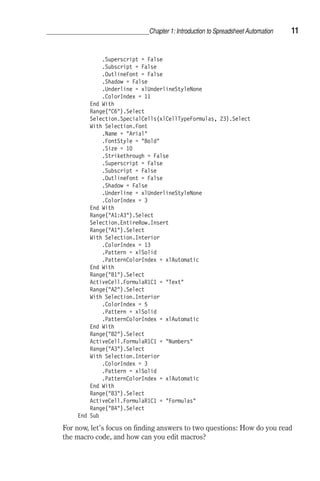
break mode, all of the options on the 
Debug menu are available. You can 
enter break mode by pressing Esc, 
Ctrl+Break, or F8, or by setting a 
breakpoint. 
While you work in break mode, if 
you change certain code, VBA will 
prompt you to reset the project by 
Using the Stop Statement 
displaying the following error mes-sage: 
“This action will reset your 
project, proceed anyway?” You can 
click OK to cease the program’s 
execution and proceed editing your 
code or Cancel to delete the new 
changes and continue running the 
code from the point at which it was 
suspended. To see this error, place 
your procedure in break mode, and 
then proceed to change the variable 
declaration. As you press F5 to 
resume code execution, VBA will 
prompt you to reset your project. 
Sometimes you won’t be able to test your procedure right away. If you set 
up your breakpoints and then close the file, Excel will remove your break-points, 
and the next time you are ready to test your procedure, you’ll have 
to begin by setting up your breakpoints again. If you need to postpone the 
task of testing your procedure until later, you can take a different approach. 
Simply insert a Stop statement into your code wherever you want to halt a 
procedure. Figure 13-8 shows the Stop statement before the For…Next 
loop. Visual Basic will suspend the execution of the StopExample procedure 
when it encounters the Stop statement. The screen will display the Code 
window in break mode. Although the Stop statement has exactly the same 
effect as setting a breakpoint, it has one disadvantage, all Stop statements 
stay in the procedure until you remove them. When you no longer need to 
stop your procedure, you must locate and remove all the Stop statements.
384 Chapter 13: Debugging VBA Procedures and Handling Errors 
Adding a Watch Expression 
Many errors in procedures are caused by variables that assume unexpected 
values. If a procedure uses a variable whose value changes in various loca-tions, 
you may want to stop the procedure and check the current value of 
that variable. Visual Basic offers a special Watch window, which allows you 
to keep an eye on variables or expressions while your procedure is running. 
To add a watch expression to your procedure, perform the following: 
1. In the Code window, select the variable whose value you want to 
monitor. 
2. Choose Debug | Add Watch. 
The screen will display the Add Watch dialog box, as shown in Figure 
13-9. 
The Add Watch dialog box contains three sections described in the fol-lowing 
table: 
Figure 13-8: 
You can insert a 
Stop statement 
anywhere in the 
code of your 
VBA procedure. 
The procedure 
will halt when it 
gets to the Stop 
statement, and 
the Code 
window will 
appear with the 
line highlighted. 
Figure 13-9: 
The Add Watch dialog box 
allows you to define conditions 
that you want to monitor while 
a VBA procedure is running.
Chapter 13: Debugging VBA Procedures and Handling Errors 385 
Expression Displays the name of a variable that you have highlighted in 
your procedure. If you open the Add Watch dialog box without 
selecting a variable name, type the name of the variable you 
want to monitor in the Expression text box. 
Context In this section you should indicate the name of the procedure 
that contains the variable and the name of the module where 
this procedure is located. 
Watch Type Specifies how to monitor the variable. If you choose the Watch 
Expression option button, you will be able to read the value of 
the variable in the Watch window while in break mode. If you 
choose the Break When Value is True option button, Visual 
Basic will automatically stop the procedure when the variable 
evaluates to true (nonzero). The last option button, Break When 
Value Changes, stops the procedure each time the value of the 
variable or expression changes. 
You can add a watch expression before running a procedure or after execu-tion 
of your procedure has been suspended. 
The difference between a breakpoint and a watch expression is that the 
breakpoint always stops a procedure in a specified location and the watch 
stops the procedure only when the specified condition (Break When Value 
is True or Break When Value Changes) is met. Watches are extremely use-ful 
when you are not sure where the variable is being changed. Instead of 
stepping through many lines of code to find out where the variable assumes 
the specified value, you can simply put a watch breakpoint on the variable 
and run your procedure as normal. Let’s see how this works. 
1. Prepare the procedure shown in Figure 13-10. 
Figure 13-10: Using the Watches window
386 Chapter 13: Debugging VBA Procedures and Handling Errors 
The WhatDate procedure uses the For…Next loop to calculate the date that 
is x days in the future. If you run this procedure, you won’t get any result 
unless you insert the following instruction in the code of the procedure: 
MsgBox “In “  x  “ days, it will be “  NewDate 
This time, however, you don’t want to display the individual dates, day after 
day. Suppose that you want to stop the program when the value of the vari-able 
x reaches 211. In other words, you want to know what date will be 211 
days from now. To get the answer, you could insert the following statement 
into your procedure: 
If x = 211 Then MsgBox In   x   days it will be   NewDate 
Let’s say you want to get the answer without introducing any new state-ments 
into your procedure. How do you do this? If you add watch 
expressions to the procedure, Visual Basic will stop the For…Next loop 
when the specified condition is met, and you’ll be able to check the values 
of the desired variables. 
1. Choose Debug | Add Watch. 
2. In the Expression text box, enter the following expression: x = 211. 
3. In the Context section, choose What Date from the Procedure combo 
box, and Breaks from the Module combo box. 
4. In the Watch Type section, select the Break When Value is True 
option button. 
5. Click OK to close the Add Watch dialog box. You have now added your 
first watch expression. 
6. In the Code window, position the insertion point anywhere within the 
name of the curDate variable. 
7. Choose Debug | Add Watch, and click OK to set up the default watch 
type with Watch Expression. 
8. In the Code window, position the insertion point anywhere within the 
name of the newDate variable. 
9. Choose Debug | Add Watch, and click OK to set up the default watch 
type with Watch Expression. 
After performing the above steps, the WhatDate procedure contains 
the following three watches: 
x = 211 Break When Value is True 
curDate Watch Expression 
newDate Watch Expression 
10. Position the insertion point anywhere inside the code of the WhatDate 
procedure, and press F5. Visual Basic stops the procedure when x 
equals 211 (see Figure 13-10).
Chapter 13: Debugging VBA Procedures and Handling Errors 387 
Notice that the value of the variable x in the Watches window is the 
same as the value that you specified in the Add Watch dialog. In addi-tion, 
the Watches window shows the value of the variables curDate and 
newDate. The procedure is in break mode. You can press F5 to continue 
or you can ask another question: What date will be in 277 days? The 
next step shows how to do this. 
11. Choose Debug | Edit Watch, and enter the following expression: x = 
27. You can quickly display the Edit Watch dialog box by double-click-ing 
the expression in the Watches window. 
12. Click OK to close the Edit Watch dialog box. Notice that the Watches 
window now displays a new value of the expression. x is now False. 
13. Press F5. The procedure stops again when the value of x equals 277. 
The value of curDate is the same. However, the newDate variable now 
contains a new value—a date that is 277 days from now. You can change 
the value of the expression again or finish the procedure. 
14. Press F5 to finish the procedure without stopping. 
When your procedure is running and a watch expression has a value, 
the Watches window displays the value of the watch expression. If you 
open the Watches window after the procedure has finished, you will see 
out of context instead of the variable values. In other words, when 
the watch expression is out of context, it does not have a value. 
Removing Watch Expressions 
1. In the Watches window, click on the expression you want to remove 
and press Delete. Remove all the watch expressions you defined in the 
preceding exercise. 
Using Quick Watch 
If you want to check the value of an expression for which you have not 
defined a watch expression, you can use Quick Watch (Figure 13-11). 
Figure 13-11: 
The Quick Watch dialog box 
shows the value of the selected 
expression in a VBA procedure. 
The Quick Watch dialog box can be accessed in the following way: 
 While in break mode, position the insertion point anywhere inside the 
name of a variable or expression you wish to watch. 
 Choose Debug | Quick Watch, or press Shift+F9.
388 Chapter 13: Debugging VBA Procedures and Handling Errors 
The Quick Watch dialog box contains the Add button that allows you to add 
the expression to the Watches window. 
Make sure the WhatDate procedure does not contain any watch expres-sions. 
See the preceding section on how to remove a watch expression from 
the Watches window. Now, let’s see by example how to take advantage of 
the Quick Watch. 
1. In the WhatDate procedure, position the insertion point on the name of 
the variable x. 
2. Choose Debug | Add Watch. 
3. Enter the following expression: x = 50. 
4. Choose the Break When Value is True option button, and click OK. 
5. Run the WhatDate procedure. 
Visual Basic will suspend procedure execution when x equals 50. 
Notice that the Watches window does not contain the newDate nor the 
curDate variable. To check the values of these variables, you can posi-tion 
the mouse pointer over the appropriate variable name in the Code 
window, or you can invoke the Quick Watch window. 
6. In the Code window, position the mouse inside the newDate variable and 
press Shift+F9. The Quick Watch window shows the name of the 
expression and its current value. 
7. Click Cancel to return to the Code window. 
8. In the Code window, position the mouse inside the curDate variable and 
press Shift+F9. The Quick Watch window now shows the value of the 
variable curDate. 
9. Click Cancel to return to the Code window. 
10. Press F5 to continue running the procedure. 
Using the Locals Window and the Call Stack Dialog Box 
If during the execution of a VBA procedure you want to keep an eye on all 
the declared variables and their current values, make sure to choose View | 
Locals Window before you run the procedure. While in break mode, Visual 
Basic will display a list of variables and their corresponding values in the 
Locals window (Figure 13-12). 
The Locals window contains three columns. The Expression column 
displays the names of variables that are declared in the current procedure. 
The first row displays the name of the module preceded by the plus sign. 
When you click the plus sign, you can check if any variables have been 
declared at the module level. The class module will show here the system 
variable Me. In the Locals window, the global variables and variables used by 
other projects aren’t displayed. 
The second column shows the current values of variables. In this col-umn, 
you can change the value of a variable by clicking it and typing the
Chapter 13: Debugging VBA Procedures and Handling Errors 389 
Figure 13-12: The Locals window displays the current values of all the declared 
variables in the current VBA procedure. 
new value. After changing the value, press Enter to register the change. 
You can also press Tab, Shift+Tab, or the up or down arrow or click any-where 
within the Locals window after you’ve changed the variable value. 
The third column displays the type of each declared variable. 
To observe the values of variables in the Locals window, do the 
following: 
1. Choose View | Locals Window. 
2. Click anywhere inside the WhatDate procedure and press F8. By 
pressing F8, you place the procedure in break mode. The Locals win-dow 
displays the name of the current module and the local variables 
and their beginning values. 
3. Press F8 a few more times while keeping an eye on the Locals window. 
4. Press F5 to continue running the procedure. 
The Locals window also contains a button with three dots. This button 
opens the Call Stack dialog box (Figure 13-13), which displays a list of all 
active procedure calls. An active procedure call is a procedure that is 
started but not completed. You can also activate the Call Stack dialog box by 
choosing View | Call Stack. This option is only available in break mode.
390 Chapter 13: Debugging VBA Procedures and Handling Errors 
Figure 13-13: The Call Stack dialog box displays a list of the procedures that are 
started but not completed. 
The Call Stack dialog box is especially helpful for tracing nested proce-dures. 
Recall that a nested procedure is a procedure that is being called 
from within another procedure. If a procedure calls another, the name of the 
called procedure is automatically added to the Calls list in the Call Stack 
dialog box. When Visual Basic has finished executing the statements of the 
called procedure, the procedure name is automatically removed from the 
Call Stack dialog box. You can use the Show button in the Call Stack dialog 
box to display the statement that calls the next procedure listed in the Call 
Stack dialog box. 
Stepping through VBA Procedures 
Stepping through the code means running one statement at a time. This 
allows you to check every line in every procedure that is encountered. To 
start stepping through the procedure from the beginning, place the inser-tion 
point anywhere inside the code of your procedure and choose Debug | 
Step Into, or press F8. The Debug menu contains several options that allow 
you to execute a procedure in the step mode (see Figure 13-14). 
When you run a procedure one statement at a time, Visual Basic exe-cutes 
each statement until it encounters the End Sub keywords. If you don’t 
want Visual Basic to step through every statement, you can press F5 at any 
time to run the rest of the procedure without stepping through it.
Chapter 13: Debugging VBA Procedures and Handling Errors 391 
Figure 13-14: The Debug menu offers many commands for stepping through VBA 
procedures. 
Stepping through a Procedure 
1. Place the insertion point anywhere inside the code of the procedure 
whose execution you wish to trace. 
2. Press F8 or choose Debug | Step Into. Visual Basic executes the cur-rent 
statement and automatically advances to the next statement and 
suspends execution. While in break mode, you can activate the Immedi-ate 
window, Watches window, or Locals window to see the effect of a 
particular statement on the values of variables and expressions. And, if 
the procedure you are stepping through calls other procedures, you can 
activate the Call Stack window to see which procedures are currently 
active. 
3. Press F8 again to execute the selected statement. After executing this 
statement, Visual Basic will select the next statement, and the proce-dure 
execution will be halted again. 
4. Continue stepping the procedure by pressing F8, or press F5 to con-tinue 
the code execution without stopping. You can also choose Run | 
Reset to stop the procedure at the current statement without execut-ing 
the remaining statements. 
When you step over procedures (Shift+F8), Visual Basic executes each 
procedure as if it were a single statement. This option is particularly useful
392 Chapter 13: Debugging VBA Procedures and Handling Errors 
if a procedure contains calls to other procedures and you don’t want to step 
into these procedures because they have already been tested and debugged 
or you want to concentrate only on the new code that has not yet been 
debugged. 
Stepping Over a Procedure 
Suppose the current statement in MyProcedure calls the SpecialMsg proce-dure. 
If you choose Debug | Step Over (Shift+F8) instead of Debug | Step 
Into (F8), Visual Basic will quickly execute all the statements inside the 
SpecialMsg procedure and select the next statement in the calling proce-dure 
MyProcedure. During the execution of the SpecialMsg procedure, 
Visual Basic continues to display the Code window with the current 
procedure. 
1. Enter the following procedure in the current module: 
Sub MyProcedure() 
Dim myName As String 
Workbooks.Add 
myName = ActiveWorkbook.Name 
‘ choose Step Over to avoid stepping through the 
‘ lines of code in the called procedure - SpecialMsg 
SpecialMsg myName 
Workbooks(myName).Close 
End Sub 
Sub SpecialMsg(n As String) 
If n = Book2 Then 
MsgBox You must change the name. 
End If 
End Sub 
2. Add a breakpoint at the following statement: 
SpecialMsg myName 
3. Place the insertion point anywhere within the code of MyProcedure, 
and press F5 to run it. Visual Basic halts execution when it reaches the 
breakpoint. 
4. Press Shift+F8, or choose Debug | Step Over. Visual Basic quickly 
runs the SpecialMsg procedure and execution and then advances to the 
statement immediately after the call to the SpecialMsg procedure. 
5. Press F5 to finish running the procedure without stepping through its 
code. 
Stepping over a procedure is particularly useful when you don’t want to 
analyze individual statements inside the called procedure (SpecialMsg). 
Another command on the Debug menu, Step Out (Ctrl+Shift+F8), is 
used when you step into a procedure and then decide that you don’t want to 
step all the way through it. When you choose this option, Visual Basic will
Chapter 13: Debugging VBA Procedures and Handling Errors 393 
execute the remaining statements in this procedure in one step and proceed 
to activate the next statement in the calling procedure. 
In the process of stepping through a procedure, you can switch between 
Step Into, Step Over, and Step Out options. The option you select depends 
on which code fragment you wish to analyze at a given moment. 
The Debug menu Run to Cursor (Ctrl+F8) command lets you run your 
procedure until the line you have selected is encountered. This command is 
really useful if you want to stop the execution before a large loop or you 
intend to step over a called procedure. 
Suppose you want to execute the MyProcedure procedure to the line 
that calls the SpecialMsg procedure. 
1. Click inside the statement SpecialMsg myName. 
2. Choose Debug | Run to Cursor. Visual Basic will stop the procedure 
when it reaches the specified line. 
3. Press Shift+F8 to step over the SpecialMsg procedure. 
4. Press F5 to execute the rest of the procedure without single stepping. 
Setting the Next Statement 
At times, you may want to rerun previous lines of code in the procedure or 
skip over a section of code that is causing trouble. In each of these situa-tions, 
you can use the Set the Next Statement option on the Debug menu. 
When you halt execution of a procedure, you can resume the procedure 
from any statement you want. Visual Basic will skip execution of the state-ments 
between the selected statement and the statement where execution 
was suspended. Suppose that in MyProcedure (see the code of this proce-dure 
in the preceding section) you have set a breakpoint on the statement 
calling the SpecialMsg procedure. To skip the execution of the SpecialMsg 
procedure, you can place the insertion point inside the statement Work-books( 
myName).Close and press Ctrl+F9 (or choose Debug | Set Next 
Statement). You can’t use the Set Next Statement option unless you have 
suspended the execution of the procedure. 
Tip 13-4: Skipping Lines of Code 
Although skipping lines of code can be very useful in the process of 
debugging your VBA procedures, it should be done with care. When 
you use the Next Statement option, you tell Visual Basic that this is 
the line you want to execute next. All lines in between are ignored. 
This means that certain things that you may have expected to occur 
don’t happen, which can lead to unexpected errors.
394 Chapter 13: Debugging VBA Procedures and Handling Errors 
Showing the Next Statement 
If you are not sure from which statement the execution of the procedure 
will resume, you can choose Debug | Show Next Statement, and Visual 
Basic will place the cursor on the line that will run next. This is particularly 
useful when you have been looking at other procedures and are not sure 
where execution will resume. The Show Next Statement option is available 
only in break mode. 
Stopping and Resetting VBA Procedures 
At any time, while stepping through the code of a procedure in the Code 
window, you can: 
 Press F5 to execute the remaining instructions without stepping 
through 
 Choose Run | Reset to finish the procedure without executing the 
remaining statements 
When you reset your procedure, all the variables lose their current values. 
Numeric variables assume the initial value of zero, variable-length strings 
are initialized to a zero-length string (“ ”), and fixed-length strings are filled 
with the character represented by the ASCII character code 0 or Chr(0). 
Variant variables are initialized to Empty, and the value of the object vari-ables 
is set to Nothing. 
Understanding and Using 
Conditional Compilation 
When you run a procedure for the first time, Visual Basic converts the VBA 
statements you used into the machine code understood by the computer. 
This process is called compiling. You can also perform the compilation of 
your entire VBA project before you run the procedure by choosing Debug | 
Compile (name of the current VBA project). 
You can tell Visual Basic to include or ignore certain blocks of code 
when compiling and running by using conditional compilation. Your proce-dure 
may behave differently, depending on the condition you set. For 
example, conditional compilation is used to compile an application that will 
be run on different platforms (Windows or Macintosh, Win16 or Win32 bit). 
Conditional compilation is also useful in localizing an application for differ-ent 
languages. The program code excluded during the conditional 
compilation is omitted from the final file; thus, it has no effect on the size or 
performance of the program. 
To enable conditional compilation, you should use special expressions 
called directives. First you need to declare a Boolean (True or False) con-stant 
by using the #Const directive. Next, you check this constant inside 
the #If . . .Then... #Else directive. The portion of code that you want to
compile conditionally must be surrounded by these directives. Notice that 
the If and Else keywords are preceded by a number sign (#). 
If a portion of code is to be run, the value of the conditional constant 
has to be set to True (–1). Otherwise, the value of this constant should be 
set to False (0). 
Declare the conditional constant in the declaration section of the mod-ule. 
For example: 
#Const User = True 
This declares the conditional constant named User. 
In the procedure that follows, data is displayed in the Polish language 
when the conditional constant named verPolish is True. The WhatDay pro-cedure 
calls the DayOfWeek function, which returns the name of the week 
based on the supplied date. To compile the program in the English lan-guage, 
all you have to do is change the conditional constant to False and 
Visual Basic will jump to the block of instructions located after the #Else 
directive. 
1. Insert a new module into the current VBA project, and rename it 
Conditional. 
2. Enter the following procedure and functions: 
‘ declare a conditional compiler constant 
#Const verPolish = True 
Sub WhatDay() 
Dim dayNr As Integer 
#If verPolish = True Then 
dayNr = WeekDay(InputBox(“Wpisz date, np. 01/01/2000”)) 
MsgBox “To bedzie “  DayOfWeek(dayNr)  “.” 
#Else 
WeekdayName 
#End If 
End Sub 
Function DayOfWeek(dayNr As Integer) As String 
DayOfWeek = Choose(dayNr, “niedziela”, “poniedzialek”, “wtorek”, _ 
“sroda”, “czwartek”, “piatek”, “sobota”) 
End Function 
Function WeekdayName() As String 
Select Case WeekDay(InputBox(“Enter date, e.g. 01/01/2000”)) 
Case 1 
WeekdayName = “Sunday” 
Case 2 
WeekdayName = “Monday” 
Case 3 
WeekdayName = “Tuesday” 
Case 4 
WeekdayName = “Wednesday” 
Case 5 
Chapter 13: Debugging VBA Procedures and Handling Errors 395
396 Chapter 13: Debugging VBA Procedures and Handling Errors 
WeekdayName = “Thursday” 
Case 6 
WeekdayName = “Friday” 
Case 7 
WeekdayName = “Saturday” 
End Select 
MsgBox “It will be “  WeekdayName  “.” 
End Function 
3. Run the WhatDay procedure. Because the conditional compilation con-stant 
(verPolish) is set to True at the top of the module, Visual Basic 
runs the Polish version of the WhatDay procedure. It asks for the 
user’s input in Polish and displays the result in Polish. To run the Eng-lish 
version of the code, set the verPolish constant to False, and rerun 
the procedure. 
Instead of declaring the conditional compiler constants at the top of a 
module, you can choose Tools | (Debugging) Properties (Figure 13-15). 
When you use the Properties window, use the following syntax in the 
Conditional Compilation Arguments text box to enable the English ver-sion 
of the WhatDay procedure: 
verPolish = 0 
If there are more conditional compilation constants, each of the con-stants 
must be separated by a colon. 
4. Comment out the #Const verPolish directive at the top of the module 
and enter the conditional compilation constant in the Properties dialog 
box, as shown in Figure 13-15. Then run the WhatDay procedure to see 
how the Else branch of your program is now executed for English-speaking 
users. 
Figure 13-15: 
The conditional compilation 
constant can be declared 
either at the top of the 
module or in the Properties 
window but never in both 
places.
Chapter 13: Debugging VBA Procedures and Handling Errors 397 
Navigating with Bookmarks 
In the process of analyzing or reviewing your VBA procedures, you will 
often find yourself jumping to certain code areas. Using the built-in book-mark 
feature, you can easily mark the spots that you want to navigate 
between. 
To set up a bookmark: 
1. Click anywhere in the statement that you want to define as a 
bookmark. 
2. Choose Edit | Bookmarks | Toggle Bookmark (or click the Toggle 
Bookmark button on the Edit toolbar—see Figure 13-16). Visual 
Basic will place a blue, rounded rectangle in the left margin beside 
the statement. 
Figure 13-16: You can quickly jump between often-used sections of your procedures 
using bookmarks. 
Once you’ve set up two or more bookmarks, you can jump between the 
marked locations of your code by choosing Edit | Bookmarks | Next Book-mark, 
or simply click the Next Bookmark button on the Edit toolbar. You 
may also right-click anywhere in the code window and select Next Book-mark 
from the shortcut menu. To go to the previous bookmark, select 
Previous Bookmark instead. 
You can remove bookmarks at any time by choosing Edit | Bookmarks 
| Clear All, or click the Clear All Bookmarks button on the Edit toolbar. To 
remove a single bookmark, click anywhere in the bookmarked statement
398 Chapter 13: Debugging VBA Procedures and Handling Errors 
and choose Edit | Bookmarks | Toggle Bookmark, or click the Toggle 
Bookmark button on the Edit toolbar. 
Trapping Errors 
No one writes bug-free programs the first time. When you create VBA pro-cedures, 
you have to determine how your program will respond to errors. 
Many unexpected errors happen during run time. For example, your proce-dure 
may try to give a workbook the same name as an open workbook. 
Run-time errors are often discovered not by a programmer but by the user 
who attempts to do something that the programmer has not anticipated. If 
an error occurs when the procedure is running, Visual Basic displays an 
error message and the procedure is stopped. Most often, the error message 
that VBA displays is quite cryptic to the user. You can prevent users from 
seeing many run-time errors by including error-handling code in your VBA 
procedures. This way, when Visual Basic encounters an error, instead of dis-playing 
a default error message, it will show a much friendlier and more 
comprehensive error message, perhaps advising the user how to correct 
the error. 
How do we implement error handling in your VBA procedure? The first 
step is to place the On Error statement in your procedure. This statement 
tells VBA what to do if an error happens while your program is running. In 
other words, VBA uses the On Error statement to activate an error-han-dling 
procedure that will trap run-time errors. Depending on the type of 
procedure, you can exit the error trap by using one of the following state-ments: 
Exit Sub, Exit Function, Exit Property, End Sub, End Function, or 
End Property. You should write an error-handling routine for each 
procedure. 
The On Error statement can be used in one of the following ways: 
On Error GoTo Label Specifies a label to jump to when an error occurs. This 
label marks the beginning of the error-handling routine. 
An error handler is a routine for trapping and 
responding to errors in your application. The label 
must appear in the same procedure as the On Error 
statement. 
On Error Resume Next When a run-time error occurs, Visual Basic ignores the 
line that caused the error and does not display an error 
message but continues the procedure with the next 
line. 
On Error GoTo 0 Turns off error trapping in a procedure. When VBA runs 
this statement, errors are detected but not trapped 
within the procedure.
The Archive procedure shown below uses the error-handling routine (see 
the bottom of the procedure). The procedure uses the built-in SaveCopyAs 
method to save the copy of the current workbook to a file without modify-ing 
the open workbook in memory. 
1. Insert a new module into the current project and rename it Traps. 
2. Enter the Archive procedure, as shown below: 
Sub Archive() 
Dim folderName As String 
Dim DriveA As String 
Dim BackupName As String 
Dim Response As Integer 
Application.DisplayAlerts = False 
On Error GoTo DiskProblem 
folderName = ActiveWorkbook.Path 
If folderName =  Then 
MsgBox You can't copy this file.   Chr(13) _ 
 This file has not been saved., _ 
vbInformation, File Archive 
Else 
With ActiveWorkbook 
If Not .Saved Then .Save 
DriveA = A: 
MsgBox Place a diskette in drive   DriveA  _ 
 and click OK., , Copying to   DriveA 
BackupName = DriveA  .Name 
.SaveCopyAs Filename:=BackupName 
MsgBox .Name   was copied to a disk in drive   _ 
DriveA, , End of Archiving 
End With 
End If 
GoTo ProcEnd 
DiskProblem: 
Chapter 13: Debugging VBA Procedures and Handling Errors 399 
Tip 13-5: An Error or a Mistake? 
In programming, mistakes and errors 
are not the same thing. A mistake, such 
as a misspelled or missing statement, a 
misplaced quote or comma, or 
assigning a value of one type to a 
variable of a different (and 
incompatible) type, can be removed 
from your program through proper 
testing and debugging. But even 
though your code may be free of 
mistakes, that does not mean that 
errors will not occur. An error is a result 
of an event or an operation that doesn’t 
work as expected. For example, if your 
VBA procedure accesses a particular 
file on disk and someone deleted this 
file or moved it to another location, 
you’ll get an error no matter what. An 
error prevents the procedure from 
carrying out a specific task.
400 Chapter 13: Debugging VBA Procedures and Handling Errors 
Response = MsgBox(There is no disk in drive A   Chr(13) _ 
 or disk in drive   DriveA   is not formatted , _ 
vbRetryCancel, Check Disk Drive) 
If Response = 4 Then 
Resume 0 
Else 
Exit Sub 
End If 
ProcEnd: 
Application.DisplayAlerts = True 
End Sub 
After the declaration of variables, the Archive procedure’s Applica-tion. 
DisplayAlerts = False statement ensures that Visual Basic won’t 
display its own alerts and messages while the procedure is running. The 
next statement, On Error GoTo DiskProblem, specifies a label to jump to when 
an error occurs. The path name where the active workbook was saved is 
stored in the variable folderName. 
If Visual Basic can’t find the workbook’s path, it assumes the file was 
not saved and displays an appropriate message. Next, Visual Basic jumps to 
the statement following the End If and executes the instruction GoTo 
ProcEnd, which directs it to the ProcEnd label located just before the End 
Sub keywords. Notice that the label is followed by a colon. Visual Basic exe-cutes 
the statement Application.DisplayAlerts = True, which restores the 
system’s built-in alerts and messages. Because there are no more state-ments 
to execute, the procedure ends. 
If the active workbook’s path is not an empty string, Visual Basic 
checks whether the recent changes in the workbook have already been 
saved. If they weren’t, VBA uses the If Not .Saved Then .Save statement to 
save the active workbook. Saved is the VBA property of the Workbook 
object. Next, Visual Basic stores the name of the diskette drive “A:” in the 
variable DriveA and displays a message that prompts the user to insert a dis-kette 
into the specified drive. The name of the disk drive is then combined 
with the name of the active workbook and stored in the variable named 
BackupName. 
As you know, while copying files to a diskette, all kinds of things can go 
wrong. For example, a diskette drive may be empty, or a diskette may be 
unformatted or full. When Visual Basic detects an error, it will jump to the 
line of code beginning with the label DiskProblem and an appropriate mes-sage 
will be displayed. If the user clicks the Retry button (4) in the message 
box, Visual Basic will execute the statement Resume 0. This statement will 
send Visual Basic to the statement that caused the error (.SaveCopyAs File- 
Name:=BackupName), and Visual Basic will execute it again. If the user clicks 
the Cancel button in the message box, VBA will execute the statement Exit 
Sub and the procedure will end.
If there’s no problem with the diskette in drive “A:”, VBA will copy the 
active workbook to the diskette and the message will notify the user that 
the copy operation was successful. 
3. Run the Archive procedure several times, each time responding differ-ently 
to the presented options. Make sure to test as many possibilities 
as you can identify. Use various debugging techniques that you have 
learned in this chapter. 
Let’s look at another example procedure. The OpenToRead procedure 
shown below demonstrates the use of the Resume Next and Error state-ments, 
as well as the Err object. 
Sub OpenToRead() 
Dim myFile As String 
Dim myChar As String 
Dim myText As String 
Dim FileExists As Boolean 
FileExists = True 
On Error GoTo ErrorHandler 
myFile = InputBox(Enter the name of file you want to open:) 
Open myFile For Input As #1 
If FileExists Then 
Do While Not EOF(1) ' loop until the end of file 
myChar = Input(1, #1) ' get one character 
myText = myText + myChar ' store in the variable myText 
Loop 
Debug.Print myText ' print to the Immediate window 
' Close the file -commenting out this instruction will cause 
‘ error 52. 
Close #1 
End If 
Chapter 13: Debugging VBA Procedures and Handling Errors 401 
Tip 13-6: Procedure Testing 
You are responsible for the code that 
you produce. This means that before 
you give your procedure to others to 
test, test it yourself. After all, you will 
understand how it is supposed to work. 
Some programmers think that testing 
their own code is some sort of 
demeaning activity, especially when 
they work in an organization that has a 
team devoted to testing. Don’t make 
this mistake. The testing process at the 
programmer level is as important as the 
code development itself. After you’ve 
tested the procedure yourself, you 
should give it to users to test. Users will 
provide you with answers to questions 
such as: Does the procedure produce 
the expected results? Is it easy and fun 
to use? Does it follow the standard 
conventions? Also, it is a good idea to 
give the entire application to someone 
who knows little about using this 
particular application, and ask them to 
play around with it and try to break it.
402 Chapter 13: Debugging VBA Procedures and Handling Errors 
Exit Sub 
ErrorHandler: 
FileExists = False 
Select Case Err.Number 
Case 71 
MsgBox The diskette drive is empty. 
Case 53 
MsgBox This file can’t be found on the specified drive. 
Case 75 
Exit Sub 
Case Else 
MsgBox Error   Err.Number   :  Error(Err.Number) 
Exit Sub 
End Select 
Resume Next 
End Sub 
The purpose of the OpenToRead procedure is to read the contents of the 
user-supplied text file character by character (working with files is covered 
in Chapter 8). When the user enters a filename, various errors can occur. 
For example, the filename may be wrong, or the user may attempt to open a 
file from a diskette when there is no disk in the diskette drive or open a file 
that is already open. 
To trap these errors, the error-handling routine at the end of the 
OpenToRead procedure uses the Name property of the Err object. The Err 
object contains information about run-time errors. If an error occurs while 
the procedure is running, the statement Err.Number will return the error 
number. 
If errors 71, 53, or 75 occur, Visual Basic will display user-friendly 
messages stated inside the Select…Case block and then proceed to the 
Resume Next statement, which will send it to the line of code following the 
one that caused the error. If another (unexpected) error occurs, Visual 
Basic will return its error code (Err.Number) and error description (Error- 
(Err.Number)). 
At the beginning of the procedure, the variable FileExists is set to 
True. This way, if the program doesn’t encounter an error, all the instruc-tions 
inside the If FileExists Then block will be executed. However, if VBA 
encounters an error, the value of the FileExists variable will be set to False 
(see the first statement in the error-handling routine just below the 
ErrorHandler label). This way, Visual Basic will not cause another error 
while trying to read a file that caused the error on opening. If you comment 
the statement Close #1, Visual Basic will encounter the error on the next 
attempt to open the same file. 
Notice the Exit Sub statement before the ErrorHandler. Put the Exit 
Sub statement just above the error-handling routine. You don’t want Visual 
Basic to carry out the error handling if there are no errors. 
To test the OpenToRead procedure and better understand error trap-ping, 
let’s perform the following exercise:
Chapter 13: Debugging VBA Procedures and Handling Errors 403 
1. Prepare a text file named C:Vacation.txt using Windows Notepad. 
Enter any text you want in this file. 
2. Run the OpenToRead procedure four times in the step mode, each time 
supplying one of the following: 
 Name of the C:Vacation.txt file 
 Filename that does not exist on drive C 
 Name of any file in Drive A (when the diskette slot is empty) 
 Comment the Close #1 statement and enter C:Vacation.txt as 
the filename 
Tip 13-7: Errors: Generating Them to Test Error Handling 
You can test the ways that your 
program responds to run-time errors 
by causing them on purpose: 
 Generate any built-in error by 
using the following syntax: Error 
error_number. For example, to 
display the error that occurs on 
the attempt to divide by zero, type 
the following in the Immediate 
window: 
Error 11 
When you press Enter, Visual Basic 
will display the error message 
What’s Next... 
saying: Run-time error 11. Division by 
zero. 
 To check the meaning of the gener-ated 
error, use the following syntax: 
Error(error_number). For example, to 
find out what error number 7 means, 
type the following in the Immediate 
window: 
?Error(7) 
When you press Enter, Visual Basic 
returns the error description: Out of 
memory. 
In this chapter you learned how to test your VBA procedures to make sure 
they perform as planned. You debugged your code by stepping through it 
using breakpoints and watches. You learned how to work with the Immedi-ate 
window in break mode. You found out how the Locals window can help 
you monitor the values of variables and how the Call Stack dialog box can 
be helpful in keeping track of where you are in a complex program. You’ve 
learned to specify parts of your procedure that you want to include or 
exclude upon compilation. Finally, you learned how to trap errors with 
error-handling routines. By using the built-in debugging tools, you can 
quickly pinpoint the problem spots in your procedures. Try to spend more 
time getting acquainted with these tools. Mastering the art of debugging 
can save you hours of trial and error.
404 Chapter 13: Debugging VBA Procedures and Handling Errors 
By completing Chapters 1 through 13, you have gained a solid, working 
knowledge of the Visual Basic for Applications language that you’re most 
likely to need to get started in your own Excel spreadsheet automating pro-jects. 
This chapter ends the intermediate level of your encounters with 
VBA in Excel 2002. VBA offers many more advanced features, which we 
will explore in the remaining chapters of this book.
Chapter 14 
Event 
Programming in 
Microsoft Excel 
2002 
Introduction to Event Procedures  Enabling and Dis-abling 
Events  Event Sequences  Worksheet Events 
 Workbook Events  Chart Events  Embedded Chart 
Events  Events Recognized by the Application Object 
 Query Table Events  What’s Next… 
405
406 Chapter 14: Event Programming in Microsoft Excel 2002 
How do you disable a built-in shortcut menu when a user clicks on a 
worksheet cell? How do you display a custom message before a workbook 
is opened or closed? How can you validate data entered in a cell or range of 
cells? To get complete control over Microsoft Excel, you must learn how to 
respond to events. Learning how to program events will allow you to imple-ment 
your own functionality in an Excel application. The first thing you 
need to learn about this subject matter is what an event is. Here’s a simple 
definition: 
An event is something that happens. 
Needless to say, events happen to objects that are part of Microsoft Excel. 
However, once you learn about events in Excel, you will find it easier to 
understand events that occur to objects in Word or any other Microsoft 
Office application. Events are actions recognized by an object. 
Now that you know what events are, you need to know that events can 
be triggered by an application user (such as yourself), another program, or 
the system itself. So, how can you trigger an event? Suppose you right-click 
a worksheet cell. This particular action would display a built-in shortcut 
menu for a worksheet cell, allowing you to quickly access the most fre-quently 
used commands related to worksheet cells. But what if this 
particular built-in response isn’t appropriate under certain conditions? You 
may want to entirely disallow right-clicking in a worksheet or perhaps 
ensure that a custom menu appears on a cell shortcut menu when the user 
right-clicks any cell. The good news is you can use VBA to write code that 
can react to events as they occur. 
Microsoft Excel provides many events to which you can respond. The 
following objects can respond to events: 
 Worksheet 
 Chart Sheet 
 Query Table 
 Workbook 
 Application 
You can decide what should happen when a particular event occurs by writ-ing 
an event procedure. 
Introduction to Event Procedures 
A special type of VBA procedure, an event procedure, is used to react to spe-cific 
events. This procedure contains VBA code that handles a particular 
event. Some events may require a single line of code, while others can be 
more complex. Event procedures have names, which are created in the fol-lowing 
way: 
ObjectName_EventName()
Chapter 14: Event Programming in Microsoft Excel 2002 407 
In the parentheses after the name of the event, you can place parameters 
that need to be sent to the procedure. The programmer cannot change the 
name of the event procedure. 
Before you can write an event procedure to react to an Excel event, 
you need to know: 
 The name of the particular object and event that you want to respond to 
Objects that can respond to events display a list of events in the Proce-dure 
drop-down list in the Code window (Figure 14-1). Also, you can 
use the Object Browser to find out the names of the events (Figure 
14-2). 
 The place where you should put the code 
Some events are coded in a standard module; others are stored in a 
class module. While workbook, chart sheet, and worksheet events are 
available for any open sheet or workbook, to create event procedures 
for an embedded chart, query table, or Application object, you must 
first create a new object using the With Events keyword in the class 
module. 
Figure 14-1: 
You can find out the 
event names in the 
Code window. 
Figure 14-2: 
You can find out the event names in 
the Object Browser.
408 Chapter 14: Event Programming in Microsoft Excel 2002 
Enabling and Disabling Events 
You can use the Application object’s EnableEvents property to enable or 
disable events. If you are writing a VBA procedure and don’t want a particu-lar 
event to occur, set the EnableEvents property to False. For example, to 
avoid triggering the Workbook_BeforeClose event while running the 
EnterData procedure (see below), set the EnableEvents property to False 
before calling the Workbook object’s Close method. Set EnableEvents back 
to True before your procedure finishes running to ensure that events are 
enabled. 
1. Open a new workbook and save it as DisableEvents.xls. 
2. Switch to the Visual Basic Editor screen. Double-click ThisWorkbook 
in the Project Explorer window, and enter the Workbook_BeforeSave 
event procedure in the Code window that appears. 
Private Sub Workbook_BeforeSave(ByVal SaveAsUI As Boolean, _ 
Cancel As Boolean) 
If MsgBox(Would you like to copy   vbCrLf _ 
 this worksheet to   vbCrLf _ 
 a new workbook?, vbYesNo) = vbYes Then 
Sheets(ActiveSheet.Name).Copy 
End If 
End Sub 
3. Choose Insert | Module to add a standard module to the active VBA 
project, and enter the procedure shown below: 
Sub EnterData() 
With ActiveSheet.Range(A1:B1) 
.Font.Color = vbRed 
.Value = 15 
End With 
Application.EnableEvents = False 
ActiveWorkbook.Save 
Application.EnableEvents = True 
End Sub 
4. Switch to the Microsoft Excel application window, and choose File | 
Save. The Workbook_BeforeSave event will be triggered at this time. 
Click Yes in response to the message box. Excel will open a new work-book 
with the copy of the current worksheet. 
5. Activate the DisableEvents workbook, and choose Tools | Macro | 
Macros. In the dialog box, click EnterData and then Run. Notice that 
when you run the EnterData procedure, you are not prompted to copy 
the worksheet before saving. This indicates that the Workbook_Before- 
Save event is not running.
Chapter 14: Event Programming in Microsoft Excel 2002 409 
Event Sequences 
Events occur in response to specific actions and occur in a predefined 
sequence. The table below demonstrates the sequence of events while 
opening a new workbook, adding a new worksheet to a workbook, and clos-ing 
the workbook. 
Action Object Event Sequence 
Opening a new workbook Workbook NewWorkbook, WindowDeactivate, 
WorkbookDeactivate, WorkbookActivate, 
WindowActivate 
Inserting a new sheet into 
a workbook 
Workbook WorkbookNewSheet, SheetDeactivate, 
SheetActivate 
Closing a workbook Workbook WorkbookBeforeClose, WindowDeactivate, 
WorkbookDeactivate, WorkbookActivate, 
WindowActivate 
Worksheet Events 
A Worksheet object responds to such events as activating and deactivating 
the worksheet, calculating a worksheet, making a change to a worksheet, 
and double-clicking or right-clicking a worksheet. This section discusses 
some of the events to which the Worksheet object can respond. 
Event Name Activate 
Event Description Example 1 
This event occurs when the user 
activates a sheet. 
Dim shtName As String ‘declared at the top 
‘ of the module 
Private Sub Worksheet_Activate() 
shtName = ActiveSheet.Name 
Range(B2).Select 
End Sub 
The example procedure selects cell B2 each time the sheet is activated. 
 Example 1 – Try It Out: In the Visual Basic Editor window, activate 
the Project Explorer window and open the Microsoft Excel Objects 
folder. Double-click Sheet2 (Sheet2), and type the example procedure 
in the Sheet2 (Code) window. Next, switch to the Microsoft Excel 
application window and activate Sheet2. Notice that when Sheet2 is 
activated, the selection is moved to cell B2.
410 Chapter 14: Event Programming in Microsoft Excel 2002 
Event Name Deactivate 
Event Description Example 2 
This event occurs when the user 
activates a different sheet. 
Private Sub Worksheet_Deactivate() 
MsgBox You deactivated   _ 
shtName  .  vbCrLf  _ 
You switched to   _ 
ActiveSheet.Name  . 
End Sub 
The example procedure displays a message when Sheet2 is deactivated. 
 Example 2 – Try It Out: In the Visual Basic Editor window, activate 
the Project Explorer window and open the Microsoft Excel Objects 
folder. Double-click Sheet2 (Sheet2), and type the example procedure 
in the Sheet2 (Code) window. Next, switch to the Microsoft Excel 
application window and activate Sheet2. The Worksheet_Activate 
procedure that you created in Example 1 will run. Excel will select cell 
B2 and store the name of the worksheet in the shtName global variable 
declared at the top of the Sheet2 code module. Now click any other 
sheet in the active workbook and notice that Excel displays the name of 
the worksheet that you deactivated and the name of the worksheet to 
which you have switched. 
Event Name SelectionChange 
Event Description Example 3 
This event occurs when the user 
selects a worksheet cell. 
Private Sub Worksheet_SelectionChange(ByVal 
Target As Excel.Range) 
On Error Resume Next 
Set myRange = Intersect(Range(A1:A10), Target) 
If Not myRange Is Nothing Then 
MsgBox Data entry or edits are not permitted. 
End If 
End Sub 
The example procedure displays a message if the user selects any cell in myRange. 
 Example 3 – Try It Out: In the Visual Basic Editor window, activate 
the Project Explorer window and open the Microsoft Excel Objects 
folder. Double-click Sheet3 (Sheet3), and type the example procedure 
in the Sheet3 (Code) window. Next, switch to the Microsoft Excel 
application window and activate Sheet3. Click on any cell within the 
specified range A1:A10. Notice that Excel displays a message 
whenever you click the cell in the restricted area.
Chapter 14: Event Programming in Microsoft Excel 2002 411 
Event Name Change 
Event Description Example 4 
This event occurs when the 
user changes a cell formula. 
Private Sub Worksheet_Change(ByVal Target _ 
As Excel.Range) 
Application.EnableEvents = False 
Target = UCase(Target) 
Columns(Target.Column).AutoFit 
Application.EnableEvents = True 
End Sub 
The example procedure changes what you type in a cell to uppercase. The column 
where the target cell is located is then auto-sized. 
 Example 4 – Try It Out: In the Visual Basic Editor window, activate 
the Project Explorer window and open the Microsoft Excel Objects 
folder. Double-click Sheet1 (Sheet1), and type the example procedure 
in the Sheet1 (Code) window. Next, switch to the Microsoft Excel 
application window and activate Sheet1. Enter any text in any cell. 
Notice that as soon as you press the Enter key, Excel changes the text 
you typed to uppercase, and the column is auto-sized. 
Event Name Calculate 
Event Description Example 5 
This event occurs when the 
user recalculates the worksheet. 
Private Sub Worksheet_Calculate() 
MsgBox The worksheet was recalculated. 
End Sub 
The example procedure displays a message upon recalculation of the worksheet. 
 Example 5 – Try It Out: Add a new sheet to the active workbook. 
This exercise assumes that Excel will place Sheet4 in your workbook. 
In cell A2 of Sheet4 enter 1, and in cell B2, enter 2. Enter the following 
formula in cell C2: = A2+B2. In the Visual Basic Editor window, 
activate the Project Explorer window and open the Microsoft Excel 
Objects folder. Double-click Sheet4 (Sheet4) and enter the code of the 
Worksheet_Calculate event procedure, as shown above. Switch to the 
Microsoft Excel window and activate Sheet4. Modify the entry in cell 
B2 by typing any number. Notice that after leaving edit mode, the 
Worksheet_Calculate event procedure is triggered, and you are 
presented with a custom message. 
Event Name BeforeDoubleClick 
Event Description Example 6 
This event occurs when the 
user double-clicks a worksheet 
cell. 
Private Sub Worksheet_BeforeDoubleClick(ByVal _ 
Target As Range, Cancel As Boolean) 
If Target.Address = Range($C$9) Then 
MsgBox No double-clicking, please. 
Cancel = True
412 Chapter 14: Event Programming in Microsoft Excel 2002 
Event Name BeforeDoubleClick 
Else 
MsgBox You may edit this cell. 
End If 
End Sub 
The example procedure disallows in-cell editing when the user double-clicks cell C9. 
 Example 6 – Try It Out: In the Visual Basic Editor window, activate 
the Project Explorer window and open the Microsoft Excel Objects 
folder. Double-click Sheet2 (Sheet2), and type the example procedure 
in the Sheet2 (Code) window. Next, switch to the Microsoft Excel 
application window and activate Sheet2. When you double-click cell C9, 
the Event procedure cancels the built-in Excel behavior, and the user is 
not allowed to edit the data inside the cell. However, the user can get 
around this restriction by clicking on the formula bar or pressing F2. 
When writing event procedures that restrict access to certain program 
features, write additional code that disallows any workaround. 
Event Name BeforeRightClick 
Event Description Example 7 
This event occurs when the 
user right-clicks a worksheet 
cell. 
Private Sub Worksheet_BeforeRightClick(ByVal _ 
Target As Range, Cancel As Boolean) 
With Application.CommandBars(Cell) 
.Reset 
If Target.Rows.Count  1 Or _ 
Target.Columns.Count  1 Then 
With .Controls.Add(Type:=msoControlButton, _ 
before:=1, temporary:=True) 
.Caption = Print... 
.OnAction = PrintMe 
End With 
End If 
End With 
End Sub 
Sub PrintMe() 
Application.Dialogs(xlDialogPrint).Show arg12:=1 
End Sub 
The example procedure adds a Print option to the cell shortcut menu when the user 
selects more than one cell on the worksheet. 
 Example 7 – Try It Out: In the Visual Basic Editor window, activate 
the Project Explorer window and open the Microsoft Excel Objects 
folder. Double-click Sheet2 (Sheet2), and type the example procedure 
in the Sheet2 (Code) window. Insert a new module into the current 
project and enter the PrintMe procedure, as shown above. This 
procedure is called by the Worksheet_BeforeRightClick event when
Chapter 14: Event Programming in Microsoft Excel 2002 413 
the user selects the Print option from the shortcut menu. Notice that 
the Show method of the dialog box is followed by a named argument: 
arg12:=1. This argument will display the Print dialog box with the 
preselected option button Selection in the Print area of the dialog box. 
After entering both procedures in appropriate modules, switch to the 
Microsoft Excel application window and activate Sheet2. Right-click on 
any single cell. Notice that the shortcut menu appears with the default 
options. Now make another selection, this time including more than 
one cell and right-click the selected area. You should see the Print… 
option as the first menu entry. Click the Print option and notice that 
instead of the default “Print active sheet,” the Print dialog displays 
Print Selection. 
Note: Refer to Chapter 10 for more information on working 
with shortcut menus programmatically. Also, see Figure 10-3 for 
information on how to locate Excel’s built-in argument lists. 
Event Name FollowHyperlink 
Event Description Example 8 
This event occurs when the user 
clicks a hyperlink in a Microsoft 
Excel worksheet. 
Private Sub Worksheet_FollowHyperlink(ByVal _ 
Target As Hyperlink) 
Target.AddToFavorites 
End Sub 
The example procedure adds the hyperlink that the user clicked to the list of Favorites 
in Internet Explorer. 
 Example 8 – Try It Out: In the Visual Basic Editor window, activate 
the Project Explorer window and open the Microsoft Excel Objects 
folder. Double-click Sheet1 (Sheet1), and type the example procedure 
in the Sheet1 (Code) window. Switch to the Microsoft Excel application 
window, and enter a web address in any cell. For example, type: 
www.wordware.com and press Enter. Now, click the hyperlink to 
activate the web site. When the Internet Explorer window appears, 
open the Favorites menu and notice the Wordware site address has 
been added to the menu. 
Event Name PivotTableUpdate 
Event Description Example 9 
This event occurs after a PivotTable 
report is updated on a worksheet. 
This is a new event in Excel 2002. 
The Target argument specifies the 
selected PivotTable report. 
Private Sub pivTbl_PivotTableUpdate( _ 
ByVal Target As PivotTable) 
MsgBox Target.Name  _ 
 report has been updated.  vbCrLf _ 
 The PivotReport is located in cells   _ 
Target.DataBodyRange.Address 
End Sub
414 Chapter 14: Event Programming in Microsoft Excel 2002 
Event Name PivotTableUpdate 
pivTbl is a variable that references 
an object of type Worksheet 
declared using the WithEvents 
keyword in a class module. 
The example procedure displays a message stating the name of the updated PivotTable 
report and the range address that the report occupies on the worksheet. 
 Example 9 – Try It Out: Open the PivotReport_2.xls file located on 
the book’s companion CD-ROM. Click any cell in the PivotTable area, 
and click the Refresh button on the PivotTable toolbar. Figures 14-3 
and 14-4 illustrate how to set up the event handler for the Pivot- 
TableUpdate event. 
Figure 14-3: You must use a class module to trap the PivotTableUpdate event. The class 
module can have any valid module name. The object variable name, pivTbl, can be any 
valid variable name.
Chapter 14: Event Programming in Microsoft Excel 2002 415 
Figure 14-4: Before you can trap the PivotTableUpdate event, you must set up an 
instance of your class module in a standard module and assign the Worksheet object to 
the pivTbl property of the new object. 
Workbook Events 
Workbook object events occur when the user performs such tasks as open-ing, 
activating, deactivating, printing, saving, and closing a workbook. 
Workbook events are not created in a standard VBA module. To write code 
that reponds to a particular workbook event, double-click ThisWorkbook in 
Visual Basic Editor’s Project Explorer. In the Code window that appears, 
open the Object drop-down list and select the Workbook object. In the Pro-cedure 
drop-down list, select the event you want. The selected event 
procedure stub will appear in the Code window. For example: 
Private Sub Workbook_Open() 
place your event handling code here 
End Sub 
This section describes some of the events available for Workbook objects. 
Event Name Activate 
Event Description Example 10 
This event occurs when the user activates 
the workbook. This event will not occur 
when the user activates the workbook by 
switching from another application. 
Private Sub Workbook_Activate() 
MsgBox This workbook contains   _ 
ThisWorkbook.Sheets.Count  sheets. 
End Sub
416 Chapter 14: Event Programming in Microsoft Excel 2002 
Event Name Activate 
The example procedure displays the total number of worksheets when the user 
activates the workbook containing the Workbook_Activate event procedure. 
 Example 10 – Try It Out: In the Visual Basic Editor window, activate 
the Project Explorer window and open the Microsoft Excel Objects 
folder. Double-click ThisWorkbook and type the example procedure in 
the ThisWorkbook (Code) window. Next, switch to the Microsoft Excel 
application window and open a new workbook. Switch to the workbook 
in which you entered the Workbook_Activate procedure. Excel should 
display the total number of sheets in this workbook. 
Event Name Deactivate 
Event Description Example 11 
This event occurs when the user activates 
a different workbook within Excel. This 
event does not occur when the user 
switches to a different application. 
Private Sub Workbook_Deactivate() 
For Each cell In _ 
ActiveSheet.UsedRange 
If Not IsEmpty(cell) Then 
Debug.Print cell.Address  _ 
:  cell.Value 
End If 
Next 
End Sub 
The example procedure will print to the Immediate window the addresses and values of 
cells containing entries in the current workbook when the user activates a different 
workbook. 
 Example 11 – Try It Out: In the Visual Basic Editor window, activate 
the Project Explorer window and open the Microsoft Excel Objects 
folder. Double-click ThisWorkbook, and type the example procedure in 
the ThisWorkbook (Code) window. Switch to the Microsoft Excel 
application window and make some entries on the active sheet. Next, 
activate a different workbook. This action will trigger the 
Workbook_Deactivate event procedure. Switch to the Visual Basic 
Editor screen and open the Immediate window to see what cell entries 
got reported. 
Event Name Open 
Event Description Example 12 
This event occurs when the user 
opens a workbook. 
Private Sub Workbook_Open() 
ActiveSheet.Range(A1).Value = Format _ 
(Now(), mm/dd/yyyy) 
End Sub 
The example procedure places the current date in cell A1 when the workbook is 
opened.
Chapter 14: Event Programming in Microsoft Excel 2002 417 
 Example 12 – Try It Out: Open a new workbook. In the Visual Basic 
Editor window, activate the Project Explorer window and open the 
Microsoft Excel Objects folder. Double-click ThisWorkbook, and type 
the example procedure in the ThisWorkbook (Code) window. Save and 
close your workbook. When you open the workbook again, the current 
date will be placed into cell A1 on the active sheet. 
Event Name BeforeSave 
Event Description Example 13 
This event occurs before the 
workbook is saved. 
The SaveAsUI argument is 
read-only and refers to the SaveAs 
dialog box. If the workbook has not 
been saved, the value of SaveAsUI 
is True; otherwise, it is False. 
Private Sub Workbook_BeforeSave(ByVal _ 
SaveAsUI As Boolean, Cancel As Boolean) 
If SaveAsUI = True And _ 
ThisWorkbook.Path = vbNullString Then 
MsgBox This document has not yet  _ 
 been saved.  vbCrLf _ 
 The Save As dialog box will be _ 
displayed. 
ElseIf SaveAsUI = True Then 
MsgBox You are not allowed to use  _ 
 the SaveAs option.  
Cancel = True 
End If 
End Sub 
The example procedure displays the SaveAs dialog box if the workbook hasn’t been 
saved before. The workbook’s pathname will be a NULL string (vbNullString) if the file 
has not been saved before. The procedure will not let the user save the workbook 
under a different name; the SaveAs operation will be aborted by setting the Cancel 
argument to True. The user will need to choose the Save option to have the workbook 
saved. 
 Example 13 – Try It Out: Open a new workbook. In the Visual Basic 
Editor window, activate the Project Explorer window and open the 
Microsoft Excel Objects folder under the newly added project. 
Double-click ThisWorkbook and type the example procedure in the 
ThisWorkbook (Code) window. Click in the Margin area next to “If 
SaveAsUI…” to place a breakpoint. Switch to the Microsoft Excel 
application window, and make an entry in any cell. Click the Save 
button on the toolbar. The Workbook_BeforeSave event procedure will 
be activated, and the statement after If SaveAsUI will be executed. 
Enter SaveEvent.xls as the name of your workbook in the SaveAs 
dialog box. After saving (and assigning a name) to this workbook, make 
some changes to the workbook and choose File | SaveAs. This time 
the ElseIf clause gets executed, and you are not allowed to save the 
workbook by using the SaveAs option.
418 Chapter 14: Event Programming in Microsoft Excel 2002 
Event Name BeforePrint 
Event Description Example 14 
This event occurs before the 
workbook is printed and 
before the Print dialog 
appears. 
Private Sub Workbook_BeforePrint(Cancel _ 
As Boolean) 
Dim response As Integer 
response = MsgBox(Do you want to   vbCrLf  _ 
print the workbook's full name in the footer?, _ 
vbYesNo) 
If response = vbYes Then 
ActiveSheet.PageSetup.LeftFooter = _ 
ThisWorkbook.FullName 
Else 
ActiveSheet.PageSetup.LeftFooter =  
End If 
End Sub 
The example procedure places the full workbook’s name in the document footer prior to 
printing if the user clicks Yes in the message box. 
 Example 14 – Try It Out: In the Visual Basic Editor window, activate 
the Project Explorer window and open the Microsoft Excel Objects 
folder. Double-click ThisWorkbook, and type the example procedure in 
the ThisWorkbook (Code) window. Next, switch to the Microsoft Excel 
application window and activate any sheet. Enter anything you want in 
any worksheet cell. When you press the Print Preview button on the 
toolbar, Excel will ask you if you want to place the workbook’s name 
and path in the footer. 
Event Name BeforeClose 
Event Description Example 15 
This event occurs before the 
workbook is closed and 
before the user is asked to 
save changes. 
Private Sub Workbook_BeforeClose(Cancel _ 
As Boolean) 
If MsgBox(Do you want to change   vbCrLf _ 
  workbook properties before closing?, _ 
vbYesNo) = vbYes Then 
Application.Dialogs(xlDialogProperties).Show 
End If 
End Sub 
The example procedure displays the Properties dialog box if the user responds Yes to 
the message box. 
 Example 15 – Try It Out: In the Visual Basic Editor window, activate 
the Project Explorer window and open the Microsoft Excel Objects 
folder. Double-click ThisWorkbook and type the example procedure in 
the ThisWorkbook (Code) window. Next, switch to the Microsoft Excel 
application window, and close the workbook containing the code of the 
BeforeClose event procedure. Upon closing, you should see a message 
box asking you to view the Properties dialog box prior to closing. After 
viewing or modifying the workbook properties, the procedure closes
Chapter 14: Event Programming in Microsoft Excel 2002 419 
the workbook. If there are any changes that you have not yet saved, 
you are given the chance to save the workbook, cancel the changes, or 
abort the closing operation altogether. 
Event Name AddInInstall 
Event Description Example 16 
This event occurs when the user 
installs the workbook as an 
add-in. 
Private Sub Workbook_AddinInstall() 
MsgBox To create a calendar,   vbCrLf _ 
 enter CalendarMaker in the   vbCrLf _ 
 Macros dialog box. 
End Sub 
To trigger the Workbook_AddinInstall event procedure, please see the detailed 
instructions below. 
 Example 16 – Try It Out: 
1. Open a new workbook. 
2. Switch to the Visual Basic Editor. Activate the Project Explorer window 
and open the Microsoft Excel Objects folder. 
3. Double-click ThisWorkbook and type the Example 16 and Example 17 
procedures in the ThisWorkbook (Code) window. 
4. Insert a new module into the current VBA project and enter the code of 
the CalendarMaker procedure, shown after Example 17. 
5. Switch to the Microsoft Excel application window and choose File | 
Properties. Make the following entries in the Properties dialog box: 
Title: Calendar Maker 
Comments: Create a monthly calendar in an Excel spreadsheet. 
The above information will appear in the Add-Ins dialog box when you 
highlight the name of your add-in. 
6. Click OK to exit the File Properties dialog box. 
7. Choose File | SaveAs and save the workbook as Calendar.xls. 
8. Now choose File | SaveAs to save the Calendar.xls workbook as an 
add-in. From the Save As type drop-down list, select Microsoft Excel 
Add-in. Type the new file name (CalendarMaker.xla) and click Save. 
9. Close the Calendar.xls workbook. 
10. Open a new workbook. 
11. Choose Tools | AddIns. Use the Browse button to add the Calendar- 
Maker to the list of add-ins. Select the CalendarMaker add-in in the list 
box by clicking the box to the left of its name. When you click OK in 
the Add-Ins dialog box, the Workbook_AddInInstall procedure will be 
triggered. Click OK in the message box.
420 Chapter 14: Event Programming in Microsoft Excel 2002 
12. To create a calendar, choose Tools | Macro | Macros. Type 
CalendarMaker in the Macro name text box, and click Run. You will 
be asked for the month and year. Enter the name of a month and a year 
(for example, October 2002) and click OK. A calendar page, as shown 
in Figure 14-5, will appear. 
13. To trigger the AddInUninstall event procedure illustrated in Example 
17, choose Tools | AddIns and remove the check mark next to the 
CalendarMaker add-in. 
Event Name AddInUninstall 
Event Description Example 17 
This event occurs when the user 
uninstalls the workbook as an 
add-in. 
Private Sub Workbook_AddinUninstall() 
MsgBox The CalendarMaker   vbCrLf _ 
 add-in was unloaded. 
End Sub 
The example procedure displays a message upon uninstalling the workbook as an 
add-in. 
 Example 17 – Try It Out: See Example 16 
The following CalendarMaker procedure is available in the 
CodeLibrarian Add-In and is used here to demonstrate the usage of the 
Workbook object’s AddInInstall and AddInUninstall events (see Exam-ples 
16 and 17). 
Figure 14-5: 
A monthly cal-endar 
as 
generated by 
the Calendar- 
Maker 
procedure
Sub CalendarMaker() 
Chapter 14: Event Programming in Microsoft Excel 2002 421 
' Unprotect sheet if had previous calendar to prevent error. 
ActiveSheet.Protect DrawingObjects:=False, Contents:=False, _ 
Scenarios:=False 
' Prevent screen flashing while drawing calendar. 
Application.ScreenUpdating = False 
' Set up error trapping. 
On Error GoTo MyErrorTrap 
' Clear area a1:g14 including any previous calendar. 
Range(a1:g14).Clear 
' Use InputBox to get desired month and year and set variable 
' MyInput. 
MyInput = InputBox(Type in Month and year for Calendar ) 
' Allow user to end macro with Cancel in InputBox. 
If MyInput =  Then Exit Sub 
' Get the date value of the beginning of input month. 
StartDay = DateValue(MyInput) 
' Check if valid date but not the first of the month 
' -- if so, reset StartDay to first day of month. 
If Day(StartDay)  1 Then 
StartDay = DateValue(Month(StartDay)  /1/  _ 
Year(StartDay)) 
End If 
' Prepare cell for Month and Year as fully spelled out. 
Range(a1).NumberFormat = mmmm yyyy 
' Center the Month and Year label across a1:g1 with appropriate 
' size, height and bolding. 
With Range(a1:g1) 
.HorizontalAlignment = xlCenterAcrossSelection 
.VerticalAlignment = xlCenter 
.Font.Size = 18 
.Font.Bold = True 
.RowHeight = 35 
End With 
' Prepare a2:g2 for day of week labels with centering, size, 
' height and bolding. 
With Range(a2:g2) 
.ColumnWidth = 11 
.VerticalAlignment = xlCenter 
.HorizontalAlignment = xlCenter 
.VerticalAlignment = xlCenter 
.Orientation = xlHorizontal 
.Font.Size = 12 
.Font.Bold = True 
.RowHeight = 20 
End With 
' Put days of week in a2:g2. 
Range(a2) = Sunday 
Range(b2) = Monday 
Range(c2) = Tuesday 
Range(d2) = Wednesday 
Range(e2) = Thursday 
Range(f2) = Friday
422 Chapter 14: Event Programming in Microsoft Excel 2002 
Range(g2) = Saturday 
' Prepare a3:g7 for dates with left/top alignment, size, height 
' and bolding. 
With Range(a3:g8) 
.HorizontalAlignment = xlLeft 
.VerticalAlignment = xlTop 
.Font.Size = 18 
.Font.Bold = True 
.RowHeight = 21 
End With 
' Put input month and year fully spelling out into a1. 
Range(a1).Value = Application.Text(MyInput, mmmm yyyy) 
' Set variable and get which day of the week the month starts. 
DayofWeek = Weekday(StartDay) 
' Set variables to identify the year and month as separate 
' variables. 
CurYear = Year(StartDay) 
CurMonth = Month(StartDay) 
' Set variable and calculate the first day of the next month. 
FinalDay = DateSerial(CurYear, CurMonth + 1, 1) 
' Place a 1 in cell position of the first day of the chosen 
' month based on DayofWeek. 
Select Case DayofWeek 
Case 1 
Range(a3).Value = 1 
Case 2 
Range(b3).Value = 1 
Case 3 
Range(c3).Value = 1 
Case 4 
Range(d3).Value = 1 
Case 5 
Range(e3).Value = 1 
Case 6 
Range(f3).Value = 1 
Case 7 
Range(g3).Value = 1 
End Select 
' Loop through range a3:g8 incrementing each cell after the 1 
' cell. 
For Each cell In Range(a3:g8) 
RowCell = cell.Row 
ColCell = cell.Column 
' Do if 1 is in first column. 
If cell.Column = 1 And cell.Row = 3 Then 
' Do if current cell is not in 1st column. 
ElseIf cell.Column  1 Then 
If cell.Offset(0, -1).Value = 1 Then 
cell.Value = cell.Offset(0, -1).Value + 1 
' Stop when the last day of the month has been 
' entered. 
If cell.Value  (FinalDay - StartDay) Then 
cell.Value =  
' Exit loop when calendar has correct number of
Chapter 14: Event Programming in Microsoft Excel 2002 423 
' days shown. 
Exit For 
End If 
End If 
' Do only if current cell is not in Row 3 and is in Column 1. 
ElseIf cell.Row  3 And cell.Column = 1 Then 
cell.Value = cell.Offset(-1, 6).Value + 1 
' Stop when the last day of the month has been entered. 
If cell.Value  (FinalDay - StartDay) Then 
cell.Value =  
' Exit loop when calendar has correct number of days 
' shown. 
Exit For 
End If 
End If 
Next 
' Create Entry cells, format them centered, wrap text, and border 
' around days. 
For x = 0 To 5 
Range(A4).Offset(x * 2, 0).EntireRow.Insert 
With Range(A4:G4).Offset(x * 2, 0) 
.RowHeight = 65 
.HorizontalAlignment = xlCenter 
.VerticalAlignment = xlTop 
.WrapText = True 
.Font.Size = 10 
.Font.Bold = False 
' Unlock these cells to be able to enter text later after 
' sheet is protected. 
.Locked = False 
End With 
' Put border around the block of dates. 
With Range(A3).Offset(x * 2, 0).Resize(2, _ 
7).Borders(xlLeft) 
.Weight = xlThick 
.ColorIndex = xlAutomatic 
End With 
With Range(A3).Offset(x * 2, 0).Resize(2, _ 
7).Borders(xlRight) 
.Weight = xlThick 
.ColorIndex = xlAutomatic 
End With 
Range(A3).Offset(x * 2, 0).Resize(2, 7).BorderAround _ 
Weight:=xlThick, ColorIndex:=xlAutomatic 
Next 
If Range(A13).Value =  Then Range(A13).Offset(0, 0) _ 
.Resize(2, 8).EntireRow.Delete 
' Turn off gridlines. 
ActiveWindow.DisplayGridlines = False 
' Protect sheet to prevent overwriting the dates. 
ActiveSheet.Protect DrawingObjects:=True, Contents:=True, _ 
Scenarios:=True
424 Chapter 14: Event Programming in Microsoft Excel 2002 
' Resize window to show all of calendar (may have to be adjusted 
' for video configuration). 
ActiveWindow.WindowState = xlMaximized 
ActiveWindow.ScrollRow = 1 
' Allow screen to redraw with calendar showing. 
Application.ScreenUpdating = True 
' Prevent going to error trap unless error found by exiting Sub 
' here. 
Exit Sub 
' Error causes msgbox to indicate the problem, provides new input box, 
' and resumes at the line that caused the error. 
MyErrorTrap: 
MsgBox You may not have entered your Month and Year correctly. _ 
 Chr(13)  Spell the Month correctly _ 
  (or use 3 letter abbreviation) _ 
 Chr(13)  and 4 digits for the Year 
MyInput = InputBox(Type in Month and year for Calendar) 
If MyInput =  Then Exit Sub 
Resume 
End Sub 
Event Name NewSheet 
Event Description Example 18 
This event occurs after the 
user creates a new sheet 
in a workbook. 
Private Sub Workbook_NewSheet(ByVal Sh As Object) 
If MsgBox(Do you want to place   vbCrLf _ 
 the new sheet at the beginning   vbCrLf _ 
 of the workbook?, vbYesNo) = vbYes Then 
Sh.Move before:=ThisWorkbook.Sheets(1) 
Else 
Sh.Move After:=ThisWorkbook.Sheets( _ 
ThisWorkbook.Sheets.Count) 
MsgBox Sh.Name  _ 
 is now the last sheet in the workbook. 
End If 
End Sub 
The example procedure places the new sheet at the beginning of the workbook if the 
user responds Yes to the message box; otherwise, the new sheet is moved to the end 
of the workbook. 
 Example 18 – Try It Out: Open a new workbook. In the Visual Basic 
Editor window, activate the Project Explorer window and open the 
Microsoft Excel Objects folder under the newly added project. 
Double-click ThisWorkbook, and type the example procedure in the 
ThisWorkbook (Code) window. Switch to the Microsoft Excel 
application window, and right-click any worksheet tab. Choose Insert 
from the shortcut menu. Select the type of sheet you want to insert, 
and click OK. Excel will ask where to place the new sheet. 
Following is a list of other events to which Excel sheets can respond.
Chapter 14: Event Programming in Microsoft Excel 2002 425 
Event Description 
SheetActivate This event occurs when the user activates any 
sheet in the workbook. The SheetActivate event 
also occurs at the application level when any sheet 
in any open workbook is activated. 
SheetDeactivate This event occurs when the user activates a 
different sheet in a workbook. 
SheetSelectionChange This event occurs when the user changes the 
selection on a worksheet. This event happens for 
each sheet in a workbook. 
SheetChange This event occurs when the user changes a cell 
formula. 
SheetCalculate This event occurs when the user recalculates a 
worksheet. 
SheetBeforeDoubleClick This event occurs when the user double-clicks a 
cell on a worksheet. 
SheetBeforeRightClick This event occurs when the user right-clicks a cell 
on a worksheet. 
Event Name WindowActivate 
Event Description Example 19 
This event occurs when the user 
shifts the focus to any window 
showing the workbook. 
Private Sub Workbook_WindowActivate(ByVal _ 
Wn As Window) 
Wn.GridlineColor = vbYellow 
End Sub 
The example procedure changes the color of the worksheet gridlines to yellow when 
the user activates the workbook containing the code of the Workbook_WindowActivate 
procedure. 
 Example 19 – Try It Out: In the Visual Basic Editor window, activate 
the Project Explorer window and open the Microsoft Excel Objects 
folder. Double-click ThisWorkbook, and type the example procedure in 
the ThisWorkbook (Code) window. Next switch to the Microsoft Excel 
application window. Open a brand new workbook. Use the Window 
menu to arrange Microsoft Excel workbooks vertically on the screen. 
When you activate the worksheet of the workbook in which you 
entered the code of the Workbook_WindowActivate event procedure, 
the color of the gridlines should change to yellow. 
Event Name WindowDeactivate 
Event Description Example 20 
This event occurs when the user 
shifts the focus away from any 
window showing the workbook. 
Private Sub Workbook_WindowDeactivate(ByVal _ 
Wn As Window) 
Wn.GridlineColor = vbRed 
End Sub
426 Chapter 14: Event Programming in Microsoft Excel 2002 
Event Name WindowDeactivate 
The example procedure changes the color of the worksheet gridlines to red when the 
user switches to another workbook from the workbook containing the code of the 
Workbook_WindowActivate procedure. 
 Example 20 – Try It Out: In the Visual Basic Editor window, activate 
the Project Explorer window and open the Microsoft Excel Objects 
folder. Double-click ThisWorkbook, and type the example procedure in 
the ThisWorkbook (Code) window. Next switch to the Microsoft Excel 
application window. Open a brand new workbook. Use the Window 
menu to arrange all Microsoft Excel workbooks vertically on the 
screen. When you deactivate the workbook containing the code of the 
Workbook_WindowDeactivate event and switch to the empty workbook 
that you just opened, the color of the gridlines in the deactivated sheet 
will change to red. 
Event Name WindowResize 
Event Description Example 21 
This event occurs when the 
user opens, resizes, 
maximizes, or minimizes any 
window showing the 
workbook. 
Private Sub Workbook_WindowResize(ByVal Wn As Window) 
If Wn.WindowState  xlMaximized Then 
Wn.Left = 0 
Wn.Top = 0 
End If 
End Sub 
The example procedure moves the workbook window to the top left-hand corner of the 
screen when the user resizes it. 
 Example 21 – Try It Out: In the Visual Basic Editor window, activate 
the Project Explorer window and open the Microsoft Excel Objects 
folder. Double-click ThisWorkbook, and type the example procedure in 
the ThisWorkbook (Code) window. Switch to the Microsoft Excel 
application window and click the Restore button. Change the size of the 
active window by dragging the window borders inside. As you complete 
the sizing operation, the workbook window should automatically jump 
to the top left-hand corner of the screen. 
The following table describes the Workbook events added in Excel 
2002. 
Event Description 
PivotTableOpenConnection Occurs after a PivotTable report opens the connection 
to its data source. This event requires that you declare 
an object of type Application or Workbook using the 
WithEvents keyword in a class module (refer to the 
“Chart Events” and “Events Recognized by the 
Application object” sections for examples of using this 
keyword).
Chapter 14: Event Programming in Microsoft Excel 2002 427 
Event Description 
PivotTableCloseConnection Occurs after a PivotTable report closes the connection 
to its data source. This event requires that you declare 
an object of type Application or Workbook using the 
WithEvents keyword in a class module (refer to the 
“Chart Events” and “Events Recognized by the 
Application object” sections for examples of using this 
keyword). 
SheetPivotTableUpdate 
It requires the following two 
arguments: 
Sh — the selected sheet 
Target — the selected 
PivotTable report 
This event occurs after the sheet of the PivotTable 
report has been updated. This event requires that you 
declare an object of type Application or Workbook using 
the WithEvents keyword in a class module (refer to 
Example 9 for information on setting up event handlers 
that require the WithEvents keyword). This event 
handler can be found in the PivotReport.xls file on the 
companion CD-ROM. 
Private Sub App_SheetPivotTableUpdate( _ 
ByVal Sh As Object, ByVal Target As PivotTable) 
MsgBox Pivot Table has been updated. 
End Sub 
Chart Events 
As you know, you can create charts in Excel that are embedded in a 
worksheet or located on a separate chart sheet. In this section, you will 
learn how to control chart events no matter where you’ve decided to place 
your chart. Before you try out selected chart events, perform the following 
tasks: 
1. Open a new Excel workbook and save it as ChartEvents.xls. 
2. Enter sample data, as shown in Figure 14-6. 
3. Select cells A1:D4, and click the Chart Wizard button on the Stan-dard 
toolbar. 
4. Prepare a column chart, as shown in Figure 14-6, and embed it in a 
worksheet. 
5. Using the same data, create a line chart on a separate chart sheet (see 
Figure 14-7). 
6. Change the name of the chart sheet to Sales Analysis Chart. 
The following table lists events for the Chart object. The example proce-dures 
demonstrated in this table should be tried on the chart that you’ve 
placed on a separate chart sheet (Figure 14-7). Events for a chart embedded 
in a worksheet require a special setup and are explained later in this 
chapter.
428 Chapter 14: Event Programming in Microsoft Excel 2002 
Figure 14-6: 
Column chart embedded in a 
worksheet 
Figure 14-7: Line chart placed in a chart sheet
Chapter 14: Event Programming in Microsoft Excel 2002 429 
1. In the Visual Basic Editor window, activate the Project Explorer win-dow 
and open the Microsoft Excel Objects folder. 
2. Double-click the chart object labeled Chart1 (Sales Analysis Chart). 
3. In the Code window, enter the event procedures shown in the table 
below. 
4. Activate the chart sheet and perform the actions that will trigger the 
event procedures you’ve written. For example, after clicking the chart 
title, the Chart_MouseDown and Chart_Select events should be 
triggered. 
Event Description 
Activate This event occurs when the user activates the chart sheet. 
Private Sub Chart_Activate() 
MsgBox You've activated the chart sheet. 
End Sub 
Deactivate This event occurs when the user deactivates the chart sheet. 
Private Sub Chart_Deactivate() 
MsgBox It looks like you want to leave the chart sheet. 
End Sub 
Select This event occurs when the user selects a chart element. 
Private Sub Chart_Select(ByVal ElementID As Long, _ 
ByVal Arg1 As Long, ByVal Arg2 As Long) 
If Arg1  0 And Arg2  0 Then 
MsgBox ElementID  ,   Arg1  ,   Arg2 
End If 
If ElementID = 4 Then 
MsgBox You've selected the chart title. 
ElseIf ElementID = 24 Then 
MsgBox You've selected the chart legend. 
ElseIf ElementID = 12 Then 
MsgBox You've selected the legend key. 
ElseIf ElementID = 13 Then 
MsgBox You've selected the legend entry. 
End If 
End Sub 
ElementId returns a constant representing the type of the selected chart element. 
Arguments Arg1 and Arg2 are used in relation to some chart elements. For example, 
the chart axis (ElementId = 21), can be specified as Main Axis (Arg1 = 0) or Secondary 
Axis (Arg1 = 1), while the Axis Type is specified by Arg2, which can be one of the 
following three values: 0 – Category Axis, 1 – Value Axis, or 3 – Series Axis. 
SeriesChange This event occurs when the user changes the value of a chart 
data point. The Chart object should be declared in the class 
module using the WithEvents keyword. 
Calculate This event occurs when the user plots new or changed data on 
the chart.
430 Chapter 14: Event Programming in Microsoft Excel 2002 
Event Description 
Calculate (cont.) Private Sub Chart_Calculate() 
MsgBox The data in your spreadsheet has   vbCrLf _ 
 changed. Your chart has been updated. 
End Sub 
Resize This event occurs when the user changes the size of the chart. 
The Chart object should be declared in the class module using 
the WithEvents keyword. 
DragOver This event occurs when the user drags data over the chart. The 
Chart object should be declared in the class module using the 
WithEvents keyword. 
DragPlot This event occurs when the user drags a range of cells over the 
chart. The Chart object should be declared in the class module 
using the WithEvents keyword. 
BeforeDoubleClick This event occurs when the user double-clicks the chart. 
BeforeRightClick This event occurs when the user right-clicks the chart. 
Private Sub Chart_BeforeRightClick(Cancel As Boolean) 
Cancel = True 
End Sub 
When you set the Cancel argument to True, the user will not be able to access the 
shortcut menu within the chart area. 
MouseDown This event occurs when a mouse button is pressed while the 
pointer is over a chart. 
Private Sub Chart_MouseDown(ByVal Button As Long, _ 
ByVal Shift As Long, ByVal x As Long, ByVal y As _ 
Long) 
If Button = 1 Then 
MsgBox You pressed the left mouse button.  
ElseIf Button = 2 Then 
MsgBox You pressed the right mouse button.  
Else 
MsgBox You pressed the middle mouse button.  
End If 
End Sub 
The Button argument determines which mouse button was pressed (MouseDown event) 
or released (MouseUp event): 1 – left button, 2 – right button, and 4 – middle button. 
The Shift argument specifies the state of the Shift, Ctrl, and Alt keys: 1 – Shift was 
selected, 2 – Ctrl was selected, and 4 – Alt was selected. The x, y arguments specify 
the mouse pointer coordinates. 
MouseMove This event occurs when the position of a mouse pointer changes 
over a chart. 
MouseUp This event occurs when a mouse button is released while the 
pointer is over a chart.
Chapter 14: Event Programming in Microsoft Excel 2002 431 
Embedded Chart Events 
To capture events raised by the chart embedded in a worksheet, you must 
first create a new object in the class module using the keyword WithEvents. 
To see how this is done, let’s follow the steps outlined below: 
1. Activate the Visual Basic Editor window. 
2. In the Project Explorer, select VBAProject(ChartEvents.xls). 
3. Choose Insert | Class Module. 
4. In the Class Modules folder, you will see a module named Class1. 
5. In the Properties window, rename Class1 to clsChart. 
6. In the Code window of the class module, declare an object variable that 
will represent the events generated by the Chart object: 
Public WithEvents xlChart As Excel.Chart 
The Public keyword will make the object variable xlChart available to all 
modules in the current VBA project. Declaring an object variable using 
the WithEvents keyword exposes all of the events defined for that par-ticular 
object type. 
After typing in the above declaration, the xlChart object variable is 
added to the drop-down Object list in the upper-left corner of the Code 
window, and the events associated with this object variable appear in 
the Procedure drop-down list box in the upper-right corner of the Code 
window. 
7. Open the Object drop-down list box, and select the name of the xlChart 
variable. The Code window should now show the skeleton of the 
xlChart_Activate event procedure: 
Private Sub xlChart_Activate() 
End Sub 
8. Add your VBA code to the event procedure. In this exercise, we will 
add a statement to display a message box. After adding this statement, 
your VBA procedure should look like the following: 
Private Sub xlChart_Activate() 
MsgBox You’ve activated a chart embedded in   _ 
ActiveSheet.Name 
End Sub 
After typing in the event procedure, you still need to inform Visual 
Basic that you are planning on using it. 
9. In the Project Explorer window, double-click the object named 
ThisWorkbook, and enter in the [ThisWorkbook (Code)] window the 
statement to create a new instance of the class named clsChart: 
Dim myChart As New clsChart 
The instruction shown above declares an object variable named myChart. 
This variable will refer to the xlChart object located in the class module
432 Chapter 14: Event Programming in Microsoft Excel 2002 
clsChart. The New keyword tells Visual Basic to create a new instance 
of the specified object. 
10. Enter the following procedure in the [ThisWorkbook (Code)] window to 
initialize the object variable myChart: 
Sub InitializeChart() 
' connect the class module and its objects with the Chart object 
Set myChart.xlChart = _ 
Worksheets(1).ChartObjects(1).Chart 
End Sub 
11. Run the InitializeChart procedure. After running this procedure, the 
event procedures entered in the class module will be triggered in 
response to a particular event. 
12. Activate the Microsoft Excel application window and click the embed-ded 
chart. At this time, the xlChart_Activate event procedure that you 
entered in step 7 should be triggered. 
13. You can now enter in the class module additional event procedures for 
the embedded chart. 
Events Recognized by the 
Application Object 
If you want your event procedure to execute no matter which Excel work-book 
is currently active, you need to create the event procedure for the 
Application object. Event procedures for the Application object have a 
global scope. This means that the procedure code will be executed in 
response to a certain event, as long as the Microsoft Excel application 
remains open. 
Events for the Application objects are listed in the following table. Sim-ilar 
to an embedded chart, event procedures for the Application objects 
require that you create a new object using the WithEvents keyword in the 
class module. The examples of the event procedures demonstrated in the 
table have to be entered in a class module. To do this, choose Insert | Class 
Module in the Visual Basic Editor window. In the Properties window change 
the module name to clsApplication. In the [clsApplication (Code)] window 
declare an object variable to represent the Application object using the 
WithEvents keyword as follows: 
Public WithEvents App As Application 
Below the declaration statement, enter the following event procedures, as 
shown in the table: App_NewWorkbook, App_WorkbookOpen, 
App_WorkbookBeforeSave, App_WorkbookBeforeClose, App_Sheet- 
SelectionChange, and App_WindowActivate. After you’ve entered the code 
of these procedures in the class module, insert a standard module to your 
current VBA project (choose Insert | Module). In the standard module,
Chapter 14: Event Programming in Microsoft Excel 2002 433 
create a new instance of the clsApplication class and connect the object 
located in the class module clsApplication with the object variable App repre-senting 
the Application object, as shown below: 
Dim DoThis As New clsApplication 
Public Sub InitializeAppEvents () 
Set DoThis.App = Application 
End Sub 
Now place the mouse pointer within the InitializeAppEvents procedure and 
press F5 to run it. As a result of running the InitializeAppEvents procedure, 
the object App in the class module will refer to the Excel application. From 
now on, when a specific event occurs, the code of the event procedures 
you’ve entered in the class module will be executed. If you don’t want to 
respond to events generated by the Application object, you can break the 
connection between the object and its object variable by entering in a stan-dard 
module (and then running) the following procedure: 
Public Sub CancelAppEvents() 
Set DoThis.App = Nothing 
End Sub 
When you set the object variable to Nothing, you release the memory and 
break the connection between the object variable and the object to which 
this variable refers. When you run the CancelAppEvents procedure, the 
code of the event procedures written in the class module will not be auto-matically 
executed when a specific event occurs. 
Note: All event procedures demonstrated in this table require 
that you declare an object variable in a class module using the 
WithEvents keyword. 
Event Description 
NewWorkbook This event occurs when the user creates a new 
workbook. 
Private Sub App_NewWorkbook(ByVal _ 
Wb As Workbook) 
Application.DisplayAlerts = False 
If Wb.Sheets.Count = 3 Then 
Sheets(Array(2, 3)).Delete 
End If 
Application.DisplayAlerts = True 
End Sub 
WorkbookOpen This event occurs when the user opens a workbook. 
Private Sub App_WorkbookOpen(ByVal Wb As Workbook) 
If Wb.FileFormat = xlCSV Then 
If MsgBox(Do you want to save   vbCrLf _ 
  this file as an Excel workbook?, vbYesNo, _
434 Chapter 14: Event Programming in Microsoft Excel 2002 
Event Description 
WorkbookOpen (cont.) Original file format:  _ 
 Comma delimited file) = vbYes Then 
Wb.SaveAs FileFormat:=xlWorkbookNormal 
End If 
End If 
End Sub 
WorkbookActivate This event occurs when the user shifts the focus to an 
open workbook. 
WorkbookDeactivate This event occurs when the user shifts the focus away 
from an open workbook. 
WorkbookNewSheet This event occurs when the user add a new sheet to an 
open workbook. 
WorkbookBeforeSave This event occurs before an open workbook is saved. 
Private Sub App_WorkbookBeforeSave(ByVal _ 
Wb As Workbook, _ 
ByVal SaveAsUI As Boolean, _ 
Cancel As Boolean) 
If Wb.Path  vbNullString Then 
ActiveWindow.Caption = Wb.FullName  _ 
 [Last Saved:   Time  ] 
End If 
End Sub 
WorkbookBeforePrint This event occurs before an open workbook is printed. 
Private Sub App_WorkbookBeforePrint(ByVal _ 
Wb As Workbook, Cancel As Boolean) 
Wb.PrintOut Copies:=2 
End Sub 
WorkbookBeforeClose This event occurs before an open workbook is closed. 
Private Sub App_WorkbookBeforeClose( ByVal _ 
Wb As Workbook, Cancel As Boolean) 
Dim r As Integer 
Sheets.Add 
r = 1 
For Each p In Wb.BuiltinDocumentProperties 
On Error GoTo ErrorHandle 
Cells(r, 1).Value = p.Name   =   _ 
ActiveWorkbook. _ 
BuiltinDocumentProperties _ 
.Item(p.Name).Value 
r = r + 1 
Next 
Exit Sub 
ErrorHandle: 
Cells(r, 1).Value = p.Name 
Resume Next 
End Sub
Chapter 14: Event Programming in Microsoft Excel 2002 435 
Event Description 
WorkbookAddInInstall This event occurs when the user installs a workbook as 
an add-in. 
WorkbookAddInUninstall This event occurs when the user uninstalls a workbook 
as an add-in. 
SheetActivate This event occurs when the user activates a sheet in an 
open workbook. 
SheetDeactivate This event occurs when the user deactivates a sheet in 
an open workbook. 
SheetSelectionChange This event occurs when the user changes the selection 
on a sheet in an open workbook. 
Private Sub App_SheetSelectionChange( _ 
ByVal Sh As Object, ByVal Target As Range) 
If Selection.Count  1 Or _ 
(Selection.Count  2 And _ 
IsEmpty(Target.Value)) Then 
Application.StatusBar = Target.Address 
Else 
Application.StatusBar = Target.Address  _ 
(  Target.Value  ) 
End If 
End Sub 
SheetChange This event occurs when the user changes a cell formula 
in an open workbook. 
SheetCalculate This event occurs when the user recalculates a 
worksheet in an open workbook. 
SheetBeforeDoubleClick This event occurs when the user double-clicks a 
worksheet cell in an open workbook. 
SheetBeforeRightClick This event occurs when the user right-clicks a worksheet 
cell in an open workbook. 
WindowActivate This event occurs when the user shifts the focus to an 
open window. 
Private Sub App_WindowActivate(ByVal _ 
Wb As Workbook, ByVal Wn As Window) 
Wn.DisplayFormulas = True 
End Sub 
WindowDeactivate This event occurs when the user shifts the focus away 
from the open window. 
WindowResize This event occurs when the user resizes an open 
window. 
WorkbookPivotTableClose- 
Connection 
(new event in Excel 2002) 
This event occurs after a PivotTable report connection 
has been closed.
436 Chapter 14: Event Programming in Microsoft Excel 2002 
Event Description 
WorkbookPivotTableOpen- 
Connection 
(new event in Excel 2002) 
This event occurs after a PivotTable report connection 
has been opened. 
Query Table Events 
A query table is a table in an Excel worksheet that represents data returned 
from an external data source, such as an SQL Server database, a Microsoft 
Access database, a web page, or a text file. A query table is represented by 
the QueryTable object. Excel provides two events for the QueryTable 
object: BeforeRefresh and AfterRefresh. To try out the example procedures 
demonstrated in the table at the end of this section, perform the tasks out-lined 
below. This exercise assumes that you have Microsoft Access and its 
sample Northwind database installed on your machine. 
1. In the Microsoft Excel application window, choose Data | Import 
External Data and select New Database Query to create a new 
database query. 
2. In the Data Source dialog box, choose New Data Source and click 
OK. 
3. In the Create New Data Source dialog box, enter SampleDb as the 
data source name. 
4. Select the Microsoft Access (*.mdb) driver from the drop-down list 
next to step 2 in the Create New Data Source dialog box. 
5. Click the Connect button. 
6. In the ODBC Microsoft Access Setup dialog box, click the Select 
button. 
7. In the Select Database dialog box, locate the Northwind.mdb file. This 
file usually can be found in the C:Program FilesMicrosoft 
OfficeOfficeSamples folder. 
8. Select the file and click OK to close the Select Database dialog box. 
9. Click OK again to exit the ODBC Microsoft Access Setup dialog box. 
10. In the Create New Data Source dialog box’s step 4, select the Catego-ries 
table in the drop-down list box. 
11. Click OK to close the Create New Data Source dialog box. 
12. In the Choose Data Source dialog box, the SampleDb data source name 
should now be highlighted. Click OK. 
13. In the Query Wizard – Choose Column dialog box, click the  button to 
move all the fields from the Categories table to the Columns in your 
query box. 
14. Click the Next button until you see the Query Wizard – Finish dialog.
Chapter 14: Event Programming in Microsoft Excel 2002 437 
15. In the wizard’s Finish dialog box, make sure the Return Data to 
Microsoft Excel option button is selected and click Finish. 
16. In the Import Data dialog box, the current spreadsheet cell is selected. 
Click cell A1 in the current worksheet to change the cell reference, and 
click OK to close the dialog box. 
After completing the above steps, the data from the Category table in the 
Northwind database should be placed in the active worksheet. It took quite 
a number of steps to retrieve this data. In the next chapter, you will learn 
how to create a query table programmatically. 
To write event procedures for a QueryTable object, you must create a 
class module and declare a QueryTable object by using the WithEvents 
keyword. 
1. Insert a class module to the current VBA project and rename it 
clsQryTbl. 
2. In the clsQryTbl [Code] window, type the following statement: 
Public WithEvents qrytbl As QueryTable 
After you’ve declared the new object (qrytbl) by using the WithEvents 
keyword, it appears in the Object drop-down list in the class module. 
3. In the clsQryTbl [Code] window, enter the two event procedures pre-sented 
in the table on the following page: QryTbl_BeforeRefresh and 
QryTbl_AfterRefresh. Before you can trigger these event procedures, 
you must connect the object that you declared in the class module 
(qrytbl) to the specified QueryTable object. 
4. Insert a standard module into the current VBA project, and enter the 
following code: 
Dim sampleQry As New clsQryTbl 
Public Sub Auto_Open() 
' connect the class module and its objects with the Query object 
Set sampleQry.qrytbl = ActiveSheet.QueryTables(1) 
End Sub 
The above procedure creates a new instance of the QueryTable class 
(clsQryTbl) and connects this instance with the first query table on the 
active worksheet. The Auto_Open procedure will run automatically 
when you open the workbook, so you will not need to run this proce-dure 
manually to ensure that the query events that you’ve entered are 
triggered when the data is refreshed by the user or the system. 
5. Run the Auto_Open procedure that you entered in step 4. After you run 
this initialization procedure, the object that you declared in the class 
module points to the specified QueryTable object. 
6. In the worksheet where you placed the Category table from Microsoft 
Access, change the name of one of the retrieved categories. Select any
438 Chapter 14: Event Programming in Microsoft Excel 2002 
cell in the query table and click the Refresh button on the External 
Data toolbar, or choose Data | Refresh Data. 
At this time, the event procedure qryTbl_BeforeRefesh will be trig-gered, 
and you should see the custom message box. If you click Yes, 
the data will be refreshed with the existing data in the database and the 
change in the name of the category you’ve made will be overwritten. 
Event Description 
BeforeRefresh This event occurs before the query table is refreshed. 
Private Sub qryTbl_BeforeRefresh(Cancel As Boolean) 
Response = MsgBox(Are you sure you  _ 
  want to refresh now?, vbYesNoCancel) 
If Response = vbNo Then Cancel = True 
End Sub 
AfterRefresh This event occurs after a query is completed or canceled. 
The Success argument is True if the query was completed 
successfully. 
Private Sub qryTbl_AfterRefresh(ByVal Success As Boolean) 
If Success Then 
MsgBox The data has been refreshed. 
Else 
MsgBox The query failed. 
End If 
End Sub 
What’s Next... 
In this chapter you gained hands-on experience with events and event-driven 
programming in Excel. These are invaluable skills, whether you are 
planning to create spreadsheet applications for others to use or simply auto-mating 
your routine daily tasks. 
Excel provides many events to which you can respond. By writing 
event procedures, you can change the way objects respond to events. Your 
event procedures can be as simple as a single line of code displaying a cus-tom 
message to code including decision-making statements and other 
programming structures that allow you to change the flow of your program 
when a particular event occurs. When a certain event occurs, Visual Basic 
will simply run an appropriate event procedure instead of responding in the 
standard built-in way. You’ve learned that some event procedures are writ-ten 
in a standard module (Workbook, Worksheet, Chart Sheet), while others 
(Embedded Chart, Application, Query Table) require that you create a new 
object using the WithEvents keyword in a class module. You’ve also learned 
that you can enable or disable events using the EnableEvents property. 
In the next chapter, you will learn how to work with a Microsoft Access 
database using the VBA procedures written in the Microsoft Excel Visual 
Basic environment.
Chapter 15 
Using Excel with 
Microsoft Access 
Object Libraries  Setting Up References to Object Libraries  
Connecting to Microsoft Access  Using Automation to Connect to 
a Microsoft Access Database  Using DAO to Connect to a 
Microsoft Access Database  Using ADO to Connect to a Microsoft 
Access Database  Performing Microsoft Access Tasks from Excel 
 Creating a New Microsoft Access Database  Opening a Microsoft 
Access Form  Opening a Microsoft Access Report  Running a 
Microsoft Access Query  Calling a Microsoft Access Function  
Retrieving Microsoft Access Data into an Excel Spreadsheet  
Retrieving Data with the GetRows Method  Retrieving Data with the 
CopyFromRecordset Method  Retrieving Data with the Transfer- 
Spreadsheet Method  Using the OpenDatabase Method  Creating 
a Text File from Microsoft Access Data  Creating a Query Table 
from Microsoft Access Data  Using Microsoft Access Data in 
Excel  Creating an Embedded Chart from Microsoft Access Data  
Transferring the Excel Spreadsheet to an Access Database  
Linking an Excel Spreadsheet to a Microsoft Access Database  
Importing an Excel Spreadsheet to a Microsoft Access Database  
Placing Excel Data in an Access Table  What’s Next… 
439
440 Chapter 15: Using Excel with Microsoft Access 
In Chapter 9 you learned about controlling Microsoft Word and Outlook 
from Excel via Automation, which allows one application to control the 
objects of another application. This chapter shows you how to programmati-cally 
use Access from Excel and retrieve Access data into a spreadsheet by 
using the following methods: Automation, DAO (Data Access Objects), and 
ADO (ActiveX Data Objects). Before you learn how to use Excel VBA to 
perform various tasks in an Access database as well as retrieve and store 
data in an Access database, let’s briefly introduce the data access methods 
that Microsoft Access uses to gain programmatic access to its objects. 
Object Libraries 
A Microsoft Access database consists of various types of objects stored in 
different object libraries to display, store, or manage data with the Visual 
Basic for Applications language. In this chapter you will be accessing 
objects, properties, and methods from several of the libraries listed below. 
The Microsoft Access 10.0 
Object Library provides objects that 
are used to display data and work 
with the Microsoft Access 2002 appli-cation. 
This library is stored in the 
MSACC10.OLB file and can be found 
in the C:Program FilesMicrosoft 
OfficeOffice folder. After setting up a 
reference to this library in the Refer-ences 
dialog box (this is covered in 
the next section), you will be able to 
access this library’s objects, proper-ties, 
and methods in the Object 
Browser (see Figure 15-1). 
The Microsoft Access DAO 3.6 
Object Library provides Data Access 
Objects (DAO) that allow you to 
determine the structure of your data-base 
and manipulate data using VBA. 
This library is stored in the 
DAO360.DLL file and can be found in 
the C:Program FilesCommon 
FilesMicrosoft SharedDAO folder. 
After setting up a reference to this 
library in the References dialog box 
(covered in the next section), you will 
be able to access the library’s objects, 
properties, and methods in the Object 
Browser (see Figure 15-2). 
Figure 15-1: Library Access 
Figure 15-2: Library DAO
Chapter 15: Using Excel with Microsoft Access 441 
The Microsoft ActiveX Data 
Objects 2.5 Library (ADO) provides 
ActiveX Data Objects (ADO) and 
allows you to access and manipulate 
data using the OLE DB provider. 
ADO objects make it possible to 
establish a connection with a data 
source and read, insert, modify, and 
delete data in an Access database. 
This library is stored in MSA-DO15. 
DLL and can be found in the 
C:Program FilesCommon 
Filessystemado folder. After set-ting 
up a reference to this library in 
the References dialog, you will be 
able to access this library’s objects, 
properties, and methods in the 
Object Browser (see Figure 15-3). 
The Microsoft ADO Ext. 2.5 for 
DDL and Security (ADOX) stores 
objects that allow you to define the 
database structure and security. For 
example, you can define tables, 
indexes, and relationships, as well 
as create and modify user and group 
accounts. 
This library is stored in 
MSADOX.DLL and can be found in 
the C:Program FilesCommon 
FilesSystemado folder. After set-ting 
up a reference to this library in 
the References dialog box, you will 
be able to access this library’s 
objects, properties, and methods in 
the Object Browser (see Figure 
15-4). 
The Microsoft Jet and Replica-tion 
Objects 2.6 Library (JRO) 
contains objects that are used in the 
replication of a database. This 
library is stored in MSJRO.DLL and 
can be found in the C:Program 
FilesCommon FilesSystemado 
folder. After setting up a reference 
to this library in the References 
Figure 15-3: Library ADODB 
Figure 15-4: Library ADOX 
Figure 15-5: Library JRO
442 Chapter 15: Using Excel with Microsoft Access 
dialog box, you will be able to access this library’s objects, properties, and 
methods in the Object Browser (see Figure 15-5). 
The Visual Basic for Applications Object Library (VBA) provides many 
VBA objects, functions, and meth-ods 
that allow you to access the file 
system, work with date and time 
functions, perform mathematical 
and financial computations, interact 
with users, convert data, and read 
text files. This library is stored in 
the VBE6.DLL file located in the 
C:Program FilesCommon 
FilesMicrosoft SharedVBAVBA6 
folder. The reference to this library 
is automatically set when you install 
Microsoft Excel 2002. This library 
is shared between all Office 2002 
applications (see Figure 15-6). 
Figure 15-6: Library VBA 
Setting Up References to Object Libraries 
To work with Microsoft Access 2002 objects, begin by creating a reference 
to the Microsoft Access 10.0 Object Library. (Choose Microsoft Access 9.00 
Object Library if you are working with Microsoft Office 2000.) 
1. In the Visual Basic Editor window, choose Tools | References to open 
the References dialog box. This dialog displays a list of all the type 
libraries that are available on your computer. 
2. Locate the Microsoft Access 10.0 Object Library in the list of 
entries and select its check box. 
3. Close the References dialog box. 
Once you’ve created a reference to the Microsoft Access type library, you 
can use the Object Browser to view a list of the application’s objects, prop-erties, 
and methods (see Figure 15-1 in the previous section). 
Use the References dialog box to set up references to other object 
libraries that will be accessed in the exercises of this chapter. You will find 
the list of libraries in the previous section. You can skip the reference to the 
Microsoft Jet and Replication Objects 2.6 Library (JRO), as it will not be 
used here. If you are interested in database replication, there are many 
books on Microsoft Access programming that cover this subject, including 
my book Learn Microsoft Access 2000 Programming by Example from 
Wordware Publishing (ISBN 1-55622-770-1).
Chapter 15: Using Excel with Microsoft Access 443 
Tip 15-1: Advantages of Creating a Reference to Microsoft 
Access Object Library 
When you set a reference to 
Microsoft Access Object Library, you 
gain the following: 
 You can look up Microsoft Access 
objects, properties, and methods 
in the Object Browser. 
 You can run Microsoft Access 
functions directly in your VBA 
procedures. 
 You can declare the object variable of 
the Application type instead of the 
generic Object type. Declaring the 
object variable as Dim objAccess As 
Access.Application (early binding) is 
faster than declaring it as Dim 
objAccess As Object (late binding). 
 You can use Microsoft Access built-in 
constants in your VBA code. 
 Your VBA procedure will run faster. 
Connecting to Microsoft Access 
The example procedures in this chapter use various methods of connecting 
to Microsoft Access, each of which is discussed in detail in this section. You 
can establish a connection to Microsoft Access by using one of the following 
three methods: 
 Automation 
 Data Access Objects (DAO) 
 ActiveX Data Objects (ADO) 
In order to access data in a database, you need to open it. How you open a 
particular database depends largely on which method you selected to estab-lish 
a database connection. 
Using Automation to Connect to a Microsoft Access 
Database 
When working with Microsoft Access from Excel (or another application) 
using Automation, take the following steps: 
1. Set a reference to the Microsoft Access 10.0 Object Library. (Refer 
to “Setting Up References to Object Libraries” earlier in this chapter). 
2. Declare an object variable to represent the Microsoft Access Applica-tion 
object. 
Dim objAccess As Access.Application 
In this declaration line, objAccess is the name of the object variable, and 
Access.Application qualifies the object variable with the name of the 
Visual Basic object library that supplies the object.
444 Chapter 15: Using Excel with Microsoft Access 
3. Return the reference to the Application object and assign that reference 
to the object variable. Return the reference to the Application object 
using the CreateObject function, GetObject function, or the New key-word. 
Assign the reference to the object variable with the Set 
statement. 
Dim objAccess As Object 
Set objAccess = CreateObject(“Access.Application.10”) 
Use the CreateObject function to return a reference to the Application 
object when there is no current instance of the object. If Microsoft 
Access is already running, a new instance is started and the specified 
object is created. 
Dim objAccess As Object 
Set objAccess = GetObject(, “Access.Application.10”) 
or 
Set Set objAccess = GetObject(“C:Program Files _ 
 “Microsoft OfficeOfficeSamplesNorthwind.mdb”) 
Use the GetObject function to return a reference to the Application 
object to use the current instance of Microsoft Access or to start 
Microsoft Access and have it load a file. (For more information, see 
Tip 15-2.) 
Dim objAccess As New Access.Application 
The above statement uses the New keyword to declare an object vari-able, 
return a reference to the Application object, and assign the 
reference to the object variable, all in one step. 
You can also declare an object variable using the two-step method, 
which gives more control over the object: 
Dim objAccess As Access.Application 
Set objAccess = New Access.Application 
 When you declare the object variable with the New keyword, the 
Access application does not start until you begin working with the 
object variable in your VBA code. 
 When you use the New keyword to declare the Application object 
variable, a new instance of Microsoft Access is created 
automatically and you don’t need to use the CreateObject function. 
 Using the New keyword to create a new instance of the Application 
object is faster than using the CreateObject function.
Chapter 15: Using Excel with Microsoft Access 445 
Because a computer can have more than one version of Microsoft Access 
installed, include the version number in the argument of the GetObject or 
CreateObject function. The last four versions of Microsoft Access are 
shown below: 
Microsoft Access 2002 Access.Application.10 
Microsoft Access 2000 Access.Application.9 
Microsoft Access 97 Access.Application.8 
Microsoft Access 95 Access.Application.7 
Once you’ve created a new instance of the Application class by using one of 
the methods outlined in step 3, you can open a database or create a new 
database with the help of the OpenCurrentDatabase or NewCurrent- 
Database methods. You can close the Microsoft Access database that you 
opened through Automation by using the CloseCurrentDatabase method. 
Tip 15-2: Arguments of the GetObject Function 
The first argument of the GetObject 
function—Pathname—is optional. It is 
used when you want to work with an 
object in a specific file. The second 
argument—Class—is required and 
specifies which application creates the 
object and what type of object it is. 
When the first argument is optional and 
the second argument is required, you 
must place a comma in the position of 
the first argument, as shown below: 
Dim objAccess As Object 
Set objAccess = GetObject(, Access. _ 
Application.10”) 
Because the first argument (Pathname) 
of the GetObject function is omitted, a 
reference to an existing instance of the 
Microsoft Access Application class is 
returned. 
Dim objAccess As Object 
Set objAccess = GetObject(“C:Program_ 
Files  “Microsoft OfficeOffice_ 
SamplesNorthwind.mdb”) 
When the first argument of the 
GetObject function is the name of a 
database file, a new instance of the 
Microsoft Access Application class is 
activated or created with the specific 
database. 
Now that you know how to create an object variable that represents the 
Application object, let’s take a look at an example procedure that opens an 
Access database straight from an Excel VBA procedure. 
The AccessViaAutomation procedure shown on the next page opens 
the sample Northwind database that ships with Microsoft Access. This 
procedure will use a current instance of the Access automation server, if it 
is available. If Access isn’t running, a run-time error will occur and the 
object variable will be set to Nothing. By placing the On Error Resume 
Next statement inside this procedure, you can trap this error. Therefore, if 
Access isn’t running, a new instance of Access will be started. This particu-lar 
example uses the New keyword to start a new instance of Access. As 
mentioned earlier, instead of creating a new object instance with the New
446 Chapter 15: Using Excel with Microsoft Access 
keyword, you can use the CreateObject() function to start a new instance of 
an Automation server, as illustrated below: 
Set objAccess = GetObject(, “Access.Application.10”) 
If objAccess Is Nothing Then 
Set objAccess = CreateObject(“Access.Application.10”) 
End If 
When you launch Microsoft Access using Automation, you will see the 
Microsoft Access program icon on the taskbar. The Visible property of the 
Access Application object is set to False. To restore the application window, 
set the Visible property to True. 
While in use, objects consume memory and system resources. To free 
the resources, always close the object when you’ve finished working with 
it. The example procedure demonstrated below first closes the Northwind 
database by using the CloseCurrentDatabase method. Next, the Access 
application object is closed with the Quit method. After closing the object, 
you should also set the object variable to the Nothing keyword to free the 
memory resources used by the variable. 
You can prevent an instance of Microsoft Access from closing by mak-ing 
an object variable a module-level variable rather than declaring it at the 
procedure level. 
Under these circumstances, the connection to the database will remain 
open until you close the Automation controller (Excel) or use the Quit 
method in your VBA code. 
Sub AccessViaAutomation() 
Dim objAccess As Access.Application 
Dim strPath As String 
On Error Resume Next 
Set objAccess = GetObject(, Access.Application.9) 
If objAccess Is Nothing Then 
' Get a reference to the Access Application object 
Set objAccess = New Access.Application 
End If 
strPath = C:Program FilesMicrosoft Office _ 
 OfficeSamplesnorthwind.mdb 
' Open the Northwind database 
With objAccess 
.OpenCurrentDatabase strPath 
If MsgBox(Do you want to make the Access   vbCrLf _ 
 Application visible?, vbYesNo, _ 
Display Access) = vbYes Then 
.Visible = True 
MsgBox Notice the Access Application icon  _ 
 now appears on the Windows taskbar. 
End If 
' Close the database and quit Access
Chapter 15: Using Excel with Microsoft Access 447 
.CloseCurrentDatabase 
.Quit 
End With 
Set objAccess = Nothing 
End Sub 
Run the above procedure by stepping through the code with the F8 key. 
Tip 15-3: Opening a Secured Microsoft Access Database 
If the Access database is secured with 
a password, the user will be prompted 
to enter the correct password. You 
must use Data Access Objects (DAO) 
or ActiveX Data Access (ADO) to 
programmatically open a password-protected 
Microsoft Access database. 
The following example uses the 
DBEngine property of the Microsoft 
Access object to specify the password 
of the database. For this procedure to 
work, you must set up a reference to 
the Microsoft DAO 3.6 Object Library, 
as explained in the beginning of this 
chapter. 
Sub OpenSecuredDB() 
Static objAccess As _ 
Access.Application 
Dim db As DAO.Database 
Dim strDb As String 
strDb = C:Program FilesMicrosoft_ 
Office  OfficeSamples _ 
Northwind.mdb 
Set objAccess = New _ 
Access.Application 
Set db = objAccess.DBEngine.Open _ 
Database(Name:=strDb, _ 
Options:=False, _ 
ReadOnly:=False, _ 
Connect:=;PWD=test) 
With objAccess 
.Visible = True 
.OpenCurrentDatabase strDb 
End With 
db.Close 
Set db = Nothing 
End Sub 
Using DAO to Connect to a Microsoft Access Database 
To connect to a Microsoft Access database using the Data Access Objects 
(DAO), you must first set up a reference to the Microsoft Data Access 
Objects 3.6 Library in the References dialog box (see the section titled 
“Setting up References to Object Libraries” earlier in this chapter). The 
example procedure DAOOpenJetDatabase, illustrated below, uses the 
OpenDatabase method of the DBEngine object to open the Northwind 
database and informs the user that the database has been opened. The 
DBEngine object allows you to initialize the standard database engine 
known as Microsoft Jet Engine and open a database file (.mdb). The 
procedure uses the Close method to close the database file. 
Sub DAOOpenJetDatabase() 
Dim db As DAO.Database 
Set db = DBEngine.OpenDatabase _ 
(C:Program FilesMicrosoft OfficeOfficeSamplesNorthwind.mdb) 
MsgBox Northwind database has been opened. 
db.Close
448 Chapter 15: Using Excel with Microsoft Access 
MsgBox Northwind database has been closed. 
End Sub 
Using ADO to Connect to a Microsoft Access Database 
The newest and most recommended method of establishing a connection 
with an Access database is using the ActiveX Data Objects (ADO). You 
must begin by setting up a reference to the Microsoft ActiveX Data Objects 
2.5 Library or higher version. The example procedure ADOOpenJet- 
Database connects to the Northwind database using the Connection object. 
This object is opened via the Open method. Notice that the Open method 
requires a connection string argument that contains the name of the data 
provider (in this example, it’s Microsoft.Jet.OLEDB.4.0) and the data 
source name (in this example, it’s the full name of the database file you 
want to open): 
con.Open _ 
Provider=Microsoft.Jet.OLEDB.4.0; _ 
 Data Source=C:Program FilesMicrosoft Office _ 
 OfficeSamplesNorthWind.mdb; 
After establishing a connection to the Northwind database, you can use the 
Recordset object to access its data. Recordset objects are used to manipu-late 
data at the record level. The Recordset object is made up of records 
(rows) and fields (columns). To obtain a set of records, you need to open a 
Recordset by using the Open method. This method requires that you spec-ify 
information such as the source of records for the Recordset: 
rst.Open SELECT * FROM Customers   _ 
WHERE City = 'London', con, _ 
adOpenForwardOnly, adLockReadOnly 
The source of records can be a name of a database table or query or the 
SQL statement that returns records. After specifying the source of records, 
you also need to indicate the connection with the database (con) and two 
constants, one of which defines the type of cursor (adOpenForwardOnly) 
and the other type of lock (adLockReadOnly). The adOpenForwardOnly 
constant tells VBA to create the forward-only recordset, which scrolls for-ward 
in the returned set of records. The second constant, adLockReadOnly, 
specifies the type of the lock placed on records during editing; the records 
are read-only which means that you cannot alter the data. The next part of 
the procedure uses the For...Each...Next loop to iterate through the 
Recordset and print the contents of the first record to the Immediate 
window: 
For Each fld In rst.Fields 
Debug.Print fld.Name  =  fld.Value  vbCr 
Next
After obtaining the data from the first record, the Close method closes the 
Recordset and another Close method is used to close the connection with 
the Access database: 
rst.Close 
con.Close 
The ADOOpenJetDatabase procedure is given below: 
Sub ADOOpenJetDatabase() 
Dim con As New ADODB.Connection 
Dim rst As New ADODB.Recordset 
Dim fld As ADODB.Field 
' Connect with the database 
con.Open _ 
Provider=Microsoft.Jet.OLEDB.4.0; _ 
 Data Source=C:Program FilesMicrosoft Office _ 
 OfficeSamplesNorthWind.mdb; 
' Open Recordset based on the SQL statement 
rst.Open SELECT * FROM Customers   _ 
WHERE City = 'London', con, _ 
adOpenForwardOnly, adLockReadOnly 
' Print the values for the fields in 
' the first record in the debug window 
For Each fld In rst.Fields 
Debug.Print fld.Name  =  fld.Value  vbCr 
Next 
' Close the Recordset and connection with Access 
rst.Close 
con.Close 
' Destroy object variables to reclaim the resources 
Set rst = Nothing 
Set con = Nothing 
End Sub 
Performing Microsoft Access 
Tasks from Excel 
After connecting to a Microsoft Access from Excel, you can perform differ-ent 
tasks within the Access application. This section demonstrates in 
particular how to use VBA code to: 
 Create a new Access database 
 Open an existing database form 
 Create a brand new database form 
 Open a database report 
 Run an Access function 
Chapter 15: Using Excel with Microsoft Access 449
450 Chapter 15: Using Excel with Microsoft Access 
Creating a New Microsoft Access Database 
If you want to programmatically transfer Excel data into a new Access data-base, 
you may need to create a database from scratch by using VBA code. 
The following example procedure demonstrates how to use the Data Access 
Objects (DAO) to establish a connection with Microsoft Access. The 
CreateDatabase method of the Workspace object is used to create a new 
database named ExcelDump.mdb in the root folder of the C drive. The 
CreateTableDef method of the Database object is then used to create a table 
named tblStates. Before a table can be added to a database, the fields must 
be created and appended to the table. The procedure creates three text 
fields (dbText) that can store 2, 25, and 25 characters each. As each field is 
created, it is appended to the Fields collection of the TableDef object using 
the Append method. Once the fields are created and appended to the table, 
the table itself is added to the database with the Append method. Because 
the database file named “C:ExcelDump.mdb” may already exist in the 
specified location, the procedure 
includes the error-handling routine 
that will delete the file so that the 
database creation process can go on. 
Because other errors could occur, 
the Else clause includes a statement 
that will display the error and its 
description and allow an exit from 
the procedure. 
Sub NewDB_DAO() 
Dim db As DAO.Database 
Dim tbl As DAO.TableDef 
Dim strDb As String 
Dim strTbl As String 
Figure 15-7: This Microsoft Access database 
table was created by an Excel VBA procedure. 
On Error GoTo Error_CreateDb_DAO 
strDb = C:ExcelDump.mdb 
strTbl = tblStates 
' Create a new database named ExcelDump 
Set db = CreateDatabase(strDb, dbLangGeneral) 
' Create a new table named tblStates 
Set tbl = db.CreateTableDef(strTbl) 
' Create fields and append them to the Fields collection 
With tbl 
.Fields.Append .CreateField(StateId, dbText, 2) 
.Fields.Append .CreateField(StateName, dbText, 25) 
.Fields.Append .CreateField(StateCapital, dbText, 25) 
End With 
' Append the table object to the TableDefs 
db.TableDefs.Append tbl
Chapter 15: Using Excel with Microsoft Access 451 
' Close the database 
db.Close 
Set db = Nothing 
MsgBox There is a new database on your hard disk.   vbCrLf _ 
 This database file contains a table   strDb  vbCrLf _ 
 named   strTbl  .  vbCrLf _ 
 Before you activate this database, close the Excel _ 
application. 
Exit_CreateDb_DAO: 
Exit Sub 
Error_CreateDb_DAO: 
If Err.Number = 3204 Then 
' Delete the database file if it already exists 
Kill C:Exceldump.mdb 
Resume 
Else 
MsgBox Err.Number  :   Err.Description 
Resume Exit_CreateDb_DAO 
End If 
End Sub 
Opening a Microsoft Access Form 
You can open a Microsoft Access form from Microsoft Excel. You can also 
create a new form. The following example uses Automation to connect to 
Microsoft Access. Once the connection is established, the OpenCurrent- 
Database method is used to open the sample Northwind database. Next, the 
Customers form is opened with the OpenForm method of the DoCmd 
object. The form is opened in the normal view (acNormal). To display the 
form in the design view, use the acDesign constant instead. The Restore 
method of the DoCmd object ensures that the form is displayed on the 
screen in a window and not minimized. The Visible property of the Access 
Application object (objAccess) must be set to True for the form to become 
visible. Notice that the Access.Application object variable (objAccess) is 
declared at the top of the module. For this procedure to work correctly, you 
must set up a reference to the Microsoft Access Object Library. Figure 15-8 
shows the Customers form after it’s been opened. 
‘ declare at the top of the module 
Dim objAccess As Access.Application 
Sub DisplayAccessForm() 
Dim strDb As String 
Dim strFrm As String 
strDb = C:Program FilesMicrosoft Office _ 
 OfficeSamplesNorthwind.mdb 
strFrm = Customers 
Set objAccess = New Access.Application 
With objAccess 
.OpenCurrentDatabase(strDb)
452 Chapter 15: Using Excel with Microsoft Access 
.DoCmd.OpenForm strFrm, acNormal 
.DoCmd.Restore 
.Visible = True 
End With 
End Sub 
Figure 15-8: A Microsoft Access form can be opened by an Excel VBA procedure. 
If you want to go a little bit further in your programming efforts, create a 
brand new Access form from within an Excel VBA procedure, as shown in 
this example: 
‘ declare at the top of the module 
Dim myAccess As Access.Application 
Sub CreateAccessForm() 
Dim myForm As Form 
Dim myDb As String 
Dim myCtrl As Control 
Dim strFrmName As String 
On Error GoTo Error_CreateForm 
myDb = C:Program FilesMicrosoft Office _ 
 OfficeSamplesNorthwind.mdb 
strFrmName = frmCustomForm 
Set obAccess = New Access.Application 
obAccess.OpenCurrentDatabase myDb 
Set myForm = obAccess.CreateForm 
myForm.Caption = Form created by Excel 
myForm.RecordSource = Employees 
obAccess.DoCmd.Save , strFrmName 
' Create a label and text box on the form
Set myCtrl = CreateControl(FormName:=strFrmName, _ 
ControlType:=acLabel, _ 
Left:=1000, Top:=1000) 
myCtrl.Caption = Last Name: 
myCtrl.SizeToFit 
Set myCtrl = CreateControl(FormName:=strFrmName, _ 
ControlType:=acTextBox, _ 
Parent:=, _ 
ColumnName:=LastName, _ 
Left:=2200, Top:=1000) 
With obAccess 
With .DoCmd 
.Save , strFrmName 
.Close acForm, strFrmName 
End With 
.CloseCurrentDatabase 
.Quit 
End With 
Set obAccess = Nothing 
MsgBox In the Northwind database there is now   vbCrLf _ 
 a new form named   strFrmName  .  vbCrLf _ 
 Close Excel prior to opening the Northwind   vbCrLf _ 
 database to view this form. 
ErrorHandler: 
Exit Sub 
Error_CreateForm: 
MsgBox Err   :  Err.Description 
Resume ErrorHandler 
End Sub 
Chapter 15: Using Excel with Microsoft Access 453 
Figure 15-9: An Access form can be created by an Excel VBA procedure (see the 
code of the CreateAccessForm procedure shown above).
454 Chapter 15: Using Excel with Microsoft Access 
Opening a Microsoft Access Report 
You can open a Microsoft Access report from Microsoft Excel. The follow-ing 
procedure demonstrates how you can display an existing Access report 
straight from Excel. 
‘ declare at the top of the module 
Dim objAccess As Access.Application 
Sub DisplayAccessReport() 
Dim strDb As String 
Dim strRpt As String 
strDb = C:Program FilesMicrosoft Office _ 
 OfficeSamplesNorthwind.mdb 
strRpt = Products by Category 
Set objAccess = New Access.Application 
With objAccess 
.OpenCurrentDatabase (strDb) 
.DoCmd.OpenReport strRpt, acViewPreview 
.DoCmd.Maximize 
.Visible = True 
End With 
End Sub 
The example procedure below is more versatile, as it allows you to display 
any Access report in any Access database. Notice that this procedure takes 
two string arguments: the name of the Access database and the name of the 
report. 
Sub DisplayAccessReport2(strDb As String, strRpt As String) 
Set objAccess = New Access.Application 
With objAccess 
.OpenCurrentDatabase (strDb) 
.DoCmd.OpenReport strRpt, acViewPreview 
.DoCmd.Maximize 
.Visible = True 
End With 
End Sub 
You can run the DisplayAccessReport2 procedure from the Immediate win-dow 
or from a subroutine, as shown below: 
 Running the DisplayAccessReport2 procedure from the Immediate 
window: 
' Enter the following statement on one line in the Immediate window 
Call DisplayAccessReport2(C:Program FilesMicrosoft _ 
OfficeOfficeSamplesNorthwind.mdb, Sales Totals by Amount) 
 Running the DisplayAccessReport2 procedure from a subroutine: 
' Enter the following procedure in the Code window 
Sub ShowReport()
Dim strDb As String 
Dim strRpt As String 
strDb = InputBox(Enter the name of the database (full path): ) 
strRpt = InputBox(Enter the name of the report:) 
Call DisplayAccessReport2(strDb, strRpt) 
End Sub 
Running a Microsoft Access Query 
The two example procedures that follow demonstrate how to run Microsoft 
Access queries from within an Excel VBA procedure. The most popular 
types of queries that are executed in the Access user interface are Select 
and Parameter queries. Both example procedures use the CopyFrom- 
Recordset method of the Range object to place the data returned by the 
query into an Excel worksheet. The connection with the database is estab-lished 
via the ADO. 
The ADOX Object Library (see Figure 15-4 at the beginning of this 
chapter) gives you access to the database structure, security, and proce-dures 
that are stored in the database. The top object in this library is the 
Catalog object that represents the entire database. This object contains 
such database elements as tables, fields, indexes, views, and stored proce-dures. 
Using the Create method of the Catalog object, you can create a new 
database as follows: 
Chapter 15: Using Excel with Microsoft Access 455 
Figure 15-10: A Microsoft Access report can be opened by an Excel VBA 
procedure.
456 Chapter 15: Using Excel with Microsoft Access 
Dim cat As ADOX.Catalog 
Set cat = New ADOX.Catalog 
cat.Create Provider=Microsoft.Jet.OLEDB.4.0;  _ 
Data Source=C:ExcelDump2.mdb; 
The above example illustrates how you would create a new database using 
the ActiveX Data Objects. Recall that earlier in this chapter you created a 
new database called NewDB_DA by using the Data Access Objects. 
The example procedure RunAccessQuery begins by creating an object 
variable cat that points to the Catalog object. Next, the ActiveConnection 
property of the Catalog object defines the method of establishing the con-nection 
to the database: 
Set cat = New ADOX.Catalog 
cat.ActiveConnection = Provider=Microsoft.Jet.OLEDB.4.0;  _ 
Data Source=  dbPath 
The Command object in the ADODB Object Library (see Figure 15-3 at the 
beginning of this chapter) specifies the command that you want to execute 
in order to obtain data from the data source. Our procedure attempts to 
access a specific query in a database. 
Set cmd = cat.Views(strQryName).Command 
The Views collection, which is a part of the ADOX Object Library, contains 
all View objects of a specific catalog. View is a filtered set of records or a 
virtual table created from other tables or views. After gaining access to the 
required query in the database, you can run the query in the following way: 
Set rst = cmd.Execute 
The Execute method of the Command object allows you to activate a spe-cific 
query, an SQL statement, or a stored procedure. The returned set of 
records is then assigned to the object variable of the type Recordset using 
the Set keyword. After creating the set of records, these records are placed 
in an Excel worksheet using the CopyFromRecordset method. 
Running a Select Query 
Sub RunAccessQuery(strQryName As String) 
' prior to running this procedure you must set up 
' references to the required object libraries 
Dim cat As ADOX.Catalog 
Dim cmd As ADODB.Command 
Dim rst As ADODB.Recordset 
Dim i As Integer 
Dim dbPath As String 
dbPath = C:Program FilesMicrosoft Office _ 
 OfficeSamplesNorthwind.mdb 
Set cat = New ADOX.Catalog
Chapter 15: Using Excel with Microsoft Access 457 
cat.ActiveConnection = _ 
Provider=Microsoft.Jet.OLEDB.4.0;  _ 
Data Source=  dbPath 
Set cmd = cat.Views(strQryName).Command 
Set rst = cmd.Execute 
Sheets(2).Select 
For i = 0 To rst.Fields.Count - 1 
Cells(1, i + 1).Value = rst.Fields(i).Name 
Next 
With ActiveSheet 
.Range(A2).CopyFromRecordset rst 
.Range(Cells(1, 1), _ 
Cells(1, rst.Fields.Count)).Font.Bold = True 
.Range(A1).Select 
End With 
Selection.CurrentRegion.Columns.AutoFit 
rst.Close 
Set cmd = Nothing 
Set cat = Nothing 
End Sub 
To run the above sub procedure, type the following statement in the Imme-diate 
window and press Enter: 
RunAccessQuery(Current Product List) 
Figure 15-11: The results of running an 
Access query from an Excel VBA 
procedure are placed in a worksheet. 
Running a Parameter Query 
You can run a Microsoft Access parameter query and place the resulting 
data in a Microsoft Excel spreadsheet. For example, the RunAccessParam- 
Query procedure runs the Employee Sales by Country parameter query in 
the Microsoft Access database and retrieves the records for the period 
beginning 7/1/96 and ending 7/30/96. The Employee Sales by Country 
query requires two parameters that define the beginning and ending date.
458 Chapter 15: Using Excel with Microsoft Access 
These parameters should be defined using the Parameters collection of the 
Command object: 
cmd.Parameters([Beginning Date]) = StartDate 
cmd.Parameters([Ending Date]) = EndDate 
After setting up the parameters, the query can be executed using the fol-lowing 
statement: 
Set rst = cmd.Execute 
The set of records returned by this query is assigned to the object variable 
of type Recordset and then copied to a worksheet using the CopyFrom- 
Recordset method (see more information on using this method later in this 
chapter). 
Sub RunAccessParamQuery() 
' prior to running this procedure you must set up 
' references to the required object libraries 
Dim cat As ADOX.Catalog 
Dim cmd As ADODB.Command 
Dim rst As ADODB.Recordset 
Dim i As Integer 
Dim dbPath As String 
Dim StartDate As String 
Dim EndDate As String 
dbPath = C:Program FilesMicrosoft Office _ 
 OfficeSamplesNorthwind.mdb 
StartDate = 7/1/96 
EndDate = 7/31/96 
Set cat = New ADOX.Catalog 
cat.ActiveConnection = Provider=Microsoft.Jet.OLEDB.4.0;  _ 
Data Source=  dbPath 
Set cmd = cat.Procedures(Employee Sales by Country).Command 
cmd.Parameters([Beginning Date]) = StartDate 
cmd.Parameters([Ending Date]) = EndDate 
Set rst = cmd.Execute 
Sheets(1).Select 
For i = 0 To rst.Fields.Count - 1 
Cells(1, i + 1).Value = rst.Fields(i).Name 
Next 
With ActiveSheet 
.Range(A2).CopyFromRecordset rst 
.Range(Cells(1, 1), Cells(1, rst.Fields.Count)).Font. _ 
Bold = True 
.Range(A1).Select 
End With 
Selection.CurrentRegion.Columns.AutoFit 
rst.Close 
Set cmd = Nothing
Set cat = Nothing 
End Sub 
Chapter 15: Using Excel with Microsoft Access 459 
Calling a Microsoft Access Function 
You can run a built-in Microsoft Access function from Microsoft Excel 
through Automation. The example procedure below calls the EuroConvert 
function to convert 1000 Spanish pesetas to a Euro dollar. The EuroConvert 
function uses fixed conversion rates established by the European Union. 
Sub RunAccessFunction() 
Dim objAccess As Object 
On Error Resume Next 
Set objAccess = GetObject(, Access.Application) 
'if no instance of Access is open, create a new one 
If objAccess Is Nothing Then 
Set objAccess = CreateObject(Access.Application) 
End If 
MsgBox You will get   _ 
objAccess.EuroConvert(1000, ESP, EUR)  _ 
 euro dollars.  
Set objAccess = Nothing 
End Sub 
Retrieving Microsoft Access Data 
into an Excel Worksheet 
There are numerous ways to get external data into Excel. This section 
shows you the following different techniques of putting Microsoft Access 
data into an Excel worksheet: 
 Using the GetRows method 
 Using the CopyFromRecordset method 
 Using the TransferSpreadsheet method 
 Using the OpenDatabase method 
 Creating a text file 
 Creating a query table 
Retrieving Data with the GetRows Method 
To place Microsoft Access data into an Excel spreadsheet, you can use the 
GetRows method. This method returns a two-dimensional array where the 
first subscript is a number representing the field, and the second subscript 
is the number representing the record. Record and field numbering begins 
with 0. 
You can programmatically return data to a Microsoft Excel worksheet 
by using Data Access Objects (DAO) in your VBA procedure. The following 
example procedure demonstrates how to run the Invoices query in the 
Northwind database and return records to a worksheet. For this procedure
460 Chapter 15: Using Excel with Microsoft Access 
to work correctly, you must first establish a reference to the Microsoft 
Access 3.6 Object Library. Refer to the instructions on setting up a refer-ence 
to object libraries earlier in this chapter. 
After opening an Access database, the GetData_withDAO2 procedure 
illustrated below runs the Invoices query using the following statement: 
Set qdf = db.QueryDefs(Invoices) 
The QueryDefs object in the Microsoft Access 3.6 Object Library repre-sents 
a Select or Action query. Select queries return data from one or more 
tables or queries, while Action queries allow you to modify data (you can 
add, modify, or delete records using Action queries). 
After executing the query, the procedure places the records returned 
by the query in the object variable of type Recordset using the OpenRecord-set 
method, as shown below: 
Set rst = qdf.OpenRecordset 
Next, the record count is retrieved using the RecordCount method and 
placed in the countR variable. Notice that to obtain the correct record count, 
the record pointer has to be moved to the last record in the recordset by 
using the MoveLast method. 
rst.MoveLast 
countR = rst.RecordCount 
Next, the procedure prompts the user to enter the number of records to 
return to the worksheet. You can cancel at this point by clicking the Cancel 
button in the Input dialog box or typing the number of records to retrieve. If 
you enter a number that is greater than the record count, the procedure will 
retrieve all the records. Before retrieving records, you must move the 
record pointer to the first record by using the MoveFirst method. If you for-get 
to do this, the record pointer will remain on the last record and only one 
record will be retrieved. The procedure then goes on to activate the Get 
Records worksheet and clear the current region. The records are first 
returned to the Variant variable containing a two-dimensional array by using 
the GetRows method of the Recordset object. Next, the procedure loops 
through both dimensions of the array to place the records in the worksheet 
starting at cell A2. When this is done, another loop will fill in the first 
worksheet row with the names of fields and autofit each column so that the 
data is displayed correctly. 
Sub GetData_withDAO2() 
Dim db As DAO.Database 
Dim qdf As DAO.QueryDef 
Dim rst As DAO.Recordset 
Dim recArray As Variant 
Dim i As Integer 
Dim j As Integer 
Dim strPath As String 
Dim a As Variant
Chapter 15: Using Excel with Microsoft Access 461 
Dim countR As Long 
Dim strShtName As String 
strPath = C:Program FilesMicrosoft Office _ 
 OfficeSamplesnorthwind.mdb 
strShtName = Returned records 
Set db = OpenDatabase(strPath) 
Set qdf = db.QueryDefs(Invoices) 
Set rst = qdf.OpenRecordset 
rst.MoveLast 
countR = rst.RecordCount 
a = InputBox(This recordset contains   _ 
countR   records.  vbCrLf _ 
 Enter number of records to return: , _ 
Get Number of Records) 
If a =  Or a = 0 Then Exit Sub 
If a  countR Then 
a = countR 
MsgBox The number you entered is too large.  vbCrLf _ 
 All records will be returned. 
End If 
Workbooks.Add 
ActiveWorkbook.Worksheets(1).Name = strShtName 
rst.MoveFirst 
With Worksheets(strShtName).Range(A1) 
.CurrentRegion.Clear 
recArray = rst.GetRows(a) 
For i = 0 To UBound(recArray, 2) 
For j = 0 To UBound(recArray, 1) 
.Offset(i + 1, j) = recArray(j, i) 
Next j 
Next i 
For j = 0 To rst.Fields.Count - 1 
.Offset(0, j) = rst.Fields(j).Name 
.Offset(0, j).EntireColumn.AutoFit 
Next j 
End With 
db.Close 
End Sub 
Retrieving Data with the CopyFromRecordset Method 
To retrieve an entire recordset into a worksheet, you can use the 
CopyFromRecordset method of the Range object. This method can take up 
to three arguments: Data, MaxRows, and MaxColumns. Only the first argument, 
Data, is required. This argument can be the Recordset object. The optional 
arguments, MaxRows and MaxColumns, allow you to specify the number of 
records that should be returned (MaxRows) and the number of fields
462 Chapter 15: Using Excel with Microsoft Access 
(MaxColumns). If you omit the MaxRows argument, all the returned records will 
be copied to the worksheet. If you omit the MaxColumns argument, all the 
fields will be retrieved. The GetProducts procedure illustrated below estab-lishes 
a connection with the Northwind database using the ADO objects. 
For this procedure to work correctly, you must create a reference to the 
Microsoft ActiveX Data Objects 2.6 Library (refer to the instructions on 
setting up a reference to object libraries earlier in this chapter). 
Sub GetProducts() 
Dim conn As New ADODB.Connection 
Dim rst As ADODB.Recordset 
Dim strPath As String 
strPath = C:Program FilesMicrosoft Office _ 
 OfficeSamplesNorthwind.mdb 
conn.Open Provider=Microsoft.Jet.OLEDB.4.0; _ 
 Data Source=  strPath  ; 
conn.CursorLocation = adUseClient 
' Create a Recordset from all the records 
' in the Products table 
Set rst = conn.Execute(CommandText:=Products, _ 
Options:=adCmdTable) 
' begin with the first record 
rst.MoveFirst 
' transfer the data to Excel 
' get the names of fields first 
With Worksheets(Sheet3).Range(A1) 
.CurrentRegion.Clear 
For j = 0 To rst.Fields.Count - 1 
.Offset(0, j) = rst.Fields(j).Name 
Next j 
.Offset(1, 0).CopyFromRecordset rst 
.CurrentRegion.Columns.AutoFit 
End With 
rst.Close 
conn.Close 
End Sub 
The above procedure copies all the records from the Products table in the 
Northwind database into an Excel worksheet. If you want to copy fewer 
records, you can use the MaxRows argument as follows: 
.Offset(1, 0).CopyFromRecordset rst, 5 
This statement tells Visual Basic to copy only five records. The Offset 
method causes the records to be entered in a spreadsheet, starting with the 
second spreadsheet row. 
To send all the records to the worksheet using the data from only two 
table fields, use the following statement:
Chapter 15: Using Excel with Microsoft Access 463 
.Offset(1, 0).CopyFromRecordset rst, , 2 
This statement tells Visual Basic to copy all the data from the first two col-umns. 
The comma between the rst and the number 2 is a placeholder for 
the omitted MaxRows argument. 
Retrieving Data with the TransferSpreadsheet Method 
It is possible to use the TransferSpreadsheet action to import or export data 
between the current Microsoft Access database (.mdb) or Access project 
(.adp) and a spreadsheet file. You can also link the data in a Microsoft Excel 
spreadsheet to the current Microsoft Access database. With a linked spread-sheet, 
you can view and edit the spreadsheet data with Microsoft Access 
while still allowing complete access to the data from your Microsoft Excel 
spreadsheet program. 
The TransferSpreadsheet method carries out the TransferSpreadsheet 
action in Visual Basic and has the following syntax: 
DoCmd.TransferSpreadsheet [transfertype][, spreadsheettype], _ 
tablename, filename [, hasfieldnames][, range] 
The transfertype argument can be one of the following constants: acImport 
(default setting), acExport, or acLink. These constants define whether data 
has to be imported, exported, or linked to the database. 
The spreadsheettype argument can be one of the following constants: 
0 acSpreadsheetTypeExcel3 (default setting) 
6 acSpreadsheetTypeExcel4 
5 acSpreadsheetTypeExcel5 
5 acSpreadsheetTypeExcel7 
8 acSpreadsheetTypeExcel8 
8 acSpreadsheetTypeExcel9 
2 acSpreadsheetTypeLotusWK1 
3 acSpreadsheetTypeLotusWK3 
7 acSpreadsheetTypeLotusWK4 
It is not difficult to guess that the spreadsheettype argument specifies the 
spreadsheet name and the version number. 
The tablename argument is a string expression that specifies the name 
of the Microsoft Access table you want to import spreadsheet data into, 
export spreadsheet data from, or link spreadsheet data to. Instead of the 
table name, you may also specify the name of the Select query whose 
results you want to export to a spreadsheet. 
The hasfieldnames argument is a logical value True (–1) or False (0). 
True indicates that the first worksheet row contains the field names. False 
denotes that the first row contains normal data. The default setting is False 
(no field names in the first row). 
The range argument is a string expression that specifies the range of 
cells or the name of the range in the worksheet. This argument applies only
464 Chapter 15: Using Excel with Microsoft Access 
to importing. If you omit the range argument, the entire spreadsheet will be 
imported. Leave this argument blank if you want to export, unless you need 
to specify the worksheet name. 
The example procedure, ExportData, illustrated below exports data 
from the Shippers table in the Northwind database to the Shippers.xls 
spreadsheet using the TransferSpreadsheet method. Notice that this proce-dure 
uses Automation to establish a connection to Microsoft Access. After 
the connection has been established, the Northwind database is opened 
with the OpenCurrentDatabase method. After running the ExportData pro-cedure, 
open the C:Shippers.xls file to view the retrieved data. 
‘ declare at the top of the module 
Dim objAccess As Access.Application 
Sub ExportData() 
Set objAccess = CreateObject(Access.Application) 
objAccess.OpenCurrentDatabase filepath:= _ 
C:Program FilesMicrosoft OfficeOffice _ 
 SamplesNorthwind.mdb 
objAccess.DoCmd.TransferSpreadsheet _ 
TransferType:=acExport, _ 
SpreadsheetType:=acSpreadsheetTypeExcel10, _ 
TableName:=Shippers, _ 
Filename:=C:Shippers.xls, _ 
HasFieldNames:=True, _ 
Range:=Sheet1 
objAccess.Quit 
Set objAccess = Nothing 
End Sub 
Using the OpenDatabase Method 
Figure 15-12: 
The data from a Microsoft 
Access table can be exported to 
Excel spreadsheet file using the 
TransferSpreadsheet method 
(see ExportData procedure listed 
above). 
Excel 2002 offers a new method for working with databases. The 
OpenDatabase method, which applies to the Workbooks collection, is the 
easiest way to get the database data into a Microsoft Excel spreadsheet. 
This method requires that you specify the name of a database file you want 
to open. The following example procedure opens the Northwind database 
located in the C:Program FilesMicrosoft OfficeOffice10Samples folder. 
When you run this procedure, Excel displays the dialog box listing all the 
tables and queries in the database (Figure 15-13). After making a selection
Chapter 15: Using Excel with Microsoft Access 465 
from the list, a brand new workbook is open with the worksheet showing 
data from the selected table or query. 
Sub OpenAccessDatabase() 
Workbooks.OpenDatabase _ 
Filename:=C:Program FilesMicrosoft Office _ 
 Office10SamplesNorthwind.mdb 
End Sub 
Figure 15-13: 
Use the OpenDatabase 
method with one argument 
(database file name) to 
allow the selection of a table 
or query from a list box. 
Figure 15-14: 
Database data stored in a table or query can be 
easily retrieved into an Excel workbook using 
the OpenDatabase method introduced in Excel 
2002. 
The OpenDatabase method has four optional arguments that you can use to 
further qualify the data that you want to retrieve: 
Optional Arguments for 
the OpenDatabase Method 
Data Type Description 
CommandText Variant The SQL query string. See the following 
example for using this argument. 
CommandType Variant The command type of the query. The 
following command types are available: 
Default, SQL, and Table. 
BackgroundQuery Variant The background of the query. It can be one 
of the following constants: PivotCache or 
QueryTable. 
ImportDataAs Variant Specifies the format of the query. Use 
xlQueryTable report or xlPivotTableReport 
to generate a Query table or PivotTable 
report out of the retrieved database data. 
The following example procedure demonstrates how to use the OpenData-base 
method with optional arguments. This procedure creates a PivotTable
466 Chapter 15: Using Excel with Microsoft Access 
report out of the retrieved customer records. When you run the procedure, 
Excel displays a list of available fields based on the submitted query string. 
You can drag one or more fields to the Pivot table layout grid to create your 
PivotTable report. Figure 15-15 displays the CustomerId field by country. 
Sub CountCustomersByCountry() 
Workbooks.OpenDatabase _ 
Filename:=C:Program FilesMicrosoft Office _ 
 Office10SamplesNorthwind.mdb, _ 
CommandText:=Select * from Customers, _ 
BackgroundQuery:=PivotTable, _ 
ImportDataAs:=xlPivotTableReport 
End Sub 
Figure 15-15: 
Using the OpenDatabase method’s optional 
arguments, you can specify that the database 
data be retrieved into a specific format, such 
as a PivotTable report or a Query table report. 
Creating a Text File from Microsoft Access Data 
You can create a comma- or tab-delimited text file from Access data by 
using a VBA procedure in Excel. Text files are particularly useful for trans-ferring 
large amounts of data to a spreadsheet. The example procedure 
below illustrates how you can create a tab-delimited text file from an ADO 
recordset. For this procedure to work correctly, you must establish a refer-ence 
to the Microsoft ActiveX Data Objects 2.6 Library. Refer to Chapter 8 
for details on working with text files. After running this procedure, open 
C:ProductsOver50.txt in Excel. 
Sub CreateTextFile() 
Dim strPath As String 
Dim conn As New ADODB.Connection 
Dim rst As ADODB.Recordset 
Dim strData As String 
Dim strHeader As String 
Dim strSQL As String 
strPath = C:Program FilesMicrosoft Office _ 
 OfficeSamplesNorthwind.mdb 
conn.Open Provider=Microsoft.Jet.OLEDB.4.0; _
Chapter 15: Using Excel with Microsoft Access 467 
 Data Source=  strPath  ; 
conn.CursorLocation = adUseClient 
strSQL = SELECT * FROM Products WHERE UnitPrice  50 
Set rst = conn.Execute(CommandText:=strSQL, Options:=adCmdText) 
'save the recordset as a tab-delimited file 
strData = rst.GetString(StringFormat:=adClipString, _ 
ColumnDelimeter:=vbTab, _ 
RowDelimeter:=vbCr, _ 
nullExpr:=vbNullString) 
Open C:ProductsOver50.txt For Output As #1 
For Each f In rst.Fields 
strHeader = strHeader + f.Name  vbTab 
Next 
Print #1, strHeader 
Print #1, strData 
Close #1 
End Sub 
In Chapter 8, you learned how to work with text files using the 
FileSystemObject. The procedure below demonstrates how to use this 
object to create a text file named ProductsOver100.txt: 
Sub CreateTextFile2() 
Dim strPath As String 
Dim conn As New ADODB.Connection 
Dim rst As ADODB.Recordset 
Dim strData As String 
Dim strHeader As String 
Dim strSQL As String 
Dim fso As Object 
Dim myFile As Object 
Set fso = CreateObject(Scripting.FileSystemObject) 
Set myFile = fso.CreateTextFile(C:ProductsOver100.txt, True) 
strPath = C:Program FilesMicrosoft Office _ 
 OfficeSamplesNorthwind.mdb 
conn.Open Provider=Microsoft.Jet.OLEDB.4.0; _ 
 Data Source=  strPath  ; 
conn.CursorLocation = adUseClient 
strSQL = SELECT * FROM Products WHERE UnitPrice  100 
Set rst = conn.Execute(CommandText:=strSQL, Options:=adCmdText) 
'save the recordset as a tab-delimited file 
strData = rst.GetString(StringFormat:=adClipString, _ 
ColumnDelimeter:=vbTab, _ 
RowDelimeter:=vbCr, _ 
nullExpr:=vbNullString) 
For Each f In rst.Fields 
strHeader = strHeader + f.Name  vbTab 
Next 
With myFile 
.WriteLine strHeader 
.WriteLine strData
468 Chapter 15: Using Excel with Microsoft Access 
.Close 
End With 
End Sub 
Figure 15-16: 
Because text files can be 
easily opened in Excel, you 
can use them for 
transferring data between 
Microsoft Access and 
Microsoft Excel. 
Creating a Query Table from Microsoft Access Data 
If you want to work in Excel with data that comes from external data 
sources and you know that the data you’ll be working with often undergoes 
changes, you may want to create a query table. A query table is a special 
table in an Excel worksheet that is connected to an external data source, 
such as a Microsoft Access database, SQL Server, web page, or text file. To 
retrieve the most up-to-date information, the user can easily refresh the 
query table. Microsoft Excel offers a special menu option for obtaining data 
from external data sources: simply choose Data | Import External Data and 
select New Database Query. By querying an external database, you can 
bring in data that fit your requirements exactly. For example, instead of 
bringing in all product information into your spreadsheet for a review, you 
may want to specify criteria that the data must meet prior to retrieval. 
Therefore, instead of bringing in all the products from an Access table, you 
may want to retrieve only products with a unit price greater than $20. 
In VBA, you can use the QueryTable object to access external data. 
Each QueryTable object represents a worksheet table built from data 
returned from an external data source, such as an SQL server or a Micro-soft 
Access database. To create a query programmatically, use the Add 
method of the QueryTables collection object. This method requires three 
arguments. The example procedure at the end of this section uses the fol-lowing 
statement to create a query table on the active sheet: 
Set myQryTable = ActiveSheet.QueryTables.Add(strConn, Dest, strSQL) 
strConn is a variable that provides value for the first argument—Connection. 
This is a required argument of the Variant data type that specifies the data 
source for the query table.
Dest is a variable that provides value for the second argument—Destina-tion. 
This is a required argument of the Range data type that specifies to 
the cell where the resulting query table will be placed. 
strSQL is a variable that provides value for the third argument—SQL. 
This is a required argument of the String data type and defines the data to 
be returned by the query. 
When you create a query using the Add method, the query isn’t run 
until you call the Refresh method. This method accepts one argu-ment— 
BackgroundQuery. This is an optional argument of the Variant data 
type that allows you to determine whether to return control to the proce-dure 
when a database connection has been established and the query has 
been submitted (True) or to return control to the procedure after the query 
has been run and all the data has been retrieved into the worksheet (False). 
The CreateQueryTable procedure that follows only retrieves from the 
Northwind database’s Products table those products whose UnitPrice field 
is greater than 20. Notice that the control is returned to the procedure only 
after all the relevant records have been fetched. The RefreshStyle method 
determines how data is inserted into the worksheet. The following con-stants 
can be used: 
 xlOverwriteCells—Existing cells are overwritten with the incoming 
data. 
 xlInsertDeleteCells—Cells are inserted or deleted to accommodate 
the incoming data. 
 xlInsertEntireRows—Entire rows are inserted to accommodate 
incoming data. 
Sub CreateQueryTable() 
Dim myQryTable As Object 
Dim myDb As String 
Dim strConn As String 
Dim Dest As Range 
Dim strSQL As String 
myDb = C:Program FilesMicrosoft OfficeOffice _ 
 SamplesNorthwind.mdb 
strConn = OLEDB;Provider=Microsoft.Jet.OLEDB.4.0; _ 
 Data Source=  myDb  ; 
Set Dest = Worksheets(1).Range(A1) 
strSQL = SELECT * FROM Products WHERE UnitPrice20 
Set myQryTable = ActiveSheet.QueryTables.Add(strConn, _ 
Dest, _ 
strSQL) 
With myQryTable 
.RefreshStyle = xlInsertEntireRows 
.Refresh False 
End With 
End Sub 
Chapter 15: Using Excel with Microsoft Access 469
470 Chapter 15: Using Excel with Microsoft Access 
Figure 15-17: Data from an external data source, such as a Microsoft Access 
database, can be analyzed in an Excel worksheet using the QueryTable object. 
Using Microsoft Access Data in Excel 
After retrieving data from a Microsoft Access database using one of the dis-cussed 
methods, you can analyze the data using many of the Microsoft 
Excel built-in tools. Often, it is helpful to create charts based on the 
retrieved information. 
Creating an Embedded Chart from Microsoft Access Data 
Using VBA, you can easily create a chart based on the data retrieved from a 
Microsoft Access database. The ChartData procedure shown below uses 
the data fetched from the Microsoft Access Northwind database to create an 
embedded chart. The chart is created by using the Add method of the 
Charts collection. The source of the chart data is provided by the Range 
object. The CurrentRegion method returns all the non-blank cells sur-rounding 
cell A1. The remaining part of the procedure formats the chart by 
setting various properties. The chart code fragment has been recorded in a 
separate macro and then pasted into the VBA procedure with modifications 
made to the settings of some of the properties. 
Sub ChartData() 
Dim db As DAO.database 
Dim qd As DAO.QueryDef 
Dim rs As DAO.Recordset 
Dim mySheet As Worksheet 
Dim recArray As Variant 
Dim i As Integer 
Dim j As Integer 
Dim pathDb As String 
Dim qdName As String 
pathDb = C:Program FilesMicrosoft Office _ 
 OfficeSamplesnorthwind.mdb 
qdName = Category Sales for 1997 
Set db = OpenDatabase(pathDb)
Chapter 15: Using Excel with Microsoft Access 471 
Set qd = db.QueryDefs(qdName) 
Set rs = qd.OpenRecordset 
Set mySheet = Worksheets(Sheet2) 
With mySheet.Range(A1) 
.CurrentRegion.Clear 
recArray = rs.GetRows(rs.RecordCount) 
For i = 0 To UBound(recArray, 2) 
For j = 0 To UBound(recArray, 1) 
.Offset(i + 1, j) = recArray(j, i) 
Next j 
Next i 
For j = 0 To rs.Fields.Count - 1 
.Offset(0, j) = rs.Fields(j).Name 
.Offset(0, j).EntireColumn.AutoFit 
Next j 
End With 
mySheet.Activate 
Charts.Add 
ActiveChart.ChartType = xl3DColumnClustered 
ActiveChart.SetSourceData _ 
Source:=mySheet.Cells(1, 1).CurrentRegion, PlotBy:=xlRows 
ActiveChart.Location Where:=xlLocationAsObject, Name:=mySheet.Name 
With ActiveChart 
.HasTitle = True 
.ChartTitle.Characters.Text = qdName 
.Axes(xlCategory).HasTitle = True 
.Axes(xlCategory).AxisTitle.Characters.Text =  
.Axes(xlSeries).HasTitle = False 
.Axes(xlValue).HasTitle = True 
.Axes(xlValue).AxisTitle.Characters.Text = mySheet.Range(B1) _ 
 ($) 
.Axes(xlValue).AxisTitle.Orientation = xlUpward 
End With 
db.Close 
End Sub 
The result of running the ChartData procedure is shown in Figure 15-18. 
Figure 15-18: 
You can create 
an embedded 
chart 
programmaticall 
y with VBA 
based on the 
data retrieved 
from a Microsoft 
Access table, a 
query, or an SQL 
statement.
472 Chapter 15: Using Excel with Microsoft Access 
Transferring the Excel Spreadsheet to an 
Access Database 
Many of the world’s biggest databases began as spreadsheets. When the 
time comes to build a database application from your spreadsheet, you can 
resort to a tedious manual method to transfer the data, or you can use your 
new VBA programming skills to automatically turn your spreadsheets into 
database tables. Once in a database format, your Excel data can be used in 
advanced company-wide reports or as a stand-alone application (needless to 
say, the latter requires that you possess database application design skills). 
The remaining sections of this chapter demonstrate how to link and import 
Excel spreadsheets to an Access database. Prior to moving your Excel data 
to Access, you should clean up the data as much as possible so the transfer 
operation goes smoothly. Keep in mind that each spreadsheet row you’ll be 
transferring will become a record in a table, and each column will function 
as a table field. For this reason, the first row of the spreadsheet range that 
you are planning to transfer to Access should contain field names. There 
should be no gaps between the columns of data that you want to transfer. In 
other words, your data should be contiguous. If the data you want to trans-fer 
represents a large number of columns, you should print your data first 
and examine it so that there are no surprises later. If the first column of 
your data contains the field names, it is recommended that you use the 
built-in Transpose feature to reposition your data so that the data goes 
down rather than from left to right. The key to a smooth data import is to 
make your spreadsheet look as much like a database table as possible. 
Linking an Excel Spreadsheet to a 
Microsoft Access Database 
You can link an Excel spreadsheet to a Microsoft Access database by using 
the TransferSpreadsheet method (refer to the “Retrieving Data with the 
TransferSpreadsheet Method” section in this chapter for the details on 
working with this method). The following example procedure links the 
spreadsheet shown in Figure 15-19 to the Northwind database. After open-ing 
the Access database with the OpenCurrentDatabase method, the 
procedure uses the TransferSpreadsheet method of the Microsoft Access 
DoCmd object to create a linked table named ExcelSheet from the specified 
range of cells (A1:D7) located in the mySheet worksheet in the Chap15.xls 
spreadsheet file. Notice that the –1 argument in the DoCmd statement indi-cates 
that the first row of the spreadsheet contains column headings. Next, 
the procedure opens the linked table in Edit mode, so the user can add or 
modify data. If you change back to Excel after adding one or more records, 
you’ll notice that the changes made in the linked Access table are immedi-ately 
available in Excel.
Sub LinkExcel_ToAccess() 
Dim objAccess As Access.Application 
Dim strName As String 
strName = Linked_ExcelSheet 
Set objAccess = New Access.Application 
With objAccess 
.OpenCurrentDatabase C:Program FilesMicrosoft Office _ 
 OfficeSamplesNorthwind.mdb 
.DoCmd.TransferSpreadsheet acLink, acSpreadsheetTypeExcel9, _ 
strName, _ 
C:Chap15.xls, _ 
-1, mySheet!A1:D7 
.DoCmd.OpenTable strName, acViewNormal, acEdit 
End With 
End Sub 
Chapter 15: Using Excel with Microsoft Access 473 
Figure 15-19: The LinkExcel_ToAccess VBA procedure links this 
spreadsheet to the Northwind database in Microsoft Access. 
Figure 15-20: A Microsoft Excel spreadsheet can be linked to a Microsoft 
Access database.
474 Chapter 15: Using Excel with Microsoft Access 
Importing an Excel Spreadsheet to a 
Microsoft Access Database 
In the previous section, you learned how to link your Excel spreadsheet to 
an Access database. Importing your spreadsheet data is just as easy. You can 
even use the same VBA procedure you used for linking with one minor 
change: simply replace the acLink constant with acImport, and you are 
done. The following procedure imports the spreadsheet presented in Figure 
15-19 (see the previous section) into the Northwind database. 
Sub ImportExcel_ToAccess() 
Dim objAccess As Access.Application 
Dim strName As String 
strName = Imported_ExcelSheet 
Set objAccess = New Access.Application 
With objAccess 
.OpenCurrentDatabase C:Program FilesMicrosoft Office _ 
 OfficeSamplesNorthwind.mdb 
.DoCmd.TransferSpreadsheet acImport, acSpreadsheetTypeExcel9, _ 
strName, _ 
C:Chap15.xls, _ 
-1, mySheet!A1:D7 
.DoCmd.OpenTable strName, acViewNormal, acEdit 
End With 
End Sub 
Placing Excel Data in an Access Table 
What if, rather then linking or embedding your Excel spreadsheet, you 
wanted to create an Access table from scratch and load it with the data sit-ting 
in a worksheet? Using several programming techniques that you’ve 
already acquired in this book, you can easily achieve this task. Let’s look at 
the VBA procedure that dynamically creates an Access table based on the 
Excel worksheet presented in Figure 15-19 (see the section “Linking an 
Excel Spreadsheet to a Microsoft Access Database”). Notice that this pro-cedure 
connects to the Access database using ActiveX Data Objects (ADO) 
and the MicrosoftJet.OLEDB.4.0 provider. After the connection is estab-lished, 
the procedure creates a new Access table by using the Catalog and 
Table objects from the ADOX object library. Next, the fields are added to 
the table that correspond to the names of the spreadsheet columns. Notice 
that each text field specifies the maximum number of characters that it can 
accept. If the spreadsheet cell’s length is larger than the specified field size, 
the error handler routine will display the Access built-in message appropri-ate 
for this error and the procedure will end. 
The final task in the procedure is the data transfer operation. To per-form 
this task, the procedure opens a Recordset object for an Access table.
Because you need to add records to the table, the procedure uses an 
adOpenKeyset cursor type. Now that the table is open, the procedure uses 
the For…Next loop to move through the Excel data rows, placing informa-tion 
found in each cell into the corresponding table field. Notice that a new 
record is added to an Access table with the AddNew method of the 
Recordset object. After copying data from all cells in each row, the proce-dure 
uses the Update method of the Recordset object to save the table 
record. 
Sub AccessTbl_From_ExcelData() 
Dim conn As ADODB.Connection 
Dim cat As ADOX.Catalog 
Dim myTbl As ADOX.Table 
Dim rstAccess As ADODB.Recordset 
Dim rowCount As Integer 
Dim i As Integer 
On Error GoTo ErrorHandler 
' connect to Access using ADO 
Set conn = New ADODB.Connection 
conn.Open Provider = Microsoft.Jet.OLEDB.4.0;  Data Source = _ 
C:Program FilesMicrosoft OfficeOfficeSamplesNorthwind.mdb; 
' create an empty Access table 
Set cat = New Catalog 
cat.ActiveConnection = conn 
Set myTbl = New ADOX.Table 
myTbl.Name = TableFromExcel 
cat.Tables.Append myTbl 
' add fields (columns) to the table 
With myTbl.Columns 
.Append School No, adVarWChar, 7 
.Append Equipment Type, adVarWChar, 15 
.Append Serial Number, adVarWChar, 15 
.Append Manufacturer, adVarWChar, 20 
End With 
Set cat = Nothing 
MsgBox The table structure was created. 
' open a recordset based on the newly created 
' Access table 
Set rstAccess = New ADODB.Recordset 
With rstAccess 
.ActiveConnection = conn 
.CursorType = adOpenKeyset 
.LockType = adLockOptimistic 
.Open myTbl.Name 
End With 
Chapter 15: Using Excel with Microsoft Access 475
476 Chapter 15: Using Excel with Microsoft Access 
' now transfer data from Excel spreadsheet range 
With Worksheets(mySheet) 
rowCount = Range(A2:D7).Rows.Count 
For i = 2 To rowCount + 1 
With rstAccess 
.AddNew ' add a new record to an Access table 
.Fields(School No) = Cells(i, 1).Text 
.Fields(Equipment Type) = Cells(i, 2).Value 
.Fields(Serial Number) = Cells(i, 3).Value 
.Fields(Manufacturer) = Cells(i, 4).Value 
.Update ' update the table record 
End With 
Next i 
End With 
' close the Recordset and Connection object and remove them 
' from memory 
rstAccess.Close 
conn.Close 
Set rstAccess = Nothing 
Set conn = Nothing 
AccessTbl_From_ExcelDataExit: 
Exit Sub 
ErrorHandler: 
MsgBox Err.Number  :   Err.Description 
Resume AccessTbl_From_ExcelDataExit 
End Sub 
What’s Next… 
This chapter presented various examples of getting Excel data into a 
Microsoft Access database and retrieving data from Microsoft Access into a 
worksheet. You learned how to control an Access application from an Excel 
VBA procedure, performing such tasks as opening Access forms and 
reports, creating new forms, running Select and Parameter queries, and 
calling Access built-in functions. In addition, this chapter showed you tech-niques 
for creating text files, query tables, and charts out of the Access 
data. You also learned how to place Excel data in an Access database by 
using linked, imported, and dynamic Access tables. 
In the next chapter, you will learn how to use Excel to create, view, and 
analyze Internet data.
Chapter 16 
Excel and the 
Internet 
Creating Hyperlinks Using VBA  Creating and Pub-lishing 
HTML Files Using VBA  Web Server —Storing 
and Opening Workbooks  Web Queries  Creating and 
Running Web Queries with VBA  Web Queries with 
Parameters  Dynamic Web Queries  Refreshing Data 
 Excel and Active Server Pages  Creating an ASP 
Script  Installing Internet Information Services (IIS) or 
Personal Web Server  Creating a Virtual Directory  
Running Your First ASP Script  Generating a 
Tab-delimited File on the Web Server  Creating an 
Excel File from User Input  Printing Excel Data to an 
Internet Browser using the GetString Method  Creating 
Charts in ASP  What’s Next… 
477
478 Chapter 16: Excel and the Internet 
The dramatic growth of the Internet that we’ve been witnessing over the 
past several years makes it possible to gain access to enormous knowledge 
archives scattered all over the world. Thanks to the Internet, we now have 
at our fingertips databases covering various industries and fields of knowl-edge, 
dictionaries and encyclopedias, stock quotes, maps, weather 
forecasts, and a great deal of other types of information stored on millions 
of existing web servers. Often, the information retrieved from web pages 
becomes a subject of further analysis by computer programs. Thanks to its 
structure (rows and columns), Microsoft Excel 2002 is a preferred tool for 
working with table data found on the Internet. Using Excel, you can easily 
create, publish, review, and analyze data. 
This chapter demonstrates the built-in tools available in Excel 2002 for 
retrieving data from the web and publishing Excel spreadsheets on the web. 
You will find many Visual Basic statements here that will allow you to 
obtain and publish data using custom-written Visual Basic procedures. To 
maximize your benefit from this chapter, you should have a connection to 
the Internet (a modem, telephone line, or cable, an account with an Internet 
service provider, and an Internet browser such as Microsoft Internet 
Explorer 5.0 or higher). 
Creating Hyperlinks Using VBA 
Excel 2002, like other applications in Microsoft Office, allows you to create 
hyperlinks in your spreadsheets. After clicking on a cell that contains a 
hyperlink, you can open a document located on a network server, an 
intranet, or the Internet. Hyperlinks can be created directly in the user 
interface with the Insert | Hyperlink option (Figure 16-1) or programmati-cally 
using VBA. 
Figure 16-1: A dialog box used to insert a hyperlink in Microsoft Excel
Chapter 16: Excel and the Internet 479 
In VBA, each hyperlink is represented by a Hyperlink object. To create a 
hyperlink to a web page, use the Add method of the Hyperlinks collection. 
This method is shown below: 
Expression.Hyperlinks.Add(Anchor, Address, [SubAddress], [ScreenTip], _ 
[TextToDisplay]) 
The arguments in square brackets are optional. Expression denotes a 
worksheet or range of cells where you want to place the hyperlink. Anchor is 
an object to be clicked. This can be either a Range or Shape object. Address 
points to a local network or a web page. SubAddress is the name of a range in 
the Excel file. ScreenTip allows the display of a screen label. TextToDisplay is 
a friendly name that you’d like to display in a spreadsheet cell for a specific 
hyperlink. 
Let’s see how this is done by creating a VBA procedure that places a 
hyperlink in a worksheet cell. This hyperlink, when clicked, should take 
you to the Yahoo site. 
1. Open a new workbook. 
2. Switch to the Visual Basic Editor screen, and insert a new module into 
the current VBA project. 
3. In the Code window, enter the code of the FollowMe procedure shown 
below. 
4. Activate the procedure created in step 3. 
Sub FollowMe() 
Dim myRange As Range 
Set myRange = Sheets(1).Range(A1) 
myRange.Hyperlinks.Add _ 
Anchor:=myRange, _ 
Address:=http://search.yahoo.com/bin/search, _ 
ScreenTip:=Search Yahoo, _ 
TextToDisplay:=Click here 
End Sub 
When you activate the FollowMe procedure, cell A1 in the first worksheet 
will contain a friendly hyperlink “Click here” with the screen tip “Search 
Yahoo” (Figure 16-2). If you are now connected to the Internet, clicking on 
this hyperlink will activate your browser and load the Yahoo search engine 
(Figure 16-3). 
Figure 16-2: 
This hyperlink was placed in a worksheet 
by a VBA procedure.
480 Chapter 16: Excel and the Internet 
Figure 16-3: The main page of the Yahoo search engine was activated by clicking on 
the hyperlink placed in a worksheet cell. 
If you’d rather not place hyperlinks in a worksheet but still make it possible 
for a user to reach the required Internet pages directly from the Excel 
worksheet, you can use the FollowHyperlink method. This method allows 
you to open the required web page without the need to place a hyperlink 
object in a worksheet. The format of this method looks like this: 
Expression.FollowHyperlink(Address, [SubAddress], [NewWindow], _ 
[AddHistory], [ExtraInfo], [Method], [HeaderInfo]) 
Again, the arguments in square brackets are optional. Expression returns a 
Workbook object. Address is the address of the web page that you want to 
activate. SubAddress is a fragment of the object to which the hyperlink 
address points. This can be a range of cells in an Excel worksheet. NewWindow 
indicates whether you want to display the document or page in a new win-dow. 
The default setting is False. The next argument, AddHistory, is not 
currently used. It is reserved for future use. ExtraInfo gives additional infor-mation 
that allows jumping to the specific location in a document or on a 
web page. For example, you can specify here the text for which you want to 
search. Method specifies the method in which the additional information 
(ExtraInfo) is attached. This can be one of the following constants: 
msoMethodGet or msoMethodPost. 
When you use msoMethodGet, ExtraInfo is a String that’s appended to 
the URL address. When using msoMethodPost, ExtraInfo is posted as a 
String or byte array.
Chapter 16: Excel and the Internet 481 
The last optional argument, HeaderInfo, is a String that specifies header 
information for the HTTP request. The default value is an empty string. 
Let’s see how to use the FollowHyperlink method in a VBA procedure. 
The purpose of this procedure is to find any text entered in a worksheet cell 
using the AltaVista search engine. 
1. In the Visual Basic Editor window, activate the Project Explorer win-dow 
and double-click the Sheet2 (Sheet2) object in the Microsoft 
Excel Objects folder. 
2. In the Code window, enter the Worksheet_BeforeDoubleClick proce-dure 
shown below (review Chapter 14 on creating and using event 
procedures in Excel): 
Private Sub Worksheet_BeforeDoubleClick(ByVal Target As Range, _ 
Cancel As Boolean) 
Dim strSearch As String 
strSearch = Sheets(2).Range(C3).Formula 
If Target = Range(C3) Then 
Cancel = True 
ActiveWorkbook.FollowHyperlink _ 
Address:=http://www.altavista.com/cgi-bin/query, _ 
ExtraInfo:=q=  strSearch, _ 
Method:=msoMethodGet 
End If 
End Sub 
3. Now switch to the Microsoft Excel application window and enter in cell 
C3 on sheet 2 any word or term you want to find information about 
(Figure 16-4). 
4. Make sure that you are connected to Internet. 
5. Double-click cell C3. This will cause the text entered in cell C3 to be 
sent to the AltaVista search engine. The screen should show the index 
to found topics with the specified criteria (Figure 16-5). 
Figure 16-4: Microsoft Excel worksheets can be used to send search 
parameters to any search engine on the Internet (see procedure Work-sheet_ 
BeforeDoubleClick in step 2 above).
482 Chapter 16: Excel and the Internet 
Figure 16-5: A web page opened from a Microsoft Excel worksheet lists topics 
that were found based on the criteria entered in a worksheet cell (see also 
Figure 16-4). 
Creating and Publishing HTML Files 
Using VBA 
Like previous versions, Excel 2002 allows you to save files in the HTML 
(Hypertext Markup Language) format. This format is recognized by Excel 
just like its standard .xls format. When you save an Excel file in the HTML 
format, you can view the spreadsheets using an Internet browser, such as 
Internet Explorer or Netscape Navigator. When you save a workbook or its 
part as HTML, Excel saves the options of the original workbook. Thanks to 
this, the user can view the file either in the browser or inside the Microsoft 
Excel application window. 
Excel 2002 is capable of saving data and charts as interactive web 
pages. While saving an entire workbook or its part in the HTML format, 
you can choose between creating a static or interactive HTML document 
and specify a location where the file should be saved. You can save your 
files directly to the web server, a network server, or a local computer. 
Working with nothing else but the user interface (File | Save as Web 
Page) you can place an entire workbook or its parts on the web page, so 
users can work with its information interactively or only view the data. 
Detailed instructions on how to place an entire workbook or any worksheet
(or one of its elements — such as chart, PivotTable report) on a web page 
can be found in Excel online help. Because this book is about programming, 
we will focus only on the way these tasks are performed via VBA code. 
The Visual Basic for Applications (VBA) object library in Excel 2002 offers 
objects for publishing worksheets on web pages. To programmatically cre-ate 
and publish Excel files in the HTML format, you should become familiar 
with the PublishObject object and the PublishObjects collection. 
PublishObject represents a worksheet element that was saved on a 
web page, while PublishObjects is a collection of all PublishObject objects 
of a specific workbook. To add a worksheet element to the PublishObjects 
collection, use its Add method. This method will create an object represent-ing 
a specific worksheet element that was saved as a web page. The format 
of the Add method looks like this: 
Chapter 16: Excel and the Internet 483 
Figure 16-6: 
The Save As 
dialog box that 
appears after 
choosing Save 
As Web Page 
from the File 
menu allows 
saving the 
workbook as a 
web page. 
Figure 16-7: 
The Publish as Web Page 
dialog box appears after 
clicking the Publish button 
on the Save As dialog box 
(see Figure 16-6).
484 Chapter 16: Excel and the Internet 
expression.Add(SourceType, Filename, [Sheet], [Source], [HtmlType], _ 
[DivID], [Title]) 
The arguments in square brackets are optional. Expression returns an object 
that belongs to the PublishObjects collection. SourceType specifies the 
source object using one of the following constants: 
Constant Description 
xlSourceAutoFilter An AutoFilter range 
xlSourceChart A chart 
xlSourcePivotTable A PivotTable report 
xlSourcePrintArea A range of cells selected for printing 
xlSourceQuery A query table (an external data range) 
xlSourceRange A range of cells 
xlSourceSheet An entire worksheet 
Filename is a string specifying the location where the source object 
(SourceType) was saved. This can be a URL (Unified Resource Locator) or 
the path to a local or network file. Sheet is the name of the worksheet that 
was saved as a web page. Source is a unique name that identifies a source 
object. This argument depends on the SourceType argument. Source is a 
range of cells or a name applied to a range of cells when the SourceType 
argument is the xlSourceRange constant. If the argument of SourceType is a 
constant, such as xlSourceChart, xlSourcePivotTable or xlSourceQuery, 
Source specifies a name of a chart, PivotTable report, or query table. 
HTMLType specifies whether the selected worksheet element is saved as an 
interactive Microsoft Office web component or static text and images. This 
can be one of the following constants: 
Constant Description 
xlHTMLCalc Use the Spreadsheet component. 
This component makes it possible to view, analyze, and 
calculate spreadsheet data directly in an Internet browser. This 
component also has options that allow you to change the 
formatting of fonts, cells, rows, and columns. 
xlHTMLChart Use the Chart component. 
This component allows you to create interactive charts in the 
browser. 
xlHTMLList Use the PivotTable component. 
This component allows you to rearrange, filter, and summarize 
information in a browser. This component is also able to 
display data from a spreadsheet or a database (for instance 
Microsoft Assess, SQL Server or OLAP servers). 
XlHTMLStatic 
(default value) 
Use static (non-interactive) HTML for viewing only. 
The data published in an HTML document does not change.
Note: The Office Web Components allow you to use Excel 
analytical options in an Internet browser. 
DivID is a unique identifier used in the HTML DIV tag to identify the item 
on the web page. Title is the title of the web page. 
Before we can see how to use the Add method from a VBA procedure, 
you also need to learn how to use the Publish method of the PublishObject. 
This method will allow you to publish an element or a collection of ele-ments 
in a particular document on the web page. This method is quite 
simple and looks like this: 
expression.Publish([Create]) 
Expression is an expression that returns a PublishObject object or 
PublishObjects collection. The optional argument, Create, is used only with 
a PublishObject. If the HTML file already exists, setting this argument to 
True will overwrite the file. Setting this argument to False inserts the item 
or items at the end of the file. If the file does not yet exist, a new HTML file 
is created, regardless of the value of the Create argument. 
Now that you’ve been introduced to VBA objects and methods used for 
creating and publishing an Excel workbook in HTML format, you can begin 
programming. In the following exercises, you will create two VBA proce-dures. 
The first one will create and publish an Excel worksheet with an 
embedded chart as static HTML. The second procedure will demonstrate 
how the same worksheet can be made available as an interactive web page. 
1. Create a worksheet and chart, as shown in Figure 16-8. 
2. Save the workbook in a file named PublishExample.xls. 
3. Activate the Visual Basic Editor window, and insert a new module into 
the current VBA project. 
Chapter 16: Excel and the Internet 485 
Figure 16-8: 
A worksheet like this one 
with an embedded chart 
can be placed on a web 
page using the Save As 
Web Page option on the 
File menu or 
programmatically from a 
VBA procedure.
486 Chapter 16: Excel and the Internet 
4. In the Code window, enter the two procedures shown below. The first 
one, PublishOnWeb, publishes on a web page a worksheet with an 
embedded chart as static HTML. The second procedure, CreateHTML-File, 
calls the PublishOnWeb procedure and feeds it the two required 
arguments: the name of the workbook that you want to publish and the 
name of the HTML file where the data should be saved. 
' The procedure below will publish a worksheet 
' with an embedded chart as static HTML 
Sub PublishOnWeb(strSheetName As String, strFileName As String) 
Dim objPub As Excel.PublishObject 
Set objPub = ThisWorkbook.PublishObjects.Add( _ 
SourceType:=xlSourceSheet, _ 
Filename:=strFileName, Sheet:=strSheetName, _ 
HtmlType:=xlHtmlStatic, Title:=Calls Analysis) 
objPub.Publish True 
End Sub 
Sub CreateHTMLFile() 
Call PublishOnWeb(Help Desk, C:WorksheetWithChart.htm) 
End Sub 
5. After entering both procedures, run the procedure named Create- 
HTMLFile. When this procedure finishes, you will see a new file called 
C:WorksheetWithChart.htm. Also, there will be a folder named 
WorksheetWithChart_files storing supplemental files. 
6. In Windows Explorer, double-click the C:WorksheetWithChart.htm 
file created in step 5. This action will cause the published worksheet to 
appear in an Internet browser (Figure 16-9). 
Figure 16-9: 
An Excel worksheet pub-lished 
as a static (non-in-teractive) 
web page
Chapter 16: Excel and the Internet 487 
To interactively publish the example worksheet with the embedded chart 
shown in Figure 16-8, perform the following: 
1. In the Visual Basic Editor window, insert a new module into the current 
VBA project. 
2. In the Code window, enter the InterHTML procedure, as shown below. 
Sub InterHTML() 
Dim strSheetName As String 
strSheetName = Help Desk 
' ensure that the chart is not selected 
Range(A1).Select 
ActiveWorkbook.PublishObjects _ 
.Add(xlSourceChart, C:Inter_WorksheetWithChart.htm, _ 
strSheetName, Chart 1, xlHtmlChart).Publish (True) 
End Sub 
3. Run the procedure you’ve just created. 
4. In Windows Explorer, double-click C:Inter_WorksheetWith- 
Chart.htm. This will cause an Internet browser to be activated with 
the interactive chart (Figure 16-10). The web page also contains the 
interactive worksheet that supplies the chart data. 
5. Change any values in column B, and see the changes on the chart. 
Note: To interactively use data, you must have Microsoft 
Internet Explorer 4.01 or higher and Microsoft Office Web 
Components installed on your computer. 
Figure 16-10: 
An interactively 
published Excel 
worksheet can be 
modified directly 
in the browser.
488 Chapter 16: Excel and the Internet 
Web Server — Storing and Opening Workbooks 
It is possible to save and open workbooks stored on a web server by using 
VBA statements. However, before you can store your workbooks on a web 
server, FrontPage Server Extensions must be running on the server. 
The following statement saves a workbook to a web site: 
ActiveWorkbook.SaveAs “http://www.yourWebSite.com/TestWkb.xls” 
The following statement opens a workbook stored on a web site: 
Workbooks.Open(“http://www.yourWebSite.com/TestWkb.xls”) 
Web Queries 
If you are planning to retrieve data from a web page to use and analyze it in 
Excel, you can open Excel’s Data menu and select Import External Data | 
New Web Query. Web queries allow you to retrieve data from the web 
directly into Microsoft Excel. After placing data in a worksheet, you can use 
Excel tools for performing data analysis. Using a web query, you can 
retrieve into a worksheet a single table, a number of tables, or all the text 
that a particular web site contains. 
Tip 16-1: Ready-to-Use Web Queries 
Microsoft Excel 2002 comes with several 
built-in web queries. They are installed in the 
C:Program FilesMicrosoft OfficeOffice10 
Queries folder, and can be loaded in Excel 
via the Open command on the File menu. 
The names of these queries are: 
MSN MoneyCentral Investor Currency Rates.iqy 
MSN MoneyCentral Investor Major Indicies.iqy 
MSN MoneyCentral Investor Stock Quotes.iqy 
If your C:Program FilesMicrosoft 
OfficeOffice10Queries folder is 
empty, you may need to update 
your current installation of Excel 
(use the Control Panel’s 
Add/Remove Programs dialog 
box) and indicate that you want 
these features to be installed. 
Figure 16-11: TDK corporation stock quotes were retrieved from the web using the 
built-in web query MSN MoneyCentral Investor Stock Quotes.iqy after typing TDK in 
a dialog box displayed upon activating this query.
Chapter 16: Excel and the Internet 489 
To run web queries, you must have an active connection to the Internet. 
Figure 16-12: This dialog box in the user interface allows you to create a web query 
without knowing anything about programming. 
Web queries can be static or dynamic. Static queries always return the same 
data, while dynamic queries allow the user to specify different parameters 
to narrow down the data returned from the web page. Web queries are 
stored in text files with the .iqy extension. The content of the .iqy file can 
be viewed after opening the file in any text editor (for instance, Windows 
Notepad). 
Figure 16-13: The web query file references the page from which you want 
to retrieve data and specifies parameters to define how data should be 
imported and any special instructions for the web server.
490 Chapter 16: Excel and the Internet 
The .iqy files contain the following parts: 
Section name Description/Example 
Query Type 
(optional section) 
Set to WEB when you use the version section: 
WEB 
Query Version 
(optional section) 
Allows you to set the version number of a web query. For 
example: 1 
URL 
(required) 
The URL of the web page where you will get your data. For 
example: 
http://investor.msn.com/external/excel/quotes.asp 
http://www.um.lublin.pl/oswiata/sz_pdst.htm 
POST Parameters 
(optional section) 
You can send parameters to the web server using the POST or 
GET method. This section is used for sending parameters with the 
POST method. These parameters need to be entered on a 
separate line, as in the following example: 
http://www.xe.net/cgi-bin/ucc/convert 
From=USDAmount=1To=CAD 
From, Amount, and To are the names of parameters, while the 
values that follow the equal (=) sign are the parameter settings. 
Parameters are separated from one another with the  sign. 
Note: When sending parameters using the GET method, the 
parameters are attached to the URL address using the question 
mark, as shown below: 
http://uk.finance.yahoo.com/quote?symbols=met 
Symbols is a parameter name, while met is a stock symbol (a 
parameter value), which you want to retrieve from the specified 
URL. 
Creating and Running Web Queries with VBA 
In the previous section you learned that a web query can be created by 
using a menu option or typing special instructions in a text editor such as 
Notepad. The third method of creating a web query is through VBA 
statements. 
To programmatically create a web query, use the Add method of the 
QueryTables collection. This collection belongs to the Worksheet object and 
contains all the QueryTable objects for a specific worksheet. The Add 
method returns the QueryTable object that represents a new query. The 
format of this method is shown below: 
expression.Add(Connection, Destination, [Sql]) 
Expression is an expression that returns the QueryTable object. Connection 
specifies the data source for the query table. The data source can be one of 
the following: 
 A string containing the address of the web page in the form 
“URL;url.” For example:
URL;http://www.nycenet.edu/distschweb/searchresult.asp 
 A string indicating the path to the existing web query file (.iqy) using 
the form “ FINDER;data finder file path.” For instance: 
FINDER;C:Program FilesMicrosoft OfficeOfficeQueries _ 
MSN MoneyCentral Investor Currency Rates.iqy 
 A string containing an OLE DB or ODBC connection string. The 
ODBC connection string has the form “ODBC;connection string.” 
For instance: 
ODBC;DSN=MyNorthwind;UID=NorthUser;PWD=UserPass;Database=Northwind 
 An ADO or DAO Recordset object. Microsoft Excel retains the 
recordset until the query table is deleted or the connection is changed. 
The resulting query table cannot be edited. 
 A string indicating the path to a text file in the form “TEXT;text file 
path and name.” For instance: 
“TEXT;C:myTextFile.txt” 
Destination is the cell in the upper-left corner of the query table destination 
range (this is where the resulting query table will be placed). This cell must 
be located in the worksheet containing the QueryTable object used in the 
expression. The optional argument Sql is not used when a QueryTable 
object is used as the data source. 
The example procedure shown below creates a new web query in the 
active workbook. The data retrieved from a web page is placed in a 
worksheet as static text. 
1. Open a new workbook and save it as MyWebQueries.xls. 
2. Switch to the Visual Basic Editor window, and insert a new module in 
the current VBA Project (MyWebQueries.xls). 
3. In the Code window, enter the Manhattan_Schools procedure, which 
retrieves a list of NYC schools located in Manhattan from the web. 
Sub Manhattan_Schools() 
' create a Web query in the current worksheet, connect to the Web, 
' retrieve data and paste it in the worksheet as static text 
With ActiveSheet.QueryTables.Add(Connection:= _ 
URL;http://www.nycenet.edu/dist_sch/sch/  _ 
searchresult.asp?boro=Manhattanflag=schoolInfo2, _ 
Destination:=Range(a1)) 
.BackgroundQuery = True 
.WebSelectionType = xlSpecifiedTables 
.WebTables = Table3 
.WebFormatting = xlWebFormattingNone 
.Refresh BackgroundQuery:=False 
.SaveData = True 
End With 
End Sub 
Chapter 16: Excel and the Internet 491
492 Chapter 16: Excel and the Internet 
4. Run the Manhattan_Schools procedure. While the procedure executes, 
the following tasks occur: (a) a connection is established with the speci-fied 
web page, (b) data from a web page is retrieved, and (c) data is 
placed in a worksheet. 
When you activate the above procedure, the active worksheet will dis-play 
names and addresses of Manhattan schools (Figure 16-14). Notice 
that this worksheet does not contain any hyperlinks because we set the 
WebFormatting property of the QueryTable to xlWebFormattingNone in 
the procedure code. This property determines how much formatting 
from a web page, if any, is applied when you import the page into a 
query table. You can use one of the following constants: xlWebFor-mattingAll, 
xlWebFormattingNone (this is the default setting), or 
xlWebFormattingRTF. The BackgroundQuery property of the Query- 
Table object when set to True allows you to perform other operations 
in the worksheet while the data is being retrieved from the web page. 
The WebSelectionType property determines whether an entire web 
page, all tables on the web page, or only specific tables on the web page 
are imported into a query table. The WebSelectionType property can be 
one of the following constants: xlAllTables, xlEntirePage, or 
xlSpecifiedTables. 
The WebTables property specifies a comma-delimited list of table 
names or table index numbers when you import a web page into a 
query table. 
After retrieving data from the web page, in order to display this data 
in a worksheet, you must use the Refresh method of the QueryTable 
object. If you omit this method in your procedure code, the data 
retrieved from the web page will be invisible. 
By setting the SaveData property to True, the table retrieved from 
the web page will be saved with the workbook. 
Figure 16-14: 
This data was 
retrieved from a 
web page using the 
web query in a VBA 
procedure.
Chapter 16: Excel and the Internet 493 
5. Right-click anywhere within the data 
placed by the web query in the 
worksheet and choose Edit Query 
from the shortcut menu. You will see 
the Edit Web Query dialog box. Click 
the Options button located on this 
dialog box’s toolbar to access the Web 
Query Options dialog box, as shown in 
Figure 16-15. Notice that in the For-matting 
area the option button None is 
selected. This option button repre-sents 
the setting of xlWebFor-mattingNone 
of the WebFormatting 
property in the procedure code. 
Web Queries with Parameters 
Figure 16-15: The Web Query Options 
dialog box 
Often, in order to retrieve data from a web page, you need to specify param-eters. 
To send parameters to the web server in your web query, use the 
POST or GET method after checking which of these methods the particular 
web server uses. You can find out this information in the following way: 
1. Activate your browser and enter the address of a web page from which 
you want to retrieve information. For example, enter: 
http://www.xe.net/ucc/ 
Figure 16-16: This web page allows you to convert one type of currency into 
another type.
494 Chapter 16: Excel and the Internet 
2. Choose Source from your browser’s View menu. The underlying code 
for this web page appears in Notepad (Figure 16-17). 
3. In Notepad, choose Find from the Edit menu and type POST as the 
text to search for. If the parameters are being sent to the web server 
using the POST method, the word POST should appear highlighted, as 
shown below. Next to the POST method, there is a URL of the web 
server that supplies the data. 
Figure 16-17: 
You can view the 
source of the 
underlying data 
for a particular 
web page by 
selecting View | 
Source from your 
browser’s menu. 
The underlying 
code will appear 
in Notepad. 
Now that you know which method is used to send the parameters, you 
need to find out how the parameters are called. 
4. In Notepad, choose Find from the Edit menu and type the word name 
as the search string. Next to the word “name” you should see text in 
quotes. This text is the name of the first parameter. After the word 
“value=”, you should see the current value of a parameter. For 
example: 
INPUT TYPE=text NAME=Amount VALUE=1 SIZE=10BR 
In the above HTML statement, the word “Amount” is the name of a 
parameter and “1” is the current value of this parameter. A value of the 
parameter can also be one of the options located in the HTML 
option tag. For example: 
SELECT NAME=From SIZE=5 onChange=CheckMore() 
OPTION VALUE=EUR SELECTEDEUR Euro/OPTION 
OPTION VALUE=USDUSD United States Dollars/OPTION 
OPTION VALUE=CADCAD Canada Dollars/OPTION 
OPTION VALUE=GBPGBP United Kingdom Pounds/OPTION 
OPTION VALUE=DEMDEM Germany Deutsche Marks/OPTION 
… 
… 
/SELECTBR 
In the above HTML code segment, the word “From” is the name of a 
parameter. This parameter can have one of the following values: USD, 
CAD, GBP, DEM.
If a web server receives parameters using the GET method, you can 
see the parameter names and their values in your browser’s address bar: 
http://www.nycenet.edu/dist_sch/sch/searchresult/asp?boro=Manhattan _ 
flag= schoolInfo2 
Notice that the first parameter is preceded by a question mark. Parameters 
are separated from one another using the  sign. 
Static and Dynamic Parameters 
Web query parameters can be static or dynamic. When you use static 
parameters, you do not need to enter any values when running a web query 
(see the code of the Portfolio procedure below). A static web query always 
returns the same data. 
If you use dynamic parameters, you can specify one or more values as 
criteria for your data retrieval while executing your web query (see the 
Portfolio2 procedure in the next section). A dynamic web query returns 
data based on the supplied parameters. 
In the following example you will see how you can create a static web 
query programmatically. This web query will send parameters to the web 
server using the GET method. These parameters are static because you are 
not prompted to supply their values when the web query is run. The values 
of the parameters, which the server expects to receive, are coded inside the 
VBA procedure. 
1. In the Visual Basic Editor window, insert a new module into the current 
VBA project—VBAProject (MyWebQueries.xls). 
2. In the Code window, enter the code of the Portfolio procedure: 
Sub Portfolio() 
Dim sht As Worksheet 
Dim qryTbl As QueryTable 
' insert a new worksheet in the current workbook 
Set sht = ThisWorkbook.Worksheets.Add 
' create a new Web query in a worksheet 
Set qryTbl = sht.QueryTables.Add(Connection:= _ 
URL;http://uk.finance.yahoo.com/quote?symbols=metsymbols=aol, _ 
Destination:=sht.Range(a1)) 
' retrieve data from Web page and specify formatting 
' paste data in a worksheet 
With qryTbl 
.BackgroundQuery = True 
.WebSelectionType = xlSpecifiedTables 
.WebTables = 17 
.WebFormatting = xlWebFormattingAll 
.Refresh BackgroundQuery:=False 
.SaveData = True 
End With 
End Sub 
Chapter 16: Excel and the Internet 495
496 Chapter 16: Excel and the Internet 
3. Run the Portfolio procedure. The result of this procedure is shown in 
Figure 16-18. 
Figure 16-18: A web query can retrieve data from a specific table on a web page. 
Notice that the Portfolio procedure imports data contained in the 17th table 
of the specified web site (see the WebTables property setting). To retrieve 
data from two or more tables, separate their indices or names with commas. 
The table names or indices must appear in quotes. To view the explanations 
of other properties used in this procedure, see the Manhattan_Schools pro-cedure 
earlier in this chapter. 
When sending several values using the same parameter name, instead 
of repeating the parameter name (as shown in the Portfolio procedure), you 
can separate parameter values with the plus (+) sign, like this: 
http://uk.finance.yahoo.com/quote?symbols=met+aol+ibm 
Tip 16-2: Which Table Should I Import? 
Web pages may contain many tables. 
Tables allow you to organize the con-tent 
of the page. When viewing the 
HTML source code in Notepad, you 
can easily recognize tables by the fol-lowing 
tags: TABLE (beginning of 
table) and /TABLE (end of table). 
The TD tag indicates table data. This 
data will be placed in a worksheet cell 
when retrieved by Excel. Every new 
table row begins with the TR tag and 
ends with the /TR tag. Many times, 
one table is placed inside another table 
(referred to as table nesting). Because 
tables are usually numbered in the 
HTML code, finding the correct table 
number containing the data you want to 
place in the worksheet usually requires 
experimentation. The Excel 2002 New 
Web Query dialog box provides a 
visual clue to which tables a particular 
page contains (see Figure 16-12 earlier 
in this chapter). By clicking on the 
arrow pointing to the table, you can 
mark a particular table for selection. 
You can then click the Save Query but-ton 
to save the query to a file. When 
you open the prepared .iqy file in Note-pad, 
you will see the number assigned 
to the selected table (as shown below). 
You can now use this number in your 
VBA procedure. 
WEB 
1 
http://uk.finance.yahoo.com/quote? _ 
symbols=met+aol+ibm 
Selection=17 
Formatting=None 
PreFormattedTextToColumns=True 
ConsecutiveDelimitersAsOne=True 
SingleBlockTextImport=False 
DisableDateRecognition=False 
DisableRedirections=False
Dynamic Web Queries 
Chapter 16: Excel and the Internet 497 
Instead of hard coding the parameter values in the code of your VBA proce-dures, 
you can create a dynamic query that will prompt the user for the 
parameter setting when the query is run. 
The Portfolio2 procedure shown below uses the GET method for send-ing 
dynamic parameters. This procedure displays a dialog box prompting 
the user to enter stock symbols separated by spaces. Notice that the mes-sage 
is placed within square brackets and surrounded by double quotes, like 
this: 
symbols=[Enter symbols separated by spaces] 
When the web query is activated, a dialog box appears, as shown in Figure 
16-19. Here the user may specify any stock symbols in which he or she is 
interested. 
Sub Portfolio2() 
Dim sht As Worksheet 
Dim qryTbl As QueryTable 
' insert a new worksheet in the current workbook 
Set sht = ThisWorkbook.Worksheets.Add 
' create a new Web query in a worksheet 
Set qryTbl = sht.QueryTables.Add(Connection:= _ 
URL;http://uk.finance.yahoo.com/quote?symbols=[Enter   _ 
symbols separated by spaces], _ 
Destination:=sht.Range(a1)) 
' retrieve data from Web page and specify formatting 
' paste data in a worksheet 
With qryTbl 
.BackgroundQuery = True 
.WebSelectionType = xlSpecifiedTables 
.WebTables = 17 
.WebFormatting = xlWebFormattingAll 
.Refresh BackgroundQuery:=False 
.SaveData = True 
End With 
End Sub 
Figure 16-19: 
A dynamic web query requests 
parameter values from the user. 
The next example demonstrates a web query that uses the POST method 
with dynamic parameters:
498 Chapter 16: Excel and the Internet 
1. In the Code window, enter the Currency_Exchange_POST procedure, 
as shown below. 
Sub Currency_Exchange_POST() 
With ActiveSheet.QueryTables.Add(Connection:= _ 
URL;http://www.xe.net/cgi-bin/ucc/convert, _ 
Destination:=Range(D1)) 
.PostText = From=[Enter the currency symbol from which   _ 
you want to convert]Amount=['Enter amount you wish   _ 
to convert]To=[Enter the currency symbol you want to obtain] 
.BackgroundQuery = True 
.WebSelectionType = xlSpecifiedTables 
.WebTables = 8 
.WebFormatting = xlWebFormattingAll 
.RefreshStyle = xlOverwriteCells 
.AdjustColumnWidth = True 
.Refresh BackgroundQuery:=False 
.SaveData = True 
End With 
End Sub 
2. Run the above procedure. Notice that the Currency_Exchange_POST 
procedure uses the PostText property of the QueryTable object for 
sending dynamic parameters to the web server. A web query can use a 
combination of static and dynamic parameters, as shown in the follow-ing 
code fragment: 
From=[Enter the currency symbol from which   _ 
you want to convert ]Amount=”1” To=[Enter the currency symbol   _ 
 you want to obtain””]” 
Because Amount is a static parameter, the user will only be prompted 
for the From and To currency symbols. 
Figure 16-20: This worksheet has been generated by the 
Currency_Exchange_POST procedure. 
Note: Web pages undergo frequent modifications. It’s not 
uncommon to find out that a web query you prepared a while ago 
suddenly stops working because the web page address or parame-ters 
required to process the data have changed. If you plan on
Chapter 16: Excel and the Internet 499 
using web queries in your applications, you must watch for any 
changes introduced on the web sites that supply you with vital 
information. Particularly watch for table references. “Table 13” 
from a while ago could now be a totally different number, causing 
your query to retrieve data that you don’t care about (or no data 
at all). 
Refreshing Data 
You can refresh data retrieved from a web page by using the Refresh data 
option on a shortcut menu. To get this menu, right-click any cell in the 
range where the data is located. Try this out using the data placed in a 
worksheet by the Currency_Exchange_POST procedure in the previous 
section. When the dialog box appears, prompting you for currency symbols 
and amount, specify USD as the 
From currency and CAD as the 
To currency. Enter any amount 
you want to convert. 
The Refresh data option is 
also available from the Data 
menu and the External Data 
toolbar. Data can be refreshed 
in the background while per-forming 
other tasks in the 
worksheet when the file is 
being opened or at the specified 
time intervals. You can specify 
when the data should be 
refreshed in the External Data 
Range Properties dialog box; 
right-click anywhere in the data 
range and choose Data Range 
Properties from the shortcut 
menu (see Figure 16-21). 
Figure 16-21: After retrieving data from a particular 
web page using the web query, you can use the 
External Data Range Properties dialog to control 
when data is refreshed and how it is formatted. 
Excel and Active Server Pages 
In Chapter 15 you learned various methods of retrieving data from a Micro-soft 
Access database and placing this data in an Excel worksheet. This 
section explores another technology, known as ASP, that you can use for 
accessing and displaying data stored in databases. 
Active Server Pages (ASP) is a technology developed a few years ago 
by Microsoft. Using this technology, you can design powerful and dynamic 
web applications that change every time they are viewed. ASP is platform 
independent. This means that you can view ASP pages in any browser. The
500 Chapter 16: Excel and the Internet 
current version of ASP is 3.0 and is available with Microsoft Internet Infor-mation 
Server (IIS 5.0 and above). While HTML (Hypertext Markup 
Language), which is used for creating web pages, contains text and format-ting 
tags, ASP pages are a collection of HTML standard formatting 
elements, text, and embedded scripting statements. You can easily recog-nize 
an ASP page in a browser by its .asp extension in the URL address: 
http://www.nycenet.edu/dist_sch/sch/searchresult.asp 
Simply put, ASP pages are text files with the .asp extension. ASP code is 
processed entirely by the web server and sent to the user browser as pure 
HTML code. Users cannot view the script commands that created the page 
that they are viewing. All they can see is the HTML source code for the 
page. However, if you have access to the original ASP file and open this file 
in any text editor, you will be able to view the ASP code. 
Creating ASP pages is quite easy for those who already know Visual 
Basic for Applications. VBScript, a subset of Visual Basic and VBA, is one of 
the built-in scripting languages in ASP (another built-in language is JScript). 
To create an ASP file, you need a simple text editor, such as Notepad. But if 
you are planning to create professional Internet applications using ASP, it’s 
worthwhile to purchase Microsoft Visual InterDev 6.0, which offers many 
tools for creating and debugging ASP scripts and viewing HTML. It is also 
a good idea to acquire some working knowledge of HTML. Needless to 
say, a good place to start is the Internet. For easy, step-by-step tutorials 
and lessons, check out the following web site addresses: http://www.html-goodies. 
com or http://www.bfree.on.ca/HTML. 
The ASP has its own object model consisting of merely five objects 
(Request, Response, Application, Server, and Session). The ASP objects 
have methods, properties, and events that can be called to manipulate vari-ous 
features. For example, the CreateObject method of the Server object 
enables you to create a link between a web page and your Access database, 
while the Write method of the Response object allows you to write text to 
the client browser. You will use these methods while creating an example 
ASP script later in this chapter. 
Let’s see how you can use ASP to retrieve some data from the Ship-pers 
table in the sample Microsoft Access Northwind database and how to 
display this data as an HTML table in an Excel worksheet inside your 
Internet browser. 
To create your first ASP script, you will use the following tags: 
% and % Beginning and end of the ASP script fragment. The script code 
between the % and % tags will be executed on the server 
before the page is delivered to the user browser. 
HTML and 
/HTML 
You should place the HTML tag at the beginning of each 
web page. To indicate the end of a web page, use the closing 
tag: /HTML.
BODY and 
/BODY 
The text you want to display on the web page should be 
placed between these tags. 
TABLE and 
/TABLE 
Beginning and end of a table 
TABLE Border 
= “1” 
The Border parameter specifies the width of the table border. 
TH and /TH Place table headings between these tags. 
TR and /TR The TR tag begins a new row in a table. Each table row 
ends with the /TR tag. 
TD and /TD Use these tags to specify table cells. Each table data cell 
starts with the TD tag and ends with the /TD tag. Table 
cells can contain any content, including another table. 
Creating an ASP Script 
1. Open Notepad and enter the following ASP script: 
% 
' declare variables 
Dim accessDB 
Dim conn 
Dim rst 
Dim sql 
Response.ContentType = Application/vnd.ms-excel 
' name of the database 
accessDB=Northwind 
' establish connection to the database 
conn=DRIVER={Microsoft Access Driver (*.mdb)}; 
conn=conn  DBQ=  Server.Mappath(accessdb) 
' Create a Recordset 
Set rst = Server.CreateObject(ADODB.Recordset) 
' select all records from Shippers table 
sql = SELECT * FROM Shippers 
' Open Recordset (and execute SQL statement above) 
rst.Open sql, conn 
% 
HTML 
BODY 
TABLE Border=1 
% 
For Each fld in rst.Fields 
% 
TH 
Chapter 16: Excel and the Internet 501
502 Chapter 16: Excel and the Internet 
% Response.Write fld.Name % 
/TH 
% 
Next 
rst.MoveFirst 
Do While Not rst.EOF 
% 
TR 
% 
For Each fld in rst.Fields 
% 
TD 
% Response.Write fld.Value % 
/TD 
% Next % 
/TR 
% rst.MoveNext 
Loop 
% 
/TABLE 
/BODY 
/HTML 
% 
rst.Close 
Set rst=Nothing 
% 
2. Save the file as C:AccessTbl.asp. 
3. Close Notepad. 
Notice that the above ASP script begins by declaring variables. In ASP 
scripts, all variables are of the Variant type. Therefore, you don’t need to 
use the As keyword to specify the type of variable: 
Dim accessDB 
Dim conn 
Dim rst 
Dim sql 
You can also declare all your variables on one line, like this: 
Dim accessDB, conn, rst, sql 
To tell the browser that the code that follows should be formatted for dis-play 
in Excel, use the following directive: 
Response.ContentType = Application/vnd.ms-excel 
The ContentType property of the Response object specifies which format 
should be used for displaying data obtained from a web server. If you don’t 
set this property, the data will default to text/HTML format. 
To connect with the Access database, the ASP script shown above uses 
the following connection that accesses the Microsoft Access driver directly: 
conn=DRIVER={Microsoft Access Driver (*.mdb)};
conn=conn  DBQ=  Server.Mappath(accessDB) 
Conn is an object variable that stores the string specifying how to connect to 
the database. The DRIVER parameter specifies the name of the driver that 
you are planning to use for this connection (Microsoft Access Driver 
(*.mdb”)). The DBQ parameter indicates the database path. The exact path 
will be supplied by the Mappath method of the Server object: 
Server.Mappath(accessDB) 
You can also connect to your Access database by using the OLE DB data 
provider as follows: 
Set conn = Server.CreateObject(“OLEDB.Connection”) 
conn.Open “Provider=Microsoft .Jet.OLEDB.4.0; Data Source=” _ 
 Server.MapPath(accessDB) 
To connect to an SQL server database, use the following format: 
Set conn = Server.CreateObject(“OLEDB.Connection”) 
conn.Open “Provider=”SQLOLEDB;”  _ 
“Data Source=YourServerName;”  _ 
“Initial Catalog=accessDB;”  _ 
“UID=yourId; Password=yourPassword;” 
To gain access to database records, the ASP script creates the Recordset 
object using the CreateObject method of the Server object: 
Set rst = Server.CreateObject(ADODB.Recordset) 
After creating the Recordset, open it using the Open method, like this: 
rst.Open sql, conn 
The above statement opens a set of records. The sql variable indicates that 
you want to select all the records from the Shippers table (sql = SELECT 
* FROM Shippers). The conn variable indicates how you will connect with 
the database. 
The next part of the ASP script contains HTML formatting tags that 
prepare a table. The table headings are read from the Fields collection of the 
Recordset object using the For...Each...Next loop. Notice that all instruc-tions 
that need to be executed on the Server are enclosed by the % and 
% tags. To enter the data returned by the Server in the appropriate 
worksheet cells, use the Write method of the Response object: 
Response.Write fld.Name 
The above statement will return the name of a table field. Because this 
instruction appears between the TH and /TD formatting tags, the 
names of the table fields will be written in the first worksheet row in bold 
type. 
After reading the headings, the next loop reads the values of the fields 
in each record: 
Response.Write fld.Value 
Chapter 16: Excel and the Internet 503
504 Chapter 16: Excel and the Internet 
Because this statement is located between the TD and /TD format-ting 
tags, the values retrieved from each field in a particular record will be 
written to table cells. The ASP script ends by closing the recordset and 
relasing the memory used by it: 
rst.Close 
set rst = Nothing 
To try out this ASP script on your own computer, you must first: 
1. Install Microsoft Information Services (IIS) 5.0 or a newer version (for 
Windows NT/ 2000 Professional or Windows XP) or Personal Web 
Server 4.0 (if you are working on Windows 95/98 or NT Workstation 
4.0). The installation instructions are presented below. 
2. Create a virtual folder (see the section following installation 
instructions). 
Installing Internet Information Services (IIS) or Personal 
Web Server 
Windows 2000 
Installing Internet Information 
Services 5.0 
Windows 98 
Installing Personal Web Server 
Insert the Windows 2000 Professional 
CD-ROM into a drive. 
Click Start, select Settings, and click 
Control Panel. 
Double-click Add/Remove Programs. 
Click the Add/Remove Windows 
Components button in the left-hand 
side panel. 
Click the box beside Internet 
Information Services (IIS). 
Click Next to start the installation. 
When the installation is complete, 
click Finish to close the wizard. 
Restart your computer. 
Insert the Windows 98 CD-ROM into a 
drive. 
When the Windows 98 CD-ROM window 
appears, double-click Browse This CD. 
Double-click Add-ons. 
Double-click pws. 
Double-click Setup.exe. 
When the Microsoft Personal Web 
Server Setup dialog box appears, click 
Typical to indicate the type of 
installation that you want to perform. 
The screen indicating the location of the 
Personal Web Server home directory will 
appear. Press Next to continue the 
installation. 
When the installation is complete, click 
Finish. 
A message will appear, asking you to 
restart your computer. Click Yes to 
restart. 
After completing the installation steps above, you should see the Inetpub 
folder on your computer (Figure 16-22).
Creating a Virtual Directory 
The default home directory for the WWW service is C:InetPubwwwroot. 
Files located in the home directory and its subdirectories are automatically 
available to visitors to your web site. You can create virtual directories to 
make web pages that are not stored in the home directory or its subdirec-tories 
available for viewing. A virtual directory appears to client browsers 
as if it were physically contained in the home directory. For the purposes of 
this chapter, in order to try out the example script you’ve just prepared, you 
should create a directory called C:ExcelWithASP on your computer and set 
it up as a virtual directory. 
1. Open Windows Explorer and 
create a new folder on your C 
drive named 
C:ExcelWithASP. 
2. Right-click the 
ExcelWithASP folder and 
select Properties. The 
ExcelWithASP Properties box 
appears (see Figure 16-23). 
3. Click the Web Sharing tab. A 
dialog box appears where you 
can set up an alias that users 
will use to access pages in 
that directory. 
Chapter 16: Excel and the Internet 505 
Figure 16-22: The C:Inetpubwwwroot folder is automatically set as the home 
directory for IIS 5.0 or higher and Personal Web Server. 
Figure 16-23: Creating a virtual directory— 
folder properties
506 Chapter 16: Excel and the Internet 
4. Click the Share this folder 
option. The Edit Alias dialog 
box will appear. A virtual 
directory has an alias, a name 
that client browsers use to 
access that directory. An alias 
is often used to shorten a long 
directory name. In addition, an 
alias provides increased secu-rity. 
Because users do not 
know where your files are 
physically located on the 
server, they cannot modify 
them. 
5. Enter accessDB in the Alias 
box, as shown in Figure 16-26. 
In the Access permissions 
area, make sure that the Read 
and Write permissions are 
selected. In the Application 
permissions area, make sure 
that the Scripts option button 
is selected. Click OK. 
When you set up a virtual 
directory, it is important to 
specify the access permissions 
for that directory. The Read 
Figure 16-24: 
Creating a virtual directory— 
sharing web folder 
Figure 16-25: Creating a virtual directory—Edit 
Alias dialog box 
Figure 16-26: Creating a virtual directory— 
changing the alias and setting permissions
permission allows users to access web pages. This option must be 
turned on so that the directory content can be viewed. The Read per-mission 
is turned on by default. The Write permission will make it 
possible to perform an update 
or some other action that 
alters the information in the 
database or creates files on 
the server. In addition, the 
Scripts permission should be 
turned on for virtual directo-ries 
that will contain ASP 
pages. For the exercises in 
this chapter, make your Edit 
Alias dialog box look like Fig-ure 
16-26. 
6. When you click OK in the 
Edit Alias dialog, a Warning 
dialog box will appear. Click 
Yes in response to the mes-sage. 
You should now see the 
alias named accessDB listed in 
the Aliases box (Figure 16-27). 
7. Click the Security tab and set 
permissions for the Everyone 
group, as shown in Figure 
16-28. 
8. Click OK to close the 
ExcelWithASP Properties 
dialog box. 
9. To ensure that all of the com-ponents 
that you need can be 
quickly accessed, copy the 
sample Northwind.mdb data-base 
file from the C:Windows 
Program FilesMicrosoft 
OfficeOffice10Samples folder 
to your C:ExcelWithASP 
folder. 
Chapter 16: Excel and the Internet 507 
Figure 16-27: The physical folder named 
ExcelWithASP will be shared over the web as 
accessDB. 
Figure 16-28: Give the Internet Guest account 
(IUSR_MACHINE), which is by default part of 
the “Everyone” group, Write permissions on the 
directory containing the .mdb file.
508 Chapter 16: Excel and the Internet 
10. Copy the AccessTbl.asp file 
that you created earlier to the 
C:ExcelWithASP folder. 
11. Right-click the North-wind. 
mdb file that you placed 
in the C:ExcelWithASP 
folder, and choose Properties. 
When the Properties dialog 
box appears, click the Secu-rity 
tab and set up 
permissions for the Everyone 
group as shown in Figure 
16-29. 
Running Your First ASP Script 
Now that you’ve prepared the ASP file and set up the virtual directory, 
including the necessary permissions, it’s time to see the result of your 
efforts. 
1. Open your Internet browser. 
2. Enter the following address: http://localhost/accessDb/ 
AccessTbl.asp. 
Localhost is the name of the web server installed on your computer, 
and accessDb is the name of the virtual folder where the ASP script file 
named AccessTbl.asp is 
stored. Type the address 
exactly as shown above 
and press Enter to exe-cute 
the .asp file. 
3. When the File Download 
dialog box appears, choose 
Open this file from its 
current location and 
click OK. 
Figure 16-29: Give the Internet Guest account 
(IUSR_MACHINE), which is by default part of 
the “Everyone” group, Write permissions to the 
database file. 
Figure 16-30: Opening the ASP script in an Internet 
browser
Chapter 16: Excel and the Internet 509 
When you click OK after choosing the first option in the File Download win-dow, 
the data from the Microsoft Access Northwind database Shippers table 
appears in a Microsoft Excel workbook opened in the browser (Figure 
16-31). Choosing Save this file to disk in the File Download dialog box will 
allow you to download the file to your computer so that you can work with it 
later. 
Notice the main menu in the browser. This is a Microsoft Excel menu 
bar merged with your browser’s menu. You can use the Excel menu options 
to apply formatting to your data, add calculations, or use available analysis 
tools. Inside the browser, you can see a worksheet with a table containing 
data retrieved from Access. Now try to write another ASP script on your 
own to retrieve data from another Access table. 
Figure 16-31: 
The Excel application 
opened in an Internet 
browser displays a 
table of data retrieved 
from an Access 
database. 
Generating a Tab-delimited File on the Web Server 
In your first ASP script (see the code in the AccessTbl.asp file earlier in 
this chapter), you found out that to retrieve data from a table in a Microsoft 
Access database and display it in an Internet browser as an Excel spread-sheet, 
you must use the following directive in your ASP script: 
% Response.ContentType = Application/vnd.ms-excel % 
If you comment out the above statement in the AccessTbl.asp file, you will 
see a static table of data upon requesting this .asp page. 
The next example ASP script demonstrates another way to generate an 
Excel file on the server. This script creates a tab-delimited file on the web 
server with an .xls extension. The user can open the generated Excel file in 
the browser or download it. After the session ends, the file is automatically 
deleted by the server. This example uses two files. The first one is named 
AccessTbl_2.asp and contains the code to generate the Excel file on the 
server. The second one is the Global.asa file that changes the session time-out 
when the session starts and deletes the file when the session ends.
510 Chapter 16: Excel and the Internet 
Step 1: Creating the Active Server Page That Generates an Excel 
File on the Server 
1. Open Notepad and type the ASP code shown below. 
2. Save the file in your virtual folder as C:InetpubwwwrootExcel- 
WithASPAccessTbl_2.asp. 
3. Close Notepad when you are finished. 
AccessTbl_2.asp code 
%@ Language=VBScript % 
% 
' declare variables 
Dim accessDB 
Dim conn 
Dim rst 
Dim sql 
Dim strFileN 
Dim fso 
Dim excelFile 
Dim strLine 
' name of the database 
accessDB=Northwind 
' connection string to the database 
conn=DRIVER={Microsoft Access Driver (*.mdb)}; 
conn=conn  DBQ=  Server.Mappath(accessDB) 
' create a Recordset 
Set rst = Server.CreateObject(ADODB.Recordset) 
' select some records from Products table 
sql = SELECT * FROM Products WHERE CategoryId = 2 
' Open Recordset (and execute SQL statement above) 
' using the connection to the database 
rst.Open sql, conn 
' use the Session ID as the name for the Excel file 
' get the complete path to the file (needed for the hyperlink) 
strFileN=Server.MapPath(./)    Session.SessionID  .xls 
' create a text file 
Set fso = Server.CreateObject(Scripting.FileSystemObject) 
Set excelFile=fso.CreateTextFile(strFileN, True) 
'read and write table headings 
For Each fld in rst.Fields 
strLine = strLine  fld.Name  vbTab 
Next 
excelFile.WriteLine strLine
'read and write records 
Do While Not rst.EOF 
strLine =  
For Each fld in rst.Fields 
Chapter 16: Excel and the Internet 511 
strLine = strLine  fld.Value  vbTab 
Next 
excelFile.WriteLine strLine 
rst.MoveNext 
Loop 
' store the filename in the Session object for cleanup by the server 
Session(strExcelFile) = strFileN 
' close and release the variables 
rst.Close 
Set rst = Nothing 
Set fso = Nothing 
set excelFile = Nothing 
' write file information and link to the browser 
Response.Write Excel file from Products table was generated as   _ 
Session.SessionID  .xlsBR 
Response.Write A href=  strFileN  Click here to open   _ 
this file in Excel/A 
% 
The above ASP script shows how to generate an Excel file from scratch. 
The script connects to the Access database on the server and retrieves data 
from the Products table. This time, however, we are not retrieving all table 
data but only a subset of data that belongs to the product category 2. Instead 
of creating a table using HTML tags, the ASP script stores retrieved data to 
the strLine variable. This variable is then used as a parameter to the 
WriteLine method that actually writes the data to a file (see the “Modern 
Methods of Working with Files and Folders” section in Chapter 8). Notice 
that the vbTab constant is used to separate columns. In this ASP script 
example, the file name is generated using the SessionID property of the 
Session object: 
strFileN = Server.MapPath(./)  /  Session.SessionID  .xls 
The above statement guarantees that each time the ASP page is requested, 
a unique file name is created. The SessionID property returns the session 
identifier, a unique identifier that is generated by the server when the ses-sion 
is created. The session ID is returned as a Long data type.
512 Chapter 16: Excel and the Internet 
Note: You can also generate a unique file name by using the 
GetTempName method of the FileSystemObject. 
Dim fso, strFileN 
Set fso = Server.CreateObject(Scripting.FileSystemObject) 
strFileN = fso.GetBaseName(fso.GetTempName())  “.xls” 
The GetBaseName method of the FileSystemObject will remove 
the .tmp file extension from the file name returned by the 
GetTempName method. 
Next, the code stores the filename in the Session object for cleanup by the 
server: 
Session(strExcelFile) = strFileN 
The above statement stores the variable strFileN in the Session object 
named strExcelFile. You can use the Session object to store information 
needed for a particular user session. Variables stored in the Session object 
persist for the entire user session. The server destroys the Session object 
when the session expires or is abandoned. 
After retrieving and writing all data to the text file, you will want to 
close and release the variables, notify the user that the file was generated, 
and provide a hyperlink to download or display the file: 
Response.Write Your Excel file was generated as   strFileN  BR 
Response.Write A href=  strFileN  Click here to open   _ 
this file in Excel/A 
In the above statements, the Response.Write statement writes the text to 
the browser. The BR tag indicates a line break. This way, two state-ments 
that you write to the browser will appear on separate lines. The 
second line includes a link that the user can click to download the file or 
open it in the browser. The link begins with the A href=  strFileN  
 tag and ends with the /A tag. Between these tags, you should enter 
the text for the user to click on. 
Step 2: Creating a Global.asa File 
To ensure that the server is not burdened with many files created by users 
requesting your ASP script, you need to somehow remove these files when 
they are no longer needed. The technique commonly used is to perform the 
cleanup in the Global.asa file when the user session ends. The Global.asa 
file is an optional file that contains Application events, Session events, 
object declarations, and type library declarations. An application can only 
have one Global.asa file. Before you can try out your AccessTbl_2.asp 
script, use these steps to create the Global.asa file: 
1. Open Notepad and type the Global.asa code shown on the following 
page. 
2. Save the file in your virtual folder as C:ExcelWithASPGlobal.asa.
Chapter 16: Excel and the Internet 513 
3. Close Notepad when you are finished. 
Global.asa code 
SCRIPT LANGUAGE=VBScript RUNAT=Server 
Sub Session_OnStart 
' make the session expire after 1 minute 
' (for demonstration purpose only) 
Session.Timeout = 1 
End Sub 
Sub Session_OnEnd 
' delete the file created during the session 
set Session(fso) = CreateObject(Scripting.FileSystemObject) 
Session(fso).DeleteFile Session(strExcelFile), True 
End Sub 
/SCRIPT 
Notice that the Global.asa file presented above has two event procedures. 
The Session_On start procedure will run when the user requests a page 
from your ASP application. A session automatically ends if a user has not 
requested or refreshed a page in an application for a specified period of 
time. This value is 20 minutes by default. Because we don’t want to wait 
that long to see if the Excel file actually gets deleted by the server, we will 
change the default by setting the Session Timeout property of the Session 
object to 1 minute: 
Session.Timeout = 1 
When the session ends, the Session_OnEnd event will fire. Here we will 
use the DeleteFile method of the FileSystemObject to remove the file cre-ated 
during the session from the server directory: 
set Session(fso) = CreateObject(Scripting.FileSystemObject) 
Session(fso).DeleteFile Session(strExcelFile), True 
Notice that the name of the file to be deleted is stored in the Session object 
named strExcelFile. Recall that you created this object in your ASP script. 
The second, optional argument of the DeleteFile method with the value of 
True indicates that the files with the read-only attribute set should be 
deleted. 
Step 3: Running the ASP Script—AccessTbl_2.asp 
Now that your ASP script file (AccessTbl_2.asp) and the Global.asa file are 
ready, it’s time to try out our script. 
1. Open your Internet browser. 
2. Enter the following address: http://localhost/accessDB/Access- 
Tbl_2.asp. 
You should see the page shown in Figure 16-32.
514 Chapter 16: Excel and the Internet 
Figure 16-32: 
The ASP script can 
generate an Excel file 
on the server 
3. Click on the provided hyperlink. You should see the File Download dia-log 
box, as shown earlier in Figure 16-30. Notice that with the provided 
options, you can either open the file in the browser or download it to 
your computer. 
4. Activate Windows Explorer and navigate to your virtual directory 
named C:/ExcelWithASP. If you stay inactive for a minute or so, you 
will notice that the .xls file disappears after the set timeout interval. 
You may need to press F5 to refresh the window. If you switch back to 
your browser after the file has been removed from the virtual directory 
and click the provided link, you will get the “Page cannot be displayed” 
screen. 
Creating an Excel File from User Input 
An ASP script can contain a form that is used for collecting user input. 
Assume that you need to gather information about patients visiting an 
urgent care center in your town. It’s been requested that your data 
entry/display screen has a web interface. Normally when you collect data on 
a web page, the information is saved into some sort of a database, like SQL 
Server or Access. However, your client particularly requested that the data 
from the input fields be saved directly to an Excel file. Let’s see how you 
can provide this interface. 
Even though Excel is primarily a spreadsheet application, because of its 
layout (rows and columns), it can easily act as a database. It’s not recom-mended 
to store a lot of records in a spreadsheet, but if the spreadsheet is 
currently the only container you have for storing the data, why not use it to 
your advantage? The following example will demonstrate how to use Excel 
as a database. You will learn here how to query your Excel spreadsheet in 
order to display data from it on a web page. In addition, you will learn how 
to take the information entered on a web page and save it to your Excel file. 
As an additional feature, your application will allow the clearing of existing 
data in your Excel database.
Chapter 16: Excel and the Internet 515 
Step 1: Creating an Excel Spreadsheet File to Act as a Database 
1. Open the Excel application and create a new workbook. 
2. In cell A1, enter Patient. In cell B1, enter Phone. These labels will 
serve as headings for your two-field Excel database. 
3. Select columns A:B. With columns A and B highlighted, choose Insert 
| Name | Create. When the Create Names dialog box appears with 
the Top Row check box selected, click OK. The performed tasks will 
result in creating two named ranges in your workbook: Patient 
and Phone. If you open the Define Name dialog box (choose Insert | 
Name | Define Name), you will see that Patient refers to cells 
=Sheet1!$A$2:$A$65536, and the Phone range name references cells 
=Sheet1!$B$2:$B$65536. 
This is all you need for your Excel database. 
Figure 16-33: 
Defining named ranges in a 
workbook 
4. Save your Excel workbook file as C:ExcelWithASPWriteTo- 
Excel.xls. Notice that we are using the same virtual directory as in 
previous examples. 
5. Close the Excel application. 
Step 2: Creating an ASP Script to Provide User Interface (Form 
Input) and Excel Database Operations 
1. Open Notepad. 
2. Enter the ASP script shown below. 
3. Save the ASP file as C:ExcelWithASPExcelEntry.asp. 
4. Close Notepad. 
ExcelEntry.asp code 
%@ Language=VBScript % 
% 
' Variable Declarations 
Dim con ' The ADODB connection object 
Dim rst ' The ADODB recordset object 
Dim strCon ' Variable to hold connection string to Excel database 
Dim strSQL ' Variable to hold SQL query string to perform the insert 
Dim name ' Variable to hold patient's name 
Dim phone ' Variable to hold patient's phone
516 Chapter 16: Excel and the Internet 
Dim key ' Iterator (dummy variable) in the For Each loop 
Dim GoAhead ' The flag to indicate whether we can proceed 
Dim myStr ' Variable to hold the message to display in the 
' right-hand side table 
' ADODB Constants 
'---- CursorTypeEnum Value ---- 
Const adOpenKeyset = 1 
'---- LockTypeEnum Value ---- 
Const adLockPessimistic = 2 
On Error Resume Next 
name=Request(txtPatientName) 
phone=Request(txtPhone) 
For Each key In Request.Form 
If Request.Form(key)=  Then 
If key = txtPatientName Then 
Response.Write FONT Color = 'Blue'Please enter the Patient name./Font 
Else 
Response.Write FONT Color = 'Red'Please enter the Phone number./Font 
End If 
goAhead = False 
Exit For 
End If 
GoAhead=True 
Next 
If goAhead = True Then 
name=Replace(Request(txtPatientName),','') 
If Len(name) 0 Or _ 
Len(phone)0 Then 
Set con = Server.CreateObject(ADODB.Connection) 
strCon=Provider=Microsoft.Jet.OLEDB.4.0;Data Source= 
strCon=strCon  server.MapPath(WriteToExcel.xls)  ; 
strCon=strCon  Extended Properties=Excel 8.0 
If Request(cmdSubmit)=Enter Data in Excel Then 
strSQL = INSERT INTO [Sheet1$] (Patient, Phone) 
strSQL = strSQL   VALUES ('  name  ' 
strSQL = strSQL  ,'  Phone  ') 
End If 
With con 
.Open strCon 
If Request(cmdDelete)Delete Data Then 
.Execute(strSQL) 
Else 
set rst = Server.CreateObject(ADODB.Recordset) 
rst.Open Select * from [Sheet1$] Where Patient='  name  '  _ 
 AND phone =' phone ', con, adOpenKeyset, _ 
adLockPessimistic 
rst.fields(0).value =  
rst.fields(1).value =  
rst.Update
rst.Close 
End If 
End With 
If err.Number =3021 Then 
Response.Write The information you entered cannot be deleted. _ 
 BR 
Response.Write Either name or phone number is incorrect.   P 
Else 
name =  
phone =  
set rst = Server.CreateObject(ADODB.Recordset) 
rst.Open Select * from [Sheet1$], con 
Response.Write TABLE Border=1 
For Each fld in rst.Fields 
% 
TH 
% Response.Write fld.Name % 
/TH 
% 
Next 
rst.MoveFirst 
Do While Not rst.EOF 
% 
TR 
% For Each fld in rst.Fields % 
TD 
% Response.Write fld.Value % 
/TD 
% Next % 
/TR 
% rst.MoveNext 
Loop 
% 
/TABLE 
% 
rst.Close 
Set rst=Nothing 
con.Close 
Set con=Nothing 
End If 
End If 
End If 
% 
HR 
HTML 
HEAD 
TITLEPatient Data Entry Screen/TITLE 
/HEAD 
BODY 
FORM Action=ExcelEntry.asp Method = POST Name=form1 
P 
TABLE BORDER=1 CELLPADDING=2 CELLSPACING=4 
TR 
Chapter 16: Excel and the Internet 517
518 Chapter 16: Excel and the Internet 
TD 
TABLE BORDER=1 CELLPADDING=2 CELLSPACING=3 
TR 
TDPatient Name: /TD 
TD 
INPUT Type=text1 Name=txtPatientName Value=%=name% Size= 30 
/TD 
/TR 
TR 
TDPhone: /TD 
TD 
INPUT Type=text2 Name=txtPhone Value=%=phone % 
/TD 
/TR 
INPUT Type=Submit Name=cmdSubmit Value=Enter Data in Excel 
INPUT Type=Submit Name=cmdDelete Value=Delete Data 
/TABLE 
/TD 
TD 
% 
If err.number = 0 Then 
If (Request(cmdSubmit)=Enter Data in Excel or _ 
Request(cmdDelete) = Delete Data) and Request.Form(key)  Then 
myStr = The following data has been successfully  
If Request(cmdSubmit)=Enter Data in Excel Then 
Response.Write IFONT Color = 'Green'  _ 
myStr  added:/I/FONTHR 
ElseIf Request(cmdDelete) = Delete Data Then 
Response.Write IFONT Color = 'Green'  _ 
myStr  deleted:/I/FONTHR 
End If 
End If 
If Request(txtPatientName)  or Request(txtPhone)  Then 
Response.Write Patient Name: B  Request(txtPatientName)  /B/P 
Response.Write Phone Number: B  Request(txtPhone)  /B 
End If 
End If 
% 
/TD 
/TR 
/TABLE 
/FORM 
/BODY 
/HTML 
Because forms are used to gather information from users, you will often 
want to place the information from the form’s fields into variables. Instead 
of constantly calling the Request.Form (variablename) to get the content of 
each variable, you can use an iterator (dummy variable) in a For. . .Each 
loop. The ExcelEntry.asp script shown above uses the following code to dis-play 
an appropriate message when a form’s input field has been left empty: 
For Each key In Request.Form 
If Request.Form(key)=  Then
Chapter 16: Excel and the Internet 519 
If key = txtPatientName Then 
Response.Write FONT Color = 'Blue'Please enter the Patient _ 
name./Font 
Else 
Response.Write FONT Color = 'Red'Please enter the Phone _ 
number./Font 
End If 
goAhead = False 
Exit For 
End If 
GoAhead=True 
Next 
The above code fragment checks for any blanks in the form. 
Next, if the user has filled in the two text boxes, the code uses the 
Microsoft Jet database engine to access data in other database file formats, 
such as Excel workbooks. Notice that to connect to a Microsoft Excel file 
(WriteToExcel.xls) that serves as our database, you need to specify the 
database type in the extended properties for the connection. You should use 
the Excel 8.0 source database type for Microsoft Excel 8.0 and higher. 
Therefore, the connection string looks like this: 
strCon=Provider=Microsoft.Jet.OLEDB.4.0;Data Source= 
strCon=strCon  server.MapPath(WriteToExcel.xls)  ; 
strCon=strCon  Extended Properties=Excel 8.0 
Note: When you use Excel as a database, the first row is con-sidered 
the header, unless you specify HDR=No in the extended 
properties in your connection string. 
Depending on which button the user has clicked, an SQL INSERT INTO 
statement or the Recordset’s Update method are executed. When inserting 
data into an Excel spreadsheet, we use the sheet name followed by a dollar 
sign (Sheet1$): 
If Request(cmdSubmit)=Enter Data in Excel Then 
strSQL = INSERT INTO [Sheet1$] (Patient, Phone) 
strSQL = strSQL   VALUES ('  name  ' 
strSQL = strSQL  ,'  Phone  ') 
End If 
It is also possible to reference data in a range with a defined name or a spe-cific 
address. For example, if your spreadsheet contains the Patient list in 
cells A1:B15, you can use the following statement to select data based on 
what the user has entered in the web form’s text boxes: 
rst.Open Select * from [Sheet1$A1:B15] Where Patient='  name  '  _ 
 AND phone =' phone ', con, adOpenKeyset, adLockPessimistic 
Or, if you assigned the name PatientList to cells A1:B15, you can refer to 
the named range as follows:
520 Chapter 16: Excel and the Internet 
rst.Open Select * from PatientList Where Patient='  name  '  _ 
 AND phone =' phone ', con, adOpenKeyset, adLockPessimistic 
To insert data into the Excel spreadsheet, the code uses the Execute 
method of the ADO connection: 
If Request(cmdDelete)Delete Data Then 
.Execute(strSQL) 
Else 
set rst = Server.CreateObject(ADODB.Recordset) 
rst.Open Select * from [Sheet1$] Where Patient='  name  '  _ 
 AND phone =' phone ', con, adOpenKeyset, adLockPessimistic 
rst.fields(0).value =  
rst.fields(1).value =  
rst.Update 
rst.Close 
End If 
The Else clause in the code fragment above locates the data in an Excel file 
based on the user’s input. Once found, the data is cleared from the spread-sheet 
cells using the Recordset’s Value method, and the change is saved 
with the Recordset’s Update method. Note that when using ADO from the 
ASP, you are not allowed to delete entire rows in a spreadsheet. The SQL 
statement DELETE FROM will not work. To get rid of the existing data in 
a spreadsheet, you can only blank it out. This of course will cause empty 
lines within your data range. To get rid of the empty lines, you can write 
some code in the Open event for the workbook. 
If the data the user wants to remove from the Excel file cannot be 
located, error 3021 will occur; therefore, we display the user-friendly 
message: 
Response.Write The information you entered cannot be deleted.  BR 
Response.Write Either name or phone number is incorrect.   P 
Every time the user clicks any of the provided buttons, we want to keep 
him posted about the data currently contained in the Excel database by 
building a table on the fly: 
set rst = Server.CreateObject(ADODB.Recordset) 
rst.Open Select * from [Sheet1$], con 
Response.Write TABLE Border=1 
For Each fld in rst.Fields 
% 
TH 
% Response.Write fld.Name % 
/TH 
% 
Next 
rst.MoveFirst 
Do While Not rst.EOF 
% 
TR 
% For Each fld in rst.Fields %
TD 
Chapter 16: Excel and the Internet 521 
% Response.Write fld.Value % 
/TD 
% Next % 
/TR 
% rst.MoveNext 
Loop 
% 
/TABLE 
% 
rst.Close 
Set rst=Nothing 
con.Close 
Set con=Nothing 
The above code fragment writes the data contained in an Excel spreadsheet 
to a table. Notice that the first For. . .Each loop iterates through the Fields 
collection to write out the names of column headings, while the second 
For. . .Each loop places the actual data in table cells. 
Finally, the remaining part of the ASP script creates an HTML table 
within another HTML table to provide a user interface. The table on the 
right-hand side will serve to advise the user whether the requested opera-tion 
(insert or delete) was successfully completed. 
Step 3: Running the ASP Script—ExcelEntry.asp 
To try out the above script, you may want to perform the following steps: 
1. Open your Internet browser. 
2. Enter the following address: http://localhost/accessDB/Excel- 
Entry.asp. You should see the following form: 
Figure 16-34: 
An ASP form can be used for 
collecting data from a user. 
3. Enter any name and phone number in the provided text boxes and 
press the Enter Data in Excel button. After entering data, my screen 
looked like Figure 16-35.
522 Chapter 16: Excel and the Internet 
Figure 16-35: 
Entering data into 
Excel via a user 
form 
4. Add data for another patient. 
5. Remove the data for the patient that you entered in step 3 by typing it 
in the text boxes and pressing the Delete Data button. You should see 
a screen similar to the one in Figure 16-36. 
Figure 16-36: 
Deleting data from 
an Excel database via 
an ASP form 
6. Try to delete the data entered in step 4 by supplying only the patient 
name. The screen should prompt you to enter the phone number. 
Figure 16-37: 
ASP form with data 
validation during the 
data entry
Chapter 16: Excel and the Internet 523 
7. Try to delete the data that does not exist. The result is shown in Figure 
16-38. 
Figure 16-38: 
ASP form with data 
validation during the 
delete operation 
8. Open the spreadsheet file C:ExcelWithASPWriteToExcel.xls and 
view the results. 
Figure 16-39: 
Excel spreadsheet after 
removing the first entry (in 
row 2) 
Printing Excel Data to an Internet Browser using 
the GetString Method 
You can use the Recordset object’s GetString method to print the data con-tained 
in an Excel spreadsheet in an Internet browser. This method returns 
a set of records into a string and is faster than looping through the 
recordset. The GetString method has the following syntax: 
variant = recordset.GetString(StringFormat, NumRows, _ 
ColumnDelimiter, RowDelimiter, NullExpr) 
The first argument (StringFormat) determines the format for representing 
the recordset as a string. The second argument (NumRows) specifies the num-ber 
of recordset rows to return. If blank, GetString will return all the rows. 
The third argument (ColumnDelimiter) specifies the delimiter for the col-umns 
within the row (the default is a tab). The fourth argument 
(RowDelimiter) specifies a row delimiter (the default is a carriage return).
524 Chapter 16: Excel and the Internet 
The fifth argument (NullExpr) specifies an expression to represent NULL 
values (the default is an empty string). 
Now let’s see how you can use the GetString method to retrieve the 
data from the Excel file created in an earlier example (or simply substitute 
the file name with any Excel spreadsheet name you want to read). 
1. Open Notepad. 
2. Enter the ASP script shown below. 
3. Save the ASP file as C:ExcelWithASPGetExcel.asp. 
4. Close Notepad. 
GetExcel.asp code 
% @Language=VBSCRIPT % 
% 
dim myConn 
dim myExcel 
dim strCon 
dim mySQL 
' Create the connection object 
set myConn = Server.CreateObject(ADODB.Connection) 
' Specify the connection string 
strCon=Provider=Microsoft.Jet.OLEDB.4.0;Data Source= 
strCon=strCon  server.MapPath(WriteToExcel.xls)  ; 
strCon=strCon  Extended Properties=Excel 8.0 
' Open the connection 
myConn.Open strCon 
' Create the Recordset 
set myExcel=Server.CreateObject(ADODB.Recordset) 
mySQL=Select * from [Sheet1$] 
' Open the Recordset 
myExcel.Open mySQL, myConn 
' Show data in a table 
Response.Write TABLE BORDER=1TRTD 
' Get the column names 
For each fld in myExcel.Fields 
Response.Write fld.Name  TD 
Next 
Response.Write /TRTRTD 
' Get the actual data 
Response.Write myExcel.GetString(, -1, /TRTD, _ 
/TD/TRTRTD, NBSPACE) 
' Close the Recordset and release the object 
myExcel.Close
set myExcel = Nothing 
' Close the connection 
myConn.Close 
set myConn = Nothing 
% 
/TABLE 
The above ASP script connects to the specified Excel file and retrieves the 
data located in Sheet1. After reading the column names from the Fields col-lection, 
the code uses the above-mentioned GetString method to pull the 
data: 
Response.Write myExcel.GetString(, -1, /TRTD, _ 
/TD/TRTRTD, NBSPACE) 
Notice that –1 indicates that all rows should be read. The /TRTD 
tags are used for delimiting columns while /TD/TR TRTD 
specify the row delimiter. If the cell does not contain any data, a non-break-ing 
space will be entered (NBSPACE) so that there are no gaps in the table 
structure. 
Creating Charts in ASP 
When you present dynamic data in web pages, you can enhance the compre-hension 
of the data by the user by providing a nice chart. Although there are 
many ways to generate charts in ASP, in this section we will focus on using 
a tool that you are already familiar with. Simply put, you will use the 
Microsoft Excel Chart Wizard to create a chart. A word of caution: Using 
Chart Wizard requires that you have a copy of Microsoft Office installed on 
your web server. Also, keep in mind that with this technique, Excel needs 
to be loaded into memory; therefore, using this approach for a high-volume 
web site is not recommended. 
The example below demonstrates how to create a chart based on data 
pulled dynamically from the Microsoft Access sample Northwind database. 
Step 1: Creating the ASP Script to Obtain the Data and Generate 
the Chart 
1. Open Notepad. 
2. Enter the ASP script shown below. 
3. Save the ASP file as C:ExcelWithASPMakeChart.asp. 
4. Close Notepad. 
MakeChart.asp code 
% @Language=VBSCRIPT % 
% 
' Constant declaration 
Const adOpenStatic = 3 
Const adLockReadOnly = 1 
Chapter 16: Excel and the Internet 525
526 Chapter 16: Excel and the Internet 
Const xlColumnClustered = 51 
Const xlRows = 1 
Const xlLocationAsObject = 2 
Const xlCategory = 1 
Const xlPrimary = 1 
Const xlValue = 2 
Const xlHtml = 44 
' Variable declaration 
dim myExcel ' Object variable representing Excel Application. 
dim fso ' Object variable representing the FileSystemObject. 
dim filename ' String variable to hold the name of the chart file. 
dim conn ' Object variable representing the Connection object. 
dim rst ' Object variable representing the Recordset object. 
Dim wkb ' Object variable representing the Workbook object. 
Dim rng ' Object variable representing the Range object. 
Dim fld ' Dummy variable for enumerating fields. 
Dim rowNum ' Row counter. 
Dim colNum ' Column counter. 
Dim varData ' Variant to hold returned Recordset. 
Set myExcel= Server.Createobject(Excel.Application) 
Set fso = Server.Createobject(Scripting.FileSystemObject) 
' If exists, delete the previously prepared chart 
filename = c:xlsChart.htm 
If fso.FileExists(filename) Then 
fso.DeleteFile filename, True 
End If 
' Release the FileSystemObject 
Set fso = Nothing 
' Create a new workbook 
set wkb = myExcel.Workbooks.Add 
' Get data to chart from Microsoft Access database 
' Create and establish connection to the database 
Set conn = Server.CreateObject(ADODB.Connection) 
' Open the Northwind database 
conn.Open Driver={Microsoft Access Driver (*.mdb)};  _ 
DBQ=  Server.MapPath(Northwind.mdb) 
' Create recordset and retrieve values using the open connection 
Set rst = Server.CreateObject(ADODB.Recordset) 
' Open the Recordset with a static cursor (3) in read-only mode (1) 
rst.Open SELECT CategoryName As [Product Category],   _ 
SUM(Quantity) AS [Total Quantity Sold]   _ 
FROM Categories   _ 
INNER JOIN (Products INNER JOIN [Order Details] ON   _ 
Products.ProductID = [Order Details].ProductID) ON   _ 
Categories.CategoryID = Products.CategoryID   _
Chapter 16: Excel and the Internet 527 
GROUP BY Categories.CategoryName   _ 
ORDER BY Categories.CategoryName, _ 
conn, adOpenStatic, adLockReadOnly 
' Add field names as column headers. 
For fld = 0 to rst.Fields.Count - 1 
colNum = colNum + 1 
wkb.ActiveSheet.Cells(1, colNum).Value = _ 
rst.Fields(fld).Name 
Next 
' Store the records in a variable 
varData = rst.GetRows() 
'Place data from the database in a worksheet. 
For rowNum = 1 To rst.RecordCount 
For colNum = 0 To UBound(varData) 
wkb.ActiveSheet.Cells(rowNum + 1, colNum + 1).Value = _ 
varData(colNum, rowNum - 1) 
Next 
Next 
' Close the Recordset and release the object 
rst.Close 
set rst = Nothing 
' Close the Connection to the database 
conn.Close 
Set conn = Nothing 
' Autofit the used range 
wkb.ActiveSheet.UsedRange.Columns.Autofit 
' Set the range of the chart 
set rng = wkb.Sheets(Sheet1).Range(A1).CurrentRegion 
' Create a chart based on pulled data 
wkb.Charts.Add 
' Format the chart 
wkb.ActiveChart.ChartType = xlColumnClustered 
' Specify the data source of the chart 
wkb.ActiveChart.SetSourceData rng, xlRows 
' Place the chart on the second sheet 
wkb.ActiveChart.Location xlLocationAsObject, Sheet2 
' Add chart and value axis titles 
With wkb.ActiveChart 
.HasTitle = True 
.ChartTitle.Characters.Text = Quantity Sales by Category 
.Axes(xlValue, xlPrimary).HasTitle = True 
.Axes(xlValue, xlPrimary).AxisTitle.Characters.Text = Quantity
528 Chapter 16: Excel and the Internet 
End With 
' Save the workbook file as a Web Page (in HTML format) 
wkb.SaveAs filename, xlHtml 
' Close the workbook 
myExcel.ActiveWorkbook.Close 
' Shut down Excel application and release the object 
myExcel.Quit 
Set myExcel = Nothing 
' Display the generated Web Page in the browser 
Response.Redirect filename 
% 
The ASP script shown above is well commented, so you should not have 
any trouble understanding the entire process. In short, we will start by 
defining constants and variables. Constant declaration will allow you to use 
the intrinsic constants instead of their values and make the code easier to 
understand. Before creating a new workbook, the script uses the 
FileSystemObject to delete the previously prepared HTML file if it exists. 
The remaining part of the ASP script can be broken into the following main 
sections: 
 Creating a new workbook 
 Connecting to the Access database and obtaining the data 
 Writing out column headings and the data to a web page (notice how 
the GetRows method is used to store the data in a two-dimensional 
array) 
 Closing the Recordset and connection to the Access database 
 Creating and formatting the chart. Some of the code for this section can 
be recorded using the macro recorder if you are not very familiar with 
Chart objects, methods, and properties. 
 Saving the workbook as a web page. When you save a workbook file as 
a web page, the document is saved as an HTML file. In addition, a 
folder containing all the supporting files that are referenced by the 
HTML file is created on your hard drive. This folder is named 
name_files, where name is the document name. Therefore, when your 
ASP code saves the workbook in HTML format using the following 
statement: 
wkb.Save As filename, xlhtml 
you should see on your computer a folder of supporting files named 
xlsChart_files. 
If you’d rather keep the supporting files in the same folder as the 
HTML file, you can indicate your preference in the Options dialog box. 
Simply click the General tab and press the Web options button. Next,
Chapter 16: Excel and the Internet 529 
click the Files tab, and clear the Organize supporting files in a folder 
check box. 
 Closing the open file and quitting Excel 
 Displaying the generated web page in a browser. Response.Redirect 
tells the browser to request a different page (in this case, the newly 
created xlsChart.htm file). 
Step 2: Running the ASP Script—MakeChart.asp 
To try out your ASP script, perform the following: 
1. Open your Internet browser. 
2. Enter the following address: http://localhost/accessDB/Make- 
Chart.asp. You should see the xlsChart.htm file in the browser with 
Sheet1 displaying the data pulled from the Access database. 
3. Click the Sheet2 tab to view the chart. 
Figure 16-40: 
Data used for charting can 
be obtained dynamically 
from the Microsoft Access 
database. 
Figure 16-41: 
You can use the Microsoft 
Excel Chart Wizard to 
generate a chart in an ASP 
page. 
Note: To see other examples of charting using Excel, see 
Appendices A and D.
530 Chapter 16: Excel and the Internet 
What’s Next... 
In this chapter, you were introduced to using Excel with the Internet. Let’s 
quickly summarize the information that we’ve covered here: 
 Hyperlinks allow you to activate a specified web page from a worksheet 
cell. 
 Excel files can be easily viewed in an Internet browser. 
 HTML files can be created and published from Excel using menu 
options or VBA procedures. 
 Web queries allow you to retrieve “live” data from a web page into a 
worksheet. These queries can be created using built-in menu options 
or programmatically with VBA. Web queries let you retrieve an entire 
web page or specific tables that a particular web page contains. The 
retrieved data can be refreshed as often as required. There are two 
types of web queries: static and dynamic. 
 Active Server Pages (ASP) is a technology from Microsoft enabled by 
the Internet Information Services (IIS) or Personal Web Server. ASP 
allows you to create dynamic web pages. Using ASP, you can retrieve 
information stored in external data sources (such as a Microsoft Access 
database or SQL Server database) into an Excel spreadsheet. 
 Using several hands-on examples, you’ve learned how to write and run 
ASP scripts, generate a tab-delimited file on the web server, create an 
Excel file from user input, and use the Excel Chart Wizard to create 
charts in ASP. 
In the next chapter, you will explore another Internet technology known as 
XML and find out how it is integrated with Excel.
Chapter 17 
XML and Excel 
2002 
What is XML?  XML Support in Excel 2002  Creating XML 
Spreadsheet Files with VBA  Viewing the XML Source File in 
Notepad  Well-Formed XML Documents  Viewing the XML 
Source File in Internet Explorer  Building XML Files Outside 
of Microsoft Excel 2002  The XML Flattener  Formatting 
XML Data with Stylesheets  Linking an XML Document to a 
Stylesheet  Viewing XML Documents Formatted with 
Stylesheets  Using an XSLT Template  XML Data Islands  
Using VBScript to Transform the Contents of XML Data Islands  
Saving a Range of Cells as an XML Document  The XML 
Document Object Model  Transforming XML into HTML with 
an XSL Stylesheet Programmatically  Using VBScript and XML 
DOM to Transform XML Documents  Working with XML Docu-ment 
Nodes  Retrieving Information from Element Nodes  
XML via ADO  Saving an ADO Recordset as XML to Disk  Two 
Types of XML Files  Applying an XSL Stylesheet  Transform-ing 
Attribute-Based XML Data into an HTML Table  Loading an 
ADO Recordset  Saving the ADO Recordset to XML in Memory 
 Saving the ADO Recordset into the XML DOMDocument Object 
 XML and ASP  Posting Excel XML Data to a Web Server  
What’s Next... 
531
532 Chapter 17: XML and Excel 2002 
In the previous chapter you mastered several techniques of using Excel 
with the Internet. You’ve used HTML, ASP, and VBScript to put Excel 
worksheets on the web and retrieved web data via web queries for further 
manipulation in Excel. This chapter expands your knowledge of Internet 
technologies by introducing you to new XML functionality that has been 
added to Excel 2002. 
What is XML? 
XML, which stands for Extensible Markup Language, is an exciting new 
technology that provides a mechanism for designing your own custom 
markup language and using that language for describing the data in your 
own documents. Although XML was designed specifically for delivering 
information over the World Wide Web, it is being utilized in other areas, 
such as storing, sharing, and exchanging data. 
Like HTML, XML is a markup language. However, HTML and XML 
serve different functions: HTML describes web page layout by using a set 
of fixed non-customizable tags, while XML lets you describe data content 
using custom tags. 
The main goal of XML is the separation of content from presentation. 
Because XML documents are text files, XML is independent of an operating 
system platform, a software vendor, and a natural or programming language. 
XML makes it easy to describe any data structure (structured or unstruc-tured) 
and send it anywhere across the web using common protocols, such 
as HTTP or FTP. As long as any two organizations can agree on the XML 
tag set to be used to represent the data being exchanged, it doesn’t matter 
what back-end systems these organizations run or databases they use. 
Although anyone can describe the data by creating a set of custom tags, 
the representatives of many industry groups have defined and published 
XML schemas that dictate how XML documents are formatted to represent 
data for their industry. A good example is the Microsoft XML-SS schema, 
which finally allows you to describe spreadsheet data (more details on it 
later in this chapter), or Chemical Markup Language (CML), which defines 
how to use XML to describe data for the chemical industry. 
You can find information on XML-related specifications and proposals 
and domain-specific XML vocabularies at http://www.w3.org or 
http://www.wdvl.com/Authoring/Languages/XML/Specifications.html or by 
searching for “XML Vocabularies” in your browser.
XML Support in Excel 2002 
Microsoft Excel 2002 offers extensive XML support. To begin with, instead 
of saving your workbook file as a standard *.xls file, you can just as easily 
save it as an XML spreadsheet. To do this, no programming skills are 
required. In the Microsoft Excel application window, simply choose File | 
Save As and select XML Spreadsheet in the Save as type drop-down box of 
the Save As dialog box (Figure 17-1). You can also open the XML spread-sheet 
back into Excel and use it as if it were a standard Excel file (Figure 
17-2). 
Chapter 17: XML and Excel 2002 533 
Figure 17-1: 
Saving the Excel 
2002 workbook in 
the XML format is 
easily 
accomplished by 
choosing XML 
Spreadsheet 
(*.xml) in the 
Save as type 
drop-down box. 
Figure 17-2: 
An XML spreadsheet 
file opened in 
Microsoft Excel 
looks and behaves 
like a standard .xls 
file.
534 Chapter 17: XML and Excel 2002 
The following sections in this chapter demonstrate how XML files are cre-ated 
programmatically with VBA and how XML data can be formatted for 
display in a web page by using XSL (Extensible Stylesheet Language) and 
data binding. You also learn how to use ActiveX Data Objects (ADO) to save 
data retrieved from the Microsoft Access sample database as XML to disk 
or to XML in memory. The chapter ends with a more complex hands-on 
project demonstrating how to post timesheet data to a web server directly 
from a Microsoft Excel spreadsheet. 
Creating XML Spreadsheet Files with VBA 
Now that you know how to save and open the XML file using the manual 
method (see Figure 17-1), let’s see how you can save and open XML files in 
Excel 2002 programmatically with VBA. 
The following exercise demonstrates how to use VBA to save and open 
spreadsheet files in XML format. 
1. Create the worksheet file shown in Figure 17-2 or load the Equip-ment. 
xls file from the book’s companion CD-ROM. If you are creating 
the file from scratch, save it as Equipment.xls. 
2. With the Equipment.xls workbook open, activate the Visual Basic Edi-tor 
window (Alt+F11) and press Ctrl+G to open the Immediate 
window. 
3. To save the Equipment.xls file in the XML spreadsheet format, enter 
the following instruction in the Immediate window: 
ActiveWorkbook.Worksheets(Units).SaveAs Units.xml, xlXMLSpreadsheet 
When you press Enter, Visual Basic displays the message shown in Fig-ure 
17-3 below. Click Yes to continue. The above instruction saves the 
workbook file in the current directory in the XML spreadsheet format 
by using the xlXMLSpreadsheet file format parameter. 
Figure 17-3: When a workbook feature cannot be saved in the XML 
spreadsheet format, Excel displays a message. 
Tip 17-1: Saving Excel Workbooks in XML Format 
When you save an Excel workbook in XML format, all the information 
about the workbook and its data is saved, except for charts, images, 
OLE and drawing objects, groups/outlines, and VBA projects.
Chapter 17: XML and Excel 2002 535 
4. To find out where the file was saved, type the following in the Immedi-ate 
window: 
?ActiveWorkbook.Path 
When you press Enter, the file path appears in the Immediate window. 
You can save the file directly to a specific directory on a web server by 
specifying the path as follows: 
ActiveWorkbook.Worksheets(Units).SaveAs _ 
“http://localhost/myfolder/Units.xml”, xlXMLSpreadsheet 
The above statement must be entered on one line when used in the 
Immediate window. This statement saves the XML file to a virtual 
directory, myfolder, on the web server named localhost (see Chapter 16 
for how to create a virtual directory). 
5. Now go back to the Immediate window and close the Units.xml file by 
entering the following instruction: 
ActiveWorkbook.Close 
The Units.xml file is now closed. However, the Excel application is still 
running and you should be in the Visual Basic Editor window. 
6. Reopen the Units.xml file by typing the following statement in the 
Immediate window: 
Workbooks.Open Units.xml 
Excel opens the Units.xml file. This file looks like the Equipment.xml 
file shown in Figure 17-2. You can use the XML file as a standard XLS 
file. You can also open an XML file in Microsoft Excel by using the 
OpenXML method, as shown below: 
Workbooks.OpenXML “Units.xml” 
The OpenXML method requires a string indicating the name of the file 
to open. It can also take a second, optional argument—a value or an 
array of values specifying which XSLT stylesheet processing instruc-tions 
to apply. You will learn about stylesheets later in this chapter. 
Tip 17-2: What’s the Difference between XML and 
XLS Files? 
XLS files in proprietary binary format are recognized by Excel. 
XML files created in Excel 2002 either manually or with VBA are 
text files. XML files can be opened or written from scratch in 
any ASCII text editor.
536 Chapter 17: XML and Excel 2002 
Viewing the XML Source File in Notepad 
You have now created programmatically your first XML spreadsheet docu-ment. 
You’ve also opened it and saw no difference in the way the XML 
document appears in the Microsoft Excel user interface. This is because 
the XML document created from within Excel 2002 preserves the 
Microsoft Excel spreadsheet format, structure, and data. But let’s open the 
Units.xlm file in Windows Notepad and view the underlying XML code. As 
mentioned earlier, XML is a markup language that uses custom tags. In 
order to understand XML files, you must become familiar with the way 
XML files are tagged. We will continue working in the Immediate window 
to get some programming practice while learning the new XML concepts. 
The following exercise demonstrates how to use Notepad to view the 
content of XML files. 
1. In the Immediate window type the following instruction to open the 
XML file in Notepad: 
Shell Notepad.exe Units.xml 
Visual Basic launches Notepad and loads the Units.xml file. Switch to Note-pad 
by clicking the appropriate icon in the Windows taskbar. Notepad 
displays the XML file, as shown in Figure 17-4. 
Figure 17-4: 
The XML file created 
with Excel VBA can 
be displayed in 
Notepad. 
An XML document contains a tree of elements. Each element has an ele-ment 
type name (often called the tag name) and a set of attributes. Notice 
that the XML tags are the labels within  . Each attribute consists of a 
name followed by an equals sign and an attribute value. For instance, 
ss:ID=Default, ss:Name=Sheet1, ss:StyleId=s22, ss:Type=
Chapter 17: XML and Excel 2002 537 
Number, ss:Size=12, and ss:Formula==SUM(R[-13]C:R[-1]C) are just 
a few examples of attributes that you will find in the Units.xml source code. 
The topmost element of an XML spreadsheet document is Work-book. 
This is also the root tag of the spreadsheet document. Under the 
root you will find other tags that represent child elements. These elements 
precisely define the spreadsheet document. As you scroll down in the Note-pad 
window, you will find the Styles tag that contains the style 
definitions for the workbook and the Worksheet tag that defines a 
worksheet within the current workbook. At least one instance of this ele-ment 
is required within a valid XML spreadsheet document. Below the 
Worksheet tag, you should find the Table tag that defines a table of cells 
in the current worksheet with some optional attributes, such as 
ss:ExpandedColumnCount or ss:ExpandedRowCount that specify the total 
number of columns and rows in the table. The child element of a table is 
Row. Each Row element may contain one or more Cell elements, 
which in turn contain Data elements specifying the value of a cell. If 
you apply more formatting to your orginal spreadsheet and resave the file in 
the XML spreadsheet format, you will find other tags describing your 
spreadsheet document. For example, named and/or autofilter ranges within 
the worksheet will be indicated with the Names, NamedRange, and 
AutoFilter tags. 
Tip 17-3: The XML Spreadsheet Tag Hierarchy 
The details on each XML spreadsheet element and the required 
and optional attributes can be found at http://msdn.micro-soft. 
com/library/default.asp?url=/library/en-us/dnexcl2k2/html/ 
odc_xlsmlinss.asp. 
As you can see, the structure of the XML spreadsheet document is very 
logical and therefore easy to follow. Tags are nested inside other tags. Each 
element must have both a start tag and an end tag. Unlike HTML, XML is 
less forgiving; it does not allow you to omit the end tag. The name of the 
start tag must match the name in the corresponding end tag exactly. For 
example, a start tag of Row must have an end tag of /Row. 
The first line in the XML file is a processing instruction: 
?xml version=1.0? 
This instruction identifies the file as an XML file. If you remove this pro-cessing 
instruction and attempt to open the XML file in Excel, the file won’t 
be recognized as XML and Excel will open it as a text file. Note that the 
processing instruction begins and ends with a question mark (?) and con-tains 
the name of the application (in this example “xml”) to which the 
instruction is directed, as well as additional information that needs to be
538 Chapter 17: XML and Excel 2002 
passed to the XML processor, such as the version number, character set to 
be applied, name of a file to use, etc. 
The second instruction: 
Workbook xmlns=urn:schemas-microsoft-com:office:spreadsheet 
xmlns:o=urn:schemas-microsoft-com:office:office 
xmlns:x=urn:schemas-microsoft-com:office:excel 
xmlns:ss=urn:schemas-microsoft-com:office:spreadsheet 
xmlns:html=http://www.w3.org/TR/REC-html40 
lists namespaces referenced in the Excel XML spreadsheet document (see 
Tip 17-4). 
Tip 17-4: What is a Namespace? 
A namespace is a collection of names 
in which all names are unique. Because 
XML allows you to invent your own tag 
names, how can you ensure that your 
tags will not conflict with someone 
else’s tags when two or more XML doc-uments 
are combined? The TABLE 
tag will certainly have a different mean-ing 
and content in an Excel XML 
spreadsheet document than the 
TABLE element used to describe dif-ferent 
types of tables listed in a catalog 
for a furniture store chain. There must 
be some way to differentiate elements 
and attributes that have the same 
name. The XML Namespaces specifi-cation 
ensures that element names do 
not conflict with one another and are 
unique within a particular set of names 
(a namespace). The attribute “xmlns” is 
an XML keyword for a namespace dec-laration. 
The namespace is identified by 
a Uniform Resource Identifier (URI) — 
either a Uniform Resource Locator 
(URL) or a Uniform Resource Name 
(URN). 
Usually the namespace declaration 
is placed within the start tag of the ele-ment 
where you want to use the 
namespace, as in the following: 
Workbook xmlns=urn:schemas-microsoft- 
com:office:spreadsheet 
xmlns:o=urn:schemas-microsoft-com: 
office:office 
... 
... 
xmlns:html=http://www.w3.org/TR/ 
REC-html40 
In this example, the first declaration 
indicates that the urn:schemas-microsoft- 
com:office:spreadsheet 
namespace is the default XML 
namespace. A namespace without a 
prefix is referred to as a “default 
namespace.” All elements and attrib-utes 
within the Workbook element are 
by default from that namespace. 
The second declaration associates 
the “o” prefix with the urn:schemas-microsoft- 
com:office:office namespace. 
The last declaration declares the html 
namespace. This is a special name-space 
that always points to the follow-ing 
URL: http://www.w3.org/TR/REC-html40. 
There is no requirement that the 
specified URI is valid or that it conforms 
to any sort of specification. Most name-spaces 
use URIs for the namespace 
names because URIs are guaranteed 
to be unique. What you should remem-ber 
from this tip is that namespaces 
don’t really exist. They are arbitrary 
names that allow you to distinguish 
between tags with the same names that 
need to be processed differently. 
Namespaces prevent naming conflicts 
that might arise in XML documents.
Chapter 17: XML and Excel 2002 539 
Well-Formed XML Documents 
When you create or modify an XML document, you must make sure that 
your XML file is well-formed. See Tip 17-5 for what makes a document 
well-formed. The well-formedness of an XML document is similar to syntax 
checking in VBA. When you try to open an XLM file in Excel that is not 
well-formed, you will receive an error message similar to the one in Figure 
17-5. I have forced this error by removing the end tag /CELL from the 
Units.xml file while it was opened in Notepad. I then resaved the file in 
Notepad and closed it. When I attempted to open the file again in Excel, I 
received the error message in Figure 17-5. As you can see, the error dialog 
box specifies the type of error that was found and indicates that the error 
log XMLErr.log file can be found in the Temp folder. Figure 17-6 displays 
the contents of the error log file. You must fix all the errors to successfully 
open the file in Excel. 
Tip 17-5: What is a Well-Formed XML Document? 
An XML document must have one root 
element. While in HTML the root ele-ment 
is always HTML, in the XML 
document you can name your root ele-ment 
anything you want. Element 
names must begin with a letter or 
underscore character. 
The root element must enclose all 
other elements. Elements must be 
properly nested. The XML data must be 
hierarchical; the beginning and ending 
tags cannot overlap. 
Employee 
Employee Id090909/Employee Id 
/Employee 
All element tags must be closed. A 
begin tag must be followed by an end 
tag: 
Sessions5/Sessions 
You can use shortcuts, such as a single 
slash (/), to end the tag so you don't 
have to type the full tag name. For 
example, if the current Sessions 
element is empty (does not have 
value), you could use the following tag: 
Sessions /. 
Tag names are case-sensitive: The 
tags Title and /Title aren’t 
equivalent to TITLE and /TITLE. 
For example, the following: 
TitleBeginning VBA Programming 
/Title 
is not the same as: 
TITLEBeginning VBA Programming 
/TITLE 
All attributes must be in quotation 
marks: 
Course Id=”VBAEX1”/ 
You cannot have more than one 
attribute with the same name within the 
same element. If the Course element 
has two Id attributes, they must be 
written separately, as shown below: 
Course Id=”VBAEX1”/ 
Course Id=”VBAEX2”/
540 Chapter 17: XML and Excel 2002 
Figure 17-5: 
When the XML document is 
not well-formed, Excel 
displays an error message 
when you try to open the file. 
Figure 17-6: 
Details of the error 
messages are written 
to the XMLErr.log text 
file in the Temp folder 
on your computer. 
Viewing the XML Source File in Internet 
Explorer 
To become more familiar with the structure of the XML document, let’s 
open it now in the browser. 
The following exercise demonstrates how to use Internet Explorer to 
view the content of XML files. 
1. Open the Units.xml file in Internet Explorer by typing the following 
instruction in the Immediate window: 
Shell Explorer.exe Units.xml 
Explorer opens with the specified file (Figure 17-7). 
When you open an XML file in Internet Explorer, you can see the hierarchi-cal 
layout of an XML document very clearly. IE automatically places a 
Tip 17-6: What is a Parser? 
If you want to read, update, create, or 
manipulate any XML document, you will 
need an XML parser. A parser is a soft-ware 
engine, usually a dynamic-link 
library (DLL), that can read and extract 
data from XML. Microsoft Internet 
Explorer 5 or higher has a built-in XML 
parser (MSXML.DLL, MSXML2.DLL, 
MSXML3.DLL) that can read and 
detect all non well-formed documents. 
MSXML has its own object model, 
known as DOM (Document Object 
Model), that you can use from VBA to 
quickly and easily extract information 
from an XML document.
Chapter 17: XML and Excel 2002 541 
Figure 17-7: 
Raw (unformatted) 
XML file opened in 
Internet Explorer 
plus/minus (+ / –) sign, so it is possible to expand and collapse your XML 
data in the browser. Earlier in this chapter, you learned that XML docu-ments 
must be well-formed. To verify that the document is well-formed, it’s 
a good idea to open it in the browser. Figure 17-8 shows how the browser 
displays the document with the same error that was presented earlier (see 
Figure 17-5). 
Figure 17-8: 
A quick way to check 
whether an XML 
document is 
well-formed is by 
opening it in a 
browser, such as 
Internet Explorer.
542 Chapter 17: XML and Excel 2002 
Tip 17-7: Two Types of Validation 
In XML there are two types of valida-tion. 
One is checking whether the docu-ment 
is well-formed (see Tip 17-5). The 
other type of validation requires that 
you create a Document Type Definition 
(DTD) or a set of rules (known as 
schema) to determine the type of ele-ments 
and attributes an XML document 
should contain, how these elements 
and attributes should be named, and 
the relationship between the elements. 
The DTD or schema for an XML docu-ment 
is optional. You create either one 
only if you are planning to validate data. 
In XML, data validation is accomplished 
by comparing the document with the 
DTD or schema. When you open the 
XML document in a parser, the parser 
compares the DTD to the data and 
raises an error if the data is invalid. 
This book does not explore the cre-ation 
and use of DTDs or schemas. 
What you should remember from this 
tip is that a valid XML document is not 
the same as a well-formed XML docu-ment. 
A valid XML document conforms 
to a structure outlined in the Document 
Type Definition (DTD) or schema, while 
well-formed documents follow the 
basic formatting rules mentioned in Tip 
17-5. 
Building XML Files Outside of Microsoft 
Excel 2002 
When you save a Microsoft Excel 2002 workbook in the XML spreadsheet 
file format, the program uses the XML Spreadsheet Schema (XML-SS) to 
encode the data and formatting of the spreadsheet. Based on what you’ve 
already learned in this chapter about XML spreadsheet elements and attrib-utes, 
it is quite easy to create an XML spreadsheet file outside of Microsoft 
Excel. Assume that you are working on a computer where Excel is not 
installed and need to prepare a spreadsheet containing quarterly sales fig-ures 
for the East region. For the following exercise, you can use Notepad as 
your editor. 
The following exercise demonstrates how to use Notepad to create an 
Excel spreadsheet in XML format. 
1. Enter the XML code shown in Figure 17-9. 
2. Save the file as EastRegion.xml. 
3. Assume you’ve just received an e-mail with the EastRegion.xml file 
attachment. Open the EastRegion.xml document in Microsoft Excel 
2000. The XML output is shown in Figure 17-10.
The XML Flattener 
Chapter 17: XML and Excel 2002 543 
Figure 17-9: 
The XML spreadsheet 
document can be prepared 
outside of Microsoft Excel 
when you adhere to the 
XML-SS schema that 
Microsoft uses to describe 
spreadsheet data. 
Figure 17-10: 
An XML spreadsheet 
document prepared outside 
of Microsoft Excel (see 
Figure 17-9) is opened in 
Microsoft Excel 2002. 
It’s quite interesting to see how Excel 2002 deals with XML files that have 
been created outside of Excel but do not use the XML-SS that Microsoft 
uses to describe spreadsheet data. Let’s again assume that you’ve just 
received an e-mail with an XML file attachment listing the VBA course 
schedule for the coming year. The Courses.xml file is shown in Figure 
17-11. You don’t care how this file was generated. It could have been typed 
directly in a text editor or outputted from a database using a programming 
language. Now that you’ve got the data, you want to view it in Excel. Figure 
17-12 displays the Courses.xml file opened in Excel. 
With Excel being a spreadsheet application, it looks at your XML file 
and tries to display it in a familiar spreadsheet format using its built-in
544 Chapter 17: XML and Excel 2002 
mechanism known as the XML Flattener. Because your XML file is not in a 
spreadsheet format, the XML Flattener must convert the hierarchical 
structure that is present in the XML document into a flat spreadsheet for-mat. 
To do this, it must reshape the XML tree structure so that the data can 
be presented in spreadsheet rows and columns. Notice that in the original 
Courses.xml file (see Figure 17-11), the root element Courses has 
three child elements (also called nodes) positioned at the same level. The 
flattener reshapes the tree structure by collapsing the Course elements 
into a single node that contains all the children elements of the course ele-ments 
that were collapsed. Notice also that in the original XML file, each of 
the Course elements has an attribute. Each attribute of the Course 
node will be appended to the node as a child node. The XML Flattener adds 
the @symbol to the beginning of the attribute name to avoid redundant 
naming and opens the file as read-only to prevent you from accidentally sav-ing 
the original source file in the XML spreadsheet format (XML-SS). The 
XML Flattener performs the necessary trasformations behind the scenes. If 
you wanted to do manually what the XML Flattener does automatically, you 
would end up with the XML tree similar to the example shown below. 
Notice, however, that you could not add the @ symbol in front of the ID 
attribute because XML does not allow this character in names. 
?xml version=1.0? 
Courses 
Course 
Figure 17-11: 
This sample XML document is not based on an 
XML namespace and schema defined by 
Microsoft (xmlns=urn:schemas-microsoft- 
com:office:spreadsheet). 
Figure 17-12: 
Microsoft Excel 2002 
transforms an XML 
document that is not in 
XML spreadsheet format 
(see Figure 17-11) into 
rows and columns using 
a built-in mechanism 
known as the XML 
Flattener.
IDVBA1EX 
Chapter 17: XML and Excel 2002 545 
TitleBeginning VBA in Excel/Title 
startdate2/3/2003/startdate 
Sessions6/Sessions 
/ID 
IDVBA2EX 
TitleIntermediate VBA in Excel/Title 
startdate4/3/2003/startdate 
Sessions8/Sessions 
/ID 
IDVBA3EX 
TitleAdvanced VBA in Excel/Title 
startdate6/3/2003/startdate 
Sessions12/Sessions 
/ID 
/Course 
/Courses 
The following exercise demonstrates how to open an XML file in Excel. 
1. Enter the above example code using Notepad and save it as 
Courses2.xml. 
2. Open this file in Excel 2002 and compare the output with Figure 17-12. 
If you take a look at Figure 17-12, you will notice that the XML Flattener 
places the root element Courses in cell A1 and treats it as a title for the 
data presented below. The column headings are not displayed in the same 
order as in the original file (see Figure 17-11) but are sorted alphabetically. 
Depending on the structure of the XML file, the XML Flattener may have 
to add a column named #Id when a node is collapsed to prevent the loss of 
information. To avoid calculation errors, an extra column with #agg is 
added (see the column labeled /Course/Sessions/#agg). Because Microsoft 
Excel does not know whether a value should exist individually in every 
column or if it should be an aggregate (a single value obtained from a calcu-lation), 
it places an extra column with the #agg designation if the XML 
source file contains numeric values. 
Formatting XML Data with Stylesheets 
Although it is easy to view the XML file in the browser, nowadays users 
expect to see documents nicely formatted. Your raw XML data can be for-matted 
with the Extensible Stylesheet (XSL) to meet users’ expectations. 
Because the XML document does not contain any formatting instructions, 
you should prepare a stylesheet that can be applied to your document to 
make it visually more appealing to the user. You are not limited to one 
stylesheet. By creating more than one stylesheet, you can present the same 
XML document to various users formatted differently. The XSL document 
is just another XML document that contains HTML formatting instructions 
as to how to format the elements in your XML document.
546 Chapter 17: XML and Excel 2002 
In the following exercise, you will learn how to create a stylesheet for 
the Courses.xml file that we created earlier in this chapter. When you have 
completed this exercise, you will have an XSL stylesheet that transforms an 
XML document into HTML. Like any XML document, the XSL stylesheet 
can be created using a text editor such as Notepad. 
The following exercise demonstrates how to create an XSL stylesheet 
to render XML documents into HTML. 
1. Open Notepad and type the following line: 
?xml version=1.0? 
Because the XLS document is just another XML application, it must 
contain the XML declaration, which states that this is an XML docu-ment 
and specifies the version number of the latest XML specification. 
Note that the declaration line must be entered in lowercase. 
2. Type the following declaration line: 
HTML xmlns:xsl=”http://www.w3.org/TR/WD-xsl” 
This line of the XSL code specifies the namespace used by the 
stylesheet. 
3. Now enter HTML tags to change the browser’s title bar: 
HEAD 
TITLEVBA Course Schedule/TITLE 
/HEAD 
This will cause the text “VBA Course Schedule” to appear in your 
browser’s title bar when you open the formatted XML document. 
4. Let’s make the browser background more colorful: 
BODY bgcolor=”yellow” 
5. It’s a good idea to place the same title in the browser’s title bar on the 
web page. Let’s make it stand out, centered on the page: 
CENTER 
STRONGVBA Course Schedule/STRONGP/ 
The P/ tag will put a blank line between the page title and the table 
that you will write next. 
6. Start writing out the table that you want to display. The table will obvi-ously 
need headings, so we will begin with the following code: 
TABLE border=”1” cellPadding=”4” cellSpacing=”2” 
TR 
THCourse Id/TH 
THCourse Title/TH 
THStart Date/TH 
THNo of Sessions/TH 
/TR
Chapter 17: XML and Excel 2002 547 
This HTML code segment will place a table on the web page when it’s 
finished. Notice there is no closing /TABLE tag, as we are not yet 
finished. 
7. Now the tricky part begins, as we will need to refer to the XSL 
namespace to use one of its formatting commands: for-each. Write the 
following instruction: 
xsl:for-each select=”Courses/Course” 
The above line tells the XML processor to apply the same formatting to 
every Course element within the Courses element. Having 
said this, we will proceed to write out the remaining part of our table 
and place the actual data in it. 
8. Type the following lines of code to complete the table: 
TR 
TDxsl:value-of select=”@ID”//TD 
TDxsl:value-of select=”Title”//TD 
TDxsl:value-of select=”Startdate”//TD 
TDxsl:value-of select=”Sessions”//TD 
/TR 
/xsl:for-each 
/TABLE 
The above code segment uses the HTML TD tag to place the 
actual data in a table row for each element, as specified in the 
xsl:for-each select=Courses/Course statement (see step 7). The 
formatting element xsl:value-of returns the actual value of the 
specified element. The select attribute uses the XML Path Language 
(XPath) expression to locate the child elements to be processed. The 
tag xsl:value-of select=Title/ tells the XSL processor to find the 
Title element (here, “Title” is the XPath expression) and replace it with 
its value. If an expression refers to an attribute rather than an element, 
you need to prefix the attribute name with the @ character in order to 
read its value, as in the following: 
TDxsl:value-of select=”@ID”//TD 
The tag xsl:value-of returns the content of the specified tag. It gets 
replaced with the actual data when the document is presented in the 
browser. After reading all the data elements, you must not forget about 
the ending tag to close the loop: 
/xsl:for-each 
and the ending tag to close the table: 
/TABLE
548 Chapter 17: XML and Excel 2002 
Tip 17-8: What is XPath? 
XML Path Language (XPath) is a 
query language used to create 
expressions for finding data in the 
XML. These expressions can manipu-late 
strings, numbers, and Boolean 
values. They can also be used to 
navigate an XML tree structure and 
process its elements with XSLT 
instructions. XPath is designed to be 
used by XSL Transformations (XSLT) 
(see Tip 17-9). With XPath expres-sions, 
you can easily identify and 
extract from the XML document spe-cific 
elements (nodes) based on their 
type, name, values, or the relationship 
of a node to other nodes. When pre-paring 
stylesheets for transforming 
your XML documents into HTML, you 
will often use various XPath 
expressions in the Select attribute. For 
example, to tell the XSLT processor to 
display the value of the current Ses-sions 
element, you will use the follow-ing 
tag: 
xsl:value-of select=Sessions/ 
To gather nodes of the same type so 
that you can iterate through them in your 
stylesheet, you might use the following 
tag: 
xsl:for-each select=”Courses/Course”/ 
The above directive tells the XSLT 
processor to go through all the course 
elements in the root node (Courses) and 
retrieve the value from the node’s 
contents. 
9. At this point, you can write the closing tags /CENTER, /BODY, 
and /HTML to complete your stylesheet document, or you can pro-ceed 
to add additional information that you want to display for users to 
see once the formatted XML document is viewed in the browser. Let’s 
add the information about the author and the name of the stylesheet 
used. Because we don’t want this information centered, we will start off 
by closing the CENTER tag: 
/CENTER 
H6 align=”left” 
HR/
Excel vba visual basic (korol) (1)

Excel vba visual basic (korol) (1)

  • 2.
    Learn Microsoft Excel2002 VBA Programming with XML and ASP Julitta Korol Wordware Publishing, Inc.
  • 3.
    Library of CongressCataloging-in-Publication Data Korol, Julitta. Learn Microsoft Excel 2002 VBA programming with XML and ASP / by Julitta Korol. p. cm. Includes index. ISBN 1-55622-761-2 (pb.) 1. Microsoft Excel (Computer file) 2. Microsoft Visual Basic for Windows. 3. Active server pages. 4. Electronic spreadsheets. 5. Computer software-- Development. 6. XML (Document markup language) I. Title. HF5548.4.M523 K686 2002 005.369--dc21 2002152725 CIP © 2003, Wordware Publishing, Inc. All Rights Reserved 2320 Los Rios Boulevard Plano, Texas 75074 No part of this book may be reproduced in any form or by any means without permission in writing from Wordware Publishing, Inc. Printed in the United States of America ISBN 1-55622-761-2 10 9 8 7 6 5 4 3 2 1 0301 Microsoft is a registered trademark of Microsoft Corporation in the United States and/or other countries. Other product names mentioned are used for identification purposes only and may be trademarks of their respective companies. All inquiries for volume purchases of this book should be addressed toWordware Publishing, Inc., at the above address. Telephone inquiries may be made by calling: (972) 423-0090
  • 4.
    Dedication To mymother and my mother-in-law, Genowefa Malinowska and Alfreda Korol. They have always been against the long hours and long nights it takes to write technical books. My life may not have been very comfortable during the past 10 years (I certainly could have slept more and relaxed more, and tried all the other highly recommended things); however, the decade that I’ve dedicated to writing so that others can benefit may be that special mission I was born to complete. Hey, you never know.
  • 5.
    This page intention ally left blank
  • 6.
    Contents Acknowledgments .. . . . . . . . . . . . . . . . . . . . . . . . . . . . . . xiii Introduction . . . . . . . . . . . . . . . . . . . . . . . . . . . . . . . . . . . xv Chapter 1 Introduction to Spreadsheet Automation . . . . . . . . . . . . 1 Understanding Macros . . . . . . . . . . . . . . . . . . . . . . . . . . . . . . 2 Common Uses for Macros . . . . . . . . . . . . . . . . . . . . . . . . . . 2 Planning a Macro . . . . . . . . . . . . . . . . . . . . . . . . . . . . . . . 3 Recording a Macro . . . . . . . . . . . . . . . . . . . . . . . . . . . . . . 5 Running the Macro . . . . . . . . . . . . . . . . . . . . . . . . . . . . . . 8 Modifying the Macro . . . . . . . . . . . . . . . . . . . . . . . . . . . . . 8 Adding Comments . . . . . . . . . . . . . . . . . . . . . . . . . . . . . . 12 Analyzing the Macro Code. . . . . . . . . . . . . . . . . . . . . . . . . . 13 Cleaning Up the Macro Code . . . . . . . . . . . . . . . . . . . . . . . . 14 Testing the Modified Macro . . . . . . . . . . . . . . . . . . . . . . . . . 15 Two Levels of Macro Execution . . . . . . . . . . . . . . . . . . . . . . . 16 Improving Your Macro . . . . . . . . . . . . . . . . . . . . . . . . . . . . 17 Renaming the Macro. . . . . . . . . . . . . . . . . . . . . . . . . . . . . 20 Other Methods of Running Macros . . . . . . . . . . . . . . . . . . . . . 20 Saving Macros . . . . . . . . . . . . . . . . . . . . . . . . . . . . . . . . 26 Printing Macros . . . . . . . . . . . . . . . . . . . . . . . . . . . . . . . 27 Storing Macros in the Personal Macro Workbook. . . . . . . . . . . . . . 27 Opening Workbooks Containing Macros . . . . . . . . . . . . . . . . . . 29 The Visual Basic Editor Window . . . . . . . . . . . . . . . . . . . . . . . . 31 Understanding the Project Explorer Window . . . . . . . . . . . . . . . . 31 Understanding the Properties Window . . . . . . . . . . . . . . . . . . . 32 Understanding the Code Window . . . . . . . . . . . . . . . . . . . . . . 33 Other Windows in the Visual Basic Editor Window. . . . . . . . . . . . . 35 What’s Next…. . . . . . . . . . . . . . . . . . . . . . . . . . . . . . . . . . 36 Chapter 2 First Steps in Visual Basic for Applications. . . . . . . . . . 37 Understanding Instructions, Modules, and Procedures . . . . . . . . . . . . 38 Assigning a Name to the VBA Project. . . . . . . . . . . . . . . . . . . . 39 Renaming the Module . . . . . . . . . . . . . . . . . . . . . . . . . . . . 40 Calling a Procedure from Another Project. . . . . . . . . . . . . . . . . . 41 Understanding Objects, Properties, and Methods . . . . . . . . . . . . . . . 43 Learning about Objects, Properties, and Methods . . . . . . . . . . . . . 45 Syntax Versus Grammar . . . . . . . . . . . . . . . . . . . . . . . . . . . . 48 Breaking Up Long VBA Statements. . . . . . . . . . . . . . . . . . . . . 51 Understanding VBA Errors . . . . . . . . . . . . . . . . . . . . . . . . . 51 v
  • 7.
    Contents In Searchof Help. . . . . . . . . . . . . . . . . . . . . . . . . . . . . . . 54 On-the-fly Syntax and Programming Assistance . . . . . . . . . . . . . . 55 Using the Object Browser. . . . . . . . . . . . . . . . . . . . . . . . . . . . 60 Using the VBA Object Library . . . . . . . . . . . . . . . . . . . . . . . . . 66 Locating Procedures with the Object Browser . . . . . . . . . . . . . . . 68 Using the Immediate Window. . . . . . . . . . . . . . . . . . . . . . . . . . 68 Obtaining Information in the Immediate Window. . . . . . . . . . . . . . 71 Learning about Objects . . . . . . . . . . . . . . . . . . . . . . . . . . . . . 72 Doing Things with Spreadsheet Cells . . . . . . . . . . . . . . . . . . . . 73 Using the Range Property . . . . . . . . . . . . . . . . . . . . . . . . . . 73 Using the Cells Property . . . . . . . . . . . . . . . . . . . . . . . . . . 73 Using the Offset Property . . . . . . . . . . . . . . . . . . . . . . . . . . 75 Other Methods of Selecting Cells . . . . . . . . . . . . . . . . . . . . . . 77 Selecting Rows and Columns . . . . . . . . . . . . . . . . . . . . . . . . 77 Obtaining Information about the Worksheet . . . . . . . . . . . . . . . . 78 Entering Data in a Worksheet . . . . . . . . . . . . . . . . . . . . . . . . 78 Returning Information Entered in a Worksheet. . . . . . . . . . . . . . . 78 Finding Out about Cell Formatting . . . . . . . . . . . . . . . . . . . . . 79 Moving, Copying, and Deleting Cells . . . . . . . . . . . . . . . . . . . . 80 Doing Things with Workbooks and Worksheets . . . . . . . . . . . . . . 80 Doing Things with Windows. . . . . . . . . . . . . . . . . . . . . . . . . 82 Managing the Excel Application . . . . . . . . . . . . . . . . . . . . . . . 83 What’s Next…. . . . . . . . . . . . . . . . . . . . . . . . . . . . . . . . . . 83 Chapter 3 Understanding Variables, Data Types, and Constants . . . . 85 Saving Results of VBA Statements . . . . . . . . . . . . . . . . . . . . . . . 86 What Are Variables?. . . . . . . . . . . . . . . . . . . . . . . . . . . . . . . 86 Data Types. . . . . . . . . . . . . . . . . . . . . . . . . . . . . . . . . . . . 87 How to Create Variables . . . . . . . . . . . . . . . . . . . . . . . . . . . . 88 How to Declare Variables . . . . . . . . . . . . . . . . . . . . . . . . . . . . 89 Specifying the Data Type of a Variable . . . . . . . . . . . . . . . . . . . . . 92 Assigning Values to Variables . . . . . . . . . . . . . . . . . . . . . . . . . . 94 Forcing Declaration of Variables . . . . . . . . . . . . . . . . . . . . . . . . 98 Understanding the Scope of Variables . . . . . . . . . . . . . . . . . . . . . 99 Procedure-Level (Local) Variables . . . . . . . . . . . . . . . . . . . . . 100 Module-Level Variables . . . . . . . . . . . . . . . . . . . . . . . . . . 100 Project-Level Variables. . . . . . . . . . . . . . . . . . . . . . . . . . . 102 Lifetime of Variables . . . . . . . . . . . . . . . . . . . . . . . . . . . . . . 102 Understanding and Using Static Variables. . . . . . . . . . . . . . . . . . . 102 Declaring and Using Object Variables . . . . . . . . . . . . . . . . . . . . . 104 Using Specific Object Variables. . . . . . . . . . . . . . . . . . . . . . . 106 Finding a Variable Definition. . . . . . . . . . . . . . . . . . . . . . . . . . 106 Using Constants in VBA Procedures . . . . . . . . . . . . . . . . . . . . . 107 Built-in Constants . . . . . . . . . . . . . . . . . . . . . . . . . . . . . 108 What’s Next… . . . . . . . . . . . . . . . . . . . . . . . . . . . . . . . . . 110 vi
  • 8.
    Contents Chapter 4VBA Procedures: Subroutines and Functions . . . . . . . . 111 About Function Procedures . . . . . . . . . . . . . . . . . . . . . . . . . . 112 Creating a Function Procedure. . . . . . . . . . . . . . . . . . . . . . . 112 Executing a Function Procedure . . . . . . . . . . . . . . . . . . . . . . 115 Passing Arguments . . . . . . . . . . . . . . . . . . . . . . . . . . . . . . 118 Specifying Argument Types . . . . . . . . . . . . . . . . . . . . . . . . 120 Passing Arguments by Reference and by Value . . . . . . . . . . . . . . 122 Using Optional Arguments . . . . . . . . . . . . . . . . . . . . . . . . . 123 Locating Built-in Functions . . . . . . . . . . . . . . . . . . . . . . . . . . 125 Using the MsgBox Function . . . . . . . . . . . . . . . . . . . . . . . . 127 Using the InputBox Function. . . . . . . . . . . . . . . . . . . . . . . . 134 Using the InputBox Method . . . . . . . . . . . . . . . . . . . . . . . . 138 Using Master Procedures and Subprocedures . . . . . . . . . . . . . . . . 142 What’s Next… . . . . . . . . . . . . . . . . . . . . . . . . . . . . . . . . . 145 Chapter 5 Decision Making with VBA . . . . . . . . . . . . . . . . . . 147 Relational and Logical Operators . . . . . . . . . . . . . . . . . . . . . . . 148 If…Then Statement . . . . . . . . . . . . . . . . . . . . . . . . . . . . . . 149 Decisions Based on More Than One Condition . . . . . . . . . . . . . . . . 152 The If…Then…Else Statement . . . . . . . . . . . . . . . . . . . . . . . . 154 The If…Then…ElseIf Statement . . . . . . . . . . . . . . . . . . . . . . . 158 Nested If…Then… Statements . . . . . . . . . . . . . . . . . . . . . . . . 160 Select Case Statement. . . . . . . . . . . . . . . . . . . . . . . . . . . . . 161 Using Is with the Case Clause . . . . . . . . . . . . . . . . . . . . . . . 163 Specifying a Range of Values in a Case Clause. . . . . . . . . . . . . . . 164 Specifying Multiple Expressions in a Case Clause. . . . . . . . . . . . . 165 What’s Next… . . . . . . . . . . . . . . . . . . . . . . . . . . . . . . . . . 166 Chapter 6 Repeating Actions in VBA. . . . . . . . . . . . . . . . . . . 167 Do Loops: Do…While and Do…Until . . . . . . . . . . . . . . . . . . . . . 168 Watching a Procedure Execute . . . . . . . . . . . . . . . . . . . . . . . . 173 While…Wend Loop . . . . . . . . . . . . . . . . . . . . . . . . . . . . . . 174 For…Next Loop . . . . . . . . . . . . . . . . . . . . . . . . . . . . . . . . 174 For Each…Next Loop . . . . . . . . . . . . . . . . . . . . . . . . . . . . . 177 Exiting Loops Early . . . . . . . . . . . . . . . . . . . . . . . . . . . . . . 178 Nested Loops . . . . . . . . . . . . . . . . . . . . . . . . . . . . . . . . . 179 What’s Next… . . . . . . . . . . . . . . . . . . . . . . . . . . . . . . . . . 180 Chapter 7 Managing Lists and Tables of Data with VBA . . . . . . . . 181 Understanding Arrays . . . . . . . . . . . . . . . . . . . . . . . . . . . . . 182 Declaring Arrays. . . . . . . . . . . . . . . . . . . . . . . . . . . . . . . . 184 Array Upper and Lower Bounds. . . . . . . . . . . . . . . . . . . . . . . . 185 Using Arrays in VBA Procedures . . . . . . . . . . . . . . . . . . . . . . . 185 Arrays and Looping Statements . . . . . . . . . . . . . . . . . . . . . . . . 187 Using a Two-Dimensional Array. . . . . . . . . . . . . . . . . . . . . . . . 189 Static and Dynamic Arrays. . . . . . . . . . . . . . . . . . . . . . . . . . . 190 Array Functions . . . . . . . . . . . . . . . . . . . . . . . . . . . . . . . . 193 The Array Function. . . . . . . . . . . . . . . . . . . . . . . . . . . . . 193 vii
  • 9.
    Contents The IsArrayFunction. . . . . . . . . . . . . . . . . . . . . . . . . . . . 194 The Erase Function. . . . . . . . . . . . . . . . . . . . . . . . . . . . . 195 The LBound and UBound Functions . . . . . . . . . . . . . . . . . . . . 195 Errors in Arrays . . . . . . . . . . . . . . . . . . . . . . . . . . . . . . . . 196 Parameter Arrays . . . . . . . . . . . . . . . . . . . . . . . . . . . . . . . 198 What’s Next… . . . . . . . . . . . . . . . . . . . . . . . . . . . . . . . . . 199 Chapter 8 Manipulating Files and Folders with VBA . . . . . . . . . . 201 Manipulating Files and Folders . . . . . . . . . . . . . . . . . . . . . . . . 202 Finding Out the Name of the Active Folder (the CurDir Function) . . . . 202 Changing the Name of a File or Folder (the Name Function) . . . . . . . 203 Checking the Existence of a File or Folder (the Dir Function) . . . . . . 204 Finding Out the Date and Time the File Was Modified (the FileDateTime Function) . . . . . . . . . . . . . . . . . . . . . . 207 Finding Out the Size of a File (the FileLen Function) . . . . . . . . . . . 207 Returning and Setting File Attributes (the GetAttr and SetAttr Functions). . . . . . . . . . . . . . . . . . . . . . . . . . 208 Changing the Default Folder or Drive (the ChDir and ChDrive Statements) . . . . . . . . . . . . . . . . . . . . . . . . . . 210 Creating and Deleting Folders (the MkDir and RmDir Statements) . . . 211 Copying Files (the FileCopy Statement) . . . . . . . . . . . . . . . . . . 212 Deleting Files (the Kill Statement). . . . . . . . . . . . . . . . . . . . . 214 Writing to and Reading from Files (Input/Output) . . . . . . . . . . . . . 215 File Access Types . . . . . . . . . . . . . . . . . . . . . . . . . . . . . . . 215 Working with Sequential Files . . . . . . . . . . . . . . . . . . . . . . . 215 Working with Random Access Files . . . . . . . . . . . . . . . . . . . . 224 Working with Binary Files . . . . . . . . . . . . . . . . . . . . . . . . . 230 Modern Methods of Working with Files and Folders . . . . . . . . . . . . . 232 Finding Information about Files with the WSH . . . . . . . . . . . . . . 234 Properties of the File Object . . . . . . . . . . . . . . . . . . . . . . . . 239 Properties of the Folder Object. . . . . . . . . . . . . . . . . . . . . . . 240 Properties of the Drive Object . . . . . . . . . . . . . . . . . . . . . . . 241 Creating a Text File Using WSH . . . . . . . . . . . . . . . . . . . . . . 242 Performing Other Operations with WSH . . . . . . . . . . . . . . . . . 244 What’s Next... . . . . . . . . . . . . . . . . . . . . . . . . . . . . . . . . . 247 Chapter 9 Controlling Other Applications with VBA . . . . . . . . . . 249 Launching Applications . . . . . . . . . . . . . . . . . . . . . . . . . . . . 250 Moving between Applications . . . . . . . . . . . . . . . . . . . . . . . . . 254 Controlling Another Application. . . . . . . . . . . . . . . . . . . . . . . . 255 Other Methods of Controlling Applications . . . . . . . . . . . . . . . . . . 258 Understanding Automation. . . . . . . . . . . . . . . . . . . . . . . . . 258 Understanding Linking and Embedding . . . . . . . . . . . . . . . . . . 258 Linking and Embedding with VBA . . . . . . . . . . . . . . . . . . . . . 260 COM and Automation . . . . . . . . . . . . . . . . . . . . . . . . . . . 261 Understanding Binding . . . . . . . . . . . . . . . . . . . . . . . . . . . . 261 Late Binding . . . . . . . . . . . . . . . . . . . . . . . . . . . . . . . . 261 Early Binding . . . . . . . . . . . . . . . . . . . . . . . . . . . . . . . . 262 viii
  • 10.
    Contents Establishing aReference to an Object Library. . . . . . . . . . . . . . . 263 Creating Automation Objects . . . . . . . . . . . . . . . . . . . . . . . . . 265 Using the CreateObject Function . . . . . . . . . . . . . . . . . . . . . 265 Creating a New Word Document Using Automation. . . . . . . . . . . . 266 Using the GetObject Function . . . . . . . . . . . . . . . . . . . . . . . 267 Opening an Existing Word Document . . . . . . . . . . . . . . . . . . . 268 Using the New Keyword . . . . . . . . . . . . . . . . . . . . . . . . . . 269 Using Automation to Access Microsoft Outlook . . . . . . . . . . . . . . 270 What’s Next . . . . . . . . . . . . . . . . . . . . . . . . . . . . . . . . . . . 271 Chapter 10 Dialog Boxes and Custom Forms. . . . . . . . . . . . . . . 273 Excel Dialog Boxes . . . . . . . . . . . . . . . . . . . . . . . . . . . . . . 274 File Open and File Save As Dialog Boxes . . . . . . . . . . . . . . . . . . . 277 GetOpenFilename and GetSaveAsFilename Methods . . . . . . . . . . . . 281 Creating Forms. . . . . . . . . . . . . . . . . . . . . . . . . . . . . . . . . 283 Tools for Creating User Forms . . . . . . . . . . . . . . . . . . . . . . . 285 Placing Controls on a Form. . . . . . . . . . . . . . . . . . . . . . . . . 290 Sample Application 1: Info Survey. . . . . . . . . . . . . . . . . . . . . . . 290 Adding Buttons, Check Boxes, and Other Controls to a Form . . . . . . 292 Changing Control Names. . . . . . . . . . . . . . . . . . . . . . . . . . 296 Setting Other Control Properties . . . . . . . . . . . . . . . . . . . . . 297 Preparing a Worksheet to Store Custom Form Data. . . . . . . . . . . . 298 Displaying a Custom Form . . . . . . . . . . . . . . . . . . . . . . . . . 300 Setting the Tab Order. . . . . . . . . . . . . . . . . . . . . . . . . . . . 300 Understanding Form and Control Events . . . . . . . . . . . . . . . . . 301 Writing VBA Procedures to Respond to Form and Control Events . . . . 303 Writing a Procedure to Initialize the Form. . . . . . . . . . . . . . . . . 304 Writing a Procedure to Populate the List Box Control. . . . . . . . . . . 306 Writing a Procedure to Control Option Buttons . . . . . . . . . . . . . . 306 Writing Procedures to Synchronize the Text Box with the Spin Button. . 308 Writing a Procedure that Closes the User Form. . . . . . . . . . . . . . 308 Transferring Form Data to the Worksheet . . . . . . . . . . . . . . . . . 309 Using the Info Survey Application . . . . . . . . . . . . . . . . . . . . . 310 Sample Application 2: Students and Exams . . . . . . . . . . . . . . . . . . 310 Using MultiPage and TabStrip Controls . . . . . . . . . . . . . . . . . . 311 Writing VBA Procedures for the Students and Exams Custom Form. . . 314 Using the Students and Exams Custom Form . . . . . . . . . . . . . . . 318 What’s Next . . . . . . . . . . . . . . . . . . . . . . . . . . . . . . . . . . . 322 Chapter 11 Custom Collections and Class Modules . . . . . . . . . . . 323 Working with Collections . . . . . . . . . . . . . . . . . . . . . . . . . . . 324 Declaring a Custom Collection . . . . . . . . . . . . . . . . . . . . . . . 326 Adding Objects to a Custom Collection . . . . . . . . . . . . . . . . . . 326 Removing Objects from a Custom Collection . . . . . . . . . . . . . . . 328 Insert: Module or Class Module? . . . . . . . . . . . . . . . . . . . . . . . 329 Creating Custom Objects. . . . . . . . . . . . . . . . . . . . . . . . . . 329 Creating a Class . . . . . . . . . . . . . . . . . . . . . . . . . . . . . . . . 330 Variable Declarations . . . . . . . . . . . . . . . . . . . . . . . . . . . . 330 ix
  • 11.
    Contents Defining theProperties for the Class . . . . . . . . . . . . . . . . . . . 331 Creating the Property Get Procedures. . . . . . . . . . . . . . . . . . . 332 Creating the Property Let Procedures. . . . . . . . . . . . . . . . . . . 333 Creating the Class Methods . . . . . . . . . . . . . . . . . . . . . . . . 334 Creating an Instance of a Class. . . . . . . . . . . . . . . . . . . . . . . 335 Event Procedures in the Class Module . . . . . . . . . . . . . . . . . . 336 Creating the User Interface . . . . . . . . . . . . . . . . . . . . . . . . 337 Watching the Execution of Your VBA Procedures . . . . . . . . . . . . . 346 What’s Next... . . . . . . . . . . . . . . . . . . . . . . . . . . . . . . . . . 349 Chapter 12 Creating Custom Menus and Toolbars with VBA . . . . . . 351 Toolbars . . . . . . . . . . . . . . . . . . . . . . . . . . . . . . . . . . . . 352 Using the CommandBar Object . . . . . . . . . . . . . . . . . . . . . . . . 353 Creating a Custom Toolbar . . . . . . . . . . . . . . . . . . . . . . . . . 354 Deleting a Custom Toolbar . . . . . . . . . . . . . . . . . . . . . . . . . 357 Using the CommandBar Properties . . . . . . . . . . . . . . . . . . . . 357 Working with CommandBar Controls . . . . . . . . . . . . . . . . . . . 357 Working with Menus. . . . . . . . . . . . . . . . . . . . . . . . . . . . . . 364 Menu Programming . . . . . . . . . . . . . . . . . . . . . . . . . . . . 365 Creating a Submenu . . . . . . . . . . . . . . . . . . . . . . . . . . . . 368 Modifying a Built-in Shortcut Menu . . . . . . . . . . . . . . . . . . . . 370 Creating a Shortcut Menu . . . . . . . . . . . . . . . . . . . . . . . . . 371 What’s Next… . . . . . . . . . . . . . . . . . . . . . . . . . . . . . . . . . 374 Chapter 13 Debugging VBA Procedures and Handling Errors. . . . . . 375 Testing VBA Procedures. . . . . . . . . . . . . . . . . . . . . . . . . . . . 376 Stopping a Procedure . . . . . . . . . . . . . . . . . . . . . . . . . . . . . 376 Using Breakpoints . . . . . . . . . . . . . . . . . . . . . . . . . . . . . 378 Using the Immediate Window in Break Mode . . . . . . . . . . . . . . . 381 Using the Stop Statement . . . . . . . . . . . . . . . . . . . . . . . . . 383 Adding a Watch Expression. . . . . . . . . . . . . . . . . . . . . . . . . 384 Using Quick Watch . . . . . . . . . . . . . . . . . . . . . . . . . . . . . 387 Using the Locals Window and the Call Stack Dialog Box . . . . . . . . . 388 Stepping through VBA Procedures . . . . . . . . . . . . . . . . . . . . . . 390 Stepping through a Procedure . . . . . . . . . . . . . . . . . . . . . . . 391 Stepping Over a Procedure. . . . . . . . . . . . . . . . . . . . . . . . . 392 Setting the Next Statement . . . . . . . . . . . . . . . . . . . . . . . . 393 Showing the Next Statement. . . . . . . . . . . . . . . . . . . . . . . . 394 Stopping and Resetting VBA Procedures . . . . . . . . . . . . . . . . . 394 Understanding and Using Conditional Compilation . . . . . . . . . . . . . . 394 Navigating with Bookmarks . . . . . . . . . . . . . . . . . . . . . . . . . . 397 Trapping Errors . . . . . . . . . . . . . . . . . . . . . . . . . . . . . . . . 398 What’s Next... . . . . . . . . . . . . . . . . . . . . . . . . . . . . . . . . . 403 Chapter 14 Event Programming in Microsoft Excel 2002. . . . . . . . . 405 Introduction to Event Procedures . . . . . . . . . . . . . . . . . . . . . . . 406 Enabling and Disabling Events . . . . . . . . . . . . . . . . . . . . . . . . 408 Event Sequences. . . . . . . . . . . . . . . . . . . . . . . . . . . . . . . . 409 x
  • 12.
    Contents Worksheet Events. . . . . . . . . . . . . . . . . . . . . . . . . . . . . . . 409 Workbook Events . . . . . . . . . . . . . . . . . . . . . . . . . . . . . . . 415 Chart Events. . . . . . . . . . . . . . . . . . . . . . . . . . . . . . . . . . 427 Embedded Chart Events . . . . . . . . . . . . . . . . . . . . . . . . . . 431 Events Recognized by the Application Object. . . . . . . . . . . . . . . . . 432 Query Table Events . . . . . . . . . . . . . . . . . . . . . . . . . . . . . . 436 What’s Next... . . . . . . . . . . . . . . . . . . . . . . . . . . . . . . . . . 438 Chapter 15 Using Excel with Microsoft Access. . . . . . . . . . . . . . 439 Object Libraries . . . . . . . . . . . . . . . . . . . . . . . . . . . . . . . . 440 Setting Up References to Object Libraries. . . . . . . . . . . . . . . . . 442 Connecting to Microsoft Access. . . . . . . . . . . . . . . . . . . . . . . . 443 Using Automation to Connect to a Microsoft Access Database . . . . . . 443 Using DAO to Connect to a Microsoft Access Database. . . . . . . . . . 447 Using ADO to Connect to a Microsoft Access Database. . . . . . . . . . 448 Performing Microsoft Access Tasks from Excel . . . . . . . . . . . . . . . 449 Creating a New Microsoft Access Database . . . . . . . . . . . . . . . . 450 Opening a Microsoft Access Form . . . . . . . . . . . . . . . . . . . . . 451 Opening a Microsoft Access Report . . . . . . . . . . . . . . . . . . . . 454 Running a Microsoft Access Query . . . . . . . . . . . . . . . . . . . . 455 Calling a Microsoft Access Function . . . . . . . . . . . . . . . . . . . . 459 Retrieving Microsoft Access Data into an Excel Worksheet . . . . . . . . . 459 Retrieving Data with the GetRows Method . . . . . . . . . . . . . . . . 459 Retrieving Data with the CopyFromRecordset Method . . . . . . . . . . 461 Retrieving Data with the TransferSpreadsheet Method . . . . . . . . . . 463 Using the OpenDatabase Method . . . . . . . . . . . . . . . . . . . . . 464 Creating a Text File from Microsoft Access Data . . . . . . . . . . . . . 466 Creating a Query Table from Microsoft Access Data . . . . . . . . . . . 468 Using Microsoft Access Data in Excel. . . . . . . . . . . . . . . . . . . . . 470 Creating an Embedded Chart from Microsoft Access Data . . . . . . . . 470 Transferring the Excel Spreadsheet to an Access Database . . . . . . . . . 472 Linking an Excel Spreadsheet to a Microsoft Access Database. . . . . . . . 472 Importing an Excel Spreadsheet to a Microsoft Access Database . . . . . . 474 Placing Excel Data in an Access Table. . . . . . . . . . . . . . . . . . . . . 474 What’s Next… . . . . . . . . . . . . . . . . . . . . . . . . . . . . . . . . . 476 Chapter 16 Excel and the Internet . . . . . . . . . . . . . . . . . . . . . 477 Creating Hyperlinks Using VBA. . . . . . . . . . . . . . . . . . . . . . . . 478 Creating and Publishing HTML Files Using VBA. . . . . . . . . . . . . . . 482 Web Server—Storing and Opening Workbooks . . . . . . . . . . . . . 488 Web Queries . . . . . . . . . . . . . . . . . . . . . . . . . . . . . . . . . . 488 Creating and Running Web Queries with VBA. . . . . . . . . . . . . . . 490 Web Queries with Parameters . . . . . . . . . . . . . . . . . . . . . . . 493 Dynamic Web Queries . . . . . . . . . . . . . . . . . . . . . . . . . . . 497 Refreshing Data. . . . . . . . . . . . . . . . . . . . . . . . . . . . . . . 499 Excel and Active Server Pages . . . . . . . . . . . . . . . . . . . . . . . . 499 Creating an ASP Script . . . . . . . . . . . . . . . . . . . . . . . . . . . 501 Installing Internet Information Services (IIS) or Personal Web Server . . 504 xi
  • 13.
    Contents Creating aVirtual Directory . . . . . . . . . . . . . . . . . . . . . . . . 505 Running Your First ASP Script . . . . . . . . . . . . . . . . . . . . . . . 508 Generating a Tab-delimited File on the Web Server. . . . . . . . . . . . 509 Creating an Excel File from User Input . . . . . . . . . . . . . . . . . . 514 Printing Excel Data to an Internet Browser using the GetString Method . . . . . . . . . . . . . . . . . . . . . . . 523 Creating Charts in ASP. . . . . . . . . . . . . . . . . . . . . . . . . . . 525 What’s Next... . . . . . . . . . . . . . . . . . . . . . . . . . . . . . . . . . 530 Chapter 17 XML and Excel 2002 . . . . . . . . . . . . . . . . . . . . . . 531 What is XML? . . . . . . . . . . . . . . . . . . . . . . . . . . . . . . . . . 532 XML Support in Excel 2002 . . . . . . . . . . . . . . . . . . . . . . . . . . 533 Creating XML Spreadsheet Files with VBA. . . . . . . . . . . . . . . . . . 534 Viewing the XML Source File in Notepad. . . . . . . . . . . . . . . . . . . 536 Well-Formed XML Documents . . . . . . . . . . . . . . . . . . . . . . . . 539 Viewing the XML Source File in Internet Explorer. . . . . . . . . . . . . . 540 Building XML Files Outside of Microsoft Excel 2002. . . . . . . . . . . . . 542 The XML Flattener . . . . . . . . . . . . . . . . . . . . . . . . . . . . . . 543 Formatting XML Data with Stylesheets. . . . . . . . . . . . . . . . . . . . 545 Linking an XML Document to a Stylesheet. . . . . . . . . . . . . . . . . . 550 Viewing XML Documents Formatted with Stylesheets. . . . . . . . . . . . 550 Using an XSLT Template . . . . . . . . . . . . . . . . . . . . . . . . . . . 553 XML Data Islands . . . . . . . . . . . . . . . . . . . . . . . . . . . . . . . 555 Using VBScript to Transform the Contents of XML Data Islands. . . . . 557 Saving a Range of Cells as an XML Document . . . . . . . . . . . . . . . . 559 The XML Document Object Model . . . . . . . . . . . . . . . . . . . . . . 561 Transform XML into HTML with an XSL Stylesheet Programmatically . 563 Using VBScript and XML DOM to Transform XML Documents . . . . . 566 Working with XML Document Nodes . . . . . . . . . . . . . . . . . . . 567 Retrieving Information from Element Nodes . . . . . . . . . . . . . . . 569 XMLviaADO . . . . . . . . . . . . . . . . . . . . . . . . . . . . . . . . . 573 Saving an ADO Recordset as XML to Disk . . . . . . . . . . . . . . . . 573 Two Types of XML Files . . . . . . . . . . . . . . . . . . . . . . . . . . 574 Applying an XSL Stylesheet . . . . . . . . . . . . . . . . . . . . . . . . 576 Transforming Attribute-Based XML Data into an HTML Table. . . . . . 578 Loading an ADO Recordset . . . . . . . . . . . . . . . . . . . . . . . . 580 Saving the ADO Recordset to XML in Memory . . . . . . . . . . . . . . 581 Saving the ADO Recordset into the XML DOMDocument Object . . . . 584 XMLandASP . . . . . . . . . . . . . . . . . . . . . . . . . . . . . . . . . 586 Posting Excel XML Data to a Web Server. . . . . . . . . . . . . . . . . . . 591 What’s Next… . . . . . . . . . . . . . . . . . . . . . . . . . . . . . . . . . 613 Appendix A—Programming PivotTables and PivotCharts . . . . . . . . . . 615 Appendix B—Programming Special Features. . . . . . . . . . . . . . . . . 643 Appendix C—Introduction to Using and Programming Smart Tags . . . . . 661 Appendix D—Microsoft Office XP Web Components. . . . . . . . . . . . . 675 Index . . . . . . . . . . . . . . . . . . . . . . . . . . . . . . . . . . . . . . 698 xii
  • 14.
    Acknowledgments I wouldlike to express my grateful appreciation to all the people involved in the creation of this book. Special thanks go to Wordware Publishing, Inc. editors Beth Kohler and Heather Hill for their help, comments, and thor-ough review of this book. It was a pleasure to work with you ladies. Your queries were so skillfully put together that I’ve decided to bind them for future reference. Many thanks to Wes Beckwith for all his efforts and patience in coordi-nating this project. To Witold Sikorski of Mikom Publishing, Warsaw, Poland, a big thank you for introducing me to Jim Hill of Wordware Publishing, Plano, Texas. Needless to say, if these two hadn’t met several years ago at a book fair in Frankfurt, Germany, I would have never become a bilingual author. A special thanks goes to Terrence Joubert for taking the time to review several chapters from the previous version of this book (Learn Microsoft Excel 2000 VBA Programming) and for his list of suggestions to include in this new release. Due to time constraints and the size of the book, I could not implement all of his great suggestions. I am looking forward to Ter-rence’s book, ADO .NET Programming, also from Wordware Publishing. Thanks to the readers of the previous version of this book for their praise and criticism. I’m happy to hear that so many of you have found the book very useful in self-teaching Excel VBA programming. I apologize to those of you who have found some subjects missing or not adequately cov-ered. I have tried to do a better job this time; however, please keep in mind this book isn’t a know-it-all reference but a step-by-step manual. To take you through the subjects in an easy-to-follow manner I had to make choices as to what goes in and what’s not covered. To my close friends, Ludmila Larmor, Jolanta and Dariusz Partyka, and Mariola Weyna for their encouragement and support. Finally, I’d like to thank my husband, Paul, simply for being my husband and sharing with me the same fields of interest. Paul has been gaining expe-rience with the .NET technology while I was busy writing. xiii
  • 15.
    This page intention ally left blank
  • 16.
    Introduction This bookshows you what’s doable with Microsoft Excel 2002 beyond the standard user interface. If you ever wanted to open a new worksheet with-out using the menu or create a fully automated custom form to gather data and store the results in a spreadsheet, you’ve got to learn some program-ming. This book shows you how to become more productive by delegating many time-consuming and repetitive tasks to Excel. Using Excel’s built-in language, VBA (Visual Basic for Applications), you can bring a lot of auto-mating power to your spreadsheets, whether you are creating them for yourself or others. By using a number of built-in programming tools, you can work smarter than you ever thought possible. There is no extra cost except for your willingness to become familiar with a secret window behind the Microsoft Excel application window. For a quick peek, while in Excel, hold down Alt while pressing F11. You will end up in the Visual Basic Editor (VBE) screen—Excel’s programming interface. Now that this well-guarded secret is out, let me tell you more. Apart from VBA, this book introduces you to two hot Internet technologies that can be used with Microsoft Excel. One is ASP (Active Server Pages) and the other is XML (Extensible Markup Language). You also learn a number of other supporting technologies. So, if you really want to gain some hot skills, purchase this book and waste no time beginning studying. Learn Microsoft Excel 2002 VBA Programming with XML and ASP leads you through the process of creating VBA procedures, VBScripts, ASP pages, XML documents, and XSL stylesheets from start to finish. Along the way, there are detailed, practical “how-to” examples and plenty of illustra-tions. The book’s approach is to learn by doing. This book begins by addressing basic VBA concepts in the early chapters and progresses to more complex topics in later chapters. Each of the 17 chapters should be worked through in order. In addition, there are four appendices that discuss working with and programming special features in Excel. Consider this book as a sort of private course that you can attend in the comfort of your office or home. xv
  • 17.
    Introduction Some courseshave prerequisites and so does this one. Learn Microsoft Excel 2002 VBA Programming with XML and ASP does not explain to the user how to use Excel features such as menus and keyboard shortcuts. The book assumes that you are comfortable working with an Excel spreadsheet and are interested in becoming more productive by learning how to commu-nicate with Excel in its own language and learning how to integrate it with the current Internet technologies. xvi
  • 18.
    Chapter 1 Introductionto Spreadsheet Automation Understanding Macros Common Uses for Macros Planning a Macro Recording a Macro Running the Macro Modifying the Macro Adding Comments Analyzing the Macro Code Cleaning Up the Macro Code Testing the Modified Macro Two Levels of Macro Execution Improving Your Macro Renaming the Macro Other Methods of Running Macros Saving Macros Printing Macros Storing Macros in the Personal Macro Workbook Opening Workbooks Containing Macros The Visual Basic Editor Window Understanding the Project Explorer Window Under-standing the Properties Window Understanding the Code Window Other Windows in the Visual Basic Edi-tor Window What’s Next... 1
  • 19.
    2 Chapter 1:Introduction to Spreadsheet Automation Are you ready to build intelligence into your Microsoft Excel 2002 spread-sheets? By automating routine tasks, you can make your spreadsheets quicker and more efficient. This first chapter walks you through the process of speeding up spreadsheet tasks with macros. You learn what macros are, how and when to use them, and how to write and modify them. Getting started with macros is easy. Creating them requires nothing more than what you already have—a basic knowledge of Microsoft Excel 2002 menus and spreadsheet concepts. Are you ready to begin? Make sure you are seated at a computer and launch Microsoft Excel 2002. Understanding Macros Macros are programs that store a series of commands. When you create a macro, you simply combine a sequence of keystrokes into a single command that you can later “play back.” Because macros can reduce the number of steps required to complete tasks, using macros can significantly decrease the time you spend creating, formatting, modifying, and printing your worksheets. You can create macros by using Microsoft Excel’s built-in recording tool, or you can write them from scratch by using the Visual Basic Editor. Microsoft Excel 2002 macros are created with the powerful programming language Visual Basic for Applications, commonly known as VBA. Tip 1-1: The Common Language Excel 5 was the first application on the market to feature Visual Basic for Applications. Since then, VBA has made its way into all Microsoft Office applications. This means that what you learn about VBA in this book can be used later in creating macros automating other Microsoft Office products such as Word, PowerPoint, Outlook or Access. Common Uses for Macros Microsoft Excel 2002 comes with dozens of built-in, timesaving features that allow you to work faster and smarter. Before you decide to automate a worksheet task with a macro, make sure there is not already a built-in fea-ture that you can use to perform that task. Consider, however, creating a macro when you find yourself performing the same series of actions over and over again or when Excel does not provide a built-in tool to do the job. Macros enable you to automate just about any part of your spreadsheet. For example, you can automate data entry by creating a macro that enters headings in a worksheet or replaces column titles with new labels. Macros also enable you to check for duplicate entries in a selected area of your worksheet. With a macro, you can quickly apply formatting to several
  • 20.
    Chapter 1: Introductionto Spreadsheet Automation 3 worksheets, as well as combine different formats, such as fonts, colors, bor-ders, and shading. Even though Excel has an excellent chart facility, macros are the way to go if you wish to automate the process of creating and for-matting charts. Macros will save you keystrokes when it comes to setting print areas, margins, headers, and footers, and selecting special print options for printouts. Planning a Macro Before you create a macro, take a few minutes to consider what you want to do. Because a macro is a collection of a fairly large number of keystrokes, it is important to plan your actions in advance. The easiest way to plan your macro is to manually perform all the actions that the macro needs to do. As you enter the keystrokes, write them down on a piece of paper exactly as they occur. Don’t leave anything out. Like a voice recorder, Microsoft Excel’s macro recorder records every action you perform. If you do not plan your macro prior to recording, you will end up with unnecessary actions that will slow it down. Although it’s easier to edit a macro than it is to erase unwanted passages from a voice recording, performing only the actions you want recorded will save you editing time and trouble later. Suppose you want to see at a glance which areas of a worksheet are text, numbers, and formulas. Figure 1-1 shows a simple spreadsheet for-matted with distinct font colors and styles to help identify the contents of the underlying cells. Figure 1-1: Finding out “what’s what” in a spreadsheet is easy with formatting applied by an Excel macro. To produce the formatting results shown in Figure 1-1, open any existing spreadsheet that contains calculations or create the one shown in the figure. If you decide to use the worksheet example in the above figure, make sure you use the SUM function to calculate the monthly and quarterly totals. Before you record the macro, manually perform the following actions: 1. Select a single cell. 2. Select Edit | Go To. 3. In the Go To dialog box, click the Special button.
  • 21.
    4 Chapter 1:Introduction to Spreadsheet Automation 4. In the Go To Special dialog box, click the Constants option button and then remove the check mark next to Numbers, Logicals, and Errors. Only the Text check box should be checked. 5. Click OK to return to the worksheet. Notice that the cells containing text are now selected. Be careful not to change your selection until you apply the necessary formatting in the next step. 6. With the text cells still selected, choose Format | Cells. 7. In the Format Cells dialog box, click the Font tab. Set the Font style to Bold and the Color to Violet. Then click OK to close the dialog box. Notice that the cells containing text now appear in a different color. Steps 1 to 7 allowed you to locate all the cells that contain text. To select and format cells containing numbers, perform the following actions: 8. Select a single cell. 9. Select Edit | Go To. 10. In the Go To dialog box, click the Special button. 11. In the Go To Special dialog box, click the Constants option button and remove the check mark next to Text, Logicals, and Errors. Only the Numbers check box should be checked. 12. Click OK to return to the worksheet. Notice that the cells containing numbers are now selected. Be careful not to change your selection until you apply the necessary formatting in the following step. 13. With the number cells still selected, choose Format | Cells. 14. On the Font tab of the Format Cells dialog box, set the Color to Dark blue. Then click OK to close the dialog box. Steps 8 to 14 took care of locating and formatting cells with numbers. To select and format cells containing formulas, perform the following actions: 15. Select a single cell. 16. Select Edit | Go To. 17. In the Go To dialog box, click the Special button. 18. In the Go To Special dialog box, click the Formulas option button. 19. Click OK to return to the worksheet. Notice that the cells containing numbers that are results of formulas are now selected. Be careful not to change your selection until you apply the necessary formatting in the next step. 20. With the formula cells still selected, choose Format | Cells. 21. On the Font tab of the Format Cells dialog box, set the Font style to Bold and the Color to Red. Then click OK to close the dialog box.
  • 22.
    Chapter 1: Introductionto Spreadsheet Automation 5 Steps 15 to 21 allowed you to locate and format cells containing formulas. To make it easy to understand all the formatting applied to the worksheet’s cells, you will now add the color legend. 22. Select cells A1:A3 and choose Insert | Rows. 23. Select cell A1. 24. Choose Format | Cells, and on the Patterns tab click the Purple color in the Cell shading box. Click OK to return to the worksheet. 25. Select cell B1 and type Text. 26. Select cell A2. 27. Choose Format | Cells, and click the Dark blue color in the Cell shading box. Click OK to return to the worksheet. 28. Select cell B2 and type Numbers. 29. Select cell A3. 30. Choose Format | Cells, and click the Red color in the Cell shading box. Click OK to return to the worksheet. 31. Select cell B3 and type Formulas. 32. Select cell A1. After completing steps 22 to 32, cells A1:A3 will display a simple color leg-end, as shown in Figure 1-1. As you can see, no matter how simple your spreadsheet task appears at first, many steps may be required to get exactly what you want. Creating a macro that is capable of playing back your keystrokes can be a real time-saver, especially when you have to repeat the same process for a num-ber of worksheets. Recording a Macro Now that you know what actions you need to perform, it’s time to turn on the macro recorder and create your first macro. Before you follow the recording steps outlined below, be sure to remove the formatting from the example worksheet. To do this, press Ctrl+A to select the entire worksheet. Then choose Edit | Clear | For-mats. Select cells A1:A3 and choose Edit | Delete. In the Delete dialog box, select the Entire row option button. Then click OK. To create your first macro, follow these steps: 1. Select a single cell. Before you record a macro, you should decide whether or not you want to record the positioning of the active cell. If you want the macro to always start in a specific location on the worksheet, turn on the macro recorder first and then select the cell you want to start in. If the loca-tion of the active cell does not matter, select a single cell first and then turn on the macro recorder.
  • 23.
    6 Chapter 1:Introduction to Spreadsheet Automation 2. Choose Tools | Macro | Record New Macro. The Record Macro dia-log box appears. Figure 1-2: When you record a new macro, you must name it. In the Record Macro dialog box you can also supply a shortcut key, the storage location, and a description for your macro. 3. Enter the name WhatsInACell for the sample macro. Tip 1-2: Macro Names If you forget to enter a name for the macro, Excel assigns a default name such as Macro1, Macro2, and so on. Macro names can contain letters, numbers, and the underscore character, but the first character must be a letter. For example, Report1 is a valid macro name, while 1Report is not. Spaces are not allowed. If you want a space between the words, use the underscore. For example, instead of WhatsInACell, enter Whats_In_A_Cell. 4. Select This Workbook in the Store macro in list box. Tip 1-3: Storing Macros Excel allows you to store macros in three locations: Personal Macro Workbook – Macros stored in this location will be available each time you work with Microsoft Excel. Personal Macro Workbook is located in the XLStart folder. If this workbook doesn’t already exist, Excel creates it the first time you select this option. New Workbook – Excel will place the macro in a new workbook. This Workbook – The macro will be stored in the workbook you are cur-rently using. 5. Enter the following text in the Description box: Indicates the con-tents of the underlying cells: text, numbers, formulas. 6. Choose OK to close the Record Macro dialog box and begin recording. The Stop Recording toolbar appears. The status bar at the bottom of the Excel application window displays “Ready Recording.”
  • 24.
    Chapter 1: Introductionto Spreadsheet Automation 7 Figure 1-3: The Stop Recording toolbar has buttons that allow you to stop the macro recorder or indicate how Excel should handle cell addressing when recording. Relative Reference Stop Recording Tip 1-4: Cell Addressing in Macros: Relative or Absolute? Absolute – If you want your macro to execute the recorded action in a specific cell, no matter what cell is selected during the execution of the macro, use absolute cell addressing. Absolute cell references have the following form: $A$1, $C$5, etc. By default, the Excel macro recorder uses absolute references. Before you begin to record, make sure the Stop Recording toolbar’s second button is not depressed. When you point the mouse to this button, its tool tip should read “Relative reference.” Relative – If you want your macro to perform the action in any cell, turn on the relative references. Relative cell references have the following form: A1, C5, etc. Before you begin to record, make sure the Stop Recording toolbar’s second button is depressed. Bear in mind, however, that Excel will continue recording using the relative cell references until you exit Microsoft Excel or click the Relative Reference button again. During the process of recording your macro, you may use both methods of cell addressing. For example, you may select a specific cell (e.g., $A$4), perform an action, then choose another cell relative to the selected cell (e.g., C9, which is located five rows down and two columns to the right of the currently active cell $A$4). Relative references automatically adjust when you copy them, and absolute references don't. 7. Perform the actions you have tried out manually in the previous section (see “Planning a Macro”). As you record your macro, only the actions finalized by pressing Enter or clicking OK are recorded. If you press the Esc key or click Cancel before completing the entry, the macro recorder does not record that action. 8. When you have performed all the actions, click the Stop Recording button on the Stop Recording toolbar or choose Tools | Macro | Stop Recording.
  • 25.
    8 Chapter 1:Introduction to Spreadsheet Automation Running the Macro After you create a macro, you should run it at least once to make sure it works correctly. Later in this chapter you will learn various ways to run macros, but for now, use the menu command. To see the results of your macro, be sure to remove the formatting from the example worksheet. To do this, press Ctrl+A to select the entire worksheet, and then choose Edit | Clear | Formats. Select cells A1:A3 and choose Edit | Delete. In the Delete dialog box, select the Entire row option button. Then click OK. Later on you can record the steps of clearing the worksheet formats in a separate macro. 1. Open any worksheet containing text, numbers, and formulas. 2. Choose Tools | Macro | Macros to open the Macro dialog box. 3. Click the name of the macro you want to run (see Figure 1-4). 4. Choose Run to execute the macro. Quite often, you will notice that your macro does not perform as expected the first time you run it. Perhaps during the macro recording you selected the wrong font or forgot to change the cell color or maybe you just realized it would be better to include an additional step. Don’t panic. Excel makes it possible to modify the macro without forcing you to go through the tedious process of recording your keystrokes again. Modifying the Macro Figure 1-4: In the Macro dialog box you can select a macro to run, edit, or delete. Before you can modify your macro, you must find the location where the macro recorder placed its code. As you recall, when you turned on the macro recorder, you selected This Workbook for the location. The easiest way to find your macro is by opening the Macro dialog box shown in Figure 1-4.
  • 26.
    Chapter 1: Introductionto Spreadsheet Automation 9 1. Choose Tools | Macro. 2. Select the name of the macro (WhatsInACell, in this case). 3. Click the Edit button. Microsoft Excel opens a special window called Visual Basic Editor (also known as VBE), as shown in Figure 1-5. Using the keyboard shortcut Alt+F11, you can quickly move between the Microsoft Excel application window and the Visual Basic Editor window. Now take a moment and try moving between both windows. To close the Visual Basic Editor window, select Close on the VBE File menu and return to Microsoft Excel. Don’t worry if the Visual Basic Editor window seems a bit confusing at the moment. As you work with the recorded macros and start writing your own VBA procedures from scratch, you will become familiar with all the elements of this screen. For now, take a look at the menu bar and toolbar in the Visual Basic Editor window. Both of these tools differ from the ones in the Microsoft Excel window. The Visual Basic menu bar and toolbar contain tools required for programming and testing your VBA procedures. As you work through the individual chapters of this book, you will become an expert in using these tools. Figure 1-5: The Visual Basic Editor window is used for editing macros as well as writing new procedures in Visual Basic for Applications (VBA). The main part of the Visual Basic Editor window is a docking surface for various windows that you will find extremely useful during the course of creating and testing your VBA procedures. Figure 1-5 displays three win-dows that are docked in the Visual Basic Editor window: the Project
  • 27.
    10 Chapter 1:Introduction to Spreadsheet Automation window, the Properties window, and the Code window. The Project window shows an open Module folder in which Module1 is selected. Excel records your macro actions in special worksheets called Module1, Module2, and so on. In the following chapters of this book, you will use modules to write the code of your own procedures. A module resembles a blank document in Microsoft Word. Individual modules are stored in folders called modules. Tip 1-5: Macro or Procedure? A macro is a series of commands or functions recorded with the help of a built-in macro recorder or entered manually in a Visual Basic module. Beginning with Excel 5.0, the term “macro” is often replaced with the broader term “procedure.” Although the words can be used interchangeably, many programmers are in favor of The Code window (see Figure 1-5) displays the following code created by the macro recorder: Sub WhatsInACell() ' ' WhatsInACell Macro ' Macro recorded 5/31/2002 by Julitta Korol ' Indicates the contents of the underlying cells: text, numbers, ' formulas. ' ' Selection.SpecialCells(xlCellTypeConstants, 2).Select With Selection.Font .Name = Arial .FontStyle = Bold .Size = 10 .Strikethrough = False .Superscript = False .Subscript = False .OutlineFont = False .Shadow = False .Underline = xlUnderlineStyleNone .ColorIndex = 13 End With Range(B6).Select Selection.SpecialCells(xlCellTypeConstants, 1).Select With Selection.Font .Name = Arial .FontStyle = Regular .Size = 10 .Strikethrough = False procedures. While macros allow you to mimic keyboard actions, true procedures can also execute actions that cannot be performed using the mouse, keyboard, or menu options. In other words, procedures are more complex macros that incorporate language structures found in the traditional programming languages.
  • 28.
    Chapter 1: Introductionto Spreadsheet Automation 11 .Superscript = False .Subscript = False .OutlineFont = False .Shadow = False .Underline = xlUnderlineStyleNone .ColorIndex = 11 End With Range(C6).Select Selection.SpecialCells(xlCellTypeFormulas, 23).Select With Selection.Font .Name = Arial .FontStyle = Bold .Size = 10 .Strikethrough = False .Superscript = False .Subscript = False .OutlineFont = False .Shadow = False .Underline = xlUnderlineStyleNone .ColorIndex = 3 End With Range(A1:A3).Select Selection.EntireRow.Insert Range(A1).Select With Selection.Interior .ColorIndex = 13 .Pattern = xlSolid .PatternColorIndex = xlAutomatic End With Range(B1).Select ActiveCell.FormulaR1C1 = Text Range(A2).Select With Selection.Interior .ColorIndex = 5 .Pattern = xlSolid .PatternColorIndex = xlAutomatic End With Range(B2).Select ActiveCell.FormulaR1C1 = Numbers Range(A3).Select With Selection.Interior .ColorIndex = 3 .Pattern = xlSolid .PatternColorIndex = xlAutomatic End With Range(B3).Select ActiveCell.FormulaR1C1 = Formulas Range(B4).Select End Sub For now, let’s focus on finding answers to two questions: How do you read the macro code, and how can you edit macros?
  • 29.
    12 Chapter 1:Introduction to Spreadsheet Automation Adding Comments Take a look at the recorded macro code. Notice the lines that begin with an apostrophe. These lines indicate comments. By default, comments appear in green. When the macro code is executed, Visual Basic ignores the com-ment lines. Comments are often placed within the macro code for documenting the meaning of certain lines that aren’t obvious. Let’s now add some comments to the WhatsInACell macro. 1. Activate the Visual Basic Editor window. 2. Click in front of Selection.SpecialCells(xlCellTypeConstants, 2).Select and press Enter. 3. Move the pointer to the empty line above and add the comment shown below. Be sure to start with an apostrophe. ' Find and format cells containing text 4. Click in front of Selection.SpecialCells(xlCellTypeConstants, 1).Select and press Enter. 5. Move the pointer to the empty line above and add the following comment: ' Find and format cells containing numbers 6. Click in front of Selection.SpecialCells(xlCellTypeFormulas, 23).Select and press Enter. 7. Move the pointer to the empty line above and add the following comment: ' Find and format cells containing formulas 8. Click in front of Range(A1:A3).Select and press Enter. Tip 1-6: About Comments In the VBE Code window, every line that begins with an apostrophe is a comment. The default comment color is green. You can change the color of comments in the Options dialog box (Tools | Options | Editor Format tab). You can also add a comment at the end of the line of code. For example, to add a comment following the line .ColorIndex = 11, click at the end of this line, press Tab, enter the apos-trophe, and then type the text of your comment. When you are done, the commented line should look as follows: .ColorIndex = 11 ' Sets the font color to Violet The comment lines don’t do anything except provide information to the user about the purpose of a macro or macro action. When you write your own VBA procedures, don’t forget to include comments. Comments will make your life easier if you need to return to the macro procedure sev-eral months later. They will also allow others to quickly understand various parts of your procedure.
  • 30.
    Chapter 1: Introductionto Spreadsheet Automation 13 9. Move the pointer to the empty line above and add the following comment: ' Create legend Analyzing the Macro Code All macro procedures begin with the keyword Sub and end with the keywords End Sub. After the Sub keyword comes the actual name of the macro, followed by a set of parentheses. Between the keywords Sub and End Sub are statements that Visual Basic executes each time you run your macro. Visual Basic reads the lines from top to bottom, ignoring the state-ments preceded with an apostrophe (see the previous section on comments) and stops when it reaches the keywords End Sub. Notice that the recorded macro contains many periods. The periods appear in almost every line of code and are used to join various elements of the Visual Basic for Applications language. How do you read the instruc-tions written in this language? They are read from the right side of the last period to the left. Here are a few statements from the WhatsInACell procedure: Range(A1:A3).Select Select cells A1 to A3. Selection.EntireRow.Insert Insert a row in the selected area. Because the previous line of code selects three cells, Visual Basic will insert three rows. ActiveCell.FormulaR1C1 = Text Let the formula of the active cell be “Text.” Because the previous line of code, Range(B1).Select, selects cell B1, B1 is currently the active cell, and this is where Visual Basic will enter the text. With Selection.Interior .ColorIndex = 3 .Pattern = xlSolid .PatternColorIndex = xlAutomatic End With This is a special block of code that is interpreted as follows: Set the color for the interior of the currently selected cells to red (ColorIndex = 3), set the interior pattern to solid (xlSolid), and specify the default pattern for the selected cells (xlAutomatic). The block of code that starts with the keywords With and ends with the keywords End With speeds up the execution of the macro code. Instead of repeating the following instructions each time, the macro recorder uses a shortcut. Selection.Interior.ColorIndex = 3 Selection.Interior.Pattern = xlSolid
  • 31.
    14 Chapter 1:Introduction to Spreadsheet Automation Selection.Interior.PatternColorIndex = xlAutomatic It places the repeating text, Selection.Interior, to the right of the keyword With and ends the block with the keyword End With. Cleaning Up the Macro Code Now, as you review and analyze your macro code line by line, you may notice that Excel recorded a lot of information that you didn’t intend to include. For example, after selecting cells containing text, in addition to set-ting the font style to bold and the color to violet, Excel also recorded the current state of options on the Font tab—font name, font size, strike-through, superscript, subscript, shadow, and underline. Take a look at the following code fragment: With Selection.Font .Name = Arial .FontStyle = Bold .Size = 10 .Strikethrough = False .Superscript = False .Subscript = False .OutlineFont = False .Shadow = False .Underline = xlUnderlineStyleNone .ColorIndex = 13 End With When you use dialog boxes, Excel always records all the settings. These additional instructions make your macro code longer and more difficult to understand. Therefore, when you finish recording your macro, it is a good idea to go over the recorded statements and delete the unnecessary lines. 1. In the following block of code, delete the lines that are crossed out: With Selection.Font .Name = Arial .FontStyle = Bold .Size = 10 .Strikethrough = False .Superscript = False .Subscript = False .OutlineFont = False .Shadow = False .Underline = xlUnderlineStyleNone .ColorIndex = 13 End With After the cleanup, only two statements should be left between the keywords With and End With. These statements are the settings that you actually changed in the Format dialog box when you recorded this macro:
  • 32.
    With Selection.Font .FontStyle= Bold .ColorIndex = 13 End With Chapter 1: Introduction to Spreadsheet Automation 15 2. Locate the macro code that formats cells containing numbers, and make the necessary changes using the example below: ' Find and format cells containing numbers With Selection .SpecialCells(xlCellTypeConstants, 1).Select .Font.ColorIndex = 11 ' Sets the font color to Violet End With Range(C6).Select 3. Locate the macro code that formats cells containing formulas, and make changes following the example below: ' Find and format cells containing formulas Selection.SpecialCells(xlCellTypeFormulas, 23).Select With Selection.Font .FontStyle = Bold .ColorIndex = 3 End With 4. Locate the following two lines of code: Range(A1:A3).Select Selection.EntireRow.Insert 5. Replace the above two lines of code with the following line: Range(A1:A3).EntireRow.Insert Notice that the macro recorder uses the R1C1-style notation to set the for-mula for the selected cell: ActiveCell.FormulaR1C1 = Text ActiveCell.FormulaR1C1 = Numbers ActiveCell.FormulaR1C1 = Formulas To select the active cell, the macro recorder uses the word ActiveCell once, and it applies the word Selection another time. Both of these words are called properties. You will learn about properties in Chapter 2. When only one cell is selected, you may use ActiveCell or Selection interchangeably. Testing the Modified Macro When you modify the recorded macro, it is quite possible that you may intro-duce errors. For example, you may delete an important line of code, or you may inadvertently remove or omit a necessary period. To make sure that your macro still works correctly after you’re done editing, you must run it. 1. In the Visual Basic Editor Code window, place the cursor in any line of the WhatsInACell macro code, and choose Run | Run Sub/UserForm. If you didn’t introduce any problems during the modification of your macro, the macro will run smoothly and no errors will be reported. To see the
  • 33.
    16 Chapter 1:Introduction to Spreadsheet Automation result of your macro, you must switch to the Microsoft Excel window. To do this, click the button on the taskbar, or press Alt+F11. If the Visual Basic Editor encounters an error during the execution of your macro, you will see a dialog box displaying the type of error found. Before you run macros, you must make sure that your macro can run in the worksheet that is currently selected. For example, if you try to run the WhatsInACell macro when a blank sheet is selected, you will get the “Run time error ‘1004’—No Cells were found” error message. Click the End but-ton, and make sure that you select the correct worksheet before you try to run the macro again. If the selected worksheet contains only cells with text and you try to run the WhatsInACell macro, Visual Basic will encounter a problem when attempting to select cells with numbers. The same “No cells found” mes-sage will be displayed. If you omit the period in With Selection.Font on running this line of code, Visual Basic will generate the “Run time error ‘424’—Object required” message. Click the Debug button in the message box, and you will be placed in the Code window. At this time, Visual Basic will enter into break mode and will use the yellow highlighter to indicate the line that it had trouble executing. As soon as you correct your error, Visual Basic may announce “This action will reset your project, proceed anyway?” Click OK in response to this message. Although you can edit code in break mode, some edits prevent continuing execution. After correcting the error, run the macro again, as there may be more errors to be fixed before the macro can run smoothly. You will find more information on how to handle VBA errors in Chapters 2 and 13. Two Levels of Macro Execution You can run your macros from either the Microsoft Excel window or the Visual Basic Editor window. When you execute the WhatsInACell macro from the VBE screen, Visual Basic executes the macro behind the scenes. You can’t see when Visual Basic selects and applies formatting to the text cells or when it inserts three empty rows for the color legend. To watch Visual Basic at work, you must run your macro from the Microsoft Excel window by choosing Tools | Macro, or arrange your screen in such a way that both Microsoft Excel and the Visual Basic windows can be viewed at the same time (see Figure 1-6). To arrange your screen so that it matches Figure 1-6, perform the fol-lowing steps: 1. Right-click the empty section of the Windows taskbar. The taskbar is the bottom area of the screen where the Start button is located. 2. From the Windows shortcut menu, select Tile Windows Vertically. 3. Minimize the windows that are not needed, and repeat step 1 above.
  • 34.
    Chapter 1: Introductionto Spreadsheet Automation 17 Figure 1-6: If you want to watch the execution of your macro from the level of the Visual Basic Editor, you must position the Microsoft Excel and VBE windows side by side. 4. Now that both windows are side by side, click anywhere inside the macro code, and press F5 (or choose Run | Run Sub/UserForm). Now, sit back and watch. Isn’t it exciting to see Visual Basic quickly perform the actions you recorded? Later, you will learn how to slow down Visual Basic so that you can watch the execution of your code step by step. Improving Your Macro After you record your macro, you may realize that the macro can perform some additional tasks. Adding new instructions to the macro code is not very difficult if you are already familiar with the Visual Basic language. In most situations, however, you can do this more efficiently when you dele-gate the extra tasks to the macro recorder. You may argue that Excel records more instructions than are necessary. One thing is for sure, how-ever— the macro recorder does not make mistakes, and you can rely fully on it. If you want to add additional instructions to your macro using the macro recorder, you must record a new macro, then copy the sections you want, and paste them into the correct location in your original macro. Let’s add a thick border around cells A1:B3.
  • 35.
    18 Chapter 1:Introduction to Spreadsheet Automation 1. Activate the Microsoft Excel window with the worksheet shown in Fig-ure 1-6. 2. Choose Tools | Macro | Record New Macro. 3. In the Macro dialog box, click OK to accept the default macro name and begin recording. 4. Select cells A1:B3. 5. Choose Format | Cells and click the Border tab. 6. In the Presets section of the dialog box, click the Outline button. 7. Click the thickest line in the Style box and click OK to close the dialog box. 8. Click cell A1. Notice the thick border around cells A1:B3. 9. Click the Stop Recording button on the Stop Recording toolbar, or choose Tools | Macro | Stop Recording. To view the recorded macro, switch to the Visual Basic Editor window. The macro code that adds a thick border around cells A1:A3 is shown here: Sub Macro2() ' ' Macro2 Macro ' Macro recorded 5/31/2002 by Julitta Korol ' ' Range(A1:B3).Select Selection.Borders(xlDiagonalDown).LineStyle = xlNone Selection.Borders(xlDiagonalUp).LineStyle = xlNone With Selection.Borders(xlEdgeLeft) .LineStyle = xlContinuous .Weight = xlThick .ColorIndex = xlAutomatic End With With Selection.Borders(xlEdgeTop) .LineStyle = xlContinuous .Weight = xlThick .ColorIndex = xlAutomatic End With With Selection.Borders(xlEdgeBottom) .LineStyle = xlContinuous .Weight = xlThick .ColorIndex = xlAutomatic End With With Selection.Borders(xlEdgeRight) .LineStyle = xlContinuous .Weight = xlThick .ColorIndex = xlAutomatic End With Selection.Borders(xlInsideVertical).LineStyle = xlNone Selection.Borders(xlInsideHorizontal).LineStyle = xlNone Range(A1).Select End Sub
  • 36.
    Now let’s analyzethe recorded code. Do you think you can get rid of some instructions? Before you go ahead and delete the unnecessary lines of code, think of how you can use the comment feature. Before you delete any macro code, comment it out and run the macro with the commented code. If the Visual Basic Editor does not generate any errors, you can safely delete the commented lines. If you follow this guideline, you will never find your-self recording the same keystrokes more than once. And if the macro does not perform accurately, you can remove the comments from the lines that may be needed after all. For details on working with comment blocks, please see Chapter 2. When you create macros with the macro recorder, you can quickly learn the VBA equivalents for the Excel menu options and dialog box settings. Then you can look up the meaning and the usage of these Visual Basic com-mands in the online help. It’s quite obvious that the more instructions Visual Basic needs to read, the slower the execution of your macro. Elimi-nating extraneous commands will speed up your macro. However, to make your macro code easier to understand, you may want to put on your detec-tive hat and search for a better way to perform a specific task. For example, take a look at the code the macro recorder generated for placing a border around selected cells. It appears that the macro recorder handled each line separately. It seems hard to believe that Visual Basic does not have a simple one-line command that places a border around a selection of cells. Learning the right word or expression in any language takes time. If you look long enough, you will find that Visual Basic has a BorderAround method that allows you to add a border to a range of cells and set the Color, LineStyle, and Weight for the new border. Using Visual Basic for Applications, the quickest way to create the thick border around a selection of cells is with the following statement: Range(A1:B3).BorderAround Weight:=xlThick The above instruction uses the BorderAround method of the Range object. It uses the thick line to create a border around cells A1:B3. (The next chap-ter covers Visual Basic objects, properties, and methods.) Now let’s add the above instruction to the WhatsInACell macro: 1. Activate the Code window with the WhatsInACell macro. 2. Enter a new line after ActiveCell.FormulaR1C1 = Formulas. 3. In the blank line, enter the following instruction: Range(A1:B3).BorderAround Weight:=xlThick 4. Place the cursor anywhere in the macro code and press F5 to run the modified macro. Chapter 1: Introduction to Spreadsheet Automation 19
  • 37.
    20 Chapter 1:Introduction to Spreadsheet Automation Tip 1-7: Including Additional Instructions To include additional instructions in the existing macro, add empty lines in the required places of the macro code by pressing Enter and type in the necessary Visual Basic statements. If the additional instructions are key-board actions or menu commands, you may use the Macro recorder to generate the necessary code and then copy and paste the necessary lines into the original macro. Let’s say you would like Visual Basic to notify you when it has finished exe-cuting the last macro line. This sort of action cannot be recorded, as Excel does not have a corresponding menu option. However, using the Visual Basic language, you can add new instructions to your macro by hand. 1. In the Code window, click in front of the End Sub keywords and press Enter. 2. Place your cursor on the empty line and type the following statement: MsgBox All actions have been performed. 3. Make sure the cursor is located anywhere in the macro code, and press F5. 4. When Visual Basic completes the last recorded instruction, it displays the message. Click OK. You now know for sure that the macro has fin-ished running. MsgBox is one of the frequently used VBA functions. You will learn more about its usage in Chapter 4. Renaming the Macro When you add additional actions to your macro, you may want to change its name to better indicate the purpose of the macro. The name of the proce-dure should communicate its function as closely as possible. To change the macro name, you don’t need to press a specific key. In the Code window, simply delete the old macro name and enter the new name following the Sub keyword. Other Methods of Running Macros So far, you have learned three methods of running macros. You already know how to run a macro by choosing Tools | Macro | Macros. Unfortu-nately, this method of running a macro is not convenient if you need to run your macro often. You also ran the macro in the VBE Code window with the keyboard shortcut F5 or by choosing Run | Run Sub/UserForm. In addition, you can run a macro from the Visual Basic Editor window by clicking a but-ton on the Standard toolbar (Figure 1-7) or choosing Tools | Macro.
  • 38.
    Chapter 1: Introductionto Spreadsheet Automation 21 Figure 1-7: The Visual Basic procedure can be run from the toolbar button. Running the Macro Using a Keyboard Shortcut A popular method to run a macro is by using an assigned keyboard shortcut. It is much faster to press Ctrl+Shift+D than it is to activate the macro from the Macro dialog box. Before you use the keyboard shortcut, you must assign it to your macro. 1. Press Alt+F8 to quickly open the Macro dialog box. 2. In the list of macros, click the name of the WhatsInACell macro, and then choose the Options button. 3. The Macro Options dialog box appears, as shown in Figure 1-8. The cursor is located in the Shortcut key text box. Figure 1-8: Using the Macro Options dialog box, you can assign a keyboard shortcut for running a macro. 4. Hold down the Shift key and press the letter I on the keyboard. Excel records the keyboard combination as Ctrl+Shift+I. 5. Click OK to close the Macro Options dialog box. 6. Click Cancel to return to the worksheet. Tip 1-8: Avoid Shortcut Conflicts If you assign to your macro a keyboard shortcut that conflicts with the Microsoft Excel built-in shortcut, Excel will run your macro if the workbook containing the macro code is currently open. To run your macro using the newly assigned keyboard shortcut, make sure the Microsoft Excel window is active and press Ctrl+Shift+I.
  • 39.
    22 Chapter 1:Introduction to Spreadsheet Automation Running the Macro from a Menu If you’d rather work with the menus, you can add your macro as a menu option. Using the Customize dialog box, you can quickly add your own menu command to any of Excel’s built-in menus. 1. In the Microsoft Excel window, right-click the empty area of the menu bar and select Customize from the shortcut menu. 2. In the Customize dialog box, click the Commands tab. 3. In the Categories list box, select Macros. Figure 1-9: Creating a custom menu item (Step 1) 4. Drag Custom Menu Item to the Tools menu. As the menu opens up, drop the button image to the position where you want to place it. Fig-ure 1-10 shows the custom command placed as the last option on the Tools menu. 5. To change the name of the custom menu item, right-click the menu item and edit the text in the Name item on the shortcut menu (Figure 1-11). For this example, change the name to Contents of Cells. The ampersand () character is used to indicate a keyboard shortcut. Place the ampersand immediately before the letter you want to be underlined. If you named the custom option Contents of Cells, the custom menu option will be displayed as Contents of Cells. Notice that menu options can contain spaces between the words. 6. To assign a macro to the Contents of Cells menu option, select the last option—Assign Macro—on the shortcut menu (Figure 1-11). In the Macro dialog box, select the WhatsInACell macro and click OK. Click Close to close the Customize dialog box.
  • 40.
    Chapter 1: Introductionto Spreadsheet Automation 23 Figure 1-10: Creating a custom menu item (Step 2). You can place the custom option in any Excel menu or submenu. Figure 1-11: Creating a custom menu item (Step 3). Using the shortcut menu, you can rename the menu option and assign your own macro to it. To use this shortcut menu, you must first open the Customize dialog box. Your macro can now run from your custom menu option. If you close the shortcut menu before assigning a macro to the menu option, Excel will prompt you for the macro name when you attempt to use your menu option for the first time.
  • 41.
    24 Chapter 1:Introduction to Spreadsheet Automation 7. Choose Tools | Contents of Cells to run your macro, or press Alt+T and the letter l. If you removed a built-in menu or menu option while performing the above steps, open the Customize dialog box, click the Toolbars tab, and choose the Reset button. While this will bring back Microsoft Excel default options, your custom menu option will be removed. Running the Macro from a Toolbar Button If you like to use toolbar buttons, you can easily add a custom button to any toolbar and assign it to your own macro. Let’s add the WhatsInACell macro to a toolbar. 1. Choose Tools | Customize. 2. In the Customize dialog box, click the Commands tab. 3. In the Categories list box, select Macros. 4. Drag the Custom Button image to the position on the toolbar where you want to place the button. In this example, the button is added to the Standard toolbar to the right of the Format Painter button. 5. To change the tooltip of the button, right-click the button and edit the text in the Name item on the shortcut menu. For this example, change the name of the button’s tooltip to Contents of Cells. 6. To change the image on the button, right-click the button and select the Change Button Image command from the shortcut menu. Forty-two predesigned images included with Excel will appear. Select the image you want. For this example, the default custom image was replaced with the pencil image. 7. To assign the macro to the button, right-click the button to open the shortcut menu and choose the Assign Macro command. 8. Select the WhatsInACell macro and choose OK. 9. Click the Close button to close the Customize dialog box. 10. Point the mouse to the custom button you just created. The Contents of Cells tooltip appears next to the button (Figure 1-12). Make sure the active sheet contains a spreadsheet with text, numbers, and formulas. Then click the custom button to run the macro. Figure 1-12: You can add a custom button to any toolbar to run your macro.
  • 42.
    Chapter 1: Introductionto Spreadsheet Automation 25 Running the Macro from a Worksheet Button Later in this book, you will learn how buttons placed in a worksheet can help beginning Excel users with data entry. For now, let’s go over the steps that will attach the WhatsInACell macro to a worksheet button. 1. Activate the example worksheet containing the data. 2. Choose View | Toolbars and select Forms. The Forms toolbar appears, as shown in Figure 1-13. 3. On the Forms toolbar, click Button. 4. Click anywhere in the worksheet. 5. When the Assign Macro dialog box appears, choose the name of the macro (WhatsInACell) and click OK. 6. To change the name of Button 1, make sure the button is selected, and enter the name Contents of Cells. When the button is selected, it looks like the one shown in Figure 1-13. If the selection handles are not displayed, right-click Button 1 on the worksheet and choose Edit Text on the shortcut menu. Select the default text and enter the new name. 7. When you’re done renaming the button, click anywhere in the worksheet and outside the button to exit the Edit mode. 8. To run your macro, click the button you just created. Figure 1-13: You can attach your macro to a button placed in a worksheet.
  • 43.
    26 Chapter 1:Introduction to Spreadsheet Automation Tip 1-9: Adding Controls to a Worksheet You can add controls to a worksheet using the Forms toolbar (see Figure 1-13) or the Control Toolbox (see Figure 1-14). Both toolbars can be accessed from the View menu by selecting the Toolbars option. Controls accessed via the Forms toolbar are compatible with earlier versions of Excel (5.0, 7, and 97) and can be used on chart sheets, old XLM macro sheets, and worksheets when all you want to do is run a macro by clicking a control. The controls in the Control Toolbox are known as ActiveX controls. You can place the ActiveX controls on Saving Macros Figure 1-14: Default tools in the Control Toolbox worksheets or your custom forms that you create by using the Visual Basic Editor. While the controls located on the Forms toolbar can only respond to the Click event, the ActiveX controls have many different actions, or events, that can occur when you use the control. When you use a control from the Forms toolbar, you assign a macro to it that is stored in a module of This Workbook, New Workbook, or Per-sonal Macro Workbook. When you use an ActiveX control, write macro code that is stored with the control itself. The WhatsInACell macro you created in this chapter is located in a Microsoft Excel workbook. To save the macro on a disk, you need to save the open workbook. I suggest that you save your macro now in a workbook file named Chap01.xls. After you save the workbook, close it and then open a brand new workbook. Notice that your custom toolbar button is still avail-able, as is the Contents of Cells option on the Tools menu. Before you try to run your macro using any of these tools, enter the text “Addition” in cell A1, the number 2 in cell A2, the number 4 in cell A3, and =Sum(A2:A3) in cell A4. When you run the macro, Excel opens the appropriate workbook file and executes the procedure assigned to your custom tool.
  • 44.
    Printing Macros Chapter1: Introduction to Spreadsheet Automation 27 If you want to document your macro or perhaps study the macro code when you are away from the computer, you can print your macros. You can print the entire module sheet where your macro is stored or indicate a selection of lines to print. To print the entire module sheet that contains your macro: 1. Place the cursor anywhere in the module sheet. 2. Choose File | Print. 3. In the Print—VBA Project dialog box, the Current Module option but-ton should be selected. 4. Click OK to print the module sheet. To print selected text: 1. In the module sheet, highlight the text you want to print. 2. Choose File | Print. 3. In the Print—VBA Project dialog box, the Selection option button should be selected. 4. Click OK to print the highlighted text. Storing Macros in the Personal Macro Workbook When you record a macro, you can specify storing the macro code in the Personal Macro Workbook. When you store a macro in the Personal Macro Workbook, Excel creates a file named Personal.xls and places it in the XLStart folder, which is a subdirectory of Program FilesMicrosoft OfficeOffice. Files that were saved to the XLStart folder are loaded auto-matically each time you start Excel. The Personal Macro Workbook is a convenient place to store general-purpose macros like the following one. You will now record a general-purpose macro called FormulasOnOff. The purpose of this macro is to toggle the display of worksheet formulas on and off. 1. Choose Tools | Macro | Record New Macro. 2. In the Record Macro dialog box, enter FormulasOnOff in the Macro name box. 3. Choose Personal Macro Workbook from the Store macro in drop-down list. 4. Click in the Shortcut key text box, and press Shift+F. 5. Choose OK to exit the Record Macro dialog box. 6. Press Ctrl+~ (tilde character) to turn on the display of formulas, or choose Tools | Options and click the Formulas check box on the View tab in the Windows options area. When you turn on the display of formulas, the worksheet cells show the formulas instead of the values
  • 45.
    28 Chapter 1:Introduction to Spreadsheet Automation that the formulas produce. If you are recording this macro on a blank sheet, the only thing you’ll notice is a change in the width of the worksheet columns. 7. Click the Stop Recording button on the Stop Recording toolbar, or choose Tools | Macro | Stop Recording. 8. To see the macro code, press Alt+F11 or choose Tools | Macro | Visual Basic Editor. In the Visual Basic Editor screen, the Project Explorer window now shows an additional VBA project (Personal.xls). To open the project, click the plus sign (+) to the left of the project name. The VBA project contains two folders: Microsoft Excel Objects and Modules. Click the plus sign next to the Mod-ules folder to open it and then double-click Module1. The Code window shows the contents of the FormulasOnOff macro (Figure 1-15). Each Excel workbook contains a single project. The first time you record a macro, Excel creates a module folder and places your macro code in Module1. If you record another macro in the same workbook, Excel places it below the previously recorded macro in the same Module1 sheet. All macros recorded in the same work session are stored in the same module. If you close Excel, reopen the same workbook and record a new macro, Excel will store it in a new module. Figure 1-15: In the Project Explorer window you can select the project you want to work with.
  • 46.
    Chapter 1: Introductionto Spreadsheet Automation 29 When you recorded your macro, you turned on the display of formulas. The macro name suggests that the macro can toggle the formulas on and off. To make this macro behave exactly this way, you must edit it. The recorded macro line sets the display of formulas in the active win-dow to True: ActiveWindow.DisplayFormulas = True The False setting will turn off the display of formulas: ActiveWindow.DisplayFormulas = False To make a toggle in VBA, you need to connect both statements in the fol-lowing way: ActiveWindow.DisplayFormulas = Not ActiveWindow.DisplayFormulas Replace the recorded macro line with the statement above and run the macro. No matter how many times you play this macro, it always knows what to do. You can use the same idea to create macros that toggle the dis-play of gridlines or other Microsoft Excel features on and off. When you close Microsoft Excel, you will be prompted to save the changes you made to the Personal Macro Workbook. Click OK to save the changes. When you restart Excel, the Personal Macro Workbook will auto-matically load in the background. If you want to store other macros in the Personal Macro Workbook, you can take one of the following routes: Record a new macro and choose the Personal Macro Workbook for its storage location. Switch to the Visual Basic Editor and open the project that contains the macro you want to move to the Personal Macro Workbook. Cut the macro code from the current location and open the Personal Macro Workbook project. Paste the macro code into the existing module, or create a new module prior to pasting. Choose File | Import File… to bring the macro code from a text file or another Visual Basic project file (*.frm, *.bas, *.cls). Opening Workbooks Containing Macros Whenever you open a workbook that contains macros, Excel displays a warning message, as shown in Figure 1-16. To prevent Excel from display-ing this message, you can turn off the virus protection using the Security dialog box (Figure 1-17). When the virus message comes up, you can select: Disable Macros—Click this button if you are opening a workbook from an unfamiliar source, such as an Internet site or an e-mail, and you want to protect your computer from any macro viruses that may be in the workbook. The workbook will be opened without running any
  • 47.
    30 Chapter 1:Introduction to Spreadsheet Automation auto-macros it may contain. You will then be able to switch to the Visual Basic Editor and review the macros if they are not password protected. After checking the macros, you can close the workbook and then reopen it with macros enabled. Enable Macros—If you know that the workbook comes from a trusted source and contains useful macros, click the Enable Macros button. More Info—Click this button if you need more information before you decide whether to open the workbook with the macros enabled or disabled. Microsoft Excel 2002 has a useful feature that allows you to automatically disable all macros that are not signed and sent from a trusted source. To access this feature, choose Tools | Macro | Security. When you create macros that you want to distribute to others, you can use the Digital Signature feature available in the Visual Basic Editor’s Tools menu to confirm that the macro does not introduce a virus. A digital signature on a macro is similar to a handwritten signature on a printed letter. Search the Microsoft Excel online help for information on how to install and create your own digital signature. To access related top-ics, type “digital signature” in the Answer Wizard. Figure 1-16: If the virus protection is turned on, Excel displays a warning message when the workbook contains macros. Figure 1-17: Selecting the Medium option button will allow you to choose whether to run or not to run macros upon opening a workbook.
  • 48.
    Chapter 1: Introductionto Spreadsheet Automation 31 The Visual Basic Editor Window Now that you know how to record, run, and edit macros, let’s spend some time in the Visual Basic Editor window and become familiar with some of its features. With the tools located in the Visual Basic Editor window, you can: Write your own VBA procedures Create custom forms View and modify object properties Test VBA procedures and locate errors The Visual Basic Editor window can be accessed in two ways: From the Tools menu in the Microsoft Excel application window: Choose Tools | Macro | Visual Basic Editor. From the keyboard: Press Alt+F11. Understanding the Project Explorer Window The Project Explorer window displays a hierarchical list of currently open projects and its elements. The VBA project can contain the following elements: Worksheets Charts This Workbook—the workbook where the project is stored Modules Classes—special modules that allow you to create your own objects Forms References to other projects With the Project Explorer you can manage your projects and easily move between projects that are currently loaded into memory. You can activate the Project Explorer window in one of three ways: From the View menu by selecting Project Explorer From the keyboard by pressing Ctrl+R From the toolbar by clicking the Project Explorer button (see Figure 1-18) The Project Explorer window contains three buttons. The first button from the left (View Code) displays the Code window for the selected module. The middle button (View Object) displays the selected sheet in the Microsoft Excel Object folder or a form located in the Forms folder. The first button from the right (Toggle Folders) hides and unhides the display of folders in the Project Explorer window.
  • 49.
    32 Chapter 1:Introduction to Spreadsheet Automation Figure 1-18: Buttons on the Standard toolbar provide a quick way to access many Visual Basic features. Understanding the Properties Window The Properties window allows you to review and set properties of various objects in your project. The name of the currently selected object is dis-played in the Object box located just below the Properties window’s title bar. Properties of the object can be viewed alphabetically or by category by clicking on the appropriate tab (Figure 1-19). Alphabetic Tab—Alphabetically lists all properties for the selected object. You can change the property setting by selecting the property name and typing or selecting the new setting. Categorized Tab—Lists all properties for the selected object by category. You can collapse the list so that you see the categories, or you can expand a category to see the properties. The plus (+) icon to the left of the category name indicates that the category list can be expanded. The minus (–) indicates that the category is currently expanded. The Properties window can be accessed in three ways: From the View menu by selecting Properties Window From the keyboard by pressing F4 From the toolbar by clicking the Properties Window button (see Figure 1-18)
  • 50.
    Chapter 1: Introductionto Spreadsheet Automation 33 Figure 1-19: The Properties window displays the current settings for the selected object. Understanding the Code Window The Code window is used for Visual Basic programming as well as for view-ing and modifying the code of recorded macros and existing VBA procedures. Each module can be opened in a separate code window. There are several ways to activate the Code window: From the Project Explorer window, choose the appropriate UserForm or module. Then click the View Code button. From the menu, choose View | Code. From the keyboard, press F7. At the top of the Code window, there are two drop-down list boxes (Figure 1-20) that allow you to move quickly within the Visual Basic code. In the Object box on the left side of the Code window, you can select the object whose code you want to view. The box on the right side of the Code window lets you quickly choose a particular procedure or event procedure to view. When you open this box, the names of all procedures located in a module are sorted alphabetically. If you select a procedure in the Procedures/Events box, the cursor will jump to the first line of this procedure. By dragging the split bar (Figure 1-20) down to a selected position in the Code window, you can divide the Code window into two panes (Figure 1-21). You can then view different sections of a long procedure or a different
  • 51.
    34 Chapter 1:Introduction to Spreadsheet Automation Figure 1-20: The Visual Basic Code window has several elements that make it easy to locate procedures and review the VBA code. procedure in each pane. Setting up the Code window for the two-pane dis-play is often used for copying or cutting and pasting sections of code between procedures of the same module. To return to the one-window dis-play, simply drag the split line all the way to the top of the Code window. At the bottom of the Code window, there are two icons. The Procedure View icon displays only one procedure at a time in the Code window. To select another procedure, use the Procedures/Events box. The Full Module View icon displays all the procedures in the selected module. Use the verti-cal scroll bar to scroll through the module’s code. The margin indicator bar is used by the Visual Basic Editor to display helpful indicators during editing and debugging. If you’d like to take a quick look at some of these indicators, skim through Chapter 13.
  • 52.
    Chapter 1: Introductionto Spreadsheet Automation 35 Other Windows in the Visual Basic Editor Window In addition to the Code window, there are other windows that are frequently used in the Visual Basic environment: The Form window is used for creating custom dialog boxes and user forms. You will learn how to do these sorts of things in Chapter 10. Figure 1-22 displays the list of windows that can be docked in the Visual Basic Editor window. You will learn how to use some of these win-dows in Chapter 2 (Object Browser, Immediate window) and others in Chapter 13 (Locals window, Watches window). Figure 1-21: For reviewing longer procedures, you can divide the Code window into two panes. Figure 1-22: The Docking tab in the Options dialog box allows you to choose which windows you want to be dockable.
  • 53.
    36 Chapter 1:Introduction to Spreadsheet Automation What’s Next… By following along with some spreadsheet automating examples, you have learned not only how to record a macro but also how to view, read, and modify the Visual Basic code. In addition, you tried various methods of run-ning macros. You ended the chapter with a quick tour of the Visual Basic Editor window. The next chapter introduces you to the fundamentals of Visual Basic for Applications. You will learn many new terms and, most importantly, you will acquire a useful VBA vocabulary that will let you dele-gate even more tasks to Excel.
  • 54.
    Chapter 2 FirstSteps in Visual Basic for Applications Understanding Instructions, Modules, and Procedures Assigning a Name to the VBA Project Renaming the Module Calling a Procedure from Another Project Understanding Objects, Properties, and Methods Learning about Objects, Properties, and Methods Syntax Versus Grammar Breaking Up Long VBA Statements Understanding VBA Errors In Search of Help On-the-fly Syntax and Programming Assistance Using the Object Browser Using the VBA Object Library Locating Procedures with the Object Browser Using the Imme-diate Window Obtaining Information in the Immediate Window Learning about Objects Doing Things with Spreadsheet Cells Using the Range Property Using the Cells Property Using the Offset Property Other Methods of Selecting Cells Selecting Rows and Columns Obtaining Information about the Worksheet Entering Data in a Worksheet Returning Informa-tion Entered in a Worksheet Finding Out about Cell Formatting Moving, Copying, and Deleting Cells Doing Things with Workbooks and Worksheets Doing Things with Windows Managing the Excel Application What’s Next… 37
  • 55.
    38 Chapter 2:First Steps in Visual Basic for Applications Language study is a long-term activity in which you pass through various stages of proficiency. The same is true about learning how to program in Visual Basic for Applications. There are no shortcuts. To become proficient in VBA, you must start at a novice level (Chapters 2-4). Only after you have a good understanding of some of the basics behind Visual Basic for Applica-tions may you go on to the intermediate level (Chapters 5-7) and advanced level (Chapters 8-17). But, first things first. Before you can customize Microsoft Excel with VBA, you need to acquire new vocabulary and gram-mar. How do you say in Visual Basic, “Add a new worksheet to a workbook,” “Delete the contents of cell A5,” “Copy the formula from cell A1 to cell B1”? You may already know the individual words. However, do you know how to combine them correctly so that Excel can carry out these tasks? In this chapter, you will learn the terms and rules of VBA. Understanding Instructions, Modules, and Procedures In Chapter 1, you learned that Microsoft Excel’s macro recorder creates a series of instructions that are the exact equivalents of the actions you per-form. These instructions are automatically placed in a workbook sheet called a module. Excel stores the module in a module folder located in the current workbook, a new workbook, or in the Personal Macro Workbook. To review the recorded macro code, you must activate the Visual Basic Editor window and double-click the module folder in the Project Explorer window. When the module sheet opens up in the Code window, you are finally able to analyze your procedure’s code. A procedure contains all of the recorded instructions. Each line in a pro-cedure is an instruction. There are various types of instructions, such as keywords, operators, or calls to other procedures. Keywords words carry a special meaning in Visual Basic. In Chapter 1, you learned the most popular VBA keywords—the words Sub and End Sub, which begin and end a proce-dure. By default, keywords appear in blue. Because keywords are reserved by Visual Basic, don’t use these words for other purposes. In addition to keywords, Visual Basic instructions can contain opera-tors. There are four types of operators: arithmetic, string concatenation, logical, and comparison. Operators allow you to combine, join, and manipu-late certain values. For example, the division operator (/) can be used to calculate the percentage of the total. In this book, you get many opportuni-ties to see how operators are used in VBA procedures. Another type of a Visual Basic instruction is a call to a procedure. Calls to procedures allow you to quickly jump to other procedures and execute other sets of instructions. Is it hard to picture this? Let’s take the WhatsIn- ACell macro you recorded in Chapter 1. Suppose you also want to include the statement you entered in the FormulasOnOff macro in this procedure.
  • 56.
    Chapter 2: FirstSteps in Visual Basic for Applications 39 How can you do this? You could copy the required line of code from one pro-cedure to another. However, there is an easier and quicker way. Instead of copying instructions between procedures, you can call the procedure by specifying its name. For example, if you want to process the FormulasOnOff macro instructions before Visual Basic encounters the instruction MsgBox All actions have been performed, you can add the following line of code: FormulasOnOff When Visual Basic reaches this line, it will jump right into the FormulasOn- Off procedure and execute its code. Next, it will return to the WhatsInACell macro to continue on with the remaining code, stopping when it reaches the End Sub keywords. Before you can try out this example, you must learn how to assign names to VBA projects and modules, as well as how to call procedures from different projects. Assigning a Name to the VBA Project A project is a set of Microsoft Excel objects, modules, forms, and references. Instead of the default name, VBAProject, that precedes the name of the workbook in the Project Explorer window, each project requires a unique name. Let’s assign names to VBAProject (Chap01.xls) and VBAProject (Personal.xls): 1. Start Microsoft Excel, and open Chap01.xls where your WhatsInACell macro code is stored. The Personal Macro Workbook where you recorded the FormulasOnOff macro will be automatically loaded. 2. Switch to the Visual Basic Editor window. 3. In the Project Explorer window, select VBAProject (Chap01.xls). 4. Double-click the (Name) property in the Properties window. This action selects the default project name VBAProject. 5. Type FirstSteps for the name of the VBA project, and press Enter. Notice that the Project Explorer window now displays FirstSteps (Chap01.xls) as the name of the VBA project. 6. In the Project Explorer window, select VBAProject (Personal.xls). 7. Double-click the (Name) property in the Properties window. 8. Type Personal for the name of the VBA project, and press Enter.
  • 57.
    40 Chapter 2:First Steps in Visual Basic for Applications Tip 2-1: Avoid Naming Conflicts To avoid naming conflicts between your VBA projects, give your projects unique names. You can change the name of the project in one of the following ways: In the Project Explorer window, select the name of the project, dou-ble- click the (Name) property in the Properties window, and enter a new name. Renaming the Module In the Project Explorer window, right-click the name of the project, and select ProjectName Properties, where ProjectName is the name of the highlighted project. The Project Properties dialog box appears, as shown in Figure 2-1. Type the new project name in the Project Name text box. Figure 2-1: The Project Properties window can be used for changing the name and description of the selected VBA project. When you record a macro or create a new procedure from scratch, Visual Basic creates a module folder to store your VBA code. The first folder is called Module1, the second one Module2, and so on. When you open up a new workbook and create VBA procedures, module folders in the new VBA project are again named Module1, Module2, and so on. Having modules with the same name can be very confusing not only to you but also to Visual Basic, as it tries to execute your macros or Visual Basic procedures in an environment where several projects are open. To avoid the module confusion, assign unique names to Module1 in the FirstSteps (Chap01.xls) project and Personal (Personal.xls) project. 1. In the Project Explorer window, select the FirstSteps (Chap01.xls) project and choose Module1. 2. Double-click the (Name) property in the Properties window. This action selects the default module name Module1.
  • 58.
    3. Type WorksheetFormattingfor the name of Module1, and press Enter. Notice that the Project Explorer window now displays WorksheetFormatting as the name of the VBA module. 4. In the Project Explorer window, select Personal (Personal.xls). 5. Double-click the (Name) property in the Properties window. 6. Type Switches for the name of Module1, and press Enter. Calling a Procedure from Another Project You can call a procedure located in any module in the same project by speci-fying the procedure name. Let’s suppose that the procedure FormulasOnOff is located in another module in the same project as the WhatsInACell macro. To call the proce-dure FormulasOnOff from the WhatsInACell macro, all you need to do is specify the procedure name, as shown in the following example: Sub WhatsInACell() place recorded macro instruction here FormulasOnOff End Sub However, if two or more modules contain a procedure with the same name, you must include the module name in addition to the procedure name. Let’s suppose that the FirstSteps (Chap01.xls) project has three mod-ules. Module FormulaFormatting contains the WhatsInACell macro, while module Switches and module Formulas both contain the FormulasOnOff macro. To call FormulasOnOff (located in the Switches module) from the WhatsInACell macro, precede the procedure name with the module name, as shown in the following example: Sub WhatsInACell() place recorded macro instruction here Switches.FormulasOnOff End Sub Chapter 2: First Steps in Visual Basic for Applications 41 Figure 2-2: The Project Explorer window shows unique names that were assigned to VBA projects and modules using the Name property in the Properties window.
  • 59.
    42 Chapter 2:First Steps in Visual Basic for Applications To call a procedure from a different project, you must set up the reference to the project. You do this in the References dialog box. Because the FormulasOnOff macro is located in the Personal (Personal.xls) project, before you can call this macro from the WhatsInACell macro, you must add the reference to the Personal project in the following way: 1. In the Project Explorer window, click FirstSteps (Chap01.xls). 2. Choose Tools | References. 3. In the References dialog box, click the check box next to Personal (Figure 2-3). Then click OK. Figure 2-3: The References dialog box lists all the references available to your project. If you want to execute a procedure located in a different project, you must establish a reference to the other project. Now that the reference to the Personal project has been established, let’s call the FormulasOnOff macro from the WhatsInACell procedure. 1. In the Project Explorer window, select FirstSteps (Chap01.xls) and locate the module with the WhatsInACell procedure. 2. Enter a new line before MsgBox All actions have been performed and type the following line of code: FormulasOnOff. 3. Return to the Microsoft Excel window and make sure that Sheet1 con-tains the example spreadsheet (see Figure 1-1 in Chapter 1). 4. Run the WhatsInACell macro using any of the techniques you learned in Chapter 1. If you give the same name to two different procedures in two different pro-jects, you must specify a project name when you call that procedure. Let’s suppose that the FormulasOnOff macro is located both in the FirstSteps (Chap01.xls) project and in the Personal (Personal.xls) project. To call the FormulasOnOff macro in the Personal (Personal.xls) project (remember that the reference to the Personal project must be established first), include the project name:
  • 60.
    Sub WhatsInACell () place recorded macro instruction here Personal.Switches.FormulasOnOff End Sub Understanding Objects, Properties, and Methods Using Visual Basic for Applications, you can create procedures that control many features of Microsoft Excel. You can also control a large number of other applications. The power of Visual Basic comes from its ability to con-trol and manage various objects. But what is an object? An object is a thing you control with VBA. A workbook, a worksheet, a range in a worksheet, a chart, or a toolbar are just a few examples of things you may want to control while working in Excel. These things are objects. Excel contains over a hundred objects that you can manipulate in different ways. All Visual Basic objects are organized in a hierarchy. Some objects may contain other objects. For example, Microsoft Excel is an Application object. The Application object contains other objects, such as workbooks or command bars. The Workbook object may contain other objects, such as worksheets or charts. In this chapter, you will learn how to control the fol-lowing Excel objects: Range, Window, Worksheet, Workbook, and Application. I have listed the Range object first for a very important reason: you can’t do much work in spreadsheets unless you know how to manipu-late ranges of cells. Chapter 2: First Steps in Visual Basic for Applications 43 Tip 2-2: How Visual Basic Locates the Called Procedure When you call a procedure, Visual Basic first looks for it in the same module where the calling procedure (WhatsInACell) is located. If the called procedure (FormulasOnOff) is not found in the same module, Visual Basic searches other modules in the same project. If the procedure still can’t be found, Visual Basic checks the references to other projects. Tip 2-3: Project Name is Missing in the References Dialog Box If you want to call a procedure from a project that is currently closed, when you open the References dialog to establish the reference to this project, the name of the project is not listed. Click the Browse button, and open the folder where the project is located. By default, the Add Reference dialog box lists Library Files (*.olb, .tlb, .dll). Choose Microsoft Excel Files (*.xls, *.xla) from the Files of Type drop-down list, select the file that contains the procedure you want to set the reference to, and click Open. The name of the project will be added as the last entry in the References dialog box.
  • 61.
    44 Chapter 2:First Steps in Visual Basic for Applications Certain objects look alike. If you open a new workbook and examine its worksheets, you won’t see any differences. A group of like objects is called a collection. For example, a collection of worksheets includes all worksheets in a particular Workbook, and the collection of CommandBars contains all the toolbars and menu bars. Collections are also objects. In Microsoft Excel, the most frequently used collections are the Sheets collection that repre-sents all the worksheets and charts, the Workbook collection, the Worksheets collection, and the Windows collection. When you work with collections, you can perform the same action on all the objects in the collection. Each object has some characteristics that allow you to describe the object. In Visual Basic, the object’s characteristics are called properties. For example, a Workbook object has a Name property, and the Range object has such properties as Column, Font, Formula, Name, Row, Style, and Value. The object properties can be set. When you set an object’s property, you control its looks or its position. Object properties can only take on one spe-cific value at any one time. For example, the active Workbook can’t be called two different names at the same time. The most difficult part of Visual Basic is understanding the fact that some properties can also be objects. Consider the Range object. You can change the looks of the selected range of cells by setting the Font property. But Font can have a dif-ferent name (Times New Roman, Arial, …), different size (10, 12, 14, …), and different style (Bold, Italic, Underline, …). These are Font properties. If the Font has properties, then the Font is also an object. Properties are great. They let you change the look of the object, but how can you control the actions? Before you can make Excel carry out some tasks, you need to know another term. Objects have methods. Each action you want the object to perform is called a method. The most impor-tant Visual Basic method is the Add method. Using this method, you can add a new workbook or worksheet. Objects can use various methods. For example, the Range object has special methods that allow you to clear the cell contents (ClearContents method), formats (ClearFormats method), and both contents and formats (Clear method). Other methods allow the objects to be selected, copied, or moved. Methods can have optional parameters that specify how the method is to be carried out. For example, the Workbook object has a method called Close. You can close any open workbook using this method. If there are changes to the workbook, Microsoft Excel displays a message asking whether you want to save the changes. You can use the Close method with the SaveChanges parameter set to False to close the workbook and discard any changes that have been made to it, as in the example below: Workbooks(Chap01.XLS).Close SaveChanges:=False
  • 62.
    Chapter 2: FirstSteps in Visual Basic for Applications 45 Learning about Objects, Properties, and Methods When you learn new things, theory can give you the necessary background, but how do you really know what’s where? The majority of people think in pictures. To make it easy to understand the Microsoft Excel object hierar-chy, the Visual Basic online help offers a diagram of the object model, as shown in the following figures. Figure 2-4: Microsoft Excel object hierarchy (Page 1) Notice that the Application object is positioned at the very top of the dia-gram. The Application object represents Microsoft Excel itself. Other Excel objects are located at lower levels. Suppose you want to control the Range object. Before you can control an Excel object, you must create a reference to it. To get to the Range object from the top of the diagram, just follow the lines. Every time you see a line leading to a different level, make a mental note and replace the line
  • 63.
    46 Chapter 2:First Steps in Visual Basic for Applications Figure 2-5: Microsoft Excel objects (Workbook) (Page 2) Figure 2-6: Microsoft Excel objects (Worksheet) (Page 3)
  • 64.
    Chapter 2: FirstSteps in Visual Basic for Applications 47 with a dot operator (a simple period). This way, when you reach the Range object, you will end up with the following reference to the Range object: Application.Workbook.Worksheet.Range Using the Microsoft Excel object diagrams, find the paths to other objects, such as Window, Comment, AutoFilter, or ChartArea. Analyzing the object model is a great way to learn about Excel objects. The time you spend here will pay big dividends later when you start writing VBA procedures from scratch. Often, you will be required to specify the exact name of the object that is to be referenced. Now let’s make it even more practical. Suppose you want to delete the contents of cell A4. To do this manually, select cell A4 and press the Delete key on your keyboard. To perform the same operation using Visual Basic, you first need to find out how to make Excel select an appropriate cell. Cell A4, like any other worksheet cell, is represented by the Range object. Visual Basic does not have the Delete method for deleting contents of cells. Instead, use the ClearContents method, as in the following example: Range(A4).ClearContents Notice the dot operator between the name of the object and its method. This instruction gets rid of the contents of cell A4. However, how do you make Excel delete the contents of cell A4 located in the first sheet of the Chap02.xls workbook? Let’s also assume that there are several Excel work-books open. If you don’t want to end up deleting the contents of cell A4 from the wrong workbook or worksheet, you must write a detailed instruc-tion so that Visual Basic knows where to locate the necessary cell: Application.Workbooks(Chap02.xls).Worksheets(Sheet1) .Range(A4).ClearContents The above instruction should be written on one line and read from right to left as follows: Clear the contents of cell A4, which is part of a range located in a worksheet named Sheet1 contained in a workbook named Chap02.xls, which in turn is a part of the Excel application. Notice the letter “s” at the end of the collection names: Workbooks and Worksheets. All references to the names of workbooks, worksheets, or cells must be enclosed in quota-tion marks. To locate Microsoft Excel object diagrams, choose Help | Microsoft Excel Help in the Microsoft Excel application window. On the Contents tab, click Programming Information | Microsoft Excel Visual Basic Reference | Microsoft Excel Object Model. In addition to Microsoft Excel objects, you can use the Microsoft Office, Microsoft forms, and DAO and ADO object models. Objects that belong to these libraries can be used in Excel, as well as in other applications that are members of the Microsoft Office family of products. See Chapter 15 for examples of using DAO and ADO object models in accessing the Microsoft Access databases from Excel.
  • 65.
    48 Chapter 2:First Steps in Visual Basic for Applications Tip 2-4: VBA and Prior Versions of Microsoft Excel Microsoft Excel online help lists changes made to the Microsoft Excel object model from prior versions of Excel. Many objects, properties, and methods have been replaced with newer and improved features. To provide backward compatibility, replaced objects have been hidden. Syntax Versus Grammar Now that you know the basic elements of VBA (objects, properties, and methods), it’s time to start using them. But how do you combine objects, properties, and methods into correct language structures? Every language has grammar rules that people follow in order to make themselves under-stood. Whether you speak English, Spanish, French, or any other language, you apply certain rules to your writing and speech. In programming, we use the term “syntax” to specify language rules. You can look up the syntax of each object, property, or method in the online help or in the Object Browser window. Listed below are a few general Visual Basic rules you can’t go without. To make Excel always understand what you mean, just stick to the follow-ing rules: Rule #1: Referring to the property of an object If the property does not have arguments, the syntax is as follows: Object.Property Object is a placeholder. It is where you should place the name of the actual object that you are trying to access. Property is also a placeholder. Here you place the name of the object’s characteristics. For example, to refer to the value entered in cell A4 on your worksheet, write the following instruction: Range(A4).Value Notice the period between the name of the object and its property. When you need to access the property of an object that is contained within several other objects, you must include the names of all objects in turn, separated by the dot operator, as shown below: ActiveSheet.Shapes(2).Line.Weight For more information, activate the online help from the Visual Basic Editor window. Hidden objects can also be located in the Object Browser. If you right-click in the Object Browser window, you can choose the option Show hidden members. You will learn how to use the Object Browser later in
  • 66.
    Chapter 2: FirstSteps in Visual Basic for Applications 49 This example references the Weight property of the Line object and refers to the second object in the collection of Shapes located in the active worksheet. Some properties require one or more arguments. For example, using the popular Offset property, you can select a cell relative to the active cell. The Offset property requires two arguments. The first argument indicates the row number (rowOffset), and the second one determines the column number (columnOffset). ActiveCell.Offset(3, 2) In the example above, assuming the active cell is A1, Offset(3, 2) will refer-ence the cell located three rows down and two columns to the right of cell A1. In other words, cell C4 is referenced. Because the arguments placed between parentheses are often difficult to understand, it’s common practice to precede the value of the argument with its name, as in the following example: ActiveCell.Offset(rowOffset:=3, columnOffset:=2) Notice that a colon and an equal sign always follow the named arguments (:=). When you use the named arguments, you can list them in any order. The above instruction can also be written as follows: ActiveCell.Offset(columnOffset:=2, rowOffset:=3) The revised instruction does not change the meaning; you are still referencing cell C4. However, if you transpose the arguments in ActiveCell.Offset(3, 2), you will end up referencing D3 instead of C4. Rule #2: Changing the property of an object Object.Property = Value Value is a new value that you want to assign to the property of the object. The value can be: • A number Range(A4).Value = 25 The above instruction enters the number 25 in cell A4 of the selected worksheet. • Text entered in quotes ActiveCell.Font.Name = Times New Roman The above instruction changes the font of the active cell to Times New Roman. • A logical value (True or False)
  • 67.
    50 Chapter 2:First Steps in Visual Basic for Applications ActiveCell.Font.Bold = True The above instruction applies bold formatting to the active cell. Rule #3: Returning the current value of the object property Variable = Object.Property Variable is the name of the storage location where Visual Basic is going to store the property setting. You will learn about variables in Chapter 3. CellValue = Range(A4).Value The above instruction saves the current value of cell A4 in the variable named CellValue. Rule #4: Referring to the object’s method If the method does not have arguments, the syntax is as follows: Object.Method Object is a placeholder. It is where you should place the name of the actual object that you are trying to access. Method is also a placeholder. Here you place the name of the action you want to perform on the object. For exam-ple, to clear the formatting in cell A4, use the following instruction: Range(A4).ClearContents If the method can take arguments, the syntax is as follows: Object.Method (argument1, argument2, … argumentN) For example, using the GoTo method, you can quickly select any range in a workbook. The syntax of the GoTo method is: Object.GoTo(Reference, Scroll) The Reference argument is the destination cell or range. The Scroll argu-ment can be set to True to scroll through the window or to False to not scroll through the window. For example, the following VBA statement selects cell P100 in Sheet1 and scrolls through the window: Application.GoTo _ Reference:=Worksheets(Sheet1).Range(P100), _ Scroll:=True The above instruction did not fit on one line, so it was broken into sections using the special line continuation character (the underscore), as described in the next section.
  • 68.
    Chapter 2: FirstSteps in Visual Basic for Applications 51 Breaking Up Long VBA Statements Although one line of VBA code can contain as many as 1,024 characters, it is a good idea to break up a long statement into two or more lines to make your procedure more readable. Visual Basic has a special line continuation character that can be used at the end of a line to indicate that the next line is a continuation of the previous one, as in the following example: Selection.PasteSpecial _ Paste:=xlValues, _ Operation:=xlMultiply, _ SkipBlanks: =False, _ Transpose:=False The line continuation character is the underscore ( _ ). You must precede the underscore with a space. You can use the line continuation character in the following locations in your code: Before or after operators; for example: , +, Like, NOT, AND Before or after a comma Before or after a colon and an equal sign (:=) Before or after an equal sign You cannot use the line continuation character between a colon and equal sign. For example, the following use of the continuation character is not rec-ognized by Visual Basic: Selection.PasteSpecial Paste: _ =xlValues, Operation: _ =xlMultiply, SkipBlanks: _ =False, Transpose: _ =False Also, you may not use the line continuation character within the text enclosed in quotes. For example, the following usage of the underscore is invalid: MsgBox To continue the long instruction, use the _ line continuation character. The above instruction should be broken up as follows: MsgBox To continue the long instruction, use the _ line continuation character. Understanding VBA Errors In the course of writing or editing VBA procedures, no matter how careful you are, you’re likely to make some mistakes. For example, you may mis-spell a statement, misplace a comma or quote, or forget a period or ending parenthesis. These kinds of mistakes are known as syntax errors. Fortu-nately, Visual Basic is quite helpful in spotting this kind of error. To have Visual Basic automatically check for correct syntax after you enter a line of
  • 69.
    52 Chapter 2:First Steps in Visual Basic for Applications code, choose Tools | Options in the Visual Basic window. Make sure the Auto Syntax Check setting is checked on the Editor tab. Figure 2-7: The Auto Syntax Check setting on the Editor tab of the Options dialog box lets you find typos in your VBA procedures. When Visual Basic finds a syntax error, it displays an error message box and changes the color of the incorrect line of code to red (Figure 2-8) or another color as indicated on the Editor Format tab in the Options dialog box. If the explanation in the error message isn’t clear, you can always click the Help button for more help. And if the Visual Basic online help cannot point you in the right direction, return to your procedure and carefully examine the offending instruction for missed letters, quotes, periods, colons, equal signs, and beginning and ending parentheses. Finding syntax errors can be aggravating and time-consuming. Certain syntax errors can be caught only during the execution of the procedure. While attempting to run your procedure, Visual Basic can find errors that were caused by using invalid arguments or omitting instructions that are used in pairs, such as If statements and looping structures. Tip 2-5: Program Bugs You’ve probably heard more than once that “computer programs are full of bugs.” In programming, errors are called bugs, and debugging is the process of eliminating errors from your programs. The first step in debugging a procedure is to correct all syntax errors. Visual Basic provides a myriad of tools with which to track down and eliminate bugs. In this chapter, you will find out how you can use Visual Basic’s assistance in writing code with a minimum amount of errors. In Chapter 13, you will learn how to use special debugging tools to trap errors in your VBA procedures. In addition to syntax errors, there are two other types of errors: run-time and logic. Run-time errors occur while the procedure is running. A typical
  • 70.
    Chapter 2: FirstSteps in Visual Basic for Applications 53 Figure 2-8: This error message was caused by a missing beginning parenthesis in front of xlCellType- Constants. run-time error is shown in Figure 2-9. Run-time errors are often caused by those unexpected situations that the programmer did not think of while writing the code. These occur, for example, when the program is trying to access a drive or a file that does not exist on a user’s computer or copy a file to a floppy disk without first checking whether the user had inserted a floppy disk and closed the drive door. Figure 2-9: When Visual Basic tries to select text cells when none exist in the selected worksheet or range of cells, a run-time error occurs. The third type of error, logic error, often does not generate a specific error message. The procedure may have no flaws in its syntax and may even run
  • 71.
    54 Chapter 2:First Steps in Visual Basic for Applications without errors, yet it produces incorrect results. Logic errors are usually very difficult to locate, and those that happen intermittently are so well-concealed that you can count on spending long hours, and even days, trying to locate the source of the error. In Search of Help When you use the macro recorder, all your actions are translated into VBA instructions and placed in a module. When studying the recorded procedure, don’t forget that help is within your reach. While the meaning of some of the instructions may be pretty straightforward, you will probably find some of them less obvious. This is the time to ask for help. When you’re working alone, your VBA tutor is just a click or keypress away. Using Visual Basic online help is quick and easier to use than a paper dictionary or reference manual. If you hate thumbing through the pages of a dictionary to find the needed term, you’ll be amazed at how quick you can get to the necessary help page from the Visual Basic Code window. Let’s examine how, with the help of the built-in VBA tutor, you can make the first instruction in the WhatsInACell procedure a part of your VBA vocabulary: Selection.SpecialCells(xlCellTypeConstants, 2).Select The above instruction can be broken into three parts. What parts? Is Selec-tion an object or a property? What is SpecialCells? What is Select? To answer these questions, perform the following: 1. Activate the Code window with a procedure you want to analyze. 2. Click anywhere within the word that you don’t understand. 3. Press F1. The help system opens on the correct page. If your cursor is located within the word Selection, you already know that Selection can be a property of an Application or a Window object. If you position the cursor within the next unknown term (SpecialCells) and again follow the steps above, you end up on the SpecialCells help screen (Figure 2-10). Notice that each help screen contains lots of information. The type of instruction being looked up is shown at the top of the help window. The type of instruction allows the word to be classified. For example, SpecialCells is a method. The names of objects to which this method can apply are listed under the heading Applies To. The See Also and Example headings below the name of the instruction allow you to quickly jump to other instructions with similar usage or meaning and view a code example that uses this instruction. The meaning of the instruction is shown below the See Also and Exam-ple headings. Next comes the syntax with the required arguments and other
  • 72.
    Chapter 2: FirstSteps in Visual Basic for Applications 55 parameters. The Remarks section gives situations where using this particu-lar instruction is recommended over using another instruction. You can easily copy the code in the Example window into your own pro-cedure. Simply highlight the lines you want to copy and press Ctrl+C, or right-click the selection and choose Copy from the shortcut menu. Switch to the Visual Basic Code window, click in the location where you want to paste the code example, and press Ctrl+V or choose Edit | Paste. On-the-fly Syntax and Programming Assistance Figure 2-10: Objects, properties, and methods of Visual Basic for Applications are explained in detail in the online help. The Edit toolbar in the Visual Basic Editor window contains several buttons that let you enter correctly formatted VBA instructions with speed and ease. If the Edit toolbar isn’t currently docked in the Visual Basic Editor window, you can turn it on by choosing View | Toolbars. Figure 2-11: Buttons located on the Edit toolbar make it easy to write and format VBA instructions.
  • 73.
    56 Chapter 2:First Steps in Visual Basic for Applications Writing procedures in Visual Basic requires that you use hundreds of built-in instructions and functions. Because most people cannot learn the correct syntax of all the instructions that are available in VBA, the IntelliSense technology provides you with syntax and programming assis-tance on demand. While working in the Code window, you can have special windows pop up and guide you through the process of creating correct VBA code. List Properties/Methods Each object can contain a number of properties and methods. When you enter the name of the object and a period that separates the name of the object from its property or method in the Code window, a pop-up menu may appear. This menu lists the properties and methods available for the object that precedes the period (Figure 2-12). To turn this automated feature on, choose Tools | Options. In the Options dialog box, click the Editor tab, and make sure the Auto List Members check box is selected. To choose an item from the pop-up menu (Figure 2-12), start typing the name of the property or method that you want to select. When Excel high-lights the correct item name, press Enter to insert the item into your code and start a new line. Or, if you want to continue writing instructions on the same line, press the Tab key instead. You can also double-click the item to insert it in your code. To close the pop-up menu without inserting an item, simply press Esc. When you press Esc to remove the pop-up menu, Visual Basic will not display it again for the same object. To display the properties/methods pop-up menu again, you can: Press Ctrl+J Use the backspace key to delete the period and type the period again Right-click in the Code window and select List Properties/Methods from the shortcut menu Figure 2-12: While entering VBA instructions, Visual Basic suggests properties and methods that can be used with the particular object.
  • 74.
    Chapter 2: FirstSteps in Visual Basic for Applications 57 Choose Edit | List Properties/Methods Click the List Properties/Methods button on the Edit toolbar List Constants Earlier in this chapter, you learned that to assign a value to a property, you need to use the following rule: Object.Property = Value. If the Options dia-log box (Editor tab) has a check mark next to the Auto List Members setting, Excel displays a pop-up menu listing the constants that are valid for the property that precedes the equal sign. A constant is a value that indi-cates a specific state or result. Excel and other applications in the Microsoft Office Suite have a number of predefined, built-in constants. You will learn about constants, their types, and usage in Chapter 3. Suppose you want your program to turn on the Page Break Preview for your worksheet. The Edit menu has two options: Normal View, which is the default view for most tasks in Excel, and Page Break Preview, which is the editing view that displays the worksheet as it prints. Both of these options are represented by a built-in constant. Microsoft Excel constant names begin with the “xl” characters. As soon as you enter in the Code window the instruction: ActiveWindow.View = a pop-up menu will appear with the names of valid constants for the property. Figure 2-13: The List Constants pop-up menu displays a list of constants that are valid for the property typed. To work with the List Constants pop-up menu, use the same techniques as the List Properties/Methods pop-up menu outlined in the previous section. The List Constants menu can be activated by pressing Ctrl+Shift+J or clicking the List Constants button on the Edit toolbar. Parameter Info If you’ve had a chance to work with Excel functions, you already know that many functions require one or more arguments (or parameters). If a Visual Basic function requires an argument, you can see the names of required and optional arguments in a tip box that appears just below the cursor as soon as you type the left parenthesis (Figure 2-14). The Parameter Info feature
  • 75.
    58 Chapter 2:First Steps in Visual Basic for Applications makes it easy for you to supply correct arguments to a VBA function. In addition, it reminds you of two other things that are very important for the function to work correctly: the order of the arguments and the required data type of each argument. You will learn about data types in the next chapter. To see how this works, enter the following in the Code window: ActiveWorkbook.SaveAs( As soon as you enter the beginning parenthesis, a tip window appears just below the cursor. The current argument is displayed in bold. When you supply the first argument and enter the comma, Visual Basic displays the next argument in bold. Optional arguments are surrounded by square brackets [ ]. Figure 2-14: A tip window displays a list of arguments utilized by a VBA function or instruction. To close the Parameter Info window, press Esc. To open the tip window using the keyboard, enter the instruction or function, follow it with the left parenthesis, and press Ctrl+Shift+I. You can also click the Parameter Info button on the Edit toolbar or choose Edit | Parameter Info. Quick Info When you select an instruction, function, method, procedure name, or con-stant in the Code window and then click the Quick Info button on the Edit toolbar (or press Ctrl+I), Visual Basic will display the syntax of the highlighted item, as well as the value of a constant. The Quick Info feature can be turned on or off using the Options dialog box. To use the feature, click the Editor tab and choose the Auto Quick Info option. Figure 2-15: The Quick Info feature provides a list of function paramenters, as well as constant values and VBA statement syntax.
  • 76.
    Chapter 2: FirstSteps in Visual Basic for Applications 59 Complete Word Another way to increase the speed of writing VBA procedures in the Code window is with the Complete Word feature. As you enter the first few let-ters of a keyword and press Ctrl+Spacebar, or click the Complete Word button on the Edit toolbar, Visual Basic will save you time entering the remaining letters by completing the keyword entry for you. For example, enter the first four letters of the keyword Application in the Code window and press Ctrl+Spacebar: Appl Visual Basic will complete the rest of the word, and in the place of Appl, you will see the entire word Application. If there are several VBA keywords that begin with the same letters, when you press Ctrl+Spacebar, Visual Basic will display a pop-up menu listing all the keywords. To try out this example, enter only the first three letters of the word Application, press the Complete Word button on the toolbar, and select the appropriate word from the pop-up menu. Indent/Outdent As you have seen, the Editor tab in the Options dialog box contains a num-ber of settings that you can turn on to make many automated features available in the Code window. If the option Auto Indent is turned on, you can automatically indent the selected lines of code the number of characters specified in the Tab Width text box. The default entry for Auto Indent is four characters. You can easily change the Tab Width by typing a new value in the text box. Why would you want to use indentation in your code? When you indent certain lines in your VBA procedures, you make them more readable and easier to understand. Indenting is especially recommended for entering lines of code that make decisions or repeat actions. You will learn how to create these kinds of Visual Basic instructions in Chapters 5 and 6. For now, let’s practice indenting and outdenting lines of code using the WhatsInACell macro that you recorded in Chapter 1. 1. In the Project Explorer window, select the FirstSteps (Chap01.xls) project and activate the WorksheetFormatting module that contains the code of the WhatsInACell macro. 2. Select any block of code beginning with the keyword With and ending with the keywords End With. 3. Click the Indent button on the Edit toolbar, or press Tab on the keyboard. 4. The selected block of instructions will move four spaces to the right if you are using the default setting in the Tab Width box in the Options dialog box (Editor tab).
  • 77.
    60 Chapter 2:First Steps in Visual Basic for Applications 5. Click the Outdent button on the Edit toolbar, or press Shift+Tab to return the selected lines of code to the previous location in the Code window. The Indent and Outdent options are also available from the Edit menu. Comment Block/Uncomment Block In the first chapter you learned that an apostrophe placed at the beginning of a line of code denotes a comment. Not only do comments make it easier to understand what the procedure does, but they are also very useful in testing and troubleshooting VBA procedures. For example, when you exe-cute a procedure, it may not run as expected. Instead of deleting the lines that may be responsible for the problems, you may want to skip these lines of code for now and return to them later. By placing an apostrophe at the beginning of the line you want to avoid, you can continue checking the other parts of your procedure. While commenting one line of code by typing an apostrophe works fine for most people, when it comes to turning entire blocks of code into comments, you’ll find the Comment Block and Uncomment Block buttons on the Edit toolbar very handy and easy to use. To comment a few lines of code, simply select the lines and click the Com-ment Block button . To turn the commented code back into VBA instructions, click the Uncomment Block button . If you don’t select text and click the Comment Block button, the apos-trophe is added only to the line of code where the cursor is currently located. Using the Object Browser If you want to move easily through the myriad of VBA elements and fea-tures, examine the capabilities of the Object Browser. This special built-in tool is available in the Visual Basic Editor window. To access the Object Browser, use any of the following methods: Press F2 Choose View | Object Browser Click on the toolbar The Object Browser allows you to browse through the objects that are available to your VBA procedures, as well as view their properties, meth-ods, and events. With the aid of the Object Browser, you can move quickly between procedures in your own VBA projects, as well as search for objects and methods across type libraries. The Object Browser window is divided into three sections (see Figure 2-16). The top of the window displays the Project/Library drop-down list box with the names of all libraries and projects that are available to the currently active VBA project. A library is a special file that contains
  • 78.
    Chapter 2: FirstSteps in Visual Basic for Applications 61 information about the objects in an application. New libraries can be added via the References dialog box (Tools | References). The entry for All Libraries lists the objects of all libraries that are installed on your com-puter. When you select the library called Excel, you will only see the names of the objects that are exclusive to Microsoft Excel. As opposed to the Excel library, the VBA library lists the names of objects that are exclusive to Visual Basic for Applications. Figure 2-16: The Object Browser window allows you to browse through all the objects, properties, and methods available to the current VBA project. Below the Project/Library drop-down list box, there is a Search text box that allows you to quickly find information in a particular library. This field remembers the last four items for which you searched. To find only whole words, right-click anywhere in the Object Browser window and choose Find Whole Word Only from the shortcut menu. The Search Results section of the Object Browser (Figures 2-16 and 2-17) displays the Library, Class, and Member element that met the criteria entered in the Search text box. When you type the search text and click the Search button , Visual Basic expands the Object Browser dialog box to show the Search Results. You can hide or show the Search Results by clicking the button located to the right of the binoculars.
  • 79.
    62 Chapter 2:First Steps in Visual Basic for Applications Figure 2-17: Searching for answers in the Object Browser The Classes list box displays the available object classes in the selected library. If you select a VBA project, this list shows objects in the project. In Figure 2-16 the CommandBarComboBox object class is selected. When you highlight a class, the list on the right-hand side (Members) shows the prop-erties, methods, and events available for that class. Figure 2-16 shows some of the members of the CommandBarComboBox class. By default, members are listed alphabetically. You can, however, organize the members list by group type (properties, methods, or events) using the Group Members command from the Object Browser shortcut menu. If you select a VBA project in the Project/Library list box, the Members list box will list all the procedures available in this project. To examine the code of a procedure, simply double-click its name. If you select a VBA library, you will see a listing of Visual Basic built-in functions and constants. If you need more information on the selected class or member, click the question mark button at the top of the Object Browser window. The bottom of the Object Browser window displays a Code template area with the definition of the selected member. If you click the green hyperlink text in the Code template, you can quickly jump to the selected member’s class or library in the Object Browser window. Text displayed in the Code template area can be copied to the Windows clipboard and then pasted to the Code window. If the Code window is visible while the Object Browser window is open, you can save time by dragging the highlighted code template and dropping it into the Code window.
  • 80.
    Chapter 2: FirstSteps in Visual Basic for Applications 63 You can easily adjust the size of the various sections of the Object Browser window by dragging the dividing horizontal and vertical lines. Now that you’ve discovered the Object Browser, you may wonder how you can put it to use in VBA programming. Let’s assume that you placed a text box in the middle of your worksheet. How can you make Excel move this text box so that it is positioned at the top left-hand corner of the sheet? 1. Open a new workbook. 2. Choose View | Toolbars and click Drawing. 3. Click Text box on the Drawing toolbar. Draw a box in the middle of the sheet and enter any text. Figure 2-18: Excel displays the name of the inserted object in the Name box above the worksheet. 4. Select any cell outside the text box area. 5. Press Alt+F11 to activate the Visual Basic Editor window, and select Personal (Personal.xls) in the Project Explorer window. 6. Choose Insert | Module to add a new module sheet to the Personal Macro Workbook. 7. In the Properties window, enter the new name for this module: Manipulations. 8. Choose View | Object Browser, or press F2.
  • 81.
    64 Chapter 2:First Steps in Visual Basic for Applications 9. In the Libraries/Projects list box, click the drop-down arrow and select the Excel type library. 10. Enter textbox as the search text in the Search box and click the Search button . Make sure you don’t enter a space in the search string. Visual Basic searches the Excel library and displays the search results. It appears that the Shapes object is in control of our text box operations (Fig-ure 2-19). Looking at the members list, you can quickly determine that the AddTextbox method is used for adding a new text box to a worksheet. The Code template at the bottom of the Object Browser shows the cor-rect syntax for using this method. If you select the AddTextbox method and press F1, you will see the Help window with more details on how to use this method (Figure 2-20). When you examine the arguments of the AddTextbox method and their explanations in the Help window, you can quickly figure out that the Left and Top properties determine the position of the text box in a worksheet. All you have to do now is return to the Code window and write the proce-dure to move the text box to the upper left-hand corner. 11. Close the Object Browser window and the Help window (if it is still open). Figure 2-19: Using the Object Browser window, you can find the appropriate VBA instructions for writing your own procedures.
  • 82.
    Chapter 2: FirstSteps in Visual Basic for Applications 65 Figure 2-20: To get detailed information on any item found in the Object Browser, select the item and press F1. 12. Double-click the Manipulations module, and enter the procedure MoveTextBox: Sub MoveTextBox() With ActiveSheet.Shapes(Text box 1) .Select .Left = 0 .Top = 0 End With End Sub 13. Choose Run | Run Sub/UserForm to try out this procedure. When you return to the worksheet where you placed your text box, the box will be positioned at the top left-hand corner of the worksheet. Notice that the MoveTextBox procedure selects Text box 1 in the col-lection of Shapes. Text box 1 is the default name of the first object placed in the worksheet. Each time you add a new object to your worksheet, Excel assigns a new number (index) to it. Instead of using the object name, you can refer to the member of a collection by its index. For example, instead of: With ActiveSheet.Shapes(Text box 1) you can enter: With ActiveSheet.Shapes(1). Let’s manipulate another object with Visual Basic. Try this on your own. Place a small circle in the same worksheet where you originally placed the text box. Use the Ellipse tool on the Drawing toolbar to draw the circle. Insert a new procedure in the Manipulations module and write the VBA code to place the circle inside the text box. Keep in mind that Excel
  • 83.
    66 Chapter 2:First Steps in Visual Basic for Applications numbers objects consecutively. The first object is assigned a number 1, the second one a number 2, and so on. The type of object, whether it is a text box, a circle, or a rectangle, does not matter. The MoveCircle procedure shown below demonstrates how to move a circle to the top left-hand corner of the active worksheet: Sub MoveCircle() With ActiveSheet.Shapes(2) .Select .Left = 0 .Top = 0 End With End Sub Moving a circle is similar to moving a text box or any other object placed in a worksheet. Notice that instead of referring to the circle by its name, Oval 2, the procedure uses the object’s index. When you run the MoveCircle proce-dure, it places the circle inside the text box object. Using the VBA Object Library In the previous example, you used the properties of objects that are mem-bers of the Shapes collection in the Excel object library. While the Excel library contains objects specific to using Microsoft Excel, the VBA object library provides access to many built-in VBA functions grouped by catego-ries. These functions are general in nature. They allow you to manage files, set the date and time, interact with users, convert data types, deal with text strings, or perform mathematical calculations. In the following exercise, you will see how to use one of the built-in VBA functions to create a new subfolder without leaving Excel. 1. Return to the Manipulations module where you entered the MoveTextBox and MoveCircle procedures. 2. Enter on a new line the name of the new procedure: Sub NewFolder(). 3. Click Enter. Visual Basic will enter the ending keywords End Sub. 4. Press F2 to activate the Object Browser. 5. Click the drop-down arrow in the Libraries/Project list box and select VBA. 6. Enter file as the search text in the Search box, and press Enter. 7. Scroll down in the Members list box and highlight the MkDir method (see Figure 2-21 on the following page). 8. Click the Copy button in the Object Browser window to copy the selected method name to the Windows clipboard.
  • 84.
    Chapter 2: FirstSteps in Visual Basic for Applications 67 9. Return to the Manipulations window and paste the copied instruction inside the procedure NewFolder. 10. Enter a space, followed by “C:Study”. Make sure to enter the name of the entire path in the quotes. The NewFolder procedure is: Sub NewFolder() MkDir C:Study End Sub 11. Run the NewFolder procedure. Figure 2-21: When writing procedures from scratch, consult the Object Browser for names of the built-in VBA functions. When you run the NewFolder procedure, Visual Basic creates a new folder on drive C. To see the folder, activate Windows Explorer. After creating a new folder, you may realize that you don’t need it after all. Although you could easily delete the folder while in Windows Explorer, how about getting rid of it programmatically? The Object Browser displays many other meth-ods that are useful for working with folders and files. The RmDir method is just as simple to use as the MkDir method. To remove the Study folder from your hard drive, simply replace the MkDir method with the RmDir method, and then rerun the NewFolder procedure. Or, create a new proce-dure called RemoveFolder, as shown here: Sub RemoveFolder() RmDir C:Study End Sub The RmDir method allows you to remove unwanted folders from your hard disk.
  • 85.
    68 Chapter 2:First Steps in Visual Basic for Applications Locating Procedures with the Object Browser In addition to locating objects, properties, and methods, the Object Browser is a handy tool for locating and accessing procedures written in various VBA projects. The following example demonstrates how you can see, at a glance, which procedures are stored in the Personal workbook. 1. Activate the Object Browser and select Personal from the Pro-ject/ Library drop-down list. Figure 2-22: The Object Browser lists all the procedures available in a particular VBA project. The left side of the Object Browser displays the names of objects that are included in the selected project. The list box on the right shows the names of all the available procedures. 2. Double-click the name of the NewFolder procedure. Visual Basic posi-tions the cursor in the first line of the selected procedure. 3. Close the Object Browser window. Using the Immediate Window Before you start creating full-fledged VBA procedures (this awaits you in the next chapter!), begin with some warm-up exercises to build up your VBA vocabulary. How can you do this quickly and painlessly? How can you try out some of the newly learned VBA statements? Here are some short, interactive language exercises: enter a simple VBA instruction, and Excel will check it out and display the result in the next line. Let’s begin with set-ting up your exercise screen. 1. In the Visual Basic Editor window, choose View | Immediate Window. The Immediate window is used for trying out various instructions, functions, and operators present in the Visual Basic language before deciding to use them in your own VBA procedures. It is a great tool for experimenting with your new language. Instructions that you enter in this window immediately display results.
  • 86.
    Chapter 2: FirstSteps in Visual Basic for Applications 69 The Immediate window can be moved anywhere on the Visual Basic Editor screen, or it can be docked so that it always appears in the same area of the screen. The docking setting can be turned on and off on the Docking tab in the Options dialog box (Tools | Options). To quickly access the Immediate window, simply press Ctrl+G while in the Visual Basic Editor screen. To close the Immediate window, click the Close button in the top right-hand corner of the window. The Immediate window allows you to type VBA statements and test their results immediately without having to write a procedure. The Immediate window is like a scratch pad. Use it to try out your state-ments. If the statement produces the expected result, you can copy the statement from the Immediate pane into your procedure (or you can drag it right onto the Code window if it is visible). 2. Arrange the screen so that both the Microsoft Excel window and the Visual Basic window are placed side by side. Figure 2-23: Positioning Microsoft Excel and Visual Basic windows side by side allows you to watch the execution of the instructions entered in the Immediate window. 3. In the Immediate window, type the instruction shown below, and press Enter: Worksheets(Sheet2).Activate When you press the Enter key, Visual Basic gets to work. If you entered the above VBA statement correctly, VBA activates a second sheet in the current workbook. The Sheet2 tab at the bottom of the workbook should now be highlighted.
  • 87.
    70 Chapter 2:First Steps in Visual Basic for Applications 4. In the Immediate window, type another VBA statement and make sure to press Enter when you’re done: Range(A1:A4).Select As soon as you press Enter, Visual Basic highlights the cells A1, A2, A3, and A4 in the active worksheet. 5. Enter the following instruction in the Immediate window: [A1:A4].Value = 55 When you press Enter, Visual Basic places the number 55 in every cell of the specified range, A1:A4. Although the above statement is an abbreviated way of referring to the Range object, its full syntax is more readable: Range(A1:A4).Value = 55. 6. Enter the following instruction in the Immediate window: Selection.ClearContents When you press Enter, VBA deletes the results of the previous state-ment from the selected cells. Cells A1:A4 are now empty. 7. Enter the following instruction in the Immediate window: ActiveCell.Select When you press Enter, Visual Basic makes the cell A1 active. Figure 2-24 shows all the instructions entered in the Immediate window in the above exercise. Every time you pressed the Enter key, Excel executed the statement on the line where the cursor was located. If you want to exe-cute the same instruction again, click anywhere in the line containing the instruction and press Enter. For more practice, rerun the statements shown in Figure 2-24. Start from the instruction displayed in the second line of the Immediate window. Exe-cute the instructions one by one by clicking in the appropriate line and pressing the Enter key. Figure 2-24: Instructions entered in the Immediate window are executed as soon as you press the Enter key.
  • 88.
    Obtaining Information inthe Immediate Window So far you have used the Immediate window to perform actions. These actions could have been performed manually by clicking the mouse in vari-ous areas of the worksheet and entering data. The Immediate window also allows you to ask questions. Suppose you want to find out the answers to the following: “ What cells are currently selected?”, “What is the value of the active cell?”, “What’s the name of the active sheet?”, “What’s the num-ber of the current window?” When working in the Immediate window, you can easily get answers to these and other questions. In the preceding exercise, you entered several instructions. Let’s return to the Immediate window to ask some questions. Excel remembers the instructions entered in the Immediate window even after you close this window. The contents of the Immediate window are automatically deleted when you exit Microsoft Excel. 1. Click the mouse in the second line of the Immediate window where you previously entered the instruction Range(A1:A4).Select. 2. Press Enter to have Excel reselect cells A1:A4. 3. Click in the new line of the Immediate window and enter the following question: ?Selection.Address When you press Enter, Excel will not select anything in the worksheet. Instead, it will display the result of the instruction on a separate line in the Immediate window. In this case, Excel returns the absolute address of the cells that are currently selected ($A$1:$A$4). The question mark (?) tells Excel to display the result of the instruction in the Immediate window. Instead of the question mark, you can use the Print keyword. Let’s now ask for the name of the worksheet using the Print keyword. 4. In a new line in the Immediate window, enter the following question: Print ActiveWorkbook.Name When you press Enter, Excel enters the name of the active workbook on a new line in the Immediate window. How about finding the name of the application? Who’s the parent of Chap02.xls? 5. In a new line in the Immediate window, enter the following question: ?Application.Name Excel will reveal its full name: Microsoft Excel. The Immediate window can also be used when you require a quick calculation. 6. In a new line in the Immediate window, enter the following question: ?12/3 Chapter 2: First Steps in Visual Basic for Applications 71
  • 89.
    72 Chapter 2:First Steps in Visual Basic for Applications When you press Enter, Excel shows the result of the division on the next line. But what if you want to know right away the result of 3+2 and 12*8? Instead of entering these instructions on separate lines, you can enter them on one line, as in the following example: ?3+2:?12*8. Notice the colon separating the two blocks of instructions. When you press the Enter key, Excel displays the results 5, 96 on separate lines in the Immediate window. Below are all the instructions you entered in the Immediate window including Excel’s answers to your questions: Worksheets(Sheet2).Activate Range(A1:A4).Select [A1:A4].Value = 55 Selection.ClearContents ActiveCell.Select ?Selection.Address $A$1:$A$4 Print ActiveWorkbook.Name Chap02.xls ?Application.Name Microsoft Excel ?12/3 4 ?3+2:?12*8 5 96 To delete the instructions from the Immediate window, highlight all the lines and press Delete. Learning about Objects Creating custom applications in Excel requires a working knowledge of common objects or collections of objects such as Range, Workbook (Work-books), Worksheet (Worksheets), Window (Windows), and Application. In preceding sections, you explored several methods of learning about Visual Basic. Here’s a summary of when to use a specific tool: When in doubt about objects, properties, or methods in an existing VBA procedure, fire up the online help by pressing F1. If you need a quick listing of properties and methods for every available object or have trouble locating a hard-to-find procedure, go with the Object Browser. If you want to experiment with VBA and see the results of the VBA commands immediately, activate the Immediate window. To help you better understand the VBA syntax, the remaining pages of this chapter contain a number of VBA language drills. You will get the most out of these drills if you take the time to work through them in the Immediate window.
  • 90.
    Doing Things withSpreadsheet Cells When you are ready to write your own VBA procedure to automate a partic-ular spreadsheet task, you will most likely begin searching for instructions that allow you to manipulate spreadsheet cells. You will need to know how to select cells, how to enter data in cells, how to assign range names, how to format cells, and how to move, copy, and delete cells. Although these tasks can be easily performed with the mouse or keyboard, mastering these techniques in Visual Basic for Applications requires a little practice. You must use the Range object to refer to a single cell, a range of cells, a row, or a column. If you take a look at the Excel object model, you will notice that the Range object is a part of another larger object—the Worksheet object. There are three properties that allow you to access the Range object: the Range property, the Cells property, and the Offset property. Using the Range Property The Range property returns a cell or a range of cells. The reference to the range must be in an A1-style and in quotation marks (for example: “A1”). The reference can include the range operator, a colon, (for example “A1:B2”) or the union operator, a comma, (for example “A”, “B12”). To render this into VBA: Enter this in the Immediate window: Select a single cell (e.g., A5). Range(A5).Select Select a range of cells (e.g., A6:A10). Range(A6:A10).Select Select several non-adjacent cells (e.g., Range(A1, B6, C8).Select A1, B6, C8). Select several non-adjacent cells and cell ranges (e.g., A11:D11, C12, D3). Range(A11:D11, C12, D3).Select Using the Cells Property When you want to select a specific cell, the Cells property requires two arguments. The first argument indicates the row number; the second one is the column number or the column letter. Arguments are entered in paren-theses. When you omit arguments, Excel selects all the cells in the active worksheet. Chapter 2: First Steps in Visual Basic for Applications 73 Figure 2-25: The Range object in the Excel object model
  • 91.
    74 Chapter 2:First Steps in Visual Basic for Applications To render this into VBA: Enter this in the Immediate window: Select a singe cell (e.g., A5). Cells(5, 1).Select Cells(5, A).Select Select a range of cells (e.g., A6:A10). Range(Cells(6, 1), Cells(10, 1)).Select Select all cells in a worksheet. Cells.Select Notice how you can combine the Range property and the Cells property: Range(Cells(6, 1), Cells(10, 1)).Select In the above example, the first Cells property returns cell A6, while the second one returns cell A10. The cells returned by the Cells properties are then used as a reference for the Range object. As a result, Excel will select the range of cells where the top cell is specified by the result of the first Cells property and the bottom cell is defined by the result of the second Cells property. A worksheet is a collection of cells. You can also use the Cells property with a single argument that identifies a cell’s position in the collection of a worksheet’s cells. Excel numbers the cells in the following way: cell A1 is the first cell in a worksheet, cell B1 is the second one, cell C1 is the third one, and so on. Cell 256 is the last cell in the first spreadsheet row. You may recall that there are 256 columns in the Microsoft Excel worksheet. To render this into VBA: Enter this in the Immediate window: Select cell A1. Cells(1).Select or Cells.Item(1).Select Select cell C1. Cells(3).Select or Cells.Item(3).Select Select cell IV1. Cells(256).Select or Cells.Item(256).Select Select cell A2. Cells(257).Select or Cells.Item(257).Select Notice that the word Item is a property that returns a single member of a collection. Because Item is the default member for a collection, you can refer to a worksheet cell without explicitly using the Item property. Now that you’ve discovered two ways to select cells (Range property and Cells property), you may wonder why you should bother using the more complicated Cells property. It’s quite obvious that the Range property is more readable; after all, you used the Range references in Excel formulas and functions long before you decided to learn about VBA. Using the Cells property is more convenient, however, when it comes to working with cells as a collection. Use this property to access all the cells or a single cell from a collection.
  • 92.
    Chapter 2: FirstSteps in Visual Basic for Applications 75 Using the Offset Property Another very flexible way to refer to a worksheet cell is with the Offset property. When automating worksheet tasks, you may not know exactly where a specific cell is located. How can you select a cell whose address you don’t know? You can have Excel select a cell based on an existing selec-tion. The Offset property calculates a new range by shifting the starting selection down or up a specified number of rows. You can also shift the selection to the right or left a specified number of columns. In calculating the position of a new range, the Offset property uses two arguments. The first argument indicates the row offset, and the second one is the column offset. Let’s try out some examples. To render this into VBA: Enter this in the Immediate window: Select a cell located one row down and Range(A1).Offset(1, 3).Select three columns to the right of cell A1. Select a cell located two rows above and one column to the left of cell D15. Range(D15).Offset(-2, -1).Select Select a cell located one row above the active cell. ActiveCell.Offset(-1, 0).Select In the first example above, Excel selects cell D2. As soon as you enter the second example, Excel chooses cell C13. If cells A1 and D15 are already selected, you can rewrite the two above examples in the following way: Selection.Offset(1, 3).Select Selection.Offset(-2, -1).Select Notice that the third example in the practice table above displays zero (0) in the position of the second argument. Zero entered as a first or second argu-ment of the Offset property indicates the current row or column. The instruction ActiveCell.Offset(-1, 0).Select will cause an error if the active cell is located in the first row. When working with the Offset property, you may occasionally need to change the size of a selection of cells. Suppose that the starting selection is A5:A10. How about shifting the selection two rows down and two columns to the right and then changing the size of the new selection? Let’s say the new selection should highlight cells C7:C8. The Offset property can only take care of the first part of this task. The second part requires another property. Excel has a special Resize property. You can combine the Offset property with the Resize property to answer the above question. Before you combine these two properties, let’s see how you can use them separately: 1. Arrange the screen so that the Microsoft Excel window and the Visual Basic window are side by side. 2. Activate the Immediate window and enter the following instructions:
  • 93.
    76 Chapter 2:First Steps in Visual Basic for Applications Range(A5:A10).Select Selection.Offset(2, 2).Select Selection.Resize(2, 4).Select The first instruction above selects the range A5:A10. Cell A5 is the active cell. The second instruction shifts the current selection to cells C7:C12. Cell C7 is located two rows below the active cell A5 and two columns to the right of A5. Now the active cell is C7. The last instruction resizes the cur-rent selection. Instead of range C7:C12, cells C7:C8 are selected. Like the Offset property, the Resize property takes two arguments. The first argu-ment is the number of rows you intend to include in the selection, and the second argument specifies the number of columns. Hence, the instruction Selection.Resize(2, 4).Select resizes the current selection to two rows and four columns. Tip 2-6: Recording a Selection of Cells By default, the macro recorder selects cells using the Range property. If you turn on the macro recorder and select cell A2, enter any text, and select cell A5, you will see the following lines of code in the Visual Basic Editor window: Range(A2).Select ActiveCell.FormulaR1C1 = text Range(A5).Select You can have the macro recorder use the Offset property if you tell it to use relative references. To do this, click the Relative Reference button on the Recording toolbar prior to recording. The macro recorder produces the following lines of code: ActiveCell.Offset(-3, 0).Range _ (A1).Select ActiveCell.FormulaR1C1 = text ActiveCell.Offset(3, 0).Range _ (A1).Select When you record a procedure using relative references, the procedure will always select a cell relative to the active cell. Notice that the first and third line in the above instructions reference cell A1, even though nothing was said about cell A1. As you remember from Chapter 1, the macro recorder has its own way of getting things done. To make the above instructions less complex, you can delete the reference to Range(“A1”): ActiveCell.Offset(-3, 0).Select ActiveCell.FormulaR1C1 = text ActiveCell.Offset(3, 0).Select After recording a procedure using the Relative Reference button, don’t forget to click this button again if your next procedure does not require the use of relative addressing. The last two instructions can be combined in the following way: Selection.Offset(2, 2).Resize(2, 4).Select In the example above, the Offset property calculates the beginning of a new range, the Resize property determines the new size of the range, and the Select method selects the specified range of cells.
  • 94.
    Chapter 2: FirstSteps in Visual Basic for Applications 77 Other Methods of Selecting Cells If you often have to quickly access certain remote cells in your worksheet, you may already be familiar with the following keyboard shortcuts: End+Up Arrow, End+Down Arrow, End+Left Arrow, and End+Right Arrow. In VBA, you can use the End property to quickly move to remote cells. To render this into VBA: Enter this in the Immediate window: Select the last cell in any row. ActiveCell.End(xlright).Select Select the last cell in any column. ActiveCell.End(xldown).Select Select the first cell in any row. ActiveCell.End(xleft).Select Select the first cell in any column. ActiveCell.End(xlup).Select Notice that the End property requires an argument that indicates the direc-tion you want to move. Use the following Excel built-in constants to jump in the specified direction: xlright, xleft, xlup, xldown. Selecting Rows and Columns Excel uses the EntireRow and EntireColumn properties to select the entire row or column. To render this into VBA: Enter this in the Immediate window: Select an entire row where the active Selection.EntireRow.Select cell is located. Select an entire column where the active cell is located. Selection.EntireColumn.Select When you select a range of cells you may want to find out how many rows or columns are included in the selection. Let’s have Excel count rows and columns in Range(A1:D15). 1. Enter the following VBA statement in the Immediate window: Range(A1:D15).Select If the Microsoft Excel window is visible, when you press Enter, VBA will highlight the range A1:D15. 2. To find out how many rows are in the selected range, enter the follow-ing statement: ?Selection.Rows.Count As soon as you press Enter, VBA displays the answer on the next line. Your selection includes 15 rows. 3. To find out the number of columns in the selected range, enter the fol-lowing statement: ?Selection.Columns.Count
  • 95.
    78 Chapter 2:First Steps in Visual Basic for Applications Now VBA tells you that the selected Range(A1:D15) occupies the width of four columns. 4. Position the cursor anywhere within the word Rows or Columns, and press F1 to find out more information about these useful properties. Obtaining Information about the Worksheet How big is an Excel worksheet? How many cells, columns, and rows does it contain? If you ever forget the details, use the Count property. To render this into VBA: Enter this in the Immediate window: Find out the total number of cells in an ?Cells.Count Excel worksheet. Find out the total number of rows in an Excel worksheet. ?Rows.Count Find out the total number of columns in an Excel worksheet. ?Columns.Count The Microsoft Excel 2002 worksheet has 16,777,216 cells, 65,536 rows, and 256 columns. Entering Data in a Worksheet The information entered in a worksheet can be text, numbers, or formulas. To enter data in a cell or range of cells, you can use any of the two proper-ties of the Range object: the Value property or the Formula property. Value property: ActiveSheet.Range(A1:C4).Value = =4 * 25 Formula property: ActiveSheet.Range(A1:C4).Formula = =4 * 25 In both examples shown above, cells A1:C4 display 100—the result of the multiplication 4 * 25. To render this into VBA: Enter this in the Immediate window: Enter in cell A5 the following text: Range(A5).Formula = Amount Due “Amount Due”. Enter the number 123 in cell D21. Range(D21).Formula = 123 Range(D21).Value = 123 Enter in cell B4 the following formula: =D21 * 3 Range(B4).Formula = =D21 * 3 Returning Information Entered in a Worksheet In some Visual Basic procedures you will undoubtedly need to return the contents of a cell or a range of cells. Although you can use either the Value
  • 96.
    Chapter 2: FirstSteps in Visual Basic for Applications 79 or Formula property, this time the two Range object properties are not interchangeable. The Value property displays the result of a formula entered in a specified cell. If, for example, cell A1 contains the formula = 4 * 25, then the instruction ?Range(A1).Value will return the value 100. If you want to display the formula instead of its result, you must use the Formula property: ?Range(A1).Formula. Excel will display the formula = 4 * 25 instead of its result (100). Finding Out about Cell Formatting A frequent spreadsheet task is applying formatting to a selected cell or a range. Your VBA procedure may need to find out the type of format applied to a particular worksheet cell. To retrieve the cell formatting, use the NumberFormat property: ?Range(A1).NumberFormat Upon entering the above question in the Immediate window, Excel displays the word “General,” which indicates that no special formatting was applied to the selected cell. To change the format of a cell using VBA, enter the fol-lowing instruction: Range(A1).NumberFormat = $#,##0.00 If you enter 125 in cell A1 after it has been formatted with the above VBA instruction, cell A1 will display $125.00. You can look up the necessary for-mat codes in the Format Cells dialog box in the Microsoft Excel window (Format | Cells). If the format you want to apply is not listed in the Format Cells dialog box, refer to the online help for guidelines on creating user-defined formats. Figure 2-26: You can apply different formatting to selected cells and ranges using the format codes displayed in the Custom category in the Format Cells dialog box.
  • 97.
    80 Chapter 2:First Steps in Visual Basic for Applications Moving, Copying, and Deleting Cells In the process of developing a new worksheet model, you often find your-self moving and copying cells and deleting cell contents. Visual Basic allows you to automate these worksheet editing tasks with simple-to-use meth-ods: Cut, Copy, and Clear. To render this into VBA: Enter this in the Immediate window: Move the contents of cell A5 to cell A4. Range(A5).Cut Destination:=Range(A4) Copy a formula from cell A3 to cells D5:F5. Range(A3).Copy Destination:=Range(D5:F5) Delete contents of cell A4. Range(A4).Clear Range(A4).Cut Notice that both the Cut and Copy methods used with the Range object require a special argument called Destination. This argument specifies the address of a cell or a range of cells where you want to place the cut or cop-ied data. In the last example, the Cut method is used without the Destination argument to remove data from the specified cell. The Clear method deletes everything from the specified cell or range, including any applied formats and cell comments. If you want to be specific about what you want to delete, use the following methods: ClearContents—clears only data from a cell or range of cells ClearFormats—clears only applied formats ClearComments—clears all cell comments from the specified range Doing Things with Workbooks and Worksheets Now that you’ve got your feet wet working with worksheet cells and ranges, it’s time to move up one level and learn how you can control a sin-gle workbook, as well as an entire collection of workbooks. You cannot prepare a new spreadsheet if you don’t know how to open a new workbook. You cannot remove a workbook from the screen if you don’t know how to close a workbook. These important tasks are handled by two VBA methods: Add and Close. The next series of drills will give you the language skills necessary for dealing with workbooks and worksheets. To render this into VBA: Enter this in the Immediate window: Open a new workbook. Workbooks.Add Find out the name of the first workbook. ?Workbooks(1).Name Find out the number of open workbooks. ?Workbooks.Count Activate the second open workbook. Workbooks(2).Activate Activate the Chap02.xls workbook. Workbooks(Chap02.xls).Activate
  • 98.
    Chapter 2: FirstSteps in Visual Basic for Applications 81 To render this into VBA: Enter this in the Immediate window: Save the active workbook as “NewChap.xls.” ActiveWorkbook.SaveAs Filename:=NewChap.xls Close the first workbook. Workbooks(1).Close Close the active workbook without saving recent changes to it. ActiveWorkbook.Close SaveChanges:=False Close all open workbooks. Workbooks.Close If you worked through the last example in the practice table above, all work-books are now closed. Before you experiment with worksheets, make sure to open a new workbook. When you deal with individual worksheets, you must know how to add a new worksheet to a workbook, select a worksheet or a group of worksheets, name a worksheet, and copy, move, and delete worksheets. In Visual Basic, each of these tasks requires a special method or property. To render this into VBA: Enter this in the Immediate window: Add a new worksheet. Worksheets.Add Find out the name of the first worksheet. ?Worksheets(1).Name Select a sheet named “Sheet3.” Worksheets(3).Select Select sheets 1, 3, and 4. Worksheets(Array(1,3,4)).Select Activate a sheet named “Sheet1.” Worksheets(“Sheet1”).Activate Move “Sheet2” before “Sheet1.” Worksheets(Sheet2).Move Before:=Worksheets(Sheet1) Rename worksheet “Sheet2” to “Expenses.” Worksheets(Sheet2).Name = Expenses Find out the number of worksheets in the active workbook. ?Worksheets.Count Remove the worksheet named “Expenses” from the active workbook. Worksheets(Expenses).Delete Notice the difference between the Select and Activate methods: The Select and Activate methods can be used interchangeably if only one worksheet is selected. If you select a group of worksheets, the Activate method allows you to decide which one of the selected worksheets is active. As you know, only one worksheet can be active at a time.
  • 99.
    82 Chapter 2:First Steps in Visual Basic for Applications Tip 2-7: Sheets Other Than Worksheets In addition to worksheets, the collection of workbooks contains chart sheets. To add a new chart sheet to your workbook, use the Add method: Charts.Add. To count the chart sheets, use: ?Charts.Count. In Microsoft Excel prior to version 97, the Workbooks collection included Doing Things with Windows two additional sheets: DialogSheets and Modules. Dialogs have been replaced with the much friendlier UserForms. Beginning with Microsoft Excel Version 97, both dialogs and modules were created in the Visual Basic Editor window. When you work with several Excel workbooks and need to compare or con-solidate data or when you want to see different parts of the same worksheet, you are likely to use the options available from the Microsoft Excel Window menu: New Window and Arrange. Let’s see how you can arrange your screen with Visual Basic for Applications. To render this into VBA: Enter this in the Immediate window: Show the active workbook in a new ActiveWorkbook.NewWindow window. Display all open workbooks on screen. Windows.Arrange Activate the second window. Windows(2).Activate Find out the title of the active window. ?ActiveWindow.Caption Change the active window’s title to “My Window.” ActiveWindow.Caption = My Window When you display windows on screen, you can decide how to arrange them. The Arrange method has many arguments. The argument that allows you to control the way the windows are positioned on your screen is called ArrangeStyle. If you omit the ArrangeStyle argument, all windows are tiled. Constant Value Description xlArrangeStyleTiled 1 Windows are tiled (the default value). xlArrangeStyleCascade 7 Windows are cascaded. xlArrangeStyleHorizontal 2 Windows are arranged horizontally. xlArrangeStyleVertical 3 Windows are arranged vertically. Instead of the names of constants, you can use the value equivalents shown above. To cascade all windows, write the following VBA instruction: Windows.Arrange ArrangeStyle:=xlArrangeStyleCascade
  • 100.
    Or simply: Chapter2: First Steps in Visual Basic for Applications 83 Windows.Arrange ArrangeStyle:=7 Managing the Excel Application In the beginning of this chapter, you learned that objects are organized in a special structure called the object model. The topmost object in an applica-tion’s object model is the application itself. By controlling the Application object, you can perform many tasks, such as saving the way your screen looks at the end of a day’s work or quitting the application. As you know, Excel allows you to save the screen settings by using the Save Workspace option from the File menu. The task of saving the workspace can be easily performed with VBA: Application.SaveWorkspace Project The above instruction saves the screen settings in the workspace file named “Project.” The next time you need to work with the same files and arrangement of windows, simply open the Project file and Excel will bring up the correct files and restore your screen to your liking. To render this into VBA: Enter this in the Immediate window: Check the name of the active ?Application.Name application. Change the title of the Excel application to “My Application.” Application.Caption = My Application Change the title of the Excel application back to “Microsoft Excel.” Application.Caption = Microsoft Excel Find out what operating system you are using. ?Application.OperatingSystem Find out the name of the person or firm to whom the application is registered. ?Application.OrganizationName Find out the name of the folder where Excel.exe resides. ?Application.Path Quit working with Microsoft Excel. Application.Quit What’s Next… In this chapter you learned many basic VBA terms and built-in tools that make it easier to write and troubleshoot VBA statements. You should now have a good idea of how the most common Microsoft Excel objects are orga-nized and controlled. I tried to keep the descriptions down to an absolute minimum and focus on teaching you how to use your new language skills to gain control over Microsoft Excel immediately without writing procedures. For this reason, I focused on the Immediate window. Visual Basic proce-dures usually contain more than one line of code. In fact, they can become
  • 101.
    84 Chapter 2:First Steps in Visual Basic for Applications quite complex. Before you can start creating complete VBA procedures, you still need to learn a couple of things. For example, how can you save infor-mation returned by Excel so that your procedures can use it later? While entering instructions in the Immediate window, you learned how to ques-tion Excel for vital information. You got answers to questions such as “How many worksheets are in the active workbook?” or “What’s the contents of cell A4?” Excel did not mind any of your “nosy” questions. As long as you phrased your question by following the strict VBA syntax rules, Excel gave you the answer. When you start writing your own procedures, you will need to know how to save Excel answers. In the next chapter, you will learn how to save this kind of information for later by using variables. You will also explore the topic of data types and constants.
  • 102.
    Chapter 3 Understanding Variables, Data Types, and Constants Saving Results of VBA Statements What Are Vari-ables? Data Types How to Create Variables How to Declare Variables Specifying the Data Type of a Variable Assigning Values to Variables Forcing Declaration of Variables Understanding the Scope of Variables Procedure-Level (Local) Variables Mod-ule- Level Variables Project-Level Variables Lifetime of Variables Understanding and Using Static Vari-ables Declaring and Using Object Variables Using Specific Object Variables Finding a Variable Defini-tion Using Constants in VBA Procedures Built-in Constants What’s Next… 85
  • 103.
    86 Chapter 3:Understanding Variables, Data Types, and Constants In programming, just as in life, certain things need to be done at once while other tasks can be put off until later. When you postpone a task, you may enter it in your mental or paper “to-do” list. The individual entries on your list are often classified by their type or importance. When you delegate the task or finally get around to doing it, you cross it off the list. This chapter shows you how your VBA procedures can memorize important pieces of information for use in later statements or calculations. You will learn how a procedure can keep a “to-do” entry in a variable, how variables are declared, and how they relate to data types and constants. Saving Results of VBA Statements In Chapter 2, while working in the Immediate window, you tried several Visual Basic instructions that returned some information. For example, when you entered ?Cells.Count, you found out that there are 16,777,216 cells in a worksheet. However, when you write Visual Basic procedures outside of the Immediate window, you can’t use the question mark. When you omit the question mark and enter Cells.Count in your procedure, Visual Basic won’t stop suddenly to tell you the result of this instruction. If you want to know the result after executing a particular instruction, you must tell Visual Basic to memorize it. In programming, results returned by Visual Basic instructions can be written to variables. What Are Variables? A variable is simply a name that is used to refer to an item of data. Each time you want to remember the result of a VBA instruction, think of a name that will represent it. For example, if the number 16,777,216 has to remind you of the total number of cells in a worksheet, you can make up a name such as AllCells, NumOfCells, TotalCells, and so on. The names of variables can contain characters, numbers, and some punctuation marks, except for the following: , # $ % @ ! The name of a variable cannot begin with a number or contain a space. If you want the name of the variable to include more than one word, use the underscore ( _ ). Although the name of a variable can contain as many as 254 characters, it’s best to use short and simple variable names. Using short names will save you typing time when you need to refer to the vari-able several times in your Visual Basic procedure. Visual Basic doesn’t care whether you use uppercase or lowercase letters in variable names. How-ever, most programmers use lowercase letters in variable names, and when the variable names are comprised of one or more words, they use the title case. That is, they capitalize each word, as in the following: NumOfCells, First_Name.
  • 104.
    Tip 3-1: ReservedWords Can’t Be Used for Variable Names You can use any label you want for a variable name, except for the reserved words that VBA uses. Visual Basic statements and certain other words that have a special meaning in VBA cannot be used as names of variables. For example, words such as Name, Len, Empty, Local, Currency, or Exit, if used as a variable name, will generate an error message. Data Types Chapter 3: Understanding Variables, Data Types, and Constants 87 Tip 3-2: Meaningful Variable Names Give variables names that can help you remember their roles. Some programmers use a prefix to identify the type of a variable. A variable name that begins with a “str” prefix (for example, strName) can be quickly recognized within the code of your procedure as the one holding the text string. When you create Visual Basic procedures, you have a purpose in mind. You want to manipulate data. Because your procedures will handle different kinds of information, you should understand how Visual Basic stores data. The term data type determines how the data is stored in the computer’s memory. For example, data can be stored as a number, text, date, object, etc. If you forget to tell Visual Basic the type of your data, Visual Basic assigns the Variant data type. The Variant type has the ability to figure out on its own what kind of data is being manipulated and then take on that type. The Visual Basic data types are shown in Table 3-1. In addition to the built-in data types, you can define your own data types. (You will see an example of a user-defined data type in Chapter 8.) Because data types take up different amounts of space in the computer’s memory, some of them are more expensive than others. Therefore, to conserve memory and make your procedure run faster, you should select the data type that uses the least amount of bytes and, at the same time, is capable of handling the data that your procedure has to manipulate. Table 3-1: The VBA data types Data Type (Name) Size (Bytes) Description Boolean 2 A logical value of True or False Byte 1 Integer from 0 to 255 Integer 2 Integer from –32,768 to 32,767 Long 4 Integer from –2,147,483,648 to 2,147,483,647 Single 4 Single precision floating-point real number: Negative numbers: –3.402823E38 to –1.401298E–45 Positive numbers: 1.401298E–45 to 3.402823E38
  • 105.
    88 Chapter 3:Understanding Variables, Data Types, and Constants Data Type (Name) Size (Bytes) Description Double 8 Double precision floating-point real number: Negative numbers: –1.79769313486231E308 to –4.94065645841247E–324 Positive numbers: 4.94065645841247E–324 to 1.79769313486231E308 Currency 8 (scaled integer) Used in fixed-point calculations: –922,337,203,685,477.5808 to 922,337,203,685,477.5807 Decimal 14 +/–79,228,162,514,264,337,593,543,950,335 with no decimal point; +/–7.9228162514264337593543950335 with 28 places to the right of the decimal; smallest non-zero number is +/–0.0000000000000000000000000001 Date 8 Date from January 1, 100, to December 31, 9999 String 10 bytes + A variable-length String can contain up to (variable-length) string length approximately 2 billion characters. String (fixed-length) Length of string A fixed-length String can contain up to approximately 65,400 characters. Object 4 Object variable used to refer to any Excel object Variant 16 Any numeric value up to the range of a Double (with numbers) Variant (with characters) 22 bytes + string length Same range as for a variable-length String User-defined (using Type) Number required by elements The range of each element is the same as the range of its data type. How to Create Variables You can create a variable by declaring it with a special command or by just using it in a statement. When you declare your variable, you make Visual Basic aware of the variable’s name and data type. This is called the explicit variable declaration. If you don’t let Visual Basic know about the variable prior to using it, you are implicitly telling VBA that you want to create this variable. Vari-ables declared implicitly are automatically assigned the Variant data type (Table 3-1). Although implicit variable declaration is convenient (it allows you to create variables on the fly and assign values without knowing in advance the data type of the values being assigned), it can cause several problems, as outlined in Tip 3-4.
  • 106.
    Chapter 3: UnderstandingVariables, Data Types, and Constants 89 Tip 3-3: Advantages of the Explicit Variable Declaration Explicit variable declaration speeds up the execution of your procedure. Since Visual Basic knows the data type, it reserves only as much memory as is abso-lutely necessary to store the data. Explicit variable declaration makes your code easier to read and understand because all the variables are listed at the very beginning of the procedure. Explicit variable declaration helps prevent errors caused by mis-spelling a variable name. Visual Basic automatically corrects the variable name based on the spell-ing used in the variable declaration. Tip 3-4: Disadvantages of the Implicit Variable Declaration If you misspell a variable name in your procedure, Visual Basic may display a run-time error or create a new variable. You are guaranteed to waste some time troubleshooting problems that could have been easily avoided had you declared your variable at the beginning of the procedure. Since Visual Basic does not know what type of data your variable will store, it assigns it a Variant data type. This causes your procedure to run slower because Visual Basic has to check the type of data every time it deals with your variable. Because Variant can store any type of data, Visual Basic has to reserve more memory to store your data. How to Declare Variables You declare a variable with the Dim keyword. Dim stands for Dimension. The Dim keyword is followed by the name of the variable and then the vari-able type. Suppose you want the procedure to display the age of an employee. Before you can calculate the age, you must feed to the procedure the employee’s date of birth. To do this, you declare a variable called DateOfBirth, as follows: Dim DateOfBirth As Date Notice that the Dim keyword is followed by the name of the variable (DateOfBirth). If you don’t like this name, you are free to replace it with another word, as long as the word you are planning to use is not one of the VBA keywords. Specify the data type the variable will hold by including the As keyword followed by one of the data types from Table 3-1. The Date data type tells Visual Basic that the variable DateOfBirth will store a date. To store the employee’s age, declare the Age variable as follows: Dim Age As Integer The Age variable will store the number of years between today’s date and the employee’s date of birth. Since age is displayed as a whole number, the Age variable has been assigned the Integer data type.
  • 107.
    90 Chapter 3:Understanding Variables, Data Types, and Constants You may also want your procedure to keep track of the employee’s name, so you declare another variable to hold the employee’s first and last name: Dim FullName As String Since the word “Name” is on the VBA list of reserved words, using it in your VBA procedure would guarantee an error. To hold the employee’s full name, call the variable FullName, and declare it as the String data type because the data it will hold is text. Declaring variables is regarded as good programming practice because it makes programs easier to read and helps prevent certain types of errors. Now that you know how to declare your variables, let’s take a look at a pro-cedure Tip 3-5: Implicitly Declared Variables Variables that are not explicitly declared with Dim statements are said to be implicitly declared. These variables are automatically assigned a data type called Variant. They can hold numbers, strings, and other types of that uses them: Sub AgeCalc( ) ‘variable declaration Dim FullName As String Dim DateOfBirth As Date Dim Age As Integer 'assign values to variables FullName = John Smith DateOfBirth = #01/03/1967# information. You can create a variable by simply assigning some value to a variable name anywhere in your VBA procedure. For example, you can implicitly declare a variable in the following way: DaysLeft = 100. 'calculate age Age = Year(Now())-Year(DateOfBirth) 'print results to the Immediate window Debug.Print FullName is Age years old. End Sub The variables are declared at the beginning of the procedure where they are going to be used. In the procedure above, the variables are declared on sep-arate lines. If you want, you can declare several variables on the same line, separating each variable name with a comma, as shown below: Dim FullName As String, DateOfBirth As Date, Age As Integer
  • 108.
    Chapter 3: UnderstandingVariables, Data Types, and Constants 91 Notice that the Dim keyword appears only once at the beginning of the vari-able declaration line. When Visual Basic executes the variable declaration statements, it cre-ates the variables with the specified names and reserves memory space to store their values. Then specific values are assigned to these variables. To assign a value to a variable, begin with a variable name followed by an equal sign. The value entered to the right of the equal sign is the data you want to store in the variable. The data you enter here must be of the type deter-mined by the variable declaration. Text data should be surrounded by quotation marks and dates by the # characters. Using the data supplied by the DateOfBirth variable, Visual Basic calcu-lates the age of an employee and stores the result of the calculation in the variable called Age. Then the full name of the employee as well as the age are printed to the Immediate window using the instruction Debug.Print. When the Visual Basic procedure is finished, you must open the Immediate window to see the results. Let’s see what happens when you declare a variable with the incorrect data type. The purpose of the following procedure is to calculate the total number of cells in a worksheet and then display the results to the user in a dialog box. Sub HowManyCells( ) Dim NumOfCells As Integer NumOfCells = Cells.Count MsgBox The worksheet has NumOfCells cells. End Sub A wrong data type can cause an error. In the procedure above, when Visual Basic attempts to write the result of the Cells.Count statement to the vari-able NumOfCells, the procedure fails and Excel displays the message “Run-time error 6—Overflow.” This error results from selecting an invalid data type for that variable. The number of cells in a spreadsheet does not fit the Integer data range. To correct the problem, you should choose a data type that can accommodate a larger number. However, to quickly correct the problem you encountered in the above procedure, you can delete the variable type As Integer. When you rerun the procedure, Visual Basic will assign to your variable the Variant data type. Although Variants use up more memory than any other variable type and also slow down the speed at which your procedures run (because Visual Basic has to do the extra work to check the Variant’s context), when it comes to short procedures, the cost of using Variants is barely noticeable.
  • 109.
    92 Chapter 3:Understanding Variables, Data Types, and Constants Tip 3-6: What is the Variable Type? You can quickly find out the type of a variable used in your procedure in the following way: right-click the variable name and select Quick Info from the shortcut menu. Tip 3-7: Concatenation You can combine two or more strings to form a new string. The joining operation is called concatenation. You have seen the example of concatenated strings in the AgeCalc and HowManyCells procedures. Concatenation is represented by an ampersand () character. For instance, “His name is ” FirstName will produce the following string: His name is John or His name is Michael. The name of the person is determined by the contents of the FirstName variable. Notice that there is an extra space between is and the ending quotes: “His name is ”. Concatenation of strings also can be represented by a plus sign (+). However, many programmers prefer to restrict the plus sign to operations on numbers to eliminate ambiguity. Specifying the Data Type of a Variable If you don’t specify the variable’s data type in the Dim statement, you end up with the untyped variable. Untyped variables in VBA are always Variant data types. It’s highly recommended that you create typed variables. When you declare a variable of a certain data type, your VBA procedure runs faster because Visual Basic does not have to stop to analyze the Variant variable to determine its type. Visual Basic can work with many types of numeric variables. Integer variables can only hold whole numbers from –32,768 to 32,767. Other types of numeric variables are Long, Single, Double, and Currency. Long variables can hold whole numbers in the range –2,147,483,648 to 2,147,483,647. As opposed to Integer and Long variables, Single and Double variables can hold decimals. String variables are used to refer to text. When you declare a vari-able of String data type, you can tell Visual Basic how long the string should be. For instance: Dim extension As String * 3 declares the fixed-length String variable named extension that is three char-acters long. If you don’t assign a specific length, the String variable will be dynamic. This means that Visual Basic will make enough space in computer memory to handle whatever amount of text is assigned to it. After you declare a variable, you can only store the type of information in it that you indicated in the declaration statement. Assigning string values to numeric variables or numeric values to string variables results in the error message “Type mismatch” or causes Visual Basic to modify the value.
  • 110.
    Chapter 3: UnderstandingVariables, Data Types, and Constants 93 For example, if your variable was declared to hold whole numbers and your data uses decimals, Visual Basic will disregard the decimals and use only the whole part of the number. Try out the MyNumber procedure, as shown below, to see how Visual Basic modifies the data to fit the variable data type: Sub MyNumber() Dim myNum As Integer myNum = 23.11 MsgBox myNum End Sub If you don’t declare a variable with a Dim statement, you can still designate a type for it by using a special character at the end of the variable name. To declare the FirstName variable as String, you can append the dollar sign to the variable name, as shown below: Dim FirstName$ The above declaration is the same as Dim FirstName As String. Other type declaration characters are shown in Table 3-2. Table 3-2: Type declaration characters Data Type Character Integer % Long Single ! Double # Currency @ String $ Notice that the type declaration characters can only be used with six data types. To use the type declaration character, append the character to the end of the variable name. The AgeCalc2 procedure demonstrates the use of the type declaration characters shown in Table 3-2: Sub AgeCalc2() 'variable declaration Dim FullName$ DateOfBirth As Date Dim Age% 'assign values to variables FullName$ = John Smith DateOfBirth = #01/03/1967# 'calculate age Age% = Year(Now())-Year(DateOfBirth)
  • 111.
    94 Chapter 3:Understanding Variables, Data Types, and Constants 'print results to the Immediate window Debug.Print FullName$ is Age% years old. End Sub Tip 3-8: Declaring Typed Variables The variable type can be indicated by the As keyword or by attaching a type symbol. If you don’t add the type symbol or the As command, the variable will be the default data type, which is the Variant type in VBA. Assigning Values to Variables Now that you know how to name and declare variables, it’s time to start using them. Let’s begin by learning how to create a variable. In Visual Basic you can create a variable anywhere within your procedure by assigning it a specific value. 1. Open a new workbook and save it as Chap03.xls. 2. Activate the Visual Basic Editor window. 3. In the Project Explorer window, select the new project and change the name of the project in the Properties window to Chap03. 4. Choose Insert | Module to add a new module to the Chap03 project. 5. In the Properties window, change the name of Module1 to Variables. 6. In the Code window, enter the CalcCost procedure shown below. This procedure calculates the cost of purchasing a calculator using the fol-lowing assumptions: the price of a calculator is 35 dollars and the sales tax equals 8.5%. Sub CalcCost() slsPrice = 35 slsTax = 0.085 Range(A1).Formula = The cost of calculator Range(A4).Formula = Price Range(B4).Formula = slsPrice Range(A5).Formula = Sales Tax Range(A6).Formula = Cost Range(B5).Formula = slsPrice * slsTax Cost = slsPrice + (slsPrice * slsTax) With Range(B6) .Formula = Cost .NumberFormat = 0.00 End With strMsg = The calculator total is $ Cost . Range(A8).Formula = strMsg
  • 112.
    End Sub Chapter3: Understanding Variables, Data Types, and Constants 95 The CalcCost procedure uses four variables: slsPrice, slsTax, Cost, and strMsg. Because none of these variables have been explicitly declared, they all have the same data type—Variant. The variables slsPrice and slsTax were created by assigning some values to variable names at the beginning of the procedure. The Cost variable was assigned a value that is a result of a calculation: slsPrice + (slsPrice * slsTax). The cost calculation uses the values supplied by the slsPrice and slsTax variables. The strMsg variable puts together a text message to the user. This message is then entered as a complete sentence in a worksheet cell. When you assign values to variables, place an equal sign after the name of the variable. After the equal sign, you should enter the value of the vari-able. This can be a number, a formula, or text surrounded by quotation marks. While the values assigned to the variables slsPrice, slsTax, and Cost are easily understood, the value stored in the strMsg variable is a little more involved. Let’s examine the contents of the strMsg variable. strMsg = The calculator total is $ Cost . The string “The calculator total is ” is surrounded by quotation marks. Notice that there is an extra space before the ending quote. The character allows appending to the string another string or the contents of a variable. The dollar sign in quotes (“$”) is used to denote the type of currency. Because the dollar symbol is a character, it is surrounded by the quotes. The character must be used every time you want to append a new piece of the information to the previous string. The Cost variable is a placeholder. The actual cost of the calculator will be displayed here when the procedure runs. The character attaches yet another string. The period is surrounded by quotes. When you require a period at the end of the sentence, you must attach it separately when it follows the name of the variable. Now try out this procedure. Position the cursor anywhere within the CalcCost procedure and choose Run | Run Sub/UserForm. Tip 3-9: Variable Initialization When Visual Basic creates a new variable, it initializes the variable. Variables assume their default value. Numerical variables are set to zero (0), Boolean variables are initialized to False, string variables are set to the empty string (“”), and Date variables are set to December 30, 1899.
  • 113.
    96 Chapter 3:Understanding Variables, Data Types, and Constants Note: When you run this procedure, Visual Basic may display the following message: “Compile error: Variable not defined.” If this happens, click OK to close the message box. Visual Basic will select the slsPrice variable and highlight the name of the Sub CalcCost procedure. The title bar displays “Microsoft Visual Basic – Chap03.xls [break].” The Visual Basic break mode allows you to correct the problem before you continue. Later in this book, you will learn how to fix problems in the break mode. For now, if you encounter the above-mentioned error, exit this mode by choosing Run | Reset. Next, go to the top of the Code window and delete the statement Option Explicit that appears on the first line. The Option Explicit statement means that all variables used within this module must be formally declared. You will learn about this statement in the next section. When the Option Explicit statement is removed from the Code window, rerun the procedure. When the procedure has run, switch to Microsoft Excel. The result of the procedure should match Figure 3-1. Figure 3-1: The VBA procedure can enter data and calculate results in a worksheet. Cell A8 displays the contents of the strMsg variable. Notice that the cost entered in cell B6 has two decimal places, while the cost in strMsg displays three decimals. To display the cost of a calculator with two decimal places in cell A8, you must apply the required format not to the cell but to the Cost variable itself. VBA has special functions that allow you to change the format of data. To change the format of the Cost variable, you will now use the Format func-tion. This function has the following syntax: Format(expression, format) Expression is a value or variable that you want to format, and format is the type of format you want to apply. 1. Change the calculation of the Cost variable in the CalcCost procedure: Cost = Format(slsPrice + (slsPrice * slsTax), 0.00)
  • 114.
    Chapter 3: UnderstandingVariables, Data Types, and Constants 97 2. Replace the With…End With block of instructions with the following: Range(B6).Formula = Cost 3. Replace the statement Range(B5).Formula = slsPrice * slsTax with the following instruction: Range(B5).Formula = Format((slsPrice * slsTax), 0.00) 4. Rerun the modified procedure. After trying out the CalcCost procedure, you may wonder why you should bother declaring variables if Visual Basic can handle undeclared variables so well. The CalcCost procedure is very short, so you don’t need to worry about how many bytes of memory will be consumed each time Visual Basic uses the Variant variable. In short procedures, however, it is not the mem-ory that matters but the mistakes you are bound to make when typing variable names. What will happen if the second time you use the Cost vari-able you omit the “o” and refer to it as Cst? Range(B6).Formula = Cst What will you end up with if instead of slsTax, you use the word Tax in the formula? Cost = Format(slsPrice + (slsPrice * Tax), 0.00) The result of the CalcCost procedure after introducing the above mentioned mistakes is shown in Figure 3-2. Figure 3-2: Mistakes in the names of variables can produce wrong results. Notice that in Figure 3-2 cell B6 does not show a value because Visual Basic does not find the assignment statement for the Cst variable. Because Visual Basic does not know the sales tax, it displays the price of the calcula-tor as the total cost (see cell A8). Visual Basic does not guess. It simply does what you tell it to do. This brings us to the next section, which explains how to make sure that errors of this kind don’t occur. Before you continue, make sure to replace the names of the variables Cst and Tax with Cost and slsTax.
  • 115.
    98 Chapter 3:Understanding Variables, Data Types, and Constants Forcing Declaration of Variables Visual Basic has the Option Explicit statement that automatically reminds you to formally declare all your variables. This statement has to be entered at the top of each of your modules. The Option Explicit statement will cause Visual Basic to generate an error message when you try to run a procedure that contains undeclared variables. 1. Return to the Code window where you entered the CalcCost procedure. 2. At the top of the module window (in the first line), enter Option Explicit and press Enter. Excel will display the statement in blue. 3. Run the CalcCost procedure. Visual Basic displays the error message “Compile error: Variable not defined.” 4. Click OK to exit the message box. Visual Basic highlights the name of the variable slsPrice. Now you have to formally declare this variable. When you declare the slsPrice variable and rerun your procedure, Visual Basic will generate the same error as soon as it encounters another variable name that was not declared. 5. Enter the following declarations at the beginning of the CalcCost procedure: 'declaration of variables Dim slsPrice as Currency Dim slsTax as Single Dim Cost as Currency Dim strMsg as String 6. Press F5 to run the procedure. The revised CalcCost procedure is shown below: Option Explicit Sub CalcCost() 'declaration of variables Dim slsPrice As Currency Dim slsTax As Single Dim Cost As Currency Dim strMsg As String slsPrice = 35 slsTax = 0.085 Range(A1).Formula = The cost of calculator Range(A4).Formula = Price Range(B4).Formula = slsPrice Range(A5).Formula = Sales Tax Range(A6).Formula = Cost Range(B5).Formula = Format((slsPrice * slsTax), 0.00)
  • 116.
    Chapter 3: UnderstandingVariables, Data Types, and Constants 99 Cost = Format(slsPrice + (slsPrice * slsTax), 0.00) With Range(B6).Formula = Cost strMsg = The calculator total is $ Cost . Range(A8).Formula = strMsg End Sub The Option Explicit statement entered at the top of the module forced you to declare variables. Because you must include the Option Explicit state-ment in each module for which you want to require variable declaration, you can have Visual Basic enter this statement for you each time you insert a new module. To automatically include Option Explicit in every new module you cre-ate, follow these steps: 1. Choose Tools | Options. 2. Make sure the Require Variable Declaration check box is selected in the Options dialog box (Editor tab). 3. Choose OK to close the Options dialog box. From now on, every new module will be added with the Option Explicit statement in line 1. If you want to require variables to be explicitly declared in a previously created module, you must enter the Option Explicit state-ment manually by editing the module yourself. Tip 3-10: More about Option Explicit Option Explicit forces formal (explicit) declaration of all variables in a particular module. One big advantage of using Option Explicit is that mistypings of the variable name will be Understanding the Scope of Variables Variables can have different ranges of influence in a VBA procedure. The term scope defines the availability of a particular variable to the same proce-dure, other procedures, or other VBA projects. Variables can have the following three levels of scope in Visual Basic for Applications: Procedure-level scope Module-level scope Project-level scope detected at compile time (when Visual Basic attempts to translate the source code to executable code). The Option Explicit statement must appear in a module before any procedures.
  • 117.
    100 Chapter 3:Understanding Variables, Data Types, and Constants Procedure-Level (Local) Variables From this chapter, you already know how to declare a variable by using the Dim keyword. The position of the Dim keyword in the module sheet deter-mines the scope of a variable. Variables declared with the Dim keyword placed within a VBA procedure have a procedure-level scope. Procedure-level variables are frequently referred to as local variables. Local variables can only be used in the procedure where they were declared. Undeclared variables always have a procedure-level scope. A variable’s name must be unique within its scope. This means that you cannot declare two variables with the same name in the same proce-dure. However, you can use the same variable name in different procedures. In other words, the CalcCal procedure can have the slsTax variable, and the ExpenseRep procedure in the same module can have its own variable called slsTax. Both variables are independent of each other. Module-Level Variables Local variables help save computer memory. As soon as the procedure ends, the variable dies, and Visual Basic returns the memory space used by the variable to the computer. In programming, however, you often want the variable to be available to other VBA procedures after the procedure in which the variable was declared has finished running. This situation requires that you change the scope of a variable. Instead of a procedure-level variable, you want to declare a module-level variable. To declare a module-level variable, you must place the Dim keyword at the top of the module sheet before any procedures (just below the Option Explicit keyword). For instance, to make the slsTax variable available to any other proce-dure in the Variables module, declare the slsTax variable in the following way: Option Explicit Dim slsTax As Single Sub CalcCost( ) place procedure instructions here End Sub In the example above, the Dim keyword is located at the top of the module, just below the Option Explicit statement. Before you can see how this works, you need another procedure that uses the slsTax variable. 1. In the Code window, cut the declaration line Dim slsTax As Single in the Variables module from the CalcCost procedure and paste it at the top of the module sheet below the Option Explicit statement.
  • 118.
    Chapter 3: UnderstandingVariables, Data Types, and Constants 101 2. Enter the code of the ExpenseRep procedure in the same module where the CalcCost procedure is located: Sub ExpenseRep() Dim slsPrice As Currency Dim Cost As Currency slsPrice = 55.99 Cost = slsPrice + (slsPrice * slsTax) MsgBox slsTax MsgBox Cost End Sub The ExpenseRep procedure declares two Currency type variables: slsPrice and Cost. The slsPrice variable is then assigned a value of 55.99. The slsPrice variable is independent of the slsPrice variable that is declared within the CalcCost procedure. The ExpenseRep procedure calculates the cost of a purchase. The cost includes the sales tax. Because the sales tax is the same as the one used in the CalcCost procedure, the slsTax variable has been declared at the module level. After Visual Basic executes the CalcCost procedure, the contents of the slsTax variable equals 0.085. If slsTax is a local variable, the contents of this variable would be empty upon the termi-nation of the CalcCost procedure. The ExpenseRep procedure ends by displaying the value of the slsTax and Cost variables in two separate mes-sage boxes. When you run the CalcCost procedure, Visual Basic erases the con-tents of all the variables, except for the slsTax variable, which was declared at a module level. As soon as you attempt to calculate the cost by running the ExpenseRep procedure, Visual Basic retrieves the value of the slsTax variable and uses it in the calculation. Tip 3-11: Private Variables When you declare variables at a module level, instead of the Dim keyword, you can use the Private keyword. For instance: Private slsTax As Single Private variables are available only to the procedures that are part of the module where they were declared. Private variables are always declared at the top of the module after the Option Explicit statement. Tip 3-12: Keeping the Project- Level Variable Private To prevent a project-level variable’s con-tents from being referenced outside its pro-ject, you can use the Option Private Module at the top of the module sheet, just below the Option Explicit statement and before the declaration line. For example: Option Explicit Option Private Module Public slsTax As Single Sub CalcCost( ) place procedure instructions here End Sub
  • 119.
    102 Chapter 3:Understanding Variables, Data Types, and Constants Project-Level Variables Module-level variables that are declared with the Public keyword (instead of Dim) have project-level scope. This means that they can be used in any Visual Basic for Applications module. When you want to work with a vari-able in all the procedures in all the open VBA projects, you must declare it with the Public keyword. For instance: Option Explicit Public slsTax As Single Sub CalcCost( ) place procedure instructions here End Sub Notice that the slsTax variable declared at the top of the module with the Public keyword will now be available to any other procedure or VBA project. Lifetime of Variables In addition to scope, variables have a lifetime. The lifetime of a variable determines how long a variable retains its value. Module-level and project-level variables preserve their values as long as the project is open. Visual Basic, however, can reinitialize these variables if required by the program’s logic. Local variables declared with the Dim statement lose their values when a procedure has finished. Local variables have a lifetime as long as a procedure is running, and they are reinitialized every time the program is run. Visual Basic allows you to extend the lifetime of a local variable by changing the way it is declared. Understanding and Using Static Variables A variable declared with the Static keyword is a special type of local vari-able. Static variables are declared at the procedure level. As opposed to local variables declared with the Dim keyword, static variables do not lose their contents when the program is not in their procedure. For example, when a VBA procedure with a static variable calls another procedure, after Visual Basic executes the statements of the called procedure and returns to the calling procedure, the static variable still retains the original value. The CostOfPurchase procedure demonstrates the use of the static vari-able named allPurchase. This variable keeps track of the running total. Sub CostOfPurchase() 'declare variables Static allPurchase
  • 120.
    Chapter 3: UnderstandingVariables, Data Types, and Constants 103 Dim newPurchase As String Dim purchCost As Single newPurchase = InputBox(Enter the cost of a purchase:) purchCost = CSng(newPurchase) allPurchase = allPurchase + purchCost 'display results MsgBox The cost of a new purchase is: newPurchase MsgBox The running cost is: allPurchase End Sub The above procedure begins with declaring a static variable named allPurchase and two other local variables: newPurchase and purchCost. The InputBox function used in this procedure displays a dialog box and waits for the user to enter the value. As soon as the user inputs the value and clicks OK, Visual Basic assigns this value to the variable newPurchase. The InputBox function is discussed in detail in Chapter 4. Because the result of the InputBox function is always a string, the newPurchase variable was declared as the String data type. You can’t, however, use strings in mathe-matical calculations. That’s why the next instruction uses a type conversion function (CSng) to translate the text value into a numeric variable of the Single data type. The CSng function requires one argument—the value you want to translate. The number obtained as the result of the CSng function is then stored in the variable purchCost. Tip 3-13: Type Conversion Functions To find out more about the CSng function (and other type conversion functions), position the insertion point anywhere within the word CSng and press F1. The next instruction, allPurchase = allPurchase + purchCost, adds to the current purchase value the new value supplied by the InputBox function. When you run this procedure for the first time, the content of the allPurchase variable is the same as the content of the purchCost variable. When you run the procedure the second time, the value of the static vari-able is increased by the new value supplied in the dialog box. You can run the CostOfPurchase procedure as many times as you want. The allPurchase variable will keep the running total for as long as the project is open. To try out this procedure, follow these steps: 1. Position the cursor anywhere within the CostOfPurchase procedure and press F5. 2. When the dialog box appears, enter a number. For example, enter 100 and press Enter. Visual Basic displays the message “The cost of a new purchase is: 100.”
  • 121.
    104 Chapter 3:Understanding Variables, Data Types, and Constants 3. Click OK in the message box. Visual Basic displays the second mes-sage “The running cost is: 100.” 4. Rerun the same procedure. When the input dialog appears, enter another number. For example, enter 50 and press Enter. Visual Basic displays the message “The cost of a new purchase is 50.” 5. Click OK in the message box. Visual Basic displays the second mes-sage “The running cost is: 150.” 6. Run the procedure several more times to see how Visual Basic keeps track of the running total. Declaring and Using Object Variables The variables that you’ve learned so far are used to store data. Storing data is the main reason for using “normal” variables in your procedures. In addi-tion to the normal variables that store data, there are special variables that refer to the Visual Basic objects. These variables are called object variables. In Chapter 2, you learned a few things about various objects. Now, you will learn how you can represent an object with the object variable. Object variables don’t store data. They tell where the data is located. For example, with the object variable you can tell Visual Basic that the data is located in cell E10 of the active worksheet. Object variables make it easy to locate data. When writing Visual Basic procedures, you often need to write long instructions, such as: Worksheets(Sheet1).Range(Cells(1,1), Cells(10, 5).Select Instead of using long references to the object, you can declare an object variable that will tell Visual Basic where the data is located. Object variables are declared in a similar way to the variables you already know. The only difference is that after the As keyword, you enter the word Object as the data type. For instance: Dim myRange As Object The statement above declares the object variable named myRange. Well, it’s not actually enough to declare the object variable. You also have to assign a specific value to the object variable before you can use this variable in your procedure. Assign a value to the object variable by using the Set keyword. The Set keyword is then followed by the equal sign and the value that the variable will refer to. For example: Set myRange = Worksheets(Sheet1).Range(Cells(1,1), Cells(10, 5)) The above statement assigns a value to the object variable myRange. This value refers to cells A1:E10 in Sheet1. If you omit the word Set, Visual Basic will display an error message—“Run-time error 91: Object variable or With block variable not set.”
  • 122.
    Chapter 3: UnderstandingVariables, Data Types, and Constants 105 Again, it’s time to see a practical example. The UseObjVariable proce-dure shown below demonstrates the use of the object variable called myRange: Sub UseObjVariable() Dim myRange As Object Set myRange = Worksheets(Sheet1). _ Range(Cells(1, 1), Cells(10, 5)) myRange.BorderAround Weight:=xlMedium With myRange.Interior .ColorIndex = 6 .Pattern = xlSolid End With Set myRange = Worksheets(Sheet1). _ Range(Cells(12, 5), Cells(12, 10)) myRange.Value = 54 Debug.Print IsObject(myRange) End Sub Let’s examine the code of the UseObjVariable procedure line by line. The procedure begins with the declaration of the object variable myRange. The next statement sets the object variable myRange to Range A1:E10 on Sheet1. From now on, every time you want to reference this range, instead of using the entire object’s address, you’ll use the shortcut—the name of the object variable. The purpose of this procedure is to create a border around range A1:E10. Instead of writing a long instruction: Worksheets(Sheet1).Range(Cells(1, 1), _ Cells(10, 5)).BorderAround Weight:=xlMedium you can take a shortcut by using the name of the object variable: myRange.BorderAround Weight:=xlMedium The next series of statements changes the color of the selected range of cells (A1:E10). Again, you don’t need to write the long instruction to refer-ence the object that you want to manipulate. Instead of the full object name, you can use the myRange object variable. The next statement assigns a new reference to the object variable myRange. Visual Basic forgets the old refer-ence, and the next time you use myRange, it refers to another range (E12:J12). After the number 54 is entered in the new range (E12:J12), the procedure shows you how you can make sure a specific variable is of the Object type. The instruction Debug.Print IsObject(myRange) will enter True in the Immediate window if myRange is an object variable. IsObject is a VBA function that indicates whether a specific value represents an object variable.
  • 123.
    106 Chapter 3:Understanding Variables, Data Types, and Constants Tip 3-14: Advantages of Using Object Variables The advantages of object variables are as follows: They can be used instead of the actual object. They are shorter and easier to You can change their meaning while Using Specific Object Variables remember than the actual values to which they point. your procedure is running. The object variable can refer to any type of object. Because Visual Basic has many types of objects, to make your programs more readable and faster, it’s a good idea to create object variables that refer to a particular type of object. For instance, in the UseObjVariable procedure, instead of the generic object variable (Object), you can declare the myRange object variable as a Range object: Dim myRange As Range If you want to refer to a particular worksheet, you can declare the Worksheet object: Dim mySheet As Worksheet Set mySheet = Worksheets(Marketing) When the object variable is no longer needed, you can assign Nothing to it. This frees up memory and system resources: Set mySheet = Nothing You will see additional examples of using object variables in Chapter 9. Finding a Variable Definition When you find an instruction in a VBA procedure that assigns a value to a variable, you can quickly locate the definition of the variable by selecting the variable name and pressing Shift+F2. Or you can choose View | Defini-tion. Visual Basic will jump to the variable declaration line. To return your mouse pointer to its previous position, press Ctrl+Shift+F2 or choose View | Last Position. Let’s try it out. 1. Locate the code of the CostOfPurchase procedure. 2. Locate the statement purchCost = CSng(newPurchase). 3. Right-click the variable name and choose Definition from the shortcut menu. 4. Return to the previous location by pressing Ctrl+Shift+F2.
  • 124.
    Chapter 3: UnderstandingVariables, Data Types, and Constants 107 5. Try finding definitions of other variables in other procedures created in this chapter. Each time use a different way to jump to the variable definition. Tip 3-15: What Type is this Variable? You can find out the type of a variable by using one of the Visual Basic built-in functions. See Chapter 4 for a sample usage of the VarType function. Using Constants in VBA Procedures The contents of a variable can change while your procedure is executing. If your procedure needs to refer to unchanged values over and over again, you should use constants. A constant is like a named variable that always refers to the same value. Visual Basic requires that you declare constants before you use them. Declare constants by using the Const statement, as in the following examples: Const dialogName = Enter Data As String Const slsTax = 8.5 Const ColorIdx = 3 A constant, like a variable, has a scope. To make a constant available within a single procedure, declare it at the procedure level, just below the name of the procedure. For instance: Sub WedAnniv( ) Const Age As Integer = 25 place procedure instructions here End Sub If you want to use a constant in all the procedures of a module, use the Pri-vate keyword in front of the Const statement. For instance: Private Const dsk = B: As String The Private constant has to be declared at the top of the module, just before the first Sub statement. If you want to make a constant available to all modules in the work-book, use the Public keyword in front of the Const statement. For instance: Public Const NumOfChar = 255 As Integer The Public constant has to be declared at the top of the module, just before the first Sub statement. When declaring a constant, you can use any one of the following data types: Boolean, Byte, Integer, Long, Currency, Single, Double, Date, String, or Variant.
  • 125.
    108 Chapter 3:Understanding Variables, Data Types, and Constants Like variables, multiple constants can be declared on one line if sepa-rated by commas. For instance: Const Age As Integer = 25, City As String = Denver, PayCheck As Currency = 350 Using constants makes your VBA procedures more readable and easier to maintain. For example, if you refer to a certain value several times in your procedure, use a constant instead of the value. This way, if the value changes (for example, the sales tax rate goes up), you can simply change the value in the declaration of the Const statement, instead of tracking down every occurrence of that value. Built-in Constants Both Microsoft Excel and Visual Basic for Applications have a long list of predefined constants that do not need to be declared. These built-in con-stants can be looked up using the Object Browser window that was discussed in detail in Chapter 2. Let’s open the Object Browser to take a look at the list of Excel constants: 1. In the Visual Basic Editor window, choose View | Object Browser. 2. In the Libraries/Projects list box, click the drop-down arrow and select Excel. 3. Enter Constants as the search text in the Search box and press Enter, or click the Search button. Visual Basic shows the result of the search in the Search Results area. 4. Scroll down in the Classes list box to locate and then select Con-stants. (Figure 3-3). The right side of the Object Browser window displays a list of all built-in con-stants that are available in the Microsoft Excel object library. Notice that the names of all the con-stants begin with the prefix “xl.” Figure 3-3: Use the Object Browser to look up any built-in constant.
  • 126.
    Chapter 3: UnderstandingVariables, Data Types, and Constants 109 5. To look up VBA constants, choose VBA in the Libraries/Projects list box. Notice that the names of the VBA built-in constants begin with the prefix “vb.” The best way to learn about predefined constants is by using the macro recorder. Let’s take a few minutes to record the process of minimizing the active window: 1. In the Microsoft Excel window, choose Tools | Macro | Record New Macro. 2. Type MiniWindow as the name of the macro. Under Store macro in, select This Workbook. Then click OK. 3. Click the Minimize button. Make sure you minimize the document window and not the Excel application window. 4. Click the Stop Recording button on the Stop Recording toolbar. 5. Maximize the minimized document window. 6. Switch to the Visual Basic Editor window and double-click the Module folder in the Project Explorer window. The code window displays the following procedure: Sub MiniWindow( ) ActiveWindow.WindowState = xlMinimized End Sub Sometimes you may see VBA procedures that use values instead of built-in constant names. For example, the actual value of xlMaximized is –4137. The xlMinimized constant has a value of –4140, and xlNormal has a value of –4143 (Figure 3-4). Figure 3-4: You can see the actual value of a constant by selecting its name in the Object Browser.
  • 127.
    110 Chapter 3:Understanding Variables, Data Types, and Constants What’s Next… This chapter introduced several new VBA concepts, including information about data types, variables, and constants. You learned how to declare vari-ous types of variables. You also saw the difference between a variable and a constant. Now that you know what variables are and how to use them, you are capable of creating VBA procedures that can manipulate data in more meaningful ways than you saw in previous chapters. In the next chapter, you will expand your VBA knowledge by using procedures with arguments and function procedures. In addition, you will learn about functions that will allow your VBA procedure to interact with users.
  • 128.
    Chapter 4 VBAProcedures: Subroutines and Functions About Function Procedures Creating a Function Pro-cedure Executing a Function Procedure Passing Arguments Specifying Argument Types Passing Arguments by Reference and by Value Using Optional Arguments Locating Built-in Functions Using the MsgBox Function Using the InputBox Function Using the InputBox Method Using Master Procedures and Subprocedures What’s Next… 111
  • 129.
    112 Chapter 4:VBA Procedures: Subroutines and Functions In Chapter 2 you learned that a procedure is a group of instructions that allows you to accomplish specific tasks when your program runs. VBA has three types of procedures: Subroutine procedures (subroutines) perform some useful tasks but don’t return any values. They begin with the keyword Sub and end with the keywords End Sub. Subroutines can be recorded with the macro recorder (as you did in Chapter 1) or written from scratch in the Visual Basic Editor window (see Chapters 2 and 3). In Chapter 1, you learned various ways to execute this type of procedure. Function procedures (functions) perform specific tasks that return values. They begin with the keyword Function and end with the keywords End Function. In this chapter, you will create your first function procedure. Function procedures can be executed from a subroutine or accessed from a worksheet just like any Excel built-in function. Property procedures are used with custom objects. With property procedures you can set and get the value of an object’s property or set a reference to an object. You will learn how to create custom objects and use property procedures in Chapter 11. In this chapter, you will learn how to create and execute custom functions. In addition, you find out how variables (see Chapter 3) are used in passing values to subroutines and functions. Later in the chapter, you will take a thorough look at the two most useful VBA functions: MsgBox and InputBox. About Function Procedures With hundreds of built-in Excel functions you can perform a wide variety of calculations automatically. However, there will be times when you may require a custom calculation. With VBA programming, you can quickly fulfill this special need by creating a function procedure. You can build any func-tions that are not supplied with Excel. Creating a Function Procedure Like Excel functions, function procedures perform calculations and return values. The best way to learn about functions is to create one. So let’s get started. After setting up a new VBA project, you will create a function pro-cedure that sums up two values. 1. Open a new Excel workbook and save it as Chap04.xls. 2. Switch to the Visual Basic Editor window and select VBAProject (Chap04.xls). 3. In the Properties window, change VBAProject to MyFunctions.
  • 130.
    Chapter 4: VBAProcedures: Subroutines and Functions 113 4. Select MyFunctions (Chap04.xls) in the Project Explorer window, and choose Insert | Module. 5. In the Properties window, change the Module1 name to Sample1. 6. In the Project Explorer window, click Sample1 and choose Insert | Procedure. The Add Procedure dialog box appears, as shown in Figure 4-1. 7. Make the following entries in the Add Procedure dialog box: Name: SumItUp Type: Function Scope: Public Figure 4-1: When you use the Add Procedure dialog box, Visual Basic automatically creates the procedure type you choose. Tip 4-1: About Function Names Function names should suggest the role that the function performs and must conform to the rules for naming variables. Tip 4-2: Scoping VBA Procedures In the previous chapter you learned that the variable’s scope determines which modules and procedures it can be used in. Like variables, VBA procedures have scope. A procedure scope determines whether it can be called by procedures in other modules. By default, all VBA procedures are public. This means they can be called by other procedures in any module. Since procedures are public by default, you can skip the Public keyword if you want. If you replace the Public keyword with the Private keyword, your procedure will be available only to other procedures in the same module, not to procedures in other modules. 8. Click OK to exit the Add Procedure dialog box. Visual Basic enters an empty function procedure that looks like this:
  • 131.
    114 Chapter 4:VBA Procedures: Subroutines and Functions Public Function SumItUp() End Function The first statement declares the name of the function procedure. The Public keyword indicates that the function is accessible to all other pro-cedures in all other modules. The Public keyword is optional. Notice the keyword Function followed by the name of the function (SumItUp) and a pair of empty parentheses. In the parentheses, you will list the data items that the function will use in the calculation. Every function procedure ends with the End Function statement. 9. Modify the function declaration as follows: Public Function SumItUp(m,n) End Function The purpose of this function is to add up two values. Don’t pass the actual values to the function. To make the function flexible, provide the function with the arguments in the form of variables. This way your custom function will be able to add up any two numbers that you supply. The variables each represent a value. You will supply the values for each of these variables when you run this function. Tip 4-3: Some Reasons for Using Functions Custom VBA functions can be used to: Analyze data and perform calculations Modify data and report information Take a specific action based on supplied or calculated data 10. Type the following statement between the Public Function and End Function statements: SumItUp = m + n This statement says to add the value stored in the n variable to the value stored in the m variable and return the result to the SumItUp function. To specify the value that you want the function to return, type the function name followed by the equal sign and the value you want it to return. In the statement above, set the name of the function equal to the total of m + n. The completed custom function procedure is shown below: Public Function SumItUp(m,n) SumItUp = m + n End Function
  • 132.
    Chapter 4: VBAProcedures: Subroutines and Functions 115 Congratulations! You have now created your first function. However, a func-tion procedure is useless unless you know how to execute it. The next section shows you how to put your new function to work. Executing a Function Procedure In Chapter 1, you learned various ways to execute a subroutine procedure. Unlike a subroutine, a function procedure can be executed in just two ways. You can use it in a worksheet formula or you can call it from another proce-dure. Function procedures that you create in VBA cannot be accessed by choosing Tools | Macro | Macros in the Microsoft Excel window. And they cannot be run by pressing the F5 key when the mouse pointer is located inside the code of the function procedure. In the following sections, you will learn special techniques for executing functions. Running a Function Procedure from a Worksheet A custom function procedure is like built-in function. If you don’t know the exact name of the function or its arguments, you can use the Insert Func-tion dialog box to help enter the required function in a worksheet. 1. Switch to the Microsoft Excel window, and select any cell. 2. Click the Insert Function (fx) button on the formula bar. Excel dis-plays the Insert Function dialog box. The lower portion of the dialog box displays an alphabetical listing of all the functions in the selected category. 3. In the category drop-down box, select All or User Defined. Then scroll down in the function name box to locate and select the SumItUp function that was created earlier in this chapter. When you highlight the name of the function in the function name box, the bottom part of the Insert Function dialog box displays the function’s syntax: SumItUp(m,n). Figure 4-2: VBA custom function procedures appear in the same list as the built-in Microsoft Excel function.
  • 133.
    116 Chapter 4:VBA Procedures: Subroutines and Functions 4. Click OK to begin writing a formula. The Function Arguments dialog box appears, as shown in Figure 4-3. This dialog displays the name of the function and each of its arguments: m and n. 5. Enter the values for the arguments as shown in Figure 4-3, or enter your own values. As you type the values in the argument text boxes, Excel displays the values you entered and the current result of the function. Because both arguments (m and n) are required, the function will return an error if you skip either of the arguments. 6. Click OK to exit the Function Arguments dialog box. Excel enters the SumItUp function in the selected cell and displays its result. To edit the function, select the cell that displays the function’s result and click the Insert Function button (fx). Select the function and click OK to access the Function Arguments dialog box. Type in differ-ent values for the function’s m and n arguments and click OK. To edit the arguments’ values directly in the cell, double-click the cell contain-ing the function and make the necessary changes. Figure 4-3: The Formula Palette feature is helpful in entering any worksheet function, whether built-in or custom made with the VBA programming. Tip 4-4: Private Functions are Not Visible to Users Functions declared with the Private keyword do not appear in the Insert Function dialog box. Private functions cannot be used in a formula. They can only be run from another VBA procedure. Tip 4-5: Quick Access to Custom Functions As soon as you create your first VBA function with the Public scope, Excel adds a User Defined category in the Insert Function dialog box. By selecting this category, you can gain quick access to your custom VBA functions.
  • 134.
    Running a FunctionProcedure from Another VBA Procedure As mentioned earlier, you cannot run a function procedure from the Visual Basic Editor window by placing the mouse pointer within the code of the function procedure and pressing F5 or choosing Run | Run Sub/UserForm. To run a function, you must call the function name from another procedure. To execute a custom function, write a VBA subroutine and call the function when you need it. The following procedure calls the SumItUp function and prints the result of the calculation to the Immediate window: Sub RunSumItUp() Dim m As Single, n As Single m = 370000 n = 3459.77 Debug.Print SumItUp(m,n) MsgBox Open the Immediate window to see the result. End Sub The above subroutine uses the Dim statement to declare the m and n variables, which will be used to feed the data to the function. The next two statements assign the values to the variables. Next, Visual Basic calls the SumItUp function and passes the values stored in the m and n variables to it. When the function procedure statement SumItUp = m + n is executed, Visual Basic returns to the RunSumItUp subroutine and uses the Debug.Print statement to print the function’s result to the Immediate window. The MsgBox function informs the user where to look for the result. To try out the above procedure example, follow these steps: 1. Type the RunSumItUp procedure in the same module where you entered the code of the SumItUp function. 2. Place the mouse pointer anywhere within the RunSumItUp procedure, and press F5. Chapter 4: VBA Procedures: Subroutines and Functions 117 Tip 4-6: Ensure Availability of Your Custom Functions Your custom VBA function is only available as long as the workbook where the function is stored is open. If you close the workbook, the function is no longer available. To make sure that your custom VBA functions are available every time you work with Microsoft Excel, you can do one of the following: Store your functions in the Personal Macro Workbook. Save the workbook with your custom VBA function in the XLStart folder. Set up a reference to the workbook containing your custom functions (please see Chapter 2 for informa-tion on setting up the reference to another project).
  • 135.
    118 Chapter 4:VBA Procedures: Subroutines and Functions Tip 4-7: A Quick Test of a Function After you write your custom function, you can quickly try it out in the Immediate window. To display the value of a function, open the Immediate window and type a question mark (?) followed by the function name. Remember to enclose the function’s arguments in parentheses. For example, type: Passing Arguments ? SumItUp(54, 367.24) and press Enter. Your function procedure runs, using the values you passed for the m and n arguments. The result of the function appears on a line below: 421.24 So far you’ve created simple VBA procedures that carried out specific tasks. These procedures did not require that you provide additional data before they could be run. However, in real life, procedures (both subroutines and functions) often take arguments. Arguments are one or more values needed for a procedure to do something. Arguments are always entered between parentheses. Multiple arguments are separated with commas. Having used Excel for a while, you already know that Excel’s built-in functions can produce different results based on the values you supply to them. For example, if cells A4 and A5 contain numbers 5 and 10, respec-tively, the Sum function =SUM(A4:A5) will return 15, unless you change the values entered in the specified cells. Just like you can pass any values to Excel built-in functions, you can pass values to custom VBA procedures. Now let’s see how you can pass some values from a subroutine to the SumItUp function that you created earlier in this chapter. The purpose of this custom function is to get the sum of characters in a person’s first and last name. 1. Type the following NumOfCharacters subroutine in the same module (Sample1) where you entered the SumItUp function. Sub NumOfCharacters() Dim f As Integer Dim l As Integer f = Len(InputBox(Enter first name:)) l = Len(InputBox(Enter last name:)) MsgBox SumItUp(f,l) End Sub 2. Place the mouse pointer within the code of the NumOfCharacters pro-cedure and press F5. Visual Basic displays the input box asking for the first name. This box is generated by the following function:
  • 136.
    Chapter 4: VBAProcedures: Subroutines and Functions 119 InputBox(Enter first name:) 3. Enter any name, and press Enter or click OK. Visual Basic takes the text you entered and supplies it as an argument to the Len function. The Len function calculates the number of characters in the supplied text. Visual Basic places the result of the Len function in the f variable for further reference. After that, Visual Basic displays the next input box, this time asking for the last name. 4. Enter any last name, and press Enter or click OK. Visual Basic passes the last name to the Len function to get the num-ber of characters. Then that number is stored in the l variable. What happens next? Visual Basic encounters the MsgBox function. This function tells Visual Basic to display the result of the SumItUp function. However, because the result is not yet ready, Visual Basic jumps quickly to the SumItUp function to perform the calculation using the values saved earlier in the f and l variables. Inside the function proce-dure, Visual Basic substitutes the m argument with the value of the f variable and the n argument with the value of the l variable. Once the substitution is done, Visual Basic adds up the two numbers and returns the result to the SumItUp function. There are no more tasks to perform inside the function procedure, so Visual Basic returns to the subroutine and provides the SumItUp function’s result as an argument to the MsgBox function. Now the message appears on the screen displaying the total number of characters. 5. Click OK to exit the Message box. You can run the NumOfCharacters procedure as many times as you’d like, each time supplying a different first and last name. Let’s look at another example of passing arguments using variables. 1. Add a new module to the MyFunctions (Chap04.xls) project and change the module’s name to Sample2. 2. Activate the Sample2 module and enter the EnterText subroutine: Sub EnterText() Dim m As String, n As String, r As String m = InputBox (Enter your first name:) n = InputBox(Enter your last name:) r = JoinText(m, n) MsgBox r End Sub 3. Enter the following function procedure: Function JoinText(k,o) JoinText = k + + o End Function 4. Run the EnterText procedure.
  • 137.
    120 Chapter 4:VBA Procedures: Subroutines and Functions As Visual Basic executes the statements of the procedure, it collects the data from the user and stores the values of the first and last names in the variables m and n. Then these values are passed to the JoinText function. Visual Basic substitutes the variables’ contents for the arguments of the JoinText function and assigns the result to the name of the function (JoinText). When Visual Basic returns to the EnterText procedure, it stores the function’s value in the r variable. The MsgBox function then displays the contents of the r variable in a message box. The result is the full name of the user (first and last name separated by a space). Tip 4-8: What Function Procedures Cannot Do Functions cannot perform any actions. For instance, they cannot include statements for inserting, deleting, or formatting data in a worksheet, opening files, or changing the way the screen looks. To pass a specific value from a function to a subroutine, assign the value to the name of the function. For example, the NumOfDays function shown below passes the value of 7 to the subroutine DaysInAWeek. Function NumOfDays() NumOfDays = 7 End Function Sub DaysInAWeek() MsgBox There are NumOfDays days in a week. End Sub Specifying Argument Types In the preceding section, you learned that functions perform some calcula-tions based on data received through their arguments. When you declare a function procedure, you list the names of arguments inside a set of paren-theses. Argument names are like variables. Each argument name refers to whatever value you provide at the time the function is called. When a sub-routine calls a function procedure, it passes the required arguments as variables to it. Once the function does something, the result is assigned to the function name. Notice that the function procedure’s name is used as if it were a variable. Like variables, functions can have types. The result of your function procedure can be String, Integer, Long, etc. To specify the data type for your function’s result, add the keyword As and the name of the desired data type to the end of the function declaration line. For example: Function MultiplyIt(num1, num2) As Integer
  • 138.
    Chapter 4: VBAProcedures: Subroutines and Functions 121 If you don’t specify the data type, Visual Basic assigns the default type (Variant data type) to your function’s result. When you specify the data type for your function’s result, you get the same advantages as when you specify the data type for your variables; your procedure uses memory more effi-ciently, and therefore it runs faster. Let’s take a look at an example of a function that returns an integer number, although the arguments passed to it are declared as Single data types in a calling subroutine. 1. Add a new module to the MyFunctions (Chap04.xls) project and change the module’s name to Sample3. 2. Activate the Sample3 module and enter the HowMuch subroutine, as shown below: Sub HowMuch() Dim num1 As Single Dim num2 As Single Dim result As Single num1 = 45.33 num2 = 19.24 result = MultiplyIt(num1, num2) MsgBox result End Sub 3. Enter the following function procedure below the HowMuch subroutine: Function MultiplyIt(num1,num2) As Integer MultiplyIt = num1 * num2 End Function Because the values stored in the variables num1 and num2 are not whole num-bers, to ensure that the result of multiplication is a whole number, you may want to assign the Integer data type to the result of the function. If you don’t assign the data type to the MultiplyIt function’s result, the HowMuch procedure will display the result in the data type specified in the declaration line of the result variable. Instead of 872, the result of the multiplication will be 872.1492. To make the MultiplyIt function more useful, you can pass different val-ues each time you run the procedure by using the InputBox function, instead of hard coding the values to be used in the multiplication. Take a few minutes to modify the HowMuch procedure on your own, following the example of the EnterText subroutine that was created in the preceding section.
  • 139.
    122 Chapter 4:VBA Procedures: Subroutines and Functions Passing Arguments by Reference and by Value In some procedures, when you pass arguments as variables, Visual Basic can suddenly change the value of the variables. To ensure that the called function procedure does not alter the value of the passed arguments, you should precede the name of the argument in the function’s declaration line with the keyword ByVal. Let’s look at the following example. 1. Add a new module to the MyFunctions (Chap04.xls) project and change the module’s name to Sample4. 2. Activate the Sample4 module and type the procedures shown below: Sub ThreeNumbers() Dim num1 As Integer, num2 As Integer, num3 As Integer num1 = 10 num2 = 20 num3 = 30 MsgBox MyAverage(num1,num2,num3) MsgBox num1 MsgBox num2 MsgBox num3 End Sub Function MyAverage(ByVal num1, ByVal num2, ByVal num3) num1 = num1 + 1 MyAverage = (num1 + num2 + num3) / 3 End Function To prevent the function from altering values of arguments, use the keyword ByVal before the arguments’ names. The ThreeNumbers subroutine assigns values to three variables and then calls the MyAverage function to calculate and return the average of the numbers stored in these variables. The function’s arguments are the names of variables num1, num2, and num3. Notice that all variable names are preceded with the keyword ByVal. Also, notice that prior to the calculation of the average, the MyAverage function changes the value of the num1 variable. Inside the function procedure, the num1 variable equals 11 (10 + 1). There-fore, when the function passes the calculated average to the ThreeNumbers procedure, the MsgBox function displays the result as 20.3333333333333 and not 20, as expected. The next three functions show the contents of each of the variables. The values stored in these variables are the same as the original values assigned to them—10, 20, and 30. What will happen if you omit the keyword ByVal in front of the num1 argument in the MyAverage function’s declaration line? The function’s result will still be the same, but the contents of the num1 variable displayed by MsgBox num1 is now 11. The MyAverage function has not only returned the unexpected result (20.3333333333333, instead of 20) but has also modi-fied the original data stored in the num1 variable. To prevent Visual Basic
  • 140.
    Chapter 4: VBAProcedures: Subroutines and Functions 123 from permanently changing the values supplied to the function, use the ByVal keyword. Tip 4-9: Know Your Keywords: ByRef and ByVal Because any of the variables passed to a function procedure (or a subroutine) can be changed by the receiving proce-dure, it is important to know how to pro-tect the original value of a variable. Visual Basic has two keywords that give or deny permission to change the contents of a variable—ByRef and ByVal. By default, Visual Basic passes information into a function procedure (or a subroutine) by reference (ByRef keyword), referring to the original data specified in the function’s argument at the time the function is called. So, if the function alters the value of the argu-ment, the original value is changed. You will get this result if you omit the ByVal keyword in front of the num1 Using Optional Arguments argument in the MyAverage function’s declaration line. If you want the func-tion At times you may want to supply an additional value to a function. Let’s say you have a function that calculates the price of a meal per person. Some-times, however, you’d like the function to perform the same calculation for a group of two or more people. To indicate that a procedure argument is not required, precede the name of the argument with the Optional keyword. Arguments that are optional come at the end of the argument list, following the names of all the required arguments. Optional arguments must always be the Variant data type. This means that you can’t specify the optional argument’s type by using the As keyword. In the preceding section, you created a function to calculate the average of three numbers. Suppose that sometimes you’d like to use this function to calculate the average of two numbers. You could define the third argument of the MyAverage function as optional. To preserve the original MyAverage function, let’s create the Avg function to calculate the average for two or three numbers. 1. Add a new module to the MyFunctions (Chap04.xls) project and change the module’s name to Sample5. procedure to change the original value, you don’t need to explicitly insert the ByRef keyword, since passed vari-ables default to ByRef. When you use the ByVal keyword in front of an argument name, Visual Basic passes the argument by value. It means that Visual Basic makes a copy of the original data. This copy is then passed to a function. If the function changes the value of an argument passed by value, the original data does not change—only the copy changes. That’s why when the MyAverage func-tion changed the value of the num1 argument, the original value of the num1 variable remained the same.
  • 141.
    124 Chapter 4:VBA Procedures: Subroutines and Functions 2. Activate the Sample5 module and enter the function procedure shown below: Function Avg(num1, num2, Optional num3) Dim totalNums As Integer totalNums = 3 If IsMissing(num3)Then num3 = 0 totalNums = totalNums –1 End If Avg = (num1+num2+num3)/totalNums End Function 3. Now call this function from the Immediate window: ?Avg(2,3) As soon as you press Enter, Visual Basic displays the result: 2.5. ?Avg(2,3,5) This time the result is: 3.3333333333333. As you’ve seen, the Avg function allows you to calculate the average of two or three numbers. You decide which values and how many values (two or three) you want to average. When you start typing the values for the func-tion’s arguments in the Immediate window, Visual Basic displays the name of the optional argument enclosed in square brackets. Let’s take a few minutes to analyze the Avg function. This function can take up to three arguments. The arguments num1 and num2 are required. The argument num3 is optional. Notice that the name of the optional argument is preceded with the Optional keyword. The optional argument is listed at the end of the argument list. Because the type of num1, num2, and num3 arguments is not declared, Visual Basic treats all of these arguments as Variants. Inside the function procedure, the totalNums variable is declared as Inte-ger and then assigned a beginning value of 3. Because the function has to be capable of calculating an average of two or three numbers, the handy built-in function IsMissing checks for the number of supplied arguments. If the third (optional) argument is not supplied, the IsMissing function puts in its place the value of zero (0), and at the same time it deducts the value of one from the value stored in the totalNums variable. Hence, if the optional argument is missing, totalNums is 2. The next statement calculates the aver-age based on the supplied data, and the result is assigned to the name of the function. The IsMissing function allows you to determine whether or not the optional argument was supplied. This function returns the logical value True if the third argument is not supplied, and it returns False when the third argument is given. The IsMissing function is used here with a decision making statement If…Then (see Chapter 5 for a detailed description of this and other decision-making statements used in VBA). If the num3 argument is missing (IsMissing), then (Then) Visual Basic supplies a zero for the value
  • 142.
    Chapter 4: VBAProcedures: Subroutines and Functions 125 of the third argument (num3 = 0) and reduces the value stored in the argu-ment totalNums by one (totalNums = totalNums – 1) . How else can you run the Avg function? On your own, run this function from a worksheet. Make sure you run it with two and then with three arguments. Tip 4-10: Testing a Function Procedure To test whether a custom function does what it was designed to do, write a simple subroutine that will call the function and display its result. In addition, the subroutine should show the original values of arguments. This way, you’ll be able to quickly determine when the values of arguments were altered. If the function procedure uses optional arguments, you’ll also need to check those situations in which the optional arguments may be missing. Locating Built-in Functions VBA comes with many built-in functions. These functions can be looked up easily in the Visual Basic online help. To access an alphabetical listing of all VBA functions, choose Help | Microsoft Visual Basic Help in the Visual Basic Editor window. On the Contents tab, open the Visual Basic Language Reference folder. Then click Functions. Take, for example, the MsgBox or the InputBox function. One of the features of a good program is its interaction with the user. When you work with Microsoft Excel, you interact with the application by using various dia-log boxes. When you make a mistake, a dialog box comes up and displays a message informing you of the error. When you write your own procedures, you can also inform the users about an unexpected error or the result of a specific calculation. Do this with the help of the MsgBox function. So far you have seen a simple implementation of this function. In the next section, you will find out how to control the looks of your message. You will also learn how to get information from the user with the InputBox function. But before we go on to discuss these functions in detail, let’s take a look at one VBA function that can be especially useful to you now that you have famil-iarized yourself with variables and their data types. Visual Basic has the VarType function that returns an integer indicating the type of a variable. Figure 4-4 displays the VarType function’s syntax and the values it returns.
  • 143.
    126 Chapter 4:VBA Procedures: Subroutines and Functions Figure 4-4: With the built-in VarType function, you can tell the data type the variable holds. Now, let’s see how you can use this function in the Immediate window. 1. Open the Immediate window. 2. Type the following statements that assign values to variables: age = 18 birthdate = #1/1/1981# firstName = John 3. Now ask Visual Basic what type of data each of the variables hold: ?varType(age) When you press Enter, Visual Basic returns 2. As shown in Figure 4-4, the number 2 represents the Integer data type. ?varType(birthdate) Visual Basic returns 7 for Date. If you make a mistake in the variable name (let’s say you type birthday instead of birthdate), Visual Basic returns zero (0). ?varType(firstName) Visual Basic tells you that the value stored in the variable firstName is a string (8).
  • 144.
    Chapter 4: VBAProcedures: Subroutines and Functions 127 Using the MsgBox Function The MsgBox function that you have used so far was limited to displaying a message to the user in a simple, one-button dialog box. You closed the mes-sage box by clicking the OK button or pressing the Enter key. Create a simple message box by following the MsgBox function name with the text enclosed in quotation marks. In other words, to display the message “The procedure is complete,” you should prepare the following statement: MsgBox The procedure is complete You can quickly try out the above instruction by entering it in the Immedi-ate window. When you type this instruction and press Enter, Visual Basic displays the message box shown in Figure 4-5. Figure 4-5: To display a message to the user, place the text as the argument of the MsgBox function. The MsgBox function allows you to use other arguments that make it possi-ble to determine the number of buttons that should be available in the message box or change the title of the message box from the default, Microsoft Excel. You can also assign your own help topic. The syntax of the MsgBox is shown below. MsgBox (prompt [, buttons] [, title], [, helpfile, context]) Notice that while the MsgBox function has five arguments, only the first one, prompt, is required. The arguments listed in square brackets are optional. When you enter a long text string for the prompt argument, Visual Basic decides how to break the text so it fits the message box. Let’s do some exercises in the Immediate window to learn various text formatting techniques. 1. Enter the following instruction in the Immediate window. Make sure to enter the entire text string on one line, and then press Enter. MsgBox All done. Now open Chap04.xls and place an empty disk in the diskette drive. The following procedure will copy this file to the disk. As soon as you press Enter, Visual Basic shows the resulting dialog box.
  • 145.
    128 Chapter 4:VBA Procedures: Subroutines and Functions Figure 4-6: This long message will look more appealing when you take the text formatting into your own hands. If you get the Compile error, click OK. Then make sure that the name of the file is surrounded by double quotation marks—““Chap04.xls””. When the text of your message is particularly long, you can break it into several lines using the VBA Chr function. The Chr function requires one argument and a number between 0 and 255, and it returns a character represented by this number. For example, Chr(13) returns a carriage return character (this is the same as pressing the Enter key), and Chr(10) returns a linefeed character (this is useful for adding spac-ing between the text lines). 2. Modify the instruction entered in the previous step in the following way: MsgBox All done. Chr(13) Now open Chap04.xls and place Chr(13) an empty disk in the diskette drive. Chr(13) The following procedure will copy this file to the disk. You must surround each text fragment by quotation marks. Quoted text embedded in a text string requires an additional set of quotation marks, as in ““Chap04.xls””. The Chr(13) function indicates a place where you’d like to start a new line. The string concatenation character () is used to add a carriage return character to a concatenated string. When you enter exceptionally long text messages on one line, it’s easy to make a mistake. As you recall, Visual Basic has a special line continuation character (an underscore _) that allows you to break a long VBA statement into several lines. Unfortunately, the line continuation character cannot be used in the Immediate window. 3. Add a new module to the MyFunctions (Chap04.xls) project and change the module’s name to Sample6. Figure 4-7: You can break a long text into several lines by using the Chr(13) function.
  • 146.
    4. Activate theSample6 module and enter the MyMessage subroutine shown below. Be sure to precede each line continuation character with a space. Sub MyMessage() MsgBox All done. Chr(13) _ Now open Chap04.xls and place Chr(13) _ an empty disk in the diskette drive. Chr(13) _ The following procedure will copy this file to the disk. End Sub When you run the MyMessage procedure, Visual Basic displays the same message as the one shown in Figure 4-7. As you can see, the text entered on several lines is more readable, and the code is easier to maintain. To improve the readability of your message, you may want to add more spacing between the text lines by including blank lines. To do this, use two Chr(13) or two Chr(10) functions, as shown in the follow-ing step. 5. Enter the following MyMessage2 procedure: Sub MyMessage2() MsgBox All done. Chr(10) Chr(10) _ Now open Chap04.xls and place Chr(13) _ an empty disk in the diskette drive. Chr(13) Chr(13)_ The following procedure will copy this file to the disk. End Sub Figure 4-8 displays the message box generated by the MyMessage2 procedure. Now that you’ve mastered the text formatting techniques, let’s take a closer look at the next argument of the MsgBox function. Although the buttons argument is optional, it’s frequently used. The buttons argument specifies how many and what types of buttons you want to appear in the message box. This argument can be a constant (see Table 4-1) or a number. If you omit this argument, the resulting mes-sage box includes only the OK button, as you’ve seen in the preceding examples. Chapter 4: VBA Procedures: Subroutines and Functions 129 Figure 4-8: You can increase the readability of your message by increasing spacing between the selected text lines.
  • 147.
    130 Chapter 4:VBA Procedures: Subroutines and Functions Table 4-1: Settings for the MsgBox buttons argument Constant Value Description Button settings vbOKOnly 0 Displays only an OK button. This is the default. vbOKCancel 1 OK and Cancel buttons vbAbortRetryIgnore 2 Abort, Retry, and Ignore buttons vbYesNoCancel 3 Yes, No, and Cancel buttons vbYesNo 4 Yes and No buttons vbRetryCancel 5 Retry and Cancel buttons Icon settings vbCritical 16 Displays the Critical Message icon vb Question 32 Displays the Question Message icon vbExclamation 48 Displays the Warning Message icon vbInformation 64 Displays the Information Message icon Default button settings vbDefaultButton1 0 The first button is default vbDefaultButton2 256 The second button is default vbDefaultButton3 512 The third button is default vbDefaultButton4 768 The fourth button is default Message box modality vbApplicationModal 0 The user must respond to the message before continuing to work in the current application vbSystemModal 4096 All applications are suspended until the user responds to the message box Other MsgBox display settings vbMsgBoxHelpButton 16384 Adds Help button to the message box vbMsgBoxSetForeground 65536 Specifies the message box window as the foreground window vbMsgBoxRight 524288 Text is right aligned vbMsgBoxRtlReading 1048576 Text appears as right-to-left reading on Hebrew and Arabic systems When should you use the buttons argument? Suppose you want the user of your procedure to respond to a question with Yes or No. Your message box may then require two buttons. If a message box includes more than one but-ton, one of them is considered a default button. When the user presses Enter, the default button is selected automatically. Because you can display various types of messages (critical, warning, information), you can visually indicate the importance of the message by
  • 148.
    Chapter 4: VBAProcedures: Subroutines and Functions 131 including in the buttons argument the graphical representation (icon) for the chosen message type. In addition to the type of message, the buttons argument can include a setting to determine if the message box must be closed before a user switches to another application. It’s quite possible that the user may want to switch to another program or perform another task before responding to the question posed in your message box. If the message box is application modal (vbApplication Modal), the user must close the message box before continuing to use your application. On the other hand, if you want to sus-pend all the applications until the user responds to the message box, you must include the vbSystemModal setting in the buttons argument. The buttons argument settings are divided into five groups: button set-tings, icon settings, default button settings, message box modality, and other MsgBox display settings (see Table 4-1). Only one setting from each group can be included in the buttons argument. To create a buttons argument, you can add up the values for each set-ting you want to include. For example, to display a message box with two buttons (Yes and No), the question mark icon, and the “No” button as the default button, look up the corresponding values in Table 4-1 and add them up. You should arrive at 292 (4+32+256). To quickly see the message box using the calculated message box argument, enter the following statement in the Immediate window: MsgBox Do you want to proceed?, 292 The resulting message box is shown below. Figure 4-9: You can specify the number of buttons to include in the message box by using the optional buttons argument. When you derive the buttons argument by adding up the constant values, your procedure becomes less readable. There’s no reference table where you can check the hidden meaning of 292. To improve the readability of your MsgBox function, it’s better to use the constants instead of their val-ues. For example, enter the following revised statement in the Immediate window: MsgBox Do you want to proceed?, vbYesNo + vbQuestion + vbDefaultButton2 The above statement produces the same result as shown in Figure 4-9. The following example shows how to use the buttons argument inside the Visual Basic procedure. 1. Add a new module to the MyFunctions (Chap04.xls) project and change the module’s name to Sample7.
  • 149.
    132 Chapter 4:VBA Procedures: Subroutines and Functions 2. Activate the Sample7 module and enter the MsgYesNo subroutine shown below: Sub MsgYesNo() Dim question As String Dim myButtons As Integer question = Do you want to open a new workbook? myButtons = vbYesNo + vbQuestion + vbDefaultButton2 MsgBox question, myButtons End Sub In the above subroutine, the question variable stores the text of your mes-sage. The settings for the buttons argument are placed in the myButtons variable. Instead of using the names of constants, you can use their values, as in the following: myButtons = 4 + 32 + 256 However, by specifying the names of the buttons argument’s constants, you make your procedure easier to understand for yourself and others who may work with this procedure in the future. The question and myButtons variables are used as arguments for the MsgBox function. When you run the procedure, you see the result dis-played, as shown in Figure 4-9. Notice that the No button is now selected. It’s the default button for this dialog box. If you press Enter, Excel removes the MsgBox from the screen. Nothing happens because your procedure does not have any more instructions following the MsgBox function. To change the default button, use the vbDefaultButton1 setting instead. The third argument of the MsgBox function is title. While this is also an optional argument, it’s very handy, as it allows you to create procedures that don’t provide visual clues to the fact that you programmed them with Microsoft Excel. Using this argument, you can set the title bar of your mes-sage box to any text you want. Suppose you want the MsgYesNo procedure to display in its title the text “New workbook.” The following MsgYesNo2 procedure demonstrates the use of the title argument: Sub MsgYesNo2() Dim question As String Dim myButtons As Integer Dim myTitle As String question = Do you want to open a new workbook? myButtons = vbYesNo + vbQuestion + vbDefaultButton2 myTitle = New workbook MsgBox question, myButtons, myTitle End Sub
  • 150.
    Chapter 4: VBAProcedures: Subroutines and Functions 133 The text for the title argument is stored in the variable myTitle. If you don’t specify the value for the title argument, Visual Basic displays the default text “Microsoft Excel.” Notice that the arguments are listed in the order determined by the MsgBox function. If you would like to list the arguments in any order, you must precede the value of each argument with its name, as shown below: MsgBox title:=myTitle, prompt:=question, buttons:=myButtons The last two arguments—helpfile and context—are used by programmers who are experienced with using help files in the Windows environment. The helpfile argument indicates the name of a special help file that contains additional information you may want to display to your VBA procedure user. When you specify this argument, the Help button will be added to your message box. When you use the helpfile argument, you must also use the context argument. This argument indicates which help subject in the speci-fied help file you want to display. Suppose HelpX.hlp is the help file you created, and 55 is the context topic you want to use. To include this infor-mation in your MsgBox function, you would use the following instruction: MsgBox title:=mytitle, _ prompt:=question _ buttons:=mybuttons _ helpFile:= HelpX.hlp, _ context:=55 The above is a single VBA statement, broken down into several lines with the line continuation character. Returning Values from the MsgBox Function When you display a simple message box dialog with one button, clicking the OK button or pressing the Enter key removes the message box from the screen. However, when the message box has more than one button, your procedure should detect which button was pressed. To do this, you must save the result of the message box in a variable. Table 4-2 shows values that the MsgBox function returns. Table 4-2: Values returned by the MsgBox function Button Selected Constant Value OK vbOK 1 Cancel vbCancel 2 Abort vbAbort 3 Retry vbRetry 4 Ignore vbIgnore 5 Yes vbYes 6 No vbNo 7
  • 151.
    134 Chapter 4:VBA Procedures: Subroutines and Functions The MsgYesNo3 procedure is a revised version of MsgYesNo2. It shows how you determine which button the user chose. Sub MsgYesNo3() Dim question As String Dim myButtons As Integer Dim myTitle As String Dim myChoice As Integer question = Do you want to open a new workbook? myButtons = vbYesNo + vbQuestion + vbDefaultButton2 myTitle = New workbook myChoice = MsgBox(question, myButtons, myTitle) MsgBox myChoice End Sub In the above procedure, you assigned the result of the MsgBox function to the variable myChoice. Notice that the arguments of the MsgBox function are now listed in parentheses: myChoice = MsgBox(question, myButtons, myTitle) Tip 4-11: MsgBox Function — with or without Parentheses? Use parentheses around the MsgBox function’s argument list when you want to use the result returned by the function. By listing the function’s arguments without parentheses, you tell Visual Basic that you want to ignore the function’s result. Most likely, you will want to use the function’s result when the MsgBox contains more than one button. When you run the MsgYesNo3 procedure, a two-button message box is dis-played. By clicking on the Yes button, the statement MsgBox myChoice displays the number 6. When you click the No button, the number 7 is dis-played. In Chapter 5, you will learn how to make your procedure carry out a task depending on a button’s selection. Using the InputBox Function The InputBox function displays a dialog box with a message that prompts the user to enter data. This dialog box has two buttons—OK and Cancel. When you click OK, the InputBox function returns the information entered in the text box. When you select Cancel, the function returns the empty string (“ ”). The syntax of the InputBox functon is as follows: InputBox(prompt [, title] [, default] [, xpos] [, ypos] _ [, helpfile, context]) The first argument, prompt, is the text message that you want to display in the dialog box. Long text strings can be entered on several lines by using
  • 152.
    Chapter 4: VBAProcedures: Subroutines and Functions 135 the Chr(13) or Chr(10) functions (see examples of using the MsgBox func-tion earlier in this chapter). All of the remaining InputBox arguments are optional. The second argument, title, allows you to change the default title of the dialog box. The default value is “Microsoft Excel.” The third argument of the InputBox function, default, allows the dis-play of a default value in the text box. If you omit this argument, the empty edit box is displayed. The following two arguments, xpos and ypos, let you specify the exact position where the dialog box should appear on the screen. If you omit these arguments, the input box appears in the middle of the current win-dow. The xpos argument determines the horizontal position of the dialog box from the left edge of the screen. When omitted, the dialog box is centered horizontally. The ypos argument determines the vertical position from the top of the screen. If you omit this argument, the dialog box is positioned vertically approximately one-third of the way down the screen. Both xpos and ypos are measured in special units called twips. One twip is an equiva-lent of approximately 0.0007 inches. The last two arguments, helpfile and context, are used in the same way as the corresponding arguments of the MsgBox function discussed earlier in this chapter. Now that you know the meaning of the InputBox arguments, let’s see some examples of using this function. 1. Add a new module to the MyFunctions (Chap04.xls) project and change the module’s name to Sample8. 2. Activate the Sample8 module and enter the Informant subroutine shown below: Sub Informant() InputBox prompt:=Enter your place of birth: Chr(13) _ (e.g., Boston, Great Falls, etc.) End Sub The above procedure displays a dialog box with two buttons. The input prompt is displayed on two lines. Figure 4-10: A dialog box generated by the Informant subroutine As with the MsgBox function, if you plan on using the data entered by the user in the dialog box, you should store the result of the InputBox
  • 153.
    136 Chapter 4:VBA Procedures: Subroutines and Functions function in a variable. The Informant2 procedure shown below assigns the result of the InputBox function to the variable town: Sub Informant2() Dim myPrompt As String Dim town As String Const myTitle = Enter data myPrompt = Enter your place of birth: Chr(13) _ (e.g., Boston, Great Falls, etc.) town = InputBox(myPrompt, myTitle) MsgBox You were born in town ., , Your response End Sub Notice that this time, the arguments of the InputBox function are listed between parentheses. Parentheses are required if you want to use the result of the InputBox function later in your procedure. The Informant2 subroutine uses a constant to specify the text to appear in the title bar of the dialog box. Because the constant value remains the same throughout the execution of your procedure, you can declare the input box title as a constant. However, if you’d rather use a variable, you still can. When you run a procedure using the InputBox function, the dialog box generated by this function always appears in the same area of the screen. To change the location of the dialog box, you must supply the xpos and ypos arguments, as explained earlier. 3. To display the dialog box in the top left-hand corner of the screen, mod-ify the InputBox function in the Informant2 procedure, as follows: town = InputBox(myPrompt, myTitle, , 1, 200) Notice that the argument myTitle is followed by two commas. The sec-ond comma marks the position of the omitted default argument. The next two arguments determine the horizontal and vertical position of the dialog box. If you omit the second comma after the myTitle argu-ment, Visual Basic will use the number 1 as the value of the default argument. If you precede the values of arguments by their names (for example, prompt:=myPrompt, title:=myTitle, xpos:=1, ypos:=200), you won’t have to remember to place a comma in the place of each omitted argument. What will happen if, instead of the name of a town, you enter a num-ber? Because users often supply incorrect data in the input dialog box, your procedure must verify that the data the user entered can be used in further data manipulations. The InputBox function itself does not provide a facility for data validation. To validate user input, you must use other VBA instructions that are presented in the next chapter.
  • 154.
    Chapter 4: VBAProcedures: Subroutines and Functions 137 Converting Data Types The result of the InputBox function is always a string. If the user enters a number, the string value the user entered should be converted to a numeric value before your procedure can use this number in mathematical computa-tions. Visual Basic is capable of converting values that weren’t possible in earlier versions of Excel from one data type to another. 1. Activate the Sample8 module in MyFunctions (Chap04.xls) project and enter the following AddTwoNums procedure: Sub AddTwoNums() Dim myPrompt As String Dim value1 As String Const myTitle = Enter data Dim mySum As Single myPrompt = Enter a number: value1 = InputBox(myPrompt, myTitle, 0) mySum = value1 + 2 MsgBox mySum ( value1 + 2) End Sub The above procedure displays the dialog box shown in Figure 4-11. Notice that this dialog box has two special features that are obtained by using the InputBox function’s optional title and default arguments. Instead of the default “Microsoft Excel,” the dialog box displays a text string defined by the contents of the myTitle constant. The zero entered as the default value in the edit box suggests that the user enters a number instead of text. Once the user provides the data and clicks OK, the user’s input is assigned to the variable value1. value1 = InputBox(myPrompt, myTitle, 0) Figure 4-11: To suggest that the user enter a specific type of data, you may want to provide a default value in the edit box. The data type of the variable value1 is String. You can check the data type easily if you follow the above instruction with the statement shown below: MsgBox varType(value1) When Visual Basic runs the above line, it will display a message box with the number 8. If you look at Figure 4-4 earlier in this chapter, you will notice that this number represents the String data type.
  • 155.
    138 Chapter 4:VBA Procedures: Subroutines and Functions Tip 4-12: Define a Constant To ensure that all the title bars in a particular VBA procedure display the same text, assign the title text to a constant. By following this tip, you will save yourself time typing the title text more than once. Tip 4-13: Avoid the Type Mismatch Error If you attempt to run the AddTwoNums procedure in previous versions of Microsoft Excel (prior to version 2000), you will get the Type Mismatch error when Visual Basic tries to execute the following line of code: mysum = value1 + 2 To avoid the Type Mismatch error, use the built-in CSng function to convert a string stored in the value1 variable to a Single type number. Write the following statement: mysum = CSng(value1) + 2 The next line, mySum = value1 + 2, adds 2 to the user’s input and assigns the result of the calculation to the variable mySum. Because the value1 variable’s data type is String, prior to using this variable’s data in the computation, Visual Basic goes to work behind the scenes to perform the data type con-version. Visual Basic has the brains to understand the need for conversion. Without it, the two incompatible data types (text + number) would gener-ate the Type Mismatch error. The procedure ends with the MsgBox function displaying the result of the calculation and showing the user how the total was derived. Using the InputBox Method In addition to the InputBox function, there is the InputBox method. If you activate the Object Browser window and type “inputbox” in the Search box and then press Enter, Visual Basic will display two occurrences of InputBox—one in the Excel library and the other one in the VBA library (Figure 4-12). The InputBox method available in the Microsoft Excel library has a slightly different syntax than the InputBox function that was covered earlier in this chapter. Its syntax is: expression.InputBox(Prompt, [Title], [Default], [Left], [Top], [HelpFile], [HelpContextID], [Type] ) All bracketed arguments are optional. The Prompt argument is the message to be displayed in the dialog box, Title is the title for the dialog box, and Default is a value that will appear in the text box when the dialog box is ini-tially displayed. The Left and Top arguments specify the position of the dialog box on the screen. The values for these arguments are entered in points (one point equals 1/72 inch). The arguments HelpFile and HelpContextID identify the name of the help file and specific number of the help topic to be displayed when the user clicks the Help button. The last
  • 156.
    Chapter 4: VBAProcedures: Subroutines and Functions 139 Figure 4-12: Don’t forget to use the Object Browser in researching Visual Basic functions and methods. argument of the InputBox method, Type, specifies the return data type. If you omit this argument, the InputBox method will return text. The values of the Type argument are shown in Table 4-3. Table 4-3: Data types returned by the InputBox method Value Type of Data Returned 0 A formula 1 A number 2 A string (text) 4 A logical value (True or False) 8 A cell reference, as a Range object 16 An error value; for example, #N/A 64 An array of values You can allow the user to enter a number or text in the edit box if you use 3 for the Type argument. This value is obtained by adding up the value for a number (1) and a string (2), as shown in Table 4-3. The InputBox method is quite useful for those VBA procedures that require a user to select a range of cells in a worksheet. 1. Close the Object Browser window if you opened it before. 2. In the Sample8 module, enter the following WhatRange procedure: Sub WhatRange() Dim newRange As Range Dim tellMe As String tellMe = Use the mouse to select a range: Set newRange = Application.InputBox(prompt:=tellMe, _
  • 157.
    140 Chapter 4:VBA Procedures: Subroutines and Functions Title:=Range to format, _ Type:=8) newRange.NumberFormat = 0.00 newRange.Select End Sub The WhatRange procedure begins with a declaration of an object vari-able— newRange. As you recall from Chapter 3, object variables point to the location of the data. The range of cells that the user selects is assigned to the object variable newRange. Notice the keyword Set before the name of the variable: Set newRange = Application.InputBox(prompt:=tellMe, _ Title:=Range to format, _ Type:=8) The Type argument (Type:=8) enables the user to select any range of cells. When the user highlights the cells, the next instruction: newRange.NumberFormat = 0.00 changes the format of the selected cells. The last instruction selects the range of cells that the user highlighted. 3. Run the WhatRange procedure. Visual Basic displays a dialog box prompting the user to select a range of cells in the worksheet. 4. Use the mouse to select any cells you want. As you drag the mouse to select the cells, Visual Basic enters the selected range reference in the edit box. Figure 4-13: Using Excel’s InputBox method, you can get the range address from the user.
  • 158.
    Chapter 4: VBAProcedures: Subroutines and Functions 141 5. When you’re done selecting cells, click OK in the dialog box. The selected range is now formatted. To check this out, enter a whole num-ber in any of the selected cells. The number should appear formatted with two decimals. 6. Rerun the procedure, and when the dialog box appears, click Cancel. The WhatRange procedure works fine if you click OK after selecting a cell or a range of cells. Unfortunately, when you click the Cancel button or press Esc, Visual Basic displays an error message—“Object Required.” When you click the Debug button in the error dialog box, Visual Basic will highlight the line of code that caused the error. Because you don’t want to select anything when you cancel the dialog box, you must find a way to ignore the error that Visual Basic displays. Using a special statement, On Error GoTo labelname, you can take a detour when an error occurs. This instruction has the following syntax: On Error GoTo labelname This instruction should be placed just below the variable declaration lines. labelname can be any word you want, except for a Visual Basic keyword. If an error occurs, Visual Basic will jump to the specified label, as shown in step 8 below. 7. Choose Run | Reset to cancel the procedure you were running. 8. Modify the WhatRange procedure so it looks like the WhatRange2 pro-cedure shown below: Sub WhatRange2() Dim newRange As Range Dim tellMe As String On Error GoTo VeryEnd tellMe = Use the mouse to select a range: Set newRange = Application.InputBox(prompt:=tellMe, _ Title:=Range to format, _ Type:=8) newRange.NumberFormat = 0.00 newRange.Select VeryEnd: End Sub 9. Run the WhatRange2 procedure, and click Cancel as soon as the input box appears. Notice that this time the procedure does not generate the error when you cancel the dialog box. When Visual Basic encounters the error, it jumps to the VeryEnd label placed at the end of the procedure. The statements placed between On Error Goto VeryEnd and the VeryEnd label are ignored. In Chapter 13 you will find other examples of trapping errors in your VBA procedures.
  • 159.
    142 Chapter 4:VBA Procedures: Subroutines and Functions Tip 4-14: Subroutines and Functions: Which Should You Use? Create a subroutine when: You want to perform some actions You want to get input from the Using Master Procedures and Subprocedures When your VBA procedure gets larger, it may be difficult to maintain its many lines of code. To make your program easier to write, understand, and change, you should use a structured approach. When you create a struc-tured program, you simply break a large problem into small problems that can be solved one at a time. In VBA, you do this by creating a master proce-dure and one or more subordinate procedures. Because both master procedures and subordinate procedures are subroutines, you declare them with the Sub keyword. The master procedure can call the required subrou-tines and pass arguments to them. It may also call functions. The following example shows the AboutUser procedure. The procedure requests the user’s first and last name and then extracts the first and last name from the full name string. The last statement displays the user’s last name followed by a comma and the first name. As you read further, this pro-cedure will be broken down into several tasks to demonstrate the concept of using master procedures, subprocedures, and functions. Sub AboutUser() Dim fullName As String Dim firstName As String Dim lastName As String Dim space As Integer 'get input from user fullName = InputBox(Enter first and last name:) 'get first and last name strings space = InStr(fullName, ) firstName = Left(fullName, space – 1) lastName = Right(fullName, Len(fullName) – space) 'display last name, first name MsgBox lastName , firstName End Sub user You want to display a mes-sage on the screen Create a function when: You want to perform a simple calculation more than once You must perform complex computations You must call the same block of instruc-tions more than once You want to check if a certain expression is true or false
  • 160.
    Chapter 4: VBAProcedures: Subroutines and Functions 143 The AboutUser procedure can be divided into smaller tasks. The first task is obtaining the user’s full name. The next task requires that you divide the user-supplied data into two strings: last name and first name. These tasks can be delegated to separate functions (for example: GetLast and GetFirst). The last task displays a message showing the reordered full name string. Now that you know what tasks you should focus on, let’s see how you can accomplish each task. 1. Add a new module to your current VBA project and rename it Sample9. 2. Enter the following AboutUserMaster procedure in the Sample9 mod-ule window. Sub AboutUserMaster() Dim first As String, last As String, full As String Call GetUserName(full) first = GetFirst(full) last = GetLast(full) Call DisplayLastFirst(first, last) End Sub The master procedure shown above controls the general flow of your program by calling appropriate subprocedures and functions. The mas-ter procedure begins with the declaration of variables. The first state-ment, Call GetUserName (full), calls the GetUserName subroutine (see step 3) and passes it an argument—the contents of the full variable. Because the variable full is not assigned any value prior to the exe-cution of the Call statement, it has the value of an empty string (“ ”). Notice that the name of the subprocedure is preceded by the Call state-ment. Although you are not required to use the Call keyword when call-ing a procedure, you must use it when the call to the procedure requires arguments. The argument list must be enclosed in parentheses. 3. Enter the following GetUserName subroutine: Sub GetUserName(fullName As String) fullName = InputBox(Enter first and last name:) End Sub The procedure GetUserName demonstrates two very important Visual Basic programming concepts: how to pass arguments to a subprocedure and how to pass values back from a subprocedure to a calling proce-dure. In the master procedure (see step 2), you called the GetUserName procedure and passed it one argument: the variable full. This variable is received by a fullName parameter declared in the GetUserName subprocedure’s Sub statement. Because at the time Visual Basic called the GetUserName subprocedure the variable full contained an empty string, the fullName parameter receives the same value—an empty
  • 161.
    144 Chapter 4:VBA Procedures: Subroutines and Functions string (“ ”). When Visual Basic displays the dialog box and gets the user’s last name, this name is assigned to the fullName parameter. A value assigned to a parameter is passed back to the matching argument after the subprocedure is executed. Therefore, when Visual Basic returns to the master procedure, the full variable will contain the user’s last name. Arguments passed to a subprocedure are received by parameters. Notice that the parameter name (fullName) is followed by the declara-tion of the data type (As String). Although the parameter’s data type must agree with the data type of the matching argument, different names may be used for an argument and its corresponding parameter. Tip 4-15: Arguments Versus Parameters An argument is a variable, constant, or expression that is passed to a subprocedure. A parameter is simply a variable that receives a value passed to a subprocedure. 4. Enter the following GetFirst function procedure: Function GetFirst(fullName As String) Dim space As Integer space = InStr(fullName, ) GetFirst = Left(fullName, space - 1) End Function The second statement in the master procedure (see step 2), first = GetFirst(full), passes the value of the full variable to the GetFirst function. This value is received by the function’s parameter—fullName. To extract the first name from the user-provided full name string, you must find the location of the space separating the first name and last name. Therefore, the function begins with a declaration of a local vari-able— space. The next statement uses the VBA built-in function InStr to return the position of a space character (“ ”) in the fullName string. The obtained number is then assigned to the variable space. Finally, the Left function is used to extract the specified number of characters (space – 1) from the left side of the fullName string. The length of the first name is one character less than the value stored in the variable space. The result of the function (user’s first name) is then assigned to the func-tion’s name. When Visual Basic returns to the master procedure, it places the result in the variable first. 5. Enter the following GetLast function procedure: Function GetLast(fullName As String) Dim space As Integer
  • 162.
    Chapter 4: VBAProcedures: Subroutines and Functions 145 space = InStr(fullName, ) GetLast = Right(fullName, Len(fullName) - space) End Function The third statement in the master procedure (see step 2), last = GetLast(full), passes the value of the full variable to the GetLast func-tion. This function’s purpose is to extract the user’s last name from the user-supplied fullName string. The GetLast function uses the built-in Len function to calculate the total number of characters in the fullName string. The Right function extracts the specified number of characters (Len(fullName) – space) from the right side of the fullName string. The obtained string is then assigned to the function name, and upon return-ing to the master procedure, it is stored in the variable last. 6. Enter the following DisplayLastFirst subroutine: Sub DisplayLastFirst(firstName As String, lastName As String) MsgBox lastName , firstName End Sub The fourth statement in the master procedure (see step 2), Call DisplayLastFirst(first, last), calls the DisplayLastFirst subroutine and passes two arguments to it: first and last. To receive these argu-ments, the DisplayLastFirst subprocedure is declared with two matching parameters—firstName and lastName. Recall that different names can be used for arguments and their corresponding parameters. The DisplayLastFirst subprocedure then displays the message box showing the user’s last name followed by the comma and the first name. Tip 4-16: Advantages of Using Subprocedures It’s easier to maintain several subprocedures than one large procedure. A task performed by a subprocedure can be used by several other procedures. What’s Next… Each subprocedure can be tested In this chapter you learned the difference between subroutine procedures that perform actions and function procedures that return values. While you can create subroutines by recording or typing, function procedures cannot be recorded because they can take arguments. You must write them manu-ally. You saw examples of function procedures called from a worksheet and from another Visual Basic procedure. individually before being placed in the main program. Several people can work on individ-ual subprocedures that constitute a larger procedure.
  • 163.
    146 Chapter 4:VBA Procedures: Subroutines and Functions You learned how to pass arguments to functions and determine the data type of a function’s result. You increased your repertoire of VBA keywords with the ByVal, ByRef, and Optional keywords. You also saw how problems can be broken into simpler and smaller tasks to make your programs easier to understand. Finally, you learned how subprocedures can pass values back to the calling procedures with the help of parameters. After working through this chapter, you should be able to create some custom functions of your own that are suited to your specific needs. You should also be able to interact easily with your procedure users by employ-ing the MsgBox and InputBox functions. Chapter 5 introduces you to decision making. You will learn how to change the course of your VBA pro-cedure based on the results of the conditions that you supply.
  • 164.
    Chapter 5 DecisionMaking with VBA Relational and Logical Operators If…Then State-ment Decisions Based on More Than One Condition The If…Then…Else Statement The If…Then… ElseIf Statement Nested If…Then… Statements Select Case Statement Using Is with the Case Clause Specifying a Range of Values in a Case Clause Spec-ifying Multiple Expressions in a Case Clause What’s Next… 147
  • 165.
    148 Chapter 5:Decision Making with VBA We make thousands of decisions every day. Some decisions are spontane-ous. We make them automatically without having to stop and think. Other decisions require that we weigh two or more options or even plan several tasks ahead. Visual Basic for Applications, like other programming lan-guages, offers special statements that allow you to include decision points in your own procedures. But what is decision making? Let’s say someone approaches you with the question, “Do you like the color red?” After giving this question some thought, you’ll answer “yes” or “no.” If you’re unde-cided or simply don’t care, you might answer “maybe” or “perhaps.” In programming, you must be decisive. Only “yes” or “no” answers are allowed. In programming, all decisions are based on supplied answers. If the answer is positive, the procedure executes a specified block of instructions. If the answer is negative, the procedure executes another block of instruc-tions or simply doesn’t do anything. In this chapter, you will learn how to use VBA conditional statements to alter the flow of your program. Condi-tional statements are often referred to as “control structures,” as they give you the ability to control the flow of your VBA procedure by skipping over certain statements and “branching” to another part of the procedure. Relational and Logical Operators You make decisions in your VBA procedures by using conditional expres-sions inside the special control structures. A conditional expression is an expression that uses a relational operator (Table 5-1), a logical operator (Table 5-2), or a combination of both. When Visual Basic encounters a con-ditional expression in your program, it evaluates the expression to determine whether it is true or false. Table 5-1: Relational operators in VBA Operator Description = Equal to Not equal to Greater than Less than = Greater than or equal to = Less than or equal to Table 5-2: Logical operators in VBA Operator Description AND All conditions must be true before an action can be taken. OR At least one of the conditions must be true before an action can be taken. NOT Used for negating a condition. If a condition is true, NOT makes it false. If a condition is false, NOT makes it true.
  • 166.
    If…Then Statement Chapter5: Decision Making with VBA 149 The simplest way to get some decision-making into your VBA procedure is to use the If…Then statement. Suppose you want to choose an action depending on a condition. You can use the following structure: If condition Then statement For example, to delete a blank row from a worksheet, first check if the active cell is blank. If the result of the test is true, go ahead and delete the entire row that contains that cell: If ActiveCell = Then Selection.EntireRow.Delete If the active cell is not blank, Visual Basic will ignore the statement follow-ing the Then keyword. Sometimes you may want to perform several actions when the condi-tion is true. Although you could add other statements on the same line by separating them with colons, your code will look clearer if you use the multi-line version of the If…Then statement, as shown below: If condition Then statement1 statement2 statementN End If For example, to perform some actions when the value of the active cell is greater than 50, you can write the following block of instructions: If ActiveCell.Value 50 Then MsgBox The exact value is ActiveCell.Value Debug.Print ActiveCell.Adress : ActiveCell.Value End If In the above example, the statements between the Then and the End If keywords are not executed if the value of the active cell is less than or equal to 50. Notice that the If…Then statement must end with the keywords End If. How does Visual Basic make a decision? It evaluates the condition it finds between the If…Then keywords. Let’s try to evaluate the following condition: ActiveCell.Value 50 1. Select any cell in a blank worksheet and enter 50. 2. Switch to the Visual Basic Editor window. 3. Activate the Immediate window. 4. Enter the following statement, and press Enter when you’re done. ? ActiveCell.Value 50 When you press Enter, Visual Basic writes the result of this test—false. When the result of the test is false, Visual Basic will not bother to read the statement following the Then keyword in your code. It will simply
  • 167.
    150 Chapter 5:Decision Making with VBA go on to read the next line of your procedure, if there is one. However, if there are no more lines to read, the procedure will end. 5. Now change the operator to less than or equal to, and have Visual Basic evaluate the following condition: ? ActiveCell.Value = 50 This time, the test returns true, and Visual Basic will jump to whatever statement or statements it finds after the Then keyword. 6. Close the Immediate window. Now that you know how Visual Basic evaluates conditions, let’s try the If…Then statement in a VBA procedure. 1. Open a new workbook and save it as Chap05.xls. 2. Switch to the Visual Basic Editor screen and rename the VBA project Decisions. 3. Insert a new module in the Decisions (Chap05.xls) project and rename this module IfThen. 4. In the IfThen module, enter the following procedure: Sub SimpleIfThen() Dim weeks As String weeks = InputBox(How many weeks are in a year:, Quiz) If weeks52 Then MsgBox Try Again End Sub The SimpleIfThen procedure stores the user’s answer in the variable named weeks. The variable’s value is then compared with the number 52. If the result of the comparison is true (that is, if the value stored in the variable weeks is not equal to 52), Visual Basic will display the mes-sage “Try Again.” 5. Run the SimpleIfThen procedure and enter a number other than 52. 6. Rerun the SimpleIfThen procedure and enter the number 52. When you enter the correct number of weeks, Visual Basic does noth-ing. The procedure simply ends. It would be nice to display a message when the user guesses right. 7. Enter the following instruction on a separate line before the End Sub keywords: If weeks = 52 Then MsgBox Congratulations! 8. Run the SimpleIfThen procedure again and enter 52. When you enter the correct answer, Visual Basic does not execute the statement MsgBox “Try Again.” When the procedure is executed, the statement to the right of the Then keyword is ignored if the result from evaluating the supplied condition is false. As you recall, a VBA proce-dure can call another procedure. Let’s see whether it can also call itself.
  • 168.
    9. Modify thefirst If statement in the SimpleIfThen procedure, as follows: If weeks 52 Then MsgBox Try Again : SimpleIfThen We added a colon and the name of the SimpleIfThen procedure to the end of the existing If…Then statement. If the user enters the incorrect answer, he will see a message, and as soon as he clicks the OK button in the message box, he will get another chance to supply the correct answer—the input box will appear again. The user will be able to keep on guessing for a long time. In fact, he won’t be able to exit the proce-dure gracefully until he supplies the correct answer. If he clicks Cancel, he will have to deal with the unfriendly error message “Type mis-match.” You saw in the previous chapter how to use the On Error GoTo label statement to go around the error, at least temporarily until you learn more about error handling in Chapter 13. For now, you may want to revise your SimpleIfThen procedure as follows: Sub SimpleIfThen() Dim weeks As String On Error GoTo VeryEnd weeks = InputBox(How many weeks are in a year:, Quiz) If weeks52 Then MsgBox Try Again: SimpleIfThen If weeks=52 Then MsgBox Congratulations! VeryEnd: End Sub Chapter 5: Decision Making with VBA 151 Tip 5-1: Two Formats of the If…Then Statement The If…Then statement has two formats — single line and multi-line. The short format is good for statements that fit on one line, like: If secretCode 01W01 Then MsgBox “Access denied” or If secretCode = 01W01 Then alpha=True : beta = False Here, secretCode, alpha, and beta are the names of variables. In the first example, Visual Basic displays the message “Access denied” if the value of the secretCode variable is not equal to 01W01. In the second example, Visual Basic sets the value of the variable alpha to True and variable beta to False when the secretCode value is equal to 01W01. Notice that the second statement to be executed is separated from the first by a colon. The multi-line If…Then statement is clearer when there are more statements to be executed when the condition is true or when the statement to be executed is extremely long, as in the following example: If ActiveSheet.Name = Sheet1 Then ActiveSheet.Move after:=Sheets _ (Worksheets.Count) End If In this example, Visual Basic will examine the active sheet name. If it is “Sheet1,” the condition ActiveSheet .Name = “Sheet1” will be true, and Visual Basic will proceed to execute the line following the Then keyword. As a result, the active sheet will be moved to the last position in the workbook.
  • 169.
    152 Chapter 5:Decision Making with VBA 10. Run the SimpleIfThen procedure a few times by supplying incorrect answers. The error trap that you added to your procedure allows the user to quit guessing without having to deal with the ugly error message. Decisions Based on More Than One Condition The SimpleIfThen procedure that you worked with in the previous section evaluated only a single condition in the If…Then statement. This state-ment, however, can take more than one condition. To specify multiple conditions in an If…Then statement, use the logical operators AND and OR (see Table 5-2 at the beginning of this chapter). Here’s the syntax with the AND operator: If condition1 AND condition2 Then statement In the above syntax, both condition1 and condition2 must be true for Visual Basic to execute the statement to the right of the Then keyword. For example: If sales = 10000 AND salary 45000 Then SlsCom = Sales * 0.07 In this example: Condition1 sales=10000 Condition2 salary 45000 When AND is used in the conditional expression, both conditions must be true before Visual Basic can calculate the sales commission (SlsCom). If any of these conditions are false, or both are false, Visual Basic ignores the statement after Then. When it’s good enough to meet only one of the conditions, you should use the OR operator. Here’s the syntax: If condition1 OR condition2 Then statement The OR operator is more flexible. Only one of the conditions has to be true before Visual Basic can execute the statement following the Then keyword. Let’s look at this example: If dept = S OR dept = M Then bonus = 500 In the above example, if at least one condition is true, Visual Basic assigns 500 to the bonus variable. If both conditions are false, Visual Basic ignores the rest of the line. Now let’s look at a complete procedure example. Suppose you can get a 10% discount if you purchase 50 units of a product, each priced at $7.00. The IfThenAnd procedure demonstrates the use of the AND operator.
  • 170.
    Chapter 5: DecisionMaking with VBA 153 1. Enter the following procedure in the IfThen module of the Decisions (Chap05.xls) project: Sub IfThenAnd() Dim price As Single Dim units As Integer Dim rebate As Single Const strmsg1 = To get a rebate you must buy an additional Const strmsg2 = Price must equal $7.00 units = Range(B1).Value price = Range(B2).Value If price = 7 AND units = 50 Then rebate = (price * units) * 0.1 Range(A4).Value = The rebate is: $ rebate End If If price = 7 AND units 50 Then Range(A4).Value = strmsg1 50 - units unit(s). End If If price 7 AND units = 50 Then Range(A4).Value = strmsg2 End If If price 7 AND units 50 Then Range(A4).Value = You didn't meet the criteria. End If End Sub The IfThenAnd procedure shown above has four If…Then statements that are used to evaluate the contents of two variables: price and units. The AND operator between the keywords If…Then allows more than one condition to be tested. With the AND operator, all conditions must be true for Visual Basic to run the statements between the Then…End If keywords. Because the IfThenAnd procedure is based on the data entered in worksheet cells, it’s more convenient to run it from the Excel window. 2. Switch to the Microsoft Excel application window, and choose Tools | Macro | Macros. 3. In the Macro dialog box, select the IfThenAnd macro and click the Options button. 4. Assign the shortcut key to your macro: Ctrl+Shift+I, and then exit the Macro Options dialog box. 5. Enter the following data in a worksheet: A B 1 Units 234 2 Price 7 6. Press Ctrl+Shift+I to run the IfThenAnd procedure.
  • 171.
    154 Chapter 5:Decision Making with VBA 7. Change the values of cells B1 and B2 so that each time you run the pro-cedure, a different If…Then statement is true. Tip 5-2: If Block Instructions and Indenting To make the If blocks easier to read and understand, use indentation. Compare the following: If condition Then action1 End If The If…Then…Else Statement Now you know how to display a message or take an action when one or more conditions are true or false. What should you do, however, if your pro-cedure needs to take one action when the condition is true and another action when the condition is false? By adding the Else clause to the simple If…Then statement, you can direct your procedure to the appropriate state-ment depending on the result of the test. The If…Then…Else statement has two formats—single line and multi-line. The single line format is as follows: If condition Then statement1 Else statement2 The statement following the Then keyword is executed if the condition is true, and the statement following the Else clause is executed if the condi-tion is false. For example: If Sales5000 Then Bonus = Sales * 0.05 Else MsgBox “No Bonus” If the value stored in the variable Sales is greater than 5000, Visual Basic will calculate the bonus using the following formula: Sales * 0.05. However, if the variable Sales is not greater than 5000, Visual Basic will display the message “No Bonus.” The If…Then…Else statement should be used to decide which of the two actions to perform. When you need to execute more statements when the condition is true or false, it’s better to use the multi-line format of the If…Then…Else statement: If condition Then statements to be executed if condition is True Else statements to be executed if condition is False End If If condition Then action End If Looking at the If…Then block statement on the right, you can easily see where the block begins and where it ends.
  • 172.
    Chapter 5: DecisionMaking with VBA 155 Notice that the multi-line (block) If…Then…Else statement ends with the End If keywords. Use the indentation shown above to make this block structure easier to read. In the following example, if the condition ActiveSheet.Name = “Sheet1” is true, Visual Basic will execute the statements between Then and Else and ignore the statement between Else and End If. If the condition is false, Visual Basic will omit the statements between Then and Else and execute the statement between Else and End If. If ActiveSheet.Name = Sheet1 Then ActiveSheet.Name = My Sheet MsgBox This sheet has been renamed. Else MsgBox This sheet name is not default. End If Let’s look at the procedure example: 1. Insert a new module into the Decisions (Chap05.xls) project. 2. Change the module name to IfThenElse. 3. Enter the following WhatTypeOfDay procedure: Sub WhatTypeOfDay() Dim response As String Dim question As String Dim strmsg1 As String, strmsg2 As String Dim myDate As Date question = Enter any date in the format mm/dd/yyyy: _ Chr(13) (e.g., 11/22/1999) strmsg1 = weekday strmsg2 = weekend response = InputBox(question) myDate = Weekday(CDate(response)) If myDate = 2 AND myDate = 6 Then MsgBox strmsg1 Else MsgBox strmsg2 End If End Sub The above procedure asks the user to enter any date. The user-supplied string is then converted to the Date data type with the built-in CDate func-tion. Finally, the Weekday function converts the date into an integer that indicates the day of the week (see Table 5-3). The integer is stored in the variable myDate. The conditional test is performed to check whether the value of the variable myDate is greater than or equal to two (=2) and less than or equal to six (=6). If the result of the test is true, the user is told that the supplied date is a weekday; otherwise, the program announces that it’s a weekend.
  • 173.
    156 Chapter 5:Decision Making with VBA Table 5-3: Values returned by the built-in Weekday function Constant Value vbSunday 1 vbMonday 2 vbTuesday 3 vbWednesday 4 vbThursday 5 vbFriday 6 vbSaturday 7 4. Run the procedure from the Visual Basic window. Run it a few times, each time supplying a different date. Check the Visual Basic answers against your desktop or wall calendar. Tip 5-3: What is Structured Programming? Structured programming requires that all programs have a modular design and use only three types of logical structures: sequences, decisions, and loops. Sequences are statements that are executed one after another. Decisions allow you to execute specific statements based on a test of some condition. Loops make it possible to execute one or more statements repeatedly, as long as a specified condition is true. Loops are the subject of the next chapter. In structured programming, other logical statements, such as GoTos, are not allowed. The code of a structured program is easy to follow—it flows smoothly from top to bottom without jumping around to specified labels. Following is an example of a structured and unstructured program: Unstructured program: Sub GoToDemo() Dim num, mystr num = 1 If num = 1 Then GoTo line1 Else GoTo Line2 Line1: mystr = “Number equals 1” GoTo LastLine Line2: mystr = “Number equals 2” LastLine: Debug.Print mystr End sub Structured program: Sub Structure() Dim num, mystr num = 1 If num = 1 Then mystr = “Number equals 1” Debug.Print mystr Else mystr = “Number equals 2” End if End Sub When you write your VBA procedure from scratch and it needs to jump from one line of a program to another, you may be tempted to use the GoTo statement. Don’t jump around. Relying on GoTo statements for changing the course of your procedure leads to confusing code referred to as spaghetti code. You can easily arrive at the required destination in your procedure by using structured programming.
  • 174.
    Chapter 5: DecisionMaking with VBA 157 Here’s another practice procedure to demonstrate the use of the If…Then…Else statement: Sub EnterData() Dim cell As Object Dim strmsg As String On Error GoTo VeryEnd strmsg = Select any cell: Set cell = Application.InputBox(prompt:=strmsg, Type:=8) cell.Select If IsEmpty(ActiveCell) Then ActiveCell.Formula = InputBox(Enter text or number:) Else ActiveCell.Offset(1, 0).Select End If VeryEnd: End Sub The EnterData subroutine shown above prompts the user to select any cell. The cell address is then assigned to the cell object variable. The If…Then…Else structure checks if the selected cell is empty. IsEmpty is the built-in function that is used to determine whether a variable has been initialized. IsEmpty returns true if the variable is uninitialized. Recall that a variable is said to be initialized when it is assigned an initial value. In this procedure, if the active cell is empty, Visual Basic treats it as a zero-length string (“ ”). Instead of: If IsEmpty(ActiveCell) Then you can use the following instruction: If ActiveCell.Value = Then If the active cell is empty, the statement following Then is executed. This statement prompts the user to enter text or number data, and once the input is provided, the data is entered in the active cell. If the active cell is not empty, Visual Basic will jump to the instruction following the Else clause. This instruction will cause Visual Basic to select the next cell in the same column. When you run this procedure and the input box prompts you to select a cell, click any cell in the worksheet. The selected cell address will appear in the edit box. Click OK to exit the input box. Visual Basic will check the contents of the selected cell and jump to the true or false section of your procedure (the true section follows Then, and the false section follows Else).
  • 175.
    158 Chapter 5:Decision Making with VBA The If…Then…ElseIf Statement Quite often you will need to check the results of several different condi-tions. To join a set of If conditions together, you can use the ElseIf clause. Using the If…Then…ElseIf statement, you can supply more conditions to evaluate than is possible with the If…Then…Else statement, which was the subject of the preceding section. Here’s the syntax of the If…Then…ElseIf statement: If condition1 Then statements to be executed if condition1 is True ElseIf condition2 Then statements to be executed if condition2 is True ElseIf condition3 Then statements to be executed if condition3 is True ElseIf conditionN Then statements to be executed if conditionN is True Else statements to be executed if all conditions are False End If The Else clause is optional; you can omit it if there are no actions to be exe-cuted when all conditions are false. Tip 5-4: ElseIf Clause Your procedure can include any number of ElseIf statements and conditions. The ElseIf clause always comes before the Else clause. The statements in the ElseIf clause are executed only if the condition in this clause is true. Let’s look at the following example: If ActiveCell.Value = 0 Then ActiveCell.Offset(0, 1).Value = zero ElseIf ActiveCell.Value 0 Then ActiveCell.Offset(0, 1).Value = positive ElseIf ActiveCell.Value 0 Then ActiveCell.Offset(0, 1).Value = negative End If This example checks the value of the active cell and enters the appropriate label (zero, positive, negative) in the adjoining column. Notice that the Else clause is not used. If the result of the first condition (Active.Value = 0) is false, Visual Basic jumps to the next ElseIf statement and evaluates its con-dition (ActiveCell.Value0). If the value is not greater than zero, Visual Basic skips to the next ElseIf and the condition ActiveCell.Value0 is evaluated.
  • 176.
    Chapter 5: DecisionMaking with VBA 159 Let’s see how the If…Then…Else statement works in a complete procedure: 1. Insert a new module into the current project. 2. Rename the module IfThenElseIf. 3. Enter the following WhatValue procedure: Sub WhatValue() Range(A1).Select If ActiveCell.Value = 0 Then ActiveCell.Offset(0, 1).Value = zero ElseIf ActiveCell.Value 0 Then ActiveCell.Offset(0, 1).Value = positive ElseIf ActiveCell.Value 0 Then ActiveCell.Offset(0, 1).Value = negative End If End If End Sub Because you need to run the WhatValue procedure several times to test each condition, let’s have Visual Basic assign a temporary key-board shortcut to this procedure. 4. Open the Immediate window and type the following statement: Application.OnKey ^+y, WhatValue When you press Enter, Visual Basic runs the OnKey method that assigns the WhatValue procedure to the key sequence Ctrl+Shift+Y. This keyboard shortcut is only temporary—it will not work when you restart Microsoft Excel. To assign the shortcut key to a procedure, use the Options button in the Macro dialog box accessed from the Tools menu in the Microsoft Excel window. 5. Now switch to the Microsoft Excel window and activate Sheet1. 6. Enter zero (0) in cell A1, and press Ctrl+Shift+Y. Visual Basic calls the WhatValue procedure and enters “zero” in cell B1. 7. Enter any number greater than zero in cell A1, and press Ctrl+Shift+Y. Visual Basic again calls the WhatValue procedure. Visual Basic evalu-ates the first condition, and because the result of this test is false, it jumps to the ElseIf statement. The second condition is true, so Visual Basic executes the statement following Then and skips over the next statements to the End If. Because there are no more statements follow-ing the End If, the procedure ends. Cell B1 now displays the word “positive.” 8. Enter any number less than zero in cell A1, and press Ctrl+Shift+Y. This time, the first two conditions return false, so Visual Basic goes to examine the third condition. Because this test returns true, Visual Basic enters the “negative” label in cell B1.
  • 177.
    160 Chapter 5:Decision Making with VBA 9. Enter any text in cell A1, and press Ctrl+Shift+Y. Visual Basic’s response is “positive.” However, this is not a satisfactory answer. You may want to differentiate between positive numbers and text by dis-playing a “text” label. To make the WhatValue procedure smarter, you need to learn how to make more complex decisions by using nested If…Then statements. Nested If…Then… Statements You can make more complex decisions in your VBA procedures by placing an If…Then or If…Then…Else statement inside another If…Then or If…Then…Else statement. Structures in which an If statement is contained inside another If block are referred to as nested If statements. The following TestConditions procedure is a revised version of the WhatValue procedure created in the previous section. The WhatValue pro-cedure was modified to illustrate how nested If…Then statements work. Sub TestConditions() Range(A1).Select If IsEmpty(ActiveCell) Then MsgBox The cell is empty. Else If IsNumeric(ActiveCell.Value) Then If ActiveCell.Value = 0 Then ActiveCell.Offset(0, 1).Value = zero ElseIf ActiveCell.Value 0 Then ActiveCell.Offset(0, 1).Value = positive ElseIf ActiveCell.Value 0 Then ActiveCell.Offset(0, 1).Value = negative End If Else ActiveCell.Offset(0, 1).Value = text End If End If End Sub To make the TestConditions procedure easier to understand, each If...Then statement is shown with different formatting. You can now clearly see that the procedure uses three If…Then blocks. The first If block (in bold) checks whether the active cell is empty. If this is true, the message is displayed, and Visual Basic skips over the Else part until it finds the matching End If. This statement is located just before the End Sub keywords. If the active cell is not empty, the IsEmpty (ActiveCell) condition returns false, and Visual Basic runs the single underlined If block following the Else formatted in bold. This (underlined) If…Then…Else statement is said to be nested inside the first If block (in bold). This statement checks if the value of the active cell is a number. Notice that this is done with the help of another built-in function—IsNumeric. If the value of the active cell
  • 178.
    Chapter 5: DecisionMaking with VBA 161 is not a number, the condition is then false, so Visual Basic jumps to the statement following the underlined Else and enters “text” in cell B1. However, if the active cell contains a number, Visual Basic runs the double-underlined If block, evaluating each condition and making the appro-priate decision. The first If block (in bold) is called the outer If statement. This outer statement contains two inner If statements (with single and double underlining). Tip 5-5: Nesting Statements Nesting means placing one type of control structure inside another control structure. You will see more nesting examples with the looping structures discussed in Chapter 6. Select Case Statement To avoid complex nested If statements that are difficult to follow, you can use the Select Case statement instead. The syntax of this statement is: Select Case testexpression Case expressionlist1 statements if expressionlist1 matches testexpression Case expressionlist2 statements if expressionlist2 matches testexpression Case expressionlistN statements if expressionlistN matches testexpression Case Else statements to be executed if no values match testexpression End Select You can place any number of cases to test between the keywords Select Case and End Select. The Case Else clause is optional. Use it when you expect that there may be conditional expressions that return false. In the Select Case statement, Visual Basic compares each expressionlist with the value of testexpression. Here’s the logic behind the Select Case statement. When Visual Basic encounters the Select Case clause, it makes note of the value of testexpression. Then it proceeds to test the expression following the first Case clause. If the value of this expression (expressionlist1) matches the value stored in testexpression, Visual Basic executes the statements until another Case clause is encountered and then jumps to the End Select state-ment. If, however, the expression tested in the first Case clause does not match the testexpression, Visual Basic checks the value of each Case clause until it finds a match. If none of the Case clauses contain the expres-sion that matches the value stored in testexpression, Visual Basic jumps to
  • 179.
    162 Chapter 5:Decision Making with VBA the Case Else clause and executes the statements until it encounters the End Select keywords. Notice that the Case Else clause is optional. If your procedure does not use Case Else and none of the Case clauses contain a value matching the value of the testexpression, Visual Basic jumps to the statements following End Select and continues executing your procedure. Let’s look at an example of a procedure that uses the Select Case state-ment. In Chapter 4, you learned about the MsgBox function that allows you to display a message with one or more buttons. You also learned that the result of the MsgBox function can be assigned to a variable. Using the Select Case statement, you can now decide which action to take based on the button the user pressed in the message box. 1. Insert a new module into the current project. 2. Rename the new module SelectCase. 3. Enter the following TestButtons procedure: Sub TestButtons() Dim question As String Dim bts As Integer Dim myTitle As String Dim myButton As Integer question = Do you want to open a new workbook? bts = vbYesNoCancel + vbQuestion + vbDefaultButton1 myTitle = New Workbook myButton = MsgBox(prompt:=question, buttons:=bts, _ title:=myTitle) Select Case myButton Case 6 Workbooks.Add Case 7 MsgBox You can open a new book manually later. Case Else MsgBox You pressed Cancel. End Select End Sub The first part of the TestButtons procedure displays a message with three buttons: Yes, No, and Cancel. The value of the button selected by the user is assigned to the variable myButton. If the user clicks “Yes,” the variable myButton is assigned the vbYes constant or its corresponding value—6. If the user selects “No,” the variable myButton is assigned the constant vbNo or its corresponding value—7. Lastly, if Cancel is pressed, the contents of the variable myButton equals vbCancel or 2. The Select Case statement checks the values supplied after the Case clause against the value stored in the variable myButton. When there is a match, the appropriate Case statement is executed.
  • 180.
    The TestButtons procedurewill work the same if you use the con-stants instead of button values: Select Case myButton Case vbYes Workbooks.Add Case vbNo MsgBox You can open a new book manually later. Case Else MsgBox You pressed Cancel. End Select You can omit the Else clause. Simply revise the Select Case statement as follows: Select Case myButton Case vbYes Workbooks.Add Case vbNo MsgBox You can open a new book manually later. Case vbCancel MsgBox You pressed Cancel. End Select 4. Run the TestButtons procedure three times, each time selecting a dif-ferent button. Using Is with the Case Clause Sometimes a decision is made based on the testexpression’s condition, such as whether it is greater than, less than, equal to, or uses some other rela-tional operator (see Table 5-1). The Is keyword lets you use a conditional expression in a Case clause. The syntax for the Select Case clause using the Is keyword is shown below: Select Case testexpression Case Is condition1 statements if condition1 is True Case Is condition2 statements if condition2 is True Case Is conditionN statements if conditionN is True End Select Chapter 5: Decision Making with VBA 163 Tip 5-6: Capture Errors with Case Else Although using Case Else in the Select Case statement isn’t compulsory, it’s always a good idea to include one, just in case the variable you are testing has an unexpected value. The Case Else clause is a good place to put an error message.
  • 181.
    164 Chapter 5:Decision Making with VBA For example, let’s compare some numbers: Select Case myNumber Case Is 10 MsgBox The number is less than 10 Case 11 MsgBox You entered eleven. Case Is =100 MsgBox The number is greater than or equal to 100. Case Else MsgBox The number is between 12 and 99. End Select Assuming that the variable myNumber holds 120, the third Case clause is true, and the only statement executed is the one between the Case Is =100 and the Case Else clause. Specifying a Range of Values in a Case Clause In the preceding example you saw a simple Select Case statement that uses one expression in each Case clause. Many times, however, you may want to specify a range of values in a Case clause. Do this by using the To keyword between the values of expressions, as in the following example: Select Case unitsSold Case 1 to 100 Discount = 0.05 Case Is = 500 Discount = 0.1 Case 501 to 1000 Discount = 0.15 Case Is 1000 Discount = 0.2 End Select Let’s analyze the above Select Case block with the assumption that the variable unitsSold currently holds the value 99. Visual Basic compares the value of the variable unitsSold with the conditional expression in the Case clauses. The first and third Case clauses illustrate how to use a range of val-ues in a conditional expression by using the To keyword. Because unitsSold = 99, the condition in the first Case clause is true; thus, Visual Basic assigns the value 0.05 to the variable Discount. How about the second Case clause, which is also true? Although it’s obvious that 99 is less than or equal to 500, Visual Basic does not execute the associated statement Discount = 0.1. The reason for this is that once Visual Basic locates a Case clause with a true condition, it doesn’t bother to look at the remaining Case clauses. It jumps over them and continues to execute the procedure with the instructions that may be following the End Select statement.
  • 182.
    Chapter 5: DecisionMaking with VBA 165 To get more practice with the Select Case statement, let’s use it for a change in a function procedure. As you recall from Chapter 4, function pro-cedures allow you to return a result to a subroutine. Suppose a subroutine has to display a discount based on the number of units sold. You can get the number of units from the user and then run a function to figure out which discount applies. 1. Enter the following subroutine in the SelectCase module: Sub DisplayDiscount() Dim unitsSold As Integer Dim myDiscount As Single unitsSold = InputBox(Enter the number of sold units:) myDiscount = GetDiscount(unitsSold) MsgBox myDiscount End Sub 2. Enter the following function procedure: Function GetDiscount(unitsSold As Integer) Select Case unitsSold Case 1 To 200 GetDiscount = 0.05 Case Is =500 GetDiscount = 0.1 Case 501 To 1000 GetDiscount = 0.15 Case Is 1000 GetDiscount = 0.2 End Select End Function 3. Place the cursor anywhere within the code of the DisplayDiscount pro-cedure and press F5 to run it. The DisplayDiscount procedure passes the value stored in the variable unitsSold to the GetDiscount function. When Visual Basic encounters the Select Case statement, it checks whether the value of the first Case clause expression matches the value stored in unitsSold. If there is a match, Visual Basic assigns a 5 percent discount (0.05) to the function name, and then jumps to the End Select keywords. Because there are no more statements to execute inside the function procedure, Visual Basic returns to the calling procedure—DisplayDiscount. Here it assigns the function’s result to the variable myDiscount. The last state-ment displays the value of the retrieved discount in a message box. Specifying Multiple Expressions in a Case Clause You may specify multiple conditions within a single Case clause by separat-ing each condition with a comma: Select Case myMonth Case January, February, March Debug.Print myMonth : 1st Qtr.
  • 183.
    166 Chapter 5:Decision Making with VBA Case April, May, June Debug.Print myMonth : 2nd Qtr. Case July, August, September Debug.Print myMonth : 3rd Qtr. Case October, November, December Debug.Print myMonth : 4th Qtr. End Select Tip 5-7: Multiple Conditions with Case Clause The commas used to separate conditions within a Case clause have the same meaning as the OR operator used in the If statement. The Case clause is true if at least one of the conditions is true. What’s Next… Conditional statements, which were introduced in this chapter, let you con-trol the flow of your procedure. By testing the truth of a condition, you can decide which statements should be run and which ones should be skipped over. In other words, instead of running your procedure from top to bottom, line by line, you can execute only certain lines. If you are wondering what kind of conditional statement you should use, here are a few guidelines: If you want to supply only one condition, the simple If…Then statement is the best choice. If you need to decide which of two actions to perform, use the If…Then…Else statement. If your procedure requires two or more conditions, use the If…Then…ElseIf or Select Case statements. If your procedure has many conditions, use the Select Case statement. This statement is more flexible and easier to comprehend than the If…Then…ElseIf statement. Some decisions have to be repeated. For example, you may want to repeat the same actions for each cell in a worksheet or each sheet in a workbook. The next chapter teaches you how to perform the same steps over and over again.
  • 184.
    Chapter 6 RepeatingActions in VBA Do Loops: Do…While and Do…Until Watching a Procedure Execute While…Wend Loop For…Next Loop For Each…Next Loop Exiting Loops Early Nested Loops What’s Next… 167
  • 185.
    168 Chapter 6:Repeating Actions in VBA Now that you’ve learned how conditional statements can give your VBA procedures decision-making capability, it’s time to get more involved. Not all decisions are easy. Sometimes you will need to perform a number of statements several times to arrive at a certain condition. On other occa-sions, however, after you’ve reached the decision, you may need to run the specified statements as long as a condition is true or until a condition becomes true. In programming, performing repetitive tasks is called loop-ing. VBA has various looping structures that allow you to repeat a sequence of statements a number of times. In this chapter, you will learn how to loop through your code. Do Loops: Do…While and Do…Until Visual Basic has two types of Do loop statements that repeat a sequence of statements either as long as or until a certain condition is true. The Do…While loop lets you repeat an action as long as a condition is true. This loop has the following syntax: Do While condition statement1 statement2 statementN Loop When Visual Basic encounters this loop, it first checks the truth value of the condition. If the condition is false, the statements inside the loop are not executed. Visual Basic will continue to execute the program with the first statement after the Loop keyword. If the condition is true, the statements inside the loop are run one by one until the Loop statement is encountered. The Loop statement tells Visual Basic to repeat the entire process again, as long as the testing of the condition in the Do While statement is true. Let’s now see how you can put the Do…While loop to good use in Microsoft Excel. In Chapter 4, you learned how to make a decision based on the contents of a cell. Let’s take it a step further and see how you can repeat the same decision for a number of cells. The decision is to apply bold formatting to any cell in a column, as long as it’s not empty. 1. Open a new workbook and name it Chap06.xls. 2. Switch to the Visual Basic Editor screen, and change the name of the new project to Repetition (Chap06.xls). 3. Insert a new module into the Repetition project and rename it DoLoops. 4. Enter the following procedure: Sub ApplyBold() Do While ActiveCell.Value ActiveCell.Font.Bold = True ActiveCell.Offset(1, 0).Select
  • 186.
    Loop End Sub Chapter 6: Repeating Actions in VBA 169 5. Enter any data (text or numbers) in cells A1:A7. 6. Select cell A1. 7. Choose Tools | Macro | Macros. In the Macro dialog box, double-click the ApplyBold procedure (or highlight the procedure name and click Run). When you run the ApplyBold procedure, Visual Basic first evaluates the condition in the Do While statement—ActiveCell.Value . The condition says: perform the following statements as long as the value of the active cell is not an empty string (). Because you have entered data in cell A1 and made this cell active (see step 6 above), the first test returns true. So Visual Basic executes the statement ActiveCell.Font.Bold = True, which applies bold formatting to the active cell. Next, Visual Basic selects the cell in the next row (see the Offset property in Chapter 2). Because the state-ment that follows is the Loop keyword, Visual Basic returns to the Do While statement and again checks the condition. If the newly selected active cell is not empty, Visual Basic repeats the statements inside the loop. This process continues until the contents of cell A8 are examined. Because this cell is empty, the condition is false, so Visual Basic skips the state-ments inside the loop. Because there are no more statements to execute after the Loop keyword, the procedure ends. Let’s look at another Do…While loop example. Curious to find out how to display today’s date and time in Microsoft Excel’s status bar? Here’s how to do this for ten seconds: Sub TenSeconds() Dim stopme stopme = Now + TimeValue(00:00:10) Do While Now stopme Application.DisplayStatusBar = True Application.StatusBar = Now Loop Application.StatusBar = False End Sub In the above procedure, the statements inside the Do…While loop will be executed as long as the time returned by the Now function is less than the value of the variable called stopme. The variable stopme holds the current time plus ten seconds (see the online help for other examples of using the built-in TimeValue function). The statement Application.DisplayStatusBar tells Visual Basic to turn on the display of the status bar. The next statement places the current date and time in the status bar. While the time is displayed (and this lasts only ten seconds), the user cannot work with the system (the mouse pointer turns into the hourglass). After the ten seconds are over (that is, when the
  • 187.
    170 Chapter 6:Repeating Actions in VBA condition Now stopme evaluates to true), Visual Basic leaves the loop and executes the statement after the Loop keyword. This statement returns the default status bar message “Ready.” Tip 6-1: What is a Loop? A loop is a programming structure that causes a section of a program code to execute repeatedly. VBA provides several structures to implement loops in your procedures: Do…While, Do…Until, For…Next, For…Each, and While…Wend. The Do…While loop has an alternative syntax that lets you test the condi-tion at the bottom of the loop in the following way: Do statement1 statement2 statementN Loop While condition When you test the condition at the bottom of the loop, the statements inside the loop are executed at least once. Take a look at this example: Sub SignIn() Dim secretCode As String Do secretCode = InputBox(Enter your secret code:) If secretCode = sp1045 Then Exit Do Loop While secretCode sp1045 End Sub Notice that by the time the condition is evaluated, Visual Basic has already executed the statements one time. In addition to placing the condition at the end of the loop, the SignIn procedure shows how to exit the loop when a condition is reached. When the Exit Do statement is encountered, the loop ends immediately. Tip 6-2: Avoid Infinite Loops If you don’t design your loop correctly, you get an infinite loop—a loop that never ends. You will not be able to stop the procedure by using the Escape key. The following procedure causes the loop to execute endlessly because the user forgot to include the test condition: Sub SayHello() Do MsgBox Hello. Loop To stop the execution of an infinite loop, you must press Ctrl+Break. When Visual Basic displays the message “Code execution has been interrupted,” click End to end the procedure.
  • 188.
    Chapter 6: RepeatingActions in VBA 171 Another handy loop, Do…Until, allows you to repeat one or more state-ments until a condition becomes true. In other words, Do…Until repeats a block of code as long as something is false. Here’s the syntax: Do Until condition statement1 statement2 statementN Loop Using the above syntax, you can now rewrite the previously written ApplyBold procedure in the following way: Sub ApplyBold2() Do Until IsEmpty(ActiveCell) ActiveCell.Font.Bold = True ActiveCell.Offset(1, 0).Select Loop End Sub The first line of this procedure says to perform the following statements until the first empty cell is reached. As a result, if the active cell is not empty, Visual Basic executes the two statements inside the loop. This pro-cess continues as long as the condition IsEmpty(ActiveCell) evaluates to false. Because the ApplyBold2 procedure tests the condition at the begin-ning of the loop, the statements inside the loop will not run if the first cell is empty. You will get the chance to try out this procedure in the next section. Similar to the Do…While loop, the Do…Until loop has a second syntax that lets you test the condition at the bottom of the loop: Do statement1 statement2 statementN Loop Until condition If you want the statements to execute at least once, place the condition on the line with the Loop statement no matter what the value of condition. Let’s try out the following example, which deletes each empty sheet from a workbook. 1. Enter the DeleteBlankSheets procedure, as shown below, in the DoLoops module that you created earlier: Sub DeleteBlankSheets() Dim myRange As Range Dim shcount As Integer shcount = Worksheets.Count Do Worksheets(shcount).Select Set myRange = ActiveSheet.UsedRange If myRange.Address = $A$1 And _ Range(A1).Value = Then Application.DisplayAlerts = False
  • 189.
    172 Chapter 6:Repeating Actions in VBA Worksheets(shcount).Delete Application.DisplayAlerts = True End If shcount = shcount - 1 Loop Until shcount = 1 End Sub 2. Manually insert three worksheets into the current workbook. On one of the sheets, enter some data in cell A1. On another sheet, enter some data in cells B2 and C10. Do not enter any data on the third sheet. 3. Run the DeleteBlankSheets procedure. When you run this procedure, Visual Basic deletes the selected sheet whenever two conditions are true—the UsedRange property address returns cell A1 and cell A1 is empty. The UsedRange property applies to the Worksheet object and contains every non-empty cell on the worksheet, as well as all the empty cells that are among them. For example, if you enter something in cells B2 and C10, the used range is $B$2:$C$10. If you later enter data in cell A1, the UsedRange will be $A$1:$C$10. The used range is bounded by the farthest upper-left and farthest lower-right non-empty cell on a worksheet. Because the workbook must contain at least one worksheet, the code is executed until the variable shcount equals one. The statement shcount = shcount-1 makes sure that the shcount variable is reduced by one each time the statements in the loop are executed. The value of shcount is initialized at the beginning of the procedure with the following statement: Worksheets.Count. Notice also that when deleting sheets, Excel normally displays the confir-mation dialog box. If you’d rather not be prompted to confirm the deletion, use the following statement: Application.DisplayAlerts = False When you are finished, turn the system messages back on with the follow-ing statement: Application.DisplayAlerts = True Tip 6-3: Counters A counter is a numeric variable that keeps track of the number of items that have been processed. The Delete- BlankSheets procedure shown above declares the variable shcount to keep track of sheets that have been pro-cessed. A counter variable should be initialized (assigned a value) at the beginning of the program. This ensures you always know the exact value of the counter before you begin using it. A counter can be incremented or decre-mented by a specified value. See other examples of using counters with the For…Next loop later in this chapter.
  • 190.
    Watching a ProcedureExecute When you run procedures that use looping structures, it’s sometimes hard to see whether the procedure works as expected. Occasionally, you’d like to watch the procedure execute in slow motion so that you can check the logic of the program. Let’s see how Visual Basic allows you to execute a proce-dure line by line. 1. Enter any data in cells A1:A5. 2. Select cell A1. 3. In the Microsoft Excel window, choose Tools | Macro | Macros. 4. In the Macro dialog box, select the ApplyBold2 procedure and click the Step Into button. The Visual Basic Editor screen will appear with the name of the procedure highlighted in yellow (see Figure 6-1). Notice the yellow arrow at the left of the Code window. 5. Make the Visual Basic window smaller. To do this, click the restore button in the Visual Basic title bar and arrange the screen as shown in Figure 6-1. 6. Press F8. The yellow highlight in the Code window jumps to the line DoUntil IsEmpty(ActiveCell). 7. Continue pressing F8 while watching both the Code window and the worksheet window. Chapter 6: Repeating Actions in VBA 173 Figure 6-1: Watching the procedure code execute line by line
  • 191.
    174 Chapter 6:Repeating Actions in VBA While…Wend Loop The While…Wend statement is functionally equivalent to the Do…While loop. This statement is a carryover from earlier versions of Microsoft Basic and is included in VBA for backward compatibility. The loop begins with the keyword While and ends with the keyword Wend. Here is the syntax: While condition statement1 statement2 statementN Wend The condition is tested at the top of the loop. The statements are executed as long as the given condition is true. Once the condition is false, Visual Basic exits the loop. Let’s see an example of a procedure that uses the While…Wend looping structure. 1. Insert a new module into the current project. Rename the module WhileLoop. 2. Enter the following procedure in the WhileLoop module: Sub ChangeRHeight() While ActiveCell ActiveCell.RowHeight = 28 ActiveCell.Offset(1, 0).Select Wend End Sub 3. Enter some data in cells B1:B4. 4. Select cell B1 and run the ChangeRHeight procedure. The ChangeRHeight procedure shown above sets the row height to 28 when the active cell is not empty. For…Next Loop The For…Next loop is used when you know how many times you want to repeat a group of statements. The syntax of a For…Next loop looks like this: For counter = start To end [Step increment] statement1 statement2 statementN Next [counter] The code in the brackets is optional. Counter is a numeric variable that stores the number of iterations. Start is the number at which you want to begin counting. End indicates how many times the loop should be executed.
  • 192.
    For example, ifyou want to repeat the statements inside the loop five times, use the following For statement: For counter = 1 To 5 Your statements go here Next When Visual Basic encounters the Next keyword, it will go back to the beginning of the loop and execute the statements inside the loop again, as long as counter hasn’t reached the end value. As soon as the value of counter is greater than the number entered after the To keyword, Visual Basic exits the loop. Because the variable counter automatically changes after each exe-cution of the loop, sooner or later the value stored in counter exceeds the value specified in end. By default, every time Visual Basic executes the statements inside the loop, the value of the variable counter is increased by one. You can change this default setting by using the Step clause. For example, to increase the variable counter by three, use the following statement: For counter = 1 To 5 Step 3 Your statements go here Next counter When Visual Basic encounters the above, it executes the statements inside the loop twice. The first time in the loop, counter equals 1. The second time in the loop, counter equals 4 (3+1). After the second time inside the loop, counter equals 7 (4+3). This causes Visual Basic to exit the loop. Note that the Step increment is optional. Optional statements are always shown in square brackets (see the syntax at the beginning of this section). The Step increment isn’t specified unless it’s a value other than 1. You can place a negative number after Step. Visual Basic will then decre-ment this value from the counter each time it encounters the Next keyword. The name of the variable (counter) after the Next keyword is also optional. However, it’s good programming practice to make your Next keywords explicit by including counter. How can you use the For…Next loop in a Microsoft Excel spreadsheet? Suppose in your sales report you’d like to include only products that were sold in a particular month. When you imported data from a Microsoft Access table, you also got rows with the sold amount equal to zero. How can you quickly eliminate the “zero” rows? Although there are many ways to solve this problem, let’s see how you can handle it with the For…Next loop. 1. In the Visual Basic window, insert a new module into the current pro-ject and rename it ForNextLoop. 2. Enter the following procedure in the ForNextLoop module: Sub DeleteZeroRows() Dim totalR As Integer Dim r As Integer Chapter 6: Repeating Actions in VBA 175
  • 193.
    176 Chapter 6:Repeating Actions in VBA Range(A1).CurrentRegion.Select totalR = Selection.Rows.Count Range(B2).Select For r = 1 To totalR-1 If ActiveCell = 0 Then Selection.EntireRow.Delete totalR = totalR – 1 Else ActiveCell.Offset(1, 0).Select End If Next r End Sub 3. Switch to the Microsoft Excel window and prepare the following spreadsheet: A B 1 Product Name Sales (in Pounds) 2 Apples 120 3 Pears 0 4 Bananas 100 5 Cherries 0 6 Blueberries 0 7 Strawberries 160 4. Run the DeleteZeroRows procedure. Let’s examine the DeleteZeroRows procedure line by line. The first two statements calculate the total number of rows in the current range and store this number in the variable totalR. Next, Visual Basic selects cell B2 and encounters the For keyword. Because the first row of the spreadsheet contains the column headings, decrease the total number of rows by one (totalR–1). Visual Basic will need to execute the instructions inside the loop six times. The conditional statement (If…Then…Else) nested inside the loop tells Visual Basic to make a decision based on the value of the active cell. If the value is equal to zero, Visual Basic deletes the current row and reduces the value of totalR by one. Otherwise, the condition is false, so Visual Basic selects the next cell. Each time Visual Basic completes the loop, it jumps to the For keyword to compare the value of r with the value of totalR–1. When the procedure ends, the sales spreadsheet does not include products that were not sold. Tip 6-4: Paired Statements For and Next must be paired. If one is missing, Visual Basic generates the error message “For without Next.”
  • 194.
    For Each…Next Loop Chapter 6: Repeating Actions in VBA 177 When your procedure needs to loop through all of the objects of a collection or elements in an array (arrays are covered in Chapter 7), the For Each…Next loop should be used. This loop does not require a counter vari-able. Visual Basic can determine how many times the loop should execute. Let’s take, for example, a collection of worksheets. To remove a worksheet from a workbook, you have to first select it and then choose Edit | Delete Sheet. To leave only one worksheet in a workbook, you have to use the same command several times, depending on the total number of worksheets. Because each worksheet is an object in a collection of worksheets, you can speed up the process of deleting worksheets by using the For Each…Next loop. This loop looks like this: For Each element In Group statement1 statement2 statementN Next [element] In the above syntax, element is a variable to which all the elements of an array or collection will be assigned. This variable has to be of the Variant data type for an array and an Object data type for a collection. Group is the name of a collection or an array. Now let’s use the For Each…Next loop to remove some worksheets. 1. Insert a new module into the current project and rename it ForEachNextLoop. 2. Type the following procedure in the ForEachNextLoop module: Sub RemoveSheets() Dim mySheet As Worksheet Application.DisplayAlerts = False Workbooks.Add Worksheets(Sheet2).Select For Each mySheet In Worksheets ActiveWindow.SelectedSheets.Delete Next mySheet End Sub 3. Run the RemoveSheets procedure. Visual Basic will open a new workbook and delete all the sheets except for Sheet1. Notice that the variable mySheet represents an object in a collection of worksheets. Instead of declaring an object variable in a generic way as type Object, your procedure will perform better when you declare object variables according to their specific type. In this particular case, instead of Dim mySheet As Object, you can use the following declaration: Dim mySheet As Worksheet. The first instruction, Application.DisplayAlerts = False, makes sure that Excel does not display alerts and messages while the procedure is running. If you omit this statement, Excel will ask you to confirm the
  • 195.
    178 Chapter 6:Repeating Actions in VBA deletion of the selected worksheet. Next, the procedure opens a new work-book and selects Sheet2. The For Each…Next loop steps through each worksheet (starting from the selected Sheet2) and deletes it. When the pro-cedure ends, the workbook has only one sheet—Sheet1. Here’s another example that checks whether a certain sheet is part of a workbook: Sub IsSuchSheet() Dim mySheet As Worksheet Dim counter As Integer counter = 0 For Each mySheet In Worksheets If mySheet.name = Sheet2 Then counter =counter + 1 End If Next mySheet If counter = 1 Then MsgBox This workbook contains Sheet2. Else MsgBox Sheet2 was not found. End if End Sub Exiting Loops Early Sometimes you may not want to wait until the loop ends on its own. It’s possible that a user enters the wrong data, a procedure encounters an error, or perhaps the task has been completed and there’s no need to do additional looping. You can leave the loop early without reaching the condition that normally terminates it. Visual Basic has two types of Exit statements: The Exit For statement is used to end either a For…Next or a For Each…Next loop early. The Exit Do statement immediately exits any of the VBA Do loops. The following procedure demonstrates how to use the Exit For statement to leave the For Each…Next loop early: 1. Enter the following procedure in the current module: Sub EarlyExit() Dim myCell As Range For Each myCell in Range(A1:H10) If myCell.Value = Then myCell.Value = empty Else Exit For End If Next myCell End Sub The EarlyExit procedure examines the contents of each cell in the specified range—A1:H10. If the active cell is empty, Visual Basic enters
  • 196.
    Chapter 6: RepeatingActions in VBA 179 the text “empty” in the active cell. When Visual Basic encounters the first non-empty cell, it exits the loop. 2. Open a new workbook and enter a value in any cell within the specified range—A1:H10. 3. Run the EarlyExit procedure. Tip 6-5: Exiting Procedures If you want to exit a subroutine earlier than normal, use the Exit Sub statement. If the procedure is a function, use the Exit Function statement instead. Nested Loops So far in this chapter you have tried out various loops. Each procedure dem-onstrated the use of each individual looping structure. In programming practice, however, one loop is often placed inside of another. Visual Basic allows you to “nest” various types of loops (For and Do loops) within the same procedure. When writing nested loops, you must make sure that each inner loop is completely contained inside the outer loop. Also, each loop has to have its own unique counter variable. When you use nesting loops, you can often execute the specific task more effectively. The ColorLoop procedure shown below illustrates how one For…Next loop is nested within another For…Next loop: Sub ColorLoop() Dim myRow As Integer Dim myCol As Integer Dim myColor As Integer myColor = 0 For myRow = 1 To 8 For myCol = 1 To 7 Cells(myRow, myCol).Select myColor = myColor + 1 With Selection.Interior .ColorIndex = myColor .Pattern = xlSolid End With Next myCol Next myRow End Sub The ColorLoop procedure shown above uses two For…Next loops to change the color of each cell located in the first eight rows and seven col-umns of a worksheet. While the outer loop keeps track of the row number, the inner loop does more than one thing. It determines the current column
  • 197.
    180 Chapter 6:Repeating Actions in VBA number, selects the appropriate cell based on the current row and column index, keeps track of the color index, and then applies the color to the selected cell. The inner For…Next loop applies a different color to seven cells in the first spreadsheet row (A1, B1, C1, D1, E1, F1, and G1). When the variable myCol is greater than 7, Visual Basic jumps back to the outer loop to incre-ment the variable myRow by one and returns to the inner loop to color the next set of cells in the second row. When the procedure ends, 56 cells (8*7) are formatted with all the colors available in the current color palette. The first cell, A1, is formatted with a black color (color index number 1). The second cell, B1, is formatted as white (color index number 2). Each time the cell address changes—Cells(myRow, myCol).Select—the contents of the vari-able myColor change as well—myColor = myColor + 1. What’s Next… In this chapter you learned how to repeat certain groups of statements in procedure loops. While working with several types of loops, you saw how each loop performs repetitions in a slightly different way. As you gain expe-rience, you’ll find it easier to choose the appropriate flow control structure for your task. In the following chapters of this book, there are many additional exam-ples of using loops. In the next chapter, for instance, you will see how using arrays and nested loops can create a VBA procedure that picks your lottery numbers for you. In the next chapter, you will learn how to work with larger sets of data without getting lost in the sea of variables.
  • 198.
    Chapter 7 ManagingLists and Tables of Data with VBA Understanding Arrays Declaring Arrays Array Upper and Lower Bounds Using Arrays in VBA Pro-cedures Arrays and Looping Statements Using a Two-Dimensional Array Static and Dynamic Arrays Array Functions The Array Function The IsArray Function The Erase Function The LBound and UBound Functions Errors in Arrays Parameter Arrays What’s Next… 181
  • 199.
    182 Chapter 7:Managing Lists and Tables of Data with VBA In previous chapters, you worked with many VBA procedures that used variables to hold specific information about an object, property, or value. For each single value that you wanted your procedure to manipulate, you declared a variable. But what if you have a series of values? If you had to write a VBA procedure to deal with larger amounts of data, you would have to create enough variables to handle all of the data. Can you imagine the nightmare of storing in your program currency exchange rates for all the countries in the world? To create a table to hold the necessary data, you’d need at least three variables for each country: country name, currency name, and exchange rate. Fortunately, Visual Basic has a way to get around this problem. By clustering the related variables together, your VBA proce-dures can manage a large amount of data with ease. In this chapter, you’ll learn how to manipulate lists and tables of data with arrays. Understanding Arrays In Visual Basic an array is a special type of variable that represents a group of similar values that are of the same data type (String, Integer, Currency, Date, etc.). The two most common types of arrays are one-dimensional arrays (lists) and two-dimensional arrays (tables). A one-dimensional array is sometimes referred to as a list. A shopping list, a list of names of the week, or an employee list are examples of one-dimensional arrays, or numbered lists. Each value in the list has an index. Below is a diagram of a list that contains six elements (items): item(1) item(2) item(3) item(4) item(5) item(6) Notice that the column representing the one-dimensional array is currently empty. If you want to fill this array with data, instead of six individual labels, simply use one variable name followed by a number in parentheses. In the diagram above, item is a variable name and the numbers in parenthe-ses—( 1), (2), (3), (4), (5), and (6)—identify individual elements of the array. All elements of the array must be of the same data type. In other words, one array cannot store both strings and integers. The diagrams on the following page are two examples of one-dimensional arrays: a one-dimensional array called cities is populated with text (String data type—$), and a one-dimensional array called lotto contains six lottery num-bers (Integer data type—%).
  • 200.
    Chapter 7: ManagingLists and Tables of Data with VBA 183 One-dimensional array named cities$ (of String data type): One-dimensional array named lotto% (of Integer data type): cities(1) Baltimore lotto(1) 25 cities(2) Atlanta lotto(2) 4 cities(3) Boston lotto(3) 31 cities(4) Washington lotto(4) 22 cities(5) New York lotto(5) 11 cities(6) Trenton lotto(6) 5 As you can see, the contents assigned to each array element match the variable type. If you want to store values of different data types in the same array, you must declare the array as Variant. Two-dimensional arrays are tables of data represented in rows and col-umns. The position of each element in a table is determined by its row and column number. Below is a diagram of an empty two-dimensional array. rows 1 2 3 columns 1 (1,1) (1,2) (1,3) 2 (2,1) (2,2) (2,3) 3 (3,1) (3,2) (3,3) 4 (4,1) (4,2) (4,3) 5 (5,1) (5,2) (5,3) Notice how items in a two-dimensional array are identified with row and column indices. In this diagram, the first element of the array is located in the first row and the first column (1, 1). The last element of the array is positioned in the fifth row and third column (5, 3). Let’s now populate this array with some values. The two-dimensional array shown below stores the name of the country, its currency, and the value per U.S. dollar. Two-dimensional array named exchange (of Variant data type): Japan (1,1) Japanese Yen (1,2) 128.2 (1,3) Mexico (2,1) Mexican Peso (2,2) 9.423 (2,3) Canada (3,1) Canadian Dollar (3,2) 1.567 (3,3) Norway (4,1) Norwegian Krone (4,2) 8.351 (4,3) Hungary (5,1) Hungarian Forint (5,2) 266.7 (5,3)
  • 201.
    184 Chapter 7:Managing Lists and Tables of Data with VBA Although VBA arrays can have up to 60 dimensions, most people find it dif-ficult to picture dimensions beyond 3D. A three-dimensional array is a collection of tables where each table has the same number of rows and col-umns. Each element of a three-dimensional array is identified by three pieces of data: row, column, and table. Tip 7-1: What is an Array Variable? An array is a group of variables that have a common name. While a typical variable can hold only one value, an array variable can store a large number of individual values. You refer to a specific value in the array by using the array name and an index number. Declaring Arrays Tip 7-2: Subscripted Variables The numbers inside the parentheses of the array variables are called subscripts, and each individual variable is called a subscripted variable or element. For example, cities(6) is the sixth subscripted variable (element) of the array cities(). Because an array is a variable, you must declare it in a similar way that you declare other variables—by using the Dim statement. When you declare an array variable, you set aside the required memory space to hold its values. Let’s take a look at some examples of array declarations: Dim cities(6) As String Dim daysOfWeek(7) As String Dim lotto(6) As Integer Dim exchange(5, 3) As Variant Notice that the names of variables are followed by some numbers in paren-theses. One-dimensional arrays require one number between parentheses. This number specifies the maximum number of elements that can be stored in a list. The name of a two-dimensional array is always followed by two numbers—the first number is the row index, and the second number is the column index. In the example above, the exchange array can hold a maxi-mum of 15 values (5*3=15). The last part in the array declaration is the definition of the data type that the array will hold. An array can hold any of the following data types: Integer, Long, Single, Double, Variant, Currency, String, Boolean, Byte, or Date. When you declare an array, Visual Basic automatically reserves enough memory space. The amount of the memory allocated depends on the array’s size and data type. When you declare a one-dimensional array named lotto with six elements, Visual Basic sets aside 12 bytes—2 bytes for each ele-ment of the array (recall that the size of the Integer data type is 2 bytes, hence 2*6 = 12). The larger the array, the more memory space required to
  • 202.
    Chapter 7: ManagingLists and Tables of Data with VBA 185 store the data. Because arrays can eat up a lot of memory and impact your computer’s performance, it’s recommended that you declare arrays with only as many elements as you think you’ll use. Array Upper and Lower Bounds By default VBA assigns zero (0) to the first element of the array. Therefore, number 1 represents the second element of the array, number 2 represents the third, and so on. With numeric indexing starting at 0, the one-dimen-sional array cities(6) contains seven elements numbered from 0 to 6. If you’d rather start counting your array’s elements at 1, you can explicitly specify a lower bound of the array by using an Option Base 1 statement. This instruction must be placed in the declaration section at the top of a VBA module before any Sub statements. If you don’t specify Option Base 1 in a procedure that uses arrays, VBA assumes that the statement Option Base 0 is to be used and begins indexing your array’s elements at 0. You can have the array indexing start at a number other than 0 or 1. To do this, you must specify the bounds of an array when declaring the array variable. The bounds of an array are its lowest and highest indices. Let’s take a look at the following example: Dim cities(3 To 6) As Integer The above statement declares a one-dimensional array with four elements. The numbers enclosed in parentheses after the array name specify the lower (3) and upper (6) bounds of the array. The first element of this array has the number 3, the second—4, the third—5, and the fourth—6. Notice the keyword To between the lower and the upper index. Tip 7-3: The Range of the Array The spread of the subscripts specified by the Dim statement is called the range of the array (for example: Dim mktgCodes(5 To 15)). Using Arrays in VBA Procedures After you declare an array, you must assign values to its elements. This is often referred to as “filling an array” or “populating an array.” Let’s try out a VBA procedure that uses a one-dimensional array to programmatically display a list of six American cities: 1. Open a new workbook and save it as Chap07.xls. 2. Switch to the Microsoft Visual Basic Editor window and rename the VBA project Tables.
  • 203.
    186 Chapter 7:Managing Lists and Tables of Data with VBA 3. Insert a new module into the Tables (Chap07.xls) project, and rename this module StaticArrays. 4. Enter the following FavoriteCities procedure: ' start indexing array elements at 1 Option Base 1 Sub FavoriteCities() 'now declare the array Dim cities(6) As String 'assign the values to array elements cities(1) = Baltimore cities(2) = Atlanta cities(3) = Boston cities(4) = Washington cities(5) = New York cities(6) = Trenton 'display the list of cities MsgBox cities(1) Chr(13) cities(2) Chr(13) _ cities(3) Chr(13) cities(4) Chr(13) _ cities (5) Chr(13) cities(6) End Sub Before the FavoriteCities procedure begins, the default indexing for an array is changed. Notice that the position of the Option Base 1 state-ment is at the top of the module window before the Sub statement. This statement tells Visual Basic to assign the number 1 instead of the default 0 to the first element of the array. The array cities() is declared with six elements of String data type. Each element of the array is then assigned a value. The last statement uses the MsgBox function to display the list of cities. When you run this procedure, the city names will appear on separate lines (see Figure 7-1). You can change the order of the displayed data by switching the index values. Figure 7-1: You can display the elements of a one-dimensional array with the MsgBox function. 5. Run the FavoriteCities procedure and check the results. 6. Modify the FavoriteCities procedure so that it displays the names of the cities in the reverse order (from 6 to 1).
  • 204.
    Chapter 7: ManagingLists and Tables of Data with VBA 187 Tip 7-4: Initial Value of an Array Element Until a value is assigned to an element of an array, the element has its default value. Numeric variables have a default value of zero (0), and string variables have the default value of the empty string (“”). Arrays and Looping Statements Several looping statements that you learned in Chapter 6 (see the For…Next loop and For Each…Next loop) will come in handy now that you’re ready to perform tasks such as populating an array or displaying the elements of an array. It’s time to combine the skills you’ve learned so far. How can you rewrite the FavoriteCities procedure so that it shows the name of each city in a separate message box? The FavoriteCities2 procedure shown below replaces the last state-ment of the original procedure with the For Each…Next loop: Sub FavoriteCities2() 'now declare the array Dim cities(6) As String Dim city As Variant 'assign the values to array elements cities(1) = Baltimore cities(2) = Atlanta cities(3) = Boston cities(4) = Washington cities(5) = New York cities(6) = Trenton 'display the list of cities in separate messages For Each city in cities MsgBox city Next End Sub Notice that the For Each…Next loop uses the variable city of Variant data type. As you recall from the previous chapter, For Each… Next allows you to loop through all of the objects in a collection or all of the elements of an array and perform the same action on each object or element. When you run the FavoriteCities2 procedure, the loop will execute as many times as there are elements in the array. Let’s take a look at yet another variation of the FavoriteCities proce-dure. In Chapter 4 you practiced passing arguments as variables to subroutines and functions. The procedure FavoriteCities3 demonstrates how you can pass elements of an array to another procedure. 1. In the current module, enter following the two procedures:
  • 205.
    188 Chapter 7:Managing Lists and Tables of Data with VBA Sub FavoriteCities3() 'now declare the array Dim cities(6) As String 'assign the values to array elements cities(1) = Baltimore cities(2) = Atlanta cities(3) = Boston cities(4) = Washington cities(5) = New York cities(6) = Trenton 'call another procedure and pass the array as argument Hallo cities() End Sub Sub Hallo (cities() As String) Dim counter As Integer For counter = 1 to 6 MsgBox Hello cities(counter) Next End Sub The declaration of the Hallo procedure includes an array type argument —cities( ). 2. Run the FavoriteCities3 procedure. Passing array elements from a sub-routine to a subroutine or function procedure allows you to reuse the same array in many procedures without unnecessary duplication of the program code. Tip 7-5: Passing Arrays between Procedures When an array is declared in a procedure, it is local to this procedure and unknown to other procedures. However, you can pass the local array to another procedure by using the array’s name followed by an empty set Here’s how you can put to work your newly acquired knowledge about arrays and loops in real life. If you’re an avid lotto player who is getting tired of picking your own lucky numbers, have Visual Basic do the picking. The Lotto procedure below populates an array with six numbers from 1 to 51. Sub Lotto() Const spins = 6 Const minNum = 1 Const maxNum = 51 of parentheses as an argument in the calling statement. For example, the statement Hallo cities() calls the procedure named Hallo and passes to it the array cities().
  • 206.
    Chapter 7: ManagingLists and Tables of Data with VBA 189 Dim t As Integer ‘looping variable in outer loop Dim i As Integer ‘looping variable in inner loop Dim myNumbers As String ‘string to hold all picks Dim lucky(spins) As String ‘array to hold generated picks myNumbers = For t = 1 To spins Randomize lucky(t) = Int((maxNum-minNum+1) * Rnd )+ minNum) 'see if this number was picked before For i = 1 To (t-1) If lucky(t)=lucky(i) Then lucky(t) = Int((maxNum–minNum+1) * Rnd)+ minNum) i = 0 End If Next i MsgBox Lucky number is t lucky(t) myNumbers = myNumbers – lucky(t) Next t MsgBox Lucky numbers are myNumbers End Sub The Randomize statement initializes the random number generator. The instruction Int((maxNum-minNum+1) * Rnd + minNum) uses the Rnd function to generate a random value between the specified minNum and maxNum. The Int function converts the resulting random number to an integer. Instead of assigning constant values for minNum and maxNum, you can use the InputBox function to get these values from the user. The inner For…Next loop ensures that each picked number is unique—it may not be any one of the previously picked numbers. If you omit the inner loop and run this procedure multiple times, you’ll likely see some occurrences of duplicate numbers pop up. Using a Two-Dimensional Array Now that you know how to programmatically produce a list (a one-dimen-sional array), it’s time to take a closer look at how you can work with tables of data. The following procedure creates a two-dimensional array that will hold the country name, currency name, and exchange rate for three countries. Sub Exchange() Dim t As String Dim r As String Dim Ex(3, 3) As Variant t = Chr(9) 'tab r = Chr(13) 'Enter Ex(1, 1) = Japan
  • 207.
    190 Chapter 7:Managing Lists and Tables of Data with VBA Ex(1, 2) = Yen Ex(1, 3) = 128.2 Ex(2, 1) = Mexico Ex(2, 2) = Peso Ex(2, 3) = 9.423 Ex(3, 1) = Canada Ex(3, 2) = Dollar Ex(3, 3) = 1.567 MsgBox Country t t Currency t per US$ _ r r _ Ex(1, 1) t t Ex(1, 2) t Ex(1, 3) r _ Ex(2, 1) t t Ex(2, 2) t Ex(2, 3) r _ Ex(3, 1) t t Ex(3, 2) t Ex(3, 3), , _ Exchange End Sub When you run the Exchange procedure, you will see a message box with the information presented in three columns (Figure 7-2). Figure 7-2: The text displayed in a message box can be custom formatted. Static and Dynamic Arrays The arrays introduced so far in this chapter are static. A static array is an array of a specific size. Use a static array when you know in advance how big the array should be. The size of the static array is specified in the array’s declaration statement. For example, the statement Dim Fruits(10) As String declares a static array called Fruits that is made up of ten elements. But what if you’re not sure how many elements your array will contain? If your procedure depends on user input, the number of user-supplied ele-ments might vary every time the procedure is executed. How can you ensure that the array you declare is not wasting memory? You may recall that after you declare an array, VBA sets aside enough memory to accommodate the array. If you declare an array to hold more ele-ments than what you need, you’ll end up wasting valuable computer resources. The solution to this problem is making your arrays dynamic. A dynamic array is an array whose size can change. You use a dynamic array when the array size is determined each time the procedure is run.
  • 208.
    Chapter 7: ManagingLists and Tables of Data with VBA 191 Tip 7-6: Fixed-dimension Arrays A static array contains a fixed number of elements. The number of elements in a static array isn’t going to change once it has been declared. To declare a dynamic array, don’t place a number inside the parentheses after the array name: Dim Fruits( ) As String A dynamic array is declared by placing empty parentheses after the array name. Before you use a dynamic array in your procedure, you must use the ReDim statement to dynamically set the lower and upper bounds of the array. The ReDim statement redimensions arrays as the code of your proce-dure executes. The ReDim statement informs Visual Basic about the new size of the array. This statement can be used several times in the same pro-cedure. Now let’s see how your procedure could use a dynamic array. 1. Insert a new module into the current project and rename it DynamicArrays. 2. Enter the following DynArray procedure: Sub DynArray( ) Dim counter As Integer 'declare a dynamic array Dim myArray( ) As Integer 'specify the initial size of the array Redim myArray(5) Workbooks.Add 'populate myArray with values For counter = 1 to 5 myArray(counter) = counter +1 ActiveCell.Offset(counter-1, 0).Value = myArray(counter) Next 'change the size of myArray to hold 10 elements Redim Preserve myArray(10) 'add new values to myArray For counter = 6 To 10 myArray(counter) = counter * counter With ActiveCell.Offset(counter-1, 0) .Value = myArray(counter) .Font.Bold = True End with Next counter End Sub 3. Set your screen so that the Microsoft Excel application window and Visual Basic Editor window are positioned side by side.
  • 209.
    192 Chapter 7:Managing Lists and Tables of Data with VBA 4. Run the DynArray procedure step by step. To do this, place the mouse pointer inside the code of this procedure and press F8 to execute each statement. The result of the DynArray procedure is shown in the fol-lowing illustration. Figure 7-3: An array showing ten values In the DynArray procedure, the statement Dim myArray() As Integer declares a dynamic array called myArray. Although this statement declares the array, it does not allocate any memory to the array. The first ReDim statement specifies the initial size of myArray and reserves ten bytes of memory for it to hold its five elements. As you know, every Integer value requires two bytes of memory. The statement Workbooks.Add opens a new workbook, and the For…Next loop populates myArray with data and writes the array’s elements to a worksheet. The value of the variable counter equals 1 at the beginning of the loop. The first statement in the loop: myArray(counter) = counter + 1 assigns the value 2 to the first element of myArray. The second statement: ActiveCell.Offset(counter-1, 0).Value = myArray(counter) enters the current value of myArray’s element in the active cell. The active cell is A1. Because the variable counter equals 1, the statement above results in the following: ActiveCell.Offset(1-1, 0).Value = myArray(1) or ActiveCell.Offset(0,0).Value = myArray(1) The above instruction enters data in cell A1. The statements inside the loop are executed five times. Visual Basic enters data in the appropriate worksheet cells and proceeds to the next statement: ReDim Preserve myArray(10) Normally, when you change the size of the array, you lose all the values that were in that array. The ReDim statement alone reinitializes the array.
  • 210.
    Chapter 7: ManagingLists and Tables of Data with VBA 193 However, you can append new elements to an existing array by following the ReDim statement with the Preserve keyword. In other words, the Pre-serve keyword guarantees that the redimensioned array will not lose its existing data. If you omit it, the new array will be empty. The second For…Next loop assigns values to the sixth, seventh, eighth, ninth, and tenth elements of myArray. This time, the values of the array’s elements are obtained by multiplication: counter * counter. Visual Basic enters the additional array’s values in the appropriate spreadsheet cells using the bold font style. Tip 7-7: Dimensioning Arrays Arrays must be dimensioned in a Dim or ReDim statement before they are used. This means that you can’t assign a value to an array element until you have declared the array with the Dim or ReDim statement. Array Functions You can manipulate arrays with five built-in VBA functions: Array, IsArray, Erase, LBound, and UBound. The following sections demonstrate the use of each of these functions in VBA procedures. The Array Function The Array function allows you to create an array during code execution without having to dimension it first. This function always returns an array of Variants. Using the Array function, you can quickly place a series of val-ues in a list. The CarInfo procedure shown below creates a fixed-size, one-dimensional, three-element array called auto. 1. Insert a new module into the current project and rename it Array_Function. 2. Enter the following CarInfo procedure: Option Base 1 Sub CarInfo() Dim auto As Variant auto = Array(Ford, Black, 1999) MsgBox auto(2) auto(1) , auto(3) auto(2) = 4-door MsgBox auto(2) auto(1) , auto(3) End Sub Another example demonstrates how to use the Array function to enter col-umn headings in a worksheet: Sub ColumnHeads()
  • 211.
    194 Chapter 7:Managing Lists and Tables of Data with VBA Dim heading As Variant Dim cell As Range Dim i As Integer i = 1 heading = Array(First Name, Last Name, Position, _ Salary) Workbooks.Add For Each cell in Range(A1:D1) cell.Formula = heading(i) i = i+1 Next Columns(A:D).Select Selection.Columns.AutoFit Range(A1).Select End Sub The IsArray Function Using the IsArray function, you can test whether a variable is an array. The IsArray function returns either true, if the variable is an array, or false, if it’s not an array. Here’s an example: 1. Insert a new module into the current project and rename it IsArray_Function. 2. Enter the code of the IsThisArray procedure, as shown below: Sub IsThisArray() 'declare a dynamic array Dim sheetNames() As String Dim totalSheets As Integer Dim counter As Integer 'count the sheets in the current workbook totalSheets = ActiveWorkbook.Sheets.Count 'specify the size of the array ReDim sheetNames(1 To totalSheets) 'enter and show the names of sheets For counter = 1 to totalSheets sheetNames(counter) = ActiveWorkbook.Sheets(counter).Name MsgBox sheetNames(counter) Next counter 'check if this is indeed an array If IsArray(sheetNames) Then MsgBox The sheetNames is an array. End If End Sub
  • 212.
    The Erase Function Chapter 7: Managing Lists and Tables of Data with VBA 195 When you want to remove the data from an array, you should use the Erase function. This function deletes all the data held by static or dynamic arrays. In addition, for a dynamic array, the Erase function reallocates all of the memory assigned to the array. If a procedure has to use the dynamic array again, you must use the ReDim statement to specify the size of the array. The example below shows how to erase the data from the array cities. 1. Insert a new module into the current project and rename it Erase_Function. 2. Enter the code of the FunCities procedure shown below: ' start indexing array elements at 1 Option Base 1 Sub FunCities() 'declare the array Dim cities(1 to 5) As String 'assign the values to array elements cities(1) = Las Vegas cities(2) = Orlando cities(3) = Atlantic City cities(4) = New York cities(5) = San Francisco 'display the list of cities MsgBox cities(1) Chr(13) cities(2) Chr(13) _ cities(3) Chr(13) cities(4) Chr(13) _ cities (5) Erase cities 'show all that was erased MsgBox cities(1) Chr(13) cities(2) Chr(13) _ cities(3) Chr(13) cities(4) Chr(13) _ cities (5) End Sub After the Erase function deletes the values from the array, the MsgBox function displays an empty message box. The LBound and UBound Functions The LBound and UBound functions return whole numbers that indicate the lower bound and upper bound indices of an array. 1. Insert a new module into the current project and rename it L_and_UBound_Function. 2. Enter the code of the FunCities2 procedure shown below: Sub FunCities2() 'declare the array
  • 213.
    196 Chapter 7:Managing Lists and Tables of Data with VBA Dim cities(1 to 5) As String 'assign the values to array elements cities(1) = Las Vegas cities(2) = Orlando cities(3) = Atlantic City cities(4) = New York cities(5) = San Francisco 'display the list of cities MsgBox cities(1) Chr(13) cities(2) Chr(13) _ cities(3) Chr(13) cities(4) Chr(13) _ cities (5) 'display the array bounds MsgBox The lower bound: LBound(cities) Chr(13) _ The upper bound: UBound(cities) End Sub When determining the lower- and upper-bound indices of a two-dimensional array, you must specify the dimension number: 1 for the first dimension and 2 for the second dimension. To determine the upper and lower indices in a two-dimensional array, add the following statements at the end of the Exchange procedure that was created earlier in this chapter (add these lines of code just before the End Sub keywords): MsgBox The lower bound (first dimension) is _ LBound(Ex, 1) . MsgBox The upper bound(first dimension) is _ UBound(Ex, 1) . MsgBox The lower bound (second dimension) is _ LBound(Ex, 2) . MsgBox The upper bound(second dimension) is _ UBound(Ex, 2) . Errors in Arrays When working with arrays, it’s easy to make a mistake. If you try to assign more values than there are elements in the declared array, VBA will display the error message “Subscript out of range.” Figure 7-4: This error was caused by an attempt to access a nonexistent array element.
  • 214.
    Chapter 7: ManagingLists and Tables of Data with VBA 197 Suppose you declare a one-dimensional array that consists of six elements and you are trying to assign a value to the eighth element. When you run the procedure, Visual Basic can’t find the eighth element, so it displays the error message. Click the Debug button. Visual Basic will highlight the line of code that caused the error (Figure 7-5). Look at the array’s declaration statement and change the index number that appears in the parentheses in the highlighted line of code. The error “Subscript out of range” is often triggered in procedures using loops. The procedure Zoo1 shown below serves as an example of such a situation. The statements in the loop are to be executed until the user cancels out from the input box. While executing this procedure, Visual Basic will not be able to find the fourth element in a three-element array when the variable i equals 4, so the error message will appear. The modi-fied procedure Zoo2 demonstrates how using the LBound and UBound functions introduced in the preceding section can prevent errors caused by an attempt to access a nonexistent array element. Figure 7-5: When you click the Debug button in the error message, Visual Basic highlights the statement that triggered the error. 1. Insert a new module into the current project and rename it Errors_In_Arrays. 2. Enter the following procedures: Zoo1 and Zoo2: Sub Zoo1() 'this procedure triggers an error Subscript out of range Dim zoo(3) As String Dim i As Integer Dim response As String i = 0 Do i = i +1 response = InputBox(Enter a name of animal:) zoo(i) = response
  • 215.
    198 Chapter 7:Managing Lists and Tables of Data with VBA Loop until response = End Sub Sub Zoo2() 'this procedure avoids the error Subscript out of range Dim zoo(3) As String Dim i As Integer Dim response As String i = 1 Do While i=LBound(zoo) And i =UBound(zoo) response = InputBox(Enter a name of animal:) If response = Then Exit Sub zoo(i) = response i = i + 1 Loop For i = LBound(zoo) To UBound(zoo) MsgBox zoo(i) Next End Sub Another frequent error you may encounter while working with arrays is a type mismatch. To avoid this error, keep in mind that each element of an array must be of the same data type. If you attempt to assign to an element of an array a value that conflicts with the data type of the array declared by the Dim statement, you’ll receive the “Type mismatch” error during code execution. To hold values of different data types in an array, declare the array as Variant. Parameter Arrays In Chapter 4 you learned that values can be passed between subroutines or functions as required or optional arguments. If the passed argument is not absolutely required for the procedure to execute, the argument’s name is preceded by the keyword Optional. Sometimes, however, you don’t know in advance how many arguments you want to pass. A classic example is addition. You may want to add together two num-bers, or, you may use three, ten, or fifteen numbers. Using the keyword ParamArray, you can pass an array consisting of any number of elements to your subroutines and function procedures. The following AddMultipleArgs function will add up as many numbers as you require. This function begins with the declaration of an array, myNumbers. Notice the use of the ParamArray keyword. The array must be declared as an array of type Variant, and it must be the last argument in the procedure definition. 1. Insert a new module into the current project and rename it ParameterArrays.
  • 216.
    Chapter 7: ManagingLists and Tables of Data with VBA 199 2. Enter the following AddMultipleArgs function procedure: Function AddMultipleArgs(ParamArray myNumbers() As Variant) Dim mySum As Single Dim myValue As Variant For each myValue in myNumbers mySum=mySum+myValue Next AddMultipleArgs = mySum End Function 3. To try out the above function, activate the Immediate window and type the following instruction: ?AddMultipleArgs(1, 23.24, 3, 24, 8, 34) When you press Enter, Visual Basic returns the total of all the numbers in parentheses: 93.24. You can supply an unlimited number of argu-ments. To add more values, enter additional values in parentheses and press Enter. Notice that each function argument must be separated by a comma. What’s Next… In this chapter you learned that by creating an array, you can write proce-dures that require a large number of variables. You worked with examples of procedures that demonstrated how to declare and use a one-dimensional array (list) and a two-dimensional array (table). You also learned the differ-ence between a static and dynamic array. This chapter ended by introducing you to five built-in VBA functions that are frequently used with arrays, as well as the ParamArray keyword. You now know all the control structures that can make your code more intelligent: conditional statements, loops, and arrays. Later in this book you will learn how to use collections instead of arrays to manipulate large amounts of data. By using the knowledge acquired in Chapters 1 through 7, you can now begin writing VBA proce-dures that can automate tasks that seemed impossible to automate before you began reading this book. The next chapter explains how to programmatically manage files and folders.
  • 217.
    This page intention ally left blank
  • 218.
    Chapter 8 ManipulatingFiles and Folders with VBA Manipulating Files and Folders Finding Out the Name of the Active Folder Changing the Name of a File or Folder Checking the Existence of a File or Folder Finding Out the Date and Time the File Was Modified Finding Out the Size of a File Returning and Setting File Attributes Changing the Default Folder or Drive Creating and Deleting Folders Copying Files Deleting Files Writing to and Reading from Files File Access Types Working with Sequential Files Working with Random Access Files Working with Binary Files Modern Methods of Working with Files and Folders Finding Information about Files with WSH Methods and Properties of the FileSystem- Object Properties of the File Object Properties of the Folder Object Properties of the Drive Object Creating a Text File Using WSH Performing Other Operations with WSH What’s Next… 201
  • 219.
    202 Chapter 8:Manipulating Files and Folders with VBA In the course of your work, you’ve surely accessed, created, renamed, cop-ied, and deleted hundreds of files and folders. However, you’ve probably never performed these tasks programmatically. So here’s your chance. This chapter focuses on VBA functions and instructions that specifically deal with files and folders. By using these functions, you’ll be able to: Find out the name of the current folder (CurDir function) Change the name of a file or folder (Name function) Check whether a file or folder exists on a disk (Dir function) Find out the date and time a file was last modified (FileDateTime function) Get the size of a file (FileLen function) Check and change file attributes (GetAttr and SetAttr functions) Change the default folder or drive (ChDir and ChDrive statements) Create and delete a folder (MkDir and RmDir statements) Copy and delete a file or folder (FileCopy and Kill statements) In addition, this chapter gives you a working knowledge of writing to and retrieving data from three types of files: sequential, random access, and binary files. Instead of using the application’s interface, you will learn how to work with files directly. At the end of this chapter, you will be introduced to the newest method of working with files and folders by utilizing the tool known as the Windows Scripting Host (WSH). Manipulating Files and Folders This section discusses a variety of functions for working with files and folders. Finding Out the Name of the Active Folder (the CurDir Function) When you work with files, you often need to find out the name of the cur-rent folder. You can get this information easily with the CurDir function: CurDir([drive]) Drive is an optional argument. If you omit drive, VBA uses the current drive. The CurDir function returns a file path as Variant. To return the path as String, use CurDir$ (where $ is the type declaration character for a string). To get some practice using these functions, let’s perform a couple of exer-cises in the Immediate window: 1. Open a new workbook and switch to Microsoft Visual Basic Editor. 2. Activate the Immediate window and type the following: ?CurDir
  • 220.
    Chapter 8: ManipulatingFiles and Folders with VBA 203 When you press Enter, Visual Basic displays the name of the cur-rent folder. For example: C: If you have a second disk drive (or a CD-ROM drive), you can find out the current folder on drive D, as follows: ?CurDir(D:) If you supply a letter for a drive that does not exist, Visual Basic will display the following error message: “Device unavailable.” 3. To store the name of the current disk drive in a variable called myDrive, enter the following: myDrive = Left(CurDir$,1) When you press Enter, Visual Basic will store the letter of the cur-rent drive in the variable myDrive. To check the contents of the variable myDrive, type the following and press Enter: ?myDrive You can modify the above instruction, as follows: myDrive = left(CurDir$,1) : Visual Basic will return the letter of the drive followed by the colon. Changing the Name of a File or Folder (the Name Function) To rename a file or folder, use the Name function, as follows: Name old_pathname As new_pathname Old_pathname is the name and path of a file or folder that you want to rename. New_pathname specifies the new name and location of the file or folder. Using the Name function, you can move a file from one folder to another; however, you can’t move a folder. Try this function out in the Immediate window (replace the exam-ple names with the actual names of your files). Here are some precautions to consider: The filename in new_pathname may not refer to a file that already exists. Name C:System.1st As C:test.txt Because the file C:test.txt already exists on drive C, Visual Basic displays the following error message: “File already exists.” Simi-larly, the “File not found” error message will appear if the file you want to rename does not exist.
  • 221.
    204 Chapter 8:Manipulating Files and Folders with VBA If new_pathname already exists, and it’s different from old_pathname, the Name function moves the specified file to a new folder and changes its name, if necessary. Name C:System.1st As D:test.txt Because the test.txt file doesn’t exist in the root directory on drive D, Visual Basic moves the C:System.1st file to the specified drive; how-ever, it does not rename the file. If new_pathname and old_pathname refer to different directories and both supplied filenames are the same, the Name function moves the specified file to a new location without changing the filename. Name D:test.txt As C:DOStest.txt The above instruction moves the test.txt file to the DOS folder on drive C. Tip 8-1: You Can’t Rename an Open File You must close the file before renaming it. The name of the file cannot contain the wildcard characters * or ?. Checking the Existence of a File or Folder (the Dir Function) The Dir function, which returns the name of a file or folder, has the follow-ing syntax: Dir[(pathname[, attributes])] Both arguments of the Dir function are optional. pathname is a name of a file or folder. You can use one of the following constants or values for the attributes argument: Table 8-1: File attributes Constant Value Attribute Name vbNormal 0 Normal vbHidden 2 Hidden vbSystem 4 System vbVolume 8 Volume label vbDirectory 16 Directory or Folder The Dir function is often used to check whether a file or folder exists on a disk. If a file or folder does not exist, the null string (“”) is returned. Let’s try out the Dir function in several exercises in the Immediate window:
  • 222.
    Chapter 8: ManipulatingFiles and Folders with VBA 205 1. In the Immediate window, enter the following: ?Dir(C:, vbNormal) As soon as you press Enter, Visual Basic returns the name of the first file in the specified folder. A normal file (vbNormal) is any file, except for one with a Hidden, Volume Label, Directory, Folder, or System file attribute. To return the names of other files in the current directory, use the Dir function without an argument: ?Dir (and press Enter) 2. Enter the following instructions in the Immediate window and examine their results as you press Enter: mfile = Dir(C:, vbHidden) ?mfile mfile = Dir ?mfile mfile = Dir ?mfile 3. Enter the following instruction in the Immediate window: If Dir(C:stamp.bat) = Then Debug.Print File was not found. Because the stamp.bat file doesn’t exist on drive C, Visual Basic writes in the Immediate window the specified text message: “File was not found.” 4. To find out whether a file exists on a disk, enter the following state-ment on one line in the Immediate window: If Dir (C:Autoexec.bat) Then Debug.Print This file exists on your C drive. The Dir function allows you to use the wild cards in the specified pathname—asterisk (*) for multiple characters and question mark (?) for a single character. For example, to find all the configuration settings files in the WINDOWS folder, you can look for all the INI files, as shown below: ?Dir(C:WINNT*.ini, vbNormal) system.ini ?dir WIN.INI ?dir WINFILE.INI ?dir control.ini ?dir EQUIP32.INI ?dir sxpwin32.ini
  • 223.
    206 Chapter 8:Manipulating Files and Folders with VBA The procedure shown below writes the names of files in the specified direc-tory to the Immediate window. The LCase$ function causes the names of files to appear in lowercase. 1. Open a new workbook and save it in the Chap08.xls file. 2. Switch to the Visual Basic Editor window and rename the VBA project FileMan. 3. Insert a new module into the FileMan project and rename it DirFunction. 4. Enter the following VBA procedure in the Code window: Sub MyFiles() Dim mfile As String Dim mpath As String mpath = InputBox(Enter pathname,e.g., C:Excel) If Right(mpath, 1) Then mpath = mpath mfile = Dir(mpath *.*) If mfile Then Debug.Print Files in the mpath _ folder Debug.Print LCase$(mfile) If mfile = Then MsgBox No files found. Exit Sub End If Do While mfile mfile = Dir Debug.Print LCase$(mfile) Loop End Sub The MyFiles procedure shown above asks the user for the pathname. If the path does not end with the backslash, the Right function appends the backslash to the end of the pathname string. Next, Visual Basic searches for all the files (*) in the specified path. If there are no files, a message is displayed. If files exist, the filenames are written to the Immediate window. 5. Enter another procedure in the same module: Sub GetFiles() Dim nfile As String Dim nextRow As Integer 'next row index nextRow = 1 With Worksheets(Sheet1).Range(A1) nfile = Dir(C:, vbNormal) .Value = nfile Do While nfile nfile = Dir .Offset(nextRow, 0).Value = nfile nextRow = nextRow + 1
  • 224.
    Loop End With Chapter 8: Manipulating Files and Folders with VBA 207 End Sub The GetFiles procedure gets the names of files located in the root directory of drive C and writes each filename into a worksheet. Finding Out the Date and Time the File Was Modified (the FileDateTime Function) If your procedure must check when a file was last modified, use the FileDateTime function: FileDateTime(Pathname) Pathname is a string that specifies the file you want to work with and may include the drive and folder where the file resides. The function returns the date and time stamp for the specified file. The date and time format depends on the regional settings selected in the Windows Control Panel. Let’s practice using this function in the Immediate window: 1. Enter in the Immediate window: ?FileDateTime(C:config.sys) When you press Enter, Visual Basic returns the date and time stamp in the following format: 5/4/2001 10:52:00 AM To return date and time separately, use the FileDateTime function as an argument of the DateValue or TimeValue functions. For instance: ?DateValue(FileDateTime(C:config.sys)) ?TimeValue(FileDateTime(C:config.sys)) 2. Enter the following statement on one line in the Immediate window: If DateValue(FileDateTime(C:config.sys)) Date then Debug.Print This file was not modified today.” The Date function returns the current system date as it is set in the Date/Time dialog box accessed in the Windows Control Panel. Finding Out the Size of a File (the FileLen Function) If you want to check whether a certain file will fit on a diskette, you should use the FileLen function in the following form: FileLen(Pathname) Pathname is a string that specifies the file you want to work with and may include the drive and folder where the file resides. The FileLen function returns the size of a file in bytes. If the file is open, Visual Basic returns the size of the file when it was last saved.
  • 225.
    208 Chapter 8:Manipulating Files and Folders with VBA Suppose that you want to find out the total size of all the files that store the configuration settings in the Windows directory. 1. Insert into the current project a new module and rename it FileLenFunction. 2. Enter the TotalBytesIni procedure in the Code window: Sub TotalBytesIni() Dim iniFile As String Dim allBytes As Long iniFile = Dir(C:WINDOWS*.ini) allBytes = 0 Do While iniFile allBytes = allBytes + FileLen(C:WINDOWS iniFile) iniFile = Dir Loop Debug.Print Total bytes: allBytes End Sub Returning and Setting File Attributes (the GetAttr and SetAttr Functions) Files and folders can have characteristics such as “read-only,” “hidden,” “system,” and “archive.” These characteristics are called attributes. To find out the attributes of a file or folder, use the GetAttr function. The only argument of this function is the name of the file or folder that you want to work with: GetAttr(Pathname) The above function returns an integer that represents the sum of one or more of the constants shown below: Table 8-2: File and folder attributes Constant Value Attribute VbNormal 0 Normal (other attributes are not set) VbReadOnly 1 Read-only (file or folder can’t be modified) vbHidden 2 Hidden (file or folder isn’t visible under normal setup) vbSystem 4 System file vbDirectory 16 The object is a directory vbArchive 32 Archive (the file has been modified since it was last backed up) To find out whether a file has any of the attributes shown above, use the AND operator to compare the result of the GetAttr function with the value of the constant. If the function returns a non-zero value, the file or folder specified in the pathname has the attribute for which you are testing.
  • 226.
    Chapter 8: ManipulatingFiles and Folders with VBA 209 What are the attributes of C:MsDos.sys? You can find out quickly in the Immediate window: ?getattr(C:MsDos.sys) AND vbReadOnly 1 ?getattr(C:MsDos.sys) AND vbHidden 2 ?getattr(C:MsDos.sys) AND vbSystem 4 ?getattr(C:MsDos.sys) AND vbArchive 32 Now let’s put this information together in a procedure: 1. Insert a new module and rename it GetAttrFunction. 2. Enter the following GetAttributes procedure: Sub GetAttributes() Dim attr As Integer Dim msg As String attr = GetAttr(C:MSDOS.SYS) msg = If attr AND vbReadOnly Then msg = msg Read-Only (R) If attr AND vbHidden Then msg = msg Chr(10) Hidden (H) If attr AND vbSystem Then msg = msg Chr(10) System (S) If attr AND vbArchive Then msg = msg Chr(10) Archive (A) MsgBox msg, , MSDOS.SYS End Sub 3. When you run the above procedure, you should see the message box shown in Figure 8-1. Figure 8-1: You can get the attributes of any file using the GetAttr function. The opposite of the GetAttr function is the SetAttr function, which allows you to set the attributes for a file or a folder. Its syntax is: SetAttr Pathname, Attributes Pathname is a string that specifies the file or folder that you want to work with. The second argument, Attributes, is one or more constants that spec-ify the attributes you want to set. See Table 8-1 earlier in this section for the list of constants. Suppose you have a file called “C:stamps.txt” and you want to set two attributes, “read-only” and “hidden.” To set the file attributes, enter the
  • 227.
    210 Chapter 8:Manipulating Files and Folders with VBA following instruction in the Immediate window (replace the “C:stamps.txt” with the name of a file that exists on your disk): SetAttr C:stamps.txt, vbReadOnly + vbHidden Tip 8-2: Invoking the SetAttr Statement You cannot set the attributes of an open file. You must close the file before using the SetAttr function. Changing the Default Folder or Drive (the ChDir and ChDrive Statements) You can easily change the default folder by using the ChDir statement, as follows: ChDir Path In the statement above, Path is the name of the new default folder. Path may include the name of the disk drive. If Path doesn’t include a drive designa-tion, the default folder will be changed on the current drive. The current drive will not be changed. Suppose the default folder is “C:DOS.” The statement: ChDir D:MyFiles changes the default folder to “D:MyFiles”; however, the current drive is still drive C. To change the current drive, you should use the ChDrive statement in the following format: ChDrive drive The drive argument specifies the letter of the new default drive. For instance, to change the default drive to drive D or E, enter one of the fol-lowing instructions in the Immediate window: ChDrive D or ChDrive E If you refer to a nonexistent drive, you will get the message “Device unavailable.”
  • 228.
    Creating and DeletingFolders (the MkDir and RmDir Statements) You can create a new folder using the following syntax of the MkDir statement: MkDir Path Path specifies the new folder that you want to create. If you don’t include the name of the drive, Visual Basic will create the new folder on the current drive. Let’s run through some examples: 1. Enter the instruction in the Immediate window to create a folder called “Mail” on drive C: MkDir C:Mail 2. Change the default folder to “C:Mail”: ChDir C:Mail 3. Find out the name of the active folder: ?CurDir To delete a folder you no longer need, use the RmDir function. This function has the following syntax: RmDir Path Path specifies the folder you want to delete. Path may include the drive name. If you omit the name of the drive, Visual Basic will delete the folder on the current drive if a folder with the same name exists. Oth-erwise, Visual Basic will display the error message “Path not found.” 4. Delete the C:Mail folder that was created earlier: RmDir C:Mail Chapter 8: Manipulating Files and Folders with VBA 211 Tip 8-3: RmDir Removes Empty Folders You cannot delete a folder if it still contains files. You should first delete the files with the Kill statement (discussed later in this chapter).
  • 229.
    212 Chapter 8:Manipulating Files and Folders with VBA Copying Files (the FileCopy Statement) To copy files between folders, use the FileCopy statement shown below: FileCopy source, destination The first parameter of this statement, source, specifies the name of the file that you want to copy. The name may include the drive in which the file resides. The second parameter, destination, is the name of the destination file that can include the drive and folder designation. Both parameters are required. Suppose you want to copy a file specified by a user to a folder called C:Abort. The procedure shown below demonstrates how to do this: Sub CopyToAbort() Dim folder As String Dim source As String Dim dest As String Dim msg1 As String Dim msg2 As String Dim p As Integer Dim s As Integer Dim i As Long On Error GoTo ErrorHandler folder = C:Abort msg1 = The selected file is already in this folder. msg2 = was copied to p = 1 i = 1 ' get the name of the file from the user source = Application.GetOpenFilename ' don’t do anything if cancelled If source = False Then Exit Sub ' get the total number of backslash characters in the source ' variable’s contents Do Until p = 0 p = InStr(i, source, , 1) If p = 0 Then Exit Do s = p i = p + 1 Loop ' create the destination file name dest = folder Mid(source, s, Len(source)) ' create a new folder with this name MkDir folder ' check if the specified file already exists in the ' destination folder If Dir(dest) Then MsgBox msg1 Else ' copy the selected file to the C:Abort folder FileCopy source, dest
  • 230.
    Chapter 8: ManipulatingFiles and Folders with VBA 213 MsgBox source msg2 dest End If Exit Sub ErrorHandler: If Err = 75 Then Resume Next End If If Err = 70 Then MsgBox You can’t copy an open file. Exit Sub End If End Sub The procedure CopyToAbort uses the Excel application method called GetOpenFilename to get the name of the file from the user. This method causes the built-in Open dialog box to pop up. Using this dialog box, you can choose any file, in any directory, and on any disk drive. If the user cancels, Visual Basic returns the value “False” and the procedure ends. If the user selects a file and clicks Open, the selected file will be assigned to the vari-able source. Because for the purpose of copying you’ll only need the filename (without the path), the Do...Until loop finds out the position of the last backslash (“”) in the file stored in the variable source. Next, Visual Basic prepares a string of characters for the second argu-ment of the FileCopy statement and assigns it to the variable dest. This variable holds the string obtained by concatenating the name of the destina-tion folder (C:Abort) with the user-specified filename preceded by a backslash (“”). The MkDir function creates a new folder called C:Abort if it doesn’t yet exist on drive C. If such a folder already exists, Visual Basic will need to deal with error 75. This error will be caught by the error han-dler code included at the end of the procedure. Notice that the error handler is a fragment of code that begins with the label ErrorHandler followed by a colon. When Visual Basic encounters the Resume Next statement, it will con-tinue to execute the procedure from the instruction following the instruction that caused the error. This means that the statement MkDir folder won’t be executed. After that, the procedure checks whether the selected file already exists in the destination folder. If the file already exists there, the user will get a message stored in the variable msg1. If the file does not exist in the destination folder and the file is not currently open, Visual Basic will copy the file to the specified folder and notify the user with the appropriate message. If the file is open, Visual Basic will encounter run-time error 70, and therefore it will run the corresponding instructions in the ErrorHandler section of the procedure. 1. Enter the procedure CopyToAbort in a new module called FileCopyStatement. 2. Run this procedure several times, selecting files from different folders.
  • 231.
    214 Chapter 8:Manipulating Files and Folders with VBA 3. Try to copy a file that was copied before by this procedure to the C:Abort folder. 4. Open one file and try to copy it while it’s open by using the CopyToAbort procedure. 5. Run the procedure MyFiles prepared earlier in this chapter to write to the Immediate window the contents of the folder C:Abort. Note: Do not delete the C:Abort folder or the files that you have copied to it. You’ll delete both the folder and the files in the next section with the VBA procedure called RemoveMe. Deleting Files (the Kill Statement) You already know from one of the earlier sections that you can’t delete a folder if it still contains files. To delete the files from any folder, use the fol-lowing Kill statement: Kill Pathname Pathname specifies the names of one or more files that you want to delete. Optionally, Pathname may include the drive and folder name where the file resides. To enable quick deletion of files, you can use the wildcard charac-ters (* or ?) in the Pathname argument. You can’t delete a file that is open. If you worked through the exercises in the preceding section, your hard drive now contains the folder C:Abort with several files. In the following exercises, you’ll first delete all the files from the Abort folder and then delete the folder itself: 1. Insert a new module into the current project and rename it KillStatement. 2. Enter the code of the RemoveMe procedure, as shown below: Sub RemoveMe() Dim folder As String Dim myFile As String ‘assign the name of folder to the folder variable ‘notice the ending backslash folder = C:Abort myFile = Dir(folder, vbNormal) Do While myFile Kill folder myFile myFile = Dir Loop RmDir folder End Sub 3. Run the RemoveMe procedure. When the procedure ends, check Win-dows Explorer to see if the folder was removed.
  • 232.
    Chapter 8: ManipulatingFiles and Folders with VBA 215 Writing to and Reading from Files (Input/Output) You already know from the preceding chapters how to open a spreadsheet file with VBA. For example, the instruction: Application.Workbooks.Open Filename:= C:ExcelReport.xls opens the Report.xls workbook located in the folder C:Excel. If, in addition to opening files within a particular application, you also want to create VBA procedures that are capable of opening other types of files and working with their contents, you should learn a few things about the process known as low-level file I/O (input/output). The following sections of this chapter on sequential, ramdom, and binary files will put you in direct contact with your data. File Access Types There are three types of files used by a computer: Sequential access files are files where data is retrieved in the same order as it is stored, such as files stored in the CSV format (comma-delimited text), TXT format (text separated by tabs), or PRN format (text separated by a space). Sequential file access is often used for writing text files, such as error logs, configuration settings, and reports. Sequential files have the following modes: Input, Output, and Append. The mode specifies how you can work with a file after it has been opened. Random access files are text files where data is stored in records of equal length and in fields separated by commas. Random access files have only one mode—Random. Binary access files are graphic files and other non-text files. Binary files can only be accessed in a Binary mode. Working with Sequential Files The hard drive of your computer contains hundreds of sequential files. Con-figuration files, error logs, HTML files, and all sorts of plain text files are all sequential files. These files are stored on disk as a sequence of characters. The beginning of a new text line is indicated by two special characters. One is called the carriage return and the other line feed. When you work with sequential files, you start at the beginning of the file and move forward character by character, line by line, until you encounter the end of the file. Sequential access files can be easily opened and manipulated by just about any text editor.
  • 233.
    216 Chapter 8:Manipulating Files and Folders with VBA Tip 8-4: What is a Sequential File? A sequential file is one in which the records must be accessed in the order they occur in the file. This means that before you can access the third record, you must first access record number 1 and then record number 2. Tip 8-5: Opening Files with the Open Statement When you use sequential access to open a file for input, the file must already exist. Reading Data Stored in Sequential Files Let’s take one of the sequential files that is already present on your com-puter and read its contents with VBA straight from the Microsoft Excel Visual Basic Editor window. You can read the Autoexec.bat file or any other text file that you want. To read data from a file, you must first open the file with the Open statement. Here’s the general syntax of this statement, fol-lowed by an explanation of each component: Open pathname For mode [Access access][lock] As [#]filenumber [Len=reclength] The Open statement has three required arguments. They are: pathname, mode, and filenumber. In the syntax shown above, these arguments are pre-ceded by keywords that appear in bold. Pathname is the name of the file you want to open. Pathname may include the name of a drive and folder. Mode is a keyword that determines how the file was opened. Sequential files can be opened in one of the following modes: Input, Output, or Append. Use Input to read the file, Output to write to a file by overwriting any existing file, and Append to write to a file by appending any existing information. Access is a keyword that determines the file’s read and write permis-sions. Access can be: Shared, Lock Read, Lock Write, or Lock Read Write. Lock determines which file operations are allowed for other processes. For example, if a file is open in a network environment, lock deter-mines how other people can access it. The following lock keywords can be used: Read, Write, or Read Write. Filenumber is a number from 1 to 511. This number is used to refer to the file in subsequent operations. You can obtain a unique file number by using the Visual Basic built-in FreeFile function. The last element of the Open statement, reclength, specifies the total number of characters in the sequential files or the size of the record for random access files.
  • 234.
    Chapter 8: ManipulatingFiles and Folders with VBA 217 Taking the preceding into consideration, to open C:Autoexec.bat or any other sequential file in order to read its data, you should use the following instruction: Open C:Autoexec.bat For Input As #1 If a file is opened for input, it can only be read from. After you open a sequential file, you can read its contents with the following statements: Line Input # or Input # or by using the Input function. Reading a File Line by Line To read the contents of the Autoexec.bat or any other sequential file line by line, use the following Line Input # statement: Line Input #filenumber, variableName #filenumber is the file number that was used in the process of opening the file with the Open statement. variableName is a String or Variant variable that will store the line being read. The statement Line Input # reads a single line in an open sequential file and stores it in a variable. Bear in mind that the Line Input # statement reads the sequential file one character at a time, until it encounters a car-riage return (Chr(13)) or a carriage return-linefeed sequence (Chr(13) Chr(10)). These characters are omitted from the text retrieved in the read-ing process. The ReadMe procedure that follows demonstrates how you can use the Open and Line Input# statements to read the contents of the Autoexec.bat file line by line. Try to apply the same method for reading other sequential files. 1. Insert a new module into the current project and rename it SeqFiles. 2. Enter the ReadMe procedure shown below: Sub ReadMe() Dim rLine As String Dim i As Integer ' line number i = 1 Open C:Autoexec.bat For Input As #1 ' stay inside the loop until the end of file is reached Do While Not EOF(1) Line Input #1, rLine MsgBox Line i in Autoexec.bat reads: _ Chr(13) Chr(13) rLine i = i + 1 Loop MsgBox i lines were read. Close #1 End Sub 3. Execute the procedure step by step by pressing F8.
  • 235.
    218 Chapter 8:Manipulating Files and Folders with VBA The ReadMe procedure opens the Autoexec.bat file in the Input mode as file number 1 in order to read its contents. The Do…While loop tells Visual Basic to execute the statements inside the loop until the end of the file has been reached. The end of the file is determined by the result of the EOF function. The EOF function returns a logical value of true if the next character to be read is past the end of the file. Notice that the EOF function requires one argument—the number of the open file you want to check. This is the same number that has been used previously by the Open statement. Use the EOF function to ensure that Visual Basic doesn’t read past the end of the file. The Line Input # statement stores each line’s contents in the variable rLine. Next, a message is displayed that shows the line number and its con-tents. Then, VBA increases the line counter by one and begins reading the next line in the open file if the result of the EOF function is false (the end of the file has not been reached). Visual Basic exits the Do…While loop when the result of the EOF function is true. Before VBA ends the procedure, two more statements are executed. A message is displayed with the total num-ber of lines that have been read. The last statement closes the open file. Reading Characters from Sequential Files Suppose that your procedure needs to check how many colons appear in the Autoexec.bat file. Instead of reading entire lines, you can use the Input function to return the specified number of characters. Next, the If state-ment can be used to compare the obtained character against the one you are looking for. Before you write a procedure that does this, let’s review the syntax of the Input function: Input(number, [#]filenumber) Both arguments of the Input function are required. number specifies the number of characters you want to read, and filenumber is the same number that the Open statement had used to open the file. The Input function returns all the characters being read, including commas, carriage returns, end of file markers, quotes, and leading spaces. 1. In the SeqFile module, enter the Colons procedure: Sub Colons() Dim counter As Integer Dim char As String counter = 0 Open C:Autoexec.bat For Input As #1 Do While Not EOF(1) char = Input(1, #1) If char = : Then counter = counter + 1 End If Loop
  • 236.
    Chapter 8: ManipulatingFiles and Folders with VBA 219 If counter 0 Then MsgBox Characters found: counter Else MsgBox The specified character has not been found. End If Close #1 End Sub 2. Execute the procedure step by step. 3. Replace the colon character with any other character you’d like to find and execute the procedure again. The Input function allows you to return any character from the sequential file. And if you use the Visual Basic function called LOF as the first argu-ment of the Input function, you’ll be able to quickly read the contents of the sequential file without having to loop through the entire file. The LOF func-tion returns the number of bytes in a file. Each byte corresponds to one character in a text file. The ReadAll procedure shows how to read the con-tents of the System.ini file to the Immediate window: Sub ReadAll() Dim all As String Open C:WINNTSystem.ini.bat For Input As #1 all = Input(LOF(1), #1) Debug.Print all Close #1 End Sub Instead of printing the file contents to the Immediate window, you can read it into a text box placed in a worksheet (see Figure 8-2). The procedure that does this is shown here: Sub WriteToTextBox() Dim mysheet As Worksheet Set mysheet = ActiveWorkbook.Worksheets(1) On Error GoTo CloseFile Open C:WINNTSystem.ini For Input As #1 mysheet.Shapes(1).Select Selection.Characters.Text = Input(LOF(1), #1) CloseFile: Close #1 End Sub Before you run the above procedure, draw a text box on Sheet1 in the Chap08.xls workbook. Notice that the statement On Error GoTo CloseFile activates error trapping. If an error occurs during the execution of a line of the procedure, the program will jump to the error-handling routine that fol-lows the CloseFile label. The statement Close #1 will be executed, whether or not the program encounters an error.
  • 237.
    220 Chapter 8:Manipulating Files and Folders with VBA Figure 8-2: The contents of the System.ini file are displayed in a text box placed in an Excel worksheet. Reading Delimited Text Files In some text files (files usually saved in CSV, TXT, or PRN format), data entered on each line of text is separated (or delimited) with a comma, tab, or space character. These types of files can be read faster with the Input # statement rather than the Line Input # statement introduced in the preced-ing sections. The Input # statement allows you to read data from an open file into several variables. This function looks like the following: Input #filenumber, variablelist filenumber is the same file number that was opened with the Open state-ment. variablelist is a comma-separated list of variables that you will want to use to store the data being read. You can’t use arrays or object variables. You may, however, use a user-defined variable (this type of variable is explained later in this chapter). An example of a sequential file with comma-delimited values is shown below: Smith,John,15 Malloney,Joanne,28 Ikatama,Robert,15 To read text formatted in this way, you must specify one variable for each item of data: last name, first name, and age. 1. Open a new workbook and enter the data shown below: A B C 1 Smith John 15 2 Malloney Joanne 28 3 Ikatama Robert 15 2. Save the file as C:Winners in the CSV format (comma-delimited). Excel will display a message that the selected file type does not
  • 238.
    Chapter 8: ManipulatingFiles and Folders with VBA 221 support workbooks that contain multiple sheets. Click OK to save only the current sheet. 3. Enter the Winners procedure shown below: Sub Winners() Dim lname As String, fname As String, age As Integer Open C:Winners.csv For Input As #1 Do While Not EOF(1) Input #1, lname, fname, age MsgBox lname , fname , age Loop Close #1 End Sub 4. Before you run the Winners procedure, make sure that the file is in the specified path or change the path in the code of this procedure to point to the actual location of the Winners.csv file on your hard drive. The above procedure opens the Winners.csv file for input and sets up a Do…While loop that runs through the entire file until the end of the file is reached. The Input #1 statement is used to write the contents of each line of text into three variables: lname, fname, and age. Then a message box dis-plays the contents of these variables. The procedure ends by closing the Winners.csv file. Writing Data to Sequential Files When you want to write data to a sequential file, you should open the file in the Append or Output mode. The differences between these modes are explained below: Append allows adding data to the end of an existing text file. For example, if you open the Readme.txt file in the Append mode and add to this file the text “Thank you for reading this document,” Visual Basic won’t delete or alter in any way the text that is currently in the file but will add the new text to the end of the file. Output. When you open a file in the Output mode, Visual Basic will delete the data that is currently in the file, and if the file does not exist, a brand new file will be created. For example, if you open the Readme.txt file in the Output mode and attempt to write some text to it, the previous text that was stored in this file will be removed. If you don’t back up the file prior to writing the data, this mistake may be quite costly. You should open an existing file in the Output mode only if you want to replace its entire contents with new data. Here are some examples of when to open a file in the Append or Output mode: To add new text to the end of C:Readme.txt, open the file in the Append mode as follows:
  • 239.
    222 Chapter 8:Manipulating Files and Folders with VBA Open C:Readme.txt For Append As #1 To enter some text in a brand new file called “C:Result.txt,” open the file in the Output mode as follows: Open “C:Result.txt” For Output As #1 To replace the contents of an existing file C:Winners.csv with a list of new winners, first prepare a backup copy of the original file, and then open the original file in the Output mode: FileCopy C:Winners.csv,C:Winners.old Open C:Winners.csv For Output As #1 Tip 8-6: Can’t Read and Write at the Same Time Sequential files have to be opened separately to perform read and write operations. You cannot perform these operations simultaneously. For instance, after a file has been opened for output and data has been written to the file, the file should be closed before being opened for input. Tip 8-7: Advantages and Disadvan-tages of Sequential Files Although sequential files are easy to create and use, and don’t waste any space, they have a number of disadvantages. For example, you can’t easily find one specific item in the file without having to read through a large portion of the file. Also, an individual item of the file cannot be changed or deleted easily—you must rewrite the entire file. And as stated in Tip 8-6 sequential files have to be opened separately for read/write operations. Using Write # and Print # Statements Now that you know both methods for opening a text file with the intention of writing to it (Append or Output), it’s time to learn the Write # and Print # statements that will allow you to send data to the file. When you read data from a sequential file with the Input # statement, you usually write data to this file with the Write # statement. This state-ment looks like the following: Write #filenumber, [outputlist] filenumber, which specifies the number of the file you’re working with, is the only required argument of the Write # statement. outputlist is the text you want to write to the file. outputlist can be a single text string or a list of variables that contain data that you want to write. If you specify only the file number, Visual Basic will write a single empty line to the open file. To illustrate how the data is written to a file, let’s prepare a text file with the first name, last name, birthdate, and number of siblings for three people:
  • 240.
    1. Enter theDataEntry procedure in the current module: Sub DataEntry() Dim lname As String Dim fname As String Dim birthdate As Date Dim s As Integer Open C:My DocumentsFriends.txt For Output As #1 lname = Smith fname = Gregory birthdate = #1/2/63# s = 3 Write #1, lname, fname, birthdate, s lname = Conlin fname = Janice birthdate = #5/12/48# s = 1 Write #1, lname, fname, birthdate, s lname = Kaufman fname = Steven birthdate = #4/7/57# s = 0 Write #1, lname, fname, birthdate, s Close #1 End Sub The above procedure opens the C:My DocumentsFriends.txt file for out-put. Because this file does not yet exist on your hard disk, Visual Basic creates a brand new file and writes three records to it. The data written to the file is stored in variables. Notice that the strings are delimited with dou-ble quotes (“ ”) and the birthdate is surrounded by pound signs (#). When you open the Friends.txt file using the Windows Notepad, you will see the following entries: Smith,Gregory,#1963-01-02#,3 Conlin,Janice,#1948-05-12#,1 Kaufman,Steven,#1957-04-07#,0 Notice that the Write # statement automatically inserts commas between the individual data items in each record and places the end-of-line character at the end of each line of text (Chr(13) Chr(10)) so that each new record starts on a new line. In the above example, each line of text shows one record—each record begins with the last name and ends with the number of siblings. If instead of separating data with commas you’d rather show the con-tents of a file in columns, write the data with the Print # statement. For example, if you replace the Write # statement in the DataEntry procedure above with the Print # statement, Visual Basic will write the data in the fol-lowing way: Chapter 8: Manipulating Files and Folders with VBA 223
  • 241.
    224 Chapter 8:Manipulating Files and Folders with VBA Smith Gregory 1/2/63 3 Conlin Janice 5/12/48 1 Kaufman Steven 4/7/57 0 Although the Print # statement has the same syntax as the Write # state-ment, Print# writes data to the sequential file in a format ready for printing. The variables in the list may be separated with semicolons or spaces. To print out several spaces, you should use the Spc(n) instruction, where n is the number of spaces. Similarly, to enter a word in the fifth column, you should use the instruction Tab(5). Let’s look at some formatting examples: To add an empty line to a file, use the Write# statement with a comma: Write #1, To enter the text “fruits” in the fifth column: Write #1, Tab(5); fruits To separate the words “fruits” and “vegetables” with five spaces: Write #1, fruits; Spc(5); vegetables Working with Random Access Files When a file contains structured data, open the file in the Random mode. A file opened for random access allows you to: Read/write data at the same time Quickly access a particular record In random access files, all records are of equal length, and each record has the same number of fixed-size fields. The length of a record or field must be determined prior to writing data to the file. If the length of a string that is being written to a field is less than the specified size of the field, Visual Basic automatically enters spaces at the end of the string to fill in the entire size of the field. If the text being written is longer than the size of the field, the characters that don’t fit will not be written. To find out how to work with random access files, you will now create a small database for use in a foreign language study. This database will con-tain records made up of two fields to store an English term and its foreign language equivalent. Tip 8-8: What is a Random Access File? A random access file is one in which data is stored in records that can be accessed in a random order. This means that any record of a random access file can be read without having to read every record preceding it.
  • 242.
    Chapter 8: ManipulatingFiles and Folders with VBA 225 Creating a User-Defined Data Type In addition to the built-in data types introduced in Chapter 3 (see Table 3-1), Visual Basic allows you to define a non-standard data type using a Type...End Type statement placed at the top of the module. This non-stan-dard data type is often referred to as a user-defined data type. The user-defined data type can contain items of various data types (String, Inte-ger, Date, and so on). When you work with files opened for random access, you often create a user-defined variable because such a variable provides you with easy access to the individual fields of a record. 1. Insert a new module into the current project and rename it RandomFiles. 2. Enter at the top of the module, just below the Option Explicit state-ment, the following type definition: Option Explicit ' define a user-defined type Type Dictionary en As String * 16 ' English word up to 16 characters sp As String * 20 ' Spanish word up to 20 characters End Type The user-defined type called Dictionary contains two items declared as String with the specified size. The en item can accept up to 16 charac-ters. The size of the second item (sp) cannot exceed 20 characters. If you add up the lengths of both of these items, you will get the following record length—36 (16+20). Do not enter the Option Explicit statement again if it already appears in your module. 3. Enter the EnglishToSpanish procedure shown below: Sub EnglishToSpanish() Dim d As Dictionary Dim RecNr As Long Dim choice As String Dim totalRec As Long RecNr = 1 'open the file for random access Open Translate.txt For Random As #1 Len = Len(d) Do ' get the English word choice = InputBox(Enter an English word, ENGLISH) d.en = choice ' exit the loop if cancelled If choice = Then Exit Do choice = InputBox(Enter the Spanish equivalent for _ d.en, SPANISH EQUIVALENT d.en) If choice = Then Exit Do d.sp = choice
  • 243.
    226 Chapter 8:Manipulating Files and Folders with VBA ' write to the record Put #1, RecNr, d ' increase record counter recNr = recNr + 1 Loop Until choice = 'ask for words until Cancel totalRec = LOF(1) / Len(d) MsgBox This file contains totalRec record(s). ' close the file Close #1 End Sub The EnglishToSpanish procedure begins with the declaration of four vari-ables. The variable d is declared as a user-defined type called Dictionary. This type was declared earlier with the Type statement (see step 2). After the initial value is assigned to the variable RecNr, Visual Basic opens the Translate.txt file for random access as file number 1. The Len(d) instruction tells Visual Basic that the size of each record is 36 characters. (The variable d contains two elements; sp is 20 characters, and en is 16 characters. Con-sequently, the total size of a record is 36.) Next Visual Basic executes the statements inside the Do…Until loop until you cancel. The first statement in the loop prompts you to enter an English word and assigns it to the vari-able choice. The value of this item is then passed to the first element of the user-defined variable d (d.en). As soon as you stop entering data, Visual Basic exits the Do loop and executes the final statements in the procedure that calculates and displays the total number of records in the file. The last statement closes the file. If you enter an English word and click OK, the next dialog box will prompt you to supply a foreign language equivalent. Of course, if you decide to quit now, Visual Basic will exit the loop and continue with the remaining statements. If everything goes fine and you enter the foreign language equivalent, Visual Basic will assign it to the vari-able choice and then pass it to the second element of the user-defined variable d (d.sp). Next, Visual Basic will write the entire record to the file using the following statement: Put #1, recNr, d After writing the first record, Visual Basic will increase the record counter by one and repeat the statements inside the loop. The EnglishToSpanish procedure allows you to enter any number of records into your dictionary. When you quit supplying the words, the procedure uses the LOF and Len functions to calculate the total number of records in the file. After display-ing the message, Visual Basic closes the text file (Translate.txt). Creating a random access file is only the beginning. Next, the VocabularyDrill procedure illustrates how to work with records in a file opened for random access. Here you will learn statements that will allow you to quickly find the appropriate data in your file.
  • 244.
    Chapter 8: ManipulatingFiles and Folders with VBA 227 Tip 8-9: Understanding the Type Statement The Type command allows you to create a custom grouping of mixed variable types, called a “user-defined data type.” The Type statement is generally used with random access files to store pieces of information as fields within records of a fixed size. Instead of declaring a separate variable for each field, cluster the fields used with a random access file into a user-defined variable using the Type statement. For example, define a record containing three fields in the following way: Type MyRecord country As String * 20 city As String * 14 rank As Integer End Type Once the general type is defined, you must give a name to the particular variable that will be of that type: Dim myInfo As MyRecord Access the interior variables (country, city, rank) by using the variable name separated by a period (.) from the name of the interior variable. For example, to specify the city, enter: MyInfo.city = Warsaw 4. Below the EnglishToSpanish procedure, enter the VocabularyDrill pro-cedure shown below. The explanation of this code follows. Sub VocabularyDrill() Dim d As Dictionary Dim totalRec As Long Dim recNr As Long Dim randomNr As Long Dim question As String Dim answer As String ' open a random access file Open Translate.txt For Random As #1 Len = Len(d) ' print the total number of bytes in this file Debug.Print There are LOF(1) bytes in this file. ' find out and print out the total number of records recNr = LOF(1) / Len(d) Debug.Print Total number of records: recNr Do ' get a random record number randomNr = Int(recNr * Rnd) + 1 Debug.Print randomNr ' find the random record Seek #1, randomNr ' read the record Get #1, randomNr, d Debug.Print Trim(d.en); ; Trim(d.sp) ' assign answer to a variable answer = InputBox(What's the Spanish equivalent?, d.en) ' finish if cancelled
  • 245.
    228 Chapter 8:Manipulating Files and Folders with VBA If answer = Then Close #1: Exit Sub Debug.Print answer ' check if the answer is correct If answer = Trim(d.sp) Then MsgBox Congratulations! Else MsgBox Invalid Answer!!! End If ' keep on asking questions, until Cancel is pressed Loop While answer ' close file Close #1 End Sub After declaring variables, the VocabularyDrill procedure opens a file for ran-dom access and tells Visual Basic the length of each record: Len = Len(d). Next, two statements print in the Immediate window the total number of bytes and records in the open file. The number of bytes is returned by the LOF(1) statement. The number of records is computed by dividing the entire file (LOF) by the length of one record—Len(d). Next, Visual Basic executes the state-ments inside the loop until Esc is pressed or Cancel is clicked. The first statement in the loop assigns the result of the Rnd function to the variable randomNr. The next statement writes this number to the Immediate window. The instruction Seek #1, randomNr moves the cursor in the open file to the record number specified by the variable randomNr. The next instruction reads the contents of the found record. To read the data in a file opened for random access, you must use the Get statement. The instruction: Get #1, randomNr, d tells Visual Basic the record number (randomNr) to read and the variable (d) into which data is being read. The first record in a random access file is at position 1, the second record at position 2, and so on. Omitting a record number causes Visual Basic to read the next record. The values of both elements of the user-defined type dictionary are then written to the Immediate window. The Trim(d.en) and Trim(d.sp) func-tions print the values of the record being read without the leading and trailing spaces that the user may have entered. Next, Visual Basic displays an input box with a prompt to supply the foreign language equivalent of the shown word. The word is assigned to the variable answer. If you press Esc instead of clicking OK, Visual Basic closes the file and ends the procedure. Otherwise, Visual Basic prints your answer to the Immediate window and notifies you whether or not your answer is correct. You can press Esc or click the Cancel button in the dialog box whenever you want to quit the vocabulary drill.
  • 246.
    Chapter 8: ManipulatingFiles and Folders with VBA 229 Figure 8-3: The contents of a random access file opened in Notepad Figure 8-4: The contents of a random access file on attempt to open it with Microsoft Excel. Notice that Excel correctly recognizes the original data type—the data in a random access file is fixed width. If you decide to continue and click OK, a new random number will be generated, and the program will retrieve the English word and ask you for the Spanish equivalent. You can modify the VocabularyDrill procedure so that every incorrectly translated word is written to a worksheet. Also, you may want to write all the records from the Translate.txt file to a worksheet so that you always know the contents of your dictionary. You will find both of these procedures on the companion CD-ROM. Tip 8-10: Advantages and Disadvantages of Random Access Files Unlike sequential files, data stored in random access files can be accessed very quickly. Also, these files don’t need to be closed down between placing information into them and reading from them. Random access files don’t need to be read or filled in order. Random access files also have some disadvantages. For example, they often store the data inefficiently. Because they have fixed-length fields and records, the same number of bytes is used regardless of the number of characters being stored. So if some fields are left blank or contain strings shorter than the declared field size, you may waste a lot of space.
  • 247.
    230 Chapter 8:Manipulating Files and Folders with VBA Working with Binary Files Unlike random access files that store data in records of fixed length, binary files are a collection of records with variable lengths. For example, the first record can contain ten bytes, the second record can have only five bytes, while the third record can have 15 bytes. This method of storing data saves a lot of disk space. Because Visual Basic doesn’t need to add additional spaces to the stored string to ensure that all the fields are of the same length (as when writing data to a random access file), there is no wasted space in binary files. It’s no wonder that binary files occupy less space on disk than the two types of files discussed earlier. Just like random access files, binary files can be open for simultaneous read and write operations. However, because records in binary files are of variable length, it is more difficult to manipu-late these files. In order to retrieve the data correctly, you must store information about the size of each field and record. To work with binary files, you will use the following four statements: The Get statement is used to read data. The Put statement allows you to enter new data to a binary file. The Loc statement returns the number of the last byte that was read (in random access files the Loc statement returns the number of a record that was last read). The Seek statement moves the cursor to the appropriate position inside the file. To quickly master the usage of the above statements, open the Immediate window and enter the instructions shown in the left column below. The pur-pose of this exercise is to enter your first and last name in a binary file called MyData.txt and then retrieve the information you entered. Enter in the Immediate window: Explanation: Open MyData.txt For Binary As #1 Open the file “MyData.txt” for binary access as file number 1. MsgBox Total bytes: LOF(1) Show the number of bytes on opening the file. (The file is currently empty.) fname = Julitta Assign a value to the variable fname. ln = len(fname) Assign to the variable ln the length of string stored in the variable fname. Put #1, , ln Enter the value of the variable ln in the binary file in the position of the next byte. MsgBox The last byte: LOC(1) Display the position of the last byte. Put #1, , fname Enter the contents of the variable fname in the next position. lname = Korol Assign a value to the variable lname.
  • 248.
    Chapter 8: ManipulatingFiles and Folders with VBA 231 Enter in the Immediate window: Explanation: ln = len(lname) Assign to the variable ln the length of string stored in the variable lname. Put #1 , ,ln Enter the value of the variable ln in the binary file in the position of the next byte. Put #1,,lname Enter the contents of the variable lname in the next byte position. MsgBox The last byte: LOC(1) Display the position of the last byte. Get #1,1, entry1 Read the value stored in the position of the first byte and assign it to the variable entry1. MsgBox entry1 Display the contents of the variable entry1. Get #1, , entry2 Read the next value and assign it to the variable entry2. MsgBox entry2 Display the contents of the variable entry2. Get #1, , entry3 Read the next value and store it in the variable entry3. MsgBox entry3 Display the contents of the variable entry3. Get #1, , entry4 Read the next value and store it in the variable entry4. MsgBox entry4 Display the contents of the variable entry4. Debug.Print entry1;entry2;entry3;entry4 Print in the Immediate window all the data. 7 Julitta 5 Korol The result of the previous instruction as displayed in the Immediate window. Close #1 Close the file. Note: The above instructions can be found in the EnterAndDisplay procedure on the companion CD-ROM. When entering data to a binary file, use the following guidelines: Before writing a string to a binary file, assign the length of the string to an Integer-type variable. Usually the following block of instructions can be used: string_length = Len(variable_name) Put #1, , string_length Put #1, , variable_name When reading data from binary files, first read the string length and then the string contents. To do this, use the Get statement and the String$ function: Get #1, , string_length variable_name=String(string_length, ) Get #1, , variable_name
  • 249.
    232 Chapter 8:Manipulating Files and Folders with VBA Tip 8-11: Advantages and Disadvantages of Binary Access Files In comparison with sequential and random access files, binary files are the smallest of all. Because they use variable-length records, they can conserve disk space. Like files opened for random access, you can read and write to a file opened for binary access. One big disadvantage of binary access files is that you must know precisely how the data is stored in the file to retrieve or manipulate it correctly. Modern Methods of Working with Files and Folders There is a hidden treasure in your computer called Windows Scripting Host (WSH), which allows you to create little programs that control the Windows operating system and its appli-cations as well as retrieve information from the operating system. WSH is an ActiveX con-trol found in the Wshom.ocx file. This file is automatically installed in the Windows Sys-tem32 folder if you are running Windows 95, 98, NT 5.0, 2000, XP or Internet Explorer 4, 5, or 6. WSH is a scripting lan-guage. A script is a set of commands that can be run auto-matically. Scripts can be created and run directly from the com-mand prompt by using the Command Scripting Host (Cscript.exe) or from Windows by using the Windows Scripting Host (Wscript.exe). In the fol-lowing sections of this chapter, you will learn how the Windows Scripting Host works together with VBA. Figure 8-5: Windows Scripting Host is an ActiveX control used to create scripts that perform simple or complex operations which previously could only be performed by writing batch files (.bat) in the MS-DOS operating system. WSH has its own object hierarchy. Using the CreateObject function, you can refer to WSH objects from your VBA procedure. Before you start writing VBA procedures that utilize WSH objects, let’s take a look at some of the objects you will be able to control.
  • 250.
    Chapter 8: ManipulatingFiles and Folders with VBA 233 1. In the Visual Basic Editor window, choose Tools | References. 2. In the References dialog box, locate and select Microsoft Scripting Runtime. Figure 8-6: Creating a reference to the Microsoft Scripting Runtime 3. Now press F2 to open the Object Browser. 4. In the combo box All libraries choose Scripting. You will see a list of objects that are part of the Windows Scripting Host library. Figure 8-7: After establishing a reference to the Microsoft Scripting Runtime (see Figure 8-6), the Object Browser displays many objects that allow you to work with disks, folders, files, and their content. The Windows Scripting Host allows you to quickly obtain answers to such questions as “On which disk can I locate a particular file?” (GetDrive method), “What is the extension of a filename?” (GetExtensionName method), “When was this file last modified?” (DateLastModified property), and “Does this folder or file exist on a given drive?” (FolderExists and FileExists methods).
  • 251.
    234 Chapter 8:Manipulating Files and Folders with VBA Finding Information about Files with the WSH The Windows Scripting Host exposes an object called FileSystemObject. This object has several methods for working with the file system. Let’s see how you can obtain some information about a specific file: 1. Insert a new module into the current VBA project and rename it WSH. 2. In the WSH module, enter the following FileInfo procedure: Sub FileInfo() Dim fs As Object Dim objFile As Object Dim strMsg As String Set fs = CreateObject(Scripting.FileSystemObject) Set objFile = fs.GetFile(C:WINNTSystem.ini) strMsg = File name: _ objFile.Name vbCrLf strMsg = strMsg Disk: _ objFile.Drive vbCrLf strMsg = strMsg Date Created: _ objFile.DateCreated vbCrLf strMsg = strMsg Date Modified: _ objFile.DateLastModified vbCrLf MsgBox strMsg, , File Information End Sub The FileInfo procedure shown above uses the CreateObject VBA function to create an ActiveX object (FileSystemObject) that is a part of the Win-dows Scripting library. This object provides access to a computer’s file system. Dim fs As Object Set fs = CreateObject(Scripting.FileSystemObject) The above code declares an object variable named fs. Next it uses the CreateObject function to create an ActiveX object and assigns the object to an object variable. The second line of code in the above procedure: Set objFile = fs.GetFile(C:WINNTSystem.ini), creates and returns a reference to the File object for the System.ini file in the C:WINNT folder and assigns it to the objFile object variable. The File object has many properties that you can read. For example, the statement objFile.Name returns the full name of the file. The statement objFile.Drive returns the drive name where the file is located. The statements obj- File.DateCreated and objFile.DateLastModified return the date the file was created and last modified. This procedure can be easily modified so that it also returns the type of file, its attributes, and the name of the parent folder. Try to modify this procedure on your own by placing within its code the fol-lowing instructions: objFile.Type, objFile.Attributes, objFile.ParentFolder,
  • 252.
    and objFile.Size. Checkin the Object Browser for what else you can learn about the file by referencing the File object. Methods and Properties of the FileSystemObject The FileSystemObject is an ActiveX control that provides access to a com-puter’s file system. This object offers a number of methods, some of which are shown in Table 8-3. Table 8-3: Selected methods of the FileSystemObject Method Description FileExists Returns True if the specified file exists Sub FileExists() Dim fs As Object Dim strFile As String Set fs = CreateObject(Scripting.FileSystemObject) strFile = InputBox(Enter the full name of the file:) If fs.FileExists(strFile) Then MsgBox strFile was found. Else MsgBox File does not exist. End If End Sub GetFile Returns a File object GetFileName Returns the filename with a path GetFileVersion Returns the file version CopyFile Copies a file Sub CopyFile() Dim fs As Object Dim strFile As String Dim strNewFile As String strFile = C:Hello.doc strNewFile = C:Program FilesHello.doc Set fs = CreateObject(Scripting.FileSystemObject) fs.CopyFile strFile, strNewFile MsgBox A copy of the specified file was created. Set fs = Nothing End Sub MoveFile Moves a file DeleteFile Deletes a file Sub DeleteFile() Dim fs As FileSystemObject Set fs = New FileSystemObject fs.DeleteFile C:Program FilesHello.doc MsgBox The requested file was deleted. End Sub Chapter 8: Manipulating Files and Folders with VBA 235
  • 253.
    236 Chapter 8:Manipulating Files and Folders with VBA Method Description DriveExists Returns True if the specified drive exists Function DriveExists(disk) Dim fs As Object Dim strMsg As String Set fs = CreateObject(Scripting.FileSystemObject) If fs.DriveExists(disk) Then strMsg = Drive UCase(disk) exists. Else strMsg = UCase(disk) was not found. End If DriveExists = strMsg ' run this function from the worksheet ' by entering in any cell the following: =DriveExists(E:) End Function GetDrive Returns a Drive object Sub DriveInfo() Dim fs, disk, infoStr, strDiskName strDiskName = InputBox(Enter the drive letter:, _ Drive Name, C:) Set fs = CreateObject(Scripting.FileSystemObject) Set disk = fs.GetDrive(fs.GetDriveName(strDiskName)) infoStr = Drive: UCase(strDiskName) vbCrLf infoStr = infoStr Drive letter: _ UCase(disk.DriveLetter) vbCrLf infoStr = infoStr Drive Type: disk.DriveType vbCrLf infoStr = infoStr Drive File System: _ disk.FileSystem vbCrLf infoStr = infoStr Drive SerialNumber: _ disk.SerialNumber vbCrLf infoStr = infoStr Total Size in Bytes: _ FormatNumber(disk.TotalSize / 1024, 0) Kb vbCrLf infoStr = infoStr Free Space on Drive: _ FormatNumber(disk.FreeSpace / 1024, 0) Kb vbCrLf MsgBox infoStr, vbInformation, Drive Information End Sub GetDriveName Returns a string containing the name of a drive or network share Function DriveName(disk) Dim fs As Object Dim strDiskName As String Set fs = CreateObject(Scripting.FileSystemObject) strDiskName = fs.GetDriveName(disk) DriveName = strDiskName ' run this function from the Immediate window ' by entering ?DriveName(D:) End Function
  • 254.
    Method Description FolderExistsReturns True if the specified folder exists Sub DoesFolderExist() Dim fs As Object Set fs = CreateObject(Scripting.FileSystemObject) MsgBox fs.FolderExists(C:Program Files) End Sub GetFolder Returns a Folder object Sub FilesInFolder() Dim fs As Object Dim objFolder As Object Dim objFile As Object Set fs = CreateObject(Scripting.FileSystemObject) Set objFolder = fs.GetFolder(C:) Workbooks.Add For Each objFile In objFolder.Files ActiveCell.Select Selection.Formula = objFile.Name ActiveCell.Offset(0, 1).Range(A1).Select Selection.Formula = objFile.Type ActiveCell.Offset(1, -1).Range(A1).Select Next Columns(A:B).Select Selection.Columns.AutoFit End Sub GetSpecial- Folder Returns the path to the operating system folders: 0 – Windows folder 1 – System folder 2 – Temp folder Sub SpecialFolders() Dim fs As Object Dim strWindowsFolder As String Dim strSystemFolder As String Dim strTempFolder As String Set fs = CreateObject(Scripting.FileSystemObject) strWindowsFolder = fs.GetSpecialFolder(0) strSystemFolder = fs.GetSpecialFolder(1) strTempFolder = fs.GetSpecialFolder(2) MsgBox strWindowsFolder vbCrLf _ strSystemFolder vbCrLf _ strTempFolder, vbInformation + vbOKOnly, _ Special Folders End Sub Chapter 8: Manipulating Files and Folders with VBA 237
  • 255.
    238 Chapter 8:Manipulating Files and Folders with VBA Method Description CreateFolder Creates a folder Sub MakeNewFolder() Dim fs, objFolder Set fs = CreateObject(Scripting.FileSystemObject) Set objFolder = fs.CreateFolder(C:TestFolder) MsgBox A new folder named _ objFolder.Name was created. End Sub CopyFolder Creates a copy of a folder Sub MakeFolderCopy() Dim fs As FileSystemObject Set fs = New FileSystemObject If fs.FolderExists(C:TestFolder) Then fs.CopyFolder C:TestFolder, C:FinalFolder MsgBox The folder was copied. End If End Sub MoveFolder Moves a folder DeleteFolder Deletes a folder Sub RemoveFolder() Dim fs As FileSystemObject Set fs = New FileSystemObject If fs.FolderExists(C:TestFolder) Then fs.DeleteFolder C:TestFolder MsgBox The folder was deleted. End If End Sub CreateTextFile Creates a text file OpenTextFile Opens a text file Sub ReadTextFile() Dim fs As Object Dim objFile As Object Dim strContent As String Dim strFileName As String strFileName = C:WINNTSystem.ini Set fs = CreateObject(Scripting.FileSystemObject) Set objFile = fs.OpenTextFile(strFileName) Do While Not objFile.AtEndOfStream strContent = strContent objFile.ReadLine vbCrLf Loop objFile.Close Set objFile = Nothing ActiveWorkbook.Sheets(3).Select Range(A1).Select Selection.Formula = strContent End Sub
  • 256.
    Chapter 8: ManipulatingFiles and Folders with VBA 239 The FileSystemObject has only one property called Drives, which returns a reference to the collection of drives. Using this property. you can create a list of drives on a computer, as shown below: Sub DrivesList() Dim fs As Object Dim colDrives As Object Dim strDrive As String Set fs = CreateObject(Scripting.FileSystemObject) Set colDrives = fs.Drives For Each Drive In colDrives strDrive = Drive Drive.DriveLetter : Debug.Print strDrive Next End Sub Properties of the File Object The File object allows you to access all of the properties of a specified file. The following lines of code create a reference to the File object: Set fs = CreateObject(Scripting.FileSystemObject) Set objFile = fs.GetFile(“C:My DocumentsmyFile.doc”) You will find an example of using the File object in the FileInfo procedure that was created earlier in this chapter. Table 8-4: Selected properties of the File object Property Description Attributes Returns file attributes (compare this property to the GetAttr VBA function explained at the beginning of this chapter) DateCreated File creation date DateLastAccessed File last-access date DateLastModified File last-modified date Drive Drive name followed by a colon Name The name of the file ParentFolder The parent folder of the file Path The full path of the file Size File size in bytes (compare this property to the FileLen VBA function explained at the beginning of this chapter) Type File type. This is the text that appears in the Type column in the Windows Explorer (e.g., Configuration settings, Application, shortcut)
  • 257.
    240 Chapter 8:Manipulating Files and Folders with VBA Properties of the Folder Object The Folder object provides access to all of the properties of a specified folder. The following lines of code create a reference to the Folder object: Set fs = CreateObject(Scripting.FileSystemObject) Set objFolder = fs.GetFolder(“C:My Documents”) Table 8-5 gives examples of VBA procedures that access the Folder object. Table 8-5: Selected properties of the Folder object Property Description Attributes Folder attributes DateCreated Folder creation date Drive Name of the folder Files Collection of files in the folder Sub CountFilesInFolder() Dim fs, strFolder, objFolder, colFiles strFolder = InputBox(Enter the folder name:) If Not IsFolderEmpty(strFolder) Then Set fs = CreateObject(Scripting.FileSystemObject) Set objFolder = fs.GetFolder(strFolder) Set colFiles = objFolder.Files MsgBox The number of files in the folder _ strFolder = colFiles.Count End If End Sub The above procedure calls the IsFolderEmpty function, which is discussed with the Size property in this table. IsRootFolder Returns True if the folder is the root folder Name The name of the folder ParentFolder The parent folder of the specified folder Path The full path to the folder Size Folder size in bytes Function IsFolderEmpty(myFolder) Dim fs, objFolder Set fs = CreateObject(Scripting.FileSystemObject) Set objFolder = fs.GetFolder(myFolder) IsFolderEmpty = (objFolder.Size = 0) End Function SubFolders Collection of subfolders in the folder Type Folder type (e.g., File folder or Recycle Bin)
  • 258.
    Chapter 8: ManipulatingFiles and Folders with VBA 241 Properties of the Drive Object The Drive object provides access to the properties of the specified drive on a computer or a server. The following lines of code create a reference to the Drive object: Set fs = CreateObject(Scripting.FileSystemObject) Set objDrive = fs.GetDrive(“C:”) You will find several procedure examples that use the Drive object in the table below. Table 8-6: Selected properties of the Drive object Property Description AvailableSpace Available space in bytes FreeSpace Same as AvailableSpace DriveLetter The drive letter (without the colon) DriveType The type of drive: 0 – Unknown 1 – Removable 2 – Fixed 3 – Network 4 – CD-ROM 5 – RAM Disk Sub CDROM_DriveLetter() Const CDROM = 4 Dim fs, colDrives Set fs = CreateObject(Scripting.FileSystemObject) Set colDrives = fs.Drives For Each Drive In colDrives If Drive.DriveType = CDROM Then MsgBox The CD-ROM Drive: _ Drive.DriveLetter End If Next End Sub FileSystem File system, such as FAT, NTFS, or CDFS IsReady Returns True if the appropriate media (CD-ROM disk) is inserted and ready for access Function IsCDROMReady(strDriveLetter) Dim fs, objDrive Set fs = CreateObject(Scripting.FileSystemObject) Set objDrive = fs.GetDrive(strDriveLetter) IsCDROMReady = (objDrive.DriveType = 4) And _ objDrive.IsReady = True ' run this function from the Immediate window ' by entering: ?IsCDROMReady(D:) End Function
  • 259.
    242 Chapter 8:Manipulating Files and Folders with VBA Property Description Path The path of the root folder SerialNumber Serial number of the drive TotalSize Total drive size in bytes Creating a Text File Using WSH Windows Scripting Host (WSH) offers three methods for creating text files: CreateTextFile, OpenTextFile, and OpenAsTextStream. The syntax of each of these methods and example procedures are presented in the following table. Table 8-7: Various methods of creating text files Method/Syntax Example CreateTextFile object.CreateTextFile(filename[, overwrite[, unicode]]) Object is the name of the FileSystemObject or the Folder object. Filename is a string expression that specifies the file to create. Overwrite (optional) is a Boolean value that indicates whether you can overwrite an existing file. The value is True if the file can be overwritten and False if it can't be overwritten. If omitted, existing files are not overwritten. Unicode (optional) is a Boolean value that indicates whether the file is created as a Unicode or ASCII file. The value is True if the file is created as a Unicode file and False if it’s created as an ASCII file. If omitted, an ASCII file is assumed. Sub CreateFile_Method1() Dim fs, objFile Set fs = CreateObject(Scripting.FileSystemObject) Set objFile = fs.CreateTextFile(C:Phones.txt, True) objFile.WriteLine (Margaret Kubiak: 212-338-8778) objFile.WriteBlankLines (2) objFile.WriteLine (Robert Prochot: 202-988-2331) objFile.Close End Sub The above procedure creates a text file to store the names and phone numbers of two people. Because there is a Boolean value of True in the position of the overwrite argument, the C:Phones.txt file will be overwritten if it already exists in the specified folder. OpenTextFile object.OpenTextFile(filename[, iomode[, create[, format]]]) Object is the name of the FileSystemObject. Filename is a string expression that identifies the file to open. Iomode (optional) is a Boolean value that indicates whether a new file can be created if the specified filename doesn’t exist. The value is True if a new file is created and False if it isn’t created. If omitted, a new file isn't created. The iomode argument can be one of the following constants:
  • 260.
    Method/Syntax Example OpenTextFile (cont.) Chapter 8: Manipulating Files and Folders with VBA 243 ForReading (1) ForWriting (2) ForAppending (8) Create (optional) is a Boolean value that indicates whether a new file can be created if the specified filename doesn’t exist. The value is True if a new file is created and False if it isn’t created. If omitted, a new file isn’t created. Format (optional) is one of three Tristate values used to indicate the format of the opened file. If omitted, the file is opened as ASCII. TristateTrue = Open the file as ASCII. TristateFalse = Open the file as Unicode. TristateUseDefault = Open the file using the system default. Sub CreateFile_Method2() Dim fs, objFile Set fs = CreateObject(Scripting.FileSystemObject) Set objFile = fs.OpenTextFile(C:Shopping.txt, _ ForWriting, True) objFile.WriteLine (Bread) objFile.WriteLine (Milk) objFile.WriteLine (Strawberries) objFile.Close End Sub OpenAsTextStream object.OpenAsTextStream([iomode, [format]]) Object is the name of the File object. Iomode (optional) indicates input/output mode. It can be one of three constants: ForReading (1) ForWriting (2) ForAppending (8) Format (optional) is one of three Tristate values used to indicate the format of the opened file. If omitted, the file is opened as ASCII. TristateTrue = Open the file as ASCII. TristateFalse = Open the file as Unicode. TristateUseDefault = Open the file using the system default. Sub CreateFile_Method3() Dim fs, objFile, objText Set fs = CreateObject(Scripting.FileSystemObject) fs.CreateTextFile New.txt Set objFile = fs.GetFile(New.txt) Set objText = objFile.OpenAsTextStream(ForWriting, _ TristateUseDefault) objText.Write Wedding Invitation objText.Close Set objText = objFile.OpenAsTextStream(ForReading, _ TristateUseDefault)
  • 261.
    244 Chapter 8:Manipulating Files and Folders with VBA Method/Syntax Example OpenAsTextStream (cont.) MsgBox objText.ReadLine objText.Close End Sub Performing Other Operations with WSH WSH makes it possible to manipulate any Automation object installed on your computer. In addition to accessing the file system through FileSystemObject, WSH allows you to perform such tasks as handling WSH and ActiveX objects, mapping and unmapping printers and remote drives, manipulating the registry, creating Windows and Internet shortcuts, and accessing the Windows NT Active Directory service. The WSH object model is made of the following three main objects: WScript, WshShell, and WshNetwork. This section demonstrates how you can take advantage of the WshShell object to write procedures to start other applications and create shortcuts. Running Other Applications In the next chapter of this book, you will learn various methods of launching external applications from Excel. You can add to these methods what you are about to find out in this section. Suppose you want to start up Windows Notepad from your VBA proce-dure. The procedure that follows shows you how easy it is to run an application using the WshShell object that is a part of Windows Scripting Host. If you’d rather launch the built-in calculator, just replace the name of the Notepad application with Calc. Sub RunNotepad() Dim WshShell As Object Set WshShell = CreateObject(WScript.Shell) WshShell.Run Notepad Set WshShell = Nothing End Sub The above procedure begins by declaring and creating a WshShell object: Dim WshShell As Object Set WshShell = CreateObject(WScript.Shell) The next statement uses the Run method to run the required application: WshShell.Run Notepad Using the same concept, it is easy to run Windows utility applications such as Calculator or Explorer: WshShell.Run “Calc” WshShell.Run “Explorer”
  • 262.
    Chapter 8: ManipulatingFiles and Folders with VBA 245 The last line in the procedure destroys the WshShell object because it is no longer needed: Set WshShell = Nothing Instead of launching an empty application window, you can start your appli-cation with a specific document, as shown in the following procedure: Sub OpenTxtFileInNotepad() Dim WshShell As Object Set WshShell = CreateObject(WScript.Shell) WshShell.Run Notepad C:Phones.txt Set WshShell = Nothing End Sub To launch the MS-DOS window and print out the list of files in the current directory, try the following procedure: Sub RunDOSCommand() Dim WshShell As Object Set WshShell = CreateObject(WScript.Shell) WshShell.Run (Command /c Dir lpt1:) End Sub Creating Shortcuts When you start distributing your VBA applications, users will likely request that you automatically place a shortcut to your application on their desktop. VBA does not provide a way to create Windows shortcuts. Luckily for you, you now know how to work with WSH, and you can use its Shell object to create shortcuts to applications or web sites without any user intervention. The WshShell object exposes the CreateShortcut method, which you can use in the following way: Set myShortcut = WshShell.CreateShortcut(Pathname) Pathname is a string indicating the full path to the shortcut file. All shortcut files have the .lnk extension, and this extension must be included in the pathname. The CreateShortcut method returns a shortcut object that exposes a number of properties and one method, as shown in Table 8-8. Table 8-8: Properties/methods of the CreateShortcut object Property/Method Description TargetPath The TargetPath property is the path to the shortcut’s executable. WshShell.TargetPath = ActiveWorkbook.FullName WindowStyle The WindowStyle property identifies the type of window style used by a shortcut. 1 – Normal window 3 – Maximized window 7 – Minimized window WshShell.WindowStyle = 1
  • 263.
    246 Chapter 8:Manipulating Files and Folders with VBA Property/Method Description HotKey The HotKey property is a keyboard shortcut (for example, Alt+f, Shift+g, Ctrl+Shift+z, etc.) WshShell.Hotkey = Ctrl+Alt+w IconLocation The IconLocation property is the icon location of the shortcut. Because icon files usually contain more than one icon, you should provide the path to the icon file followed by the index of the icon number in this file. If not specified, Windows uses the default icon for the file. WshShell.IconLocation = notepad.exe, 0 Description The Description property contains a string value describing a shortcut. WshShell.Description = Wordware Web Site WorkingDirectory The WorkingDirectory property identifies the working directory used by a shortcut. strWorkDir = WshShell.SpecialFolders(Desktop) WshShell.WorkingDirectory = strWorkDir Save This is the only method of the Shortcut object. After using the CreateShortcut method to create a shortcut object and set the shortcut object’s properties, the Save method must be used to save the shortcut object to disk. Creating a shortcut is a three-step process: 1. Create an instance of a WshShortcut object. 2. Initialize its properties (see Table 8-8 above). 3. Save it to disk with the Save method. The following example creates a WshShell object and uses the CreateShortcut method to create two shortcuts: a Windows shortcut to the active Microsoft Excel workbook file and an Internet shortcut to the Wordware Publishing web site. Both shortcuts are placed on the user’s desktop. The procedure uses the SpecialFolders property of the WshShell object to return the path to the Windows desktop. Sub CreateShortcut() ' this script creates two desktop shortcuts Dim WshShell As Object Dim objShortcut As Object Set WshShell = CreateObject(WScript.Shell) ' create an internet shortcut Set objShortcut = WshShell.CreateShortcut(WshShell. _ SpecialFolders(Desktop) Wordware.url) objShortcut.TargetPath = http://www.wordware.com objShortcut.Save ' create a file shortcut Set objShortcut = WshShell.CreateShortcut(WshShell. _ SpecialFolders(Desktop) ActiveWorkbook.Name .lnk) With objShortcut .TargetPath = ActiveWorkbook.FullName .WindowStyle = 7
  • 264.
    .Save Chapter 8:Manipulating Files and Folders with VBA 247 End With Set objShortcut = Nothing Set WshShell = Nothing End Sub Tip 8-12: Using the SpecialFolders Property You can find out the location of a special folder on your machine using the SpecialFolders property. The following special folders are available: AllUsersDesktop, AllUsersStartMenu, AllUsersPrograms, AllUsers- Startup, Desktop, Favorites, Fonts, MyDocuments, NetHood, PrintHood, Programs, Recent, SendTo, StartMenu, Startup, and Tem-plates. If the requested special folder is not available, the SpecialFolders property returns an empty string. What’s Next... In the course of this chapter, you learned and tried out VBA functions and statements that allow you to work with the file system. You found out how to read and modify information pertaining to files and folders, as well as how to perform the read and write operations on files opened for sequential, random, and binary access. You also learned how to use the Windows Scripting Host (WSH) to access the FileSystemObject and perform other operations, such as launching applications and creating Windows shortcuts with the WshShell object. If you are interested in details of the discussed functions or statements, spend some time now browsing the Visual Basic online reference. The next chapter introduces you to more automating tasks. You will learn, for example, how to use VBA to control other applications. You will learn various methods of starting applications and find out how to manipu-late them directly from Microsoft Excel.
  • 265.
    This page intention ally left blank
  • 266.
    Chapter 9 ControllingOther Applications with VBA Launching Applications Moving between Applica-tions Controlling Another Application Other Methods of Controlling Applications Understanding Automation Understanding Linking and Embedding Linking and Embedding with VBA COM and Automa-tion Understanding Binding Late Binding Early Binding Establishing a Reference to an Object Library Creating Automation Objects Using the Create- Object Function Creating a New Word Document using Automation Using the GetObject Function Opening an Existing Word Document Using the New Keyword Using Automation to Access Microsoft Outlook What’s Next… 249
  • 267.
    250 Chapter 9:Controlling Other Applications with VBA Every day, while working on your computer at work or at home, you are using various applications. To find a specific file on your hard drive or a floppy disk, you launch Windows Explorer. When you want to set the sys-tem time or change the looks of your screen, you click the appropriate icon in the Control Panel. If you have the Microsoft Office Suite installed on your computer, you use Word to create all sorts of documents and rely on Excel to perform all of your computations. Microsoft Access is great for keeping tables of your very important data, while PowerPoint helps you with sound and graphics. Finally, Microsoft Outlook makes it easy to keep your con-tacts, schedules, and appointments organized and easy to share with others. While working with these applications, you constantly switch between pro-grams. You may enter data directly by using the keyboard or simply copy or move data between applications. These operations—launching applications and transferring data between them—do not need to be a manual process. These tasks can be automated with some very interesting VBA functions and instructions. In this chapter you will learn various methods of launching applications from your VBA procedures and find out how to control other applications directly from Microsoft Excel by using the technology referred to as Automation. Launching Applications There’s more than one way to launch an application. In fact, there are at least five ways you can manually start a program: via the Start | Programs menu, a shortcut menu, the Run command, the MS-DOS window, or by double-clicking an executable file in Windows Explorer. This section assumes that you are familiar with the manual techniques of launching applications and that you are anxious to experiment with addi-tional techniques to start applications from inside the Microsoft Excel Visual Basic Editor window. Let’s begin with the simplest of all—the Shell function. This function allows you to start any program directly from a VBA procedure. Suppose that your procedure must open Windows Notepad. To launch Notepad, all you need is one statement between the keywords Sub and End Sub. Or better yet, you can type the following statement in the Immediate window and press Enter to see the result immediately: Shell notepad.exe, vbMaximizedFocus In the above statement, “notepad.exe” is the name of the program that you want to start. This name should include the complete path (the drive and folder name) if you have any concerns that the program may not be found. Notice that the program name is in double quotes. The second argument of the Shell function can be omitted. This argument specifies the window style (that is, how the program will appear once it is launched). In the above example, Notepad will appear in a maximized window. If the window style is
  • 268.
    Chapter 9: ControllingOther Applications with VBA 251 not specified, the program will be minimized with focus (see Table 9-1 below). Table 9-1: Window styles used in the Shell function Window Style Constant Value Window Appearance vbHide 0 Window is hidden vbNormalFocus 1 Normal size with focus vbMinimizedFocus (default setting) 2 Minimized with focus (this is the default setting) vbMaximizedFocus 3 Maximized with focus vbNormalNoFocus 4 Normal without focus vbMinimizedNoFocus 6 Minimized without focus If the Shell function is capable of launching the specified executable file, it returns a number called the Task ID. This number uniquely identifies the application that has been launched. If the Shell function is unsuccessful (that is, it cannot start the specified program), Visual Basic generates an error. If you want to work with the program launched by the Shell function, do not enter any other statements in the procedure after the Shell function. The Shell function starts the program asynchronously. That means that Visual Basic starts the program specified by the Shell function, and immedi-ately after launching, it returns to the procedure to continue with the execution of the remaining instructions (therefore not giving you a chance of working with the application). How would you use the Shell function to launch the Control Panel? 1. Open a new workbook and save it as Chap09.xls. 2. In the Visual Basic Editor window, insert a new module in the Chap09.xls VBA project. 3. Rename the project WorkWApplets, and change the module name to ShellFunction. 4. Enter the StartPanel procedure shown below: Sub StartPanel() Shell Control.exe, vbNormalFocus End Sub The Control Panel contains several icons. Each of these icons performs one or more tasks. As you know, behind every icon, there is a program that is activated when the user double-clicks the icon or selects the icon with the arrow keys and then presses Enter. As a rule, you can check what filename drives a particular icon by looking at the icon’s properties. Unfortunately, the icons in the Control Panel have the Properties option disabled. You can, however, find out the name of the control panel icon file by creating a short-cut to the icon. For example, before you create a procedure that changes the
  • 269.
    252 Chapter 9:Controlling Other Applications with VBA regional settings in your computer, let’s find out the name of the file that activates this icon. 1. From the Start menu, choose Settings, and then Control Panel. 2. In the Control Panel window, right-click the Regional Options icon and choose Create Shortcut from the shortcut menu. 3. Click Yes to place the shortcut on the desktop. 4. Close the Control Panel window. 5. Back on the desktop, click the Shortcut to Regional Options icon with the right mouse button and choose Properties. 6. In the Properties window, click the Shortcut tab and then click the Change Icon button. Figure 9-1: Each Control Panel icon has a file with the .cpl extension. 7. Write down the name of the .cpl file (Control Panel Library) or a Dynamic Link Library file (.dll) and close all the windows that were opened in this exercise. Table 9-2: Some of the files that activate Control Panel icons Icon in the Control Panel .cpl or .ddl File Phone and Modem Options TELEPHON.CPL or MODEM.CPL Add/Remove Programs APPWIZ.CPL Network and Dial-up Connections NETCPL.CPL or NETSHELL.DLL 32-Bit ODBC ODBCCP32.CPL System SYSDM.CPL Mail MLCFG32.CPL Users and Passwords PASSWORD.CPL or NETPLWIZ.DLL Date/Time TIMEDATE.CPL Regional Options INTL.CPL Internet Options INETCPL.CPL
  • 270.
    Chapter 9: ControllingOther Applications with VBA 253 Icon in the Control Panel .cpl or .ddl File Sounds and Multimedia Properties MMSYS.CPL Display DESK.CPL Mouse MAIN.CPL The ChangeSettings procedure shown below demonstrates how to launch the Control Panel’s Regional Settings icon using the Shell function. Notice that the arguments of the Shell function must appear in parentheses if you want to use the returned value later in your procedure. 1. Enter the current module of the ChangeSettings procedure, as shown below: Sub ChangeSettings() Dim nrTask nrTask = Shell(Control.exe intl.cpl, vbMinimizedFocus) Debug.Print nrTask End Sub 2. Run the ChangeSettings procedure several times, each time supplying a different .CPL file according to the listing presented in Table 9-2. You may want to modify the above procedure as follows: Sub ChangeSettings2() Dim nrTask Dim iconFile As String iconFile = InputBox(Enter the name of the CPL or DLL file:) nrTask = Shell(Control.exe iconFile, vbMinimizedFocus) Debug.Print nrTask End Sub If a program you want to launch is a Microsoft application, instead of the Shell function, it’s more convenient to use the Visual Basic ActivateMicro-softApp method. This method is available from the Microsoft Excel Application object. For example, to launch PowerPoint from the Immediate window, all you need to do is type the following instruction and press Enter: Application.ActivateMicrosoftApp xlMicrosoftPowerPoint Notice that the ActivateMicrosoftApp method requires a constant to indi-cate which program to start. The above statement starts Microsoft PowerPoint if it is not already running. If the program is already open, this instruction does not open a new occurrence of the program; it simply acti-vates the already running application. You can use the following constants with the ActivateMicrosoftApp method. The name of the constant indicates the application name.
  • 271.
    254 Chapter 9:Controlling Other Applications with VBA Application Name Access FoxPro Mail PowerPoint Project Schedule Word Constant xlMicrosoftAccess xlMicrosoftFoxPro xlMicrosoftMail xlMicrosoftPowerPoint xlMicrosoftProject xlMicrosoftSchedulePlus xlMicrosoftWord Moving between Applications Because the user can work simultaneously with several applications in the Windows environment, your VBA procedure must know how to switch between the open programs. Suppose that in addition to Microsoft Excel, you have two other applications open: Microsoft Word and Windows Explorer. To activate an already open program, use the AppActivate state-ment using the following syntax: AppActivate title [, wait] Only the title argument is required. This is the name of the application as it appears in the title bar of the active application window or its task ID number as returned by the Shell function. Note: The application title is compared to the title string of each running application. If there is no exact match, any applica-tion whose title string begins with title is activated. The second argument, wait, is optional. This is a Boolean value (True or False) that specifies when Visual Basic activates the application. The value of False in this position immediately activates the specified application, even if the calling application does not have the focus. If you place True in the position of the wait argument, the calling application waits until it has the focus. Then it activates the specified application. For example, to activate Microsoft Word, you should enter the following statement: AppActivate “Microsoft Word” Notice that the name of the application is surrounded by double quotation marks. You can also use the return value of the Shell function as the argument of the AppActivate statement: ‘ run Microsoft Word ReturnValue = Shell(C:Microsoft OfficeOfficeWord.exe,1) ‘ activate Microsoft Word AppActivate ReturnValue
  • 272.
    Chapter 9: ControllingOther Applications with VBA 255 The AppActivate statement is used for moving between applications and requires that the program is already running. This statement merely changes the focus. The specified application becomes the active window. The AppActivate statement will not start an application running. For an example of using this statement, see the FindCPLFiles procedure in the next section. Let’s practice some of these recently introduced VBA statements: 1. Open Windows Explorer by typing in the Immediate window the follow-ing statement: Shell Explorer After you press Enter, the requested application is opened. On the Windows taskbar the icon with the My Documents folder should appear. 2. Enter the following statement in the Immediate window: AppActivate My Documents After pressing Enter, the focus moves to the My Documents window. Controlling Another Application Now that you know how to use VBA statements to start a program and switch between applications, let’s see how one application can communicate with another. The simplest way for an application to get control of another is by means of the SendKeys statement. This statement allows you to send a series of keystrokes to the active application window. You can send a key or a combination of keys and achieve the same result as if you worked directly in the active application window using the keyboard. The SendKeys statement looks as follows: SendKeys string [, wait] The required argument string is the key or key combination that you want to send to the active application. For example, to send a letter “f,” use the following instruction: SendKeys f To send the key combination Alt+f, use: SendKeys %f The percent sign (%) is the string used for the Alt key. To send a combination of keys, such as Shift+Tab, use the following statement: SendKeys +{TAB} The plus sign (+) denotes the Shift key. To send other keys and combina-tions of keys, see the corresponding strings listed in Table 9-3.
  • 273.
    256 Chapter 9:Controlling Other Applications with VBA The second argument of the SendKeys statement is optional. Wait is a logi-cal value that is true or false. If false (default), Visual Basic returns to the procedure immediately upon sending the keystrokes. If wait is true, Visual Basic returns to the procedure only after the sent keystrokes have been executed. To send characters that aren’t displayed when you press a key, use the codes in Table 9-3. Remember to enclose these codes in quotes. For example: SendKeys “{BACKSPACE}” Table 9-3: Keycodes used with the SendKeys statement Key Code Backspace {BACKSPACE} {BS} {BKSP} Break {BREAK} Caps Lock {CAPSLOCK} Delete {DELETE} {DEL} Down Arrow {DOWN} End {END} Enter {ENTER} ~ Esc {ESC} Help {HELP} Home {HOME} Insert {INSERT} {INS} Left Arrow {LEFT} Num Lock {NUMLOCK} Page Down {PGDN} Page Up {PGUP} Print Screen {PRTSC} Right Arrow {RIGHT} Key Code Scroll Lock {SCROLLLOCK} Tab {TAB} Up Arrow {UP} F1 {F1} F2 {F2} F3 {F3} F4 {F4} F5 {F5} F6 {F6} F7 {F7} F8 {F8} F9 {F9} F10 {F10} F11 {F11} F12 {F12} F13 {F13} F14 {F14} F15 {F15} F16 {F16} Shift + Ctrl ^ Alt % Tip 9-1: SendKeys versus Other Applications You can only send keystrokes to applications that were designed for the Microsoft Windows operating system. Tip 9-2: SendKeys and Reserved Characters Some characters have a special meaning when used with the SendKeys statement. These keys are: plus sign (+), caret (^), tilde (~), and parentheses ( ). To send these characters to another application, you must enclose them in braces {}. To send the braces, enter {{} and {}}.
  • 274.
    Chapter 9: ControllingOther Applications with VBA 257 Tip 9-3: SendKeys Statement is Case Sensitive When you send keystrokes with the SendKeys statement, bear in mind that you must distinguish between the lower- and uppercase characters. Therefore, to send the key combination Ctrl+d, you must use ^d, and to send Ctrl+Shift+D, you should use the following string: ^+d. Earlier in this chapter you learned that .cpl files launch various Control Panel icons. The purpose of the VBA procedure that you will now create is to locate on your hard drive all of the files with the .cpl extension. 1. Use the Immediate window to launch Windows Explorer with the fol-lowing statement: Shell “Explorer.” The “My Documents” icon should appear on the Windows taskbar at the bottom of the screen. 2. Insert a new module into the current project and rename it SendKeysStatement. 3. Enter the FindCPLFiles procedure, as shown below: Sub FindCPLFiles() ' The keystrokes are for Windows 2000 AppActivate My Documents ' activate the Search window SendKeys {F3}, True ' move the pointer to the Search for files ' and folders named text box SendKeys %m, True ' type in the search string SendKeys *.cpl, True ' move to the Look in drop down box SendKeys {Tab}{Tab}, True ' change to the root directory SendKeys C:, True ' execute the Search SendKeys %s, True End Sub 4. Switch to the Microsoft Excel application window and run the FindCPLFiles procedure (use Alt+F8 to open the Macro dialog, high-light the name of the procedure, and then click Run). The first statement in the procedure above uses the AppActivate statement (see the preceding section) to activate the already running application. Recall that you activated the Windows Explorer with the Shell statement typed in the Immediate window. The remaining statements send necessary keystrokes to the active application. The result of this procedure is the Search Results window with a list of Control Panel files with the extension .cpl. You could use one SendKeys statement to send all of the required key-strokes (see the following example procedure). However, it’s much easier to understand the procedure when keystrokes are sent in small batches.
  • 275.
    258 Chapter 9:Controlling Other Applications with VBA Sub FindCPLFiles2() AppActivate My Documents SendKeys {F3}% m*.cpl{Tab}{Tab}C:%s, True End Sub Other Methods of Controlling Applications Although you can pass commands to another program by using the SendKeys statement, you must resort to other methods to gain full control of another application. There are two standard ways in which applications can communicate with one another. The newest method, known as Automa-tion, allows you to access and manipulate the objects of another application. Through Automation, you can write VBA procedures that control other applications by referencing another application’s objects, properties, and methods. In the remaining sections of this chapter, you will learn how to control another application via Automation. The old data-exchange technol-ogy called DDE (Dynamic Data Exchange) is a protocol that allows you to dynamically send data between two programs by creating a special channel for sending and receiving information. DDE is quite slow and difficult to work with. DDE should be used only if you need to communicate with an older application that does not support Automation. Understanding Automation When you communicate with another application, you may require more functionality than activating it for sending keystrokes. For example, you may want to create and manipulate objects within that application. You can embed an entire Word document in a Microsoft Excel spreadsheet. Because both Excel and Word support Automation, you can write a VBA procedure in Excel to manipulate Word objects, such as documents or paragraphs. The applications that support Automation are called Automation servers or Automation objects. The applications that can manipulate a server’s objects are referred to as Automation controllers. Some applications can be only a server or a controller, and others can act in both of these roles. All Microsoft Office 2000/2002 applications can act as Automation servers and controllers. The Automation controllers can be all sorts of ActiveX objects installed on your computer. You will learn about these objects in the next chapter. Understanding Linking and Embedding Before you learn how to control other applications from a VBA procedure using Automation, let’s take a look at how the manual method is used to link and embed an object. Object linking and embedding, known as OLE, allows you to create compound documents. A compound document contains
  • 276.
    Chapter 9: ControllingOther Applications with VBA 259 objects created by other applications. For example, if you embed a Word document in a Microsoft Excel worksheet, Excel only needs to know the name of the application that was used to create this object and the method of displaying the object on the screen. Compound documents are created by either linking or embedding objects. When you use the manual method to embed an object, you first need to copy it in one application and then paste it into another. The main difference between a linked object and an embed-ded object is in the way the object is stored and updated. Let’s try this out: 1. Activate Microsoft Word and open any document. 2. Select and copy any text. 3. In a Microsoft Excel worksheet, you can now paste the copied text using one of these four methods: Paste as text (choose Edit | Paste). The copied text will appear in the active cell (see Figure 9-2, cell A2). Paste as an embedded object (choose Edit | Paste Special, click the Paste option button, and select Microsoft Word Document Object in the As list). The text will be pasted into the worksheet as an embedded object (see Figure 9-2, cell A5). The embedded object becomes a part of the desti-nation file. Because the embedded object is not connected with the original data, the information is static. When the data changes in the source file, the embedded object is not updated. To change the embed-ded data, you must double-click it. This will open the object for editing in the source program. Of course, the source program must be installed on the computer. When you embed objects, all of the data is stored in the destination file. This causes the file size to increase considerably. Notice that when you embed an object, the Formula bar displays: =EMBED(Word.Document.8,) Paste as a linked object (choose Edit | Paste Special, click the Paste Link option button, and select Microsoft Word Document Object in the As list). Although the destination file displays all of the data, it stores only the address of the data. When you double-click the linked object (see Fig-ure 9-2, cell A9), the source application is launched. Linking objects is a dynamic operation. This means that the linked data is updated automat-ically when the data in the source file changes. Because the destination document contains only information on how the object is linked with the source document, object linking doesn’t increase the size of a desti-nation file. The following formula is used to link an object in Microsoft Excel: =Word.Document.8|'C:vba2002Chap09.doc'!'!OLE_LINK2'
  • 277.
    260 Chapter 9:Controlling Other Applications with VBA Paste as a hyperlink (choose Paste | Hyperlink). The pasted data appears in the worksheet as underlined, colored text (see Figure 9-2, cell A14). You can quickly activate the source file by clicking on the hyperlink. Figure 9-2: A demonstration of linking and embedding Linking and Embedding with VBA The InsertLetter procedure demonstrates how to programmatically embed a Word document in an Excel spreadsheet. Replace the reference to C:Hello.doc with your own document name. The InsertLetter procedure uses the AddOleObject method. This method creates an OLE object and returns the Shape object that represents the new OLE object. To find addi-tional arguments that the AddOLEObject method can use, look it up in the online Visual Basic documentation. 1. Insert a new module into the current project and rename it OLE. 2. Enter the InsertLetter procedure, as shown below: Sub InsertLetter() Workbooks.Add ActiveSheet.Shapes.AddOLEObject FileName:=C:Hello.doc End Sub The above procedure opens a new workbook and embeds the indicated Word document in it. To link a document, you must specify an additional argument, Link, as shown below: ActiveSheet.Shapes.AddOLEObject _ FileName:=C:Hello.doc, Link:=True
  • 278.
    COM and Automation The driving force behind Automation is the Component Object Model (COM), which determines the rules for creating objects by the server appli-cation and specifies the methods that both the server and the control application must apply when using these objects. The COM standard con-tains a collection of functions that are made available as Automation interfaces. When a server application creates an object, it automatically makes available an interface that goes along with it. This interface includes proper-ties, methods, and events that can be recognized by the object. The controller application doesn’t need to know the internal structure of the object in order to control it. It only needs to know how to manipulate the object interface that is made available by the server application. Understanding Binding For a controller application to communicate with the Automation object (server), you must associate the object variable that your VBA procedure uses with the actual Automation object on the server. This process is referred to as binding. There are two types of binding: late binding and early binding. Your choice of binding will have a great impact on how well your application performs. Late Binding When you declare a variable As Object or As Variant, Visual Basic uses late binding. Late binding is also known as run-time binding. Late binding sim-ply means that Visual Basic doesn’t associate your object variable with the Automation object at design time but waits until you actually run the proce-dure. Because the declaration As Object or As Variant is very general in nature, Visual Basic cannot determine at compile time that the object your variable refers to indeed has the properties and methods your VBA proce-dure is using. Chapter 9: Controlling Other Applications with VBA 261 Tip 9-4: Objects—Linking versus Embedding When you have to make a decision on whether to embed or link an object, use object embedding if: You don’t mind the size of a docu-ment or you have enough disk space and memory to handle large files. You will never need the source file or use source text in other compound documents. You want to send the document to other people by e-mail or on a dis-kette, and you want to make sure that they can read the data without any problems.
  • 279.
    262 Chapter 9:Controlling Other Applications with VBA The following declaration results in late binding of the specified object: Dim mydoc As Object The advantage of late binding is that all the Automation objects know how to use it. The disadvantage is that there is no support for built-in constants. Because Visual Basic does not know at design time the type library your object is referring to, you must define constants in your code by looking up the values in the application’s documentation. Also, querying an application at run time can slow down the performance of your solution. Note: Late binding makes it possible to access objects in a type library of another application without first establishing a refer-ence to the object library. Use late binding if you are uncertain that your users will have the referenced type libraries installed on their machines. The following procedure demonstrates how to use late binding to print out a Word document. Sub PrintWordDoc() Dim objWord As Object Set objWord = CreateObject(Word.Application) With objWord .Visible = True .Documents.Open C:Hello.doc .Options.PrintBackground = False .ActiveDocument.PrintOut End With objWord.Documents.Close objWord.Quit Set objWord = Nothing End Sub Tip 9-5: What Kind of Binding is This? Think of late binding whenever you declare object variables by using the generic Object or Variant data type. The main difference between late binding and early binding is how you declare your object variables. Early Binding When you declare object variables as specific object types, Visual Basic uses early binding. Early binding is also known as compile-time binding. This means that Visual Basic associates your object variable with the Auto-mation object in the period during which the procedure source code is translated to executable code. The general syntax looks like this:
  • 280.
    Chapter 9: ControllingOther Applications with VBA 263 Dim objectVariable As Application.ObjectType In the above syntax, Application is the name of the application as it appears in the Object Browser’s Project Library drop-down list (for example, Word and Excel). ObjectType is the name of the object class type (for example, application, document, workbook, worksheet). The following declarations result in early binding: Dim mydoc As Word.Document Dim mydoc As Excel.Worksheet Early binding allows you to take full advantage of many of the debugging tools that are available in the Visual Basic Editor window. For example, you can look up external objects, properties, and methods with the Object Browser. Visual Basic Auto Syntax Checking, Auto List Members, and Auto Quick Info (all discussed in Chapter 2) can help you write your code faster and with less errors. In addition, early binding allows you to use built-in constants as arguments for methods and property settings. Because these constants are available in the type library at design time, you do not need to define them. The handy built-in syntax checking, IntelliSense features, and support for built-in constants aren’t available with late binding. Although VBA procedures that use early binding execute faster, some very old Win-dows applications can only use late binding. Note: In order to use early binding, you must first establish a reference to the object library (see the following section). Use early binding when you are certain that your users will have the referenced type libraries installed on their machines. Establishing a Reference to an Object Library If you decide to use early binding to connect to another application via Auto-mation, you should start by establishing a reference to the object library whose objects you are planning to manipulate. Follow these steps to create a reference to the Microsoft Word Object Library: 1. Activate the Visual Basic Editor window. 2. Select the current project in the Project Explorer window, and choose Tools | References. 3. In the References dialog box, choose the name of the application in the Available References list box. For this example, click the check box next to Microsoft Word 9.0 Object Library or Microsoft Word 10.0 Object Library (Figure 9-3). Scroll down in the Available References list box to locate this object library. If the type library for an object application that is installed on your computer doesn’t appear in the list of available references, click the Browse button. 4. Click OK to close the References dialog box.
  • 281.
    264 Chapter 9:Controlling Other Applications with VBA The References dialog box lists the names of the references that are avail-able to your VBA project. The references that are not used are listed alphabetically. The references that are checked are listed by priority. For example, in Excel, the Microsoft Excel 10.0 Object Library has a higher pri-ority than Microsoft Word 10.0 or 9.0 Object Library. When a procedure references an object, Visual Basic searches each referenced object library in the order in which the libraries are displayed in the References dialog box. Figure 9-3: In order to manipulate objects of another application, you should set a reference to the required object library. After setting a reference to the required object library, you can browse the object properties and methods by using the Object Browser. Figure 9-4: All of the Microsoft Word objects, properties, and methods can be accessed from a Microsoft Excel VBA project after adding a reference to the Microsoft Word 9.0 Object Library (see Figure 9-3).
  • 282.
    Chapter 9: ControllingOther Applications with VBA 265 Creating Automation Objects To create an Automation object in your VBA procedure, follow these steps: Declare an object variable using the Dim…As Object or Dim…As Application.ObjectType clause (see the topics on using late and early binding in the preceding sections). If you are using early binding, use the References dialog box to establish a reference to the application object type library. If the Automation object doesn’t exist yet, use the CreateObject function. If the Automation object already exists, establish the reference to the object by using the GetObject function. Assign the object returned by the CreateObject or GetObject function to the object variable by using the Set keyword. Using the CreateObject Function To create a reference to the Automation object from a VBA procedure, use the CreateObject function with the following syntax: CreateObject(class) The argument class is the name of the application you want to reference. This name includes the object class type as discussed earlier (see the section on early binding). The Automation object must be assigned to the object variable by using the Set keyword, as shown below: Set variable_name = CreateObject(class) For example, to activate Word using the Automation object, include the fol-lowing declaration statements in your VBA procedure: 'early binding Dim wordAppl As Word.Document Set wordAppl = CreateObject(Word.Application) or 'late binding Dim wordAppl As Object Set wordAppl = CreateObject(Word.Application) As a rule, the CreateObject function creates a new instance of the specified Automation object. Some applications, however, register themselves as so-called “single-instance” applications. This means that you cannot run more than one instance of the application at a time. Microsoft Word and PowerPoint are such single-instance applications. Therefore, if Word or PowerPoint are already running, the CreateObject function will simply ref-erence a running instance instead of creating a new instance.
  • 283.
    266 Chapter 9:Controlling Other Applications with VBA Creating a New Word Document Using Automation Let’s see how you can apply what you have learned in the preceding sec-tions about binding in a real-life example. Sometimes you may be required to open a Word document programmatically and write some data to it straight from Excel. The following example uses early binding. 1. Insert a new module into the current project and rename it Automation. 2. In the Project Explorer window, select the project name and choose Tools | References. 3. If the Microsoft Word 9.0 Object Library or Microsoft Word 10.0 Object Library is not selected in the Available References list box, locate this object library and click the check box to select it. Click OK when done. 4. Enter the WriteLetter procedure shown below: Sub WriteLetter() Dim wordAppl As Word.Application Application.StatusBar = Creating Word Application Object... Set wordAppl = CreateObject(Word.Application) With wordAppl .Visible = True Application.StatusBar = Creating a new document... .Documents.Add .ActiveDocument.Paragraphs(1).Range.InsertBefore Invitation Application.StatusBar = Saving document... .ActiveDocument.SaveAs C:Invite.doc Application.StatusBar = Exiting Word... .Quit End With Set wordAppl = Nothing Application.StatusBar = False End Sub 5. Switch to the Microsoft Excel application window and choose Tools | Macro | Macros. Locate the WriteLetter procedure in the list of mac-ros and click Run. The WriteLetter procedure begins with the declaration of the object vari-able of the specific object type (Word.Application). Recall that this type of declaration (early binding) requires that you establish a reference to the Microsoft Word Object Library (this is covered in an earlier section of this chapter). The Automation object returned by the CreateObject function is assigned to the object variable called wordAppl. Because the applications launched by Automation don’t appear on the screen, the statement: wordAppl.Visible = True makes the launched Word application visible so that you can watch VBA at work. The remaining statements of this procedure open a new document
  • 284.
    Chapter 9: ControllingOther Applications with VBA 267 (the Add method), enter text in the first paragraph (the InsertBefore method), save the document in a disk file (the SaveAs method), and close the Word application (the Quit method). Each statement is preceded by an instruction that changes the message displayed in the status bar at the bot-tom of the Microsoft Excel application window. When the Word application is closed, the instruction: Set wordAppl = Nothing clears the object variable to reclaim the memory used by the object, and the statement: Application.StatusBar = False restores the default “Ready” message in the status bar. As mentioned earlier, Microsoft Word is a single-instance application. This means that you cannot run more than one instance of Word at a time. In short, the CreateObject function used in the WriteLetter procedure will launch Word if it is not already running; otherwise, it will use the currently active instance of Word. Using the GetObject Function If you are certain that the Automation object already exists or is already open, consider using the GetObject function. This function looks like this: GetObject([pathname][, class]) The GetObject function has two arguments, both of which are optional. Use the first argument to specify the name of the file that you want to open. The full path should be given. If you omit this argument, you have to specify the class argument that indicates the type of object to work with. For example: Excel.Application Excel.Sheet Excel.Chart Excel.Range Word.Application Word.Document PowerPoint.Application To create an Excel object based on the Invite.xls spreadsheet and force the object to be an Excel 5 spreadsheet, you could use the following declaration: ‘ late binding Dim excelObj As Object Set excelObj = GetObject(C:Invite.xls, Excel.Sheet.5) To set the object variable to a specific Word document, you would use: ‘early binding Dim wordObj As Word.Application Set wordObj = GetObject(C:Invite.doc)
  • 285.
    268 Chapter 9:Controlling Other Applications with VBA To access a running Office application object, leave the first argument out: Dim excelObj As Object Set excelObj = GetObject(, Excel.Application) When the GetObject function is called without the first argument, it returns a reference to an instance of the application. If the application isn’t running, an error will occur. Opening an Existing Word Document The CenterText procedure that follows demonstrates the use of the GetObject function to access the Invite.doc file. As you recall, this file was created earlier in this chapter by the WriteLetter procedure. The Center- Text procedure will center the first paragraph in the specified Word document. The procedure uses a custom function named DocExists to check for existence of the specified document. Another custom function (IsRunning) checks whether the copy of Microsoft Word is already running. Based on the findings, the CreateObject or GetObject functions are used. If an error occurs, the error number and error description are displayed. Sub CenterText() Dim wordDoc As Word.Document Dim wordAppl As Word.Application Dim mydoc As String Dim myAppl As String On Error GoTo ErrorHandler mydoc = C:Invite.doc myAppl = Word.Application 'first find out whether the specified document exists If Not DocExists(mydoc) Then MsgBox mydoc does not exist. Chr(13) Chr(13) _ Run the WriteLetter procedure to create mydoc . Exit Sub End If 'now check if Word is running If Not IsRunning(myAppl) Then MsgBox Word is not running - will create a new instance of _ Word. Set wordAppl = CreateObject(Word.Application) Set wordDoc = wordAppl.Documents.Open(mydoc) Else MsgBox Word is running - will get the specified document. 'bind the wordDoc variable to a specific Word document Set wordDoc = GetObject(mydoc) End If 'center the 1st paragraph horizontally on page With wordDoc.Paragraphs(1).Range .ParagraphFormat.Alignment = wdAlignParagraphCenter
  • 286.
    Chapter 9: ControllingOther Applications with VBA 269 End With wordDoc.Application.Quit SaveChanges:=True Set wordDoc = Nothing Set wordAppl = Nothing MsgBox The document mydoc was reformatted. Exit Sub ErrorHandler: MsgBox Err.Description, vbCritical, Error: Err.Number End Sub Function DocExists(ByVal mydoc As String) As Boolean On Error Resume Next If Dir(mydoc) Then DocExists = True Else DocExists = False End If End Function Function IsRunning(ByVal myAppl As String) As Boolean Dim applRef As Object On Error Resume Next Set applRef = GetObject(, myAppl) If Err.Number = 429 Then IsRunning = False Else IsRunning = True End If 'clear object variable Set applRef = Nothing End Function Using the New Keyword Instead of using the CreateObject function to assign a reference to another application, you can use the New keyword. The New keyword tells Visual Basic to create a new instance of an object, return a reference to that instance, and assign the reference to the object variable being declared. For example, you can use the New keyword in the following way: Dim objWord As Word.Application Set objWord = New Word.Application Dim objAccess As Access.Application Set objAccess = New Access.Application Object variables declared with the New keyword are always early-bound. Using the New keyword is more efficient than using the CreateObject func-tion. Each time you use the New keyword, Visual Basic creates a new instance of the application. If the application is already running and you don’t want to start another instance, you should use the GetObject function.
  • 287.
    270 Chapter 9:Controlling Other Applications with VBA The New keyword can also be used to create a new instance of the object at the same time that you declare its object variable. For example: Dim objWord As New Word.Application Notice that when you declare the object variable with the New keyword in the Dim statement, you do not need to use the Set statement. However, this method of creating an object variable is not recommended because you lose control over when the object variable is actually created. Using the New keyword in the declaration statement causes the object variable to be created even if it isn’t used. Therefore, if you want control over when the object is created, always declare your object variables using the following syntax: Dim objWord As Word.Application Set objWord = New Word.Application The Set statement can be placed further in your code where you need to use the object. The following section of this chapter demonstrates how to use the New keyword to create a new instance of Microsoft Outlook and write your contact addresses to an Excel worksheet. Using Automation to Access Microsoft Outlook To access Outlook’s object model directly from Excel, begin by establishing a reference to the Microsoft Outlook 10.0 or 9.0 Object Library. The exam-ple procedure that follows will insert your Outlook contact information into an Excel spreadsheet. Sub GetContacts() Dim objOut As Outlook.Application Dim objNspc As NameSpace Dim objItem As ContactItem Dim Headings As Variant Dim i As Integer ' array element Dim r As Integer ' row index r = 2 Set objOut = New Outlook.Application Set objNspc = objOut.GetNamespace(MAPI) Headings = Array(Full Name, Street, City, _ State, Zip Code, E-Mail) Sheets(1).Activate For Each cell In Range(A1:F1) cell.FormulaR1C1 = Headings(i) i = i + 1 Next For Each objItem In objNspc.GetDefaultFolder _ (olFolderContacts).Items With ActiveSheet .Cells(r, 1).Value = objItem.FullName .Cells(r, 2).Value = objItem.BusinessAddress
  • 288.
    Chapter 9: ControllingOther Applications with VBA 271 .Cells(r, 3).Value = objItem.BusinessAddressCity .Cells(r, 4).Value = objItem.BusinessAddressState .Cells(r, 5).Value = objItem.BusinessAddressPostalCode .Cells(r, 6).Value = objItem.Email1Address End With r = r + 1 Next objItem Set objItem = Nothing Set objNspc = Nothing Set objOut = Nothing End Sub The GetContacts procedure starts by declaring an object variable called objOut to hold a reference to the Outlook application. This variable is defined by a specific object type (Outlook.Application); therefore, VBA will use early binding. Notice that in this procedure, we use the New keyword (discussed in the previous section) to create a new instance of an Outlook Application object, return a reference to that instance, and assign the reference to the objOut variable being declared. In order to access contact items in Outlook, you also need to declare object variables to reference the Outlook Namespace and Item objects. The Namespace object represents the message store known as MAPI (Messaging Application Programming Interface). The Namespace object contains folders (Contacts, Journal, Tasks, etc.), which in turn contain items. An item is a particular instance of Outlook data, such as an e-mail message or a contact. After writing column headings to the worksheet using the For…Each…Next loop, the procedure uses another For…Each…Next loop to iterate through the Items collection in the Contacts folder. The GetDefaultFolder method returns an object variable for the Contact folder. This method takes one argument, the constant representing the folder you want to access. After all the contact items are written to an Excel spread-sheet, the procedure releases all object variables by setting them to Nothing. Note: When you run the GetContacts procedure, you may get a warning message that the program is trying to access e-mail addresses. Click OK in the message box to allow the operation. What’s Next . . . In this chapter, you learned how to launch, activate, and control other appli-cations (Word and Outlook) from VBA procedures. You learned how to send keystrokes to another application by using the SendKeys method. You also learned how to manually and programmatically link and embed objects. Finally, you used Automation to create a new Word document from Excel and accessed this document later to change some formatting. You also
  • 289.
    272 Chapter 9:Controlling Other Applications with VBA learned how to retrieve your contact addresses from Microsoft Outlook and place them in an Excel worksheet. You expanded your knowledge of VBA statements with two new functions—CreateObject and GetObject. You also learned how and when to use the New keyword. To learn how to control Microsoft Access from Excel, see Chapter 15. In the next chapter, you will find out how to collect more data from a user with the help of custom forms.
  • 290.
    Chapter 10 DialogBoxes and Custom Forms Excel Dialog Boxes File Open and File Save As Dialog Boxes GetOpenFilename and GetSaveAsFilename Methods Creating Forms Tools for Creating User Forms Placing Controls on a Form Sample Application 1: Info Survey Adding Buttons, Check Boxes, and Other Controls to a Form Changing Control Names Setting Other Control Properties Preparing a Worksheet to Store Custom Form Data Displaying a Custom Form Setting the Tab Order Understanding Form and Control Events Writing VBA Pro-cedures to Respond to Form and Control Events Writing a Procedure to Initialize the Form Writing a Procedure to Populate the List Box Control Writing a Procedure to Control Option But-tons Writing Procedures to Synchronize the Text Box with the Spin Button Writing a Procedure that Closes the User Form Trans-ferring Form Data to the Worksheet Using the Info Survey Application Sample Application 2: Students and Exams Using MultiPage and TabStrip Controls Writing VBA Procedures for the Students and Exams Custom Form Using the Students and Exams Custom Form What’s Next… 273
  • 291.
    274 Chapter 10:Dialog Boxes and Custom Forms In Chapter 4 you learned how to use the built-in InputBox function to col-lect single items of data from the user during the execution of your VBA procedure. But what if your procedure requires more data at run time? The user may want to supply all the data at once or make appropriate selections from a list of items. If your procedure must collect data, you can: Use the collection of the built-in dialog boxes Create a custom form This chapter teaches you how to display the built-in dialogs from your VBA procedures and design your own custom forms from scratch. Excel Dialog Boxes Before you start creating your own forms, you should spend some time learning how to take advantage of dialog boxes that are built into Excel and are therefore ready for you to use. I’m not talking about your ability to man-ually select appropriate options but how to call these dialog boxes from your own VBA procedures. Microsoft Excel has a special collection of built-in dialog boxes that are represented by constants beginning with xlDialog, such as xlDialogClear, xlDialogFont, xlDialogDefineName, and xlDialogOptionsView. These built-in dialog boxes are Microsoft Excel objects that belong to the built-in Dialogs collection. Each dialog object represents a built-in dialog box. Table 10-1: Frequently used built-in dialog boxes Dialog Box Name Constant New xlDialogNew Open xlDialogOpen Save As xlDialogSaveAs Page Setup xlDialogPageSetup Print xlDialogPrint Font xlDialogFont To display a dialog box, use the Show method in the following format: Application.Dialogs(constant).Show For example, the following statement displays the Font dialog box: Application.Dialogs(xlDialogFont).Show The list of constants identifying Excel built-in dialog boxes is available in the Object Browser window after selecting the Excel library and searching for xlDialog (see Figure 10-1). 1. Open a new workbook and save it as Chap10.xls. 2. Switch to the Visual Basic Editor window.
  • 292.
    Chapter 10: DialogBoxes and Custom Forms 275 Figure 10-1: Constants prefixed with “xlDialog” identify Excel built-in dialog boxes. 3. Open the Immediate window. 4. Enter the following statements and see the results: Application.Dialogs(xlDialogClear).Show Application.Dialogs(xlDialogFont).Show Application.Dialogs(xlDialogFontProperties).Show Application.Dialogs(xlDialogDefineName).Show Application.Dialogs(xlDialogOptionsView).Show The last instruction displays the Options dialog box View tab. Figure 10-2: Settings available on the Options dialog box View tab are identified by the xlDialogOptionsView constant. After displaying a built-in dialog box, you can select an appropriate option, and Excel will format the selected cell or range, or the entire sheet. Although you can’t modify the looks and behavior of a built-in dialog box, you can decide which initial setting the built-in dialog box will display when you show it from your VBA procedure. If you don’t change the initial set-tings, VBA will display the dialog box with its default settings.
  • 293.
    276 Chapter 10:Dialog Boxes and Custom Forms Suppose you want to display the Clear dialog box with the All option button selected. Normally, when Excel displays this dialog box, the Con-tents option button is selected. Enter the following statement in the Immediate window: Application.DialogS(xlDialogClear).Show 1 You can include a list of arguments after the Show method. In the Clear dialog box, the All option button appears first in the group of four option buttons. Excel often numbers the available options. Therefore, All = 1, Formats = 2, Contents = 3, and Comments = 4. The built-in dialog box argument lists are available by searching the online help (see Figure 10-3). To display the Font dialog box where the Arial 14-point font is already selected, try out the following instruction in the Immediate window: Application.Dialogs(xlDialogFont).Show Arial, 14 To specify only the font size, enter a comma in the position of the first argument: Application.Dialogs(xlDialogFont).Show , 8 Figure 10-3: Microsoft Excel built-in dialog box argument list The following instruction displays the Define Name dialog box, enters “John” in the Names in workbook text box, and places the reference to cell A1 in the Refers to box: Application.Dialogs(xlDialogDefineName).Show John, =$A$1 The Show method returns True if you click OK and False if you cancel.
  • 294.
    Chapter 10: DialogBoxes and Custom Forms 277 File Open and File Save As Dialog Boxes A new and quite powerful object in Office XP is FileDialog. This object allows you to display the File Open and File Save As dialog boxes from your VBA procedures. Because the FileDialog object is a part of the Microsoft Office 10.0 Object Library, it is available to all Office XP Applications. Pro-grammers in all previous versions of Excel have used two special methods for displaying File Open and File Save As dialog boxes. These methods (GetOpenFilename and GetSaveAsFilename) are explained later in this section. To display the File Open dialog box from your VBA procedure using the new FileDialog object, enter the following statement: Application.FileDialog(msoFileDialogOpen).Show To display the File Save As dialog box, use the following statement: Application.FileDialog(msoFileDialogSaveAs).Show For now, take a quick look at the File Open and File Save As dialog boxes by typing the above statements in the Immediate window. In addition to File Open and File Save As dialog boxes, the FileDialog object is capable of displaying a Browse dialog box with a list of files and folders (Figure 10-4) or a list of folders (Figure 10-5): ‘ browse the list of files and folders Application.FileDialog(msoFileDialogFilePicker).Show ‘ browse the list of folders Application.FileDialog(msoFileDialogFolderPicker).Show Figure 10-4: The File Picker dialog box lets users select one or more files. This dialog box displays a list of files and folders and shows Browse in the title bar.
  • 295.
    278 Chapter 10:Dialog Boxes and Custom Forms The constants that the FileDialog object uses are listed in the table below. The “mso” prefix denotes that the constant is a part of the Microsoft Office Object Model. msoFileDialog Constants Value msoFileDialogOpen 1 msoFileDialogSaveAs 2 msoFileDialogFilePicker 3 msoFileDialogFolderPicker 4 To control the types of files that are displayed, use the FileDialog Filters property. If you open the Files of type drop-down list box at the bottom of the File Open dialog box, you will see quite a selection of file filters to choose from. While there are 24 preset file filters, you can also add your own filters to this list. Enter the following in the Immediate window to find out the default number of filters: set f = Application.FileDialog(msoFileDialogOpen).Filters ?f.count Filters are stored in the FileDialogFilters collection for the FileDialog object. Let’s create a simple procedure that returns the list of default file fil-ters to an Excel worksheet: 1. Insert a new module into the current VBA project and rename it DialogBoxes. 2. In the DialogBoxes Code window, enter the ListFilters procedure, as shown below: Sub ListFilters() Dim fdfs As FileDialogFilters Dim filt As FileDialogFilter Figure 10-5: The Folder Picker dialog box lets users select a path. This dialog box displays a list of directories and shows Browse in the title bar.
  • 296.
    Dim c AsInteger Set fdfs = Application.FileDialog(msoFileDialogOpen).Filters Sheets(3).Cells(1, 1).Select Selection.Formula = List of Default Filters With fdfs c = .Count For Each filt In fdfs Selection.Offset(1, 0).Formula = filt.Description _ : filt.Extensions Selection.Offset(1, 0).Select Next MsgBox c filters were written to Sheet3. End With End Sub This procedure declares two object variables. The fdfs variable returns a reference to the FileDialogFilters collection of the FileDialog object, and the filt object variable stores a reference to the FileDialogFilter object. The Count property of the FileDialogFilters collection returns the total number of filters. Next, the procedure iterates through the collection and retrieves the description and extension of each defined filter. Using the Add method of the FileDialogFilters collection, you can easily add your own filter to the default filters. The following modified ListFilters2 procedure demonstrates how to add a filter to filter out temporary files (*.tmp). The last statement in this procedure will open the File Open dialog box so that you can check for yourself that the custom filter Temporary files (*.tmp) has indeed been added to the Files of type drop-down list. Sub ListFilters2() Dim fdfs As FileDialogFilters Dim filt As FileDialogFilter Dim c As Integer Set fdfs = Application.FileDialog(msoFileDialogOpen).Filters Sheets(3).Cells(1, 1).Select Selection.Formula = List of Default Filters With fdfs c = .Count For Each filt In fdfs Selection.Offset(1, 0).Formula = filt.Description _ : filt.Extensions Selection.Offset(1, 0).Select Next MsgBox c filters were written to Sheet3. .Add Temporary Files, *.tmp, 1 c = .Count MsgBox There are now c filters. vbCrLf _ Check for yourself. Application.FileDialog(msoFileDialogOpen).Show End With End Sub Chapter 10: Dialog Boxes and Custom Forms 279
  • 297.
    280 Chapter 10:Dialog Boxes and Custom Forms You can remove all the preset filters using the Clear method of the FileDialogFilters collection. Modify the above procedure to clear the built-in filters prior to adding the custom filter Temporary files (*.tmp). When you select a file in the Open File dialog box, the selected file name and path is placed in the FileDialogSelectedItems collection. Use the SelectedItems property to return the FileDialogSelectedItems collection. By setting the AllowMultiSelect property of the FileDialog object to True, a user can select one or more files by holding down the Shift or Control keys while clicking filenames. The following procedure demonstrates how to use the above-men-tioned properties. The procedure opens a new workbook and inserts a list box control. The user is allowed to select more than one file. The selected files are then loaded into the list box control, and the first filename is highlighted. Sub ListSelectedFiles() Dim fd As FileDialog Dim myFile As Variant Dim lbox As Object Set fd = Application.FileDialog(msoFileDialogOpen) With fd .AllowMultiSelect = True If .Show Then Workbooks.Add Set lbox = Worksheets(1).Shapes. _ AddFormControl(xlListBox, _ Left:=20, Top:=60, Height:=40, Width:=300) lbox.ControlFormat.MultiSelect = xlNone For Each myFile In .SelectedItems lbox.ControlFormat.AddItem myFile Next Range(B4).Formula = _ You've selected the following _ lbox.ControlFormat.ListCount files: lbox.ControlFormat.ListIndex = 1 End If End With End Sub Figure 10-6: User-selected files are loaded into a list box control placed in a worksheet by the ListSelect-edFiles procedure (shown above).
  • 298.
    Notice that theShow method does not open the files selected by the user. It merely displays the File Open dialog box. When the user clicks the Open button, the names of the files are retrieved from the SelectedItems collec-tion via the SelectedItems property. If you’d like to immediately carry out the file open operation when the user clicks the Open button, you should use the Execute method of the FileDialog object. The following procedure demonstrates how to open the user-selected files right away. Sub OpenRightAway() Dim fd As FileDialog Dim myFile As Variant Set fd = Application.FileDialog(msoFileDialogOpen) With fd .AllowMultiSelect = True If .Show Then For Each myFile In .SelectedItems .Execute Next End If End With End Sub GetOpenFilename and GetSaveAsFilename Methods For many years now, Excel has offered its programmers two handy VBA methods for displaying the File Save As and File Open dialog boxes: GetOpenFilename and GetSaveAsFilename. These methods are available only in Excel and can still be used in Excel 2002 if backward compatibility is required. The GetOpenFilename method displays the Open dialog box, where you can select the name of a file to open. The second method (GetSaveAsFilename) shows the Save As dialog box. 1. Try out the following instructions in the Immediate window: Application.GetOpenFilename Application.GetSaveAsFilename Application.GetSaveAsFilename (Plan2.xls) The GetOpenFilename method gets a filename from the user without actually opening the specified file. This method has four optional argu-ments. The most often used are the first and third arguments, as shown in the following table: Chapter 10: Dialog Boxes and Custom Forms 281
  • 299.
    282 Chapter 10:Dialog Boxes and Custom Forms GetOpenFilename Arguments Description fileFilter This argument determines what appears in the dialog box’s Save as type field. For example, to display the text “Excel Files(*.xls)” in the Files of type drop-down list, you should enter the following text as fileFilter: “(Excel Files(*.xls), *.xls”). The first part of the filter (before the comma) determines the text to be displayed in the Files of type drop-down list. The second part (after the comma) specifies which files are to be displayed. Be sure to try out the example following the table. title This is the title of the dialog box. If omitted, the dialog box will appear with the default title “Open.” To see how these arguments are used, enter the following statement in the Immediate window (be sure to enter it on one line): Application.GetOpenFilename(Excel Files(*.xls), *.xls),,Highlight _ the File The GetOpenFilename method returns the name of the selected or speci-fied file. This name can be used later by your VBA procedure to open the file. For example: yourFile = Application.GetOpenFilename ?yourFile C:EXCELMark.xls Workbooks.Open Filename:=yourFile In the example above, the filename is assigned to the variable yourFile. The two entries that follow inquire about the filename (?yourFile) and display its name (C:EXCELMark.xls). The fourth line opens the file as specified by the contents of the variable yourFile. The GetOpenFilename method returns false if you cancel the dialog box by pressing Esc or clicking Cancel. The GetSaveAsFilename method returns a filename and path; however, it does not automatically save the specified file. To suggest the name of the file, enter the following instruction: Application.GetSaveAsFilename (Plan2.xls) If you omit the filename, Excel will display the name of the active file. When using the GetSaveAsFilename method, you can specify the file filter as well as the dialog box’s custom title: yourFile = Application.GetSaveAsFilename(“Plan2.xls”, _ Excel Files(*.xls), *.xls,,Name your file) To display the Save As dialog box, assign the result of the GetSaveAs- Filename method to a variable, as shown above.
  • 300.
    Creating Forms Chapter10: Dialog Boxes and Custom Forms 283 Although ready to use and convenient, the built-in dialog boxes will not meet all of your VBA application’s requirements. Apart from displaying a dialog box on the screen and specifying its initial settings, you can’t control the dialog box’s appearance. You can’t decide which buttons to add, which ones to remove, and which ones to move around. Also, you can’t change the size of the built-in dialog box. If you’re looking to provide a custom inter-face, your only solution is to create a user form. A user form is like a custom dialog box. You can add various controls to the form, set properties for these controls, and write VBA procedures that respond to form and control events. Forms are separate objects that you add to your VBA project by choosing Insert | UserForm from the Visual Basic Editor menu. Forms can be shared across applications. For example, you can reuse the form you designed in Microsoft Excel in Microsoft Word or any other application that uses Visual Basic Editor. To create a custom form, follow these steps: Switch to the Visual Basic Editor window Choose Insert | UserForm A new folder called Forms appears in the Project Explorer window. This folder contains a blank UserForm. The work area automatically displays the form and the Toolbox with the necessary tools for adding controls. Figure 10-7: A new form can be added to the open VBA project by selecting UserForm from the Insert menu. The Properties window (Figure 10-8) displays a number of properties that you can set, depending on your needs. The form properties are arranged into seven categories: Appearance, Behavior, Font, Misc, Picture, Position,
  • 301.
    284 Chapter 10:Dialog Boxes and Custom Forms and Scrolling. To list form properties by category, click the Categorized tab in the Properties window. To find out information about a specific property, click the property name and press F1. The online help will be launched with the property description topic. After adding a new form to your VBA project, you should assign a unique name to this form by setting the Name property. In addition to the name, each form should contain a title. You can set the title for your form by using the Caption property. Tip 10-1: Sharing Forms between VBA Applications All VBA applications that use the Visual Basic Editor share features for creating custom forms. You can share your forms by exporting and importing form files or by dragging a form object to another project. To import or export a form file, choose File | Export or File | Import. Before you export a form file, make sure to select it in the Project Explorer window. Before dragging a form to a different VBA application, arrange the VBE windows so that you can see the Project Explorer window in both applications. Drop the form on the name of another project in the Project Explorer. Figure 10-8: Using the Properties window, you can easily change the appearance, behavior, and other features of your custom form.
  • 302.
    Tools for CreatingUser Forms When you design a form, you can insert appropriate controls to make it use-ful. The Toolbox contains standard Visual Basic buttons for all the controls that you can add to a form. It can also contain additional controls that have been installed on your computer. Controls available in the Toolbox are known as ActiveX controls. These controls can respond to specific user actions, such as clicking a control or changing its value. You will learn how to use the Toolbox controls in the remaining sections of this chapter. The Microsoft Office Suite offers additional ActiveX controls that can be placed in the Toolbox for quick access. If you have other applications installed on your computer that contain ActiveX controls, you can also place them in the Toolbox. To add a new ActiveX control to the Toolbox, follow these steps: 1. Right-click the New Page tab in the Toolbox and choose Rename. 2. In the Caption box, type the new name: Extra Controls. In the Control Tip Text box, type Additional ActiveX Controls. Click OK to return to the Toolbox. 3. Right-click anywhere within the new page area and choose Additional Controls from the shortcut menu. If this option is not available, make sure you are right-clicking the page area and not the Extra Controls tab itself. 4. When the Additional Controls dialog box appears, click the check box for each control you want to add. Figure 10-10 shows the Calendar Con-trol highlighted. When you click OK, this control will appear on the Toolbox active page. Chapter 10: Dialog Boxes and Custom Forms 285 Figure 10-9: The Toolbox displays the controls that can be added to your custom form.
  • 303.
    286 Chapter 10:Dialog Boxes and Custom Forms Figure 10-10: You can add to the Toolbox additional ActiveX controls that are installed on your computer. The standard Visual Basic controls are described in the next few sections. Label Labels allow you to add text to your form. The label control is often used to add captions, titles, headings, and explanations. You can use the label to assign a title to those controls that don’t have the Caption property (such as text boxes, list boxes, scroll bars, and spin buttons). You can define an accel-erator (shortcut) key for the label. For example, by pressing Alt and a specified letter, you can activate the control that was added to the form immediately after adding the label control and setting its Accelerator prop-erty. To add a title or a keyboard shortcut to an existing control, add a label control and type a letter in its Accelerator property in the Properties win-dow. Next, choose View | Tab Order, and make sure that the name of the label appears before the name of the control that you want to activate with the assigned keyboard shortcut. You will learn how to use the Tab Order dialog box later in this chapter (see Figure 10-14). Text Box Text boxes are the most popular form controls because they can be used to display or request data from the user. You can enter text, numbers, cell ref-erences, or formulas in them. By changing the setting of the MultiLine property, you can enter more than one line of text in a text box. The text lines can automatically wrap around when you set the WordWrap property. And if you set the EnterKeyBehavior property to True when the MultiLine property is also set to True, you’ll be able to start a new line in the text box by pressing Enter. Another property, EnterFieldBehavior, determines whether the text is selected when the user selects the text field. Setting this property to 0 (fmEnterFieldBehaviorSelectAll) will select the text within the field. Setting this property to 1 (fmEnterFieldBehaviorRecall- Select) will only select the text that the user selected the last time he activated this field. If you want to limit the number of characters the user
  • 304.
    Chapter 10: DialogBoxes and Custom Forms 287 can enter inside a text box, you can do this by specifying the exact number of characters in the MaxLength property. Frame Frames allow you to visually organize and logically group various controls placed on the form. When you use the frame control around the option but-tons, Visual Basic treats these buttons as mutually exclusive and allows you to only select one of the options. Thus, if a user selects one of the available option buttons, the other option buttons cannot be selected. Later in this chapter, you will find an example of the Info Survey form that uses two frames. One of them organizes the Hardware and Software option buttons into one logical group, while the second frame groups the check boxes related to the type of the computer (see Figure 10-11). Option Button The option button lets you select one of many mutually exclusive options. Option buttons usually appear in groups of two or more buttons surrounded by a frame control. At any given moment, only one option button can be selected. When you select a new option button, the previously selected option button is automatically deselected. To activate or deactivate an option button, set its Value property to True or False. True means that the option is activated. False means that the option is deactivated. Check Box Check boxes are used for turning specific options on and off. Unlike option buttons that allow you to select only one option at a time, the user can select concurrently one or more check boxes. If the check box is selected, its Value property is set to True. If the check box is not selected, its Value property is set to False. Toggle Button The toggle button looks like a command button and works similarly to an option button. When you click the toggle button, the button stays pressed. The next click on the button returns it to the normal (unpressed) state. The pressed toggle button has its Value property set to True. List Box Instead of prompting the user to enter a specific value in a text box, some-times it’s better to present him with a list of available choices from which to select. The list box reduces the possibility of data entry errors. The list box entries can be typed in a worksheet or loaded directly from a VBA proce-dure using the AddItem method. The RowSource property indicates the source of data displayed in the list box. For example, the reference $A$1: $B$8 will display in the list box the contents of the specified range of cells.
  • 305.
    288 Chapter 10:Dialog Boxes and Custom Forms The list box can display one or more columns when you set the Column- Count property. Another property, ColumnHeads, can be set to True to display the column titles in the list box. The user is not limited to selecting just one option. If the procedure requires that two or more list items be selected, you can set the MultiSelect property to True. Combo Box The combo box is a control that combines a text box and a list box. This control is often used to save space on the form. When the user clicks the down-arrow located to the right of the combo box, the box will open up to reveal a number of items to choose from. If none of the displayed choices is applicable, by setting the MatchRequired property to False, you can allow the user to enter a new value. The ListRows property determines how many items will appear when the user drops the list down. The Style prop-erty determines the type of combo box. Use 0 (fmStyleDropDownCombo) to let the user select an item from the list or enter a new item in the text box. To limit the user’s selection of the items available in the combo box, set the Style property to 2 (fmStyleDropDownList). Scroll Bar This control allows you to place horizontal and vertical scroll bars on your form. Although normally used to navigate windows, scroll bars can be used on your form to enter values in a predefined range. The current value of the scroll bar is set or returned by the Value property. The scroll bar’s Max property lets you set its maximum value. The Min property determines the minimum value. The LargeChange property determines by what value the Value property should change when the user clicks inside the scroll bar. When programming the behavior of the scroll bar, don’t forget to set the SmallChange property that determines how the Value property changes when you click one of the scroll arrows. Spin Button The spin button works similarly to a scroll bar. You can click the spin arrow to increment or decrement a value. The spin button is often used together with a text box. The user can then type the exact value in the text box or select a value by using spin arrows. The technique of using the spin button with a text box is discussed later in this chapter. Image The image control lets you display a graphical image on a form. This control supports the following file formats: *.bmp, *.cur, *gif, *.ico, *.jpg, and *.wmf. Like other controls in the Toolbox, the image control has a number of properties that you can set. For example, you can control the appearance of the picture with the PictureSizeMode property. This property has three
  • 306.
    Chapter 10: DialogBoxes and Custom Forms 289 settings: 0 (fmPictureSizeModeClip crops a part of a picture that does not fit within the picture frame), 1 (fmPictureSizeModeStretch stretches the picture horizontally or vertically until it fills the entire frame area), and 3 (fmPictureSizeModeZoom enlarges the picture without distorting its proportions). MultiPage Control The MultiPage control displays a series of tabs at the top of the form (see Figure 10-17). Each tab acts as a separate page. Using the MultiPage con-trol, you can design forms that contain two or more pages. You can place a different set of controls on each form page. When a form contains a lot of data, it can become less readable. It’s much easier to click a form tab than move around in a long form using scroll bars. By default, each MultiPage control appears on your form with two pages. New pages can be added by using the shortcut menu or the Add method from within a VBA procedure. The second hands-on example in this chapter demonstrates how to use this control to keep track of students’ exam grades. TabStrip Control Although the TabStrip and MultiPage controls look almost alike, each one of these controls has a different function. The TabStrip (see Figure 10-17) lets you use the same controls for displaying multiple sets of the same data. Suppose that the form shows students’ exams. Each student has to pass an exam in the same subjects. Each subject can be placed on a separate page (tab). Each tab will contain the same controls to collect data showing the grade received and the date of the exam. When you activate any subject tab, you will see the same controls. Only the data in these controls will change. See the second hands-on example in this chapter to see how to use the TabStrip control. RefEdit Control The RefEdit control is specific to forms created in Microsoft Excel, as it allows you to select a cell or a range of cells in a worksheet and pass it to your VBA procedure. You can see how this control works by taking a look at some of the built-in dialog boxes in Excel. For example, the Consolidate dia-log accessed from the Data menu has a RefEdit control labeled Reference that lets you specify the range of data that you want to consolidate. To tem-porarily hide the dialog box while selecting a range of cells, click the button to the right of the RefEdit control. The second hands-on example in this chapter uses the RefEdit control to populate a list box with students’ names.
  • 307.
    290 Chapter 10:Dialog Boxes and Custom Forms Placing Controls on a Form When you create a custom form, you place various controls that are avail-able in the Toolbox (Figure 10-9) on an empty form. The type of control you select depends on the type of data the control will have to store and the functionality of your form. The Toolbox is always visible when you work with your form. You can move it around on the screen, change its size, or close it when all controls are already on the form and all you want to do is work with their properties. The Toolbox that was temporarily removed from the screen can be redisplayed by choosing View | Toolbox. Working with the Toolbox is easy. To add a new control to a form, first click the control image in the Toolbox and then click the form or draw a frame. Clicking on a form (without drawing a frame) will place a control in its default size. The standard settings of each control can be looked up in the Properties window. For example, the standard text box size is 18 x 72 points (see the Height and Width properties of the text box). After placing a control on a form, the Select Object button (represented by the arrow) becomes the active control in the Toolbox. When you double-click a control in a Toolbox, you can draw as many instances of this control as you want. For example, to quickly place three text boxes on your form, double-click the text box control in the Toolbox and then click three times on the form. To deactivate the selected control, click the Select Object but-ton in the Toolbox. Tip 10-2: Setting Grid Options When you drag a control on a form, Visual Basic adjusts the control so that it aligns with the form’s grid. You can set the form’s grid to your liking by using the Options dialog box. To access grid options, choose Tools | Options and click the General tab in the Options dialog box. The Form Grid Settings area lets you turn off the grid, adjust the grid size, and decide whether you want the controls aligned to the grid. Sample Application 1: Info Survey Now that you’ve read through the theory of creating user forms and under-stand the differences between various controls available in the Toolbox, you are ready for some hands-on experience. As you already know, the best way to understand a complex feature is to apply it in a real-life project. In this section, you will create a custom form for a coworker who requested that you streamline the tedious process of entering survey data into a spreadsheet. As you work with this form (Figure 10-11), you will have the chance to experiment with many controls and their properties. Also, you will learn how to transfer data from your custom form to a worksheet (Figure 10-12).
  • 308.
    Chapter 10: DialogBoxes and Custom Forms 291 By the end of this section, you will have the skills necessary to create a custom form to fit the unique requirements of your VBA application. 1. In the Project Explorer window, highlight the current project VBAProject (Chap10.xls) and change the project name in the Prop-erties window to CustomForms. 2. Choose Insert | UserForm to add a blank form to your VBA project. 3. In the Properties window, double-click the Name property and type InfoSurvey to change the default form name (UserForm1). This is the name you will use to refer to this UserForm object in your VBA procedure. 4. Double-click the Caption property and type the new title for the form: Info Survey. This name will appear in your form’s title bar. 5. Double-click the BackColor property, click the Palette tab, and select a color for the form background. Figure 10-11: The Info Survey custom form allows the user to quickly enter data by making appropriate selections. Figure 10-12: Each time the Info Survey form is used, the user selections are written to the worksheet.
  • 309.
    292 Chapter 10:Dialog Boxes and Custom Forms Adding Buttons, Check Boxes, and Other Controls to a Form After setting the initial properties for a custom form (Name and Caption), proceed with placing the required controls on your form. Here are the step-by-step instructions for how to prepare the form shown in Figure 10-11. 1. Changing the size of the form When a default form inserted in your project is too small to fit all the controls required by your VBA application, you can change its size in one of the following ways: a. Sizing the form with the mouse: Click on an empty part of the form. Several selection handles will appear around the form. Position the mouse pointer over the selection handle located on the middle of the right side and drag it to the right to the position you want. Release the mouse button. Position the mouse pointer over the selection handle located on the middle of the bottom and drag the handle down to the position you want. Release the mouse button. b. Sizing the form using the Properties window: Each new form has a default size of 180 x 240. The form’s dimensions are in points. One point equals 1/72 inch. To change the size of the form, enter new values for the form’s two properties: Height and Width. Click in the form’s title bar (where the words Info Survey appear). In the Properties window, double-click the Height property and enter the following value: 252.75. Change the Width property to 405.75. To avoid extra work, always resize the form before adding the desired controls. 2. Adding a frame: Click the Frame control in the Toolbox. The mouse pointer changes to a cross accompanied by the symbol of the selected control. Point to the upper left-hand side of the form. Then click and drag the mouse to draw a small rectangle. When you release the mouse button, you will see a small rectangle titled Frame1. When the frame is selected, various selection handles appear in its sides, and the Properties window’s title bar displays Properties—Frame1. In the Properties window, double-click the Caption property and replace the selected default caption Frame1 with Main Interest.
  • 310.
    3. Adding optionbuttons: Chapter 10: Dialog Boxes and Custom Forms 293 Click the OptionButton control in the Toolbox. Click the mouse pointer inside the Main Interest frame that you’ve just added to your form. Click and drag the mouse to the right until you see a rectangle with the default label OptionButton1. In the Properties window, change the option button’s Caption property to Hardware. Using the same technique, add another option button to the Main Interest frame and change its Caption property to Software. The option buttons are used whenever the user has to select one choice from a group of mutually exclusive choices. If the user has to select more than one choice, check boxes are used. Tip 10-3: Duplicating and Moving Controls If you want to copy controls, select the control (a selected control will have handles at its sides), hold down the Ctrl key, position the mouse pointer inside the control, and press the left mouse button. Drag the pointer to the position you want, and then release the mouse button. Change the button’s Caption property. To select and move an entire group of controls, click the Select Objects tool in the Toolbox and start drawing a 4. Adding a list box: rectangle around the group of controls that you want to move together. When you release the mouse button, all the controls will be selected. (You can also select more than one control by holding down the Shift key while clicking each of the controls you want to select— don’t just read it, try it now!) To move the selected group of controls to another position on the form, click within the selected area and drag the mouse to the desired position. Click the ListBox control in the Toolbox. The mouse pointer will change to a cross accompanied by the symbol of the selected control. Click below the Main Interest frame, and drag the mouse down and to the right to draw a list box. When you release the mouse button, you will see a white rectangle. Figure 10-11 shows the list box populated with Hardware entries. In a later section of this hands-on project, you will learn how to display appropriate lists of items in a list box. 5. Adding a frame with option buttons: Follow step 2 above to insert a frame below the list box that you added in step 4. Change the frame’s Caption property to Gender. Add two option buttons inside this frame, and change the first button’s Caption property to Male and the second one to Female. See Figure 10-11.
  • 311.
    294 Chapter 10:Dialog Boxes and Custom Forms 6. Adding a frame with check boxes: Click the Frame control in the Toolbox and draw a rectangle to the right of the frame labeled Main Interest. Change the Caption property of the new frame to Computer Type. Click the CheckBox button in the Toolbox, and click inside the empty frame that you have just added. The CheckBox1 control should appear inside the frame. Change the Caption property of the CheckBox1 control to IBM/Compatible. Place two more check boxes inside the frame labeled Computer Type. Use the Caption property to assign the following new titles to these check boxes: Notebook/Laptop and Macintosh. The final result should match Figure 10-11. Unlike option buttons that are mutually exclusive, check boxes allow the user to activate one or more options simultaneously. The check box can be checked, unchecked, or unavailable at a particular time. The unavailable check box has its label grayed out and is therefore inactive (cannot be selected). The checked box has an x in front of its caption. The check box that has the focus is indicated by a dotted line around the caption. Tip 10-4: A Check Box or an Option Button? Use option buttons where only one option can be selected at a given time. Use check boxes to have the user select any number of options that apply. 7. Adding a label and a combo box: Click the Label control in the Toolbox. Click the empty space below the frame labeled Computer Type. The Label1 control should appear. Change the Caption property of Label1 to Where Used. Click the ComboBox control in the Toolbox. Click the empty space below the Where Used label and drag the mouse to draw a rectangle. Release the mouse button. The combo box displays a list of available choices only after you click the down arrow placed at the right of this control. The combo box is sometimes referred to as a drop-down list and is used to save valuable space on the screen. Although the user can only see one element of the list at a given time, the current selection can be quickly changed by clicking on the arrow button.
  • 312.
    Chapter 10: DialogBoxes and Custom Forms 295 8. Adding a label, a text box, and a spin button: Click the Label control in the Toolbox. Click on the empty place of the form just below the Where Used combo box. A label control will appear. Change the Caption property for this label to Percent (%) Used. Click the TextBox control in the Toolbox. Click to the right of the Percent (%) Used label control to place a default size text box. Click the SpinButton control in the Toolbox, and then click to the right side of the text box control. A default size spin button will appear. The final result is shown in Figure 10-11. The spin button has two arrows that are used to increment or decre-ment a value in a given range. The maximum value is determined by the setting of the Max property, and the minimum value is set with the Min property. The spin button has the same properties as the scroll bar, with two differences: the spin button does not have a scroll box, and it lacks the LargeChange property. A text box is usually placed next to the spin button. This allows the user to enter a value directly into the text box or use the spin buttons to determine the value. If the spin but-ton has to work with the text box, your VBA procedure must ensure that the value of the text box and the spin button are synchronized. In this example, you will use the spin button to indicate the percent of interest that the user has in the selected hardware or software product. 9. Adding command buttons: Double-click the CommandButton control in the Toolbox. Recall that by double-clicking the control in the Toolbox, you indicate that you want to create more than one control using the selected tool. Click in the top right-hand corner of the form. This will cause the CommandButton1 to appear. Click below CommandButton1. CommandButton2 will appear. Change the Caption property of CommandButton1 to OK and CommandButton2 to Cancel. Most custom forms have two command buttons, OK and Cancel, that enable the user to accept the data entered on the form or dismiss the form. In this example, the OK button will transfer the data entered on the form onto a worksheet. The user will be able to click the Cancel button whenever he is done inputting the data. To make the buttons respond to user actions, you will write appropriate VBA procedures later in this chapter. 10. Adding an image control: Click the Image button in the Toolbox.
  • 313.
    296 Chapter 10:Dialog Boxes and Custom Forms Click with the mouse below the Cancel button, and drag the mouse to draw a rectangle. Release the mouse button. The final result is shown in Figure 10-11. The form will display a different picture depending on whether the Hardware or Software option button is selected. The images will be loaded by a VBA procedure. 11. Checking the appearance of the form: Click the title bar, or click on any empty area of the form to select it. Press F5 or choose Run | Run Sub/UserForm to display the form as the user will see it. Visual Basic switches to the active sheet in the Microsoft Excel window and displays the custom form you designed. If you forget to select the form, the Macro dialog box will appear. Close the dialog box, and repeat the two previous steps. Click the Close button (x) in the top right-hand corner of the form to close the form and return to the Visual Basic Editor. Recall that the OK and Cancel buttons placed on the form aren’t yet functional. They require VBA procedures to make them work. After you’ve added controls to the form, use the mouse or Format menu commands to adjust alignment and spacing of the controls. Tip 10-5: Working with the UserForm Toolbar The UserForm toolbar contains a number of useful shortcuts for working with forms, such as making controls the same size, centering a control horizontally or vertically, aligning control edges, and grouping and ungrouping controls. To display this toolbar, choose View | Toolbars | UserForm. Changing Control Names Before you begin to write procedures to control the form, you should assign your own names to the individual controls placed on the form. Although Visual Basic automatically assigns a default name to each control, these names are difficult to distinguish in a procedure that may reference objects of the same class that have almost identical names: OptionButton1, OptionButton2, and so on. Assigning meaningful names to the controls placed on your form makes VBA procedures referencing these controls much more readable. To assign a new name to a control: Click the appropriate control on the form. Double-click the Name property in the Properties window.
  • 314.
    Chapter 10: DialogBoxes and Custom Forms 297 Caution: Before you change the Name property, make sure that the title bar of the Properties window displays the correct type of the control. For example, to assign a new name to the frame control, click the frame control on the form. When the Properties window displays “Properties—Frame1,” double-click the Name property and type the new name in place of the high-lighted default name. Do not confuse the name of the control with the control’s title (caption). For example, on the Info Survey form, the default name of the frame control is Frame1, but the title of this control is Main Interest. The control title can be changed by setting a Caption property. While the control’s caption allows the user to identify the purpose of the control and may suggest the type of data expected, it is the name of the control that will be used in the code of your VBA procedures to make things happen. 1. Assign names to the controls placed on the Info Survey form as shown in the following table: Object Type Name Property First option button optHard Second option button optSoft List box lboxSystems Third option button optMale Fourth option button optFemale First check box chkIBM Second check box chkNote Third check box chkMac Combo box cboxWhereUsed Text box txtPercent Spin button spPercent First command button butOK Second command button butCancel Image picImage Setting Other Control Properties The controls that you placed on the Info Survey form are objects. Each of these objects has its own properties and methods. In the previous section, you changed the Name property for all the objects that will be referenced later from within VBA procedures. The control properties can be set during the design phase of your custom form or at run time (that is, when your VBA procedure is executed). Let’s now set some control properties for selected controls. To set a property, click a control on the form, locate the desired property in the
  • 315.
    298 Chapter 10:Dialog Boxes and Custom Forms Properties window, and type the new value in the space to the right of the property name. For example, to set the ControlTipText property of the lboxSystems control, click the list box control on the Info Survey form and locate the ControlTipText property in the Properties window. In the right-hand column of the Properties window, type the text you want to display when the user positions the mouse pointer over the list box control: Select only one item. 1. Change the object properties as shown below. Object Name Property Change to lboxSystems ControlTipText Select only one item spPercent Max 100 spPercent Min 0 OK button Accelerator O Cancel button Accelerator C picImage PictureSizeMode 0 - fmPictureSizeModeClip The Accelerator property indicates which letter in the object name can be used to activate the control in the keyboard shortcut combination. The specified letter will appear underlined in the caption (title) of the object. For example, after displaying the form, you will be able to quickly select OK by pressing Alt+O. The other properties of the Info Survey form objects will be set directly from VBA procedures. Preparing a Worksheet to Store Custom Form Data After the user selects appropriate options on the custom form and clicks OK, the selected data will be transferred to a worksheet. However, before this happens, you must prepare a worksheet to accept the data and give the user an easy interface for launching your form. Follow the steps below to get your worksheet ready: 1. Activate the Microsoft Excel window. 2. Double-click the Sheet1 tab in the Chap10.xls workbook, and type the new name for this sheet: Info Survey. 3. Enter the column headings shown in Figure 10-13. 4. Select column K and row 1, and change the background of all cells to your favorite color (use the Fill Color button on the Formatting toolbar). The easiest way to launch a custom form from a worksheet is by clicking on a button. The remaining steps walk you through the process of adding the Survey button to your Info Survey worksheet: 5. Choose View | Toolbars, and select Forms.
  • 316.
    Chapter 10: DialogBoxes and Custom Forms 299 6. Click the Button control on the Forms toolbar. Click in column K and row 2 (cell K2) to place a button. When the Assign Macro dialog box appears, type DoSurvey in the Macro name box, and click OK. You will write this procedure later. 7. When you return to the worksheet, the button (Button1) to which you assigned the DoSurvey macro should still be selected. Type the new name for this button: Survey. If the button is not selected, use the right mouse button to select it. Choose Edit Text from the shortcut menu, and type Survey for the button’s new name. To exit the Edit mode, click outside the button. 8. Save the changes you’ve made to Chap10.xls. Figure 10-13: The Survey button will launch the Info Survey form. When the user clicks OK on the form, the form entries will be placed in this worksheet.
  • 317.
    300 Chapter 10:Dialog Boxes and Custom Forms Displaying a Custom Form Each UserForm has a Show method that allows you to display the form to the user. In the example below, you will prepare the DoSurvey procedure. Recall that in the previous section you already assigned this procedure to the Survey button placed in the Info Survey worksheet. 1. In the Visual Basic Editor window select the CustomForms (Chap10.xls) project in the Project Explorer window and choose Insert | Module. 2. In the Properties Window, change the new module’s name to ShowSurvey. 3. Enter the following procedure to display the custom form: Sub DoSurvey() InfoSurvey.Show End Sub Notice that the Show method is preceded by the name of the form object as it appears in the Forms folder (InfoSurvey). 4. Save the changes made to Chap10.xls. 5. Switch to the Microsoft Excel window and click the Survey button. The Info Survey form appears. Note: If an error message appears after you click the Survey button, you have not assigned the required macro to this button as instructed in step 6 in the previous section. To correct this problem, click OK in response to the message. Right-click the Survey button and choose Assign Macro from the shortcut menu. Click the DoSurvey macro name in the list box, and click OK. Now click the Survey button to display the form. 6. Close the Info Survey form by clicking the Close button (x) in the top right-hand corner of the form. Setting the Tab Order The user can move around a form by using a mouse or Tab key. Because many users prefer to navigate through the form using the keyboard, it is important to determine the order in which each control on the form is acti-vated. Follow these steps to set the tab order in the Info Survey form: 1. In the Forms folder in the Project Explorer Window, double-click the InfoSurvey form. 2. Choose View | Tab Order. The Tab Order dialog box appears. This box displays the names of all the controls on the InfoSurvey form in the order that they were added. The right side of the dialog box has buttons that allow you to move the selected control up or down. To move a
  • 318.
    Chapter 10: DialogBoxes and Custom Forms 301 control, click its name and click the Move Up or Move Down button until the control appears in the position you want. 3. Rearrange the controls of the Info Survey form as shown in Figure 10-14. 4. Close the Tab Order dialog box by clicking OK. 5. Return to the Microsoft Excel worksheet, and click the Survey button. 6. Press the Tab key to move forward. Press Shift+Tab to move backward. 7. Close the Info Survey form. If you’d like to change the order in which the controls are activated, reopen the Tab dialog box and make the appropriate changes. Figure 10-14: The Tab Order dialog box lets you determine which control will be activated when you press the Tab key. Understanding Form and Control Events In addition to having properties and methods, each form and control has a predefined set of events. An event is some type of action, such as clicking a mouse button, pressing a key, selecting an item from a list, or changing a list of items available in a list box. Events can be triggered by the user or the system. To specify how a form or control should respond to events, write event procedures. When you design a custom form, you should anticipate and program events that can occur at run time (while the form is being used). The most popular event is the Click event. Every time a command button is clicked, it triggers the appropriate event procedure to respond to the Click event for that button. A form itself can respond to more than 20 separate events, including Click, DblClick, Activate, Initialize, and Resize. Table 10-2 lists events that are recognized by various form controls. If a control does not recognize a specific event, the table cell displays “N”; oth-erwise, it is blank. Take a few minutes now to familiarize yourself with the names of the events. For example, take a look at the AddControl event in the table. You can see at a glance that this event is only available for three objects: Frame, MultiPage control, and the UserForm itself.
  • 319.
    302 Chapter 10:Dialog Boxes and Custom Forms Table 10-2: Form and control events Event Name UserForm Label TextBox ComboBox ListBox CheckBox OptionButton ToggleButton Frame CommandButton TabStrip Control MultiPage Control ScrollBar SpinButton Image RefEdit Activate N N N N N N N N N N N N N N N AddControl N N N N N N N N N N N N N AfterUpdate N N N N N N N BeforeDragOver BeforeDropOrPaste BeforeUpdate N N N N N N N Change N N N N N Click N NN N DblClick N N Deactivate N N N N N N N N N N N N N N DropButtonClick N N N N N N N N N N N N N Enter N N N Error Initialize N N N N N N N N N N N N N N N Exit N N N KeyDown N N KeyPress N N KeyUp N N Layout N N N N N N N N N N N N N MouseDown N N MouseMove N N MouseUp N N QueryClose N N N N N N N N N N N N N N N RemoveControl N N N N N N N N N N N N N Resize N N N N N N N N N N N N N N N Scroll N N N N N N N N N N N N SpinDown N N N N N N N N N N N N N N N SpinUp N N N N N N N N N N N N N N N Terminate N N N N N N N N N N N N N N N Each form that you create contains a form module for storing VBA event procedures. To access the form module to write an event procedure or to find out the events recognized by a specific control, you can: Double-click a control Right-click the control, and choose View Code from the shortcut menu Click the View Code button in the Project Explorer window Double-click any unused area of the UserForm Executing any of the above actions results in opening the code window for the form. Figure 10-15 displays the Code window activated by double-click-ing a command button placed on a form. Notice the title in the Microsoft Visual Basic title bar: Chap10.xls (UserForm1(Code)). A form module con-tains a general section as well as individual sections for each control placed on the form. The general section is used for declaration of form variables or constants.
  • 320.
    Chapter 10: DialogBoxes and Custom Forms 303 You can access the desired section by clicking the down arrow to the right of the combo box at the upper right-hand side. This combo box is called the Procedure box. It displays the event procedures that are recog-nized by the control selected in the left-hand side combo box. Events that already have procedures written for them appear in bold. Figure 10-15: The Procedure box lists the available event procedures for the command button control. Writing VBA Procedures to Respond to Form and Control Events Before the user can accomplish specific tasks with a custom form, you must usually write several VBA procedures. As mentioned earlier, each form cre-ated in the Visual Basic Editor has a module for storing procedures used by that form. Before displaying a custom form, you may want to set initial values for controls. To set the initial values, or default values, that the controls will have every time the form is displayed, write an Initialize event procedure for a UserForm. The Initialize event occurs when the form is loaded but before it’s shown on the screen. Suppose that you want the Info Survey form to appear with the following initial settings: The Hardware button is selected in the Main Interest frame. The list box below contains the items that correspond to the selected Hardware option button. None of the Computer Type check boxes are selected.
  • 321.
    304 Chapter 10:Dialog Boxes and Custom Forms The combo box below the Where Used label displays the first available item, and the user cannot add a new item to the combo box. The text box next to the spin button displays the initial value of zero (0). The image control displays a picture related to the selected Hardware or Software option button. Writing a Procedure to Initialize the Form 1. In the Project Explorer window, double-click the InfoSurvey form. 2. Double-click the background of the form to open the code window for the active form. When you double-click the form or a control, the Code window auto-matically opens with the Click event for the control that you clicked and is ready for editing. In the procedure definition (Figure 10-15), Visual Basic automati-cally adds the keyword Private before the Sub keyword. Private procedures can be called only from the current form module. In other words, a procedure that is located in another module of the current pro-ject cannot call this particular (Private) procedure. At the top of the Code window, there are two combo boxes. The combo box on the left displays the names of all form objects. The combo box on the right shows the events recognized by the selected form object. 3. Click the down arrow in the procedure box on the right, and select the Initialize event. Visual Basic displays the UserForm_Initialize proce-dure in the Code window: Private Sub UserForm_Initialize() End Sub 4. Type the form’s initial settings between the Private Sub and End Sub keywords. The complete UserForm_Initialize procedure is shown below: Private Sub UserForm_Initialize() 'select the Hardware option optHard.Value = True 'turn off the Software option and all the check boxes optSoft.Value = False chkIBM.Value = False chkNote.Value = False chkMac.Value = False 'display a zero in the text box txtPercent.Value = 0 'call the procedure to populate the list box with
  • 322.
    'hardware options CallListHardware 'populate the combo box Chapter 10: Dialog Boxes and Custom Forms 305 With Me.cboxWhereUsed .AddItem home .AddItem work .AddItem school .AddItem work/home .AddItem home/school .AddItem work/home/school” End With 'select the first element in the combo box Me.cboxWhereUsed.ListIndex = 0 'select the first element in the list box Me.lboxSystems.ListIndex = 0 'load a picture file for the Hardware option Me.picImage.Picture = LoadPicture(C:cd.bmp) End Sub To simplify the event procedure code, you can use the Me keyword instead of the actual form name. For example, instead of using the statement: InfoSurvey.cboxWhereUsed.ListIndex = 0 you can save time typing by using the following statement: Me.cboxWhereUsed.ListIndex = 0 This technique is especially useful when the form name is long. Notice also that the first element of the list box has the index number zero (0). There-fore, if you’d like to select the second item in the list, you must set the ListIndex property to 1. The procedure ends with loading a picture into the image control. Make sure that the specified graphics file can be located in the said folder. If you don’t have this file, enter the complete path of a valid picture file that you want to display. The UserForm_Initialize procedure calls the outside procedure (ListHardware) to populate its list box control with the hardware items. 5. Activate the ShowSurvey module and enter the code of the ListHardware procedure, as shown below: Sub ListHardware With InfoSurvey.lboxSystems .AddItem CD-ROM Drive .AddItem Printer .AddItem Fax .AddItem Network .AddItem Joystick .AddItem Sound Card
  • 323.
    306 Chapter 10:Dialog Boxes and Custom Forms .AddItem Graphics Card .AddItem Modem .AddItem Monitor .AddItem Mouse .AddItem Zip Drive .AddItem Scanner End With End Sub Now that you’ve prepared the UserForm_Initialize procedure and the ListHardware procedure, you can run the form to see the results. 6. Launch the form from the Survey button in the Info Survey worksheet. After the form is displayed, the user can select appropriate options or click the Cancel button. When the user clicks the Software option button, the list box below should display different items. At the same time, the image con-trol should load a different picture. The next section explains how you can program these events. Writing a Procedure to Populate the List Box Control In the preceding section, you prepared the ListHardware procedure to pop-ulate the lboxSystems list box with the Hardware items. You can use the same method to load the Software items into the list box. 1. Activate the ShowSurvey module and enter the code of the ListSoftware procedure, as shown below: Sub ListSoftware() With InfoSurvey.lboxSystemy .AddItem Spreadsheets .AddItem Databases .AddItem CAD Systems .AddItem Word Processing .AddItem Finance Programs .AddItem Games .AddItem Accounting Programs .AddItem Desktop Publishing .AddItem Imaging Software .AddItem Personal Information Managers End With End Sub Writing a Procedure to Control Option Buttons 1. Activate the InfoSurvey form, and double-click the Software option button located in the Main Interest frame. 2. When the code window appears with the optSoft_Click procedure skel-eton, highlight the code and press Delete. 3. Click the down arrow in the upper right-hand side combo box, and select the Change event procedure. Visual Basic will automatically enter the beginning and end of the optSoft_Change procedure for you.
  • 324.
    4. Enter thecode of the optSoft_Change procedure, as shown below: Private Sub optSoft_Change() Me.lboxSystems.Clear Call ListSoftware Me.lboxSystems.ListIndex = 0 Me.picImage.Picture = LoadPicture(C:Books.bmp) End Sub The optSoft_Change procedure begins with the statement that uses the Clear method to remove the current list of items from the lboxSystems list box. The next statement calls the ListSoftware procedure to popu-late the list box with software items. In other words, when the user clicks the Software button, the procedure removes the hardware items from the list box and adds the software items. If you don’t clear the list box prior to adding new items, the new items will be appended to the current list. The statement Me.lboxSystems.ListIndex = 0 selects the first item in the list. The final statement in this procedure loads a pic-ture file to the image control. Be sure to replace the reference to this file with the complete path to a valid picture file that is located in your computer. Because the user may want to reselect the Hardware button after selecting the Software button, you must create a similar Change event procedure for the optHard option button. 5. Enter the following optHard_Change procedure, just below the optSoft_Change procedure: Private Sub optHard_Change() Me.lboxSystems.Clear Call ListHardware Me.lboxSystems.ListIndex = 0 Me.picImage.Picture = LoadPicture(C:cd.bmp) End Sub 6. Launch the form from the Survey button in the Info Survey worksheet and check the results. When you click the Software option button, you should see the software items in the list box below. At the same time, the image control should display the assigned picture. After clicking the Hardware option button, the list box should display the appropriate hardware items. At the same time, the image control should display a different picture. 7. Close the form by clicking the Close button in the form’s upper right-hand corner. Chapter 10: Dialog Boxes and Custom Forms 307
  • 325.
    308 Chapter 10:Dialog Boxes and Custom Forms Writing Procedures to Synchronize the Text Box with the Spin Button The Info Survey form has a text box in front of the spin button control. To indicate a percent of time that the selected Hardware or Software item is used, the user can type a value in the text box or use the spin button. The initial value of the text box is set to zero (0). Suppose the user entered 10 in the text box and now wants to increase this value to 15 by using the spin button. To enable this action, the text box and the spin button have to be synchronized. Each of these objects requires a separate Change event procedure. 1. Right-click the spin button and choose View Code from the shortcut menu. 2. Enter the spPercent_Change procedure, as shown below: Private Sub spPercent_Change() txtPercent.Value = spPercent.Value End Sub Using the spin buttons will cause the text box value to increase or decrease. 3. Enter the following txtPercent_Change procedure: Private Sub txtPercent_Change() Dim entry As String On Error Resume Next entry = Me.txtPercent.Value If entry 100 Then entry = 0 Me.txtPercent.Value = entry End If spPercent.Value = txtPercent.Value End Sub The txtPercent_Change procedure ensures that only values between 0 and 100 can be entered into the text box. The procedure uses the On Error Resume Next statement to ignore data entry errors. If the user enters a non-numeric value into the text box (or a number greater than 100), Visual Basic will reset the text box value to zero (0). Each time a spin button is pressed, the text box value is incremented or decre-mented by one. Writing a Procedure that Closes the User Form After displaying the form, the user may want to cancel the form by pressing Esc or clicking the Cancel button. To remove the form from the screen, pre-pare a simple procedure that uses the Hide method. 1. Double-click the Cancel button and enter the following cmdCancel_Click procedure:
  • 326.
    Chapter 10: DialogBoxes and Custom Forms 309 Private Sub cmdCancel_Click() Me.Hide End Sub The Hide method hides the object but does not remove it from memory. This way, your VBA procedure can use the form’s objects and properties behind the scenes while the form isn’t visible to the user. Use the Unload method to remove the form from the screen and release memory resources: Unload Me When the form is unloaded, all memory associated with it is reclaimed. The user can’t interact with the form, and the form’s objects can’t be accessed by your VBA procedure until the form is placed in the memory again by using the Load statement. Transferring Form Data to the Worksheet When the user clicks the OK button, the form’s selections should be writ-ten to the worksheet. The user can quit using the form at any time by clicking the Cancel button. 1. Double-click the OK button, and enter the cmdOK_Click procedure shown below: Private Sub cmdOK_Click() Me.Hide r = Application.CountA(Range(A:A)) Range(A1).Offset(r + 1, 0) = Me.lboxSystems.Value If Me.optHard.Value = True Then Range(A1).Offset(r + 1, 1) = * End If If Me.optSoft.Value = True Then Range(A1).Offset(r + 1, 2) = * End If If Me.chkIBM.Value = True Then Range(A1).Offset(r + 1, 3) = * End If If Me.chkNote.Value = True Then Range(A1).Offset(r + 1, 4) = * End If If Me.chkMac.Value = True Then Range(A1).Offset(r + 1, 5) = * End If Range(A1).Offset(r + 1, 6) = Me.cboxWhereUsed.Value Range(A1).Offset(r + 1, 7) = Me.txtPercent.Value If Me.optMale.Value = True Then Range(A1).Offset(r + 1, 8) = * End If If Me.optFemale.Value = True Then Range(A1).Offset(r + 1, 9) = *
  • 327.
    310 Chapter 10:Dialog Boxes and Custom Forms End If Unload Me End Sub The cmdOK_Click procedure begins by hiding the user form. The statement: r = Application.CountA(Range(A:A)) uses the Visual Basic CountA function to count the number of cells that contain data in column A. The result of the function is assigned to the vari-able r. The next statement: Range(A1).Offset(r + 1, 0) = Me.lboxSystems.Value enters the selected list box item in a cell located one row below the last used cell in column A (r+1). Next, there are several conditional statements. The first one tells Visual Basic to place an asterisk in the appropriate cell in column B if the Hardware option button is selected. Column B is located one column to the right of column A, hence there’s a “1” in the position of the second argument of the Offset method. The second If statement enters the asterisk in column C if the user selected the Software option button. Similar instructions record the actual check box values. In column G, the procedure will enter the item selected in the Where Used combo box. Column H will show the value entered in the Percent (%) Used text box, and columns I and J will identify the gender of the person who submitted the survey. Using the Info Survey Application Your application is now ready for the final test. 1. Switch to the Microsoft Excel Info Survey worksheet, and click the Survey button. 2. When the form appears, select appropriate options and click OK. 3. Activate the form several times, each time selecting different options. 4. Save the changes made to Chap10.xls. Sample Application 2: Students and Exams In recent years, many Windows applications have been relying more and more heavily on tabbed dialog boxes for grouping sets of controls together. The Options dialog box is a good example. Using tabs, you can present a number of settings that apply to different controls in one dialog box. Tabbed dialog boxes are very easy and convenient to use. When designing custom forms for more advanced VBA applications, you can take advantage of two special tabbed controls available in the Toolbox: the MultiPage control and the TabStrip control. Sample application 2, the subject of the remaining
  • 328.
    Chapter 10: DialogBoxes and Custom Forms 311 sections of this chapter, uses these and other advanced controls (such as RefEdit and Calendar) to keep track of students and their exam grades. Using MultiPage and TabStrip Controls The central object of the custom form shown in Figure 10-16 is a MultiPage control that consists of two pages. The first page contains text and combo boxes to gather student data, such as Social Security number (SSN), first and last name, year of study, and major. A group of option buttons at the top of the form allows you to specify the student’s status: New or Active. If the student’s data has not yet been entered in a worksheet, the student’s status is New. When the form is first loaded, the New option button is automati-cally selected. When you want to review or update data for existing students, clicking the Active option button will display the RefEdit control used to populate the list box control with students’ names, as entered on the worksheet. 1. Insert a new UserForm into the current project and rename it Students. 2. Change the form’s Caption property to Students and Exams. 3. Click the MultiPage control in the Toolbox, and then click in the upper left-hand corner of the form and drag the mouse down and to the right to draw a large frame. 4. Right-click the Page1 tab, and choose Rename from the shortcut menu. Type Students in the Caption text box, and enter S in the Accel-erator Key field. In the same way, rename the second page Exams, and enter x in the Accelerator Key field. 5. Click the Students tab. Using the controls in the Toolbox, add to the Students page all of the controls shown in Figure 10-16. Follow these guidelines: The Status frame contains two option buttons. Set the Caption property of these buttons to New and Active. Next, change the Name property of the first button to optNew and the second one to optActive. Text boxes are titled using label controls with their Caption property set to SSN, Last Name, and First Name. Change the Name property of the text box controls to txtSSN, txtLast, and txtFirst. Combo boxes are titled using label controls with their Caption property set to Year and Major. Set the Name property of the combo box controls to cboxYear and cboxMajor. To allow the user to select only one of the specified items, set the following properties for each of the combo boxes: MatchRequired to True, MatchEntry to 1–fmMatchEntryComplete.
  • 329.
    312 Chapter 10:Dialog Boxes and Custom Forms Place the Name Range label above the RefEdit control. Set the Name property of the RefEdit control to refNames. Set the Name property of the list box control to lboxStudents. Set the ColumnCount property to 2 to display two columns of data. Set the Caption property of the command buttons to OK and Cancel, and set their Name property to cmdOK and cmdCancel. Figure 10-16: The MultiPage control can contain two or more pages. Each page shows a different set of controls. The second page of the MultiPage control (Figure 10-17) is used to record and display information related to exams taken. This page contains two objects. The label control has a temporary title “Last, First.” At run time, this label will display the student’s name as selected on the previous page. The second object on this page is the TabStrip control. It contains four tabs with the names of the exam subjects. Although this example displays the tabs at the top of the form, Visual Basic also allows you to set the orien-tation of the tabs to bottom, left, or right. As you navigate from tab to tab, you can see the same controls. Only the data displayed inside each control changes. 1. Click the Exams tab in the MultiPage control. 2. Click the Label control in the Toolbox and click in the upper left-hand corner of the Exams page. Drag a rectangle large enough to hold a per-son’s first and last name. 3. In the Properties window, set this label’s Name property to lblWho. Set the label’s Caption property to Last, First. Set the Font property to Arial, Bold, 14 point. 4. Click the TabStrip control in the Toolbox. Click on the form just below the label control, and drag the mouse until the strip is the size and shape you want (see Figure 10-17). By default, the TabStrip control will display two tabs: Tab1 and Tab2. To add new tab pages, first click inside
  • 330.
    Chapter 10: DialogBoxes and Custom Forms 313 the TabStrip control to select the TabStrip object. Click again until the hatched frame around the TabStrip object appears in bold. Right-click any tab, and choose New Page from the shortcut menu. Visual Basic will add Tab3. Use the same method to add Tab4. Right-click each of the tabs, and choose Rename from the shortcut menu. See Figure 10-17 for the names of all the tabs. Notice that each tab name has an underlined letter, which allows the user to access the tab from the key-board. For example, pressing Alt+E will activate the English tab. 5. Click the English tab and begin drawing the following controls: If the Toolbox contains only one page titled Controls, go back to the earlier section in this chapter titled “Tools for Creating User Forms” to find out how to add a Calendar control to the Toolbox. Then place the Calendar control inside the TabStrip control, as shown in Figure 10-17. Set the ShowDateSelectors property for the Calendar control to True. Add the Enter/Change Grade label and a combo box control. Set the Name property for the combo box to cboxGrade. Add two labels with the Caption property set to Grade and Date and the Name property set to lblGrade and lblDate. Change the SpecialEffect property for both labels to 3-fmSpecialEffect- Etched. Figure 10-17: The outside frame contains the MultiPage control. The inside frame contains the TabStrip control. Tip 10-6: Setting the TabStrip Control The best way to set up a TabStrip control is to add it as the first control to the form and then place other controls inside it. However, if you already have controls placed on the form, you can draw the TabStrip control over these controls and use the Send to Back command to send the TabStrip to the bottom of the Z-order.
  • 331.
    314 Chapter 10:Dialog Boxes and Custom Forms The Students and Exams custom form allows you to enter new data or dis-play data as entered in the worksheet. Figure 10-18 shows the worksheet used by this form. 1. Prepare the worksheet displayed in Figure 10-18. 2. Add the Display Form button to your worksheet and assign to it the DoStudents procedure. 3. In the Visual Basic Editor screen, add a new module to the current pro-ject, and set the module’s Name property to InfoStudents. 4. Enter the following DoStudents procedure in the InfoStudents module: Sub DoStudents() Students.Show End Sub Figure 10-18: Supporting spreadsheet for Students and Exams sample application 5. Return to the worksheet, and click the Display Form button to test the DoStudents procedure. 6. Close the form by clicking the Close button in the upper right-hand corner of the form. Writing VBA Procedures for the Students and Exams Custom Form The custom form Students and Exams contains about a dozen VBA proce-dures, which are shown below. The code of these procedures has to be entered in the form module. To activate the form module, double-click the form background. 1. From the combo box at the top left-hand side of the Code window, choose (General). The Procedure selection combo box on the right should display (Declarations). Type the following variable declarations: 'Declarations Dim r As Integer Dim nr As Integer Dim indexPlus As Integer Dim YesNo As Integer
  • 332.
    2. Enter thecode of the UserForm_Initialize procedure to set the form’s initial settings: Private Sub UserForm_Initialize() 'select first page of the MultiPage control 'page numbering begins from zero (0) Me.MultiPage1.Value = 0 'choose the New option button optNew.Value = True 'hide three controls on startup lblLast.Visible = False refNames.Visible = False lboxStudents.Visible = False 'populate the Year combo box With Me.cboxYear .AddItem 1 .AddItem 2 .AddItem 3 .AddItem 4 End With ' populate the Major combo box With Me.cboxMajor .AddItem English .AddItem Chemistry .AddItem Mathematics .AddItem Linguistics .AddItem Computer Science End With ' populate a combo box with grades With Me.cboxGrade .AddItem A .AddItem B .AddItem C .AddItem D .AddItem F End With 'display date in the lblDate label control Me.lblDate.Caption = Me.Calendar.Value 'activate the first tab in the TabStrip control Me.TabStrip1.Value = 0 'activate the SSN text box Me.txtSSN.SetFocus End Sub Chapter 10: Dialog Boxes and Custom Forms 315
  • 333.
    316 Chapter 10:Dialog Boxes and Custom Forms 3. Enter two procedures to control the option buttons (optNew_Click and optActive_Click): Private Sub optNew_Click() lblNames.Visible = False refNames.Visible = False lboxStudents.Visible = False Me.MultiPage1(1).Enabled = False If lboxStudents.RowSource Then Me.txtSSN.Text = Me.txtLast.Text = Me.txtFirst.Text = Me.cboxYear.Text = Me.cboxMajor.Text = Me.txtSSN.SetFocus End If Me.txtSSN.SetFocus End Sub Private Sub optActive_Click() lblNames.Visible = True refNames.Visible = True refNames.SetFocus If lboxStudents.RowSource Then lboxStudents.Visible = True Call lboxStudents_Change End If End Sub 4. Enter the code of the lboxStudents_Change and refNames_Change pro-cedures. These control the behavior of the RefEdit and list box control placed on the Students page: Private Sub lboxStudents_Change() indexPlus = lboxStudents.ListIndex + 3 With ActiveWorkbook.Worksheets(Sheet2) Me.txtSSN.Text = Range(A indexPlus).Value Me.txtLast.Text = Range(B indexPlus).Value Me.txtFirst.Text = Range(C indexPlus).Value Me.cboxYear.Text = Range(D indexPlus).Value Me.cboxMajor.Text = Range(E indexPlus).Value Call TabStrip1_Change Me.MultiPage1(1).Enabled = True End With End Sub Private Sub refNames_Change() lboxStudents.RowSource = refNames.Value lboxStudents.ListIndex = 0 lboxStudents.Visible = True Call lboxStudents_Change End Sub 5. Enter the code to control the command buttons OK (cmdOK_Click) and Cancel (cmdCancel_Click):
  • 334.
    Private Sub cmdOK_Click() Chapter 10: Dialog Boxes and Custom Forms 317 If Me.optNew.Value = True Then Me.Hide ActiveWorkbook.Sheets(Sheet2).Select r = ActiveSheet.UsedRange.Rows.Count nr = r + 1 Range(A nr).Value = Me.txtSSN.Text Range(B nr).Value = Me.txtLast.Text Range(C nr).Value = Me.txtFirst.Text Range(D nr).Value = Me.cboxYear.Text Range(E nr).Value = Me.cboxMajor.Text Me.txtSSN.Text = Me.txtLast.Text = Me.txtFirst.Text = Me.cboxYear.Text = Me.cboxMajor.Text = Me.txtSSN.SetFocus 'redisplay the form Me.Show Else MsgBox This control is currently unavailable. End If End Sub Private Sub cmdCancel_Click() Unload Me Set Students = Nothing End Sub 6. Enter the procedure cboxGrade_Click to control the Grade combo box located on the Exams page: Private Sub cboxGrade_Click() YesNo = MsgBox(Enter the grade in the worksheet?, _ vbYesNo, Modify Grade) If YesNo = 6 Then Me.lblGrade.Caption = cboxGrade.Value Select Case TabStrip1.Value Case 0 Range(F indexPlus).Value = Me.lblGrade.Caption Case 1 Range(H indexPlus).Value = Me.lblGrade.Caption Case 2 Range(J indexPlus).Value = Me.lblGrade.Caption Case 3 Range(L indexPlus).Value = Me.lblGrade.Caption End Select cboxGrade.Value = End If End Sub 7. Enter the Calendar1_Click procedure, as shown below: Private Sub Calendar1_Click()
  • 335.
    318 Chapter 10:Dialog Boxes and Custom Forms YesNo = MsgBox(Enter the date in the worksheet?, vbYesNo, _ Modify Date) If YesNo = 6 Then Me.lblDate.Caption = Calendar1.Value Select Case TabStrip1.Value Case 0 Range(G indexPlus).Value = Me.lblDate.Caption Case 1 Range(I indexPlus).Value = Me.lblDate.Caption Case 2 Range(K indexPlus).Value = Me.lblDate.Caption Case 3 Range(M indexPlus).Value = Me.lblDate.Caption End Select End If End Sub 8. Enter the TabStrip1_Change and MultiPage1_Change procedures, as follows: Private Sub TabStrip1_Change() indexPlus = lboxStudents.ListIndex + 3 With ActiveWorkbook.Worksheets(Sheet2) Select Case TabStrip1.Value Case 0 ' English Me.lblGrade.Caption = Range(F indexPlus).Value Me.lblDate.Caption = Range(G indexPlus).Value Case 1 'French Me.lblGrade.Caption = Range(H indexPlus).Value Me.lblDate.Caption = Range(I indexPlus).Value Case 2 'Math Me.lblGrade.Caption = Range(J indexPlus).Value Me.lblDate.Caption = Range(K indexPlus).Value Case 3 'Physics Me.lblGrade.Caption = Range(L indexPlus).Value Me.lblDate.Caption = Range(M indexPlus).Value End Select End With End Sub Private Sub MultiPage1_Change() Me.lblWho.Caption = Me.txtLast.Value , _ Me.txtFirst.Value Call TabStrip1_Change End Sub Using the Students and Exams Custom Form Now that you’ve prepared all of the required VBA procedures, let’s see how the form responds to the user’s actions: 1. Switch to Microsoft Excel window and activate Sheet2. 2. Click the Display Form button.
  • 336.
    Chapter 10: DialogBoxes and Custom Forms 319 Clicking the Display Form button runs the DoStudents procedure. This procedure displays the Students and Exams custom form. Before the form appears on the screen, Visual Basic executes each statement entered in the UserForm_Initialize procedure. The result is the form shown in Figure 10-19. Figure 10-19: The Display Form button on the worksheet lets you quickly access the Students and Exams custom form to view or enter data. When the form is loaded, only the controls that apply to the selected option button are shown. After the form is displayed, you can enter a new student and click OK to transfer the student’s data to the worksheet. When you click the OK button, the cmdOK_Click procedure is executed. Notice that you can’t enter the exams taken by the new student because the second page (Exams) of the MultiPage control is disabled at this time. Once the new student’s data is written to the worksheet, the form is redisplayed. You can continue entering the data, or you can click Cancel to remove the form from the screen. When you click the Cancel button, the cmdCancel_Click procedure is run. 3. Using the Students and Exams custom form, enter data for two new students. At any time, you can click the Active option button and load the data for the existing students. When you click the Active option button, the Name Range label and the RefEdit control become visible. 4. Click the Active option button, and then click the minus button in the RefEdit control. 5. Select the range of names in the worksheet, as shown in Figure 10-20.
  • 337.
    320 Chapter 10:Dialog Boxes and Custom Forms Figure 10-20: Using the RefEdit control, you can specify the range of cells containing the data that you want to work with. Using the RefEdit control, you can select a range of cells in a worksheet. In this example, select cells containing students’ last and first names. It’s important that you select valid data. Start by clicking the first name below the Last Name column heading (cell B3) and drag down and to the right to include students’ first names. Notice that the form is temporarily hidden while you work with the RefEdit control. The range of cells that you select appears in the RefEdit control. Click the minus button in the RefEdit control to return to the form. As you return to the form, the refNames_Change procedure is run. This proce-dure uses the range address to populate the list box control with the names of students. Figure 10-21: The list box on the form is populated via the RefEdit control with the data stored in a worksheet. The last statement of this procedure calls the lboxStudents_Change procedure to ensure that the form’s text and combo boxes are synchro-nized with the student selection in the list box. The list box displays the names of active students. The selected student’s data is displayed in the text and combo boxes on the left (see Figure 10-21).
  • 338.
    Chapter 10: DialogBoxes and Custom Forms 321 6. Click any name in the list box, and check the student’s data. 7. Click any name in the list box, and click the Exams tab. The Exams page displays the name of the selected student (see Figure 10-22). The TabStrip control shows the exam subjects. If the selected student has taken any of the exams, the date and the exam grade are displayed when you click the appropriate subject tab. Figure 10-22: The Exams page shows the date and exam grade for the selected student and subject. You can enter or change a student’s grade and exam date by using the provided combo box and calendar control. Visual Basic asks that you confirm the modification of data (review the VBA code for the Calendar1_Click and cboxGrade_Click procedures). After responding Yes in the dialog box, the selected date or grade is written to the corre-sponding column in a worksheet (see Figure 10-23). The TabStrip1_Change procedure ensures that when you click the subject tab, Visual Basic displays the exam grade and date from the appropriate spreadsheet cell. The MultiPage1_Change procedure ensures that when you click the Exams page, the lblWho label control displays the last and first name of the student who is currently selected in the list box. Figure 10-23: Data in columns F-M on the spreadsheet is entered via the Exams tab on the Students and Exams user form.
  • 339.
    322 Chapter 10:Dialog Boxes and Custom Forms What’s Next . . . Now that you’ve reached the end of this rather long chapter, you have the necessary skills for designing useful forms. Let’s quickly summarize all that you’ve learned in this chapter. Built-in dialog boxes can be displayed from your own VBA procedures. For custom VBA applications that require user input, create a custom form. Make sure the user can move around the form in a logical order by setting the tab order. For the form to respond to user actions, write VBA procedures in a form module. Set the initial values of controls by using the Properties window or writing the UserForm_Initialize procedure. Make sure to include procedures to transfer form data to a worksheet. In the next chapter, you will get more hands-on experience with custom forms when you explore the subject of collections and custom objects.
  • 340.
    Chapter 11 CustomCollections and Class Modules Working with Collections Declaring a Custom Collection Adding Objects to a Custom Collection Removing Objects from a Custom Collection Insert: Module or Class Module? Creating Custom Objects Creating a Class Variable Declarations Defining the Properties for the Class Creating the Property Get Procedures Creating the Property Let Procedures Creating the Class Methods Creating an Instance of a Class Event Procedures in the Class Module Creating the User Interface Watching the Execution of Your VBA Procedures What’s Next… 323
  • 341.
    324 Chapter 11:Custom Collections and Class Modules In Chapter 9, you learned how to control the objects of another application by using Automation. Recall that after setting up a reference to the Microsoft Word 10.0 Object Library, you were able to control the Word application remotely by calling upon its own objects, properties, and meth-ods. You’ve also learned how to use Automation to retrieve a list of contacts from Microsoft Outlook to an Excel spreadsheet. The good news is that you are not limited to using objects built into Microsoft Excel or objects exposed by other applications. VBA allows you to create your own objects and collections of objects, complete with their own methods and properties. In this chapter, you will learn how to work with collections, including how to declare a custom Collection object. You will also learn how to use class modules to create user-defined objects. Before diving into the theory and hands-on examples in this chapter, let’s start by going over several terms that will be used throughout this chapter: Collection—An object that contains a set of related objects. Class—A definition of an object that includes its name, properties, meth-ods, and events. The class acts as a sort of object template from which an instance of an object is created at run time. Instance—A specific object that belongs to a class is referred to as an instance of the class. When you create an instance, you create a new object that has the properties and methods defined by the class. Class Module—A module that contains the definition of a class, including its property and method definitions. Module—A module containing Sub and Function procedures that are avail-able to other VBA procedures and are not related to any object in particular. Form Module—A module that contains the VBA code for all event proce-dures triggered by events occurring in a user form or its controls. A form module is a type of class module. Event—An action recognized by an object, such as a mouse click or a key-press, for which you can define a response. Events can be caused by a user action or a VBA statement or can be triggered by the system. Event Procedure—A procedure that is automatically executed in response to an event initiated by the user or program code or triggered by the system. Working with Collections A set of similar objects is known as a collection. In Microsoft Excel, for example, all open workbooks belong to the Workbooks collection, and all the sheets in a particular workbook are members of the Worksheets collec-tion. In Microsoft Word, all open documents belong to the Documents
  • 342.
    Chapter 11: CustomCollections and Class Modules 325 collection, and each paragraph in a document is a member of the Paragraphs collection. Collections are objects that contain other objects. No matter what collection you want to work with, you can do the following: Refer to a specific object in a collection by using an index value. For example, to refer to the second object in the Worksheets collection, use either one of the following statements: Worksheets(2).Select or Worksheets(Sheet2).Select Determine the number of items in the collection by using the Count property. For example, when you enter in the Immediate window the statement: ?Worksheets.Count VBA will return the total number of worksheets in the current workbook. Insert new items into the collection by using the Add method. For example, when you enter in the Immediate window the statement: Worksheets.Add VBA will insert in the current workbook a new worksheet. The Worksheets collection now contains one more item. Cycle through every object in the collection by using the For Each . . . Next loop. Suppose that you opened a workbook containing five worksheets with the following names: “Daily wages,” “Weekly wages,” “Bonuses,” “Yearly salary,” and “Monthly wages.” Use this procedure to delete the worksheets that contain the word “wages” in the name: Sub DeleteSheets() Dim ws As Worksheet Application.DisplayAlerts = False For Each ws In Worksheets If InStr(ws.Name, wages) Then ws.Delete End If Next End Sub While writing your own VBA procedures, you may come across a situation where there’s no built-in collection to handle the task at hand. The solution is to create a custom collection. From Chapter 7, you already know how to work with multiple items of data by using dynamic or static arrays. Because collections have built-in properties and methods that allow you to add, remove, and count their elements, it’s much easier to work with collections than arrays.
  • 343.
    326 Chapter 11:Custom Collections and Class Modules Declaring a Custom Collection To create a user-defined collection, you should begin by declaring an object variable of the Collection type. This variable is declared with the New key-word in the Dim statement, as shown below: Dim collection_name As New Collection Adding Objects to a Custom Collection After you’ve declared the Collection object, you can insert new items into the collection by using the Add method. The objects with which you popu-late your collection do not have to be of the same data type. The Add method looks like the following: object.Add item, key, before, after You are only required to specify object and item. object is the collection name. This is the same name that was used in the declaration of the Collec-tion object. item is the object that you want to add to the collection. Although other arguments are optional, they are quite useful. It’s important to understand that the items in a collection are automatically assigned numbers from 1 on. However, they can also be assigned a unique key value. Instead of accessing a specific item with an index (1, 2, 3, and so on), you can assign a key for that object at the time an object is added to a collection. For instance, if you are creating a collection of custom sheets, you could use a sheet name as a key. To identify an individual in a collec-tion of students or employees, you could use Social Security numbers as a key. If you want to specify the position of the object in the collection, you should use either the before or after argument (do not use both). The before argument is the object before which the new object is added, and the after argument is the object after which the new object is added. The GetComments procedure shown on the following page declares the custom collection object called colNotes. The procedure prompts for an author’s full name and then loops through all the worksheets in the active workbook to locate this author’s comments. Only comments entered by the specified author are added to the custom collection. The procedure assigns a key to the first comment and then adds the remaining comments to the collection by placing them before the comment that was added last (notice the use of the before argument). If the collection includes at least one com-ment, the procedure displays a message box with the text of the comment that was identified with the special key argument. Notice how the key argu-ment is used in referencing an item in a collection. The procedure then prints the text of all the comments included in the collection to the Immedi-ate window. Text functions (Mid and Len) are used to get only the text of the comment without the author’s name. Next, the total number of
  • 344.
    comments in aworkbook and the total number of comments in the custom collection are returned by the Count property. Before you try out the GetComments procedure, set up the workbook file as follows: 1. Open a new workbook and save it as Chap11.xls. 2. Right-click any cell in Sheet1 and choose Insert Comment from the shortcut menu. Type any text you want. Click outside the comment frame to exit the comment edit mode. Use the same technique to enter two comments in Sheet2. Type different text for each comment. Add a new sheet (Sheet4) to the workbook, and add a comment. You should now have four comments in three worksheets. 3. Choose Tools | Options and click the General tab. The User name text box should display your name. Delete your name and enter Joan Smith, and click OK. Now, enter one comment anywhere on Sheet2 and one comment anywhere on Sheet4. These comments should be automatically stamped with Joan Smith’s name. When you’re done entering the comments text, return to the Options dialog box and change the entry in the User Name text box on the General tab back to your name. 4. Switch to the Visual Basic Editor, and rename the VBA project ObjColClass. 5. Add a new module to the current project, and rename it MyCollection. 6. Enter the GetComments procedure, as shown below: Sub GetComments() Dim sht As Worksheet Dim colNotes As New Collection Dim myNote As Comment Dim I As Integer Dim t As Integer Dim fullName As String fullName = InputBox(Enter author's full name:) For Each sht In ThisWorkbook.Worksheets sht.Select I = ActiveSheet.Comments.Count For Each myNote In ActiveSheet.Comments If myNote.Author = fullName Then MsgBox myNote.Text If colNotes.Count = 0 Then colNotes.Add Item:=myNote, key:=first Else colNotes.Add Item:=myNote, Before:=1 End If End If Next t = t + I Chapter 11: Custom Collections and Class Modules 327
  • 345.
    328 Chapter 11:Custom Collections and Class Modules Next If colNotes.Count 0 Then MsgBox colNotes(first).Text MsgBox Total comments in workbook: t Chr(13) _ Total comments in collection: colNotes.Count Debug.Print Comments by fullName For Each myNote In colNotes Debug.Print Mid(myNote.Text, Len(myNote.Author) + 2, _ Len(myNote.Text)) Next End Sub 7. Run the GetComments procedure and check its results. Removing Objects from a Custom Collection Removing an item from a custom collection is as easy as adding an item. To remove an object, use the Remove method in the following format: object.Remove item object is the name of the custom collection that contains the object you want to remove. item is the object you want to remove from the collection. To demonstrate the process of removing an item from a collection, let’s modify the GetComments procedure that you prepared in the preceding section. At the end of this procedure, we’ll display the contents of the items that are currently in the colNotes collection one by one and ask the user whether the item should be removed from this collection. 1. Add the following declaration lines to the declaration section of the GetComments procedure: Dim response Dim myId As Integer The first statement declares the variable called response. You will use this variable to store the result of the MsgBox function. The second statement declares the variable myId to store the index number of the collection object. 2. Locate the following statement in the GetComments procedure: For Each myNote In colNotes Precede the above statement with the following: myId = 1 3. Locate the following statement in the GetComments procedure: Debug.Print Mid(myNote.Text, Len(myNote.Author) + 2, _ Len(myNote.Text)) Enter the following block of instructions below that statement: response = MsgBox(Remove this comment? Chr(13) _ Chr(13) myNote.Text, vbYesNo + vbQuestion) If response = 6 Then colNotes.Remove Index:=myId
  • 346.
    Else myId =myId + 1 End If Chapter 11: Custom Collections and Class Modules 329 4. Enter the following statements at the end of the procedure: Debug.Print The following comments remain in the collection: For Each myNote in colNotes Debug.Print Mid(myNote.Text, Len(myNote.Author) + 2, _ Len(myNote.Text)) Next 5. Run the GetComments procedure, and remove one of the comments displayed in the message box. The revised GetComments procedure, GetComments2, can be found in Chap11.xls on the companion CD-ROM. This procedure removes the speci-fied comments from the custom collection. It does not delete the comments from the worksheets. Tip 11-1: Reindexing Collections Collections are reindexed automatically when an object is removed. Therefore, to remove all objects from a custom collection, you can use 1 for the Index argument, as in the following example: Do While myCollection.Count 0 myCollection.Remove Index:=1 Loop Insert: Module or Class Module? There are two module commands available in the Visual Basic Editor’s Insert menu: Module and Class Module. These were defined at the begin-ning of this chapter. So far, you’ve used the standard module to create Sub and Function procedures. You’ll use the class module for the first time in this chapter to create a custom object and define its properties and methods. Creating Custom Objects Creating a new, non-standard VBA object involves inserting a class module into your project and adding code to that module. However, before you do so, you need a basic understanding of what a class is. If you refer back to the beginning of this chapter, you will find out that a class is a sort of object template. A frequently used analogy is comparing an object class to a cookie cutter. Just as a cookie cutter defines what a particu-lar cookie will look like, the definition of the class determines how a particular object should look and behave. Before you can actually use an
  • 347.
    330 Chapter 11:Custom Collections and Class Modules object class, you must first create a new instance of that class. Object instances are the cookies. Each object instance has the characteristics (properties and methods) defined by its class. Just as you can cut out many cookies using the same cookie cutter, you can create multiple instances of a class. You can change the properties of each instance of a class independ-ently of any other instance of the same class. A class module lets you define your own custom classes, complete with custom properties and methods. Recall that a property is an attribute of an object that defines one of its characteristics, such as shape, position, color, title, and so on. A method is an action that the object can perform. You can create the properties for your custom objects by writing property proce-dures in a class module. The object methods are also created in a class module by writing the Sub or function procedures. After building your object in the class module, you can use it in the same way you use other built-in objects. You can also export the object class outside the VBA project to other VBA-capable applications. Creating a Class The remaining sections of this chapter demonstrate the process of creating and working with a custom object called CEmployee. This object will repre-sent an employee. The CEmployee object will have properties such as Id, FirstName, LastName, and Salary. It will also have a method for modifica-tion of the current salary. 1. Highlight ObjColClass (Chap11.xls) in the Project Explorer window and choose Insert | Class Module. 2. Highlight Class module in the Project Explorer window and use the Properties window to rename the class module CEmployee. Tip 11-2: Naming a Class Module Every time you create a new class module, give it a meaningful name. Set the name of the class module to the name you want to use in your VBA procedures using the class. The name you choose for your class should be easily understood and identify the “thing” the object class represents. As a rule, the object class name is prefaced with an uppercase “C”. Variable Declarations After adding and renaming the class module, the next step is to declare the variables that will hold the data you want to store in the object. Each item of data you want to store in an object should be assigned a variable. Class vari-ables are called data members and are declared with the Private keyword. This keyword ensures that the variables will be available only within the
  • 348.
    Chapter 11: CustomCollections and Class Modules 331 class module. Using the Private keyword instead of the familiar Dim state-ment hides the data members and prevents other parts of the application from referencing them. Only the procedures within the class module in which the variables were defined can modify the value of these variables. Because the name of a variable also serves as a property name, use meaningful names for your object’s data members. It’s traditional to preface the variable names with m_ to indicate that they are data members of a class. 1. Type the following declaration lines at the top of the CEmployee class module: Option Explicit 'declarations Private m_LastName As String Private m_FirstName As String Private m_Salary As Currency Private m_Id As String Notice that the name of each data member variable begins with the prefix “m_”. Defining the Properties for the Class Declaring the variables with the Private keyword guarantees that the vari-ables cannot be accessed directly from outside the object. This means that the VBA procedures from outside the class module will not be able to set or read data stored in those variables. To enable other parts of your VBA appli-cation to set or retrieve the employee data, you must add special property procedures to the CEmployee class module. There are three types of prop-erty procedures: Property Let—This type of procedure allows other parts of the application to set the value of a property. Property Get—This type of procedure allows other parts of the application to get or read the value of a property. Property Set—This type of procedure is used instead of Property Let when setting the reference to an object. Property procedures are executed when an object property needs to be set or retrieved. The Property Get procedure can have the same name as the Property Let procedure. You should create property procedures for each property of the object that can be accessed by another part of your VBA application. The easiest of the three types of property statements to understand is the Property Get procedure. Let’s examine the syntax of the property pro-cedures by taking a closer look at the Property Get LastName procedure. The property procedures contain the following parts:
  • 349.
    332 Chapter 11:Custom Collections and Class Modules A procedure declaration line that specifies the name of the property and the data type: Property Get LastName ( ) As String LastName is the name of the property, and As String determines the data type of the property’s return value. An assignment statement similar to the one used in a function procedure: LastName = m_LastName LastName is the name of the property, and m_LastName is the data mem-ber variable that holds the value of the property you want to retrieve or set. The m_LastName variable should be defined with the Private keyword at the top of the class module. If the retrieved value is obtained as a result of a calculation, you can include the appropriate VBA statement: Property Get Royalty() Royalty = (Sales * Percent)-Advance End Property The End Property keywords that specify the end of the property procedure Tip 11-3: Immediate Exit from Property Procedures Just like the Exit Sub and Exit Function keywords allow you to exit early from a subroutine or a function procedure, the Exit Property keywords give you a way to immediately exit from a Property procedure. Program execution will continue with the statements following the statement that called the Property Get, Property Let, or Property Set procedure. Creating the Property Get Procedures The CEmployee class object has four properties that need to be exposed to VBA procedures that reside in other modules in the current VBA project. When working with the CEmployee object, you would certainly like to get information about the employee ID, first and last name, and current salary. 1. Type the following Property Get procedures in the CEmployee class module, just below the declaration section: Property Get Id( ) As String Id = m_Id End Property Property Get LastName( ) As String LastName = m_LastName End Property
  • 350.
    Chapter 11: CustomCollections and Class Modules 333 Property Get FirstName( ) As String FirstName = m_FirstName End Property Property Get Salary( ) As Currency Salary = m_Salary End Property Each type of the needed employee information requires a separate Property Get procedure. Each one of the above Property Get procedures returns the current value of the property. Notice how a Property Get procedure is simi-lar to a function procedure. Like function procedures, the Property Get procedures contain an assignment statement. As you recall from Chapter 4, to return a value from a function procedure, you must assign it to the func-tion’s name. Creating the Property Let Procedures In addition to retrieving values stored in data members (private variables) with Property Get procedures, you must prepare corresponding Property Let procedures to allow other procedures to change the values of these variables as needed. However, you don’t need to define a Property Let pro-cedure if the value stored in a private variable is meant to be read-only. Suppose you don’t want the user to change the employee ID. To make Id read-only, you simply don’t write a Property Let procedure for it. Hence, the CEmployee class will only have three properties (LastName, First- Name, and Salary). Each of these properties will require a separate Property Let procedure. 1. Type the following Property Let procedures in the CEmployee class module: Property Let LastName(L As String) m_LastName = L End Property Property Let FirstName(F As String) m_FirstName = F End Property Property Let Salary(ByVal dollar As Currency) m_Salary = dollar End Property The Property Let procedures require at least one parameter that specifies the value you want to assign to the property. This parameter can be passed by value (see the ByVal keyword in the Property Let Salary procedure shown above) or by reference (ByRef is the default). If you need a refresher on the meaning of these keywords, see “Passing Arguments by Reference and by Value” in Chapter 4. The data type of the parameter passed to the
  • 351.
    334 Chapter 11:Custom Collections and Class Modules Property Let procedure must have exactly the same data type as the value returned from the Property Get or Set procedure with the same name. Notice that the Property Let procedures have the same name as the Prop-erty Get procedures prepared in the preceding section. By skipping the Property Let procedure for the Id property, you created a read-only Id prop-erty that can be retrieved but not set. Tip 11-4: Defining the Scope of Property Procedures You can place the Public, Private, or Static keyword before the name of a property procedure to define its scope. For example: To indicate that the Property Get procedure is accessible to other procedures in all modules, use the following statement format: Public Property Get FirstName( ) As Creating the Class Methods Apart from properties, objects usually have one or more methods. A method is an action that the object can perform. Methods allow you to manipulate the data stored in a class object. Methods are created with Sub or function procedures. To make a method available outside the class module, use the Public keyword in front of the Sub or function definition. The CEmployee object that you create in this chapter has one method that allows you to cal-culate the new salary. Assume that the employee salary can be increased or decreased by a specific percentage or amount. 1. Type the following CalcNewSalary function procedure in the CEmployee class module: Public Function CalcNewSalary(choice As Integer, _ curSalary As Currency, amount As Long) As Currency Select Case choice Case 1 ' by percent CalcNewSalary =curSalary +((curSalary + amount)/100) Case 2 ' by amount CalcNewSalary = curSalary + amount String To make the Property Get procedure accessible only to other procedures in the module where it is declared, use the following statement format: Private Property Get FirstName( ) As String To preserve the Property Get procedure’s local variables between procedure calls, use the following statement format: Static Property Get FirstName( ) As String If not explicitly specified using either Public or Private, property procedures are public by default. Also, if the Static keyword is not used, the values of local variables are not preserved between the procedure calls.
  • 352.
    End Select EndFunction Chapter 11: Custom Collections and Class Modules 335 The CalcNewSalary function defined with the Public keyword in a class module serves as a method for the CEmployee class. To calculate a new salary, a VBA procedure from outside the class module must pass three arguments: choice, CurSalary, and amount. The choice argument specifies the type of the calculation. Suppose you want to increase the employee salary by 5 percent or by five dollars. Choice 1 will increase the salary by the spec-ified percent, and choice 2 will add the specified amount to the current salary. The curSalary argument is the current salary figure for an employee, and amount determines the value by which the salary should be changed. Tip 11-5: About Class Methods Only those methods that will be accessed from outside of the class should be declared as Public. All others should be Private. Methods perform some operation on the data contained within the class. If a method needs to return a value, write a function procedure. Otherwise, create a Sub procedure. Creating an Instance of a Class After typing all the necessary Property Get, Property Let, Sub, and function procedures for your VBA application in the class module, you are ready to create a new instance of a class, which is called an object. Before an object can be created, an object variable must be declared in a standard module to store the reference to the object. If the name of the class module is CEmployee, a new instance of this class can be created with the following statement: Dim emp As New CEmployee The emp variable will represent a reference to an object of the CEmployee class. When you declare the object variable with the New keyword, VBA creates the object and allocates memory for it; however, the object isn’t instanced until you refer to it in your procedure code by assigning a value to its property or running one of its methods. You can also create an instance of the object by declaring an object vari-able with the data type defined to be the class of the object. For example: Dim emp As CEmployee Set emp = New CEmployee
  • 353.
    336 Chapter 11:Custom Collections and Class Modules If you don’t use the New keyword with the Dim statement (as shown above), VBA does not allocate memory for your custom object until your procedure actually needs it. Event Procedures in the Class Module An event is basically an action recognized by an object. Custom classes recognize only two events: Initialize and Terminate. These events are trig-gered when an instance of the class is created and destroyed, respectively. The Initialize event is generated when an object is created from a class (see the preceding section on creating an instance of a class). In the CEmployee class example, the Initialize event will also fire the first time that you use the emp variable in code. Because the statements included inside the Initialize event are the first ones to be executed for the object before any properties are set or any methods are executed, the Initialize event is a good place to perform initialization of the objects created from the class. As you recall, in the CEmployee class, Id is read-only. You can use the Initialize event to assign a unique five-digit number to the m_Id variable. 1. In the CEmployee class module, enter the following Class_Initialize procedure: Private Sub Class_Initialize() Randomize m_Id = Int((99999 - 10000) * Rnd + 10000) End Sub The Class_Initialize procedure initializes the CEmployee object by assign-ing a unique five-digit number to the variable m_Id. To generate a random integer between two given integers where ending_number = 99999 and beginning_number = 10000, the following formula is used: =Int((ending_number–beginning_number)*Rnd +beginning_number) The Class_Initialize procedure also uses the Randomize statement to reinitialize the random number generator. For more information on using Rnd and Integer functions, as well as the Randomize statement, search the online help. The Terminate event occurs when all references to an object have been released. This is a good place to perform any necessary cleanup tasks. The Class_Terminate procedure uses the following syntax: Private Sub Class_Terminate() [cleanup code goes here] End Sub To release an object variable from an object, use the following syntax: Set objectVariable = Nothing
  • 354.
    Chapter 11: CustomCollections and Class Modules 337 When you set the object variable to Nothing, the Terminate event is gener-ated. Any code in this event is executed then. Creating the User Interface If you skipped the previous chapter, you may need to turn back. Imple-menting your custom CEmployee object requires that you design a custom form. 1. Highlight the current VBA project in the Project Explorer window and choose Insert | UserForm. 2. Prepare the form shown in Figure 11-1: Figure 11-1: This form demonstrates the use of the CEmployee custom object. 3. Set the following properties for the form and its controls: Object Property Setting UserForm1 Name Caption Salaries Employees and Salaries label1 Caption Last Name text box below the Last Name label Name txtLastName label2 Caption First Name text box below the First Name label Name txtFirstName label3 Caption Salary text box below the Salary label Name txtSalary
  • 355.
    338 Chapter 11:Custom Collections and Class Modules Object Property Setting frame1 Caption Salary Modification text box in the frame titled “Salary Name txtRaise Modification” option button 1 Name Caption optPercent Percent (%) option button 2 Name Caption optAmount Amount ($) frame2 Caption Change the Salary for option button 3 Name Caption optHighlighted Highlighted Employee option button 4 Name Caption optAll All Employees list box Name Height Width lboxPeople 91.45 180.75 command button 1 Name Caption cmdSave Save command button 2 Name Caption cmdClose Close command button 3 Name Caption cmdUpdate Update Salary command button 4 Name Caption cmdDelete Delete Employee command button 5 Name Caption cmdEmployeeList Update List 4. Prepare a data entry worksheet, as shown in Figure 11-2: Figure 11-2: Data entered on the Employees and Salaries form will be transferred to the worksheet. 5. Switch back to the Visual Basic Editor window, and double-click the form background to activate the form module.
  • 356.
    Chapter 11: CustomCollections and Class Modules 339 6. Enter the following variable declarations at the top of the form Code window: Option Explicit Dim emp As New CEmployee Dim CEmployees As New Collection Dim index As Integer Dim ws As Worksheet Dim extract As String Dim cell As Range Dim lastRow As Integer Dim empLoc As Integer Dim startRow As Integer Dim endRow As Integer Dim choice As Integer Dim amount As Long The first statement declares the variable emp as a new instance of the CEmployee class. The second statement declares a custom collection. The CEmployees collection will be used to store employee data. Other variables declared here will be used by VBA procedures assigned to various controls on the form. 7. Type the following UserForm_Initialize procedure to enable or disable controls on the form: Private Sub UserForm_Initialize() txtLastName.SetFocus cmdEmployeeList.Visible = False lboxPeople.Enabled = False Frame1.Enabled = False txtRaise.Value = optPercent.Value = False optAmount.Value = False txtRaise.Enabled = False optPercent.Enabled = False optAmount.Enabled = False Frame2.Enabled = False optHighlighted.Enabled = False optAll.Enabled = False cmdUpdate.Enabled = False cmdDelete.Enabled = False End Sub The statements entered inside the UserForm_Initialize procedure will enable only the desired controls when the form is loaded (Figure 11-3).
  • 357.
    340 Chapter 11:Custom Collections and Class Modules 8. Enter the following cmdSave_Click procedure to transfer the data entered on the form to the spreadsheet: Private Sub cmdSave_Click() If txtLastName.Value = Or txtFirstName.Value = Or _ txtSalary.Value = Then MsgBox Enter Last Name, First Name and Salary. txtLastName.SetFocus Exit Sub End If If Not IsNumeric(txtSalary) Then MsgBox You must enter a value for the Salary. txtSalary.SetFocus Exit Sub End If If txtSalary 0 Then MsgBox Salary cannot be a negative number. Exit Sub End If Worksheets(Salaries).Select index = ActiveSheet.UsedRange.Rows.Count + 1 lboxPeople.Enabled = True 'set and enter data into the CEmployees collection With emp Cells(index, 1).Formula = emp.Id .LastName = txtLastName Cells(index, 2).Formula = emp.LastName .FirstName = txtFirstName Cells(index, 3).Formula = emp.FirstName .Salary = CCur(txtSalary) If .Salary = 0 Then Exit Sub Cells(index, 4).Formula = emp.Salary CEmployees.Add emp End With ‘delete data from text boxes txtLastName = Figure 11-3: The UserForm_Initialize procedure disables certain controls that cannot be used when the form is first loaded.
  • 358.
    Chapter 11: CustomCollections and Class Modules 341 txtFirstName = txtSalary = ‘enable hidden controls cmdEmployeeList.Value = True cmdUpdate.Enabled = True cmdDelete.Enabled = True Frame1.Enabled = True txtRaise.Enabled = True optPercent.Enabled = True optAmount.Enabled = True Frame2.Enabled = True optHighlighted.Enabled = True optAll.Enabled = True txtLastName.SetFocus End Sub The cmdSave_Click procedure starts off with validating the user’s input in the Last Name, First Name, and Salary text boxes. If the user entered correct data, VBA assigns to the variable Index the number of the first empty row on the active sheet for data entry purposes. The next statement enables the form’s list box control. When the program reaches the With emp . . . construct, a new instance of the CEmployee class is created. The LastName, FirstName, and Salary properties are set based on the data entered in the corre-sponding text boxes, and the Id property is set with the number generated by the statements inside the Class_Initialize event proce-dure. Each time VBA sees the reference to the instanced emp object, it will call upon the appropriate Property Let procedure located in the class module. The last section of this chapter demonstrates how to walk through this procedure step by step to see exactly when the property proce-dures are executed. After setting the object property values, VBA transfers the employee data to the worksheet. The last statement inside the With emp. . . construct adds the user-defined object emp to a custom collection called CEmployees. Next, Visual Basic removes the current entries from the form’s text boxes and enables command buttons that were turned off by the UserForm_Initialize procedure. Notice the first instruction in this block: cmdEmployeeList.Value = True. This statement causes the auto-matic execution of the cmdEmployeeList_Click procedure attached to the Update List command button (by the way, this is the only control that the user never sees). The code for this procedure is shown below. 9. Type the cmdEmployeeList_Click procedure, as shown here: Private Sub cmdEmployeeList_Click() lboxPeople.Clear For Each emp In CEmployees lboxPeople.AddItem emp.Id , _ emp.LastName , emp.FirstName , $ _
  • 359.
    342 Chapter 11:Custom Collections and Class Modules Format(emp.Salary, 0.00) Next emp End Sub The cmdEmployeeList_Click procedure is attached to the Update List command button. This button is controlled by the cmdSave_Click pro-cedure and causes the new employee data to be added to the list box control. The cmdEmployeeList_Click procedure begins with clearing the contents of the list box and then populating it with the items stored in the custom collection CEmployees. 10. Type the following cmdClose_Click procedure: Private Sub cmdClose_Click() Unload Me End Sub The cmdClose_Click procedure allows you to remove the user form from the screen and finish working with the custom collection of employees. When you run the form again, the employees you enter will become members of a new CEmployees collection. 11. Type the following cmdDelete_Click procedure: Private Sub cmdDelete_Click() ' make sure that an employee is highlighted in the ' list control If lboxPeople.ListIndex -1 Then MsgBox Selected item number: lboxPeople.ListIndex extract = CEmployees.Item(lboxPeople.ListIndex + 1).Id MsgBox extract Call FindId MsgBox empLoc Range(A empLoc).Delete (3) Figure 11-4: The list box control displays employee data as entered in the custom collection CEmployees.
  • 360.
    MsgBox There are CEmployees.Count _ items in the CEmployees collection. CEmployees.Remove lboxPeople.ListIndex + 1 MsgBox The CEmployees collection has now _ CEmployees.Count items. cmdEmployeeList.Value = True If CEmployees.Count = 0 Then Call UserForm_Initialize End If Else MsgBox Click the item you want to remove. End If End Sub The cmdDelete_Click lets you remove an employee from the CEmployees custom collection. To delete an employee, you must click the appropriate item in the list box. When you click a list item, the cmdEmployeeList_Click procedure is automatically executed. This pro-cedure makes sure that the list box contents are refreshed. The employee is removed both from the collection and from the list box. If the list box contains only one employee, VBA calls the UserForm_Ini-tialize procedure to disable certain form controls after removing the last employee from the collection. The cmdDelete_Click procedure contains several MsgBox state-ments, which allow you to examine the contents of the list box control as you make deletions. In addition to removing the employee from the custom collection, the cmdDelete_Click procedure must also remove the corresponding row of employee information from the worksheet. Locating the employee data in the worksheet is handled by the FindId function. (The code of this procedure is in step 12 below.) This function returns to the cmdDelete_Click procedure the row number that has to be deleted. 12. Type the following function procedure: Private Function FindId() Set ws = ActiveWorkbook.Sheets(Sheet5) startRow = ActiveSheet.UsedRange.Rows.Count + _ 1 - CEmployees.Count endRow = ActiveSheet.UsedRange.Rows.Count For Each cell In ws.Range(Cells(startRow, 1), _ Cells(endRow, 1)) If cell.Value = extract Then empLoc = cell.Row FindId = empLoc Exit Function End If Next End Function Chapter 11: Custom Collections and Class Modules 343
  • 361.
    344 Chapter 11:Custom Collections and Class Modules The FindId function procedure returns to the calling procedure the row number that contains the data of the employee who is currently selected in the form’s list box. The search for the data in the worksheet is based on the contents of the variable extract that stores the unique employee number. The search for the employee ID is limited to the first worksheet column and begins with the row in which the first col-lection item was placed. This approach makes the search faster. You don’t want to search the entire used area of the worksheet. Recall that if you use the form more than once, the contents of your custom collec-tion will not include the previously entered employees. 13. Type the following cmdUpdate_Click procedure: Private Sub cmdUpdate_Click() If optHighlighted = False And optAll = False Then MsgBox Click the 'Highlighted Employee' or _ 'All Employees' option button. Exit Sub End If If Not IsNumeric(txtRaise) Then MsgBox This field requires a number. txtRaise.SetFocus Exit Sub End If If optHighlighted = True And _ lboxPeople.ListIndex = -1 Then MsgBox Click the name of the employee. Exit Sub End If If lboxPeople.ListIndex -1 And _ optHighlighted = True And _ optAmount.Value = True And _ txtRaise.Value Then extract = CEmployees.Item(lboxPeople.ListIndex + 1).Id MsgBox extract Call FindId MsgBox empLoc choice = 2 amount = txtRaise CEmployees.Item(lboxPeople.ListIndex + 1).Salary = _ emp.CalcNewSalary(choice, _ CEmployees.Item(lboxPeople.ListIndex + 1).Salary, amount) Range(D empLoc).Formula = CEmployees. _ Item(lboxPeople.ListIndex + 1).Salary cmdEmployeeList.Value = True ElseIf lboxPeople.ListIndex -1 And _ optHighlighted = True And _ optPercent.Value = True And _ txtRaise.Value Then extract = CEmployees.Item(lboxPeople.ListIndex + 1).Id MsgBox extract Call FindId MsgBox empLoc
  • 362.
    Chapter 11: CustomCollections and Class Modules 345 CEmployees.Item(lboxPeople.ListIndex + 1).Salary = _ CEmployees.Item(lboxPeople.ListIndex + 1).Salary + _ (CEmployees.Item(lboxPeople.ListIndex + 1).Salary * _ txtRaise / 100) Range(D empLoc).Formula = CEmployees. _ Item(lboxPeople.ListIndex + 1).Salary cmdEmployeeList.Value = True ElseIf optAll = True And _ optPercent.Value = True And _ txtRaise.Value Then For Each emp In CEmployees emp.Salary = emp.Salary + ((emp.Salary * txtRaise) _ / 100) extract = emp.Id MsgBox extract Call FindId MsgBox empLoc Range(D empLoc).Formula = emp.Salary Next emp cmdEmployeeList.Value = True ElseIf optAll = True And _ optAmount.Value = True And _ txtRaise.Value Then For Each emp In CEmployees emp.Salary = emp.Salary + txtRaise extract = emp.Id MsgBox extract Call FindId MsgBox empLoc Range(D empLoc).Formula = emp.Salary Next emp cmdEmployeeList.Value = True Else MsgBox Enter data or select an option. End If End Sub With the cmdUpdate_Click procedure, you can modify the salary by the specified percentage or amount. The update can be done for the selected employee or all the employees listed in the list box control and collection. The cmdUpdate_Click procedure checks whether the user selected the appropriate option buttons and entered the increase figure in the text box. Depending on which options are specified, the Salary amount is updated for an employee or all the employees, either by the percentage or amount. The salary modification is also reflected in the worksheet. Figure 11-5 displays the salary of James Nolan, which has been increased by 10 percent. By entering a negative number in the text box, you can decrease the salary by the specified percentage or amount.
  • 363.
    346 Chapter 11:Custom Collections and Class Modules 14. Insert a standard module into the current project by choosing Insert | Module. Rename this module WorkAndPay. Type the following proce-dure to display the Employees and Salaries form: Sub ClassDemo( ) Salaries.Show End Sub 15. Run the ClassDemo procedure to work with the custom class. You can also display the Salaries form by clicking the form’s back-ground and pressing F5, or you can place a button in a worksheet and assign the ClassDemo procedure to it (see Chapter 10 for placing a but-ton in a worksheet). Watching the Execution of Your VBA Procedures To help you understand what’s going on when your code runs and how your custom object works, let’s step through the cmdSave_Click procedure. Treat this exercise as a brief introduction to the debugging techniques that are covered in detail in Chapter 13. 1. In the Project Explorer window, select the Salaries form and click the View Code button at the top of this window. 2. When the Salaries (Code) window appears, select the cmdSave proce-dure from the combo box at the top left-hand side of the Code window. 3. Set a breakpoint by clicking in the left margin next to the following line of code: If txtLastName.Value = Or txtFirstName.Value = Or _ txtSalary.Value = Then Figure 11-5: The employee salary can be increased or decreased by the specified percentage or amount.
  • 364.
    Chapter 11: CustomCollections and Class Modules 347 Figure 11-6: A red circle in the margin indicates a breakpoint. When VBA encounters the statement with a breakpoint, it automatically switches to the Code window and displays the text of the line as white on a red background. 4. In the Project Explorer window, highlight the WorkAndPay module and click the View Code button. 5. Place the cursor anywhere inside the ClassDemo procedure and press F5, or choose Run | Run Sub/UserForm. 6. When the form appears, enter data in the Last Name, First Name, and Salary text boxes, and click the form’s Save button. Visual Basic should now switch to the Code window since it encountered the break-point in the first line of the cmdSave_Click procedure. Figure 11-7: When Visual Basic encounters a breakpoint while running a procedure, it switches to the Code window and displays a yellow arrow in the margin to the left of the statement at which the procedure is suspended.
  • 365.
    348 Chapter 11:Custom Collections and Class Modules 7. Step through the code one statement at a time by pressing F8. Visual Basic runs the current statement and then automatically advances to the next statement and suspends execution. The current statement is indicated by a yellow arrow in the margin and a yellow background. Keep pressing F8 to execute the procedure step by step. When Visual Basic encounters the With emp statement, it will switch to the Class_Initialize procedure. Figure 11-8: When Visual Basic encounters the reference to the object variable emp, it goes out to execute the Class_Initialize procedure. After executing the statements inside this procedure, VBA returns to the cmdSave_Click procedure. When Visual Basic encounters the statement Cells(Index, 1).Formula = emp.ID, it will go out to execute the Property Get Id procedure in the CEmployee class module. Figure 11-9: Reading properties of your custom object is accomplished through the Property Get procedures.
  • 366.
    Chapter 11: CustomCollections and Class Modules 349 8. Using the F8 key, trace the execution of the cmdSave_Click procedure to the end. When VBA encounters the end of the procedure (End Sub), the yellow highlighter will be turned off. At this time, click the Microsoft Excel button on the Windows taskbar at the bottom of the screen to return to the active form. Enter data for a new employee, and click the Save button. When Visual Basic displays the Code window, choose Debug | Clear All Breakpoints. Now press F5 to run the rest of the procedure without stepping through it. Tip 11-6: VBA Debugging Tools Visual Basic provides a number of debugging tools to help you analyze how your application operates, as well as locate the source of errors in your procedures. See Chapter 13 for details on working with these tools. What’s Next... In this chapter, you learned how to create and use your own objects and col-lections in VBA procedures. You used a class module to create a user-defined (custom) object. You saw how to define your custom object’s properties using Property Get and Property Let procedures. You also learned how to write a method for your custom object. Next, you saw how to make the class module available to the user by building a custom form. Finally, you learned how to analyze your VBA application by stepping through its code. In the next chapter, you will learn how to make your VBA procedures available to end users via custom menus and toolbars.
  • 367.
    This page intention ally left blank
  • 368.
    Chapter 12 CreatingCustom Menus and Toolbars with VBA Toolbars Using the CommandBar Object Creating a Custom Toolbar Deleting a Custom Toolbar Using the CommandBar Properties Working with Command- Bar Controls Working with Menus Menu Programming Creating a Submenu Modifying a Built-in Shortcut Menu Creating a Shortcut Menu What’s Next… 351
  • 369.
    352 Chapter 12:Creating Custom Menus and Toolbars with VBA Users have come to expect an easy way to select commands and options in any Windows application. Therefore, when you are done writing VBA pro-cedures that provide a solution to a specific spreadsheet automation dilemma, you should spend additional time adding features that will make your application quick and easy to use. The most desired features of the user interface are custom menus and toolbars. This is especially true when your VBA application consists of a dozen or more procedures. To provide quick access to a specific command, simply create a control and place it on the built-in or custom toolbar. This chapter teaches you how to work with menus and toolbars programmatically. Toolbars The term toolbars refers both to toolbars and menu bars. Toolbars provide the user with quick and convenient access to the applications’ commands. Toolbars can be easily created and modified via the Customize dialog box (Figure 12-1). One of the ways to access this dialog box is to choose Tools | Customize. You can also choose View | Toolbars | Customize or right-click any toolbar and select Customize from the shortcut menu. The toolbars can contain buttons, menus, or both. The menu bar located at the top of the application window (just below its title bar) is a special type of toolbar. In addition to commands, the menu bar can contain pictures that allow the user to quickly associate the specific command with the corresponding but-ton on the toolbar. For example, the New and Open commands in the File menu display a picture image to the left of the command. The same images can be found on the Microsoft Excel Standard toolbar. Figure 12-1: Using the Customize dialog box, you can manually customize menus and toolbars. The Customize dialog box consists of three tabs: Toolbars, Commands, and Options. Using the Toolbars tab, you can create a new toolbar, change the
  • 370.
    name of theexisting toolbar, remove a toolbar, or reset it. The Commands tab allows you to drag new commands to the active menu or any visible toolbar. You can see the list of available commands after clicking on a partic-ular Category. The Options tab lets you personalize your menus and toolbars by setting the size of icons, showing screen tooltips, and choosing animations. If you need a refresher on how to manipulate menus and toolbars via the Customize dialog box, see the online help. This chapter focuses on writing VBA statements and procedures to gain complete con-trol over your application’s menus and toolbars. Using the CommandBar Object CommandBars is a collection of objects that represents all the toolbars in the active application. Each object in this collection is called CommandBar. The term “CommandBar” is used to refer to a menu bar, a shortcut menu, or a toolbar. Because the CommandBar object can refer to various tools (toolbar, menu bar, shortcut menu), this object comes with a special Type property that can be used to return the specific type of the toolbar as shown in Table 12-1. Table 12-1: Types of CommandBar objects in the CommandBars collection Type of Object Index Constant Toolbar 0 msoBarTypeNormal Menu Bar 1 msoBarTypeMenuBar Shortcut Menu 2 msoBarTypePopup 1. Open a new workbook and save it as Chap12.xls. 2. Switch to the Visual Basic Editor screen. 3. Highlight the current VBA Chap12.xls project in the Project Explorer window and rename it CustomTools. 4. Add a new module to the CustomTools project. 5. Enter the MyToolBars procedure, as shown below: Sub MyToolBars( ) Dim bar As CommandBar Dim r As Integer r = 1 ActiveSheet.Range(“A1”).Formula = “List of Toolbars” For Each bar In CommandBars If bar.Type = msoBarTypeNormal Then With Worksheets(Sheet1).Range(A1) .Offset(r, 0) = bar.Name .Offset(r, 1) = bar.Index End With r = r + 1 End If Chapter 12: Creating Custom Menus and Toolbars with VBA 353
  • 371.
    354 Chapter 12:Creating Custom Menus and Toolbars with VBA Next Set bar = Nothing End Sub The above procedure searches the CommandBars collection and selects only those tools with the Type Property equal to msoBarTypeNormal. If the specific element of the CommandBars collection is a toolbar, Visual Basic enters its name in the first column of the active worksheet. Column B stores the object’s index. 1. Modify the above procedure so that it writes to the spreadsheet the names of all the objects in the CommandBars collection (toolbars, menu bars, shortcut menus). Use Table 12-1 as a reference. To refer to a specific toolbar in a CommandBars collection, you can use its name or index number. 1. Enter the following statement in the Immediate window: ?CommandBars(1).Name When you press Enter, Visual Basic returns the name of the first ele-ment of the CommandBars collection. 2. Enter the following statement in the Immediate window: ?CommandBars(Circular Reference).Type Visual Basic returns zero (0). This is the index number of a toolbar (see Table 12-1). 3. To calculate the total number of tools available in the CommandBars collection, use the Count property. Try the following statement in the Immediate window: ?CommandBars.Count Creating a Custom Toolbar To create a custom toolbar, menu bar, or shortcut menu, use the Add method of the CommandBars object. Suppose you want to create a new toolbar called “Budget Plans.” The Add method that you need to invoke looks as follows: CommandBars.Add(Name, Position, MenuBar, Temporary) The optional argument Name is the name you want to assign to your new command bar. If you don’t specify the name, Visual Basic assigns a generic name, such as “Custom1.” The Position argument determines where the new command bar will appear on the screen (see Table 12-2).
  • 372.
    Chapter 12: CreatingCustom Menus and Toolbars with VBA 355 Table 12-2: Position constants for the CommandBar object Position Constant Index Description msoBarLeft 0 Command bar is docked on the left side of the application window. msoBarRight 2 Command bar is docked on the right side of the application window. msoBarTop 1 Command bar is docked at the top of the application window. msoBarBottom 3 Command bar is docked at the bottom of the application window. msoBarFloating 4 Command bar is floating (undocked). msoBarPopup 5 Command bar is a shortcut menu. msoBarMenuBar 6 Command bar replaces the system menu bar (Macintosh only). The MenuBar argument is a logical value (True or False) that determines whether or not the new command bar replaces the active menu bar. Enter True if you want to replace the active menu bar; otherwise, use False. The Temporary argument is a logical value (True or False) that deter-mines when the command bar is deleted. Use True to have the command bar automatically deleted when the Excel application is closed. Using False will not remove the toolbar when you exit the program. You can practice creating a toolbar in the Immediate window. 1. Enter the following statement in the Immediate window. Be sure to enter the complete statement on one line: set newToolbar = CommandBars.Add(Budget Plans, msoBarRight, False, True) When you press Enter, Visual Basic will add to the CommandBars col-lection a new toolbar with the specified name Budget Plans. To see this toolbar, switch to the Microsoft Excel application window and choose View | Toolbars. Excel displays a list of available toolbars, including the one you’ve just created (Figure 12-2). 2. Switch back to the Visual Basic Editor window, and enter the following statement in the Immediate window: CommandBars(Budget Plans).Visible = True To see the toolbar, switch to the Microsoft Excel application window. The Budget Plans toolbar is located to the right of the vertical scroll bar. Recall that when you created this toolbar, you used the msoBar- Right constant to determine its location. 3. Now close the Microsoft Excel application, and then activate it again and check whether the Budget Plans toolbar still appears on the right side of the application window. Because you have used the logical value of True in the position of the last argument of the Add method, the Budget Plans toolbar should be gone.
  • 373.
    356 Chapter 12:Creating Custom Menus and Toolbars with VBA Figure 12-2: A custom toolbar is added to the list of the built-in toolbars. Before you attempt to create a new toolbar, it’s a good idea to check whether or not a toolbar with the specified name already exists in the CommandBars collection. The following procedure creates the Budget Plans toolbar, provided there is no existing command bar with such a name. Enter this procedure in the Code window of the CustomTools (Chap12.xls) project, and run it twice. The second time you execute this procedure, you should see a message notifying you that such a toolbar already exists. Sub MakeToolBar() Dim bar As CommandBar Dim flagExists As Boolean flagExists = False For Each bar In CommandBars If bar.Name = Budget Plans Then flagExists = True MsgBox The toolbar with this name already exists. Exit For End If Next bar If Not flagExists Then Set bar = CommandBars.Add(Budget Plans, _
  • 374.
    Chapter 12: CreatingCustom Menus and Toolbars with VBA 357 msoBarBottom, False, True) CommandBars(Budget Plans).Visible = True End If Set bar = Nothing End Sub Deleting a Custom Toolbar If you create a toolbar and decide that you don’t want to keep it, you can get rid of it without closing the Excel application. Simply use the Delete method. For example, to delete the Budget Plans toolbar you can enter the following statement in the Immediate window: CommandBars(Budget Plans).Delete Note: You cannot delete built-in toolbars. Using the CommandBar Properties The CommandBar object has a number of properties. You’ll work with some of them in the Immediate window. 1. Use the Immediate window to create a new toolbar named “My Reports”: set myBar= CommandBars.Add(My Reports, msoBarBottom, False) 2. To find out whether a specific toolbar is built-in, use the statement: ?CommandBars(My Reports).BuiltIn 3. To determine the index number of the new toolbar in the CommandBars collection, enter the following statement: ?CommandBars(My Reports).Index The toolbar is displayed on the screen when its Visible property is set to True. Set the Visible property to False to hide the command bar. Working with CommandBar Controls An empty toolbar does not serve any purpose. To make the toolbar useful, you need to place on it the desired controls and assign to them appropriate VBA procedures. There are three types of command bar controls, as shown in the following table. Table 12-3: Types of controls that can be placed on toolbars Object Name Description CommandBarButton This object represents toolbar buttons and menu options. When you click a button or select a menu option, an appropriate VBA procedure is executed.
  • 375.
    358 Chapter 12:Creating Custom Menus and Toolbars with VBA Object Name Description CommandBarPopup This object represents pop-up controls that display a menu or submenu when clicked. CommandBarComboBox This object represents text boxes, list boxes, or combo boxes (for example, the Font and Font Size controls on the Formatting toolbar or the Zoom control on the Standard toolbar). One of the important properties of the CommandBar object is the Controls property. This property returns the collection of all the controls on a spe-cific toolbar. 1. Try out the following statement in the Immediate window: ?CommandBars(1).Controls. Count When you press Enter, Visual Basic returns the total number of con-trols available in the worksheet’s menu bar. 2. Enter the following statement to return the name of the first control in the worksheet’s menu bar: ?CommandBars(1).Controls(1).Caption Visual Basic returns the name of the first control: File. The charac-ter in front of the letter F indicates that this menu option can be executed from the keyboard by pressing Alt+F. 3. Enter this statement to execute a specific option: CommandBars(1).Controls(1).Execute The Execute method activates the specified control. The File menu should open up. 4. In a Code window of the current project, enter the following ControlList procedure to write to the Immediate window the names of all the controls on the active menu bar: Sub ControlList() Dim bar As CommandBar Dim ctrl As CommandBarControl Set bar = CommandBars(1) Debug.Print bar.Name : bar.Controls.Count For Each ctrl In bar.Controls Debug.Print ctrl.Caption Next End Sub 5. Check the Immediate window after you have run the above procedure. You should see the following list: Worksheet Menu Bar: 10 File Edit View
  • 376.
    Insert Format Tools Data Action Window Help Adding Controls to a CommandBar To run a desired VBA procedure, you can add a built-in or custom control to the built-in toolbar. If you prefer, you can add a control to a custom toolbar. Whether you add a built-in or a custom control to a built-in or custom toolbar, always use the Add method with the following syntax: CommandBar.Controls.Add(Type, Id, Parameter, Before, Temporary) CommandBar is the object to which you want to add a control. Type is a constant that determines the type of custom control you want to add. You may select one of the following types: msoControlButton 1 msoControlPopup 10 msoControlEdit 2 msoControlDropDown 3 msoControlComboBox 4 Id is an integer that specifies the number of the built-in control you want to add. Parameter is used to send information to a Visual Basic procedure or store information about the control. The Before argument is the index number of the control before which the new control will be added. If omitted, Visual Basic adds the control at the end of the specified command bar. The Temporary argument is a logical value (True or False) that deter-mines when the control will be deleted. Setting this argument to True causes the control to be automatically deleted when the application is closed. 1. Enter the AddBarAndControls procedure in the Code window, as shown below: Sub AddBarAndControls( ) With Application.CommandBars.Add(Test, , False, True) .Visible = True .Position = msoBarBottom With .Controls.Add(msoControlButton) .Caption = List of Controls .FaceId = 4 .OnAction = ControlList End With End With End Sub Chapter 12: Creating Custom Menus and Toolbars with VBA 359
  • 377.
    360 Chapter 12:Creating Custom Menus and Toolbars with VBA This procedure creates a new toolbar named Test and places it at the bot-tom of the application window. Next, the Add method places a button on it named List of Controls identified by the printer icon. When the user clicks the button, the ControlList procedure that was prepared earlier will be executed. Understanding and Using Control Properties Controls placed on toolbars have many properties that you can read or set. To find out whether a control is built-in or custom, use the BuiltIn property. If the returned value is True, the control in question is built in. All user-defined controls return the value of False. If the value of the Enabled prop-erty is True, the specific control is active and can respond to a mouse click. An inactive control has its Enabled property set to False. It goes without saying that all controls have the Caption property that can be used to find out or set the control’s title. The combo type controls represented by the CommandBarComboBox object have specific properties, such as DropDownLines, DropDownWidth, List, ListCount, ListIndex, and Text. The explanation of these properties appears in Table 12-4. Table 12-4: Selected properties of the CommandBarComboBox object Property Description DropDownLines Returns or sets the number of items that appear when the user clicks the drop-down arrow in the combo box. DropDownWidth Returns or sets the width of the combo box control in pixels. List(Index) Returns or sets the value of the list item given by Index (the index of the first item in the list equals zero (0)). ListCount Returns the number of items in the list. ListIndex Returns or sets the selected item in the list. Text Returns or sets the text that appears in the text box part of the combo box control. 1. Enter the MyCombo procedure in the Code window, as shown below: Sub MyCombo() Dim cbo As CommandBarControl Set cbo = CommandBars(4).Controls.Add(Type:=4, Before:=1) With cbo .AddItem Text:=Row, Index:=1 .AddItem Text:=Column, Index:=2 .Caption = Insert Row/Column .DropDownLines = 2 .DropDownWidth = 80 End With End Sub
  • 378.
    Chapter 12: CreatingCustom Menus and Toolbars with VBA 361 The MyCombo procedure creates a combo box control (Type: =4 indi-cates msoControlComboBox ) and places it at the very beginning of the built-in Formatting toolbar (this toolbar is the fourth CommandBar object in the CommandBars collection). Next, two items are added to the combo box control. The procedure also sets the caption and the width of the combo box control. 2. Switch to the Microsoft Excel application window and examine the first control on the Formatting toolbar. 3. Return to the Visual Basic Editor window. 4. Type the following statement in the Immediate window to remove the combo box control from the Formatting toolbar added by the MyCombo procedure: CommandBars(4).Controls(1).Delete When you press Enter, Visual Basic deletes the first control on the Formatting toolbar. The buttons that appear on toolbars are easily recognized thanks to the images placed on them. If a control on a toolbar is a CommandBarButton object, the FaceId property returns or sets the ID number of the icon on the button’s face. The icon ID number (FaceId), in most cases, is the same as the control’s Id property. The icon image can be copied to the Windows clip-board using the CopyFace method. Figure 12-3: List of icons on the Standard toolbar. You can modify the Images procedure to get the complete listing of buttons and their icons on any toolbar. The following Images procedure writes a list of buttons that appear on the Standard toolbar to a spreadsheet. In addition to the button name, the list shows its icon. Because one cannot copy the image of the icon that is cur-rently disabled (see the Undo and Redo buttons on the Standard toolbar),
  • 379.
    362 Chapter 12:Creating Custom Menus and Toolbars with VBA when Visual Basic attempts to copy the button’s face to the clipboard, it encounters an error. The Images procedure traps this error with the On Error GoTo ErrorHandler statement. This way, when Visual Basic encoun-ters the error, it will jump to the ErrorHandler: label and execute the instructions below this label. The last statement, Resume Next, will send Visual Basic to the instruction below the one that caused the error, and the procedure will continue until all the buttons on the Standard toolbar have been checked out. You will learn more about error trapping in the next chapter. Sub Images() Dim i As Integer Dim total As Integer Dim buttonId As Integer Dim buttonName As String Dim myControl As CommandBarControl Dim bar As CommandBar On Error GoTo ErrorHandler Workbooks.Add Range(A1).Select With ActiveCell .Value = Image .Offset(0, 1) = Index .Offset(0, 2) = Name .Offset(0, 3) = FaceId End With Set bar = CommandBars(3) total = bar.Controls.Count With bar For i = 1 To total buttonName = .Controls(i).Caption buttonId = .Controls(i).ID Set myControl = CommandBars.FindControl(ID:=buttonId) myControl.CopyFace ' error could occur here ActiveCell.Offset(1, 0).Select ActiveSheet.Paste With ActiveCell .Offset(0, 1).Value = buttonId .Offset(0, 2).Value = buttonName .Offset(0, 3).Value = myControl.FaceId End With Next i Columns(C:C).EntireColumn.AutoFit Exit Sub ErrorHandler: Set myControl = CommandBars(3).Controls.Add With myControl .FaceId = buttonId .CopyFace .Delete (False) End With
  • 380.
    Chapter 12: CreatingCustom Menus and Toolbars with VBA 363 Resume Next End With End Sub Control Methods Controls have methods associated with them. These methods allow you to perform such tasks as moving, copying, and deleting controls. Suppose that you want to copy the Bold button from the Formatting toolbar to the Stan-dard toolbar. 1. Enter the following three statements in the Immediate window: set myBar = CommandBars(3) set myControl = CommandBars(4).Controls(3) myControl.Copy Bar:=myBar, Before:=1 2. Switch to the Microsoft Excel application window. You should see the Bold button to the left of the New button on the Standard toolbar. 3. Switch back to the Visual Basic Editor screen, and enter the following statement in the Immediate window to remove the Bold button from the Standard toolbar: CommandBars(3).Controls(1).Delete By replacing the Copy method with the Move method, you can move the Bold button from the Formatting toolbar to the Standard toolbar. Try this on your own. To return the toolbars to the default state, use the Reset method. When you’re done practicing moving and copying buttons, type the follow-ing statements in the Immediate window: CommandBars(3).Reset CommandBars(4).Reset If a control is a combo box (CommandBarComboBox), you can use the AddItem method to add a new item to the drop-down list. To remove an item from the list, use the RemoveItem method. Let’s spend a few minutes and practice using these methods in the Immediate window. 1. Activate the MyCombo procedure that you prepared earlier. Run this procedure to place a custom combo box control on the Formatting toolbar. 2. Now enter the following statements in the Immediate window: set myBar = CommandBars(4) set myControl = CommandBars(4).Controls(1) myControl.RemoveItem(1) myControl.AddItem Cells, 1 3. Switch to the Microsoft Excel application window and check the items that are available in the custom combo box control on the Formatting toolbar.
  • 381.
    364 Chapter 12:Creating Custom Menus and Toolbars with VBA 4. Return to the Visual Basic Editor window and reset the Formatting toolbar by typing in the Immediate window the following statement and pressing Enter: CommandBars(4).Reset Working with Menus Just like toolbars, menus are CommandBar objects. There are two types of menus: built-in and shortcut. The built-in menu appears at the top of the application window, just below the title bar. In Microsoft Excel 2002, there are two built-in menus: Worksheet menu bar and Chart menu bar. The Worksheet menu bar appears when a worksheet is active (Figure 12-4) and lists several main menus. Each of the main menus groups options related to specific tasks that can be performed in a worksheet or workbook. For example, the Format menu contains options allowing the application of various types of formatting to the worksheet. Some menu options have more detailed options that are grouped in a submenu (Figure 12-5). Figure 12-4: The built-in “Worksheet Menu Bar” in Microsoft Excel Figure 12-5: Selecting a menu option with a triangle on the right-hand side reveals a submenu with more choices. When the user works with the chart sheet or selects a chart embedded in a worksheet, the Worksheet Menu Bar is replaced with the Chart Menu Bar (Figure 12-6). Only one menu bar can appear at a given time in the applica-tion window. Figure 12-6: The built-in “Chart Menu Bar” in Microsoft Excel
  • 382.
    Chapter 12: CreatingCustom Menus and Toolbars with VBA 365 A shortcut menu appears when you right-click on an object or press Shift+F10. Microsoft Excel 2002 has over 50 shortcut menus. A shortcut menu contains frequently used commands. For example, when you right-click any worksheet cell, the Cell shortcut menu appears (Figure 12-7). Right-clicking a worksheet tab displays the standard menu for worksheet tabs (Figure 12-8). Figure 12-7: This shortcut menu appears when you right-click any cell. Figure 12-8: This shortcut menu appears when you right-click a sheet tab. Menu bars, much like toolbars, are represented by the same object— CommandBar. Use the Control object to refer to the menus, menu options, submenus, and shortcut menus. The type of the Control object is deter-mined by an appropriate constant. Use the msoControlPopup to refer to the menu, the msoControlButton constant to refer to the menu options, and the msoBarPopup constant to refer to the shortcut menu. You will learn how to use these constants in the next section. Menu Programming Using Visual Basic for Applications you can perform such operations as creating a new menu bar, adding a new menu to a built-in menu bar, acti-vating a built-in or custom menu bar, removing the user-defined (custom) menu bar, resetting the built-in menu, checking whether or not a menu bar is built-in or custom, and so on. 1. To return the name of the active menu bar, enter the following state-ment in the Immediate window: ?CommandBars.ActiveMenuBar.Name When you press Enter, Visual Basic returns the name of the active menu bar: Worksheet Menu Bar. Each menu on the menu bar has a title that can be returned or set with the Caption and Id properties. 2. To return the ID of the Format menu on the built-in Worksheet menu bar, enter the following procedure in this chapter’s module: Sub Return_ID()
  • 383.
    366 Chapter 12:Creating Custom Menus and Toolbars with VBA Dim myControl As Object Set myControl = CommandBars(Worksheet menu bar). Controls(Format) Debug.Print myControl.Caption Id is myControl.Id End Sub If you’d like to make the above procedure more flexible by enabling the user to return the IDs for other menus in the Worksheet menu bar, modify the Set statement as follows: Set myControl = CommandBars(Worksheet menu bar).Controls (InputBox(Enter the menu name (Example: Format):)) 3. Run the Return_Id procedure, and then switch to the Immediate win-dow to see its result. 4. To create a custom menu called Other and place it on the built-in Worksheet menu bar, enter the following statement on one line in the Immediate window: CommandBars(Worksheet menu bar).Controls. Add(Type:=msoControlPopup, before:=10).Caption = Other When you press Enter and switch to the Microsoft Excel application window, the Worksheet menu bar displays your custom menu just before the Help menu. The above statement will not work if you haven’t entered it on one line. The “Other” menu is now empty. The next step demonstrates how to add menu commands. 5. To add a custom command (option) to a custom menu, enter on one line in the Immediate window the following statement: CommandBars(Worksheet menu bar).Controls(Other). Controls.Add (Type:=msoControlButton, before:=1).Caption = Gridlines When you press Enter and switch to the Microsoft Excel application menu and then choose Other, you will see the Gridlines command. The above statement will not work if you haven’t entered it on one line. The next step requires that you assign to your custom menu option an appropriate VBA procedure that will be executed when the user selects this menu option. 6. Enter the following procedure that turns the gridlines on and off in the Code window of the current project: Sub GridOnOff( ) ActiveWindow.DisplayGridlines = Not ActiveWindow.DisplayGridlines End Sub 7. To assign to your custom menu option the GridOnOff procedure, enter the following statement in the Immediate window on one line: CommandBars(Worksheet menu bar).Controls(Other). Controls (Gridlines).OnAction = GridOnOff When you press Enter, Visual Basic will assign the GridOnOff proce-dure to the Gridlines menu option. The above statement will not work
  • 384.
    Chapter 12: CreatingCustom Menus and Toolbars with VBA 367 if you haven’t entered it on one line. When you switch to the Microsoft Excel application window and choose Other | Gridlines, Visual Basic will turn the gridlines on if they are off and vice versa. The menu option can be temporarily disabled by setting the Enabled property to False. A disabled menu option has its name grayed out, and clicking the option does nothing. 8. Disable the Gridlines command in the Other menu by entering the fol-lowing statement on one line in the Immediate window: CommandBars(Worksheet menu bar).Controls(Other). Controls (Gridlines).Enabled = False When you press Enter, Visual Basic will disable the Gridlines menu option. The above statement will not work if you haven’t entered it on one line. When you switch to the Microsoft Excel application window and choose Other, the Gridlines option is not available. 9. Enable the Gridlines command in the Other menu by replacing the logi-cal value of False with the value of True in the Immediate window: CommandBars(Worksheet menu bar).Controls(Other). Controls (Gridlines).Enabled = True Notice that individual options in a built-in menu are organized in groups of similar commands separated by a horizontal line (Figure 12-9). To add such a line between menu options, use the BeginGroup method. 10. To add a horizontal line above the Hide command in the Window menu, enter the following statement on one line in the Immediate window: CommandBars(Worksheet menu bar).Controls(Window).Controls (Hide).BeginGroup = True When you press Enter, Visual Basic will place a horizontal line just above the Hide option in the Window menu. The above statement will not work if you haven’t entered it on one line. When you switch to the Microsoft Excel application window and choose Window, you’ll see the Hide and Unhide commands between two horizontal lines. The upper one was added by you. Figure 12-9: Each menu is divided into several sections by using a horizontal line.
  • 385.
    368 Chapter 12:Creating Custom Menus and Toolbars with VBA If the menu command is selected, a check mark may appear to the left of the option name. For example, in the View menu (Figure 12-9), the check marks next to the Formula Bar and Status Bar options indicate that these options are currently in effect. 11. To indicate that your custom Gridlines option is selected in the Other menu, modify the GridOnOff procedure as follows: Sub GridOnOff() Dim Other As Object Set Other = CommandBars(Worksheet menu bar).Controls(Other) ActiveWindow.DisplayGridlines = Not ActiveWindow.DisplayGridlines If ActiveWindow.DisplayGridlines = True Then Other.Controls(Gridlines).State = msoButtonDown Else Other.Controls(Gridlines).State = msoButtonUp End If End Sub Run this procedure. Then switch to the Microsoft Excel application window, and choose Other | Gridlines. If the gridlines in the active sheet were on, they should now be turned off. Choose Other | Gridlines again. 12. To remove the custom menu from the built-in Worksheet menu bar, enter the following statement in the Immediate window: CommandBars(Worksheet menu bar).Controls(Other).Delete When you delete a custom menu, all the commands placed in this menu are automatically deleted. Once you delete a custom menu and its com-mands, you can’t restore them. Creating a Submenu Menu options containing a black triangle to the right of the menu option name display a submenu of additional commands. Suppose that you want to add a submenu to the Tools menu. 1. To add a submenu to the Tools menu, enter the following statement on one line in the Immediate window: CommandBars(Worksheet menu bar).Controls(Tools).Controls. Add(Type:=msoControlPopup, Before:=1).Caption = My Submenu When you press Enter, the above instruction places at the top of the Tools menu (Worksheet menu bar) a custom submenu called My Submenu. The above statement will not work if you haven’t entered it on one line. 2. To add a custom command to a submenu, enter the following instruc-tion on one line in the Immediate window:
  • 386.
    CommandBars(Worksheet menu bar).Controls(Tools). Controls(My Submenu).Controls.Add(Type:=msoControlButton, Before:=1).Caption = Option 1 When you press Enter, the above instruction places the Option 1 com-mand in the My Submenu on the Tools menu. The above statement will not work if you haven’t entered it on one line. You can use the same technique to add more options to your submenu. The following Colors procedure adds the Colors submenu to the built-in Format menu and places in it four options: red, green, blue, and black. Using these options, you can change the color of the text in a selected worksheet cell or cell ranges. The procedures that follow apply the appro-priate color formatting. Sub Colors() Dim myMenu As Object Dim mySubMenu As Object Set myMenu = CommandBars(Worksheet menu bar).Controls(Format) With myMenu .Controls.Add(Type:=msoControlPopup, Before:=2).Caption = Colors End With Set mySubMenu = myMenu.Controls(Colors) With mySubMenu .Controls.Add(Type:=msoControlButton).Caption = Red .Controls.Add(Type:=msoControlButton).Caption = Green .Controls.Add(Type:=msoControlButton).Caption = Blue .Controls.Add(Type:=msoControlButton).Caption = Black .Controls(Red).OnAction = ColorRed .Controls(Green).OnAction = ColorGreen .Controls(Blue).OnAction = ColorBlue .Controls(Black).OnAction = ColorBlack End With End Sub Sub ColorRed() ActiveCell.Font.Color = RGB(255, 0, 0) End Sub Sub ColorGreen() ActiveCell.Font.Color = RGB(0, 255, 0) End Sub Sub ColorBlue() ActiveCell.Font.Color = RGB(0, 0, 255) End Sub Sub ColorBlack() ActiveCell.Font.Color = RGB(0, 0, 0) End Sub Chapter 12: Creating Custom Menus and Toolbars with VBA 369
  • 387.
    370 Chapter 12:Creating Custom Menus and Toolbars with VBA Modifying a Built-in Shortcut Menu Microsoft Excel offers 60 shortcut menus with different sets of frequently used menu options. The shortcut menu appears when you right-click on an object in the Microsoft Excel application window. Using VBA, you can return the exact number of the shortcut menus, as well as their names. 1. Enter the ShortcutMenus procedure in the current project’s module, as shown below: Sub ShortcutMenus() Dim myBar As CommandBar Dim counter As Integer For Each myBar In CommandBars If myBar.Type = msoBarTypePopup Then counter = counter + 1 Debug.Print counter : myBar.Name End If Next End Sub Notice the use of the msoBarTypePopup constant to identify the short-cut menu in the CommandBars collection. To return the names of the built-in menus, use the msoBarTypeMenuBar constant. The msoBarTypeNormal will return the names of the toolbars. When you run the ShortcutMenus procedure, the names of all shortcut menus are returned in the Immediate window. These are listed below. 1: Query and Pivot 2: PivotChart Menu 3: Workbook tabs 4: Cell 5: Column 6: Row 7: Cell 8: Column 9: Row 10: Ply 11: XLM Cell 12: Document 13: Desktop 14: Nondefault Drag and Drop 15: AutoFill 16: Button 17: Dialog 18: Series 19: Plot Area 20: Floor and Walls 21: Trendline 22: Chart 23: Format Data Series 24: Format Axis 25: Format Legend Entry 26: Formula Bar 27: PivotTable Context Menu 28: Query 29: Query Layout 30: AutoCalculate 31: Object/Plot 32: Title Bar (Charting) 33: Layout 34: Pivot Chart Popup 35: Phonetic Information 36: Auto Sum 37: Paste Special Dropdown 38: Find Format 39: Replace Format 40: Shapes 41: Inactive Chart 42: Excel Control 43: Curve 44: Curve Node 45: Curve Segment 46: Pictures Context Menu 47: OLE Object 48: ActiveX Control 49: WordArt Context Menu 50: Rotate Mode 51: Connector 52: Script Anchor Popup 53: Canvas Popup 54: Organization Chart Popup 55: Diagram 56: Add Command 57: Built-in Menus 58: System 59: Layout 60: Select Now that you know the exact names of the Excel shortcut menus, you can easily add other frequently used commands to any of these menus. Although it is easy to print a worksheet from the Print icon on the
  • 388.
    Chapter 12: CreatingCustom Menus and Toolbars with VBA 371 toolbar or by choosing File | Print, you may want to add the Print com-mand to the shortcut menu that appears when the user right-clicks a worksheet tab. Let’s see how you can add this option to the Ply menu that appears under these circumstances. 2. Enter the AddToPlyMenu procedure as shown below: Sub AddToPlyMenu() With Application.CommandBars(Ply) .Reset .Controls.Add(Type:=msoControlButton, Before:=2).Caption = _ Print... .Controls(Print...).OnAction = PrintSheet End With End Sub The Reset method used in the above procedure pre-vents placing the same option in the shortcut menu when you run the procedure more than once. 3. Run the AddToPlyMenu Figure 12-10: A custom option can be added to a built-in shortcut menu (see the Print option that was added by the AddToPlyMenu procedure). procedure. Then return to the Code window, and enter the code of the following procedure, which will be executed when you select the Print option from the shortcut menu: Sub PrintSheet() Application.Dialogs(xlDialogPrint).Show End Sub 4. Switch to the Microsoft Excel application window and right-click any tab. Select the Print option. You should see the same dialog box that appears when you Print using other built-in tools. Creating a Shortcut Menu 1. Enter the Create_ShortMenu in the Code window of the current VBA project, as shown below: Sub Create_ShortMenu() Dim sm As Object Set sm = Application.CommandBars.Add(Information, msoBarPopup) With sm .Controls.Add(Type:=msoControlButton).Caption = Operating System With .Controls(Operating System) .FaceId = 1954 .OnAction = OpSystem End With .Controls.Add(Type:=msoControlButton).Caption = Total Memory With .Controls(Total Memory)
  • 389.
    372 Chapter 12:Creating Custom Menus and Toolbars with VBA .FaceId = 1977 .OnAction = TotalMemory End With .Controls.Add(Type:=msoControlButton).Caption = Used Memory With .Controls(Used Memory) .FaceId = 2081 .OnAction = UsedMemory End With .Controls.Add(Type:=msoControlButton).Caption = Free Memory With .Controls(Free Memory) .FaceId = 2153 .OnAction = FreeMemory End With End With End Sub The above procedure creates a custom shortcut menu named Informa-tion and adds four commands to it. Notice that each command is assigned an icon. When you select a command from this shortcut menu, one of the procedures shown below in step 2 will run. 2. Enter the following procedures that are called by the Create_Short- Menu procedure: Sub FreeMemory( ) MsgBox Application.MemoryFree bytes, , Free Memory End Sub Sub OpSystem( ) MsgBox Application.OperatingSystem, , Operating System End Sub Sub TotalMemory( ) MsgBox Application.MemoryTotal, , Total Memory End Sub Sub UsedMemory( ) MsgBox Application.MemoryUsed, , Used Memory End Sub To display the custom shortcut menu named Information on the screen, use the ShowPopup method, as shown in step 3. 3. Enter the following statement in the Immediate window: CommandBars(Information).ShowPopup 0, 0 The ShowPopup method for the CommandBar object accepts two optional arguments (x, y), that determine the location of the shortcut menu on the screen. In the above example, the Information shortcut menu will appear at the top left-hand corner of the screen. Suppose that you are designing a custom form and would like to display a shortcut menu when the user right-clicks a command button: 1. Choose Insert | UserForm from the Basic Editor menu.
  • 390.
    Chapter 12: CreatingCustom Menus and Toolbars with VBA 373 2. Using the CommandButton control in the Toolbox, place a button any-where on the empty user form. 3. Switch to the Code window for the form by clicking the View Code button in the Project Explorer window. 4. Enter the following procedure in the UserForm1 (Code) window: Private Sub CommandButton1_MouseDown(ByVal Button _ As Integer, _ ByVal Shift As Integer, _ ByVal X As Single, _ ByVal Y As Single) If Button = 2 Then Call Show_ShortMenu Else MsgBox You must right-click this button. End If End Sub This procedure calls the Show_ShortMenu procedure when the user right-clicks the command button placed on the form. Visual Basic has two event procedures that are executed in response to clicking a mouse button. When you click a mouse button, Visual Basic executes the MouseDown event procedure. When you release the mouse button, the MouseUp event occurs. The MouseDown and MouseUp event procedures require the following arguments: The object argument specifies the object. In this example, it’s the name of the command button placed on the form. The Button argument is the Integer value that specifies which mouse button was pressed. Button Argument Value Meaning 1 left mouse button 2 right mouse button 3 middle mouse button The Shift argument determines whether the user was holding the Shift, Ctrl, or Alt keys when the event occurred. Shift Argument Value Meaning 1 Shift key 2 Ctrl key 3 Shift and Ctrl keys 4 Alt key 5 Alt and Shift keys 6 Alt and Ctrl keys 7 Alt, Shift, and Ctrl keys
  • 391.
    374 Chapter 12:Creating Custom Menus and Toolbars with VBA 5. Enter the code of the Show_ShortMenu procedure in the current pro-ject’s module: Sub Show_ShortMenu() Dim shortMenu As Object Set shortMenu = Application.CommandBars(Information) With shortMenu .ShowPopup End With End Sub Notice that the ShowPopup method used in this procedure does not include the optional arguments that determine the location of the short-cut menu on the screen. Therefore, the menu appears where the mouse was clicked (Figure 12-11). 6. To delete the shortcut menu named Information, enter and then run the following Delete_ShortMenu procedure in the Code window: Sub Delete_ShortMenu() Application.CommandBars(Information).Delete End Sub What’s Next… Figure 12-11: A custom shortcut menu appears when you right-click an object. In this chapter, you learned how to use VBA to modify built-in menus and toolbars and how to create and display your own toolbars, menus, and short-cut menus. While working with menus and toolbars, you used various properties and methods of the CommandBar object. You learned about three types of CommandBar objects: Normal, MenuBar, and Popup. Using the Immediate window, you tried out individual statements that demonstrated how to create your own toolbars and controls on the fly. The next chapter takes you through the process of error trapping and debugging. In other words, you will learn what to do when your procedure doesn’t work correctly.
  • 392.
    Chapter 13 DebuggingVBA Procedures and Handling Errors Testing VBA Procedures Stopping a Procedure Using Breakpoints Using the Immediate Window in Break Mode Using the Stop Statement Adding a Watch Expression Using Quick Watch Using the Locals Window and the Call Stack Dialog Box Stepping through VBA Procedures Stepping through a Procedure Stepping Over a Procedure Setting the Next Statement Showing the Next Statement Stopping and Resetting VBA Procedures Understand-ing and Using Conditional Compilation Navigating with Bookmarks Trapping Errors What’s Next… 375
  • 393.
    376 Chapter 13:Debugging VBA Procedures and Handling Errors It does not take much for an error to creep into your VBA procedure. The truth is that no matter how careful you are, it is rare that all your VBA pro-cedures will work correctly the first time. There’s always something you have missed or haven’t thought of. From Chapter 2, you already know that there are three types of errors in VBA: syntax errors, logic errors, and run-time errors. This chapter introduces you to many built-in tools that you’ll find useful in the process of analyzing the code of your procedures and locating the source of errors. Testing VBA Procedures So far in this book you’ve created and executed dozens of sample proce-dures and functions. Because most of these procedures were quite short, finding errors wasn’t very difficult. However, when writing longer and more complex procedures, locating the source of errors is more tedious and time-consuming. Fortunately, Visual Basic Editor provides a set of handy tools that can make the process of tracking down your VBA problems eas-ier, faster, and less frustrating. Bugs are errors in computer programs and debugging is a process of locating and fixing those errors. Debugging allows you to find out the reason your procedure doesn’t work the way it’s sup-posed to work. You can do this by stepping through the code of your procedure or checking the values of variables. When testing your VBA procedure, use the following guidelines: If you want to analyze your procedure, step through your code one line at a time by pressing F8, or choose Debug | Step Into. If you suspect that an error may occur in a specific place in your procedure, use a breakpoint. If you want to monitor the value of a particular variable or expression used by your procedure, add a watch expression. If you are tired of scrolling through a long procedure to get to sections of code that interest you, set up a bookmark to jump quickly to the desired location. Each of these guidelines is demonstrated in this chapter in a hands-on example. Stopping a Procedure Do you know how to stop a Visual Basic procedure? If you are thinking of pressing the Esc key, you are correct. If you run a procedure and then sud-denly press Esc, Visual Basic will halt execution of your program and display the message shown in Figure 13-1. However, in addition to the mighty and very reliable, in most circumstances, Escape key, VBA offers other methods of stopping your procedure and entering into a so-called break mode:
  • 394.
    Chapter 13: DebuggingVBA Procedures and Handling Errors 377 Pressing Ctrl+Break Setting one or more breakpoints Inserting the Stop statement Adding a watch expression A break occurs when execution of your VBA procedure is temporarily suspended. Visual Basic remembers the values of all variables and the statement from which the execution of the procedure should resume when the user decides to continue by clicking the Run Sub/UserForm on the toolbar (or the Run menu option with the same name) or by clicking the Continue button in the dialog box (Figure 13-1). The error dialog box shown in Figure 13-1 informs you that the procedure was halted. The following buttons are available: Continue Click this button to resume code execution. This button will be grayed out if an error was encountered. End Click this button if you do not want to troubleshoot the procedure at this time. VBA will stop code execution. Debug Click this button to enter break mode. The Code window will appear, and VBA will highlight the line at which the procedure execution was suspended. You can examine, debug, rest, or step through the code. Help Click this button to view the online help that explains the cause of this error message. Figure 13-1: This message appears when you press Esc or Ctrl+Break while your VBA procedure is running. Tip 13-1: Preventing User Intervention You can prevent the user from halting your procedure by including the following statement in the procedure code: Application.EnableCancelKey = xlDisabled When the user presses Esc or Ctrl+Break while the procedure is running, nothing happens. The Application object’s EnableCancelKey property disables these keys.
  • 395.
    378 Chapter 13:Debugging VBA Procedures and Handling Errors Using Breakpoints If you know more or less where you can expect a problem in the code of your procedure, you should suspend code execution at that location (on a given line). Setting a breakpoint boils down to pressing F9 when the cursor is on the desired line of code. When VBA gets to that line while running your procedure, it will immediately display the Code window. At this point, you can step through the code of your procedure line by line by pressing F8 or choosing Debug | Step Into. To see how this works, let’s look at the following scenario. Assume that during the execution of the ChangeCode procedure the following line of code could get you in trouble: ActiveCell.Formula = _ =VLookup(RC[1],Codes.xls!R1C1:R6C2,2) 1. Prepare the spreadsheets shown in Figures 13-2 and 13-3. Save the data shown in Figure 13-2 as Chap13.xls. Save the data in Figure 13-3 as Codes.xls. Close the Codes.xls file. Figure 13-2: The codes entered in column D of this spreadsheet will be replaced by the ChangeCode procedure with the codes illustrated in Figure 13-3. Figure 13-3: The ChangeCode procedure uses this code table for lookup purposes.
  • 396.
    Chapter 13: DebuggingVBA Procedures and Handling Errors 379 2. With Chap13.xls active, switch to the Visual Basic Editor window. 3. Use the Properties window to rename VBAProject (Chap13.xls) to Debugging. 4. Insert a module into the Debugging (Chap13.xls) project, and change its Name property to Breaks. 5. Enter the code of the ChangeCode procedure, as shown below: Sub ChangeCode() Workbooks.Open FileName:=C:Codes.xls Windows(Chap13.xls).Activate Columns(D:D).Select Selection.Insert Shift:=xlToRight Range(D1).Select ActiveCell.Formula = Code Columns(D:D).Select Selection.SpecialCells(xlBlanks).Select ActiveCell.Formula = =VLookup(RC[1],Codes.xls!R1C1:R6C2,2) Selection.FillDown With Columns(D:D) .EntireColumn.AutoFit .Select End With Selection.Copy Selection.PasteSpecial Paste:=xlValues Rows(1:1).Select With Selection .HorizontalAlignment = xlCenter .VerticalAlignment = xlBottom .Orientation = xlHorizontal End With Workbooks(Codes.xls).Close End Sub 6. In the ChangeCode procedure, click anywhere on the line containing the following statement: ActiveCell.Formula = =VLookup(RC[1],Codes.xls!R1C1:R6C2,2) 7. Press F9 (or choose Debug | Toggle Breakpoint) to set a breakpoint on the line where the cursor is located. Another way to set a breakpoint is to click in the margin indicator to the left of the line on which you want to pause the procedure. When you set the breakpoint, Visual Basic displays a red circle in the margin. At the same time, the line that has the breakpoint is indicated as white text on a red background (Fig-ure 13-4). The color of the breakpoint can be changed on the Editor Format tab in the Options dialog box (Tools menu). 8. Run the ChangeCode procedure. When you run the procedure, Visual Basic will execute all the statements until it encounters the breakpoint. Once the breakpoint is reached, the code is suspended, and the screen displays the Code window (Figure 13-5). Visual Basic displays a yellow arrow in the margin to the left of the statement at which the procedure
  • 397.
    380 Chapter 13:Debugging VBA Procedures and Handling Errors Figure 13-4: The line of code where the breakpoint is set is displayed in the color specified on the Editor Format tab in the Options dialog box. Figure 13-5: When Visual Basic encounters a breakpoint, it displays the Code window and indicates the current statement.
  • 398.
    Chapter 13: DebuggingVBA Procedures and Handling Errors 381 was suspended. At the same time, the statement appears inside a box with a yellow background. The error and the box indicate the current statement or the statement that is about to be executed. If the current statement also contains a breakpoint, the margin displays both indica-tors overlapping one another (the circle and the arrow). 9. Press F8, or choose Debug | Step Into. 10. Repeat the instruction in step 9 a few more times. 11. Press F5 (or choose Run Sub/UserForm) to continue running the pro-cedure without stepping through its code. When you finish running your procedure, Visual Basic does not auto-matically remove the breakpoint. Notice that the line of code with the VLookup function is still highlighted. In this example you have set only one breakpoint. Visual Basic allows you to set any number of breakpoints in a procedure. This way, you can suspend and continue the execution of your procedure as you please. You can analyze the code of your procedure and check the val-ues of variables while execution is suspended. You can also perform various tests by typing statements in the Immediate window. 12. Remove the breakpoint by choosing Debug | Clear All Breakpoints, or press Ctrl+Shift+F9. All the breakpoints are removed. If you had set several breakpoints in a given procedure and would like to remove only one or some of them, click on the line containing the breakpoint that you want to remove and press F9 (or choose Debug | Clear Breakpoint). You should clear the breakpoints when they are no longer needed. The breakpoints are auto-matically removed when you close the file. Tip 13-2: When to Use a Breakpoint Consider setting a breakpoint if you suspect that your procedure never executes a certain block of code. Using the Immediate Window in Break Mode Once the procedure execution is suspended, when the Code window appears, you can activate the Immediate window and type VBA instructions to find out, for instance, which cell is currently active or the name of the active sheet. You can also use the Immediate window to change the con-tents of variables in order to correct values that may be causing errors. By now, you should be an expert when it comes to working in the Immediate window. Figure 13-6 shows the suspended ChangeCode procedure and the Immediate window with the questions that were asked of Visual Basic while in the break mode.
  • 399.
    382 Chapter 13:Debugging VBA Procedures and Handling Errors Figure 13-6: When code execution is suspended, you can find answers to many questions by entering appropriate statements in the Immediate window. In break mode, you can quickly find out the contents of the variable at the cursor in the Code window. Simply hold the mouse pointer over any vari-able in a running procedure to find out the value of that variable. For example, in the VarValue procedure shown in Figure 13-7, the breakpoint has been set on the second occurrence of the Workbooks.Add statement. Figure 13-7: In break mode, you can find out the value of a variable by resting a mouse pointer on that variable.
  • 400.
    Chapter 13: DebuggingVBA Procedures and Handling Errors 383 When Visual Basic encounters this statement, the Code window (break mode) appears. Because Visual Basic has already executed the statement that stores the name of the active workbook in the variable myBook, you can quickly find out the value of this variable by resting the mouse pointer over its name. The name of the variable and its current value appear in a frame. To show the values of several variables used in a procedure at once, you should use the Locals window that is discussed later in this chapter. Tip 13-3: Working within the Code Window in Break Mode While in break mode, you can change code, add new statements, execute the procedure one line at a time, skip lines, set the next state-ment, use the Immediate window, and more. When Visual Basic is in break mode, all of the options on the Debug menu are available. You can enter break mode by pressing Esc, Ctrl+Break, or F8, or by setting a breakpoint. While you work in break mode, if you change certain code, VBA will prompt you to reset the project by Using the Stop Statement displaying the following error mes-sage: “This action will reset your project, proceed anyway?” You can click OK to cease the program’s execution and proceed editing your code or Cancel to delete the new changes and continue running the code from the point at which it was suspended. To see this error, place your procedure in break mode, and then proceed to change the variable declaration. As you press F5 to resume code execution, VBA will prompt you to reset your project. Sometimes you won’t be able to test your procedure right away. If you set up your breakpoints and then close the file, Excel will remove your break-points, and the next time you are ready to test your procedure, you’ll have to begin by setting up your breakpoints again. If you need to postpone the task of testing your procedure until later, you can take a different approach. Simply insert a Stop statement into your code wherever you want to halt a procedure. Figure 13-8 shows the Stop statement before the For…Next loop. Visual Basic will suspend the execution of the StopExample procedure when it encounters the Stop statement. The screen will display the Code window in break mode. Although the Stop statement has exactly the same effect as setting a breakpoint, it has one disadvantage, all Stop statements stay in the procedure until you remove them. When you no longer need to stop your procedure, you must locate and remove all the Stop statements.
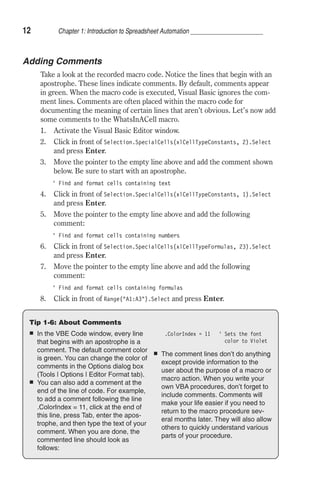
  • 401.
    384 Chapter 13:Debugging VBA Procedures and Handling Errors Adding a Watch Expression Many errors in procedures are caused by variables that assume unexpected values. If a procedure uses a variable whose value changes in various loca-tions, you may want to stop the procedure and check the current value of that variable. Visual Basic offers a special Watch window, which allows you to keep an eye on variables or expressions while your procedure is running. To add a watch expression to your procedure, perform the following: 1. In the Code window, select the variable whose value you want to monitor. 2. Choose Debug | Add Watch. The screen will display the Add Watch dialog box, as shown in Figure 13-9. The Add Watch dialog box contains three sections described in the fol-lowing table: Figure 13-8: You can insert a Stop statement anywhere in the code of your VBA procedure. The procedure will halt when it gets to the Stop statement, and the Code window will appear with the line highlighted. Figure 13-9: The Add Watch dialog box allows you to define conditions that you want to monitor while a VBA procedure is running.
  • 402.
    Chapter 13: DebuggingVBA Procedures and Handling Errors 385 Expression Displays the name of a variable that you have highlighted in your procedure. If you open the Add Watch dialog box without selecting a variable name, type the name of the variable you want to monitor in the Expression text box. Context In this section you should indicate the name of the procedure that contains the variable and the name of the module where this procedure is located. Watch Type Specifies how to monitor the variable. If you choose the Watch Expression option button, you will be able to read the value of the variable in the Watch window while in break mode. If you choose the Break When Value is True option button, Visual Basic will automatically stop the procedure when the variable evaluates to true (nonzero). The last option button, Break When Value Changes, stops the procedure each time the value of the variable or expression changes. You can add a watch expression before running a procedure or after execu-tion of your procedure has been suspended. The difference between a breakpoint and a watch expression is that the breakpoint always stops a procedure in a specified location and the watch stops the procedure only when the specified condition (Break When Value is True or Break When Value Changes) is met. Watches are extremely use-ful when you are not sure where the variable is being changed. Instead of stepping through many lines of code to find out where the variable assumes the specified value, you can simply put a watch breakpoint on the variable and run your procedure as normal. Let’s see how this works. 1. Prepare the procedure shown in Figure 13-10. Figure 13-10: Using the Watches window
  • 403.
    386 Chapter 13:Debugging VBA Procedures and Handling Errors The WhatDate procedure uses the For…Next loop to calculate the date that is x days in the future. If you run this procedure, you won’t get any result unless you insert the following instruction in the code of the procedure: MsgBox “In “ x “ days, it will be “ NewDate This time, however, you don’t want to display the individual dates, day after day. Suppose that you want to stop the program when the value of the vari-able x reaches 211. In other words, you want to know what date will be 211 days from now. To get the answer, you could insert the following statement into your procedure: If x = 211 Then MsgBox In x days it will be NewDate Let’s say you want to get the answer without introducing any new state-ments into your procedure. How do you do this? If you add watch expressions to the procedure, Visual Basic will stop the For…Next loop when the specified condition is met, and you’ll be able to check the values of the desired variables. 1. Choose Debug | Add Watch. 2. In the Expression text box, enter the following expression: x = 211. 3. In the Context section, choose What Date from the Procedure combo box, and Breaks from the Module combo box. 4. In the Watch Type section, select the Break When Value is True option button. 5. Click OK to close the Add Watch dialog box. You have now added your first watch expression. 6. In the Code window, position the insertion point anywhere within the name of the curDate variable. 7. Choose Debug | Add Watch, and click OK to set up the default watch type with Watch Expression. 8. In the Code window, position the insertion point anywhere within the name of the newDate variable. 9. Choose Debug | Add Watch, and click OK to set up the default watch type with Watch Expression. After performing the above steps, the WhatDate procedure contains the following three watches: x = 211 Break When Value is True curDate Watch Expression newDate Watch Expression 10. Position the insertion point anywhere inside the code of the WhatDate procedure, and press F5. Visual Basic stops the procedure when x equals 211 (see Figure 13-10).
  • 404.
    Chapter 13: DebuggingVBA Procedures and Handling Errors 387 Notice that the value of the variable x in the Watches window is the same as the value that you specified in the Add Watch dialog. In addi-tion, the Watches window shows the value of the variables curDate and newDate. The procedure is in break mode. You can press F5 to continue or you can ask another question: What date will be in 277 days? The next step shows how to do this. 11. Choose Debug | Edit Watch, and enter the following expression: x = 27. You can quickly display the Edit Watch dialog box by double-click-ing the expression in the Watches window. 12. Click OK to close the Edit Watch dialog box. Notice that the Watches window now displays a new value of the expression. x is now False. 13. Press F5. The procedure stops again when the value of x equals 277. The value of curDate is the same. However, the newDate variable now contains a new value—a date that is 277 days from now. You can change the value of the expression again or finish the procedure. 14. Press F5 to finish the procedure without stopping. When your procedure is running and a watch expression has a value, the Watches window displays the value of the watch expression. If you open the Watches window after the procedure has finished, you will see out of context instead of the variable values. In other words, when the watch expression is out of context, it does not have a value. Removing Watch Expressions 1. In the Watches window, click on the expression you want to remove and press Delete. Remove all the watch expressions you defined in the preceding exercise. Using Quick Watch If you want to check the value of an expression for which you have not defined a watch expression, you can use Quick Watch (Figure 13-11). Figure 13-11: The Quick Watch dialog box shows the value of the selected expression in a VBA procedure. The Quick Watch dialog box can be accessed in the following way: While in break mode, position the insertion point anywhere inside the name of a variable or expression you wish to watch. Choose Debug | Quick Watch, or press Shift+F9.
  • 405.
    388 Chapter 13:Debugging VBA Procedures and Handling Errors The Quick Watch dialog box contains the Add button that allows you to add the expression to the Watches window. Make sure the WhatDate procedure does not contain any watch expres-sions. See the preceding section on how to remove a watch expression from the Watches window. Now, let’s see by example how to take advantage of the Quick Watch. 1. In the WhatDate procedure, position the insertion point on the name of the variable x. 2. Choose Debug | Add Watch. 3. Enter the following expression: x = 50. 4. Choose the Break When Value is True option button, and click OK. 5. Run the WhatDate procedure. Visual Basic will suspend procedure execution when x equals 50. Notice that the Watches window does not contain the newDate nor the curDate variable. To check the values of these variables, you can posi-tion the mouse pointer over the appropriate variable name in the Code window, or you can invoke the Quick Watch window. 6. In the Code window, position the mouse inside the newDate variable and press Shift+F9. The Quick Watch window shows the name of the expression and its current value. 7. Click Cancel to return to the Code window. 8. In the Code window, position the mouse inside the curDate variable and press Shift+F9. The Quick Watch window now shows the value of the variable curDate. 9. Click Cancel to return to the Code window. 10. Press F5 to continue running the procedure. Using the Locals Window and the Call Stack Dialog Box If during the execution of a VBA procedure you want to keep an eye on all the declared variables and their current values, make sure to choose View | Locals Window before you run the procedure. While in break mode, Visual Basic will display a list of variables and their corresponding values in the Locals window (Figure 13-12). The Locals window contains three columns. The Expression column displays the names of variables that are declared in the current procedure. The first row displays the name of the module preceded by the plus sign. When you click the plus sign, you can check if any variables have been declared at the module level. The class module will show here the system variable Me. In the Locals window, the global variables and variables used by other projects aren’t displayed. The second column shows the current values of variables. In this col-umn, you can change the value of a variable by clicking it and typing the
  • 406.
    Chapter 13: DebuggingVBA Procedures and Handling Errors 389 Figure 13-12: The Locals window displays the current values of all the declared variables in the current VBA procedure. new value. After changing the value, press Enter to register the change. You can also press Tab, Shift+Tab, or the up or down arrow or click any-where within the Locals window after you’ve changed the variable value. The third column displays the type of each declared variable. To observe the values of variables in the Locals window, do the following: 1. Choose View | Locals Window. 2. Click anywhere inside the WhatDate procedure and press F8. By pressing F8, you place the procedure in break mode. The Locals win-dow displays the name of the current module and the local variables and their beginning values. 3. Press F8 a few more times while keeping an eye on the Locals window. 4. Press F5 to continue running the procedure. The Locals window also contains a button with three dots. This button opens the Call Stack dialog box (Figure 13-13), which displays a list of all active procedure calls. An active procedure call is a procedure that is started but not completed. You can also activate the Call Stack dialog box by choosing View | Call Stack. This option is only available in break mode.
  • 407.
    390 Chapter 13:Debugging VBA Procedures and Handling Errors Figure 13-13: The Call Stack dialog box displays a list of the procedures that are started but not completed. The Call Stack dialog box is especially helpful for tracing nested proce-dures. Recall that a nested procedure is a procedure that is being called from within another procedure. If a procedure calls another, the name of the called procedure is automatically added to the Calls list in the Call Stack dialog box. When Visual Basic has finished executing the statements of the called procedure, the procedure name is automatically removed from the Call Stack dialog box. You can use the Show button in the Call Stack dialog box to display the statement that calls the next procedure listed in the Call Stack dialog box. Stepping through VBA Procedures Stepping through the code means running one statement at a time. This allows you to check every line in every procedure that is encountered. To start stepping through the procedure from the beginning, place the inser-tion point anywhere inside the code of your procedure and choose Debug | Step Into, or press F8. The Debug menu contains several options that allow you to execute a procedure in the step mode (see Figure 13-14). When you run a procedure one statement at a time, Visual Basic exe-cutes each statement until it encounters the End Sub keywords. If you don’t want Visual Basic to step through every statement, you can press F5 at any time to run the rest of the procedure without stepping through it.
  • 408.
    Chapter 13: DebuggingVBA Procedures and Handling Errors 391 Figure 13-14: The Debug menu offers many commands for stepping through VBA procedures. Stepping through a Procedure 1. Place the insertion point anywhere inside the code of the procedure whose execution you wish to trace. 2. Press F8 or choose Debug | Step Into. Visual Basic executes the cur-rent statement and automatically advances to the next statement and suspends execution. While in break mode, you can activate the Immedi-ate window, Watches window, or Locals window to see the effect of a particular statement on the values of variables and expressions. And, if the procedure you are stepping through calls other procedures, you can activate the Call Stack window to see which procedures are currently active. 3. Press F8 again to execute the selected statement. After executing this statement, Visual Basic will select the next statement, and the proce-dure execution will be halted again. 4. Continue stepping the procedure by pressing F8, or press F5 to con-tinue the code execution without stopping. You can also choose Run | Reset to stop the procedure at the current statement without execut-ing the remaining statements. When you step over procedures (Shift+F8), Visual Basic executes each procedure as if it were a single statement. This option is particularly useful
  • 409.
    392 Chapter 13:Debugging VBA Procedures and Handling Errors if a procedure contains calls to other procedures and you don’t want to step into these procedures because they have already been tested and debugged or you want to concentrate only on the new code that has not yet been debugged. Stepping Over a Procedure Suppose the current statement in MyProcedure calls the SpecialMsg proce-dure. If you choose Debug | Step Over (Shift+F8) instead of Debug | Step Into (F8), Visual Basic will quickly execute all the statements inside the SpecialMsg procedure and select the next statement in the calling proce-dure MyProcedure. During the execution of the SpecialMsg procedure, Visual Basic continues to display the Code window with the current procedure. 1. Enter the following procedure in the current module: Sub MyProcedure() Dim myName As String Workbooks.Add myName = ActiveWorkbook.Name ‘ choose Step Over to avoid stepping through the ‘ lines of code in the called procedure - SpecialMsg SpecialMsg myName Workbooks(myName).Close End Sub Sub SpecialMsg(n As String) If n = Book2 Then MsgBox You must change the name. End If End Sub 2. Add a breakpoint at the following statement: SpecialMsg myName 3. Place the insertion point anywhere within the code of MyProcedure, and press F5 to run it. Visual Basic halts execution when it reaches the breakpoint. 4. Press Shift+F8, or choose Debug | Step Over. Visual Basic quickly runs the SpecialMsg procedure and execution and then advances to the statement immediately after the call to the SpecialMsg procedure. 5. Press F5 to finish running the procedure without stepping through its code. Stepping over a procedure is particularly useful when you don’t want to analyze individual statements inside the called procedure (SpecialMsg). Another command on the Debug menu, Step Out (Ctrl+Shift+F8), is used when you step into a procedure and then decide that you don’t want to step all the way through it. When you choose this option, Visual Basic will
  • 410.
    Chapter 13: DebuggingVBA Procedures and Handling Errors 393 execute the remaining statements in this procedure in one step and proceed to activate the next statement in the calling procedure. In the process of stepping through a procedure, you can switch between Step Into, Step Over, and Step Out options. The option you select depends on which code fragment you wish to analyze at a given moment. The Debug menu Run to Cursor (Ctrl+F8) command lets you run your procedure until the line you have selected is encountered. This command is really useful if you want to stop the execution before a large loop or you intend to step over a called procedure. Suppose you want to execute the MyProcedure procedure to the line that calls the SpecialMsg procedure. 1. Click inside the statement SpecialMsg myName. 2. Choose Debug | Run to Cursor. Visual Basic will stop the procedure when it reaches the specified line. 3. Press Shift+F8 to step over the SpecialMsg procedure. 4. Press F5 to execute the rest of the procedure without single stepping. Setting the Next Statement At times, you may want to rerun previous lines of code in the procedure or skip over a section of code that is causing trouble. In each of these situa-tions, you can use the Set the Next Statement option on the Debug menu. When you halt execution of a procedure, you can resume the procedure from any statement you want. Visual Basic will skip execution of the state-ments between the selected statement and the statement where execution was suspended. Suppose that in MyProcedure (see the code of this proce-dure in the preceding section) you have set a breakpoint on the statement calling the SpecialMsg procedure. To skip the execution of the SpecialMsg procedure, you can place the insertion point inside the statement Work-books( myName).Close and press Ctrl+F9 (or choose Debug | Set Next Statement). You can’t use the Set Next Statement option unless you have suspended the execution of the procedure. Tip 13-4: Skipping Lines of Code Although skipping lines of code can be very useful in the process of debugging your VBA procedures, it should be done with care. When you use the Next Statement option, you tell Visual Basic that this is the line you want to execute next. All lines in between are ignored. This means that certain things that you may have expected to occur don’t happen, which can lead to unexpected errors.
  • 411.
    394 Chapter 13:Debugging VBA Procedures and Handling Errors Showing the Next Statement If you are not sure from which statement the execution of the procedure will resume, you can choose Debug | Show Next Statement, and Visual Basic will place the cursor on the line that will run next. This is particularly useful when you have been looking at other procedures and are not sure where execution will resume. The Show Next Statement option is available only in break mode. Stopping and Resetting VBA Procedures At any time, while stepping through the code of a procedure in the Code window, you can: Press F5 to execute the remaining instructions without stepping through Choose Run | Reset to finish the procedure without executing the remaining statements When you reset your procedure, all the variables lose their current values. Numeric variables assume the initial value of zero, variable-length strings are initialized to a zero-length string (“ ”), and fixed-length strings are filled with the character represented by the ASCII character code 0 or Chr(0). Variant variables are initialized to Empty, and the value of the object vari-ables is set to Nothing. Understanding and Using Conditional Compilation When you run a procedure for the first time, Visual Basic converts the VBA statements you used into the machine code understood by the computer. This process is called compiling. You can also perform the compilation of your entire VBA project before you run the procedure by choosing Debug | Compile (name of the current VBA project). You can tell Visual Basic to include or ignore certain blocks of code when compiling and running by using conditional compilation. Your proce-dure may behave differently, depending on the condition you set. For example, conditional compilation is used to compile an application that will be run on different platforms (Windows or Macintosh, Win16 or Win32 bit). Conditional compilation is also useful in localizing an application for differ-ent languages. The program code excluded during the conditional compilation is omitted from the final file; thus, it has no effect on the size or performance of the program. To enable conditional compilation, you should use special expressions called directives. First you need to declare a Boolean (True or False) con-stant by using the #Const directive. Next, you check this constant inside the #If . . .Then... #Else directive. The portion of code that you want to
  • 412.
    compile conditionally mustbe surrounded by these directives. Notice that the If and Else keywords are preceded by a number sign (#). If a portion of code is to be run, the value of the conditional constant has to be set to True (–1). Otherwise, the value of this constant should be set to False (0). Declare the conditional constant in the declaration section of the mod-ule. For example: #Const User = True This declares the conditional constant named User. In the procedure that follows, data is displayed in the Polish language when the conditional constant named verPolish is True. The WhatDay pro-cedure calls the DayOfWeek function, which returns the name of the week based on the supplied date. To compile the program in the English lan-guage, all you have to do is change the conditional constant to False and Visual Basic will jump to the block of instructions located after the #Else directive. 1. Insert a new module into the current VBA project, and rename it Conditional. 2. Enter the following procedure and functions: ‘ declare a conditional compiler constant #Const verPolish = True Sub WhatDay() Dim dayNr As Integer #If verPolish = True Then dayNr = WeekDay(InputBox(“Wpisz date, np. 01/01/2000”)) MsgBox “To bedzie “ DayOfWeek(dayNr) “.” #Else WeekdayName #End If End Sub Function DayOfWeek(dayNr As Integer) As String DayOfWeek = Choose(dayNr, “niedziela”, “poniedzialek”, “wtorek”, _ “sroda”, “czwartek”, “piatek”, “sobota”) End Function Function WeekdayName() As String Select Case WeekDay(InputBox(“Enter date, e.g. 01/01/2000”)) Case 1 WeekdayName = “Sunday” Case 2 WeekdayName = “Monday” Case 3 WeekdayName = “Tuesday” Case 4 WeekdayName = “Wednesday” Case 5 Chapter 13: Debugging VBA Procedures and Handling Errors 395
  • 413.
    396 Chapter 13:Debugging VBA Procedures and Handling Errors WeekdayName = “Thursday” Case 6 WeekdayName = “Friday” Case 7 WeekdayName = “Saturday” End Select MsgBox “It will be “ WeekdayName “.” End Function 3. Run the WhatDay procedure. Because the conditional compilation con-stant (verPolish) is set to True at the top of the module, Visual Basic runs the Polish version of the WhatDay procedure. It asks for the user’s input in Polish and displays the result in Polish. To run the Eng-lish version of the code, set the verPolish constant to False, and rerun the procedure. Instead of declaring the conditional compiler constants at the top of a module, you can choose Tools | (Debugging) Properties (Figure 13-15). When you use the Properties window, use the following syntax in the Conditional Compilation Arguments text box to enable the English ver-sion of the WhatDay procedure: verPolish = 0 If there are more conditional compilation constants, each of the con-stants must be separated by a colon. 4. Comment out the #Const verPolish directive at the top of the module and enter the conditional compilation constant in the Properties dialog box, as shown in Figure 13-15. Then run the WhatDay procedure to see how the Else branch of your program is now executed for English-speaking users. Figure 13-15: The conditional compilation constant can be declared either at the top of the module or in the Properties window but never in both places.
  • 414.
    Chapter 13: DebuggingVBA Procedures and Handling Errors 397 Navigating with Bookmarks In the process of analyzing or reviewing your VBA procedures, you will often find yourself jumping to certain code areas. Using the built-in book-mark feature, you can easily mark the spots that you want to navigate between. To set up a bookmark: 1. Click anywhere in the statement that you want to define as a bookmark. 2. Choose Edit | Bookmarks | Toggle Bookmark (or click the Toggle Bookmark button on the Edit toolbar—see Figure 13-16). Visual Basic will place a blue, rounded rectangle in the left margin beside the statement. Figure 13-16: You can quickly jump between often-used sections of your procedures using bookmarks. Once you’ve set up two or more bookmarks, you can jump between the marked locations of your code by choosing Edit | Bookmarks | Next Book-mark, or simply click the Next Bookmark button on the Edit toolbar. You may also right-click anywhere in the code window and select Next Book-mark from the shortcut menu. To go to the previous bookmark, select Previous Bookmark instead. You can remove bookmarks at any time by choosing Edit | Bookmarks | Clear All, or click the Clear All Bookmarks button on the Edit toolbar. To remove a single bookmark, click anywhere in the bookmarked statement
  • 415.
    398 Chapter 13:Debugging VBA Procedures and Handling Errors and choose Edit | Bookmarks | Toggle Bookmark, or click the Toggle Bookmark button on the Edit toolbar. Trapping Errors No one writes bug-free programs the first time. When you create VBA pro-cedures, you have to determine how your program will respond to errors. Many unexpected errors happen during run time. For example, your proce-dure may try to give a workbook the same name as an open workbook. Run-time errors are often discovered not by a programmer but by the user who attempts to do something that the programmer has not anticipated. If an error occurs when the procedure is running, Visual Basic displays an error message and the procedure is stopped. Most often, the error message that VBA displays is quite cryptic to the user. You can prevent users from seeing many run-time errors by including error-handling code in your VBA procedures. This way, when Visual Basic encounters an error, instead of dis-playing a default error message, it will show a much friendlier and more comprehensive error message, perhaps advising the user how to correct the error. How do we implement error handling in your VBA procedure? The first step is to place the On Error statement in your procedure. This statement tells VBA what to do if an error happens while your program is running. In other words, VBA uses the On Error statement to activate an error-han-dling procedure that will trap run-time errors. Depending on the type of procedure, you can exit the error trap by using one of the following state-ments: Exit Sub, Exit Function, Exit Property, End Sub, End Function, or End Property. You should write an error-handling routine for each procedure. The On Error statement can be used in one of the following ways: On Error GoTo Label Specifies a label to jump to when an error occurs. This label marks the beginning of the error-handling routine. An error handler is a routine for trapping and responding to errors in your application. The label must appear in the same procedure as the On Error statement. On Error Resume Next When a run-time error occurs, Visual Basic ignores the line that caused the error and does not display an error message but continues the procedure with the next line. On Error GoTo 0 Turns off error trapping in a procedure. When VBA runs this statement, errors are detected but not trapped within the procedure.
  • 416.
    The Archive procedureshown below uses the error-handling routine (see the bottom of the procedure). The procedure uses the built-in SaveCopyAs method to save the copy of the current workbook to a file without modify-ing the open workbook in memory. 1. Insert a new module into the current project and rename it Traps. 2. Enter the Archive procedure, as shown below: Sub Archive() Dim folderName As String Dim DriveA As String Dim BackupName As String Dim Response As Integer Application.DisplayAlerts = False On Error GoTo DiskProblem folderName = ActiveWorkbook.Path If folderName = Then MsgBox You can't copy this file. Chr(13) _ This file has not been saved., _ vbInformation, File Archive Else With ActiveWorkbook If Not .Saved Then .Save DriveA = A: MsgBox Place a diskette in drive DriveA _ and click OK., , Copying to DriveA BackupName = DriveA .Name .SaveCopyAs Filename:=BackupName MsgBox .Name was copied to a disk in drive _ DriveA, , End of Archiving End With End If GoTo ProcEnd DiskProblem: Chapter 13: Debugging VBA Procedures and Handling Errors 399 Tip 13-5: An Error or a Mistake? In programming, mistakes and errors are not the same thing. A mistake, such as a misspelled or missing statement, a misplaced quote or comma, or assigning a value of one type to a variable of a different (and incompatible) type, can be removed from your program through proper testing and debugging. But even though your code may be free of mistakes, that does not mean that errors will not occur. An error is a result of an event or an operation that doesn’t work as expected. For example, if your VBA procedure accesses a particular file on disk and someone deleted this file or moved it to another location, you’ll get an error no matter what. An error prevents the procedure from carrying out a specific task.
  • 417.
    400 Chapter 13:Debugging VBA Procedures and Handling Errors Response = MsgBox(There is no disk in drive A Chr(13) _ or disk in drive DriveA is not formatted , _ vbRetryCancel, Check Disk Drive) If Response = 4 Then Resume 0 Else Exit Sub End If ProcEnd: Application.DisplayAlerts = True End Sub After the declaration of variables, the Archive procedure’s Applica-tion. DisplayAlerts = False statement ensures that Visual Basic won’t display its own alerts and messages while the procedure is running. The next statement, On Error GoTo DiskProblem, specifies a label to jump to when an error occurs. The path name where the active workbook was saved is stored in the variable folderName. If Visual Basic can’t find the workbook’s path, it assumes the file was not saved and displays an appropriate message. Next, Visual Basic jumps to the statement following the End If and executes the instruction GoTo ProcEnd, which directs it to the ProcEnd label located just before the End Sub keywords. Notice that the label is followed by a colon. Visual Basic exe-cutes the statement Application.DisplayAlerts = True, which restores the system’s built-in alerts and messages. Because there are no more state-ments to execute, the procedure ends. If the active workbook’s path is not an empty string, Visual Basic checks whether the recent changes in the workbook have already been saved. If they weren’t, VBA uses the If Not .Saved Then .Save statement to save the active workbook. Saved is the VBA property of the Workbook object. Next, Visual Basic stores the name of the diskette drive “A:” in the variable DriveA and displays a message that prompts the user to insert a dis-kette into the specified drive. The name of the disk drive is then combined with the name of the active workbook and stored in the variable named BackupName. As you know, while copying files to a diskette, all kinds of things can go wrong. For example, a diskette drive may be empty, or a diskette may be unformatted or full. When Visual Basic detects an error, it will jump to the line of code beginning with the label DiskProblem and an appropriate mes-sage will be displayed. If the user clicks the Retry button (4) in the message box, Visual Basic will execute the statement Resume 0. This statement will send Visual Basic to the statement that caused the error (.SaveCopyAs File- Name:=BackupName), and Visual Basic will execute it again. If the user clicks the Cancel button in the message box, VBA will execute the statement Exit Sub and the procedure will end.
  • 418.
    If there’s noproblem with the diskette in drive “A:”, VBA will copy the active workbook to the diskette and the message will notify the user that the copy operation was successful. 3. Run the Archive procedure several times, each time responding differ-ently to the presented options. Make sure to test as many possibilities as you can identify. Use various debugging techniques that you have learned in this chapter. Let’s look at another example procedure. The OpenToRead procedure shown below demonstrates the use of the Resume Next and Error state-ments, as well as the Err object. Sub OpenToRead() Dim myFile As String Dim myChar As String Dim myText As String Dim FileExists As Boolean FileExists = True On Error GoTo ErrorHandler myFile = InputBox(Enter the name of file you want to open:) Open myFile For Input As #1 If FileExists Then Do While Not EOF(1) ' loop until the end of file myChar = Input(1, #1) ' get one character myText = myText + myChar ' store in the variable myText Loop Debug.Print myText ' print to the Immediate window ' Close the file -commenting out this instruction will cause ‘ error 52. Close #1 End If Chapter 13: Debugging VBA Procedures and Handling Errors 401 Tip 13-6: Procedure Testing You are responsible for the code that you produce. This means that before you give your procedure to others to test, test it yourself. After all, you will understand how it is supposed to work. Some programmers think that testing their own code is some sort of demeaning activity, especially when they work in an organization that has a team devoted to testing. Don’t make this mistake. The testing process at the programmer level is as important as the code development itself. After you’ve tested the procedure yourself, you should give it to users to test. Users will provide you with answers to questions such as: Does the procedure produce the expected results? Is it easy and fun to use? Does it follow the standard conventions? Also, it is a good idea to give the entire application to someone who knows little about using this particular application, and ask them to play around with it and try to break it.
  • 419.
    402 Chapter 13:Debugging VBA Procedures and Handling Errors Exit Sub ErrorHandler: FileExists = False Select Case Err.Number Case 71 MsgBox The diskette drive is empty. Case 53 MsgBox This file can’t be found on the specified drive. Case 75 Exit Sub Case Else MsgBox Error Err.Number : Error(Err.Number) Exit Sub End Select Resume Next End Sub The purpose of the OpenToRead procedure is to read the contents of the user-supplied text file character by character (working with files is covered in Chapter 8). When the user enters a filename, various errors can occur. For example, the filename may be wrong, or the user may attempt to open a file from a diskette when there is no disk in the diskette drive or open a file that is already open. To trap these errors, the error-handling routine at the end of the OpenToRead procedure uses the Name property of the Err object. The Err object contains information about run-time errors. If an error occurs while the procedure is running, the statement Err.Number will return the error number. If errors 71, 53, or 75 occur, Visual Basic will display user-friendly messages stated inside the Select…Case block and then proceed to the Resume Next statement, which will send it to the line of code following the one that caused the error. If another (unexpected) error occurs, Visual Basic will return its error code (Err.Number) and error description (Error- (Err.Number)). At the beginning of the procedure, the variable FileExists is set to True. This way, if the program doesn’t encounter an error, all the instruc-tions inside the If FileExists Then block will be executed. However, if VBA encounters an error, the value of the FileExists variable will be set to False (see the first statement in the error-handling routine just below the ErrorHandler label). This way, Visual Basic will not cause another error while trying to read a file that caused the error on opening. If you comment the statement Close #1, Visual Basic will encounter the error on the next attempt to open the same file. Notice the Exit Sub statement before the ErrorHandler. Put the Exit Sub statement just above the error-handling routine. You don’t want Visual Basic to carry out the error handling if there are no errors. To test the OpenToRead procedure and better understand error trap-ping, let’s perform the following exercise:
  • 420.
    Chapter 13: DebuggingVBA Procedures and Handling Errors 403 1. Prepare a text file named C:Vacation.txt using Windows Notepad. Enter any text you want in this file. 2. Run the OpenToRead procedure four times in the step mode, each time supplying one of the following: Name of the C:Vacation.txt file Filename that does not exist on drive C Name of any file in Drive A (when the diskette slot is empty) Comment the Close #1 statement and enter C:Vacation.txt as the filename Tip 13-7: Errors: Generating Them to Test Error Handling You can test the ways that your program responds to run-time errors by causing them on purpose: Generate any built-in error by using the following syntax: Error error_number. For example, to display the error that occurs on the attempt to divide by zero, type the following in the Immediate window: Error 11 When you press Enter, Visual Basic will display the error message What’s Next... saying: Run-time error 11. Division by zero. To check the meaning of the gener-ated error, use the following syntax: Error(error_number). For example, to find out what error number 7 means, type the following in the Immediate window: ?Error(7) When you press Enter, Visual Basic returns the error description: Out of memory. In this chapter you learned how to test your VBA procedures to make sure they perform as planned. You debugged your code by stepping through it using breakpoints and watches. You learned how to work with the Immedi-ate window in break mode. You found out how the Locals window can help you monitor the values of variables and how the Call Stack dialog box can be helpful in keeping track of where you are in a complex program. You’ve learned to specify parts of your procedure that you want to include or exclude upon compilation. Finally, you learned how to trap errors with error-handling routines. By using the built-in debugging tools, you can quickly pinpoint the problem spots in your procedures. Try to spend more time getting acquainted with these tools. Mastering the art of debugging can save you hours of trial and error.
  • 421.
    404 Chapter 13:Debugging VBA Procedures and Handling Errors By completing Chapters 1 through 13, you have gained a solid, working knowledge of the Visual Basic for Applications language that you’re most likely to need to get started in your own Excel spreadsheet automating pro-jects. This chapter ends the intermediate level of your encounters with VBA in Excel 2002. VBA offers many more advanced features, which we will explore in the remaining chapters of this book.
  • 422.
    Chapter 14 Event Programming in Microsoft Excel 2002 Introduction to Event Procedures Enabling and Dis-abling Events Event Sequences Worksheet Events Workbook Events Chart Events Embedded Chart Events Events Recognized by the Application Object Query Table Events What’s Next… 405
  • 423.
    406 Chapter 14:Event Programming in Microsoft Excel 2002 How do you disable a built-in shortcut menu when a user clicks on a worksheet cell? How do you display a custom message before a workbook is opened or closed? How can you validate data entered in a cell or range of cells? To get complete control over Microsoft Excel, you must learn how to respond to events. Learning how to program events will allow you to imple-ment your own functionality in an Excel application. The first thing you need to learn about this subject matter is what an event is. Here’s a simple definition: An event is something that happens. Needless to say, events happen to objects that are part of Microsoft Excel. However, once you learn about events in Excel, you will find it easier to understand events that occur to objects in Word or any other Microsoft Office application. Events are actions recognized by an object. Now that you know what events are, you need to know that events can be triggered by an application user (such as yourself), another program, or the system itself. So, how can you trigger an event? Suppose you right-click a worksheet cell. This particular action would display a built-in shortcut menu for a worksheet cell, allowing you to quickly access the most fre-quently used commands related to worksheet cells. But what if this particular built-in response isn’t appropriate under certain conditions? You may want to entirely disallow right-clicking in a worksheet or perhaps ensure that a custom menu appears on a cell shortcut menu when the user right-clicks any cell. The good news is you can use VBA to write code that can react to events as they occur. Microsoft Excel provides many events to which you can respond. The following objects can respond to events: Worksheet Chart Sheet Query Table Workbook Application You can decide what should happen when a particular event occurs by writ-ing an event procedure. Introduction to Event Procedures A special type of VBA procedure, an event procedure, is used to react to spe-cific events. This procedure contains VBA code that handles a particular event. Some events may require a single line of code, while others can be more complex. Event procedures have names, which are created in the fol-lowing way: ObjectName_EventName()
  • 424.
    Chapter 14: EventProgramming in Microsoft Excel 2002 407 In the parentheses after the name of the event, you can place parameters that need to be sent to the procedure. The programmer cannot change the name of the event procedure. Before you can write an event procedure to react to an Excel event, you need to know: The name of the particular object and event that you want to respond to Objects that can respond to events display a list of events in the Proce-dure drop-down list in the Code window (Figure 14-1). Also, you can use the Object Browser to find out the names of the events (Figure 14-2). The place where you should put the code Some events are coded in a standard module; others are stored in a class module. While workbook, chart sheet, and worksheet events are available for any open sheet or workbook, to create event procedures for an embedded chart, query table, or Application object, you must first create a new object using the With Events keyword in the class module. Figure 14-1: You can find out the event names in the Code window. Figure 14-2: You can find out the event names in the Object Browser.
  • 425.
    408 Chapter 14:Event Programming in Microsoft Excel 2002 Enabling and Disabling Events You can use the Application object’s EnableEvents property to enable or disable events. If you are writing a VBA procedure and don’t want a particu-lar event to occur, set the EnableEvents property to False. For example, to avoid triggering the Workbook_BeforeClose event while running the EnterData procedure (see below), set the EnableEvents property to False before calling the Workbook object’s Close method. Set EnableEvents back to True before your procedure finishes running to ensure that events are enabled. 1. Open a new workbook and save it as DisableEvents.xls. 2. Switch to the Visual Basic Editor screen. Double-click ThisWorkbook in the Project Explorer window, and enter the Workbook_BeforeSave event procedure in the Code window that appears. Private Sub Workbook_BeforeSave(ByVal SaveAsUI As Boolean, _ Cancel As Boolean) If MsgBox(Would you like to copy vbCrLf _ this worksheet to vbCrLf _ a new workbook?, vbYesNo) = vbYes Then Sheets(ActiveSheet.Name).Copy End If End Sub 3. Choose Insert | Module to add a standard module to the active VBA project, and enter the procedure shown below: Sub EnterData() With ActiveSheet.Range(A1:B1) .Font.Color = vbRed .Value = 15 End With Application.EnableEvents = False ActiveWorkbook.Save Application.EnableEvents = True End Sub 4. Switch to the Microsoft Excel application window, and choose File | Save. The Workbook_BeforeSave event will be triggered at this time. Click Yes in response to the message box. Excel will open a new work-book with the copy of the current worksheet. 5. Activate the DisableEvents workbook, and choose Tools | Macro | Macros. In the dialog box, click EnterData and then Run. Notice that when you run the EnterData procedure, you are not prompted to copy the worksheet before saving. This indicates that the Workbook_Before- Save event is not running.
  • 426.
    Chapter 14: EventProgramming in Microsoft Excel 2002 409 Event Sequences Events occur in response to specific actions and occur in a predefined sequence. The table below demonstrates the sequence of events while opening a new workbook, adding a new worksheet to a workbook, and clos-ing the workbook. Action Object Event Sequence Opening a new workbook Workbook NewWorkbook, WindowDeactivate, WorkbookDeactivate, WorkbookActivate, WindowActivate Inserting a new sheet into a workbook Workbook WorkbookNewSheet, SheetDeactivate, SheetActivate Closing a workbook Workbook WorkbookBeforeClose, WindowDeactivate, WorkbookDeactivate, WorkbookActivate, WindowActivate Worksheet Events A Worksheet object responds to such events as activating and deactivating the worksheet, calculating a worksheet, making a change to a worksheet, and double-clicking or right-clicking a worksheet. This section discusses some of the events to which the Worksheet object can respond. Event Name Activate Event Description Example 1 This event occurs when the user activates a sheet. Dim shtName As String ‘declared at the top ‘ of the module Private Sub Worksheet_Activate() shtName = ActiveSheet.Name Range(B2).Select End Sub The example procedure selects cell B2 each time the sheet is activated. Example 1 – Try It Out: In the Visual Basic Editor window, activate the Project Explorer window and open the Microsoft Excel Objects folder. Double-click Sheet2 (Sheet2), and type the example procedure in the Sheet2 (Code) window. Next, switch to the Microsoft Excel application window and activate Sheet2. Notice that when Sheet2 is activated, the selection is moved to cell B2.
  • 427.
    410 Chapter 14:Event Programming in Microsoft Excel 2002 Event Name Deactivate Event Description Example 2 This event occurs when the user activates a different sheet. Private Sub Worksheet_Deactivate() MsgBox You deactivated _ shtName . vbCrLf _ You switched to _ ActiveSheet.Name . End Sub The example procedure displays a message when Sheet2 is deactivated. Example 2 – Try It Out: In the Visual Basic Editor window, activate the Project Explorer window and open the Microsoft Excel Objects folder. Double-click Sheet2 (Sheet2), and type the example procedure in the Sheet2 (Code) window. Next, switch to the Microsoft Excel application window and activate Sheet2. The Worksheet_Activate procedure that you created in Example 1 will run. Excel will select cell B2 and store the name of the worksheet in the shtName global variable declared at the top of the Sheet2 code module. Now click any other sheet in the active workbook and notice that Excel displays the name of the worksheet that you deactivated and the name of the worksheet to which you have switched. Event Name SelectionChange Event Description Example 3 This event occurs when the user selects a worksheet cell. Private Sub Worksheet_SelectionChange(ByVal Target As Excel.Range) On Error Resume Next Set myRange = Intersect(Range(A1:A10), Target) If Not myRange Is Nothing Then MsgBox Data entry or edits are not permitted. End If End Sub The example procedure displays a message if the user selects any cell in myRange. Example 3 – Try It Out: In the Visual Basic Editor window, activate the Project Explorer window and open the Microsoft Excel Objects folder. Double-click Sheet3 (Sheet3), and type the example procedure in the Sheet3 (Code) window. Next, switch to the Microsoft Excel application window and activate Sheet3. Click on any cell within the specified range A1:A10. Notice that Excel displays a message whenever you click the cell in the restricted area.
  • 428.
    Chapter 14: EventProgramming in Microsoft Excel 2002 411 Event Name Change Event Description Example 4 This event occurs when the user changes a cell formula. Private Sub Worksheet_Change(ByVal Target _ As Excel.Range) Application.EnableEvents = False Target = UCase(Target) Columns(Target.Column).AutoFit Application.EnableEvents = True End Sub The example procedure changes what you type in a cell to uppercase. The column where the target cell is located is then auto-sized. Example 4 – Try It Out: In the Visual Basic Editor window, activate the Project Explorer window and open the Microsoft Excel Objects folder. Double-click Sheet1 (Sheet1), and type the example procedure in the Sheet1 (Code) window. Next, switch to the Microsoft Excel application window and activate Sheet1. Enter any text in any cell. Notice that as soon as you press the Enter key, Excel changes the text you typed to uppercase, and the column is auto-sized. Event Name Calculate Event Description Example 5 This event occurs when the user recalculates the worksheet. Private Sub Worksheet_Calculate() MsgBox The worksheet was recalculated. End Sub The example procedure displays a message upon recalculation of the worksheet. Example 5 – Try It Out: Add a new sheet to the active workbook. This exercise assumes that Excel will place Sheet4 in your workbook. In cell A2 of Sheet4 enter 1, and in cell B2, enter 2. Enter the following formula in cell C2: = A2+B2. In the Visual Basic Editor window, activate the Project Explorer window and open the Microsoft Excel Objects folder. Double-click Sheet4 (Sheet4) and enter the code of the Worksheet_Calculate event procedure, as shown above. Switch to the Microsoft Excel window and activate Sheet4. Modify the entry in cell B2 by typing any number. Notice that after leaving edit mode, the Worksheet_Calculate event procedure is triggered, and you are presented with a custom message. Event Name BeforeDoubleClick Event Description Example 6 This event occurs when the user double-clicks a worksheet cell. Private Sub Worksheet_BeforeDoubleClick(ByVal _ Target As Range, Cancel As Boolean) If Target.Address = Range($C$9) Then MsgBox No double-clicking, please. Cancel = True
  • 429.
    412 Chapter 14:Event Programming in Microsoft Excel 2002 Event Name BeforeDoubleClick Else MsgBox You may edit this cell. End If End Sub The example procedure disallows in-cell editing when the user double-clicks cell C9. Example 6 – Try It Out: In the Visual Basic Editor window, activate the Project Explorer window and open the Microsoft Excel Objects folder. Double-click Sheet2 (Sheet2), and type the example procedure in the Sheet2 (Code) window. Next, switch to the Microsoft Excel application window and activate Sheet2. When you double-click cell C9, the Event procedure cancels the built-in Excel behavior, and the user is not allowed to edit the data inside the cell. However, the user can get around this restriction by clicking on the formula bar or pressing F2. When writing event procedures that restrict access to certain program features, write additional code that disallows any workaround. Event Name BeforeRightClick Event Description Example 7 This event occurs when the user right-clicks a worksheet cell. Private Sub Worksheet_BeforeRightClick(ByVal _ Target As Range, Cancel As Boolean) With Application.CommandBars(Cell) .Reset If Target.Rows.Count 1 Or _ Target.Columns.Count 1 Then With .Controls.Add(Type:=msoControlButton, _ before:=1, temporary:=True) .Caption = Print... .OnAction = PrintMe End With End If End With End Sub Sub PrintMe() Application.Dialogs(xlDialogPrint).Show arg12:=1 End Sub The example procedure adds a Print option to the cell shortcut menu when the user selects more than one cell on the worksheet. Example 7 – Try It Out: In the Visual Basic Editor window, activate the Project Explorer window and open the Microsoft Excel Objects folder. Double-click Sheet2 (Sheet2), and type the example procedure in the Sheet2 (Code) window. Insert a new module into the current project and enter the PrintMe procedure, as shown above. This procedure is called by the Worksheet_BeforeRightClick event when
  • 430.
    Chapter 14: EventProgramming in Microsoft Excel 2002 413 the user selects the Print option from the shortcut menu. Notice that the Show method of the dialog box is followed by a named argument: arg12:=1. This argument will display the Print dialog box with the preselected option button Selection in the Print area of the dialog box. After entering both procedures in appropriate modules, switch to the Microsoft Excel application window and activate Sheet2. Right-click on any single cell. Notice that the shortcut menu appears with the default options. Now make another selection, this time including more than one cell and right-click the selected area. You should see the Print… option as the first menu entry. Click the Print option and notice that instead of the default “Print active sheet,” the Print dialog displays Print Selection. Note: Refer to Chapter 10 for more information on working with shortcut menus programmatically. Also, see Figure 10-3 for information on how to locate Excel’s built-in argument lists. Event Name FollowHyperlink Event Description Example 8 This event occurs when the user clicks a hyperlink in a Microsoft Excel worksheet. Private Sub Worksheet_FollowHyperlink(ByVal _ Target As Hyperlink) Target.AddToFavorites End Sub The example procedure adds the hyperlink that the user clicked to the list of Favorites in Internet Explorer. Example 8 – Try It Out: In the Visual Basic Editor window, activate the Project Explorer window and open the Microsoft Excel Objects folder. Double-click Sheet1 (Sheet1), and type the example procedure in the Sheet1 (Code) window. Switch to the Microsoft Excel application window, and enter a web address in any cell. For example, type: www.wordware.com and press Enter. Now, click the hyperlink to activate the web site. When the Internet Explorer window appears, open the Favorites menu and notice the Wordware site address has been added to the menu. Event Name PivotTableUpdate Event Description Example 9 This event occurs after a PivotTable report is updated on a worksheet. This is a new event in Excel 2002. The Target argument specifies the selected PivotTable report. Private Sub pivTbl_PivotTableUpdate( _ ByVal Target As PivotTable) MsgBox Target.Name _ report has been updated. vbCrLf _ The PivotReport is located in cells _ Target.DataBodyRange.Address End Sub
  • 431.
    414 Chapter 14:Event Programming in Microsoft Excel 2002 Event Name PivotTableUpdate pivTbl is a variable that references an object of type Worksheet declared using the WithEvents keyword in a class module. The example procedure displays a message stating the name of the updated PivotTable report and the range address that the report occupies on the worksheet. Example 9 – Try It Out: Open the PivotReport_2.xls file located on the book’s companion CD-ROM. Click any cell in the PivotTable area, and click the Refresh button on the PivotTable toolbar. Figures 14-3 and 14-4 illustrate how to set up the event handler for the Pivot- TableUpdate event. Figure 14-3: You must use a class module to trap the PivotTableUpdate event. The class module can have any valid module name. The object variable name, pivTbl, can be any valid variable name.
  • 432.
    Chapter 14: EventProgramming in Microsoft Excel 2002 415 Figure 14-4: Before you can trap the PivotTableUpdate event, you must set up an instance of your class module in a standard module and assign the Worksheet object to the pivTbl property of the new object. Workbook Events Workbook object events occur when the user performs such tasks as open-ing, activating, deactivating, printing, saving, and closing a workbook. Workbook events are not created in a standard VBA module. To write code that reponds to a particular workbook event, double-click ThisWorkbook in Visual Basic Editor’s Project Explorer. In the Code window that appears, open the Object drop-down list and select the Workbook object. In the Pro-cedure drop-down list, select the event you want. The selected event procedure stub will appear in the Code window. For example: Private Sub Workbook_Open() place your event handling code here End Sub This section describes some of the events available for Workbook objects. Event Name Activate Event Description Example 10 This event occurs when the user activates the workbook. This event will not occur when the user activates the workbook by switching from another application. Private Sub Workbook_Activate() MsgBox This workbook contains _ ThisWorkbook.Sheets.Count sheets. End Sub
  • 433.
    416 Chapter 14:Event Programming in Microsoft Excel 2002 Event Name Activate The example procedure displays the total number of worksheets when the user activates the workbook containing the Workbook_Activate event procedure. Example 10 – Try It Out: In the Visual Basic Editor window, activate the Project Explorer window and open the Microsoft Excel Objects folder. Double-click ThisWorkbook and type the example procedure in the ThisWorkbook (Code) window. Next, switch to the Microsoft Excel application window and open a new workbook. Switch to the workbook in which you entered the Workbook_Activate procedure. Excel should display the total number of sheets in this workbook. Event Name Deactivate Event Description Example 11 This event occurs when the user activates a different workbook within Excel. This event does not occur when the user switches to a different application. Private Sub Workbook_Deactivate() For Each cell In _ ActiveSheet.UsedRange If Not IsEmpty(cell) Then Debug.Print cell.Address _ : cell.Value End If Next End Sub The example procedure will print to the Immediate window the addresses and values of cells containing entries in the current workbook when the user activates a different workbook. Example 11 – Try It Out: In the Visual Basic Editor window, activate the Project Explorer window and open the Microsoft Excel Objects folder. Double-click ThisWorkbook, and type the example procedure in the ThisWorkbook (Code) window. Switch to the Microsoft Excel application window and make some entries on the active sheet. Next, activate a different workbook. This action will trigger the Workbook_Deactivate event procedure. Switch to the Visual Basic Editor screen and open the Immediate window to see what cell entries got reported. Event Name Open Event Description Example 12 This event occurs when the user opens a workbook. Private Sub Workbook_Open() ActiveSheet.Range(A1).Value = Format _ (Now(), mm/dd/yyyy) End Sub The example procedure places the current date in cell A1 when the workbook is opened.
  • 434.
    Chapter 14: EventProgramming in Microsoft Excel 2002 417 Example 12 – Try It Out: Open a new workbook. In the Visual Basic Editor window, activate the Project Explorer window and open the Microsoft Excel Objects folder. Double-click ThisWorkbook, and type the example procedure in the ThisWorkbook (Code) window. Save and close your workbook. When you open the workbook again, the current date will be placed into cell A1 on the active sheet. Event Name BeforeSave Event Description Example 13 This event occurs before the workbook is saved. The SaveAsUI argument is read-only and refers to the SaveAs dialog box. If the workbook has not been saved, the value of SaveAsUI is True; otherwise, it is False. Private Sub Workbook_BeforeSave(ByVal _ SaveAsUI As Boolean, Cancel As Boolean) If SaveAsUI = True And _ ThisWorkbook.Path = vbNullString Then MsgBox This document has not yet _ been saved. vbCrLf _ The Save As dialog box will be _ displayed. ElseIf SaveAsUI = True Then MsgBox You are not allowed to use _ the SaveAs option. Cancel = True End If End Sub The example procedure displays the SaveAs dialog box if the workbook hasn’t been saved before. The workbook’s pathname will be a NULL string (vbNullString) if the file has not been saved before. The procedure will not let the user save the workbook under a different name; the SaveAs operation will be aborted by setting the Cancel argument to True. The user will need to choose the Save option to have the workbook saved. Example 13 – Try It Out: Open a new workbook. In the Visual Basic Editor window, activate the Project Explorer window and open the Microsoft Excel Objects folder under the newly added project. Double-click ThisWorkbook and type the example procedure in the ThisWorkbook (Code) window. Click in the Margin area next to “If SaveAsUI…” to place a breakpoint. Switch to the Microsoft Excel application window, and make an entry in any cell. Click the Save button on the toolbar. The Workbook_BeforeSave event procedure will be activated, and the statement after If SaveAsUI will be executed. Enter SaveEvent.xls as the name of your workbook in the SaveAs dialog box. After saving (and assigning a name) to this workbook, make some changes to the workbook and choose File | SaveAs. This time the ElseIf clause gets executed, and you are not allowed to save the workbook by using the SaveAs option.
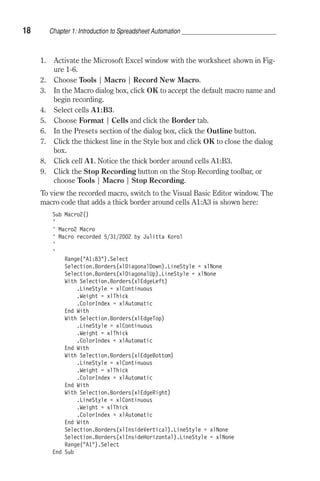
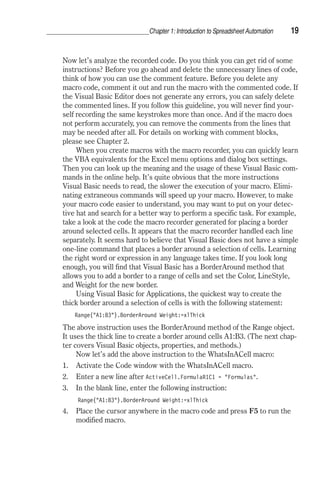
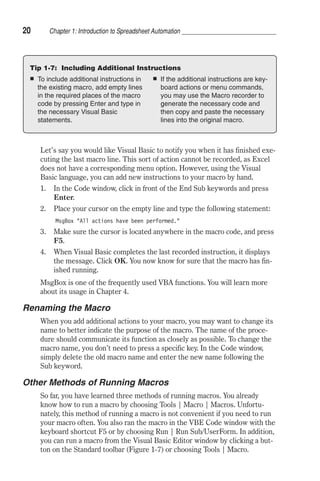
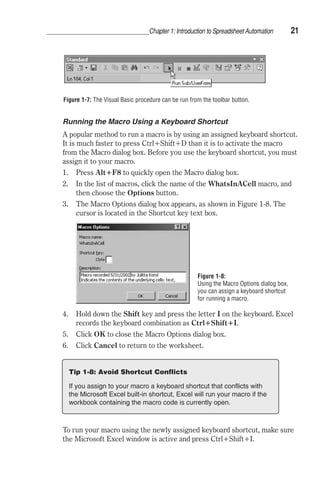
  • 435.
    418 Chapter 14:Event Programming in Microsoft Excel 2002 Event Name BeforePrint Event Description Example 14 This event occurs before the workbook is printed and before the Print dialog appears. Private Sub Workbook_BeforePrint(Cancel _ As Boolean) Dim response As Integer response = MsgBox(Do you want to vbCrLf _ print the workbook's full name in the footer?, _ vbYesNo) If response = vbYes Then ActiveSheet.PageSetup.LeftFooter = _ ThisWorkbook.FullName Else ActiveSheet.PageSetup.LeftFooter = End If End Sub The example procedure places the full workbook’s name in the document footer prior to printing if the user clicks Yes in the message box. Example 14 – Try It Out: In the Visual Basic Editor window, activate the Project Explorer window and open the Microsoft Excel Objects folder. Double-click ThisWorkbook, and type the example procedure in the ThisWorkbook (Code) window. Next, switch to the Microsoft Excel application window and activate any sheet. Enter anything you want in any worksheet cell. When you press the Print Preview button on the toolbar, Excel will ask you if you want to place the workbook’s name and path in the footer. Event Name BeforeClose Event Description Example 15 This event occurs before the workbook is closed and before the user is asked to save changes. Private Sub Workbook_BeforeClose(Cancel _ As Boolean) If MsgBox(Do you want to change vbCrLf _ workbook properties before closing?, _ vbYesNo) = vbYes Then Application.Dialogs(xlDialogProperties).Show End If End Sub The example procedure displays the Properties dialog box if the user responds Yes to the message box. Example 15 – Try It Out: In the Visual Basic Editor window, activate the Project Explorer window and open the Microsoft Excel Objects folder. Double-click ThisWorkbook and type the example procedure in the ThisWorkbook (Code) window. Next, switch to the Microsoft Excel application window, and close the workbook containing the code of the BeforeClose event procedure. Upon closing, you should see a message box asking you to view the Properties dialog box prior to closing. After viewing or modifying the workbook properties, the procedure closes
  • 436.
    Chapter 14: EventProgramming in Microsoft Excel 2002 419 the workbook. If there are any changes that you have not yet saved, you are given the chance to save the workbook, cancel the changes, or abort the closing operation altogether. Event Name AddInInstall Event Description Example 16 This event occurs when the user installs the workbook as an add-in. Private Sub Workbook_AddinInstall() MsgBox To create a calendar, vbCrLf _ enter CalendarMaker in the vbCrLf _ Macros dialog box. End Sub To trigger the Workbook_AddinInstall event procedure, please see the detailed instructions below. Example 16 – Try It Out: 1. Open a new workbook. 2. Switch to the Visual Basic Editor. Activate the Project Explorer window and open the Microsoft Excel Objects folder. 3. Double-click ThisWorkbook and type the Example 16 and Example 17 procedures in the ThisWorkbook (Code) window. 4. Insert a new module into the current VBA project and enter the code of the CalendarMaker procedure, shown after Example 17. 5. Switch to the Microsoft Excel application window and choose File | Properties. Make the following entries in the Properties dialog box: Title: Calendar Maker Comments: Create a monthly calendar in an Excel spreadsheet. The above information will appear in the Add-Ins dialog box when you highlight the name of your add-in. 6. Click OK to exit the File Properties dialog box. 7. Choose File | SaveAs and save the workbook as Calendar.xls. 8. Now choose File | SaveAs to save the Calendar.xls workbook as an add-in. From the Save As type drop-down list, select Microsoft Excel Add-in. Type the new file name (CalendarMaker.xla) and click Save. 9. Close the Calendar.xls workbook. 10. Open a new workbook. 11. Choose Tools | AddIns. Use the Browse button to add the Calendar- Maker to the list of add-ins. Select the CalendarMaker add-in in the list box by clicking the box to the left of its name. When you click OK in the Add-Ins dialog box, the Workbook_AddInInstall procedure will be triggered. Click OK in the message box.
  • 437.
    420 Chapter 14:Event Programming in Microsoft Excel 2002 12. To create a calendar, choose Tools | Macro | Macros. Type CalendarMaker in the Macro name text box, and click Run. You will be asked for the month and year. Enter the name of a month and a year (for example, October 2002) and click OK. A calendar page, as shown in Figure 14-5, will appear. 13. To trigger the AddInUninstall event procedure illustrated in Example 17, choose Tools | AddIns and remove the check mark next to the CalendarMaker add-in. Event Name AddInUninstall Event Description Example 17 This event occurs when the user uninstalls the workbook as an add-in. Private Sub Workbook_AddinUninstall() MsgBox The CalendarMaker vbCrLf _ add-in was unloaded. End Sub The example procedure displays a message upon uninstalling the workbook as an add-in. Example 17 – Try It Out: See Example 16 The following CalendarMaker procedure is available in the CodeLibrarian Add-In and is used here to demonstrate the usage of the Workbook object’s AddInInstall and AddInUninstall events (see Exam-ples 16 and 17). Figure 14-5: A monthly cal-endar as generated by the Calendar- Maker procedure
  • 438.
    Sub CalendarMaker() Chapter14: Event Programming in Microsoft Excel 2002 421 ' Unprotect sheet if had previous calendar to prevent error. ActiveSheet.Protect DrawingObjects:=False, Contents:=False, _ Scenarios:=False ' Prevent screen flashing while drawing calendar. Application.ScreenUpdating = False ' Set up error trapping. On Error GoTo MyErrorTrap ' Clear area a1:g14 including any previous calendar. Range(a1:g14).Clear ' Use InputBox to get desired month and year and set variable ' MyInput. MyInput = InputBox(Type in Month and year for Calendar ) ' Allow user to end macro with Cancel in InputBox. If MyInput = Then Exit Sub ' Get the date value of the beginning of input month. StartDay = DateValue(MyInput) ' Check if valid date but not the first of the month ' -- if so, reset StartDay to first day of month. If Day(StartDay) 1 Then StartDay = DateValue(Month(StartDay) /1/ _ Year(StartDay)) End If ' Prepare cell for Month and Year as fully spelled out. Range(a1).NumberFormat = mmmm yyyy ' Center the Month and Year label across a1:g1 with appropriate ' size, height and bolding. With Range(a1:g1) .HorizontalAlignment = xlCenterAcrossSelection .VerticalAlignment = xlCenter .Font.Size = 18 .Font.Bold = True .RowHeight = 35 End With ' Prepare a2:g2 for day of week labels with centering, size, ' height and bolding. With Range(a2:g2) .ColumnWidth = 11 .VerticalAlignment = xlCenter .HorizontalAlignment = xlCenter .VerticalAlignment = xlCenter .Orientation = xlHorizontal .Font.Size = 12 .Font.Bold = True .RowHeight = 20 End With ' Put days of week in a2:g2. Range(a2) = Sunday Range(b2) = Monday Range(c2) = Tuesday Range(d2) = Wednesday Range(e2) = Thursday Range(f2) = Friday
  • 439.
    422 Chapter 14:Event Programming in Microsoft Excel 2002 Range(g2) = Saturday ' Prepare a3:g7 for dates with left/top alignment, size, height ' and bolding. With Range(a3:g8) .HorizontalAlignment = xlLeft .VerticalAlignment = xlTop .Font.Size = 18 .Font.Bold = True .RowHeight = 21 End With ' Put input month and year fully spelling out into a1. Range(a1).Value = Application.Text(MyInput, mmmm yyyy) ' Set variable and get which day of the week the month starts. DayofWeek = Weekday(StartDay) ' Set variables to identify the year and month as separate ' variables. CurYear = Year(StartDay) CurMonth = Month(StartDay) ' Set variable and calculate the first day of the next month. FinalDay = DateSerial(CurYear, CurMonth + 1, 1) ' Place a 1 in cell position of the first day of the chosen ' month based on DayofWeek. Select Case DayofWeek Case 1 Range(a3).Value = 1 Case 2 Range(b3).Value = 1 Case 3 Range(c3).Value = 1 Case 4 Range(d3).Value = 1 Case 5 Range(e3).Value = 1 Case 6 Range(f3).Value = 1 Case 7 Range(g3).Value = 1 End Select ' Loop through range a3:g8 incrementing each cell after the 1 ' cell. For Each cell In Range(a3:g8) RowCell = cell.Row ColCell = cell.Column ' Do if 1 is in first column. If cell.Column = 1 And cell.Row = 3 Then ' Do if current cell is not in 1st column. ElseIf cell.Column 1 Then If cell.Offset(0, -1).Value = 1 Then cell.Value = cell.Offset(0, -1).Value + 1 ' Stop when the last day of the month has been ' entered. If cell.Value (FinalDay - StartDay) Then cell.Value = ' Exit loop when calendar has correct number of
  • 440.
    Chapter 14: EventProgramming in Microsoft Excel 2002 423 ' days shown. Exit For End If End If ' Do only if current cell is not in Row 3 and is in Column 1. ElseIf cell.Row 3 And cell.Column = 1 Then cell.Value = cell.Offset(-1, 6).Value + 1 ' Stop when the last day of the month has been entered. If cell.Value (FinalDay - StartDay) Then cell.Value = ' Exit loop when calendar has correct number of days ' shown. Exit For End If End If Next ' Create Entry cells, format them centered, wrap text, and border ' around days. For x = 0 To 5 Range(A4).Offset(x * 2, 0).EntireRow.Insert With Range(A4:G4).Offset(x * 2, 0) .RowHeight = 65 .HorizontalAlignment = xlCenter .VerticalAlignment = xlTop .WrapText = True .Font.Size = 10 .Font.Bold = False ' Unlock these cells to be able to enter text later after ' sheet is protected. .Locked = False End With ' Put border around the block of dates. With Range(A3).Offset(x * 2, 0).Resize(2, _ 7).Borders(xlLeft) .Weight = xlThick .ColorIndex = xlAutomatic End With With Range(A3).Offset(x * 2, 0).Resize(2, _ 7).Borders(xlRight) .Weight = xlThick .ColorIndex = xlAutomatic End With Range(A3).Offset(x * 2, 0).Resize(2, 7).BorderAround _ Weight:=xlThick, ColorIndex:=xlAutomatic Next If Range(A13).Value = Then Range(A13).Offset(0, 0) _ .Resize(2, 8).EntireRow.Delete ' Turn off gridlines. ActiveWindow.DisplayGridlines = False ' Protect sheet to prevent overwriting the dates. ActiveSheet.Protect DrawingObjects:=True, Contents:=True, _ Scenarios:=True
  • 441.
    424 Chapter 14:Event Programming in Microsoft Excel 2002 ' Resize window to show all of calendar (may have to be adjusted ' for video configuration). ActiveWindow.WindowState = xlMaximized ActiveWindow.ScrollRow = 1 ' Allow screen to redraw with calendar showing. Application.ScreenUpdating = True ' Prevent going to error trap unless error found by exiting Sub ' here. Exit Sub ' Error causes msgbox to indicate the problem, provides new input box, ' and resumes at the line that caused the error. MyErrorTrap: MsgBox You may not have entered your Month and Year correctly. _ Chr(13) Spell the Month correctly _ (or use 3 letter abbreviation) _ Chr(13) and 4 digits for the Year MyInput = InputBox(Type in Month and year for Calendar) If MyInput = Then Exit Sub Resume End Sub Event Name NewSheet Event Description Example 18 This event occurs after the user creates a new sheet in a workbook. Private Sub Workbook_NewSheet(ByVal Sh As Object) If MsgBox(Do you want to place vbCrLf _ the new sheet at the beginning vbCrLf _ of the workbook?, vbYesNo) = vbYes Then Sh.Move before:=ThisWorkbook.Sheets(1) Else Sh.Move After:=ThisWorkbook.Sheets( _ ThisWorkbook.Sheets.Count) MsgBox Sh.Name _ is now the last sheet in the workbook. End If End Sub The example procedure places the new sheet at the beginning of the workbook if the user responds Yes to the message box; otherwise, the new sheet is moved to the end of the workbook. Example 18 – Try It Out: Open a new workbook. In the Visual Basic Editor window, activate the Project Explorer window and open the Microsoft Excel Objects folder under the newly added project. Double-click ThisWorkbook, and type the example procedure in the ThisWorkbook (Code) window. Switch to the Microsoft Excel application window, and right-click any worksheet tab. Choose Insert from the shortcut menu. Select the type of sheet you want to insert, and click OK. Excel will ask where to place the new sheet. Following is a list of other events to which Excel sheets can respond.
  • 442.
    Chapter 14: EventProgramming in Microsoft Excel 2002 425 Event Description SheetActivate This event occurs when the user activates any sheet in the workbook. The SheetActivate event also occurs at the application level when any sheet in any open workbook is activated. SheetDeactivate This event occurs when the user activates a different sheet in a workbook. SheetSelectionChange This event occurs when the user changes the selection on a worksheet. This event happens for each sheet in a workbook. SheetChange This event occurs when the user changes a cell formula. SheetCalculate This event occurs when the user recalculates a worksheet. SheetBeforeDoubleClick This event occurs when the user double-clicks a cell on a worksheet. SheetBeforeRightClick This event occurs when the user right-clicks a cell on a worksheet. Event Name WindowActivate Event Description Example 19 This event occurs when the user shifts the focus to any window showing the workbook. Private Sub Workbook_WindowActivate(ByVal _ Wn As Window) Wn.GridlineColor = vbYellow End Sub The example procedure changes the color of the worksheet gridlines to yellow when the user activates the workbook containing the code of the Workbook_WindowActivate procedure. Example 19 – Try It Out: In the Visual Basic Editor window, activate the Project Explorer window and open the Microsoft Excel Objects folder. Double-click ThisWorkbook, and type the example procedure in the ThisWorkbook (Code) window. Next switch to the Microsoft Excel application window. Open a brand new workbook. Use the Window menu to arrange Microsoft Excel workbooks vertically on the screen. When you activate the worksheet of the workbook in which you entered the code of the Workbook_WindowActivate event procedure, the color of the gridlines should change to yellow. Event Name WindowDeactivate Event Description Example 20 This event occurs when the user shifts the focus away from any window showing the workbook. Private Sub Workbook_WindowDeactivate(ByVal _ Wn As Window) Wn.GridlineColor = vbRed End Sub
  • 443.
    426 Chapter 14:Event Programming in Microsoft Excel 2002 Event Name WindowDeactivate The example procedure changes the color of the worksheet gridlines to red when the user switches to another workbook from the workbook containing the code of the Workbook_WindowActivate procedure. Example 20 – Try It Out: In the Visual Basic Editor window, activate the Project Explorer window and open the Microsoft Excel Objects folder. Double-click ThisWorkbook, and type the example procedure in the ThisWorkbook (Code) window. Next switch to the Microsoft Excel application window. Open a brand new workbook. Use the Window menu to arrange all Microsoft Excel workbooks vertically on the screen. When you deactivate the workbook containing the code of the Workbook_WindowDeactivate event and switch to the empty workbook that you just opened, the color of the gridlines in the deactivated sheet will change to red. Event Name WindowResize Event Description Example 21 This event occurs when the user opens, resizes, maximizes, or minimizes any window showing the workbook. Private Sub Workbook_WindowResize(ByVal Wn As Window) If Wn.WindowState xlMaximized Then Wn.Left = 0 Wn.Top = 0 End If End Sub The example procedure moves the workbook window to the top left-hand corner of the screen when the user resizes it. Example 21 – Try It Out: In the Visual Basic Editor window, activate the Project Explorer window and open the Microsoft Excel Objects folder. Double-click ThisWorkbook, and type the example procedure in the ThisWorkbook (Code) window. Switch to the Microsoft Excel application window and click the Restore button. Change the size of the active window by dragging the window borders inside. As you complete the sizing operation, the workbook window should automatically jump to the top left-hand corner of the screen. The following table describes the Workbook events added in Excel 2002. Event Description PivotTableOpenConnection Occurs after a PivotTable report opens the connection to its data source. This event requires that you declare an object of type Application or Workbook using the WithEvents keyword in a class module (refer to the “Chart Events” and “Events Recognized by the Application object” sections for examples of using this keyword).
  • 444.
    Chapter 14: EventProgramming in Microsoft Excel 2002 427 Event Description PivotTableCloseConnection Occurs after a PivotTable report closes the connection to its data source. This event requires that you declare an object of type Application or Workbook using the WithEvents keyword in a class module (refer to the “Chart Events” and “Events Recognized by the Application object” sections for examples of using this keyword). SheetPivotTableUpdate It requires the following two arguments: Sh — the selected sheet Target — the selected PivotTable report This event occurs after the sheet of the PivotTable report has been updated. This event requires that you declare an object of type Application or Workbook using the WithEvents keyword in a class module (refer to Example 9 for information on setting up event handlers that require the WithEvents keyword). This event handler can be found in the PivotReport.xls file on the companion CD-ROM. Private Sub App_SheetPivotTableUpdate( _ ByVal Sh As Object, ByVal Target As PivotTable) MsgBox Pivot Table has been updated. End Sub Chart Events As you know, you can create charts in Excel that are embedded in a worksheet or located on a separate chart sheet. In this section, you will learn how to control chart events no matter where you’ve decided to place your chart. Before you try out selected chart events, perform the following tasks: 1. Open a new Excel workbook and save it as ChartEvents.xls. 2. Enter sample data, as shown in Figure 14-6. 3. Select cells A1:D4, and click the Chart Wizard button on the Stan-dard toolbar. 4. Prepare a column chart, as shown in Figure 14-6, and embed it in a worksheet. 5. Using the same data, create a line chart on a separate chart sheet (see Figure 14-7). 6. Change the name of the chart sheet to Sales Analysis Chart. The following table lists events for the Chart object. The example proce-dures demonstrated in this table should be tried on the chart that you’ve placed on a separate chart sheet (Figure 14-7). Events for a chart embedded in a worksheet require a special setup and are explained later in this chapter.
  • 445.
    428 Chapter 14:Event Programming in Microsoft Excel 2002 Figure 14-6: Column chart embedded in a worksheet Figure 14-7: Line chart placed in a chart sheet
  • 446.
    Chapter 14: EventProgramming in Microsoft Excel 2002 429 1. In the Visual Basic Editor window, activate the Project Explorer win-dow and open the Microsoft Excel Objects folder. 2. Double-click the chart object labeled Chart1 (Sales Analysis Chart). 3. In the Code window, enter the event procedures shown in the table below. 4. Activate the chart sheet and perform the actions that will trigger the event procedures you’ve written. For example, after clicking the chart title, the Chart_MouseDown and Chart_Select events should be triggered. Event Description Activate This event occurs when the user activates the chart sheet. Private Sub Chart_Activate() MsgBox You've activated the chart sheet. End Sub Deactivate This event occurs when the user deactivates the chart sheet. Private Sub Chart_Deactivate() MsgBox It looks like you want to leave the chart sheet. End Sub Select This event occurs when the user selects a chart element. Private Sub Chart_Select(ByVal ElementID As Long, _ ByVal Arg1 As Long, ByVal Arg2 As Long) If Arg1 0 And Arg2 0 Then MsgBox ElementID , Arg1 , Arg2 End If If ElementID = 4 Then MsgBox You've selected the chart title. ElseIf ElementID = 24 Then MsgBox You've selected the chart legend. ElseIf ElementID = 12 Then MsgBox You've selected the legend key. ElseIf ElementID = 13 Then MsgBox You've selected the legend entry. End If End Sub ElementId returns a constant representing the type of the selected chart element. Arguments Arg1 and Arg2 are used in relation to some chart elements. For example, the chart axis (ElementId = 21), can be specified as Main Axis (Arg1 = 0) or Secondary Axis (Arg1 = 1), while the Axis Type is specified by Arg2, which can be one of the following three values: 0 – Category Axis, 1 – Value Axis, or 3 – Series Axis. SeriesChange This event occurs when the user changes the value of a chart data point. The Chart object should be declared in the class module using the WithEvents keyword. Calculate This event occurs when the user plots new or changed data on the chart.
  • 447.
    430 Chapter 14:Event Programming in Microsoft Excel 2002 Event Description Calculate (cont.) Private Sub Chart_Calculate() MsgBox The data in your spreadsheet has vbCrLf _ changed. Your chart has been updated. End Sub Resize This event occurs when the user changes the size of the chart. The Chart object should be declared in the class module using the WithEvents keyword. DragOver This event occurs when the user drags data over the chart. The Chart object should be declared in the class module using the WithEvents keyword. DragPlot This event occurs when the user drags a range of cells over the chart. The Chart object should be declared in the class module using the WithEvents keyword. BeforeDoubleClick This event occurs when the user double-clicks the chart. BeforeRightClick This event occurs when the user right-clicks the chart. Private Sub Chart_BeforeRightClick(Cancel As Boolean) Cancel = True End Sub When you set the Cancel argument to True, the user will not be able to access the shortcut menu within the chart area. MouseDown This event occurs when a mouse button is pressed while the pointer is over a chart. Private Sub Chart_MouseDown(ByVal Button As Long, _ ByVal Shift As Long, ByVal x As Long, ByVal y As _ Long) If Button = 1 Then MsgBox You pressed the left mouse button. ElseIf Button = 2 Then MsgBox You pressed the right mouse button. Else MsgBox You pressed the middle mouse button. End If End Sub The Button argument determines which mouse button was pressed (MouseDown event) or released (MouseUp event): 1 – left button, 2 – right button, and 4 – middle button. The Shift argument specifies the state of the Shift, Ctrl, and Alt keys: 1 – Shift was selected, 2 – Ctrl was selected, and 4 – Alt was selected. The x, y arguments specify the mouse pointer coordinates. MouseMove This event occurs when the position of a mouse pointer changes over a chart. MouseUp This event occurs when a mouse button is released while the pointer is over a chart.
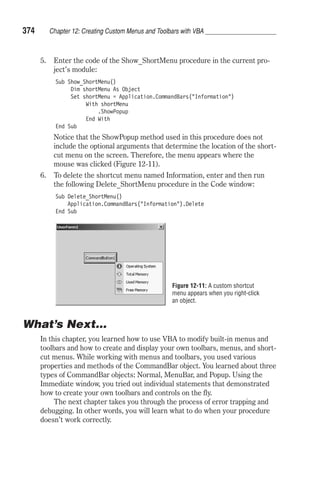
  • 448.
    Chapter 14: EventProgramming in Microsoft Excel 2002 431 Embedded Chart Events To capture events raised by the chart embedded in a worksheet, you must first create a new object in the class module using the keyword WithEvents. To see how this is done, let’s follow the steps outlined below: 1. Activate the Visual Basic Editor window. 2. In the Project Explorer, select VBAProject(ChartEvents.xls). 3. Choose Insert | Class Module. 4. In the Class Modules folder, you will see a module named Class1. 5. In the Properties window, rename Class1 to clsChart. 6. In the Code window of the class module, declare an object variable that will represent the events generated by the Chart object: Public WithEvents xlChart As Excel.Chart The Public keyword will make the object variable xlChart available to all modules in the current VBA project. Declaring an object variable using the WithEvents keyword exposes all of the events defined for that par-ticular object type. After typing in the above declaration, the xlChart object variable is added to the drop-down Object list in the upper-left corner of the Code window, and the events associated with this object variable appear in the Procedure drop-down list box in the upper-right corner of the Code window. 7. Open the Object drop-down list box, and select the name of the xlChart variable. The Code window should now show the skeleton of the xlChart_Activate event procedure: Private Sub xlChart_Activate() End Sub 8. Add your VBA code to the event procedure. In this exercise, we will add a statement to display a message box. After adding this statement, your VBA procedure should look like the following: Private Sub xlChart_Activate() MsgBox You’ve activated a chart embedded in _ ActiveSheet.Name End Sub After typing in the event procedure, you still need to inform Visual Basic that you are planning on using it. 9. In the Project Explorer window, double-click the object named ThisWorkbook, and enter in the [ThisWorkbook (Code)] window the statement to create a new instance of the class named clsChart: Dim myChart As New clsChart The instruction shown above declares an object variable named myChart. This variable will refer to the xlChart object located in the class module
  • 449.
    432 Chapter 14:Event Programming in Microsoft Excel 2002 clsChart. The New keyword tells Visual Basic to create a new instance of the specified object. 10. Enter the following procedure in the [ThisWorkbook (Code)] window to initialize the object variable myChart: Sub InitializeChart() ' connect the class module and its objects with the Chart object Set myChart.xlChart = _ Worksheets(1).ChartObjects(1).Chart End Sub 11. Run the InitializeChart procedure. After running this procedure, the event procedures entered in the class module will be triggered in response to a particular event. 12. Activate the Microsoft Excel application window and click the embed-ded chart. At this time, the xlChart_Activate event procedure that you entered in step 7 should be triggered. 13. You can now enter in the class module additional event procedures for the embedded chart. Events Recognized by the Application Object If you want your event procedure to execute no matter which Excel work-book is currently active, you need to create the event procedure for the Application object. Event procedures for the Application object have a global scope. This means that the procedure code will be executed in response to a certain event, as long as the Microsoft Excel application remains open. Events for the Application objects are listed in the following table. Sim-ilar to an embedded chart, event procedures for the Application objects require that you create a new object using the WithEvents keyword in the class module. The examples of the event procedures demonstrated in the table have to be entered in a class module. To do this, choose Insert | Class Module in the Visual Basic Editor window. In the Properties window change the module name to clsApplication. In the [clsApplication (Code)] window declare an object variable to represent the Application object using the WithEvents keyword as follows: Public WithEvents App As Application Below the declaration statement, enter the following event procedures, as shown in the table: App_NewWorkbook, App_WorkbookOpen, App_WorkbookBeforeSave, App_WorkbookBeforeClose, App_Sheet- SelectionChange, and App_WindowActivate. After you’ve entered the code of these procedures in the class module, insert a standard module to your current VBA project (choose Insert | Module). In the standard module,
  • 450.
    Chapter 14: EventProgramming in Microsoft Excel 2002 433 create a new instance of the clsApplication class and connect the object located in the class module clsApplication with the object variable App repre-senting the Application object, as shown below: Dim DoThis As New clsApplication Public Sub InitializeAppEvents () Set DoThis.App = Application End Sub Now place the mouse pointer within the InitializeAppEvents procedure and press F5 to run it. As a result of running the InitializeAppEvents procedure, the object App in the class module will refer to the Excel application. From now on, when a specific event occurs, the code of the event procedures you’ve entered in the class module will be executed. If you don’t want to respond to events generated by the Application object, you can break the connection between the object and its object variable by entering in a stan-dard module (and then running) the following procedure: Public Sub CancelAppEvents() Set DoThis.App = Nothing End Sub When you set the object variable to Nothing, you release the memory and break the connection between the object variable and the object to which this variable refers. When you run the CancelAppEvents procedure, the code of the event procedures written in the class module will not be auto-matically executed when a specific event occurs. Note: All event procedures demonstrated in this table require that you declare an object variable in a class module using the WithEvents keyword. Event Description NewWorkbook This event occurs when the user creates a new workbook. Private Sub App_NewWorkbook(ByVal _ Wb As Workbook) Application.DisplayAlerts = False If Wb.Sheets.Count = 3 Then Sheets(Array(2, 3)).Delete End If Application.DisplayAlerts = True End Sub WorkbookOpen This event occurs when the user opens a workbook. Private Sub App_WorkbookOpen(ByVal Wb As Workbook) If Wb.FileFormat = xlCSV Then If MsgBox(Do you want to save vbCrLf _ this file as an Excel workbook?, vbYesNo, _
  • 451.
    434 Chapter 14:Event Programming in Microsoft Excel 2002 Event Description WorkbookOpen (cont.) Original file format: _ Comma delimited file) = vbYes Then Wb.SaveAs FileFormat:=xlWorkbookNormal End If End If End Sub WorkbookActivate This event occurs when the user shifts the focus to an open workbook. WorkbookDeactivate This event occurs when the user shifts the focus away from an open workbook. WorkbookNewSheet This event occurs when the user add a new sheet to an open workbook. WorkbookBeforeSave This event occurs before an open workbook is saved. Private Sub App_WorkbookBeforeSave(ByVal _ Wb As Workbook, _ ByVal SaveAsUI As Boolean, _ Cancel As Boolean) If Wb.Path vbNullString Then ActiveWindow.Caption = Wb.FullName _ [Last Saved: Time ] End If End Sub WorkbookBeforePrint This event occurs before an open workbook is printed. Private Sub App_WorkbookBeforePrint(ByVal _ Wb As Workbook, Cancel As Boolean) Wb.PrintOut Copies:=2 End Sub WorkbookBeforeClose This event occurs before an open workbook is closed. Private Sub App_WorkbookBeforeClose( ByVal _ Wb As Workbook, Cancel As Boolean) Dim r As Integer Sheets.Add r = 1 For Each p In Wb.BuiltinDocumentProperties On Error GoTo ErrorHandle Cells(r, 1).Value = p.Name = _ ActiveWorkbook. _ BuiltinDocumentProperties _ .Item(p.Name).Value r = r + 1 Next Exit Sub ErrorHandle: Cells(r, 1).Value = p.Name Resume Next End Sub
  • 452.
    Chapter 14: EventProgramming in Microsoft Excel 2002 435 Event Description WorkbookAddInInstall This event occurs when the user installs a workbook as an add-in. WorkbookAddInUninstall This event occurs when the user uninstalls a workbook as an add-in. SheetActivate This event occurs when the user activates a sheet in an open workbook. SheetDeactivate This event occurs when the user deactivates a sheet in an open workbook. SheetSelectionChange This event occurs when the user changes the selection on a sheet in an open workbook. Private Sub App_SheetSelectionChange( _ ByVal Sh As Object, ByVal Target As Range) If Selection.Count 1 Or _ (Selection.Count 2 And _ IsEmpty(Target.Value)) Then Application.StatusBar = Target.Address Else Application.StatusBar = Target.Address _ ( Target.Value ) End If End Sub SheetChange This event occurs when the user changes a cell formula in an open workbook. SheetCalculate This event occurs when the user recalculates a worksheet in an open workbook. SheetBeforeDoubleClick This event occurs when the user double-clicks a worksheet cell in an open workbook. SheetBeforeRightClick This event occurs when the user right-clicks a worksheet cell in an open workbook. WindowActivate This event occurs when the user shifts the focus to an open window. Private Sub App_WindowActivate(ByVal _ Wb As Workbook, ByVal Wn As Window) Wn.DisplayFormulas = True End Sub WindowDeactivate This event occurs when the user shifts the focus away from the open window. WindowResize This event occurs when the user resizes an open window. WorkbookPivotTableClose- Connection (new event in Excel 2002) This event occurs after a PivotTable report connection has been closed.
  • 453.
    436 Chapter 14:Event Programming in Microsoft Excel 2002 Event Description WorkbookPivotTableOpen- Connection (new event in Excel 2002) This event occurs after a PivotTable report connection has been opened. Query Table Events A query table is a table in an Excel worksheet that represents data returned from an external data source, such as an SQL Server database, a Microsoft Access database, a web page, or a text file. A query table is represented by the QueryTable object. Excel provides two events for the QueryTable object: BeforeRefresh and AfterRefresh. To try out the example procedures demonstrated in the table at the end of this section, perform the tasks out-lined below. This exercise assumes that you have Microsoft Access and its sample Northwind database installed on your machine. 1. In the Microsoft Excel application window, choose Data | Import External Data and select New Database Query to create a new database query. 2. In the Data Source dialog box, choose New Data Source and click OK. 3. In the Create New Data Source dialog box, enter SampleDb as the data source name. 4. Select the Microsoft Access (*.mdb) driver from the drop-down list next to step 2 in the Create New Data Source dialog box. 5. Click the Connect button. 6. In the ODBC Microsoft Access Setup dialog box, click the Select button. 7. In the Select Database dialog box, locate the Northwind.mdb file. This file usually can be found in the C:Program FilesMicrosoft OfficeOfficeSamples folder. 8. Select the file and click OK to close the Select Database dialog box. 9. Click OK again to exit the ODBC Microsoft Access Setup dialog box. 10. In the Create New Data Source dialog box’s step 4, select the Catego-ries table in the drop-down list box. 11. Click OK to close the Create New Data Source dialog box. 12. In the Choose Data Source dialog box, the SampleDb data source name should now be highlighted. Click OK. 13. In the Query Wizard – Choose Column dialog box, click the button to move all the fields from the Categories table to the Columns in your query box. 14. Click the Next button until you see the Query Wizard – Finish dialog.
  • 454.
    Chapter 14: EventProgramming in Microsoft Excel 2002 437 15. In the wizard’s Finish dialog box, make sure the Return Data to Microsoft Excel option button is selected and click Finish. 16. In the Import Data dialog box, the current spreadsheet cell is selected. Click cell A1 in the current worksheet to change the cell reference, and click OK to close the dialog box. After completing the above steps, the data from the Category table in the Northwind database should be placed in the active worksheet. It took quite a number of steps to retrieve this data. In the next chapter, you will learn how to create a query table programmatically. To write event procedures for a QueryTable object, you must create a class module and declare a QueryTable object by using the WithEvents keyword. 1. Insert a class module to the current VBA project and rename it clsQryTbl. 2. In the clsQryTbl [Code] window, type the following statement: Public WithEvents qrytbl As QueryTable After you’ve declared the new object (qrytbl) by using the WithEvents keyword, it appears in the Object drop-down list in the class module. 3. In the clsQryTbl [Code] window, enter the two event procedures pre-sented in the table on the following page: QryTbl_BeforeRefresh and QryTbl_AfterRefresh. Before you can trigger these event procedures, you must connect the object that you declared in the class module (qrytbl) to the specified QueryTable object. 4. Insert a standard module into the current VBA project, and enter the following code: Dim sampleQry As New clsQryTbl Public Sub Auto_Open() ' connect the class module and its objects with the Query object Set sampleQry.qrytbl = ActiveSheet.QueryTables(1) End Sub The above procedure creates a new instance of the QueryTable class (clsQryTbl) and connects this instance with the first query table on the active worksheet. The Auto_Open procedure will run automatically when you open the workbook, so you will not need to run this proce-dure manually to ensure that the query events that you’ve entered are triggered when the data is refreshed by the user or the system. 5. Run the Auto_Open procedure that you entered in step 4. After you run this initialization procedure, the object that you declared in the class module points to the specified QueryTable object. 6. In the worksheet where you placed the Category table from Microsoft Access, change the name of one of the retrieved categories. Select any
  • 455.
    438 Chapter 14:Event Programming in Microsoft Excel 2002 cell in the query table and click the Refresh button on the External Data toolbar, or choose Data | Refresh Data. At this time, the event procedure qryTbl_BeforeRefesh will be trig-gered, and you should see the custom message box. If you click Yes, the data will be refreshed with the existing data in the database and the change in the name of the category you’ve made will be overwritten. Event Description BeforeRefresh This event occurs before the query table is refreshed. Private Sub qryTbl_BeforeRefresh(Cancel As Boolean) Response = MsgBox(Are you sure you _ want to refresh now?, vbYesNoCancel) If Response = vbNo Then Cancel = True End Sub AfterRefresh This event occurs after a query is completed or canceled. The Success argument is True if the query was completed successfully. Private Sub qryTbl_AfterRefresh(ByVal Success As Boolean) If Success Then MsgBox The data has been refreshed. Else MsgBox The query failed. End If End Sub What’s Next... In this chapter you gained hands-on experience with events and event-driven programming in Excel. These are invaluable skills, whether you are planning to create spreadsheet applications for others to use or simply auto-mating your routine daily tasks. Excel provides many events to which you can respond. By writing event procedures, you can change the way objects respond to events. Your event procedures can be as simple as a single line of code displaying a cus-tom message to code including decision-making statements and other programming structures that allow you to change the flow of your program when a particular event occurs. When a certain event occurs, Visual Basic will simply run an appropriate event procedure instead of responding in the standard built-in way. You’ve learned that some event procedures are writ-ten in a standard module (Workbook, Worksheet, Chart Sheet), while others (Embedded Chart, Application, Query Table) require that you create a new object using the WithEvents keyword in a class module. You’ve also learned that you can enable or disable events using the EnableEvents property. In the next chapter, you will learn how to work with a Microsoft Access database using the VBA procedures written in the Microsoft Excel Visual Basic environment.
  • 456.
    Chapter 15 UsingExcel with Microsoft Access Object Libraries Setting Up References to Object Libraries Connecting to Microsoft Access Using Automation to Connect to a Microsoft Access Database Using DAO to Connect to a Microsoft Access Database Using ADO to Connect to a Microsoft Access Database Performing Microsoft Access Tasks from Excel Creating a New Microsoft Access Database Opening a Microsoft Access Form Opening a Microsoft Access Report Running a Microsoft Access Query Calling a Microsoft Access Function Retrieving Microsoft Access Data into an Excel Spreadsheet Retrieving Data with the GetRows Method Retrieving Data with the CopyFromRecordset Method Retrieving Data with the Transfer- Spreadsheet Method Using the OpenDatabase Method Creating a Text File from Microsoft Access Data Creating a Query Table from Microsoft Access Data Using Microsoft Access Data in Excel Creating an Embedded Chart from Microsoft Access Data Transferring the Excel Spreadsheet to an Access Database Linking an Excel Spreadsheet to a Microsoft Access Database Importing an Excel Spreadsheet to a Microsoft Access Database Placing Excel Data in an Access Table What’s Next… 439
  • 457.
    440 Chapter 15:Using Excel with Microsoft Access In Chapter 9 you learned about controlling Microsoft Word and Outlook from Excel via Automation, which allows one application to control the objects of another application. This chapter shows you how to programmati-cally use Access from Excel and retrieve Access data into a spreadsheet by using the following methods: Automation, DAO (Data Access Objects), and ADO (ActiveX Data Objects). Before you learn how to use Excel VBA to perform various tasks in an Access database as well as retrieve and store data in an Access database, let’s briefly introduce the data access methods that Microsoft Access uses to gain programmatic access to its objects. Object Libraries A Microsoft Access database consists of various types of objects stored in different object libraries to display, store, or manage data with the Visual Basic for Applications language. In this chapter you will be accessing objects, properties, and methods from several of the libraries listed below. The Microsoft Access 10.0 Object Library provides objects that are used to display data and work with the Microsoft Access 2002 appli-cation. This library is stored in the MSACC10.OLB file and can be found in the C:Program FilesMicrosoft OfficeOffice folder. After setting up a reference to this library in the Refer-ences dialog box (this is covered in the next section), you will be able to access this library’s objects, proper-ties, and methods in the Object Browser (see Figure 15-1). The Microsoft Access DAO 3.6 Object Library provides Data Access Objects (DAO) that allow you to determine the structure of your data-base and manipulate data using VBA. This library is stored in the DAO360.DLL file and can be found in the C:Program FilesCommon FilesMicrosoft SharedDAO folder. After setting up a reference to this library in the References dialog box (covered in the next section), you will be able to access the library’s objects, properties, and methods in the Object Browser (see Figure 15-2). Figure 15-1: Library Access Figure 15-2: Library DAO
  • 458.
    Chapter 15: UsingExcel with Microsoft Access 441 The Microsoft ActiveX Data Objects 2.5 Library (ADO) provides ActiveX Data Objects (ADO) and allows you to access and manipulate data using the OLE DB provider. ADO objects make it possible to establish a connection with a data source and read, insert, modify, and delete data in an Access database. This library is stored in MSA-DO15. DLL and can be found in the C:Program FilesCommon Filessystemado folder. After set-ting up a reference to this library in the References dialog, you will be able to access this library’s objects, properties, and methods in the Object Browser (see Figure 15-3). The Microsoft ADO Ext. 2.5 for DDL and Security (ADOX) stores objects that allow you to define the database structure and security. For example, you can define tables, indexes, and relationships, as well as create and modify user and group accounts. This library is stored in MSADOX.DLL and can be found in the C:Program FilesCommon FilesSystemado folder. After set-ting up a reference to this library in the References dialog box, you will be able to access this library’s objects, properties, and methods in the Object Browser (see Figure 15-4). The Microsoft Jet and Replica-tion Objects 2.6 Library (JRO) contains objects that are used in the replication of a database. This library is stored in MSJRO.DLL and can be found in the C:Program FilesCommon FilesSystemado folder. After setting up a reference to this library in the References Figure 15-3: Library ADODB Figure 15-4: Library ADOX Figure 15-5: Library JRO
  • 459.
    442 Chapter 15:Using Excel with Microsoft Access dialog box, you will be able to access this library’s objects, properties, and methods in the Object Browser (see Figure 15-5). The Visual Basic for Applications Object Library (VBA) provides many VBA objects, functions, and meth-ods that allow you to access the file system, work with date and time functions, perform mathematical and financial computations, interact with users, convert data, and read text files. This library is stored in the VBE6.DLL file located in the C:Program FilesCommon FilesMicrosoft SharedVBAVBA6 folder. The reference to this library is automatically set when you install Microsoft Excel 2002. This library is shared between all Office 2002 applications (see Figure 15-6). Figure 15-6: Library VBA Setting Up References to Object Libraries To work with Microsoft Access 2002 objects, begin by creating a reference to the Microsoft Access 10.0 Object Library. (Choose Microsoft Access 9.00 Object Library if you are working with Microsoft Office 2000.) 1. In the Visual Basic Editor window, choose Tools | References to open the References dialog box. This dialog displays a list of all the type libraries that are available on your computer. 2. Locate the Microsoft Access 10.0 Object Library in the list of entries and select its check box. 3. Close the References dialog box. Once you’ve created a reference to the Microsoft Access type library, you can use the Object Browser to view a list of the application’s objects, prop-erties, and methods (see Figure 15-1 in the previous section). Use the References dialog box to set up references to other object libraries that will be accessed in the exercises of this chapter. You will find the list of libraries in the previous section. You can skip the reference to the Microsoft Jet and Replication Objects 2.6 Library (JRO), as it will not be used here. If you are interested in database replication, there are many books on Microsoft Access programming that cover this subject, including my book Learn Microsoft Access 2000 Programming by Example from Wordware Publishing (ISBN 1-55622-770-1).
  • 460.
    Chapter 15: UsingExcel with Microsoft Access 443 Tip 15-1: Advantages of Creating a Reference to Microsoft Access Object Library When you set a reference to Microsoft Access Object Library, you gain the following: You can look up Microsoft Access objects, properties, and methods in the Object Browser. You can run Microsoft Access functions directly in your VBA procedures. You can declare the object variable of the Application type instead of the generic Object type. Declaring the object variable as Dim objAccess As Access.Application (early binding) is faster than declaring it as Dim objAccess As Object (late binding). You can use Microsoft Access built-in constants in your VBA code. Your VBA procedure will run faster. Connecting to Microsoft Access The example procedures in this chapter use various methods of connecting to Microsoft Access, each of which is discussed in detail in this section. You can establish a connection to Microsoft Access by using one of the following three methods: Automation Data Access Objects (DAO) ActiveX Data Objects (ADO) In order to access data in a database, you need to open it. How you open a particular database depends largely on which method you selected to estab-lish a database connection. Using Automation to Connect to a Microsoft Access Database When working with Microsoft Access from Excel (or another application) using Automation, take the following steps: 1. Set a reference to the Microsoft Access 10.0 Object Library. (Refer to “Setting Up References to Object Libraries” earlier in this chapter). 2. Declare an object variable to represent the Microsoft Access Applica-tion object. Dim objAccess As Access.Application In this declaration line, objAccess is the name of the object variable, and Access.Application qualifies the object variable with the name of the Visual Basic object library that supplies the object.
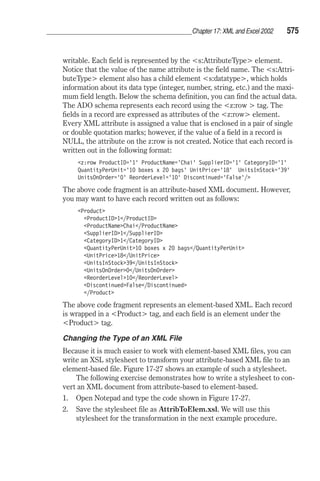
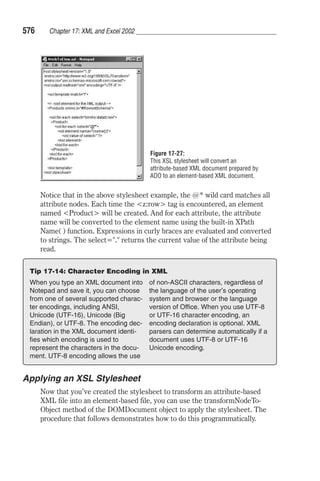
  • 461.
    444 Chapter 15:Using Excel with Microsoft Access 3. Return the reference to the Application object and assign that reference to the object variable. Return the reference to the Application object using the CreateObject function, GetObject function, or the New key-word. Assign the reference to the object variable with the Set statement. Dim objAccess As Object Set objAccess = CreateObject(“Access.Application.10”) Use the CreateObject function to return a reference to the Application object when there is no current instance of the object. If Microsoft Access is already running, a new instance is started and the specified object is created. Dim objAccess As Object Set objAccess = GetObject(, “Access.Application.10”) or Set Set objAccess = GetObject(“C:Program Files _ “Microsoft OfficeOfficeSamplesNorthwind.mdb”) Use the GetObject function to return a reference to the Application object to use the current instance of Microsoft Access or to start Microsoft Access and have it load a file. (For more information, see Tip 15-2.) Dim objAccess As New Access.Application The above statement uses the New keyword to declare an object vari-able, return a reference to the Application object, and assign the reference to the object variable, all in one step. You can also declare an object variable using the two-step method, which gives more control over the object: Dim objAccess As Access.Application Set objAccess = New Access.Application When you declare the object variable with the New keyword, the Access application does not start until you begin working with the object variable in your VBA code. When you use the New keyword to declare the Application object variable, a new instance of Microsoft Access is created automatically and you don’t need to use the CreateObject function. Using the New keyword to create a new instance of the Application object is faster than using the CreateObject function.
  • 462.
    Chapter 15: UsingExcel with Microsoft Access 445 Because a computer can have more than one version of Microsoft Access installed, include the version number in the argument of the GetObject or CreateObject function. The last four versions of Microsoft Access are shown below: Microsoft Access 2002 Access.Application.10 Microsoft Access 2000 Access.Application.9 Microsoft Access 97 Access.Application.8 Microsoft Access 95 Access.Application.7 Once you’ve created a new instance of the Application class by using one of the methods outlined in step 3, you can open a database or create a new database with the help of the OpenCurrentDatabase or NewCurrent- Database methods. You can close the Microsoft Access database that you opened through Automation by using the CloseCurrentDatabase method. Tip 15-2: Arguments of the GetObject Function The first argument of the GetObject function—Pathname—is optional. It is used when you want to work with an object in a specific file. The second argument—Class—is required and specifies which application creates the object and what type of object it is. When the first argument is optional and the second argument is required, you must place a comma in the position of the first argument, as shown below: Dim objAccess As Object Set objAccess = GetObject(, Access. _ Application.10”) Because the first argument (Pathname) of the GetObject function is omitted, a reference to an existing instance of the Microsoft Access Application class is returned. Dim objAccess As Object Set objAccess = GetObject(“C:Program_ Files “Microsoft OfficeOffice_ SamplesNorthwind.mdb”) When the first argument of the GetObject function is the name of a database file, a new instance of the Microsoft Access Application class is activated or created with the specific database. Now that you know how to create an object variable that represents the Application object, let’s take a look at an example procedure that opens an Access database straight from an Excel VBA procedure. The AccessViaAutomation procedure shown on the next page opens the sample Northwind database that ships with Microsoft Access. This procedure will use a current instance of the Access automation server, if it is available. If Access isn’t running, a run-time error will occur and the object variable will be set to Nothing. By placing the On Error Resume Next statement inside this procedure, you can trap this error. Therefore, if Access isn’t running, a new instance of Access will be started. This particu-lar example uses the New keyword to start a new instance of Access. As mentioned earlier, instead of creating a new object instance with the New
  • 463.
    446 Chapter 15:Using Excel with Microsoft Access keyword, you can use the CreateObject() function to start a new instance of an Automation server, as illustrated below: Set objAccess = GetObject(, “Access.Application.10”) If objAccess Is Nothing Then Set objAccess = CreateObject(“Access.Application.10”) End If When you launch Microsoft Access using Automation, you will see the Microsoft Access program icon on the taskbar. The Visible property of the Access Application object is set to False. To restore the application window, set the Visible property to True. While in use, objects consume memory and system resources. To free the resources, always close the object when you’ve finished working with it. The example procedure demonstrated below first closes the Northwind database by using the CloseCurrentDatabase method. Next, the Access application object is closed with the Quit method. After closing the object, you should also set the object variable to the Nothing keyword to free the memory resources used by the variable. You can prevent an instance of Microsoft Access from closing by mak-ing an object variable a module-level variable rather than declaring it at the procedure level. Under these circumstances, the connection to the database will remain open until you close the Automation controller (Excel) or use the Quit method in your VBA code. Sub AccessViaAutomation() Dim objAccess As Access.Application Dim strPath As String On Error Resume Next Set objAccess = GetObject(, Access.Application.9) If objAccess Is Nothing Then ' Get a reference to the Access Application object Set objAccess = New Access.Application End If strPath = C:Program FilesMicrosoft Office _ OfficeSamplesnorthwind.mdb ' Open the Northwind database With objAccess .OpenCurrentDatabase strPath If MsgBox(Do you want to make the Access vbCrLf _ Application visible?, vbYesNo, _ Display Access) = vbYes Then .Visible = True MsgBox Notice the Access Application icon _ now appears on the Windows taskbar. End If ' Close the database and quit Access
  • 464.
    Chapter 15: UsingExcel with Microsoft Access 447 .CloseCurrentDatabase .Quit End With Set objAccess = Nothing End Sub Run the above procedure by stepping through the code with the F8 key. Tip 15-3: Opening a Secured Microsoft Access Database If the Access database is secured with a password, the user will be prompted to enter the correct password. You must use Data Access Objects (DAO) or ActiveX Data Access (ADO) to programmatically open a password-protected Microsoft Access database. The following example uses the DBEngine property of the Microsoft Access object to specify the password of the database. For this procedure to work, you must set up a reference to the Microsoft DAO 3.6 Object Library, as explained in the beginning of this chapter. Sub OpenSecuredDB() Static objAccess As _ Access.Application Dim db As DAO.Database Dim strDb As String strDb = C:Program FilesMicrosoft_ Office OfficeSamples _ Northwind.mdb Set objAccess = New _ Access.Application Set db = objAccess.DBEngine.Open _ Database(Name:=strDb, _ Options:=False, _ ReadOnly:=False, _ Connect:=;PWD=test) With objAccess .Visible = True .OpenCurrentDatabase strDb End With db.Close Set db = Nothing End Sub Using DAO to Connect to a Microsoft Access Database To connect to a Microsoft Access database using the Data Access Objects (DAO), you must first set up a reference to the Microsoft Data Access Objects 3.6 Library in the References dialog box (see the section titled “Setting up References to Object Libraries” earlier in this chapter). The example procedure DAOOpenJetDatabase, illustrated below, uses the OpenDatabase method of the DBEngine object to open the Northwind database and informs the user that the database has been opened. The DBEngine object allows you to initialize the standard database engine known as Microsoft Jet Engine and open a database file (.mdb). The procedure uses the Close method to close the database file. Sub DAOOpenJetDatabase() Dim db As DAO.Database Set db = DBEngine.OpenDatabase _ (C:Program FilesMicrosoft OfficeOfficeSamplesNorthwind.mdb) MsgBox Northwind database has been opened. db.Close
  • 465.
    448 Chapter 15:Using Excel with Microsoft Access MsgBox Northwind database has been closed. End Sub Using ADO to Connect to a Microsoft Access Database The newest and most recommended method of establishing a connection with an Access database is using the ActiveX Data Objects (ADO). You must begin by setting up a reference to the Microsoft ActiveX Data Objects 2.5 Library or higher version. The example procedure ADOOpenJet- Database connects to the Northwind database using the Connection object. This object is opened via the Open method. Notice that the Open method requires a connection string argument that contains the name of the data provider (in this example, it’s Microsoft.Jet.OLEDB.4.0) and the data source name (in this example, it’s the full name of the database file you want to open): con.Open _ Provider=Microsoft.Jet.OLEDB.4.0; _ Data Source=C:Program FilesMicrosoft Office _ OfficeSamplesNorthWind.mdb; After establishing a connection to the Northwind database, you can use the Recordset object to access its data. Recordset objects are used to manipu-late data at the record level. The Recordset object is made up of records (rows) and fields (columns). To obtain a set of records, you need to open a Recordset by using the Open method. This method requires that you spec-ify information such as the source of records for the Recordset: rst.Open SELECT * FROM Customers _ WHERE City = 'London', con, _ adOpenForwardOnly, adLockReadOnly The source of records can be a name of a database table or query or the SQL statement that returns records. After specifying the source of records, you also need to indicate the connection with the database (con) and two constants, one of which defines the type of cursor (adOpenForwardOnly) and the other type of lock (adLockReadOnly). The adOpenForwardOnly constant tells VBA to create the forward-only recordset, which scrolls for-ward in the returned set of records. The second constant, adLockReadOnly, specifies the type of the lock placed on records during editing; the records are read-only which means that you cannot alter the data. The next part of the procedure uses the For...Each...Next loop to iterate through the Recordset and print the contents of the first record to the Immediate window: For Each fld In rst.Fields Debug.Print fld.Name = fld.Value vbCr Next
  • 466.
    After obtaining thedata from the first record, the Close method closes the Recordset and another Close method is used to close the connection with the Access database: rst.Close con.Close The ADOOpenJetDatabase procedure is given below: Sub ADOOpenJetDatabase() Dim con As New ADODB.Connection Dim rst As New ADODB.Recordset Dim fld As ADODB.Field ' Connect with the database con.Open _ Provider=Microsoft.Jet.OLEDB.4.0; _ Data Source=C:Program FilesMicrosoft Office _ OfficeSamplesNorthWind.mdb; ' Open Recordset based on the SQL statement rst.Open SELECT * FROM Customers _ WHERE City = 'London', con, _ adOpenForwardOnly, adLockReadOnly ' Print the values for the fields in ' the first record in the debug window For Each fld In rst.Fields Debug.Print fld.Name = fld.Value vbCr Next ' Close the Recordset and connection with Access rst.Close con.Close ' Destroy object variables to reclaim the resources Set rst = Nothing Set con = Nothing End Sub Performing Microsoft Access Tasks from Excel After connecting to a Microsoft Access from Excel, you can perform differ-ent tasks within the Access application. This section demonstrates in particular how to use VBA code to: Create a new Access database Open an existing database form Create a brand new database form Open a database report Run an Access function Chapter 15: Using Excel with Microsoft Access 449
  • 467.
    450 Chapter 15:Using Excel with Microsoft Access Creating a New Microsoft Access Database If you want to programmatically transfer Excel data into a new Access data-base, you may need to create a database from scratch by using VBA code. The following example procedure demonstrates how to use the Data Access Objects (DAO) to establish a connection with Microsoft Access. The CreateDatabase method of the Workspace object is used to create a new database named ExcelDump.mdb in the root folder of the C drive. The CreateTableDef method of the Database object is then used to create a table named tblStates. Before a table can be added to a database, the fields must be created and appended to the table. The procedure creates three text fields (dbText) that can store 2, 25, and 25 characters each. As each field is created, it is appended to the Fields collection of the TableDef object using the Append method. Once the fields are created and appended to the table, the table itself is added to the database with the Append method. Because the database file named “C:ExcelDump.mdb” may already exist in the specified location, the procedure includes the error-handling routine that will delete the file so that the database creation process can go on. Because other errors could occur, the Else clause includes a statement that will display the error and its description and allow an exit from the procedure. Sub NewDB_DAO() Dim db As DAO.Database Dim tbl As DAO.TableDef Dim strDb As String Dim strTbl As String Figure 15-7: This Microsoft Access database table was created by an Excel VBA procedure. On Error GoTo Error_CreateDb_DAO strDb = C:ExcelDump.mdb strTbl = tblStates ' Create a new database named ExcelDump Set db = CreateDatabase(strDb, dbLangGeneral) ' Create a new table named tblStates Set tbl = db.CreateTableDef(strTbl) ' Create fields and append them to the Fields collection With tbl .Fields.Append .CreateField(StateId, dbText, 2) .Fields.Append .CreateField(StateName, dbText, 25) .Fields.Append .CreateField(StateCapital, dbText, 25) End With ' Append the table object to the TableDefs db.TableDefs.Append tbl
  • 468.
    Chapter 15: UsingExcel with Microsoft Access 451 ' Close the database db.Close Set db = Nothing MsgBox There is a new database on your hard disk. vbCrLf _ This database file contains a table strDb vbCrLf _ named strTbl . vbCrLf _ Before you activate this database, close the Excel _ application. Exit_CreateDb_DAO: Exit Sub Error_CreateDb_DAO: If Err.Number = 3204 Then ' Delete the database file if it already exists Kill C:Exceldump.mdb Resume Else MsgBox Err.Number : Err.Description Resume Exit_CreateDb_DAO End If End Sub Opening a Microsoft Access Form You can open a Microsoft Access form from Microsoft Excel. You can also create a new form. The following example uses Automation to connect to Microsoft Access. Once the connection is established, the OpenCurrent- Database method is used to open the sample Northwind database. Next, the Customers form is opened with the OpenForm method of the DoCmd object. The form is opened in the normal view (acNormal). To display the form in the design view, use the acDesign constant instead. The Restore method of the DoCmd object ensures that the form is displayed on the screen in a window and not minimized. The Visible property of the Access Application object (objAccess) must be set to True for the form to become visible. Notice that the Access.Application object variable (objAccess) is declared at the top of the module. For this procedure to work correctly, you must set up a reference to the Microsoft Access Object Library. Figure 15-8 shows the Customers form after it’s been opened. ‘ declare at the top of the module Dim objAccess As Access.Application Sub DisplayAccessForm() Dim strDb As String Dim strFrm As String strDb = C:Program FilesMicrosoft Office _ OfficeSamplesNorthwind.mdb strFrm = Customers Set objAccess = New Access.Application With objAccess .OpenCurrentDatabase(strDb)
  • 469.
    452 Chapter 15:Using Excel with Microsoft Access .DoCmd.OpenForm strFrm, acNormal .DoCmd.Restore .Visible = True End With End Sub Figure 15-8: A Microsoft Access form can be opened by an Excel VBA procedure. If you want to go a little bit further in your programming efforts, create a brand new Access form from within an Excel VBA procedure, as shown in this example: ‘ declare at the top of the module Dim myAccess As Access.Application Sub CreateAccessForm() Dim myForm As Form Dim myDb As String Dim myCtrl As Control Dim strFrmName As String On Error GoTo Error_CreateForm myDb = C:Program FilesMicrosoft Office _ OfficeSamplesNorthwind.mdb strFrmName = frmCustomForm Set obAccess = New Access.Application obAccess.OpenCurrentDatabase myDb Set myForm = obAccess.CreateForm myForm.Caption = Form created by Excel myForm.RecordSource = Employees obAccess.DoCmd.Save , strFrmName ' Create a label and text box on the form
  • 470.
    Set myCtrl =CreateControl(FormName:=strFrmName, _ ControlType:=acLabel, _ Left:=1000, Top:=1000) myCtrl.Caption = Last Name: myCtrl.SizeToFit Set myCtrl = CreateControl(FormName:=strFrmName, _ ControlType:=acTextBox, _ Parent:=, _ ColumnName:=LastName, _ Left:=2200, Top:=1000) With obAccess With .DoCmd .Save , strFrmName .Close acForm, strFrmName End With .CloseCurrentDatabase .Quit End With Set obAccess = Nothing MsgBox In the Northwind database there is now vbCrLf _ a new form named strFrmName . vbCrLf _ Close Excel prior to opening the Northwind vbCrLf _ database to view this form. ErrorHandler: Exit Sub Error_CreateForm: MsgBox Err : Err.Description Resume ErrorHandler End Sub Chapter 15: Using Excel with Microsoft Access 453 Figure 15-9: An Access form can be created by an Excel VBA procedure (see the code of the CreateAccessForm procedure shown above).
  • 471.
    454 Chapter 15:Using Excel with Microsoft Access Opening a Microsoft Access Report You can open a Microsoft Access report from Microsoft Excel. The follow-ing procedure demonstrates how you can display an existing Access report straight from Excel. ‘ declare at the top of the module Dim objAccess As Access.Application Sub DisplayAccessReport() Dim strDb As String Dim strRpt As String strDb = C:Program FilesMicrosoft Office _ OfficeSamplesNorthwind.mdb strRpt = Products by Category Set objAccess = New Access.Application With objAccess .OpenCurrentDatabase (strDb) .DoCmd.OpenReport strRpt, acViewPreview .DoCmd.Maximize .Visible = True End With End Sub The example procedure below is more versatile, as it allows you to display any Access report in any Access database. Notice that this procedure takes two string arguments: the name of the Access database and the name of the report. Sub DisplayAccessReport2(strDb As String, strRpt As String) Set objAccess = New Access.Application With objAccess .OpenCurrentDatabase (strDb) .DoCmd.OpenReport strRpt, acViewPreview .DoCmd.Maximize .Visible = True End With End Sub You can run the DisplayAccessReport2 procedure from the Immediate win-dow or from a subroutine, as shown below: Running the DisplayAccessReport2 procedure from the Immediate window: ' Enter the following statement on one line in the Immediate window Call DisplayAccessReport2(C:Program FilesMicrosoft _ OfficeOfficeSamplesNorthwind.mdb, Sales Totals by Amount) Running the DisplayAccessReport2 procedure from a subroutine: ' Enter the following procedure in the Code window Sub ShowReport()
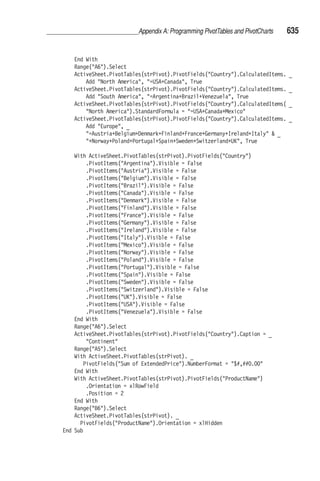
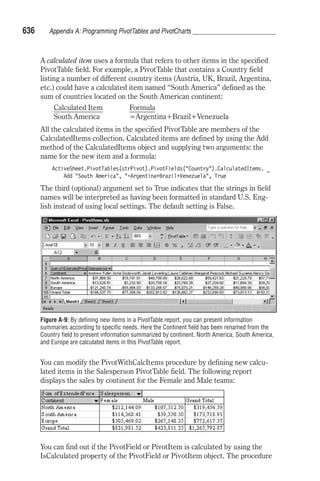
  • 472.
    Dim strDb AsString Dim strRpt As String strDb = InputBox(Enter the name of the database (full path): ) strRpt = InputBox(Enter the name of the report:) Call DisplayAccessReport2(strDb, strRpt) End Sub Running a Microsoft Access Query The two example procedures that follow demonstrate how to run Microsoft Access queries from within an Excel VBA procedure. The most popular types of queries that are executed in the Access user interface are Select and Parameter queries. Both example procedures use the CopyFrom- Recordset method of the Range object to place the data returned by the query into an Excel worksheet. The connection with the database is estab-lished via the ADO. The ADOX Object Library (see Figure 15-4 at the beginning of this chapter) gives you access to the database structure, security, and proce-dures that are stored in the database. The top object in this library is the Catalog object that represents the entire database. This object contains such database elements as tables, fields, indexes, views, and stored proce-dures. Using the Create method of the Catalog object, you can create a new database as follows: Chapter 15: Using Excel with Microsoft Access 455 Figure 15-10: A Microsoft Access report can be opened by an Excel VBA procedure.
  • 473.
    456 Chapter 15:Using Excel with Microsoft Access Dim cat As ADOX.Catalog Set cat = New ADOX.Catalog cat.Create Provider=Microsoft.Jet.OLEDB.4.0; _ Data Source=C:ExcelDump2.mdb; The above example illustrates how you would create a new database using the ActiveX Data Objects. Recall that earlier in this chapter you created a new database called NewDB_DA by using the Data Access Objects. The example procedure RunAccessQuery begins by creating an object variable cat that points to the Catalog object. Next, the ActiveConnection property of the Catalog object defines the method of establishing the con-nection to the database: Set cat = New ADOX.Catalog cat.ActiveConnection = Provider=Microsoft.Jet.OLEDB.4.0; _ Data Source= dbPath The Command object in the ADODB Object Library (see Figure 15-3 at the beginning of this chapter) specifies the command that you want to execute in order to obtain data from the data source. Our procedure attempts to access a specific query in a database. Set cmd = cat.Views(strQryName).Command The Views collection, which is a part of the ADOX Object Library, contains all View objects of a specific catalog. View is a filtered set of records or a virtual table created from other tables or views. After gaining access to the required query in the database, you can run the query in the following way: Set rst = cmd.Execute The Execute method of the Command object allows you to activate a spe-cific query, an SQL statement, or a stored procedure. The returned set of records is then assigned to the object variable of the type Recordset using the Set keyword. After creating the set of records, these records are placed in an Excel worksheet using the CopyFromRecordset method. Running a Select Query Sub RunAccessQuery(strQryName As String) ' prior to running this procedure you must set up ' references to the required object libraries Dim cat As ADOX.Catalog Dim cmd As ADODB.Command Dim rst As ADODB.Recordset Dim i As Integer Dim dbPath As String dbPath = C:Program FilesMicrosoft Office _ OfficeSamplesNorthwind.mdb Set cat = New ADOX.Catalog
  • 474.
    Chapter 15: UsingExcel with Microsoft Access 457 cat.ActiveConnection = _ Provider=Microsoft.Jet.OLEDB.4.0; _ Data Source= dbPath Set cmd = cat.Views(strQryName).Command Set rst = cmd.Execute Sheets(2).Select For i = 0 To rst.Fields.Count - 1 Cells(1, i + 1).Value = rst.Fields(i).Name Next With ActiveSheet .Range(A2).CopyFromRecordset rst .Range(Cells(1, 1), _ Cells(1, rst.Fields.Count)).Font.Bold = True .Range(A1).Select End With Selection.CurrentRegion.Columns.AutoFit rst.Close Set cmd = Nothing Set cat = Nothing End Sub To run the above sub procedure, type the following statement in the Imme-diate window and press Enter: RunAccessQuery(Current Product List) Figure 15-11: The results of running an Access query from an Excel VBA procedure are placed in a worksheet. Running a Parameter Query You can run a Microsoft Access parameter query and place the resulting data in a Microsoft Excel spreadsheet. For example, the RunAccessParam- Query procedure runs the Employee Sales by Country parameter query in the Microsoft Access database and retrieves the records for the period beginning 7/1/96 and ending 7/30/96. The Employee Sales by Country query requires two parameters that define the beginning and ending date.
  • 475.
    458 Chapter 15:Using Excel with Microsoft Access These parameters should be defined using the Parameters collection of the Command object: cmd.Parameters([Beginning Date]) = StartDate cmd.Parameters([Ending Date]) = EndDate After setting up the parameters, the query can be executed using the fol-lowing statement: Set rst = cmd.Execute The set of records returned by this query is assigned to the object variable of type Recordset and then copied to a worksheet using the CopyFrom- Recordset method (see more information on using this method later in this chapter). Sub RunAccessParamQuery() ' prior to running this procedure you must set up ' references to the required object libraries Dim cat As ADOX.Catalog Dim cmd As ADODB.Command Dim rst As ADODB.Recordset Dim i As Integer Dim dbPath As String Dim StartDate As String Dim EndDate As String dbPath = C:Program FilesMicrosoft Office _ OfficeSamplesNorthwind.mdb StartDate = 7/1/96 EndDate = 7/31/96 Set cat = New ADOX.Catalog cat.ActiveConnection = Provider=Microsoft.Jet.OLEDB.4.0; _ Data Source= dbPath Set cmd = cat.Procedures(Employee Sales by Country).Command cmd.Parameters([Beginning Date]) = StartDate cmd.Parameters([Ending Date]) = EndDate Set rst = cmd.Execute Sheets(1).Select For i = 0 To rst.Fields.Count - 1 Cells(1, i + 1).Value = rst.Fields(i).Name Next With ActiveSheet .Range(A2).CopyFromRecordset rst .Range(Cells(1, 1), Cells(1, rst.Fields.Count)).Font. _ Bold = True .Range(A1).Select End With Selection.CurrentRegion.Columns.AutoFit rst.Close Set cmd = Nothing
  • 476.
    Set cat =Nothing End Sub Chapter 15: Using Excel with Microsoft Access 459 Calling a Microsoft Access Function You can run a built-in Microsoft Access function from Microsoft Excel through Automation. The example procedure below calls the EuroConvert function to convert 1000 Spanish pesetas to a Euro dollar. The EuroConvert function uses fixed conversion rates established by the European Union. Sub RunAccessFunction() Dim objAccess As Object On Error Resume Next Set objAccess = GetObject(, Access.Application) 'if no instance of Access is open, create a new one If objAccess Is Nothing Then Set objAccess = CreateObject(Access.Application) End If MsgBox You will get _ objAccess.EuroConvert(1000, ESP, EUR) _ euro dollars. Set objAccess = Nothing End Sub Retrieving Microsoft Access Data into an Excel Worksheet There are numerous ways to get external data into Excel. This section shows you the following different techniques of putting Microsoft Access data into an Excel worksheet: Using the GetRows method Using the CopyFromRecordset method Using the TransferSpreadsheet method Using the OpenDatabase method Creating a text file Creating a query table Retrieving Data with the GetRows Method To place Microsoft Access data into an Excel spreadsheet, you can use the GetRows method. This method returns a two-dimensional array where the first subscript is a number representing the field, and the second subscript is the number representing the record. Record and field numbering begins with 0. You can programmatically return data to a Microsoft Excel worksheet by using Data Access Objects (DAO) in your VBA procedure. The following example procedure demonstrates how to run the Invoices query in the Northwind database and return records to a worksheet. For this procedure
  • 477.
    460 Chapter 15:Using Excel with Microsoft Access to work correctly, you must first establish a reference to the Microsoft Access 3.6 Object Library. Refer to the instructions on setting up a refer-ence to object libraries earlier in this chapter. After opening an Access database, the GetData_withDAO2 procedure illustrated below runs the Invoices query using the following statement: Set qdf = db.QueryDefs(Invoices) The QueryDefs object in the Microsoft Access 3.6 Object Library repre-sents a Select or Action query. Select queries return data from one or more tables or queries, while Action queries allow you to modify data (you can add, modify, or delete records using Action queries). After executing the query, the procedure places the records returned by the query in the object variable of type Recordset using the OpenRecord-set method, as shown below: Set rst = qdf.OpenRecordset Next, the record count is retrieved using the RecordCount method and placed in the countR variable. Notice that to obtain the correct record count, the record pointer has to be moved to the last record in the recordset by using the MoveLast method. rst.MoveLast countR = rst.RecordCount Next, the procedure prompts the user to enter the number of records to return to the worksheet. You can cancel at this point by clicking the Cancel button in the Input dialog box or typing the number of records to retrieve. If you enter a number that is greater than the record count, the procedure will retrieve all the records. Before retrieving records, you must move the record pointer to the first record by using the MoveFirst method. If you for-get to do this, the record pointer will remain on the last record and only one record will be retrieved. The procedure then goes on to activate the Get Records worksheet and clear the current region. The records are first returned to the Variant variable containing a two-dimensional array by using the GetRows method of the Recordset object. Next, the procedure loops through both dimensions of the array to place the records in the worksheet starting at cell A2. When this is done, another loop will fill in the first worksheet row with the names of fields and autofit each column so that the data is displayed correctly. Sub GetData_withDAO2() Dim db As DAO.Database Dim qdf As DAO.QueryDef Dim rst As DAO.Recordset Dim recArray As Variant Dim i As Integer Dim j As Integer Dim strPath As String Dim a As Variant
  • 478.
    Chapter 15: UsingExcel with Microsoft Access 461 Dim countR As Long Dim strShtName As String strPath = C:Program FilesMicrosoft Office _ OfficeSamplesnorthwind.mdb strShtName = Returned records Set db = OpenDatabase(strPath) Set qdf = db.QueryDefs(Invoices) Set rst = qdf.OpenRecordset rst.MoveLast countR = rst.RecordCount a = InputBox(This recordset contains _ countR records. vbCrLf _ Enter number of records to return: , _ Get Number of Records) If a = Or a = 0 Then Exit Sub If a countR Then a = countR MsgBox The number you entered is too large. vbCrLf _ All records will be returned. End If Workbooks.Add ActiveWorkbook.Worksheets(1).Name = strShtName rst.MoveFirst With Worksheets(strShtName).Range(A1) .CurrentRegion.Clear recArray = rst.GetRows(a) For i = 0 To UBound(recArray, 2) For j = 0 To UBound(recArray, 1) .Offset(i + 1, j) = recArray(j, i) Next j Next i For j = 0 To rst.Fields.Count - 1 .Offset(0, j) = rst.Fields(j).Name .Offset(0, j).EntireColumn.AutoFit Next j End With db.Close End Sub Retrieving Data with the CopyFromRecordset Method To retrieve an entire recordset into a worksheet, you can use the CopyFromRecordset method of the Range object. This method can take up to three arguments: Data, MaxRows, and MaxColumns. Only the first argument, Data, is required. This argument can be the Recordset object. The optional arguments, MaxRows and MaxColumns, allow you to specify the number of records that should be returned (MaxRows) and the number of fields
  • 479.
    462 Chapter 15:Using Excel with Microsoft Access (MaxColumns). If you omit the MaxRows argument, all the returned records will be copied to the worksheet. If you omit the MaxColumns argument, all the fields will be retrieved. The GetProducts procedure illustrated below estab-lishes a connection with the Northwind database using the ADO objects. For this procedure to work correctly, you must create a reference to the Microsoft ActiveX Data Objects 2.6 Library (refer to the instructions on setting up a reference to object libraries earlier in this chapter). Sub GetProducts() Dim conn As New ADODB.Connection Dim rst As ADODB.Recordset Dim strPath As String strPath = C:Program FilesMicrosoft Office _ OfficeSamplesNorthwind.mdb conn.Open Provider=Microsoft.Jet.OLEDB.4.0; _ Data Source= strPath ; conn.CursorLocation = adUseClient ' Create a Recordset from all the records ' in the Products table Set rst = conn.Execute(CommandText:=Products, _ Options:=adCmdTable) ' begin with the first record rst.MoveFirst ' transfer the data to Excel ' get the names of fields first With Worksheets(Sheet3).Range(A1) .CurrentRegion.Clear For j = 0 To rst.Fields.Count - 1 .Offset(0, j) = rst.Fields(j).Name Next j .Offset(1, 0).CopyFromRecordset rst .CurrentRegion.Columns.AutoFit End With rst.Close conn.Close End Sub The above procedure copies all the records from the Products table in the Northwind database into an Excel worksheet. If you want to copy fewer records, you can use the MaxRows argument as follows: .Offset(1, 0).CopyFromRecordset rst, 5 This statement tells Visual Basic to copy only five records. The Offset method causes the records to be entered in a spreadsheet, starting with the second spreadsheet row. To send all the records to the worksheet using the data from only two table fields, use the following statement:
  • 480.
    Chapter 15: UsingExcel with Microsoft Access 463 .Offset(1, 0).CopyFromRecordset rst, , 2 This statement tells Visual Basic to copy all the data from the first two col-umns. The comma between the rst and the number 2 is a placeholder for the omitted MaxRows argument. Retrieving Data with the TransferSpreadsheet Method It is possible to use the TransferSpreadsheet action to import or export data between the current Microsoft Access database (.mdb) or Access project (.adp) and a spreadsheet file. You can also link the data in a Microsoft Excel spreadsheet to the current Microsoft Access database. With a linked spread-sheet, you can view and edit the spreadsheet data with Microsoft Access while still allowing complete access to the data from your Microsoft Excel spreadsheet program. The TransferSpreadsheet method carries out the TransferSpreadsheet action in Visual Basic and has the following syntax: DoCmd.TransferSpreadsheet [transfertype][, spreadsheettype], _ tablename, filename [, hasfieldnames][, range] The transfertype argument can be one of the following constants: acImport (default setting), acExport, or acLink. These constants define whether data has to be imported, exported, or linked to the database. The spreadsheettype argument can be one of the following constants: 0 acSpreadsheetTypeExcel3 (default setting) 6 acSpreadsheetTypeExcel4 5 acSpreadsheetTypeExcel5 5 acSpreadsheetTypeExcel7 8 acSpreadsheetTypeExcel8 8 acSpreadsheetTypeExcel9 2 acSpreadsheetTypeLotusWK1 3 acSpreadsheetTypeLotusWK3 7 acSpreadsheetTypeLotusWK4 It is not difficult to guess that the spreadsheettype argument specifies the spreadsheet name and the version number. The tablename argument is a string expression that specifies the name of the Microsoft Access table you want to import spreadsheet data into, export spreadsheet data from, or link spreadsheet data to. Instead of the table name, you may also specify the name of the Select query whose results you want to export to a spreadsheet. The hasfieldnames argument is a logical value True (–1) or False (0). True indicates that the first worksheet row contains the field names. False denotes that the first row contains normal data. The default setting is False (no field names in the first row). The range argument is a string expression that specifies the range of cells or the name of the range in the worksheet. This argument applies only
  • 481.
    464 Chapter 15:Using Excel with Microsoft Access to importing. If you omit the range argument, the entire spreadsheet will be imported. Leave this argument blank if you want to export, unless you need to specify the worksheet name. The example procedure, ExportData, illustrated below exports data from the Shippers table in the Northwind database to the Shippers.xls spreadsheet using the TransferSpreadsheet method. Notice that this proce-dure uses Automation to establish a connection to Microsoft Access. After the connection has been established, the Northwind database is opened with the OpenCurrentDatabase method. After running the ExportData pro-cedure, open the C:Shippers.xls file to view the retrieved data. ‘ declare at the top of the module Dim objAccess As Access.Application Sub ExportData() Set objAccess = CreateObject(Access.Application) objAccess.OpenCurrentDatabase filepath:= _ C:Program FilesMicrosoft OfficeOffice _ SamplesNorthwind.mdb objAccess.DoCmd.TransferSpreadsheet _ TransferType:=acExport, _ SpreadsheetType:=acSpreadsheetTypeExcel10, _ TableName:=Shippers, _ Filename:=C:Shippers.xls, _ HasFieldNames:=True, _ Range:=Sheet1 objAccess.Quit Set objAccess = Nothing End Sub Using the OpenDatabase Method Figure 15-12: The data from a Microsoft Access table can be exported to Excel spreadsheet file using the TransferSpreadsheet method (see ExportData procedure listed above). Excel 2002 offers a new method for working with databases. The OpenDatabase method, which applies to the Workbooks collection, is the easiest way to get the database data into a Microsoft Excel spreadsheet. This method requires that you specify the name of a database file you want to open. The following example procedure opens the Northwind database located in the C:Program FilesMicrosoft OfficeOffice10Samples folder. When you run this procedure, Excel displays the dialog box listing all the tables and queries in the database (Figure 15-13). After making a selection
  • 482.
    Chapter 15: UsingExcel with Microsoft Access 465 from the list, a brand new workbook is open with the worksheet showing data from the selected table or query. Sub OpenAccessDatabase() Workbooks.OpenDatabase _ Filename:=C:Program FilesMicrosoft Office _ Office10SamplesNorthwind.mdb End Sub Figure 15-13: Use the OpenDatabase method with one argument (database file name) to allow the selection of a table or query from a list box. Figure 15-14: Database data stored in a table or query can be easily retrieved into an Excel workbook using the OpenDatabase method introduced in Excel 2002. The OpenDatabase method has four optional arguments that you can use to further qualify the data that you want to retrieve: Optional Arguments for the OpenDatabase Method Data Type Description CommandText Variant The SQL query string. See the following example for using this argument. CommandType Variant The command type of the query. The following command types are available: Default, SQL, and Table. BackgroundQuery Variant The background of the query. It can be one of the following constants: PivotCache or QueryTable. ImportDataAs Variant Specifies the format of the query. Use xlQueryTable report or xlPivotTableReport to generate a Query table or PivotTable report out of the retrieved database data. The following example procedure demonstrates how to use the OpenData-base method with optional arguments. This procedure creates a PivotTable
  • 483.
    466 Chapter 15:Using Excel with Microsoft Access report out of the retrieved customer records. When you run the procedure, Excel displays a list of available fields based on the submitted query string. You can drag one or more fields to the Pivot table layout grid to create your PivotTable report. Figure 15-15 displays the CustomerId field by country. Sub CountCustomersByCountry() Workbooks.OpenDatabase _ Filename:=C:Program FilesMicrosoft Office _ Office10SamplesNorthwind.mdb, _ CommandText:=Select * from Customers, _ BackgroundQuery:=PivotTable, _ ImportDataAs:=xlPivotTableReport End Sub Figure 15-15: Using the OpenDatabase method’s optional arguments, you can specify that the database data be retrieved into a specific format, such as a PivotTable report or a Query table report. Creating a Text File from Microsoft Access Data You can create a comma- or tab-delimited text file from Access data by using a VBA procedure in Excel. Text files are particularly useful for trans-ferring large amounts of data to a spreadsheet. The example procedure below illustrates how you can create a tab-delimited text file from an ADO recordset. For this procedure to work correctly, you must establish a refer-ence to the Microsoft ActiveX Data Objects 2.6 Library. Refer to Chapter 8 for details on working with text files. After running this procedure, open C:ProductsOver50.txt in Excel. Sub CreateTextFile() Dim strPath As String Dim conn As New ADODB.Connection Dim rst As ADODB.Recordset Dim strData As String Dim strHeader As String Dim strSQL As String strPath = C:Program FilesMicrosoft Office _ OfficeSamplesNorthwind.mdb conn.Open Provider=Microsoft.Jet.OLEDB.4.0; _
  • 484.
    Chapter 15: UsingExcel with Microsoft Access 467 Data Source= strPath ; conn.CursorLocation = adUseClient strSQL = SELECT * FROM Products WHERE UnitPrice 50 Set rst = conn.Execute(CommandText:=strSQL, Options:=adCmdText) 'save the recordset as a tab-delimited file strData = rst.GetString(StringFormat:=adClipString, _ ColumnDelimeter:=vbTab, _ RowDelimeter:=vbCr, _ nullExpr:=vbNullString) Open C:ProductsOver50.txt For Output As #1 For Each f In rst.Fields strHeader = strHeader + f.Name vbTab Next Print #1, strHeader Print #1, strData Close #1 End Sub In Chapter 8, you learned how to work with text files using the FileSystemObject. The procedure below demonstrates how to use this object to create a text file named ProductsOver100.txt: Sub CreateTextFile2() Dim strPath As String Dim conn As New ADODB.Connection Dim rst As ADODB.Recordset Dim strData As String Dim strHeader As String Dim strSQL As String Dim fso As Object Dim myFile As Object Set fso = CreateObject(Scripting.FileSystemObject) Set myFile = fso.CreateTextFile(C:ProductsOver100.txt, True) strPath = C:Program FilesMicrosoft Office _ OfficeSamplesNorthwind.mdb conn.Open Provider=Microsoft.Jet.OLEDB.4.0; _ Data Source= strPath ; conn.CursorLocation = adUseClient strSQL = SELECT * FROM Products WHERE UnitPrice 100 Set rst = conn.Execute(CommandText:=strSQL, Options:=adCmdText) 'save the recordset as a tab-delimited file strData = rst.GetString(StringFormat:=adClipString, _ ColumnDelimeter:=vbTab, _ RowDelimeter:=vbCr, _ nullExpr:=vbNullString) For Each f In rst.Fields strHeader = strHeader + f.Name vbTab Next With myFile .WriteLine strHeader .WriteLine strData
  • 485.
    468 Chapter 15:Using Excel with Microsoft Access .Close End With End Sub Figure 15-16: Because text files can be easily opened in Excel, you can use them for transferring data between Microsoft Access and Microsoft Excel. Creating a Query Table from Microsoft Access Data If you want to work in Excel with data that comes from external data sources and you know that the data you’ll be working with often undergoes changes, you may want to create a query table. A query table is a special table in an Excel worksheet that is connected to an external data source, such as a Microsoft Access database, SQL Server, web page, or text file. To retrieve the most up-to-date information, the user can easily refresh the query table. Microsoft Excel offers a special menu option for obtaining data from external data sources: simply choose Data | Import External Data and select New Database Query. By querying an external database, you can bring in data that fit your requirements exactly. For example, instead of bringing in all product information into your spreadsheet for a review, you may want to specify criteria that the data must meet prior to retrieval. Therefore, instead of bringing in all the products from an Access table, you may want to retrieve only products with a unit price greater than $20. In VBA, you can use the QueryTable object to access external data. Each QueryTable object represents a worksheet table built from data returned from an external data source, such as an SQL server or a Micro-soft Access database. To create a query programmatically, use the Add method of the QueryTables collection object. This method requires three arguments. The example procedure at the end of this section uses the fol-lowing statement to create a query table on the active sheet: Set myQryTable = ActiveSheet.QueryTables.Add(strConn, Dest, strSQL) strConn is a variable that provides value for the first argument—Connection. This is a required argument of the Variant data type that specifies the data source for the query table.
  • 486.
    Dest is avariable that provides value for the second argument—Destina-tion. This is a required argument of the Range data type that specifies to the cell where the resulting query table will be placed. strSQL is a variable that provides value for the third argument—SQL. This is a required argument of the String data type and defines the data to be returned by the query. When you create a query using the Add method, the query isn’t run until you call the Refresh method. This method accepts one argu-ment— BackgroundQuery. This is an optional argument of the Variant data type that allows you to determine whether to return control to the proce-dure when a database connection has been established and the query has been submitted (True) or to return control to the procedure after the query has been run and all the data has been retrieved into the worksheet (False). The CreateQueryTable procedure that follows only retrieves from the Northwind database’s Products table those products whose UnitPrice field is greater than 20. Notice that the control is returned to the procedure only after all the relevant records have been fetched. The RefreshStyle method determines how data is inserted into the worksheet. The following con-stants can be used: xlOverwriteCells—Existing cells are overwritten with the incoming data. xlInsertDeleteCells—Cells are inserted or deleted to accommodate the incoming data. xlInsertEntireRows—Entire rows are inserted to accommodate incoming data. Sub CreateQueryTable() Dim myQryTable As Object Dim myDb As String Dim strConn As String Dim Dest As Range Dim strSQL As String myDb = C:Program FilesMicrosoft OfficeOffice _ SamplesNorthwind.mdb strConn = OLEDB;Provider=Microsoft.Jet.OLEDB.4.0; _ Data Source= myDb ; Set Dest = Worksheets(1).Range(A1) strSQL = SELECT * FROM Products WHERE UnitPrice20 Set myQryTable = ActiveSheet.QueryTables.Add(strConn, _ Dest, _ strSQL) With myQryTable .RefreshStyle = xlInsertEntireRows .Refresh False End With End Sub Chapter 15: Using Excel with Microsoft Access 469
  • 487.
    470 Chapter 15:Using Excel with Microsoft Access Figure 15-17: Data from an external data source, such as a Microsoft Access database, can be analyzed in an Excel worksheet using the QueryTable object. Using Microsoft Access Data in Excel After retrieving data from a Microsoft Access database using one of the dis-cussed methods, you can analyze the data using many of the Microsoft Excel built-in tools. Often, it is helpful to create charts based on the retrieved information. Creating an Embedded Chart from Microsoft Access Data Using VBA, you can easily create a chart based on the data retrieved from a Microsoft Access database. The ChartData procedure shown below uses the data fetched from the Microsoft Access Northwind database to create an embedded chart. The chart is created by using the Add method of the Charts collection. The source of the chart data is provided by the Range object. The CurrentRegion method returns all the non-blank cells sur-rounding cell A1. The remaining part of the procedure formats the chart by setting various properties. The chart code fragment has been recorded in a separate macro and then pasted into the VBA procedure with modifications made to the settings of some of the properties. Sub ChartData() Dim db As DAO.database Dim qd As DAO.QueryDef Dim rs As DAO.Recordset Dim mySheet As Worksheet Dim recArray As Variant Dim i As Integer Dim j As Integer Dim pathDb As String Dim qdName As String pathDb = C:Program FilesMicrosoft Office _ OfficeSamplesnorthwind.mdb qdName = Category Sales for 1997 Set db = OpenDatabase(pathDb)
  • 488.
    Chapter 15: UsingExcel with Microsoft Access 471 Set qd = db.QueryDefs(qdName) Set rs = qd.OpenRecordset Set mySheet = Worksheets(Sheet2) With mySheet.Range(A1) .CurrentRegion.Clear recArray = rs.GetRows(rs.RecordCount) For i = 0 To UBound(recArray, 2) For j = 0 To UBound(recArray, 1) .Offset(i + 1, j) = recArray(j, i) Next j Next i For j = 0 To rs.Fields.Count - 1 .Offset(0, j) = rs.Fields(j).Name .Offset(0, j).EntireColumn.AutoFit Next j End With mySheet.Activate Charts.Add ActiveChart.ChartType = xl3DColumnClustered ActiveChart.SetSourceData _ Source:=mySheet.Cells(1, 1).CurrentRegion, PlotBy:=xlRows ActiveChart.Location Where:=xlLocationAsObject, Name:=mySheet.Name With ActiveChart .HasTitle = True .ChartTitle.Characters.Text = qdName .Axes(xlCategory).HasTitle = True .Axes(xlCategory).AxisTitle.Characters.Text = .Axes(xlSeries).HasTitle = False .Axes(xlValue).HasTitle = True .Axes(xlValue).AxisTitle.Characters.Text = mySheet.Range(B1) _ ($) .Axes(xlValue).AxisTitle.Orientation = xlUpward End With db.Close End Sub The result of running the ChartData procedure is shown in Figure 15-18. Figure 15-18: You can create an embedded chart programmaticall y with VBA based on the data retrieved from a Microsoft Access table, a query, or an SQL statement.
  • 489.
    472 Chapter 15:Using Excel with Microsoft Access Transferring the Excel Spreadsheet to an Access Database Many of the world’s biggest databases began as spreadsheets. When the time comes to build a database application from your spreadsheet, you can resort to a tedious manual method to transfer the data, or you can use your new VBA programming skills to automatically turn your spreadsheets into database tables. Once in a database format, your Excel data can be used in advanced company-wide reports or as a stand-alone application (needless to say, the latter requires that you possess database application design skills). The remaining sections of this chapter demonstrate how to link and import Excel spreadsheets to an Access database. Prior to moving your Excel data to Access, you should clean up the data as much as possible so the transfer operation goes smoothly. Keep in mind that each spreadsheet row you’ll be transferring will become a record in a table, and each column will function as a table field. For this reason, the first row of the spreadsheet range that you are planning to transfer to Access should contain field names. There should be no gaps between the columns of data that you want to transfer. In other words, your data should be contiguous. If the data you want to trans-fer represents a large number of columns, you should print your data first and examine it so that there are no surprises later. If the first column of your data contains the field names, it is recommended that you use the built-in Transpose feature to reposition your data so that the data goes down rather than from left to right. The key to a smooth data import is to make your spreadsheet look as much like a database table as possible. Linking an Excel Spreadsheet to a Microsoft Access Database You can link an Excel spreadsheet to a Microsoft Access database by using the TransferSpreadsheet method (refer to the “Retrieving Data with the TransferSpreadsheet Method” section in this chapter for the details on working with this method). The following example procedure links the spreadsheet shown in Figure 15-19 to the Northwind database. After open-ing the Access database with the OpenCurrentDatabase method, the procedure uses the TransferSpreadsheet method of the Microsoft Access DoCmd object to create a linked table named ExcelSheet from the specified range of cells (A1:D7) located in the mySheet worksheet in the Chap15.xls spreadsheet file. Notice that the –1 argument in the DoCmd statement indi-cates that the first row of the spreadsheet contains column headings. Next, the procedure opens the linked table in Edit mode, so the user can add or modify data. If you change back to Excel after adding one or more records, you’ll notice that the changes made in the linked Access table are immedi-ately available in Excel.
  • 490.
    Sub LinkExcel_ToAccess() DimobjAccess As Access.Application Dim strName As String strName = Linked_ExcelSheet Set objAccess = New Access.Application With objAccess .OpenCurrentDatabase C:Program FilesMicrosoft Office _ OfficeSamplesNorthwind.mdb .DoCmd.TransferSpreadsheet acLink, acSpreadsheetTypeExcel9, _ strName, _ C:Chap15.xls, _ -1, mySheet!A1:D7 .DoCmd.OpenTable strName, acViewNormal, acEdit End With End Sub Chapter 15: Using Excel with Microsoft Access 473 Figure 15-19: The LinkExcel_ToAccess VBA procedure links this spreadsheet to the Northwind database in Microsoft Access. Figure 15-20: A Microsoft Excel spreadsheet can be linked to a Microsoft Access database.
  • 491.
    474 Chapter 15:Using Excel with Microsoft Access Importing an Excel Spreadsheet to a Microsoft Access Database In the previous section, you learned how to link your Excel spreadsheet to an Access database. Importing your spreadsheet data is just as easy. You can even use the same VBA procedure you used for linking with one minor change: simply replace the acLink constant with acImport, and you are done. The following procedure imports the spreadsheet presented in Figure 15-19 (see the previous section) into the Northwind database. Sub ImportExcel_ToAccess() Dim objAccess As Access.Application Dim strName As String strName = Imported_ExcelSheet Set objAccess = New Access.Application With objAccess .OpenCurrentDatabase C:Program FilesMicrosoft Office _ OfficeSamplesNorthwind.mdb .DoCmd.TransferSpreadsheet acImport, acSpreadsheetTypeExcel9, _ strName, _ C:Chap15.xls, _ -1, mySheet!A1:D7 .DoCmd.OpenTable strName, acViewNormal, acEdit End With End Sub Placing Excel Data in an Access Table What if, rather then linking or embedding your Excel spreadsheet, you wanted to create an Access table from scratch and load it with the data sit-ting in a worksheet? Using several programming techniques that you’ve already acquired in this book, you can easily achieve this task. Let’s look at the VBA procedure that dynamically creates an Access table based on the Excel worksheet presented in Figure 15-19 (see the section “Linking an Excel Spreadsheet to a Microsoft Access Database”). Notice that this pro-cedure connects to the Access database using ActiveX Data Objects (ADO) and the MicrosoftJet.OLEDB.4.0 provider. After the connection is estab-lished, the procedure creates a new Access table by using the Catalog and Table objects from the ADOX object library. Next, the fields are added to the table that correspond to the names of the spreadsheet columns. Notice that each text field specifies the maximum number of characters that it can accept. If the spreadsheet cell’s length is larger than the specified field size, the error handler routine will display the Access built-in message appropri-ate for this error and the procedure will end. The final task in the procedure is the data transfer operation. To per-form this task, the procedure opens a Recordset object for an Access table.
  • 492.
    Because you needto add records to the table, the procedure uses an adOpenKeyset cursor type. Now that the table is open, the procedure uses the For…Next loop to move through the Excel data rows, placing informa-tion found in each cell into the corresponding table field. Notice that a new record is added to an Access table with the AddNew method of the Recordset object. After copying data from all cells in each row, the proce-dure uses the Update method of the Recordset object to save the table record. Sub AccessTbl_From_ExcelData() Dim conn As ADODB.Connection Dim cat As ADOX.Catalog Dim myTbl As ADOX.Table Dim rstAccess As ADODB.Recordset Dim rowCount As Integer Dim i As Integer On Error GoTo ErrorHandler ' connect to Access using ADO Set conn = New ADODB.Connection conn.Open Provider = Microsoft.Jet.OLEDB.4.0; Data Source = _ C:Program FilesMicrosoft OfficeOfficeSamplesNorthwind.mdb; ' create an empty Access table Set cat = New Catalog cat.ActiveConnection = conn Set myTbl = New ADOX.Table myTbl.Name = TableFromExcel cat.Tables.Append myTbl ' add fields (columns) to the table With myTbl.Columns .Append School No, adVarWChar, 7 .Append Equipment Type, adVarWChar, 15 .Append Serial Number, adVarWChar, 15 .Append Manufacturer, adVarWChar, 20 End With Set cat = Nothing MsgBox The table structure was created. ' open a recordset based on the newly created ' Access table Set rstAccess = New ADODB.Recordset With rstAccess .ActiveConnection = conn .CursorType = adOpenKeyset .LockType = adLockOptimistic .Open myTbl.Name End With Chapter 15: Using Excel with Microsoft Access 475
  • 493.
    476 Chapter 15:Using Excel with Microsoft Access ' now transfer data from Excel spreadsheet range With Worksheets(mySheet) rowCount = Range(A2:D7).Rows.Count For i = 2 To rowCount + 1 With rstAccess .AddNew ' add a new record to an Access table .Fields(School No) = Cells(i, 1).Text .Fields(Equipment Type) = Cells(i, 2).Value .Fields(Serial Number) = Cells(i, 3).Value .Fields(Manufacturer) = Cells(i, 4).Value .Update ' update the table record End With Next i End With ' close the Recordset and Connection object and remove them ' from memory rstAccess.Close conn.Close Set rstAccess = Nothing Set conn = Nothing AccessTbl_From_ExcelDataExit: Exit Sub ErrorHandler: MsgBox Err.Number : Err.Description Resume AccessTbl_From_ExcelDataExit End Sub What’s Next… This chapter presented various examples of getting Excel data into a Microsoft Access database and retrieving data from Microsoft Access into a worksheet. You learned how to control an Access application from an Excel VBA procedure, performing such tasks as opening Access forms and reports, creating new forms, running Select and Parameter queries, and calling Access built-in functions. In addition, this chapter showed you tech-niques for creating text files, query tables, and charts out of the Access data. You also learned how to place Excel data in an Access database by using linked, imported, and dynamic Access tables. In the next chapter, you will learn how to use Excel to create, view, and analyze Internet data.
  • 494.
    Chapter 16 Exceland the Internet Creating Hyperlinks Using VBA Creating and Pub-lishing HTML Files Using VBA Web Server —Storing and Opening Workbooks Web Queries Creating and Running Web Queries with VBA Web Queries with Parameters Dynamic Web Queries Refreshing Data Excel and Active Server Pages Creating an ASP Script Installing Internet Information Services (IIS) or Personal Web Server Creating a Virtual Directory Running Your First ASP Script Generating a Tab-delimited File on the Web Server Creating an Excel File from User Input Printing Excel Data to an Internet Browser using the GetString Method Creating Charts in ASP What’s Next… 477
  • 495.
    478 Chapter 16:Excel and the Internet The dramatic growth of the Internet that we’ve been witnessing over the past several years makes it possible to gain access to enormous knowledge archives scattered all over the world. Thanks to the Internet, we now have at our fingertips databases covering various industries and fields of knowl-edge, dictionaries and encyclopedias, stock quotes, maps, weather forecasts, and a great deal of other types of information stored on millions of existing web servers. Often, the information retrieved from web pages becomes a subject of further analysis by computer programs. Thanks to its structure (rows and columns), Microsoft Excel 2002 is a preferred tool for working with table data found on the Internet. Using Excel, you can easily create, publish, review, and analyze data. This chapter demonstrates the built-in tools available in Excel 2002 for retrieving data from the web and publishing Excel spreadsheets on the web. You will find many Visual Basic statements here that will allow you to obtain and publish data using custom-written Visual Basic procedures. To maximize your benefit from this chapter, you should have a connection to the Internet (a modem, telephone line, or cable, an account with an Internet service provider, and an Internet browser such as Microsoft Internet Explorer 5.0 or higher). Creating Hyperlinks Using VBA Excel 2002, like other applications in Microsoft Office, allows you to create hyperlinks in your spreadsheets. After clicking on a cell that contains a hyperlink, you can open a document located on a network server, an intranet, or the Internet. Hyperlinks can be created directly in the user interface with the Insert | Hyperlink option (Figure 16-1) or programmati-cally using VBA. Figure 16-1: A dialog box used to insert a hyperlink in Microsoft Excel
  • 496.
    Chapter 16: Exceland the Internet 479 In VBA, each hyperlink is represented by a Hyperlink object. To create a hyperlink to a web page, use the Add method of the Hyperlinks collection. This method is shown below: Expression.Hyperlinks.Add(Anchor, Address, [SubAddress], [ScreenTip], _ [TextToDisplay]) The arguments in square brackets are optional. Expression denotes a worksheet or range of cells where you want to place the hyperlink. Anchor is an object to be clicked. This can be either a Range or Shape object. Address points to a local network or a web page. SubAddress is the name of a range in the Excel file. ScreenTip allows the display of a screen label. TextToDisplay is a friendly name that you’d like to display in a spreadsheet cell for a specific hyperlink. Let’s see how this is done by creating a VBA procedure that places a hyperlink in a worksheet cell. This hyperlink, when clicked, should take you to the Yahoo site. 1. Open a new workbook. 2. Switch to the Visual Basic Editor screen, and insert a new module into the current VBA project. 3. In the Code window, enter the code of the FollowMe procedure shown below. 4. Activate the procedure created in step 3. Sub FollowMe() Dim myRange As Range Set myRange = Sheets(1).Range(A1) myRange.Hyperlinks.Add _ Anchor:=myRange, _ Address:=http://search.yahoo.com/bin/search, _ ScreenTip:=Search Yahoo, _ TextToDisplay:=Click here End Sub When you activate the FollowMe procedure, cell A1 in the first worksheet will contain a friendly hyperlink “Click here” with the screen tip “Search Yahoo” (Figure 16-2). If you are now connected to the Internet, clicking on this hyperlink will activate your browser and load the Yahoo search engine (Figure 16-3). Figure 16-2: This hyperlink was placed in a worksheet by a VBA procedure.
  • 497.
    480 Chapter 16:Excel and the Internet Figure 16-3: The main page of the Yahoo search engine was activated by clicking on the hyperlink placed in a worksheet cell. If you’d rather not place hyperlinks in a worksheet but still make it possible for a user to reach the required Internet pages directly from the Excel worksheet, you can use the FollowHyperlink method. This method allows you to open the required web page without the need to place a hyperlink object in a worksheet. The format of this method looks like this: Expression.FollowHyperlink(Address, [SubAddress], [NewWindow], _ [AddHistory], [ExtraInfo], [Method], [HeaderInfo]) Again, the arguments in square brackets are optional. Expression returns a Workbook object. Address is the address of the web page that you want to activate. SubAddress is a fragment of the object to which the hyperlink address points. This can be a range of cells in an Excel worksheet. NewWindow indicates whether you want to display the document or page in a new win-dow. The default setting is False. The next argument, AddHistory, is not currently used. It is reserved for future use. ExtraInfo gives additional infor-mation that allows jumping to the specific location in a document or on a web page. For example, you can specify here the text for which you want to search. Method specifies the method in which the additional information (ExtraInfo) is attached. This can be one of the following constants: msoMethodGet or msoMethodPost. When you use msoMethodGet, ExtraInfo is a String that’s appended to the URL address. When using msoMethodPost, ExtraInfo is posted as a String or byte array.
  • 498.
    Chapter 16: Exceland the Internet 481 The last optional argument, HeaderInfo, is a String that specifies header information for the HTTP request. The default value is an empty string. Let’s see how to use the FollowHyperlink method in a VBA procedure. The purpose of this procedure is to find any text entered in a worksheet cell using the AltaVista search engine. 1. In the Visual Basic Editor window, activate the Project Explorer win-dow and double-click the Sheet2 (Sheet2) object in the Microsoft Excel Objects folder. 2. In the Code window, enter the Worksheet_BeforeDoubleClick proce-dure shown below (review Chapter 14 on creating and using event procedures in Excel): Private Sub Worksheet_BeforeDoubleClick(ByVal Target As Range, _ Cancel As Boolean) Dim strSearch As String strSearch = Sheets(2).Range(C3).Formula If Target = Range(C3) Then Cancel = True ActiveWorkbook.FollowHyperlink _ Address:=http://www.altavista.com/cgi-bin/query, _ ExtraInfo:=q= strSearch, _ Method:=msoMethodGet End If End Sub 3. Now switch to the Microsoft Excel application window and enter in cell C3 on sheet 2 any word or term you want to find information about (Figure 16-4). 4. Make sure that you are connected to Internet. 5. Double-click cell C3. This will cause the text entered in cell C3 to be sent to the AltaVista search engine. The screen should show the index to found topics with the specified criteria (Figure 16-5). Figure 16-4: Microsoft Excel worksheets can be used to send search parameters to any search engine on the Internet (see procedure Work-sheet_ BeforeDoubleClick in step 2 above).
  • 499.
    482 Chapter 16:Excel and the Internet Figure 16-5: A web page opened from a Microsoft Excel worksheet lists topics that were found based on the criteria entered in a worksheet cell (see also Figure 16-4). Creating and Publishing HTML Files Using VBA Like previous versions, Excel 2002 allows you to save files in the HTML (Hypertext Markup Language) format. This format is recognized by Excel just like its standard .xls format. When you save an Excel file in the HTML format, you can view the spreadsheets using an Internet browser, such as Internet Explorer or Netscape Navigator. When you save a workbook or its part as HTML, Excel saves the options of the original workbook. Thanks to this, the user can view the file either in the browser or inside the Microsoft Excel application window. Excel 2002 is capable of saving data and charts as interactive web pages. While saving an entire workbook or its part in the HTML format, you can choose between creating a static or interactive HTML document and specify a location where the file should be saved. You can save your files directly to the web server, a network server, or a local computer. Working with nothing else but the user interface (File | Save as Web Page) you can place an entire workbook or its parts on the web page, so users can work with its information interactively or only view the data. Detailed instructions on how to place an entire workbook or any worksheet
  • 500.
    (or one ofits elements — such as chart, PivotTable report) on a web page can be found in Excel online help. Because this book is about programming, we will focus only on the way these tasks are performed via VBA code. The Visual Basic for Applications (VBA) object library in Excel 2002 offers objects for publishing worksheets on web pages. To programmatically cre-ate and publish Excel files in the HTML format, you should become familiar with the PublishObject object and the PublishObjects collection. PublishObject represents a worksheet element that was saved on a web page, while PublishObjects is a collection of all PublishObject objects of a specific workbook. To add a worksheet element to the PublishObjects collection, use its Add method. This method will create an object represent-ing a specific worksheet element that was saved as a web page. The format of the Add method looks like this: Chapter 16: Excel and the Internet 483 Figure 16-6: The Save As dialog box that appears after choosing Save As Web Page from the File menu allows saving the workbook as a web page. Figure 16-7: The Publish as Web Page dialog box appears after clicking the Publish button on the Save As dialog box (see Figure 16-6).
  • 501.
    484 Chapter 16:Excel and the Internet expression.Add(SourceType, Filename, [Sheet], [Source], [HtmlType], _ [DivID], [Title]) The arguments in square brackets are optional. Expression returns an object that belongs to the PublishObjects collection. SourceType specifies the source object using one of the following constants: Constant Description xlSourceAutoFilter An AutoFilter range xlSourceChart A chart xlSourcePivotTable A PivotTable report xlSourcePrintArea A range of cells selected for printing xlSourceQuery A query table (an external data range) xlSourceRange A range of cells xlSourceSheet An entire worksheet Filename is a string specifying the location where the source object (SourceType) was saved. This can be a URL (Unified Resource Locator) or the path to a local or network file. Sheet is the name of the worksheet that was saved as a web page. Source is a unique name that identifies a source object. This argument depends on the SourceType argument. Source is a range of cells or a name applied to a range of cells when the SourceType argument is the xlSourceRange constant. If the argument of SourceType is a constant, such as xlSourceChart, xlSourcePivotTable or xlSourceQuery, Source specifies a name of a chart, PivotTable report, or query table. HTMLType specifies whether the selected worksheet element is saved as an interactive Microsoft Office web component or static text and images. This can be one of the following constants: Constant Description xlHTMLCalc Use the Spreadsheet component. This component makes it possible to view, analyze, and calculate spreadsheet data directly in an Internet browser. This component also has options that allow you to change the formatting of fonts, cells, rows, and columns. xlHTMLChart Use the Chart component. This component allows you to create interactive charts in the browser. xlHTMLList Use the PivotTable component. This component allows you to rearrange, filter, and summarize information in a browser. This component is also able to display data from a spreadsheet or a database (for instance Microsoft Assess, SQL Server or OLAP servers). XlHTMLStatic (default value) Use static (non-interactive) HTML for viewing only. The data published in an HTML document does not change.
  • 502.
    Note: The OfficeWeb Components allow you to use Excel analytical options in an Internet browser. DivID is a unique identifier used in the HTML DIV tag to identify the item on the web page. Title is the title of the web page. Before we can see how to use the Add method from a VBA procedure, you also need to learn how to use the Publish method of the PublishObject. This method will allow you to publish an element or a collection of ele-ments in a particular document on the web page. This method is quite simple and looks like this: expression.Publish([Create]) Expression is an expression that returns a PublishObject object or PublishObjects collection. The optional argument, Create, is used only with a PublishObject. If the HTML file already exists, setting this argument to True will overwrite the file. Setting this argument to False inserts the item or items at the end of the file. If the file does not yet exist, a new HTML file is created, regardless of the value of the Create argument. Now that you’ve been introduced to VBA objects and methods used for creating and publishing an Excel workbook in HTML format, you can begin programming. In the following exercises, you will create two VBA proce-dures. The first one will create and publish an Excel worksheet with an embedded chart as static HTML. The second procedure will demonstrate how the same worksheet can be made available as an interactive web page. 1. Create a worksheet and chart, as shown in Figure 16-8. 2. Save the workbook in a file named PublishExample.xls. 3. Activate the Visual Basic Editor window, and insert a new module into the current VBA project. Chapter 16: Excel and the Internet 485 Figure 16-8: A worksheet like this one with an embedded chart can be placed on a web page using the Save As Web Page option on the File menu or programmatically from a VBA procedure.
  • 503.
    486 Chapter 16:Excel and the Internet 4. In the Code window, enter the two procedures shown below. The first one, PublishOnWeb, publishes on a web page a worksheet with an embedded chart as static HTML. The second procedure, CreateHTML-File, calls the PublishOnWeb procedure and feeds it the two required arguments: the name of the workbook that you want to publish and the name of the HTML file where the data should be saved. ' The procedure below will publish a worksheet ' with an embedded chart as static HTML Sub PublishOnWeb(strSheetName As String, strFileName As String) Dim objPub As Excel.PublishObject Set objPub = ThisWorkbook.PublishObjects.Add( _ SourceType:=xlSourceSheet, _ Filename:=strFileName, Sheet:=strSheetName, _ HtmlType:=xlHtmlStatic, Title:=Calls Analysis) objPub.Publish True End Sub Sub CreateHTMLFile() Call PublishOnWeb(Help Desk, C:WorksheetWithChart.htm) End Sub 5. After entering both procedures, run the procedure named Create- HTMLFile. When this procedure finishes, you will see a new file called C:WorksheetWithChart.htm. Also, there will be a folder named WorksheetWithChart_files storing supplemental files. 6. In Windows Explorer, double-click the C:WorksheetWithChart.htm file created in step 5. This action will cause the published worksheet to appear in an Internet browser (Figure 16-9). Figure 16-9: An Excel worksheet pub-lished as a static (non-in-teractive) web page
  • 504.
    Chapter 16: Exceland the Internet 487 To interactively publish the example worksheet with the embedded chart shown in Figure 16-8, perform the following: 1. In the Visual Basic Editor window, insert a new module into the current VBA project. 2. In the Code window, enter the InterHTML procedure, as shown below. Sub InterHTML() Dim strSheetName As String strSheetName = Help Desk ' ensure that the chart is not selected Range(A1).Select ActiveWorkbook.PublishObjects _ .Add(xlSourceChart, C:Inter_WorksheetWithChart.htm, _ strSheetName, Chart 1, xlHtmlChart).Publish (True) End Sub 3. Run the procedure you’ve just created. 4. In Windows Explorer, double-click C:Inter_WorksheetWith- Chart.htm. This will cause an Internet browser to be activated with the interactive chart (Figure 16-10). The web page also contains the interactive worksheet that supplies the chart data. 5. Change any values in column B, and see the changes on the chart. Note: To interactively use data, you must have Microsoft Internet Explorer 4.01 or higher and Microsoft Office Web Components installed on your computer. Figure 16-10: An interactively published Excel worksheet can be modified directly in the browser.
  • 505.
    488 Chapter 16:Excel and the Internet Web Server — Storing and Opening Workbooks It is possible to save and open workbooks stored on a web server by using VBA statements. However, before you can store your workbooks on a web server, FrontPage Server Extensions must be running on the server. The following statement saves a workbook to a web site: ActiveWorkbook.SaveAs “http://www.yourWebSite.com/TestWkb.xls” The following statement opens a workbook stored on a web site: Workbooks.Open(“http://www.yourWebSite.com/TestWkb.xls”) Web Queries If you are planning to retrieve data from a web page to use and analyze it in Excel, you can open Excel’s Data menu and select Import External Data | New Web Query. Web queries allow you to retrieve data from the web directly into Microsoft Excel. After placing data in a worksheet, you can use Excel tools for performing data analysis. Using a web query, you can retrieve into a worksheet a single table, a number of tables, or all the text that a particular web site contains. Tip 16-1: Ready-to-Use Web Queries Microsoft Excel 2002 comes with several built-in web queries. They are installed in the C:Program FilesMicrosoft OfficeOffice10 Queries folder, and can be loaded in Excel via the Open command on the File menu. The names of these queries are: MSN MoneyCentral Investor Currency Rates.iqy MSN MoneyCentral Investor Major Indicies.iqy MSN MoneyCentral Investor Stock Quotes.iqy If your C:Program FilesMicrosoft OfficeOffice10Queries folder is empty, you may need to update your current installation of Excel (use the Control Panel’s Add/Remove Programs dialog box) and indicate that you want these features to be installed. Figure 16-11: TDK corporation stock quotes were retrieved from the web using the built-in web query MSN MoneyCentral Investor Stock Quotes.iqy after typing TDK in a dialog box displayed upon activating this query.
  • 506.
    Chapter 16: Exceland the Internet 489 To run web queries, you must have an active connection to the Internet. Figure 16-12: This dialog box in the user interface allows you to create a web query without knowing anything about programming. Web queries can be static or dynamic. Static queries always return the same data, while dynamic queries allow the user to specify different parameters to narrow down the data returned from the web page. Web queries are stored in text files with the .iqy extension. The content of the .iqy file can be viewed after opening the file in any text editor (for instance, Windows Notepad). Figure 16-13: The web query file references the page from which you want to retrieve data and specifies parameters to define how data should be imported and any special instructions for the web server.
  • 507.
    490 Chapter 16:Excel and the Internet The .iqy files contain the following parts: Section name Description/Example Query Type (optional section) Set to WEB when you use the version section: WEB Query Version (optional section) Allows you to set the version number of a web query. For example: 1 URL (required) The URL of the web page where you will get your data. For example: http://investor.msn.com/external/excel/quotes.asp http://www.um.lublin.pl/oswiata/sz_pdst.htm POST Parameters (optional section) You can send parameters to the web server using the POST or GET method. This section is used for sending parameters with the POST method. These parameters need to be entered on a separate line, as in the following example: http://www.xe.net/cgi-bin/ucc/convert From=USDAmount=1To=CAD From, Amount, and To are the names of parameters, while the values that follow the equal (=) sign are the parameter settings. Parameters are separated from one another with the sign. Note: When sending parameters using the GET method, the parameters are attached to the URL address using the question mark, as shown below: http://uk.finance.yahoo.com/quote?symbols=met Symbols is a parameter name, while met is a stock symbol (a parameter value), which you want to retrieve from the specified URL. Creating and Running Web Queries with VBA In the previous section you learned that a web query can be created by using a menu option or typing special instructions in a text editor such as Notepad. The third method of creating a web query is through VBA statements. To programmatically create a web query, use the Add method of the QueryTables collection. This collection belongs to the Worksheet object and contains all the QueryTable objects for a specific worksheet. The Add method returns the QueryTable object that represents a new query. The format of this method is shown below: expression.Add(Connection, Destination, [Sql]) Expression is an expression that returns the QueryTable object. Connection specifies the data source for the query table. The data source can be one of the following: A string containing the address of the web page in the form “URL;url.” For example:
  • 508.
    URL;http://www.nycenet.edu/distschweb/searchresult.asp Astring indicating the path to the existing web query file (.iqy) using the form “ FINDER;data finder file path.” For instance: FINDER;C:Program FilesMicrosoft OfficeOfficeQueries _ MSN MoneyCentral Investor Currency Rates.iqy A string containing an OLE DB or ODBC connection string. The ODBC connection string has the form “ODBC;connection string.” For instance: ODBC;DSN=MyNorthwind;UID=NorthUser;PWD=UserPass;Database=Northwind An ADO or DAO Recordset object. Microsoft Excel retains the recordset until the query table is deleted or the connection is changed. The resulting query table cannot be edited. A string indicating the path to a text file in the form “TEXT;text file path and name.” For instance: “TEXT;C:myTextFile.txt” Destination is the cell in the upper-left corner of the query table destination range (this is where the resulting query table will be placed). This cell must be located in the worksheet containing the QueryTable object used in the expression. The optional argument Sql is not used when a QueryTable object is used as the data source. The example procedure shown below creates a new web query in the active workbook. The data retrieved from a web page is placed in a worksheet as static text. 1. Open a new workbook and save it as MyWebQueries.xls. 2. Switch to the Visual Basic Editor window, and insert a new module in the current VBA Project (MyWebQueries.xls). 3. In the Code window, enter the Manhattan_Schools procedure, which retrieves a list of NYC schools located in Manhattan from the web. Sub Manhattan_Schools() ' create a Web query in the current worksheet, connect to the Web, ' retrieve data and paste it in the worksheet as static text With ActiveSheet.QueryTables.Add(Connection:= _ URL;http://www.nycenet.edu/dist_sch/sch/ _ searchresult.asp?boro=Manhattanflag=schoolInfo2, _ Destination:=Range(a1)) .BackgroundQuery = True .WebSelectionType = xlSpecifiedTables .WebTables = Table3 .WebFormatting = xlWebFormattingNone .Refresh BackgroundQuery:=False .SaveData = True End With End Sub Chapter 16: Excel and the Internet 491
  • 509.
    492 Chapter 16:Excel and the Internet 4. Run the Manhattan_Schools procedure. While the procedure executes, the following tasks occur: (a) a connection is established with the speci-fied web page, (b) data from a web page is retrieved, and (c) data is placed in a worksheet. When you activate the above procedure, the active worksheet will dis-play names and addresses of Manhattan schools (Figure 16-14). Notice that this worksheet does not contain any hyperlinks because we set the WebFormatting property of the QueryTable to xlWebFormattingNone in the procedure code. This property determines how much formatting from a web page, if any, is applied when you import the page into a query table. You can use one of the following constants: xlWebFor-mattingAll, xlWebFormattingNone (this is the default setting), or xlWebFormattingRTF. The BackgroundQuery property of the Query- Table object when set to True allows you to perform other operations in the worksheet while the data is being retrieved from the web page. The WebSelectionType property determines whether an entire web page, all tables on the web page, or only specific tables on the web page are imported into a query table. The WebSelectionType property can be one of the following constants: xlAllTables, xlEntirePage, or xlSpecifiedTables. The WebTables property specifies a comma-delimited list of table names or table index numbers when you import a web page into a query table. After retrieving data from the web page, in order to display this data in a worksheet, you must use the Refresh method of the QueryTable object. If you omit this method in your procedure code, the data retrieved from the web page will be invisible. By setting the SaveData property to True, the table retrieved from the web page will be saved with the workbook. Figure 16-14: This data was retrieved from a web page using the web query in a VBA procedure.
  • 510.
    Chapter 16: Exceland the Internet 493 5. Right-click anywhere within the data placed by the web query in the worksheet and choose Edit Query from the shortcut menu. You will see the Edit Web Query dialog box. Click the Options button located on this dialog box’s toolbar to access the Web Query Options dialog box, as shown in Figure 16-15. Notice that in the For-matting area the option button None is selected. This option button repre-sents the setting of xlWebFor-mattingNone of the WebFormatting property in the procedure code. Web Queries with Parameters Figure 16-15: The Web Query Options dialog box Often, in order to retrieve data from a web page, you need to specify param-eters. To send parameters to the web server in your web query, use the POST or GET method after checking which of these methods the particular web server uses. You can find out this information in the following way: 1. Activate your browser and enter the address of a web page from which you want to retrieve information. For example, enter: http://www.xe.net/ucc/ Figure 16-16: This web page allows you to convert one type of currency into another type.
  • 511.
    494 Chapter 16:Excel and the Internet 2. Choose Source from your browser’s View menu. The underlying code for this web page appears in Notepad (Figure 16-17). 3. In Notepad, choose Find from the Edit menu and type POST as the text to search for. If the parameters are being sent to the web server using the POST method, the word POST should appear highlighted, as shown below. Next to the POST method, there is a URL of the web server that supplies the data. Figure 16-17: You can view the source of the underlying data for a particular web page by selecting View | Source from your browser’s menu. The underlying code will appear in Notepad. Now that you know which method is used to send the parameters, you need to find out how the parameters are called. 4. In Notepad, choose Find from the Edit menu and type the word name as the search string. Next to the word “name” you should see text in quotes. This text is the name of the first parameter. After the word “value=”, you should see the current value of a parameter. For example: INPUT TYPE=text NAME=Amount VALUE=1 SIZE=10BR In the above HTML statement, the word “Amount” is the name of a parameter and “1” is the current value of this parameter. A value of the parameter can also be one of the options located in the HTML option tag. For example: SELECT NAME=From SIZE=5 onChange=CheckMore() OPTION VALUE=EUR SELECTEDEUR Euro/OPTION OPTION VALUE=USDUSD United States Dollars/OPTION OPTION VALUE=CADCAD Canada Dollars/OPTION OPTION VALUE=GBPGBP United Kingdom Pounds/OPTION OPTION VALUE=DEMDEM Germany Deutsche Marks/OPTION … … /SELECTBR In the above HTML code segment, the word “From” is the name of a parameter. This parameter can have one of the following values: USD, CAD, GBP, DEM.
  • 512.
    If a webserver receives parameters using the GET method, you can see the parameter names and their values in your browser’s address bar: http://www.nycenet.edu/dist_sch/sch/searchresult/asp?boro=Manhattan _ flag= schoolInfo2 Notice that the first parameter is preceded by a question mark. Parameters are separated from one another using the sign. Static and Dynamic Parameters Web query parameters can be static or dynamic. When you use static parameters, you do not need to enter any values when running a web query (see the code of the Portfolio procedure below). A static web query always returns the same data. If you use dynamic parameters, you can specify one or more values as criteria for your data retrieval while executing your web query (see the Portfolio2 procedure in the next section). A dynamic web query returns data based on the supplied parameters. In the following example you will see how you can create a static web query programmatically. This web query will send parameters to the web server using the GET method. These parameters are static because you are not prompted to supply their values when the web query is run. The values of the parameters, which the server expects to receive, are coded inside the VBA procedure. 1. In the Visual Basic Editor window, insert a new module into the current VBA project—VBAProject (MyWebQueries.xls). 2. In the Code window, enter the code of the Portfolio procedure: Sub Portfolio() Dim sht As Worksheet Dim qryTbl As QueryTable ' insert a new worksheet in the current workbook Set sht = ThisWorkbook.Worksheets.Add ' create a new Web query in a worksheet Set qryTbl = sht.QueryTables.Add(Connection:= _ URL;http://uk.finance.yahoo.com/quote?symbols=metsymbols=aol, _ Destination:=sht.Range(a1)) ' retrieve data from Web page and specify formatting ' paste data in a worksheet With qryTbl .BackgroundQuery = True .WebSelectionType = xlSpecifiedTables .WebTables = 17 .WebFormatting = xlWebFormattingAll .Refresh BackgroundQuery:=False .SaveData = True End With End Sub Chapter 16: Excel and the Internet 495
  • 513.
    496 Chapter 16:Excel and the Internet 3. Run the Portfolio procedure. The result of this procedure is shown in Figure 16-18. Figure 16-18: A web query can retrieve data from a specific table on a web page. Notice that the Portfolio procedure imports data contained in the 17th table of the specified web site (see the WebTables property setting). To retrieve data from two or more tables, separate their indices or names with commas. The table names or indices must appear in quotes. To view the explanations of other properties used in this procedure, see the Manhattan_Schools pro-cedure earlier in this chapter. When sending several values using the same parameter name, instead of repeating the parameter name (as shown in the Portfolio procedure), you can separate parameter values with the plus (+) sign, like this: http://uk.finance.yahoo.com/quote?symbols=met+aol+ibm Tip 16-2: Which Table Should I Import? Web pages may contain many tables. Tables allow you to organize the con-tent of the page. When viewing the HTML source code in Notepad, you can easily recognize tables by the fol-lowing tags: TABLE (beginning of table) and /TABLE (end of table). The TD tag indicates table data. This data will be placed in a worksheet cell when retrieved by Excel. Every new table row begins with the TR tag and ends with the /TR tag. Many times, one table is placed inside another table (referred to as table nesting). Because tables are usually numbered in the HTML code, finding the correct table number containing the data you want to place in the worksheet usually requires experimentation. The Excel 2002 New Web Query dialog box provides a visual clue to which tables a particular page contains (see Figure 16-12 earlier in this chapter). By clicking on the arrow pointing to the table, you can mark a particular table for selection. You can then click the Save Query but-ton to save the query to a file. When you open the prepared .iqy file in Note-pad, you will see the number assigned to the selected table (as shown below). You can now use this number in your VBA procedure. WEB 1 http://uk.finance.yahoo.com/quote? _ symbols=met+aol+ibm Selection=17 Formatting=None PreFormattedTextToColumns=True ConsecutiveDelimitersAsOne=True SingleBlockTextImport=False DisableDateRecognition=False DisableRedirections=False
  • 514.
    Dynamic Web Queries Chapter 16: Excel and the Internet 497 Instead of hard coding the parameter values in the code of your VBA proce-dures, you can create a dynamic query that will prompt the user for the parameter setting when the query is run. The Portfolio2 procedure shown below uses the GET method for send-ing dynamic parameters. This procedure displays a dialog box prompting the user to enter stock symbols separated by spaces. Notice that the mes-sage is placed within square brackets and surrounded by double quotes, like this: symbols=[Enter symbols separated by spaces] When the web query is activated, a dialog box appears, as shown in Figure 16-19. Here the user may specify any stock symbols in which he or she is interested. Sub Portfolio2() Dim sht As Worksheet Dim qryTbl As QueryTable ' insert a new worksheet in the current workbook Set sht = ThisWorkbook.Worksheets.Add ' create a new Web query in a worksheet Set qryTbl = sht.QueryTables.Add(Connection:= _ URL;http://uk.finance.yahoo.com/quote?symbols=[Enter _ symbols separated by spaces], _ Destination:=sht.Range(a1)) ' retrieve data from Web page and specify formatting ' paste data in a worksheet With qryTbl .BackgroundQuery = True .WebSelectionType = xlSpecifiedTables .WebTables = 17 .WebFormatting = xlWebFormattingAll .Refresh BackgroundQuery:=False .SaveData = True End With End Sub Figure 16-19: A dynamic web query requests parameter values from the user. The next example demonstrates a web query that uses the POST method with dynamic parameters:
  • 515.
    498 Chapter 16:Excel and the Internet 1. In the Code window, enter the Currency_Exchange_POST procedure, as shown below. Sub Currency_Exchange_POST() With ActiveSheet.QueryTables.Add(Connection:= _ URL;http://www.xe.net/cgi-bin/ucc/convert, _ Destination:=Range(D1)) .PostText = From=[Enter the currency symbol from which _ you want to convert]Amount=['Enter amount you wish _ to convert]To=[Enter the currency symbol you want to obtain] .BackgroundQuery = True .WebSelectionType = xlSpecifiedTables .WebTables = 8 .WebFormatting = xlWebFormattingAll .RefreshStyle = xlOverwriteCells .AdjustColumnWidth = True .Refresh BackgroundQuery:=False .SaveData = True End With End Sub 2. Run the above procedure. Notice that the Currency_Exchange_POST procedure uses the PostText property of the QueryTable object for sending dynamic parameters to the web server. A web query can use a combination of static and dynamic parameters, as shown in the follow-ing code fragment: From=[Enter the currency symbol from which _ you want to convert ]Amount=”1” To=[Enter the currency symbol _ you want to obtain””]” Because Amount is a static parameter, the user will only be prompted for the From and To currency symbols. Figure 16-20: This worksheet has been generated by the Currency_Exchange_POST procedure. Note: Web pages undergo frequent modifications. It’s not uncommon to find out that a web query you prepared a while ago suddenly stops working because the web page address or parame-ters required to process the data have changed. If you plan on
  • 516.
    Chapter 16: Exceland the Internet 499 using web queries in your applications, you must watch for any changes introduced on the web sites that supply you with vital information. Particularly watch for table references. “Table 13” from a while ago could now be a totally different number, causing your query to retrieve data that you don’t care about (or no data at all). Refreshing Data You can refresh data retrieved from a web page by using the Refresh data option on a shortcut menu. To get this menu, right-click any cell in the range where the data is located. Try this out using the data placed in a worksheet by the Currency_Exchange_POST procedure in the previous section. When the dialog box appears, prompting you for currency symbols and amount, specify USD as the From currency and CAD as the To currency. Enter any amount you want to convert. The Refresh data option is also available from the Data menu and the External Data toolbar. Data can be refreshed in the background while per-forming other tasks in the worksheet when the file is being opened or at the specified time intervals. You can specify when the data should be refreshed in the External Data Range Properties dialog box; right-click anywhere in the data range and choose Data Range Properties from the shortcut menu (see Figure 16-21). Figure 16-21: After retrieving data from a particular web page using the web query, you can use the External Data Range Properties dialog to control when data is refreshed and how it is formatted. Excel and Active Server Pages In Chapter 15 you learned various methods of retrieving data from a Micro-soft Access database and placing this data in an Excel worksheet. This section explores another technology, known as ASP, that you can use for accessing and displaying data stored in databases. Active Server Pages (ASP) is a technology developed a few years ago by Microsoft. Using this technology, you can design powerful and dynamic web applications that change every time they are viewed. ASP is platform independent. This means that you can view ASP pages in any browser. The
  • 517.
    500 Chapter 16:Excel and the Internet current version of ASP is 3.0 and is available with Microsoft Internet Infor-mation Server (IIS 5.0 and above). While HTML (Hypertext Markup Language), which is used for creating web pages, contains text and format-ting tags, ASP pages are a collection of HTML standard formatting elements, text, and embedded scripting statements. You can easily recog-nize an ASP page in a browser by its .asp extension in the URL address: http://www.nycenet.edu/dist_sch/sch/searchresult.asp Simply put, ASP pages are text files with the .asp extension. ASP code is processed entirely by the web server and sent to the user browser as pure HTML code. Users cannot view the script commands that created the page that they are viewing. All they can see is the HTML source code for the page. However, if you have access to the original ASP file and open this file in any text editor, you will be able to view the ASP code. Creating ASP pages is quite easy for those who already know Visual Basic for Applications. VBScript, a subset of Visual Basic and VBA, is one of the built-in scripting languages in ASP (another built-in language is JScript). To create an ASP file, you need a simple text editor, such as Notepad. But if you are planning to create professional Internet applications using ASP, it’s worthwhile to purchase Microsoft Visual InterDev 6.0, which offers many tools for creating and debugging ASP scripts and viewing HTML. It is also a good idea to acquire some working knowledge of HTML. Needless to say, a good place to start is the Internet. For easy, step-by-step tutorials and lessons, check out the following web site addresses: http://www.html-goodies. com or http://www.bfree.on.ca/HTML. The ASP has its own object model consisting of merely five objects (Request, Response, Application, Server, and Session). The ASP objects have methods, properties, and events that can be called to manipulate vari-ous features. For example, the CreateObject method of the Server object enables you to create a link between a web page and your Access database, while the Write method of the Response object allows you to write text to the client browser. You will use these methods while creating an example ASP script later in this chapter. Let’s see how you can use ASP to retrieve some data from the Ship-pers table in the sample Microsoft Access Northwind database and how to display this data as an HTML table in an Excel worksheet inside your Internet browser. To create your first ASP script, you will use the following tags: % and % Beginning and end of the ASP script fragment. The script code between the % and % tags will be executed on the server before the page is delivered to the user browser. HTML and /HTML You should place the HTML tag at the beginning of each web page. To indicate the end of a web page, use the closing tag: /HTML.
  • 518.
    BODY and /BODY The text you want to display on the web page should be placed between these tags. TABLE and /TABLE Beginning and end of a table TABLE Border = “1” The Border parameter specifies the width of the table border. TH and /TH Place table headings between these tags. TR and /TR The TR tag begins a new row in a table. Each table row ends with the /TR tag. TD and /TD Use these tags to specify table cells. Each table data cell starts with the TD tag and ends with the /TD tag. Table cells can contain any content, including another table. Creating an ASP Script 1. Open Notepad and enter the following ASP script: % ' declare variables Dim accessDB Dim conn Dim rst Dim sql Response.ContentType = Application/vnd.ms-excel ' name of the database accessDB=Northwind ' establish connection to the database conn=DRIVER={Microsoft Access Driver (*.mdb)}; conn=conn DBQ= Server.Mappath(accessdb) ' Create a Recordset Set rst = Server.CreateObject(ADODB.Recordset) ' select all records from Shippers table sql = SELECT * FROM Shippers ' Open Recordset (and execute SQL statement above) rst.Open sql, conn % HTML BODY TABLE Border=1 % For Each fld in rst.Fields % TH Chapter 16: Excel and the Internet 501
  • 519.
    502 Chapter 16:Excel and the Internet % Response.Write fld.Name % /TH % Next rst.MoveFirst Do While Not rst.EOF % TR % For Each fld in rst.Fields % TD % Response.Write fld.Value % /TD % Next % /TR % rst.MoveNext Loop % /TABLE /BODY /HTML % rst.Close Set rst=Nothing % 2. Save the file as C:AccessTbl.asp. 3. Close Notepad. Notice that the above ASP script begins by declaring variables. In ASP scripts, all variables are of the Variant type. Therefore, you don’t need to use the As keyword to specify the type of variable: Dim accessDB Dim conn Dim rst Dim sql You can also declare all your variables on one line, like this: Dim accessDB, conn, rst, sql To tell the browser that the code that follows should be formatted for dis-play in Excel, use the following directive: Response.ContentType = Application/vnd.ms-excel The ContentType property of the Response object specifies which format should be used for displaying data obtained from a web server. If you don’t set this property, the data will default to text/HTML format. To connect with the Access database, the ASP script shown above uses the following connection that accesses the Microsoft Access driver directly: conn=DRIVER={Microsoft Access Driver (*.mdb)};
  • 520.
    conn=conn DBQ= Server.Mappath(accessDB) Conn is an object variable that stores the string specifying how to connect to the database. The DRIVER parameter specifies the name of the driver that you are planning to use for this connection (Microsoft Access Driver (*.mdb”)). The DBQ parameter indicates the database path. The exact path will be supplied by the Mappath method of the Server object: Server.Mappath(accessDB) You can also connect to your Access database by using the OLE DB data provider as follows: Set conn = Server.CreateObject(“OLEDB.Connection”) conn.Open “Provider=Microsoft .Jet.OLEDB.4.0; Data Source=” _ Server.MapPath(accessDB) To connect to an SQL server database, use the following format: Set conn = Server.CreateObject(“OLEDB.Connection”) conn.Open “Provider=”SQLOLEDB;” _ “Data Source=YourServerName;” _ “Initial Catalog=accessDB;” _ “UID=yourId; Password=yourPassword;” To gain access to database records, the ASP script creates the Recordset object using the CreateObject method of the Server object: Set rst = Server.CreateObject(ADODB.Recordset) After creating the Recordset, open it using the Open method, like this: rst.Open sql, conn The above statement opens a set of records. The sql variable indicates that you want to select all the records from the Shippers table (sql = SELECT * FROM Shippers). The conn variable indicates how you will connect with the database. The next part of the ASP script contains HTML formatting tags that prepare a table. The table headings are read from the Fields collection of the Recordset object using the For...Each...Next loop. Notice that all instruc-tions that need to be executed on the Server are enclosed by the % and % tags. To enter the data returned by the Server in the appropriate worksheet cells, use the Write method of the Response object: Response.Write fld.Name The above statement will return the name of a table field. Because this instruction appears between the TH and /TD formatting tags, the names of the table fields will be written in the first worksheet row in bold type. After reading the headings, the next loop reads the values of the fields in each record: Response.Write fld.Value Chapter 16: Excel and the Internet 503
  • 521.
    504 Chapter 16:Excel and the Internet Because this statement is located between the TD and /TD format-ting tags, the values retrieved from each field in a particular record will be written to table cells. The ASP script ends by closing the recordset and relasing the memory used by it: rst.Close set rst = Nothing To try out this ASP script on your own computer, you must first: 1. Install Microsoft Information Services (IIS) 5.0 or a newer version (for Windows NT/ 2000 Professional or Windows XP) or Personal Web Server 4.0 (if you are working on Windows 95/98 or NT Workstation 4.0). The installation instructions are presented below. 2. Create a virtual folder (see the section following installation instructions). Installing Internet Information Services (IIS) or Personal Web Server Windows 2000 Installing Internet Information Services 5.0 Windows 98 Installing Personal Web Server Insert the Windows 2000 Professional CD-ROM into a drive. Click Start, select Settings, and click Control Panel. Double-click Add/Remove Programs. Click the Add/Remove Windows Components button in the left-hand side panel. Click the box beside Internet Information Services (IIS). Click Next to start the installation. When the installation is complete, click Finish to close the wizard. Restart your computer. Insert the Windows 98 CD-ROM into a drive. When the Windows 98 CD-ROM window appears, double-click Browse This CD. Double-click Add-ons. Double-click pws. Double-click Setup.exe. When the Microsoft Personal Web Server Setup dialog box appears, click Typical to indicate the type of installation that you want to perform. The screen indicating the location of the Personal Web Server home directory will appear. Press Next to continue the installation. When the installation is complete, click Finish. A message will appear, asking you to restart your computer. Click Yes to restart. After completing the installation steps above, you should see the Inetpub folder on your computer (Figure 16-22).
  • 522.
    Creating a VirtualDirectory The default home directory for the WWW service is C:InetPubwwwroot. Files located in the home directory and its subdirectories are automatically available to visitors to your web site. You can create virtual directories to make web pages that are not stored in the home directory or its subdirec-tories available for viewing. A virtual directory appears to client browsers as if it were physically contained in the home directory. For the purposes of this chapter, in order to try out the example script you’ve just prepared, you should create a directory called C:ExcelWithASP on your computer and set it up as a virtual directory. 1. Open Windows Explorer and create a new folder on your C drive named C:ExcelWithASP. 2. Right-click the ExcelWithASP folder and select Properties. The ExcelWithASP Properties box appears (see Figure 16-23). 3. Click the Web Sharing tab. A dialog box appears where you can set up an alias that users will use to access pages in that directory. Chapter 16: Excel and the Internet 505 Figure 16-22: The C:Inetpubwwwroot folder is automatically set as the home directory for IIS 5.0 or higher and Personal Web Server. Figure 16-23: Creating a virtual directory— folder properties
  • 523.
    506 Chapter 16:Excel and the Internet 4. Click the Share this folder option. The Edit Alias dialog box will appear. A virtual directory has an alias, a name that client browsers use to access that directory. An alias is often used to shorten a long directory name. In addition, an alias provides increased secu-rity. Because users do not know where your files are physically located on the server, they cannot modify them. 5. Enter accessDB in the Alias box, as shown in Figure 16-26. In the Access permissions area, make sure that the Read and Write permissions are selected. In the Application permissions area, make sure that the Scripts option button is selected. Click OK. When you set up a virtual directory, it is important to specify the access permissions for that directory. The Read Figure 16-24: Creating a virtual directory— sharing web folder Figure 16-25: Creating a virtual directory—Edit Alias dialog box Figure 16-26: Creating a virtual directory— changing the alias and setting permissions
  • 524.
    permission allows usersto access web pages. This option must be turned on so that the directory content can be viewed. The Read per-mission is turned on by default. The Write permission will make it possible to perform an update or some other action that alters the information in the database or creates files on the server. In addition, the Scripts permission should be turned on for virtual directo-ries that will contain ASP pages. For the exercises in this chapter, make your Edit Alias dialog box look like Fig-ure 16-26. 6. When you click OK in the Edit Alias dialog, a Warning dialog box will appear. Click Yes in response to the mes-sage. You should now see the alias named accessDB listed in the Aliases box (Figure 16-27). 7. Click the Security tab and set permissions for the Everyone group, as shown in Figure 16-28. 8. Click OK to close the ExcelWithASP Properties dialog box. 9. To ensure that all of the com-ponents that you need can be quickly accessed, copy the sample Northwind.mdb data-base file from the C:Windows Program FilesMicrosoft OfficeOffice10Samples folder to your C:ExcelWithASP folder. Chapter 16: Excel and the Internet 507 Figure 16-27: The physical folder named ExcelWithASP will be shared over the web as accessDB. Figure 16-28: Give the Internet Guest account (IUSR_MACHINE), which is by default part of the “Everyone” group, Write permissions on the directory containing the .mdb file.
  • 525.
    508 Chapter 16:Excel and the Internet 10. Copy the AccessTbl.asp file that you created earlier to the C:ExcelWithASP folder. 11. Right-click the North-wind. mdb file that you placed in the C:ExcelWithASP folder, and choose Properties. When the Properties dialog box appears, click the Secu-rity tab and set up permissions for the Everyone group as shown in Figure 16-29. Running Your First ASP Script Now that you’ve prepared the ASP file and set up the virtual directory, including the necessary permissions, it’s time to see the result of your efforts. 1. Open your Internet browser. 2. Enter the following address: http://localhost/accessDb/ AccessTbl.asp. Localhost is the name of the web server installed on your computer, and accessDb is the name of the virtual folder where the ASP script file named AccessTbl.asp is stored. Type the address exactly as shown above and press Enter to exe-cute the .asp file. 3. When the File Download dialog box appears, choose Open this file from its current location and click OK. Figure 16-29: Give the Internet Guest account (IUSR_MACHINE), which is by default part of the “Everyone” group, Write permissions to the database file. Figure 16-30: Opening the ASP script in an Internet browser
  • 526.
    Chapter 16: Exceland the Internet 509 When you click OK after choosing the first option in the File Download win-dow, the data from the Microsoft Access Northwind database Shippers table appears in a Microsoft Excel workbook opened in the browser (Figure 16-31). Choosing Save this file to disk in the File Download dialog box will allow you to download the file to your computer so that you can work with it later. Notice the main menu in the browser. This is a Microsoft Excel menu bar merged with your browser’s menu. You can use the Excel menu options to apply formatting to your data, add calculations, or use available analysis tools. Inside the browser, you can see a worksheet with a table containing data retrieved from Access. Now try to write another ASP script on your own to retrieve data from another Access table. Figure 16-31: The Excel application opened in an Internet browser displays a table of data retrieved from an Access database. Generating a Tab-delimited File on the Web Server In your first ASP script (see the code in the AccessTbl.asp file earlier in this chapter), you found out that to retrieve data from a table in a Microsoft Access database and display it in an Internet browser as an Excel spread-sheet, you must use the following directive in your ASP script: % Response.ContentType = Application/vnd.ms-excel % If you comment out the above statement in the AccessTbl.asp file, you will see a static table of data upon requesting this .asp page. The next example ASP script demonstrates another way to generate an Excel file on the server. This script creates a tab-delimited file on the web server with an .xls extension. The user can open the generated Excel file in the browser or download it. After the session ends, the file is automatically deleted by the server. This example uses two files. The first one is named AccessTbl_2.asp and contains the code to generate the Excel file on the server. The second one is the Global.asa file that changes the session time-out when the session starts and deletes the file when the session ends.
  • 527.
    510 Chapter 16:Excel and the Internet Step 1: Creating the Active Server Page That Generates an Excel File on the Server 1. Open Notepad and type the ASP code shown below. 2. Save the file in your virtual folder as C:InetpubwwwrootExcel- WithASPAccessTbl_2.asp. 3. Close Notepad when you are finished. AccessTbl_2.asp code %@ Language=VBScript % % ' declare variables Dim accessDB Dim conn Dim rst Dim sql Dim strFileN Dim fso Dim excelFile Dim strLine ' name of the database accessDB=Northwind ' connection string to the database conn=DRIVER={Microsoft Access Driver (*.mdb)}; conn=conn DBQ= Server.Mappath(accessDB) ' create a Recordset Set rst = Server.CreateObject(ADODB.Recordset) ' select some records from Products table sql = SELECT * FROM Products WHERE CategoryId = 2 ' Open Recordset (and execute SQL statement above) ' using the connection to the database rst.Open sql, conn ' use the Session ID as the name for the Excel file ' get the complete path to the file (needed for the hyperlink) strFileN=Server.MapPath(./) Session.SessionID .xls ' create a text file Set fso = Server.CreateObject(Scripting.FileSystemObject) Set excelFile=fso.CreateTextFile(strFileN, True) 'read and write table headings For Each fld in rst.Fields strLine = strLine fld.Name vbTab Next excelFile.WriteLine strLine
  • 528.
    'read and writerecords Do While Not rst.EOF strLine = For Each fld in rst.Fields Chapter 16: Excel and the Internet 511 strLine = strLine fld.Value vbTab Next excelFile.WriteLine strLine rst.MoveNext Loop ' store the filename in the Session object for cleanup by the server Session(strExcelFile) = strFileN ' close and release the variables rst.Close Set rst = Nothing Set fso = Nothing set excelFile = Nothing ' write file information and link to the browser Response.Write Excel file from Products table was generated as _ Session.SessionID .xlsBR Response.Write A href= strFileN Click here to open _ this file in Excel/A % The above ASP script shows how to generate an Excel file from scratch. The script connects to the Access database on the server and retrieves data from the Products table. This time, however, we are not retrieving all table data but only a subset of data that belongs to the product category 2. Instead of creating a table using HTML tags, the ASP script stores retrieved data to the strLine variable. This variable is then used as a parameter to the WriteLine method that actually writes the data to a file (see the “Modern Methods of Working with Files and Folders” section in Chapter 8). Notice that the vbTab constant is used to separate columns. In this ASP script example, the file name is generated using the SessionID property of the Session object: strFileN = Server.MapPath(./) / Session.SessionID .xls The above statement guarantees that each time the ASP page is requested, a unique file name is created. The SessionID property returns the session identifier, a unique identifier that is generated by the server when the ses-sion is created. The session ID is returned as a Long data type.
  • 529.
    512 Chapter 16:Excel and the Internet Note: You can also generate a unique file name by using the GetTempName method of the FileSystemObject. Dim fso, strFileN Set fso = Server.CreateObject(Scripting.FileSystemObject) strFileN = fso.GetBaseName(fso.GetTempName()) “.xls” The GetBaseName method of the FileSystemObject will remove the .tmp file extension from the file name returned by the GetTempName method. Next, the code stores the filename in the Session object for cleanup by the server: Session(strExcelFile) = strFileN The above statement stores the variable strFileN in the Session object named strExcelFile. You can use the Session object to store information needed for a particular user session. Variables stored in the Session object persist for the entire user session. The server destroys the Session object when the session expires or is abandoned. After retrieving and writing all data to the text file, you will want to close and release the variables, notify the user that the file was generated, and provide a hyperlink to download or display the file: Response.Write Your Excel file was generated as strFileN BR Response.Write A href= strFileN Click here to open _ this file in Excel/A In the above statements, the Response.Write statement writes the text to the browser. The BR tag indicates a line break. This way, two state-ments that you write to the browser will appear on separate lines. The second line includes a link that the user can click to download the file or open it in the browser. The link begins with the A href= strFileN tag and ends with the /A tag. Between these tags, you should enter the text for the user to click on. Step 2: Creating a Global.asa File To ensure that the server is not burdened with many files created by users requesting your ASP script, you need to somehow remove these files when they are no longer needed. The technique commonly used is to perform the cleanup in the Global.asa file when the user session ends. The Global.asa file is an optional file that contains Application events, Session events, object declarations, and type library declarations. An application can only have one Global.asa file. Before you can try out your AccessTbl_2.asp script, use these steps to create the Global.asa file: 1. Open Notepad and type the Global.asa code shown on the following page. 2. Save the file in your virtual folder as C:ExcelWithASPGlobal.asa.
  • 530.
    Chapter 16: Exceland the Internet 513 3. Close Notepad when you are finished. Global.asa code SCRIPT LANGUAGE=VBScript RUNAT=Server Sub Session_OnStart ' make the session expire after 1 minute ' (for demonstration purpose only) Session.Timeout = 1 End Sub Sub Session_OnEnd ' delete the file created during the session set Session(fso) = CreateObject(Scripting.FileSystemObject) Session(fso).DeleteFile Session(strExcelFile), True End Sub /SCRIPT Notice that the Global.asa file presented above has two event procedures. The Session_On start procedure will run when the user requests a page from your ASP application. A session automatically ends if a user has not requested or refreshed a page in an application for a specified period of time. This value is 20 minutes by default. Because we don’t want to wait that long to see if the Excel file actually gets deleted by the server, we will change the default by setting the Session Timeout property of the Session object to 1 minute: Session.Timeout = 1 When the session ends, the Session_OnEnd event will fire. Here we will use the DeleteFile method of the FileSystemObject to remove the file cre-ated during the session from the server directory: set Session(fso) = CreateObject(Scripting.FileSystemObject) Session(fso).DeleteFile Session(strExcelFile), True Notice that the name of the file to be deleted is stored in the Session object named strExcelFile. Recall that you created this object in your ASP script. The second, optional argument of the DeleteFile method with the value of True indicates that the files with the read-only attribute set should be deleted. Step 3: Running the ASP Script—AccessTbl_2.asp Now that your ASP script file (AccessTbl_2.asp) and the Global.asa file are ready, it’s time to try out our script. 1. Open your Internet browser. 2. Enter the following address: http://localhost/accessDB/Access- Tbl_2.asp. You should see the page shown in Figure 16-32.
  • 531.
    514 Chapter 16:Excel and the Internet Figure 16-32: The ASP script can generate an Excel file on the server 3. Click on the provided hyperlink. You should see the File Download dia-log box, as shown earlier in Figure 16-30. Notice that with the provided options, you can either open the file in the browser or download it to your computer. 4. Activate Windows Explorer and navigate to your virtual directory named C:/ExcelWithASP. If you stay inactive for a minute or so, you will notice that the .xls file disappears after the set timeout interval. You may need to press F5 to refresh the window. If you switch back to your browser after the file has been removed from the virtual directory and click the provided link, you will get the “Page cannot be displayed” screen. Creating an Excel File from User Input An ASP script can contain a form that is used for collecting user input. Assume that you need to gather information about patients visiting an urgent care center in your town. It’s been requested that your data entry/display screen has a web interface. Normally when you collect data on a web page, the information is saved into some sort of a database, like SQL Server or Access. However, your client particularly requested that the data from the input fields be saved directly to an Excel file. Let’s see how you can provide this interface. Even though Excel is primarily a spreadsheet application, because of its layout (rows and columns), it can easily act as a database. It’s not recom-mended to store a lot of records in a spreadsheet, but if the spreadsheet is currently the only container you have for storing the data, why not use it to your advantage? The following example will demonstrate how to use Excel as a database. You will learn here how to query your Excel spreadsheet in order to display data from it on a web page. In addition, you will learn how to take the information entered on a web page and save it to your Excel file. As an additional feature, your application will allow the clearing of existing data in your Excel database.
  • 532.
    Chapter 16: Exceland the Internet 515 Step 1: Creating an Excel Spreadsheet File to Act as a Database 1. Open the Excel application and create a new workbook. 2. In cell A1, enter Patient. In cell B1, enter Phone. These labels will serve as headings for your two-field Excel database. 3. Select columns A:B. With columns A and B highlighted, choose Insert | Name | Create. When the Create Names dialog box appears with the Top Row check box selected, click OK. The performed tasks will result in creating two named ranges in your workbook: Patient and Phone. If you open the Define Name dialog box (choose Insert | Name | Define Name), you will see that Patient refers to cells =Sheet1!$A$2:$A$65536, and the Phone range name references cells =Sheet1!$B$2:$B$65536. This is all you need for your Excel database. Figure 16-33: Defining named ranges in a workbook 4. Save your Excel workbook file as C:ExcelWithASPWriteTo- Excel.xls. Notice that we are using the same virtual directory as in previous examples. 5. Close the Excel application. Step 2: Creating an ASP Script to Provide User Interface (Form Input) and Excel Database Operations 1. Open Notepad. 2. Enter the ASP script shown below. 3. Save the ASP file as C:ExcelWithASPExcelEntry.asp. 4. Close Notepad. ExcelEntry.asp code %@ Language=VBScript % % ' Variable Declarations Dim con ' The ADODB connection object Dim rst ' The ADODB recordset object Dim strCon ' Variable to hold connection string to Excel database Dim strSQL ' Variable to hold SQL query string to perform the insert Dim name ' Variable to hold patient's name Dim phone ' Variable to hold patient's phone
  • 533.
    516 Chapter 16:Excel and the Internet Dim key ' Iterator (dummy variable) in the For Each loop Dim GoAhead ' The flag to indicate whether we can proceed Dim myStr ' Variable to hold the message to display in the ' right-hand side table ' ADODB Constants '---- CursorTypeEnum Value ---- Const adOpenKeyset = 1 '---- LockTypeEnum Value ---- Const adLockPessimistic = 2 On Error Resume Next name=Request(txtPatientName) phone=Request(txtPhone) For Each key In Request.Form If Request.Form(key)= Then If key = txtPatientName Then Response.Write FONT Color = 'Blue'Please enter the Patient name./Font Else Response.Write FONT Color = 'Red'Please enter the Phone number./Font End If goAhead = False Exit For End If GoAhead=True Next If goAhead = True Then name=Replace(Request(txtPatientName),','') If Len(name) 0 Or _ Len(phone)0 Then Set con = Server.CreateObject(ADODB.Connection) strCon=Provider=Microsoft.Jet.OLEDB.4.0;Data Source= strCon=strCon server.MapPath(WriteToExcel.xls) ; strCon=strCon Extended Properties=Excel 8.0 If Request(cmdSubmit)=Enter Data in Excel Then strSQL = INSERT INTO [Sheet1$] (Patient, Phone) strSQL = strSQL VALUES (' name ' strSQL = strSQL ,' Phone ') End If With con .Open strCon If Request(cmdDelete)Delete Data Then .Execute(strSQL) Else set rst = Server.CreateObject(ADODB.Recordset) rst.Open Select * from [Sheet1$] Where Patient=' name ' _ AND phone =' phone ', con, adOpenKeyset, _ adLockPessimistic rst.fields(0).value = rst.fields(1).value = rst.Update
  • 534.
    rst.Close End If End With If err.Number =3021 Then Response.Write The information you entered cannot be deleted. _ BR Response.Write Either name or phone number is incorrect. P Else name = phone = set rst = Server.CreateObject(ADODB.Recordset) rst.Open Select * from [Sheet1$], con Response.Write TABLE Border=1 For Each fld in rst.Fields % TH % Response.Write fld.Name % /TH % Next rst.MoveFirst Do While Not rst.EOF % TR % For Each fld in rst.Fields % TD % Response.Write fld.Value % /TD % Next % /TR % rst.MoveNext Loop % /TABLE % rst.Close Set rst=Nothing con.Close Set con=Nothing End If End If End If % HR HTML HEAD TITLEPatient Data Entry Screen/TITLE /HEAD BODY FORM Action=ExcelEntry.asp Method = POST Name=form1 P TABLE BORDER=1 CELLPADDING=2 CELLSPACING=4 TR Chapter 16: Excel and the Internet 517
  • 535.
    518 Chapter 16:Excel and the Internet TD TABLE BORDER=1 CELLPADDING=2 CELLSPACING=3 TR TDPatient Name: /TD TD INPUT Type=text1 Name=txtPatientName Value=%=name% Size= 30 /TD /TR TR TDPhone: /TD TD INPUT Type=text2 Name=txtPhone Value=%=phone % /TD /TR INPUT Type=Submit Name=cmdSubmit Value=Enter Data in Excel INPUT Type=Submit Name=cmdDelete Value=Delete Data /TABLE /TD TD % If err.number = 0 Then If (Request(cmdSubmit)=Enter Data in Excel or _ Request(cmdDelete) = Delete Data) and Request.Form(key) Then myStr = The following data has been successfully If Request(cmdSubmit)=Enter Data in Excel Then Response.Write IFONT Color = 'Green' _ myStr added:/I/FONTHR ElseIf Request(cmdDelete) = Delete Data Then Response.Write IFONT Color = 'Green' _ myStr deleted:/I/FONTHR End If End If If Request(txtPatientName) or Request(txtPhone) Then Response.Write Patient Name: B Request(txtPatientName) /B/P Response.Write Phone Number: B Request(txtPhone) /B End If End If % /TD /TR /TABLE /FORM /BODY /HTML Because forms are used to gather information from users, you will often want to place the information from the form’s fields into variables. Instead of constantly calling the Request.Form (variablename) to get the content of each variable, you can use an iterator (dummy variable) in a For. . .Each loop. The ExcelEntry.asp script shown above uses the following code to dis-play an appropriate message when a form’s input field has been left empty: For Each key In Request.Form If Request.Form(key)= Then
  • 536.
    Chapter 16: Exceland the Internet 519 If key = txtPatientName Then Response.Write FONT Color = 'Blue'Please enter the Patient _ name./Font Else Response.Write FONT Color = 'Red'Please enter the Phone _ number./Font End If goAhead = False Exit For End If GoAhead=True Next The above code fragment checks for any blanks in the form. Next, if the user has filled in the two text boxes, the code uses the Microsoft Jet database engine to access data in other database file formats, such as Excel workbooks. Notice that to connect to a Microsoft Excel file (WriteToExcel.xls) that serves as our database, you need to specify the database type in the extended properties for the connection. You should use the Excel 8.0 source database type for Microsoft Excel 8.0 and higher. Therefore, the connection string looks like this: strCon=Provider=Microsoft.Jet.OLEDB.4.0;Data Source= strCon=strCon server.MapPath(WriteToExcel.xls) ; strCon=strCon Extended Properties=Excel 8.0 Note: When you use Excel as a database, the first row is con-sidered the header, unless you specify HDR=No in the extended properties in your connection string. Depending on which button the user has clicked, an SQL INSERT INTO statement or the Recordset’s Update method are executed. When inserting data into an Excel spreadsheet, we use the sheet name followed by a dollar sign (Sheet1$): If Request(cmdSubmit)=Enter Data in Excel Then strSQL = INSERT INTO [Sheet1$] (Patient, Phone) strSQL = strSQL VALUES (' name ' strSQL = strSQL ,' Phone ') End If It is also possible to reference data in a range with a defined name or a spe-cific address. For example, if your spreadsheet contains the Patient list in cells A1:B15, you can use the following statement to select data based on what the user has entered in the web form’s text boxes: rst.Open Select * from [Sheet1$A1:B15] Where Patient=' name ' _ AND phone =' phone ', con, adOpenKeyset, adLockPessimistic Or, if you assigned the name PatientList to cells A1:B15, you can refer to the named range as follows:
  • 537.
    520 Chapter 16:Excel and the Internet rst.Open Select * from PatientList Where Patient=' name ' _ AND phone =' phone ', con, adOpenKeyset, adLockPessimistic To insert data into the Excel spreadsheet, the code uses the Execute method of the ADO connection: If Request(cmdDelete)Delete Data Then .Execute(strSQL) Else set rst = Server.CreateObject(ADODB.Recordset) rst.Open Select * from [Sheet1$] Where Patient=' name ' _ AND phone =' phone ', con, adOpenKeyset, adLockPessimistic rst.fields(0).value = rst.fields(1).value = rst.Update rst.Close End If The Else clause in the code fragment above locates the data in an Excel file based on the user’s input. Once found, the data is cleared from the spread-sheet cells using the Recordset’s Value method, and the change is saved with the Recordset’s Update method. Note that when using ADO from the ASP, you are not allowed to delete entire rows in a spreadsheet. The SQL statement DELETE FROM will not work. To get rid of the existing data in a spreadsheet, you can only blank it out. This of course will cause empty lines within your data range. To get rid of the empty lines, you can write some code in the Open event for the workbook. If the data the user wants to remove from the Excel file cannot be located, error 3021 will occur; therefore, we display the user-friendly message: Response.Write The information you entered cannot be deleted. BR Response.Write Either name or phone number is incorrect. P Every time the user clicks any of the provided buttons, we want to keep him posted about the data currently contained in the Excel database by building a table on the fly: set rst = Server.CreateObject(ADODB.Recordset) rst.Open Select * from [Sheet1$], con Response.Write TABLE Border=1 For Each fld in rst.Fields % TH % Response.Write fld.Name % /TH % Next rst.MoveFirst Do While Not rst.EOF % TR % For Each fld in rst.Fields %
  • 538.
    TD Chapter 16:Excel and the Internet 521 % Response.Write fld.Value % /TD % Next % /TR % rst.MoveNext Loop % /TABLE % rst.Close Set rst=Nothing con.Close Set con=Nothing The above code fragment writes the data contained in an Excel spreadsheet to a table. Notice that the first For. . .Each loop iterates through the Fields collection to write out the names of column headings, while the second For. . .Each loop places the actual data in table cells. Finally, the remaining part of the ASP script creates an HTML table within another HTML table to provide a user interface. The table on the right-hand side will serve to advise the user whether the requested opera-tion (insert or delete) was successfully completed. Step 3: Running the ASP Script—ExcelEntry.asp To try out the above script, you may want to perform the following steps: 1. Open your Internet browser. 2. Enter the following address: http://localhost/accessDB/Excel- Entry.asp. You should see the following form: Figure 16-34: An ASP form can be used for collecting data from a user. 3. Enter any name and phone number in the provided text boxes and press the Enter Data in Excel button. After entering data, my screen looked like Figure 16-35.
  • 539.
    522 Chapter 16:Excel and the Internet Figure 16-35: Entering data into Excel via a user form 4. Add data for another patient. 5. Remove the data for the patient that you entered in step 3 by typing it in the text boxes and pressing the Delete Data button. You should see a screen similar to the one in Figure 16-36. Figure 16-36: Deleting data from an Excel database via an ASP form 6. Try to delete the data entered in step 4 by supplying only the patient name. The screen should prompt you to enter the phone number. Figure 16-37: ASP form with data validation during the data entry
  • 540.
    Chapter 16: Exceland the Internet 523 7. Try to delete the data that does not exist. The result is shown in Figure 16-38. Figure 16-38: ASP form with data validation during the delete operation 8. Open the spreadsheet file C:ExcelWithASPWriteToExcel.xls and view the results. Figure 16-39: Excel spreadsheet after removing the first entry (in row 2) Printing Excel Data to an Internet Browser using the GetString Method You can use the Recordset object’s GetString method to print the data con-tained in an Excel spreadsheet in an Internet browser. This method returns a set of records into a string and is faster than looping through the recordset. The GetString method has the following syntax: variant = recordset.GetString(StringFormat, NumRows, _ ColumnDelimiter, RowDelimiter, NullExpr) The first argument (StringFormat) determines the format for representing the recordset as a string. The second argument (NumRows) specifies the num-ber of recordset rows to return. If blank, GetString will return all the rows. The third argument (ColumnDelimiter) specifies the delimiter for the col-umns within the row (the default is a tab). The fourth argument (RowDelimiter) specifies a row delimiter (the default is a carriage return).
  • 541.
    524 Chapter 16:Excel and the Internet The fifth argument (NullExpr) specifies an expression to represent NULL values (the default is an empty string). Now let’s see how you can use the GetString method to retrieve the data from the Excel file created in an earlier example (or simply substitute the file name with any Excel spreadsheet name you want to read). 1. Open Notepad. 2. Enter the ASP script shown below. 3. Save the ASP file as C:ExcelWithASPGetExcel.asp. 4. Close Notepad. GetExcel.asp code % @Language=VBSCRIPT % % dim myConn dim myExcel dim strCon dim mySQL ' Create the connection object set myConn = Server.CreateObject(ADODB.Connection) ' Specify the connection string strCon=Provider=Microsoft.Jet.OLEDB.4.0;Data Source= strCon=strCon server.MapPath(WriteToExcel.xls) ; strCon=strCon Extended Properties=Excel 8.0 ' Open the connection myConn.Open strCon ' Create the Recordset set myExcel=Server.CreateObject(ADODB.Recordset) mySQL=Select * from [Sheet1$] ' Open the Recordset myExcel.Open mySQL, myConn ' Show data in a table Response.Write TABLE BORDER=1TRTD ' Get the column names For each fld in myExcel.Fields Response.Write fld.Name TD Next Response.Write /TRTRTD ' Get the actual data Response.Write myExcel.GetString(, -1, /TRTD, _ /TD/TRTRTD, NBSPACE) ' Close the Recordset and release the object myExcel.Close
  • 542.
    set myExcel =Nothing ' Close the connection myConn.Close set myConn = Nothing % /TABLE The above ASP script connects to the specified Excel file and retrieves the data located in Sheet1. After reading the column names from the Fields col-lection, the code uses the above-mentioned GetString method to pull the data: Response.Write myExcel.GetString(, -1, /TRTD, _ /TD/TRTRTD, NBSPACE) Notice that –1 indicates that all rows should be read. The /TRTD tags are used for delimiting columns while /TD/TR TRTD specify the row delimiter. If the cell does not contain any data, a non-break-ing space will be entered (NBSPACE) so that there are no gaps in the table structure. Creating Charts in ASP When you present dynamic data in web pages, you can enhance the compre-hension of the data by the user by providing a nice chart. Although there are many ways to generate charts in ASP, in this section we will focus on using a tool that you are already familiar with. Simply put, you will use the Microsoft Excel Chart Wizard to create a chart. A word of caution: Using Chart Wizard requires that you have a copy of Microsoft Office installed on your web server. Also, keep in mind that with this technique, Excel needs to be loaded into memory; therefore, using this approach for a high-volume web site is not recommended. The example below demonstrates how to create a chart based on data pulled dynamically from the Microsoft Access sample Northwind database. Step 1: Creating the ASP Script to Obtain the Data and Generate the Chart 1. Open Notepad. 2. Enter the ASP script shown below. 3. Save the ASP file as C:ExcelWithASPMakeChart.asp. 4. Close Notepad. MakeChart.asp code % @Language=VBSCRIPT % % ' Constant declaration Const adOpenStatic = 3 Const adLockReadOnly = 1 Chapter 16: Excel and the Internet 525
  • 543.
    526 Chapter 16:Excel and the Internet Const xlColumnClustered = 51 Const xlRows = 1 Const xlLocationAsObject = 2 Const xlCategory = 1 Const xlPrimary = 1 Const xlValue = 2 Const xlHtml = 44 ' Variable declaration dim myExcel ' Object variable representing Excel Application. dim fso ' Object variable representing the FileSystemObject. dim filename ' String variable to hold the name of the chart file. dim conn ' Object variable representing the Connection object. dim rst ' Object variable representing the Recordset object. Dim wkb ' Object variable representing the Workbook object. Dim rng ' Object variable representing the Range object. Dim fld ' Dummy variable for enumerating fields. Dim rowNum ' Row counter. Dim colNum ' Column counter. Dim varData ' Variant to hold returned Recordset. Set myExcel= Server.Createobject(Excel.Application) Set fso = Server.Createobject(Scripting.FileSystemObject) ' If exists, delete the previously prepared chart filename = c:xlsChart.htm If fso.FileExists(filename) Then fso.DeleteFile filename, True End If ' Release the FileSystemObject Set fso = Nothing ' Create a new workbook set wkb = myExcel.Workbooks.Add ' Get data to chart from Microsoft Access database ' Create and establish connection to the database Set conn = Server.CreateObject(ADODB.Connection) ' Open the Northwind database conn.Open Driver={Microsoft Access Driver (*.mdb)}; _ DBQ= Server.MapPath(Northwind.mdb) ' Create recordset and retrieve values using the open connection Set rst = Server.CreateObject(ADODB.Recordset) ' Open the Recordset with a static cursor (3) in read-only mode (1) rst.Open SELECT CategoryName As [Product Category], _ SUM(Quantity) AS [Total Quantity Sold] _ FROM Categories _ INNER JOIN (Products INNER JOIN [Order Details] ON _ Products.ProductID = [Order Details].ProductID) ON _ Categories.CategoryID = Products.CategoryID _
  • 544.
    Chapter 16: Exceland the Internet 527 GROUP BY Categories.CategoryName _ ORDER BY Categories.CategoryName, _ conn, adOpenStatic, adLockReadOnly ' Add field names as column headers. For fld = 0 to rst.Fields.Count - 1 colNum = colNum + 1 wkb.ActiveSheet.Cells(1, colNum).Value = _ rst.Fields(fld).Name Next ' Store the records in a variable varData = rst.GetRows() 'Place data from the database in a worksheet. For rowNum = 1 To rst.RecordCount For colNum = 0 To UBound(varData) wkb.ActiveSheet.Cells(rowNum + 1, colNum + 1).Value = _ varData(colNum, rowNum - 1) Next Next ' Close the Recordset and release the object rst.Close set rst = Nothing ' Close the Connection to the database conn.Close Set conn = Nothing ' Autofit the used range wkb.ActiveSheet.UsedRange.Columns.Autofit ' Set the range of the chart set rng = wkb.Sheets(Sheet1).Range(A1).CurrentRegion ' Create a chart based on pulled data wkb.Charts.Add ' Format the chart wkb.ActiveChart.ChartType = xlColumnClustered ' Specify the data source of the chart wkb.ActiveChart.SetSourceData rng, xlRows ' Place the chart on the second sheet wkb.ActiveChart.Location xlLocationAsObject, Sheet2 ' Add chart and value axis titles With wkb.ActiveChart .HasTitle = True .ChartTitle.Characters.Text = Quantity Sales by Category .Axes(xlValue, xlPrimary).HasTitle = True .Axes(xlValue, xlPrimary).AxisTitle.Characters.Text = Quantity
  • 545.
    528 Chapter 16:Excel and the Internet End With ' Save the workbook file as a Web Page (in HTML format) wkb.SaveAs filename, xlHtml ' Close the workbook myExcel.ActiveWorkbook.Close ' Shut down Excel application and release the object myExcel.Quit Set myExcel = Nothing ' Display the generated Web Page in the browser Response.Redirect filename % The ASP script shown above is well commented, so you should not have any trouble understanding the entire process. In short, we will start by defining constants and variables. Constant declaration will allow you to use the intrinsic constants instead of their values and make the code easier to understand. Before creating a new workbook, the script uses the FileSystemObject to delete the previously prepared HTML file if it exists. The remaining part of the ASP script can be broken into the following main sections: Creating a new workbook Connecting to the Access database and obtaining the data Writing out column headings and the data to a web page (notice how the GetRows method is used to store the data in a two-dimensional array) Closing the Recordset and connection to the Access database Creating and formatting the chart. Some of the code for this section can be recorded using the macro recorder if you are not very familiar with Chart objects, methods, and properties. Saving the workbook as a web page. When you save a workbook file as a web page, the document is saved as an HTML file. In addition, a folder containing all the supporting files that are referenced by the HTML file is created on your hard drive. This folder is named name_files, where name is the document name. Therefore, when your ASP code saves the workbook in HTML format using the following statement: wkb.Save As filename, xlhtml you should see on your computer a folder of supporting files named xlsChart_files. If you’d rather keep the supporting files in the same folder as the HTML file, you can indicate your preference in the Options dialog box. Simply click the General tab and press the Web options button. Next,
  • 546.
    Chapter 16: Exceland the Internet 529 click the Files tab, and clear the Organize supporting files in a folder check box. Closing the open file and quitting Excel Displaying the generated web page in a browser. Response.Redirect tells the browser to request a different page (in this case, the newly created xlsChart.htm file). Step 2: Running the ASP Script—MakeChart.asp To try out your ASP script, perform the following: 1. Open your Internet browser. 2. Enter the following address: http://localhost/accessDB/Make- Chart.asp. You should see the xlsChart.htm file in the browser with Sheet1 displaying the data pulled from the Access database. 3. Click the Sheet2 tab to view the chart. Figure 16-40: Data used for charting can be obtained dynamically from the Microsoft Access database. Figure 16-41: You can use the Microsoft Excel Chart Wizard to generate a chart in an ASP page. Note: To see other examples of charting using Excel, see Appendices A and D.
  • 547.
    530 Chapter 16:Excel and the Internet What’s Next... In this chapter, you were introduced to using Excel with the Internet. Let’s quickly summarize the information that we’ve covered here: Hyperlinks allow you to activate a specified web page from a worksheet cell. Excel files can be easily viewed in an Internet browser. HTML files can be created and published from Excel using menu options or VBA procedures. Web queries allow you to retrieve “live” data from a web page into a worksheet. These queries can be created using built-in menu options or programmatically with VBA. Web queries let you retrieve an entire web page or specific tables that a particular web page contains. The retrieved data can be refreshed as often as required. There are two types of web queries: static and dynamic. Active Server Pages (ASP) is a technology from Microsoft enabled by the Internet Information Services (IIS) or Personal Web Server. ASP allows you to create dynamic web pages. Using ASP, you can retrieve information stored in external data sources (such as a Microsoft Access database or SQL Server database) into an Excel spreadsheet. Using several hands-on examples, you’ve learned how to write and run ASP scripts, generate a tab-delimited file on the web server, create an Excel file from user input, and use the Excel Chart Wizard to create charts in ASP. In the next chapter, you will explore another Internet technology known as XML and find out how it is integrated with Excel.
  • 548.
    Chapter 17 XMLand Excel 2002 What is XML? XML Support in Excel 2002 Creating XML Spreadsheet Files with VBA Viewing the XML Source File in Notepad Well-Formed XML Documents Viewing the XML Source File in Internet Explorer Building XML Files Outside of Microsoft Excel 2002 The XML Flattener Formatting XML Data with Stylesheets Linking an XML Document to a Stylesheet Viewing XML Documents Formatted with Stylesheets Using an XSLT Template XML Data Islands Using VBScript to Transform the Contents of XML Data Islands Saving a Range of Cells as an XML Document The XML Document Object Model Transforming XML into HTML with an XSL Stylesheet Programmatically Using VBScript and XML DOM to Transform XML Documents Working with XML Docu-ment Nodes Retrieving Information from Element Nodes XML via ADO Saving an ADO Recordset as XML to Disk Two Types of XML Files Applying an XSL Stylesheet Transform-ing Attribute-Based XML Data into an HTML Table Loading an ADO Recordset Saving the ADO Recordset to XML in Memory Saving the ADO Recordset into the XML DOMDocument Object XML and ASP Posting Excel XML Data to a Web Server What’s Next... 531
  • 549.
    532 Chapter 17:XML and Excel 2002 In the previous chapter you mastered several techniques of using Excel with the Internet. You’ve used HTML, ASP, and VBScript to put Excel worksheets on the web and retrieved web data via web queries for further manipulation in Excel. This chapter expands your knowledge of Internet technologies by introducing you to new XML functionality that has been added to Excel 2002. What is XML? XML, which stands for Extensible Markup Language, is an exciting new technology that provides a mechanism for designing your own custom markup language and using that language for describing the data in your own documents. Although XML was designed specifically for delivering information over the World Wide Web, it is being utilized in other areas, such as storing, sharing, and exchanging data. Like HTML, XML is a markup language. However, HTML and XML serve different functions: HTML describes web page layout by using a set of fixed non-customizable tags, while XML lets you describe data content using custom tags. The main goal of XML is the separation of content from presentation. Because XML documents are text files, XML is independent of an operating system platform, a software vendor, and a natural or programming language. XML makes it easy to describe any data structure (structured or unstruc-tured) and send it anywhere across the web using common protocols, such as HTTP or FTP. As long as any two organizations can agree on the XML tag set to be used to represent the data being exchanged, it doesn’t matter what back-end systems these organizations run or databases they use. Although anyone can describe the data by creating a set of custom tags, the representatives of many industry groups have defined and published XML schemas that dictate how XML documents are formatted to represent data for their industry. A good example is the Microsoft XML-SS schema, which finally allows you to describe spreadsheet data (more details on it later in this chapter), or Chemical Markup Language (CML), which defines how to use XML to describe data for the chemical industry. You can find information on XML-related specifications and proposals and domain-specific XML vocabularies at http://www.w3.org or http://www.wdvl.com/Authoring/Languages/XML/Specifications.html or by searching for “XML Vocabularies” in your browser.
  • 550.
    XML Support inExcel 2002 Microsoft Excel 2002 offers extensive XML support. To begin with, instead of saving your workbook file as a standard *.xls file, you can just as easily save it as an XML spreadsheet. To do this, no programming skills are required. In the Microsoft Excel application window, simply choose File | Save As and select XML Spreadsheet in the Save as type drop-down box of the Save As dialog box (Figure 17-1). You can also open the XML spread-sheet back into Excel and use it as if it were a standard Excel file (Figure 17-2). Chapter 17: XML and Excel 2002 533 Figure 17-1: Saving the Excel 2002 workbook in the XML format is easily accomplished by choosing XML Spreadsheet (*.xml) in the Save as type drop-down box. Figure 17-2: An XML spreadsheet file opened in Microsoft Excel looks and behaves like a standard .xls file.
  • 551.
    534 Chapter 17:XML and Excel 2002 The following sections in this chapter demonstrate how XML files are cre-ated programmatically with VBA and how XML data can be formatted for display in a web page by using XSL (Extensible Stylesheet Language) and data binding. You also learn how to use ActiveX Data Objects (ADO) to save data retrieved from the Microsoft Access sample database as XML to disk or to XML in memory. The chapter ends with a more complex hands-on project demonstrating how to post timesheet data to a web server directly from a Microsoft Excel spreadsheet. Creating XML Spreadsheet Files with VBA Now that you know how to save and open the XML file using the manual method (see Figure 17-1), let’s see how you can save and open XML files in Excel 2002 programmatically with VBA. The following exercise demonstrates how to use VBA to save and open spreadsheet files in XML format. 1. Create the worksheet file shown in Figure 17-2 or load the Equip-ment. xls file from the book’s companion CD-ROM. If you are creating the file from scratch, save it as Equipment.xls. 2. With the Equipment.xls workbook open, activate the Visual Basic Edi-tor window (Alt+F11) and press Ctrl+G to open the Immediate window. 3. To save the Equipment.xls file in the XML spreadsheet format, enter the following instruction in the Immediate window: ActiveWorkbook.Worksheets(Units).SaveAs Units.xml, xlXMLSpreadsheet When you press Enter, Visual Basic displays the message shown in Fig-ure 17-3 below. Click Yes to continue. The above instruction saves the workbook file in the current directory in the XML spreadsheet format by using the xlXMLSpreadsheet file format parameter. Figure 17-3: When a workbook feature cannot be saved in the XML spreadsheet format, Excel displays a message. Tip 17-1: Saving Excel Workbooks in XML Format When you save an Excel workbook in XML format, all the information about the workbook and its data is saved, except for charts, images, OLE and drawing objects, groups/outlines, and VBA projects.
  • 552.
    Chapter 17: XMLand Excel 2002 535 4. To find out where the file was saved, type the following in the Immedi-ate window: ?ActiveWorkbook.Path When you press Enter, the file path appears in the Immediate window. You can save the file directly to a specific directory on a web server by specifying the path as follows: ActiveWorkbook.Worksheets(Units).SaveAs _ “http://localhost/myfolder/Units.xml”, xlXMLSpreadsheet The above statement must be entered on one line when used in the Immediate window. This statement saves the XML file to a virtual directory, myfolder, on the web server named localhost (see Chapter 16 for how to create a virtual directory). 5. Now go back to the Immediate window and close the Units.xml file by entering the following instruction: ActiveWorkbook.Close The Units.xml file is now closed. However, the Excel application is still running and you should be in the Visual Basic Editor window. 6. Reopen the Units.xml file by typing the following statement in the Immediate window: Workbooks.Open Units.xml Excel opens the Units.xml file. This file looks like the Equipment.xml file shown in Figure 17-2. You can use the XML file as a standard XLS file. You can also open an XML file in Microsoft Excel by using the OpenXML method, as shown below: Workbooks.OpenXML “Units.xml” The OpenXML method requires a string indicating the name of the file to open. It can also take a second, optional argument—a value or an array of values specifying which XSLT stylesheet processing instruc-tions to apply. You will learn about stylesheets later in this chapter. Tip 17-2: What’s the Difference between XML and XLS Files? XLS files in proprietary binary format are recognized by Excel. XML files created in Excel 2002 either manually or with VBA are text files. XML files can be opened or written from scratch in any ASCII text editor.
  • 553.
    536 Chapter 17:XML and Excel 2002 Viewing the XML Source File in Notepad You have now created programmatically your first XML spreadsheet docu-ment. You’ve also opened it and saw no difference in the way the XML document appears in the Microsoft Excel user interface. This is because the XML document created from within Excel 2002 preserves the Microsoft Excel spreadsheet format, structure, and data. But let’s open the Units.xlm file in Windows Notepad and view the underlying XML code. As mentioned earlier, XML is a markup language that uses custom tags. In order to understand XML files, you must become familiar with the way XML files are tagged. We will continue working in the Immediate window to get some programming practice while learning the new XML concepts. The following exercise demonstrates how to use Notepad to view the content of XML files. 1. In the Immediate window type the following instruction to open the XML file in Notepad: Shell Notepad.exe Units.xml Visual Basic launches Notepad and loads the Units.xml file. Switch to Note-pad by clicking the appropriate icon in the Windows taskbar. Notepad displays the XML file, as shown in Figure 17-4. Figure 17-4: The XML file created with Excel VBA can be displayed in Notepad. An XML document contains a tree of elements. Each element has an ele-ment type name (often called the tag name) and a set of attributes. Notice that the XML tags are the labels within . Each attribute consists of a name followed by an equals sign and an attribute value. For instance, ss:ID=Default, ss:Name=Sheet1, ss:StyleId=s22, ss:Type=
  • 554.
    Chapter 17: XMLand Excel 2002 537 Number, ss:Size=12, and ss:Formula==SUM(R[-13]C:R[-1]C) are just a few examples of attributes that you will find in the Units.xml source code. The topmost element of an XML spreadsheet document is Work-book. This is also the root tag of the spreadsheet document. Under the root you will find other tags that represent child elements. These elements precisely define the spreadsheet document. As you scroll down in the Note-pad window, you will find the Styles tag that contains the style definitions for the workbook and the Worksheet tag that defines a worksheet within the current workbook. At least one instance of this ele-ment is required within a valid XML spreadsheet document. Below the Worksheet tag, you should find the Table tag that defines a table of cells in the current worksheet with some optional attributes, such as ss:ExpandedColumnCount or ss:ExpandedRowCount that specify the total number of columns and rows in the table. The child element of a table is Row. Each Row element may contain one or more Cell elements, which in turn contain Data elements specifying the value of a cell. If you apply more formatting to your orginal spreadsheet and resave the file in the XML spreadsheet format, you will find other tags describing your spreadsheet document. For example, named and/or autofilter ranges within the worksheet will be indicated with the Names, NamedRange, and AutoFilter tags. Tip 17-3: The XML Spreadsheet Tag Hierarchy The details on each XML spreadsheet element and the required and optional attributes can be found at http://msdn.micro-soft. com/library/default.asp?url=/library/en-us/dnexcl2k2/html/ odc_xlsmlinss.asp. As you can see, the structure of the XML spreadsheet document is very logical and therefore easy to follow. Tags are nested inside other tags. Each element must have both a start tag and an end tag. Unlike HTML, XML is less forgiving; it does not allow you to omit the end tag. The name of the start tag must match the name in the corresponding end tag exactly. For example, a start tag of Row must have an end tag of /Row. The first line in the XML file is a processing instruction: ?xml version=1.0? This instruction identifies the file as an XML file. If you remove this pro-cessing instruction and attempt to open the XML file in Excel, the file won’t be recognized as XML and Excel will open it as a text file. Note that the processing instruction begins and ends with a question mark (?) and con-tains the name of the application (in this example “xml”) to which the instruction is directed, as well as additional information that needs to be
  • 555.
    538 Chapter 17:XML and Excel 2002 passed to the XML processor, such as the version number, character set to be applied, name of a file to use, etc. The second instruction: Workbook xmlns=urn:schemas-microsoft-com:office:spreadsheet xmlns:o=urn:schemas-microsoft-com:office:office xmlns:x=urn:schemas-microsoft-com:office:excel xmlns:ss=urn:schemas-microsoft-com:office:spreadsheet xmlns:html=http://www.w3.org/TR/REC-html40 lists namespaces referenced in the Excel XML spreadsheet document (see Tip 17-4). Tip 17-4: What is a Namespace? A namespace is a collection of names in which all names are unique. Because XML allows you to invent your own tag names, how can you ensure that your tags will not conflict with someone else’s tags when two or more XML doc-uments are combined? The TABLE tag will certainly have a different mean-ing and content in an Excel XML spreadsheet document than the TABLE element used to describe dif-ferent types of tables listed in a catalog for a furniture store chain. There must be some way to differentiate elements and attributes that have the same name. The XML Namespaces specifi-cation ensures that element names do not conflict with one another and are unique within a particular set of names (a namespace). The attribute “xmlns” is an XML keyword for a namespace dec-laration. The namespace is identified by a Uniform Resource Identifier (URI) — either a Uniform Resource Locator (URL) or a Uniform Resource Name (URN). Usually the namespace declaration is placed within the start tag of the ele-ment where you want to use the namespace, as in the following: Workbook xmlns=urn:schemas-microsoft- com:office:spreadsheet xmlns:o=urn:schemas-microsoft-com: office:office ... ... xmlns:html=http://www.w3.org/TR/ REC-html40 In this example, the first declaration indicates that the urn:schemas-microsoft- com:office:spreadsheet namespace is the default XML namespace. A namespace without a prefix is referred to as a “default namespace.” All elements and attrib-utes within the Workbook element are by default from that namespace. The second declaration associates the “o” prefix with the urn:schemas-microsoft- com:office:office namespace. The last declaration declares the html namespace. This is a special name-space that always points to the follow-ing URL: http://www.w3.org/TR/REC-html40. There is no requirement that the specified URI is valid or that it conforms to any sort of specification. Most name-spaces use URIs for the namespace names because URIs are guaranteed to be unique. What you should remem-ber from this tip is that namespaces don’t really exist. They are arbitrary names that allow you to distinguish between tags with the same names that need to be processed differently. Namespaces prevent naming conflicts that might arise in XML documents.
  • 556.
    Chapter 17: XMLand Excel 2002 539 Well-Formed XML Documents When you create or modify an XML document, you must make sure that your XML file is well-formed. See Tip 17-5 for what makes a document well-formed. The well-formedness of an XML document is similar to syntax checking in VBA. When you try to open an XLM file in Excel that is not well-formed, you will receive an error message similar to the one in Figure 17-5. I have forced this error by removing the end tag /CELL from the Units.xml file while it was opened in Notepad. I then resaved the file in Notepad and closed it. When I attempted to open the file again in Excel, I received the error message in Figure 17-5. As you can see, the error dialog box specifies the type of error that was found and indicates that the error log XMLErr.log file can be found in the Temp folder. Figure 17-6 displays the contents of the error log file. You must fix all the errors to successfully open the file in Excel. Tip 17-5: What is a Well-Formed XML Document? An XML document must have one root element. While in HTML the root ele-ment is always HTML, in the XML document you can name your root ele-ment anything you want. Element names must begin with a letter or underscore character. The root element must enclose all other elements. Elements must be properly nested. The XML data must be hierarchical; the beginning and ending tags cannot overlap. Employee Employee Id090909/Employee Id /Employee All element tags must be closed. A begin tag must be followed by an end tag: Sessions5/Sessions You can use shortcuts, such as a single slash (/), to end the tag so you don't have to type the full tag name. For example, if the current Sessions element is empty (does not have value), you could use the following tag: Sessions /. Tag names are case-sensitive: The tags Title and /Title aren’t equivalent to TITLE and /TITLE. For example, the following: TitleBeginning VBA Programming /Title is not the same as: TITLEBeginning VBA Programming /TITLE All attributes must be in quotation marks: Course Id=”VBAEX1”/ You cannot have more than one attribute with the same name within the same element. If the Course element has two Id attributes, they must be written separately, as shown below: Course Id=”VBAEX1”/ Course Id=”VBAEX2”/
  • 557.
    540 Chapter 17:XML and Excel 2002 Figure 17-5: When the XML document is not well-formed, Excel displays an error message when you try to open the file. Figure 17-6: Details of the error messages are written to the XMLErr.log text file in the Temp folder on your computer. Viewing the XML Source File in Internet Explorer To become more familiar with the structure of the XML document, let’s open it now in the browser. The following exercise demonstrates how to use Internet Explorer to view the content of XML files. 1. Open the Units.xml file in Internet Explorer by typing the following instruction in the Immediate window: Shell Explorer.exe Units.xml Explorer opens with the specified file (Figure 17-7). When you open an XML file in Internet Explorer, you can see the hierarchi-cal layout of an XML document very clearly. IE automatically places a Tip 17-6: What is a Parser? If you want to read, update, create, or manipulate any XML document, you will need an XML parser. A parser is a soft-ware engine, usually a dynamic-link library (DLL), that can read and extract data from XML. Microsoft Internet Explorer 5 or higher has a built-in XML parser (MSXML.DLL, MSXML2.DLL, MSXML3.DLL) that can read and detect all non well-formed documents. MSXML has its own object model, known as DOM (Document Object Model), that you can use from VBA to quickly and easily extract information from an XML document.
  • 558.
    Chapter 17: XMLand Excel 2002 541 Figure 17-7: Raw (unformatted) XML file opened in Internet Explorer plus/minus (+ / –) sign, so it is possible to expand and collapse your XML data in the browser. Earlier in this chapter, you learned that XML docu-ments must be well-formed. To verify that the document is well-formed, it’s a good idea to open it in the browser. Figure 17-8 shows how the browser displays the document with the same error that was presented earlier (see Figure 17-5). Figure 17-8: A quick way to check whether an XML document is well-formed is by opening it in a browser, such as Internet Explorer.
  • 559.
    542 Chapter 17:XML and Excel 2002 Tip 17-7: Two Types of Validation In XML there are two types of valida-tion. One is checking whether the docu-ment is well-formed (see Tip 17-5). The other type of validation requires that you create a Document Type Definition (DTD) or a set of rules (known as schema) to determine the type of ele-ments and attributes an XML document should contain, how these elements and attributes should be named, and the relationship between the elements. The DTD or schema for an XML docu-ment is optional. You create either one only if you are planning to validate data. In XML, data validation is accomplished by comparing the document with the DTD or schema. When you open the XML document in a parser, the parser compares the DTD to the data and raises an error if the data is invalid. This book does not explore the cre-ation and use of DTDs or schemas. What you should remember from this tip is that a valid XML document is not the same as a well-formed XML docu-ment. A valid XML document conforms to a structure outlined in the Document Type Definition (DTD) or schema, while well-formed documents follow the basic formatting rules mentioned in Tip 17-5. Building XML Files Outside of Microsoft Excel 2002 When you save a Microsoft Excel 2002 workbook in the XML spreadsheet file format, the program uses the XML Spreadsheet Schema (XML-SS) to encode the data and formatting of the spreadsheet. Based on what you’ve already learned in this chapter about XML spreadsheet elements and attrib-utes, it is quite easy to create an XML spreadsheet file outside of Microsoft Excel. Assume that you are working on a computer where Excel is not installed and need to prepare a spreadsheet containing quarterly sales fig-ures for the East region. For the following exercise, you can use Notepad as your editor. The following exercise demonstrates how to use Notepad to create an Excel spreadsheet in XML format. 1. Enter the XML code shown in Figure 17-9. 2. Save the file as EastRegion.xml. 3. Assume you’ve just received an e-mail with the EastRegion.xml file attachment. Open the EastRegion.xml document in Microsoft Excel 2000. The XML output is shown in Figure 17-10.
  • 560.
    The XML Flattener Chapter 17: XML and Excel 2002 543 Figure 17-9: The XML spreadsheet document can be prepared outside of Microsoft Excel when you adhere to the XML-SS schema that Microsoft uses to describe spreadsheet data. Figure 17-10: An XML spreadsheet document prepared outside of Microsoft Excel (see Figure 17-9) is opened in Microsoft Excel 2002. It’s quite interesting to see how Excel 2002 deals with XML files that have been created outside of Excel but do not use the XML-SS that Microsoft uses to describe spreadsheet data. Let’s again assume that you’ve just received an e-mail with an XML file attachment listing the VBA course schedule for the coming year. The Courses.xml file is shown in Figure 17-11. You don’t care how this file was generated. It could have been typed directly in a text editor or outputted from a database using a programming language. Now that you’ve got the data, you want to view it in Excel. Figure 17-12 displays the Courses.xml file opened in Excel. With Excel being a spreadsheet application, it looks at your XML file and tries to display it in a familiar spreadsheet format using its built-in
  • 561.
    544 Chapter 17:XML and Excel 2002 mechanism known as the XML Flattener. Because your XML file is not in a spreadsheet format, the XML Flattener must convert the hierarchical structure that is present in the XML document into a flat spreadsheet for-mat. To do this, it must reshape the XML tree structure so that the data can be presented in spreadsheet rows and columns. Notice that in the original Courses.xml file (see Figure 17-11), the root element Courses has three child elements (also called nodes) positioned at the same level. The flattener reshapes the tree structure by collapsing the Course elements into a single node that contains all the children elements of the course ele-ments that were collapsed. Notice also that in the original XML file, each of the Course elements has an attribute. Each attribute of the Course node will be appended to the node as a child node. The XML Flattener adds the @symbol to the beginning of the attribute name to avoid redundant naming and opens the file as read-only to prevent you from accidentally sav-ing the original source file in the XML spreadsheet format (XML-SS). The XML Flattener performs the necessary trasformations behind the scenes. If you wanted to do manually what the XML Flattener does automatically, you would end up with the XML tree similar to the example shown below. Notice, however, that you could not add the @ symbol in front of the ID attribute because XML does not allow this character in names. ?xml version=1.0? Courses Course Figure 17-11: This sample XML document is not based on an XML namespace and schema defined by Microsoft (xmlns=urn:schemas-microsoft- com:office:spreadsheet). Figure 17-12: Microsoft Excel 2002 transforms an XML document that is not in XML spreadsheet format (see Figure 17-11) into rows and columns using a built-in mechanism known as the XML Flattener.
  • 562.
    IDVBA1EX Chapter 17:XML and Excel 2002 545 TitleBeginning VBA in Excel/Title startdate2/3/2003/startdate Sessions6/Sessions /ID IDVBA2EX TitleIntermediate VBA in Excel/Title startdate4/3/2003/startdate Sessions8/Sessions /ID IDVBA3EX TitleAdvanced VBA in Excel/Title startdate6/3/2003/startdate Sessions12/Sessions /ID /Course /Courses The following exercise demonstrates how to open an XML file in Excel. 1. Enter the above example code using Notepad and save it as Courses2.xml. 2. Open this file in Excel 2002 and compare the output with Figure 17-12. If you take a look at Figure 17-12, you will notice that the XML Flattener places the root element Courses in cell A1 and treats it as a title for the data presented below. The column headings are not displayed in the same order as in the original file (see Figure 17-11) but are sorted alphabetically. Depending on the structure of the XML file, the XML Flattener may have to add a column named #Id when a node is collapsed to prevent the loss of information. To avoid calculation errors, an extra column with #agg is added (see the column labeled /Course/Sessions/#agg). Because Microsoft Excel does not know whether a value should exist individually in every column or if it should be an aggregate (a single value obtained from a calcu-lation), it places an extra column with the #agg designation if the XML source file contains numeric values. Formatting XML Data with Stylesheets Although it is easy to view the XML file in the browser, nowadays users expect to see documents nicely formatted. Your raw XML data can be for-matted with the Extensible Stylesheet (XSL) to meet users’ expectations. Because the XML document does not contain any formatting instructions, you should prepare a stylesheet that can be applied to your document to make it visually more appealing to the user. You are not limited to one stylesheet. By creating more than one stylesheet, you can present the same XML document to various users formatted differently. The XSL document is just another XML document that contains HTML formatting instructions as to how to format the elements in your XML document.
  • 563.
    546 Chapter 17:XML and Excel 2002 In the following exercise, you will learn how to create a stylesheet for the Courses.xml file that we created earlier in this chapter. When you have completed this exercise, you will have an XSL stylesheet that transforms an XML document into HTML. Like any XML document, the XSL stylesheet can be created using a text editor such as Notepad. The following exercise demonstrates how to create an XSL stylesheet to render XML documents into HTML. 1. Open Notepad and type the following line: ?xml version=1.0? Because the XLS document is just another XML application, it must contain the XML declaration, which states that this is an XML docu-ment and specifies the version number of the latest XML specification. Note that the declaration line must be entered in lowercase. 2. Type the following declaration line: HTML xmlns:xsl=”http://www.w3.org/TR/WD-xsl” This line of the XSL code specifies the namespace used by the stylesheet. 3. Now enter HTML tags to change the browser’s title bar: HEAD TITLEVBA Course Schedule/TITLE /HEAD This will cause the text “VBA Course Schedule” to appear in your browser’s title bar when you open the formatted XML document. 4. Let’s make the browser background more colorful: BODY bgcolor=”yellow” 5. It’s a good idea to place the same title in the browser’s title bar on the web page. Let’s make it stand out, centered on the page: CENTER STRONGVBA Course Schedule/STRONGP/ The P/ tag will put a blank line between the page title and the table that you will write next. 6. Start writing out the table that you want to display. The table will obvi-ously need headings, so we will begin with the following code: TABLE border=”1” cellPadding=”4” cellSpacing=”2” TR THCourse Id/TH THCourse Title/TH THStart Date/TH THNo of Sessions/TH /TR
  • 564.
    Chapter 17: XMLand Excel 2002 547 This HTML code segment will place a table on the web page when it’s finished. Notice there is no closing /TABLE tag, as we are not yet finished. 7. Now the tricky part begins, as we will need to refer to the XSL namespace to use one of its formatting commands: for-each. Write the following instruction: xsl:for-each select=”Courses/Course” The above line tells the XML processor to apply the same formatting to every Course element within the Courses element. Having said this, we will proceed to write out the remaining part of our table and place the actual data in it. 8. Type the following lines of code to complete the table: TR TDxsl:value-of select=”@ID”//TD TDxsl:value-of select=”Title”//TD TDxsl:value-of select=”Startdate”//TD TDxsl:value-of select=”Sessions”//TD /TR /xsl:for-each /TABLE The above code segment uses the HTML TD tag to place the actual data in a table row for each element, as specified in the xsl:for-each select=Courses/Course statement (see step 7). The formatting element xsl:value-of returns the actual value of the specified element. The select attribute uses the XML Path Language (XPath) expression to locate the child elements to be processed. The tag xsl:value-of select=Title/ tells the XSL processor to find the Title element (here, “Title” is the XPath expression) and replace it with its value. If an expression refers to an attribute rather than an element, you need to prefix the attribute name with the @ character in order to read its value, as in the following: TDxsl:value-of select=”@ID”//TD The tag xsl:value-of returns the content of the specified tag. It gets replaced with the actual data when the document is presented in the browser. After reading all the data elements, you must not forget about the ending tag to close the loop: /xsl:for-each and the ending tag to close the table: /TABLE
  • 565.
    548 Chapter 17:XML and Excel 2002 Tip 17-8: What is XPath? XML Path Language (XPath) is a query language used to create expressions for finding data in the XML. These expressions can manipu-late strings, numbers, and Boolean values. They can also be used to navigate an XML tree structure and process its elements with XSLT instructions. XPath is designed to be used by XSL Transformations (XSLT) (see Tip 17-9). With XPath expres-sions, you can easily identify and extract from the XML document spe-cific elements (nodes) based on their type, name, values, or the relationship of a node to other nodes. When pre-paring stylesheets for transforming your XML documents into HTML, you will often use various XPath expressions in the Select attribute. For example, to tell the XSLT processor to display the value of the current Ses-sions element, you will use the follow-ing tag: xsl:value-of select=Sessions/ To gather nodes of the same type so that you can iterate through them in your stylesheet, you might use the following tag: xsl:for-each select=”Courses/Course”/ The above directive tells the XSLT processor to go through all the course elements in the root node (Courses) and retrieve the value from the node’s contents. 9. At this point, you can write the closing tags /CENTER, /BODY, and /HTML to complete your stylesheet document, or you can pro-ceed to add additional information that you want to display for users to see once the formatted XML document is viewed in the browser. Let’s add the information about the author and the name of the stylesheet used. Because we don’t want this information centered, we will start off by closing the CENTER tag: /CENTER H6 align=”left” HR/