Sustainable Development GIS
Getting Started Go to your desktools icon  .  Find the ArcView icon  , click on it and drag and drop it onto your desktop. Double click on the ArcView icon, and open the program.
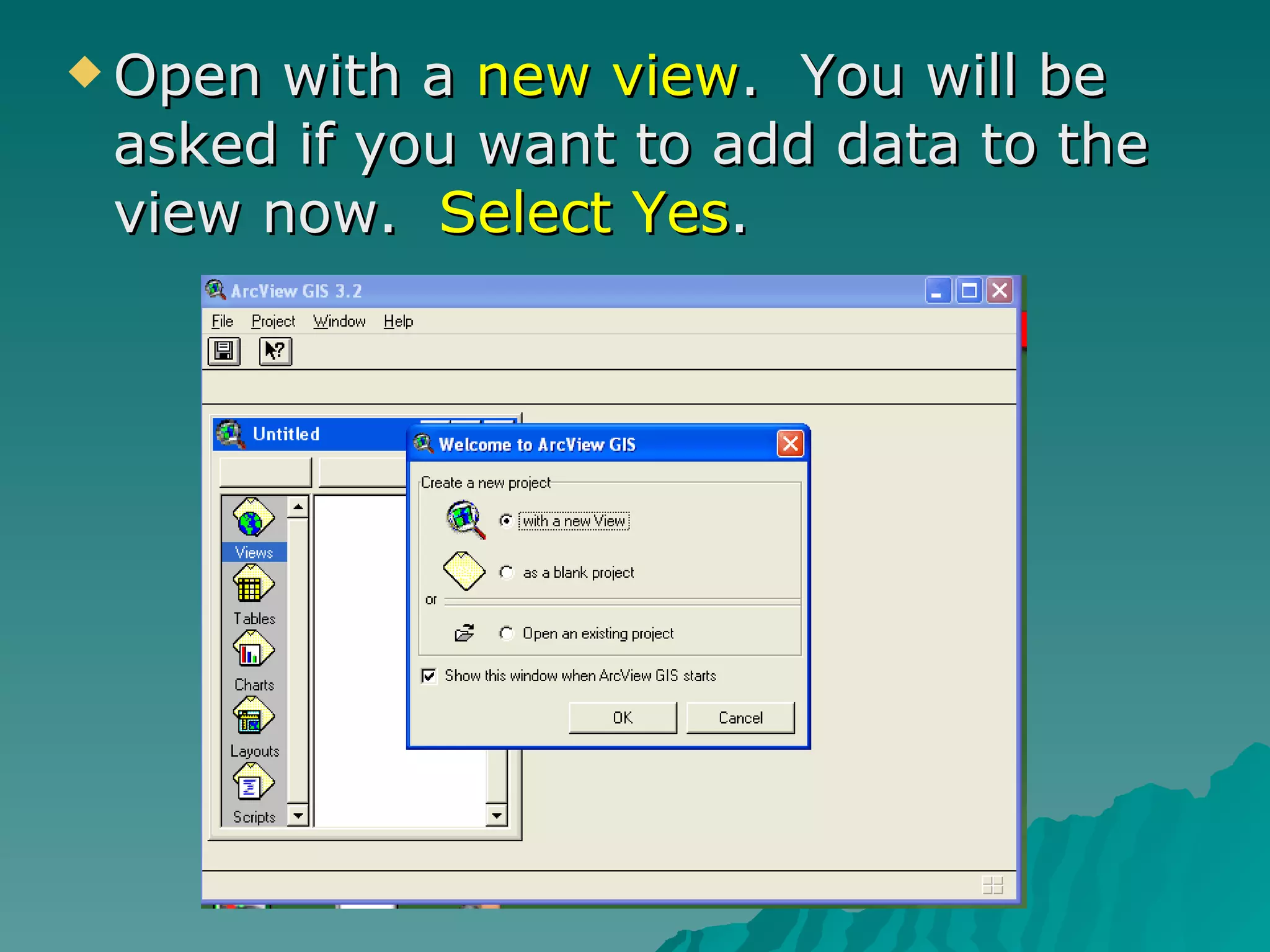
Open with a  new view .  You will be asked if you want to add data to the view now.  Select Yes .
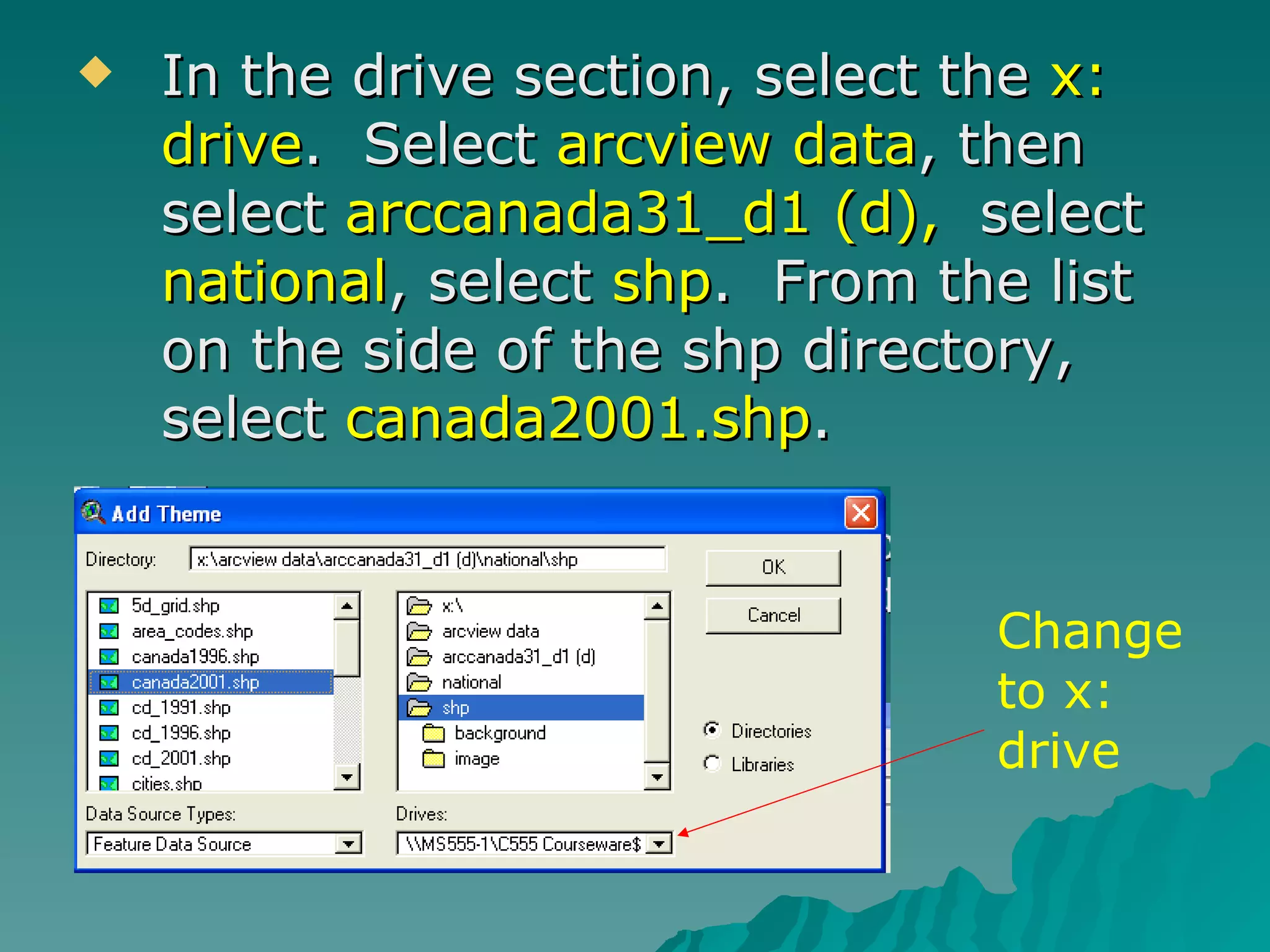
In the drive section, select the  x: drive .  Select  arcview data , then select  arccanada31_d1 (d),   select  national , select  shp .  From the list on the side of the shp directory, select  canada2001.shp . Change to x: drive
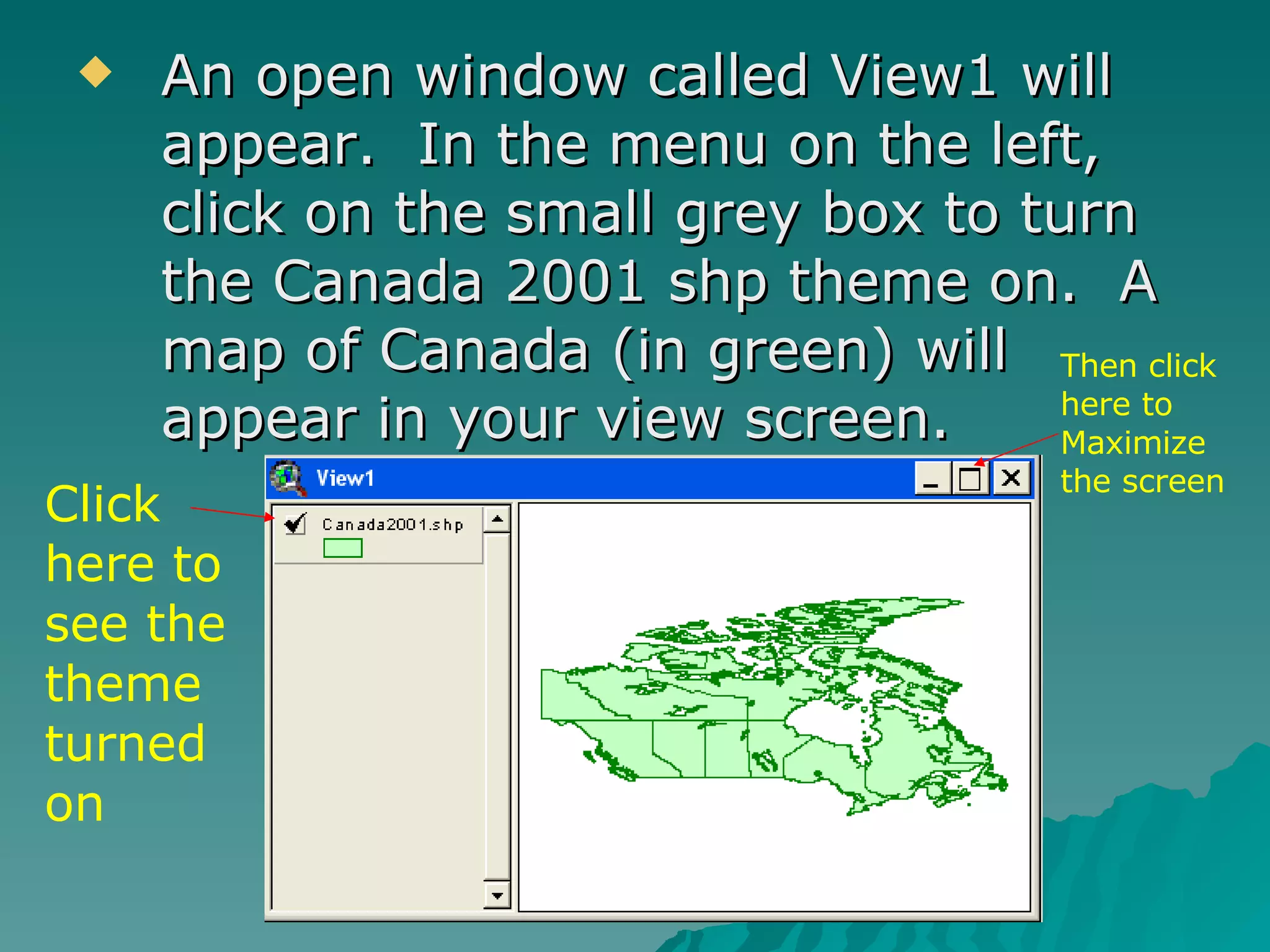
An open window called View1 will appear.  In the menu on the left, click on the small grey box to turn the Canada 2001 shp theme on.  A map of Canada (in green) will appear in your view screen. Click here to see the theme turned on Then click here to Maximize the screen
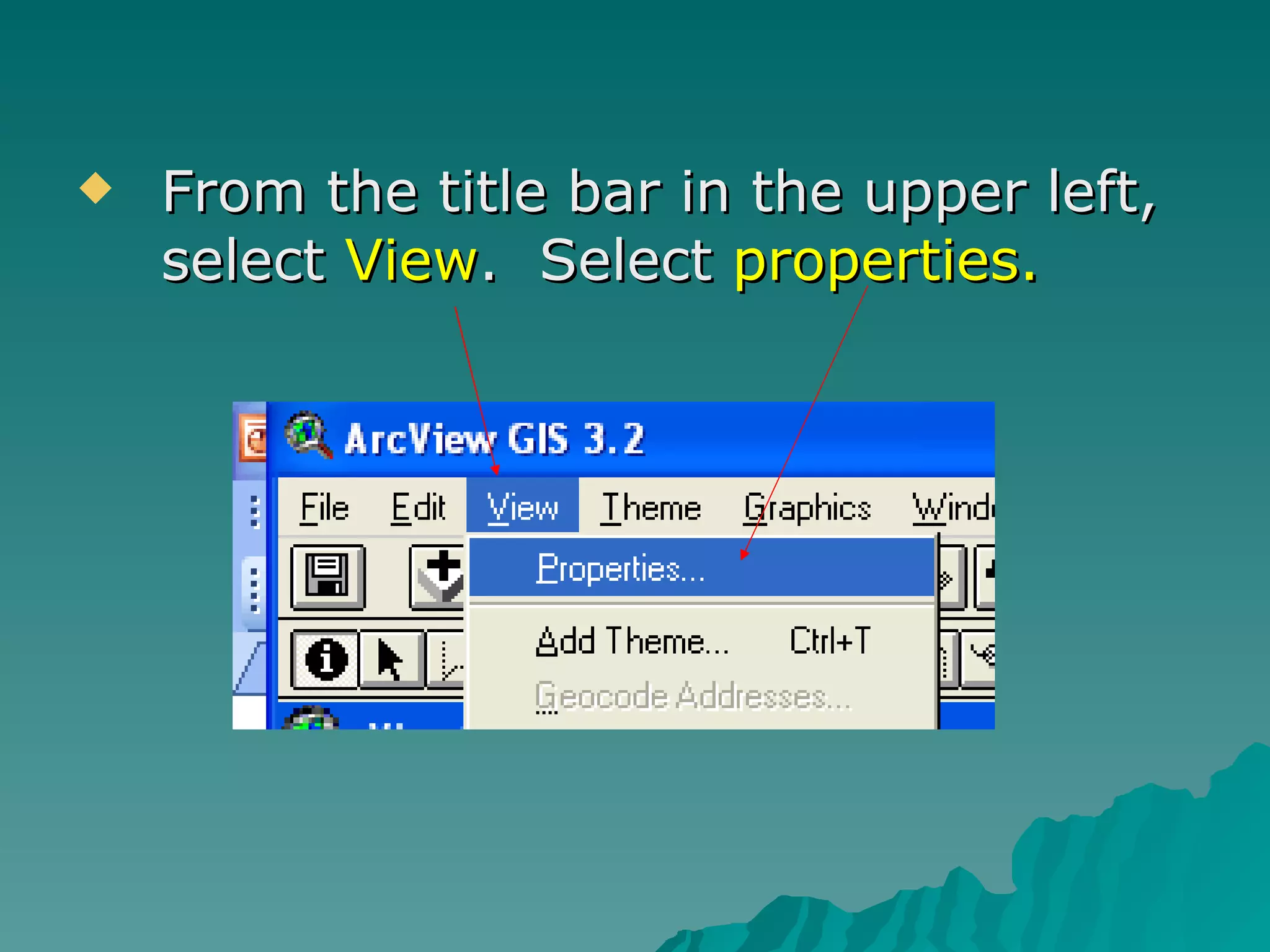
From the title bar in the upper left, select  View .  Select  properties.
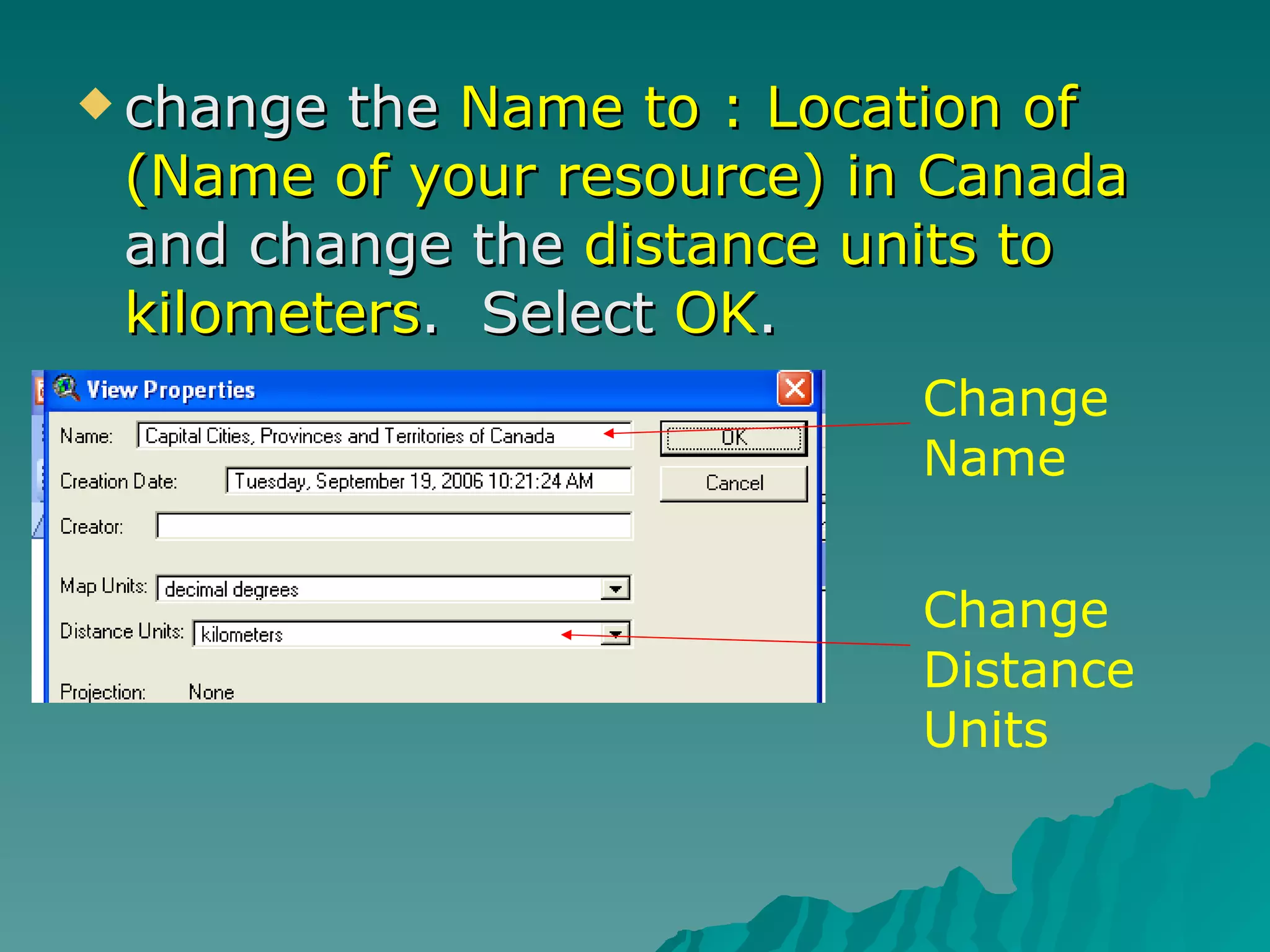
change the  Name to : Location of (Name of your resource) in Canada  and change the  distance units to kilometers .  Select  OK . Change Name Change Distance Units
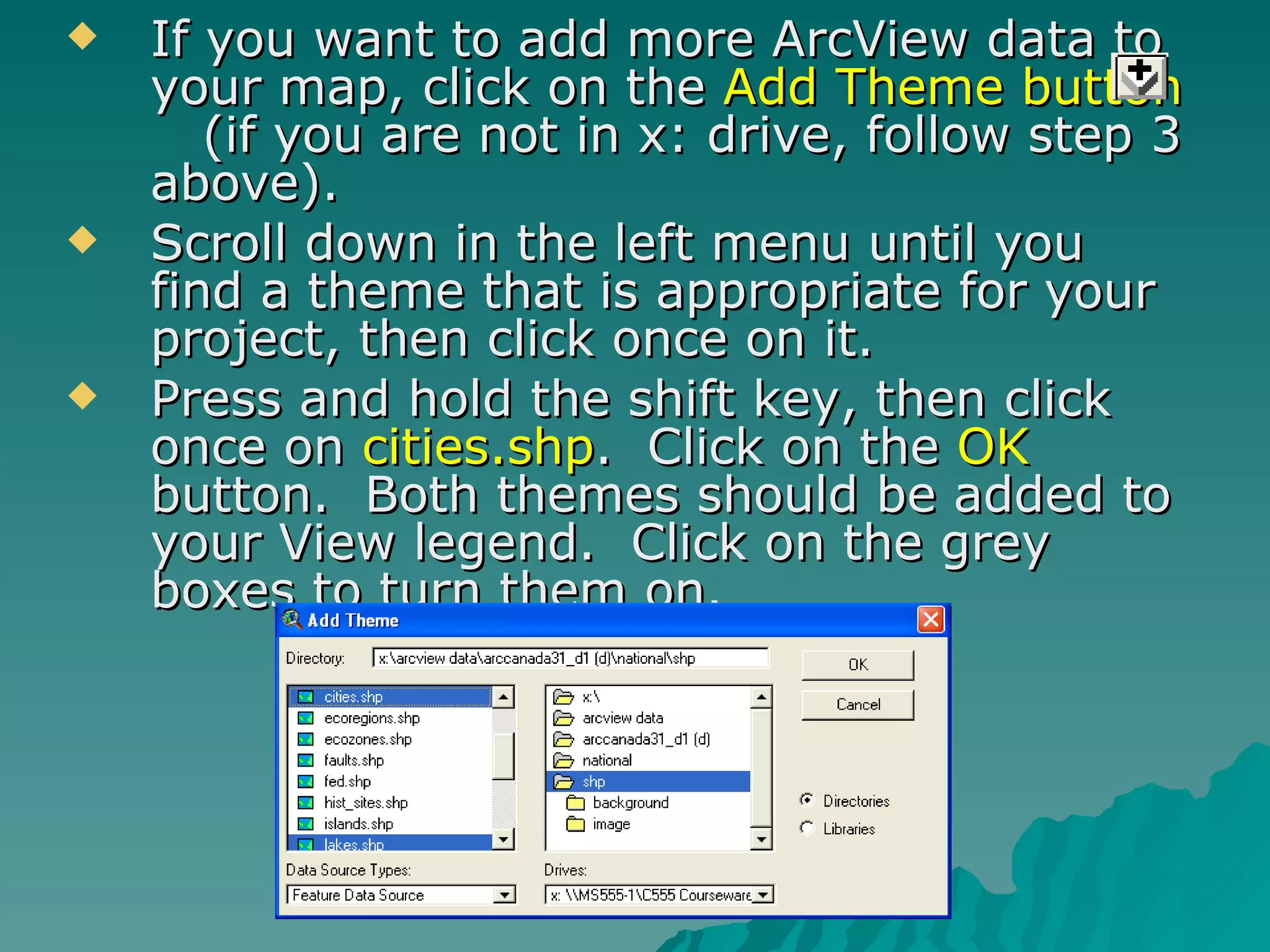
If you want to add more ArcView data to your map, click on the  Add Theme button   (if you are not in x: drive, follow step 3 above). Scroll down in the left menu until you find a theme that is appropriate for your project, then click once on it. Press and hold the shift key, then click once on  cities.shp .  Click on the  OK  button.  Both themes should be added to your View legend.  Click on the grey boxes to turn them on.
Three ways to make your own Arc maps 1.  Adding specific points 2.  Using  ArcView  Theme data 3.  Adding your own data (atlas or other source)
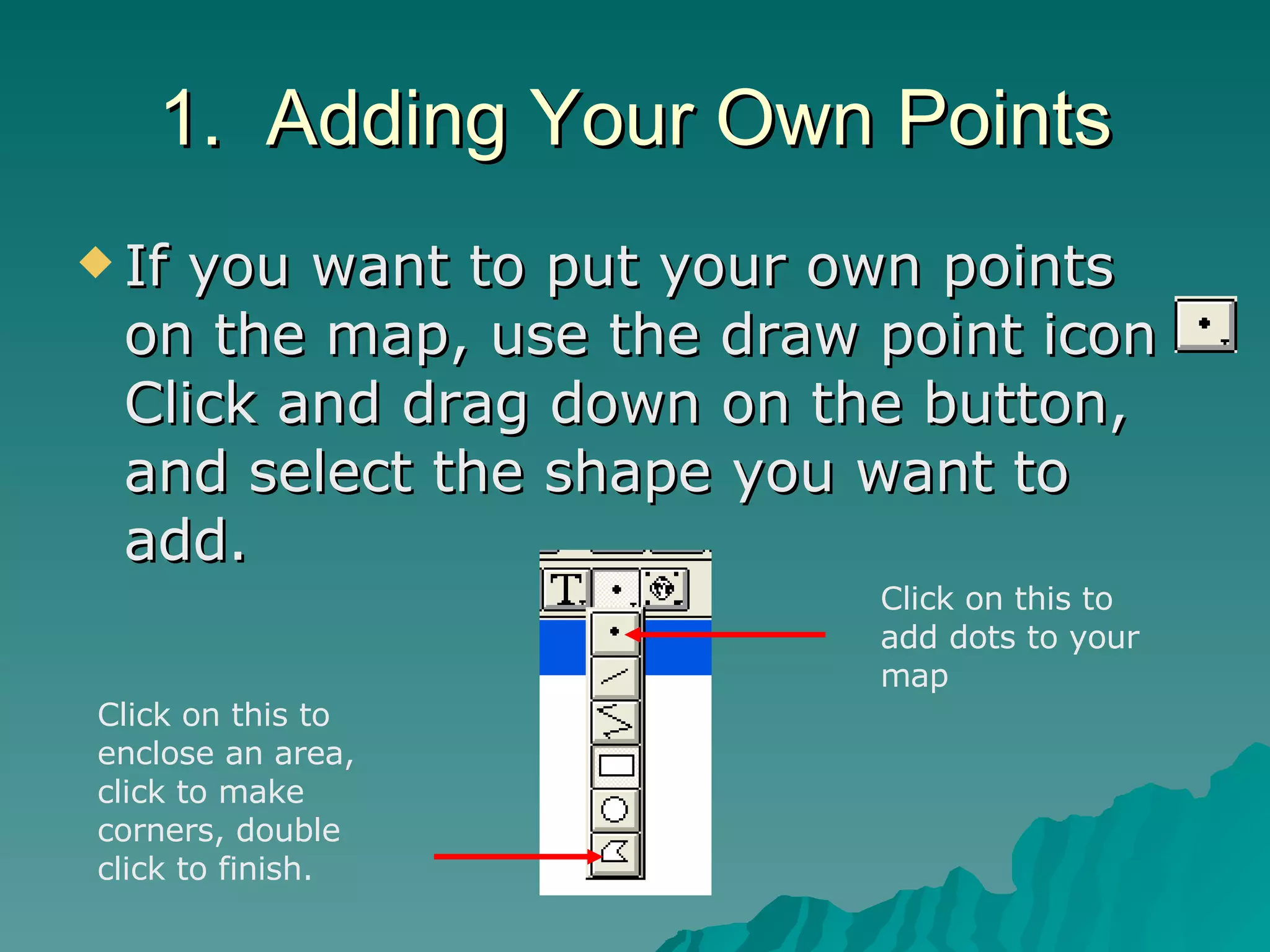
1.  Adding Your Own Points If you want to put your own points on the map, use the draw point icon  Click and drag down on the button, and select the shape you want to add. Click on this to add dots to your map Click on this to enclose an area, click to make corners, double click to finish.
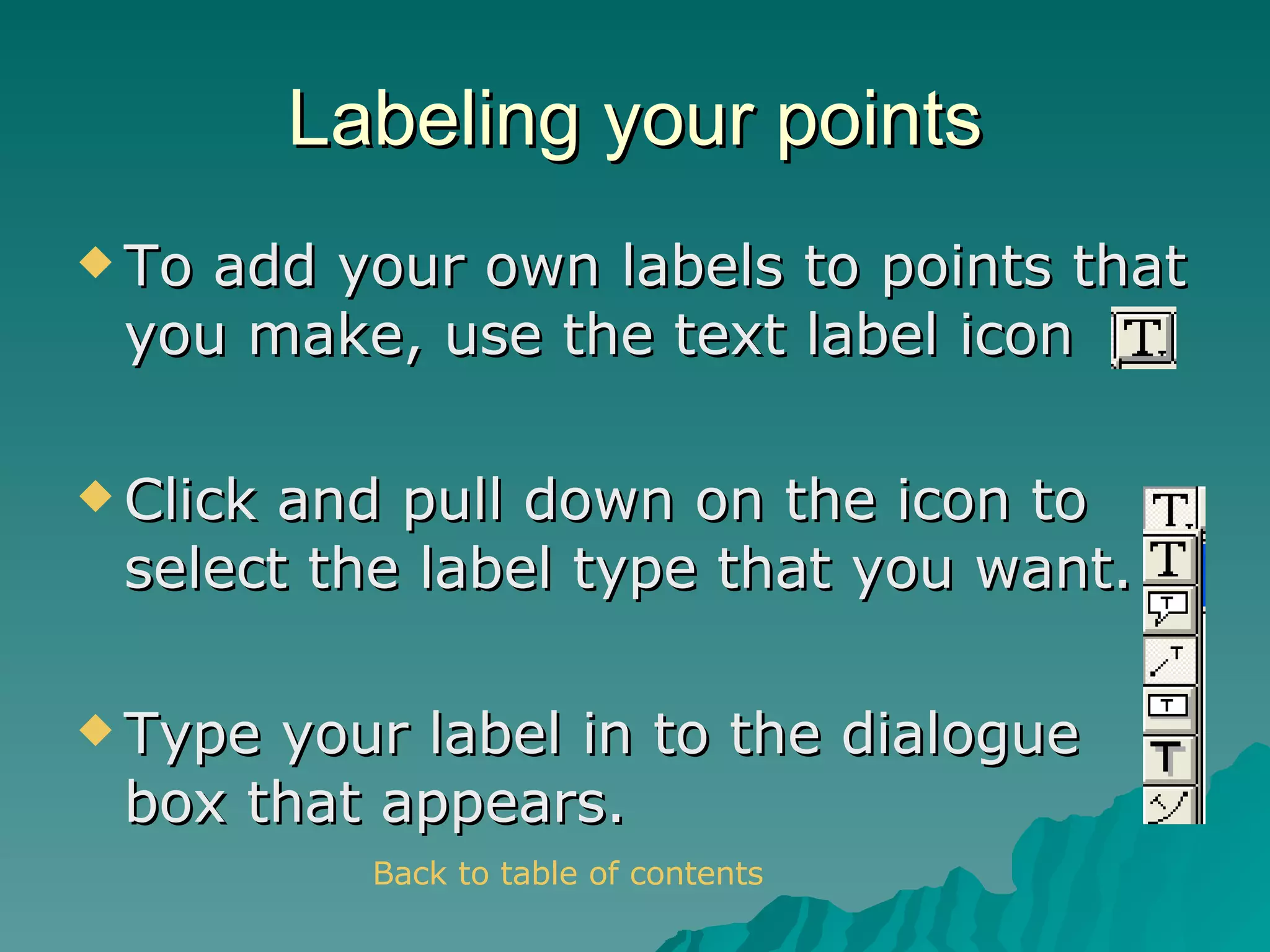
Labeling your points To add your own labels to points that you make, use the text label icon Click and pull down on the icon to select the label type that you want. Type your label in to the dialogue box that appears. Back to table of contents
2.  Using ArcView data In order to use the data included in an ArcView theme, you have to find a theme that contains useful fields.  To do this, add themes  (to see what they contain) then click the theme table button  .  A google search  may  turn up the meaning of field titles that are confusing. The Cntry00.shp theme contains a great deal of information.  But how do you find it?  (next slide!)
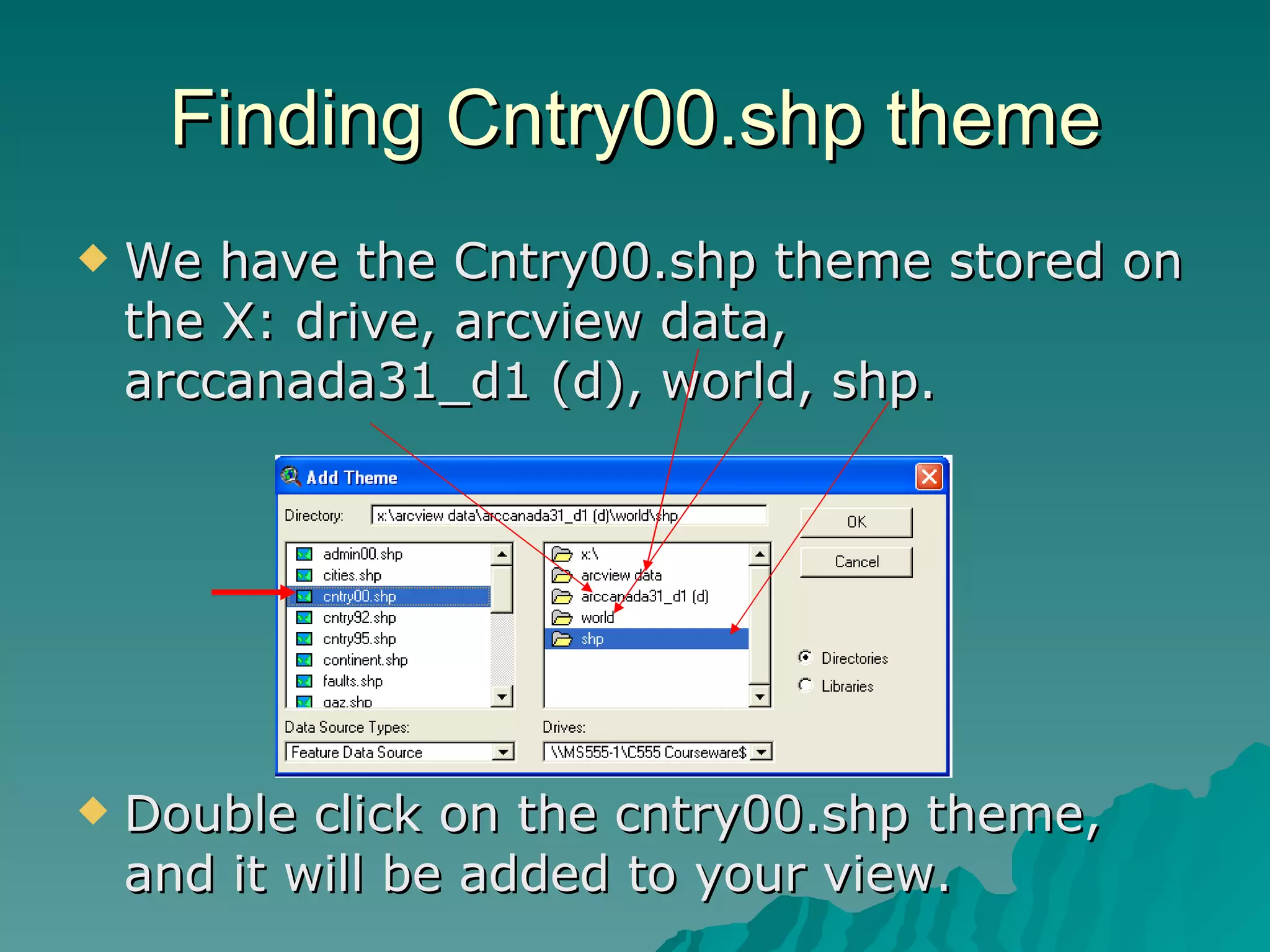
Finding Cntry00.shp theme We have the Cntry00.shp theme stored on the X: drive, arcview data, arccanada31_d1 (d), world, shp. Double click on the cntry00.shp theme, and it will be added to your view.
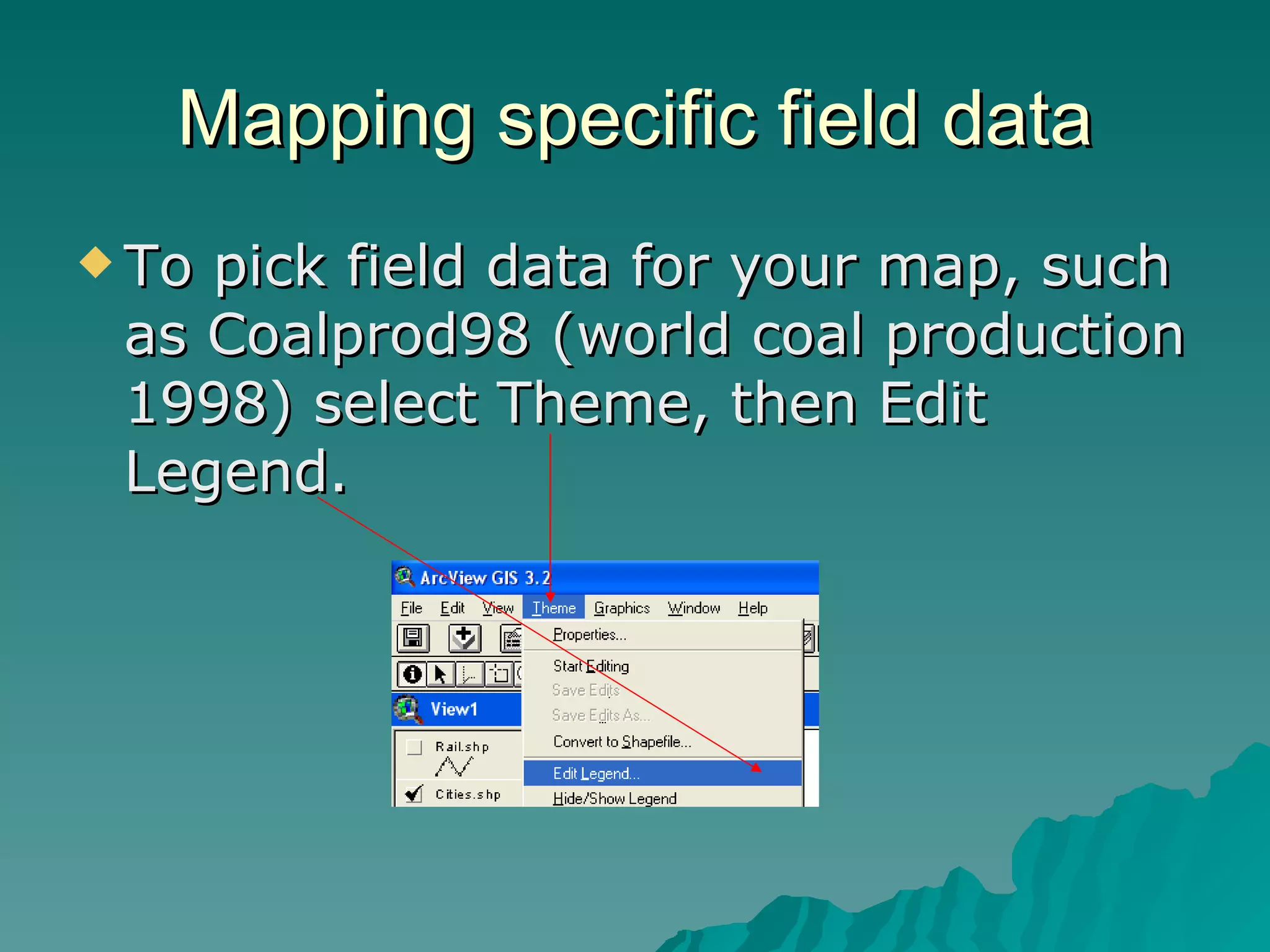
Mapping specific field data To pick field data for your map, such as Coalprod98 (world coal production 1998) select Theme, then Edit Legend.
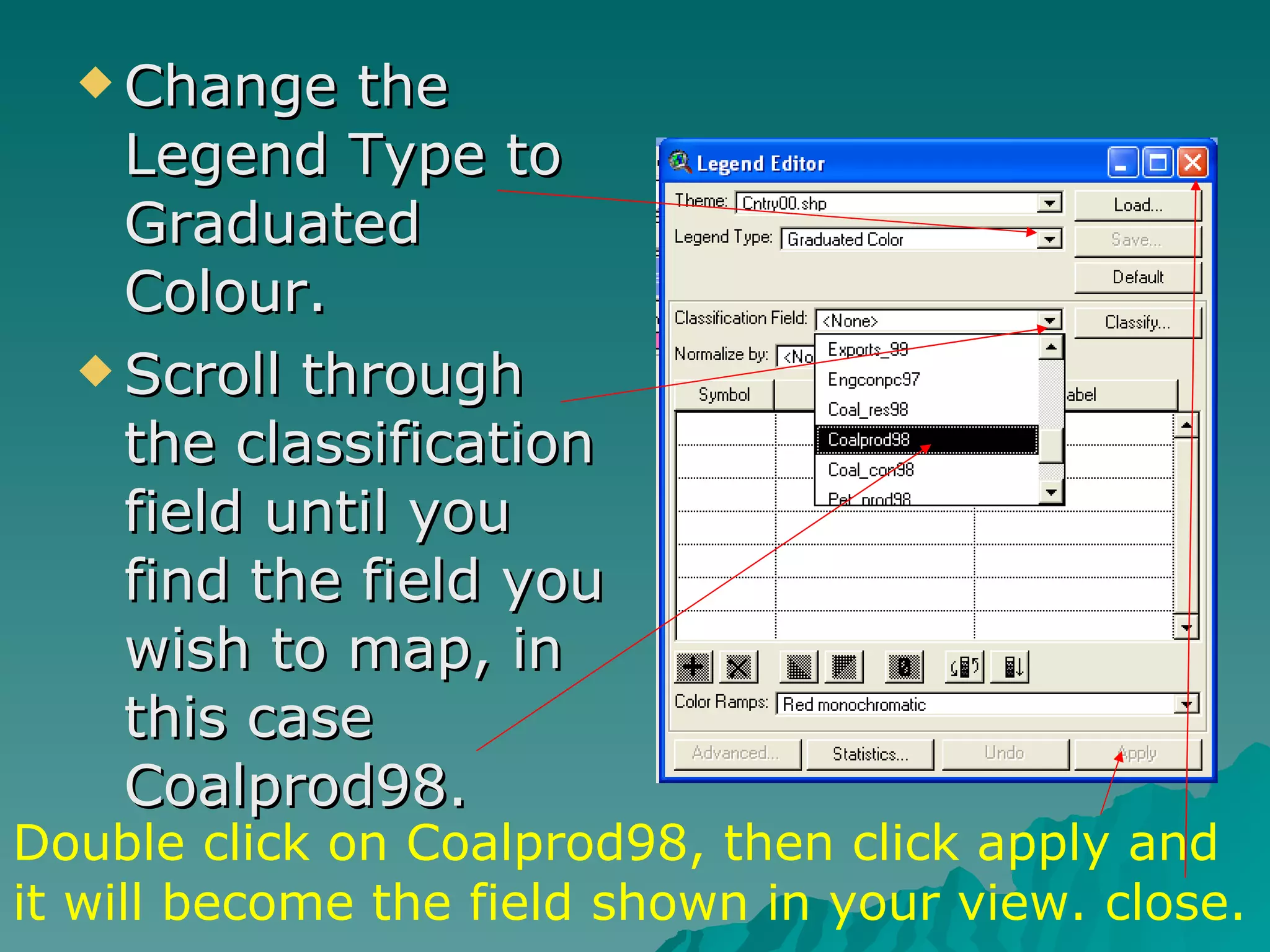
Change the Legend Type to Graduated Colour. Scroll through the classification field until you find the field you wish to map, in this case Coalprod98. Double click on Coalprod98, then click apply and it will become the field shown in your view. close.
Change the theme name To change the theme name, select Theme, then Properties. Type a new theme name in where it says Cntry00.shp. (Don’t make it too long!) Coal Prod 1998 would work for this example. Add any details such as labels or objects to your View.
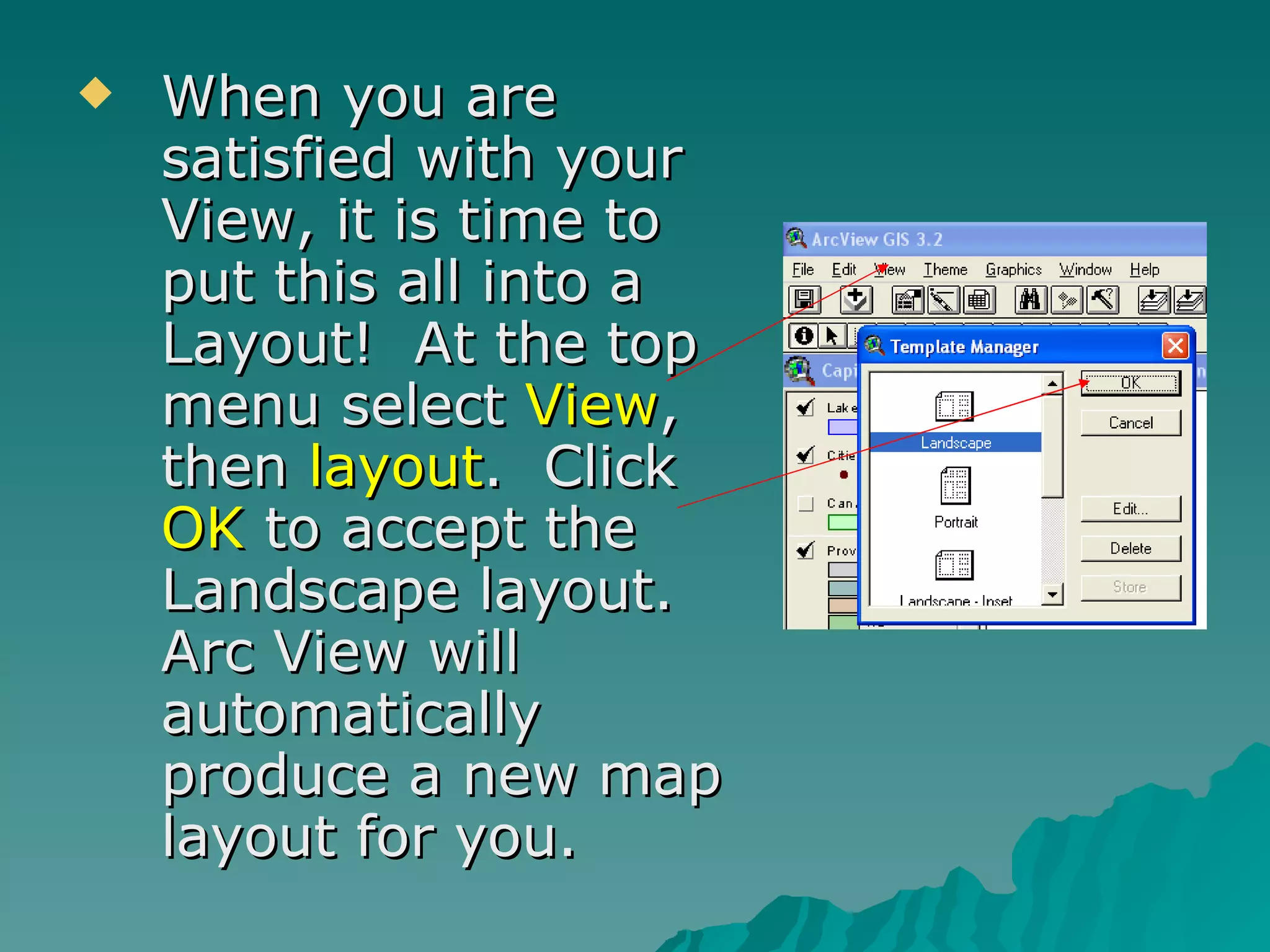
When you are satisfied with your View, it is time to put this all into a Layout!  At the top menu select  View , then  layout .  Click  OK  to accept the Landscape layout.  Arc View will automatically produce a new map layout for you.
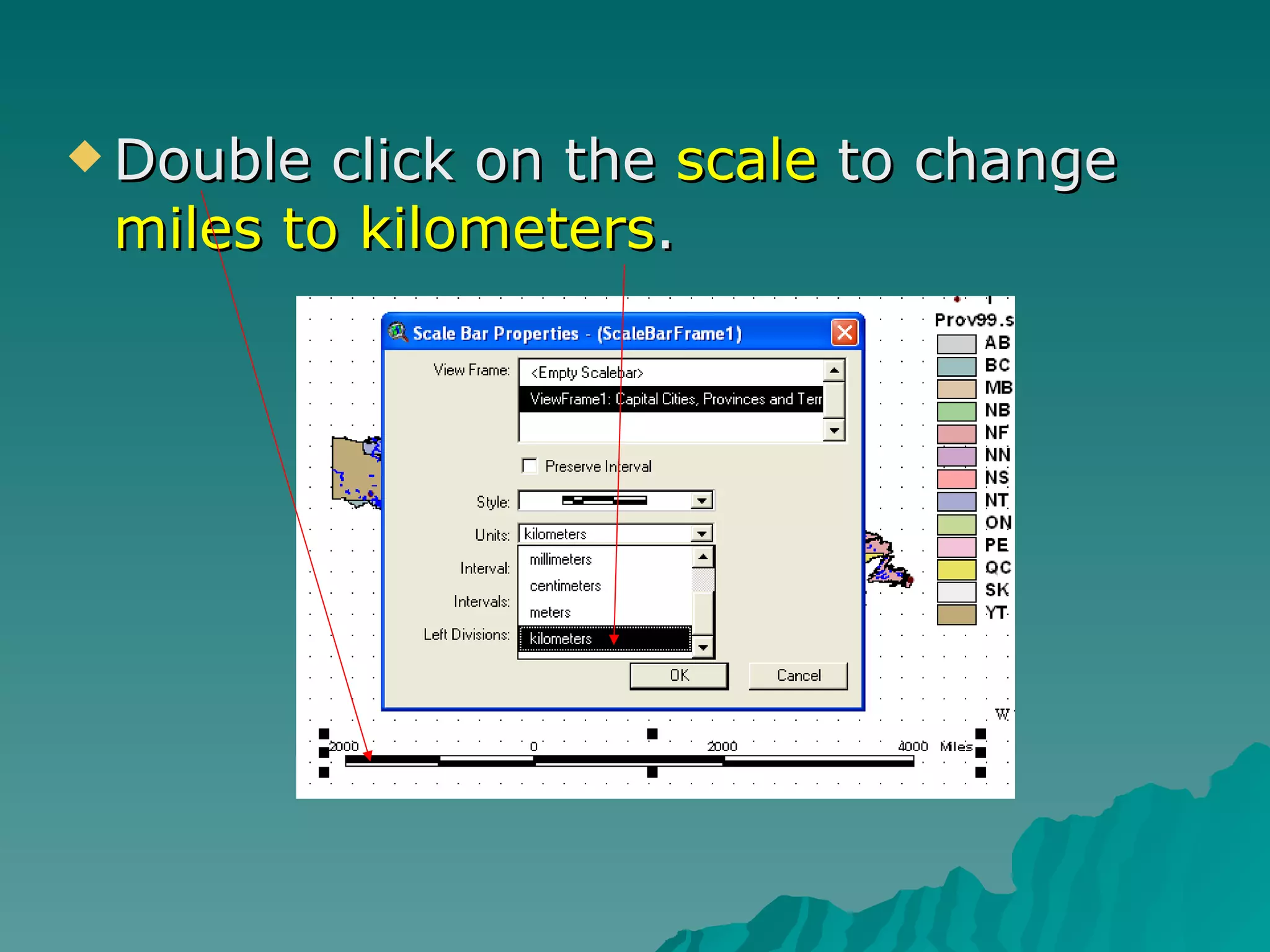
Double click on the  scale  to change  miles to kilometers .
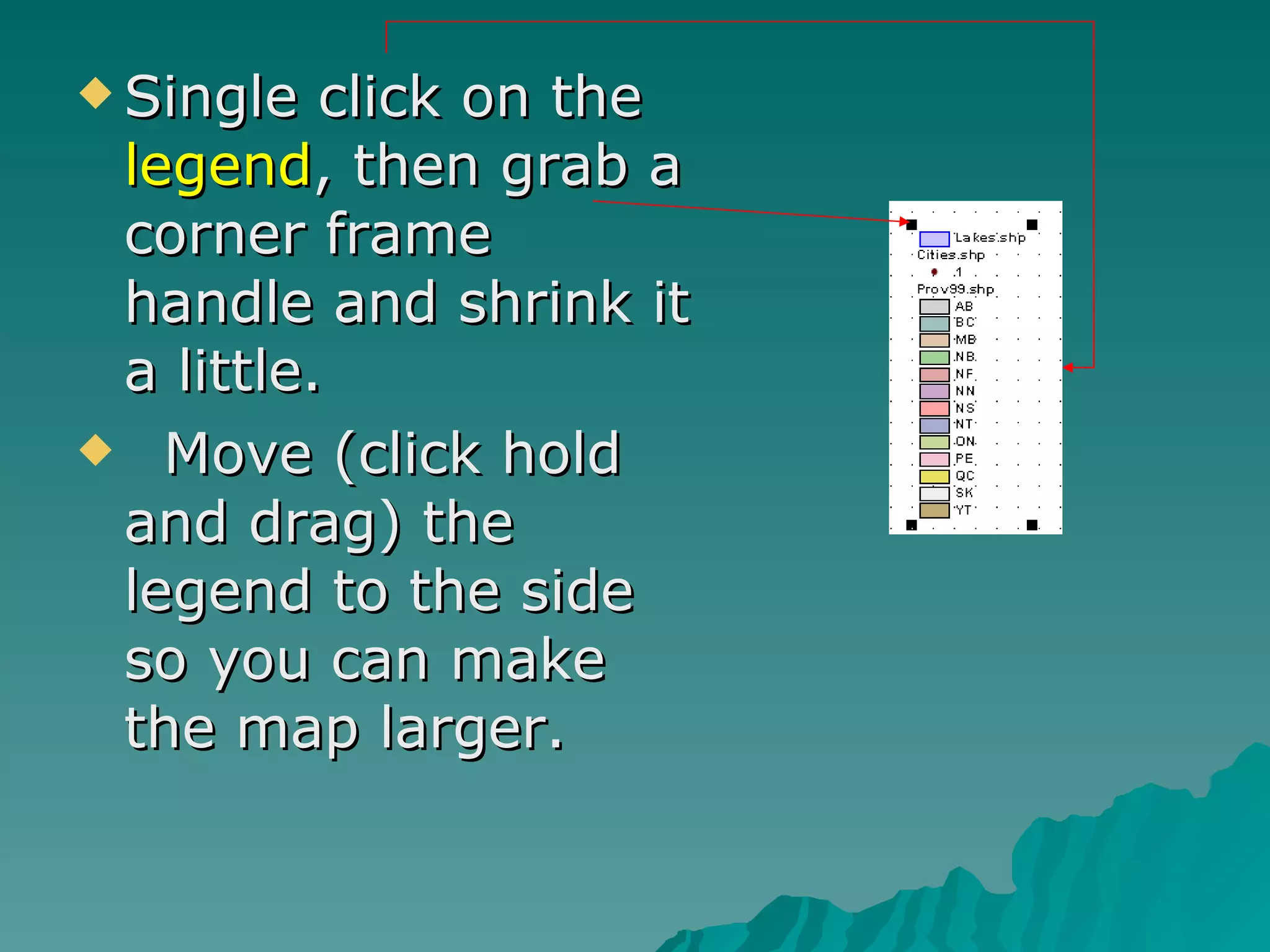
Single click on the  legend , then grab a corner frame handle and shrink it a little. Move (click hold and drag) the legend to the side so you can make the map larger.
Double click on the  map , and the frame corners should appear.  Grab (click and hold) a frame handle, and enlarge the map.  Position it properly. Single click on the  title  and reduce the size so that it is not touching the blue box.  Anything over or touching the blue will not print!
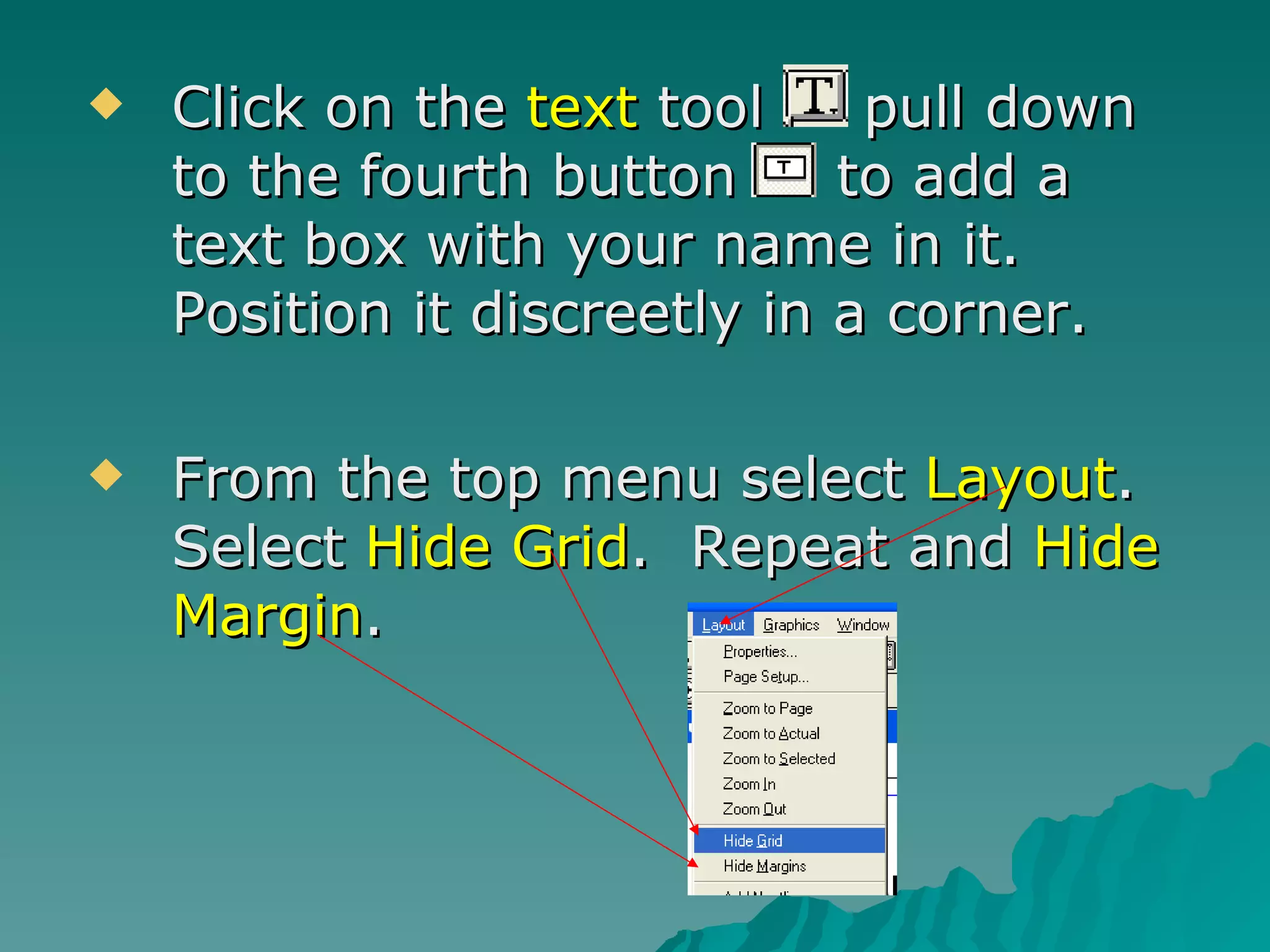
Click on the  text  tool  pull down to the fourth button  to add a text box with your name in it.  Position it discreetly in a corner. From the top menu select  Layout .  Select  Hide Grid .  Repeat and  Hide Margin .
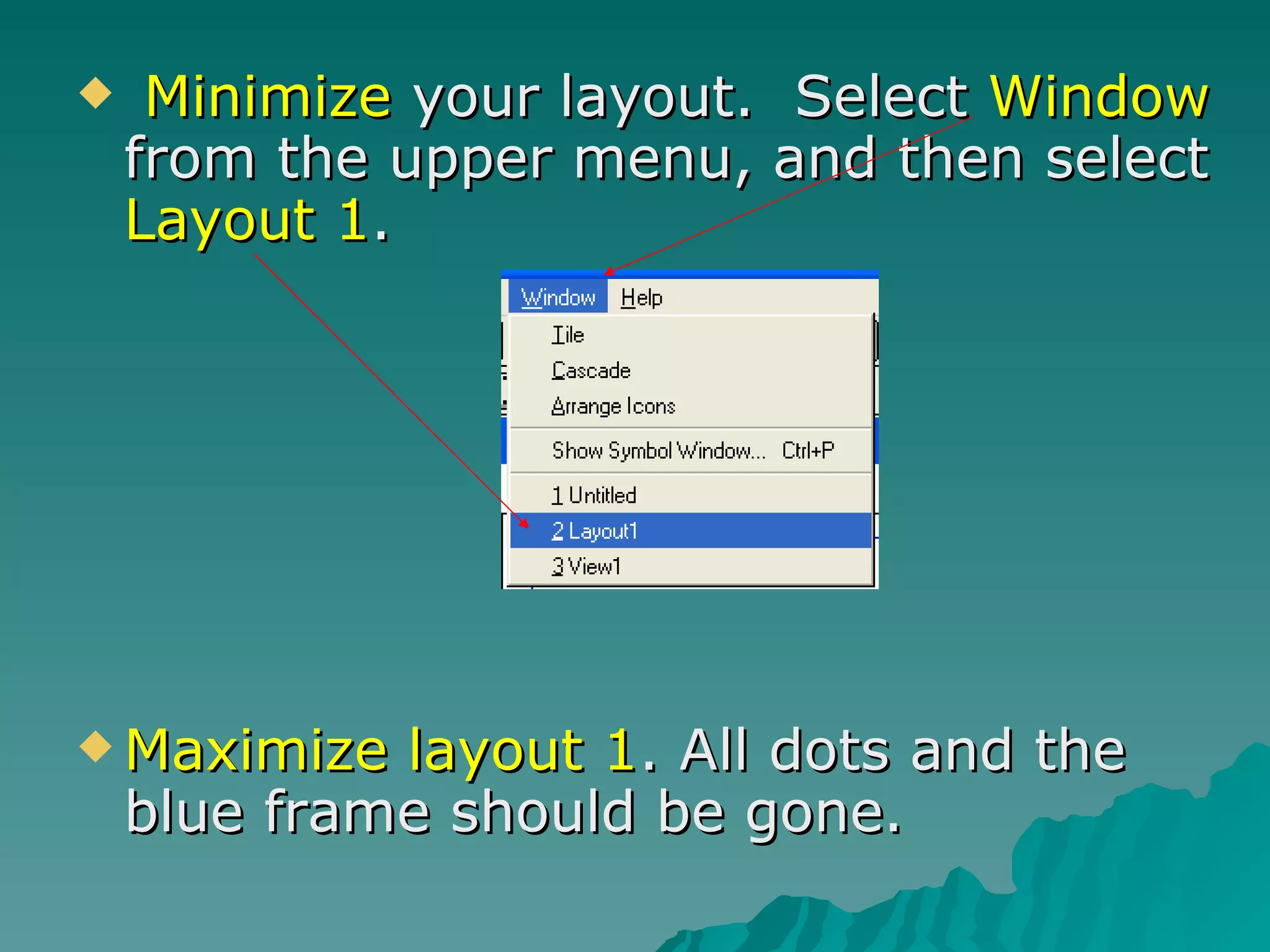
Minimize  your layout.  Select  Window  from the upper menu, and then select  Layout 1 .  Maximize layout 1 . All dots and the blue frame should be gone.
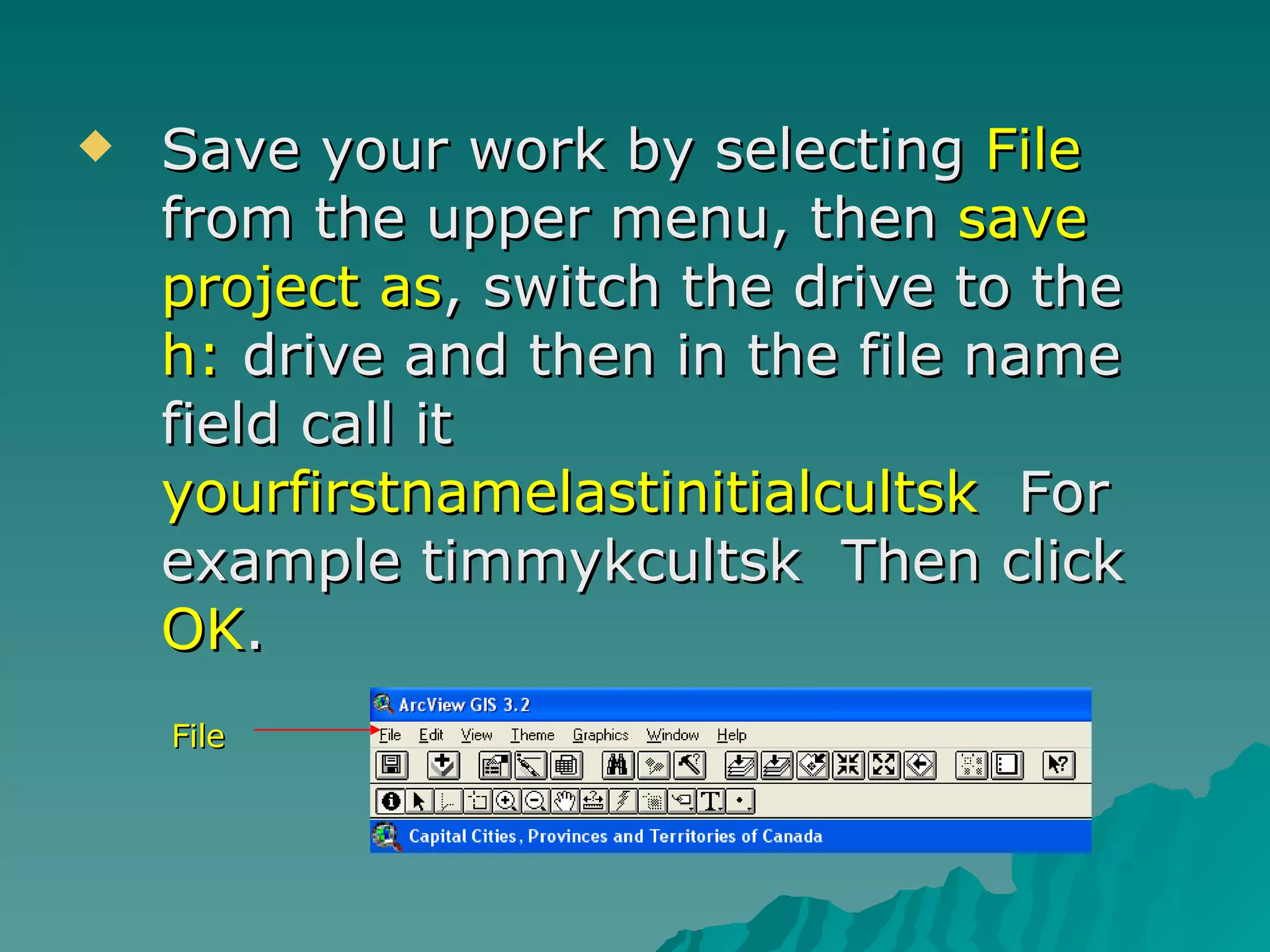
Save your work by selecting  File  from the upper menu, then  save project as , switch the drive to the  h:  drive and then in the file name field call it  yourfirstnamelastinitialcultsk   For example timmykcultsk  Then click  OK . File
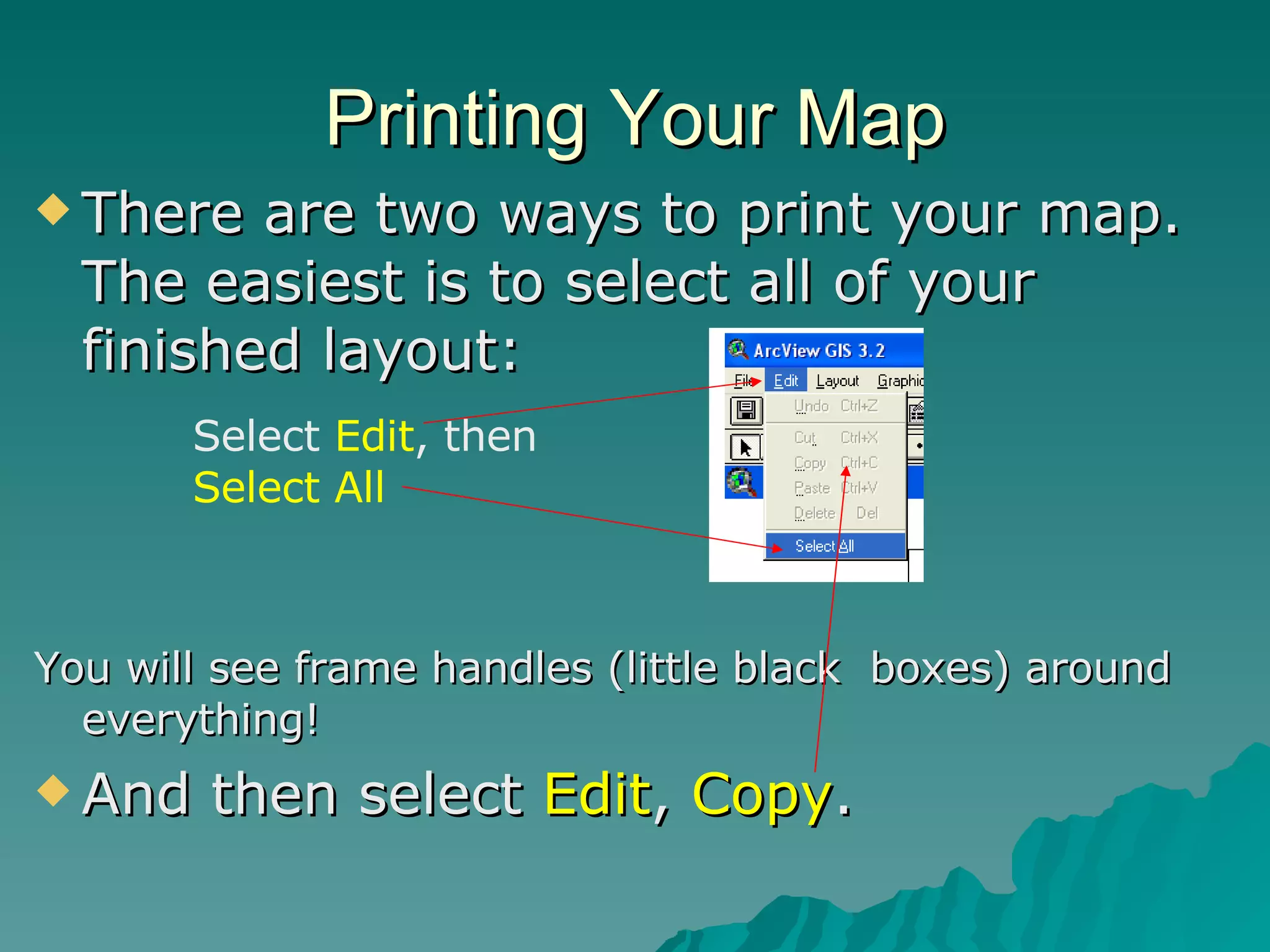
Printing Your Map There are two ways to print your map.  The easiest is to select all of your finished layout: You will see frame handles (little black  boxes) around everything! And then select  Edit ,  Copy . Select  Edit , then  Select All
Printing Your Map Minimize ArcView, and open Microsoft Word. Select  File  from the top menu, then  Page Setup .  Set the page to  landscape . Select  View ,  Zoom , set it to 75%. Paste your ArcView.  Print .
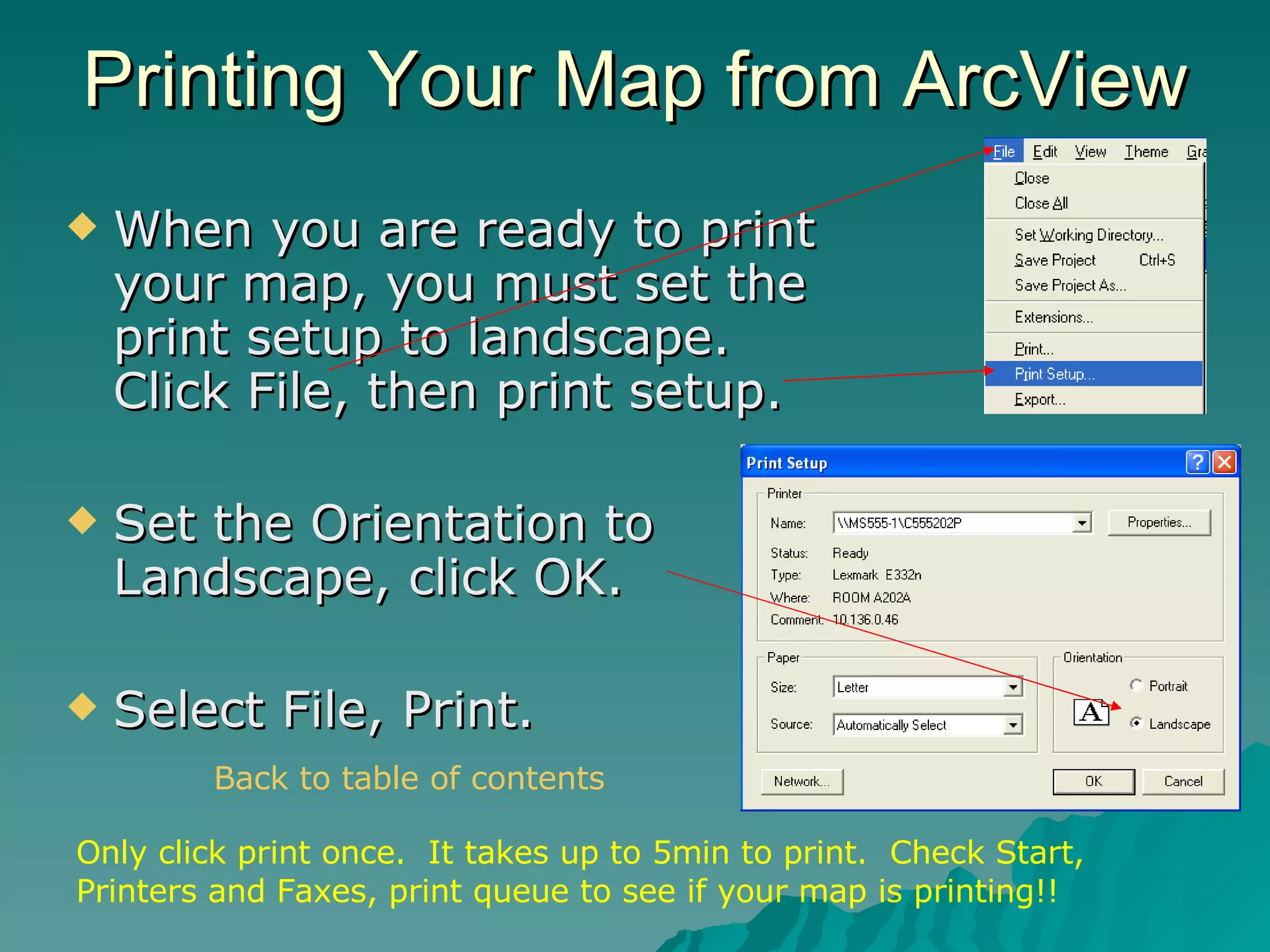
Printing Your Map from ArcView When you are ready to print your map, you must set the print setup to landscape. Click File, then print setup. Set the Orientation to Landscape, click OK. Select File, Print. Only click print once.  It takes up to 5min to print.  Check Start, Printers and Faxes, print queue to see if your map is printing!! Back to table of contents
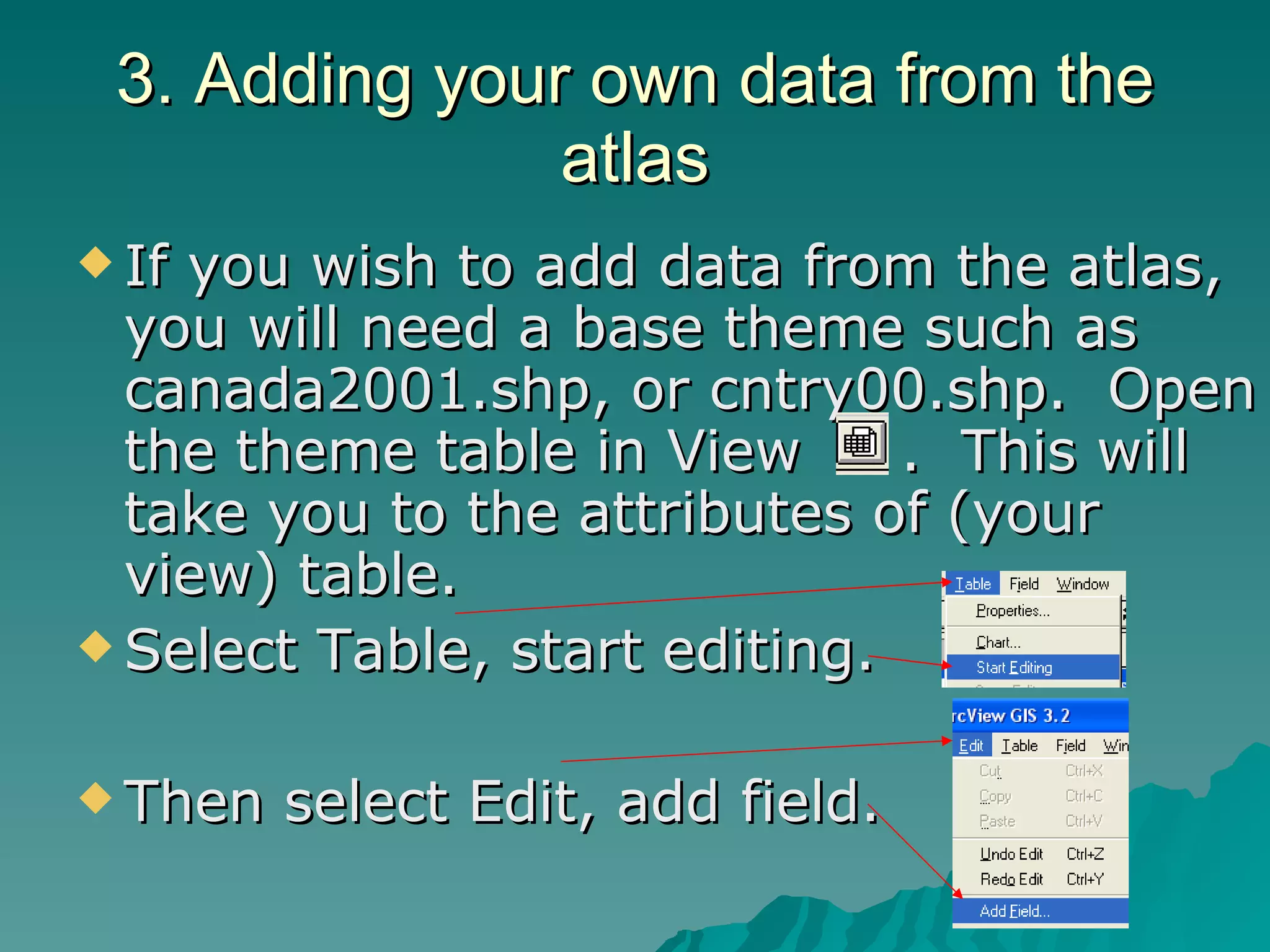
3. Adding your own data from the atlas If you wish to add data from the atlas, you will need a base theme such as canada2001.shp, or cntry00.shp.  Open the theme table in View  .  This will take you to the attributes of (your view) table. Select Table, start editing. Then select Edit, add field.
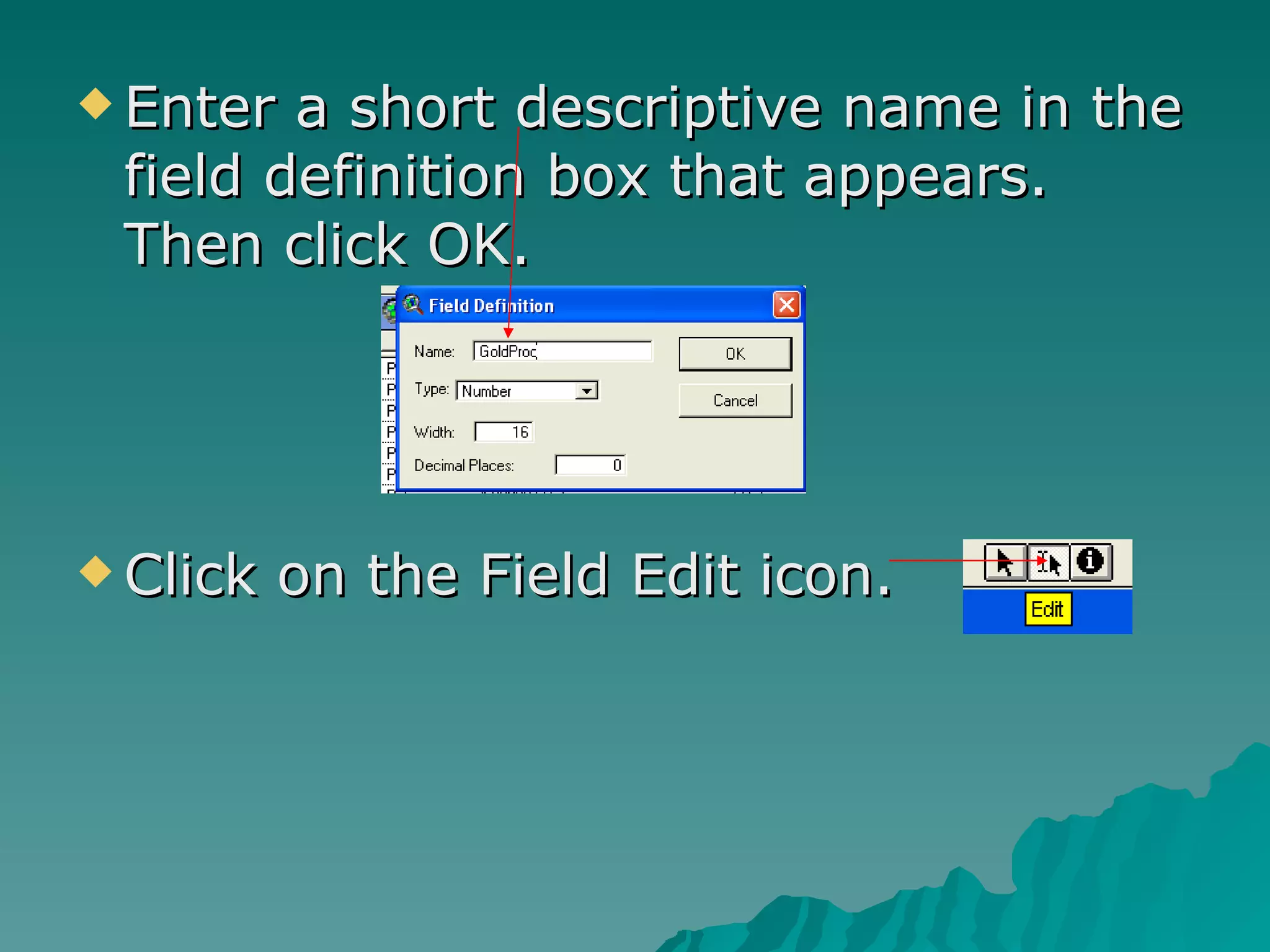
Enter a short descriptive name in the field definition box that appears.  Then click OK. Click on the Field Edit icon.
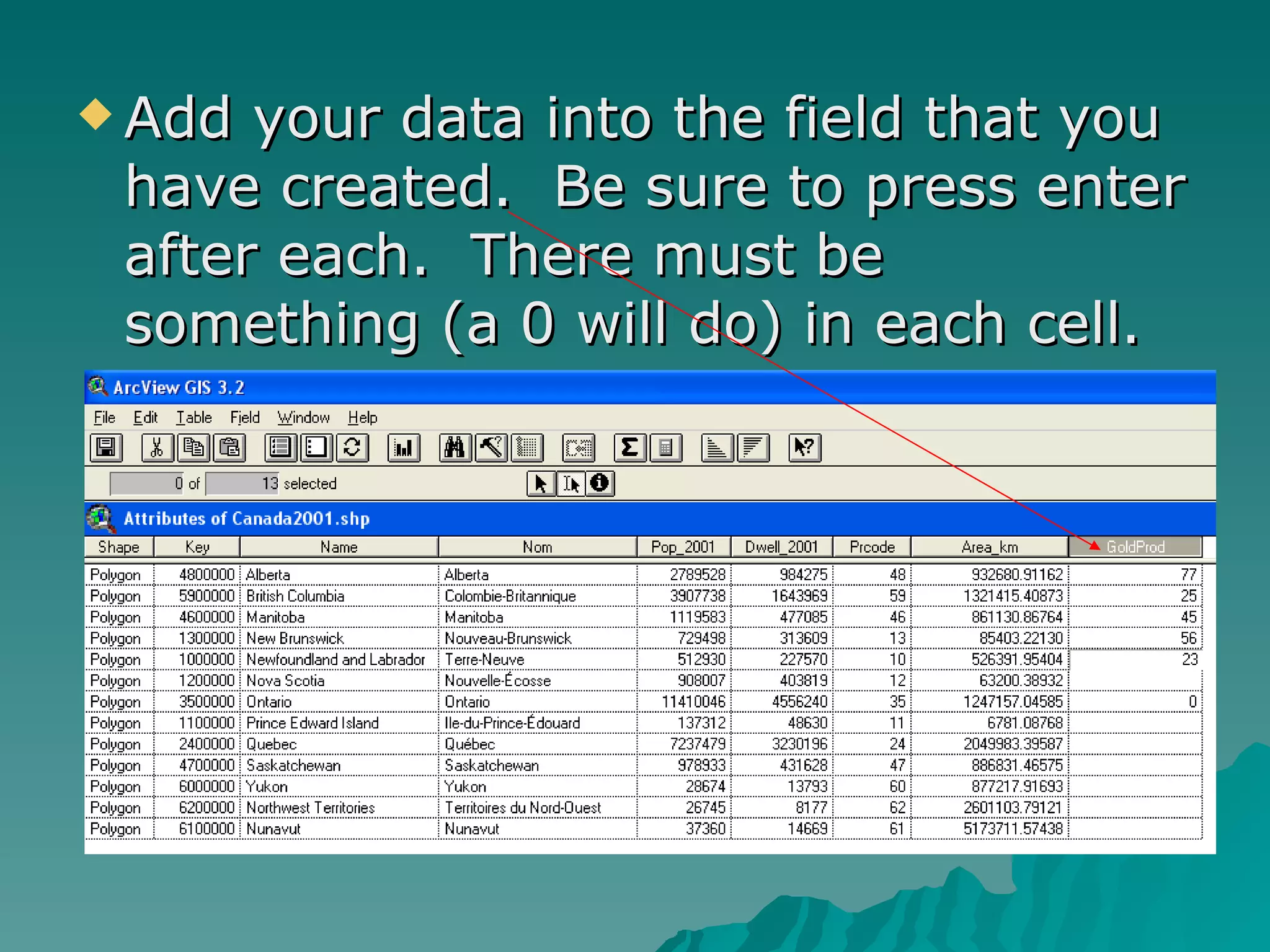
Add your data into the field that you have created.  Be sure to press enter after each.  There must be something (a 0 will do) in each cell.
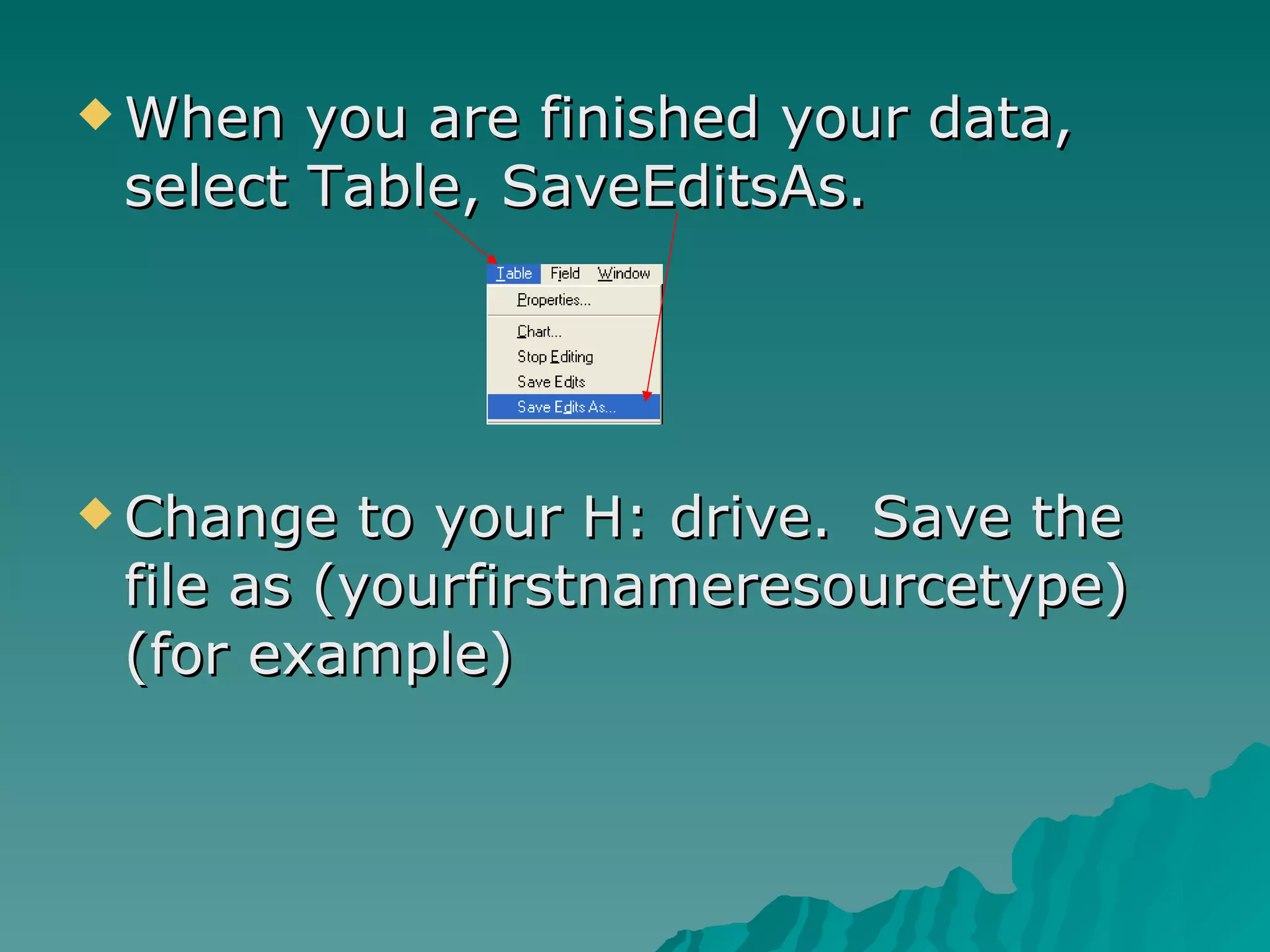
When you are finished your data, select Table, SaveEditsAs. Change to your H: drive.  Save the file as (yourfirstnameresourcetype) (for example)
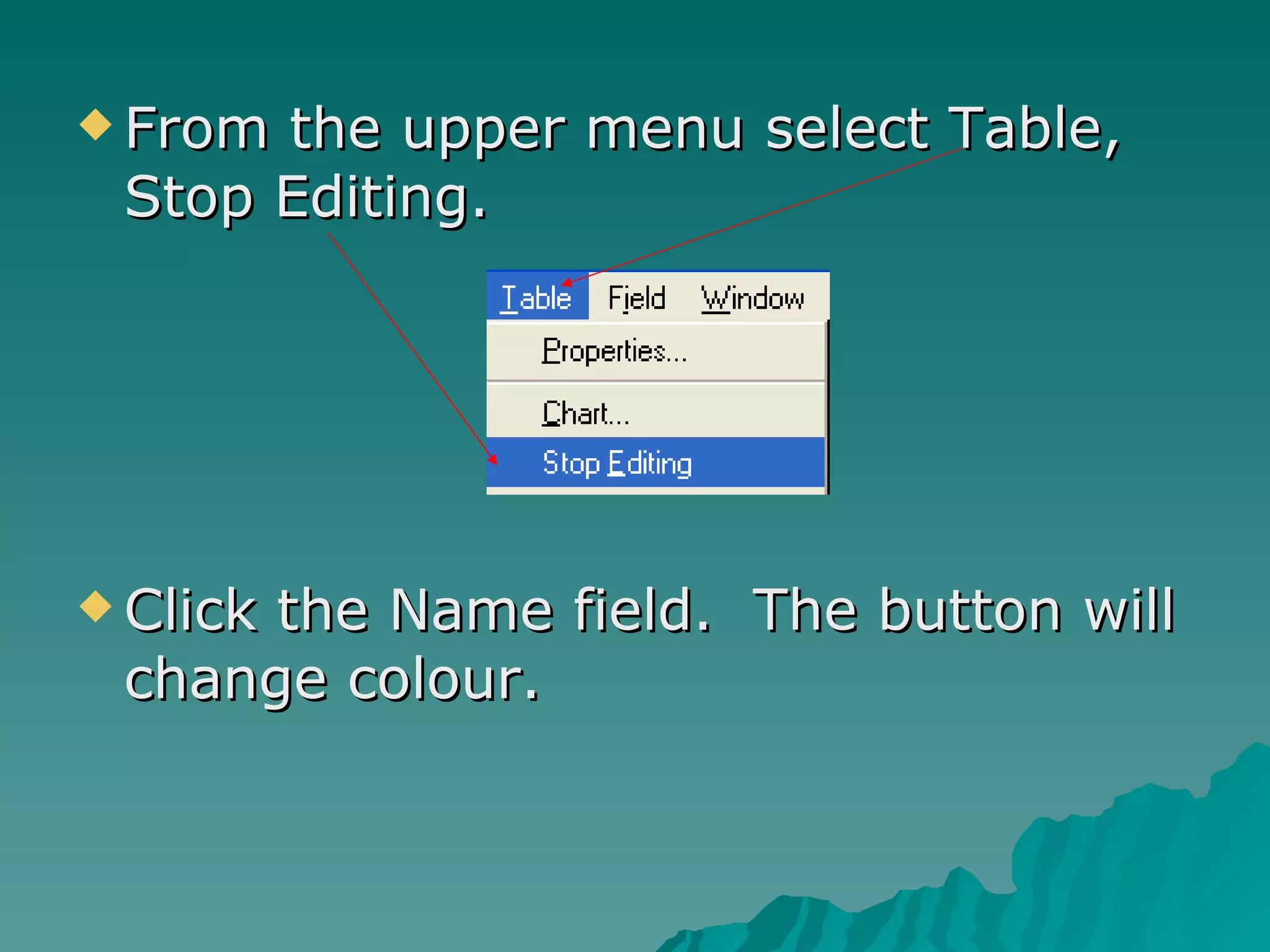
From the upper menu select Table, Stop Editing.  Click the Name field.  The button will change colour.
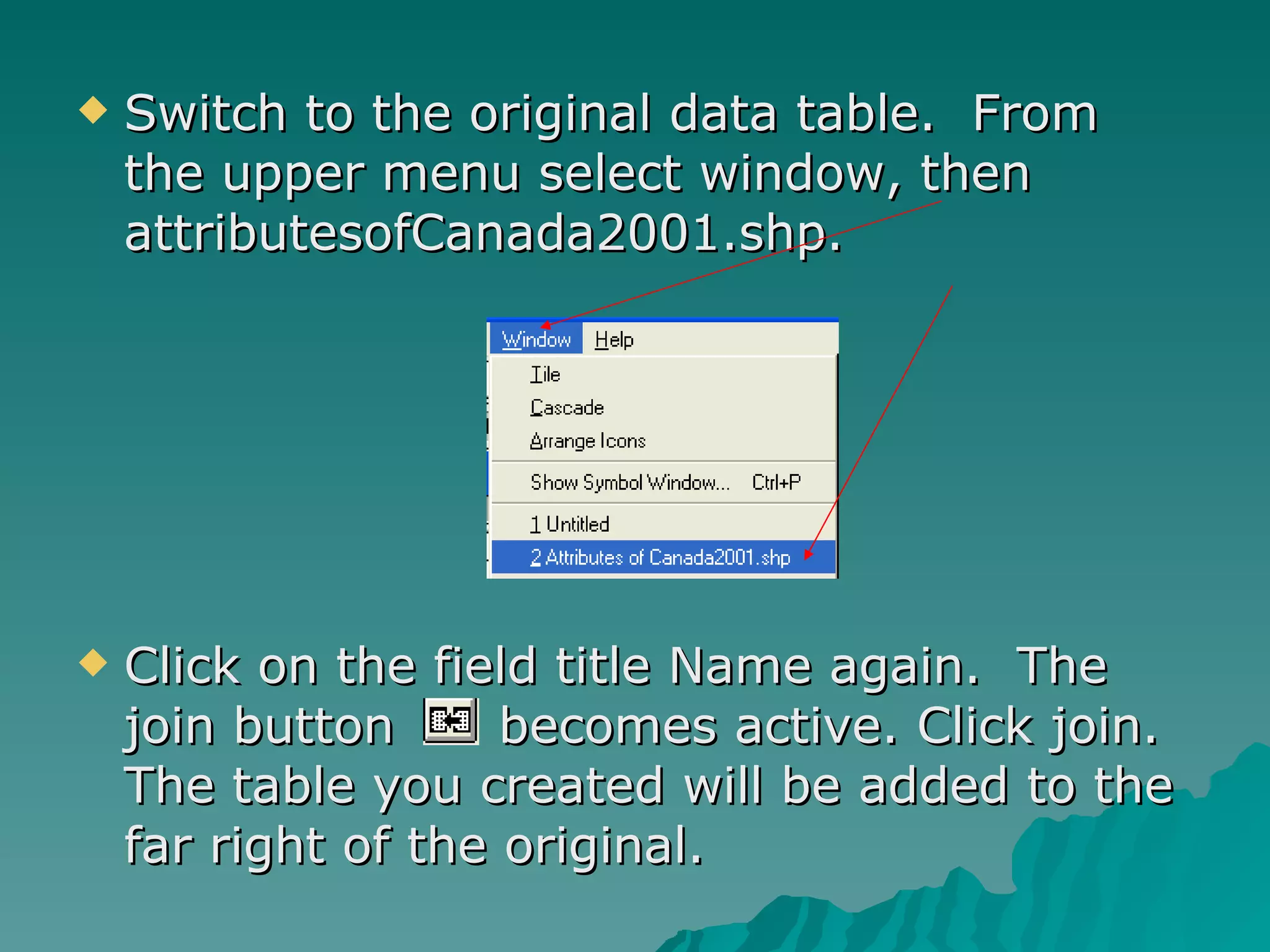
Switch to the original data table.  From the upper menu select window, then attributesofCanada2001.shp. Click on the field title Name again.  The join button  becomes active. Click join. The table you created will be added to the far right of the original.
Mapping your new field Your view will not have changed.  To map your new data, select Theme, then Edit Legend from the upper menu. Follow the instructions in  “Using  ArcView  Theme data”  to locate and map new the data you added.
Saving your project (VIP) Once your layout is  perfect , open microsoft word.  Go back to your layout, and click Edit, Select All.  Press copy (Ctrl+C). Go back to Word, and paste (Ctrl+V) and your layout will show including the bonus. Save your project as  yourfirstnamelastinitialhumansys
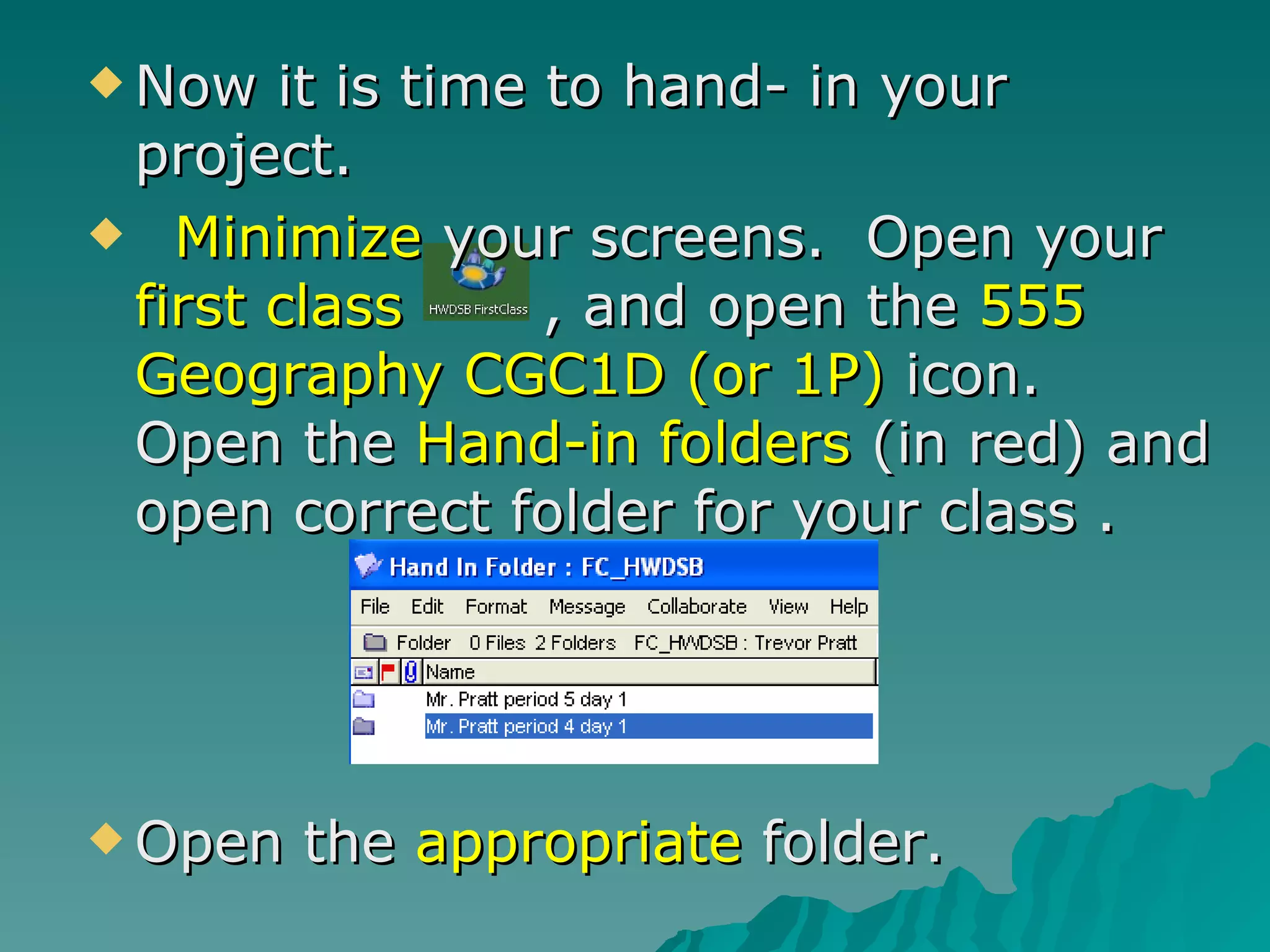
Now it is time to hand- in your project. Minimize  your screens.  Open your  first class  , and open the  555 Geography CGC1D (or 1P)  icon.  Open the  Hand-in folders  (in red) and open correct folder for your class .  Open the  appropriate  folder.
Congratulations, you are done!

Cgc Make Your Own Gis

  • 1.
  • 2.
    Getting Started Goto your desktools icon . Find the ArcView icon , click on it and drag and drop it onto your desktop. Double click on the ArcView icon, and open the program.
  • 3.
    Open with a new view . You will be asked if you want to add data to the view now. Select Yes .
  • 4.
    In the drivesection, select the x: drive . Select arcview data , then select arccanada31_d1 (d), select national , select shp . From the list on the side of the shp directory, select canada2001.shp . Change to x: drive
  • 5.
    An open windowcalled View1 will appear. In the menu on the left, click on the small grey box to turn the Canada 2001 shp theme on. A map of Canada (in green) will appear in your view screen. Click here to see the theme turned on Then click here to Maximize the screen
  • 6.
    From the titlebar in the upper left, select View . Select properties.
  • 7.
    change the Name to : Location of (Name of your resource) in Canada and change the distance units to kilometers . Select OK . Change Name Change Distance Units
  • 8.
    If you wantto add more ArcView data to your map, click on the Add Theme button (if you are not in x: drive, follow step 3 above). Scroll down in the left menu until you find a theme that is appropriate for your project, then click once on it. Press and hold the shift key, then click once on cities.shp . Click on the OK button. Both themes should be added to your View legend. Click on the grey boxes to turn them on.
  • 9.
    Three ways tomake your own Arc maps 1. Adding specific points 2. Using ArcView Theme data 3. Adding your own data (atlas or other source)
  • 10.
    1. AddingYour Own Points If you want to put your own points on the map, use the draw point icon Click and drag down on the button, and select the shape you want to add. Click on this to add dots to your map Click on this to enclose an area, click to make corners, double click to finish.
  • 11.
    Labeling your pointsTo add your own labels to points that you make, use the text label icon Click and pull down on the icon to select the label type that you want. Type your label in to the dialogue box that appears. Back to table of contents
  • 12.
    2. UsingArcView data In order to use the data included in an ArcView theme, you have to find a theme that contains useful fields. To do this, add themes (to see what they contain) then click the theme table button . A google search may turn up the meaning of field titles that are confusing. The Cntry00.shp theme contains a great deal of information. But how do you find it? (next slide!)
  • 13.
    Finding Cntry00.shp themeWe have the Cntry00.shp theme stored on the X: drive, arcview data, arccanada31_d1 (d), world, shp. Double click on the cntry00.shp theme, and it will be added to your view.
  • 14.
    Mapping specific fielddata To pick field data for your map, such as Coalprod98 (world coal production 1998) select Theme, then Edit Legend.
  • 15.
    Change the LegendType to Graduated Colour. Scroll through the classification field until you find the field you wish to map, in this case Coalprod98. Double click on Coalprod98, then click apply and it will become the field shown in your view. close.
  • 16.
    Change the themename To change the theme name, select Theme, then Properties. Type a new theme name in where it says Cntry00.shp. (Don’t make it too long!) Coal Prod 1998 would work for this example. Add any details such as labels or objects to your View.
  • 17.
    When you aresatisfied with your View, it is time to put this all into a Layout! At the top menu select View , then layout . Click OK to accept the Landscape layout. Arc View will automatically produce a new map layout for you.
  • 18.
    Double click onthe scale to change miles to kilometers .
  • 19.
    Single click onthe legend , then grab a corner frame handle and shrink it a little. Move (click hold and drag) the legend to the side so you can make the map larger.
  • 20.
    Double click onthe map , and the frame corners should appear. Grab (click and hold) a frame handle, and enlarge the map. Position it properly. Single click on the title and reduce the size so that it is not touching the blue box. Anything over or touching the blue will not print!
  • 21.
    Click on the text tool pull down to the fourth button to add a text box with your name in it. Position it discreetly in a corner. From the top menu select Layout . Select Hide Grid . Repeat and Hide Margin .
  • 22.
    Minimize yourlayout. Select Window from the upper menu, and then select Layout 1 . Maximize layout 1 . All dots and the blue frame should be gone.
  • 23.
    Save your workby selecting File from the upper menu, then save project as , switch the drive to the h: drive and then in the file name field call it yourfirstnamelastinitialcultsk For example timmykcultsk Then click OK . File
  • 24.
    Printing Your MapThere are two ways to print your map. The easiest is to select all of your finished layout: You will see frame handles (little black boxes) around everything! And then select Edit , Copy . Select Edit , then Select All
  • 25.
    Printing Your MapMinimize ArcView, and open Microsoft Word. Select File from the top menu, then Page Setup . Set the page to landscape . Select View , Zoom , set it to 75%. Paste your ArcView. Print .
  • 26.
    Printing Your Mapfrom ArcView When you are ready to print your map, you must set the print setup to landscape. Click File, then print setup. Set the Orientation to Landscape, click OK. Select File, Print. Only click print once. It takes up to 5min to print. Check Start, Printers and Faxes, print queue to see if your map is printing!! Back to table of contents
  • 27.
    3. Adding yourown data from the atlas If you wish to add data from the atlas, you will need a base theme such as canada2001.shp, or cntry00.shp. Open the theme table in View . This will take you to the attributes of (your view) table. Select Table, start editing. Then select Edit, add field.
  • 28.
    Enter a shortdescriptive name in the field definition box that appears. Then click OK. Click on the Field Edit icon.
  • 29.
    Add your datainto the field that you have created. Be sure to press enter after each. There must be something (a 0 will do) in each cell.
  • 30.
    When you arefinished your data, select Table, SaveEditsAs. Change to your H: drive. Save the file as (yourfirstnameresourcetype) (for example)
  • 31.
    From the uppermenu select Table, Stop Editing. Click the Name field. The button will change colour.
  • 32.
    Switch to theoriginal data table. From the upper menu select window, then attributesofCanada2001.shp. Click on the field title Name again. The join button becomes active. Click join. The table you created will be added to the far right of the original.
  • 33.
    Mapping your newfield Your view will not have changed. To map your new data, select Theme, then Edit Legend from the upper menu. Follow the instructions in “Using ArcView Theme data” to locate and map new the data you added.
  • 34.
    Saving your project(VIP) Once your layout is perfect , open microsoft word. Go back to your layout, and click Edit, Select All. Press copy (Ctrl+C). Go back to Word, and paste (Ctrl+V) and your layout will show including the bonus. Save your project as yourfirstnamelastinitialhumansys
  • 35.
    Now it istime to hand- in your project. Minimize your screens. Open your first class , and open the 555 Geography CGC1D (or 1P) icon. Open the Hand-in folders (in red) and open correct folder for your class . Open the appropriate folder.
  • 36.