your nerdfighters:
Bre Callear, Collin King & Jordan Carmona
Your ArcGIS Nerd Fighters
 Bre Callear
 GIS Tech I
 1 year of experience
 B.S. in Meteorology
with a GIS Certificate
from Northern Illinois
University
 Started at BIS in
2014
 Collin King
 GIS Tech I
 1 year of experience
 B.S. in GIS from
Mississippi State
University
 Started at BIS in
2014
 Jordan Carmona
 GIS Tech II
 2 years of experience
 2 B.A. from UNT in
History and Political
Science
 Started at BIS in 2014
Naming Files for Use in ArcMap
 Naming MXDs
 Folder structure
MXD Bloat
 How it happens
 How to fix it
Editing
 Navigating ArcMap editing
 A quick deed plus clean up
Editing Tools
 Cut, merge, EXPLODE, and more!
Naming in MXDs
Creating meaningful layer names
Field name, Do’s and Don’ts
Folder Structure and Data
Management
Why names matter
What not to do
How to structure your GIS folder
MXD stands for Map Explorer Document
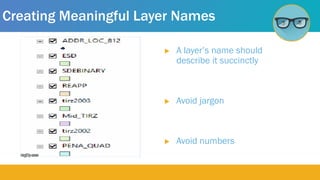
Creating Meaningful Layer Names
 A layer’s name should
describe it succinctly
 Avoid jargon
 Avoid numbers
Field Names, Don’t’s
Jargon
Numbers
Special Characters
 Spaces, !@#$%^&*()
 Cannot begin with a number or _
Field Names, Do’s
A field’s name should describe
it succinctly
Right Field for the Right Data
 Integer, Float, Text, and Date
Folder Structure and Data Management
 Organization and optimization for standard operating procedures
 When correct folders are closer together everything runs faster
 Let’s go over the good, the bad, and the ugly of folder structuring
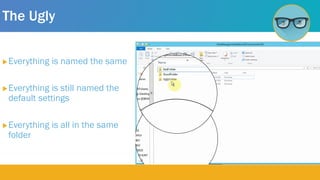
The Ugly
Everything is named the same
Everything is still named the
default settings
Everything is all in the same
folder
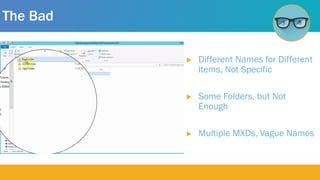
The Bad
 Different Names for Different
Items, Not Specific
 Some Folders, but Not
Enough
 Multiple MXDs, Vague Names
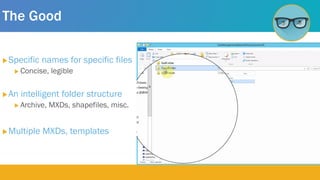
The Good
Specific names for specific files
 Concise, legible
An intelligent folder structure
 Archive, MXDs, shapefiles, misc.
Multiple MXDs, templates
What happens
Running slow
How it happens
Caching
How to fix it
Caching is when data is saved for ease of access
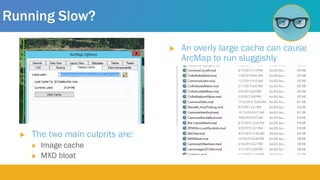
 The two main culprits are:
 Image cache
 MXD bloat
Running Slow?
 An overly large cache can cause
ArcMap to run sluggishly
Growth in Action!
 To follow:
 How the image cache grows
 How the MXD grows
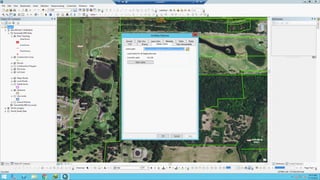
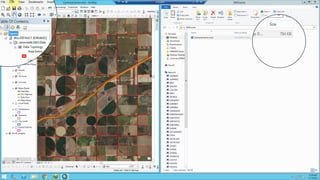
How the Image Cache Grows Video
How the MXD Grows Video
Let’s Fix It!
 To follow:
 How to clear image cache in ArcMap
 How to clear MXD cache
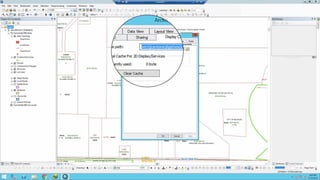
How to Clear the Image Cache in ArcMap
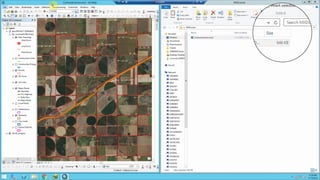
How to Clear the MXD Cache
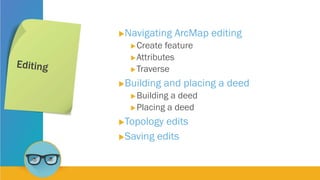
Navigating ArcMap editing
Create feature
Attributes
Traverse
Building and placing a deed
Building a deed
Placing a deed
Topology edits
Saving edits
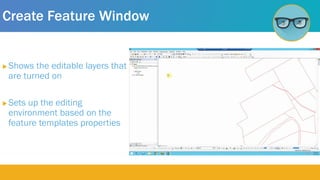
Create Feature Window
 Shows the editable layers that
are turned on
 Sets up the editing
environment based on the
feature templates properties
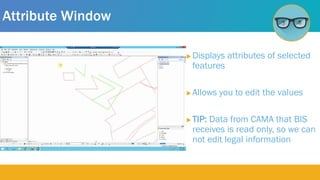
Attribute Window
 Displays attributes of selected
features
 Allows you to edit the values
 TIP: Data from CAMA that BIS
receives is read only, so we can
not edit legal information
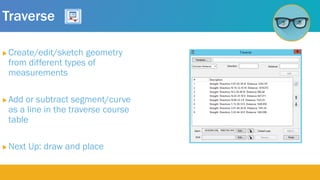
Traverse
 Create/edit/sketch geometry
from different types of
measurements
 Add or subtract segment/curve
as a line in the traverse course
table
 Next Up: draw and place
Traverse From a Plat Video
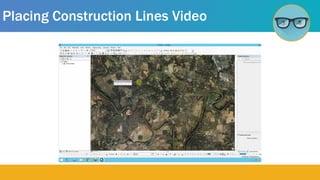
Placing Construction Lines Video
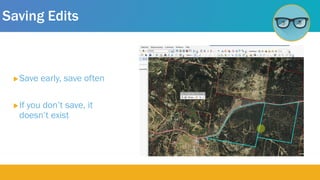
Saving Edits
Save early, save often
If you don’t save, it
doesn’t exist
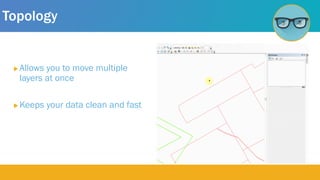
Topology
 Allows you to move multiple
layers at once
 Keeps your data clean and fast
Let’s create a custom tool bar
and add the following tools:
Cut polygon
Planarize lines
Merge
Explode
Rotate
Split
We will discuss each in detail
How To Make A Custom Tool Bar
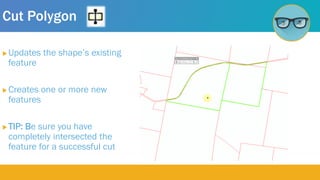
Cut Polygon
 Updates the shape’s existing
feature
 Creates one or more new
features
 TIP: Be sure you have
completely intersected the
feature for a successful cut
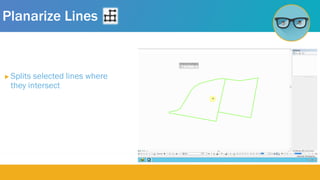
Planarize Lines
 Splits selected lines where
they intersect
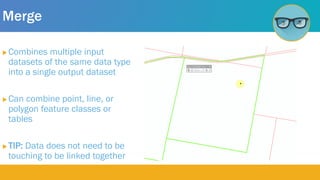
Merge
 Combines multiple input
datasets of the same data type
into a single output dataset
 Can combine point, line, or

polygon feature classes or
tables
 TIP: Data does not need to be
touching to be linked together
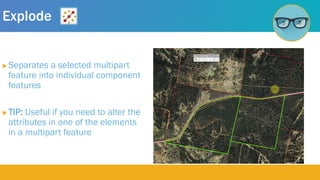
Explode
 Separates a selected multipart
feature into individual component
features
 TIP: Useful if you need to alter the
attributes in one of the elements


in a multipart feature
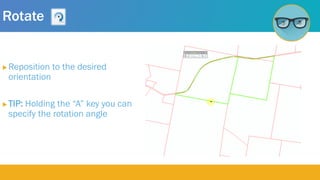
Rotate
 Reposition to the desired
orientation
 TIP: Holding the “A” key you can
specify the rotation angle
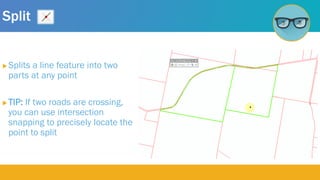
Split
 Splits a line feature into two
parts at any point
 TIP: If two roads are crossing,
you can use intersection
snapping to precisely locate the
point to split
Summary
 You are ready to nerd out to:
 Good data structures within ArcMap and your computer’s folders
 Cache and MXD bloating
 Types of editing and basic tools
 Ready to nerd further?
 Check out our demonstration lab!
 Nerd your way through all of our class material
Questions?
Bre Callear Collin King Jordan Carmona
bcallear@bisconsultants.com cking@bisconsultants.com jcarmona@bisconsultants.com
Thank you for joining
us! We hope to see
you in the lab!

Fundamentals-of-GIS

  • 1.
    your nerdfighters: Bre Callear,Collin King & Jordan Carmona
  • 2.
    Your ArcGIS NerdFighters  Bre Callear  GIS Tech I  1 year of experience  B.S. in Meteorology with a GIS Certificate from Northern Illinois University  Started at BIS in 2014  Collin King  GIS Tech I  1 year of experience  B.S. in GIS from Mississippi State University  Started at BIS in 2014  Jordan Carmona  GIS Tech II  2 years of experience  2 B.A. from UNT in History and Political Science  Started at BIS in 2014
  • 3.
    Naming Files forUse in ArcMap  Naming MXDs  Folder structure MXD Bloat  How it happens  How to fix it Editing  Navigating ArcMap editing  A quick deed plus clean up Editing Tools  Cut, merge, EXPLODE, and more!
  • 4.
    Naming in MXDs Creatingmeaningful layer names Field name, Do’s and Don’ts Folder Structure and Data Management Why names matter What not to do How to structure your GIS folder MXD stands for Map Explorer Document
  • 5.
    Creating Meaningful LayerNames  A layer’s name should describe it succinctly  Avoid jargon  Avoid numbers
  • 6.
    Field Names, Don’t’s Jargon Numbers SpecialCharacters  Spaces, !@#$%^&*()  Cannot begin with a number or _
  • 7.
    Field Names, Do’s Afield’s name should describe it succinctly Right Field for the Right Data  Integer, Float, Text, and Date
  • 8.
    Folder Structure andData Management  Organization and optimization for standard operating procedures  When correct folders are closer together everything runs faster  Let’s go over the good, the bad, and the ugly of folder structuring
  • 9.
    The Ugly Everything isnamed the same Everything is still named the default settings Everything is all in the same folder
  • 10.
    The Bad  DifferentNames for Different Items, Not Specific  Some Folders, but Not Enough  Multiple MXDs, Vague Names
  • 11.
    The Good Specific namesfor specific files  Concise, legible An intelligent folder structure  Archive, MXDs, shapefiles, misc. Multiple MXDs, templates
  • 12.
    What happens Running slow Howit happens Caching How to fix it Caching is when data is saved for ease of access
  • 13.
     The twomain culprits are:  Image cache  MXD bloat Running Slow?  An overly large cache can cause ArcMap to run sluggishly
  • 14.
    Growth in Action! To follow:  How the image cache grows  How the MXD grows
  • 15.
    How the ImageCache Grows Video
  • 16.
    How the MXDGrows Video
  • 17.
    Let’s Fix It! To follow:  How to clear image cache in ArcMap  How to clear MXD cache
  • 18.
    How to Clearthe Image Cache in ArcMap
  • 19.
    How to Clearthe MXD Cache
  • 20.
    Navigating ArcMap editing Createfeature Attributes Traverse Building and placing a deed Building a deed Placing a deed Topology edits Saving edits
  • 21.
    Create Feature Window Shows the editable layers that are turned on  Sets up the editing environment based on the feature templates properties
  • 22.
    Attribute Window  Displaysattributes of selected features  Allows you to edit the values  TIP: Data from CAMA that BIS receives is read only, so we can not edit legal information
  • 23.
    Traverse  Create/edit/sketch geometry fromdifferent types of measurements  Add or subtract segment/curve as a line in the traverse course table  Next Up: draw and place
  • 24.
    Traverse From aPlat Video
  • 25.
  • 26.
    Saving Edits Save early,save often If you don’t save, it doesn’t exist
  • 27.
    Topology  Allows youto move multiple layers at once  Keeps your data clean and fast
  • 28.
    Let’s create acustom tool bar and add the following tools: Cut polygon Planarize lines Merge Explode Rotate Split We will discuss each in detail
  • 29.
    How To MakeA Custom Tool Bar
  • 30.
    Cut Polygon  Updatesthe shape’s existing feature  Creates one or more new features  TIP: Be sure you have completely intersected the feature for a successful cut
  • 31.
    Planarize Lines  Splitsselected lines where they intersect
  • 32.
    Merge  Combines multipleinput datasets of the same data type into a single output dataset  Can combine point, line, or polygon feature classes or tables  TIP: Data does not need to be touching to be linked together
  • 33.
    Explode  Separates aselected multipart feature into individual component features  TIP: Useful if you need to alter the attributes in one of the elements in a multipart feature
  • 34.
    Rotate  Reposition tothe desired orientation  TIP: Holding the “A” key you can specify the rotation angle
  • 35.
    Split  Splits aline feature into two parts at any point  TIP: If two roads are crossing, you can use intersection snapping to precisely locate the point to split
  • 36.
    Summary  You areready to nerd out to:  Good data structures within ArcMap and your computer’s folders  Cache and MXD bloating  Types of editing and basic tools  Ready to nerd further?  Check out our demonstration lab!  Nerd your way through all of our class material
  • 37.
    Questions? Bre Callear CollinKing Jordan Carmona bcallear@bisconsultants.com cking@bisconsultants.com jcarmona@bisconsultants.com
  • 38.
    Thank you forjoining us! We hope to see you in the lab!