Building the Test Automation Framework
Building the
Test Automation Framework
Module 2 : A Practical Introduction to Jenkins for Testers
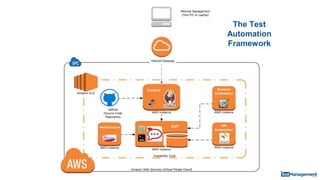
The Test
Automation
Framework
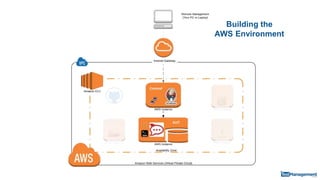
Building the
AWS Environment
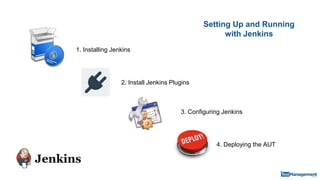
1. Installing Jenkins
3. Configuring Jenkins
4. Deploying the AUT
Setting Up and Running
with Jenkins
2. Install Jenkins Plugins
Why Use Jenkins?
Jenkins is a brilliant process automation tool for testers
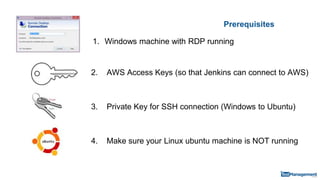
Prerequisites
1. Windows machine with RDP running
3. Private Key for SSH connection (Windows to Ubuntu)
4. Make sure your Linux ubuntu machine is NOT running
2. AWS Access Keys (so that Jenkins can connect to AWS)
Module PartsPart 1: Installing Jenkins
Part 2: The Main Jenkins Configuration Areas
Part 3: Jenkins' Plugins
Part 4: Installing Plugins
Part 5: Configuring Jenkins
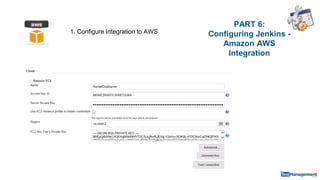
Part 6: Configuring Jenkins - Amazon AWS Integration
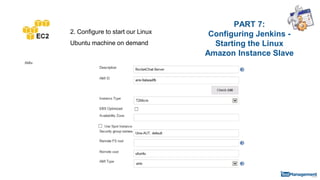
Part 7: Configuring Jenkins - Starting the Linux Amazon Instance Slave
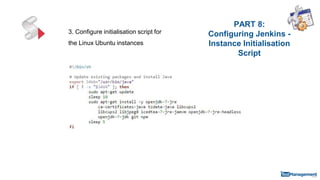
Part 8: Configuring Jenkins - Instance Initialisation Script
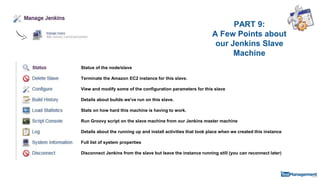
Part 9: A Few Points about our Jenkins Slave Machine
Part 10: Setting Jenkins up to install the AUT
Part 11: Jenkins Post Build Actions and Smoke Tests
Part 12: Starting Subsequent Jenkins Builds
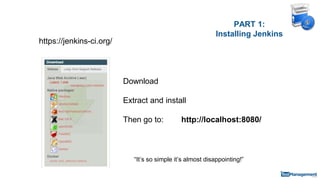
PART 1:
Installing Jenkins
https://jenkins-ci.org/
“It’s so simple it’s almost disappointing!”
Download
Extract and install
Then go to: http://localhost:8080/
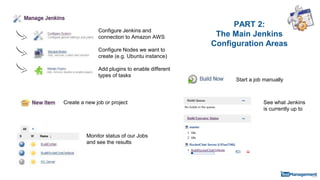
PART 2:
The Main Jenkins
Configuration Areas
Configure Jenkins and
connection to Amazon AWS
Configure Nodes we want to
create (e.g. Ubuntu instance)
Add plugins to enable different
types of tasks
Create a new job or project
Monitor status of our Jobs
and see the results
Start a job manually
See what Jenkins
is currently up to
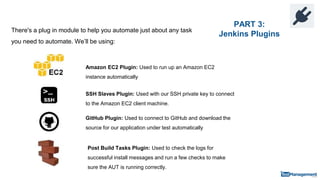
PART 3:
Jenkins Plugins
There's a plug in module to help you automate just about any task
you need to automate. We’ll be using:
Amazon EC2 Plugin: Used to run up an Amazon EC2
instance automatically
SSH Slaves Plugin: Used with our SSH private key to connect
to the Amazon EC2 client machine.
GitHub Plugin: Used to connect to GitHub and download the
source for our application under test automatically
Post Build Tasks Plugin: Used to check the logs for
successful install messages and run a few checks to make
sure the AUT is running correctly.
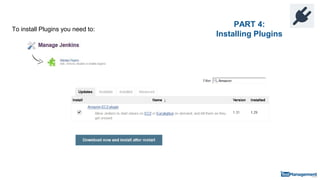
PART 4:
Installing Plugins
To install Plugins you need to:
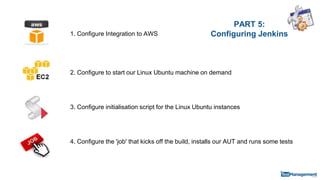
PART 5:
Configuring Jenkins1. Configure Integration to AWS
2. Configure to start our Linux Ubuntu machine on demand
3. Configure initialisation script for the Linux Ubuntu instances
4. Configure the 'job' that kicks off the build, installs our AUT and runs some tests
PART 6:
Configuring Jenkins -
Amazon AWS
Integration
1. Configure Integration to AWS
PART 7:
Configuring Jenkins -
Starting the Linux
Amazon Instance Slave
2. Configure to start our Linux
Ubuntu machine on demand
PART 8:
Configuring Jenkins -
Instance Initialisation
Script
3. Configure initialisation script for
the Linux Ubuntu instances
PART 9:
A Few Points about
our Jenkins Slave
Machine
Status of the node/slave
Terminate the Amazon EC2 instance for this slave.
View and modify some of the configuration parameters for this slave
Details about builds we've run on this slave.
Stats on how hard this machine is having to work.
Run Groovy script on the slave machine from our Jenkins master machine
Details about the running up and install activities that took place when we created this instance
Full list of system properties
Disconnect Jenkins from the slave but leave the instance running still (you can reconnect later)
PART 10:
Setting Jenkins up to
install the AUT
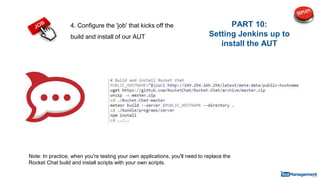
4. Configure the 'job' that kicks off the
build and install of our AUT
Note: In practice, when you're testing your own applications, you'll need to replace the
Rocket Chat build and install scripts with your own scripts.
PART 11:
Jenkins Post Build
Actions and Smoke
Tests
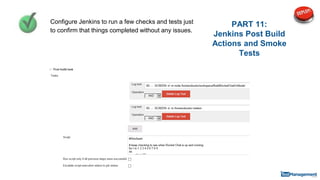
Configure Jenkins to run a few checks and tests just
to confirm that things completed without any issues.
PART 12:
Starting Subsequent
Jenkins Builds
When you kick off a new build:
a. If this Node has been shutdown:
We’ll start from the beginning and create a new EC2 instance*
b. If this Node hasn’t been shut down:
The slave is still running, so Jenkins just needs to start a new build and install using the same machine
*Note: if the node has been shutdown, and then a new node run up for a subsequent build, then the new
node with have a NEW IP and HOSTNAME.
Idle termination time: 30
There is a Node configuration setting called Idle
Termination time. If the EC2 Jenkins node (e.g.
your Linux Ubuntu) is inactive for this period of
time Jenkins will Terminate it automatically

Building the Test Automation Framework - Jenkins for Testers

  • 1.
    Building the TestAutomation Framework Building the Test Automation Framework Module 2 : A Practical Introduction to Jenkins for Testers
  • 2.
  • 3.
  • 4.
    1. Installing Jenkins 3.Configuring Jenkins 4. Deploying the AUT Setting Up and Running with Jenkins 2. Install Jenkins Plugins
  • 5.
    Why Use Jenkins? Jenkinsis a brilliant process automation tool for testers
  • 6.
    Prerequisites 1. Windows machinewith RDP running 3. Private Key for SSH connection (Windows to Ubuntu) 4. Make sure your Linux ubuntu machine is NOT running 2. AWS Access Keys (so that Jenkins can connect to AWS)
  • 7.
    Module PartsPart 1:Installing Jenkins Part 2: The Main Jenkins Configuration Areas Part 3: Jenkins' Plugins Part 4: Installing Plugins Part 5: Configuring Jenkins Part 6: Configuring Jenkins - Amazon AWS Integration Part 7: Configuring Jenkins - Starting the Linux Amazon Instance Slave Part 8: Configuring Jenkins - Instance Initialisation Script Part 9: A Few Points about our Jenkins Slave Machine Part 10: Setting Jenkins up to install the AUT Part 11: Jenkins Post Build Actions and Smoke Tests Part 12: Starting Subsequent Jenkins Builds
  • 8.
    PART 1: Installing Jenkins https://jenkins-ci.org/ “It’sso simple it’s almost disappointing!” Download Extract and install Then go to: http://localhost:8080/
  • 9.
    PART 2: The MainJenkins Configuration Areas Configure Jenkins and connection to Amazon AWS Configure Nodes we want to create (e.g. Ubuntu instance) Add plugins to enable different types of tasks Create a new job or project Monitor status of our Jobs and see the results Start a job manually See what Jenkins is currently up to
  • 10.
    PART 3: Jenkins Plugins There'sa plug in module to help you automate just about any task you need to automate. We’ll be using: Amazon EC2 Plugin: Used to run up an Amazon EC2 instance automatically SSH Slaves Plugin: Used with our SSH private key to connect to the Amazon EC2 client machine. GitHub Plugin: Used to connect to GitHub and download the source for our application under test automatically Post Build Tasks Plugin: Used to check the logs for successful install messages and run a few checks to make sure the AUT is running correctly.
  • 11.
    PART 4: Installing Plugins Toinstall Plugins you need to:
  • 12.
    PART 5: Configuring Jenkins1.Configure Integration to AWS 2. Configure to start our Linux Ubuntu machine on demand 3. Configure initialisation script for the Linux Ubuntu instances 4. Configure the 'job' that kicks off the build, installs our AUT and runs some tests
  • 13.
    PART 6: Configuring Jenkins- Amazon AWS Integration 1. Configure Integration to AWS
  • 14.
    PART 7: Configuring Jenkins- Starting the Linux Amazon Instance Slave 2. Configure to start our Linux Ubuntu machine on demand
  • 15.
    PART 8: Configuring Jenkins- Instance Initialisation Script 3. Configure initialisation script for the Linux Ubuntu instances
  • 16.
    PART 9: A FewPoints about our Jenkins Slave Machine Status of the node/slave Terminate the Amazon EC2 instance for this slave. View and modify some of the configuration parameters for this slave Details about builds we've run on this slave. Stats on how hard this machine is having to work. Run Groovy script on the slave machine from our Jenkins master machine Details about the running up and install activities that took place when we created this instance Full list of system properties Disconnect Jenkins from the slave but leave the instance running still (you can reconnect later)
  • 17.
    PART 10: Setting Jenkinsup to install the AUT 4. Configure the 'job' that kicks off the build and install of our AUT Note: In practice, when you're testing your own applications, you'll need to replace the Rocket Chat build and install scripts with your own scripts.
  • 18.
    PART 11: Jenkins PostBuild Actions and Smoke Tests Configure Jenkins to run a few checks and tests just to confirm that things completed without any issues.
  • 19.
    PART 12: Starting Subsequent JenkinsBuilds When you kick off a new build: a. If this Node has been shutdown: We’ll start from the beginning and create a new EC2 instance* b. If this Node hasn’t been shut down: The slave is still running, so Jenkins just needs to start a new build and install using the same machine *Note: if the node has been shutdown, and then a new node run up for a subsequent build, then the new node with have a NEW IP and HOSTNAME. Idle termination time: 30 There is a Node configuration setting called Idle Termination time. If the EC2 Jenkins node (e.g. your Linux Ubuntu) is inactive for this period of time Jenkins will Terminate it automatically