Set Up a Jenkins Build
Server
October 2016
© 2016, Amazon Web Services, Inc. or its affiliates. All rights reserved.
Notices
This document is provided for informational purposes only. It represents AWS’s
current product offerings and practices as of the date of issue of this document,
which are subject to change without notice. Customers are responsible for
making their own independent assessment of the information in this document
and any use of AWS’s products or services, each of which is provided “as is”
without warranty of any kind, whether express or implied. This document does
not create any warranties, representations, contractual commitments,
conditions or assurances from AWS, its affiliates, suppliers or licensors. The
responsibilities and liabilities of AWS to its customers are controlled by AWS
agreements, and this document is not part of, nor does it modify, any agreement
between AWS and its customers.
Contents
Introduction 1
Step 1: Set Up Prerequisites 2
Step 2: Launch an EC2 Instance 2
Create a Security Group for Your Amazon EC2 Instance 2
Launch Your EC2 Instance 4
Step 3: Install and Configure Jenkins 5
Connect to Your Linux Instance 5
Download and Install Jenkins 8
Configure Jenkins 9
Step 4: Clean Up 10
Delete Your EC2 Instance 10
Additional Resources 11
Amazon Web Services – Set Up a Jenkins Build Server
Page 1
Introduction
Jenkins is an open-source automation server that integrates with a number of
AWS Services, such as AWS CodeCommit, AWS CodeDeploy, Amazon EC2 Spot,
and Amazon EC2 Fleet. You can use Amazon Elastic Compute Cloud (Amazon
EC2) to deploy a Jenkins application on AWS in a matter of minutes.
This tutorial walks you through the process of deploying a Jenkins application.
You will launch an EC2 instance, install Jenkins on that instance, and configure
Jenkins to automatically spin up Jenkins build slave instances if build abilities
need to be augmented on the instance.
In this tutorial, you will perform the following steps:
• Step 1: Set Up Prerequisites
• Step 2: Launch an EC2 Instance
• Step 3: Install and Configure Jenkins
• Step 4: Clean Up
This tutorial is not meant for production environments, and does not discuss
options in depth. After you complete the steps in this tutorial, you can find more
in-depth information to create your own Jenkins application in the Additional
Resources section.
Amazon Web Services – Set Up a Jenkins Build Server
Page 2
Step 1: Set Up Prerequisites
To prepare for this tutorial, you will need an AWS account, an AWS Identity and
Access Management (IAM) user name and password, an Amazon EC2 key pair,
and a configured Virtual Private Cloud (VPC). Detailed instructions can be
found in Setting Up to Host a Web App on AWS.1
Important:
For this tutorial, be sure that you are using the Amazon EC2 console (and not,
for example, the Amazon VPC console).2 Otherwise, the directions will not
match what you see.
Step 2: Launch an EC2 Instance
In this step you will launch a virtual server to host Jenkins. These virtual servers
are called EC2 instances. Typically, you start from a base image called an
Amazon Machine Image (AMI).
You will complete the following tasks:
• Create a Security Group for Your Amazon EC2 Instance
• Launch Your EC2 Instance
Create a Security Group for Your Amazon EC2
Instance
A security group acts as a firewall that controls the traffic allowed to reach one
or more EC2 instances. When you launch an instance, you can assign it one or
more security groups. You add rules to each security group that control the
traffic allowed to reach the instances to which the security group is assigned.
Note that you can modify the rules for a security group at any time; the new
rules take effect immediately.
For this tutorial, you will create a security group and add the following rules:
• Allow inbound HTTP access from anywhere
Amazon Web Services – Set Up a Jenkins Build Server
Page 3
• Allow inbound SSH traffic from your computer's public IP address so
that you can connect to your instance
To create and configure your security group:
1. Decide who may access your instance, for example, a single computer or
all trusted computers on a network. For this tutorial, you can use the
public IP address of your computer. To find your IP address, use the
checkip service from AWS3 or search for the phrase "what is my IP
address" in any Internet search engine.
If you are connecting through an ISP or from behind your firewall
without a static IP address, you will need to find the range of IP
addresses used by client computers. If you don't know this address range,
you can use 0.0.0.0/0 for this tutorial. However, this is unsafe for
production environments because it allows everyone to access your
instance using SSH.
2. Open the Amazon EC2 console at https://console.aws.amazon.com/ec2/.
3. In the navigation bar, verify that US West (Oregon) is the selected
region.
4. In the left-hand navigation bar, choose Security Groups, and then click
Create Security Group.
5. In Security group name enter WebServerSG and provide a
description.
6. Choose your VPC from the list.
7. On the Inbound tab, add the rules as follows:
a. Click Add Rule, and then choose SSH from the Type list. Under
Source, select Custom and in the text box enter the public IP
address range that you decided on in step 1.
b. Click Add Rule, and then choose HTTP from the Type list.
c. Click Add Rule, and then choose Custom TCP Rule from the
Type list. Under Port Range enter 8080.
8. Click Create.
For more information, see Security Groups in the Amazon EC2 User Guide for
Linux Instances.4
Amazon Web Services – Set Up a Jenkins Build Server
Page 4
Launch Your EC2 Instance
1. In the left-hand navigation bar of the Amazon EC2 console, choose
Instances, and then click Launch Instance.
2. On the Choose an Amazon Machine Image page, select Free tier
only, and then select an Amazon Linux AMI with the HVM virtualization
type.
3. On the Choose an Instance Type page, the t2.micro instance is
selected by default. Keep this instance type to stay within the free tier.
4. Click Next: Configure Instance Details.
5. On the Configure Instance Details page, do the following:
a. T2 instances must be launched into a subnet. From Network choose
your VPC, and from Subnet choose one of your public subnets.
b. For Auto-assign Public IP, ensure that Enable is selected from the
list. Otherwise, your instance will not get a public IP address or a
public DNS name.
c. Click Review and Launch. If you are prompted to specify the type
of root volume, make your selection and then click Next.
6. On the Review Instance Launch page, click Edit security groups.
7. On the Configure Security Group page:
d. Select Select an existing security group.
e. Select the WebServerSG security group that you created.
f. Click Review and Launch.
8. On the Review Instance Launch page, click Launch.
9. In the Select an existing key pair or create a new key pair dialog
box, select Choose an existing key pair, and then select the key pair
you created in Setting Up to Host Jenkins on AWS.
10. Click the acknowledgement check box, and then click Launch
Instances.
11. In the left-hand navigation bar, choose Instances to see the status of
your instance. Initially, the status of your instance is pending. After the
status changes to running, your instance is ready for use.
Amazon Web Services – Set Up a Jenkins Build Server
Page 5
Step 3: Install and Configure Jenkins
In this step you will deploy Jenkins on your EC2 instance by completing the
following tasks:
• Connect to Your Linux Instance
• Download and Install Jenkins
• Configure Jenkins
Connect to Your Linux Instance
After you launch your instance, you can connect to it and use it the way that you
would use a computer sitting in front of you.
Before you connect to your instance, get the public DNS name of the instance
using the Amazon EC2 console. Select the instance and locate Public DNS on
the Description tab.
Tip:
If your instance doesn't have a public DNS name, open the VPC console, select
the VPC, and check the Summary tab. If either DNS resolution or DNS
hostnames is no, click Edit and change the value to yes.
Prerequisites
The tool that you use to connect to your Linux instance depends on the
operating system running on your computer. If your computer runs Windows,
you will connect using PuTTY. If your computer runs Linux or Mac OS X, you
will connect using the SSH client. These tools require the use of your key pair.
Be sure that you created your key pair as described in Create a Key Pair.
To Connect to Your Linux Instance from Windows Using PuTTY
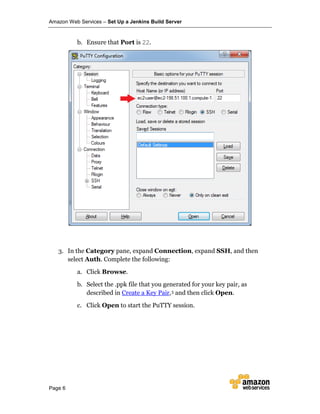
1. From the Start menu, choose All Programs > PuTTY > PuTTY.
2. In the Category pane, select Session, and complete the following fields:
a. In Host Name, enter ec2-user@public_dns_name.
Amazon Web Services – Set Up a Jenkins Build Server
Page 6
b. Ensure that Port is 22.
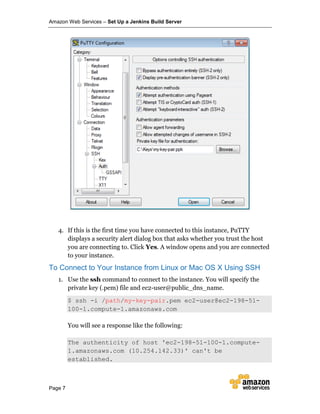
3. In the Category pane, expand Connection, expand SSH, and then
select Auth. Complete the following:
a. Click Browse.
b. Select the .ppk file that you generated for your key pair, as
described in Create a Key Pair,5 and then click Open.
c. Click Open to start the PuTTY session.
Amazon Web Services – Set Up a Jenkins Build Server
Page 7
4. If this is the first time you have connected to this instance, PuTTY
displays a security alert dialog box that asks whether you trust the host
you are connecting to. Click Yes. A window opens and you are connected
to your instance.
To Connect to Your Instance from Linux or Mac OS X Using SSH
1. Use the ssh command to connect to the instance. You will specify the
private key (.pem) file and ec2-user@public_dns_name.
$ ssh -i /path/my-key-pair.pem ec2-user@ec2-198-51-
100-1.compute-1.amazonaws.com
You will see a response like the following:
The authenticity of host 'ec2-198-51-100-1.compute-
1.amazonaws.com (10.254.142.33)' can't be
established.
Amazon Web Services – Set Up a Jenkins Build Server
Page 8
RSA key fingerprint is
1f:51:ae:28:bf:89:e9:d8:1f:25:5d:37:2d:7d:b8:ca:9f:f5
:f1:6f.
Are you sure you want to continue connecting
(yes/no)?
2. Enter yes.
You will see a response like the following:
Warning: Permanently added 'ec2-198-51-100-1.compute-
1.amazonaws.com' (RSA) to the list of known hosts.
Download and Install Jenkins
To download and install Jenkins:
1. To ensure that your software packages are up to date on your instance,
use the following command to perform a quick software update:
[ec2-user ~]$ sudo yum update –y
2. Add the Jenkins repo using the following command:
[ec2-user ~]$ sudo wget -O
/etc/yum.repos.d/jenkins.repo http://pkg.jenkins-
ci.org/redhat/jenkins.repo
3. Import a key file from Jenkins-CI to enable installation from the
package:
[ec2-user ~]$ sudo rpm --import
https://pkg.jenkins.io/redhat/jenkins.io.key
4. Install Jenkins:
[ec2-user ~]$ sudo yum install jenkins -y
5. Start Jenkins as a service:
[ec2-user ~]$ sudo service jenkins start
Amazon Web Services – Set Up a Jenkins Build Server
Page 9
Configure Jenkins
Jenkins is now installed and running on your EC2 instance. To configure
Jenkins:
1. Connect to http://<your_server_public_DNS>:8080 from your favorite
browser. You will be able to access Jenkins through its management
interface:
2. As prompted, enter the password found in
/var/lib/jenkins/secrets/initialAdminPassword. Use the following
command to display this password:
[ec2-user ~]$ sudo cat
/var/lib/jenkins/secrets/initialAdminPassword
3. The Jenkins installation script directs you to the Customize Jenkins page.
Click Install suggested plugins.
4. Once the installation is complete, enter Administrator Credentials, click
Save Credentials, and then click Start Using Jenkins.
Amazon Web Services – Set Up a Jenkins Build Server
Page 10
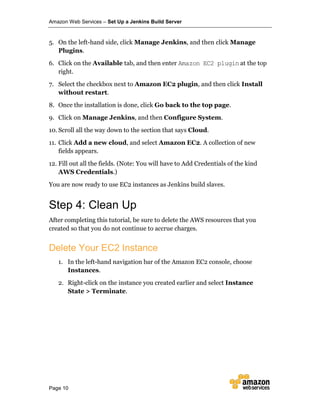
5. On the left-hand side, click Manage Jenkins, and then click Manage
Plugins.
6. Click on the Available tab, and then enter Amazon EC2 plugin at the top
right.
7. Select the checkbox next to Amazon EC2 plugin, and then click Install
without restart.
8. Once the installation is done, click Go back to the top page.
9. Click on Manage Jenkins, and then Configure System.
10. Scroll all the way down to the section that says Cloud.
11. Click Add a new cloud, and select Amazon EC2. A collection of new
fields appears.
12. Fill out all the fields. (Note: You will have to Add Credentials of the kind
AWS Credentials.)
You are now ready to use EC2 instances as Jenkins build slaves.
Step 4: Clean Up
After completing this tutorial, be sure to delete the AWS resources that you
created so that you do not continue to accrue charges.
Delete Your EC2 Instance
1. In the left-hand navigation bar of the Amazon EC2 console, choose
Instances.
2. Right-click on the instance you created earlier and select Instance
State > Terminate.
Amazon Web Services – Set Up a Jenkins Build Server
Page 11
Additional Resources
We recommend that you continue to learn more about the concepts introduced
in this guide with the following resources:
• Jenkins on AWS (whitepaper):
https://d0.awsstatic.com/whitepapers/DevOps/Jenkins_on_AWS.pdf
• DevOps and AWS: https://aws.amazon.com/devops/
1 https://docs.aws.amazon.com/gettingstarted/latest/wah-linux/getting-
started-prereq.html
2 https://console.aws.amazon.com/ec2/
3 http://checkip.amazonaws.com
4 http://docs.aws.amazon.com/AWSEC2/latest/UserGuide/using-network-
security.html
5 https://docs.aws.amazon.com/gettingstarted/latest/wah-linux/getting-
started-prereq.html#create-a-key-pair
Notes

Aws project jenkins-build-server

  • 1.
    Set Up aJenkins Build Server October 2016
  • 2.
    © 2016, AmazonWeb Services, Inc. or its affiliates. All rights reserved. Notices This document is provided for informational purposes only. It represents AWS’s current product offerings and practices as of the date of issue of this document, which are subject to change without notice. Customers are responsible for making their own independent assessment of the information in this document and any use of AWS’s products or services, each of which is provided “as is” without warranty of any kind, whether express or implied. This document does not create any warranties, representations, contractual commitments, conditions or assurances from AWS, its affiliates, suppliers or licensors. The responsibilities and liabilities of AWS to its customers are controlled by AWS agreements, and this document is not part of, nor does it modify, any agreement between AWS and its customers.
  • 3.
    Contents Introduction 1 Step 1:Set Up Prerequisites 2 Step 2: Launch an EC2 Instance 2 Create a Security Group for Your Amazon EC2 Instance 2 Launch Your EC2 Instance 4 Step 3: Install and Configure Jenkins 5 Connect to Your Linux Instance 5 Download and Install Jenkins 8 Configure Jenkins 9 Step 4: Clean Up 10 Delete Your EC2 Instance 10 Additional Resources 11
  • 4.
    Amazon Web Services– Set Up a Jenkins Build Server Page 1 Introduction Jenkins is an open-source automation server that integrates with a number of AWS Services, such as AWS CodeCommit, AWS CodeDeploy, Amazon EC2 Spot, and Amazon EC2 Fleet. You can use Amazon Elastic Compute Cloud (Amazon EC2) to deploy a Jenkins application on AWS in a matter of minutes. This tutorial walks you through the process of deploying a Jenkins application. You will launch an EC2 instance, install Jenkins on that instance, and configure Jenkins to automatically spin up Jenkins build slave instances if build abilities need to be augmented on the instance. In this tutorial, you will perform the following steps: • Step 1: Set Up Prerequisites • Step 2: Launch an EC2 Instance • Step 3: Install and Configure Jenkins • Step 4: Clean Up This tutorial is not meant for production environments, and does not discuss options in depth. After you complete the steps in this tutorial, you can find more in-depth information to create your own Jenkins application in the Additional Resources section.
  • 5.
    Amazon Web Services– Set Up a Jenkins Build Server Page 2 Step 1: Set Up Prerequisites To prepare for this tutorial, you will need an AWS account, an AWS Identity and Access Management (IAM) user name and password, an Amazon EC2 key pair, and a configured Virtual Private Cloud (VPC). Detailed instructions can be found in Setting Up to Host a Web App on AWS.1 Important: For this tutorial, be sure that you are using the Amazon EC2 console (and not, for example, the Amazon VPC console).2 Otherwise, the directions will not match what you see. Step 2: Launch an EC2 Instance In this step you will launch a virtual server to host Jenkins. These virtual servers are called EC2 instances. Typically, you start from a base image called an Amazon Machine Image (AMI). You will complete the following tasks: • Create a Security Group for Your Amazon EC2 Instance • Launch Your EC2 Instance Create a Security Group for Your Amazon EC2 Instance A security group acts as a firewall that controls the traffic allowed to reach one or more EC2 instances. When you launch an instance, you can assign it one or more security groups. You add rules to each security group that control the traffic allowed to reach the instances to which the security group is assigned. Note that you can modify the rules for a security group at any time; the new rules take effect immediately. For this tutorial, you will create a security group and add the following rules: • Allow inbound HTTP access from anywhere
  • 6.
    Amazon Web Services– Set Up a Jenkins Build Server Page 3 • Allow inbound SSH traffic from your computer's public IP address so that you can connect to your instance To create and configure your security group: 1. Decide who may access your instance, for example, a single computer or all trusted computers on a network. For this tutorial, you can use the public IP address of your computer. To find your IP address, use the checkip service from AWS3 or search for the phrase "what is my IP address" in any Internet search engine. If you are connecting through an ISP or from behind your firewall without a static IP address, you will need to find the range of IP addresses used by client computers. If you don't know this address range, you can use 0.0.0.0/0 for this tutorial. However, this is unsafe for production environments because it allows everyone to access your instance using SSH. 2. Open the Amazon EC2 console at https://console.aws.amazon.com/ec2/. 3. In the navigation bar, verify that US West (Oregon) is the selected region. 4. In the left-hand navigation bar, choose Security Groups, and then click Create Security Group. 5. In Security group name enter WebServerSG and provide a description. 6. Choose your VPC from the list. 7. On the Inbound tab, add the rules as follows: a. Click Add Rule, and then choose SSH from the Type list. Under Source, select Custom and in the text box enter the public IP address range that you decided on in step 1. b. Click Add Rule, and then choose HTTP from the Type list. c. Click Add Rule, and then choose Custom TCP Rule from the Type list. Under Port Range enter 8080. 8. Click Create. For more information, see Security Groups in the Amazon EC2 User Guide for Linux Instances.4
  • 7.
    Amazon Web Services– Set Up a Jenkins Build Server Page 4 Launch Your EC2 Instance 1. In the left-hand navigation bar of the Amazon EC2 console, choose Instances, and then click Launch Instance. 2. On the Choose an Amazon Machine Image page, select Free tier only, and then select an Amazon Linux AMI with the HVM virtualization type. 3. On the Choose an Instance Type page, the t2.micro instance is selected by default. Keep this instance type to stay within the free tier. 4. Click Next: Configure Instance Details. 5. On the Configure Instance Details page, do the following: a. T2 instances must be launched into a subnet. From Network choose your VPC, and from Subnet choose one of your public subnets. b. For Auto-assign Public IP, ensure that Enable is selected from the list. Otherwise, your instance will not get a public IP address or a public DNS name. c. Click Review and Launch. If you are prompted to specify the type of root volume, make your selection and then click Next. 6. On the Review Instance Launch page, click Edit security groups. 7. On the Configure Security Group page: d. Select Select an existing security group. e. Select the WebServerSG security group that you created. f. Click Review and Launch. 8. On the Review Instance Launch page, click Launch. 9. In the Select an existing key pair or create a new key pair dialog box, select Choose an existing key pair, and then select the key pair you created in Setting Up to Host Jenkins on AWS. 10. Click the acknowledgement check box, and then click Launch Instances. 11. In the left-hand navigation bar, choose Instances to see the status of your instance. Initially, the status of your instance is pending. After the status changes to running, your instance is ready for use.
  • 8.
    Amazon Web Services– Set Up a Jenkins Build Server Page 5 Step 3: Install and Configure Jenkins In this step you will deploy Jenkins on your EC2 instance by completing the following tasks: • Connect to Your Linux Instance • Download and Install Jenkins • Configure Jenkins Connect to Your Linux Instance After you launch your instance, you can connect to it and use it the way that you would use a computer sitting in front of you. Before you connect to your instance, get the public DNS name of the instance using the Amazon EC2 console. Select the instance and locate Public DNS on the Description tab. Tip: If your instance doesn't have a public DNS name, open the VPC console, select the VPC, and check the Summary tab. If either DNS resolution or DNS hostnames is no, click Edit and change the value to yes. Prerequisites The tool that you use to connect to your Linux instance depends on the operating system running on your computer. If your computer runs Windows, you will connect using PuTTY. If your computer runs Linux or Mac OS X, you will connect using the SSH client. These tools require the use of your key pair. Be sure that you created your key pair as described in Create a Key Pair. To Connect to Your Linux Instance from Windows Using PuTTY 1. From the Start menu, choose All Programs > PuTTY > PuTTY. 2. In the Category pane, select Session, and complete the following fields: a. In Host Name, enter ec2-user@public_dns_name.
  • 9.
    Amazon Web Services– Set Up a Jenkins Build Server Page 6 b. Ensure that Port is 22. 3. In the Category pane, expand Connection, expand SSH, and then select Auth. Complete the following: a. Click Browse. b. Select the .ppk file that you generated for your key pair, as described in Create a Key Pair,5 and then click Open. c. Click Open to start the PuTTY session.
  • 10.
    Amazon Web Services– Set Up a Jenkins Build Server Page 7 4. If this is the first time you have connected to this instance, PuTTY displays a security alert dialog box that asks whether you trust the host you are connecting to. Click Yes. A window opens and you are connected to your instance. To Connect to Your Instance from Linux or Mac OS X Using SSH 1. Use the ssh command to connect to the instance. You will specify the private key (.pem) file and ec2-user@public_dns_name. $ ssh -i /path/my-key-pair.pem ec2-user@ec2-198-51- 100-1.compute-1.amazonaws.com You will see a response like the following: The authenticity of host 'ec2-198-51-100-1.compute- 1.amazonaws.com (10.254.142.33)' can't be established.
  • 11.
    Amazon Web Services– Set Up a Jenkins Build Server Page 8 RSA key fingerprint is 1f:51:ae:28:bf:89:e9:d8:1f:25:5d:37:2d:7d:b8:ca:9f:f5 :f1:6f. Are you sure you want to continue connecting (yes/no)? 2. Enter yes. You will see a response like the following: Warning: Permanently added 'ec2-198-51-100-1.compute- 1.amazonaws.com' (RSA) to the list of known hosts. Download and Install Jenkins To download and install Jenkins: 1. To ensure that your software packages are up to date on your instance, use the following command to perform a quick software update: [ec2-user ~]$ sudo yum update –y 2. Add the Jenkins repo using the following command: [ec2-user ~]$ sudo wget -O /etc/yum.repos.d/jenkins.repo http://pkg.jenkins- ci.org/redhat/jenkins.repo 3. Import a key file from Jenkins-CI to enable installation from the package: [ec2-user ~]$ sudo rpm --import https://pkg.jenkins.io/redhat/jenkins.io.key 4. Install Jenkins: [ec2-user ~]$ sudo yum install jenkins -y 5. Start Jenkins as a service: [ec2-user ~]$ sudo service jenkins start
  • 12.
    Amazon Web Services– Set Up a Jenkins Build Server Page 9 Configure Jenkins Jenkins is now installed and running on your EC2 instance. To configure Jenkins: 1. Connect to http://<your_server_public_DNS>:8080 from your favorite browser. You will be able to access Jenkins through its management interface: 2. As prompted, enter the password found in /var/lib/jenkins/secrets/initialAdminPassword. Use the following command to display this password: [ec2-user ~]$ sudo cat /var/lib/jenkins/secrets/initialAdminPassword 3. The Jenkins installation script directs you to the Customize Jenkins page. Click Install suggested plugins. 4. Once the installation is complete, enter Administrator Credentials, click Save Credentials, and then click Start Using Jenkins.
  • 13.
    Amazon Web Services– Set Up a Jenkins Build Server Page 10 5. On the left-hand side, click Manage Jenkins, and then click Manage Plugins. 6. Click on the Available tab, and then enter Amazon EC2 plugin at the top right. 7. Select the checkbox next to Amazon EC2 plugin, and then click Install without restart. 8. Once the installation is done, click Go back to the top page. 9. Click on Manage Jenkins, and then Configure System. 10. Scroll all the way down to the section that says Cloud. 11. Click Add a new cloud, and select Amazon EC2. A collection of new fields appears. 12. Fill out all the fields. (Note: You will have to Add Credentials of the kind AWS Credentials.) You are now ready to use EC2 instances as Jenkins build slaves. Step 4: Clean Up After completing this tutorial, be sure to delete the AWS resources that you created so that you do not continue to accrue charges. Delete Your EC2 Instance 1. In the left-hand navigation bar of the Amazon EC2 console, choose Instances. 2. Right-click on the instance you created earlier and select Instance State > Terminate.
  • 14.
    Amazon Web Services– Set Up a Jenkins Build Server Page 11 Additional Resources We recommend that you continue to learn more about the concepts introduced in this guide with the following resources: • Jenkins on AWS (whitepaper): https://d0.awsstatic.com/whitepapers/DevOps/Jenkins_on_AWS.pdf • DevOps and AWS: https://aws.amazon.com/devops/ 1 https://docs.aws.amazon.com/gettingstarted/latest/wah-linux/getting- started-prereq.html 2 https://console.aws.amazon.com/ec2/ 3 http://checkip.amazonaws.com 4 http://docs.aws.amazon.com/AWSEC2/latest/UserGuide/using-network- security.html 5 https://docs.aws.amazon.com/gettingstarted/latest/wah-linux/getting- started-prereq.html#create-a-key-pair Notes