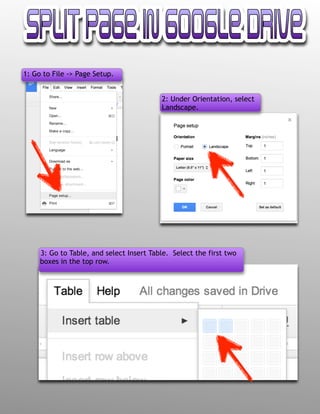
1: Go to File -> Page Setup.
2: Under Orientation, select
Landscape.
3: Go to Table, and select Insert Table. Select the first two
boxes in the top row.
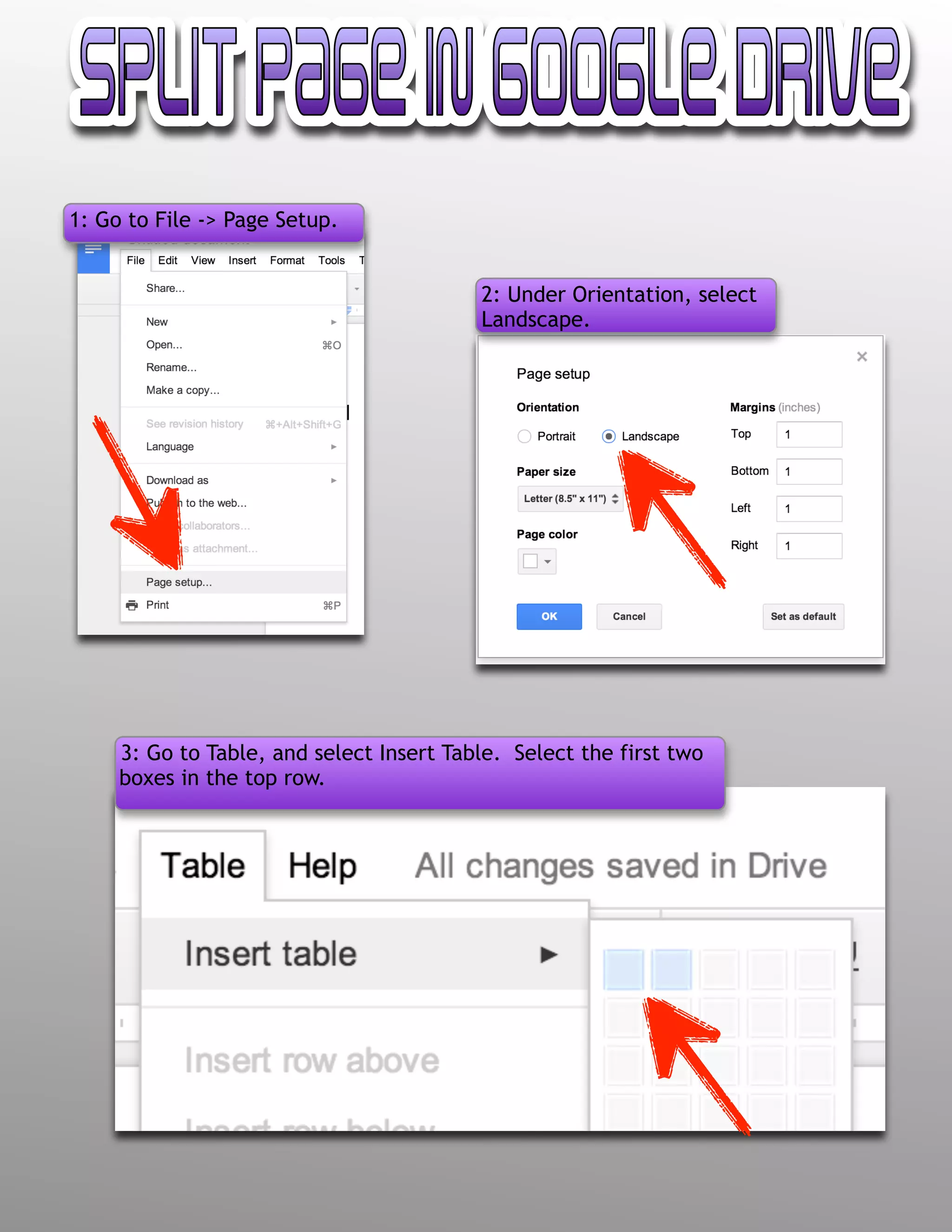
4: You should now see a table with two columns on your page.
5: Right Click on the table and select Table
Properties.
6: Select Table Border 1Pt.
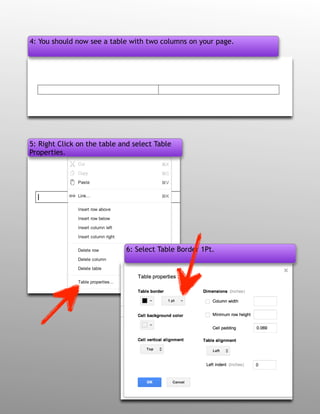
7: Change the size to 0pt.
8. You should now have 0pt for table border size.
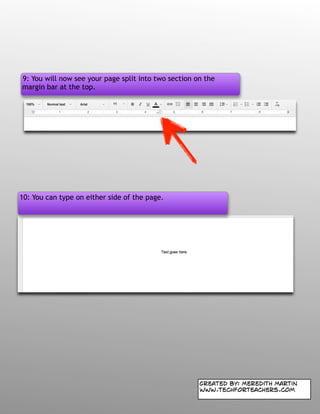
9: You will now see your page split into two section on the
margin bar at the top.
10: You can type on either side of the page.
Created by: Meredith Martin
www.techforteachers.com

Google Drive Split Page Tutorial

  • 1.
    1: Go toFile -> Page Setup. 2: Under Orientation, select Landscape. 3: Go to Table, and select Insert Table. Select the first two boxes in the top row.
  • 2.
    4: You shouldnow see a table with two columns on your page. 5: Right Click on the table and select Table Properties. 6: Select Table Border 1Pt.
  • 3.
    7: Change thesize to 0pt. 8. You should now have 0pt for table border size.
  • 4.
    9: You willnow see your page split into two section on the margin bar at the top. 10: You can type on either side of the page. Created by: Meredith Martin www.techforteachers.com