Blackboard Using Blackboard  for your Instructional Design Capstone Project  EDUU566 Brandman University Carla Piper, Ed. D.
How to Begin! You will need access to a Blackboard course shell. Your instructor will ask the Brandman systems administrator for student accounts for each of you. In preparation, go through this PowerPoint and take a look at the tutorials listed for Blackboard.
Many Other Learning Management Systems - LMS Course Sites – Free Blackboard Course Site WebCT (Owned by Blackboard) eCollege Moodle Open Source Many school districts are using Moodle Check with your institution on availability Epsilen Free with an .edu email address Also free portfolio for professionals Other Sites for Course Creation   (some free!) Atutor, Claroline, Dokeos, eFornt, Sakai, Fle3, Apex Learning, 2Tor, Angel Learning, Desire2Learn, etc.
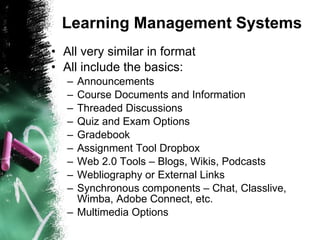
Learning Management Systems All very similar in format All include the basics: Announcements Course Documents and Information Threaded Discussions Quiz and Exam Options Gradebook Assignment Tool Dropbox Web 2.0 Tools – Blogs, Wikis, Podcasts Webliography or External Links Synchronous components – Chat, Classlive, Wimba, Adobe Connect, etc. Multimedia Options
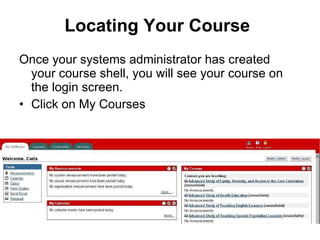
Locating Your Course Once your systems administrator has created your course shell, you will see your course on the login screen. Click on My Courses
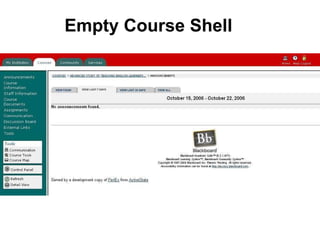
Empty Course Shell
Great Starting Places Announcements Course Information  Syllabus Course Outline Glossary Course Documents Organize Course Handouts Weekly Folders Quizzes (Later!) Discussion Weekly Topics
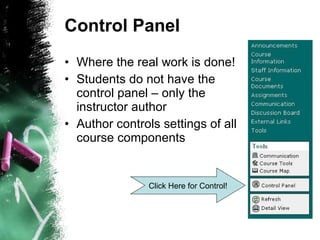
Control Panel Where the real work is done! Students do not have the control panel – only the instructor author Author controls settings of all course components Click Here for Control!
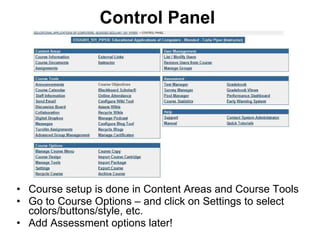
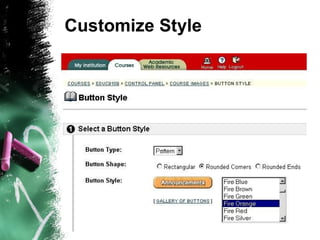
Control Panel Course setup is done in Content Areas and Course Tools Go to Course Options – and click on Settings to select colors/buttons/style, etc. Add Assessment options later!
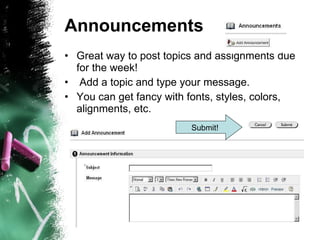
Announcements Great way to post topics and assignments due for the week! Add a topic and type your message. You can get fancy with fonts, styles, colors, alignments, etc. Submit!
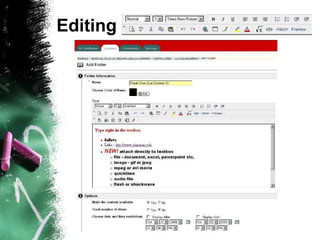
Editing
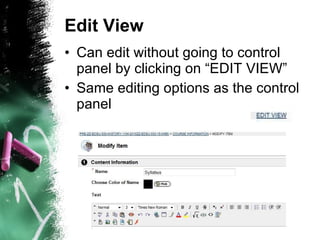
Edit View Can edit without going to control panel by clicking on “EDIT VIEW” Same editing options as the control panel
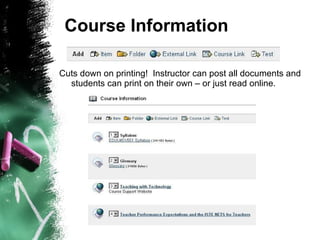
Course Information Cuts down on printing!  Instructor can post all documents and students can print on their own – or just read online.
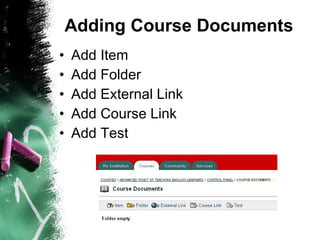
Adding Course Documents Add Item Add Folder Add External Link Add Course Link Add Test
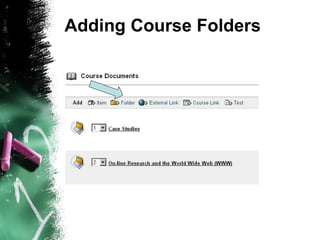
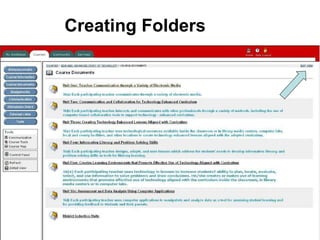
Adding Course Folders
Creating Folders
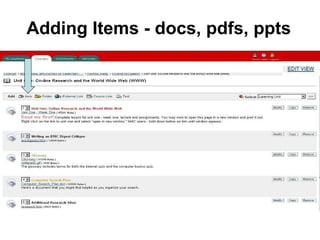
Adding Items - docs, pdfs, ppts
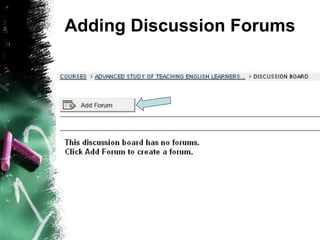
Adding Discussion Forums
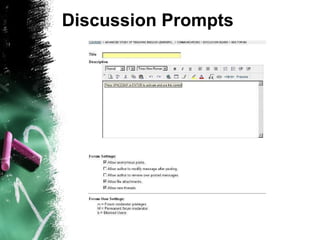
Discussion Prompts
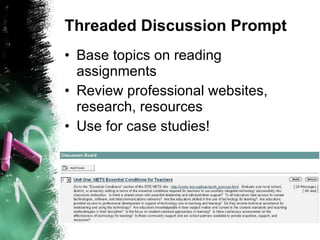
Threaded Discussion Prompt Base topics on reading assignments Review professional websites, research, resources Use for case studies!
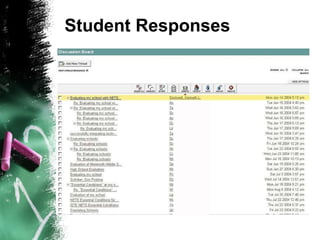
Student Responses
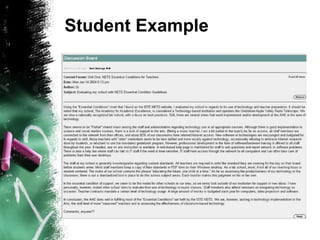
Student Example
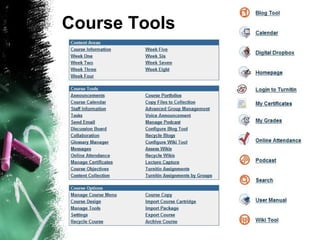
Course Tools
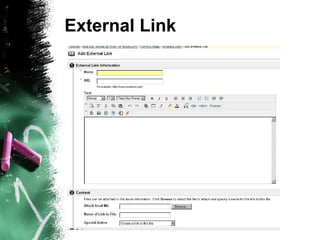
External Link
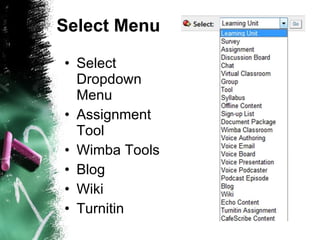
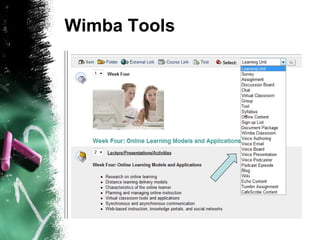
Select Menu Select Dropdown Menu Assignment Tool Wimba Tools Blog Wiki Turnitin
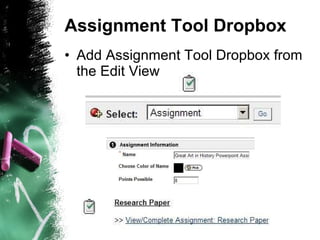
Assignment Tool Dropbox Add Assignment Tool Dropbox from the Edit View
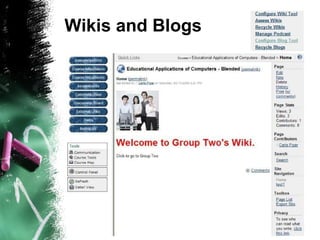
Wikis and Blogs
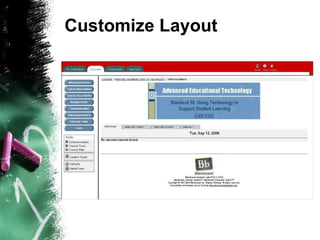
Customize Layout
Customize Style
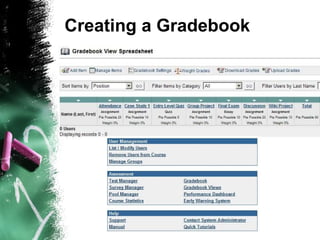
Creating a Gradebook
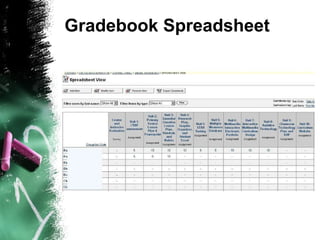
Gradebook Spreadsheet
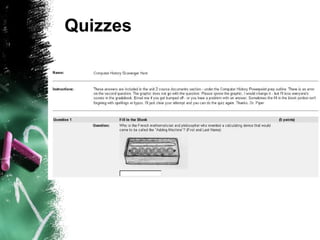
Quizzes
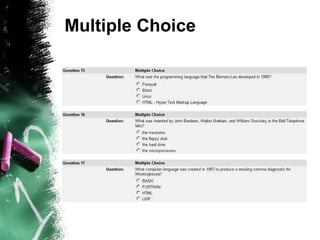
Multiple Choice
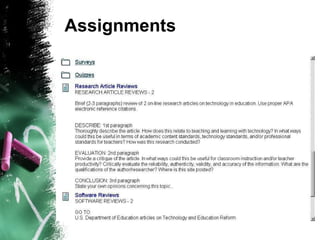
Assignments
Wimba Tools
Web-Compatible File Formats Image formats .gif or Graphical Interchange Format is a commonly used graphics file format for image filing on the Internet.  .jpg or .jpeg - abbreviation for Joint Photographic Experts Group - standard for compressing still images  Typical video and audio formats: Quicktime mov. - Quicktime Movie from the Apple for video and audio – mov., qt, .aif, .aifc, .aiff, .  Windows Media Formats - .wav, .avi, .asf, .asx, .rmi,, .wma, .wax  Musical Instrument Digital Interface (MIDI) - .mid, .rmi  Real Audio or video - .ra, .ram, .rmm, .mp3, plus other file formats  MPEG - Moving Picture Experts Group - currently gaining in popularity due to smaller file size without losing quality (mpg, .mpeg, .m1v, .mp2, .mp3, .mpa, .mpe)  UNIX formats - .au, .snd  MP3 Files - .mp3
Tutorials for Photo Editing Picnik for FREE web-based photo editor –  http://www.picnik.com   Consider Picasa for photo editor –  http://picasa.google.com/   Other Editors Irfanview -  http://eport.soundpiper.com/pictutor/irfanview.html   Kodak -  http://eport.soundpiper.com/pictutor/kodak.html Microsoft Paint -  http://eport.soundpiper.com/pictutor/paint.html   Photoshop -  http://eport.soundpiper.com/pictutor/photoshop.html   Finepix -  http://eport.soundpiper.com/pictutor/finepix.html
Piper Tutorials https://sites.google.com/site/pipertutorials/ Adding Content to Blackboard -  https://sites.google.com/site/pipertutorials/adding-content-to-blackboard Blackboard Video Walkthroughs for MAE IT Students -  http://pipertutor.blogspot.com/ Adding Discussion Forums -  https://sites.google.com/site/pipertutorials/discussions Wimba Tools -  https://sites.google.com/site/pipertutorials/wimba-tools

Blackboard566

  • 1.
    Blackboard Using Blackboard for your Instructional Design Capstone Project EDUU566 Brandman University Carla Piper, Ed. D.
  • 2.
    How to Begin!You will need access to a Blackboard course shell. Your instructor will ask the Brandman systems administrator for student accounts for each of you. In preparation, go through this PowerPoint and take a look at the tutorials listed for Blackboard.
  • 3.
    Many Other LearningManagement Systems - LMS Course Sites – Free Blackboard Course Site WebCT (Owned by Blackboard) eCollege Moodle Open Source Many school districts are using Moodle Check with your institution on availability Epsilen Free with an .edu email address Also free portfolio for professionals Other Sites for Course Creation (some free!) Atutor, Claroline, Dokeos, eFornt, Sakai, Fle3, Apex Learning, 2Tor, Angel Learning, Desire2Learn, etc.
  • 4.
    Learning Management SystemsAll very similar in format All include the basics: Announcements Course Documents and Information Threaded Discussions Quiz and Exam Options Gradebook Assignment Tool Dropbox Web 2.0 Tools – Blogs, Wikis, Podcasts Webliography or External Links Synchronous components – Chat, Classlive, Wimba, Adobe Connect, etc. Multimedia Options
  • 5.
    Locating Your CourseOnce your systems administrator has created your course shell, you will see your course on the login screen. Click on My Courses
  • 6.
  • 7.
    Great Starting PlacesAnnouncements Course Information Syllabus Course Outline Glossary Course Documents Organize Course Handouts Weekly Folders Quizzes (Later!) Discussion Weekly Topics
  • 8.
    Control Panel Wherethe real work is done! Students do not have the control panel – only the instructor author Author controls settings of all course components Click Here for Control!
  • 9.
    Control Panel Coursesetup is done in Content Areas and Course Tools Go to Course Options – and click on Settings to select colors/buttons/style, etc. Add Assessment options later!
  • 10.
    Announcements Great wayto post topics and assignments due for the week! Add a topic and type your message. You can get fancy with fonts, styles, colors, alignments, etc. Submit!
  • 11.
  • 12.
    Edit View Canedit without going to control panel by clicking on “EDIT VIEW” Same editing options as the control panel
  • 13.
    Course Information Cutsdown on printing! Instructor can post all documents and students can print on their own – or just read online.
  • 14.
    Adding Course DocumentsAdd Item Add Folder Add External Link Add Course Link Add Test
  • 15.
  • 16.
  • 17.
    Adding Items -docs, pdfs, ppts
  • 18.
  • 19.
  • 20.
    Threaded Discussion PromptBase topics on reading assignments Review professional websites, research, resources Use for case studies!
  • 21.
  • 22.
  • 23.
  • 24.
  • 25.
    Select Menu SelectDropdown Menu Assignment Tool Wimba Tools Blog Wiki Turnitin
  • 26.
    Assignment Tool DropboxAdd Assignment Tool Dropbox from the Edit View
  • 27.
  • 28.
  • 29.
  • 30.
  • 31.
  • 32.
  • 33.
  • 34.
  • 35.
  • 36.
    Web-Compatible File FormatsImage formats .gif or Graphical Interchange Format is a commonly used graphics file format for image filing on the Internet. .jpg or .jpeg - abbreviation for Joint Photographic Experts Group - standard for compressing still images Typical video and audio formats: Quicktime mov. - Quicktime Movie from the Apple for video and audio – mov., qt, .aif, .aifc, .aiff, . Windows Media Formats - .wav, .avi, .asf, .asx, .rmi,, .wma, .wax Musical Instrument Digital Interface (MIDI) - .mid, .rmi Real Audio or video - .ra, .ram, .rmm, .mp3, plus other file formats MPEG - Moving Picture Experts Group - currently gaining in popularity due to smaller file size without losing quality (mpg, .mpeg, .m1v, .mp2, .mp3, .mpa, .mpe) UNIX formats - .au, .snd MP3 Files - .mp3
  • 37.
    Tutorials for PhotoEditing Picnik for FREE web-based photo editor – http://www.picnik.com Consider Picasa for photo editor – http://picasa.google.com/ Other Editors Irfanview - http://eport.soundpiper.com/pictutor/irfanview.html Kodak - http://eport.soundpiper.com/pictutor/kodak.html Microsoft Paint - http://eport.soundpiper.com/pictutor/paint.html Photoshop - http://eport.soundpiper.com/pictutor/photoshop.html Finepix - http://eport.soundpiper.com/pictutor/finepix.html
  • 38.
    Piper Tutorials https://sites.google.com/site/pipertutorials/Adding Content to Blackboard - https://sites.google.com/site/pipertutorials/adding-content-to-blackboard Blackboard Video Walkthroughs for MAE IT Students - http://pipertutor.blogspot.com/ Adding Discussion Forums - https://sites.google.com/site/pipertutorials/discussions Wimba Tools - https://sites.google.com/site/pipertutorials/wimba-tools