User manual for Blackboard
Learn
Universidad Iberoamericana
Access to the platform
• To access the Ibero Online platform, we suggest
  using Mozilla Firefox.


• Go to http://iberoonline.blackboard.com/
Access
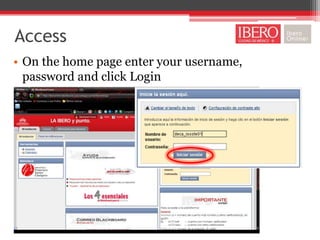
• On the home page enter your username,
  password and click Login
Access
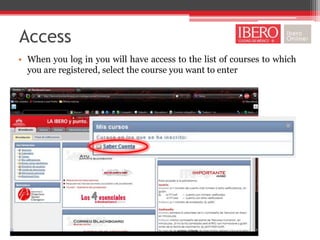
• When you log in you will have access to the list of courses to which
  you are registered, select the course you want to enter
Homepage

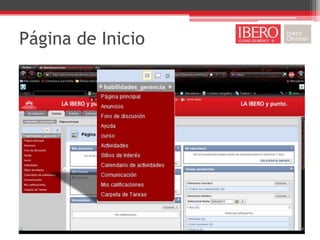
• When you join the course Welcome screen appears.
  On the left side of your screen you will see the
  Course                                            Menu.
  Within the menu you can view the course reference
  material and tools to carry out their activities.
Página de Inicio
Tools.

• In the menu of course, you have access to
  different     tools    to      do    things.
  The most frequently used tools are the
  Discussion Forums and Tasks folders.
Discussion Forums
Discussion Forums
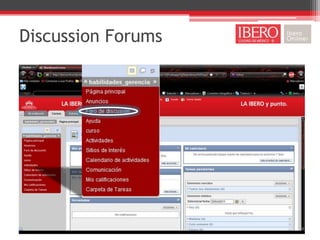
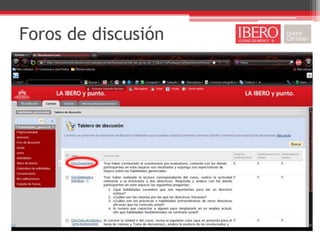
• To begin your participation, click on the name of
  the forum that you want to enter.
• Upon entering the forum is displayed on the
  screen in the same activity.
Foros de discusión
Foros de discusión
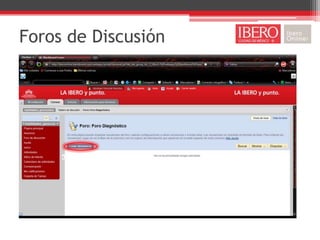
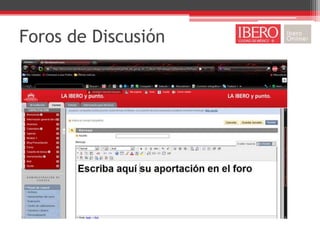
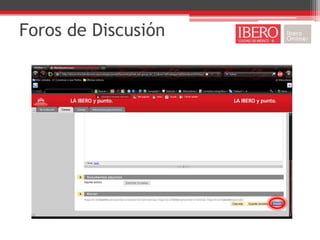
• To place a contribution to the forum must click
  on the button to start sequence.
• This will give you access to the section that will
  publish your contribution.
• When you finish writing your text, you must
  activate the submit button for it to be published.
Foros de Discusión
Foros de Discusión
Foros de Discusión
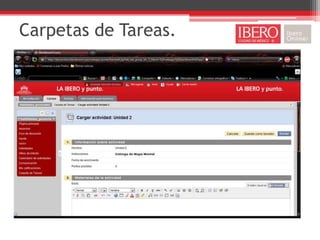
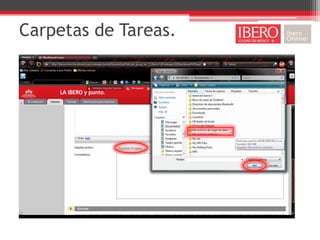
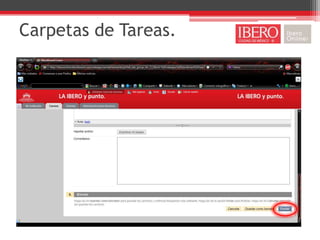
Task Folders.
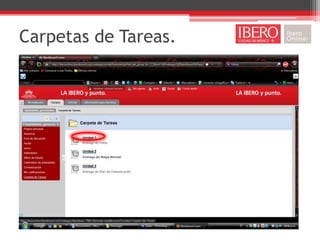
• To place an activity in the Tasks folders by
  selecting the folder of the activity to be
  performed.
  This will give you access to the section that will
  publish its activity.
  To attach a document you must enable "Browse
  Computer" and select the file to be placed.
  When you finish writing your text, you must
  activate the submit button for it to be published.
Carpetas de Tareas.
Carpetas de Tareas.
Carpetas de Tareas.
Carpetas de Tareas.
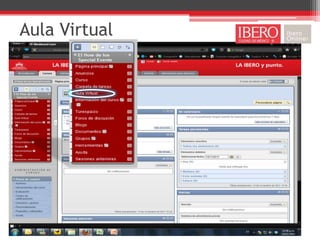
Virtual classroom
• For the interaction between students within our
  programs, we have the Elluminate virtual
  classroom.
  To access this tool you only need to click on the
  virtual classroom option menu.
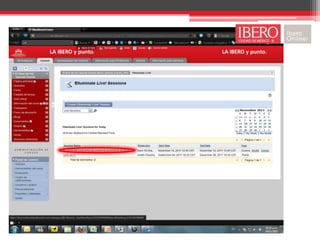
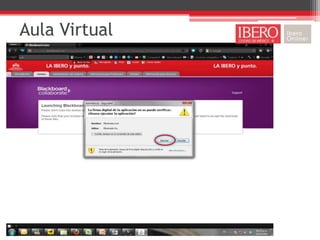
  Enter the corresponding session.
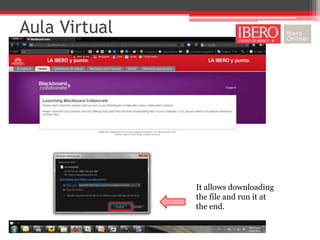
  Let the free download of the files. (for these
  cases is necessary to have the Java system
  updates) http://java.com/es/download/)
Aula Virtual
Aula Virtual


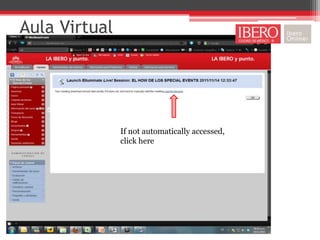
               If not automatically accessed,
               click here
Aula Virtual


               It allows downloading
               the file and run it at
               the end.
Aula Virtual
Aula Virtual


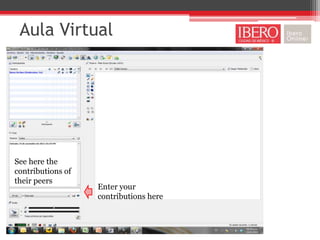
See here the
contributions of
their peers
                   Enter your
                   contributions here
Soporte Técnico

• To learn more about the use of the platform and
  tools of the same, please visit the Ibero Online
  channel on YouTube
• http://www.youtube.com/user/Iberoonline?ob=
  5
• For technical support, we provide the next email
  ec.online@ibero.mx

Blackboard tutorial

  • 1.
    User manual forBlackboard Learn Universidad Iberoamericana
  • 2.
    Access to theplatform • To access the Ibero Online platform, we suggest using Mozilla Firefox. • Go to http://iberoonline.blackboard.com/
  • 3.
    Access • On thehome page enter your username, password and click Login
  • 4.
    Access • When youlog in you will have access to the list of courses to which you are registered, select the course you want to enter
  • 5.
    Homepage • When youjoin the course Welcome screen appears. On the left side of your screen you will see the Course Menu. Within the menu you can view the course reference material and tools to carry out their activities.
  • 6.
  • 7.
    Tools. • In themenu of course, you have access to different tools to do things. The most frequently used tools are the Discussion Forums and Tasks folders.
  • 8.
  • 9.
    Discussion Forums • Tobegin your participation, click on the name of the forum that you want to enter. • Upon entering the forum is displayed on the screen in the same activity.
  • 10.
  • 11.
    Foros de discusión •To place a contribution to the forum must click on the button to start sequence. • This will give you access to the section that will publish your contribution. • When you finish writing your text, you must activate the submit button for it to be published.
  • 12.
  • 13.
  • 14.
  • 15.
    Task Folders. • Toplace an activity in the Tasks folders by selecting the folder of the activity to be performed. This will give you access to the section that will publish its activity. To attach a document you must enable "Browse Computer" and select the file to be placed. When you finish writing your text, you must activate the submit button for it to be published.
  • 16.
  • 17.
  • 18.
  • 19.
  • 20.
    Virtual classroom • Forthe interaction between students within our programs, we have the Elluminate virtual classroom. To access this tool you only need to click on the virtual classroom option menu. Enter the corresponding session. Let the free download of the files. (for these cases is necessary to have the Java system updates) http://java.com/es/download/)
  • 21.
  • 23.
    Aula Virtual If not automatically accessed, click here
  • 24.
    Aula Virtual It allows downloading the file and run it at the end.
  • 25.
  • 26.
    Aula Virtual See herethe contributions of their peers Enter your contributions here
  • 27.
    Soporte Técnico • Tolearn more about the use of the platform and tools of the same, please visit the Ibero Online channel on YouTube • http://www.youtube.com/user/Iberoonline?ob= 5 • For technical support, we provide the next email ec.online@ibero.mx