Bilingual Special Education (BilSPED)
Student Training Guide
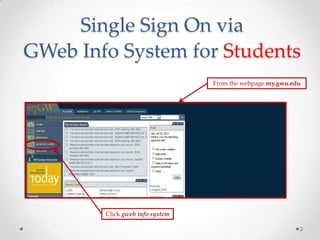
Single Sign On via
GWeb Info System for Students
Click gweb info system
From the webpage my.gwu.edu
2
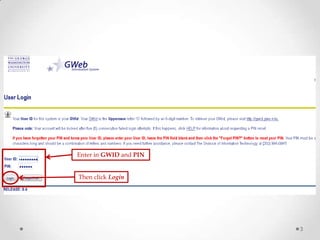
Enter in GWID and PIN
Then click Login
3
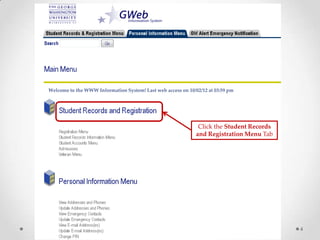
Click the Student Records
and Registration Menu Tab
4
Welcome to the WWW Information System! Last web access on 10/02/12 at 03:59 pm
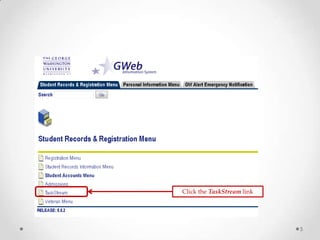
Click the TaskStream link
5
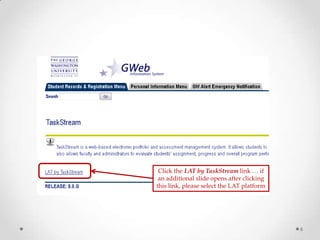
Click the LAT by TaskStream link … if
an additional slide opens after clicking
this link, please select the LAT platform
6
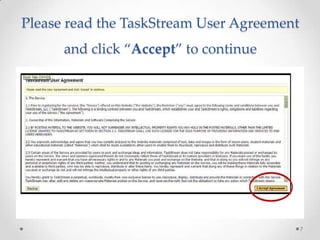
Please read the TaskStream User Agreement
and click “Accept” to continue
7
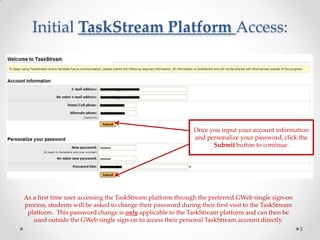
Initial TaskStream Platform Access:
8
As a first time user accessing the TaskStream platform through the preferred GWeb single sign-on
process, students will be asked to change their password during their first visit to the TaskStream
platform. This password change is only applicable to the TaskStream platform and can then be
used outside the GWeb single sign-on to access their personal TaskStream account directly.
Once you input your account information
and personalize your password, click the
Submit button to continue.
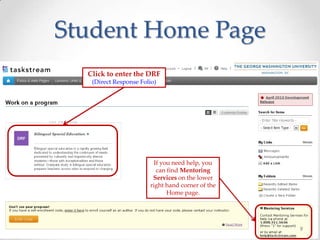
Student Home Page
9
Click to enter the DRF
(Direct Response Folio)
If you need help, you
can find Mentoring
Services on the lower
right hand corner of the
Home page.
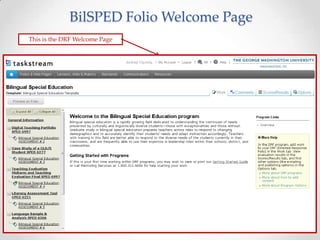
BilSPED Folio Welcome Page
10
This is the DRF Welcome Page
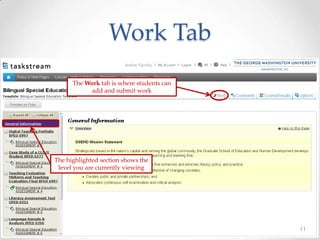
Work Tab
11
The highlighted section shows the
level you are currently viewing
The Work tab is where students can
add and submit work
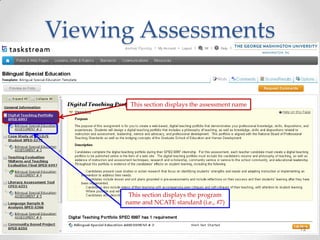
Viewing Assessments
12
This section displays the assessment name
This section displays the program
name and NCATE standard (i.e., #7)
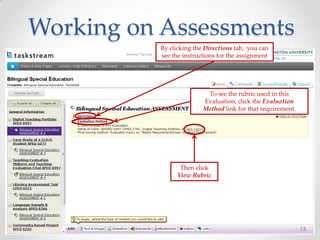
Working on Assessments
13
By clicking the Directions tab, you can
see the instructions for the assignment
To see the rubric used in this
Evaluation, click the Evaluation
Method link for that requirement.
Then click
View Rubric
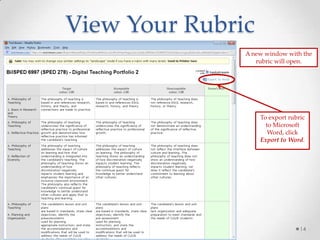
View Your Rubric
14
A new window with the
rubric will open.
To export rubric
to Microsoft
Word, click
Export to Word.
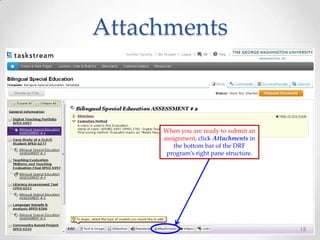
Attachments
15
When you are ready to submit an
assignment, click Attachments in
the bottom bar of the DRF
program’s right pane structure.
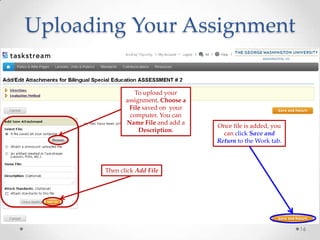
Uploading Your Assignment
16
Then click Add File
To upload your
assignment, Choose a
File saved on your
computer. You can
Name File and add a
Description.
Once file is added, you
can click Save and
Return to the Work tab.
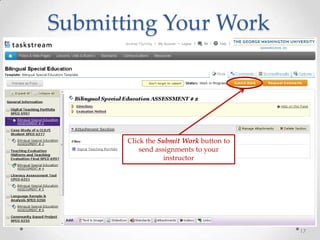
Submitting Your Work
17
Click the Submit Work button to
send assignments to your
instructor
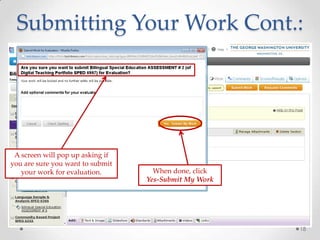
Submitting Your Work Cont.:
18
A screen will pop up asking if
you are sure you want to submit
your work for evaluation. When done, click
Yes-Submit My Work
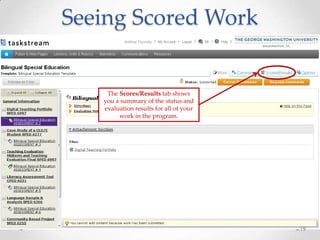
Seeing Scored Work
19
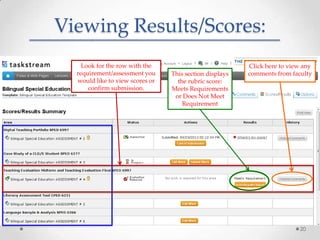
The Scores/Results tab shows
you a summary of the status and
evaluation results for all of your
work in the program.
Viewing Results/Scores:
This section displays
the rubric score:
Meets Requirements
or Does Not Meet
Requirement
Look for the row with the
requirement/assessment you
would like to view scores or
confirm submission.
Click here to view any
comments from faculty
20
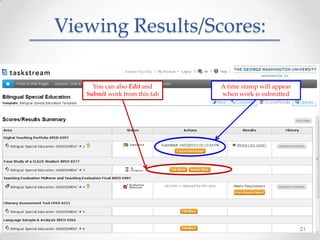
Viewing Results/Scores:
A time stamp will appear
when work is submitted
You can also Edit and
Submit work from this tab
21
Thank you!
For additional assistance, feel free to contact:
TaskStream’s Mentoring Services department by calling 1-800-311-
5656 or email help@taskstream.com
Or the GSEHD TaskStream Administrators, Leslie J. Ward, Ed.D., and
Ellen Wanjiru by calling 202-994-0359 or emailing oppats@gwu.edu
22

Bil sped ts student instructional guide

  • 1.
    Bilingual Special Education(BilSPED) Student Training Guide
  • 2.
    Single Sign Onvia GWeb Info System for Students Click gweb info system From the webpage my.gwu.edu 2
  • 3.
    Enter in GWIDand PIN Then click Login 3
  • 4.
    Click the StudentRecords and Registration Menu Tab 4 Welcome to the WWW Information System! Last web access on 10/02/12 at 03:59 pm
  • 5.
  • 6.
    Click the LATby TaskStream link … if an additional slide opens after clicking this link, please select the LAT platform 6
  • 7.
    Please read theTaskStream User Agreement and click “Accept” to continue 7
  • 8.
    Initial TaskStream PlatformAccess: 8 As a first time user accessing the TaskStream platform through the preferred GWeb single sign-on process, students will be asked to change their password during their first visit to the TaskStream platform. This password change is only applicable to the TaskStream platform and can then be used outside the GWeb single sign-on to access their personal TaskStream account directly. Once you input your account information and personalize your password, click the Submit button to continue.
  • 9.
    Student Home Page 9 Clickto enter the DRF (Direct Response Folio) If you need help, you can find Mentoring Services on the lower right hand corner of the Home page.
  • 10.
    BilSPED Folio WelcomePage 10 This is the DRF Welcome Page
  • 11.
    Work Tab 11 The highlightedsection shows the level you are currently viewing The Work tab is where students can add and submit work
  • 12.
    Viewing Assessments 12 This sectiondisplays the assessment name This section displays the program name and NCATE standard (i.e., #7)
  • 13.
    Working on Assessments 13 Byclicking the Directions tab, you can see the instructions for the assignment To see the rubric used in this Evaluation, click the Evaluation Method link for that requirement. Then click View Rubric
  • 14.
    View Your Rubric 14 Anew window with the rubric will open. To export rubric to Microsoft Word, click Export to Word.
  • 15.
    Attachments 15 When you areready to submit an assignment, click Attachments in the bottom bar of the DRF program’s right pane structure.
  • 16.
    Uploading Your Assignment 16 Thenclick Add File To upload your assignment, Choose a File saved on your computer. You can Name File and add a Description. Once file is added, you can click Save and Return to the Work tab.
  • 17.
    Submitting Your Work 17 Clickthe Submit Work button to send assignments to your instructor
  • 18.
    Submitting Your WorkCont.: 18 A screen will pop up asking if you are sure you want to submit your work for evaluation. When done, click Yes-Submit My Work
  • 19.
    Seeing Scored Work 19 TheScores/Results tab shows you a summary of the status and evaluation results for all of your work in the program.
  • 20.
    Viewing Results/Scores: This sectiondisplays the rubric score: Meets Requirements or Does Not Meet Requirement Look for the row with the requirement/assessment you would like to view scores or confirm submission. Click here to view any comments from faculty 20
  • 21.
    Viewing Results/Scores: A timestamp will appear when work is submitted You can also Edit and Submit work from this tab 21
  • 22.
    Thank you! For additionalassistance, feel free to contact: TaskStream’s Mentoring Services department by calling 1-800-311- 5656 or email help@taskstream.com Or the GSEHD TaskStream Administrators, Leslie J. Ward, Ed.D., and Ellen Wanjiru by calling 202-994-0359 or emailing oppats@gwu.edu 22