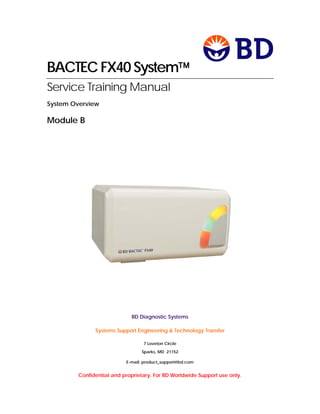
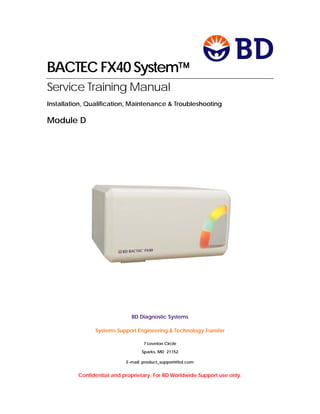
BACTEC FX40 System
Service Training Manual
System Operation
Module A
BD Diagnostic Systems
Systems Support Engineering & Technology Transfer
7 Loveton Circle
Sparks, MD 21152
E-mail: product_support@bd.com
Confidential and proprietary. For BD Worldwide Support use only.
BACTEC™ FX40 SYSTEM SERVICE TRAINING
MODULE A
 
 
MODULE A 1
System Operation
Overview:
This topic provides a system operation overview for the BACTEC™ FX40 Instrument.
Topics:
The following Topics are covered in this Module:
 Topic 1: User Interface
 Topic 2: User Workflow
 Topic 3: Reports
 Topic 4: Isolation Mode
 Topic 5: User Maintenance
 Topic 6: System Alerts
 Topic 7: System Operation Exercises
Materials Required:
 BACTEC™ FX40 Instrument
 System Software
 BALTTI0585 BACTEC FX Station Qualification Procedure
 Calibrator Vials Catalog #441476
BACTEC™ FX40 SYSTEM SERVICE TRAINING
MODULE A
 
 
MODULE A 2
BACTEC™ FX40 SYSTEM SERVICE TRAINING
MODULE A
 
 
MODULE A 3
Topic 1: User Interface
User sessions with the instrument can be initiated by selecting the appropriate
function from the touch screen or by opening an instrument door. The system
software will recognize a door opening event via the Door Ajar Sensor.
User initiated workflow begins when the user selects an icon associated with the
vial workflow to be performed via the touch screen. Once the workflow has been
activated, the user will perform the appropriate actions until the workflow is exited.
Once an instrument door is opened, the user can initiate vial activated workflow
or workflow via one of the icons on the tablet computer. Vial activated workflow
begins when the user scans a vial sequence number or removes a vial. When a
door is opened, vial status indicators adjacent to each station inform the user of
the status of each vial.
The user may activate the workflow associated with a particular vial by removing
the vial from the instrument. For vial entry, the user may activate the vial login
workflow by scanning the vial sequence number barcode and then placing the
vial in an available station.
BACTEC™ FX40 SYSTEM SERVICE TRAINING
MODULE A
 
 
MODULE A 4
The BACTEC FX40 instrument incorporates the following:
 Red, Green, and Amber LEDs on each instrument door indicate
positive vials, negative vials or system alerts, respectively. Tricolor
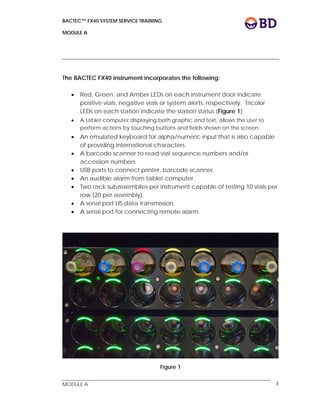
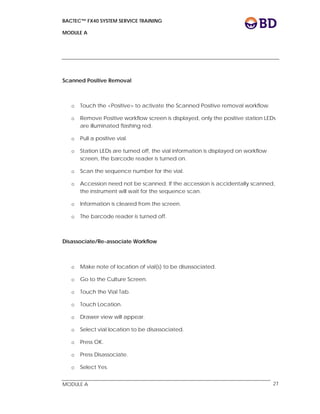
LEDs on each station indicate the station status (Figure 1).
 A tablet computer displaying both graphic and text, allows the user to
perform actions by touching buttons and fields shown on the screen.
 An emulated keyboard for alpha/numeric input that is also capable
of providing international characters.
 A barcode scanner to read vial sequence numbers and/or
accession numbers.
 USB ports to connect printer, barcode scanner.
 An audible alarm from tablet computer.
 Two rack subassemblies per instrument capable of testing 10 vials per
row (20 per assembly).
 A serial port LIS data transmission.
 A serial port for connecting remote alarm.
Figure 1
BACTEC™ FX40 SYSTEM SERVICE TRAINING
MODULE A
 
 
MODULE A 5
BACTEC™ FX40 SYSTEM SERVICE TRAINING
MODULE A
 
 
MODULE A 6
System Configuration
BACTEC FX40 is provided in the following system configurations: 1) as standalone
instrument, 2) interconnected a local cluster of up to 4 instruments. In both cases,
they are controlled by one Tablet Computer.
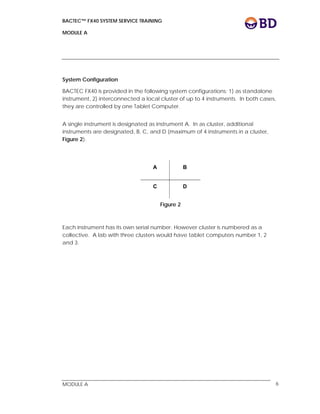
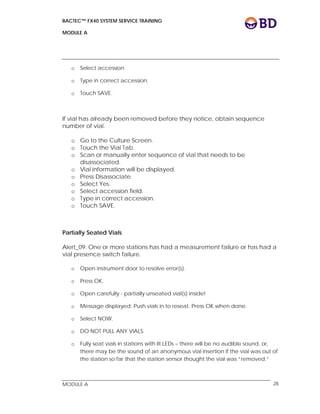
A single instrument is designated as instrument A. In as cluster, additional
instruments are designated, B, C, and D (maximum of 4 instruments in a cluster,
Figure 2).
Figure 2
Each instrument has its own serial number. However cluster is numbered as a
collective. A lab with three clusters would have tablet computers number 1, 2
and 3.
A B
C D
BACTEC™ FX40 SYSTEM SERVICE TRAINING
MODULE A
 
 
MODULE A 7
Instrument Layout
Instrument is divided into rows and columns of stations. Rows are lettered A-D from
top to bottom. Columns are numbered 1-10 from left to right as you face the
open drawer.
There are 40 stations per instrument. The stations are identified by:
CC-I-RSS, which CC = instrument Cluster, I = FX40 Instrument designation, and RSS =
Row and Station.
Ex: 01-B-D8 points to the first cluster, instrument B, row D and the eighth station
column.
Instrument Access
Each instrument can be opened by grasping and pulling a door handle.
There is no locking mechanism to restrict user from opening multiple
instruments within the same cluster.
Station Status Indicators
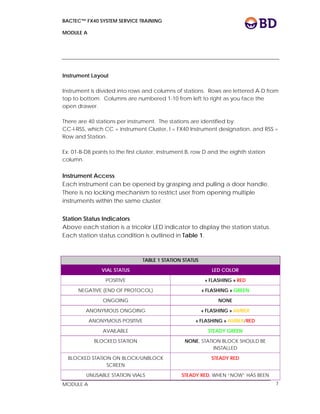
Above each station is a tricolor LED indicator to display the station status.
Each station status condition is outlined in Table 1.
TABLE 1 STATION STATUS
VIAL STATUS LED COLOR
POSITIVE « FLASHING » RED
NEGATIVE (END OF PROTOCOL) « FLASHING » GREEN
ONGOING NONE
ANONYMOUS ONGOING « FLASHING » AMBER
ANONYMOUS POSITIVE « FLASHING » AMBER/RED
AVAILABLE STEADY GREEN
BLOCKED STATION NONE, STATION BLOCK SHOULD BE
INSTALLED
BLOCKED STATION ON BLOCK/UNBLOCK
SCREEN
STEADY RED
UNUSABLE STATION VIALS STEADY RED, WHEN “NOW” HAS BEEN
BACTEC™ FX40 SYSTEM SERVICE TRAINING
MODULE A
 
 
MODULE A 8
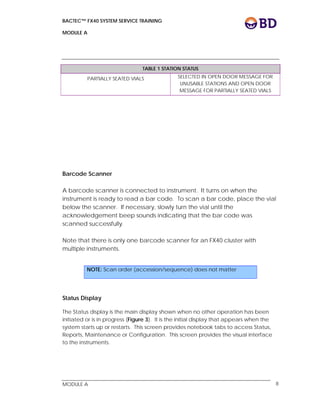
TABLE 1 STATION STATUS
PARTIALLY SEATED VIALS SELECTED IN OPEN DOOR MESSAGE FOR
UNUSABLE STATIONS AND OPEN DOOR
MESSAGE FOR PARTIALLY SEATED VIALS
Barcode Scanner
A barcode scanner is connected to instrument. It turns on when the
instrument is ready to read a bar code. To scan a bar code, place the vial
below the scanner. If necessary, slowly turn the vial until the
acknowledgement beep sounds indicating that the bar code was
scanned successfully.
Note that there is only one barcode scanner for an FX40 cluster with
multiple instruments.
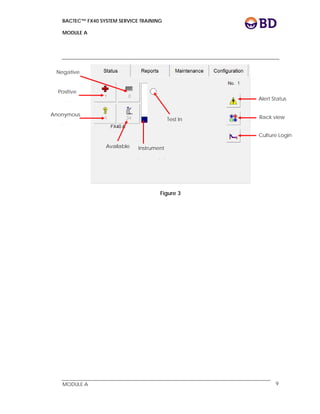
Status Display
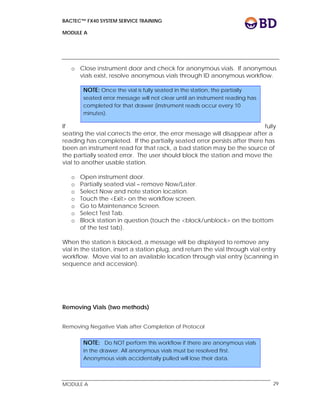
The Status display is the main display shown when no other operation has been
initiated or is in progress (Figure 3). It is the initial display that appears when the
system starts up or restarts. This screen provides notebook tabs to access Status,
Reports, Maintenance or Configuration. This screen provides the visual interface
to the instruments.
NOTE: Scan order (accession/sequence) does not matter
BACTEC™ FX40 SYSTEM SERVICE TRAINING
MODULE A
 
 
MODULE A 9
Figure 3
Negative
Positive
Vi l
Anonymous
Vi l
Available
St ti
Instrument
P t F ll
Test In
P I
Alert Status
Rack view
Culture Login
BACTEC™ FX40 SYSTEM SERVICE TRAINING
MODULE A
 
 
MODULE A 10
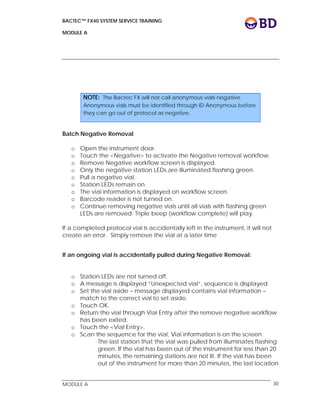
Alert Status                                           
                                                              
The system alert display, shows a list of system alerts that have occurred (Workflow
alerts are not displayed). The display can be accessed by pressing the alert
button .   The last 100 alerts are shown in the display, from the most recent
(top) to oldest (bottom). The list is updated dynamically.
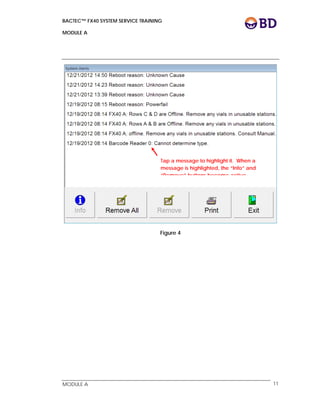
Any active alerts are indicated by an exclamation point at the left side of the
display (Figure 4). Active alerts cannot be deleted from the list until the condition
has been cleared.
To view a message in the detail window or delete a message, access the alert list,
tap the message, select info to view more detail or delete to clear the message.
BACTEC™ FX40 SYSTEM SERVICE TRAINING
MODULE A
 
 
MODULE A 11
Figure 4
Tap a message to highlight it. When a
message is highlighted, the “Info” and
“Remove” buttons become active
BACTEC™ FX40 SYSTEM SERVICE TRAINING
MODULE A
 
 
MODULE A 12
View Stations Display
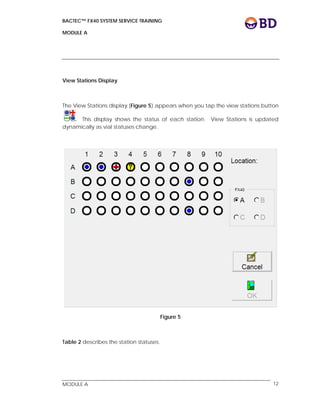
The View Stations display (Figure 5) appears when you tap the view stations button
. This display shows the status of each station. View Stations is updated
dynamically as vial statuses change.
Figure 5
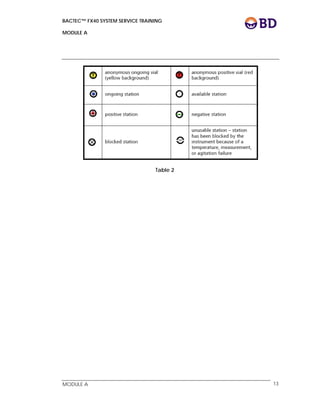
Table 2 describes the station statuses.
BACTEC™ FX40 SYSTEM SERVICE TRAINING
MODULE A
 
 
MODULE A 13
Table 2
BACTEC™ FX40 SYSTEM SERVICE TRAINING
MODULE A
 
 
MODULE A 14
Culture
The culture button allows access to patient related information for any
specimen. Information can be searched by patient, specimen or vial. (Figure 6).
Figure 6
BACTEC™ FX40 SYSTEM SERVICE TRAINING
MODULE A
 
 
MODULE A 15
BACTEC™ FX40 SYSTEM SERVICE TRAINING
MODULE A
 
 
MODULE A 16
Reports Menu
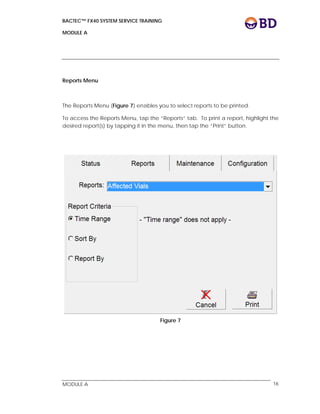
The Reports Menu (Figure 7) enables you to select reports to be printed.
To access the Reports Menu, tap the “Reports” tab. To print a report, highlight the
desired report(s) by tapping it in the menu, then tap the “Print” button.
Figure 7
BACTEC™ FX40 SYSTEM SERVICE TRAINING
MODULE A
 
 
MODULE A 17
Maintenance Screen
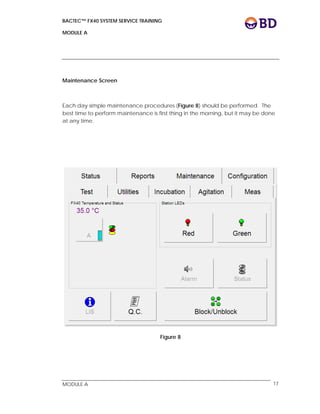
Each day simple maintenance procedures (Figure 8) should be performed. The
best time to perform maintenance is first thing in the morning, but it may be done
at any time.
Figure 8
BACTEC™ FX40 SYSTEM SERVICE TRAINING
MODULE A
 
 
MODULE A 18
Configuration Screen
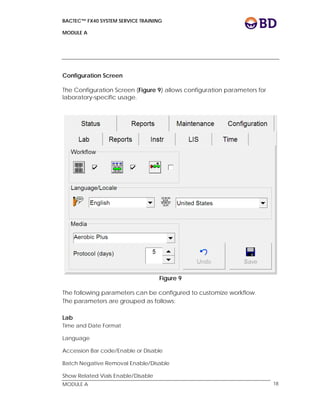
The Configuration Screen (Figure 9) allows configuration parameters for
laboratory-specific usage.
Figure 9
The following parameters can be configured to customize workflow.
The parameters are grouped as follows:
Lab
Time and Date Format
Language
Accession Bar code/Enable or Disable
Batch Negative Removal Enable/Disable
Show Related Vials Enable/Disable
BACTEC™ FX40 SYSTEM SERVICE TRAINING
MODULE A
 
 
MODULE A 19
Country
Media Protocol length (days)
Reports
Reports Configuration enables you to set up printing and reports
parameters.
Instr
The configuration is unique to each individual instrument within a cluster or
workgroup. The following can be configured from the Instrument tab:
Instrument No.
Volume
FX40 Serial Numbers
Network Address
LIS
Enables you to set up communications to a Laboratory Information System
(LIS).
Time
May be changed in a standalone instrument setup.
BACTEC™ FX40 SYSTEM SERVICE TRAINING
MODULE A
 
 
MODULE A 20
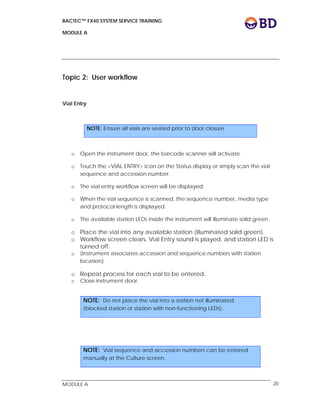
Topic 2: User workflow
Vial Entry
o Open the instrument door, the barcode scanner will activate.
o Touch the <VIAL ENTRY> icon on the Status display or simply scan the vial
sequence and accession number.
o The vial entry workflow screen will be displayed.
o When the vial sequence is scanned, the sequence number, media type
and protocol length is displayed.
o The available station LEDs inside the instrument will illuminate solid green.
o Place the vial into any available station (illuminated solid green).
o Workflow screen clears, Vial Entry sound is played, and station LED is
turned off.
o (Instrument associates accession and sequence numbers with station
location).
o Repeat process for each vial to be entered.
o Close instrument door.
NOTE: Ensure all vials are seated prior to door closure
NOTE: Do not place the vial into a station not illuminated
(blocked station or station with non-functioning LEDs).
NOTE: Vial sequence and accession numbers can be entered
manually at the Culture screen.
BACTEC™ FX40 SYSTEM SERVICE TRAINING
MODULE A
 
 
MODULE A 21
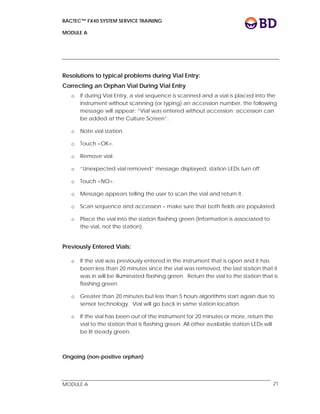
Resolutions to typical problems during Vial Entry:
Correcting an Orphan Vial During Vial Entry
o If during Vial Entry, a vial sequence is scanned and a vial is placed into the
instrument without scanning (or typing) an accession number, the following
message will appear: “Vial was entered without accession; accession can
be added at the Culture Screen”.
o Note vial station.
o Touch <OK>.
o Remove vial.
o “Unexpected vial removed” message displayed, station LEDs turn off.
o Touch <NO>.
o Message appears telling the user to scan the vial and return it.
o Scan sequence and accession – make sure that both fields are populated.
o Place the vial into the station flashing green (Information is associated to
the vial, not the station).
Previously Entered Vials:
o If the vial was previously entered in the instrument that is open and it has
been less than 20 minutes since the vial was removed, the last station that it
was in will be illuminated flashing green. Return the vial to the station that is
flashing green.
o Greater than 20 minutes but less than 5 hours algorithms start again due to
sensor technology. Vial will go back in same station location.
o If the vial has been out of the instrument for 20 minutes or more, return the
vial to the station that is flashing green. All other available station LEDs will
be lit steady green.
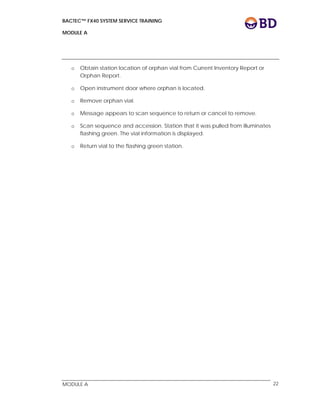
Ongoing (non-positive orphan)
BACTEC™ FX40 SYSTEM SERVICE TRAINING
MODULE A
 
 
MODULE A 22
o Obtain station location of orphan vial from Current Inventory Report or
Orphan Report.
o Open instrument door where orphan is located.
o Remove orphan vial.
o Message appears to scan sequence to return or cancel to remove.
o Scan sequence and accession. Station that it was pulled from illuminates
flashing green. The vial information is displayed.
o Return vial to the flashing green station.
BACTEC™ FX40 SYSTEM SERVICE TRAINING
MODULE A
 
 
MODULE A 23
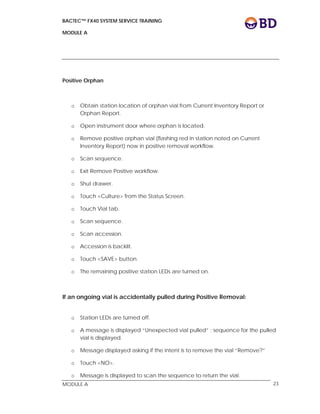
Positive Orphan
o Obtain station location of orphan vial from Current Inventory Report or
Orphan Report.
o Open instrument door where orphan is located.
o Remove positive orphan vial (flashing red in station noted on Current
Inventory Report) now in positive removal workflow.
o Scan sequence.
o Exit Remove Positive workflow.
o Shut drawer.
o Touch <Culture> from the Status Screen.
o Touch Vial tab.
o Scan sequence.
o Scan accession.
o Accession is backlit.
o Touch <SAVE> button.
o The remaining positive station LEDs are turned on.
If an ongoing vial is accidentally pulled during Positive Removal:
o Station LEDs are turned off.
o A message is displayed “Unexpected vial pulled” ; sequence for the pulled
vial is displayed.
o Message displayed asking if the intent is to remove the vial “Remove?”
o Touch <NO>.
o Message is displayed to scan the sequence to return the vial.
BACTEC™ FX40 SYSTEM SERVICE TRAINING
MODULE A
 
 
MODULE A 24
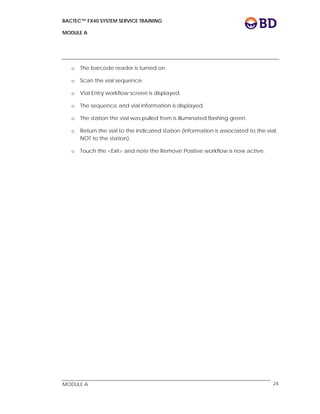
o The barcode reader is turned on.
o Scan the vial sequence.
o Vial Entry workflow screen is displayed.
o The sequence and vial information is displayed.
o The station the vial was pulled from is illuminated flashing green.
o Return the vial to the indicated station (information is associated to the vial,
NOT to the station).
o Touch the <Exit> and note the Remove Positive workflow is now active.
BACTEC™ FX40 SYSTEM SERVICE TRAINING
MODULE A
 
 
MODULE A 25
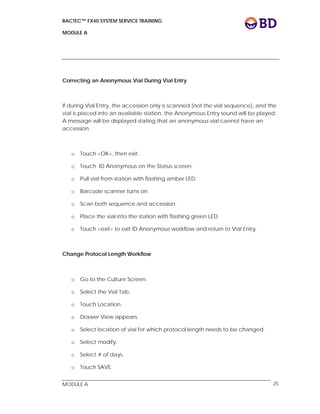
Correcting an Anonymous Vial During Vial Entry
If during Vial Entry, the accession only is scanned (not the vial sequence), and the
vial is placed into an available station, the Anonymous Entry sound will be played.
A message will be displayed stating that an anonymous vial cannot have an
accession.
o Touch <OK>, then exit.
o Touch ID Anonymous on the Status screen.
o Pull vial from station with flashing amber LED.
o Barcode scanner turns on.
o Scan both sequence and accession.
o Place the vial into the station with flashing green LED.
o Touch <exit> to exit ID Anonymous workflow and return to Vial Entry.
Change Protocol Length Workflow
o Go to the Culture Screen.
o Select the Vial Tab.
o Touch Location.
o Drawer View appears.
o Select location of vial for which protocol length needs to be changed.
o Select modify.
o Select # of days.
o Touch SAVE.
BACTEC™ FX40 SYSTEM SERVICE TRAINING
MODULE A
 
 
MODULE A 26
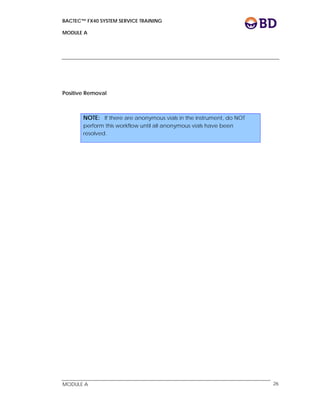
Positive Removal
NOTE: If there are anonymous vials in the instrument, do NOT
perform this workflow until all anonymous vials have been
resolved.
BACTEC™ FX40 SYSTEM SERVICE TRAINING
MODULE A
 
 
MODULE A 27
Scanned Positive Removal
o Touch the <Positive> to activate the Scanned Positive removal workflow.
o Remove Positive workflow screen is displayed, only the positive station LEDs
are illuminated flashing red.
o Pull a positive vial.
o Station LEDs are turned off, the vial information is displayed on workflow
screen, the barcode reader is turned on.
o Scan the sequence number for the vial.
o Accession need not be scanned. If the accession is accidentally scanned,
the instrument will wait for the sequence scan.
o Information is cleared from the screen.
o The barcode reader is turned off.
Disassociate/Re-associate Workflow
o Make note of location of vial(s) to be disassociated.
o Go to the Culture Screen.
o Touch the Vial Tab.
o Touch Location.
o Drawer view will appear.
o Select vial location to be disassociated.
o Press OK.
o Press Disassociate.
o Select Yes.
BACTEC™ FX40 SYSTEM SERVICE TRAINING
MODULE A
 
 
MODULE A 28
o Select accession.
o Type in correct accession.
o Touch SAVE.
If vial has already been removed before they notice, obtain sequence
number of vial.
o Go to the Culture Screen.
o Touch the Vial Tab.
o Scan or manually enter sequence of vial that needs to be
disassociated.
o Vial information will be displayed.
o Press Disassociate.
o Select Yes.
o Select accession field.
o Type in correct accession.
o Touch SAVE.
Partially Seated Vials
Alert_09: One or more stations has had a measurement failure or has had a
vial presence switch failure.
o Open instrument door to resolve error(s).
o Press OK.
o Open carefully - partially unseated vial(s) inside!
o Message displayed: Push vials in to reseat. Press OK when done.
o Select NOW.
o DO NOT PULL ANY VIALS.
o Fully seat vials in stations with lit LEDs – there will be no audible sound, or,
there may be the sound of an anonymous vial insertion if the vial was out of
the station so far that the station sensor thought the vial was “removed.”
BACTEC™ FX40 SYSTEM SERVICE TRAINING
MODULE A
 
 
MODULE A 29
o Close instrument door and check for anonymous vials. If anonymous
vials exist, resolve anonymous vials through ID anonymous workflow.
If fully
seating the vial corrects the error, the error message will disappear after a
reading has completed. If the partially seated error persists after there has
been an instrument read for that rack, a bad station may be the source of
the partially seated error. The user should block the station and move the
vial to another usable station.
o Open instrument door.
o Partially seated vial – remove Now/Later.
o Select Now and note station location.
o Touch the <Exit> on the workflow screen.
o Go to Maintenance Screen.
o Select Test Tab.
o Block station in question (touch the <block/unblock> on the bottom
of the test tab).
When the station is blocked, a message will be displayed to remove any
vial in the station, insert a station plug, and return the vial through vial entry
workflow. Move vial to an available location through vial entry (scanning in
sequence and accession).
Removing Vials (two methods)
Removing Negative Vials after Completion of Protocol
NOTE: Once the vial is fully seated in the station, the partially
seated error message will not clear until an instrument reading has
completed for that drawer (instrument reads occur every 10
minutes).
NOTE: Do NOT perform this workflow if there are anonymous vials
in the drawer. All anonymous vials must be resolved first.
Anonymous vials accidentally pulled will lose their data.
BACTEC™ FX40 SYSTEM SERVICE TRAINING
MODULE A
 
 
MODULE A 30
 
Batch Negative Removal
o Open the instrument door.
o Touch the <Negative> to activate the Negative removal workflow.
o Remove Negative workflow screen is displayed.
o Only the negative station LEDs are illuminated flashing green.
o Pull a negative vial.
o Station LEDs remain on.
o The vial information is displayed on workflow screen.
o Barcode reader is not turned on.
o Continue removing negative vials until all vials with flashing green
LEDs are removed. Triple beep (workflow complete) will play.
If a completed protocol vial is accidentally left in the instrument, it will not
create an error. Simply remove the vial at a later time
 
If an ongoing vial is accidentally pulled during Negative Removal:
 
o Station LEDs are not turned off.
o A message is displayed “Unexpected vial”, sequence is displayed
o Set the vial aside – message displayed contains vial information –
match to the correct vial to set aside.
o Touch OK.
o Return the vial through Vial Entry after the remove negative workflow
has been exited.
o Touch the <Vial Entry>.
o Scan the sequence for the vial, Vial information is on the screen.
The last station that the vial was pulled from illuminates flashing
green. If the vial has been out of the instrument for less than 20
minutes, the remaining stations are not lit. If the vial has been
out of the instrument for more than 20 minutes, the last location
NOTE: The Bactec FX will not call anonymous vials negative.
Anonymous vials must be identified through ID Anonymous before
they can go out of protocol as negative.
BACTEC™ FX40 SYSTEM SERVICE TRAINING
MODULE A
 
 
MODULE A 31
will be flashing green and the other available stations are
illuminated steady green
o Return the vial to the station that is flashing green.
Non Batch Negative Removal
o Touch the <Negative> to activate the Negative removal workflow.
o Remove Negative workflow screen is displayed, only the negative
station LEDs are illuminated flashing green.
o Pull a negative vial.
o Station LEDs are turned off, the vial information is displayed on
workflow screen, the barcode reader is turned on.
o Scan the sequence number for the vial.
o Accession need not be scanned. If the accession is accidentally
scanned, the instrument will wait for the sequence scan.
o Information is cleared from the screen.
o The barcode reader is turned off.
o The remaining negative station LEDs are turned on.
ID Ongoing Anonymous Vial
o Open the instrument door and touch the “?” to activate ID
anonymous workflow.
o The anonymous station LEDs are illuminated flashing amber.
o The ID Anonymous workflow screen is displayed.
o Pull an ongoing anonymous vial (flashing amber LED).
o Other station LEDs turn off, the barcode reader is turned on.
o The anonymous information is displayed on the workflow screen.
o Scan the sequence and the accession for the anonymous vial.
o Information is displayed on the workflow screen, the protocol length
is based on the sequence and medium.
o Return the vial to this station flashing green.
o LEDs are turned off, seen is cleared.
o The remaining anonymous vial station LEDs are turned on.
BACTEC™ FX40 SYSTEM SERVICE TRAINING
MODULE A
 
 
MODULE A 32
ID Positive Anonymous Vial
o Open the instrument door and touch the “?” to activate ID
anonymous workflow.
o The anonymous station LEDs are illuminated flashing amber.
o The positive anonymous station LEDs are illuminated flashing
red/amber.
o The ID Anonymous workflow screen is displayed.
o Pull a positive anonymous vial (flashing red/amber LED).
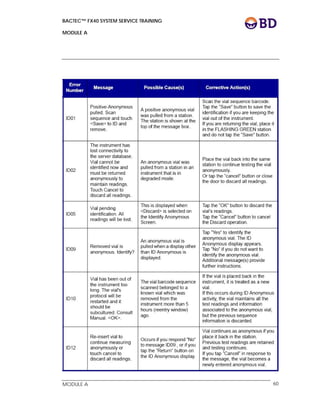
Message ID01: Positive-Anonymous pulled.
o Scan sequence and touch <Save> to ID and remote. <OK>
o Touch <OK> on the message.
o The message box is closed, the barcode reader is turned on
o The positive anonymous information is displayed on the workflow
screen.
o Scan the sequence and the accession for the anonymous vial.
o Information is displayed on the workflow screen, the protocol length
is based on the sequence and medium.
o The station from which the vial was pulled is illuminated flashing
green.
o Information is saved to the database, screen is cleared.
o Remaining anonymous station LEDs are turned on.
Unable to Resolve Anonymous Vial
NOTE: If an anonymous vial is removed (anonymous workflow
opens), the vial sequence must be scanned into the instrument
before placing the vial back into the instrument. If an anonymous
vial is removed and placed back into the instrument without
scanning the vial sequence, the protocol will be restarted for that
vial. If an anonymous vial is removed and not identified, all
electronic data will be lost for that vial. The vial should be
returned to the same station. Only the last location will be lit
flashing green. If the vial has been out of the instrument for more
than 20 minutes ( unlikely in the ID Anonymous situation), then the
last location will be lit flashing green and all other available station
LEDs will be lit steady green.
BACTEC™ FX40 SYSTEM SERVICE TRAINING
MODULE A
 
 
MODULE A 33
o Vial is removed from the instrument (in ID anonymous workflow).
o User unable to resolve anonymous.
o Touch <RETURN> button.
o Message will appear.
o Insert vial to continue measuring anonymously or touch cancel to
discard all readings.
o The station from which the vial was removed will flash. User may
return the anonymous vial to the flashing station, or insert the
anonymous vial into any available station.
Plots
o To plot a vial, tap the “plot” button on the Culture – Vial display.
o In the Drawer View display that appears, select the desired station,
then tap the “okay” button.
o You are returned to the Culture – Vial display. Tap the “plot” button
again to display the plot.
BACTEC™ FX40 SYSTEM SERVICE TRAINING
MODULE A
 
 
MODULE A 34
Blocking Stations/Unblocking Stations
A station should be blocked if the station LED is out, the vial presence switch is not
working (the instrument does not “sense” a vial’s insertion), the reading is bad, or
other possible failures.
Blocking Stations:
o Open the instrument door containing the station to be blocked (door
must be open to block station).
o Touch the <Block/Unblock> icon on the Test screen of the
Maintenance tab.
o When the drawer is open, blocked stations in the drawer will be
illuminated steady red.
o Touch the icon that represents the station to block. (Note: already
blocked stations will display as a circle containing an “X”).
o When the icon to block a station is touched, the station LED will be
illuminated steady red. A message will be displayed stating that the
station has been blocked. There will also be a message stating that
the user should remove any vial in that station and insert a station
plug.
A vial that is in a station that has been blocked MUST be removed since it
will be marked as removed in the database and will not receive any
readings. A vial that has been removed should be returned through the
Vial Entry workflow. After removal of a vial from a blocked station, the user
should insert a station plug or supplied alternative.
o Repeat this process to block additional stations.
If the user accidentally blocks a station containing a vial and then immediately
unblocks the station, the vial must be removed from the station and returned
through the Vial Entry workflow.
BACTEC™ FX40 SYSTEM SERVICE TRAINING
MODULE A
 
 
MODULE A 35
If the user accidentally places a vial into a blocked station, the vial must also be
removed and returned through the vial entry workflow.
If the user sees an unusable station (cracked egg) on the drawer view, the user
should place a station plug in that station to ensure that a vial is not accidentally
inserted into that station.
Unblocking Stations:
o Touch the <Block/Unblock> icon on the Test screen of the
Maintenance tab.
o Open the drawer containing the station to be unblocked.
o When the drawer is open, blocked stations in the drawer will be
illuminated steady red. Blocked stations will display on the screen as
a circle containing an “X”.
o Touch the station to unblock.
o Remove the station plug (or supplied alternative) or vial (most likely
temperature vial).
o Repeat for additional stations to unblock.
BACTEC™ FX40 SYSTEM SERVICE TRAINING
MODULE A
 
 
MODULE A 36
Alert List
o To view the FX40 Alert List: From the Main Status Screen, touch <Alert>
Icon (yellow triangle with exclamation point).
Active alerts are designated by an exclamation point (!). After an alert
becomes inactive, the exclamation point will disappear from the alert list.
After all active alerts have been resolved; the System Alert Icon will no
longer be illuminated amber. An alert may be removed from the alert list
only if the alert is inactive.
The Alert List can be printed from the Reports tab as well as the Alert List
screen. The following alerts are critical.
o Instrument X: Agitation failure.
o Instrument X: Incubation failure.
o Instrument X: Temperature under set point.
o Instrument X: Temperature over set point.
o Instrument X: Temperature sensor fault
o Instrument X: Blower motor failure.
o Instrument X: One or more stations have had a measurement failure
or have had a vial presence switch failure.
o Upgrade error.
o FX40 ‘X’ offline. Remove any vials in unusable stations. Consult
manual.
o Instrument X: Measurement system is offline.
o Instrument X contains a vial with a reading gap. Consult manual.
o FX40 ‘X’ Rows A & B are offline. Remove any vials in unusable
stations. Consult manual.
o FX40 ‘X’ Rows C & D are offline. Remove any vials in unusable
stations. Consult manual.
BACTEC™ FX40 SYSTEM SERVICE TRAINING
MODULE A
 
 
MODULE A 37
Unusable Station Workflow and Affected Vials
Some system alerts may eventually result in unusable stations and/or
“affected” vials. Not all unusable stations will contain vials that are
“affected”. Vials considered “affected” will usually, but not always, be
located in unusable stations.
o Remove all vials that are in unusable stations. The workflow is batch -
no need to scan vials.
o Check the affected vial report that was just printed. For optimal
recovery, subculture all affected vials.
o For each vial that was removed from an unusable station, go to vial
entry and return vial to instrument by scanning in sequence and
accession. Place each returned vial into an available station (lit
steady green). Vials should be returned within 5 hours.
o Block all unusable stations.
Only sequenced vials will be lit during the remove unusable station
workflow. Any anonymous vial that is in an unusable, unlit station should
NOT be pulled during this workflow because all information for the
anonymous vial will be lost. After completion of unusable vial workflow,
check the Main Status Screen for anonymous vials. If anonymous vials are
present, print Maintenance QC Report or Drawer View Status screen to
locate the anonymous vial(s). The indicator on the drawer status screen will
be anonymous vial signified by “?” (Anonymous) and a “cracked egg”
(unusable station). Initiate ID Anonymous workflow and identify the
anonymous vial. If there are no available/usable stations in that drawer,
press SAVE and EXIT. Return the identified anonymous vial to another
drawer in the instrument through Vial Entry. If there are available usable
stations in the drawer where the anonymous vial is originally located, those
stations will be lit once the vial is identified. Place the identified vial into one
of the available, usable stations (no need to press SAVE).
NOTE: If the anonymous vial appeared on the Affected vials
report, it is recommended that the vial be sub cultured for optimal
recovery before returning to the instrument.
BACTEC™ FX40 SYSTEM SERVICE TRAINING
MODULE A
 
 
MODULE A 38
Affected Vials in Usable Station
In certain cases, a system alert resulting in unusable stations and affected
vials can resolve on its own (i.e. temp out of range). When the system alert
resolves, the yellow system light will disappear from the center oval and the
audible warning will cease. The stations may no longer be considered
unusable, and the user will not receive any warnings regarding unusable
stations. The alert, however, will remain in the Alert List until it is removed
from the viewable alert list by the user. A user should always view the alert
list if the yellow triangle with the exclamation point is present on the Main
Status screen. Anytime the user sees a critical alert (listed in the Alert List
Workflow in this training manual (Incubation / Temperature Failure,
Measurement System Failure, Agitation Failure Reading Gap, Drawer
offline, etc.), the user should print an Affected Vials report. For optimal
recovery, subculture all affected vials before returning them to the
instrument (must be returned within 5 hours). After appropriately
addressing alerts in the Alert List, the user should touch the “Remove All”
button to clear the Alert List. This will facilitate management of the alert list:
the alert icon on the Main Status screen will become grayed-out (rather
than yellow), indicating that there are no active alerts.
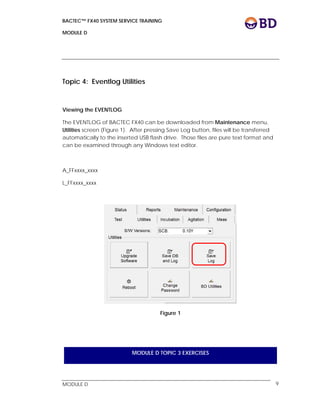
Saving Electronic Data and Log files to USB Key – Perform 2X per Week
o From the Main Status Screen, touch Maintenance.
o Select Utilities screen.
o Insert a USB key into one of the USB ports of tablet computer.
o Touch <SAVE DB and LOG> icon to save the database and the log
o When the database and log have been saved, two messages will be
displayed:
o Database saved. Touch OK
o Event Log saved. Touch OK
If the USB key is bad or full, a backup failure message will be displayed.
The log files saved will be:
Event Log (example LSPM0110529.txt – where “L” indicates “Log”, “SPM011”
indicates the serial number of the instrument, and “0529” indicates today’s
date).
BACTEC™ FX40 SYSTEM SERVICE TRAINING
MODULE A
 
 
MODULE A 39
Alert List (example ASPM0110529.txt – where “A” indicates “Alert”,
“SPM011” indicates the serial number of the instrument, and “0529”
indicates today’s date).
Communication Log (example CommLogSPM011.bvr – where “CommLog”
indicates the “Communication Log” and “SPM011” indicates the serial
number of the instrument).
Assert log (example AssertStackSnapshot.bin ).
Operating System Log (example VxMsgSPM011.txt – where “VxMsg”
indicates , “SPM011” indicates the serial number of the instrument, and
“0529” indicates today’s date).
BACTEC™ FX40 SYSTEM SERVICE TRAINING
MODULE A
 
 
MODULE A 40
BACTEC™ FX40 SYSTEM SERVICE TRAINING
MODULE A
 
 
MODULE A 41
Topic 3: Reports
To access Reports menu, tap the “Reports” tab. To print a report, highlight the
desired report(S) by tapping it in the Reports dropdown list. Then tap the “Print”
button.
Available reports are listed below:
Affected Vials
Lists vials that have experienced either a failure in the instrument’s
incubation subsystem, or an extended gap in test readings within the last 30
days.
Grouped into 2 report sections:
Incubation Failures
Reading Gap Failures.
Alert List
Lists the latest 100 instrument alerts.
Contaminant Vials
Lists all the vials in the database that have been marked as contaminant.
Culture Summary
Lists total counts for contaminant, positives, and negative cultures, as well
as percent of total cultures for each of these counts.
Current Inventory
Lists all the vials in all the instrument’s stations.
NOTE: Print if unusable station vials are present, print if reading
gap vials are present.
BACTEC™ FX40 SYSTEM SERVICE TRAINING
MODULE A
 
 
MODULE A 42
Current Negatives
Lists all the negative vials (out-of-protocol and manual negatives) in all the
instrument’s stations.
Current Positives
Lists all the positive vials (instrument positive, manual positive and
anonymous positive) in all the instrument’s stations.
Loaded Vials
Lists all the vials (sequenced and anonymous) that have been loaded in
the instrument during a selected time period. The default time period is
from midnight of yesterday.
Maintenance QC Report
Provides a report on drawer temperature set points and blocked stations
Provides spaces for you to log user verification and maintenance activities
(such as verifying station and system LED indicators). This report will print
automatically.
No Growth Accession
Lists all the accessions whose related vials show no growth (and are not
marked manual positive) in the selected time interval.
Orphan Vials
Lists all the vials in the instrument’s database that have no accession
number.
Partially Seated Stations
Lists all the vials that the instrument believes are partially seated (not fully
inserted in their stations).
NOTE: Print to use in ID anonymous and to accession orphan vials.
BACTEC™ FX40 SYSTEM SERVICE TRAINING
MODULE A
 
 
MODULE A 43
Pending Report
Lists all the vials that have been logged in at the Culture display but have
not been placed in the instrument yet (orphan demographics) or have
come from the LIS and not been entered yet.
Unloaded Negative Vials
Lists all the sequenced negative vials (out-of-protocol negative and
manual negative) that have been removed from the instrument in a
specified time period and have not been reentered. The default will
capture all unloaded negatives from midnight of the previous day; can be
configured to go back 60 days.
Unloaded Positive Vials
Lists all the sequenced positive vials (instrument positive and manual
positive) that have been removed from the instrument in a specified time
period and have not been reentered. The default will capture all
unloaded negatives from midnight of the previous day; can be configured
to go back 60 days.
False positives will not appear on this report they are returned to the
instrument and are therefore not unloaded. False positive vials must be
returned to the instrument within 5 hours.
Unloaded Vials
Lists all the sequenced vials that have been removed from the instrument in
a specified time period and have not been reentered.
BACTEC™ FX40 SYSTEM SERVICE TRAINING
MODULE A
 
 
MODULE A 44
BACTEC™ FX40 SYSTEM SERVICE TRAINING
MODULE A
 
 
MODULE A 45
Topic 4: Isolation Mode
Isolation mode is the state that exists when communication between
BACTEC FX40 instrument and the tablet PC is lost. Isolation mode is
designed to enable the instrument to continue to collect vial readings.
However, Isolation mode is not intended to enable routine workflow such as
entering vials through Vial Entry, removing positive and negative vials,
identifying anonymous vials, etc. Since positivity analysis occurs at the
tablet PC, no vials transition to Positive or Negative status while the system is
in Isolation mode.
Please note the following conditions about Isolation mode:
 In an FX40 cluster with multiple instruments, each instrument can be in
Isolation mode independent of the other.
 The tablet PC handles the transition of each instrument into and out
of Isolation mode independently.
 In Isolation mode, no station status indicators will be lit when you
open the instrument door, since routine workflow is not supported.
 The tablet PC displays error when communication is lost with
instrument. The button for operating the isolated instrument will be
disappeared once you acknowledge the error. This serves as a
reminder that a specific FX40 instrument is not communicating with
tablet PC.
 When communication is reestablished, the instrument and tablet PC
will both return to Directed mode (normal operating state). During
the transition, data collected by the instrument while in Isolation
mode is transferred to the tablet PC and processed. Vial positivity is
assessed at this time for all vials that are still in the instrument when
recovering from Isolation mode.
BACTEC™ FX40 SYSTEM SERVICE TRAINING
MODULE A
 
 
MODULE A 46
Isolation Mode System Indicators
Indicator Color State Meaning
Amber Pulsing
Instrument is not communicating with
the tablet PC
Green Off Both green and red system indicators
are off while the system is in isolation
mode, regardless of the presence of
positive or negative vials
Red Off
Isolation Mode Operation
Vial Examination: A vial can be pulled from its station for examination.
When a vial is pulled, the station’s green indicator blinks. This is to guide
you to return the vial to the same station.
Vial Removal: A vial can be removed from instrument by pulling it from its
station and close the door. When a vial is removed during Isolation mode,
all data collected is discarded.
Vial Entry: A vial can be entered into any empty station. Instrument begins
data collection and processes that data as anonymous vial when the data
is uploaded to tablet PC in Isolation Recovery mode.
BACTEC™ FX40 SYSTEM SERVICE TRAINING
MODULE A
 
 
MODULE A 47
Isolation Mode Troubleshooting
Isolation mode can be caused by
 Tablet PC malfunction
 Power or communication cable disconnected
 FX40 user interface stopped working
BACTEC™ FX40 SYSTEM SERVICE TRAINING
MODULE A
 
 
MODULE A 48
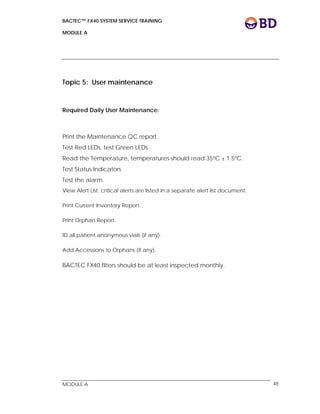
Topic 5: User maintenance
Required Daily User Maintenance:
Print the Maintenance QC report.
Test Red LEDs, test Green LEDs
Read the Temperature, temperatures should read 35ºC ± 1.5ºC.
Test Status Indicators
Test the alarm.
View Alert List; critical alerts are listed in a separate alert list document.
Print Current Inventory Report.
Print Orphan Report.
ID all patient anonymous vials (if any).
Add Accessions to Orphans (if any).
BACTEC FX40 filters should be at least inspected monthly.
BACTEC™ FX40 SYSTEM SERVICE TRAINING
MODULE A
 
 
MODULE A 49
BACTEC™ FX40 SYSTEM SERVICE TRAINING
MODULE A
 
 
MODULE A 50
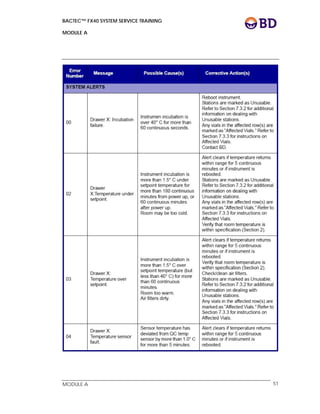
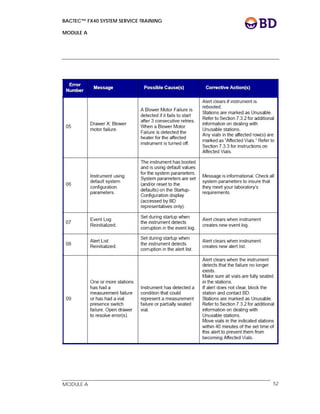
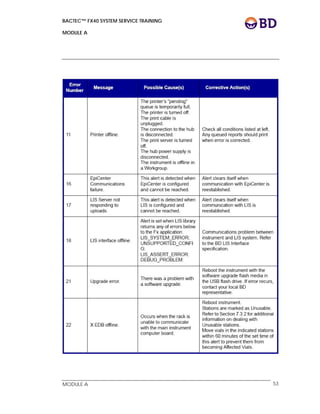
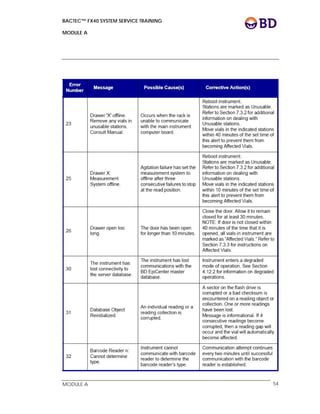
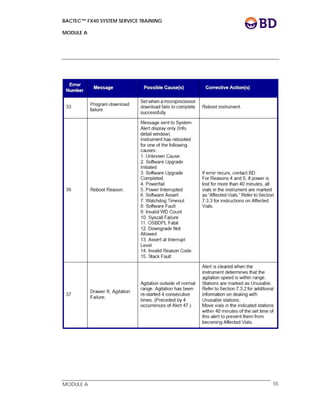
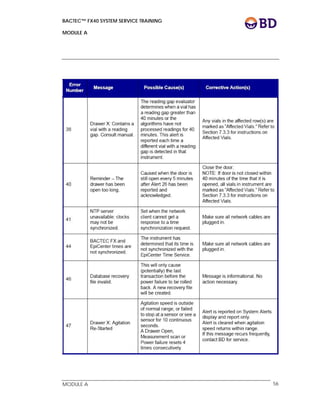
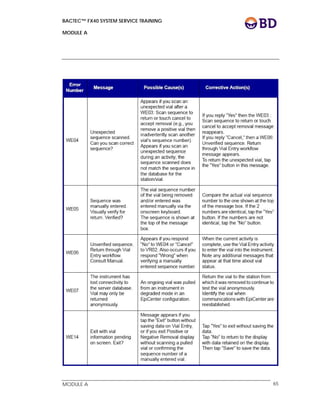
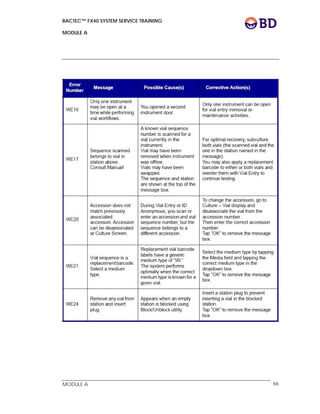
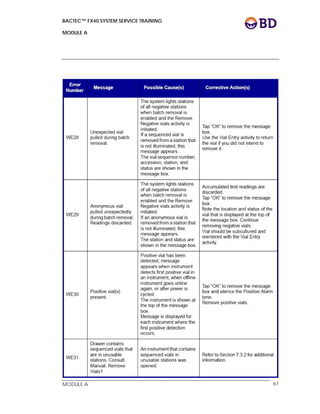
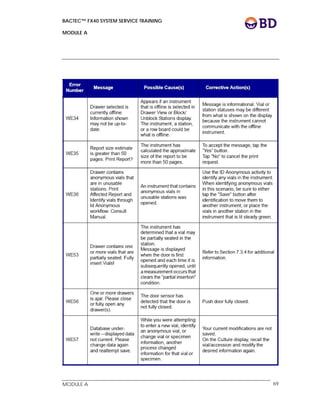
Topic 6: System Alerts
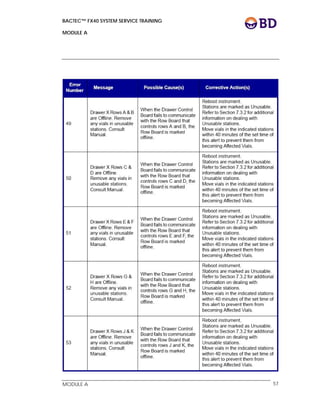
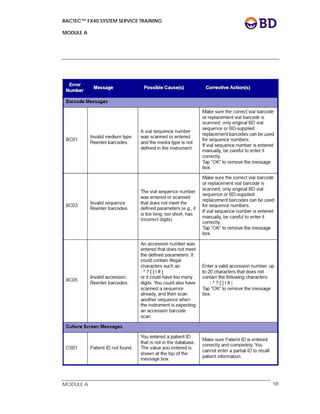
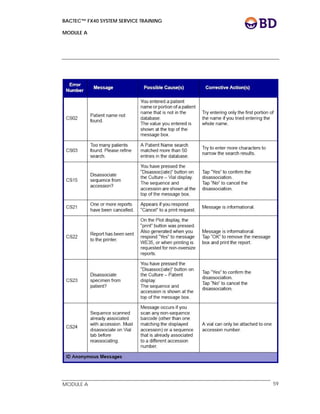
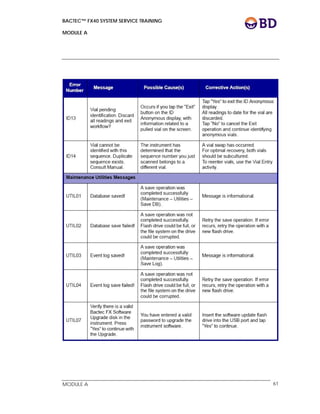
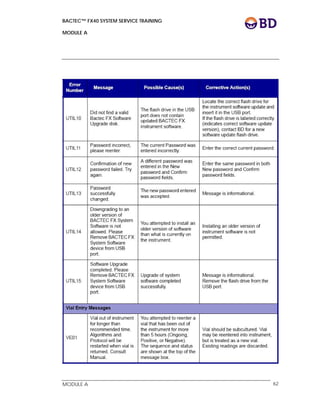
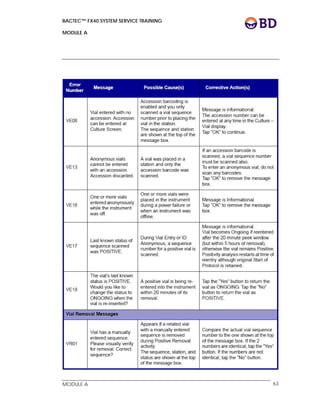
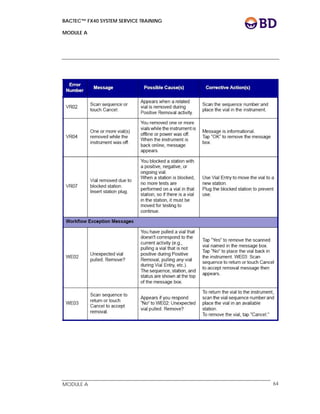
This topic discusses error messages and codes which appear when the
system encounters a known problem. These messages are listed in
alphabetical order, along with possible causes of the error and corrective
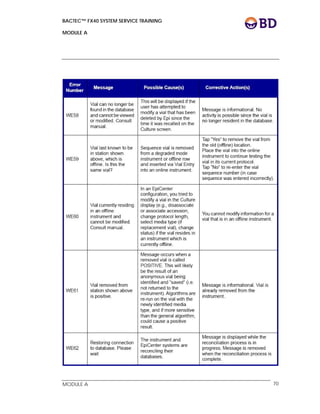
actions.
NOTE: These alerts a listed in the System Users Manual and all
references within the table on the following pages refer to the
users manual.
BACTEC™ FX40 SYSTEM SERVICE TRAINING
MODULE A
 
 
MODULE A 51
BACTEC™ FX40 SYSTEM SERVICE TRAINING
MODULE A
 
 
MODULE A 52
BACTEC™ FX40 SYSTEM SERVICE TRAINING
MODULE A
 
 
MODULE A 53
BACTEC™ FX40 SYSTEM SERVICE TRAINING
MODULE A
 
 
MODULE A 54
BACTEC™ FX40 SYSTEM SERVICE TRAINING
MODULE A
 
 
MODULE A 55
BACTEC™ FX40 SYSTEM SERVICE TRAINING
MODULE A
 
 
MODULE A 56
BACTEC™ FX40 SYSTEM SERVICE TRAINING
MODULE A
 
 
MODULE A 57
BACTEC™ FX40 SYSTEM SERVICE TRAINING
MODULE A
 
 
MODULE A 58
BACTEC™ FX40 SYSTEM SERVICE TRAINING
MODULE A
 
 
MODULE A 59
BACTEC™ FX40 SYSTEM SERVICE TRAINING
MODULE A
 
 
MODULE A 60
BACTEC™ FX40 SYSTEM SERVICE TRAINING
MODULE A
 
 
MODULE A 61
BACTEC™ FX40 SYSTEM SERVICE TRAINING
MODULE A
 
 
MODULE A 62
BACTEC™ FX40 SYSTEM SERVICE TRAINING
MODULE A
 
 
MODULE A 63
BACTEC™ FX40 SYSTEM SERVICE TRAINING
MODULE A
 
 
MODULE A 64
BACTEC™ FX40 SYSTEM SERVICE TRAINING
MODULE A
 
 
MODULE A 65
BACTEC™ FX40 SYSTEM SERVICE TRAINING
MODULE A
 
 
MODULE A 66
BACTEC™ FX40 SYSTEM SERVICE TRAINING
MODULE A
 
 
MODULE A 67
BACTEC™ FX40 SYSTEM SERVICE TRAINING
MODULE A
 
 
MODULE A 68
BACTEC™ FX40 SYSTEM SERVICE TRAINING
MODULE A
 
 
MODULE A 69
BACTEC™ FX40 SYSTEM SERVICE TRAINING
MODULE A
 
 
MODULE A 70
BACTEC™ FX40 SYSTEM SERVICE TRAINING
MODULE A
 
 
MODULE A 71
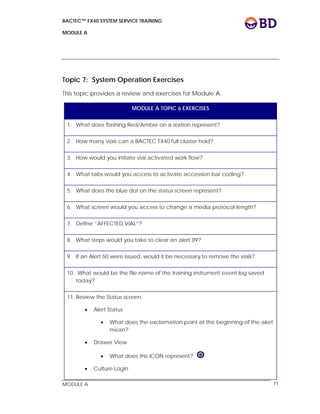
Topic 7: System Operation Exercises
This topic provides a review and exercises for Module A.
MODULE A TOPIC 6 EXERCISES
1. What does flashing Red/Amber on a station represent?
2. How many vials can a BACTEC FX40 full cluster hold?
3. How would you initiate vial activated work flow?
4. What tabs would you access to activate accession bar coding?
5. What does the blue dot on the status screen represent?
6. What screen would you access to change a media protocol length?
7. Define “AFFECTED VIAL”?
8. What steps would you take to clear an alert 09?
9. If an Alert 50 were issued, would it be necessary to remove the vials?
10. What would be the file name of the training instrument event log saved
today?
11. Review the Status screen.
 Alert Status
 What does the exclamation point at the beginning of the alert
mean?
 Drawer View
 What does this ICON represent?
 Culture Login
BACTEC™ FX40 SYSTEM SERVICE TRAINING
MODULE A
 
 
MODULE A 72
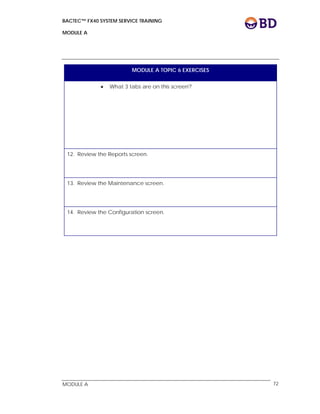
MODULE A TOPIC 6 EXERCISES
 What 3 tabs are on this screen?
12. Review the Reports screen.
13. Review the Maintenance screen.
14. Review the Configuration screen.
BACTEC FX40 System
Service Training Manual
System Overview
Module B
BD Diagnostic Systems
Systems Support Engineering & Technology Transfer
7 Loveton Circle
Sparks, MD 21152
E-mail: product_support@bd.com
Confidential and proprietary. For BD Worldwide Support use only.
BACTEC™ FX40 SYSTEM SERVICE TRAINING
MODULE B
 
 
MODULE B 1
System Overview
Overview:
This topic provides a system overview of the BACTEC™ FX40 Instrument.
Topics:
The following Topics are covered in this Module:
 Topic 1: System Overview
 Topic 2: Instrument Subsystems
 Topic 3: Software Overview
Materials Required:
 BACTEC™ FX40 Instrument
 Module Specifications
BACTEC™ FX40 SYSTEM SERVICE TRAINING
MODULE B
 
 
MODULE B 2
BACTEC™ FX40 SYSTEM SERVICE TRAINING
MODULE B
 
 
MODULE B 3
Topic 1: System Overview
The FX40 instrument is a BACTEC FX derivative instrument design for price sensitive,
low volume emerging market labs. The instrument will leverage the design of
BACTEC FX measurement system and FX “Vial Activated Workflow”. An adjacent
tablet computer will run the FX40 user interface software. A total of 4 FX40
instrument modules can be connected to the tablet computer for increased
capacity.
The measurement system subassembly, the same subassembly used in BACTEC FX
instrument, holds 20 vials in a 2 x 10 array. Two of these measurement system
subassemblies shall be incorporated in an FX40 instrument.
A total of four FX40 instrument modules can be connected to the user interface
tablet computer for increased capacity. Two FX40 instruments may be stacked
together for user convenience and to reduce the amount of required bench top
space.
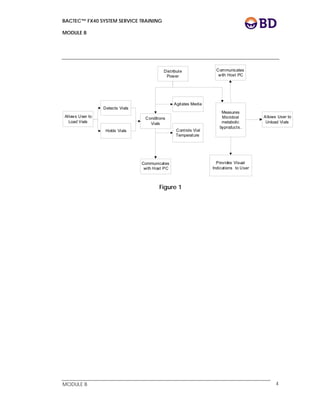
Figure 1 shows a functional description block diagram.
BACTEC™ FX40 SYSTEM SERVICE TRAINING
MODULE B
 
 
MODULE B 4
Allows User to
Unload Vials
Allows User to
Load Vials
Conditions
Vials
Controls Vial
Temperature
Measures
Microbial
metabolic
byproducts.
Detects Vials
Holds Vials
Agitates Media
Distribute
Power
Provides Visual
Indications to User
Communicates
with Host PC
Communicates
with Host PC
Figure 1
BACTEC™ FX40 SYSTEM SERVICE TRAINING
MODULE B
 
 
MODULE B 5
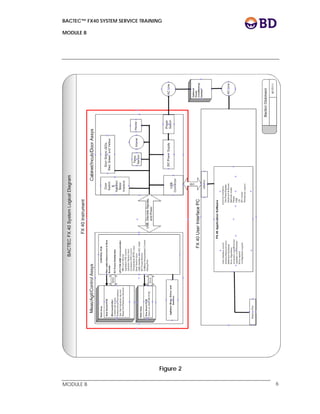
Figure 2 shows a System Logical Diagram.
BACTEC™ FX40 SYSTEM SERVICE TRAINING
MODULE B
 
 
MODULE B 6
Figure 2
BACTEC™ FX40 SYSTEM SERVICE TRAINING
MODULE B
 
 
MODULE B 7
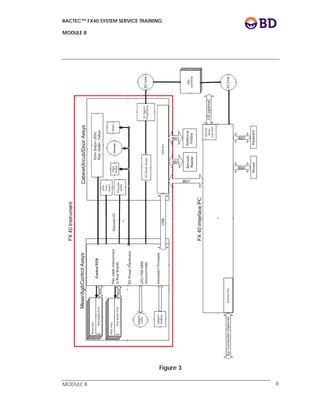
Figure 3 shows a physical connection diagram.
BACTEC™ FX40 SYSTEM SERVICE TRAINING
MODULE B
 
 
MODULE B 8
Figure 3
BACTEC™ FX40 SYSTEM SERVICE TRAINING
MODULE B
 
 
MODULE B 9
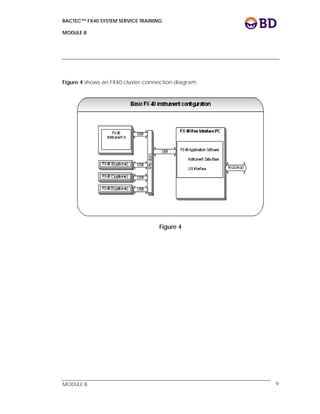
Figure 4 shows an FX40 cluster connection diagram
Figure 4
BACTEC™ FX40 SYSTEM SERVICE TRAINING
MODULE B
 
 
MODULE B 10
Topic 2: Instrument Subsystems
Incubation Subsystem
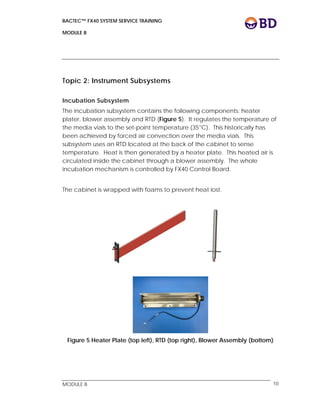
The incubation subsystem contains the following components: heater
plater, blower assembly and RTD (Figure 5). It regulates the temperature of
the media vials to the set-point temperature (35°C). This historically has
been achieved by forced air convection over the media vials. This
subsystem uses an RTD located at the back of the cabinet to sense
temperature. Heat is then generated by a heater plate. This heated air is
circulated inside the cabinet through a blower assembly. The whole
incubation mechanism is controlled by FX40 Control Board.
The cabinet is wrapped with foams to prevent heat lost.
Figure 5 Heater Plate (top left), RTD (top right), Blower Assembly (bottom)
BACTEC™ FX40 SYSTEM SERVICE TRAINING
MODULE B
 
 
MODULE B 11
Measurement Subsystem
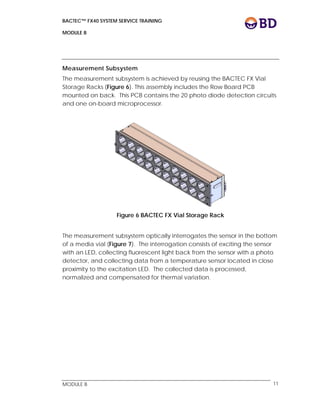
The measurement subsystem is achieved by reusing the BACTEC FX Vial
Storage Racks (Figure 6). This assembly includes the Row Board PCB
mounted on back. This PCB contains the 20 photo diode detection circuits
and one on-board microprocessor.
Figure 6 BACTEC FX Vial Storage Rack
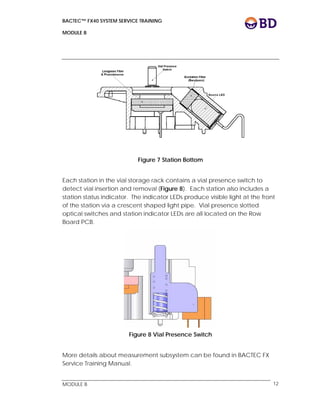
The measurement subsystem optically interrogates the sensor in the bottom
of a media vial (Figure 7). The interrogation consists of exciting the sensor
with an LED, collecting fluorescent light back from the sensor with a photo
detector, and collecting data from a temperature sensor located in close
proximity to the excitation LED. The collected data is processed,
normalized and compensated for thermal variation.
BACTEC™ FX40 SYSTEM SERVICE TRAINING
MODULE B
 
 
MODULE B 12
Figure 7 Station Bottom
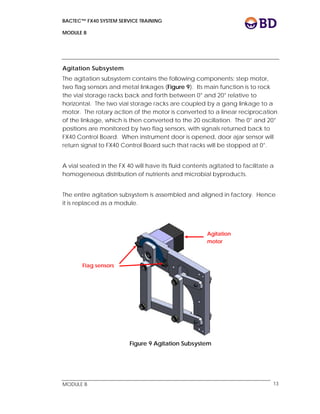
Each station in the vial storage rack contains a vial presence switch to
detect vial insertion and removal (Figure 8). Each station also includes a
station status indicator. The indicator LEDs produce visible light at the front
of the station via a crescent shaped light pipe. Vial presence slotted
optical switches and station indicator LEDs are all located on the Row
Board PCB.
Figure 8 Vial Presence Switch
More details about measurement subsystem can be found in BACTEC FX
Service Training Manual.
BACTEC™ FX40 SYSTEM SERVICE TRAINING
MODULE B
 
 
MODULE B 13
Agitation Subsystem
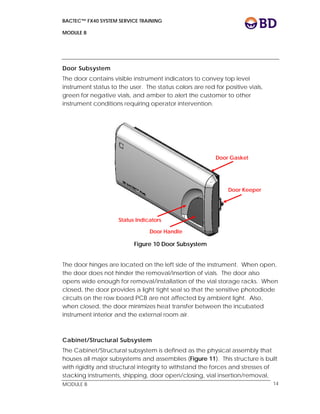
The agitation subsystem contains the following components: step motor,
two flag sensors and metal linkages (Figure 9). Its main function is to rock
the vial storage racks back and forth between 0° and 20° relative to
horizontal. The two vial storage racks are coupled by a gang linkage to a
motor. The rotary action of the motor is converted to a linear reciprocation
of the linkage, which is then converted to the 20 oscillation. The 0° and 20°
positions are monitored by two flag sensors, with signals returned back to
FX40 Control Board. When instrument door is opened, door ajar sensor will
return signal to FX40 Control Board such that racks will be stopped at 0°.
A vial seated in the FX 40 will have its fluid contents agitated to facilitate a
homogeneous distribution of nutrients and microbial byproducts.
The entire agitation subsystem is assembled and aligned in factory. Hence
it is replaced as a module.
Figure 9 Agitation Subsystem
Agitation
motor
Flag sensors
BACTEC™ FX40 SYSTEM SERVICE TRAINING
MODULE B
 
 
MODULE B 14
Door Subsystem
The door contains visible instrument indicators to convey top level
instrument status to the user. The status colors are red for positive vials,
green for negative vials, and amber to alert the customer to other
instrument conditions requiring operator intervention.
Figure 10 Door Subsystem
The door hinges are located on the left side of the instrument. When open,
the door does not hinder the removal/insertion of vials. The door also
opens wide enough for removal/installation of the vial storage racks. When
closed, the door provides a light tight seal so that the sensitive photodiode
circuits on the row board PCB are not affected by ambient light. Also,
when closed, the door minimizes heat transfer between the incubated
instrument interior and the external room air.
Cabinet/Structural Subsystem
The Cabinet/Structural subsystem is defined as the physical assembly that
houses all major subsystems and assemblies (Figure 11). This structure is built
with rigidity and structural integrity to withstand the forces and stresses of
stacking instruments, shipping, door open/closing, vial insertion/removal,
Door Gasket
Door Keeper
Door Handle
Status Indicators
BACTEC™ FX40 SYSTEM SERVICE TRAINING
MODULE B
 
 
MODULE B 15
etc… Similar to the door subsystem, the cabinet must provide a light tight
enclosure for the measurement system. Also, the cabinet contains air
circulation ducting as part of the incubation subsystem to provide an even
distribution of temperature within the instrument.
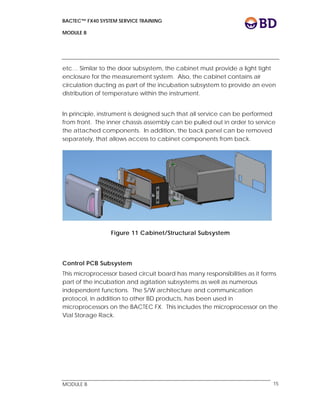
In principle, instrument is designed such that all service can be performed
from front. The inner chassis assembly can be pulled out in order to service
the attached components. In addition, the back panel can be removed
separately, that allows access to cabinet components from back.
Figure 11 Cabinet/Structural Subsystem
Control PCB Subsystem
This microprocessor based circuit board has many responsibilities as it forms
part of the incubation and agitation subsystems as well as numerous
independent functions. The S/W architecture and communication
protocol, in addition to other BD products, has been used in
microprocessors on the BACTEC FX. This includes the microprocessor on the
Vial Storage Rack.
BACTEC™ FX40 SYSTEM SERVICE TRAINING
MODULE B
 
 
MODULE B 16
BACTEC™ FX40 SYSTEM SERVICE TRAINING
MODULE B
 
 
MODULE B 17
Topic 3: Software Overview 
 
System software is pre-installed in the tablet computer, under Windows 7
environment. Software user interface is the same as current FX. This instrument
software is designed to be user installable through external USB flash drive. System
software, database and configuration parameters are all located in the internal
memory of tablet computer.
BACTEC™ FX40 SYSTEM SERVICE TRAINING
MODULE B
 
 
MODULE B 18
 
BACTEC FX40 System
Service Training Manual
Module Replacement
Module C
BD Diagnostic Systems
Systems Support Engineering & Technology Transfer
7 Loveton Circle
Sparks, MD 21152
E-mail: product_support@bd.com
Confidential and proprietary. For BD Worldwide Support use only.
BACTEC™ FX40 SYSTEM SERVICE TRAINING
MODULE C
 
 
MODULE C 1
Module Replacement
Overview:
This topic provides Module Replacement Procedures for the BACTEC™ FX
Instrument.
Topics:
The following Topics are covered in this Module:
 Topic 1: Electro Static Discharge (ESD)
 Topic 2: Module Replacement Instructions
 Topic 3: Module Replacement Exercises
Materials Required:
 BACTEC™ FX40 Instrument
 ESD ground strap & bench/field mat
 Common Hand Tools
 DVM
BACTEC™ FX40 SYSTEM SERVICE TRAINING
MODULE C
 
 
MODULE C 2
BACTEC™ FX40 SYSTEM SERVICE TRAINING
MODULE C
 
 
MODULE C 3
Topic 1: Electro Static Discharge (ESD)
The BACTEC FX40 instrument contains Electro Static Discharge (ESD)
sensitive electronic components. When servicing the instrument proper ESD
protection must be utilized to prevent possible damage to these sensitive
components. Failure to follow proper ESD precautions can possibly induce
intermittent and/or catastrophic failures.
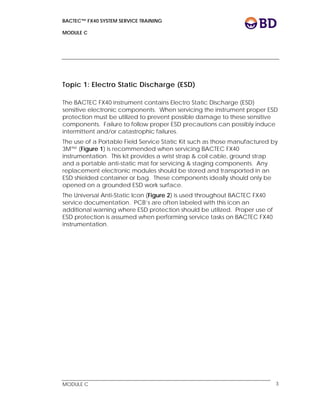
The use of a Portable Field Service Static Kit such as those manufactured by
3M™ (Figure 1) is recommended when servicing BACTEC FX40
instrumentation. This kit provides a wrist strap & coil cable, ground strap
and a portable anti-static mat for servicing & staging components. Any
replacement electronic modules should be stored and transported in an
ESD shielded container or bag. These components ideally should only be
opened on a grounded ESD work surface.
The Universal Anti-Static Icon (Figure 2) is used throughout BACTEC FX40
service documentation. PCB’s are often labeled with this icon an
additional warning where ESD protection should be utilized. Proper use of
ESD protection is assumed when performing service tasks on BACTEC FX40
instrumentation.
BACTEC™ FX40 SYSTEM SERVICE TRAINING
MODULE C
 
 
MODULE C 4
3M™ Portable Field Service Kit 8501 provides effective static protection in a
compact package for the electronics field technician. The entire kit folds to
a size that fits easily into most tool cases. Two pockets sewn into the work
surface provide storage for the cords.
Figure 1
Figure 2
BACTEC™ FX40 SYSTEM SERVICE TRAINING
MODULE C
 
 
MODULE C 5
Topic 2: Module Replacement Instructions
This Topic provides detailed instructions on replacing modules in the
BACTEC FX40 instrument. An effort was made to condense these
instructions by referring to previously described instructions whenever
possible.
The instructions below are listed in no particular order.
 
WARNING: Testing of clinical vials should never be interrupted for greater than
40 minutes under any circumstances. To ensure maximum recovery, it is
recommended that all vials in the instrument system be subcultured when
system testing has been interrupted for longer than 40 minutes.
 
CAUTION: Proper use of ESD protection is assumed when performing service
tasks on BACTEC FX40 instrumentation.
 
CAUTION: Ambient light entering the instrument may cause erroneous
readings, including errors and/or false positives. Ensure gaskets are always
maintained in good conditions.
WARNING: The BACTEC FX40 instrument should only be serviced by trained
authorized personnel and assumes proper safety precautions are observed.
 
BACTEC™ FX40 SYSTEM SERVICE TRAINING
MODULE C
 
 
MODULE C 6
Incubation Air Filter
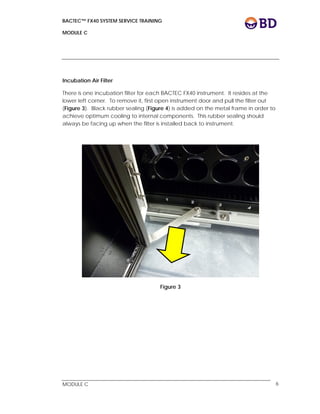
There is one incubation filter for each BACTEC FX40 instrument. It resides at the
lower left corner. To remove it, first open instrument door and pull the filter out
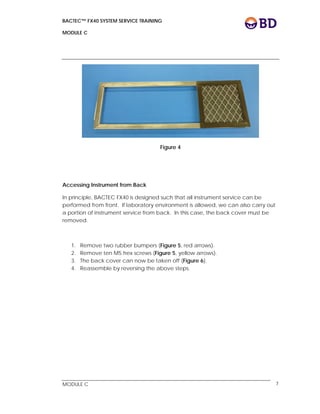
(Figure 3). Black rubber sealing (Figure 4) is added on the metal frame in order to
achieve optimum cooling to internal components. This rubber sealing should
always be facing up when the filter is installed back to instrument.
Figure 3
BACTEC™ FX40 SYSTEM SERVICE TRAINING
MODULE C
 
 
MODULE C 7
Figure 4
Accessing Instrument from Back
In principle, BACTEC FX40 is designed such that all instrument service can be
performed from front. If laboratory environment is allowed, we can also carry out
a portion of instrument service from back. In this case, the back cover must be
removed.
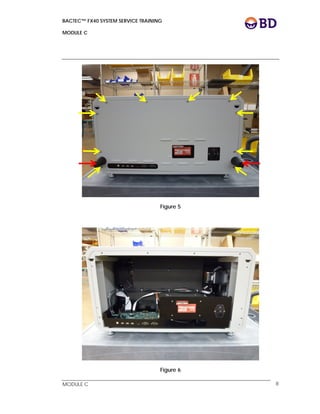
1. Remove two rubber bumpers (Figure 5, red arrows).
2. Remove ten M5 hex screws (Figure 5, yellow arrows).
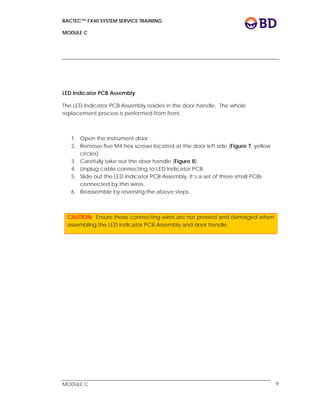
3. The back cover can now be taken off (Figure 6).
4. Reassemble by reversing the above steps.
BACTEC™ FX40 SYSTEM SERVICE TRAINING
MODULE C
 
 
MODULE C 8
Figure 5
Figure 6
BACTEC™ FX40 SYSTEM SERVICE TRAINING
MODULE C
 
 
MODULE C 9
LED Indicator PCB Assembly
The LED Indicator PCB Assembly resides in the door handle. The whole
replacement process is performed from front.
1. Open the instrument door.
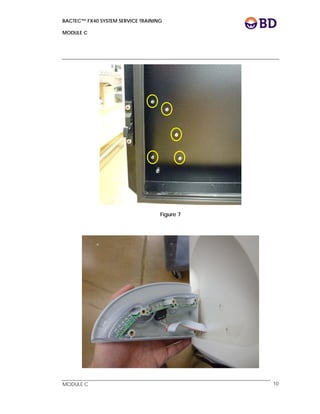
2. Remove five M4 hex screws located at the door left side (Figure 7, yellow
circles).
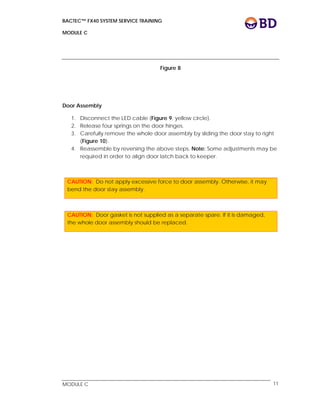
3. Carefully take out the door handle (Figure 8).
4. Unplug cable connecting to LED Indicator PCB.
5. Slide out the LED Indicator PCB Assembly. It’s a set of three small PCBs
connected by thin wires.
6. Reassemble by reversing the above steps.
CAUTION: Ensure those connecting wires are not pressed and damaged when
assembling the LED indicator PCB Assembly and door handle.
BACTEC™ FX40 SYSTEM SERVICE TRAINING
MODULE C
 
 
MODULE C 10
Figure 7
BACTEC™ FX40 SYSTEM SERVICE TRAINING
MODULE C
 
 
MODULE C 11
Figure 8
Door Assembly
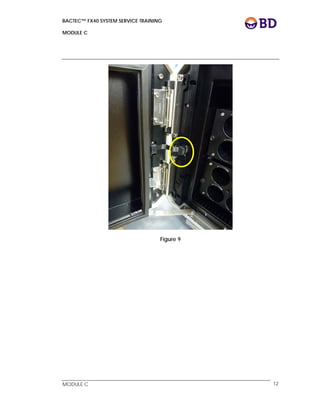
1. Disconnect the LED cable (Figure 9, yellow circle).
2. Release four springs on the door hinges.
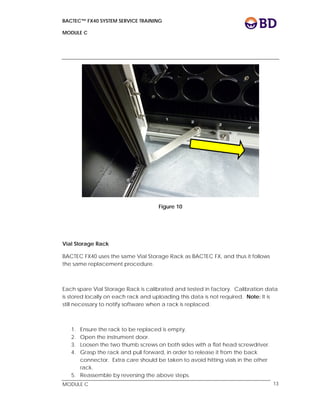
3. Carefully remove the whole door assembly by sliding the door stay to right
(Figure 10).
4. Reassemble by reversing the above steps. Note: Some adjustments may be
required in order to align door latch back to keeper.
CAUTION: Do not apply excessive force to door assembly. Otherwise, it may
bend the door stay assembly.
CAUTION: Door gasket is not supplied as a separate spare. If it is damaged,
the whole door assembly should be replaced.
BACTEC™ FX40 SYSTEM SERVICE TRAINING
MODULE C
 
 
MODULE C 12
Figure 9
BACTEC™ FX40 SYSTEM SERVICE TRAINING
MODULE C
 
 
MODULE C 13
Figure 10
Vial Storage Rack
BACTEC FX40 uses the same Vial Storage Rack as BACTEC FX, and thus it follows
the same replacement procedure.
Each spare Vial Storage Rack is calibrated and tested in factory. Calibration data
is stored locally on each rack and uploading this data is not required. Note: It is
still necessary to notify software when a rack is replaced.
1. Ensure the rack to be replaced is empty.
2. Open the instrument door.
3. Loosen the two thumb screws on both sides with a flat head screwdriver.
4. Grasp the rack and pull forward, in order to release it from the back
connector. Extra care should be taken to avoid hitting vials in the other
rack.
5. Reassemble by reversing the above steps.
BACTEC™ FX40 SYSTEM SERVICE TRAINING
MODULE C
 
 
MODULE C 14
6. Turn on the software Diagnostic feature.
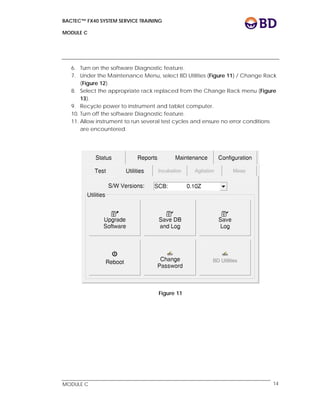
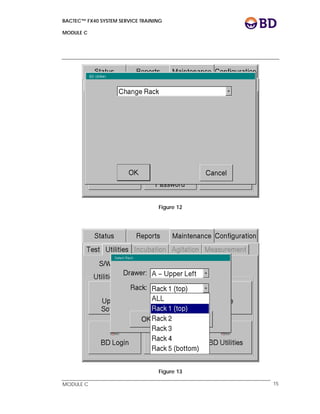
7. Under the Maintenance Menu, select BD Utilities (Figure 11) / Change Rack
(Figure 12).
8. Select the appropriate rack replaced from the Change Rack menu (Figure
13).
9. Recycle power to instrument and tablet computer.
10. Turn off the software Diagnostic feature.
11. Allow instrument to run several test cycles and ensure no error conditions
are encountered.
Figure 11
BACTEC™ FX40 SYSTEM SERVICE TRAINING
MODULE C
 
 
MODULE C 15
Figure 12
Figure 13
BACTEC™ FX40 SYSTEM SERVICE TRAINING
MODULE C
 
 
MODULE C 16
RTD Assembly
The replacement of RTD Assembly can be performed from front. Thus, it is not
required to take out the Inner Chassis Assembly to carry out this service.
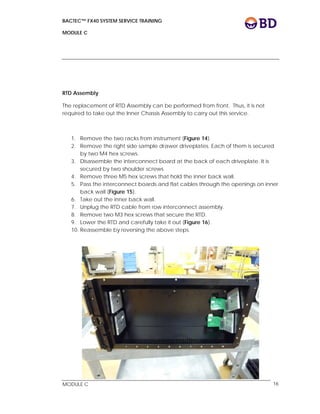
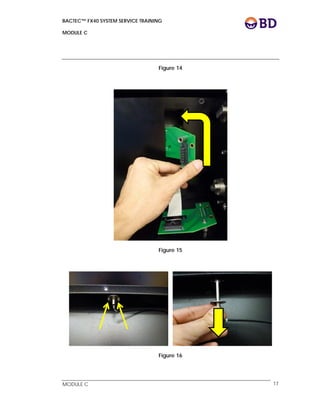
1. Remove the two racks from instrument (Figure 14).
2. Remove the right side sample drawer driveplates. Each of them is secured
by two M4 hex screws.
3. Disassemble the interconnect board at the back of each driveplate. It is
secured by two shoulder screws.
4. Remove three M5 hex screws that hold the inner back wall.
5. Pass the interconnect boards and flat cables through the openings on inner
back wall (Figure 15).
6. Take out the inner back wall.
7. Unplug the RTD cable from row interconnect assembly.
8. Remove two M3 hex screws that secure the RTD.
9. Lower the RTD and carefully take it out (Figure 16).
10. Reassemble by reversing the above steps.
BACTEC™ FX40 SYSTEM SERVICE TRAINING
MODULE C
 
 
MODULE C 17
Figure 14
Figure 15
Figure 16
BACTEC™ FX40 SYSTEM SERVICE TRAINING
MODULE C
 
 
MODULE C 18
Row Interconnect Assembly
The row interconnect assembly can be accessed with the inner back wall
removed. It is disassembled by:
1. Unplug the RTD cable.
2. Unplug the ribbon cable that connects to FCB.
3. Remove four M3 hex screws that secure the whole assembly.
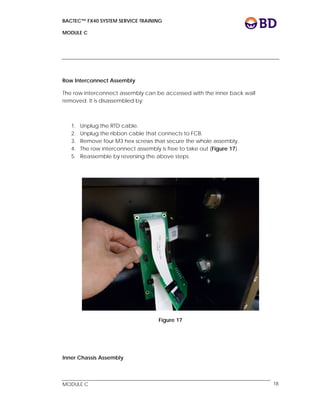
4. The row interconnect assembly is free to take out (Figure 17).
5. Reassemble by reversing the above steps.
Figure 17
Inner Chassis Assembly
BACTEC™ FX40 SYSTEM SERVICE TRAINING
MODULE C
 
 
MODULE C 19
CAUTION: Taking out the Inner Chassis Assembly may probably take more than
40 minutes. Transfer all vials to other instruments to ensure on-going tests will not
be affected.
1. Remove the door assembly.
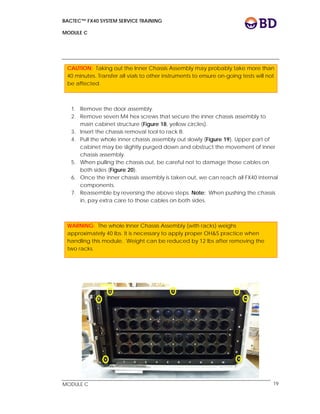
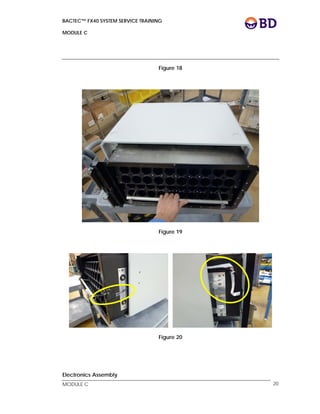
2. Remove seven M4 hex screws that secure the inner chassis assembly to
main cabinet structure (Figure 18, yellow circles).
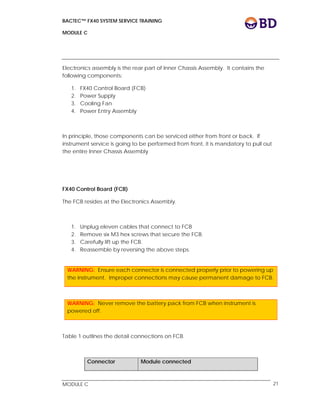
3. Insert the chassis removal tool to rack B.
4. Pull the whole inner chassis assembly out slowly (Figure 19). Upper part of
cabinet may be slightly purged down and obstruct the movement of inner
chassis assembly.
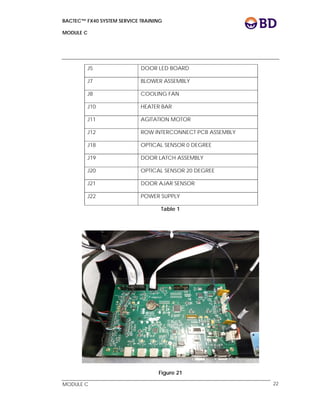
5. When pulling the chassis out, be careful not to damage those cables on
both sides (Figure 20).
6. Once the inner chassis assembly is taken out, we can reach all FX40 internal
components.
7. Reassemble by reversing the above steps. Note: When pushing the chassis
in, pay extra care to those cables on both sides.
WARNING: The whole Inner Chassis Assembly (with racks) weighs
approximately 40 lbs. It is necessary to apply proper OH&S practice when
handling this module. Weight can be reduced by 12 lbs after removing the
two racks.
BACTEC™ FX40 SYSTEM SERVICE TRAINING
MODULE C
 
 
MODULE C 20
Figure 18
Figure 19
Figure 20
Electronics Assembly
BACTEC™ FX40 SYSTEM SERVICE TRAINING
MODULE C
 
 
MODULE C 21
Electronics assembly is the rear part of Inner Chassis Assembly. It contains the
following components:
1. FX40 Control Board (FCB)
2. Power Supply
3. Cooling Fan
4. Power Entry Assembly
In principle, those components can be serviced either from front or back. If
instrument service is going to be performed from front, it is mandatory to pull out
the entire Inner Chassis Assembly
FX40 Control Board (FCB)
The FCB resides at the Electronics Assembly.
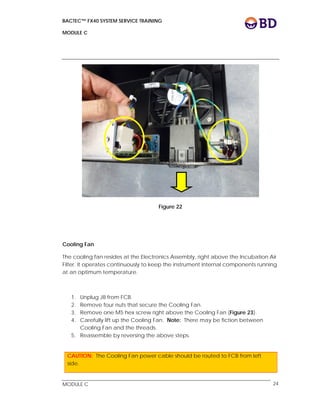
1. Unplug eleven cables that connect to FCB
2. Remove six M3 hex screws that secure the FCB.
3. Carefully lift up the FCB.
4. Reassemble by reversing the above steps.
WARNING: Ensure each connector is connected properly prior to powering up
the instrument. Improper connections may cause permanent damage to FCB.
WARNING: Never remove the battery pack from FCB when instrument is
powered off.
Table 1 outlines the detail connections on FCB.
Connector Module connected
BACTEC™ FX40 SYSTEM SERVICE TRAINING
MODULE C
 
 
MODULE C 22
J5 DOOR LED BOARD
J7 BLOWER ASSEMBLY
J8 COOLING FAN
J10 HEATER BAR
J11 AGITATION MOTOR
J12 ROW INTERCONNECT PCB ASSEMBLY
J18 OPTICAL SENSOR 0 DEGREE
J19 DOOR LATCH ASSEMBLY
J20 OPTICAL SENSOR 20 DEGREE
J21 DOOR AJAR SENSOR
J22 POWER SUPPLY
Table 1
Figure 21
BACTEC™ FX40 SYSTEM SERVICE TRAINING
MODULE C
 
 
MODULE C 23
Power Supply
The power supply resides at the electronics assembly. Unlike those power supplies
used in other BD instrumentations, there is no pot on this component to adjust the
output voltage.
1. Unplug J22 from FCB.
2. Unplug the cable coming from Power Entry Assembly.
3. Remove four Philips screws that secure the power supply.
4. Carefully lift up the FCB.
5. Reassemble by reversing the above steps.
Power Entry Assembly
The Power Entry Assembly resides at the electronics assembly. It holds two 5A fuses
that protect the instrument from power surge. Replacing fuses is a simple
procedure, and should be performed from the back of instrument.
1. Unplug the cable that is connected to power supply.
2. Disconnect the ground cables from instrument chassis. It is secured by nuts,
flat washers and locking washers.
3. Remove two M3 hex screws that secure the Power Entry on electronics
assembly.
4. Press on both top and bottom clips to slot out the Power Entry Assembly.
5. Reassemble by reversing the above steps.
BACTEC™ FX40 SYSTEM SERVICE TRAINING
MODULE C
 
 
MODULE C 24
Figure 22
Cooling Fan
The cooling fan resides at the Electronics Assembly, right above the Incubation Air
Filter. It operates continuously to keep the instrument internal components running
at an optimum temperature.
1. Unplug J8 from FCB.
2. Remove four nuts that secure the Cooling Fan.
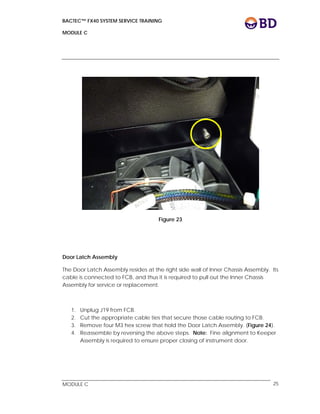
3. Remove one M5 hex screw right above the Cooling Fan (Figure 23).
4. Carefully lift up the Cooling Fan. Note: There may be fiction between
Cooling Fan and the threads.
5. Reassemble by reversing the above steps.
CAUTION: The Cooling Fan power cable should be routed to FCB from left
side.
BACTEC™ FX40 SYSTEM SERVICE TRAINING
MODULE C
 
 
MODULE C 25
Figure 23
Door Latch Assembly
The Door Latch Assembly resides at the right side wall of Inner Chassis Assembly. Its
cable is connected to FCB, and thus it is required to pull out the Inner Chassis
Assembly for service or replacement.
1. Unplug J19 from FCB.
2. Cut the appropriate cable ties that secure those cable routing to FCB.
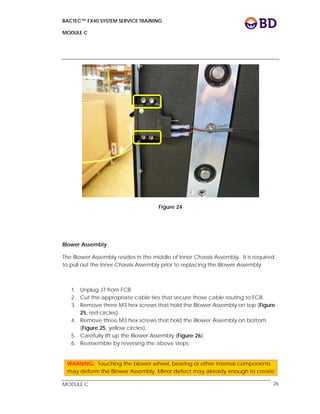
3. Remove four M3 hex screw that hold the Door Latch Assembly. (Figure 24).
4. Reassemble by reversing the above steps. Note: Fine alignment to Keeper
Assembly is required to ensure proper closing of instrument door.
BACTEC™ FX40 SYSTEM SERVICE TRAINING
MODULE C
 
 
MODULE C 26
Figure 24
Blower Assembly
The Blower Assembly resides in the middle of Inner Chassis Assembly. It is required
to pull out the Inner Chassis Assembly prior to replacing the Blower Assembly.
1. Unplug J7 from FCB.
2. Cut the appropriate cable ties that secure those cable routing to FCB.
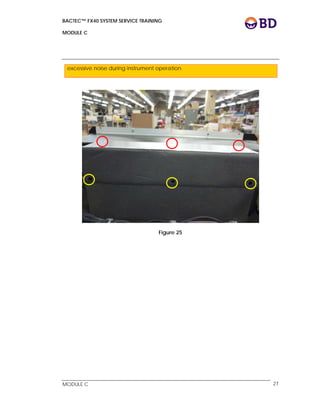
3. Remove three M3 hex screws that hold the Blower Assembly on top (Figure
25, red circles).
4. Remove three M3 hex screws that hold the Blower Assembly on bottom
(Figure 25, yellow circles).
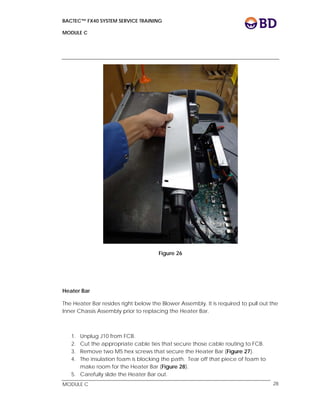
5. Carefully lift up the Blower Assembly (Figure 26).
6. Reassemble by reversing the above steps.
WARNING: Touching the blower wheel, bearing or other internal components
may deform the Blower Assembly. Minor defect may already enough to create
BACTEC™ FX40 SYSTEM SERVICE TRAINING
MODULE C
 
 
MODULE C 27
excessive noise during instrument operation.
Figure 25
BACTEC™ FX40 SYSTEM SERVICE TRAINING
MODULE C
 
 
MODULE C 28
Figure 26
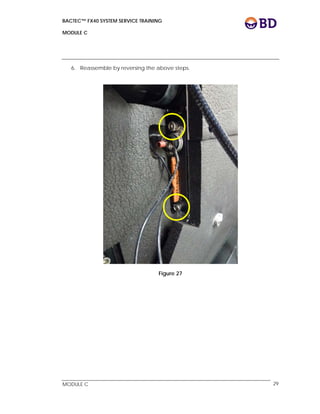
Heater Bar
The Heater Bar resides right below the Blower Assembly. It is required to pull out the
Inner Chassis Assembly prior to replacing the Heater Bar.
1. Unplug J10 from FCB.
2. Cut the appropriate cable ties that secure those cable routing to FCB.
3. Remove two M5 hex screws that secure the Heater Bar (Figure 27).
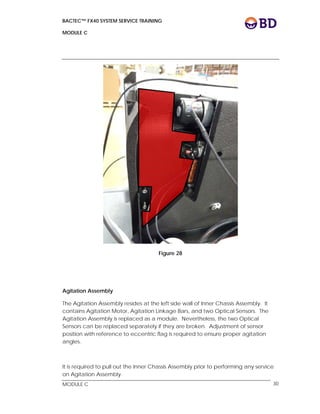
4. The insulation foam is blocking the path. Tear off that piece of foam to
make room for the Heater Bar (Figure 28).
5. Carefully slide the Heater Bar out.
BACTEC™ FX40 SYSTEM SERVICE TRAINING
MODULE C
 
 
MODULE C 29
6. Reassemble by reversing the above steps.
Figure 27
BACTEC™ FX40 SYSTEM SERVICE TRAINING
MODULE C
 
 
MODULE C 30
Figure 28
Agitation Assembly
The Agitation Assembly resides at the left side wall of Inner Chassis Assembly. It
contains Agitation Motor, Agitation Linkage Bars, and two Optical Sensors. The
Agitation Assembly is replaced as a module. Nevertheless, the two Optical
Sensors can be replaced separately if they are broken. Adjustment of sensor
position with reference to eccentric flag is required to ensure proper agitation
angles.
It is required to pull out the Inner Chassis Assembly prior to performing any service
on Agitation Assembly.
BACTEC™ FX40 SYSTEM SERVICE TRAINING
MODULE C
 
 
MODULE C 31
1. Remove the two racks from instrument.
2. Remove the left side sample drawer driveplates. Each of them is secured
by two M4 hex screws.
3. Unplug J11, J18 and J20 from FCB.
4. Cut the appropriate cable ties that secure those cables routing to FCB.
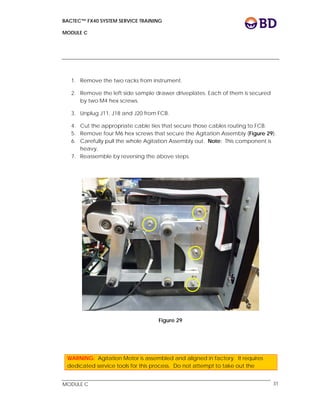
5. Remove four M6 hex screws that secure the Agitation Assembly (Figure 29).
6. Carefully pull the whole Agitation Assembly out. Note: This component is
heavy.
7. Reassemble by reversing the above steps.
Figure 29
WARNING: Agitation Motor is assembled and aligned in factory. It requires
dedicated service tools for this process. Do not attempt to take out the
BACTEC™ FX40 SYSTEM SERVICE TRAINING
MODULE C
 
 
MODULE C 32
Agitation Motor during field service.
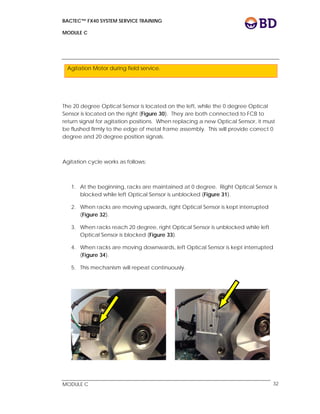
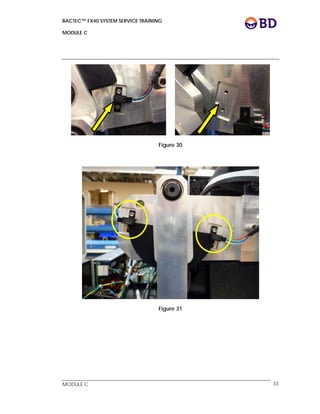
The 20 degree Optical Sensor is located on the left, while the 0 degree Optical
Sensor is located on the right (Figure 30). They are both connected to FCB to
return signal for agitation positions. When replacing a new Optical Sensor, it must
be flushed firmly to the edge of metal frame assembly. This will provide correct 0
degree and 20 degree position signals.
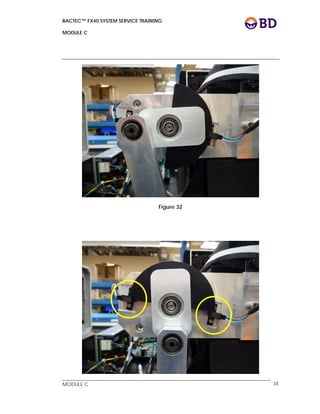
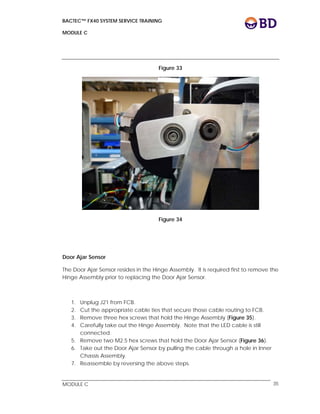
Agitation cycle works as follows:
1. At the beginning, racks are maintained at 0 degree. Right Optical Sensor is
blocked while left Optical Sensor is unblocked (Figure 31).
2. When racks are moving upwards, right Optical Sensor is kept interrupted
(Figure 32).
3. When racks reach 20 degree, right Optical Sensor is unblocked while left
Optical Sensor is blocked (Figure 33).
4. When racks are moving downwards, left Optical Sensor is kept interrupted
(Figure 34).
5. This mechanism will repeat continuously.
BACTEC™ FX40 SYSTEM SERVICE TRAINING
MODULE C
 
 
MODULE C 33
Figure 30
Figure 31
BACTEC™ FX40 SYSTEM SERVICE TRAINING
MODULE C
 
 
MODULE C 34
Figure 32
BACTEC™ FX40 SYSTEM SERVICE TRAINING
MODULE C
 
 
MODULE C 35
Figure 33
Figure 34
Door Ajar Sensor
The Door Ajar Sensor resides in the Hinge Assembly. It is required first to remove the
Hinge Assembly prior to replacing the Door Ajar Sensor.
1. Unplug J21 from FCB.
2. Cut the appropriate cable ties that secure those cable routing to FCB.
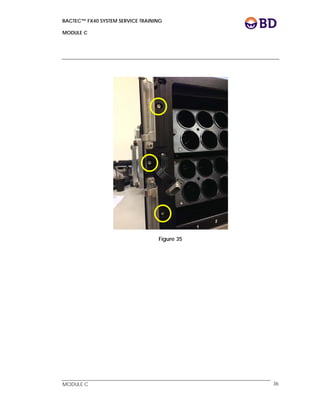
3. Remove three hex screws that hold the Hinge Assembly (Figure 35).
4. Carefully take out the Hinge Assembly. Note that the LED cable is still
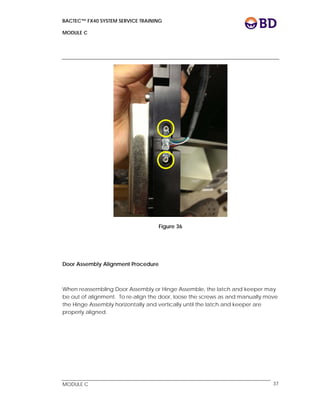
connected.
5. Remove two M2.5 hex screws that hold the Door Ajar Sensor (Figure 36).
6. Take out the Door Ajar Sensor by pulling the cable through a hole in Inner
Chassis Assembly.
7. Reassemble by reversing the above steps.
BACTEC™ FX40 SYSTEM SERVICE TRAINING
MODULE C
 
 
MODULE C 36
Figure 35
BACTEC™ FX40 SYSTEM SERVICE TRAINING
MODULE C
 
 
MODULE C 37
Figure 36
Door Assembly Alignment Procedure
When reassembling Door Assembly or Hinge Assemble, the latch and keeper may
be out of alignment. To re-align the door, loose the screws as and manually move
the Hinge Assembly horizontally and vertically until the latch and keeper are
properly aligned.
BACTEC™ FX40 SYSTEM SERVICE TRAINING
MODULE C
 
 
MODULE C 38
Topic 3: Module Replacement Exercises
This topic provides an opportunity to identify components and assemblies in
the instrument. Optionally, other assemblies may be disassembled. These
Exercises are listed in a particular order and should be followed. Refer to
the Module Replacement Instructions in Topic 2 whenever disassembling or
reassembling the instrument.
MODULE C TOPIC 3 EXERCISES
1. Identify, remove, replace and clean the Incubation Air Filter in the
instrument.
MODULE C TOPIC 3 EXERCISES
2. Access the Electronics Assembly from back and identify the modules
below:
 Identify the Power Entry Assembly.
 Replace fuses in the Power Entry Assembly.
 Identify the Power Supply.
 Remove the Power Supply.
 Reinstall the Power Supply.
 Identify the FX40 Control Board (FCB).
 Remove the FCB.
 Reinstall the FCB.
 Identify the Cooling Fan.
BACTEC™ FX40 SYSTEM SERVICE TRAINING
MODULE C
 
 
MODULE C 39
MODULE C TOPIC 3 EXERCISES
 Remove the Cooling Fan.
 Reinstall the Cooling Fan.
MODULE C TOPIC 3 EXERCISES
3. Access the Door Assembly:
 Remove the Door Assembly.
 Reinstall the Door Assembly.
 Identify the LED Indicator PCB Assembly.
 Remove the LED Indicator PCB Assembly.
 Reinstall the LED Indicator PCB Assembly.
 Realign Door Assembly to ensure proper closing.
BACTEC™ FX40 SYSTEM SERVICE TRAINING
MODULE C
 
 
MODULE C 40
MODULE C TOPIC 3 EXERCISES
4. Access the instrument cabinet from front and identify the modules
below:
 Identify the Vial Storage Racks.
 Remove one Vial Storage Rack.
 Reinstall Vial Storage Rack.
 Identify the RTD Assembly.
 Remove the RTD Assembly
 Reinstall the RTD Assembly
 Identify the Row Interconnect Assembly
 Remove the Row Interconnect Assembly.
 Reinstall the Row Interconnect Assembly.
MODULE C TOPIC 3 EXERCISES
5. Access the Inner Chassis Assembly and identify the modules below:
 Remove the Inner Chassis Assembly.
 Identify the Blower Assembly.
 Remove the Blower Assembly.
 Reinstall the Blower Assembly
 Identify the Heater Bar.
 Remove the Heater Bar.
BACTEC™ FX40 SYSTEM SERVICE TRAINING
MODULE C
 
 
MODULE C 41
MODULE C TOPIC 3 EXERCISES
 Reinstall the Heater Bar.
 Identify the Door Latch Assembly.
 Remove the Door Latch Assembly.
 Reinstall the Door Latch Assembly.
 Identify the Agitation Assembly.
 Remove the Agitation Assembly.
 Reinstall the Agitation Assembly.
 Identify the two Optical Sensors.
 Remove the two Optical Sensors.
 Reinstall and realign the two Optical Sensors.
 Reinstall the Inner Chassis Assembly.
BACTEC™ FX40 SYSTEM SERVICE TRAINING
MODULE C
 
 
MODULE C 42
MODULE C TOPIC 3 EXERCISES
6. Access the Tablet Computer:
 Identify all cable connections.
 Replace a new Tablet Computer.
 Configure the Tablet Computer for an existing system.
BACTEC FX40 System
Service Training Manual
Installation, Qualification, Maintenance & Troubleshooting
Module D
BD Diagnostic Systems
Systems Support Engineering & Technology Transfer
7 Loveton Circle
Sparks, MD 21152
E-mail: product_support@bd.com
Confidential and proprietary. For BD Worldwide Support use only.
BACTEC™ FX40 SYSTEM SERVICE TRAINING
MODULE D
 
 
MODULE D 1
Installation, Qualification, Maintenance & Troubleshooting
Overview:
This topic outlines Field Service Procedures for the BACTEC™ FX40 Instrument.
Topics:
The following Topics are covered in this Module:
 Topic 1: Pre-Installation
 Topic 2: Installation/Qualification
 Topic 3: Preventive Maintenance Inspection
 Topic 4: Eventlog Utilities
 Topic 5: Diagnostics
 Topic 6: Troubleshooting
Materials Required:
 BACTEC™ FX40 Instrument
 USB Data Key
 BALTFS0230 BACTEC FX40 Pre-Installation Procedure
 BALTFS0231 BACTEC FX40 Installation Procedure
 BALTFS0232 BACTEC FX40 PMI Procedure
BACTEC™ FX40 SYSTEM SERVICE TRAINING
MODULE D
 
 
MODULE D 2
BACTEC™ FX40 SYSTEM SERVICE TRAINING
MODULE D
 
 
MODULE D 3
Topic 1: Pre-Installation
BALTFS0230 BACTEC FX40 Pre-Installation Procedure is a controlled
document describing the pre-installation process. This document should be
utilized during every pre-installation of BACTEC FX40 instrument.
IMPORTANT: Special considerations are required for European installations.
Instrument weight could be an issue due to older building structures and local
regulations. Refer to EUR_NGB-001BACTEC FX Installation Configurations for
detailed information.
MODULE D TOPIC 3 EXERCISES
1. Overview BALTFS0230 BACTEC FX40 Pre-Installation Procedure.
BACTEC™ FX40 SYSTEM SERVICE TRAINING
MODULE D
 
 
MODULE D 4
BACTEC™ FX40 SYSTEM SERVICE TRAINING
MODULE D
 
 
MODULE D 5
Topic 2: Installation/Qualification
INSTALLATION/QUALIFICATION
BALTFS0231 BACTEC FX40 Installation Procedure is a controlled document
describing the installation and qualification process. This document should
be utilized during every installation of the BACTEC FX40.
MODULE D TOPIC 3 EXERCISES
2. Overview BALTFS0231 BACTEC FX40 Installation Procedure.
BACTEC™ FX40 SYSTEM SERVICE TRAINING
MODULE D
 
 
MODULE D 6
BACTEC™ FX40 SYSTEM SERVICE TRAINING
MODULE D
 
 
MODULE D 7
Topic 3: Preventive Maintenance Inspection
BALTFS0232 BACTEC FX40 PMI Procedure is a controlled document describing the
PMI process. This document should be utilized during every PMI of the BACTEC
FX40.
MODULE D TOPIC 3 EXERCISES
3. Overview BALTFS0232 BACTEC FX40 PMI Procedure.
BACTEC™ FX40 SYSTEM SERVICE TRAINING
MODULE D
 
 
MODULE D 8
BACTEC™ FX40 SYSTEM SERVICE TRAINING
MODULE D
 
 
MODULE D 9
Topic 4: Eventlog Utilities
Viewing the EVENTLOG
The EVENTLOG of BACTEC FX40 can be downloaded from Maintenance menu,
Utilities screen (Figure 1). After pressing Save Log button, files will be transferred
automatically to the inserted USB flash drive. Those files are pure text format and
can be examined through any Windows text editor.
A_FFxxxx_xxxx
L_FFxxxx_xxxx
Figure 1
MODULE D TOPIC 3 EXERCISES
BACTEC™ FX40 SYSTEM SERVICE TRAINING
MODULE D
 
 
MODULE D 10
MODULE D TOPIC 3 EXERCISES
4. Download log files to an USB flash drive and examine with a text editor.
BACTEC™ FX40 SYSTEM SERVICE TRAINING
MODULE D
 
 
MODULE D 11
BACTEC™ FX40 SYSTEM SERVICE TRAINING
MODULE D
 
 
MODULE D 12
Topic 5: Diagnostics
The BACTEC FX40 has some diagnostic features built into the instrument
Maintenance menu. They can be activated by the following procedure.
When those diagnostic features are activated, the Incubation, Agitation and
Meas screens can be accessed. Also, the BD Utilities button is enabled (Figure 2).
 
Figure 2
The following are features included in BD Utilities:
MODULE D TOPIC 3 EXERCISES
5. Review the diagnostic features in the maintenance menu.
BACTEC™ FX40 SYSTEM SERVICE TRAINING
MODULE D
 
 
MODULE D 13
BACTEC™ FX40 SYSTEM SERVICE TRAINING
MODULE D
 
 
MODULE D 14
Topic 6: Troubleshooting
Roll back Startup Configuration screen.
Write s/n to FX40 control board
MODULE D TOPIC 3 EXERCISES
6. Review the Service Bulletins.

BD BACTEC FX40 system service training

  • 1.
    BACTEC FX40 System ServiceTraining Manual System Operation Module A BD Diagnostic Systems Systems Support Engineering & Technology Transfer 7 Loveton Circle Sparks, MD 21152 E-mail: product_support@bd.com Confidential and proprietary. For BD Worldwide Support use only.
  • 2.
    BACTEC™ FX40 SYSTEMSERVICE TRAINING MODULE A     MODULE A 1 System Operation Overview: This topic provides a system operation overview for the BACTEC™ FX40 Instrument. Topics: The following Topics are covered in this Module:  Topic 1: User Interface  Topic 2: User Workflow  Topic 3: Reports  Topic 4: Isolation Mode  Topic 5: User Maintenance  Topic 6: System Alerts  Topic 7: System Operation Exercises Materials Required:  BACTEC™ FX40 Instrument  System Software  BALTTI0585 BACTEC FX Station Qualification Procedure  Calibrator Vials Catalog #441476
  • 3.
    BACTEC™ FX40 SYSTEMSERVICE TRAINING MODULE A     MODULE A 2
  • 4.
    BACTEC™ FX40 SYSTEMSERVICE TRAINING MODULE A     MODULE A 3 Topic 1: User Interface User sessions with the instrument can be initiated by selecting the appropriate function from the touch screen or by opening an instrument door. The system software will recognize a door opening event via the Door Ajar Sensor. User initiated workflow begins when the user selects an icon associated with the vial workflow to be performed via the touch screen. Once the workflow has been activated, the user will perform the appropriate actions until the workflow is exited. Once an instrument door is opened, the user can initiate vial activated workflow or workflow via one of the icons on the tablet computer. Vial activated workflow begins when the user scans a vial sequence number or removes a vial. When a door is opened, vial status indicators adjacent to each station inform the user of the status of each vial. The user may activate the workflow associated with a particular vial by removing the vial from the instrument. For vial entry, the user may activate the vial login workflow by scanning the vial sequence number barcode and then placing the vial in an available station.
  • 5.
    BACTEC™ FX40 SYSTEMSERVICE TRAINING MODULE A     MODULE A 4 The BACTEC FX40 instrument incorporates the following:  Red, Green, and Amber LEDs on each instrument door indicate positive vials, negative vials or system alerts, respectively. Tricolor LEDs on each station indicate the station status (Figure 1).  A tablet computer displaying both graphic and text, allows the user to perform actions by touching buttons and fields shown on the screen.  An emulated keyboard for alpha/numeric input that is also capable of providing international characters.  A barcode scanner to read vial sequence numbers and/or accession numbers.  USB ports to connect printer, barcode scanner.  An audible alarm from tablet computer.  Two rack subassemblies per instrument capable of testing 10 vials per row (20 per assembly).  A serial port LIS data transmission.  A serial port for connecting remote alarm. Figure 1
  • 6.
    BACTEC™ FX40 SYSTEMSERVICE TRAINING MODULE A     MODULE A 5
  • 7.
    BACTEC™ FX40 SYSTEMSERVICE TRAINING MODULE A     MODULE A 6 System Configuration BACTEC FX40 is provided in the following system configurations: 1) as standalone instrument, 2) interconnected a local cluster of up to 4 instruments. In both cases, they are controlled by one Tablet Computer. A single instrument is designated as instrument A. In as cluster, additional instruments are designated, B, C, and D (maximum of 4 instruments in a cluster, Figure 2). Figure 2 Each instrument has its own serial number. However cluster is numbered as a collective. A lab with three clusters would have tablet computers number 1, 2 and 3. A B C D
  • 8.
    BACTEC™ FX40 SYSTEMSERVICE TRAINING MODULE A     MODULE A 7 Instrument Layout Instrument is divided into rows and columns of stations. Rows are lettered A-D from top to bottom. Columns are numbered 1-10 from left to right as you face the open drawer. There are 40 stations per instrument. The stations are identified by: CC-I-RSS, which CC = instrument Cluster, I = FX40 Instrument designation, and RSS = Row and Station. Ex: 01-B-D8 points to the first cluster, instrument B, row D and the eighth station column. Instrument Access Each instrument can be opened by grasping and pulling a door handle. There is no locking mechanism to restrict user from opening multiple instruments within the same cluster. Station Status Indicators Above each station is a tricolor LED indicator to display the station status. Each station status condition is outlined in Table 1. TABLE 1 STATION STATUS VIAL STATUS LED COLOR POSITIVE « FLASHING » RED NEGATIVE (END OF PROTOCOL) « FLASHING » GREEN ONGOING NONE ANONYMOUS ONGOING « FLASHING » AMBER ANONYMOUS POSITIVE « FLASHING » AMBER/RED AVAILABLE STEADY GREEN BLOCKED STATION NONE, STATION BLOCK SHOULD BE INSTALLED BLOCKED STATION ON BLOCK/UNBLOCK SCREEN STEADY RED UNUSABLE STATION VIALS STEADY RED, WHEN “NOW” HAS BEEN
  • 9.
    BACTEC™ FX40 SYSTEMSERVICE TRAINING MODULE A     MODULE A 8 TABLE 1 STATION STATUS PARTIALLY SEATED VIALS SELECTED IN OPEN DOOR MESSAGE FOR UNUSABLE STATIONS AND OPEN DOOR MESSAGE FOR PARTIALLY SEATED VIALS Barcode Scanner A barcode scanner is connected to instrument. It turns on when the instrument is ready to read a bar code. To scan a bar code, place the vial below the scanner. If necessary, slowly turn the vial until the acknowledgement beep sounds indicating that the bar code was scanned successfully. Note that there is only one barcode scanner for an FX40 cluster with multiple instruments. Status Display The Status display is the main display shown when no other operation has been initiated or is in progress (Figure 3). It is the initial display that appears when the system starts up or restarts. This screen provides notebook tabs to access Status, Reports, Maintenance or Configuration. This screen provides the visual interface to the instruments. NOTE: Scan order (accession/sequence) does not matter
  • 10.
    BACTEC™ FX40 SYSTEMSERVICE TRAINING MODULE A     MODULE A 9 Figure 3 Negative Positive Vi l Anonymous Vi l Available St ti Instrument P t F ll Test In P I Alert Status Rack view Culture Login
  • 11.
    BACTEC™ FX40 SYSTEMSERVICE TRAINING MODULE A     MODULE A 10 Alert Status                                                                                                           The system alert display, shows a list of system alerts that have occurred (Workflow alerts are not displayed). The display can be accessed by pressing the alert button .   The last 100 alerts are shown in the display, from the most recent (top) to oldest (bottom). The list is updated dynamically. Any active alerts are indicated by an exclamation point at the left side of the display (Figure 4). Active alerts cannot be deleted from the list until the condition has been cleared. To view a message in the detail window or delete a message, access the alert list, tap the message, select info to view more detail or delete to clear the message.
  • 12.
    BACTEC™ FX40 SYSTEMSERVICE TRAINING MODULE A     MODULE A 11 Figure 4 Tap a message to highlight it. When a message is highlighted, the “Info” and “Remove” buttons become active
  • 13.
    BACTEC™ FX40 SYSTEMSERVICE TRAINING MODULE A     MODULE A 12 View Stations Display The View Stations display (Figure 5) appears when you tap the view stations button . This display shows the status of each station. View Stations is updated dynamically as vial statuses change. Figure 5 Table 2 describes the station statuses.
  • 14.
    BACTEC™ FX40 SYSTEMSERVICE TRAINING MODULE A     MODULE A 13 Table 2
  • 15.
    BACTEC™ FX40 SYSTEMSERVICE TRAINING MODULE A     MODULE A 14 Culture The culture button allows access to patient related information for any specimen. Information can be searched by patient, specimen or vial. (Figure 6). Figure 6
  • 16.
    BACTEC™ FX40 SYSTEMSERVICE TRAINING MODULE A     MODULE A 15
  • 17.
    BACTEC™ FX40 SYSTEMSERVICE TRAINING MODULE A     MODULE A 16 Reports Menu The Reports Menu (Figure 7) enables you to select reports to be printed. To access the Reports Menu, tap the “Reports” tab. To print a report, highlight the desired report(s) by tapping it in the menu, then tap the “Print” button. Figure 7
  • 18.
    BACTEC™ FX40 SYSTEMSERVICE TRAINING MODULE A     MODULE A 17 Maintenance Screen Each day simple maintenance procedures (Figure 8) should be performed. The best time to perform maintenance is first thing in the morning, but it may be done at any time. Figure 8
  • 19.
    BACTEC™ FX40 SYSTEMSERVICE TRAINING MODULE A     MODULE A 18 Configuration Screen The Configuration Screen (Figure 9) allows configuration parameters for laboratory-specific usage. Figure 9 The following parameters can be configured to customize workflow. The parameters are grouped as follows: Lab Time and Date Format Language Accession Bar code/Enable or Disable Batch Negative Removal Enable/Disable Show Related Vials Enable/Disable
  • 20.
    BACTEC™ FX40 SYSTEMSERVICE TRAINING MODULE A     MODULE A 19 Country Media Protocol length (days) Reports Reports Configuration enables you to set up printing and reports parameters. Instr The configuration is unique to each individual instrument within a cluster or workgroup. The following can be configured from the Instrument tab: Instrument No. Volume FX40 Serial Numbers Network Address LIS Enables you to set up communications to a Laboratory Information System (LIS). Time May be changed in a standalone instrument setup.
  • 21.
    BACTEC™ FX40 SYSTEMSERVICE TRAINING MODULE A     MODULE A 20 Topic 2: User workflow Vial Entry o Open the instrument door, the barcode scanner will activate. o Touch the <VIAL ENTRY> icon on the Status display or simply scan the vial sequence and accession number. o The vial entry workflow screen will be displayed. o When the vial sequence is scanned, the sequence number, media type and protocol length is displayed. o The available station LEDs inside the instrument will illuminate solid green. o Place the vial into any available station (illuminated solid green). o Workflow screen clears, Vial Entry sound is played, and station LED is turned off. o (Instrument associates accession and sequence numbers with station location). o Repeat process for each vial to be entered. o Close instrument door. NOTE: Ensure all vials are seated prior to door closure NOTE: Do not place the vial into a station not illuminated (blocked station or station with non-functioning LEDs). NOTE: Vial sequence and accession numbers can be entered manually at the Culture screen.
  • 22.
    BACTEC™ FX40 SYSTEMSERVICE TRAINING MODULE A     MODULE A 21 Resolutions to typical problems during Vial Entry: Correcting an Orphan Vial During Vial Entry o If during Vial Entry, a vial sequence is scanned and a vial is placed into the instrument without scanning (or typing) an accession number, the following message will appear: “Vial was entered without accession; accession can be added at the Culture Screen”. o Note vial station. o Touch <OK>. o Remove vial. o “Unexpected vial removed” message displayed, station LEDs turn off. o Touch <NO>. o Message appears telling the user to scan the vial and return it. o Scan sequence and accession – make sure that both fields are populated. o Place the vial into the station flashing green (Information is associated to the vial, not the station). Previously Entered Vials: o If the vial was previously entered in the instrument that is open and it has been less than 20 minutes since the vial was removed, the last station that it was in will be illuminated flashing green. Return the vial to the station that is flashing green. o Greater than 20 minutes but less than 5 hours algorithms start again due to sensor technology. Vial will go back in same station location. o If the vial has been out of the instrument for 20 minutes or more, return the vial to the station that is flashing green. All other available station LEDs will be lit steady green. Ongoing (non-positive orphan)
  • 23.
    BACTEC™ FX40 SYSTEMSERVICE TRAINING MODULE A     MODULE A 22 o Obtain station location of orphan vial from Current Inventory Report or Orphan Report. o Open instrument door where orphan is located. o Remove orphan vial. o Message appears to scan sequence to return or cancel to remove. o Scan sequence and accession. Station that it was pulled from illuminates flashing green. The vial information is displayed. o Return vial to the flashing green station.
  • 24.
    BACTEC™ FX40 SYSTEMSERVICE TRAINING MODULE A     MODULE A 23 Positive Orphan o Obtain station location of orphan vial from Current Inventory Report or Orphan Report. o Open instrument door where orphan is located. o Remove positive orphan vial (flashing red in station noted on Current Inventory Report) now in positive removal workflow. o Scan sequence. o Exit Remove Positive workflow. o Shut drawer. o Touch <Culture> from the Status Screen. o Touch Vial tab. o Scan sequence. o Scan accession. o Accession is backlit. o Touch <SAVE> button. o The remaining positive station LEDs are turned on. If an ongoing vial is accidentally pulled during Positive Removal: o Station LEDs are turned off. o A message is displayed “Unexpected vial pulled” ; sequence for the pulled vial is displayed. o Message displayed asking if the intent is to remove the vial “Remove?” o Touch <NO>. o Message is displayed to scan the sequence to return the vial.
  • 25.
    BACTEC™ FX40 SYSTEMSERVICE TRAINING MODULE A     MODULE A 24 o The barcode reader is turned on. o Scan the vial sequence. o Vial Entry workflow screen is displayed. o The sequence and vial information is displayed. o The station the vial was pulled from is illuminated flashing green. o Return the vial to the indicated station (information is associated to the vial, NOT to the station). o Touch the <Exit> and note the Remove Positive workflow is now active.
  • 26.
    BACTEC™ FX40 SYSTEMSERVICE TRAINING MODULE A     MODULE A 25 Correcting an Anonymous Vial During Vial Entry If during Vial Entry, the accession only is scanned (not the vial sequence), and the vial is placed into an available station, the Anonymous Entry sound will be played. A message will be displayed stating that an anonymous vial cannot have an accession. o Touch <OK>, then exit. o Touch ID Anonymous on the Status screen. o Pull vial from station with flashing amber LED. o Barcode scanner turns on. o Scan both sequence and accession. o Place the vial into the station with flashing green LED. o Touch <exit> to exit ID Anonymous workflow and return to Vial Entry. Change Protocol Length Workflow o Go to the Culture Screen. o Select the Vial Tab. o Touch Location. o Drawer View appears. o Select location of vial for which protocol length needs to be changed. o Select modify. o Select # of days. o Touch SAVE.
  • 27.
    BACTEC™ FX40 SYSTEMSERVICE TRAINING MODULE A     MODULE A 26 Positive Removal NOTE: If there are anonymous vials in the instrument, do NOT perform this workflow until all anonymous vials have been resolved.
  • 28.
    BACTEC™ FX40 SYSTEMSERVICE TRAINING MODULE A     MODULE A 27 Scanned Positive Removal o Touch the <Positive> to activate the Scanned Positive removal workflow. o Remove Positive workflow screen is displayed, only the positive station LEDs are illuminated flashing red. o Pull a positive vial. o Station LEDs are turned off, the vial information is displayed on workflow screen, the barcode reader is turned on. o Scan the sequence number for the vial. o Accession need not be scanned. If the accession is accidentally scanned, the instrument will wait for the sequence scan. o Information is cleared from the screen. o The barcode reader is turned off. Disassociate/Re-associate Workflow o Make note of location of vial(s) to be disassociated. o Go to the Culture Screen. o Touch the Vial Tab. o Touch Location. o Drawer view will appear. o Select vial location to be disassociated. o Press OK. o Press Disassociate. o Select Yes.
  • 29.
    BACTEC™ FX40 SYSTEMSERVICE TRAINING MODULE A     MODULE A 28 o Select accession. o Type in correct accession. o Touch SAVE. If vial has already been removed before they notice, obtain sequence number of vial. o Go to the Culture Screen. o Touch the Vial Tab. o Scan or manually enter sequence of vial that needs to be disassociated. o Vial information will be displayed. o Press Disassociate. o Select Yes. o Select accession field. o Type in correct accession. o Touch SAVE. Partially Seated Vials Alert_09: One or more stations has had a measurement failure or has had a vial presence switch failure. o Open instrument door to resolve error(s). o Press OK. o Open carefully - partially unseated vial(s) inside! o Message displayed: Push vials in to reseat. Press OK when done. o Select NOW. o DO NOT PULL ANY VIALS. o Fully seat vials in stations with lit LEDs – there will be no audible sound, or, there may be the sound of an anonymous vial insertion if the vial was out of the station so far that the station sensor thought the vial was “removed.”
  • 30.
    BACTEC™ FX40 SYSTEMSERVICE TRAINING MODULE A     MODULE A 29 o Close instrument door and check for anonymous vials. If anonymous vials exist, resolve anonymous vials through ID anonymous workflow. If fully seating the vial corrects the error, the error message will disappear after a reading has completed. If the partially seated error persists after there has been an instrument read for that rack, a bad station may be the source of the partially seated error. The user should block the station and move the vial to another usable station. o Open instrument door. o Partially seated vial – remove Now/Later. o Select Now and note station location. o Touch the <Exit> on the workflow screen. o Go to Maintenance Screen. o Select Test Tab. o Block station in question (touch the <block/unblock> on the bottom of the test tab). When the station is blocked, a message will be displayed to remove any vial in the station, insert a station plug, and return the vial through vial entry workflow. Move vial to an available location through vial entry (scanning in sequence and accession). Removing Vials (two methods) Removing Negative Vials after Completion of Protocol NOTE: Once the vial is fully seated in the station, the partially seated error message will not clear until an instrument reading has completed for that drawer (instrument reads occur every 10 minutes). NOTE: Do NOT perform this workflow if there are anonymous vials in the drawer. All anonymous vials must be resolved first. Anonymous vials accidentally pulled will lose their data.
  • 31.
    BACTEC™ FX40 SYSTEMSERVICE TRAINING MODULE A     MODULE A 30   Batch Negative Removal o Open the instrument door. o Touch the <Negative> to activate the Negative removal workflow. o Remove Negative workflow screen is displayed. o Only the negative station LEDs are illuminated flashing green. o Pull a negative vial. o Station LEDs remain on. o The vial information is displayed on workflow screen. o Barcode reader is not turned on. o Continue removing negative vials until all vials with flashing green LEDs are removed. Triple beep (workflow complete) will play. If a completed protocol vial is accidentally left in the instrument, it will not create an error. Simply remove the vial at a later time   If an ongoing vial is accidentally pulled during Negative Removal:   o Station LEDs are not turned off. o A message is displayed “Unexpected vial”, sequence is displayed o Set the vial aside – message displayed contains vial information – match to the correct vial to set aside. o Touch OK. o Return the vial through Vial Entry after the remove negative workflow has been exited. o Touch the <Vial Entry>. o Scan the sequence for the vial, Vial information is on the screen. The last station that the vial was pulled from illuminates flashing green. If the vial has been out of the instrument for less than 20 minutes, the remaining stations are not lit. If the vial has been out of the instrument for more than 20 minutes, the last location NOTE: The Bactec FX will not call anonymous vials negative. Anonymous vials must be identified through ID Anonymous before they can go out of protocol as negative.
  • 32.
    BACTEC™ FX40 SYSTEMSERVICE TRAINING MODULE A     MODULE A 31 will be flashing green and the other available stations are illuminated steady green o Return the vial to the station that is flashing green. Non Batch Negative Removal o Touch the <Negative> to activate the Negative removal workflow. o Remove Negative workflow screen is displayed, only the negative station LEDs are illuminated flashing green. o Pull a negative vial. o Station LEDs are turned off, the vial information is displayed on workflow screen, the barcode reader is turned on. o Scan the sequence number for the vial. o Accession need not be scanned. If the accession is accidentally scanned, the instrument will wait for the sequence scan. o Information is cleared from the screen. o The barcode reader is turned off. o The remaining negative station LEDs are turned on. ID Ongoing Anonymous Vial o Open the instrument door and touch the “?” to activate ID anonymous workflow. o The anonymous station LEDs are illuminated flashing amber. o The ID Anonymous workflow screen is displayed. o Pull an ongoing anonymous vial (flashing amber LED). o Other station LEDs turn off, the barcode reader is turned on. o The anonymous information is displayed on the workflow screen. o Scan the sequence and the accession for the anonymous vial. o Information is displayed on the workflow screen, the protocol length is based on the sequence and medium. o Return the vial to this station flashing green. o LEDs are turned off, seen is cleared. o The remaining anonymous vial station LEDs are turned on.
  • 33.
    BACTEC™ FX40 SYSTEMSERVICE TRAINING MODULE A     MODULE A 32 ID Positive Anonymous Vial o Open the instrument door and touch the “?” to activate ID anonymous workflow. o The anonymous station LEDs are illuminated flashing amber. o The positive anonymous station LEDs are illuminated flashing red/amber. o The ID Anonymous workflow screen is displayed. o Pull a positive anonymous vial (flashing red/amber LED). Message ID01: Positive-Anonymous pulled. o Scan sequence and touch <Save> to ID and remote. <OK> o Touch <OK> on the message. o The message box is closed, the barcode reader is turned on o The positive anonymous information is displayed on the workflow screen. o Scan the sequence and the accession for the anonymous vial. o Information is displayed on the workflow screen, the protocol length is based on the sequence and medium. o The station from which the vial was pulled is illuminated flashing green. o Information is saved to the database, screen is cleared. o Remaining anonymous station LEDs are turned on. Unable to Resolve Anonymous Vial NOTE: If an anonymous vial is removed (anonymous workflow opens), the vial sequence must be scanned into the instrument before placing the vial back into the instrument. If an anonymous vial is removed and placed back into the instrument without scanning the vial sequence, the protocol will be restarted for that vial. If an anonymous vial is removed and not identified, all electronic data will be lost for that vial. The vial should be returned to the same station. Only the last location will be lit flashing green. If the vial has been out of the instrument for more than 20 minutes ( unlikely in the ID Anonymous situation), then the last location will be lit flashing green and all other available station LEDs will be lit steady green.
  • 34.
    BACTEC™ FX40 SYSTEMSERVICE TRAINING MODULE A     MODULE A 33 o Vial is removed from the instrument (in ID anonymous workflow). o User unable to resolve anonymous. o Touch <RETURN> button. o Message will appear. o Insert vial to continue measuring anonymously or touch cancel to discard all readings. o The station from which the vial was removed will flash. User may return the anonymous vial to the flashing station, or insert the anonymous vial into any available station. Plots o To plot a vial, tap the “plot” button on the Culture – Vial display. o In the Drawer View display that appears, select the desired station, then tap the “okay” button. o You are returned to the Culture – Vial display. Tap the “plot” button again to display the plot.
  • 35.
    BACTEC™ FX40 SYSTEMSERVICE TRAINING MODULE A     MODULE A 34 Blocking Stations/Unblocking Stations A station should be blocked if the station LED is out, the vial presence switch is not working (the instrument does not “sense” a vial’s insertion), the reading is bad, or other possible failures. Blocking Stations: o Open the instrument door containing the station to be blocked (door must be open to block station). o Touch the <Block/Unblock> icon on the Test screen of the Maintenance tab. o When the drawer is open, blocked stations in the drawer will be illuminated steady red. o Touch the icon that represents the station to block. (Note: already blocked stations will display as a circle containing an “X”). o When the icon to block a station is touched, the station LED will be illuminated steady red. A message will be displayed stating that the station has been blocked. There will also be a message stating that the user should remove any vial in that station and insert a station plug. A vial that is in a station that has been blocked MUST be removed since it will be marked as removed in the database and will not receive any readings. A vial that has been removed should be returned through the Vial Entry workflow. After removal of a vial from a blocked station, the user should insert a station plug or supplied alternative. o Repeat this process to block additional stations. If the user accidentally blocks a station containing a vial and then immediately unblocks the station, the vial must be removed from the station and returned through the Vial Entry workflow.
  • 36.
    BACTEC™ FX40 SYSTEMSERVICE TRAINING MODULE A     MODULE A 35 If the user accidentally places a vial into a blocked station, the vial must also be removed and returned through the vial entry workflow. If the user sees an unusable station (cracked egg) on the drawer view, the user should place a station plug in that station to ensure that a vial is not accidentally inserted into that station. Unblocking Stations: o Touch the <Block/Unblock> icon on the Test screen of the Maintenance tab. o Open the drawer containing the station to be unblocked. o When the drawer is open, blocked stations in the drawer will be illuminated steady red. Blocked stations will display on the screen as a circle containing an “X”. o Touch the station to unblock. o Remove the station plug (or supplied alternative) or vial (most likely temperature vial). o Repeat for additional stations to unblock.
  • 37.
    BACTEC™ FX40 SYSTEMSERVICE TRAINING MODULE A     MODULE A 36 Alert List o To view the FX40 Alert List: From the Main Status Screen, touch <Alert> Icon (yellow triangle with exclamation point). Active alerts are designated by an exclamation point (!). After an alert becomes inactive, the exclamation point will disappear from the alert list. After all active alerts have been resolved; the System Alert Icon will no longer be illuminated amber. An alert may be removed from the alert list only if the alert is inactive. The Alert List can be printed from the Reports tab as well as the Alert List screen. The following alerts are critical. o Instrument X: Agitation failure. o Instrument X: Incubation failure. o Instrument X: Temperature under set point. o Instrument X: Temperature over set point. o Instrument X: Temperature sensor fault o Instrument X: Blower motor failure. o Instrument X: One or more stations have had a measurement failure or have had a vial presence switch failure. o Upgrade error. o FX40 ‘X’ offline. Remove any vials in unusable stations. Consult manual. o Instrument X: Measurement system is offline. o Instrument X contains a vial with a reading gap. Consult manual. o FX40 ‘X’ Rows A & B are offline. Remove any vials in unusable stations. Consult manual. o FX40 ‘X’ Rows C & D are offline. Remove any vials in unusable stations. Consult manual.
  • 38.
    BACTEC™ FX40 SYSTEMSERVICE TRAINING MODULE A     MODULE A 37 Unusable Station Workflow and Affected Vials Some system alerts may eventually result in unusable stations and/or “affected” vials. Not all unusable stations will contain vials that are “affected”. Vials considered “affected” will usually, but not always, be located in unusable stations. o Remove all vials that are in unusable stations. The workflow is batch - no need to scan vials. o Check the affected vial report that was just printed. For optimal recovery, subculture all affected vials. o For each vial that was removed from an unusable station, go to vial entry and return vial to instrument by scanning in sequence and accession. Place each returned vial into an available station (lit steady green). Vials should be returned within 5 hours. o Block all unusable stations. Only sequenced vials will be lit during the remove unusable station workflow. Any anonymous vial that is in an unusable, unlit station should NOT be pulled during this workflow because all information for the anonymous vial will be lost. After completion of unusable vial workflow, check the Main Status Screen for anonymous vials. If anonymous vials are present, print Maintenance QC Report or Drawer View Status screen to locate the anonymous vial(s). The indicator on the drawer status screen will be anonymous vial signified by “?” (Anonymous) and a “cracked egg” (unusable station). Initiate ID Anonymous workflow and identify the anonymous vial. If there are no available/usable stations in that drawer, press SAVE and EXIT. Return the identified anonymous vial to another drawer in the instrument through Vial Entry. If there are available usable stations in the drawer where the anonymous vial is originally located, those stations will be lit once the vial is identified. Place the identified vial into one of the available, usable stations (no need to press SAVE). NOTE: If the anonymous vial appeared on the Affected vials report, it is recommended that the vial be sub cultured for optimal recovery before returning to the instrument.
  • 39.
    BACTEC™ FX40 SYSTEMSERVICE TRAINING MODULE A     MODULE A 38 Affected Vials in Usable Station In certain cases, a system alert resulting in unusable stations and affected vials can resolve on its own (i.e. temp out of range). When the system alert resolves, the yellow system light will disappear from the center oval and the audible warning will cease. The stations may no longer be considered unusable, and the user will not receive any warnings regarding unusable stations. The alert, however, will remain in the Alert List until it is removed from the viewable alert list by the user. A user should always view the alert list if the yellow triangle with the exclamation point is present on the Main Status screen. Anytime the user sees a critical alert (listed in the Alert List Workflow in this training manual (Incubation / Temperature Failure, Measurement System Failure, Agitation Failure Reading Gap, Drawer offline, etc.), the user should print an Affected Vials report. For optimal recovery, subculture all affected vials before returning them to the instrument (must be returned within 5 hours). After appropriately addressing alerts in the Alert List, the user should touch the “Remove All” button to clear the Alert List. This will facilitate management of the alert list: the alert icon on the Main Status screen will become grayed-out (rather than yellow), indicating that there are no active alerts. Saving Electronic Data and Log files to USB Key – Perform 2X per Week o From the Main Status Screen, touch Maintenance. o Select Utilities screen. o Insert a USB key into one of the USB ports of tablet computer. o Touch <SAVE DB and LOG> icon to save the database and the log o When the database and log have been saved, two messages will be displayed: o Database saved. Touch OK o Event Log saved. Touch OK If the USB key is bad or full, a backup failure message will be displayed. The log files saved will be: Event Log (example LSPM0110529.txt – where “L” indicates “Log”, “SPM011” indicates the serial number of the instrument, and “0529” indicates today’s date).
  • 40.
    BACTEC™ FX40 SYSTEMSERVICE TRAINING MODULE A     MODULE A 39 Alert List (example ASPM0110529.txt – where “A” indicates “Alert”, “SPM011” indicates the serial number of the instrument, and “0529” indicates today’s date). Communication Log (example CommLogSPM011.bvr – where “CommLog” indicates the “Communication Log” and “SPM011” indicates the serial number of the instrument). Assert log (example AssertStackSnapshot.bin ). Operating System Log (example VxMsgSPM011.txt – where “VxMsg” indicates , “SPM011” indicates the serial number of the instrument, and “0529” indicates today’s date).
  • 41.
    BACTEC™ FX40 SYSTEMSERVICE TRAINING MODULE A     MODULE A 40
  • 42.
    BACTEC™ FX40 SYSTEMSERVICE TRAINING MODULE A     MODULE A 41 Topic 3: Reports To access Reports menu, tap the “Reports” tab. To print a report, highlight the desired report(S) by tapping it in the Reports dropdown list. Then tap the “Print” button. Available reports are listed below: Affected Vials Lists vials that have experienced either a failure in the instrument’s incubation subsystem, or an extended gap in test readings within the last 30 days. Grouped into 2 report sections: Incubation Failures Reading Gap Failures. Alert List Lists the latest 100 instrument alerts. Contaminant Vials Lists all the vials in the database that have been marked as contaminant. Culture Summary Lists total counts for contaminant, positives, and negative cultures, as well as percent of total cultures for each of these counts. Current Inventory Lists all the vials in all the instrument’s stations. NOTE: Print if unusable station vials are present, print if reading gap vials are present.
  • 43.
    BACTEC™ FX40 SYSTEMSERVICE TRAINING MODULE A     MODULE A 42 Current Negatives Lists all the negative vials (out-of-protocol and manual negatives) in all the instrument’s stations. Current Positives Lists all the positive vials (instrument positive, manual positive and anonymous positive) in all the instrument’s stations. Loaded Vials Lists all the vials (sequenced and anonymous) that have been loaded in the instrument during a selected time period. The default time period is from midnight of yesterday. Maintenance QC Report Provides a report on drawer temperature set points and blocked stations Provides spaces for you to log user verification and maintenance activities (such as verifying station and system LED indicators). This report will print automatically. No Growth Accession Lists all the accessions whose related vials show no growth (and are not marked manual positive) in the selected time interval. Orphan Vials Lists all the vials in the instrument’s database that have no accession number. Partially Seated Stations Lists all the vials that the instrument believes are partially seated (not fully inserted in their stations). NOTE: Print to use in ID anonymous and to accession orphan vials.
  • 44.
    BACTEC™ FX40 SYSTEMSERVICE TRAINING MODULE A     MODULE A 43 Pending Report Lists all the vials that have been logged in at the Culture display but have not been placed in the instrument yet (orphan demographics) or have come from the LIS and not been entered yet. Unloaded Negative Vials Lists all the sequenced negative vials (out-of-protocol negative and manual negative) that have been removed from the instrument in a specified time period and have not been reentered. The default will capture all unloaded negatives from midnight of the previous day; can be configured to go back 60 days. Unloaded Positive Vials Lists all the sequenced positive vials (instrument positive and manual positive) that have been removed from the instrument in a specified time period and have not been reentered. The default will capture all unloaded negatives from midnight of the previous day; can be configured to go back 60 days. False positives will not appear on this report they are returned to the instrument and are therefore not unloaded. False positive vials must be returned to the instrument within 5 hours. Unloaded Vials Lists all the sequenced vials that have been removed from the instrument in a specified time period and have not been reentered.
  • 45.
    BACTEC™ FX40 SYSTEMSERVICE TRAINING MODULE A     MODULE A 44
  • 46.
    BACTEC™ FX40 SYSTEMSERVICE TRAINING MODULE A     MODULE A 45 Topic 4: Isolation Mode Isolation mode is the state that exists when communication between BACTEC FX40 instrument and the tablet PC is lost. Isolation mode is designed to enable the instrument to continue to collect vial readings. However, Isolation mode is not intended to enable routine workflow such as entering vials through Vial Entry, removing positive and negative vials, identifying anonymous vials, etc. Since positivity analysis occurs at the tablet PC, no vials transition to Positive or Negative status while the system is in Isolation mode. Please note the following conditions about Isolation mode:  In an FX40 cluster with multiple instruments, each instrument can be in Isolation mode independent of the other.  The tablet PC handles the transition of each instrument into and out of Isolation mode independently.  In Isolation mode, no station status indicators will be lit when you open the instrument door, since routine workflow is not supported.  The tablet PC displays error when communication is lost with instrument. The button for operating the isolated instrument will be disappeared once you acknowledge the error. This serves as a reminder that a specific FX40 instrument is not communicating with tablet PC.  When communication is reestablished, the instrument and tablet PC will both return to Directed mode (normal operating state). During the transition, data collected by the instrument while in Isolation mode is transferred to the tablet PC and processed. Vial positivity is assessed at this time for all vials that are still in the instrument when recovering from Isolation mode.
  • 47.
    BACTEC™ FX40 SYSTEMSERVICE TRAINING MODULE A     MODULE A 46 Isolation Mode System Indicators Indicator Color State Meaning Amber Pulsing Instrument is not communicating with the tablet PC Green Off Both green and red system indicators are off while the system is in isolation mode, regardless of the presence of positive or negative vials Red Off Isolation Mode Operation Vial Examination: A vial can be pulled from its station for examination. When a vial is pulled, the station’s green indicator blinks. This is to guide you to return the vial to the same station. Vial Removal: A vial can be removed from instrument by pulling it from its station and close the door. When a vial is removed during Isolation mode, all data collected is discarded. Vial Entry: A vial can be entered into any empty station. Instrument begins data collection and processes that data as anonymous vial when the data is uploaded to tablet PC in Isolation Recovery mode.
  • 48.
    BACTEC™ FX40 SYSTEMSERVICE TRAINING MODULE A     MODULE A 47 Isolation Mode Troubleshooting Isolation mode can be caused by  Tablet PC malfunction  Power or communication cable disconnected  FX40 user interface stopped working
  • 49.
    BACTEC™ FX40 SYSTEMSERVICE TRAINING MODULE A     MODULE A 48 Topic 5: User maintenance Required Daily User Maintenance: Print the Maintenance QC report. Test Red LEDs, test Green LEDs Read the Temperature, temperatures should read 35ºC ± 1.5ºC. Test Status Indicators Test the alarm. View Alert List; critical alerts are listed in a separate alert list document. Print Current Inventory Report. Print Orphan Report. ID all patient anonymous vials (if any). Add Accessions to Orphans (if any). BACTEC FX40 filters should be at least inspected monthly.
  • 50.
    BACTEC™ FX40 SYSTEMSERVICE TRAINING MODULE A     MODULE A 49
  • 51.
    BACTEC™ FX40 SYSTEMSERVICE TRAINING MODULE A     MODULE A 50 Topic 6: System Alerts This topic discusses error messages and codes which appear when the system encounters a known problem. These messages are listed in alphabetical order, along with possible causes of the error and corrective actions. NOTE: These alerts a listed in the System Users Manual and all references within the table on the following pages refer to the users manual.
  • 52.
    BACTEC™ FX40 SYSTEMSERVICE TRAINING MODULE A     MODULE A 51
  • 53.
    BACTEC™ FX40 SYSTEMSERVICE TRAINING MODULE A     MODULE A 52
  • 54.
    BACTEC™ FX40 SYSTEMSERVICE TRAINING MODULE A     MODULE A 53
  • 55.
    BACTEC™ FX40 SYSTEMSERVICE TRAINING MODULE A     MODULE A 54
  • 56.
    BACTEC™ FX40 SYSTEMSERVICE TRAINING MODULE A     MODULE A 55
  • 57.
    BACTEC™ FX40 SYSTEMSERVICE TRAINING MODULE A     MODULE A 56
  • 58.
    BACTEC™ FX40 SYSTEMSERVICE TRAINING MODULE A     MODULE A 57
  • 59.
    BACTEC™ FX40 SYSTEMSERVICE TRAINING MODULE A     MODULE A 58
  • 60.
    BACTEC™ FX40 SYSTEMSERVICE TRAINING MODULE A     MODULE A 59
  • 61.
    BACTEC™ FX40 SYSTEMSERVICE TRAINING MODULE A     MODULE A 60
  • 62.
    BACTEC™ FX40 SYSTEMSERVICE TRAINING MODULE A     MODULE A 61
  • 63.
    BACTEC™ FX40 SYSTEMSERVICE TRAINING MODULE A     MODULE A 62
  • 64.
    BACTEC™ FX40 SYSTEMSERVICE TRAINING MODULE A     MODULE A 63
  • 65.
    BACTEC™ FX40 SYSTEMSERVICE TRAINING MODULE A     MODULE A 64
  • 66.
    BACTEC™ FX40 SYSTEMSERVICE TRAINING MODULE A     MODULE A 65
  • 67.
    BACTEC™ FX40 SYSTEMSERVICE TRAINING MODULE A     MODULE A 66
  • 68.
    BACTEC™ FX40 SYSTEMSERVICE TRAINING MODULE A     MODULE A 67
  • 69.
    BACTEC™ FX40 SYSTEMSERVICE TRAINING MODULE A     MODULE A 68
  • 70.
    BACTEC™ FX40 SYSTEMSERVICE TRAINING MODULE A     MODULE A 69
  • 71.
    BACTEC™ FX40 SYSTEMSERVICE TRAINING MODULE A     MODULE A 70
  • 72.
    BACTEC™ FX40 SYSTEMSERVICE TRAINING MODULE A     MODULE A 71 Topic 7: System Operation Exercises This topic provides a review and exercises for Module A. MODULE A TOPIC 6 EXERCISES 1. What does flashing Red/Amber on a station represent? 2. How many vials can a BACTEC FX40 full cluster hold? 3. How would you initiate vial activated work flow? 4. What tabs would you access to activate accession bar coding? 5. What does the blue dot on the status screen represent? 6. What screen would you access to change a media protocol length? 7. Define “AFFECTED VIAL”? 8. What steps would you take to clear an alert 09? 9. If an Alert 50 were issued, would it be necessary to remove the vials? 10. What would be the file name of the training instrument event log saved today? 11. Review the Status screen.  Alert Status  What does the exclamation point at the beginning of the alert mean?  Drawer View  What does this ICON represent?  Culture Login
  • 73.
    BACTEC™ FX40 SYSTEMSERVICE TRAINING MODULE A     MODULE A 72 MODULE A TOPIC 6 EXERCISES  What 3 tabs are on this screen? 12. Review the Reports screen. 13. Review the Maintenance screen. 14. Review the Configuration screen.
  • 74.
    BACTEC FX40 System ServiceTraining Manual System Overview Module B BD Diagnostic Systems Systems Support Engineering & Technology Transfer 7 Loveton Circle Sparks, MD 21152 E-mail: product_support@bd.com Confidential and proprietary. For BD Worldwide Support use only.
  • 75.
    BACTEC™ FX40 SYSTEMSERVICE TRAINING MODULE B     MODULE B 1 System Overview Overview: This topic provides a system overview of the BACTEC™ FX40 Instrument. Topics: The following Topics are covered in this Module:  Topic 1: System Overview  Topic 2: Instrument Subsystems  Topic 3: Software Overview Materials Required:  BACTEC™ FX40 Instrument  Module Specifications
  • 76.
    BACTEC™ FX40 SYSTEMSERVICE TRAINING MODULE B     MODULE B 2
  • 77.
    BACTEC™ FX40 SYSTEMSERVICE TRAINING MODULE B     MODULE B 3 Topic 1: System Overview The FX40 instrument is a BACTEC FX derivative instrument design for price sensitive, low volume emerging market labs. The instrument will leverage the design of BACTEC FX measurement system and FX “Vial Activated Workflow”. An adjacent tablet computer will run the FX40 user interface software. A total of 4 FX40 instrument modules can be connected to the tablet computer for increased capacity. The measurement system subassembly, the same subassembly used in BACTEC FX instrument, holds 20 vials in a 2 x 10 array. Two of these measurement system subassemblies shall be incorporated in an FX40 instrument. A total of four FX40 instrument modules can be connected to the user interface tablet computer for increased capacity. Two FX40 instruments may be stacked together for user convenience and to reduce the amount of required bench top space. Figure 1 shows a functional description block diagram.
  • 78.
    BACTEC™ FX40 SYSTEMSERVICE TRAINING MODULE B     MODULE B 4 Allows User to Unload Vials Allows User to Load Vials Conditions Vials Controls Vial Temperature Measures Microbial metabolic byproducts. Detects Vials Holds Vials Agitates Media Distribute Power Provides Visual Indications to User Communicates with Host PC Communicates with Host PC Figure 1
  • 79.
    BACTEC™ FX40 SYSTEMSERVICE TRAINING MODULE B     MODULE B 5 Figure 2 shows a System Logical Diagram.
  • 80.
    BACTEC™ FX40 SYSTEMSERVICE TRAINING MODULE B     MODULE B 6 Figure 2
  • 81.
    BACTEC™ FX40 SYSTEMSERVICE TRAINING MODULE B     MODULE B 7 Figure 3 shows a physical connection diagram.
  • 82.
    BACTEC™ FX40 SYSTEMSERVICE TRAINING MODULE B     MODULE B 8 Figure 3
  • 83.
    BACTEC™ FX40 SYSTEMSERVICE TRAINING MODULE B     MODULE B 9 Figure 4 shows an FX40 cluster connection diagram Figure 4
  • 84.
    BACTEC™ FX40 SYSTEMSERVICE TRAINING MODULE B     MODULE B 10 Topic 2: Instrument Subsystems Incubation Subsystem The incubation subsystem contains the following components: heater plater, blower assembly and RTD (Figure 5). It regulates the temperature of the media vials to the set-point temperature (35°C). This historically has been achieved by forced air convection over the media vials. This subsystem uses an RTD located at the back of the cabinet to sense temperature. Heat is then generated by a heater plate. This heated air is circulated inside the cabinet through a blower assembly. The whole incubation mechanism is controlled by FX40 Control Board. The cabinet is wrapped with foams to prevent heat lost. Figure 5 Heater Plate (top left), RTD (top right), Blower Assembly (bottom)
  • 85.
    BACTEC™ FX40 SYSTEMSERVICE TRAINING MODULE B     MODULE B 11 Measurement Subsystem The measurement subsystem is achieved by reusing the BACTEC FX Vial Storage Racks (Figure 6). This assembly includes the Row Board PCB mounted on back. This PCB contains the 20 photo diode detection circuits and one on-board microprocessor. Figure 6 BACTEC FX Vial Storage Rack The measurement subsystem optically interrogates the sensor in the bottom of a media vial (Figure 7). The interrogation consists of exciting the sensor with an LED, collecting fluorescent light back from the sensor with a photo detector, and collecting data from a temperature sensor located in close proximity to the excitation LED. The collected data is processed, normalized and compensated for thermal variation.
  • 86.
    BACTEC™ FX40 SYSTEMSERVICE TRAINING MODULE B     MODULE B 12 Figure 7 Station Bottom Each station in the vial storage rack contains a vial presence switch to detect vial insertion and removal (Figure 8). Each station also includes a station status indicator. The indicator LEDs produce visible light at the front of the station via a crescent shaped light pipe. Vial presence slotted optical switches and station indicator LEDs are all located on the Row Board PCB. Figure 8 Vial Presence Switch More details about measurement subsystem can be found in BACTEC FX Service Training Manual.
  • 87.
    BACTEC™ FX40 SYSTEMSERVICE TRAINING MODULE B     MODULE B 13 Agitation Subsystem The agitation subsystem contains the following components: step motor, two flag sensors and metal linkages (Figure 9). Its main function is to rock the vial storage racks back and forth between 0° and 20° relative to horizontal. The two vial storage racks are coupled by a gang linkage to a motor. The rotary action of the motor is converted to a linear reciprocation of the linkage, which is then converted to the 20 oscillation. The 0° and 20° positions are monitored by two flag sensors, with signals returned back to FX40 Control Board. When instrument door is opened, door ajar sensor will return signal to FX40 Control Board such that racks will be stopped at 0°. A vial seated in the FX 40 will have its fluid contents agitated to facilitate a homogeneous distribution of nutrients and microbial byproducts. The entire agitation subsystem is assembled and aligned in factory. Hence it is replaced as a module. Figure 9 Agitation Subsystem Agitation motor Flag sensors
  • 88.
    BACTEC™ FX40 SYSTEMSERVICE TRAINING MODULE B     MODULE B 14 Door Subsystem The door contains visible instrument indicators to convey top level instrument status to the user. The status colors are red for positive vials, green for negative vials, and amber to alert the customer to other instrument conditions requiring operator intervention. Figure 10 Door Subsystem The door hinges are located on the left side of the instrument. When open, the door does not hinder the removal/insertion of vials. The door also opens wide enough for removal/installation of the vial storage racks. When closed, the door provides a light tight seal so that the sensitive photodiode circuits on the row board PCB are not affected by ambient light. Also, when closed, the door minimizes heat transfer between the incubated instrument interior and the external room air. Cabinet/Structural Subsystem The Cabinet/Structural subsystem is defined as the physical assembly that houses all major subsystems and assemblies (Figure 11). This structure is built with rigidity and structural integrity to withstand the forces and stresses of stacking instruments, shipping, door open/closing, vial insertion/removal, Door Gasket Door Keeper Door Handle Status Indicators
  • 89.
    BACTEC™ FX40 SYSTEMSERVICE TRAINING MODULE B     MODULE B 15 etc… Similar to the door subsystem, the cabinet must provide a light tight enclosure for the measurement system. Also, the cabinet contains air circulation ducting as part of the incubation subsystem to provide an even distribution of temperature within the instrument. In principle, instrument is designed such that all service can be performed from front. The inner chassis assembly can be pulled out in order to service the attached components. In addition, the back panel can be removed separately, that allows access to cabinet components from back. Figure 11 Cabinet/Structural Subsystem Control PCB Subsystem This microprocessor based circuit board has many responsibilities as it forms part of the incubation and agitation subsystems as well as numerous independent functions. The S/W architecture and communication protocol, in addition to other BD products, has been used in microprocessors on the BACTEC FX. This includes the microprocessor on the Vial Storage Rack.
  • 90.
    BACTEC™ FX40 SYSTEMSERVICE TRAINING MODULE B     MODULE B 16
  • 91.
    BACTEC™ FX40 SYSTEMSERVICE TRAINING MODULE B     MODULE B 17 Topic 3: Software Overview    System software is pre-installed in the tablet computer, under Windows 7 environment. Software user interface is the same as current FX. This instrument software is designed to be user installable through external USB flash drive. System software, database and configuration parameters are all located in the internal memory of tablet computer.
  • 92.
    BACTEC™ FX40 SYSTEMSERVICE TRAINING MODULE B     MODULE B 18  
  • 93.
    BACTEC FX40 System ServiceTraining Manual Module Replacement Module C BD Diagnostic Systems Systems Support Engineering & Technology Transfer 7 Loveton Circle Sparks, MD 21152 E-mail: product_support@bd.com Confidential and proprietary. For BD Worldwide Support use only.
  • 94.
    BACTEC™ FX40 SYSTEMSERVICE TRAINING MODULE C     MODULE C 1 Module Replacement Overview: This topic provides Module Replacement Procedures for the BACTEC™ FX Instrument. Topics: The following Topics are covered in this Module:  Topic 1: Electro Static Discharge (ESD)  Topic 2: Module Replacement Instructions  Topic 3: Module Replacement Exercises Materials Required:  BACTEC™ FX40 Instrument  ESD ground strap & bench/field mat  Common Hand Tools  DVM
  • 95.
    BACTEC™ FX40 SYSTEMSERVICE TRAINING MODULE C     MODULE C 2
  • 96.
    BACTEC™ FX40 SYSTEMSERVICE TRAINING MODULE C     MODULE C 3 Topic 1: Electro Static Discharge (ESD) The BACTEC FX40 instrument contains Electro Static Discharge (ESD) sensitive electronic components. When servicing the instrument proper ESD protection must be utilized to prevent possible damage to these sensitive components. Failure to follow proper ESD precautions can possibly induce intermittent and/or catastrophic failures. The use of a Portable Field Service Static Kit such as those manufactured by 3M™ (Figure 1) is recommended when servicing BACTEC FX40 instrumentation. This kit provides a wrist strap & coil cable, ground strap and a portable anti-static mat for servicing & staging components. Any replacement electronic modules should be stored and transported in an ESD shielded container or bag. These components ideally should only be opened on a grounded ESD work surface. The Universal Anti-Static Icon (Figure 2) is used throughout BACTEC FX40 service documentation. PCB’s are often labeled with this icon an additional warning where ESD protection should be utilized. Proper use of ESD protection is assumed when performing service tasks on BACTEC FX40 instrumentation.
  • 97.
    BACTEC™ FX40 SYSTEMSERVICE TRAINING MODULE C     MODULE C 4 3M™ Portable Field Service Kit 8501 provides effective static protection in a compact package for the electronics field technician. The entire kit folds to a size that fits easily into most tool cases. Two pockets sewn into the work surface provide storage for the cords. Figure 1 Figure 2
  • 98.
    BACTEC™ FX40 SYSTEMSERVICE TRAINING MODULE C     MODULE C 5 Topic 2: Module Replacement Instructions This Topic provides detailed instructions on replacing modules in the BACTEC FX40 instrument. An effort was made to condense these instructions by referring to previously described instructions whenever possible. The instructions below are listed in no particular order.   WARNING: Testing of clinical vials should never be interrupted for greater than 40 minutes under any circumstances. To ensure maximum recovery, it is recommended that all vials in the instrument system be subcultured when system testing has been interrupted for longer than 40 minutes.   CAUTION: Proper use of ESD protection is assumed when performing service tasks on BACTEC FX40 instrumentation.   CAUTION: Ambient light entering the instrument may cause erroneous readings, including errors and/or false positives. Ensure gaskets are always maintained in good conditions. WARNING: The BACTEC FX40 instrument should only be serviced by trained authorized personnel and assumes proper safety precautions are observed.  
  • 99.
    BACTEC™ FX40 SYSTEMSERVICE TRAINING MODULE C     MODULE C 6 Incubation Air Filter There is one incubation filter for each BACTEC FX40 instrument. It resides at the lower left corner. To remove it, first open instrument door and pull the filter out (Figure 3). Black rubber sealing (Figure 4) is added on the metal frame in order to achieve optimum cooling to internal components. This rubber sealing should always be facing up when the filter is installed back to instrument. Figure 3
  • 100.
    BACTEC™ FX40 SYSTEMSERVICE TRAINING MODULE C     MODULE C 7 Figure 4 Accessing Instrument from Back In principle, BACTEC FX40 is designed such that all instrument service can be performed from front. If laboratory environment is allowed, we can also carry out a portion of instrument service from back. In this case, the back cover must be removed. 1. Remove two rubber bumpers (Figure 5, red arrows). 2. Remove ten M5 hex screws (Figure 5, yellow arrows). 3. The back cover can now be taken off (Figure 6). 4. Reassemble by reversing the above steps.
  • 101.
    BACTEC™ FX40 SYSTEMSERVICE TRAINING MODULE C     MODULE C 8 Figure 5 Figure 6
  • 102.
    BACTEC™ FX40 SYSTEMSERVICE TRAINING MODULE C     MODULE C 9 LED Indicator PCB Assembly The LED Indicator PCB Assembly resides in the door handle. The whole replacement process is performed from front. 1. Open the instrument door. 2. Remove five M4 hex screws located at the door left side (Figure 7, yellow circles). 3. Carefully take out the door handle (Figure 8). 4. Unplug cable connecting to LED Indicator PCB. 5. Slide out the LED Indicator PCB Assembly. It’s a set of three small PCBs connected by thin wires. 6. Reassemble by reversing the above steps. CAUTION: Ensure those connecting wires are not pressed and damaged when assembling the LED indicator PCB Assembly and door handle.
  • 103.
    BACTEC™ FX40 SYSTEMSERVICE TRAINING MODULE C     MODULE C 10 Figure 7
  • 104.
    BACTEC™ FX40 SYSTEMSERVICE TRAINING MODULE C     MODULE C 11 Figure 8 Door Assembly 1. Disconnect the LED cable (Figure 9, yellow circle). 2. Release four springs on the door hinges. 3. Carefully remove the whole door assembly by sliding the door stay to right (Figure 10). 4. Reassemble by reversing the above steps. Note: Some adjustments may be required in order to align door latch back to keeper. CAUTION: Do not apply excessive force to door assembly. Otherwise, it may bend the door stay assembly. CAUTION: Door gasket is not supplied as a separate spare. If it is damaged, the whole door assembly should be replaced.
  • 105.
    BACTEC™ FX40 SYSTEMSERVICE TRAINING MODULE C     MODULE C 12 Figure 9
  • 106.
    BACTEC™ FX40 SYSTEMSERVICE TRAINING MODULE C     MODULE C 13 Figure 10 Vial Storage Rack BACTEC FX40 uses the same Vial Storage Rack as BACTEC FX, and thus it follows the same replacement procedure. Each spare Vial Storage Rack is calibrated and tested in factory. Calibration data is stored locally on each rack and uploading this data is not required. Note: It is still necessary to notify software when a rack is replaced. 1. Ensure the rack to be replaced is empty. 2. Open the instrument door. 3. Loosen the two thumb screws on both sides with a flat head screwdriver. 4. Grasp the rack and pull forward, in order to release it from the back connector. Extra care should be taken to avoid hitting vials in the other rack. 5. Reassemble by reversing the above steps.
  • 107.
    BACTEC™ FX40 SYSTEMSERVICE TRAINING MODULE C     MODULE C 14 6. Turn on the software Diagnostic feature. 7. Under the Maintenance Menu, select BD Utilities (Figure 11) / Change Rack (Figure 12). 8. Select the appropriate rack replaced from the Change Rack menu (Figure 13). 9. Recycle power to instrument and tablet computer. 10. Turn off the software Diagnostic feature. 11. Allow instrument to run several test cycles and ensure no error conditions are encountered. Figure 11
  • 108.
    BACTEC™ FX40 SYSTEMSERVICE TRAINING MODULE C     MODULE C 15 Figure 12 Figure 13
  • 109.
    BACTEC™ FX40 SYSTEMSERVICE TRAINING MODULE C     MODULE C 16 RTD Assembly The replacement of RTD Assembly can be performed from front. Thus, it is not required to take out the Inner Chassis Assembly to carry out this service. 1. Remove the two racks from instrument (Figure 14). 2. Remove the right side sample drawer driveplates. Each of them is secured by two M4 hex screws. 3. Disassemble the interconnect board at the back of each driveplate. It is secured by two shoulder screws. 4. Remove three M5 hex screws that hold the inner back wall. 5. Pass the interconnect boards and flat cables through the openings on inner back wall (Figure 15). 6. Take out the inner back wall. 7. Unplug the RTD cable from row interconnect assembly. 8. Remove two M3 hex screws that secure the RTD. 9. Lower the RTD and carefully take it out (Figure 16). 10. Reassemble by reversing the above steps.
  • 110.
    BACTEC™ FX40 SYSTEMSERVICE TRAINING MODULE C     MODULE C 17 Figure 14 Figure 15 Figure 16
  • 111.
    BACTEC™ FX40 SYSTEMSERVICE TRAINING MODULE C     MODULE C 18 Row Interconnect Assembly The row interconnect assembly can be accessed with the inner back wall removed. It is disassembled by: 1. Unplug the RTD cable. 2. Unplug the ribbon cable that connects to FCB. 3. Remove four M3 hex screws that secure the whole assembly. 4. The row interconnect assembly is free to take out (Figure 17). 5. Reassemble by reversing the above steps. Figure 17 Inner Chassis Assembly
  • 112.
    BACTEC™ FX40 SYSTEMSERVICE TRAINING MODULE C     MODULE C 19 CAUTION: Taking out the Inner Chassis Assembly may probably take more than 40 minutes. Transfer all vials to other instruments to ensure on-going tests will not be affected. 1. Remove the door assembly. 2. Remove seven M4 hex screws that secure the inner chassis assembly to main cabinet structure (Figure 18, yellow circles). 3. Insert the chassis removal tool to rack B. 4. Pull the whole inner chassis assembly out slowly (Figure 19). Upper part of cabinet may be slightly purged down and obstruct the movement of inner chassis assembly. 5. When pulling the chassis out, be careful not to damage those cables on both sides (Figure 20). 6. Once the inner chassis assembly is taken out, we can reach all FX40 internal components. 7. Reassemble by reversing the above steps. Note: When pushing the chassis in, pay extra care to those cables on both sides. WARNING: The whole Inner Chassis Assembly (with racks) weighs approximately 40 lbs. It is necessary to apply proper OH&S practice when handling this module. Weight can be reduced by 12 lbs after removing the two racks.
  • 113.
    BACTEC™ FX40 SYSTEMSERVICE TRAINING MODULE C     MODULE C 20 Figure 18 Figure 19 Figure 20 Electronics Assembly
  • 114.
    BACTEC™ FX40 SYSTEMSERVICE TRAINING MODULE C     MODULE C 21 Electronics assembly is the rear part of Inner Chassis Assembly. It contains the following components: 1. FX40 Control Board (FCB) 2. Power Supply 3. Cooling Fan 4. Power Entry Assembly In principle, those components can be serviced either from front or back. If instrument service is going to be performed from front, it is mandatory to pull out the entire Inner Chassis Assembly FX40 Control Board (FCB) The FCB resides at the Electronics Assembly. 1. Unplug eleven cables that connect to FCB 2. Remove six M3 hex screws that secure the FCB. 3. Carefully lift up the FCB. 4. Reassemble by reversing the above steps. WARNING: Ensure each connector is connected properly prior to powering up the instrument. Improper connections may cause permanent damage to FCB. WARNING: Never remove the battery pack from FCB when instrument is powered off. Table 1 outlines the detail connections on FCB. Connector Module connected
  • 115.
    BACTEC™ FX40 SYSTEMSERVICE TRAINING MODULE C     MODULE C 22 J5 DOOR LED BOARD J7 BLOWER ASSEMBLY J8 COOLING FAN J10 HEATER BAR J11 AGITATION MOTOR J12 ROW INTERCONNECT PCB ASSEMBLY J18 OPTICAL SENSOR 0 DEGREE J19 DOOR LATCH ASSEMBLY J20 OPTICAL SENSOR 20 DEGREE J21 DOOR AJAR SENSOR J22 POWER SUPPLY Table 1 Figure 21
  • 116.
    BACTEC™ FX40 SYSTEMSERVICE TRAINING MODULE C     MODULE C 23 Power Supply The power supply resides at the electronics assembly. Unlike those power supplies used in other BD instrumentations, there is no pot on this component to adjust the output voltage. 1. Unplug J22 from FCB. 2. Unplug the cable coming from Power Entry Assembly. 3. Remove four Philips screws that secure the power supply. 4. Carefully lift up the FCB. 5. Reassemble by reversing the above steps. Power Entry Assembly The Power Entry Assembly resides at the electronics assembly. It holds two 5A fuses that protect the instrument from power surge. Replacing fuses is a simple procedure, and should be performed from the back of instrument. 1. Unplug the cable that is connected to power supply. 2. Disconnect the ground cables from instrument chassis. It is secured by nuts, flat washers and locking washers. 3. Remove two M3 hex screws that secure the Power Entry on electronics assembly. 4. Press on both top and bottom clips to slot out the Power Entry Assembly. 5. Reassemble by reversing the above steps.
  • 117.
    BACTEC™ FX40 SYSTEMSERVICE TRAINING MODULE C     MODULE C 24 Figure 22 Cooling Fan The cooling fan resides at the Electronics Assembly, right above the Incubation Air Filter. It operates continuously to keep the instrument internal components running at an optimum temperature. 1. Unplug J8 from FCB. 2. Remove four nuts that secure the Cooling Fan. 3. Remove one M5 hex screw right above the Cooling Fan (Figure 23). 4. Carefully lift up the Cooling Fan. Note: There may be fiction between Cooling Fan and the threads. 5. Reassemble by reversing the above steps. CAUTION: The Cooling Fan power cable should be routed to FCB from left side.
  • 118.
    BACTEC™ FX40 SYSTEMSERVICE TRAINING MODULE C     MODULE C 25 Figure 23 Door Latch Assembly The Door Latch Assembly resides at the right side wall of Inner Chassis Assembly. Its cable is connected to FCB, and thus it is required to pull out the Inner Chassis Assembly for service or replacement. 1. Unplug J19 from FCB. 2. Cut the appropriate cable ties that secure those cable routing to FCB. 3. Remove four M3 hex screw that hold the Door Latch Assembly. (Figure 24). 4. Reassemble by reversing the above steps. Note: Fine alignment to Keeper Assembly is required to ensure proper closing of instrument door.
  • 119.
    BACTEC™ FX40 SYSTEMSERVICE TRAINING MODULE C     MODULE C 26 Figure 24 Blower Assembly The Blower Assembly resides in the middle of Inner Chassis Assembly. It is required to pull out the Inner Chassis Assembly prior to replacing the Blower Assembly. 1. Unplug J7 from FCB. 2. Cut the appropriate cable ties that secure those cable routing to FCB. 3. Remove three M3 hex screws that hold the Blower Assembly on top (Figure 25, red circles). 4. Remove three M3 hex screws that hold the Blower Assembly on bottom (Figure 25, yellow circles). 5. Carefully lift up the Blower Assembly (Figure 26). 6. Reassemble by reversing the above steps. WARNING: Touching the blower wheel, bearing or other internal components may deform the Blower Assembly. Minor defect may already enough to create
  • 120.
    BACTEC™ FX40 SYSTEMSERVICE TRAINING MODULE C     MODULE C 27 excessive noise during instrument operation. Figure 25
  • 121.
    BACTEC™ FX40 SYSTEMSERVICE TRAINING MODULE C     MODULE C 28 Figure 26 Heater Bar The Heater Bar resides right below the Blower Assembly. It is required to pull out the Inner Chassis Assembly prior to replacing the Heater Bar. 1. Unplug J10 from FCB. 2. Cut the appropriate cable ties that secure those cable routing to FCB. 3. Remove two M5 hex screws that secure the Heater Bar (Figure 27). 4. The insulation foam is blocking the path. Tear off that piece of foam to make room for the Heater Bar (Figure 28). 5. Carefully slide the Heater Bar out.
  • 122.
    BACTEC™ FX40 SYSTEMSERVICE TRAINING MODULE C     MODULE C 29 6. Reassemble by reversing the above steps. Figure 27
  • 123.
    BACTEC™ FX40 SYSTEMSERVICE TRAINING MODULE C     MODULE C 30 Figure 28 Agitation Assembly The Agitation Assembly resides at the left side wall of Inner Chassis Assembly. It contains Agitation Motor, Agitation Linkage Bars, and two Optical Sensors. The Agitation Assembly is replaced as a module. Nevertheless, the two Optical Sensors can be replaced separately if they are broken. Adjustment of sensor position with reference to eccentric flag is required to ensure proper agitation angles. It is required to pull out the Inner Chassis Assembly prior to performing any service on Agitation Assembly.
  • 124.
    BACTEC™ FX40 SYSTEMSERVICE TRAINING MODULE C     MODULE C 31 1. Remove the two racks from instrument. 2. Remove the left side sample drawer driveplates. Each of them is secured by two M4 hex screws. 3. Unplug J11, J18 and J20 from FCB. 4. Cut the appropriate cable ties that secure those cables routing to FCB. 5. Remove four M6 hex screws that secure the Agitation Assembly (Figure 29). 6. Carefully pull the whole Agitation Assembly out. Note: This component is heavy. 7. Reassemble by reversing the above steps. Figure 29 WARNING: Agitation Motor is assembled and aligned in factory. It requires dedicated service tools for this process. Do not attempt to take out the
  • 125.
    BACTEC™ FX40 SYSTEMSERVICE TRAINING MODULE C     MODULE C 32 Agitation Motor during field service. The 20 degree Optical Sensor is located on the left, while the 0 degree Optical Sensor is located on the right (Figure 30). They are both connected to FCB to return signal for agitation positions. When replacing a new Optical Sensor, it must be flushed firmly to the edge of metal frame assembly. This will provide correct 0 degree and 20 degree position signals. Agitation cycle works as follows: 1. At the beginning, racks are maintained at 0 degree. Right Optical Sensor is blocked while left Optical Sensor is unblocked (Figure 31). 2. When racks are moving upwards, right Optical Sensor is kept interrupted (Figure 32). 3. When racks reach 20 degree, right Optical Sensor is unblocked while left Optical Sensor is blocked (Figure 33). 4. When racks are moving downwards, left Optical Sensor is kept interrupted (Figure 34). 5. This mechanism will repeat continuously.
  • 126.
    BACTEC™ FX40 SYSTEMSERVICE TRAINING MODULE C     MODULE C 33 Figure 30 Figure 31
  • 127.
    BACTEC™ FX40 SYSTEMSERVICE TRAINING MODULE C     MODULE C 34 Figure 32
  • 128.
    BACTEC™ FX40 SYSTEMSERVICE TRAINING MODULE C     MODULE C 35 Figure 33 Figure 34 Door Ajar Sensor The Door Ajar Sensor resides in the Hinge Assembly. It is required first to remove the Hinge Assembly prior to replacing the Door Ajar Sensor. 1. Unplug J21 from FCB. 2. Cut the appropriate cable ties that secure those cable routing to FCB. 3. Remove three hex screws that hold the Hinge Assembly (Figure 35). 4. Carefully take out the Hinge Assembly. Note that the LED cable is still connected. 5. Remove two M2.5 hex screws that hold the Door Ajar Sensor (Figure 36). 6. Take out the Door Ajar Sensor by pulling the cable through a hole in Inner Chassis Assembly. 7. Reassemble by reversing the above steps.
  • 129.
    BACTEC™ FX40 SYSTEMSERVICE TRAINING MODULE C     MODULE C 36 Figure 35
  • 130.
    BACTEC™ FX40 SYSTEMSERVICE TRAINING MODULE C     MODULE C 37 Figure 36 Door Assembly Alignment Procedure When reassembling Door Assembly or Hinge Assemble, the latch and keeper may be out of alignment. To re-align the door, loose the screws as and manually move the Hinge Assembly horizontally and vertically until the latch and keeper are properly aligned.
  • 131.
    BACTEC™ FX40 SYSTEMSERVICE TRAINING MODULE C     MODULE C 38 Topic 3: Module Replacement Exercises This topic provides an opportunity to identify components and assemblies in the instrument. Optionally, other assemblies may be disassembled. These Exercises are listed in a particular order and should be followed. Refer to the Module Replacement Instructions in Topic 2 whenever disassembling or reassembling the instrument. MODULE C TOPIC 3 EXERCISES 1. Identify, remove, replace and clean the Incubation Air Filter in the instrument. MODULE C TOPIC 3 EXERCISES 2. Access the Electronics Assembly from back and identify the modules below:  Identify the Power Entry Assembly.  Replace fuses in the Power Entry Assembly.  Identify the Power Supply.  Remove the Power Supply.  Reinstall the Power Supply.  Identify the FX40 Control Board (FCB).  Remove the FCB.  Reinstall the FCB.  Identify the Cooling Fan.
  • 132.
    BACTEC™ FX40 SYSTEMSERVICE TRAINING MODULE C     MODULE C 39 MODULE C TOPIC 3 EXERCISES  Remove the Cooling Fan.  Reinstall the Cooling Fan. MODULE C TOPIC 3 EXERCISES 3. Access the Door Assembly:  Remove the Door Assembly.  Reinstall the Door Assembly.  Identify the LED Indicator PCB Assembly.  Remove the LED Indicator PCB Assembly.  Reinstall the LED Indicator PCB Assembly.  Realign Door Assembly to ensure proper closing.
  • 133.
    BACTEC™ FX40 SYSTEMSERVICE TRAINING MODULE C     MODULE C 40 MODULE C TOPIC 3 EXERCISES 4. Access the instrument cabinet from front and identify the modules below:  Identify the Vial Storage Racks.  Remove one Vial Storage Rack.  Reinstall Vial Storage Rack.  Identify the RTD Assembly.  Remove the RTD Assembly  Reinstall the RTD Assembly  Identify the Row Interconnect Assembly  Remove the Row Interconnect Assembly.  Reinstall the Row Interconnect Assembly. MODULE C TOPIC 3 EXERCISES 5. Access the Inner Chassis Assembly and identify the modules below:  Remove the Inner Chassis Assembly.  Identify the Blower Assembly.  Remove the Blower Assembly.  Reinstall the Blower Assembly  Identify the Heater Bar.  Remove the Heater Bar.
  • 134.
    BACTEC™ FX40 SYSTEMSERVICE TRAINING MODULE C     MODULE C 41 MODULE C TOPIC 3 EXERCISES  Reinstall the Heater Bar.  Identify the Door Latch Assembly.  Remove the Door Latch Assembly.  Reinstall the Door Latch Assembly.  Identify the Agitation Assembly.  Remove the Agitation Assembly.  Reinstall the Agitation Assembly.  Identify the two Optical Sensors.  Remove the two Optical Sensors.  Reinstall and realign the two Optical Sensors.  Reinstall the Inner Chassis Assembly.
  • 135.
    BACTEC™ FX40 SYSTEMSERVICE TRAINING MODULE C     MODULE C 42 MODULE C TOPIC 3 EXERCISES 6. Access the Tablet Computer:  Identify all cable connections.  Replace a new Tablet Computer.  Configure the Tablet Computer for an existing system.
  • 136.
    BACTEC FX40 System ServiceTraining Manual Installation, Qualification, Maintenance & Troubleshooting Module D BD Diagnostic Systems Systems Support Engineering & Technology Transfer 7 Loveton Circle Sparks, MD 21152 E-mail: product_support@bd.com Confidential and proprietary. For BD Worldwide Support use only.
  • 137.
    BACTEC™ FX40 SYSTEMSERVICE TRAINING MODULE D     MODULE D 1 Installation, Qualification, Maintenance & Troubleshooting Overview: This topic outlines Field Service Procedures for the BACTEC™ FX40 Instrument. Topics: The following Topics are covered in this Module:  Topic 1: Pre-Installation  Topic 2: Installation/Qualification  Topic 3: Preventive Maintenance Inspection  Topic 4: Eventlog Utilities  Topic 5: Diagnostics  Topic 6: Troubleshooting Materials Required:  BACTEC™ FX40 Instrument  USB Data Key  BALTFS0230 BACTEC FX40 Pre-Installation Procedure  BALTFS0231 BACTEC FX40 Installation Procedure  BALTFS0232 BACTEC FX40 PMI Procedure
  • 138.
    BACTEC™ FX40 SYSTEMSERVICE TRAINING MODULE D     MODULE D 2
  • 139.
    BACTEC™ FX40 SYSTEMSERVICE TRAINING MODULE D     MODULE D 3 Topic 1: Pre-Installation BALTFS0230 BACTEC FX40 Pre-Installation Procedure is a controlled document describing the pre-installation process. This document should be utilized during every pre-installation of BACTEC FX40 instrument. IMPORTANT: Special considerations are required for European installations. Instrument weight could be an issue due to older building structures and local regulations. Refer to EUR_NGB-001BACTEC FX Installation Configurations for detailed information. MODULE D TOPIC 3 EXERCISES 1. Overview BALTFS0230 BACTEC FX40 Pre-Installation Procedure.
  • 140.
    BACTEC™ FX40 SYSTEMSERVICE TRAINING MODULE D     MODULE D 4
  • 141.
    BACTEC™ FX40 SYSTEMSERVICE TRAINING MODULE D     MODULE D 5 Topic 2: Installation/Qualification INSTALLATION/QUALIFICATION BALTFS0231 BACTEC FX40 Installation Procedure is a controlled document describing the installation and qualification process. This document should be utilized during every installation of the BACTEC FX40. MODULE D TOPIC 3 EXERCISES 2. Overview BALTFS0231 BACTEC FX40 Installation Procedure.
  • 142.
    BACTEC™ FX40 SYSTEMSERVICE TRAINING MODULE D     MODULE D 6
  • 143.
    BACTEC™ FX40 SYSTEMSERVICE TRAINING MODULE D     MODULE D 7 Topic 3: Preventive Maintenance Inspection BALTFS0232 BACTEC FX40 PMI Procedure is a controlled document describing the PMI process. This document should be utilized during every PMI of the BACTEC FX40. MODULE D TOPIC 3 EXERCISES 3. Overview BALTFS0232 BACTEC FX40 PMI Procedure.
  • 144.
    BACTEC™ FX40 SYSTEMSERVICE TRAINING MODULE D     MODULE D 8
  • 145.
    BACTEC™ FX40 SYSTEMSERVICE TRAINING MODULE D     MODULE D 9 Topic 4: Eventlog Utilities Viewing the EVENTLOG The EVENTLOG of BACTEC FX40 can be downloaded from Maintenance menu, Utilities screen (Figure 1). After pressing Save Log button, files will be transferred automatically to the inserted USB flash drive. Those files are pure text format and can be examined through any Windows text editor. A_FFxxxx_xxxx L_FFxxxx_xxxx Figure 1 MODULE D TOPIC 3 EXERCISES
  • 146.
    BACTEC™ FX40 SYSTEMSERVICE TRAINING MODULE D     MODULE D 10 MODULE D TOPIC 3 EXERCISES 4. Download log files to an USB flash drive and examine with a text editor.
  • 147.
    BACTEC™ FX40 SYSTEMSERVICE TRAINING MODULE D     MODULE D 11
  • 148.
    BACTEC™ FX40 SYSTEMSERVICE TRAINING MODULE D     MODULE D 12 Topic 5: Diagnostics The BACTEC FX40 has some diagnostic features built into the instrument Maintenance menu. They can be activated by the following procedure. When those diagnostic features are activated, the Incubation, Agitation and Meas screens can be accessed. Also, the BD Utilities button is enabled (Figure 2).   Figure 2 The following are features included in BD Utilities: MODULE D TOPIC 3 EXERCISES 5. Review the diagnostic features in the maintenance menu.
  • 149.
    BACTEC™ FX40 SYSTEMSERVICE TRAINING MODULE D     MODULE D 13
  • 150.
    BACTEC™ FX40 SYSTEMSERVICE TRAINING MODULE D     MODULE D 14 Topic 6: Troubleshooting Roll back Startup Configuration screen. Write s/n to FX40 control board MODULE D TOPIC 3 EXERCISES 6. Review the Service Bulletins.