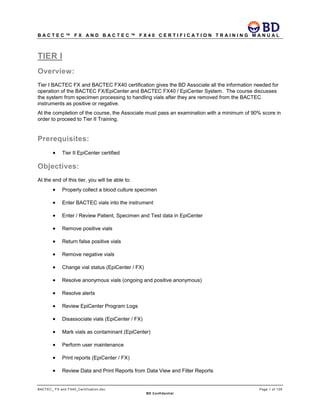
BD BACTEC™ FX and BD BACTEC™ FX40
Certification Training Manual
Tier I, II and III
BD Diagnostics
Technical Services and Support
7 Loveton Circle
Sparks, MD 21152
Phone: 800-638-8663
E-mail: technical_services@bd.com
B A C T E C ™ F X A N D B A C T E C ™ F X 4 0 C E R T I F I C A T I O N T R A I N I N G M A N U A L
BACTEC_ FX and FX40_Certification.doc Page 1 of 129
BD Confidential
TIER I
Overview:
Tier I BACTEC FX and BACTEC FX40 certification gives the BD Associate all the information needed for
operation of the BACTEC FX/EpiCenter and BACTEC FX40 / EpiCenter System. The course discusses
the system from specimen processing to handling vials after they are removed from the BACTEC
instruments as positive or negative.
At the completion of the course, the Associate must pass an examination with a minimum of 90% score in
order to proceed to Tier II Training.
Prerequisites:
• Tier II EpiCenter certified
Objectives:
At the end of this tier, you will be able to:
• Properly collect a blood culture specimen
• Enter BACTEC vials into the instrument
• Enter / Review Patient, Specimen and Test data in EpiCenter
• Remove positive vials
• Return false positive vials
• Remove negative vials
• Change vial status (EpiCenter / FX)
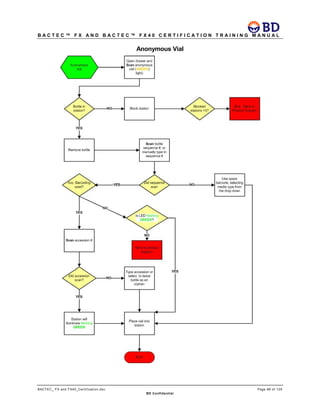
• Resolve anonymous vials (ongoing and positive anonymous)
• Resolve alerts
• Review EpiCenter Program Logs
• Disassociate vials (EpiCenter / FX)
• Mark vials as contaminant (EpiCenter)
• Perform user maintenance
• Print reports (EpiCenter / FX)
• Review Data and Print Reports from Data View and Filter Reports
B A C T E C ™ F X A N D B A C T E C ™ F X 4 0 C E R T I F I C A T I O N T R A I N I N G M A N U A L
BACTEC_ FX and FX40_Certification.doc Page 2 of 129
BD Confidential
• Configure FX Instrument and EpiCenter
• Perform basic troubleshooting activities
• Delete training vials from instrument after training
• Set up FX for Demo
References:
• BACTEC FX User’s Manual
• BACTEC FX40 User’s Manual
• BACTEC FX User’s Training Manual
• BACTEC FX40 User’s Training Manual
• CLSI M-47A
Course Length:
• One (1) day
Assessment:
• Minimum of 90% is required to proceed to the next tier.
B A C T E C ™ F X A N D B A C T E C ™ F X 4 0 C E R T I F I C A T I O N T R A I N I N G M A N U A L
BACTEC_ FX and FX40_Certification.doc Page 3 of 129
BD Confidential
TIER I Assessment
Name:___________________________
Date:____________________________
_____/63_____%
1. What happens when the following vials are removed and not scanned out? (3 pts)
• Ongoing
• Negative
• Positive
2. Explain how to enable and disable print time for automatic reports.(1pt)
3. Which reports can you configure to print automatically?(1pt)
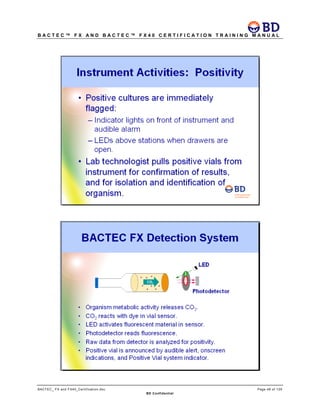
4. How is the laboratory notified that a vial has been detected as positive?(1pt)
B A C T E C ™ F X A N D B A C T E C ™ F X 4 0 C E R T I F I C A T I O N T R A I N I N G M A N U A L
BACTEC_ FX and FX40_Certification.doc Page 4 of 129
BD Confidential
5. You are removing a group of out of protocol negative vials and discover that one of the indicated
stations does not contain a vial. How are you going to "scan" this negative vial out of the
system?(1pt)
6. How can you correct vials that may have been assigned to the wrong Access #?(1pt)
7. What is the difference between an ORPHAN VIAL and an ANONYMOUS VIAL?(2 pts)
8. List the Standard Reports that can be generated by the BACTEC FX and BACTEC FX40?(8 pts)
9. How is an Anonymous Vial indicated and identified?(2 pts)
B A C T E C ™ F X A N D B A C T E C ™ F X 4 0 C E R T I F I C A T I O N T R A I N I N G M A N U A L
BACTEC_ FX and FX40_Certification.doc Page 5 of 129
BD Confidential
10. What options do you have if your workload exceeds the capacity of the BACTEC FX and BACTEC
FX40?(3 pts)
•
•
•
11. What is an unusable station?(1pt)
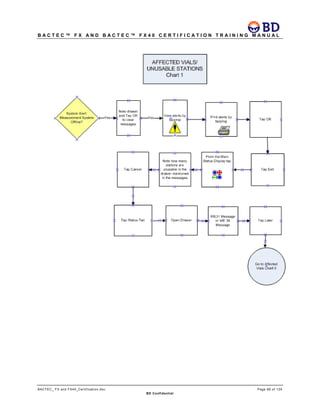
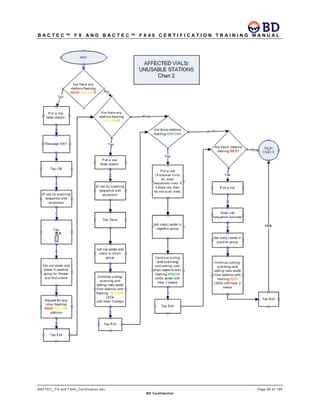
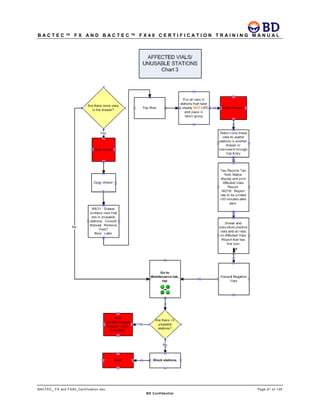
12. What causes an “Affected Vial”?(3 pts)
•
•
•
13. Under what circumstances should vials be subcultured?(1pt)
14. How many alerts can the alert screen hold?(1pt)
B A C T E C ™ F X A N D B A C T E C ™ F X 4 0 C E R T I F I C A T I O N T R A I N I N G M A N U A L
BACTEC_ FX and FX40_Certification.doc Page 6 of 129
BD Confidential
15. List the DAILY MAINTENANCE activities.(5 pts)
•
•
•
•
•
16. How many vials can: (3 pts)
• an FX single instrument hold? ______
• an FX instrument stack hold? _______
• an FX40 instrument hold?________
17. What is vial driven workflow?(1pt)
18. What is icon driven workflow?(1pt)
19. What is the acceptable temperature range of the BACTEC FX and BACTEC FX40 and where can
the user see the temperature of each FX drawer and FX40 instrument?(3pt)
20. Which media types can be used in the BACTEC FX and BACTEC FX40?(1pt)
B A C T E C ™ F X A N D B A C T E C ™ F X 4 0 C E R T I F I C A T I O N T R A I N I N G M A N U A L
BACTEC_ FX and FX40_Certification.doc Page 7 of 129
BD Confidential
21. How do you adjust the protocol length for a vial?(2pt)
22. What is the reason you cannot see the contaminant checkbox on a patient result?(1pt)
23. How do you view related vials?(1 pt) What is the color of the station LED for the related vial?
(1pt)
24. Identify the following icons:(6pts)
FX__________________FX40_____________________
25. How do the BACTEC FX and BACTEC FX40 instruments measure CO2?(1 pt)
B A C T E C ™ F X A N D B A C T E C ™ F X 4 0 C E R T I F I C A T I O N T R A I N I N G M A N U A L
BACTEC_ FX and FX40_Certification.doc Page 8 of 129
BD Confidential
26. If I pull out a vial and need to return it to the instrument, can I put a vial back anywhere?
(1 pt)
27. How are the instruments calibrated?(1 pt)
28. What happens if a vial is put in the wrong station?(1 pt)
29. Can the BACTEC FX and BACTEC FX40 instrument be interfaced to a LIS? Does it read LIS or
accession bar codes?(2 pt)
30. Which instrument can go into Isolation Mode? (1pt)
B A C T E C ™ F X A N D B A C T E C ™ F X 4 0 C E R T I F I C A T I O N T R A I N I N G M A N U A L
BACTEC_ FX and FX40_Certification.doc Page 9 of 129
BD Confidential
TIER II
Overview:
Tier II Training addresses the advanced functionality of the BACTEC FX and BACTEC FX40 Instruments
with EpiCenter. Tier II training focuses on the candidate’s need for better understanding of how the
instrument and data management software work and equip them with the tools necessary to provide
support for BACTEC instruments over the telephone and onsite. The Associate will be able to perform
troubleshooting as it relates to navigating customer through best practices flowcharts. Participants will
also have a more thorough knowledge of the detection system and working knowledge of plots. This
program includes engineering aspects of the instrument. LIS configuration at an elementary level will be
included and Epicenter as it relates to an Epicenter Workgroup Configuration.
At the end of the course, the Associate must pass an examination with a minimum of 90% score in order
to proceed to Tier III Training.
Prerequisites:
Successful completion of Tier I.
Objectives:
Upon completion of Tier II, the participants will be able to:
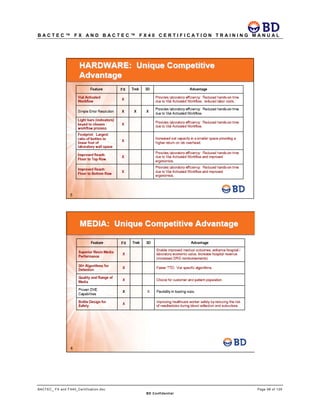
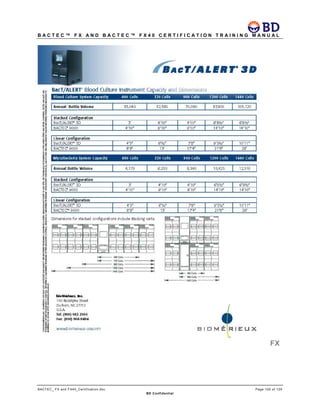
• Explain the highlights of the BACTEC FX and BACTEC FX40 system.
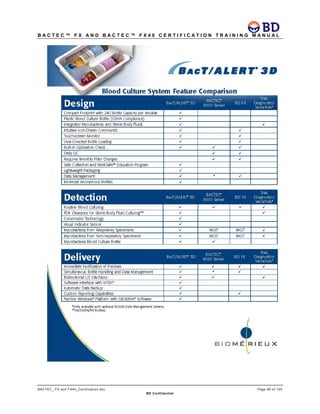
• Explain differences between BACTEC FX and BACTEC FX40 and competitive systems.
• Explain in a basic manner how the BACTEC FX and BACTEC FX40 instruments determine
when a vial is positive by means of plot review.
• Demonstrate an understanding of BACTEC FX and BACTEC FX40 technology, including value
of resin media.
• Understand how Blood Volume Monitoring is performed by the BACTEC FX and BACTEC
FX40.
• Understand the meaning of the data generated by the Blood Volume Reports.
• Demonstrate an understanding of the function of the vial presence sensor to detect vial peeking
or partially seated vials.
• Know the difference between Epi/FX and Standalone configuration.
• Explain the usage of BACTEC FX and BACTEC FX40 Master Database and its relationship to
Degraded Mode.
• Demonstrate an understanding of phlebotomy techniques for specimen collection.
B A C T E C ™ F X A N D B A C T E C ™ F X 4 0 C E R T I F I C A T I O N T R A I N I N G M A N U A L
BACTEC_ FX and FX40_Certification.doc Page 10 of 129
BD Confidential
• Be able to provide guidance to a customer for validation studies.
• Demonstrate an understanding of the impact if vial readings are interrupted for more than 40
minutes.
• Demonstrate a thorough knowledge of Critical and Non-critical Alerts and associated actions
required.
• Explain Affected Vials, Unusable Stations and Partially Seated vials.
• Explain Degraded Mode.
• Have an elementary engineering perspective of the instrument relative to LIS and Epicenter as
in a workgroup configuration.
• Be prepared for observed trainings onsite.
References
CLSI M-47A: Principles and Procedures for Blood Cultures
BALTRN0045
Course Length:
1 Day Course, depending on experience with BACTEC Fluorescent Series
Assessment:
• Minimum of 90% is required to proceed to the next tier.
B A C T E C ™ F X A N D B A C T E C ™ F X 4 0 C E R T I F I C A T I O N T R A I N I N G M A N U A L
BACTEC_ FX and FX40_Certification.doc Page 11 of 129
BD Confidential
Guidelines for Processing Positive Blood Cultures
IF NO ORGANISMS SEEN
RETURN BOTTLE BACK TO INSTRUMENT
AS SOON AS POSSIBLE
OR
(WITHIN 3 HOURS) IF RE-ENTRY OF
POSITIVES IS SET TO YES
IF ORGANISMS
SEEN
Perform
Gram Stain & Blind Subculture
Inside
Biological Safety Cabinet
GUIDELINES
FOR
PROCESSING POSITIVE BLOOD CULTURES
GRAM STAIN
Anaerobic Bottle
ANAEROBIC BLOOD AGAR PLATE
OR
SCHAEDLER AGAR
CHOCOLATE AGAR
SELECTIVE MEDIA (OPTIONAL)
ANAEROBIC BAP w/KV
ANAEROBIC CNA/PEA
Aerobic Bottle
BLOOD AGAR PLATE
CHOCOLATE AGAR
SELECTIVE MEDIA (OPTIONAL)
CNA/PEA AGAR
EMB/MACCONKEY
SAB DEX AGAR
Positive Blood
Instrument Alerts User
of Positive Vial
BLIND SUBCULTURE
To appropriate media
Reller, L.B., Murray, P.R., and MacLowry, J.D. 1982.
CUMITECH 1A: Cumulative Techniques and Proce-
dures in Clinical Microbiology Blood Cultures II.ASM,
Washington, DC.
September 2005
Work up organisms seen on
plates
&
Perform necessary testing for
Identification & Susceptibility
of organisms
**INCUBATE UNDER AEROBIC
CONDITIONS
** INCUBATE UNDER ANAEROBIC
CONDITIONS
B A C T E C ™ F X A N D B A C T E C ™ F X 4 0 C E R T I F I C A T I O N T R A I N I N G M A N U A L
BACTEC_ FX and FX40_Certification.doc Page 12 of 129
BD Confidential
Review CLSI M-47A: Principles and Procedures for Blood Cultures
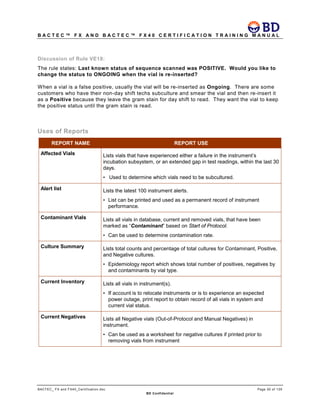
BACTEC™ Media
Review the advantages of premium media (Plus) over standard media and discuss Flayhart article in
appendix.
Journal of Clinical Microbiology, March 2007, p. 816-821, Vol. 45, No. 3
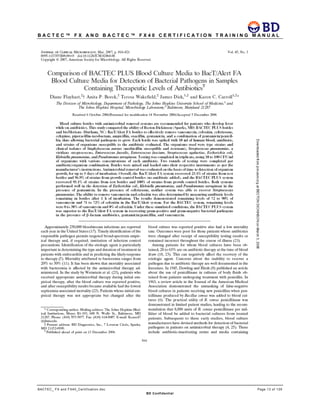
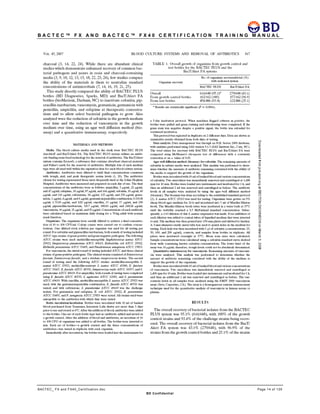
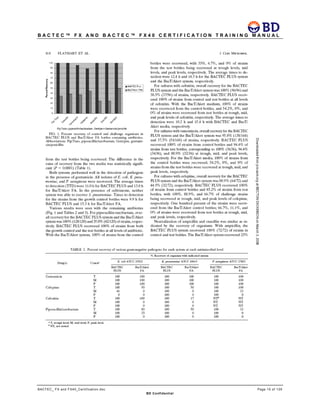
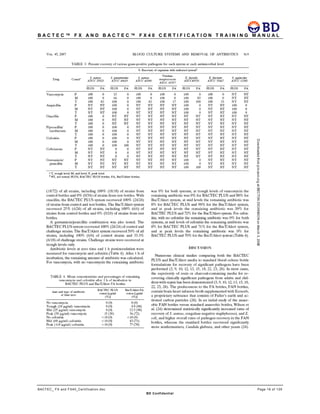
Comparison of BACTEC PLUS Blood Culture Media to BacT/Alert FA Blood Culture Media for
Detection of Bacterial Pathogens in Samples Containing Therapeutic Levels of Antibiotics
Diane Flayhart, Anita P. Borek, Teresa Wakefield, James Dick, and Karen C. Carroll*
B A C T E C ™ F X A N D B A C T E C ™ F X 4 0 C E R T I F I C A T I O N T R A I N I N G M A N U A L
BACTEC_ FX and FX40_Certification.doc Page 13 of 129
BD Confidential
B A C T E C ™ F X A N D B A C T E C ™ F X 4 0 C E R T I F I C A T I O N T R A I N I N G M A N U A L
BACTEC_ FX and FX40_Certification.doc Page 14 of 129
BD Confidential
B A C T E C ™ F X A N D B A C T E C ™ F X 4 0 C E R T I F I C A T I O N T R A I N I N G M A N U A L
BACTEC_ FX and FX40_Certification.doc Page 15 of 129
BD Confidential
B A C T E C ™ F X A N D B A C T E C ™ F X 4 0 C E R T I F I C A T I O N T R A I N I N G M A N U A L
BACTEC_ FX and FX40_Certification.doc Page 16 of 129
BD Confidential
B A C T E C ™ F X A N D B A C T E C ™ F X 4 0 C E R T I F I C A T I O N T R A I N I N G M A N U A L
BACTEC_ FX and FX40_Certification.doc Page 17 of 129
BD Confidential
B A C T E C ™ F X A N D B A C T E C ™ F X 4 0 C E R T I F I C A T I O N T R A I N I N G M A N U A L
BACTEC_ FX and FX40_Certification.doc Page 18 of 129
BD Confidential
B A C T E C ™ F X A N D B A C T E C ™ F X 4 0 C E R T I F I C A T I O N T R A I N I N G M A N U A L
BACTEC_ FX and FX40_Certification.doc Page 19 of 129
BD Confidential
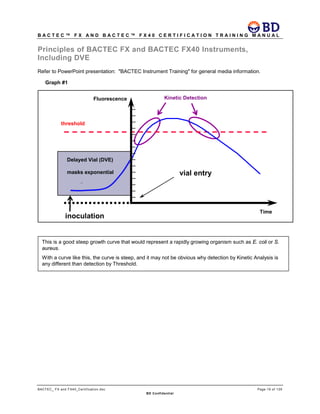
Principles of BACTEC FX and BACTEC FX40 Instruments,
Including DVE
Refer to PowerPoint presentation: "BACTEC Instrument Training" for general media information.
Kinetic Detection
threshold
Graph #1
inoculation
vial entry
Fluorescence
Time
Delayed Vial (DVE)
masks exponential
th
This is a good steep growth curve that would represent a rapidly growing organism such as E. coli or S.
aureus.
With a curve like this, the curve is steep, and it may not be obvious why detection by Kinetic Analysis is
any different than detection by Threshold.
B A C T E C ™ F X A N D B A C T E C ™ F X 4 0 C E R T I F I C A T I O N T R A I N I N G M A N U A L
BACTEC_ FX and FX40_Certification.doc Page 20 of 129
BD Confidential
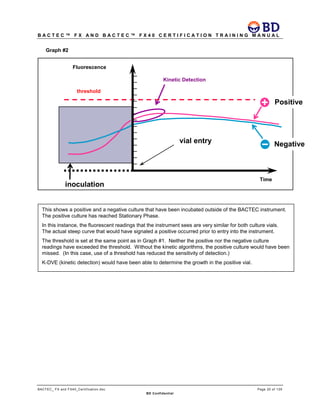
Kinetic Detection
threshold
Graph #2
inoculation
vial entry
Fluorescence
Time
Positive
Negative
This shows a positive and a negative culture that have been incubated outside of the BACTEC instrument.
The positive culture has reached Stationary Phase.
In this instance, the fluorescent readings that the instrument sees are very similar for both culture vials.
The actual steep curve that would have signaled a positive occurred prior to entry into the instrument.
The threshold is set at the same point as in Graph #1. Neither the positive nor the negative culture
readings have exceeded the threshold. Without the kinetic algorithms, the positive culture would have been
missed. (In this case, use of a threshold has reduced the sensitivity of detection.)
K-DVE (kinetic detection) would have been able to determine the growth in the positive vial.
B A C T E C ™ F X A N D B A C T E C ™ F X 4 0 C E R T I F I C A T I O N T R A I N I N G M A N U A L
BACTEC_ FX and FX40_Certification.doc Page 21 of 129
BD Confidential
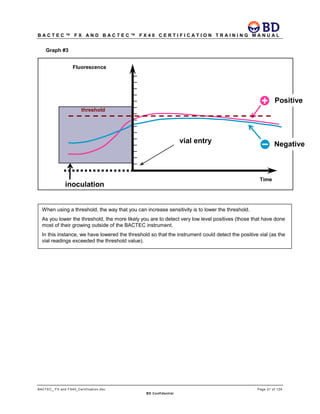
Graph #3
inoculation
vial entry
Fluorescence
Time
Positive
Negative
threshold
When using a threshold, the way that you can increase sensitivity is to lower the threshold.
As you lower the threshold, the more likely you are to detect very low level positives (those that have done
most of their growing outside of the BACTEC instrument.
In this instance, we have lowered the threshold so that the instrument could detect the positive vial (as the
vial readings exceeded the threshold value).
B A C T E C ™ F X A N D B A C T E C ™ F X 4 0 C E R T I F I C A T I O N T R A I N I N G M A N U A L
BACTEC_ FX and FX40_Certification.doc Page 22 of 129
BD Confidential
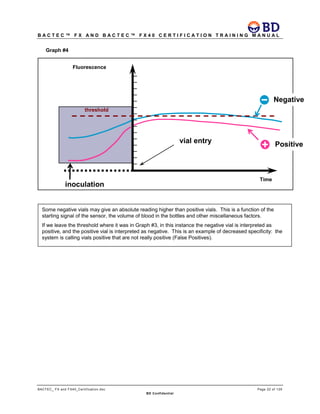
Graph #4
inoculation
vial entry
Fluorescence
Time
Positive
threshold
Negative
Some negative vials may give an absolute reading higher than positive vials. This is a function of the
starting signal of the sensor, the volume of blood in the bottles and other miscellaneous factors.
If we leave the threshold where it was in Graph #3, in this instance the negative vial is interpreted as
positive, and the positive vial is interpreted as negative. This is an example of decreased specificity: the
system is calling vials positive that are not really positive (False Positives).
B A C T E C ™ F X A N D B A C T E C ™ F X 4 0 C E R T I F I C A T I O N T R A I N I N G M A N U A L
BACTEC_ FX and FX40_Certification.doc Page 23 of 129
BD Confidential
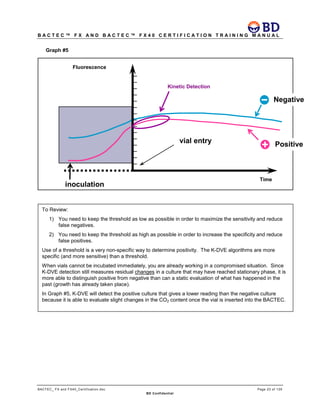
Graph #5
inoculation
vial entry
Fluorescence
Time
Positive
Negative
Kinetic Detection
To Review:
1) You need to keep the threshold as low as possible in order to maximize the sensitivity and reduce
false negatives.
2) You need to keep the threshold as high as possible in order to increase the specificity and reduce
false positives.
Use of a threshold is a very non-specific way to determine positivity. The K-DVE algorithms are more
specific (and more sensitive) than a threshold.
When vials cannot be incubated immediately, you are already working in a compromised situation. Since
K-DVE detection still measures residual changes in a culture that may have reached stationary phase, it is
more able to distinguish positive from negative than can a static evaluation of what has happened in the
past (growth has already taken place).
In Graph #5, K-DVE will detect the positive culture that gives a lower reading than the negative culture
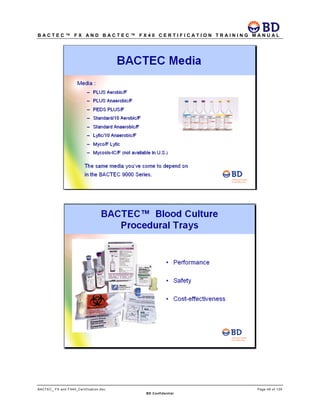
because it is able to evaluate slight changes in the CO2 content once the vial is inserted into the BACTEC.
B A C T E C ™ F X A N D B A C T E C ™ F X 4 0 C E R T I F I C A T I O N T R A I N I N G M A N U A L
BACTEC_ FX and FX40_Certification.doc Page 24 of 129
BD Confidential
BD BACTEC Blood Volume Monitoring (BVM)
Overview
Numerous studies have demonstrated that collecting higher blood volumes in blood culture media
increases the detection rates for bacteria and fungi (3,4,5). While the BACTEC PLUS media may be
used with blood volumes from 3 - 10 mL, the high end of the range (8 to 10 mL) is recommended.
Monitoring the volume of blood collected is useful as a tool to encourage proper volume collection and
also to identify areas for improvement.
The volume of blood in BD BACTEC Plus Aerobic/F negative bottles is estimated automatically from
blood background signal data in the BD BACTEC FX instrument via a patent pending process (1). Red
blood cells depend on environmental glucose as a source of energy (2) and this metabolic activity is
detected as a steady change in signal during the initial incubation of the BD BACTEC Plus Aerobic/F
bottle. The rate at which this metabolism occurs correlates with blood volume. The BD BACTEC FX
instrument can therefore estimate the blood volume and send it to EpiCenter for reporting.
Performance
The Root Mean Square Error (RMSE) is commonly used to measure performance when assessing
accuracy of aggregate data. RMSE is a measure of the precision between the predicted values and the
observed values, in this case the mean blood volume. With clinical data, the RMSE associated with
BVM was less than or equal to 1.0 mL. Other factors can affect blood background rates and may result
in individual blood volume estimates that are inaccurate. For this reason, only aggregate data are
reported.
Limitations
The estimation of blood volumes from background signals is not without limitations. In internal studies,
lab-created hematocrits below 30% resulted in higher error rates (RMSE greater than 1.5 mL).
Because the estimation of blood volume is based on the initial blood background rate, bottles that are
delayed before entry into the BD BACTEC FX instrument for more than 24 hours at room temperature
(20°C to 25°C) or greater than 12 hours at 35°C will result in an RMSE of greater than 1.5 mL.
These limitations should be taken into account when evaluating aggregate data that may contain a high
percentage of delayed bottles or low hematocrit samples.
References
1. Beaty, S. U.S. Patent Application Publication No. 2011/0029249. Washington, D.C.: U.S. Patent and
Trademark Office.
2. Beutler E. Energy metabolism and maintenance of erythrocytes, in Williams Hematology 5th edition, edited
by Beutler E., Lichtman M., Coller B., Kipps T. Williams pp 394-406. McGraw-Hill Inc. 1995.
3. Bouza, E., et al. 2007. Is the Volume of Blood Cultures Still a Significant Factor in the Diagnosis of
Bloodstream Infections? J. Clin. Microbiol. 45:2765-2769.
4. Hall, M. M., Ilstrup, D. M., Washington, J. A. 1976. Effect of volume of blood cultured on detection of
bacteremia. J. Clin. Microbiol. 3: 643-645.
5. lstrup, D. M., and Washington, J. A. 1983. The importance of volume of blood cultured in the detection of
bacteremia and fungemia. Diagn. Micr. Infec. Dis. 1:107-110.
B A C T E C ™ F X A N D B A C T E C ™ F X 4 0 C E R T I F I C A T I O N T R A I N I N G M A N U A L
BACTEC_ FX and FX40_Certification.doc Page 25 of 129
BD Confidential
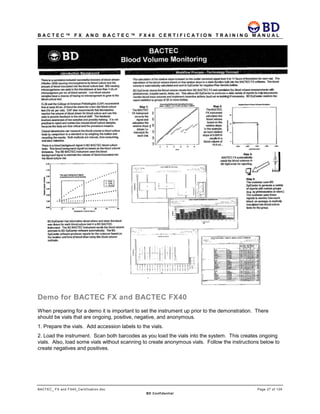
Blood Volume Determination
• The FX instrument has the algorithm that determines blood volume. The check occurs between 5
and 17 hours of incubation.
• The Epicenter does the calculation for the reports.
• A minimum of 25 vials is needed for all the reports except the Blood Volume Histogram Report
which needs 100 vials before a report can be generated for blood volume. This means 25 or 100
vials per parameter (a specific Collected By, a specific Hospital Service, a specific Specimen
Collection date, etc.) is needed.
– It was determined that the blood volume for a single bottle should not be calculated.
» If the patient is anemic or has received saline, blood volume determination might not be
accurate. Phlebotomist may have drawn the correct volume of blood, but rbc are scarce
or have been diluted.
• If a bottle has a spare barcode on it and a media type has not been chosen, the bottle is not
included in the data. The bottle must be an Aerobic Plus vial.
Blood Volume Monitoring Report Calculations
Blood Volume Summary
Mean: The average estimated blood volume excluding outliers.

Example
4, 5, 5, 5, 6, 7, 7, 9, 9, 9, 9, 9, 10, 10, 10, 16
114 ÷ 15 = 7.6 mL (excludes 16 mL)
Blood Volume Box Plot
Percentile Median: The estimated blood volume below which 50% and above which 50% fall. Outlying
estimated blood volumes are not used in the calculation.
Calculation
Vials have volumes of 1, 2, 5 , 7, 8, 8, 10, 10, 10, 16 mL
The median is: n + 1 ÷ 2.
n = 9 since not counting 16 mL (outlier)
The fifth value is 8, therefore, the median equals 8 mL
B A C T E C ™ F X A N D B A C T E C ™ F X 4 0 C E R T I F I C A T I O N T R A I N I N G M A N U A L
BACTEC_ FX and FX40_Certification.doc Page 26 of 129
BD Confidential
Suggestions for Performing Validation for BVM
• Weigh bottles individually before and after blood addition to determine the blood volume
o compensate for flip cap weight (0.4 g), if necessary
o compensate for labeling, if necessary
o the specific gravity of blood used in EpiCenter is 1.06 g/mL
• Test 50 or more bottles
• Run bottles at a low level (1-2 mL), a middle level (5-6 mL) and a high level (9-10 mL)
• Note that banked blood will not work, the system only works with freshly drawn blood
• Draw blood from five or more people
• The limitations of the test are in the EpiCenter help file for BVM
Conditions that EpiCenter uses to exclude a bottle from the BVM statistics:
• Went positive or had a manual result set
• The protocol or algorithms were restarted
• Not PLUS Aerobic/F media
• Removed prior to protocol completion
• Rejected based on BVM algorithm data quality checks; this is extremely rare
BVM R&D Paper
B A C T E C ™ F X A N D B A C T E C ™ F X 4 0 C E R T I F I C A T I O N T R A I N I N G M A N U A L
BACTEC_ FX and FX40_Certification.doc Page 27 of 129
BD Confidential
Demo for BACTEC FX and BACTEC FX40
When preparing for a demo it is important to set the instrument up prior to the demonstration. There
should be vials that are ongoing, positive, negative, and anonymous.
1. Prepare the vials. Add accession labels to the vials.
2. Load the instrument. Scan both barcodes as you load the vials into the system. This creates ongoing
vials. Also, load some vials without scanning to create anonymous vials. Follow the instructions below to
create negatives and positives.
B A C T E C ™ F X A N D B A C T E C ™ F X 4 0 C E R T I F I C A T I O N T R A I N I N G M A N U A L
BACTEC_ FX and FX40_Certification.doc Page 28 of 129
BD Confidential
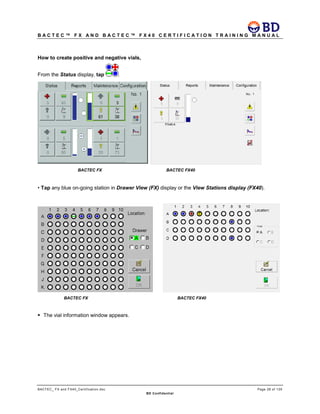
How to create positive and negative vials,
From the Status display, tap .
BACTEC FX BACTEC FX40
• Tap any blue on-going station in Drawer View (FX) display or the View Stations display (FX40).
BACTEC FX BACTEC FX40
 The vial information window appears.
B A C T E C ™ F X A N D B A C T E C ™ F X 4 0 C E R T I F I C A T I O N T R A I N I N G M A N U A L
BACTEC_ FX and FX40_Certification.doc Page 29 of 129
BD Confidential
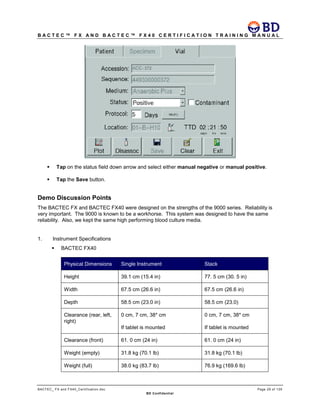
 Tap on the status field down arrow and select either manual negative or manual positive.
 Tap the Save button.
Demo Discussion Points
The BACTEC FX and BACTEC FX40 were designed on the strengths of the 9000 series. Reliability is
very important. The 9000 is known to be a workhorse. This system was designed to have the same
reliability. Also, we kept the same high performing blood culture media.
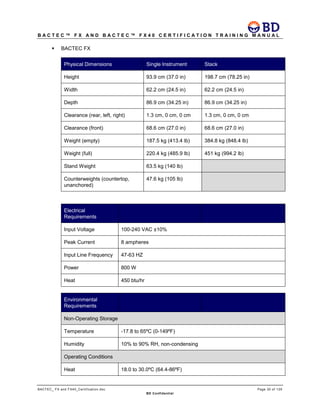
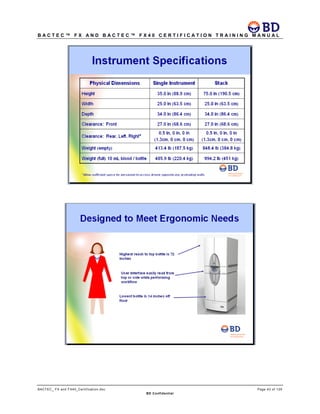
1. Instrument Specifications
 BACTEC FX40
Physical Dimensions Single Instrument Stack
Height 39.1 cm (15.4 in) 77. 5 cm (30. 5 in)
Width 67.5 cm (26.6 in) 67.5 cm (26.6 in)
Depth 58.5 cm (23.0 in) 58.5 cm (23.0)
Clearance (rear, left,
right)
0 cm, 7 cm, 38* cm
If tablet is mounted
0 cm, 7 cm, 38* cm
If tablet is mounted
Clearance (front) 61. 0 cm (24 in) 61. 0 cm (24 in)
Weight (empty) 31.8 kg (70.1 lb) 31.8 kg (70.1 lb)
Weight (full) 38.0 kg (83.7 lb) 76.9 kg (169.6 lb)
B A C T E C ™ F X A N D B A C T E C ™ F X 4 0 C E R T I F I C A T I O N T R A I N I N G M A N U A L
BACTEC_ FX and FX40_Certification.doc Page 30 of 129
BD Confidential
 BACTEC FX
Physical Dimensions Single Instrument Stack
Height 93.9 cm (37.0 in) 198.7 cm (78.25 in)
Width 62.2 cm (24.5 in) 62.2 cm (24.5 in)
Depth 86.9 cm (34.25 in) 86.9 cm (34.25 in)
Clearance (rear, left, right) 1.3 cm, 0 cm, 0 cm 1.3 cm, 0 cm, 0 cm
Clearance (front) 68.6 cm (27.0 in) 68.6 cm (27.0 in)
Weight (empty) 187.5 kg (413.4 lb) 384.8 kg (848.4 lb)
Weight (full) 220.4 kg (485.9 lb) 451 kg (994.2 lb)
Stand Weight 63.5 kg (140 lb)
Counterweights (countertop,
unanchored)
47.6 kg (105 lb)
Electrical
Requirements
Input Voltage 100-240 VAC ±10%
Peak Current 8 ampheres
Input Line Frequency 47-63 HZ
Power 800 W
Heat 450 btu/hr
Environmental
Requirements
Non-Operating Storage
Temperature -17.8 to 65ºC (0-149ºF)
Humidity 10% to 90% RH, non-condensing
Operating Conditions
Heat 18.0 to 30.0ºC (64.4-86ºF)
B A C T E C ™ F X A N D B A C T E C ™ F X 4 0 C E R T I F I C A T I O N T R A I N I N G M A N U A L
BACTEC_ FX and FX40_Certification.doc Page 31 of 129
BD Confidential
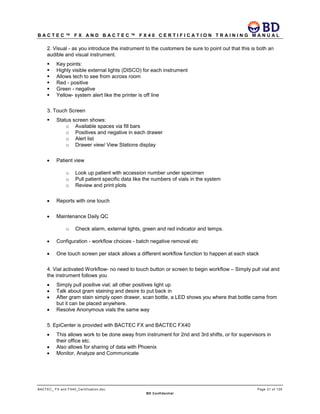
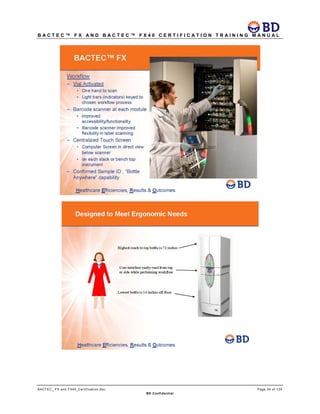
2. Visual - as you introduce the instrument to the customers be sure to point out that this is both an
audible and visual instrument.
 Key points:
 Highly visible external lights (DISCO) for each instrument
 Allows tech to see from across room
 Red - positive
 Green - negative
 Yellow- system alert like the printer is off line
3. Touch Screen
 Status screen shows:
o Available spaces via fill bars
o Positives and negative in each drawer
o Alert list
o Drawer view/ View Stations display
• Patient view
o Look up patient with accession number under specimen
o Pull patient specific data like the numbers of vials in the system
o Review and print plots
• Reports with one touch
• Maintenance Daily QC
o Check alarm, external lights, green and red indicator and temps.
• Configuration - workflow choices - batch negative removal etc
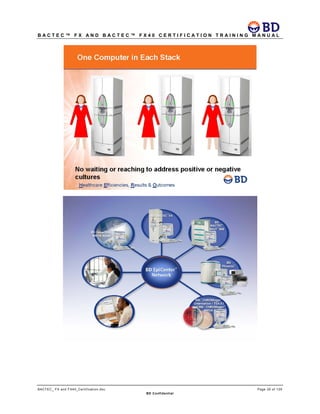
• One touch screen per stack allows a different workflow function to happen at each stack
4. Vial activated Workflow- no need to touch button or screen to begin workflow – Simply pull vial and
the instrument follows you
• Simply pull positive vial; all other positives light up
• Talk about gram staining and desire to put back in
• After gram stain simply open drawer, scan bottle, a LED shows you where that bottle came from
but it can be placed anywhere.
• Resolve Anonymous vials the same way
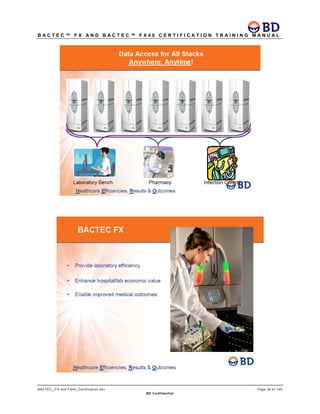
5. EpiCenter is provided with BACTEC FX and BACTEC FX40
• This allows work to be done away from instrument for 2nd and 3rd shifts, or for supervisors in
their office etc.
• Also allows for sharing of data with Phoenix
• Monitor, Analyze and Communicate
B A C T E C ™ F X A N D B A C T E C ™ F X 4 0 C E R T I F I C A T I O N T R A I N I N G M A N U A L
BACTEC_ FX and FX40_Certification.doc Page 32 of 129
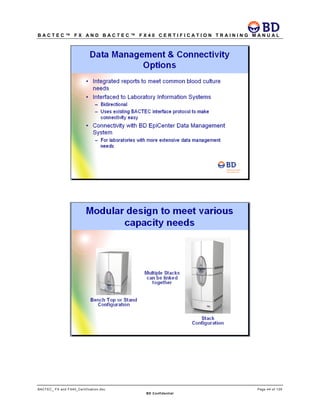
BD Confidential
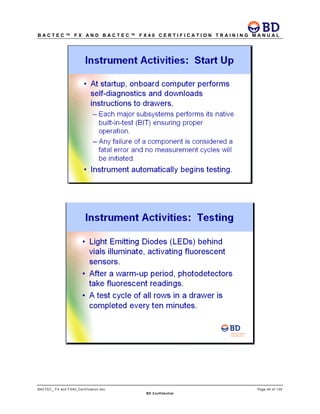
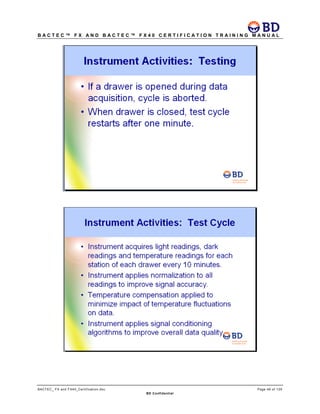
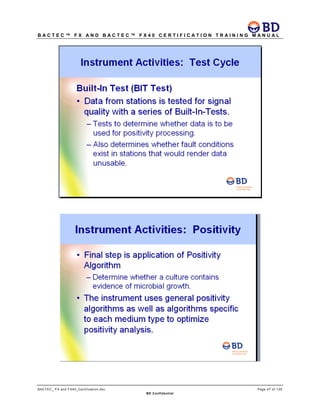
Shortened PowerPoint
B A C T E C ™ F X A N D B A C T E C ™ F X 4 0 C E R T I F I C A T I O N T R A I N I N G M A N U A L
BACTEC_ FX and FX40_Certification.doc Page 33 of 129
BD Confidential
B A C T E C ™ F X A N D B A C T E C ™ F X 4 0 C E R T I F I C A T I O N T R A I N I N G M A N U A L
BACTEC_ FX and FX40_Certification.doc Page 34 of 129
BD Confidential
B A C T E C ™ F X A N D B A C T E C ™ F X 4 0 C E R T I F I C A T I O N T R A I N I N G M A N U A L
BACTEC_ FX and FX40_Certification.doc Page 35 of 129
BD Confidential
B A C T E C ™ F X A N D B A C T E C ™ F X 4 0 C E R T I F I C A T I O N T R A I N I N G M A N U A L
BACTEC_ FX and FX40_Certification.doc Page 36 of 129
BD Confidential
B A C T E C ™ F X A N D B A C T E C ™ F X 4 0 C E R T I F I C A T I O N T R A I N I N G M A N U A L
BACTEC_ FX and FX40_Certification.doc Page 37 of 129
BD Confidential
B A C T E C ™ F X A N D B A C T E C ™ F X 4 0 C E R T I F I C A T I O N T R A I N I N G M A N U A L
BACTEC_ FX and FX40_Certification.doc Page 38 of 129
BD Confidential
B A C T E C ™ F X A N D B A C T E C ™ F X 4 0 C E R T I F I C A T I O N T R A I N I N G M A N U A L
BACTEC_ FX and FX40_Certification.doc Page 39 of 129
BD Confidential
B A C T E C ™ F X A N D B A C T E C ™ F X 4 0 C E R T I F I C A T I O N T R A I N I N G M A N U A L
BACTEC_ FX and FX40_Certification.doc Page 40 of 129
BD Confidential
B A C T E C ™ F X A N D B A C T E C ™ F X 4 0 C E R T I F I C A T I O N T R A I N I N G M A N U A L
BACTEC_ FX and FX40_Certification.doc Page 41 of 129
BD Confidential
B A C T E C ™ F X A N D B A C T E C ™ F X 4 0 C E R T I F I C A T I O N T R A I N I N G M A N U A L
BACTEC_ FX and FX40_Certification.doc Page 42 of 129
BD Confidential
B A C T E C ™ F X A N D B A C T E C ™ F X 4 0 C E R T I F I C A T I O N T R A I N I N G M A N U A L
BACTEC_ FX and FX40_Certification.doc Page 43 of 129
BD Confidential
B A C T E C ™ F X A N D B A C T E C ™ F X 4 0 C E R T I F I C A T I O N T R A I N I N G M A N U A L
BACTEC_ FX and FX40_Certification.doc Page 44 of 129
BD Confidential
B A C T E C ™ F X A N D B A C T E C ™ F X 4 0 C E R T I F I C A T I O N T R A I N I N G M A N U A L
BACTEC_ FX and FX40_Certification.doc Page 45 of 129
BD Confidential
B A C T E C ™ F X A N D B A C T E C ™ F X 4 0 C E R T I F I C A T I O N T R A I N I N G M A N U A L
BACTEC_ FX and FX40_Certification.doc Page 46 of 129
BD Confidential
B A C T E C ™ F X A N D B A C T E C ™ F X 4 0 C E R T I F I C A T I O N T R A I N I N G M A N U A L
BACTEC_ FX and FX40_Certification.doc Page 47 of 129
BD Confidential
B A C T E C ™ F X A N D B A C T E C ™ F X 4 0 C E R T I F I C A T I O N T R A I N I N G M A N U A L
BACTEC_ FX and FX40_Certification.doc Page 48 of 129
BD Confidential
B A C T E C ™ F X A N D B A C T E C ™ F X 4 0 C E R T I F I C A T I O N T R A I N I N G M A N U A L
BACTEC_ FX and FX40_Certification.doc Page 49 of 129
BD Confidential
B A C T E C ™ F X A N D B A C T E C ™ F X 4 0 C E R T I F I C A T I O N T R A I N I N G M A N U A L
BACTEC_ FX and FX40_Certification.doc Page 50 of 129
BD Confidential
Discussion of Rule VE18:
The rule states: Last known status of sequence scanned was POSITIVE. Would you like to
change the status to ONGOING when the vial is re-inserted?
When a vial is a false positive, usually the vial will be re-inserted as Ongoing. There are some
customers who have their non-day shift techs subculture and smear the vial and then re-insert it
as a Positive because they leave the gram stain for day shift to read. They want the vial to keep
the positive status until the gram stain is read.
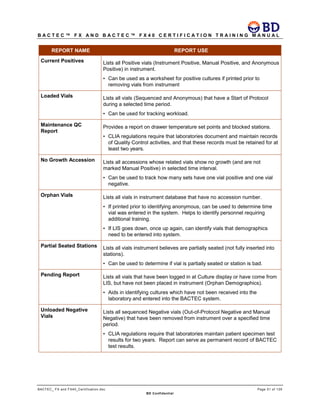
Uses of Reports
REPORT NAME REPORT USE
Affected Vials Lists vials that have experienced either a failure in the instrument’s
incubation subsystem, or an extended gap in test readings, within the last 30
days.
• Used to determine which vials need to be subcultured.
Alert list Lists the latest 100 instrument alerts.
• List can be printed and used as a permanent record of instrument
performance.
Contaminant Vials Lists all vials in database, current and removed vials, that have been
marked as “Contaminant” based on Start of Protocol.
• Can be used to determine contamination rate.
Culture Summary Lists total counts and percentage of total cultures for Contaminant, Positive,
and Negative cultures.
• Epidemiology report which shows total number of positives, negatives by
and contaminants by vial type.
Current Inventory Lists all vials in instrument(s).
• If account is to relocate instruments or is to experience an expected
power outage, print report to obtain record of all vials in system and
current vial status.
Current Negatives Lists all Negative vials (Out-of-Protocol and Manual Negatives) in
instrument.
• Can be used as a worksheet for negative cultures if printed prior to
removing vials from instrument
B A C T E C ™ F X A N D B A C T E C ™ F X 4 0 C E R T I F I C A T I O N T R A I N I N G M A N U A L
BACTEC_ FX and FX40_Certification.doc Page 51 of 129
BD Confidential
REPORT NAME REPORT USE
Current Positives Lists all Positive vials (Instrument Positive, Manual Positive, and Anonymous
Positive) in instrument.
• Can be used as a worksheet for positive cultures if printed prior to
removing vials from instrument
Loaded Vials Lists all vials (Sequenced and Anonymous) that have a Start of Protocol
during a selected time period.
• Can be used for tracking workload.
Maintenance QC
Report
Provides a report on drawer temperature set points and blocked stations.
• CLIA regulations require that laboratories document and maintain records
of Quality Control activities, and that these records must be retained for at
least two years.
No Growth Accession Lists all accessions whose related vials show no growth (and are not
marked Manual Positive) in selected time interval.
• Can be used to track how many sets have one vial positive and one vial
negative.
Orphan Vials Lists all vials in instrument database that have no accession number.
• If printed prior to identifying anonymous, can be used to determine time
vial was entered in the system. Helps to identify personnel requiring
additional training.
• If LIS goes down, once up again, can identify vials that demographics
need to be entered into system.
Partial Seated Stations Lists all vials instrument believes are partially seated (not fully inserted into
stations).
• Can be used to determine if vial is partially seated or station is bad.
Pending Report Lists all vials that have been logged in at Culture display or have come from
LIS, but have not been placed in instrument (Orphan Demographics).
• Aids in identifying cultures which have not been received into the
laboratory and entered into the BACTEC system.
Unloaded Negative
Vials
Lists all sequenced Negative vials (Out-of-Protocol Negative and Manual
Negative) that have been removed from instrument over a specified time
period.
• CLIA regulations require that laboratories maintain patient specimen test
results for two years. Report can serve as permanent record of BACTEC
test results.
B A C T E C ™ F X A N D B A C T E C ™ F X 4 0 C E R T I F I C A T I O N T R A I N I N G M A N U A L
BACTEC_ FX and FX40_Certification.doc Page 52 of 129
BD Confidential
REPORT NAME REPORT USE
Unloaded Positive
Vials
Lists all sequenced Positive Vials (Instrument Positive and Manual Positive)
that have been removed from instrument over a specified time period.
• CLIA regulations require that laboratories maintain patient specimen test
results for two years. Report can serve as permanent record of BACTEC
test results.
• Time to detection can be found on this report. This is the lapsed time
from when the vial was entered into instrument and when instrument
flagged it as positive.
Unloaded Vials Lists all sequenced vials that have been removed from instrument over a
specified time period.
• CLIA regulations require that laboratories maintain patient specimen test
results for two years. Report can serve as permanent record of BACTEC
test results.
Plot Generates a line graph of the test readings of a specified non-pending
station.
• Provides date and time vial flagged as positive.
FX40 Configuration
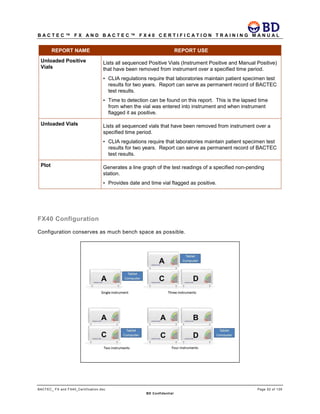
Configuration conserves as much bench space as possible.
B A C T E C ™ F X A N D B A C T E C ™ F X 4 0 C E R T I F I C A T I O N T R A I N I N G M A N U A L
BACTEC_ FX and FX40_Certification.doc Page 53 of 129
BD Confidential
Epi/FX Workgroup
Introduction
This section describes the behavior of BACTEC FX and BACTEC FX40 instruments that are connected to
an EpiCenter data management system.
The ‘Epi/FX’ configuration provides the user with a convenient and comprehensive view of patient
demographic and all related consumable information.
The EpiCenter must be running software version 5.6 or higher to connect with the BACTEC FX and
BACTEC FX40.
The installation and configuration of the Epi/FX configuration requires BD field service personnel.
The following topics are covered:
 EpiCenter Overview
 Epi/FX Connection Schema
 Epi/FX Configuration
EpiCenter Overview
EpiCenter is a clinical data management system designed for use with certain BD Diagnostic instrument
systems.
EpiCenter extends the data management functionality of BD Diagnostic instruments. This extended
functionality is comprised of many facets, including system security, reports and database queries, storing
extended demographic data, results generation, results reporting, and long-term data storage capabilities.
The EpiCenter system provides an easy to use graphical interface that allows the laboratory user to
consolidate and manage their clinical testing data from multiple BD Diagnostic instruments. Currently the
BACTEC MGIT 960, BACTEC 9000, BD Phoenix, BACTEC FX and the BACTEC FX40 can be connected
to the EpiCenter system.
The application accurately represents data in structures that are logical to the end users. The
configurable nature of EpiCenter allows various laboratory workflows to be supported.
Lastly, with increased demand for integration to external laboratory or hospital systems, EpiCenter
provides a standardized bi-directional communication channel to Laboratory Information Systems (LIS).
This allows the system to concentrate data from all BD instruments at one point, and only requires a single
LIS connection in order to report various instrumented test results to the LIS. It also only requires a single
LIS connection to obtain patient and specimen demographic information from the LIS for all connected
instrument types.
Traditional EpiCenter to Instrument connection schema
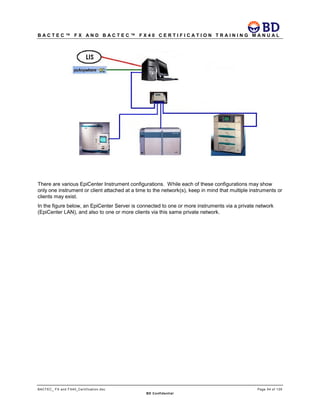
In the figure below, the green cable represents the PCAnywhere connection via an analog phone line into
the EpiCenter workstation’s modem. The red cable represents an RS-232 or serial connection from the
LIS to an available serial port on the EpiCenter workstation. The blue cables represent cat-5 network
cable connections from the attached instrument, via the switch, to the EpiCenter’s NIC.
B A C T E C ™ F X A N D B A C T E C ™ F X 4 0 C E R T I F I C A T I O N T R A I N I N G M A N U A L
BACTEC_ FX and FX40_Certification.doc Page 54 of 129
BD Confidential
There are various EpiCenter Instrument configurations. While each of these configurations may show
only one instrument or client attached at a time to the network(s), keep in mind that multiple instruments or
clients may exist.
In the figure below, an EpiCenter Server is connected to one or more instruments via a private network
(EpiCenter LAN), and also to one or more clients via this same private network.
B A C T E C ™ F X A N D B A C T E C ™ F X 4 0 C E R T I F I C A T I O N T R A I N I N G M A N U A L
BACTEC_ FX and FX40_Certification.doc Page 55 of 129
BD Confidential
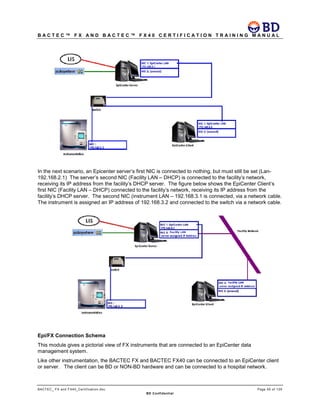
In the next scenario, an Epicenter server’s first NIC is connected to nothing, but must still be set (Lan-
192.168.2.1) The server’s second NIC (Facility LAN – DHCP) is connected to the facility’s network,
receiving its IP address from the facility’s DHCP server. The figure below shows the EpiCenter Client’s
first NIC (Facility LAN – DHCP) connected to the facility’s network, receiving its IP address from the
facility’s DHCP server. The second NIC (instrument LAN – 192.168.3.1 is connected, via a network cable.
The instrument is assigned an IP address of 192.168.3.2 and connected to the switch via a network cable.
Epi/FX Connection Schema
This module gives a pictorial view of FX instruments that are connected to an EpiCenter data
management system.
Like other instrumentation, the BACTEC FX and BACTEC FX40 can be connected to an EpiCenter client
or server. The client can be BD or NON-BD hardware and can be connected to a hospital network.
B A C T E C ™ F X A N D B A C T E C ™ F X 4 0 C E R T I F I C A T I O N T R A I N I N G M A N U A L
BACTEC_ FX and FX40_Certification.doc Page 56 of 129
BD Confidential
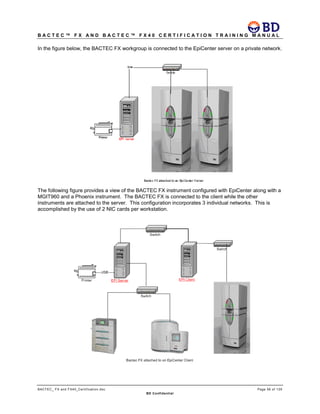
In the figure below, the BACTEC FX workgroup is connected to the EpiCenter server on a private network.
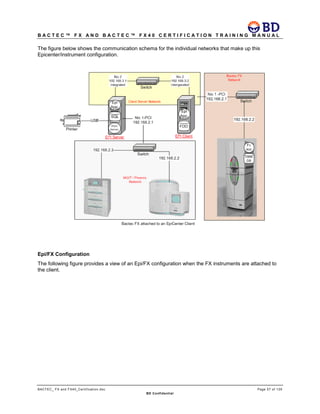
The following figure provides a view of the BACTEC FX instrument configured with EpiCenter along with a
MGIT960 and a Phoenix instrument. The BACTEC FX is connected to the client while the other
instruments are attached to the server. This configuration incorporates 3 individual networks. This is
accomplished by the use of 2 NIC cards per workstation.
B A C T E C ™ F X A N D B A C T E C ™ F X 4 0 C E R T I F I C A T I O N T R A I N I N G M A N U A L
BACTEC_ FX and FX40_Certification.doc Page 57 of 129
BD Confidential
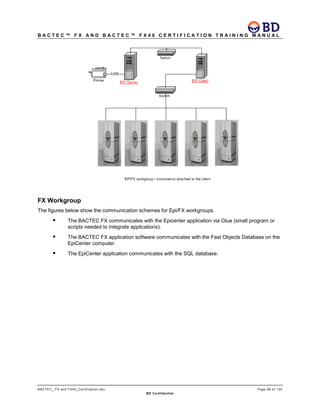
The figure below shows the communication schema for the individual networks that make up this
Epicenter/instrument configuration.
Epi/FX Configuration
The following figure provides a view of an Epi/FX configuration when the FX instruments are attached to
the client.
B A C T E C ™ F X A N D B A C T E C ™ F X 4 0 C E R T I F I C A T I O N T R A I N I N G M A N U A L
BACTEC_ FX and FX40_Certification.doc Page 58 of 129
BD Confidential
FX Workgroup
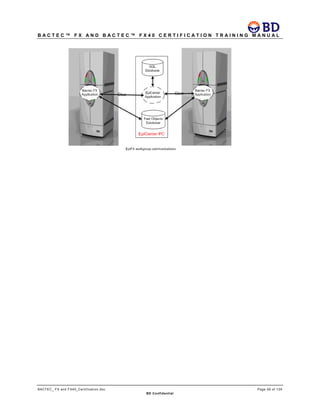
The figures below show the communication schemes for Epi/FX workgroups.
 The BACTEC FX communicates with the Epicenter application via Glue (small program or
scripts needed to integrate applications).
 The BACTEC FX application software communicates with the Fast Objects Database on the
EpiCenter computer.
 The EpiCenter application communicates with the SQL database.
B A C T E C ™ F X A N D B A C T E C ™ F X 4 0 C E R T I F I C A T I O N T R A I N I N G M A N U A L
BACTEC_ FX and FX40_Certification.doc Page 59 of 129
BD Confidential
B A C T E C ™ F X A N D B A C T E C ™ F X 4 0 C E R T I F I C A T I O N T R A I N I N G M A N U A L
BACTEC_ FX and FX40_Certification.doc Page 60 of 129
BD Confidential
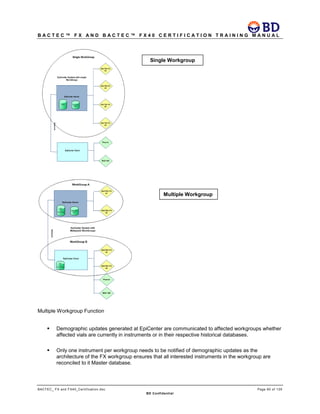
Multiple Workgroup Function
 Demographic updates generated at EpiCenter are communicated to affected workgroups whether
affected vials are currently in instruments or in their respective historical databases.
 Only one instrument per workgroup needs to be notified of demographic updates as the
architecture of the FX workgroup ensures that all interested instruments in the workgroup are
reconciled to it Master database.
Single Workgroup
Multiple Workgroup
B A C T E C ™ F X A N D B A C T E C ™ F X 4 0 C E R T I F I C A T I O N T R A I N I N G M A N U A L
BACTEC_ FX and FX40_Certification.doc Page 61 of 129
BD Confidential
 Translocated Vials
 EpiCenter displays a message identifying vial translocation (vial placed into FX in a different
workgroup).
» Consumable X previously in BACTEC FX Instrument 2 workgroup X has just been
reported by BACTEC FX Instrument X workgroup X. Consumables should not be
moved between FX workgroups. EpiCenter will not track any further updates for this
consumable from this workgroup. The recommended action is to return consumable
to its original workgroup and subculture the vial. (X = fill in the blank.)
» The message occurs at EpiCenter any time the vial’s status changes.
 No readings are recorded at EpiCenter while the vial remains in the wrong workgroups.
 EpiCenter recognizes that a vial has been moved to a different workgroup and stops
accepting updates for the vial; the instrument and the workgroup into which the vial was
moved is not aware of the problem and tests the vial as it would any other new vial.
» Reports generated from the instrument into which the vial was moved would include
the vial, while reports generated from EpiCenter would indicate that the vial was still in
its original instrument.
 A vial can be moved back to its original workgroup and processing continued based on the
current re-entry rules.
 Recalling a specimen at the FX only shows related vials within its workgroup NOT outside.
 Demographic changes (accession, patient name, patient ID, Hospital Service and collection
date/time, test delete) made at Epi to the translocated vials will ONLY be reflected in the
original workgroup.
 Test status information across the workgroups need not match at FX Culture Screen for a test
record belonging to a translocated vial. Test level attributes like Status, protocol length,
contamination, start date/time will ONLY be reflected at the original workgroup.
» Vial with Removed Ongoing status at workgroup A if scanned and inserted in
Workgroup B will cause the display of message 8315. The vial is considered “new”
by workgroup B. When the vial completes its protocol with a Negative/Positive
Status, the vial will display Removed Ongoing at any FX Culture Screen in
Workgroup A and Negative/Positive in any FX culture screen in workgroup B.
EpiCenter will display test information for a translocated vial from the original
workgroup i.e. the status at Epi would be Removed Ongoing.
 The BACTEC Instrument Inventory Report configuration still allows the user to select the FX
instruments from a list.
B A C T E C ™ F X A N D B A C T E C ™ F X 4 0 C E R T I F I C A T I O N T R A I N I N G M A N U A L
BACTEC_ FX and FX40_Certification.doc Page 62 of 129
BD Confidential
 All other standard and filter reports print data from all workgroups.
 Specimen Registration
 Recalling a patient at Specimen Reg at EpiCenter displays all the specimens for a patient
regardless of where the tests are located across the multiple workgroups.
» Recalling a patient at FX only shows related specimens in workgroup.
 Orphans List
 Shows all vials in all workgroups.
 Data View
 All data shown is for all workgroups
FX/Fast Objects Communication
1. FX talks to local Fast Objects Database (local resides on FX)
2. FX talks to the Master Fast Objects Database (master resides on EpiCenter computer)
3. FX pings EpiCenter
4. EpiCenter responds
5. Data is sent to EpiCenter
Turning OFF Fast Objects for Demonstration Purposes Only
1. Right Click on My Computer
2. Click Manage
3. Click Services and Applications
4. Click Services
5. Highlight Fast Objects
6. Click Stop
Upgrade
Customer Upgradeable Software
The customer can perform the software upgrade process for a BACTEC FX Epi/FX configuration as long
as no instruments are being added or removed from the configuration.
The upgrade of BACTEC FX software requires installing software on each of the BACTEC FX instruments
and any updates to the Master Fast Objects database on the EpiCenter work station individually.
Upgrades Requiring BD Field Service
BD field service must perform the configuration changes and perform the software upgrade process when
adding or removing instruments from the Epi/FX configuration.
B A C T E C ™ F X A N D B A C T E C ™ F X 4 0 C E R T I F I C A T I O N T R A I N I N G M A N U A L
BACTEC_ FX and FX40_Certification.doc Page 63 of 129
BD Confidential
Configuration
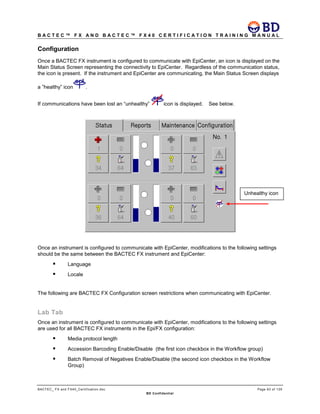
Once a BACTEC FX instrument is configured to communicate with EpiCenter, an icon is displayed on the
Main Status Screen representing the connectivity to EpiCenter. Regardless of the communication status,
the icon is present. If the instrument and EpiCenter are communicating, the Main Status Screen displays
a ”healthy” icon .
If communications have been lost an “unhealthy” icon is displayed. See below.
Once an instrument is configured to communicate with EpiCenter, modifications to the following settings
should be the same between the BACTEC FX instrument and EpiCenter:
 Language
 Locale
The following are BACTEC FX Configuration screen restrictions when communicating with EpiCenter.
Lab Tab
Once an instrument is configured to communicate with EpiCenter, modifications to the following settings
are used for all BACTEC FX instruments in the Epi/FX configuration:
 Media protocol length
 Accession Barcoding Enable/Disable (the first icon checkbox in the Workflow group)
 Batch Removal of Negatives Enable/Disable (the second icon checkbox in the Workflow
Group)
Unhealthy icon
B A C T E C ™ F X A N D B A C T E C ™ F X 4 0 C E R T I F I C A T I O N T R A I N I N G M A N U A L
BACTEC_ FX and FX40_Certification.doc Page 64 of 129
BD Confidential
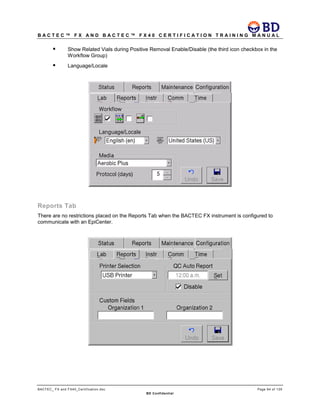
 Show Related Vials during Positive Removal Enable/Disable (the third icon checkbox in the
Workflow Group)
 Language/Locale
Reports Tab
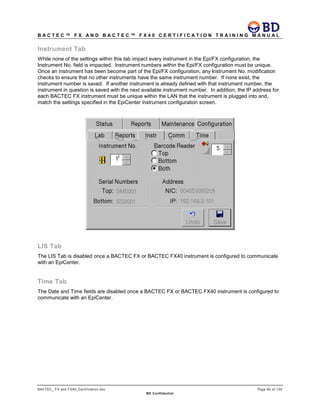
There are no restrictions placed on the Reports Tab when the BACTEC FX instrument is configured to
communicate with an EpiCenter.
B A C T E C ™ F X A N D B A C T E C ™ F X 4 0 C E R T I F I C A T I O N T R A I N I N G M A N U A L
BACTEC_ FX and FX40_Certification.doc Page 65 of 129
BD Confidential
Instrument Tab
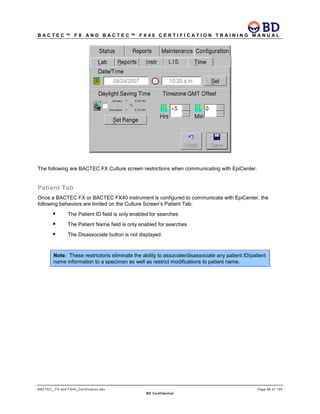
While none of the settings within this tab impact every instrument in the Epi/FX configuration, the
Instrument No. field is impacted. Instrument numbers within the Epi/FX configuration must be unique.
Once an instrument has been become part of the Epi/FX configuration, any Instrument No. modification
checks to ensure that no other instruments have the same instrument number. If none exist, the
instrument number is saved. If another instrument is already defined with that instrument number, the
instrument in question is saved with the next available instrument number. In addition, the IP address for
each BACTEC FX instrument must be unique within the LAN that the instrument is plugged into and,
match the settings specified in the EpiCenter instrument configuration screen.
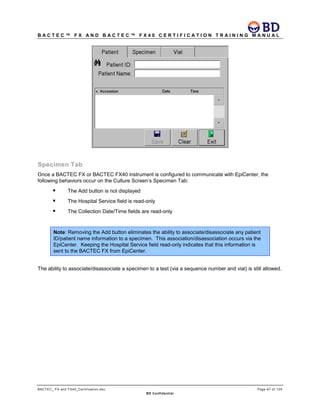
LIS Tab
The LIS Tab is disabled once a BACTEC FX or BACTEC FX40 instrument is configured to communicate
with an EpiCenter.
Time Tab
The Date and Time fields are disabled once a BACTEC FX or BACTEC FX40 instrument is configured to
communicate with an EpiCenter.
B A C T E C ™ F X A N D B A C T E C ™ F X 4 0 C E R T I F I C A T I O N T R A I N I N G M A N U A L
BACTEC_ FX and FX40_Certification.doc Page 66 of 129
BD Confidential
The following are BACTEC FX Culture screen restrictions when communicating with EpiCenter.
Patient Tab
Once a BACTEC FX or BACTEC FX40 instrument is configured to communicate with EpiCenter, the
following behaviors are limited on the Culture Screen’s Patient Tab:
 The Patient ID field is only enabled for searches
 The Patient Name field is only enabled for searches
 The Disassociate button is not displayed.
Note: These restrictions eliminate the ability to associate/disassociate any patient ID/patient
name information to a specimen as well as restrict modifications to patient name.
B A C T E C ™ F X A N D B A C T E C ™ F X 4 0 C E R T I F I C A T I O N T R A I N I N G M A N U A L
BACTEC_ FX and FX40_Certification.doc Page 67 of 129
BD Confidential
Specimen Tab
Once a BACTEC FX or BACTEC FX40 instrument is configured to communicate with EpiCenter, the
following behaviors occur on the Culture Screen’s Specimen Tab:
 The Add button is not displayed
 The Hospital Service field is read-only
 The Collection Date/Time fields are read-only
Note: Removing the Add button eliminates the ability to associate/disassociate any patient
ID/patient name information to a specimen. This association/disassociation occurs via the
EpiCenter. Keeping the Hospital Service field read-only indicates that this information is
sent to the BACTEC FX from EpiCenter.
The ability to associate/disassociate a specimen to a test (via a sequence number and vial) is still allowed.
B A C T E C ™ F X A N D B A C T E C ™ F X 4 0 C E R T I F I C A T I O N T R A I N I N G M A N U A L
BACTEC_ FX and FX40_Certification.doc Page 68 of 129
BD Confidential
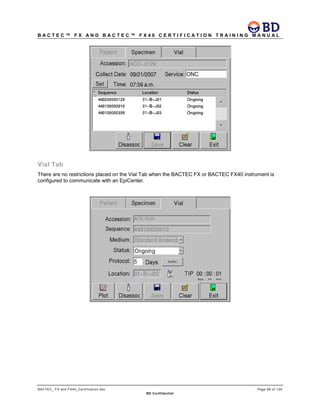
Vial Tab
There are no restrictions placed on the Vial Tab when the BACTEC FX or BACTEC FX40 instrument is
configured to communicate with an EpiCenter.
B A C T E C ™ F X A N D B A C T E C ™ F X 4 0 C E R T I F I C A T I O N T R A I N I N G M A N U A L
BACTEC_ FX and FX40_Certification.doc Page 69 of 129
BD Confidential
Reporting Across Instruments
Reporting data for all instruments is accomplished via the Report module at EpiCenter. Requesting a
report from an individual BACTEC FX or BACTEC FX 40 instrument only prints the data on the report for
the requesting instrument. There is no common reporting across all instruments via the Reports Tab or
from any Print button on BACTEC FX or BACTEC FX40.
Vial Information available within the Epi/FX configuration
Since the data for all of the instruments within an Epi/FX configuration is resident in the Fast Objects
Database (which is on the EpiCenter work station), vial information is accessible from any instrument.
This means the following can occur from any instrument:
 Information for any vial in the Epi/FX configuration can be recalled into the Culture Screen
 Information for any vial in the Epi/FX configuration can be modified via the Culture Screen
 Determination of known sequence number information can occur from any barcode scan or
manual entry via the Vial Entry and Identify Anonymous activities
When vial information for a specimen is spread among more than one instrument within the Epi/FX
configuration, the BACTEC FX or BACTEC FX40 provides a view of all of the related data. For example,
when an accession is recalled on the Culture Screen’s Specimen Tab, all of the vials related to that
accession are displayed in the Vial List, regardless of where they are located.
Relocation of Vials
A vial can be moved from one instrument into another within the Epi/FX configuration (single workgroup)
while continuing the original test protocol provided:
 the vial is removed and re-entered within the Re-entry window
 the vial is moved into an instrument that is communicating with the Master Fast Objects
database (not in Degraded Mode)
When a vial is moved within these criteria, algorithmic processing continues. When a vial is moved
outside of these criteria, the vial’s protocol is restarted thus causing algorithmic processing to be restarted
on the vial.
This translocation behavior also exists in the standalone BACTEC FX and BACTEC FX40 instrument
application. The difference being that the standalone BACTEC FX and BACTEC FX40 allows vials to be
moved into different stations within the same instrument. Therefore, in an Epi/FX configuration, the vial
translocation can occur anywhere in the Epi/FX configuration. This is specifically allowed because the
Master Fast Objects Database is resident on the EpiCenter work station.
Printer Sharing
At the BACTEC FX the Printer Type drop-down list box on the Reports tab displays an additional option
EpiCenter Printer and defaults to it once the BACTEC FX or BACTEC FX40 is configured to
communicate with EpiCenter. This setting is editable, and does not limit the Epi/FX configuration to use
only this printer setting.
B A C T E C ™ F X A N D B A C T E C ™ F X 4 0 C E R T I F I C A T I O N T R A I N I N G M A N U A L
BACTEC_ FX and FX40_Certification.doc Page 70 of 129
BD Confidential
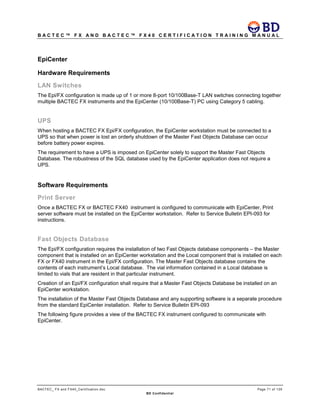
EpiCenter provides network-printing support for BACTEC FX and BACTEC FX40 instruments connected
to EpiCenter when this option is selected at the BACTEC FX or BACTEC FX40 instrument. This printing
support allows the BACTEC FX and BACTEC FX40 instrument(s) to print to the default printer of the
EpiCenter machine to which it is connected. To print using this service, the BACTEC FX or BACTEC
FX40 instrument sends the print stream using PCL5 Printing Language data to the EpiCenter PC, which in
turn receives the data and initiates the print job on it’s own default printer.
When EpiCenter Printer is selected as the Printer Selection on an FX or FX40 instrument, the reports
generated at that instrument are printed on the EpiCenter Server’s default printer. When multiple FX or
FX40 instruments have selected the EpiCenter printer as the Selected Printer and simultaneous requests
for reports are made on the multiple instruments, the EpiCenter printer prints each report requested by the
FX or FX40 instruments. The print order of those reports on the EpiCenter printer is not guaranteed.
However, the Instrument Number is contained on each page of each report; therefore, there should be no
difficulty recognizing the origin of the print request.
The figure below represents Epicenter’s printer configuration options.
B A C T E C ™ F X A N D B A C T E C ™ F X 4 0 C E R T I F I C A T I O N T R A I N I N G M A N U A L
BACTEC_ FX and FX40_Certification.doc Page 71 of 129
BD Confidential
EpiCenter
Hardware Requirements
LAN Switches
The Epi/FX configuration is made up of 1 or more 8-port 10/100Base-T LAN switches connecting together
multiple BACTEC FX instruments and the EpiCenter (10/100Base-T) PC using Category 5 cabling.
UPS
When hosting a BACTEC FX Epi/FX configuration, the EpiCenter workstation must be connected to a
UPS so that when power is lost an orderly shutdown of the Master Fast Objects Database can occur
before battery power expires.
The requirement to have a UPS is imposed on EpiCenter solely to support the Master Fast Objects
Database. The robustness of the SQL database used by the EpiCenter application does not require a
UPS.
Software Requirements
Print Server
Once a BACTEC FX or BACTEC FX40 instrument is configured to communicate with EpiCenter, Print
server software must be installed on the EpiCenter workstation. Refer to Service Bulletin EPI-093 for
instructions.
Fast Objects Database
The Epi/FX configuration requires the installation of two Fast Objects database components – the Master
component that is installed on an EpiCenter workstation and the Local component that is installed on each
FX or FX40 instrument in the Epi/FX configuration. The Master Fast Objects database contains the
contents of each instrument’s Local database. The vial information contained in a Local database is
limited to vials that are resident in that particular instrument.
Creation of an Epi/FX configuration shall require that a Master Fast Objects Database be installed on an
EpiCenter workstation.
The installation of the Master Fast Objects Database and any supporting software is a separate procedure
from the standard EpiCenter installation. Refer to Service Bulletin EPI-093
The following figure provides a view of the BACTEC FX instrument configured to communicate with
EpiCenter.
B A C T E C ™ F X A N D B A C T E C ™ F X 4 0 C E R T I F I C A T I O N T R A I N I N G M A N U A L
BACTEC_ FX and FX40_Certification.doc Page 72 of 129
BD Confidential
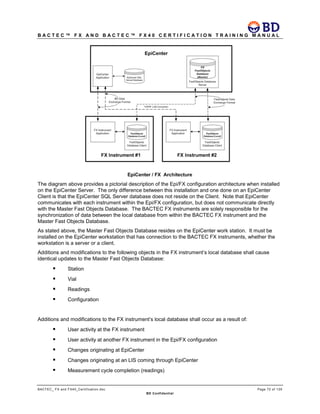
The diagram above provides a pictorial description of the Epi/FX configuration architecture when installed
on the EpiCenter Server. The only difference between this installation and one done on an EpiCenter
Client is that the EpiCenter SQL Server database does not reside on the Client. Note that EpiCenter
communicates with each instrument within the Epi/FX configuration, but does not communicate directly
with the Master Fast Objects Database. The BACTEC FX instruments are solely responsible for the
synchronization of data between the local database from within the BACTEC FX instrument and the
Master Fast Objects Database.
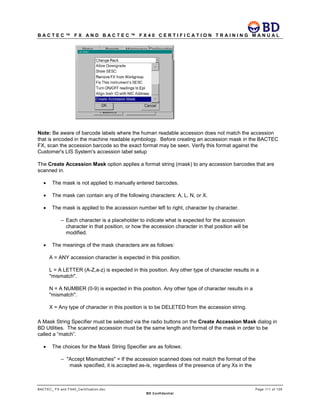
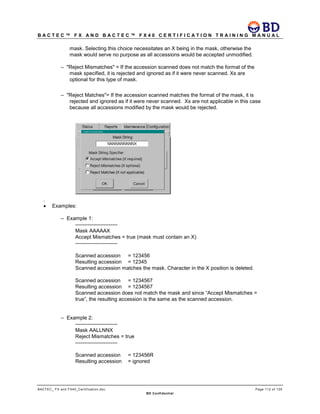
As stated above, the Master Fast Objects Database resides on the EpiCenter work station. It must be
installed on the EpiCenter workstation that has connection to the BACTEC FX instruments, whether the
workstation is a server or a client.
Additions and modifications to the following objects in the FX instrument’s local database shall cause
identical updates to the Master Fast Objects Database:
 Station
 Vial
 Readings
 Configuration
Additions and modifications to the FX instrument’s local database shall occur as a result of:
 User activity at the FX instrument
 User activity at another FX instrument in the Epi/FX configuration
 Changes originating at EpiCenter
 Changes originating at an LIS coming through EpiCenter
 Measurement cycle completion (readings)
B A C T E C ™ F X A N D B A C T E C ™ F X 4 0 C E R T I F I C A T I O N T R A I N I N G M A N U A L
BACTEC_ FX and FX40_Certification.doc Page 73 of 129
BD Confidential
 Algorithmic results
 Reconciliation
Database Backup/ Restore
Backing up the Master Fast Objects database is accomplished for diagnostics purposes only. In the case
of a catastrophic failure, the instruments retain a vial’s accession information (but none of the other
demographic information). In the case of a catastrophic failure of the Master Fast Objects database, a
blank copy of that database will be restored. The data for any vials that are currently in the instrument will
be repopulated in the Master Fast Objects database at the time of recovery. Any vials that were not in the
instrument at the time of recovery only exist at EpiCenter.
DMU (Database Maintenance Utility)
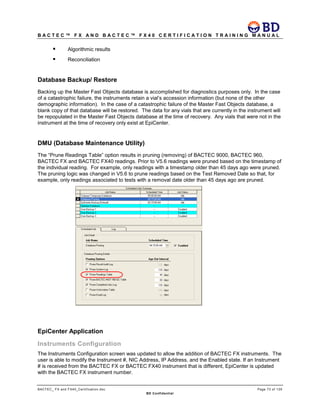
The “Prune Readings Table” option results in pruning (removing) of BACTEC 9000, BACTEC 960,
BACTEC FX and BACTEC FX40 readings. Prior to V5.6 readings were pruned based on the timestamp of
the individual reading. For example, only readings with a timestamp older than 45 days ago were pruned.
The pruning logic was changed in V5.6 to prune readings based on the Test Removed Date so that, for
example, only readings associated to tests with a removal date older than 45 days ago are pruned.
EpiCenter Application
Instruments Configuration
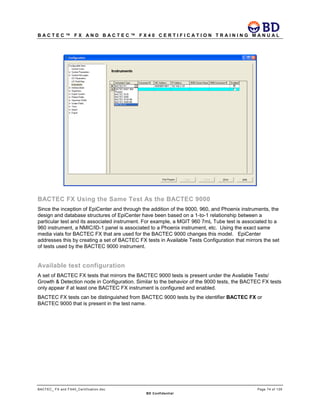
The Instruments Configuration screen was updated to allow the addition of BACTEC FX instruments. The
user is able to modify the Instrument #, NIC Address, IP Address, and the Enabled state. If an Instrument
# is received from the BACTEC FX or BACTEC FX40 instrument that is different, EpiCenter is updated
with the BACTEC FX instrument number.
B A C T E C ™ F X A N D B A C T E C ™ F X 4 0 C E R T I F I C A T I O N T R A I N I N G M A N U A L
BACTEC_ FX and FX40_Certification.doc Page 74 of 129
BD Confidential
BACTEC FX Using the Same Test As the BACTEC 9000
Since the inception of EpiCenter and through the addition of the 9000, 960, and Phoenix instruments, the
design and database structures of EpiCenter have been based on a 1-to-1 relationship between a
particular test and its associated instrument. For example, a MGIT 960 7mL Tube test is associated to a
960 instrument, a NMIC/ID-1 panel is associated to a Phoenix instrument, etc. Using the exact same
media vials for BACTEC FX that are used for the BACTEC 9000 changes this model. EpiCenter
addresses this by creating a set of BACTEC FX tests in Available Tests Configuration that mirrors the set
of tests used by the BACTEC 9000 instrument.
Available test configuration
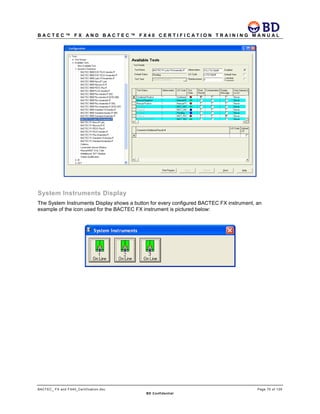
A set of BACTEC FX tests that mirrors the BACTEC 9000 tests is present under the Available Tests/
Growth & Detection node in Configuration. Similar to the behavior of the 9000 tests, the BACTEC FX tests
only appear if at least one BACTEC FX instrument is configured and enabled.
BACTEC FX tests can be distinguished from BACTEC 9000 tests by the identifier BACTEC FX or
BACTEC 9000 that is present in the test name.
B A C T E C ™ F X A N D B A C T E C ™ F X 4 0 C E R T I F I C A T I O N T R A I N I N G M A N U A L
BACTEC_ FX and FX40_Certification.doc Page 75 of 129
BD Confidential
System Instruments Display
The System Instruments Display shows a button for every configured BACTEC FX instrument, an
example of the icon used for the BACTEC FX instrument is pictured below:
B A C T E C ™ F X A N D B A C T E C ™ F X 4 0 C E R T I F I C A T I O N T R A I N I N G M A N U A L
BACTEC_ FX and FX40_Certification.doc Page 76 of 129
BD Confidential
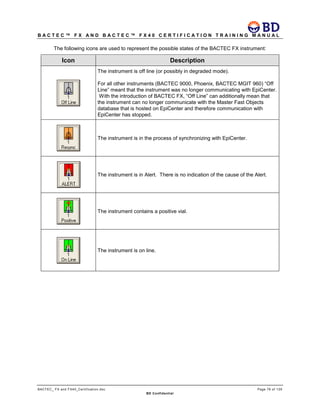
The following icons are used to represent the possible states of the BACTEC FX instrument:
Icon Description
The instrument is off line (or possibly in degraded mode).
For all other instruments (BACTEC 9000, Phoenix, BACTEC MGIT 960) “Off
Line” meant that the instrument was no longer communicating with EpiCenter.
With the introduction of BACTEC FX, “Off Line” can additionally mean that
the instrument can no longer communicate with the Master Fast Objects
database that is hosted on EpiCenter and therefore communication with
EpiCenter has stopped.
The instrument is in the process of synchronizing with EpiCenter.
The instrument is in Alert. There is no indication of the cause of the Alert.
The instrument contains a positive vial.
The instrument is on line.
B A C T E C ™ F X A N D B A C T E C ™ F X 4 0 C E R T I F I C A T I O N T R A I N I N G M A N U A L
BACTEC_ FX and FX40_Certification.doc Page 77 of 129
BD Confidential
BACTEC FX Instrument Status Display
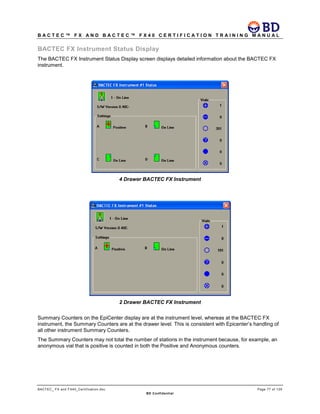
The BACTEC FX Instrument Status Display screen displays detailed information about the BACTEC FX
instrument.
4 Drawer BACTEC FX Instrument
2 Drawer BACTEC FX Instrument
Summary Counters on the EpiCenter display are at the instrument level, whereas at the BACTEC FX
instrument, the Summary Counters are at the drawer level. This is consistent with Epicenter’s handling of
all other instrument Summary Counters.
The Summary Counters may not total the number of stations in the instrument because, for example, an
anonymous vial that is positive is counted in both the Positive and Anonymous counters.
B A C T E C ™ F X A N D B A C T E C ™ F X 4 0 C E R T I F I C A T I O N T R A I N I N G M A N U A L
BACTEC_ FX and FX40_Certification.doc Page 78 of 129
BD Confidential
Plot
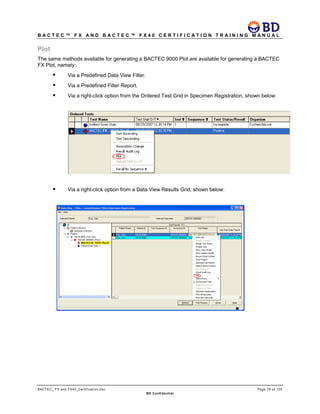
The same methods available for generating a BACTEC 9000 Plot are available for generating a BACTEC
FX Plot, namely:
 Via a Predefined Data View Filter.

 Via a Predefined Filter Report.
 Via a right-click option from the Ordered Test Grid in Specimen Registration, shown below:
 Via a right-click option from a Data View Results Grid, shown below:
B A C T E C ™ F X A N D B A C T E C ™ F X 4 0 C E R T I F I C A T I O N T R A I N I N G M A N U A L
BACTEC_ FX and FX40_Certification.doc Page 79 of 129
BD Confidential
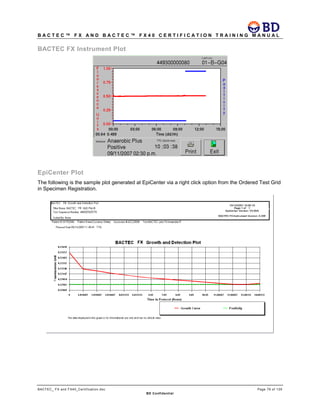
BACTEC FX Instrument Plot
EpiCenter Plot
The following is the sample plot generated at EpiCenter via a right click option from the Ordered Test Grid
in Specimen Registration.
B A C T E C ™ F X A N D B A C T E C ™ F X 4 0 C E R T I F I C A T I O N T R A I N I N G M A N U A L
BACTEC_ FX and FX40_Certification.doc Page 80 of 129
BD Confidential
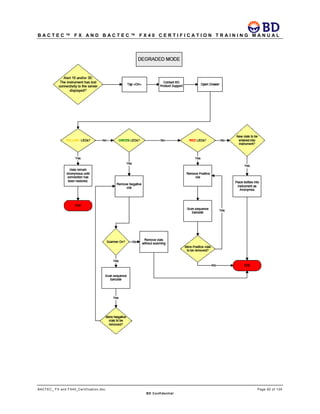
Degraded Mode
A BACTEC FX and BACTEC FX40 instrument within an Epi/FX configuration will go into Degraded Mode
when it loses its connection to the Fast Objects Database in the EpiCenter workstation. Degraded Mode
does not refer to the physical status of communication or lack thereof with the EpiCenter application.
However, once a BACTEC FX instrument transitions into Degraded Mode, that instrument also halts
communications with EpiCenter (GLUE) thus effectively putting the BACTEC FX instrument into an offline
state with respect to EpiCenter.
While user interaction with the instrument is limited when the instrument is running in Degraded Mode,
basic internal operations (e.g. incubation, agitation, measurement, and algorithmic processing) continue.
A BACTEC FX or BACTEC FX40 instrument is not in Degraded Mode if it has a connection to the Fast
Objects Database even if communication with EpiCenter has been lost. However, in this instance,
EpiCenter considers the BACTEC FX instrument to be offline.
Main Status Screen
Once a BACTEC FX or a BACTEC FX40 instrument has transitioned into Degraded Mode, the following
occurs on the Main Status Screen of that instrument:
 The Epi icon displays the unhealthy icon
 The Progress Bars for all of the drawers are color-filled, indicating that there are no available
stations
The following buttons are disabled:
 Vial Entry for each drawer group
 Identify Anonymous for each drawer group
 The Culture Screen button
Opening any drawer in a BACTEC FX instrument or the door of a BACTEC FX40 that is in Degraded
Mode while the Main Status Screen is displayed, only causes station LEDs containing positive or negative
vials to illuminate. Pulling a positive or negative vial invokes the associated Remove Positive or Remove
Negative activities.
The barcode reader cannot be turned on unless the Remove Positive or the Remove Negative (in
scanned mode) is invoked.
Pulling an anonymous vial from a station that is not illuminated while the Main Status Screen is displayed
does not invoke the Identify Anonymous activity. Instead, a message is displayed to the user informing
them of the status of the instrument.
Placing any vials into the instrument while the Main Status Screen is displayed causes the vials to become
anonymous.
B A C T E C ™ F X A N D B A C T E C ™ F X 4 0 C E R T I F I C A T I O N T R A I N I N G M A N U A L
BACTEC_ FX and FX40_Certification.doc Page 81 of 129
BD Confidential
Reports Tab
Once a BACTEC FX or BACTEC FX40 instrument has transitioned into Degraded Mode, the Reports Tab
is disabled on that instrument.
Maintenance Tab
The Upgrade and Change Password functionalities are disabled from the Maintenance Tab. The rest of
the Maintenance Screen functionality is unaffected.
Configuration Tab
The Configuration Tab is disabled.
Vial Entry Screen
The Vial Entry Screen is not displayed. When a drawer in a BACTEC FX instrument in Degraded Mode is
opened while the Main Status Screen is displayed, the Vial Entry button is not enabled.
Identify Anonymous Screen
The Identify Anonymous Screen is not displayed. When a drawer in a BACTEC FX or the BACTEC FX40
instrument is opened in Degraded Mode the Identify Anonymous button is not enabled.
Remove Positive Workflow
The Remove Positive activity is still available while the instruments are in Degraded Mode provided
positive vials exist. The station LEDs for any stations containing positive-anonymous vials are not
illuminated while the Remove Positive Vial screen is displayed.
Show Related Functionality
The Show Related functionality is not available for any instrument that is in Degraded Mode.
Remove Negative
The Remove Negative activity is still available while the instruments are in Degraded Mode provided
negative vials exist.
Culture Screen
The Culture Screen’s button is not enabled.
 Plot Screen
 Since the Plot Screen is only available from the Culture Screen, the Plot Screen and Plot
Reporting capabilities are not available.
B A C T E C ™ F X A N D B A C T E C ™ F X 4 0 C E R T I F I C A T I O N T R A I N I N G M A N U A L
BACTEC_ FX and FX40_Certification.doc Page 82 of 129
BD Confidential
Exception Pull Vials
Pulling any vial that is considered an exception pull vial is not handled in the same manner when an
instrument is in Degraded Mode. This is because resolving exception pulls in a single instrument may
result in either the Vial Entry or Identify Anonymous screens being displayed. Since Vial Entry and Identify
Anonymous activities are not available while in Degraded Mode, an alternative message is displayed.
Anonymous Vial Entry
When a vial is placed into the instrument, that vial will have an anonymous status. This is because there
are no provisions for scanning or manually-entering the vial’s sequence number by way of the Vial Entry or
Identify Anonymous Screens while the instrument is in Degraded Mode.
System Alert Screen/Reporting
When an instrument transitions into Degraded Mode, a system alert reflecting that condition is reported at
the instrument.
Epi/FX Behavior When More than 1 Instrument is Unavailable
While a Degraded Mode instrument exists within the Epi/FX configuration, the rest of the instruments as
well as the EpiCenter connection to those instruments, are not restricted in the same manner.
All of the other instruments in the Epi/FX configuration are still able to perform all of the following activities:
access the Reports Tab, access the Culture Screen and Plot, etc.
The following sections describe the rest of the instruments behaviors in an Epi/FX configuration when
attempting to recall/modify data that is resident in the instrument that is in Degraded Mode.
Culture Screen
When a vial that is physically located in a Degraded Mode instrument is recalled into the Culture Screen of
a communicating instrument:
 No modifications are allowed to that vial
 An offline icon is displayed on the screen indicating that the vial resides in an instrument that
is in degraded mode.
When a vial that is physically not in any instrument is recalled into the Culture Screen, modifications are
allowed to that vial.
This restrictive behavior prevents the Master Fast Objects Database and the instruments local database
from becoming unnecessarily out of sync.
B A C T E C ™ F X A N D B A C T E C ™ F X 4 0 C E R T I F I C A T I O N T R A I N I N G M A N U A L
BACTEC_ FX and FX40_Certification.doc Page 83 of 129
BD Confidential
Reports
Reports containing instrument data generated by EpiCenter are still available when Epi/FX configuration
instruments are in Degraded Mode, but the data associated to the degraded instruments may not be real
time.
Epi/FX LIS
Any interface with an LIS occurs via EpiCenter when a BACTEC instrument is configured to interface with
EpiCenter.
EpiCenter supports either the ASTM 1381 or BDMODEM protocol for upload and download of BACTEC
FX or BACTEC FX40 information. Uploaded/downloaded information must conform to the respective
protocol specifications available from Document Control:
Document Name Document Control Number Description
LIS Vendor Interface Document L-005933
ASTM 1381
Specifications
BACTEC 9000 LIS Vendor Interface
Specification
MA-0101
BDModem
Specifications
Downloads
When only BACTEC 9000 instruments are configured, an LIS download containing a sequence number
and a Test ID LIS Code orders a 9000 test.
When only BACTEC FX or BACTEC FX40 instruments are configured, an LIS download containing a
sequence number and a Test ID LIS Code orders a BACTEC FX test.
When both 9000 and BACTEC FX instruments are configured, an LIS download containing a sequence
number and a Test ID LIS Code orders a BACTEC FX test by default. However, the order can be matched
up to a test from either instrument. For example:
 If the downloaded sequence number matches up to a test currently in a BACTEC 9000
instrument, the downloaded test order is automatically associated to that BACTEC 9000 test.
 If the downloaded sequence number is for a pending test, and a BACTEC bottle for that test
is subsequently placed into a BACTEC 9000 instrument, the test name is automatically
changed to the BACTEC 9000 test name.
Uploads
When both BACTEC 9000 and BACTEC FX instruments are configured, the origin of a Test level LIS
upload containing a sequence number and an LIS Code can be distinguished by the Instrument Type field,
which is included in an uploaded result record.
B A C T E C ™ F X A N D B A C T E C ™ F X 4 0 C E R T I F I C A T I O N T R A I N I N G M A N U A L
BACTEC_ FX and FX40_Certification.doc Page 84 of 129
BD Confidential
Emulate BACTEC 9000 LIS
When configured to use BDMODEM for the physical protocol, EpiCenter supports emulation of BACTEC
9000 LIS Interface via selection of the existing checkbox shown below in LIS Parameters Configuration.
LIS Code Uniqueness
Available Tests Configuration currently enforces unique LIS Codes amongst tests. This might not be
acceptable for LIS Vendors who would be forced to upload/download 2 different LIS codes (i.e. one for the
BACTEC 9000 and another for the BACTEC FX) for what is essentially the same consumable.
Accordingly, the uniqueness rule is relaxed to allow for duplicate LIS Codes between BACTEC
9000/BACTEC FX test pairings.
By default, BACTEC FX tests have the same LIS Codes as their BACTEC 9000 test counterparts. For
example, the BACTEC 9000 PEDS Plus/F and BACTEC FX PEDS Plus/F tests have the same LIS
Codes.
B A C T E C ™ F X A N D B A C T E C ™ F X 4 0 C E R T I F I C A T I O N T R A I N I N G M A N U A L
BACTEC_ FX and FX40_Certification.doc Page 85 of 129
BD Confidential
Recommended UPS for BACTEC FX (not BACTEC FX40)
ONEAC ON1500XAU-SN (U.S.)
FEATURE DESCRIPTION
1500VA Can be used for single instrument or a stack
Battery Run time: Depends on ambient conditions, i.e. how hard heaters are running.
Run times listed are based on typical ambient temperature of 23°C)
• Stack: ~15 min
• Single: ~30 min
Run times can vary based on changes in ambient conditions.
Size 3.5x17.25x19.5" (HWD)
Weight 61 lbs
Installation • Fits in compartment under electronics drawer in a stack.
• For a single, it can be oriented horizontally or vertically.
• For example, for a single on a stand, it could be oriented
horizontally on the bottom of the stand under the printer.
• For a single on a benchtop, it could be oriented vertically next to the
instrument
Additional Features Power conditioner (cleans up power from a dirty site).
Cost Approx $1,066
Shipping Drop shipped from ONEAC (BD does not stock ).
Ex-Us Model 230VAC version for European installs also available - distinctly different
product number.
B A C T E C ™ F X A N D B A C T E C ™ F X 4 0 C E R T I F I C A T I O N T R A I N I N G M A N U A L
BACTEC_ FX and FX40_Certification.doc Page 86 of 129
BD Confidential
Best Practices / Flowcharts
Note: The flowcharts for BACTEC FX and BACTEC FX 40 are similar, except for the wording
about drawers. The BACTEC FX40 does not contain drawers so the word instrument should be
substituted in the workflow.
Positive Anonymous Vial
B A C T E C ™ F X A N D B A C T E C ™ F X 4 0 C E R T I F I C A T I O N T R A I N I N G M A N U A L
BACTEC_ FX and FX40_Certification.doc Page 87 of 129
BD Confidential
B A C T E C ™ F X A N D B A C T E C ™ F X 4 0 C E R T I F I C A T I O N T R A I N I N G M A N U A L
BACTEC_ FX and FX40_Certification.doc Page 88 of 129
BD Confidential
Anonymous Vial
B A C T E C ™ F X A N D B A C T E C ™ F X 4 0 C E R T I F I C A T I O N T R A I N I N G M A N U A L
BACTEC_ FX and FX40_Certification.doc Page 89 of 129
BD Confidential
B A C T E C ™ F X A N D B A C T E C ™ F X 4 0 C E R T I F I C A T I O N T R A I N I N G M A N U A L
BACTEC_ FX and FX40_Certification.doc Page 90 of 129
BD Confidential
B A C T E C ™ F X A N D B A C T E C ™ F X 4 0 C E R T I F I C A T I O N T R A I N I N G M A N U A L
BACTEC_ FX and FX40_Certification.doc Page 91 of 129
BD Confidential
B A C T E C ™ F X A N D B A C T E C ™ F X 4 0 C E R T I F I C A T I O N T R A I N I N G M A N U A L
BACTEC_ FX and FX40_Certification.doc Page 92 of 129
BD Confidential
B A C T E C ™ F X A N D B A C T E C ™ F X 4 0 C E R T I F I C A T I O N T R A I N I N G M A N U A L
BACTEC_ FX and FX40_Certification.doc Page 93 of 129
BD Confidential
Configuring EpiCenter for use with BACTEC FX or FX40
Accession Number Re-Use in EpiCenter
Note: EpiCenter system may be “basic”. If so, you will have to log on with backdoor password to
set these configurations.
1. If accession numbers are not reused, the default values do not have to be modified.
2. If accession numbers are reused, the Duplicate Accession # parameters require modification.
a. Set the value for both:
i. Do not attach a new test to a Final specimen older than N days
ii. Do not attach a new test to a Preliminary specimen older than N days.
b. The value that is set should be shorter than the expected accession reuse time, but long enough
for the protocol length of a blood culture (greater than 5 days).
i. If connected to MGIT instrument, value should be greater than 42 days.
3. In addition, specimens must be finalized in order for the accession re-use function to work properly.
Configuration of Duplicate Accession # Parameters
B A C T E C ™ F X A N D B A C T E C ™ F X 4 0 C E R T I F I C A T I O N T R A I N I N G M A N U A L
BACTEC_ FX and FX40_Certification.doc Page 94 of 129
BD Confidential
Configuration of Tests in EpiCenter (BACTEC FX connected with or without MGIT)
Note: EpiCenter system may be “basic”. If so, you have to log on with backdoor password to set
these configurations.
Note: These setting may vary depending on the LIS system being used.
1. Check Final Result checkbox for all negative test states for every vial type sold in the country.
2. Disable Confirmed Positive.
3. Check Display Message checkboxes according to customer’s decision.
Tests Configuration
B A C T E C ™ F X A N D B A C T E C ™ F X 4 0 C E R T I F I C A T I O N T R A I N I N G M A N U A L
BACTEC_ FX and FX40_Certification.doc Page 95 of 129
BD Confidential
Configuring Audible Alerts
Note: Discuss these configurations with the customer before setting the configurations. The
available options are dependent upon whether Multi-User and Sentinel have been purchased.
1. Determine if customer wants an audible alert/system message for any of the items on the list.
a. Rule 21105 alerts that a blood culture vial is positive.
i. Enable Audible Alerts checkbox if audible alert is desired.
ii. Select Alert Type from drop down box: None, Once, Continuous.
2. Determine if/where customer wants the System Message(s) displayed.
a. Check appropriate checkboxes for where the message should be displayed.
i. Multiple workstations are displayed if the Multi-User option has been purchased.
ii. Email options are displayed if the Sentinel option has been purchased.
Audible Alert Configuration
B A C T E C ™ F X A N D B A C T E C ™ F X 4 0 C E R T I F I C A T I O N T R A I N I N G M A N U A L
BACTEC_ FX and FX40_Certification.doc Page 96 of 129
BD Confidential
Competitive Information
B A C T E C ™ F X A N D B A C T E C ™ F X 4 0 C E R T I F I C A T I O N T R A I N I N G M A N U A L
BACTEC_ FX and FX40_Certification.doc Page 97 of 129
BD Confidential
B A C T E C ™ F X A N D B A C T E C ™ F X 4 0 C E R T I F I C A T I O N T R A I N I N G M A N U A L
BACTEC_ FX and FX40_Certification.doc Page 98 of 129
BD Confidential
B A C T E C ™ F X A N D B A C T E C ™ F X 4 0 C E R T I F I C A T I O N T R A I N I N G M A N U A L
BACTEC_ FX and FX40_Certification.doc Page 99 of 129
BD Confidential
B A C T E C ™ F X A N D B A C T E C ™ F X 4 0 C E R T I F I C A T I O N T R A I N I N G M A N U A L
BACTEC_ FX and FX40_Certification.doc Page 100 of 129
BD Confidential
FX
B A C T E C ™ F X A N D B A C T E C ™ F X 4 0 C E R T I F I C A T I O N T R A I N I N G M A N U A L
BACTEC_ FX and FX40_Certification.doc Page 101 of 129
BD Confidential
B A C T E C ™ F X A N D B A C T E C ™ F X 4 0 C E R T I F I C A T I O N T R A I N I N G M A N U A L
BACTEC_ FX and FX40_Certification.doc Page 102 of 129
BD Confidential
B A C T E C ™ F X A N D B A C T E C ™ F X 4 0 C E R T I F I C A T I O N T R A I N I N G M A N U A L
BACTEC_ FX and FX40_Certification.doc Page 103 of 129
BD Confidential
Delete Training Vials After Training
1. Change the vial status for all vials that are in the instrument to Manual Negative.
2. Physically remove all vials that are in the instrument.
3. Delete any patients or specimens connected to training in EpiCenter.
File Utility
Overview
This utility allows BD associates to retrieve the following files from one or more FX instruments in a
workgroup:
• event log
• alert list
• assert snapshot.bin file
• commLog
• VxLog
• directory structure text file.
FXFileUtility also can display the current screen from an FX instrument, as well as send “touch” events
back to the instrument. This effectively allows some remote control of an FX instrument.
General Setup
1. Starting with 2.00B software, the FXFileUtility will be installed on the customer’s EpiCenter PC.
a. The following procedure should only be used if the FX_Utils folder is not on the customer’s
EpiCenter PC or the folder does not contain the FXFileUtility.exe.
• Determine the version of software that the customer site is running.
1. This information is printed on the header of any report, which has most likely been sent
to BD for problem investigation. If the requestor has not supplied this information, the
customer site must be contacted to determine the version of software that they are
running. (The software version is printed in the header of every report and is visible on
the Maintenance->Utilities tab in the S/W Versions drop down list.)
• Retrieve the FXFileUtility application from the K:NgbReleasesVn.nnx FXFileUtility.exe,
where Vn.nnx represents the software version that is installed at the customer site.
• Place the FXFileUtility.exe into a folder named FX_Utils.
• If “pcAnywhere”, “LogMeIn”, or some other remote access program is being used, then the
file should be zipped before it is transferred to the customer’s site.
2. Follow the procedures documented in BACTEC FX pcAnywhere_LogMeIn Procedure.doc to remotely
access the user’s EpiCenter PC.
B A C T E C ™ F X A N D B A C T E C ™ F X 4 0 C E R T I F I C A T I O N T R A I N I N G M A N U A L
BACTEC_ FX and FX40_Certification.doc Page 104 of 129
BD Confidential
a. If using “LogMeIn” remote access, the default printer for the EpiCenter is set to the BD_PC (the
remotely controlling PC). If the BACTEC FX instruments are configured to have the EpiCenter
printer, then any report that is printed from the instrument while it is being remotely controlled is
printed at the printer associated to the BC_PC (the remote user’s PC).
Starting FXFileUtility Application
1. Scroll to the bottom of the screen on the customer’s EpiCenter PC until the EpiCenter’s PC Start
button ( ) is displayed on the bottom left of the window.
a. If “pcAnywhere”, “LogMeIn”, or some other remote access program is being used, the remote PC’s
<Start> may also be displayed. Make sure that the EpiCenter PC <Start> is the one that is
selected.
2. Right click the Start button and select “Explore” from the list that is displayed.
3. In the Explorer window that is displayed, navigate to c:NGBFX_Utils.
4. Double click on the FXFileUtility.exe application. The following window appears.
B A C T E C ™ F X A N D B A C T E C ™ F X 4 0 C E R T I F I C A T I O N T R A I N I N G M A N U A L
BACTEC_ FX and FX40_Certification.doc Page 105 of 129
BD Confidential
5. The instruments that are currently configured in the EpiCenter Configuration window are listed. If an
instrument is not listed, enter it by clicking the <Add> button and entering its instrument number and
IP Address.
Collecting data for Instrument(s)
1. Select the instrument for which data is to be collected by clicking the check box in the “Selected”
column or, to collect information for all instruments, click the <All> button below the list of instruments.
• One data item can be collected at a time by clicking the corresponding button - <Event Log>,
<Alerts>, <Asserts>, <Comm Log>, <VxLog>, or <Directory>.
B A C T E C ™ F X A N D B A C T E C ™ F X 4 0 C E R T I F I C A T I O N T R A I N I N G M A N U A L
BACTEC_ FX and FX40_Certification.doc Page 106 of 129
BD Confidential
• Data files available for collection:
a. Event Log - retrieves the system event log from the selected instrument(s).
b. Alerts - retrieves the Alert List file from the selected instruments(s).
c. Asserts - retrieves the Assert stack trace file from the selected instruments(s). (Note: this may
be empty if there has not been an assert on the instrument since the last time the log file was
saved at the instrument.) This is a binary file and must be decoded at BD.
d. Comm Log - retrieves the CommLog file that contains the microprocessor communications
from the selected instruments(s). This is a binary file and must be decoded at BD.
e. VxLog - retrieves the VxLog file from the selected instruments(s).
f. Directory - displays a window with the structure of the directory on the flash drive of the
selected instrument(s). It also creates a file for each selected instrument that contains a
textual representation of the directory structure of the flash drive.
• When one or more instruments are selected and a data item button is clicked, the following
window is displayed while the data is being collected.
• Once all the files that are needed have been selected and transferred to the PC, continue to the
next section.
Retrieving collected data
1. When the data collection completes, the “Transfer Progress” window closes. The associated files are
located in c:NGBFX_Util directory.
2. The names of each file are:
B A C T E C ™ F X A N D B A C T E C ™ F X 4 0 C E R T I F I C A T I O N T R A I N I N G M A N U A L
BACTEC_ FX and FX40_Certification.doc Page 107 of 129
BD Confidential
a. Event Log – LSNSNSN.#.IP.MM.DD.txt (Example LFT0003.3.103.9.29.txt), where
• “L” designates the file is an event log file.
• SNSNSN is the serial number of the instrument the event log came from.
• “#” indicates the instrument number.
• “IP” indicates the final octet of the instrument’s IP Address.
• “MM” and “DD” represent the month and day that the file was saved on, respectively.
b. Alerts – A#.IP.MM.DD.txt (Example A3.103.9.29.txt), where
• “A” designates the file is an alert list file.
• “#” indicates the instrument number.
• “IP” indicates the final octet of the instrument’s IP Address.
• “MM” and “DD” represent the month and day that the file was saved on, respectively.
c. Asserts – Asserts#.IP.MM.DD.bin (Example Asserts3.103.9.29.bin), where
• “Asserts” designates the file is an assert file.
• “#” indicates the instrument number.
• “IP” indicates the final octet of the instrument’s IP Address.
• “MM” and “DD” represent the month and day that the file was saved on, respectively.
d. Comm Log – CommLog#.IP.MM.DD.bvr (Example CommLog3.103.9.29.bvr), where
• “CommLog” designates the file is a Comm Log file.
• “#” indicates the instrument number.
• “IP” indicates the final octet of the instrument’s IP Address.
• “MM” and “DD” represent the month and day that the file was saved on, respectively.
e. Vx Log – VxLog#.IP.MM.DD.txt (Example Vx Log3.103.9.29.txt), where
• “VxLog” designates the file is a Vx Log file.
• “#” indicates the instrument number.
• “IP” indicates the final octet of the instrument’s IP Address.
• “MM” and “DD” represent the month and day that the file was saved on, respectively.
f. Directory – Dir#.IP.MM.DD.txt (Example Dir3.103.9.29.txt), where
• “Dir” designates the file is a Directory listing file.
• “#” indicates the instrument number.
• “IP” indicates the final octet of the instrument’s IP Address.
• “MM” and “DD” represent the month and day that the file was saved on, respectively.
3. If the field service engineer is on site, the files can simply be copied to a portable storage device.
B A C T E C ™ F X A N D B A C T E C ™ F X 4 0 C E R T I F I C A T I O N T R A I N I N G M A N U A L
BACTEC_ FX and FX40_Certification.doc Page 108 of 129
BD Confidential
4. If “pcAnywhere”, “LogMeIn”, or some other remote access program is being used, refer to the
BACTEC FX pcAnywhere_LogMeIn Procedure.doc for details on how to retrieve the files from the
customer’s EpiCenter PC.
Using <Screen Cap>
1. In order to remotely access the BACTEC FX instrument(s), select the instrument(s) that is desired by
clicking the check box in the “Selected” column or, to remotely access all instruments, click the <All>
button below the list of instruments.
2. Click on the <Screen Cap> button. While the selected instrument(s) is being accessed, the following
window appears.
a. Once the application connects to the instrument, it requests a screen shot of the instrument’s
currently displayed screen and sends a copy of it to the EpiCenter PC. (Example: Main Status)
B A C T E C ™ F X A N D B A C T E C ™ F X 4 0 C E R T I F I C A T I O N T R A I N I N G M A N U A L
BACTEC_ FX and FX40_Certification.doc Page 109 of 129
BD Confidential
3. Note: if the customer is interacting with the instrument, it is necessary to turn on the “Continuous
Refresh” option so that any changes that occur to the instrument’s display are dynamically updated at
the EpiCenter PC’s “Screen Capture” window.
4. To turn on the “Continuous Refresh”, right click on the Screen Capture window and click on the
“Continuous Refresh” text.
5. When the “Continuous Refresh” option is enabled, touch events from the remote controlling PC are
NOT sent to the FX instrument. This is intentional so that the application does not get “out of sync”
and either “hang”, “assert”, or “page fault.” Only one “user” can control the touch screen interface at a
time.
6. To request a “one time” refresh, either right click and select the “Refresh” text or press F5 on the
keyboard.
7. To navigate to another screen, for instance, the Alert List screen; click on the <Alert Icon> on the
screen. Depending on network communication speed, it could take less than a second to longer for
the view at the EpiCenter PC to be updated.
8. Once the update is complete, the alert list screen appears – both at the EpiCenter PC and at the
BACTEC FX instrument.
9. Touch events will only be sent to the FX instrument when the Screen Capture is NOT in “Continuous
Refresh” mode.
B A C T E C ™ F X A N D B A C T E C ™ F X 4 0 C E R T I F I C A T I O N T R A I N I N G M A N U A L
BACTEC_ FX and FX40_Certification.doc Page 110 of 129
BD Confidential
Clean up
1. Once the files that have been retrieved have been copied to a portable storage device, the files should
be deleted from the customer’s EpiCenter PC, if they are still on the EpiCenter PC.
2. All windows and applications that have been opened on the customer’s PC should be closed.
Accession Barcode Mask
This mask may be entered at the BD Maintenance/Utilities/BD Utilities screen by BD Field Service
Personnel.
This utility:
• Removes unwanted characters from the accession label's barcode.
• Distinguishes accession barcode labels from other labels that are on the BACTEC bottle.
– The restriction that separates BD BACTEC Sequence numbers from accession
numbers is still in place.
 Accessions cannot begin with "44" and contain exactly 12 digits. This is still the
rule regardless if the new mask feature is used or not.
B A C T E C ™ F X A N D B A C T E C ™ F X 4 0 C E R T I F I C A T I O N T R A I N I N G M A N U A L
BACTEC_ FX and FX40_Certification.doc Page 111 of 129
BD Confidential
Note: Be aware of barcode labels where the human readable accession does not match the accession
that is encoded in the machine readable symbology. Before creating an accession mask in the BACTEC
FX, scan the accession barcode so the exact format may be seen. Verify this format against the
Customer's LIS System's accession label setup
The Create Accession Mask option applies a format string (mask) to any accession barcodes that are
scanned in.
• The mask is not applied to manually entered barcodes.
• The mask can contain any of the following characters: A, L, N, or X.
• The mask is applied to the accession number left to right, character by character.
– Each character is a placeholder to indicate what is expected for the accession
character in that position, or how the accession character in that position will be
modified.
• The meanings of the mask characters are as follows:
A = ANY accession character is expected in this position.
L = A LETTER (A-Z,a-z) is expected in this position. Any other type of character results in a
"mismatch".
N = A NUMBER (0-9) is expected in this position. Any other type of character results in a
"mismatch".
X = Any type of character in this position is to be DELETED from the accession string.
A Mask String Specifier must be selected via the radio buttons on the Create Accession Mask dialog in
BD Utilities. The scanned accession must be the same length and format of the mask in order to be
called a “match”.
• The choices for the Mask String Specifier are as follows:
– "Accept Mismatches" = If the accession scanned does not match the format of the
mask specified, it is accepted as-is, regardless of the presence of any Xs in the
B A C T E C ™ F X A N D B A C T E C ™ F X 4 0 C E R T I F I C A T I O N T R A I N I N G M A N U A L
BACTEC_ FX and FX40_Certification.doc Page 112 of 129
BD Confidential
mask. Selecting this choice necessitates an X being in the mask, otherwise the
mask would serve no purpose as all accessions would be accepted unmodified.
– "Reject Mismatches" = If the accession scanned does not match the format of the
mask specified, it is rejected and ignored as if it were never scanned. Xs are
optional for this type of mask.
– "Reject Matches"= If the accession scanned matches the format of the mask, it is
rejected and ignored as if it were never scanned. Xs are not applicable in this case
because all accessions modified by the mask would be rejected.
.
• Examples:
– Example 1:
------------------------
Mask AAAAAX
Accept Mismatches = true (mask must contain an X)
------------------------
Scanned accession = 123456
Resulting accession = 12345
Scanned accession matches the mask. Character in the X position is deleted.
Scanned accession = 1234567
Resulting accession = 1234567
Scanned accession does not match the mask and since “Accept Mismatches =
true”, the resulting accession is the same as the scanned accession.
– Example 2:
------------------------
Mask AALLNNX
Reject Mismatches = true
------------------------
Scanned accession = 123456R
Resulting accession = ignored
B A C T E C ™ F X A N D B A C T E C ™ F X 4 0 C E R T I F I C A T I O N T R A I N I N G M A N U A L
BACTEC_ FX and FX40_Certification.doc Page 113 of 129
BD Confidential
Scanned accession does not match the mask. Mask expected letters in the 3
rd
and 4
th
characters from the left. Since “Reject Mismatches =true”, the scanned
accession is ignored. Nothing is accepted. The barcode reader is still on waiting
for the user to scan another barcode.
Scanned accession = 12BD55R
Resulting accession = 12BD55
Scanned accession matches the mask. Character in the X position is deleted.
– Example 3:
------------------------
Mask AALLNNA
Reject Matches = true (mask cannot contain an X)
------------------------
Scanned accession = 123456R
Resulting accession = 123456R
Scanned accession does not match the mask. Since “Reject Matches = true”,
the mismatch is accepted.
Scanned accession = 12BD55R
Resulting accession = ignored
Scanned accession matches the mask. “Reject Matches = true”, the scanned
accession is ignored. Nothing is accepted. The barcode reader is still on waiting
for the user to scan another barcode.
B A C T E C ™ F X A N D B A C T E C ™ F X 4 0 C E R T I F I C A T I O N T R A I N I N G M A N U A L
BACTEC_ FX and FX40_Certification.doc Page 114 of 129
BD Confidential
TIER II Assessment
Name:___________________________
Date:____________________________
______/29______%
1. What are the major differences between FX and FX40 and 9000 instruments?(3 pts)
2. Briefly explain how a user would handle an” unaffected” anonymous vial in an unusable station.
(1 pt)
3. Briefly explain how you would handle a positive vial in an unusable station if the vial was affected.
(1 pt)
4. Under what circumstances must you subculture BACTEC FX vials?(2 pts)
B A C T E C ™ F X A N D B A C T E C ™ F X 4 0 C E R T I F I C A T I O N T R A I N I N G M A N U A L
BACTEC_ FX and FX40_Certification.doc Page 115 of 129
BD Confidential
5. How do you obtain a Maintenance Quality Control Report?(1 pt)
6. List the reports that do not have an equivalent in EpiCenter and are only available from the
BACTEC FX or BACTEC FX40 instrument.(3 pts)
7. Can I generate a report that tracks contamination in blood cultures?(1 pt)
8. Can I see plots of the vials during incubation? Can I generate historical plots?(2 pts)
9. How long is data kept in the BACTEC FX or BACTEC FX system? Can I generate historical
reports?(2 pts)
10. What happens if the power goes out in the laboratory?(1pt)
B A C T E C ™ F X A N D B A C T E C ™ F X 4 0 C E R T I F I C A T I O N T R A I N I N G M A N U A L
BACTEC_ FX and FX40_Certification.doc Page 116 of 129
BD Confidential
11. Discuss the purpose of resins in the BACTEC media.(1 pt)
12. List the steps required to "Resolve a Partially Seated vial” at the Instrument.(1pt)
13. What is vial peeking? What timeframe is involved with this workflow? ( 2 pts)
14. How many vials does the instrument hold? How does that translate into number of specimens per
day?( 1pt)
15. How does workflow differ if a user has 3 – 4 BACTEC FX stacks?( 1pt)
16. What are the 3 situations that can result in unusable stations?(3 pts)
•
•
•
17. List the time frames for DVE.( 2pts)
B A C T E C ™ F X A N D B A C T E C ™ F X 4 0 C E R T I F I C A T I O N T R A I N I N G M A N U A L
BACTEC_ FX and FX40_Certification.doc Page 117 of 129
BD Confidential
•
•
16. How do you enable FX utility?(1 pt)
B A C T E C ™ F X A N D B A C T E C ™ F X 4 0 C E R T I F I C A T I O N T R A I N I N G M A N U A L
BACTEC_ FX and FX40_Certification.doc Page 118 of 129
BD Confidential
Tier III
Overview:
Tier III expands on the knowledge acquired in Tiers I and II. Tier III is designed to prepare BD Trainers
(Application Specialists, TAIS and TTC Training Specialists) to be able to train customers on all aspects of
the BACTEC platform. This individual may have an elementary knowledge of the engineering aspect of
the instruments. A working knowledge of reading plots may or may not be included as Tier III Training
develops the expertise expected of a BACTEC Fluorescent Series Trainer.
An important component of Tier III training is evaluation of the candidate in a real training session
conducted by the candidate. In the US, training evaluation may be done on-site at a customer installation,
or the Tier III candidate may travel to Baltimore to conduct a Customer Training Class as an alternative.
Outside the US, each region will determine their own protocol.
Prerequisites:
Successful completion of Tiers I and II.
Objectives:
To be able to teach customer or tier classes.
References:
FX On-site training SOPs
FX Tier training SOPs
FX40 On-site training SOPs
FX40 Tier training SOPs
Course Length:
2 Day Course
Scheduling of training observation may require additional time and adjustments to the schedule.
Assessment:
None
B A C T E C ™ F X A N D B A C T E C ™ F X 4 0 C E R T I F I C A T I O N T R A I N I N G M A N U A L
BACTEC_ FX and FX40_Certification.doc Page 119 of 129
BD Confidential
Customer In-House/ On-Site Training with Observation
These are the competencies that are critical to being a confident, professional and effective trainer.
Training skills:
• Clarity of explanations
• Responsiveness to questions
• Voice projection / articulation / body language
• Eye contact
• Politeness & professional approach
• Preparation & organization
• Presentation pace / delivery rate
• Use & answer questions effectively
• Facilitates discussion
• Establishes rapport
• Time management
• A SENSE of his/her audience. Awareness of different levels of knowledge and pace of understanding
the topic.
• Makes things easy, simple and explicit
• Brings theirs and other real life examples
• Watch and learn from participants
• Confidence in themselves & their audience
• Have a sense of humor
Methods and Materials:
• Knowledge of course / subject
• Organization of topics
• Demonstrations / examples
• Use of training aids
• Use of handouts / reading materials
• Ask participants questions on materials covered earlier
• Explanation of fields / data input
B A C T E C ™ F X A N D B A C T E C ™ F X 4 0 C E R T I F I C A T I O N T R A I N I N G M A N U A L
BACTEC_ FX and FX40_Certification.doc Page 120 of 129
BD Confidential
Training Competencies:
1. Unacceptable: Requires additional Training Skills
2. Good: Trainer demonstrates some ability in this area.
3. Very Good: Trainer shows strength in this area and can train independently
4. Excellent: Trainer shows extreme competency and can perform independently. Able to assess
competency of others.
Please mark “N/A” in Rating column if competency was not observed during training.
Delivery: Rating Comments
• Greeted the customers / trainees warmly
• Used a voice loud and clear enough to hear easily
• Delivered a talk designed in a logical way from
beginning to middle and end
• Clearly described what to expect from the training
(Objectives).
• Used effective examples and illustrations.
• Defined unfamiliar technical terms.
• Summarized the main points before finishing.
Visual Aids:
• Used visual aids where available & appropriate.
• Made sure materials could be seen and/or read
easily by everyone.
• Got the point across in a clear and simple way.
• Talked to the audience rather than to the computer
screen or instrument.
Body Language:
• Maintained good eye contact with the trainees.
• Was friendly and smiled.
• Used body language to help communicate ideas
visually.
• Involved the trainees.
• Handled questions and comments with calm
courtesy.
• Was able to keep course on track in spite of
questions & interruptions.
• Broke up demos & practice at appropriate points.
B A C T E C ™ F X A N D B A C T E C ™ F X 4 0 C E R T I F I C A T I O N T R A I N I N G M A N U A L
BACTEC_ FX and FX40_Certification.doc Page 121 of 129
BD Confidential
Delivery: Rating Comments
• Provided clear instructions for all activities.
• Clarified or rephrased questions to elicit trainee
participation.
• Taught technically accurate content.
• Answered technical questions when asked.
• Gauged audience level of technical knowledge and
adjusted the presentation accordingly.
• Accurately broke down technical / complex
concepts in a way participants could understand.
Please use the space below to specify:
Specific topics where the trainer could improve technical knowledge/expertise:
Ways the trainer might connect better with and engage the audience; be more inclusive:
Use materials more efficiently:
B A C T E C ™ F X A N D B A C T E C ™ F X 4 0 C E R T I F I C A T I O N T R A I N I N G M A N U A L
BACTEC_ FX and FX40_Certification.doc Page 122 of 129
BD Confidential
Please use the space below to specify:
Use a clearer, more organized approach:
Competency Period: Initial __________ Recertification __________ (please check one)
EMPLOYEE: DEPT #:
TITLE: FX_____FX40______
VALIDATOR: DEPT #:
TITLE:
Pre-Requisite for Certification
Attend scheduled class(es).
Assist in set-up and training of customer classes/onsite trainings.
Pass Tier 1 Certification.
Pass Tier 2 Certification.
Receive score of ≥ 3 on Level of Competency.
HOW COMPETENCY IS MEASURED
A. Direct observation of presentation skills.
B. Written Test. (Score must be at least 90%).
C. Direct observation of Test Procedure, System Operation and Maintenance.
D. Observed ability to interpret results/reports.
E. E Assessment of troubleshooting skills.
B A C T E C ™ F X A N D B A C T E C ™ F X 4 0 C E R T I F I C A T I O N T R A I N I N G M A N U A L
BACTEC_ FX and FX40_Certification.doc Page 123 of 129
BD Confidential
LEVEL OF COMPETENCE
1. Needs further training.
2. Good (may require practice and/or assistance)
3. Very Good – Competent and can perform independently
4. Excellent – Competent and can perform independently, and is able to assess the
competency of others.
Date Competencies
How
Measured
Passing
Level of
Competence
Score Validator’s Initials / Comments
Knowledge of
BACTEC Theory of
Operation
A, B ≥ 3
Knowledge of
Organism Detection
A, B ≥ 3
Knowledge of Media
• Media Components
• Inoculation Volume
• Media Storage
• Media QC
A,B,C ≥ 3
Knowledge of Physical
Instrument
A,B,C ≥ 3
Knowledge of Vial
Handling
• Entering new vials
• Removing Out-of-
Protocol Negatives
• Removing
Positives
• Resolving
Anonymous
A,B,C ≥ 3
Knowledge of
Procedure for
Handling Positives
• Media used
• Subculture
procedure
• Preparation of
smear
A,B,C,D ≥ 3
Knowledge of Plots
• How to pull Plots at
instrument and
EpiCenter
• How to read Plots
A,B,C ≥ 3
B A C T E C ™ F X A N D B A C T E C ™ F X 4 0 C E R T I F I C A T I O N T R A I N I N G M A N U A L
BACTEC_ FX and FX40_Certification.doc Page 124 of 129
BD Confidential
Date Competencies
How
Measured
Passing
Level of
Competence
Score Validator’s Initials / Comments
Knowledge of
Recalling and
Modifying Patient Data
• At Instrument
• At EpiCenter
A,B,C ≥ 3
Knowledge of
Changing Protocol
Length
• At instrument
• At EpiCenter
A,B,C ≥ 3
Knowledge of
Disassociating
Vials
• At instrument
• At EpiCenter
A,B,C ≥ 3
Knowledge of
Standard Reports
• Reports available
at instrument
• Reports available
at EpiCenter
A,B,C ≥ 3
Maintenance
• Temperature
Range
• Daily, Monthly and
as Needed
• Backup Epicenter
• Troubleshooting
A, B, C ≥3
Configuration
• instrument
Lab Tab
Reports Tab
Instrument Tab
LIS Tab
Time tab
• EpiCenter
System Users
System Parameters
Import
A,B,C ≥ 3
B A C T E C ™ F X A N D B A C T E C ™ F X 4 0 C E R T I F I C A T I O N T R A I N I N G M A N U A L
BACTEC_ FX and FX40_Certification.doc Page 125 of 129
BD Confidential
Date Competencies
How
Measured
Passing
Level of
Competence
Score Validator’s Initials / Comments
Troubleshooting
• Recognition of
Alert situation
• Affected Vials
• Partially Seated
Vials
• Degraded Mode
• EpiCenter
hardware and
software
A,B,C,E ≥ 3
Knowledge of
EpiCenter System
• System
Instruments
Display
• LogOn / LogOff
• Specimen
Registration
• Adding Isolate
• Marking Test
Contam
• Marking Isolate
Contam
• Marking Organism
Source
• Recalling vial via
sequence number
• Associating
Orphans
• Data View
• Program Logs
• Remote Support
• LIS Overview
• Multi-User
• Sentinel
• Barcode Printing
A,B,C ≥ 3
Knowledge of Data
View
• Available
Predefined Filters
• How to run a Filter
• Batch Operations
• Tree View
A,B,C ≥ 3
Knowledge of Filter
Reports
• Types of Reports
• Available Reports
• Exporting Reports
A.B.C ≥ 3
B A C T E C ™ F X A N D B A C T E C ™ F X 4 0 C E R T I F I C A T I O N T R A I N I N G M A N U A L
BACTEC_ FX and FX40_Certification.doc Page 126 of 129
BD Confidential
Date Competencies
How
Measured
Passing
Level of
Competence
Score Validator’s Initials / Comments
Knowledge of Lab
Start Up
• Configuration of
instrument
• Workflow
A,B,C ≥ 3
I hereby verify that the above Trainer is certified for the BD BACTEC FX or BACTEC FX40 platform
Additional Comments:
Validator Signature/Date ____________________________________________
Trainer Signature/Date____________________________________________
B A C T E C ™ F X A N D B A C T E C ™ F X 4 0 C E R T I F I C A T I O N T R A I N I N G M A N U A L
BACTEC_ FX and FX40_Certification.doc Page 127 of 129
BD Confidential
RE-CERTIFICATION
Re-certification is required on a regular basis in order to maintain current knowledge of the BACTEC
Fluorescent Series. Re-certification covers materials relating to software and/or hardware updates,
additional practice on customer workflow and Service Department issued Technical and Service Bulletins.
Prerequisites:
Successful completion of Tiers I, II and III.
Course Length:
Depending on the nature of the updates, re-certification may require the development of additional training
modules. Course length is determined at the time the modules are announced.
Re-Certification Process:
Training re-certification may be in any of the following formats:
• Training class held by TAIS or TTC
• Written or oral tests
• Computer based tests
• Telephone inquiries
• Training observation

BD BACTEC FX40 CERTIFICATION TRAINING MANUAL

  • 1.
    BD BACTEC™ FXand BD BACTEC™ FX40 Certification Training Manual Tier I, II and III BD Diagnostics Technical Services and Support 7 Loveton Circle Sparks, MD 21152 Phone: 800-638-8663 E-mail: technical_services@bd.com
  • 3.
    B A CT E C ™ F X A N D B A C T E C ™ F X 4 0 C E R T I F I C A T I O N T R A I N I N G M A N U A L BACTEC_ FX and FX40_Certification.doc Page 1 of 129 BD Confidential TIER I Overview: Tier I BACTEC FX and BACTEC FX40 certification gives the BD Associate all the information needed for operation of the BACTEC FX/EpiCenter and BACTEC FX40 / EpiCenter System. The course discusses the system from specimen processing to handling vials after they are removed from the BACTEC instruments as positive or negative. At the completion of the course, the Associate must pass an examination with a minimum of 90% score in order to proceed to Tier II Training. Prerequisites: • Tier II EpiCenter certified Objectives: At the end of this tier, you will be able to: • Properly collect a blood culture specimen • Enter BACTEC vials into the instrument • Enter / Review Patient, Specimen and Test data in EpiCenter • Remove positive vials • Return false positive vials • Remove negative vials • Change vial status (EpiCenter / FX) • Resolve anonymous vials (ongoing and positive anonymous) • Resolve alerts • Review EpiCenter Program Logs • Disassociate vials (EpiCenter / FX) • Mark vials as contaminant (EpiCenter) • Perform user maintenance • Print reports (EpiCenter / FX) • Review Data and Print Reports from Data View and Filter Reports
  • 4.
    B A CT E C ™ F X A N D B A C T E C ™ F X 4 0 C E R T I F I C A T I O N T R A I N I N G M A N U A L BACTEC_ FX and FX40_Certification.doc Page 2 of 129 BD Confidential • Configure FX Instrument and EpiCenter • Perform basic troubleshooting activities • Delete training vials from instrument after training • Set up FX for Demo References: • BACTEC FX User’s Manual • BACTEC FX40 User’s Manual • BACTEC FX User’s Training Manual • BACTEC FX40 User’s Training Manual • CLSI M-47A Course Length: • One (1) day Assessment: • Minimum of 90% is required to proceed to the next tier.
  • 5.
    B A CT E C ™ F X A N D B A C T E C ™ F X 4 0 C E R T I F I C A T I O N T R A I N I N G M A N U A L BACTEC_ FX and FX40_Certification.doc Page 3 of 129 BD Confidential TIER I Assessment Name:___________________________ Date:____________________________ _____/63_____% 1. What happens when the following vials are removed and not scanned out? (3 pts) • Ongoing • Negative • Positive 2. Explain how to enable and disable print time for automatic reports.(1pt) 3. Which reports can you configure to print automatically?(1pt) 4. How is the laboratory notified that a vial has been detected as positive?(1pt)
  • 6.
    B A CT E C ™ F X A N D B A C T E C ™ F X 4 0 C E R T I F I C A T I O N T R A I N I N G M A N U A L BACTEC_ FX and FX40_Certification.doc Page 4 of 129 BD Confidential 5. You are removing a group of out of protocol negative vials and discover that one of the indicated stations does not contain a vial. How are you going to "scan" this negative vial out of the system?(1pt) 6. How can you correct vials that may have been assigned to the wrong Access #?(1pt) 7. What is the difference between an ORPHAN VIAL and an ANONYMOUS VIAL?(2 pts) 8. List the Standard Reports that can be generated by the BACTEC FX and BACTEC FX40?(8 pts) 9. How is an Anonymous Vial indicated and identified?(2 pts)
  • 7.
    B A CT E C ™ F X A N D B A C T E C ™ F X 4 0 C E R T I F I C A T I O N T R A I N I N G M A N U A L BACTEC_ FX and FX40_Certification.doc Page 5 of 129 BD Confidential 10. What options do you have if your workload exceeds the capacity of the BACTEC FX and BACTEC FX40?(3 pts) • • • 11. What is an unusable station?(1pt) 12. What causes an “Affected Vial”?(3 pts) • • • 13. Under what circumstances should vials be subcultured?(1pt) 14. How many alerts can the alert screen hold?(1pt)
  • 8.
    B A CT E C ™ F X A N D B A C T E C ™ F X 4 0 C E R T I F I C A T I O N T R A I N I N G M A N U A L BACTEC_ FX and FX40_Certification.doc Page 6 of 129 BD Confidential 15. List the DAILY MAINTENANCE activities.(5 pts) • • • • • 16. How many vials can: (3 pts) • an FX single instrument hold? ______ • an FX instrument stack hold? _______ • an FX40 instrument hold?________ 17. What is vial driven workflow?(1pt) 18. What is icon driven workflow?(1pt) 19. What is the acceptable temperature range of the BACTEC FX and BACTEC FX40 and where can the user see the temperature of each FX drawer and FX40 instrument?(3pt) 20. Which media types can be used in the BACTEC FX and BACTEC FX40?(1pt)
  • 9.
    B A CT E C ™ F X A N D B A C T E C ™ F X 4 0 C E R T I F I C A T I O N T R A I N I N G M A N U A L BACTEC_ FX and FX40_Certification.doc Page 7 of 129 BD Confidential 21. How do you adjust the protocol length for a vial?(2pt) 22. What is the reason you cannot see the contaminant checkbox on a patient result?(1pt) 23. How do you view related vials?(1 pt) What is the color of the station LED for the related vial? (1pt) 24. Identify the following icons:(6pts) FX__________________FX40_____________________ 25. How do the BACTEC FX and BACTEC FX40 instruments measure CO2?(1 pt)
  • 10.
    B A CT E C ™ F X A N D B A C T E C ™ F X 4 0 C E R T I F I C A T I O N T R A I N I N G M A N U A L BACTEC_ FX and FX40_Certification.doc Page 8 of 129 BD Confidential 26. If I pull out a vial and need to return it to the instrument, can I put a vial back anywhere? (1 pt) 27. How are the instruments calibrated?(1 pt) 28. What happens if a vial is put in the wrong station?(1 pt) 29. Can the BACTEC FX and BACTEC FX40 instrument be interfaced to a LIS? Does it read LIS or accession bar codes?(2 pt) 30. Which instrument can go into Isolation Mode? (1pt)
  • 11.
    B A CT E C ™ F X A N D B A C T E C ™ F X 4 0 C E R T I F I C A T I O N T R A I N I N G M A N U A L BACTEC_ FX and FX40_Certification.doc Page 9 of 129 BD Confidential TIER II Overview: Tier II Training addresses the advanced functionality of the BACTEC FX and BACTEC FX40 Instruments with EpiCenter. Tier II training focuses on the candidate’s need for better understanding of how the instrument and data management software work and equip them with the tools necessary to provide support for BACTEC instruments over the telephone and onsite. The Associate will be able to perform troubleshooting as it relates to navigating customer through best practices flowcharts. Participants will also have a more thorough knowledge of the detection system and working knowledge of plots. This program includes engineering aspects of the instrument. LIS configuration at an elementary level will be included and Epicenter as it relates to an Epicenter Workgroup Configuration. At the end of the course, the Associate must pass an examination with a minimum of 90% score in order to proceed to Tier III Training. Prerequisites: Successful completion of Tier I. Objectives: Upon completion of Tier II, the participants will be able to: • Explain the highlights of the BACTEC FX and BACTEC FX40 system. • Explain differences between BACTEC FX and BACTEC FX40 and competitive systems. • Explain in a basic manner how the BACTEC FX and BACTEC FX40 instruments determine when a vial is positive by means of plot review. • Demonstrate an understanding of BACTEC FX and BACTEC FX40 technology, including value of resin media. • Understand how Blood Volume Monitoring is performed by the BACTEC FX and BACTEC FX40. • Understand the meaning of the data generated by the Blood Volume Reports. • Demonstrate an understanding of the function of the vial presence sensor to detect vial peeking or partially seated vials. • Know the difference between Epi/FX and Standalone configuration. • Explain the usage of BACTEC FX and BACTEC FX40 Master Database and its relationship to Degraded Mode. • Demonstrate an understanding of phlebotomy techniques for specimen collection.
  • 12.
    B A CT E C ™ F X A N D B A C T E C ™ F X 4 0 C E R T I F I C A T I O N T R A I N I N G M A N U A L BACTEC_ FX and FX40_Certification.doc Page 10 of 129 BD Confidential • Be able to provide guidance to a customer for validation studies. • Demonstrate an understanding of the impact if vial readings are interrupted for more than 40 minutes. • Demonstrate a thorough knowledge of Critical and Non-critical Alerts and associated actions required. • Explain Affected Vials, Unusable Stations and Partially Seated vials. • Explain Degraded Mode. • Have an elementary engineering perspective of the instrument relative to LIS and Epicenter as in a workgroup configuration. • Be prepared for observed trainings onsite. References CLSI M-47A: Principles and Procedures for Blood Cultures BALTRN0045 Course Length: 1 Day Course, depending on experience with BACTEC Fluorescent Series Assessment: • Minimum of 90% is required to proceed to the next tier.
  • 13.
    B A CT E C ™ F X A N D B A C T E C ™ F X 4 0 C E R T I F I C A T I O N T R A I N I N G M A N U A L BACTEC_ FX and FX40_Certification.doc Page 11 of 129 BD Confidential Guidelines for Processing Positive Blood Cultures IF NO ORGANISMS SEEN RETURN BOTTLE BACK TO INSTRUMENT AS SOON AS POSSIBLE OR (WITHIN 3 HOURS) IF RE-ENTRY OF POSITIVES IS SET TO YES IF ORGANISMS SEEN Perform Gram Stain & Blind Subculture Inside Biological Safety Cabinet GUIDELINES FOR PROCESSING POSITIVE BLOOD CULTURES GRAM STAIN Anaerobic Bottle ANAEROBIC BLOOD AGAR PLATE OR SCHAEDLER AGAR CHOCOLATE AGAR SELECTIVE MEDIA (OPTIONAL) ANAEROBIC BAP w/KV ANAEROBIC CNA/PEA Aerobic Bottle BLOOD AGAR PLATE CHOCOLATE AGAR SELECTIVE MEDIA (OPTIONAL) CNA/PEA AGAR EMB/MACCONKEY SAB DEX AGAR Positive Blood Instrument Alerts User of Positive Vial BLIND SUBCULTURE To appropriate media Reller, L.B., Murray, P.R., and MacLowry, J.D. 1982. CUMITECH 1A: Cumulative Techniques and Proce- dures in Clinical Microbiology Blood Cultures II.ASM, Washington, DC. September 2005 Work up organisms seen on plates & Perform necessary testing for Identification & Susceptibility of organisms **INCUBATE UNDER AEROBIC CONDITIONS ** INCUBATE UNDER ANAEROBIC CONDITIONS
  • 14.
    B A CT E C ™ F X A N D B A C T E C ™ F X 4 0 C E R T I F I C A T I O N T R A I N I N G M A N U A L BACTEC_ FX and FX40_Certification.doc Page 12 of 129 BD Confidential Review CLSI M-47A: Principles and Procedures for Blood Cultures BACTEC™ Media Review the advantages of premium media (Plus) over standard media and discuss Flayhart article in appendix. Journal of Clinical Microbiology, March 2007, p. 816-821, Vol. 45, No. 3 Comparison of BACTEC PLUS Blood Culture Media to BacT/Alert FA Blood Culture Media for Detection of Bacterial Pathogens in Samples Containing Therapeutic Levels of Antibiotics Diane Flayhart, Anita P. Borek, Teresa Wakefield, James Dick, and Karen C. Carroll*
  • 15.
    B A CT E C ™ F X A N D B A C T E C ™ F X 4 0 C E R T I F I C A T I O N T R A I N I N G M A N U A L BACTEC_ FX and FX40_Certification.doc Page 13 of 129 BD Confidential
  • 16.
    B A CT E C ™ F X A N D B A C T E C ™ F X 4 0 C E R T I F I C A T I O N T R A I N I N G M A N U A L BACTEC_ FX and FX40_Certification.doc Page 14 of 129 BD Confidential
  • 17.
    B A CT E C ™ F X A N D B A C T E C ™ F X 4 0 C E R T I F I C A T I O N T R A I N I N G M A N U A L BACTEC_ FX and FX40_Certification.doc Page 15 of 129 BD Confidential
  • 18.
    B A CT E C ™ F X A N D B A C T E C ™ F X 4 0 C E R T I F I C A T I O N T R A I N I N G M A N U A L BACTEC_ FX and FX40_Certification.doc Page 16 of 129 BD Confidential
  • 19.
    B A CT E C ™ F X A N D B A C T E C ™ F X 4 0 C E R T I F I C A T I O N T R A I N I N G M A N U A L BACTEC_ FX and FX40_Certification.doc Page 17 of 129 BD Confidential
  • 20.
    B A CT E C ™ F X A N D B A C T E C ™ F X 4 0 C E R T I F I C A T I O N T R A I N I N G M A N U A L BACTEC_ FX and FX40_Certification.doc Page 18 of 129 BD Confidential
  • 21.
    B A CT E C ™ F X A N D B A C T E C ™ F X 4 0 C E R T I F I C A T I O N T R A I N I N G M A N U A L BACTEC_ FX and FX40_Certification.doc Page 19 of 129 BD Confidential Principles of BACTEC FX and BACTEC FX40 Instruments, Including DVE Refer to PowerPoint presentation: "BACTEC Instrument Training" for general media information. Kinetic Detection threshold Graph #1 inoculation vial entry Fluorescence Time Delayed Vial (DVE) masks exponential th This is a good steep growth curve that would represent a rapidly growing organism such as E. coli or S. aureus. With a curve like this, the curve is steep, and it may not be obvious why detection by Kinetic Analysis is any different than detection by Threshold.
  • 22.
    B A CT E C ™ F X A N D B A C T E C ™ F X 4 0 C E R T I F I C A T I O N T R A I N I N G M A N U A L BACTEC_ FX and FX40_Certification.doc Page 20 of 129 BD Confidential Kinetic Detection threshold Graph #2 inoculation vial entry Fluorescence Time Positive Negative This shows a positive and a negative culture that have been incubated outside of the BACTEC instrument. The positive culture has reached Stationary Phase. In this instance, the fluorescent readings that the instrument sees are very similar for both culture vials. The actual steep curve that would have signaled a positive occurred prior to entry into the instrument. The threshold is set at the same point as in Graph #1. Neither the positive nor the negative culture readings have exceeded the threshold. Without the kinetic algorithms, the positive culture would have been missed. (In this case, use of a threshold has reduced the sensitivity of detection.) K-DVE (kinetic detection) would have been able to determine the growth in the positive vial.
  • 23.
    B A CT E C ™ F X A N D B A C T E C ™ F X 4 0 C E R T I F I C A T I O N T R A I N I N G M A N U A L BACTEC_ FX and FX40_Certification.doc Page 21 of 129 BD Confidential Graph #3 inoculation vial entry Fluorescence Time Positive Negative threshold When using a threshold, the way that you can increase sensitivity is to lower the threshold. As you lower the threshold, the more likely you are to detect very low level positives (those that have done most of their growing outside of the BACTEC instrument. In this instance, we have lowered the threshold so that the instrument could detect the positive vial (as the vial readings exceeded the threshold value).
  • 24.
    B A CT E C ™ F X A N D B A C T E C ™ F X 4 0 C E R T I F I C A T I O N T R A I N I N G M A N U A L BACTEC_ FX and FX40_Certification.doc Page 22 of 129 BD Confidential Graph #4 inoculation vial entry Fluorescence Time Positive threshold Negative Some negative vials may give an absolute reading higher than positive vials. This is a function of the starting signal of the sensor, the volume of blood in the bottles and other miscellaneous factors. If we leave the threshold where it was in Graph #3, in this instance the negative vial is interpreted as positive, and the positive vial is interpreted as negative. This is an example of decreased specificity: the system is calling vials positive that are not really positive (False Positives).
  • 25.
    B A CT E C ™ F X A N D B A C T E C ™ F X 4 0 C E R T I F I C A T I O N T R A I N I N G M A N U A L BACTEC_ FX and FX40_Certification.doc Page 23 of 129 BD Confidential Graph #5 inoculation vial entry Fluorescence Time Positive Negative Kinetic Detection To Review: 1) You need to keep the threshold as low as possible in order to maximize the sensitivity and reduce false negatives. 2) You need to keep the threshold as high as possible in order to increase the specificity and reduce false positives. Use of a threshold is a very non-specific way to determine positivity. The K-DVE algorithms are more specific (and more sensitive) than a threshold. When vials cannot be incubated immediately, you are already working in a compromised situation. Since K-DVE detection still measures residual changes in a culture that may have reached stationary phase, it is more able to distinguish positive from negative than can a static evaluation of what has happened in the past (growth has already taken place). In Graph #5, K-DVE will detect the positive culture that gives a lower reading than the negative culture because it is able to evaluate slight changes in the CO2 content once the vial is inserted into the BACTEC.
  • 26.
    B A CT E C ™ F X A N D B A C T E C ™ F X 4 0 C E R T I F I C A T I O N T R A I N I N G M A N U A L BACTEC_ FX and FX40_Certification.doc Page 24 of 129 BD Confidential BD BACTEC Blood Volume Monitoring (BVM) Overview Numerous studies have demonstrated that collecting higher blood volumes in blood culture media increases the detection rates for bacteria and fungi (3,4,5). While the BACTEC PLUS media may be used with blood volumes from 3 - 10 mL, the high end of the range (8 to 10 mL) is recommended. Monitoring the volume of blood collected is useful as a tool to encourage proper volume collection and also to identify areas for improvement. The volume of blood in BD BACTEC Plus Aerobic/F negative bottles is estimated automatically from blood background signal data in the BD BACTEC FX instrument via a patent pending process (1). Red blood cells depend on environmental glucose as a source of energy (2) and this metabolic activity is detected as a steady change in signal during the initial incubation of the BD BACTEC Plus Aerobic/F bottle. The rate at which this metabolism occurs correlates with blood volume. The BD BACTEC FX instrument can therefore estimate the blood volume and send it to EpiCenter for reporting. Performance The Root Mean Square Error (RMSE) is commonly used to measure performance when assessing accuracy of aggregate data. RMSE is a measure of the precision between the predicted values and the observed values, in this case the mean blood volume. With clinical data, the RMSE associated with BVM was less than or equal to 1.0 mL. Other factors can affect blood background rates and may result in individual blood volume estimates that are inaccurate. For this reason, only aggregate data are reported. Limitations The estimation of blood volumes from background signals is not without limitations. In internal studies, lab-created hematocrits below 30% resulted in higher error rates (RMSE greater than 1.5 mL). Because the estimation of blood volume is based on the initial blood background rate, bottles that are delayed before entry into the BD BACTEC FX instrument for more than 24 hours at room temperature (20°C to 25°C) or greater than 12 hours at 35°C will result in an RMSE of greater than 1.5 mL. These limitations should be taken into account when evaluating aggregate data that may contain a high percentage of delayed bottles or low hematocrit samples. References 1. Beaty, S. U.S. Patent Application Publication No. 2011/0029249. Washington, D.C.: U.S. Patent and Trademark Office. 2. Beutler E. Energy metabolism and maintenance of erythrocytes, in Williams Hematology 5th edition, edited by Beutler E., Lichtman M., Coller B., Kipps T. Williams pp 394-406. McGraw-Hill Inc. 1995. 3. Bouza, E., et al. 2007. Is the Volume of Blood Cultures Still a Significant Factor in the Diagnosis of Bloodstream Infections? J. Clin. Microbiol. 45:2765-2769. 4. Hall, M. M., Ilstrup, D. M., Washington, J. A. 1976. Effect of volume of blood cultured on detection of bacteremia. J. Clin. Microbiol. 3: 643-645. 5. lstrup, D. M., and Washington, J. A. 1983. The importance of volume of blood cultured in the detection of bacteremia and fungemia. Diagn. Micr. Infec. Dis. 1:107-110.
  • 27.
    B A CT E C ™ F X A N D B A C T E C ™ F X 4 0 C E R T I F I C A T I O N T R A I N I N G M A N U A L BACTEC_ FX and FX40_Certification.doc Page 25 of 129 BD Confidential Blood Volume Determination • The FX instrument has the algorithm that determines blood volume. The check occurs between 5 and 17 hours of incubation. • The Epicenter does the calculation for the reports. • A minimum of 25 vials is needed for all the reports except the Blood Volume Histogram Report which needs 100 vials before a report can be generated for blood volume. This means 25 or 100 vials per parameter (a specific Collected By, a specific Hospital Service, a specific Specimen Collection date, etc.) is needed. – It was determined that the blood volume for a single bottle should not be calculated. » If the patient is anemic or has received saline, blood volume determination might not be accurate. Phlebotomist may have drawn the correct volume of blood, but rbc are scarce or have been diluted. • If a bottle has a spare barcode on it and a media type has not been chosen, the bottle is not included in the data. The bottle must be an Aerobic Plus vial. Blood Volume Monitoring Report Calculations Blood Volume Summary Mean: The average estimated blood volume excluding outliers. Example 4, 5, 5, 5, 6, 7, 7, 9, 9, 9, 9, 9, 10, 10, 10, 16 114 ÷ 15 = 7.6 mL (excludes 16 mL) Blood Volume Box Plot Percentile Median: The estimated blood volume below which 50% and above which 50% fall. Outlying estimated blood volumes are not used in the calculation. Calculation Vials have volumes of 1, 2, 5 , 7, 8, 8, 10, 10, 10, 16 mL The median is: n + 1 ÷ 2. n = 9 since not counting 16 mL (outlier) The fifth value is 8, therefore, the median equals 8 mL
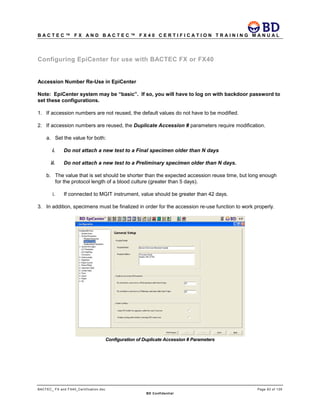
  • 28.
    B A CT E C ™ F X A N D B A C T E C ™ F X 4 0 C E R T I F I C A T I O N T R A I N I N G M A N U A L BACTEC_ FX and FX40_Certification.doc Page 26 of 129 BD Confidential Suggestions for Performing Validation for BVM • Weigh bottles individually before and after blood addition to determine the blood volume o compensate for flip cap weight (0.4 g), if necessary o compensate for labeling, if necessary o the specific gravity of blood used in EpiCenter is 1.06 g/mL • Test 50 or more bottles • Run bottles at a low level (1-2 mL), a middle level (5-6 mL) and a high level (9-10 mL) • Note that banked blood will not work, the system only works with freshly drawn blood • Draw blood from five or more people • The limitations of the test are in the EpiCenter help file for BVM Conditions that EpiCenter uses to exclude a bottle from the BVM statistics: • Went positive or had a manual result set • The protocol or algorithms were restarted • Not PLUS Aerobic/F media • Removed prior to protocol completion • Rejected based on BVM algorithm data quality checks; this is extremely rare BVM R&D Paper
  • 29.
    B A CT E C ™ F X A N D B A C T E C ™ F X 4 0 C E R T I F I C A T I O N T R A I N I N G M A N U A L BACTEC_ FX and FX40_Certification.doc Page 27 of 129 BD Confidential Demo for BACTEC FX and BACTEC FX40 When preparing for a demo it is important to set the instrument up prior to the demonstration. There should be vials that are ongoing, positive, negative, and anonymous. 1. Prepare the vials. Add accession labels to the vials. 2. Load the instrument. Scan both barcodes as you load the vials into the system. This creates ongoing vials. Also, load some vials without scanning to create anonymous vials. Follow the instructions below to create negatives and positives.
  • 30.
    B A CT E C ™ F X A N D B A C T E C ™ F X 4 0 C E R T I F I C A T I O N T R A I N I N G M A N U A L BACTEC_ FX and FX40_Certification.doc Page 28 of 129 BD Confidential How to create positive and negative vials, From the Status display, tap . BACTEC FX BACTEC FX40 • Tap any blue on-going station in Drawer View (FX) display or the View Stations display (FX40). BACTEC FX BACTEC FX40  The vial information window appears.
  • 31.
    B A CT E C ™ F X A N D B A C T E C ™ F X 4 0 C E R T I F I C A T I O N T R A I N I N G M A N U A L BACTEC_ FX and FX40_Certification.doc Page 29 of 129 BD Confidential  Tap on the status field down arrow and select either manual negative or manual positive.  Tap the Save button. Demo Discussion Points The BACTEC FX and BACTEC FX40 were designed on the strengths of the 9000 series. Reliability is very important. The 9000 is known to be a workhorse. This system was designed to have the same reliability. Also, we kept the same high performing blood culture media. 1. Instrument Specifications  BACTEC FX40 Physical Dimensions Single Instrument Stack Height 39.1 cm (15.4 in) 77. 5 cm (30. 5 in) Width 67.5 cm (26.6 in) 67.5 cm (26.6 in) Depth 58.5 cm (23.0 in) 58.5 cm (23.0) Clearance (rear, left, right) 0 cm, 7 cm, 38* cm If tablet is mounted 0 cm, 7 cm, 38* cm If tablet is mounted Clearance (front) 61. 0 cm (24 in) 61. 0 cm (24 in) Weight (empty) 31.8 kg (70.1 lb) 31.8 kg (70.1 lb) Weight (full) 38.0 kg (83.7 lb) 76.9 kg (169.6 lb)
  • 32.
    B A CT E C ™ F X A N D B A C T E C ™ F X 4 0 C E R T I F I C A T I O N T R A I N I N G M A N U A L BACTEC_ FX and FX40_Certification.doc Page 30 of 129 BD Confidential  BACTEC FX Physical Dimensions Single Instrument Stack Height 93.9 cm (37.0 in) 198.7 cm (78.25 in) Width 62.2 cm (24.5 in) 62.2 cm (24.5 in) Depth 86.9 cm (34.25 in) 86.9 cm (34.25 in) Clearance (rear, left, right) 1.3 cm, 0 cm, 0 cm 1.3 cm, 0 cm, 0 cm Clearance (front) 68.6 cm (27.0 in) 68.6 cm (27.0 in) Weight (empty) 187.5 kg (413.4 lb) 384.8 kg (848.4 lb) Weight (full) 220.4 kg (485.9 lb) 451 kg (994.2 lb) Stand Weight 63.5 kg (140 lb) Counterweights (countertop, unanchored) 47.6 kg (105 lb) Electrical Requirements Input Voltage 100-240 VAC ±10% Peak Current 8 ampheres Input Line Frequency 47-63 HZ Power 800 W Heat 450 btu/hr Environmental Requirements Non-Operating Storage Temperature -17.8 to 65ºC (0-149ºF) Humidity 10% to 90% RH, non-condensing Operating Conditions Heat 18.0 to 30.0ºC (64.4-86ºF)
  • 33.
    B A CT E C ™ F X A N D B A C T E C ™ F X 4 0 C E R T I F I C A T I O N T R A I N I N G M A N U A L BACTEC_ FX and FX40_Certification.doc Page 31 of 129 BD Confidential 2. Visual - as you introduce the instrument to the customers be sure to point out that this is both an audible and visual instrument.  Key points:  Highly visible external lights (DISCO) for each instrument  Allows tech to see from across room  Red - positive  Green - negative  Yellow- system alert like the printer is off line 3. Touch Screen  Status screen shows: o Available spaces via fill bars o Positives and negative in each drawer o Alert list o Drawer view/ View Stations display • Patient view o Look up patient with accession number under specimen o Pull patient specific data like the numbers of vials in the system o Review and print plots • Reports with one touch • Maintenance Daily QC o Check alarm, external lights, green and red indicator and temps. • Configuration - workflow choices - batch negative removal etc • One touch screen per stack allows a different workflow function to happen at each stack 4. Vial activated Workflow- no need to touch button or screen to begin workflow – Simply pull vial and the instrument follows you • Simply pull positive vial; all other positives light up • Talk about gram staining and desire to put back in • After gram stain simply open drawer, scan bottle, a LED shows you where that bottle came from but it can be placed anywhere. • Resolve Anonymous vials the same way 5. EpiCenter is provided with BACTEC FX and BACTEC FX40 • This allows work to be done away from instrument for 2nd and 3rd shifts, or for supervisors in their office etc. • Also allows for sharing of data with Phoenix • Monitor, Analyze and Communicate
  • 34.
    B A CT E C ™ F X A N D B A C T E C ™ F X 4 0 C E R T I F I C A T I O N T R A I N I N G M A N U A L BACTEC_ FX and FX40_Certification.doc Page 32 of 129 BD Confidential Shortened PowerPoint
  • 35.
    B A CT E C ™ F X A N D B A C T E C ™ F X 4 0 C E R T I F I C A T I O N T R A I N I N G M A N U A L BACTEC_ FX and FX40_Certification.doc Page 33 of 129 BD Confidential
  • 36.
    B A CT E C ™ F X A N D B A C T E C ™ F X 4 0 C E R T I F I C A T I O N T R A I N I N G M A N U A L BACTEC_ FX and FX40_Certification.doc Page 34 of 129 BD Confidential
  • 37.
    B A CT E C ™ F X A N D B A C T E C ™ F X 4 0 C E R T I F I C A T I O N T R A I N I N G M A N U A L BACTEC_ FX and FX40_Certification.doc Page 35 of 129 BD Confidential
  • 38.
    B A CT E C ™ F X A N D B A C T E C ™ F X 4 0 C E R T I F I C A T I O N T R A I N I N G M A N U A L BACTEC_ FX and FX40_Certification.doc Page 36 of 129 BD Confidential
  • 39.
    B A CT E C ™ F X A N D B A C T E C ™ F X 4 0 C E R T I F I C A T I O N T R A I N I N G M A N U A L BACTEC_ FX and FX40_Certification.doc Page 37 of 129 BD Confidential
  • 40.
    B A CT E C ™ F X A N D B A C T E C ™ F X 4 0 C E R T I F I C A T I O N T R A I N I N G M A N U A L BACTEC_ FX and FX40_Certification.doc Page 38 of 129 BD Confidential
  • 41.
    B A CT E C ™ F X A N D B A C T E C ™ F X 4 0 C E R T I F I C A T I O N T R A I N I N G M A N U A L BACTEC_ FX and FX40_Certification.doc Page 39 of 129 BD Confidential
  • 42.
    B A CT E C ™ F X A N D B A C T E C ™ F X 4 0 C E R T I F I C A T I O N T R A I N I N G M A N U A L BACTEC_ FX and FX40_Certification.doc Page 40 of 129 BD Confidential
  • 43.
    B A CT E C ™ F X A N D B A C T E C ™ F X 4 0 C E R T I F I C A T I O N T R A I N I N G M A N U A L BACTEC_ FX and FX40_Certification.doc Page 41 of 129 BD Confidential
  • 44.
    B A CT E C ™ F X A N D B A C T E C ™ F X 4 0 C E R T I F I C A T I O N T R A I N I N G M A N U A L BACTEC_ FX and FX40_Certification.doc Page 42 of 129 BD Confidential
  • 45.
    B A CT E C ™ F X A N D B A C T E C ™ F X 4 0 C E R T I F I C A T I O N T R A I N I N G M A N U A L BACTEC_ FX and FX40_Certification.doc Page 43 of 129 BD Confidential
  • 46.
    B A CT E C ™ F X A N D B A C T E C ™ F X 4 0 C E R T I F I C A T I O N T R A I N I N G M A N U A L BACTEC_ FX and FX40_Certification.doc Page 44 of 129 BD Confidential
  • 47.
    B A CT E C ™ F X A N D B A C T E C ™ F X 4 0 C E R T I F I C A T I O N T R A I N I N G M A N U A L BACTEC_ FX and FX40_Certification.doc Page 45 of 129 BD Confidential
  • 48.
    B A CT E C ™ F X A N D B A C T E C ™ F X 4 0 C E R T I F I C A T I O N T R A I N I N G M A N U A L BACTEC_ FX and FX40_Certification.doc Page 46 of 129 BD Confidential
  • 49.
    B A CT E C ™ F X A N D B A C T E C ™ F X 4 0 C E R T I F I C A T I O N T R A I N I N G M A N U A L BACTEC_ FX and FX40_Certification.doc Page 47 of 129 BD Confidential
  • 50.
    B A CT E C ™ F X A N D B A C T E C ™ F X 4 0 C E R T I F I C A T I O N T R A I N I N G M A N U A L BACTEC_ FX and FX40_Certification.doc Page 48 of 129 BD Confidential
  • 51.
    B A CT E C ™ F X A N D B A C T E C ™ F X 4 0 C E R T I F I C A T I O N T R A I N I N G M A N U A L BACTEC_ FX and FX40_Certification.doc Page 49 of 129 BD Confidential
  • 52.
    B A CT E C ™ F X A N D B A C T E C ™ F X 4 0 C E R T I F I C A T I O N T R A I N I N G M A N U A L BACTEC_ FX and FX40_Certification.doc Page 50 of 129 BD Confidential Discussion of Rule VE18: The rule states: Last known status of sequence scanned was POSITIVE. Would you like to change the status to ONGOING when the vial is re-inserted? When a vial is a false positive, usually the vial will be re-inserted as Ongoing. There are some customers who have their non-day shift techs subculture and smear the vial and then re-insert it as a Positive because they leave the gram stain for day shift to read. They want the vial to keep the positive status until the gram stain is read. Uses of Reports REPORT NAME REPORT USE Affected Vials Lists vials that have experienced either a failure in the instrument’s incubation subsystem, or an extended gap in test readings, within the last 30 days. • Used to determine which vials need to be subcultured. Alert list Lists the latest 100 instrument alerts. • List can be printed and used as a permanent record of instrument performance. Contaminant Vials Lists all vials in database, current and removed vials, that have been marked as “Contaminant” based on Start of Protocol. • Can be used to determine contamination rate. Culture Summary Lists total counts and percentage of total cultures for Contaminant, Positive, and Negative cultures. • Epidemiology report which shows total number of positives, negatives by and contaminants by vial type. Current Inventory Lists all vials in instrument(s). • If account is to relocate instruments or is to experience an expected power outage, print report to obtain record of all vials in system and current vial status. Current Negatives Lists all Negative vials (Out-of-Protocol and Manual Negatives) in instrument. • Can be used as a worksheet for negative cultures if printed prior to removing vials from instrument
  • 53.
    B A CT E C ™ F X A N D B A C T E C ™ F X 4 0 C E R T I F I C A T I O N T R A I N I N G M A N U A L BACTEC_ FX and FX40_Certification.doc Page 51 of 129 BD Confidential REPORT NAME REPORT USE Current Positives Lists all Positive vials (Instrument Positive, Manual Positive, and Anonymous Positive) in instrument. • Can be used as a worksheet for positive cultures if printed prior to removing vials from instrument Loaded Vials Lists all vials (Sequenced and Anonymous) that have a Start of Protocol during a selected time period. • Can be used for tracking workload. Maintenance QC Report Provides a report on drawer temperature set points and blocked stations. • CLIA regulations require that laboratories document and maintain records of Quality Control activities, and that these records must be retained for at least two years. No Growth Accession Lists all accessions whose related vials show no growth (and are not marked Manual Positive) in selected time interval. • Can be used to track how many sets have one vial positive and one vial negative. Orphan Vials Lists all vials in instrument database that have no accession number. • If printed prior to identifying anonymous, can be used to determine time vial was entered in the system. Helps to identify personnel requiring additional training. • If LIS goes down, once up again, can identify vials that demographics need to be entered into system. Partial Seated Stations Lists all vials instrument believes are partially seated (not fully inserted into stations). • Can be used to determine if vial is partially seated or station is bad. Pending Report Lists all vials that have been logged in at Culture display or have come from LIS, but have not been placed in instrument (Orphan Demographics). • Aids in identifying cultures which have not been received into the laboratory and entered into the BACTEC system. Unloaded Negative Vials Lists all sequenced Negative vials (Out-of-Protocol Negative and Manual Negative) that have been removed from instrument over a specified time period. • CLIA regulations require that laboratories maintain patient specimen test results for two years. Report can serve as permanent record of BACTEC test results.
  • 54.
    B A CT E C ™ F X A N D B A C T E C ™ F X 4 0 C E R T I F I C A T I O N T R A I N I N G M A N U A L BACTEC_ FX and FX40_Certification.doc Page 52 of 129 BD Confidential REPORT NAME REPORT USE Unloaded Positive Vials Lists all sequenced Positive Vials (Instrument Positive and Manual Positive) that have been removed from instrument over a specified time period. • CLIA regulations require that laboratories maintain patient specimen test results for two years. Report can serve as permanent record of BACTEC test results. • Time to detection can be found on this report. This is the lapsed time from when the vial was entered into instrument and when instrument flagged it as positive. Unloaded Vials Lists all sequenced vials that have been removed from instrument over a specified time period. • CLIA regulations require that laboratories maintain patient specimen test results for two years. Report can serve as permanent record of BACTEC test results. Plot Generates a line graph of the test readings of a specified non-pending station. • Provides date and time vial flagged as positive. FX40 Configuration Configuration conserves as much bench space as possible.
  • 55.
    B A CT E C ™ F X A N D B A C T E C ™ F X 4 0 C E R T I F I C A T I O N T R A I N I N G M A N U A L BACTEC_ FX and FX40_Certification.doc Page 53 of 129 BD Confidential Epi/FX Workgroup Introduction This section describes the behavior of BACTEC FX and BACTEC FX40 instruments that are connected to an EpiCenter data management system. The ‘Epi/FX’ configuration provides the user with a convenient and comprehensive view of patient demographic and all related consumable information. The EpiCenter must be running software version 5.6 or higher to connect with the BACTEC FX and BACTEC FX40. The installation and configuration of the Epi/FX configuration requires BD field service personnel. The following topics are covered:  EpiCenter Overview  Epi/FX Connection Schema  Epi/FX Configuration EpiCenter Overview EpiCenter is a clinical data management system designed for use with certain BD Diagnostic instrument systems. EpiCenter extends the data management functionality of BD Diagnostic instruments. This extended functionality is comprised of many facets, including system security, reports and database queries, storing extended demographic data, results generation, results reporting, and long-term data storage capabilities. The EpiCenter system provides an easy to use graphical interface that allows the laboratory user to consolidate and manage their clinical testing data from multiple BD Diagnostic instruments. Currently the BACTEC MGIT 960, BACTEC 9000, BD Phoenix, BACTEC FX and the BACTEC FX40 can be connected to the EpiCenter system. The application accurately represents data in structures that are logical to the end users. The configurable nature of EpiCenter allows various laboratory workflows to be supported. Lastly, with increased demand for integration to external laboratory or hospital systems, EpiCenter provides a standardized bi-directional communication channel to Laboratory Information Systems (LIS). This allows the system to concentrate data from all BD instruments at one point, and only requires a single LIS connection in order to report various instrumented test results to the LIS. It also only requires a single LIS connection to obtain patient and specimen demographic information from the LIS for all connected instrument types. Traditional EpiCenter to Instrument connection schema In the figure below, the green cable represents the PCAnywhere connection via an analog phone line into the EpiCenter workstation’s modem. The red cable represents an RS-232 or serial connection from the LIS to an available serial port on the EpiCenter workstation. The blue cables represent cat-5 network cable connections from the attached instrument, via the switch, to the EpiCenter’s NIC.
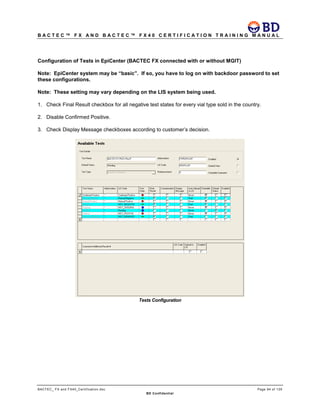
  • 56.
    B A CT E C ™ F X A N D B A C T E C ™ F X 4 0 C E R T I F I C A T I O N T R A I N I N G M A N U A L BACTEC_ FX and FX40_Certification.doc Page 54 of 129 BD Confidential There are various EpiCenter Instrument configurations. While each of these configurations may show only one instrument or client attached at a time to the network(s), keep in mind that multiple instruments or clients may exist. In the figure below, an EpiCenter Server is connected to one or more instruments via a private network (EpiCenter LAN), and also to one or more clients via this same private network.
  • 57.
    B A CT E C ™ F X A N D B A C T E C ™ F X 4 0 C E R T I F I C A T I O N T R A I N I N G M A N U A L BACTEC_ FX and FX40_Certification.doc Page 55 of 129 BD Confidential In the next scenario, an Epicenter server’s first NIC is connected to nothing, but must still be set (Lan- 192.168.2.1) The server’s second NIC (Facility LAN – DHCP) is connected to the facility’s network, receiving its IP address from the facility’s DHCP server. The figure below shows the EpiCenter Client’s first NIC (Facility LAN – DHCP) connected to the facility’s network, receiving its IP address from the facility’s DHCP server. The second NIC (instrument LAN – 192.168.3.1 is connected, via a network cable. The instrument is assigned an IP address of 192.168.3.2 and connected to the switch via a network cable. Epi/FX Connection Schema This module gives a pictorial view of FX instruments that are connected to an EpiCenter data management system. Like other instrumentation, the BACTEC FX and BACTEC FX40 can be connected to an EpiCenter client or server. The client can be BD or NON-BD hardware and can be connected to a hospital network.
  • 58.
    B A CT E C ™ F X A N D B A C T E C ™ F X 4 0 C E R T I F I C A T I O N T R A I N I N G M A N U A L BACTEC_ FX and FX40_Certification.doc Page 56 of 129 BD Confidential In the figure below, the BACTEC FX workgroup is connected to the EpiCenter server on a private network. The following figure provides a view of the BACTEC FX instrument configured with EpiCenter along with a MGIT960 and a Phoenix instrument. The BACTEC FX is connected to the client while the other instruments are attached to the server. This configuration incorporates 3 individual networks. This is accomplished by the use of 2 NIC cards per workstation.
  • 59.
    B A CT E C ™ F X A N D B A C T E C ™ F X 4 0 C E R T I F I C A T I O N T R A I N I N G M A N U A L BACTEC_ FX and FX40_Certification.doc Page 57 of 129 BD Confidential The figure below shows the communication schema for the individual networks that make up this Epicenter/instrument configuration. Epi/FX Configuration The following figure provides a view of an Epi/FX configuration when the FX instruments are attached to the client.
  • 60.
    B A CT E C ™ F X A N D B A C T E C ™ F X 4 0 C E R T I F I C A T I O N T R A I N I N G M A N U A L BACTEC_ FX and FX40_Certification.doc Page 58 of 129 BD Confidential FX Workgroup The figures below show the communication schemes for Epi/FX workgroups.  The BACTEC FX communicates with the Epicenter application via Glue (small program or scripts needed to integrate applications).  The BACTEC FX application software communicates with the Fast Objects Database on the EpiCenter computer.  The EpiCenter application communicates with the SQL database.
  • 61.
    B A CT E C ™ F X A N D B A C T E C ™ F X 4 0 C E R T I F I C A T I O N T R A I N I N G M A N U A L BACTEC_ FX and FX40_Certification.doc Page 59 of 129 BD Confidential
  • 62.
    B A CT E C ™ F X A N D B A C T E C ™ F X 4 0 C E R T I F I C A T I O N T R A I N I N G M A N U A L BACTEC_ FX and FX40_Certification.doc Page 60 of 129 BD Confidential Multiple Workgroup Function  Demographic updates generated at EpiCenter are communicated to affected workgroups whether affected vials are currently in instruments or in their respective historical databases.  Only one instrument per workgroup needs to be notified of demographic updates as the architecture of the FX workgroup ensures that all interested instruments in the workgroup are reconciled to it Master database. Single Workgroup Multiple Workgroup
  • 63.
    B A CT E C ™ F X A N D B A C T E C ™ F X 4 0 C E R T I F I C A T I O N T R A I N I N G M A N U A L BACTEC_ FX and FX40_Certification.doc Page 61 of 129 BD Confidential  Translocated Vials  EpiCenter displays a message identifying vial translocation (vial placed into FX in a different workgroup). » Consumable X previously in BACTEC FX Instrument 2 workgroup X has just been reported by BACTEC FX Instrument X workgroup X. Consumables should not be moved between FX workgroups. EpiCenter will not track any further updates for this consumable from this workgroup. The recommended action is to return consumable to its original workgroup and subculture the vial. (X = fill in the blank.) » The message occurs at EpiCenter any time the vial’s status changes.  No readings are recorded at EpiCenter while the vial remains in the wrong workgroups.  EpiCenter recognizes that a vial has been moved to a different workgroup and stops accepting updates for the vial; the instrument and the workgroup into which the vial was moved is not aware of the problem and tests the vial as it would any other new vial. » Reports generated from the instrument into which the vial was moved would include the vial, while reports generated from EpiCenter would indicate that the vial was still in its original instrument.  A vial can be moved back to its original workgroup and processing continued based on the current re-entry rules.  Recalling a specimen at the FX only shows related vials within its workgroup NOT outside.  Demographic changes (accession, patient name, patient ID, Hospital Service and collection date/time, test delete) made at Epi to the translocated vials will ONLY be reflected in the original workgroup.  Test status information across the workgroups need not match at FX Culture Screen for a test record belonging to a translocated vial. Test level attributes like Status, protocol length, contamination, start date/time will ONLY be reflected at the original workgroup. » Vial with Removed Ongoing status at workgroup A if scanned and inserted in Workgroup B will cause the display of message 8315. The vial is considered “new” by workgroup B. When the vial completes its protocol with a Negative/Positive Status, the vial will display Removed Ongoing at any FX Culture Screen in Workgroup A and Negative/Positive in any FX culture screen in workgroup B. EpiCenter will display test information for a translocated vial from the original workgroup i.e. the status at Epi would be Removed Ongoing.  The BACTEC Instrument Inventory Report configuration still allows the user to select the FX instruments from a list.
  • 64.
    B A CT E C ™ F X A N D B A C T E C ™ F X 4 0 C E R T I F I C A T I O N T R A I N I N G M A N U A L BACTEC_ FX and FX40_Certification.doc Page 62 of 129 BD Confidential  All other standard and filter reports print data from all workgroups.  Specimen Registration  Recalling a patient at Specimen Reg at EpiCenter displays all the specimens for a patient regardless of where the tests are located across the multiple workgroups. » Recalling a patient at FX only shows related specimens in workgroup.  Orphans List  Shows all vials in all workgroups.  Data View  All data shown is for all workgroups FX/Fast Objects Communication 1. FX talks to local Fast Objects Database (local resides on FX) 2. FX talks to the Master Fast Objects Database (master resides on EpiCenter computer) 3. FX pings EpiCenter 4. EpiCenter responds 5. Data is sent to EpiCenter Turning OFF Fast Objects for Demonstration Purposes Only 1. Right Click on My Computer 2. Click Manage 3. Click Services and Applications 4. Click Services 5. Highlight Fast Objects 6. Click Stop Upgrade Customer Upgradeable Software The customer can perform the software upgrade process for a BACTEC FX Epi/FX configuration as long as no instruments are being added or removed from the configuration. The upgrade of BACTEC FX software requires installing software on each of the BACTEC FX instruments and any updates to the Master Fast Objects database on the EpiCenter work station individually. Upgrades Requiring BD Field Service BD field service must perform the configuration changes and perform the software upgrade process when adding or removing instruments from the Epi/FX configuration.
  • 65.
    B A CT E C ™ F X A N D B A C T E C ™ F X 4 0 C E R T I F I C A T I O N T R A I N I N G M A N U A L BACTEC_ FX and FX40_Certification.doc Page 63 of 129 BD Confidential Configuration Once a BACTEC FX instrument is configured to communicate with EpiCenter, an icon is displayed on the Main Status Screen representing the connectivity to EpiCenter. Regardless of the communication status, the icon is present. If the instrument and EpiCenter are communicating, the Main Status Screen displays a ”healthy” icon . If communications have been lost an “unhealthy” icon is displayed. See below. Once an instrument is configured to communicate with EpiCenter, modifications to the following settings should be the same between the BACTEC FX instrument and EpiCenter:  Language  Locale The following are BACTEC FX Configuration screen restrictions when communicating with EpiCenter. Lab Tab Once an instrument is configured to communicate with EpiCenter, modifications to the following settings are used for all BACTEC FX instruments in the Epi/FX configuration:  Media protocol length  Accession Barcoding Enable/Disable (the first icon checkbox in the Workflow group)  Batch Removal of Negatives Enable/Disable (the second icon checkbox in the Workflow Group) Unhealthy icon
  • 66.
    B A CT E C ™ F X A N D B A C T E C ™ F X 4 0 C E R T I F I C A T I O N T R A I N I N G M A N U A L BACTEC_ FX and FX40_Certification.doc Page 64 of 129 BD Confidential  Show Related Vials during Positive Removal Enable/Disable (the third icon checkbox in the Workflow Group)  Language/Locale Reports Tab There are no restrictions placed on the Reports Tab when the BACTEC FX instrument is configured to communicate with an EpiCenter.
  • 67.
    B A CT E C ™ F X A N D B A C T E C ™ F X 4 0 C E R T I F I C A T I O N T R A I N I N G M A N U A L BACTEC_ FX and FX40_Certification.doc Page 65 of 129 BD Confidential Instrument Tab While none of the settings within this tab impact every instrument in the Epi/FX configuration, the Instrument No. field is impacted. Instrument numbers within the Epi/FX configuration must be unique. Once an instrument has been become part of the Epi/FX configuration, any Instrument No. modification checks to ensure that no other instruments have the same instrument number. If none exist, the instrument number is saved. If another instrument is already defined with that instrument number, the instrument in question is saved with the next available instrument number. In addition, the IP address for each BACTEC FX instrument must be unique within the LAN that the instrument is plugged into and, match the settings specified in the EpiCenter instrument configuration screen. LIS Tab The LIS Tab is disabled once a BACTEC FX or BACTEC FX40 instrument is configured to communicate with an EpiCenter. Time Tab The Date and Time fields are disabled once a BACTEC FX or BACTEC FX40 instrument is configured to communicate with an EpiCenter.
  • 68.
    B A CT E C ™ F X A N D B A C T E C ™ F X 4 0 C E R T I F I C A T I O N T R A I N I N G M A N U A L BACTEC_ FX and FX40_Certification.doc Page 66 of 129 BD Confidential The following are BACTEC FX Culture screen restrictions when communicating with EpiCenter. Patient Tab Once a BACTEC FX or BACTEC FX40 instrument is configured to communicate with EpiCenter, the following behaviors are limited on the Culture Screen’s Patient Tab:  The Patient ID field is only enabled for searches  The Patient Name field is only enabled for searches  The Disassociate button is not displayed. Note: These restrictions eliminate the ability to associate/disassociate any patient ID/patient name information to a specimen as well as restrict modifications to patient name.
  • 69.
    B A CT E C ™ F X A N D B A C T E C ™ F X 4 0 C E R T I F I C A T I O N T R A I N I N G M A N U A L BACTEC_ FX and FX40_Certification.doc Page 67 of 129 BD Confidential Specimen Tab Once a BACTEC FX or BACTEC FX40 instrument is configured to communicate with EpiCenter, the following behaviors occur on the Culture Screen’s Specimen Tab:  The Add button is not displayed  The Hospital Service field is read-only  The Collection Date/Time fields are read-only Note: Removing the Add button eliminates the ability to associate/disassociate any patient ID/patient name information to a specimen. This association/disassociation occurs via the EpiCenter. Keeping the Hospital Service field read-only indicates that this information is sent to the BACTEC FX from EpiCenter. The ability to associate/disassociate a specimen to a test (via a sequence number and vial) is still allowed.
  • 70.
    B A CT E C ™ F X A N D B A C T E C ™ F X 4 0 C E R T I F I C A T I O N T R A I N I N G M A N U A L BACTEC_ FX and FX40_Certification.doc Page 68 of 129 BD Confidential Vial Tab There are no restrictions placed on the Vial Tab when the BACTEC FX or BACTEC FX40 instrument is configured to communicate with an EpiCenter.
  • 71.
    B A CT E C ™ F X A N D B A C T E C ™ F X 4 0 C E R T I F I C A T I O N T R A I N I N G M A N U A L BACTEC_ FX and FX40_Certification.doc Page 69 of 129 BD Confidential Reporting Across Instruments Reporting data for all instruments is accomplished via the Report module at EpiCenter. Requesting a report from an individual BACTEC FX or BACTEC FX 40 instrument only prints the data on the report for the requesting instrument. There is no common reporting across all instruments via the Reports Tab or from any Print button on BACTEC FX or BACTEC FX40. Vial Information available within the Epi/FX configuration Since the data for all of the instruments within an Epi/FX configuration is resident in the Fast Objects Database (which is on the EpiCenter work station), vial information is accessible from any instrument. This means the following can occur from any instrument:  Information for any vial in the Epi/FX configuration can be recalled into the Culture Screen  Information for any vial in the Epi/FX configuration can be modified via the Culture Screen  Determination of known sequence number information can occur from any barcode scan or manual entry via the Vial Entry and Identify Anonymous activities When vial information for a specimen is spread among more than one instrument within the Epi/FX configuration, the BACTEC FX or BACTEC FX40 provides a view of all of the related data. For example, when an accession is recalled on the Culture Screen’s Specimen Tab, all of the vials related to that accession are displayed in the Vial List, regardless of where they are located. Relocation of Vials A vial can be moved from one instrument into another within the Epi/FX configuration (single workgroup) while continuing the original test protocol provided:  the vial is removed and re-entered within the Re-entry window  the vial is moved into an instrument that is communicating with the Master Fast Objects database (not in Degraded Mode) When a vial is moved within these criteria, algorithmic processing continues. When a vial is moved outside of these criteria, the vial’s protocol is restarted thus causing algorithmic processing to be restarted on the vial. This translocation behavior also exists in the standalone BACTEC FX and BACTEC FX40 instrument application. The difference being that the standalone BACTEC FX and BACTEC FX40 allows vials to be moved into different stations within the same instrument. Therefore, in an Epi/FX configuration, the vial translocation can occur anywhere in the Epi/FX configuration. This is specifically allowed because the Master Fast Objects Database is resident on the EpiCenter work station. Printer Sharing At the BACTEC FX the Printer Type drop-down list box on the Reports tab displays an additional option EpiCenter Printer and defaults to it once the BACTEC FX or BACTEC FX40 is configured to communicate with EpiCenter. This setting is editable, and does not limit the Epi/FX configuration to use only this printer setting.
  • 72.
    B A CT E C ™ F X A N D B A C T E C ™ F X 4 0 C E R T I F I C A T I O N T R A I N I N G M A N U A L BACTEC_ FX and FX40_Certification.doc Page 70 of 129 BD Confidential EpiCenter provides network-printing support for BACTEC FX and BACTEC FX40 instruments connected to EpiCenter when this option is selected at the BACTEC FX or BACTEC FX40 instrument. This printing support allows the BACTEC FX and BACTEC FX40 instrument(s) to print to the default printer of the EpiCenter machine to which it is connected. To print using this service, the BACTEC FX or BACTEC FX40 instrument sends the print stream using PCL5 Printing Language data to the EpiCenter PC, which in turn receives the data and initiates the print job on it’s own default printer. When EpiCenter Printer is selected as the Printer Selection on an FX or FX40 instrument, the reports generated at that instrument are printed on the EpiCenter Server’s default printer. When multiple FX or FX40 instruments have selected the EpiCenter printer as the Selected Printer and simultaneous requests for reports are made on the multiple instruments, the EpiCenter printer prints each report requested by the FX or FX40 instruments. The print order of those reports on the EpiCenter printer is not guaranteed. However, the Instrument Number is contained on each page of each report; therefore, there should be no difficulty recognizing the origin of the print request. The figure below represents Epicenter’s printer configuration options.
  • 73.
    B A CT E C ™ F X A N D B A C T E C ™ F X 4 0 C E R T I F I C A T I O N T R A I N I N G M A N U A L BACTEC_ FX and FX40_Certification.doc Page 71 of 129 BD Confidential EpiCenter Hardware Requirements LAN Switches The Epi/FX configuration is made up of 1 or more 8-port 10/100Base-T LAN switches connecting together multiple BACTEC FX instruments and the EpiCenter (10/100Base-T) PC using Category 5 cabling. UPS When hosting a BACTEC FX Epi/FX configuration, the EpiCenter workstation must be connected to a UPS so that when power is lost an orderly shutdown of the Master Fast Objects Database can occur before battery power expires. The requirement to have a UPS is imposed on EpiCenter solely to support the Master Fast Objects Database. The robustness of the SQL database used by the EpiCenter application does not require a UPS. Software Requirements Print Server Once a BACTEC FX or BACTEC FX40 instrument is configured to communicate with EpiCenter, Print server software must be installed on the EpiCenter workstation. Refer to Service Bulletin EPI-093 for instructions. Fast Objects Database The Epi/FX configuration requires the installation of two Fast Objects database components – the Master component that is installed on an EpiCenter workstation and the Local component that is installed on each FX or FX40 instrument in the Epi/FX configuration. The Master Fast Objects database contains the contents of each instrument’s Local database. The vial information contained in a Local database is limited to vials that are resident in that particular instrument. Creation of an Epi/FX configuration shall require that a Master Fast Objects Database be installed on an EpiCenter workstation. The installation of the Master Fast Objects Database and any supporting software is a separate procedure from the standard EpiCenter installation. Refer to Service Bulletin EPI-093 The following figure provides a view of the BACTEC FX instrument configured to communicate with EpiCenter.
  • 74.
    B A CT E C ™ F X A N D B A C T E C ™ F X 4 0 C E R T I F I C A T I O N T R A I N I N G M A N U A L BACTEC_ FX and FX40_Certification.doc Page 72 of 129 BD Confidential The diagram above provides a pictorial description of the Epi/FX configuration architecture when installed on the EpiCenter Server. The only difference between this installation and one done on an EpiCenter Client is that the EpiCenter SQL Server database does not reside on the Client. Note that EpiCenter communicates with each instrument within the Epi/FX configuration, but does not communicate directly with the Master Fast Objects Database. The BACTEC FX instruments are solely responsible for the synchronization of data between the local database from within the BACTEC FX instrument and the Master Fast Objects Database. As stated above, the Master Fast Objects Database resides on the EpiCenter work station. It must be installed on the EpiCenter workstation that has connection to the BACTEC FX instruments, whether the workstation is a server or a client. Additions and modifications to the following objects in the FX instrument’s local database shall cause identical updates to the Master Fast Objects Database:  Station  Vial  Readings  Configuration Additions and modifications to the FX instrument’s local database shall occur as a result of:  User activity at the FX instrument  User activity at another FX instrument in the Epi/FX configuration  Changes originating at EpiCenter  Changes originating at an LIS coming through EpiCenter  Measurement cycle completion (readings)
  • 75.
    B A CT E C ™ F X A N D B A C T E C ™ F X 4 0 C E R T I F I C A T I O N T R A I N I N G M A N U A L BACTEC_ FX and FX40_Certification.doc Page 73 of 129 BD Confidential  Algorithmic results  Reconciliation Database Backup/ Restore Backing up the Master Fast Objects database is accomplished for diagnostics purposes only. In the case of a catastrophic failure, the instruments retain a vial’s accession information (but none of the other demographic information). In the case of a catastrophic failure of the Master Fast Objects database, a blank copy of that database will be restored. The data for any vials that are currently in the instrument will be repopulated in the Master Fast Objects database at the time of recovery. Any vials that were not in the instrument at the time of recovery only exist at EpiCenter. DMU (Database Maintenance Utility) The “Prune Readings Table” option results in pruning (removing) of BACTEC 9000, BACTEC 960, BACTEC FX and BACTEC FX40 readings. Prior to V5.6 readings were pruned based on the timestamp of the individual reading. For example, only readings with a timestamp older than 45 days ago were pruned. The pruning logic was changed in V5.6 to prune readings based on the Test Removed Date so that, for example, only readings associated to tests with a removal date older than 45 days ago are pruned. EpiCenter Application Instruments Configuration The Instruments Configuration screen was updated to allow the addition of BACTEC FX instruments. The user is able to modify the Instrument #, NIC Address, IP Address, and the Enabled state. If an Instrument # is received from the BACTEC FX or BACTEC FX40 instrument that is different, EpiCenter is updated with the BACTEC FX instrument number.
  • 76.
    B A CT E C ™ F X A N D B A C T E C ™ F X 4 0 C E R T I F I C A T I O N T R A I N I N G M A N U A L BACTEC_ FX and FX40_Certification.doc Page 74 of 129 BD Confidential BACTEC FX Using the Same Test As the BACTEC 9000 Since the inception of EpiCenter and through the addition of the 9000, 960, and Phoenix instruments, the design and database structures of EpiCenter have been based on a 1-to-1 relationship between a particular test and its associated instrument. For example, a MGIT 960 7mL Tube test is associated to a 960 instrument, a NMIC/ID-1 panel is associated to a Phoenix instrument, etc. Using the exact same media vials for BACTEC FX that are used for the BACTEC 9000 changes this model. EpiCenter addresses this by creating a set of BACTEC FX tests in Available Tests Configuration that mirrors the set of tests used by the BACTEC 9000 instrument. Available test configuration A set of BACTEC FX tests that mirrors the BACTEC 9000 tests is present under the Available Tests/ Growth & Detection node in Configuration. Similar to the behavior of the 9000 tests, the BACTEC FX tests only appear if at least one BACTEC FX instrument is configured and enabled. BACTEC FX tests can be distinguished from BACTEC 9000 tests by the identifier BACTEC FX or BACTEC 9000 that is present in the test name.
  • 77.
    B A CT E C ™ F X A N D B A C T E C ™ F X 4 0 C E R T I F I C A T I O N T R A I N I N G M A N U A L BACTEC_ FX and FX40_Certification.doc Page 75 of 129 BD Confidential System Instruments Display The System Instruments Display shows a button for every configured BACTEC FX instrument, an example of the icon used for the BACTEC FX instrument is pictured below:
  • 78.
    B A CT E C ™ F X A N D B A C T E C ™ F X 4 0 C E R T I F I C A T I O N T R A I N I N G M A N U A L BACTEC_ FX and FX40_Certification.doc Page 76 of 129 BD Confidential The following icons are used to represent the possible states of the BACTEC FX instrument: Icon Description The instrument is off line (or possibly in degraded mode). For all other instruments (BACTEC 9000, Phoenix, BACTEC MGIT 960) “Off Line” meant that the instrument was no longer communicating with EpiCenter. With the introduction of BACTEC FX, “Off Line” can additionally mean that the instrument can no longer communicate with the Master Fast Objects database that is hosted on EpiCenter and therefore communication with EpiCenter has stopped. The instrument is in the process of synchronizing with EpiCenter. The instrument is in Alert. There is no indication of the cause of the Alert. The instrument contains a positive vial. The instrument is on line.
  • 79.
    B A CT E C ™ F X A N D B A C T E C ™ F X 4 0 C E R T I F I C A T I O N T R A I N I N G M A N U A L BACTEC_ FX and FX40_Certification.doc Page 77 of 129 BD Confidential BACTEC FX Instrument Status Display The BACTEC FX Instrument Status Display screen displays detailed information about the BACTEC FX instrument. 4 Drawer BACTEC FX Instrument 2 Drawer BACTEC FX Instrument Summary Counters on the EpiCenter display are at the instrument level, whereas at the BACTEC FX instrument, the Summary Counters are at the drawer level. This is consistent with Epicenter’s handling of all other instrument Summary Counters. The Summary Counters may not total the number of stations in the instrument because, for example, an anonymous vial that is positive is counted in both the Positive and Anonymous counters.
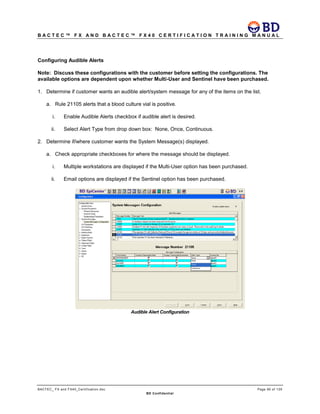
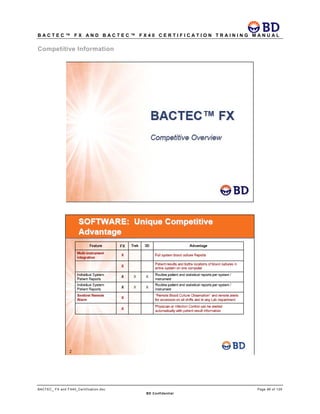
  • 80.
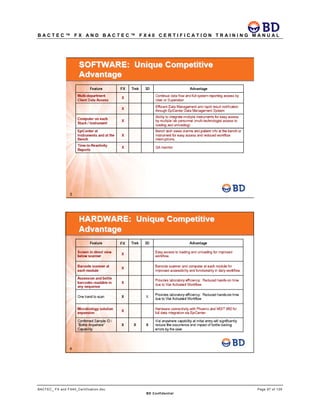
    B A CT E C ™ F X A N D B A C T E C ™ F X 4 0 C E R T I F I C A T I O N T R A I N I N G M A N U A L BACTEC_ FX and FX40_Certification.doc Page 78 of 129 BD Confidential Plot The same methods available for generating a BACTEC 9000 Plot are available for generating a BACTEC FX Plot, namely:  Via a Predefined Data View Filter.  Via a Predefined Filter Report.  Via a right-click option from the Ordered Test Grid in Specimen Registration, shown below:  Via a right-click option from a Data View Results Grid, shown below:
  • 81.
    B A CT E C ™ F X A N D B A C T E C ™ F X 4 0 C E R T I F I C A T I O N T R A I N I N G M A N U A L BACTEC_ FX and FX40_Certification.doc Page 79 of 129 BD Confidential BACTEC FX Instrument Plot EpiCenter Plot The following is the sample plot generated at EpiCenter via a right click option from the Ordered Test Grid in Specimen Registration.
  • 82.
    B A CT E C ™ F X A N D B A C T E C ™ F X 4 0 C E R T I F I C A T I O N T R A I N I N G M A N U A L BACTEC_ FX and FX40_Certification.doc Page 80 of 129 BD Confidential Degraded Mode A BACTEC FX and BACTEC FX40 instrument within an Epi/FX configuration will go into Degraded Mode when it loses its connection to the Fast Objects Database in the EpiCenter workstation. Degraded Mode does not refer to the physical status of communication or lack thereof with the EpiCenter application. However, once a BACTEC FX instrument transitions into Degraded Mode, that instrument also halts communications with EpiCenter (GLUE) thus effectively putting the BACTEC FX instrument into an offline state with respect to EpiCenter. While user interaction with the instrument is limited when the instrument is running in Degraded Mode, basic internal operations (e.g. incubation, agitation, measurement, and algorithmic processing) continue. A BACTEC FX or BACTEC FX40 instrument is not in Degraded Mode if it has a connection to the Fast Objects Database even if communication with EpiCenter has been lost. However, in this instance, EpiCenter considers the BACTEC FX instrument to be offline. Main Status Screen Once a BACTEC FX or a BACTEC FX40 instrument has transitioned into Degraded Mode, the following occurs on the Main Status Screen of that instrument:  The Epi icon displays the unhealthy icon  The Progress Bars for all of the drawers are color-filled, indicating that there are no available stations The following buttons are disabled:  Vial Entry for each drawer group  Identify Anonymous for each drawer group  The Culture Screen button Opening any drawer in a BACTEC FX instrument or the door of a BACTEC FX40 that is in Degraded Mode while the Main Status Screen is displayed, only causes station LEDs containing positive or negative vials to illuminate. Pulling a positive or negative vial invokes the associated Remove Positive or Remove Negative activities. The barcode reader cannot be turned on unless the Remove Positive or the Remove Negative (in scanned mode) is invoked. Pulling an anonymous vial from a station that is not illuminated while the Main Status Screen is displayed does not invoke the Identify Anonymous activity. Instead, a message is displayed to the user informing them of the status of the instrument. Placing any vials into the instrument while the Main Status Screen is displayed causes the vials to become anonymous.
  • 83.
    B A CT E C ™ F X A N D B A C T E C ™ F X 4 0 C E R T I F I C A T I O N T R A I N I N G M A N U A L BACTEC_ FX and FX40_Certification.doc Page 81 of 129 BD Confidential Reports Tab Once a BACTEC FX or BACTEC FX40 instrument has transitioned into Degraded Mode, the Reports Tab is disabled on that instrument. Maintenance Tab The Upgrade and Change Password functionalities are disabled from the Maintenance Tab. The rest of the Maintenance Screen functionality is unaffected. Configuration Tab The Configuration Tab is disabled. Vial Entry Screen The Vial Entry Screen is not displayed. When a drawer in a BACTEC FX instrument in Degraded Mode is opened while the Main Status Screen is displayed, the Vial Entry button is not enabled. Identify Anonymous Screen The Identify Anonymous Screen is not displayed. When a drawer in a BACTEC FX or the BACTEC FX40 instrument is opened in Degraded Mode the Identify Anonymous button is not enabled. Remove Positive Workflow The Remove Positive activity is still available while the instruments are in Degraded Mode provided positive vials exist. The station LEDs for any stations containing positive-anonymous vials are not illuminated while the Remove Positive Vial screen is displayed. Show Related Functionality The Show Related functionality is not available for any instrument that is in Degraded Mode. Remove Negative The Remove Negative activity is still available while the instruments are in Degraded Mode provided negative vials exist. Culture Screen The Culture Screen’s button is not enabled.  Plot Screen  Since the Plot Screen is only available from the Culture Screen, the Plot Screen and Plot Reporting capabilities are not available.
  • 84.
    B A CT E C ™ F X A N D B A C T E C ™ F X 4 0 C E R T I F I C A T I O N T R A I N I N G M A N U A L BACTEC_ FX and FX40_Certification.doc Page 82 of 129 BD Confidential Exception Pull Vials Pulling any vial that is considered an exception pull vial is not handled in the same manner when an instrument is in Degraded Mode. This is because resolving exception pulls in a single instrument may result in either the Vial Entry or Identify Anonymous screens being displayed. Since Vial Entry and Identify Anonymous activities are not available while in Degraded Mode, an alternative message is displayed. Anonymous Vial Entry When a vial is placed into the instrument, that vial will have an anonymous status. This is because there are no provisions for scanning or manually-entering the vial’s sequence number by way of the Vial Entry or Identify Anonymous Screens while the instrument is in Degraded Mode. System Alert Screen/Reporting When an instrument transitions into Degraded Mode, a system alert reflecting that condition is reported at the instrument. Epi/FX Behavior When More than 1 Instrument is Unavailable While a Degraded Mode instrument exists within the Epi/FX configuration, the rest of the instruments as well as the EpiCenter connection to those instruments, are not restricted in the same manner. All of the other instruments in the Epi/FX configuration are still able to perform all of the following activities: access the Reports Tab, access the Culture Screen and Plot, etc. The following sections describe the rest of the instruments behaviors in an Epi/FX configuration when attempting to recall/modify data that is resident in the instrument that is in Degraded Mode. Culture Screen When a vial that is physically located in a Degraded Mode instrument is recalled into the Culture Screen of a communicating instrument:  No modifications are allowed to that vial  An offline icon is displayed on the screen indicating that the vial resides in an instrument that is in degraded mode. When a vial that is physically not in any instrument is recalled into the Culture Screen, modifications are allowed to that vial. This restrictive behavior prevents the Master Fast Objects Database and the instruments local database from becoming unnecessarily out of sync.
  • 85.
    B A CT E C ™ F X A N D B A C T E C ™ F X 4 0 C E R T I F I C A T I O N T R A I N I N G M A N U A L BACTEC_ FX and FX40_Certification.doc Page 83 of 129 BD Confidential Reports Reports containing instrument data generated by EpiCenter are still available when Epi/FX configuration instruments are in Degraded Mode, but the data associated to the degraded instruments may not be real time. Epi/FX LIS Any interface with an LIS occurs via EpiCenter when a BACTEC instrument is configured to interface with EpiCenter. EpiCenter supports either the ASTM 1381 or BDMODEM protocol for upload and download of BACTEC FX or BACTEC FX40 information. Uploaded/downloaded information must conform to the respective protocol specifications available from Document Control: Document Name Document Control Number Description LIS Vendor Interface Document L-005933 ASTM 1381 Specifications BACTEC 9000 LIS Vendor Interface Specification MA-0101 BDModem Specifications Downloads When only BACTEC 9000 instruments are configured, an LIS download containing a sequence number and a Test ID LIS Code orders a 9000 test. When only BACTEC FX or BACTEC FX40 instruments are configured, an LIS download containing a sequence number and a Test ID LIS Code orders a BACTEC FX test. When both 9000 and BACTEC FX instruments are configured, an LIS download containing a sequence number and a Test ID LIS Code orders a BACTEC FX test by default. However, the order can be matched up to a test from either instrument. For example:  If the downloaded sequence number matches up to a test currently in a BACTEC 9000 instrument, the downloaded test order is automatically associated to that BACTEC 9000 test.  If the downloaded sequence number is for a pending test, and a BACTEC bottle for that test is subsequently placed into a BACTEC 9000 instrument, the test name is automatically changed to the BACTEC 9000 test name. Uploads When both BACTEC 9000 and BACTEC FX instruments are configured, the origin of a Test level LIS upload containing a sequence number and an LIS Code can be distinguished by the Instrument Type field, which is included in an uploaded result record.
  • 86.
    B A CT E C ™ F X A N D B A C T E C ™ F X 4 0 C E R T I F I C A T I O N T R A I N I N G M A N U A L BACTEC_ FX and FX40_Certification.doc Page 84 of 129 BD Confidential Emulate BACTEC 9000 LIS When configured to use BDMODEM for the physical protocol, EpiCenter supports emulation of BACTEC 9000 LIS Interface via selection of the existing checkbox shown below in LIS Parameters Configuration. LIS Code Uniqueness Available Tests Configuration currently enforces unique LIS Codes amongst tests. This might not be acceptable for LIS Vendors who would be forced to upload/download 2 different LIS codes (i.e. one for the BACTEC 9000 and another for the BACTEC FX) for what is essentially the same consumable. Accordingly, the uniqueness rule is relaxed to allow for duplicate LIS Codes between BACTEC 9000/BACTEC FX test pairings. By default, BACTEC FX tests have the same LIS Codes as their BACTEC 9000 test counterparts. For example, the BACTEC 9000 PEDS Plus/F and BACTEC FX PEDS Plus/F tests have the same LIS Codes.
  • 87.
    B A CT E C ™ F X A N D B A C T E C ™ F X 4 0 C E R T I F I C A T I O N T R A I N I N G M A N U A L BACTEC_ FX and FX40_Certification.doc Page 85 of 129 BD Confidential Recommended UPS for BACTEC FX (not BACTEC FX40) ONEAC ON1500XAU-SN (U.S.) FEATURE DESCRIPTION 1500VA Can be used for single instrument or a stack Battery Run time: Depends on ambient conditions, i.e. how hard heaters are running. Run times listed are based on typical ambient temperature of 23°C) • Stack: ~15 min • Single: ~30 min Run times can vary based on changes in ambient conditions. Size 3.5x17.25x19.5" (HWD) Weight 61 lbs Installation • Fits in compartment under electronics drawer in a stack. • For a single, it can be oriented horizontally or vertically. • For example, for a single on a stand, it could be oriented horizontally on the bottom of the stand under the printer. • For a single on a benchtop, it could be oriented vertically next to the instrument Additional Features Power conditioner (cleans up power from a dirty site). Cost Approx $1,066 Shipping Drop shipped from ONEAC (BD does not stock ). Ex-Us Model 230VAC version for European installs also available - distinctly different product number.
  • 88.
    B A CT E C ™ F X A N D B A C T E C ™ F X 4 0 C E R T I F I C A T I O N T R A I N I N G M A N U A L BACTEC_ FX and FX40_Certification.doc Page 86 of 129 BD Confidential Best Practices / Flowcharts Note: The flowcharts for BACTEC FX and BACTEC FX 40 are similar, except for the wording about drawers. The BACTEC FX40 does not contain drawers so the word instrument should be substituted in the workflow. Positive Anonymous Vial
  • 89.
    B A CT E C ™ F X A N D B A C T E C ™ F X 4 0 C E R T I F I C A T I O N T R A I N I N G M A N U A L BACTEC_ FX and FX40_Certification.doc Page 87 of 129 BD Confidential
  • 90.
    B A CT E C ™ F X A N D B A C T E C ™ F X 4 0 C E R T I F I C A T I O N T R A I N I N G M A N U A L BACTEC_ FX and FX40_Certification.doc Page 88 of 129 BD Confidential Anonymous Vial
  • 91.
    B A CT E C ™ F X A N D B A C T E C ™ F X 4 0 C E R T I F I C A T I O N T R A I N I N G M A N U A L BACTEC_ FX and FX40_Certification.doc Page 89 of 129 BD Confidential
  • 92.
    B A CT E C ™ F X A N D B A C T E C ™ F X 4 0 C E R T I F I C A T I O N T R A I N I N G M A N U A L BACTEC_ FX and FX40_Certification.doc Page 90 of 129 BD Confidential
  • 93.
    B A CT E C ™ F X A N D B A C T E C ™ F X 4 0 C E R T I F I C A T I O N T R A I N I N G M A N U A L BACTEC_ FX and FX40_Certification.doc Page 91 of 129 BD Confidential
  • 94.
    B A CT E C ™ F X A N D B A C T E C ™ F X 4 0 C E R T I F I C A T I O N T R A I N I N G M A N U A L BACTEC_ FX and FX40_Certification.doc Page 92 of 129 BD Confidential
  • 95.
    B A CT E C ™ F X A N D B A C T E C ™ F X 4 0 C E R T I F I C A T I O N T R A I N I N G M A N U A L BACTEC_ FX and FX40_Certification.doc Page 93 of 129 BD Confidential Configuring EpiCenter for use with BACTEC FX or FX40 Accession Number Re-Use in EpiCenter Note: EpiCenter system may be “basic”. If so, you will have to log on with backdoor password to set these configurations. 1. If accession numbers are not reused, the default values do not have to be modified. 2. If accession numbers are reused, the Duplicate Accession # parameters require modification. a. Set the value for both: i. Do not attach a new test to a Final specimen older than N days ii. Do not attach a new test to a Preliminary specimen older than N days. b. The value that is set should be shorter than the expected accession reuse time, but long enough for the protocol length of a blood culture (greater than 5 days). i. If connected to MGIT instrument, value should be greater than 42 days. 3. In addition, specimens must be finalized in order for the accession re-use function to work properly. Configuration of Duplicate Accession # Parameters
  • 96.
    B A CT E C ™ F X A N D B A C T E C ™ F X 4 0 C E R T I F I C A T I O N T R A I N I N G M A N U A L BACTEC_ FX and FX40_Certification.doc Page 94 of 129 BD Confidential Configuration of Tests in EpiCenter (BACTEC FX connected with or without MGIT) Note: EpiCenter system may be “basic”. If so, you have to log on with backdoor password to set these configurations. Note: These setting may vary depending on the LIS system being used. 1. Check Final Result checkbox for all negative test states for every vial type sold in the country. 2. Disable Confirmed Positive. 3. Check Display Message checkboxes according to customer’s decision. Tests Configuration
  • 97.
    B A CT E C ™ F X A N D B A C T E C ™ F X 4 0 C E R T I F I C A T I O N T R A I N I N G M A N U A L BACTEC_ FX and FX40_Certification.doc Page 95 of 129 BD Confidential Configuring Audible Alerts Note: Discuss these configurations with the customer before setting the configurations. The available options are dependent upon whether Multi-User and Sentinel have been purchased. 1. Determine if customer wants an audible alert/system message for any of the items on the list. a. Rule 21105 alerts that a blood culture vial is positive. i. Enable Audible Alerts checkbox if audible alert is desired. ii. Select Alert Type from drop down box: None, Once, Continuous. 2. Determine if/where customer wants the System Message(s) displayed. a. Check appropriate checkboxes for where the message should be displayed. i. Multiple workstations are displayed if the Multi-User option has been purchased. ii. Email options are displayed if the Sentinel option has been purchased. Audible Alert Configuration
  • 98.
    B A CT E C ™ F X A N D B A C T E C ™ F X 4 0 C E R T I F I C A T I O N T R A I N I N G M A N U A L BACTEC_ FX and FX40_Certification.doc Page 96 of 129 BD Confidential Competitive Information
  • 99.
    B A CT E C ™ F X A N D B A C T E C ™ F X 4 0 C E R T I F I C A T I O N T R A I N I N G M A N U A L BACTEC_ FX and FX40_Certification.doc Page 97 of 129 BD Confidential
  • 100.
    B A CT E C ™ F X A N D B A C T E C ™ F X 4 0 C E R T I F I C A T I O N T R A I N I N G M A N U A L BACTEC_ FX and FX40_Certification.doc Page 98 of 129 BD Confidential
  • 101.
    B A CT E C ™ F X A N D B A C T E C ™ F X 4 0 C E R T I F I C A T I O N T R A I N I N G M A N U A L BACTEC_ FX and FX40_Certification.doc Page 99 of 129 BD Confidential
  • 102.
    B A CT E C ™ F X A N D B A C T E C ™ F X 4 0 C E R T I F I C A T I O N T R A I N I N G M A N U A L BACTEC_ FX and FX40_Certification.doc Page 100 of 129 BD Confidential FX
  • 103.
    B A CT E C ™ F X A N D B A C T E C ™ F X 4 0 C E R T I F I C A T I O N T R A I N I N G M A N U A L BACTEC_ FX and FX40_Certification.doc Page 101 of 129 BD Confidential
  • 104.
    B A CT E C ™ F X A N D B A C T E C ™ F X 4 0 C E R T I F I C A T I O N T R A I N I N G M A N U A L BACTEC_ FX and FX40_Certification.doc Page 102 of 129 BD Confidential
  • 105.
    B A CT E C ™ F X A N D B A C T E C ™ F X 4 0 C E R T I F I C A T I O N T R A I N I N G M A N U A L BACTEC_ FX and FX40_Certification.doc Page 103 of 129 BD Confidential Delete Training Vials After Training 1. Change the vial status for all vials that are in the instrument to Manual Negative. 2. Physically remove all vials that are in the instrument. 3. Delete any patients or specimens connected to training in EpiCenter. File Utility Overview This utility allows BD associates to retrieve the following files from one or more FX instruments in a workgroup: • event log • alert list • assert snapshot.bin file • commLog • VxLog • directory structure text file. FXFileUtility also can display the current screen from an FX instrument, as well as send “touch” events back to the instrument. This effectively allows some remote control of an FX instrument. General Setup 1. Starting with 2.00B software, the FXFileUtility will be installed on the customer’s EpiCenter PC. a. The following procedure should only be used if the FX_Utils folder is not on the customer’s EpiCenter PC or the folder does not contain the FXFileUtility.exe. • Determine the version of software that the customer site is running. 1. This information is printed on the header of any report, which has most likely been sent to BD for problem investigation. If the requestor has not supplied this information, the customer site must be contacted to determine the version of software that they are running. (The software version is printed in the header of every report and is visible on the Maintenance->Utilities tab in the S/W Versions drop down list.) • Retrieve the FXFileUtility application from the K:NgbReleasesVn.nnx FXFileUtility.exe, where Vn.nnx represents the software version that is installed at the customer site. • Place the FXFileUtility.exe into a folder named FX_Utils. • If “pcAnywhere”, “LogMeIn”, or some other remote access program is being used, then the file should be zipped before it is transferred to the customer’s site. 2. Follow the procedures documented in BACTEC FX pcAnywhere_LogMeIn Procedure.doc to remotely access the user’s EpiCenter PC.
  • 106.
    B A CT E C ™ F X A N D B A C T E C ™ F X 4 0 C E R T I F I C A T I O N T R A I N I N G M A N U A L BACTEC_ FX and FX40_Certification.doc Page 104 of 129 BD Confidential a. If using “LogMeIn” remote access, the default printer for the EpiCenter is set to the BD_PC (the remotely controlling PC). If the BACTEC FX instruments are configured to have the EpiCenter printer, then any report that is printed from the instrument while it is being remotely controlled is printed at the printer associated to the BC_PC (the remote user’s PC). Starting FXFileUtility Application 1. Scroll to the bottom of the screen on the customer’s EpiCenter PC until the EpiCenter’s PC Start button ( ) is displayed on the bottom left of the window. a. If “pcAnywhere”, “LogMeIn”, or some other remote access program is being used, the remote PC’s <Start> may also be displayed. Make sure that the EpiCenter PC <Start> is the one that is selected. 2. Right click the Start button and select “Explore” from the list that is displayed. 3. In the Explorer window that is displayed, navigate to c:NGBFX_Utils. 4. Double click on the FXFileUtility.exe application. The following window appears.
  • 107.
    B A CT E C ™ F X A N D B A C T E C ™ F X 4 0 C E R T I F I C A T I O N T R A I N I N G M A N U A L BACTEC_ FX and FX40_Certification.doc Page 105 of 129 BD Confidential 5. The instruments that are currently configured in the EpiCenter Configuration window are listed. If an instrument is not listed, enter it by clicking the <Add> button and entering its instrument number and IP Address. Collecting data for Instrument(s) 1. Select the instrument for which data is to be collected by clicking the check box in the “Selected” column or, to collect information for all instruments, click the <All> button below the list of instruments. • One data item can be collected at a time by clicking the corresponding button - <Event Log>, <Alerts>, <Asserts>, <Comm Log>, <VxLog>, or <Directory>.
  • 108.
    B A CT E C ™ F X A N D B A C T E C ™ F X 4 0 C E R T I F I C A T I O N T R A I N I N G M A N U A L BACTEC_ FX and FX40_Certification.doc Page 106 of 129 BD Confidential • Data files available for collection: a. Event Log - retrieves the system event log from the selected instrument(s). b. Alerts - retrieves the Alert List file from the selected instruments(s). c. Asserts - retrieves the Assert stack trace file from the selected instruments(s). (Note: this may be empty if there has not been an assert on the instrument since the last time the log file was saved at the instrument.) This is a binary file and must be decoded at BD. d. Comm Log - retrieves the CommLog file that contains the microprocessor communications from the selected instruments(s). This is a binary file and must be decoded at BD. e. VxLog - retrieves the VxLog file from the selected instruments(s). f. Directory - displays a window with the structure of the directory on the flash drive of the selected instrument(s). It also creates a file for each selected instrument that contains a textual representation of the directory structure of the flash drive. • When one or more instruments are selected and a data item button is clicked, the following window is displayed while the data is being collected. • Once all the files that are needed have been selected and transferred to the PC, continue to the next section. Retrieving collected data 1. When the data collection completes, the “Transfer Progress” window closes. The associated files are located in c:NGBFX_Util directory. 2. The names of each file are:
  • 109.
    B A CT E C ™ F X A N D B A C T E C ™ F X 4 0 C E R T I F I C A T I O N T R A I N I N G M A N U A L BACTEC_ FX and FX40_Certification.doc Page 107 of 129 BD Confidential a. Event Log – LSNSNSN.#.IP.MM.DD.txt (Example LFT0003.3.103.9.29.txt), where • “L” designates the file is an event log file. • SNSNSN is the serial number of the instrument the event log came from. • “#” indicates the instrument number. • “IP” indicates the final octet of the instrument’s IP Address. • “MM” and “DD” represent the month and day that the file was saved on, respectively. b. Alerts – A#.IP.MM.DD.txt (Example A3.103.9.29.txt), where • “A” designates the file is an alert list file. • “#” indicates the instrument number. • “IP” indicates the final octet of the instrument’s IP Address. • “MM” and “DD” represent the month and day that the file was saved on, respectively. c. Asserts – Asserts#.IP.MM.DD.bin (Example Asserts3.103.9.29.bin), where • “Asserts” designates the file is an assert file. • “#” indicates the instrument number. • “IP” indicates the final octet of the instrument’s IP Address. • “MM” and “DD” represent the month and day that the file was saved on, respectively. d. Comm Log – CommLog#.IP.MM.DD.bvr (Example CommLog3.103.9.29.bvr), where • “CommLog” designates the file is a Comm Log file. • “#” indicates the instrument number. • “IP” indicates the final octet of the instrument’s IP Address. • “MM” and “DD” represent the month and day that the file was saved on, respectively. e. Vx Log – VxLog#.IP.MM.DD.txt (Example Vx Log3.103.9.29.txt), where • “VxLog” designates the file is a Vx Log file. • “#” indicates the instrument number. • “IP” indicates the final octet of the instrument’s IP Address. • “MM” and “DD” represent the month and day that the file was saved on, respectively. f. Directory – Dir#.IP.MM.DD.txt (Example Dir3.103.9.29.txt), where • “Dir” designates the file is a Directory listing file. • “#” indicates the instrument number. • “IP” indicates the final octet of the instrument’s IP Address. • “MM” and “DD” represent the month and day that the file was saved on, respectively. 3. If the field service engineer is on site, the files can simply be copied to a portable storage device.
  • 110.
    B A CT E C ™ F X A N D B A C T E C ™ F X 4 0 C E R T I F I C A T I O N T R A I N I N G M A N U A L BACTEC_ FX and FX40_Certification.doc Page 108 of 129 BD Confidential 4. If “pcAnywhere”, “LogMeIn”, or some other remote access program is being used, refer to the BACTEC FX pcAnywhere_LogMeIn Procedure.doc for details on how to retrieve the files from the customer’s EpiCenter PC. Using <Screen Cap> 1. In order to remotely access the BACTEC FX instrument(s), select the instrument(s) that is desired by clicking the check box in the “Selected” column or, to remotely access all instruments, click the <All> button below the list of instruments. 2. Click on the <Screen Cap> button. While the selected instrument(s) is being accessed, the following window appears. a. Once the application connects to the instrument, it requests a screen shot of the instrument’s currently displayed screen and sends a copy of it to the EpiCenter PC. (Example: Main Status)
  • 111.
    B A CT E C ™ F X A N D B A C T E C ™ F X 4 0 C E R T I F I C A T I O N T R A I N I N G M A N U A L BACTEC_ FX and FX40_Certification.doc Page 109 of 129 BD Confidential 3. Note: if the customer is interacting with the instrument, it is necessary to turn on the “Continuous Refresh” option so that any changes that occur to the instrument’s display are dynamically updated at the EpiCenter PC’s “Screen Capture” window. 4. To turn on the “Continuous Refresh”, right click on the Screen Capture window and click on the “Continuous Refresh” text. 5. When the “Continuous Refresh” option is enabled, touch events from the remote controlling PC are NOT sent to the FX instrument. This is intentional so that the application does not get “out of sync” and either “hang”, “assert”, or “page fault.” Only one “user” can control the touch screen interface at a time. 6. To request a “one time” refresh, either right click and select the “Refresh” text or press F5 on the keyboard. 7. To navigate to another screen, for instance, the Alert List screen; click on the <Alert Icon> on the screen. Depending on network communication speed, it could take less than a second to longer for the view at the EpiCenter PC to be updated. 8. Once the update is complete, the alert list screen appears – both at the EpiCenter PC and at the BACTEC FX instrument. 9. Touch events will only be sent to the FX instrument when the Screen Capture is NOT in “Continuous Refresh” mode.
  • 112.
    B A CT E C ™ F X A N D B A C T E C ™ F X 4 0 C E R T I F I C A T I O N T R A I N I N G M A N U A L BACTEC_ FX and FX40_Certification.doc Page 110 of 129 BD Confidential Clean up 1. Once the files that have been retrieved have been copied to a portable storage device, the files should be deleted from the customer’s EpiCenter PC, if they are still on the EpiCenter PC. 2. All windows and applications that have been opened on the customer’s PC should be closed. Accession Barcode Mask This mask may be entered at the BD Maintenance/Utilities/BD Utilities screen by BD Field Service Personnel. This utility: • Removes unwanted characters from the accession label's barcode. • Distinguishes accession barcode labels from other labels that are on the BACTEC bottle. – The restriction that separates BD BACTEC Sequence numbers from accession numbers is still in place.  Accessions cannot begin with "44" and contain exactly 12 digits. This is still the rule regardless if the new mask feature is used or not.
  • 113.
    B A CT E C ™ F X A N D B A C T E C ™ F X 4 0 C E R T I F I C A T I O N T R A I N I N G M A N U A L BACTEC_ FX and FX40_Certification.doc Page 111 of 129 BD Confidential Note: Be aware of barcode labels where the human readable accession does not match the accession that is encoded in the machine readable symbology. Before creating an accession mask in the BACTEC FX, scan the accession barcode so the exact format may be seen. Verify this format against the Customer's LIS System's accession label setup The Create Accession Mask option applies a format string (mask) to any accession barcodes that are scanned in. • The mask is not applied to manually entered barcodes. • The mask can contain any of the following characters: A, L, N, or X. • The mask is applied to the accession number left to right, character by character. – Each character is a placeholder to indicate what is expected for the accession character in that position, or how the accession character in that position will be modified. • The meanings of the mask characters are as follows: A = ANY accession character is expected in this position. L = A LETTER (A-Z,a-z) is expected in this position. Any other type of character results in a "mismatch". N = A NUMBER (0-9) is expected in this position. Any other type of character results in a "mismatch". X = Any type of character in this position is to be DELETED from the accession string. A Mask String Specifier must be selected via the radio buttons on the Create Accession Mask dialog in BD Utilities. The scanned accession must be the same length and format of the mask in order to be called a “match”. • The choices for the Mask String Specifier are as follows: – "Accept Mismatches" = If the accession scanned does not match the format of the mask specified, it is accepted as-is, regardless of the presence of any Xs in the
  • 114.
    B A CT E C ™ F X A N D B A C T E C ™ F X 4 0 C E R T I F I C A T I O N T R A I N I N G M A N U A L BACTEC_ FX and FX40_Certification.doc Page 112 of 129 BD Confidential mask. Selecting this choice necessitates an X being in the mask, otherwise the mask would serve no purpose as all accessions would be accepted unmodified. – "Reject Mismatches" = If the accession scanned does not match the format of the mask specified, it is rejected and ignored as if it were never scanned. Xs are optional for this type of mask. – "Reject Matches"= If the accession scanned matches the format of the mask, it is rejected and ignored as if it were never scanned. Xs are not applicable in this case because all accessions modified by the mask would be rejected. . • Examples: – Example 1: ------------------------ Mask AAAAAX Accept Mismatches = true (mask must contain an X) ------------------------ Scanned accession = 123456 Resulting accession = 12345 Scanned accession matches the mask. Character in the X position is deleted. Scanned accession = 1234567 Resulting accession = 1234567 Scanned accession does not match the mask and since “Accept Mismatches = true”, the resulting accession is the same as the scanned accession. – Example 2: ------------------------ Mask AALLNNX Reject Mismatches = true ------------------------ Scanned accession = 123456R Resulting accession = ignored
  • 115.
    B A CT E C ™ F X A N D B A C T E C ™ F X 4 0 C E R T I F I C A T I O N T R A I N I N G M A N U A L BACTEC_ FX and FX40_Certification.doc Page 113 of 129 BD Confidential Scanned accession does not match the mask. Mask expected letters in the 3 rd and 4 th characters from the left. Since “Reject Mismatches =true”, the scanned accession is ignored. Nothing is accepted. The barcode reader is still on waiting for the user to scan another barcode. Scanned accession = 12BD55R Resulting accession = 12BD55 Scanned accession matches the mask. Character in the X position is deleted. – Example 3: ------------------------ Mask AALLNNA Reject Matches = true (mask cannot contain an X) ------------------------ Scanned accession = 123456R Resulting accession = 123456R Scanned accession does not match the mask. Since “Reject Matches = true”, the mismatch is accepted. Scanned accession = 12BD55R Resulting accession = ignored Scanned accession matches the mask. “Reject Matches = true”, the scanned accession is ignored. Nothing is accepted. The barcode reader is still on waiting for the user to scan another barcode.
  • 116.
    B A CT E C ™ F X A N D B A C T E C ™ F X 4 0 C E R T I F I C A T I O N T R A I N I N G M A N U A L BACTEC_ FX and FX40_Certification.doc Page 114 of 129 BD Confidential TIER II Assessment Name:___________________________ Date:____________________________ ______/29______% 1. What are the major differences between FX and FX40 and 9000 instruments?(3 pts) 2. Briefly explain how a user would handle an” unaffected” anonymous vial in an unusable station. (1 pt) 3. Briefly explain how you would handle a positive vial in an unusable station if the vial was affected. (1 pt) 4. Under what circumstances must you subculture BACTEC FX vials?(2 pts)
  • 117.
    B A CT E C ™ F X A N D B A C T E C ™ F X 4 0 C E R T I F I C A T I O N T R A I N I N G M A N U A L BACTEC_ FX and FX40_Certification.doc Page 115 of 129 BD Confidential 5. How do you obtain a Maintenance Quality Control Report?(1 pt) 6. List the reports that do not have an equivalent in EpiCenter and are only available from the BACTEC FX or BACTEC FX40 instrument.(3 pts) 7. Can I generate a report that tracks contamination in blood cultures?(1 pt) 8. Can I see plots of the vials during incubation? Can I generate historical plots?(2 pts) 9. How long is data kept in the BACTEC FX or BACTEC FX system? Can I generate historical reports?(2 pts) 10. What happens if the power goes out in the laboratory?(1pt)
  • 118.
    B A CT E C ™ F X A N D B A C T E C ™ F X 4 0 C E R T I F I C A T I O N T R A I N I N G M A N U A L BACTEC_ FX and FX40_Certification.doc Page 116 of 129 BD Confidential 11. Discuss the purpose of resins in the BACTEC media.(1 pt) 12. List the steps required to "Resolve a Partially Seated vial” at the Instrument.(1pt) 13. What is vial peeking? What timeframe is involved with this workflow? ( 2 pts) 14. How many vials does the instrument hold? How does that translate into number of specimens per day?( 1pt) 15. How does workflow differ if a user has 3 – 4 BACTEC FX stacks?( 1pt) 16. What are the 3 situations that can result in unusable stations?(3 pts) • • • 17. List the time frames for DVE.( 2pts)
  • 119.
    B A CT E C ™ F X A N D B A C T E C ™ F X 4 0 C E R T I F I C A T I O N T R A I N I N G M A N U A L BACTEC_ FX and FX40_Certification.doc Page 117 of 129 BD Confidential • • 16. How do you enable FX utility?(1 pt)
  • 120.
    B A CT E C ™ F X A N D B A C T E C ™ F X 4 0 C E R T I F I C A T I O N T R A I N I N G M A N U A L BACTEC_ FX and FX40_Certification.doc Page 118 of 129 BD Confidential Tier III Overview: Tier III expands on the knowledge acquired in Tiers I and II. Tier III is designed to prepare BD Trainers (Application Specialists, TAIS and TTC Training Specialists) to be able to train customers on all aspects of the BACTEC platform. This individual may have an elementary knowledge of the engineering aspect of the instruments. A working knowledge of reading plots may or may not be included as Tier III Training develops the expertise expected of a BACTEC Fluorescent Series Trainer. An important component of Tier III training is evaluation of the candidate in a real training session conducted by the candidate. In the US, training evaluation may be done on-site at a customer installation, or the Tier III candidate may travel to Baltimore to conduct a Customer Training Class as an alternative. Outside the US, each region will determine their own protocol. Prerequisites: Successful completion of Tiers I and II. Objectives: To be able to teach customer or tier classes. References: FX On-site training SOPs FX Tier training SOPs FX40 On-site training SOPs FX40 Tier training SOPs Course Length: 2 Day Course Scheduling of training observation may require additional time and adjustments to the schedule. Assessment: None
  • 121.
    B A CT E C ™ F X A N D B A C T E C ™ F X 4 0 C E R T I F I C A T I O N T R A I N I N G M A N U A L BACTEC_ FX and FX40_Certification.doc Page 119 of 129 BD Confidential Customer In-House/ On-Site Training with Observation These are the competencies that are critical to being a confident, professional and effective trainer. Training skills: • Clarity of explanations • Responsiveness to questions • Voice projection / articulation / body language • Eye contact • Politeness & professional approach • Preparation & organization • Presentation pace / delivery rate • Use & answer questions effectively • Facilitates discussion • Establishes rapport • Time management • A SENSE of his/her audience. Awareness of different levels of knowledge and pace of understanding the topic. • Makes things easy, simple and explicit • Brings theirs and other real life examples • Watch and learn from participants • Confidence in themselves & their audience • Have a sense of humor Methods and Materials: • Knowledge of course / subject • Organization of topics • Demonstrations / examples • Use of training aids • Use of handouts / reading materials • Ask participants questions on materials covered earlier • Explanation of fields / data input
  • 122.
    B A CT E C ™ F X A N D B A C T E C ™ F X 4 0 C E R T I F I C A T I O N T R A I N I N G M A N U A L BACTEC_ FX and FX40_Certification.doc Page 120 of 129 BD Confidential Training Competencies: 1. Unacceptable: Requires additional Training Skills 2. Good: Trainer demonstrates some ability in this area. 3. Very Good: Trainer shows strength in this area and can train independently 4. Excellent: Trainer shows extreme competency and can perform independently. Able to assess competency of others. Please mark “N/A” in Rating column if competency was not observed during training. Delivery: Rating Comments • Greeted the customers / trainees warmly • Used a voice loud and clear enough to hear easily • Delivered a talk designed in a logical way from beginning to middle and end • Clearly described what to expect from the training (Objectives). • Used effective examples and illustrations. • Defined unfamiliar technical terms. • Summarized the main points before finishing. Visual Aids: • Used visual aids where available & appropriate. • Made sure materials could be seen and/or read easily by everyone. • Got the point across in a clear and simple way. • Talked to the audience rather than to the computer screen or instrument. Body Language: • Maintained good eye contact with the trainees. • Was friendly and smiled. • Used body language to help communicate ideas visually. • Involved the trainees. • Handled questions and comments with calm courtesy. • Was able to keep course on track in spite of questions & interruptions. • Broke up demos & practice at appropriate points.
  • 123.
    B A CT E C ™ F X A N D B A C T E C ™ F X 4 0 C E R T I F I C A T I O N T R A I N I N G M A N U A L BACTEC_ FX and FX40_Certification.doc Page 121 of 129 BD Confidential Delivery: Rating Comments • Provided clear instructions for all activities. • Clarified or rephrased questions to elicit trainee participation. • Taught technically accurate content. • Answered technical questions when asked. • Gauged audience level of technical knowledge and adjusted the presentation accordingly. • Accurately broke down technical / complex concepts in a way participants could understand. Please use the space below to specify: Specific topics where the trainer could improve technical knowledge/expertise: Ways the trainer might connect better with and engage the audience; be more inclusive: Use materials more efficiently:
  • 124.
    B A CT E C ™ F X A N D B A C T E C ™ F X 4 0 C E R T I F I C A T I O N T R A I N I N G M A N U A L BACTEC_ FX and FX40_Certification.doc Page 122 of 129 BD Confidential Please use the space below to specify: Use a clearer, more organized approach: Competency Period: Initial __________ Recertification __________ (please check one) EMPLOYEE: DEPT #: TITLE: FX_____FX40______ VALIDATOR: DEPT #: TITLE: Pre-Requisite for Certification Attend scheduled class(es). Assist in set-up and training of customer classes/onsite trainings. Pass Tier 1 Certification. Pass Tier 2 Certification. Receive score of ≥ 3 on Level of Competency. HOW COMPETENCY IS MEASURED A. Direct observation of presentation skills. B. Written Test. (Score must be at least 90%). C. Direct observation of Test Procedure, System Operation and Maintenance. D. Observed ability to interpret results/reports. E. E Assessment of troubleshooting skills.
  • 125.
    B A CT E C ™ F X A N D B A C T E C ™ F X 4 0 C E R T I F I C A T I O N T R A I N I N G M A N U A L BACTEC_ FX and FX40_Certification.doc Page 123 of 129 BD Confidential LEVEL OF COMPETENCE 1. Needs further training. 2. Good (may require practice and/or assistance) 3. Very Good – Competent and can perform independently 4. Excellent – Competent and can perform independently, and is able to assess the competency of others. Date Competencies How Measured Passing Level of Competence Score Validator’s Initials / Comments Knowledge of BACTEC Theory of Operation A, B ≥ 3 Knowledge of Organism Detection A, B ≥ 3 Knowledge of Media • Media Components • Inoculation Volume • Media Storage • Media QC A,B,C ≥ 3 Knowledge of Physical Instrument A,B,C ≥ 3 Knowledge of Vial Handling • Entering new vials • Removing Out-of- Protocol Negatives • Removing Positives • Resolving Anonymous A,B,C ≥ 3 Knowledge of Procedure for Handling Positives • Media used • Subculture procedure • Preparation of smear A,B,C,D ≥ 3 Knowledge of Plots • How to pull Plots at instrument and EpiCenter • How to read Plots A,B,C ≥ 3
  • 126.
    B A CT E C ™ F X A N D B A C T E C ™ F X 4 0 C E R T I F I C A T I O N T R A I N I N G M A N U A L BACTEC_ FX and FX40_Certification.doc Page 124 of 129 BD Confidential Date Competencies How Measured Passing Level of Competence Score Validator’s Initials / Comments Knowledge of Recalling and Modifying Patient Data • At Instrument • At EpiCenter A,B,C ≥ 3 Knowledge of Changing Protocol Length • At instrument • At EpiCenter A,B,C ≥ 3 Knowledge of Disassociating Vials • At instrument • At EpiCenter A,B,C ≥ 3 Knowledge of Standard Reports • Reports available at instrument • Reports available at EpiCenter A,B,C ≥ 3 Maintenance • Temperature Range • Daily, Monthly and as Needed • Backup Epicenter • Troubleshooting A, B, C ≥3 Configuration • instrument Lab Tab Reports Tab Instrument Tab LIS Tab Time tab • EpiCenter System Users System Parameters Import A,B,C ≥ 3
  • 127.
    B A CT E C ™ F X A N D B A C T E C ™ F X 4 0 C E R T I F I C A T I O N T R A I N I N G M A N U A L BACTEC_ FX and FX40_Certification.doc Page 125 of 129 BD Confidential Date Competencies How Measured Passing Level of Competence Score Validator’s Initials / Comments Troubleshooting • Recognition of Alert situation • Affected Vials • Partially Seated Vials • Degraded Mode • EpiCenter hardware and software A,B,C,E ≥ 3 Knowledge of EpiCenter System • System Instruments Display • LogOn / LogOff • Specimen Registration • Adding Isolate • Marking Test Contam • Marking Isolate Contam • Marking Organism Source • Recalling vial via sequence number • Associating Orphans • Data View • Program Logs • Remote Support • LIS Overview • Multi-User • Sentinel • Barcode Printing A,B,C ≥ 3 Knowledge of Data View • Available Predefined Filters • How to run a Filter • Batch Operations • Tree View A,B,C ≥ 3 Knowledge of Filter Reports • Types of Reports • Available Reports • Exporting Reports A.B.C ≥ 3
  • 128.
    B A CT E C ™ F X A N D B A C T E C ™ F X 4 0 C E R T I F I C A T I O N T R A I N I N G M A N U A L BACTEC_ FX and FX40_Certification.doc Page 126 of 129 BD Confidential Date Competencies How Measured Passing Level of Competence Score Validator’s Initials / Comments Knowledge of Lab Start Up • Configuration of instrument • Workflow A,B,C ≥ 3 I hereby verify that the above Trainer is certified for the BD BACTEC FX or BACTEC FX40 platform Additional Comments: Validator Signature/Date ____________________________________________ Trainer Signature/Date____________________________________________
  • 129.
    B A CT E C ™ F X A N D B A C T E C ™ F X 4 0 C E R T I F I C A T I O N T R A I N I N G M A N U A L BACTEC_ FX and FX40_Certification.doc Page 127 of 129 BD Confidential RE-CERTIFICATION Re-certification is required on a regular basis in order to maintain current knowledge of the BACTEC Fluorescent Series. Re-certification covers materials relating to software and/or hardware updates, additional practice on customer workflow and Service Department issued Technical and Service Bulletins. Prerequisites: Successful completion of Tiers I, II and III. Course Length: Depending on the nature of the updates, re-certification may require the development of additional training modules. Course length is determined at the time the modules are announced. Re-Certification Process: Training re-certification may be in any of the following formats: • Training class held by TAIS or TTC • Written or oral tests • Computer based tests • Telephone inquiries • Training observation