Basic Copying                                                                                                                                1
                                                                                                                                        CHAPTER

 This chapter describes the basic copy functions.


   What the imageRUNNER 3300/2800/2200 Series Machine Can Do . . . . . . . . . . . . . . . . 1-3
        Various Kinds of Copies . . . . . . . . . . . . . . . . . . . . . . . . . . . . . . . . . . . . . . . . . . . . . . . . . . . . . . . .1-3
   Flow of Copy Operations . . . . . . . . . . . . . . . . . . . . . . . . . . . . . . . . . . . . . . . . . . . . . . . . . 1-9
   Entering the Copy Quantity. . . . . . . . . . . . . . . . . . . . . . . . . . . . . . . . . . . . . . . . . . . . . . . 1-15
        Specifying the Required Number of Copies . . . . . . . . . . . . . . . . . . . . . . . . . . . . . . . . . . . . . . .1-15
        Changing the Copy Quantity . . . . . . . . . . . . . . . . . . . . . . . . . . . . . . . . . . . . . . . . . . . . . . . . . . .1-16
   Selecting the Copy Paper Size (Paper Select) . . . . . . . . . . . . . . . . . . . . . . . . . . . . . . . . 1-17
        Automatic Paper Selection (Auto Paper Selection) . . . . . . . . . . . . . . . . . . . . . . . . . . . . . . . . . .1-17
        Specifying Paper Size/Type (Manual Paper Selection) . . . . . . . . . . . . . . . . . . . . . . . . . . . . . . .1-19
   Adjusting Exposure and Image Quality. . . . . . . . . . . . . . . . . . . . . . . . . . . . . . . . . . . . . . 1-22
        Adjusting Copy Exposure. . . . . . . . . . . . . . . . . . . . . . . . . . . . . . . . . . . . . . . . . . . . . . . . . . . . . .1-22
        Selecting Image Quality . . . . . . . . . . . . . . . . . . . . . . . . . . . . . . . . . . . . . . . . . . . . . . . . . . . . . . .1-23
        Automatic Adjustment of Exposure and Image Quality . . . . . . . . . . . . . . . . . . . . . . . . . . . . . . .1-25
        Changing the Copy Exposure During Printing . . . . . . . . . . . . . . . . . . . . . . . . . . . . . . . . . . . . . .1-26
   Changing the Copy Ratio (Copy Ratio). . . . . . . . . . . . . . . . . . . . . . . . . . . . . . . . . . . . . . 1-27
        Enlarging/Reducing Originals to a Standard Size (Preset Zoom) . . . . . . . . . . . . . . . . . . . . . . .1-27
        Specifying the Copy Ratio by % (Zoom Designation) . . . . . . . . . . . . . . . . . . . . . . . . . . . . . . . .1-29
        Automatically Setting the Copy Ratio Based on the Original and Copy Paper Sizes (Auto) . . .1-31
        Slightly Reducing Images to Prevent the Original from Being Trimmed (Entire Image). . . . . . .1-33
        Calculating the Copy Ratio Based on the Original and Copy Paper Sizes (Zoom Program) . .1-35
        Enlarging/Reducing Originals with Copy Ratios Set Independently for X and Y Axes
        (XY Zoom). . . . . . . . . . . . . . . . . . . . . . . . . . . . . . . . . . . . . . . . . . . . . . . . . . . . . . . . . . . . . . . . . .1-40
   Collating Copies (Finisher) . . . . . . . . . . . . . . . . . . . . . . . . . . . . . . . . . . . . . . . . . . . . . . . 1-44
        Collating Copies into Sets in Page Order (Collate) . . . . . . . . . . . . . . . . . . . . . . . . . . . . . . . . . .1-48
        Collating Copies into Groups of the Same Page (Group) . . . . . . . . . . . . . . . . . . . . . . . . . . . . .1-50
        Collating Pages and Stapling (Staple) . . . . . . . . . . . . . . . . . . . . . . . . . . . . . . . . . . . . . . . . . . . .1-53
   Two-sided Copying (Two-sided Mode) . . . . . . . . . . . . . . . . . . . . . . . . . . . . . . . . . . . . . . 1-56
        Making Two-sided Copies from One-sided Originals (1 2-Sided) . . . . . . . . . . . . . . . . . . . . . .1-57
        Making Two-sided Copies from Two-sided Originals (2 2-Sided) . . . . . . . . . . . . . . . . . . . . . .1-59
        Making One-sided Copies from Two-sided Originals (2 1-Sided) . . . . . . . . . . . . . . . . . . . . .1-61
        Making Two-sided Copies from Facing Pages in a Book (Book 2-Sided) . . . . . . . . . . . . . . . .1-64
   Reserved Copying . . . . . . . . . . . . . . . . . . . . . . . . . . . . . . . . . . . . . . . . . . . . . . . . . . . . . 1-67


                                                                                                                                                           1-1
1. Basic Copying


                      Interrupting the Current Job to Make Priority Copies (Interrupt Mode). . . . . . . . . . . . . .1-69
                      Checking a Sample Set Before Copying (Sample Set). . . . . . . . . . . . . . . . . . . . . . . . . .1-71
                      Checking the Copy Mode Settings (Setting Confirmation) . . . . . . . . . . . . . . . . . . . . . . .1-74
 1                    Changing or Canceling a Selected Copy Mode (Setting Cancel) . . . . . . . . . . . . . . . . . .1-75
Basic Copying


                1-2
What the imageRUNNER 3300/2800/2200 Series
Machine Can Do
     Most operations of this machine are done from the touch panel display. To use the copy
     function of this machine, press keys in accordance with the messages displayed on the                    1
     touch panel display.


                                                                                                              Basic Copying
 Various Kinds of Copies
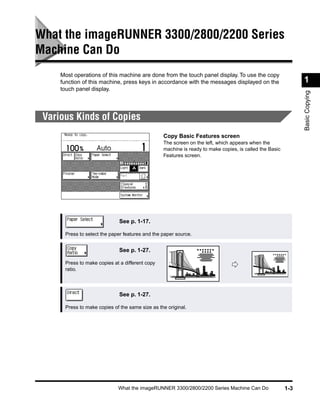
                                                 Copy Basic Features screen
                                                 The screen on the left, which appears when the
                                                 machine is ready to make copies, is called the Basic
                                                 Features screen.


                              See p. 1-17.

      Press to select the paper features and the paper source.


                              See p. 1-27.

      Press to make copies at a different copy
      ratio.


                              See p. 1-27.

      Press to make copies of the same size as the original.


                             What the imageRUNNER 3300/2800/2200 Series Machine Can Do                  1-3
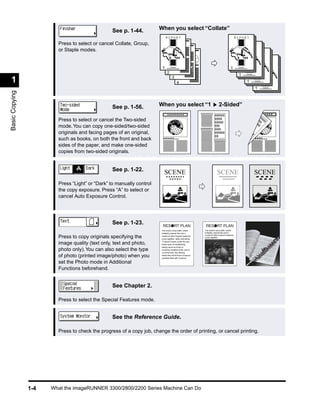
See p. 1-44.          When you select “Collate”
                                                                           REPORT                                                                 REPORT

                        Press to select or cancel Collate, Group,                                                                                      REPORT

                        or Staple modes.                                                                                                                    REPORT

                                                                                                                                                                 REPORT


                                                                       1                                                                   1
                                                                             2                                                                     1
                                                                                   3
 1                                                                                       4                                                              1
                                                                                                                                                             1
Basic Copying


                                                See p. 1-56.          When you select “1                                     2-Sided”

                        Press to select or cancel the Two-sided
                        mode. You can copy one-sided/two-sided
                        originals and facing pages of an original,
                        such as books, on both the front and back
                        sides of the paper, and make one-sided
                        copies from two-sided originals.


                                                See p. 1-22.
                                                                          SCENE                                            SCENE                             SCENE
                        Press “Light” or “Dark” to manually control
                        the copy exposure. Press “A” to select or
                        cancel Auto Exposure Control.


                                                See p. 1-23.
                                                                       The world’s coral reefs, where        The world’s coral reefs, where
                                                                       brilliantly colored fish and a        brilliantly colored fish and a
                                                                                                             myriad of other tropical creatures
                        Press to copy originals specifying the         myriad of other tropical creatures
                                                                       come together. Aptly nicknamed
                                                                                                             come together.

                                                                       “Tropical Forests under the sea”,
                        image quality (text only, text and photo,      these spots of breathtaking
                                                                       beauty serve as home to
                        photo only). You can also select the type      countless varieties of life, and to
                                                                       us of the land, this alluring,
                        of photo (printed image/photo) when you        dream-like world forms a tropical
                                                                       paradise filled with romance.

                        set the Photo mode in Additional
                        Functions beforehand.


                                                See Chapter 2.

                        Press to select the Special Features mode.


                                                See the Reference Guide.

                        Press to check the progress of a copy job, change the order of printing, or cancel printing.


                1-4   What the imageRUNNER 3300/2800/2200 Series Machine Can Do
Special Features screen 1/2
                                            The screen on the left, which appears on the touch
                                            panel display when you press “Special Features” in the
                                            Copy Basic Features screen, is called the Special
                                            Features screen. This screen is divided into two
                                            screens, and pressing “ ▼” or “▲” displays the next/
                                            previous screen. The Special Features screen displays
                                            additional functions available for copying. In some
                                            cases, when a function is selected, a more detailed                1
                                            screen for the selected function appears.


                                                                                                               Basic Copying
                                             To close the Special Features screen and return to the
                                            Basic Features screen, press “Done.”
                                            Pressing      (Guide) after selecting a function displays
                                            a help screen containing guidance information.
                                            This is useful when you want to learn more about the
                                            function.


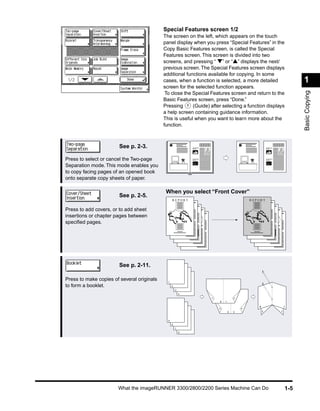
                        See p. 2-3.               1                                   1


Press to select or cancel the Two-page
Separation mode. This mode enables you
to copy facing pages of an opened book
onto separate copy sheets of paper.

                                             When you select “Front Cover”
                        See p. 2-5.
                                                      REPORT                              REPORT


Press to add covers, or to add sheet
insertions or chapter pages between
specified pages.


                        See p. 2-11.

Press to make copies of several originals     1
to form a booklet.                                2
                                                       3
                                                           4
                                                                                  2
                                                                  7


                                                                      8   1

                                                                                             8           1
                                                                                      4
                                                                      5


                                                                              6   3              6   3


                                              5
                                                  6
                                                       7
                                                           8


                       What the imageRUNNER 3300/2800/2200 Series Machine Can Do                         1-5
Transparencies
                                                 See p. 2-15.
                                                                         REPORT                          REPORT
                                                                                                          REPORT
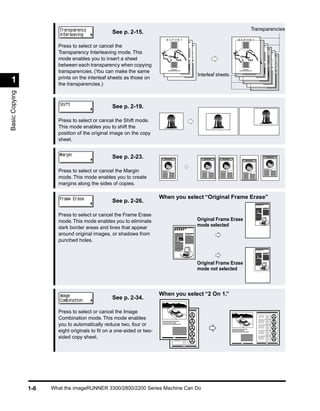
                        Press to select or cancel the
                        Transparency Interleaving mode. This
                        mode enables you to insert a sheet
                        between each transparency when copying
                        transparencies. (You can make the same
                                                                                      Interleaf sheets
                        prints on the interleaf sheets as those on
 1                      the transparencies.)
Basic Copying


                                                 See p. 2-19.

                        Press to select or cancel the Shift mode.
                        This mode enables you to shift the
                        position of the original image on the copy
                        sheet.


                                                 See p. 2-23.

                        Press to select or cancel the Margin
                        mode. This mode enables you to create
                        margins along the sides of copies.

                                                                       When you select “Original Frame Erase”
                                                 See p. 2-26.

                        Press to select or cancel the Frame Erase
                        mode. This mode enables you to eliminate                      Original Frame Erase
                        dark border areas and lines that appear                       mode selected
                        around original images, or shadows from
                        punched holes.


                                                                                      Original Frame Erase
                                                                                      mode not selected


                                                                       When you select “2 On 1.”
                                                 See p. 2-34.

                        Press to select or cancel the Image
                        Combination mode. This mode enables
                        you to automatically reduce two, four or
                        eight originals to fit on a one-sided or two-
                        sided copy sheet.                                   1

                                                                                                          1         2
                                                                                  2


                1-6   What the imageRUNNER 3300/2800/2200 Series Machine Can Do
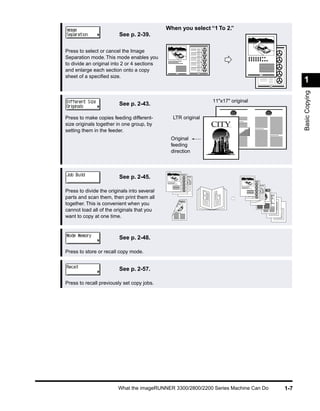
When you select “1 To 2.”
                         See p. 2-39.

Press to select or cancel the Image
Separation mode. This mode enables you
to divide an original into 2 or 4 sections
and enlarge each section onto a copy
                                                1         2
                                                                                 1
sheet of a specified size.
                                                                                                  1
                                                                                        2


                                                                                                  Basic Copying
                                                              11"x17" original
                         See p. 2-43.
                                                                      CITY           CITY


Press to make copies feeding different-        LTR original
size originals together in one group, by                      CITY
setting them in the feeder.
                                              Original
                                              feeding
                                              direction


                         See p. 2-45.

Press to divide the originals into several
parts and scan them, then print them all
together. This is convenient when you
cannot load all of the originals that you
want to copy at one time.


                         See p. 2-48.

Press to store or recall copy mode.


                         See p. 2-57.

Press to recall previously set copy jobs.


                        What the imageRUNNER 3300/2800/2200 Series Machine Can Do           1-7
Special Features screen 2/2


 1
Basic Copying


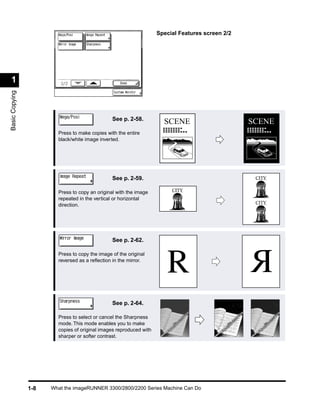
                                                See p. 2-58.
                                                                      SCENE                       SCENE
                        Press to make copies with the entire
                        black/white image inverted.


                                                See p. 2-59.                                       CITY

                        Press to copy an original with the image         CITY
                        repeated in the vertical or horizontal
                        direction.                                                                 CITY


                                                See p. 2-62.

                        Press to copy the image of the original
                        reversed as a reflection in the mirror.


                                                See p. 2-64.

                        Press to select or cancel the Sharpness
                        mode. This mode enables you to make
                        copies of original images reproduced with
                        sharper or softer contrast.


                1-8   What the imageRUNNER 3300/2800/2200 Series Machine Can Do
Flow of Copy Operations
    This section describes the flow of basic copy operations.
                                                                                                           1
        NOTE


                                                                                                           Basic Copying
        • For the following items, see the Reference Guide:
          - Main power and control panel power
          - Routine maintenance


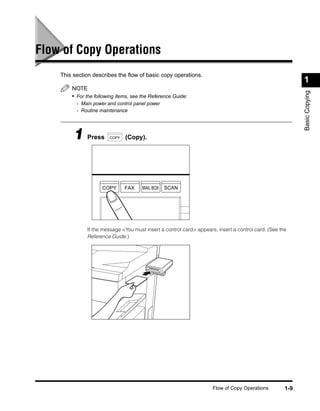
         1 Press        COPY   (Copy).


                     COPY      FAX     MAIL BOX   SCAN


              If the message <You must insert a control card> appears, insert a control card. (See the
              Reference Guide.)


                                                                     Flow of Copy Operations         1-9
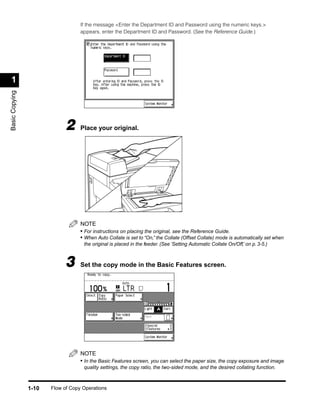
If the message <Enter the Department ID and Password using the numeric keys.>
                                   appears, enter the Department ID and Password. (See the Reference Guide.)


 1
Basic Copying


                             2     Place your original.


                                   NOTE
                                   • For instructions on placing the original, see the Reference Guide.
                                   • When Auto Collate is set to “On,” the Collate (Offset Collate) mode is automatically set when
                                    the original is placed in the feeder. (See ‘Setting Automatic Collate On/Off,’ on p. 3-5.)


                             3     Set the copy mode in the Basic Features screen.


                                   NOTE
                                   • In the Basic Features screen, you can select the paper size, the copy exposure and image
                                    quality settings, the copy ratio, the two-sided mode, and the desired collating function.


                1-10   Flow of Copy Operations
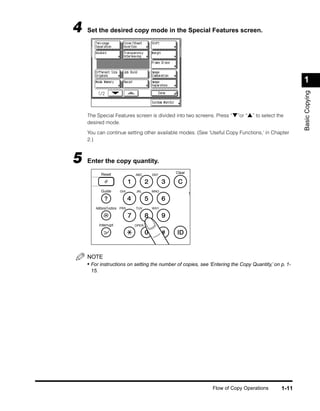
4   Set the desired copy mode in the Special Features screen.


                                                                                                     1


                                                                                                     Basic Copying
    The Special Features screen is divided into two screens. Press “▼”or “▲” to select the
    desired mode.

    You can continue setting other available modes. (See ‘Useful Copy Functions,’ in Chapter
    2.)


5   Enter the copy quantity.
            Reset                              Clear
                                  ABC    DEF


            Guide         GHI     JKL    MNO
                                                       S


       Additional Functions PRS   TUV    WXY


           Interrupt              OPER


    NOTE
    • For instructions on setting the number of copies, see ‘Entering the Copy Quantity,’ on p. 1-
     15.


                                                             Flow of Copy Operations         1-11
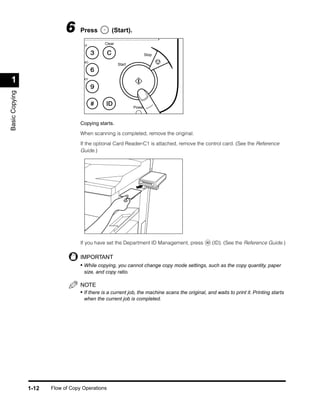
6     Press          (Start).
                                              Clear
                                    EF

                                                                  Stop
                                    NO
                                                      Start


 1                                  XY
Basic Copying


                                                              Power


                                   Copying starts.

                                   When scanning is completed, remove the original.

                                   If the optional Card Reader-C1 is attached, remove the control card. (See the Reference
                                   Guide.)


                                   If you have set the Department ID Management, press             (ID). (See the Reference Guide.)

                                   IMPORTANT
                                   • While copying, you cannot change copy mode settings, such as the copy quantity, paper
                                    size, and copy ratio.

                                   NOTE
                                   • If there is a current job, the machine scans the original, and waits to print it. Printing starts
                                    when the current job is completed.


                1-12   Flow of Copy Operations
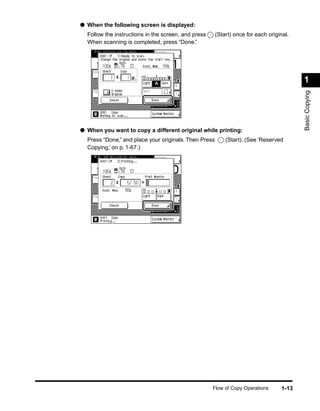
● When the following screen is displayed:
  Follow the instructions in the screen, and press     (Start) once for each original.
  When scanning is completed, press “Done.”


                                                                                         1


                                                                                         Basic Copying
● When you want to copy a different original while printing:
  Press “Done,” and place your originals. Then Press       (Start). (See ‘Reserved
  Copying,’ on p. 1-67.)


                                                     Flow of Copy Operations      1-13
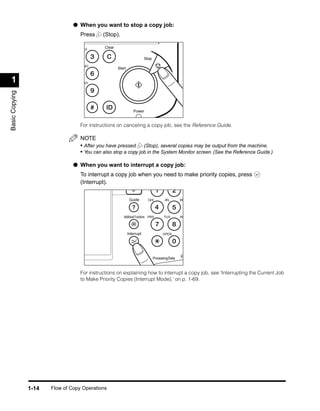
● When you want to stop a copy job:
                                   Press     (Stop).

                                    EF
                                              Clear

                                                                          Stop
                                    NO
                                                      Start


 1                                  XY
Basic Copying


                                                                  Power


                                   For instructions on canceling a copy job, see the Reference Guide.

                                   NOTE
                                   • After you have pressed (Stop), several copies may be output from the machine.
                                   • You can also stop a copy job in the System Monitor screen. (See the Reference Guide.)

                                ● When you want to interrupt a copy job:
                                   To interrupt a copy job when you need to make priority copies, press
                                   (Interrupt).


                                                               Guide        GHI         JKL        MN


                                                         Additional Functions PRS       TUV        W


                                                              Interrupt                OPER


                                                                                                   E
                                                                                 Processing/Data


                                   For instructions on explaining how to interrupt a copy job, see ‘Interrupting the Current Job
                                   to Make Priority Copies (Interrupt Mode),’ on p. 1-69.


                1-14   Flow of Copy Operations
Entering the Copy Quantity
     The machine allows up to 999 copies to be made. The maximum number of copies allowable
     can be changed. For details, contact your service representative.                                     1


                                                                                                           Basic Copying
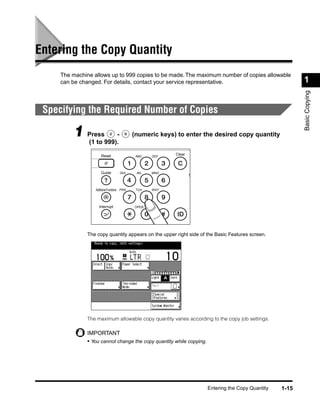
 Specifying the Required Number of Copies

          1 Press999).-
            (1 to
                                             (numeric keys) to enter the desired copy quantity


                      Reset                   ABC   DEF
                                                           Clear


                      Guide          GHI      JKL   MNO
                                                                   S


                  Additional Functions PRS    TUV   WXY


                    Interrupt                OPER


               The copy quantity appears on the upper right side of the Basic Features screen.


               The maximum allowable copy quantity varies according to the copy job settings.

               IMPORTANT
               • You cannot change the copy quantity while copying.


                                                                       Entering the Copy Quantity   1-15
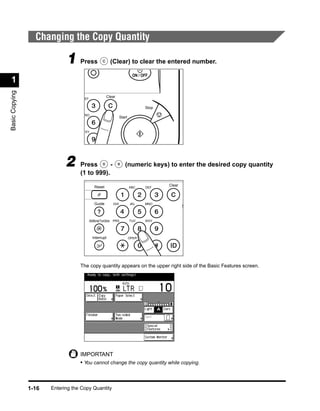
Changing the Copy Quantity

                             1 Press                      (Clear) to clear the entered number.

                                                                            ON / OFF
 1
Basic Copying


                                                       Clear
                                     EF

                                                                                  Stop
                                     NO
                                                                   Start


                                    WXY


                             2     Press       -                      (numeric keys) to enter the desired copy quantity
                                   (1 to 999).

                                              Reset                                      Clear
                                                                           ABC    DEF


                                              Guide          GHI           JKL    MNO
                                                                                                 S


                                          Additional Functions PRS         TUV    WXY


                                            Interrupt                      OPER


                                   The copy quantity appears on the upper right side of the Basic Features screen.


                                   IMPORTANT
                                   • You cannot change the copy quantity while copying.


                1-16   Entering the Copy Quantity
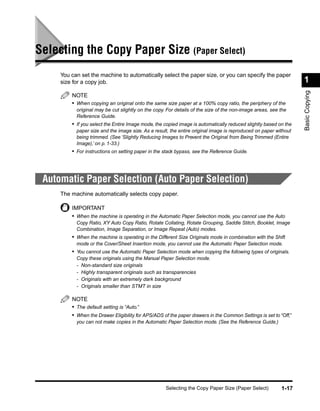
Selecting the Copy Paper Size (Paper Select)
     You can set the machine to automatically select the paper size, or you can specify the paper
     size for a copy job.                                                                                         1


                                                                                                                  Basic Copying
         NOTE
         • When copying an original onto the same size paper at a 100% copy ratio, the periphery of the
           original may be cut slightly on the copy. For details of the size of the non-image areas, see the
           Reference Guide.
         • If you select the Entire Image mode, the copied image is automatically reduced slightly based on the
           paper size and the image size. As a result, the entire original image is reproduced on paper without
           being trimmed. (See ‘Slightly Reducing Images to Prevent the Original from Being Trimmed (Entire
           Image),’ on p. 1-33.)
         • For instructions on setting paper in the stack bypass, see the Reference Guide.


 Automatic Paper Selection (Auto Paper Selection)
     The machine automatically selects copy paper.

         IMPORTANT
         • When the machine is operating in the Automatic Paper Selection mode, you cannot use the Auto
           Copy Ratio, XY Auto Copy Ratio, Rotate Collating, Rotate Grouping, Saddle Stitch, Booklet, Image
           Combination, Image Separation, or Image Repeat (Auto) modes.
         • When the machine is operating in the Different Size Originals mode in combination with the Shift
           mode or the Cover/Sheet Insertion mode, you cannot use the Automatic Paper Selection mode.
         • You cannot use the Automatic Paper Selection mode when copying the following types of originals.
           Copy these originals using the Manual Paper Selection mode.
           - Non-standard size originals
           - Highly transparent originals such as transparencies
           - Originals with an extremely dark background
           - Originals smaller than STMT in size

         NOTE
         • The default setting is “Auto.”
         • When the Drawer Eligibility for APS/ADS of the paper drawers in the Common Settings is set to “Off,”
           you can not make copies in the Automatic Paper Selection mode. (See the Reference Guide.)


                                                    Selecting the Copy Paper Size (Paper Select)          1-17
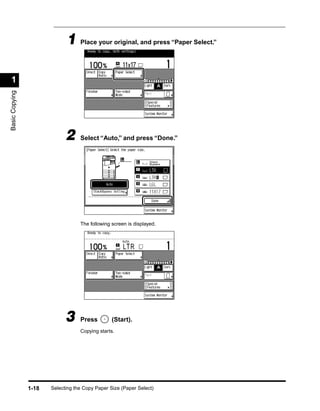
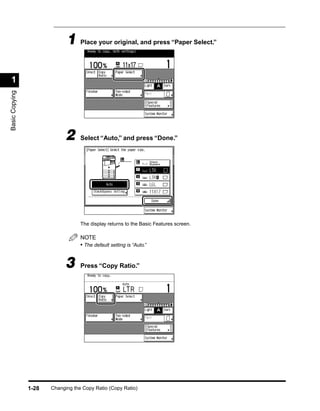
1 Place your original, and press “Paper Select.”

 1
Basic Copying


                             2     Select “Auto,” and press “Done.”


                                   The following screen is displayed.


                             3     Press         (Start).
                                   Copying starts.


                1-18   Selecting the Copy Paper Size (Paper Select)
Specifying Paper Size/Type (Manual Paper Selection)
    You can make copies after selecting the paper size and type (color, recycled, etc.) of paper
    loaded in the paper drawer.


                                                                                                              1
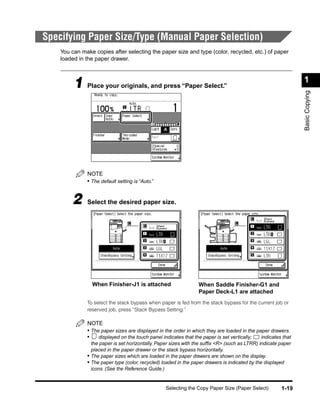
         1 Place your originals, and press “Paper Select.”


                                                                                                              Basic Copying
              NOTE
              • The default setting is “Auto.”


        2     Select the desired paper size.


                When Finisher-J1 is attached                    When Saddle Finisher-G1 and
                                                                Paper Deck-L1 are attached
              To select the stack bypass when paper is fed from the stack bypass for the current job or
              reserved job, press “Stack Bypass Setting.”

              NOTE
              • The paper sizes are displayed in the order in which they are loaded in the paper drawers.
              •    displayed on the touch panel indicates that the paper is set vertically;  indicates that
                the paper is set horizontally. Paper sizes with the suffix <R> (such as LTRR) indicate paper
                placed in the paper drawer or the stack bypass horizontally.
              • The paper sizes which are loaded in the paper drawers are shown on the display.
              • The paper type (color, recycled) loaded in the paper drawers is indicated by the displayed
                icons. (See the Reference Guide.)


                                                 Selecting the Copy Paper Size (Paper Select)         1-19
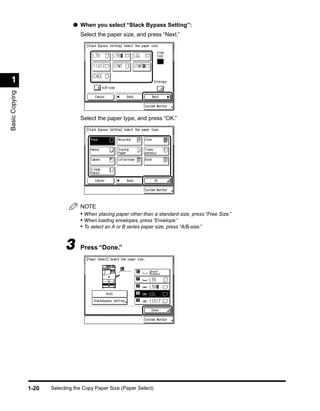
● When you select “Stack Bypass Setting”:
                                   Select the paper size, and press “Next.”


 1
Basic Copying


                                   Select the paper type, and press “OK.”


                                   NOTE
                                   • When placing paper other than a standard size, press “Free Size.”
                                   • When loading envelopes, press “Envelope.”
                                   • To select an A or B series paper size, press “A/B-size.”


                             3     Press “Done.”


                1-20   Selecting the Copy Paper Size (Paper Select)
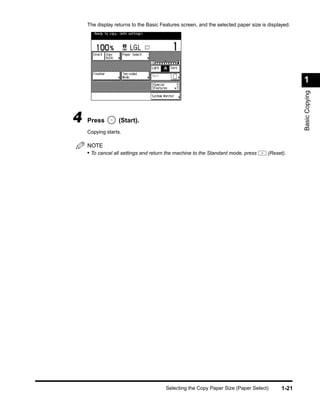
The display returns to the Basic Features screen, and the selected paper size is displayed.


                                                                                                  1


                                                                                                  Basic Copying
4   Press         (Start).
    Copying starts.

    NOTE
    • To cancel all settings and return the machine to the Standard mode, press      (Reset).


                                       Selecting the Copy Paper Size (Paper Select)        1-21
Adjusting Exposure and Image Quality
                        The exposure and image quality can be adjusted when the original is scanned.
 1
                            NOTE
Basic Copying


                            • You can also change the exposure while printing. (See ‘Changing the Copy Exposure During
                              Printing,’ on p. 1-26.)


                  Adjusting Copy Exposure
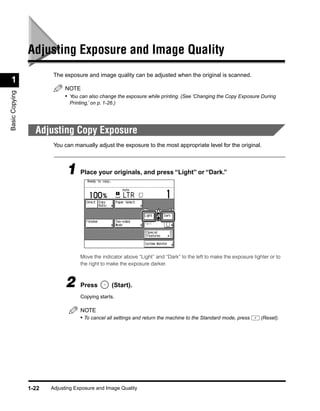
                        You can manually adjust the exposure to the most appropriate level for the original.


                             1 Place your originals, and press “Light” or “Dark.”


                                   Move the indicator above “Light” and “Dark” to the left to make the exposure lighter or to
                                   the right to make the exposure darker.


                             2     Press           (Start).
                                   Copying starts.

                                   NOTE
                                   • To cancel all settings and return the machine to the Standard mode, press      (Reset).


                1-22   Adjusting Exposure and Image Quality
Selecting Image Quality
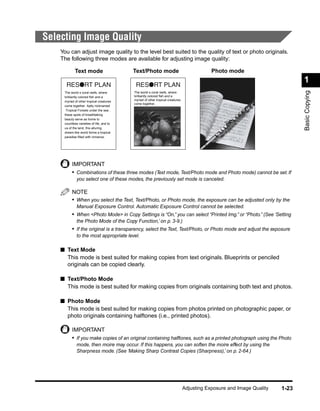
    You can adjust image quality to the level best suited to the quality of text or photo originals.
    The following three modes are available for adjusting image quality:

            Text mode                      Text/Photo mode                                  Photo mode
                                                                                                                              1


                                                                                                                              Basic Copying
     The world s coral reefs, where        The world s coral reefs, where
     brilliantly colored fish and a        brilliantly colored fish and a
     myriad of other tropical creatures    myriad of other tropical creatures
                                           come together.
     come together. Aptly nicknamed
      Tropical Forests under the sea ,
     these spots of breathtaking
     beauty serve as home to
     countless varieties of life, and to
     us of the land, this alluring,
     dream-like world forms a tropical
     paradise filled with romance.


          IMPORTANT
          • Combinations of these three modes (Text mode, Text/Photo mode and Photo mode) cannot be set. If
             you select one of these modes, the previously set mode is canceled.

          NOTE
          • When you select the Text, Text/Photo, or Photo mode, the exposure can be adjusted only by the
             Manual Exposure Control. Automatic Exposure Control cannot be selected.
          • When <Photo Mode> in Copy Settings is “On,” you can select “Printed Img.” or “Photo.” (See ‘Setting
             the Photo Mode of the Copy Function,’ on p. 3-9.)
          • If the original is a transparency, select the Text, Text/Photo, or Photo mode and adjust the exposure
             to the most appropriate level.

    ■ Text Mode
      This mode is best suited for making copies from text originals. Blueprints or penciled
      originals can be copied clearly.

    ■ Text/Photo Mode
      This mode is best suited for making copies from originals containing both text and photos.

    ■ Photo Mode
      This mode is best suited for making copies from photos printed on photographic paper, or
      photo originals containing halftones (i.e., printed photos).

          IMPORTANT
          • If you make copies of an original containing halftones, such as a printed photograph using the Photo
             mode, then moire may occur. If this happens, you can soften the moire effect by using the
             Sharpness mode. (See ‘Making Sharp Contrast Copies (Sharpness),’ on p. 2-64.)


                                                                                Adjusting Exposure and Image Quality   1-23
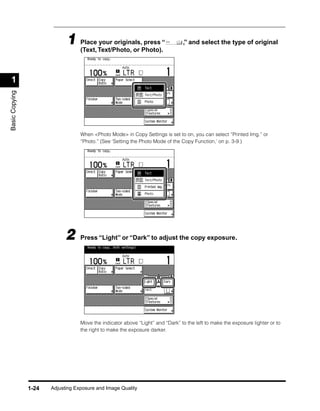
1 Place Text/Photo, or Photo).“
                               (Text,
                                      your originals, press                      ,” and select the type of original


 1
Basic Copying


                                   When <Photo Mode> in Copy Settings is set to on, you can select “Printed Img.” or
                                   “Photo.” (See ‘Setting the Photo Mode of the Copy Function,’ on p. 3-9.)


                             2     Press “Light” or “Dark” to adjust the copy exposure.


                                   Move the indicator above “Light” and “Dark” to the left to make the exposure lighter or to
                                   the right to make the exposure darker.


                1-24   Adjusting Exposure and Image Quality
3    Press         (Start).
           Copying starts.

           NOTE
           • To cancel the copy exposure setting, press “A.”
           • To cancel all settings and return the machine to the Standard mode, press       (Reset).

                                                                                                               1


                                                                                                               Basic Copying
Automatic Adjustment of Exposure and Image Quality

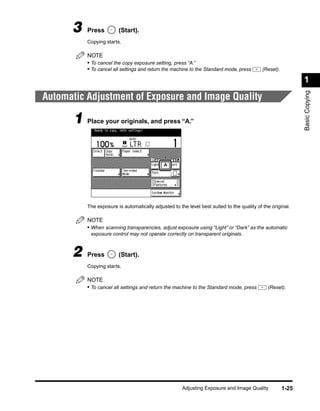
       1 Place your originals, and press “A.”


           The exposure is automatically adjusted to the level best suited to the quality of the original.

           NOTE
           • When scanning transparencies, adjust exposure using “Light” or “Dark” as the automatic
            exposure control may not operate correctly on transparent originals.


      2    Press         (Start).
           Copying starts.

           NOTE
           • To cancel all settings and return the machine to the Standard mode, press         (Reset).


                                                       Adjusting Exposure and Image Quality             1-25
Changing the Copy Exposure During Printing
                        The copy exposure can be changed during printing.


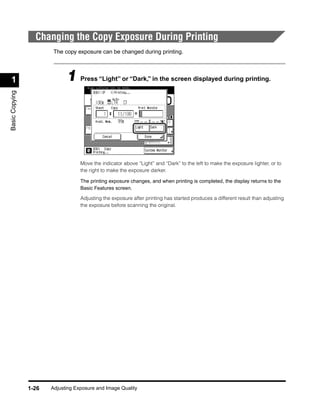
 1                           1 Press “Light” or “Dark,” in the screen displayed during printing.
Basic Copying


                                   Move the indicator above “Light” and “Dark” to the left to make the exposure lighter, or to
                                   the right to make the exposure darker.

                                   The printing exposure changes, and when printing is completed, the display returns to the
                                   Basic Features screen.

                                   Adjusting the exposure after printing has started produces a different result than adjusting
                                   the exposure before scanning the original.


                1-26   Adjusting Exposure and Image Quality
Changing the Copy Ratio (Copy Ratio)
     You can set the machine to adjust the copy ratio automatically, or to specify the copy ratio for
     a job.                                                                                                      1


                                                                                                                 Basic Copying
         NOTE
         • If you want to make copies at the copy ratio of 100%, press “Direct.”


 Enlarging/Reducing Originals to a Standard Size
 (Preset Zoom)
     You can enlarge or reduce standard size originals to a standard paper size.

         IMPORTANT
         • Place your originals horizontally in the following cases:
           - When enlarging LTR-size originals to 11" x 17" or LGL-size paper
           - When enlarging STMT-size originals to 11" x 17"-size paper
         • When reducing 11" x 17" or LGL-size originals to LTR-size with Image Orientation Priority set to
           “Off,” place LTRR-size paper in the paper drawer or stack bypass.

         NOTE
         • Placing an original horizontally means setting the original with the longer side sideways.

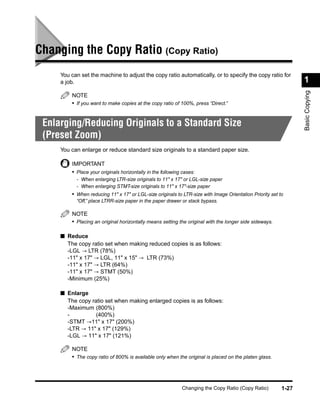
     ■ Reduce
       The copy ratio set when making reduced copies is as follows:
       -LGL → LTR (78%)
       -11" x 17" → LGL, 11" x 15" → LTR (73%)
       -11" x 17" → LTR (64%)
       -11" x 17" → STMT (50%)
       -Minimum (25%)

     ■ Enlarge
       The copy ratio set when making enlarged copies is as follows:
       -Maximum (800%)
       -          (400%)
       -STMT →11" x 17" (200%)
       -LTR → 11" x 17" (129%)
       -LGL → 11" x 17" (121%)

         NOTE
         • The copy ratio of 800% is available only when the original is placed on the platen glass.


                                                             Changing the Copy Ratio (Copy Ratio)         1-27
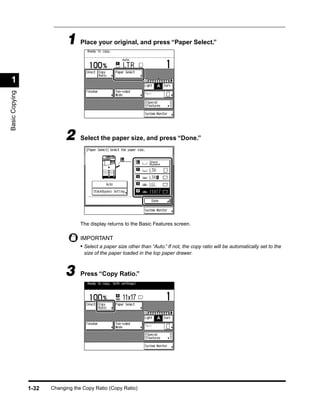
1 Place your original, and press “Paper Select.”

 1
Basic Copying


                             2     Select “Auto,” and press “Done.”


                                   The display returns to the Basic Features screen.

                                   NOTE
                                   • The default setting is “Auto.”


                             3     Press “Copy Ratio.”


                1-28   Changing the Copy Ratio (Copy Ratio)
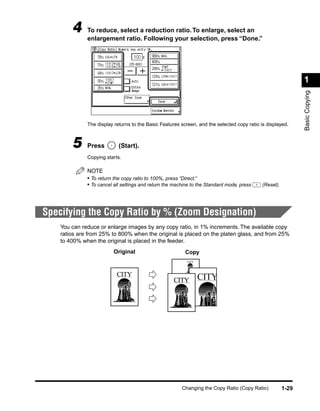
4     To reduce, select a reduction ratio. To enlarge, select an
              enlargement ratio. Following your selection, press “Done.”


                                                                                                               1


                                                                                                               Basic Copying
              The display returns to the Basic Features screen, and the selected copy ratio is displayed.


        5     Press         (Start).
              Copying starts.

              NOTE
              • To return the copy ratio to 100%, press “Direct.”
              • To cancel all settings and return the machine to the Standard mode, press    (Reset).


Specifying the Copy Ratio by % (Zoom Designation)
    You can reduce or enlarge images by any copy ratio, in 1% increments. The available copy
    ratios are from 25% to 800% when the original is placed on the platen glass, and from 25%
    to 400% when the original is placed in the feeder.
                          Original                        Copy
                                                           CITY


                           CITY                                   CITY
                                                     CITY


                                                         Changing the Copy Ratio (Copy Ratio)           1-29
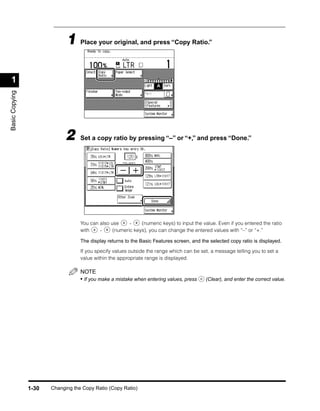
1 Place your original, and press “Copy Ratio.”

 1
Basic Copying


                             2     Set a copy ratio by pressing “–” or “+,” and press “Done.”


                                   You can also use     -    (numeric keys) to input the value. Even if you entered the ratio
                                   with    -     (numeric keys), you can change the entered values with “–” or “+.”

                                   The display returns to the Basic Features screen, and the selected copy ratio is displayed.

                                   If you specify values outside the range which can be set, a message telling you to set a
                                   value within the appropriate range is displayed.

                                   NOTE
                                   • If you make a mistake when entering values, press     (Clear), and enter the correct value.


                1-30   Changing the Copy Ratio (Copy Ratio)
3     Press          (Start).
              Copying starts.

              NOTE
              • To return the copy ratio to 100%, press “Direct.”
              • To cancel all settings and return the machine to the Standard mode, press      (Reset).

                                                                                                                 1


                                                                                                                 Basic Copying
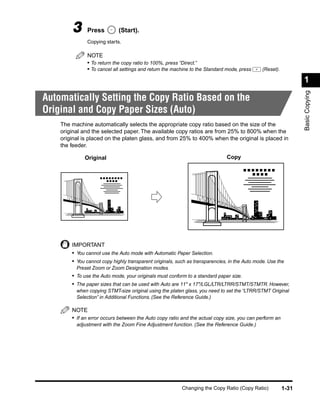
Automatically Setting the Copy Ratio Based on the
Original and Copy Paper Sizes (Auto)
    The machine automatically selects the appropriate copy ratio based on the size of the
    original and the selected paper. The available copy ratios are from 25% to 800% when the
    original is placed on the platen glass, and from 25% to 400% when the original is placed in
    the feeder.

             Original                                                         Copy


        IMPORTANT
        • You cannot use the Auto mode with Automatic Paper Selection.
        • You cannot copy highly transparent originals, such as transparencies, in the Auto mode. Use the
          Preset Zoom or Zoom Designation modes.
        • To use the Auto mode, your originals must conform to a standard paper size.
        • The paper sizes that can be used with Auto are 11" x 17"/LGL/LTR/LTRR/STMT/STMTR. However,
          when copying STMT-size original using the platen glass, you need to set the “LTRR/STMT Original
          Selection” in Additional Functions. (See the Reference Guide.)

        NOTE
        • If an error occurs between the Auto copy ratio and the actual copy size, you can perform an
          adjustment with the Zoom Fine Adjustment function. (See the Reference Guide.)


                                                          Changing the Copy Ratio (Copy Ratio)            1-31
1 Place your original, and press “Paper Select.”

 1
Basic Copying


                             2     Select the paper size, and press “Done.”


                                   The display returns to the Basic Features screen.

                                   IMPORTANT
                                   • Select a paper size other than “Auto.” If not, the copy ratio will be automatically set to the
                                    size of the paper loaded in the top paper drawer.


                             3     Press “Copy Ratio.”


                1-32   Changing the Copy Ratio (Copy Ratio)
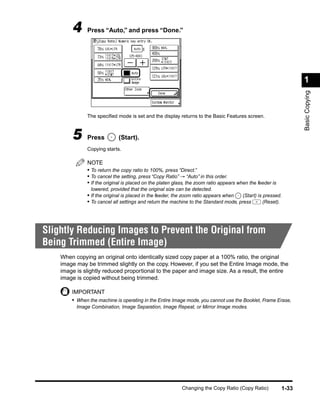
4     Press “Auto,” and press “Done.”


                                                                                                                  1


                                                                                                                  Basic Copying
              The specified mode is set and the display returns to the Basic Features screen.


        5     Press          (Start).
              Copying starts.

              NOTE
              • To return the copy ratio to 100%, press “Direct.”
              • To cancel the setting, press “Copy Ratio” → “Auto” in this order.
              • If the original is placed on the platen glass, the zoom ratio appears when the feeder is
                lowered, provided that the original size can be detected.
              • If the original is placed in the feeder, the zoom ratio appears when  (Start) is pressed.
              • To cancel all settings and return the machine to the Standard mode, press        (Reset).


Slightly Reducing Images to Prevent the Original from
Being Trimmed (Entire Image)
    When copying an original onto identically sized copy paper at a 100% ratio, the original
    image may be trimmed slightly on the copy. However, if you set the Entire Image mode, the
    image is slightly reduced proportional to the paper and image size. As a result, the entire
    image is copied without being trimmed.

        IMPORTANT
        • When the machine is operating in the Entire Image mode, you cannot use the Booklet, Frame Erase,
          Image Combination, Image Separation, Image Repeat, or Mirror Image modes.


                                                           Changing the Copy Ratio (Copy Ratio)            1-33
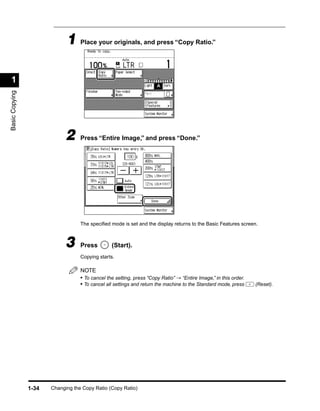
1 Place your originals, and press “Copy Ratio.”

 1
Basic Copying


                             2     Press “Entire Image,” and press “Done.”


                                   The specified mode is set and the display returns to the Basic Features screen.


                             3     Press         (Start).
                                   Copying starts.

                                   NOTE
                                   • To cancel the setting, press “Copy Ratio” → “Entire Image,” in this order.
                                   • To cancel all settings and return the machine to the Standard mode, press    (Reset).


                1-34   Changing the Copy Ratio (Copy Ratio)
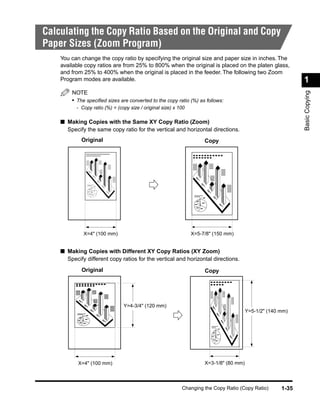
Calculating the Copy Ratio Based on the Original and Copy
Paper Sizes (Zoom Program)
    You can change the copy ratio by specifying the original size and paper size in inches. The
    available copy ratios are from 25% to 800% when the original is placed on the platen glass,
    and from 25% to 400% when the original is placed in the feeder. The following two Zoom
    Program modes are available.                                                                              1


                                                                                                              Basic Copying
        NOTE
        • The specified sizes are converted to the copy ratio (%) as follows:
          - Copy ratio (%) = (copy size / original size) x 100

    ■ Making Copies with the Same XY Copy Ratio (Zoom)
      Specify the same copy ratio for the vertical and horizontal directions.
            Original                                                  Copy


             X=4" (100 mm)                                       X=5-7/8" (150 mm)


    ■ Making Copies with Different XY Copy Ratios (XY Zoom)
      Specify different copy ratios for the vertical and horizontal directions.
            Original                                                  Copy


                                Y=4-3/4" (120 mm)
                                                                                         Y=5-1/2" (140 mm)


           X=4" (100 mm)                                              X=3-1/8" (80 mm)


                                                            Changing the Copy Ratio (Copy Ratio)       1-35
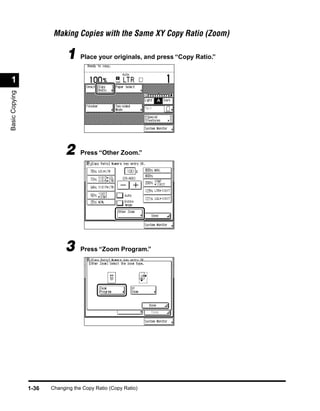
Making Copies with the Same XY Copy Ratio (Zoom)

                             1 Place your originals, and press “Copy Ratio.”
 1
Basic Copying


                             2     Press “Other Zoom.”


                             3     Press “Zoom Program.”


                1-36   Changing the Copy Ratio (Copy Ratio)
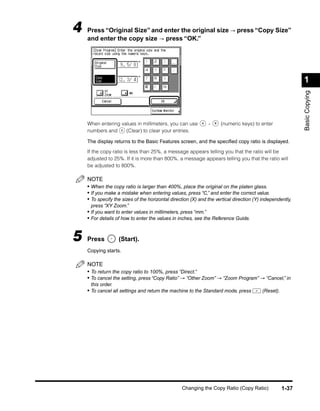
4   Press “Original Size” and enter the original size → press “Copy Size”
    and enter the copy size → press “OK.”


                                                                                                           1


                                                                                                           Basic Copying
    When entering values in millimeters, you can use           -     (numeric keys) to enter
    numbers and     (Clear) to clear your entries.

    The display returns to the Basic Features screen, and the specified copy ratio is displayed.

    If the copy ratio is less than 25%, a message appears telling you that the ratio will be
    adjusted to 25%. If it is more than 800%, a message appears telling you that the ratio will
    be adjusted to 800%.

    NOTE
    • When the copy ratio is larger than 400%, place the original on the platen glass.
    • If you make a mistake when entering values, press “C,” and enter the correct value.
    • To specify the sizes of the horizontal direction (X) and the vertical direction (Y) independently,
     press “XY Zoom.”
    • If you want to enter values in millimeters, press “mm.”
    • For details of how to enter the values in inches, see the Reference Guide.


5   Press          (Start).
    Copying starts.

    NOTE
    • To return the copy ratio to 100%, press “Direct.”
    • To cancel the setting, press “Copy Ratio” → “Other Zoom” → “Zoom Program” → “Cancel,” in
     this order.
    • To cancel all settings and return the machine to the Standard mode, press          (Reset).


                                                  Changing the Copy Ratio (Copy Ratio)              1-37
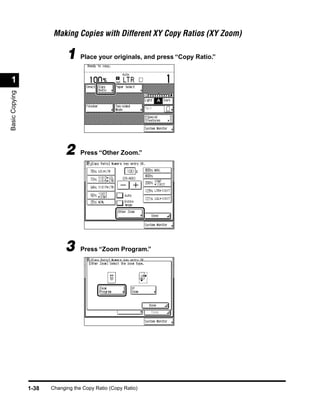
Making Copies with Different XY Copy Ratios (XY Zoom)

                             1 Place your originals, and press “Copy Ratio.”
 1
Basic Copying


                             2     Press “Other Zoom.”


                             3     Press “Zoom Program.”


                1-38   Changing the Copy Ratio (Copy Ratio)
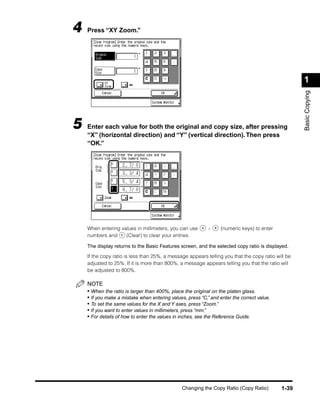
4   Press “XY Zoom.”


                                                                                                    1


                                                                                                    Basic Copying
5   Enter each value for both the original and copy size, after pressing
    “X” (horizontal direction) and “Y” (vertical direction). Then press
    “OK.”


    When entering values in millimeters, you can use        -     (numeric keys) to enter
    numbers and     (Clear) to clear your entries.

    The display returns to the Basic Features screen, and the selected copy ratio is displayed.

    If the copy ratio is less than 25%, a message appears telling you that the copy ratio will be
    adjusted to 25%. If it is more than 800%, a message appears telling you that the ratio will
    be adjusted to 800%.

    NOTE
    • When the ratio is larger than 400%, place the original on the platen glass.
    • If you make a mistake when entering values, press “C,” and enter the correct value.
    • To set the same values for the X and Y axes, press “Zoom.”
    • If you want to enter values in millimeters, press “mm.”
    • For details of how to enter the values in inches, see the Reference Guide.


                                                Changing the Copy Ratio (Copy Ratio)        1-39
6     Press          (Start).
                                   Copying starts.

                                   NOTE
                                   • To return the copy ratio to 100%, press “Direct.”
                                   • To cancel the setting, press “Copy Ratio” → “Other Zoom”→“Zoom Program” → “Cancel,” in
                                    this order.
 1                                 • To cancel all settings and return the machine to the Standard mode, press     (Reset).
Basic Copying


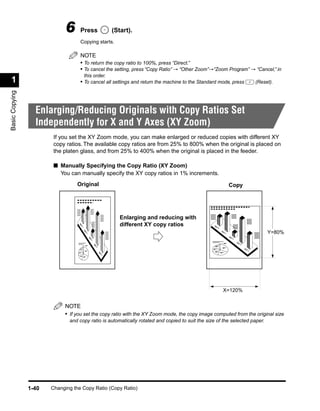
                  Enlarging/Reducing Originals with Copy Ratios Set
                  Independently for X and Y Axes (XY Zoom)
                        If you set the XY Zoom mode, you can make enlarged or reduced copies with different XY
                        copy ratios. The available copy ratios are from 25% to 800% when the original is placed on
                        the platen glass, and from 25% to 400% when the original is placed in the feeder.

                        ■ Manually Specifying the Copy Ratio (XY Zoom)
                          You can manually specify the XY copy ratios in 1% increments.
                                 Original                                                              Copy


                                                     Enlarging and reducing with
                                                     different XY copy ratios
                                                                                                                           Y=80%


                                                                                                    X=120%


                            NOTE
                            • If you set the copy ratio with the XY Zoom mode, the copy image computed from the original size
                              and copy ratio is automatically rotated and copied to suit the size of the selected paper.


                1-40   Changing the Copy Ratio (Copy Ratio)
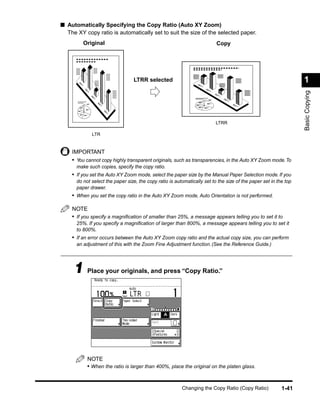
■ Automatically Specifying the Copy Ratio (Auto XY Zoom)
  The XY copy ratio is automatically set to suit the size of the selected paper.
         Original                                                         Copy


                                 LTRR selected                                                                    1


                                                                                                                  Basic Copying
                                                                          LTRR

             LTR


    IMPORTANT
    • You cannot copy highly transparent originals, such as transparencies, in the Auto XY Zoom mode. To
      make such copies, specify the copy ratio.
    • If you set the Auto XY Zoom mode, select the paper size by the Manual Paper Selection mode. If you
      do not select the paper size, the copy ratio is automatically set to the size of the paper set in the top
      paper drawer.
    • When you set the copy ratio in the Auto XY Zoom mode, Auto Orientation is not performed.

    NOTE
    • If you specify a magnification of smaller than 25%, a message appears telling you to set it to
      25%. If you specify a magnification of larger than 800%, a message appears telling you to set it
      to 800%.
    • If an error occurs between the Auto XY Zoom copy ratio and the actual copy size, you can perform
      an adjustment of this with the Zoom Fine Adjustment function. (See the Reference Guide.)


     1 Place your originals, and press “Copy Ratio.”


           NOTE
           • When the ratio is larger than 400%, place the original on the platen glass.


                                                         Changing the Copy Ratio (Copy Ratio)             1-41
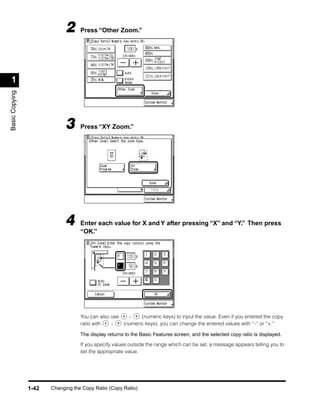
2     Press “Other Zoom.”


 1
Basic Copying


                             3     Press “XY Zoom.”


                             4     Enter each value for X and Y after pressing “X” and “Y.” Then press
                                   “OK.”


                                   You can also use   -    (numeric keys) to input the value. Even if you entered the copy
                                   ratio with   -   (numeric keys), you can change the entered values with “–” or “+.”

                                   The display returns to the Basic Features screen, and the selected copy ratio is displayed.

                                   If you specify values outside the range which can be set, a message appears telling you to
                                   set the appropriate value.


                1-42   Changing the Copy Ratio (Copy Ratio)
IMPORTANT
    • When you select “Auto XY Zoom,” you cannot use <Auto> for a paper size. If no paper size
     is specified, the copy ratio is automatically set to the size of the paper in the top paper
     drawer.

    NOTE
    • If you make a mistake when entering values, press “C,” and enter the correct value.
    • When you select “Auto XY Zoom” in the following cases, <X: Auto%> and <Y: Auto%> are
     displayed as the copy ratios in the Basic Features screen.                                        1
     - When the original is placed in the feeder


                                                                                                       Basic Copying
     - When the original whose size cannot be detected is placed on the platen glass


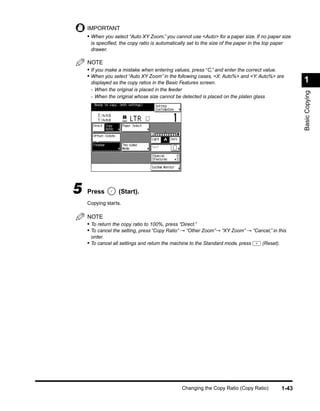
5   Press         (Start).
    Copying starts.

    NOTE
    • To return the copy ratio to 100%, press “Direct.”
    • To cancel the setting, press “Copy Ratio” → “Other Zoom”→ “XY Zoom” → “Cancel,” in this
     order.
    • To cancel all settings and return the machine to the Standard mode, press      (Reset).


                                               Changing the Copy Ratio (Copy Ratio)             1-43
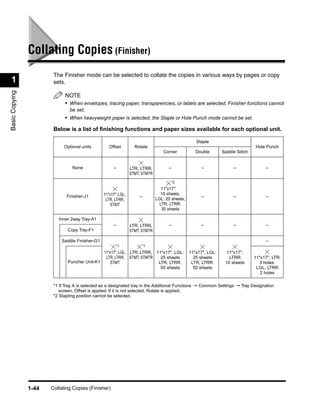
Collating Copies (Finisher)
                        The Finisher mode can be selected to collate the copies in various ways by pages or copy
 1                      sets.
Basic Copying


                             NOTE
                             • When envelopes, tracing paper, transparencies, or labels are selected, Finisher functions cannot
                                be set.
                             • When heavyweight paper is selected, the Staple or Hole Punch mode cannot be set.

                        Below is a list of finishing functions and paper sizes available for each optional unit.

                                                                                                    Staple
                             Optional units         Offset         Rotate                                                        Hole Punch
                                                                                   Corner           Double       Saddle Stitch


                                 None                 –          LTR, LTRR,          –                –               –               –
                                                                 STMT, STMTR
                                                                                      *2
                                                                                  11"x17":
                                                 11"x17", LGL,                    15 sheets;
                              Finisher-J1                            –                                –               –               –
                                                  LTR, LTRR,                   LGL: 20 sheets;
                                                     STMT                        LTR, LTRR:
                                                                                  30 sheets

                          Inner 2way Tray-A1
                                                      –          LTR, LTRR,          –                –               –               –
                               Copy Tray-F1                      STMT, STMTR

                            Saddle Finisher-G1                                                                                        –
                                                        *1            *1
                                                 11"x17", LGL, LTR, LTRR, 11"x17", LGL:          11"x17", LGL:     11"x17",
                                                  LTR, LTRR, STMT, STMTR    25 sheets              25 sheets        LTRR:        11"x17", LTR:
                               Puncher Unit-K1       STMT                  LTR, LTRR:             LTR, LTRR:      10 sheets        3 holes;
                                                                            50 sheets              50 sheets                      LGL, LTRR:
                                                                                                                                    2 holes

                        *1 If Tray A is selected as a designated tray in the Additional Functions → Common Settings → Tray Designation
                           screen, Offset is applied. If it is not selected, Rotate is applied.
                        *2 Stapling position cannot be selected.


                1-44   Collating Copies (Finisher)
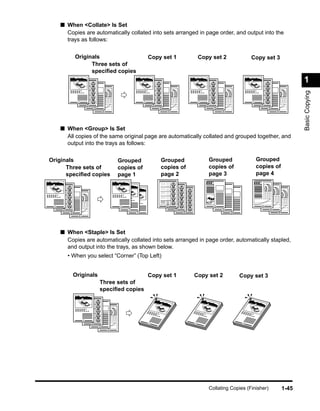
■ When <Collate> Is Set
       Copies are automatically collated into sets arranged in page order, and output into the
       trays as follows:


               Originals                                         Copy set 1                  Copy set 2                 Copy set 3
                     Three sets of
                     specified copies
                                                                                                                                                  1


                                                                                                                                                  Basic Copying
                1                                            1                               1                          1
                         2                                           2                           2                            2
                                 3                                       3                             3                           3
                                         4                                   4                             4                           4


     ■ When <Group> Is Set
       All copies of the same original page are automatically collated and grouped together, and
       output into the trays as follows:

Originals                                        Grouped                 Grouped                     Grouped                Grouped
      Three sets of                              copies of               copies of                   copies of              copies of
      specified copies                            page 1                  page 2                      page 3                 page 4


 1                                               1                           2                         3                      4
      2                                              1                           2                         3                       4
           3                                             1                           2                         3                       4
                 4


     ■ When <Staple> Is Set
       Copies are automatically collated into sets arranged in page order, automatically stapled,
       and output into the trays, as shown below.
          • When you select “Corner” (Top Left)


               Originals                                         Copy set 1              Copy set 2                Copy set 3
                                     Three sets of
                                     specified copies


                     1
                             2                                   1                       1                          1
                                     3
                                             4


                                                                                                     Collating Copies (Finisher)           1-45
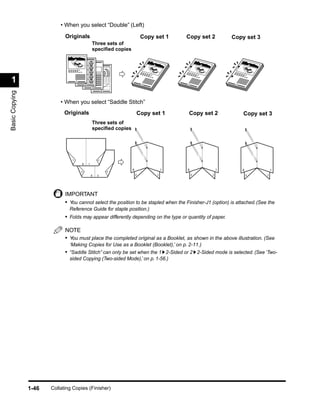
• When you select “Double” (Left)
                             Originals                                        Copy set 1    Copy set 2          Copy set 3
                                                    Three sets of
                                                    specified copies


 1                                  1
                                            2                                 1             1                    1
                                                    3
                                                            4
Basic Copying


                           • When you select “Saddle Stitch”
                             Originals                                    Copy set 1            Copy set 2           Copy set 3
                                                    Three sets of
                                                    specified copies
                                                        2
                                7


                                        8       1

                                                                      8                 1   8               1        8           1
                                                                4
                                        5


                                                    6   3                 6         3           6       3                6   3


                             IMPORTANT
                             • You cannot select the position to be stapled when the Finisher-J1 (option) is attached. (See the
                               Reference Guide for staple position.)
                             • Folds may appear differently depending on the type or quantity of paper.

                             NOTE
                             • You must place the completed original as a Booklet, as shown in the above illustration. (See
                               ‘Making Copies for Use as a Booklet (Booklet),’ on p. 2-11.)
                             • “Saddle Stitch” can only be set when the 1 2-Sided or 2 2-Sided mode is selected. (See ‘Two-
                               sided Copying (Two-sided Mode),’ on p. 1-56.)


                1-46   Collating Copies (Finisher)
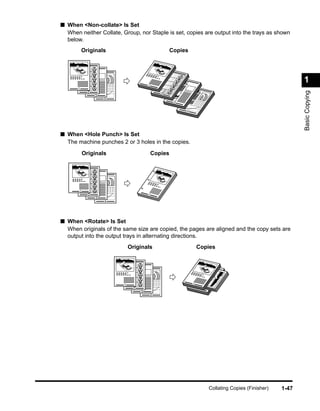
■ When <Non-collate> Is Set
  When neither Collate, Group, nor Staple is set, copies are output into the trays as shown
  below.
           Originals                               Copies


                                       1
                                                                                                         1
       1


                                                                                                         Basic Copying
             2                                 2
                 3
                     4
                                                    3

                                                        4


■ When <Hole Punch> Is Set
  The machine punches 2 or 3 holes in the copies.
           Originals                       Copies


       1
             2                         1
                 3
                     4


■ When <Rotate> Is Set
  When originals of the same size are copied, the pages are aligned and the copy sets are
  output into the output trays in alternating directions.
                             Originals                          Copies
                                                            1


                         1                                  1
                               2                                1
                                   3
                                           4


                                                                    Collating Copies (Finisher)   1-47
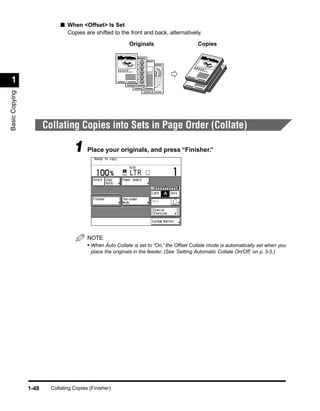
■ When <Offset> Is Set
                               Copies are shifted to the front and back, alternatively.
                                                               Originals                           Copies


 1                                                         1
                                                                 2
                                                                                               1

                                                                                                   1
                                                                                           1
                                                                     3
Basic Copying


                                                                         4


                       Collating Copies into Sets in Page Order (Collate)

                                   1 Place your originals, and press “Finisher.”


                                         NOTE
                                         • When Auto Collate is set to “On,” the Offset Collate mode is automatically set when you
                                           place the originals in the feeder. (See ‘Setting Automatic Collate On/Off,’ on p. 3-5.)


                1-48     Collating Copies (Finisher)
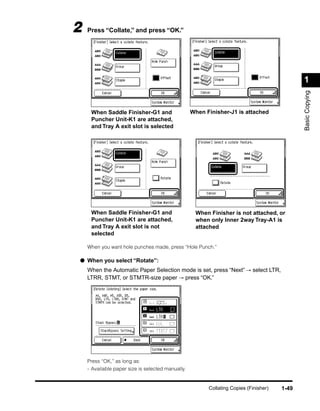
2   Press “Collate,” and press “OK.”


                                                                                              1


                                                                                              Basic Copying
     When Saddle Finisher-G1 and                   When Finisher-J1 is attached
     Puncher Unit-K1 are attached,
     and Tray A exit slot is selected


     When Saddle Finisher-G1 and                    When Finisher is not attached, or
     Puncher Unit-K1 are attached,                  when only Inner 2way Tray-A1 is
     and Tray A exit slot is not                    attached
     selected

    When you want hole punches made, press “Hole Punch.”

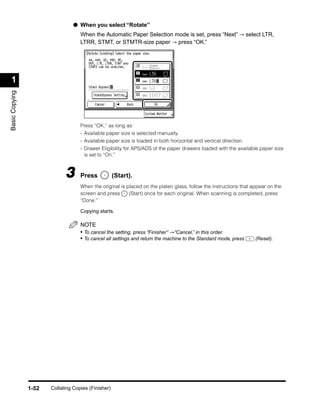
● When you select “Rotate”:
    When the Automatic Paper Selection mode is set, press “Next” → select LTR,
    LTRR, STMT, or STMTR-size paper → press “OK.”


    Press “OK,” as long as:
    - Available paper size is selected manually.


                                                         Collating Copies (Finisher)   1-49
- Available paper size is loaded in both horizontal and vertical directions.
                                    - Drawer Eligibility for APS/ADS of the paper drawers loaded with available paper size is
                                      set to “On.”


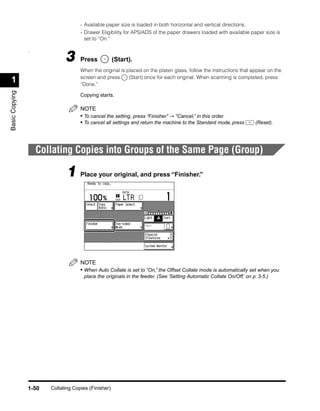
                             3
                Â


                                    Press            (Start).
                                    When the original is placed on the platen glass, follow the instructions that appear on the
                                    screen and press      (Start) once for each original. When scanning is completed, press
 1                                  “Done.”
Basic Copying


                                    Copying starts.

                                    NOTE
                                    • To cancel the setting, press “Finisher” → “Cancel,” in this order.
                                    • To cancel all settings and return the machine to the Standard mode, press      (Reset).


                    Collating Copies into Groups of the Same Page (Group)

                              1 Place your original, and press “Finisher.”


                                    NOTE
                                    • When Auto Collate is set to “On,” the Offset Collate mode is automatically set when you
                                     place the originals in the feeder. (See ‘Setting Automatic Collate On/Off,’ on p. 3-5.)


                1-50   Collating Copies (Finisher)
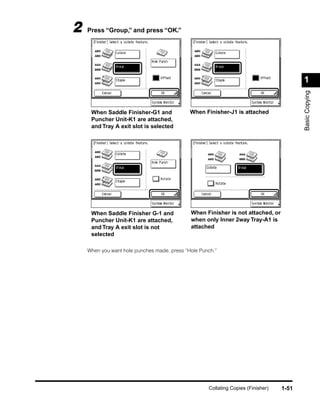
2   Press “Group,” and press “OK.”


                                                                                         1


                                                                                         Basic Copying
     When Saddle Finisher-G1 and             When Finisher-J1 is attached
     Puncher Unit-K1 are attached,
     and Tray A exit slot is selected


     When Saddle Finisher G-1 and            When Finisher is not attached, or
     Puncher Unit-K1 are attached,           when only Inner 2way Tray-A1 is
     and Tray A exit slot is not             attached
     selected

    When you want hole punches made, press “Hole Punch.”


                                                    Collating Copies (Finisher)   1-51
● When you select “Rotate”
                                    When the Automatic Paper Selection mode is set, press “Next” → select LTR,
                                    LTRR, STMT, or STMTR-size paper → press “OK.”


 1
Basic Copying


                                    Press “OK,” as long as:
                                    - Available paper size is selected manually.
                                    - Available paper size is loaded in both horizontal and vertical direction.
                                    - Drawer Eligibility for APS/ADS of the paper drawers loaded with the available paper size
                                      is set to “On.”


                             3      Press            (Start).
                                    When the original is placed on the platen glass, follow the instructions that appear on the
                                    screen and press      (Start) once for each original. When scanning is completed, press
                                    “Done.”

                                    Copying starts.

                                    NOTE
                                    • To cancel the setting, press “Finisher” →“Cancel,” in this order.
                                    • To cancel all settings and return the machine to the Standard mode, press    (Reset).


                1-52   Collating Copies (Finisher)
Collating Pages and Stapling (Staple)

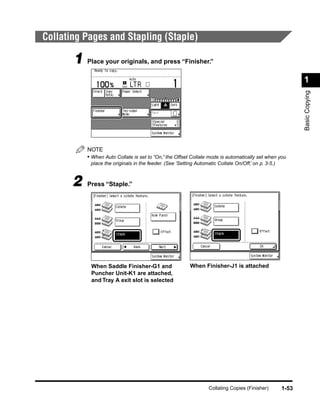
       1 Place your originals, and press “Finisher.”
                                                                                                             1


                                                                                                             Basic Copying
           NOTE
           • When Auto Collate is set to “On,” the Offset Collate mode is automatically set when you
            place the originals in the feeder. (See ‘Setting Automatic Collate On/Off,’ on p. 3-5.)


       2   Press “Staple.”


            When Saddle Finisher-G1 and                   When Finisher-J1 is attached
            Puncher Unit-K1 are attached,
            and Tray A exit slot is selected


                                                                   Collating Copies (Finisher)        1-53
1
Basic Copying


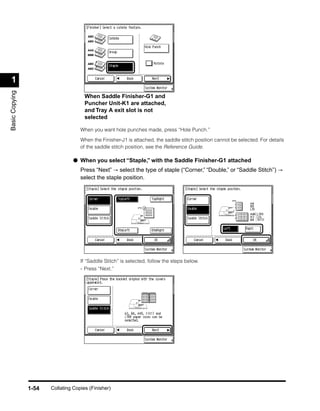
                                      When Saddle Finisher-G1 and
                                      Puncher Unit-K1 are attached,
                                      and Tray A exit slot is not
                                      selected

                                    When you want hole punches made, press “Hole Punch.”

                                    When the Finisher-J1 is attached, the saddle stitch position cannot be selected. For details
                                    of the saddle stitch position, see the Reference Guide.

                                 ● When you select “Staple,” with the Saddle Finisher-G1 attached
                                    Press “Next” → select the type of staple (“Corner,” “Double,” or “Saddle Stitch”) →
                                    select the staple position.


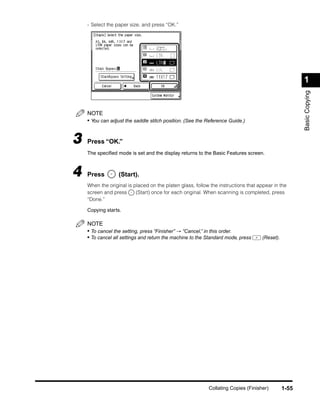
                                    If “Saddle Stitch” is selected, follow the steps below.
                                    - Press “Next.”


                1-54   Collating Copies (Finisher)
- Select the paper size, and press “OK.”


                                                                                                     1


                                                                                                     Basic Copying
    NOTE
    • You can adjust the saddle stitch position. (See the Reference Guide.)


3   Press “OK.”
    The specified mode is set and the display returns to the Basic Features screen.


4   Press         (Start).
    When the original is placed on the platen glass, follow the instructions that appear in the
    screen and press      (Start) once for each original. When scanning is completed, press
    “Done.”

    Copying starts.

    NOTE
    • To cancel the setting, press “Finisher” → “Cancel,” in this order.
    • To cancel all settings and return the machine to the Standard mode, press    (Reset).


                                                           Collating Copies (Finisher)        1-55
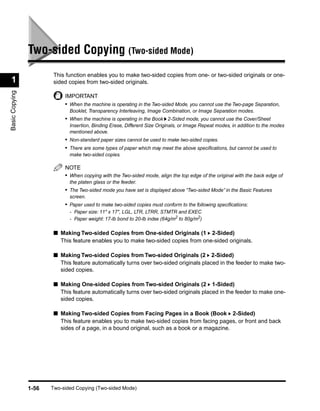
Two-sided Copying (Two-sided Mode)
                        This function enables you to make two-sided copies from one- or two-sided originals or one-
 1                      sided copies from two-sided originals.
Basic Copying


                            IMPORTANT
                            • When the machine is operating in the Two-sided Mode, you cannot use the Two-page Separation,
                              Booklet, Transparency Interleaving, Image Combination, or Image Separation modes.
                            • When the machine is operating in the Book 2-Sided mode, you cannot use the Cover/Sheet
                              Insertion, Binding Erase, Different Size Originals, or Image Repeat modes, in addition to the modes
                              mentioned above.
                            • Non-standard paper sizes cannot be used to make two-sided copies.
                            • There are some types of paper which may meet the above specifications, but cannot be used to
                              make two-sided copies.

                            NOTE
                            • When copying with the Two-sided mode, align the top edge of the original with the back edge of
                              the platen glass or the feeder.
                            • The Two-sided mode you have set is displayed above “Two-sided Mode” in the Basic Features
                              screen.
                            • Paper used to make two-sided copies must conform to the following specifications:
                              - Paper size: 11" x 17", LGL, LTR, LTRR, STMTR and EXEC
                              - Paper weight: 17-lb bond to 20-lb index (64g/m2 to 80g/m2)

                        ■ Making Two-sided Copies from One-sided Originals (1 2-Sided)
                          This feature enables you to make two-sided copies from one-sided originals.

                        ■ Making Two-sided Copies from Two-sided Originals (2 2-Sided)
                          This feature automatically turns over two-sided originals placed in the feeder to make two-
                          sided copies.

                        ■ Making One-sided Copies from Two-sided Originals (2 1-Sided)
                          This feature automatically turns over two-sided originals placed in the feeder to make one-
                          sided copies.

                        ■ Making Two-sided Copies from Facing Pages in a Book (Book 2-Sided)
                          This feature enables you to make two-sided copies from facing pages, or front and back
                          sides of a page, in a bound original, such as a book or a magazine.


                1-56   Two-sided Copying (Two-sided Mode)
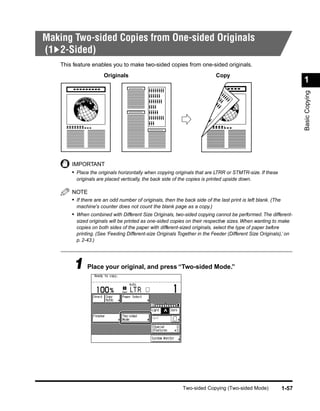
Making Two-sided Copies from One-sided Originals
(1 2-Sided)
    This feature enables you to make two-sided copies from one-sided originals.
                       Originals                                             Copy
                                                                                                                     1


                                                                                                                     Basic Copying
        IMPORTANT
        • Place the originals horizontally when copying originals that are LTRR or STMTR-size. If these
          originals are placed vertically, the back side of the copies is printed upside down.

        NOTE
        • If there are an odd number of originals, then the back side of the last print is left blank. (The
          machine's counter does not count the blank page as a copy.)
        • When combined with Different Size Originals, two-sided copying cannot be performed. The different-
          sized originals will be printed as one-sided copies on their respective sizes. When wanting to make
          copies on both sides of the paper with different-sized originals, select the type of paper before
          printing. (See ‘Feeding Different-size Originals Together in the Feeder (Different Size Originals),’ on
          p. 2-43.)


         1 Place your original, and press “Two-sided Mode.”


                                                             Two-sided Copying (Two-sided Mode)               1-57
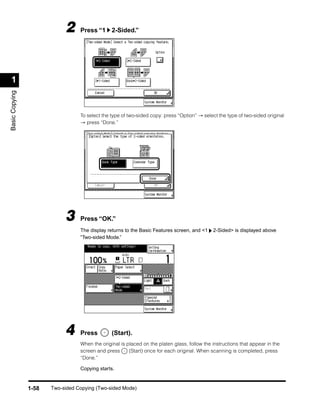
2     Press “1 2-Sided.”


 1
Basic Copying


                                  To select the type of two-sided copy: press “Option” → select the type of two-sided original
                                  → press “Done.”


                            3     Press “OK.”
                                  The display returns to the Basic Features screen, and <1    2-Sided> is displayed above
                                  “Two-sided Mode.”


                            4     Press         (Start).
                                  When the original is placed on the platen glass, follow the instructions that appear in the
                                  screen and press      (Start) once for each original. When scanning is completed, press
                                  “Done.”

                                  Copying starts.


                1-58   Two-sided Copying (Two-sided Mode)
NOTE
              • To cancel the setting, press “Two-sided Mode” → “Cancel,” in this order.
              • To cancel all settings and return the machine to the Standard mode, press    (Reset).


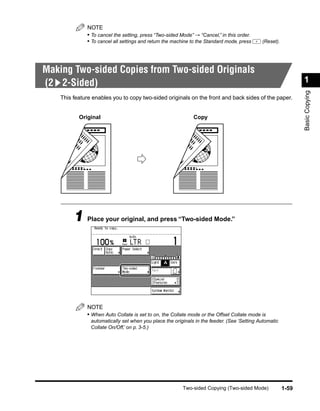
Making Two-sided Copies from Two-sided Originals
(2 2-Sided)                                                                                                    1


                                                                                                               Basic Copying
    This feature enables you to copy two-sided originals on the front and back sides of the paper.


           Original                                           Copy


         1 Place your original, and press “Two-sided Mode.”


              NOTE
              • When Auto Collate is set to on, the Collate mode or the Offset Collate mode is
                automatically set when you place the originals in the feeder. (See ‘Setting Automatic
                Collate On/Off,’ on p. 3-5.)


                                                         Two-sided Copying (Two-sided Mode)             1-59
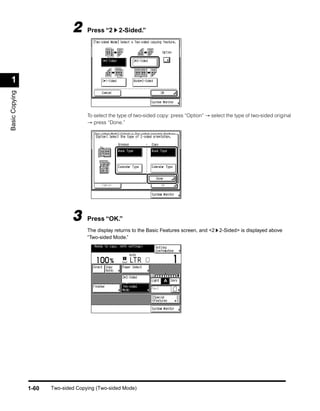
2     Press “2      2-Sided.”


 1
Basic Copying


                                     To select the type of two-sided copy: press “Option” → select the type of two-sided original
                                     → press “Done.”


                               3     Press “OK.”
                                     The display returns to the Basic Features screen, and <2 2-Sided> is displayed above
                                     “Two-sided Mode.”


                1-60   Two-sided Copying (Two-sided Mode)
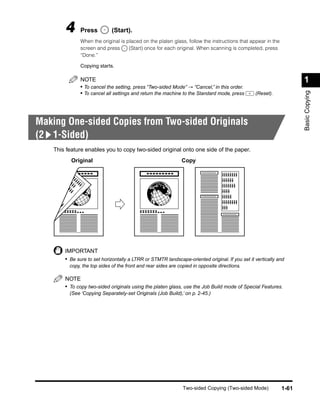
4      Press          (Start).
               When the original is placed on the platen glass, follow the instructions that appear in the
               screen and press      (Start) once for each original. When scanning is completed, press
               “Done.”

               Copying starts.

               NOTE                                                                                                 1
               • To cancel the setting, press “Two-sided Mode” → “Cancel,” in this order.


                                                                                                                    Basic Copying
               • To cancel all settings and return the machine to the Standard mode, press       (Reset).


Making One-sided Copies from Two-sided Originals
(2 1-Sided)
    This feature enables you to copy two-sided original onto one side of the paper.
           Original                                            Copy


        IMPORTANT
        • Be sure to set horizontally a LTRR or STMTR landscape-oriented original. If you set it vertically and
          copy, the top sides of the front and rear sides are copied in opposite directions.

        NOTE
        • To copy two-sided originals using the platen glass, use the Job Build mode of Special Features.
          (See ‘Copying Separately-set Originals (Job Build),’ on p. 2-45.)


                                                                Two-sided Copying (Two-sided Mode)           1-61
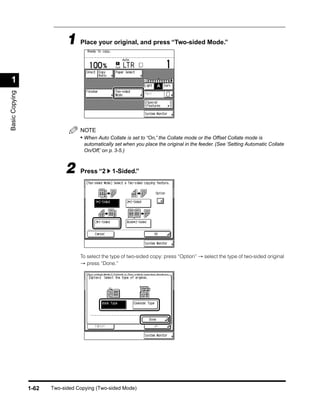
1 Place your original, and press “Two-sided Mode.”

 1
Basic Copying


                                  NOTE
                                  • When Auto Collate is set to “On,” the Collate mode or the Offset Collate mode is
                                    automatically set when you place the original in the feeder. (See ‘Setting Automatic Collate
                                    On/Off,’ on p. 3-5.)


                            2     Press “2      1-Sided.”


                                  To select the type of two-sided copy: press “Option” → select the type of two-sided original
                                  → press “Done.”


                1-62   Two-sided Copying (Two-sided Mode)
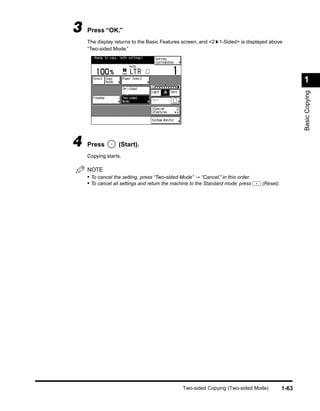
3   Press “OK.”
    The display returns to the Basic Features screen, and <2 1-Sided> is displayed above
    “Two-sided Mode.”


                                                                                                    1


                                                                                                    Basic Copying
4   Press         (Start).
    Copying starts.

    NOTE
    • To cancel the setting, press “Two-sided Mode” → “Cancel,” in this order.
    • To cancel all settings and return the machine to the Standard mode, press   (Reset).


                                               Two-sided Copying (Two-sided Mode)            1-63
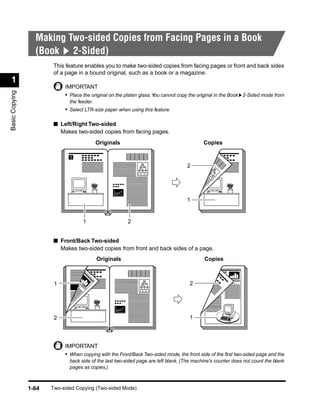
Making Two-sided Copies from Facing Pages in a Book
                  (Book 2-Sided)
                        This feature enables you to make two-sided copies from facing pages or front and back sides
                        of a page in a bound original, such as a book or a magazine.
 1
                            IMPORTANT
Basic Copying


                            • Place the original on the platen glass. You cannot copy the original in the Book 2-Sided mode from
                              the feeder.
                            • Select LTR-size paper when using this feature.

                        ■ Left/Right Two-sided
                          Makes two-sided copies from facing pages.
                                            Originals                                       Copies

                              1
                                                                                    2


                                                                                    1


                                    1                    2


                        ■ Front/Back Two-sided
                          Makes two-sided copies from front and back sides of a page.
                                            Originals                                       Copies


                        1                                                             2


                        2                                                            1


                            IMPORTANT
                            • When copying with the Front/Back Two-sided mode, the front side of the first two-sided page and the
                              back side of the last two-sided page are left blank. (The machine's counter does not count the blank
                              pages as copies.)


                1-64   Two-sided Copying (Two-sided Mode)
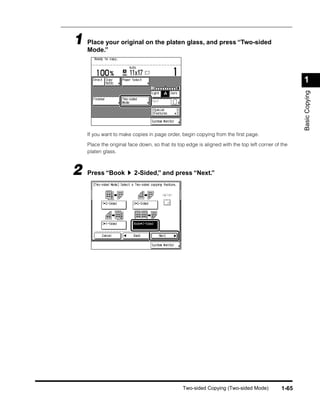
1 Place your original on the platen glass, and press “Two-sided
  Mode.”


                                                                                                     1


                                                                                                     Basic Copying
    If you want to make copies in page order, begin copying from the first page.

    Place the original face down, so that its top edge is aligned with the top left corner of the
    platen glass.


2   Press “Book          2-Sided,” and press “Next.”


                                                Two-sided Copying (Two-sided Mode)            1-65
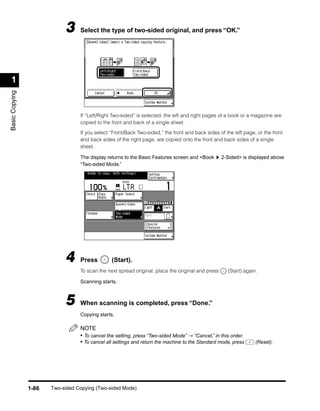
3     Select the type of two-sided original, and press “OK.”


 1
Basic Copying


                                  If “Left/Right Two-sided” is selected, the left and right pages of a book or a magazine are
                                  copied to the front and back of a single sheet.

                                  If you select “Front/Back Two-sided,” the front and back sides of the left page, or the front
                                  and back sides of the right page, are copied onto the front and back sides of a single
                                  sheet.

                                  The display returns to the Basic Features screen and <Book       2-Sided> is displayed above
                                  “Two-sided Mode.”


                            4     Press         (Start).
                                  To scan the next spread original, place the original and press     (Start) again.

                                  Scanning starts.


                            5     When scanning is completed, press “Done.”
                                  Copying starts.

                                  NOTE
                                  • To cancel the setting, press “Two-sided Mode” → “Cancel,” in this order.
                                  • To cancel all settings and return the machine to the Standard mode, press     (Reset).


                1-66   Two-sided Copying (Two-sided Mode)
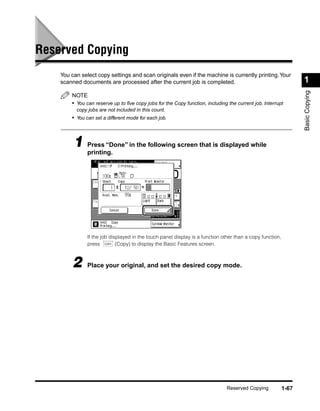
Reserved Copying
    You can select copy settings and scan originals even if the machine is currently printing. Your
    scanned documents are processed after the current job is completed.                                           1


                                                                                                                  Basic Copying
        NOTE
        • You can reserve up to five copy jobs for the Copy function, including the current job. Interrupt
          copy jobs are not included in this count.
        • You can set a different mode for each job.


         1 Press “Done” in the following screen that is displayed while
           printing.


               If the job displayed in the touch panel display is a function other than a copy function,
               press COPY (Copy) to display the Basic Features screen.


        2      Place your original, and set the desired copy mode.


                                                                               Reserved Copying            1-67
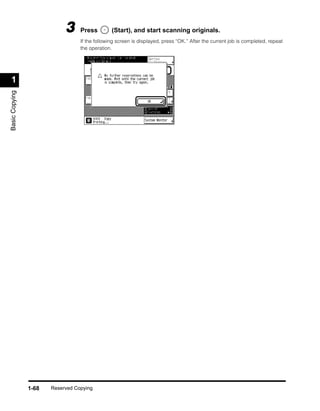
3     Press         (Start), and start scanning originals.
                                  If the following screen is displayed, press “OK.” After the current job is completed, repeat
                                  the operation.


 1
Basic Copying


                1-68   Reserved Copying
Interrupting the Current Job to Make Priority
Copies (Interrupt Mode)
    The Interrupt mode enables you to interrupt the reserved or current job long enough to make
    higher priority copies. This mode is useful when making a rush copy during a long copy job.                     1


                                                                                                                    Basic Copying
        NOTE
        • You can make interrupt copies when the machine is ready to scan.


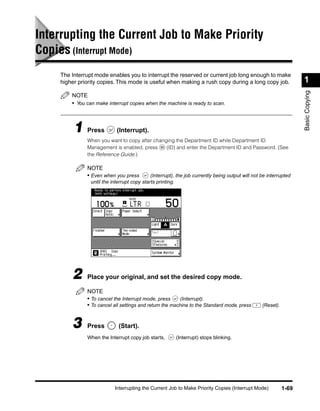
         1 Press            (Interrupt).
              When you want to copy after changing the Department ID while Department ID
              Management is enabled, press     (ID) and enter the Department ID and Password. (See
              the Reference Guide.)

              NOTE
              • Even when you press          (Interrupt), the job currently being output will not be interrupted
                until the interrupt copy starts printing.


        2     Place your original, and set the desired copy mode.

              NOTE
              • To cancel the Interrupt mode, press      (Interrupt).
              • To cancel all settings and return the machine to the Standard mode, press         (Reset).


        3     Press          (Start).
              When the Interrupt copy job starts,       (Interrupt) stops blinking.


                           Interrupting the Current Job to Make Priority Copies (Interrupt Mode)             1-69
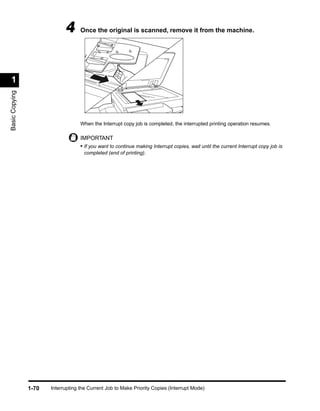
4      Once the original is scanned, remove it from the machine.


 1
Basic Copying


                                    When the Interrupt copy job is completed, the interrupted printing operation resumes.

                                    IMPORTANT
                                    • If you want to continue making Interrupt copies, wait until the current Interrupt copy job is
                                     completed (end of printing).


                1-70   Interrupting the Current Job to Make Priority Copies (Interrupt Mode)
Checking a Sample Set Before Copying (Sample Set)
    Before making multiple copies, you can check the copy result using the Sample Set mode.
                                                                                                                 1
        IMPORTANT


                                                                                                                 Basic Copying
        • “Sample Set” is displayed only when you set to make multiple copies of your original in the Collate,
          Staple, Cover/Sheet Insertion, or Booklet mode. “Sample Set” is not displayed in the Group mode.

        NOTE
        • The machine’s counter counts the sample print as a print.


        1 Place your originals, and select the desired copy settings.
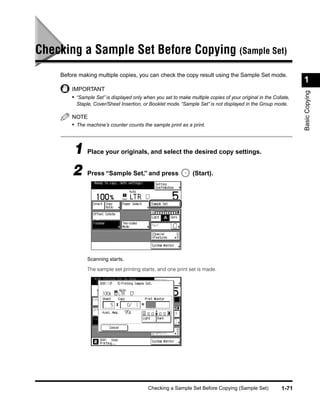
        2 Press “Sample Set,” and press (Start).


               Scanning starts.

               The sample set printing starts, and one print set is made.


                                           Checking a Sample Set Before Copying (Sample Set)              1-71
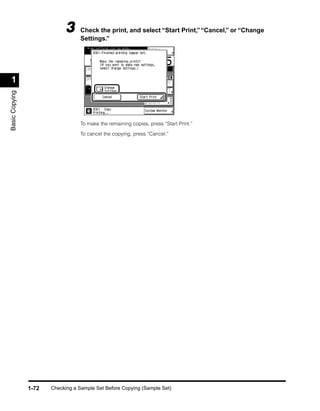
3      Check the print, and select “Start Print,” “Cancel,” or “Change
                                   Settings.”


 1
Basic Copying


                                   To make the remaining copies, press “Start Print.”

                                   To cancel the copying, press “Cancel.”


                1-72   Checking a Sample Set Before Copying (Sample Set)
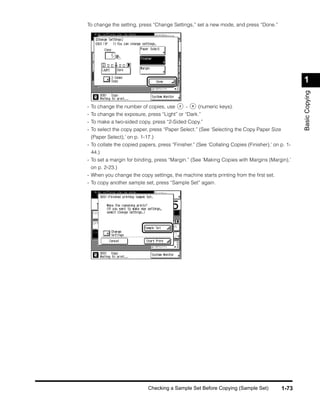
To change the setting, press “Change Settings,” set a new mode, and press “Done.”


                                                                                                 1


                                                                                                 Basic Copying
-   To change the number of copies, use       -    (numeric keys).
-   To change the exposure, press “Light” or “Dark.”
-   To make a two-sided copy, press “2-Sided Copy.”
-   To select the copy paper, press “Paper Select.” (See ‘Selecting the Copy Paper Size
  (Paper Select),’ on p. 1-17.)
- To collate the copied papers, press “Finisher.” (See ‘Collating Copies (Finisher),’ on p. 1-
  44.)
- To set a margin for binding, press “Margin.” (See ‘Making Copies with Margins (Margin),’
  on p. 2-23.)
- When you change the copy settings, the machine starts printing from the first set.
- To copy another sample set, press “Sample Set” again.


                            Checking a Sample Set Before Copying (Sample Set)             1-73
Checking the Copy Mode Settings (Setting Confirmation)
                        When the copy mode settings are selected in screens, for example, the Special Features
 1                      screen, you can check those settings in a list.
Basic Copying


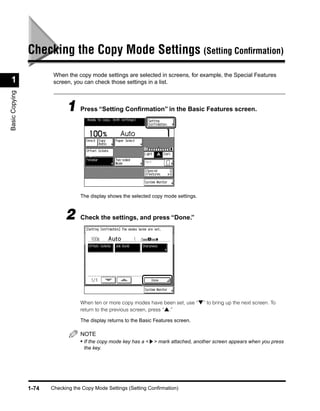
                             1 Press “Setting Confirmation” in the Basic Features screen.


                                   The display shows the selected copy mode settings.


                             2     Check the settings, and press “Done.”


                                   When ten or more copy modes have been set, use “▼” to bring up the next screen. To
                                   return to the previous screen, press “▲.”

                                   The display returns to the Basic Features screen.

                                   NOTE
                                   • If the copy mode key has a < > mark attached, another screen appears when you press
                                     the key.


                1-74   Checking the Copy Mode Settings (Setting Confirmation)
Changing or Canceling a Selected Copy Mode
(Setting Cancel)

      From the Setting Confirmation screen, you can also change or cancel selected functions.
                                                                                                                   1


                                                                                                                   Basic Copying
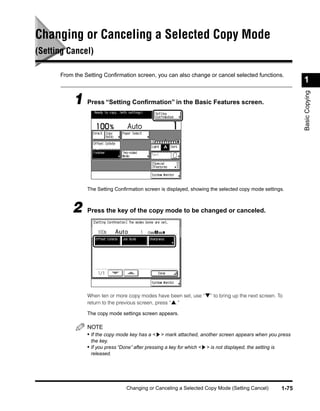
           1 Press “Setting Confirmation” in the Basic Features screen.


                The Setting Confirmation screen is displayed, showing the selected copy mode settings.


          2     Press the key of the copy mode to be changed or canceled.


                When ten or more copy modes have been set, use “▼” to bring up the next screen. To
                return to the previous screen, press “▲.”

                The copy mode settings screen appears.

                NOTE
                • If the copy mode key has a < > mark attached, another screen appears when you press
                 the key.
                • If you press “Done” after pressing a key for which < > is not displayed, the setting is
                 released.


                                  Changing or Canceling a Selected Copy Mode (Setting Cancel)               1-75
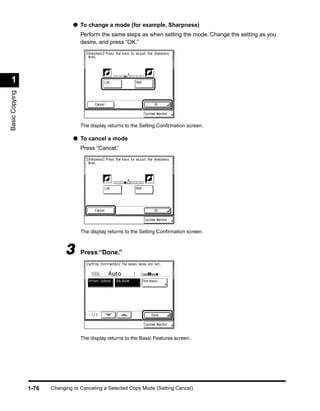
● To change a mode (for example, Sharpness)
                                   Perform the same steps as when setting the mode. Change the setting as you
                                   desire, and press “OK.”


 1
Basic Copying


                                   The display returns to the Setting Confirmation screen.

                                ● To cancel a mode
                                   Press “Cancel.”


                                   The display returns to the Setting Confirmation screen.


                             3     Press “Done.”


                                   The display returns to the Basic Features screen.


                1-76   Changing or Canceling a Selected Copy Mode (Setting Cancel)
Useful Copy Functions                                                                                                                  2
                                                                                                                                   CHAPTER

 This chapter describes more advanced copy functions.


   Copying Facing Pages in a Book on Two Separate Sheets of Paper
   (Two-page Separation) . . . . . . . . . . . . . . . . . . . . . . . . . . . . . . . . . . . . . . . . . . . . . . . . . . . 2-3
   Adding Front and Back Covers, Sheet Insertions and Chapter Pages to Copy Sets
   (Cover/Sheet Insertion). . . . . . . . . . . . . . . . . . . . . . . . . . . . . . . . . . . . . . . . . . . . . . . . . . . 2-5
   Making Copies for Use as a Booklet (Booklet) . . . . . . . . . . . . . . . . . . . . . . . . . . . . . . . . 2-11
   Making Copies with Sheets of Paper Interleaved Between Transparencies
   (Transparency Interleaving) . . . . . . . . . . . . . . . . . . . . . . . . . . . . . . . . . . . . . . . . . . . . . . 2-15
   Making Copies with Original Image Shifted (Shift) . . . . . . . . . . . . . . . . . . . . . . . . . . . . . 2-19
        Makes Copies with Original Image Shifted to the Center or a Corner . . . . . . . . . . . . . . . . . . . .2-20
        Makes Copies with Original Image Shifted Using the Numeric Keys . . . . . . . . . . . . . . . . . . . .2-21
   Making Copies with Margins (Margin) . . . . . . . . . . . . . . . . . . . . . . . . . . . . . . . . . . . . . . 2-23
   Erasing Shadows and Frame Lines from Copies (Frame Erase) . . . . . . . . . . . . . . . . . . 2-26
        Making Copies Erasing the Frame of the Originals (Original Frame Erase) . . . . . . . . . . . . . . .2-28
        Making Copies Erasing the Book Frame (Book Frame Erase). . . . . . . . . . . . . . . . . . . . . . . . . .2-30
        Making Copies Erasing Binding Holes etc. (Binding Erase) . . . . . . . . . . . . . . . . . . . . . . . . . . .2-32
   Reducing Two, Four, or Eight Originals to Fit on a Single Copy Sheet
   (Image Combination) . . . . . . . . . . . . . . . . . . . . . . . . . . . . . . . . . . . . . . . . . . . . . . . . . . . 2-34
   Dividing an Original into Equal Sections and Enlarging Each Section on a
   Separate Copy Sheet (Image Separation) . . . . . . . . . . . . . . . . . . . . . . . . . . . . . . . . . . . 2-39
   Feeding Different-size Originals Together in the Feeder (Different Size Originals). . . . . 2-43
   Copying Separately-set Originals (Job Build) . . . . . . . . . . . . . . . . . . . . . . . . . . . . . . . . . 2-45
   Storing/Recalling Often-used Copy Settings in Memory (Mode Memory) . . . . . . . . . . . 2-48
        Storing Copy Settings. . . . . . . . . . . . . . . . . . . . . . . . . . . . . . . . . . . . . . . . . . . . . . . . . . . . . . . . .2-48
        Storing a Memory Key Name . . . . . . . . . . . . . . . . . . . . . . . . . . . . . . . . . . . . . . . . . . . . . . . . . . .2-51
        Recalling Copy Settings . . . . . . . . . . . . . . . . . . . . . . . . . . . . . . . . . . . . . . . . . . . . . . . . . . . . . . .2-54
        Erasing a Copy Job . . . . . . . . . . . . . . . . . . . . . . . . . . . . . . . . . . . . . . . . . . . . . . . . . . . . . . . . . .2-54
   Recalling a Previous Copy Setting (Recall) . . . . . . . . . . . . . . . . . . . . . . . . . . . . . . . . . . 2-57
   Inverting Original Images (Nega/Posi) . . . . . . . . . . . . . . . . . . . . . . . . . . . . . . . . . . . . . . 2-58
   Making Copies with the Original Image Repeated (Image Repeat) . . . . . . . . . . . . . . . . 2-59
   Making Copies with Image Reversed (Mirror Image) . . . . . . . . . . . . . . . . . . . . . . . . . . . 2-62


                                                                                                                                                     2-1

Basic Copying

  • 1.
    Basic Copying 1 CHAPTER This chapter describes the basic copy functions. What the imageRUNNER 3300/2800/2200 Series Machine Can Do . . . . . . . . . . . . . . . . 1-3 Various Kinds of Copies . . . . . . . . . . . . . . . . . . . . . . . . . . . . . . . . . . . . . . . . . . . . . . . . . . . . . . . .1-3 Flow of Copy Operations . . . . . . . . . . . . . . . . . . . . . . . . . . . . . . . . . . . . . . . . . . . . . . . . . 1-9 Entering the Copy Quantity. . . . . . . . . . . . . . . . . . . . . . . . . . . . . . . . . . . . . . . . . . . . . . . 1-15 Specifying the Required Number of Copies . . . . . . . . . . . . . . . . . . . . . . . . . . . . . . . . . . . . . . .1-15 Changing the Copy Quantity . . . . . . . . . . . . . . . . . . . . . . . . . . . . . . . . . . . . . . . . . . . . . . . . . . .1-16 Selecting the Copy Paper Size (Paper Select) . . . . . . . . . . . . . . . . . . . . . . . . . . . . . . . . 1-17 Automatic Paper Selection (Auto Paper Selection) . . . . . . . . . . . . . . . . . . . . . . . . . . . . . . . . . .1-17 Specifying Paper Size/Type (Manual Paper Selection) . . . . . . . . . . . . . . . . . . . . . . . . . . . . . . .1-19 Adjusting Exposure and Image Quality. . . . . . . . . . . . . . . . . . . . . . . . . . . . . . . . . . . . . . 1-22 Adjusting Copy Exposure. . . . . . . . . . . . . . . . . . . . . . . . . . . . . . . . . . . . . . . . . . . . . . . . . . . . . .1-22 Selecting Image Quality . . . . . . . . . . . . . . . . . . . . . . . . . . . . . . . . . . . . . . . . . . . . . . . . . . . . . . .1-23 Automatic Adjustment of Exposure and Image Quality . . . . . . . . . . . . . . . . . . . . . . . . . . . . . . .1-25 Changing the Copy Exposure During Printing . . . . . . . . . . . . . . . . . . . . . . . . . . . . . . . . . . . . . .1-26 Changing the Copy Ratio (Copy Ratio). . . . . . . . . . . . . . . . . . . . . . . . . . . . . . . . . . . . . . 1-27 Enlarging/Reducing Originals to a Standard Size (Preset Zoom) . . . . . . . . . . . . . . . . . . . . . . .1-27 Specifying the Copy Ratio by % (Zoom Designation) . . . . . . . . . . . . . . . . . . . . . . . . . . . . . . . .1-29 Automatically Setting the Copy Ratio Based on the Original and Copy Paper Sizes (Auto) . . .1-31 Slightly Reducing Images to Prevent the Original from Being Trimmed (Entire Image). . . . . . .1-33 Calculating the Copy Ratio Based on the Original and Copy Paper Sizes (Zoom Program) . .1-35 Enlarging/Reducing Originals with Copy Ratios Set Independently for X and Y Axes (XY Zoom). . . . . . . . . . . . . . . . . . . . . . . . . . . . . . . . . . . . . . . . . . . . . . . . . . . . . . . . . . . . . . . . . .1-40 Collating Copies (Finisher) . . . . . . . . . . . . . . . . . . . . . . . . . . . . . . . . . . . . . . . . . . . . . . . 1-44 Collating Copies into Sets in Page Order (Collate) . . . . . . . . . . . . . . . . . . . . . . . . . . . . . . . . . .1-48 Collating Copies into Groups of the Same Page (Group) . . . . . . . . . . . . . . . . . . . . . . . . . . . . .1-50 Collating Pages and Stapling (Staple) . . . . . . . . . . . . . . . . . . . . . . . . . . . . . . . . . . . . . . . . . . . .1-53 Two-sided Copying (Two-sided Mode) . . . . . . . . . . . . . . . . . . . . . . . . . . . . . . . . . . . . . . 1-56 Making Two-sided Copies from One-sided Originals (1 2-Sided) . . . . . . . . . . . . . . . . . . . . . .1-57 Making Two-sided Copies from Two-sided Originals (2 2-Sided) . . . . . . . . . . . . . . . . . . . . . .1-59 Making One-sided Copies from Two-sided Originals (2 1-Sided) . . . . . . . . . . . . . . . . . . . . .1-61 Making Two-sided Copies from Facing Pages in a Book (Book 2-Sided) . . . . . . . . . . . . . . . .1-64 Reserved Copying . . . . . . . . . . . . . . . . . . . . . . . . . . . . . . . . . . . . . . . . . . . . . . . . . . . . . 1-67 1-1
  • 2.
    1. Basic Copying Interrupting the Current Job to Make Priority Copies (Interrupt Mode). . . . . . . . . . . . . .1-69 Checking a Sample Set Before Copying (Sample Set). . . . . . . . . . . . . . . . . . . . . . . . . .1-71 Checking the Copy Mode Settings (Setting Confirmation) . . . . . . . . . . . . . . . . . . . . . . .1-74 1 Changing or Canceling a Selected Copy Mode (Setting Cancel) . . . . . . . . . . . . . . . . . .1-75 Basic Copying 1-2
  • 3.
    What the imageRUNNER3300/2800/2200 Series Machine Can Do Most operations of this machine are done from the touch panel display. To use the copy function of this machine, press keys in accordance with the messages displayed on the 1 touch panel display. Basic Copying Various Kinds of Copies Copy Basic Features screen The screen on the left, which appears when the machine is ready to make copies, is called the Basic Features screen. See p. 1-17. Press to select the paper features and the paper source. See p. 1-27. Press to make copies at a different copy ratio. See p. 1-27. Press to make copies of the same size as the original. What the imageRUNNER 3300/2800/2200 Series Machine Can Do 1-3
  • 4.
    See p. 1-44. When you select “Collate” REPORT REPORT Press to select or cancel Collate, Group, REPORT or Staple modes. REPORT REPORT 1 1 2 1 3 1 4 1 1 Basic Copying See p. 1-56. When you select “1 2-Sided” Press to select or cancel the Two-sided mode. You can copy one-sided/two-sided originals and facing pages of an original, such as books, on both the front and back sides of the paper, and make one-sided copies from two-sided originals. See p. 1-22. SCENE SCENE SCENE Press “Light” or “Dark” to manually control the copy exposure. Press “A” to select or cancel Auto Exposure Control. See p. 1-23. The world’s coral reefs, where The world’s coral reefs, where brilliantly colored fish and a brilliantly colored fish and a myriad of other tropical creatures Press to copy originals specifying the myriad of other tropical creatures come together. Aptly nicknamed come together. “Tropical Forests under the sea”, image quality (text only, text and photo, these spots of breathtaking beauty serve as home to photo only). You can also select the type countless varieties of life, and to us of the land, this alluring, of photo (printed image/photo) when you dream-like world forms a tropical paradise filled with romance. set the Photo mode in Additional Functions beforehand. See Chapter 2. Press to select the Special Features mode. See the Reference Guide. Press to check the progress of a copy job, change the order of printing, or cancel printing. 1-4 What the imageRUNNER 3300/2800/2200 Series Machine Can Do
  • 5.
    Special Features screen1/2 The screen on the left, which appears on the touch panel display when you press “Special Features” in the Copy Basic Features screen, is called the Special Features screen. This screen is divided into two screens, and pressing “ ▼” or “▲” displays the next/ previous screen. The Special Features screen displays additional functions available for copying. In some cases, when a function is selected, a more detailed 1 screen for the selected function appears. Basic Copying To close the Special Features screen and return to the Basic Features screen, press “Done.” Pressing (Guide) after selecting a function displays a help screen containing guidance information. This is useful when you want to learn more about the function. See p. 2-3. 1 1 Press to select or cancel the Two-page Separation mode. This mode enables you to copy facing pages of an opened book onto separate copy sheets of paper. When you select “Front Cover” See p. 2-5. REPORT REPORT Press to add covers, or to add sheet insertions or chapter pages between specified pages. See p. 2-11. Press to make copies of several originals 1 to form a booklet. 2 3 4 2 7 8 1 8 1 4 5 6 3 6 3 5 6 7 8 What the imageRUNNER 3300/2800/2200 Series Machine Can Do 1-5
  • 6.
    Transparencies See p. 2-15. REPORT REPORT REPORT Press to select or cancel the Transparency Interleaving mode. This mode enables you to insert a sheet between each transparency when copying transparencies. (You can make the same Interleaf sheets prints on the interleaf sheets as those on 1 the transparencies.) Basic Copying See p. 2-19. Press to select or cancel the Shift mode. This mode enables you to shift the position of the original image on the copy sheet. See p. 2-23. Press to select or cancel the Margin mode. This mode enables you to create margins along the sides of copies. When you select “Original Frame Erase” See p. 2-26. Press to select or cancel the Frame Erase mode. This mode enables you to eliminate Original Frame Erase dark border areas and lines that appear mode selected around original images, or shadows from punched holes. Original Frame Erase mode not selected When you select “2 On 1.” See p. 2-34. Press to select or cancel the Image Combination mode. This mode enables you to automatically reduce two, four or eight originals to fit on a one-sided or two- sided copy sheet. 1 1 2 2 1-6 What the imageRUNNER 3300/2800/2200 Series Machine Can Do
  • 7.
    When you select“1 To 2.” See p. 2-39. Press to select or cancel the Image Separation mode. This mode enables you to divide an original into 2 or 4 sections and enlarge each section onto a copy 1 2 1 sheet of a specified size. 1 2 Basic Copying 11"x17" original See p. 2-43. CITY CITY Press to make copies feeding different- LTR original size originals together in one group, by CITY setting them in the feeder. Original feeding direction See p. 2-45. Press to divide the originals into several parts and scan them, then print them all together. This is convenient when you cannot load all of the originals that you want to copy at one time. See p. 2-48. Press to store or recall copy mode. See p. 2-57. Press to recall previously set copy jobs. What the imageRUNNER 3300/2800/2200 Series Machine Can Do 1-7
  • 8.
    Special Features screen2/2 1 Basic Copying See p. 2-58. SCENE SCENE Press to make copies with the entire black/white image inverted. See p. 2-59. CITY Press to copy an original with the image CITY repeated in the vertical or horizontal direction. CITY See p. 2-62. Press to copy the image of the original reversed as a reflection in the mirror. See p. 2-64. Press to select or cancel the Sharpness mode. This mode enables you to make copies of original images reproduced with sharper or softer contrast. 1-8 What the imageRUNNER 3300/2800/2200 Series Machine Can Do
  • 9.
    Flow of CopyOperations This section describes the flow of basic copy operations. 1 NOTE Basic Copying • For the following items, see the Reference Guide: - Main power and control panel power - Routine maintenance 1 Press COPY (Copy). COPY FAX MAIL BOX SCAN If the message <You must insert a control card> appears, insert a control card. (See the Reference Guide.) Flow of Copy Operations 1-9
  • 10.
    If the message<Enter the Department ID and Password using the numeric keys.> appears, enter the Department ID and Password. (See the Reference Guide.) 1 Basic Copying 2 Place your original. NOTE • For instructions on placing the original, see the Reference Guide. • When Auto Collate is set to “On,” the Collate (Offset Collate) mode is automatically set when the original is placed in the feeder. (See ‘Setting Automatic Collate On/Off,’ on p. 3-5.) 3 Set the copy mode in the Basic Features screen. NOTE • In the Basic Features screen, you can select the paper size, the copy exposure and image quality settings, the copy ratio, the two-sided mode, and the desired collating function. 1-10 Flow of Copy Operations
  • 11.
    4 Set the desired copy mode in the Special Features screen. 1 Basic Copying The Special Features screen is divided into two screens. Press “▼”or “▲” to select the desired mode. You can continue setting other available modes. (See ‘Useful Copy Functions,’ in Chapter 2.) 5 Enter the copy quantity. Reset Clear ABC DEF Guide GHI JKL MNO S Additional Functions PRS TUV WXY Interrupt OPER NOTE • For instructions on setting the number of copies, see ‘Entering the Copy Quantity,’ on p. 1- 15. Flow of Copy Operations 1-11
  • 12.
    6 Press (Start). Clear EF Stop NO Start 1 XY Basic Copying Power Copying starts. When scanning is completed, remove the original. If the optional Card Reader-C1 is attached, remove the control card. (See the Reference Guide.) If you have set the Department ID Management, press (ID). (See the Reference Guide.) IMPORTANT • While copying, you cannot change copy mode settings, such as the copy quantity, paper size, and copy ratio. NOTE • If there is a current job, the machine scans the original, and waits to print it. Printing starts when the current job is completed. 1-12 Flow of Copy Operations
  • 13.
    ● When thefollowing screen is displayed: Follow the instructions in the screen, and press (Start) once for each original. When scanning is completed, press “Done.” 1 Basic Copying ● When you want to copy a different original while printing: Press “Done,” and place your originals. Then Press (Start). (See ‘Reserved Copying,’ on p. 1-67.) Flow of Copy Operations 1-13
  • 14.
    ● When youwant to stop a copy job: Press (Stop). EF Clear Stop NO Start 1 XY Basic Copying Power For instructions on canceling a copy job, see the Reference Guide. NOTE • After you have pressed (Stop), several copies may be output from the machine. • You can also stop a copy job in the System Monitor screen. (See the Reference Guide.) ● When you want to interrupt a copy job: To interrupt a copy job when you need to make priority copies, press (Interrupt). Guide GHI JKL MN Additional Functions PRS TUV W Interrupt OPER E Processing/Data For instructions on explaining how to interrupt a copy job, see ‘Interrupting the Current Job to Make Priority Copies (Interrupt Mode),’ on p. 1-69. 1-14 Flow of Copy Operations
  • 15.
    Entering the CopyQuantity The machine allows up to 999 copies to be made. The maximum number of copies allowable can be changed. For details, contact your service representative. 1 Basic Copying Specifying the Required Number of Copies 1 Press999).- (1 to (numeric keys) to enter the desired copy quantity Reset ABC DEF Clear Guide GHI JKL MNO S Additional Functions PRS TUV WXY Interrupt OPER The copy quantity appears on the upper right side of the Basic Features screen. The maximum allowable copy quantity varies according to the copy job settings. IMPORTANT • You cannot change the copy quantity while copying. Entering the Copy Quantity 1-15
  • 16.
    Changing the CopyQuantity 1 Press (Clear) to clear the entered number. ON / OFF 1 Basic Copying Clear EF Stop NO Start WXY 2 Press - (numeric keys) to enter the desired copy quantity (1 to 999). Reset Clear ABC DEF Guide GHI JKL MNO S Additional Functions PRS TUV WXY Interrupt OPER The copy quantity appears on the upper right side of the Basic Features screen. IMPORTANT • You cannot change the copy quantity while copying. 1-16 Entering the Copy Quantity
  • 17.
    Selecting the CopyPaper Size (Paper Select) You can set the machine to automatically select the paper size, or you can specify the paper size for a copy job. 1 Basic Copying NOTE • When copying an original onto the same size paper at a 100% copy ratio, the periphery of the original may be cut slightly on the copy. For details of the size of the non-image areas, see the Reference Guide. • If you select the Entire Image mode, the copied image is automatically reduced slightly based on the paper size and the image size. As a result, the entire original image is reproduced on paper without being trimmed. (See ‘Slightly Reducing Images to Prevent the Original from Being Trimmed (Entire Image),’ on p. 1-33.) • For instructions on setting paper in the stack bypass, see the Reference Guide. Automatic Paper Selection (Auto Paper Selection) The machine automatically selects copy paper. IMPORTANT • When the machine is operating in the Automatic Paper Selection mode, you cannot use the Auto Copy Ratio, XY Auto Copy Ratio, Rotate Collating, Rotate Grouping, Saddle Stitch, Booklet, Image Combination, Image Separation, or Image Repeat (Auto) modes. • When the machine is operating in the Different Size Originals mode in combination with the Shift mode or the Cover/Sheet Insertion mode, you cannot use the Automatic Paper Selection mode. • You cannot use the Automatic Paper Selection mode when copying the following types of originals. Copy these originals using the Manual Paper Selection mode. - Non-standard size originals - Highly transparent originals such as transparencies - Originals with an extremely dark background - Originals smaller than STMT in size NOTE • The default setting is “Auto.” • When the Drawer Eligibility for APS/ADS of the paper drawers in the Common Settings is set to “Off,” you can not make copies in the Automatic Paper Selection mode. (See the Reference Guide.) Selecting the Copy Paper Size (Paper Select) 1-17
  • 18.
    1 Place youroriginal, and press “Paper Select.” 1 Basic Copying 2 Select “Auto,” and press “Done.” The following screen is displayed. 3 Press (Start). Copying starts. 1-18 Selecting the Copy Paper Size (Paper Select)
  • 19.
    Specifying Paper Size/Type(Manual Paper Selection) You can make copies after selecting the paper size and type (color, recycled, etc.) of paper loaded in the paper drawer. 1 1 Place your originals, and press “Paper Select.” Basic Copying NOTE • The default setting is “Auto.” 2 Select the desired paper size. When Finisher-J1 is attached When Saddle Finisher-G1 and Paper Deck-L1 are attached To select the stack bypass when paper is fed from the stack bypass for the current job or reserved job, press “Stack Bypass Setting.” NOTE • The paper sizes are displayed in the order in which they are loaded in the paper drawers. • displayed on the touch panel indicates that the paper is set vertically; indicates that the paper is set horizontally. Paper sizes with the suffix <R> (such as LTRR) indicate paper placed in the paper drawer or the stack bypass horizontally. • The paper sizes which are loaded in the paper drawers are shown on the display. • The paper type (color, recycled) loaded in the paper drawers is indicated by the displayed icons. (See the Reference Guide.) Selecting the Copy Paper Size (Paper Select) 1-19
  • 20.
    ● When youselect “Stack Bypass Setting”: Select the paper size, and press “Next.” 1 Basic Copying Select the paper type, and press “OK.” NOTE • When placing paper other than a standard size, press “Free Size.” • When loading envelopes, press “Envelope.” • To select an A or B series paper size, press “A/B-size.” 3 Press “Done.” 1-20 Selecting the Copy Paper Size (Paper Select)
  • 21.
    The display returnsto the Basic Features screen, and the selected paper size is displayed. 1 Basic Copying 4 Press (Start). Copying starts. NOTE • To cancel all settings and return the machine to the Standard mode, press (Reset). Selecting the Copy Paper Size (Paper Select) 1-21
  • 22.
    Adjusting Exposure andImage Quality The exposure and image quality can be adjusted when the original is scanned. 1 NOTE Basic Copying • You can also change the exposure while printing. (See ‘Changing the Copy Exposure During Printing,’ on p. 1-26.) Adjusting Copy Exposure You can manually adjust the exposure to the most appropriate level for the original. 1 Place your originals, and press “Light” or “Dark.” Move the indicator above “Light” and “Dark” to the left to make the exposure lighter or to the right to make the exposure darker. 2 Press (Start). Copying starts. NOTE • To cancel all settings and return the machine to the Standard mode, press (Reset). 1-22 Adjusting Exposure and Image Quality
  • 23.
    Selecting Image Quality You can adjust image quality to the level best suited to the quality of text or photo originals. The following three modes are available for adjusting image quality: Text mode Text/Photo mode Photo mode 1 Basic Copying The world s coral reefs, where The world s coral reefs, where brilliantly colored fish and a brilliantly colored fish and a myriad of other tropical creatures myriad of other tropical creatures come together. come together. Aptly nicknamed Tropical Forests under the sea , these spots of breathtaking beauty serve as home to countless varieties of life, and to us of the land, this alluring, dream-like world forms a tropical paradise filled with romance. IMPORTANT • Combinations of these three modes (Text mode, Text/Photo mode and Photo mode) cannot be set. If you select one of these modes, the previously set mode is canceled. NOTE • When you select the Text, Text/Photo, or Photo mode, the exposure can be adjusted only by the Manual Exposure Control. Automatic Exposure Control cannot be selected. • When <Photo Mode> in Copy Settings is “On,” you can select “Printed Img.” or “Photo.” (See ‘Setting the Photo Mode of the Copy Function,’ on p. 3-9.) • If the original is a transparency, select the Text, Text/Photo, or Photo mode and adjust the exposure to the most appropriate level. ■ Text Mode This mode is best suited for making copies from text originals. Blueprints or penciled originals can be copied clearly. ■ Text/Photo Mode This mode is best suited for making copies from originals containing both text and photos. ■ Photo Mode This mode is best suited for making copies from photos printed on photographic paper, or photo originals containing halftones (i.e., printed photos). IMPORTANT • If you make copies of an original containing halftones, such as a printed photograph using the Photo mode, then moire may occur. If this happens, you can soften the moire effect by using the Sharpness mode. (See ‘Making Sharp Contrast Copies (Sharpness),’ on p. 2-64.) Adjusting Exposure and Image Quality 1-23
  • 24.
    1 Place Text/Photo,or Photo).“ (Text, your originals, press ,” and select the type of original 1 Basic Copying When <Photo Mode> in Copy Settings is set to on, you can select “Printed Img.” or “Photo.” (See ‘Setting the Photo Mode of the Copy Function,’ on p. 3-9.) 2 Press “Light” or “Dark” to adjust the copy exposure. Move the indicator above “Light” and “Dark” to the left to make the exposure lighter or to the right to make the exposure darker. 1-24 Adjusting Exposure and Image Quality
  • 25.
    3 Press (Start). Copying starts. NOTE • To cancel the copy exposure setting, press “A.” • To cancel all settings and return the machine to the Standard mode, press (Reset). 1 Basic Copying Automatic Adjustment of Exposure and Image Quality 1 Place your originals, and press “A.” The exposure is automatically adjusted to the level best suited to the quality of the original. NOTE • When scanning transparencies, adjust exposure using “Light” or “Dark” as the automatic exposure control may not operate correctly on transparent originals. 2 Press (Start). Copying starts. NOTE • To cancel all settings and return the machine to the Standard mode, press (Reset). Adjusting Exposure and Image Quality 1-25
  • 26.
    Changing the CopyExposure During Printing The copy exposure can be changed during printing. 1 1 Press “Light” or “Dark,” in the screen displayed during printing. Basic Copying Move the indicator above “Light” and “Dark” to the left to make the exposure lighter, or to the right to make the exposure darker. The printing exposure changes, and when printing is completed, the display returns to the Basic Features screen. Adjusting the exposure after printing has started produces a different result than adjusting the exposure before scanning the original. 1-26 Adjusting Exposure and Image Quality
  • 27.
    Changing the CopyRatio (Copy Ratio) You can set the machine to adjust the copy ratio automatically, or to specify the copy ratio for a job. 1 Basic Copying NOTE • If you want to make copies at the copy ratio of 100%, press “Direct.” Enlarging/Reducing Originals to a Standard Size (Preset Zoom) You can enlarge or reduce standard size originals to a standard paper size. IMPORTANT • Place your originals horizontally in the following cases: - When enlarging LTR-size originals to 11" x 17" or LGL-size paper - When enlarging STMT-size originals to 11" x 17"-size paper • When reducing 11" x 17" or LGL-size originals to LTR-size with Image Orientation Priority set to “Off,” place LTRR-size paper in the paper drawer or stack bypass. NOTE • Placing an original horizontally means setting the original with the longer side sideways. ■ Reduce The copy ratio set when making reduced copies is as follows: -LGL → LTR (78%) -11" x 17" → LGL, 11" x 15" → LTR (73%) -11" x 17" → LTR (64%) -11" x 17" → STMT (50%) -Minimum (25%) ■ Enlarge The copy ratio set when making enlarged copies is as follows: -Maximum (800%) - (400%) -STMT →11" x 17" (200%) -LTR → 11" x 17" (129%) -LGL → 11" x 17" (121%) NOTE • The copy ratio of 800% is available only when the original is placed on the platen glass. Changing the Copy Ratio (Copy Ratio) 1-27
  • 28.
    1 Place youroriginal, and press “Paper Select.” 1 Basic Copying 2 Select “Auto,” and press “Done.” The display returns to the Basic Features screen. NOTE • The default setting is “Auto.” 3 Press “Copy Ratio.” 1-28 Changing the Copy Ratio (Copy Ratio)
  • 29.
    4 To reduce, select a reduction ratio. To enlarge, select an enlargement ratio. Following your selection, press “Done.” 1 Basic Copying The display returns to the Basic Features screen, and the selected copy ratio is displayed. 5 Press (Start). Copying starts. NOTE • To return the copy ratio to 100%, press “Direct.” • To cancel all settings and return the machine to the Standard mode, press (Reset). Specifying the Copy Ratio by % (Zoom Designation) You can reduce or enlarge images by any copy ratio, in 1% increments. The available copy ratios are from 25% to 800% when the original is placed on the platen glass, and from 25% to 400% when the original is placed in the feeder. Original Copy CITY CITY CITY CITY Changing the Copy Ratio (Copy Ratio) 1-29
  • 30.
    1 Place youroriginal, and press “Copy Ratio.” 1 Basic Copying 2 Set a copy ratio by pressing “–” or “+,” and press “Done.” You can also use - (numeric keys) to input the value. Even if you entered the ratio with - (numeric keys), you can change the entered values with “–” or “+.” The display returns to the Basic Features screen, and the selected copy ratio is displayed. If you specify values outside the range which can be set, a message telling you to set a value within the appropriate range is displayed. NOTE • If you make a mistake when entering values, press (Clear), and enter the correct value. 1-30 Changing the Copy Ratio (Copy Ratio)
  • 31.
    3 Press (Start). Copying starts. NOTE • To return the copy ratio to 100%, press “Direct.” • To cancel all settings and return the machine to the Standard mode, press (Reset). 1 Basic Copying Automatically Setting the Copy Ratio Based on the Original and Copy Paper Sizes (Auto) The machine automatically selects the appropriate copy ratio based on the size of the original and the selected paper. The available copy ratios are from 25% to 800% when the original is placed on the platen glass, and from 25% to 400% when the original is placed in the feeder. Original Copy IMPORTANT • You cannot use the Auto mode with Automatic Paper Selection. • You cannot copy highly transparent originals, such as transparencies, in the Auto mode. Use the Preset Zoom or Zoom Designation modes. • To use the Auto mode, your originals must conform to a standard paper size. • The paper sizes that can be used with Auto are 11" x 17"/LGL/LTR/LTRR/STMT/STMTR. However, when copying STMT-size original using the platen glass, you need to set the “LTRR/STMT Original Selection” in Additional Functions. (See the Reference Guide.) NOTE • If an error occurs between the Auto copy ratio and the actual copy size, you can perform an adjustment with the Zoom Fine Adjustment function. (See the Reference Guide.) Changing the Copy Ratio (Copy Ratio) 1-31
  • 32.
    1 Place youroriginal, and press “Paper Select.” 1 Basic Copying 2 Select the paper size, and press “Done.” The display returns to the Basic Features screen. IMPORTANT • Select a paper size other than “Auto.” If not, the copy ratio will be automatically set to the size of the paper loaded in the top paper drawer. 3 Press “Copy Ratio.” 1-32 Changing the Copy Ratio (Copy Ratio)
  • 33.
    4 Press “Auto,” and press “Done.” 1 Basic Copying The specified mode is set and the display returns to the Basic Features screen. 5 Press (Start). Copying starts. NOTE • To return the copy ratio to 100%, press “Direct.” • To cancel the setting, press “Copy Ratio” → “Auto” in this order. • If the original is placed on the platen glass, the zoom ratio appears when the feeder is lowered, provided that the original size can be detected. • If the original is placed in the feeder, the zoom ratio appears when (Start) is pressed. • To cancel all settings and return the machine to the Standard mode, press (Reset). Slightly Reducing Images to Prevent the Original from Being Trimmed (Entire Image) When copying an original onto identically sized copy paper at a 100% ratio, the original image may be trimmed slightly on the copy. However, if you set the Entire Image mode, the image is slightly reduced proportional to the paper and image size. As a result, the entire image is copied without being trimmed. IMPORTANT • When the machine is operating in the Entire Image mode, you cannot use the Booklet, Frame Erase, Image Combination, Image Separation, Image Repeat, or Mirror Image modes. Changing the Copy Ratio (Copy Ratio) 1-33
  • 34.
    1 Place youroriginals, and press “Copy Ratio.” 1 Basic Copying 2 Press “Entire Image,” and press “Done.” The specified mode is set and the display returns to the Basic Features screen. 3 Press (Start). Copying starts. NOTE • To cancel the setting, press “Copy Ratio” → “Entire Image,” in this order. • To cancel all settings and return the machine to the Standard mode, press (Reset). 1-34 Changing the Copy Ratio (Copy Ratio)
  • 35.
    Calculating the CopyRatio Based on the Original and Copy Paper Sizes (Zoom Program) You can change the copy ratio by specifying the original size and paper size in inches. The available copy ratios are from 25% to 800% when the original is placed on the platen glass, and from 25% to 400% when the original is placed in the feeder. The following two Zoom Program modes are available. 1 Basic Copying NOTE • The specified sizes are converted to the copy ratio (%) as follows: - Copy ratio (%) = (copy size / original size) x 100 ■ Making Copies with the Same XY Copy Ratio (Zoom) Specify the same copy ratio for the vertical and horizontal directions. Original Copy X=4" (100 mm) X=5-7/8" (150 mm) ■ Making Copies with Different XY Copy Ratios (XY Zoom) Specify different copy ratios for the vertical and horizontal directions. Original Copy Y=4-3/4" (120 mm) Y=5-1/2" (140 mm) X=4" (100 mm) X=3-1/8" (80 mm) Changing the Copy Ratio (Copy Ratio) 1-35
  • 36.
    Making Copies withthe Same XY Copy Ratio (Zoom) 1 Place your originals, and press “Copy Ratio.” 1 Basic Copying 2 Press “Other Zoom.” 3 Press “Zoom Program.” 1-36 Changing the Copy Ratio (Copy Ratio)
  • 37.
    4 Press “Original Size” and enter the original size → press “Copy Size” and enter the copy size → press “OK.” 1 Basic Copying When entering values in millimeters, you can use - (numeric keys) to enter numbers and (Clear) to clear your entries. The display returns to the Basic Features screen, and the specified copy ratio is displayed. If the copy ratio is less than 25%, a message appears telling you that the ratio will be adjusted to 25%. If it is more than 800%, a message appears telling you that the ratio will be adjusted to 800%. NOTE • When the copy ratio is larger than 400%, place the original on the platen glass. • If you make a mistake when entering values, press “C,” and enter the correct value. • To specify the sizes of the horizontal direction (X) and the vertical direction (Y) independently, press “XY Zoom.” • If you want to enter values in millimeters, press “mm.” • For details of how to enter the values in inches, see the Reference Guide. 5 Press (Start). Copying starts. NOTE • To return the copy ratio to 100%, press “Direct.” • To cancel the setting, press “Copy Ratio” → “Other Zoom” → “Zoom Program” → “Cancel,” in this order. • To cancel all settings and return the machine to the Standard mode, press (Reset). Changing the Copy Ratio (Copy Ratio) 1-37
  • 38.
    Making Copies withDifferent XY Copy Ratios (XY Zoom) 1 Place your originals, and press “Copy Ratio.” 1 Basic Copying 2 Press “Other Zoom.” 3 Press “Zoom Program.” 1-38 Changing the Copy Ratio (Copy Ratio)
  • 39.
    4 Press “XY Zoom.” 1 Basic Copying 5 Enter each value for both the original and copy size, after pressing “X” (horizontal direction) and “Y” (vertical direction). Then press “OK.” When entering values in millimeters, you can use - (numeric keys) to enter numbers and (Clear) to clear your entries. The display returns to the Basic Features screen, and the selected copy ratio is displayed. If the copy ratio is less than 25%, a message appears telling you that the copy ratio will be adjusted to 25%. If it is more than 800%, a message appears telling you that the ratio will be adjusted to 800%. NOTE • When the ratio is larger than 400%, place the original on the platen glass. • If you make a mistake when entering values, press “C,” and enter the correct value. • To set the same values for the X and Y axes, press “Zoom.” • If you want to enter values in millimeters, press “mm.” • For details of how to enter the values in inches, see the Reference Guide. Changing the Copy Ratio (Copy Ratio) 1-39
  • 40.
    6 Press (Start). Copying starts. NOTE • To return the copy ratio to 100%, press “Direct.” • To cancel the setting, press “Copy Ratio” → “Other Zoom”→“Zoom Program” → “Cancel,” in this order. 1 • To cancel all settings and return the machine to the Standard mode, press (Reset). Basic Copying Enlarging/Reducing Originals with Copy Ratios Set Independently for X and Y Axes (XY Zoom) If you set the XY Zoom mode, you can make enlarged or reduced copies with different XY copy ratios. The available copy ratios are from 25% to 800% when the original is placed on the platen glass, and from 25% to 400% when the original is placed in the feeder. ■ Manually Specifying the Copy Ratio (XY Zoom) You can manually specify the XY copy ratios in 1% increments. Original Copy Enlarging and reducing with different XY copy ratios Y=80% X=120% NOTE • If you set the copy ratio with the XY Zoom mode, the copy image computed from the original size and copy ratio is automatically rotated and copied to suit the size of the selected paper. 1-40 Changing the Copy Ratio (Copy Ratio)
  • 41.
    ■ Automatically Specifyingthe Copy Ratio (Auto XY Zoom) The XY copy ratio is automatically set to suit the size of the selected paper. Original Copy LTRR selected 1 Basic Copying LTRR LTR IMPORTANT • You cannot copy highly transparent originals, such as transparencies, in the Auto XY Zoom mode. To make such copies, specify the copy ratio. • If you set the Auto XY Zoom mode, select the paper size by the Manual Paper Selection mode. If you do not select the paper size, the copy ratio is automatically set to the size of the paper set in the top paper drawer. • When you set the copy ratio in the Auto XY Zoom mode, Auto Orientation is not performed. NOTE • If you specify a magnification of smaller than 25%, a message appears telling you to set it to 25%. If you specify a magnification of larger than 800%, a message appears telling you to set it to 800%. • If an error occurs between the Auto XY Zoom copy ratio and the actual copy size, you can perform an adjustment of this with the Zoom Fine Adjustment function. (See the Reference Guide.) 1 Place your originals, and press “Copy Ratio.” NOTE • When the ratio is larger than 400%, place the original on the platen glass. Changing the Copy Ratio (Copy Ratio) 1-41
  • 42.
    2 Press “Other Zoom.” 1 Basic Copying 3 Press “XY Zoom.” 4 Enter each value for X and Y after pressing “X” and “Y.” Then press “OK.” You can also use - (numeric keys) to input the value. Even if you entered the copy ratio with - (numeric keys), you can change the entered values with “–” or “+.” The display returns to the Basic Features screen, and the selected copy ratio is displayed. If you specify values outside the range which can be set, a message appears telling you to set the appropriate value. 1-42 Changing the Copy Ratio (Copy Ratio)
  • 43.
    IMPORTANT • When you select “Auto XY Zoom,” you cannot use <Auto> for a paper size. If no paper size is specified, the copy ratio is automatically set to the size of the paper in the top paper drawer. NOTE • If you make a mistake when entering values, press “C,” and enter the correct value. • When you select “Auto XY Zoom” in the following cases, <X: Auto%> and <Y: Auto%> are displayed as the copy ratios in the Basic Features screen. 1 - When the original is placed in the feeder Basic Copying - When the original whose size cannot be detected is placed on the platen glass 5 Press (Start). Copying starts. NOTE • To return the copy ratio to 100%, press “Direct.” • To cancel the setting, press “Copy Ratio” → “Other Zoom”→ “XY Zoom” → “Cancel,” in this order. • To cancel all settings and return the machine to the Standard mode, press (Reset). Changing the Copy Ratio (Copy Ratio) 1-43
  • 44.
    Collating Copies (Finisher) The Finisher mode can be selected to collate the copies in various ways by pages or copy 1 sets. Basic Copying NOTE • When envelopes, tracing paper, transparencies, or labels are selected, Finisher functions cannot be set. • When heavyweight paper is selected, the Staple or Hole Punch mode cannot be set. Below is a list of finishing functions and paper sizes available for each optional unit. Staple Optional units Offset Rotate Hole Punch Corner Double Saddle Stitch None – LTR, LTRR, – – – – STMT, STMTR *2 11"x17": 11"x17", LGL, 15 sheets; Finisher-J1 – – – – LTR, LTRR, LGL: 20 sheets; STMT LTR, LTRR: 30 sheets Inner 2way Tray-A1 – LTR, LTRR, – – – – Copy Tray-F1 STMT, STMTR Saddle Finisher-G1 – *1 *1 11"x17", LGL, LTR, LTRR, 11"x17", LGL: 11"x17", LGL: 11"x17", LTR, LTRR, STMT, STMTR 25 sheets 25 sheets LTRR: 11"x17", LTR: Puncher Unit-K1 STMT LTR, LTRR: LTR, LTRR: 10 sheets 3 holes; 50 sheets 50 sheets LGL, LTRR: 2 holes *1 If Tray A is selected as a designated tray in the Additional Functions → Common Settings → Tray Designation screen, Offset is applied. If it is not selected, Rotate is applied. *2 Stapling position cannot be selected. 1-44 Collating Copies (Finisher)
  • 45.
    ■ When <Collate>Is Set Copies are automatically collated into sets arranged in page order, and output into the trays as follows: Originals Copy set 1 Copy set 2 Copy set 3 Three sets of specified copies 1 Basic Copying 1 1 1 1 2 2 2 2 3 3 3 3 4 4 4 4 ■ When <Group> Is Set All copies of the same original page are automatically collated and grouped together, and output into the trays as follows: Originals Grouped Grouped Grouped Grouped Three sets of copies of copies of copies of copies of specified copies page 1 page 2 page 3 page 4 1 1 2 3 4 2 1 2 3 4 3 1 2 3 4 4 ■ When <Staple> Is Set Copies are automatically collated into sets arranged in page order, automatically stapled, and output into the trays, as shown below. • When you select “Corner” (Top Left) Originals Copy set 1 Copy set 2 Copy set 3 Three sets of specified copies 1 2 1 1 1 3 4 Collating Copies (Finisher) 1-45
  • 46.
    • When youselect “Double” (Left) Originals Copy set 1 Copy set 2 Copy set 3 Three sets of specified copies 1 1 2 1 1 1 3 4 Basic Copying • When you select “Saddle Stitch” Originals Copy set 1 Copy set 2 Copy set 3 Three sets of specified copies 2 7 8 1 8 1 8 1 8 1 4 5 6 3 6 3 6 3 6 3 IMPORTANT • You cannot select the position to be stapled when the Finisher-J1 (option) is attached. (See the Reference Guide for staple position.) • Folds may appear differently depending on the type or quantity of paper. NOTE • You must place the completed original as a Booklet, as shown in the above illustration. (See ‘Making Copies for Use as a Booklet (Booklet),’ on p. 2-11.) • “Saddle Stitch” can only be set when the 1 2-Sided or 2 2-Sided mode is selected. (See ‘Two- sided Copying (Two-sided Mode),’ on p. 1-56.) 1-46 Collating Copies (Finisher)
  • 47.
    ■ When <Non-collate>Is Set When neither Collate, Group, nor Staple is set, copies are output into the trays as shown below. Originals Copies 1 1 1 Basic Copying 2 2 3 4 3 4 ■ When <Hole Punch> Is Set The machine punches 2 or 3 holes in the copies. Originals Copies 1 2 1 3 4 ■ When <Rotate> Is Set When originals of the same size are copied, the pages are aligned and the copy sets are output into the output trays in alternating directions. Originals Copies 1 1 1 2 1 3 4 Collating Copies (Finisher) 1-47
  • 48.
    ■ When <Offset>Is Set Copies are shifted to the front and back, alternatively. Originals Copies 1 1 2 1 1 1 3 Basic Copying 4 Collating Copies into Sets in Page Order (Collate) 1 Place your originals, and press “Finisher.” NOTE • When Auto Collate is set to “On,” the Offset Collate mode is automatically set when you place the originals in the feeder. (See ‘Setting Automatic Collate On/Off,’ on p. 3-5.) 1-48 Collating Copies (Finisher)
  • 49.
    2 Press “Collate,” and press “OK.” 1 Basic Copying When Saddle Finisher-G1 and When Finisher-J1 is attached Puncher Unit-K1 are attached, and Tray A exit slot is selected When Saddle Finisher-G1 and When Finisher is not attached, or Puncher Unit-K1 are attached, when only Inner 2way Tray-A1 is and Tray A exit slot is not attached selected When you want hole punches made, press “Hole Punch.” ● When you select “Rotate”: When the Automatic Paper Selection mode is set, press “Next” → select LTR, LTRR, STMT, or STMTR-size paper → press “OK.” Press “OK,” as long as: - Available paper size is selected manually. Collating Copies (Finisher) 1-49
  • 50.
    - Available papersize is loaded in both horizontal and vertical directions. - Drawer Eligibility for APS/ADS of the paper drawers loaded with available paper size is set to “On.” 3 Â Press (Start). When the original is placed on the platen glass, follow the instructions that appear on the screen and press (Start) once for each original. When scanning is completed, press 1 “Done.” Basic Copying Copying starts. NOTE • To cancel the setting, press “Finisher” → “Cancel,” in this order. • To cancel all settings and return the machine to the Standard mode, press (Reset). Collating Copies into Groups of the Same Page (Group) 1 Place your original, and press “Finisher.” NOTE • When Auto Collate is set to “On,” the Offset Collate mode is automatically set when you place the originals in the feeder. (See ‘Setting Automatic Collate On/Off,’ on p. 3-5.) 1-50 Collating Copies (Finisher)
  • 51.
    2 Press “Group,” and press “OK.” 1 Basic Copying When Saddle Finisher-G1 and When Finisher-J1 is attached Puncher Unit-K1 are attached, and Tray A exit slot is selected When Saddle Finisher G-1 and When Finisher is not attached, or Puncher Unit-K1 are attached, when only Inner 2way Tray-A1 is and Tray A exit slot is not attached selected When you want hole punches made, press “Hole Punch.” Collating Copies (Finisher) 1-51
  • 52.
    ● When youselect “Rotate” When the Automatic Paper Selection mode is set, press “Next” → select LTR, LTRR, STMT, or STMTR-size paper → press “OK.” 1 Basic Copying Press “OK,” as long as: - Available paper size is selected manually. - Available paper size is loaded in both horizontal and vertical direction. - Drawer Eligibility for APS/ADS of the paper drawers loaded with the available paper size is set to “On.” 3 Press (Start). When the original is placed on the platen glass, follow the instructions that appear on the screen and press (Start) once for each original. When scanning is completed, press “Done.” Copying starts. NOTE • To cancel the setting, press “Finisher” →“Cancel,” in this order. • To cancel all settings and return the machine to the Standard mode, press (Reset). 1-52 Collating Copies (Finisher)
  • 53.
    Collating Pages andStapling (Staple) 1 Place your originals, and press “Finisher.” 1 Basic Copying NOTE • When Auto Collate is set to “On,” the Offset Collate mode is automatically set when you place the originals in the feeder. (See ‘Setting Automatic Collate On/Off,’ on p. 3-5.) 2 Press “Staple.” When Saddle Finisher-G1 and When Finisher-J1 is attached Puncher Unit-K1 are attached, and Tray A exit slot is selected Collating Copies (Finisher) 1-53
  • 54.
    1 Basic Copying When Saddle Finisher-G1 and Puncher Unit-K1 are attached, and Tray A exit slot is not selected When you want hole punches made, press “Hole Punch.” When the Finisher-J1 is attached, the saddle stitch position cannot be selected. For details of the saddle stitch position, see the Reference Guide. ● When you select “Staple,” with the Saddle Finisher-G1 attached Press “Next” → select the type of staple (“Corner,” “Double,” or “Saddle Stitch”) → select the staple position. If “Saddle Stitch” is selected, follow the steps below. - Press “Next.” 1-54 Collating Copies (Finisher)
  • 55.
    - Select thepaper size, and press “OK.” 1 Basic Copying NOTE • You can adjust the saddle stitch position. (See the Reference Guide.) 3 Press “OK.” The specified mode is set and the display returns to the Basic Features screen. 4 Press (Start). When the original is placed on the platen glass, follow the instructions that appear in the screen and press (Start) once for each original. When scanning is completed, press “Done.” Copying starts. NOTE • To cancel the setting, press “Finisher” → “Cancel,” in this order. • To cancel all settings and return the machine to the Standard mode, press (Reset). Collating Copies (Finisher) 1-55
  • 56.
    Two-sided Copying (Two-sidedMode) This function enables you to make two-sided copies from one- or two-sided originals or one- 1 sided copies from two-sided originals. Basic Copying IMPORTANT • When the machine is operating in the Two-sided Mode, you cannot use the Two-page Separation, Booklet, Transparency Interleaving, Image Combination, or Image Separation modes. • When the machine is operating in the Book 2-Sided mode, you cannot use the Cover/Sheet Insertion, Binding Erase, Different Size Originals, or Image Repeat modes, in addition to the modes mentioned above. • Non-standard paper sizes cannot be used to make two-sided copies. • There are some types of paper which may meet the above specifications, but cannot be used to make two-sided copies. NOTE • When copying with the Two-sided mode, align the top edge of the original with the back edge of the platen glass or the feeder. • The Two-sided mode you have set is displayed above “Two-sided Mode” in the Basic Features screen. • Paper used to make two-sided copies must conform to the following specifications: - Paper size: 11" x 17", LGL, LTR, LTRR, STMTR and EXEC - Paper weight: 17-lb bond to 20-lb index (64g/m2 to 80g/m2) ■ Making Two-sided Copies from One-sided Originals (1 2-Sided) This feature enables you to make two-sided copies from one-sided originals. ■ Making Two-sided Copies from Two-sided Originals (2 2-Sided) This feature automatically turns over two-sided originals placed in the feeder to make two- sided copies. ■ Making One-sided Copies from Two-sided Originals (2 1-Sided) This feature automatically turns over two-sided originals placed in the feeder to make one- sided copies. ■ Making Two-sided Copies from Facing Pages in a Book (Book 2-Sided) This feature enables you to make two-sided copies from facing pages, or front and back sides of a page, in a bound original, such as a book or a magazine. 1-56 Two-sided Copying (Two-sided Mode)
  • 57.
    Making Two-sided Copiesfrom One-sided Originals (1 2-Sided) This feature enables you to make two-sided copies from one-sided originals. Originals Copy 1 Basic Copying IMPORTANT • Place the originals horizontally when copying originals that are LTRR or STMTR-size. If these originals are placed vertically, the back side of the copies is printed upside down. NOTE • If there are an odd number of originals, then the back side of the last print is left blank. (The machine's counter does not count the blank page as a copy.) • When combined with Different Size Originals, two-sided copying cannot be performed. The different- sized originals will be printed as one-sided copies on their respective sizes. When wanting to make copies on both sides of the paper with different-sized originals, select the type of paper before printing. (See ‘Feeding Different-size Originals Together in the Feeder (Different Size Originals),’ on p. 2-43.) 1 Place your original, and press “Two-sided Mode.” Two-sided Copying (Two-sided Mode) 1-57
  • 58.
    2 Press “1 2-Sided.” 1 Basic Copying To select the type of two-sided copy: press “Option” → select the type of two-sided original → press “Done.” 3 Press “OK.” The display returns to the Basic Features screen, and <1 2-Sided> is displayed above “Two-sided Mode.” 4 Press (Start). When the original is placed on the platen glass, follow the instructions that appear in the screen and press (Start) once for each original. When scanning is completed, press “Done.” Copying starts. 1-58 Two-sided Copying (Two-sided Mode)
  • 59.
    NOTE • To cancel the setting, press “Two-sided Mode” → “Cancel,” in this order. • To cancel all settings and return the machine to the Standard mode, press (Reset). Making Two-sided Copies from Two-sided Originals (2 2-Sided) 1 Basic Copying This feature enables you to copy two-sided originals on the front and back sides of the paper. Original Copy 1 Place your original, and press “Two-sided Mode.” NOTE • When Auto Collate is set to on, the Collate mode or the Offset Collate mode is automatically set when you place the originals in the feeder. (See ‘Setting Automatic Collate On/Off,’ on p. 3-5.) Two-sided Copying (Two-sided Mode) 1-59
  • 60.
    2 Press “2 2-Sided.” 1 Basic Copying To select the type of two-sided copy: press “Option” → select the type of two-sided original → press “Done.” 3 Press “OK.” The display returns to the Basic Features screen, and <2 2-Sided> is displayed above “Two-sided Mode.” 1-60 Two-sided Copying (Two-sided Mode)
  • 61.
    4 Press (Start). When the original is placed on the platen glass, follow the instructions that appear in the screen and press (Start) once for each original. When scanning is completed, press “Done.” Copying starts. NOTE 1 • To cancel the setting, press “Two-sided Mode” → “Cancel,” in this order. Basic Copying • To cancel all settings and return the machine to the Standard mode, press (Reset). Making One-sided Copies from Two-sided Originals (2 1-Sided) This feature enables you to copy two-sided original onto one side of the paper. Original Copy IMPORTANT • Be sure to set horizontally a LTRR or STMTR landscape-oriented original. If you set it vertically and copy, the top sides of the front and rear sides are copied in opposite directions. NOTE • To copy two-sided originals using the platen glass, use the Job Build mode of Special Features. (See ‘Copying Separately-set Originals (Job Build),’ on p. 2-45.) Two-sided Copying (Two-sided Mode) 1-61
  • 62.
    1 Place youroriginal, and press “Two-sided Mode.” 1 Basic Copying NOTE • When Auto Collate is set to “On,” the Collate mode or the Offset Collate mode is automatically set when you place the original in the feeder. (See ‘Setting Automatic Collate On/Off,’ on p. 3-5.) 2 Press “2 1-Sided.” To select the type of two-sided copy: press “Option” → select the type of two-sided original → press “Done.” 1-62 Two-sided Copying (Two-sided Mode)
  • 63.
    3 Press “OK.” The display returns to the Basic Features screen, and <2 1-Sided> is displayed above “Two-sided Mode.” 1 Basic Copying 4 Press (Start). Copying starts. NOTE • To cancel the setting, press “Two-sided Mode” → “Cancel,” in this order. • To cancel all settings and return the machine to the Standard mode, press (Reset). Two-sided Copying (Two-sided Mode) 1-63
  • 64.
    Making Two-sided Copiesfrom Facing Pages in a Book (Book 2-Sided) This feature enables you to make two-sided copies from facing pages or front and back sides of a page in a bound original, such as a book or a magazine. 1 IMPORTANT Basic Copying • Place the original on the platen glass. You cannot copy the original in the Book 2-Sided mode from the feeder. • Select LTR-size paper when using this feature. ■ Left/Right Two-sided Makes two-sided copies from facing pages. Originals Copies 1 2 1 1 2 ■ Front/Back Two-sided Makes two-sided copies from front and back sides of a page. Originals Copies 1 2 2 1 IMPORTANT • When copying with the Front/Back Two-sided mode, the front side of the first two-sided page and the back side of the last two-sided page are left blank. (The machine's counter does not count the blank pages as copies.) 1-64 Two-sided Copying (Two-sided Mode)
  • 65.
    1 Place youroriginal on the platen glass, and press “Two-sided Mode.” 1 Basic Copying If you want to make copies in page order, begin copying from the first page. Place the original face down, so that its top edge is aligned with the top left corner of the platen glass. 2 Press “Book 2-Sided,” and press “Next.” Two-sided Copying (Two-sided Mode) 1-65
  • 66.
    3 Select the type of two-sided original, and press “OK.” 1 Basic Copying If “Left/Right Two-sided” is selected, the left and right pages of a book or a magazine are copied to the front and back of a single sheet. If you select “Front/Back Two-sided,” the front and back sides of the left page, or the front and back sides of the right page, are copied onto the front and back sides of a single sheet. The display returns to the Basic Features screen and <Book 2-Sided> is displayed above “Two-sided Mode.” 4 Press (Start). To scan the next spread original, place the original and press (Start) again. Scanning starts. 5 When scanning is completed, press “Done.” Copying starts. NOTE • To cancel the setting, press “Two-sided Mode” → “Cancel,” in this order. • To cancel all settings and return the machine to the Standard mode, press (Reset). 1-66 Two-sided Copying (Two-sided Mode)
  • 67.
    Reserved Copying You can select copy settings and scan originals even if the machine is currently printing. Your scanned documents are processed after the current job is completed. 1 Basic Copying NOTE • You can reserve up to five copy jobs for the Copy function, including the current job. Interrupt copy jobs are not included in this count. • You can set a different mode for each job. 1 Press “Done” in the following screen that is displayed while printing. If the job displayed in the touch panel display is a function other than a copy function, press COPY (Copy) to display the Basic Features screen. 2 Place your original, and set the desired copy mode. Reserved Copying 1-67
  • 68.
    3 Press (Start), and start scanning originals. If the following screen is displayed, press “OK.” After the current job is completed, repeat the operation. 1 Basic Copying 1-68 Reserved Copying
  • 69.
    Interrupting the CurrentJob to Make Priority Copies (Interrupt Mode) The Interrupt mode enables you to interrupt the reserved or current job long enough to make higher priority copies. This mode is useful when making a rush copy during a long copy job. 1 Basic Copying NOTE • You can make interrupt copies when the machine is ready to scan. 1 Press (Interrupt). When you want to copy after changing the Department ID while Department ID Management is enabled, press (ID) and enter the Department ID and Password. (See the Reference Guide.) NOTE • Even when you press (Interrupt), the job currently being output will not be interrupted until the interrupt copy starts printing. 2 Place your original, and set the desired copy mode. NOTE • To cancel the Interrupt mode, press (Interrupt). • To cancel all settings and return the machine to the Standard mode, press (Reset). 3 Press (Start). When the Interrupt copy job starts, (Interrupt) stops blinking. Interrupting the Current Job to Make Priority Copies (Interrupt Mode) 1-69
  • 70.
    4 Once the original is scanned, remove it from the machine. 1 Basic Copying When the Interrupt copy job is completed, the interrupted printing operation resumes. IMPORTANT • If you want to continue making Interrupt copies, wait until the current Interrupt copy job is completed (end of printing). 1-70 Interrupting the Current Job to Make Priority Copies (Interrupt Mode)
  • 71.
    Checking a SampleSet Before Copying (Sample Set) Before making multiple copies, you can check the copy result using the Sample Set mode. 1 IMPORTANT Basic Copying • “Sample Set” is displayed only when you set to make multiple copies of your original in the Collate, Staple, Cover/Sheet Insertion, or Booklet mode. “Sample Set” is not displayed in the Group mode. NOTE • The machine’s counter counts the sample print as a print. 1 Place your originals, and select the desired copy settings. 2 Press “Sample Set,” and press (Start). Scanning starts. The sample set printing starts, and one print set is made. Checking a Sample Set Before Copying (Sample Set) 1-71
  • 72.
    3 Check the print, and select “Start Print,” “Cancel,” or “Change Settings.” 1 Basic Copying To make the remaining copies, press “Start Print.” To cancel the copying, press “Cancel.” 1-72 Checking a Sample Set Before Copying (Sample Set)
  • 73.
    To change thesetting, press “Change Settings,” set a new mode, and press “Done.” 1 Basic Copying - To change the number of copies, use - (numeric keys). - To change the exposure, press “Light” or “Dark.” - To make a two-sided copy, press “2-Sided Copy.” - To select the copy paper, press “Paper Select.” (See ‘Selecting the Copy Paper Size (Paper Select),’ on p. 1-17.) - To collate the copied papers, press “Finisher.” (See ‘Collating Copies (Finisher),’ on p. 1- 44.) - To set a margin for binding, press “Margin.” (See ‘Making Copies with Margins (Margin),’ on p. 2-23.) - When you change the copy settings, the machine starts printing from the first set. - To copy another sample set, press “Sample Set” again. Checking a Sample Set Before Copying (Sample Set) 1-73
  • 74.
    Checking the CopyMode Settings (Setting Confirmation) When the copy mode settings are selected in screens, for example, the Special Features 1 screen, you can check those settings in a list. Basic Copying 1 Press “Setting Confirmation” in the Basic Features screen. The display shows the selected copy mode settings. 2 Check the settings, and press “Done.” When ten or more copy modes have been set, use “▼” to bring up the next screen. To return to the previous screen, press “▲.” The display returns to the Basic Features screen. NOTE • If the copy mode key has a < > mark attached, another screen appears when you press the key. 1-74 Checking the Copy Mode Settings (Setting Confirmation)
  • 75.
    Changing or Cancelinga Selected Copy Mode (Setting Cancel) From the Setting Confirmation screen, you can also change or cancel selected functions. 1 Basic Copying 1 Press “Setting Confirmation” in the Basic Features screen. The Setting Confirmation screen is displayed, showing the selected copy mode settings. 2 Press the key of the copy mode to be changed or canceled. When ten or more copy modes have been set, use “▼” to bring up the next screen. To return to the previous screen, press “▲.” The copy mode settings screen appears. NOTE • If the copy mode key has a < > mark attached, another screen appears when you press the key. • If you press “Done” after pressing a key for which < > is not displayed, the setting is released. Changing or Canceling a Selected Copy Mode (Setting Cancel) 1-75
  • 76.
    ● To changea mode (for example, Sharpness) Perform the same steps as when setting the mode. Change the setting as you desire, and press “OK.” 1 Basic Copying The display returns to the Setting Confirmation screen. ● To cancel a mode Press “Cancel.” The display returns to the Setting Confirmation screen. 3 Press “Done.” The display returns to the Basic Features screen. 1-76 Changing or Canceling a Selected Copy Mode (Setting Cancel)
  • 77.
    Useful Copy Functions 2 CHAPTER This chapter describes more advanced copy functions. Copying Facing Pages in a Book on Two Separate Sheets of Paper (Two-page Separation) . . . . . . . . . . . . . . . . . . . . . . . . . . . . . . . . . . . . . . . . . . . . . . . . . . . 2-3 Adding Front and Back Covers, Sheet Insertions and Chapter Pages to Copy Sets (Cover/Sheet Insertion). . . . . . . . . . . . . . . . . . . . . . . . . . . . . . . . . . . . . . . . . . . . . . . . . . . 2-5 Making Copies for Use as a Booklet (Booklet) . . . . . . . . . . . . . . . . . . . . . . . . . . . . . . . . 2-11 Making Copies with Sheets of Paper Interleaved Between Transparencies (Transparency Interleaving) . . . . . . . . . . . . . . . . . . . . . . . . . . . . . . . . . . . . . . . . . . . . . . 2-15 Making Copies with Original Image Shifted (Shift) . . . . . . . . . . . . . . . . . . . . . . . . . . . . . 2-19 Makes Copies with Original Image Shifted to the Center or a Corner . . . . . . . . . . . . . . . . . . . .2-20 Makes Copies with Original Image Shifted Using the Numeric Keys . . . . . . . . . . . . . . . . . . . .2-21 Making Copies with Margins (Margin) . . . . . . . . . . . . . . . . . . . . . . . . . . . . . . . . . . . . . . 2-23 Erasing Shadows and Frame Lines from Copies (Frame Erase) . . . . . . . . . . . . . . . . . . 2-26 Making Copies Erasing the Frame of the Originals (Original Frame Erase) . . . . . . . . . . . . . . .2-28 Making Copies Erasing the Book Frame (Book Frame Erase). . . . . . . . . . . . . . . . . . . . . . . . . .2-30 Making Copies Erasing Binding Holes etc. (Binding Erase) . . . . . . . . . . . . . . . . . . . . . . . . . . .2-32 Reducing Two, Four, or Eight Originals to Fit on a Single Copy Sheet (Image Combination) . . . . . . . . . . . . . . . . . . . . . . . . . . . . . . . . . . . . . . . . . . . . . . . . . . . 2-34 Dividing an Original into Equal Sections and Enlarging Each Section on a Separate Copy Sheet (Image Separation) . . . . . . . . . . . . . . . . . . . . . . . . . . . . . . . . . . . 2-39 Feeding Different-size Originals Together in the Feeder (Different Size Originals). . . . . 2-43 Copying Separately-set Originals (Job Build) . . . . . . . . . . . . . . . . . . . . . . . . . . . . . . . . . 2-45 Storing/Recalling Often-used Copy Settings in Memory (Mode Memory) . . . . . . . . . . . 2-48 Storing Copy Settings. . . . . . . . . . . . . . . . . . . . . . . . . . . . . . . . . . . . . . . . . . . . . . . . . . . . . . . . .2-48 Storing a Memory Key Name . . . . . . . . . . . . . . . . . . . . . . . . . . . . . . . . . . . . . . . . . . . . . . . . . . .2-51 Recalling Copy Settings . . . . . . . . . . . . . . . . . . . . . . . . . . . . . . . . . . . . . . . . . . . . . . . . . . . . . . .2-54 Erasing a Copy Job . . . . . . . . . . . . . . . . . . . . . . . . . . . . . . . . . . . . . . . . . . . . . . . . . . . . . . . . . .2-54 Recalling a Previous Copy Setting (Recall) . . . . . . . . . . . . . . . . . . . . . . . . . . . . . . . . . . 2-57 Inverting Original Images (Nega/Posi) . . . . . . . . . . . . . . . . . . . . . . . . . . . . . . . . . . . . . . 2-58 Making Copies with the Original Image Repeated (Image Repeat) . . . . . . . . . . . . . . . . 2-59 Making Copies with Image Reversed (Mirror Image) . . . . . . . . . . . . . . . . . . . . . . . . . . . 2-62 2-1