Clearing Paper Jams
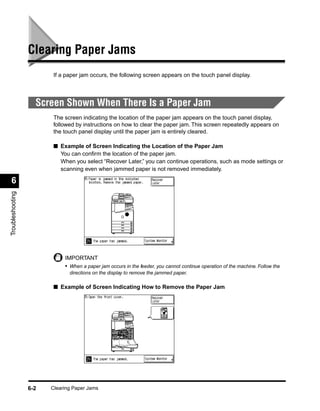
                         If a paper jam occurs, the following screen appears on the touch panel display.


                    Screen Shown When There Is a Paper Jam
                         The screen indicating the location of the paper jam appears on the touch panel display,
                         followed by instructions on how to clear the paper jam. This screen repeatedly appears on
                         the touch panel display until the paper jam is entirely cleared.

                         ■ Example of Screen Indicating the Location of the Paper Jam
                           You can confirm the location of the paper jam.
                           When you select “Recover Later,” you can continue operations, such as mode settings or
                           scanning even when jammed paper is not removed immediately.

 6
Troubleshooting


                             IMPORTANT
                             • When a paper jam occurs in the feeder, you cannot continue operation of the machine. Follow the
                               directions on the display to remove the jammed paper.

                         ■ Example of Screen Indicating How to Remove the Paper Jam


                  6-2   Clearing Paper Jams
CAUTION
       • When removing jammed originals or paper, take care not to cut your hands on the edges
         of the original or paper.
       • When removing jammed paper or when inspecting the inside of the machine, do not allow
         necklaces, bracelets, or other metal objects to touch the inside of the machine, as this
         may result in burns or electrical shock.
       • When removing paper which has become jammed inside the machine, take care not to
         allow the toner on the jammed paper to come into contact with your hands or clothing, as
         this will dirty your hands or clothing. If they become dirty, wash them immediately with
         cold water. Washing with warm water will set the toner and make it impossible to remove
         the toner stains.
       • When removing paper which has become jammed inside the machine, remove the
         jammed paper gently to prevent the toner on the paper from scattering and entering your
         eyes or mouth. If toner enters your eyes or mouth, wash them immediately with cold water
         and consult a physician.


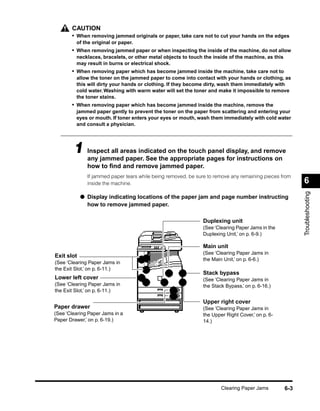
        1 Inspect all areas indicated on the touch pages display, and remove
          any jammed paper. See the appropriate
                                                   panel
                                                         for instructions on
              how to find and remove jammed paper.
              If jammed paper tears while being removed, be sure to remove any remaining pieces from
              inside the machine.                                                                         6


                                                                                                          Troubleshooting
            ● Display indicating locations of the paper jam and page number instructing
              how to remove jammed paper.

                                                              Duplexing unit
                                                              (See ‘Clearing Paper Jams in the
                                                              Duplexing Unit,’ on p. 6-9.)

                                                              Main unit
                                                              (See ‘Clearing Paper Jams in
Exit slot
                                                              the Main Unit,’ on p. 6-6.)
(See ‘Clearing Paper Jams in
the Exit Slot,’ on p. 6-11.)
                                                              Stack bypass
Lower left cover                                              (See ‘Clearing Paper Jams in
(See ‘Clearing Paper Jams in                                  the Stack Bypass,’ on p. 6-16.)
the Exit Slot,’ on p. 6-11.)

                                                              Upper right cover
Paper drawer                                                  (See ‘Clearing Paper Jams in
(See ‘Clearing Paper Jams in a                                the Upper Right Cover,’ on p. 6-
Paper Drawer,’ on p. 6-19.)                                   14.)


                                                                      Clearing Paper Jams           6-3
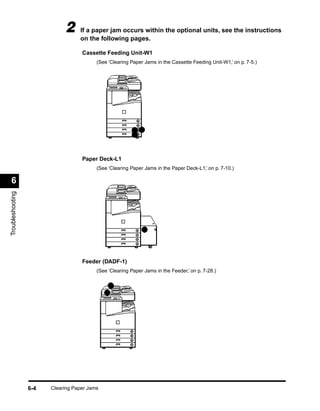
2     If a paper jam occurs within the optional units, see the instructions
                                   on the following pages.

                                    Cassette Feeding Unit-W1
                                          (See ‘Clearing Paper Jams in the Cassette Feeding Unit-W1,’ on p. 7-5.)


                                    Paper Deck-L1
                                          (See ‘Clearing Paper Jams in the Paper Deck-L1,’ on p. 7-10.)

 6
Troubleshooting


                                    Feeder (DADF-1)
                                          (See ‘Clearing Paper Jams in the Feeder,’ on p. 7-28.)


                  6-4   Clearing Paper Jams
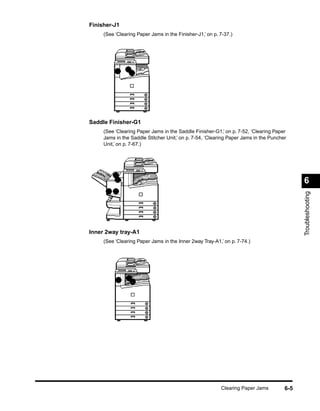
Finisher-J1
     (See ‘Clearing Paper Jams in the Finisher-J1,’ on p. 7-37.)


Saddle Finisher-G1
     (See ‘Clearing Paper Jams in the Saddle Finisher-G1,’ on p. 7-52, ‘Clearing Paper
     Jams in the Saddle Stitcher Unit,’ on p. 7-54, ‘Clearing Paper Jams in the Puncher
     Unit,’ on p. 7-67.)


                                                                                            6


                                                                                            Troubleshooting
Inner 2way tray-A1
     (See ‘Clearing Paper Jams in the Inner 2way Tray-A1,’ on p. 7-74.)


                                                          Clearing Paper Jams         6-5
3     After you have cleared all paper jams at the locations indicated on
                                   the touch panel display, restore all levers and covers to their original
                                   positions.


                             4     Continue operations, following the instructions displayed on the
                                   touch panel display.
                                   Once you have cleared the paper jam in locations other than the feeder, the print operation
                                   restarts.

                                   If there is remaining paper to be removed, a screen indicating how to clear that paper jam
                                   appears on the touch panel display. Repeat the procedure from step 1.


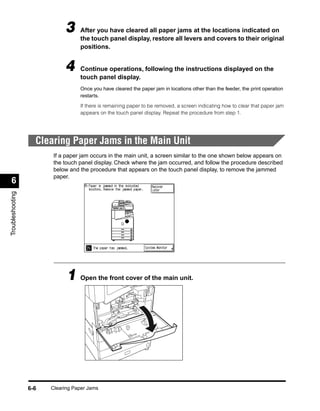
                    Clearing Paper Jams in the Main Unit
                         If a paper jam occurs in the main unit, a screen similar to the one shown below appears on
                         the touch panel display. Check where the jam occurred, and follow the procedure described
                         below and the procedure that appears on the touch panel display, to remove the jammed
                         paper.
 6
Troubleshooting


                              1 Open the front cover of the main unit.


                  6-6   Clearing Paper Jams
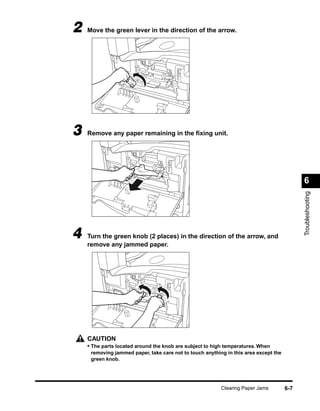
2   Move the green lever in the direction of the arrow.


3   Remove any paper remaining in the fixing unit.


                                                                                            6


                                                                                            Troubleshooting
4   Turn the green knob (2 places) in the direction of the arrow, and
    remove any jammed paper.


    CAUTION
    • The parts located around the knob are subject to high temperatures. When
     removing jammed paper, take care not to touch anything in this area except the
     green knob.


                                                          Clearing Paper Jams         6-7
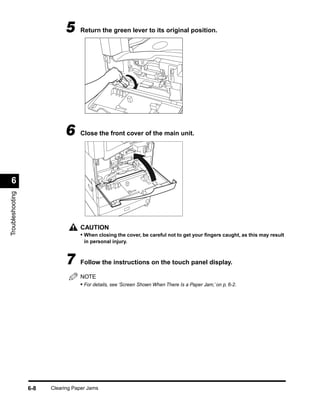
5     Return the green lever to its original position.


                             6     Close the front cover of the main unit.


 6
Troubleshooting


                                   CAUTION
                                   • When closing the cover, be careful not to get your fingers caught, as this may result
                                     in personal injury.


                             7     Follow the instructions on the touch panel display.

                                   NOTE
                                   • For details, see ‘Screen Shown When There Is a Paper Jam,’ on p. 6-2.


                  6-8   Clearing Paper Jams
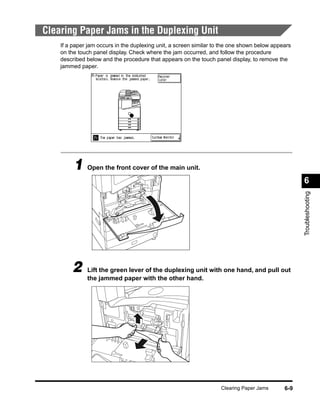
Clearing Paper Jams in the Duplexing Unit
    If a paper jam occurs in the duplexing unit, a screen similar to the one shown below appears
    on the touch panel display. Check where the jam occurred, and follow the procedure
    described below and the procedure that appears on the touch panel display, to remove the
    jammed paper.


         1 Open the front cover of the main unit.
                                                                                                   6


                                                                                                   Troubleshooting
        2     Lift the green lever of the duplexing unit with one hand, and pull out
              the jammed paper with the other hand.


                                                                    Clearing Paper Jams      6-9
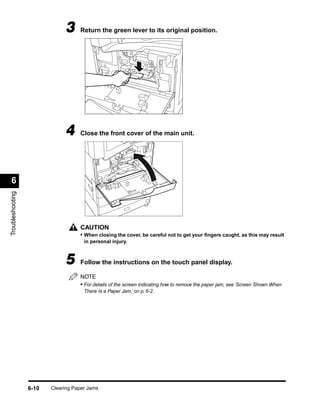
3     Return the green lever to its original position.


                              4     Close the front cover of the main unit.


 6
Troubleshooting


                                    CAUTION
                                    • When closing the cover, be careful not to get your fingers caught, as this may result
                                      in personal injury.


                              5     Follow the instructions on the touch panel display.

                                    NOTE
                                    • For details of the screen indicating how to remove the paper jam, see ‘Screen Shown When
                                      There Is a Paper Jam,’ on p. 6-2.


                  6-10   Clearing Paper Jams
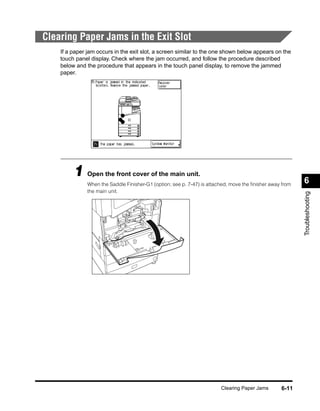
Clearing Paper Jams in the Exit Slot
    If a paper jam occurs in the exit slot, a screen similar to the one shown below appears on the
    touch panel display. Check where the jam occurred, and follow the procedure described
    below and the procedure that appears in the touch panel display, to remove the jammed
    paper.


         1 Open the front cover of the main unit.                                                         6
              When the Saddle Finisher-G1 (option; see p. 7-47) is attached, move the finisher away from
              the main unit.


                                                                                                          Troubleshooting


                                                                        Clearing Paper Jams       6-11
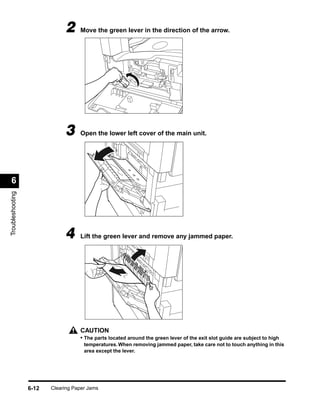
2     Move the green lever in the direction of the arrow.


                              3     Open the lower left cover of the main unit.


 6
Troubleshooting


                              4     Lift the green lever and remove any jammed paper.


                                    CAUTION
                                    • The parts located around the green lever of the exit slot guide are subject to high
                                      temperatures. When removing jammed paper, take care not to touch anything in this
                                      area except the lever.


                  6-12   Clearing Paper Jams
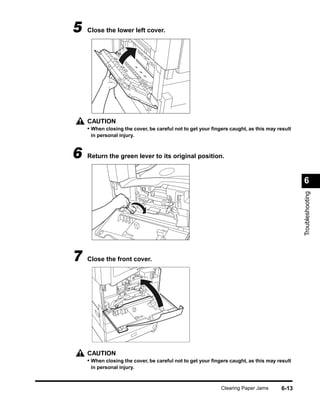
5   Close the lower left cover.


    CAUTION
    • When closing the cover, be careful not to get your fingers caught, as this may result
     in personal injury.


6   Return the green lever to its original position.


                                                                                             6


                                                                                             Troubleshooting
7   Close the front cover.


    CAUTION
    • When closing the cover, be careful not to get your fingers caught, as this may result
     in personal injury.


                                                            Clearing Paper Jams      6-13
8      Follow the instructions on the touch panel display.

                                     NOTE
                                     • For details of the screen indicating how to clear the paper jam, see ‘Screen Shown When
                                      There Is a Paper Jam,’ on p. 6-2.


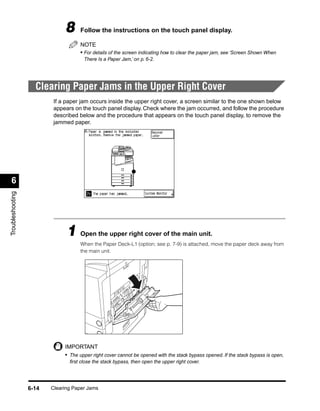
                    Clearing Paper Jams in the Upper Right Cover
                          If a paper jam occurs inside the upper right cover, a screen similar to the one shown below
                          appears on the touch panel display. Check where the jam occurred, and follow the procedure
                          described below and the procedure that appears on the touch panel display, to remove the
                          jammed paper.


 6
Troubleshooting


                               1 Open the upper right cover of the main unit.
                                     When the Paper Deck-L1 (option; see p. 7-9) is attached, move the paper deck away from
                                     the main unit.


                              IMPORTANT
                              • The upper right cover cannot be opened with the stack bypass opened. If the stack bypass is open,
                                first close the stack bypass, then open the upper right cover.


                  6-14   Clearing Paper Jams
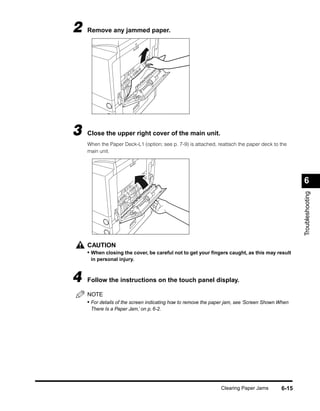
2   Remove any jammed paper.


3   Close the upper right cover of the main unit.
    When the Paper Deck-L1 (option; see p. 7-9) is attached, reattach the paper deck to the
    main unit.


                                                                                                 6


                                                                                                 Troubleshooting
    CAUTION
    • When closing the cover, be careful not to get your fingers caught, as this may result
     in personal injury.


4   Follow the instructions on the touch panel display.

    NOTE
    • For details of the screen indicating how to remove the paper jam, see ‘Screen Shown When
     There Is a Paper Jam,’ on p. 6-2.


                                                               Clearing Paper Jams        6-15
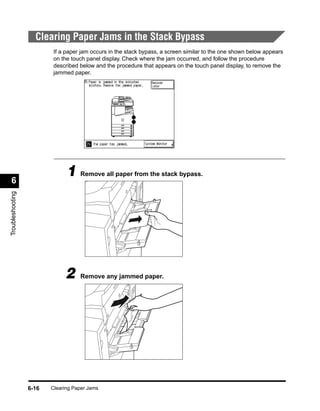
Clearing Paper Jams in the Stack Bypass
                          If a paper jam occurs in the stack bypass, a screen similar to the one shown below appears
                          on the touch panel display. Check where the jam occurred, and follow the procedure
                          described below and the procedure that appears on the touch panel display, to remove the
                          jammed paper.


 6
                               1 Remove all paper from the stack bypass.
Troubleshooting


                              2     Remove any jammed paper.


                  6-16   Clearing Paper Jams
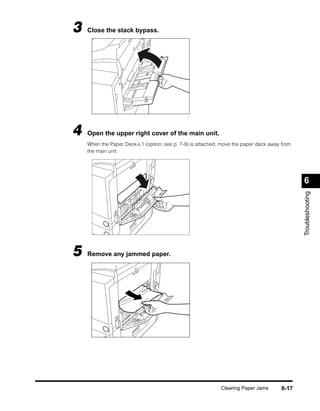
3   Close the stack bypass.


4   Open the upper right cover of the main unit.
    When the Paper Deck-L1 (option; see p. 7-9) is attached, move the paper deck away from
    the main unit.


                                                                                             6


                                                                                             Troubleshooting
5   Remove any jammed paper.


                                                            Clearing Paper Jams       6-17
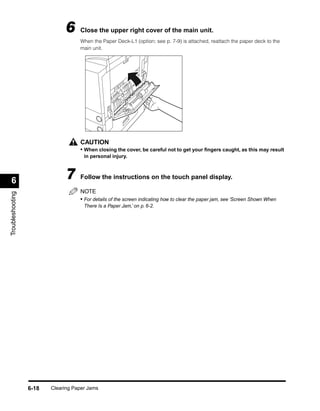
6     Close the upper right cover of the main unit.
                                    When the Paper Deck-L1 (option; see p. 7-9) is attached, reattach the paper deck to the
                                    main unit.


                                    CAUTION
                                    • When closing the cover, be careful not to get your fingers caught, as this may result
                                      in personal injury.


 6                            7     Follow the instructions on the touch panel display.

                                    NOTE
Troubleshooting


                                    • For details of the screen indicating how to clear the paper jam, see ‘Screen Shown When
                                      There Is a Paper Jam,’ on p. 6-2.


                  6-18   Clearing Paper Jams
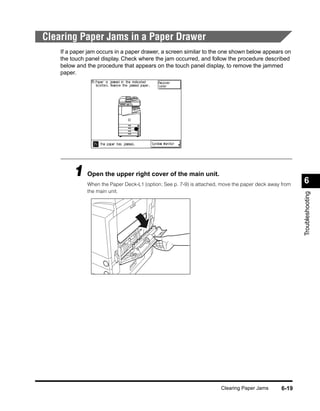
Clearing Paper Jams in a Paper Drawer
    If a paper jam occurs in a paper drawer, a screen similar to the one shown below appears on
    the touch panel display. Check where the jam occurred, and follow the procedure described
    below and the procedure that appears on the touch panel display, to remove the jammed
    paper.


         1 Open the upper right cover of the main unit.                                                6
              When the Paper Deck-L1 (option; See p. 7-9) is attached, move the paper deck away from
              the main unit.


                                                                                                       Troubleshooting


                                                                      Clearing Paper Jams       6-19
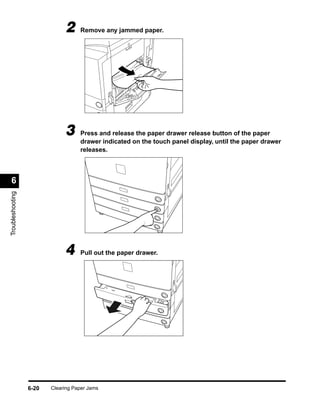
2     Remove any jammed paper.


                              3     Press and release the paper drawer release button of the paper
                                    drawer indicated on the touch panel display, until the paper drawer
                                    releases.


 6
Troubleshooting


                              4     Pull out the paper drawer.


                  6-20   Clearing Paper Jams
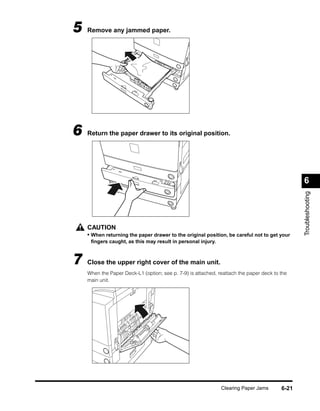
5   Remove any jammed paper.


6   Return the paper drawer to its original position.


                                                                                               6


                                                                                               Troubleshooting
    CAUTION
    • When returning the paper drawer to the original position, be careful not to get your
     fingers caught, as this may result in personal injury.


7   Close the upper right cover of the main unit.
    When the Paper Deck-L1 (option; see p. 7-9) is attached, reattach the paper deck to the
    main unit.


                                                              Clearing Paper Jams       6-21
8     Follow the instructions on the touch panel display.

                                    NOTE
                                    • For details of the screen indicating how to clear the paper jam, see ‘Screen Shown When
                                      There Is a Paper Jam,’ on p. 6-2.


 6
Troubleshooting


                  6-22   Clearing Paper Jams

Clearing Paper Jams

  • 1.
    Clearing Paper Jams If a paper jam occurs, the following screen appears on the touch panel display. Screen Shown When There Is a Paper Jam The screen indicating the location of the paper jam appears on the touch panel display, followed by instructions on how to clear the paper jam. This screen repeatedly appears on the touch panel display until the paper jam is entirely cleared. ■ Example of Screen Indicating the Location of the Paper Jam You can confirm the location of the paper jam. When you select “Recover Later,” you can continue operations, such as mode settings or scanning even when jammed paper is not removed immediately. 6 Troubleshooting IMPORTANT • When a paper jam occurs in the feeder, you cannot continue operation of the machine. Follow the directions on the display to remove the jammed paper. ■ Example of Screen Indicating How to Remove the Paper Jam 6-2 Clearing Paper Jams
  • 2.
    CAUTION • When removing jammed originals or paper, take care not to cut your hands on the edges of the original or paper. • When removing jammed paper or when inspecting the inside of the machine, do not allow necklaces, bracelets, or other metal objects to touch the inside of the machine, as this may result in burns or electrical shock. • When removing paper which has become jammed inside the machine, take care not to allow the toner on the jammed paper to come into contact with your hands or clothing, as this will dirty your hands or clothing. If they become dirty, wash them immediately with cold water. Washing with warm water will set the toner and make it impossible to remove the toner stains. • When removing paper which has become jammed inside the machine, remove the jammed paper gently to prevent the toner on the paper from scattering and entering your eyes or mouth. If toner enters your eyes or mouth, wash them immediately with cold water and consult a physician. 1 Inspect all areas indicated on the touch pages display, and remove any jammed paper. See the appropriate panel for instructions on how to find and remove jammed paper. If jammed paper tears while being removed, be sure to remove any remaining pieces from inside the machine. 6 Troubleshooting ● Display indicating locations of the paper jam and page number instructing how to remove jammed paper. Duplexing unit (See ‘Clearing Paper Jams in the Duplexing Unit,’ on p. 6-9.) Main unit (See ‘Clearing Paper Jams in Exit slot the Main Unit,’ on p. 6-6.) (See ‘Clearing Paper Jams in the Exit Slot,’ on p. 6-11.) Stack bypass Lower left cover (See ‘Clearing Paper Jams in (See ‘Clearing Paper Jams in the Stack Bypass,’ on p. 6-16.) the Exit Slot,’ on p. 6-11.) Upper right cover Paper drawer (See ‘Clearing Paper Jams in (See ‘Clearing Paper Jams in a the Upper Right Cover,’ on p. 6- Paper Drawer,’ on p. 6-19.) 14.) Clearing Paper Jams 6-3
  • 3.
    2 If a paper jam occurs within the optional units, see the instructions on the following pages. Cassette Feeding Unit-W1 (See ‘Clearing Paper Jams in the Cassette Feeding Unit-W1,’ on p. 7-5.) Paper Deck-L1 (See ‘Clearing Paper Jams in the Paper Deck-L1,’ on p. 7-10.) 6 Troubleshooting Feeder (DADF-1) (See ‘Clearing Paper Jams in the Feeder,’ on p. 7-28.) 6-4 Clearing Paper Jams
  • 4.
    Finisher-J1 (See ‘Clearing Paper Jams in the Finisher-J1,’ on p. 7-37.) Saddle Finisher-G1 (See ‘Clearing Paper Jams in the Saddle Finisher-G1,’ on p. 7-52, ‘Clearing Paper Jams in the Saddle Stitcher Unit,’ on p. 7-54, ‘Clearing Paper Jams in the Puncher Unit,’ on p. 7-67.) 6 Troubleshooting Inner 2way tray-A1 (See ‘Clearing Paper Jams in the Inner 2way Tray-A1,’ on p. 7-74.) Clearing Paper Jams 6-5
  • 5.
    3 After you have cleared all paper jams at the locations indicated on the touch panel display, restore all levers and covers to their original positions. 4 Continue operations, following the instructions displayed on the touch panel display. Once you have cleared the paper jam in locations other than the feeder, the print operation restarts. If there is remaining paper to be removed, a screen indicating how to clear that paper jam appears on the touch panel display. Repeat the procedure from step 1. Clearing Paper Jams in the Main Unit If a paper jam occurs in the main unit, a screen similar to the one shown below appears on the touch panel display. Check where the jam occurred, and follow the procedure described below and the procedure that appears on the touch panel display, to remove the jammed paper. 6 Troubleshooting 1 Open the front cover of the main unit. 6-6 Clearing Paper Jams
  • 6.
    2 Move the green lever in the direction of the arrow. 3 Remove any paper remaining in the fixing unit. 6 Troubleshooting 4 Turn the green knob (2 places) in the direction of the arrow, and remove any jammed paper. CAUTION • The parts located around the knob are subject to high temperatures. When removing jammed paper, take care not to touch anything in this area except the green knob. Clearing Paper Jams 6-7
  • 7.
    5 Return the green lever to its original position. 6 Close the front cover of the main unit. 6 Troubleshooting CAUTION • When closing the cover, be careful not to get your fingers caught, as this may result in personal injury. 7 Follow the instructions on the touch panel display. NOTE • For details, see ‘Screen Shown When There Is a Paper Jam,’ on p. 6-2. 6-8 Clearing Paper Jams
  • 8.
    Clearing Paper Jamsin the Duplexing Unit If a paper jam occurs in the duplexing unit, a screen similar to the one shown below appears on the touch panel display. Check where the jam occurred, and follow the procedure described below and the procedure that appears on the touch panel display, to remove the jammed paper. 1 Open the front cover of the main unit. 6 Troubleshooting 2 Lift the green lever of the duplexing unit with one hand, and pull out the jammed paper with the other hand. Clearing Paper Jams 6-9
  • 9.
    3 Return the green lever to its original position. 4 Close the front cover of the main unit. 6 Troubleshooting CAUTION • When closing the cover, be careful not to get your fingers caught, as this may result in personal injury. 5 Follow the instructions on the touch panel display. NOTE • For details of the screen indicating how to remove the paper jam, see ‘Screen Shown When There Is a Paper Jam,’ on p. 6-2. 6-10 Clearing Paper Jams
  • 10.
    Clearing Paper Jamsin the Exit Slot If a paper jam occurs in the exit slot, a screen similar to the one shown below appears on the touch panel display. Check where the jam occurred, and follow the procedure described below and the procedure that appears in the touch panel display, to remove the jammed paper. 1 Open the front cover of the main unit. 6 When the Saddle Finisher-G1 (option; see p. 7-47) is attached, move the finisher away from the main unit. Troubleshooting Clearing Paper Jams 6-11
  • 11.
    2 Move the green lever in the direction of the arrow. 3 Open the lower left cover of the main unit. 6 Troubleshooting 4 Lift the green lever and remove any jammed paper. CAUTION • The parts located around the green lever of the exit slot guide are subject to high temperatures. When removing jammed paper, take care not to touch anything in this area except the lever. 6-12 Clearing Paper Jams
  • 12.
    5 Close the lower left cover. CAUTION • When closing the cover, be careful not to get your fingers caught, as this may result in personal injury. 6 Return the green lever to its original position. 6 Troubleshooting 7 Close the front cover. CAUTION • When closing the cover, be careful not to get your fingers caught, as this may result in personal injury. Clearing Paper Jams 6-13
  • 13.
    8 Follow the instructions on the touch panel display. NOTE • For details of the screen indicating how to clear the paper jam, see ‘Screen Shown When There Is a Paper Jam,’ on p. 6-2. Clearing Paper Jams in the Upper Right Cover If a paper jam occurs inside the upper right cover, a screen similar to the one shown below appears on the touch panel display. Check where the jam occurred, and follow the procedure described below and the procedure that appears on the touch panel display, to remove the jammed paper. 6 Troubleshooting 1 Open the upper right cover of the main unit. When the Paper Deck-L1 (option; see p. 7-9) is attached, move the paper deck away from the main unit. IMPORTANT • The upper right cover cannot be opened with the stack bypass opened. If the stack bypass is open, first close the stack bypass, then open the upper right cover. 6-14 Clearing Paper Jams
  • 14.
    2 Remove any jammed paper. 3 Close the upper right cover of the main unit. When the Paper Deck-L1 (option; see p. 7-9) is attached, reattach the paper deck to the main unit. 6 Troubleshooting CAUTION • When closing the cover, be careful not to get your fingers caught, as this may result in personal injury. 4 Follow the instructions on the touch panel display. NOTE • For details of the screen indicating how to remove the paper jam, see ‘Screen Shown When There Is a Paper Jam,’ on p. 6-2. Clearing Paper Jams 6-15
  • 15.
    Clearing Paper Jamsin the Stack Bypass If a paper jam occurs in the stack bypass, a screen similar to the one shown below appears on the touch panel display. Check where the jam occurred, and follow the procedure described below and the procedure that appears on the touch panel display, to remove the jammed paper. 6 1 Remove all paper from the stack bypass. Troubleshooting 2 Remove any jammed paper. 6-16 Clearing Paper Jams
  • 16.
    3 Close the stack bypass. 4 Open the upper right cover of the main unit. When the Paper Deck-L1 (option; see p. 7-9) is attached, move the paper deck away from the main unit. 6 Troubleshooting 5 Remove any jammed paper. Clearing Paper Jams 6-17
  • 17.
    6 Close the upper right cover of the main unit. When the Paper Deck-L1 (option; see p. 7-9) is attached, reattach the paper deck to the main unit. CAUTION • When closing the cover, be careful not to get your fingers caught, as this may result in personal injury. 6 7 Follow the instructions on the touch panel display. NOTE Troubleshooting • For details of the screen indicating how to clear the paper jam, see ‘Screen Shown When There Is a Paper Jam,’ on p. 6-2. 6-18 Clearing Paper Jams
  • 18.
    Clearing Paper Jamsin a Paper Drawer If a paper jam occurs in a paper drawer, a screen similar to the one shown below appears on the touch panel display. Check where the jam occurred, and follow the procedure described below and the procedure that appears on the touch panel display, to remove the jammed paper. 1 Open the upper right cover of the main unit. 6 When the Paper Deck-L1 (option; See p. 7-9) is attached, move the paper deck away from the main unit. Troubleshooting Clearing Paper Jams 6-19
  • 19.
    2 Remove any jammed paper. 3 Press and release the paper drawer release button of the paper drawer indicated on the touch panel display, until the paper drawer releases. 6 Troubleshooting 4 Pull out the paper drawer. 6-20 Clearing Paper Jams
  • 20.
    5 Remove any jammed paper. 6 Return the paper drawer to its original position. 6 Troubleshooting CAUTION • When returning the paper drawer to the original position, be careful not to get your fingers caught, as this may result in personal injury. 7 Close the upper right cover of the main unit. When the Paper Deck-L1 (option; see p. 7-9) is attached, reattach the paper deck to the main unit. Clearing Paper Jams 6-21
  • 21.
    8 Follow the instructions on the touch panel display. NOTE • For details of the screen indicating how to clear the paper jam, see ‘Screen Shown When There Is a Paper Jam,’ on p. 6-2. 6 Troubleshooting 6-22 Clearing Paper Jams