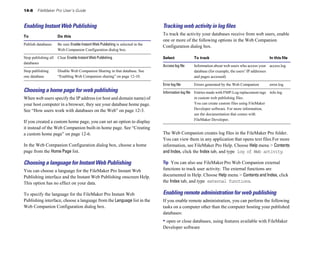




For Windows and Mac
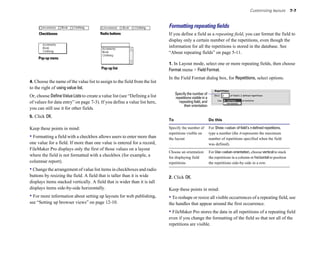
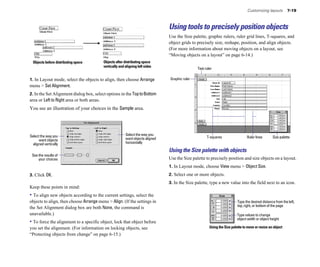
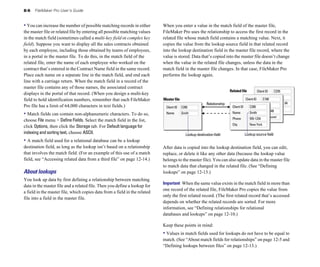
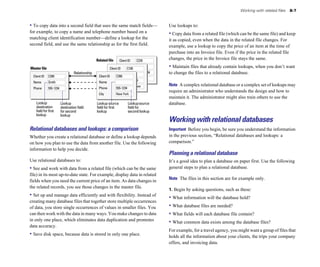
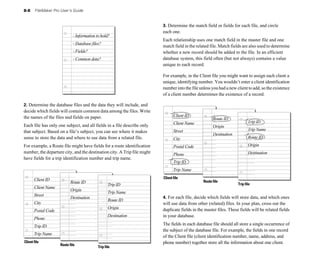
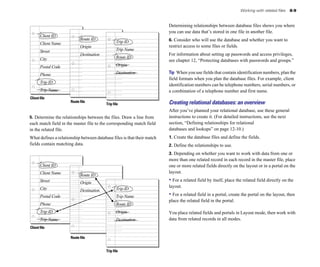
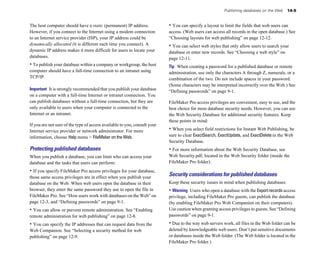
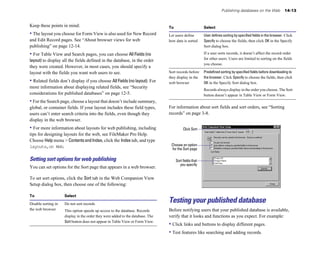
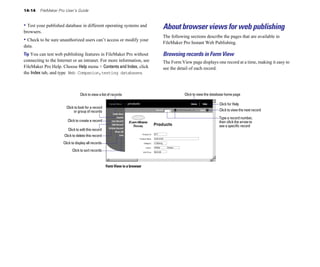
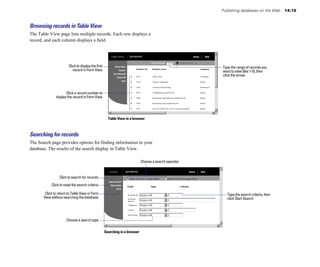
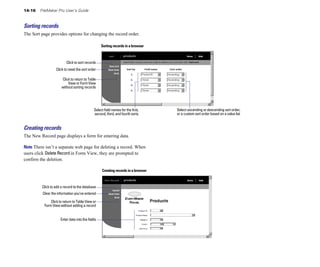
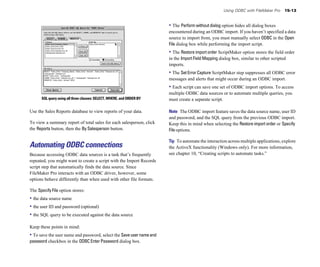
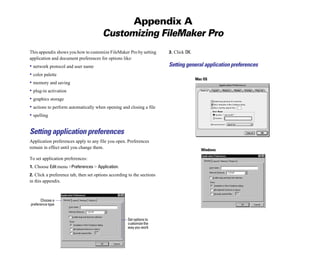
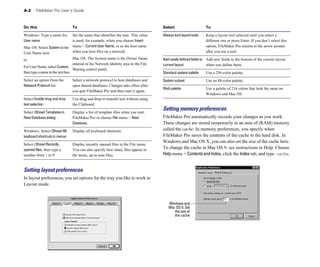
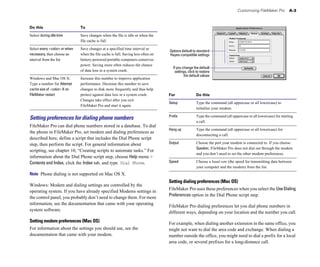
                                                                                                                      FileMaker

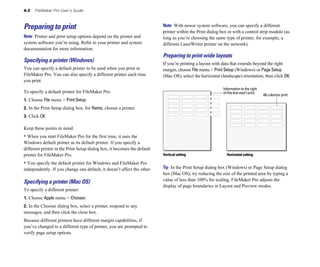
                                                                                                                            Pro 6
                                                                                                                                          User’s Guide


©1995, 1997-2002 FileMaker, Inc. All Rights Reserved. 

FileMaker, Inc.

5201 Patrick Henry Drive

Santa Clara, California 95054

www.filemaker.com

FileMaker documentation is copyrighted. You are not authorized to make additional copies or distribute this documentation without 

written permission from FileMaker. You may use this documentation solely with a valid licensed copy of FileMaker software.

FileMaker is a trademark of FileMaker, Inc., registered in the U.S. and other countries, and ScriptMaker and the file folder logo are 

trademarks of FileMaker, Inc. All other trademarks are the property of their respective owners.

This software is based in part on the work of the Independent JPEG group. This product includes software developed by the Apache 

Software Foundation (http://www.apache.org/). Portions of this software are © 1991-2002 DataDirect Technologies. All rights 

reserved.

All persons and companies listed in the examples are purely fictitious and any resemblance to existing persons and companies is

purely coincidental.

Mention of third party companies and products is for informational purposes only and does not constitute an endorsement. FileMaker 

assumes no responsibility with regard to the selection, performance, or use of these products. All understandings, agreements or 

warranties, if any, take place directly between the vendor and prospective users.
Contents


Preface                                                                     Closing files                                               1-7

Learning how to use FileMaker Pro                                           Saving files                                                1-7

Registration and customer support                              xi
          Quitting FileMaker Pro                                      1-8

Using the FileMaker Pro documentation                          xi

      How this guide is organized                             xii
    Chapter 2

      A note about the illustrations                          xii

                                                                      Adding and viewing data
Using FileMaker Pro Help                                      xiii
   About working with records in Browse mode                         2-1

      Starting FileMaker Pro Help                             xiii
   Viewing records                                                   2-2

      About the Help topic window                             xiii
         Viewing records in a table                                  2-2

      Finding a topic using the Help Contents                 xiii
         Selecting the current record                                2-3

      Finding a topic using the Help Index                   xiv
           Moving through records                                      2-4

      Finding a topic using specific words                    xv
     Adding and duplicating records                                    2-4

      Finding information on specific items in FileMaker Pro xvi
           Adding and duplicating related records                      2-5

      Getting additional Help                                xvi
     Deleting records                                                  2-5

      Using other tools                                      xvii
    About entering data in records                                    2-6

                                                                            Selecting a field                                           2-6

Chapter 1
                                                                  Entering and changing data in fields                        2-7

FileMaker Pro basics                                                        Copying and moving data in records                          2-8

About databases                                                1-1
         Entering preset data from a value list                      2-8

About FileMaker Pro files                                      1-2
         Moving data with drag and drop                              2-9

      About fields and records                                 1-2
         Inserting the current date or other variable into fields   2-10

      About layouts                                            1-3
         Replacing data in fields                                   2-10

      About modes                                              1-3
   About working with graphics, sounds, and movies                  2-11

      About sharing data                                       1-4
         Inserting graphics into fields                             2-11

Performing menu commands                                       1-4
         Inserting movies and QuickTime multimedia 

      Using toolbars                                           1-5
           into fields                                              2-12

      Using context menus                                      1-5
         Pasting graphics, movies, and sounds from 

Managing files                                                 1-6
           the Clipboard                                            2-12

      Starting FileMaker Pro                                   1-6
         Playing movies in fields                                   2-12

      Opening files                                            1-6
         Recording and playing sounds in fields                     2-13

                                                                            Deleting graphics, movies, or sounds from fields           2-13
iv   FileMaker Pro User’s Guide


About working with text                                    2-13   Previewing data on a layout                                     4-3
     Selecting text                                        2-13   Printing                                                        4-4
     Editing text                                          2-14
     Formatting text in Browse mode                        2-14   Chapter 5
     Checking spelling                                     2-14
                                                                  Creating a database
     Checking spelling as you type                         2-15   Planning a database file                                        5-1
Working with OLE objects                                   2-15   Creating a FileMaker Pro file                                   5-2
                                                                  About defining database fields                                  5-3
Chapter 3                                                               About naming fields                                       5-3
Finding and sorting information                                         About choosing a field type                               5-4
Finding records                                             3-1         Defining text, number, date, time, or container fields    5-5
      Finding text and characters                           3-2         Defining calculation fields                               5-5
      Finding exact matches in text fields                  3-3         Defining summary fields                                   5-6
      Finding numbers, dates, and times                     3-3         Defining global fields                                    5-8
      Finding ranges of information                         3-4   Setting options for fields                                      5-8
      Finding data in related fields                        3-4         Defining automatic data entry                             5-8
      Finding records that match multiple criteria          3-5         Defining field validation                                 5-9
      Finding empty or non-empty fields                     3-6         About repeating fields                                   5-11
      Finding duplicates                                    3-6         About storage and indexing options                       5-11
      Finding all records except those matching criteria    3-6   Changing field definitions                                     5-11
      Hiding records from a found set and viewing                 Deleting field definitions and data                            5-12
        hidden records                                      3-7
      Viewing, repeating, or changing the last find         3-7   Chapter 6
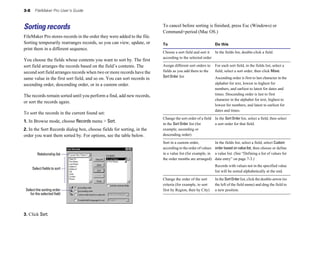
Sorting records                                             3-8   Creating and managing layouts and reports
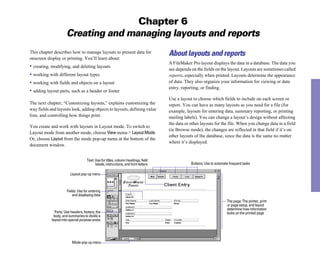
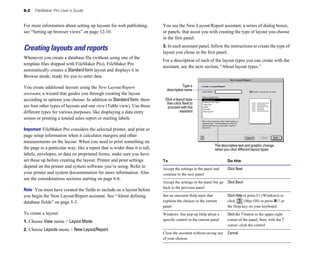
                                                                  About layouts and reports                                       6-1
Chapter 4                                                         Creating layouts and reports                                    6-2
Previewing and printing information                                     About layout types                                        6-3
About printing information in a database                    4-1         Considerations when you create a Columnar
Preparing to print                                          4-2          list/report layout                                       6-5
      Specifying a printer (Windows)                        4-2         Considerations when you create a Labels layout            6-6
      Specifying a printer (Mac OS)                         4-2         Considerations when you create an Envelope layout         6-7
      Preparing to print wide layouts                       4-2   Working with, duplicating, deleting, or renaming layouts        6-8
      Preparing to print layouts with subsummaries          4-3         Setting up to print records in columns                    6-8
      Preparing to print envelopes and labels               4-3         Setting up View as Form, View as List, and
                                                                         View as Table                                           6-10
Contents     v


About working with objects on a layout                        6-11
         Formatting graphics on a layout                            7-17

     Working with the layout tools                            6-11
         Showing text, field, or button boundaries                  7-17

     Selecting objects                                        6-12
   Arranging objects                                                7-17

     Copying, duplicating, and deleting objects               6-13
         Grouping and ungrouping objects                            7-17

     Moving objects on a layout                               6-14
         Moving objects forward or backward on a layout             7-18

     Changing an object’s shape and size                      6-14
         Rotating objects                                           7-18

     Protecting objects from change                           6-15
         Aligning objects to each other                             7-18

About working with fields on a layout                         6-15
   Using tools to precisely position objects                        7-19

     Placing and removing fields on a layout                  6-15
         Using the Size palette with objects                        7-19

     Deciding where to place related fields                   6-18
         Using graphic rulers and ruler gridlines                   7-20

     Formatting field data on a layout                        6-21
         Aligning objects with the T-squares                        7-20

About layout parts                                            6-25
         Using the object grids                                     7-21

     About layout part types                                  6-25
   Controlling how things print                                     7-21

     Adding or changing layout parts                          6-26
         Specifying page margins                                    7-21

     Defining page breaks and numbering                       6-29
         Showing page margins                                       7-22

     Reordering layout parts                                  6-29
         About removing blank space from printed data               7-22

     Resizing layout parts                                    6-30
         Keeping objects from printing                              7-25

     Deleting layout parts                                    6-30

                                                                      Chapter 8

Chapter 7
                                                            Working with related files
Customizing layouts                                                   Displaying data from related files                                   8-1

Customizing fields on a layout                                 7-1
         Relational database terminology                                8-2

     Adding borders, fill, and baselines to fields             7-1
         About relational databases                                     8-2

     Adding scroll bars to fields                              7-2
         When to create relationships between files                     8-4

     Defining a list of values for data entry                  7-3
         About match fields for relationships                           8-5

     Formatting repeating fields                               7-7
         About lookups                                                  8-6

     Allowing or preventing entry into fields                  7-8
         Relational databases and lookups: a comparison                 8-7

     Setting the tab order for data entry                      7-8
   Working with relational databases                                    8-7

Customizing the appearance of a layout                        7-10
         Planning a relational database                                 8-7

     Adding text to a layout                                  7-10
         Creating relational databases: an overview                     8-9

     Formatting text                                          7-12
         Defining relationships for relational databases 

     Drawing lines and shapes                                 7-14
          and lookups                                               8-10

     Setting color, pattern, line width, and object effects   7-14
   Changing relationships                                           8-12

     Inserting graphics onto a layout                         7-16
         Choosing a different relationship for a portal             8-12
vi   FileMaker Pro User’s Guide


      Summarizing data in portals                   8-12
   Duplicating, renaming, or deleting scripts     10-10

Defining lookups between files                      8-13
         Deleting scripts                         10-10

      Defining lookups                              8-13
   Importing scripts                              10-11

      Accessing related data from a third file      8-14
         To import a script                       10-11

      Creating many-to-many relationships           8-15
   Listing scripts in the Scripts menu            10-11

                                                            Using buttons with scripts                     10-12

Chapter 9
                                                        Defining buttons                         10-12

Protecting databases with passwords and groups                    Copying, changing, or deleting buttons   10-13

Defining passwords                                   9-1
   Example of a ScriptMaker script                10-13

Deleting or changing passwords                       9-3
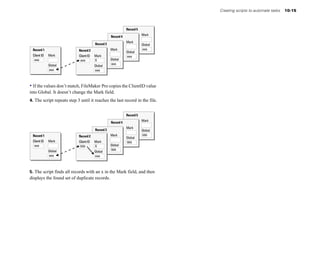
         Finding duplicate records                10-13

Defining groups                                      9-3

Deleting or changing groups                          9-5
   Chapter 11

Passwords and groups: a comparison                   9-6
   Using formulas and functions
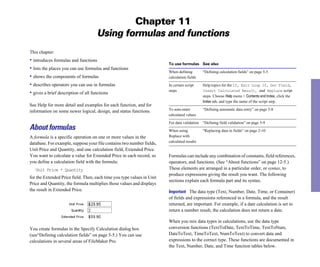
                                                            About formulas                                  11-1

Chapter 10
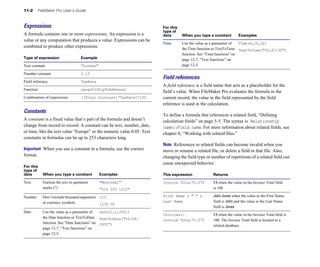
                                                      Expressions                                11-2

Creating scripts to automate tasks                               Constants                                  11-2

About scripts                                       10-1
        Field references                           11-2

Creating scripts: an overview                       10-3
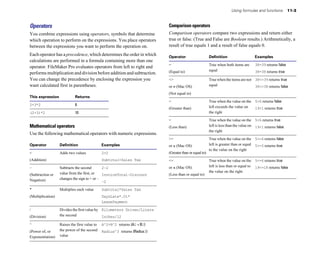
        Operators                                  11-3

       Planning scripts                             10-3
   About functions                                 11-5

       Storing settings before creating a script    10-4
        Text functions                             11-5

       Defining scripts                             10-4
        Number functions                           11-6

About ScriptMaker steps                             10-6
        Date functions                             11-7

Control script steps                                10-6
        Time functions                             11-7

Navigation script steps                             10-6
        Aggregate functions                        11-7

Sort, find, and print script steps                  10-7
        Summary functions                          11-8

Editing script steps                                10-7
        Repeating functions                        11-9

Fields script steps                                 10-7
        Financial functions                        11-9

Records script steps                                10-8
        Trigonometric functions                   11-10

Windows script steps                                10-8
        Logical functions                         11-10

Files script steps                                  10-8
        Status functions                          11-10

Spelling script steps                               10-9
        Design functions                          11-12

Open Menu Item script steps                         10-9
        External functions                        11-13

Miscellaneous script steps                          10-9

Changing scripts                                   10-10
Contents    vii


Chapter 12
                                                               Enabling Instant Web Publishing                      14-8

Importing and exporting data                                              Choosing a home page for web publishing              14-8

About import and export                                     12-1
         Choosing a language for Instant Web Publishing       14-8

     About file formats                                     12-1
         Tracking web activity in log files                   14-8

Importing data into FileMaker Pro                           12-2
         Enabling remote administration for web publishing    14-8

     Importing data into an existing file                   12-2
         Selecting a security method for web publishing       14-9

     Converting a data file into a new FileMaker Pro file   12-6
         Specifying a port number for web publishing          14-9

Exporting data from FileMaker Pro                           12-6
   Enabling Web Companion sharing                            14-10

     Exporting subsummary data                              12-8
   Setting up browser views                                  14-10

                                                                          Choosing a web style                                14-11

Chapter 13
                                                               Choosing layouts for web publishing                 14-12

Sharing databases on a network                                            Setting sort options for web publishing             14-13

About sharing files on a network                            13-1
   Testing your published database                           14-13

      Working with shared files                             13-2
   About browser views for web publishing                    14-14

About hosting files                                         13-3
         Browsing records in Form View                       14-14

Opening files as the host                                   13-3
         Browsing records in Table View                      14-15

Closing shared files                                        13-4
         Searching for records                               14-15

Opening files as a guest                                    13-5
         Sorting records                                     14-16

                                                                          Creating records                                    14-16

Chapter 14

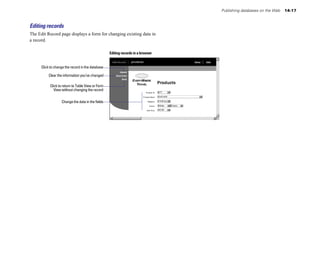
                                                                          Editing records                                     14-17

Publishing databases on the Web
About publishing databases on the Web                       14-1
   Chapter 15

      Web terminology                                       14-1
   Using ODBC with FileMaker Pro
      About FileMaker Pro Web Companion                     14-2
   About ODBC                                                    15-1

      About Instant Web Publishing                          14-2
         ODBC terminology                                        15-1

How users work with databases on the Web                    14-3
         ODBC support in FileMaker Pro                           15-2

What you need to publish databases on the Web               14-4
   Sharing FileMaker Pro data via ODBC                           15-2

      Connecting to the Internet or an intranet             14-4
         Sharing data via ODBC: an overview                      15-2

      Protecting published databases                        14-5
         Enabling the Data Access Companions                     15-2

      Security considerations for published databases       14-5
         Security issues                                         15-3

      Creating a custom home page                           14-6
   Accessing FileMaker Pro data from an ODBC 

Publishing databases on the Web: an overview                14-6
    client application                                           15-3

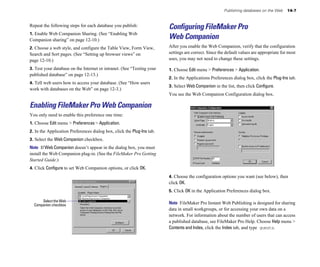
Enabling FileMaker Pro Web Companion                        14-7
         Configuring the ODBC control panel                      15-3

Configuring FileMaker Pro Web Companion                     14-7
   Importing data from other data sources                        15-5
viii   FileMaker Pro User’s Guide


     Importing data from an ODBC data source: 
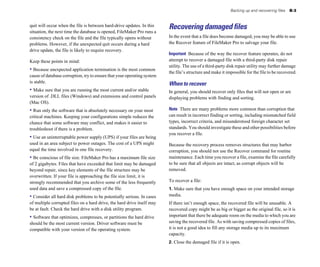
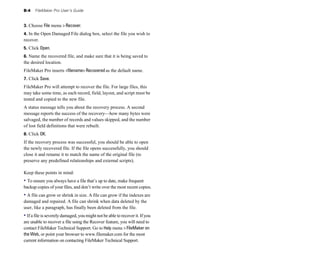
                       Recovering damaged files                    B-3

       an overview                                            15-5
        When to recover                        B-3

     Configuring the ODBC control panel                       15-5

     Connecting to an ODBC data source from 
                         Appendix C
       FileMaker Pro                                          15-6
   FileMaker Pro Quick Reference (Windows)
     Building a SQL query in FileMaker Pro                    15-7
   Keyboard and mouse shortcuts                C-1

     Importing the results of the query into FileMaker Pro    15-8
         Working with layout objects           C-1

An ODBC import example                                        15-8
         Formatting text (Layout and Browse)   C-1

     Configuring the ODBC control panel for the 
                           Selecting text (Layout and Browse)    C-1

       Text driver                                            15-9
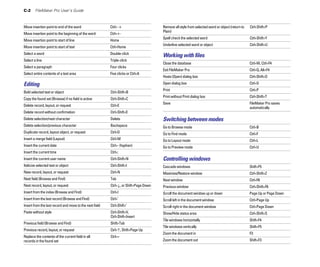
         Editing                               C-2

     Connecting to the ODBC Demo data source                 15-10
         Working with files                    C-2

     Specifying the SQL query in FileMaker Pro               15-11
         Switching between modes               C-2

Importing ODBC data with a join                              15-11
         Controlling windows                   C-2

     Specifying a SQL join                                   15-11
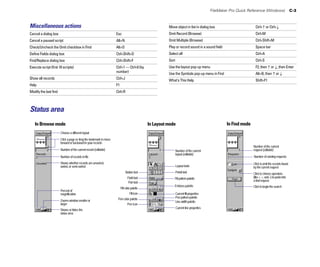
         Miscellaneous actions                 C-3

Automating ODBC connections                                  15-13
   Status area                                 C-3


Appendix A                                                            Appendix D
Customizing FileMaker Pro                                             FileMaker Pro Quick Reference (Mac OS)
Setting application preferences                               A-1
    Keyboard and mouse shortcuts                D-1

      Setting general application preferences                 A-1
          Working with layout objects           D-1

      Setting layout preferences                              A-2
          Formatting text (Layout and Browse)   D-1

      Setting memory preferences                              A-2
          Selecting text (Layout and Browse)    D-1

      Setting preferences for dialing phone numbers           A-3
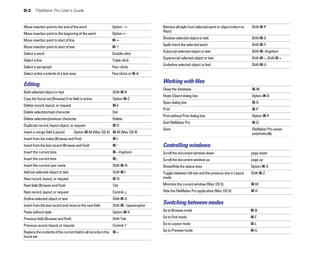
          Editing                               D-2

      Setting up plug-ins                                     A-4
          Working with files                    D-2

Setting document preferences                                  A-5
          Controlling windows                   D-2

      Setting general document preferences                    A-5
          Switching between modes               D-2

      Setting document spelling preferences                   A-6
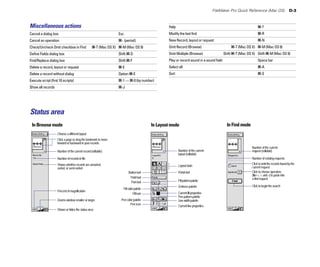
          Miscellaneous actions                 D-3

                                                                      Status area                                 D-3

Appendix B
Backing up and recovering files                                       Index                                       I-1

Backing up files                                               B-1

     Using a backup script                                     B-1

Maintaining files                                              B-2

     Saving a compressed copy                                  B-2

     Understanding file damage                                 B-2
Preface
                                Learning how to use FileMaker Pro
The documentation for the FileMaker® Pro software provides              and access to the TechInfo Knowledge Base used by Technical
information, illustrations, and step-by-step instructions to help you   Support. If you do not have access to the Web, please refer to the
learn the most about FileMaker Pro.                                     FileMaker Service Directory included in the software box. North
                                                                        America customers can also call 1-800-965-9090 to learn about the
This preface explains how to:                                           service options available.
• register your copy of FileMaker Pro and access customer support
• use the FileMaker Pro documentation and other tools to help you       Using the FileMaker Pro documentation
work with the product
                                                                        This guide and the other documentation in the set give you the
• use FileMaker Pro Help                                                information that you need to know about installing and using
                                                                        FileMaker Pro.
Windows: If you’re new to Microsoft Windows, you need to know
about Windows conventions and using the mouse and keyboard. See         The FileMaker Pro documentation includes:
the documentation that came with your computer.
                                                                        • this book, the FileMaker Pro User’s Guide
Mac OS: If you’re new to the Mac OS, you need to know about using       • FileMaker Pro Help, a comprehensive onscreen help system
the mouse, working with disks, and other Mac OS conventions. See
                                                                        • the FileMaker Pro Getting Started Guide, containing installation
the documentation that came with your computer.
                                                                        and new features information and a tutorial


Registration and customer support                                       In addition, FileMaker Pro includes database template files, and
                                                                        references and examples to help you with specific tasks. You can
Please take the time to register your product during installation,      also find more information, tips, and database ideas on the
through the FileMaker web site at www.filemaker.com/register, or        FileMaker, Inc. web site at www.filemaker.com.
by choosing Help menu > Register Now in FileMaker Pro.
                                                                        The FileMaker Pro documentation is written for users of either
For information about technical support and customer service, see:      Windows or the Mac OS. In most instances, information and
www.filemaker.com (North American customers)                            instructions are the same for both operating systems. Where they
                                                                        differ, you see the information for Windows first. In onscreen Help,
www.filemaker.com/intl (customers outside North America)
                                                                        you may see separate topics for Windows and the Mac OS.
or choose Help menu > FileMaker on the Web. At the web site, you will
find the FileMaker Service Directory, which details the service         Note The examples in this documentation show dates and numbers
options available to North American customers, as well as links to      in U.S. format, such as November 30, 2001 and $1,234.50.
FileMaker worldwide sites, answers to frequently asked questions,
x   FileMaker Pro User’s Guide


How this guide is organized                                           Special information in this user’s guide looks like this:
This FileMaker Pro User’s Guide describes how to use the most         Note or Tip messages give extra or helpful information about a
common features in FileMaker Pro. For details about some advanced     subject.
features, as well as new features added in FileMaker Pro 5.5 and      Important messages alert you to situations that require attention, such
FileMaker Pro 6, see FileMaker Pro Help.                              as an action you can’t undo.

The FileMaker Pro User’s Guide is divided into three parts.           Glossary terms are defined in FileMaker Pro Help. Glossary terms
                                                                      are italicized in the user’s guide and underlined with a dotted line in
Part 1: Using a database                                              Help.
The first part of this book gives you the information you need for
using existing databases that have been created in FileMaker Pro.     A note about the illustrations
                                                                      This user’s guide is a cross-platform book for users of either
Part 2: Designing and creating a database                             FileMaker Pro for Windows or FileMaker Pro for the Mac OS.
The second part of this book provides detailed instructions for       Illustrations throughout the book are mixed, depicting situations for
creating and designing databases.                                     both platforms. Windows and Mac OS systems are used for the
                                                                      illustrations. What you see on your screen may vary from the
Part 3: Sharing and exchanging data                                   instructions in this book depending on the platform and the operating
The third part of this book explores the various ways that you can    system that your computer is using.
exchange and share data from your database; for example, importing
and exporting data, sharing your database over a network or the       If you’re using Mac OS X or a Windows operating system other than
World Wide Web, or how to share FileMaker Pro data with other         Windows 98 (such as Windows Me or Windows XP), what you see
ODBC-compliant applications.                                          on your screen might not match the illustrations in the
                                                                      documentation.
Note A FileMaker Pro database can have restricted access to certain
menus and database operations. For passwords and access
information, see your database administrator or the person who
designed the database that you’re using.
Learning how to use FileMaker Pro              xi


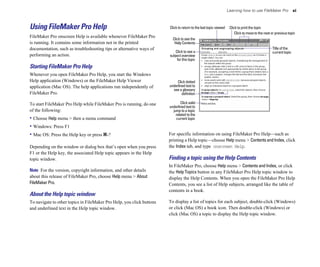
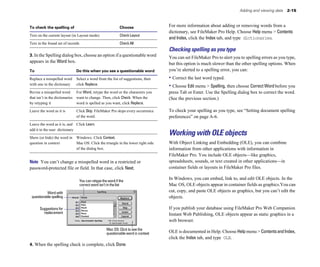
Using FileMaker Pro Help                                               Click to return to the last topic viewed    Click to print the topic
                                                                                                                       Click to move to the next or previous topic
FileMaker Pro onscreen Help is available whenever FileMaker Pro
                                                                         Click to see the
is running. It contains some information not in the printed               Help Contents
documentation, such as troubleshooting tips or alternative ways of                                                                               Title of the
                                                                          Click to see a                                                         current topic
performing an action.                                                  subject overview
                                                                           for this topic
Starting FileMaker Pro Help
Whenever you open FileMaker Pro Help, you start the Windows
Help application (Windows) or the FileMaker Help Viewer                     Click dotted
application (Mac OS). The help applications run independently of       underlined text to
                                                                         see a glossary
FileMaker Pro.                                                                 definition

To start FileMaker Pro Help while FileMaker Pro is running, do one            Click solid
                                                                       underlined text to
of the following:                                                        jump to a topic
                                                                           related to the
• Choose Help menu > then a menu command                                   current topic

• Windows: Press F1
• Mac OS: Press the Help key or press 2-?                              For specific information on using FileMaker Pro Help—such as
                                                                       printing a Help topic—choose Help menu > Contents and Index, click
Depending on the window or dialog box that’s open when you press       the Index tab, and type onscreen Help.
F1 or the Help key, the associated Help topic appears in the Help
topic window.                                                          Finding a topic using the Help Contents
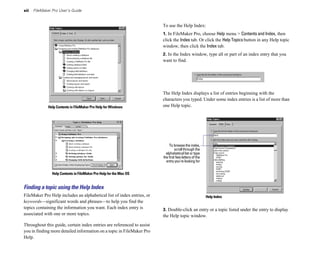
                                                                       In FileMaker Pro, choose Help menu > Contents and Index, or click
Note For the version, copyright information, and other details         the Help Topics button in any FileMaker Pro Help topic window to
about this release of FileMaker Pro, choose Help menu > About          display the Help Contents. When you open the FileMaker Pro Help
FileMaker Pro.                                                         Contents, you see a list of Help subjects, arranged like the table of
                                                                       contents in a book.
About the Help topic window
To navigate to other topics in FileMaker Pro Help, you click buttons   To display a list of topics for each subject, double-click (Windows)
and underlined text in the Help topic window.                          or click (Mac OS) a book icon. Then double-click (Windows) or
                                                                       click (Mac OS) a topic to display the Help topic window.
xii   FileMaker Pro User’s Guide


                                                                        To use the Help Index:
                                                                        1. In FileMaker Pro, choose Help menu > Contents and Index, then
                                                                        click the Index tab. Or click the Help Topics button in any Help topic
                                                                        window, then click the Index tab.
                                                                        2. In the Index window, type all or part of an index entry that you
                                                                        want to find.


                                                                        The Help Index displays a list of entries beginning with the
                                                                        characters you typed. Under some index entries is a list of more than
              Help Contents in FileMaker Pro Help for Windows           one Help topic.


                                                                            To browse the index,
                                                                                 scroll through the
                                                                          alphabetical list or type
                                                                        the first few letters of the
                                                                          entry you’re looking for


                Help Contents in FileMaker Pro Help for the Mac OS


Finding a topic using the Help Index
FileMaker Pro Help includes an alphabetical list of index entries, or                                  Help Index
keywords—significant words and phrases—to help you find the
topics containing the information you want. Each index entry is         3. Double-click an entry or a topic listed under the entry to display
associated with one or more topics.                                     the Help topic window.
Throughout this guide, certain index entries are referenced to assist
you in finding more detailed information on a topic in FileMaker Pro
Help.
Learning how to use FileMaker Pro        xiii


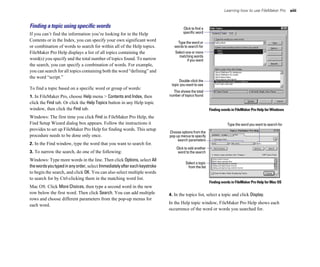
Finding a topic using specific words                                                 Click to find a
If you can’t find the information you’re looking for in the Help                    specific word
Contents or in the Index, you can specify your own significant word              Type the word or
or combination of words to search for within all of the Help topics.           words to search for
FileMaker Pro Help displays a list of all topics containing the                Select one or more
                                                                                  matching words
word(s) you specify and the total number of topics found. To narrow                    if you want
the search, you can specify a combination of words. For example,
you can search for all topics containing both the word “defining” and
the word “script.”
                                                                                  Double-click the
                                                                             topic you want to see
To find a topic based on a specific word or group of words:
                                                                              This shows the total
1. In FileMaker Pro, choose Help menu > Contents and Index, then            number of topics found
click the Find tab. Or click the Help Topics button in any Help topic
window, then click the Find tab.                                                                       Finding words in FileMaker Pro Help for Windows
Windows: The first time you click Find in FileMaker Pro Help, the
Find Setup Wizard dialog box appears. Follow the instructions it                                                  Type the word you want to search for
provides to set up FileMaker Pro Help for finding words. This setup
                                                                            Choose options from the
procedure needs to be done only once.                                       pop-up menus to specify
                                                                                 search parameters
2. In the Find window, type the word that you want to search for.
                                                                                Click to add another
3. To narrow the search, do one of the following:                                word to the search
Windows: Type more words in the line. Then click Options, select All
                                                                                      Select a topic
the words you typed in any order, select Immediately after each keystroke              from the list
to begin the search, and click OK. You can also select multiple words
to search for by Ctrl-clicking them in the matching word list.
                                                                                                       Finding words in FileMaker Pro Help for Mac OS
Mac OS: Click More Choices, then type a second word in the new
row below the first word. Then click Search. You can add multiple           4. In the topics list, select a topic and click Display.
rows and choose different parameters from the pop-up menus for
each word.                                                                  In the Help topic window, FileMaker Pro Help shows each
                                                                            occurrence of the word or words you searched for.
xiv   FileMaker Pro User’s Guide


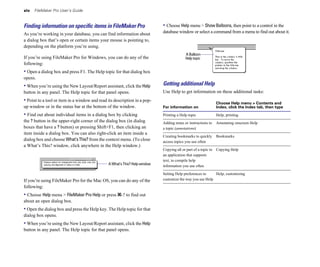
Finding information on specific items in FileMaker Pro                       • Choose Help menu > Show Balloons, then point to a control in the
As you’re working in your database, you can find information about          database window or select a command from a menu to find out about it.
a dialog box that’s open or certain items your mouse is pointing to,
depending on the platform you’re using.
                                                                                          A Balloon
If you’re using FileMaker Pro for Windows, you can do any of the                          Help topic
following:
• Open a dialog box and press F1. The Help topic for that dialog box
opens.
• When you’re using the New Layout/Report assistant, click the Help         Getting additional Help
button in any panel. The Help topic for that panel opens.                   Use Help to get information on these additional tasks:
• Point to a tool or item in a window and read its description in a pop-                                      Choose Help menu > Contents and
up window or in the status bar at the bottom of the window.                 For information on                Index, click the Index tab, then type
• Find out about individual items in a dialog box by clicking               Printing a Help topic             Help, printing

the ? button in the upper-right corner of the dialog box (in dialog         Adding notes or instructions to   Annotating onscreen Help

boxes that have a ? button) or pressing Shift+F1, then clicking an          a topic (annotations)

item inside a dialog box. You can also right-click an item inside a
                                                                            Creating bookmarks to quickly     Bookmarks

dialog box and choose What’s This? from the context menu. (To close         access topics you use often

a What’s This? window, click anywhere in the Help window.)
                                                                            Copying all or part of a topic to Copying Help

                                                                            an application that supports 

                                                                            text, to compile help 

                                               A What’s This? Help window   information you use often


                                                                            Setting Help preferences to     Help, customizing

If you’re using FileMaker Pro for the Mac OS, you can do any of the         customize the way you use Help

following:
• Choose Help menu > FileMaker Pro Help or press 2-? to find out
about an open dialog box.
• Open the dialog box and press the Help key. The Help topic for that
dialog box opens.
• When you’re using the New Layout/Report assistant, click the Help
button in any panel. The Help topic for that panel opens.
Learning how to use FileMaker Pro   xv


Using other tools
Use the following additional tools to help you with FileMaker Pro.

Use                    To

FileMaker Pro          Install FileMaker Pro on your hard disk. Also, use the
Getting Started Guide	 tutorial to get an overview of how to use and design a
                       FileMaker Pro database. If you’ve used previous
                       versions of FileMaker Pro, you can read about features
                       new to this version.

FileMaker Pro          See and work with database files created with
template files         FileMaker Pro. You can use the templates for your
                       business or personal work—as they are, or change them
                       to suit your needs. Available in the Templates folder.
                       The Templates folder also contains other helpful
                       information.

Web browser Help	      Get help while working with a database in a browser.
                       Available by clicking the help button in the Instant
                       Web Publishing interface.
Part 1

Using a database
Chapter 1
                                                FileMaker Pro basics
This chapter presents basic information about databases and using
FileMaker Pro. You’ll learn about:                                           M                                      N
                                                                                                                           Records
• working with fields and records
• using FileMaker Pro modes
• performing menu commands
• managing files

If you’re new to FileMaker Pro, start by reviewing the tutorial,                                           Michelle       Cannon       Fields
included in the FileMaker Pro Getting Started Guide.                                                       123 4th St. SW
                                                                                                           Edmonton       CA N4V 1LN
                                                                                                           (717) 555-0011
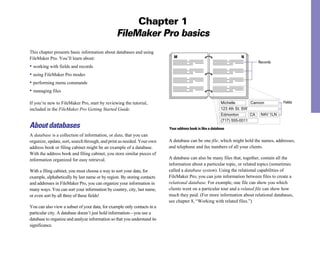
About databases                                                           Your address book is like a database
A database is a collection of information, or data, that you can
organize, update, sort, search through, and print as needed. Your own     A database can be one file, which might hold the names, addresses,
address book or filing cabinet might be an example of a database.         and telephone and fax numbers of all your clients.
With the address book and filing cabinet, you store similar pieces of
information organized for easy retrieval.                                 A database can also be many files that, together, contain all the
                                                                          information about a particular topic, or related topics (sometimes
With a filing cabinet, you must choose a way to sort your data, for       called a database system). Using the relational capabilities of
example, alphabetically by last name or by region. By storing contacts    FileMaker Pro, you can join information between files to create a
and addresses in FileMaker Pro, you can organize your information in      relational database. For example, one file can show you which
many ways. You can sort your information by country, city, last name,     clients went on a particular tour and a related file can show how
or even sort by all three of these fields!                                much they paid. (For more information about relational databases,
                                                                          see chapter 8, “Working with related files.”)
You can also view a subset of your data, for example only contacts in a
particular city. A database doesn’t just hold information—you use a
database to organize and analyze information so that you understand its
significance.
1-2     FileMaker Pro User’s Guide


Clients file                                                Products file
 Client ID 002                                                  Prod ID     ET3
 Name          Andre Common                                     Product     Travel bag
 Phone         818-555-1234                                     Price       $29.00
                                                                Stock       34


                              Invoice file
                               Client ID     002
                               Client Name Andre Common
                               Phone         818-555-1234
                               Invoice ID    12345
                                                                                           A record in the Clients database
                               Prod
                               ID Product               Price
                                ET3 Travel bag          $29
                                ET4 Travel book         $32
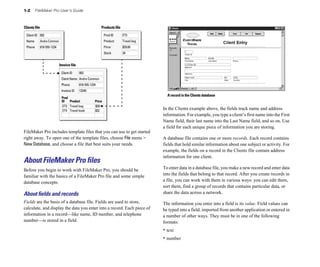
                                                                                         In the Clients example above, the fields track name and address
                                                                                         information. For example, you type a client’s first name into the First
                                                                                         Name field, their last name into the Last Name field, and so on. Use
                                                                                         a field for each unique piece of information you are storing.
FileMaker Pro includes template files that you can use to get started
right away. To open one of the template files, choose File menu >                        A database file contains one or more records. Each record contains
New Database, and choose a file that best suits your needs.                              fields that hold similar information about one subject or activity. For
                                                                                         example, the fields on a record in the Clients file contain address
                                                                                         information for one client.
About FileMaker Pro files
Before you begin to work with FileMaker Pro, you should be                               To enter data in a database file, you make a new record and enter data
familiar with the basics of a FileMaker Pro file and some simple                         into the fields that belong to that record. After you create records in
database concepts.                                                                       a file, you can work with them in various ways: you can edit them,
                                                                                         sort them, find a group of records that contains particular data, or
About fields and records                                                                  share the data across a network.
Fields are the basis of a database file. Fields are used to store,                       The information you enter into a field is its value. Field values can
calculate, and display the data you enter into a record. Each piece of                   be typed into a field, imported from another application or entered in
information in a record—like name, ID number, and telephone                              a number of other ways. They must be in one of the following
number—is stored in a field.                                                             formats:
                                                                                         • text
                                                                                         • number
FileMaker Pro basics        1-3


• date                                                                                                In a layout, you:
• time                                                                                                • choose which fields to display
• graphic, sound, movie, or, for Windows only, OLE                                                    • arrange and format fields
• the result of a formula that calculates the field’s value                                           • add or modify field labels
• a summary of the values in the field for a group of records                                         • create reports, for example, to group or summarize data
                                                                                                      • add buttons, which make your file easier to use
About layouts
                                                                                                      • specify how records are printed
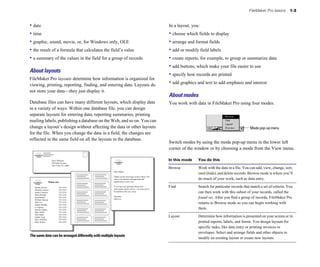
FileMaker Pro layouts determine how information is organized for
viewing, printing, reporting, finding, and entering data. Layouts do                                  • add graphics and text to add emphasis and interest
not store your data—they just display it.
                                                                                                      About modes
Database files can have many different layouts, which display data                                    You work with data in FileMaker Pro using four modes.
in a variety of ways. Within one database file, you can design
separate layouts for entering data, reporting summaries, printing
mailing labels, publishing a database on the Web, and so on. You can
change a layout’s design without affecting the data or other layouts                                                                                    Mode pop-up menu
for the file. When you change the data in a field, the changes are
reflected in the same field on all the layouts in the database.
                                                                                                      Switch modes by using the mode pop-up menu in the lower left
                                                                                                      corner of the window or by choosing a mode from the View menu.

                     Steve Williams                                                                   In this mode    You do this
                     789 Ninth Avenue
                     New York, NY 10001
                                                                                                      Browse	         Work with the data in a file. You can add, view, change, sort,
                                                       Dear Sophie,
                                                                                                                      omit (hide), and delete records. Browse mode is where you’ll
                                                       Thank you for reserving a cruise with us. We
                                                       value your business and appreciate the                         do much of your work, such as data entry.
                 Phone List                            opportunity to serve you.

   Juanita Alvarez            555-1234                 If you have any questions about your           Find	           Search for particular records that match a set of criteria. You
   Michelle Cannon            555-1234                 reservations, please call us—we want you to
   Andre Common               555-1234                 be satisfied with your cruise.                                 can then work with this subset of your records, called the
   Marie Durand               555-1234
                                                       Sincerely,
   Jean Durand
   William Johnson
                              555-1234
                              555-1234                 John Lee                                                       found set. After you find a group of records, FileMaker Pro
   John Lee
   Patrick Murphy
                              555-1234
                              555-1234
                                                                                                                      returns to Browse mode so you can begin working with
   Le Nguyen                  555-1234
   Kentaro Ogawa              555-1234                                                                                them.
   Mary Smith                 555-1234
   John Smith                 555-1234
   Sophie Tang                555-1234                                                                Layout	         Determine how information is presented on your screen or in
   Steve Williams             555-1234
   Betty Wilson               555-1234                                                                                printed reports, labels, and forms. You design layouts for
                                                                                                                      specific tasks, like data entry or printing invoices or
                                                                                                                      envelopes. Select and arrange fields and other objects to
The same data can be arranged differently with multiple layouts
                                                                                                                      modify an existing layout or create new layouts.
1-4   FileMaker Pro User’s Guide


In this mode   You do this                                                    • If you’re sharing data using FileMaker Pro networking on a
                                                                              network and have more than ten guests, you must host the files using
Preview	       See how data in forms or reports will look before you print.
                                                                              FileMaker Server. For information, see chapter 13, “Sharing
               Preview mode is especially useful for layouts with multiple
               columns (like mailing labels) and grouped reports              databases on a network.”
               with summaries.                                                • For information on publishing FileMaker Pro data on the Web, see
                                                                              chapter 14, “Publishing databases on the Web.” For information
                                                                              about the number of IP addresses that can access a database, see
                                                                              FileMaker Pro Help. Choose Help menu > Contents and Index, click
                                                                              the Index tab, and type guests.
                                                                              • For information on sharing data via ODBC, see chapter 15, “Using
                                                                              ODBC with FileMaker Pro.”


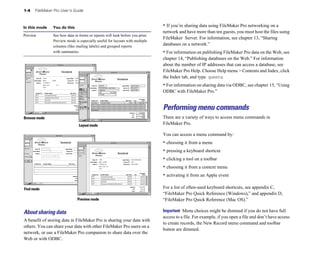
                                                                              Performing menu commands
Browse mode                                                                   There are a variety of ways to access menu commands in
                               Layout mode                                    FileMaker Pro.

                                                                              You can access a menu command by:
                                                                              • choosing it from a menu
                                                                              • pressing a keyboard shortcut
                                                                              • clicking a tool on a toolbar
                                                                              • choosing it from a context menu
                                                                              • activating it from an Apple event

Find mode                                                                     For a list of often-used keyboard shortcuts, see appendix C,
                                                                              “FileMaker Pro Quick Reference (Windows),” and appendix D,
                              Preview mode                                    “FileMaker Pro Quick Reference (Mac OS).”

About sharing data                                                            Important Menu choices might be dimmed if you do not have full
                                                                              access to a file. For example, if you open a file and don’t have access
A benefit of storing data in FileMaker Pro is sharing your data with
                                                                              to create records, the New Record menu command and toolbar
others. You can share your data with other FileMaker Pro users on a
                                                                              button are dimmed.
network, or use a FileMaker Pro companion to share data over the
Web or with ODBC.
FileMaker Pro basics        1-5


Using toolbars                                                                 Choose this In this 

                                                                               toolbar     mode                To access these types of commands

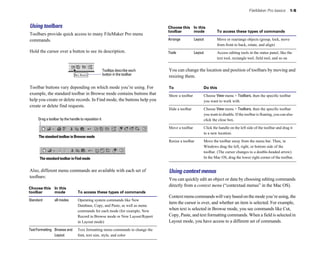
Toolbars provide quick access to many FileMaker Pro menu
commands.                                                                      Arrange           Layout        Move or rearrange objects (group, lock, move
                                                                                                               from front to back, rotate, and align)
Hold the cursor over a button to see its description.                          Tools             Layout        Access editing tools in the status panel, like the
                                                                                                               text tool, rectangle tool, field tool, and so on


                                                     Tooltips describe each    You can change the location and position of toolbars by moving and
                                                     button in the toolbar
                                                                               resizing them.

Toolbar buttons vary depending on which mode you’re using. For                 To                     Do this
example, the standard toolbar in Browse mode contains buttons that             Show a toolbar	        Choose View menu > Toolbars, then the specific toolbar
help you create or delete records. In Find mode, the buttons help you                                 you want to work with.
create or delete find requests.
                                                                               Hide a toolbar	        Choose View menu > Toolbars, then the specific toolbar
                                                                                                      you want to disable. If the toolbar is floating, you can also
     Drag a toolbar by the handle to reposition it                                                    click the close box.

                                                                               Move a toolbar	        Click the handle on the left side of the toolbar and drag it
                                                                                                      to a new location.
     The standard toolbar in Browse mode
                                                                               Resize a toolbar 	     Move the toolbar away from the menu bar. Then, in
                                                                                                      Windows drag the left, right, or bottom side of the
                                                                                                      toolbar. (The cursor changes to a double-headed arrow).
      The standard toolbar in Find mode                                                               In the Mac OS, drag the lower right corner of the toolbar.


Also, different menu commands are available with each set of                   Using context menus
toolbars:
                                                                               You can quickly edit an object or data by choosing editing commands
                                                                               directly from a context menu (“contextual menus” in the Mac OS).
Choose this In this 

toolbar     mode                 To access these types of commands

                                                                               Context menu commands will vary based on the mode you’re using, the
Standard        all modes	       Operating system commands like New
                                                                               item the cursor is over, and whether an item is selected. For example,
                                 Database, Copy, and Paste, as well as menu
                                 commands for each mode (for example, New
                                                                               when text is selected in Browse mode, you see commands like Cut,
                                 Record in Browse mode or New Layout/Report    Copy, Paste, and text formatting commands. When a field is selected in
                                 in Layout mode)                               Layout mode, you have access to a different set of commands.
Text Formatting Browse and       Text formatting menu commands to change the
                Layout           font, text size, style, and color
1-6    FileMaker Pro User’s Guide


                                                                                 • Drag a FileMaker Pro file on top of the FileMaker Pro icon
                                                                                 • Windows: click the Start button, and choose FileMaker Pro from the
                                                                                 Programs menu.

                                                                                 Opening files
 Context menu in Browse mode                                                     To open a file if FileMaker Pro is already running:
                                                                                 1. Choose File menu > Open.
                                                                                 2. Double-click the name of the file to open. 

                                          Context menu in Layout mode            If you’re asked for a password, type the password, then click OK.


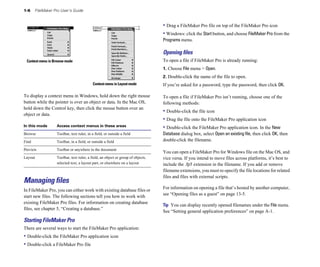
To display a context menu in Windows, hold down the right mouse                  To open a file if FileMaker Pro isn’t running, choose one of the
button while the pointer is over an object or data. In the Mac OS,               following methods:
hold down the Control key, then click the mouse button over an
                                                                                 • Double-click the file icon
object or data.
                                                                                 • Drag the file onto the FileMaker Pro application icon
In this mode      Access context menus in these areas                            • Double-click the FileMaker Pro application icon. In the New
Browse            Toolbar, text ruler, in a field, or outside a field            Database dialog box, select Open an existing file, then click OK, then
Find              Toolbar, in a field, or outside a field                        double-click the filename.

Preview           Toolbar or anywhere in the document
                                                                                 You can open a FileMaker Pro for Windows file on the Mac OS, and
Layout	           Toolbar, text ruler, a field, an object or group of objects,   vice versa. If you intend to move files across platforms, it’s best to
                  selected text, a layout part, or elsewhere on a layout         include the .fp5 extension in the filename. If you add or remove
                                                                                 filename extensions, you must re-specify the file locations for related
                                                                                 files and files with external scripts.
Managing files
                                                                                 For information on opening a file that’s hosted by another computer,
In FileMaker Pro, you can either work with existing database files or
                                                                                 see “Opening files as a guest” on page 13-5.
start new files. The following sections tell you how to work with
existing FileMaker Pro files. For information on creating database
                                                                                 Tip You can display recently opened filenames under the File menu.
files, see chapter 5, “Creating a database.”
                                                                                 See “Setting general application preferences” on page A-1.
Starting FileMaker Pro
There are several ways to start the FileMaker Pro application:
• Double-click the FileMaker Pro application icon
• Double-click a FileMaker Pro file
FileMaker Pro basics        1-7


Keep these points in mind:                                                   To close a file, be sure the file’s window is active, and then do one
• When you open a file created with an earlier version of 
                  of the following:
FileMaker Pro (version 4.1 and earlier), you must convert it to the 
        • Choose File menu > Close.
current FileMaker Pro file format. Upon conversion, date fields that 
       • Windows: Double-click the document icon in the upper-left corner
were previously storing and displaying two-digit years (for example, 
       of the document window.
92) will now display four-digit years (for example, 1992). You might 

have to resize the date fields to display four digits or format the date 
   • Windows: Click the close button in the upper-right corner of the
field to display two digits. For more information on opening files from 
    menu bar.
previous versions, choose Help menu > Contents and Index, click the 
        • Mac OS: Click the close box in the upper-left corner of
Index tab, and type converting files. 
                                      the window.
Important To avoid confusion when using dates, always use four-
digit years. For more information about how FileMaker Pro handles            Saving files
Year 2000 issues, see www.filemaker.com.                                     FileMaker Pro automatically saves changes to a file as you work.
• When you open a file saved with date, time, and number formats             You can also specify how frequently FileMaker Pro saves changes.
that are different from the system formats set on your computer, you         See “Setting memory preferences” on page A-2.
might see an alert message.Working with international files is
                                                                             Important You should save a copy of the file to backup your work.
documented in Help. Choose Help menu > Contents and Index, click
                                                                             Always save a copy before you make extensive changes. You can’t
the Index tab, and type International formats.
                                                                             restore data after you delete a field from the Define Fields dialog box
• You may open a file with limited access if the database                    or remove records using the Delete Record or Delete All commands.
administrator has assigned a default password. For information, see          For information, see appendix B, “Backing up and recovering files.”
“Defining passwords” on page 9-1 and refer to the administrator.
                                                                             To save a copy of your file:
• You can open a file created in another application, like many
versions of Microsoft Excel, directly in FileMaker Pro. See                  1. Make the file you want to save the active file, and choose File
“Importing data into FileMaker Pro” on page 12-2.                            menu > Save a Copy As.
                                                                             2. Choose an option for saving a copy from the Save a (Windows) or
Closing files                                                                 Type (Mac OS) list.
You can close a file and leave FileMaker Pro running or you can quit
                                                                             Choose this
FileMaker Pro, which closes all FileMaker Pro files.                         option                  To do this

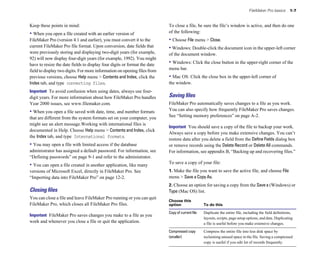
                                                                             Copy of current file	   Duplicate the entire file, including the field definitions,
Important FileMaker Pro saves changes you make to a file as you
                                                                                                     layouts, scripts, page setup options, and data. Duplicating
work and whenever you close a file or quit the application.                                          a file is useful before you make extensive changes.
                                                                             Compressed copy         Compress the entire file into less disk space by
                                                                             (smaller)               reclaiming unused space in the file. Saving a compressed
                                                                                                     copy is useful if you edit lot of records frequently.
1-8    FileMaker Pro User’s Guide


Choose this                                                                       Quitting FileMaker Pro
option                   To do this
                                                                                  When you’re finished working in FileMaker Pro, choose File menu >
Clone (no records)	      Make a copy that contains all the field definitions,     Exit (Windows) or File menu > Quit (Mac OS). FileMaker Pro saves
                         layouts, scripts, and page setup options, but no data.   changes to your file whenever you quit the application.
                         Make a clone when you want a template of the file.
                                                                                  Important Always quit FileMaker Pro before you turn off your
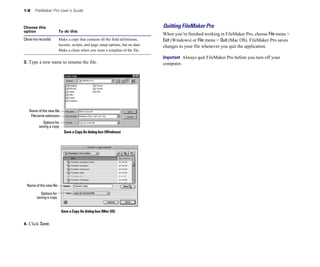
3. Type a new name to rename the file.                                            computer.


   Name of the new file
    Filename extension
            Options for
          saving a copy
                            Save a Copy As dialog box (Windows)


  Name of the new file

          Options for
        saving a copy


                          Save a Copy As dialog box (Mac OS)


4. Click Save.
Chapter 2
                                          Adding and viewing data
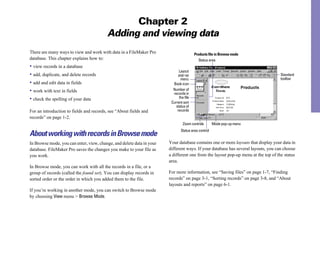
There are many ways to view and work with data in a FileMaker Pro                       Products file in Browse mode
database. This chapter explains how to:                                                    Status area
• view records in a database
                                                                             Layout
• add, duplicate, and delete records                                         pop-up                                                Standard
                                                                              menu                                                 toolbar
• add and edit data in fields                                            Book icon
• work with text in fields                                               Number of
                                                                         records in
• check the spelling of your data                                            the file
                                                                        Current sort
                                                                           status of
For an introduction to fields and records, see “About fields and            records
records” on page 1-2.
                                                                                Zoom controls       Mode pop-up menu
                                                                              Status area control
About working with records in Browse mode
In Browse mode, you can enter, view, change, and delete data in your   Your database contains one or more layouts that display your data in
database. FileMaker Pro saves the changes you make to your file as     different ways. If your database has several layouts, you can choose
you work.                                                              a different one from the layout pop-up menu at the top of the status
                                                                       area.
In Browse mode, you can work with all the records in a file, or a
group of records (called the found set). You can display records in    For more information, see “Saving files” on page 1-7, “Finding
sorted order or the order in which you added them to the file.         records” on page 3-1, “Sorting records” on page 3-8, and “About
                                                                       layouts and reports” on page 6-1.
If you’re working in another mode, you can switch to Browse mode
by choosing View menu > Browse Mode.
2-2     FileMaker Pro User’s Guide


Viewing records                                                                      Keep these points in mind:

FileMaker Pro provides three views of each layout: form, list and
                                                                                     • If you have layout design privileges, you can specify the views that
                                                                                     are available for each layout. See “Setting up View as Form, View as
table. When you change views, you temporarily change the way
                                                                                     List, and View as Table” on page 6-10.
records display or print.
                                                                                     For more control over the appearance of your data, you can create
                      Do this in Browse mode, Find mode,                             layouts that are designed to show records in a list or table. See
To view               or Preview mode
                                                                                     “Columnar list/report” on page 6-3 and “Table view” on page 6-4.
Individual records    Choose View menu > View as Form.
                                                                                     • View as Form, View as List, and View as Table do not affect
Records in a list     Choose View menu > View as List.                               databases published on the Web using FileMaker Pro Instant Web
Records in a table	   Choose View menu > View as Table.                              Publishing. To set up views for web publishing, see “Setting up
                      (See the next section, “Viewing records in a table.”)          browser views” on page 14-10.

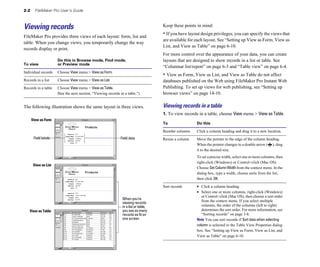
The following illustration shows the same layout in three views.                     Viewing records in a table
                                                                                     1. To view records in a table, choose View menu > View as Table.
      View as Form
                                                                                     To                 Do this

                                                                                     Reorder columns    Click a column heading and drag it to a new location.
       Field labels                                           Field data             Resize a column	   Move the pointer to the edge of the column heading.
                                                                                                        When the pointer changes to a double arrow ( ), drag
                                                                                                        it to the desired size.
                                                                                                        To set a precise width, select one or more columns, then
                                                                                                        right-click (Windows) or Control+click (Mac OS).
       View as List
                                                                                                        Choose Set Column Width from the context menu. In the
                                                                                                        dialog box, type a width, choose units from the list,
                                                                                                        then click OK.

                                                                                     Sort records       1 Click a column heading.
                                                                                                        1	 Select one or more columns, right-click (Windows)
                                                                                                           or Control+click (Mac OS), then choose a sort order
                                                               When you’re
                                                               viewing records                             from the context menu. If you select multiple
                                                               in a list or table,                         columns, the order of the columns (left to right)
   View as Table	                                              you see as many                             determines the sort order. For more information, see
                                                               records as fit on                           “Sorting records” on page 3-8.
                                                               one screen                               Note You can sort records if Sort data when selecting
                                                                                                        column is selected in the Table View Properties dialog
                                                                                                        box. See “Setting up View as Form, View as List, and
                                                                                                        View as Table” on page 6-10.
Adding and viewing data        2-3


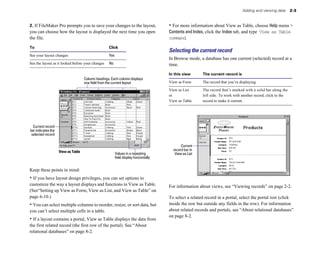
2. If FileMaker Pro prompts you to save your changes to the layout,                    • For more information about View as Table, choose Help menu >
you can choose how the layout is displayed the next time you open                      Contents and Index, click the Index tab, and type View as Table
the file.                                                                              command.
To                                                  Click
                                                                                       Selecting the current record
See your layout changes                             Yes
                                                                                       In Browse mode, a database has one current (selected) record at a
See the layout as it looked before your changes     No                                 time.
                                                                                       In this view      The current record is
                                     Column headings. Each column displays
                                     one field from the current layout                 View as Form      The record that you’re displaying.

                                                                                       View as List      The record that’s marked with a solid bar along the
                                                                                       or                left side. To work with another record, click in the
                                                                                       View as Table     record to make it current.


  Current record
bar indicates the
 selected record

                                                                                              Current
                    View as Table	                                                       record bar in
                                                          Values in a repeating           View as List
                                                          field display horizontally


Keep these points in mind:
• If you have layout design privileges, you can set options to
customize the way a layout displays and functions in View as Table.                    For information about views, see “Viewing records” on page 2-2.
(See“Setting up View as Form, View as List, and View as Table” on
page 6-10.)                                                                            To select a related record in a portal, select the portal row (click
• You can select multiple columns to reorder, resize, or sort data, but                inside the row but outside any fields in the row). For information
you can’t select multiple cells in a table.                                            about related records and portals, see “About relational databases”
                                                                                       on page 8-2.
• If a layout contains a portal, View as Table displays the data from
the first related record (the first row of the portal). See “About
relational databases” on page 8-2.
2-4      FileMaker Pro User’s Guide


                                                                                   To move                    Do this

                                                                                   Quickly through            Drag the bookmark down or up to move forward or 

                                                                                   records                    backward.


                                                                                   Through records in        Use the scroll bar on the right side of the window.

                                                                                   View as List or View as 

                                                                                   Table


                                                                                   To a record with a         See “Finding records” on page 3-1.

                                                                                   unique value that you 

Portal                                                                             know


                                                                                   Adding and duplicating records
                            Click inside the portal row
                            to select a related record                             When you add or duplicate records, FileMaker Pro stores new
                                                                                   records at the end of the file. In Browse mode, you see the new record
Moving through records                                                             after the current record, or after the last record in the found set:
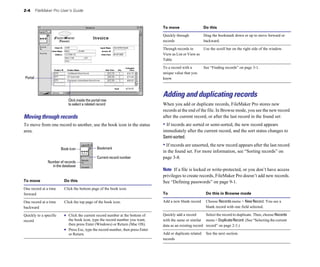
To move from one record to another, use the book icon in the status                • If records are sorted or semi-sorted, the new record appears
area.                                                                              immediately after the current record, and the sort status changes to
                                                                                   Semi-sorted.

                                                Bookmark
                                                                                   • If records are unsorted, the new record appears after the last record
                        Book icon
                                                                                   in the found set. For more information, see “Sorting records” on
                                                Current record number              page 3-8.
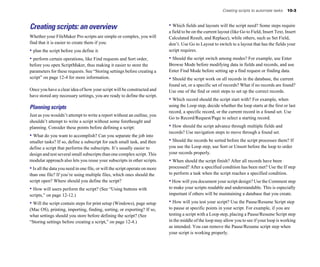
               Number of records
                 in the database
                                                                                   Note If a file is locked or write-protected, or you don’t have access
                                                                                   privileges to create records, FileMaker Pro doesn’t add new records.
To move                   Do this                                                  See “Defining passwords” on page 9-1.
One record at a time      Click the bottom page of the book icon.
forward                                                                            To                          Do this in Browse mode

One record at a time      Click the top page of the book icon.                     Add a new blank record	     Choose Records menu > New Record. You see a
backward                                                                                                       blank record with one field selected.

Quickly to a specific     1 Click the current record number at the bottom of       Quickly add a record       Select the record to duplicate. Then, choose Records
record                       the book icon, type the record number you want,       with the same or similar menu > Duplicate Record. (See “Selecting the current
                             then press Enter (Windows) or Return (Mac OS).        data as an existing record record” on page 2-3.)
                          1	 Press Esc, type the record number, then press Enter
                             or Return.                                            Add or duplicate related    See the next section.
                                                                                   records
Adding and viewing data   2-5


If the field is defined to enter field values automatically, you see                                  Master file
those values entered in the new record. See “Defining automatic data
entry” on page 5-8.

To enter or change values in the new record, see “About entering
data in records” on page 2-6.

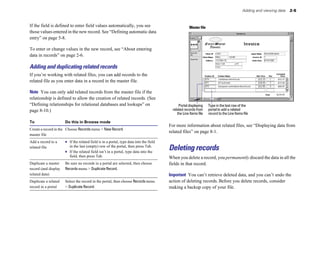
Adding and duplicating related records
If you’re working with related files, you can add records to the
related file as you enter data in a record in the master file.

Note You can only add related records from the master file if the
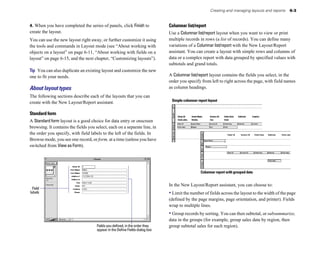
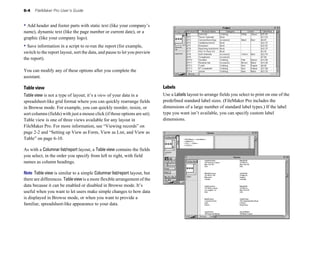
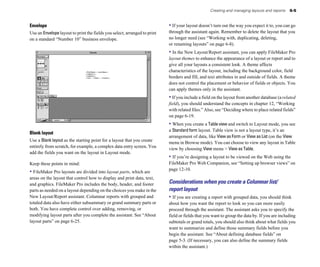
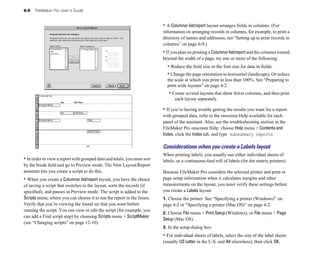
relationship is defined to allow the creation of related records. (See
“Defining relationships for relational databases and lookups” on                              Portal displaying     Type in the last row of the
page 8-10.)                                                                               related records from      portal to add a related
                                                                                             the Line Items file    record to the Line Items file

To                    Do this in Browse mode
                                                                                        For more information about related files, see “Displaying data from
Create a record in the Choose Records menu > New Record.
                                                                                        related files” on page 8-1.
master file
Add a record to a     1 If the related field is in a portal, type data into the field
related file             in the last (empty) row of the portal, then press Tab.
                      1	 If the related field isn’t in a portal, type data into the
                                                                                        Deleting records
                         field, then press Tab.                                         When you delete a record, you permanently discard the data in all the
Duplicate a master    Be sure no records in a portal are selected, then choose 
        fields in that record.
record (and display   Records menu > Duplicate Record.

related data)
                                                                          Important You can’t retrieve deleted data, and you can’t undo the
Duplicate a related   Select the record in the portal, then choose Records menu 
       action of deleting records. Before you delete records, consider
record in a portal    > Duplicate Record.
                                              making a backup copy of your file.
2-6    FileMaker Pro User’s Guide


If you’re working in a relational database and the option to delete                   About entering data in records
related records is selected in the Edit Relationship dialog box,
FileMaker Pro deletes related records when you delete a master                        The following sections describe how to add or change data in a
record. For more information, see “Defining relationships for                         FileMaker Pro database.
relational databases and lookups” on page 8-10.
                                                                                      If you’re working with a database that doesn’t have any records, you
To delete             Do this                                                         must create a record before entering data. See “Adding and
                                                                                      duplicating records” on page 2-4.
One record	           In Browse mode, select the record to delete. (If you’re
                      deleting a master record in a relational database, select
                                                                                      Note If a file is locked or write-protected, or you don’t have access
                      anything other than a portal row in the master record.)
                                                                                      privileges to edit records, you can’t modify data. See “Defining
                      Choose Records menu > Delete Record, then click Delete.
                                                                                      passwords” on page 9-1.
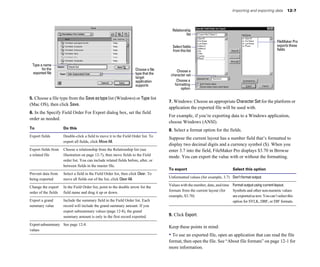
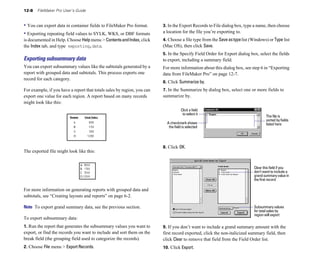
A related record	     Select a portal row in the master file by clicking inside the
                      row but outside any fields in the row. Choose Records
                                                                                      Selecting a field
                      menu > Delete Record, then click Delete.
                      Note To delete related records, Allow deletion of portal        To                       Do this in Browse or Find mode
                      records must be selected in the Portal Setup dialog box.
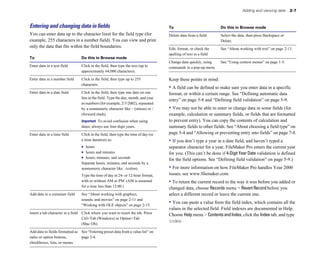
                                                                                      Select a field           Click in the field.
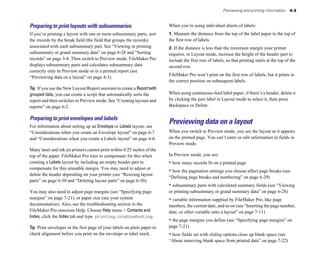
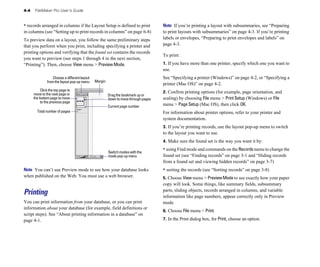
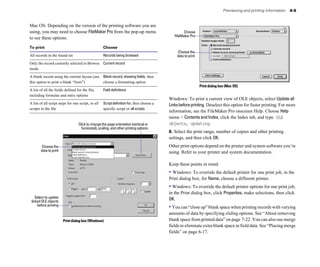
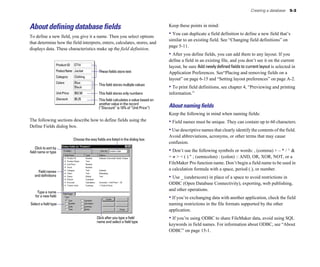
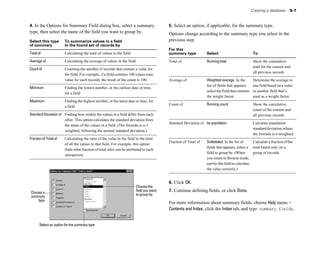
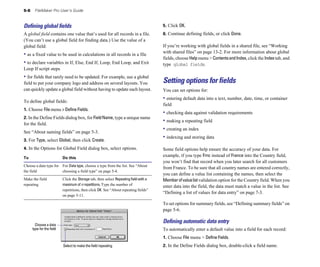
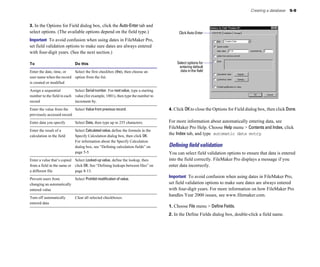
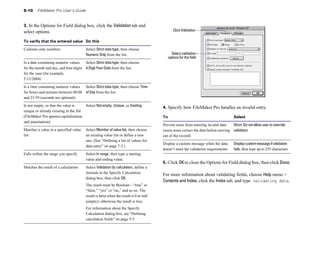
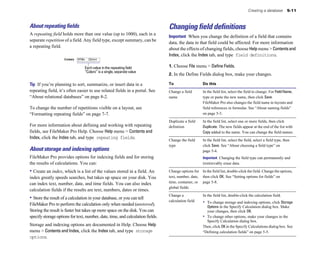
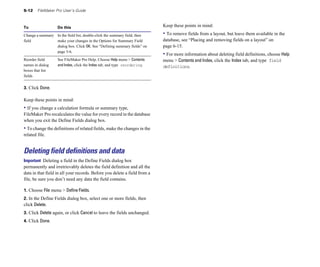
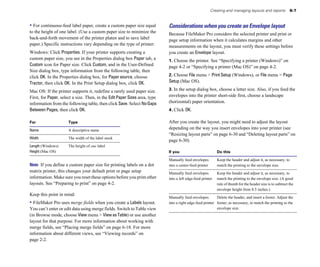
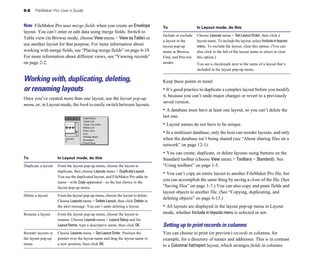
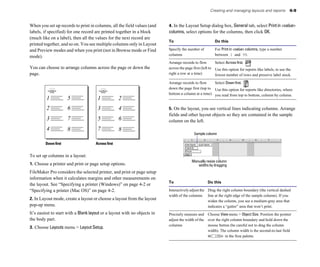
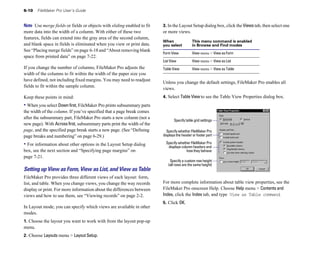
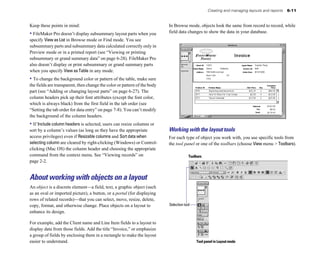
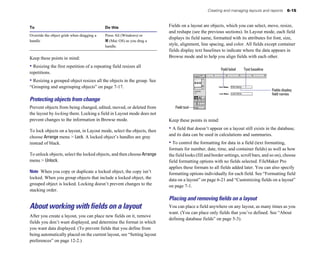
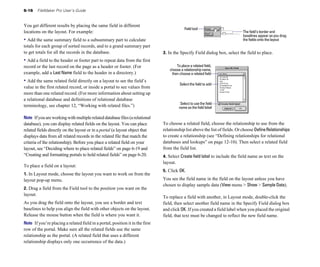
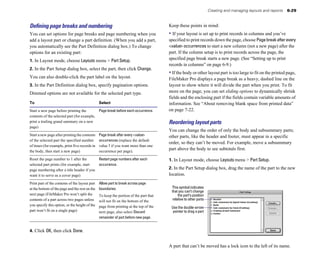
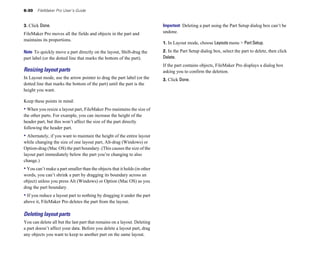
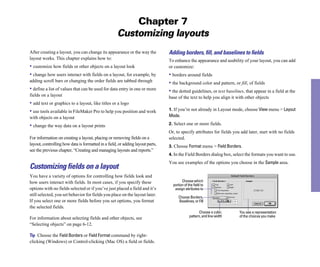
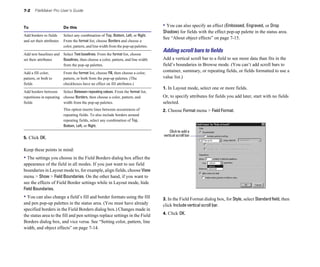
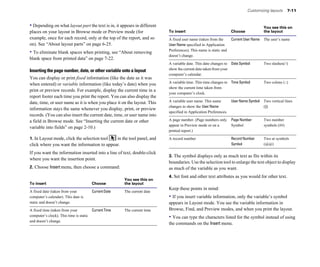
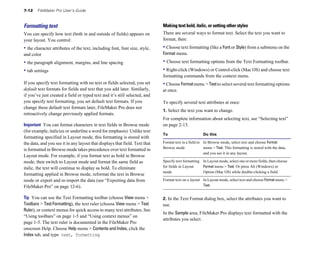
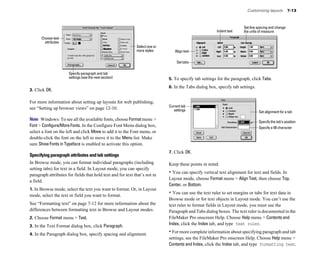
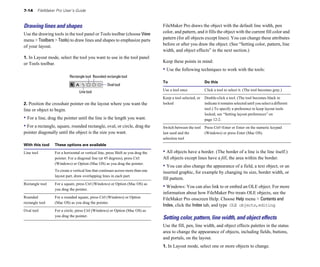
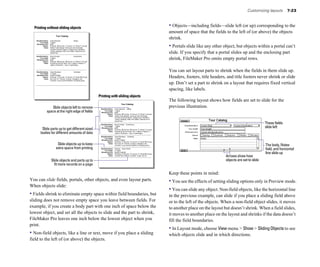
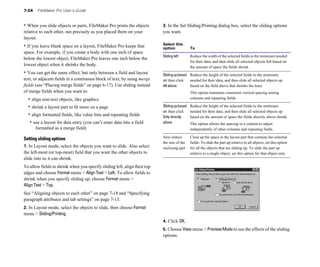
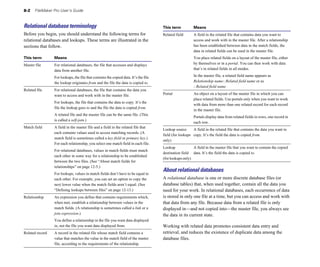
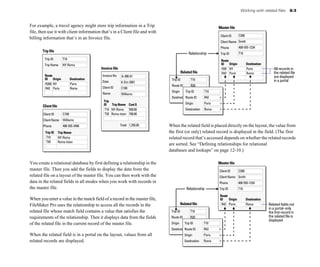
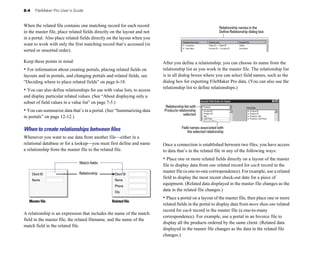
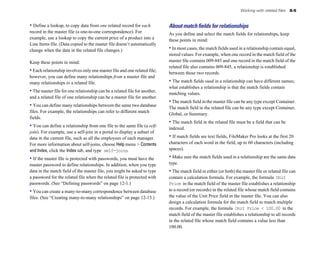
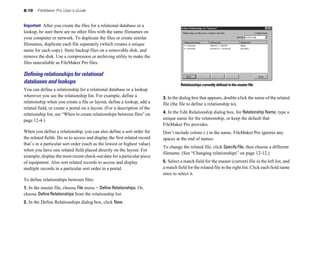
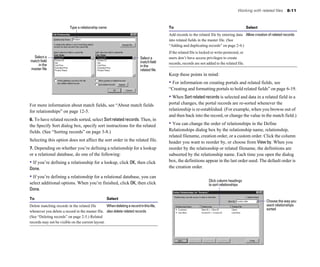
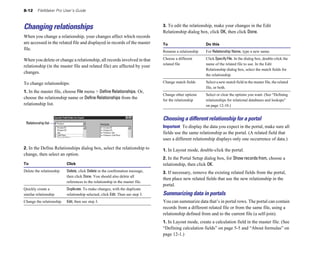
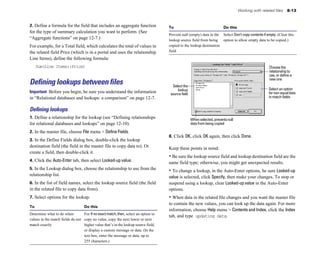
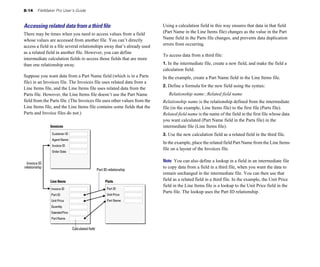
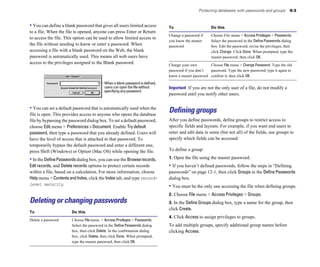
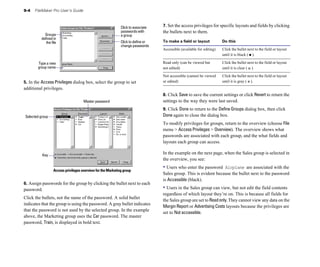
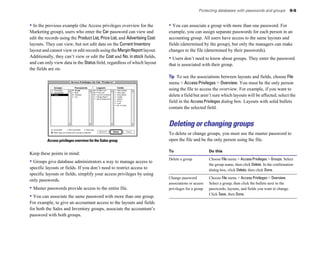
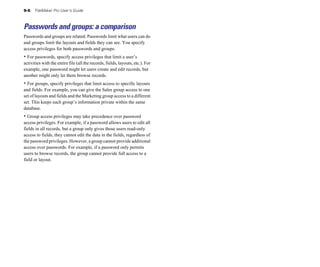
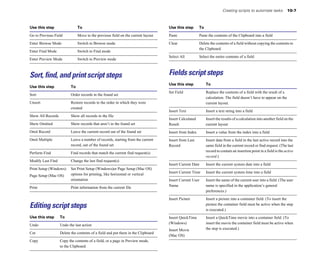
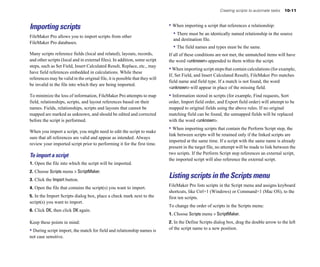
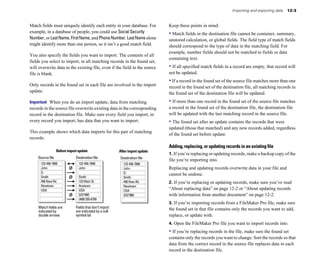
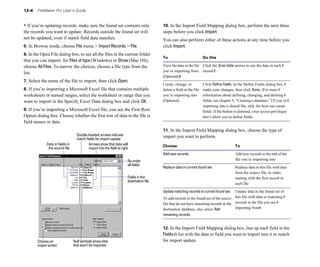
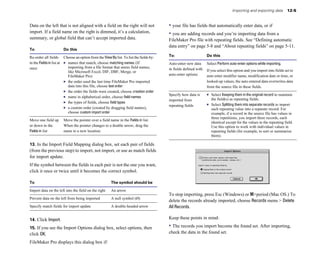
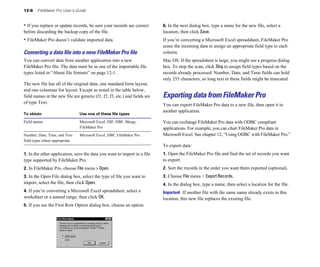
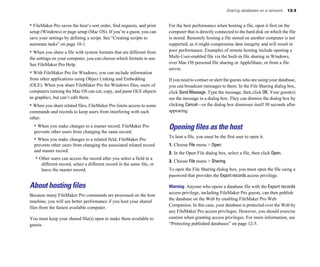
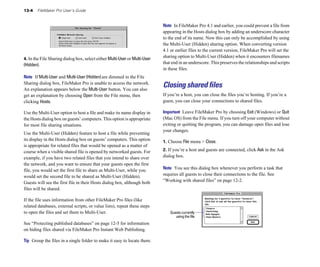
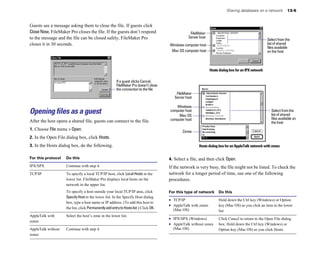
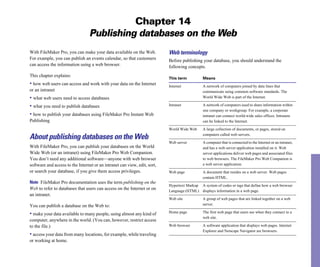
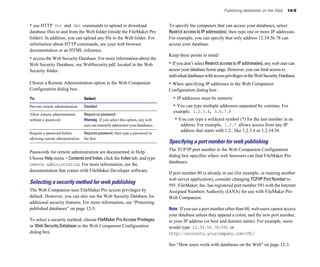
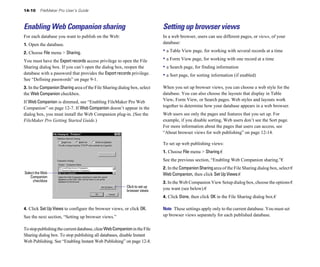
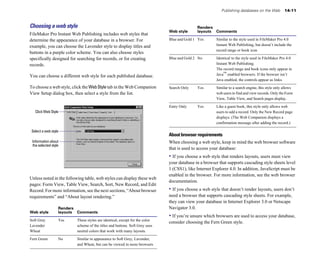
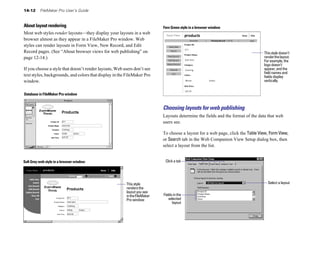
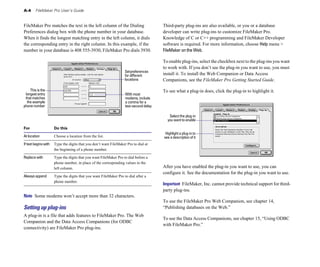
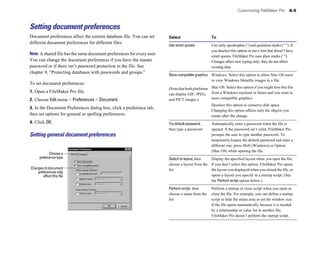
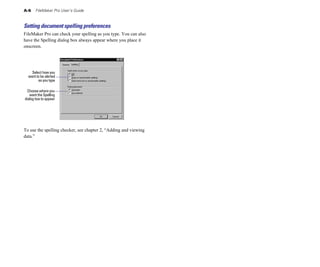
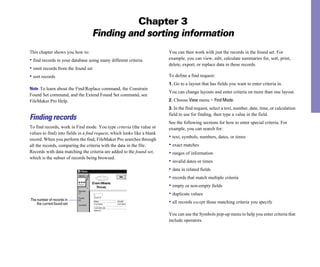
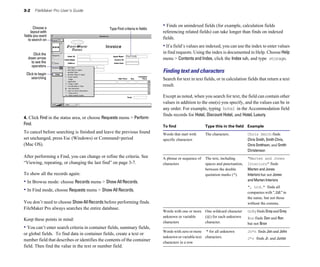
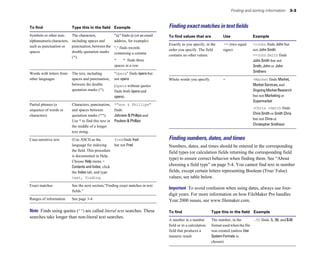
                      (See “Creating and formatting portals to hold related
                      fields” on page 6-19.)                                          Select the contents of   Select the field, then choose Edit menu > Select All.
                                                                                      a field
A group of records	   Make sure the found set contains only the records you
                      want to delete. (See “Finding records” on page 3-1.) In         Move to the next field Press Tab (or click in the field).
                      Browse mode, choose Records menu > Delete All Records,          in the field order
                      then click Delete.                                              Move to the previous Press Shift+Tab (or click in the field).
All records in a      1 In Browse mode, choose Records menu > Show All                field in the field order
database	                Records, then choose Records menu > Delete All
                         Records.                                                     Move to items in a       Press the arrow keys. See “Entering preset data from a
                      1	 Create a clone of the database with no records. See          value list               value list” on page 2-8.
                         “Saving files” on page 1-7.)                                                          Mac OS: You can’t use arrow keys to move to items in
                                                                                                               pop-up menus. (You must use the mouse.)

Keep these points in mind:
                                                                                      For more information about selecting a field in Browse mode or Find
• To permanently delete a field definition and all the data in the field              mode, see FileMaker Pro Help. Choose Help menu > Contents and
in all records, see “Deleting field definitions and data” on page 5-12.
                                                                                      Index, click the Index tab, and type fields,current.
• To temporarily omit records from the found set without deleting
them from the database, see “Hiding records from a found set and
viewing hidden records” on page 3-7.
Adding and viewing data       2-7


Entering and changing data in fields                                                  To                            Do this in Browse mode
You can enter data up to the character limit for the field type (for                 Delete data from a field	     Select the data, then press Backspace or
example, 255 characters in a number field). You can view and print                                                 Delete.
only the data that fits within the field boundaries.                                 Edit, format, or check the    See “About working with text” on page 2-13.
                                                                                     spelling of text in a field
To                               Do this in Browse mode
                                                                                     Change data quickly, using    See “Using context menus” on page 1-5.
Enter data in a text field	      Click in the field, then type the text (up to       commands in a pop-up menu
                                 approximately 64,000 characters).

Enter data in a number field	    Click in the field, then type up to 255             Keep these points in mind:
                                 characters.
                                                                                     • A field can be defined to make sure you enter data in a specific
Enter data in a date field	      Click in the field, then type one date on one       format, or within a certain range. See “Defining automatic data
                                 line in the field. Type the day, month, and year
                                                                                     entry” on page 5-8 and “Defining field validation” on page 5-9.
                                 as numbers (for example, 2/3/2002), separated
                                 by a nonnumeric character like – (minus) or /       • You may not be able to enter or change data in some fields (for
                                 (forward slash).                                    example, calculation or summary fields, or fields that are formatted
                                 Important To avoid confusion when using             to prevent entry). You can copy the contents of calculation and
                                 dates, always use four-digit years.                 summary fields to other fields. See “About choosing a field type” on
Enter data in a time field	      Click in the field, then type the time of day (or   page 5-4 and “Allowing or preventing entry into fields” on page 7-8.
                                 a time duration) as:                                • If you don’t type a year in a date field, and haven’t typed a
                                 1 hours
                                            separator character for a year, FileMaker Pro enters the current year
                                 1 hours and minutes
                                for you. (This can’t be done if 4-Digit Year Date validation is defined
                                 1 hours, minutes, and seconds
                      for the field options. See “Defining field validation” on page 5-9.)
                                 Separate hours, minutes, and seconds by a 

                                 nonnumeric character like : (colon). 
              • For more information on how FileMaker Pro handles Year 2000
                                 Type the time of day in 24- or 12-hour format, 
    issues, see www.filemaker.com.
                                 with or without AM or PM. (AM is assumed 
          • To return the current record to the way it was before you added or
                                 for a time less than 12:00.) 

                                                                                     changed data, choose Records menu > Revert Record before you
Add data to a container field	   See “About working with graphics,                   select a different record or leave the current one.
                                 sounds, and movies” on page 2-11 and
                                 “Working with OLE objects” on page 2-15.
                                                                                     • You can paste a value from the field index, which contains all the
                                                                                     values in the selected field. Field indexes are documented in Help.
Insert a tab character in a field	 Click where you want to insert the tab. Press
                                                                                     Choose Help menu > Contents and Index, click the Index tab, and type
                                   Ctrl+Tab (Windows) or Option+Tab
                                                                                     index.
                                   (Mac OS).

Add data to fields formatted as See “Entering preset data from a value list” on
radio or option buttons,        page 2-8.
checkboxes, lists, or menus
2-8   FileMaker Pro User’s Guide


• There are other ways to enter data in a field besides typing, like             To                             Do this in Browse mode
importing or copying it from another source, using a related file, or
                                                                                 Copy a value from a field in Click the field that you want to hold the data. 

having FileMaker Pro automatically enter the data when you create
                                                                                 the last record that you     Choose Insert menu > From Last Record.

a record. See “About import and export” on page 12-1,“Displaying                 accessed (by clicking or 

data from related files” on page 8-1, and “Defining automatic data               pressing Tab)

entry” on page 5-8.
                                                                                 Copy values in a record to     With no field selected, choose Edit menu > Copy. 

• For more information about entering and changing data, see                     another application, like a    In the other application, paste the values that are 

FileMaker Pro Help. Choose Help menu > Contents and Index, click                 word processor                 in the Clipboard.

the Index tab, and type entering data.                                           Copy data in a master record With no fields and no records in a portal selected, 

                                                                                 and in all related records in a choose Edit menu > Copy.

Using URLs in a field                                                            portal

If you have a valid URL (web address) in a field, you can open the               Copy one related record in a Select a related record, then choose Edit menu > 

URL in an application that you specify:                                          portal                       Copy.


1. Click the field to select it.                                                 Copy the found set of          With no fields selected, press Shift (Windows) or
                                                                                 records to the Clipboard       Option (Mac OS) while choosing Edit menu >
2. Right-click (Windows) or Control+click (Mac OS) any part of the                                              Copy.
URL.
                                                                                 Duplicate data from another See “Adding and duplicating records” on
3. Choose Open <URL> from the context menu.                                      record into the current record page 2-4.

Note On Mac OS 9.x or earlier, this feature requires the Internet                Keep these points in mind:
control panel, which is usually available as part of a normal system
software installation. Make sure the Internet control panel is turned
                                                                                 • When you copy a record, everything is copied except data in
                                                                                 container fields. Data is copied in tab-delimited format, in the order
on in the Extensions Manager control panel.
                                                                                 the fields appear on the layout. Text styles, like bold or italics, aren’t
                                                                                 copied.
Copying and moving data in records
You can copy values from any field type, including fields that are               • You can drag and drop information between fields, records, and
formatted as radio or option buttons, checkboxes, lists, or menus.               applications. See “Moving data with drag and drop” on page 2-9.
                                                                                 • For more information about copying and moving data, see
To                          Do this in Browse mode                               FileMaker Pro Help. Choose Help menu > Contents and Index, click
Copy or move a value from   Select the contents of the field, then choose        the Index tab, and type data,moving.
one field to another	       Edit menu > Copy or Cut. Display another record,
                            if needed. (See “Moving through records” on          Entering preset data from a value list
                            page 2-4). Select the field to hold the data, then
                            choose Edit menu > Paste.
                                                                                 A field can display values as radio or option buttons, checkboxes,
                                                                                 pop-up or drop-down lists, or pop-up menus. You can use these
                                                                                 options to quickly enter preset data. The data is defined in value lists.
Adding and viewing data   2-9


                       Pop-up menu            Pop-up list                              Note If you have layout design privileges, you can set field format
                                                                                       options to determine how fields appear on a layout. For example, the
                                                                                       format determines whether the Other or Edit items appear in radio
                                                                                       buttons, checkboxes, and pop-up lists or menus. See “Formatting
  Choose to edit
 values in the list                                                                    fields to use a pop-up list, pop-up menu, checkboxes, or radio
                       Radio buttons                                                   buttons to display a value list” on page 7-6.

                                                                                       Moving data with drag and drop
                       Checkboxes
                                                                                       You can use drag and drop to transfer information within a
                                                                                       FileMaker Pro file, or between FileMaker Pro and other applications
                                              Click to enter a value that
                                              isn’t included in the list               that support drag and drop.

                                                                                       For example, you can drag a number from one field and drop it in
To                            Do this in Browse mode                                   another field in the same database. Or, you can drag an object from
                                                                                       a FileMaker Pro layout and drop it into a Microsoft Word document.
Choose preset value from Click the field, then choose the value from the pop-

a pop-up (drop-down) list up list or menu.

                                                                                       In FileMaker Pro, you can use drag and drop in Browse mode, Find
or menu

                                                                                       mode, or Layout mode. To enable or disable the drag and drop
Deselect a list               Press Esc, or click the field again.
                    feature for text in Browse mode or Find mode, select or clear Enable
Type a value that isn’t       Click the field again, then type the value. 
            drag and drop text selection in the General area of the Application
included in a pop-up list	    Note You must type a value that’s in the list if the     Preferences dialog box. See “Setting general application
                              Member of value list validation option is selected for   preferences” on page A-1.
                              the field. See “Defining field validation” on
                              page 5-9.                                                For more information about drag and drop, choose Help menu >
Select or clear a radio       Click the button to select a value.                      Contents and Index, click the Index tab, and type drag and drop.
(option) button               To clear a button, Shift+click it.

Select or clear a checkbox Click a checkbox to select or clear a value.

Enter a value that isn’t      Choose or click Other. Type a value in the dialog
included in a value list      box, then click OK.

Clear an Other item	          Choose or click Other, then delete the associated
                              value (and its carriage returns) in the dialog box.
                              Click OK. (This action clears the field.)

Edit a value list             Choose Edit, then change the values in the dialog
                              box. Click OK.
2-10     FileMaker Pro User’s Guide


Inserting the current date or other variable into fields                   Before you begin, keep these points in mind:
To insert the current date, time, or user name into a field in Browse     • Important You can’t undo replacing field values. Before you begin,
mode or Find mode:                                                        consider making a copy of the file.
1. Click the field.                                                       • You can’t replace data in calculation, summary, or global fields.
2. Choose Insert menu > Current Date, Current Time, or Current User       • You can’t reserialize calculation, summary, global, or container
Name.                                                                     fields.

To insert the current                    As specified in   Choose         • You can sort records before you reserialize them. For example, you
                                                                          can sort suppliers by how frequently you use them, then reserialize
Date in a date, number, or text field	   Your operating    Current Date
                                                                          the records.
                                         system settings

Time in a time, number, or text field	 Your operating      Current Time
                                                                          • To replace field values in only a few records, go to each record and
                                       system settings                    change the value by selecting the contents of the field, then entering
                                                                          the information you want.
User name in a text or number field	     FileMaker Pro     Current User
                                         Application       Name
                                         preferences
                                                                          To replace field values in the found set:
                                                                          1. If necessary, find, omit, or sort the records in the database.
Important To avoid confusion when using dates, always use four-           See chapter 3, “Finding and sorting information.”
digit years. For more information on how FileMaker Pro handles
                                                                          2. In Browse mode, in the current record, select the contents of the
Year 2000 issues, see www.filemaker.com.
                                                                          field whose values you want to replace.
After you insert the date, time, or user name into a field, that value    3. If you’re replacing data with a constant value (instead of serial
doesn’t change. To display a value that updates, place a date, time,      numbers or a calculated value), type the constant value.
or user name symbol on the layout. See “Inserting the page number,        4. Choose Records menu > Replace Contents.
date, or other variable onto a layout” on page 7-11.
                                                                          5. In the Replace dialog box, select how to replace field values.
Replacing data in fields                                                   To replace each

                                                                          field with                Select 

You can replace the contents of a field in all records, or in a set of
records, with:                                                            The value in the         Replace with <value>. FileMaker Pro replaces the
                                                                          currently selected field contents of the field for the entire found set of records.
• a different value (for example, replace the value Green with Blue)
• a new series of serial numbers (for example, when records have
become disordered)
• a calculation. You can also modify a field’s existing values by
using a calculation that includes the field (for example, change the
value Gross Pay to the result of the calculation Gross Pay + 1000).
Adding and viewing data    2-11


To replace each

field with            Select 

                                                                                   About working with graphics,
A serial number 	     Replace with serial numbers. Type the starting value for     sounds, and movies
                      the serial numbers in Initial value, and the incremental     You can use container fields to store multimedia, like graphics,
                      value in Increment by. (FileMaker Pro enters serial
                                                                                   sounds, or movies. In Windows, you can also store Object Linking
                      numbers starting with the first record in the found set).
                                                                                   and Embedding (OLE) objects in container fields. See “Working
                      If the field is defined to automatically enter a serial
                                                                                   with OLE objects” on page 2-15.
                      number, you can:
                      1	 Select Update serial number in Entry Options to reset     Keep these points in mind:
                         the next value in the Options for Field dialog box.
                         The next automatically-entered value for this field       • To create a container field, see “Defining text, number, date, time,
                         (after the replace is performed) follows in
                         sequence.
                                                                                   or container fields” on page 5-5.
                      1	 Clear Update serial number in Entry Options to leave      • Windows: If you’re inserting or pasting graphics into a database
                         the next value in the Options for Field dialog box
                         unchanged. The next automatically-entered value is
                                                                                   that you share with FileMaker Pro for Macintosh users (for example,
                         based on the current settings (not in sequence with       if you’re sharing the database on a cross-platform network), make
                         records reserialized by this replace task).               sure Store compatible graphics is selected in the General tab of
                      For information about the Options for Field dialog
                                                                                   Document preferences. See“Setting general application preferences”
                      box, see “Defining automatic data entry” on page 5-8.
                                                                                   on page A-1.
A calculated value	   Replace with calculated result, then click Specify. In the
                      Specify Calculation dialog box, define the calculation.
                                                                                   • To control how graphics display in a container field, see
                      The result must match the field type of the replaced         “Formatting graphics on a layout” on page 7-17.
                      field. Click OK.                                             • For more information, see FileMaker Pro Help. Choose Help menu
                      For information about the Specify Calculation dialog         > Contents and Index, click the Index tab, and type container
                      box, see “Defining calculation fields” on page 5-5.          fields.

6. Click Replace.                                                                  Inserting graphics into fields
                                                                                   1. In Browse mode, click a container field.
Note If the field that contains the replaced data is validated,
FileMaker Pro doesn’t validate the new data. See “Defining field                   2. Choose Insert menu > Picture.
validation” on page 5-9.                                                           3. In the dialog box, choose a file type for Files of type (Windows) or
                                                                                   Show (Mac OS).
To add a prefix or suffix to values in a field, see FileMaker Pro help.
Choose Help menu > Contents and Index, click the Index tab, and type               Tip You can use the Insert QuickTime command for file types
prefixes.                                                                          supported by QuickTime 3.0 or later. See the following section if you
                                                                                   can’t find the file type you want.
                                                                                   4. Select the graphic file (change folders, if needed).
                                                                                   5. Choose a storage option, then click Open.
2-12    FileMaker Pro User’s Guide


To reduce the database file size, select Store only a reference to the file   • The multimedia displayed in a container field is a reference to a
(Windows) or Store file reference (Mac OS). However, if the file is           multimedia file. If you move the database to a different computer,
moved or deleted, FileMaker Pro can’t display the graphic. To store           move the multimedia file as well (unless you have access to it
the graphic in the file, clear the option.                                    through an AppleShare network server for Mac OS).
6. Windows: For file types .CGM, .PCX, .DRW, or .PIC, you see                 • For information about how web users work with graphics, sound,
another dialog box. Select the applicable options, then click OK.             and movies in published databases, see FileMaker Pro Help. Choose
The options for inserting graphics into fields are documented in              Help menu > Contents and Index, click the Index tab, and type
Help. Choose Help menu > Contents and Index, click the Index tab, and         container fields.
type graphics.                                                                • You can crop or scale the first frame of a movie. See “Formatting
                                                                              graphics on a layout” on page 7-17.
Inserting movies and QuickTime multimedia into fields
QuickTime is an application that compresses, stores, and plays                Pasting graphics, movies, and sounds from the Clipboard
multimedia files, like sound, animation, and movies. QuickTime                You can copy a graphic, movie, or sound from a different application
supports many file types, including Audio Video Interleave (.AVI)             to the Clipboard, then paste it into a FileMaker Pro container field.
and wave sound (.WAV).
                                                                              1. Cut or copy the graphic, movie, or sound to the Clipboard.
Use the Insert QuickTime command to insert any file type supported            2. In the FileMaker Pro file, switch to Browse mode and view the
by QuickTime. For information about the file types, refer to the              record to paste into.
Apple QuickTime web site at www.quicktime.com.
                                                                              3. Click the container field, then choose Edit menu > Paste.
To insert movies and QuickTime multimedia into a field:
1. In Browse mode, click a container field.
                                                                              Playing movies in fields
                                                                              To view a QuickTime or QuickTime VR movie, click the field
2. Choose Insert menu > QuickTime.
                                                                              containing the movie, then use the movie controls.
3. In the dialog box, select the filename (change folders, if needed),
then click Open.                                                                                            QuickTime 3.0 movie controls
Mac OS: Select Show Preview to see a frame of the movie.

Keep these points in mind:
• If you’re inserting a MIDI file format, like .RMI, .MID, or .KAR,
you must save a converted version of the file. Instructions for                Click, then drag the slider
                                                                                    to adjust the volume
converting MIDI files are documented in Help. Choose Help menu >                          Click to start or
Contents and Index, click the Index tab, and type MIDI files.                            pause the movie                      Click to step backward or
                                                                                              Drag the slider to go to a      forward through the frames
                                                                                            specific frame of the movie
Adding and viewing data           2-13


                              QuickTime VR 3.0 movie controls                             About working with text
                                                                                          In Browse mode and Find mode, you can work with text data in
                                                                                          fields. In Layout mode, you can work with the text that displays on a
                                                              Click and drag across the
                                                              movie to change the view    layout.
     Click to return to the
      previous view after                                     Zoom in or out, then        Note To learn how to use the Find/Replace command to find and
       clicking a hot spot                                    click and drag an
                                                              object to move it           replace text, see FileMaker Pro Help.
           Zoom in or out
                                    Click to show hot
                                    spots. Click a hot spot                               Keep these points in mind:
                                    to trigger an action
                                                                                          • You can use drag and drop, toolbars, or context menus to edit text.
                                                                                          See “Moving data with drag and drop” on page 2-9 and “Performing
Note The controls you see depend on the movie. Some features may
                                                                                          menu commands” on page 1-4.
not be available. For more information about QuickTime, refer to the
Apple Computer web site at www.quicktime.com.                                             • For more information about working with data in Browse mode,
                                                                                          see “About entering data in records” on page 2-6.
Recording and playing sounds in fields
With the proper software and hardware, you can play and record                            Selecting text
sound.                                                                                    To select text in a field (in Browse mode or Find mode) or in a text
                                                                                          object (in Layout mode):
To                             Do this
                                                                                          1. Click a field in Browse mode or Find mode. In Layout mode,
Play a sound                   Double-click the field where the sound is stored.          select the text tool          from the tool panel.
Record a sound	                Click an empty container field, then double-click the      2. Do the following:
                               field or choose Insert menu > Sound. In the Sound
                               Record dialog box, click Record.                           To select                                 Do this with the I-beam pointer
Stop or pause recording        In the Sound Record dialog box, click Stop or Pause.       Individual characters	                    With the pointer, drag through the
                                                                                                                                    characters.
Play back a recording          In the Sound Record dialog box, click Play.
                                                                                          A word                                    Double-click the word.

The requirements for playing sounds are documented in Help.                               A line of text (the first character in the Triple-click anywhere in the line.

Choose Help menu > Contents and Index, click the Index tab, and type                      field or object to the last character in 

sounds.                                                                                   the field or object on the same line)


                                                                                          A paragraph of text
                      Click the block of text four times.
Deleting graphics, movies, or sounds from fields                                           All text in a field or text object        Click the field or object five times.
To delete graphics, movies, or sounds, click the container field, then
press Backspace or Delete.
2-14     FileMaker Pro User’s Guide


Tip In Layout mode, use the selection tool        to manipulate a block             Important You can change text attributes for data in Browse mode.
of text as if it were an object (for example, to change fonts). When a              Unlike text formatting specified in Layout mode, this formatting is
text block is selected with the selection tool, typing replaces the text            stored with the data. The formatting you set in Browse mode appears
in the text block. For more information, see “Selecting objects” on                 in any layout that displays the field.
page 6-12.
                                                                                    To change text attributes in Browse mode, select the text in a field,
Editing text                                                                        then choose a command from the Format menu. You can also format
1. Select the text you want to edit. (See the previous section.)
                                                                                    text using the Text Formatting toolbar. For more information, see
                                                                                    “Formatting text” on page 7-12.
2. Type new text or make changes.
                                                                                    Checking spelling
To                         Do this
                                                                                    You can check the spelling of text in a selected field, in the current
Replace text               Select the text, then type the new text.                 record or layout, or in a group of records (the found set). You can also
Put selected text on the   Select the text, then choose Edit menu > Copy (to 
      set FileMaker Pro to check spelling as you type (see the next
Clipboard                  duplicate the text) or Cut (to remove the text). 
       section).
Insert the contents of     Click where you want the text to appear, then choose 

the Clipboard at the       Edit menu > Paste.

                                                                                    When you check spelling, FileMaker Pro compares your text with
insertion point
                                                                    the installed main dictionary and a user dictionary. Each database
                                                                                    can have its own user dictionary. This is useful when, for example,
Delete text permanently Select the text, then press Backspace or Delete. 

                                                                                    you have databases that contain unique terms (like medical or legal
                           Note FileMaker Pro doesn’t place your selection on
                                                                                    terms).
                           the Clipboard, and you can’t paste it anywhere.

Insert a tab character in Press Ctrl+Tab (Windows) or Option+Tab (Mac OS).          Before you begin, be sure the selected dictionaries are the ones you
a field                                                                             want to use. For more information about spelling dictionaries,
                                                                                    including steps for importing or exporting dictionaries, see
                                                                                    FileMaker Pro Help. Choose Help menu > Contents and Index, click
Keep these points in mind:
                                                                                    the Index tab, and type dictionaries.
• To restore text you deleted, choose Edit menu > Undo before you do
anything else in FileMaker Pro.                                                     To check spelling in a field, one or more records, or a layout:
• Text you cut or copy stays on the Clipboard until the next time you               1. Display the record or layout, find the set of records, or select the
use Cut or Copy.                                                                    text to check.
                                                                                    2. Choose Edit menu > Spelling, then choose a spelling command.
Formatting text in Browse mode
                                                                                    To check the spelling of                           Choose
You can change the text attributes (like font, size, and style) for data
in text fields, and in global fields defined as the text data type. You             A selected word or passage                         Check Selection
can also change the paragraph alignment, margins, and line spacing.                 Text in the current record                         Check Record
Adding and viewing data   2-15


To check the spelling of                                      Choose                For more information about adding or removing words from a
                                                                                    dictionary, see FileMaker Pro Help. Choose Help menu > Contents
Text on the current layout (in Layout mode)                   Check Layout
                                                                                    and Index, click the Index tab, and type dictionaries.
Text in the found set of records                              Check All
                                                                                    Checking spelling as you type
3. In the Spelling dialog box, choose an option if a questionable word              You can set FileMaker Pro to alert you to spelling errors as you type,
appears in the Word box.                                                            but this option is much slower than the other spelling options. When
To                            Do this when you see a questionable word              you’re alerted to a spelling error, you can:
Replace a misspelled word     Select a word from the list of suggestions, then      • Correct the last word typed.
with one in the dictionary    click Replace.                                        • Choose Edit menu > Spelling, then choose Correct Word before you
Revise a misspelled word       For Word, retype the word or the characters you      press Tab or Enter. Use the Spelling dialog box to correct the word.
that isn’t in the dictionaries want to change. Then, click Check. When the          (See the previous section.)
by retyping it                 word is spelled as you want, click Replace.
Leave the word as it is	      Click Skip. FileMaker Pro skips every occurrence      To check your spelling as you type, see “Setting document spelling
                              of the word.                                          preferences” on page A-6.
Leave the word as it is, and Click Learn.
add it to the user dictionary

Show (or hide) the word in    Windows: Click Context.
                                                                                    Working with OLE objects
question in context           Mac OS: Click the triangle in the lower right side    With Object Linking and Embedding (OLE), you can combine
                              of the dialog box.                                    information from other applications with information in
                                                                                    FileMaker Pro. You include OLE objects—like graphics,
Note You can’t change a misspelled word in a restricted or                          spreadsheets, sounds, or text created in other applications—in
password-protected file or field. In that case, click Next.                         container fields or layouts in FileMaker Pro files.

                                   You can retype the word if the
                                                                                    In Windows, you can embed, link to, and edit OLE objects. In the
                                   correct word isn’t in the list                   Mac OS, OLE objects appear in container fields as graphics.You can
           Word with                                                                cut, copy, and paste OLE objects as graphics, but you can’t edit the
 questionable spelling                                                              objects.

      Suggestions for                                                               If you publish your database using FileMaker Pro Web Companion
        replacement                                                                 Instant Web Publishing, OLE objects appear as static graphics in a
                                                                                    web browser.
                                                     Mac OS: Click to see the
                                                     questionable word in context   OLE is documented in Help. Choose Help menu > Contents and Index,
                                                                                    click the Index tab, and type OLE.
4. When the spelling check is complete, click Done.
Chapter 3
                                   Finding and sorting information
This chapter shows you how to:                                            You can then work with just the records in the found set. For
• find records in your database using many different criteria             example, you can view, edit, calculate summaries for, sort, print,
                                                                          delete, export, or replace data in these records.
• omit records from the found set
• sort records                                                            To define a find request:
                                                                          1. Go to a layout that has fields you want to enter criteria in.
Note To learn about the Find/Replace command, the Constrain
                                                                          You can change layouts and enter criteria on more than one layout.
Found Set command, and the Extend Found Set command, see
FileMaker Pro Help.                                                       2. Choose View menu > Find Mode.
                                                                          3. In the find request, select a text, number, date, time, or calculation
                                                                          field to use for finding, then type a value in the field.
Finding records
                                                                          See the following sections for how to enter special criteria. For
To find records, work in Find mode. You type criteria (the value or       example, you can search for:
values to find) into fields in a find request, which looks like a blank
record. When you perform the find, FileMaker Pro searches through
                                                                          • text, symbols, numbers, dates, or times
all the records, comparing the criteria with the data in the file.        • exact matches
Records with data matching the criteria are added to the found set,       • ranges of information
which is the subset of records being browsed.
                                                                          • invalid dates or times
                                                                          • data in related fields
                                                                          • records that match multiple criteria
                                                                          • empty or non-empty fields
                                                                          • duplicate values
The number of records in
    the current found set                                                 • all records except those matching criteria you specify

                                                                          You can use the Symbols pop-up menu to help you enter criteria that
                                                                          include operators.
3-2    FileMaker Pro User’s Guide


       Choose a
                                                                               • Finds on unindexed fields (for example, calculation fields
                                                Type Find criteria in fields
     layout with                                                               referencing related fields) can take longer than finds on indexed
fields you want
   to search on                                                                fields.
                                                                               • If a field’s values are indexed, you can use the index to enter values
     Click the                                                                 in find requests. Using the index is documented in Help. Choose Help
  down arrow                                                                   menu > Contents and Index, click the Index tab, and type storage.
    to see the
    operators

 Click to begin
                                                                               Finding text and characters
     searching                                                                 Search for text in text fields, or in calculation fields that return a text
                                                                               result.

                                                                               Except as noted, when you search for text, the field can contain other
                                                                               values in addition to the one(s) you specify, and the values can be in
                                                                               any order. For example, typing hotel in the Accommodation field
                                                                               finds records for Hotel, Discount Hotel, and Hotel, Luxury.
4. Click Find in the status area, or choose Requests menu > Perform
Find.                                                                          To find                   Type this in the field Example
To cancel before searching is finished and leave the previous found            Words that start with     The characters.           Chris Smith finds
set unchanged, press Esc (Windows) or Command+period                           specific characters                                 Chris Smith, Smith Chris,
(Mac OS).                                                                                                                          Chris Smithson, and Smith
                                                                                                                                   Christenson
After performing a Find, you can change or refine the criteria. See            A phrase or sequence of   The text, including       "Marten and Jones
“Viewing, repeating, or changing the last find” on page 3-7.                   characters	               spaces and punctuation,   Interiors" finds
                                                                                                         between the double        Marten and Jones
To show all the records again:                                                                           quotation marks (").      Interiors but not Jones
• In Browse mode: choose Records menu > Show All Records.                                                                          and Marten Interiors
                                                                                                                                   ", Ltd." finds all
• In Find mode, choose Requests menu > Show All Records.                                                                           companies with ", Ltd." in
                                                                                                                                   the name, but not those
You don’t need to choose Show All Records before performing finds.                                                                 without the comma.
FileMaker Pro always searches the entire database.
                                                                               Words with one or more One wildcard character       Gr@y finds Gray and Grey 

                                                                               unknown or variable    (@) for each unknown         @on finds Don and Ron 

Keep these points in mind:
                                                                               characters             character.                   but not Bron

• You can’t enter search criteria in container fields, summary fields,
                                                                               Words with zero or more * for all unknown 
         Jo*n finds Jon and John
or global fields. To find data in container fields, create a text or
                                                                               unknown or variable text characters.                J*r finds Jr. and Junior

number field that describes or identifies the contents of the container        characters in a row

field. Then find the value in the text or number field.
Finding and sorting information        3-3


To find                    Type this in the field Example                          Finding exact matches in text fields
Symbols or other non-      The characters,              "@" finds @ (or an email   To find values that are             Use                 Example
alphanumeric characters,   including spaces and         address, for example)
                                                                                   Exactly as you specify, in the       == (two equal      ==John finds John but
such as punctuation or     punctuation, between the     "," finds records          order you specify. The field        signs)              not John Smith
spaces                     double quotation marks       containing a comma         contains no other values.                               ==John Smith finds
                           (").
                                                        "    " finds three                                                                 John Smith but not
                                                        spaces in a row                                                                    Smith, John or John
                                                                                                                                           Smithers
Words with letters from    The text, including          "òpera" finds òpera but
other languages            spaces and punctuation,      not opera                  Whole words you specify.            =	                  =Market finds Market,
                           between the double           (òpera without quotes                                                              Market Services, and
                           quotation marks (").         finds both òpera and                                                               Ongoing Market Research
                                                        opera)                                                                             but not Marketing or
                                                                                                                                           Supermarket
Partial phrases (a         Characters, punctuation,     *"son & Phillips"

                                                                                                                                           =Chris =Smith finds
sequence of words or       and spaces between           finds 

                                                                                                                                           Chris Smith or Smith Chris
characters)                quotation marks ("").        Johnson & Phillips and 

                                                                                                                                           but not Chris or
                           Use * to find this text in   Paulson & Phillips

                                                                                                                                           Christopher Smithson
                           the middle of a longer 

                           text string.


Case-sensitive text	       (Use ASCII as the         fred finds fred               Finding numbers, dates, and times
                           language for indexing     but not Fred                  Numbers, dates, and times should be entered in the corresponding
                           the field. This procedure
                                                                                   field types (or calculation fields returning the corresponding field
                           is documented in Help.
                                                                                   type) to ensure correct behavior when finding them. See “About
                           Choose Help menu >
                           Contents and Index, click                               choosing a field type” on page 5-4. You cannot find text in number
                           the Index tab, and type                                 fields, except certain letters representing Boolean (True/ False)
                           text, finding.                                          values; see table below.
Exact matches	             See the next section,“Finding exact matches in text
                                                                                   Important To avoid confusion when using dates, always use four-
                           fields.”
                                                                                   digit years. For more information on how FileMaker Pro handles
Ranges of information      See page 3-4.                                           Year 2000 issues, see www.filemaker.com.

Note Finds using quotes (“ ”) are called literal text searches. These              To find                     Type this in the field      Example
searches take longer than non-literal text searches.
                                                                                   A number in a number        The number, in the          .50 finds .5, .50, and $.50

                                                                                   field or in a calculation   format used when the file 

                                                                                   field that produces a       was created (unless Use 

                                                                                   numeric result              System Formats is 

                                                                                                               chosen)
3-4    FileMaker Pro User’s Guide


To find                    Type this in the field      Example                          Finding ranges of information
A Boolean number in a      True, Yes, Y, y, T,         T finds True, Yes, Y, y, T, t,                                          Use this         Example
number field or in a       t, or 1 to find True        and 1                            To find values that are                operator
calculation field that     values                      0 finds False, No, N, n, F, f,   Less than a specified value.           <                <40
produces a Boolean         False, No, N, n, F,         and 0                                                                                    <9/7/1999
result                     f, or 0 to find False                                                                                                <M

                           values
                                                                                        Less than or equal to a specified      <=               <=95129
A date in a date field or The date as digits,          3/3/2000 finds
                  value.                                 or ≤ (Mac OS)    ≤05:00:00
in a calculation field that separated by a             3/3/2000, 

                                                                                                                                                <=M

produces a date result      nonnumeric character, in   March 3, 2000, and

                            the format used when the   3-3-2000
                        Greater than a specified value.        >	               >95129
                            file was created (unless                                                                                            >9/7/1999
                            Use System Formats is                                                                                               >M

                            chosen)
                                                                                        Greater than or equal to a specified   >=               >=100
Today’s date in a date     //                          // finds April 4, 2000           value.                                 or ≥ (Mac OS)    >=9/7/1999
field or in a calculation                              (when the current date is                                                                ≥8:00
field that produces a date                             4/4/2000)
                                                                                                                                                ≥M
result
                                                                                        Within the range you specify. A          .. or ...      12:30...17:30

A time in a time field or The time as digits,          12:53:09 finds 12:53:09

                                                                                        range is first to last character in the (two or three   1/1/1999..6/6/

in a calculation field that separated by colons, in 

                                                                                        alphabet for text; least to greatest for periods)       2000

produces a time result      the format used when the 

                                                                                        numbers; and earliest to latest for                     A...M

                            file was created (unless
                                                                                        date and time.

                            Use System Formats is
                            chosen)

Invalid dates, times, or   ?                           ? finds:                         Finding data in related fields
calculated date or time                                Next Tuesday or 2/33/2000        You can enter Find criteria in related fields that are displayed in a
results                                                in a date field, or midnight     portal or directly on a layout.
                                                       in a time field
Ranges of information      See the next section.                                        When you perform a Find in a related field, FileMaker Pro displays
                                                                                        all records in the master file that have a related record matching the
Note System formats is documented in Help. Choose Help menu >                           criteria entered in the related field.
Contents and Index, click the Index tab, and type system formats.
                                                                                        For example, suppose you have an invoice file with a portal
                                                                                        displaying line items. To find all invoices listing a Computer, type
                                                                                        Computer in the Item field in the portal. For more information about
                                                                                        related fields, see chapter 8, “Working with related files.”
Finding and sorting information   3-5


For information about omitting related records, see “Finding all                      Example: to find all people named Smith who work in Sales, type
records except those matching criteria” on page 3-6.                                  Smith in the LastName field and Sales in the Department field.

Find request                                                                          Records that match at least one of the sets of criteria, but not
                                                                                      necessarily all (logical OR search)
 Invoice ID
 Name
                                                                                      To widen your search, enter criteria in the first request. Choose
 Item ID Item
                                                                                      Requests menu > Add New Request. Enter the second (set of) criteria.
         Computer                                                                     Continue adding requests for each (set of) criteria, then click Find.

                                                                                      Examples:
                                                                                      • To include customers in New York and customers in Paris in the
                                                                                      found set, type New York in the City field in the first request, then
               Records in master file                                                 type Paris in the City field in the second request.
                Invoice ID   E154                                                     • To include companies with more than 100 employees and
                Name         Alvarez                                                  companies with more than $100 million in assets, type >100 in
                Item ID   Item                                                        Number of Employees in the first request, then type >100,000,000
                                       Invoice ID   E153
                 I100     Computer
                                       Name         Tang
                                                                                      in Capitalization in the second request.
                 I202     Desk
                 I153     Lamp         Item ID   Item
                                                             Invoice ID E152
                                                                                      • To include 6th grade students who are in Honors Algebra and 7th
                 I229     Bookcase
                                        I202     Desk                                 grade students who are in Honors Geometry, type 6 in Level and
                 I448     Chair                              Name         Durand
                                        I443     Long table
                                        I153     Lamp
                                                                                      Honors Algebra in Course in the first request, then type 7 in Level
                                                             Item ID Item
                                        I288     Round table I384      Swivel chair   and Honors Geometry in Course in the second request.
                                        I100     Computer     I554     Panels
                                                              I288     Round table
                                                                                      Records that match one set of criteria but not another
                                                              I100     Computer
                                                              I448     Chair          To narrow your search by excluding records that meet specified
                                                                                      criteria (for example, to find vendors in New York state that are not
                                                                                      in New York City), see “Finding some records while omitting
Finding records that match multiple criteria                                          others” on page 3-7.
You can narrow or widen your search by using more than one
criterion.                                                                            Deleting and reverting requests
                                                                                      To delete a request, go to the request you want to delete, then choose
Records matching all criteria specified (logical AND search)                          Requests menu > Delete Request.
To narrow your search, enter criteria in as many fields as needed to
make your request specific, then click Find.
3-6     FileMaker Pro User’s Guide


To restore a request to the way it was when you last committed it,       You determine the field on which uniqueness is based. If several
choose Requests menu > Revert Request. Requests are committed, for       fields taken together determine uniqueness, you can create a
example, when you click out of all fields, go to a different layout or   calculation field (returning a text result) that concatenates the values.
request, or perform a Find.                                              An example formula is First Name & Last Name & Phone
                                                                         Number.
         Click a page of the book to
           see another find request                                      Keep these points in mind:
      Number of the current request                                      • Values are duplicates only if word order is the same.
       Number of existing requests
                                                                         • When determining uniqueness in text fields, FileMaker Pro looks
                                                                         at the first 20 alphanumeric characters of each word, up to a total of
                                                                         60 characters (including spaces).
                                                                         • You cannot find duplicate values in unindexed fields. Indexing is
                                                                         documented in Help. Choose Help menu > Contents and Index, click
                                                                         the Index tab, and type storage.
Finding empty or non-empty fields
To find fields that are                   Enter this in the field        Finding all records except those matching criteria
Not empty (i.e., fields that have data)   *                              You can exclude records while performing a find. For example, you
Empty                                     =
                                                                         can find all invoices except those created in the past 30 days.

                                                                         Finding records that don’t match criteria
Finding duplicates                                                       For example, to find all sales records except those for the city of
If you perform a find for duplicate records, the found set of records    London:
depends on the method you use to find them:
                                                                         1. In Find mode, type criteria for the records to omit.
• You can find only the “extra” instances of duplicated records. For     2. Select Omit.
example, you have two records for each customer and you want to
find only the second record for each customer.
  • To do this, choose Help menu > Contents and Index, click the
  Index tab, and type Duplicate values.
• You can find all records that are not unique, not just the “extra”
records. For example, you might want to find all records that aren’t                Select Omit to
                                                                              exclude records that
unique, then examine them to decide which records to use or delete.             match the request

  • To do this, choose View menu > Find Mode and type ! in the field.

                                                                         3. Click Find.
Finding and sorting information       3-7


Finding some records while omitting others                                   Hiding records from a found set and viewing hidden records
For example, to find vendors in the state of New York, except those          All records that are not in the found set are omitted, or hidden. You
in New York City:                                                            can omit additional records from the found set without doing a new
1. In Find mode, type the criteria for the records to find (type New         find.
York in the State field.)
                                                                             Note Omitted records are temporarily excluded from the found set.
2. Choose Requests menu > Add New Request.                                   They still exist in the database.
3. Type criteria for the records to exclude (type New York in the
City field.)                                                                 To                           Do this

4. Select Omit.                                                              Omit a specific record	      Display or select the record to omit, then choose
                                                                                                          Records menu > Omit Record.
5. Click Find.
                                                                             Omit a series of records	    Display or select the first record in a number of
                                                                                                          consecutive records to omit, then choose Records
Keep these points in mind:
                                                                                                          menu > Omit Multiple. In the Omit Multiple dialog
• You can have Omit criteria in more than one request.                                                    box, type the number of records to omit, then click
                                                                                                          Omit.
• FileMaker Pro works through the requests in the order you create
them. For example, in a Clients database with clients in the US and          View the omitted set         Choose Records menu > Show Omitted.
France:                                                                      Bring back all the records   Choose Records menu (Browse mode) or Requests
                                                                             in the file                  menu (Find mode) > Show All Records.
  • If the first request finds all clients in Paris and the second request
  omits all clients in the USA, the found set contains all clients in
  Paris, France but none in Paris, Texas or anywhere else in the             Viewing, repeating, or changing the last find
  USA.
                                                                             To view the most recent find criteria, choose Records menu >Modify
  • If the order of the requests is reversed (the first request omits all    Last Find. Then, to return to the found set, choose View menu >
  clients in the USA and the second request finds all clients in Paris),     Browse Mode. To repeat the find, click Find. Or you can modify the
  the found set includes all clients in Paris, France and in Paris,
                                                                             find criteria, then click Find.
  Texas, but no records for clients elsewhere in the USA.
• To omit a related record from a portal row (or set of related
records), you must change the relationship or the value in at least one
of the match fields so that the match field of the related record no
longer matches the match field of the master record. For more
information about related fields, see chapter 8, “Working with
related files.”
• To omit records from a found set after performing a find, see the
next section.
3-8    FileMaker Pro User’s Guide


Sorting records                                                          To cancel before sorting is finished, press Esc (Windows) or
                                                                         Command+period (Mac OS.)
FileMaker Pro stores records in the order they were added to the file.
Sorting temporarily rearranges records, so you can view, update, or      To                                 Do this
print them in a different sequence.
                                                                         Choose a sort field and sort it In the fields list, double-click a field.
                                                                         according to the selected order
You choose the fields whose contents you want to sort by. The first
sort field arranges the records based on the field’s contents. The       Assign different sort orders to    For each sort field, in the fields list, select a
second sort field arranges records when two or more records have the     fields as you add them to the      field, select a sort order, then click Move.
                                                                         Sort Order list                    Ascending order is first to last character in the
same value in the first sort field, and so on. You can sort records in
ascending order, descending order, or in a custom order.                                                    alphabet for text, lowest to highest for
                                                                                                            numbers, and earliest to latest for dates and
The records remain sorted until you perform a find, add new records,                                        times. Descending order is last to first
                                                                                                            character in the alphabet for text, highest to
or sort the records again.
                                                                                                            lowest for numbers, and latest to earliest for
                                                                                                            dates and times.
To sort the records in the current found set:
                                                                         Change the sort order of a field In the Sort Order list, select a field, then select 

1. In Browse mode, choose Records menu > Sort.
                                                                         in the Sort Order list (for      a sort order for that field.

2. In the Sort Records dialog box, choose fields for sorting, in the     example, ascending or 

order you want them sorted by. For options, see the table below.         descending order)


                                                                         Sort in a custom order,            In the fields list, select a field, select Custom 

                                                                         according to the order of values   order based on value list, then choose or define 

         Relationship list                                               in a value list (for example, in   a value list. (See “Defining a list of values for 

                                                                         the order months are arranged)     data entry” on page 7-3.) 

                                                                                                            Records with values not in the specified value
      Select fields to sort
                                                                                                            list will be sorted alphabetically at the end.

                                                                         Change the order of the sort       In the Sort Order list, click the double-arrow (to
                                                                         criteria (for example, to sort     the left of the field name) and drag the field to
 Select the sorting order                                                first by Region, then by City)     a new position.
    for the selected field


3. Click Sort.
Finding and sorting information         3-9


To                                   Do this                                              Keep these points in mind:

Include related fields anywhere Choose a relationship from the relationship               • Data sorts differently in different field types:
in the sort order               list, then double-click a related field in the list.
                                                                                          This field type    Sorts records in this order
                                     You can place a related field anywhere in the 

                                                                                          Text	              Alphabetically. Numbers sort by character position.
                                     Sort Order list—before, after, or between fields 

                                                                                                             (Example of an ascending sort: 1, 11, 2.) Numbers sort
                                     in the master file.

                                                                                                             before letters. Non-alphanumeric values are ignored
                                     If more than one record in the related file 
                           (unless you change the sort language to ASCII).
                                     matches a record in the master file, the sort 

                                     will use the value in the first matching record 
    Number             Numerically. Non-numeric characters are ignored.
                                     in the related file, according to the sort order 
   Date	              Chronologically. To avoid confusion when using dates,
                                     defined in the relationship. See “Defining 
                            always use four-digit years. For more information about
                                     relationships for relational 
                                          how FileMaker Pro handles Year 2000 issues, see
                                     databases and lookups” on page 8-10.)
                                  www.filemaker.com.
Sort related records (rows) in a If your access privileges allow, specify a sort          Time	              Numerically. Times using AM/PM are sorted according to
portal	                          order in Define Relationships. See “Defining                                their 24-hour-clock equivalent (for example, 8:00 PM is
                                 relationships for relational                                                20:00).
                                 databases and lookups” on page 8-10.

Remove a field from the Sort         In the Sort Order list, double-click the field.
     • Records in a sorted portal are re-sorted whenever the relationship
Order list

                                                                                          is re-established. (For example, when you browse out of and then
Remove all fields from the Sort Click Clear All.
                                         back into the record, or change the value in the match field.) See
Order list
                                                                               “Defining relationships for relational databases and lookups” on
Sort by summary fields               See the next section. 
                              page 8-10.
For example, to sort sales 
                                                              • Repeating fields sort by the value in the first repetition.
regions in order from highest to 

lowest total sales.
                                                                      • If you add records after sorting, the status area shows Semi-sorted.
                                                                                          Sort again to incorporate new records in the sort order.
Unsort the records (return them Click Unsort.

to creation order)
                                                                       • System formats affect the way numbers, dates, and times sort.
                                                                                          System formats is documented in Help. Choose Help menu >
Sort records according to a     Select Override field’s language for sort, then 

different language than the one choose a language.
                                       Contents and Index, click the Index tab, and type system formats.
used for indexing


Close the Sort Records dialog        Click Done.

box without sorting
3-10    FileMaker Pro User’s Guide


• When you define a text field, the default language for indexing and        This procedure is documented in Help. Choose Help menu > Contents
sorting text is determined by the operating system on which                  and Index, click the Index tab, and type sorting records.
FileMaker Pro is running. If you want to override the default
language for a sort, select Override field’s language for sort in the Sort   For more information on reports with grouped data, see “Creating
Records dialog box. (If you want to permanently change the field’s           layouts and reports” on page 6-2.
default language, select the field in the Define Fields dialog box,
click Options, then click the Storage tab and select the default
language from the pop-up menu.)

Sorting records by subsummary values
If you have a subsummary report (a report with grouped data and
totals), the report is sorted by the category that produced the totals.
For example, if you have a report that subtotals sales by region, the
report is sorted by region (Example 1). You can also sort records by
subsummary values. For example, you can sort the sales regions by
their sales totals (Example 2).

In both examples, Total Sales is a summary field that gives regional
totals when grouped by Region.

Example 1:

                                            Regions are sorted
                                            in ascending order


                      Report with grouped
                      data and subtotals

Example 2:
                                            Regions are sorted
                                            in descending order
                                            by Total Sales


                      Report with grouped data and subtotals,
                      sorted by subsummary values
Chapter 4
                              Previewing and printing information
This chapter describes how to:                                              You can print data based on the current layout
• set up a printer and print options                                        or information about the structure of the database

• preview before you print
• print one or more records, a blank record, field definitions, or script
steps
The procedures in the chapter assume that you already have a layout
to print. If you don’t, see chapter 6, “Creating and managing layouts
and reports,” and chapter 7, “Customizing layouts.”
                                                                                                    Phone List

Note The information in this chapter does not apply to users working           Name                             Phone
                                                                                                                                                        Phone List
                                                                               Juanita Alvarez                  408-555-1234
with databases on the Web. When users work with databases on the               Michelle Cannon
                                                                               Andre Common
                                                                                                                213-555-2345
                                                                                                                714-555-3456
                                                                                                                                   Name                          Phone
                                                                                                                                                                                                Phone List
                                                                               Marie Durand                     619-555-4567       Juanita Alvarez               408-555-1234
Web, the web browser software governs printing.                                Jean Durand                      408-555-5678                                                             Name          Phone
                                                                               William Johnson                  408-555-6789


                                                                              Records being browsed
About printing information in a database                                                                                          Current record
                                                                                                                                                                                     Blank record
With FileMaker Pro, you can print:
• all the records in the database, a subset of the records, or only the               Print Phone List

                                                                                      Go to Layout [Phone List]
                                                                                      Sort [Sort Order: Last name (Ascending) ]
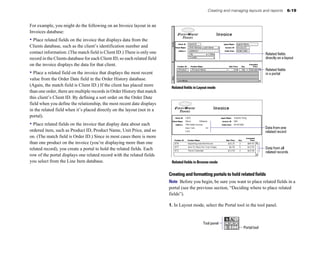
current record                                                                             [Restore sort order, No Dialog]
                                                                                      Enter Preview Mode
                                                                                                                                          Field Name    Field Type   Formula/Entry Options

                                                                                           [Pause]                                        First Name    Text

• a blank record to create a paper form                                               Print
                                                                                           [no dialog]
                                                                                      Enter Browse Mode
                                                                                                                                          Last Name
                                                                                                                                          Address1
                                                                                                                                          Address 2
                                                                                                                                                        Text
                                                                                                                                                        Text
                                                                                                                                                        Text
                                                                                                                                          City          Text


• definitions of fields or scripts to see the structure of your database                                                                  State
                                                                                                                                          Postal Code
                                                                                                                                          Phone
                                                                                                                                                        Text
                                                                                                                                                        Number
                                                                                                                                                        Text

                                                                                  Script
FileMaker Pro prints records using the current layout. You can
create layouts to print the same data in different ways. For example,                                                                Field definition
you can print records one by one, in a columnar list, or in a complex
sorted report with totals, headers, and footers. You can also create        You can control page margins, remove blank space, and keep
layouts for mailing labels or envelopes.                                    specified objects from printing. See “Controlling how things print”
                                                                            on page 7-21.
The New Layout/Report assistant (in Layout mode) makes it easy to
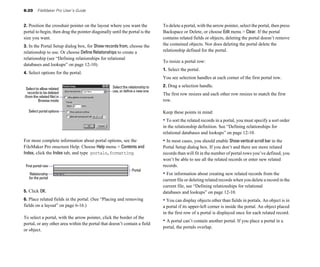
create such layouts and reports. See “Creating layouts and reports”
on page 6-2.
4-2   FileMaker Pro User’s Guide


Preparing to print                                                        Note With newer system software, you can specify a different
                                                                          printer within the Print dialog box or with a control strip module (as
Note Printer and print setup options depend on the printer and            long as you’re choosing the same type of printer, for example, a
system software you’re using. Refer to your printer and system            different LaserWriter printer on the network).
documentation for more information.
                                                                          Preparing to print wide layouts
Specifying a printer (Windows)                                            If you’re printing a layout with data that extends beyond the right
You can specify a default printer to be used when you print in            margin, choose File menu > Print Setup (Windows) or Page Setup
FileMaker Pro. You can also specify a different printer each time         (Mac OS), select the horizontal (landscape) orientation, then click OK.
you print.
                                                                                                           Information to the right
To specify a default printer for FileMaker Pro:                                                            of this line won’t print
                                                                                                                                      All columns print
1. Choose File menu > Print Setup.
2. In the Print Setup dialog box, for Name, choose a printer.
3. Click OK.

Keep these points in mind:
• When you start FileMaker Pro for the first time, it uses the
Windows default printer as its default printer. If you specify a
different printer in the Print Setup dialog box, it becomes the default
printer for FileMaker Pro.                                                Vertical setting                   Horizontal setting

• You specify the default printer for Windows and FileMaker Pro
independently. If you change one default, it doesn’t affect the other.    Tip In the Print Setup dialog box (Windows) or Page Setup dialog
                                                                          box (Mac OS), try reducing the size of the printed area by typing a
                                                                          value of less than 100% for scaling. FileMaker Pro adjusts the
Specifying a printer (Mac OS)
                                                                          display of page boundaries in Layout and Preview modes.
To specify a different printer:
1. Choose Apple menu > Chooser.
2. In the Chooser dialog box, select a printer, respond to any
messages, and then click the close box.
Because different printers have different margin capabilities, if
you’ve changed to a different type of printer, you are prompted to
verify page setup options.
Previewing and printing information    4-3


Preparing to print layouts with subsummaries                             When you’re using individual sheets of labels:
If you’re printing a layout with one or more subsummary parts, sort      1. Measure the distance from the top of the label paper to the top of
the records by the break field (the field that groups the records)       the first row of labels.
associated with each subsummary part. See “Viewing or printing           2. If the distance is less than the minimum margin your printer
subsummary or grand summary data” on page 6-28 and “Sorting              requires, in Layout mode, increase the height of the header part to
records” on page 3-8. Then switch to Preview mode. FileMaker Pro         include the first row of labels, so that printing starts at the top of the
displays subsummary parts and calculates subsummary data                 second row.
correctly only in Preview mode or in a printed report (see
                                                                         FileMaker Pro won’t print on the first row of labels, but it prints in
“Previewing data on a layout” on page 4-3).
                                                                         the correct position on subsequent labels.
Tip If you use the New Layout/Report assistant to create a Report with
grouped data, you can create a script that automatically sorts the       When using continuous-feed label paper, if there’s a header, delete it
report and then switches to Preview mode. See “Creating layouts and      by clicking the part label in Layout mode to select it, then press
reports” on page 6-2.                                                    Backspace or Delete.

Preparing to print envelopes and labels
For information about setting up an Envelope or Labels layout, see
                                                                         Previewing data on a layout
“Considerations when you create an Envelope layout” on page 6-7          When you switch to Preview mode, you see the layout as it appears
and “Considerations when you create a Labels layout” on page 6-6.        on the printed page. You can’t enter or edit information in fields in
                                                                         Preview mode.
Many laser and ink jet printers cannot print within 0.25 inches of the
top of the paper. FileMaker Pro tries to compensate for this when        In Preview mode, you see:
creating a Labels layout by including an empty header part to            • how many records fit on a printed page
compensate for this unusable margin. You may need to adjust or
                                                                         • how the pagination settings you choose affect page breaks (see
delete the header depending on your printer (see “Resizing layout
                                                                         “Defining page breaks and numbering” on page 6-29)
parts” on page 6-30 and “Deleting layout parts” on page 6-30).
                                                                         • subsummary parts with calculated summary fields (see “Viewing
You may also need to adjust page margins (see “Specifying page           or printing subsummary or grand summary data” on page 6-28)
margins” on page 7-21), or paper size (see your system                   • variable information supplied by FileMaker Pro, like page
documentation). Also, see the troubleshooting section in the             numbers, the current date, and so on (see “Inserting the page number,
FileMaker Pro onscreen Help. Choose Help menu > Contents and             date, or other variable onto a layout” on page 7-11)
Index, click the Index tab and type printing,troubleshooting.
                                                                         • the page margins you define (see “Specifying page margins” on
Tip Print envelopes or the first page of your labels on plain paper to   page 7-21)
check alignment before you print on the envelope or label stock.         • how fields set with sliding options close up blank space (see
                                                                         “About removing blank space from printed data” on page 7-22)
4-4   FileMaker Pro User’s Guide


• records arranged in columns if the Layout Setup is defined to print                Note If you’re printing a layout with subsummaries, see “Preparing
in columns (see “Setting up to print records in columns” on page 6-8)                to print layouts with subsummaries” on page 4-3. If you’re printing
To preview data on a layout, you follow the same preliminary steps                   labels or envelopes, “Preparing to print envelopes and labels” on
that you perform when you print, including specifying a printer and                  page 4-3.
printing options and verifying that the found set contains the records
                                                                                     To print:
you want to preview (see steps 1 through 4 in the next section,
“Printing”). Then, choose View menu > Preview Mode.                                  1. If you have more than one printer, specify which one you want to
                                                                                     use.
                   Choose a different layout                                         See “Specifying a printer (Windows)” on page 4-2, or “Specifying a
               from the layout pop-up menu     Margin
                                                                                     printer (Mac OS)” on page 4-2.
           Click the top page to
      move to the next page or                                                       2. Confirm printing options (for example, page orientation, and
                                                        Drag the bookmark up or
      the bottom page to move                           down to move through pages   scaling) by choosing File menu > Print Setup (Windows) or File
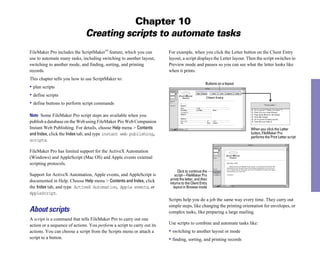
           to the previous page
                                                        Current page number          menu > Page Setup (Mac OS), then click OK.
        Total number of pages                                                        For information about printer options, refer to your printer and
                                                                                     system documentation.
                                                                                     3. If you’re printing records, use the layout pop-up menu to switch
                                                                                     to the layout you want to use.
                                                                                     4. Make sure the found set is the way you want it by:

                                                        Switch modes with the
                                                                                     • using Find mode and commands on the Records menu to change the
                                                        mode pop-up menu             found set (see “Finding records” on page 3-1 and “Hiding records
                                                                                     from a found set and viewing hidden records” on page 3-7)
Note You can’t use Preview mode to see how your database looks                       • sorting the records (see “Sorting records” on page 3-8)
when published on the Web. You must use a web browser.                               5. Choose View menu > Preview Mode to see exactly how your paper
                                                                                     copy will look. Some things, like summary fields, subsummary
                                                                                     parts, sliding objects, records arranged in columns, and variable
Printing                                                                             information like page numbers, appear correctly only in Preview
You can print information from your database, or you can print                       mode.
information about your database (for example, field definitions or
                                                                                     6. Choose File menu > Print.
script steps). See “About printing information in a database” on
page 4-1.                                                                            7. In the Print dialog box, for Print, choose an option.
Previewing and printing information   4-5


Mac OS: Depending on the version of the printing software you are
using, you may need to choose FileMaker Pro from the pop-up menu                                    Choose
                                                                                              FileMaker Pro
to see these options.
To print                                            Choose
                                                                                                Choose the
All records in the found set                        Records being browsed                      data to print
Only the record currently selected in Browse Current record
mode

A blank record using the current layout (use Blank record, showing fields, then
this option to print a blank “form”)         choose a formatting option
                                                                                                               Print dialog box (Mac OS)
A list of all the fields defined for the file,      Field definitions
including formulas and entry options
                                                                                           Windows: To print a current view of OLE objects, select Update all
A list of all script steps for one script, or all   Script definition for, then choose a   Links before printing. Deselect this option for faster printing. For more
scripts in the file                                 specific script or all scripts
                                                                                           information, see the FileMaker Pro onscreen Help. Choose Help
                                                                                           menu > Contents and Index, click the Index tab, and type OLE
                                  Click to change the page orientation (vertical or        objects, updating.
                                    horizontal), scaling, and other printing options
                                                                                           8. Select the print range, number of copies and other printing
                                                                                           settings, and then click OK.
         Choose the                                                                        Other print options depend on the printer and system software you’re
        data to print                                                                      using. Refer to your printer and system documentation.

                                                                                           Keep these points in mind:
                                                                                           • Windows: To override the default printer for one print job, in the
                                                                                           Print dialog box, for Name, choose a different printer.
                                                                                           • Windows: To override the default printer options for one print job,
                                                                                           in the Print dialog box, click Properties, make selections, then click
    Select to update                                                                       OK.
 linked OLE objects
     before printing
                                                                                           • You can “close up” blank space when printing records with varying
                                                                                           amounts of data by specifying sliding options. See “About removing
                        Print dialog box (Windows)                                         blank space from printed data” on page 7-22. You can also use merge
                                                                                           fields to eliminate extra blank space in field data. See “Placing merge
                                                                                           fields” on page 6-17.
4-6   FileMaker Pro User’s Guide


• When you print a field or a portal with a scroll bar, FileMaker Pro
prints only the data visible without scrolling. To print all the data,
duplicate the layout and enlarge the field or portal, then specify
sliding options to remove the extra blank space when you print. See
“About removing blank space from printed data” on page 7-22.
• To keep any object on a layout from printing, select it in Layout
mode, and choose Format menu > Sliding/Printing. Click Do not print
selected objects, then click OK. See “Keeping objects from printing”
on page 7-25.
• If you’re having trouble printing, see the troubleshooting section in
the FileMaker Pro onscreen Help. Choose Help menu > Contents and
Index, click the Index tab and type printing, troubleshooting.
For customer support information on printing, choose Help menu >
FileMaker on the Web.
Part 2

Designing and creating a database
Chapter 5
                                                 Creating a database
This chapter explains how to:                                            For example, to print invoices, you need fields for a billing address,
• plan a database                                                        shipping address, quantity, product code, and so on. You also need
                                                                         calculated fields for subtotal, sales tax, shipping charge, and invoice
• create a FileMaker Pro database file                                   total.
• define, modify, or delete fields in your database                      To make it easy to search and sort records, create separate fields for
                                                                         first and last name, titles such as Mr. or Dr., and items in addresses
                                                                         (city, state, province, country, and postal code).
Planning a database file
                                                                         5. Determine relationships between your file and other files whose
Plan a database before you create it to save time and effort later on.
                                                                         data you can use.
Although you can change the design later, the more you plan ahead,
the fewer changes you’ll need to make. Start with a simple design,       For example, if data you want already exists in another
use it for a while, then change it as needed.                            FileMaker Pro file, you can use it in the current file.
                                                                         6. Decide what layouts you need, and plan a separate layout for each
Follow these general steps to plan a database:                           task.
1. Determine the problem you want to solve, or the reason for            For example, plan layouts for data entry, order entry, printing
creating a database.                                                     mailing labels, printing form letters, and for each type of report you
If other people will use the database, be sure to talk with them about   produce.
the data they need.                                                      7. Determine whether you need to share your database with other
2. Decide which categories of information you work with, and plan        users, and how they will access the file.
a separate database file for each major category.                        You can design layouts that work well in FileMaker Pro for
For example, for a small business, you might need one database file      Windows or for Mac OS, or when viewed in a web browser.
for products, one for customers, and another for employees.              8. If others will use your database, think about who can use the file
3. Analyze your current information management system to                 and which tasks they can perform.
determine the tasks you perform.                                         If security is important to your data, you can restrict who can do
For example, do you print mailing labels and invoices? What reports      which tasks by assigning passwords and access privileges to the file.
do you produce? Are there new tasks you want to do?                      9. Put your ideas on paper, listing the files you need and the fields for
4. Decide what data you want the file to contain, and plan the fields    each file. Also list the forms and reports (layouts) you will generate
to hold the data.                                                        from each file. Start with a simple design and use it for a while. You
                                                                         can change it as needed.
5-2   FileMaker Pro User’s Guide


                                                                             2. In the New Database dialog box, do the following:
                     Sample Database Design Form
                     Project Name
                                                                             To                      Do this
                     Purpose of this database
                     File name for this database                             Create a file using a   Select Create a new file using a template, then double-
                     Fields
                     Name               Type       Comments
                                                                             template                click the name of a template.

                                                                             Create a file without   Select Create a new empty file, then click OK.
                                                                             using a template

                                                                             Open an existing file   See “Opening files” on page 1-6.
                     Layouts
                     Name               Purpose           Screen Print Web


                                                                             If Templates in New Database dialog isn’t selected in the General tab of
                                                                             the Application Preferences dialog (or if the templates aren’t
                                                                             installed), the New Database dialog box doesn’t appear. Skip to the
                                                                             next step. To select the preferences option, see “Setting general
                                                                             application preferences” on page A-1.
For information about entering data into a database, see “About
entering data in records” on page 2-6. For more information about
creating a relational database, see chapter 8, “Working with related
files.”

                                                                                                                                                      Choose a
Creating a FileMaker Pro file                                                                                                                         template
                                                                                   Select an                                                          category from
You can create a file from a template—a predefined database file that             option for                                                          the list
you can modify to suit your needs. Or, you can create a file without              creating a
                                                                                         file
using a template.                                                                                                                                     Choose a
                                                                                   Select                                                             template from
                                                                                  to stop                                                             the list
Tip You can also create a file by making a copy of an existing               showing this
FileMaker Pro file, or by importing data from another application.             dialog box
See “Saving files” on page 1-7 or “Converting a data file into a new
FileMaker Pro file” on page 12-6.
                                                                             3. In the dialog box that appears, type a name for the file (choose a
If you didn’t install templates and want to use them, see the
                                                                             different folder, if needed), then click Save.
FileMaker Pro Getting Started Guide.
                                                                             Windows: For Save as type, select FileMaker Pro Files. If you don’t type
1. In FileMaker Pro, choose File menu > New Database.                        a file extension, FileMaker Pro adds .fp5 to the filename. (To view file
                                                                             extensions in Windows, see the Windows operating system Help.)
                                                                             4. Click Save.
Creating a database   5-3


About defining database fields                                                            Keep these points in mind:

To define a new field, you give it a name. Then you select options
                                                                                          • You can duplicate a field definition to define a new field that’s
                                                                                          similar to an existing field. See “Changing field definitions” on
that determine how the field interprets, enters, calculates, stores, and
                                                                                          page 5-11.
displays data. These characteristics make up the field definition.
                                                                                          • After you define fields, you can add them to any layout. If you
                                                                                          define a field in an existing file, and you don’t see it on the current
                   Product ID   ET14
                                                                                          layout, be sure Add newly defined fields to current layout is selected in
                   Product Name Jacket           These fields store text                  Application Preferences. See“Placing and removing fields on a
                   Category     Clothing
                                                                                          layout” on page 6-15 and “Setting layout preferences” on page A-2.
                   Colors       Blue
                                                 This field stores multiple values
                                Black                                                     • To print field definitions, see chapter 4, “Previewing and printing
                   Unit Price   $52.50           This field stores only numbers           information.”
                   Discount     $5.25            This field calculates a value based on
                                                 another value in the record
                                                 (“Discount” is 10% of “Unit Price”)      About naming fields
                                                                                          Keep the following in mind when naming fields:
The following sections describe how to define fields using the                            • Field names must be unique. They can contain up to 60 characters.
Define Fields dialog box.
                                                                                          • Use descriptive names that clearly identify the contents of the field.
                                                                                          Avoid abbreviations, acronyms, or other terms that may cause
                                Choose the way fields are listed in the dialog box
                                                                                          confusion.
    Click to sort by
field name or type                                                                        • Don’t use the following symbols or words: , (comma) + – * / ^ &
                                                                                          = ≠ > < ( ) " ; (semicolon) : (colon) :: AND, OR, XOR, NOT, or a
                                                                                          FileMaker Pro function name. Don’t begin a field name to be used in
                                                                                          a calculation formula with a space, period (.), or number.
     Field names
   and definitions                                                                        • Use _ (underscore) in place of a space to avoid restrictions in
                                                                                          ODBC (Open Database Connectivity), exporting, web publishing,
                                                                                          and other operations.
      Type a name
    for a new field                                                                       • If you’re exchanging data with another application, check the field
Select a field type                                                                       naming restrictions in the file formats supported by the other
                                                                                          application.
                                                Click after you type a field              • If you’re using ODBC to share FileMaker data, avoid using SQL
                                                name and select a field type
                                                                                          keywords in field names. For information about ODBC, see “About
                                                                                          ODBC” on page 15-1.
5-4       FileMaker Pro User’s Guide


About choosing a field type
When you define a field, you must select the appropriate field type.
FileMaker Pro uses the field type to interpret the data for tasks like
sorting and performing calculations.
                                                                                                                                                             Sales Report

                                                                                                                                            Agent              Item                 Qty     Amount
Select this 
                                                                                                                               David Michaels     ET3                  1        $29.95
field type    If the field data will be
                                                                                                    David Michaels     ET4                  1        $32.25
                                                                                                                                            David Michaels     ET1                  2        $73.90
                                                                                                                                            David Michaels     ET5                  3        $98.85
Text	           Up to approximately 64,000 letters, symbols, or numbers used as                                                                                                     Total   $234.95
                text. Text fields may contain carriage returns.                                                                             Sophie Tang        ET6                  2        $64.50
                                                                                                                                            Sophie Tang        ET7                  5        $12.50
                                                                                                                                            Sophie Tang        ET2                  2        $25.00
Number	         Up to 255 numbers or other characters. (In most cases, only the                                                             Sophie Tang
                                                                                                                                                                                    Total   $102.00
                numbers are treated as numeric.) Number fields can also contain
                                                                                                                                                                      Grand Total           $336.95
                Boolean values, to indicate, for example, true, false, yes, and no.
                Unlike other text values in a number field, you can perform a
                search on Boolean values.
Date            Dates only.                                                                                                                           Summary fields produce
                                                                                                                                                      results from values in
Time            Times only.                                                                                                                           multiple records

Container	      A picture, or a multimedia file (like a movie or sound). You can                Calculation fields produce results from values
                reference container fields in calculations and summary fields.                  in the current record or related records
                Windows: A container field can store OLE objects.
                                                                                       Keep these points in mind:
Calculation	    The result of a calculation formula that uses field values from the
                current record or related records. The formula can use values of       • Use text fields instead of number fields to store postal codes, phone
                all field types. The result can be one of these types of data: text,   numbers, and other values with leading zeroes or characters like
                number, date, time, or container.                                      hyphens or parentheses.
Summary	        A value that’s produced by summarizing field values from more          • Be sure to use a Date field (instead of a text or number field) to
                than one record in the same file.
                                                                                       store dates. To avoid confusion when using dates, always use four-
Global	         One value to be used in all records of the file. A global field can    digit years. For more information on how FileMaker Pro handles
                contain text, number, date, time, or container data. Use the value     Year 2000 issues, see www.filemaker.com.
                of a global field in calculations and scripts. You can’t use a
                global field to find records.                                          • You can’t find or sort records based on a container field, but you
                                                                                       can define a text field to describe or identify the contents of the
                                                                                       container. Then, you can find or sort records based on the data in the
                                                                                       text field.
                                                                                       • To change the way data is displayed in text, number, date, and time
                                                                                       fields, see “Formatting field data on a layout” on page 6-21.
Creating a database       5-5


• For information about working with data in fields, see “About                      For more information about defining fields, choose Help menu >
entering data in records” on page 2-6. For more information about                    Contents and Index, click the Index tab, and type defining fields.
field types, choose Help menu > Contents and Index, click the Index
tab, and type field types.                                                           Defining calculation fields
                                                                                     1. Choose File menu > Define Fields.
Defining text, number, date, time, or container fields                                 2. In the Define Fields dialog box, for Field Name, type a unique name
1. Choose File menu > Define Fields.                                                 for the field.
2. In the Define Fields dialog box, for Field Name, type a unique name               See “About naming fields” on page 5-3.
for the field.
                                                                                     3. For Type, select Calculation, then click Create.
See “About naming fields” on page 5-3.
                                                                                     4. In the Specify Calculation dialog box, build a formula.
3. For Type, select a field type, then click Create.
                                                                                     Click where you want the item to appear in the formula box, then do
See “About choosing a field type” on page 5-4.                                       the following:
4. To define options for the field, click Options.
                                                                                     To add a               Do this
To                   Do this in the Options for Field dialog box                     Reference to a field In the field list, double-click a field name.
Automatically        Click the Auto-Enter tab, select the options, then click OK.                          To display field names from related fields, choose a
enter values into    See “Defining automatic data entry” on page 5-8.                                      relationship from the relationship list. (See “When to
the field                                                                                                  create relationships between files” on page 8-4.)

Make sure data is    Click the Validation tab, select the options, then click OK.    Mathematical or       In the keypad, click an operator. (Quotation marks and
entered into the     See “Defining field validation” on page 5-9.                    text operator         parentheses are copied to the formula as a pair, with the
field correctly                                                                                            insertion point blinking in the middle).

Make the field       Click the Storage tab, then select Repeating field with a       Comparison or         For Operators, choose an operator from the list.
repeating            maximum of n repetitions. Type the number of repetitions,       logical operator
                     then click OK. See “About repeating fields” on page 5-11.
                                                                                     Constant value        Type the value. See “Constants” on page 11-2.
Select options for   Click the Storage tab, select the options, then click OK. See
                                                                                     Function	             In the functions list, double-click a function. In the
indexing the field   “About storage and indexing options” on page 5-11.
                                                                                                           formula box, replace the placeholder parameter with a
                                                                                                           value or expression.
5. Continue defining fields, or click Done.
                                                                                     Tip You can also type the formula directly into the box. For more
Important To avoid confusion when using dates in FileMaker Pro,                      information, see chapter 11, “Using formulas and functions.”
set field validation options to make sure dates are always entered
with four-digit years. (See “Defining field validation” on page 5-9.)
For more information on how FileMaker Pro handles Year 2000
issues, see www.filemaker.com.
5-6    FileMaker Pro User’s Guide


                                 Select comparison
                                                                                             6. To select indexing and storage options for the field, click Storage
                               and logical operators                                         Options, select options, then click OK.
                        Select mathematical                 Choose the way functions         See “About storage and indexing options” on page 5-11.
                          and text operators                are listed in the dialog box
   Choose a                                                                                  7. Click OK to close the Specify Calculation dialog box.
relationship
from the list                                                                                8. Continue defining fields, or click Done.
Choose field
 references                                                                      Select      For more information about defining calculation fields, see
                                                                                 functions
                                                                                             FileMaker Pro Help. Choose Help menu > Contents and Index, click
                                                                                             the Index tab, and type calculation fields.

Formula box                                                                                  Defining summary fields
   Choose a                                                                                  Use summary fields to calculate values across multiple records, like
     formula                                                                                 subtotals, averages, and grand totals. For example, a summary field
  result type
                                                                                             can display the grand total of all sales in the month of May in a
  Make the                                                                                   report.
 calculated
       field
  repeating     Calculate only if at least one         Choose indexing and                   Tip Use the New Layout/Report assistant to quickly create a report
                field in the formula has a value       storage options                       with grouped data (data in a summary field). See “About layouts and
                                                                                             reports” on page 6-1.
5. Select calculation options for the field.
                                                                                             The value in a summary field can change depending on where you
To                          Do this
                                                                                             place the field on a layout, how many records are in the found set,
Select the data type of Choose a data type for Calculation result is <value>. Be             whether the records are sorted, and which mode you are using.
the result              sure to choose the correct type for the result you want.
                        See “About choosing a field type” on page 5-4.                       If you’re modifying a layout that contains a summary field, you must
Make the calculated         Select Repeating field with a maximum of n values, type          know about layout parts to get the results you want (see “About
field repeating             the number of repetitions, then click OK. See “About             layout parts” on page 6-25). For information about summarizing
                            repeating fields” on page 5-11.                                  related fields in portals, see “Summarizing data in portals” on
Perform the calculation     Select Do not evaluate if all referenced fields are empty.       page 8-12.
only when all               Clear this option if you always want FileMaker Pro to
referenced fields have      calculate a result, even if a referenced field is empty or       1. Choose File menu > Define Fields.
a value (so you don’t       has never been modified.                                         2. In the Define Fields dialog box, for Field Name, type a unique name
display zero as a result)
                                                                                             for the field.
                                                                                             See “About naming fields” on page 5-3.
                                                                                             3. For Type, select Summary, then click Create.
Creating a database      5-7


4. In the Options for Summary Field dialog box, select a summary                          5. Select an option, if applicable, for the summary type.
type, then select the name of the field you want to group by.                             Options change according to the summary type you select in the
Select this type        To summarize values in a field                                    previous step.
of summary              in the found set of records by
                                                                                          For this
Total of                Calculating the total of values in the field                      summary type            Select                            To
Average of              Calculating the average of values in the field                    Total of                Running total                     Show the cumulative
                                                                                                                                                    total for the current and
Count of	               Counting the number of records that contain a value for
                                                                                                                                                    all previous records
                        the field. For example, if a field contains 100 values (one
                        value for each record), the result of the count is 100.           Average of	             Weighted average. In the          Determine the average in
                                                                                                                  list of fields that appears,      one field based on a value
Minimum	                Finding the lowest number, or the earliest date or time,
                                                                                                                  select the field that contains    in another field that’s
                        for a field
                                                                                                                  the weight factor.                used as a weight factor
Maximum	                Finding the highest number, or the latest date or time, for
                                                                                          Count of                Running count	                    Show the cumulative
                        a field
                                                                                                                                                    count of the current and
Standard Deviation of	 Finding how widely the values in a field differ from each                                                                    all previous records
                       other. This option calculates the standard deviation from
                                                                                          Standard Deviation of by population	                      Calculate population
                       the mean of the values in a field. (The formula is n-1
                                                                                                                                                    standard deviation, where
                       weighted, following the normal standard deviation.)
                                                                                                                                                    the formula is n-weighted
Fraction of Total of	   Calculating the ratio of the value in the field to the total
                                                                                          Fraction of Total of	   Subtotaled. In the list of      Calculate a fraction of the
                        of all the values in that field. For example, this option
                                                                                                                  fields that appears, select a total based only on a
                        finds what fraction of total sales can be attributed to each
                                                                                                                  field to group by. (When        group of records
                        salesperson.
                                                                                                                  you return to Browse mode,
                                                                                                                  sort by this field to calculate
                                                                                                                  the value correctly.)


                                                                                          6. Click OK.
                                                                         Choose the
Choose a                                                                 field you want   7. Continue defining fields, or click Done.
summary                                                                  to group by
    type
                                                                                          For more information about summary fields, choose Help menu >
                                                                                          Contents and Index, click the Index tab, and type summary fields.


       Select an option for the summary type
5-8    FileMaker Pro User’s Guide


Defining global fields                                                                   5. Click OK.
A global field contains one value that’s used for all records in a file.               6. Continue defining fields, or click Done.
(You can’t use a global field for finding data.) Use the value of a
global field:                                                                          If you’re working with global fields in a shared file, see “Working
                                                                                       with shared files” on page 13-2. For more information about global
• as a fixed value to be used in calculations in all records in a file
                                                                                       fields, choose Help menu > Contents and Index, click the Index tab, and
• to declare variables in If, Else, End If, Loop, End Loop, and Exit                   type global fields.
Loop If script steps
• for fields that rarely need to be updated. For example, use a global
field to put your company logo and address on several layouts. You                     Setting options for fields
can quickly update a global field without having to update each layout.                You can set options for:

To define global fields:
                                                                                       • entering default data into a text, number, date, time, or container
                                                                                       field
1. Choose File menu > Define Fields.
                                                                                       • checking data against validation requirements
2. In the Define Fields dialog box, for Field Name, type a unique name
                                                                                       • making a repeating field
for the field.
See “About naming fields” on page 5-3.
                                                                                       • creating an index
                                                                                       • indexing and storing data
3. For Type, select Global, then click Create.
4. In the Options for Global Field dialog box, select options.                         Some field options help ensure the accuracy of your data. For
To                         Do this
                                                                                       example, if you type Frnc instead of France into the Country field,
                                                                                       you won’t find that record when you later search for all customers
Choose a data type for For Data type, choose a type from the list. See “About
                                                                                       from France. To be sure that all country names are entered correctly,
the field              choosing a field type” on page 5-4.
                                                                                       you can define a value list containing the names, then select the
Make the field             Click the Storage tab, then select Repeating field with a   Member of value list validation option for the Country field. When you
repeating	                 maximum of n repetitions. Type the number of
                                                                                       enter data into the field, the data must match a value in the list. See
                           repetitions, then click OK. See “About repeating fields”
                                                                                       “Defining a list of values for data entry” on page 7-3.
                           on page 5-11.

                                                                                       To set options for summary fields, see “Defining summary fields” on
                                                                                       page 5-6.


        Choose a data
                                                                                       Defining automatic data entry
      type for the field                                                               To automatically enter a default value into a field for each record:
                                                                                       1. Choose File menu > Define Fields.
                           Select to make the field repeating                          2. In the Define Fields dialog box, double-click a field name.
Creating a database   5-9


3. In the Options for Field dialog box, click the Auto-Enter tab and
select options. (The available options depend on the field type.)                          Click Auto-Enter
Important To avoid confusion when using dates in FileMaker Pro,
set field validation options to make sure dates are always entered
with four-digit years. (See the next section.)

To                            Do this                                                     Select options for
                                                                                           entering default
Enter the date, time, or  Select the first checkbox (the), then choose an 
                 data in the field
user name when the record option from the list.

is created or modified


Assign a sequential         Select Serial number. For next value, type a starting 

number to the field in each value (for example, 1001), then type the number to 

record                      increment by.

Enter the value from the    Select Value from previous record.
                       4. Click OK to close the Options for Field dialog box, then click Done.
previously accessed record


Enter data you specify        Select Data, then type up to 255 characters.
           For more information about automatically entering data, see
                                                                                      FileMaker Pro Help. Choose Help menu > Contents and Index, click
Enter the result of a         Select Calculated value, define the formula in the 

calculation in the field	     Specify Calculation dialog box, then click OK.
                                                                                      the Index tab, and type automatic data entry.
                              For information about the Specify Calculation
                              dialog box, see “Defining calculation fields” on        Defining field validation
                              page 5-5.                                               You can select field validation options to ensure that data is entered
Enter a value that’s copied Select Looked-up value, define the lookup, then 
         into the field correctly. FileMaker Pro displays a message if you
from a field in the same or click OK. See “Defining lookups between files” on 
       enter data incorrectly.
a different file            page 8-13. 


Prevent users from          Select Prohibit modification of value.

                                                                                      Important To avoid confusion when using dates in FileMaker Pro,
changing an automatically 
                                                           set field validation options to make sure dates are always entered
entered value
                                                                        with four-digit years. For more information on how FileMaker Pro
                                                                                      handles Year 2000 issues, see www.filemaker.com.
Turn off automatically        Clear all selected checkboxes.

entered data

                                                                                      1. Choose File menu > Define Fields.
                                                                                      2. In the Define Fields dialog box, double-click a field name.
5-10     FileMaker Pro User’s Guide


3. In the Options for Field dialog box, click the Validation tab and
select options.                                                                                 Click Validation

To verify that the entered value Do this

Contains only numbers	                   Select Strict data type, then choose
                                         Numeric Only from the list.                           Select validation
                                                                                             options for the field
Is a date containing numeric values    Select Strict data type, then choose 

for the month and day, and four digits 4-Digit Year Date from the list.

for the year (for example, 

5/12/2004)


Is a time containing numeric values Select Strict data type, then choose Time 

for hours and minutes between 00:00 of Day from the list.

and 23:59 (seconds are optional)


Is not empty, or that the value is      Select Not empty, Unique, or Existing.

                                                                                        4. Specify how FileMaker Pro handles an invalid entry.
unique or already existing in the file

(FileMaker Pro ignores capitalization 
                                                 To                                            Select
and punctuation)

                                                                                        Prevent users from entering invalid data   Strict: Do not allow user to override 

Matches a value in a specified value     Select Member of value list, then choose 
     (users must correct the data before moving validation

list	                                    an existing value list or define a new         out of the record)

                                         one. (See “Defining a list of values for
                                                                                        Display a custom message when the data        Display custom message if validation 

                                         data entry” on page 7-3.)
                                                                                        doesn’t meet the validation requirements      fails, then type up to 255 characters

Falls within the range you specify	      Select In range, then type a starting
                                         value and ending value.
                                                                                        5. Click OK to close the Options for Field dialog box, then click Done.
Matches the result of a calculation	     Select Validation by calculation, define a
                                         formula in the Specify Calculation
                                                                                        For more information about validating fields, choose Help menu >
                                         dialog box, then click OK.
                                                                                        Contents and Index, click the Index tab, and type validating data.
                                         The result must be Boolean—“true” or
                                         “false,” “yes” or “no,” and so on. The
                                         result is false when the result is 0 or null
                                         (empty); otherwise the result is true.
                                         For information about the Specify
                                         Calculation dialog box, see “Defining
                                         calculation fields” on page 5-5.
Creating a database         5-11


About repeating fields                                                           Changing field definitions
A repeating field holds more than one value (up to 1000), each in a
                                                                                Important When you change the definition of a field that contains
separate repetition of a field. Any field type, except summary, can be
                                                                                data, the data in that field could be affected. For more information
a repeating field.
                                                                                about the effects of changing fields, choose Help menu > Contents and
                                                                                Index, click the Index tab, and type field definitions.

                                 Each value in the repeating field              1. Choose File menu > Define Fields.
                                 “Colors” is a single, separate value
                                                                                2. In the Define Fields dialog box, make your changes.

Tip If you’re planning to sort, summarize, or insert data in a                  To                    Do this
repeating field, it’s often easier to use related fields in a portal. See       Change a field        In the field list, select the field to change. For Field Name,
“About relational databases” on page 8-2.                                       name	                 type or paste the new name, then click Save.
                                                                                                      FileMaker Pro also changes the field name in layouts and
To change the number of repetitions visible on a layout, see                                          field references in formulas. See “About naming fields”
“Formatting repeating fields” on page 7-7.                                                            on page 5-3.

                                                                                Duplicate a field     In the field list, select one or more fields, then click
For more information about defining and working with repeating                  definition            Duplicate. The new fields appear at the end of the list with
fields, see FileMaker Pro Help. Choose Help menu > Contents and                                       Copy added to the name. You can change the field names.
Index, click the Index tab, and type repeating fields.
                                                                                Change the field      In the field list, select the field, select a field type, then
                                                                                type                  click Save. See “About choosing a field type” on
About storage and indexing options                                                                    page 5-4.
FileMaker Pro provides options for indexing fields and for storing                                    Important Changing the field type can permanently and
the results of calculations. You can:                                                                 irretrievably erase data.

• Create an index, which is a list of the values stored in a field. An          Change options for In the field list, double-click the field. Change the options, 

index greatly speeds searches, but takes up space on your disk. You             text, number, date, then click OK. See “Setting options for fields” on 

can index text, number, date, and time fields. You can also index               time, container, or page 5-8. 

                                                                                global fields

calculation fields if the results are text, numbers, dates or times.
                                                                                Change a              In the field list, double-click the calculation field. 

• Store the result of a calculation in your database, or you can tell           calculation field
FileMaker Pro to perform the calculation only when needed (unstored).                                 •	 To change storage and indexing options, click Storage
                                                                                                         Options in the Specify Calculation dialog box. Make
Storing the result is faster but takes up more space on the disk. You can                                your changes, then click OK.
specify storage options for text, number, date, time, and calculation fields.                         •	 To change other options, make your changes in the
                                                                                                         Specify Calculation dialog box.
Storage and indexing options are documented in Help. Choose Help                                      Then, click OK in the Specify Calculations dialog box. See
menu > Contents and Index, click the Index tab, and type storage                                      “Defining calculation fields” on page 5-5.
options.
5-12     FileMaker Pro User’s Guide


To                  Do this                                                 Keep these points in mind:

Change a summary In the field list, double-click the summary field, then    • To remove fields from a layout, but leave them available in the
field	           make your changes in the Options for Summary Field         database, see “Placing and removing fields on a layout” on
                 dialog box. Click OK. See “Defining summary fields” on     page 6-15.
                 page 5-6.
                                                                            • For more information about deleting field definitions, choose Help
Reorder field       See FileMaker Pro Help. Choose Help menu > Contents 
   menu > Contents and Index, click the Index tab, and type field
names in dialog     and Index, click the Index tab, and type reordering.
   definitions.
boxes that list 

fields


3. Click Done.

Keep these points in mind:
• If you change a calculation formula or summary type, 

FileMaker Pro recalculates the value for every record in the database 

when you exit the Define Fields dialog box. 

• To change the definitions of related fields, make the changes in the 

related file. 


Deleting field definitions and data
Important Deleting a field in the Define Fields dialog box
permanently and irretrievably deletes the field definition and all the
data in that field in all your records. Before you delete a field from a
file, be sure you don’t need any data the field contains.

1. Choose File menu > Define Fields.
2. In the Define Fields dialog box, select one or more fields, then
click Delete.
3. Click Delete again, or click Cancel to leave the fields unchanged.
4. Click Done.
Chapter 6
                      Creating and managing layouts and reports
This chapter describes how to manage layouts to present data for                   About layouts and reports
onscreen display or printing. You’ll learn about:
                                                                                   A FileMaker Pro layout displays the data in a database. The data you
• creating, modifying, and deleting layouts                                        see depends on the fields on the layout. Layouts are sometimes called
• working with different layout types                                              reports, especially when printed. Layouts determine the appearance
• working with fields and objects on a layout                                      of data. They also organize your information for viewing or data
                                                                                   entry, reporting, or finding.
• adding layout parts, such as a header or footer
                                                                                   Use a layout to choose which fields to include on each screen or
The next chapter, “Customizing layouts,” explains customizing the                  report. You can have as many layouts as you need for a file (for
way fields and layouts look, adding objects to layouts, defining value             example, layouts for entering data, summary reporting, or printing
lists, and controlling how things print.                                           mailing labels). You can change a layout’s design without affecting
                                                                                   the data or other layouts for the file. When you change data in a field
You create and work with layouts in Layout mode. To switch to
                                                                                   (in Browse mode), the changes are reflected in that field if it’s on
Layout mode from another mode, choose View menu > Layout Mode.
                                                                                   other layouts of the database, since the data is the same no matter
Or, choose Layout from the mode pop-up menu at the bottom of the
                                                                                   where it’s displayed.
document window.


                                    Text: Use for titles, column headings, field
                                          labels, instructions, and form letters               Buttons: Use to automate frequent tasks

                        Layout pop-up menu


                      Fields: Use for entering
                          and displaying data
                                                                                                                      The page: The printer, print
                                                                                                                      or page setup, and layout
                                                                                                                      determine how information
              Parts: Use headers, footers, the                                                                        looks on the printed page
             body, and summaries to divide a
            layout into special purpose areas


                          Mode pop-up menu
6-2   FileMaker Pro User’s Guide


For more information about setting up layouts for web publishing,            You see the New Layout/Report assistant, a series of dialog boxes,
see “Setting up browser views” on page 12-10.                                or panels, that assist you with creating the type of layout you choose
                                                                             in the first panel.
                                                                             3. In each assistant panel, follow the instructions to create the type of
Creating layouts and reports                                                 layout you chose in the first panel.
Whenever you create a database file (without using one of the
                                                                             For a description of each of the layout types you can create with the
template files shipped with FileMaker Pro), FileMaker Pro
                                                                             assistant, see the next section, “About layout types.”
automatically creates a Standard form layout and displays it in
Browse mode, ready for you to enter data.

You create additional layouts using the New Layout/Report                                 Type a
                                                                               descriptive name
assistant, a wizard that guides you through creating the layout
according to options you choose. In addition to Standard form, there          Click a layout type,
                                                                               then click Next to
are four other types of layouts and one view (Table view). Use these            proceed with the
different types for various purposes, like displaying a data entry                       assistant
screen or printing a totaled sales report or mailing labels.

Important FileMaker Pro considers the selected printer, and print or
page setup information when it calculates margins and other
measurements on the layout. When you need to print something on
                                                                                                               The descriptive text and graphic change
the page in a particular way, like a report that is wider than it is tall,                                     when you click different layout types
labels, envelopes, or data on preprinted forms, make sure you have
set these up before creating the layout. Printer and print settings          To                                        Do this
depend on the printer and system software you’re using. Refer to             Accept the settings in the panel and      Click Next
your printer and system documentation for more information. Also             continue to the next panel
see the considerations sections starting on page 6-6.
                                                                             Accept the settings in the panel but go   Click Back
                                                                             back to the previous panel
Note You must have created the fields to include on a layout before
you begin the New Layout/Report assistant. See “About defining               See an onscreen Help topic that           Click Help or press F1 (Windows) or
database fields” on page 5-3.                                                explains the choices in the current       click      (Mac OS) or press 2-? or
                                                                             panel                                     the Help key on your keyboard
To create a layout:                                                          Windows: See pop-up Help about a          Click the ? button in the upper-right
1. Choose View menu > Layout Mode.                                           specific control in the current panel     corner of the panel; then, with the ?
                                                                                                                       cursor, click the control
2. Choose Layouts menu > New Layout/Report.
                                                                             Close the assistant without saving any    Cancel
                                                                             of your choices
Creating and managing layouts and reports   6-3


4. When you have completed the series of panels, click Finish to               Columnar list/report
create the layout.                                                             Use a Columnar list/report layout when you want to view or print
You can use the new layout right away, or further customize it using           multiple records in rows (a list of records). You can define many
the tools and commands in Layout mode (see “About working with                 variations of a Columnar list/report with the New Layout/Report
objects on a layout” on page 6-11, “About working with fields on a             assistant. You can create a layout with simple rows and columns of
layout” on page 6-15, and the next chapter, “Customizing layouts”).            data or a complex report with data grouped by specified values with
                                                                               subtotals and grand totals.
Tip You can also duplicate an existing layout and customize the new
one to fit your needs.                                                         A Columnar list/report layout contains the fields you select, in the
                                                                               order you specify from left to right across the page, with field names
About layout types                                                             as column headings.
The following sections describe each of the layouts that you can
                                                                                Simple columnar report layout
create with the New Layout/Report assistant.

Standard form
A Standard form layout is a good choice for data entry or onscreen
browsing. It contains the fields you select, each on a separate line, in
the order you specify, with field labels to the left of the fields. In
Browse mode, you see one record, or form, at a time (unless you have
switched from View as Form).


                                                                                                  Columnar report with grouped data


                                                                               In the New Layout/Report assistant, you can choose to:
  Field
labels                                                                         • Limit the number of fields across the layout to the width of the page
                                                                               (defined by the page margins, page orientation, and printer). Fields
                                                                               wrap to multiple lines.
                                                                               • Group records by sorting. You can then subtotal, or subsummarize,
                                                                               data in the groups (for example, group sales data by region, then
                                      Fields you defined, in the order they    group subtotal sales for each region).
                                      appear in the Define Fields dialog box
6-4   FileMaker Pro User’s Guide


• Add header and footer parts with static text (like your company’s
name), dynamic text (like the page number or current date), or a
graphic (like your company logo).
• Save information in a script to re-run the report (for example,
switch to the report layout, sort the data, and pause to let you preview
the report).

You can modify any of these options after you complete the
assistant.

Table view                                                                  Labels
Table view is not a type of layout; it’s a view of your data in a           Use a Labels layout to arrange fields you select to print on one of the
spreadsheet-like grid format where you can quickly rearrange fields         predefined standard label sizes. (FileMaker Pro includes the
in Browse mode. For example, you can quickly reorder, resize, or            dimensions of a large number of standard label types.) If the label
sort columns (fields) with just a mouse click (if those options are set).   type you want isn’t available, you can specify custom label
Table view is one of three views available for any layout in                dimensions.
FileMaker Pro. For more information, see “Viewing records” on
page 2-2 and “Setting up View as Form, View as List, and View as
Table” on page 6-10.

As with a Columnar list/report layout, a Table view contains the fields
you select, in the order you specify from left to right, with field
names as column headings.

Note Table view is similar to a simple Columnar list/report layout, but
there are differences. Table view is a more flexible arrangement of the
data because it can be enabled or disabled in Browse mode. It’s
useful when you want to let users make simple changes to how data
is displayed in Browse mode, or when you want to provide a
familiar, spreadsheet-like appearance to your data.
Creating and managing layouts and reports    6-5


Envelope                                                                   • If your layout doesn’t turn out the way you expect it to, you can go
Use an Envelope layout to print the fields you select, arranged to print   through the assistant again. Remember to delete the layout that you
on a standard “Number 10” business envelope.                               no longer need (see “Working with, duplicating, deleting,
                                                                           or renaming layouts” on page 6-8).
                                                                           • In the New Layout/Report assistant, you can apply FileMaker Pro
                                                                           layout themes to enhance the appearance of a layout or report and to
                                                                           give all your layouts a consistent look. A theme affects
                                                                           characteristics of the layout, including the background color, field
                                                                           borders and fill, and text attributes in and outside of fields. A theme
                                                                           does not control the placement or behavior of fields or objects. You
                                                                           can apply themes only in the assistant.
                                                                           • If you include a field on the layout from another database (a related
                                                                           field), you should understand the concepts in chapter 12, “Working
                                                                           with related files.” Also, see “Deciding where to place related fields”
                                                                           on page 6-19.
                                                                           • When you create a Table view and switch to Layout mode, you see
                                                                           a Standard form layout. Table view is not a layout type, it’s an
Blank layout
                                                                           arrangement of data, like View as Form or View as List (on the View
Use a Blank layout as the starting point for a layout that you create
                                                                           menu in Browse mode). You can choose to view any layout in Table
entirely from scratch, for example, a complex data entry screen. You
                                                                           view by choosing View menu > View as Table.
add the fields you want on the layout in Layout mode.
                                                                           • If you’re designing a layout to be viewed on the Web using the
Keep these points in mind:                                                 FileMaker Pro Web Companion, see “Setting up browser views” on
                                                                           page 12-10.
• FileMaker Pro layouts are divided into layout parts, which are
areas on the layout that control how to display and print data, text,
and graphics. FileMaker Pro includes the body, header, and footer          Considerations when you create a Columnar list/
parts as needed on a layout depending on the choices you make in the       report layout
New Layout/Report assistant. Columnar reports with grouped and             • If you are creating a report with grouped data, you should think
totaled data also have either subsummary or grand summary parts or         about how you want the report to look so you can more easily
both. You have complete control over adding, removing, or                  proceed through the assistant. The assistant asks you to specify the
modifying layout parts after you complete the assistant. See “About        field or fields that you want to group the data by. If you are including
layout parts” on page 6-25.                                                subtotals or grand totals, you should also think about what fields you
                                                                           want to summarize and define those summary fields before you
                                                                           begin the assistant. See “About defining database fields” on
                                                                           page 5-3. (If necessary, you can also define the summary fields
                                                                           within the assistant.)
6-6   FileMaker Pro User’s Guide


                                                                          • A Columnar list/report layout arranges fields in columns. (For
                                                                          information on arranging records in columns, for example, to print a
                                                                          directory of names and addresses, see “Setting up to print records in
                                                                          columns” on page 6-9.)
                                                                          • If you plan on printing a Columnar list/report and the columns extend
                                                                          beyond the width of a page, try one or more of the following:
                                                                            • Reduce the field size or the font size for data in fields.
                                                                            • Change the page orientation to horizontal (landscape). Or reduce
                                                                            the scale at which you print to less than 100%. See “Preparing to
                                                                            print wide layouts” on page 4-2.
                                                                             • Create several layouts that show fewer columns, and then print
                                                                                each layout separately.

                                                                          • If you’re having trouble getting the results you want for a report
                                                                          with grouped data, refer to the onscreen Help available for each
                                                                          panel of the assistant. Also, see the troubleshooting section in the
                                                                          FileMaker Pro onscreen Help: choose Help menu > Contents and
                                                                          Index, click the Index tab, and type subsummary reports.

                                                                          Considerations when you create a Labels layout
                                                                          When printing labels, you usually use either individual sheets of
• In order to view a report with grouped data and totals, you must sort   labels, or a continuous-feed roll of labels (for dot matrix printers).
by the break field and go to Preview mode. The New Layout/Report
assistant lets you create a script to do this.                            Because FileMaker Pro considers the selected printer and print or
• When you create a Columnar list/report layout, you have the choice      page setup information when it calculates margins and other
of saving a script that switches to the layout, sorts the records (if     measurements on the layout, you must verify these settings before
specified), and pauses in Preview mode. The script is added to the        you create a Labels layout.
Scripts menu, where you can choose it to run the report in the future.    1. Choose the printer. See “Specifying a printer (Windows)” on
Verify that you’re viewing the found set that you want before             page 4-2 or “Specifying a printer (Mac OS)” on page 4-2.
running the script. You can view or edit the script (for example, you
                                                                          2. Choose File menu > Print Setup (Windows), or File menu > Page
can add a Find script step) by choosing Scripts menu > ScriptMaker
                                                                          Setup (Mac OS).
(see “Changing scripts” on page 12-10).
                                                                          3. In the setup dialog box:
                                                                          • For individual sheets of labels, select the size of the label sheets
                                                                          (usually US Letter in the U.S. and A4 elsewhere), then click OK.
Creating and managing layouts and reports            6-7


• For continuous-feed label paper, create a custom paper size equal         Considerations when you create an Envelope layout
to the height of one label. (Use a custom paper size to minimize the        Because FileMaker Pro considers the selected printer and print or
back-and-forth movement of the printer platen and to save label             page setup information when it calculates margins and other
paper.) Specific instructions vary depending on the type of printer:        measurements on the layout, you must verify these settings before
Windows: Click Properties. If your printer supports creating a              you create an Envelope layout.
custom paper size, you see in the Properties dialog box Paper tab, a        1. Choose the printer. See “Specifying a printer (Windows)” on
Custom icon for Paper size. Click Custom, and in the User-Defined           page 4-2 or “Specifying a printer (Mac OS)” on page 4-2.
Size dialog box, type information from the following table, then
click OK. In the Properties dialog box, for Paper source, choose            2. Choose File menu > Print Setup (Windows), or File menu > Page
Tractor, then click OK. In the Print Setup dialog box, click OK.            Setup (Mac OS).

Mac OS: If the printer supports it, redefine a rarely used paper size.      3. In the setup dialog box, choose a letter size. Also, if you feed the
First, for Paper, select a size. Then, in the Edit Paper Sizes area, type   envelopes into the printer short-side first, choose a landscape
information from the following table, then click Save. Select No Gaps       (horizontal) paper orientation.
Between Pages, then click OK.                                               4. Click OK.

For                   Type                                                  After you create the layout, you might need to adjust the layout
Name                  A descriptive name
                                                                            depending on the way you insert envelopes into your printer (see
                                                                            “Resizing layout parts” on page 6-30 and “Deleting layout parts” on
Width                 The width of the label stock
                                                                            page 6-30).
Length (Windows)      The height of one label
Height (Mac OS)                                                             If you                          Do this

                                                                            Manually feed envelopes         Keep the header and adjust it, as necessary, to
Note If you define a custom paper size for printing labels on a dot         into a center-feed printer      match the printing to the envelope size.
matrix printer, this changes your default print or page setup               Manually feed envelopes        Keep the header and adjust it, as necessary, to
information. Make sure you reset these options before you print other       into a left edge-feed printer	 match the printing to the envelope size. (A good
layouts. See “Preparing to print” on page 4-2.                                                             rule of thumb for the header size is to subtract the
                                                                                                           envelope height from 8.5 inches.)
Keep this point in mind:
                                                                            Manually feed envelopes        Delete the header, and insert a footer. Adjust the
• FileMaker Pro uses merge fields when you create a Labels layout.          into a right edge-feed printer footer, as necessary, to match the printing to the
You can’t enter or edit data using merge fields. Switch to Table view                                      envelope size.
(in Browse mode, choose View menu > View as Table) or use another
layout for that purpose. For more information about working with
merge fields, see “Placing merge fields” on page 6-18. For more
information about different views, see “Viewing records” on
page 2-2.
6-8    FileMaker Pro User’s Guide


Note FileMaker Pro uses merge fields when you create an Envelope                 To                   In Layout mode, do this
layout. You can’t enter or edit data using merge fields. Switch to
                                                                                 Include or exclude   Choose Layouts menu > Set Layout Order, then click a
Table view (in Browse mode, choose View menu > View as Table) or
                                                                                 a layout in the      layout name. To include the layout, select Include in layouts
use another layout for that purpose. For more information about                  layout pop-up        menu. To exclude the layout, clear this option. (You can
working with merge fields, see “Placing merge fields” on page 6-18.              menu in Browse,      also click to the left of the layout name to select or clear
For more information about different views, see “Viewing records”                Find, and Preview    this option.)
on page 2-2.                                                                     modes	               You see a checkmark next to the name of a layout that’s
                                                                                                      included in the layout pop-up menu.

Working with, duplicating, deleting,                                             Keep these points in mind:
or renaming layouts                                                              • It’s good practice to duplicate a complex layout before you modify
                                                                                 it, because you can’t undo major changes or revert to a previously
Once you’ve created more than one layout, use the layout pop-up
                                                                                 saved version.
menu, or, in Layout mode, the book to easily switch between layouts.
                                                                                 • A database must have at least one layout, so you can’t delete the
                                                                                 last one.
                                                                                 • Layout names do not have to be unique.
                                                                                 • In a multiuser database, only the host can reorder layouts, and only
                                                                                 when the database isn’t being shared (see “About sharing files on a
                                                                                 network” on page 12-1).
                                                                                 • You can create, duplicate, or delete layouts using buttons on the
To                   In Layout mode, do this                                     Standard toolbar (choose View menu > Toolbars > Standard). See
Duplicate a layout 	 From the layout pop-up menu, choose the layout to           “Using toolbars” on page 1-5.
                     duplicate, then choose Layouts menu > Duplicate Layout.
                                                                                 • You can’t copy an entire layout to another FileMaker Pro file, but
                     You see the duplicated layout, and FileMaker Pro adds its
                     name—with Copy appended—as the last choice in the
                                                                                 you can accomplish the same thing by saving a clone of the file. (See
                     layout pop-up menu.                                         “Saving files” on page 1-7.) You can also copy and paste fields and
                                                                                 layout objects to another file. (See “Copying, duplicating, and
Delete a layout	     From the layout pop-up menu, choose the layout to delete.
                                                                                 deleting objects” on page 6-13.)
                     Choose Layouts menu > Delete Layout, then click Delete in
                     the alert message. You can’t undo deleting a layout.        • All layouts are displayed in the layout pop-up menu in Layout
Rename a layout	     From the layout pop-up menu, choose the layout to           mode, whether Include in layouts menu is selected or not.
                     rename. Choose Layouts menu > Layout Setup and for
                     Layout Name, type a descriptive name, then click OK.        Setting up to print records in columns
Reorder layouts in   Choose Layouts menu > Set Layout Order. Position the        You can choose to print (or preview) records in columns, for
the layout pop-up    pointer over the layout name and drag the layout name to    example, for a directory of names and addresses. This is in contrast
menu                 a new position, then click OK.                              to a Columnar list/report layout, which arranges fields in columns.
Creating and managing layouts and reports            6-9


When you set up records to print in columns, all the field values (and     4. In the Layout Setup dialog box, General tab, select Print in <value>
labels, if specified) for one record are printed together in a block       columns, select options for the columns, then click OK.
(much like on a label), then all the values for the next record are
                                                                           To                            Do this
printed together, and so on. You see multiple columns only in Layout
and Preview modes and when you print (not in Browse mode or Find           Specify the number of         For Print in <value> columns, type a number
                                                                           columns                       between 1 and 99.
mode).
                                                                           Arrange records to flow        Select Across first.
You can choose to arrange columns across the page or down the              across the page first (left to Use this option for reports like labels, to use the
page.                                                                      right a row at a time)         fewest number of rows and preserve label stock.

                                                                           Arrange records to flow     Select Down first.
                                                                           down the page first (top to Use this option for reports like directories, where
                                                                           bottom a column at a time) you read from top to bottom, column by column.
         1            5                1             2
         2            6                3             4                     5. On the layout, you see vertical lines indicating columns. Arrange
                                                                           fields and other layout objects so they are contained in the sample
         3            7                5             6                     column on the left.
         4            8                7             8
                                                                                           Sample column

         Down first                   Across first


To set up columns in a layout:
                                                                                          Manually resize column
1. Choose a printer and print or page setup options.                                         widths by dragging
FileMaker Pro considers the selected printer, and print or page setup
information when it calculates margins and other measurements on
                                                                           To                        Do this
the layout. See “Specifying a printer (Windows)” on page 4-2 or
“Specifying a printer (Mac OS)” on page 4-2.                               Interactively adjust the Drag the right column boundary (the vertical dashed
                                                                           width of the columns	 line at the right edge of the sample column). If you
2. In Layout mode, create a layout or choose a layout from the layout                               widen the column, you see a medium-gray area that
pop-up menu.                                                                                        indicates a “gutter” area that won’t print.
It’s easiest to start with a Blank layout or a layout with no objects in   Precisely measure and Choose View menu > Object Size. Position the pointer
the body part.                                                             adjust the width of the over the right column boundary and hold down the
                                                                           columns                 mouse button (be careful not to drag the column
3. Choose Layouts menu > Layout Setup.
                                                                                                   width). The column width is the second-to-last field
                                                                                                              in the Size palette.
6-10   FileMaker Pro User’s Guide


Note Use merge fields or fields or objects with sliding enabled to fit   3. In the Layout Setup dialog box, click the Views tab, then select one
more data into the width of a column. With either of these two           or more views.
features, fields can extend into the gray area of the second column,
                                                                         When                This menu command is enabled
and blank space in fields is eliminated when you view or print data.     you select          in Browse and Find modes
See “Placing merge fields” on page 6-18 and “About removing blank
                                                                         Form View           View menu > View as Form
space from printed data” on page 7-22.
                                                                         List View           View menu > View as List
If you change the number of columns, FileMaker Pro adjusts the           Table View          View menu > View as Table
width of the columns to fit within the width of the paper size you
have defined, not including fixed margins. You may need to readjust
                                                                         Unless you change the default settings, FileMaker Pro enables all
fields to fit within the sample column.
                                                                         views.
Keep these points in mind:                                               4. Select Table View to see the Table View Properties dialog box.
• When you select Down first, FileMaker Pro prints subsummary parts
the width of the column. If you’ve specified that a page break comes
after the subsummary part, FileMaker Pro starts a new column (not a
                                                                                Specify table grid settings
new page). With Across first, subsummary parts print the width of the
page, and the specified page break starts a new page. (See “Defining       Specify whether FileMaker Pro
page breaks and numbering” on page 6-29.)                                displays the header or footer part

• For information about other options in the Layout Setup dialog           Specify whether FileMaker Pro
                                                                            displays column headers and
box, see the next section and “Specifying page margins” on                              how they behave
page 7-21.
                                                                             Specify a custom row height
                                                                            (all rows are the same height)
Setting up View as Form, View as List, and View as Table
FileMaker Pro provides three different views of each layout: form,
list, and table. When you change views, you change the way records       For more complete information about table view properties, see the
display or print. For more information about the differences between     FileMaker Pro onscreen Help. Choose Help menu > Contents and
views and how to use them, see “Viewing records” on page 2-2.            Index, click the Index tab, and type View as Table command.
                                                                         5. Click OK.
In Layout mode, you can specify which views are available in other
modes.
1. Choose the layout you want to work with from the layout pop-up
menu.
2. Choose Layouts menu > Layout Setup.
Creating and managing layouts and reports   6-11


Keep these points in mind:                                                 In Browse mode, objects look the same from record to record, while
• FileMaker Pro doesn’t display subsummary layout parts when you           field data changes to show the data in your database.
specify View as List in Browse mode or Find mode. You see
subsummary parts and subsummary data calculated correctly only in
Preview mode or in a printed report (see “Viewing or printing
subsummary or grand summary data” on page 6-28). FileMaker Pro
also doesn’t display or print subsummary or grand summary parts
when you specify View as Table in any mode.
• To change the background color or pattern of the table, make sure
the fields are transparent, then change the color or pattern of the body
part (see “Adding or changing layout parts” on page 6-27). The
column headers pick up their font attributes (except the font color,
which is always black) from the first field in the tab order (see
“Setting the tab order for data entry” on page 7-8). You can’t modify
the background of the column headers.
• If Include column headers is selected, users can resize columns or
sort by a column’s values (as long as they have the appropriate            Working with the layout tools
access privileges) even if Resizable columns and Sort data when            For each type of object you work with, you use specific tools from
selecting column are cleared by right-clicking (Windows) or Control-       the tool panel or one of the toolbars (choose View menu > Toolbars).
clicking (Mac OS) the column header and choosing the appropriate
command from the context menu. See “Viewing records” on                                 Toolbars
page 2-2.


About working with objects on a layout
An object is a discrete element—a field, text, a graphic object (such
as an oval or imported picture), a button, or a portal (for displaying
rows of related records)—that you can select, move, resize, delete,
copy, format, and otherwise change. Place objects on a layout to           Selection tool
enhance its design.

For example, add the Client name and Line Item fields to a layout to
display data from those fields. Add the title “Invoice,” or emphasize
a group of fields by enclosing them in a rectangle to make the layout
easier to understand.                                                                       Tool panel in Layout mode
6-12     FileMaker Pro User’s Guide


Note If you don’t see the tool panel at the left side of the document                Note If an object’s selection handles are gray instead of black, the
window, the status area might be hidden. Make sure you’re in Layout                  object is locked (see “Protecting objects from change” on
mode (choose View menu > Layout Mode), then click the status area                    page 6-15).
control    at the bottom-left corner of the document window.
                                                                                     To select             In Layout mode, do this
For more information about              See                                          One object	           With the arrow pointer, click the object. (If the object is
Adding text to a layout                 “Adding text to a layout” on page 7-10                             transparent, click its border.)

Drawing lines and shapes on a layout	 “Drawing lines and shapes” on                  Several objects at    Drag the arrow pointer to make a selection box that
                                      page 7-14                                      once	                 completely surrounds the objects. (If you press Ctrl
                                                                                                           (Windows) or 2 (Mac OS) while dragging, the selection
Adding a button that runs a script	     “Using buttons with scripts” on
                                                                                                           box does not have to completely surround the objects.)
                                        page 12-12
                                                                                                           Or, press Shift as you click objects.
Adding a portal to a layout (a portal   “Creating and formatting portals to hold 

displays data from related fields in    related fields” on page 6-20
                All objects on the    Choose Edit menu > Select All.

rows, one record per row)
                                                           layout


Placing fields on a layout	             “Placing and removing fields on a            All objects of the   Click the tool for the type of object to select, then choose 

                                        layout” on page 6-16                         same type (for       Edit menu > Select All. Or select an object, then click the 

                                                                                     example, all text or Select Objects by Type button in the Arrange toolbar. 

Adding parts to a layout	               “Adding or changing layout parts” on         all rectangles) 

                                        page 6-27                                    except buttons, 

Using the fill, pen, and object effects “Setting color, pattern, line width, and     fields, and portals

palettes                                object effects” on page 7-14                 All fields	           With the arrow pointer, click a field, press Shift
                                                                                                           (Windows) or Option (Mac OS), and choose Edit menu >
                                                                                                           Select All. Or select a field, then click the Select Objects by
Selecting objects
                                                                                                           Type button in the Arrange toolbar.
To work with an object on a layout, you must select it in Layout
                                                                                     A portal	             With the arrow pointer, click the border of the portal, or
mode first. When an object is selected, you see small black squares,
                                                                                                           any other area within the portal that doesn’t contain a field
or handles, at the corners of the selected object.                                                         or object.

                                                                                     Deselect selected     Click a blank area of the layout or any tool in the tool
                                                   Handles appear at the
                                                   corners of a selected object      objects               panel. Or, press Shift and click selected objects.


                                                                                     Keep these points in mind:
To select an object, first click the selection tool            in the tool panel.    • For information about selecting, editing, and working with text, see
The pointer becomes an arrow pointer.                                                “About working with text” on page 2-13 and “Adding text to a
                                                                                     layout” on page 7-10.
Creating and managing layouts and reports      6-13


• If multiple objects are grouped, you can’t move an individual                 Keep these points in mind:
object within the group until you ungroup the objects. Select the               • If the other application supports it, you can quickly bring objects
grouped object, then choose Arrange menu > Ungroup (see “Grouping               from that application into FileMaker Pro by dragging the object from
and ungrouping objects” on page 7-17).                                          the other application’s window onto the FileMaker Pro layout. You
• You can layer objects on a layout. If you can’t see an object on a            can also drag objects from a layout to another application or to the
layout, you might need to send other objects backwards in the                   Windows or Finder desktop. For more information about enabling
stacking order. Select the object or objects in front, then choose              and using drag and drop, see the FileMaker Pro onscreen Help.
Arrange menu > Send to Back (see “Moving objects forward or                     Choose Help menu > Contents and Index, click the Index tab, and type
backward on a layout” on page 7-18).                                            drag and drop.
• You can use buttons on the Arrange toolbar to work with objects               • You can copy and duplicate locked objects, but you can’t cut or
(choose View menu > Toolbars > Arrange). See “Using toolbars” on                delete them.
page 1-5.                                                                       • When copying a field to another layout in the same database file,
• To switch between the selection tool and another tool, press                  FileMaker Pro copies the field characteristics (like size, borders, and
Ctrl + Enter or Enter on the numeric keypad (Windows) or press                  text styles) and the field definition (like type, field options, and, if the
Enter (Mac OS).                                                                 field is a related field, relationship). When copying a field to a layout
                                                                                in a different database file, FileMaker Pro looks for a matching field
Copying, duplicating, and deleting objects                                      name in the file that you’re copying to. If a matching name is found,
In Layout mode, you can cut or copy and then paste graphic objects              the pasted field adopts the matching field’s definition. If a match is
and text, fields (including related fields), buttons, and portals. You          not found, only the field characteristics are pasted. See “About
can also cut, copy, and paste field data in Browse and Find modes               defining database fields” on page 5-3.
(see “Copying and moving data in records” on page 2-8).                         • When copying a portal to another layout in the same database file,
                                                                                FileMaker Pro copies the portal characteristics (like size, borders,
To                         Select the object, then do this                      and fill styles) and the relationship. When copying a portal to a
Copy (or cut) an object,   Choose Edit menu > Copy (or Cut). Click with the     layout in a different database file, FileMaker Pro looks for a
then paste it onto the     arrow pointer where you want the object centered,    matching relationship in the file that you’re copying to. If a matching
same or another layout,    then choose Edit menu > Paste.                       relationship is found, the pasted portal adopts the relationship’s
or into another database   See the following notes for more complete            definition. If a match is not found, only the portal characteristics are
file                       information.                                         pasted and the relationship is undefined. FileMaker Pro doesn’t copy
Duplicate an object        Choose Edit menu > Duplicate.                        and paste fields and objects within a portal unless you select them as
                           Or, press Ctrl (Windows) or Option (Mac OS) as you   well as the portal. See “Creating and formatting portals to hold
                           drag.                                                related fields” on page 6-20.
Delete an object without Choose Edit menu > Clear.                              • For complete information about copying and pasting OLE objects,
replacing what’s on the Or, press Backspace or Delete.                          see the FileMaker Pro onscreen Help. Choose Help menu > Contents
Clipboard                                                                       and Index, click the Index tab, and type OLE objects,editing.
                                                                                Then double-click Copying and pasting OLE objects.
6-14     FileMaker Pro User’s Guide


• Use the Duplicate command to create a series of equally spaced                  • To move a portal and the related fields and objects within it, select
identical objects. After choosing Edit menu > Duplicate, immediately              the portal by clicking its border and the objects within it.
drag the new object to the position you want (without deselecting it).            • Fields and portals behave differently depending on whether they’re
Choose Duplicate again: the new copy appears in the same position                 in the body part, a subsummary part, or a header or footer part. See
relative to the first copy as the first copy is to the original object.           “About layout types” on page 6-3.
• For information about selecting, editing, and working with text, see            • When you’re moving objects, remember that you can group, layer,
“About working with text” on page 2-13.                                           and align objects to help you achieve the results you want. You can
                                                                                  also rotate objects. See “Arranging objects” on page 7-17.
Moving objects on a layout
To move objects, in Layout mode, click the selection tool in the tool             Changing an object’s shape and size
panel, select one or more objects, and drag them to the new position.             Once you’ve drawn a line or a shape on a layout, you can reshape or
When you move fields or text, text baselines extend horizontally                  resize it. You can also reshape or resize fields, portals, graphics,
from the object to help you align it with other objects.                          movies, and text blocks.
To                                 Do this                                        1. In Layout mode, click the selection tool in the tool panel, and then
Move the selection one pixel	      Press Right Arrow, Left Arrow, Up Arrow,       select one or more objects.
                                   or Down Arrow.                                 See “Selecting objects” on page 6-12.
Limit movement to either a         Press Shift as you drag the selection.         2. Drag one of the selection handles to change the object’s shape and size.
horizontal or vertical direction
                                                                                  To                                               Do this
Precisely move the selection	      Use the graphic rulers, T-squares, object
                                   grids, and Size palette (see “Using tools to   1	 Change only the height or width of a two- Press Shift as you drag a
                                   precisely position objects” on page 7-19).         dimensional object (for example, fields,     handle.
                                                                                      rectangles, ovals, fields, or imported
Override the Object Grids when     Press Alt (Windows) or 2 (Mac OS) as you           graphics)
moving a selection                 drag the selection.                            1   Constrain a line to horizontal or vertical
Position the selection beyond the Drag the object to the edge of the document     1	 Force the height and width of a two-          Press Ctrl (Windows) or
boundaries of the document        window. FileMaker Pro scrolls in that              dimensional object to be equal (for           Option (Mac OS) as you drag a
window                            direction.                                         example, a rectangle becomes a square, or     handle.
                                                                                     an oval becomes a circle)
                                                                                  1	 Constrain the direction you drag to 45-
Keep these points in mind:                                                           degree increments when you resize a line

• For more information about selecting one or more objects, see                   Precisely resize the selection	                  Use the graphic rulers,
“Selecting objects” on page 6-12.                                                                                                  T-squares, object grids, and
                                                                                                                                   Size palette (see “Using tools
• To more easily move multiple objects, group them first. (See                                                                     to precisely position objects”
“Grouping and ungrouping objects” on page 7-17.)                                                                                   on page 7-19).
Creating and managing layouts and reports       6-15


To                                          Do this                     Fields on a layout are objects, which you can select, move, resize,
                                                                        and reshape (see the previous sections). In Layout mode, each field
Override the object grids when dragging a   Press Alt (Windows) or
                                                                        displays its field name, formatted with its attributes for font, size,
handle                                      2 (Mac OS) as you drag a
                                            handle.                     style, alignment, line spacing, and color. All fields except container
                                                                        fields display text baselines to indicate where the data appears in
Keep these points in mind:                                              Browse mode and to help you align fields with each other.

• Resizing the first repetition of a repeating field resizes all                                      Field label   Text baseline
repetitions.
• Resizing a grouped object resizes all the objects in the group. See
“Grouping and ungrouping objects” on page 7-17.
                                                                                                                                    Fields display
                                                                                                                                    field names
Protecting objects from change
Prevent objects from being changed, edited, moved, or deleted from         Field tool
the layout by locking them. Locking a field in Layout mode does not
prevent changes to the information in Browse mode.                      Keep these points in mind:

To lock objects on a layout, in Layout mode, select the objects, then   • A field that doesn’t appear on a layout still exists in the database,
choose Arrange menu > Lock. A locked object’s handles are gray          and its data can be used in calculations and summaries.
instead of black.                                                       • To control the formatting for data in a field (text formatting,
                                                                        formats for number, date, time, and container fields) as well as how
To unlock objects, select the locked objects, and then choose Arrange   the field looks (fill and border settings, scroll bars, and so on), choose
menu > Unlock.                                                          field formatting options with no fields selected. FileMaker Pro
                                                                        applies these formats to all fields added later. You can also specify
Note When you copy or duplicate a locked object, the copy isn’t         formatting options individually for each field. See “Formatting field
locked. When you group objects that include a locked object, the        data on a layout” on page 6-21 and “Customizing fields on a layout”
grouped object is locked. Locking doesn’t prevent changes to the        on page 7-1.
stacking order.
                                                                        Placing and removing fields on a layout
About working with fields on a layout                                   You can place a field anywhere on any layout, as many times as you
                                                                        want. (You can place only fields that you’ve defined. See “About
After you create a layout, you can place new fields on it, remove
                                                                        defining database fields” on page 5-3).
fields you don’t want displayed, and determine the format in which
you want data displayed. (To prevent fields that you define from
being automatically placed on the current layout, see “Setting layout
preferences” on page 12-2.)
6-16      FileMaker Pro User’s Guide


You get different results by placing the same field in different
                                                                                            Field tool
locations on the layout. For example:                                                                                        The field’s border and
                                                                                                                             baselines appear as you drag
• Add the same summary field to a subsummary part to calculate                                                               the fields onto the layout
totals for each group of sorted records, and to a grand summary part
to get totals for all the records in the database.                             3. In the Specify Field dialog box, select the field to place.
• Add a field to the header or footer part to repeat data from the first
record or the last record on the page as a header or footer. (For                     To place a related field,
                                                                                  choose a relationship name,
example, add a Last Name field to the header in a directory.)                      then choose a related field
• Add the same related field directly on a layout to see the field’s
                                                                                        Select the field to add
value in the first related record, or inside a portal to see values from
more than one related record. (For more information about setting up
a relational database and definitions of relational database
                                                                                         Select to use the field
terminology, see chapter 12, “Working with related files.”)                             name as the field label

Note If you are working with multiple related database files (a relational
database), you can display related fields on the layout. You can place         To choose a related field, choose the relationship to use from the
related fields directly on the layout or in a portal (a layout object that     relationship list above the list of fields. Or choose Define Relationships
displays data from all related records in the related file that match the      to create a relationship (see “Defining relationships for relational
criteria of the relationship). Before you place a related field on your        databases and lookups” on page 12-10). Then select a related field
layout, see “Deciding where to place related fields” on page 6-19 and          from the field list.
“Creating and formatting portals to hold related fields” on page 6-20.         4. Select Create field label to include the field name as text on the
                                                                               layout.
To place a field on a layout:
                                                                               5. Click OK.
1. In Layout mode, choose the layout you want to work on from the
layout pop-up menu.                                                            You see the field name in the field on the layout unless you have
                                                                               chosen to display sample data (View menu > Show > Sample Data).
2. Drag a field from the Field tool to the position you want on the
layout.
                                                                               To replace a field with another, in Layout mode, double-click the
As you drag the field onto the layout, you see a border and text               field, then select another field name in the Specify Field dialog box
baselines to help you align the field with other objects on the layout.        and click OK. If you created a field label when you placed the original
Release the mouse button when the field is where you want it.                  field, that text must be changed to reflect the new field name.
Note If you’re placing a related field in a portal, position it in the first
row of the portal. Make sure all the related fields use the same
relationship as the portal. (A related field that uses a different
relationship displays only one occurrence of the data.)
Creating and managing layouts and reports    6-17


To remove a field from a layout, in Layout mode, click the field to         • In general, you work with related fields (for example, selecting,
select it, then press Backspace or Delete, or choose Edit menu > Clear.     resizing, formatting, customizing, and removing) in the same way

Removing a field from a layout does not delete the field or its data        that you work with non-related fields. When you place a related field
from your database. (To delete a field and its data, see “Deleting field    on a layout, you need to know whether it should be located on the
definitions and data” on page 5-12.)                                        layout or in a portal (see “Deciding where to place related fields” on
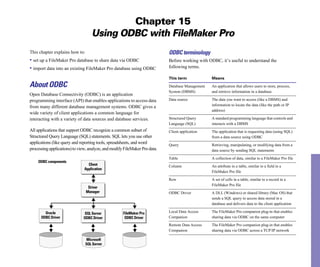
                                                                            page 6-19).
Keep these points in mind:
                                                                            • In Layout mode, the field name displayed within the field on the
• If you include field labels when you place a field and you then           layout appears as ::Field Name for related fields.
rename the field in the Define Fields dialog box, the field label
                                                                            • When you include a related field on a layout (not in a portal) and
changes to match the new field name on each layout where the field
                                                                            there is more than one related record, you see only the value from the
label appears.
                                                                            first related record. (The order of the related records depends on
• You can make data entry for a field easier and more consistent by         whether a sort order was specified when the relationship was
defining a value list, associating it with the field, then formatting the   created.) See “Deciding where to place related fields” on page 6-19
field as a pop-up menu, pop-up list, checkboxes, or radio buttons.          and “Defining relationships for relational databases and lookups” on
See “Defining a list of values for data entry” on page 7-3.                 page 12-10.
• To have FileMaker Pro insert field data into a line or block of text,
use merge fields (see the next section, “Placing merge fields”).            Placing merge fields
• To “close up” space between fields and other layout objects, omit         Use a merge field—placeholder text in Layout mode that is replaced
empty repetitions of repeating fields or empty portal rows, or reduce       by the field’s value when you browse, preview, or print the layout—
the size of an enclosing layout part, specify sliding options. (See         for documents like form letters, labels, envelopes, or contracts.
“About removing blank space from printed data” on page 7-22.)               Merge fields shrink or expand to fit the amount of text in the field for
                                                                            each record. (This behavior includes collapsing an entire line, such
• To put a static image (like a logo or graphic embellishment) on a         as an empty Address Line 2 field, if the field is by itself on a line and
layout so it appears in every record, create, paste, or import the
                                                                            the field contains no data.)
graphic directly onto the layout instead of using a container field. See
“Inserting graphics onto a layout” on page 7-16.                            For example, when the merge field <<First Name>> is between the
• Instead of placing fields, you can copy fields from other layouts         text Dear and :, (in other words, Dear <<First Name>>:) FileMaker Pro
and other databases. See “Copying, duplicating, and deleting                displays Dear Charles: in Browse mode or Preview mode if the First
objects” on page 6-13.                                                      Name field contains Charles.

Keep these points about related fields in mind:                             FileMaker Pro uses merge fields to create Labels and Envelope
                                                                            layouts.
• Before placing related fields on a layout, you should understand the
concepts in chapter 12, “Working with related files.”                       Note You can’t edit or enter values into a merge field.
6-18    FileMaker Pro User’s Guide


To place a merge field on a layout:                                          • You can insert a merge field by typing the field name, surrounded
1. In Layout mode, click with the arrow pointer where you want               by the << and >> symbols, directly on the layout. Note that the merge
FileMaker Pro to place the merge field.                                      field characters are not single characters (« and »), but double
                                                                             opening (<<) and closing (>>) angle brackets.
To insert the merge field into a line of text, click the text tool (in the
tool panel), then click where you want to set the insertion point in the     • To specify text attributes to be used when you browse, preview, or
text.                                                                        print the field data in a merge field, select the merge field name and
                                                                             the << and >> symbols in Layout mode, then select formatting
2. Choose Insert menu > Merge Field.
                                                                             options. To specify data formatting options (number, date, or time as
3. In the Specify Field dialog box, select the field to insert.              appropriate for the field type), click the selection tool, then click the
                                                                             merge field. Then select formatting options (see “Formatting field
      To insert a related field,                                             data on a layout” on page 6-21).
  choose a relationship name,
   then choose a related field                                               • A merge field displays and prints only as much text in Browse
                                                                             mode or Preview mode as will fit within the text boundaries you
         Select the field to add
                                                                             define for it (and any surrounding text) in Layout mode. If necessary,
                                                                             enlarge the text boundaries of the merge field to display as much data
                                                                             as you want.

                                                                             Deciding where to place related fields
To choose a related field, choose the relationship to use from the           You can place related fields directly on layouts or in portals. For
relationship list above the list of fields. Or choose Define Relationships   more information about relational database terminology, see
to create a relationship (see “Defining relationships for relational         “Relational database terminology” on page 12-2.
databases and lookups” on page 12-10). Then select a related field           • Place related fields directly on a layout to display data from the first
from the field list.                                                         related record in the related file, even when there are more than one
4. Click OK.
                                                                             related records that match the criteria of the relationship. (The first
                                                                             related record that’s displayed depends on whether the related
You see the field name enclosed by double opening (<<) and closing           records are sorted. For more information, see “Defining relationships
(>>) angle brackets on the layout.                                           for relational databases and lookups” on page 12-10.)
                                                                             • Place related fields within a portal on a layout to display data from
To remove a merge field, select the field name along with the << and         all related records in the related file that match the criteria of the
>> symbols, then press Backspace or Delete.                                  relationship.

Keep these points in mind:
• Insert punctuation and spaces between merge fields as needed on
the layout. Be careful not to type extra characters inside the
<< and >> symbols.
Creating and managing layouts and reports         6-19


For example, you might do the following on an Invoice layout in an
Invoices database:
• Place related fields on the invoice that displays data from the
Clients database, such as the client’s identification number and
contact information. (The match field is Client ID.) There is only one                                                              Related fields
record in the Clients database for each Client ID, so each related field                                                            directly on a layout
on the invoice displays the data for that client.
                                                                                                                                    Related fields
• Place a related field on the invoice that displays the most recent                                                                in a portal
value from the Order Date field in the Order History database.
(Again, the match field is Client ID.) If the client has placed more        Related fields in Layout mode
than one order, there are multiple records in Order History that match
this client’s Client ID. By defining a sort order on the Order Date
field when you define the relationship, the most recent date displays
in the related field when it’s placed directly on the layout (not in a
portal).
• Place related fields on the invoice that display data about each
                                                                                                                                    Data from one
ordered item, such as Product ID, Product Name, Unit Price, and so                                                                  related record
on. (The match field is Order ID.) Since in most cases there is more
than one product on the invoice (you’re displaying more than one
related record), you create a portal to hold the related fields. Each                                                               Data from all
                                                                                                                                    related records
row of the portal displays one related record with the related fields
you select from the Line Item database.                                     Related fields in Browse mode


                                                                           Creating and formatting portals to hold related fields
                                                                           Note Before you begin, be sure you want to place related fields in a
                                                                           portal (see the previous section, “Deciding where to place related
                                                                           fields”).

                                                                           1. In Layout mode, select the Portal tool in the tool panel.


                                                                                                Tool panel
                                                                                                                      Portal tool
6-20     FileMaker Pro User’s Guide


2. Position the crosshair pointer on the layout where you want the 
            To delete a portal, with the arrow pointer, select the portal, then press
portal to begin, then drag the pointer diagonally until the portal is the 
     Backspace or Delete, or choose Edit menu > Clear. If the portal
size you want.
                                                                 contains related fields or objects, deleting the portal doesn’t remove
3. In the Portal Setup dialog box, for Show records from, choose the 
          the contained objects. Nor does deleting the portal delete the
relationship to use. Or choose Define Relationships to create a 
               relationship defined for the portal.
relationship (see “Defining relationships for relational 

                                                                                To resize a portal row:
databases and lookups” on page 12-10). 

                                                                                1. Select the portal. 

4. Select options for the portal.
                                                                                You see selection handles at each corner of the first portal row.

                                                   Select the relationship to   2. Drag a selection handle.
 Select to allow related
  records to be deleted                            use, or define a new one
                                                                                The first row resizes and each other row resizes to match the first
(from the related file) in
          Browse mode                                                           row.

  Select portal options                                                         Keep these points in mind:
                                                                                • To sort the related records in a portal, you must specify a sort order 

                                                                                in the relationship definition. See “Defining relationships for 

                                                                                relational databases and lookups” on page 12-10.

For more complete information about portal options, see the                     • In most cases, you should enable Show vertical scroll bar in the 

FileMaker Pro onscreen Help. Choose Help menu > Contents and                    Portal Setup dialog box. If you don’t and there are more related 

Index, click the Index tab, and type portals,formatting.                        records than will fit in the number of portal rows you’ve defined, you 

                                                                                won’t be able to see all the related records or enter new related 

 First portal row                                                               records.

                                                                Portal
    Relationship                                                                • For information about creating new related records from the 

   for the portal
                                                                                current file or deleting related records when you delete a record in the 

                                                                                current file, see “Defining relationships for relational 

5. Click OK.                                                                    databases and lookups” on page 12-10. 

6. Place related fields in the portal. (See “Placing and removing               • You can display objects other than fields in portals. An object is in 

fields on a layout” on page 6-16.)                                              a portal if its upper-left corner is inside the portal. An object placed 

                                                                                in the first row of a portal is displayed once for each related record. 

To select a portal, with the arrow pointer, click the border of the
portal, or any other area within the portal that doesn’t contain a field
                                                                                • A portal can’t contain another portal. If you place a portal in a 

                                                                                portal, the portals overlap. 

or object.
Creating and managing layouts and reports      6-21


• To change the number of rows, the color or pattern of alternating       Note You can work with files that are created with different system
rows, or whether a scroll bar appears in a portal, double-click the       formats for numbers, dates, and times (for example, if you’re in the
portal. In the Portal Setup dialog box, change formatting options,        United States and you’re opening a database created in Australia).
then click OK.                                                            You have the choice of viewing and entering data either in the
• For information about working with portals in databases published       formats that the database was created with, or with your current
on the Web using the FileMaker Pro Web Companion, choose Help             system settings. To use the current system settings, in Browse mode,
menu > Contents and Index, click the Index tab, and type layouts,on       verify that Use System Formats is checked in the Format menu. (You
Web.                                                                      see this command only if you’re working in a database that was
                                                                          created with different system formats.) This change in format affects
                                                                          how data is displayed in number, date, or time fields when users edit
Formatting field data on a layout
                                                                          the data in Browse mode or Find mode, or when you select Leave data
Use FileMaker Pro field formats to control how data appears on a          formatted as entered in Layout mode. For more information, see the
layout. The formats you specify don’t change the data as it’s stored      FileMaker Pro Help. Choose Help menu > Contents and Index, click
in the database, and you can specify different formats each time you      the Index tab, and type system formats.
place a field on a layout (whether it’s on the same layout or a
different layout). For example, if you enter –5123 into a number          Keep these points in mind:
field, you can format it in one place to display as –$5,123.00 and in
                                                                          • You can set specific formats for number, date, and time fields, but
another place as <5123>.
                                                                          users can still enter data with extraneous characters (like “per
FileMaker Pro applies field formatting in the following precedence:       pound”). To explicitly control the type of data users enter in a field,
                                                                          specify validation options (see “About defining database fields” on
• If you don’t specify formats, FileMaker Pro displays numbers,           page 5-3).
dates, and times based on the system formats set in Regional Settings
in the Control Panel (Windows) or Numbers and Date & Time control         • If no fields are selected and you specify field formatting (text,
panels (Mac OS) when the file was created.                                number, date, time, or graphic), you set default field formats for that
                                                                          field and all fields of that type that you add later. Similarly, if you’ve
• In FileMaker Pro, you can specify display formats for text, number,     just created a field and it’s still selected, and you specify field
date, time, or container fields with no objects selected. FileMaker       formatting, you set default field formats. If you change these default
Pro applies these default formats to fields you place on layouts later.   formats later, FileMaker Pro does not retroactively change
For number, date, and time fields, these display formats override the     previously applied formats.
system formats.
                                                                          • To quickly display the format dialog box for the type of field
• Once you place fields, you can select one or more fields and specify    you’re working with, press Alt (Windows) or Option (Mac OS) as
formats.                                                                  you double-click the field. Or, right-click (Windows) or Control-
                                                                          click (Mac OS) the field and choose a command from the context
See the following sections for information on setting default and
                                                                          menu.
individual field formats.
6-22    FileMaker Pro User’s Guide


• In Layout mode, to set default field attributes from the attributes of   Keep these points in mind:
an existing field (for example, to specify that all new text fields you    • You can also format text (not in a field) on a layout. See
place have text attributes that match an existing field or all new         “Formatting text” on page 7-12.
number fields you place have number formats that match an existing
field), Ctrl-click (Window) or 2-click (Mac OS) the existing field.        • Use the Text Formatting toolbar (choose View menu > Toolbars >
                                                                           Text Formatting) or context menus for quick access to many text
Specifying text formats for fields                                         attributes. See “Using toolbars” on page 1-5 and “Using context
                                                                           menus” on page 1-5.
In Layout mode, you can specify a set of text character attributes for
each type of field. All the characters in that instance of the field
                                                                           Specifying formats for fields containing numbers
(including all repetitions of repeating fields) share the same font,
size, style, color, line spacing, tab, and paragraph settings.             You can control how FileMaker Pro displays the values in number
                                                                           fields, calculation fields with numeric results, summary fields, and
Note You can format characters in text fields in Browse mode (for          global fields defined as Number.
example, italicize or underline a word for emphasis). Unlike text
                                                                           1. In Layout mode, select one or more fields that display numeric
formatting specified in Layout mode, this formatting is stored with
the data, and you see it in any layout that displays that field.           values.
                                                                           2. Choose Format menu > Number.
1. In Layout mode, select one or more fields, then choose Format
                                                                           3. In the Number Format dialog box, select the formats you want to
menu > Text.
                                                                           use.
If no fields are selected or you’ve just placed a field and it’s still
                                                                           You see examples of the options you choose in the Sample area.
selected, you will set text formats for that field and for fields you
place later.
2. In the Text Format dialog box, select options, then click OK.

                                                                             Choose options
                                                                              for Boolean or
                                                                            decimal numbers
   Choose text
     attributes
                                                           Select one or
                                                           more styles     Define the symbols                                                Set options
                                                                            for thousands and                                                for negative
                                                                           decimal separators                                                values


                                                                                                                  Specify font, style, size, line
                                                                                                                  spacing, alignment, and color
For more complete information, see “Formatting text” on page 7-12.
Creating and managing layouts and reports    6-23


For more complete information about specifying number formats,             Specifying formats for date fields
see the FileMaker Pro onscreen Help. Choose Help menu > Contents           You can control how FileMaker Pro displays the values in date
and Index, click the Index tab, and type number fields.                    fields, calculation fields with date results, and global fields defined
4. Click OK.                                                               as Date.

Keep these points in mind:                                                 Note To avoid confusion when using dates in fields, always use
                                                                           four-digit years. For more information on how FileMaker Pro
• If you specify General format and the field value is a number with       handles Year 2000 issues, see www.filemaker.com.
10 or more digits, FileMaker Pro displays the number using scientific
notation, or rounds the number, or both, if necessary, to fit within the   1. In Layout mode, select one or more date fields, calculation fields
10-character maximum for the default field boundaries. When a              with a date result, or global fields defined as Date.
number is expressed in scientific notation, you see a decimal number
                                                                           2. Choose Format menu > Date.
expressed as a power of 10, for example, 123,456,789,000 would
be displayed as 1.2346E+11 (or 1.2346 x 10¹¹). If the field value is a     3. In the Date Format dialog box, select the formats you want to use.
number of fewer than 10 digits, specifying General format produces         You see examples of the options you choose in the Sample area.
the same result as specifying Leave data formatted as entered.
• If FileMaker Pro displays a number in a field as a ? try enlarging
the field boundaries in Layout mode to see the entire value. (When
you print a layout with a field that is displaying a ?, FileMaker Pro
prints as many digits as will fit within the field boundaries and                     Choose to display                                   Choose options
truncates the other digits.)                                               numbers either as entered,                                     for day, month,
                                                                           in a predetermined format,                                     date, year, and
• Numbers formatted as decimals are rounded when the number of               or in a format you specify                                   separator
decimal digits exceeds the specified fixed number of decimal digits.                                                                      characters
(For example, if you enter 789.78 and you specify 3 fixed digits, you              Set font, style, size,
                                                                                   color, line spacing,
see 789.780 in the field; if you specify 0 fixed digits, you see 790; if                and alignment
you specify -2 fixed digits, you see 800.) However, FileMaker Pro
stores and uses the unrounded number (up to 15 digits) for
calculations and summaries.                                                For more complete information about specifying date formats, see
                                                                           the FileMaker Pro onscreen Help. Choose Help menu > Contents and
• Only numbers are displayed and printed in a number field                 Index, click the Index tab, and type date fields.
formatted as decimal (except for separators and notations specified
in the Number Format dialog box). To display text and symbols (for         4. Click OK.
example, @1.98 per pound) in a number field, select Leave data
formatted as entered. If you use the field in a calculation or summary,    Keep these points in mind:
only the numeric value is used.                                            • No matter how you format a date field in Layout mode, whenever
                                                                           you click or tab into the field in Browse mode, FileMaker Pro
                                                                           displays the date with a 4-digit year.
6-24      FileMaker Pro User’s Guide


• If you specify Leave date formatted as entered but a year is entered   Note Use any of the time formatting options to format the time
with only two digits, FileMaker Pro stores, displays, and prints the     symbol, “::” (two colons), which displays the current time. In Layout
year with four digits to include the century.                            mode, select the symbol, then choose Format menu > Time. See
• Be sure to size the date field on the layout according to the format   “Inserting the page number, date, or other variable onto a layout” on
you choose. For example, the date Wednesday, May 5, 2002 needs           page 7-11.
more room than 5/5/02.
                                                                         Specifying formats for fields containing graphics
• Use any of the date formatting options to format the date symbol,      You can control how FileMaker Pro displays images in container
“//” (two slashes), which displays the current date. In Layout mode,     fields.
select the symbol, then choose Format menu > Date. See “Inserting
the page number, date, or other variable onto a layout” on page 7-11.    Note The following instructions also apply to formatting graphic
                                                                         objects that you insert onto a layout. (See “Inserting graphics onto a
Specifying formats for time fields                                       layout” on page 7-16.)
You can control how FileMaker Pro displays time values in fields.        1. In Layout mode, select one or more container fields or inserted
1. In Layout mode, select one or more time fields, calculation fields    graphics.
with a time result, or global fields defined as Time.                    2. Choose Format menu > Graphic.
2. Choose Format menu > Time.                                            3. In the Graphic Format dialog box, select the formats you want to use.
3. In the Time Format dialog box, select the formats you want to use.    You see examples of the options you choose in the Sample area.
You see examples of the options you choose in the Sample area.
                                                                           Choose how to fit the
                                                                            graphic in the frame

                                                                            Choose how to align                               Choose how to align
                                                                         the graphic horizontally                             the graphic vertically
    Choose to display times
    either as entered or in a
         format you specify


   Set font, style, size, color,
line spacing, and alignment                                              For more complete information about specifying graphic formats,
                                                                         see the FileMaker Pro onscreen Help. Choose Help menu > Contents
                                                                         and Index, click the Index tab, and type graphics.
For more complete information about specifying time formats, see
the FileMaker Pro onscreen Help. Choose Help menu > Contents and         4. Click OK.
Index, click the Index tab, and type time fields.
                                                                         Note The formatting options you choose do not affect the original
4. Click OK.
                                                                         graphic.
Creating and managing layouts and reports              6-25


About layout parts                                                                                         About layout part types
                                                                                                           Each layout must have at least one part.
FileMaker Pro layouts are divided into layout parts, sections of the
layout that determine how data in a field is treated and displayed. By
                                                                                                           Note The New Layout/Report assistant automatically creates the
using parts, you can control how FileMaker Pro prints data, for example:
                                                                                                           appropriate layout parts depending on the choice you make. You can
• once for each record                                                                                     add, change, or delete layout parts after you finish the assistant as
• only at the top of each page                                                                             needed. (See “Creating layouts and reports” on page 6-2.)

• only before or after groups of sorted records (for example, to                                           Layout part      Description
include a subtotal for each group of records)
                                                                                                           Title header 	   Appears only once at the top of the first screen or page and
                                                                                                                            replaces the normal header (if one is specified). In reports, can
Layout parts can contain fields, portals, buttons, text, and other                                                          be used to print a separate title page. You can have only one
objects. In Layout mode, dotted horizontal lines mark the division                                                          title header in a layout.
between layout parts, and the part label appears at the left end of the                                                     A field in the title header displays data from the first record in
bottom dividing line.                                                                                                       the found set.

                                                                                                           Header	          Appears at the top of every screen or page (unless you add a
                                                                                                                            title header, which supersedes the header on the first page).
                                                                                                                            Use for titles or column headings (in columnar reports). You
                                                                                                                            can have only one header in a layout.
     Header                                                                                                                 A field in the header displays data from the first record on that
      Body                                                                                                                  page.
Subsummary                                                                                                 Body	            Each object you put in the body, including fields, text objects,
     Trailing                                                                                                               and graphics, appears once for each record in the found set.
      Grand                                                                                                                 You can have only one body in a layout.
   Summary
                                                                                                           Footer	          Appears at the bottom of every screen or page (unless you add
            Footer                                                                                                          a title footer). You can have only one footer in a layout.
                                                              Sales Report

                                           Agent Name             Product ID          Qty         Amount
                                                                                                                            A field in the footer displays data from the last record on that
          A subsummary below the body      David Michaels
                                           David Michaels
                                                                  ET3
                                                                  ET4
                                                                                      1
                                                                                      1
                                                                                                  $29.95
                                                                                                  $32.25
                                                                                                                            page.
              summarizes data for each     David Michaels         ET1                 2           $73.90

          group of records sorted on the   David Michaels         ET5                 3           $98.85
                                                                                                           Title footer	    Appears only once at the bottom of the first screen or page and
               break field (Agent Name)                                               Total   $234.95
                                                                                                                            replaces the normal footer (if one is specified). You can have
                                           Sophie Tang            ET6                 2           $64.50
                                           Sophie Tang            ET7                 5           $12.50                    only one title footer in a layout.
                                           Sophie Tang            ET2                 2           $25.00

                                                                                      Total   $102.00                       A field in the title footer displays data from the last record on
                Trailing grand summary                                  Grand Total           $336.95                       the first page.


                                 Footer             EveryWhere Travel Confidential    June 1999
6-26    FileMaker Pro User’s Guide


To include summary data on a layout (for example, subtotals, grand                 For example, to summarize each salesperson’s sales figures in a
totals, averages, counts, and so on), you place summary fields in                  database recording sales transactions, define a summary field
summary layout parts (see “Defining summary fields” on page 5-6).                  totaling the Sales field, and then create a subsummary part and place
Summary parts include grand summary and subsummary parts.                          that summary field in it (the break field is the salesperson’s name). If
• A grand summary part usually contains one or more summary                        you also want a count of that salesperson’s transactions, create a
fields that display summary information (like totals) about all                    second summary field counting the transactions, and also place it on
records being browsed.                                                             the same subsummary part. To get a grand total of all transactions,
                                                                                   place the sales summary field in a grand summary part.
• A subsummary part usually contains one or more summary fields
that display “subsummary” information (like subtotals) for a subset                Adding or changing layout parts
of records. The records are grouped (sorted) by values in another
                                                                                   To add a layout part to a layout, first decide what kind of part you
field, the break field. Whenever the value of the break field changes,
                                                                                   need and where it should go. If you’re defining a subsummary part
the report “breaks” and FileMaker Pro inserts the subsummary part.
                                                                                   that summarizes a set of records, you also choose what field to group
                                                                                   or sort the layout by (the break field). Finally, define how the part
Layout part    Description
                                                                                   affects page breaks and page numbering.
Grand          When you place a summary field in this part, the summary
summary        field displays summary information for all records in the
(leading or    found set. The grand summary part can be at the beginning
trailing)      (leading) or end (trailing) of the report, depending on its
               placement on the layout. You can have only one leading grand
               summary and one trailing grand summary in a layout.                  Part label
               If you put another type of field in this part, FileMaker Pro
               displays data from the first record (leading) or last record
               (trailing) being browsed.                                             Part tool
                                                                                                                            A part includes the area between
Subsummary     When you place a summary field in this part, the summary                                                     the dotted lines that separate parts
(leading or    field displays “subsummary” information for each subset of
trailing)      records sorted by the specified break field. The subsummary
               part can be before or after the body part, depending on the         To add a layout part:
               placement on the layout. You can have multiple subsummary           1. In Layout mode, choose Layouts menu > Part Setup.
               parts in a layout.
                                                                                   2. In the Part Setup dialog box, click Create.
               If you put another type of field here, FileMaker Pro displays
               data from the first record (leading) or last record (trailing) in   3. In the Part Definition dialog box, select the type of layout part you
               the group. Put the break field here to identify what subset of      want. See the previous section, “About layout part types,” for a
               records the summary is for.                                         description of each part type.
Creating and managing layouts and reports              6-27


                                                                           3. In the Part Definition dialog box, make your changes.

                                                                           To change              Do this

     Select the type                                                       From one type of       Select a different part type. Changes you can make
    of part to create                                                      part to another        depend on the part’s location and function.

                                                                           The break field        In the fields list, select a different field name.

  Select options for                                                       Page breaks and        See “Defining page breaks and numbering” on page 6-29.
   page numbering                                                          numbering
        and breaks

                                                                           Dimmed types are not available because either:
Part types that are already on the layout are dimmed (only
subsummary parts can exist more than once on a layout).                    • that part type already exists (only subsummary parts can exist more
                                                                           than once on a layout)
4. If you’re adding a subsummary part, after you click Sub-summary
when sorted by, select the name of the field that you want to group the    • the part you’re changing is not in the right place on the layout (for
records by (the break field).                                              example, a title header must be at the top of the layout)
When the records are sorted by the break field, all records with the       4. Click OK.
same value in that field are grouped so that FileMaker Pro can
calculate subsummary data. (For example, if you wanted to subtotal         Keep these points in mind:
sales figures for each region, the break field would be Region.) For       • To quickly add a layout part, you can drag a part from the Part tool
more information, see the next section, “Viewing or printing               on the status area to the position you want it on the layout. Or, you
subsummary or grand summary data.”                                         can use the Insert Part button on the Tools toolbar (choose View
5. If desired, select page break and page numbering options.               menu > Toolbars > Tools). After you place the part, you see the Part
                                                                           Definition dialog box. Some parts must go in specific places (for
See “Defining page breaks and numbering” on page 6-29.
                                                                           example, trailing subsummary parts must go beneath the body), so if
6. Click OK, then click Done.                                              the type you want is dimmed in the Part Definition dialog box, click
                                                                           Cancel and try again.
After you define a part, you can change its type, break field (if it’s a
subsummary part), and pagination options:                                                                                          Part tool and boundary
                                                                                                                                   appear as you drag the
1. In Layout mode, choose Layouts menu > Part Setup.                                         Part tool                             part onto the layout
2. In the Part Setup dialog box, select the part, then click Change.
                                                                           • You can add fields, portals, graphic objects, and text to any layout
                                                                           part. FileMaker Pro considers an object to be in a part when the top
                                                                           of the object is in or just touching the part. For example, if the top of
                                                                           a field touches the bottom division line of the header part, the field
                                                                           displays and prints only in the header and not in the body.
6-28    FileMaker Pro User’s Guide


• For more information about setting up layouts for web publishing,           Note You must define a summary field for each field you want
see “Setting up browser views” on page 12-10.                                 summarized. You then place these summary fields in the summary
• To apply a color or pattern to a layout part, click the part label, then,   layout part. To define a summary field, see “Defining summary
in the status area, choose from the fill color palette, fill pattern          fields” on page 5-6.
palette, or both. (The color you specify for the body part also affects
                                                                              After you have added a grand summary or subsummary part:
the background of the table in View as Table.)
                                                                              1. On the layout, drag the summary field into the grand summary or
• FileMaker Pro doesn’t display subsummary layout parts when you
                                                                              subsummary part.
specify View as List in Browse mode or Find mode. You only see
subsummary parts and subsummary data calculated correctly in                  See “Placing and removing fields on a layout” on page 6-16.
Preview mode or in a printed report (see the next section, “Viewing           2. If you have a subsummary part, sort the found set by the break
or printing subsummary or grand summary data”). FileMaker Pro                 field you specified when you created the part (see “Sorting records”
also doesn’t display or print subsummary or grand summary parts               on page 3-8).
when you specify View as Table in any mode.
                                                                              3. Choose View menu > Preview Mode.
• When viewing or moving objects on a layout, you might want to
move the part labels if they’re in your way. To flip part labels up or        Keep these points in mind:
down, in Layout mode, click the part label control      at the bottom
                                                                              • When you use the New Layout/Report assistant to create a layout,
of the window.
                                                                              you can choose to create a ScriptMaker script to perform the
• You can eliminate blank spaces in fields or parts when printing.            specified sort on the break field and then switch to Preview mode.
See “About removing blank space from printed data” on page 7-22.              You can also define a script yourself to automate this (see “Creating
                                                                              scripts: an overview” on page 12-3).
      Place a subsummary part,                                                • Use the script generated by the New Report/Layout assistant to
       containing only the Agent
   Name field, above the body to                                              view or print a subsummary report (report with grouped data and
   place the agent name in front                                              totals).
         of that group of records
      Place a subsummary part,
                                                                              • When you view records as a list in Browse mode (View menu >
       which totals the sales for                                             View as List), subsummary parts aren’t displayed. To see subsummary
     each agent, below the body
                                                                              parts when viewing a layout as a list, switch to Preview mode or print
                                                                              the list.
                                    Use a grand summary to view the total
                                    sales for all agents in the company       • You can have only one leading and one trailing subsummary part
                                                                              based on the same field.
Viewing or printing subsummary or grand summary data                          • If you’re having trouble getting summary information to display or
FileMaker Pro displays subsummary parts and calculates                        print, see the troubleshooting section in the FileMaker Pro onscreen
subsummary data correctly only in Preview mode or in a printed                Help. Choose Help menu > Contents and Index, click the Index tab and
report (see “Previewing data on a layout” on page 4-3).                       type subsummary reports.
Creating and managing layouts and reports   6-29


Defining page breaks and numbering                                                        Keep these points in mind:
You can set options for page breaks and page numbering when you                          • If your layout is set up to print records in columns and you’ve
add a layout part or change a part definition. (When you add a part,                     specified to print records down the page, choose Page break after every
you automatically see the Part Definition dialog box.) To change                         <value> occurrences to start a new column (not a new page) after the
options for an existing part:                                                            part. If the column setup is to print records across the page, the
1. In Layout mode, choose Layouts menu > Part Setup.                                     specified page break starts a new page. (See “Setting up to print
                                                                                         records in columns” on page 6-9.)
2. In the Part Setup dialog box, select the part, then click Change.
                                                                                         • If the body or other layout part is too large to fit on the printed page,
You can also double-click the part label on the layout.                                  FileMaker Pro displays a page break as a heavy, dashed line on the
3. In the Part Definition dialog box, specify pagination options.                        layout to show where it will divide the part when you print. To fit
Dimmed options are not available for the selected part type.                             more on the page, you can set sliding options to dynamically shrink
                                                                                         fields and the enclosing part if the fields contain variable amounts of
To                                              Select                                   information. See “About removing blank space from printed data”
Start a new page before printing the          Page break before each occurrence.
        on page 7-22.
contents of the selected part (for example, 

print a trailing grand summary on a new 
                                                Reordering layout parts
page)

                                                                                         You can change the order of only the body and subsummary parts;
Start a new page after printing the contents    Page break after every <value> 
         other parts, like the header and footer, must appear in a specific
of the selected part the specified number       occurrences (replace the default 

                                                                                         order, so they can’t be moved. For example, move a subsummary
of times (for example, print five records in    value 1 if you want more than one 

the body, then start a new page)                occurrence per page).

                                                                                         part above the body to see subtotals first.

Reset the page number to 1 after the         Restart page numbers after each 
           1. In Layout mode, choose Layouts menu > Part Setup.
selected part prints (for example, start     occurrence.

page numbering after a title header if you 
                                             2. In the Part Setup dialog box, drag the name of the part to the new
want it to serve as a cover page)
                                                       location.
Print part of the contents of the layout part   Allow part to break across page 

at the bottom of the page and the rest on the   boundaries.
                              This symbol indicates
                                                                                          that you can’t change
next page (FileMaker Pro won’t split the        To keep the portion of the part that 
        the part’s position
contents of a part across two pages unless      will not fit on the bottom of the 
       relative to other parts
you specify this option, or the height of the   page from printing at the top of the 
    Use the double-arrow
part won’t fit on a single page)                next page, also select Discard 
           pointer to drag a part
                                                remainder of part before new page.


4. Click OK, then click Done.


                                                                                         A part that can’t be moved has a lock icon to the left of its name.
6-30   FileMaker Pro User’s Guide


3. Click Done.                                                             Important Deleting a part using the Part Setup dialog box can’t be
FileMaker Pro moves all the fields and objects in the part and             undone.
maintains its proportions.
                                                                           1. In Layout mode, choose Layouts menu > Part Setup.

Note To quickly move a part directly on the layout, Shift-drag the         2. In the Part Setup dialog box, select the part to delete, then click
part label (or the dotted line that marks the bottom of the part).         Delete.
                                                                           If the part contains objects, FileMaker Pro displays a dialog box
Resizing layout parts                                                      asking you to confirm the deletion.
In Layout mode, use the arrow pointer to drag the part label (or the       3. Click Done.
dotted line that marks the bottom of the part) until the part is the
height you want.

Keep these points in mind:
• When you resize a layout part, FileMaker Pro maintains the size of
the other parts. For example, you can increase the height of the
header part, but this won’t affect the size of the part directly
following the header part.
• Alternately, if you want to maintain the height of the entire layout
while changing the size of one layout part, Alt-drag (Windows) or
Option-drag (Mac OS) the part boundary. (This causes the size of the
layout part immediately below the part you’re changing to also
change.)
• You can’t make a part smaller than the objects that it holds (in other
words, you can’t shrink a part by dragging its boundary across an
object) unless you press Alt (Windows) or Option (Mac OS) as you
drag the part boundary.
• If you reduce a layout part to nothing by dragging it under the part
above it, FileMaker Pro deletes the part from the layout.

Deleting layout parts
You can delete all but the last part that remains on a layout. Deleting
a part doesn’t affect your data. Before you delete a layout part, drag
any objects you want to keep to another part on the same layout.
Chapter 7
                                                     Customizing layouts
After creating a layout, you can change its appearance or the way the           Adding borders, fill, and baselines to fields
layout works. This chapter explains how to:                                     To enhance the appearance and usability of your layout, you can add
• customize how fields or other objects on a layout look                        or customize:
• change how users interact with fields on a layout, for example, by            • borders around fields
adding scroll bars or changing the order fields are tabbed through              • the background color and pattern, or fill, of fields
• define a list of values that can be used for data entry in one or more        • the dotted guidelines, or text baselines, that appear in a field at the
fields on a layout                                                              base of the text to help you align it with other objects
• add text or graphics to a layout, like titles or a logo
• use tools available in FileMaker Pro to help you position and work            1. If you’re not already in Layout mode, choose View menu > Layout
with objects on a layout                                                        Mode.

• change the way data on a layout prints                                        2. Select one or more fields.
                                                                                Or, to specify attributes for fields you add later, start with no fields
For information on creating a layout, placing or removing fields on a           selected.
layout, controlling how data is formatted in a field, or adding layout parts,   3. Choose Format menu > Field Borders.
see the previous chapter, “Creating and managing layouts and reports.”
                                                                                4. In the Field Borders dialog box, select the formats you want to use.
                                                                                You see examples of the options you choose in the Sample area.
Customizing fields on a layout
You have a variety of options for controlling how fields look and
how users interact with fields. In most cases, if you specify these                     Choose which
                                                                                  portion of the field to
options with no fields selected or if you’ve just placed a field and it’s          assign attributes to
still selected, you set behavior for fields you place on the layout later.
                                                                                      Choose Borders,
If you select one or more fields before you set options, you format                   Baselines, or Fill
the selected fields.
                                                                                                     Choose a color,    You see a representation
                                                                                              pattern, and line width   of the choices you make
For information about selecting fields and other objects, see
“Selecting objects” on page 6-12.

Tip Choose the Field Borders or Field Format command by right-
clicking (Windows) or Control-clicking (Mac OS) a field or fields.
7-2    FileMaker Pro User’s Guide


To                         Do this                                                    • You can also specify an effect (Embossed, Engraved, or Drop
                                                                                      Shadow) for fields with the effect pop-up palette in the status area.
Add borders to fields      Select any combination of Top, Bottom, Left, or Right.
                                                                                      See “About object effects” on page 7-15.
and set their attributes   From the format list, choose Borders and choose a
                           color, pattern, and line width from the pop-up palettes.
                                                                                      Adding scroll bars to fields
Add text baselines and Select Text baselines. From the format list, choose
set their attributes   Baselines, then choose a color, pattern, and line width        Add a vertical scroll bar to a field to see more data than fits in the
                       from the pop-up palettes.                                      field’s boundaries in Browse mode. (You can’t add scroll bars to
Add a fill color,          From the format list, choose Fill, then choose a color,    container, summary, or repeating fields, or fields formatted to use a
pattern, or both to        pattern, or both from the pop-up palettes. (The            value list.)
fields                     checkboxes have no effect on fill attributes.)
                                                                                      1. In Layout mode, select one or more fields.
Add borders between      Select Between repeating values. From the format list,
repetitions in repeating choose Borders, then choose a color, pattern, and            Or, to specify attributes for fields you add later, start with no fields
fields                   width from the pop-up palettes.                              selected.
                           This option inserts lines between occurrences of           2. Choose Format menu > Field Format.
                           repeating fields. To also include borders around
                           repeating fields, select any combination of Top,
                           Bottom, Left, or Right.
                                                                                          Click to add a
                                                                                      vertical scroll bar
5. Click OK.

Keep these points in mind:
• The settings you choose in the Field Borders dialog box affect the
appearance of the field in all modes. If you just want to see field
boundaries in Layout mode to, for example, align fields, choose View
menu > Show > Field Boundaries. On the other hand, if you want to
see the effects of Field Border settings while in Layout mode, hide
Field Boundaries.
• You can also change a field’s fill and border formats using the fill                3. In the Field Format dialog box, for Style, select Standard field, then
and pen pop-up palettes in the status area. (You must have already                    click Include vertical scroll bar.
specified borders in the Field Borders dialog box.) Changes made in
the status area to the fill and pen settings replace settings in the Field            4. Click OK.
Borders dialog box, and vice versa. See “Setting color, pattern, line
width, and object effects” on page 7-14.
Customizing layouts           7-3


Keep these points in mind:                                                      2. In the Define Value Lists dialog box, click New.
• Scroll bars are always displayed if you set the field borders option
for the right side of the field. Otherwise, they display only when you          Click to sort by
                                                                                  a heading or
tab into the field. See “Adding borders, fill, and baselines to fields”           drag column
on page 7-1.                                                                        boundaries

• When you print a field or a portal with a scroll bar, FileMaker Pro               Value lists
                                                                                    defined in
prints only the data visible without scrolling. To print all the data,                 the file
duplicate the layout and enlarge the field or portal, then specify
sliding options to remove the extra blank space when you print. See
“About removing blank space from printed data” on page 7-22.

                                                                                                                               Drag to resize dialog box
Defining a list of values for data entry
If a field uses the same set of values for many or all records, you can
                                                                                3. In the Edit Value List dialog box, for Value List Name, type a name.
have users choose values from a value list. A value list lets you
define frequently used text, number, date, or time values and then
format the field to display the values in a pop-up menu, a pop-up list,            Type a name for
or as series of checkboxes or radio buttons. This provides a fast,                    the value list

accurate way to enter or validate data in fields.

                                                                                Choose a method to
                                                     Choose from a list of        create the values
                                                     values during data entry      for the value list
                     Value list attached to the Category field


You can define a value list in a number of ways. The most general,
least restrictive way is to define the value list first and then assign it
to one or more fields. You can also define the value list when you’re
specifying formatting options in Layout mode.

To define a value list:
1. Choose File menu > Define Value Lists.
7-4    FileMaker Pro User’s Guide


4. Define the value list:                                                                  To                           Do this
To                         Do this                                                         Also display           Follow the instructions in one of the previous two table
                                                                                           associated values from rows. Then, click Also display values from and select a
Define static values       Select Use custom values, then type each value on a
                                                                                           a second field         field name. Select this option to display the values
for the value list         separate line, in the order you want them to appear.
                                                                                                                  from a corresponding field next to the values in your
                           Press Enter (Windows) or Return (Mac OS) to separate
                                                                                                                  value list. For example, to help with data entry, you
                           each value.
                                                                                                                  could display part names next to part numbers.
Create values             Select Use values from field. In the Specify Fields for
                                                                                                                        You can also choose which field to sort the value list
dynamically from all Value List dialog box:
                                                                                                                        by if you’re not using Only related values. To display
the values in another     1	 To use a field from the current file, make sure All                                        both values sorted by the values in the first field, select
field in the current file    values is selected, then in Use values from this field,
                             select the field name.                                                                     first field for Sort value list by. To base the sort on the
or in another file
                          1	 To use a field from a different file, click Specify File,                                  values in the second field, select second field. If you
                             then choose a filename and click Open. Make sure                                           choose first field, duplicate values will not display for
                             All values is selected, then in Use values from this field,                                the first field; if you choose second field, duplicate
                             select the field name.                                                                     values will not display for the second field.
                          If you want to display values from a second field, see
                                                                                                                        Click OK.
                          “Also display associated values from a second field,”
                          later in this table. Otherwise, click OK.                        Use a value list             Select Use values from another file. In the Specify
                                                                                           defined in another           External Value List dialog box, click Specify File, then
Create values              Select Use values from field. In the Specify Field for 

                                                                                           FileMaker Pro file           select a filename and click Open. For Value List, choose
dynamically from a         Value list dialog box, select Only related values and 

                                                                                                                        or define a value list, then click OK. In the Edit Value
subset of values in        choose or define a relationship from the relationship 

                                                                                                                        List dialog box, click OK.
another field (the         list. Then, in Use values from this field, select the field 

subset is determined       name.

by a relationship)        If you want to display values from a second field, see 

For more information, “Also display associated values from a second field,” 

                                                                                                 Use all field values
see “About displaying next in this table. Otherwise, click OK.

                                                                                                Display only related
only a subset of field 
                                                                                 field values
values in a value list” 
                                                                           Select a field to
on page 7-5.
                                                                                         use its values


                                                                                                                                                    Select a second field
                                                                                                                                                    to display values from


                                                                                           5. In the Define Value Lists dialog box, click Done.
Customizing layouts   7-5


To change, duplicate, or delete a value list:                                           • If you have chosen to generate a value list from values in a field
1. Choose File menu > Define Value Lists.                                               (Use values from field) and you’re also displaying associated values
                                                                                        from a second field, when a user chooses a value for this field in
2. In the Define Value Lists dialog box:
                                                                                        Browse mode, the value from the second, associated field is not
To                                  Do this                                             stored in the field—only the first field is captured.
Change the values in a value list In the list of value list names, select the value
or how the values in a dynamic list, then click Edit. In the Edit Value List
                                                                                        About displaying only a subset of field values in a value list
value list are generated          dialog box, make changes.Then, click OK.              If you are generating the values in a value list from a field, you can
Duplicate a value list	             In the list of names, select the value list, then   have FileMaker Pro dynamically change the value list’s values based
                                    click Duplicate.                                    on the values in a second field. In other words, the value list will only
                                                                                        display values in the first field from related records where the
Delete a value list	                In the list of names, select the value list, then
                                    click Delete. In the confirmation dialog box,
                                                                                        relationship definition is met by a value entered into the second field.
                                    click Delete again.
                                                                                        For example, imagine you have a database called Product that
                                                                                        tracked a large number of inventory items. You could define a value
3. In the Define Value Lists dialog box, click Done.
                                                                                        list and assign it to the Product Name field to display only a subset
                                                                                        of those items based on values in a second field, Category. During
Keep these points in mind:
                                                                                        data entry, when you specify the value of the Category field (for
• You can also use a value list to validate the values entered for any                  example, Accessory), only the Product Name values where the
field. This keeps data accurate by preventing users from entering                       Category equals Accessory show up in the value list. Similarly, if the
values that aren’t in the value list. (See “Defining field validation”                  value of Category changes to Clothing, the values for Product Name
on page 5-9.) And, you can sort records in the order of a value list,                   change to those records where Category matched Clothing.
for example, sort by month or region. (See “Sorting records” on
page 3-8.)
• FileMaker Pro sorts value list items created from values in a field
alphabetically, and duplicate values are not displayed.
• Redefining a value list item after data has been entered might cause
unexpected results. For example, if you change a value list item from                            Value list based on key field value “Accessory”
Accessory to Accessories, the field will appear to be empty on
layouts where the field is formatted as a checkbox or radio button.
Also, you will not find the existing records if you search for
Accessories. For information on replacing values in fields, see
“Replacing data in fields” on page 2-10.

                                                                                                 Value list based on key field value “Clothing”
7-6   FileMaker Pro User’s Guide


In the above example, you would perform the following basic steps:                                                                              Name of field
                                                                                                                                                selected on a
1. Define a value list for Product Name with the Use values from field                                                                          layout
and Only related values options.
                                                                                Choose how to                                                   Select or define
2. Define a relationship to the same database file (a self-join) and       display the value list                                               a value list
specify Category as the match field. (See “Defining relationships for
relational databases and lookups” on page 12-10.)
3. Specify that the value list use values from the related field Product
Name.

When you enter a value for Category, FileMaker Pro retrieves the                                    Assigning a value list to a field
related records where Category matches the value you entered, and
displays the corresponding Product Name values in the value list.          3. In the Style area of the Field Format dialog box, select the second
                                                                           radio button, then choose how you want FileMaker Pro to display the
Note Both the field with the value list values and the match field for     value list.
the relationship must reside in the same file, for example, Category
and Product Name from the example above.                                   To                          Do this

                                                                           Select a format for the Choose the format you want from the list to the left of
Formatting fields to use a pop-up list, pop-up menu,                       value list              using value list:
checkboxes, or radio buttons to display a value list                                               1	 Choose Pop-up list to display value list items in a list.
                                                                                                      Users can use the arrow keys or “type ahead” to
Once you have defined a value list, you assign it to the field on each                                select a value.
layout where you want to use it.                                                                   1	 Choose Pop-up menu to display value list items as a
                                                                                                      pop-up menu. Users must select items by using the
To assign a value list to a field and determine how it’s displayed:                                   mouse.
                                                                                                   1	 Choose Check boxes to display value list items next
1. In Layout mode, select the field.                                                                  to a series of checkboxes.
2. Choose Format menu > Field Format.
                                                                                                   1	 Choose Radio buttons to display value list items next
                                                                                                      to a series of radio buttons.

                                                                           To allow the user to    Select Include “Other…” item to allow entry of other
                                                                           enter values other than values. (This option is not available for Pop-up list
                                                                           those defined by the    because users can always type any value into the list.)
                                                                           value list

                                                                           To allow the user to    Select Include “Edit…” item to allow editing of value list.
                                                                           edit the values defined This option is not available for fields formatted as
                                                                           by the value list       checkboxes, radio buttons, or for value lists based on
                                                                                                   another field’s values.
Customizing layouts         7-7


                                                                             Formatting repeating fields
     Checkboxes                          Radio buttons                       If you define a field as a repeating field, you can format the field to
                                                                             display only a certain number of the repetitions, even though the
                                                                             information for all the repetitions is stored in the database. See
                                                                             “About repeating fields” on page 5-11.
     Pop-up menu
                                                                             1. In Layout mode, select one or more repeating fields, then choose
                                         Pop-up list                         Format menu > Field Format.
                                                                             In the Field Format dialog box, for Repetitions, select options.
4. Choose the name of the value list to assign to the field from the list
to the right of using value list.
                                                                                  Specify the number of
Or, choose Define Value Lists to create a value list (see “Defining a list        repetitions visible in a
of values for data entry” on page 7-3). If you define a value list here,            repeating field, and
                                                                                        their orientation
you can still use it for other fields.
5. Click OK.
                                                                             To                              Do this

Keep these points in mind:                                                   Specify the number of           For Show <value> of field’s n defined repetitions,
                                                                             repetitions visible on          type a number (the n represents the maximum
• Formatting a field with a checkbox allows users to enter more than         the layout                      number of repetitions specified when the field
one value for a field. If more than one value is entered for a record,                                       was defined).
FileMaker Pro displays only the first of those values on a layout
                                                                             Choose an orientation           For Use <value> orientation, choose vertical to stack
where the field is not formatted with a checkbox (for example, a             for displaying field            the repetitions in a column or horizontal to position
columnar report).                                                            repetitions                     the repetitions side-by-side in a row.
• Change the arrangement of value list items in checkboxes and radio
buttons by resizing the field. A field that is taller than it is wide        2. Click OK.
displays items stacked vertically. A field that is wider than it is tall
displays items side-by-side horizontally.                                    Keep these points in mind:
• For more information about setting up layouts for web publishing,          • To reshape or resize all visible occurrences of a repeating field, use
see “Setting up browser views” on page 12-10.                                the handles that appear around the first occurrence.
                                                                             • FileMaker Pro stores the data in all repetitions of a repeating field
                                                                             even if you change the formatting of the field so that not all of the
                                                                             repetitions are visible.
7-8    FileMaker Pro User’s Guide


Allowing or preventing entry into fields                                                Note Clearing Allow entry into field for a field only affects the field on
You can allow or prevent entry into a field in Browse and Find                         that layout. To always restrict access to a field on any layout of the
modes. For example, you can restrict entry into a field containing a                   database, define “read only” access privileges for that field. See
serialized number, like an invoice number, so the field can’t be                       “Defining groups” on page 12-3. You can also limit a user’s ability
modified.                                                                              to edit a field’s value if, when defining the field, you specify an auto-
                                                                                       entered value and select Prohibit modification of value. See “Defining
If you allow entry into a field, you can control whether the entire                    automatic data entry” on page 5-8. You may want to allow entry into
contents of the field is selected when you click or tab into the field in              fields set to prohibit modification so values can be copied to the
Browse mode or Find mode (otherwise, FileMaker Pro places the                          Clipboard or values can be entered and searched for in Find mode.
insertion point after the last character in the field).
                                                                                       Setting the tab order for data entry
To customize entry into a field:                                                       When you press Tab in Browse mode or Find mode, the default
1. In Layout mode, select one or more fields.                                          FileMaker Pro behavior is to make fields active from left to right and
                                                                                       top to bottom. You can change this default tab order in a number of
Or, to specify attributes for fields you add later, start with no fields
                                                                                       ways.
selected.
2. Choose Format menu > Field Format.
                                                 1. In Layout mode, choose Layouts menu > Set Tab Order.
In the Field Format dialog box, for Behavior, select options.
                         FileMaker Pro displays numbered arrows pointing to each of the
                                                                                       fields on your layout, along with the Set Tab Order dialog box.


To                                   Do this

Prevent entry into a field           Clear Allow entry into field.

Select the entire field’s contents   Select Select entire contents of field on entry
when the field is entered            (Allow entry into field must also be selected).


3. Click OK.
                                                                                              Each arrow indicates the field’s position in the tab order
Customizing layouts   7-9


2. In the Set Tab Order dialog box, specify the options you want to                                   First li k
                                                                                                      Fi click       Second click     Third click
use:
To                       Do this                                                       Fourth click

Reorder the tab order    Select Edit tab order. Click the field whose order you                       Horizontal tab order for repeating fields (left to right)
for individual fields	   want to change and type a new number for the arrow.
                         The number you replace is swapped with the number                            First            Second           Third
                                                                                                                                        Second
                         you type.                                                                    double-click     double-click     double-click

Define a new tab order Select Create new tab order and click the fields in the
for all fields         new order. FileMaker Pro inserts numbers in that order
                       in the arrows.
                                                                                                      Vertical tab order (top to bottom down each field)
Omit fields from the     As you set a new tab order, don’t click the fields you
tab order                want to omit. For fields that already display a number,
                         select the number and press Backspace or Delete.
                                                                                     • To set the tab order to tab through the first repetition of each
                                                                                     different repeating field, click in the upper-left field. The arrow
Restore the default tab Click Revert to Default.                                     blinks as you select the order to tab through the first repetitions of
order                                                                                the other fields. Click the upper-left field again and FileMaker Pro
                                                                                     completes the tab order for the remaining repetitions of the
3. Click OK.                                                                         repeating fields using the same pattern you used.
                                                                                     • To set the tab order to first include all of the (visible) repetitions
If there are some fields on the layout that you have not included in                 of the first repeating field, double-click the first occurrence of the
the tab order, you see a dialog box that asks if you want to make those              repeating field. FileMaker Pro fills in the numbers for all the
fields available when tabbing. If you do not want to include them,                   repetitions. Then, double-click the first occurrence of the next
click Omit; otherwise, click Add (they will be added at the end of the               repeating field to get the next series of tab-order numbers, and so on.
tab order).                                                                        • Summary fields can’t be included in the tab order. Calculation
                                                                                   fields can be included in the tab order, but you can’t tab into them in
Keep these points in mind:                                                         Browse mode (only in Find mode). Fields that are formatted to
• A blank arrow indicates a field that is omitted from the tab order.              prevent entry can’t be tabbed into in Browse mode or Find mode.

• For multiple repeating fields, you can specify whether to tab                    • Setting a tab order has no effect on data entry when you are
through the first repetition of each different field first (the default) or        working with data published on the Web using the FileMaker Pro
down within the same field first.                                                  Web Companion. For more information about setting up layouts for
                                                                                   web publishing, see “Setting up browser views” on page 12-10.
7-10    FileMaker Pro User’s Guide


Customizing the appearance of a layout                                 • a form letter, with merge fields displaying data
You can enhance the design of a layout in a number of ways,
                                                                       • the current date, page number, or record number
including:
                                                                       Add text anywhere on a layout. Text typed or pasted onto a layout is
• adding text outside of fields                                        an object, which you can manipulate in the same way as any other
• using the drawing tools to add lines, rectangles, or other shapes    object. For example, you can assign a background color or rotate a
                                                                       text object.
• adding a graphic or QuickTime movie
See “Working with the layout tools” on page 6-11 for more              Note To add or change text in your database fields, switch to Browse
information about layout tools.                                        mode.

         Tools toolbar
                                                                       To type text on a layout:
                                                                       1. In Layout mode, select the text tool  in the tool panel or Tools
                                                                       toolbar (choose View menu > Toolbars > Tools).
                                                                       2. With the I-beam pointer, click where you want to add text or drag
                                                                       the pointer to define the maximum line length for the text.
           Tool panel
                                                                       Clicking on the layout creates a small text block that enlarges when
                                                                       you type text in it.
                                                                       You see a blinking insertion point surrounded by a temporary dotted
                                                                       frame.
                                                                       3. Type the text.
   Status area control                                                 For more complete information about working with text, see the
                                                                       FileMaker Pro onscreen Help. Choose Help menu > Contents and
For more information about setting up layouts for web publishing,      Index, click the Index tab, and type text, entering.
see “Setting up browser views” on page 12-10.
                                                                       4. Set font and other text attributes.

Adding text to a layout                                                The text is formatted with the default font, style, line spacing, color,
Adding text to a layout makes the layout easier to use and             and alignment. To specify text attributes, see “Formatting text” on
understand. Use text for:                                              page 7-12.

• field labels (field names; you have the option of creating a field   Keep these points in mind:
label when you place a field on a layout)
                                                                       • For more information about selecting and editing text, see “About
• column headings in columnar reports                                  working with text” on page 2-13.
• instructions on a form
Customizing layouts        7-11


• Depending on what layout part the text is in, it appears in different                                                               You see this on
places on your layout in Browse mode or Preview mode (for                 To insert                              Choose               the layout
example, once for each record, only at the top of the report, and so      A fixed user name (taken from the       Current User Name   The user’s name

on). See “About layout parts” on page 6-25.                               User Name specified in Application 

                                                                          Preferences). This name is static and 

• To eliminate blank spaces when printing, see “About removing
                                                                          doesn’t change.

blank space from printed data” on page 7-22.
                                                                          A variable date. This date changes to Date Symbol           Two slashes(//)

Inserting the page number, date, or other variable onto a layout          show the current date taken from your 

                                                                          computer’s calendar.

You can display or print fixed information (like the date as it was
                                                                          A variable time. This time changes to Time Symbol           Two colons (::)

when entered) or variable information (like today’s date) when you
                                                                          show the current time taken from 

print or preview records. For example, display the current time in a
                                                                          your computer’s clock.

report footer each time you print the report. You can also display the
date, time, or user name as it is when you place it on the layout. This   A variable user name. This name        User Name Symbol     Two vertical lines 

                                                                          changes to show the User Name                               (||)

information stays the same whenever you display, print, or preview
                                                                          specified in Application Preferences.

records. (You can also insert the current date, time, or user name into
a field in Browse mode. See “Inserting the current date or other          A page number. (Page numbers only      Page Number          Two number 

                                                                          appear in Preview mode or on a         Symbol               symbols (##)

variable into fields” on page 2-10.)
                                                                          printed report.)


1. In Layout mode, click the selection tool  in the tool panel, and       A record number 	                      Record Number        Two at symbols
click where you want the information to appear.                                                                  Symbol               (@@)

If you want the information inserted into a line of text, double-click
                                                                          3. The symbol displays only as much text as fits within its
where you want the insertion point.
                                                                          boundaries. Use the selection tool to enlarge the text object to display
2. Choose Insert menu, then choose a command:                             as much of the variable as you want.
                                                                          4. Set font and other text attributes as you would for other text.
                                                      You see this on
To insert                              Choose         the layout
                                                                          Keep these points in mind:
A fixed date (taken from your          Current Date   The current date
computer’s calendar). This date is                                        • If you insert variable information, only the variable’s symbol
static and doesn’t change.                                                appears in Layout mode. You see the variable information in
A fixed time (taken from your          Current Time   The current time    Browse, Find, and Preview modes, and when you print the layout.
computer’s clock). This time is static                                    • You can type the characters listed for the symbol instead of using
and doesn’t change.
                                                                          the commands on the Insert menu.
7-12    FileMaker Pro User’s Guide


Formatting text                                                              Making text bold, italic, or setting other styles
You can specify how text (both in and outside of fields) appears on          There are several ways to format text. Select the text you want to
your layout. You control:                                                    format, then:
• the character attributes of the text, including font, font size, style,    • Choose text formatting (like a Font or Style) from a submenu on the
and color                                                                    Format menu.
• the paragraph alignment, margins, and line spacing                         • Choose text formatting options from the Text Formatting toolbar.
• tab settings                                                               • Right-click (Windows) or Control-click (Mac OS) and choose text
                                                                             formatting commands from the context menu.
If you specify text formatting with no text or fields selected, you set      • Choose Format menu > Text to select several text formatting options
default text formats for fields and text that you add later. Similarly,      at once.
if you’ve just created a field or typed text and it’s still selected, and
you specify text formatting, you set default text formats. If you            To specify several text attributes at once:
change these default text formats later, FileMaker Pro does not
                                                                             1. Select the text you want to change.
retroactively change previously applied formats.
                                                                             For complete information about selecting text, see “Selecting text”
Important You can format characters in text fields in Browse mode            on page 2-13.
(for example, italicize or underline a word for emphasis). Unlike text
                                                                             To                       Do this
formatting specified in Layout mode, this formatting is stored with
the data, and you see it in any layout that displays that field. Text that   Format text in a field in In Browse mode, select text and choose Format
                                                                             Browse mode               menu > Text. This formatting is stored with the data,
is formatted in Browse mode takes precedence over text formatted in
                                                                                                       and you see it in any layout.
Layout mode. For example, if you format text as bold in Browse
mode, then switch to Layout mode and format the same field as                Specify text formatting In Layout mode, select one or more fields, then choose
italic, the text will continue to display as bold. To eliminate              for fields in Layout    Format menu > Text. Or press Alt (Windows) or
                                                                             mode                    Option (Mac OS) while double-clicking a field.
formatting applied in Browse mode, reformat the text in Browse
mode or export and re-import the data (see “Exporting data from              Format text on a layout	 In Layout mode, select text and choose Format menu >
FileMaker Pro” on page 12-6).                                                                         Text.


Tip You can use the Text Formatting toolbar (choose View menu >              2. In the Text Format dialog box, select the attributes you want to
Toolbars > Text Formatting), the text ruler (choose View menu > Text         use.
Ruler), or context menus for quick access to many text attributes. See
                                                                             In the Sample area, FileMaker Pro displays text formatted with the
“Using toolbars” on page 1-5 and “Using context menus” on
                                                                             attributes you select.
page 1-5. The text ruler is documented in the FileMaker Pro
onscreen Help. Choose Help menu > Contents and Index, click the
Index tab, and type text, formatting.
Customizing layouts         7-13


                                                                                                                      Set line spacing and change
                                                                                                       Indent text    the units of measure
      Choose text
        attributes
                                                             Select one or
                                                             more styles        Align text

                                                                                  Set tabs

                      Specify paragraph and tab
                      settings (see the next section)                        5. To specify tab settings for the paragraph, click Tabs.
                                                                             6. In the Tabs dialog box, specify tab settings.
3. Click OK.

For more information about setting up layouts for web publishing,
                                                                             Current tab
see “Setting up browser views” on page 12-10.                                   settings                                        Set alignment for a tab
Note Windows: To see all the available fonts, choose Format menu >                                                              Specify the tab’s position
Font > Configure/More Fonts. In the Configure Font Menu dialog box,                                                             Specify a fill character
select a font on the left and click Move to add it to the Font menu, or
double-click the font on the left to move it to the Menu list. Make
sure Show Fonts in Typeface is enabled to activate this option.
                                                                             7. Click OK.
Specifying paragraph attributes and tab settings
In Browse mode, you can format individual paragraphs (including              Keep these points in mind:
setting tabs) for text in a field. In Layout mode, you can specify
paragraph attributes for fields that hold text and for text that’s not in
                                                                             • You can specify vertical text alignment for text and fields. In
                                                                             Layout mode, choose Format menu > Align Text, then choose Top,
a field.
                                                                             Center, or Bottom.
1. In Browse mode, select the text you want to format. Or, in Layout
mode, select the text or field you want to format.
                                                                             • You can use the text ruler to set margins or tabs for text data in
                                                                             Browse mode or for text objects in Layout mode. You can’t use the
See “Formatting text” on page 7-12 for more information about the            text ruler to format fields in Layout mode, you must use the
differences between formatting text in Browse and Layout modes.              Paragraph and Tabs dialog boxes. The text ruler is documented in the
2. Choose Format menu > Text.                                                FileMaker Pro onscreen Help. Choose Help menu > Contents and
3. In the Text Format dialog box, click Paragraph.
                                                                             Index, click the Index tab, and type text ruler.

4. In the Paragraph dialog box, specify spacing and alignment.
                                                                             • For more complete information about specifying paragraph and tab
                                                                             settings, see the FileMaker Pro onscreen Help. Choose Help menu >
                                                                             Contents and Index, click the Index tab, and type formatting text.
7-14    FileMaker Pro User’s Guide


Drawing lines and shapes                                                           FileMaker Pro draws the object with the default line width, pen
Use the drawing tools in the tool panel or Tools toolbar (choose View              color, and pattern, and it fills the object with the current fill color and
menu > Toolbars > Tools) to draw lines and shapes to emphasize parts               pattern (for all objects except lines). You can change these attributes
of your layout.                                                                    before or after you draw the object. (See “Setting color, pattern, line
                                                                                   width, and object effects” in the next section.)
1. In Layout mode, select the tool you want to use in the tool panel
or Tools toolbar.                                                                  Keep these points in mind:
                                                                                   • Use the following techniques to work with the tools:
                           Rectangle tool Rounded rectangle tool
                                                                                   To                         Do this
                                                     Oval tool
                                  Line tool                                        Use a tool once            Click a tool to select it. (The tool becomes gray.)

                                                                                   Keep a tool selected, or   Double-click a tool. (The tool becomes black to
2. Position the crosshair pointer on the layout where you want the                 locked                     indicate it remains selected until you select a different
line or object to begin.                                                                                      tool.) To specify a preference to keep layout tools
                                                                                                              locked, see “Setting layout preferences” on
• For a line, drag the pointer until the line is the length you want.                                         page 12-2.
• For a rectangle, square, rounded rectangle, oval, or circle, drag the            Switch between the tool Press Ctrl+Enter or Enter on the numeric keypad 

pointer diagonally until the object is the size you want.                          last used and the       (Windows) or press Enter (Mac OS).

                                                                                   selection tool

With this tool    These options are available

Line tool	        For a horizontal or vertical line, press Shift as you drag the   • All objects have a border. (The border of a line is the line itself.)
                  pointer. For a diagonal line (at 45 degrees), press Ctrl         All objects except lines have a fill, the area within the border.
                  (Windows) or Option (Mac OS) as you drag the pointer.
                                                                                   • You can also change the appearance of a field, a text object, or an
                  To create a vertical line that continues across more than one    inserted graphic, for example by changing its size, border width, or
                  layout part, draw overlapping lines in each part.
                                                                                   fill pattern.
Rectangle tool	   For a square, press Ctrl (Windows) or Option (Mac OS) as
                  you drag the pointer.
                                                                                   • Windows: You can also link to or embed an OLE object. For more
                                                                                   information about how FileMaker Pro treats OLE objects, see the
Rounded           For a rounded square, press Ctrl (Windows) or Option             FileMaker Pro onscreen Help. Choose Help menu > Contents and
rectangle tool    (Mac OS) as you drag the pointer.
                                                                                   Index, click the Index tab, and type OLE objects,editing.
Oval tool	        For a circle, press Ctrl (Windows) or Option (Mac OS) as
                  you drag the pointer.
                                                                                   Setting color, pattern, line width, and object effects
                                                                                   Use the fill, pen, line width, and object effects palettes in the status
                                                                                   area to change the appearance of objects, including fields, buttons,
                                                                                   and portals, on the layout.
                                                                                   1. In Layout mode, select one or more objects to change.
Customizing layouts         7-15


Or, to specify attributes for objects you add later, start with no                     • To copy the attributes of one object to other objects, use the Format
objects selected.                                                                      Painter tool. For more information, see FileMaker Pro Help.
2. Choose colors, patterns, line or border widths, and object effects                  • For fields, palette settings replace Field Border dialog box settings.
from the palettes in the status area.                                                  See “Adding borders, fill, and baselines to fields” on page 7-1.
                                                                                       • To apply a color or pattern to a layout part, see “Adding or
                Fill pattern                              Pen pattern                  changing layout parts” on page 6-26.
                palette                                   palette
                                                                        Line width
Fill color                     Object    Pen color                      palette
                                                                                       About object effects
  palette                      effects     palette
                               palette                                  Current line   Use commands from the object effects palette to give your layouts a
                                                                        width
                 Fill sample                         Pen sample                        3-dimensional appearance. You can assign object effects to objects
                                                                                       you draw (except lines), fields, and portals.

To change                                      Use the

The width of a line, or the width of a border Line width palette
                                                                      Apply effects to layout objects
around a shape, text object, field, or portal


The color or pattern of a line, or the color or Pen color and pen pattern palettes

pattern of a border around a shape, text 

object, field, or portal
                                                              Choose          To

The color or pattern of an object, including Fill color and fill pattern palettes
     Embossed	       Make the selected object appear to be raised above the
the backgrounds of text objects, fields, and 
                                                         background
portals
                                                                               Engraved	       Make the selected object appear to be depressed into the
The effect with which FileMaker Pro draws Object effects palette, then choose 
                        background
an object (except lines)	                 Embossed, Engraved, or                       Drop Shadow	    Make the selected object appear to cast a shadow below and to
                                          Drop Shadow (see the next section,                           the right.
                                          “About object effects”)


If an object is selected, the sample boxes next to the palettes show
the attributes for that object. If nothing is selected, the sample boxes                           Embossed          Engraved            Drop shadow
show the default attributes.
                                                                                       Keep these points in mind:
Keep these points in mind:
                                                                                       • Object effects look best when you specify a transparent pen pattern
• To make an object transparent, choose the transparent pattern                        (in other words, an invisible border) and a pen width of at least 2
from the pattern palette. An object with a transparent pattern is                      points. Also, try changing the background color of the enclosing part
“hollow.” Other objects are visible beneath it, and it can only be                     to a color similar in shade to the object’s fill color. (See “Adding or
selected by clicking its border.                                                       changing layout parts” on page 6-26.)
7-16    FileMaker Pro User’s Guide


• If you want to use an object effect on a field, try selecting the effect   If you select Store only a reference to the file, FileMaker Pro doesn’t
before placing the field on the layout. Otherwise, the effect might          import the graphic file, it only keeps track of where it is on your hard
clip part of the text in the field.                                          disk. This option may reduce the size of your FileMaker Pro file, but
• The width of the effect depends on the width of the object’s border        if you move or delete the file, FileMaker Pro won’t be able to
as specified by the pen width (unless the object has no border, in           display it.
which case the object effect is drawn with a 1 point line). The effect’s     4. Select the file and click Open, or double-click the filename.
color and pattern depend on the fill color and pattern of the selected       For some file formats, you see a dialog box with options for
object or field.                                                             customizing how the graphic is inserted. The graphics options are
• When you apply an effect to an existing object, the total size of the      documented in the FileMaker Pro onscreen Help. Choose Help
object along with the effect does not change, but the object itself          menu > Contents and Index, click the Index tab, and type Insert
shrinks to accommodate the effect. Therefore, when you apply an              Picture command.
effect to an existing field, the field dimensions might need to be           5. Position and size the graphic on the layout as needed.
enlarged so that the data is readable.
                                                                             See “Moving objects on a layout” on page 6-14 and “Changing an
• If you assign an object effect to a transparent object, FileMaker Pro      object’s shape and size” on page 6-14.
assigns the object the default fill and then draws the effect. If you
change the fill color, FileMaker Pro adjusts the colors of the effect to     Keep these points in mind:
complement the new color. If you change an object’s fill to
transparent after you assign an effect, FileMaker Pro makes the
                                                                             • To display a different graphic in each record, paste or insert the
                                                                             graphic into a container field in Browse mode. For more information,
effect transparent, too.
                                                                             see “Inserting graphics into fields” on page 2-11.
• Buttons always have an Embossed effect. You can change this by
selecting the button and choosing another effect from the object
                                                                             • You can also paste a graphic that you copied from another
                                                                             application onto a layout. See “Copying, duplicating, and deleting
effects palette. See “Using buttons with scripts” on page 12-12.
                                                                             objects” on page 6-13.
Inserting graphics onto a layout                                             • If your system and other applications support it, you can quickly
                                                                             bring a graphic or movie from another application into FileMaker
You can add graphics anywhere on a layout. Use a graphic on a
                                                                             Pro by dragging the object from the other application’s window onto
layout instead of a container field whenever you want the same
                                                                             the FileMaker Pro layout. You can also drag objects from a layout to
image (like a company logo) on every record or report.
                                                                             another application or to the Windows or Mac OS desktop.
1. In Layout mode, choose Insert menu > Picture.                             • Windows: You can insert OLE objects onto a layout by choosing
2. In the dialog box, for Files of type (Windows) or Show (Mac OS),          Insert menu > Object and specifying the type of object to import. In
choose a graphic file type.                                                  FileMaker Pro for the Mac OS, OLE objects appear as graphics. For
                                                                             more information about how FileMaker Pro treats OLE objects, see
3. Navigate to the graphic file.
                                                                             the FileMaker Pro onscreen Help. Choose Help menu > Contents and
                                                                             Index, click the Index tab, and type OLE objects,editing.
Customizing layouts    7-17


Formatting graphics on a layout                                                 Arranging objects
In Layout mode, you can format graphics you’ve pasted or imported
                                                                                In Layout mode, you can:
onto a layout in the same way you format graphic data in a container
field. For more information, see “Specifying formats for fields                 • group any combination of objects so you can edit or move them
containing graphics” on page 6-24.                                              together
                                                                                • change the stacking order of objects to get different effects when
Showing text, field, or button boundaries                                        the objects overlap
You can show boundaries on a layout for text, fields, and buttons to            • rotate an object or group of objects in 90-degree increments
help you easily identify, position, and align these objects.
                                                                                • align or distribute objects precisely
To show 

boundaries around           Do this in Layout mode
                             Note Use the Arrange toolbar (choose View menu > Toolbars >
All text (not in a field)   Choose View menu > Show > Text Boundaries.          Arrange) or context menus for quick access to many commands for
                                                                                arranging objects. See “Using toolbars” on page 1-5 and “Using
                            You see the boundaries as thin black boxes around
                            all layout text.                                    context menus” on page 1-5.

All fields                  Choose View menu > Show > Field Boundaries.
                                                                                Grouping and ungrouping objects
                            You see the boundaries as thin black boxes around
                                                                                Group objects so you can work on the grouped object as if it were a
                            all fields.
                                                                                single object. You can:
All buttons on the layout Choose View menu > Show > Buttons.
                                                                                • copy and paste grouped objects, maintaining the arrangement of
                            You see the boundaries as gray boxes around all
                            buttons you’ve defined.
                                                                                the objects within the group
                                                                                • assign attributes (like a font or a fill color) to items in the group,
To hide text, field, or button boundaries, choose the corresponding             even if the attribute isn’t appropriate for all the items in the group.
command from the Show submenu again.                                            (For example, assigning a new font to a group that contains text, a
                                                                                field, and a graphic changes the text and the field, but leaves the
Note Boundaries only appear in Layout mode. If you want to see                  graphic alone.)
borders around these objects in Browse mode or when you print the               • more easily work with stacking order, because grouped objects all
layout, define a border with the pen and line width palettes in the             exist on the same layer
status area.
                                                                                • align an individual object to a grouped object
                                                                                To group objects, in Layout mode, select the objects, then choose
                                                                                Arrange menu > Group.

                                                                                To ungroup a grouped object, select the group, then choose Arrange
                                                                                menu > Ungroup.
7-18      FileMaker Pro User’s Guide


Keep these points in mind:                                                To move the object           Choose
• When you ungroup a group that contains other groups, the                One layer forward            Bring Forward
subgroups stay grouped until you ungroup them.
                                                                          Behind all other objects     Send to Back
• If you include a locked object in the group, the resulting grouped      One layer back               Send Backward
object is also locked.
• To edit text that’s part of a group, double-click the text.             Rotating objects
• To edit the label of a button that’s part of a group, select the Text   You can rotate fields, text objects, and graphic objects in 90-degree
tool and double-click the button label.                                   increments.
                                                                          1. In Layout mode, click the selection tool in the tool panel and select
Moving objects forward or backward on a layout                            one or more objects.
When objects overlap on a layout, one object is on top of the other.
                                                                          2. Choose Arrange menu > Rotate.
You can change this stacking order to create different effects. As you
create objects, they stack one on top of the last, even if they aren’t    The object or objects rotate 90 degrees clockwise. To rotate the
overlapping, so that the last object created is always on top.            object or objects further, choose Arrange menu > Rotate again.

                                                                          Keep these points in mind:
 Before                    After
                                                                          • When you click or tab into a rotated field in Browse mode, the field
                                                                          is temporarily displayed in its original, horizontal left-to-right,
                                                                          orientation.
                                                                          • Portals cannot be rotated.
                           Bring forward       Bring to front
                                                                          Aligning objects to each other
                                                                          You can align objects or distribute space between them on the layout.

                                                                          If you align objects along their tops, bottoms, or sides, the objects
                                                                          align with the object farthest out of alignment. When you align
                                                                          center points, the objects align along an invisible vertical or
                           Send backward       Send to back               horizontal line in the center of the objects.

                                                                          When you distribute the space between objects, FileMaker Pro takes
1. In Layout mode, select the object or objects to move in the stack.
                                                                          the space separating the two objects farthest apart and divides it
2. Choose a command from the Arrange menu.                                evenly among all the selected objects.
To move the object            Choose

In front of all objects       Bring to Front
Customizing layouts        7-19


                                                                               Using tools to precisely position objects
                                                                               Use the Size palette, graphic rulers, ruler grid lines, T-squares, and
                                                                               object grids to precisely size, reshape, position, and align objects.
                                                                               (For more information about moving objects on a layout, see
                                                                               “Moving objects on a layout” on page 6-14.)
  Objects before distributing space      Objects after distributing space
                                         vertically and aligning left sides
                                                                                               Text ruler

1. In Layout mode, select the objects to align, then choose Arrange            Graphic ruler
menu > Set Alignment.
2. In the Set Alignment dialog box, select options in the Top to Bottom
area or Left to Right area or both areas.
You see an illustration of your choices in the Sample area.


Select the way you                                      Select the way you
                                                        want objects aligned                         T-squares                  Ruler lines       Size palette
      want objects
  aligned vertically                                    horizontally

                                                                               Using the Size palette with objects
 See the results of
     your choices                                                              Use the Size palette to precisely position and size objects on a layout.
                                                                               1. In Layout mode, choose View menu > Object Size.
3. Click OK.                                                                   2. Select one or more objects.
                                                                               3. In the Size palette, type a new value into the field next to an icon.
Keep these points in mind:
• To align new objects according to the current settings, select the
objects to align, then choose Arrange menu > Align. (If the settings in                                                   Type the desired distance from the left,
                                                                                                                          top, right, or bottom of the page
the Set Alignment dialog box are both None, the command is
unavailable.)                                                                                                             Type values to change
                                                                                                                          object width or object height
• To force the alignment to a specific object, lock that object before
you set the alignment. (For information on locking objects, see                                        Using the Size palette to move or resize an object
“Protecting objects from change” on page 6-15.)
7-20    FileMaker Pro User’s Guide


If you can’t type a value, that field doesn’t make sense for the                    Click to change the unit of measure
selection (for example, a line doesn’t have a height), or the selection
is locked.
4. Press Enter, or to move to another field in the Size palette, press
Tab or Return (Mac OS).                                                                                                                     Ruler lines
The Size palette floats above the window, so you can leave it open as
you work.

Using graphic rulers and ruler gridlines                                  To change the unit of measure used for the graphic ruler text ruler,
Use graphic rulers and ruler gridlines—a dotted-line grid that            ruler gridlines, and Size palette:
appears on your layout but doesn’t print—to help you align and            1. In Layout mode, choose Layouts menu > Set Rulers.
position objects precisely. The ruler gridlines adjust when you           2. In the Set Rulers dialog box, for Units, choose a unit of measure.
change the unit of measure.
                                                                          3. Click OK.
To show the graphic rulers, in Layout mode, choose View menu >
Graphic Rulers. To hide them, choose Graphic Rulers again.                Aligning objects with the T-squares
As you move the cursor on the layout, you see guide lines tracking        Use the T-squares—moveable horizontal and vertical guide lines—
the position of the cursor in the graphic rulers.                         to help you align objects in Layout mode. An object’s left or right
                                                                          boundary, top or bottom boundary, or center “snaps to” the T-square
To show ruler gridlines, in Layout mode, choose View menu >               lines as you drag the object.
Ruler Lines. To hide them, choose Ruler Lines again.
                                                                          To                              In Layout mode, do this
Note Ruler gridlines have no snap-to properties.
                                                                          Show or hide the T-squares	     Choose View menu > T-Squares. To hide it,
With this unit of measure       Each ruler increment measures                                             choose T-Squares again.

Inch (in)                       1/8 inch                                  Reposition the T-squares	       Using the arrow pointer, move either the
                                                                                                          horizontal or vertical T-square line
Centimeter (cm)                 .25 centimeters
                                                                          Override the T-squares’         Press Alt (Windows) or 2 (Mac OS) as you
Pixel (px)                      10 pixels                                 snap-to effect                  drag an object
Customizing layouts       7-21


Using the object grids                                                             Specifying page margins
Use object grids to precisely control the placement of objects on the              You can specify different margins for each layout. If you don’t
layout. When object grids are on, each object on the layout “snaps-                specify margins, FileMaker Pro uses the printer’s default margins,
to” its own invisible grid (which may be different from another                    which might vary with different printers or different printer drivers.
object’s grid). When you move or resize an object, it snaps-to the                 You should specify page margins if you’re printing a layout where
nearest grid coordinate. New objects are created aligning to the                   exact spacing is important, like labels or a preprinted form.
“master” grid.
                                                                                   1. Choose File menu > Print Setup (Windows), or File menu > Page
To                              In Layout mode, do this                            Setup (Mac OS), confirm the printer and paper settings, then click
Turn the grid on or off 	       Choose Arrange menu > Object Grids. To turn it     OK.
                                off, choose Object Grids again.                    For more information, see the documentation that came with your
Override the object grid’s      Press Alt (Windows) or 2 (Mac OS) as you           computer and printer.
snap-to effect                  drag an object.                                    2. In Layout mode, choose Layouts menu > Layout Setup.
Change the object grids units	 Choose Layouts menu > Set Rulers. In the Set        3. In the Layout Setup dialog box, for Print Options, select Fixed page
                               Rulers dialog box, for Grid Spacing, type a value
                                                                                   margins.
                               and choose a unit of measure.
                                                                                   4. Type values for the margins (if you specify a margin that is
Keep these points in mind:                                                         narrower than your current printer supports, FileMaker Pro displays
                                                                                   a warning dialog box).
• The object grids function independently of the ruler gridlines,
graphic rulers, and T-squares.                                                     If you want the left and right margins to alternate (the inside margin
                                                                                   appears on the left side for the first page, on the right side for the
• If you created objects before turning on object grids, they may not              second page, and so on), select Facing pages.
be aligned, and when you reposition them, they will move in
accordance with their own grid. To align objects to each other, see
“Aligning objects to each other” on page 7-18.


Controlling how things print
What printer you use, what printer options you choose, the margins
you specify, and different layout options you choose all affect how                    Select to
FileMaker Pro prints your data.                                                     specify sizes
                                                                                                                                      Type margin sizes
For complete information about printing and using Preview mode to                                                                     Select for alternating
                                                                                                                                      margins
see how your layout will print, see chapter 4, “Previewing and
printing information.”
7-22   FileMaker Pro User’s Guide


5. Click OK.
6. Choose View menu > Preview Mode to check the margins.

Keep these points in mind:                                                       Margins—
                                                                               objects in this
• In Layout mode, choose Layouts menu > Set Rulers to change the             area won’t print
unit of measure for margins. See “Using graphic rulers and ruler
gridlines” on page 7-20.
• If you select Print in <value> columns for a layout and then specify
page margins, the columns resize to fit within the new margins. See
“Setting up to print records in columns” on page 6-8.                                            Layout showing margins

                                                                                                                                 The selected printer can’t
Showing page margins                                                                                                          print objects outside this line
You can display the margins in Layout mode exactly as they will
print. (Page margins always show in Preview mode.)

To display the page margins, in Layout mode, choose View menu >
Page Margins. The margins show up as a thin, dotted line around the
edges of the layout “page.” Page breaks appear as heavy, dashed
horizontal and vertical lines.
To hide the margins, choose View menu > Page Margins again.
                                                                                                 Layout not showing margins
Most printers can’t print to the edge of the paper. If you place objects
in the margins or outside the area the selected printer can print to, you   About removing blank space from printed data
see them in Browse and Find modes, but don’t see the objects when
                                                                            Often, the amount of information in the fields in your database
you preview or print.
                                                                            varies. When you print, FileMaker Pro can shrink field boundaries
                                                                            and shift objects to the left or up on your layout to close up the blank
                                                                            space caused when the information in a field doesn’t fill the field
                                                                            boundary.

                                                                            For example, in a catalog, a description for one item may be longer
                                                                            than for another. If you use the sliding feature of FileMaker Pro, you
                                                                            can close up the space between items and print more items per page.
Customizing layouts        7-23


  Printing without sliding objects                                                                                                                                     • Objects—including fields—slide left (or up) corresponding to the
                                                                                                                                                                       amount of space that the fields to the left of (or above) the objects
                                Tour Catalog

    Ship/Destination   Grand Monarch                      Alaska
                                                                                                                                                                       shrink.
         Tour length   7 nights
    Wholesale price
            Season
               Notes
                       $795
                          Spring     Summer     Autumn       Winter
                       Glacier route between Vancouver and Anchorage.
                                                                       All year

                       Includes Columbia Glacier, College Fjord, Ketchikan,
                                                                                                                                                                       • Portals slide like any other object, but objects within a portal can’t
                       Juneau, Skagway, Sitka, and Valdez. Optional tour to
                       Denali Park.                                                                                                                                    slide. If you specify that a portal slides up and the enclosing part
    Ship/Destination   Royal Cavalier                       Scandinavia
         Tour length
    Wholesale price
            Season
                       7 nights
                       $749
                          Spring      Summer      Autumn       Winter     All year
                                                                                                                                                                       shrink, FileMaker Pro omits empty portal rows.
               Notes   Includes air fair from New York. 4 nights in Helsinki, 2
                       nights in Stockholm, 1 day in Copenhagen.


    Ship/Destination
         Tour length
                       Grand Bordeaux
                       11 nights
                                                        Caribbean                                                                                                      You can set layout parts to shrink when the fields in them slide up.
    Wholesale price
            Season
               Notes
                       $1524 to $3694
                         Spring     Summer     Autumn      Winter
                       San Juan, St. Thomas, Curacao, Cartagena, and
                                                                     All year                                                                                          Headers, footers, title headers, and title footers never shrink or slide
                       Cozumel. Luxury accommodations. No tipping policy.

                                                                                                                                                                       up. Don’t set a part to shrink on a layout that requires fixed vertical
                                                                                                                                                                       spacing, like labels.
                                                                                     Printing with sliding objects
                                                                                                                                                                       The following layout shows how fields are set to slide for the
                                                                                                                   Tour Catalog
                    Slide objects left to remove                                      Ship/Destination   Grand Monarch Alaska
                                                                                                                                                                       previous illustration.
                 space at the right edge of fields                                         Tour length
                                                                                      Wholesale price
                                                                                                         7 nights
                                                                                                         $795
                                                                                              Season        Spring     Summer     Autumn       Winter    All year
                                                                                                 Notes   Glacier route between Vancouver and Anchorage.
                                                                                                         Includes Columbia Glacier, College Fjord, Ketchikan,
                                                                                                         Juneau, Skagway, Sitka, and Valdez. Optional tour to
                                                                                                         Denali Park.

                                                                                      Ship/Destination   Royal Cavalier Scandinavia
                                                                                                                                                                                                                                  These fields
          Slide parts up to get different sized
                                                                                           Tour length
                                                                                      Wholesale price
                                                                                                         7 nights
                                                                                                         $749                                                                                                                     slide left
                                                                                              Season        Spring      Summer      Autumn       Winter     All year
                                                                                                 Notes   Includes air fair from New York. 4 nights in Helsinki, 2
         bodies for different amounts of data                                                            nights in Stockholm, 1 day in Copenhagen.

                                                                                      Ship/Destination   Grand Bordeaux Caribbean
                                                                                           Tour length   11 nights
                                                                                      Wholesale price    $1524 to $3694
                                                                                              Season       Spring     Summer     Autumn      Winter    All year
                                 Slide objects up to keep                                        Notes   San Juan, St. Thomas, Curacao, Cartagena, and
                                                                                                         Cozumel. Luxury accommodations. No tipping policy.                                                                       The body, Notes
                                extra space from printing                             Ship/Destination
                                                                                           Tour length
                                                                                                         Explorer South Pacific
                                                                                                         21 nights
                                                                                                                                                                                                                                  field, and horizontal
                                                                                      Wholesale price
                                                                                              Season
                                                                                                         $3,995 to $9,550
                                                                                                            Spring    Summer     Autumn       Winter      All year                                                                line slide up
                                                                                                 Notes   Includes New Zealand, Australia, Tonga, and Fiji.
                                                                                                                                                                                                       Arrows show how
                        Slide objects and parts up to                                                                                                                                                  objects are set to slide
                          fit more records on a page

                                                                                                                                                                       Keep these points in mind:
You can slide fields, portals, other objects, and even layout parts.                                                                                                   • You see the effects of setting sliding options only in Preview mode.
When objects slide:
                                                                                                                                                                       • You can slide any object. Non-field objects, like the horizontal line
• Fields shrink to eliminate empty space within field boundaries, but                                                                                                  in the previous example, can slide if you place a sliding field above
sliding does not remove empty space you leave between fields. For                                                                                                      or to the left of the objects. When a non-field object slides, it moves
example, if you create a body part with one inch of space below the                                                                                                    to another place on the layout but doesn’t shrink. When a field slides,
lowest object, and set all the objects to slide and the part to shrink,                                                                                                it moves to another place on the layout and shrinks if the data doesn’t
FileMaker Pro leaves one inch below the lowest object when you                                                                                                         fill the field boundaries.
print.
                                                                                                                                                                       • In Layout mode, choose View menu > Show > Sliding Objects to see
• Non-field objects, like a line or text, move if you place a sliding                                                                                                  which objects slide and in which directions.
field to the left of (or above) the objects.
7-24   FileMaker Pro User’s Guide


• When you slide objects or parts, FileMaker Pro prints the objects        3. In the Set Sliding/Printing dialog box, select the sliding options
relative to each other, not precisely as you placed them on your           you want.
layout.
                                                                           Select this
• If you leave blank space on a layout, FileMaker Pro keeps that           option             To
space. For example, if you create a body with one inch of space
                                                                           Sliding left	      Reduce the width of the selected fields to the minimum needed
below the lowest object, FileMaker Pro leaves one inch below the
                                                                                              for their data, and then slide all selected objects left based on
lowest object when it shrinks the body.                                                       the amount of space the fields shrink.
• You can get the same effect, but only between a field and layout         Sliding up based Reduce the height of the selected fields to the minimum
text, or adjacent fields in a continuous block of text, by using merge     on: then click   needed for their data, and then slide all selected objects up
fields (see “Placing merge fields” on page 6-17). Use sliding instead      All above        based on the field above that shrinks the least.
of merge fields when you want to:                                                             This option maintains consistent vertical spacing among
  • align non-text objects, like graphics                                                     columns and repeating fields.

  • shrink a layout part to fit more on a page                             Sliding up based   Reduce the height of the selected fields to the minimum
                                                                           on: then click     needed for their data, and then slide all selected objects up
  • align formatted fields, like value lists and repeating fields          Only directly      based on the amount of space the fields directly above shrink.
   • use a layout for data entry (you can’t enter data into a field        above	             This option allows the spacing in a column to adjust
       formatted as a merge field)                                                            independently of other columns and repeating fields.

Setting sliding options                                                    Also reduce        Close up the space in the layout part that contains the selected
                                                                           the size of the    fields. To slide the part up relative to all objects, set this option
1. In Layout mode, select the objects you want to slide. Also select       enclosing part     for all the objects that are sliding up. To slide the part up
the left-most (or top-most) field that you want the other objects to                          relative to a single object, set this option for that object only.
slide into so it can shrink.
To allow fields to shrink when you specify sliding left, align their top
edges and choose Format menu > Align Text > Left. To allow fields to
shrink when you specify sliding up, choose Format menu >
Align Text > Top.
See “Aligning objects to each other” on page 7-18 and “Specifying
paragraph attributes and tab settings” on page 7-13.
2. In Layout mode, select the objects to slide, then choose Format
menu > Sliding/Printing.
                                                                           4. Click OK.
                                                                           5. Choose View menu > Preview Mode to see the effects of the sliding
                                                                           options.
Customizing layouts   7-25


Keeping objects from printing
You can keep objects on a layout from printing. For example:
• Prevent buttons on a report layout from printing when you print the
report.
• Place instructions on a layout to be read during data entry, but not
printed when that layout is printed.

To keep objects from printing:
1. In Layout mode, select the object or objects that you don’t want to
print.
2. Choose Format menu > Sliding/Printing.
3. In the Set Sliding/Printing dialog box, select Do not print the
selected objects.
4. Click OK.

Keep these points in mind:
• You see nonprinting objects in Browse and Layout modes, but not
in Preview mode or when you print. In Layout mode, choose View
menu > Show > Non-Printing Objects to display nonprinting objects
with a gray border.
• To close up the blank space taken by a nonprinting object, set
sliding options for that object and objects below it on the layout. See
“About removing blank space from printed data” on page 7-22.
Chapter 8
                                           Working with related files
There are times when one database file doesn’t suit all your data          To establish a connection between files for relational databases and
management needs. Perhaps you have data in one file that you want to       lookups, you first define a relationship, an expression that tells
use in another file. Or you’ve tried to expand a file by adding several    FileMaker Pro how to match records in one file with records in
fields to it, and now the file’s subject has become unclear. Or you have   another file. Then you choose the fields that contain the data you
the same values in several files, and you’re constantly updating them      want to work with.
to keep them all the same. You can access data from other database
files by using relational databases and lookups.
                                                                                     Client ID   R20                             Client ID   R20

This chapter explains how to:                                                        Route       NY-Paris                        Route       NY-Paris

• create relational databases and lookups
• define and change relationships between database files
                                                                                    In relational databases, data from another file is displayed
• set up advanced relational database structures, such as many-to-                  in the current file, in fields that belong only to the other file
many relationships
                                                                                     Client ID   R20                             Client ID   R20
                                                                                     Route       NY-Paris                        Route       NY-Paris
Displaying data from related files
When you have data in another file that you want to use in the current
file, you can access, display, and work with that data in two ways:                 Lookups copy data from another file into the current
• A relational database allows data from another file (or the same                  file, in fields that belong to the current file

file) to be displayed, edited, and used in the current file, without
having it copied to the current file. The data is always part of the       Note All files involved with relational databases and lookups must
other file only. Data displayed in the current file changes whenever       be in the current FileMaker Pro file format. (Files created with
the data in the other file changes.                                        earlier versions of FileMaker Pro may be used, but the files must be
                                                                           converted to the current file format first.)
• A lookup copies data from another file into a field in the current
file. After the data is copied, it becomes part of the current file (and
remains in the file it was copied from). Data copied to the current file
doesn’t automatically change when the data in the other file changes.
8-2    FileMaker Pro User’s Guide


Relational database terminology                                                        This term           Means
Before you begin, you should understand the following terms for                        Related field 	     A field in the related file that contains data you want to
relational databases and lookups. These terms are illustrated in the                                       access and work with in the master file. After a relationship
sections that follow.                                                                                      has been established between data in the match fields, the
                                                                                                           data in related fields can be used in the master file.
This term         Means                                                                                    You place related fields on a layout of the master file, either
Master file	      For relational databases, the file that accesses and displays                            by themselves or in a portal. You can then work with data
                  data from another file.                                                                  that’s in related fields in all modes.

                  For lookups, the file that contains the copied data. It’s the file                       In the master file, a related field name appears as
                  the lookup originates from and the file the data is copied to.                           Relationship name::Related field name or as
                                                                                                           ::Related field name
Related file	     For relational databases, the file that contains the data you
                  want to access and work with in the master file.                     Portal 	            An object on a layout of the master file in which you can
                                                                                                           place related fields. Use portals only when you want to work
                  For lookups, the file that contains the data to copy. It’s the
                                                                                                           with data from more than one related record for each record
                  file the lookup goes to and the file the data is copied from.
                                                                                                           in the master file.
                  A related file and the master file can be the same file. (This
                                                                                                           Portals display data from related fields in rows, one record in
                  is called a self-join.)
                                                                                                           each row.
Match field	      A field in the master file and a field in the related file that
                                                                                       Lookup source      A field in the related file that contains the data you want to 

                  each contains values used to access matching records. (A
                                                                                       field (for lookups copy. It’s the field the data is copied from.

                  match field is sometimes called a key field or primary key.)
                                                                                       only) 

                  For each relationship, you select one match field in each file.
                                                                                       Lookup               A field in the master file that you want to contain the copied 

                  For relational databases, values in match fields must match
                                                                                       destination field data. It’s the field the data is copied to.

                  each other in some way for a relationship to be established
                                                                                       (for lookups only) 

                  between the two files. (See “About match fields for
                  relationships” on page 12-5.)
                                                                                       About relational databases
                  For lookups, values in match fields don’t have to be equal to
                  each other. For example, you can set an option to copy the           A relational database is one or more discrete database files (or
                  next lower value when the match fields aren’t equal. (See            database tables) that, when used together, contain all the data you
                  “Defining lookups between files” on page 12-13.)                     need for your work. In relational databases, each occurrence of data
Relationship	     An expression you define that contains requirements which,           is stored in only one file at a time, but you can access and work with
                  when met, establish a relationship between values in the             that data from any file. Because data from a related file is only
                  match fields. (A relationship is sometimes called a link or a        displayed in—and not copied into—the master file, you always see
                  join expression.)                                                    the data in its current state.
                  You define a relationship in the file you want data displayed
                  in, not the file you want data displayed from.                       Working with related data promotes consistent data entry and
Related record	   A record in the related file whose match field contains a            retrieval, and reduces the existence of duplicate data among the
                  value that matches the value in the match field of the master        database files.
                  file, according to the requirements of the relationship.
Working with related files         8-3


For example, a travel agency might store trip information in a Trip                                              Master file
file, then use it with client information that’s in a Client file and with
                                                                                                                  Client ID      C200
billing information that’s in an Invoice file.
                                                                                                                  Client Name Smith
                                                                                                                  Phone          408-555-1234
       Trip file
                                                                                             Relationship         Trip ID        T10
        Trip ID         T10                                                                                       Route
        Trip Name       NY-Roma                                                                                   ID Origin             Destination
                                             Invoice file                                                          R20 NY               Paris            All records in
                                                                                        Related file               R42 Paris            Roma             the related file
        Route                                Invoice No     A-200-61                                                                                     are displayed
        ID Origin              Destination                                    Trip ID          T10                                                       in a portal
                                             Date           6-Oct-2001
         R200 NY               Paris                                          Route ID         R20
         R42 Paris             Roma          Client ID      C100
                                                                              Origin       Trip ID       T10
                                             Name           Williams
                                                                                        Route ID
                                                                              Destination                R42
                                              Trip
                                              ID Trip Name Cost $                          Origin        Paris
       Client file
                                               T10 NY-Roma 550.00                          Destination   Roma
       Client ID        C100                   T20 Roma-Istan 700.00
       Client Name      Williams
       Phone            408-555-3456                        Total 1,250.00   When the related field is placed directly on the layout, the value from 

         Trip ID     Trip Name                                               the first (or only) related record is displayed in the field. (The first 

          T10        NY-Roma                                                 related record that’s accessed depends on whether the related records 

          T20        Roma-Istan
                                                                             are sorted. See “Defining relationships for relational 

                                                                             databases and lookups” on page 12-10.)


You create a relational database by first defining a relationship in the                                         Master file
master file. Then you add the fields to display the data from the                                                Client ID       C200
related file on a layout of the master file. You can then work with the                                          Client Name Smith
data in the related fields in all modes when you work with records in                                            Phone           408-555-1234
the master file.                                                                            Relationship         Trip ID         T10

                                                                                                                  Route
When you enter a value in the match field of a record in the master file,                                         ID    Origin          Destination
FileMaker Pro uses the relationship to access all the records in the                   Related file                R42 Paris            Roma          Related fields not
                                                                                                                                                      in a portal–only
related file whose match field contains a value that satisfies the            Trip ID         T10                                                     the first record in
requirements of the relationship. Then it displays data from the fields       Route ID        R20                                                     the related file is
                                                                                                                                                      displayed
of the related file in the current record of the master file.                 Origin      Trip ID        T10
                                                                                        Route ID
                                                                              Destination                R42
When the related field is in a portal on the layout, values from all                      Origin         Paris
related records are displayed.                                                            Destination    Roma
8-4     FileMaker Pro User’s Guide


When the related file contains one matching record for each record                                              Relationship names in the
in the master file, place related fields directly on the layout and not                                         Define Relationship dialog box
in a portal. Also place related fields directly on the layout when you
want to work with only the first matching record that’s accessed (in
sorted or unsorted order).

Keep these points in mind:                                                After you define a relationship, you can choose its name from the
• For information about creating portals, placing related fields on       relationship list as you work in the master file. The relationship list
layouts and in portals, and changing portals and related fields, see      is in all dialog boxes where you can select field names, such as the
“Deciding where to place related fields” on page 6-18.                    dialog box for exporting FileMaker Pro data. (You can also use the
                                                                          relationship list to define relationships.)
• You can also define relationships for use with value lists, to access
and display particular related values. (See “About displaying only a
subset of field values in a value list” on page 7-5.)
                                                                           Relationship list with
• You can summarize data that’s in a portal. (See “Summarizing data       Products relationship
                                                                                       selected
in portals” on page 12-12.)

                                                                                      Field names associated with
When to create relationships between files                                                 the selected relationship
Whenever you want to use data from another file—either in a
relational database or for a lookup—you must first define and name        Once a connection is established between two files, you have access
a relationship from the master file to the related file.                  to data that’s in the related file in any of the following ways:
                                                                          • Place one or more related fields directly on a layout of the master
                                Match fields
                                                                          file to display data from one related record for each record in the
                               Relationship                               master file (a one-to-one correspondence). For example, use a related
      Client ID                                    Client ID
                                                                          field to display the most recent check-out date for a piece of
      Name                                         Name
                                                   Phone
                                                                          equipment. (Related data displayed in the master file changes as the
                                                   City
                                                                          data in the related file changes.)
                                                                          • Place a portal on a layout of the master file, then place one or more
   Master file                                   Related file
                                                                          related fields in the portal to display data from more than one related
                                                                          record for each record in the master file (a one-to-many
A relationship is an expression that includes the name of the match
                                                                          correspondence). For example, use a portal in an Invoice file to
field in the master file, the related filename, and the name of the
                                                                          display all the products ordered by the same client. (Related data
match field in the related file.
                                                                          displayed in the master file changes as the data in the related file
                                                                          changes.)
Working with related files   8-5


• Define a lookup, to copy data from one related record for each            About match fields for relationships
record in the master file (a one-to-one correspondence). For                As you define and select the match fields for relationships, keep
example, use a lookup to copy the current price of a product into a         these points in mind:
Line Items file. (Data copied to the master file doesn’t automatically
change when the data in the related file changes.)                          • In most cases, the match fields used in a relationship contain equal,
                                                                            stored values. For example, when one record in the match field of the
Keep these points in mind:                                                  master file contains 009-845 and one record in the match field of the
                                                                            related file also contains 009-845, a relationship is established
• Each relationship involves only one master file and one related file;     between those two records.
however, you can define many relationships from a master file and
many relationships to a related file.                                       • The match fields used in a relationship can have different names;
                                                                            what establishes a relationship is that the match fields contain
• The master file for one relationship can be a related file for another,   matching values.
and a related file of one relationship can be a master file for another.
                                                                            • The match field in the master file can be any type except Container.
• You can define many relationships between the same two database           The match field in the related file can be any type except Container,
files. For example, the relationships can refer to different match
                                                                            Global, or Summary.
fields.
                                                                            • The match field in the related file must be a field that can be
• You can define a relationship from one file to the same file (a self-     indexed.
join). For example, use a self-join in a portal to display a subset of
data in the current file, such as all the employees of each manager.        • If match fields are text fields, FileMaker Pro looks at the first 20
For more information about self-joins, choose Help menu > Contents          characters of each word in the field, up to 60 characters (including
and Index, click the Index tab, and type self-joins.                        spaces).

• If the master file is protected with passwords, you must have the         • Make sure the match fields used in a relationship are the same data
master password to define relationships. In addition, when you type         type.
data in the match field of the master file, you might be asked to type      • The match field in either (or both) the master file or related file can
a password for the related file when the related file is protected with     contain a calculation formula. For example, the formula Unit
passwords. (See “Defining passwords” on page 12-1.)                         Price in the match field of the master file establishes a relationship
• You can create a many-to-many correspondence between database             to a record (or records) in the related file whose match field contains
files. (See “Creating many-to-many relationships” on page 12-15.)           the value of the Unit Price field in the master file. You can also
                                                                            design a calculation formula for the match field to match multiple
                                                                            records. For example, the formula Unit Price < 100.00 in the
                                                                            match field of the master file establishes a relationship to all records
                                                                            in the related file whose match field contains a value less than
                                                                            100.00.
8-6   FileMaker Pro User’s Guide


• You can increase the number of possible matching records in either        When you enter a value in the match field of the master file, 

the master file or related file by entering all possible matching values    FileMaker Pro uses the relationship to access the first record in the 

in the match field (sometimes called a multi-key field or complex key       related file whose match field contains a matching value. Next, it 

field). Suppose you want to display all the sales contracts obtained        copies the value from the lookup source field in that related record 

by each employee, including those obtained by teams of employees,           into the lookup destination field in the master file record, where the 

in a portal in the master file. To do this, in the match field of the       value is stored. Data that’s copied into the master file doesn’t change 

related file, enter the name of each employee who worked on the             when the value in the related file changes, unless the data in the 

contract that’s entered in the Contract Name field in the same record.      match field in the master file changes. In that case, FileMaker Pro 

Place each name on a separate line in the match field, and end each         performs the lookup again.

line with a carriage return. When the match field in a record of the
master file contains any of those names, the associated contract
                                                                                                                         Related file             Client ID      C235
displays in the portal of that record. (When you design a multi-key
field to hold identification numbers, remember that each FileMaker          Master file                                               Client ID       C100
                                                                                                          Relationship                                           42.83.91.04
Pro file has a limit of 64,000 characters in text fields.)                   Client ID    C200                            Client ID      C200
                                                                                                                                                      555-3849
• Match fields can contain non-alphanumeric characters. To do so,            Name         Smith                           Name           Smith
                                                                                                                          Phone          555-1234 Vancouver
choose File menu > Define Fields. Select the match field in the list,
                                                                                                                          City           New York
click Options, then click the Storage tab. For Default language for
indexing and sorting text, choose ASCII.                                                    Lookup destination field                  Lookup source field
• A match field used for a relational database can be a lookup
destination field, as long as the lookup isn’t based on a relationship      After data is copied into the lookup destination field, you can edit, 

that involves the match field. (For an example of this use of a match       replace, or delete it like any other data (because the lookup value 

field, see “Accessing related data from a third file” on page 12-14.)       belongs to the master file). You can also update data in the master file 

                                                                            to match data that changed in the related file. (See “Defining 

About lookups                                                               lookups” on page 12-13.)

You look up data by first defining a relationship between matching
                                                                            Important When the same value exists in the match field in more than 

data in the master file and a related file. Then you define a lookup for
                                                                            one record of the related file, FileMaker Pro copies the value from 

a field in the master file, which copies data from a field in the related
                                                                            only the first related record. (The first related record that’s accessed 

file into a field in the master file.
                                                                            depends on whether the related records are sorted. For more 

                                                                            information, see “Defining relationships for relational 

                                                                            databases and lookups” on page 12-10.)


                                                                            Keep these points in mind:

                                                                            • Values in match fields used for lookups do not have to be equal to
                                                                            match. (See “About match fields for relationships” on page 12-5 and
                                                                            “Defining lookups between files” on page 12-13.)
Working with related files   8-7


• To copy data into a second field that uses the same match fields—                           Use lookups to:
for example, to copy a name and telephone number based on a                                   • Copy data from a related file (which can be the same file) and keep
matching client identification number—define a lookup for the                                 it as copied, even when the data in the related file changes. For
second field, and use the same relationship as for the first field.                           example, use a lookup to copy the price of an item at the time of
                                                                                              purchase into an Invoice file. Even if the price in the related file
                                                 Related file      Client ID    C235
                                                                                              changes, the price in the Invoice file stays the same.

Master file                                               Client ID      C100                 • Maintain files that already contain lookups, when you don’t want
                                  Relationship                                  42.83.91.04   to change the files to a relational database.
  Client ID   C200                                Client ID     C200
                                                                         555-3849
  Name        Smith                               Name          Smith
                                                                                              Note A complex relational database or a complex set of lookups may
  Phone       555-1234                            Phone         555-1234Vancouver
                                                                                              require an administrator who understands the design and how to
                                                  City          New York
                                                                                              maintain it. The administrator might also train others to use the
    Lookup               Lookup                  Lookup source           Lookup source        database.
    destination          destination field       field for first         field for
    field for first      for second              lookup                  second lookup
    lookup               lookup
                                                                                              Working with relational databases
Relational databases and lookups: a comparison                                                Important Before you begin, be sure you understand the information
Whether you create a relational database or define a lookup depends                           in the previous section, “Relational databases and lookups: a
on how you plan to use the data from another file. Use the following                          comparison.”
information to help you decide.
                                                                                              Planning a relational database
Use relational databases to:                                                                  It’s a good idea to plan a database on paper first. Use the following
• See and work with data from a related file (which can be the same                           general steps to plan a relational database.
file) in its most up-to-date state. For example, display data in related
                                                                                              Note The files in this section are for example only.
fields when you need the current price of an item. As data changes in
the related records, you see those changes in the master file.
                                                                                              1. Begin by asking questions, such as these:
• Set up and manage data efficiently and with flexibility. Instead of                         • What information will the database hold?
creating many database files that together store multiple occurrences
of data, you store single occurrences of values in smaller files. You                         • What database files are needed?
can then work with the data in many ways. You make changes to data                            • What fields will each database file contain?
in only one place, which eliminates data duplication and promotes                             • What common data exists among the database files?
data accuracy.
                                                                                              For example, for a travel agency, you might want a group of files that
• Save disk space, because data is stored in only one place.                                  holds all the information about your clients, the trips your company
                                                                                              offers, and invoicing data.
8-8     FileMaker Pro User’s Guide


                                                                          3. Determine the match field or fields for each file, and circle
                                                                          each one.
                             - Information to hold?
                                                                          Each relationship uses one match field in the master file and one
                             - Database files?
                                                                          match field in the related file. Match fields are also used to determine
                             - Fields?                                    whether a new record should be added to the file. In an efficient
                             - Common data?                               database system, this field often (but not always) contains a value
                                                                          unique to each record.

                                                                          For example, in the Client file you might want to assign each client a
                                                                          unique, identifying number. You wouldn’t enter a client identification
                                                                          number into the file unless you had a new client to add, so the existence
                                                                          of a client number determines the existence of a record.

2. Determine the database files and the data they will include, and
decide which fields will contain common data among the files. Write
the names of the files and fields on paper.                                      Client ID
                                                                                                       Route ID
                                                                                 Client Name                                Trip ID
Each file has only one subject, and all fields in a file describe only                                 Origin
that subject. Based on a file’s subject, you can see where it makes              Street                                     Trip Name
                                                                                                       Destination
sense to store the data and where to use data from a related file.               City                                       Route ID
For example, a Route file might have fields for a route identification           Postal Code                                Origin
number, the departure city, and the destination city. A Trip file might          Phone                                      Destination
have fields for a trip identification number and trip name.
                                                                                 Trip ID
                                                                                 Trip Name

       Client ID                                                          Client file
                            Route ID                                                             Route file
                                                   Trip ID                                                           Trip file
       Client Name
                            Origin
                                                   Trip Name
       Street
                            Destination                                   4. For each file, decide which fields will store data, and which ones
                                                   Route ID
       City                                                               will use data from other (related) files. In your plan, cross out the
                                                   Origin                 duplicate fields in the master files. These fields will be related fields
       Postal Code
                                                   Destination            in your database.
       Phone
       Trip ID                                                            The fields in each database file should all store a single occurrence of
                                                                          the subject of the database file. For example, the fields in one record
       Trip Name
                                                                          of the Client file (client identification number, name, address, and
Client file                                                               phone number) together store all the information about one client.
                     Route file
                                            Trip file
Working with related files   8-9


                                                                         Determining relationships between database files shows you where
                                                                         you can use data that’s stored in one file in another file.
       Client ID
                            Route ID                                     6. Consider who will use the database and whether you want to
       Client Name                               Trip ID
                            Origin                                       restrict access to some files or fields.
       Street                                    Trip Name
                            Destination                                  For information about setting up passwords and access privileges,
       City                                      Route ID
                                                                         see chapter 12, “Protecting databases with passwords and groups.”
       Postal Code                               Origin

       Phone                                     Destination             Tip When you use fields that contain identification numbers, plan the
                                                                         field formats when you plan the database files. For example, client
       Trip ID
                                                                         identification numbers can be telephone numbers, serial numbers, or
       Trip Name                                                         a combination of a telephone number and first name.
Client file
                      Route file                                         Creating relational databases: an overview
                                          Trip file
                                                                         After you’ve planned your relational database, use these general 

5. Determine the relationships between the files. Draw a line from       instructions to create it. (For detailed instructions, see the next 

each match field in the master file to the corresponding match field     section, “Defining relationships for relational 

in the related file.                                                     databases and lookups” on page 12-10.)

What defines a relationship between database files is that their match   1. Create the database files and define the fields.
fields contain matching data.                                            2. Define the relationships to use.
                                                                         3. Depending on whether you want to work with data from one or
                                                                         more than one related record in each record in the master file, place
       Client ID                                                         one or more related fields directly on the layout or in a portal on the
       Client Name                                                       layout.
                            Route ID
       Street               Origin
                                                                         • For a related field by itself, place the related field directly on the
       City                                      Trip ID
                                                                         layout.
                            Destination
       Postal Code                               Trip Name               • For a related field in a portal, create the portal on the layout, then
                                                                         place the related field in the portal.
       Phone                                     Route ID
       Trip ID                                   Origin                  You place related fields and portals in Layout mode, then work with
       Trip Name                                 Destination             data from related records in all modes.
Client file

                      Route file


                                          Trip file
8-10   FileMaker Pro User’s Guide


Important After you create the files for a relational database or a
lookup, be sure there are no other files with the same filenames on
your computer or network. To duplicate the files or create similar
filenames, duplicate each file separately (which creates a unique
name for each copy). Store backup files on a removable disk, and
remove the disk. Use a compression or archiving utility to make the
files unavailable as FileMaker Pro files.

Defining relationships for relational
databases and lookups                                                                Relationships currently defined in the master file
You can define a relationship for a relational database or a lookup
wherever you see the relationship list. For example, define a              3. In the dialog box that appears, double-click the name of the related
relationship when you create a file or layout, define a lookup, add a      file (the file to define a relationship to).
related field, or create a portal on a layout. (For a description of the
relationship list, see “When to create relationships between files” on     4. In the Edit Relationship dialog box, for Relationship Name, type a
page 12-4.)                                                                unique name for the relationship, or keep the default that
                                                                           FileMaker Pro provides.
When you define a relationship, you can also define a sort order for       Don’t include colons (:) in the name. FileMaker Pro ignores any
the related fields. Do so to access and display the first related record   spaces at the end of names.
that’s in a particular sort order (such as the lowest or highest value)
                                                                           To change the related file, click Specify File, then choose a different
when you have one related field placed directly on the layout. For
                                                                           filename. (See “Changing relationships” on page 12-12.)
example, display the most recent check-out date for a particular piece
of equipment. Also sort related records to access and display              5. Select a match field for the master (current) file in the left list, and
multiple records in a particular sort order in a portal.                   a match field for the related file in the right list. Click each field name
                                                                           once to select it.
To define relationships between files:
1. In the master file, choose File menu > Define Relationships. Or,
choose Define Relationships from the relationship list.
2. In the Define Relationships dialog box, click New.
Working with related files    8-11


                            Type a relationship name                                        To                                                       Select
                                                                                            Add records to the related file by entering data Allow creation of related records

                                                                                            into related fields in the master file. (See 

                                                                                            “Adding and duplicating records” on page 2-4.)

                                                                                            If the related file is locked or write-protected, or 

  Select a                                                                   Select a       users don’t have access privileges to create 

match field                                                                  match field
    in the                                                                                  records, records are not added to the related file.

                                                                             in the
master file                                                                  related file
                                                                                            Keep these points in mind:
                                                                                            • For information on creating portals and related fields, see
                                                                                            “Creating and formatting portals to hold related fields” on page 6-19.
                                                                                            • When Sort related records is selected and data in a related field in a
For more information about match fields, see “About match fields                            portal changes, the portal records are re-sorted whenever the
for relationships” on page 12-5.                                                            relationship is re-established. (For example, when you browse out of
                                                                                            and then back into the record, or change the value in the match field.)
6. To have related records sorted, select Sort related records. Then, in
the Specify Sort dialog box, specify sort instructions for the related                      • You can change the order of relationships in the Define
fields. (See “Sorting records” on page 3-8.)                                                Relationships dialog box by the relationship name, relationship,
                                                                                            related filename, creation order, or a custom order. Click the column
Selecting this option does not affect the sort order in the related file.                   header you want to reorder by, or choose from View by. When you
7. Depending on whether you’re defining a relationship for a lookup                         reorder by the relationship or related filename, the definitions are
or a relational database, do one of the following:                                          subsorted by the relationship name. Each time you open the dialog
• If you’re defining a relationship for a lookup, click OK, then click                      box, the definitions appear in the last order used. The default order is
Done.                                                                                       the creation order.

• If you’re defining a relationship for a relational database, you can
                                                                                                                        Click column headings
select additional options. When you’re finished, click OK, then click                                                   to sort relationships
Done.
To                                                   Select
                                                                                                                                                              Choose the way you
Delete matching records in the related file        When deleting a record in this file, 
                                                                     want relationships
                                                                                                                                                              sorted
whenever you delete a record in the master file. also delete related records

(See “Deleting records” on page 2-5.) Related 

records may not be visible on the current layout.
8-12     FileMaker Pro User’s Guide


Changing relationships                                                           3. To edit the relationship, make your changes in the Edit
                                                                                 Relationship dialog box, click OK, then click Done.
When you change a relationship, your changes affect which records
are accessed in the related file and displayed in records of the master          To                      Do this
file.
                                                                                 Rename a relationship   For Relationship Name, type a new name.

When you delete or change a relationship, all records involved in that           Choose a different      Click Specify File. In the dialog box, double-click the
                                                                                 related file	           name of the related file to use. In the Edit
relationship (in the master file and related file) are affected by your
                                                                                                         Relationship dialog box, select the match fields for
changes.
                                                                                                         the relationship.

To change relationships:                                                         Change match fields	    Select a new match field in the master file, the related
                                                                                                         file, or both.
1. In the master file, choose File menu > Define Relationships. Or,
                                                                                 Change other options    Select or clear the options you want. (See “Defining
choose the relationship name or Define Relationships from the                    for the relationship    relationships for relational databases and lookups”
relationship list.                                                                                       on page 12-10.)


                                                                                 Choosing a different relationship for a portal
 Relationship list
                                                                                 Important To display the data you expect in the portal, make sure all
                                                                                 fields use the same relationship as the portal. (A related field that
                                                                                 uses a different relationship displays only one occurrence of data.)
2. In the Define Relationships dialog box, select the relationship to            1. In Layout mode, double-click the portal.
change, then select an option.
                                                                                 2. In the Portal Setup dialog box, for Show records from, choose a
To                         Click                                                 relationship, then click OK.
Delete the relationship	   Delete, click Delete in the confirmation message,     3. If necessary, remove the existing related fields from the portal,
                           then click Done. You should also delete all
                                                                                 then place new related fields that use the new relationship in the
                           references to the relationship in the master file.
                                                                                 portal.
Quickly create a           Duplicate. To make changes, with the duplicate
similar relationship       relationship selected, click Edit. Then see step 3.   Summarizing data in portals
Change the relationship    Edit, then see step 3.                                You can summarize data that’s in portal rows. The portal can contain
                                                                                 records from a different related file or from the same file, using a
                                                                                 relationship defined from and to the current file (a self-join).
                                                                                 1. In Layout mode, create a calculation field in the master file. (See
                                                                                 “Defining calculation fields” on page 5-5 and “About formulas” on
                                                                                 page 12-1.)
Working with related files    8-13


2. Define a formula for the field that includes an aggregate function                To                                    Do this
for the type of summary calculation you want to perform. (See
                                                                                     Prevent null (empty) data in the Select Don’t copy contents if empty. (Clear this 

“Aggregate functions” on page 12-7.)                                                 lookup source field from being option to allow empty data to be copied.)

For example, for a Total field, which calculates the total of values in              copied to the lookup destination 

the related field Price (which is in a portal and uses the relationship              field 

Line Items), define the following formula:
     Sum(Line Items::Price)
                                                                                                                           Choose the
                                                                                                                                                       relationship to
                                                                                                                                                       use, or define a
                                                                                                                                                       new one
Defining lookups between files                                                         Select the
                                                                                          lookup                                                       Select an option
Important Before you begin, be sure you understand the information                    source field	                                                    for non-equal data
in “Relational databases and lookups: a comparison” on page 12-7.                                                                                      in match fields


Defining lookups
1. Define a relationship for the lookup (see “Defining relationships                                  When selected, prevents null
for relational databases and lookups” on page 12-10).                                                 data from being copied

2. In the master file, choose File menu > Define Fields.
                                                                                     8. Click OK, click OK again, then click Done.
3. In the Define Fields dialog box, double-click the lookup
destination field (the field in the master file to copy data to). Or                 Keep these points in mind:
create a field, then double-click it.
                                                                                     • Be sure the lookup source field and lookup destination field are the
4. Click the Auto-Enter tab, then select Looked-up value.
                                                                                     same field type; otherwise, you might get unexpected results.
5. In the Lookup dialog box, choose the relationship to use from the                 • To change a lookup, in the Auto-Enter options, be sure Looked-up
relationship list.                                                                   value is selected, click Specify, then make your changes. To stop or
6. In the list of field names, select the lookup source field (the field             suspend using a lookup, clear Looked-up value in the Auto-Enter
in the related file to copy data from).                                              options.
7. Select options for the lookup.                                                    • When data in the related file changes and you want the master file
                                                                                     to contain the new values, you can look up the data again. For more
To                                 Do this
                                                                                     information, choose Help menu > Contents and Index, click the Index
Determine what to do when         For If no exact match, then, select an option to
                                                                                     tab, and type updating data.
values in the match fields do not copy no value, copy the next lower or next
match exactly                     higher value that’s in the lookup source field,
                                  or display a custom message or data. (In the
                                  text box, enter the message or data, up to
                                  255 characters.)
8-14     FileMaker Pro User’s Guide


Accessing related data from a third file                                    Using a calculation field in this way ensures that data in that field
There may be times when you need to access values from a field             (Part Name in the Line Items file) changes as the value in the Part
whose values are accessed from another file. You can’t directly            Name field in the Parts file changes, and prevents data duplication
access a field in a file several relationships away that’s already used    errors from occurring.
as a related field in another file. However, you can define
                                                                           To access data from a third file:
intermediate calculation fields to access those fields that are more
than one relationship away.                                                1. In the intermediate file, create a new field, and make the field a
                                                                           calculation field.
Suppose you want data from a Part Name field (which is in a Parts          In the example, create a Part Name field in the Line Items file.
file) in an Invoices file. The Invoices file uses related data from a
                                                                           2. Define a formula for the new field using the syntax:
Line Items file, and the Line Items file uses related data from the
Parts file. However, the Line Items file doesn’t use the Part Name            Relationship name::Related field name
field from the Parts file. (The Invoices file uses other values from the   Relationship name is the relationship defined from the intermediate
Line Items file, and the Line Items file contains some fields that the     file (in the example, Line Items file) to the first file (Parts file).
Parts and Invoice files do not.)                                           Related field name is the name of the field in the first file whose data
                                                                           you want calculated (Part Name field in the Parts file) in the
               Invoices                                                    intermediate file (Line Items file).
                Customer ID                                                3. Use the new calculation field as a related field in the third file.
                Agent Name
                                                                           In the example, place the related field Part Name from the Line Items
                Invoice ID
                                                                           file on a layout of the Invoices file.
                Order Date


  Invoice ID
                                                                           Note You can also define a lookup in a field in an intermediate file
relationship                                                               to copy data from a field in a third file, when you want the data to
                                                    Part ID relationship
                                                                           remain unchanged in the intermediate file. You can then use that
               Line Items                                 Parts            field as a related field in a third file. In the example, the Unit Price
                                                                           field in the Line Items file is a lookup to the Unit Price field in the
                Invoice ID                                 Part ID
                                                                           Parts file. The lookup uses the Part ID relationship.
                Part ID                                    Unit Price
                Unit Price                                 Part Name
                Quantity
                Extended Price
                Part Name


                                 Calculated field
Working with related files      8-15


Creating many-to-many relationships                                          After you create a join file and define the relationships for the many-
In a one-to-one relationship, one record in the master file is related       to-many correspondence, the database files look like this:
to one record in the related file. In a one-to-many relationship, one
record in the master file is related to more than one record in the                      Relationships   EmpClass (Join file)
                                                                                                                                     Relationships
related file. In FileMaker Pro, you can also create a many-to-many                                        Employee ID
                                                                             Employees                                                               Classes
relationship, in which more than one record in one database file is                                       Class ID
related to more than one record in another database file, and more            Employee ID                 Employees In               Class ID
than one record in that file is related to more than one record in the        Name                        Classes In                 Title
first file. (In the example in the previous section, the Invoices file and    Department                                             Date
the Parts file have a many-to-many correspondence, because a                     Title                                                       Name
particular invoice may contain many products, and a particular
                                                                                                                Calculated fields
product may appear on many invoices.)

To create a many-to-many relationship between database files, create
a separate join file (or join table), which is related to the other two      For more information about creating many-to-many relationships
files. A join file allows common data to be shared between the two           between database files, choose Help menu > Contents and Index, click
files.                                                                       the Index tab, and type many-to-many correspondence.

Suppose you have two files, Employees and Classes. You want to
know which employees attend which training classes, and which
classes are attended by which employees. Before you create the join
file and define the relationships, the database files look like this:

             Employees                   Classes
              Employee ID                 Class ID
              Name                        Title
              Department                  Date
Chapter 9
             Protecting databases with passwords and groups
When you store confidential information in your database files or           3. In the Define Passwords dialog box, type the password that you or
want to restrict users from modifying layouts or other database             others will use to access the file.
elements, you need a security system to protect your file. This helps       • Passwords can be up to 31 characters long and are not case
ensure that records, fields, layouts, or scripts aren’t inadvertently       sensitive.
deleted or changed.
                                                                            • Store your password in a safe place so you can retrieve it.
This chapter explains how to protect your FileMaker Pro files by setting    • You can limit access to a file but not require users to enter a
access privileges for passwords and groups. You’ll learn about:             password by leaving the password area blank.
• setting passwords to limit access to all aspects of a file                4. Select the activities that users with this password can perform.
• setting groups to limit access to specific elements within a file (like
fields and layouts)                                                         Select                    To let users with this password

                                                                            Access the entire file	   Perform any task with records, layouts, and scripts.
When you protect your database by preventing or limiting entry with                                   This privilege creates a master password, and provides
access privileges, users must enter a password in order to access your                                access to all activities in a file.
database anywhere: on your computer, across a network, on the Web,          Browse records	           See data in records. (This option is always enabled.)
or from an ODBC client application.                                                                   Define groups to limit which fields end users can view.

                                                                            Print records             Print one or more records.

Defining passwords                                                          Export records	           Export one or more records or access FileMaker Pro
                                                                                                      sharing options, which allows users to share
When you define passwords for a file, you specify what data can be                                    FileMaker Pro data over a network, on the web, via
accessed and what tasks can be performed. When a user opens the                                       ODBC, or copy the found set.
file with a password, FileMaker Pro disables commands that aren’t           Override data entry       Enter data that doesn’t match the validations set for a
available for that password.                                                warnings                  field. (See “Defining field validation” on page 5-9.)

To define passwords:                                                        Design layouts	           Create or change all layouts. Define groups to control
                                                                                                      access to individual layouts.
1. Open the file.
                                                                            Edit scripts	             Create or change scripts. (Scripts can still be executed
2. Choose File menu > Access Privileges > Passwords.                                                  by any user, although some script steps may be skipped
If you don’t see the Access Privileges command under the File menu,                                   if a user has limited access).

you have opened the file with limited access, which changes the             Define value lists        Create or change value lists. (To modify a value list
menu command to Change Password. See the database administrator                                       from Browse mode, a user must have Create records or
for the master password.                                                                              Edit records access).
9-2    FileMaker Pro User’s Guide


Select                   To let users with this password                                 Choose         To

Create records	          Create records and enter data in them. This also enables        None	          Disable all menu commands for the current file (except
                         users to modify value lists in Browse mode if the                              common system commands and executing scripts).
                         Include Edit item... option is enabled.

Edit records	            Change the information in (all) records. This also              All three options let users switch between database windows,
                         enables users to modify value lists in Browse mode if           perform scripts on the Script menu, click buttons on layouts, open
                         the Include Edit item... option is enabled. Define groups       FileMaker Pro Help, change application preference options, and
                         to control access to specific fields or layouts.                open, create, or close FileMaker Pro files.
Delete records           Delete one or more records.                                     6. Repeat steps 3 through 5 for additional passwords.
                                                                                         7. If you wish to limit access to specific fields or layouts, click
5. Choose a category for the menu commands that users with this
                                                                                         Groups and follow the steps in the next section, “Defining groups.”
password can access, then click Create.
                                                                                         8. Click Done.
                                Deselect to limit access
                                                                                         Important After you define a master password, write it down and
     Blank
 password                                                               Select the       store it in a secure place. If you forget it, you can’t regain full access
                                                                        access
Passwords                                                               privileges for   to the file. Also, you can define more than one master password.
 defined in                                                             users of this
    the file                                                            password         Keep these points in mind:
                                                                        Click to
                                                                        associate
                                                                                         • Even if you’re the only intended database user, it’s often a good
                                                                        passwords        idea to protect a database with a password. This helps prevent others
                                                                        with existing    from accessing your data or modifying the database structure.
                                                                        groups
                                                                        Click to         • Make passwords easy to remember, but not so easy that someone
                                                                        define
                                                                        groups           can guess them. If you write down passwords, store them in a secure
                                                                                         place away from your computer.
                                        Choose the menu commands
                                        for users of this password                       • FileMaker Pro access privileges work independently of operating
                                                                                         system access privileges—protect your files by using FileMaker Pro
Choose            To                                                                     passwords.
Normal	           Enable all menu commands associated with the privileges you            • You must have the appropriate access privileges to access data
                  selected in the previous step.                                         from related files. For example, to add data to a related field, you
Editing Only	     Enable commands that allow only basic data entry activities.           must have the privilege to edit or create records in the related file. If
                  This menu set disables finding, sorting, access to layout mode,        related files or files with external scripts use the same password,
                  and other options. Available menu commands also depend on              FileMaker Pro will re-use the password without prompting you.
                  the level of access you selected in the previous step.
Protecting databases with passwords and groups          9-3


• You can define a blank password that gives all users limited access          To                      Do this
to a file. When the file is opened, anyone can press Enter or Return
                                                                               Change a password if    Choose File menu > Access Privileges > Passwords.
to access the file. This option can be used to allow limited access to
                                                                               you know the master     Select the password in the Define Passwords dialog
the file without needing to know or enter a password. When                     password                box. Edit the password, revise the privileges, then
accessing a file with a blank password on the Web, the blank                                           click Change. Click Done. When prompted, type the
password is automatically used. This means all web users have                                          master password, then click OK.
access to the privileges assigned to the Blank password.                       Change your own        Choose File menu > Change Password. Type the old
                                                                               password if you don’t  password. Type the new password, type it again to
                                                                               know a master password confirm it, then click OK.
                                           When a blank password is defined,
                                           users can open the file without     Important If you are not the only user of a file, do not modify a
                                           specifying any password.
                                                                               password until you notify other users.


• You can set a default password that is automatically used when the
file is open. This provides access to anyone who opens the database
                                                                               Defining groups
file by bypassing the password dialog box. To set a default password,          After you define passwords, define groups to restrict access to
choose Edit menu > Preferences > Document. Enable Try default                  specific fields and layouts. For example, if you want end users to
password, then type a password that you already defined. Users will            enter and edit data in some (but not all) of the fields, use groups to
have the level of access that is attached to that password. To                 specify which fields can be accessed.
temporarily bypass the default password and enter a different one,
press Shift (Windows) or Option (Mac OS) while opening the file.               To define a group:

• In the Define Passwords dialog box, you can use the Browse records,          1. Open the file using the master password.
Edit records, and Delete records options to protect certain records            • If you haven’t defined passwords, follow the steps in “Defining
within a file, based on a calculation. For more information, choose            passwords” on page 12-1, then click Groups in the Define Passwords
Help menu > Contents and Index, click the Index tab, and type record-          dialog box.
level security.                                                                • You must be the only one accessing the file when defining groups.
                                                                               2. Choose File menu > Access Privileges > Groups.
Deleting or changing passwords                                                 3. In the Define Groups dialog box, type a name for the group, then
                                                                               click Create.
To                     Do this
                                                                               4. Click Access to assign privileges to groups.
Delete a password	     Choose File menu > Access Privileges > Passwords.
                       Select the password in the Define Passwords dialog      To add multiple groups, specify additional group names before
                       box, then click Delete. In the confirmation dialog      clicking Access.
                       box, click Delete, then click Done. When prompted,
                       type the master password, then click OK.
9-4   FileMaker Pro User’s Guide


                                                             Click to associate   7. Set the access privileges for specific layouts and fields by clicking
                                                             passwords with       the bullets next to them.
           Groups                                            a group
         defined in
            the file	                                        Click to define or   To make a field or layout             Do this
                                                             change passwords
                                                                                  Accessible (available for editing)	   Click the bullet next to the field or layout
                                                                                                                        until it is black ( ).

       Type a new                                                                 Read only (can be viewed but          Click the bullet next to the field or layout
       group name                                                                 not edited)                           until it is clear ( ).

                                                                                  Not accessible (cannot be viewed      Click the bullet next to the field or layout
5. In the Access Privileges dialog box, select the group to set                   or edited)                            until it is gray ( ).
additional privileges.
                                                                                  8. Click Save to save the current settings or click Revert to return the
                                     Master password                              settings to the way they were last saved.
                                                                                  9. Click Done to return to the Define Groups dialog box, then click
Selected group                                                                    Done again to close the dialog box.
                                                                                  To modify privileges for groups, return to the overview (choose File
                                                                                  menu > Access Privileges > Overview). The overview shows what
                                                                                  passwords are associated with each group, and the what fields and
                                                                                  layouts each group can access.

          Key
                                                                                  In the example on the next page, when the Sales group is selected in
                                                                                  the overview, you see:
                                                                                  • Users who enter the password   Airplane are associated with the
                  Access privileges overview for the Marketing group
                                                                                  Sales group. This is evident because the bullet next to the password
                                                                                  is Accessible (black).
6. Assign passwords for the group by clicking the bullet next to each
password.                                                                         • Users in the Sales group can view, but not edit the field contents
                                                                                  regardless of which layout they’re on. This is because all fields for
Click the bullets, not the name of the password. A solid bullet
                                                                                  the Sales group are set to Read only. They cannot view any data on the
indicates that the group is using the password. A gray bullet indicates
                                                                                  Margin Report or Advertising Costs layouts because the privileges are
that the password is not used by the selected group. In the example
                                                                                  set to Not accessible.
above, the Marketing group uses the Car password. The master
password, Train, is displayed in bold text.
Protecting databases with passwords and groups             9-5


• In the previous example (the Access privileges overview for the           • You can associate a group with more than one password. For
Marketing group), users who enter the Car password can view and             example, you can assign separate passwords for each person in an
edit the records using the Product List, Price List, and Advertising Cost   accounting group. All users have access to the same layouts and
layouts. They can view, but not edit data on the Current Inventory          fields (determined by the group), but only the managers can make
layout and cannot view or edit records using the Margin Report layout.      changes to the file (determined by their passwords).
Additionally, they can’t view or edit the Cost and No. in stock fields,     • Users don’t need to know about groups. They enter the password
and can only view data in the Status field, regardless of which layout      that is associated with their group.
the fields are on.
                                                                            Tip To see the associations between layouts and fields, choose File
                                                                            menu > Access Privileges > Overview. You must be the only person
                                                                            using the file to access the overview. For example, if you want to
                                                                            delete a field but aren’t sure which layouts will be affected, select the
                                                                            field in the Access Privileges dialog box. Layouts with solid bullets
                                                                            contain the selected field.


                                                                            Deleting or changing groups
                                                                            To delete or change groups, you must use the master password to
          Access privileges overview for the Sales group                    open the file and be the only person using the file.

                                                                            To                       Do this
Keep these points in mind:
                                                                            Delete a group	          Choose File menu > Access Privileges > Groups. Select
• Groups give database administrators a way to manage access to                                      the group name, then click Delete. In the confirmation
specific layouts or fields. If you don’t need to restrict access to                                  dialog box, click Delete, then click Done.
specific layouts or fields, simplify your access privileges by using
                                                                            Change password          Choose File menu > Access Privileges > Overview.
only passwords.
                                                                            associations or access   Select a group, then click the bullets next to the
• Master passwords provide access to the entire file.                       privileges for a group   passwords, layouts, and fields you want to change.
                                                                                                     Click Save, then Done.
• You can associate the same password with more than one group.
For example, to give an accountant access to the layouts and fields
for both the Sales and Inventory groups, associate the accountant’s
password with both groups.
9-6   FileMaker Pro User’s Guide


Passwords and groups: a comparison
Passwords and groups are related. Passwords limit what users can do
and groups limit the layouts and fields they can see. You specify
access privileges for both passwords and groups.
• For passwords, specify access privileges that limit a user’s
activities with the entire file (all the records, fields, layouts, etc.). For
example, one password might let users create and edit records, but
another might only let them browse records.
• For groups, specify privileges that limit access to specific layouts
and fields. For example, you can give the Sales group access to one
set of layouts and fields and the Marketing group access to a different
set. This keeps each group’s information private within the same
database.
• Group access privileges may take precedence over password
access privileges. For example, if a password allows users to edit all
fields in all records, but a group only gives those users read-only
access to fields, they cannot edit the data in the fields, regardless of
the password privileges. However, a group cannot provide additional
access over passwords. For example, if a password only permits
users to browse records, the group cannot provide full access to a
field or layout.
Chapter 10
                               Creating scripts to automate tasks
FileMaker Pro includes the ScriptMaker™ feature, which you can           For example, when you click the Letter button on the Client Entry
use to automate many tasks, including switching to another layout,       layout, a script displays the Letter layout. Then the script switches to
switching to another mode, and finding, sorting, and printing            Preview mode and pauses so you can see what the letter looks like
records.                                                                 when it prints.
This chapter tells you how to use ScriptMaker to:
                                                                                                  Buttons on a layout
• plan scripts
• define scripts
• define buttons to perform script commands

Note Some FileMaker Pro script steps are available when you
publish a database on the Web using FileMaker Pro Web Companion
Instant Web Publishing. For details, choose Help menu > Contents                                                        When you click the Letter
and Index, click the Index tab, and type instant web publishing,                                                        button, FileMaker Pro
                                                                                                                        performs the Print Letter script
scripts.

FileMaker Pro has limited support for the ActiveX Automation
(Windows) and AppleScript (Mac OS) and Apple events external
scripting protocols.
                                                                              Click to continue the
Support for ActiveX Automation, Apple events, and AppleScript is            script—FileMaker Pro
documented in Help. Choose Help menu > Contents and Index, click         prints the letter, and then
                                                                         returns to the Client Entry
the Index tab, and type ActiveX Automation, Apple events, or               layout in Browse mode
AppleScript.
                                                                         Scripts help you do a job the same way every time. They carry out
                                                                         simple steps, like changing the printing orientation for envelopes, or
About scripts                                                            complex tasks, like preparing a large mailing.
A script is a command that tells FileMaker Pro to carry out one
action or a sequence of actions. You perform a script to carry out its   Use scripts to combine and automate tasks like:
actions. You can choose a script from the Scripts menu or attach a       • switching to another layout or mode
script to a button.                                                      • finding, sorting, and printing records
10-2   FileMaker Pro User’s Guide


• importing data from the same source                                     The files you work with may already have scripts and buttons that
• dialing phone numbers                                                   you can use. For example, the template files included with
                                                                          FileMaker Pro have buttons that make using the file easier.
You can perform additional scripts, called subscripts, within a script.
                                                                          To                           Do this
Subscripts make it easy to break a complex task into small tasks. For
example, you can find customers with a balance due with one script,       Perform a script from the    Choose the script name from the Script menu.
and then print form letters requesting payment with another script.       Script menu

The first script contains a command that performs the second script       Perform a script from the    Choose Script menu > ScriptMaker. Select the script
(the subscript). If a subscript is in a different file, it’s called an    Define Scripts dialog box    name, and then click Perform.
external script.                                                          Perform a script using a     Type the keyboard shortcut that’s listed next to the
                                                                          keyboard shortcut            script in the Script menu. (See “Listing scripts in
With FileMaker Pro, you can:                                                                           the Scripts menu,” on page 12-11.)
• define a script that pauses to let you do unscripted tasks, like        Perform a script from a      Switch to a layout that contains a button for the
entering data. When you resume the script, FileMaker Pro performs         button                       script. In Browse or Find mode, click the button.
the remaining script commands.                                            Perform a script when        In the Document Preferences dialog box, set the
• save settings, like find requests and sort orders, in a script.         opening or closing a         option to perform a startup or shutdown script. See
                                                                          FileMaker Pro file           “Setting document preferences,” on page 12-5.
• print the commands and settings that make up a script. (See
                                                                          Continue a script after it   Click Continue in the status area, or press Enter or
chapter 4, “Previewing and printing information,” for additional
                                                                          pauses	                      Return. If you switch layouts while a script is
information on printing from FileMaker Pro.)
                                                                                                       paused and then continue the script, the remaining
• define passwords that prevent other users from defining or                                           script steps occur in the new layout.
changing scripts. (See “Defining passwords,” on page 9-1.)                Stop a paused script	        Click Cancel in the status area, switch to another
• perform a startup script, a script that runs when you open a                                         mode, close the active window, or quit
                                                                                                       FileMaker Pro.
FileMaker Pro file. For example, a startup script can switch to a data
entry layout whenever you open a customer order database.                 Stop a script (except when Press Esc (Windows) or Command+Period
FileMaker Pro can also perform a shutdown script every time you           it is paused)	             (Mac OS), hide or close the active window, or exit
close a file. (See “Setting document preferences,” on page 12-5.)                                    out of FileMaker Pro. If the script contains a Close
                                                                                                     or Toggle Window step that hides the active
• send Internet mail using a separate email client (this requires an                                 window, FileMaker Pro stops the current script and
email account).                                                                                      returns to the script that called it (if there is one).

• launch Web browser software and have it display a specified URL
(Web address—this requires an account with an Internet service            Note You can’t stop a script that contains the Allow User Abort
provider).                                                                [Off] step.

                                                                          For a description of the various types of scripts you can perform, see
                                                                          “About ScriptMaker steps,” on page 12-6.
Creating scripts to automate tasks    10-3


Creating scripts: an overview                                                • Which fields and layouts will the script need? Some steps require
                                                                             a field to be on the current layout (like Go to Field, Insert Text, Insert
Whether your FileMaker Pro scripts are simple or complex, you will           Calculated Result, and Replace), while others, such as Set Field,
find that it is easier to create them if you:                                don’t. Use Go to Layout to switch to a layout that has the fields your
• plan the script before you define it.                                      script requires.
• perform certain operations, like Find requests and Sort order,             • Should the script switch among modes? For example, use Enter
before you open ScriptMaker, thus making it easier to store the              Browse Mode before modifying data in fields and records, and use
parameters for these requests. See “Storing settings before creating a       Enter Find Mode before setting up a find request or finding data.
script” on page 12-4 for more information.                                   • Should the script work on all records in the database, the current
                                                                             found set, or a specific set of records? What if no records are found?
Once you have a clear idea of how your script will be constructed and        Use one of the find or omit steps to set up the correct records.
have stored any necessary settings, you are ready to define the script.
                                                                             • Which record should the script start with? For example, when
Planning scripts                                                             using the Loop step, decide whether the loop starts at the first or last
                                                                             record, a specific record, or the current record in a found set. Use
Just as you wouldn’t attempt to write a report without an outline, you
                                                                             Go to Record/Request/Page to select a starting record.
shouldn’t attempt to write a script without some forethought and
planning. Consider these points before defining a script:                    • How should the script advance through multiple fields and
                                                                             records? Use navigation steps to move through a found set.
• What do you want to accomplish? Can you separate the job into
smaller tasks? If so, define a subscript for each small task, and then       • Should the records be sorted before the script processes them? If
define a script that performs the subscripts. It’s usually easier to         you use the Loop step, use Sort or Unsort before the loop to order
design and test several small subscripts than one complex script. This       your records properly.
modular approach also lets you reuse your subscripts in other scripts.       • When should the script finish? After all records have been
• Is all the data you need in one file, or will the script operate on more   processed? After a specified condition has been met? Use the If step
than one file? If you’re using multiple files, which ones should the         to perform a task when the script reaches a specified condition.
script open? Where should you define the script?                             • How will you document your script design? Use the Comment step
• How will users perform the script? (See “Using buttons with                to make your scripts readable and understandable. This is especially
scripts,” on page 12-12.)                                                    important if others will be maintaining a database that you create.

• Will the script contain steps for print setup (Windows), page setup        • How will you test your script? Use the Pause/Resume Script step
(Mac OS), printing, importing, finding, sorting, or exporting? If so,        to pause at specific points in your script. For example, if you are
what settings should you store before defining the script? (See              testing a script with a Loop step, placing a Pause/Resume Script step
“Storing settings before creating a script,” on page 12-4.)                  in the middle of the loop may allow you to see if your loop is working
                                                                             as intended. You can remove the Pause/Resume script step when
                                                                             your script is working properly.
10-4    FileMaker Pro User’s Guide


Tip Save a clone (or copy) of your database, and then define and test             Keep these points in mind:
your script in it to preserve the original data. After testing the script,        • To use the settings when you perform the script, select the Restore
import data from the original file into the clone, or use the Import              option for the Print Setup (Windows) or Page Setup (Mac OS),
Script feature to import this script into your database. See “Importing           Import Records, Perform Find, Sort, or Export Records steps.
scripts” on page 12-11, for more information on this feature.
                                                                                  • A script can store only one of each type of setting, for example, one
Storing settings before creating a script                                         set of find requests and one sort order. If you need more than one,
                                                                                  define a subscript that stores different settings.
When you define a script, FileMaker Pro saves the current settings
for importing, exporting, finding, sorting, and print setup (Windows)             • To see the settings you stored with a script, print the script
or page setup Mac OS). When these script steps are placed in your                 definition. You can print the definition for a single script or all scripts
script, FileMaker Pro can restore settings for these actions when you             by clicking the Print button in the Define Scripts dialog box.
perform the script.                                                               • You can enter settings when you perform a script instead of using
                                                                                  stored settings by specifying that FileMaker Pro display a dialog
To store settings for a script, specify them before adding Print or               when the script step is executed.
Page Setup, Print, Import Records, Perform Find, Sort, or Export
Records steps to a script.                                                        For example, if you add a Sort step and deselect the Restore sort order
                                                                                  and Perform without dialog options, the Sort dialog box appears when
To specify              Do this                                                   you perform the script and displays the last sort used in the file. If
                                                                                  you select Restore sort order and deselect Perform without dialog, the
Print setup (Windows) Choose File menu > Print Setup or Page Setup. Select the
Page setup (Mac OS) settings you want, then click OK. See “Preparing to
                                                                                  dialog box displays default settings that the user can perform or
                      print,” on page 4-2.                                        modify.
Import order	           Import records using the field order you want to store.
                        See “Importing data into FileMaker Pro,” on               Defining scripts
                        page 12-2.                                                Define scripts in ScriptMaker by choosing steps and arranging them in
Find requests	          In Find mode, create the find requests. You don’t have    the order you want FileMaker Pro to perform them. If you’re using a
                        to click Find to perform the requests. See “Finding       subscript, define it first, and then define the script that calls (uses) it.
                        records,” on page 3-1.
                                                                                  1. If you’re defining a script that uses Print Setup (Windows) or Page
Sort order	             In Browse mode, choose Sort from the Mode menu,
                        and then choose the fields you want to sort by and the
                                                                                  Setup (Mac OS), Import, Export, Find, or Sort, first store the settings
                        sort order. Click Done. You don’t have to actually        for the script.
                        perform the sort. See “Sorting records,” on page 3-8.     2. Choose Scripts menu > ScriptMaker.
Export order            Export records using the field order you want to store.   3. In the Define Scripts dialog box, type the name of the new script,
                        See “Exporting data from FileMaker Pro,” on
                                                                                  then click Create.
                        page 12-6.
                                                                                  4. In the Script Definition dialog box, choose steps for the script.
Creating scripts to automate tasks        10-5


The options in this dialog box are described in more detail in the                            To                         Do this
following sections.
                                                                                              Add a subscript	           Select Perform Script in the Available Steps list, and
                                                                                                                         then click Move. Select the Perform sub-scripts option,
                                              Scripts defined in the file                                                and then choose the subscript from the pop-up menu.
                                                                                                                         Choose External Script if the subscript is in a different
      Scripts with                                                                                                       file.
      checkmarks
     appear in the                                                                            Add a pause in the         Select Pause/Resume Script in the Available Steps list,
      Script menu
                                                                                              script                     click Move, and then specify the options. Or add a step
                                                                                                                         with the Pause option and set the option.
Drag the double
arrow to reorder
 the script in the
    Script menu                                                                                    Choose steps from this list
                                                                                                        Display steps by category             Steps in the script


  Type the name
  of a new script
                                                                                                                                                                    Options for a
                                                                                                                                                                    step appear
     Select to include the selected script in the Script menu     Click to add a new script                                                                         inside brackets


FileMaker Pro includes default steps when you create a script. You                                                                                                  Drag the double
                                                                                                                                                                    arrow to reorder
can change or delete these steps.                                                                                                                                   the step

To                          Do this                                                                                                                                 Set options for
                                                                                                                                                                    the selected
Add steps	                  Select one or more steps from the list of available                                                                                     step
                            steps, and then click Move. Select options for the step,
                            if they’re available.
                                                                                              5. Click OK.
Delete steps	               Select one or more steps in the script, and then click
                            Clear or press the Delete key                                     6. To list the script in the Script menu, select Include in menu in the
Delete all steps            Click Clear All
                                                                                              Define Scripts dialog box.

Duplicate steps             Select one or more steps in the script, and then click            7. Click Done.
                            Duplicate.

Change step options         Select a step in the script, and then change the options.

Change step order           Drag the double arrow to move a step.
10-6   FileMaker Pro User’s Guide


About ScriptMaker steps                                                     Control script steps
A step is a FileMaker Pro command that you use in a script. Steps are       Use this step            To
similar to the commands you access through FileMaker Pro menus.
                                                                            Perform Script           Perform another script
For example, you can create a record by choosing New Record from
the Records menu, or you can perform a script that contains the New         Pause/Resume Script      Pause a script, or resume a paused script
Record/Request step.                                                        Exit Script              Exit the current script

                                                                            Halt Script              Stop performing all scripts
Keep these points in mind:
                                                                            If                       Perform steps if a calculation is True (not zero)
• Some newer steps such as Perform Find/Replace and Open Find/
Replace are documented only in Help.                                        Else	                    Perform another set of steps if a calculation is False
                                                                                                     (zero)
• Many steps have options that you specify when you define a script.
                                                                            End If                   Mark the end of an If statement
For example, you can specify a field name in the Go to Field step.
FileMaker Pro Help contains detailed information about steps and            Loop                     Repeatedly perform a set of steps
options.                                                                    Exit Loop If             Exit a loop if a calculation is True (not zero)
• Some steps, like Paste and Insert Text, can only be performed in          End Loop                 Mark the end of a loop
certain modes or when a specified field is on the current layout.
                                                                            Allow User Abort         Allow or prevent users from stopping a script
• Some steps can display a dialog box when you perform a script. For        Set Error Capture	       Allow or prevent error messages from displaying.
example, a script with the Sort step can display the Sort dialog box                                 Use this step to change the way FileMaker Pro
so you can enter a sort order.                                                                       handles error messages.
• To specify a related field in a step, choose a relationship from the
relationship list at the top of the Specify Field dialog box. Then select
a related field.                                                            Navigation script steps
• You can use status functions in steps to monitor the state of your        Use this step                 To
database. For example, a script can check whether a file is sorted. Or
                                                                            Go to Layout                  View the specified layout
it can display a customized message that tells users what to do when
a found set is empty.                                                       Go to Record/Request/Page	 Move to a record in the found set in Browse
                                                                                                       mode, a find request in Find mode, or a page in
For a list of status functions and some examples of their usage, see                                   Preview mode
chapter 11 and FileMaker Pro Help.
                                                                            Go to Related Record          Move to the current related record in a related file
• For information about using script steps with OLE objects, see
                                                                            Go to Portal Row              Move to a portal row
FileMaker Pro Help. Choose Help menu > Contents and Index, click
the Index tab, and type OLE objects,scripting.                              Go to Field                   Move to a field on the current layout

                                                                            Go to Next Field              Move to the next field on the current layout
Creating scripts to automate tasks           10-7


Use this step                 To                                                  Use this step       To

Go to Previous Field          Move to the previous field on the current layout    Paste               Paste the contents of the Clipboard into a field

Enter Browse Mode             Switch to Browse mode                               Clear	              Delete the contents of a field without copying the contents to
                                                                                                      the Clipboard
Enter Find Mode               Switch to Find mode
                                                                                  Select All          Select the entire contents of a field
Enter Preview Mode            Switch to Preview mode


Sort, find, and print script steps                                                Fields script steps
                                                                                  Use this step            To
Use this step            To
                                                                                  Set Field	               Replace the contents of a field with the result of a
Sort                      Order records in the found set
                                                                                                           calculation. The field doesn’t have to appear on the
Unsort	                   Restore records to the order in which they were                                  current layout.
                          created
                                                                                  Insert Text              Insert a text string into a field
Show All Records          Show all records in the file
                                                                                  Insert Calculated        Insert the results of a calculation into another field on the
Show Omitted              Show records that aren’t in the found set               Result                   current layout
Omit Record               Leave the current record out of the found set           Insert from Index        Insert a value from the index into a field
Omit Multiple	            Leave a number of records, starting from the current    Insert from Last         Insert data from a field in the last active record into the
                          record, out of the found set                            Record	                  same field in the current record or find request. (The last
                                                                                                           record to contain an insertion point in a field is the active
Perform Find              Find records that match the current find request(s)
                                                                                                           record.)
Modify Last Find          Change the last find request(s)
                                                                                  Insert Current Date      Insert the current system date into a field
Print Setup (Windows)     Set Print Setup (Windows)or Page Setup (Mac OS)
                                                                                  Insert Current Time      Insert the current system time into a field
Page Setup (Mac OS)	      options for printing, like horizontal or vertical
                          orientation                                             Insert Current User      Insert the name of the current user into a field. (The user
                                                                                  Name                     name is specified in the application’s general
Print                     Print information from the current file
                                                                                                           preferences.)

                                                                                  Insert Picture	          Insert a picture into a container field. (To insert the
Editing script steps                                                                                       picture the container field must be active when the step
                                                                                                           is executed.)
Use this step      To                                                             Insert QuickTime         Insert a QuickTime movie into a container field. (To
                                                                                  (Windows)                insert the movie the container field must be active when
Undo               Undo the last action
                                                                                  Insert Movie             the step is executed.)
Cut                Delete the contents of a field and put them in the Clipboard
                                                                                  (Mac OS)
Copy	              Copy the contents of a field, or a page in Preview mode,
                   to the Clipboard
10-8    FileMaker Pro User’s Guide


Use this step          To                                                          Windows script steps
Insert Object          Insert an embedded or linked object into a container
                                                                                   Use this step             To
(Windows)              field
                                                                                   Freeze Window             Stop updating the window (hide actions from users)
Update Link            Update an OLE link in a container field
(Windows)                                                                          Refresh Window	           Redraw the screen, or resume updating after Freeze
                                                                                                             Window

                                                                                   Scroll Window	            Scroll the window up, down, or to the current
Records script steps                                                                                         selection

                                                                                   Toggle Window             Hide (Mac OS) or change the size of the window
Use this step                 To
                                                                                   Toggle Status Area        Show, hide, or lock the status area
New Record/Request            Add a record or find request
                                                                                   Toggle Text Ruler         Show or hide the text ruler
Duplicate Record/Request      Duplicate a record or find request
                                                                                   Set Zoom Level            Reduce, enlarge, or lock the contents of a window
Delete Record/Request	        Permanently delete the current record or find
                              request                                              View As                   View records individually, in a list, or as a table

Delete Portal Row	            Permanently delete the current portal row. Use
                              Go to Portal Row to specify which is the current
                              row.                                                 Files script steps
Revert Record/Request	        Return the current record or find request to the
                                                                                   Use this step        To
                              way it was before you added or changed its data
                                                                                   New                  Create a file
Exit Record/Request	          Exit the current record or find request to update
                              the field data and make no field active              Open	                Open a file. Subsequent steps operate in the file that
                                                                                                        contains the script, not the file just opened.
Copy Record	                  Copy the contents of the current record to the
                              Clipboard                                            Close                Close a file

Copy All Records	             Copy the contents of the found set to the            Change Password      Modify the password utilized by the current user
                              Clipboard
                                                                                   Set Multi-User	      Set network access for the current file to On, On
Delete All Records	           Permanently delete all records in the current                             (Hidden), or Off
                              found set
                                                                                   Set Use System       Use date, time, and number formats saved with the
Replace Contents	             Change the contents of a field in all records in     Formats              current file, or use the system formats
                              the found set
                                                                                   Save a Copy as       Save a copy of the current file
Relookup Contents             Update a lookup value in records in the found set
                                                                                   Recover              Recover a file
Import Records                Bring data from another file into the current file
Export Records	               Save data in a format you can open in another
                              application
Creating scripts to automate tasks         10-9


Spelling script steps                                                           Miscellaneous script steps
Use this step          To                                                       Use this step           To

Check Selection        Check the spelling of the current text selection         Show Message            Display an alert message

Check Record           Check the spelling of text in the current record         Show Custom Dialog	 Define a custom dialog box that may include user input
                                                                                                    fields
Check Found Set	       Check the spelling of all fields in all records in the
                       found set                                                Allow Toolbars	         Hide the FileMaker Pro toolbars, and disable or enable
                                                                                                        the toolbar menu commands
Correct Word	          Display Spelling dialog box so you can correct a
                       misspelled word. Spell check as you type (in the         Beep                    Play the system beep sound
                       Spelling area of the Document preferences) must be
                                                                                Speak                   Speak a text string of field contents
                       on.
                                                                                (Mac OS)
Spelling Options       Display the Spelling Options dialog box
                                                                                Dial Phone              Dial phone numbers (not supported in Mac OS X)
Select Dictionaries    Display the Select Dictionaries dialog box
                                                                                Open URL                Open a URL
Edit User Dictionary   Display the Edit User Dictionary dialog box
                                                                                Send Mail	              Send email with the To, Cc, Subject, and Message
                                                                                                        fields as specified in script step options

Open Menu Item script steps                                                     Set Next Serial Value	 Reset the next serial value in an auto-entry serial
                                                                                                       number field
Use this step          To                                                       Send DDE Execute        Send a Dynamic Data Exchange (DDE) command to
Open Application       Display the Application Preferences dialog box           (Windows)               another application
Preferences                                                                     Execute SQL             Execute any SQL statement
Open Document          Display the Document Preferences dialog box              Send Message            Start an application, or open or print a document in
Preferences                                                                     (Windows)               another application
Open Define Fields     Display the Define Fields dialog box                     Send Apple Event        Send an Apple Event (AE) command to another
Open Define            Display the Define Relationships dialog box              (Mac OS)                application
Relationships                                                                   Perform AppleScript     Perform an AppleScript
Open Define Value      Display the Define Value Lists dialog box                (Mac OS)
Lists                                                                           Comment                 Add notes to a script to describe a step
Open Help	             Display the FileMaker Pro Help system contents           Flush Cache to Disk     Save the FileMaker Pro internal cache to disk
                       window
                                                                                Exit Application        Close all files and exit FileMaker Pro
Open ScriptMaker	      Display the Define Scripts dialog box. FileMaker Pro     (Windows)
                       stops performing a script after this step.
                                                                                Quit Application
Open Sharing           Display the File Sharing dialog box                      (Mac OS)
10-10     FileMaker Pro User’s Guide


Changing scripts                                                                          Note If you’re changing a script that was created with FileMaker Pro
                                                                                          for Windows, steps that work only in Windows are displayed in italics.
1. Choose Scripts menu > ScriptMaker.                                                     If you’re changing a script that was created with FileMaker Pro for the
2. In the Define Scripts dialog box, select a script name.                                Mac OS, steps that work only on a Mac OS–based computer are
                                                                                          displayed in italics. Options that are displayed in italics may only be
3. In the Script Definition dialog box, change the script steps, and
                                                                                          changed on the platform on which they were created.
then click OK.
To                    Do this

Add steps	            Select the steps in the Available Steps list, and then click
                                                                                          Duplicating, renaming, or deleting scripts
                      Move. Select options for the step, if they’re available.
                                                                                          To                                   Do this
Delete steps	         Select one or more steps in the script, and then click Clear
                                                                                          Quickly create a similar script or   Select the script or scripts and click
                      or press the Delete key
                                                                                          scripts                              Duplicate.
Change step options Select a step in the script, and then change the options.
                                                                                          Change the name of the script	       Edit the name in the Script Name box,
Change the order of   Drag the double arrow to move a step.                                                                    and then click Rename.
steps
                                                                                          Add the script to the Script menu    Select Include in menu.

                                                                                          Remove the script from the Scripts   Deselect Include in menu.
If your script contains steps that allow you to store FileMaker Pro                       menu
settings, like Page or Print Setup, Import Order, Find Requests, Sort
Order, and Export Order, you will see the Script Settings dialog box.
Specify whether to keep the settings you have previously stored for                       Click Done to finish, or click Edit to change the steps in the script.
these steps or replace them with the settings that were in use prior to
opening the script. Click OK after you have made your changes.
                                                                                          Deleting scripts
                                                                                          1. Choose Scripts menu > ScriptMaker.
                                                                                          2. In the Define Scripts dialog box, select the name(s) of the script or
                                                                                          scripts, then click Delete.
                                                                                          3. Click Delete again, then click Done.
                                                    Dimmed options aren’t available
                                                    in the current script                 Important When you delete a script, change scripts and buttons that
                                                    Select an option to keep or           refer to the deleted script.
                                                    replace all occurrences of that
                                                    setting type (for example, all sort
                                                    orders) stored with the script
Creating scripts to automate tasks   10-11


Importing scripts                                                             • When importing a script that references a relationship:
FileMaker Pro allows you to import scripts from other
                                                                                • There must be an identically named relationship in the source
                                                                                and destination file.
FileMaker Pro databases.
                                                                                • The field names and types must be the same.
Many scripts reference fields (local and related), layouts, records,          If all of these conditions are not met, the unmatched items will have
and other scripts (local and in external files). In addition, some script     the word <unknown> appended to them within the script.
steps, such as Set Field, Insert Calculated Result, Replace, etc., may
                                                                              • When importing script steps that contain calculations (for example,
have field references embedded in calculations. While these
                                                                              If, Set Field, and Insert Calculated Result), FileMaker Pro matches
references may be valid in the original file, it is possible that they will
                                                                              field name and field type. If a match is not found, the word
be invalid in the file into which they are being imported.
                                                                              <unknown> will appear in place of the missing field.
To minimize the loss of information, FileMaker Pro attempts to map            • Information stored in scripts (for example, Find requests, Sort
field, relationships, scripts, and layout references based on their           order, Import field order, and Export field order) will attempt to be
names. Fields, relationships, scripts and layouts that cannot be              mapped to original fields using the above rules. If no original
mapped are marked as unknown, and should be edited and corrected              matching field can be found, the unmapped fields will be replaced
before the script is performed.                                               with the word <unknown>.

When you import a script, you might need to edit the script to make
                                                                              • When importing scripts that contain the Perform Script step, the
                                                                              link between scripts will be retained only if the linked scripts are
sure that all references are valid and appear as intended. Always
                                                                              imported at the same time. If a script with the same name is already
review your imported script prior to performing it for the first time.
                                                                              present in the target file, no attempt will be made to link between the
                                                                              two scripts. If the Perform Script step references an external script,
To import a script
                                                                              the imported script will also reference the external script.
1. Open the file into which the script will be imported.
2. Choose Scripts menu > ScriptMaker.
3. Click the Import button.
                                                                              Listing scripts in the Scripts menu
                                                                              FileMaker Pro lists scripts in the Script menu and assigns keyboard
4. Open the file that contains the script(s) you want to import.
                                                                              shortcuts, like Ctrl+1 (Windows) or Command+1 (Mac OS), to the
5. In the Import Scripts dialog box, place a check mark next to the           first ten scripts.
script(s) you want to import.
                                                                              To change the order of scripts in the Scripts menu:
6. Click OK, then click OK again.
                                                                              1. Choose Scripts menu > ScriptMaker.
Keep these points in mind:                                                    2. In the Define Scripts dialog box, drag the double arrow to the left
• During script import, the match for field and relationship names is         of the script name to a new position.
not case sensitive.
10-12    FileMaker Pro User’s Guide


3. To add or delete a script from the menu, select the script, then          Defining buttons
select or deselect Include in menu.                                          Use the following steps to create a button labeled with text.
Scripts with checkmarks will appear in the Scripts menu.
                                                                             Note To create another type of button (for example, a circle with a
4. Click Done.
                                                                             graphic), see FileMaker Pro Help.

                                                                             1. If you’re defining a button that performs an entire script, create the
Using buttons with scripts                                                   script.
A button is an object on a layout that you can click to perform one
                                                                             See “Defining scripts,” on page 12-4.
script step or an entire script.
                                                                             2. In Layout mode, choose a layout, then click the button tool.
                                      Buttons
                                                                              Button tool                                                Button border


                                                                                    If tools don’t appear on the layout,
                                                        When you click the          click the status area control
                                                        Letter button,
                                                        FileMaker Pro
                                                        performs the Print   3. Drag the crosshair pointer on the layout to draw the button.
                                                        Letter script
                                                                             4. In the Specify Button dialog box, select a step, set step options (if
                                                                             they’re available), select a button style, and choose whether the
                                                                             pointer will change to a hand cursor when it is over the button. Then
                                                                             click OK.
                                                                             See “About ScriptMaker steps,” on page 12-6.
Creating scripts to automate tasks          10-13


                                                                                To                Do this in Layout mode

                                                                                Change the        See “Setting color, pattern, line width, and object effects,” 

                                                                                appearance of a   on page 7-14.

                                                                 Set options    button

                                                                 for the step
                                                                                Change a button   See “Formatting text,” on page 7-12.

                                                                                label

                                                                 Select a
                                                                 button style   Copy a button	    When you copy a button, you copy the object and the
 Select                                                                                           button definition. If you copy a button from another file,
 a step
                                                                                                  change the button definition if fields, layouts, or scripts
                                                                                                  don’t match. See “Copying, duplicating, and deleting
                                                                                                  objects,” on page 6-13.

5. At the insertion point, type a label for the button, and then press          Change a button   Double-click the button. In the Specify Button dialog box,
Enter on the numeric keypad.                                                    definition        select a step and options, then click OK.
                                                                                Delete a button   Select the button, then press Delete or Backspace.
6. Switch to Browse or Find mode to use the button.

Keep these points in mind:
                                                                                Example of a ScriptMaker script
• To show borders around buttons in Layout mode, choose
                                                                                The following script shows one way to find duplicate records in your
View menu > Show > Buttons. See “Setting color, pattern, line width,
                                                                                database. It demonstrates the use of a global field, a stored Find
and object effects,” on page 7-14.
                                                                                Request, a stored Sort order, and the If and Loop script steps.
• To set buttons so they don’t print, see “Keeping objects from
printing,” on page 7-25.                                                        Finding duplicate records
• FileMaker Pro doesn’t store settings (like find requests) with a              In this example, a travel agency uses a registration database to track
button, but you can define a script that stores the settings and then           clients who sign up for a cruise seminar. The database contains
define a button to perform it. See “Storing settings before creating a          duplicate records because some clients called the travel agency to
script,” on page 12-4.                                                          sign up and also mailed in a registration form for the same seminar.

Copying, changing, or deleting buttons                                          The following sections explain how to set up a database and define a
                                                                                script to find duplicate records.
To                 Do this in Layout mode

Select a button	   Use the selection tool. See “Selecting objects,” on          Note For this example, you should understand global fields and
                   page 6-12.                                                   know how to define fields. See “Defining global fields,” on page 5-8.
Move a button	     Using the selection tool, drag the button. See “Moving
                                                                                1. Create a unique value for each record.
                   objects on a layout,” on page 6-14.
10-14    FileMaker Pro User’s Guide


The Seminar file contains records of clients who register for a                    5. Define the script.

seminar. Each client has a unique identification code, the Client ID               In ScriptMaker, define the Find Duplicates script. 

field, which is a concatenation of the clients’ last name and phone
number. Some records contain the same identification number—
these are the duplicate records you want to find.
Tip If your database doesn’t have a unique identification field, define
a calculation field to create one from existing fields. For example,
combine first name, last name, and birthday to create a unique
identification for each client.
2. Add two fields.

Define these fields in the Seminar file:

• A text field, called  Mark. When the script finds a duplicate record, 
          When you perform the Find Duplicates script:
it places an x in this field to mark the record.
                                  1. It finds all records, and then sorts them by the ClientID field so
• A global field, called
                       Global, to store the unique identification 
                that records with the same ClientID are grouped together.
while comparing records. Global should be the same data type as the 
              2. Starting with the first record, the script copies the value from the
Client ID field.
                                                                  ClientID field into the Global field.
3. Display the Mark field.
Create a layout that displays the Mark field, or add the field to an
                                                                                                                                          Record 5
existing layout. You’ll use this layout to store Find settings in the                                                                                Mark
                                                                                                                               Record 4
following step.
                                                                                                                                          Mark
                                                                                                                    Record 3                         Global
4. Store settings.
                                                                                                            Mark                  aaa
                                                                                                         Record 2                         Global
Store Sort and Find settings for the script.
                                               Record 1                Mark                  aaa
                                                                                                                               Global
                                                                                            Client ID   Mark                   aaa
                                                                                             aaa                    Global
To store this setting Do this
                                                                                                                    aaa
                                                                                                        Global
Sort	                    In Browse mode, choose Sort from the Mode menu. If                             aaa
                         fields appear in the Sort Order list, click Clear All.
                         Click ClientID, choose Ascending order, click Move, and
                         then click Done.
                                                                                   3. The script goes to the next record and compares the value in
Find	                    Choose a layout that displays the Mark field. In Find     ClientID with the value in Global.
                         mode, type x into the Mark field, and then switch to
                         Browse mode. (You don’t have to perform the find          • If the values match, the record is a duplicate and the script puts an
                         request.)                                                 x in the Mark field.
Creating scripts to automate tasks   10-15


                                                              Record 5
                                                                         Mark
                                                   Record 4
                                                              Mark
                                        Record 3                         Global
 Record 1                   Record 2               Mark                  aaa
                                                              Global
 Client ID   Mark           Client ID   Mark                  aaa
  aaa                        aaa        X          Global
             Global                                aaa
                                        Global
             aaa                        aaa


• If the values don’t match, FileMaker Pro copies the ClientID value
into Global. It doesn’t change the Mark field.
4. The script repeats step 3 until it reaches the last record in the file.


                                                              Record 5
                                                                         Mark
                                                   Record 4
                                                              Mark
                                        Record 3                         Global
 Record 1                   Record 2               Mark                  bbb
                                                              Global
 Client ID   Mark           Client ID   Mark                  bbb
  aaa                        bbb        X          Global
             Global                                bbb
                                        Global
             aaa                        aaa


5. The script finds all records with an x in the Mark field, and then
displays the found set of duplicate records.
Chapter 11
                                    Using formulas and functions
This chapter:
• introduces formulas and functions
                                                                        To use formulas See also
• lists the places you can use formulas and functions
                                                                        When defining         “Defining calculation fields” on page 5-5
• shows the components of formulas                                      calculation fields
• describes operators you can use in formulas                           In certain script     Help topics for the If, Exit Loop If, Set Field,
                                                                        steps                 Insert Calculated Result, and Replace script
• gives a brief description of all functions                                                  steps. Choose Help menu > Contents and Index, click the
                                                                                              Index tab, and type the name of the script step.
See Help for more detail and examples for each function, and for
information on some newer logical, design, and status functions.        To auto-enter         “Defining automatic data entry” on page 5-8

                                                                        calculated values


                                                                        For data validation   “Defining field validation” on page 5-9

About formulas                                                          When using            “Replacing data in fields” on page 2-10

A formula is a specific operation on one or more values in the          Replace with 

                                                                        calculated results

database. For example, suppose your file contains two number fields,
Unit Price and Quantity, and one calculation field, Extended Price.
You want to calculate a value for Extended Price in each record, so     Formulas can include any combination of constants, field references,
you define a calculation field with the formula:                        operators, and functions. (See “About functions” on page 12-5.)
   Unit Price * Quantity
                                               These elements are arranged in a particular order, or syntax, to
                                                                        produce expressions giving the result you want. The following
for the Extended Price field. Then, each time you type values in Unit
                                                                        sections explain each formula part and its syntax.
Price and Quantity, the formula multiplies those values and displays
the result in Extended Price.                                           Important The data type (Text, Number, Date, Time, or Container)
                                                                        of fields and expressions referenced in a formula, and the result
                                                                        returned, are important. For example, if a date calculation is set to
                                                                        return a number result, the calculation does not return a date.

                                                                        When you mix data types in calculations, use the data type
You create formulas in the Specify Calculation dialog box               conversion functions (TextToDate, TextToTime, TextToNum,
(see“Defining calculation fields” on page 5-5.) You can use             DateToText, TimeToText, NumToText) to convert data and
calculations in several areas of FileMaker Pro.                         expressions to the correct type. These functions are documented in
                                                                        the Text, Number, Date, and Time function tables below.
11-2    FileMaker Pro User’s Guide


Expressions                                                             For this 

                                                                        type of 

A formula contains one or more expressions. An expression is a          data       When you type a constant         Examples

value or any computation that produces a value. Expressions can be
                                                                        Time 	    Use the value as a parameter of   Time(4,14,32)
combined to produce other expressions.                                            the Time function or TextToTime TextToTime("02:47:35")
                                                                                  function. See “Time functions” on
Type of expression                  Example                                       page 12-7, “Text functions” on
Text constant                       "London"                                      page 12-5.

Number constant                     2.15
                                                                        Field references
Field reference                     TaxRate
                                                                        A field reference is a field name that acts as a placeholder for the
Function                            Length(ShipToAddress)
                                                                        field’s value. When FileMaker Pro evaluates the formula in the
Combination of expressions          ((Total–Discount)*TaxRate)/100      current record, the value in the field represented by the field
                                                                        reference is used in the calculation.
Constants
                                                                        To define a formula that references a related field, “Defining
A constant is a fixed value that’s part of the formula and doesn’t      calculation fields” on page 5-5. The syntax is Relationship
change from record to record. A constant can be text, number, date,     name::Field name. For more information about related fields, see
or time, like the text value “Europe” or the numeric value 0.05. Text   chapter 8, “Working with related files.”
constants in formulas can be up to 253 characters long.
                                                                        Note References to related fields can become invalid when you
Important When you use a constant in a formula, use the correct         move or rename a related file, or delete a field in that file. Also,
format.                                                                 changing the field type or number of repetitions of a related field can
                                                                        cause unexpected behavior.
For this 

type of 

data       When you type a constant            Examples
                This expression             Returns
Text        Enclose the text in quotation      "Montréal"               Invoice Total*0.075	        7.5 when the value in the Invoice Total field
            marks (")                          "514 555 1212"                                       is 100

Number	     Don’t include thousand separators 123                       First Name & " " &          John Jones when the value in the First Name
            or currency symbols.                                        Last Name                   field is John and the value in the Last Name
                                              1234.56
                                                                                                    field is Jones
Date	       Use the value as a parameter of   Date(2,2,2001)
                                                                        Invoices::                  7.5 when the value in the Invoice Total field is
            the Date function or TextToDate TextToDate("04/04/
                                                                        Invoice Total*0.075         100. The Invoice Total field is located in a
            function. See “Date functions” on 2000")
                                                                                                    related database.
            page 12-7, “Text functions” on
            page 12-5.
Using formulas and functions          11-3


Operators                                                                    Comparison operators
You combine expressions using operators, symbols that determine              Comparison operators compare two expressions and return either
which operation to perform on the expressions. You place operators           true or false. (True and False are Boolean results.) Arithmetically, a
between the expressions you want to perform the operation on.                result of true equals 1 and a result of false equals 0.
Each operator has a precedence, which determines the order in which          Operator                     Definition                    Examples
calculations are performed in a formula containing more than one
                                                                             =                            True when both items are      38=39 returns false
operator. FileMaker Pro evaluates operators from left to right and
                                                                             (Equal to)                   equal                         38=38 returns true
performs multiplication and division before addition and subtraction.
You can change the precedence by enclosing the expression you                <>                           True when the items are not 38<>39 returns true
want calculated first in parentheses.                                        or ≠ (Mac OS)                equal                       38<>38 returns false
                                                                             (Not equal to)
This expression               Returns
                                                                             >                            True when the value on the 5>6 returns false
2+3*2                         8
                                                                             (Greater than)	              left exceeds the value on  19>1 returns true
(2+3)*2                       10                                                                          the right

                                                                             <                            True when the value on the 5<6 returns true
Mathematical operators                                                       (Less than)                  left is less than the value on 19<1 returns false
                                                                                                          the right
Use the following mathematical operators with numeric expressions.
                                                                             >=                           True when the value on the 5>=6 returns false
Operator            Definition                  Examples                     or ≥ (Mac OS)                left is greater than or equal 5>=5 returns true
                                                                                                          to the value on the right
+                   Adds two values             2+2                          (Greater than or equal to)
(Addition)                                      Subtotal+Sales Tax           <=                           True when the value on the 5<=6 returns true
–                   Subtracts the second       2–2                           or ≤ (Mac OS)                left is less than or equal to 19<=18 returns false
                    value from the first, or                                                              the value on the right
(Subtraction or                                InvoiceTotal–Discount         (Less than or equal to)
Negation)           changes the sign to + or –
                                               –2


*                   Multiplies each value       Subtotal*Sales Tax
(Multiplication)	                               DaysLate*.01*
                                                LeasePayment

/                   Divides the first value by Kilometers Driven/Liters
(Division)          the second                 Inches/12

^                   Raises the first value to   A^2+B^2 returns (A2 + B2)
(Power of, or       the power of the second     Radius^3 returns (Radius3)
Exponentiation)     value
11-4   FileMaker Pro User’s Guide


Logical operators                                                         Text operators
Use logical operators to include conditions in a calculation.             Use the following text operators with text expressions. (Double
                                                                          quotation marks enclose text constants.)
Operator Definition                             Example

AND	       True only when both of two           ApplicationReceived=      Symbol            Definition                    Examples
           values are true.                     ”Y” AND FeePaid>0         &                Appends the text string on "XXX" & "ZZZZZ" returns
OR	        True when either of two values is CurrentBalance <= 0 OR       (Concatenation)	 the right to the end of the "XXXZZZZZ"
           true.                             CreditApproved=”Y”                            text string on the left. Text
                                                                                           strings can be constants (in
XOR	       True when either, but not both, of FeePaid>0 XOR                                quotes), field references, or
           two values is true. The result is: FreeGift= “Y”                                some functions.
           1 false when true AND true                                     ""                Marks the beginning and       "Sydney, NSW" returns
           1 true when false AND true                                                       the end of a text constant.   Sydney, NSW
           1	 false when false AND                                        (Text constant)
                                                                                            Quotation marks without
             false                                                                                                        "" returns an empty (null) value
                                                                                            text between them indicate
NOT	       Changes a value within               NOT IsEmpty(FieldName)
                                                   FirstName & " " &

                                                                                            no text. If you enter text
           parentheses from false to true or                                                                              LastName returns John Smith if
                                                                                            into a formula without
           from true to false. The result is:                                                                             the fields referenced hold John
                                                                                            quotation marks,
                                                                                                                          and Smith
           1 false when NOT true                                                            FileMaker Pro interprets
           1 true when NOT false                                                            the text as a field name or   "The report said
                                                                                            function name. To put a       ""Confidential"" on the
                                                                                            quotation mark in a text      top" returns The report said
                                                                                            constant, precede it with     "Confidential" on the top
                                                                                            another quotation mark.

                                                                          ¶                Inserts a paragraph return     "M.T.N.Trek¶Sporting
                                                                          (Return marker)	 in a text constant. (The ¶     Equipment" returns
                                                                                           symbol must be enclosed        M.T.N. Trek
                                                                                           within the quotation marks     Sporting Equipment
                                                                                           of the text constant.)
                                                                                                                          City & "¶" & State returns
                                                                                                                          city and state on separate lines.
Using formulas and functions         11-5


About functions                                                                For more examples, open the Calculations and Scripts file, which is
                                                                               located in the Tips from Tech Support folder inside the Examples
A function is a predefined, named formula that performs a specific             folder where FileMaker Pro is installed.
calculation and returns a single, specific value. You type the
function, and FileMaker Pro performs the calculation it represents.            Note In the United States, commas act as list separators in functions,
Here are some examples of functions:                                           formulas, and calculations. In other countries, semicolons might be
                                                                               used as list separators. The separator depends on the operating
This function                    Returns                                       system your computer uses, as well as the one used when the file was
Average (Score1, Score2,         The average of the three scores               created.
Score3)
                                                                               The following sections summarize the FileMaker Pro functions by
Round(SalesTax,2)	               The amount of sales tax rounded to two
                                 decimal places
                                                                               category. For detailed information about each function, and
                                                                               examples, choose Help menu > Contents and Index, click the Index tab,
Length("John")	                  4 (the number of characters in the text
                                                                               and type the name of the function.
                                 "John")
Position(Name,"Mc",1,1)	         The position of the first occurrence of       Text functions
                                 "Mc" in the Name field
                                                                               Text functions manipulate text. Use text functions to combine,
                                                                               isolate, compare, quantify, change, or convert data of type text.
Most FileMaker Pro functions use the following syntax:
Function name (parameter)                                                      The parameter text can be a text expression (in quotes if it is a
                                                                               constant) or the name of a Text field. To use a space as a text
This part       Represents
                                                                               expression, type a quote, then a space, then a quote (" ").
Function name   The calculation to perform.

parameter	      The value or expression on which the calculation is            Example: RightWords(Name, 1) returns Jones when the Name
                performed. Most functions require one or more parameters. A    field holds William R. Jones.
                parameter can be a constant, a field name, another function,
                an expression, or a database structure or situation.           Syntax                             Definition
()              The beginning and end of the parameter.                        Exact (original text, comparison   Compares original text and comparison text.
                                                                               text)                              Returns "1" if they match exactly, "0"
                                                                                                                  otherwise. Exact is case-sensitive.
Some functions require two or more parameters, as in this example:
                                                                               Exact (original container,         Compares original container and
     Position(LastName,"Mc",1, 1)
                                                                                comparison container for exact match.
                                                                               comparison container)
                                                                                                                  Returns "1" for a match, "0" for no match.
You can use functions by themselves or combine them with other
functions or expressions. For example, you can nest one function               Left (text, number)                Returns the character(s) in text specified by
                                                                                                                  number, counting from the left.
within another:
                                                                               LeftWords (text, number of         Returns the word(s) in text specified by
     If(IsEmpty(LastName), “Warning!”, “OK”)

                                                                               words)                             number of words, counting from the left.
11-6     FileMaker Pro User’s Guide


Syntax                             Definition                                         Syntax                           Definition

Length (text)                      Returns the number of characters in text.          Trim (text)	                     Returns text without leading and trailing
                                                                                                                       spaces.
Lower (text)                       Returns text as lowercase.
                                                                                      Upper (text)                     Returns text as uppercase.
Middle (text, start, size)	        Returns characters in text, counting from the
                                   position of start, through the number of           WordCount (text)                 Returns the number of words in text.
                                   characters in size.

MiddleWords (text, starting        Returns the middle words in text, beginning        Number functions
word, number of words)	            with the number of the starting word and
                                   continuing through the number of words to          Syntax                       Definition
                                   the right.                                         Abs (number)                 Returns the absolute value of number.
PatternCount (text, search string)	 Returns the number of occurrences of search       Exp (number)	                Returns the value of e raised to the power of
                                    string in text.                                                                number.
Position (text, search string,     Returns the position of the specified              Int (number)                 Returns the integer (whole) portion of number.
start, occurrence)	                occurrence of search string in text, from
                                                                                      Mod (number, divisor)	       Returns the remainder after number is divided by
                                   start. Returns 0 if the string doesn’t appear
                                                                                                                   divisor.
                                   as specified. Position is not case sensitive.
                                                                                      NumToText (number)           Returns number as data of type Text.
Proper (text)	                     Returns the first letter in each word of text as
                                   uppercase and the remainder as lowercase.          Random                       Returns a random number between 0 and 1.
Replace (text, start, size,        Replaces characters in text with replacement       Round (number, precision)	   Returns number rounded to the number of
replacement text)	                 text, from the position of start and                                            decimal places in precision. When precision is
                                   containing the number of characters in size.                                    negative, all digits right of the decimal separator
                                                                                                                   are dropped and number is rounded to the nearest
Right (text, number)	              Returns the character(s) in text specified by
                                                                                                                   ten for a precision of -1, the nearest hundred for
                                   number, counting from the right.
                                                                                                                   -2, and so on.
RightWords (text, number of        Returns the word(s) in text specified by
                                                                                      Sign (number)	               Returns –1 when number is negative; returns 0
words)                             number of words, counting from the right.
                                                                                                                   when number is zero; returns 1 when number is
Substitute (text, search string,   In text, substitutes each occurrence of search                                  positive.
replace string)                    string with replace string. Substitute is case
                                   sensitive.                                         Sqrt (number)                Returns the square root of number.

TextToDate (text)	                 Returns text as data of type Date. Type text       Truncate (number,            Returns number truncated to the number of
                                   in the format MM/DD/YYYY.                          precision)                   decimal places in precision.

TextToNum (text)                   Returns text as data of type Number.

TextToTime (text)	                 Returns text as data of type Time. Type text
                                   in the format HH:MM:SS, with or without
                                   seconds and AM or PM.
Using formulas and functions       11-7


Date functions                                                                       Note System formats affect the way dates are displayed. For
Use these functions when date is a date field holding a date, or a                   information, choose Help menu > Contents and Index, click the Index
calculation or expression with a date result.                                        tab, and type System formats.

Example: Year (Date Of Birth) returns 1962 when the Date of                          Time functions
Birth field holds 1/1/1962.                                                          Syntax                           Definition

Important To avoid confusion when using dates, always use four-                      Hour (time)                      Returns the hour portion of time
digit years. For more information on how FileMaker Pro handles                       Minute (time)                    Returns the minutes portion of time
Year 2000 issues, see www.filemaker.com.
                                                                                     Seconds (time)                   Returns the seconds portion of time

Syntax                    Definition                                                 Time (hours, minutes, seconds)	 Returns hours, minutes, seconds (as digits) as
                                                                                                                     a time, in the current time field format
Date (month, day, year)	 Returns the calendar date of month, day, year (in
                         digits), from January 1, 0001. Year must be four digits.    TimeToText (time)                Returns time as data of type Text

DateToText (date)         Returns date as data of type Text.

Day (date)                Returns a number representing the day portion of date.
                                                                                     Aggregate functions
                                                                                     Use aggregate functions to calculate statistical data for several or
DayName (date)            Returns the weekday name of date.
                                                                                     many fields, field repetitions, or related records.
DayofWeek (date)	         Returns the weekday position of date, from Sunday
                          (1) through Saturday (7).                                  Aggregate functions operate on (field...) parameters. Depending on
DayofYear (date)	         Returns the number of days elapsed after January 1 of      the (field...) parameter or parameters you specify, you can aggregate
                          the year in date.                                          data for all non-blank values in:
Month (date)              Returns a number representing the month portion of date.   • several non-repeating fields in a record (field1, field2, field3...)
MonthName (date)          Returns the month name based on the date given.            • a field in matching related records specified by
Today                     Returns the current date.                                  (relationship::relatedfield), whether or not these records appear in a
                                                                                     portal.
WeekofYear (date)	        Returns the number of weeks elapsed after January 1
                          of the year in date, counting fractions of weeks as        • all repetitions in a repeating field (repeatingfield)
                          whole weeks.
                                                                                     • corresponding repetitions of repeating fields in a record
WeekofYearFiscal          Returns the number of weeks elapsed after the first        (repeatingfield1, repeatingfield2, repeatingfield3), if the result is
(date, starting day)	     week of the year of date, using starting day (a number     returned in a repeating field with at least the same number of
                          from 1-7, where 1 is Sunday) as the first day of the
                                                                                     repetitions.
                          week. The first week of the year is a week that
                          contains four or more days of that year.                   • several fields in the first matching record specified by (relationship
Year (date)               Returns a number representing the year portion of date.    ::relatedfield1, relationship::relatedfield2,...). You can name a
                                                                                     different relationship for each related field
                                                                                     (relationship1::relatedfield x, relationship2::relatedfield y...).
11-8         FileMaker Pro User’s Guide


See below for examples of each of these situations.                                              Example 3
                                                                                                      1       Repeating field
This function              Does this                                                                  2
                                                                                                      3
Average (field...)	        Averages the numbers, dates, or times in the (field...)
                                                                                                      4
                           parameter(s) you specify                                          +
Count (field...)	          Returns the number of items [the (field...) parameter(s)                  10       Sum (Repeating field)
                           you specify], which are not empty

Max (field...)	            Returns the largest number or time or the latest date in
                           the (field...) parameter(s) you specify                          Example 4
                                                                                                 1                 1                2
Min (field...)	            Returns the smallest number or time or the earliest date              2                 2                4
                                                                                                          +                =
                           in the (field...) parameter(s) you specify                            3                 3                6
                                                                                                 4                 4                8
StDev (field...)	          Returns the standard deviation of the sample
                                                                                            Repeating          Repeating        Sum (Repeating field 1, Repeating field 2)
                           represented by a series of values in the (field...)              field 1            field 2
                           parameter(s) you specify

StDevP (field...)	         Returns the standard deviation of a population
                                                                                            Example 5
                           represented by a series of values in the (field...)
                                                                                                 1        +       4        =       5
                           parameter(s) you specify
                                                                                            Related           Related           Sum (Relationship name::Related field 1,
Sum (field...)	            Adds the numbers or times in the (field...) parameter(s)         field 1           field 2           Relationship name::Related field 2)
                           you specify.
                                                                                            Note You can use aggregate functions to summarize data in a file, as
The following examples show how the Sum function works,                                     an alternative to Summary fields. See “Summarizing data in portals”
depending on the number of parameters, whether the calculations                             on page 8-12.
involve related, repeating, or non-repeating fields, and whether
results are returned in a repeating or non-repeating field. In these                        Summary functions
examples, the numbers in the boxes represent values in fields.                              Summary fields generate grand totals or subtotals of data from many
                                                                                            records. For more information, see “Defining summary fields” on
      Example 1                                          Example 2                          page 5-6, and “About layouts and reports” on page 6-1.
         1      Field 1                                      1         Related field
         2      Field 2                                                                     Use the GetSummary function with a summary field when you want to:
                                                             2
 +	      3      Field 3
                                                             3         Portal               • display subsummary values in Browse mode or in a body part
         6      Sum (Field 1, Field 2, Field 3)              4                              • perform mathematical calculations on a summary field
                                                     +

                                                            10	      Sum (Relationship
                                                                     name::Related field)
Using formulas and functions              11-9


Important To generate subsummary values, you must sort the                                                                                 Without Extend, a calculation
                                                                                     Item Total        Tax Rate             Item Tax
database by the break field.                                                             5.00               .07                  .35
                                                                                                                                           includes a non-repeating value
                                                                                                                                           in the result for only the first
                                                                                        17.00                                    0         repetition of the calculated field
Syntax                          Definition                                              82.79                                    0

GetSummary (summary field, Returns the subsummary value of summary                                                           =Item Total * Tax Rate
break field)	              field for the current group of records when
                           records are sorted by break field; otherwise,              Item Total        Tax Rate               Item Tax	    Using Extend, a calculation
                           returns an empty result.                                                                                         includes a non-repeating value
GetSummary (summary field,                                                                5.00               .07                   .35      in the result for all repetitions of
summary field)	            Returns the grand summary value of summary                    17.00                                    1.19      the calculated field
                           field for the current found set of records.                   82.79                                    5.79
                                                                                                                               =Item Total * Extend (Tax Rate)

Note An alternate way to summarize data with calculations is to
create a self-join relationship. Use the break field as the match field             Financial functions
on both sides of the relationship (to group related records), then use
                                                                                    Syntax                        Definition
aggregate functions to summarize data within each “group.” See
“Summarizing data in portals” on page 8-12.                                         FV (payment, interest         Returns the future value of an investment based on
                                                                                    rate, periods)                interest rate and payment for periods.
Repeating functions                                                                 NPV (payment, interest        Returns net present value of a series of unequal
                                                                                    rate)	                        payments (in a repeating field) made at regular
Use repeating functions in calculations referencing repeating fields.
                                                                                                                  intervals using a fixed interest rate (in a number
                                                                                                                  field) per interval. (When payment contains equal
Syntax                          Definition
                                                                                                                  values in each repetition, use the PV function.)
Extend (non-repeating field)	   Allows the value in a non-repeating field to be
                                                                                    PMT (principal, interest Returns the payment needed to meet the
                                used in a calculation involving repeating fields.
                                                                                    rate, term)              requirements of principal, interest rate, term.
                                (See the example below.)
                                                                                    PV (payment, interest         Returns the present value of equal payments made
GetRepetition (repeating        Returns the contents of the repetition number of
                                                                                    rate, periods)                at regular periods, assuming a fixed interest rate
field, number)                  repeating field.
                                                                                                                  per payment.
Last (repeating field)	         Returns the last valid, non-blank value in
                                repeating field.
                                                                                    Note

This example shows how the Extend function ensures accurate                         • Term is expressed in months
results in calculations involving both repeating and non-repeating                  • Interest rate is a value from 0.0 to 1.0, divided by 12 (months).
fields.
11-10    FileMaker Pro User’s Guide


Trigonometric functions
Syntax                Definition                                            Syntax                         Definition

Atan (number)	        Returns the trigonometric arc (inverse) tangent of    Case (test1, result1 [, test2, Evaluates test(s) to produce a result. When test1 is 

                      number. The arc tangent is the angle, in radians,     result2, default result]...)   true (a nonzero value), returns result1; when test1
                      whose tangent equals number.                                                         is false, evaluates test2. When test2 is true, returns
Cos (number)	         Returns the cosine of the angle (in radians) of                                      result 2, and so on. When no test is true, returns an
                      number.                                                                              empty (null) value, or the default result you
                                                                                                           supply.
Degrees (number)	     Converts number from radians to degrees
                      (π/180 radians).                                      Choose (test, result0 [,       Evaluates test to produce an index number used to
                                                                            result1, result2]...)	         choose a result. When index is 0, returns result0;
Ln (number)           Returns the base-e (natural) logarithm of number.                                    when index is 1, returns result1, and so on. When
Log (number)	         Returns the common logarithm (base 10) of number,                                    there’s no corresponding result, returns an empty
                      which is any positive value.                                                         (null) result.

PI                    Returns the value of pi (π), approximately 3.14159.   If (test, result one, result   Evaluates test to return a true or false result. When
                                                                            two)	                          test is true (a nonzero value), returns result one;
Radians (number)	     Converts degrees (π/180 radians) in number to                                        when test is false (0), returns result two. Test must
                      radians. Parameters for trigonometric functions                                      return either a numeric or Boolean result. If you
                      must be in radians—use this function to convert                                      have more than two possible results, consider
                      values from degrees to radians within a formula.                                     using the Case function.
Sin (number)          Returns the sine of an angle expressed in radians.    IsEmpty (field)	               Returns true (1) when field is empty (null);
Tan (number)	         Returns the tangent of the angle (in radians) in                                     otherwise returns false (0).
                      number. Tangents for values of 90 degrees (π/2        IsValid (field)	               Returns false (0) when field is missing from the
                      radians) or multiples are undefined (infinite).                                      file or when field contains an invalid value;
                                                                                                           otherwise returns true (1). For example, if a field
Logical functions                                                                                          in a related file is deleted, references to that field
                                                                                                           in the master file are invalid.
Use logical functions to return a different result depending on the
value in a field or fields.
                                                                            Status functions
Example with two possible results:                                          Use status functions in ScriptMaker scripts to monitor the state of
     If(Percent > 50,“Acceptable”,”Not Acceptable”) 
                       your database. For information about scripting, see chapter 10,
                                                                            “Creating scripts to automate tasks.” For an example script using
Example with more than two possible results:                                status functions, choose Help menu > Contents and Index, click the
     Case (Percent >90, “Excellent”, Percent > 70, 
                        Index tab, and type status functions.
     “Adequate”, “Poor”)
Using formulas and functions         11-11


If you use status functions in defined calculation fields, the                    Syntax                             Definition
calculation results must be unstored. Otherwise, the calculation does
                                                                                  Status (CurrentLayoutNumber)	 Returns the number of the current layout
not update when the status changes. See chapter 5, “About storage
                                                                                                                according to the order specified in Set Layout
and indexing options.” The functions below appear in the list of                                                Order. See “Working with, duplicating,
functions in the Specify Calculation dialog box when you choose                                                 deleting, or renaming layouts” on page 6-8
View status functions or View all by type. When you view all functions
                                                                                  Status (CurrentMessageChoice)	 Returns a number corresponding to the
by name, you see Status (status flag), which is a temporary                                                      button clicked in an alert message displayed
placeholder.                                                                                                     using the Show Message step in a script.
                                                                                                                 Returns 1 for OK, 2 for Cancel, and 3 for the
Syntax                         Definition                                                                        third defined button. See “Miscellaneous
Status (CurrentAppVersion)	    Returns the FileMaker Pro version currently                                       script steps” on page 10-9
                               in use.                                            Status (CurrentMode)	              Returns a number representing the mode
Status (CurrentDate)           Returns the current date.                                                             FileMaker Pro is in when the function is
                                                                                                                     evaluated. Returns 0 for Browse mode, 1 for
Status (CurrentError)	         Returns a number for the current error value.                                         Find mode, 2 for Preview mode, or 3 if
                               Use Status (CurrentError) to check error                                              printing is in progress.
                               results when FileMaker Pro performs a
                               script. For a list of error numbers, choose        Status (CurrentModifierKeys)	      Returns a number representing which
                               Help menu > Contents and Index, click the                                             keyboard modifier keys (for example, Shift)
                               Index tab, and type error messages.                                                   are being pressed by the user. For more
                                                                                                                     information, see FileMaker Pro Help.
Status (CurrentFieldName)      Returns the name of the current field.
                                                                                  Status (CurrentMultiUserStatus)	 Returns 0 for a single user file, 1 for a
Status (CurrentFileName)       Returns the name of the current file.                                               multiuser file if the computer is the host, or 2
Status (CurrentFileSize)       Returns the size (in bytes) of the current file.                                    for a multiuser file if the computer is a guest.

Status (CurrentFoundCount)	    Returns the number of records in the current       Status (CurrentNetworkChoice) Returns the name of the network protocol.
                               found set.                                         Status (CurrentPageNumber)	        Returns the page number currently printing
Status (CurrentGroups)	        Returns the group (or groups) that the current                                        or being previewed. When no page is
                               user is a member of, based on the current                                             printing or being previewed, returns 0.
                               password.                                          Status (CurrentPlatform)	          Returns a number for the platform currently
Status (CurrentHostName)	      Returns the host name FileMaker Pro                                                   in use. Returns 1 for Mac OS 9 or earlier,
                               registers on the network.                                                             -1 for Mac OS X, 2 for Windows 98/Me, and
                                                                                                                     -2 for Windows NT/2000/XP.
Status (CurrentLanguage)	      Returns the language currently set on the
                               current operating system.                          Status (CurrentPortalRow)	         Returns the number of the currently selected
                                                                                                                     row in a portal. When no portal is selected,
Status (CurrentLayoutCount)	   Returns the number of layouts in the                                                  returns 0.
                               database.
Status (CurrentLayoutName)     Returns the name of the current layout.
11-12     FileMaker Pro User’s Guide


Syntax                           Definition                                       Syntax                          Definition

Status (CurrentPrinterName)	     Returns the identification of the current        Status (CurrentScreenWidth)	    Returns the number of pixels displayed
                                 default printer, the driver name, and the name                                   horizontally on the screen on which the
                                 of the printer port (Windows) or printer                                         current file is open.
                                 (Mac OS 9 or earlier). Not supported on                                          When the window spans more than one
                                 Mac OS X.                                                                        screen, uses the screen that contains the
Status (CurrentRecordCount)      Returns the number of records in a file.                                         largest percentage of the FileMaker Pro
                                                                                                                  window.
Status (CurrentRecordID)	        Returns the unique ID of the current record.
                                 For more information, see FileMaker Pro          Status (CurrentScriptName)	     Returns the name of the script currently
                                 Help.                                                                            running or paused.

Status                           Returns the number of times changes have         Status (CurrentSortStatus)	     Returns a number representing the current
(CurrentRecordModificationCo     been saved for the current record since this                                     sort status. Returns 0 for unsorted, 1 for
unt)                             record was created.                                                              sorted, or 2 for semi-sorted.

Status (CurrentRecordNumber)	 Returns the number of the current record in         Status (CurrentSystemVersion)   Returns the system version currently in use.
                              the current found set.                              Status (CurrentTime)            Returns the current time.
Status                           Returns the current repetition number            Status (CurrentUserCount)	      Returns the number of users accessing the
(CurrentRepetitionNumber)	       (counting the first repetition as 1) of the                                      file. Returns 1 for a single user, or 1 plus the
                                 current repeating field. When the current                                        number of guests for multiple users using
                                 field is non-repeating, returns 1.                                               FileMaker Pro networking. (Web and Data
Status (CurrentRequestCount)	    Returns the number of find requests defined                                      Access Companion users are not counted.)
                                 in the database.                                 Status (CurrentUserName) 	      Returns the identification of the current
Status (CurrentScreenDepth)	     Returns the number of bits needed to                                             FileMaker Pro user, as specified in
                                 represent the color of a pixel on the main                                       Application preferences.
                                 computer screen.

Status (CurrentScreenHeight) 	   Returns the number of pixels displayed           Design functions
                                 vertically on the screen on which the current    Design functions return information about the structure of any
                                 file is open.                                    specified database that is currently open on your computer. For
                                 When the window spans more than one              example, you could determine the names of all the layouts or fields in
                                 screen, uses the screen that contains the        an open database.
                                 largest percentage of the FileMaker Pro
                                 window.                                          Important Parameters should be in quotes (" "), or you can specify a
                                                                                  field name for any parameter and return information about the item
                                                                                  typed in that field. In this case, do not put the fieldname parameter in
                                                                                  quotes.
Using formulas and functions            11-13


For example, LayoutNames (“Clients”) always returns the                           External functions
names of the layouts in the Clients file. If you have a field named File,         Use external functions to access FileMaker Pro plug-ins such as
LayoutNames (File) returns the names of the layouts in the Clients                FileMaker Pro Web Companion. Plug-ins add features to
file when you type Clients in the File field.                                     FileMaker Pro. For more information, see “Setting up plug-ins” on
                                                                                  page 12-4.
Syntax                           Definition

DatabaseNames	                   Returns the names of the currently opened        Enabled plug-ins that support external functions appear in the list of
                                 databases. (Uses no parameters.)                 functions in the Specify Calculation dialog box (when you choose
FieldBounds (database name,      Returns the location and size of a specified     View External functions or View all by type from the list). If there are no
layout name, field name)         field.                                           plug-ins enabled, or the ones enabled do not support external
FieldNames (database name,       Returns the names of fields in the database      functions, you see only the generic external function definition:
layout name)	                    and layout you specify. Or, type two quotes      External (name, parameter).
                                 ("") in place of a layout name to return the
                                 names of all fields in the specified database.   FileMaker Pro Web Companion external functions
FieldRepetitions (database     Returns the number of repetitions and              When you publish a database using FileMaker Pro Web Companion,
name, layout name, field name) orientation of a specified repeating field.        use FileMaker Pro Web Companion external functions to:
FieldStyle (database name,       Returns:                                         • check the version of the Web companion
layout name, field name)         1	 how a specified field is formatted on a
                                    layout (for example, as radio buttons)        • capture information about visitors to your database
                                 1	 whether a value list is associated with the   • translate information in your database to HTML or HTTP
                                    field.

FieldType (database name,        Returns the field definition for a specified     Note The following functions are only available if FileMaker Pro
field name)                      field.                                           Web Companion is installed and enabled on your computer. See
LayoutNames (database name)	 Returns the names of layouts in a specified          chapter 14 for more information about the Web Companion.
                             database file.
                                                                                  If third-party plug-ins are enabled, other external functions might
RelationInfo (database name,     Returns the name of the related file for a
relationship name)               specified relationship.
                                                                                  also appear.

RelationNames (database          Returns the relationships defined in a           Syntax                      Definition
name)                            specified database file.
                                                                                  External ("Web-Version", 0)	 Returns the version of FileMaker Pro Web
ScriptNames (database name)	     Returns the scripts defined in a specified                                    Companion that loads when you open
                                 database file.                                                                FileMaker Pro
ValueListItems (database         Returns the values defined for a specified       External ("Web-             Returns the domain name (for example,
name, value list name)           value list.                                      ClientAddress", 0)          www.filemaker.com) of a Web user whose HTTP
ValueListNames (database         Returns the value lists defined in a specified                               request is currently being processed by
name)                            database file.                                                               FileMaker Pro Web Companion. Returns the Web
                                                                                                              user’s IP address if the domain name is not available.
11-14     FileMaker Pro User’s Guide


Syntax                        Definition

External ("Web-ClientIP", 0)	 Returns the IP (Internet protocol) address of the
                              Web user whose HTTP request is currently
                              being processed by FileMaker Pro Web
                              Companion

External ("Web-               Returns the value that the Web user types for
ClientName", 0)	              user name in the Web browser password dialog
                              box

External ("Web-               Returns the name and version of the Web
ClientType", 0)               browser being used by the Web user

External ("Web-ToHTML", Returns the contents of the specified field or of 

field name)               the text value encoded in HTML

External ("Web-ToHTML", 

text value)


External ("Web-ToHTTP", Returns the contents of the specified field or of 

field name)               the text value encoded in HTTP

External ("Web-ToHTTP", 

text value)
Part 3

Sharing and exchanging data
Chapter 12
                                      Importing and exporting data
You can exchange information with FileMaker Pro files or with files        Keep these points in mind:
created in other applications. This chapter shows you how to:              • You can exchange data with shared FileMaker Pro files. To access
• import data into a file                                                  shared files, see “Opening files as a guest” on page 12-5.
• replace records in a file with records in another file                   • To exchange small amounts of data between files (for example, a
• update records in a file with records in another file                    few records), use Copy and Paste, or drag and drop. See “About
                                                                           entering data in records” on page 2-6.
• convert documents from other applications to FileMaker Pro files
                                                                           • When you exchange information between FileMaker Pro files on a
• export data for use with other applications                              Windows–based computer and a Mac OS–based computer, you
                                                                           might see differences in filenames and character set mapping.
To exchange data via ODBC, see chapter 12, “Using ODBC with
FileMaker Pro.”                                                            • Most file formats don’t support importing or exporting text
                                                                           attributes (font, size, style, or color).
To import photos from a digital camera, import a folder of files,          • You can define FileMaker Pro scripts to automate the exchange of
import and export XML, or use OLE (Object Linking and                      information with other files. See chapter 10, “Creating scripts to
Embedding), see FileMaker Pro Help.                                        automate tasks.”

To move scripts between FileMaker Pro files, see “Importing                Note You cannot import or export data when you access a database
scripts” on page 10-11.                                                    using a Web browser.

To copy field definitions to a new empty file, save a clone of the file.   About file formats
See “Saving files” on page 1-7.                                            Every application stores its data files in its own file type or file
                                                                           format. Most applications can also exchange information in certain
                                                                           other formats.
About import and export
With FileMaker Pro, you can:                                               FileMaker Pro can import and/ or export files in these formats:
                                                                           Microsoft Excel, DBF, DIF, tab-separated text, comma-separated
• import — bring data from another file into a FileMaker Pro file          values, BASIC, FileMaker Pro, HTML Table, Merge, SYLK, Lotus 1-
• export — save FileMaker Pro data for use in another application          2-3 (WKS, WK1), XML, and Edition file (Mac OS only). For
                                                                           important information about each file format and the versions
Note You do not need to import or export to access data cross-             FileMaker Pro can import and/ or export, choose Help menu >
platform on Windows and Mac OS systems. Simply open the file as            Contents and Index, click the Index tab, and type file formats.
you ordinarily would. See “Opening files” on page 1-6.
12-2   FileMaker Pro User’s Guide


Importing data into FileMaker Pro                                          About adding records
                                                                           When you add records, you import all records from the source file to
You can import data into an existing FileMaker Pro file from another
                                                                           the destination file. If the source file is a FileMaker Pro file, you can
FileMaker Pro file, or from documents created in another application
                                                                           import just the records in a found set. You choose the fields you want
(See “Importing data into an existing file” on page 12-2.) You can
                                                                           to import.
also convert documents from another application into a new
FileMaker Pro file. (See page 12-6.)                                       About replacing data
The file or document you import records from is the source file. The       With this option, you replace data in your file with data from the
file you import records to is the destination file.                        source file. For each field you import into, data from the first record
                                                                           (or row of data) in the source file overwrites data in the first record
Keep these points in mind:                                                 in the destination file. Data from the second record (or line of data)
                                                                           in the source file overwrites data in the second record in the
• The file you’re importing or converting from must be in one of the
                                                                           destination file, and so on. When you replace data, FileMaker Pro
formats listed in “About file formats,” above.
                                                                           doesn’t examine or compare the data in the files.
• To insert graphics, sounds, or QuickTime or AVI movies into your file,
see “About working with graphics, sounds, and movies” on page 2-11.        Records in the destination file are replaced with the same number of
• FileMaker Pro imports records in the order they appear in the file       records from the source file. If there are more records in (the found
you’re importing from, unless you are updating records. See “About         set of) the source file, data from the extra records in the source file
updating records with information from another document” later in this     will not be imported. If there are more records in the found set of the
section.                                                                   destination file, data in the extra records in the destination file will
                                                                           not be replaced.
• You can import data from any field type into any compatible field
except container, calculation, summary, and global fields. You can         About updating records with information from another document
import container fields if you’re importing from another                   You can update records and fields in your file with data from another
FileMaker Pro file.                                                        file using the import update option. For example, you might have a
• You can’t import data into or from related fields. Import data           copy of a database on your desktop computer and another copy on
directly into or from the related file.                                    your laptop computer. You can update the file in your office with the
• For more information about how FileMaker Pro handles Year 2000           changes you make on the road.
issues, see www.filemaker.com.
                                                                           You determine which records in the source file update which records in
                                                                           the destination file by choosing one or more match fields in each file.
Importing data into an existing file                                        If data in the match field(s) of a record in the destination file matches
When you import into an existing file, you can add, replace, or            data in the match field(s) of a record in the source file, the record in the
update data.                                                               destination file will be updated with data from the source file.
Importing and exporting data   12-3


Match fields must uniquely identify each entity in your database. For          Keep these points in mind:
example, in a database of people, you could use Social Security                • Match fields in the destination file cannot be container, summary,
Number, or Last Name, First Name, and Phone Number. Last Name alone            unstored calculation, or global fields. The field type of match fields
might identify more than one person, so it isn’t a good match field.           should correspond to the type of data in the matching field. For
                                                                               example, number fields should not be matched to fields or data
You also specify the fields you want to import. The contents of all
                                                                               containing text.
fields you select to import, in all matching records in the found set,
will overwrite data in the existing file, even if the field in the source      • If all specified match fields in a record are empty, that record will
file is blank.                                                                 not be updated.
                                                                               • If a record in the found set of the source file matches more than one
Only records in the found set in each file are involved in the import          record in the found set of the destination file, all matching records in
update.                                                                        the found set of the destination file will be updated.
Important When you do an import update, data from matching                     • If more than one record in the found set of the source file matches
records in the source file overwrite existing data in the corresponding        a record in the found set of the destination file, the destination file
record in the destination file. Make sure every field you import, in           will be updated with the last matching record in the source file.
every record you import, has data that you want to import.                     • The found set after an update contains the records that were
                                                                               updated (those that matched) and any new records added, regardless
This example shows which data imports for this pair of matching
                                                                               of the found set before update.
records:
                                                                               Adding, replacing, or updating records in an existing file
                  Before import update                   After import update
                                                                               1. If you’re replacing or updating records, make a backup copy of the
    Source file               Destination file           Destination file
                                                                               file you’re importing into.
      123-456-7890              123-456-7890               123-456-7890
      John                ø     John                       John                Replacing and updating records overwrite data in your file and
      Q                                                    Q                   cannot be undone.
      Smith               ø     Smith                      Smith
      456 New Rd.               123 Main St.               456 New Rd.         2. If you’re replacing or updating records, make sure you’ve read
      Newtown                   Anytown                    Newtown
      USA                       USA                        USA
                                                                               “About replacing data” on page 12-2 or “About updating records
                          ø     3/3/1960                   3/3/1960            with information from another document” on page 12-2.
                                (408) 555-6789
                                                                               3. If you’re importing records from a FileMaker Pro file, make sure
     Match fields are         Fields that don’t import                         the found set in that file contains only the records you want to add,
     indicated by             are indicated by a null
     double arrows            symbol (ø)                                       replace, or update with.
                                                                               4. Open the FileMaker Pro file you want to import records into.
                                                                               • If you’re replacing records in the file, make sure the found set
                                                                               contains only the records you want to change. Sort the records so that
                                                                               data from the correct record in the source file replaces data in each
                                                                               record in the destination file.
12-4    FileMaker Pro User’s Guide


• If you’re updating records, make sure the found set contains only                         10. In the Import Field Mapping dialog box, perform the next three
the records you want to update. Records outside the found set will                          steps before you click Import.
not be updated, even if match field data matches.                                           You can also perform either of these actions at any time before you
5. In Browse mode, choose File menu > Import Records > File.                                click Import:
6. In the Open File dialog box, to see all the files in the current folder
                                                                                            To                           Do this
that you can import: for Files of type (Windows) or Show (Mac OS),
choose All Files. To narrow the choices, choose a file type from the                        View the data in the file Click the Scan Data arrows to see the data in each �
                                                                                            you’re importing from record.�
list.
                                                                                            (Optional)�
7. Select the name of the file to import, then click Open.
                                                                                            Create, change, or           Click Define Fields. In the Define Fields dialog box, �
8. If you’re importing a Microsoft Excel file that contains multiple                        delete a field in the file   make your changes, then click Done. (For more �
worksheets or named ranges, select the worksheet or range that you                          you’re importing into        information about defining, changing, and deleting �
want to import in the Specify Excel Data dialog box and click OK.                           (Optional)                   fields, see chapter 5, “Creating a database.”) If you’re �
                                                                                                                         importing into a shared file, only the host can create
9. If you’re importing a Microsoft Excel file, you see the First Row                                                     fields. If the button is dimmed, your access privileges
Option dialog box. Choose whether the first row of data in the file is                                                   don’t allow you to define fields.
field names or data.
                                                                                            11. In the Import Field Mapping dialog box, choose the type of
                                    Double-headed arrows indicate                           import you want to perform.
                                    match fields for import update
              Data or fields in             Arrows show that data will                      Choose                                             To
               the source file              import into the field at right
                                                                                            Add new records. 	                                 Add new records to the end of the
                                                                         Re-order                                                              file you’re importing into
                                                                         all fields
                                                                                            Replace data in current found set. 	               Replace data in this file with data
                                                                                                                                               from the source file, in order,
                                                                         Fields in the                                                         starting with the first record in
                                                                         destination file
                                                                                                                                               each file

                                                                                            Update matching records in current found set. Update data in the found set of
                                                                                            To add records in the found set of the source this file with data in matching �
                                                                                            file that do not have matching records in the records in the file you are �
                                                                                            destination database, also select Add         importing from�
                                                                                            remaining records.


                                                                                            12. In the Import Field Mapping dialog box, line up each field in the
                                                                                            Fields in list with the data or field you want to import into it or match
        Choose an                 Null symbols show data                                    for import update.
        import action             that won’t be imported
Importing and exporting data         12-5


Data on the left that is not aligned with a field on the right will not               • your file has fields that automatically enter data, or if
import. If a field name on the right is dimmed, it’s a calculation,                   • you are adding records and you’re importing data from a
summary, or global field that can’t accept imported data.                             FileMaker Pro file with repeating fields. See “Defining automatic
                                                                                      data entry” on page 5-8 and “About repeating fields” on page 5-11.
To                    Do this

Re-order all fields Choose an option from the View By list. To list the fields by:    To:                      Do this
in the Fields in list at 1 names that match, choose matching names. (If               Auto-enter new data      Select Perform auto-enter options while importing.
once                        importing from a file format that stores field names,     in fields defined with
                            like Microsoft Excel, DIF, DBF, Merge, or                                          If you select this option and you import into fields set to
                            FileMaker Pro)                                            auto-enter options       auto enter modifier name, modification date or time, or
                         1	 the order used the last time FileMaker Pro imported                                looked-up values, the auto entered data overwrites data
                            data into this file, choose last order                                             from the source file in these fields.
                         1 the order the fields were created, choose creation order
                         1 name in alphabetical order, choose field names             Specify how data is      1 Select Keeping them in the original record to maintain
                                                                                      imported from               the field(s) as repeating fields.
                         1 the types of fields, choose field types                                             1	 Select Splitting them into separate records to import
                                                                                      repeating fields
                         1	 a custom order (created by dragging field names),                                     each repeating value into a separate record. For
                            choose custom import order                                                            example, if a record in the source file has values in
                                                                                                                  three repetitions, you import three records, each
Move one field up     Move the pointer over a field name in the Fields in list.
                                                                                                                  identical except for the values in the repeating field.
or down in the        When the pointer changes to a double arrow, drag the                                        Use this option to work with individual values in
Fields in list        name to a new location.                                                                     repeating fields (for example, to sort or summarize
                                                                                                                  them).

13. In the Import Field Mapping dialog box, set each pair of fields
(from the previous step) to import, not import, or use as match fields
for import update.
If the symbol between the fields in each pair is not the one you want,
click it once or twice until it becomes the correct symbol.

To                                                    The symbol should be

Import data on the left into the field on the right   An arrow
                                                                                      To stop importing, press Esc (Windows) or 2+period (Mac OS.) To
Prevent data on the left from being imported          A null symbol (Ø)
                                                                                      delete the records already imported, choose Records menu > Delete
Specify match fields for import update                A double-headed arrow           All Records.

14. Click Import.                                                                     Keep these points in mind:

15. If you see the Import Options dialog box, select options, then                    • The records you import become the found set. After importing,
click OK.                                                                             check the data in the found set.

FileMaker Pro displays this dialog box if:
12-6    FileMaker Pro User’s Guide


• If you replace or update records, be sure your records are correct        6. In the next dialog box, type a name for the new file, select a
before discarding the backup copy of the file.                              location, then click Save.
• FileMaker Pro doesn’t validate imported data.                             If you’re converting a Microsoft Excel spreadsheet, FileMaker Pro
                                                                            scans the incoming data to assign an appropriate field type to each
Converting a data file into a new FileMaker Pro file                          column.
You can convert data from another application into a new                    Mac OS: If the spreadsheet is large, you might see a progress dialog
FileMaker Pro file. The data must be in one of the importable file          box. To stop the scan, click Skip to assign field types based on the
types listed in “About file formats” on page 12-1.                          records already processed. Number, Date, and Time fields can hold
                                                                            only 255 characters, so long text in these fields might be truncated.
The new file has all of the original data, one standard form layout,
and one columnar list layout. Except as noted in the table below,
field names in the new file are generic (f1, f2, f3, etc.) and fields are   Exporting data from FileMaker Pro
of type Text.
                                                                            You can export FileMaker Pro data to a new file, then open it in
                                                                            another application.
To obtain                       Use one of these file types

Field names                     Microsoft Excel, DIF, DBF, Merge,           You can exchange FileMaker Pro data with ODBC compliant
                                FileMaker Pro                               applications. For example, you can chart FileMaker Pro data in
Number, Date, Time, and Text    Microsoft Excel, DBF, FileMaker Pro         Microsoft Excel. See chapter 12, “Using ODBC with FileMaker Pro.”
field types where appropriate
                                                                            To export data:
1. In the other application, save the data you want to import in a file     1. Open the FileMaker Pro file and find the set of records you want
type supported by FileMaker Pro.                                            to export.
2. In FileMaker Pro, choose File menu > Open.                               2. Sort the records in the order you want them exported (optional).
3. In the Open File dialog box, select the type of file you want to         3. Choose File menu > Export Records.
import, select the file, then click Open.                                   4. In the dialog box, type a name, then select a location for the file.
4. If you’re converting a Microsoft Excel spreadsheet, select a             Important If another file with the same name already exists in this
worksheet or a named range, then click OK.                                  location, this new file replaces the existing file.
5. If you see the First Row Option dialog box, choose an option.
Importing and exporting data        12-7


                                                                                        Relationship
                                                                                                 list
                                                                                                                                                             FileMaker Pro
                                                                                        Select fields                                                        exports these
                                                                                        from this list                                                       fields


 Type a name
       for the                                                        Choose a file
 exported file	                                                                           Choose a
                                                                      type that the    character set
                                                                      target
                                                                      application         Choose a
                                                                      supports           formatting
                                                                                             option

5. Choose a file type from the Save as type list (Windows) or Type list
                                                                                      7. Windows: Choose an appropriate Character Set for the platform or
(Mac OS), then click Save.
                                                                                      application the exported file will be used with.
6. In the Specify Field Order For Export dialog box, set the field
                                                                                      For example, if you’re exporting data to a Windows application,
order as needed.
                                                                                      choose Windows (ANSI).
To                    Do this
                                                                                      8. Select a format option for the fields.
Export fields         Double-click a field to move it to the Field Order list. To
                                                                                      Suppose the current layout has a number field that’s formatted to
                      export all fields, click Move All.
                                                                                      display two decimal digits and a currency symbol ($). When you
Export fields from    Choose a relationship from the Relationship list (see           enter 3.7 into the field, FileMaker Pro displays $3.70 in Browse
a related file        illustration on page 12-7), then move fields to the Field
                                                                                      mode. You can export the value with or without the formatting.
                      order list. You can include related fields before, after, or
                      between fields in the master file.
                                                                                      To export                                 Select this option
Prevent data from     Select a field in the Field Order list, then click Clear. To
being exported        move all fields out of the list, click Clear All.               Unformatted values (for example, 3.7) Don’t format output.

Change the export     In the Field Order list, point to the double arrow for the      Values with the number, date, and time Format output using current layout.
order of the fields   field name and drag it up or down.                              formats from the current layout (for   Symbols and other non-numeric values
                                                                                      example, $3.70)                        are exported as text. You can’t select this
Export a grand        Include the summary field in the Field Order list. Each                                                option for SYLK, DBF, or DIF formats.
summary value         record will include the grand summary amount. If you
                      export subsummary values (page 12-8), the grand
                      summary amount is only in the first record exported.            9. Click Export.

Export subsummary See page 12-8.
                                                                                      Keep these points in mind:
values
                                                                                      • To use an exported file, open an application that can read the file
                                                                                      format, then open the file. See “About file formats” on page 12-1 for
                                                                                      more information.
12-8   FileMaker Pro User’s Guide


• You can export data in container fields to FileMaker Pro format.       3. In the Export Records to File dialog box, type a name, then choose
• Exporting repeating field values to SYLK, WKS, or DBF formats          a location for the file you’re exporting to.
is documented in Help. Choose Help menu > Contents and Index, click      4. Choose a file type from the Save as type list (Windows) or Type list
the Index tab, and type exporting,data.                                  (Mac OS), then click Save.
                                                                         5. In the Specify Field Order for Export dialog box, select the fields
Exporting subsummary data                                                to export, including a summary field.
You can export subsummary values like the subtotals generated by a       For more information about this dialog box, see step 6 in “Exporting
report with grouped data and subtotals. This process exports one         data from FileMaker Pro” on page 12-7.
record for each category.
                                                                         6. Click Summarize by.
For example, if you have a report that totals sales by region, you can   7. In the Summarize by dialog box, select one or more fields to
export one value for each region. A report based on many records         summarize by.
might look like this:
                                                                                     Click a field
                                                                                      to select it
                                                                                                                                   The file is
                                                                                                                                   sorted by fields
                                                                           A checkmark shows                                       listed here
                                                                            the field is selected


                                                                         8. Click OK.
The exported file might look like this:


                                                                                                                            Clear this field if you
                                                                                                                            don’t want to include a
                                                                                                                            grand summary value in
                                                                                                                            the first record

For more information on generating reports with grouped data and
subtotals, see “Creating layouts and reports” on page 6-2.

Note To export grand summary data, see the previous section.                                                                Subsummary values
                                                                                                                            for total sales by
                                                                                                                            region will export
To export subsummary data:
1. Run the report that generates the subsummary values you want to       9. If you don’t want to include a grand summary amount with the
export, or find the records you want to include and sort them on the     first record exported, click the non-italicized summary field, then
break field (the grouping field used to categorize the records).         click Clear to remove that field from the Field Order list.
2. Choose File menu > Export Records.                                    10. Click Export.
Chapter 13
                                 Sharing databases on a network
FileMaker Pro contains built-in support to allow you to share files      Important Your FileMaker Pro licensing agreement requires that you
over a network. By sharing files, you can work simultaneously with       pay for a license for each separate client or computer on which the
others in your work group, and save disk space by keeping files in a     FileMaker Pro application is installed or run. The software license
central location. FileMaker Pro supports sharing of up to 10 files       may not be shared or used concurrently on different clients or
with up to 10 concurrent users. In certain instances, you can share a    computers.
single FileMaker Pro file with up to 25 other concurrent users, with
this number dropping as you share more files. For greater networking     The first person to open a shared file is the host. Any user who opens
performance and capacity, FileMaker, Inc. recommends the use of          a shared file after the host is a guest.
FileMaker Server if you need to share files with more than 10
concurrent users on a network.

You can also share your FileMaker Pro files on the Web using                                                            The host opens the file

FileMaker Pro Web Companion. For more information, see
“Publishing databases on the Web” on page 12-1.

This chapter describes how to:
• set up FileMaker Pro databases for sharing on a network
• be the host of shared FileMaker Pro databases
• be a guest of shared FileMaker Pro databases

About sharing files on a network
                                                                                               Guests open connections to the file
Users who intend to share your files will need the same version of the
FileMaker Pro application as used to host the files, as well as access
to the network on which the files are hosted.                            Keep these points in mind:
                                                                         • You can share FileMaker Pro files between a computer running
For enhanced file sharing capabilities, use the FileMaker Server         Windows and a computer running the Mac OS just as you share files
application to host files.                                               among networked computers on the same platform. For example,
                                                                         you can host a file on a Windows computer, and then guests on
                                                                         Windows computers or Mac OS–based computers can connect to the
                                                                         same file.
13-2    FileMaker Pro User’s Guide


When you share files between platforms, you may see differences in                 This user               Can perform these tasks
font mapping, alignment of layout objects, and character set mapping.
                                                                                   Host or one guest       1 Open the ScriptMaker dialog box
• (Mac OS) You don’t have to turn on File Sharing (in the Sharing �                (only one user at       1 Define or change relationships
Setup control panel) to share FileMaker Pro files from a �                         a time)                 1 Define or change passwords
Mac OS-based computer.�                                                                                    1 Define or change value lists
                                                                                                           1	 Edit a record or layout. Others can view the record,
• (Mac OS) MacIPX is no longer supported as a networking protocol �                                          but no one can modify it until the current user moves
by FileMaker Pro.�                                                                                           to another record or presses Enter in Browse mode. In
                                                                                                             Layout mode, the current user must move to another
• To change network connections, see appendix 12, “Customizing �                                             layout or switch to another mode.
FileMaker Pro.”�                                                                   Host only (all guests   1 Define fields or change field definitions
                                                                                   must close their        1 Reorder layouts
Working with shared files                                                           connections to          1 Define, delete, or change groups and access
                                                                                   the file)                 privileges
When a shared file is open, the host and guests have access to the                                         1	 Save copies of a file with the Save a Copy As
same information. FileMaker Pro saves a shared file on the disk                                              command
where the file resides. It saves changes that the host and guests make                                     1	 Switch the file status between multi-user and single
                                                                                                             user
to the file, including changes to records, layouts, and scripts.
                                                                                                           1 Close a shared file
FileMaker Pro limits access to some commands and records to keep
users from interfering with each other.                                            While you are working with a shared file, you might see the
                                                                                   pointer change.
This user             Can perform these tasks
                                                                                   This pointer            Means FileMaker Pro is
Host and all guests   1 Find, sort, or browse records
(every user)          1	 Specify a print setup (Windows) or page setup                                     Waiting to receive data from the network
                         (Mac OS) and print
                                                                                                           Waiting for the host to finish processing a request from
                      1 Switch layouts or modes                                                            another user
                      1 Import or export data
                      1 Check the spelling of a found set
                      1	 Perform a script by choosing it from the Script menu      Keep these points in mind:
                         or clicking a button defined for the script
                      1	 Change global values. Only the host’s changes are         • Sorting, replacing data, viewing and printing summary report
                         saved with the file. When guests open a file with         layouts, and other calculation-intensive tasks performed on many
                         global fields, they see the current values. If the host   records affect the performance of the host and guest computers.
                         changes a global value, guests don’t see the change
                         until they close the file and then reopen it.             Perform these tasks on a small found set, or schedule tasks so they’re
                                                                                   performed during low usage periods.
Sharing databases on a network   13-3


• FileMaker Pro saves the host’s sort order, find requests, and print    For the best performance when hosting a file, open it first on the
setup (Windows) or page setup (Mac OS). If you’re a guest, you can       computer that is directly connected to the hard disk on which the file
save your settings by defining a script. See “Creating scripts to        is stored. Remotely hosting a file stored on another computer is not
automate tasks” on page 10-1.                                            supported, as it might compromise data integrity and will result in
• When you share a file with system formats that are different from      poor performance. Examples of remote hosting include opening a
the settings on your computer, you can choose which formats to use.      Multi-User-enabled file via the built-in file sharing in Windows,
See FileMaker Pro Help.                                                  over Mac OS personal file sharing or AppleShare, or from a file
                                                                         server.
• With FileMaker Pro for Windows, you can include information
from other applications using Object Linking and Embedding               If you need to contact or alert the guests who are using your database,
(OLE). When you share FileMaker Pro for Windows files, users of          you can broadcast messages to them. In the File Sharing dialog box,
computers running the Mac OS can cut, copy, and paste OLE objects        click Send Message. Type the message, then click OK. Your guest(s)
as graphics, but can’t edit them.                                        see the message in a dialog box. They can dismiss the dialog box by
• When you share related files, FileMaker Pro limits access to some      clicking Cancel—or the dialog box dismisses itself 30 seconds after
commands and records to keep users from interfering with each            appearing.
other.
  • When you make changes to a master record, FileMaker Pro              Opening files as the host
  prevents other users from changing the same record.
                                                                         To host a file, you must be the first user to open it.
  • When you make changes to a related field, FileMaker Pro
  prevents other users from changing the associated related record       1. Choose File menu > Open.
  and master record.                                                     2. In the Open File dialog box, select a file, then click Open.
   • Other users can access the record after you select a field in a     3. Choose File menu > Sharing.
      different record, select a different record in the same file, or
      leave the master record.                                           To open the File Sharing dialog box, you must open the file using a
                                                                         password that provides the Export records access privilege.

About hosting files                                                      Warning Anyone who opens a database file with the Export records
                                                                         access privilege, including FileMaker Pro guests, can then publish
Because many FileMaker Pro commands are processed on the host
                                                                         the database on the Web by enabling FileMaker Pro Web
machine, you will see better performance if you host your shared
                                                                         Companion. In this case, your database is protected over the Web by
files from the fastest available computer.
                                                                         any FileMaker Pro access privileges. However, you should exercise
You must keep your shared file(s) open to make them available to         caution when granting access privileges. For more information, see
guests.                                                                  “Protecting published databases” on page 12-5.
13-4   FileMaker Pro User’s Guide


                                                                            Note In FileMaker Pro 4.1 and earlier, you could prevent a file from
                                                                            appearing in the Hosts dialog box by adding an underscore character
                                                                            to the end of its name. Now this can only be accomplished by using
                                                                            the Multi-User (Hidden) sharing option. When converting version
                                                                            4.1 or earlier files to the current version, FileMaker Pro will set the
4. In the File Sharing dialog box, select either Multi-User or Multi-User
                                                                            sharing option to Multi-User (Hidden) when it encounters filenames
(Hidden).                                                                   that end in an underscore. This preserves the relationships and scripts
                                                                            in these files.
Note If Multi-User and Multi-User (Hidden) are dimmed in the File
Sharing dialog box, FileMaker Pro is unable to access the network.
An explanation appears below the Multi-User button. You can also
                                                                            Closing shared files
get an explanation by choosing Open from the File menu, then                If you’re a host, you can close the files you’re hosting. If you’re a
clicking Hosts.                                                             guest, you can close your connections to shared files.

Use the Multi-User option to host a file and make its name display in       Important Leave FileMaker Pro by choosing Exit (Windows) or Quit
the Hosts dialog box on guests’ computers. This option is appropriate       (Mac OS) from the File menu. If you turn off your computer without
for most file sharing situations.                                           exiting or quitting the program, you can damage open files and lose
                                                                            your changes.
Use the Multi-User (Hidden) feature to host a file while preventing
its display in the Hosts dialog box on guests’ computers. This option       1. Choose File menu > Close.
is appropriate for related files that would be opened as a matter of
course when a visible shared file is opened by networked guests. For        2. If you’re a host and guests are connected, click Ask in the Ask
example, if you have two related files that you intend to share over        dialog box.
the network, and you want to ensure that your guests open the first
file, you would set the first file to share as Multi-User, while you        Note You see this dialog box whenever you perform a task that
would set the second file to be shared as Multi-User (Hidden).              requires all guests to close their connections to the file. See
Guests will see the first file in their Hosts dialog box, although both     “Working with shared files” on page 12-2.
files will be shared.

If the file uses information from other FileMaker Pro files (like
related databases, external scripts, or value lists), repeat these steps
to open the files and set them to Multi-User.                                   Guests currently
                                                                                   using the file
See “Protecting published databases” on page 12-5 for information
on hiding files shared via FileMaker Pro Instant Web Publishing.

Tip Group the files in a single folder to make it easy to locate them.
Sharing databases on a network          13-5


Guests see a message asking them to close the file. If guests click
Close Now, FileMaker Pro closes the file. If the guests don’t respond                             FileMaker
to the message and the file can be closed safely, FileMaker Pro                                  Server host
                                                                                                                                                      Select from the
closes it in 30 seconds.                                                              Windows computer host                                           list of shared
                                                                                                                                                      files available
                                                                                       Mac OS computer host                                           on the host


                                                                                                                Hosts dialog box for an IPX network

                                                       If a guest clicks Cancel,
                                                       FileMaker Pro doesn’t close
                                                       the connection to the file
                                                                                          FileMaker
                                                                                         Server host

                                                                                         Windows
Opening files as a guest                                                              computer host
                                                                                           Mac OS
                                                                                                                                                        Select from the
                                                                                                                                                        list of shared
                                                                                      computer host                                                     files available on
After the host opens a shared file, guests can connect to the file.                                                                                     the host
1. Choose File menu > Open.                                                                   Zones
2. In the Open File dialog box, click Hosts.
3. In the Hosts dialog box, do the following.                                                          Hosts dialog box for an AppleTalk network with zones


For this protocol   Do this                                                           4. Select a file, and then click Open.
IPX/SPX             Continue with step 4.                                             If the network is very busy, the file might not be listed. To check the
TCP/IP              To specify a local TCP/IP host, click Local Hosts in the          network for a longer period of time, use one of the following
                    lower list. FileMaker Pro displays local hosts on the             procedures.
                    network in the upper list.
                    To specify a host outside your local TCP/IP area, click           For this type of network       Do this
                    Specify Host in the lower list. In the Specify Host dialog
                                                                                      1 TCP/IP                       Hold down the Ctrl key (Windows) or Option
                    box, type a host name or IP address. (To add this host to
                                                                                      1	 AppleTalk with zones        key (Mac OS) as you click an item in the lower
                    the list, click Permanently add entry to Hosts list.) Click OK.     (Mac OS)                     list
AppleTalk with      Select the host’s zone in the lower list.
                                                                                      1 IPX/SPX (Windows)            Click Cancel to return to the Open File dialog
zones
                                                                                      1 AppleTalk without zones      box. Hold down the Ctrl key (Windows) or
AppleTalk without   Continue with step 4.                                               (Mac OS)                     Option key (Mac OS) as you click Hosts.
zones
13-6   FileMaker Pro User’s Guide


If you select a FileMaker Server host (instead of a shared file), you �
will be able to remotely administer the Server. See the �
FileMaker Server documentation for information.�

Keep these points in mind:�
• Close your connection to a shared file if the host asks, or if you
aren’t using the file.
• If some menu commands, layouts, or fields are dimmed, you may
have limited access to the file. See “Protecting databases with
passwords and groups” on page 9-1.
• For information on sharing your file over the Web, see “Publishing
databases on the Web” on page 12-1.
Chapter 14
                                 Publishing databases on the Web
With FileMaker Pro, you can make your data available on the Web.           Web terminology
For example, you can publish an events calendar, so that customers         Before publishing your database, you should understand the
can access the information using a web browser.                            following concepts.
This chapter explains:
                                                                           This term          Means
• how web users can access and work with your data on the Internet         Internet           A network of computers joined by data lines that
or an intranet                                                                                communicate using common software standards. The
• what web users need to access databases                                                     World Wide Web is part of the Internet.

• what you need to publish databases                                       Intranet           A network of computers used to share information within
                                                                                              one company or workgroup. For example, a corporate
• how to publish your databases using FileMaker Pro Instant Web                               intranet can connect world-wide sales offices. Intranets
Publishing                                                                                    can be linked to the Internet.

                                                                           World Wide Web     A large collection of documents, or pages, stored on
                                                                                              computers called web servers.
About publishing databases on the Web
                                                                           Web server         A computer that is connected to the Internet or an intranet,
With FileMaker Pro, you can publish your databases on the World                               and has a web server application installed on it. Web
Wide Web (or an intranet) using FileMaker Pro Web Companion.                                  server applications deliver web pages and associated files
You don’t need any additional software—anyone with web browser                                to web browsers. The FileMaker Pro Web Companion is
software and access to the Internet or an intranet can view, edit, sort,                      a web server application.
or search your database, if you give them access privileges.               Web page           A document that resides on a web server. Web pages
                                                                                              contain HTML.
Note FileMaker Pro documentation uses the term publishing on the
                                                                           Hypertext Markup A system of codes or tags that define how a web browser
Web to refer to databases that users can access on the Internet or on      Language (HTML) displays information in a web page.
an intranet.
                                                                           Web site           A group of web pages that are linked together on a web
You can publish a database on the Web to:                                                     server.

                                                                           Home page          The first web page that users see when they connect to a
• make your data available to many people, using almost any kind of
                                                                                              web site.
computer, anywhere in the world. (You can, however, restrict access
to the file.)                                                              Web browser        A software application that displays web pages. Internet
                                                                                              Explorer and Netscape Navigator are browsers.
• access your data from many locations, for example, while traveling
or working at home.
14-2    FileMaker Pro User’s Guide


This term           Means                                                                  Publishing a database with FileMaker Pro Web Companion
Host computer       In FileMaker Pro web publishing, a web server running                                 Users’ computers running
                    FileMaker Pro with the Web Companion enabled. Your                                    web browser software
                    published databases must be open on the host computer.

Internet Protocol   A unique address for each computer connecting to the
(IP) address        Internet or an intranet. Web pages are sent from one IP
                    address to another—first a web browser requests specific
                    pages, then the server application delivers the requested
                    page to the browser.

Internet service    A company that provides Internet connections. An ISP           Internet or intranet                                  A web browser
                                                                                          connection	                                    requests data from or
provider (ISP)      may also provide services for hosting FileMaker Pro                                                                  sends data to the
                    databases on the Web.                                                                                                database. The Web
                                                                                                                                         Companion returns web
Cascading style     A language that provides more control over the layout and                                                            pages that contain data
sheets (CSS)        appearance of web pages than HTML. Cascading style
                    sheets work like templates for web pages. If web pages
                    contain CSS, users must view the pages in a browser that
                    supports CSS.
                                                                                                               Host computer running FileMaker Pro.
                                                                                                               The Web Companion is enabled and
                                                                                                               the database is open
About FileMaker Pro Web Companion
FileMaker Pro Web Companion is a plug-in component of
                                                                                Note The Web Companion also acts as a Common Gateway Interface
FileMaker Pro. The Web Companion functions as a web server
                                                                                (CGI) application, handling the interaction between FileMaker Pro and
application, communicating with web browsers that request data
                                                                                web browser software. You can publish databases using other Common
from (or submit data to) a FileMaker Pro database.
                                                                                Gateway Interface (CGI) applications, available from third-party vendors.

                                                                                About Instant Web Publishing
                                                                                You can use FileMaker Pro Instant Web Publishing to quickly and
                                                                                easily publish your database. You don’t have to change your
                                                                                database, use additional software, or design web pages. Instant Web
                                                                                Publishing is included in FileMaker Pro.

                                                                                Note FileMaker Pro Instant Web Publishing is designed for sharing
                                                                                data in small workgroups, or for accessing your own data on a
                                                                                network. For information about the number of users that can access
                                                                                a published database, see FileMaker Pro Help. Choose Help menu >
                                                                                Contents and Index, click the Index tab, and type guests.
Publishing databases on the Web      14-3


There are two additional ways to publish your data using
FileMaker Pro:
                                                                                                                        Type the IP address in
• For more control over the appearance and functionality of your                                                        the browser window
published database, use the features available in the FileMaker
Developer software. For example, you can create custom web pages         In the home page that displays, users click a filename to open a
that interactively enter web users’ names into a database field. For     database. If the database requires a password, users must type it in
information about FileMaker Developer, choose Help menu >                the Password dialog box. Then, the database opens.
FileMaker on the Web.
                                                                         Note If you’re using the Web Security Database, web users must
• If your data rarely changes, or if you don’t want users to connect     also enter a name in the Password dialog box. For information about
directly to your database, you can use static publishing to make your
                                                                         the Web Security Database, see “Protecting published databases” on
data available on the Internet or an intranet. With static publishing,
                                                                         page 12-5.
you export FileMaker Pro data to create a web page. The web page
doesn’t change when information in your database changes, and
users don’t connect to your database. (With Instant Web Publishing,
data is updated in a web browser window each time the browser
sends a request to the Web Companion.)
Static publishing is documented in Help. Choose Help menu >
Contents and Index, click the Index tab, and type static web               Click a filename
                                                                                to open the
publishing.                                                                       database

This chapter explains how to publish databases using the Instant                              Web Companion built-in home page
Web Publishing feature.
                                                                         The built-in home page, called the Instant Web Portal, lists the
                                                                         FileMaker Pro databases that are open on the host computer and
How users work with databases on the Web                                 enabled for web sharing. (See “Enabling Web Companion sharing”
To work with a published FileMaker Pro database, users need:             on page 12-10.)
• web browser software. For more information, see “About browser
                                                                         FileMaker Pro Instant Web Publishing provides web pages, or views,
requirements” on page 12-11.
                                                                         for working with your database. Web users click buttons or links on
• access to the Internet or an intranet                                  the pages to browse, find, sort, add, edit, and delete records. (See
• the Internet Protocol (IP) address of the computer that hosts your     “About browser views for web publishing” on page 12-14.)
database file

To access a published database, web users launch web browser
software, then type the IP address of your host computer.
14-4   FileMaker Pro User’s Guide


                                                                        What you need to publish
                                                                        databases on the Web
                                                                        To publish databases using Instant Web Publishing you need:
                                                                        • a Windows– or Mac OS–based computer running FileMaker Pro
                                                                          • FileMaker Pro Web Companion must be installed. For
                                                                          information about hardware requirements and software
                                                                          installation, see the FileMaker Pro Getting Started Guide
       FileMaker Pro database in a web browser                          • access to the Internet or an intranet (see the following section)
                                                                        • one or more FileMaker Pro databases
Keep these points in mind:
• When you publish databases, you can use the Web Companion             Keep these points in mind:
built-in home page, or create a custom home page. See “Creating a       • For information about securing your data on the Web, see
custom home page” on page 12-6 and “Choosing a home page for            “Protecting published databases” on page 12-5.
web publishing” on page 12-8.                                           • For information about setting up databases for web publishing, see
• To prevent files from appearing on the built-in home page, see        “Publishing databases on the Web: an overview” on page 12-6.
“Security considerations for published databases” on page 12-5.         • You can create a personalized home page for web publishing. See
• A web user can type the IP address of the host computer, or you can   “Creating a custom home page” on page 12-6.
provide a link to your database on a web page that you set up.          • For information about creating layouts for web publishing,
• In some cases, web users can type the domain and host name of         including tips for designing layouts for the web, see FileMaker Pro
your computer instead of the IP address, for example                    Help. Choose Help menu > Contents and Index, click the Index tab, and
http://accounts.yourcompany.com. Or, they can type the host             type layouts, on Web.
name, like http://yourcompany.com. Contact your Internet
service provider or network administrator for information.              Connecting to the Internet or an intranet
• If you configure the Web Companion to use a port number other         When you publish databases on the Internet or an intranet, the host
than 80 (which is the default), that port number must be appended to    computer must be running FileMaker Pro, and your databases must
your IP address. See “Specifying a port number for web publishing”      be open. In addition:
on page 12-9.                                                           • To publish your database on the Internet, the host computer should
• For information about how web users work with graphics, sound,        have a full-time connection to the Internet.
and movies, see FileMaker Pro Help. Choose Help menu > Contents
and Index, click the Index tab, and type container fields.
Publishing databases on the Web   14-5


The host computer should have a static (permanent) IP address.             • You can specify a layout to limit the fields that web users can
However, if you connect to the Internet using a modem connection           access. (Web users can access all records in the open database.) See
to an Internet service provider (ISP), your IP address could be            “Choosing layouts for web publishing” on page 12-12.
dynamically allocated (it is different each time you connect). A           • You can select web styles that only allow users to search your
dynamic IP address makes it more difficult for users to locate your        database or enter new records. See “Choosing a web style” on
databases.                                                                 page 12-11.
• To publish your database within a company or workgroup, the host         Tip When creating a password for a published database or remote
computer should have a full-time connection to an intranet using           administration, use only the characters A through Z, numerals, or a
TCP/IP.                                                                    combination of the two. Do not include spaces in your password.
                                                                           (Some characters may be interpreted incorrectly over the Web.) See
Important It is strongly recommended that you publish your database        “Defining passwords” on page 9-1.
on a computer with a full-time Internet or intranet connection. You
can publish databases without a full-time connection, but they are         FileMaker Pro access privileges are convenient, easy to use, and the
only available to users when your computer is connected to the             best choice for most database security needs. However, you can use
Internet or an intranet.                                                   the Web Security Database for additional security features. Keep
                                                                           these points in mind:
If you are not sure of the type of access available to you, consult your
Internet service provider or network administrator. For more               • When you select field restrictions for Instant Web Publishing, be
information, choose Help menu > FileMaker on the Web.                      sure to clear ExactSearch, ExactUpdate, and ExactDelete in the Web
                                                                           Security Database.
Protecting published databases                                             • For more information about the Web Security Database, see
When you publish a database, you can limit who can access your             Web Security.pdf, located in the Web Security folder (inside the
database and the tasks that users can perform:                             FileMaker Pro folder).
• If you specify FileMaker Pro access privileges for your database,
those same access privileges are in effect when you publish your
                                                                           Security considerations for published databases
database on the Web. When web users open the database in their             Keep these security issues in mind when publishing databases:
browser, they enter the same password they use to open the file in         • Warning Users who open a database with the Export records access
FileMaker Pro. See “How users work with databases on the Web” on           privilege, including FileMaker Pro guests, can publish the database
page 12-3, and “Defining passwords” on page 9-1.                           (by enabling FileMaker Pro Web Companion on their computers).
• You can allow or prevent remote administration. See “Enabling            Use caution when granting access privileges to guests. See “Defining
remote administration for web publishing” on page 12-8.                    passwords” on page 9-1.
• You can specify the IP addresses that can request data from the          • Due to the way web servers work, all files in the Web folder can be
Web Companion. See “Selecting a security method for web                    deleted by knowledgeable web users. Don’t put sensitive documents
publishing” on page 12-9.                                                  or databases inside the Web folder. (The Web folder is located in the
                                                                           FileMaker Pro folder.)
14-6   FileMaker Pro User’s Guide


• To prevent a published database from displaying on the built-in         To create a custom home page, you need software for editing HTML,
home page, rename the database to include an underscore character         like a text editor or web page authoring application. When you name
at the end of the filename, before any filename extension (for            the home page file, you must include the .htm or .html extension (for
example, Orders_ or Orders_.fp5). If you change the filename, you         example, company.htm or company.html).
may need to change references to the file in relationships and scripts.
                                                                          After creating the home page, move it into the top level of the Web
• If you specify a layout for web publishing, web users can only
                                                                          folder in the FileMaker Pro folder. Then, configure the Web
access the fields on the specified layout. However, knowledgeable
                                                                          Companion to use your home page. See “Choosing a home page for
users can use features available with FileMaker Developer software
                                                                          web publishing” on page 12-8.
to change the layouts that they access. See “Choosing layouts for
web publishing” on page 12-12.
• If you publish a layout with related fields, they appear when a web     Publishing databases on the Web:
user opens the master file. The related file opens with the privileges
associated with the master file’s password. See “Choosing layouts
                                                                          an overview
for web publishing” on page 12-12 and “About relational databases”        After setting up your Internet or intranet connection, you can publish
on page 8-2.                                                              your database.
• If you have an open database on a host computer, but you don’t          Important Before publishing your database, be sure your data is
want to publish it, be sure Web Companion Sharing isn’t enabled for
                                                                          secure. See “Protecting published databases” on page 12-5.
that database. See “Enabling Web Companion sharing” on
page 12-10.                                                               Perform the following steps on a computer connected to the Internet
                                                                          or an intranet via TCP/IP:
Creating a custom home page                                               You only need to perform these steps once:
You can use a custom home page instead of the FileMaker Pro Web
                                                                          1. If you created a custom home page, move it into the top level of
Companion built-in home page. (See “How users work with
                                                                          the Web folder in the FileMaker Pro folder. (See the previous
databases on the Web” on page 12-3.) For example, you can include
                                                                          section, “Creating a custom home page.”)
these items on your custom home page:
                                                                          2. Enable FileMaker Pro Web Companion plug-in. (See “Enabling
• a link to your published database
                                                                          FileMaker Pro Web Companion” on page 12-7.)
• a description of your database
                                                                          3. Verify that Instant Web Publishing is enabled, (See “Enabling
• your email address, or an automated email link, so users can            Instant Web Publishing” on page 12-8.)
contact you
                                                                          4. Verify the remaining Web Companion options, and make changes
• a company logo, or other graphics                                       if needed. (See “Configuring FileMaker Pro Web Companion” on
                                                                          page 12-7.)
Publishing databases on the Web     14-7


Repeat the following steps for each database you publish:               Configuring FileMaker Pro
1. Enable Web Companion Sharing. (See “Enabling Web
Companion sharing” on page 12-10.)                                      Web Companion
2. Choose a web style, and configure the Table View, Form View,         After you enable the Web Companion, verify that the configuration
Search and Sort pages. (See “Setting up browser views” on               settings are correct. Since the default values are appropriate for most
page 12-10.)                                                            uses, you may not need to change these settings.

3. Test your database on the Internet or intranet. (See “Testing your   1. Choose Edit menu > Preferences > Application.
published database” on page 12-13.)
                                                                        2. In the Applications Preferences dialog box, click the Plug-Ins tab.
4. Tell web users how to access your database. (See “How users
                                                                        3. Select Web Companion in the list, then click Configure.
work with databases on the Web” on page 12-3.)
                                                                        You see the Web Companion Configuration dialog box.

Enabling FileMaker Pro Web Companion
You only need to enable this preference one time:
1. Choose Edit menu > Preferences > Application.
2. In the Application Preferences dialog box, click the Plug-Ins tab.
3. Select the Web Companion checkbox.
Note If Web Companion doesn’t appear in the dialog box, you must
install the Web Companion plug-in. (See the FileMaker Pro Getting
Started Guide.)
4. Click Configure to set Web Companion options, or click OK.
                                                                        4. Choose the configuration options you want (see below), then
                                                                        click OK.
                                                                        5. Click OK in the Application Preferences dialog box.

      Select the Web
  Companion checkbox                                                    Note FileMaker Pro Instant Web Publishing is designed for sharing
                                                                        data in small workgroups, or for accessing your own data on a
                                                                        network. For information about the number of users that can access
                                                                        a published database, see FileMaker Pro Help. Choose Help menu >
                                                                        Contents and Index, click the Index tab, and type guests.
14-8    FileMaker Pro User’s Guide


Enabling Instant Web Publishing                                                  Tracking web activity in log files
To                    Do this
                                                                                 To track the activity your databases receive from web users, enable
                                                                                 one or more of the following options in the Web Companion
Publish databases     Be sure Enable Instant Web Publishing is selected in the
                                                                                 Configuration dialog box.
                      Web Companion Configuration dialog box.

Stop publishing all   Clear Enable Instant Web Publishing.                       Select             To track                                      In this file
databases
                                                                                 Access log file	   Information about web users who access your access.log
Stop publishing       Disable Web Companion Sharing in that database. See                           database (for example, the users’ IP addresses
one database          “Enabling Web Companion sharing” on page 12-10.                               and pages accessed)

                                                                                 Error log file     Errors generated by the Web Companion         error.log
Choosing a home page for web publishing                                          Information log file	 Entries made with FMP-Log replacement tags info.log
When web users specify the IP address (or host and domain name) of                                     in custom web publishing files.
your host computer in a browser, they see your database home page.                                     You can create custom files using FileMaker
                                                                                                       Developer software. For more information,
See “How users work with databases on the Web” on page 12-3.
                                                                                                       see the documentation that comes with
                                                                                                       FileMaker Developer.
If you created a custom home page, you can set an option to display
it instead of the Web Companion built-in home page. See “Creating
a custom home page” on page 12-6.                                                The Web Companion creates log files in the FileMaker Pro folder.
                                                                                 You can view them in any application that opens text files.For more
In the Web Companion Configuration dialog box, choose a home                     information, see FileMaker Pro Help. Choose Help menu > Contents
page from the Home Page list.                                                    and Index, click the Index tab, and type log of Web activity.

Choosing a language for Instant Web Publishing                                   Tip You can also use FileMaker Pro Web Companion external
You can choose a language for the FileMaker Pro Instant Web                      functions to track user activity. The external functions are
Publishing interface and the Instant Web Publishing onscreen Help.               documented in Help. Choose Help menu > Contents and Index, click
This option has no effect on your data.                                          the Index tab, and type external functions.

To specify the language for the FileMaker Pro Instant Web                        Enabling remote administration for web publishing
Publishing interface, choose a language from the Language list in the            If you enable remote administration, you can perform the following
Web Companion Configuration dialog box.                                          tasks on a computer other than the computer hosting your published
                                                                                 databases:
                                                                                 • open or close databases, using features available with FileMaker
                                                                                 Developer software
Publishing databases on the Web      14-9


• use HTTP    Put and Get commands to upload or download                        To specify the computers that can access your databases, select
database files to and from the Web folder (inside the FileMaker Pro             Restrict access to IP address(es), then type one or more IP addresses.
folder). In addition, you can upload any file to the Web folder. For            For example, you can specify that only address 12.34.56.78 can
information about HTTP commands, see your web browser                           access your database.
documentation or an HTML reference.
                                                                                Keep these points in mind:
• access the Web Security Database. For more information about the
Web Security Database, see WebSecurity.pdf, located in the Web                  • If you don’t select Restrict access to IP address(es), any web user can
Security folder.                                                                access your database home page. However, you can limit access to
                                                                                individual databases with access privileges or the Web Security Database.
Choose a Remote Administration option in the Web Companion                      • When specifying IP addresses in the Web Companion
Configuration dialog box:                                                       Configuration dialog box:
To                               Select                                           • IP addresses must be numeric
Prevent remote administration    Disabled                                         • You can type multiple addresses separated by commas. For
                                                                                  example, 1.2.3.4, 5.6.7.8
Allow remote administration      Require no password
without a password               Warning If you select this option, any web        • You can type a wildcard symbol (*) for the last number in an
                                 user can remotely administer your databases.         address. For example, 1.2.* allows access from any IP
                                                                                      address that starts with 1.2., like 1.2.3.4 or 1.2.34.56
Require a password before        Requires password, then type a password in
allowing remote administration   the box.
                                                                                Specifying a port number for web publishing
                                                                                The TCP/IP port number in the Web Companion Configuration
Passwords for remote administration are documented in Help.
                                                                                dialog box specifies where web browsers can find FileMaker Pro
Choose Help menu > Contents and Index, click the Index tab, and type
                                                                                databases.
remote administration. For more information, see the
documentation that comes with FileMaker Developer software.
                                                                                If port number 80 is already in use (for example, in running another
                                                                                web server application), consider changing TCP/IP Port Number to
Selecting a security method for web publishing                                  591. FileMaker, Inc. has registered port number 591 with the Internet
The Web Companion uses FileMaker Pro access privileges by                       Assigned Numbers Authority (IANA) for use with FileMaker Pro
default. However, you can also use the Web Security Database for                Web Companion.
additional security features. For more information, see “Protecting
published databases” on page 12-5.                                              Note If you use a port number other than 80, web users cannot access
                                                                                your database unless they append a colon, and the new port number,
To select a security method, choose FileMaker Pro Access Privileges             to your IP address (or host and domain name). For example, users
or Web Security Database in the Web Companion Configuration                     would type 12.34.56.78:591 or
dialog box.                                                                     http://accounts.yourcompany.com:591/

                                                                                See “How users work with databases on the Web” on page 12-3.
14-10    FileMaker Pro User’s Guide


Enabling Web Companion sharing                                              Setting up browser views
For each database you want to publish on the Web:                           In a web browser, users can see different pages, or views, of your
1. Open the database.                                                       database:

2. Choose File menu > Sharing.                                              • a Table View page, for working with several records at a time
You must have the Export records access privilege to open the File          • a Form View page, for working with one record at a time
Sharing dialog box. If you can’t open the dialog box, reopen the            • a Search page, for finding information
database with a password that provides the Export records privilege.        • a Sort page, for sorting information (if enabled)
See “Defining passwords” on page 9-1.
3. In the Companion Sharing area of the File Sharing dialog box, select     When you set up browser views, you can choose a web style for the
the Web Companion checkbox.                                                 database. You can also choose the layouts that display in Table
If Web Companion is dimmed, see “Enabling FileMaker Pro Web                 View, Form View, or Search pages. Web styles and layouts work
Companion” on page 12-7. If Web Companion doesn’t appear in the             together to determine how your database appears in a web browser.
dialog box, you must install the Web Companion plug-in. (See the            Web users see only the pages and features that you set up. For
FileMaker Pro Getting Started Guide.)                                       example, if you disable sorting, Web users don’t see the Sort page.
                                                                            For more information about the pages that users can access, see
                                                                            “About browser views for web publishing” on page 12-14.

                                                                            To set up web publishing views:
                                                                            1. Choose File menu > Sharing.�
                                                                            See the previous section, “Enabling Web Companion sharing.”�
                                                                            2. In the Companion Sharing area of the File Sharing dialog box, select �
Select the Web                                                              Web Companion, then click Set Up Views.�
    Companion
     checkbox                                                               3. In the Web Companion View Setup dialog box, choose the options �
                                                          Click to set up
                                                          browser views     you want (see below).�
                                                                            4. Click Done, then click OK in the File Sharing dialog box.�

4. Click Set Up Views to configure the browser views, or click OK.          Note These settings apply only to the current database. You must set
See the next section, “Setting up browser views.”                           up browser views separately for each published database.

To stop publishing the current database, clear Web Companion in the File
Sharing dialog box. To stop publishing all databases, disable Instant
Web Publishing. See “Enabling Instant Web Publishing” on page 12-8.
Publishing databases on the Web          14-11


Choosing a web style                                                                       Renders
                                                                            Web style      layouts Comments
FileMaker Pro Instant Web Publishing includes web styles that
determine the appearance of your database in a browser. For                 Blue and Gold 1 Yes      Similar to the style used in FileMaker Pro 4.0
example, you can choose the Lavender style to display titles and                                     Instant Web Publishing, but doesn’t include the
                                                                                                     record range or book icon
buttons in a purple color scheme. You can also choose styles
specifically designed for searching for records, or for creating            Blue and Gold 2 No       Identical to the style used in FileMaker Pro 4.0
records.                                                                                             Instant Web Publishing.
                                                                                                     The record range and book icons only appear in
You can choose a different web style for each published database.                                    Java™ enabled browsers. If the browser isn’t
                                                                                                     Java enabled, the controls appear as links.
To choose a web style, click the Web Style tab in the Web Companion         Search Only    Yes       Similar to a search engine, this style only allows
View Setup dialog box, then select a style from the list.                                            web users to find and view records. Only the Form
                                                                                                     View, Table View, and Search pages display.

                                                                            Entry Only     Yes       Like a guest book, this style only allows web
   Click Web Style                                                                                   users to add a record. Only the New Record page
                                                                                                     displays. (The Web Companion displays a
                                                                                                     confirmation message after adding the record.)

 Select a web style
                                                                            About browser requirements
 Information about                                                          When choosing a web style, keep in mind the web browser software
 the selected style
                                                                            that is used to access your database:
                                                                            • If you choose a web style that renders layouts, users must view
                                                                            your database in a browser that supports cascading style sheets level
                                                                            1 (CSS1), like Internet Explorer 4.0. In addition, JavaScript must be
                                                                            enabled in the browser. For more information, see the web browser
Unless noted in the following table, web styles can display these web
                                                                            documentation.
pages: Form View, Table View, Search, Sort, New Record, and Edit
Record. For more information, see the next sections, “About browser         • If you choose a web style that doesn’t render layouts, users don’t
requirements” and “About layout rendering.”                                 need a browser that supports cascading style sheets. For example,
                                                                            they can view your database in Internet Explorer 3.0 or Netscape
                  Renders                                                   Navigator 3.0.
Web style         layouts Comments
                                                                            • If you’re unsure which browsers are used to access your database,
Soft Grey         Yes    These styles are identical, except for the color
                                                                            consider choosing the Fern Green style.
Lavender                 scheme of the titles and buttons. Soft Grey uses
Wheat                    neutral colors that work with many layouts.

Fern Green        No     Similar in appearance to Soft Grey, Lavender,
                         and Wheat, but can be viewed in more browsers
14-12     FileMaker Pro User’s Guide


About layout rendering                                                     Fern Green style in a browser window
Most web styles render layouts—they display your layouts in a web
browser almost as they appear in a FileMaker Pro window. Web
styles can render layouts in Form View, New Record, and Edit
Record pages. (See “About browser views for web publishing” on                                                                   This style doesn’t
page 12-14.)                                                                                                                     render the layout.
                                                                                                                                 For example, the
                                                                                                                                 logo doesn’t
If you choose a style that doesn’t render layouts, Web users don’t see                                                           appear, and the
                                                                                                                                 field names and
text styles, backgrounds, and colors that display in the FileMaker Pro                                                           fields display
window.                                                                                                                          vertically.


Database in FileMaker Pro window


                                                                           Choosing layouts for web publishing
                                                                           Layouts determine the fields and the format of the data that web
                                                                           users see.

                                                                           To choose a layout for a web page, click the Table View, Form View,
                                                                           or Search tab in the Web Companion View Setup dialog box, then
                                                                           select a layout from the list.


Soft Grey web style in a browser window                                     Click a tab


                                                        This style                                                                 Select a layout
                                                        renders the
                                                        layout you see
                                                        in the FileMaker   Fields in the
                                                        Pro window             selected
                                                                                 layout
Publishing databases on the Web             14-13


Keep these points in mind:                                                       To                      Select
• The layout you choose for Form View is also used for New Record                Let users define        User defines sorting by specified fields in the browser. Click
and Edit Record pages. See “About browser views for web                          how data is sorted      Specify to choose the fields, then click OK in the Specify
publishing” on page 12-14.                                                                               Sort dialog box.

• For Table View and Search pages, you can choose All Fields (no                                         If a user sorts records, it doesn’t affect the record order
                                                                                                         for other users. Users are limited to sorting on the fields
layout) to display all the fields defined in the database, in the order
                                                                                                         you choose.
they were created. However, in most cases, you should specify a
layout with the fields you want web users to see.                                Sort records before     Predefined sorting by specified fields before downloading to
                                                                                 they display in the     the browser. Click Specify to choose the fields, then click
• Related fields don’t display if you choose All Fields (no layout). For         web browser             OK in the Specify Sort dialog box.
more information about displaying related fields, see “Security
                                                                                                         Records always display in the order you choose. The Sort
considerations for published databases” on page 12-5.                                                    button doesn’t appear in Table View or Form View.
• For the Search page, choose a layout that doesn’t include summary,
global, or container fields. If your layout includes these field types,          For information about sort fields and sort orders, see “Sorting
users can’t enter search criteria into the fields, even though they              records” on page 3-8.
display in the web browser.
• For more information about layouts for web publishing, including                         Click Sort
tips for designing layouts for the web, see FileMaker Pro Help.
Choose Help menu > Contents and Index, click the Index tab, and type
layouts,on Web.                                                                   Choose an option
                                                                                  for the Sort page

Setting sort options for web publishing                                               Sort fields that
                                                                                        you specify
You can set options for the Sort page that appears in a web browser.

To set sort options, click the Sort tab in the Web Companion View
Setup dialog box, then choose one of the following:

To                   Select

Disable sorting in   Do not sort records
                                                                                 Testing your published database
the web browser      This option speeds up access to the database. Records       Before notifying users that your published database is available,
                     display in the order they were added to the database. The   verify that it looks and functions as you expect. For example:
                     Sort button does not appear in Table View or Form View.
                                                                                 • Click links and buttons to display different pages.
                                                                                 • Test features like searching and adding records.
14-14   FileMaker Pro User’s Guide


• Test your published database in different operating systems and            About browser views for web publishing
browsers.
                                                                             The following sections describe the pages that are available in
• Check to be sure unauthorized users can’t access or modify your            FileMaker Pro Instant Web Publishing.
data.
Tip You can test web publishing features in FileMaker Pro without            Browsing records in Form View
connecting to the Internet or an intranet. For more information, see         The Form View page displays one record at a time, making it easy to
FileMaker Pro Help. Choose Help menu > Contents and Index, click             see the detail of each record.
the Index tab, and type Web Companion,testing databases.


                                 Click to view a list of records                        Click to view the database home page

                                                                                                              Click for Help
                       Click to look for a record
                            or group of records                                                               Click to view the next record

                                                                                                              Type a record number,
                        Click to create a record                                                              then click the arrow to
                                                                                                              see a specific record
                        Click to edit this record
                      Click to delete this record
                     Click to display all records
                           Click to sort records


                                                    Form View in a browser
Publishing databases on the Web     14-15


Browsing records in Table View
The Table View page lists multiple records. Each row displays a
record, and each column displays a field.


                        Click to display the first                                                       Type the range of records you
                           record in Form View                                                           want to view (like 1-5), then
                                                                                                         click the arrow


                      Click a record number to
               display the record in Form View


                                                       Table View in a browser


Searching for records
The Search page provides options for finding information in your
database. The results of the search display in Table View.

                                                                              Choose a search operator


                  Click to search for records
            Click to reset the search criteria

        Click to return to Table View or Form                                                               Type the search criteria, then
       View without searching the database                                                                  click Start Search


                      Choose a search type

                                                     Searching in a browser
14-16   FileMaker Pro User’s Guide


Sorting records
The Sort page provides options for changing the record order.

                                                  Sorting records in a browser


                         Click to sort records
                  Click to reset the sort order

                      Click to return to Table
                          View or Form View
                      without sorting records


                                             Select field names for the first,     Select ascending or descending sort order,
                                             second, third, and fourth sorts       or a custom sort order based on a value list


Creating records
The New Record page displays a form for entering data.

Note There isn’t a separate web page for deleting a record. When
users click Delete Record in Form View, they are prompted to
confirm the deletion.

                                                   Creating records in a browser


         Click to add a record to the database
         Clear the information you’ve entered

              Click to return to Table View or
          Form View without adding a record


                     Enter data into the fields
Publishing databases on the Web   14-17


Editing records
The Edit Record page displays a form for changing existing data in
a record.

                                                   Editing records in a browser


      Click to change the record in the database

          Clear the information you’ve changed

           Click to return to Table View or Form
              View without changing the record


                   Change the data in the fields
Chapter 15
                                   Using ODBC with FileMaker Pro
This chapter explains how to:                                               ODBC terminology
• set up a FileMaker Pro database to share data via ODBC                    Before working with ODBC, it’s useful to understand the
• import data into an existing FileMaker Pro database using ODBC            following terms.

                                                                            This term             Means
About ODBC                                                                  Database Management   An application that allows users to store, process,
                                                                            System (DBMS)         and retrieve information in a database
Open Database Connectivity (ODBC) is an application
programming interface (API) that enables applications to access data        Data source	          The data you want to access (like a DBMS) and
                                                                                                  information to locate the data (like the path or IP
from many different database management systems. ODBC gives a
                                                                                                  address)
wide variety of client applications a common language for
interacting with a variety of data sources and database services.           Structured Query      A standard programming language that controls and
                                                                            Language (SQL)        interacts with a DBMS
All applications that support ODBC recognize a common subset of             Client application	   The application that is requesting data (using SQL)
Structured Query Language (SQL) statements. SQL lets you use other                                from a data source using ODBC
applications (like query and reporting tools, spreadsheets, and word        Query	                Retrieving, manipulating, or modifying data from a
processing applications) to view, analyze, and modify FileMaker Pro data.                         data source by sending SQL statements

                                                                            Table                 A collection of data, similar to a FileMaker Pro file
    ODBC components
                                 Client                                     Column	               An attribute in a table, similar to a field in a
                               Application
                                                                                                  FileMaker Pro file

                                                                            Row	                  A set of cells in a table, similar to a record in a
                                                                                                  FileMaker Pro file
                                 Driver
                                Manager                                     ODBC Driver	          A DLL (Windows) or shared library (Mac OS) that
                                                                                                  sends a SQL query to access data stored in a
                                                                                                  database and delivers data to the client application

        Oracle                 SQL Server            FileMaker Pro          Local Data Access     The FileMaker Pro companion plug-in that enables
      ODBC Driver             ODBC Driver             ODBC Driver           Companion             sharing data via ODBC on the same computer

                                                                            Remote Data Access    The FileMaker Pro companion plug-in that enables
                                                                            Companion             sharing data via ODBC across a TCP/IP network

                                Microsoft            FileMaker Pro
         Oracle
                                SQL Server
15-2   FileMaker Pro User’s Guide


ODBC support in FileMaker Pro                                             other ODBC-compliant applications. Enable the Local Data Access
You can use the ODBC support in FileMaker Pro to:                         Companion to share a FileMaker Pro file on the same computer.
                                                                          Enable the Remote Data Access Companion to share the
• work with FileMaker Pro data from ODBC-compliant applications           FileMaker Pro file across a TCP/IP network.
to create charts, construct ad-hoc queries, and analyze your data with
a variety of software applications                                        Sharing data via ODBC: an overview
• construct SQL queries in FileMaker Pro to import data from other        To share FileMaker Pro databases using ODBC, you:
ODBC data sources like Microsoft Access or Oracle databases
                                                                          1. Prepare the database files by enabling the Data Access Companion
                                                                          plug-ins.
See FileMaker Pro Help for these and other ODBC topics: using
SQL statements in FileMaker Pro to update data in client                  It’s a good idea to review the file’s access privileges to prevent data
applications, and the SQL commands that FileMaker Pro supports.           from being inadvertently modified or deleted.
                                                                          2. In the ODBC client application, configure the data source using
                                                                          the ODBC control panel.
Sharing FileMaker Pro data via ODBC
                                                                          3. Connect to the FileMaker Pro data source, then construct and execute
This section provides instructions for sharing FileMaker Pro data         the SQL query in a client application (like Microsoft Query or BrioQuery).
with other ODBC-compliant applications. The process of
                                                                          The procedures are described in more detail below.
constructing SQL queries varies for each ODBC client application.

The FileMaker Pro ODBC driver enables you to access FileMaker Pro         Enabling the Data Access Companions
data from other ODBC-compliant applications. For example, you can:        To share your data via ODBC, start by enabling the Data Access
• perform mail merges with Microsoft Word (Windows only)                  Companion plug-ins:
• create charts with Microsoft Excel                                      1. Choose Edit menu > Preferences > Application.

• move or back up FileMaker Pro data to corporate-level DBMSs,            2. Select the Plug-Ins tab.
like Microsoft SQL Server                                                 3. Enable the desired Data Access Companions and click Done.
• further analyze your FileMaker Pro data with query or reporting         • Enable Local Data Access Companion to share the FileMaker Pro
tools like BrioQuery or Crystal Reports to create charts, construct ad-   data with ODBC-compliant applications on the same computer.
hoc queries, and perform drill-down analysis
                                                                          • Enable Remote Data Access Companion to share FileMaker Pro data
• create a Microsoft Visual Basic application that shares information     across a TCP/IP network.
with FileMaker Pro
                                                                          4. In each database you want to share, choose File menu > Sharing,
                                                                          enable the Data Access Companions, and click OK.
FileMaker Pro shares data via ODBC with the Data Access
Companions. The Data Access Companions are FileMaker Pro plug-            • Enable Local Data Access Companion to share this FileMaker Pro
ins that interface between the FileMaker Pro ODBC driver and your         database with ODBC-compliant applications on the same computer.
FileMaker Pro database. They respond to SQL queries sent from
Using ODBC with FileMaker Pro     15-3


• Enable Remote Data Access Companion to share this FileMaker Pro      Important Review the following security issues:
database with ODBC-compliant applications remotely across a TCP/       • A FileMaker Pro guest on a network can share data via ODBC
IP network.                                                            unless they open the file with a password that does not allow them to
5. Verify that the file was opened using a password that allows you    export records. For information on assigning passwords, see
to export records.                                                     “Defining passwords” on page 9-1.
                                                                       • Only the data in fields is protected with passwords. Table and
Important Each file must remain open for client applications to        column names are available to an ODBC client without a password.
access the data.
                                                                       • The first password is saved (cached) during an ODBC connection.
The FileMaker Pro data is ready to be accessed by an ODBC-             If you use the same password for all files, users won’t need to re-
compliant client application through the FileMaker Pro ODBC            specify the password.
driver. Each FileMaker Pro file that is open and has a Data Access
Companion enabled is represented as a table. The filename (without
the extension) is used as the table name. FileMaker Pro fields are     Accessing FileMaker Pro data from an
represented as columns. The complete field name, including any         ODBC client application
non-alphanumeric characters, displays as the column name.
                                                                       Once a FileMaker Pro file is shared with a Data Access Companion,
Note If your FileMaker Pro field names contain spaces, some query      you can connect to it from an ODBC client application. To access
tools may not be able to access the data. To prevent this, eliminate   data from the client application, you:
spaces from field names in FileMaker Pro or surround the field         1. Create and configure the DSN (data source name) using the
names with a double quote or grave character (the accent above the     ODBC control panel (by choosing the FileMaker Pro ODBC driver
Tab key) in the SQL query.                                             and specifying where the data is located)

To install the FileMaker Pro ODBC driver on a remote machine,          2. Construct and execute the SQL query.
consider licensing FileMaker Developer software, which includes a
separate installer for the FileMaker Pro ODBC driver. For more         Configuring the ODBC control panel
information, choose Help menu > FileMaker on the Web.                  This section provides instructions for specifying FileMaker Pro as
                                                                       the data source.
Security issues
If data is unprotected, it can be modified and deleted from other      Note Each ODBC client application connects to the FileMaker
applications. To protect your data, specify file passwords (and, if    ODBC data source differently. The way you interact with data
desirable, groups) using FileMaker Pro access privileges. For more     sources, provide passwords, and perform and display query results
information, see “Defining passwords” on page 9-1.                     varies for each client application. For more information, refer to the
                                                                       documentation that comes with the client application.
The Password dialog box is generated by the ODBC client
application, so each application might present the dialog box at
different times.
15-4   FileMaker Pro User’s Guide


To configure the ODBC control panel to access FileMaker Pro data         Specifying advanced options
via ODBC:                                                                Use the Advanced tab in the ODBC FileMaker Driver Setup dialog box
             1. Open the ODBC control panel (named ODBC Data             to specify the following optional settings:
             Sources (32bit) in Windows and ODBC Setup PPC in the
             Mac OS).                                                    This option           Refers to

                                                                         Max Text Length	      The maximum length of a column in a specific row
2. In the User DSN tab, click Add to configure a new data source.
                                                                                               (64000 is the maximum number of characters allowed
3. Select the FileMaker Pro ODBC driver (named FileMaker Pro in                                in a row). Decreasing this number uses less memory and
Windows and ODBC 3.11 FileMaker Pro PPC in the Mac OS) and                                     can improve performance.
click Finish.                                                            File Open Cache	      The maximum number of used file handles to cache. By
4. In the General tab, type a Data Source Name and Description.                                specifying a value, you are choosing how many tables
                                                                                               to keep open.
The data source name should be meaningful to others accessing
the data.                                                                Fetch Chunk Size	     The number of rows that each fetch request (to
                                                                                               FileMaker Pro) uses when the driver scrolls forward
5. If you are accessing a remote FileMaker Pro data source, select                             through a rowset. For best results, the number should
Use Remote Connection and provide the IP address of the computer                               match the number of records you’re retrieving.
sharing the FileMaker Pro database.                                      International Sort	   The order records are retrieved when you include the
The FileMaker Pro ODBC driver must be installed on the computer                                ORDER BY clause. Select to use international sort
generating the SQL query.                                                                      order as defined by your operating system.
                                                                                               Clear to use the ASCII sort order (the default setting).
6. Click OK, or click the Advanced tab to specify additional settings.
See the next section for more information.                               Number, Time, and     The driver treats Number, Date, and Time values as text
                                                                         Date as Text          rather than numeric data. This preserves all data in a
You may specify options in other tabs, depending on which control                              field, even if the data isn’t the same as the field type.
panel and driver you are working with. For example, the File DSN tab
                                                                         Applications Using    Enables the driver to work with multi-threaded
is used by file-based data sources and can be shared by multiple users
                                                                         Threads               applications. Clear this checkbox if you’re working
who are using the same type of driver.                                                         with single-threaded applications.

                                                                         Translate button      Translates your data from one character set to another.


                                                                         After configuring the control panel, you connect to the FileMaker
                                                                         Pro data source and construct a SQL query in the ODBC client
                                                                         application. For a list of SQL statements that FileMaker Pro
                                                                         supports, choose Help menu > Contents and Index, click the Index tab,
                                                                         and type SQL support.

                                                                         Note Performing complex queries or retrieving a large number of
                                                                         records may take time. Consider batching the requests for optimal
                                                                         performance.
Using ODBC with FileMaker Pro    15-5


Importing data from other data sources                                  Configuring the ODBC control panel
                                                                        This section provides instructions for importing data from ODBC
Using ODBC, you can import records into an existing database or a
                                                                        data sources into FileMaker Pro.
new FileMaker Pro file by opening an ODBC data source (like
Oracle or Microsoft Access databases) directly. The FileMaker Pro
                                                                        Note Configuring the ODBC control panel varies for each driver
SQL query builder makes it easy to construct queries that can search
                                                                        type. For example, to configure the remote Oracle ODBC driver, you
a data source or DBMS, fetch specific records, and import the
                                                                        must first configure SQL Net Easy Configuration, where you specify
resulting records into a FileMaker Pro database.
                                                                        a variety of options (like the driver, data source name, server
                                                                        location, the database instance name, and the user ID). When
Use one of the included ODBC drivers to import data from its
                                                                        accessing a local Microsoft Access data source, however, you simply
corresponding data source:
                                                                        provide the path to the data source. Additionally, the steps may vary
• Text (Windows and Mac OS)                                             from one ODBC driver manufacturer to another. Refer to the
• Oracle 8 (Windows)                                                    documentation that accompanies the data source for the exact
• Oracle 7 (Mac OS)                                                     procedure.

• SQL Server 7 (Windows only)                                                     1. Open the ODBC control panel (named ODBC Data
                                                                                  Sources (32bit) in Windows and ODBC Setup PPC in the
You can also import ODBC data using a number of third-party                       Mac OS).
ODBC drivers from vendors.
                                                                        2. To configure a new data source, click Add. Select the ODBC driver
                                                                        that corresponds to your data source and click Finish.
Importing data from an ODBC data source: an overview
                                                                        3. To configure an existing data source, select the data source name
Here are general steps to construct SQL queries with FileMaker Pro:
                                                                        and click Configure.
1. Configure the data source in the ODBC control panel (by specifying
                                                                        4. In the General tab of the ODBC Driver Setup dialog box, begin
what kind of data you’re accessing and how to locate the data).
                                                                        configuring the ODBC driver by specifying a Data Source Name and
2. In FileMaker Pro, connect to the ODBC data source.                   Description.
3. Use the FileMaker Pro query builder to generate a SQL query.         The name identifies the data source to ODBC clients.
Then, the data resulting from the query is imported into the
                                                                        5. For some file-based data sources, specify the path in Database
FileMaker Pro database.
                                                                        Directory. In Windows, include the filename and extension.
The procedures are described in more detail below.
15-6    FileMaker Pro User’s Guide


                                                                          Connecting to an ODBC data source from FileMaker Pro
 Specify advanced
           settings                                                       After you’ve specified and configured the data source, you can open
                                                                          your FileMaker Pro database and import ODBC data.
   Specify the data
  source name and
       description                                                        To select the ODBC data source:
                                                                          1. Open the FileMaker Pro database file you’ll import data into.

   Select to import                                                       2. In Browse mode, choose File menu > Import Records.

    column names
                                                                          3. Choose the file import format.

                                                                          Windows: For Files of type, select ODBC Data Source. 

                                                                          Mac OS: Select ODBC in the Show list.


                      Windows 32bit ODBC control panel (text driver)


 Specify the data
   source name
 and description


                    Mac OS ODBC Setup PPC control panel (text driver)                    Select the ODBC import file filter


6. If necessary, click the Advanced tab to specify additional settings.   4. In the Select ODBC Data Source dialog box, select the name of the
                                                                          data source to import from, then click OK.
After you’ve configured the ODBC control panel, you can import
data into FileMaker Pro. See “Configuring the ODBC control panel
for the Text driver” on page 12-9 for instructions on importing data
from the sample text files.
Using ODBC with FileMaker Pro      15-7


                                                                         Specify the columns from
                                                                          each table to insert into
                                                                                    the SQL query


                                                                          Click to add choices into
                                                                              the SQL query below

                                                                           As you make choices in
                                                                         each tab, the SQL query is
                                                                          automatically generated


               Select an ODBC data source


5. If appropriate, enter the user name and password for the data                                          Click to execute the SQL query

source you selected, and click OK.
                                                                         2. Select a column to insert into your SQL query and click Insert into
Building a SQL query in FileMaker Pro                                    SQL Query.
Build your SQL query in the Specify ODBC SQL Query dialog box,           This constructs the SQL statement in the SQL Query box.
which appears after you’ve selected the data source in steps four and    3. Insert additional columns into the SQL query by double-clicking
five (above). Start by using the SQL SELECT clause to specify            on the column name.
which tables and columns you want to import.
                                                                         4. Click the WHERE tab to construct search criteria. This reduces the
1. In the SELECT tab, click the table to import in the Tables list.      number of records that are imported. You can also join data from two
The columns associated with this table appear in the Columns list box.   tables.
15-8    FileMaker Pro User’s Guide


                                                                                                           Select Matching Names if column names
                                                                                                                   match FileMaker Pro field names


Creating a SQL join
                                                                        Align columns with
                                                                               field names


                                                                               Choose a
                                                                          mapping option


                                                                             Specify how
                      Using the WHERE SQL statement                           records are
                                                                                 imported
5. To sort records before importing, click the ORDER BY tab, then
                                                                                             FileMaker Pro Import Field             Click to import
specify the name of the column to sort by and whether the sort should                        Mapping dialog box                     records
be ascending or descending.
6. When you’re finished constructing the query, click Execute, then
map the ODBC columns to FileMaker Pro fields.
                                                                        An ODBC import example
                                                                        To help you get acquainted with importing data from ODBC sources,
Note You can also type a SQL statement directly into the SQL            there is a sample database, Sales Reports, and two text files,
Query box.                                                              Salespeople and Sales_Data, that you can import from.
                                                                        • The Salespeople table has information for seven employees, such
Importing the results of the query into FileMaker Pro                   as their name, their manager’s name, their sales region, and their
After executing the SQL query, you’re ready to import the resulting     employee identification number.
records into FileMaker Pro. For information on importing data into a
                                                                        • The Sales_Data table has 250 records tracking sales that the
FileMaker Pro database, see “Importing data into FileMaker Pro” on
                                                                        employees have made.
page 12-2.
                                                                        In the next three sections, you’ll import data from the tables by
                                                                        creating SQL statements. You can then evaluate the imported data in
                                                                        the Sales Reports database.
Using ODBC with FileMaker Pro         15-9


Configuring the ODBC control panel for the Text driver                                               Choose Guess Definition
                                                                                                    to retrieve column names
1. In the User DSN tab of the ODBC control panel (named ODBC Data
Sources (32bit) in Windows and ODBC Setup PPC in the Mac OS),
click Add.
2. Select the ODBC driver for the data source you are importing
from, and click Finish.                                                                                                               Click Define to
                                                                                                                                      specify ODBC tables
Windows: Choose FileMaker Text Driver.
Mac OS: Choose FileMaker 3.11 Text PPC.
3. In the General tab of the ODBC Driver Setup dialog box, type ODBC
Demo for the Data Source Name.
4. For Description, type ODBC import into Sales Reports.fp5.
5. For Database Directory, specify the path to the data source.
Windows: Type the full path to the ODBC Example folder, which is                    Advanced options in the Text ODBC control panel (Windows)
located in the folder where the FileMaker Pro application is installed.
For example: C:Program FilesFileMakerFileMaker                         Specifying the tables and columns in Windows
ProExamplesODBC Example. (Use Windows Explorer to verify                After choosing and configuring the ODBC text driver in the ODBC
the exact path on your computer.)                                         control panel, you specify the tables and columns to import.
Mac OS: Click Select Directory and select the folder containing the       1. In the Advanced tab of the Windows ODBC control panel, click
data source (ODBC Example in the Examples folder).                        Define.
6. Select the Column Names in First Line checkbox.                        2. In the Define File dialog box, change the Files of type option to All
7. Click the Advanced tab to specify additional settings.                 Files.

8. In the Advanced tab, verify that the Data File Extension               3. Select the Sales_Data table located in the ODBC Example folder,
information is TXT.                                                       and click Open.

9. Verify that the Action for Undefined Tables is Guess Definition        4. Select the Column Names in First Line checkbox.
(Windows) or Guess (Mac OS).                                              5. For column information, click the Guess button. The ODBC driver
Leave the control panel open, and continue to the next section.           retrieves the column names from the specified table.
15-10      FileMaker Pro User’s Guide


                                        Click Guess to insert column names   3. For column information, click the Guess button. The ODBC driver
                                                                             retrieves the column names from the specified table.

                                                                                                                  Click Guess to insert column names


       Select to
retrieve column
names from the
     ODBC table                                                                     Select to
                                                                             retrieve column
                                                                             names from the
                                                                                  ODBC table


6. Select the Date_Sold column and verify that the Type and Mask
values are correct.                                                          4. Specify the information for the Salespeople table.

The Type should be Date, and the Mask should be m/d/yy.                      For Table, choose Salespeople.

When importing columns that store date information, you should               You’ll be prompted to save changes to the table definition. Click Yes.

verify that the driver recognizes the correct column type and mask,          5. Click the Guess button to retrieve the column names for the 

especially if the data source is from a Unix computer.                       Salespeople table, then click OK. Click Yes to save changes, then click 

7. Click OK.
                                                                OK again.

This saves the information for the Sales_Data table.

                                                                             Connecting to the ODBC Demo data source
8. Specify the information for the Salespeople table by following 

                                                                             To connect to the ODBC Demo data source from FileMaker Pro:
steps 2-7 above.

                                                                             1. Open the Sales Reports file, located in the ODBC Example folder.

Click the close box to close the control panel.
                                                                             2. In Browse mode, choose File menu > Import Records.

Specifying the tables and columns in the Mac OS                              3. Choose the file import format.

After choosing and configuring the ODBC text driver in the ODBC
                                                                             Windows: For Files of type, select ODBC Data Sources. 

control panel, you specify the tables and columns to import.
                                                                             Mac OS: For Show, select ODBC.

1. In the Mac OS, click the Define tab.
                                                                             4. In the Select ODBC Data Source dialog box, select ODBC Demo, then
The Sales_Data table appears in the Table pop-up menu. If
                                                                             click OK.
Salespeople appears, switch to the Sales_Data table.
2. Select the Column Names in First Line checkbox.
Using ODBC with FileMaker Pro     15-11


                                                                           3. Select the Salesperson ID column, then click Insert into SQL Query.
                                                                           4. Insert the following columns by double-clicking the column
                                                                           name: Salesperson, Sales_Manager, and Sales_Region.
                                                                           5. Click Execute. The Import Mapping dialog box appears. For more
                                                                           information on importing records, see “Importing data into
     Select the ODBC
     data source you                                                       FileMaker Pro” on page 12-2.
previously configured


                                                                           Importing ODBC data with a join
                                                                           Use the WHERE tab in the FileMaker Pro query builder to create a
                                                                           multi-table SQL query, or join. A join combines data from two or
                                                                           more tables into a new table.
5. Leave the user name and password blank and click OK.
                                                                           Specifying a SQL join
Specifying the SQL query in FileMaker Pro                                  In this example, we want to view a report that contains information
Start your SQL query with the SQL SELECT tab to specify what data          about sales transactions (from the Sales_Data table), along with
you want to extract from the data source.                                  information about the salesperson (from the Salespeople table). To
1. If there is a SQL statement in the SQL Query area, click Clear Query.   ensure that the data is combined in a meaningful way, you should
                                                                           link the two tables with a matching field.
2. In the SELECT tab, click the Salespeople table.
                                                                           Because both tables in the ODBC example files contain the
                                                                           Salesperson_ID column, we can create a variety of reports by doing
                                                                           a join on the Salesperson_ID column.
Specify columns to insert
         in the SQL query


 Click to add statements

      The SQL query is
automatically generated
15-12     FileMaker Pro User’s Guide


                                                                           Creating a SQL join


                                                                                                 Using the WHERE SQL clause

The SQL query has joined information from the
                                                                           12. Click the ORDER BY tab to sort the records before importing them 

Sales_Data table and the Salespeople table
                                                                           into FileMaker Pro.


To import data using a SQL join:                                           13. Select the name of the column to sort by, Sales_Data.Amount.


1. In the Specify ODBC SQL Query dialog box, click Clear Query to 
        14. Click Descending to sort the records from highest amount sold to 

remove the SQL statement from the SQL Query box.
                          lowest amount sold.


2. In the SELECT tab, click the Sales_Data table.
                         15. Click Move.


3. Insert the following columns: Company_Name, Amount, and
                16. Click Insert into SQL Query.

Salesperson_ID.
                                                           17. Click Execute.

4. From the Salespeople table, insert the Salesperson column.
             18. Import the resulting records into FileMaker Pro. 

5. Click the WHERE tab to join data from both tables. 
                    250 records should be imported into the Sales Reports database. 

6. Verify that the Sales_Data table is showing in the Table list.

The top table is the equivalent of a SQL “left” table; the bottom is the
“right” table.
7. Select Salesperson_ID in the Columns area on the right.

8. The Operator should be displaying an equal sign (=).

9. If necessary, change the bottom table to Salespeople.

10. Select Salesperson_ID in the Columns area on the right.

11. Click Insert into SQL Query.
Using ODBC with FileMaker Pro     15-13


                                                                       • The Perform without dialog option hides all dialog boxes
                                                                       encountered during an ODBC import. If you haven’t specified a data
                                                                       source to import from, you must manually select ODBC in the Open
                                                                       File dialog box while performing the import script.
                                                                       • The Restore import order ScriptMaker option stores the field order
                                                                       in the Import Field Mapping dialog box, similar to other scripted
                                                                       imports.
                                                                       • The Set Error Capture ScriptMaker step suppresses all ODBC error
                                                                       messages and alerts that might occur during an ODBC import.
                                                                       • Each script can save one set of ODBC import options. To access
                                                                       multiple ODBC data sources or to automate multiple queries, you
      SQL query using all three clauses: SELECT, WHERE, and ORDER BY   must create a separate script.

Use the Sales Reports database to view reports of your data.           Note The ODBC import feature saves the data source name, user ID
                                                                       and password, and the SQL query from the previous ODBC import.
To view a summary report of total sales for each salesperson, click    Keep this in mind when selecting the Restore import order or Specify
the Reports button, then the By Salesperson button.                    File options.

                                                                       Tip To automate the interaction across multiple applications, explore
Automating ODBC connections                                            the ActiveX functionality (Windows only). For more information,
Because accessing ODBC data sources is a task that’s frequently        see chapter 10, “Creating scripts to automate tasks.”
repeated, you might want to create a script with the Import Records
script step that automatically finds the data source. Since
FileMaker Pro interacts with an ODBC driver, however, some
options behave differently than when used with other file formats.

The Specify File option stores:
• the data source name
• the user ID and password (optional)
• the SQL query to be executed against the data source

Keep these points in mind:
• To save the user name and password, select the Save user name and
password checkbox in the ODBC Enter Password dialog box.
Appendix A
                                        Customizing FileMaker Pro
This appendix shows you how to customize FileMaker Pro by setting       3. Click OK.

application and document preferences for options like:
• network protocol and user name                                        Setting general application preferences

• color palette
                                                                                        Mac OS
• memory and saving
• plug-in activation
• graphics storage
• actions to perform automatically when opening and closing a file
• spelling

Setting application preferences
Application preferences apply to any file you open. Preferences
remain in effect until you change them.                                                   Windows

To set application preferences:
1. Choose Edit menu >Preferences > Application.
2. Click a preference tab, then set options according to the sections
in this appendix.


      Choose a
preference type


                                                     Set options to
                                                     customize the
                                                     way you work
A-2    FileMaker Pro User’s Guide


Do this                        To                                                   Select                      To

Windows: Type a name for     Set the name that identifies the user. This value      Always lock layout tools	   Keep a layout tool selected until you select a
User name                    is used, for example, when you choose Insert                                       different one or press Enter. If you don’t select this
Mac OS: Select System in the menu > Current User Name, or as the host name                                      option, FileMaker Pro returns to the arrow pointer
User Name area               when you host files on a network.                                                  after you use a tool.

or                               Mac OS: The System name is the Owner Name          Add newly defined fields to Add new fields to the bottom of the current layout
                                 entered in the Network Identity area in the File   current layout              when you define them.
For User Name, select Custom,
                                 Sharing control panel.
then type a name in the text box                                                    Standard system palette     Use a 256-color palette.
Select an option from the      Select a network protocol to host databases and      System subset               Use an 88-color palette.
Network Protocol list          open shared databases. Changes take effect after
                                                                                    Web palette	                Use a palette of 216 colors that look the same on
                               you quit FileMaker Pro and then start it again.
                                                                                                                Windows and Mac OS.
Select Enable drag and drop    Use drag and drop to transfer text without using
text selection                 the Clipboard.
Select (Show) Templates in     Display a list of template files when you start
                                                                                    Setting memory preferences
New Database dialog            FileMaker Pro or choose File menu > New              FileMaker Pro automatically records your changes as you work.
                               Database.                                            These changes are stored temporarily in an area of (RAM) memory
Windows: Select (Show) All     Display all keyboard shortcuts.                      called the cache. In memory preferences, you specify when
keyboard shortcuts in menus                                                         FileMaker Pro saves the contents of the cache to the hard disk. In
                                                                                    Windows and Mac OS X, you can also set the size of the cache here.
Select (Show) Recently         Display recently opened files in the File menu.
opened files, then type a      You can also specify how many files appear in        To change the cache in Mac OS 9, see instructions in Help. Choose
number from 1 to 9             the menu, up to nine files.                          Help menu > Contents and Index, click the Index tab, and type cache.


Setting layout preferences
In layout preferences, you set options for the way you like to work in
Layout mode.


                                                                                       Windows and
                                                                                       Mac OS X: Set
                                                                                          the size of
                                                                                          the cache
Customizing FileMaker Pro        A-3


Do this                        To

Select during idle time	       Save changes when the file is idle or when the
                               file cache is full.

Select every <value> or when   Save changes at a specified time interval or
                                                                                   Options default to standard
necessary, then choose an      when the file cache is full. Saving less often on   Hayes-compatible settings
interval from the list         battery-powered portable computers conserves
                               power. Saving more often reduces the chance
                                                                                      If you change the default
                               of data loss in a system crash.                         settings, click to restore
                                                                                              the default values
Windows and Mac OS X:          Increase this number to improve application 

Type a number for Attempt      performance. Decrease this number to save 

cache size of <value> K on     changes to disk more frequently and thus help 

FileMaker restart              protect against data loss in a system crash. 
      For                 Do this
                               Changes take effect after you exit 

                                                                                   Setup	              Type the command (all uppercase or all lowercase) to
                               FileMaker Pro and start it again.

                                                                                                       initialize your modem.
                                                                                   Prefix	             Type the command (all uppercase or all lowercase) for starting
Setting preferences for dialing phone numbers
                                                                                                       a call.
FileMaker Pro can dial phone numbers stored in a database. To dial
                                                                                   Hang up	            Type the command (all uppercase or all lowercase) for
the phone in FileMaker Pro, set modem and dialing preferences as
                                                                                                       disconnecting a call.
described here, define a script that includes the Dial Phone script
step, then perform the script. For general information about                       Output 	            Choose the port your modem is connected to. If you choose
                                                                                                       Speaker, FileMaker Pro does not dial out through the modem
scripting, see chapter 10, “Creating scripts to automate tasks.” For
                                                                                                       and you don’t need to set the other modem preferences.
information about the Dial Phone script step, choose Help menu >
Contents and Index, click the Index tab, and type Dial Phone.                      Speed	              Choose a baud rate (the speed for transmitting data between
                                                                                                       your computer and the modem) from the list.
Note Phone dialing is not supported on Mac OS X.
                                                                                   Setting dialing preferences (Mac OS)
Windows: Modem and dialing settings are controlled by the
                                                                                   FileMaker Pro uses these preferences when you select the Use Dialing
operating system. If you have already specified Modems settings in
                                                                                   Preferences option in the Dial Phone script step.
the control panel, you probably don’t need to change them. For more
information, see the documentation that came with your operating
                                                                                   FileMaker Pro dialing preferences let you dial phone numbers in
system software.
                                                                                   different ways, depending on your location and the number you call.
Setting modem preferences (Mac OS)                                                 For example, when dialing another extension in the same office, you
For information about the settings you should use, see the                         might not want to dial the area code and exchange. When dialing a
documentation that came with your modem.                                           number outside the office, you might need to dial a prefix for a local
                                                                                   area code, or several prefixes for a long-distance call.
A-4     FileMaker Pro User’s Guide


FileMaker Pro matches the text in the left column of the Dialing                     Third-party plug-ins are also available, or you or a database
Preferences dialog box with the phone number in your database.                       developer can write plug-ins to customize FileMaker Pro.
When it finds the longest matching entry in the left column, it dials                Knowledge of C or C++ programming and FileMaker Developer
the corresponding entry in the right column. In this example, if the                 software is required. For more information, choose Help menu >
number in your database is 408 555-3930, FileMaker Pro dials 3930.                   FileMaker on the Web.

                                                                                     To enable plug-ins, select the checkbox next to the plug-ins you want
                                                                                     to work with. If you don’t see the plug-in you want to use, you must
                                                                  Set preferences
                                                                  for different      install it. To install the Web Companion or Data Access
                                                                  locations          Companions, see the FileMaker Pro Getting Started Guide.

    This is the                                                                      To see what a plug-in does, click the plug-in to highlight it.
 longest entry                                                    With most
 that matches                                                     modems, include
  the example                                                     a comma for a
phone number                                                      two-second delay

                                                                                        Select the plug-in
                                                                                       you want to enable

For                Do this
                                                                                      Highlight a plug-in to
At location        Choose a location from the list.                                  see a description of it
If text begins with	 Type the digits that you don’t want FileMaker Pro to dial at
                     the beginning of a phone number.

Replace with	      Type the digits that you want FileMaker Pro to dial before a
                   phone number, in place of the corresponding values in the
                   left column.                                                      After you have enabled the plug-in you want to use, you can
                                                                                     configure it. See the documentation for the plug-in you want to use.
Always append	     Type the digits that you want FileMaker Pro to dial after a
                   phone number.
                                                                                     Important FileMaker, Inc. cannot provide technical support for third-
                                                                                     party plug-ins.
Note Some modems won’t accept more than 32 characters.
                                                                                     To use the FileMaker Pro Web Companion, see chapter 14,
Setting up plug-ins                                                                  “Publishing databases on the Web.”
A plug-in is a file that adds features to FileMaker Pro. The Web
                                                                                     To use the Data Access Companions, see chapter 15, “Using ODBC
Companion and the Data Access Companions (for ODBC
                                                                                     with FileMaker Pro.”
connectivity) are FileMaker Pro plug-ins.
Customizing FileMaker Pro           A-5


Setting document preferences
Document preferences affect the current database file. You can set     Select                     To
different document preferences for different files.
                                                                       Use smart quotes           Use curly apostrophes (’) and quotation marks (“ ”). If
                                                                                                  you deselect this option or use a font that doesn’t have
Note A shared file has the same document preferences for every user.                              smart quotes, FileMaker Pro uses plain marks (' ").
You can change the document preferences if you have the master                                    Changes affect new typing only; they do not affect
password or if there isn’t password protection in the file. See                                   existing data.
chapter 9, “Protecting databases with passwords and groups.”
                                                                       Store compatible graphics Windows: Select this option to allow Mac OS users
                                                                                                 to view Windows Metafile images in a file.
To set document preferences:
                                                                       (Note that both platforms Mac OS: Select this option if you might host this file
1. Open a FileMaker Pro file.
                                                                       can display GIF, JPEG, from a Windows machine in future and you want to
2. Choose Edit menu > Preferences > Document.                          and PICT images.)         store compatible graphics.
                                                                                                 Deselect this option to conserve disk space.
3. In the Document Preferences dialog box, click a preference tab,
                                                                                                 Changing this option affects only the objects you
then set options for general or spelling preferences.                                            create after the change.
4. Click OK.                                                           Try default password,      Automatically enter a password when the file is
                                                                       then type a password	      opened. If the password isn’t valid, FileMaker Pro
Setting general document preferences                                                              prompts the user to type another password. To
                                                                                                  temporarily bypass the default password and enter a
                                                                                                  different one, press Shift (Windows) or Option
                                                                                                  (Mac OS) while opening the file.
            Choose a
      preference type                                                  Switch to layout, then   Display the specified layout when you open the file.
                                                                       choose a layout from the If you don’t select this option, FileMaker Pro opens
Changes to document                                                    list                     the layout you displayed when you closed the file, or
    preferences only
       affect this file                                                                         opens a layout you specify in a startup script. (See
                                                                                                the Perform script option below.)

                                                                       Perform script, then       Perform a startup or close script when you open or
                                                                       choose a name from the     close the file. For example, you can define a startup
                                                                       list                       script to hide the status area or set the window size.
                                                                                                  If the file opens automatically because it is needed
                                                                                                  by a relationship or value list in another file,
                                                                                                  FileMaker Pro doesn’t perform the startup script.
A-6    FileMaker Pro User’s Guide


Setting document spelling preferences
FileMaker Pro can check your spelling as you type. You can also
have the Spelling dialog box always appear where you place it
onscreen.


    Select how you
  want to be alerted
        as you type

  Choose where you
   want the Spelling
dialog box to appear


To use the spelling checker, see chapter 2, “Adding and viewing
data.”
Appendix B
                                  Backing up and recovering files
Power failures, hardware problems, and other factors can damage a        In its simplest form, backing up means copying your file(s) to
FileMaker Pro file. While the recover feature of FileMaker Pro may       another disk for safe keeping. As your files become larger or more
be able to salvage your damaged file, it is strongly recommended that    numerous, you might need to use a third-party program to do a
you back up your important FileMaker Pro files on a regular basis.       proper backup.
Consistent and properly executed backups are the best protection
against damaged or corrupted databases.                                  A good third-party backup program should provide multiple copies
                                                                         of a database as sources for restoration. A scheme involving rotating
This appendix describes:                                                 backups can accomplish this. Typically, this method involves
• why regular backups are important                                      separate backup copies over no less than a two-week rotation. The
                                                                         file is backed up to a set on day one, a new set on day two, until ten
• how to automate database backups with FileMaker Pro scripting          sets of backups exist (assuming a five-day work week). On the
• some reasons why files may become corrupt                              eleventh day, the first set is reused. This type of rotation ensures that
• how to recover a FileMaker Pro database                                a lurking problem will not spoil your chances of a complete file
                                                                         restoration.

Backing up files                                                         For very important files, it’s a good idea to store backups at an off-
                                                                         site location. Fires, earthquakes, and other disasters can and do
Routine backups are imperative for any document stored on a              occur, and there is added safety in securing copies of your vital files
computer. Magnetic media has a sometimes transitory nature, and is       off-site.
susceptible to a variety of problems. Extreme heat, cold, sunlight,
and the presence of electric and magnetic fields can all contribute to   Using a backup script
the failure of magnetic storage media.
                                                                         You can use the following script to save automated backup copies of
Keep in mind that it is easier to back up a database than it is to       a FileMaker Pro database.
recreate it. Whether you should be backing up every day, several
                                                                         This script saves a copy of your database on the fifth close and every
times a week, or less frequently is usually determined by the amount
                                                                         fifth close thereafter. To make the script work, you will need to
of data you are adding to your database(s), and how difficult it would
                                                                         define a global field called Count Field. You should define this
be to recreate your files in the event they become corrupt.
                                                                         script in all solution files that require backups.
A strong backup strategy is one that employs multiple media and backs    1. Choose Scripts menu > ScriptMaker.
up on a consistent schedule. The multiple copies you create by backing   2. For script name, type Backup.
up your data to different media afford you some protection against the
                                                                         3. Click Create.
failure of a single hard disk, removable disk, tape, or other media.
B-2   FileMaker Pro User’s Guide


4. Enter the following script:                                                When you have FileMaker Pro save a compressed copy, 

   Set Field ["Count Field", "Count Field + 1"]
                              FileMaker Pro rewrites the entire database, fitting as much data into 

   If ["Count Field > 4"]
                                                    each block as is possible. This procedure not only reclaims unused 

       Save a copy as ["Backup Copy"]
                                        space in the file, it also rebuilds the file’s structure. Compression can 

       Set Field ["Count Field", "0"]
                                        be time-consuming if the file is large, however, and might be best 

   End if
                                                                    accomplished as an overnight task. 

5. After adding all the steps above, click OK.
6. Click Done.
                                                                              Saving a compressed copy
                                                                              1. Make sure that you have enough room on your intended storage
7. Choose Edit menu > Preferences > Document.
                                                                              media.
8. In the General tab (Windows) or the General pop-up menu
                                                                              While a compressed copy may be significantly smaller than an
(Mac OS), under When closing <solution filename>, select the Perform script
                                                                              uncompressed copy, we strongly recommend that you have at least
checkbox.
                                                                              as much free space on your intended media as the size of your
9. Select the script Backup.                                                  uncompressed file. It is not a good idea to fill any storage media up
10. Click Done.                                                               to its maximum capacity.
11. Close the solution file.                                                  2. Choose File menu > Save a Copy As.
                                                                              3. Choose compressed copy (smaller) from the Save a drop-down list
Once these steps are executed, you will have a script that will create        (Windows) or Type pop-up menu (Mac OS). You can also change the
a backup of your file every fifth time you close the file.                    default name of the file and/or its location at this time.
                                                                              4. Click Save.
Maintaining files
                                                                              Understanding file damage
While consistent backups are the most important form of regular
maintenance you can perform on your databases, most heavily used              In order to understand how corruption occurs, it is useful to know
databases are also good candidates for routine compression.                   how FileMaker Pro manages data.

                                                                              FileMaker Pro is a disk-based application, so it does not need to load
                                                                              the entire database into RAM as the file is opened. Instead, the
                                                                              application transfers data as needed from the hard drive to RAM and
                                                                              back; as the file is used, updated data is written from data buffers in
                                                                              RAM to the hard drive. The most common cause of file damage is an
                                                                              unexpected application termination. In most cases, an unexpected
Backing up and recovering files   B-3


quit will occur when the file is between hard-drive updates. In this     Recovering damaged files
situation, the next time the database is opened, FileMaker Pro runs a
consistency check on the file and the file typically opens without       In the event that a file does become damaged, you may be able to use
problems. However, if the unexpected quit occurs during a hard           the Recover feature of FileMaker Pro to salvage your file.
drive update, the file is likely to require recovery.
                                                                         Important Because of the way the recover feature operates, do not
Keep these points in mind:                                               attempt to recover a damaged file with a third-party disk repair
                                                                         utility. The use of a third-party disk repair utility may further damage
• Because unexpected application termination is the most common          the file’s structure and make it impossible for the file to be recovered.
cause of database corruption, try to ensure that your operating system
is stable.                                                               When to recover
• Make sure that you are running the most current and/or stable          In general, you should recover only files that will not open or are
version of .DLL files (Windows) and extensions and control panels        displaying problems with finding and sorting.
(Mac OS).
• Run only the software that is absolutely necessary on your most        Note There are many problems more common than corruption that
critical machines. Keeping your configurations simple reduces the        can result in incorrect finding or sorting, including mismatched field
chance that some software may conflict, and makes it easier to           types, incorrect criteria, and misunderstood foreign character set
troubleshoot if there is a problem.                                      standards. You should investigate these and other possibilities before
                                                                         you recover a file.
• Use an uninterruptable power supply (UPS) if your files are being
used in an area subject to power outages. The cost of a UPS might        Because the recovery process removes structures that may harbor
equal the time involved in one file recovery.                            corruption, you should not use the Recover command for routine
• Be conscious of file size. FileMaker Pro has a maximum file size       maintenance. Each time you recover a file, examine the file carefully
of 2 gigabytes. Files that have exceeded that limit may be damaged       to be sure that all objects are intact, as corrupt objects will be
beyond repair, since key elements of the file structure may be           removed.
overwritten. If your file is approaching the file size limit, it is
strongly recommended that you archive some of the less frequently        To recover a file:
used data and save a compressed copy of the file.                        1. Make sure that you have enough space on your intended storage
• Consider all hard disk problems to be potentially serious. In cases    media.
of multiple corrupted files on a hard drive, the hard drive itself may   If there isn’t enough space, the recovered file will be unusable. A
be at fault. Check the hard drive with a disk utility program.           recovered copy might be as big or bigger as the original file, so it is
• Software that optimizes, compresses, or partitions the hard drive      important that there be adequate room on the media to which you are
should be the most current version. Driver software must be              saving the recovered file. As with saving compressed copies of files,
compatible with your version of the operating system.                    it is not a good idea to fill any storage media up to its maximum
                                                                         capacity.
                                                                         2. Close the damaged file if it is open.
B-4   FileMaker Pro User’s Guide


3. Choose File menu > Recover.
4. In the Open Damaged File dialog box, select the file you wish to
recover.
5. Click Open.
6. Name the recovered file, and make sure that it is being saved to
the desired location.
FileMaker Pro inserts <filename> Recovered as the default name.
7. Click Save.
FileMaker Pro will attempt to recover the file. For large files, this
may take some time, as each record, field, layout, and script must be
tested and copied to the new file.
A status message tells you about the recovery process. A second
message reports the success of the recovery—how many bytes were
salvaged, the number of records and values skipped, and the number
of lost field definitions that were rebuilt.
8. Click OK.
If the recovery process was successful, you should be able to open
the newly recovered file. If the file opens successfully, you should
close it and rename it to match the name of the original file (to
preserve any predefined relationships and external scripts).

Keep these points in mind:
• To ensure you always have a file that’s up to date, make frequent
backup copies of your files, and don’t write over the most recent copies.
• A file can grow or shrink in size. A file can grow if the indexes are
damaged and repaired. A file can shrink when data deleted by the
user, like a paragraph, has finally been deleted from the file.
• If a file is severely damaged, you might not be able to recover it. If you
are unable to recover a file using the Recover feature, you will need to
contact FileMaker Technical Support. Go to Help menu > FileMaker on
the Web, or point your browser to www.filemaker.com for the most
current information on contacting FileMaker Technical Support.
Appendix C
                               FileMaker Pro Quick Reference (Windows)
Keyboard and mouse shortcuts
Working with layout objects                                                  Show/Hide T-squares                               Ctrl+T

Align objects using the current settings            Ctrl+K
                  Square the object being resized                   Ctrl+resize

Align to grid off while resizing/moving an object   Alt+resize / Alt+drag
   Toggle the current tool with the selection tool   Enter (numeric keypad)

Bring an object forward                             Ctrl+Shift+[
            Toggle the object grids                           Ctrl+Y

Bring an object to the front                        Ctrl+Alt+[
              Ungroup objects                                   Ctrl+Shift+R

Constrain a line to 45° increments                  Ctrl+drag
               Unlock an object                                  Alt+Ctrl+Shift+L

Constrain a rectangle to a square                   Ctrl+drag

Constrain an oval to a circle                       Ctrl+drag

                                                                             Formatting text (Layout and Browse)
Constrain movement to vertical or horizontal        Shift+drag
              Align text center (horizontally)                  Ctrl+


Constrain resizing to vertical or horizontal        Shift+resize
            Align text left                                   Ctrl+[


Display an object’s format                          Alt+double-click
        Align text right                                  Ctrl+]


Drag the selected layout part past an object        Alt+drag
                Align text full (full justification)              Ctrl+Shift+


Duplicate by dragging                               Ctrl+drag
               Insert a tab character in text                    Ctrl+Tab


Field Borders dialog box                            Alt+Ctrl+Shift+B
        Next point size down                              Ctrl+<, Ctrl+, (comma)


Field Format dialog box                             Ctrl+Shift+M
            Next point size up                                Ctrl+>, Ctrl+. (period)


Group objects                                       Ctrl+R
                  Nonbreaking space                                 Ctrl+Space bar


Lock an object                                      Alt+Ctrl+L
              One point larger                                  Ctrl+Shift+>


Move the selected object one pixel at a time        Arrow keys
              One point smaller                                 Ctrl+Shift+<


Redefine a field on a layout                        Double-click

Reorder the selected part                           Shift+drag

                                                                             Selecting text (Layout and Browse)
                                                                             Extend selection to end of line                   Shift+End

Re-orient the part labels                           Ctrl+click

                                                                             Extend selection to end of text                   Ctrl+Shift+End

Reset the default format based on an object         Ctrl+click

                                                                             Extend selection to next end of word              Ctrl+Shift+B

Rotate an object                                    Alt+Ctrl+R

                                                                             Extend selection to previous start of word        Ctrl+Shift+A

Select items partially contained in the marquee     Ctrl+drag

                                                                             Extend selection to start of line                 Shift+Home

Select objects by type                              Ctrl+Shift+A

                                                                             Extend selection to start of text                 Ctrl+Shift+Home

Send an object backward                             Ctrl+Shift+]

                                                                             Move insertion point to end of line               End

Send an object to the back                          Alt+Ctrl+]

                                                                             Move insertion point to end of text               Ctrl+End

Set Alignment dialog box                            Ctrl+Shift+K
C-2     FileMaker Pro User’s Guide


Move insertion point to end of the word                  Ctrl+B
                      Remove all style from selected word or object (return to   Ctrl+Shift+P
                                                                                      Plain)
Move insertion point to the beginning of the word        Ctrl+A

                                                                                      Spell check the selected word                              Ctrl+Shift+Y
Move insertion point to start of line                    Home

                                                                                      Underline selected word or object                          Ctrl+Shift+U
Move insertion point to start of text                    Ctrl+Home

Select a word                                            Double-click

                                                                                      Working with files
Select a line                                            Triple-click

                                                                                      Close the database                                         Ctrl+W, Ctrl+F4
Select a paragraph                                       Four clicks

                                                                                      Exit FileMaker Pro                                         Ctrl+Q, Alt+F4
Select entire contents of a text area                    Five clicks or Ctrl+A

                                                                                      Hosts (Open) dialog box                                    Ctrl+Shift+O

Editing                                                                               Open dialog box                                            Ctrl+O
                                                                                      Print                                                      Ctrl+P
Bold selected text or object                             Ctrl+Shift+B
                                                                                      Print without Print dialog box                             Ctrl+Shift+T
Copy the found set (Browse) if no field is active        Ctrl+Shift+C
                                                                                      Save	                                                      FileMaker Pro saves
Delete record, layout, or request                        Ctrl+E
                                                                                                                                                 automatically
Delete record without confirmation                       Ctrl+Shift+E
Delete selection/next character                          Delete                       Switching between modes
Delete selection/previous character                      Backspace                    Go to Browse mode                                          Ctrl+B
Duplicate record, layout object, or request              Ctrl+D                       Go to Find mode                                            Ctrl+F
Insert a merge field (Layout)                            Ctrl+M                       Go to Layout mode                                          Ctrl+L
Insert the current date                                  Ctrl+- (hyphen)              Go to Preview mode                                         Ctrl+U
Insert the current time                                  Ctrl+;
Insert the current user name                             Ctrl+Shift+N                 Controlling windows
Italicize selected text or object                        Ctrl+Shift+I                 Cascade windows                                            Shift+F5

New record, layout, or request                           Ctrl+N                       Maximize/Restore window                                    Ctrl+Shift+Z

Next field (Browse and Find)                             Tab                          Next window                                                Ctrl+F6

Next record, layout, or request                          Ctrl+D, or Shift+Page Down   Previous window                                            Ctrl+Shift+F6

Insert from the index (Browse and Find)                  Ctrl+I                       Scroll the document window up or down                      Page Up or Page Down

Insert from the last record (Browse and Find)            Ctrl+’                       Scroll left in the document window                         Ctrl+Page Up

Insert from the last record and move to the next field   Ctrl+Shift+’                 Scroll right in the document window                        Ctrl+Page Down

Paste without style	                                     Ctrl+Shift+V,                Show/Hide status area                                      Ctrl+Shift+S

                                                         Ctrl+Shift+Insert
                                                                                      Tile windows horizontally                                  Shift+F4

Previous field (Browse and Find)                         Shift+Tab
                                                                                      Tile windows vertically                                    Shift+F5

Previous record, layout, or request                      Ctrl+C, Shift+Page Up
                                                                                      Zoom the document in                                       F3

Replace the contents of the current field in all         Ctrl+=
records in the found set                                                              Zoom the document out                                      Shift+F3
FileMaker Pro Quick Reference (Windows)                   C-3


Miscellaneous actions                                                                                  Move object in list in dialog box                          Ctrl+C or Ctrl+D
Cancel a dialog box                                                Esc                                 Omit Record (Browse)                                       Ctrl+M
Cancel a paused script                                             Alt+N                               Omit Multiple (Browse)                                     Ctrl+Shift+M
Check/Uncheck the Omit checkbox in Find                            Alt+O                               Play or record sound in a sound field                      Space bar
Define Fields dialog box                                           Ctrl+Shift+D                        Select all                                                 Ctrl+A
Find/Replace dialog box                                            Ctrl+Shift+F                        Sort                                                       Ctrl+S
Execute script (first 10 scripts)                                  Ctrl+1 — Ctrl+0 (by                 Use the layout pop-up menu                                 F2, then C or D, then Enter
                                                                   number)                             Use the Symbols pop-up menu in Find                        Alt+B, then C or D
Show all records                                                   Ctrl+J                              What’s This Help                                           Shift+F1
Help                                                               F1
Modify the last find                                               Ctrl+R


Status area
   In Browse mode                                                                            In Layout mode                                      In Find mode
                       Choose a different layout
                       Click a page or drag the bookmark to move
                       forward or backward in your records
                                                                                                                                                                Number of the current
                       Number of the current record (editable)                                                Number of the current                             request (editable)
                                                                                                              layout (editable)
                       Number of records in file                                                                                                                Number of existing requests
                       Shows whether records are unsorted,                                                                                                      Click to omit the records found
                       sorted, or semi-sorted                                                                 Layout tools                                      by the current request
                                                                             Button tool                      Portal tool                                       Click to choose operators
                                                                               Field tool                  Fill pattern palette                                 (like <, >, and =) to paste into
                                                                                                                                                                a find request
                                                                                Part tool
                                                                                                           Emboss palette                                       Click to begin the search
                                                                        Fill color palette
                       Percent of
                       magnification                                             Fill icon                    Current fill properties
                                                                    Pen color palette                         Pen pattern palette
                       Zooms window smaller or                                                                Line width palette
                       larger                                              Pen icon

                                                                                                              Current line properties

                       Shows or hides the
                       status area
Appendix D
                                FileMaker Pro Quick Reference (Mac OS)
Keyboard and mouse shortcuts                                               Set Alignment dialog box                           Shift-2-K

                                                                           Show/Hide T-Squares                                2-T

Working with layout objects                                                Sliding/Printing dialog box                        Option-2-T


Align objects using the current settings            2-K
                   Square the object being resized                    Option-resize


Align to grid off while resizing/moving an object   2-resize/ 2-drag
      Toggle the current tool with the selection tool    Enter


Bring an object forward                             Shift-2-[
             Toggle the object grids                            2-Y


Bring an object to the front                        Option-2-[
            Ungroup objects                                    Shift-2-R


Constrain a line to 45° increments                  Option-drag
           Unlock an object                                   Shift-Option-2-L


Constrain a rectangle to a square                   Option-drag

                                                                           Formatting text (Layout and Browse)
Constrain an oval to a circle                       Option-drag

                                                                           Align text center (horizontally)                  2-

Constrain movement to vertical or horizontal        Shift-drag

                                                                           Align text left                                   2-[

Constrain resizing to vertical or horizontal        Shift-resize

                                                                           Align text right                                  2-]

Display an object’s format                          Option-double-click

                                                                           Full text justification                           Shift-2-

Drag the selected layout part past an object        Option-drag

                                                                           Insert a tab character in text                    Option-Tab

Duplicate by dragging                               Option-drag

                                                                           Next point size down                              Shift-2-<

Field Borders dialog box                            Option-2-B

                                                                           Next point size up                                Shift-2->

Field Format dialog box                             Option-2-F

                                                                           Nonbreaking space                                 Option-Space bar

Group objects                                       2-R

                                                                           One point larger                                  Shift-Option-2->

Lock an object                                      Option-2-L

                                                                           One point smaller                                 Shift-Option-2-<

Move the selected object one pixel at a time        Arrow keys

Redefine a field on a layout                        Double-click

                                                                           Selecting text (Layout and Browse)
Reorder the selected part                           Shift-drag

                                                                           Extend selection to end of line                   Shift-2-B

Re-orient the part labels                           2-click

                                                                           Extend selection to end of text                   Shift-2-D

Reset the default format based on an object         2-click

                                                                           Extend selection to next end of word              Shift-Option-B

Rotate an object                                    Option-2-R

                                                                           Extend selection to previous start of word        Shift-Option-A

Select items partially contained in the marquee     2-drag

                                                                           Extend selection to start of line                 Shift-2-A

Select objects by type                              Option-2-A

                                                                           Extend selection to start of text                 Shift-2-C

Send an object backward                             Shift-2-]

                                                                           Move insertion point to end of line               2-B

Send an object to the back                          Option-2-]

                                                                           Move insertion point to end of text               2-D
D-2     FileMaker Pro User’s Guide


Move insertion point to the end of the word                   Option-B
                  Remove all style from selected word or object (return to   Shift-2-P
                                                                                         Plain)
Move insertion point to the beginning of the word             Option-A

                                                                                         Shadow selected object or text                             Shift-2-S
Move insertion point to start of line                         2-A

                                                                                         Spell check the selected word                              Shift-2-Y
Move insertion point to start of text                         2-C

                                                                                         Subscript selected object or text                          Shift-2--(hyphen)
Select a word                                                 Double-click

                                                                                         Superscript selected object or text                        Shift-2-=, Shift-2-+
Select a line                                                 Triple-click

                                                                                         Underline selected object or text                          Shift-2-U
Select a paragraph                                            Four clicks

Select entire contents of a text area                         Five clicks or 2-A


                                                                                         Working with files
Editing
                                                                                         Close the database                                         2-W
Bold selected object or text                                   Shift-2-B

                                                                                         Hosts (Open) dialog box                                    Option-2-O
Copy the found set (Browse) if no field is active              Option-2-C

                                                                                         Open dialog box                                            2-O
Delete record, layout, or request                              2-E

                                                                                         Print                                                      2-P
Delete selection/next character                                Del

                                                                                         Print without Print dialog box                             Option-2-P
Delete selection/previous character                            Delete

                                                                                         Quit FileMaker Pro                                         2-Q
Duplicate record, layout object, or request                    2-D

                                                                                         Save	                                                      FileMaker Pro saves
Insert a merge field (Layout)       Option-2-M (Mac OS X) 2-M (Mac OS 9)
                                                                           automatically
Insert from the index (Browse and Find)                        2-I

Insert from the last record (Browse and Find)                  2-’
                      Controlling windows
Insert the current date                                        2-- (hyphen)
             Scroll the document window down                            page down

Insert the current time                                        2-;
                      Scroll the document window up                              page up

Insert the current user name                                   Shift-2-N
                Show/Hide the status area                                  Option-2-S

Italicize selected object or text                              Shift-2-I
                Toggle between full size and the previous size in Layout   Shift-2-Z

New record, layout, or request                                 2-N
                      mode


Next field (Browse and Find)                                   Tab 
                     Minimize the current window (Mac OS X)                     2-M


Next record, layout, or request                                Control-D
                Hide the FileMaker Pro application (Mac OS X)              2-H


Outline selected object or text                                Shift-2-O

Insert from the last record and move to the next field         Shift-2-’ (apostrophe)

                                                                                         Switching between modes

Paste without style                                            Option-2-V
               Go to Browse mode                                          2-B


Previous field (Browse and Find)                               Shift-Tab
                Go to Find mode                                            2-F


Previous record, layout, or request                            Control-C
                Go to Layout mode                                          2-L


Replace the contents of the current field in all records in the 2-=
                     Go to Preview mode                                         2-U

found set
FileMaker Pro Quick Reference (Mac OS)                   D-3


Miscellaneous actions                                                                              Help                                                          2-?

Cancel a dialog box                                               Esc
                             Modify the last find                                          2-R

Cancel an operation                                               2-. (period)
                    New Record, layout or request                                 2-N

Check/Uncheck Omit checkbox in Find               2-T (Mac OS X) 2-M (Mac OS 9)
                   Omit Record (Browse)                        2-T (Mac OS X) 2-M (Mac OS 9)

Define Fields dialog box                                          Shift-2-D
                       Omit Multiple (Browse)                  Shift-2-T (Mac OS X) Shift-2-M (Mac OS 9)

Find/Replace dialog box                                           Shift-2-F
                       Play or record sound in a sound field                         Space bar

Delete a record, layout or request                                2-E
                             Select all                                                    2-A

Delete a record without dialog                                    Option-2-E
                      Sort                                                          2-S

Execute script (first 10 scripts)                                 2-1 — 2-0 (by number)

Show all records                                                  2-J


Status area
 In Browse mode                                                                            In Layout mode                                    In Find mode
                    Choose a different layout

                    Click a page or drag the bookmark to move 

                    forward or backward in your records
                                                                                                                                                            Number of the current
                    Number of the current record (editable)                                               Number of the current                             request (editable)
                                                                                                          layout (editable)
                    Number of records in file                                                                                                               Number of existing requests
                    Shows whether records are unsorted,                                                                                                     Click to omit the records found by the
                                                                                                          Layout tools                                      current request
                    sorted, or semi-sorted
                                                                          Button tool                     Portal tool                                       Click to choose operators
                                                                                                                                                            (like <, >, and =) to paste into
                                                                           Field tool                                                                       a find request
                                                                            Part tool                     Fill pattern palette
                                                                                                          Emboss palette                                    Click to begin the search
                                                                     Fill color palette
                    Percent of magnification

                                                                               Fill icon                  Current fill properties
                                                                                                          Pen pattern palette
                    Zooms window smaller or larger
                 Pen color palette                     Line width palette
                                                                           Pen icon
                                                                                                          Current line properties
                    Shows or hides the status area
Index


Symbols                            A                                       text 7-12, 7-13
                   Beeps

                                                                        AND operator 11-4
                       in spell checking A-6

! 3-6
                             Access privileges

                                                                        AND searches 3-5
                        script for 10-9

– 5-3, 11-3
                          associating passwords with 

                                       groups 9-3
                         in match fields 8-6
               Blank

" 5-3
                                                                                                           passwords 9-1, 9-3

                                      changing 9-3, 9-5
                Animation 2-12

" " 3-2, 3-3, 11-2, 11-4, 11-12
                                                                                 records, printing 4-5

                                      described 9-1
                    Appearance

## 7-11
                                                                   layout themes 6-5
                 Blank layout
                                      fields 9-4, 9-6

& 5-3, 11-4
                          groups 9-1, 9-3
                     web styles 14-11
                     See also Layouts
( 5-3
                                layouts 9-4, 9-5, 9-6
            Apple events 10-1, 10-9
                 described 6-5

) 5-3
                                passwords 9-1, 9-6
               AppleScript 10-1, 10-9
               Blank spaces, closing up. See
* 3-2, 3-6, 5-3, 11-3
                record locking 13-2
                                                     Sliding objects
                                                                        Application preferences A-1

+ 5-3, 11-3
                          related files                                                           Body 6-25

                                                                        Arrange toolbar 1-5

, 5-3
                                    planning 8-9
                                                       Book icon

                                                                        ASCII sort 3-9
                          Browse mode 2-1, 2-4

... 3-4
                                  working with 8-5, 9-2

                                                                        Attributes
                              Find mode 3-6

/ 5-3, 11-3
                          selecting 9-1, 9-3
                  fill 7-15

                                      Web 14-5, 14-8
                                                            Layout mode 6-8

// 3-4, 6-24, 7-11
                                                        paragraph 7-13
                       Preview mode 4-4

: 5-3
                             Accessing data from a third file 
      pen 7-15

                                    8-14
                                                                     Boolean expressions 11-3

:: 5-3, 6-24, 7-11
                                                        tab 7-13

                                   Accounts. See Access privileges                                            Boolean values

; 5-3
                                                                     text 6-22, 7-12

                                   Actions. See Scripts                                                          described 3-3

< 3-4, 5-3, 11-3
                                                       Authorized users. See Access             finding 3-4

                                   ActiveX Automation 10-1
              privileges
<= 3-4, 11-3
                                                                                                    formatting 6-22

                                   Adding
                              Auto Enter 5-8

<> 11-3
                              See also Defining, Inserting, 
                                         Borders 7-14

                                                                        AutoGrid. See Object Grids 7-21
         button 7-17

= 3-3, 3-6, 5-3, 11-3
                 Placing

                                                                        Automatic phone dialing A-3
             field 7-1

== 3-3
                               comments to scripts 10-9

                                                                        Automating tasks. See Scripts         Boundaries of fields, text, buttons 

> 3-4, 5-3, 11-3
                     fields 5-3

                                      graphics to layouts 7-14
         Average for summary fields 5-7
        7-17

>= 3-4, 11-3

                                      layout parts 6-26
                AVI format 2-12
                      Break fields 6-26, 6-27

? 3-4, 6-23

                                      objects to layouts 6-27, 7-14
                                          BrioQuery 15-2

@ 3-2

@@ 7-11
                              records 2-4
                      B                                     Browse mode 1-3, 2-1

                                      related records 2-5, 8-11
        Background color 7-14
                Browser, Web

^ 11-3

                                      Script menu items 10-5, 10-10
        See also Themes, layout
             home page 14-3, 14-6

_ 5-3, 13-4
                                                                                                     opening URL 2-8, 10-9, 14-3

                                      scroll bars to fields 7-2
        Backups B-1

|| 7-11
                              text to layouts 7-10
                                                      protecting files 14-5

¶ 11-4
                                                                 Baselines, field borders 7-2

                                   Aggregate functions 11-7
                                                     requirements 14-11

≠ 5-3, 11-3
                                                            BASIC format 12-1
                       setting up views for 14-10

                                   Aligning

≤ 3-4, 11-3
                                                            Batteries, preferences for saving 
      starting 10-9

                                      objects 7-18, 7-19

                                                                         A-3

≥ 3-4, 11-3
                          tabs 7-13
I-2   FileMaker Pro User’s Guide


   viewing databases in 14-3, 
         importing 12-2
                  Closing files 1-7, 13-4
               described 2-11, 5-4

    14-6, 14-14
                        related fields
                  Coffee cup icon 13-2
                  exporting 12-8

   views for 14-14
                         field references to 5-5
     Color
                                 formatting 6-24

Browsing records
                           summarizing data 8-12
          cross-platform A-2
                 importing 12-2

   access privileges 9-1
            Cascading style sheets 14-2, 
         fill 7-15
                          inserting graphics, movies, 

   described 2-1
                     14-11
                                in layout themes 6-5
                and sounds into 2-11

   groups of 2-1
                    Case-sensitive text, finding 3-3
      in web views 14-11
                 on the Web 14-4

   in a list 2-2
                    CGI applications 14-2
                 palette 7-15, A-2
                  searching by 3-2

   individually 2-2
                 CGM format 2-12
                       pen 7-15
                        Context menus 1-5

   on Web 14-14
                                                            text 7-12
                       Converting

                                     Changing

   sorted 3-8
                          See also Editing
                Columnar list/report layout
           field names in importing 12-6

Built-in home page 14-3, 14-6, 
        access privileges 9-3
              See also Layouts
                   files 1-7

 14-8
                                  calculation fields 5-12
            described 6-3
                      files from other applications 

   hiding databases on 14-6
                                                reports with grouped data 6-5
       12-6

                                        dictionary terms 2-14

Buttons
                                field definitions 5-11
          Columns
                            Copying

   borders 7-17
                                                            in Excel spreadsheets 12-4, 
       buttons 6-13

                                        formulas 5-11, 5-12

   changing appearance 7-14
                                                 12-6
                              field definitions 1-7

                                        layout parts 6-26, 6-29, 6-30

   copying or deleting 10-13
                                               in ODBC tables 15-1, 15-8
          fields

                                        layouts 6-8

   defining 10-12
                                                          in tables 2-2, 6-10
                    between fields 12-2

                                        passwords 9-3

   described 10-12
                                                         page breaks 6-29
                       between files 6-13, 12-1

                                        portals 6-19

   non-printing 7-25, 10-13
                                                printing 4-2
                           from previous record 2-8

                                        preferences A-1

   performing scripts 10-2, 10-12
                                          printing records in 6-8
            found set 2-8

                                        related fields 6-17

   showing 10-13
                                                           resizing 7-22
                      graphics, movies, and sounds 

                                        relationships 8-12

                                                                            setup 6-9
                           2-8

                                        scripts 10-10

C                                                                        Commands. See Script steps             layouts 6-8

                                        serial numbers 2-10

                                                                         Comma-Separated Text format 
          objects 6-13

Cache, setting size A-3
                stacking order 7-18

                                                                          12-1
                                 OLE objects 13-3

Calculation fields
                     units 7-12

                                                                         Comments, in scripts 10-9
             records 2-4, 2-8

   changing 5-12
                       value lists 2-9

                                                                                                                related records 2-5, 2-8

   defining 5-5
                     Characters, deleting 2-14
          Comparison operators 11-3

                                                                                                                scripts 1-7, 10-10

   described 5-4
                    Charts, with FileMaker Pro data 
   Complex key fields 8-6

                                                                                                                text 2-14

   formulas 5-5, 11-1
                15-2
                              Compressed copies of files 1-7, 
      text using drag and drop A-2

   functions 11-5
                   Checkboxes
                          B-2

                                                                                                                value lists 7-5

   importing 12-2
                      See also Value lists
            Confidential information. See          values 2-8

   moving to 2-7
                       choosing from 2-9
                Access privileges
                                                                                                                versus importing or exporting 

   stored results 5-11
                 displaying field values 7-6
     Connecting files. See OLE               12-1

   unstored results 5-11
               editing 2-9
                      objects; Relational databases
                                                                                                             Count for summary fields 5-7

Calculations                         Client application, ODBC 15-1
      Constants 11-2

                                                                                                             Creating. See Adding; Defining
   See also Calculation fields       Clients. See Guests                 Container fields

                                                                                                             Cross-platform

   formatting 6-22
                  Clones 1-7
                            See also Fields

                                                                                                                considerations 13-2

   formulas in match fields 8-5
     Closing FileMaker Pro 1-8
             comparing contents of 11-5

                                                                                                                exporting 12-1

   functions 11-5
                                                          deleting 2-13
Index   I-3


   file sharing 1-6, 13-1
             D                                      described 5-4
                        summary fields 5-6

   importing 12-1
                                                            typing values in 2-7
                 value lists 7-3

                                       Data

Crystal Reports 15-2
                     described 1-1
                   Dates                                 Deleting

Currency
                                 entering automatically 2-5, 
       See also Date; Date fields            characters 2-14

   exporting formats 12-7
                 5-8
                               current
                              data 2-7, 5-12

   formatting 6-22
                       from other files 8-1
                   formatting 6-24
                  dictionary terms 2-14

Current                                   ODBC 15-1
                              in calculations 11-7, 11-11
      fields 5-12, 9-5

   date                                   relationships 8-10
                     pasting into fields 2-10
             from a layout 6-17

       formatting 6-24
                   saving automatically A-3
           entering data 2-7
                    find requests 3-5

       in calculations 11-7, 11-11
       view as form, list, table 2-2
      finding 3-4
                          graphics 2-13

       inserting on layout 7-11
       Data Access Companion 15-1
            formatting 6-23
                      groups 9-5

       pasting into fields 2-10
          enabling 15-2
                      in calculations 11-7, 11-11
          imported records 12-5

   field 2-6
                          Data entry 5-8–5-11
                   inserting on layout 7-11
             layout parts 6-30

   record 2-3
                            access privileges 9-1
              invalid 3-4
                          layouts 6-8

   time
                                  exporting 12-1
                     typing in 2-7
                        master records 2-5, 8-11

       formatting 6-24
                   importing 12-1
                     validating 5-10
                      movies 2-13

       in calculations 11-12
             tab order 7-8
                   dBASE file format 12-1
                  objects 6-13

       inserting on layout 7-11
       Data source, ODBC 15-1
             DBF format 12-1, 12-8
                   passwords 9-3

       pasting into fields 2-10
          connecting to 15-6
              DBMS 15-1
                               portals 6-20

   user name                           Data types                          DDE (Dynamic Data Exchange)              records 2-5

       inserting on layout 7-11
          See also Field types                See also OLE objects                  related records 2-5, 8-11

       pasting into fields 2-10
          and calculation results 5-6, 
      scripts 10-9
                         Script menu items 10-10

       setting A-2
                        11-1
                           Decimal numbers 6-22
                    script steps 10-5

Current file. See Files; Master file      for global fields 5-8
                                                    scripts 10-10

                                                                           Decimal tabs 7-13

Custom
                                Database files. See Files                                                    sounds 2-13

                                                                           Default

   field values 7-4
                   Database locks. See Access                                                   text 2-14

                                                                              formats 6-22

   line spacing 7-13
                   privileges                                                                  value lists 7-5

                                                                              passwords A-5

   order, sort by value list 3-8
      Database system 1-1
                                                      Design functions 11-12

                                                                           Default password 9-3

Custom Web Publishing, 
               Databases
                                                                Designing databases

                                                                           Defining
 described 14-3
                          described 1-1
                                                            creating layouts 6-1

                                                                              See also Placing
Customer support xi
                      planning 5-1
                                                             planning 5-1

                                                                              See also Adding
Customizing FileMaker Pro. See            publishing on Web 14-1
                                                   relational 8-7

                                                                              calculation fields 5-5

 Preferences                           Databases, relational. See             fields 5-3
                        Destination file, import 12-2

Cutting
                                Relational databases                  global fields 5-8
                 Detail databases. See Related files
   objects 6-13
                       Date
                                  lookups 8-6
                       Detail tables. See Related files
   text 2-14
                             fields 5-4
                         passwords 9-1
                     Dialing phone numbers

                                          finding today’s 3-4
                portals 6-19
                         procedures A-3

                                          functions 11-7
                     related records 2-5
                  script steps 10-9

                                          symbol, formatting 6-24
            relational databases 8-9
          Dictionaries

                                       Date fields
                           relationships 8-10
                   adding words 2-15

                                          4-digit years 1-7, 5-10
            scripts 10-4
                         described 2-14
I-4   FileMaker Pro User’s Guide


   main 2-14
                       Enabling plug-ins 15-2, A-4
              described 12-1
                      in table headings 6-10

   user
                            Encryption. See Access privileges         dictionaries 2-14
                Field rights. See Access privileges
       adding words 2-15
           Engraved effect, objects 7-15
            field order 12-7
                 Field tool 6-16

       described 2-14
              Entering data
                            file formats 12-1
                Field types

DIF format 12-1
                       automatically 5-8
                     formatting 12-7
                     changing 5-11

Display formats 6-22
                  typing in fields 2-7
                  grand summary data 12-7, 
           described 5-4

Document preferences A-5
           Entry options
                             12-8
                               for match fields 8-5

                                       changing 5-11
                         opening exported files 12-7
         importing field types 12-6

Double arrow icon 13-2

                                       tab order 7-8
                         related records 12-7
                in calculations 11-1

Drag and drop

                                    Envelope layout                           repeating fields 12-8
               sort order 3-9

   described 2-9

                                       See also Layouts                       reports with grouped data 12-8
   Field values

   disabling 2-9

                                       described 6-5
                         shared files 12-1
                   described 1-2

   enabling for text A-2

                                       headers 6-7
                           subsummary data 12-8
             Fields
   fields onto layout 6-16

                                       using 6-5
                             versus copying and pasting 
         See also Calculation fields;
   objects 6-13

                                                                               12-1
                                Container fields; Date fields;
Drivers, ODBC 15-1
                 Envelopes

                                       printing 4-3, 6-7
                 Expressions
                              Global fields; Match fields;
Drop shadow effect, objects 7-15
                                             Boolean 11-3
                         Number fields; Related
DRW format 2-12
                    Error messages
                                       See also Troubleshooting               described 11-2
                       fields; Summary fields; Text;
Duplicate database files 8-10
                                            Extended columnar layout. See             Time fields
                                       displaying in scripts 10-6

Duplicate records
                                                         Columnar list/report layout             access privileges 9-4, 9-5, 9-6

                                       suppressing in scripts 10-6

   finding 3-6
                                                           External files. See Exchanging           adding to a layout 6-15, A-2

                                    Excel

   finding with scripts 10-13
                                             files; Exporting                        borders 7-1

                                       converting 12-6

Duplicating. See Copying                                                  External functions 11-13
                boundaries, showing/hiding 

                                       format 12-1

Dynamic Data Exchange. See                                                    for Web publishing 11-13, 
           7-17

                                       importing 12-4, 15-2

 DDE                                                                           14-8
                               changing

                                    Exchanging files
                                                                  appearance 7-14

                                       See also Exporting, Importing, 
   External scripts 10-2

                                                                                                                       calculations 5-12

E                                       Networks, ODBC

                                                                                                                       definitions 5-11

Edit items 2-9, 7-6
                   cross-platform considerations 
    F                                            entry options 5-11

                                        12-1

Editing                                                                   False 6-22, 11-3
                            formulas 5-11, 5-12

                                       exporting 12-1, 12-6

   See also Changing                                                      Field definitions
                           names 5-11

                                       importing 12-1

   find requests 3-5
                                                        changing 5-11
                            sort order of 3-8

                                       lookups 8-1, 8-6

   objects quickly 1-5
                                                      copying 1-7
                              types 5-11

                                       relational databases 8-1

   text 2-14
                                                                described 1-2
                        copying

                                       with other applications 12-1, 

   value lists 2-9
                                                          duplicating 5-11
                         between fields 2-8

                                        15-1

Edition File format 12-1
                                                    printing 4-5
                             between files 6-13

                                    Exchanging information. See
Elements. See Objects                                                        related fields 5-12
                      from previous record 2-8

                                     Exchanging files
Email, sending 10-9
                                                         reordering 5-12
                      current 2-6

                                    Exiting FileMaker Pro 1-8, 13-4

Embedded groups 7-18
                                                     Field labels 6-16, 7-10
                 custom values 7-4

                                    Exporting
Embossed effect, objects 7-15
         See also Exchanging files          Field labels, layout 6-16
               defining 5-3

Empty fields 3-6
                      access privileges for 9-1
         Field names 5-3
                         deleting 5-12, 9-5

                                                                             in Excel import 12-4, 12-6
               from a layout 6-17
Index    I-5


described 1-2
                     validation options 5-9
               lookup 8-6
                           summary fields in 3-2

displaying 1-3, 6-1
               value lists 7-3
                      multiuser 13-3
                    Finding
duplicating definitions 5-11
      values 1-2
                               hiding 13-4
                      See also Find requests
Edit items 2-9
                    Web display 14-12
                    opening 1-6
                          adding new request 3-5

editing 5-11
                   File formats
                                cross-platform 12-1
              all records 3-2

empty, finding 3-6
                graphics 2-12
                        planning 5-1
                         Boolean numbers 3-4

entry options 5-8
                 import/export 12-1
                   protecting 9-1
                       dates 3-4

formatting 6-21, 7-1
              Macintosh PICT A-5
                   recovering B-3
                       described 3-1

    scroll bars 7-2
               repeating fields 12-8
                related 8-1, 8-2
                     duplicate records 3-6, 10-13

identifying records 10-14
      FileMaker Pro                            shared                                empty fields 3-6

indexing 5-11
                     as ODBC client application                access privileges 9-1
            exact values 3-3

lookups
                             15-5–15-13                              closing 13-4
                     excluding records 3-6

    defining 8-6
                  as ODBC data source 15-2–
                described 13-1
                   graphics 3-2

    updating 8-13
                   15-3
                                   hiding 13-4
                      invalid dates and times 3-4

maximum text entry 2-7
            customer support xi
                      on Web 14-1, 14-5, 14-10
         multiple criteria 3-5

merge 6-17
                        documentation information xi
             preferences A-5
                  narrowing searches 3-5

moving between files 6-13
         file format 12-1
                         requirements 13-1
                numbers 3-3

naming 5-5
                        registering xi
                       templates                             operators 3-2, 3-6

opening URL from 2-8
           FileMaker Pro Help
                          creating files 5-2
               order of requests 3-7

options 5-5
                       Balloon Help (Mac OS) xvi
                described 5-2
                    partial or variable text 3-2

Other items 2-9
                   using xiii
                               displaying A-2
                   ranges 3-4

pasting into 2-10
                 What’s This? Help (Windows) 
         updating to current version 1-7
      records 3-1

patterns 7-2
                        xvi
                            Files, master. See Master file            records on Web 14-11, 14-15

placing on a layout 6-15
       FileMaker Pro Web Companion.         Fill attributes
                          records using related fields 3-4

planning 5-1
                    See Web Companion                       color 7-15
                           symbols 3-3

positioning 6-14, 7-19
         FileMaker Server 13-1, 13-5, 
           pattern 7-2
                          text 3-3

removing from a layout 6-17
     13-6
                                                                         times 3-4

                                                                     Financial functions 11-9

reordering definitions 5-12
    Files                                                                          today’s date 3-4

                                                                     Find mode 1-3, 3-1

repeating
                         See also Exchanging files; File                                          Font menu

                                     formats; Related files          Find requests
    described 5-11
                                                      See also Finding                      customizing 7-13

    formatting 7-7
                access privileges 9-1

                                                                         add new 3-5
                       Fonts

    sorting 3-9
                   backing up B-1
                                                             choosing 7-12

                                   cloning 1-7
                          defining 3-1

    tab order 7-9
                                                       deleting 3-5
                         text ruler 7-12

rotating 7-18
                     closing 1-7

                                                                         described 3-1
                     Footers

scroll bars 7-2
                   converting 1-7
                                                             described 6-25

                                   creating 5-2
                         editing 3-5

selecting 6-12, 7-8
                                                     mixing find and omit 3-7
             showing in table view 6-10

stored results 5-11
               described 1-1

                                                                         multiple 3-5, 3-6
                 Form letters 6-17

tab order 7-8
                     duplicate filenames 8-10

                                                                         operators in 3-2, 3-6
             Form View, Web

types 5-4
                         exporting 12-6

                                                                         order of 3-7
                         setting up 14-10

typing in 2-7
                     importing 12-2

                                                                         repeating 3-5, 3-7
                   viewing in browser 14-14

unstored results 5-11
             international 1-7

                                   joins 8-15
                           reverting 3-6
I-6   FileMaker Pro User’s Guide


Formats
                             FP5 filename extension 1-6
             copying 2-8
                   H
   default 6-22
                     Fraction of Total for summary 
         deleting 2-13

                                                                                                            Headers

   display 6-22
                      fields 5-7
                            file formats 2-12
                described 6-25

   international 1-7
                Functions
                              finding 3-2
                      Envelope layout 6-7

Formatting
                              described 11-5
                     inserting into fields 2-11
       showing in table view 6-10

   calculations 6-22
                    parameters 11-5
                    on the Web 14-4
                  title 6-25

   custom line spacing 7-13
             Web Companion 11-13
                pasting 2-13

                                                                                                            Help

   dates 6-23
                                                               positioning 6-14, 7-19
           for databases in browser 14-6, 

   export data 12-7
                                                         rotating 7-18

   fields

                                     G                                                                           14-14

                                                                             saving in Macintosh PICT 
        for FileMaker Pro xi

       defaults 6-22
                Getting help. See FileMaker Pro           format A-5

                                      Help                                                                  Hiding objects
       text 7-12
                                                            storing methods 2-11
             See also Showing/hiding
   graphics 6-24
                    Global fields                       Grids

                                        See also Fields                                                        during printing 7-22, 7-25

   import data 12-1
                                                         in tables 6-10

                                        defining 5-8
                                                       Hiding shared files 13-4

   merge fields 6-18
                                                        on layouts 7-20

                                        described 5-4, 5-8
                                                 Home page

   paragraphs 7-12
                                                      Grouping objects 7-17

                                        examples 10-13
                                                        built-in 14-3, 14-6, 14-8

   repeating fields 7-7
                                                 Groups

                                        importing 12-2
                                                        customizing 14-6

   scroll bars 7-2
                                                          access privileges 9-1, 9-3

                                        shared files 13-2
                                                     directing Web users to 14-3

   tables 6-10
                                                              associating with passwords 

                                     Glossary, in FileMaker Pro Help 
                                         logging activity 14-8

   text 6-22, 7-12, 7-13
                                                      9-4

                                      xii, xiii
                                                               replacing built-in 14-6

   times 6-24
                                                               changing 9-5

                                     Grand summaries                                                           specifying default 14-8

Forms                                                                        defining 9-3

                                        See also Grand summary parts                                        Host

   See also Layouts                                                          deleting 9-5

                                        described 6-26
                                                        closing files 13-4

   Standard form layout 6-3
                                                 embedded 7-18

                                        exporting 12-8
                                                        database on Web 14-1, 14-5

   viewing records as 2-2
                                                   examples 9-4

                                     Grand summary parts
                                                      described 13-1

Formulas
                                                                    limiting access 9-1

                                        See also Subsummary parts
                                             FileMaker Server 13-1, 13-5

   calculation fields 5-5
                                                   master passwords 9-5

                                        described 6-26
                                                        opening files 13-3

   changing 5-11, 5-12
                                                      versus passwords 9-6

                                        leading 6-26
                                                          performing tasks 13-2

   constants 11-2
                                                       Guest book, on Web 14-11

                                        page breaks 6-29
                                                      saving files 13-2, 13-4

   described 11-1
                                                       Guests

                                        printing 6-28
                                                         sending messages to guests 

   expressions 11-2
                                                         closing files 13-4
                 13-3

   field references 11-2
               trailing 6-26

                                                                             described 13-1
                HTML files

   functions 11-5
                   Graphic                                 limits, on the Web 14-2

                                        objects                                                                described 14-1

   operators 11-3
                                                           opening files 13-5

                                             adding to layouts 7-14, 
                                      HTML table format 12-1

   results 11-1
                                                             performing tasks 13-2

                                              7-16
                                                         HTTP commands 14-9

   syntax 11-1
                                                              saving files 13-2, 13-4

                                        rulers                                                              HyperText Markup Language.
Found set
                                                                   sending messages to 13-3

                                             described 7-20
                                                 See HTML
   copying 2-8
                                                          Guides. See Object Grid; Ruler
                                             showing/hiding 7-20

   deleting 12-5
                                                         lines; T-squares
   described 2-1, 3-1
               Graphics

                                        adding to layouts 7-16

   import data 12-5

                                        comparing 11-5

   switching with omitted set 3-7
Index    I-7


I
                                       pasting from 2-7
                    J                                Layout parts

                                     Indexing
                                                                    adding 6-26

Identification fields 10-14
                                                  Java Script, in Web browsers 

                                         fields 5-11
                                                             adding objects to 6-27

Importing                                                                      14-11

                                         match fields 8-5
                                                        body 6-25

   See also Exchanging files,                                                 Join expressions. See
                                         text field limitations 3-3, 3-6, 
                                       changing 6-26, 6-29, 6-30

    Exporting, Inserting                                                       Relationships
                                           8-5
                                                                   deleting 6-30

   appending new records 12-2, 
                                              Join fields. See Match fields
    12-3
                            Inserting
                                                                   described 6-25

                                         graphics 2-11
                       Join files for many-to-many 
       field labels 6-16

   canceling 12-5
                                                             relationships 8-15

   cross-platform considerations 
       movies 2-12
                                                             footer 6-25

                                                                              Join, SQL 15-11
                    grand summary 6-26

    12-1
                            Instant Web Portal 14-3

                                                                              Joins. See Relationships            header 6-25

   data order 12-2
                  Instant Web Publishing

   described 12-1
                       built-in home page 14-3, 14-6, 
                                         modifying 6-30

   destination file 12-2
                  14-8
                              K                                   page breaks 6-29

   dictionaries 2-14
                    described 14-2
                      KAR format 2-12
                    page numbers 6-29

   Excel spreadsheets 12-4
              disabling or enabling 14-8
                                              reordering 6-29

                                                                              Key fields. See Match fields
   exception fields 12-2
                language in interface 14-8
                                              resizing 6-30

                                                                              Keyboard shortcuts

   field order 12-4
                     setting up pages 14-10
                                                  subsummary 6-26

                                                                                for Mac OS D-1

   field types 12-6
                     sharing files 14-2, 14-7
                                                title footer 6-25

                                                                                for Windows C-1

   file formats supported 12-1
          showing value lists 7-7
                                                 title header 6-25

                                                                                scripts 10-11

   found set 12-5
                       styles 14-11
                                                         Layout pop-up menu 2-1, 6-8

                                                                                showing A-2

   into existing files 12-3
             testing databases 14-13
                                              Layout text. See Text
   layouts 6-8
                          using Scripts with 10-1
                                              Layouts

   ODBC data 15-5–15-13
                 viewing browser pages 14-3, 
        L                                   access privileges 9-1, 9-4, 9-5, 

       from more than one table 
          14-6, 14-14
                       Labels
                               9-6

         15-8, 15-11
                International files 1-7
                    See also Labels layout
          adding fields 6-15

   options 12-2
                     Internet                                    field 6-16, 7-10
                adding graphics 7-14, 7-16

   record order 12-2
                    See also Web                            margins 7-21
                    adding objects 6-12

   related records 12-2
                 access 14-4
                            printing 4-3, 6-6
               adding text 7-10

   repeating fields 12-5
                described 14-1
                         sizes 6-4
                       Blank 6-5

   replacing data 12-2, 12-3
        Internet Explorer 14-11
                 Labels layout
                      blank space, removing 7-22

   requirements 12-7
                Internet Service Provider. See ISP          See also Layouts
                buttons 10-12

   scripts 10-11
                    Intranet 14-1
                              customizing 6-7
                 changing 6-8

   shared files 12-1
                    See also Web
                           described 6-4
                   choosing 6-8

   source file 12-2
                 IP addresses 14-2
                          page setup 6-6
                  Columnar list/report 6-3

   updating existing records 
           defined 14-2
                           printing 6-6, 6-7
               columns

    12-2, 12-3, 12-6
                    limiting 14-2, 14-7, 14-9
              standard sizes 6-4
                  page breaks 6-29

   validating data 12-6
                 specifying port numbers 14-9
        Language, in sorting 3-8
               resizing 7-22

   versus copying and pasting 
          typing in browser 14-3
              Launching FileMaker Pro 1-6
            setup 6-9

    12-1
                            ISP 14-2, 14-5
                          Layout mode 1-3, 6-1
               creating 6-2

Index
                                                                        Layout objects. See Objects         custom line spacing 7-13

   in FileMaker Pro Help xiv
                                                                                     deleting 6-8
I-8     FileMaker Pro User’s Guide


      deleting fields from 6-17
          Standard form 6-3
                      stopping or suspending 8-13
        field types for 8-5

      described 1-3, 6-1
                 switching 6-8
                          updating 8-13
                      in import update 12-2

      duplicating 6-8
                    text, adding 7-10
                   Lotus 1-2-3 format 12-1
               indexing 8-5

      Envelope 6-5
                       tools                                                                       multiple values in 8-6

      field boundaries 7-17
                  described 6-11
                                                         non-alphanumeric characters 

      fields
                                 locking 7-14, A-2

                                                                               M                                       in 8-6

          displaying 1-3, 6-1
            types 6-3
                           MacIPX 13-2
                           planning 8-5

          dragging onto layout 6-16
   Leading summaries 6-26
                 Macros. See Scripts                  Matching records, updating 12-2

          placing 6-15
                Leading. See line spacing, custom       Mail merge
                          Mathematical operators 11-3

          removing 6-17
                                                         using merge fields 6-17
           Maximizing window size A-5

                                       Line spacing, custom 7-13

          selecting 6-12
                                                        using ODBC 15-2

                                       Lines 7-14
                                                                  Maximum for summary fields 5-7

      form layout 6-3
                                                         Mailing labels 6-4

                                       Links, between database files. See                                           Memory preferences A-2

      form view 2-2
                    Relationships                          Main database. See Master file
                                                                                                                    Menu commands

      graphic objects 7-14, 7-16
                                              Main forms. See Master records         performing 1-4

                                       List separators 11-5

      importing 6-8
                                                           Many-to-many relationships, 

                                       Lists, pop-up. See Pop-up lists                                              Menu commands, access 

      Labels 6-4
                                                              defining 8-15
                       privileges 9-2

      margins 7-22
                    Lists, viewing records as 2-2

                                                                               Margins
                             Menus

      modifying 6-8
                   Literal text searches 3-3
                alternating 7-21
                    context, described 1-5

      naming 6-8
                      Local Data Access Companion 
             changing, text ruler 7-12

                                        15-2
                                                                         File

      objects
                                                                   displaying                               listing recent files A-2

          adding 6-12, 7-14, 7-16
     Locking
                                      in Layout mode 7-22

                                          objects 6-15
                                                               Font, customizing 7-13

          deleting 6-13
                                                             in Preview mode 4-3
             layout pop-up 6-8

          enhancing 7-15
                 shared records 13-2
                   labels 7-21

                                          tools 7-14
                                                                 Script
          locking 6-15
                                                          setting 7-21
                            adding items 10-5, 10-10

          non-printing 7-25
           Log, of Web activity 14-8
              Master file
                               deleting items 10-10

      on Web 14-12
                    Logical
                                  described 8-2
                           reordering items 10-11

      placing related records 6-16
       AND search 3-5
                        planning 8-8

                                          functions 11-10
                                                          Menus, pop-up. See Pop-up
      print area 7-22
                                                         Master password
                     menus
      printing
                           operators 11-4
                        defining 9-1

                                          OR search 3-5
                                                            Merge fields

          overview 7-22
                                                         groups 9-5
                          described 6-17, 7-24

          procedures 4-4
              Lookups
                                Master records
                        formatting 6-18

          subsummary reports 4-3
         and accessing related data 
           copying 2-8

                                            from third file 8-14
                                                     placing 6-17

          wide 4-2
                                                              deleting 2-5, 8-11

                                          and relational databases 8-1
                                             Messages, sending 13-3

      related fields
                                                            duplicating 2-5

                                          changing 8-13
                                                            Microsoft Access 15-2

          placing 6-16
                                                          finding with related fields 3-4

          removing 6-17
                  defining 8-6, 8-13
                                                       Microsoft Excel. See Excel
                                                                                 sorting with related fields 3-9

      removing 6-8
                       defining relationships 8-10
                                              Microsoft SQL Server 15-2, 15-5

                                                                               Master table. See Master file
      renaming 6-8
                       destination field as match field 
                                        Microsoft Visual Basic 15-2

                                            8-6
                               Match fields
      reordering the menu list 6-8
                                              See also Fields                    Microsoft Word 12-1, 15-2

      setting preferences A-2, A-5
       lookup destination field 8-2
                                             MIDI format 2-12

                                                                                 calculation formulas in 8-5

      setting up views 6-10
              lookup source field 8-2

                                                                                 described 8-2
                     Minimum for summary fields 5-7
Index   I-9


Mode pop-up menu 1-3, 6-1
         Netscape Navigator 14-11
              graphic 7-14, 7-16
                     during printing 7-22, 7-25

Modems, configuring A-3
           Networks
                              grouping 7-17
                          from tab order 7-9

Modes 1-3
                            changing connections A-2
           locking 6-15
                       records

Modifying. See Changing               cross-platform 13-1
                moving                                  find requests 3-6

Movies
                               FileMaker Server 13-1, 13-5, 
          between applications 6-13
          related 3-4

  deleting 2-13
                       13-6
                                  between layouts 6-13
        One-to-many relationships, 

  inserting into fields 2-12
         sharing files
                          on layouts 6-14, 7-19
        defined 8-4

      script step 10-7
                  Web 14-5
                        non-printing 7-25
               One-to-one relationships, defined 

  moving 2-12
                     New Layout/Report assistant
           pasting 6-13
                     8-4

  on the Web 14-4
                    described 6-2
                      positioning 6-14, 7-19
          Opening

  pasting 2-13
                    No password 9-1
                       resizing 6-14, 7-19
                FileMaker Pro Help xiii

  playing 2-12
                    Non-printing objects 7-25
             rotating 7-18
                      files 1-6, 13-3

Moving
                            NOT operator 11-4
                     selecting 6-12
                     URLs 10-9

  fields between files 6-13
       Number fields
                         sliding
                         Operators

  movies 2-12
                        See also Fields
                        described 7-22
                 AND 11-4

  objects                             described 5-4
                          displaying 7-23, 7-24
          comparison 11-3

      between applications 6-13
      entering data 2-7
                      setting 7-24
                   in find requests 3-2, 3-6

      between layouts 6-13
           finding 3-3
                        stacking order 7-18
                in formulas 11-3

      on layouts 6-14, 7-19
          formatting 6-22
                    text                                logical 11-4

  part labels 6-28
                   sorting numbers 3-9
                    adding 7-10
                    mathematical 11-3

  record to record 2-4
            Number functions 11-6
                     deleting 2-14
                  NOT 11-4

  to calculation fields 2-7
                                                  pasting 2-14
                   OR 11-4

  to summary fields 2-7
                                                      removing 2-14
                  precedence 11-3

                                   O                                          replacing 2-14
                 text 11-4

Multi-key fields 8-6

                                   Object Grids
                          ungrouping 7-17
                    XOR 11-4

Multimedia 2-12
                      described 7-21
                   ODBC
                              Options, default. See Preferences
Multiple platforms. See               reshaping objects without 
         See also Data Access 
           OR operator 11-4

Cross-platform                         6-14
                               Companion
                      OR searches 3-5

Multi-table databases. See         Object Linking and Embedding.          configuring control panel 

Relational databases                See OLE objects                                                        Oracle databases 15-2, 15-5

                                                                           15-3, 15-5

Multiuser files 13-3
              Objects
                               described 15-1
                  Other items 2-9

  hiding in Hosts dialog box 
        adding to layouts 6-27, 7-14, 
     field name considerations 5-3
   Oval tool 7-14

   13-4
                               7-16
                              FileMaker Pro as client
                                      aligning 7-18, 7-19
                 application 15-5–15-13          P
N                                     copying 6-13
                       FileMaker Pro as data source
                                                                                                           Page breaks

Naming
                               cutting 6-13
                        15-2–15-3
                                                                                                              defining 6-29

  fields 5-5, 5-11
                   deleting 6-13
                      protecting data 15-3

                                                                                                              viewing

  layouts 6-8
                        described 6-11
                   OLE objects
                             in Preview mode 4-3

  relationships 8-10
                 editing quickly 1-5
                adding to layouts 7-16

                                                                                                           Page margins 7-21

  scripts 10-4
                       embossed, engraved, drop 
          working with 2-15, 13-3

                                       shadow effects 7-15
                                                Page numbers

  value lists 7-3
                                                      Omitting
                                      fill 7-14
                                                              and page breaks 6-29

                                                                          fields
I-10   FileMaker Pro User’s Guide


   inserting on layout 7-11
           Pasting
                               fields 5-1
                        rotating 7-18

Page orientation for printing 4-2, 
       current date, time, or user 
      relational databases 8-7
          scroll bars 6-20

 4-4, 4-5
                                  name 2-10
                        scripts 10-3
                      selecting 6-12

Pages, Web
                                from the index 2-7
             Playing
                              sorting 8-11

   setting up 14-10
                       graphics 2-13
                     movies 2-12
                       summarizing data in 8-12

   viewing databases in 14-3, 
            movies 2-13
                       sounds 2-13
                    Portals, Instant Web Portal 14-3

     14-10, 14-14
                         objects 6-13
                   Plug-ins
                          Positioning

Palettes
                                  OLE objects 13-3
                  Data Access Companion, 
           fields 6-14, 7-19

   color 7-15, A-2
                        sounds 2-13
                        enabling 15-2
                    graphics 6-14, 7-19

   pen 7-15
                               symbols 7-11
                      described 15-1, A-4
               objects 6-14, 7-19

   Size 6-14, 7-19
                        text 2-14
                         enabling A-4
                   Precedence of formula operators 

   tools 7-14
                         Patterns
                              external functions 11-13
        11-3

Paragraphs
                                field 7-2
                         Web Companion, enabling 
       Preferences

   attributes 7-13
                        fill 7-2
                           14-7, A-4
                        See also Settings

   formatting 7-12
                        pen 7-15
                       Pointer tool. See Selection tool      adding fields to current layout 

Parameters
                                selecting 7-15
                 Pointers to files. See                 A-2

   separating 11-5
                    Pausing scripts. See Scripts,        Relationships                        application A-1

Parameters, function
                   pausing                            Pop-up lists                          cache size A-3

   described 11-5
                     PCX format 2-12
                       See also Value lists               changing A-1

Part labels, displaying 6-28
          Pen attributes 7-15
                   choosing from 2-9
                 color palettes A-2

Parts. See Layout parts                Performing scripts
                    displaying field values 7-6
       configuring plug-ins A-4

Passwords
                                 described 10-1
                    editing 2-9
                       dialing phone numbers A-3

   access privileges 9-1, 9-6
             on closing 10-2, A-5
              showing/hiding 2-9
                displaying template files A-2

   associating with groups 9-4
            on opening 10-2, A-5
           Pop-up menus                          document A-5

   automatic A-5
                          procedures 10-2
                   See also Value lists               enabling drag and drop A-2

   blank 9-1, 9-3
                     Permissions. See Access                choosing from 2-9
                 layout A-2

   case sensitivity 9-1
                privileges                            displaying field values 7-6
       locking layout tools A-2

   changing 9-3
                       Phone numbers
                         editing 2-9
                       maximizing window size A-5

   default 9-1, 9-3, A-5
                  dialing A-3
                       layout 6-8
                        memory A-2

   defining 9-1
                           script step for dialing 10-9
   Portal tool 6-19
                     modem A-3

   deleting 9-3
                       PIC format 2-12
                    Portals                               network connections A-2

   limiting activities 9-6
            PICT format (Macintosh) A-5
           See also Relational databases      opening to specific layout A-5

   master 9-1
                         Picture fields. See Container          changing 6-19
                     opening with default password 

   no password 9-1
                     fields                                changing appearance 7-14
           A-5

   prompt for 9-3
                     Pictures. See Graphics; OLE            changing relationships for 
       performing scripts A-5

   related files
                       objects                                8-12
                             saving files A-3

       master file 8-5
                Placing
                               defining 6-19
                     shared files A-5

       planning 8-9
                       fields 6-15
                       deleting 6-20
                     showing keyboard shortcuts 

       working with 9-2
                   merge fields 6-17
                 described 8-2
                      A-2

   versus groups 9-6
                                                         formatting 6-20
                   showing/hiding status area 

                                       Planning

   Web administration 14-5, 14-8
                                             placing related records 6-16
       A-5

                                           databases 5-1
Index   I-11


   specifying user names A-2
           setup 4-2, 4-5
                   Records
                                    related records 8-11

   storing graphics A-5
                subsummary reports 4-3
              access privileges 9-1
               viewing as forms, lists, or 

   using smart quotes A-5
              wide layouts 4-2
                    adding 2-4
                           tables 2-2

   Web Companion 14-7
               Privileges. See Access privileges           on Web 14-16
                 Records, master. See Master
   window size A-5
                  Properties, table 6-10
                 appending 12-3
                    records
Prefixes 2-11
                       Protecting files. See Access            browsing                          Records, related. See Related
Preview mode 1-3, 4-3
                privileges                                 groups of 2-1
                 records
Previewing                           Publishing, databases on the Web 
          in a list 2-2
                Recovering files B-3

   See also Printing                  14-1
                                      individual 2-2
               Rectangle tool 7-14

   columns 6-9
                         overview 14-6
                           on Web 14-14
                 Registering FileMaker Pro xi

   layouts 4-3
                      Pushbuttons. See Buttons                    sorted records 3-8
           Related fields
   records 4-3
                                                              copying 2-4, 2-8
                    See also Fields; Relational
   subsummary reports 6-28
                                                  current 2-3
                          databases
                                     Q                                       deleting 2-5
                        calculations 5-5

Primary keys. See Match fields
                                     Query, SQL 15-1
                            on Web 14-16
                    changing 6-17

Print area

   objects outside 7-22
             QuickTime
                              deleting duplicates 3-6
             described 8-2

                                        described 2-12
                      described 1-2
                       display on Web 14-6

   viewing 4-3, 7-22

                                        script step 10-7
                    displaying sorted related 8-11
      field definitions 5-12

Print preview. See Preview mode
                                     Quitting FileMaker Pro 1-8
             duplicating 2-4
                     finding 3-4

Printer, selecting 4-2

                                     Quotation marks in searches 3-2, 
      editing, on Web 14-17
               on layouts 6-16

Printing
                             3-3
                                   exporting 12-6

   access privileges for 9-1
                                                                                     planning 8-8

                                     Quotes, smart A-5
                      finding 3-1
                         removing from a layout 6-17

   blank records 4-5, 7-22

                                                                                 example script 10-13
            sorting on 3-9

   envelopes 4-3

                                                                                 on Web 14-15
                    summarizing data 8-12

   field definitions 4-5, 7-22
      R                                       importing 12-2

   fixed margins 7-21
                                                                                            syntax for field names 8-2

                                     Radio buttons
                          locked 13-2

   forms 4-4, 7-22
                     See also Value lists
                                                  Related files
                                                                             matching 12-2
                       See also Files; Relational
   labels 4-3
                          choosing from 2-9
                   moving to 2-4
                        databases
       setup 6-6
                       displaying field values 7-6
         numbers 7-11
                        access privileges 8-5, 8-9, 9-2

       tips 6-6
                        editing 2-9
                         omitting 3-6
                        accessing data from a third file 

   layouts 4-4, 7-22
                Ranges, finding 3-4
                    printing
                             8-14

   merge fields 6-18
                Read/write password. See Access             blank 4-4
                       changing in relationship 8-10

   non-printing objects 7-25
         privileges                                 in columns 6-8
                  described 8-2

   page orientation 4-2, 4-4, 4-5
   Read-only password. See Access              large 4-3
                       planning 8-8

   previewing 4-3
                    privileges                                 procedures 4-4
               Related records
   print area 4-3, 7-22
             Record locking 13-2
                    reserializing 2-10
                  See also Records; Relational
   procedures 4-4
                   Record numbers
                                                               databases
                                                                             reverting 2-7

   records 4-4
                         inserting on layout 7-11
                                                 adding 2-5, 8-11

                                                                             selecting 2-3

   reports 4-4
                      Recording
                                                                   copying 2-8

                                                                             semi-sorted 3-9

   reports with grouped data 4-3
       scripts 10-4
                                                             defining 2-5

                                                                             sorting 3-8

   script definitions 4-4, 7-22
        sounds 2-13
                                                              deleting 2-5, 8-11

                                                                                 on Web 14-13

   scripts 4-5
I-12   FileMaker Pro User’s Guide


   described 8-2
                       described 8-2
                      data during import 12-2, 12-3
   Rows, in ODBC tables 15-1

   displaying in portals 6-16
          joins, for many-to-many 
           data in multiple records 2-10
   Ruler lines

   duplicating 2-5
                      relationships 8-15
                text 2-14
                          described 7-20

   exporting 12-7
                      planning 8-9
                    Reports                                setting units 7-20

   finding and omitting 3-4
            self-joins 8-5
                     See also Layouts;                   showing/hiding 7-20

   importing 12-2
                      sorting in dialog box 8-11
          Subsummaries                    Rulers

   sorting 8-11
                        to and from same file 8-5
          adding date, time, page 
           graphic 7-20

   summarizing data 8-12
            Relookups, described 8-13
              numbers 7-11
                      lines 7-20

Relational databases                 Remarks, in scripts 10-9
              Columnar list/report 6-5
           setting units 7-20

   See also Portals; Related         Remote Data Access Companion 
         creating 6-2
                       showing/hiding 7-20

    fields; Related files; Related    15-2
                                 previewing 4-3
                     text 7-12

    records; Relationships           Remote files, sharing
                 printing 4-4
                    Running scripts 10-2

   copying related records 2-5
         via ODBC 15-3
                      records in columns 6-8

   defining 8-9
                        Web 14-5, 14-8
                     with grouped data

   defining portals 6-19
                                                       creating 6-3, 6-5
           S
                                     Removing. See Deleting
   deleting related records 2-5
                                                printing 4-3, 4-4, 6-28
     Saving

                                     Renaming layouts 6-8
                                                       data automatically A-3

   described 8-2
                                                        Requests. See Find requests
                                     Rendering layouts, on Web 14-12
                                            setting preference for A-3

   duplicate filenames for 8-10
                                         Requirements

   finding and omitting related 
    Reordering
                                                                 shared files 13-2, 13-4

                                                                            exporting 12-7

    records 3-4
                        field definitions 5-12
                                              Scientific notation in number 

                                                                            importing 12-7

   many-to-many relationships 
         layout parts 6-29
                                                    fields 6-23

                                                                            Web Companion 14-3, 14-4

    between data 8-15
                  layouts 6-8
                                                         Script menu

                                        Script menu items 10-11
         Reserializing records 2-10

   master file
                                                                                                  adding items 10-5, 10-10

                                        script steps 10-4, 10-10
        Resizing

       described 8-2
                                                       layout parts 6-30
                   deleting items 10-10

       planning 8-8
                    sort fields 3-8
                                                         reordering items 10-11

                                                                            objects 6-14, 7-19

   match fields
                     Repeating fields
                                                       Script specifications. See Scripts,
                                        defining 5-11
                   Restricting access. See Access
       described 8-2
                                                     privileges                          settings
       planning 8-5
                    described 5-11
                                                      Script steps

                                        exporting 12-8
                  Retrieving data from other files.
   one-to-many relationships 
                                            See Exchanging files                   adding 10-4

    between data 8-4
                   formatting 7-7
                                                          deleting 10-4

                                        importing 12-5
                  Reverting

   one-to-one relationships 
                                                                                    described 10-6

                                        separating 12-8
                    find requests 3-6

    between data 8-4
                                                                                            for related fields 10-6

                                        sorting on 3-9
                     records 2-7

   planning 8-7
                                                                                                 italicized 10-10

   portals 8-2
                         splitting 12-8
                  Right-click menus. See Context 

                                                                          menus 1-5
                             OLE objects 10-8

   sorting 3-9
                         tab order 7-9
                                                           options 10-4, 10-6

   terminology 8-2, 8-6
                using in calculations 11-9
      Rights. See Access privileges
                                                                                                                 reordering 10-4, 10-10

Relationships
                       Repeating find requests 3-5, 3-7
   RMI format 2-12

                                                                                                             ScriptMaker

   See also Relational databases
    Repeating functions 11-9
           Rotating objects 7-18
                  examples 10-13

   changing 8-12
                    Repeating panels. See Portals       Rounded rectangle tool 7-14
            steps 10-6

   changing for portals 8-12
        Repetitions. See Repeating fields   Rows
                               Scripts
   changing related file 8-10
                                              in Excel import 12-4
                adding
                                     Replacing
   defining 8-10
                                                           in portals 6-20
                         comments 10-9
Index   I-13


    menu items 10-5, 10-10
        settings                             text 2-13
                         ruler lines 7-20

    remarks 10-9
                      keeping 10-10
                Selection handles 6-14
               rulers 7-20

automatically performing A-5
          replacing 10-10
              Selection tool 6-12
                  status area 2-1

automating relookups 10-8
             restoring 10-4
               Self-joins
                           T-squares 7-20

backup script B-1
                     storing 10-4
                    described 8-5
                  Shutdown

buttons 10-12
                     shutdown 10-2, A-5
                  for summarizing data in 
          options 10-2

changing 10-10
                    startup 10-2, A-5
                     portals 8-12
                    scripts 10-2, A-5

commands 10-6
                     stopping 10-2
                    Semi-sorted records 3-9
           Single-page form layout. See
copying 1-7, 10-10
                subscripts
                       Sending mail 10-9
                  Standard form layout
DDE 10-9
                              adding to scripts 10-4
       Sending messages 13-3
             Size
defining 10-4
                         changing 10-10
                                                     palette
                                                                     Serial numbers, modifying 2-10

deleting 10-10
                        described 10-2
                                                         described 7-19

                                                                     Server. See Host; FileMaker
deleting menu items 10-10
         testing 10-3
                                                               positioning objects 7-19

                                                                      Server
described 10-2
                    with Instant Web Publishing 
                                               resizing objects 6-14, 7-19

                                    10-1
                            Settings

designing 10-3
                                                                                            text 7-12

                                                                        See also Preferences

dialing phone numbers 10-9, 
   Scroll bars
                                                               text ruler 7-12

                                                                        alignment 7-18

 A-3
                              adding to fields 7-2
                                                Sliding objects

                                                                        tab order 7-8

displaying error messages 
        in portals 6-20
                                                        displaying 7-23, 7-24

 10-6
                                                                  Web Companion 14-7

                                Search page, Web
                                                          parts 7-23

duplicating 10-10
                 choosing layouts for 14-13
       Shared files
                                                                                                           setting 7-24

examples 10-13
                                                         See also Networks
                                   setting up 14-10
                                                    Smart quotes A-5

external 10-2
                                                          access privileges 9-1

                                   viewing in browser 14-15
                                            Sort order

for ODBC import 15-13
                                                  closing 13-4

                                Search requests. See Find requests                                         changing 3-8

importing 10-11
                                                        coffee cup icon 13-2

                                Searching. See Finding                  described 13-1
                    creating 3-8

keyboard shortcuts 10-11
       Secondary files. See Relational                                            for different field types 3-9

looping 10-6
                                                           double arrow icon 13-2

                                 databases                              exiting FileMaker Pro 13-4
        in scripts 10-4

modifying 10-10
                Security, file. See Access                                                 records on Web 14-13

naming 10-4
                                                            guests 13-1

                                 privileges                             host 13-1
                         restoring original 3-9

passwords 9-1
                  Selecting
                                                                 summary fields 3-10

pausing 10-2
                                                           in workgroups 14-2, 14-7

                                   checkboxes 2-9
                          limitations 13-1
           Sort page, Web

    adding to scripts 10-5
        Edit items 2-9
                                                         setting up 14-10

    described 10-2
                                                     on Web 14-1, 14-10

                                   from pop-up lists 2-9
                   access privileges 14-5, 
      viewing in browser 14-16

    example 10-1
                  from pop-up menus 2-9
                                               Sorting 3-8

                                                                              14-8

performing 10-1, 10-2
             objects 6-12
                                                           See also Sort order

                                                                        opening 13-5

planning 10-3
                         grouping 7-17
                                                      ascending order 3-8

                                                                        quitting FileMaker Pro 13-4

printing 4-4, 4-5
                     ungrouping 7-17
                                                    canceling 3-8

                                                                        related 13-3

reordering in Script menu 
        Other items 2-9
                                                        custom order 3-8

 10-11
                                                                 saving 13-2, 13-4

                                   patterns 7-15
                    Sharing information. See              descending order 3-8

resuming 10-2
                     printer 4-2
                                                            described 3-8

running 10-2
                                                         Exchanging files
                                   radio buttons 2-9
                Showing/hiding                        in scripts 10-4

setting preferences A-5
           records 2-3
                         See also Hiding objects
I-14   FileMaker Pro User’s Guide


    master records with related 
   Startup
                              Subtotals. See Subsummaries;      T
     fields 3-9
                        options 10-2
                      Summary fields
                                                                                                            Tab order

    on break fields 6-28
               scripts                           Suffixes 2-11
                       omitting fields 7-9

    records in table 2-2
                   described 10-2
               Summaries. See Grand summary         on the Web 7-9

    records on Web 14-13
                   performing A-5
                parts; Subsummary parts;            repeating fields 7-9

    related fields 3-9
             Static web publishing 14-3
            Summary fields
                                                                                                               setting 7-8

    related records 8-11
           Status area
                          Summarizing data in related 

                                                                                                            Table rights. See Access
    relationships in dialog box 
       Browse mode 2-1, C-3
              fields 8-12

                                                                                                             privileges
     8-11
                              Find mode 3-6, C-3
               Summary fields

    repeating fields 3-9
                                                                                   Table View, Web

                                        Layout mode 6-11, C-3
                Average for 5-7

                                                                                                               setting up 14-10

    summary fields 3-10
                showing/hiding 2-1, 6-12, A-5
        Count for 5-7

                                                                                                               viewing in browser 14-15

Sounds
                             Status functions
                         defining 5-6

    copying 2-8
                                                                                            Table View. See View as table
                                        described 11-10
                      described 5-4, 5-6

    deleting 2-13
                                                            exporting 12-7
               Tables

                                        using in scripts 10-6

    inserting into fields 2-12
                                                                                controlling formatting 6-10

                                    Steps. See Script steps                   find requests 3-2, 3-6

    on the Web 14-4
                                                                                           viewing records as 2-2, 6-4

                                    Stopping                                  formulas 11-1

    playing 2-13
                                                             Fraction of Total for 5-7
    Tables, database. See Files
                                        See also Closing
    recording 2-13
                                                           importing 12-2
               Tabs

                                        lookups 8-13

Source file, import 12-2
                                                     Maximum for 5-7
                 alignment 7-13

                                        scripts 10-2

                                                                              Minimum for 5-7
                 attributes 7-13

Space, removing blank 7-22
         Stored results 5-11

                                                                              moving to 2-7
                   decimal 7-13

Spelling                            Strict data type 5-10

                                                                              on layouts 6-26, 6-28
           inserting in a field 2-7

    See also Dictionaries           Strings, text. See Text, literal
                                                                              options for 5-7
                 setting 7-12, 7-13

    checking 2-14

                                    Styles, in web views 14-11
                                             Tab-Separated Text format 12-1

    options 2-14
                                                             sorting 3-10

                                    Subforms. See Portals                     Standard Deviation for 5-7
   TCP/IP 14-5, A-2

    setting preferences A-6

                                    Subscripts. See Scripts, subscripts       Total for 5-7
                Templates

Splitting repeating fields 12-8

                                    Subsummaries                          Summary functions 11-8
              creating files 5-2

Spreadsheets

                                        See also Grand summaries;                                              described 5-2

    converting 12-6
                                                      Summary parts. See Subsummary
                                         Reports; Subsummary parts;                                            displaying A-2

    importing 12-4
                                                        parts; Grand summary parts
                                         Summary fields                                                        suppress New Database dialog 

SQL 15-1
                               creating reports 6-3, 6-5
        Switching layouts 6-8

                                                                                                                box 5-2

    building queries 15-7
              described 6-26
                   SYLK format 12-1, 12-8

    SQL join 15-8, 15-11
                                                                                   Text
                                        exporting 12-8
                   Symbols
                             See also Fields
SQL Server 15-2
                        printing 4-3, 4-4, 6-28
              exporting 12-6

                                                                                                               adding 2-7, 2-13

Stacking objects 7-18
                  sorting subsummary values 
           finding 3-3

                                                                                                               adding to a layout 7-10

Standard Deviation for summary 
         3-10
                                pasting 7-11

                                                                                                               alignment 7-13

 fields 5-7
                            viewing 6-28
                         underscore 14-6

                                                                                                               attributes 6-22, 7-12

Standard form layout
               Subsummary parts                      Symbols pop-up menu 3-2
             baselines 7-2

    See also Layouts
                   See also Grand summary            Syntax
                              boundaries, showing/hiding 

    described 6-3
                       parts; Subsummaries                  formulas 11-1
                    7-17

Standard toolbar 1-5
                   described 6-26
                       related field names 8-2
         changing appearance 7-14

Starting FileMaker Pro 1-6
             page breaks 6-29
                 System formats. See Formats          color 7-12, 7-14
Index   I-15


   copying 2-14, 6-13
                  typing values in 2-7
          U                                  Values

   cutting 2-14, 6-13
              Title headers and footers
                                               copying 2-8

                                                                       Unauthorized users. See Access
   deleting 2-14, 6-13
                 described 6-25
                                                      displaying 7-6

                                                                        privileges
   editing 2-14
                    Today’s date, finding 3-4
                                               finding duplicates 3-6

                                                                       Ungrouping objects 7-17

   fields 5-4
                      Toolbars, described 1-5
                                                 finding exact 3-3

                                                                       Unsorting records 3-9
                inserting indexed 2-7

   finding 3-3
                     Tools

   formatting 6-22, 7-12
                                              Unstored results 5-11
                looking up automatically 8-6

                                        described 6-11

   line spacing 7-13
                                                  Update, import 12-2
               Values, field. See Field values
                                        locking 7-14

   operators 11-4
                      switching between 7-14
        Updating files. See Converting     View as Form 2-2

   paragraphs 7-12
                     tool palette
                  Updating lookup values 8-13
       View as List

   pasting 2-14, 6-13
                     field tool 6-16
            Updating records. See Importing       described 2-2

   removing 2-14
                       tools palette                  URLs, opening 2-8, 10-9, 14-3
        subsummaries 6-28

   replacing 2-14
                         line tool 7-14
             User dictionaries. See             View as Table 6-4, 6-5

   rotating 7-18
                          oval tool 7-14
              Dictionaries                         described 2-2

   selecting 2-13, 6-12
                   portal tool 6-19
           User names                            setting properties 6-10

   styles 7-12
                            rectangle tool 7-14
           current                         Viewing records as forms, lists, or 

   tool 7-10
                              rounded rectangle tool 
           pasting into fields 2-10
    tables 2-2

   typing values in fields 2-7
              7-14
                            script step 10-7
           Views, Web 14-14

   using drag and drop A-2
                selection tool 6-12
           inserting on layout 7-11
          appearance 14-11

Text fields. See Text                      text tool 7-10
                setting A-2
                       setting up 14-10

Text Formatting toolbar 1-5
            working with 7-14
             Using data from other files. See   Virtual results 5-11

Text functions 11-5
                Tools toolbar 1-5
                  Exchanging files
Text ruler
                         Tooltips 1-5
                                                         W
   changing text attributes 7-12
   Total for summary fields 5-7
      V
                                 WAV format 2-12

   setting tabs 7-12
               Totals. See Summaries              Validating fields 5-9
             Web

   showing/hiding 7-20
             Trailing summaries 6-26
           Value lists                          access 14-4

Text tool 7-10
                     Transactions, Web 14-8
               See also Checkboxes; Pop-up       described 14-2

Themes, layout 6-5
                 Trigger fields. See Match fields       lists; Pop-up menus; Radio       field name considerations 5-3

Time                                Troubleshooting xi
                    buttons                          hosting databases on 14-2

   See also Time fields                                                   access privileges 9-1
            terminology 14-1

                                    True 6-22, 11-3

   current 2-10
                                                          copying 7-5
                      web servers 14-2

                                    T-squares

   finding 3-4
                                                           custom sorting by 3-8

                                        adjusting 7-20
                                                   Web browser. See Browser, Web
   formatting 6-24
                                                       defining 7-3

                                        described 7-20
                                                   Web Companion

   functions 11-7
                                                        deleting 7-5

                                        showing/hiding 7-20
                                                See also Instant Web 

   inserting on layout 7-11
                                              described 7-3
                     Publishing

                                    Tutorial xvii

   invalid 3-4
                                                           Edit items 2-9, 7-6
              and tab order 7-9

   symbol, formatting 6-24
         Typing in fields 2-7

                                                                          editing 2-9
                      configuring 14-7

Time fields                                                               naming 7-3
                       default settings 14-7

   See also Fields; Time                                                  options 7-4
                      enabling A-4

   described 5-4
                                                         Other items 2-9
                  functions 11-13

   entering data 2-7
                                                     showing/hiding 2-9
I-16   FileMaker Pro User’s Guide


  home page 14-3, 14-6, 14-8        Z
  Instant Web Publishing
                                    Zoom controls 2-1
    browser pages 14-3, 14-6,
    14-14
  remote administration 14-8
  requirements 14-3, 14-4
  setting up 14-7
  setting up layouts 14-12
  styles 14-11
  testing databases 14-13
  tracking user activity 11-13,
    14-8
Web Security Database 14-5,
14-9
Web styles 14-11
Wide layouts
  printing 4-2
Wildcards in searches 3-2
Windows
  setting size A-5
WKS format 12-8
  WK1 format 12-1
Workgroups, sharing files 14-2,
14-7
World Wide Web. See Web

X
XOR operator 11-4

Y
Y2K
  and date functions 11-7
  converting files 1-7
  defining date fields 5-5
  entering data 2-7
  importing files 12-2
  searching for years 3-3
  sorting dates 3-9
  year validation 2-7, 5-9, 5-10

File Maker Pro 6 - User's Guide

  • 1.
    For Windows andMac FileMaker Pro 6 User’s Guide ©1995, 1997-2002 FileMaker, Inc. All Rights Reserved. FileMaker, Inc. 5201 Patrick Henry Drive Santa Clara, California 95054 www.filemaker.com FileMaker documentation is copyrighted. You are not authorized to make additional copies or distribute this documentation without written permission from FileMaker. You may use this documentation solely with a valid licensed copy of FileMaker software. FileMaker is a trademark of FileMaker, Inc., registered in the U.S. and other countries, and ScriptMaker and the file folder logo are trademarks of FileMaker, Inc. All other trademarks are the property of their respective owners. This software is based in part on the work of the Independent JPEG group. This product includes software developed by the Apache Software Foundation (http://www.apache.org/). Portions of this software are © 1991-2002 DataDirect Technologies. All rights reserved. All persons and companies listed in the examples are purely fictitious and any resemblance to existing persons and companies is purely coincidental. Mention of third party companies and products is for informational purposes only and does not constitute an endorsement. FileMaker assumes no responsibility with regard to the selection, performance, or use of these products. All understandings, agreements or warranties, if any, take place directly between the vendor and prospective users.
  • 3.
    Contents Preface Closing files 1-7 Learning how to use FileMaker Pro Saving files 1-7 Registration and customer support xi Quitting FileMaker Pro 1-8 Using the FileMaker Pro documentation xi How this guide is organized xii Chapter 2 A note about the illustrations xii Adding and viewing data Using FileMaker Pro Help xiii About working with records in Browse mode 2-1 Starting FileMaker Pro Help xiii Viewing records 2-2 About the Help topic window xiii Viewing records in a table 2-2 Finding a topic using the Help Contents xiii Selecting the current record 2-3 Finding a topic using the Help Index xiv Moving through records 2-4 Finding a topic using specific words xv Adding and duplicating records 2-4 Finding information on specific items in FileMaker Pro xvi Adding and duplicating related records 2-5 Getting additional Help xvi Deleting records 2-5 Using other tools xvii About entering data in records 2-6 Selecting a field 2-6 Chapter 1 Entering and changing data in fields 2-7 FileMaker Pro basics Copying and moving data in records 2-8 About databases 1-1 Entering preset data from a value list 2-8 About FileMaker Pro files 1-2 Moving data with drag and drop 2-9 About fields and records 1-2 Inserting the current date or other variable into fields 2-10 About layouts 1-3 Replacing data in fields 2-10 About modes 1-3 About working with graphics, sounds, and movies 2-11 About sharing data 1-4 Inserting graphics into fields 2-11 Performing menu commands 1-4 Inserting movies and QuickTime multimedia Using toolbars 1-5 into fields 2-12 Using context menus 1-5 Pasting graphics, movies, and sounds from Managing files 1-6 the Clipboard 2-12 Starting FileMaker Pro 1-6 Playing movies in fields 2-12 Opening files 1-6 Recording and playing sounds in fields 2-13 Deleting graphics, movies, or sounds from fields 2-13
  • 4.
    iv FileMaker Pro User’s Guide About working with text 2-13 Previewing data on a layout 4-3 Selecting text 2-13 Printing 4-4 Editing text 2-14 Formatting text in Browse mode 2-14 Chapter 5 Checking spelling 2-14 Creating a database Checking spelling as you type 2-15 Planning a database file 5-1 Working with OLE objects 2-15 Creating a FileMaker Pro file 5-2 About defining database fields 5-3 Chapter 3 About naming fields 5-3 Finding and sorting information About choosing a field type 5-4 Finding records 3-1 Defining text, number, date, time, or container fields 5-5 Finding text and characters 3-2 Defining calculation fields 5-5 Finding exact matches in text fields 3-3 Defining summary fields 5-6 Finding numbers, dates, and times 3-3 Defining global fields 5-8 Finding ranges of information 3-4 Setting options for fields 5-8 Finding data in related fields 3-4 Defining automatic data entry 5-8 Finding records that match multiple criteria 3-5 Defining field validation 5-9 Finding empty or non-empty fields 3-6 About repeating fields 5-11 Finding duplicates 3-6 About storage and indexing options 5-11 Finding all records except those matching criteria 3-6 Changing field definitions 5-11 Hiding records from a found set and viewing Deleting field definitions and data 5-12 hidden records 3-7 Viewing, repeating, or changing the last find 3-7 Chapter 6 Sorting records 3-8 Creating and managing layouts and reports About layouts and reports 6-1 Chapter 4 Creating layouts and reports 6-2 Previewing and printing information About layout types 6-3 About printing information in a database 4-1 Considerations when you create a Columnar Preparing to print 4-2 list/report layout 6-5 Specifying a printer (Windows) 4-2 Considerations when you create a Labels layout 6-6 Specifying a printer (Mac OS) 4-2 Considerations when you create an Envelope layout 6-7 Preparing to print wide layouts 4-2 Working with, duplicating, deleting, or renaming layouts 6-8 Preparing to print layouts with subsummaries 4-3 Setting up to print records in columns 6-8 Preparing to print envelopes and labels 4-3 Setting up View as Form, View as List, and View as Table 6-10
  • 5.
    Contents v About working with objects on a layout 6-11 Formatting graphics on a layout 7-17 Working with the layout tools 6-11 Showing text, field, or button boundaries 7-17 Selecting objects 6-12 Arranging objects 7-17 Copying, duplicating, and deleting objects 6-13 Grouping and ungrouping objects 7-17 Moving objects on a layout 6-14 Moving objects forward or backward on a layout 7-18 Changing an object’s shape and size 6-14 Rotating objects 7-18 Protecting objects from change 6-15 Aligning objects to each other 7-18 About working with fields on a layout 6-15 Using tools to precisely position objects 7-19 Placing and removing fields on a layout 6-15 Using the Size palette with objects 7-19 Deciding where to place related fields 6-18 Using graphic rulers and ruler gridlines 7-20 Formatting field data on a layout 6-21 Aligning objects with the T-squares 7-20 About layout parts 6-25 Using the object grids 7-21 About layout part types 6-25 Controlling how things print 7-21 Adding or changing layout parts 6-26 Specifying page margins 7-21 Defining page breaks and numbering 6-29 Showing page margins 7-22 Reordering layout parts 6-29 About removing blank space from printed data 7-22 Resizing layout parts 6-30 Keeping objects from printing 7-25 Deleting layout parts 6-30 Chapter 8 Chapter 7 Working with related files Customizing layouts Displaying data from related files 8-1 Customizing fields on a layout 7-1 Relational database terminology 8-2 Adding borders, fill, and baselines to fields 7-1 About relational databases 8-2 Adding scroll bars to fields 7-2 When to create relationships between files 8-4 Defining a list of values for data entry 7-3 About match fields for relationships 8-5 Formatting repeating fields 7-7 About lookups 8-6 Allowing or preventing entry into fields 7-8 Relational databases and lookups: a comparison 8-7 Setting the tab order for data entry 7-8 Working with relational databases 8-7 Customizing the appearance of a layout 7-10 Planning a relational database 8-7 Adding text to a layout 7-10 Creating relational databases: an overview 8-9 Formatting text 7-12 Defining relationships for relational databases Drawing lines and shapes 7-14 and lookups 8-10 Setting color, pattern, line width, and object effects 7-14 Changing relationships 8-12 Inserting graphics onto a layout 7-16 Choosing a different relationship for a portal 8-12
  • 6.
    vi FileMaker Pro User’s Guide Summarizing data in portals 8-12 Duplicating, renaming, or deleting scripts 10-10 Defining lookups between files 8-13 Deleting scripts 10-10 Defining lookups 8-13 Importing scripts 10-11 Accessing related data from a third file 8-14 To import a script 10-11 Creating many-to-many relationships 8-15 Listing scripts in the Scripts menu 10-11 Using buttons with scripts 10-12 Chapter 9 Defining buttons 10-12 Protecting databases with passwords and groups Copying, changing, or deleting buttons 10-13 Defining passwords 9-1 Example of a ScriptMaker script 10-13 Deleting or changing passwords 9-3 Finding duplicate records 10-13 Defining groups 9-3 Deleting or changing groups 9-5 Chapter 11 Passwords and groups: a comparison 9-6 Using formulas and functions About formulas 11-1 Chapter 10 Expressions 11-2 Creating scripts to automate tasks Constants 11-2 About scripts 10-1 Field references 11-2 Creating scripts: an overview 10-3 Operators 11-3 Planning scripts 10-3 About functions 11-5 Storing settings before creating a script 10-4 Text functions 11-5 Defining scripts 10-4 Number functions 11-6 About ScriptMaker steps 10-6 Date functions 11-7 Control script steps 10-6 Time functions 11-7 Navigation script steps 10-6 Aggregate functions 11-7 Sort, find, and print script steps 10-7 Summary functions 11-8 Editing script steps 10-7 Repeating functions 11-9 Fields script steps 10-7 Financial functions 11-9 Records script steps 10-8 Trigonometric functions 11-10 Windows script steps 10-8 Logical functions 11-10 Files script steps 10-8 Status functions 11-10 Spelling script steps 10-9 Design functions 11-12 Open Menu Item script steps 10-9 External functions 11-13 Miscellaneous script steps 10-9 Changing scripts 10-10
  • 7.
    Contents vii Chapter 12 Enabling Instant Web Publishing 14-8 Importing and exporting data Choosing a home page for web publishing 14-8 About import and export 12-1 Choosing a language for Instant Web Publishing 14-8 About file formats 12-1 Tracking web activity in log files 14-8 Importing data into FileMaker Pro 12-2 Enabling remote administration for web publishing 14-8 Importing data into an existing file 12-2 Selecting a security method for web publishing 14-9 Converting a data file into a new FileMaker Pro file 12-6 Specifying a port number for web publishing 14-9 Exporting data from FileMaker Pro 12-6 Enabling Web Companion sharing 14-10 Exporting subsummary data 12-8 Setting up browser views 14-10 Choosing a web style 14-11 Chapter 13 Choosing layouts for web publishing 14-12 Sharing databases on a network Setting sort options for web publishing 14-13 About sharing files on a network 13-1 Testing your published database 14-13 Working with shared files 13-2 About browser views for web publishing 14-14 About hosting files 13-3 Browsing records in Form View 14-14 Opening files as the host 13-3 Browsing records in Table View 14-15 Closing shared files 13-4 Searching for records 14-15 Opening files as a guest 13-5 Sorting records 14-16 Creating records 14-16 Chapter 14 Editing records 14-17 Publishing databases on the Web About publishing databases on the Web 14-1 Chapter 15 Web terminology 14-1 Using ODBC with FileMaker Pro About FileMaker Pro Web Companion 14-2 About ODBC 15-1 About Instant Web Publishing 14-2 ODBC terminology 15-1 How users work with databases on the Web 14-3 ODBC support in FileMaker Pro 15-2 What you need to publish databases on the Web 14-4 Sharing FileMaker Pro data via ODBC 15-2 Connecting to the Internet or an intranet 14-4 Sharing data via ODBC: an overview 15-2 Protecting published databases 14-5 Enabling the Data Access Companions 15-2 Security considerations for published databases 14-5 Security issues 15-3 Creating a custom home page 14-6 Accessing FileMaker Pro data from an ODBC Publishing databases on the Web: an overview 14-6 client application 15-3 Enabling FileMaker Pro Web Companion 14-7 Configuring the ODBC control panel 15-3 Configuring FileMaker Pro Web Companion 14-7 Importing data from other data sources 15-5
  • 8.
    viii FileMaker Pro User’s Guide Importing data from an ODBC data source: Recovering damaged files B-3 an overview 15-5 When to recover B-3 Configuring the ODBC control panel 15-5 Connecting to an ODBC data source from Appendix C FileMaker Pro 15-6 FileMaker Pro Quick Reference (Windows) Building a SQL query in FileMaker Pro 15-7 Keyboard and mouse shortcuts C-1 Importing the results of the query into FileMaker Pro 15-8 Working with layout objects C-1 An ODBC import example 15-8 Formatting text (Layout and Browse) C-1 Configuring the ODBC control panel for the Selecting text (Layout and Browse) C-1 Text driver 15-9 Editing C-2 Connecting to the ODBC Demo data source 15-10 Working with files C-2 Specifying the SQL query in FileMaker Pro 15-11 Switching between modes C-2 Importing ODBC data with a join 15-11 Controlling windows C-2 Specifying a SQL join 15-11 Miscellaneous actions C-3 Automating ODBC connections 15-13 Status area C-3 Appendix A Appendix D Customizing FileMaker Pro FileMaker Pro Quick Reference (Mac OS) Setting application preferences A-1 Keyboard and mouse shortcuts D-1 Setting general application preferences A-1 Working with layout objects D-1 Setting layout preferences A-2 Formatting text (Layout and Browse) D-1 Setting memory preferences A-2 Selecting text (Layout and Browse) D-1 Setting preferences for dialing phone numbers A-3 Editing D-2 Setting up plug-ins A-4 Working with files D-2 Setting document preferences A-5 Controlling windows D-2 Setting general document preferences A-5 Switching between modes D-2 Setting document spelling preferences A-6 Miscellaneous actions D-3 Status area D-3 Appendix B Backing up and recovering files Index I-1 Backing up files B-1 Using a backup script B-1 Maintaining files B-2 Saving a compressed copy B-2 Understanding file damage B-2
  • 9.
    Preface Learning how to use FileMaker Pro The documentation for the FileMaker® Pro software provides and access to the TechInfo Knowledge Base used by Technical information, illustrations, and step-by-step instructions to help you Support. If you do not have access to the Web, please refer to the learn the most about FileMaker Pro. FileMaker Service Directory included in the software box. North America customers can also call 1-800-965-9090 to learn about the This preface explains how to: service options available. • register your copy of FileMaker Pro and access customer support • use the FileMaker Pro documentation and other tools to help you Using the FileMaker Pro documentation work with the product This guide and the other documentation in the set give you the • use FileMaker Pro Help information that you need to know about installing and using FileMaker Pro. Windows: If you’re new to Microsoft Windows, you need to know about Windows conventions and using the mouse and keyboard. See The FileMaker Pro documentation includes: the documentation that came with your computer. • this book, the FileMaker Pro User’s Guide Mac OS: If you’re new to the Mac OS, you need to know about using • FileMaker Pro Help, a comprehensive onscreen help system the mouse, working with disks, and other Mac OS conventions. See • the FileMaker Pro Getting Started Guide, containing installation the documentation that came with your computer. and new features information and a tutorial Registration and customer support In addition, FileMaker Pro includes database template files, and references and examples to help you with specific tasks. You can Please take the time to register your product during installation, also find more information, tips, and database ideas on the through the FileMaker web site at www.filemaker.com/register, or FileMaker, Inc. web site at www.filemaker.com. by choosing Help menu > Register Now in FileMaker Pro. The FileMaker Pro documentation is written for users of either For information about technical support and customer service, see: Windows or the Mac OS. In most instances, information and www.filemaker.com (North American customers) instructions are the same for both operating systems. Where they differ, you see the information for Windows first. In onscreen Help, www.filemaker.com/intl (customers outside North America) you may see separate topics for Windows and the Mac OS. or choose Help menu > FileMaker on the Web. At the web site, you will find the FileMaker Service Directory, which details the service Note The examples in this documentation show dates and numbers options available to North American customers, as well as links to in U.S. format, such as November 30, 2001 and $1,234.50. FileMaker worldwide sites, answers to frequently asked questions,
  • 10.
    x FileMaker Pro User’s Guide How this guide is organized Special information in this user’s guide looks like this: This FileMaker Pro User’s Guide describes how to use the most Note or Tip messages give extra or helpful information about a common features in FileMaker Pro. For details about some advanced subject. features, as well as new features added in FileMaker Pro 5.5 and Important messages alert you to situations that require attention, such FileMaker Pro 6, see FileMaker Pro Help. as an action you can’t undo. The FileMaker Pro User’s Guide is divided into three parts. Glossary terms are defined in FileMaker Pro Help. Glossary terms are italicized in the user’s guide and underlined with a dotted line in Part 1: Using a database Help. The first part of this book gives you the information you need for using existing databases that have been created in FileMaker Pro. A note about the illustrations This user’s guide is a cross-platform book for users of either Part 2: Designing and creating a database FileMaker Pro for Windows or FileMaker Pro for the Mac OS. The second part of this book provides detailed instructions for Illustrations throughout the book are mixed, depicting situations for creating and designing databases. both platforms. Windows and Mac OS systems are used for the illustrations. What you see on your screen may vary from the Part 3: Sharing and exchanging data instructions in this book depending on the platform and the operating The third part of this book explores the various ways that you can system that your computer is using. exchange and share data from your database; for example, importing and exporting data, sharing your database over a network or the If you’re using Mac OS X or a Windows operating system other than World Wide Web, or how to share FileMaker Pro data with other Windows 98 (such as Windows Me or Windows XP), what you see ODBC-compliant applications. on your screen might not match the illustrations in the documentation. Note A FileMaker Pro database can have restricted access to certain menus and database operations. For passwords and access information, see your database administrator or the person who designed the database that you’re using.
  • 11.
    Learning how touse FileMaker Pro xi Using FileMaker Pro Help Click to return to the last topic viewed Click to print the topic Click to move to the next or previous topic FileMaker Pro onscreen Help is available whenever FileMaker Pro Click to see the is running. It contains some information not in the printed Help Contents documentation, such as troubleshooting tips or alternative ways of Title of the Click to see a current topic performing an action. subject overview for this topic Starting FileMaker Pro Help Whenever you open FileMaker Pro Help, you start the Windows Help application (Windows) or the FileMaker Help Viewer Click dotted application (Mac OS). The help applications run independently of underlined text to see a glossary FileMaker Pro. definition To start FileMaker Pro Help while FileMaker Pro is running, do one Click solid underlined text to of the following: jump to a topic related to the • Choose Help menu > then a menu command current topic • Windows: Press F1 • Mac OS: Press the Help key or press 2-? For specific information on using FileMaker Pro Help—such as printing a Help topic—choose Help menu > Contents and Index, click Depending on the window or dialog box that’s open when you press the Index tab, and type onscreen Help. F1 or the Help key, the associated Help topic appears in the Help topic window. Finding a topic using the Help Contents In FileMaker Pro, choose Help menu > Contents and Index, or click Note For the version, copyright information, and other details the Help Topics button in any FileMaker Pro Help topic window to about this release of FileMaker Pro, choose Help menu > About display the Help Contents. When you open the FileMaker Pro Help FileMaker Pro. Contents, you see a list of Help subjects, arranged like the table of contents in a book. About the Help topic window To navigate to other topics in FileMaker Pro Help, you click buttons To display a list of topics for each subject, double-click (Windows) and underlined text in the Help topic window. or click (Mac OS) a book icon. Then double-click (Windows) or click (Mac OS) a topic to display the Help topic window.
  • 12.
    xii FileMaker Pro User’s Guide To use the Help Index: 1. In FileMaker Pro, choose Help menu > Contents and Index, then click the Index tab. Or click the Help Topics button in any Help topic window, then click the Index tab. 2. In the Index window, type all or part of an index entry that you want to find. The Help Index displays a list of entries beginning with the characters you typed. Under some index entries is a list of more than Help Contents in FileMaker Pro Help for Windows one Help topic. To browse the index, scroll through the alphabetical list or type the first few letters of the entry you’re looking for Help Contents in FileMaker Pro Help for the Mac OS Finding a topic using the Help Index FileMaker Pro Help includes an alphabetical list of index entries, or Help Index keywords—significant words and phrases—to help you find the topics containing the information you want. Each index entry is 3. Double-click an entry or a topic listed under the entry to display associated with one or more topics. the Help topic window. Throughout this guide, certain index entries are referenced to assist you in finding more detailed information on a topic in FileMaker Pro Help.
  • 13.
    Learning how touse FileMaker Pro xiii Finding a topic using specific words Click to find a If you can’t find the information you’re looking for in the Help specific word Contents or in the Index, you can specify your own significant word Type the word or or combination of words to search for within all of the Help topics. words to search for FileMaker Pro Help displays a list of all topics containing the Select one or more matching words word(s) you specify and the total number of topics found. To narrow if you want the search, you can specify a combination of words. For example, you can search for all topics containing both the word “defining” and the word “script.” Double-click the topic you want to see To find a topic based on a specific word or group of words: This shows the total 1. In FileMaker Pro, choose Help menu > Contents and Index, then number of topics found click the Find tab. Or click the Help Topics button in any Help topic window, then click the Find tab. Finding words in FileMaker Pro Help for Windows Windows: The first time you click Find in FileMaker Pro Help, the Find Setup Wizard dialog box appears. Follow the instructions it Type the word you want to search for provides to set up FileMaker Pro Help for finding words. This setup Choose options from the procedure needs to be done only once. pop-up menus to specify search parameters 2. In the Find window, type the word that you want to search for. Click to add another 3. To narrow the search, do one of the following: word to the search Windows: Type more words in the line. Then click Options, select All Select a topic the words you typed in any order, select Immediately after each keystroke from the list to begin the search, and click OK. You can also select multiple words to search for by Ctrl-clicking them in the matching word list. Finding words in FileMaker Pro Help for Mac OS Mac OS: Click More Choices, then type a second word in the new row below the first word. Then click Search. You can add multiple 4. In the topics list, select a topic and click Display. rows and choose different parameters from the pop-up menus for each word. In the Help topic window, FileMaker Pro Help shows each occurrence of the word or words you searched for.
  • 14.
    xiv FileMaker Pro User’s Guide Finding information on specific items in FileMaker Pro • Choose Help menu > Show Balloons, then point to a control in the As you’re working in your database, you can find information about database window or select a command from a menu to find out about it. a dialog box that’s open or certain items your mouse is pointing to, depending on the platform you’re using. A Balloon If you’re using FileMaker Pro for Windows, you can do any of the Help topic following: • Open a dialog box and press F1. The Help topic for that dialog box opens. • When you’re using the New Layout/Report assistant, click the Help Getting additional Help button in any panel. The Help topic for that panel opens. Use Help to get information on these additional tasks: • Point to a tool or item in a window and read its description in a pop- Choose Help menu > Contents and up window or in the status bar at the bottom of the window. For information on Index, click the Index tab, then type • Find out about individual items in a dialog box by clicking Printing a Help topic Help, printing the ? button in the upper-right corner of the dialog box (in dialog Adding notes or instructions to Annotating onscreen Help boxes that have a ? button) or pressing Shift+F1, then clicking an a topic (annotations) item inside a dialog box. You can also right-click an item inside a Creating bookmarks to quickly Bookmarks dialog box and choose What’s This? from the context menu. (To close access topics you use often a What’s This? window, click anywhere in the Help window.) Copying all or part of a topic to Copying Help an application that supports text, to compile help A What’s This? Help window information you use often Setting Help preferences to Help, customizing If you’re using FileMaker Pro for the Mac OS, you can do any of the customize the way you use Help following: • Choose Help menu > FileMaker Pro Help or press 2-? to find out about an open dialog box. • Open the dialog box and press the Help key. The Help topic for that dialog box opens. • When you’re using the New Layout/Report assistant, click the Help button in any panel. The Help topic for that panel opens.
  • 15.
    Learning how touse FileMaker Pro xv Using other tools Use the following additional tools to help you with FileMaker Pro. Use To FileMaker Pro Install FileMaker Pro on your hard disk. Also, use the Getting Started Guide tutorial to get an overview of how to use and design a FileMaker Pro database. If you’ve used previous versions of FileMaker Pro, you can read about features new to this version. FileMaker Pro See and work with database files created with template files FileMaker Pro. You can use the templates for your business or personal work—as they are, or change them to suit your needs. Available in the Templates folder. The Templates folder also contains other helpful information. Web browser Help Get help while working with a database in a browser. Available by clicking the help button in the Instant Web Publishing interface.
  • 17.
  • 19.
    Chapter 1 FileMaker Pro basics This chapter presents basic information about databases and using FileMaker Pro. You’ll learn about: M N Records • working with fields and records • using FileMaker Pro modes • performing menu commands • managing files If you’re new to FileMaker Pro, start by reviewing the tutorial, Michelle Cannon Fields included in the FileMaker Pro Getting Started Guide. 123 4th St. SW Edmonton CA N4V 1LN (717) 555-0011 About databases Your address book is like a database A database is a collection of information, or data, that you can organize, update, sort, search through, and print as needed. Your own A database can be one file, which might hold the names, addresses, address book or filing cabinet might be an example of a database. and telephone and fax numbers of all your clients. With the address book and filing cabinet, you store similar pieces of information organized for easy retrieval. A database can also be many files that, together, contain all the information about a particular topic, or related topics (sometimes With a filing cabinet, you must choose a way to sort your data, for called a database system). Using the relational capabilities of example, alphabetically by last name or by region. By storing contacts FileMaker Pro, you can join information between files to create a and addresses in FileMaker Pro, you can organize your information in relational database. For example, one file can show you which many ways. You can sort your information by country, city, last name, clients went on a particular tour and a related file can show how or even sort by all three of these fields! much they paid. (For more information about relational databases, see chapter 8, “Working with related files.”) You can also view a subset of your data, for example only contacts in a particular city. A database doesn’t just hold information—you use a database to organize and analyze information so that you understand its significance.
  • 20.
    1-2 FileMaker Pro User’s Guide Clients file Products file Client ID 002 Prod ID ET3 Name Andre Common Product Travel bag Phone 818-555-1234 Price $29.00 Stock 34 Invoice file Client ID 002 Client Name Andre Common Phone 818-555-1234 Invoice ID 12345 A record in the Clients database Prod ID Product Price ET3 Travel bag $29 ET4 Travel book $32 In the Clients example above, the fields track name and address information. For example, you type a client’s first name into the First Name field, their last name into the Last Name field, and so on. Use a field for each unique piece of information you are storing. FileMaker Pro includes template files that you can use to get started right away. To open one of the template files, choose File menu > A database file contains one or more records. Each record contains New Database, and choose a file that best suits your needs. fields that hold similar information about one subject or activity. For example, the fields on a record in the Clients file contain address information for one client. About FileMaker Pro files Before you begin to work with FileMaker Pro, you should be To enter data in a database file, you make a new record and enter data familiar with the basics of a FileMaker Pro file and some simple into the fields that belong to that record. After you create records in database concepts. a file, you can work with them in various ways: you can edit them, sort them, find a group of records that contains particular data, or About fields and records share the data across a network. Fields are the basis of a database file. Fields are used to store, The information you enter into a field is its value. Field values can calculate, and display the data you enter into a record. Each piece of be typed into a field, imported from another application or entered in information in a record—like name, ID number, and telephone a number of other ways. They must be in one of the following number—is stored in a field. formats: • text • number
  • 21.
    FileMaker Pro basics 1-3 • date In a layout, you: • time • choose which fields to display • graphic, sound, movie, or, for Windows only, OLE • arrange and format fields • the result of a formula that calculates the field’s value • add or modify field labels • a summary of the values in the field for a group of records • create reports, for example, to group or summarize data • add buttons, which make your file easier to use About layouts • specify how records are printed FileMaker Pro layouts determine how information is organized for viewing, printing, reporting, finding, and entering data. Layouts do • add graphics and text to add emphasis and interest not store your data—they just display it. About modes Database files can have many different layouts, which display data You work with data in FileMaker Pro using four modes. in a variety of ways. Within one database file, you can design separate layouts for entering data, reporting summaries, printing mailing labels, publishing a database on the Web, and so on. You can change a layout’s design without affecting the data or other layouts Mode pop-up menu for the file. When you change the data in a field, the changes are reflected in the same field on all the layouts in the database. Switch modes by using the mode pop-up menu in the lower left corner of the window or by choosing a mode from the View menu. Steve Williams In this mode You do this 789 Ninth Avenue New York, NY 10001 Browse Work with the data in a file. You can add, view, change, sort, Dear Sophie, omit (hide), and delete records. Browse mode is where you’ll Thank you for reserving a cruise with us. We value your business and appreciate the do much of your work, such as data entry. Phone List opportunity to serve you. Juanita Alvarez 555-1234 If you have any questions about your Find Search for particular records that match a set of criteria. You Michelle Cannon 555-1234 reservations, please call us—we want you to Andre Common 555-1234 be satisfied with your cruise. can then work with this subset of your records, called the Marie Durand 555-1234 Sincerely, Jean Durand William Johnson 555-1234 555-1234 John Lee found set. After you find a group of records, FileMaker Pro John Lee Patrick Murphy 555-1234 555-1234 returns to Browse mode so you can begin working with Le Nguyen 555-1234 Kentaro Ogawa 555-1234 them. Mary Smith 555-1234 John Smith 555-1234 Sophie Tang 555-1234 Layout Determine how information is presented on your screen or in Steve Williams 555-1234 Betty Wilson 555-1234 printed reports, labels, and forms. You design layouts for specific tasks, like data entry or printing invoices or envelopes. Select and arrange fields and other objects to The same data can be arranged differently with multiple layouts modify an existing layout or create new layouts.
  • 22.
    1-4 FileMaker Pro User’s Guide In this mode You do this • If you’re sharing data using FileMaker Pro networking on a network and have more than ten guests, you must host the files using Preview See how data in forms or reports will look before you print. FileMaker Server. For information, see chapter 13, “Sharing Preview mode is especially useful for layouts with multiple columns (like mailing labels) and grouped reports databases on a network.” with summaries. • For information on publishing FileMaker Pro data on the Web, see chapter 14, “Publishing databases on the Web.” For information about the number of IP addresses that can access a database, see FileMaker Pro Help. Choose Help menu > Contents and Index, click the Index tab, and type guests. • For information on sharing data via ODBC, see chapter 15, “Using ODBC with FileMaker Pro.” Performing menu commands Browse mode There are a variety of ways to access menu commands in Layout mode FileMaker Pro. You can access a menu command by: • choosing it from a menu • pressing a keyboard shortcut • clicking a tool on a toolbar • choosing it from a context menu • activating it from an Apple event Find mode For a list of often-used keyboard shortcuts, see appendix C, “FileMaker Pro Quick Reference (Windows),” and appendix D, Preview mode “FileMaker Pro Quick Reference (Mac OS).” About sharing data Important Menu choices might be dimmed if you do not have full access to a file. For example, if you open a file and don’t have access A benefit of storing data in FileMaker Pro is sharing your data with to create records, the New Record menu command and toolbar others. You can share your data with other FileMaker Pro users on a button are dimmed. network, or use a FileMaker Pro companion to share data over the Web or with ODBC.
  • 23.
    FileMaker Pro basics 1-5 Using toolbars Choose this In this toolbar mode To access these types of commands Toolbars provide quick access to many FileMaker Pro menu commands. Arrange Layout Move or rearrange objects (group, lock, move from front to back, rotate, and align) Hold the cursor over a button to see its description. Tools Layout Access editing tools in the status panel, like the text tool, rectangle tool, field tool, and so on Tooltips describe each You can change the location and position of toolbars by moving and button in the toolbar resizing them. Toolbar buttons vary depending on which mode you’re using. For To Do this example, the standard toolbar in Browse mode contains buttons that Show a toolbar Choose View menu > Toolbars, then the specific toolbar help you create or delete records. In Find mode, the buttons help you you want to work with. create or delete find requests. Hide a toolbar Choose View menu > Toolbars, then the specific toolbar you want to disable. If the toolbar is floating, you can also Drag a toolbar by the handle to reposition it click the close box. Move a toolbar Click the handle on the left side of the toolbar and drag it to a new location. The standard toolbar in Browse mode Resize a toolbar Move the toolbar away from the menu bar. Then, in Windows drag the left, right, or bottom side of the toolbar. (The cursor changes to a double-headed arrow). The standard toolbar in Find mode In the Mac OS, drag the lower right corner of the toolbar. Also, different menu commands are available with each set of Using context menus toolbars: You can quickly edit an object or data by choosing editing commands directly from a context menu (“contextual menus” in the Mac OS). Choose this In this toolbar mode To access these types of commands Context menu commands will vary based on the mode you’re using, the Standard all modes Operating system commands like New item the cursor is over, and whether an item is selected. For example, Database, Copy, and Paste, as well as menu commands for each mode (for example, New when text is selected in Browse mode, you see commands like Cut, Record in Browse mode or New Layout/Report Copy, Paste, and text formatting commands. When a field is selected in in Layout mode) Layout mode, you have access to a different set of commands. Text Formatting Browse and Text formatting menu commands to change the Layout font, text size, style, and color
  • 24.
    1-6 FileMaker Pro User’s Guide • Drag a FileMaker Pro file on top of the FileMaker Pro icon • Windows: click the Start button, and choose FileMaker Pro from the Programs menu. Opening files Context menu in Browse mode To open a file if FileMaker Pro is already running: 1. Choose File menu > Open. 2. Double-click the name of the file to open. Context menu in Layout mode If you’re asked for a password, type the password, then click OK. To display a context menu in Windows, hold down the right mouse To open a file if FileMaker Pro isn’t running, choose one of the button while the pointer is over an object or data. In the Mac OS, following methods: hold down the Control key, then click the mouse button over an • Double-click the file icon object or data. • Drag the file onto the FileMaker Pro application icon In this mode Access context menus in these areas • Double-click the FileMaker Pro application icon. In the New Browse Toolbar, text ruler, in a field, or outside a field Database dialog box, select Open an existing file, then click OK, then Find Toolbar, in a field, or outside a field double-click the filename. Preview Toolbar or anywhere in the document You can open a FileMaker Pro for Windows file on the Mac OS, and Layout Toolbar, text ruler, a field, an object or group of objects, vice versa. If you intend to move files across platforms, it’s best to selected text, a layout part, or elsewhere on a layout include the .fp5 extension in the filename. If you add or remove filename extensions, you must re-specify the file locations for related files and files with external scripts. Managing files For information on opening a file that’s hosted by another computer, In FileMaker Pro, you can either work with existing database files or see “Opening files as a guest” on page 13-5. start new files. The following sections tell you how to work with existing FileMaker Pro files. For information on creating database Tip You can display recently opened filenames under the File menu. files, see chapter 5, “Creating a database.” See “Setting general application preferences” on page A-1. Starting FileMaker Pro There are several ways to start the FileMaker Pro application: • Double-click the FileMaker Pro application icon • Double-click a FileMaker Pro file
  • 25.
    FileMaker Pro basics 1-7 Keep these points in mind: To close a file, be sure the file’s window is active, and then do one • When you open a file created with an earlier version of of the following: FileMaker Pro (version 4.1 and earlier), you must convert it to the • Choose File menu > Close. current FileMaker Pro file format. Upon conversion, date fields that • Windows: Double-click the document icon in the upper-left corner were previously storing and displaying two-digit years (for example, of the document window. 92) will now display four-digit years (for example, 1992). You might have to resize the date fields to display four digits or format the date • Windows: Click the close button in the upper-right corner of the field to display two digits. For more information on opening files from menu bar. previous versions, choose Help menu > Contents and Index, click the • Mac OS: Click the close box in the upper-left corner of Index tab, and type converting files. the window. Important To avoid confusion when using dates, always use four- digit years. For more information about how FileMaker Pro handles Saving files Year 2000 issues, see www.filemaker.com. FileMaker Pro automatically saves changes to a file as you work. • When you open a file saved with date, time, and number formats You can also specify how frequently FileMaker Pro saves changes. that are different from the system formats set on your computer, you See “Setting memory preferences” on page A-2. might see an alert message.Working with international files is Important You should save a copy of the file to backup your work. documented in Help. Choose Help menu > Contents and Index, click Always save a copy before you make extensive changes. You can’t the Index tab, and type International formats. restore data after you delete a field from the Define Fields dialog box • You may open a file with limited access if the database or remove records using the Delete Record or Delete All commands. administrator has assigned a default password. For information, see For information, see appendix B, “Backing up and recovering files.” “Defining passwords” on page 9-1 and refer to the administrator. To save a copy of your file: • You can open a file created in another application, like many versions of Microsoft Excel, directly in FileMaker Pro. See 1. Make the file you want to save the active file, and choose File “Importing data into FileMaker Pro” on page 12-2. menu > Save a Copy As. 2. Choose an option for saving a copy from the Save a (Windows) or Closing files Type (Mac OS) list. You can close a file and leave FileMaker Pro running or you can quit Choose this FileMaker Pro, which closes all FileMaker Pro files. option To do this Copy of current file Duplicate the entire file, including the field definitions, Important FileMaker Pro saves changes you make to a file as you layouts, scripts, page setup options, and data. Duplicating work and whenever you close a file or quit the application. a file is useful before you make extensive changes. Compressed copy Compress the entire file into less disk space by (smaller) reclaiming unused space in the file. Saving a compressed copy is useful if you edit lot of records frequently.
  • 26.
    1-8 FileMaker Pro User’s Guide Choose this Quitting FileMaker Pro option To do this When you’re finished working in FileMaker Pro, choose File menu > Clone (no records) Make a copy that contains all the field definitions, Exit (Windows) or File menu > Quit (Mac OS). FileMaker Pro saves layouts, scripts, and page setup options, but no data. changes to your file whenever you quit the application. Make a clone when you want a template of the file. Important Always quit FileMaker Pro before you turn off your 3. Type a new name to rename the file. computer. Name of the new file Filename extension Options for saving a copy Save a Copy As dialog box (Windows) Name of the new file Options for saving a copy Save a Copy As dialog box (Mac OS) 4. Click Save.
  • 27.
    Chapter 2 Adding and viewing data There are many ways to view and work with data in a FileMaker Pro Products file in Browse mode database. This chapter explains how to: Status area • view records in a database Layout • add, duplicate, and delete records pop-up Standard menu toolbar • add and edit data in fields Book icon • work with text in fields Number of records in • check the spelling of your data the file Current sort status of For an introduction to fields and records, see “About fields and records records” on page 1-2. Zoom controls Mode pop-up menu Status area control About working with records in Browse mode In Browse mode, you can enter, view, change, and delete data in your Your database contains one or more layouts that display your data in database. FileMaker Pro saves the changes you make to your file as different ways. If your database has several layouts, you can choose you work. a different one from the layout pop-up menu at the top of the status area. In Browse mode, you can work with all the records in a file, or a group of records (called the found set). You can display records in For more information, see “Saving files” on page 1-7, “Finding sorted order or the order in which you added them to the file. records” on page 3-1, “Sorting records” on page 3-8, and “About layouts and reports” on page 6-1. If you’re working in another mode, you can switch to Browse mode by choosing View menu > Browse Mode.
  • 28.
    2-2 FileMaker Pro User’s Guide Viewing records Keep these points in mind: FileMaker Pro provides three views of each layout: form, list and • If you have layout design privileges, you can specify the views that are available for each layout. See “Setting up View as Form, View as table. When you change views, you temporarily change the way List, and View as Table” on page 6-10. records display or print. For more control over the appearance of your data, you can create Do this in Browse mode, Find mode, layouts that are designed to show records in a list or table. See To view or Preview mode “Columnar list/report” on page 6-3 and “Table view” on page 6-4. Individual records Choose View menu > View as Form. • View as Form, View as List, and View as Table do not affect Records in a list Choose View menu > View as List. databases published on the Web using FileMaker Pro Instant Web Records in a table Choose View menu > View as Table. Publishing. To set up views for web publishing, see “Setting up (See the next section, “Viewing records in a table.”) browser views” on page 14-10. The following illustration shows the same layout in three views. Viewing records in a table 1. To view records in a table, choose View menu > View as Table. View as Form To Do this Reorder columns Click a column heading and drag it to a new location. Field labels Field data Resize a column Move the pointer to the edge of the column heading. When the pointer changes to a double arrow ( ), drag it to the desired size. To set a precise width, select one or more columns, then right-click (Windows) or Control+click (Mac OS). View as List Choose Set Column Width from the context menu. In the dialog box, type a width, choose units from the list, then click OK. Sort records 1 Click a column heading. 1 Select one or more columns, right-click (Windows) or Control+click (Mac OS), then choose a sort order When you’re viewing records from the context menu. If you select multiple in a list or table, columns, the order of the columns (left to right) View as Table you see as many determines the sort order. For more information, see records as fit on “Sorting records” on page 3-8. one screen Note You can sort records if Sort data when selecting column is selected in the Table View Properties dialog box. See “Setting up View as Form, View as List, and View as Table” on page 6-10.
  • 29.
    Adding and viewingdata 2-3 2. If FileMaker Pro prompts you to save your changes to the layout, • For more information about View as Table, choose Help menu > you can choose how the layout is displayed the next time you open Contents and Index, click the Index tab, and type View as Table the file. command. To Click Selecting the current record See your layout changes Yes In Browse mode, a database has one current (selected) record at a See the layout as it looked before your changes No time. In this view The current record is Column headings. Each column displays one field from the current layout View as Form The record that you’re displaying. View as List The record that’s marked with a solid bar along the or left side. To work with another record, click in the View as Table record to make it current. Current record bar indicates the selected record Current View as Table record bar in Values in a repeating View as List field display horizontally Keep these points in mind: • If you have layout design privileges, you can set options to customize the way a layout displays and functions in View as Table. For information about views, see “Viewing records” on page 2-2. (See“Setting up View as Form, View as List, and View as Table” on page 6-10.) To select a related record in a portal, select the portal row (click • You can select multiple columns to reorder, resize, or sort data, but inside the row but outside any fields in the row). For information you can’t select multiple cells in a table. about related records and portals, see “About relational databases” on page 8-2. • If a layout contains a portal, View as Table displays the data from the first related record (the first row of the portal). See “About relational databases” on page 8-2.
  • 30.
    2-4 FileMaker Pro User’s Guide To move Do this Quickly through Drag the bookmark down or up to move forward or records backward. Through records in Use the scroll bar on the right side of the window. View as List or View as Table To a record with a See “Finding records” on page 3-1. unique value that you Portal know Adding and duplicating records Click inside the portal row to select a related record When you add or duplicate records, FileMaker Pro stores new records at the end of the file. In Browse mode, you see the new record Moving through records after the current record, or after the last record in the found set: To move from one record to another, use the book icon in the status • If records are sorted or semi-sorted, the new record appears area. immediately after the current record, and the sort status changes to Semi-sorted. Bookmark • If records are unsorted, the new record appears after the last record Book icon in the found set. For more information, see “Sorting records” on Current record number page 3-8. Number of records in the database Note If a file is locked or write-protected, or you don’t have access privileges to create records, FileMaker Pro doesn’t add new records. To move Do this See “Defining passwords” on page 9-1. One record at a time Click the bottom page of the book icon. forward To Do this in Browse mode One record at a time Click the top page of the book icon. Add a new blank record Choose Records menu > New Record. You see a backward blank record with one field selected. Quickly to a specific 1 Click the current record number at the bottom of Quickly add a record Select the record to duplicate. Then, choose Records record the book icon, type the record number you want, with the same or similar menu > Duplicate Record. (See “Selecting the current then press Enter (Windows) or Return (Mac OS). data as an existing record record” on page 2-3.) 1 Press Esc, type the record number, then press Enter or Return. Add or duplicate related See the next section. records
  • 31.
    Adding and viewingdata 2-5 If the field is defined to enter field values automatically, you see Master file those values entered in the new record. See “Defining automatic data entry” on page 5-8. To enter or change values in the new record, see “About entering data in records” on page 2-6. Adding and duplicating related records If you’re working with related files, you can add records to the related file as you enter data in a record in the master file. Note You can only add related records from the master file if the relationship is defined to allow the creation of related records. (See “Defining relationships for relational databases and lookups” on Portal displaying Type in the last row of the page 8-10.) related records from portal to add a related the Line Items file record to the Line Items file To Do this in Browse mode For more information about related files, see “Displaying data from Create a record in the Choose Records menu > New Record. related files” on page 8-1. master file Add a record to a 1 If the related field is in a portal, type data into the field related file in the last (empty) row of the portal, then press Tab. 1 If the related field isn’t in a portal, type data into the Deleting records field, then press Tab. When you delete a record, you permanently discard the data in all the Duplicate a master Be sure no records in a portal are selected, then choose fields in that record. record (and display Records menu > Duplicate Record. related data) Important You can’t retrieve deleted data, and you can’t undo the Duplicate a related Select the record in the portal, then choose Records menu action of deleting records. Before you delete records, consider record in a portal > Duplicate Record. making a backup copy of your file.
  • 32.
    2-6 FileMaker Pro User’s Guide If you’re working in a relational database and the option to delete About entering data in records related records is selected in the Edit Relationship dialog box, FileMaker Pro deletes related records when you delete a master The following sections describe how to add or change data in a record. For more information, see “Defining relationships for FileMaker Pro database. relational databases and lookups” on page 8-10. If you’re working with a database that doesn’t have any records, you To delete Do this must create a record before entering data. See “Adding and duplicating records” on page 2-4. One record In Browse mode, select the record to delete. (If you’re deleting a master record in a relational database, select Note If a file is locked or write-protected, or you don’t have access anything other than a portal row in the master record.) privileges to edit records, you can’t modify data. See “Defining Choose Records menu > Delete Record, then click Delete. passwords” on page 9-1. A related record Select a portal row in the master file by clicking inside the row but outside any fields in the row. Choose Records Selecting a field menu > Delete Record, then click Delete. Note To delete related records, Allow deletion of portal To Do this in Browse or Find mode records must be selected in the Portal Setup dialog box. Select a field Click in the field. (See “Creating and formatting portals to hold related fields” on page 6-19.) Select the contents of Select the field, then choose Edit menu > Select All. a field A group of records Make sure the found set contains only the records you want to delete. (See “Finding records” on page 3-1.) In Move to the next field Press Tab (or click in the field). Browse mode, choose Records menu > Delete All Records, in the field order then click Delete. Move to the previous Press Shift+Tab (or click in the field). All records in a 1 In Browse mode, choose Records menu > Show All field in the field order database Records, then choose Records menu > Delete All Records. Move to items in a Press the arrow keys. See “Entering preset data from a 1 Create a clone of the database with no records. See value list value list” on page 2-8. “Saving files” on page 1-7.) Mac OS: You can’t use arrow keys to move to items in pop-up menus. (You must use the mouse.) Keep these points in mind: For more information about selecting a field in Browse mode or Find • To permanently delete a field definition and all the data in the field mode, see FileMaker Pro Help. Choose Help menu > Contents and in all records, see “Deleting field definitions and data” on page 5-12. Index, click the Index tab, and type fields,current. • To temporarily omit records from the found set without deleting them from the database, see “Hiding records from a found set and viewing hidden records” on page 3-7.
  • 33.
    Adding and viewingdata 2-7 Entering and changing data in fields To Do this in Browse mode You can enter data up to the character limit for the field type (for Delete data from a field Select the data, then press Backspace or example, 255 characters in a number field). You can view and print Delete. only the data that fits within the field boundaries. Edit, format, or check the See “About working with text” on page 2-13. spelling of text in a field To Do this in Browse mode Change data quickly, using See “Using context menus” on page 1-5. Enter data in a text field Click in the field, then type the text (up to commands in a pop-up menu approximately 64,000 characters). Enter data in a number field Click in the field, then type up to 255 Keep these points in mind: characters. • A field can be defined to make sure you enter data in a specific Enter data in a date field Click in the field, then type one date on one format, or within a certain range. See “Defining automatic data line in the field. Type the day, month, and year entry” on page 5-8 and “Defining field validation” on page 5-9. as numbers (for example, 2/3/2002), separated by a nonnumeric character like – (minus) or / • You may not be able to enter or change data in some fields (for (forward slash). example, calculation or summary fields, or fields that are formatted Important To avoid confusion when using to prevent entry). You can copy the contents of calculation and dates, always use four-digit years. summary fields to other fields. See “About choosing a field type” on Enter data in a time field Click in the field, then type the time of day (or page 5-4 and “Allowing or preventing entry into fields” on page 7-8. a time duration) as: • If you don’t type a year in a date field, and haven’t typed a 1 hours separator character for a year, FileMaker Pro enters the current year 1 hours and minutes for you. (This can’t be done if 4-Digit Year Date validation is defined 1 hours, minutes, and seconds for the field options. See “Defining field validation” on page 5-9.) Separate hours, minutes, and seconds by a nonnumeric character like : (colon). • For more information on how FileMaker Pro handles Year 2000 Type the time of day in 24- or 12-hour format, issues, see www.filemaker.com. with or without AM or PM. (AM is assumed • To return the current record to the way it was before you added or for a time less than 12:00.) changed data, choose Records menu > Revert Record before you Add data to a container field See “About working with graphics, select a different record or leave the current one. sounds, and movies” on page 2-11 and “Working with OLE objects” on page 2-15. • You can paste a value from the field index, which contains all the values in the selected field. Field indexes are documented in Help. Insert a tab character in a field Click where you want to insert the tab. Press Choose Help menu > Contents and Index, click the Index tab, and type Ctrl+Tab (Windows) or Option+Tab index. (Mac OS). Add data to fields formatted as See “Entering preset data from a value list” on radio or option buttons, page 2-8. checkboxes, lists, or menus
  • 34.
    2-8 FileMaker Pro User’s Guide • There are other ways to enter data in a field besides typing, like To Do this in Browse mode importing or copying it from another source, using a related file, or Copy a value from a field in Click the field that you want to hold the data. having FileMaker Pro automatically enter the data when you create the last record that you Choose Insert menu > From Last Record. a record. See “About import and export” on page 12-1,“Displaying accessed (by clicking or data from related files” on page 8-1, and “Defining automatic data pressing Tab) entry” on page 5-8. Copy values in a record to With no field selected, choose Edit menu > Copy. • For more information about entering and changing data, see another application, like a In the other application, paste the values that are FileMaker Pro Help. Choose Help menu > Contents and Index, click word processor in the Clipboard. the Index tab, and type entering data. Copy data in a master record With no fields and no records in a portal selected, and in all related records in a choose Edit menu > Copy. Using URLs in a field portal If you have a valid URL (web address) in a field, you can open the Copy one related record in a Select a related record, then choose Edit menu > URL in an application that you specify: portal Copy. 1. Click the field to select it. Copy the found set of With no fields selected, press Shift (Windows) or records to the Clipboard Option (Mac OS) while choosing Edit menu > 2. Right-click (Windows) or Control+click (Mac OS) any part of the Copy. URL. Duplicate data from another See “Adding and duplicating records” on 3. Choose Open <URL> from the context menu. record into the current record page 2-4. Note On Mac OS 9.x or earlier, this feature requires the Internet Keep these points in mind: control panel, which is usually available as part of a normal system software installation. Make sure the Internet control panel is turned • When you copy a record, everything is copied except data in container fields. Data is copied in tab-delimited format, in the order on in the Extensions Manager control panel. the fields appear on the layout. Text styles, like bold or italics, aren’t copied. Copying and moving data in records You can copy values from any field type, including fields that are • You can drag and drop information between fields, records, and formatted as radio or option buttons, checkboxes, lists, or menus. applications. See “Moving data with drag and drop” on page 2-9. • For more information about copying and moving data, see To Do this in Browse mode FileMaker Pro Help. Choose Help menu > Contents and Index, click Copy or move a value from Select the contents of the field, then choose the Index tab, and type data,moving. one field to another Edit menu > Copy or Cut. Display another record, if needed. (See “Moving through records” on Entering preset data from a value list page 2-4). Select the field to hold the data, then choose Edit menu > Paste. A field can display values as radio or option buttons, checkboxes, pop-up or drop-down lists, or pop-up menus. You can use these options to quickly enter preset data. The data is defined in value lists.
  • 35.
    Adding and viewingdata 2-9 Pop-up menu Pop-up list Note If you have layout design privileges, you can set field format options to determine how fields appear on a layout. For example, the format determines whether the Other or Edit items appear in radio buttons, checkboxes, and pop-up lists or menus. See “Formatting Choose to edit values in the list fields to use a pop-up list, pop-up menu, checkboxes, or radio Radio buttons buttons to display a value list” on page 7-6. Moving data with drag and drop Checkboxes You can use drag and drop to transfer information within a FileMaker Pro file, or between FileMaker Pro and other applications Click to enter a value that isn’t included in the list that support drag and drop. For example, you can drag a number from one field and drop it in To Do this in Browse mode another field in the same database. Or, you can drag an object from a FileMaker Pro layout and drop it into a Microsoft Word document. Choose preset value from Click the field, then choose the value from the pop- a pop-up (drop-down) list up list or menu. In FileMaker Pro, you can use drag and drop in Browse mode, Find or menu mode, or Layout mode. To enable or disable the drag and drop Deselect a list Press Esc, or click the field again. feature for text in Browse mode or Find mode, select or clear Enable Type a value that isn’t Click the field again, then type the value. drag and drop text selection in the General area of the Application included in a pop-up list Note You must type a value that’s in the list if the Preferences dialog box. See “Setting general application Member of value list validation option is selected for preferences” on page A-1. the field. See “Defining field validation” on page 5-9. For more information about drag and drop, choose Help menu > Select or clear a radio Click the button to select a value. Contents and Index, click the Index tab, and type drag and drop. (option) button To clear a button, Shift+click it. Select or clear a checkbox Click a checkbox to select or clear a value. Enter a value that isn’t Choose or click Other. Type a value in the dialog included in a value list box, then click OK. Clear an Other item Choose or click Other, then delete the associated value (and its carriage returns) in the dialog box. Click OK. (This action clears the field.) Edit a value list Choose Edit, then change the values in the dialog box. Click OK.
  • 36.
    2-10 FileMaker Pro User’s Guide Inserting the current date or other variable into fields Before you begin, keep these points in mind: To insert the current date, time, or user name into a field in Browse • Important You can’t undo replacing field values. Before you begin, mode or Find mode: consider making a copy of the file. 1. Click the field. • You can’t replace data in calculation, summary, or global fields. 2. Choose Insert menu > Current Date, Current Time, or Current User • You can’t reserialize calculation, summary, global, or container Name. fields. To insert the current As specified in Choose • You can sort records before you reserialize them. For example, you can sort suppliers by how frequently you use them, then reserialize Date in a date, number, or text field Your operating Current Date the records. system settings Time in a time, number, or text field Your operating Current Time • To replace field values in only a few records, go to each record and system settings change the value by selecting the contents of the field, then entering the information you want. User name in a text or number field FileMaker Pro Current User Application Name preferences To replace field values in the found set: 1. If necessary, find, omit, or sort the records in the database. Important To avoid confusion when using dates, always use four- See chapter 3, “Finding and sorting information.” digit years. For more information on how FileMaker Pro handles 2. In Browse mode, in the current record, select the contents of the Year 2000 issues, see www.filemaker.com. field whose values you want to replace. After you insert the date, time, or user name into a field, that value 3. If you’re replacing data with a constant value (instead of serial doesn’t change. To display a value that updates, place a date, time, numbers or a calculated value), type the constant value. or user name symbol on the layout. See “Inserting the page number, 4. Choose Records menu > Replace Contents. date, or other variable onto a layout” on page 7-11. 5. In the Replace dialog box, select how to replace field values. Replacing data in fields To replace each field with Select You can replace the contents of a field in all records, or in a set of records, with: The value in the Replace with <value>. FileMaker Pro replaces the currently selected field contents of the field for the entire found set of records. • a different value (for example, replace the value Green with Blue) • a new series of serial numbers (for example, when records have become disordered) • a calculation. You can also modify a field’s existing values by using a calculation that includes the field (for example, change the value Gross Pay to the result of the calculation Gross Pay + 1000).
  • 37.
    Adding and viewingdata 2-11 To replace each field with Select About working with graphics, A serial number Replace with serial numbers. Type the starting value for sounds, and movies the serial numbers in Initial value, and the incremental You can use container fields to store multimedia, like graphics, value in Increment by. (FileMaker Pro enters serial sounds, or movies. In Windows, you can also store Object Linking numbers starting with the first record in the found set). and Embedding (OLE) objects in container fields. See “Working If the field is defined to automatically enter a serial with OLE objects” on page 2-15. number, you can: 1 Select Update serial number in Entry Options to reset Keep these points in mind: the next value in the Options for Field dialog box. The next automatically-entered value for this field • To create a container field, see “Defining text, number, date, time, (after the replace is performed) follows in sequence. or container fields” on page 5-5. 1 Clear Update serial number in Entry Options to leave • Windows: If you’re inserting or pasting graphics into a database the next value in the Options for Field dialog box unchanged. The next automatically-entered value is that you share with FileMaker Pro for Macintosh users (for example, based on the current settings (not in sequence with if you’re sharing the database on a cross-platform network), make records reserialized by this replace task). sure Store compatible graphics is selected in the General tab of For information about the Options for Field dialog Document preferences. See“Setting general application preferences” box, see “Defining automatic data entry” on page 5-8. on page A-1. A calculated value Replace with calculated result, then click Specify. In the Specify Calculation dialog box, define the calculation. • To control how graphics display in a container field, see The result must match the field type of the replaced “Formatting graphics on a layout” on page 7-17. field. Click OK. • For more information, see FileMaker Pro Help. Choose Help menu For information about the Specify Calculation dialog > Contents and Index, click the Index tab, and type container box, see “Defining calculation fields” on page 5-5. fields. 6. Click Replace. Inserting graphics into fields 1. In Browse mode, click a container field. Note If the field that contains the replaced data is validated, FileMaker Pro doesn’t validate the new data. See “Defining field 2. Choose Insert menu > Picture. validation” on page 5-9. 3. In the dialog box, choose a file type for Files of type (Windows) or Show (Mac OS). To add a prefix or suffix to values in a field, see FileMaker Pro help. Choose Help menu > Contents and Index, click the Index tab, and type Tip You can use the Insert QuickTime command for file types prefixes. supported by QuickTime 3.0 or later. See the following section if you can’t find the file type you want. 4. Select the graphic file (change folders, if needed). 5. Choose a storage option, then click Open.
  • 38.
    2-12 FileMaker Pro User’s Guide To reduce the database file size, select Store only a reference to the file • The multimedia displayed in a container field is a reference to a (Windows) or Store file reference (Mac OS). However, if the file is multimedia file. If you move the database to a different computer, moved or deleted, FileMaker Pro can’t display the graphic. To store move the multimedia file as well (unless you have access to it the graphic in the file, clear the option. through an AppleShare network server for Mac OS). 6. Windows: For file types .CGM, .PCX, .DRW, or .PIC, you see • For information about how web users work with graphics, sound, another dialog box. Select the applicable options, then click OK. and movies in published databases, see FileMaker Pro Help. Choose The options for inserting graphics into fields are documented in Help menu > Contents and Index, click the Index tab, and type Help. Choose Help menu > Contents and Index, click the Index tab, and container fields. type graphics. • You can crop or scale the first frame of a movie. See “Formatting graphics on a layout” on page 7-17. Inserting movies and QuickTime multimedia into fields QuickTime is an application that compresses, stores, and plays Pasting graphics, movies, and sounds from the Clipboard multimedia files, like sound, animation, and movies. QuickTime You can copy a graphic, movie, or sound from a different application supports many file types, including Audio Video Interleave (.AVI) to the Clipboard, then paste it into a FileMaker Pro container field. and wave sound (.WAV). 1. Cut or copy the graphic, movie, or sound to the Clipboard. Use the Insert QuickTime command to insert any file type supported 2. In the FileMaker Pro file, switch to Browse mode and view the by QuickTime. For information about the file types, refer to the record to paste into. Apple QuickTime web site at www.quicktime.com. 3. Click the container field, then choose Edit menu > Paste. To insert movies and QuickTime multimedia into a field: 1. In Browse mode, click a container field. Playing movies in fields To view a QuickTime or QuickTime VR movie, click the field 2. Choose Insert menu > QuickTime. containing the movie, then use the movie controls. 3. In the dialog box, select the filename (change folders, if needed), then click Open. QuickTime 3.0 movie controls Mac OS: Select Show Preview to see a frame of the movie. Keep these points in mind: • If you’re inserting a MIDI file format, like .RMI, .MID, or .KAR, you must save a converted version of the file. Instructions for Click, then drag the slider to adjust the volume converting MIDI files are documented in Help. Choose Help menu > Click to start or Contents and Index, click the Index tab, and type MIDI files. pause the movie Click to step backward or Drag the slider to go to a forward through the frames specific frame of the movie
  • 39.
    Adding and viewingdata 2-13 QuickTime VR 3.0 movie controls About working with text In Browse mode and Find mode, you can work with text data in fields. In Layout mode, you can work with the text that displays on a Click and drag across the movie to change the view layout. Click to return to the previous view after Zoom in or out, then Note To learn how to use the Find/Replace command to find and clicking a hot spot click and drag an object to move it replace text, see FileMaker Pro Help. Zoom in or out Click to show hot spots. Click a hot spot Keep these points in mind: to trigger an action • You can use drag and drop, toolbars, or context menus to edit text. See “Moving data with drag and drop” on page 2-9 and “Performing Note The controls you see depend on the movie. Some features may menu commands” on page 1-4. not be available. For more information about QuickTime, refer to the Apple Computer web site at www.quicktime.com. • For more information about working with data in Browse mode, see “About entering data in records” on page 2-6. Recording and playing sounds in fields With the proper software and hardware, you can play and record Selecting text sound. To select text in a field (in Browse mode or Find mode) or in a text object (in Layout mode): To Do this 1. Click a field in Browse mode or Find mode. In Layout mode, Play a sound Double-click the field where the sound is stored. select the text tool from the tool panel. Record a sound Click an empty container field, then double-click the 2. Do the following: field or choose Insert menu > Sound. In the Sound Record dialog box, click Record. To select Do this with the I-beam pointer Stop or pause recording In the Sound Record dialog box, click Stop or Pause. Individual characters With the pointer, drag through the characters. Play back a recording In the Sound Record dialog box, click Play. A word Double-click the word. The requirements for playing sounds are documented in Help. A line of text (the first character in the Triple-click anywhere in the line. Choose Help menu > Contents and Index, click the Index tab, and type field or object to the last character in sounds. the field or object on the same line) A paragraph of text Click the block of text four times. Deleting graphics, movies, or sounds from fields All text in a field or text object Click the field or object five times. To delete graphics, movies, or sounds, click the container field, then press Backspace or Delete.
  • 40.
    2-14 FileMaker Pro User’s Guide Tip In Layout mode, use the selection tool to manipulate a block Important You can change text attributes for data in Browse mode. of text as if it were an object (for example, to change fonts). When a Unlike text formatting specified in Layout mode, this formatting is text block is selected with the selection tool, typing replaces the text stored with the data. The formatting you set in Browse mode appears in the text block. For more information, see “Selecting objects” on in any layout that displays the field. page 6-12. To change text attributes in Browse mode, select the text in a field, Editing text then choose a command from the Format menu. You can also format 1. Select the text you want to edit. (See the previous section.) text using the Text Formatting toolbar. For more information, see “Formatting text” on page 7-12. 2. Type new text or make changes. Checking spelling To Do this You can check the spelling of text in a selected field, in the current Replace text Select the text, then type the new text. record or layout, or in a group of records (the found set). You can also Put selected text on the Select the text, then choose Edit menu > Copy (to set FileMaker Pro to check spelling as you type (see the next Clipboard duplicate the text) or Cut (to remove the text). section). Insert the contents of Click where you want the text to appear, then choose the Clipboard at the Edit menu > Paste. When you check spelling, FileMaker Pro compares your text with insertion point the installed main dictionary and a user dictionary. Each database can have its own user dictionary. This is useful when, for example, Delete text permanently Select the text, then press Backspace or Delete. you have databases that contain unique terms (like medical or legal Note FileMaker Pro doesn’t place your selection on terms). the Clipboard, and you can’t paste it anywhere. Insert a tab character in Press Ctrl+Tab (Windows) or Option+Tab (Mac OS). Before you begin, be sure the selected dictionaries are the ones you a field want to use. For more information about spelling dictionaries, including steps for importing or exporting dictionaries, see FileMaker Pro Help. Choose Help menu > Contents and Index, click Keep these points in mind: the Index tab, and type dictionaries. • To restore text you deleted, choose Edit menu > Undo before you do anything else in FileMaker Pro. To check spelling in a field, one or more records, or a layout: • Text you cut or copy stays on the Clipboard until the next time you 1. Display the record or layout, find the set of records, or select the use Cut or Copy. text to check. 2. Choose Edit menu > Spelling, then choose a spelling command. Formatting text in Browse mode To check the spelling of Choose You can change the text attributes (like font, size, and style) for data in text fields, and in global fields defined as the text data type. You A selected word or passage Check Selection can also change the paragraph alignment, margins, and line spacing. Text in the current record Check Record
  • 41.
    Adding and viewingdata 2-15 To check the spelling of Choose For more information about adding or removing words from a dictionary, see FileMaker Pro Help. Choose Help menu > Contents Text on the current layout (in Layout mode) Check Layout and Index, click the Index tab, and type dictionaries. Text in the found set of records Check All Checking spelling as you type 3. In the Spelling dialog box, choose an option if a questionable word You can set FileMaker Pro to alert you to spelling errors as you type, appears in the Word box. but this option is much slower than the other spelling options. When To Do this when you see a questionable word you’re alerted to a spelling error, you can: Replace a misspelled word Select a word from the list of suggestions, then • Correct the last word typed. with one in the dictionary click Replace. • Choose Edit menu > Spelling, then choose Correct Word before you Revise a misspelled word For Word, retype the word or the characters you press Tab or Enter. Use the Spelling dialog box to correct the word. that isn’t in the dictionaries want to change. Then, click Check. When the (See the previous section.) by retyping it word is spelled as you want, click Replace. Leave the word as it is Click Skip. FileMaker Pro skips every occurrence To check your spelling as you type, see “Setting document spelling of the word. preferences” on page A-6. Leave the word as it is, and Click Learn. add it to the user dictionary Show (or hide) the word in Windows: Click Context. Working with OLE objects question in context Mac OS: Click the triangle in the lower right side With Object Linking and Embedding (OLE), you can combine of the dialog box. information from other applications with information in FileMaker Pro. You include OLE objects—like graphics, Note You can’t change a misspelled word in a restricted or spreadsheets, sounds, or text created in other applications—in password-protected file or field. In that case, click Next. container fields or layouts in FileMaker Pro files. You can retype the word if the In Windows, you can embed, link to, and edit OLE objects. In the correct word isn’t in the list Mac OS, OLE objects appear in container fields as graphics.You can Word with cut, copy, and paste OLE objects as graphics, but you can’t edit the questionable spelling objects. Suggestions for If you publish your database using FileMaker Pro Web Companion replacement Instant Web Publishing, OLE objects appear as static graphics in a web browser. Mac OS: Click to see the questionable word in context OLE is documented in Help. Choose Help menu > Contents and Index, click the Index tab, and type OLE. 4. When the spelling check is complete, click Done.
  • 43.
    Chapter 3 Finding and sorting information This chapter shows you how to: You can then work with just the records in the found set. For • find records in your database using many different criteria example, you can view, edit, calculate summaries for, sort, print, delete, export, or replace data in these records. • omit records from the found set • sort records To define a find request: 1. Go to a layout that has fields you want to enter criteria in. Note To learn about the Find/Replace command, the Constrain You can change layouts and enter criteria on more than one layout. Found Set command, and the Extend Found Set command, see FileMaker Pro Help. 2. Choose View menu > Find Mode. 3. In the find request, select a text, number, date, time, or calculation field to use for finding, then type a value in the field. Finding records See the following sections for how to enter special criteria. For To find records, work in Find mode. You type criteria (the value or example, you can search for: values to find) into fields in a find request, which looks like a blank record. When you perform the find, FileMaker Pro searches through • text, symbols, numbers, dates, or times all the records, comparing the criteria with the data in the file. • exact matches Records with data matching the criteria are added to the found set, • ranges of information which is the subset of records being browsed. • invalid dates or times • data in related fields • records that match multiple criteria • empty or non-empty fields • duplicate values The number of records in the current found set • all records except those matching criteria you specify You can use the Symbols pop-up menu to help you enter criteria that include operators.
  • 44.
    3-2 FileMaker Pro User’s Guide Choose a • Finds on unindexed fields (for example, calculation fields Type Find criteria in fields layout with referencing related fields) can take longer than finds on indexed fields you want to search on fields. • If a field’s values are indexed, you can use the index to enter values Click the in find requests. Using the index is documented in Help. Choose Help down arrow menu > Contents and Index, click the Index tab, and type storage. to see the operators Click to begin Finding text and characters searching Search for text in text fields, or in calculation fields that return a text result. Except as noted, when you search for text, the field can contain other values in addition to the one(s) you specify, and the values can be in any order. For example, typing hotel in the Accommodation field finds records for Hotel, Discount Hotel, and Hotel, Luxury. 4. Click Find in the status area, or choose Requests menu > Perform Find. To find Type this in the field Example To cancel before searching is finished and leave the previous found Words that start with The characters. Chris Smith finds set unchanged, press Esc (Windows) or Command+period specific characters Chris Smith, Smith Chris, (Mac OS). Chris Smithson, and Smith Christenson After performing a Find, you can change or refine the criteria. See A phrase or sequence of The text, including "Marten and Jones “Viewing, repeating, or changing the last find” on page 3-7. characters spaces and punctuation, Interiors" finds between the double Marten and Jones To show all the records again: quotation marks ("). Interiors but not Jones • In Browse mode: choose Records menu > Show All Records. and Marten Interiors ", Ltd." finds all • In Find mode, choose Requests menu > Show All Records. companies with ", Ltd." in the name, but not those You don’t need to choose Show All Records before performing finds. without the comma. FileMaker Pro always searches the entire database. Words with one or more One wildcard character Gr@y finds Gray and Grey unknown or variable (@) for each unknown @on finds Don and Ron Keep these points in mind: characters character. but not Bron • You can’t enter search criteria in container fields, summary fields, Words with zero or more * for all unknown Jo*n finds Jon and John or global fields. To find data in container fields, create a text or unknown or variable text characters. J*r finds Jr. and Junior number field that describes or identifies the contents of the container characters in a row field. Then find the value in the text or number field.
  • 45.
    Finding and sortinginformation 3-3 To find Type this in the field Example Finding exact matches in text fields Symbols or other non- The characters, "@" finds @ (or an email To find values that are Use Example alphanumeric characters, including spaces and address, for example) Exactly as you specify, in the == (two equal ==John finds John but such as punctuation or punctuation, between the "," finds records order you specify. The field signs) not John Smith spaces double quotation marks containing a comma contains no other values. ==John Smith finds ("). " " finds three John Smith but not spaces in a row Smith, John or John Smithers Words with letters from The text, including "òpera" finds òpera but other languages spaces and punctuation, not opera Whole words you specify. = =Market finds Market, between the double (òpera without quotes Market Services, and quotation marks ("). finds both òpera and Ongoing Market Research opera) but not Marketing or Supermarket Partial phrases (a Characters, punctuation, *"son & Phillips" =Chris =Smith finds sequence of words or and spaces between finds Chris Smith or Smith Chris characters) quotation marks (""). Johnson & Phillips and but not Chris or Use * to find this text in Paulson & Phillips Christopher Smithson the middle of a longer text string. Case-sensitive text (Use ASCII as the fred finds fred Finding numbers, dates, and times language for indexing but not Fred Numbers, dates, and times should be entered in the corresponding the field. This procedure field types (or calculation fields returning the corresponding field is documented in Help. type) to ensure correct behavior when finding them. See “About Choose Help menu > Contents and Index, click choosing a field type” on page 5-4. You cannot find text in number the Index tab, and type fields, except certain letters representing Boolean (True/ False) text, finding. values; see table below. Exact matches See the next section,“Finding exact matches in text Important To avoid confusion when using dates, always use four- fields.” digit years. For more information on how FileMaker Pro handles Ranges of information See page 3-4. Year 2000 issues, see www.filemaker.com. Note Finds using quotes (“ ”) are called literal text searches. These To find Type this in the field Example searches take longer than non-literal text searches. A number in a number The number, in the .50 finds .5, .50, and $.50 field or in a calculation format used when the file field that produces a was created (unless Use numeric result System Formats is chosen)
  • 46.
    3-4 FileMaker Pro User’s Guide To find Type this in the field Example Finding ranges of information A Boolean number in a True, Yes, Y, y, T, T finds True, Yes, Y, y, T, t, Use this Example number field or in a t, or 1 to find True and 1 To find values that are operator calculation field that values 0 finds False, No, N, n, F, f, Less than a specified value. < <40 produces a Boolean False, No, N, n, F, and 0 <9/7/1999 result f, or 0 to find False <M values Less than or equal to a specified <= <=95129 A date in a date field or The date as digits, 3/3/2000 finds value. or ≤ (Mac OS) ≤05:00:00 in a calculation field that separated by a 3/3/2000, <=M produces a date result nonnumeric character, in March 3, 2000, and the format used when the 3-3-2000 Greater than a specified value. > >95129 file was created (unless >9/7/1999 Use System Formats is >M chosen) Greater than or equal to a specified >= >=100 Today’s date in a date // // finds April 4, 2000 value. or ≥ (Mac OS) >=9/7/1999 field or in a calculation (when the current date is ≥8:00 field that produces a date 4/4/2000) ≥M result Within the range you specify. A .. or ... 12:30...17:30 A time in a time field or The time as digits, 12:53:09 finds 12:53:09 range is first to last character in the (two or three 1/1/1999..6/6/ in a calculation field that separated by colons, in alphabet for text; least to greatest for periods) 2000 produces a time result the format used when the numbers; and earliest to latest for A...M file was created (unless date and time. Use System Formats is chosen) Invalid dates, times, or ? ? finds: Finding data in related fields calculated date or time Next Tuesday or 2/33/2000 You can enter Find criteria in related fields that are displayed in a results in a date field, or midnight portal or directly on a layout. in a time field Ranges of information See the next section. When you perform a Find in a related field, FileMaker Pro displays all records in the master file that have a related record matching the Note System formats is documented in Help. Choose Help menu > criteria entered in the related field. Contents and Index, click the Index tab, and type system formats. For example, suppose you have an invoice file with a portal displaying line items. To find all invoices listing a Computer, type Computer in the Item field in the portal. For more information about related fields, see chapter 8, “Working with related files.”
  • 47.
    Finding and sortinginformation 3-5 For information about omitting related records, see “Finding all Example: to find all people named Smith who work in Sales, type records except those matching criteria” on page 3-6. Smith in the LastName field and Sales in the Department field. Find request Records that match at least one of the sets of criteria, but not necessarily all (logical OR search) Invoice ID Name To widen your search, enter criteria in the first request. Choose Item ID Item Requests menu > Add New Request. Enter the second (set of) criteria. Computer Continue adding requests for each (set of) criteria, then click Find. Examples: • To include customers in New York and customers in Paris in the found set, type New York in the City field in the first request, then Records in master file type Paris in the City field in the second request. Invoice ID E154 • To include companies with more than 100 employees and Name Alvarez companies with more than $100 million in assets, type >100 in Item ID Item Number of Employees in the first request, then type >100,000,000 Invoice ID E153 I100 Computer Name Tang in Capitalization in the second request. I202 Desk I153 Lamp Item ID Item Invoice ID E152 • To include 6th grade students who are in Honors Algebra and 7th I229 Bookcase I202 Desk grade students who are in Honors Geometry, type 6 in Level and I448 Chair Name Durand I443 Long table I153 Lamp Honors Algebra in Course in the first request, then type 7 in Level Item ID Item I288 Round table I384 Swivel chair and Honors Geometry in Course in the second request. I100 Computer I554 Panels I288 Round table Records that match one set of criteria but not another I100 Computer I448 Chair To narrow your search by excluding records that meet specified criteria (for example, to find vendors in New York state that are not in New York City), see “Finding some records while omitting Finding records that match multiple criteria others” on page 3-7. You can narrow or widen your search by using more than one criterion. Deleting and reverting requests To delete a request, go to the request you want to delete, then choose Records matching all criteria specified (logical AND search) Requests menu > Delete Request. To narrow your search, enter criteria in as many fields as needed to make your request specific, then click Find.
  • 48.
    3-6 FileMaker Pro User’s Guide To restore a request to the way it was when you last committed it, You determine the field on which uniqueness is based. If several choose Requests menu > Revert Request. Requests are committed, for fields taken together determine uniqueness, you can create a example, when you click out of all fields, go to a different layout or calculation field (returning a text result) that concatenates the values. request, or perform a Find. An example formula is First Name & Last Name & Phone Number. Click a page of the book to see another find request Keep these points in mind: Number of the current request • Values are duplicates only if word order is the same. Number of existing requests • When determining uniqueness in text fields, FileMaker Pro looks at the first 20 alphanumeric characters of each word, up to a total of 60 characters (including spaces). • You cannot find duplicate values in unindexed fields. Indexing is documented in Help. Choose Help menu > Contents and Index, click the Index tab, and type storage. Finding empty or non-empty fields To find fields that are Enter this in the field Finding all records except those matching criteria Not empty (i.e., fields that have data) * You can exclude records while performing a find. For example, you Empty = can find all invoices except those created in the past 30 days. Finding records that don’t match criteria Finding duplicates For example, to find all sales records except those for the city of If you perform a find for duplicate records, the found set of records London: depends on the method you use to find them: 1. In Find mode, type criteria for the records to omit. • You can find only the “extra” instances of duplicated records. For 2. Select Omit. example, you have two records for each customer and you want to find only the second record for each customer. • To do this, choose Help menu > Contents and Index, click the Index tab, and type Duplicate values. • You can find all records that are not unique, not just the “extra” records. For example, you might want to find all records that aren’t Select Omit to exclude records that unique, then examine them to decide which records to use or delete. match the request • To do this, choose View menu > Find Mode and type ! in the field. 3. Click Find.
  • 49.
    Finding and sortinginformation 3-7 Finding some records while omitting others Hiding records from a found set and viewing hidden records For example, to find vendors in the state of New York, except those All records that are not in the found set are omitted, or hidden. You in New York City: can omit additional records from the found set without doing a new 1. In Find mode, type the criteria for the records to find (type New find. York in the State field.) Note Omitted records are temporarily excluded from the found set. 2. Choose Requests menu > Add New Request. They still exist in the database. 3. Type criteria for the records to exclude (type New York in the City field.) To Do this 4. Select Omit. Omit a specific record Display or select the record to omit, then choose Records menu > Omit Record. 5. Click Find. Omit a series of records Display or select the first record in a number of consecutive records to omit, then choose Records Keep these points in mind: menu > Omit Multiple. In the Omit Multiple dialog • You can have Omit criteria in more than one request. box, type the number of records to omit, then click Omit. • FileMaker Pro works through the requests in the order you create them. For example, in a Clients database with clients in the US and View the omitted set Choose Records menu > Show Omitted. France: Bring back all the records Choose Records menu (Browse mode) or Requests in the file menu (Find mode) > Show All Records. • If the first request finds all clients in Paris and the second request omits all clients in the USA, the found set contains all clients in Paris, France but none in Paris, Texas or anywhere else in the Viewing, repeating, or changing the last find USA. To view the most recent find criteria, choose Records menu >Modify • If the order of the requests is reversed (the first request omits all Last Find. Then, to return to the found set, choose View menu > clients in the USA and the second request finds all clients in Paris), Browse Mode. To repeat the find, click Find. Or you can modify the the found set includes all clients in Paris, France and in Paris, find criteria, then click Find. Texas, but no records for clients elsewhere in the USA. • To omit a related record from a portal row (or set of related records), you must change the relationship or the value in at least one of the match fields so that the match field of the related record no longer matches the match field of the master record. For more information about related fields, see chapter 8, “Working with related files.” • To omit records from a found set after performing a find, see the next section.
  • 50.
    3-8 FileMaker Pro User’s Guide Sorting records To cancel before sorting is finished, press Esc (Windows) or Command+period (Mac OS.) FileMaker Pro stores records in the order they were added to the file. Sorting temporarily rearranges records, so you can view, update, or To Do this print them in a different sequence. Choose a sort field and sort it In the fields list, double-click a field. according to the selected order You choose the fields whose contents you want to sort by. The first sort field arranges the records based on the field’s contents. The Assign different sort orders to For each sort field, in the fields list, select a second sort field arranges records when two or more records have the fields as you add them to the field, select a sort order, then click Move. Sort Order list Ascending order is first to last character in the same value in the first sort field, and so on. You can sort records in ascending order, descending order, or in a custom order. alphabet for text, lowest to highest for numbers, and earliest to latest for dates and The records remain sorted until you perform a find, add new records, times. Descending order is last to first character in the alphabet for text, highest to or sort the records again. lowest for numbers, and latest to earliest for dates and times. To sort the records in the current found set: Change the sort order of a field In the Sort Order list, select a field, then select 1. In Browse mode, choose Records menu > Sort. in the Sort Order list (for a sort order for that field. 2. In the Sort Records dialog box, choose fields for sorting, in the example, ascending or order you want them sorted by. For options, see the table below. descending order) Sort in a custom order, In the fields list, select a field, select Custom according to the order of values order based on value list, then choose or define Relationship list in a value list (for example, in a value list. (See “Defining a list of values for the order months are arranged) data entry” on page 7-3.) Records with values not in the specified value Select fields to sort list will be sorted alphabetically at the end. Change the order of the sort In the Sort Order list, click the double-arrow (to criteria (for example, to sort the left of the field name) and drag the field to Select the sorting order first by Region, then by City) a new position. for the selected field 3. Click Sort.
  • 51.
    Finding and sortinginformation 3-9 To Do this Keep these points in mind: Include related fields anywhere Choose a relationship from the relationship • Data sorts differently in different field types: in the sort order list, then double-click a related field in the list. This field type Sorts records in this order You can place a related field anywhere in the Text Alphabetically. Numbers sort by character position. Sort Order list—before, after, or between fields (Example of an ascending sort: 1, 11, 2.) Numbers sort in the master file. before letters. Non-alphanumeric values are ignored If more than one record in the related file (unless you change the sort language to ASCII). matches a record in the master file, the sort will use the value in the first matching record Number Numerically. Non-numeric characters are ignored. in the related file, according to the sort order Date Chronologically. To avoid confusion when using dates, defined in the relationship. See “Defining always use four-digit years. For more information about relationships for relational how FileMaker Pro handles Year 2000 issues, see databases and lookups” on page 8-10.) www.filemaker.com. Sort related records (rows) in a If your access privileges allow, specify a sort Time Numerically. Times using AM/PM are sorted according to portal order in Define Relationships. See “Defining their 24-hour-clock equivalent (for example, 8:00 PM is relationships for relational 20:00). databases and lookups” on page 8-10. Remove a field from the Sort In the Sort Order list, double-click the field. • Records in a sorted portal are re-sorted whenever the relationship Order list is re-established. (For example, when you browse out of and then Remove all fields from the Sort Click Clear All. back into the record, or change the value in the match field.) See Order list “Defining relationships for relational databases and lookups” on Sort by summary fields See the next section. page 8-10. For example, to sort sales • Repeating fields sort by the value in the first repetition. regions in order from highest to lowest total sales. • If you add records after sorting, the status area shows Semi-sorted. Sort again to incorporate new records in the sort order. Unsort the records (return them Click Unsort. to creation order) • System formats affect the way numbers, dates, and times sort. System formats is documented in Help. Choose Help menu > Sort records according to a Select Override field’s language for sort, then different language than the one choose a language. Contents and Index, click the Index tab, and type system formats. used for indexing Close the Sort Records dialog Click Done. box without sorting
  • 52.
    3-10 FileMaker Pro User’s Guide • When you define a text field, the default language for indexing and This procedure is documented in Help. Choose Help menu > Contents sorting text is determined by the operating system on which and Index, click the Index tab, and type sorting records. FileMaker Pro is running. If you want to override the default language for a sort, select Override field’s language for sort in the Sort For more information on reports with grouped data, see “Creating Records dialog box. (If you want to permanently change the field’s layouts and reports” on page 6-2. default language, select the field in the Define Fields dialog box, click Options, then click the Storage tab and select the default language from the pop-up menu.) Sorting records by subsummary values If you have a subsummary report (a report with grouped data and totals), the report is sorted by the category that produced the totals. For example, if you have a report that subtotals sales by region, the report is sorted by region (Example 1). You can also sort records by subsummary values. For example, you can sort the sales regions by their sales totals (Example 2). In both examples, Total Sales is a summary field that gives regional totals when grouped by Region. Example 1: Regions are sorted in ascending order Report with grouped data and subtotals Example 2: Regions are sorted in descending order by Total Sales Report with grouped data and subtotals, sorted by subsummary values
  • 53.
    Chapter 4 Previewing and printing information This chapter describes how to: You can print data based on the current layout • set up a printer and print options or information about the structure of the database • preview before you print • print one or more records, a blank record, field definitions, or script steps The procedures in the chapter assume that you already have a layout to print. If you don’t, see chapter 6, “Creating and managing layouts and reports,” and chapter 7, “Customizing layouts.” Phone List Note The information in this chapter does not apply to users working Name Phone Phone List Juanita Alvarez 408-555-1234 with databases on the Web. When users work with databases on the Michelle Cannon Andre Common 213-555-2345 714-555-3456 Name Phone Phone List Marie Durand 619-555-4567 Juanita Alvarez 408-555-1234 Web, the web browser software governs printing. Jean Durand 408-555-5678 Name Phone William Johnson 408-555-6789 Records being browsed About printing information in a database Current record Blank record With FileMaker Pro, you can print: • all the records in the database, a subset of the records, or only the Print Phone List Go to Layout [Phone List] Sort [Sort Order: Last name (Ascending) ] current record [Restore sort order, No Dialog] Enter Preview Mode Field Name Field Type Formula/Entry Options [Pause] First Name Text • a blank record to create a paper form Print [no dialog] Enter Browse Mode Last Name Address1 Address 2 Text Text Text City Text • definitions of fields or scripts to see the structure of your database State Postal Code Phone Text Number Text Script FileMaker Pro prints records using the current layout. You can create layouts to print the same data in different ways. For example, Field definition you can print records one by one, in a columnar list, or in a complex sorted report with totals, headers, and footers. You can also create You can control page margins, remove blank space, and keep layouts for mailing labels or envelopes. specified objects from printing. See “Controlling how things print” on page 7-21. The New Layout/Report assistant (in Layout mode) makes it easy to create such layouts and reports. See “Creating layouts and reports” on page 6-2.
  • 54.
    4-2 FileMaker Pro User’s Guide Preparing to print Note With newer system software, you can specify a different printer within the Print dialog box or with a control strip module (as Note Printer and print setup options depend on the printer and long as you’re choosing the same type of printer, for example, a system software you’re using. Refer to your printer and system different LaserWriter printer on the network). documentation for more information. Preparing to print wide layouts Specifying a printer (Windows) If you’re printing a layout with data that extends beyond the right You can specify a default printer to be used when you print in margin, choose File menu > Print Setup (Windows) or Page Setup FileMaker Pro. You can also specify a different printer each time (Mac OS), select the horizontal (landscape) orientation, then click OK. you print. Information to the right To specify a default printer for FileMaker Pro: of this line won’t print All columns print 1. Choose File menu > Print Setup. 2. In the Print Setup dialog box, for Name, choose a printer. 3. Click OK. Keep these points in mind: • When you start FileMaker Pro for the first time, it uses the Windows default printer as its default printer. If you specify a different printer in the Print Setup dialog box, it becomes the default printer for FileMaker Pro. Vertical setting Horizontal setting • You specify the default printer for Windows and FileMaker Pro independently. If you change one default, it doesn’t affect the other. Tip In the Print Setup dialog box (Windows) or Page Setup dialog box (Mac OS), try reducing the size of the printed area by typing a value of less than 100% for scaling. FileMaker Pro adjusts the Specifying a printer (Mac OS) display of page boundaries in Layout and Preview modes. To specify a different printer: 1. Choose Apple menu > Chooser. 2. In the Chooser dialog box, select a printer, respond to any messages, and then click the close box. Because different printers have different margin capabilities, if you’ve changed to a different type of printer, you are prompted to verify page setup options.
  • 55.
    Previewing and printinginformation 4-3 Preparing to print layouts with subsummaries When you’re using individual sheets of labels: If you’re printing a layout with one or more subsummary parts, sort 1. Measure the distance from the top of the label paper to the top of the records by the break field (the field that groups the records) the first row of labels. associated with each subsummary part. See “Viewing or printing 2. If the distance is less than the minimum margin your printer subsummary or grand summary data” on page 6-28 and “Sorting requires, in Layout mode, increase the height of the header part to records” on page 3-8. Then switch to Preview mode. FileMaker Pro include the first row of labels, so that printing starts at the top of the displays subsummary parts and calculates subsummary data second row. correctly only in Preview mode or in a printed report (see FileMaker Pro won’t print on the first row of labels, but it prints in “Previewing data on a layout” on page 4-3). the correct position on subsequent labels. Tip If you use the New Layout/Report assistant to create a Report with grouped data, you can create a script that automatically sorts the When using continuous-feed label paper, if there’s a header, delete it report and then switches to Preview mode. See “Creating layouts and by clicking the part label in Layout mode to select it, then press reports” on page 6-2. Backspace or Delete. Preparing to print envelopes and labels For information about setting up an Envelope or Labels layout, see Previewing data on a layout “Considerations when you create an Envelope layout” on page 6-7 When you switch to Preview mode, you see the layout as it appears and “Considerations when you create a Labels layout” on page 6-6. on the printed page. You can’t enter or edit information in fields in Preview mode. Many laser and ink jet printers cannot print within 0.25 inches of the top of the paper. FileMaker Pro tries to compensate for this when In Preview mode, you see: creating a Labels layout by including an empty header part to • how many records fit on a printed page compensate for this unusable margin. You may need to adjust or • how the pagination settings you choose affect page breaks (see delete the header depending on your printer (see “Resizing layout “Defining page breaks and numbering” on page 6-29) parts” on page 6-30 and “Deleting layout parts” on page 6-30). • subsummary parts with calculated summary fields (see “Viewing You may also need to adjust page margins (see “Specifying page or printing subsummary or grand summary data” on page 6-28) margins” on page 7-21), or paper size (see your system • variable information supplied by FileMaker Pro, like page documentation). Also, see the troubleshooting section in the numbers, the current date, and so on (see “Inserting the page number, FileMaker Pro onscreen Help. Choose Help menu > Contents and date, or other variable onto a layout” on page 7-11) Index, click the Index tab and type printing,troubleshooting. • the page margins you define (see “Specifying page margins” on Tip Print envelopes or the first page of your labels on plain paper to page 7-21) check alignment before you print on the envelope or label stock. • how fields set with sliding options close up blank space (see “About removing blank space from printed data” on page 7-22)
  • 56.
    4-4 FileMaker Pro User’s Guide • records arranged in columns if the Layout Setup is defined to print Note If you’re printing a layout with subsummaries, see “Preparing in columns (see “Setting up to print records in columns” on page 6-8) to print layouts with subsummaries” on page 4-3. If you’re printing To preview data on a layout, you follow the same preliminary steps labels or envelopes, “Preparing to print envelopes and labels” on that you perform when you print, including specifying a printer and page 4-3. printing options and verifying that the found set contains the records To print: you want to preview (see steps 1 through 4 in the next section, “Printing”). Then, choose View menu > Preview Mode. 1. If you have more than one printer, specify which one you want to use. Choose a different layout See “Specifying a printer (Windows)” on page 4-2, or “Specifying a from the layout pop-up menu Margin printer (Mac OS)” on page 4-2. Click the top page to move to the next page or 2. Confirm printing options (for example, page orientation, and Drag the bookmark up or the bottom page to move down to move through pages scaling) by choosing File menu > Print Setup (Windows) or File to the previous page Current page number menu > Page Setup (Mac OS), then click OK. Total number of pages For information about printer options, refer to your printer and system documentation. 3. If you’re printing records, use the layout pop-up menu to switch to the layout you want to use. 4. Make sure the found set is the way you want it by: Switch modes with the • using Find mode and commands on the Records menu to change the mode pop-up menu found set (see “Finding records” on page 3-1 and “Hiding records from a found set and viewing hidden records” on page 3-7) Note You can’t use Preview mode to see how your database looks • sorting the records (see “Sorting records” on page 3-8) when published on the Web. You must use a web browser. 5. Choose View menu > Preview Mode to see exactly how your paper copy will look. Some things, like summary fields, subsummary parts, sliding objects, records arranged in columns, and variable Printing information like page numbers, appear correctly only in Preview You can print information from your database, or you can print mode. information about your database (for example, field definitions or 6. Choose File menu > Print. script steps). See “About printing information in a database” on page 4-1. 7. In the Print dialog box, for Print, choose an option.
  • 57.
    Previewing and printinginformation 4-5 Mac OS: Depending on the version of the printing software you are using, you may need to choose FileMaker Pro from the pop-up menu Choose FileMaker Pro to see these options. To print Choose Choose the All records in the found set Records being browsed data to print Only the record currently selected in Browse Current record mode A blank record using the current layout (use Blank record, showing fields, then this option to print a blank “form”) choose a formatting option Print dialog box (Mac OS) A list of all the fields defined for the file, Field definitions including formulas and entry options Windows: To print a current view of OLE objects, select Update all A list of all script steps for one script, or all Script definition for, then choose a Links before printing. Deselect this option for faster printing. For more scripts in the file specific script or all scripts information, see the FileMaker Pro onscreen Help. Choose Help menu > Contents and Index, click the Index tab, and type OLE Click to change the page orientation (vertical or objects, updating. horizontal), scaling, and other printing options 8. Select the print range, number of copies and other printing settings, and then click OK. Choose the Other print options depend on the printer and system software you’re data to print using. Refer to your printer and system documentation. Keep these points in mind: • Windows: To override the default printer for one print job, in the Print dialog box, for Name, choose a different printer. • Windows: To override the default printer options for one print job, in the Print dialog box, click Properties, make selections, then click Select to update OK. linked OLE objects before printing • You can “close up” blank space when printing records with varying amounts of data by specifying sliding options. See “About removing Print dialog box (Windows) blank space from printed data” on page 7-22. You can also use merge fields to eliminate extra blank space in field data. See “Placing merge fields” on page 6-17.
  • 58.
    4-6 FileMaker Pro User’s Guide • When you print a field or a portal with a scroll bar, FileMaker Pro prints only the data visible without scrolling. To print all the data, duplicate the layout and enlarge the field or portal, then specify sliding options to remove the extra blank space when you print. See “About removing blank space from printed data” on page 7-22. • To keep any object on a layout from printing, select it in Layout mode, and choose Format menu > Sliding/Printing. Click Do not print selected objects, then click OK. See “Keeping objects from printing” on page 7-25. • If you’re having trouble printing, see the troubleshooting section in the FileMaker Pro onscreen Help. Choose Help menu > Contents and Index, click the Index tab and type printing, troubleshooting. For customer support information on printing, choose Help menu > FileMaker on the Web.
  • 59.
    Part 2 Designing andcreating a database
  • 61.
    Chapter 5 Creating a database This chapter explains how to: For example, to print invoices, you need fields for a billing address, • plan a database shipping address, quantity, product code, and so on. You also need calculated fields for subtotal, sales tax, shipping charge, and invoice • create a FileMaker Pro database file total. • define, modify, or delete fields in your database To make it easy to search and sort records, create separate fields for first and last name, titles such as Mr. or Dr., and items in addresses (city, state, province, country, and postal code). Planning a database file 5. Determine relationships between your file and other files whose Plan a database before you create it to save time and effort later on. data you can use. Although you can change the design later, the more you plan ahead, the fewer changes you’ll need to make. Start with a simple design, For example, if data you want already exists in another use it for a while, then change it as needed. FileMaker Pro file, you can use it in the current file. 6. Decide what layouts you need, and plan a separate layout for each Follow these general steps to plan a database: task. 1. Determine the problem you want to solve, or the reason for For example, plan layouts for data entry, order entry, printing creating a database. mailing labels, printing form letters, and for each type of report you If other people will use the database, be sure to talk with them about produce. the data they need. 7. Determine whether you need to share your database with other 2. Decide which categories of information you work with, and plan users, and how they will access the file. a separate database file for each major category. You can design layouts that work well in FileMaker Pro for For example, for a small business, you might need one database file Windows or for Mac OS, or when viewed in a web browser. for products, one for customers, and another for employees. 8. If others will use your database, think about who can use the file 3. Analyze your current information management system to and which tasks they can perform. determine the tasks you perform. If security is important to your data, you can restrict who can do For example, do you print mailing labels and invoices? What reports which tasks by assigning passwords and access privileges to the file. do you produce? Are there new tasks you want to do? 9. Put your ideas on paper, listing the files you need and the fields for 4. Decide what data you want the file to contain, and plan the fields each file. Also list the forms and reports (layouts) you will generate to hold the data. from each file. Start with a simple design and use it for a while. You can change it as needed.
  • 62.
    5-2 FileMaker Pro User’s Guide 2. In the New Database dialog box, do the following: Sample Database Design Form Project Name To Do this Purpose of this database File name for this database Create a file using a Select Create a new file using a template, then double- Fields Name Type Comments template click the name of a template. Create a file without Select Create a new empty file, then click OK. using a template Open an existing file See “Opening files” on page 1-6. Layouts Name Purpose Screen Print Web If Templates in New Database dialog isn’t selected in the General tab of the Application Preferences dialog (or if the templates aren’t installed), the New Database dialog box doesn’t appear. Skip to the next step. To select the preferences option, see “Setting general application preferences” on page A-1. For information about entering data into a database, see “About entering data in records” on page 2-6. For more information about creating a relational database, see chapter 8, “Working with related files.” Choose a Creating a FileMaker Pro file template Select an category from You can create a file from a template—a predefined database file that option for the list you can modify to suit your needs. Or, you can create a file without creating a file using a template. Choose a Select template from to stop the list Tip You can also create a file by making a copy of an existing showing this FileMaker Pro file, or by importing data from another application. dialog box See “Saving files” on page 1-7 or “Converting a data file into a new FileMaker Pro file” on page 12-6. 3. In the dialog box that appears, type a name for the file (choose a If you didn’t install templates and want to use them, see the different folder, if needed), then click Save. FileMaker Pro Getting Started Guide. Windows: For Save as type, select FileMaker Pro Files. If you don’t type 1. In FileMaker Pro, choose File menu > New Database. a file extension, FileMaker Pro adds .fp5 to the filename. (To view file extensions in Windows, see the Windows operating system Help.) 4. Click Save.
  • 63.
    Creating a database 5-3 About defining database fields Keep these points in mind: To define a new field, you give it a name. Then you select options • You can duplicate a field definition to define a new field that’s similar to an existing field. See “Changing field definitions” on that determine how the field interprets, enters, calculates, stores, and page 5-11. displays data. These characteristics make up the field definition. • After you define fields, you can add them to any layout. If you define a field in an existing file, and you don’t see it on the current Product ID ET14 layout, be sure Add newly defined fields to current layout is selected in Product Name Jacket These fields store text Application Preferences. See“Placing and removing fields on a Category Clothing layout” on page 6-15 and “Setting layout preferences” on page A-2. Colors Blue This field stores multiple values Black • To print field definitions, see chapter 4, “Previewing and printing Unit Price $52.50 This field stores only numbers information.” Discount $5.25 This field calculates a value based on another value in the record (“Discount” is 10% of “Unit Price”) About naming fields Keep the following in mind when naming fields: The following sections describe how to define fields using the • Field names must be unique. They can contain up to 60 characters. Define Fields dialog box. • Use descriptive names that clearly identify the contents of the field. Avoid abbreviations, acronyms, or other terms that may cause Choose the way fields are listed in the dialog box confusion. Click to sort by field name or type • Don’t use the following symbols or words: , (comma) + – * / ^ & = ≠ > < ( ) " ; (semicolon) : (colon) :: AND, OR, XOR, NOT, or a FileMaker Pro function name. Don’t begin a field name to be used in a calculation formula with a space, period (.), or number. Field names and definitions • Use _ (underscore) in place of a space to avoid restrictions in ODBC (Open Database Connectivity), exporting, web publishing, and other operations. Type a name for a new field • If you’re exchanging data with another application, check the field Select a field type naming restrictions in the file formats supported by the other application. Click after you type a field • If you’re using ODBC to share FileMaker data, avoid using SQL name and select a field type keywords in field names. For information about ODBC, see “About ODBC” on page 15-1.
  • 64.
    5-4 FileMaker Pro User’s Guide About choosing a field type When you define a field, you must select the appropriate field type. FileMaker Pro uses the field type to interpret the data for tasks like sorting and performing calculations. Sales Report Agent Item Qty Amount Select this David Michaels ET3 1 $29.95 field type If the field data will be David Michaels ET4 1 $32.25 David Michaels ET1 2 $73.90 David Michaels ET5 3 $98.85 Text Up to approximately 64,000 letters, symbols, or numbers used as Total $234.95 text. Text fields may contain carriage returns. Sophie Tang ET6 2 $64.50 Sophie Tang ET7 5 $12.50 Sophie Tang ET2 2 $25.00 Number Up to 255 numbers or other characters. (In most cases, only the Sophie Tang Total $102.00 numbers are treated as numeric.) Number fields can also contain Grand Total $336.95 Boolean values, to indicate, for example, true, false, yes, and no. Unlike other text values in a number field, you can perform a search on Boolean values. Date Dates only. Summary fields produce results from values in Time Times only. multiple records Container A picture, or a multimedia file (like a movie or sound). You can Calculation fields produce results from values reference container fields in calculations and summary fields. in the current record or related records Windows: A container field can store OLE objects. Keep these points in mind: Calculation The result of a calculation formula that uses field values from the current record or related records. The formula can use values of • Use text fields instead of number fields to store postal codes, phone all field types. The result can be one of these types of data: text, numbers, and other values with leading zeroes or characters like number, date, time, or container. hyphens or parentheses. Summary A value that’s produced by summarizing field values from more • Be sure to use a Date field (instead of a text or number field) to than one record in the same file. store dates. To avoid confusion when using dates, always use four- Global One value to be used in all records of the file. A global field can digit years. For more information on how FileMaker Pro handles contain text, number, date, time, or container data. Use the value Year 2000 issues, see www.filemaker.com. of a global field in calculations and scripts. You can’t use a global field to find records. • You can’t find or sort records based on a container field, but you can define a text field to describe or identify the contents of the container. Then, you can find or sort records based on the data in the text field. • To change the way data is displayed in text, number, date, and time fields, see “Formatting field data on a layout” on page 6-21.
  • 65.
    Creating a database 5-5 • For information about working with data in fields, see “About For more information about defining fields, choose Help menu > entering data in records” on page 2-6. For more information about Contents and Index, click the Index tab, and type defining fields. field types, choose Help menu > Contents and Index, click the Index tab, and type field types. Defining calculation fields 1. Choose File menu > Define Fields. Defining text, number, date, time, or container fields 2. In the Define Fields dialog box, for Field Name, type a unique name 1. Choose File menu > Define Fields. for the field. 2. In the Define Fields dialog box, for Field Name, type a unique name See “About naming fields” on page 5-3. for the field. 3. For Type, select Calculation, then click Create. See “About naming fields” on page 5-3. 4. In the Specify Calculation dialog box, build a formula. 3. For Type, select a field type, then click Create. Click where you want the item to appear in the formula box, then do See “About choosing a field type” on page 5-4. the following: 4. To define options for the field, click Options. To add a Do this To Do this in the Options for Field dialog box Reference to a field In the field list, double-click a field name. Automatically Click the Auto-Enter tab, select the options, then click OK. To display field names from related fields, choose a enter values into See “Defining automatic data entry” on page 5-8. relationship from the relationship list. (See “When to the field create relationships between files” on page 8-4.) Make sure data is Click the Validation tab, select the options, then click OK. Mathematical or In the keypad, click an operator. (Quotation marks and entered into the See “Defining field validation” on page 5-9. text operator parentheses are copied to the formula as a pair, with the field correctly insertion point blinking in the middle). Make the field Click the Storage tab, then select Repeating field with a Comparison or For Operators, choose an operator from the list. repeating maximum of n repetitions. Type the number of repetitions, logical operator then click OK. See “About repeating fields” on page 5-11. Constant value Type the value. See “Constants” on page 11-2. Select options for Click the Storage tab, select the options, then click OK. See Function In the functions list, double-click a function. In the indexing the field “About storage and indexing options” on page 5-11. formula box, replace the placeholder parameter with a value or expression. 5. Continue defining fields, or click Done. Tip You can also type the formula directly into the box. For more Important To avoid confusion when using dates in FileMaker Pro, information, see chapter 11, “Using formulas and functions.” set field validation options to make sure dates are always entered with four-digit years. (See “Defining field validation” on page 5-9.) For more information on how FileMaker Pro handles Year 2000 issues, see www.filemaker.com.
  • 66.
    5-6 FileMaker Pro User’s Guide Select comparison 6. To select indexing and storage options for the field, click Storage and logical operators Options, select options, then click OK. Select mathematical Choose the way functions See “About storage and indexing options” on page 5-11. and text operators are listed in the dialog box Choose a 7. Click OK to close the Specify Calculation dialog box. relationship from the list 8. Continue defining fields, or click Done. Choose field references Select For more information about defining calculation fields, see functions FileMaker Pro Help. Choose Help menu > Contents and Index, click the Index tab, and type calculation fields. Formula box Defining summary fields Choose a Use summary fields to calculate values across multiple records, like formula subtotals, averages, and grand totals. For example, a summary field result type can display the grand total of all sales in the month of May in a Make the report. calculated field repeating Calculate only if at least one Choose indexing and Tip Use the New Layout/Report assistant to quickly create a report field in the formula has a value storage options with grouped data (data in a summary field). See “About layouts and reports” on page 6-1. 5. Select calculation options for the field. The value in a summary field can change depending on where you To Do this place the field on a layout, how many records are in the found set, Select the data type of Choose a data type for Calculation result is <value>. Be whether the records are sorted, and which mode you are using. the result sure to choose the correct type for the result you want. See “About choosing a field type” on page 5-4. If you’re modifying a layout that contains a summary field, you must Make the calculated Select Repeating field with a maximum of n values, type know about layout parts to get the results you want (see “About field repeating the number of repetitions, then click OK. See “About layout parts” on page 6-25). For information about summarizing repeating fields” on page 5-11. related fields in portals, see “Summarizing data in portals” on Perform the calculation Select Do not evaluate if all referenced fields are empty. page 8-12. only when all Clear this option if you always want FileMaker Pro to referenced fields have calculate a result, even if a referenced field is empty or 1. Choose File menu > Define Fields. a value (so you don’t has never been modified. 2. In the Define Fields dialog box, for Field Name, type a unique name display zero as a result) for the field. See “About naming fields” on page 5-3. 3. For Type, select Summary, then click Create.
  • 67.
    Creating a database 5-7 4. In the Options for Summary Field dialog box, select a summary 5. Select an option, if applicable, for the summary type. type, then select the name of the field you want to group by. Options change according to the summary type you select in the Select this type To summarize values in a field previous step. of summary in the found set of records by For this Total of Calculating the total of values in the field summary type Select To Average of Calculating the average of values in the field Total of Running total Show the cumulative total for the current and Count of Counting the number of records that contain a value for all previous records the field. For example, if a field contains 100 values (one value for each record), the result of the count is 100. Average of Weighted average. In the Determine the average in list of fields that appears, one field based on a value Minimum Finding the lowest number, or the earliest date or time, select the field that contains in another field that’s for a field the weight factor. used as a weight factor Maximum Finding the highest number, or the latest date or time, for Count of Running count Show the cumulative a field count of the current and Standard Deviation of Finding how widely the values in a field differ from each all previous records other. This option calculates the standard deviation from Standard Deviation of by population Calculate population the mean of the values in a field. (The formula is n-1 standard deviation, where weighted, following the normal standard deviation.) the formula is n-weighted Fraction of Total of Calculating the ratio of the value in the field to the total Fraction of Total of Subtotaled. In the list of Calculate a fraction of the of all the values in that field. For example, this option fields that appears, select a total based only on a finds what fraction of total sales can be attributed to each field to group by. (When group of records salesperson. you return to Browse mode, sort by this field to calculate the value correctly.) 6. Click OK. Choose the Choose a field you want 7. Continue defining fields, or click Done. summary to group by type For more information about summary fields, choose Help menu > Contents and Index, click the Index tab, and type summary fields. Select an option for the summary type
  • 68.
    5-8 FileMaker Pro User’s Guide Defining global fields 5. Click OK. A global field contains one value that’s used for all records in a file. 6. Continue defining fields, or click Done. (You can’t use a global field for finding data.) Use the value of a global field: If you’re working with global fields in a shared file, see “Working with shared files” on page 13-2. For more information about global • as a fixed value to be used in calculations in all records in a file fields, choose Help menu > Contents and Index, click the Index tab, and • to declare variables in If, Else, End If, Loop, End Loop, and Exit type global fields. Loop If script steps • for fields that rarely need to be updated. For example, use a global field to put your company logo and address on several layouts. You Setting options for fields can quickly update a global field without having to update each layout. You can set options for: To define global fields: • entering default data into a text, number, date, time, or container field 1. Choose File menu > Define Fields. • checking data against validation requirements 2. In the Define Fields dialog box, for Field Name, type a unique name • making a repeating field for the field. See “About naming fields” on page 5-3. • creating an index • indexing and storing data 3. For Type, select Global, then click Create. 4. In the Options for Global Field dialog box, select options. Some field options help ensure the accuracy of your data. For To Do this example, if you type Frnc instead of France into the Country field, you won’t find that record when you later search for all customers Choose a data type for For Data type, choose a type from the list. See “About from France. To be sure that all country names are entered correctly, the field choosing a field type” on page 5-4. you can define a value list containing the names, then select the Make the field Click the Storage tab, then select Repeating field with a Member of value list validation option for the Country field. When you repeating maximum of n repetitions. Type the number of enter data into the field, the data must match a value in the list. See repetitions, then click OK. See “About repeating fields” “Defining a list of values for data entry” on page 7-3. on page 5-11. To set options for summary fields, see “Defining summary fields” on page 5-6. Choose a data Defining automatic data entry type for the field To automatically enter a default value into a field for each record: 1. Choose File menu > Define Fields. Select to make the field repeating 2. In the Define Fields dialog box, double-click a field name.
  • 69.
    Creating a database 5-9 3. In the Options for Field dialog box, click the Auto-Enter tab and select options. (The available options depend on the field type.) Click Auto-Enter Important To avoid confusion when using dates in FileMaker Pro, set field validation options to make sure dates are always entered with four-digit years. (See the next section.) To Do this Select options for entering default Enter the date, time, or Select the first checkbox (the), then choose an data in the field user name when the record option from the list. is created or modified Assign a sequential Select Serial number. For next value, type a starting number to the field in each value (for example, 1001), then type the number to record increment by. Enter the value from the Select Value from previous record. 4. Click OK to close the Options for Field dialog box, then click Done. previously accessed record Enter data you specify Select Data, then type up to 255 characters. For more information about automatically entering data, see FileMaker Pro Help. Choose Help menu > Contents and Index, click Enter the result of a Select Calculated value, define the formula in the calculation in the field Specify Calculation dialog box, then click OK. the Index tab, and type automatic data entry. For information about the Specify Calculation dialog box, see “Defining calculation fields” on Defining field validation page 5-5. You can select field validation options to ensure that data is entered Enter a value that’s copied Select Looked-up value, define the lookup, then into the field correctly. FileMaker Pro displays a message if you from a field in the same or click OK. See “Defining lookups between files” on enter data incorrectly. a different file page 8-13. Prevent users from Select Prohibit modification of value. Important To avoid confusion when using dates in FileMaker Pro, changing an automatically set field validation options to make sure dates are always entered entered value with four-digit years. For more information on how FileMaker Pro handles Year 2000 issues, see www.filemaker.com. Turn off automatically Clear all selected checkboxes. entered data 1. Choose File menu > Define Fields. 2. In the Define Fields dialog box, double-click a field name.
  • 70.
    5-10 FileMaker Pro User’s Guide 3. In the Options for Field dialog box, click the Validation tab and select options. Click Validation To verify that the entered value Do this Contains only numbers Select Strict data type, then choose Numeric Only from the list. Select validation options for the field Is a date containing numeric values Select Strict data type, then choose for the month and day, and four digits 4-Digit Year Date from the list. for the year (for example, 5/12/2004) Is a time containing numeric values Select Strict data type, then choose Time for hours and minutes between 00:00 of Day from the list. and 23:59 (seconds are optional) Is not empty, or that the value is Select Not empty, Unique, or Existing. 4. Specify how FileMaker Pro handles an invalid entry. unique or already existing in the file (FileMaker Pro ignores capitalization To Select and punctuation) Prevent users from entering invalid data Strict: Do not allow user to override Matches a value in a specified value Select Member of value list, then choose (users must correct the data before moving validation list an existing value list or define a new out of the record) one. (See “Defining a list of values for Display a custom message when the data Display custom message if validation data entry” on page 7-3.) doesn’t meet the validation requirements fails, then type up to 255 characters Falls within the range you specify Select In range, then type a starting value and ending value. 5. Click OK to close the Options for Field dialog box, then click Done. Matches the result of a calculation Select Validation by calculation, define a formula in the Specify Calculation For more information about validating fields, choose Help menu > dialog box, then click OK. Contents and Index, click the Index tab, and type validating data. The result must be Boolean—“true” or “false,” “yes” or “no,” and so on. The result is false when the result is 0 or null (empty); otherwise the result is true. For information about the Specify Calculation dialog box, see “Defining calculation fields” on page 5-5.
  • 71.
    Creating a database 5-11 About repeating fields Changing field definitions A repeating field holds more than one value (up to 1000), each in a Important When you change the definition of a field that contains separate repetition of a field. Any field type, except summary, can be data, the data in that field could be affected. For more information a repeating field. about the effects of changing fields, choose Help menu > Contents and Index, click the Index tab, and type field definitions. Each value in the repeating field 1. Choose File menu > Define Fields. “Colors” is a single, separate value 2. In the Define Fields dialog box, make your changes. Tip If you’re planning to sort, summarize, or insert data in a To Do this repeating field, it’s often easier to use related fields in a portal. See Change a field In the field list, select the field to change. For Field Name, “About relational databases” on page 8-2. name type or paste the new name, then click Save. FileMaker Pro also changes the field name in layouts and To change the number of repetitions visible on a layout, see field references in formulas. See “About naming fields” “Formatting repeating fields” on page 7-7. on page 5-3. Duplicate a field In the field list, select one or more fields, then click For more information about defining and working with repeating definition Duplicate. The new fields appear at the end of the list with fields, see FileMaker Pro Help. Choose Help menu > Contents and Copy added to the name. You can change the field names. Index, click the Index tab, and type repeating fields. Change the field In the field list, select the field, select a field type, then type click Save. See “About choosing a field type” on About storage and indexing options page 5-4. FileMaker Pro provides options for indexing fields and for storing Important Changing the field type can permanently and the results of calculations. You can: irretrievably erase data. • Create an index, which is a list of the values stored in a field. An Change options for In the field list, double-click the field. Change the options, index greatly speeds searches, but takes up space on your disk. You text, number, date, then click OK. See “Setting options for fields” on can index text, number, date, and time fields. You can also index time, container, or page 5-8. global fields calculation fields if the results are text, numbers, dates or times. Change a In the field list, double-click the calculation field. • Store the result of a calculation in your database, or you can tell calculation field FileMaker Pro to perform the calculation only when needed (unstored). • To change storage and indexing options, click Storage Options in the Specify Calculation dialog box. Make Storing the result is faster but takes up more space on the disk. You can your changes, then click OK. specify storage options for text, number, date, time, and calculation fields. • To change other options, make your changes in the Specify Calculation dialog box. Storage and indexing options are documented in Help. Choose Help Then, click OK in the Specify Calculations dialog box. See menu > Contents and Index, click the Index tab, and type storage “Defining calculation fields” on page 5-5. options.
  • 72.
    5-12 FileMaker Pro User’s Guide To Do this Keep these points in mind: Change a summary In the field list, double-click the summary field, then • To remove fields from a layout, but leave them available in the field make your changes in the Options for Summary Field database, see “Placing and removing fields on a layout” on dialog box. Click OK. See “Defining summary fields” on page 6-15. page 5-6. • For more information about deleting field definitions, choose Help Reorder field See FileMaker Pro Help. Choose Help menu > Contents menu > Contents and Index, click the Index tab, and type field names in dialog and Index, click the Index tab, and type reordering. definitions. boxes that list fields 3. Click Done. Keep these points in mind: • If you change a calculation formula or summary type, FileMaker Pro recalculates the value for every record in the database when you exit the Define Fields dialog box. • To change the definitions of related fields, make the changes in the related file. Deleting field definitions and data Important Deleting a field in the Define Fields dialog box permanently and irretrievably deletes the field definition and all the data in that field in all your records. Before you delete a field from a file, be sure you don’t need any data the field contains. 1. Choose File menu > Define Fields. 2. In the Define Fields dialog box, select one or more fields, then click Delete. 3. Click Delete again, or click Cancel to leave the fields unchanged. 4. Click Done.
  • 73.
    Chapter 6 Creating and managing layouts and reports This chapter describes how to manage layouts to present data for About layouts and reports onscreen display or printing. You’ll learn about: A FileMaker Pro layout displays the data in a database. The data you • creating, modifying, and deleting layouts see depends on the fields on the layout. Layouts are sometimes called • working with different layout types reports, especially when printed. Layouts determine the appearance • working with fields and objects on a layout of data. They also organize your information for viewing or data entry, reporting, or finding. • adding layout parts, such as a header or footer Use a layout to choose which fields to include on each screen or The next chapter, “Customizing layouts,” explains customizing the report. You can have as many layouts as you need for a file (for way fields and layouts look, adding objects to layouts, defining value example, layouts for entering data, summary reporting, or printing lists, and controlling how things print. mailing labels). You can change a layout’s design without affecting the data or other layouts for the file. When you change data in a field You create and work with layouts in Layout mode. To switch to (in Browse mode), the changes are reflected in that field if it’s on Layout mode from another mode, choose View menu > Layout Mode. other layouts of the database, since the data is the same no matter Or, choose Layout from the mode pop-up menu at the bottom of the where it’s displayed. document window. Text: Use for titles, column headings, field labels, instructions, and form letters Buttons: Use to automate frequent tasks Layout pop-up menu Fields: Use for entering and displaying data The page: The printer, print or page setup, and layout determine how information Parts: Use headers, footers, the looks on the printed page body, and summaries to divide a layout into special purpose areas Mode pop-up menu
  • 74.
    6-2 FileMaker Pro User’s Guide For more information about setting up layouts for web publishing, You see the New Layout/Report assistant, a series of dialog boxes, see “Setting up browser views” on page 12-10. or panels, that assist you with creating the type of layout you choose in the first panel. 3. In each assistant panel, follow the instructions to create the type of Creating layouts and reports layout you chose in the first panel. Whenever you create a database file (without using one of the For a description of each of the layout types you can create with the template files shipped with FileMaker Pro), FileMaker Pro assistant, see the next section, “About layout types.” automatically creates a Standard form layout and displays it in Browse mode, ready for you to enter data. You create additional layouts using the New Layout/Report Type a descriptive name assistant, a wizard that guides you through creating the layout according to options you choose. In addition to Standard form, there Click a layout type, then click Next to are four other types of layouts and one view (Table view). Use these proceed with the different types for various purposes, like displaying a data entry assistant screen or printing a totaled sales report or mailing labels. Important FileMaker Pro considers the selected printer, and print or page setup information when it calculates margins and other measurements on the layout. When you need to print something on The descriptive text and graphic change the page in a particular way, like a report that is wider than it is tall, when you click different layout types labels, envelopes, or data on preprinted forms, make sure you have set these up before creating the layout. Printer and print settings To Do this depend on the printer and system software you’re using. Refer to Accept the settings in the panel and Click Next your printer and system documentation for more information. Also continue to the next panel see the considerations sections starting on page 6-6. Accept the settings in the panel but go Click Back back to the previous panel Note You must have created the fields to include on a layout before you begin the New Layout/Report assistant. See “About defining See an onscreen Help topic that Click Help or press F1 (Windows) or database fields” on page 5-3. explains the choices in the current click (Mac OS) or press 2-? or panel the Help key on your keyboard To create a layout: Windows: See pop-up Help about a Click the ? button in the upper-right 1. Choose View menu > Layout Mode. specific control in the current panel corner of the panel; then, with the ? cursor, click the control 2. Choose Layouts menu > New Layout/Report. Close the assistant without saving any Cancel of your choices
  • 75.
    Creating and managinglayouts and reports 6-3 4. When you have completed the series of panels, click Finish to Columnar list/report create the layout. Use a Columnar list/report layout when you want to view or print You can use the new layout right away, or further customize it using multiple records in rows (a list of records). You can define many the tools and commands in Layout mode (see “About working with variations of a Columnar list/report with the New Layout/Report objects on a layout” on page 6-11, “About working with fields on a assistant. You can create a layout with simple rows and columns of layout” on page 6-15, and the next chapter, “Customizing layouts”). data or a complex report with data grouped by specified values with subtotals and grand totals. Tip You can also duplicate an existing layout and customize the new one to fit your needs. A Columnar list/report layout contains the fields you select, in the order you specify from left to right across the page, with field names About layout types as column headings. The following sections describe each of the layouts that you can Simple columnar report layout create with the New Layout/Report assistant. Standard form A Standard form layout is a good choice for data entry or onscreen browsing. It contains the fields you select, each on a separate line, in the order you specify, with field labels to the left of the fields. In Browse mode, you see one record, or form, at a time (unless you have switched from View as Form). Columnar report with grouped data In the New Layout/Report assistant, you can choose to: Field labels • Limit the number of fields across the layout to the width of the page (defined by the page margins, page orientation, and printer). Fields wrap to multiple lines. • Group records by sorting. You can then subtotal, or subsummarize, data in the groups (for example, group sales data by region, then Fields you defined, in the order they group subtotal sales for each region). appear in the Define Fields dialog box
  • 76.
    6-4 FileMaker Pro User’s Guide • Add header and footer parts with static text (like your company’s name), dynamic text (like the page number or current date), or a graphic (like your company logo). • Save information in a script to re-run the report (for example, switch to the report layout, sort the data, and pause to let you preview the report). You can modify any of these options after you complete the assistant. Table view Labels Table view is not a type of layout; it’s a view of your data in a Use a Labels layout to arrange fields you select to print on one of the spreadsheet-like grid format where you can quickly rearrange fields predefined standard label sizes. (FileMaker Pro includes the in Browse mode. For example, you can quickly reorder, resize, or dimensions of a large number of standard label types.) If the label sort columns (fields) with just a mouse click (if those options are set). type you want isn’t available, you can specify custom label Table view is one of three views available for any layout in dimensions. FileMaker Pro. For more information, see “Viewing records” on page 2-2 and “Setting up View as Form, View as List, and View as Table” on page 6-10. As with a Columnar list/report layout, a Table view contains the fields you select, in the order you specify from left to right, with field names as column headings. Note Table view is similar to a simple Columnar list/report layout, but there are differences. Table view is a more flexible arrangement of the data because it can be enabled or disabled in Browse mode. It’s useful when you want to let users make simple changes to how data is displayed in Browse mode, or when you want to provide a familiar, spreadsheet-like appearance to your data.
  • 77.
    Creating and managinglayouts and reports 6-5 Envelope • If your layout doesn’t turn out the way you expect it to, you can go Use an Envelope layout to print the fields you select, arranged to print through the assistant again. Remember to delete the layout that you on a standard “Number 10” business envelope. no longer need (see “Working with, duplicating, deleting, or renaming layouts” on page 6-8). • In the New Layout/Report assistant, you can apply FileMaker Pro layout themes to enhance the appearance of a layout or report and to give all your layouts a consistent look. A theme affects characteristics of the layout, including the background color, field borders and fill, and text attributes in and outside of fields. A theme does not control the placement or behavior of fields or objects. You can apply themes only in the assistant. • If you include a field on the layout from another database (a related field), you should understand the concepts in chapter 12, “Working with related files.” Also, see “Deciding where to place related fields” on page 6-19. • When you create a Table view and switch to Layout mode, you see a Standard form layout. Table view is not a layout type, it’s an Blank layout arrangement of data, like View as Form or View as List (on the View Use a Blank layout as the starting point for a layout that you create menu in Browse mode). You can choose to view any layout in Table entirely from scratch, for example, a complex data entry screen. You view by choosing View menu > View as Table. add the fields you want on the layout in Layout mode. • If you’re designing a layout to be viewed on the Web using the Keep these points in mind: FileMaker Pro Web Companion, see “Setting up browser views” on page 12-10. • FileMaker Pro layouts are divided into layout parts, which are areas on the layout that control how to display and print data, text, and graphics. FileMaker Pro includes the body, header, and footer Considerations when you create a Columnar list/ parts as needed on a layout depending on the choices you make in the report layout New Layout/Report assistant. Columnar reports with grouped and • If you are creating a report with grouped data, you should think totaled data also have either subsummary or grand summary parts or about how you want the report to look so you can more easily both. You have complete control over adding, removing, or proceed through the assistant. The assistant asks you to specify the modifying layout parts after you complete the assistant. See “About field or fields that you want to group the data by. If you are including layout parts” on page 6-25. subtotals or grand totals, you should also think about what fields you want to summarize and define those summary fields before you begin the assistant. See “About defining database fields” on page 5-3. (If necessary, you can also define the summary fields within the assistant.)
  • 78.
    6-6 FileMaker Pro User’s Guide • A Columnar list/report layout arranges fields in columns. (For information on arranging records in columns, for example, to print a directory of names and addresses, see “Setting up to print records in columns” on page 6-9.) • If you plan on printing a Columnar list/report and the columns extend beyond the width of a page, try one or more of the following: • Reduce the field size or the font size for data in fields. • Change the page orientation to horizontal (landscape). Or reduce the scale at which you print to less than 100%. See “Preparing to print wide layouts” on page 4-2. • Create several layouts that show fewer columns, and then print each layout separately. • If you’re having trouble getting the results you want for a report with grouped data, refer to the onscreen Help available for each panel of the assistant. Also, see the troubleshooting section in the FileMaker Pro onscreen Help: choose Help menu > Contents and Index, click the Index tab, and type subsummary reports. Considerations when you create a Labels layout When printing labels, you usually use either individual sheets of • In order to view a report with grouped data and totals, you must sort labels, or a continuous-feed roll of labels (for dot matrix printers). by the break field and go to Preview mode. The New Layout/Report assistant lets you create a script to do this. Because FileMaker Pro considers the selected printer and print or • When you create a Columnar list/report layout, you have the choice page setup information when it calculates margins and other of saving a script that switches to the layout, sorts the records (if measurements on the layout, you must verify these settings before specified), and pauses in Preview mode. The script is added to the you create a Labels layout. Scripts menu, where you can choose it to run the report in the future. 1. Choose the printer. See “Specifying a printer (Windows)” on Verify that you’re viewing the found set that you want before page 4-2 or “Specifying a printer (Mac OS)” on page 4-2. running the script. You can view or edit the script (for example, you 2. Choose File menu > Print Setup (Windows), or File menu > Page can add a Find script step) by choosing Scripts menu > ScriptMaker Setup (Mac OS). (see “Changing scripts” on page 12-10). 3. In the setup dialog box: • For individual sheets of labels, select the size of the label sheets (usually US Letter in the U.S. and A4 elsewhere), then click OK.
  • 79.
    Creating and managinglayouts and reports 6-7 • For continuous-feed label paper, create a custom paper size equal Considerations when you create an Envelope layout to the height of one label. (Use a custom paper size to minimize the Because FileMaker Pro considers the selected printer and print or back-and-forth movement of the printer platen and to save label page setup information when it calculates margins and other paper.) Specific instructions vary depending on the type of printer: measurements on the layout, you must verify these settings before Windows: Click Properties. If your printer supports creating a you create an Envelope layout. custom paper size, you see in the Properties dialog box Paper tab, a 1. Choose the printer. See “Specifying a printer (Windows)” on Custom icon for Paper size. Click Custom, and in the User-Defined page 4-2 or “Specifying a printer (Mac OS)” on page 4-2. Size dialog box, type information from the following table, then click OK. In the Properties dialog box, for Paper source, choose 2. Choose File menu > Print Setup (Windows), or File menu > Page Tractor, then click OK. In the Print Setup dialog box, click OK. Setup (Mac OS). Mac OS: If the printer supports it, redefine a rarely used paper size. 3. In the setup dialog box, choose a letter size. Also, if you feed the First, for Paper, select a size. Then, in the Edit Paper Sizes area, type envelopes into the printer short-side first, choose a landscape information from the following table, then click Save. Select No Gaps (horizontal) paper orientation. Between Pages, then click OK. 4. Click OK. For Type After you create the layout, you might need to adjust the layout Name A descriptive name depending on the way you insert envelopes into your printer (see “Resizing layout parts” on page 6-30 and “Deleting layout parts” on Width The width of the label stock page 6-30). Length (Windows) The height of one label Height (Mac OS) If you Do this Manually feed envelopes Keep the header and adjust it, as necessary, to Note If you define a custom paper size for printing labels on a dot into a center-feed printer match the printing to the envelope size. matrix printer, this changes your default print or page setup Manually feed envelopes Keep the header and adjust it, as necessary, to information. Make sure you reset these options before you print other into a left edge-feed printer match the printing to the envelope size. (A good layouts. See “Preparing to print” on page 4-2. rule of thumb for the header size is to subtract the envelope height from 8.5 inches.) Keep this point in mind: Manually feed envelopes Delete the header, and insert a footer. Adjust the • FileMaker Pro uses merge fields when you create a Labels layout. into a right edge-feed printer footer, as necessary, to match the printing to the You can’t enter or edit data using merge fields. Switch to Table view envelope size. (in Browse mode, choose View menu > View as Table) or use another layout for that purpose. For more information about working with merge fields, see “Placing merge fields” on page 6-18. For more information about different views, see “Viewing records” on page 2-2.
  • 80.
    6-8 FileMaker Pro User’s Guide Note FileMaker Pro uses merge fields when you create an Envelope To In Layout mode, do this layout. You can’t enter or edit data using merge fields. Switch to Include or exclude Choose Layouts menu > Set Layout Order, then click a Table view (in Browse mode, choose View menu > View as Table) or a layout in the layout name. To include the layout, select Include in layouts use another layout for that purpose. For more information about layout pop-up menu. To exclude the layout, clear this option. (You can working with merge fields, see “Placing merge fields” on page 6-18. menu in Browse, also click to the left of the layout name to select or clear For more information about different views, see “Viewing records” Find, and Preview this option.) on page 2-2. modes You see a checkmark next to the name of a layout that’s included in the layout pop-up menu. Working with, duplicating, deleting, Keep these points in mind: or renaming layouts • It’s good practice to duplicate a complex layout before you modify it, because you can’t undo major changes or revert to a previously Once you’ve created more than one layout, use the layout pop-up saved version. menu, or, in Layout mode, the book to easily switch between layouts. • A database must have at least one layout, so you can’t delete the last one. • Layout names do not have to be unique. • In a multiuser database, only the host can reorder layouts, and only when the database isn’t being shared (see “About sharing files on a network” on page 12-1). • You can create, duplicate, or delete layouts using buttons on the To In Layout mode, do this Standard toolbar (choose View menu > Toolbars > Standard). See Duplicate a layout From the layout pop-up menu, choose the layout to “Using toolbars” on page 1-5. duplicate, then choose Layouts menu > Duplicate Layout. • You can’t copy an entire layout to another FileMaker Pro file, but You see the duplicated layout, and FileMaker Pro adds its name—with Copy appended—as the last choice in the you can accomplish the same thing by saving a clone of the file. (See layout pop-up menu. “Saving files” on page 1-7.) You can also copy and paste fields and layout objects to another file. (See “Copying, duplicating, and Delete a layout From the layout pop-up menu, choose the layout to delete. deleting objects” on page 6-13.) Choose Layouts menu > Delete Layout, then click Delete in the alert message. You can’t undo deleting a layout. • All layouts are displayed in the layout pop-up menu in Layout Rename a layout From the layout pop-up menu, choose the layout to mode, whether Include in layouts menu is selected or not. rename. Choose Layouts menu > Layout Setup and for Layout Name, type a descriptive name, then click OK. Setting up to print records in columns Reorder layouts in Choose Layouts menu > Set Layout Order. Position the You can choose to print (or preview) records in columns, for the layout pop-up pointer over the layout name and drag the layout name to example, for a directory of names and addresses. This is in contrast menu a new position, then click OK. to a Columnar list/report layout, which arranges fields in columns.
  • 81.
    Creating and managinglayouts and reports 6-9 When you set up records to print in columns, all the field values (and 4. In the Layout Setup dialog box, General tab, select Print in <value> labels, if specified) for one record are printed together in a block columns, select options for the columns, then click OK. (much like on a label), then all the values for the next record are To Do this printed together, and so on. You see multiple columns only in Layout and Preview modes and when you print (not in Browse mode or Find Specify the number of For Print in <value> columns, type a number columns between 1 and 99. mode). Arrange records to flow Select Across first. You can choose to arrange columns across the page or down the across the page first (left to Use this option for reports like labels, to use the page. right a row at a time) fewest number of rows and preserve label stock. Arrange records to flow Select Down first. down the page first (top to Use this option for reports like directories, where bottom a column at a time) you read from top to bottom, column by column. 1 5 1 2 2 6 3 4 5. On the layout, you see vertical lines indicating columns. Arrange fields and other layout objects so they are contained in the sample 3 7 5 6 column on the left. 4 8 7 8 Sample column Down first Across first To set up columns in a layout: Manually resize column 1. Choose a printer and print or page setup options. widths by dragging FileMaker Pro considers the selected printer, and print or page setup information when it calculates margins and other measurements on To Do this the layout. See “Specifying a printer (Windows)” on page 4-2 or “Specifying a printer (Mac OS)” on page 4-2. Interactively adjust the Drag the right column boundary (the vertical dashed width of the columns line at the right edge of the sample column). If you 2. In Layout mode, create a layout or choose a layout from the layout widen the column, you see a medium-gray area that pop-up menu. indicates a “gutter” area that won’t print. It’s easiest to start with a Blank layout or a layout with no objects in Precisely measure and Choose View menu > Object Size. Position the pointer the body part. adjust the width of the over the right column boundary and hold down the columns mouse button (be careful not to drag the column 3. Choose Layouts menu > Layout Setup. width). The column width is the second-to-last field in the Size palette.
  • 82.
    6-10 FileMaker Pro User’s Guide Note Use merge fields or fields or objects with sliding enabled to fit 3. In the Layout Setup dialog box, click the Views tab, then select one more data into the width of a column. With either of these two or more views. features, fields can extend into the gray area of the second column, When This menu command is enabled and blank space in fields is eliminated when you view or print data. you select in Browse and Find modes See “Placing merge fields” on page 6-18 and “About removing blank Form View View menu > View as Form space from printed data” on page 7-22. List View View menu > View as List If you change the number of columns, FileMaker Pro adjusts the Table View View menu > View as Table width of the columns to fit within the width of the paper size you have defined, not including fixed margins. You may need to readjust Unless you change the default settings, FileMaker Pro enables all fields to fit within the sample column. views. Keep these points in mind: 4. Select Table View to see the Table View Properties dialog box. • When you select Down first, FileMaker Pro prints subsummary parts the width of the column. If you’ve specified that a page break comes after the subsummary part, FileMaker Pro starts a new column (not a Specify table grid settings new page). With Across first, subsummary parts print the width of the page, and the specified page break starts a new page. (See “Defining Specify whether FileMaker Pro page breaks and numbering” on page 6-29.) displays the header or footer part • For information about other options in the Layout Setup dialog Specify whether FileMaker Pro displays column headers and box, see the next section and “Specifying page margins” on how they behave page 7-21. Specify a custom row height (all rows are the same height) Setting up View as Form, View as List, and View as Table FileMaker Pro provides three different views of each layout: form, list, and table. When you change views, you change the way records For more complete information about table view properties, see the display or print. For more information about the differences between FileMaker Pro onscreen Help. Choose Help menu > Contents and views and how to use them, see “Viewing records” on page 2-2. Index, click the Index tab, and type View as Table command. 5. Click OK. In Layout mode, you can specify which views are available in other modes. 1. Choose the layout you want to work with from the layout pop-up menu. 2. Choose Layouts menu > Layout Setup.
  • 83.
    Creating and managinglayouts and reports 6-11 Keep these points in mind: In Browse mode, objects look the same from record to record, while • FileMaker Pro doesn’t display subsummary layout parts when you field data changes to show the data in your database. specify View as List in Browse mode or Find mode. You see subsummary parts and subsummary data calculated correctly only in Preview mode or in a printed report (see “Viewing or printing subsummary or grand summary data” on page 6-28). FileMaker Pro also doesn’t display or print subsummary or grand summary parts when you specify View as Table in any mode. • To change the background color or pattern of the table, make sure the fields are transparent, then change the color or pattern of the body part (see “Adding or changing layout parts” on page 6-27). The column headers pick up their font attributes (except the font color, which is always black) from the first field in the tab order (see “Setting the tab order for data entry” on page 7-8). You can’t modify the background of the column headers. • If Include column headers is selected, users can resize columns or sort by a column’s values (as long as they have the appropriate Working with the layout tools access privileges) even if Resizable columns and Sort data when For each type of object you work with, you use specific tools from selecting column are cleared by right-clicking (Windows) or Control- the tool panel or one of the toolbars (choose View menu > Toolbars). clicking (Mac OS) the column header and choosing the appropriate command from the context menu. See “Viewing records” on Toolbars page 2-2. About working with objects on a layout An object is a discrete element—a field, text, a graphic object (such as an oval or imported picture), a button, or a portal (for displaying rows of related records)—that you can select, move, resize, delete, copy, format, and otherwise change. Place objects on a layout to Selection tool enhance its design. For example, add the Client name and Line Item fields to a layout to display data from those fields. Add the title “Invoice,” or emphasize a group of fields by enclosing them in a rectangle to make the layout easier to understand. Tool panel in Layout mode
  • 84.
    6-12 FileMaker Pro User’s Guide Note If you don’t see the tool panel at the left side of the document Note If an object’s selection handles are gray instead of black, the window, the status area might be hidden. Make sure you’re in Layout object is locked (see “Protecting objects from change” on mode (choose View menu > Layout Mode), then click the status area page 6-15). control at the bottom-left corner of the document window. To select In Layout mode, do this For more information about See One object With the arrow pointer, click the object. (If the object is Adding text to a layout “Adding text to a layout” on page 7-10 transparent, click its border.) Drawing lines and shapes on a layout “Drawing lines and shapes” on Several objects at Drag the arrow pointer to make a selection box that page 7-14 once completely surrounds the objects. (If you press Ctrl (Windows) or 2 (Mac OS) while dragging, the selection Adding a button that runs a script “Using buttons with scripts” on box does not have to completely surround the objects.) page 12-12 Or, press Shift as you click objects. Adding a portal to a layout (a portal “Creating and formatting portals to hold displays data from related fields in related fields” on page 6-20 All objects on the Choose Edit menu > Select All. rows, one record per row) layout Placing fields on a layout “Placing and removing fields on a All objects of the Click the tool for the type of object to select, then choose layout” on page 6-16 same type (for Edit menu > Select All. Or select an object, then click the example, all text or Select Objects by Type button in the Arrange toolbar. Adding parts to a layout “Adding or changing layout parts” on all rectangles) page 6-27 except buttons, Using the fill, pen, and object effects “Setting color, pattern, line width, and fields, and portals palettes object effects” on page 7-14 All fields With the arrow pointer, click a field, press Shift (Windows) or Option (Mac OS), and choose Edit menu > Select All. Or select a field, then click the Select Objects by Selecting objects Type button in the Arrange toolbar. To work with an object on a layout, you must select it in Layout A portal With the arrow pointer, click the border of the portal, or mode first. When an object is selected, you see small black squares, any other area within the portal that doesn’t contain a field or handles, at the corners of the selected object. or object. Deselect selected Click a blank area of the layout or any tool in the tool Handles appear at the corners of a selected object objects panel. Or, press Shift and click selected objects. Keep these points in mind: To select an object, first click the selection tool in the tool panel. • For information about selecting, editing, and working with text, see The pointer becomes an arrow pointer. “About working with text” on page 2-13 and “Adding text to a layout” on page 7-10.
  • 85.
    Creating and managinglayouts and reports 6-13 • If multiple objects are grouped, you can’t move an individual Keep these points in mind: object within the group until you ungroup the objects. Select the • If the other application supports it, you can quickly bring objects grouped object, then choose Arrange menu > Ungroup (see “Grouping from that application into FileMaker Pro by dragging the object from and ungrouping objects” on page 7-17). the other application’s window onto the FileMaker Pro layout. You • You can layer objects on a layout. If you can’t see an object on a can also drag objects from a layout to another application or to the layout, you might need to send other objects backwards in the Windows or Finder desktop. For more information about enabling stacking order. Select the object or objects in front, then choose and using drag and drop, see the FileMaker Pro onscreen Help. Arrange menu > Send to Back (see “Moving objects forward or Choose Help menu > Contents and Index, click the Index tab, and type backward on a layout” on page 7-18). drag and drop. • You can use buttons on the Arrange toolbar to work with objects • You can copy and duplicate locked objects, but you can’t cut or (choose View menu > Toolbars > Arrange). See “Using toolbars” on delete them. page 1-5. • When copying a field to another layout in the same database file, • To switch between the selection tool and another tool, press FileMaker Pro copies the field characteristics (like size, borders, and Ctrl + Enter or Enter on the numeric keypad (Windows) or press text styles) and the field definition (like type, field options, and, if the Enter (Mac OS). field is a related field, relationship). When copying a field to a layout in a different database file, FileMaker Pro looks for a matching field Copying, duplicating, and deleting objects name in the file that you’re copying to. If a matching name is found, In Layout mode, you can cut or copy and then paste graphic objects the pasted field adopts the matching field’s definition. If a match is and text, fields (including related fields), buttons, and portals. You not found, only the field characteristics are pasted. See “About can also cut, copy, and paste field data in Browse and Find modes defining database fields” on page 5-3. (see “Copying and moving data in records” on page 2-8). • When copying a portal to another layout in the same database file, FileMaker Pro copies the portal characteristics (like size, borders, To Select the object, then do this and fill styles) and the relationship. When copying a portal to a Copy (or cut) an object, Choose Edit menu > Copy (or Cut). Click with the layout in a different database file, FileMaker Pro looks for a then paste it onto the arrow pointer where you want the object centered, matching relationship in the file that you’re copying to. If a matching same or another layout, then choose Edit menu > Paste. relationship is found, the pasted portal adopts the relationship’s or into another database See the following notes for more complete definition. If a match is not found, only the portal characteristics are file information. pasted and the relationship is undefined. FileMaker Pro doesn’t copy Duplicate an object Choose Edit menu > Duplicate. and paste fields and objects within a portal unless you select them as Or, press Ctrl (Windows) or Option (Mac OS) as you well as the portal. See “Creating and formatting portals to hold drag. related fields” on page 6-20. Delete an object without Choose Edit menu > Clear. • For complete information about copying and pasting OLE objects, replacing what’s on the Or, press Backspace or Delete. see the FileMaker Pro onscreen Help. Choose Help menu > Contents Clipboard and Index, click the Index tab, and type OLE objects,editing. Then double-click Copying and pasting OLE objects.
  • 86.
    6-14 FileMaker Pro User’s Guide • Use the Duplicate command to create a series of equally spaced • To move a portal and the related fields and objects within it, select identical objects. After choosing Edit menu > Duplicate, immediately the portal by clicking its border and the objects within it. drag the new object to the position you want (without deselecting it). • Fields and portals behave differently depending on whether they’re Choose Duplicate again: the new copy appears in the same position in the body part, a subsummary part, or a header or footer part. See relative to the first copy as the first copy is to the original object. “About layout types” on page 6-3. • For information about selecting, editing, and working with text, see • When you’re moving objects, remember that you can group, layer, “About working with text” on page 2-13. and align objects to help you achieve the results you want. You can also rotate objects. See “Arranging objects” on page 7-17. Moving objects on a layout To move objects, in Layout mode, click the selection tool in the tool Changing an object’s shape and size panel, select one or more objects, and drag them to the new position. Once you’ve drawn a line or a shape on a layout, you can reshape or When you move fields or text, text baselines extend horizontally resize it. You can also reshape or resize fields, portals, graphics, from the object to help you align it with other objects. movies, and text blocks. To Do this 1. In Layout mode, click the selection tool in the tool panel, and then Move the selection one pixel Press Right Arrow, Left Arrow, Up Arrow, select one or more objects. or Down Arrow. See “Selecting objects” on page 6-12. Limit movement to either a Press Shift as you drag the selection. 2. Drag one of the selection handles to change the object’s shape and size. horizontal or vertical direction To Do this Precisely move the selection Use the graphic rulers, T-squares, object grids, and Size palette (see “Using tools to 1 Change only the height or width of a two- Press Shift as you drag a precisely position objects” on page 7-19). dimensional object (for example, fields, handle. rectangles, ovals, fields, or imported Override the Object Grids when Press Alt (Windows) or 2 (Mac OS) as you graphics) moving a selection drag the selection. 1 Constrain a line to horizontal or vertical Position the selection beyond the Drag the object to the edge of the document 1 Force the height and width of a two- Press Ctrl (Windows) or boundaries of the document window. FileMaker Pro scrolls in that dimensional object to be equal (for Option (Mac OS) as you drag a window direction. example, a rectangle becomes a square, or handle. an oval becomes a circle) 1 Constrain the direction you drag to 45- Keep these points in mind: degree increments when you resize a line • For more information about selecting one or more objects, see Precisely resize the selection Use the graphic rulers, “Selecting objects” on page 6-12. T-squares, object grids, and Size palette (see “Using tools • To more easily move multiple objects, group them first. (See to precisely position objects” “Grouping and ungrouping objects” on page 7-17.) on page 7-19).
  • 87.
    Creating and managinglayouts and reports 6-15 To Do this Fields on a layout are objects, which you can select, move, resize, and reshape (see the previous sections). In Layout mode, each field Override the object grids when dragging a Press Alt (Windows) or displays its field name, formatted with its attributes for font, size, handle 2 (Mac OS) as you drag a handle. style, alignment, line spacing, and color. All fields except container fields display text baselines to indicate where the data appears in Keep these points in mind: Browse mode and to help you align fields with each other. • Resizing the first repetition of a repeating field resizes all Field label Text baseline repetitions. • Resizing a grouped object resizes all the objects in the group. See “Grouping and ungrouping objects” on page 7-17. Fields display field names Protecting objects from change Prevent objects from being changed, edited, moved, or deleted from Field tool the layout by locking them. Locking a field in Layout mode does not prevent changes to the information in Browse mode. Keep these points in mind: To lock objects on a layout, in Layout mode, select the objects, then • A field that doesn’t appear on a layout still exists in the database, choose Arrange menu > Lock. A locked object’s handles are gray and its data can be used in calculations and summaries. instead of black. • To control the formatting for data in a field (text formatting, formats for number, date, time, and container fields) as well as how To unlock objects, select the locked objects, and then choose Arrange the field looks (fill and border settings, scroll bars, and so on), choose menu > Unlock. field formatting options with no fields selected. FileMaker Pro applies these formats to all fields added later. You can also specify Note When you copy or duplicate a locked object, the copy isn’t formatting options individually for each field. See “Formatting field locked. When you group objects that include a locked object, the data on a layout” on page 6-21 and “Customizing fields on a layout” grouped object is locked. Locking doesn’t prevent changes to the on page 7-1. stacking order. Placing and removing fields on a layout About working with fields on a layout You can place a field anywhere on any layout, as many times as you want. (You can place only fields that you’ve defined. See “About After you create a layout, you can place new fields on it, remove defining database fields” on page 5-3). fields you don’t want displayed, and determine the format in which you want data displayed. (To prevent fields that you define from being automatically placed on the current layout, see “Setting layout preferences” on page 12-2.)
  • 88.
    6-16 FileMaker Pro User’s Guide You get different results by placing the same field in different Field tool locations on the layout. For example: The field’s border and baselines appear as you drag • Add the same summary field to a subsummary part to calculate the fields onto the layout totals for each group of sorted records, and to a grand summary part to get totals for all the records in the database. 3. In the Specify Field dialog box, select the field to place. • Add a field to the header or footer part to repeat data from the first record or the last record on the page as a header or footer. (For To place a related field, choose a relationship name, example, add a Last Name field to the header in a directory.) then choose a related field • Add the same related field directly on a layout to see the field’s Select the field to add value in the first related record, or inside a portal to see values from more than one related record. (For more information about setting up a relational database and definitions of relational database Select to use the field terminology, see chapter 12, “Working with related files.”) name as the field label Note If you are working with multiple related database files (a relational database), you can display related fields on the layout. You can place To choose a related field, choose the relationship to use from the related fields directly on the layout or in a portal (a layout object that relationship list above the list of fields. Or choose Define Relationships displays data from all related records in the related file that match the to create a relationship (see “Defining relationships for relational criteria of the relationship). Before you place a related field on your databases and lookups” on page 12-10). Then select a related field layout, see “Deciding where to place related fields” on page 6-19 and from the field list. “Creating and formatting portals to hold related fields” on page 6-20. 4. Select Create field label to include the field name as text on the layout. To place a field on a layout: 5. Click OK. 1. In Layout mode, choose the layout you want to work on from the layout pop-up menu. You see the field name in the field on the layout unless you have chosen to display sample data (View menu > Show > Sample Data). 2. Drag a field from the Field tool to the position you want on the layout. To replace a field with another, in Layout mode, double-click the As you drag the field onto the layout, you see a border and text field, then select another field name in the Specify Field dialog box baselines to help you align the field with other objects on the layout. and click OK. If you created a field label when you placed the original Release the mouse button when the field is where you want it. field, that text must be changed to reflect the new field name. Note If you’re placing a related field in a portal, position it in the first row of the portal. Make sure all the related fields use the same relationship as the portal. (A related field that uses a different relationship displays only one occurrence of the data.)
  • 89.
    Creating and managinglayouts and reports 6-17 To remove a field from a layout, in Layout mode, click the field to • In general, you work with related fields (for example, selecting, select it, then press Backspace or Delete, or choose Edit menu > Clear. resizing, formatting, customizing, and removing) in the same way Removing a field from a layout does not delete the field or its data that you work with non-related fields. When you place a related field from your database. (To delete a field and its data, see “Deleting field on a layout, you need to know whether it should be located on the definitions and data” on page 5-12.) layout or in a portal (see “Deciding where to place related fields” on page 6-19). Keep these points in mind: • In Layout mode, the field name displayed within the field on the • If you include field labels when you place a field and you then layout appears as ::Field Name for related fields. rename the field in the Define Fields dialog box, the field label • When you include a related field on a layout (not in a portal) and changes to match the new field name on each layout where the field there is more than one related record, you see only the value from the label appears. first related record. (The order of the related records depends on • You can make data entry for a field easier and more consistent by whether a sort order was specified when the relationship was defining a value list, associating it with the field, then formatting the created.) See “Deciding where to place related fields” on page 6-19 field as a pop-up menu, pop-up list, checkboxes, or radio buttons. and “Defining relationships for relational databases and lookups” on See “Defining a list of values for data entry” on page 7-3. page 12-10. • To have FileMaker Pro insert field data into a line or block of text, use merge fields (see the next section, “Placing merge fields”). Placing merge fields • To “close up” space between fields and other layout objects, omit Use a merge field—placeholder text in Layout mode that is replaced empty repetitions of repeating fields or empty portal rows, or reduce by the field’s value when you browse, preview, or print the layout— the size of an enclosing layout part, specify sliding options. (See for documents like form letters, labels, envelopes, or contracts. “About removing blank space from printed data” on page 7-22.) Merge fields shrink or expand to fit the amount of text in the field for each record. (This behavior includes collapsing an entire line, such • To put a static image (like a logo or graphic embellishment) on a as an empty Address Line 2 field, if the field is by itself on a line and layout so it appears in every record, create, paste, or import the the field contains no data.) graphic directly onto the layout instead of using a container field. See “Inserting graphics onto a layout” on page 7-16. For example, when the merge field <<First Name>> is between the • Instead of placing fields, you can copy fields from other layouts text Dear and :, (in other words, Dear <<First Name>>:) FileMaker Pro and other databases. See “Copying, duplicating, and deleting displays Dear Charles: in Browse mode or Preview mode if the First objects” on page 6-13. Name field contains Charles. Keep these points about related fields in mind: FileMaker Pro uses merge fields to create Labels and Envelope layouts. • Before placing related fields on a layout, you should understand the concepts in chapter 12, “Working with related files.” Note You can’t edit or enter values into a merge field.
  • 90.
    6-18 FileMaker Pro User’s Guide To place a merge field on a layout: • You can insert a merge field by typing the field name, surrounded 1. In Layout mode, click with the arrow pointer where you want by the << and >> symbols, directly on the layout. Note that the merge FileMaker Pro to place the merge field. field characters are not single characters (« and »), but double opening (<<) and closing (>>) angle brackets. To insert the merge field into a line of text, click the text tool (in the tool panel), then click where you want to set the insertion point in the • To specify text attributes to be used when you browse, preview, or text. print the field data in a merge field, select the merge field name and the << and >> symbols in Layout mode, then select formatting 2. Choose Insert menu > Merge Field. options. To specify data formatting options (number, date, or time as 3. In the Specify Field dialog box, select the field to insert. appropriate for the field type), click the selection tool, then click the merge field. Then select formatting options (see “Formatting field To insert a related field, data on a layout” on page 6-21). choose a relationship name, then choose a related field • A merge field displays and prints only as much text in Browse mode or Preview mode as will fit within the text boundaries you Select the field to add define for it (and any surrounding text) in Layout mode. If necessary, enlarge the text boundaries of the merge field to display as much data as you want. Deciding where to place related fields To choose a related field, choose the relationship to use from the You can place related fields directly on layouts or in portals. For relationship list above the list of fields. Or choose Define Relationships more information about relational database terminology, see to create a relationship (see “Defining relationships for relational “Relational database terminology” on page 12-2. databases and lookups” on page 12-10). Then select a related field • Place related fields directly on a layout to display data from the first from the field list. related record in the related file, even when there are more than one 4. Click OK. related records that match the criteria of the relationship. (The first related record that’s displayed depends on whether the related You see the field name enclosed by double opening (<<) and closing records are sorted. For more information, see “Defining relationships (>>) angle brackets on the layout. for relational databases and lookups” on page 12-10.) • Place related fields within a portal on a layout to display data from To remove a merge field, select the field name along with the << and all related records in the related file that match the criteria of the >> symbols, then press Backspace or Delete. relationship. Keep these points in mind: • Insert punctuation and spaces between merge fields as needed on the layout. Be careful not to type extra characters inside the << and >> symbols.
  • 91.
    Creating and managinglayouts and reports 6-19 For example, you might do the following on an Invoice layout in an Invoices database: • Place related fields on the invoice that displays data from the Clients database, such as the client’s identification number and contact information. (The match field is Client ID.) There is only one Related fields record in the Clients database for each Client ID, so each related field directly on a layout on the invoice displays the data for that client. Related fields • Place a related field on the invoice that displays the most recent in a portal value from the Order Date field in the Order History database. (Again, the match field is Client ID.) If the client has placed more Related fields in Layout mode than one order, there are multiple records in Order History that match this client’s Client ID. By defining a sort order on the Order Date field when you define the relationship, the most recent date displays in the related field when it’s placed directly on the layout (not in a portal). • Place related fields on the invoice that display data about each Data from one ordered item, such as Product ID, Product Name, Unit Price, and so related record on. (The match field is Order ID.) Since in most cases there is more than one product on the invoice (you’re displaying more than one related record), you create a portal to hold the related fields. Each Data from all related records row of the portal displays one related record with the related fields you select from the Line Item database. Related fields in Browse mode Creating and formatting portals to hold related fields Note Before you begin, be sure you want to place related fields in a portal (see the previous section, “Deciding where to place related fields”). 1. In Layout mode, select the Portal tool in the tool panel. Tool panel Portal tool
  • 92.
    6-20 FileMaker Pro User’s Guide 2. Position the crosshair pointer on the layout where you want the To delete a portal, with the arrow pointer, select the portal, then press portal to begin, then drag the pointer diagonally until the portal is the Backspace or Delete, or choose Edit menu > Clear. If the portal size you want. contains related fields or objects, deleting the portal doesn’t remove 3. In the Portal Setup dialog box, for Show records from, choose the the contained objects. Nor does deleting the portal delete the relationship to use. Or choose Define Relationships to create a relationship defined for the portal. relationship (see “Defining relationships for relational To resize a portal row: databases and lookups” on page 12-10). 1. Select the portal. 4. Select options for the portal. You see selection handles at each corner of the first portal row. Select the relationship to 2. Drag a selection handle. Select to allow related records to be deleted use, or define a new one The first row resizes and each other row resizes to match the first (from the related file) in Browse mode row. Select portal options Keep these points in mind: • To sort the related records in a portal, you must specify a sort order in the relationship definition. See “Defining relationships for relational databases and lookups” on page 12-10. For more complete information about portal options, see the • In most cases, you should enable Show vertical scroll bar in the FileMaker Pro onscreen Help. Choose Help menu > Contents and Portal Setup dialog box. If you don’t and there are more related Index, click the Index tab, and type portals,formatting. records than will fit in the number of portal rows you’ve defined, you won’t be able to see all the related records or enter new related First portal row records. Portal Relationship • For information about creating new related records from the for the portal current file or deleting related records when you delete a record in the current file, see “Defining relationships for relational 5. Click OK. databases and lookups” on page 12-10. 6. Place related fields in the portal. (See “Placing and removing • You can display objects other than fields in portals. An object is in fields on a layout” on page 6-16.) a portal if its upper-left corner is inside the portal. An object placed in the first row of a portal is displayed once for each related record. To select a portal, with the arrow pointer, click the border of the portal, or any other area within the portal that doesn’t contain a field • A portal can’t contain another portal. If you place a portal in a portal, the portals overlap. or object.
  • 93.
    Creating and managinglayouts and reports 6-21 • To change the number of rows, the color or pattern of alternating Note You can work with files that are created with different system rows, or whether a scroll bar appears in a portal, double-click the formats for numbers, dates, and times (for example, if you’re in the portal. In the Portal Setup dialog box, change formatting options, United States and you’re opening a database created in Australia). then click OK. You have the choice of viewing and entering data either in the • For information about working with portals in databases published formats that the database was created with, or with your current on the Web using the FileMaker Pro Web Companion, choose Help system settings. To use the current system settings, in Browse mode, menu > Contents and Index, click the Index tab, and type layouts,on verify that Use System Formats is checked in the Format menu. (You Web. see this command only if you’re working in a database that was created with different system formats.) This change in format affects how data is displayed in number, date, or time fields when users edit Formatting field data on a layout the data in Browse mode or Find mode, or when you select Leave data Use FileMaker Pro field formats to control how data appears on a formatted as entered in Layout mode. For more information, see the layout. The formats you specify don’t change the data as it’s stored FileMaker Pro Help. Choose Help menu > Contents and Index, click in the database, and you can specify different formats each time you the Index tab, and type system formats. place a field on a layout (whether it’s on the same layout or a different layout). For example, if you enter –5123 into a number Keep these points in mind: field, you can format it in one place to display as –$5,123.00 and in • You can set specific formats for number, date, and time fields, but another place as <5123>. users can still enter data with extraneous characters (like “per FileMaker Pro applies field formatting in the following precedence: pound”). To explicitly control the type of data users enter in a field, specify validation options (see “About defining database fields” on • If you don’t specify formats, FileMaker Pro displays numbers, page 5-3). dates, and times based on the system formats set in Regional Settings in the Control Panel (Windows) or Numbers and Date & Time control • If no fields are selected and you specify field formatting (text, panels (Mac OS) when the file was created. number, date, time, or graphic), you set default field formats for that field and all fields of that type that you add later. Similarly, if you’ve • In FileMaker Pro, you can specify display formats for text, number, just created a field and it’s still selected, and you specify field date, time, or container fields with no objects selected. FileMaker formatting, you set default field formats. If you change these default Pro applies these default formats to fields you place on layouts later. formats later, FileMaker Pro does not retroactively change For number, date, and time fields, these display formats override the previously applied formats. system formats. • To quickly display the format dialog box for the type of field • Once you place fields, you can select one or more fields and specify you’re working with, press Alt (Windows) or Option (Mac OS) as formats. you double-click the field. Or, right-click (Windows) or Control- click (Mac OS) the field and choose a command from the context See the following sections for information on setting default and menu. individual field formats.
  • 94.
    6-22 FileMaker Pro User’s Guide • In Layout mode, to set default field attributes from the attributes of Keep these points in mind: an existing field (for example, to specify that all new text fields you • You can also format text (not in a field) on a layout. See place have text attributes that match an existing field or all new “Formatting text” on page 7-12. number fields you place have number formats that match an existing field), Ctrl-click (Window) or 2-click (Mac OS) the existing field. • Use the Text Formatting toolbar (choose View menu > Toolbars > Text Formatting) or context menus for quick access to many text Specifying text formats for fields attributes. See “Using toolbars” on page 1-5 and “Using context menus” on page 1-5. In Layout mode, you can specify a set of text character attributes for each type of field. All the characters in that instance of the field Specifying formats for fields containing numbers (including all repetitions of repeating fields) share the same font, size, style, color, line spacing, tab, and paragraph settings. You can control how FileMaker Pro displays the values in number fields, calculation fields with numeric results, summary fields, and Note You can format characters in text fields in Browse mode (for global fields defined as Number. example, italicize or underline a word for emphasis). Unlike text 1. In Layout mode, select one or more fields that display numeric formatting specified in Layout mode, this formatting is stored with the data, and you see it in any layout that displays that field. values. 2. Choose Format menu > Number. 1. In Layout mode, select one or more fields, then choose Format 3. In the Number Format dialog box, select the formats you want to menu > Text. use. If no fields are selected or you’ve just placed a field and it’s still You see examples of the options you choose in the Sample area. selected, you will set text formats for that field and for fields you place later. 2. In the Text Format dialog box, select options, then click OK. Choose options for Boolean or decimal numbers Choose text attributes Select one or more styles Define the symbols Set options for thousands and for negative decimal separators values Specify font, style, size, line spacing, alignment, and color For more complete information, see “Formatting text” on page 7-12.
  • 95.
    Creating and managinglayouts and reports 6-23 For more complete information about specifying number formats, Specifying formats for date fields see the FileMaker Pro onscreen Help. Choose Help menu > Contents You can control how FileMaker Pro displays the values in date and Index, click the Index tab, and type number fields. fields, calculation fields with date results, and global fields defined 4. Click OK. as Date. Keep these points in mind: Note To avoid confusion when using dates in fields, always use four-digit years. For more information on how FileMaker Pro • If you specify General format and the field value is a number with handles Year 2000 issues, see www.filemaker.com. 10 or more digits, FileMaker Pro displays the number using scientific notation, or rounds the number, or both, if necessary, to fit within the 1. In Layout mode, select one or more date fields, calculation fields 10-character maximum for the default field boundaries. When a with a date result, or global fields defined as Date. number is expressed in scientific notation, you see a decimal number 2. Choose Format menu > Date. expressed as a power of 10, for example, 123,456,789,000 would be displayed as 1.2346E+11 (or 1.2346 x 10¹¹). If the field value is a 3. In the Date Format dialog box, select the formats you want to use. number of fewer than 10 digits, specifying General format produces You see examples of the options you choose in the Sample area. the same result as specifying Leave data formatted as entered. • If FileMaker Pro displays a number in a field as a ? try enlarging the field boundaries in Layout mode to see the entire value. (When you print a layout with a field that is displaying a ?, FileMaker Pro prints as many digits as will fit within the field boundaries and Choose to display Choose options truncates the other digits.) numbers either as entered, for day, month, in a predetermined format, date, year, and • Numbers formatted as decimals are rounded when the number of or in a format you specify separator decimal digits exceeds the specified fixed number of decimal digits. characters (For example, if you enter 789.78 and you specify 3 fixed digits, you Set font, style, size, color, line spacing, see 789.780 in the field; if you specify 0 fixed digits, you see 790; if and alignment you specify -2 fixed digits, you see 800.) However, FileMaker Pro stores and uses the unrounded number (up to 15 digits) for calculations and summaries. For more complete information about specifying date formats, see the FileMaker Pro onscreen Help. Choose Help menu > Contents and • Only numbers are displayed and printed in a number field Index, click the Index tab, and type date fields. formatted as decimal (except for separators and notations specified in the Number Format dialog box). To display text and symbols (for 4. Click OK. example, @1.98 per pound) in a number field, select Leave data formatted as entered. If you use the field in a calculation or summary, Keep these points in mind: only the numeric value is used. • No matter how you format a date field in Layout mode, whenever you click or tab into the field in Browse mode, FileMaker Pro displays the date with a 4-digit year.
  • 96.
    6-24 FileMaker Pro User’s Guide • If you specify Leave date formatted as entered but a year is entered Note Use any of the time formatting options to format the time with only two digits, FileMaker Pro stores, displays, and prints the symbol, “::” (two colons), which displays the current time. In Layout year with four digits to include the century. mode, select the symbol, then choose Format menu > Time. See • Be sure to size the date field on the layout according to the format “Inserting the page number, date, or other variable onto a layout” on you choose. For example, the date Wednesday, May 5, 2002 needs page 7-11. more room than 5/5/02. Specifying formats for fields containing graphics • Use any of the date formatting options to format the date symbol, You can control how FileMaker Pro displays images in container “//” (two slashes), which displays the current date. In Layout mode, fields. select the symbol, then choose Format menu > Date. See “Inserting the page number, date, or other variable onto a layout” on page 7-11. Note The following instructions also apply to formatting graphic objects that you insert onto a layout. (See “Inserting graphics onto a Specifying formats for time fields layout” on page 7-16.) You can control how FileMaker Pro displays time values in fields. 1. In Layout mode, select one or more container fields or inserted 1. In Layout mode, select one or more time fields, calculation fields graphics. with a time result, or global fields defined as Time. 2. Choose Format menu > Graphic. 2. Choose Format menu > Time. 3. In the Graphic Format dialog box, select the formats you want to use. 3. In the Time Format dialog box, select the formats you want to use. You see examples of the options you choose in the Sample area. You see examples of the options you choose in the Sample area. Choose how to fit the graphic in the frame Choose how to align Choose how to align the graphic horizontally the graphic vertically Choose to display times either as entered or in a format you specify Set font, style, size, color, line spacing, and alignment For more complete information about specifying graphic formats, see the FileMaker Pro onscreen Help. Choose Help menu > Contents and Index, click the Index tab, and type graphics. For more complete information about specifying time formats, see the FileMaker Pro onscreen Help. Choose Help menu > Contents and 4. Click OK. Index, click the Index tab, and type time fields. Note The formatting options you choose do not affect the original 4. Click OK. graphic.
  • 97.
    Creating and managinglayouts and reports 6-25 About layout parts About layout part types Each layout must have at least one part. FileMaker Pro layouts are divided into layout parts, sections of the layout that determine how data in a field is treated and displayed. By Note The New Layout/Report assistant automatically creates the using parts, you can control how FileMaker Pro prints data, for example: appropriate layout parts depending on the choice you make. You can • once for each record add, change, or delete layout parts after you finish the assistant as • only at the top of each page needed. (See “Creating layouts and reports” on page 6-2.) • only before or after groups of sorted records (for example, to Layout part Description include a subtotal for each group of records) Title header Appears only once at the top of the first screen or page and replaces the normal header (if one is specified). In reports, can Layout parts can contain fields, portals, buttons, text, and other be used to print a separate title page. You can have only one objects. In Layout mode, dotted horizontal lines mark the division title header in a layout. between layout parts, and the part label appears at the left end of the A field in the title header displays data from the first record in bottom dividing line. the found set. Header Appears at the top of every screen or page (unless you add a title header, which supersedes the header on the first page). Use for titles or column headings (in columnar reports). You can have only one header in a layout. Header A field in the header displays data from the first record on that Body page. Subsummary Body Each object you put in the body, including fields, text objects, Trailing and graphics, appears once for each record in the found set. Grand You can have only one body in a layout. Summary Footer Appears at the bottom of every screen or page (unless you add Footer a title footer). You can have only one footer in a layout. Sales Report Agent Name Product ID Qty Amount A field in the footer displays data from the last record on that A subsummary below the body David Michaels David Michaels ET3 ET4 1 1 $29.95 $32.25 page. summarizes data for each David Michaels ET1 2 $73.90 group of records sorted on the David Michaels ET5 3 $98.85 Title footer Appears only once at the bottom of the first screen or page and break field (Agent Name) Total $234.95 replaces the normal footer (if one is specified). You can have Sophie Tang ET6 2 $64.50 Sophie Tang ET7 5 $12.50 only one title footer in a layout. Sophie Tang ET2 2 $25.00 Total $102.00 A field in the title footer displays data from the last record on Trailing grand summary Grand Total $336.95 the first page. Footer EveryWhere Travel Confidential June 1999
  • 98.
    6-26 FileMaker Pro User’s Guide To include summary data on a layout (for example, subtotals, grand For example, to summarize each salesperson’s sales figures in a totals, averages, counts, and so on), you place summary fields in database recording sales transactions, define a summary field summary layout parts (see “Defining summary fields” on page 5-6). totaling the Sales field, and then create a subsummary part and place Summary parts include grand summary and subsummary parts. that summary field in it (the break field is the salesperson’s name). If • A grand summary part usually contains one or more summary you also want a count of that salesperson’s transactions, create a fields that display summary information (like totals) about all second summary field counting the transactions, and also place it on records being browsed. the same subsummary part. To get a grand total of all transactions, place the sales summary field in a grand summary part. • A subsummary part usually contains one or more summary fields that display “subsummary” information (like subtotals) for a subset Adding or changing layout parts of records. The records are grouped (sorted) by values in another To add a layout part to a layout, first decide what kind of part you field, the break field. Whenever the value of the break field changes, need and where it should go. If you’re defining a subsummary part the report “breaks” and FileMaker Pro inserts the subsummary part. that summarizes a set of records, you also choose what field to group or sort the layout by (the break field). Finally, define how the part Layout part Description affects page breaks and page numbering. Grand When you place a summary field in this part, the summary summary field displays summary information for all records in the (leading or found set. The grand summary part can be at the beginning trailing) (leading) or end (trailing) of the report, depending on its placement on the layout. You can have only one leading grand summary and one trailing grand summary in a layout. Part label If you put another type of field in this part, FileMaker Pro displays data from the first record (leading) or last record (trailing) being browsed. Part tool A part includes the area between Subsummary When you place a summary field in this part, the summary the dotted lines that separate parts (leading or field displays “subsummary” information for each subset of trailing) records sorted by the specified break field. The subsummary part can be before or after the body part, depending on the To add a layout part: placement on the layout. You can have multiple subsummary 1. In Layout mode, choose Layouts menu > Part Setup. parts in a layout. 2. In the Part Setup dialog box, click Create. If you put another type of field here, FileMaker Pro displays data from the first record (leading) or last record (trailing) in 3. In the Part Definition dialog box, select the type of layout part you the group. Put the break field here to identify what subset of want. See the previous section, “About layout part types,” for a records the summary is for. description of each part type.
  • 99.
    Creating and managinglayouts and reports 6-27 3. In the Part Definition dialog box, make your changes. To change Do this Select the type From one type of Select a different part type. Changes you can make of part to create part to another depend on the part’s location and function. The break field In the fields list, select a different field name. Select options for Page breaks and See “Defining page breaks and numbering” on page 6-29. page numbering numbering and breaks Dimmed types are not available because either: Part types that are already on the layout are dimmed (only subsummary parts can exist more than once on a layout). • that part type already exists (only subsummary parts can exist more than once on a layout) 4. If you’re adding a subsummary part, after you click Sub-summary when sorted by, select the name of the field that you want to group the • the part you’re changing is not in the right place on the layout (for records by (the break field). example, a title header must be at the top of the layout) When the records are sorted by the break field, all records with the 4. Click OK. same value in that field are grouped so that FileMaker Pro can calculate subsummary data. (For example, if you wanted to subtotal Keep these points in mind: sales figures for each region, the break field would be Region.) For • To quickly add a layout part, you can drag a part from the Part tool more information, see the next section, “Viewing or printing on the status area to the position you want it on the layout. Or, you subsummary or grand summary data.” can use the Insert Part button on the Tools toolbar (choose View 5. If desired, select page break and page numbering options. menu > Toolbars > Tools). After you place the part, you see the Part Definition dialog box. Some parts must go in specific places (for See “Defining page breaks and numbering” on page 6-29. example, trailing subsummary parts must go beneath the body), so if 6. Click OK, then click Done. the type you want is dimmed in the Part Definition dialog box, click Cancel and try again. After you define a part, you can change its type, break field (if it’s a subsummary part), and pagination options: Part tool and boundary appear as you drag the 1. In Layout mode, choose Layouts menu > Part Setup. Part tool part onto the layout 2. In the Part Setup dialog box, select the part, then click Change. • You can add fields, portals, graphic objects, and text to any layout part. FileMaker Pro considers an object to be in a part when the top of the object is in or just touching the part. For example, if the top of a field touches the bottom division line of the header part, the field displays and prints only in the header and not in the body.
  • 100.
    6-28 FileMaker Pro User’s Guide • For more information about setting up layouts for web publishing, Note You must define a summary field for each field you want see “Setting up browser views” on page 12-10. summarized. You then place these summary fields in the summary • To apply a color or pattern to a layout part, click the part label, then, layout part. To define a summary field, see “Defining summary in the status area, choose from the fill color palette, fill pattern fields” on page 5-6. palette, or both. (The color you specify for the body part also affects After you have added a grand summary or subsummary part: the background of the table in View as Table.) 1. On the layout, drag the summary field into the grand summary or • FileMaker Pro doesn’t display subsummary layout parts when you subsummary part. specify View as List in Browse mode or Find mode. You only see subsummary parts and subsummary data calculated correctly in See “Placing and removing fields on a layout” on page 6-16. Preview mode or in a printed report (see the next section, “Viewing 2. If you have a subsummary part, sort the found set by the break or printing subsummary or grand summary data”). FileMaker Pro field you specified when you created the part (see “Sorting records” also doesn’t display or print subsummary or grand summary parts on page 3-8). when you specify View as Table in any mode. 3. Choose View menu > Preview Mode. • When viewing or moving objects on a layout, you might want to move the part labels if they’re in your way. To flip part labels up or Keep these points in mind: down, in Layout mode, click the part label control at the bottom • When you use the New Layout/Report assistant to create a layout, of the window. you can choose to create a ScriptMaker script to perform the • You can eliminate blank spaces in fields or parts when printing. specified sort on the break field and then switch to Preview mode. See “About removing blank space from printed data” on page 7-22. You can also define a script yourself to automate this (see “Creating scripts: an overview” on page 12-3). Place a subsummary part, • Use the script generated by the New Report/Layout assistant to containing only the Agent Name field, above the body to view or print a subsummary report (report with grouped data and place the agent name in front totals). of that group of records Place a subsummary part, • When you view records as a list in Browse mode (View menu > which totals the sales for View as List), subsummary parts aren’t displayed. To see subsummary each agent, below the body parts when viewing a layout as a list, switch to Preview mode or print the list. Use a grand summary to view the total sales for all agents in the company • You can have only one leading and one trailing subsummary part based on the same field. Viewing or printing subsummary or grand summary data • If you’re having trouble getting summary information to display or FileMaker Pro displays subsummary parts and calculates print, see the troubleshooting section in the FileMaker Pro onscreen subsummary data correctly only in Preview mode or in a printed Help. Choose Help menu > Contents and Index, click the Index tab and report (see “Previewing data on a layout” on page 4-3). type subsummary reports.
  • 101.
    Creating and managinglayouts and reports 6-29 Defining page breaks and numbering Keep these points in mind: You can set options for page breaks and page numbering when you • If your layout is set up to print records in columns and you’ve add a layout part or change a part definition. (When you add a part, specified to print records down the page, choose Page break after every you automatically see the Part Definition dialog box.) To change <value> occurrences to start a new column (not a new page) after the options for an existing part: part. If the column setup is to print records across the page, the 1. In Layout mode, choose Layouts menu > Part Setup. specified page break starts a new page. (See “Setting up to print records in columns” on page 6-9.) 2. In the Part Setup dialog box, select the part, then click Change. • If the body or other layout part is too large to fit on the printed page, You can also double-click the part label on the layout. FileMaker Pro displays a page break as a heavy, dashed line on the 3. In the Part Definition dialog box, specify pagination options. layout to show where it will divide the part when you print. To fit Dimmed options are not available for the selected part type. more on the page, you can set sliding options to dynamically shrink fields and the enclosing part if the fields contain variable amounts of To Select information. See “About removing blank space from printed data” Start a new page before printing the Page break before each occurrence. on page 7-22. contents of the selected part (for example, print a trailing grand summary on a new Reordering layout parts page) You can change the order of only the body and subsummary parts; Start a new page after printing the contents Page break after every <value> other parts, like the header and footer, must appear in a specific of the selected part the specified number occurrences (replace the default order, so they can’t be moved. For example, move a subsummary of times (for example, print five records in value 1 if you want more than one the body, then start a new page) occurrence per page). part above the body to see subtotals first. Reset the page number to 1 after the Restart page numbers after each 1. In Layout mode, choose Layouts menu > Part Setup. selected part prints (for example, start occurrence. page numbering after a title header if you 2. In the Part Setup dialog box, drag the name of the part to the new want it to serve as a cover page) location. Print part of the contents of the layout part Allow part to break across page at the bottom of the page and the rest on the boundaries. This symbol indicates that you can’t change next page (FileMaker Pro won’t split the To keep the portion of the part that the part’s position contents of a part across two pages unless will not fit on the bottom of the relative to other parts you specify this option, or the height of the page from printing at the top of the Use the double-arrow part won’t fit on a single page) next page, also select Discard pointer to drag a part remainder of part before new page. 4. Click OK, then click Done. A part that can’t be moved has a lock icon to the left of its name.
  • 102.
    6-30 FileMaker Pro User’s Guide 3. Click Done. Important Deleting a part using the Part Setup dialog box can’t be FileMaker Pro moves all the fields and objects in the part and undone. maintains its proportions. 1. In Layout mode, choose Layouts menu > Part Setup. Note To quickly move a part directly on the layout, Shift-drag the 2. In the Part Setup dialog box, select the part to delete, then click part label (or the dotted line that marks the bottom of the part). Delete. If the part contains objects, FileMaker Pro displays a dialog box Resizing layout parts asking you to confirm the deletion. In Layout mode, use the arrow pointer to drag the part label (or the 3. Click Done. dotted line that marks the bottom of the part) until the part is the height you want. Keep these points in mind: • When you resize a layout part, FileMaker Pro maintains the size of the other parts. For example, you can increase the height of the header part, but this won’t affect the size of the part directly following the header part. • Alternately, if you want to maintain the height of the entire layout while changing the size of one layout part, Alt-drag (Windows) or Option-drag (Mac OS) the part boundary. (This causes the size of the layout part immediately below the part you’re changing to also change.) • You can’t make a part smaller than the objects that it holds (in other words, you can’t shrink a part by dragging its boundary across an object) unless you press Alt (Windows) or Option (Mac OS) as you drag the part boundary. • If you reduce a layout part to nothing by dragging it under the part above it, FileMaker Pro deletes the part from the layout. Deleting layout parts You can delete all but the last part that remains on a layout. Deleting a part doesn’t affect your data. Before you delete a layout part, drag any objects you want to keep to another part on the same layout.
  • 103.
    Chapter 7 Customizing layouts After creating a layout, you can change its appearance or the way the Adding borders, fill, and baselines to fields layout works. This chapter explains how to: To enhance the appearance and usability of your layout, you can add • customize how fields or other objects on a layout look or customize: • change how users interact with fields on a layout, for example, by • borders around fields adding scroll bars or changing the order fields are tabbed through • the background color and pattern, or fill, of fields • define a list of values that can be used for data entry in one or more • the dotted guidelines, or text baselines, that appear in a field at the fields on a layout base of the text to help you align it with other objects • add text or graphics to a layout, like titles or a logo • use tools available in FileMaker Pro to help you position and work 1. If you’re not already in Layout mode, choose View menu > Layout with objects on a layout Mode. • change the way data on a layout prints 2. Select one or more fields. Or, to specify attributes for fields you add later, start with no fields For information on creating a layout, placing or removing fields on a selected. layout, controlling how data is formatted in a field, or adding layout parts, 3. Choose Format menu > Field Borders. see the previous chapter, “Creating and managing layouts and reports.” 4. In the Field Borders dialog box, select the formats you want to use. You see examples of the options you choose in the Sample area. Customizing fields on a layout You have a variety of options for controlling how fields look and how users interact with fields. In most cases, if you specify these Choose which portion of the field to options with no fields selected or if you’ve just placed a field and it’s assign attributes to still selected, you set behavior for fields you place on the layout later. Choose Borders, If you select one or more fields before you set options, you format Baselines, or Fill the selected fields. Choose a color, You see a representation pattern, and line width of the choices you make For information about selecting fields and other objects, see “Selecting objects” on page 6-12. Tip Choose the Field Borders or Field Format command by right- clicking (Windows) or Control-clicking (Mac OS) a field or fields.
  • 104.
    7-2 FileMaker Pro User’s Guide To Do this • You can also specify an effect (Embossed, Engraved, or Drop Shadow) for fields with the effect pop-up palette in the status area. Add borders to fields Select any combination of Top, Bottom, Left, or Right. See “About object effects” on page 7-15. and set their attributes From the format list, choose Borders and choose a color, pattern, and line width from the pop-up palettes. Adding scroll bars to fields Add text baselines and Select Text baselines. From the format list, choose set their attributes Baselines, then choose a color, pattern, and line width Add a vertical scroll bar to a field to see more data than fits in the from the pop-up palettes. field’s boundaries in Browse mode. (You can’t add scroll bars to Add a fill color, From the format list, choose Fill, then choose a color, container, summary, or repeating fields, or fields formatted to use a pattern, or both to pattern, or both from the pop-up palettes. (The value list.) fields checkboxes have no effect on fill attributes.) 1. In Layout mode, select one or more fields. Add borders between Select Between repeating values. From the format list, repetitions in repeating choose Borders, then choose a color, pattern, and Or, to specify attributes for fields you add later, start with no fields fields width from the pop-up palettes. selected. This option inserts lines between occurrences of 2. Choose Format menu > Field Format. repeating fields. To also include borders around repeating fields, select any combination of Top, Bottom, Left, or Right. Click to add a vertical scroll bar 5. Click OK. Keep these points in mind: • The settings you choose in the Field Borders dialog box affect the appearance of the field in all modes. If you just want to see field boundaries in Layout mode to, for example, align fields, choose View menu > Show > Field Boundaries. On the other hand, if you want to see the effects of Field Border settings while in Layout mode, hide Field Boundaries. • You can also change a field’s fill and border formats using the fill 3. In the Field Format dialog box, for Style, select Standard field, then and pen pop-up palettes in the status area. (You must have already click Include vertical scroll bar. specified borders in the Field Borders dialog box.) Changes made in the status area to the fill and pen settings replace settings in the Field 4. Click OK. Borders dialog box, and vice versa. See “Setting color, pattern, line width, and object effects” on page 7-14.
  • 105.
    Customizing layouts 7-3 Keep these points in mind: 2. In the Define Value Lists dialog box, click New. • Scroll bars are always displayed if you set the field borders option for the right side of the field. Otherwise, they display only when you Click to sort by a heading or tab into the field. See “Adding borders, fill, and baselines to fields” drag column on page 7-1. boundaries • When you print a field or a portal with a scroll bar, FileMaker Pro Value lists defined in prints only the data visible without scrolling. To print all the data, the file duplicate the layout and enlarge the field or portal, then specify sliding options to remove the extra blank space when you print. See “About removing blank space from printed data” on page 7-22. Drag to resize dialog box Defining a list of values for data entry If a field uses the same set of values for many or all records, you can 3. In the Edit Value List dialog box, for Value List Name, type a name. have users choose values from a value list. A value list lets you define frequently used text, number, date, or time values and then format the field to display the values in a pop-up menu, a pop-up list, Type a name for or as series of checkboxes or radio buttons. This provides a fast, the value list accurate way to enter or validate data in fields. Choose a method to Choose from a list of create the values values during data entry for the value list Value list attached to the Category field You can define a value list in a number of ways. The most general, least restrictive way is to define the value list first and then assign it to one or more fields. You can also define the value list when you’re specifying formatting options in Layout mode. To define a value list: 1. Choose File menu > Define Value Lists.
  • 106.
    7-4 FileMaker Pro User’s Guide 4. Define the value list: To Do this To Do this Also display Follow the instructions in one of the previous two table associated values from rows. Then, click Also display values from and select a Define static values Select Use custom values, then type each value on a a second field field name. Select this option to display the values for the value list separate line, in the order you want them to appear. from a corresponding field next to the values in your Press Enter (Windows) or Return (Mac OS) to separate value list. For example, to help with data entry, you each value. could display part names next to part numbers. Create values Select Use values from field. In the Specify Fields for You can also choose which field to sort the value list dynamically from all Value List dialog box: by if you’re not using Only related values. To display the values in another 1 To use a field from the current file, make sure All both values sorted by the values in the first field, select field in the current file values is selected, then in Use values from this field, select the field name. first field for Sort value list by. To base the sort on the or in another file 1 To use a field from a different file, click Specify File, values in the second field, select second field. If you then choose a filename and click Open. Make sure choose first field, duplicate values will not display for All values is selected, then in Use values from this field, the first field; if you choose second field, duplicate select the field name. values will not display for the second field. If you want to display values from a second field, see Click OK. “Also display associated values from a second field,” later in this table. Otherwise, click OK. Use a value list Select Use values from another file. In the Specify defined in another External Value List dialog box, click Specify File, then Create values Select Use values from field. In the Specify Field for FileMaker Pro file select a filename and click Open. For Value List, choose dynamically from a Value list dialog box, select Only related values and or define a value list, then click OK. In the Edit Value subset of values in choose or define a relationship from the relationship List dialog box, click OK. another field (the list. Then, in Use values from this field, select the field subset is determined name. by a relationship) If you want to display values from a second field, see For more information, “Also display associated values from a second field,” Use all field values see “About displaying next in this table. Otherwise, click OK. Display only related only a subset of field field values values in a value list” Select a field to on page 7-5. use its values Select a second field to display values from 5. In the Define Value Lists dialog box, click Done.
  • 107.
    Customizing layouts 7-5 To change, duplicate, or delete a value list: • If you have chosen to generate a value list from values in a field 1. Choose File menu > Define Value Lists. (Use values from field) and you’re also displaying associated values from a second field, when a user chooses a value for this field in 2. In the Define Value Lists dialog box: Browse mode, the value from the second, associated field is not To Do this stored in the field—only the first field is captured. Change the values in a value list In the list of value list names, select the value or how the values in a dynamic list, then click Edit. In the Edit Value List About displaying only a subset of field values in a value list value list are generated dialog box, make changes.Then, click OK. If you are generating the values in a value list from a field, you can Duplicate a value list In the list of names, select the value list, then have FileMaker Pro dynamically change the value list’s values based click Duplicate. on the values in a second field. In other words, the value list will only display values in the first field from related records where the Delete a value list In the list of names, select the value list, then click Delete. In the confirmation dialog box, relationship definition is met by a value entered into the second field. click Delete again. For example, imagine you have a database called Product that tracked a large number of inventory items. You could define a value 3. In the Define Value Lists dialog box, click Done. list and assign it to the Product Name field to display only a subset of those items based on values in a second field, Category. During Keep these points in mind: data entry, when you specify the value of the Category field (for • You can also use a value list to validate the values entered for any example, Accessory), only the Product Name values where the field. This keeps data accurate by preventing users from entering Category equals Accessory show up in the value list. Similarly, if the values that aren’t in the value list. (See “Defining field validation” value of Category changes to Clothing, the values for Product Name on page 5-9.) And, you can sort records in the order of a value list, change to those records where Category matched Clothing. for example, sort by month or region. (See “Sorting records” on page 3-8.) • FileMaker Pro sorts value list items created from values in a field alphabetically, and duplicate values are not displayed. • Redefining a value list item after data has been entered might cause unexpected results. For example, if you change a value list item from Value list based on key field value “Accessory” Accessory to Accessories, the field will appear to be empty on layouts where the field is formatted as a checkbox or radio button. Also, you will not find the existing records if you search for Accessories. For information on replacing values in fields, see “Replacing data in fields” on page 2-10. Value list based on key field value “Clothing”
  • 108.
    7-6 FileMaker Pro User’s Guide In the above example, you would perform the following basic steps: Name of field selected on a 1. Define a value list for Product Name with the Use values from field layout and Only related values options. Choose how to Select or define 2. Define a relationship to the same database file (a self-join) and display the value list a value list specify Category as the match field. (See “Defining relationships for relational databases and lookups” on page 12-10.) 3. Specify that the value list use values from the related field Product Name. When you enter a value for Category, FileMaker Pro retrieves the Assigning a value list to a field related records where Category matches the value you entered, and displays the corresponding Product Name values in the value list. 3. In the Style area of the Field Format dialog box, select the second radio button, then choose how you want FileMaker Pro to display the Note Both the field with the value list values and the match field for value list. the relationship must reside in the same file, for example, Category and Product Name from the example above. To Do this Select a format for the Choose the format you want from the list to the left of Formatting fields to use a pop-up list, pop-up menu, value list using value list: checkboxes, or radio buttons to display a value list 1 Choose Pop-up list to display value list items in a list. Users can use the arrow keys or “type ahead” to Once you have defined a value list, you assign it to the field on each select a value. layout where you want to use it. 1 Choose Pop-up menu to display value list items as a pop-up menu. Users must select items by using the To assign a value list to a field and determine how it’s displayed: mouse. 1 Choose Check boxes to display value list items next 1. In Layout mode, select the field. to a series of checkboxes. 2. Choose Format menu > Field Format. 1 Choose Radio buttons to display value list items next to a series of radio buttons. To allow the user to Select Include “Other…” item to allow entry of other enter values other than values. (This option is not available for Pop-up list those defined by the because users can always type any value into the list.) value list To allow the user to Select Include “Edit…” item to allow editing of value list. edit the values defined This option is not available for fields formatted as by the value list checkboxes, radio buttons, or for value lists based on another field’s values.
  • 109.
    Customizing layouts 7-7 Formatting repeating fields Checkboxes Radio buttons If you define a field as a repeating field, you can format the field to display only a certain number of the repetitions, even though the information for all the repetitions is stored in the database. See “About repeating fields” on page 5-11. Pop-up menu 1. In Layout mode, select one or more repeating fields, then choose Pop-up list Format menu > Field Format. In the Field Format dialog box, for Repetitions, select options. 4. Choose the name of the value list to assign to the field from the list to the right of using value list. Specify the number of Or, choose Define Value Lists to create a value list (see “Defining a list repetitions visible in a of values for data entry” on page 7-3). If you define a value list here, repeating field, and their orientation you can still use it for other fields. 5. Click OK. To Do this Keep these points in mind: Specify the number of For Show <value> of field’s n defined repetitions, repetitions visible on type a number (the n represents the maximum • Formatting a field with a checkbox allows users to enter more than the layout number of repetitions specified when the field one value for a field. If more than one value is entered for a record, was defined). FileMaker Pro displays only the first of those values on a layout Choose an orientation For Use <value> orientation, choose vertical to stack where the field is not formatted with a checkbox (for example, a for displaying field the repetitions in a column or horizontal to position columnar report). repetitions the repetitions side-by-side in a row. • Change the arrangement of value list items in checkboxes and radio buttons by resizing the field. A field that is taller than it is wide 2. Click OK. displays items stacked vertically. A field that is wider than it is tall displays items side-by-side horizontally. Keep these points in mind: • For more information about setting up layouts for web publishing, • To reshape or resize all visible occurrences of a repeating field, use see “Setting up browser views” on page 12-10. the handles that appear around the first occurrence. • FileMaker Pro stores the data in all repetitions of a repeating field even if you change the formatting of the field so that not all of the repetitions are visible.
  • 110.
    7-8 FileMaker Pro User’s Guide Allowing or preventing entry into fields Note Clearing Allow entry into field for a field only affects the field on You can allow or prevent entry into a field in Browse and Find that layout. To always restrict access to a field on any layout of the modes. For example, you can restrict entry into a field containing a database, define “read only” access privileges for that field. See serialized number, like an invoice number, so the field can’t be “Defining groups” on page 12-3. You can also limit a user’s ability modified. to edit a field’s value if, when defining the field, you specify an auto- entered value and select Prohibit modification of value. See “Defining If you allow entry into a field, you can control whether the entire automatic data entry” on page 5-8. You may want to allow entry into contents of the field is selected when you click or tab into the field in fields set to prohibit modification so values can be copied to the Browse mode or Find mode (otherwise, FileMaker Pro places the Clipboard or values can be entered and searched for in Find mode. insertion point after the last character in the field). Setting the tab order for data entry To customize entry into a field: When you press Tab in Browse mode or Find mode, the default 1. In Layout mode, select one or more fields. FileMaker Pro behavior is to make fields active from left to right and top to bottom. You can change this default tab order in a number of Or, to specify attributes for fields you add later, start with no fields ways. selected. 2. Choose Format menu > Field Format. 1. In Layout mode, choose Layouts menu > Set Tab Order. In the Field Format dialog box, for Behavior, select options. FileMaker Pro displays numbered arrows pointing to each of the fields on your layout, along with the Set Tab Order dialog box. To Do this Prevent entry into a field Clear Allow entry into field. Select the entire field’s contents Select Select entire contents of field on entry when the field is entered (Allow entry into field must also be selected). 3. Click OK. Each arrow indicates the field’s position in the tab order
  • 111.
    Customizing layouts 7-9 2. In the Set Tab Order dialog box, specify the options you want to First li k Fi click Second click Third click use: To Do this Fourth click Reorder the tab order Select Edit tab order. Click the field whose order you Horizontal tab order for repeating fields (left to right) for individual fields want to change and type a new number for the arrow. The number you replace is swapped with the number First Second Third Second you type. double-click double-click double-click Define a new tab order Select Create new tab order and click the fields in the for all fields new order. FileMaker Pro inserts numbers in that order in the arrows. Vertical tab order (top to bottom down each field) Omit fields from the As you set a new tab order, don’t click the fields you tab order want to omit. For fields that already display a number, select the number and press Backspace or Delete. • To set the tab order to tab through the first repetition of each different repeating field, click in the upper-left field. The arrow Restore the default tab Click Revert to Default. blinks as you select the order to tab through the first repetitions of order the other fields. Click the upper-left field again and FileMaker Pro completes the tab order for the remaining repetitions of the 3. Click OK. repeating fields using the same pattern you used. • To set the tab order to first include all of the (visible) repetitions If there are some fields on the layout that you have not included in of the first repeating field, double-click the first occurrence of the the tab order, you see a dialog box that asks if you want to make those repeating field. FileMaker Pro fills in the numbers for all the fields available when tabbing. If you do not want to include them, repetitions. Then, double-click the first occurrence of the next click Omit; otherwise, click Add (they will be added at the end of the repeating field to get the next series of tab-order numbers, and so on. tab order). • Summary fields can’t be included in the tab order. Calculation fields can be included in the tab order, but you can’t tab into them in Keep these points in mind: Browse mode (only in Find mode). Fields that are formatted to • A blank arrow indicates a field that is omitted from the tab order. prevent entry can’t be tabbed into in Browse mode or Find mode. • For multiple repeating fields, you can specify whether to tab • Setting a tab order has no effect on data entry when you are through the first repetition of each different field first (the default) or working with data published on the Web using the FileMaker Pro down within the same field first. Web Companion. For more information about setting up layouts for web publishing, see “Setting up browser views” on page 12-10.
  • 112.
    7-10 FileMaker Pro User’s Guide Customizing the appearance of a layout • a form letter, with merge fields displaying data You can enhance the design of a layout in a number of ways, • the current date, page number, or record number including: Add text anywhere on a layout. Text typed or pasted onto a layout is • adding text outside of fields an object, which you can manipulate in the same way as any other • using the drawing tools to add lines, rectangles, or other shapes object. For example, you can assign a background color or rotate a text object. • adding a graphic or QuickTime movie See “Working with the layout tools” on page 6-11 for more Note To add or change text in your database fields, switch to Browse information about layout tools. mode. Tools toolbar To type text on a layout: 1. In Layout mode, select the text tool in the tool panel or Tools toolbar (choose View menu > Toolbars > Tools). 2. With the I-beam pointer, click where you want to add text or drag the pointer to define the maximum line length for the text. Tool panel Clicking on the layout creates a small text block that enlarges when you type text in it. You see a blinking insertion point surrounded by a temporary dotted frame. 3. Type the text. Status area control For more complete information about working with text, see the FileMaker Pro onscreen Help. Choose Help menu > Contents and For more information about setting up layouts for web publishing, Index, click the Index tab, and type text, entering. see “Setting up browser views” on page 12-10. 4. Set font and other text attributes. Adding text to a layout The text is formatted with the default font, style, line spacing, color, Adding text to a layout makes the layout easier to use and and alignment. To specify text attributes, see “Formatting text” on understand. Use text for: page 7-12. • field labels (field names; you have the option of creating a field Keep these points in mind: label when you place a field on a layout) • For more information about selecting and editing text, see “About • column headings in columnar reports working with text” on page 2-13. • instructions on a form
  • 113.
    Customizing layouts 7-11 • Depending on what layout part the text is in, it appears in different You see this on places on your layout in Browse mode or Preview mode (for To insert Choose the layout example, once for each record, only at the top of the report, and so A fixed user name (taken from the Current User Name The user’s name on). See “About layout parts” on page 6-25. User Name specified in Application Preferences). This name is static and • To eliminate blank spaces when printing, see “About removing doesn’t change. blank space from printed data” on page 7-22. A variable date. This date changes to Date Symbol Two slashes(//) Inserting the page number, date, or other variable onto a layout show the current date taken from your computer’s calendar. You can display or print fixed information (like the date as it was A variable time. This time changes to Time Symbol Two colons (::) when entered) or variable information (like today’s date) when you show the current time taken from print or preview records. For example, display the current time in a your computer’s clock. report footer each time you print the report. You can also display the date, time, or user name as it is when you place it on the layout. This A variable user name. This name User Name Symbol Two vertical lines changes to show the User Name (||) information stays the same whenever you display, print, or preview specified in Application Preferences. records. (You can also insert the current date, time, or user name into a field in Browse mode. See “Inserting the current date or other A page number. (Page numbers only Page Number Two number appear in Preview mode or on a Symbol symbols (##) variable into fields” on page 2-10.) printed report.) 1. In Layout mode, click the selection tool in the tool panel, and A record number Record Number Two at symbols click where you want the information to appear. Symbol (@@) If you want the information inserted into a line of text, double-click 3. The symbol displays only as much text as fits within its where you want the insertion point. boundaries. Use the selection tool to enlarge the text object to display 2. Choose Insert menu, then choose a command: as much of the variable as you want. 4. Set font and other text attributes as you would for other text. You see this on To insert Choose the layout Keep these points in mind: A fixed date (taken from your Current Date The current date computer’s calendar). This date is • If you insert variable information, only the variable’s symbol static and doesn’t change. appears in Layout mode. You see the variable information in A fixed time (taken from your Current Time The current time Browse, Find, and Preview modes, and when you print the layout. computer’s clock). This time is static • You can type the characters listed for the symbol instead of using and doesn’t change. the commands on the Insert menu.
  • 114.
    7-12 FileMaker Pro User’s Guide Formatting text Making text bold, italic, or setting other styles You can specify how text (both in and outside of fields) appears on There are several ways to format text. Select the text you want to your layout. You control: format, then: • the character attributes of the text, including font, font size, style, • Choose text formatting (like a Font or Style) from a submenu on the and color Format menu. • the paragraph alignment, margins, and line spacing • Choose text formatting options from the Text Formatting toolbar. • tab settings • Right-click (Windows) or Control-click (Mac OS) and choose text formatting commands from the context menu. If you specify text formatting with no text or fields selected, you set • Choose Format menu > Text to select several text formatting options default text formats for fields and text that you add later. Similarly, at once. if you’ve just created a field or typed text and it’s still selected, and you specify text formatting, you set default text formats. If you To specify several text attributes at once: change these default text formats later, FileMaker Pro does not 1. Select the text you want to change. retroactively change previously applied formats. For complete information about selecting text, see “Selecting text” Important You can format characters in text fields in Browse mode on page 2-13. (for example, italicize or underline a word for emphasis). Unlike text To Do this formatting specified in Layout mode, this formatting is stored with the data, and you see it in any layout that displays that field. Text that Format text in a field in In Browse mode, select text and choose Format Browse mode menu > Text. This formatting is stored with the data, is formatted in Browse mode takes precedence over text formatted in and you see it in any layout. Layout mode. For example, if you format text as bold in Browse mode, then switch to Layout mode and format the same field as Specify text formatting In Layout mode, select one or more fields, then choose italic, the text will continue to display as bold. To eliminate for fields in Layout Format menu > Text. Or press Alt (Windows) or mode Option (Mac OS) while double-clicking a field. formatting applied in Browse mode, reformat the text in Browse mode or export and re-import the data (see “Exporting data from Format text on a layout In Layout mode, select text and choose Format menu > FileMaker Pro” on page 12-6). Text. Tip You can use the Text Formatting toolbar (choose View menu > 2. In the Text Format dialog box, select the attributes you want to Toolbars > Text Formatting), the text ruler (choose View menu > Text use. Ruler), or context menus for quick access to many text attributes. See In the Sample area, FileMaker Pro displays text formatted with the “Using toolbars” on page 1-5 and “Using context menus” on attributes you select. page 1-5. The text ruler is documented in the FileMaker Pro onscreen Help. Choose Help menu > Contents and Index, click the Index tab, and type text, formatting.
  • 115.
    Customizing layouts 7-13 Set line spacing and change Indent text the units of measure Choose text attributes Select one or more styles Align text Set tabs Specify paragraph and tab settings (see the next section) 5. To specify tab settings for the paragraph, click Tabs. 6. In the Tabs dialog box, specify tab settings. 3. Click OK. For more information about setting up layouts for web publishing, Current tab see “Setting up browser views” on page 12-10. settings Set alignment for a tab Note Windows: To see all the available fonts, choose Format menu > Specify the tab’s position Font > Configure/More Fonts. In the Configure Font Menu dialog box, Specify a fill character select a font on the left and click Move to add it to the Font menu, or double-click the font on the left to move it to the Menu list. Make sure Show Fonts in Typeface is enabled to activate this option. 7. Click OK. Specifying paragraph attributes and tab settings In Browse mode, you can format individual paragraphs (including Keep these points in mind: setting tabs) for text in a field. In Layout mode, you can specify paragraph attributes for fields that hold text and for text that’s not in • You can specify vertical text alignment for text and fields. In Layout mode, choose Format menu > Align Text, then choose Top, a field. Center, or Bottom. 1. In Browse mode, select the text you want to format. Or, in Layout mode, select the text or field you want to format. • You can use the text ruler to set margins or tabs for text data in Browse mode or for text objects in Layout mode. You can’t use the See “Formatting text” on page 7-12 for more information about the text ruler to format fields in Layout mode, you must use the differences between formatting text in Browse and Layout modes. Paragraph and Tabs dialog boxes. The text ruler is documented in the 2. Choose Format menu > Text. FileMaker Pro onscreen Help. Choose Help menu > Contents and 3. In the Text Format dialog box, click Paragraph. Index, click the Index tab, and type text ruler. 4. In the Paragraph dialog box, specify spacing and alignment. • For more complete information about specifying paragraph and tab settings, see the FileMaker Pro onscreen Help. Choose Help menu > Contents and Index, click the Index tab, and type formatting text.
  • 116.
    7-14 FileMaker Pro User’s Guide Drawing lines and shapes FileMaker Pro draws the object with the default line width, pen Use the drawing tools in the tool panel or Tools toolbar (choose View color, and pattern, and it fills the object with the current fill color and menu > Toolbars > Tools) to draw lines and shapes to emphasize parts pattern (for all objects except lines). You can change these attributes of your layout. before or after you draw the object. (See “Setting color, pattern, line width, and object effects” in the next section.) 1. In Layout mode, select the tool you want to use in the tool panel or Tools toolbar. Keep these points in mind: • Use the following techniques to work with the tools: Rectangle tool Rounded rectangle tool To Do this Oval tool Line tool Use a tool once Click a tool to select it. (The tool becomes gray.) Keep a tool selected, or Double-click a tool. (The tool becomes black to 2. Position the crosshair pointer on the layout where you want the locked indicate it remains selected until you select a different line or object to begin. tool.) To specify a preference to keep layout tools locked, see “Setting layout preferences” on • For a line, drag the pointer until the line is the length you want. page 12-2. • For a rectangle, square, rounded rectangle, oval, or circle, drag the Switch between the tool Press Ctrl+Enter or Enter on the numeric keypad pointer diagonally until the object is the size you want. last used and the (Windows) or press Enter (Mac OS). selection tool With this tool These options are available Line tool For a horizontal or vertical line, press Shift as you drag the • All objects have a border. (The border of a line is the line itself.) pointer. For a diagonal line (at 45 degrees), press Ctrl All objects except lines have a fill, the area within the border. (Windows) or Option (Mac OS) as you drag the pointer. • You can also change the appearance of a field, a text object, or an To create a vertical line that continues across more than one inserted graphic, for example by changing its size, border width, or layout part, draw overlapping lines in each part. fill pattern. Rectangle tool For a square, press Ctrl (Windows) or Option (Mac OS) as you drag the pointer. • Windows: You can also link to or embed an OLE object. For more information about how FileMaker Pro treats OLE objects, see the Rounded For a rounded square, press Ctrl (Windows) or Option FileMaker Pro onscreen Help. Choose Help menu > Contents and rectangle tool (Mac OS) as you drag the pointer. Index, click the Index tab, and type OLE objects,editing. Oval tool For a circle, press Ctrl (Windows) or Option (Mac OS) as you drag the pointer. Setting color, pattern, line width, and object effects Use the fill, pen, line width, and object effects palettes in the status area to change the appearance of objects, including fields, buttons, and portals, on the layout. 1. In Layout mode, select one or more objects to change.
  • 117.
    Customizing layouts 7-15 Or, to specify attributes for objects you add later, start with no • To copy the attributes of one object to other objects, use the Format objects selected. Painter tool. For more information, see FileMaker Pro Help. 2. Choose colors, patterns, line or border widths, and object effects • For fields, palette settings replace Field Border dialog box settings. from the palettes in the status area. See “Adding borders, fill, and baselines to fields” on page 7-1. • To apply a color or pattern to a layout part, see “Adding or Fill pattern Pen pattern changing layout parts” on page 6-26. palette palette Line width Fill color Object Pen color palette About object effects palette effects palette palette Current line Use commands from the object effects palette to give your layouts a width Fill sample Pen sample 3-dimensional appearance. You can assign object effects to objects you draw (except lines), fields, and portals. To change Use the The width of a line, or the width of a border Line width palette Apply effects to layout objects around a shape, text object, field, or portal The color or pattern of a line, or the color or Pen color and pen pattern palettes pattern of a border around a shape, text object, field, or portal Choose To The color or pattern of an object, including Fill color and fill pattern palettes Embossed Make the selected object appear to be raised above the the backgrounds of text objects, fields, and background portals Engraved Make the selected object appear to be depressed into the The effect with which FileMaker Pro draws Object effects palette, then choose background an object (except lines) Embossed, Engraved, or Drop Shadow Make the selected object appear to cast a shadow below and to Drop Shadow (see the next section, the right. “About object effects”) If an object is selected, the sample boxes next to the palettes show the attributes for that object. If nothing is selected, the sample boxes Embossed Engraved Drop shadow show the default attributes. Keep these points in mind: Keep these points in mind: • Object effects look best when you specify a transparent pen pattern • To make an object transparent, choose the transparent pattern (in other words, an invisible border) and a pen width of at least 2 from the pattern palette. An object with a transparent pattern is points. Also, try changing the background color of the enclosing part “hollow.” Other objects are visible beneath it, and it can only be to a color similar in shade to the object’s fill color. (See “Adding or selected by clicking its border. changing layout parts” on page 6-26.)
  • 118.
    7-16 FileMaker Pro User’s Guide • If you want to use an object effect on a field, try selecting the effect If you select Store only a reference to the file, FileMaker Pro doesn’t before placing the field on the layout. Otherwise, the effect might import the graphic file, it only keeps track of where it is on your hard clip part of the text in the field. disk. This option may reduce the size of your FileMaker Pro file, but • The width of the effect depends on the width of the object’s border if you move or delete the file, FileMaker Pro won’t be able to as specified by the pen width (unless the object has no border, in display it. which case the object effect is drawn with a 1 point line). The effect’s 4. Select the file and click Open, or double-click the filename. color and pattern depend on the fill color and pattern of the selected For some file formats, you see a dialog box with options for object or field. customizing how the graphic is inserted. The graphics options are • When you apply an effect to an existing object, the total size of the documented in the FileMaker Pro onscreen Help. Choose Help object along with the effect does not change, but the object itself menu > Contents and Index, click the Index tab, and type Insert shrinks to accommodate the effect. Therefore, when you apply an Picture command. effect to an existing field, the field dimensions might need to be 5. Position and size the graphic on the layout as needed. enlarged so that the data is readable. See “Moving objects on a layout” on page 6-14 and “Changing an • If you assign an object effect to a transparent object, FileMaker Pro object’s shape and size” on page 6-14. assigns the object the default fill and then draws the effect. If you change the fill color, FileMaker Pro adjusts the colors of the effect to Keep these points in mind: complement the new color. If you change an object’s fill to transparent after you assign an effect, FileMaker Pro makes the • To display a different graphic in each record, paste or insert the graphic into a container field in Browse mode. For more information, effect transparent, too. see “Inserting graphics into fields” on page 2-11. • Buttons always have an Embossed effect. You can change this by selecting the button and choosing another effect from the object • You can also paste a graphic that you copied from another application onto a layout. See “Copying, duplicating, and deleting effects palette. See “Using buttons with scripts” on page 12-12. objects” on page 6-13. Inserting graphics onto a layout • If your system and other applications support it, you can quickly bring a graphic or movie from another application into FileMaker You can add graphics anywhere on a layout. Use a graphic on a Pro by dragging the object from the other application’s window onto layout instead of a container field whenever you want the same the FileMaker Pro layout. You can also drag objects from a layout to image (like a company logo) on every record or report. another application or to the Windows or Mac OS desktop. 1. In Layout mode, choose Insert menu > Picture. • Windows: You can insert OLE objects onto a layout by choosing 2. In the dialog box, for Files of type (Windows) or Show (Mac OS), Insert menu > Object and specifying the type of object to import. In choose a graphic file type. FileMaker Pro for the Mac OS, OLE objects appear as graphics. For more information about how FileMaker Pro treats OLE objects, see 3. Navigate to the graphic file. the FileMaker Pro onscreen Help. Choose Help menu > Contents and Index, click the Index tab, and type OLE objects,editing.
  • 119.
    Customizing layouts 7-17 Formatting graphics on a layout Arranging objects In Layout mode, you can format graphics you’ve pasted or imported In Layout mode, you can: onto a layout in the same way you format graphic data in a container field. For more information, see “Specifying formats for fields • group any combination of objects so you can edit or move them containing graphics” on page 6-24. together • change the stacking order of objects to get different effects when Showing text, field, or button boundaries the objects overlap You can show boundaries on a layout for text, fields, and buttons to • rotate an object or group of objects in 90-degree increments help you easily identify, position, and align these objects. • align or distribute objects precisely To show boundaries around Do this in Layout mode Note Use the Arrange toolbar (choose View menu > Toolbars > All text (not in a field) Choose View menu > Show > Text Boundaries. Arrange) or context menus for quick access to many commands for arranging objects. See “Using toolbars” on page 1-5 and “Using You see the boundaries as thin black boxes around all layout text. context menus” on page 1-5. All fields Choose View menu > Show > Field Boundaries. Grouping and ungrouping objects You see the boundaries as thin black boxes around Group objects so you can work on the grouped object as if it were a all fields. single object. You can: All buttons on the layout Choose View menu > Show > Buttons. • copy and paste grouped objects, maintaining the arrangement of You see the boundaries as gray boxes around all buttons you’ve defined. the objects within the group • assign attributes (like a font or a fill color) to items in the group, To hide text, field, or button boundaries, choose the corresponding even if the attribute isn’t appropriate for all the items in the group. command from the Show submenu again. (For example, assigning a new font to a group that contains text, a field, and a graphic changes the text and the field, but leaves the Note Boundaries only appear in Layout mode. If you want to see graphic alone.) borders around these objects in Browse mode or when you print the • more easily work with stacking order, because grouped objects all layout, define a border with the pen and line width palettes in the exist on the same layer status area. • align an individual object to a grouped object To group objects, in Layout mode, select the objects, then choose Arrange menu > Group. To ungroup a grouped object, select the group, then choose Arrange menu > Ungroup.
  • 120.
    7-18 FileMaker Pro User’s Guide Keep these points in mind: To move the object Choose • When you ungroup a group that contains other groups, the One layer forward Bring Forward subgroups stay grouped until you ungroup them. Behind all other objects Send to Back • If you include a locked object in the group, the resulting grouped One layer back Send Backward object is also locked. • To edit text that’s part of a group, double-click the text. Rotating objects • To edit the label of a button that’s part of a group, select the Text You can rotate fields, text objects, and graphic objects in 90-degree tool and double-click the button label. increments. 1. In Layout mode, click the selection tool in the tool panel and select Moving objects forward or backward on a layout one or more objects. When objects overlap on a layout, one object is on top of the other. 2. Choose Arrange menu > Rotate. You can change this stacking order to create different effects. As you create objects, they stack one on top of the last, even if they aren’t The object or objects rotate 90 degrees clockwise. To rotate the overlapping, so that the last object created is always on top. object or objects further, choose Arrange menu > Rotate again. Keep these points in mind: Before After • When you click or tab into a rotated field in Browse mode, the field is temporarily displayed in its original, horizontal left-to-right, orientation. • Portals cannot be rotated. Bring forward Bring to front Aligning objects to each other You can align objects or distribute space between them on the layout. If you align objects along their tops, bottoms, or sides, the objects align with the object farthest out of alignment. When you align center points, the objects align along an invisible vertical or Send backward Send to back horizontal line in the center of the objects. When you distribute the space between objects, FileMaker Pro takes 1. In Layout mode, select the object or objects to move in the stack. the space separating the two objects farthest apart and divides it 2. Choose a command from the Arrange menu. evenly among all the selected objects. To move the object Choose In front of all objects Bring to Front
  • 121.
    Customizing layouts 7-19 Using tools to precisely position objects Use the Size palette, graphic rulers, ruler grid lines, T-squares, and object grids to precisely size, reshape, position, and align objects. (For more information about moving objects on a layout, see “Moving objects on a layout” on page 6-14.) Objects before distributing space Objects after distributing space vertically and aligning left sides Text ruler 1. In Layout mode, select the objects to align, then choose Arrange Graphic ruler menu > Set Alignment. 2. In the Set Alignment dialog box, select options in the Top to Bottom area or Left to Right area or both areas. You see an illustration of your choices in the Sample area. Select the way you Select the way you want objects aligned T-squares Ruler lines Size palette want objects aligned vertically horizontally Using the Size palette with objects See the results of your choices Use the Size palette to precisely position and size objects on a layout. 1. In Layout mode, choose View menu > Object Size. 3. Click OK. 2. Select one or more objects. 3. In the Size palette, type a new value into the field next to an icon. Keep these points in mind: • To align new objects according to the current settings, select the objects to align, then choose Arrange menu > Align. (If the settings in Type the desired distance from the left, top, right, or bottom of the page the Set Alignment dialog box are both None, the command is unavailable.) Type values to change object width or object height • To force the alignment to a specific object, lock that object before you set the alignment. (For information on locking objects, see Using the Size palette to move or resize an object “Protecting objects from change” on page 6-15.)
  • 122.
    7-20 FileMaker Pro User’s Guide If you can’t type a value, that field doesn’t make sense for the Click to change the unit of measure selection (for example, a line doesn’t have a height), or the selection is locked. 4. Press Enter, or to move to another field in the Size palette, press Tab or Return (Mac OS). Ruler lines The Size palette floats above the window, so you can leave it open as you work. Using graphic rulers and ruler gridlines To change the unit of measure used for the graphic ruler text ruler, Use graphic rulers and ruler gridlines—a dotted-line grid that ruler gridlines, and Size palette: appears on your layout but doesn’t print—to help you align and 1. In Layout mode, choose Layouts menu > Set Rulers. position objects precisely. The ruler gridlines adjust when you 2. In the Set Rulers dialog box, for Units, choose a unit of measure. change the unit of measure. 3. Click OK. To show the graphic rulers, in Layout mode, choose View menu > Graphic Rulers. To hide them, choose Graphic Rulers again. Aligning objects with the T-squares As you move the cursor on the layout, you see guide lines tracking Use the T-squares—moveable horizontal and vertical guide lines— the position of the cursor in the graphic rulers. to help you align objects in Layout mode. An object’s left or right boundary, top or bottom boundary, or center “snaps to” the T-square To show ruler gridlines, in Layout mode, choose View menu > lines as you drag the object. Ruler Lines. To hide them, choose Ruler Lines again. To In Layout mode, do this Note Ruler gridlines have no snap-to properties. Show or hide the T-squares Choose View menu > T-Squares. To hide it, With this unit of measure Each ruler increment measures choose T-Squares again. Inch (in) 1/8 inch Reposition the T-squares Using the arrow pointer, move either the horizontal or vertical T-square line Centimeter (cm) .25 centimeters Override the T-squares’ Press Alt (Windows) or 2 (Mac OS) as you Pixel (px) 10 pixels snap-to effect drag an object
  • 123.
    Customizing layouts 7-21 Using the object grids Specifying page margins Use object grids to precisely control the placement of objects on the You can specify different margins for each layout. If you don’t layout. When object grids are on, each object on the layout “snaps- specify margins, FileMaker Pro uses the printer’s default margins, to” its own invisible grid (which may be different from another which might vary with different printers or different printer drivers. object’s grid). When you move or resize an object, it snaps-to the You should specify page margins if you’re printing a layout where nearest grid coordinate. New objects are created aligning to the exact spacing is important, like labels or a preprinted form. “master” grid. 1. Choose File menu > Print Setup (Windows), or File menu > Page To In Layout mode, do this Setup (Mac OS), confirm the printer and paper settings, then click Turn the grid on or off Choose Arrange menu > Object Grids. To turn it OK. off, choose Object Grids again. For more information, see the documentation that came with your Override the object grid’s Press Alt (Windows) or 2 (Mac OS) as you computer and printer. snap-to effect drag an object. 2. In Layout mode, choose Layouts menu > Layout Setup. Change the object grids units Choose Layouts menu > Set Rulers. In the Set 3. In the Layout Setup dialog box, for Print Options, select Fixed page Rulers dialog box, for Grid Spacing, type a value margins. and choose a unit of measure. 4. Type values for the margins (if you specify a margin that is Keep these points in mind: narrower than your current printer supports, FileMaker Pro displays a warning dialog box). • The object grids function independently of the ruler gridlines, graphic rulers, and T-squares. If you want the left and right margins to alternate (the inside margin appears on the left side for the first page, on the right side for the • If you created objects before turning on object grids, they may not second page, and so on), select Facing pages. be aligned, and when you reposition them, they will move in accordance with their own grid. To align objects to each other, see “Aligning objects to each other” on page 7-18. Controlling how things print What printer you use, what printer options you choose, the margins you specify, and different layout options you choose all affect how Select to FileMaker Pro prints your data. specify sizes Type margin sizes For complete information about printing and using Preview mode to Select for alternating margins see how your layout will print, see chapter 4, “Previewing and printing information.”
  • 124.
    7-22 FileMaker Pro User’s Guide 5. Click OK. 6. Choose View menu > Preview Mode to check the margins. Keep these points in mind: Margins— objects in this • In Layout mode, choose Layouts menu > Set Rulers to change the area won’t print unit of measure for margins. See “Using graphic rulers and ruler gridlines” on page 7-20. • If you select Print in <value> columns for a layout and then specify page margins, the columns resize to fit within the new margins. See “Setting up to print records in columns” on page 6-8. Layout showing margins The selected printer can’t Showing page margins print objects outside this line You can display the margins in Layout mode exactly as they will print. (Page margins always show in Preview mode.) To display the page margins, in Layout mode, choose View menu > Page Margins. The margins show up as a thin, dotted line around the edges of the layout “page.” Page breaks appear as heavy, dashed horizontal and vertical lines. To hide the margins, choose View menu > Page Margins again. Layout not showing margins Most printers can’t print to the edge of the paper. If you place objects in the margins or outside the area the selected printer can print to, you About removing blank space from printed data see them in Browse and Find modes, but don’t see the objects when Often, the amount of information in the fields in your database you preview or print. varies. When you print, FileMaker Pro can shrink field boundaries and shift objects to the left or up on your layout to close up the blank space caused when the information in a field doesn’t fill the field boundary. For example, in a catalog, a description for one item may be longer than for another. If you use the sliding feature of FileMaker Pro, you can close up the space between items and print more items per page.
  • 125.
    Customizing layouts 7-23 Printing without sliding objects • Objects—including fields—slide left (or up) corresponding to the amount of space that the fields to the left of (or above) the objects Tour Catalog Ship/Destination Grand Monarch Alaska shrink. Tour length 7 nights Wholesale price Season Notes $795 Spring Summer Autumn Winter Glacier route between Vancouver and Anchorage. All year Includes Columbia Glacier, College Fjord, Ketchikan, • Portals slide like any other object, but objects within a portal can’t Juneau, Skagway, Sitka, and Valdez. Optional tour to Denali Park. slide. If you specify that a portal slides up and the enclosing part Ship/Destination Royal Cavalier Scandinavia Tour length Wholesale price Season 7 nights $749 Spring Summer Autumn Winter All year shrink, FileMaker Pro omits empty portal rows. Notes Includes air fair from New York. 4 nights in Helsinki, 2 nights in Stockholm, 1 day in Copenhagen. Ship/Destination Tour length Grand Bordeaux 11 nights Caribbean You can set layout parts to shrink when the fields in them slide up. Wholesale price Season Notes $1524 to $3694 Spring Summer Autumn Winter San Juan, St. Thomas, Curacao, Cartagena, and All year Headers, footers, title headers, and title footers never shrink or slide Cozumel. Luxury accommodations. No tipping policy. up. Don’t set a part to shrink on a layout that requires fixed vertical spacing, like labels. Printing with sliding objects The following layout shows how fields are set to slide for the Tour Catalog Slide objects left to remove Ship/Destination Grand Monarch Alaska previous illustration. space at the right edge of fields Tour length Wholesale price 7 nights $795 Season Spring Summer Autumn Winter All year Notes Glacier route between Vancouver and Anchorage. Includes Columbia Glacier, College Fjord, Ketchikan, Juneau, Skagway, Sitka, and Valdez. Optional tour to Denali Park. Ship/Destination Royal Cavalier Scandinavia These fields Slide parts up to get different sized Tour length Wholesale price 7 nights $749 slide left Season Spring Summer Autumn Winter All year Notes Includes air fair from New York. 4 nights in Helsinki, 2 bodies for different amounts of data nights in Stockholm, 1 day in Copenhagen. Ship/Destination Grand Bordeaux Caribbean Tour length 11 nights Wholesale price $1524 to $3694 Season Spring Summer Autumn Winter All year Slide objects up to keep Notes San Juan, St. Thomas, Curacao, Cartagena, and Cozumel. Luxury accommodations. No tipping policy. The body, Notes extra space from printing Ship/Destination Tour length Explorer South Pacific 21 nights field, and horizontal Wholesale price Season $3,995 to $9,550 Spring Summer Autumn Winter All year line slide up Notes Includes New Zealand, Australia, Tonga, and Fiji. Arrows show how Slide objects and parts up to objects are set to slide fit more records on a page Keep these points in mind: You can slide fields, portals, other objects, and even layout parts. • You see the effects of setting sliding options only in Preview mode. When objects slide: • You can slide any object. Non-field objects, like the horizontal line • Fields shrink to eliminate empty space within field boundaries, but in the previous example, can slide if you place a sliding field above sliding does not remove empty space you leave between fields. For or to the left of the objects. When a non-field object slides, it moves example, if you create a body part with one inch of space below the to another place on the layout but doesn’t shrink. When a field slides, lowest object, and set all the objects to slide and the part to shrink, it moves to another place on the layout and shrinks if the data doesn’t FileMaker Pro leaves one inch below the lowest object when you fill the field boundaries. print. • In Layout mode, choose View menu > Show > Sliding Objects to see • Non-field objects, like a line or text, move if you place a sliding which objects slide and in which directions. field to the left of (or above) the objects.
  • 126.
    7-24 FileMaker Pro User’s Guide • When you slide objects or parts, FileMaker Pro prints the objects 3. In the Set Sliding/Printing dialog box, select the sliding options relative to each other, not precisely as you placed them on your you want. layout. Select this • If you leave blank space on a layout, FileMaker Pro keeps that option To space. For example, if you create a body with one inch of space Sliding left Reduce the width of the selected fields to the minimum needed below the lowest object, FileMaker Pro leaves one inch below the for their data, and then slide all selected objects left based on lowest object when it shrinks the body. the amount of space the fields shrink. • You can get the same effect, but only between a field and layout Sliding up based Reduce the height of the selected fields to the minimum text, or adjacent fields in a continuous block of text, by using merge on: then click needed for their data, and then slide all selected objects up fields (see “Placing merge fields” on page 6-17). Use sliding instead All above based on the field above that shrinks the least. of merge fields when you want to: This option maintains consistent vertical spacing among • align non-text objects, like graphics columns and repeating fields. • shrink a layout part to fit more on a page Sliding up based Reduce the height of the selected fields to the minimum on: then click needed for their data, and then slide all selected objects up • align formatted fields, like value lists and repeating fields Only directly based on the amount of space the fields directly above shrink. • use a layout for data entry (you can’t enter data into a field above This option allows the spacing in a column to adjust formatted as a merge field) independently of other columns and repeating fields. Setting sliding options Also reduce Close up the space in the layout part that contains the selected the size of the fields. To slide the part up relative to all objects, set this option 1. In Layout mode, select the objects you want to slide. Also select enclosing part for all the objects that are sliding up. To slide the part up the left-most (or top-most) field that you want the other objects to relative to a single object, set this option for that object only. slide into so it can shrink. To allow fields to shrink when you specify sliding left, align their top edges and choose Format menu > Align Text > Left. To allow fields to shrink when you specify sliding up, choose Format menu > Align Text > Top. See “Aligning objects to each other” on page 7-18 and “Specifying paragraph attributes and tab settings” on page 7-13. 2. In Layout mode, select the objects to slide, then choose Format menu > Sliding/Printing. 4. Click OK. 5. Choose View menu > Preview Mode to see the effects of the sliding options.
  • 127.
    Customizing layouts 7-25 Keeping objects from printing You can keep objects on a layout from printing. For example: • Prevent buttons on a report layout from printing when you print the report. • Place instructions on a layout to be read during data entry, but not printed when that layout is printed. To keep objects from printing: 1. In Layout mode, select the object or objects that you don’t want to print. 2. Choose Format menu > Sliding/Printing. 3. In the Set Sliding/Printing dialog box, select Do not print the selected objects. 4. Click OK. Keep these points in mind: • You see nonprinting objects in Browse and Layout modes, but not in Preview mode or when you print. In Layout mode, choose View menu > Show > Non-Printing Objects to display nonprinting objects with a gray border. • To close up the blank space taken by a nonprinting object, set sliding options for that object and objects below it on the layout. See “About removing blank space from printed data” on page 7-22.
  • 129.
    Chapter 8 Working with related files There are times when one database file doesn’t suit all your data To establish a connection between files for relational databases and management needs. Perhaps you have data in one file that you want to lookups, you first define a relationship, an expression that tells use in another file. Or you’ve tried to expand a file by adding several FileMaker Pro how to match records in one file with records in fields to it, and now the file’s subject has become unclear. Or you have another file. Then you choose the fields that contain the data you the same values in several files, and you’re constantly updating them want to work with. to keep them all the same. You can access data from other database files by using relational databases and lookups. Client ID R20 Client ID R20 This chapter explains how to: Route NY-Paris Route NY-Paris • create relational databases and lookups • define and change relationships between database files In relational databases, data from another file is displayed • set up advanced relational database structures, such as many-to- in the current file, in fields that belong only to the other file many relationships Client ID R20 Client ID R20 Route NY-Paris Route NY-Paris Displaying data from related files When you have data in another file that you want to use in the current file, you can access, display, and work with that data in two ways: Lookups copy data from another file into the current • A relational database allows data from another file (or the same file, in fields that belong to the current file file) to be displayed, edited, and used in the current file, without having it copied to the current file. The data is always part of the Note All files involved with relational databases and lookups must other file only. Data displayed in the current file changes whenever be in the current FileMaker Pro file format. (Files created with the data in the other file changes. earlier versions of FileMaker Pro may be used, but the files must be converted to the current file format first.) • A lookup copies data from another file into a field in the current file. After the data is copied, it becomes part of the current file (and remains in the file it was copied from). Data copied to the current file doesn’t automatically change when the data in the other file changes.
  • 130.
    8-2 FileMaker Pro User’s Guide Relational database terminology This term Means Before you begin, you should understand the following terms for Related field A field in the related file that contains data you want to relational databases and lookups. These terms are illustrated in the access and work with in the master file. After a relationship sections that follow. has been established between data in the match fields, the data in related fields can be used in the master file. This term Means You place related fields on a layout of the master file, either Master file For relational databases, the file that accesses and displays by themselves or in a portal. You can then work with data data from another file. that’s in related fields in all modes. For lookups, the file that contains the copied data. It’s the file In the master file, a related field name appears as the lookup originates from and the file the data is copied to. Relationship name::Related field name or as ::Related field name Related file For relational databases, the file that contains the data you want to access and work with in the master file. Portal An object on a layout of the master file in which you can place related fields. Use portals only when you want to work For lookups, the file that contains the data to copy. It’s the with data from more than one related record for each record file the lookup goes to and the file the data is copied from. in the master file. A related file and the master file can be the same file. (This Portals display data from related fields in rows, one record in is called a self-join.) each row. Match field A field in the master file and a field in the related file that Lookup source A field in the related file that contains the data you want to each contains values used to access matching records. (A field (for lookups copy. It’s the field the data is copied from. match field is sometimes called a key field or primary key.) only) For each relationship, you select one match field in each file. Lookup A field in the master file that you want to contain the copied For relational databases, values in match fields must match destination field data. It’s the field the data is copied to. each other in some way for a relationship to be established (for lookups only) between the two files. (See “About match fields for relationships” on page 12-5.) About relational databases For lookups, values in match fields don’t have to be equal to each other. For example, you can set an option to copy the A relational database is one or more discrete database files (or next lower value when the match fields aren’t equal. (See database tables) that, when used together, contain all the data you “Defining lookups between files” on page 12-13.) need for your work. In relational databases, each occurrence of data Relationship An expression you define that contains requirements which, is stored in only one file at a time, but you can access and work with when met, establish a relationship between values in the that data from any file. Because data from a related file is only match fields. (A relationship is sometimes called a link or a displayed in—and not copied into—the master file, you always see join expression.) the data in its current state. You define a relationship in the file you want data displayed in, not the file you want data displayed from. Working with related data promotes consistent data entry and Related record A record in the related file whose match field contains a retrieval, and reduces the existence of duplicate data among the value that matches the value in the match field of the master database files. file, according to the requirements of the relationship.
  • 131.
    Working with relatedfiles 8-3 For example, a travel agency might store trip information in a Trip Master file file, then use it with client information that’s in a Client file and with Client ID C200 billing information that’s in an Invoice file. Client Name Smith Phone 408-555-1234 Trip file Relationship Trip ID T10 Trip ID T10 Route Trip Name NY-Roma ID Origin Destination Invoice file R20 NY Paris All records in Related file R42 Paris Roma the related file Route Invoice No A-200-61 are displayed ID Origin Destination Trip ID T10 in a portal Date 6-Oct-2001 R200 NY Paris Route ID R20 R42 Paris Roma Client ID C100 Origin Trip ID T10 Name Williams Route ID Destination R42 Trip ID Trip Name Cost $ Origin Paris Client file T10 NY-Roma 550.00 Destination Roma Client ID C100 T20 Roma-Istan 700.00 Client Name Williams Phone 408-555-3456 Total 1,250.00 When the related field is placed directly on the layout, the value from Trip ID Trip Name the first (or only) related record is displayed in the field. (The first T10 NY-Roma related record that’s accessed depends on whether the related records T20 Roma-Istan are sorted. See “Defining relationships for relational databases and lookups” on page 12-10.) You create a relational database by first defining a relationship in the Master file master file. Then you add the fields to display the data from the Client ID C200 related file on a layout of the master file. You can then work with the Client Name Smith data in the related fields in all modes when you work with records in Phone 408-555-1234 the master file. Relationship Trip ID T10 Route When you enter a value in the match field of a record in the master file, ID Origin Destination FileMaker Pro uses the relationship to access all the records in the Related file R42 Paris Roma Related fields not in a portal–only related file whose match field contains a value that satisfies the Trip ID T10 the first record in requirements of the relationship. Then it displays data from the fields Route ID R20 the related file is displayed of the related file in the current record of the master file. Origin Trip ID T10 Route ID Destination R42 When the related field is in a portal on the layout, values from all Origin Paris related records are displayed. Destination Roma
  • 132.
    8-4 FileMaker Pro User’s Guide When the related file contains one matching record for each record Relationship names in the in the master file, place related fields directly on the layout and not Define Relationship dialog box in a portal. Also place related fields directly on the layout when you want to work with only the first matching record that’s accessed (in sorted or unsorted order). Keep these points in mind: After you define a relationship, you can choose its name from the • For information about creating portals, placing related fields on relationship list as you work in the master file. The relationship list layouts and in portals, and changing portals and related fields, see is in all dialog boxes where you can select field names, such as the “Deciding where to place related fields” on page 6-18. dialog box for exporting FileMaker Pro data. (You can also use the relationship list to define relationships.) • You can also define relationships for use with value lists, to access and display particular related values. (See “About displaying only a subset of field values in a value list” on page 7-5.) Relationship list with • You can summarize data that’s in a portal. (See “Summarizing data Products relationship selected in portals” on page 12-12.) Field names associated with When to create relationships between files the selected relationship Whenever you want to use data from another file—either in a relational database or for a lookup—you must first define and name Once a connection is established between two files, you have access a relationship from the master file to the related file. to data that’s in the related file in any of the following ways: • Place one or more related fields directly on a layout of the master Match fields file to display data from one related record for each record in the Relationship master file (a one-to-one correspondence). For example, use a related Client ID Client ID field to display the most recent check-out date for a piece of Name Name Phone equipment. (Related data displayed in the master file changes as the City data in the related file changes.) • Place a portal on a layout of the master file, then place one or more Master file Related file related fields in the portal to display data from more than one related record for each record in the master file (a one-to-many A relationship is an expression that includes the name of the match correspondence). For example, use a portal in an Invoice file to field in the master file, the related filename, and the name of the display all the products ordered by the same client. (Related data match field in the related file. displayed in the master file changes as the data in the related file changes.)
  • 133.
    Working with relatedfiles 8-5 • Define a lookup, to copy data from one related record for each About match fields for relationships record in the master file (a one-to-one correspondence). For As you define and select the match fields for relationships, keep example, use a lookup to copy the current price of a product into a these points in mind: Line Items file. (Data copied to the master file doesn’t automatically change when the data in the related file changes.) • In most cases, the match fields used in a relationship contain equal, stored values. For example, when one record in the match field of the Keep these points in mind: master file contains 009-845 and one record in the match field of the related file also contains 009-845, a relationship is established • Each relationship involves only one master file and one related file; between those two records. however, you can define many relationships from a master file and many relationships to a related file. • The match fields used in a relationship can have different names; what establishes a relationship is that the match fields contain • The master file for one relationship can be a related file for another, matching values. and a related file of one relationship can be a master file for another. • The match field in the master file can be any type except Container. • You can define many relationships between the same two database The match field in the related file can be any type except Container, files. For example, the relationships can refer to different match Global, or Summary. fields. • The match field in the related file must be a field that can be • You can define a relationship from one file to the same file (a self- indexed. join). For example, use a self-join in a portal to display a subset of data in the current file, such as all the employees of each manager. • If match fields are text fields, FileMaker Pro looks at the first 20 For more information about self-joins, choose Help menu > Contents characters of each word in the field, up to 60 characters (including and Index, click the Index tab, and type self-joins. spaces). • If the master file is protected with passwords, you must have the • Make sure the match fields used in a relationship are the same data master password to define relationships. In addition, when you type type. data in the match field of the master file, you might be asked to type • The match field in either (or both) the master file or related file can a password for the related file when the related file is protected with contain a calculation formula. For example, the formula Unit passwords. (See “Defining passwords” on page 12-1.) Price in the match field of the master file establishes a relationship • You can create a many-to-many correspondence between database to a record (or records) in the related file whose match field contains files. (See “Creating many-to-many relationships” on page 12-15.) the value of the Unit Price field in the master file. You can also design a calculation formula for the match field to match multiple records. For example, the formula Unit Price < 100.00 in the match field of the master file establishes a relationship to all records in the related file whose match field contains a value less than 100.00.
  • 134.
    8-6 FileMaker Pro User’s Guide • You can increase the number of possible matching records in either When you enter a value in the match field of the master file, the master file or related file by entering all possible matching values FileMaker Pro uses the relationship to access the first record in the in the match field (sometimes called a multi-key field or complex key related file whose match field contains a matching value. Next, it field). Suppose you want to display all the sales contracts obtained copies the value from the lookup source field in that related record by each employee, including those obtained by teams of employees, into the lookup destination field in the master file record, where the in a portal in the master file. To do this, in the match field of the value is stored. Data that’s copied into the master file doesn’t change related file, enter the name of each employee who worked on the when the value in the related file changes, unless the data in the contract that’s entered in the Contract Name field in the same record. match field in the master file changes. In that case, FileMaker Pro Place each name on a separate line in the match field, and end each performs the lookup again. line with a carriage return. When the match field in a record of the master file contains any of those names, the associated contract Related file Client ID C235 displays in the portal of that record. (When you design a multi-key field to hold identification numbers, remember that each FileMaker Master file Client ID C100 Relationship 42.83.91.04 Pro file has a limit of 64,000 characters in text fields.) Client ID C200 Client ID C200 555-3849 • Match fields can contain non-alphanumeric characters. To do so, Name Smith Name Smith Phone 555-1234 Vancouver choose File menu > Define Fields. Select the match field in the list, City New York click Options, then click the Storage tab. For Default language for indexing and sorting text, choose ASCII. Lookup destination field Lookup source field • A match field used for a relational database can be a lookup destination field, as long as the lookup isn’t based on a relationship After data is copied into the lookup destination field, you can edit, that involves the match field. (For an example of this use of a match replace, or delete it like any other data (because the lookup value field, see “Accessing related data from a third file” on page 12-14.) belongs to the master file). You can also update data in the master file to match data that changed in the related file. (See “Defining About lookups lookups” on page 12-13.) You look up data by first defining a relationship between matching Important When the same value exists in the match field in more than data in the master file and a related file. Then you define a lookup for one record of the related file, FileMaker Pro copies the value from a field in the master file, which copies data from a field in the related only the first related record. (The first related record that’s accessed file into a field in the master file. depends on whether the related records are sorted. For more information, see “Defining relationships for relational databases and lookups” on page 12-10.) Keep these points in mind: • Values in match fields used for lookups do not have to be equal to match. (See “About match fields for relationships” on page 12-5 and “Defining lookups between files” on page 12-13.)
  • 135.
    Working with relatedfiles 8-7 • To copy data into a second field that uses the same match fields— Use lookups to: for example, to copy a name and telephone number based on a • Copy data from a related file (which can be the same file) and keep matching client identification number—define a lookup for the it as copied, even when the data in the related file changes. For second field, and use the same relationship as for the first field. example, use a lookup to copy the price of an item at the time of purchase into an Invoice file. Even if the price in the related file Related file Client ID C235 changes, the price in the Invoice file stays the same. Master file Client ID C100 • Maintain files that already contain lookups, when you don’t want Relationship 42.83.91.04 to change the files to a relational database. Client ID C200 Client ID C200 555-3849 Name Smith Name Smith Note A complex relational database or a complex set of lookups may Phone 555-1234 Phone 555-1234Vancouver require an administrator who understands the design and how to City New York maintain it. The administrator might also train others to use the Lookup Lookup Lookup source Lookup source database. destination destination field field for first field for field for first for second lookup second lookup lookup lookup Working with relational databases Relational databases and lookups: a comparison Important Before you begin, be sure you understand the information Whether you create a relational database or define a lookup depends in the previous section, “Relational databases and lookups: a on how you plan to use the data from another file. Use the following comparison.” information to help you decide. Planning a relational database Use relational databases to: It’s a good idea to plan a database on paper first. Use the following • See and work with data from a related file (which can be the same general steps to plan a relational database. file) in its most up-to-date state. For example, display data in related Note The files in this section are for example only. fields when you need the current price of an item. As data changes in the related records, you see those changes in the master file. 1. Begin by asking questions, such as these: • Set up and manage data efficiently and with flexibility. Instead of • What information will the database hold? creating many database files that together store multiple occurrences of data, you store single occurrences of values in smaller files. You • What database files are needed? can then work with the data in many ways. You make changes to data • What fields will each database file contain? in only one place, which eliminates data duplication and promotes • What common data exists among the database files? data accuracy. For example, for a travel agency, you might want a group of files that • Save disk space, because data is stored in only one place. holds all the information about your clients, the trips your company offers, and invoicing data.
  • 136.
    8-8 FileMaker Pro User’s Guide 3. Determine the match field or fields for each file, and circle each one. - Information to hold? Each relationship uses one match field in the master file and one - Database files? match field in the related file. Match fields are also used to determine - Fields? whether a new record should be added to the file. In an efficient - Common data? database system, this field often (but not always) contains a value unique to each record. For example, in the Client file you might want to assign each client a unique, identifying number. You wouldn’t enter a client identification number into the file unless you had a new client to add, so the existence of a client number determines the existence of a record. 2. Determine the database files and the data they will include, and decide which fields will contain common data among the files. Write the names of the files and fields on paper. Client ID Route ID Client Name Trip ID Each file has only one subject, and all fields in a file describe only Origin that subject. Based on a file’s subject, you can see where it makes Street Trip Name Destination sense to store the data and where to use data from a related file. City Route ID For example, a Route file might have fields for a route identification Postal Code Origin number, the departure city, and the destination city. A Trip file might Phone Destination have fields for a trip identification number and trip name. Trip ID Trip Name Client ID Client file Route ID Route file Trip ID Trip file Client Name Origin Trip Name Street Destination 4. For each file, decide which fields will store data, and which ones Route ID City will use data from other (related) files. In your plan, cross out the Origin duplicate fields in the master files. These fields will be related fields Postal Code Destination in your database. Phone Trip ID The fields in each database file should all store a single occurrence of the subject of the database file. For example, the fields in one record Trip Name of the Client file (client identification number, name, address, and Client file phone number) together store all the information about one client. Route file Trip file
  • 137.
    Working with relatedfiles 8-9 Determining relationships between database files shows you where you can use data that’s stored in one file in another file. Client ID Route ID 6. Consider who will use the database and whether you want to Client Name Trip ID Origin restrict access to some files or fields. Street Trip Name Destination For information about setting up passwords and access privileges, City Route ID see chapter 12, “Protecting databases with passwords and groups.” Postal Code Origin Phone Destination Tip When you use fields that contain identification numbers, plan the field formats when you plan the database files. For example, client Trip ID identification numbers can be telephone numbers, serial numbers, or Trip Name a combination of a telephone number and first name. Client file Route file Creating relational databases: an overview Trip file After you’ve planned your relational database, use these general 5. Determine the relationships between the files. Draw a line from instructions to create it. (For detailed instructions, see the next each match field in the master file to the corresponding match field section, “Defining relationships for relational in the related file. databases and lookups” on page 12-10.) What defines a relationship between database files is that their match 1. Create the database files and define the fields. fields contain matching data. 2. Define the relationships to use. 3. Depending on whether you want to work with data from one or more than one related record in each record in the master file, place Client ID one or more related fields directly on the layout or in a portal on the Client Name layout. Route ID Street Origin • For a related field by itself, place the related field directly on the City Trip ID layout. Destination Postal Code Trip Name • For a related field in a portal, create the portal on the layout, then place the related field in the portal. Phone Route ID Trip ID Origin You place related fields and portals in Layout mode, then work with Trip Name Destination data from related records in all modes. Client file Route file Trip file
  • 138.
    8-10 FileMaker Pro User’s Guide Important After you create the files for a relational database or a lookup, be sure there are no other files with the same filenames on your computer or network. To duplicate the files or create similar filenames, duplicate each file separately (which creates a unique name for each copy). Store backup files on a removable disk, and remove the disk. Use a compression or archiving utility to make the files unavailable as FileMaker Pro files. Defining relationships for relational databases and lookups Relationships currently defined in the master file You can define a relationship for a relational database or a lookup wherever you see the relationship list. For example, define a 3. In the dialog box that appears, double-click the name of the related relationship when you create a file or layout, define a lookup, add a file (the file to define a relationship to). related field, or create a portal on a layout. (For a description of the relationship list, see “When to create relationships between files” on 4. In the Edit Relationship dialog box, for Relationship Name, type a page 12-4.) unique name for the relationship, or keep the default that FileMaker Pro provides. When you define a relationship, you can also define a sort order for Don’t include colons (:) in the name. FileMaker Pro ignores any the related fields. Do so to access and display the first related record spaces at the end of names. that’s in a particular sort order (such as the lowest or highest value) To change the related file, click Specify File, then choose a different when you have one related field placed directly on the layout. For filename. (See “Changing relationships” on page 12-12.) example, display the most recent check-out date for a particular piece of equipment. Also sort related records to access and display 5. Select a match field for the master (current) file in the left list, and multiple records in a particular sort order in a portal. a match field for the related file in the right list. Click each field name once to select it. To define relationships between files: 1. In the master file, choose File menu > Define Relationships. Or, choose Define Relationships from the relationship list. 2. In the Define Relationships dialog box, click New.
  • 139.
    Working with relatedfiles 8-11 Type a relationship name To Select Add records to the related file by entering data Allow creation of related records into related fields in the master file. (See “Adding and duplicating records” on page 2-4.) If the related file is locked or write-protected, or Select a Select a users don’t have access privileges to create match field match field in the records, records are not added to the related file. in the master file related file Keep these points in mind: • For information on creating portals and related fields, see “Creating and formatting portals to hold related fields” on page 6-19. • When Sort related records is selected and data in a related field in a For more information about match fields, see “About match fields portal changes, the portal records are re-sorted whenever the for relationships” on page 12-5. relationship is re-established. (For example, when you browse out of and then back into the record, or change the value in the match field.) 6. To have related records sorted, select Sort related records. Then, in the Specify Sort dialog box, specify sort instructions for the related • You can change the order of relationships in the Define fields. (See “Sorting records” on page 3-8.) Relationships dialog box by the relationship name, relationship, related filename, creation order, or a custom order. Click the column Selecting this option does not affect the sort order in the related file. header you want to reorder by, or choose from View by. When you 7. Depending on whether you’re defining a relationship for a lookup reorder by the relationship or related filename, the definitions are or a relational database, do one of the following: subsorted by the relationship name. Each time you open the dialog • If you’re defining a relationship for a lookup, click OK, then click box, the definitions appear in the last order used. The default order is Done. the creation order. • If you’re defining a relationship for a relational database, you can Click column headings select additional options. When you’re finished, click OK, then click to sort relationships Done. To Select Choose the way you Delete matching records in the related file When deleting a record in this file, want relationships sorted whenever you delete a record in the master file. also delete related records (See “Deleting records” on page 2-5.) Related records may not be visible on the current layout.
  • 140.
    8-12 FileMaker Pro User’s Guide Changing relationships 3. To edit the relationship, make your changes in the Edit Relationship dialog box, click OK, then click Done. When you change a relationship, your changes affect which records are accessed in the related file and displayed in records of the master To Do this file. Rename a relationship For Relationship Name, type a new name. When you delete or change a relationship, all records involved in that Choose a different Click Specify File. In the dialog box, double-click the related file name of the related file to use. In the Edit relationship (in the master file and related file) are affected by your Relationship dialog box, select the match fields for changes. the relationship. To change relationships: Change match fields Select a new match field in the master file, the related file, or both. 1. In the master file, choose File menu > Define Relationships. Or, Change other options Select or clear the options you want. (See “Defining choose the relationship name or Define Relationships from the for the relationship relationships for relational databases and lookups” relationship list. on page 12-10.) Choosing a different relationship for a portal Relationship list Important To display the data you expect in the portal, make sure all fields use the same relationship as the portal. (A related field that uses a different relationship displays only one occurrence of data.) 2. In the Define Relationships dialog box, select the relationship to 1. In Layout mode, double-click the portal. change, then select an option. 2. In the Portal Setup dialog box, for Show records from, choose a To Click relationship, then click OK. Delete the relationship Delete, click Delete in the confirmation message, 3. If necessary, remove the existing related fields from the portal, then click Done. You should also delete all then place new related fields that use the new relationship in the references to the relationship in the master file. portal. Quickly create a Duplicate. To make changes, with the duplicate similar relationship relationship selected, click Edit. Then see step 3. Summarizing data in portals Change the relationship Edit, then see step 3. You can summarize data that’s in portal rows. The portal can contain records from a different related file or from the same file, using a relationship defined from and to the current file (a self-join). 1. In Layout mode, create a calculation field in the master file. (See “Defining calculation fields” on page 5-5 and “About formulas” on page 12-1.)
  • 141.
    Working with relatedfiles 8-13 2. Define a formula for the field that includes an aggregate function To Do this for the type of summary calculation you want to perform. (See Prevent null (empty) data in the Select Don’t copy contents if empty. (Clear this “Aggregate functions” on page 12-7.) lookup source field from being option to allow empty data to be copied.) For example, for a Total field, which calculates the total of values in copied to the lookup destination the related field Price (which is in a portal and uses the relationship field Line Items), define the following formula: Sum(Line Items::Price) Choose the relationship to use, or define a new one Defining lookups between files Select the lookup Select an option Important Before you begin, be sure you understand the information source field for non-equal data in “Relational databases and lookups: a comparison” on page 12-7. in match fields Defining lookups 1. Define a relationship for the lookup (see “Defining relationships When selected, prevents null for relational databases and lookups” on page 12-10). data from being copied 2. In the master file, choose File menu > Define Fields. 8. Click OK, click OK again, then click Done. 3. In the Define Fields dialog box, double-click the lookup destination field (the field in the master file to copy data to). Or Keep these points in mind: create a field, then double-click it. • Be sure the lookup source field and lookup destination field are the 4. Click the Auto-Enter tab, then select Looked-up value. same field type; otherwise, you might get unexpected results. 5. In the Lookup dialog box, choose the relationship to use from the • To change a lookup, in the Auto-Enter options, be sure Looked-up relationship list. value is selected, click Specify, then make your changes. To stop or 6. In the list of field names, select the lookup source field (the field suspend using a lookup, clear Looked-up value in the Auto-Enter in the related file to copy data from). options. 7. Select options for the lookup. • When data in the related file changes and you want the master file to contain the new values, you can look up the data again. For more To Do this information, choose Help menu > Contents and Index, click the Index Determine what to do when For If no exact match, then, select an option to tab, and type updating data. values in the match fields do not copy no value, copy the next lower or next match exactly higher value that’s in the lookup source field, or display a custom message or data. (In the text box, enter the message or data, up to 255 characters.)
  • 142.
    8-14 FileMaker Pro User’s Guide Accessing related data from a third file Using a calculation field in this way ensures that data in that field There may be times when you need to access values from a field (Part Name in the Line Items file) changes as the value in the Part whose values are accessed from another file. You can’t directly Name field in the Parts file changes, and prevents data duplication access a field in a file several relationships away that’s already used errors from occurring. as a related field in another file. However, you can define To access data from a third file: intermediate calculation fields to access those fields that are more than one relationship away. 1. In the intermediate file, create a new field, and make the field a calculation field. Suppose you want data from a Part Name field (which is in a Parts In the example, create a Part Name field in the Line Items file. file) in an Invoices file. The Invoices file uses related data from a 2. Define a formula for the new field using the syntax: Line Items file, and the Line Items file uses related data from the Parts file. However, the Line Items file doesn’t use the Part Name Relationship name::Related field name field from the Parts file. (The Invoices file uses other values from the Relationship name is the relationship defined from the intermediate Line Items file, and the Line Items file contains some fields that the file (in the example, Line Items file) to the first file (Parts file). Parts and Invoice files do not.) Related field name is the name of the field in the first file whose data you want calculated (Part Name field in the Parts file) in the Invoices intermediate file (Line Items file). Customer ID 3. Use the new calculation field as a related field in the third file. Agent Name In the example, place the related field Part Name from the Line Items Invoice ID file on a layout of the Invoices file. Order Date Invoice ID Note You can also define a lookup in a field in an intermediate file relationship to copy data from a field in a third file, when you want the data to Part ID relationship remain unchanged in the intermediate file. You can then use that Line Items Parts field as a related field in a third file. In the example, the Unit Price field in the Line Items file is a lookup to the Unit Price field in the Invoice ID Part ID Parts file. The lookup uses the Part ID relationship. Part ID Unit Price Unit Price Part Name Quantity Extended Price Part Name Calculated field
  • 143.
    Working with relatedfiles 8-15 Creating many-to-many relationships After you create a join file and define the relationships for the many- In a one-to-one relationship, one record in the master file is related to-many correspondence, the database files look like this: to one record in the related file. In a one-to-many relationship, one record in the master file is related to more than one record in the Relationships EmpClass (Join file) Relationships related file. In FileMaker Pro, you can also create a many-to-many Employee ID Employees Classes relationship, in which more than one record in one database file is Class ID related to more than one record in another database file, and more Employee ID Employees In Class ID than one record in that file is related to more than one record in the Name Classes In Title first file. (In the example in the previous section, the Invoices file and Department Date the Parts file have a many-to-many correspondence, because a Title Name particular invoice may contain many products, and a particular Calculated fields product may appear on many invoices.) To create a many-to-many relationship between database files, create a separate join file (or join table), which is related to the other two For more information about creating many-to-many relationships files. A join file allows common data to be shared between the two between database files, choose Help menu > Contents and Index, click files. the Index tab, and type many-to-many correspondence. Suppose you have two files, Employees and Classes. You want to know which employees attend which training classes, and which classes are attended by which employees. Before you create the join file and define the relationships, the database files look like this: Employees Classes Employee ID Class ID Name Title Department Date
  • 145.
    Chapter 9 Protecting databases with passwords and groups When you store confidential information in your database files or 3. In the Define Passwords dialog box, type the password that you or want to restrict users from modifying layouts or other database others will use to access the file. elements, you need a security system to protect your file. This helps • Passwords can be up to 31 characters long and are not case ensure that records, fields, layouts, or scripts aren’t inadvertently sensitive. deleted or changed. • Store your password in a safe place so you can retrieve it. This chapter explains how to protect your FileMaker Pro files by setting • You can limit access to a file but not require users to enter a access privileges for passwords and groups. You’ll learn about: password by leaving the password area blank. • setting passwords to limit access to all aspects of a file 4. Select the activities that users with this password can perform. • setting groups to limit access to specific elements within a file (like fields and layouts) Select To let users with this password Access the entire file Perform any task with records, layouts, and scripts. When you protect your database by preventing or limiting entry with This privilege creates a master password, and provides access privileges, users must enter a password in order to access your access to all activities in a file. database anywhere: on your computer, across a network, on the Web, Browse records See data in records. (This option is always enabled.) or from an ODBC client application. Define groups to limit which fields end users can view. Print records Print one or more records. Defining passwords Export records Export one or more records or access FileMaker Pro sharing options, which allows users to share When you define passwords for a file, you specify what data can be FileMaker Pro data over a network, on the web, via accessed and what tasks can be performed. When a user opens the ODBC, or copy the found set. file with a password, FileMaker Pro disables commands that aren’t Override data entry Enter data that doesn’t match the validations set for a available for that password. warnings field. (See “Defining field validation” on page 5-9.) To define passwords: Design layouts Create or change all layouts. Define groups to control access to individual layouts. 1. Open the file. Edit scripts Create or change scripts. (Scripts can still be executed 2. Choose File menu > Access Privileges > Passwords. by any user, although some script steps may be skipped If you don’t see the Access Privileges command under the File menu, if a user has limited access). you have opened the file with limited access, which changes the Define value lists Create or change value lists. (To modify a value list menu command to Change Password. See the database administrator from Browse mode, a user must have Create records or for the master password. Edit records access).
  • 146.
    9-2 FileMaker Pro User’s Guide Select To let users with this password Choose To Create records Create records and enter data in them. This also enables None Disable all menu commands for the current file (except users to modify value lists in Browse mode if the common system commands and executing scripts). Include Edit item... option is enabled. Edit records Change the information in (all) records. This also All three options let users switch between database windows, enables users to modify value lists in Browse mode if perform scripts on the Script menu, click buttons on layouts, open the Include Edit item... option is enabled. Define groups FileMaker Pro Help, change application preference options, and to control access to specific fields or layouts. open, create, or close FileMaker Pro files. Delete records Delete one or more records. 6. Repeat steps 3 through 5 for additional passwords. 7. If you wish to limit access to specific fields or layouts, click 5. Choose a category for the menu commands that users with this Groups and follow the steps in the next section, “Defining groups.” password can access, then click Create. 8. Click Done. Deselect to limit access Important After you define a master password, write it down and Blank password Select the store it in a secure place. If you forget it, you can’t regain full access access Passwords privileges for to the file. Also, you can define more than one master password. defined in users of this the file password Keep these points in mind: Click to associate • Even if you’re the only intended database user, it’s often a good passwords idea to protect a database with a password. This helps prevent others with existing from accessing your data or modifying the database structure. groups Click to • Make passwords easy to remember, but not so easy that someone define groups can guess them. If you write down passwords, store them in a secure place away from your computer. Choose the menu commands for users of this password • FileMaker Pro access privileges work independently of operating system access privileges—protect your files by using FileMaker Pro Choose To passwords. Normal Enable all menu commands associated with the privileges you • You must have the appropriate access privileges to access data selected in the previous step. from related files. For example, to add data to a related field, you Editing Only Enable commands that allow only basic data entry activities. must have the privilege to edit or create records in the related file. If This menu set disables finding, sorting, access to layout mode, related files or files with external scripts use the same password, and other options. Available menu commands also depend on FileMaker Pro will re-use the password without prompting you. the level of access you selected in the previous step.
  • 147.
    Protecting databases withpasswords and groups 9-3 • You can define a blank password that gives all users limited access To Do this to a file. When the file is opened, anyone can press Enter or Return Change a password if Choose File menu > Access Privileges > Passwords. to access the file. This option can be used to allow limited access to you know the master Select the password in the Define Passwords dialog the file without needing to know or enter a password. When password box. Edit the password, revise the privileges, then accessing a file with a blank password on the Web, the blank click Change. Click Done. When prompted, type the password is automatically used. This means all web users have master password, then click OK. access to the privileges assigned to the Blank password. Change your own Choose File menu > Change Password. Type the old password if you don’t password. Type the new password, type it again to know a master password confirm it, then click OK. When a blank password is defined, users can open the file without Important If you are not the only user of a file, do not modify a specifying any password. password until you notify other users. • You can set a default password that is automatically used when the file is open. This provides access to anyone who opens the database Defining groups file by bypassing the password dialog box. To set a default password, After you define passwords, define groups to restrict access to choose Edit menu > Preferences > Document. Enable Try default specific fields and layouts. For example, if you want end users to password, then type a password that you already defined. Users will enter and edit data in some (but not all) of the fields, use groups to have the level of access that is attached to that password. To specify which fields can be accessed. temporarily bypass the default password and enter a different one, press Shift (Windows) or Option (Mac OS) while opening the file. To define a group: • In the Define Passwords dialog box, you can use the Browse records, 1. Open the file using the master password. Edit records, and Delete records options to protect certain records • If you haven’t defined passwords, follow the steps in “Defining within a file, based on a calculation. For more information, choose passwords” on page 12-1, then click Groups in the Define Passwords Help menu > Contents and Index, click the Index tab, and type record- dialog box. level security. • You must be the only one accessing the file when defining groups. 2. Choose File menu > Access Privileges > Groups. Deleting or changing passwords 3. In the Define Groups dialog box, type a name for the group, then click Create. To Do this 4. Click Access to assign privileges to groups. Delete a password Choose File menu > Access Privileges > Passwords. Select the password in the Define Passwords dialog To add multiple groups, specify additional group names before box, then click Delete. In the confirmation dialog clicking Access. box, click Delete, then click Done. When prompted, type the master password, then click OK.
  • 148.
    9-4 FileMaker Pro User’s Guide Click to associate 7. Set the access privileges for specific layouts and fields by clicking passwords with the bullets next to them. Groups a group defined in the file Click to define or To make a field or layout Do this change passwords Accessible (available for editing) Click the bullet next to the field or layout until it is black ( ). Type a new Read only (can be viewed but Click the bullet next to the field or layout group name not edited) until it is clear ( ). Not accessible (cannot be viewed Click the bullet next to the field or layout 5. In the Access Privileges dialog box, select the group to set or edited) until it is gray ( ). additional privileges. 8. Click Save to save the current settings or click Revert to return the Master password settings to the way they were last saved. 9. Click Done to return to the Define Groups dialog box, then click Selected group Done again to close the dialog box. To modify privileges for groups, return to the overview (choose File menu > Access Privileges > Overview). The overview shows what passwords are associated with each group, and the what fields and layouts each group can access. Key In the example on the next page, when the Sales group is selected in the overview, you see: • Users who enter the password Airplane are associated with the Access privileges overview for the Marketing group Sales group. This is evident because the bullet next to the password is Accessible (black). 6. Assign passwords for the group by clicking the bullet next to each password. • Users in the Sales group can view, but not edit the field contents regardless of which layout they’re on. This is because all fields for Click the bullets, not the name of the password. A solid bullet the Sales group are set to Read only. They cannot view any data on the indicates that the group is using the password. A gray bullet indicates Margin Report or Advertising Costs layouts because the privileges are that the password is not used by the selected group. In the example set to Not accessible. above, the Marketing group uses the Car password. The master password, Train, is displayed in bold text.
  • 149.
    Protecting databases withpasswords and groups 9-5 • In the previous example (the Access privileges overview for the • You can associate a group with more than one password. For Marketing group), users who enter the Car password can view and example, you can assign separate passwords for each person in an edit the records using the Product List, Price List, and Advertising Cost accounting group. All users have access to the same layouts and layouts. They can view, but not edit data on the Current Inventory fields (determined by the group), but only the managers can make layout and cannot view or edit records using the Margin Report layout. changes to the file (determined by their passwords). Additionally, they can’t view or edit the Cost and No. in stock fields, • Users don’t need to know about groups. They enter the password and can only view data in the Status field, regardless of which layout that is associated with their group. the fields are on. Tip To see the associations between layouts and fields, choose File menu > Access Privileges > Overview. You must be the only person using the file to access the overview. For example, if you want to delete a field but aren’t sure which layouts will be affected, select the field in the Access Privileges dialog box. Layouts with solid bullets contain the selected field. Deleting or changing groups To delete or change groups, you must use the master password to Access privileges overview for the Sales group open the file and be the only person using the file. To Do this Keep these points in mind: Delete a group Choose File menu > Access Privileges > Groups. Select • Groups give database administrators a way to manage access to the group name, then click Delete. In the confirmation specific layouts or fields. If you don’t need to restrict access to dialog box, click Delete, then click Done. specific layouts or fields, simplify your access privileges by using Change password Choose File menu > Access Privileges > Overview. only passwords. associations or access Select a group, then click the bullets next to the • Master passwords provide access to the entire file. privileges for a group passwords, layouts, and fields you want to change. Click Save, then Done. • You can associate the same password with more than one group. For example, to give an accountant access to the layouts and fields for both the Sales and Inventory groups, associate the accountant’s password with both groups.
  • 150.
    9-6 FileMaker Pro User’s Guide Passwords and groups: a comparison Passwords and groups are related. Passwords limit what users can do and groups limit the layouts and fields they can see. You specify access privileges for both passwords and groups. • For passwords, specify access privileges that limit a user’s activities with the entire file (all the records, fields, layouts, etc.). For example, one password might let users create and edit records, but another might only let them browse records. • For groups, specify privileges that limit access to specific layouts and fields. For example, you can give the Sales group access to one set of layouts and fields and the Marketing group access to a different set. This keeps each group’s information private within the same database. • Group access privileges may take precedence over password access privileges. For example, if a password allows users to edit all fields in all records, but a group only gives those users read-only access to fields, they cannot edit the data in the fields, regardless of the password privileges. However, a group cannot provide additional access over passwords. For example, if a password only permits users to browse records, the group cannot provide full access to a field or layout.
  • 151.
    Chapter 10 Creating scripts to automate tasks FileMaker Pro includes the ScriptMaker™ feature, which you can For example, when you click the Letter button on the Client Entry use to automate many tasks, including switching to another layout, layout, a script displays the Letter layout. Then the script switches to switching to another mode, and finding, sorting, and printing Preview mode and pauses so you can see what the letter looks like records. when it prints. This chapter tells you how to use ScriptMaker to: Buttons on a layout • plan scripts • define scripts • define buttons to perform script commands Note Some FileMaker Pro script steps are available when you publish a database on the Web using FileMaker Pro Web Companion Instant Web Publishing. For details, choose Help menu > Contents When you click the Letter and Index, click the Index tab, and type instant web publishing, button, FileMaker Pro performs the Print Letter script scripts. FileMaker Pro has limited support for the ActiveX Automation (Windows) and AppleScript (Mac OS) and Apple events external scripting protocols. Click to continue the Support for ActiveX Automation, Apple events, and AppleScript is script—FileMaker Pro documented in Help. Choose Help menu > Contents and Index, click prints the letter, and then returns to the Client Entry the Index tab, and type ActiveX Automation, Apple events, or layout in Browse mode AppleScript. Scripts help you do a job the same way every time. They carry out simple steps, like changing the printing orientation for envelopes, or About scripts complex tasks, like preparing a large mailing. A script is a command that tells FileMaker Pro to carry out one action or a sequence of actions. You perform a script to carry out its Use scripts to combine and automate tasks like: actions. You can choose a script from the Scripts menu or attach a • switching to another layout or mode script to a button. • finding, sorting, and printing records
  • 152.
    10-2 FileMaker Pro User’s Guide • importing data from the same source The files you work with may already have scripts and buttons that • dialing phone numbers you can use. For example, the template files included with FileMaker Pro have buttons that make using the file easier. You can perform additional scripts, called subscripts, within a script. To Do this Subscripts make it easy to break a complex task into small tasks. For example, you can find customers with a balance due with one script, Perform a script from the Choose the script name from the Script menu. and then print form letters requesting payment with another script. Script menu The first script contains a command that performs the second script Perform a script from the Choose Script menu > ScriptMaker. Select the script (the subscript). If a subscript is in a different file, it’s called an Define Scripts dialog box name, and then click Perform. external script. Perform a script using a Type the keyboard shortcut that’s listed next to the keyboard shortcut script in the Script menu. (See “Listing scripts in With FileMaker Pro, you can: the Scripts menu,” on page 12-11.) • define a script that pauses to let you do unscripted tasks, like Perform a script from a Switch to a layout that contains a button for the entering data. When you resume the script, FileMaker Pro performs button script. In Browse or Find mode, click the button. the remaining script commands. Perform a script when In the Document Preferences dialog box, set the • save settings, like find requests and sort orders, in a script. opening or closing a option to perform a startup or shutdown script. See FileMaker Pro file “Setting document preferences,” on page 12-5. • print the commands and settings that make up a script. (See Continue a script after it Click Continue in the status area, or press Enter or chapter 4, “Previewing and printing information,” for additional pauses Return. If you switch layouts while a script is information on printing from FileMaker Pro.) paused and then continue the script, the remaining • define passwords that prevent other users from defining or script steps occur in the new layout. changing scripts. (See “Defining passwords,” on page 9-1.) Stop a paused script Click Cancel in the status area, switch to another • perform a startup script, a script that runs when you open a mode, close the active window, or quit FileMaker Pro. FileMaker Pro file. For example, a startup script can switch to a data entry layout whenever you open a customer order database. Stop a script (except when Press Esc (Windows) or Command+Period FileMaker Pro can also perform a shutdown script every time you it is paused) (Mac OS), hide or close the active window, or exit close a file. (See “Setting document preferences,” on page 12-5.) out of FileMaker Pro. If the script contains a Close or Toggle Window step that hides the active • send Internet mail using a separate email client (this requires an window, FileMaker Pro stops the current script and email account). returns to the script that called it (if there is one). • launch Web browser software and have it display a specified URL (Web address—this requires an account with an Internet service Note You can’t stop a script that contains the Allow User Abort provider). [Off] step. For a description of the various types of scripts you can perform, see “About ScriptMaker steps,” on page 12-6.
  • 153.
    Creating scripts toautomate tasks 10-3 Creating scripts: an overview • Which fields and layouts will the script need? Some steps require a field to be on the current layout (like Go to Field, Insert Text, Insert Whether your FileMaker Pro scripts are simple or complex, you will Calculated Result, and Replace), while others, such as Set Field, find that it is easier to create them if you: don’t. Use Go to Layout to switch to a layout that has the fields your • plan the script before you define it. script requires. • perform certain operations, like Find requests and Sort order, • Should the script switch among modes? For example, use Enter before you open ScriptMaker, thus making it easier to store the Browse Mode before modifying data in fields and records, and use parameters for these requests. See “Storing settings before creating a Enter Find Mode before setting up a find request or finding data. script” on page 12-4 for more information. • Should the script work on all records in the database, the current found set, or a specific set of records? What if no records are found? Once you have a clear idea of how your script will be constructed and Use one of the find or omit steps to set up the correct records. have stored any necessary settings, you are ready to define the script. • Which record should the script start with? For example, when Planning scripts using the Loop step, decide whether the loop starts at the first or last record, a specific record, or the current record in a found set. Use Just as you wouldn’t attempt to write a report without an outline, you Go to Record/Request/Page to select a starting record. shouldn’t attempt to write a script without some forethought and planning. Consider these points before defining a script: • How should the script advance through multiple fields and records? Use navigation steps to move through a found set. • What do you want to accomplish? Can you separate the job into smaller tasks? If so, define a subscript for each small task, and then • Should the records be sorted before the script processes them? If define a script that performs the subscripts. It’s usually easier to you use the Loop step, use Sort or Unsort before the loop to order design and test several small subscripts than one complex script. This your records properly. modular approach also lets you reuse your subscripts in other scripts. • When should the script finish? After all records have been • Is all the data you need in one file, or will the script operate on more processed? After a specified condition has been met? Use the If step than one file? If you’re using multiple files, which ones should the to perform a task when the script reaches a specified condition. script open? Where should you define the script? • How will you document your script design? Use the Comment step • How will users perform the script? (See “Using buttons with to make your scripts readable and understandable. This is especially scripts,” on page 12-12.) important if others will be maintaining a database that you create. • Will the script contain steps for print setup (Windows), page setup • How will you test your script? Use the Pause/Resume Script step (Mac OS), printing, importing, finding, sorting, or exporting? If so, to pause at specific points in your script. For example, if you are what settings should you store before defining the script? (See testing a script with a Loop step, placing a Pause/Resume Script step “Storing settings before creating a script,” on page 12-4.) in the middle of the loop may allow you to see if your loop is working as intended. You can remove the Pause/Resume script step when your script is working properly.
  • 154.
    10-4 FileMaker Pro User’s Guide Tip Save a clone (or copy) of your database, and then define and test Keep these points in mind: your script in it to preserve the original data. After testing the script, • To use the settings when you perform the script, select the Restore import data from the original file into the clone, or use the Import option for the Print Setup (Windows) or Page Setup (Mac OS), Script feature to import this script into your database. See “Importing Import Records, Perform Find, Sort, or Export Records steps. scripts” on page 12-11, for more information on this feature. • A script can store only one of each type of setting, for example, one Storing settings before creating a script set of find requests and one sort order. If you need more than one, define a subscript that stores different settings. When you define a script, FileMaker Pro saves the current settings for importing, exporting, finding, sorting, and print setup (Windows) • To see the settings you stored with a script, print the script or page setup Mac OS). When these script steps are placed in your definition. You can print the definition for a single script or all scripts script, FileMaker Pro can restore settings for these actions when you by clicking the Print button in the Define Scripts dialog box. perform the script. • You can enter settings when you perform a script instead of using stored settings by specifying that FileMaker Pro display a dialog To store settings for a script, specify them before adding Print or when the script step is executed. Page Setup, Print, Import Records, Perform Find, Sort, or Export Records steps to a script. For example, if you add a Sort step and deselect the Restore sort order and Perform without dialog options, the Sort dialog box appears when To specify Do this you perform the script and displays the last sort used in the file. If you select Restore sort order and deselect Perform without dialog, the Print setup (Windows) Choose File menu > Print Setup or Page Setup. Select the Page setup (Mac OS) settings you want, then click OK. See “Preparing to dialog box displays default settings that the user can perform or print,” on page 4-2. modify. Import order Import records using the field order you want to store. See “Importing data into FileMaker Pro,” on Defining scripts page 12-2. Define scripts in ScriptMaker by choosing steps and arranging them in Find requests In Find mode, create the find requests. You don’t have the order you want FileMaker Pro to perform them. If you’re using a to click Find to perform the requests. See “Finding subscript, define it first, and then define the script that calls (uses) it. records,” on page 3-1. 1. If you’re defining a script that uses Print Setup (Windows) or Page Sort order In Browse mode, choose Sort from the Mode menu, and then choose the fields you want to sort by and the Setup (Mac OS), Import, Export, Find, or Sort, first store the settings sort order. Click Done. You don’t have to actually for the script. perform the sort. See “Sorting records,” on page 3-8. 2. Choose Scripts menu > ScriptMaker. Export order Export records using the field order you want to store. 3. In the Define Scripts dialog box, type the name of the new script, See “Exporting data from FileMaker Pro,” on then click Create. page 12-6. 4. In the Script Definition dialog box, choose steps for the script.
  • 155.
    Creating scripts toautomate tasks 10-5 The options in this dialog box are described in more detail in the To Do this following sections. Add a subscript Select Perform Script in the Available Steps list, and then click Move. Select the Perform sub-scripts option, Scripts defined in the file and then choose the subscript from the pop-up menu. Choose External Script if the subscript is in a different Scripts with file. checkmarks appear in the Add a pause in the Select Pause/Resume Script in the Available Steps list, Script menu script click Move, and then specify the options. Or add a step with the Pause option and set the option. Drag the double arrow to reorder the script in the Script menu Choose steps from this list Display steps by category Steps in the script Type the name of a new script Options for a step appear Select to include the selected script in the Script menu Click to add a new script inside brackets FileMaker Pro includes default steps when you create a script. You Drag the double arrow to reorder can change or delete these steps. the step To Do this Set options for the selected Add steps Select one or more steps from the list of available step steps, and then click Move. Select options for the step, if they’re available. 5. Click OK. Delete steps Select one or more steps in the script, and then click Clear or press the Delete key 6. To list the script in the Script menu, select Include in menu in the Delete all steps Click Clear All Define Scripts dialog box. Duplicate steps Select one or more steps in the script, and then click 7. Click Done. Duplicate. Change step options Select a step in the script, and then change the options. Change step order Drag the double arrow to move a step.
  • 156.
    10-6 FileMaker Pro User’s Guide About ScriptMaker steps Control script steps A step is a FileMaker Pro command that you use in a script. Steps are Use this step To similar to the commands you access through FileMaker Pro menus. Perform Script Perform another script For example, you can create a record by choosing New Record from the Records menu, or you can perform a script that contains the New Pause/Resume Script Pause a script, or resume a paused script Record/Request step. Exit Script Exit the current script Halt Script Stop performing all scripts Keep these points in mind: If Perform steps if a calculation is True (not zero) • Some newer steps such as Perform Find/Replace and Open Find/ Replace are documented only in Help. Else Perform another set of steps if a calculation is False (zero) • Many steps have options that you specify when you define a script. End If Mark the end of an If statement For example, you can specify a field name in the Go to Field step. FileMaker Pro Help contains detailed information about steps and Loop Repeatedly perform a set of steps options. Exit Loop If Exit a loop if a calculation is True (not zero) • Some steps, like Paste and Insert Text, can only be performed in End Loop Mark the end of a loop certain modes or when a specified field is on the current layout. Allow User Abort Allow or prevent users from stopping a script • Some steps can display a dialog box when you perform a script. For Set Error Capture Allow or prevent error messages from displaying. example, a script with the Sort step can display the Sort dialog box Use this step to change the way FileMaker Pro so you can enter a sort order. handles error messages. • To specify a related field in a step, choose a relationship from the relationship list at the top of the Specify Field dialog box. Then select a related field. Navigation script steps • You can use status functions in steps to monitor the state of your Use this step To database. For example, a script can check whether a file is sorted. Or Go to Layout View the specified layout it can display a customized message that tells users what to do when a found set is empty. Go to Record/Request/Page Move to a record in the found set in Browse mode, a find request in Find mode, or a page in For a list of status functions and some examples of their usage, see Preview mode chapter 11 and FileMaker Pro Help. Go to Related Record Move to the current related record in a related file • For information about using script steps with OLE objects, see Go to Portal Row Move to a portal row FileMaker Pro Help. Choose Help menu > Contents and Index, click the Index tab, and type OLE objects,scripting. Go to Field Move to a field on the current layout Go to Next Field Move to the next field on the current layout
  • 157.
    Creating scripts toautomate tasks 10-7 Use this step To Use this step To Go to Previous Field Move to the previous field on the current layout Paste Paste the contents of the Clipboard into a field Enter Browse Mode Switch to Browse mode Clear Delete the contents of a field without copying the contents to the Clipboard Enter Find Mode Switch to Find mode Select All Select the entire contents of a field Enter Preview Mode Switch to Preview mode Sort, find, and print script steps Fields script steps Use this step To Use this step To Set Field Replace the contents of a field with the result of a Sort Order records in the found set calculation. The field doesn’t have to appear on the Unsort Restore records to the order in which they were current layout. created Insert Text Insert a text string into a field Show All Records Show all records in the file Insert Calculated Insert the results of a calculation into another field on the Show Omitted Show records that aren’t in the found set Result current layout Omit Record Leave the current record out of the found set Insert from Index Insert a value from the index into a field Omit Multiple Leave a number of records, starting from the current Insert from Last Insert data from a field in the last active record into the record, out of the found set Record same field in the current record or find request. (The last record to contain an insertion point in a field is the active Perform Find Find records that match the current find request(s) record.) Modify Last Find Change the last find request(s) Insert Current Date Insert the current system date into a field Print Setup (Windows) Set Print Setup (Windows)or Page Setup (Mac OS) Insert Current Time Insert the current system time into a field Page Setup (Mac OS) options for printing, like horizontal or vertical orientation Insert Current User Insert the name of the current user into a field. (The user Name name is specified in the application’s general Print Print information from the current file preferences.) Insert Picture Insert a picture into a container field. (To insert the Editing script steps picture the container field must be active when the step is executed.) Use this step To Insert QuickTime Insert a QuickTime movie into a container field. (To (Windows) insert the movie the container field must be active when Undo Undo the last action Insert Movie the step is executed.) Cut Delete the contents of a field and put them in the Clipboard (Mac OS) Copy Copy the contents of a field, or a page in Preview mode, to the Clipboard
  • 158.
    10-8 FileMaker Pro User’s Guide Use this step To Windows script steps Insert Object Insert an embedded or linked object into a container Use this step To (Windows) field Freeze Window Stop updating the window (hide actions from users) Update Link Update an OLE link in a container field (Windows) Refresh Window Redraw the screen, or resume updating after Freeze Window Scroll Window Scroll the window up, down, or to the current Records script steps selection Toggle Window Hide (Mac OS) or change the size of the window Use this step To Toggle Status Area Show, hide, or lock the status area New Record/Request Add a record or find request Toggle Text Ruler Show or hide the text ruler Duplicate Record/Request Duplicate a record or find request Set Zoom Level Reduce, enlarge, or lock the contents of a window Delete Record/Request Permanently delete the current record or find request View As View records individually, in a list, or as a table Delete Portal Row Permanently delete the current portal row. Use Go to Portal Row to specify which is the current row. Files script steps Revert Record/Request Return the current record or find request to the Use this step To way it was before you added or changed its data New Create a file Exit Record/Request Exit the current record or find request to update the field data and make no field active Open Open a file. Subsequent steps operate in the file that contains the script, not the file just opened. Copy Record Copy the contents of the current record to the Clipboard Close Close a file Copy All Records Copy the contents of the found set to the Change Password Modify the password utilized by the current user Clipboard Set Multi-User Set network access for the current file to On, On Delete All Records Permanently delete all records in the current (Hidden), or Off found set Set Use System Use date, time, and number formats saved with the Replace Contents Change the contents of a field in all records in Formats current file, or use the system formats the found set Save a Copy as Save a copy of the current file Relookup Contents Update a lookup value in records in the found set Recover Recover a file Import Records Bring data from another file into the current file Export Records Save data in a format you can open in another application
  • 159.
    Creating scripts toautomate tasks 10-9 Spelling script steps Miscellaneous script steps Use this step To Use this step To Check Selection Check the spelling of the current text selection Show Message Display an alert message Check Record Check the spelling of text in the current record Show Custom Dialog Define a custom dialog box that may include user input fields Check Found Set Check the spelling of all fields in all records in the found set Allow Toolbars Hide the FileMaker Pro toolbars, and disable or enable the toolbar menu commands Correct Word Display Spelling dialog box so you can correct a misspelled word. Spell check as you type (in the Beep Play the system beep sound Spelling area of the Document preferences) must be Speak Speak a text string of field contents on. (Mac OS) Spelling Options Display the Spelling Options dialog box Dial Phone Dial phone numbers (not supported in Mac OS X) Select Dictionaries Display the Select Dictionaries dialog box Open URL Open a URL Edit User Dictionary Display the Edit User Dictionary dialog box Send Mail Send email with the To, Cc, Subject, and Message fields as specified in script step options Open Menu Item script steps Set Next Serial Value Reset the next serial value in an auto-entry serial number field Use this step To Send DDE Execute Send a Dynamic Data Exchange (DDE) command to Open Application Display the Application Preferences dialog box (Windows) another application Preferences Execute SQL Execute any SQL statement Open Document Display the Document Preferences dialog box Send Message Start an application, or open or print a document in Preferences (Windows) another application Open Define Fields Display the Define Fields dialog box Send Apple Event Send an Apple Event (AE) command to another Open Define Display the Define Relationships dialog box (Mac OS) application Relationships Perform AppleScript Perform an AppleScript Open Define Value Display the Define Value Lists dialog box (Mac OS) Lists Comment Add notes to a script to describe a step Open Help Display the FileMaker Pro Help system contents Flush Cache to Disk Save the FileMaker Pro internal cache to disk window Exit Application Close all files and exit FileMaker Pro Open ScriptMaker Display the Define Scripts dialog box. FileMaker Pro (Windows) stops performing a script after this step. Quit Application Open Sharing Display the File Sharing dialog box (Mac OS)
  • 160.
    10-10 FileMaker Pro User’s Guide Changing scripts Note If you’re changing a script that was created with FileMaker Pro for Windows, steps that work only in Windows are displayed in italics. 1. Choose Scripts menu > ScriptMaker. If you’re changing a script that was created with FileMaker Pro for the 2. In the Define Scripts dialog box, select a script name. Mac OS, steps that work only on a Mac OS–based computer are displayed in italics. Options that are displayed in italics may only be 3. In the Script Definition dialog box, change the script steps, and changed on the platform on which they were created. then click OK. To Do this Add steps Select the steps in the Available Steps list, and then click Duplicating, renaming, or deleting scripts Move. Select options for the step, if they’re available. To Do this Delete steps Select one or more steps in the script, and then click Clear Quickly create a similar script or Select the script or scripts and click or press the Delete key scripts Duplicate. Change step options Select a step in the script, and then change the options. Change the name of the script Edit the name in the Script Name box, Change the order of Drag the double arrow to move a step. and then click Rename. steps Add the script to the Script menu Select Include in menu. Remove the script from the Scripts Deselect Include in menu. If your script contains steps that allow you to store FileMaker Pro menu settings, like Page or Print Setup, Import Order, Find Requests, Sort Order, and Export Order, you will see the Script Settings dialog box. Specify whether to keep the settings you have previously stored for Click Done to finish, or click Edit to change the steps in the script. these steps or replace them with the settings that were in use prior to opening the script. Click OK after you have made your changes. Deleting scripts 1. Choose Scripts menu > ScriptMaker. 2. In the Define Scripts dialog box, select the name(s) of the script or scripts, then click Delete. 3. Click Delete again, then click Done. Dimmed options aren’t available in the current script Important When you delete a script, change scripts and buttons that Select an option to keep or refer to the deleted script. replace all occurrences of that setting type (for example, all sort orders) stored with the script
  • 161.
    Creating scripts toautomate tasks 10-11 Importing scripts • When importing a script that references a relationship: FileMaker Pro allows you to import scripts from other • There must be an identically named relationship in the source and destination file. FileMaker Pro databases. • The field names and types must be the same. Many scripts reference fields (local and related), layouts, records, If all of these conditions are not met, the unmatched items will have and other scripts (local and in external files). In addition, some script the word <unknown> appended to them within the script. steps, such as Set Field, Insert Calculated Result, Replace, etc., may • When importing script steps that contain calculations (for example, have field references embedded in calculations. While these If, Set Field, and Insert Calculated Result), FileMaker Pro matches references may be valid in the original file, it is possible that they will field name and field type. If a match is not found, the word be invalid in the file into which they are being imported. <unknown> will appear in place of the missing field. To minimize the loss of information, FileMaker Pro attempts to map • Information stored in scripts (for example, Find requests, Sort field, relationships, scripts, and layout references based on their order, Import field order, and Export field order) will attempt to be names. Fields, relationships, scripts and layouts that cannot be mapped to original fields using the above rules. If no original mapped are marked as unknown, and should be edited and corrected matching field can be found, the unmapped fields will be replaced before the script is performed. with the word <unknown>. When you import a script, you might need to edit the script to make • When importing scripts that contain the Perform Script step, the link between scripts will be retained only if the linked scripts are sure that all references are valid and appear as intended. Always imported at the same time. If a script with the same name is already review your imported script prior to performing it for the first time. present in the target file, no attempt will be made to link between the two scripts. If the Perform Script step references an external script, To import a script the imported script will also reference the external script. 1. Open the file into which the script will be imported. 2. Choose Scripts menu > ScriptMaker. 3. Click the Import button. Listing scripts in the Scripts menu FileMaker Pro lists scripts in the Script menu and assigns keyboard 4. Open the file that contains the script(s) you want to import. shortcuts, like Ctrl+1 (Windows) or Command+1 (Mac OS), to the 5. In the Import Scripts dialog box, place a check mark next to the first ten scripts. script(s) you want to import. To change the order of scripts in the Scripts menu: 6. Click OK, then click OK again. 1. Choose Scripts menu > ScriptMaker. Keep these points in mind: 2. In the Define Scripts dialog box, drag the double arrow to the left • During script import, the match for field and relationship names is of the script name to a new position. not case sensitive.
  • 162.
    10-12 FileMaker Pro User’s Guide 3. To add or delete a script from the menu, select the script, then Defining buttons select or deselect Include in menu. Use the following steps to create a button labeled with text. Scripts with checkmarks will appear in the Scripts menu. Note To create another type of button (for example, a circle with a 4. Click Done. graphic), see FileMaker Pro Help. 1. If you’re defining a button that performs an entire script, create the Using buttons with scripts script. A button is an object on a layout that you can click to perform one See “Defining scripts,” on page 12-4. script step or an entire script. 2. In Layout mode, choose a layout, then click the button tool. Buttons Button tool Button border If tools don’t appear on the layout, When you click the click the status area control Letter button, FileMaker Pro performs the Print 3. Drag the crosshair pointer on the layout to draw the button. Letter script 4. In the Specify Button dialog box, select a step, set step options (if they’re available), select a button style, and choose whether the pointer will change to a hand cursor when it is over the button. Then click OK. See “About ScriptMaker steps,” on page 12-6.
  • 163.
    Creating scripts toautomate tasks 10-13 To Do this in Layout mode Change the See “Setting color, pattern, line width, and object effects,” appearance of a on page 7-14. Set options button for the step Change a button See “Formatting text,” on page 7-12. label Select a button style Copy a button When you copy a button, you copy the object and the Select button definition. If you copy a button from another file, a step change the button definition if fields, layouts, or scripts don’t match. See “Copying, duplicating, and deleting objects,” on page 6-13. 5. At the insertion point, type a label for the button, and then press Change a button Double-click the button. In the Specify Button dialog box, Enter on the numeric keypad. definition select a step and options, then click OK. Delete a button Select the button, then press Delete or Backspace. 6. Switch to Browse or Find mode to use the button. Keep these points in mind: Example of a ScriptMaker script • To show borders around buttons in Layout mode, choose The following script shows one way to find duplicate records in your View menu > Show > Buttons. See “Setting color, pattern, line width, database. It demonstrates the use of a global field, a stored Find and object effects,” on page 7-14. Request, a stored Sort order, and the If and Loop script steps. • To set buttons so they don’t print, see “Keeping objects from printing,” on page 7-25. Finding duplicate records • FileMaker Pro doesn’t store settings (like find requests) with a In this example, a travel agency uses a registration database to track button, but you can define a script that stores the settings and then clients who sign up for a cruise seminar. The database contains define a button to perform it. See “Storing settings before creating a duplicate records because some clients called the travel agency to script,” on page 12-4. sign up and also mailed in a registration form for the same seminar. Copying, changing, or deleting buttons The following sections explain how to set up a database and define a script to find duplicate records. To Do this in Layout mode Select a button Use the selection tool. See “Selecting objects,” on Note For this example, you should understand global fields and page 6-12. know how to define fields. See “Defining global fields,” on page 5-8. Move a button Using the selection tool, drag the button. See “Moving 1. Create a unique value for each record. objects on a layout,” on page 6-14.
  • 164.
    10-14 FileMaker Pro User’s Guide The Seminar file contains records of clients who register for a 5. Define the script. seminar. Each client has a unique identification code, the Client ID In ScriptMaker, define the Find Duplicates script. field, which is a concatenation of the clients’ last name and phone number. Some records contain the same identification number— these are the duplicate records you want to find. Tip If your database doesn’t have a unique identification field, define a calculation field to create one from existing fields. For example, combine first name, last name, and birthday to create a unique identification for each client. 2. Add two fields. Define these fields in the Seminar file: • A text field, called Mark. When the script finds a duplicate record, When you perform the Find Duplicates script: it places an x in this field to mark the record. 1. It finds all records, and then sorts them by the ClientID field so • A global field, called Global, to store the unique identification that records with the same ClientID are grouped together. while comparing records. Global should be the same data type as the 2. Starting with the first record, the script copies the value from the Client ID field. ClientID field into the Global field. 3. Display the Mark field. Create a layout that displays the Mark field, or add the field to an Record 5 existing layout. You’ll use this layout to store Find settings in the Mark Record 4 following step. Mark Record 3 Global 4. Store settings. Mark aaa Record 2 Global Store Sort and Find settings for the script. Record 1 Mark aaa Global Client ID Mark aaa aaa Global To store this setting Do this aaa Global Sort In Browse mode, choose Sort from the Mode menu. If aaa fields appear in the Sort Order list, click Clear All. Click ClientID, choose Ascending order, click Move, and then click Done. 3. The script goes to the next record and compares the value in Find Choose a layout that displays the Mark field. In Find ClientID with the value in Global. mode, type x into the Mark field, and then switch to Browse mode. (You don’t have to perform the find • If the values match, the record is a duplicate and the script puts an request.) x in the Mark field.
  • 165.
    Creating scripts toautomate tasks 10-15 Record 5 Mark Record 4 Mark Record 3 Global Record 1 Record 2 Mark aaa Global Client ID Mark Client ID Mark aaa aaa aaa X Global Global aaa Global aaa aaa • If the values don’t match, FileMaker Pro copies the ClientID value into Global. It doesn’t change the Mark field. 4. The script repeats step 3 until it reaches the last record in the file. Record 5 Mark Record 4 Mark Record 3 Global Record 1 Record 2 Mark bbb Global Client ID Mark Client ID Mark bbb aaa bbb X Global Global bbb Global aaa aaa 5. The script finds all records with an x in the Mark field, and then displays the found set of duplicate records.
  • 167.
    Chapter 11 Using formulas and functions This chapter: • introduces formulas and functions To use formulas See also • lists the places you can use formulas and functions When defining “Defining calculation fields” on page 5-5 • shows the components of formulas calculation fields • describes operators you can use in formulas In certain script Help topics for the If, Exit Loop If, Set Field, steps Insert Calculated Result, and Replace script • gives a brief description of all functions steps. Choose Help menu > Contents and Index, click the Index tab, and type the name of the script step. See Help for more detail and examples for each function, and for information on some newer logical, design, and status functions. To auto-enter “Defining automatic data entry” on page 5-8 calculated values For data validation “Defining field validation” on page 5-9 About formulas When using “Replacing data in fields” on page 2-10 A formula is a specific operation on one or more values in the Replace with calculated results database. For example, suppose your file contains two number fields, Unit Price and Quantity, and one calculation field, Extended Price. You want to calculate a value for Extended Price in each record, so Formulas can include any combination of constants, field references, you define a calculation field with the formula: operators, and functions. (See “About functions” on page 12-5.) Unit Price * Quantity These elements are arranged in a particular order, or syntax, to produce expressions giving the result you want. The following for the Extended Price field. Then, each time you type values in Unit sections explain each formula part and its syntax. Price and Quantity, the formula multiplies those values and displays the result in Extended Price. Important The data type (Text, Number, Date, Time, or Container) of fields and expressions referenced in a formula, and the result returned, are important. For example, if a date calculation is set to return a number result, the calculation does not return a date. When you mix data types in calculations, use the data type You create formulas in the Specify Calculation dialog box conversion functions (TextToDate, TextToTime, TextToNum, (see“Defining calculation fields” on page 5-5.) You can use DateToText, TimeToText, NumToText) to convert data and calculations in several areas of FileMaker Pro. expressions to the correct type. These functions are documented in the Text, Number, Date, and Time function tables below.
  • 168.
    11-2 FileMaker Pro User’s Guide Expressions For this type of A formula contains one or more expressions. An expression is a data When you type a constant Examples value or any computation that produces a value. Expressions can be Time Use the value as a parameter of Time(4,14,32) combined to produce other expressions. the Time function or TextToTime TextToTime("02:47:35") function. See “Time functions” on Type of expression Example page 12-7, “Text functions” on Text constant "London" page 12-5. Number constant 2.15 Field references Field reference TaxRate A field reference is a field name that acts as a placeholder for the Function Length(ShipToAddress) field’s value. When FileMaker Pro evaluates the formula in the Combination of expressions ((Total–Discount)*TaxRate)/100 current record, the value in the field represented by the field reference is used in the calculation. Constants To define a formula that references a related field, “Defining A constant is a fixed value that’s part of the formula and doesn’t calculation fields” on page 5-5. The syntax is Relationship change from record to record. A constant can be text, number, date, name::Field name. For more information about related fields, see or time, like the text value “Europe” or the numeric value 0.05. Text chapter 8, “Working with related files.” constants in formulas can be up to 253 characters long. Note References to related fields can become invalid when you Important When you use a constant in a formula, use the correct move or rename a related file, or delete a field in that file. Also, format. changing the field type or number of repetitions of a related field can cause unexpected behavior. For this type of data When you type a constant Examples This expression Returns Text Enclose the text in quotation "Montréal" Invoice Total*0.075 7.5 when the value in the Invoice Total field marks (") "514 555 1212" is 100 Number Don’t include thousand separators 123 First Name & " " & John Jones when the value in the First Name or currency symbols. Last Name field is John and the value in the Last Name 1234.56 field is Jones Date Use the value as a parameter of Date(2,2,2001) Invoices:: 7.5 when the value in the Invoice Total field is the Date function or TextToDate TextToDate("04/04/ Invoice Total*0.075 100. The Invoice Total field is located in a function. See “Date functions” on 2000") related database. page 12-7, “Text functions” on page 12-5.
  • 169.
    Using formulas andfunctions 11-3 Operators Comparison operators You combine expressions using operators, symbols that determine Comparison operators compare two expressions and return either which operation to perform on the expressions. You place operators true or false. (True and False are Boolean results.) Arithmetically, a between the expressions you want to perform the operation on. result of true equals 1 and a result of false equals 0. Each operator has a precedence, which determines the order in which Operator Definition Examples calculations are performed in a formula containing more than one = True when both items are 38=39 returns false operator. FileMaker Pro evaluates operators from left to right and (Equal to) equal 38=38 returns true performs multiplication and division before addition and subtraction. You can change the precedence by enclosing the expression you <> True when the items are not 38<>39 returns true want calculated first in parentheses. or ≠ (Mac OS) equal 38<>38 returns false (Not equal to) This expression Returns > True when the value on the 5>6 returns false 2+3*2 8 (Greater than) left exceeds the value on 19>1 returns true (2+3)*2 10 the right < True when the value on the 5<6 returns true Mathematical operators (Less than) left is less than the value on 19<1 returns false the right Use the following mathematical operators with numeric expressions. >= True when the value on the 5>=6 returns false Operator Definition Examples or ≥ (Mac OS) left is greater than or equal 5>=5 returns true to the value on the right + Adds two values 2+2 (Greater than or equal to) (Addition) Subtotal+Sales Tax <= True when the value on the 5<=6 returns true – Subtracts the second 2–2 or ≤ (Mac OS) left is less than or equal to 19<=18 returns false value from the first, or the value on the right (Subtraction or InvoiceTotal–Discount (Less than or equal to) Negation) changes the sign to + or – –2 * Multiplies each value Subtotal*Sales Tax (Multiplication) DaysLate*.01* LeasePayment / Divides the first value by Kilometers Driven/Liters (Division) the second Inches/12 ^ Raises the first value to A^2+B^2 returns (A2 + B2) (Power of, or the power of the second Radius^3 returns (Radius3) Exponentiation) value
  • 170.
    11-4 FileMaker Pro User’s Guide Logical operators Text operators Use logical operators to include conditions in a calculation. Use the following text operators with text expressions. (Double quotation marks enclose text constants.) Operator Definition Example AND True only when both of two ApplicationReceived= Symbol Definition Examples values are true. ”Y” AND FeePaid>0 & Appends the text string on "XXX" & "ZZZZZ" returns OR True when either of two values is CurrentBalance <= 0 OR (Concatenation) the right to the end of the "XXXZZZZZ" true. CreditApproved=”Y” text string on the left. Text strings can be constants (in XOR True when either, but not both, of FeePaid>0 XOR quotes), field references, or two values is true. The result is: FreeGift= “Y” some functions. 1 false when true AND true "" Marks the beginning and "Sydney, NSW" returns 1 true when false AND true the end of a text constant. Sydney, NSW 1 false when false AND (Text constant) Quotation marks without false "" returns an empty (null) value text between them indicate NOT Changes a value within NOT IsEmpty(FieldName) FirstName & " " & no text. If you enter text parentheses from false to true or LastName returns John Smith if into a formula without from true to false. The result is: the fields referenced hold John quotation marks, and Smith 1 false when NOT true FileMaker Pro interprets 1 true when NOT false the text as a field name or "The report said function name. To put a ""Confidential"" on the quotation mark in a text top" returns The report said constant, precede it with "Confidential" on the top another quotation mark. ¶ Inserts a paragraph return "M.T.N.Trek¶Sporting (Return marker) in a text constant. (The ¶ Equipment" returns symbol must be enclosed M.T.N. Trek within the quotation marks Sporting Equipment of the text constant.) City & "¶" & State returns city and state on separate lines.
  • 171.
    Using formulas andfunctions 11-5 About functions For more examples, open the Calculations and Scripts file, which is located in the Tips from Tech Support folder inside the Examples A function is a predefined, named formula that performs a specific folder where FileMaker Pro is installed. calculation and returns a single, specific value. You type the function, and FileMaker Pro performs the calculation it represents. Note In the United States, commas act as list separators in functions, Here are some examples of functions: formulas, and calculations. In other countries, semicolons might be used as list separators. The separator depends on the operating This function Returns system your computer uses, as well as the one used when the file was Average (Score1, Score2, The average of the three scores created. Score3) The following sections summarize the FileMaker Pro functions by Round(SalesTax,2) The amount of sales tax rounded to two decimal places category. For detailed information about each function, and examples, choose Help menu > Contents and Index, click the Index tab, Length("John") 4 (the number of characters in the text and type the name of the function. "John") Position(Name,"Mc",1,1) The position of the first occurrence of Text functions "Mc" in the Name field Text functions manipulate text. Use text functions to combine, isolate, compare, quantify, change, or convert data of type text. Most FileMaker Pro functions use the following syntax: Function name (parameter) The parameter text can be a text expression (in quotes if it is a constant) or the name of a Text field. To use a space as a text This part Represents expression, type a quote, then a space, then a quote (" "). Function name The calculation to perform. parameter The value or expression on which the calculation is Example: RightWords(Name, 1) returns Jones when the Name performed. Most functions require one or more parameters. A field holds William R. Jones. parameter can be a constant, a field name, another function, an expression, or a database structure or situation. Syntax Definition () The beginning and end of the parameter. Exact (original text, comparison Compares original text and comparison text. text) Returns "1" if they match exactly, "0" otherwise. Exact is case-sensitive. Some functions require two or more parameters, as in this example: Exact (original container, Compares original container and Position(LastName,"Mc",1, 1) comparison container for exact match. comparison container) Returns "1" for a match, "0" for no match. You can use functions by themselves or combine them with other functions or expressions. For example, you can nest one function Left (text, number) Returns the character(s) in text specified by number, counting from the left. within another: LeftWords (text, number of Returns the word(s) in text specified by If(IsEmpty(LastName), “Warning!”, “OK”) words) number of words, counting from the left.
  • 172.
    11-6 FileMaker Pro User’s Guide Syntax Definition Syntax Definition Length (text) Returns the number of characters in text. Trim (text) Returns text without leading and trailing spaces. Lower (text) Returns text as lowercase. Upper (text) Returns text as uppercase. Middle (text, start, size) Returns characters in text, counting from the position of start, through the number of WordCount (text) Returns the number of words in text. characters in size. MiddleWords (text, starting Returns the middle words in text, beginning Number functions word, number of words) with the number of the starting word and continuing through the number of words to Syntax Definition the right. Abs (number) Returns the absolute value of number. PatternCount (text, search string) Returns the number of occurrences of search Exp (number) Returns the value of e raised to the power of string in text. number. Position (text, search string, Returns the position of the specified Int (number) Returns the integer (whole) portion of number. start, occurrence) occurrence of search string in text, from Mod (number, divisor) Returns the remainder after number is divided by start. Returns 0 if the string doesn’t appear divisor. as specified. Position is not case sensitive. NumToText (number) Returns number as data of type Text. Proper (text) Returns the first letter in each word of text as uppercase and the remainder as lowercase. Random Returns a random number between 0 and 1. Replace (text, start, size, Replaces characters in text with replacement Round (number, precision) Returns number rounded to the number of replacement text) text, from the position of start and decimal places in precision. When precision is containing the number of characters in size. negative, all digits right of the decimal separator are dropped and number is rounded to the nearest Right (text, number) Returns the character(s) in text specified by ten for a precision of -1, the nearest hundred for number, counting from the right. -2, and so on. RightWords (text, number of Returns the word(s) in text specified by Sign (number) Returns –1 when number is negative; returns 0 words) number of words, counting from the right. when number is zero; returns 1 when number is Substitute (text, search string, In text, substitutes each occurrence of search positive. replace string) string with replace string. Substitute is case sensitive. Sqrt (number) Returns the square root of number. TextToDate (text) Returns text as data of type Date. Type text Truncate (number, Returns number truncated to the number of in the format MM/DD/YYYY. precision) decimal places in precision. TextToNum (text) Returns text as data of type Number. TextToTime (text) Returns text as data of type Time. Type text in the format HH:MM:SS, with or without seconds and AM or PM.
  • 173.
    Using formulas andfunctions 11-7 Date functions Note System formats affect the way dates are displayed. For Use these functions when date is a date field holding a date, or a information, choose Help menu > Contents and Index, click the Index calculation or expression with a date result. tab, and type System formats. Example: Year (Date Of Birth) returns 1962 when the Date of Time functions Birth field holds 1/1/1962. Syntax Definition Important To avoid confusion when using dates, always use four- Hour (time) Returns the hour portion of time digit years. For more information on how FileMaker Pro handles Minute (time) Returns the minutes portion of time Year 2000 issues, see www.filemaker.com. Seconds (time) Returns the seconds portion of time Syntax Definition Time (hours, minutes, seconds) Returns hours, minutes, seconds (as digits) as a time, in the current time field format Date (month, day, year) Returns the calendar date of month, day, year (in digits), from January 1, 0001. Year must be four digits. TimeToText (time) Returns time as data of type Text DateToText (date) Returns date as data of type Text. Day (date) Returns a number representing the day portion of date. Aggregate functions Use aggregate functions to calculate statistical data for several or DayName (date) Returns the weekday name of date. many fields, field repetitions, or related records. DayofWeek (date) Returns the weekday position of date, from Sunday (1) through Saturday (7). Aggregate functions operate on (field...) parameters. Depending on DayofYear (date) Returns the number of days elapsed after January 1 of the (field...) parameter or parameters you specify, you can aggregate the year in date. data for all non-blank values in: Month (date) Returns a number representing the month portion of date. • several non-repeating fields in a record (field1, field2, field3...) MonthName (date) Returns the month name based on the date given. • a field in matching related records specified by Today Returns the current date. (relationship::relatedfield), whether or not these records appear in a portal. WeekofYear (date) Returns the number of weeks elapsed after January 1 of the year in date, counting fractions of weeks as • all repetitions in a repeating field (repeatingfield) whole weeks. • corresponding repetitions of repeating fields in a record WeekofYearFiscal Returns the number of weeks elapsed after the first (repeatingfield1, repeatingfield2, repeatingfield3), if the result is (date, starting day) week of the year of date, using starting day (a number returned in a repeating field with at least the same number of from 1-7, where 1 is Sunday) as the first day of the repetitions. week. The first week of the year is a week that contains four or more days of that year. • several fields in the first matching record specified by (relationship Year (date) Returns a number representing the year portion of date. ::relatedfield1, relationship::relatedfield2,...). You can name a different relationship for each related field (relationship1::relatedfield x, relationship2::relatedfield y...).
  • 174.
    11-8 FileMaker Pro User’s Guide See below for examples of each of these situations. Example 3 1 Repeating field This function Does this 2 3 Average (field...) Averages the numbers, dates, or times in the (field...) 4 parameter(s) you specify + Count (field...) Returns the number of items [the (field...) parameter(s) 10 Sum (Repeating field) you specify], which are not empty Max (field...) Returns the largest number or time or the latest date in the (field...) parameter(s) you specify Example 4 1 1 2 Min (field...) Returns the smallest number or time or the earliest date 2 2 4 + = in the (field...) parameter(s) you specify 3 3 6 4 4 8 StDev (field...) Returns the standard deviation of the sample Repeating Repeating Sum (Repeating field 1, Repeating field 2) represented by a series of values in the (field...) field 1 field 2 parameter(s) you specify StDevP (field...) Returns the standard deviation of a population Example 5 represented by a series of values in the (field...) 1 + 4 = 5 parameter(s) you specify Related Related Sum (Relationship name::Related field 1, Sum (field...) Adds the numbers or times in the (field...) parameter(s) field 1 field 2 Relationship name::Related field 2) you specify. Note You can use aggregate functions to summarize data in a file, as The following examples show how the Sum function works, an alternative to Summary fields. See “Summarizing data in portals” depending on the number of parameters, whether the calculations on page 8-12. involve related, repeating, or non-repeating fields, and whether results are returned in a repeating or non-repeating field. In these Summary functions examples, the numbers in the boxes represent values in fields. Summary fields generate grand totals or subtotals of data from many records. For more information, see “Defining summary fields” on Example 1 Example 2 page 5-6, and “About layouts and reports” on page 6-1. 1 Field 1 1 Related field 2 Field 2 Use the GetSummary function with a summary field when you want to: 2 + 3 Field 3 3 Portal • display subsummary values in Browse mode or in a body part 6 Sum (Field 1, Field 2, Field 3) 4 • perform mathematical calculations on a summary field + 10 Sum (Relationship name::Related field)
  • 175.
    Using formulas andfunctions 11-9 Important To generate subsummary values, you must sort the Without Extend, a calculation Item Total Tax Rate Item Tax database by the break field. 5.00 .07 .35 includes a non-repeating value in the result for only the first 17.00 0 repetition of the calculated field Syntax Definition 82.79 0 GetSummary (summary field, Returns the subsummary value of summary =Item Total * Tax Rate break field) field for the current group of records when records are sorted by break field; otherwise, Item Total Tax Rate Item Tax Using Extend, a calculation returns an empty result. includes a non-repeating value GetSummary (summary field, 5.00 .07 .35 in the result for all repetitions of summary field) Returns the grand summary value of summary 17.00 1.19 the calculated field field for the current found set of records. 82.79 5.79 =Item Total * Extend (Tax Rate) Note An alternate way to summarize data with calculations is to create a self-join relationship. Use the break field as the match field Financial functions on both sides of the relationship (to group related records), then use Syntax Definition aggregate functions to summarize data within each “group.” See “Summarizing data in portals” on page 8-12. FV (payment, interest Returns the future value of an investment based on rate, periods) interest rate and payment for periods. Repeating functions NPV (payment, interest Returns net present value of a series of unequal rate) payments (in a repeating field) made at regular Use repeating functions in calculations referencing repeating fields. intervals using a fixed interest rate (in a number field) per interval. (When payment contains equal Syntax Definition values in each repetition, use the PV function.) Extend (non-repeating field) Allows the value in a non-repeating field to be PMT (principal, interest Returns the payment needed to meet the used in a calculation involving repeating fields. rate, term) requirements of principal, interest rate, term. (See the example below.) PV (payment, interest Returns the present value of equal payments made GetRepetition (repeating Returns the contents of the repetition number of rate, periods) at regular periods, assuming a fixed interest rate field, number) repeating field. per payment. Last (repeating field) Returns the last valid, non-blank value in repeating field. Note This example shows how the Extend function ensures accurate • Term is expressed in months results in calculations involving both repeating and non-repeating • Interest rate is a value from 0.0 to 1.0, divided by 12 (months). fields.
  • 176.
    11-10 FileMaker Pro User’s Guide Trigonometric functions Syntax Definition Syntax Definition Atan (number) Returns the trigonometric arc (inverse) tangent of Case (test1, result1 [, test2, Evaluates test(s) to produce a result. When test1 is number. The arc tangent is the angle, in radians, result2, default result]...) true (a nonzero value), returns result1; when test1 whose tangent equals number. is false, evaluates test2. When test2 is true, returns Cos (number) Returns the cosine of the angle (in radians) of result 2, and so on. When no test is true, returns an number. empty (null) value, or the default result you supply. Degrees (number) Converts number from radians to degrees (π/180 radians). Choose (test, result0 [, Evaluates test to produce an index number used to result1, result2]...) choose a result. When index is 0, returns result0; Ln (number) Returns the base-e (natural) logarithm of number. when index is 1, returns result1, and so on. When Log (number) Returns the common logarithm (base 10) of number, there’s no corresponding result, returns an empty which is any positive value. (null) result. PI Returns the value of pi (π), approximately 3.14159. If (test, result one, result Evaluates test to return a true or false result. When two) test is true (a nonzero value), returns result one; Radians (number) Converts degrees (π/180 radians) in number to when test is false (0), returns result two. Test must radians. Parameters for trigonometric functions return either a numeric or Boolean result. If you must be in radians—use this function to convert have more than two possible results, consider values from degrees to radians within a formula. using the Case function. Sin (number) Returns the sine of an angle expressed in radians. IsEmpty (field) Returns true (1) when field is empty (null); Tan (number) Returns the tangent of the angle (in radians) in otherwise returns false (0). number. Tangents for values of 90 degrees (π/2 IsValid (field) Returns false (0) when field is missing from the radians) or multiples are undefined (infinite). file or when field contains an invalid value; otherwise returns true (1). For example, if a field Logical functions in a related file is deleted, references to that field in the master file are invalid. Use logical functions to return a different result depending on the value in a field or fields. Status functions Example with two possible results: Use status functions in ScriptMaker scripts to monitor the state of If(Percent > 50,“Acceptable”,”Not Acceptable”) your database. For information about scripting, see chapter 10, “Creating scripts to automate tasks.” For an example script using Example with more than two possible results: status functions, choose Help menu > Contents and Index, click the Case (Percent >90, “Excellent”, Percent > 70, Index tab, and type status functions. “Adequate”, “Poor”)
  • 177.
    Using formulas andfunctions 11-11 If you use status functions in defined calculation fields, the Syntax Definition calculation results must be unstored. Otherwise, the calculation does Status (CurrentLayoutNumber) Returns the number of the current layout not update when the status changes. See chapter 5, “About storage according to the order specified in Set Layout and indexing options.” The functions below appear in the list of Order. See “Working with, duplicating, functions in the Specify Calculation dialog box when you choose deleting, or renaming layouts” on page 6-8 View status functions or View all by type. When you view all functions Status (CurrentMessageChoice) Returns a number corresponding to the by name, you see Status (status flag), which is a temporary button clicked in an alert message displayed placeholder. using the Show Message step in a script. Returns 1 for OK, 2 for Cancel, and 3 for the Syntax Definition third defined button. See “Miscellaneous Status (CurrentAppVersion) Returns the FileMaker Pro version currently script steps” on page 10-9 in use. Status (CurrentMode) Returns a number representing the mode Status (CurrentDate) Returns the current date. FileMaker Pro is in when the function is evaluated. Returns 0 for Browse mode, 1 for Status (CurrentError) Returns a number for the current error value. Find mode, 2 for Preview mode, or 3 if Use Status (CurrentError) to check error printing is in progress. results when FileMaker Pro performs a script. For a list of error numbers, choose Status (CurrentModifierKeys) Returns a number representing which Help menu > Contents and Index, click the keyboard modifier keys (for example, Shift) Index tab, and type error messages. are being pressed by the user. For more information, see FileMaker Pro Help. Status (CurrentFieldName) Returns the name of the current field. Status (CurrentMultiUserStatus) Returns 0 for a single user file, 1 for a Status (CurrentFileName) Returns the name of the current file. multiuser file if the computer is the host, or 2 Status (CurrentFileSize) Returns the size (in bytes) of the current file. for a multiuser file if the computer is a guest. Status (CurrentFoundCount) Returns the number of records in the current Status (CurrentNetworkChoice) Returns the name of the network protocol. found set. Status (CurrentPageNumber) Returns the page number currently printing Status (CurrentGroups) Returns the group (or groups) that the current or being previewed. When no page is user is a member of, based on the current printing or being previewed, returns 0. password. Status (CurrentPlatform) Returns a number for the platform currently Status (CurrentHostName) Returns the host name FileMaker Pro in use. Returns 1 for Mac OS 9 or earlier, registers on the network. -1 for Mac OS X, 2 for Windows 98/Me, and -2 for Windows NT/2000/XP. Status (CurrentLanguage) Returns the language currently set on the current operating system. Status (CurrentPortalRow) Returns the number of the currently selected row in a portal. When no portal is selected, Status (CurrentLayoutCount) Returns the number of layouts in the returns 0. database. Status (CurrentLayoutName) Returns the name of the current layout.
  • 178.
    11-12 FileMaker Pro User’s Guide Syntax Definition Syntax Definition Status (CurrentPrinterName) Returns the identification of the current Status (CurrentScreenWidth) Returns the number of pixels displayed default printer, the driver name, and the name horizontally on the screen on which the of the printer port (Windows) or printer current file is open. (Mac OS 9 or earlier). Not supported on When the window spans more than one Mac OS X. screen, uses the screen that contains the Status (CurrentRecordCount) Returns the number of records in a file. largest percentage of the FileMaker Pro window. Status (CurrentRecordID) Returns the unique ID of the current record. For more information, see FileMaker Pro Status (CurrentScriptName) Returns the name of the script currently Help. running or paused. Status Returns the number of times changes have Status (CurrentSortStatus) Returns a number representing the current (CurrentRecordModificationCo been saved for the current record since this sort status. Returns 0 for unsorted, 1 for unt) record was created. sorted, or 2 for semi-sorted. Status (CurrentRecordNumber) Returns the number of the current record in Status (CurrentSystemVersion) Returns the system version currently in use. the current found set. Status (CurrentTime) Returns the current time. Status Returns the current repetition number Status (CurrentUserCount) Returns the number of users accessing the (CurrentRepetitionNumber) (counting the first repetition as 1) of the file. Returns 1 for a single user, or 1 plus the current repeating field. When the current number of guests for multiple users using field is non-repeating, returns 1. FileMaker Pro networking. (Web and Data Status (CurrentRequestCount) Returns the number of find requests defined Access Companion users are not counted.) in the database. Status (CurrentUserName) Returns the identification of the current Status (CurrentScreenDepth) Returns the number of bits needed to FileMaker Pro user, as specified in represent the color of a pixel on the main Application preferences. computer screen. Status (CurrentScreenHeight) Returns the number of pixels displayed Design functions vertically on the screen on which the current Design functions return information about the structure of any file is open. specified database that is currently open on your computer. For When the window spans more than one example, you could determine the names of all the layouts or fields in screen, uses the screen that contains the an open database. largest percentage of the FileMaker Pro window. Important Parameters should be in quotes (" "), or you can specify a field name for any parameter and return information about the item typed in that field. In this case, do not put the fieldname parameter in quotes.
  • 179.
    Using formulas andfunctions 11-13 For example, LayoutNames (“Clients”) always returns the External functions names of the layouts in the Clients file. If you have a field named File, Use external functions to access FileMaker Pro plug-ins such as LayoutNames (File) returns the names of the layouts in the Clients FileMaker Pro Web Companion. Plug-ins add features to file when you type Clients in the File field. FileMaker Pro. For more information, see “Setting up plug-ins” on page 12-4. Syntax Definition DatabaseNames Returns the names of the currently opened Enabled plug-ins that support external functions appear in the list of databases. (Uses no parameters.) functions in the Specify Calculation dialog box (when you choose FieldBounds (database name, Returns the location and size of a specified View External functions or View all by type from the list). If there are no layout name, field name) field. plug-ins enabled, or the ones enabled do not support external FieldNames (database name, Returns the names of fields in the database functions, you see only the generic external function definition: layout name) and layout you specify. Or, type two quotes External (name, parameter). ("") in place of a layout name to return the names of all fields in the specified database. FileMaker Pro Web Companion external functions FieldRepetitions (database Returns the number of repetitions and When you publish a database using FileMaker Pro Web Companion, name, layout name, field name) orientation of a specified repeating field. use FileMaker Pro Web Companion external functions to: FieldStyle (database name, Returns: • check the version of the Web companion layout name, field name) 1 how a specified field is formatted on a layout (for example, as radio buttons) • capture information about visitors to your database 1 whether a value list is associated with the • translate information in your database to HTML or HTTP field. FieldType (database name, Returns the field definition for a specified Note The following functions are only available if FileMaker Pro field name) field. Web Companion is installed and enabled on your computer. See LayoutNames (database name) Returns the names of layouts in a specified chapter 14 for more information about the Web Companion. database file. If third-party plug-ins are enabled, other external functions might RelationInfo (database name, Returns the name of the related file for a relationship name) specified relationship. also appear. RelationNames (database Returns the relationships defined in a Syntax Definition name) specified database file. External ("Web-Version", 0) Returns the version of FileMaker Pro Web ScriptNames (database name) Returns the scripts defined in a specified Companion that loads when you open database file. FileMaker Pro ValueListItems (database Returns the values defined for a specified External ("Web- Returns the domain name (for example, name, value list name) value list. ClientAddress", 0) www.filemaker.com) of a Web user whose HTTP ValueListNames (database Returns the value lists defined in a specified request is currently being processed by name) database file. FileMaker Pro Web Companion. Returns the Web user’s IP address if the domain name is not available.
  • 180.
    11-14 FileMaker Pro User’s Guide Syntax Definition External ("Web-ClientIP", 0) Returns the IP (Internet protocol) address of the Web user whose HTTP request is currently being processed by FileMaker Pro Web Companion External ("Web- Returns the value that the Web user types for ClientName", 0) user name in the Web browser password dialog box External ("Web- Returns the name and version of the Web ClientType", 0) browser being used by the Web user External ("Web-ToHTML", Returns the contents of the specified field or of field name) the text value encoded in HTML External ("Web-ToHTML", text value) External ("Web-ToHTTP", Returns the contents of the specified field or of field name) the text value encoded in HTTP External ("Web-ToHTTP", text value)
  • 181.
    Part 3 Sharing andexchanging data
  • 183.
    Chapter 12 Importing and exporting data You can exchange information with FileMaker Pro files or with files Keep these points in mind: created in other applications. This chapter shows you how to: • You can exchange data with shared FileMaker Pro files. To access • import data into a file shared files, see “Opening files as a guest” on page 12-5. • replace records in a file with records in another file • To exchange small amounts of data between files (for example, a • update records in a file with records in another file few records), use Copy and Paste, or drag and drop. See “About entering data in records” on page 2-6. • convert documents from other applications to FileMaker Pro files • When you exchange information between FileMaker Pro files on a • export data for use with other applications Windows–based computer and a Mac OS–based computer, you might see differences in filenames and character set mapping. To exchange data via ODBC, see chapter 12, “Using ODBC with FileMaker Pro.” • Most file formats don’t support importing or exporting text attributes (font, size, style, or color). To import photos from a digital camera, import a folder of files, • You can define FileMaker Pro scripts to automate the exchange of import and export XML, or use OLE (Object Linking and information with other files. See chapter 10, “Creating scripts to Embedding), see FileMaker Pro Help. automate tasks.” To move scripts between FileMaker Pro files, see “Importing Note You cannot import or export data when you access a database scripts” on page 10-11. using a Web browser. To copy field definitions to a new empty file, save a clone of the file. About file formats See “Saving files” on page 1-7. Every application stores its data files in its own file type or file format. Most applications can also exchange information in certain other formats. About import and export With FileMaker Pro, you can: FileMaker Pro can import and/ or export files in these formats: Microsoft Excel, DBF, DIF, tab-separated text, comma-separated • import — bring data from another file into a FileMaker Pro file values, BASIC, FileMaker Pro, HTML Table, Merge, SYLK, Lotus 1- • export — save FileMaker Pro data for use in another application 2-3 (WKS, WK1), XML, and Edition file (Mac OS only). For important information about each file format and the versions Note You do not need to import or export to access data cross- FileMaker Pro can import and/ or export, choose Help menu > platform on Windows and Mac OS systems. Simply open the file as Contents and Index, click the Index tab, and type file formats. you ordinarily would. See “Opening files” on page 1-6.
  • 184.
    12-2 FileMaker Pro User’s Guide Importing data into FileMaker Pro About adding records When you add records, you import all records from the source file to You can import data into an existing FileMaker Pro file from another the destination file. If the source file is a FileMaker Pro file, you can FileMaker Pro file, or from documents created in another application import just the records in a found set. You choose the fields you want (See “Importing data into an existing file” on page 12-2.) You can to import. also convert documents from another application into a new FileMaker Pro file. (See page 12-6.) About replacing data The file or document you import records from is the source file. The With this option, you replace data in your file with data from the file you import records to is the destination file. source file. For each field you import into, data from the first record (or row of data) in the source file overwrites data in the first record Keep these points in mind: in the destination file. Data from the second record (or line of data) in the source file overwrites data in the second record in the • The file you’re importing or converting from must be in one of the destination file, and so on. When you replace data, FileMaker Pro formats listed in “About file formats,” above. doesn’t examine or compare the data in the files. • To insert graphics, sounds, or QuickTime or AVI movies into your file, see “About working with graphics, sounds, and movies” on page 2-11. Records in the destination file are replaced with the same number of • FileMaker Pro imports records in the order they appear in the file records from the source file. If there are more records in (the found you’re importing from, unless you are updating records. See “About set of) the source file, data from the extra records in the source file updating records with information from another document” later in this will not be imported. If there are more records in the found set of the section. destination file, data in the extra records in the destination file will not be replaced. • You can import data from any field type into any compatible field except container, calculation, summary, and global fields. You can About updating records with information from another document import container fields if you’re importing from another You can update records and fields in your file with data from another FileMaker Pro file. file using the import update option. For example, you might have a • You can’t import data into or from related fields. Import data copy of a database on your desktop computer and another copy on directly into or from the related file. your laptop computer. You can update the file in your office with the • For more information about how FileMaker Pro handles Year 2000 changes you make on the road. issues, see www.filemaker.com. You determine which records in the source file update which records in the destination file by choosing one or more match fields in each file. Importing data into an existing file If data in the match field(s) of a record in the destination file matches When you import into an existing file, you can add, replace, or data in the match field(s) of a record in the source file, the record in the update data. destination file will be updated with data from the source file.
  • 185.
    Importing and exportingdata 12-3 Match fields must uniquely identify each entity in your database. For Keep these points in mind: example, in a database of people, you could use Social Security • Match fields in the destination file cannot be container, summary, Number, or Last Name, First Name, and Phone Number. Last Name alone unstored calculation, or global fields. The field type of match fields might identify more than one person, so it isn’t a good match field. should correspond to the type of data in the matching field. For example, number fields should not be matched to fields or data You also specify the fields you want to import. The contents of all containing text. fields you select to import, in all matching records in the found set, will overwrite data in the existing file, even if the field in the source • If all specified match fields in a record are empty, that record will file is blank. not be updated. • If a record in the found set of the source file matches more than one Only records in the found set in each file are involved in the import record in the found set of the destination file, all matching records in update. the found set of the destination file will be updated. Important When you do an import update, data from matching • If more than one record in the found set of the source file matches records in the source file overwrite existing data in the corresponding a record in the found set of the destination file, the destination file record in the destination file. Make sure every field you import, in will be updated with the last matching record in the source file. every record you import, has data that you want to import. • The found set after an update contains the records that were updated (those that matched) and any new records added, regardless This example shows which data imports for this pair of matching of the found set before update. records: Adding, replacing, or updating records in an existing file Before import update After import update 1. If you’re replacing or updating records, make a backup copy of the Source file Destination file Destination file file you’re importing into. 123-456-7890 123-456-7890 123-456-7890 John ø John John Replacing and updating records overwrite data in your file and Q Q cannot be undone. Smith ø Smith Smith 456 New Rd. 123 Main St. 456 New Rd. 2. If you’re replacing or updating records, make sure you’ve read Newtown Anytown Newtown USA USA USA “About replacing data” on page 12-2 or “About updating records ø 3/3/1960 3/3/1960 with information from another document” on page 12-2. (408) 555-6789 3. If you’re importing records from a FileMaker Pro file, make sure Match fields are Fields that don’t import the found set in that file contains only the records you want to add, indicated by are indicated by a null double arrows symbol (ø) replace, or update with. 4. Open the FileMaker Pro file you want to import records into. • If you’re replacing records in the file, make sure the found set contains only the records you want to change. Sort the records so that data from the correct record in the source file replaces data in each record in the destination file.
  • 186.
    12-4 FileMaker Pro User’s Guide • If you’re updating records, make sure the found set contains only 10. In the Import Field Mapping dialog box, perform the next three the records you want to update. Records outside the found set will steps before you click Import. not be updated, even if match field data matches. You can also perform either of these actions at any time before you 5. In Browse mode, choose File menu > Import Records > File. click Import: 6. In the Open File dialog box, to see all the files in the current folder To Do this that you can import: for Files of type (Windows) or Show (Mac OS), choose All Files. To narrow the choices, choose a file type from the View the data in the file Click the Scan Data arrows to see the data in each � you’re importing from record.� list. (Optional)� 7. Select the name of the file to import, then click Open. Create, change, or Click Define Fields. In the Define Fields dialog box, � 8. If you’re importing a Microsoft Excel file that contains multiple delete a field in the file make your changes, then click Done. (For more � worksheets or named ranges, select the worksheet or range that you you’re importing into information about defining, changing, and deleting � want to import in the Specify Excel Data dialog box and click OK. (Optional) fields, see chapter 5, “Creating a database.”) If you’re � importing into a shared file, only the host can create 9. If you’re importing a Microsoft Excel file, you see the First Row fields. If the button is dimmed, your access privileges Option dialog box. Choose whether the first row of data in the file is don’t allow you to define fields. field names or data. 11. In the Import Field Mapping dialog box, choose the type of Double-headed arrows indicate import you want to perform. match fields for import update Data or fields in Arrows show that data will Choose To the source file import into the field at right Add new records. Add new records to the end of the Re-order file you’re importing into all fields Replace data in current found set. Replace data in this file with data from the source file, in order, Fields in the starting with the first record in destination file each file Update matching records in current found set. Update data in the found set of To add records in the found set of the source this file with data in matching � file that do not have matching records in the records in the file you are � destination database, also select Add importing from� remaining records. 12. In the Import Field Mapping dialog box, line up each field in the Fields in list with the data or field you want to import into it or match Choose an Null symbols show data for import update. import action that won’t be imported
  • 187.
    Importing and exportingdata 12-5 Data on the left that is not aligned with a field on the right will not • your file has fields that automatically enter data, or if import. If a field name on the right is dimmed, it’s a calculation, • you are adding records and you’re importing data from a summary, or global field that can’t accept imported data. FileMaker Pro file with repeating fields. See “Defining automatic data entry” on page 5-8 and “About repeating fields” on page 5-11. To Do this Re-order all fields Choose an option from the View By list. To list the fields by: To: Do this in the Fields in list at 1 names that match, choose matching names. (If Auto-enter new data Select Perform auto-enter options while importing. once importing from a file format that stores field names, in fields defined with like Microsoft Excel, DIF, DBF, Merge, or If you select this option and you import into fields set to FileMaker Pro) auto-enter options auto enter modifier name, modification date or time, or 1 the order used the last time FileMaker Pro imported looked-up values, the auto entered data overwrites data data into this file, choose last order from the source file in these fields. 1 the order the fields were created, choose creation order 1 name in alphabetical order, choose field names Specify how data is 1 Select Keeping them in the original record to maintain imported from the field(s) as repeating fields. 1 the types of fields, choose field types 1 Select Splitting them into separate records to import repeating fields 1 a custom order (created by dragging field names), each repeating value into a separate record. For choose custom import order example, if a record in the source file has values in three repetitions, you import three records, each Move one field up Move the pointer over a field name in the Fields in list. identical except for the values in the repeating field. or down in the When the pointer changes to a double arrow, drag the Use this option to work with individual values in Fields in list name to a new location. repeating fields (for example, to sort or summarize them). 13. In the Import Field Mapping dialog box, set each pair of fields (from the previous step) to import, not import, or use as match fields for import update. If the symbol between the fields in each pair is not the one you want, click it once or twice until it becomes the correct symbol. To The symbol should be Import data on the left into the field on the right An arrow To stop importing, press Esc (Windows) or 2+period (Mac OS.) To Prevent data on the left from being imported A null symbol (Ø) delete the records already imported, choose Records menu > Delete Specify match fields for import update A double-headed arrow All Records. 14. Click Import. Keep these points in mind: 15. If you see the Import Options dialog box, select options, then • The records you import become the found set. After importing, click OK. check the data in the found set. FileMaker Pro displays this dialog box if:
  • 188.
    12-6 FileMaker Pro User’s Guide • If you replace or update records, be sure your records are correct 6. In the next dialog box, type a name for the new file, select a before discarding the backup copy of the file. location, then click Save. • FileMaker Pro doesn’t validate imported data. If you’re converting a Microsoft Excel spreadsheet, FileMaker Pro scans the incoming data to assign an appropriate field type to each Converting a data file into a new FileMaker Pro file column. You can convert data from another application into a new Mac OS: If the spreadsheet is large, you might see a progress dialog FileMaker Pro file. The data must be in one of the importable file box. To stop the scan, click Skip to assign field types based on the types listed in “About file formats” on page 12-1. records already processed. Number, Date, and Time fields can hold only 255 characters, so long text in these fields might be truncated. The new file has all of the original data, one standard form layout, and one columnar list layout. Except as noted in the table below, field names in the new file are generic (f1, f2, f3, etc.) and fields are Exporting data from FileMaker Pro of type Text. You can export FileMaker Pro data to a new file, then open it in another application. To obtain Use one of these file types Field names Microsoft Excel, DIF, DBF, Merge, You can exchange FileMaker Pro data with ODBC compliant FileMaker Pro applications. For example, you can chart FileMaker Pro data in Number, Date, Time, and Text Microsoft Excel, DBF, FileMaker Pro Microsoft Excel. See chapter 12, “Using ODBC with FileMaker Pro.” field types where appropriate To export data: 1. In the other application, save the data you want to import in a file 1. Open the FileMaker Pro file and find the set of records you want type supported by FileMaker Pro. to export. 2. In FileMaker Pro, choose File menu > Open. 2. Sort the records in the order you want them exported (optional). 3. In the Open File dialog box, select the type of file you want to 3. Choose File menu > Export Records. import, select the file, then click Open. 4. In the dialog box, type a name, then select a location for the file. 4. If you’re converting a Microsoft Excel spreadsheet, select a Important If another file with the same name already exists in this worksheet or a named range, then click OK. location, this new file replaces the existing file. 5. If you see the First Row Option dialog box, choose an option.
  • 189.
    Importing and exportingdata 12-7 Relationship list FileMaker Pro Select fields exports these from this list fields Type a name for the Choose a file exported file Choose a type that the character set target application Choose a supports formatting option 5. Choose a file type from the Save as type list (Windows) or Type list 7. Windows: Choose an appropriate Character Set for the platform or (Mac OS), then click Save. application the exported file will be used with. 6. In the Specify Field Order For Export dialog box, set the field For example, if you’re exporting data to a Windows application, order as needed. choose Windows (ANSI). To Do this 8. Select a format option for the fields. Export fields Double-click a field to move it to the Field Order list. To Suppose the current layout has a number field that’s formatted to export all fields, click Move All. display two decimal digits and a currency symbol ($). When you Export fields from Choose a relationship from the Relationship list (see enter 3.7 into the field, FileMaker Pro displays $3.70 in Browse a related file illustration on page 12-7), then move fields to the Field mode. You can export the value with or without the formatting. order list. You can include related fields before, after, or between fields in the master file. To export Select this option Prevent data from Select a field in the Field Order list, then click Clear. To being exported move all fields out of the list, click Clear All. Unformatted values (for example, 3.7) Don’t format output. Change the export In the Field Order list, point to the double arrow for the Values with the number, date, and time Format output using current layout. order of the fields field name and drag it up or down. formats from the current layout (for Symbols and other non-numeric values example, $3.70) are exported as text. You can’t select this Export a grand Include the summary field in the Field Order list. Each option for SYLK, DBF, or DIF formats. summary value record will include the grand summary amount. If you export subsummary values (page 12-8), the grand summary amount is only in the first record exported. 9. Click Export. Export subsummary See page 12-8. Keep these points in mind: values • To use an exported file, open an application that can read the file format, then open the file. See “About file formats” on page 12-1 for more information.
  • 190.
    12-8 FileMaker Pro User’s Guide • You can export data in container fields to FileMaker Pro format. 3. In the Export Records to File dialog box, type a name, then choose • Exporting repeating field values to SYLK, WKS, or DBF formats a location for the file you’re exporting to. is documented in Help. Choose Help menu > Contents and Index, click 4. Choose a file type from the Save as type list (Windows) or Type list the Index tab, and type exporting,data. (Mac OS), then click Save. 5. In the Specify Field Order for Export dialog box, select the fields Exporting subsummary data to export, including a summary field. You can export subsummary values like the subtotals generated by a For more information about this dialog box, see step 6 in “Exporting report with grouped data and subtotals. This process exports one data from FileMaker Pro” on page 12-7. record for each category. 6. Click Summarize by. For example, if you have a report that totals sales by region, you can 7. In the Summarize by dialog box, select one or more fields to export one value for each region. A report based on many records summarize by. might look like this: Click a field to select it The file is sorted by fields A checkmark shows listed here the field is selected 8. Click OK. The exported file might look like this: Clear this field if you don’t want to include a grand summary value in the first record For more information on generating reports with grouped data and subtotals, see “Creating layouts and reports” on page 6-2. Note To export grand summary data, see the previous section. Subsummary values for total sales by region will export To export subsummary data: 1. Run the report that generates the subsummary values you want to 9. If you don’t want to include a grand summary amount with the export, or find the records you want to include and sort them on the first record exported, click the non-italicized summary field, then break field (the grouping field used to categorize the records). click Clear to remove that field from the Field Order list. 2. Choose File menu > Export Records. 10. Click Export.
  • 191.
    Chapter 13 Sharing databases on a network FileMaker Pro contains built-in support to allow you to share files Important Your FileMaker Pro licensing agreement requires that you over a network. By sharing files, you can work simultaneously with pay for a license for each separate client or computer on which the others in your work group, and save disk space by keeping files in a FileMaker Pro application is installed or run. The software license central location. FileMaker Pro supports sharing of up to 10 files may not be shared or used concurrently on different clients or with up to 10 concurrent users. In certain instances, you can share a computers. single FileMaker Pro file with up to 25 other concurrent users, with this number dropping as you share more files. For greater networking The first person to open a shared file is the host. Any user who opens performance and capacity, FileMaker, Inc. recommends the use of a shared file after the host is a guest. FileMaker Server if you need to share files with more than 10 concurrent users on a network. You can also share your FileMaker Pro files on the Web using The host opens the file FileMaker Pro Web Companion. For more information, see “Publishing databases on the Web” on page 12-1. This chapter describes how to: • set up FileMaker Pro databases for sharing on a network • be the host of shared FileMaker Pro databases • be a guest of shared FileMaker Pro databases About sharing files on a network Guests open connections to the file Users who intend to share your files will need the same version of the FileMaker Pro application as used to host the files, as well as access to the network on which the files are hosted. Keep these points in mind: • You can share FileMaker Pro files between a computer running For enhanced file sharing capabilities, use the FileMaker Server Windows and a computer running the Mac OS just as you share files application to host files. among networked computers on the same platform. For example, you can host a file on a Windows computer, and then guests on Windows computers or Mac OS–based computers can connect to the same file.
  • 192.
    13-2 FileMaker Pro User’s Guide When you share files between platforms, you may see differences in This user Can perform these tasks font mapping, alignment of layout objects, and character set mapping. Host or one guest 1 Open the ScriptMaker dialog box • (Mac OS) You don’t have to turn on File Sharing (in the Sharing � (only one user at 1 Define or change relationships Setup control panel) to share FileMaker Pro files from a � a time) 1 Define or change passwords Mac OS-based computer.� 1 Define or change value lists 1 Edit a record or layout. Others can view the record, • (Mac OS) MacIPX is no longer supported as a networking protocol � but no one can modify it until the current user moves by FileMaker Pro.� to another record or presses Enter in Browse mode. In Layout mode, the current user must move to another • To change network connections, see appendix 12, “Customizing � layout or switch to another mode. FileMaker Pro.”� Host only (all guests 1 Define fields or change field definitions must close their 1 Reorder layouts Working with shared files connections to 1 Define, delete, or change groups and access the file) privileges When a shared file is open, the host and guests have access to the 1 Save copies of a file with the Save a Copy As same information. FileMaker Pro saves a shared file on the disk command where the file resides. It saves changes that the host and guests make 1 Switch the file status between multi-user and single user to the file, including changes to records, layouts, and scripts. 1 Close a shared file FileMaker Pro limits access to some commands and records to keep users from interfering with each other. While you are working with a shared file, you might see the pointer change. This user Can perform these tasks This pointer Means FileMaker Pro is Host and all guests 1 Find, sort, or browse records (every user) 1 Specify a print setup (Windows) or page setup Waiting to receive data from the network (Mac OS) and print Waiting for the host to finish processing a request from 1 Switch layouts or modes another user 1 Import or export data 1 Check the spelling of a found set 1 Perform a script by choosing it from the Script menu Keep these points in mind: or clicking a button defined for the script 1 Change global values. Only the host’s changes are • Sorting, replacing data, viewing and printing summary report saved with the file. When guests open a file with layouts, and other calculation-intensive tasks performed on many global fields, they see the current values. If the host records affect the performance of the host and guest computers. changes a global value, guests don’t see the change until they close the file and then reopen it. Perform these tasks on a small found set, or schedule tasks so they’re performed during low usage periods.
  • 193.
    Sharing databases ona network 13-3 • FileMaker Pro saves the host’s sort order, find requests, and print For the best performance when hosting a file, open it first on the setup (Windows) or page setup (Mac OS). If you’re a guest, you can computer that is directly connected to the hard disk on which the file save your settings by defining a script. See “Creating scripts to is stored. Remotely hosting a file stored on another computer is not automate tasks” on page 10-1. supported, as it might compromise data integrity and will result in • When you share a file with system formats that are different from poor performance. Examples of remote hosting include opening a the settings on your computer, you can choose which formats to use. Multi-User-enabled file via the built-in file sharing in Windows, See FileMaker Pro Help. over Mac OS personal file sharing or AppleShare, or from a file server. • With FileMaker Pro for Windows, you can include information from other applications using Object Linking and Embedding If you need to contact or alert the guests who are using your database, (OLE). When you share FileMaker Pro for Windows files, users of you can broadcast messages to them. In the File Sharing dialog box, computers running the Mac OS can cut, copy, and paste OLE objects click Send Message. Type the message, then click OK. Your guest(s) as graphics, but can’t edit them. see the message in a dialog box. They can dismiss the dialog box by • When you share related files, FileMaker Pro limits access to some clicking Cancel—or the dialog box dismisses itself 30 seconds after commands and records to keep users from interfering with each appearing. other. • When you make changes to a master record, FileMaker Pro Opening files as the host prevents other users from changing the same record. To host a file, you must be the first user to open it. • When you make changes to a related field, FileMaker Pro prevents other users from changing the associated related record 1. Choose File menu > Open. and master record. 2. In the Open File dialog box, select a file, then click Open. • Other users can access the record after you select a field in a 3. Choose File menu > Sharing. different record, select a different record in the same file, or leave the master record. To open the File Sharing dialog box, you must open the file using a password that provides the Export records access privilege. About hosting files Warning Anyone who opens a database file with the Export records access privilege, including FileMaker Pro guests, can then publish Because many FileMaker Pro commands are processed on the host the database on the Web by enabling FileMaker Pro Web machine, you will see better performance if you host your shared Companion. In this case, your database is protected over the Web by files from the fastest available computer. any FileMaker Pro access privileges. However, you should exercise You must keep your shared file(s) open to make them available to caution when granting access privileges. For more information, see guests. “Protecting published databases” on page 12-5.
  • 194.
    13-4 FileMaker Pro User’s Guide Note In FileMaker Pro 4.1 and earlier, you could prevent a file from appearing in the Hosts dialog box by adding an underscore character to the end of its name. Now this can only be accomplished by using the Multi-User (Hidden) sharing option. When converting version 4.1 or earlier files to the current version, FileMaker Pro will set the 4. In the File Sharing dialog box, select either Multi-User or Multi-User sharing option to Multi-User (Hidden) when it encounters filenames (Hidden). that end in an underscore. This preserves the relationships and scripts in these files. Note If Multi-User and Multi-User (Hidden) are dimmed in the File Sharing dialog box, FileMaker Pro is unable to access the network. An explanation appears below the Multi-User button. You can also Closing shared files get an explanation by choosing Open from the File menu, then If you’re a host, you can close the files you’re hosting. If you’re a clicking Hosts. guest, you can close your connections to shared files. Use the Multi-User option to host a file and make its name display in Important Leave FileMaker Pro by choosing Exit (Windows) or Quit the Hosts dialog box on guests’ computers. This option is appropriate (Mac OS) from the File menu. If you turn off your computer without for most file sharing situations. exiting or quitting the program, you can damage open files and lose your changes. Use the Multi-User (Hidden) feature to host a file while preventing its display in the Hosts dialog box on guests’ computers. This option 1. Choose File menu > Close. is appropriate for related files that would be opened as a matter of course when a visible shared file is opened by networked guests. For 2. If you’re a host and guests are connected, click Ask in the Ask example, if you have two related files that you intend to share over dialog box. the network, and you want to ensure that your guests open the first file, you would set the first file to share as Multi-User, while you Note You see this dialog box whenever you perform a task that would set the second file to be shared as Multi-User (Hidden). requires all guests to close their connections to the file. See Guests will see the first file in their Hosts dialog box, although both “Working with shared files” on page 12-2. files will be shared. If the file uses information from other FileMaker Pro files (like related databases, external scripts, or value lists), repeat these steps to open the files and set them to Multi-User. Guests currently using the file See “Protecting published databases” on page 12-5 for information on hiding files shared via FileMaker Pro Instant Web Publishing. Tip Group the files in a single folder to make it easy to locate them.
  • 195.
    Sharing databases ona network 13-5 Guests see a message asking them to close the file. If guests click Close Now, FileMaker Pro closes the file. If the guests don’t respond FileMaker to the message and the file can be closed safely, FileMaker Pro Server host Select from the closes it in 30 seconds. Windows computer host list of shared files available Mac OS computer host on the host Hosts dialog box for an IPX network If a guest clicks Cancel, FileMaker Pro doesn’t close the connection to the file FileMaker Server host Windows Opening files as a guest computer host Mac OS Select from the list of shared computer host files available on After the host opens a shared file, guests can connect to the file. the host 1. Choose File menu > Open. Zones 2. In the Open File dialog box, click Hosts. 3. In the Hosts dialog box, do the following. Hosts dialog box for an AppleTalk network with zones For this protocol Do this 4. Select a file, and then click Open. IPX/SPX Continue with step 4. If the network is very busy, the file might not be listed. To check the TCP/IP To specify a local TCP/IP host, click Local Hosts in the network for a longer period of time, use one of the following lower list. FileMaker Pro displays local hosts on the procedures. network in the upper list. To specify a host outside your local TCP/IP area, click For this type of network Do this Specify Host in the lower list. In the Specify Host dialog 1 TCP/IP Hold down the Ctrl key (Windows) or Option box, type a host name or IP address. (To add this host to 1 AppleTalk with zones key (Mac OS) as you click an item in the lower the list, click Permanently add entry to Hosts list.) Click OK. (Mac OS) list AppleTalk with Select the host’s zone in the lower list. 1 IPX/SPX (Windows) Click Cancel to return to the Open File dialog zones 1 AppleTalk without zones box. Hold down the Ctrl key (Windows) or AppleTalk without Continue with step 4. (Mac OS) Option key (Mac OS) as you click Hosts. zones
  • 196.
    13-6 FileMaker Pro User’s Guide If you select a FileMaker Server host (instead of a shared file), you � will be able to remotely administer the Server. See the � FileMaker Server documentation for information.� Keep these points in mind:� • Close your connection to a shared file if the host asks, or if you aren’t using the file. • If some menu commands, layouts, or fields are dimmed, you may have limited access to the file. See “Protecting databases with passwords and groups” on page 9-1. • For information on sharing your file over the Web, see “Publishing databases on the Web” on page 12-1.
  • 197.
    Chapter 14 Publishing databases on the Web With FileMaker Pro, you can make your data available on the Web. Web terminology For example, you can publish an events calendar, so that customers Before publishing your database, you should understand the can access the information using a web browser. following concepts. This chapter explains: This term Means • how web users can access and work with your data on the Internet Internet A network of computers joined by data lines that or an intranet communicate using common software standards. The • what web users need to access databases World Wide Web is part of the Internet. • what you need to publish databases Intranet A network of computers used to share information within one company or workgroup. For example, a corporate • how to publish your databases using FileMaker Pro Instant Web intranet can connect world-wide sales offices. Intranets Publishing can be linked to the Internet. World Wide Web A large collection of documents, or pages, stored on computers called web servers. About publishing databases on the Web Web server A computer that is connected to the Internet or an intranet, With FileMaker Pro, you can publish your databases on the World and has a web server application installed on it. Web Wide Web (or an intranet) using FileMaker Pro Web Companion. server applications deliver web pages and associated files You don’t need any additional software—anyone with web browser to web browsers. The FileMaker Pro Web Companion is software and access to the Internet or an intranet can view, edit, sort, a web server application. or search your database, if you give them access privileges. Web page A document that resides on a web server. Web pages contain HTML. Note FileMaker Pro documentation uses the term publishing on the Hypertext Markup A system of codes or tags that define how a web browser Web to refer to databases that users can access on the Internet or on Language (HTML) displays information in a web page. an intranet. Web site A group of web pages that are linked together on a web You can publish a database on the Web to: server. Home page The first web page that users see when they connect to a • make your data available to many people, using almost any kind of web site. computer, anywhere in the world. (You can, however, restrict access to the file.) Web browser A software application that displays web pages. Internet Explorer and Netscape Navigator are browsers. • access your data from many locations, for example, while traveling or working at home.
  • 198.
    14-2 FileMaker Pro User’s Guide This term Means Publishing a database with FileMaker Pro Web Companion Host computer In FileMaker Pro web publishing, a web server running Users’ computers running FileMaker Pro with the Web Companion enabled. Your web browser software published databases must be open on the host computer. Internet Protocol A unique address for each computer connecting to the (IP) address Internet or an intranet. Web pages are sent from one IP address to another—first a web browser requests specific pages, then the server application delivers the requested page to the browser. Internet service A company that provides Internet connections. An ISP Internet or intranet A web browser connection requests data from or provider (ISP) may also provide services for hosting FileMaker Pro sends data to the databases on the Web. database. The Web Companion returns web Cascading style A language that provides more control over the layout and pages that contain data sheets (CSS) appearance of web pages than HTML. Cascading style sheets work like templates for web pages. If web pages contain CSS, users must view the pages in a browser that supports CSS. Host computer running FileMaker Pro. The Web Companion is enabled and the database is open About FileMaker Pro Web Companion FileMaker Pro Web Companion is a plug-in component of Note The Web Companion also acts as a Common Gateway Interface FileMaker Pro. The Web Companion functions as a web server (CGI) application, handling the interaction between FileMaker Pro and application, communicating with web browsers that request data web browser software. You can publish databases using other Common from (or submit data to) a FileMaker Pro database. Gateway Interface (CGI) applications, available from third-party vendors. About Instant Web Publishing You can use FileMaker Pro Instant Web Publishing to quickly and easily publish your database. You don’t have to change your database, use additional software, or design web pages. Instant Web Publishing is included in FileMaker Pro. Note FileMaker Pro Instant Web Publishing is designed for sharing data in small workgroups, or for accessing your own data on a network. For information about the number of users that can access a published database, see FileMaker Pro Help. Choose Help menu > Contents and Index, click the Index tab, and type guests.
  • 199.
    Publishing databases onthe Web 14-3 There are two additional ways to publish your data using FileMaker Pro: Type the IP address in • For more control over the appearance and functionality of your the browser window published database, use the features available in the FileMaker Developer software. For example, you can create custom web pages In the home page that displays, users click a filename to open a that interactively enter web users’ names into a database field. For database. If the database requires a password, users must type it in information about FileMaker Developer, choose Help menu > the Password dialog box. Then, the database opens. FileMaker on the Web. Note If you’re using the Web Security Database, web users must • If your data rarely changes, or if you don’t want users to connect also enter a name in the Password dialog box. For information about directly to your database, you can use static publishing to make your the Web Security Database, see “Protecting published databases” on data available on the Internet or an intranet. With static publishing, page 12-5. you export FileMaker Pro data to create a web page. The web page doesn’t change when information in your database changes, and users don’t connect to your database. (With Instant Web Publishing, data is updated in a web browser window each time the browser sends a request to the Web Companion.) Static publishing is documented in Help. Choose Help menu > Contents and Index, click the Index tab, and type static web Click a filename to open the publishing. database This chapter explains how to publish databases using the Instant Web Companion built-in home page Web Publishing feature. The built-in home page, called the Instant Web Portal, lists the FileMaker Pro databases that are open on the host computer and How users work with databases on the Web enabled for web sharing. (See “Enabling Web Companion sharing” To work with a published FileMaker Pro database, users need: on page 12-10.) • web browser software. For more information, see “About browser FileMaker Pro Instant Web Publishing provides web pages, or views, requirements” on page 12-11. for working with your database. Web users click buttons or links on • access to the Internet or an intranet the pages to browse, find, sort, add, edit, and delete records. (See • the Internet Protocol (IP) address of the computer that hosts your “About browser views for web publishing” on page 12-14.) database file To access a published database, web users launch web browser software, then type the IP address of your host computer.
  • 200.
    14-4 FileMaker Pro User’s Guide What you need to publish databases on the Web To publish databases using Instant Web Publishing you need: • a Windows– or Mac OS–based computer running FileMaker Pro • FileMaker Pro Web Companion must be installed. For information about hardware requirements and software installation, see the FileMaker Pro Getting Started Guide FileMaker Pro database in a web browser • access to the Internet or an intranet (see the following section) • one or more FileMaker Pro databases Keep these points in mind: • When you publish databases, you can use the Web Companion Keep these points in mind: built-in home page, or create a custom home page. See “Creating a • For information about securing your data on the Web, see custom home page” on page 12-6 and “Choosing a home page for “Protecting published databases” on page 12-5. web publishing” on page 12-8. • For information about setting up databases for web publishing, see • To prevent files from appearing on the built-in home page, see “Publishing databases on the Web: an overview” on page 12-6. “Security considerations for published databases” on page 12-5. • You can create a personalized home page for web publishing. See • A web user can type the IP address of the host computer, or you can “Creating a custom home page” on page 12-6. provide a link to your database on a web page that you set up. • For information about creating layouts for web publishing, • In some cases, web users can type the domain and host name of including tips for designing layouts for the web, see FileMaker Pro your computer instead of the IP address, for example Help. Choose Help menu > Contents and Index, click the Index tab, and http://accounts.yourcompany.com. Or, they can type the host type layouts, on Web. name, like http://yourcompany.com. Contact your Internet service provider or network administrator for information. Connecting to the Internet or an intranet • If you configure the Web Companion to use a port number other When you publish databases on the Internet or an intranet, the host than 80 (which is the default), that port number must be appended to computer must be running FileMaker Pro, and your databases must your IP address. See “Specifying a port number for web publishing” be open. In addition: on page 12-9. • To publish your database on the Internet, the host computer should • For information about how web users work with graphics, sound, have a full-time connection to the Internet. and movies, see FileMaker Pro Help. Choose Help menu > Contents and Index, click the Index tab, and type container fields.
  • 201.
    Publishing databases onthe Web 14-5 The host computer should have a static (permanent) IP address. • You can specify a layout to limit the fields that web users can However, if you connect to the Internet using a modem connection access. (Web users can access all records in the open database.) See to an Internet service provider (ISP), your IP address could be “Choosing layouts for web publishing” on page 12-12. dynamically allocated (it is different each time you connect). A • You can select web styles that only allow users to search your dynamic IP address makes it more difficult for users to locate your database or enter new records. See “Choosing a web style” on databases. page 12-11. • To publish your database within a company or workgroup, the host Tip When creating a password for a published database or remote computer should have a full-time connection to an intranet using administration, use only the characters A through Z, numerals, or a TCP/IP. combination of the two. Do not include spaces in your password. (Some characters may be interpreted incorrectly over the Web.) See Important It is strongly recommended that you publish your database “Defining passwords” on page 9-1. on a computer with a full-time Internet or intranet connection. You can publish databases without a full-time connection, but they are FileMaker Pro access privileges are convenient, easy to use, and the only available to users when your computer is connected to the best choice for most database security needs. However, you can use Internet or an intranet. the Web Security Database for additional security features. Keep these points in mind: If you are not sure of the type of access available to you, consult your Internet service provider or network administrator. For more • When you select field restrictions for Instant Web Publishing, be information, choose Help menu > FileMaker on the Web. sure to clear ExactSearch, ExactUpdate, and ExactDelete in the Web Security Database. Protecting published databases • For more information about the Web Security Database, see When you publish a database, you can limit who can access your Web Security.pdf, located in the Web Security folder (inside the database and the tasks that users can perform: FileMaker Pro folder). • If you specify FileMaker Pro access privileges for your database, those same access privileges are in effect when you publish your Security considerations for published databases database on the Web. When web users open the database in their Keep these security issues in mind when publishing databases: browser, they enter the same password they use to open the file in • Warning Users who open a database with the Export records access FileMaker Pro. See “How users work with databases on the Web” on privilege, including FileMaker Pro guests, can publish the database page 12-3, and “Defining passwords” on page 9-1. (by enabling FileMaker Pro Web Companion on their computers). • You can allow or prevent remote administration. See “Enabling Use caution when granting access privileges to guests. See “Defining remote administration for web publishing” on page 12-8. passwords” on page 9-1. • You can specify the IP addresses that can request data from the • Due to the way web servers work, all files in the Web folder can be Web Companion. See “Selecting a security method for web deleted by knowledgeable web users. Don’t put sensitive documents publishing” on page 12-9. or databases inside the Web folder. (The Web folder is located in the FileMaker Pro folder.)
  • 202.
    14-6 FileMaker Pro User’s Guide • To prevent a published database from displaying on the built-in To create a custom home page, you need software for editing HTML, home page, rename the database to include an underscore character like a text editor or web page authoring application. When you name at the end of the filename, before any filename extension (for the home page file, you must include the .htm or .html extension (for example, Orders_ or Orders_.fp5). If you change the filename, you example, company.htm or company.html). may need to change references to the file in relationships and scripts. After creating the home page, move it into the top level of the Web • If you specify a layout for web publishing, web users can only folder in the FileMaker Pro folder. Then, configure the Web access the fields on the specified layout. However, knowledgeable Companion to use your home page. See “Choosing a home page for users can use features available with FileMaker Developer software web publishing” on page 12-8. to change the layouts that they access. See “Choosing layouts for web publishing” on page 12-12. • If you publish a layout with related fields, they appear when a web Publishing databases on the Web: user opens the master file. The related file opens with the privileges associated with the master file’s password. See “Choosing layouts an overview for web publishing” on page 12-12 and “About relational databases” After setting up your Internet or intranet connection, you can publish on page 8-2. your database. • If you have an open database on a host computer, but you don’t Important Before publishing your database, be sure your data is want to publish it, be sure Web Companion Sharing isn’t enabled for secure. See “Protecting published databases” on page 12-5. that database. See “Enabling Web Companion sharing” on page 12-10. Perform the following steps on a computer connected to the Internet or an intranet via TCP/IP: Creating a custom home page You only need to perform these steps once: You can use a custom home page instead of the FileMaker Pro Web 1. If you created a custom home page, move it into the top level of Companion built-in home page. (See “How users work with the Web folder in the FileMaker Pro folder. (See the previous databases on the Web” on page 12-3.) For example, you can include section, “Creating a custom home page.”) these items on your custom home page: 2. Enable FileMaker Pro Web Companion plug-in. (See “Enabling • a link to your published database FileMaker Pro Web Companion” on page 12-7.) • a description of your database 3. Verify that Instant Web Publishing is enabled, (See “Enabling • your email address, or an automated email link, so users can Instant Web Publishing” on page 12-8.) contact you 4. Verify the remaining Web Companion options, and make changes • a company logo, or other graphics if needed. (See “Configuring FileMaker Pro Web Companion” on page 12-7.)
  • 203.
    Publishing databases onthe Web 14-7 Repeat the following steps for each database you publish: Configuring FileMaker Pro 1. Enable Web Companion Sharing. (See “Enabling Web Companion sharing” on page 12-10.) Web Companion 2. Choose a web style, and configure the Table View, Form View, After you enable the Web Companion, verify that the configuration Search and Sort pages. (See “Setting up browser views” on settings are correct. Since the default values are appropriate for most page 12-10.) uses, you may not need to change these settings. 3. Test your database on the Internet or intranet. (See “Testing your 1. Choose Edit menu > Preferences > Application. published database” on page 12-13.) 2. In the Applications Preferences dialog box, click the Plug-Ins tab. 4. Tell web users how to access your database. (See “How users 3. Select Web Companion in the list, then click Configure. work with databases on the Web” on page 12-3.) You see the Web Companion Configuration dialog box. Enabling FileMaker Pro Web Companion You only need to enable this preference one time: 1. Choose Edit menu > Preferences > Application. 2. In the Application Preferences dialog box, click the Plug-Ins tab. 3. Select the Web Companion checkbox. Note If Web Companion doesn’t appear in the dialog box, you must install the Web Companion plug-in. (See the FileMaker Pro Getting Started Guide.) 4. Click Configure to set Web Companion options, or click OK. 4. Choose the configuration options you want (see below), then click OK. 5. Click OK in the Application Preferences dialog box. Select the Web Companion checkbox Note FileMaker Pro Instant Web Publishing is designed for sharing data in small workgroups, or for accessing your own data on a network. For information about the number of users that can access a published database, see FileMaker Pro Help. Choose Help menu > Contents and Index, click the Index tab, and type guests.
  • 204.
    14-8 FileMaker Pro User’s Guide Enabling Instant Web Publishing Tracking web activity in log files To Do this To track the activity your databases receive from web users, enable one or more of the following options in the Web Companion Publish databases Be sure Enable Instant Web Publishing is selected in the Configuration dialog box. Web Companion Configuration dialog box. Stop publishing all Clear Enable Instant Web Publishing. Select To track In this file databases Access log file Information about web users who access your access.log Stop publishing Disable Web Companion Sharing in that database. See database (for example, the users’ IP addresses one database “Enabling Web Companion sharing” on page 12-10. and pages accessed) Error log file Errors generated by the Web Companion error.log Choosing a home page for web publishing Information log file Entries made with FMP-Log replacement tags info.log When web users specify the IP address (or host and domain name) of in custom web publishing files. your host computer in a browser, they see your database home page. You can create custom files using FileMaker Developer software. For more information, See “How users work with databases on the Web” on page 12-3. see the documentation that comes with FileMaker Developer. If you created a custom home page, you can set an option to display it instead of the Web Companion built-in home page. See “Creating a custom home page” on page 12-6. The Web Companion creates log files in the FileMaker Pro folder. You can view them in any application that opens text files.For more In the Web Companion Configuration dialog box, choose a home information, see FileMaker Pro Help. Choose Help menu > Contents page from the Home Page list. and Index, click the Index tab, and type log of Web activity. Choosing a language for Instant Web Publishing Tip You can also use FileMaker Pro Web Companion external You can choose a language for the FileMaker Pro Instant Web functions to track user activity. The external functions are Publishing interface and the Instant Web Publishing onscreen Help. documented in Help. Choose Help menu > Contents and Index, click This option has no effect on your data. the Index tab, and type external functions. To specify the language for the FileMaker Pro Instant Web Enabling remote administration for web publishing Publishing interface, choose a language from the Language list in the If you enable remote administration, you can perform the following Web Companion Configuration dialog box. tasks on a computer other than the computer hosting your published databases: • open or close databases, using features available with FileMaker Developer software
  • 205.
    Publishing databases onthe Web 14-9 • use HTTP Put and Get commands to upload or download To specify the computers that can access your databases, select database files to and from the Web folder (inside the FileMaker Pro Restrict access to IP address(es), then type one or more IP addresses. folder). In addition, you can upload any file to the Web folder. For For example, you can specify that only address 12.34.56.78 can information about HTTP commands, see your web browser access your database. documentation or an HTML reference. Keep these points in mind: • access the Web Security Database. For more information about the Web Security Database, see WebSecurity.pdf, located in the Web • If you don’t select Restrict access to IP address(es), any web user can Security folder. access your database home page. However, you can limit access to individual databases with access privileges or the Web Security Database. Choose a Remote Administration option in the Web Companion • When specifying IP addresses in the Web Companion Configuration dialog box: Configuration dialog box: To Select • IP addresses must be numeric Prevent remote administration Disabled • You can type multiple addresses separated by commas. For example, 1.2.3.4, 5.6.7.8 Allow remote administration Require no password without a password Warning If you select this option, any web • You can type a wildcard symbol (*) for the last number in an user can remotely administer your databases. address. For example, 1.2.* allows access from any IP address that starts with 1.2., like 1.2.3.4 or 1.2.34.56 Require a password before Requires password, then type a password in allowing remote administration the box. Specifying a port number for web publishing The TCP/IP port number in the Web Companion Configuration Passwords for remote administration are documented in Help. dialog box specifies where web browsers can find FileMaker Pro Choose Help menu > Contents and Index, click the Index tab, and type databases. remote administration. For more information, see the documentation that comes with FileMaker Developer software. If port number 80 is already in use (for example, in running another web server application), consider changing TCP/IP Port Number to Selecting a security method for web publishing 591. FileMaker, Inc. has registered port number 591 with the Internet The Web Companion uses FileMaker Pro access privileges by Assigned Numbers Authority (IANA) for use with FileMaker Pro default. However, you can also use the Web Security Database for Web Companion. additional security features. For more information, see “Protecting published databases” on page 12-5. Note If you use a port number other than 80, web users cannot access your database unless they append a colon, and the new port number, To select a security method, choose FileMaker Pro Access Privileges to your IP address (or host and domain name). For example, users or Web Security Database in the Web Companion Configuration would type 12.34.56.78:591 or dialog box. http://accounts.yourcompany.com:591/ See “How users work with databases on the Web” on page 12-3.
  • 206.
    14-10 FileMaker Pro User’s Guide Enabling Web Companion sharing Setting up browser views For each database you want to publish on the Web: In a web browser, users can see different pages, or views, of your 1. Open the database. database: 2. Choose File menu > Sharing. • a Table View page, for working with several records at a time You must have the Export records access privilege to open the File • a Form View page, for working with one record at a time Sharing dialog box. If you can’t open the dialog box, reopen the • a Search page, for finding information database with a password that provides the Export records privilege. • a Sort page, for sorting information (if enabled) See “Defining passwords” on page 9-1. 3. In the Companion Sharing area of the File Sharing dialog box, select When you set up browser views, you can choose a web style for the the Web Companion checkbox. database. You can also choose the layouts that display in Table If Web Companion is dimmed, see “Enabling FileMaker Pro Web View, Form View, or Search pages. Web styles and layouts work Companion” on page 12-7. If Web Companion doesn’t appear in the together to determine how your database appears in a web browser. dialog box, you must install the Web Companion plug-in. (See the Web users see only the pages and features that you set up. For FileMaker Pro Getting Started Guide.) example, if you disable sorting, Web users don’t see the Sort page. For more information about the pages that users can access, see “About browser views for web publishing” on page 12-14. To set up web publishing views: 1. Choose File menu > Sharing.� See the previous section, “Enabling Web Companion sharing.”� 2. In the Companion Sharing area of the File Sharing dialog box, select � Select the Web Web Companion, then click Set Up Views.� Companion checkbox 3. In the Web Companion View Setup dialog box, choose the options � Click to set up browser views you want (see below).� 4. Click Done, then click OK in the File Sharing dialog box.� 4. Click Set Up Views to configure the browser views, or click OK. Note These settings apply only to the current database. You must set See the next section, “Setting up browser views.” up browser views separately for each published database. To stop publishing the current database, clear Web Companion in the File Sharing dialog box. To stop publishing all databases, disable Instant Web Publishing. See “Enabling Instant Web Publishing” on page 12-8.
  • 207.
    Publishing databases onthe Web 14-11 Choosing a web style Renders Web style layouts Comments FileMaker Pro Instant Web Publishing includes web styles that determine the appearance of your database in a browser. For Blue and Gold 1 Yes Similar to the style used in FileMaker Pro 4.0 example, you can choose the Lavender style to display titles and Instant Web Publishing, but doesn’t include the record range or book icon buttons in a purple color scheme. You can also choose styles specifically designed for searching for records, or for creating Blue and Gold 2 No Identical to the style used in FileMaker Pro 4.0 records. Instant Web Publishing. The record range and book icons only appear in You can choose a different web style for each published database. Java™ enabled browsers. If the browser isn’t Java enabled, the controls appear as links. To choose a web style, click the Web Style tab in the Web Companion Search Only Yes Similar to a search engine, this style only allows View Setup dialog box, then select a style from the list. web users to find and view records. Only the Form View, Table View, and Search pages display. Entry Only Yes Like a guest book, this style only allows web Click Web Style users to add a record. Only the New Record page displays. (The Web Companion displays a confirmation message after adding the record.) Select a web style About browser requirements Information about When choosing a web style, keep in mind the web browser software the selected style that is used to access your database: • If you choose a web style that renders layouts, users must view your database in a browser that supports cascading style sheets level 1 (CSS1), like Internet Explorer 4.0. In addition, JavaScript must be enabled in the browser. For more information, see the web browser Unless noted in the following table, web styles can display these web documentation. pages: Form View, Table View, Search, Sort, New Record, and Edit Record. For more information, see the next sections, “About browser • If you choose a web style that doesn’t render layouts, users don’t requirements” and “About layout rendering.” need a browser that supports cascading style sheets. For example, they can view your database in Internet Explorer 3.0 or Netscape Renders Navigator 3.0. Web style layouts Comments • If you’re unsure which browsers are used to access your database, Soft Grey Yes These styles are identical, except for the color consider choosing the Fern Green style. Lavender scheme of the titles and buttons. Soft Grey uses Wheat neutral colors that work with many layouts. Fern Green No Similar in appearance to Soft Grey, Lavender, and Wheat, but can be viewed in more browsers
  • 208.
    14-12 FileMaker Pro User’s Guide About layout rendering Fern Green style in a browser window Most web styles render layouts—they display your layouts in a web browser almost as they appear in a FileMaker Pro window. Web styles can render layouts in Form View, New Record, and Edit Record pages. (See “About browser views for web publishing” on This style doesn’t page 12-14.) render the layout. For example, the logo doesn’t If you choose a style that doesn’t render layouts, Web users don’t see appear, and the field names and text styles, backgrounds, and colors that display in the FileMaker Pro fields display window. vertically. Database in FileMaker Pro window Choosing layouts for web publishing Layouts determine the fields and the format of the data that web users see. To choose a layout for a web page, click the Table View, Form View, or Search tab in the Web Companion View Setup dialog box, then select a layout from the list. Soft Grey web style in a browser window Click a tab This style Select a layout renders the layout you see in the FileMaker Fields in the Pro window selected layout
  • 209.
    Publishing databases onthe Web 14-13 Keep these points in mind: To Select • The layout you choose for Form View is also used for New Record Let users define User defines sorting by specified fields in the browser. Click and Edit Record pages. See “About browser views for web how data is sorted Specify to choose the fields, then click OK in the Specify publishing” on page 12-14. Sort dialog box. • For Table View and Search pages, you can choose All Fields (no If a user sorts records, it doesn’t affect the record order for other users. Users are limited to sorting on the fields layout) to display all the fields defined in the database, in the order you choose. they were created. However, in most cases, you should specify a layout with the fields you want web users to see. Sort records before Predefined sorting by specified fields before downloading to they display in the the browser. Click Specify to choose the fields, then click • Related fields don’t display if you choose All Fields (no layout). For web browser OK in the Specify Sort dialog box. more information about displaying related fields, see “Security Records always display in the order you choose. The Sort considerations for published databases” on page 12-5. button doesn’t appear in Table View or Form View. • For the Search page, choose a layout that doesn’t include summary, global, or container fields. If your layout includes these field types, For information about sort fields and sort orders, see “Sorting users can’t enter search criteria into the fields, even though they records” on page 3-8. display in the web browser. • For more information about layouts for web publishing, including Click Sort tips for designing layouts for the web, see FileMaker Pro Help. Choose Help menu > Contents and Index, click the Index tab, and type layouts,on Web. Choose an option for the Sort page Setting sort options for web publishing Sort fields that you specify You can set options for the Sort page that appears in a web browser. To set sort options, click the Sort tab in the Web Companion View Setup dialog box, then choose one of the following: To Select Disable sorting in Do not sort records Testing your published database the web browser This option speeds up access to the database. Records Before notifying users that your published database is available, display in the order they were added to the database. The verify that it looks and functions as you expect. For example: Sort button does not appear in Table View or Form View. • Click links and buttons to display different pages. • Test features like searching and adding records.
  • 210.
    14-14 FileMaker Pro User’s Guide • Test your published database in different operating systems and About browser views for web publishing browsers. The following sections describe the pages that are available in • Check to be sure unauthorized users can’t access or modify your FileMaker Pro Instant Web Publishing. data. Tip You can test web publishing features in FileMaker Pro without Browsing records in Form View connecting to the Internet or an intranet. For more information, see The Form View page displays one record at a time, making it easy to FileMaker Pro Help. Choose Help menu > Contents and Index, click see the detail of each record. the Index tab, and type Web Companion,testing databases. Click to view a list of records Click to view the database home page Click for Help Click to look for a record or group of records Click to view the next record Type a record number, Click to create a record then click the arrow to see a specific record Click to edit this record Click to delete this record Click to display all records Click to sort records Form View in a browser
  • 211.
    Publishing databases onthe Web 14-15 Browsing records in Table View The Table View page lists multiple records. Each row displays a record, and each column displays a field. Click to display the first Type the range of records you record in Form View want to view (like 1-5), then click the arrow Click a record number to display the record in Form View Table View in a browser Searching for records The Search page provides options for finding information in your database. The results of the search display in Table View. Choose a search operator Click to search for records Click to reset the search criteria Click to return to Table View or Form Type the search criteria, then View without searching the database click Start Search Choose a search type Searching in a browser
  • 212.
    14-16 FileMaker Pro User’s Guide Sorting records The Sort page provides options for changing the record order. Sorting records in a browser Click to sort records Click to reset the sort order Click to return to Table View or Form View without sorting records Select field names for the first, Select ascending or descending sort order, second, third, and fourth sorts or a custom sort order based on a value list Creating records The New Record page displays a form for entering data. Note There isn’t a separate web page for deleting a record. When users click Delete Record in Form View, they are prompted to confirm the deletion. Creating records in a browser Click to add a record to the database Clear the information you’ve entered Click to return to Table View or Form View without adding a record Enter data into the fields
  • 213.
    Publishing databases onthe Web 14-17 Editing records The Edit Record page displays a form for changing existing data in a record. Editing records in a browser Click to change the record in the database Clear the information you’ve changed Click to return to Table View or Form View without changing the record Change the data in the fields
  • 215.
    Chapter 15 Using ODBC with FileMaker Pro This chapter explains how to: ODBC terminology • set up a FileMaker Pro database to share data via ODBC Before working with ODBC, it’s useful to understand the • import data into an existing FileMaker Pro database using ODBC following terms. This term Means About ODBC Database Management An application that allows users to store, process, System (DBMS) and retrieve information in a database Open Database Connectivity (ODBC) is an application programming interface (API) that enables applications to access data Data source The data you want to access (like a DBMS) and information to locate the data (like the path or IP from many different database management systems. ODBC gives a address) wide variety of client applications a common language for interacting with a variety of data sources and database services. Structured Query A standard programming language that controls and Language (SQL) interacts with a DBMS All applications that support ODBC recognize a common subset of Client application The application that is requesting data (using SQL) Structured Query Language (SQL) statements. SQL lets you use other from a data source using ODBC applications (like query and reporting tools, spreadsheets, and word Query Retrieving, manipulating, or modifying data from a processing applications) to view, analyze, and modify FileMaker Pro data. data source by sending SQL statements Table A collection of data, similar to a FileMaker Pro file ODBC components Client Column An attribute in a table, similar to a field in a Application FileMaker Pro file Row A set of cells in a table, similar to a record in a FileMaker Pro file Driver Manager ODBC Driver A DLL (Windows) or shared library (Mac OS) that sends a SQL query to access data stored in a database and delivers data to the client application Oracle SQL Server FileMaker Pro Local Data Access The FileMaker Pro companion plug-in that enables ODBC Driver ODBC Driver ODBC Driver Companion sharing data via ODBC on the same computer Remote Data Access The FileMaker Pro companion plug-in that enables Companion sharing data via ODBC across a TCP/IP network Microsoft FileMaker Pro Oracle SQL Server
  • 216.
    15-2 FileMaker Pro User’s Guide ODBC support in FileMaker Pro other ODBC-compliant applications. Enable the Local Data Access You can use the ODBC support in FileMaker Pro to: Companion to share a FileMaker Pro file on the same computer. Enable the Remote Data Access Companion to share the • work with FileMaker Pro data from ODBC-compliant applications FileMaker Pro file across a TCP/IP network. to create charts, construct ad-hoc queries, and analyze your data with a variety of software applications Sharing data via ODBC: an overview • construct SQL queries in FileMaker Pro to import data from other To share FileMaker Pro databases using ODBC, you: ODBC data sources like Microsoft Access or Oracle databases 1. Prepare the database files by enabling the Data Access Companion plug-ins. See FileMaker Pro Help for these and other ODBC topics: using SQL statements in FileMaker Pro to update data in client It’s a good idea to review the file’s access privileges to prevent data applications, and the SQL commands that FileMaker Pro supports. from being inadvertently modified or deleted. 2. In the ODBC client application, configure the data source using the ODBC control panel. Sharing FileMaker Pro data via ODBC 3. Connect to the FileMaker Pro data source, then construct and execute This section provides instructions for sharing FileMaker Pro data the SQL query in a client application (like Microsoft Query or BrioQuery). with other ODBC-compliant applications. The process of The procedures are described in more detail below. constructing SQL queries varies for each ODBC client application. The FileMaker Pro ODBC driver enables you to access FileMaker Pro Enabling the Data Access Companions data from other ODBC-compliant applications. For example, you can: To share your data via ODBC, start by enabling the Data Access • perform mail merges with Microsoft Word (Windows only) Companion plug-ins: • create charts with Microsoft Excel 1. Choose Edit menu > Preferences > Application. • move or back up FileMaker Pro data to corporate-level DBMSs, 2. Select the Plug-Ins tab. like Microsoft SQL Server 3. Enable the desired Data Access Companions and click Done. • further analyze your FileMaker Pro data with query or reporting • Enable Local Data Access Companion to share the FileMaker Pro tools like BrioQuery or Crystal Reports to create charts, construct ad- data with ODBC-compliant applications on the same computer. hoc queries, and perform drill-down analysis • Enable Remote Data Access Companion to share FileMaker Pro data • create a Microsoft Visual Basic application that shares information across a TCP/IP network. with FileMaker Pro 4. In each database you want to share, choose File menu > Sharing, enable the Data Access Companions, and click OK. FileMaker Pro shares data via ODBC with the Data Access Companions. The Data Access Companions are FileMaker Pro plug- • Enable Local Data Access Companion to share this FileMaker Pro ins that interface between the FileMaker Pro ODBC driver and your database with ODBC-compliant applications on the same computer. FileMaker Pro database. They respond to SQL queries sent from
  • 217.
    Using ODBC withFileMaker Pro 15-3 • Enable Remote Data Access Companion to share this FileMaker Pro Important Review the following security issues: database with ODBC-compliant applications remotely across a TCP/ • A FileMaker Pro guest on a network can share data via ODBC IP network. unless they open the file with a password that does not allow them to 5. Verify that the file was opened using a password that allows you export records. For information on assigning passwords, see to export records. “Defining passwords” on page 9-1. • Only the data in fields is protected with passwords. Table and Important Each file must remain open for client applications to column names are available to an ODBC client without a password. access the data. • The first password is saved (cached) during an ODBC connection. The FileMaker Pro data is ready to be accessed by an ODBC- If you use the same password for all files, users won’t need to re- compliant client application through the FileMaker Pro ODBC specify the password. driver. Each FileMaker Pro file that is open and has a Data Access Companion enabled is represented as a table. The filename (without the extension) is used as the table name. FileMaker Pro fields are Accessing FileMaker Pro data from an represented as columns. The complete field name, including any ODBC client application non-alphanumeric characters, displays as the column name. Once a FileMaker Pro file is shared with a Data Access Companion, Note If your FileMaker Pro field names contain spaces, some query you can connect to it from an ODBC client application. To access tools may not be able to access the data. To prevent this, eliminate data from the client application, you: spaces from field names in FileMaker Pro or surround the field 1. Create and configure the DSN (data source name) using the names with a double quote or grave character (the accent above the ODBC control panel (by choosing the FileMaker Pro ODBC driver Tab key) in the SQL query. and specifying where the data is located) To install the FileMaker Pro ODBC driver on a remote machine, 2. Construct and execute the SQL query. consider licensing FileMaker Developer software, which includes a separate installer for the FileMaker Pro ODBC driver. For more Configuring the ODBC control panel information, choose Help menu > FileMaker on the Web. This section provides instructions for specifying FileMaker Pro as the data source. Security issues If data is unprotected, it can be modified and deleted from other Note Each ODBC client application connects to the FileMaker applications. To protect your data, specify file passwords (and, if ODBC data source differently. The way you interact with data desirable, groups) using FileMaker Pro access privileges. For more sources, provide passwords, and perform and display query results information, see “Defining passwords” on page 9-1. varies for each client application. For more information, refer to the documentation that comes with the client application. The Password dialog box is generated by the ODBC client application, so each application might present the dialog box at different times.
  • 218.
    15-4 FileMaker Pro User’s Guide To configure the ODBC control panel to access FileMaker Pro data Specifying advanced options via ODBC: Use the Advanced tab in the ODBC FileMaker Driver Setup dialog box 1. Open the ODBC control panel (named ODBC Data to specify the following optional settings: Sources (32bit) in Windows and ODBC Setup PPC in the Mac OS). This option Refers to Max Text Length The maximum length of a column in a specific row 2. In the User DSN tab, click Add to configure a new data source. (64000 is the maximum number of characters allowed 3. Select the FileMaker Pro ODBC driver (named FileMaker Pro in in a row). Decreasing this number uses less memory and Windows and ODBC 3.11 FileMaker Pro PPC in the Mac OS) and can improve performance. click Finish. File Open Cache The maximum number of used file handles to cache. By 4. In the General tab, type a Data Source Name and Description. specifying a value, you are choosing how many tables to keep open. The data source name should be meaningful to others accessing the data. Fetch Chunk Size The number of rows that each fetch request (to FileMaker Pro) uses when the driver scrolls forward 5. If you are accessing a remote FileMaker Pro data source, select through a rowset. For best results, the number should Use Remote Connection and provide the IP address of the computer match the number of records you’re retrieving. sharing the FileMaker Pro database. International Sort The order records are retrieved when you include the The FileMaker Pro ODBC driver must be installed on the computer ORDER BY clause. Select to use international sort generating the SQL query. order as defined by your operating system. Clear to use the ASCII sort order (the default setting). 6. Click OK, or click the Advanced tab to specify additional settings. See the next section for more information. Number, Time, and The driver treats Number, Date, and Time values as text Date as Text rather than numeric data. This preserves all data in a You may specify options in other tabs, depending on which control field, even if the data isn’t the same as the field type. panel and driver you are working with. For example, the File DSN tab Applications Using Enables the driver to work with multi-threaded is used by file-based data sources and can be shared by multiple users Threads applications. Clear this checkbox if you’re working who are using the same type of driver. with single-threaded applications. Translate button Translates your data from one character set to another. After configuring the control panel, you connect to the FileMaker Pro data source and construct a SQL query in the ODBC client application. For a list of SQL statements that FileMaker Pro supports, choose Help menu > Contents and Index, click the Index tab, and type SQL support. Note Performing complex queries or retrieving a large number of records may take time. Consider batching the requests for optimal performance.
  • 219.
    Using ODBC withFileMaker Pro 15-5 Importing data from other data sources Configuring the ODBC control panel This section provides instructions for importing data from ODBC Using ODBC, you can import records into an existing database or a data sources into FileMaker Pro. new FileMaker Pro file by opening an ODBC data source (like Oracle or Microsoft Access databases) directly. The FileMaker Pro Note Configuring the ODBC control panel varies for each driver SQL query builder makes it easy to construct queries that can search type. For example, to configure the remote Oracle ODBC driver, you a data source or DBMS, fetch specific records, and import the must first configure SQL Net Easy Configuration, where you specify resulting records into a FileMaker Pro database. a variety of options (like the driver, data source name, server location, the database instance name, and the user ID). When Use one of the included ODBC drivers to import data from its accessing a local Microsoft Access data source, however, you simply corresponding data source: provide the path to the data source. Additionally, the steps may vary • Text (Windows and Mac OS) from one ODBC driver manufacturer to another. Refer to the • Oracle 8 (Windows) documentation that accompanies the data source for the exact • Oracle 7 (Mac OS) procedure. • SQL Server 7 (Windows only) 1. Open the ODBC control panel (named ODBC Data Sources (32bit) in Windows and ODBC Setup PPC in the You can also import ODBC data using a number of third-party Mac OS). ODBC drivers from vendors. 2. To configure a new data source, click Add. Select the ODBC driver that corresponds to your data source and click Finish. Importing data from an ODBC data source: an overview 3. To configure an existing data source, select the data source name Here are general steps to construct SQL queries with FileMaker Pro: and click Configure. 1. Configure the data source in the ODBC control panel (by specifying 4. In the General tab of the ODBC Driver Setup dialog box, begin what kind of data you’re accessing and how to locate the data). configuring the ODBC driver by specifying a Data Source Name and 2. In FileMaker Pro, connect to the ODBC data source. Description. 3. Use the FileMaker Pro query builder to generate a SQL query. The name identifies the data source to ODBC clients. Then, the data resulting from the query is imported into the 5. For some file-based data sources, specify the path in Database FileMaker Pro database. Directory. In Windows, include the filename and extension. The procedures are described in more detail below.
  • 220.
    15-6 FileMaker Pro User’s Guide Connecting to an ODBC data source from FileMaker Pro Specify advanced settings After you’ve specified and configured the data source, you can open your FileMaker Pro database and import ODBC data. Specify the data source name and description To select the ODBC data source: 1. Open the FileMaker Pro database file you’ll import data into. Select to import 2. In Browse mode, choose File menu > Import Records. column names 3. Choose the file import format. Windows: For Files of type, select ODBC Data Source. Mac OS: Select ODBC in the Show list. Windows 32bit ODBC control panel (text driver) Specify the data source name and description Mac OS ODBC Setup PPC control panel (text driver) Select the ODBC import file filter 6. If necessary, click the Advanced tab to specify additional settings. 4. In the Select ODBC Data Source dialog box, select the name of the data source to import from, then click OK. After you’ve configured the ODBC control panel, you can import data into FileMaker Pro. See “Configuring the ODBC control panel for the Text driver” on page 12-9 for instructions on importing data from the sample text files.
  • 221.
    Using ODBC withFileMaker Pro 15-7 Specify the columns from each table to insert into the SQL query Click to add choices into the SQL query below As you make choices in each tab, the SQL query is automatically generated Select an ODBC data source 5. If appropriate, enter the user name and password for the data Click to execute the SQL query source you selected, and click OK. 2. Select a column to insert into your SQL query and click Insert into Building a SQL query in FileMaker Pro SQL Query. Build your SQL query in the Specify ODBC SQL Query dialog box, This constructs the SQL statement in the SQL Query box. which appears after you’ve selected the data source in steps four and 3. Insert additional columns into the SQL query by double-clicking five (above). Start by using the SQL SELECT clause to specify on the column name. which tables and columns you want to import. 4. Click the WHERE tab to construct search criteria. This reduces the 1. In the SELECT tab, click the table to import in the Tables list. number of records that are imported. You can also join data from two The columns associated with this table appear in the Columns list box. tables.
  • 222.
    15-8 FileMaker Pro User’s Guide Select Matching Names if column names match FileMaker Pro field names Creating a SQL join Align columns with field names Choose a mapping option Specify how Using the WHERE SQL statement records are imported 5. To sort records before importing, click the ORDER BY tab, then FileMaker Pro Import Field Click to import specify the name of the column to sort by and whether the sort should Mapping dialog box records be ascending or descending. 6. When you’re finished constructing the query, click Execute, then map the ODBC columns to FileMaker Pro fields. An ODBC import example To help you get acquainted with importing data from ODBC sources, Note You can also type a SQL statement directly into the SQL there is a sample database, Sales Reports, and two text files, Query box. Salespeople and Sales_Data, that you can import from. • The Salespeople table has information for seven employees, such Importing the results of the query into FileMaker Pro as their name, their manager’s name, their sales region, and their After executing the SQL query, you’re ready to import the resulting employee identification number. records into FileMaker Pro. For information on importing data into a • The Sales_Data table has 250 records tracking sales that the FileMaker Pro database, see “Importing data into FileMaker Pro” on employees have made. page 12-2. In the next three sections, you’ll import data from the tables by creating SQL statements. You can then evaluate the imported data in the Sales Reports database.
  • 223.
    Using ODBC withFileMaker Pro 15-9 Configuring the ODBC control panel for the Text driver Choose Guess Definition to retrieve column names 1. In the User DSN tab of the ODBC control panel (named ODBC Data Sources (32bit) in Windows and ODBC Setup PPC in the Mac OS), click Add. 2. Select the ODBC driver for the data source you are importing from, and click Finish. Click Define to specify ODBC tables Windows: Choose FileMaker Text Driver. Mac OS: Choose FileMaker 3.11 Text PPC. 3. In the General tab of the ODBC Driver Setup dialog box, type ODBC Demo for the Data Source Name. 4. For Description, type ODBC import into Sales Reports.fp5. 5. For Database Directory, specify the path to the data source. Windows: Type the full path to the ODBC Example folder, which is Advanced options in the Text ODBC control panel (Windows) located in the folder where the FileMaker Pro application is installed. For example: C:Program FilesFileMakerFileMaker Specifying the tables and columns in Windows ProExamplesODBC Example. (Use Windows Explorer to verify After choosing and configuring the ODBC text driver in the ODBC the exact path on your computer.) control panel, you specify the tables and columns to import. Mac OS: Click Select Directory and select the folder containing the 1. In the Advanced tab of the Windows ODBC control panel, click data source (ODBC Example in the Examples folder). Define. 6. Select the Column Names in First Line checkbox. 2. In the Define File dialog box, change the Files of type option to All 7. Click the Advanced tab to specify additional settings. Files. 8. In the Advanced tab, verify that the Data File Extension 3. Select the Sales_Data table located in the ODBC Example folder, information is TXT. and click Open. 9. Verify that the Action for Undefined Tables is Guess Definition 4. Select the Column Names in First Line checkbox. (Windows) or Guess (Mac OS). 5. For column information, click the Guess button. The ODBC driver Leave the control panel open, and continue to the next section. retrieves the column names from the specified table.
  • 224.
    15-10 FileMaker Pro User’s Guide Click Guess to insert column names 3. For column information, click the Guess button. The ODBC driver retrieves the column names from the specified table. Click Guess to insert column names Select to retrieve column names from the ODBC table Select to retrieve column names from the ODBC table 6. Select the Date_Sold column and verify that the Type and Mask values are correct. 4. Specify the information for the Salespeople table. The Type should be Date, and the Mask should be m/d/yy. For Table, choose Salespeople. When importing columns that store date information, you should You’ll be prompted to save changes to the table definition. Click Yes. verify that the driver recognizes the correct column type and mask, 5. Click the Guess button to retrieve the column names for the especially if the data source is from a Unix computer. Salespeople table, then click OK. Click Yes to save changes, then click 7. Click OK. OK again. This saves the information for the Sales_Data table. Connecting to the ODBC Demo data source 8. Specify the information for the Salespeople table by following To connect to the ODBC Demo data source from FileMaker Pro: steps 2-7 above. 1. Open the Sales Reports file, located in the ODBC Example folder. Click the close box to close the control panel. 2. In Browse mode, choose File menu > Import Records. Specifying the tables and columns in the Mac OS 3. Choose the file import format. After choosing and configuring the ODBC text driver in the ODBC Windows: For Files of type, select ODBC Data Sources. control panel, you specify the tables and columns to import. Mac OS: For Show, select ODBC. 1. In the Mac OS, click the Define tab. 4. In the Select ODBC Data Source dialog box, select ODBC Demo, then The Sales_Data table appears in the Table pop-up menu. If click OK. Salespeople appears, switch to the Sales_Data table. 2. Select the Column Names in First Line checkbox.
  • 225.
    Using ODBC withFileMaker Pro 15-11 3. Select the Salesperson ID column, then click Insert into SQL Query. 4. Insert the following columns by double-clicking the column name: Salesperson, Sales_Manager, and Sales_Region. 5. Click Execute. The Import Mapping dialog box appears. For more information on importing records, see “Importing data into Select the ODBC data source you FileMaker Pro” on page 12-2. previously configured Importing ODBC data with a join Use the WHERE tab in the FileMaker Pro query builder to create a multi-table SQL query, or join. A join combines data from two or more tables into a new table. 5. Leave the user name and password blank and click OK. Specifying a SQL join Specifying the SQL query in FileMaker Pro In this example, we want to view a report that contains information Start your SQL query with the SQL SELECT tab to specify what data about sales transactions (from the Sales_Data table), along with you want to extract from the data source. information about the salesperson (from the Salespeople table). To 1. If there is a SQL statement in the SQL Query area, click Clear Query. ensure that the data is combined in a meaningful way, you should link the two tables with a matching field. 2. In the SELECT tab, click the Salespeople table. Because both tables in the ODBC example files contain the Salesperson_ID column, we can create a variety of reports by doing a join on the Salesperson_ID column. Specify columns to insert in the SQL query Click to add statements The SQL query is automatically generated
  • 226.
    15-12 FileMaker Pro User’s Guide Creating a SQL join Using the WHERE SQL clause The SQL query has joined information from the 12. Click the ORDER BY tab to sort the records before importing them Sales_Data table and the Salespeople table into FileMaker Pro. To import data using a SQL join: 13. Select the name of the column to sort by, Sales_Data.Amount. 1. In the Specify ODBC SQL Query dialog box, click Clear Query to 14. Click Descending to sort the records from highest amount sold to remove the SQL statement from the SQL Query box. lowest amount sold. 2. In the SELECT tab, click the Sales_Data table. 15. Click Move. 3. Insert the following columns: Company_Name, Amount, and 16. Click Insert into SQL Query. Salesperson_ID. 17. Click Execute. 4. From the Salespeople table, insert the Salesperson column. 18. Import the resulting records into FileMaker Pro. 5. Click the WHERE tab to join data from both tables. 250 records should be imported into the Sales Reports database. 6. Verify that the Sales_Data table is showing in the Table list. The top table is the equivalent of a SQL “left” table; the bottom is the “right” table. 7. Select Salesperson_ID in the Columns area on the right. 8. The Operator should be displaying an equal sign (=). 9. If necessary, change the bottom table to Salespeople. 10. Select Salesperson_ID in the Columns area on the right. 11. Click Insert into SQL Query.
  • 227.
    Using ODBC withFileMaker Pro 15-13 • The Perform without dialog option hides all dialog boxes encountered during an ODBC import. If you haven’t specified a data source to import from, you must manually select ODBC in the Open File dialog box while performing the import script. • The Restore import order ScriptMaker option stores the field order in the Import Field Mapping dialog box, similar to other scripted imports. • The Set Error Capture ScriptMaker step suppresses all ODBC error messages and alerts that might occur during an ODBC import. • Each script can save one set of ODBC import options. To access multiple ODBC data sources or to automate multiple queries, you SQL query using all three clauses: SELECT, WHERE, and ORDER BY must create a separate script. Use the Sales Reports database to view reports of your data. Note The ODBC import feature saves the data source name, user ID and password, and the SQL query from the previous ODBC import. To view a summary report of total sales for each salesperson, click Keep this in mind when selecting the Restore import order or Specify the Reports button, then the By Salesperson button. File options. Tip To automate the interaction across multiple applications, explore Automating ODBC connections the ActiveX functionality (Windows only). For more information, Because accessing ODBC data sources is a task that’s frequently see chapter 10, “Creating scripts to automate tasks.” repeated, you might want to create a script with the Import Records script step that automatically finds the data source. Since FileMaker Pro interacts with an ODBC driver, however, some options behave differently than when used with other file formats. The Specify File option stores: • the data source name • the user ID and password (optional) • the SQL query to be executed against the data source Keep these points in mind: • To save the user name and password, select the Save user name and password checkbox in the ODBC Enter Password dialog box.
  • 229.
    Appendix A Customizing FileMaker Pro This appendix shows you how to customize FileMaker Pro by setting 3. Click OK. application and document preferences for options like: • network protocol and user name Setting general application preferences • color palette Mac OS • memory and saving • plug-in activation • graphics storage • actions to perform automatically when opening and closing a file • spelling Setting application preferences Application preferences apply to any file you open. Preferences remain in effect until you change them. Windows To set application preferences: 1. Choose Edit menu >Preferences > Application. 2. Click a preference tab, then set options according to the sections in this appendix. Choose a preference type Set options to customize the way you work
  • 230.
    A-2 FileMaker Pro User’s Guide Do this To Select To Windows: Type a name for Set the name that identifies the user. This value Always lock layout tools Keep a layout tool selected until you select a User name is used, for example, when you choose Insert different one or press Enter. If you don’t select this Mac OS: Select System in the menu > Current User Name, or as the host name option, FileMaker Pro returns to the arrow pointer User Name area when you host files on a network. after you use a tool. or Mac OS: The System name is the Owner Name Add newly defined fields to Add new fields to the bottom of the current layout entered in the Network Identity area in the File current layout when you define them. For User Name, select Custom, Sharing control panel. then type a name in the text box Standard system palette Use a 256-color palette. Select an option from the Select a network protocol to host databases and System subset Use an 88-color palette. Network Protocol list open shared databases. Changes take effect after Web palette Use a palette of 216 colors that look the same on you quit FileMaker Pro and then start it again. Windows and Mac OS. Select Enable drag and drop Use drag and drop to transfer text without using text selection the Clipboard. Select (Show) Templates in Display a list of template files when you start Setting memory preferences New Database dialog FileMaker Pro or choose File menu > New FileMaker Pro automatically records your changes as you work. Database. These changes are stored temporarily in an area of (RAM) memory Windows: Select (Show) All Display all keyboard shortcuts. called the cache. In memory preferences, you specify when keyboard shortcuts in menus FileMaker Pro saves the contents of the cache to the hard disk. In Windows and Mac OS X, you can also set the size of the cache here. Select (Show) Recently Display recently opened files in the File menu. opened files, then type a You can also specify how many files appear in To change the cache in Mac OS 9, see instructions in Help. Choose number from 1 to 9 the menu, up to nine files. Help menu > Contents and Index, click the Index tab, and type cache. Setting layout preferences In layout preferences, you set options for the way you like to work in Layout mode. Windows and Mac OS X: Set the size of the cache
  • 231.
    Customizing FileMaker Pro A-3 Do this To Select during idle time Save changes when the file is idle or when the file cache is full. Select every <value> or when Save changes at a specified time interval or Options default to standard necessary, then choose an when the file cache is full. Saving less often on Hayes-compatible settings interval from the list battery-powered portable computers conserves power. Saving more often reduces the chance If you change the default of data loss in a system crash. settings, click to restore the default values Windows and Mac OS X: Increase this number to improve application Type a number for Attempt performance. Decrease this number to save cache size of <value> K on changes to disk more frequently and thus help FileMaker restart protect against data loss in a system crash. For Do this Changes take effect after you exit Setup Type the command (all uppercase or all lowercase) to FileMaker Pro and start it again. initialize your modem. Prefix Type the command (all uppercase or all lowercase) for starting Setting preferences for dialing phone numbers a call. FileMaker Pro can dial phone numbers stored in a database. To dial Hang up Type the command (all uppercase or all lowercase) for the phone in FileMaker Pro, set modem and dialing preferences as disconnecting a call. described here, define a script that includes the Dial Phone script step, then perform the script. For general information about Output Choose the port your modem is connected to. If you choose Speaker, FileMaker Pro does not dial out through the modem scripting, see chapter 10, “Creating scripts to automate tasks.” For and you don’t need to set the other modem preferences. information about the Dial Phone script step, choose Help menu > Contents and Index, click the Index tab, and type Dial Phone. Speed Choose a baud rate (the speed for transmitting data between your computer and the modem) from the list. Note Phone dialing is not supported on Mac OS X. Setting dialing preferences (Mac OS) Windows: Modem and dialing settings are controlled by the FileMaker Pro uses these preferences when you select the Use Dialing operating system. If you have already specified Modems settings in Preferences option in the Dial Phone script step. the control panel, you probably don’t need to change them. For more information, see the documentation that came with your operating FileMaker Pro dialing preferences let you dial phone numbers in system software. different ways, depending on your location and the number you call. Setting modem preferences (Mac OS) For example, when dialing another extension in the same office, you For information about the settings you should use, see the might not want to dial the area code and exchange. When dialing a documentation that came with your modem. number outside the office, you might need to dial a prefix for a local area code, or several prefixes for a long-distance call.
  • 232.
    A-4 FileMaker Pro User’s Guide FileMaker Pro matches the text in the left column of the Dialing Third-party plug-ins are also available, or you or a database Preferences dialog box with the phone number in your database. developer can write plug-ins to customize FileMaker Pro. When it finds the longest matching entry in the left column, it dials Knowledge of C or C++ programming and FileMaker Developer the corresponding entry in the right column. In this example, if the software is required. For more information, choose Help menu > number in your database is 408 555-3930, FileMaker Pro dials 3930. FileMaker on the Web. To enable plug-ins, select the checkbox next to the plug-ins you want to work with. If you don’t see the plug-in you want to use, you must Set preferences for different install it. To install the Web Companion or Data Access locations Companions, see the FileMaker Pro Getting Started Guide. This is the To see what a plug-in does, click the plug-in to highlight it. longest entry With most that matches modems, include the example a comma for a phone number two-second delay Select the plug-in you want to enable For Do this Highlight a plug-in to At location Choose a location from the list. see a description of it If text begins with Type the digits that you don’t want FileMaker Pro to dial at the beginning of a phone number. Replace with Type the digits that you want FileMaker Pro to dial before a phone number, in place of the corresponding values in the left column. After you have enabled the plug-in you want to use, you can configure it. See the documentation for the plug-in you want to use. Always append Type the digits that you want FileMaker Pro to dial after a phone number. Important FileMaker, Inc. cannot provide technical support for third- party plug-ins. Note Some modems won’t accept more than 32 characters. To use the FileMaker Pro Web Companion, see chapter 14, Setting up plug-ins “Publishing databases on the Web.” A plug-in is a file that adds features to FileMaker Pro. The Web To use the Data Access Companions, see chapter 15, “Using ODBC Companion and the Data Access Companions (for ODBC with FileMaker Pro.” connectivity) are FileMaker Pro plug-ins.
  • 233.
    Customizing FileMaker Pro A-5 Setting document preferences Document preferences affect the current database file. You can set Select To different document preferences for different files. Use smart quotes Use curly apostrophes (’) and quotation marks (“ ”). If you deselect this option or use a font that doesn’t have Note A shared file has the same document preferences for every user. smart quotes, FileMaker Pro uses plain marks (' "). You can change the document preferences if you have the master Changes affect new typing only; they do not affect password or if there isn’t password protection in the file. See existing data. chapter 9, “Protecting databases with passwords and groups.” Store compatible graphics Windows: Select this option to allow Mac OS users to view Windows Metafile images in a file. To set document preferences: (Note that both platforms Mac OS: Select this option if you might host this file 1. Open a FileMaker Pro file. can display GIF, JPEG, from a Windows machine in future and you want to 2. Choose Edit menu > Preferences > Document. and PICT images.) store compatible graphics. Deselect this option to conserve disk space. 3. In the Document Preferences dialog box, click a preference tab, Changing this option affects only the objects you then set options for general or spelling preferences. create after the change. 4. Click OK. Try default password, Automatically enter a password when the file is then type a password opened. If the password isn’t valid, FileMaker Pro Setting general document preferences prompts the user to type another password. To temporarily bypass the default password and enter a different one, press Shift (Windows) or Option (Mac OS) while opening the file. Choose a preference type Switch to layout, then Display the specified layout when you open the file. choose a layout from the If you don’t select this option, FileMaker Pro opens Changes to document list the layout you displayed when you closed the file, or preferences only affect this file opens a layout you specify in a startup script. (See the Perform script option below.) Perform script, then Perform a startup or close script when you open or choose a name from the close the file. For example, you can define a startup list script to hide the status area or set the window size. If the file opens automatically because it is needed by a relationship or value list in another file, FileMaker Pro doesn’t perform the startup script.
  • 234.
    A-6 FileMaker Pro User’s Guide Setting document spelling preferences FileMaker Pro can check your spelling as you type. You can also have the Spelling dialog box always appear where you place it onscreen. Select how you want to be alerted as you type Choose where you want the Spelling dialog box to appear To use the spelling checker, see chapter 2, “Adding and viewing data.”
  • 235.
    Appendix B Backing up and recovering files Power failures, hardware problems, and other factors can damage a In its simplest form, backing up means copying your file(s) to FileMaker Pro file. While the recover feature of FileMaker Pro may another disk for safe keeping. As your files become larger or more be able to salvage your damaged file, it is strongly recommended that numerous, you might need to use a third-party program to do a you back up your important FileMaker Pro files on a regular basis. proper backup. Consistent and properly executed backups are the best protection against damaged or corrupted databases. A good third-party backup program should provide multiple copies of a database as sources for restoration. A scheme involving rotating This appendix describes: backups can accomplish this. Typically, this method involves • why regular backups are important separate backup copies over no less than a two-week rotation. The file is backed up to a set on day one, a new set on day two, until ten • how to automate database backups with FileMaker Pro scripting sets of backups exist (assuming a five-day work week). On the • some reasons why files may become corrupt eleventh day, the first set is reused. This type of rotation ensures that • how to recover a FileMaker Pro database a lurking problem will not spoil your chances of a complete file restoration. Backing up files For very important files, it’s a good idea to store backups at an off- site location. Fires, earthquakes, and other disasters can and do Routine backups are imperative for any document stored on a occur, and there is added safety in securing copies of your vital files computer. Magnetic media has a sometimes transitory nature, and is off-site. susceptible to a variety of problems. Extreme heat, cold, sunlight, and the presence of electric and magnetic fields can all contribute to Using a backup script the failure of magnetic storage media. You can use the following script to save automated backup copies of Keep in mind that it is easier to back up a database than it is to a FileMaker Pro database. recreate it. Whether you should be backing up every day, several This script saves a copy of your database on the fifth close and every times a week, or less frequently is usually determined by the amount fifth close thereafter. To make the script work, you will need to of data you are adding to your database(s), and how difficult it would define a global field called Count Field. You should define this be to recreate your files in the event they become corrupt. script in all solution files that require backups. A strong backup strategy is one that employs multiple media and backs 1. Choose Scripts menu > ScriptMaker. up on a consistent schedule. The multiple copies you create by backing 2. For script name, type Backup. up your data to different media afford you some protection against the 3. Click Create. failure of a single hard disk, removable disk, tape, or other media.
  • 236.
    B-2 FileMaker Pro User’s Guide 4. Enter the following script: When you have FileMaker Pro save a compressed copy, Set Field ["Count Field", "Count Field + 1"] FileMaker Pro rewrites the entire database, fitting as much data into If ["Count Field > 4"] each block as is possible. This procedure not only reclaims unused Save a copy as ["Backup Copy"] space in the file, it also rebuilds the file’s structure. Compression can Set Field ["Count Field", "0"] be time-consuming if the file is large, however, and might be best End if accomplished as an overnight task. 5. After adding all the steps above, click OK. 6. Click Done. Saving a compressed copy 1. Make sure that you have enough room on your intended storage 7. Choose Edit menu > Preferences > Document. media. 8. In the General tab (Windows) or the General pop-up menu While a compressed copy may be significantly smaller than an (Mac OS), under When closing <solution filename>, select the Perform script uncompressed copy, we strongly recommend that you have at least checkbox. as much free space on your intended media as the size of your 9. Select the script Backup. uncompressed file. It is not a good idea to fill any storage media up 10. Click Done. to its maximum capacity. 11. Close the solution file. 2. Choose File menu > Save a Copy As. 3. Choose compressed copy (smaller) from the Save a drop-down list Once these steps are executed, you will have a script that will create (Windows) or Type pop-up menu (Mac OS). You can also change the a backup of your file every fifth time you close the file. default name of the file and/or its location at this time. 4. Click Save. Maintaining files Understanding file damage While consistent backups are the most important form of regular maintenance you can perform on your databases, most heavily used In order to understand how corruption occurs, it is useful to know databases are also good candidates for routine compression. how FileMaker Pro manages data. FileMaker Pro is a disk-based application, so it does not need to load the entire database into RAM as the file is opened. Instead, the application transfers data as needed from the hard drive to RAM and back; as the file is used, updated data is written from data buffers in RAM to the hard drive. The most common cause of file damage is an unexpected application termination. In most cases, an unexpected
  • 237.
    Backing up andrecovering files B-3 quit will occur when the file is between hard-drive updates. In this Recovering damaged files situation, the next time the database is opened, FileMaker Pro runs a consistency check on the file and the file typically opens without In the event that a file does become damaged, you may be able to use problems. However, if the unexpected quit occurs during a hard the Recover feature of FileMaker Pro to salvage your file. drive update, the file is likely to require recovery. Important Because of the way the recover feature operates, do not Keep these points in mind: attempt to recover a damaged file with a third-party disk repair utility. The use of a third-party disk repair utility may further damage • Because unexpected application termination is the most common the file’s structure and make it impossible for the file to be recovered. cause of database corruption, try to ensure that your operating system is stable. When to recover • Make sure that you are running the most current and/or stable In general, you should recover only files that will not open or are version of .DLL files (Windows) and extensions and control panels displaying problems with finding and sorting. (Mac OS). • Run only the software that is absolutely necessary on your most Note There are many problems more common than corruption that critical machines. Keeping your configurations simple reduces the can result in incorrect finding or sorting, including mismatched field chance that some software may conflict, and makes it easier to types, incorrect criteria, and misunderstood foreign character set troubleshoot if there is a problem. standards. You should investigate these and other possibilities before you recover a file. • Use an uninterruptable power supply (UPS) if your files are being used in an area subject to power outages. The cost of a UPS might Because the recovery process removes structures that may harbor equal the time involved in one file recovery. corruption, you should not use the Recover command for routine • Be conscious of file size. FileMaker Pro has a maximum file size maintenance. Each time you recover a file, examine the file carefully of 2 gigabytes. Files that have exceeded that limit may be damaged to be sure that all objects are intact, as corrupt objects will be beyond repair, since key elements of the file structure may be removed. overwritten. If your file is approaching the file size limit, it is strongly recommended that you archive some of the less frequently To recover a file: used data and save a compressed copy of the file. 1. Make sure that you have enough space on your intended storage • Consider all hard disk problems to be potentially serious. In cases media. of multiple corrupted files on a hard drive, the hard drive itself may If there isn’t enough space, the recovered file will be unusable. A be at fault. Check the hard drive with a disk utility program. recovered copy might be as big or bigger as the original file, so it is • Software that optimizes, compresses, or partitions the hard drive important that there be adequate room on the media to which you are should be the most current version. Driver software must be saving the recovered file. As with saving compressed copies of files, compatible with your version of the operating system. it is not a good idea to fill any storage media up to its maximum capacity. 2. Close the damaged file if it is open.
  • 238.
    B-4 FileMaker Pro User’s Guide 3. Choose File menu > Recover. 4. In the Open Damaged File dialog box, select the file you wish to recover. 5. Click Open. 6. Name the recovered file, and make sure that it is being saved to the desired location. FileMaker Pro inserts <filename> Recovered as the default name. 7. Click Save. FileMaker Pro will attempt to recover the file. For large files, this may take some time, as each record, field, layout, and script must be tested and copied to the new file. A status message tells you about the recovery process. A second message reports the success of the recovery—how many bytes were salvaged, the number of records and values skipped, and the number of lost field definitions that were rebuilt. 8. Click OK. If the recovery process was successful, you should be able to open the newly recovered file. If the file opens successfully, you should close it and rename it to match the name of the original file (to preserve any predefined relationships and external scripts). Keep these points in mind: • To ensure you always have a file that’s up to date, make frequent backup copies of your files, and don’t write over the most recent copies. • A file can grow or shrink in size. A file can grow if the indexes are damaged and repaired. A file can shrink when data deleted by the user, like a paragraph, has finally been deleted from the file. • If a file is severely damaged, you might not be able to recover it. If you are unable to recover a file using the Recover feature, you will need to contact FileMaker Technical Support. Go to Help menu > FileMaker on the Web, or point your browser to www.filemaker.com for the most current information on contacting FileMaker Technical Support.
  • 239.
    Appendix C FileMaker Pro Quick Reference (Windows) Keyboard and mouse shortcuts Working with layout objects Show/Hide T-squares Ctrl+T Align objects using the current settings Ctrl+K Square the object being resized Ctrl+resize Align to grid off while resizing/moving an object Alt+resize / Alt+drag Toggle the current tool with the selection tool Enter (numeric keypad) Bring an object forward Ctrl+Shift+[ Toggle the object grids Ctrl+Y Bring an object to the front Ctrl+Alt+[ Ungroup objects Ctrl+Shift+R Constrain a line to 45° increments Ctrl+drag Unlock an object Alt+Ctrl+Shift+L Constrain a rectangle to a square Ctrl+drag Constrain an oval to a circle Ctrl+drag Formatting text (Layout and Browse) Constrain movement to vertical or horizontal Shift+drag Align text center (horizontally) Ctrl+ Constrain resizing to vertical or horizontal Shift+resize Align text left Ctrl+[ Display an object’s format Alt+double-click Align text right Ctrl+] Drag the selected layout part past an object Alt+drag Align text full (full justification) Ctrl+Shift+ Duplicate by dragging Ctrl+drag Insert a tab character in text Ctrl+Tab Field Borders dialog box Alt+Ctrl+Shift+B Next point size down Ctrl+<, Ctrl+, (comma) Field Format dialog box Ctrl+Shift+M Next point size up Ctrl+>, Ctrl+. (period) Group objects Ctrl+R Nonbreaking space Ctrl+Space bar Lock an object Alt+Ctrl+L One point larger Ctrl+Shift+> Move the selected object one pixel at a time Arrow keys One point smaller Ctrl+Shift+< Redefine a field on a layout Double-click Reorder the selected part Shift+drag Selecting text (Layout and Browse) Extend selection to end of line Shift+End Re-orient the part labels Ctrl+click Extend selection to end of text Ctrl+Shift+End Reset the default format based on an object Ctrl+click Extend selection to next end of word Ctrl+Shift+B Rotate an object Alt+Ctrl+R Extend selection to previous start of word Ctrl+Shift+A Select items partially contained in the marquee Ctrl+drag Extend selection to start of line Shift+Home Select objects by type Ctrl+Shift+A Extend selection to start of text Ctrl+Shift+Home Send an object backward Ctrl+Shift+] Move insertion point to end of line End Send an object to the back Alt+Ctrl+] Move insertion point to end of text Ctrl+End Set Alignment dialog box Ctrl+Shift+K
  • 240.
    C-2 FileMaker Pro User’s Guide Move insertion point to end of the word Ctrl+B Remove all style from selected word or object (return to Ctrl+Shift+P Plain) Move insertion point to the beginning of the word Ctrl+A Spell check the selected word Ctrl+Shift+Y Move insertion point to start of line Home Underline selected word or object Ctrl+Shift+U Move insertion point to start of text Ctrl+Home Select a word Double-click Working with files Select a line Triple-click Close the database Ctrl+W, Ctrl+F4 Select a paragraph Four clicks Exit FileMaker Pro Ctrl+Q, Alt+F4 Select entire contents of a text area Five clicks or Ctrl+A Hosts (Open) dialog box Ctrl+Shift+O Editing Open dialog box Ctrl+O Print Ctrl+P Bold selected text or object Ctrl+Shift+B Print without Print dialog box Ctrl+Shift+T Copy the found set (Browse) if no field is active Ctrl+Shift+C Save FileMaker Pro saves Delete record, layout, or request Ctrl+E automatically Delete record without confirmation Ctrl+Shift+E Delete selection/next character Delete Switching between modes Delete selection/previous character Backspace Go to Browse mode Ctrl+B Duplicate record, layout object, or request Ctrl+D Go to Find mode Ctrl+F Insert a merge field (Layout) Ctrl+M Go to Layout mode Ctrl+L Insert the current date Ctrl+- (hyphen) Go to Preview mode Ctrl+U Insert the current time Ctrl+; Insert the current user name Ctrl+Shift+N Controlling windows Italicize selected text or object Ctrl+Shift+I Cascade windows Shift+F5 New record, layout, or request Ctrl+N Maximize/Restore window Ctrl+Shift+Z Next field (Browse and Find) Tab Next window Ctrl+F6 Next record, layout, or request Ctrl+D, or Shift+Page Down Previous window Ctrl+Shift+F6 Insert from the index (Browse and Find) Ctrl+I Scroll the document window up or down Page Up or Page Down Insert from the last record (Browse and Find) Ctrl+’ Scroll left in the document window Ctrl+Page Up Insert from the last record and move to the next field Ctrl+Shift+’ Scroll right in the document window Ctrl+Page Down Paste without style Ctrl+Shift+V, Show/Hide status area Ctrl+Shift+S Ctrl+Shift+Insert Tile windows horizontally Shift+F4 Previous field (Browse and Find) Shift+Tab Tile windows vertically Shift+F5 Previous record, layout, or request Ctrl+C, Shift+Page Up Zoom the document in F3 Replace the contents of the current field in all Ctrl+= records in the found set Zoom the document out Shift+F3
  • 241.
    FileMaker Pro QuickReference (Windows) C-3 Miscellaneous actions Move object in list in dialog box Ctrl+C or Ctrl+D Cancel a dialog box Esc Omit Record (Browse) Ctrl+M Cancel a paused script Alt+N Omit Multiple (Browse) Ctrl+Shift+M Check/Uncheck the Omit checkbox in Find Alt+O Play or record sound in a sound field Space bar Define Fields dialog box Ctrl+Shift+D Select all Ctrl+A Find/Replace dialog box Ctrl+Shift+F Sort Ctrl+S Execute script (first 10 scripts) Ctrl+1 — Ctrl+0 (by Use the layout pop-up menu F2, then C or D, then Enter number) Use the Symbols pop-up menu in Find Alt+B, then C or D Show all records Ctrl+J What’s This Help Shift+F1 Help F1 Modify the last find Ctrl+R Status area In Browse mode In Layout mode In Find mode Choose a different layout Click a page or drag the bookmark to move forward or backward in your records Number of the current Number of the current record (editable) Number of the current request (editable) layout (editable) Number of records in file Number of existing requests Shows whether records are unsorted, Click to omit the records found sorted, or semi-sorted Layout tools by the current request Button tool Portal tool Click to choose operators Field tool Fill pattern palette (like <, >, and =) to paste into a find request Part tool Emboss palette Click to begin the search Fill color palette Percent of magnification Fill icon Current fill properties Pen color palette Pen pattern palette Zooms window smaller or Line width palette larger Pen icon Current line properties Shows or hides the status area
  • 243.
    Appendix D FileMaker Pro Quick Reference (Mac OS) Keyboard and mouse shortcuts Set Alignment dialog box Shift-2-K Show/Hide T-Squares 2-T Working with layout objects Sliding/Printing dialog box Option-2-T Align objects using the current settings 2-K Square the object being resized Option-resize Align to grid off while resizing/moving an object 2-resize/ 2-drag Toggle the current tool with the selection tool Enter Bring an object forward Shift-2-[ Toggle the object grids 2-Y Bring an object to the front Option-2-[ Ungroup objects Shift-2-R Constrain a line to 45° increments Option-drag Unlock an object Shift-Option-2-L Constrain a rectangle to a square Option-drag Formatting text (Layout and Browse) Constrain an oval to a circle Option-drag Align text center (horizontally) 2- Constrain movement to vertical or horizontal Shift-drag Align text left 2-[ Constrain resizing to vertical or horizontal Shift-resize Align text right 2-] Display an object’s format Option-double-click Full text justification Shift-2- Drag the selected layout part past an object Option-drag Insert a tab character in text Option-Tab Duplicate by dragging Option-drag Next point size down Shift-2-< Field Borders dialog box Option-2-B Next point size up Shift-2-> Field Format dialog box Option-2-F Nonbreaking space Option-Space bar Group objects 2-R One point larger Shift-Option-2-> Lock an object Option-2-L One point smaller Shift-Option-2-< Move the selected object one pixel at a time Arrow keys Redefine a field on a layout Double-click Selecting text (Layout and Browse) Reorder the selected part Shift-drag Extend selection to end of line Shift-2-B Re-orient the part labels 2-click Extend selection to end of text Shift-2-D Reset the default format based on an object 2-click Extend selection to next end of word Shift-Option-B Rotate an object Option-2-R Extend selection to previous start of word Shift-Option-A Select items partially contained in the marquee 2-drag Extend selection to start of line Shift-2-A Select objects by type Option-2-A Extend selection to start of text Shift-2-C Send an object backward Shift-2-] Move insertion point to end of line 2-B Send an object to the back Option-2-] Move insertion point to end of text 2-D
  • 244.
    D-2 FileMaker Pro User’s Guide Move insertion point to the end of the word Option-B Remove all style from selected word or object (return to Shift-2-P Plain) Move insertion point to the beginning of the word Option-A Shadow selected object or text Shift-2-S Move insertion point to start of line 2-A Spell check the selected word Shift-2-Y Move insertion point to start of text 2-C Subscript selected object or text Shift-2--(hyphen) Select a word Double-click Superscript selected object or text Shift-2-=, Shift-2-+ Select a line Triple-click Underline selected object or text Shift-2-U Select a paragraph Four clicks Select entire contents of a text area Five clicks or 2-A Working with files Editing Close the database 2-W Bold selected object or text Shift-2-B Hosts (Open) dialog box Option-2-O Copy the found set (Browse) if no field is active Option-2-C Open dialog box 2-O Delete record, layout, or request 2-E Print 2-P Delete selection/next character Del Print without Print dialog box Option-2-P Delete selection/previous character Delete Quit FileMaker Pro 2-Q Duplicate record, layout object, or request 2-D Save FileMaker Pro saves Insert a merge field (Layout) Option-2-M (Mac OS X) 2-M (Mac OS 9) automatically Insert from the index (Browse and Find) 2-I Insert from the last record (Browse and Find) 2-’ Controlling windows Insert the current date 2-- (hyphen) Scroll the document window down page down Insert the current time 2-; Scroll the document window up page up Insert the current user name Shift-2-N Show/Hide the status area Option-2-S Italicize selected object or text Shift-2-I Toggle between full size and the previous size in Layout Shift-2-Z New record, layout, or request 2-N mode Next field (Browse and Find) Tab Minimize the current window (Mac OS X) 2-M Next record, layout, or request Control-D Hide the FileMaker Pro application (Mac OS X) 2-H Outline selected object or text Shift-2-O Insert from the last record and move to the next field Shift-2-’ (apostrophe) Switching between modes Paste without style Option-2-V Go to Browse mode 2-B Previous field (Browse and Find) Shift-Tab Go to Find mode 2-F Previous record, layout, or request Control-C Go to Layout mode 2-L Replace the contents of the current field in all records in the 2-= Go to Preview mode 2-U found set
  • 245.
    FileMaker Pro QuickReference (Mac OS) D-3 Miscellaneous actions Help 2-? Cancel a dialog box Esc Modify the last find 2-R Cancel an operation 2-. (period) New Record, layout or request 2-N Check/Uncheck Omit checkbox in Find 2-T (Mac OS X) 2-M (Mac OS 9) Omit Record (Browse) 2-T (Mac OS X) 2-M (Mac OS 9) Define Fields dialog box Shift-2-D Omit Multiple (Browse) Shift-2-T (Mac OS X) Shift-2-M (Mac OS 9) Find/Replace dialog box Shift-2-F Play or record sound in a sound field Space bar Delete a record, layout or request 2-E Select all 2-A Delete a record without dialog Option-2-E Sort 2-S Execute script (first 10 scripts) 2-1 — 2-0 (by number) Show all records 2-J Status area In Browse mode In Layout mode In Find mode Choose a different layout Click a page or drag the bookmark to move forward or backward in your records Number of the current Number of the current record (editable) Number of the current request (editable) layout (editable) Number of records in file Number of existing requests Shows whether records are unsorted, Click to omit the records found by the Layout tools current request sorted, or semi-sorted Button tool Portal tool Click to choose operators (like <, >, and =) to paste into Field tool a find request Part tool Fill pattern palette Emboss palette Click to begin the search Fill color palette Percent of magnification Fill icon Current fill properties Pen pattern palette Zooms window smaller or larger Pen color palette Line width palette Pen icon Current line properties Shows or hides the status area
  • 247.
    Index Symbols A text 7-12, 7-13 Beeps AND operator 11-4 in spell checking A-6 ! 3-6 Access privileges AND searches 3-5 script for 10-9 – 5-3, 11-3 associating passwords with groups 9-3 in match fields 8-6 Blank " 5-3 passwords 9-1, 9-3 changing 9-3, 9-5 Animation 2-12 " " 3-2, 3-3, 11-2, 11-4, 11-12 records, printing 4-5 described 9-1 Appearance ## 7-11 layout themes 6-5 Blank layout fields 9-4, 9-6 & 5-3, 11-4 groups 9-1, 9-3 web styles 14-11 See also Layouts ( 5-3 layouts 9-4, 9-5, 9-6 Apple events 10-1, 10-9 described 6-5 ) 5-3 passwords 9-1, 9-6 AppleScript 10-1, 10-9 Blank spaces, closing up. See * 3-2, 3-6, 5-3, 11-3 record locking 13-2 Sliding objects Application preferences A-1 + 5-3, 11-3 related files Body 6-25 Arrange toolbar 1-5 , 5-3 planning 8-9 Book icon ASCII sort 3-9 Browse mode 2-1, 2-4 ... 3-4 working with 8-5, 9-2 Attributes Find mode 3-6 / 5-3, 11-3 selecting 9-1, 9-3 fill 7-15 Web 14-5, 14-8 Layout mode 6-8 // 3-4, 6-24, 7-11 paragraph 7-13 Preview mode 4-4 : 5-3 Accessing data from a third file pen 7-15 8-14 Boolean expressions 11-3 :: 5-3, 6-24, 7-11 tab 7-13 Accounts. See Access privileges Boolean values ; 5-3 text 6-22, 7-12 Actions. See Scripts described 3-3 < 3-4, 5-3, 11-3 Authorized users. See Access finding 3-4 ActiveX Automation 10-1 privileges <= 3-4, 11-3 formatting 6-22 Adding Auto Enter 5-8 <> 11-3 See also Defining, Inserting, Borders 7-14 AutoGrid. See Object Grids 7-21 button 7-17 = 3-3, 3-6, 5-3, 11-3 Placing Automatic phone dialing A-3 field 7-1 == 3-3 comments to scripts 10-9 Automating tasks. See Scripts Boundaries of fields, text, buttons > 3-4, 5-3, 11-3 fields 5-3 graphics to layouts 7-14 Average for summary fields 5-7 7-17 >= 3-4, 11-3 layout parts 6-26 AVI format 2-12 Break fields 6-26, 6-27 ? 3-4, 6-23 objects to layouts 6-27, 7-14 BrioQuery 15-2 @ 3-2 @@ 7-11 records 2-4 B Browse mode 1-3, 2-1 related records 2-5, 8-11 Background color 7-14 Browser, Web ^ 11-3 Script menu items 10-5, 10-10 See also Themes, layout home page 14-3, 14-6 _ 5-3, 13-4 opening URL 2-8, 10-9, 14-3 scroll bars to fields 7-2 Backups B-1 || 7-11 text to layouts 7-10 protecting files 14-5 ¶ 11-4 Baselines, field borders 7-2 Aggregate functions 11-7 requirements 14-11 ≠ 5-3, 11-3 BASIC format 12-1 setting up views for 14-10 Aligning ≤ 3-4, 11-3 Batteries, preferences for saving starting 10-9 objects 7-18, 7-19 A-3 ≥ 3-4, 11-3 tabs 7-13
  • 248.
    I-2 FileMaker Pro User’s Guide viewing databases in 14-3, importing 12-2 Closing files 1-7, 13-4 described 2-11, 5-4 14-6, 14-14 related fields Coffee cup icon 13-2 exporting 12-8 views for 14-14 field references to 5-5 Color formatting 6-24 Browsing records summarizing data 8-12 cross-platform A-2 importing 12-2 access privileges 9-1 Cascading style sheets 14-2, fill 7-15 inserting graphics, movies, described 2-1 14-11 in layout themes 6-5 and sounds into 2-11 groups of 2-1 Case-sensitive text, finding 3-3 in web views 14-11 on the Web 14-4 in a list 2-2 CGI applications 14-2 palette 7-15, A-2 searching by 3-2 individually 2-2 CGM format 2-12 pen 7-15 Context menus 1-5 on Web 14-14 text 7-12 Converting Changing sorted 3-8 See also Editing Columnar list/report layout field names in importing 12-6 Built-in home page 14-3, 14-6, access privileges 9-3 See also Layouts files 1-7 14-8 calculation fields 5-12 described 6-3 files from other applications hiding databases on 14-6 reports with grouped data 6-5 12-6 dictionary terms 2-14 Buttons field definitions 5-11 Columns Copying borders 7-17 in Excel spreadsheets 12-4, buttons 6-13 formulas 5-11, 5-12 changing appearance 7-14 12-6 field definitions 1-7 layout parts 6-26, 6-29, 6-30 copying or deleting 10-13 in ODBC tables 15-1, 15-8 fields layouts 6-8 defining 10-12 in tables 2-2, 6-10 between fields 12-2 passwords 9-3 described 10-12 page breaks 6-29 between files 6-13, 12-1 portals 6-19 non-printing 7-25, 10-13 printing 4-2 from previous record 2-8 preferences A-1 performing scripts 10-2, 10-12 printing records in 6-8 found set 2-8 related fields 6-17 showing 10-13 resizing 7-22 graphics, movies, and sounds relationships 8-12 setup 6-9 2-8 scripts 10-10 C Commands. See Script steps layouts 6-8 serial numbers 2-10 Comma-Separated Text format objects 6-13 Cache, setting size A-3 stacking order 7-18 12-1 OLE objects 13-3 Calculation fields units 7-12 Comments, in scripts 10-9 records 2-4, 2-8 changing 5-12 value lists 2-9 related records 2-5, 2-8 defining 5-5 Characters, deleting 2-14 Comparison operators 11-3 scripts 1-7, 10-10 described 5-4 Charts, with FileMaker Pro data Complex key fields 8-6 text 2-14 formulas 5-5, 11-1 15-2 Compressed copies of files 1-7, text using drag and drop A-2 functions 11-5 Checkboxes B-2 value lists 7-5 importing 12-2 See also Value lists Confidential information. See values 2-8 moving to 2-7 choosing from 2-9 Access privileges versus importing or exporting stored results 5-11 displaying field values 7-6 Connecting files. See OLE 12-1 unstored results 5-11 editing 2-9 objects; Relational databases Count for summary fields 5-7 Calculations Client application, ODBC 15-1 Constants 11-2 Creating. See Adding; Defining See also Calculation fields Clients. See Guests Container fields Cross-platform formatting 6-22 Clones 1-7 See also Fields considerations 13-2 formulas in match fields 8-5 Closing FileMaker Pro 1-8 comparing contents of 11-5 exporting 12-1 functions 11-5 deleting 2-13
  • 249.
    Index I-3 file sharing 1-6, 13-1 D described 5-4 summary fields 5-6 importing 12-1 typing values in 2-7 value lists 7-3 Data Crystal Reports 15-2 described 1-1 Dates Deleting Currency entering automatically 2-5, See also Date; Date fields characters 2-14 exporting formats 12-7 5-8 current data 2-7, 5-12 formatting 6-22 from other files 8-1 formatting 6-24 dictionary terms 2-14 Current ODBC 15-1 in calculations 11-7, 11-11 fields 5-12, 9-5 date relationships 8-10 pasting into fields 2-10 from a layout 6-17 formatting 6-24 saving automatically A-3 entering data 2-7 find requests 3-5 in calculations 11-7, 11-11 view as form, list, table 2-2 finding 3-4 graphics 2-13 inserting on layout 7-11 Data Access Companion 15-1 formatting 6-23 groups 9-5 pasting into fields 2-10 enabling 15-2 in calculations 11-7, 11-11 imported records 12-5 field 2-6 Data entry 5-8–5-11 inserting on layout 7-11 layout parts 6-30 record 2-3 access privileges 9-1 invalid 3-4 layouts 6-8 time exporting 12-1 typing in 2-7 master records 2-5, 8-11 formatting 6-24 importing 12-1 validating 5-10 movies 2-13 in calculations 11-12 tab order 7-8 dBASE file format 12-1 objects 6-13 inserting on layout 7-11 Data source, ODBC 15-1 DBF format 12-1, 12-8 passwords 9-3 pasting into fields 2-10 connecting to 15-6 DBMS 15-1 portals 6-20 user name Data types DDE (Dynamic Data Exchange) records 2-5 inserting on layout 7-11 See also Field types See also OLE objects related records 2-5, 8-11 pasting into fields 2-10 and calculation results 5-6, scripts 10-9 Script menu items 10-10 setting A-2 11-1 Decimal numbers 6-22 script steps 10-5 Current file. See Files; Master file for global fields 5-8 scripts 10-10 Decimal tabs 7-13 Custom Database files. See Files sounds 2-13 Default field values 7-4 Database locks. See Access text 2-14 formats 6-22 line spacing 7-13 privileges value lists 7-5 passwords A-5 order, sort by value list 3-8 Database system 1-1 Design functions 11-12 Default password 9-3 Custom Web Publishing, Databases Designing databases Defining described 14-3 described 1-1 creating layouts 6-1 See also Placing Customer support xi planning 5-1 planning 5-1 See also Adding Customizing FileMaker Pro. See publishing on Web 14-1 relational 8-7 calculation fields 5-5 Preferences Databases, relational. See fields 5-3 Destination file, import 12-2 Cutting Relational databases global fields 5-8 Detail databases. See Related files objects 6-13 Date lookups 8-6 Detail tables. See Related files text 2-14 fields 5-4 passwords 9-1 Dialing phone numbers finding today’s 3-4 portals 6-19 procedures A-3 functions 11-7 related records 2-5 script steps 10-9 symbol, formatting 6-24 relational databases 8-9 Dictionaries Date fields relationships 8-10 adding words 2-15 4-digit years 1-7, 5-10 scripts 10-4 described 2-14
  • 250.
    I-4 FileMaker Pro User’s Guide main 2-14 Enabling plug-ins 15-2, A-4 described 12-1 in table headings 6-10 user Encryption. See Access privileges dictionaries 2-14 Field rights. See Access privileges adding words 2-15 Engraved effect, objects 7-15 field order 12-7 Field tool 6-16 described 2-14 Entering data file formats 12-1 Field types DIF format 12-1 automatically 5-8 formatting 12-7 changing 5-11 Display formats 6-22 typing in fields 2-7 grand summary data 12-7, described 5-4 Document preferences A-5 Entry options 12-8 for match fields 8-5 changing 5-11 opening exported files 12-7 importing field types 12-6 Double arrow icon 13-2 tab order 7-8 related records 12-7 in calculations 11-1 Drag and drop Envelope layout repeating fields 12-8 sort order 3-9 described 2-9 See also Layouts reports with grouped data 12-8 Field values disabling 2-9 described 6-5 shared files 12-1 described 1-2 enabling for text A-2 headers 6-7 subsummary data 12-8 Fields fields onto layout 6-16 using 6-5 versus copying and pasting See also Calculation fields; objects 6-13 12-1 Container fields; Date fields; Drivers, ODBC 15-1 Envelopes printing 4-3, 6-7 Expressions Global fields; Match fields; Drop shadow effect, objects 7-15 Boolean 11-3 Number fields; Related DRW format 2-12 Error messages See also Troubleshooting described 11-2 fields; Summary fields; Text; Duplicate database files 8-10 Extended columnar layout. See Time fields displaying in scripts 10-6 Duplicate records Columnar list/report layout access privileges 9-4, 9-5, 9-6 suppressing in scripts 10-6 finding 3-6 External files. See Exchanging adding to a layout 6-15, A-2 Excel finding with scripts 10-13 files; Exporting borders 7-1 converting 12-6 Duplicating. See Copying External functions 11-13 boundaries, showing/hiding format 12-1 Dynamic Data Exchange. See for Web publishing 11-13, 7-17 importing 12-4, 15-2 DDE 14-8 changing Exchanging files appearance 7-14 See also Exporting, Importing, External scripts 10-2 calculations 5-12 E Networks, ODBC definitions 5-11 Edit items 2-9, 7-6 cross-platform considerations F entry options 5-11 12-1 Editing False 6-22, 11-3 formulas 5-11, 5-12 exporting 12-1, 12-6 See also Changing Field definitions names 5-11 importing 12-1 find requests 3-5 changing 5-11 sort order of 3-8 lookups 8-1, 8-6 objects quickly 1-5 copying 1-7 types 5-11 relational databases 8-1 text 2-14 described 1-2 copying with other applications 12-1, value lists 2-9 duplicating 5-11 between fields 2-8 15-1 Edition File format 12-1 printing 4-5 between files 6-13 Exchanging information. See Elements. See Objects related fields 5-12 from previous record 2-8 Exchanging files Email, sending 10-9 reordering 5-12 current 2-6 Exiting FileMaker Pro 1-8, 13-4 Embedded groups 7-18 Field labels 6-16, 7-10 custom values 7-4 Exporting Embossed effect, objects 7-15 See also Exchanging files Field labels, layout 6-16 defining 5-3 Empty fields 3-6 access privileges for 9-1 Field names 5-3 deleting 5-12, 9-5 in Excel import 12-4, 12-6 from a layout 6-17
  • 251.
    Index I-5 described 1-2 validation options 5-9 lookup 8-6 summary fields in 3-2 displaying 1-3, 6-1 value lists 7-3 multiuser 13-3 Finding duplicating definitions 5-11 values 1-2 hiding 13-4 See also Find requests Edit items 2-9 Web display 14-12 opening 1-6 adding new request 3-5 editing 5-11 File formats cross-platform 12-1 all records 3-2 empty, finding 3-6 graphics 2-12 planning 5-1 Boolean numbers 3-4 entry options 5-8 import/export 12-1 protecting 9-1 dates 3-4 formatting 6-21, 7-1 Macintosh PICT A-5 recovering B-3 described 3-1 scroll bars 7-2 repeating fields 12-8 related 8-1, 8-2 duplicate records 3-6, 10-13 identifying records 10-14 FileMaker Pro shared empty fields 3-6 indexing 5-11 as ODBC client application access privileges 9-1 exact values 3-3 lookups 15-5–15-13 closing 13-4 excluding records 3-6 defining 8-6 as ODBC data source 15-2– described 13-1 graphics 3-2 updating 8-13 15-3 hiding 13-4 invalid dates and times 3-4 maximum text entry 2-7 customer support xi on Web 14-1, 14-5, 14-10 multiple criteria 3-5 merge 6-17 documentation information xi preferences A-5 narrowing searches 3-5 moving between files 6-13 file format 12-1 requirements 13-1 numbers 3-3 naming 5-5 registering xi templates operators 3-2, 3-6 opening URL from 2-8 FileMaker Pro Help creating files 5-2 order of requests 3-7 options 5-5 Balloon Help (Mac OS) xvi described 5-2 partial or variable text 3-2 Other items 2-9 using xiii displaying A-2 ranges 3-4 pasting into 2-10 What’s This? Help (Windows) updating to current version 1-7 records 3-1 patterns 7-2 xvi Files, master. See Master file records on Web 14-11, 14-15 placing on a layout 6-15 FileMaker Pro Web Companion. Fill attributes records using related fields 3-4 planning 5-1 See Web Companion color 7-15 symbols 3-3 positioning 6-14, 7-19 FileMaker Server 13-1, 13-5, pattern 7-2 text 3-3 removing from a layout 6-17 13-6 times 3-4 Financial functions 11-9 reordering definitions 5-12 Files today’s date 3-4 Find mode 1-3, 3-1 repeating See also Exchanging files; File Font menu formats; Related files Find requests described 5-11 See also Finding customizing 7-13 formatting 7-7 access privileges 9-1 add new 3-5 Fonts sorting 3-9 backing up B-1 choosing 7-12 cloning 1-7 defining 3-1 tab order 7-9 deleting 3-5 text ruler 7-12 rotating 7-18 closing 1-7 described 3-1 Footers scroll bars 7-2 converting 1-7 described 6-25 creating 5-2 editing 3-5 selecting 6-12, 7-8 mixing find and omit 3-7 showing in table view 6-10 stored results 5-11 described 1-1 multiple 3-5, 3-6 Form letters 6-17 tab order 7-8 duplicate filenames 8-10 operators in 3-2, 3-6 Form View, Web types 5-4 exporting 12-6 order of 3-7 setting up 14-10 typing in 2-7 importing 12-2 repeating 3-5, 3-7 viewing in browser 14-14 unstored results 5-11 international 1-7 joins 8-15 reverting 3-6
  • 252.
    I-6 FileMaker Pro User’s Guide Formats FP5 filename extension 1-6 copying 2-8 H default 6-22 Fraction of Total for summary deleting 2-13 Headers display 6-22 fields 5-7 file formats 2-12 described 6-25 international 1-7 Functions finding 3-2 Envelope layout 6-7 Formatting described 11-5 inserting into fields 2-11 showing in table view 6-10 calculations 6-22 parameters 11-5 on the Web 14-4 title 6-25 custom line spacing 7-13 Web Companion 11-13 pasting 2-13 Help dates 6-23 positioning 6-14, 7-19 for databases in browser 14-6, export data 12-7 rotating 7-18 fields G 14-14 saving in Macintosh PICT for FileMaker Pro xi defaults 6-22 Getting help. See FileMaker Pro format A-5 Help Hiding objects text 7-12 storing methods 2-11 See also Showing/hiding graphics 6-24 Global fields Grids See also Fields during printing 7-22, 7-25 import data 12-1 in tables 6-10 defining 5-8 Hiding shared files 13-4 merge fields 6-18 on layouts 7-20 described 5-4, 5-8 Home page paragraphs 7-12 Grouping objects 7-17 examples 10-13 built-in 14-3, 14-6, 14-8 repeating fields 7-7 Groups importing 12-2 customizing 14-6 scroll bars 7-2 access privileges 9-1, 9-3 shared files 13-2 directing Web users to 14-3 tables 6-10 associating with passwords Glossary, in FileMaker Pro Help logging activity 14-8 text 6-22, 7-12, 7-13 9-4 xii, xiii replacing built-in 14-6 times 6-24 changing 9-5 Grand summaries specifying default 14-8 Forms defining 9-3 See also Grand summary parts Host See also Layouts deleting 9-5 described 6-26 closing files 13-4 Standard form layout 6-3 embedded 7-18 exporting 12-8 database on Web 14-1, 14-5 viewing records as 2-2 examples 9-4 Grand summary parts described 13-1 Formulas limiting access 9-1 See also Subsummary parts FileMaker Server 13-1, 13-5 calculation fields 5-5 master passwords 9-5 described 6-26 opening files 13-3 changing 5-11, 5-12 versus passwords 9-6 leading 6-26 performing tasks 13-2 constants 11-2 Guest book, on Web 14-11 page breaks 6-29 saving files 13-2, 13-4 described 11-1 Guests printing 6-28 sending messages to guests expressions 11-2 closing files 13-4 13-3 field references 11-2 trailing 6-26 described 13-1 HTML files functions 11-5 Graphic limits, on the Web 14-2 objects described 14-1 operators 11-3 opening files 13-5 adding to layouts 7-14, HTML table format 12-1 results 11-1 performing tasks 13-2 7-16 HTTP commands 14-9 syntax 11-1 saving files 13-2, 13-4 rulers HyperText Markup Language. Found set sending messages to 13-3 described 7-20 See HTML copying 2-8 Guides. See Object Grid; Ruler showing/hiding 7-20 deleting 12-5 lines; T-squares described 2-1, 3-1 Graphics adding to layouts 7-16 import data 12-5 comparing 11-5 switching with omitted set 3-7
  • 253.
    Index I-7 I pasting from 2-7 J Layout parts Indexing adding 6-26 Identification fields 10-14 Java Script, in Web browsers fields 5-11 adding objects to 6-27 Importing 14-11 match fields 8-5 body 6-25 See also Exchanging files, Join expressions. See text field limitations 3-3, 3-6, changing 6-26, 6-29, 6-30 Exporting, Inserting Relationships 8-5 deleting 6-30 appending new records 12-2, Join fields. See Match fields 12-3 Inserting described 6-25 graphics 2-11 Join files for many-to-many field labels 6-16 canceling 12-5 relationships 8-15 cross-platform considerations movies 2-12 footer 6-25 Join, SQL 15-11 grand summary 6-26 12-1 Instant Web Portal 14-3 Joins. See Relationships header 6-25 data order 12-2 Instant Web Publishing described 12-1 built-in home page 14-3, 14-6, modifying 6-30 destination file 12-2 14-8 K page breaks 6-29 dictionaries 2-14 described 14-2 KAR format 2-12 page numbers 6-29 Excel spreadsheets 12-4 disabling or enabling 14-8 reordering 6-29 Key fields. See Match fields exception fields 12-2 language in interface 14-8 resizing 6-30 Keyboard shortcuts field order 12-4 setting up pages 14-10 subsummary 6-26 for Mac OS D-1 field types 12-6 sharing files 14-2, 14-7 title footer 6-25 for Windows C-1 file formats supported 12-1 showing value lists 7-7 title header 6-25 scripts 10-11 found set 12-5 styles 14-11 Layout pop-up menu 2-1, 6-8 showing A-2 into existing files 12-3 testing databases 14-13 Layout text. See Text layouts 6-8 using Scripts with 10-1 Layouts ODBC data 15-5–15-13 viewing browser pages 14-3, L access privileges 9-1, 9-4, 9-5, from more than one table 14-6, 14-14 Labels 9-6 15-8, 15-11 International files 1-7 See also Labels layout adding fields 6-15 options 12-2 Internet field 6-16, 7-10 adding graphics 7-14, 7-16 record order 12-2 See also Web margins 7-21 adding objects 6-12 related records 12-2 access 14-4 printing 4-3, 6-6 adding text 7-10 repeating fields 12-5 described 14-1 sizes 6-4 Blank 6-5 replacing data 12-2, 12-3 Internet Explorer 14-11 Labels layout blank space, removing 7-22 requirements 12-7 Internet Service Provider. See ISP See also Layouts buttons 10-12 scripts 10-11 Intranet 14-1 customizing 6-7 changing 6-8 shared files 12-1 See also Web described 6-4 choosing 6-8 source file 12-2 IP addresses 14-2 page setup 6-6 Columnar list/report 6-3 updating existing records defined 14-2 printing 6-6, 6-7 columns 12-2, 12-3, 12-6 limiting 14-2, 14-7, 14-9 standard sizes 6-4 page breaks 6-29 validating data 12-6 specifying port numbers 14-9 Language, in sorting 3-8 resizing 7-22 versus copying and pasting typing in browser 14-3 Launching FileMaker Pro 1-6 setup 6-9 12-1 ISP 14-2, 14-5 Layout mode 1-3, 6-1 creating 6-2 Index Layout objects. See Objects custom line spacing 7-13 in FileMaker Pro Help xiv deleting 6-8
  • 254.
    I-8 FileMaker Pro User’s Guide deleting fields from 6-17 Standard form 6-3 stopping or suspending 8-13 field types for 8-5 described 1-3, 6-1 switching 6-8 updating 8-13 in import update 12-2 duplicating 6-8 text, adding 7-10 Lotus 1-2-3 format 12-1 indexing 8-5 Envelope 6-5 tools multiple values in 8-6 field boundaries 7-17 described 6-11 non-alphanumeric characters fields locking 7-14, A-2 M in 8-6 displaying 1-3, 6-1 types 6-3 MacIPX 13-2 planning 8-5 dragging onto layout 6-16 Leading summaries 6-26 Macros. See Scripts Matching records, updating 12-2 placing 6-15 Leading. See line spacing, custom Mail merge Mathematical operators 11-3 removing 6-17 using merge fields 6-17 Maximizing window size A-5 Line spacing, custom 7-13 selecting 6-12 using ODBC 15-2 Lines 7-14 Maximum for summary fields 5-7 form layout 6-3 Mailing labels 6-4 Links, between database files. See Memory preferences A-2 form view 2-2 Relationships Main database. See Master file Menu commands graphic objects 7-14, 7-16 Main forms. See Master records performing 1-4 List separators 11-5 importing 6-8 Many-to-many relationships, Lists, pop-up. See Pop-up lists Menu commands, access Labels 6-4 defining 8-15 privileges 9-2 margins 7-22 Lists, viewing records as 2-2 Margins Menus modifying 6-8 Literal text searches 3-3 alternating 7-21 context, described 1-5 naming 6-8 Local Data Access Companion changing, text ruler 7-12 15-2 File objects displaying listing recent files A-2 adding 6-12, 7-14, 7-16 Locking in Layout mode 7-22 objects 6-15 Font, customizing 7-13 deleting 6-13 in Preview mode 4-3 layout pop-up 6-8 enhancing 7-15 shared records 13-2 labels 7-21 tools 7-14 Script locking 6-15 setting 7-21 adding items 10-5, 10-10 non-printing 7-25 Log, of Web activity 14-8 Master file deleting items 10-10 on Web 14-12 Logical described 8-2 reordering items 10-11 placing related records 6-16 AND search 3-5 planning 8-8 functions 11-10 Menus, pop-up. See Pop-up print area 7-22 Master password menus printing operators 11-4 defining 9-1 OR search 3-5 Merge fields overview 7-22 groups 9-5 described 6-17, 7-24 procedures 4-4 Lookups Master records formatting 6-18 subsummary reports 4-3 and accessing related data copying 2-8 from third file 8-14 placing 6-17 wide 4-2 deleting 2-5, 8-11 and relational databases 8-1 Messages, sending 13-3 related fields duplicating 2-5 changing 8-13 Microsoft Access 15-2 placing 6-16 finding with related fields 3-4 removing 6-17 defining 8-6, 8-13 Microsoft Excel. See Excel sorting with related fields 3-9 removing 6-8 defining relationships 8-10 Microsoft SQL Server 15-2, 15-5 Master table. See Master file renaming 6-8 destination field as match field Microsoft Visual Basic 15-2 8-6 Match fields reordering the menu list 6-8 See also Fields Microsoft Word 12-1, 15-2 setting preferences A-2, A-5 lookup destination field 8-2 MIDI format 2-12 calculation formulas in 8-5 setting up views 6-10 lookup source field 8-2 described 8-2 Minimum for summary fields 5-7
  • 255.
    Index I-9 Mode pop-up menu 1-3, 6-1 Netscape Navigator 14-11 graphic 7-14, 7-16 during printing 7-22, 7-25 Modems, configuring A-3 Networks grouping 7-17 from tab order 7-9 Modes 1-3 changing connections A-2 locking 6-15 records Modifying. See Changing cross-platform 13-1 moving find requests 3-6 Movies FileMaker Server 13-1, 13-5, between applications 6-13 related 3-4 deleting 2-13 13-6 between layouts 6-13 One-to-many relationships, inserting into fields 2-12 sharing files on layouts 6-14, 7-19 defined 8-4 script step 10-7 Web 14-5 non-printing 7-25 One-to-one relationships, defined moving 2-12 New Layout/Report assistant pasting 6-13 8-4 on the Web 14-4 described 6-2 positioning 6-14, 7-19 Opening pasting 2-13 No password 9-1 resizing 6-14, 7-19 FileMaker Pro Help xiii playing 2-12 Non-printing objects 7-25 rotating 7-18 files 1-6, 13-3 Moving NOT operator 11-4 selecting 6-12 URLs 10-9 fields between files 6-13 Number fields sliding Operators movies 2-12 See also Fields described 7-22 AND 11-4 objects described 5-4 displaying 7-23, 7-24 comparison 11-3 between applications 6-13 entering data 2-7 setting 7-24 in find requests 3-2, 3-6 between layouts 6-13 finding 3-3 stacking order 7-18 in formulas 11-3 on layouts 6-14, 7-19 formatting 6-22 text logical 11-4 part labels 6-28 sorting numbers 3-9 adding 7-10 mathematical 11-3 record to record 2-4 Number functions 11-6 deleting 2-14 NOT 11-4 to calculation fields 2-7 pasting 2-14 OR 11-4 to summary fields 2-7 removing 2-14 precedence 11-3 O replacing 2-14 text 11-4 Multi-key fields 8-6 Object Grids ungrouping 7-17 XOR 11-4 Multimedia 2-12 described 7-21 ODBC Options, default. See Preferences Multiple platforms. See reshaping objects without See also Data Access OR operator 11-4 Cross-platform 6-14 Companion OR searches 3-5 Multi-table databases. See Object Linking and Embedding. configuring control panel Relational databases See OLE objects Oracle databases 15-2, 15-5 15-3, 15-5 Multiuser files 13-3 Objects described 15-1 Other items 2-9 hiding in Hosts dialog box adding to layouts 6-27, 7-14, field name considerations 5-3 Oval tool 7-14 13-4 7-16 FileMaker Pro as client aligning 7-18, 7-19 application 15-5–15-13 P N copying 6-13 FileMaker Pro as data source Page breaks Naming cutting 6-13 15-2–15-3 defining 6-29 fields 5-5, 5-11 deleting 6-13 protecting data 15-3 viewing layouts 6-8 described 6-11 OLE objects in Preview mode 4-3 relationships 8-10 editing quickly 1-5 adding to layouts 7-16 Page margins 7-21 scripts 10-4 embossed, engraved, drop working with 2-15, 13-3 shadow effects 7-15 Page numbers value lists 7-3 Omitting fill 7-14 and page breaks 6-29 fields
  • 256.
    I-10 FileMaker Pro User’s Guide inserting on layout 7-11 Pasting fields 5-1 rotating 7-18 Page orientation for printing 4-2, current date, time, or user relational databases 8-7 scroll bars 6-20 4-4, 4-5 name 2-10 scripts 10-3 selecting 6-12 Pages, Web from the index 2-7 Playing sorting 8-11 setting up 14-10 graphics 2-13 movies 2-12 summarizing data in 8-12 viewing databases in 14-3, movies 2-13 sounds 2-13 Portals, Instant Web Portal 14-3 14-10, 14-14 objects 6-13 Plug-ins Positioning Palettes OLE objects 13-3 Data Access Companion, fields 6-14, 7-19 color 7-15, A-2 sounds 2-13 enabling 15-2 graphics 6-14, 7-19 pen 7-15 symbols 7-11 described 15-1, A-4 objects 6-14, 7-19 Size 6-14, 7-19 text 2-14 enabling A-4 Precedence of formula operators tools 7-14 Patterns external functions 11-13 11-3 Paragraphs field 7-2 Web Companion, enabling Preferences attributes 7-13 fill 7-2 14-7, A-4 See also Settings formatting 7-12 pen 7-15 Pointer tool. See Selection tool adding fields to current layout Parameters selecting 7-15 Pointers to files. See A-2 separating 11-5 Pausing scripts. See Scripts, Relationships application A-1 Parameters, function pausing Pop-up lists cache size A-3 described 11-5 PCX format 2-12 See also Value lists changing A-1 Part labels, displaying 6-28 Pen attributes 7-15 choosing from 2-9 color palettes A-2 Parts. See Layout parts Performing scripts displaying field values 7-6 configuring plug-ins A-4 Passwords described 10-1 editing 2-9 dialing phone numbers A-3 access privileges 9-1, 9-6 on closing 10-2, A-5 showing/hiding 2-9 displaying template files A-2 associating with groups 9-4 on opening 10-2, A-5 Pop-up menus document A-5 automatic A-5 procedures 10-2 See also Value lists enabling drag and drop A-2 blank 9-1, 9-3 Permissions. See Access choosing from 2-9 layout A-2 case sensitivity 9-1 privileges displaying field values 7-6 locking layout tools A-2 changing 9-3 Phone numbers editing 2-9 maximizing window size A-5 default 9-1, 9-3, A-5 dialing A-3 layout 6-8 memory A-2 defining 9-1 script step for dialing 10-9 Portal tool 6-19 modem A-3 deleting 9-3 PIC format 2-12 Portals network connections A-2 limiting activities 9-6 PICT format (Macintosh) A-5 See also Relational databases opening to specific layout A-5 master 9-1 Picture fields. See Container changing 6-19 opening with default password no password 9-1 fields changing appearance 7-14 A-5 prompt for 9-3 Pictures. See Graphics; OLE changing relationships for performing scripts A-5 related files objects 8-12 saving files A-3 master file 8-5 Placing defining 6-19 shared files A-5 planning 8-9 fields 6-15 deleting 6-20 showing keyboard shortcuts working with 9-2 merge fields 6-17 described 8-2 A-2 versus groups 9-6 formatting 6-20 showing/hiding status area Planning Web administration 14-5, 14-8 placing related records 6-16 A-5 databases 5-1
  • 257.
    Index I-11 specifying user names A-2 setup 4-2, 4-5 Records related records 8-11 storing graphics A-5 subsummary reports 4-3 access privileges 9-1 viewing as forms, lists, or using smart quotes A-5 wide layouts 4-2 adding 2-4 tables 2-2 Web Companion 14-7 Privileges. See Access privileges on Web 14-16 Records, master. See Master window size A-5 Properties, table 6-10 appending 12-3 records Prefixes 2-11 Protecting files. See Access browsing Records, related. See Related Preview mode 1-3, 4-3 privileges groups of 2-1 records Previewing Publishing, databases on the Web in a list 2-2 Recovering files B-3 See also Printing 14-1 individual 2-2 Rectangle tool 7-14 columns 6-9 overview 14-6 on Web 14-14 Registering FileMaker Pro xi layouts 4-3 Pushbuttons. See Buttons sorted records 3-8 Related fields records 4-3 copying 2-4, 2-8 See also Fields; Relational subsummary reports 6-28 current 2-3 databases Q deleting 2-5 calculations 5-5 Primary keys. See Match fields Query, SQL 15-1 on Web 14-16 changing 6-17 Print area objects outside 7-22 QuickTime deleting duplicates 3-6 described 8-2 described 2-12 described 1-2 display on Web 14-6 viewing 4-3, 7-22 script step 10-7 displaying sorted related 8-11 field definitions 5-12 Print preview. See Preview mode Quitting FileMaker Pro 1-8 duplicating 2-4 finding 3-4 Printer, selecting 4-2 Quotation marks in searches 3-2, editing, on Web 14-17 on layouts 6-16 Printing 3-3 exporting 12-6 access privileges for 9-1 planning 8-8 Quotes, smart A-5 finding 3-1 removing from a layout 6-17 blank records 4-5, 7-22 example script 10-13 sorting on 3-9 envelopes 4-3 on Web 14-15 summarizing data 8-12 field definitions 4-5, 7-22 R importing 12-2 fixed margins 7-21 syntax for field names 8-2 Radio buttons locked 13-2 forms 4-4, 7-22 See also Value lists Related files matching 12-2 See also Files; Relational labels 4-3 choosing from 2-9 moving to 2-4 databases setup 6-6 displaying field values 7-6 numbers 7-11 access privileges 8-5, 8-9, 9-2 tips 6-6 editing 2-9 omitting 3-6 accessing data from a third file layouts 4-4, 7-22 Ranges, finding 3-4 printing 8-14 merge fields 6-18 Read/write password. See Access blank 4-4 changing in relationship 8-10 non-printing objects 7-25 privileges in columns 6-8 described 8-2 page orientation 4-2, 4-4, 4-5 Read-only password. See Access large 4-3 planning 8-8 previewing 4-3 privileges procedures 4-4 Related records print area 4-3, 7-22 Record locking 13-2 reserializing 2-10 See also Records; Relational procedures 4-4 Record numbers databases reverting 2-7 records 4-4 inserting on layout 7-11 adding 2-5, 8-11 selecting 2-3 reports 4-4 Recording copying 2-8 semi-sorted 3-9 reports with grouped data 4-3 scripts 10-4 defining 2-5 sorting 3-8 script definitions 4-4, 7-22 sounds 2-13 deleting 2-5, 8-11 on Web 14-13 scripts 4-5
  • 258.
    I-12 FileMaker Pro User’s Guide described 8-2 described 8-2 data during import 12-2, 12-3 Rows, in ODBC tables 15-1 displaying in portals 6-16 joins, for many-to-many data in multiple records 2-10 Ruler lines duplicating 2-5 relationships 8-15 text 2-14 described 7-20 exporting 12-7 planning 8-9 Reports setting units 7-20 finding and omitting 3-4 self-joins 8-5 See also Layouts; showing/hiding 7-20 importing 12-2 sorting in dialog box 8-11 Subsummaries Rulers sorting 8-11 to and from same file 8-5 adding date, time, page graphic 7-20 summarizing data 8-12 Relookups, described 8-13 numbers 7-11 lines 7-20 Relational databases Remarks, in scripts 10-9 Columnar list/report 6-5 setting units 7-20 See also Portals; Related Remote Data Access Companion creating 6-2 showing/hiding 7-20 fields; Related files; Related 15-2 previewing 4-3 text 7-12 records; Relationships Remote files, sharing printing 4-4 Running scripts 10-2 copying related records 2-5 via ODBC 15-3 records in columns 6-8 defining 8-9 Web 14-5, 14-8 with grouped data defining portals 6-19 creating 6-3, 6-5 S Removing. See Deleting deleting related records 2-5 printing 4-3, 4-4, 6-28 Saving Renaming layouts 6-8 data automatically A-3 described 8-2 Requests. See Find requests Rendering layouts, on Web 14-12 setting preference for A-3 duplicate filenames for 8-10 Requirements finding and omitting related Reordering shared files 13-2, 13-4 exporting 12-7 records 3-4 field definitions 5-12 Scientific notation in number importing 12-7 many-to-many relationships layout parts 6-29 fields 6-23 Web Companion 14-3, 14-4 between data 8-15 layouts 6-8 Script menu Script menu items 10-11 Reserializing records 2-10 master file adding items 10-5, 10-10 script steps 10-4, 10-10 Resizing described 8-2 layout parts 6-30 deleting items 10-10 planning 8-8 sort fields 3-8 reordering items 10-11 objects 6-14, 7-19 match fields Repeating fields Script specifications. See Scripts, defining 5-11 Restricting access. See Access described 8-2 privileges settings planning 8-5 described 5-11 Script steps exporting 12-8 Retrieving data from other files. one-to-many relationships See Exchanging files adding 10-4 between data 8-4 formatting 7-7 deleting 10-4 importing 12-5 Reverting one-to-one relationships described 10-6 separating 12-8 find requests 3-6 between data 8-4 for related fields 10-6 sorting on 3-9 records 2-7 planning 8-7 italicized 10-10 portals 8-2 splitting 12-8 Right-click menus. See Context menus 1-5 OLE objects 10-8 sorting 3-9 tab order 7-9 options 10-4, 10-6 terminology 8-2, 8-6 using in calculations 11-9 Rights. See Access privileges reordering 10-4, 10-10 Relationships Repeating find requests 3-5, 3-7 RMI format 2-12 ScriptMaker See also Relational databases Repeating functions 11-9 Rotating objects 7-18 examples 10-13 changing 8-12 Repeating panels. See Portals Rounded rectangle tool 7-14 steps 10-6 changing for portals 8-12 Repetitions. See Repeating fields Rows Scripts changing related file 8-10 in Excel import 12-4 adding Replacing defining 8-10 in portals 6-20 comments 10-9
  • 259.
    Index I-13 menu items 10-5, 10-10 settings text 2-13 ruler lines 7-20 remarks 10-9 keeping 10-10 Selection handles 6-14 rulers 7-20 automatically performing A-5 replacing 10-10 Selection tool 6-12 status area 2-1 automating relookups 10-8 restoring 10-4 Self-joins T-squares 7-20 backup script B-1 storing 10-4 described 8-5 Shutdown buttons 10-12 shutdown 10-2, A-5 for summarizing data in options 10-2 changing 10-10 startup 10-2, A-5 portals 8-12 scripts 10-2, A-5 commands 10-6 stopping 10-2 Semi-sorted records 3-9 Single-page form layout. See copying 1-7, 10-10 subscripts Sending mail 10-9 Standard form layout DDE 10-9 adding to scripts 10-4 Sending messages 13-3 Size defining 10-4 changing 10-10 palette Serial numbers, modifying 2-10 deleting 10-10 described 10-2 described 7-19 Server. See Host; FileMaker deleting menu items 10-10 testing 10-3 positioning objects 7-19 Server described 10-2 with Instant Web Publishing resizing objects 6-14, 7-19 10-1 Settings designing 10-3 text 7-12 See also Preferences dialing phone numbers 10-9, Scroll bars text ruler 7-12 alignment 7-18 A-3 adding to fields 7-2 Sliding objects tab order 7-8 displaying error messages in portals 6-20 displaying 7-23, 7-24 10-6 Web Companion 14-7 Search page, Web parts 7-23 duplicating 10-10 choosing layouts for 14-13 Shared files setting 7-24 examples 10-13 See also Networks setting up 14-10 Smart quotes A-5 external 10-2 access privileges 9-1 viewing in browser 14-15 Sort order for ODBC import 15-13 closing 13-4 Search requests. See Find requests changing 3-8 importing 10-11 coffee cup icon 13-2 Searching. See Finding described 13-1 creating 3-8 keyboard shortcuts 10-11 Secondary files. See Relational for different field types 3-9 looping 10-6 double arrow icon 13-2 databases exiting FileMaker Pro 13-4 in scripts 10-4 modifying 10-10 Security, file. See Access records on Web 14-13 naming 10-4 guests 13-1 privileges host 13-1 restoring original 3-9 passwords 9-1 Selecting summary fields 3-10 pausing 10-2 in workgroups 14-2, 14-7 checkboxes 2-9 limitations 13-1 Sort page, Web adding to scripts 10-5 Edit items 2-9 setting up 14-10 described 10-2 on Web 14-1, 14-10 from pop-up lists 2-9 access privileges 14-5, viewing in browser 14-16 example 10-1 from pop-up menus 2-9 Sorting 3-8 14-8 performing 10-1, 10-2 objects 6-12 See also Sort order opening 13-5 planning 10-3 grouping 7-17 ascending order 3-8 quitting FileMaker Pro 13-4 printing 4-4, 4-5 ungrouping 7-17 canceling 3-8 related 13-3 reordering in Script menu Other items 2-9 custom order 3-8 10-11 saving 13-2, 13-4 patterns 7-15 Sharing information. See descending order 3-8 resuming 10-2 printer 4-2 described 3-8 running 10-2 Exchanging files radio buttons 2-9 Showing/hiding in scripts 10-4 setting preferences A-5 records 2-3 See also Hiding objects
  • 260.
    I-14 FileMaker Pro User’s Guide master records with related Startup Subtotals. See Subsummaries; T fields 3-9 options 10-2 Summary fields Tab order on break fields 6-28 scripts Suffixes 2-11 omitting fields 7-9 records in table 2-2 described 10-2 Summaries. See Grand summary on the Web 7-9 records on Web 14-13 performing A-5 parts; Subsummary parts; repeating fields 7-9 related fields 3-9 Static web publishing 14-3 Summary fields setting 7-8 related records 8-11 Status area Summarizing data in related Table rights. See Access relationships in dialog box Browse mode 2-1, C-3 fields 8-12 privileges 8-11 Find mode 3-6, C-3 Summary fields repeating fields 3-9 Table View, Web Layout mode 6-11, C-3 Average for 5-7 setting up 14-10 summary fields 3-10 showing/hiding 2-1, 6-12, A-5 Count for 5-7 viewing in browser 14-15 Sounds Status functions defining 5-6 copying 2-8 Table View. See View as table described 11-10 described 5-4, 5-6 deleting 2-13 exporting 12-7 Tables using in scripts 10-6 inserting into fields 2-12 controlling formatting 6-10 Steps. See Script steps find requests 3-2, 3-6 on the Web 14-4 viewing records as 2-2, 6-4 Stopping formulas 11-1 playing 2-13 Fraction of Total for 5-7 Tables, database. See Files See also Closing recording 2-13 importing 12-2 Tabs lookups 8-13 Source file, import 12-2 Maximum for 5-7 alignment 7-13 scripts 10-2 Minimum for 5-7 attributes 7-13 Space, removing blank 7-22 Stored results 5-11 moving to 2-7 decimal 7-13 Spelling Strict data type 5-10 on layouts 6-26, 6-28 inserting in a field 2-7 See also Dictionaries Strings, text. See Text, literal options for 5-7 setting 7-12, 7-13 checking 2-14 Styles, in web views 14-11 Tab-Separated Text format 12-1 options 2-14 sorting 3-10 Subforms. See Portals Standard Deviation for 5-7 TCP/IP 14-5, A-2 setting preferences A-6 Subscripts. See Scripts, subscripts Total for 5-7 Templates Splitting repeating fields 12-8 Subsummaries Summary functions 11-8 creating files 5-2 Spreadsheets See also Grand summaries; described 5-2 converting 12-6 Summary parts. See Subsummary Reports; Subsummary parts; displaying A-2 importing 12-4 parts; Grand summary parts Summary fields suppress New Database dialog SQL 15-1 creating reports 6-3, 6-5 Switching layouts 6-8 box 5-2 building queries 15-7 described 6-26 SYLK format 12-1, 12-8 SQL join 15-8, 15-11 Text exporting 12-8 Symbols See also Fields SQL Server 15-2 printing 4-3, 4-4, 6-28 exporting 12-6 adding 2-7, 2-13 Stacking objects 7-18 sorting subsummary values finding 3-3 adding to a layout 7-10 Standard Deviation for summary 3-10 pasting 7-11 alignment 7-13 fields 5-7 viewing 6-28 underscore 14-6 attributes 6-22, 7-12 Standard form layout Subsummary parts Symbols pop-up menu 3-2 baselines 7-2 See also Layouts See also Grand summary Syntax boundaries, showing/hiding described 6-3 parts; Subsummaries formulas 11-1 7-17 Standard toolbar 1-5 described 6-26 related field names 8-2 changing appearance 7-14 Starting FileMaker Pro 1-6 page breaks 6-29 System formats. See Formats color 7-12, 7-14
  • 261.
    Index I-15 copying 2-14, 6-13 typing values in 2-7 U Values cutting 2-14, 6-13 Title headers and footers copying 2-8 Unauthorized users. See Access deleting 2-14, 6-13 described 6-25 displaying 7-6 privileges editing 2-14 Today’s date, finding 3-4 finding duplicates 3-6 Ungrouping objects 7-17 fields 5-4 Toolbars, described 1-5 finding exact 3-3 Unsorting records 3-9 inserting indexed 2-7 finding 3-3 Tools formatting 6-22, 7-12 Unstored results 5-11 looking up automatically 8-6 described 6-11 line spacing 7-13 Update, import 12-2 Values, field. See Field values locking 7-14 operators 11-4 switching between 7-14 Updating files. See Converting View as Form 2-2 paragraphs 7-12 tool palette Updating lookup values 8-13 View as List pasting 2-14, 6-13 field tool 6-16 Updating records. See Importing described 2-2 removing 2-14 tools palette URLs, opening 2-8, 10-9, 14-3 subsummaries 6-28 replacing 2-14 line tool 7-14 User dictionaries. See View as Table 6-4, 6-5 rotating 7-18 oval tool 7-14 Dictionaries described 2-2 selecting 2-13, 6-12 portal tool 6-19 User names setting properties 6-10 styles 7-12 rectangle tool 7-14 current Viewing records as forms, lists, or tool 7-10 rounded rectangle tool pasting into fields 2-10 tables 2-2 typing values in fields 2-7 7-14 script step 10-7 Views, Web 14-14 using drag and drop A-2 selection tool 6-12 inserting on layout 7-11 appearance 14-11 Text fields. See Text text tool 7-10 setting A-2 setting up 14-10 Text Formatting toolbar 1-5 working with 7-14 Using data from other files. See Virtual results 5-11 Text functions 11-5 Tools toolbar 1-5 Exchanging files Text ruler Tooltips 1-5 W changing text attributes 7-12 Total for summary fields 5-7 V WAV format 2-12 setting tabs 7-12 Totals. See Summaries Validating fields 5-9 Web showing/hiding 7-20 Trailing summaries 6-26 Value lists access 14-4 Text tool 7-10 Transactions, Web 14-8 See also Checkboxes; Pop-up described 14-2 Themes, layout 6-5 Trigger fields. See Match fields lists; Pop-up menus; Radio field name considerations 5-3 Time Troubleshooting xi buttons hosting databases on 14-2 See also Time fields access privileges 9-1 terminology 14-1 True 6-22, 11-3 current 2-10 copying 7-5 web servers 14-2 T-squares finding 3-4 custom sorting by 3-8 adjusting 7-20 Web browser. See Browser, Web formatting 6-24 defining 7-3 described 7-20 Web Companion functions 11-7 deleting 7-5 showing/hiding 7-20 See also Instant Web inserting on layout 7-11 described 7-3 Publishing Tutorial xvii invalid 3-4 Edit items 2-9, 7-6 and tab order 7-9 symbol, formatting 6-24 Typing in fields 2-7 editing 2-9 configuring 14-7 Time fields naming 7-3 default settings 14-7 See also Fields; Time options 7-4 enabling A-4 described 5-4 Other items 2-9 functions 11-13 entering data 2-7 showing/hiding 2-9
  • 262.
    I-16 FileMaker Pro User’s Guide home page 14-3, 14-6, 14-8 Z Instant Web Publishing Zoom controls 2-1 browser pages 14-3, 14-6, 14-14 remote administration 14-8 requirements 14-3, 14-4 setting up 14-7 setting up layouts 14-12 styles 14-11 testing databases 14-13 tracking user activity 11-13, 14-8 Web Security Database 14-5, 14-9 Web styles 14-11 Wide layouts printing 4-2 Wildcards in searches 3-2 Windows setting size A-5 WKS format 12-8 WK1 format 12-1 Workgroups, sharing files 14-2, 14-7 World Wide Web. See Web X XOR operator 11-4 Y Y2K and date functions 11-7 converting files 1-7 defining date fields 5-5 entering data 2-7 importing files 12-2 searching for years 3-3 sorting dates 3-9 year validation 2-7, 5-9, 5-10