Backup & Security Lite


Slides: slideshare.net/jeffreyzinn/backup-and-security-lite-wcphx13
 @JEFFREYZINN OF @PIXEL_JAR
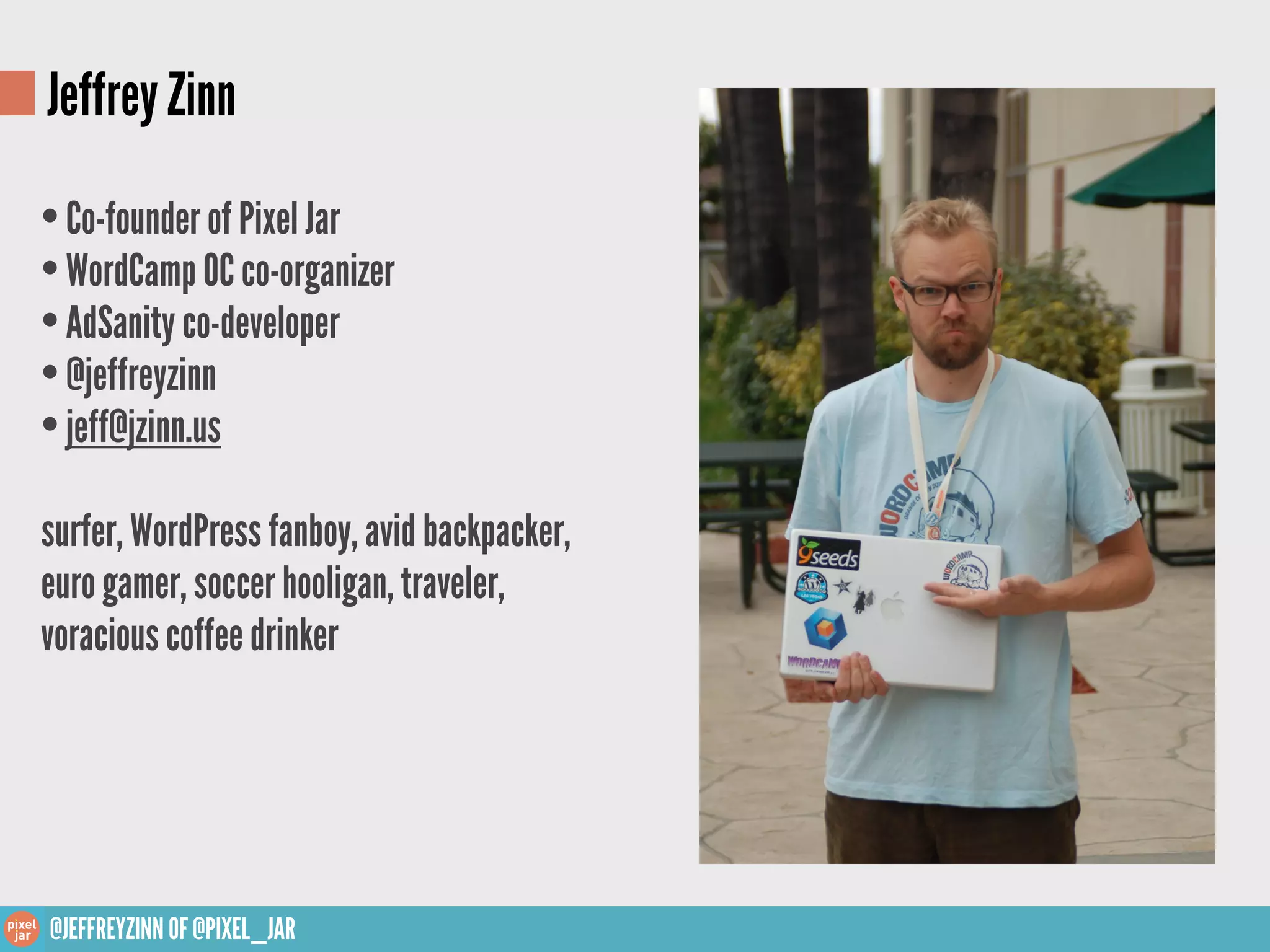
Jeffrey Zinn

• Co-founder of Pixel Jar
• WordCamp OC co-organizer
• AdSanity co-developer
• @jeffreyzinn
• jeff@jzinn.us
surfer, WordPress fanboy, avid backpacker,
euro gamer, soccer hooligan, traveler,
voracious coffee drinker


@JEFFREYZINN OF @PIXEL_JAR
Objective

         1. Reduce your risk of being hacked.
   2. Have a plan for when you are hacked.


@JEFFREYZINN OF @PIXEL_JAR
Security
‣Secure your computer
‣Secure your connection

‣Secure your WordPress website


★ Do not be a target

★ Nothing is 100% secure!


@JEFFREYZINN OF @PIXEL_JAR
Secure your computer
‣ Keep you computer updated with the latest software

‣ Install anti-virus software on your computer


@JEFFREYZINN OF @PIXEL_JAR
Secure your connection
‣ Use SFTP or SSH to connect to your site instead of FTP

‣ If possible, use an SSL connection

‣ How secure is your website host? Read up, ask questions.


@JEFFREYZINN OF @PIXEL_JAR
Secure your WordPress website
‣ Update, Update, Update (WordPress and plugins)

‣ Change the database prefix (do not use wp_ )

‣ Use secret keys https://api.wordpress.org/secret-key/1.1/salt/

‣ Use trusted sources for themes and plugins

‣ Do not use “admin” as a username

‣ Use a strong password

‣ File permissions, generally set files to 644 and folders to 755


@JEFFREYZINN OF @PIXEL_JAR
Backup & Security Lite
‣Why back up your website?
‣What needs to be backed up?

‣When to back up your website?

‣How to back up your website?

★ Have a plan to get your website back


@JEFFREYZINN OF @PIXEL_JAR
Why backup your WordPress website?


“Making backups is essential because problems inevitably
occur and you need to be in a position to take action when
disaster strikes. Spending a few minutes to make an easy,
convenient backup of your database [and files] will allow
you to spend even more time being creative and
productive with your website.”
                                       - wordpress.org


@JEFFREYZINN OF @PIXEL_JAR
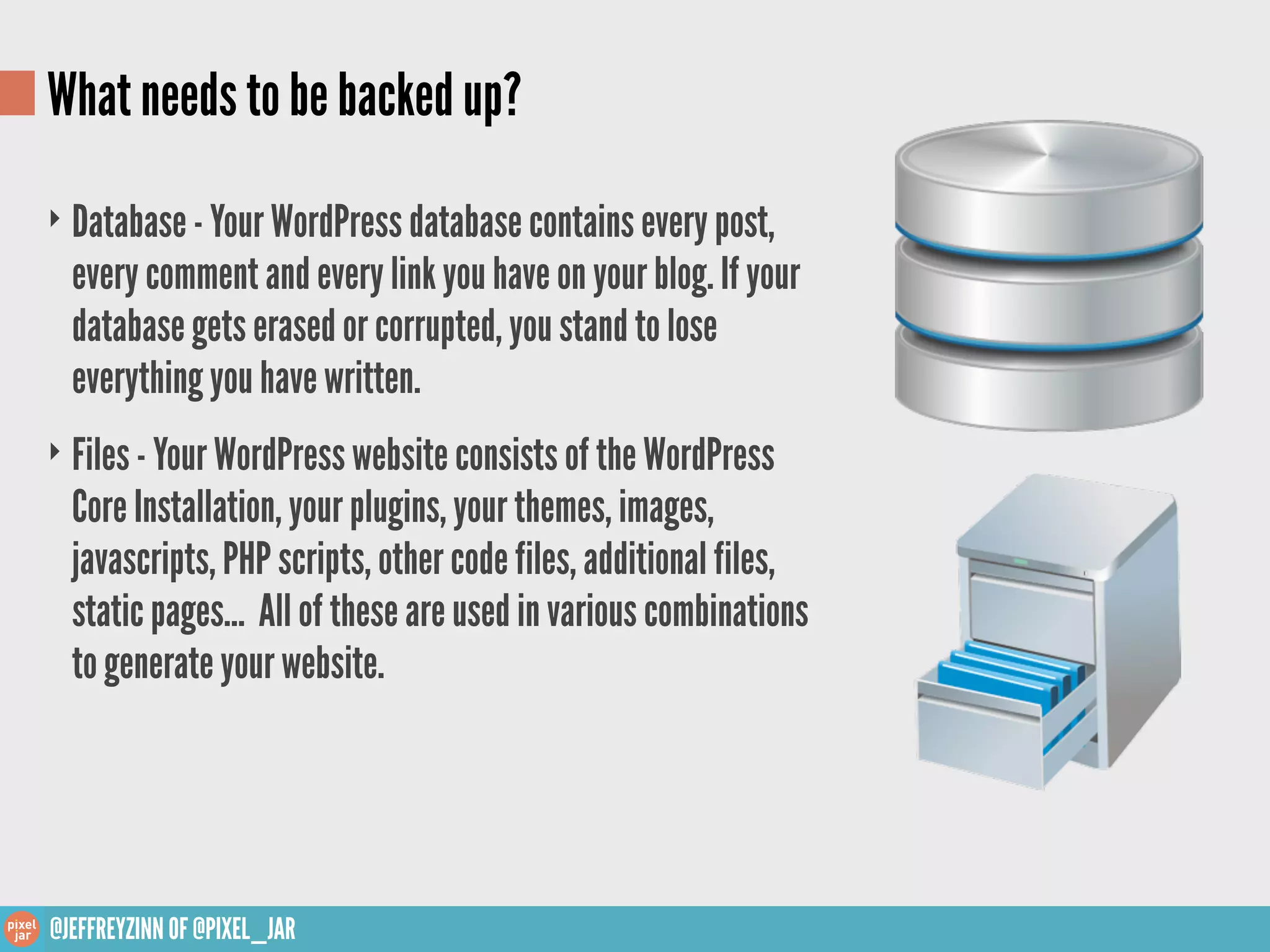
What needs to be backed up?
‣ Database - Your WordPress database contains every post,
  every comment and every link you have on your blog. If your
  database gets erased or corrupted, you stand to lose
  everything you have written.
‣ Files - Your WordPress website consists of the WordPress
  Core Installation, your plugins, your themes, images,
  javascripts, PHP scripts, other code files, additional files,
  static pages... All of these are used in various combinations
  to generate your website.


@JEFFREYZINN OF @PIXEL_JAR
When to backup your website? (and where?)

    ‣ Frequency - Frequency depends on site activity. A blog that is posted to daily should
      be backed up more often than a CMS site that is only updated monthly.
      How much data are you willing to lose?
    ‣ Where - Ideally three back ups should be made - one to your local hard drive, one to an
      external server and one to a cloud or other service not in your immediate vicinity.


@JEFFREYZINN OF @PIXEL_JAR
How do I back up my WordPress website?

    ‣ Manually - Just like when WordPress was set up and the files were uploaded and the
      database was created, files can be pulled down and the database can be exported
      through the site’s hosting control panel.
    ‣ Automated Through Plugins - Plugins can provide most of the functionality to create
      back ups of WordPress sites, but finding the right one can be difficult.
    ‣ 3rd Party Service - 3rd parties take most of the work out of your hands and provide
      excellent back up and restore functionality, but usually at a price.
    ‣ Specialized Hosting - Some hosting options are starting to pop up which specialize in
      hosting WordPress installations including backup services.


@JEFFREYZINN OF @PIXEL_JAR
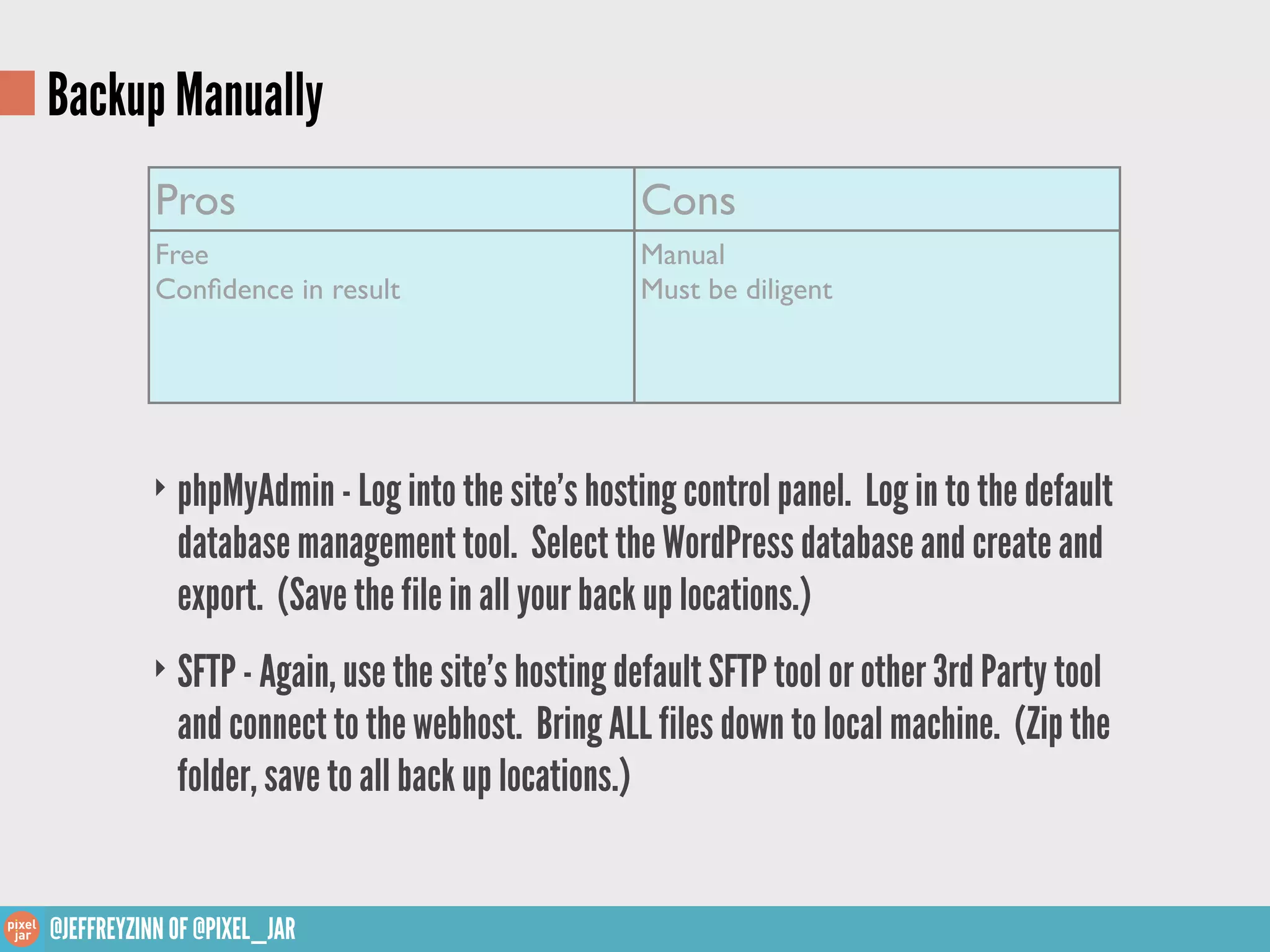
Backup Manually
           Pros                                    Cons
           Free                                    Manual
           Confidence in result                     Must be diligent


          ‣ phpMyAdmin - Log into the site’s hosting control panel. Log in to the default
             database management tool. Select the WordPress database and create and
             export. (Save the file in all your back up locations.)
          ‣ SFTP - Again, use the site’s hosting default SFTP tool or other 3rd Party tool
             and connect to the webhost. Bring ALL files down to local machine. (Zip the
             folder, save to all back up locations.)


@JEFFREYZINN OF @PIXEL_JAR
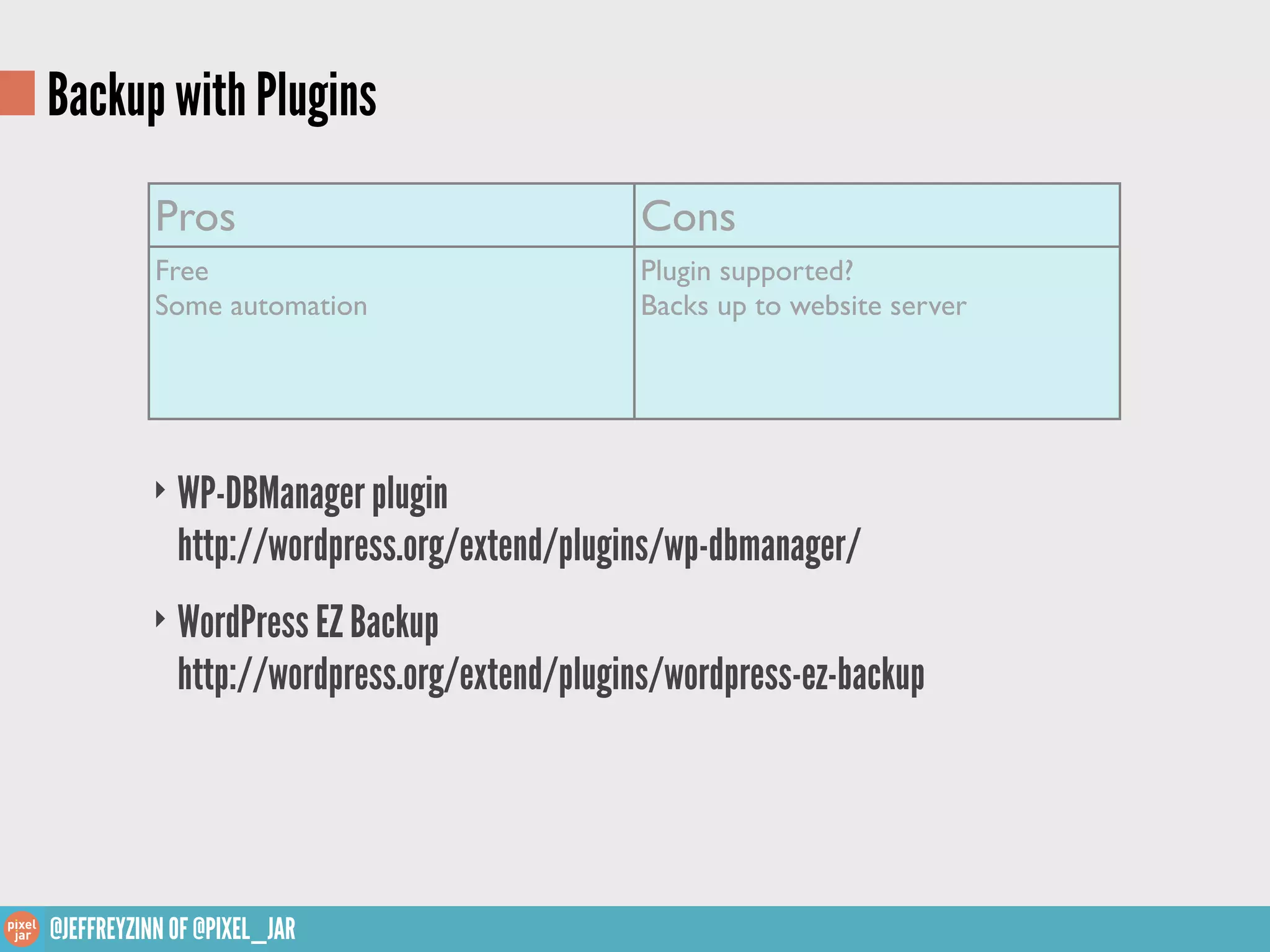
Backup with Plugins
           Pros                                Cons
           Free                                Plugin supported?
           Some automation                     Backs up to website server


          ‣ WP-DBManager plugin
             http://wordpress.org/extend/plugins/wp-dbmanager/
          ‣ WordPress EZ Backup
             http://wordpress.org/extend/plugins/wordpress-ez-backup


@JEFFREYZINN OF @PIXEL_JAR
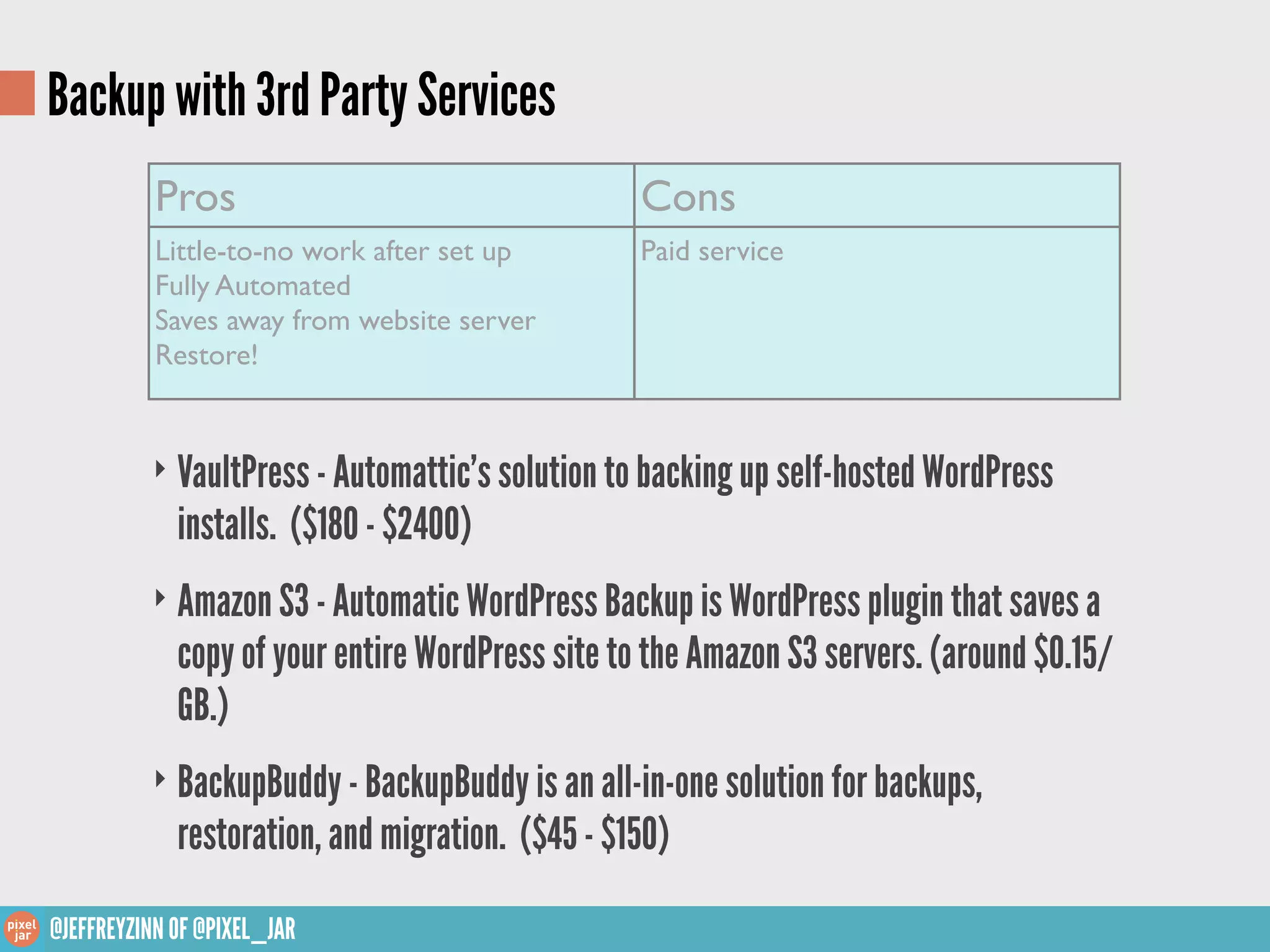
Backup with 3rd Party Services
           Pros                                   Cons
           Little-to-no work after set up         Paid service
           Fully Automated
           Saves away from website server
           Restore!


          ‣ VaultPress - Automattic’s solution to backing up self-hosted WordPress
             installs. ($180 - $2400)
          ‣ Amazon S3 - Automatic WordPress Backup is WordPress plugin that saves a
             copy of your entire WordPress site to the Amazon S3 servers. (around $0.15/
             GB.)
          ‣ BackupBuddy - BackupBuddy is an all-in-one solution for backups,
             restoration, and migration. ($45 - $150)

@JEFFREYZINN OF @PIXEL_JAR
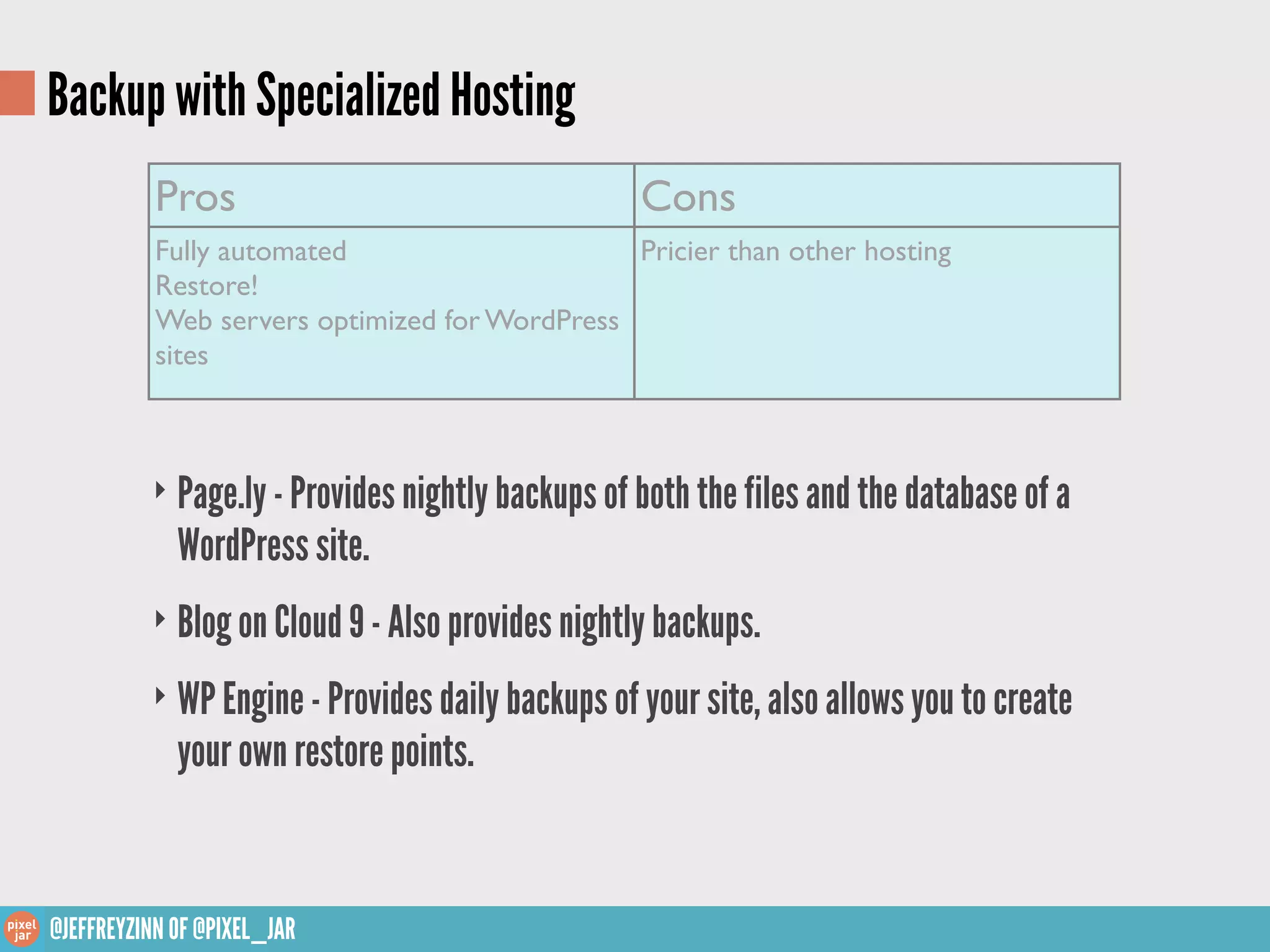
Backup with Specialized Hosting
           Pros                                   Cons
           Fully automated                     Pricier than other hosting
           Restore!
           Web servers optimized for WordPress
           sites


          ‣ Page.ly - Provides nightly backups of both the files and the database of a
             WordPress site.
          ‣ Blog on Cloud 9 - Also provides nightly backups.

          ‣ WP Engine - Provides daily backups of your site, also allows you to create
             your own restore points.


@JEFFREYZINN OF @PIXEL_JAR
The End. Thank You. Any Questions?
Slides: slideshare.net/jeffreyzinn/backup-and-security-lite-wcphx13


                              TWITTER           WEB


               JEFFREYZINN@PIXELJAR.NET
                                        EMAIL

 @JEFFREYZINN OF @PIXEL_JAR

Backup and Security Lite WCPHX13

  • 1.
    Backup & SecurityLite Slides: slideshare.net/jeffreyzinn/backup-and-security-lite-wcphx13 @JEFFREYZINN OF @PIXEL_JAR
  • 2.
    Jeffrey Zinn • Co-founderof Pixel Jar • WordCamp OC co-organizer • AdSanity co-developer • @jeffreyzinn • jeff@jzinn.us surfer, WordPress fanboy, avid backpacker, euro gamer, soccer hooligan, traveler, voracious coffee drinker @JEFFREYZINN OF @PIXEL_JAR
  • 3.
    Objective 1. Reduce your risk of being hacked. 2. Have a plan for when you are hacked. @JEFFREYZINN OF @PIXEL_JAR
  • 4.
    Security ‣Secure your computer ‣Secureyour connection ‣Secure your WordPress website ★ Do not be a target ★ Nothing is 100% secure! @JEFFREYZINN OF @PIXEL_JAR
  • 5.
    Secure your computer ‣Keep you computer updated with the latest software ‣ Install anti-virus software on your computer @JEFFREYZINN OF @PIXEL_JAR
  • 6.
    Secure your connection ‣Use SFTP or SSH to connect to your site instead of FTP ‣ If possible, use an SSL connection ‣ How secure is your website host? Read up, ask questions. @JEFFREYZINN OF @PIXEL_JAR
  • 7.
    Secure your WordPresswebsite ‣ Update, Update, Update (WordPress and plugins) ‣ Change the database prefix (do not use wp_ ) ‣ Use secret keys https://api.wordpress.org/secret-key/1.1/salt/ ‣ Use trusted sources for themes and plugins ‣ Do not use “admin” as a username ‣ Use a strong password ‣ File permissions, generally set files to 644 and folders to 755 @JEFFREYZINN OF @PIXEL_JAR
  • 8.
    Backup & SecurityLite ‣Why back up your website? ‣What needs to be backed up? ‣When to back up your website? ‣How to back up your website? ★ Have a plan to get your website back @JEFFREYZINN OF @PIXEL_JAR
  • 9.
    Why backup yourWordPress website? “Making backups is essential because problems inevitably occur and you need to be in a position to take action when disaster strikes. Spending a few minutes to make an easy, convenient backup of your database [and files] will allow you to spend even more time being creative and productive with your website.” - wordpress.org @JEFFREYZINN OF @PIXEL_JAR
  • 10.
    What needs tobe backed up? ‣ Database - Your WordPress database contains every post, every comment and every link you have on your blog. If your database gets erased or corrupted, you stand to lose everything you have written. ‣ Files - Your WordPress website consists of the WordPress Core Installation, your plugins, your themes, images, javascripts, PHP scripts, other code files, additional files, static pages... All of these are used in various combinations to generate your website. @JEFFREYZINN OF @PIXEL_JAR
  • 11.
    When to backupyour website? (and where?) ‣ Frequency - Frequency depends on site activity. A blog that is posted to daily should be backed up more often than a CMS site that is only updated monthly. How much data are you willing to lose? ‣ Where - Ideally three back ups should be made - one to your local hard drive, one to an external server and one to a cloud or other service not in your immediate vicinity. @JEFFREYZINN OF @PIXEL_JAR
  • 12.
    How do Iback up my WordPress website? ‣ Manually - Just like when WordPress was set up and the files were uploaded and the database was created, files can be pulled down and the database can be exported through the site’s hosting control panel. ‣ Automated Through Plugins - Plugins can provide most of the functionality to create back ups of WordPress sites, but finding the right one can be difficult. ‣ 3rd Party Service - 3rd parties take most of the work out of your hands and provide excellent back up and restore functionality, but usually at a price. ‣ Specialized Hosting - Some hosting options are starting to pop up which specialize in hosting WordPress installations including backup services. @JEFFREYZINN OF @PIXEL_JAR
  • 13.
    Backup Manually Pros Cons Free Manual Confidence in result Must be diligent ‣ phpMyAdmin - Log into the site’s hosting control panel. Log in to the default database management tool. Select the WordPress database and create and export. (Save the file in all your back up locations.) ‣ SFTP - Again, use the site’s hosting default SFTP tool or other 3rd Party tool and connect to the webhost. Bring ALL files down to local machine. (Zip the folder, save to all back up locations.) @JEFFREYZINN OF @PIXEL_JAR
  • 14.
    Backup with Plugins Pros Cons Free Plugin supported? Some automation Backs up to website server ‣ WP-DBManager plugin http://wordpress.org/extend/plugins/wp-dbmanager/ ‣ WordPress EZ Backup http://wordpress.org/extend/plugins/wordpress-ez-backup @JEFFREYZINN OF @PIXEL_JAR
  • 15.
    Backup with 3rdParty Services Pros Cons Little-to-no work after set up Paid service Fully Automated Saves away from website server Restore! ‣ VaultPress - Automattic’s solution to backing up self-hosted WordPress installs. ($180 - $2400) ‣ Amazon S3 - Automatic WordPress Backup is WordPress plugin that saves a copy of your entire WordPress site to the Amazon S3 servers. (around $0.15/ GB.) ‣ BackupBuddy - BackupBuddy is an all-in-one solution for backups, restoration, and migration. ($45 - $150) @JEFFREYZINN OF @PIXEL_JAR
  • 16.
    Backup with SpecializedHosting Pros Cons Fully automated Pricier than other hosting Restore! Web servers optimized for WordPress sites ‣ Page.ly - Provides nightly backups of both the files and the database of a WordPress site. ‣ Blog on Cloud 9 - Also provides nightly backups. ‣ WP Engine - Provides daily backups of your site, also allows you to create your own restore points. @JEFFREYZINN OF @PIXEL_JAR
  • 17.
    The End. ThankYou. Any Questions? Slides: slideshare.net/jeffreyzinn/backup-and-security-lite-wcphx13 TWITTER WEB JEFFREYZINN@PIXELJAR.NET EMAIL @JEFFREYZINN OF @PIXEL_JAR