r3df.com
Rick Radko
Backups, Backups, Backups
Ottawa WordPress Meetup
May 3rd, 2017
© 2017 Rick Radko, r3df.com
I'm
Rick Radko – R-Cubed Design Forge: r3df.com
 Website and app developer/designer, & trainer.
 Custom web sites since 1996.
 WordPress sites since 2008.
 WordPress enthusiast:
 Co-organizer of:
 WordCamp Ottawa: 2013, 2014, 2016, 2017
 The Ottawa WordPress Group.
 Plugins: profiles.wordpress.org/ r3df/ #content-plugins
1
© 2017 Rick Radko, r3df.com
Goal
Answer the questions:
 Why back up?
 What to back up?
 When to back up?
 Where to back up?
 How to back up?
Slides: http://www.slideshare.net/r3df
2
© 2017 Rick Radko, r3df.com
Why back up?
3
© 2017 Rick Radko, r3df.com
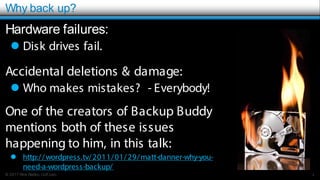
Why back up?
Hardware failures:
 Disk drives fail.
Accidental deletions & damage:
 Who makes mistakes? - Everybody!
One of the creators of Backup Buddy
mentions both of these issues
happening to him, in this talk:
 http://wordpress.tv/2011/01/29/matt-danner-why-you-
need-a-wordpress-backup/
4
© 2017 Rick Radko, r3df.com
More reasons you need a backup
Hacking/ Malware/ Virus:
 Can completely trash a site.
 May have all your files deleted.
 Every single file could be altered.
 There are over 1000 files in an empty WordPress install.
 2000-5000 files in typical small sites.
 10,000+ files in large sites with complex plugins
 Database can be infected.
5
© 2017 Rick Radko, r3df.com
Even more reasons you need a backup
Updates:
 Bugs
 Incompatibility
 Update fails to complete
6
© 2017 Rick Radko, r3df.com
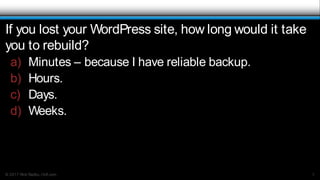
If you lost your WordPress site, how long would it take
you to rebuild?
a) Minutes – because I have reliable backup.
b) Hours.
c) Days.
d) Weeks.
7
© 2017 Rick Radko, r3df.com
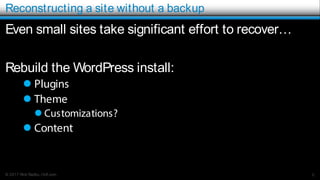
Reconstructing a site without a backup
Even small sites take significant effort to recover…
Rebuild the WordPress install:
 Plugins
 Theme
 Customizations?
 Content
8
© 2017 Rick Radko, r3df.com
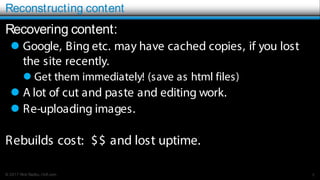
Reconstructing content
Recovering content:
 Google, Bing etc. may have cached copies, if you lost
the site recently.
 Get them immediately! (save as html files)
 A lot of cut and paste and editing work.
 Re-uploading images.
Rebuilds cost: $$ and lost uptime.
9
© 2017 Rick Radko, r3df.com
Why back up? Summary
The most expensive backup is the one you didn’t do!
10
© 2017 Rick Radko, r3df.com
What to back up?
11
© 2017 Rick Radko, r3df.com
What to back up?
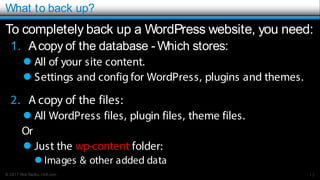
To completely back up a WordPress website, you need:
1. Acopy of the database - Which stores:
 All of your site content.
 Settings and config for WordPress, plugins and themes.
2. A copy of the files:
 All WordPress files, plugin files, theme files.
Or
 Just the wp-content folder:
 Images & other added data
12
© 2017 Rick Radko, r3df.com
That’s a lot of data!
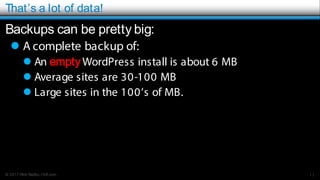
Backups can be pretty big:
 A complete backup of:
 An empty WordPress install is about 6 MB
 Average sites are 30-100 MB
 Large sites in the 100’s of MB.
13
© 2017 Rick Radko, r3df.com
Partial back ups
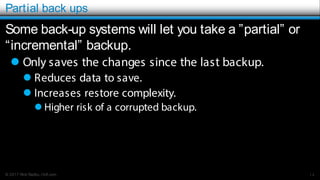
Some back-up systems will let you take a ”partial” or
“incremental” backup.
 Only saves the changes since the last backup.
 Reduces data to save.
 Increases restore complexity.
 Higher risk of a corrupted backup.
14
© 2017 Rick Radko, r3df.com
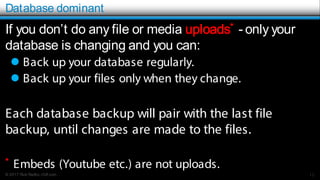
Database dominant
If you don’t do any file or media uploads* - only your
database is changing and you can:
 Back up your database regularly.
 Back up your files only when they change.
Each database backup will pair with the last file
backup, until changes are made to the files.
* Embeds (Youtube etc.) are not uploads.
15
© 2017 Rick Radko, r3df.com
What to back up? Summary
 Everything
 Partial or incremental
 Database dominant
16
© 2017 Rick Radko, r3df.com
When to back up?
17
© 2017 Rick Radko, r3df.com
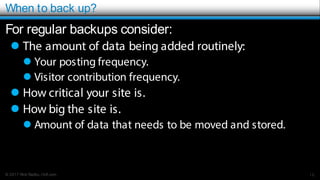
When to back up?
For regular backups consider:
 The amount of data being added routinely:
 Your posting frequency.
 Visitor contribution frequency.
 How critical your site is.
 How big the site is.
 Amount of data that needs to be moved and stored.
18
© 2017 Rick Radko, r3df.com
When to back up continued?
Extra backups for:
 Significant change.
 WordPress, plugin or theme
updates.
 Site overhaul or new content
launch
Plan for the unexpected.
19
© 2017 Rick Radko, r3df.com
When to back up? Summary
The decision to back up daily, weekly or monthly:
 depends on how much you are willing to loose…
20
© 2017 Rick Radko, r3df.com
Where to back up?
21
© 2017 Rick Radko, r3df.com
Where to back up
Off of your server!
 A backup on your server:
 Does not help with server
failures.
 A backup file on your server
could be a security issue.
22
© 2017 Rick Radko, r3df.com
Where to back up continued…
Other points:
 Off site (different physical location).
 Keeping 3 separate copies is recommended.
 At least one at a different location!
 Backup history – a period of older copies.
 Week of daily backups + 2 monthly backups.
23
© 2017 Rick Radko, r3df.com
Getting the backup off of the server
FTPis an option, but you need a place to FTPto:
 A common idea is to use another hosting account
somewhere.
 Most shared hosting does not allow data storage on their
servers (read the fine print in your TOS).
 Some hosting services offer storage, expensive unless
you have volume. (large corporation)
24
© 2017 Rick Radko, r3df.com
Better idea: send it to the cloud
Many plugins will let you store your backups on one of
the many cloud services.
 Amazon S3
 Dropbox
 Google Drive
 +More
This is a reasonable option for most sites.
 Cloud storage fees are quite low.
 Off site.
25
© 2017 Rick Radko, r3df.com
How much does the cloud cost?
Peanuts…
26
© 2017 Rick Radko, r3df.com
What, when, where? Summary
Ultimately the decision of :
 what
 when
 where
to backup your site will involve assessments of risk and
possibly compromises.
27
© 2017 Rick Radko, r3df.com
How to back up?
28
© 2017 Rick Radko, r3df.com
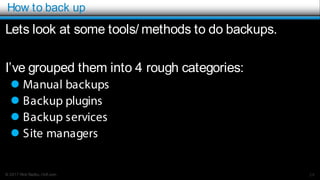
How to back up
Lets look at some tools/ methods to do backups.
I’ve grouped them into 4 rough categories:
 Manual backups
 Backup plugins
 Backup services
 Site managers
29
© 2017 Rick Radko, r3df.com
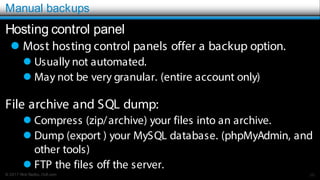
Manual backups
Hosting control panel
 Most hosting control panels offer a backup option.
 Usually not automated.
 May not be very granular. (entire account only)
File archive and SQL dump:
 Compress (zip/archive) your files into an archive.
 Dump (export ) your MySQL database. (phpMyAdmin, and
other tools)
 FTP the files off the server.
30
© 2017 Rick Radko, r3df.com
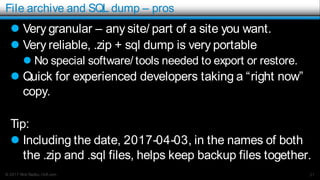
File archive and SQL dump – pros
 Very granular – any site/ part of a site you want.
 Very reliable, .zip + sql dump is very portable
 No special software/ tools needed to export or restore.
 Quick for experienced developers taking a “right now”
copy.
Tip:
 Including the date, 2017-04-03, in the names of both
the .zip and .sql files, helps keep backup files together.
31
© 2017 Rick Radko, r3df.com
File archive and SQL dump – cons
 Need some knowledge:
 Database imports/ exports.
 Some GUI tools: phpMyAdmin.
 How to archive/ un-archive (compress, .zip, gzip etc.)
 Comfortable with file systems on the server
 Often Linux, or Unix variant.
 Need additional scripts for site migration.
 Simple "search and replace" does not take into account
serialized data.
 See https:/ / codex.wordpress.org/ Moving_WordPress
32
© 2017 Rick Radko, r3df.com
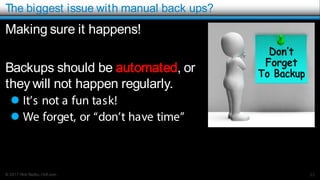
The biggest issue with manual back ups?
33
Making sure it happens!
Backups should be automated, or
they will not happen regularly.
 It’s not a fun task!
 We forget, or “don’t have time”
© 2017 Rick Radko, r3df.com
Back up plugins
There are a lot of choices in plugins for back ups.
 Many are free. (wordpress.org)
 Some are paid.
Key features to look for:
 Automated/scheduled backups.
 A must if you want backups you can count on.
 Manual backups (on demand)
 Using the same settings as your automated backups.
34
© 2017 Rick Radko, r3df.com
More plugin features:
 File/ directory exclusions.
 You may have some files you don’t want backed up.
 Allows backing up database only, files only or both.
 Flexibility in your backup strategy.
 Schedule multiple back ups on different timings.
 Offers choice of backup locations:
 Backups to cloud:
 Dropbox, Amazon, Rackspace, Google Drive, Others?
 FTPto other servers/ computers
35
© 2017 Rick Radko, r3df.com
Restore and migration features
Restore features:
 No install restores.
 Don’t need WordPress installed.
 May need a supporting script.
 Malware scans.
 Database optimization/repair.
Site migration:
 Important only if you want to move your site to a new
domain. 36
© 2017 Rick Radko, r3df.com
Multisite issues
If you have multisite enabled, consider whether the
backup plugin can:
 Backup sites individually?
 Backup a sub-network?
 Restore sites individually?
 Restore a sub-network?
 Migrate a single multisite site to/from a single site
install?
37
© 2017 Rick Radko, r3df.com
Some plugins (no order, or recommendation given)
On wordpress.org: (freemium)
 UpdraftPlus WordPress Backup Plugin
 https://wordpress.org/plugins/updraftplus/
 BackWPup
 http://wordpress.org/extend/plugins/backwpup/
 WordPress Backup to Dropbox
 http://wordpress.org/extend/plugins/wordpress-backup-to-dropbox/
BackupBuddy - $
 http://ithemes.com/purchase/backupbuddy/
38
© 2017 Rick Radko, r3df.com
Back up services
When considering a service:
 Most of the same features as for plugins need to be
considered.
 One item that is key:
 Where are they storing your files?
 Secure – encrypted?
39
© 2017 Rick Radko, r3df.com
More on back up services
Unlike plugins:
 Most of the services cost.
 But they include storage.
 Threat and malware scanners are common in the
services.
 Some offer incremental backups.
 Only backup what has changed instead of the whole site.
 Most don’t store files on your server.
40
© 2017 Rick Radko, r3df.com
A couple of services (no order, or recommendation given)
VaultPress
 From the people who make WordPress
 Starts at $9/month ($3.50 personal sites)
 http://vaultpress.com/
BlogVault
 Starts at $9/month
 http://blogvault.net/
41
© 2017 Rick Radko, r3df.com
Site managers
Manage multiple WordPress sites from one central
admin panel.
 Offer a bunch of features for managing sites:
 Remote updates
 Add plugins themes
 Bulk postings
 Site analysis
 Backups
42
© 2017 Rick Radko, r3df.com
Some site managers (no order, or recommendation given)
InfiniteWP, MainWP
 Download core software - free
 Add-on options for many features - $
 https://infinitewp.com/, https://mainwp.com/
ManageWP
 Online service base level - free
 Add-on options for many features - $
 http://managewp.com/
43
© 2017 Rick Radko, r3df.com
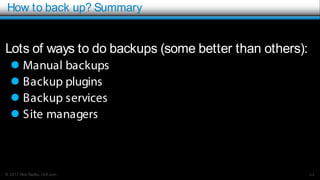
How to back up? Summary
Lots of ways to do backups (some better than others):
 Manual backups
 Backup plugins
 Backup services
 Site managers
44
© 2017 Rick Radko, r3df.com
Final Points
45
© 2017 Rick Radko, r3df.com
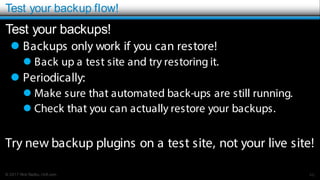
Test your backup flow!
Test your backups!
 Backups only work if you can restore!
 Back up a test site and try restoring it.
 Periodically:
 Make sure that automated back-ups are still running.
 Check that you can actually restore your backups.
Try new backup plugins on a test site, not your live site!
46
© 2017 Rick Radko, r3df.com
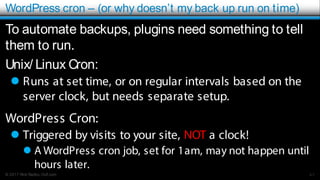
WordPress cron – (or why doesn’t my back up run on time)
To automate backups, plugins need something to tell
them to run.
Unix/ Linux Cron:
 Runs at set time, or on regular intervals based on the
server clock, but needs separate setup.
WordPress Cron:
 Triggered by visits to your site, NOT a clock!
 A WordPress cron job, set for 1am, may not happen until
hours later.
47
© 2017 Rick Radko, r3df.com
One final note on backups
Backup is often not spelled correctly, a bit of Googling
reveals that:
The verb form is back up in two words, whereas the
noun is backup.
 Did you back up the hard drive?
 Where did you store the backup?
48
© 2017 Rick Radko, r3df.com
Contact
Rick Radko
 email: wpinfo@r3df.com
 twitter: @r3designforge
Website:
 r3df.com
Slides at:
 www.slideshare.net/r3df
49

Backups, Backups, Backups

  • 1.
    r3df.com Rick Radko Backups, Backups,Backups Ottawa WordPress Meetup May 3rd, 2017
  • 2.
    © 2017 RickRadko, r3df.com I'm Rick Radko – R-Cubed Design Forge: r3df.com  Website and app developer/designer, & trainer.  Custom web sites since 1996.  WordPress sites since 2008.  WordPress enthusiast:  Co-organizer of:  WordCamp Ottawa: 2013, 2014, 2016, 2017  The Ottawa WordPress Group.  Plugins: profiles.wordpress.org/ r3df/ #content-plugins 1
  • 3.
    © 2017 RickRadko, r3df.com Goal Answer the questions:  Why back up?  What to back up?  When to back up?  Where to back up?  How to back up? Slides: http://www.slideshare.net/r3df 2
  • 4.
    © 2017 RickRadko, r3df.com Why back up? 3
  • 5.
    © 2017 RickRadko, r3df.com Why back up? Hardware failures:  Disk drives fail. Accidental deletions & damage:  Who makes mistakes? - Everybody! One of the creators of Backup Buddy mentions both of these issues happening to him, in this talk:  http://wordpress.tv/2011/01/29/matt-danner-why-you- need-a-wordpress-backup/ 4
  • 6.
    © 2017 RickRadko, r3df.com More reasons you need a backup Hacking/ Malware/ Virus:  Can completely trash a site.  May have all your files deleted.  Every single file could be altered.  There are over 1000 files in an empty WordPress install.  2000-5000 files in typical small sites.  10,000+ files in large sites with complex plugins  Database can be infected. 5
  • 7.
    © 2017 RickRadko, r3df.com Even more reasons you need a backup Updates:  Bugs  Incompatibility  Update fails to complete 6
  • 8.
    © 2017 RickRadko, r3df.com If you lost your WordPress site, how long would it take you to rebuild? a) Minutes – because I have reliable backup. b) Hours. c) Days. d) Weeks. 7
  • 9.
    © 2017 RickRadko, r3df.com Reconstructing a site without a backup Even small sites take significant effort to recover… Rebuild the WordPress install:  Plugins  Theme  Customizations?  Content 8
  • 10.
    © 2017 RickRadko, r3df.com Reconstructing content Recovering content:  Google, Bing etc. may have cached copies, if you lost the site recently.  Get them immediately! (save as html files)  A lot of cut and paste and editing work.  Re-uploading images. Rebuilds cost: $$ and lost uptime. 9
  • 11.
    © 2017 RickRadko, r3df.com Why back up? Summary The most expensive backup is the one you didn’t do! 10
  • 12.
    © 2017 RickRadko, r3df.com What to back up? 11
  • 13.
    © 2017 RickRadko, r3df.com What to back up? To completely back up a WordPress website, you need: 1. Acopy of the database - Which stores:  All of your site content.  Settings and config for WordPress, plugins and themes. 2. A copy of the files:  All WordPress files, plugin files, theme files. Or  Just the wp-content folder:  Images & other added data 12
  • 14.
    © 2017 RickRadko, r3df.com That’s a lot of data! Backups can be pretty big:  A complete backup of:  An empty WordPress install is about 6 MB  Average sites are 30-100 MB  Large sites in the 100’s of MB. 13
  • 15.
    © 2017 RickRadko, r3df.com Partial back ups Some back-up systems will let you take a ”partial” or “incremental” backup.  Only saves the changes since the last backup.  Reduces data to save.  Increases restore complexity.  Higher risk of a corrupted backup. 14
  • 16.
    © 2017 RickRadko, r3df.com Database dominant If you don’t do any file or media uploads* - only your database is changing and you can:  Back up your database regularly.  Back up your files only when they change. Each database backup will pair with the last file backup, until changes are made to the files. * Embeds (Youtube etc.) are not uploads. 15
  • 17.
    © 2017 RickRadko, r3df.com What to back up? Summary  Everything  Partial or incremental  Database dominant 16
  • 18.
    © 2017 RickRadko, r3df.com When to back up? 17
  • 19.
    © 2017 RickRadko, r3df.com When to back up? For regular backups consider:  The amount of data being added routinely:  Your posting frequency.  Visitor contribution frequency.  How critical your site is.  How big the site is.  Amount of data that needs to be moved and stored. 18
  • 20.
    © 2017 RickRadko, r3df.com When to back up continued? Extra backups for:  Significant change.  WordPress, plugin or theme updates.  Site overhaul or new content launch Plan for the unexpected. 19
  • 21.
    © 2017 RickRadko, r3df.com When to back up? Summary The decision to back up daily, weekly or monthly:  depends on how much you are willing to loose… 20
  • 22.
    © 2017 RickRadko, r3df.com Where to back up? 21
  • 23.
    © 2017 RickRadko, r3df.com Where to back up Off of your server!  A backup on your server:  Does not help with server failures.  A backup file on your server could be a security issue. 22
  • 24.
    © 2017 RickRadko, r3df.com Where to back up continued… Other points:  Off site (different physical location).  Keeping 3 separate copies is recommended.  At least one at a different location!  Backup history – a period of older copies.  Week of daily backups + 2 monthly backups. 23
  • 25.
    © 2017 RickRadko, r3df.com Getting the backup off of the server FTPis an option, but you need a place to FTPto:  A common idea is to use another hosting account somewhere.  Most shared hosting does not allow data storage on their servers (read the fine print in your TOS).  Some hosting services offer storage, expensive unless you have volume. (large corporation) 24
  • 26.
    © 2017 RickRadko, r3df.com Better idea: send it to the cloud Many plugins will let you store your backups on one of the many cloud services.  Amazon S3  Dropbox  Google Drive  +More This is a reasonable option for most sites.  Cloud storage fees are quite low.  Off site. 25
  • 27.
    © 2017 RickRadko, r3df.com How much does the cloud cost? Peanuts… 26
  • 28.
    © 2017 RickRadko, r3df.com What, when, where? Summary Ultimately the decision of :  what  when  where to backup your site will involve assessments of risk and possibly compromises. 27
  • 29.
    © 2017 RickRadko, r3df.com How to back up? 28
  • 30.
    © 2017 RickRadko, r3df.com How to back up Lets look at some tools/ methods to do backups. I’ve grouped them into 4 rough categories:  Manual backups  Backup plugins  Backup services  Site managers 29
  • 31.
    © 2017 RickRadko, r3df.com Manual backups Hosting control panel  Most hosting control panels offer a backup option.  Usually not automated.  May not be very granular. (entire account only) File archive and SQL dump:  Compress (zip/archive) your files into an archive.  Dump (export ) your MySQL database. (phpMyAdmin, and other tools)  FTP the files off the server. 30
  • 32.
    © 2017 RickRadko, r3df.com File archive and SQL dump – pros  Very granular – any site/ part of a site you want.  Very reliable, .zip + sql dump is very portable  No special software/ tools needed to export or restore.  Quick for experienced developers taking a “right now” copy. Tip:  Including the date, 2017-04-03, in the names of both the .zip and .sql files, helps keep backup files together. 31
  • 33.
    © 2017 RickRadko, r3df.com File archive and SQL dump – cons  Need some knowledge:  Database imports/ exports.  Some GUI tools: phpMyAdmin.  How to archive/ un-archive (compress, .zip, gzip etc.)  Comfortable with file systems on the server  Often Linux, or Unix variant.  Need additional scripts for site migration.  Simple "search and replace" does not take into account serialized data.  See https:/ / codex.wordpress.org/ Moving_WordPress 32
  • 34.
    © 2017 RickRadko, r3df.com The biggest issue with manual back ups? 33 Making sure it happens! Backups should be automated, or they will not happen regularly.  It’s not a fun task!  We forget, or “don’t have time”
  • 35.
    © 2017 RickRadko, r3df.com Back up plugins There are a lot of choices in plugins for back ups.  Many are free. (wordpress.org)  Some are paid. Key features to look for:  Automated/scheduled backups.  A must if you want backups you can count on.  Manual backups (on demand)  Using the same settings as your automated backups. 34
  • 36.
    © 2017 RickRadko, r3df.com More plugin features:  File/ directory exclusions.  You may have some files you don’t want backed up.  Allows backing up database only, files only or both.  Flexibility in your backup strategy.  Schedule multiple back ups on different timings.  Offers choice of backup locations:  Backups to cloud:  Dropbox, Amazon, Rackspace, Google Drive, Others?  FTPto other servers/ computers 35
  • 37.
    © 2017 RickRadko, r3df.com Restore and migration features Restore features:  No install restores.  Don’t need WordPress installed.  May need a supporting script.  Malware scans.  Database optimization/repair. Site migration:  Important only if you want to move your site to a new domain. 36
  • 38.
    © 2017 RickRadko, r3df.com Multisite issues If you have multisite enabled, consider whether the backup plugin can:  Backup sites individually?  Backup a sub-network?  Restore sites individually?  Restore a sub-network?  Migrate a single multisite site to/from a single site install? 37
  • 39.
    © 2017 RickRadko, r3df.com Some plugins (no order, or recommendation given) On wordpress.org: (freemium)  UpdraftPlus WordPress Backup Plugin  https://wordpress.org/plugins/updraftplus/  BackWPup  http://wordpress.org/extend/plugins/backwpup/  WordPress Backup to Dropbox  http://wordpress.org/extend/plugins/wordpress-backup-to-dropbox/ BackupBuddy - $  http://ithemes.com/purchase/backupbuddy/ 38
  • 40.
    © 2017 RickRadko, r3df.com Back up services When considering a service:  Most of the same features as for plugins need to be considered.  One item that is key:  Where are they storing your files?  Secure – encrypted? 39
  • 41.
    © 2017 RickRadko, r3df.com More on back up services Unlike plugins:  Most of the services cost.  But they include storage.  Threat and malware scanners are common in the services.  Some offer incremental backups.  Only backup what has changed instead of the whole site.  Most don’t store files on your server. 40
  • 42.
    © 2017 RickRadko, r3df.com A couple of services (no order, or recommendation given) VaultPress  From the people who make WordPress  Starts at $9/month ($3.50 personal sites)  http://vaultpress.com/ BlogVault  Starts at $9/month  http://blogvault.net/ 41
  • 43.
    © 2017 RickRadko, r3df.com Site managers Manage multiple WordPress sites from one central admin panel.  Offer a bunch of features for managing sites:  Remote updates  Add plugins themes  Bulk postings  Site analysis  Backups 42
  • 44.
    © 2017 RickRadko, r3df.com Some site managers (no order, or recommendation given) InfiniteWP, MainWP  Download core software - free  Add-on options for many features - $  https://infinitewp.com/, https://mainwp.com/ ManageWP  Online service base level - free  Add-on options for many features - $  http://managewp.com/ 43
  • 45.
    © 2017 RickRadko, r3df.com How to back up? Summary Lots of ways to do backups (some better than others):  Manual backups  Backup plugins  Backup services  Site managers 44
  • 46.
    © 2017 RickRadko, r3df.com Final Points 45
  • 47.
    © 2017 RickRadko, r3df.com Test your backup flow! Test your backups!  Backups only work if you can restore!  Back up a test site and try restoring it.  Periodically:  Make sure that automated back-ups are still running.  Check that you can actually restore your backups. Try new backup plugins on a test site, not your live site! 46
  • 48.
    © 2017 RickRadko, r3df.com WordPress cron – (or why doesn’t my back up run on time) To automate backups, plugins need something to tell them to run. Unix/ Linux Cron:  Runs at set time, or on regular intervals based on the server clock, but needs separate setup. WordPress Cron:  Triggered by visits to your site, NOT a clock!  A WordPress cron job, set for 1am, may not happen until hours later. 47
  • 49.
    © 2017 RickRadko, r3df.com One final note on backups Backup is often not spelled correctly, a bit of Googling reveals that: The verb form is back up in two words, whereas the noun is backup.  Did you back up the hard drive?  Where did you store the backup? 48
  • 50.
    © 2017 RickRadko, r3df.com Contact Rick Radko  email: wpinfo@r3df.com  twitter: @r3designforge Website:  r3df.com Slides at:  www.slideshare.net/r3df 49