r3df.com
Rick Radko
Backups,
Backups,
Backups
Ottawa WordPress Meetup
May 6th, 2020
© 2017 Rick Radko, r3df.com
Goal
Answer the questions:
 Why back up?
 What to back up?
 When to back up?
 Where to back up?
 How to back up?
Slides: slideshare.net/r3df
1
© 2017 Rick Radko, r3df.com
I'm
Rick Radko – R-Cubed Design Forge: r3df.com
 Website and app developer/designer, & trainer.
 Custom web sites since 1996.
 WordPress sites since 2008.
 Plugins: profiles.wordpress.org/r3df/#content-plugins
 WordPress enthusiast:
 Co-organizer of:
 The Ottawa WordPress Group
 WordCamp Ottawa: 2013, 2014, 2016, 2017
 Co-organizer of The Ottawa PHP Meetup
2
© 2017 Rick Radko, r3df.com
Why back up?
3
© 2017 Rick Radko, r3df.com
Why back up?
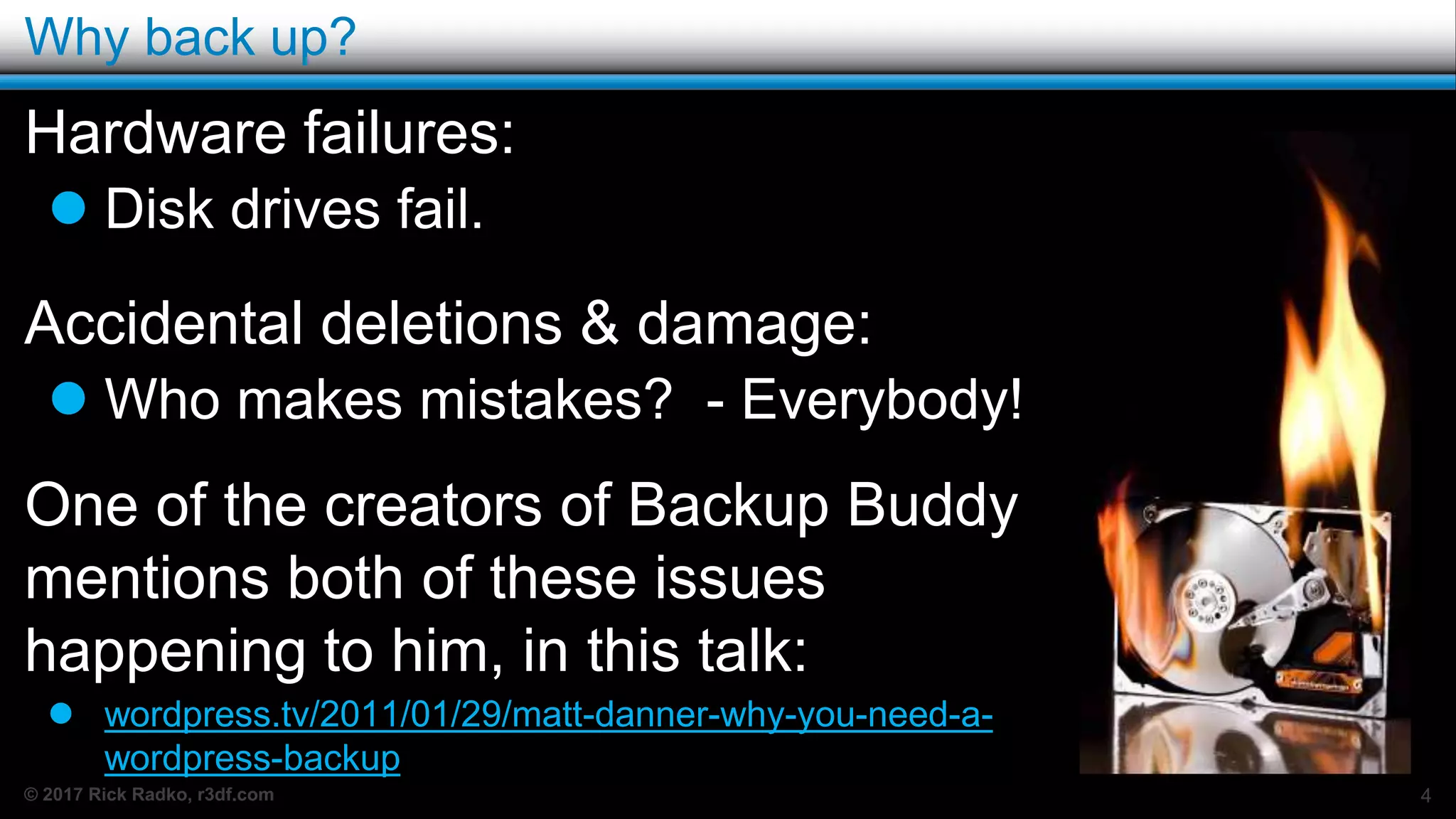
Hardware failures:
 Disk drives fail.
Accidental deletions & damage:
 Who makes mistakes? - Everybody!
One of the creators of Backup Buddy
mentions both of these issues
happening to him, in this talk:
 wordpress.tv/2011/01/29/matt-danner-why-you-need-a-
wordpress-backup
4
© 2017 Rick Radko, r3df.com
More reasons you need a backup
Hacking/Malware/Virus:
 Could completely trash your site.
 Entire site deleted/replaced.
 Files could be altered.
 May be obvious or hidden.
 There are over 2000 files in WordPress alone.
 4000-6000 files in typical small sites.
 10,000+ files in large sites with complex plugins
 Database can be compromised.
5
© 2017 Rick Radko, r3df.com
Other reasons you need a backup
Updates:
 Bugs
 Incompatibility
 Update fails to complete
6
© 2017 Rick Radko, r3df.com
Time and $ to rebuild
If you lost your WordPress site, how long would it
take you to rebuild?
a) Minutes – because I have reliable backup.
b) Hours?
c) Days?
d) Weeks?
7
© 2017 Rick Radko, r3df.com
Reconstructing a site without a backup
Even small sites take significant effort to recover…
Rebuild the WordPress install:
 Plugins
 Setup and configure
 Theme
 Add customizations
 Add content
8
© 2017 Rick Radko, r3df.com
Reconstructing content
Recovering content:
 Google, Bing etc. may have cached copies, if you
lost the site recently.
 Get them immediately! (save as html files)
 A lot of cut and paste and editing work.
 Re-uploading images.
Rebuilds cost: $$ and lost uptime.
9
© 2017 Rick Radko, r3df.com
Why back up: TL;DR
Because the most expensive backup is the one you
didn’t do!
10
© 2017 Rick Radko, r3df.com
What to back up?
11
© 2017 Rick Radko, r3df.com
What to back up?
To completely back up a WordPress website, you
need:
1. A copy of the database - Which stores:
 All of your site content.
 Settings and config for WordPress, plugins and themes.
2. A copy of the files:
 Complete site, all the files…
Or
 Just the wp-content folder:
 Plugin files, theme files, your images & other added data.
12
© 2017 Rick Radko, r3df.com
That’s a lot of data!
Backups can be pretty big:
 A complete backup of:
 An empty WordPress install is about 12 MB
 Average sites are 200-500 MB
 Large sites can be GB’s.
13
© 2017 Rick Radko, r3df.com
Partial backups
Some back-up systems will let you take a ”partial” or
“incremental” backup.
 Only saves the changes since the last backup.
 Reduces data to save.
 Increases restore complexity.
 Higher risk of a corrupted backup.
14
© 2017 Rick Radko, r3df.com
Database dominant backups
If you don’t do any file or media uploads* - only your
database is changing and you can:
 Back up your database regularly.
 Back up your files only when they change.
 Or at a lower frequency
Each database backup will pair with the last file
backup, until changes are made to the files.
* Embeds (Youtube etc.) are not uploads.
15
© 2017 Rick Radko, r3df.com
What to back up? TL;DR
 Files and database
 Backup types:
 Everything
 Partial or incremental
 Database dominant
16
© 2017 Rick Radko, r3df.com
When to back up?
17
© 2017 Rick Radko, r3df.com
When to back up?
For regular backups consider:
 The amount of data being added routinely:
 Your posting frequency.
 Multiple authors.
 Visitor contribution frequency. – comments etc.
 How critical your site is.
 E-Commerce?
 How big the site is.
 Amount of data that needs to be moved and stored.
18
© 2017 Rick Radko, r3df.com
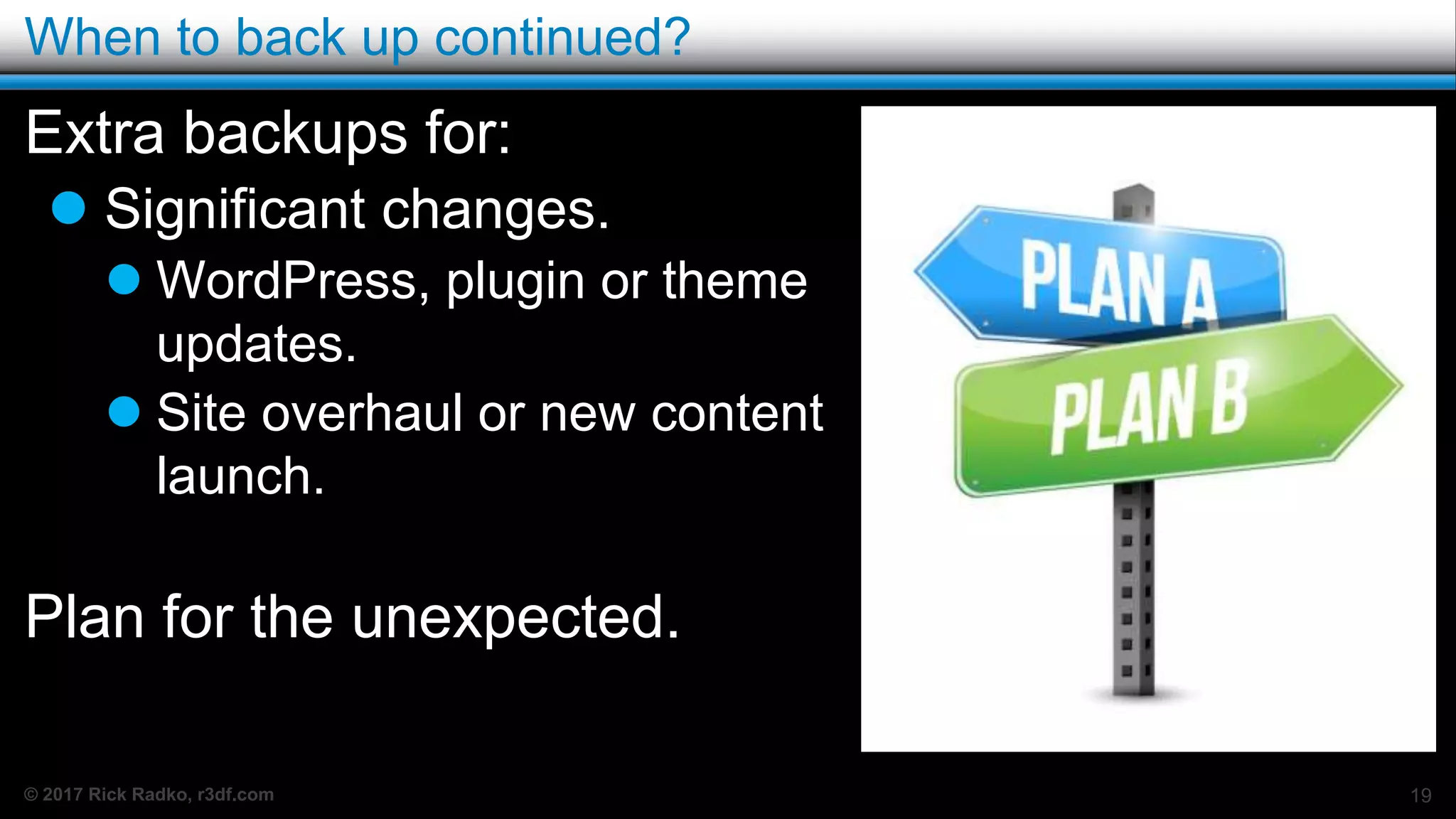
When to back up continued?
Extra backups for:
 Significant changes.
 WordPress, plugin or theme
updates.
 Site overhaul or new content
launch.
Plan for the unexpected.
19
© 2017 Rick Radko, r3df.com
When to back up? TL;DR
The decision to back up daily, weekly or monthly:
 Depends on how much data you are willing to
loose…
20
© 2017 Rick Radko, r3df.com
Where to back up?
21
© 2017 Rick Radko, r3df.com
Where to back up
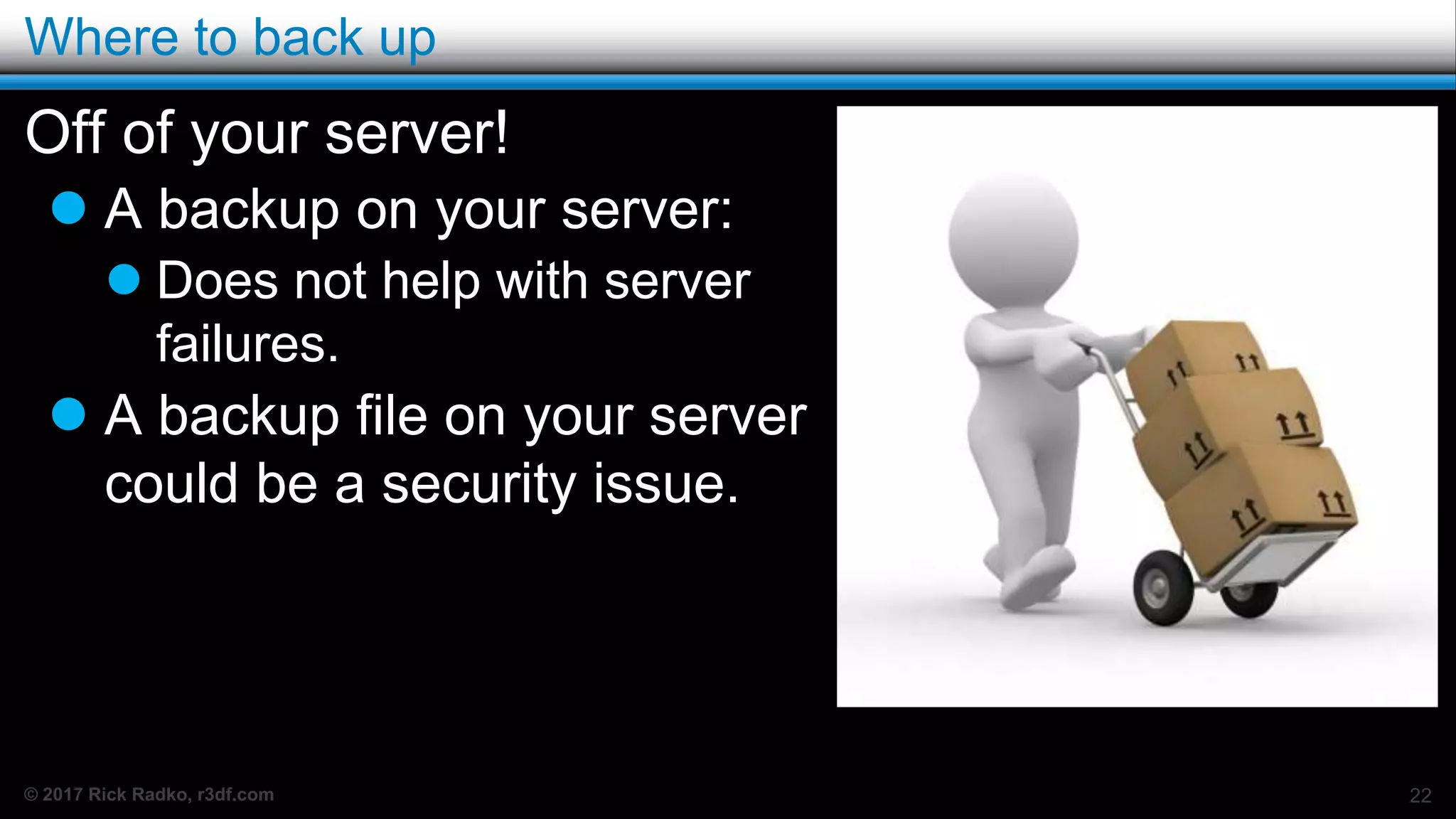
Off of your server!
 A backup on your server:
 Does not help with server
failures.
 A backup file on your server
could be a security issue.
22
© 2017 Rick Radko, r3df.com
Where to back up continued…
Other points:
 Off site (different physical location).
 Keeping 3 separate backups is recommended.
 At least one at a different location!
 Backup history – a period of older copies.
 Week of daily backups + 2 monthly backups.
23
© 2017 Rick Radko, r3df.com
Send it to the cloud
Many plugins will let you store your backups on one
of the many cloud services.
 Amazon S3
 Dropbox
 Google Drive
 +More
This is a reasonable option for most sites.
 Cloud storage fees are quite low.
 Off site.
24
© 2017 Rick Radko, r3df.com
How much does the cloud cost?
Peanuts…
25
© 2017 Rick Radko, r3df.com
What, when, where? TL;DR
Ultimately the decision of :
 what
 when
 where
to backup your site will involve assessments of risk
and possibly compromises.
26
© 2017 Rick Radko, r3df.com
How to back up?
27
© 2017 Rick Radko, r3df.com
How to back up
Lets look at some tools/methods to do backups.
I’ve grouped them into 4 rough categories:
 Manual backups
 Backup plugins
 Backup services
 Site managers
28
© 2017 Rick Radko, r3df.com
Manual backups
Hosting control panel
 Most hosting control panels offer a backup option.
 Usually not automated.
 May not be very granular. (entire account only)
File archive and SQL dump:
 Compress (zip/archive) your files into an archive.
 Dump (export ) your MySQL database. (phpMyAdmin,
and other tools)
 FTP the files off the server.
29
© 2017 Rick Radko, r3df.com
File archive and SQL dump – pros
 Very granular – any site/part of a site you want.
 Very reliable, .zip + sql dump is very portable
 No special software/tools needed to export or restore.
 Quick for experienced developers taking a “right
now” copy.
Tip:
 Including the date, 2017-04-03, in the names of both
the .zip and .sql files, helps keep backup files
together. 30
© 2017 Rick Radko, r3df.com
File archive and SQL dump – cons
 Need some knowledge:
 Database imports/exports.
 Some GUI tools: phpMyAdmin.
 How to archive/un-archive (compress, .zip, gzip etc.)
 Comfortable with file systems on the server
 Often Linux, or Unix variant.
 Need additional scripts for site migration.
 Simple "search and replace" does not take into
account serialized data.
 See wordpress.org/support/article/moving-wordpress
31
© 2017 Rick Radko, r3df.com
The biggest issue with manual back ups?
32
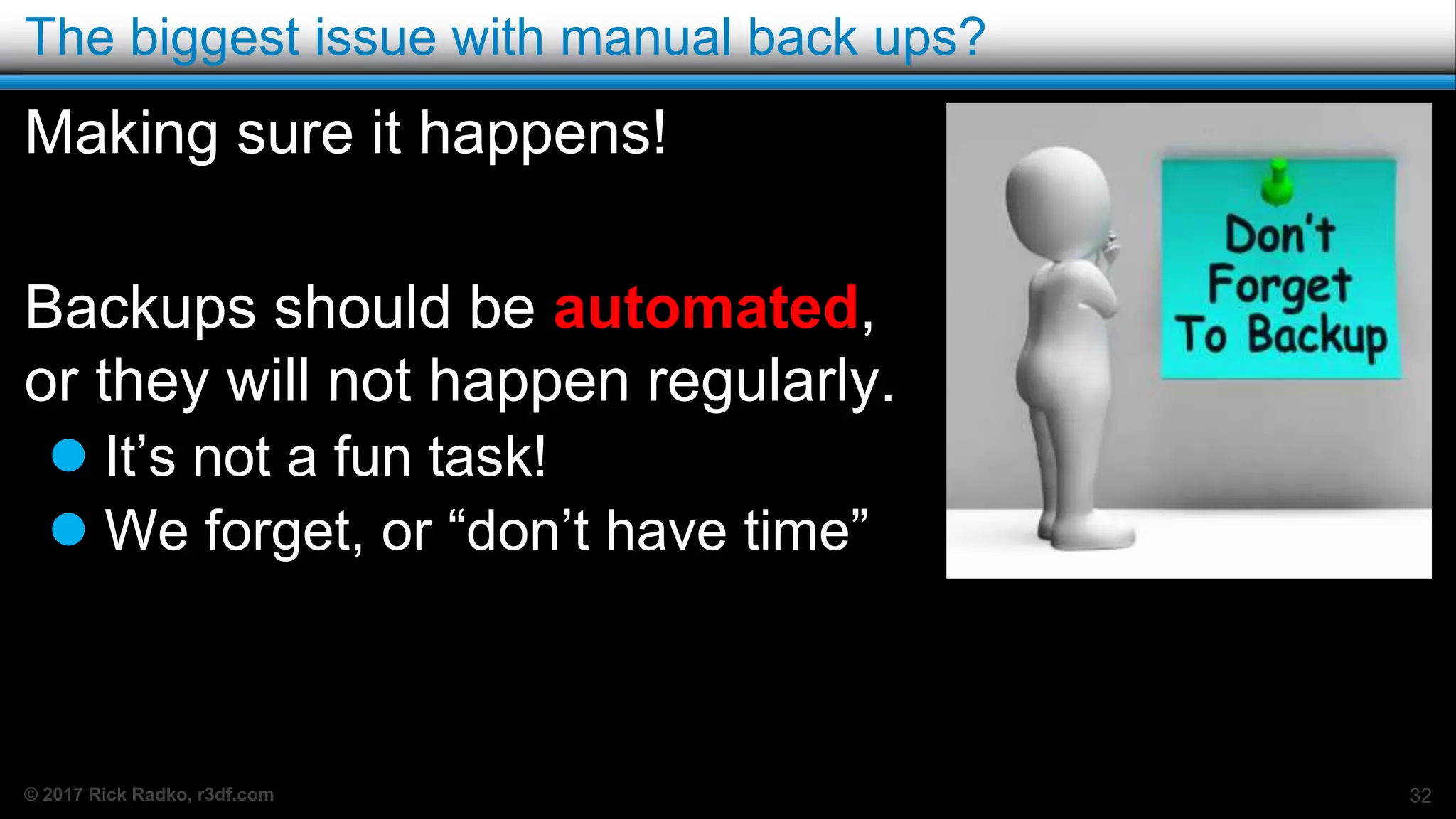
Making sure it happens!
Backups should be automated,
or they will not happen regularly.
 It’s not a fun task!
 We forget, or “don’t have time”
© 2017 Rick Radko, r3df.com
Back up plugins
There are a lot of choices in plugins for back ups.
 Many are free. (wordpress.org)
 Some are paid.
Key features to look for:
 Automated/scheduled backups.
 A must if you want backups you can count on.
 Manual backups (on demand)
 Using the same settings as your automated backups.
33
© 2017 Rick Radko, r3df.com
More plugin features:
 File/directory exclusions.
 You may have some files you don’t want backed up.
 Allows backing up database only, files only or both.
 Flexibility in your backup strategy.
 Schedule multiple back ups on different timings.
 Offers choice of backup locations:
 Backups to cloud:
 Dropbox, Amazon, Rackspace, Google Drive, Others?
 FTP to other servers/computers
34
© 2017 Rick Radko, r3df.com
Restore and migration features
Restore features:
 No install restores.
 Don’t need WordPress installed.
 May need a supporting script.
 Malware scans.
 Database optimization/repair.
Site migration:
 Important only if you want to move your site to a new
domain. 35
© 2017 Rick Radko, r3df.com
Multisite issues
If you have multisite enabled, consider whether the
backup plugin can:
 Backup sites individually?
 Backup a sub-network?
 Restore sites individually?
 Restore a sub-network?
 Migrate a single multisite site to/from a single site
install?
36
© 2017 Rick Radko, r3df.com
Some plugins (no order, or recommendation given)
On wordpress.org: (freemium)
 UpdraftPlus WordPress Backup Plugin
 wordpress.org/plugins/updraftplus
 Duplicator/Duplicator Pro
 wordpress.org/plugins/duplicator
 All-in-One WP Migration
 wordpress.org/plugins/all-in-one-wp-migration
 + Many more on wordpress.org
 wordpress.org/plugins/search/backup
BackupBuddy - $
 ithemes.com/purchase/backupbuddy
37
© 2017 Rick Radko, r3df.com
Back up services
When considering a service:
 Most of the same features as for plugins need to be
considered.
 One item that is key:
 Where are they storing your files?
 Secure – encrypted?
38
© 2017 Rick Radko, r3df.com
More on back up services
Unlike plugins:
 Most of the services cost.
 But they include storage.
 Threat and malware scanners are common in the
services.
 Most offer incremental & partial backups.
 Only backup what has changed instead of the whole
site.
 Lower cost for them – less data
 Most don’t store files on your server. 39
© 2017 Rick Radko, r3df.com
A couple of services (no order, or recommendation given)
VaultPress
 From the people who make WordPress
 Starts at $20/month (USD)
 vaultpress.com
BlogVault
 Starts at $7.40/month (USD)
 blogvault.net
40
© 2017 Rick Radko, r3df.com
Site managers
Manage multiple WordPress sites from one central
admin panel.
 Offer a bunch of features for managing sites:
 Remote updates
 Add plugins themes
 Bulk postings
 Site analysis
 Backups
41
© 2017 Rick Radko, r3df.com
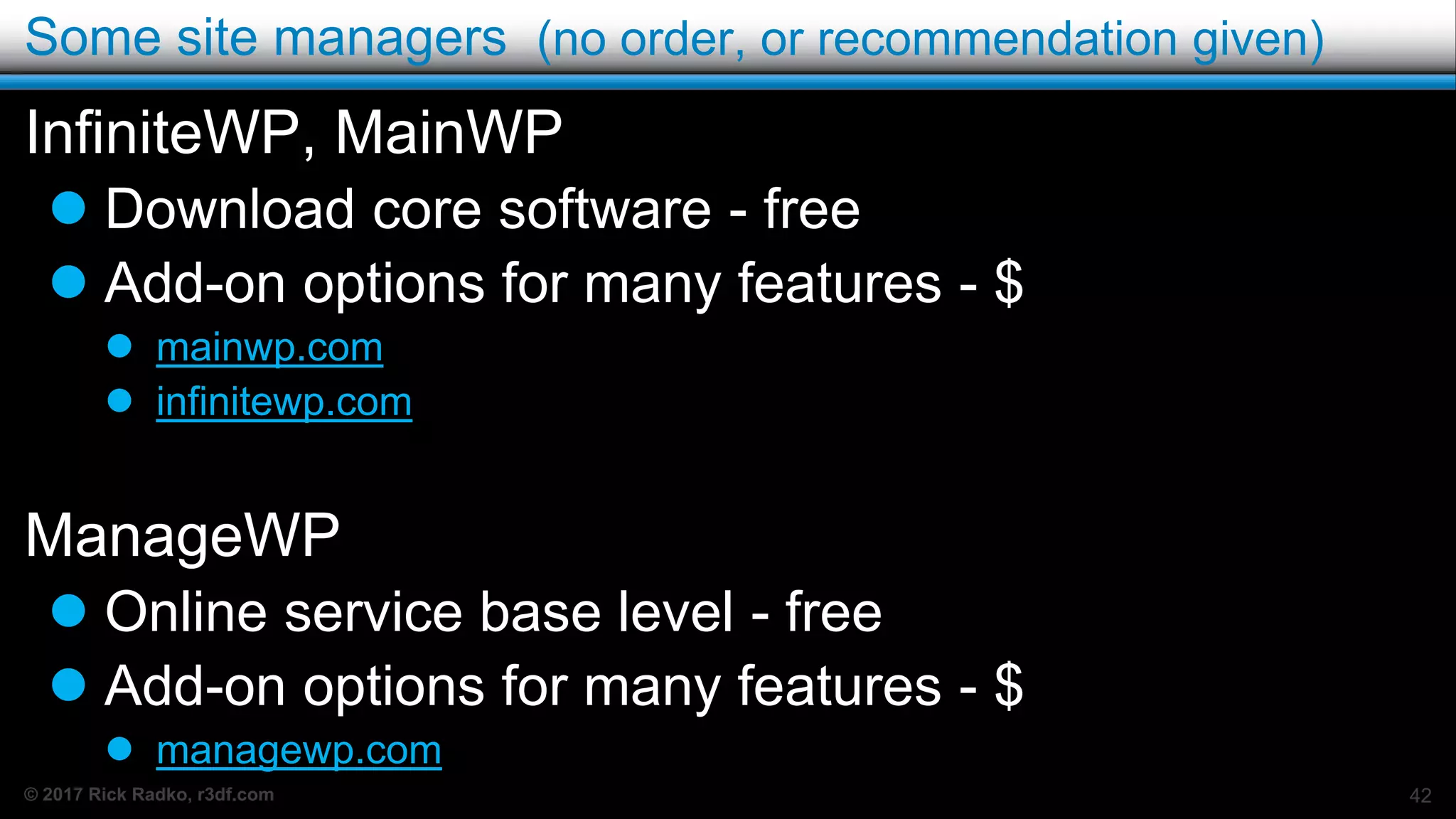
Some site managers (no order, or recommendation given)
InfiniteWP, MainWP
 Download core software - free
 Add-on options for many features - $
 mainwp.com
 infinitewp.com
ManageWP
 Online service base level - free
 Add-on options for many features - $
 managewp.com
42
© 2017 Rick Radko, r3df.com
How to back up? TL;DR
Lots of ways to do backups (some better than
others):
 Manual backups
 Backup plugins
 Backup services
 Site managers
43
© 2017 Rick Radko, r3df.com
Final Points
44
© 2017 Rick Radko, r3df.com
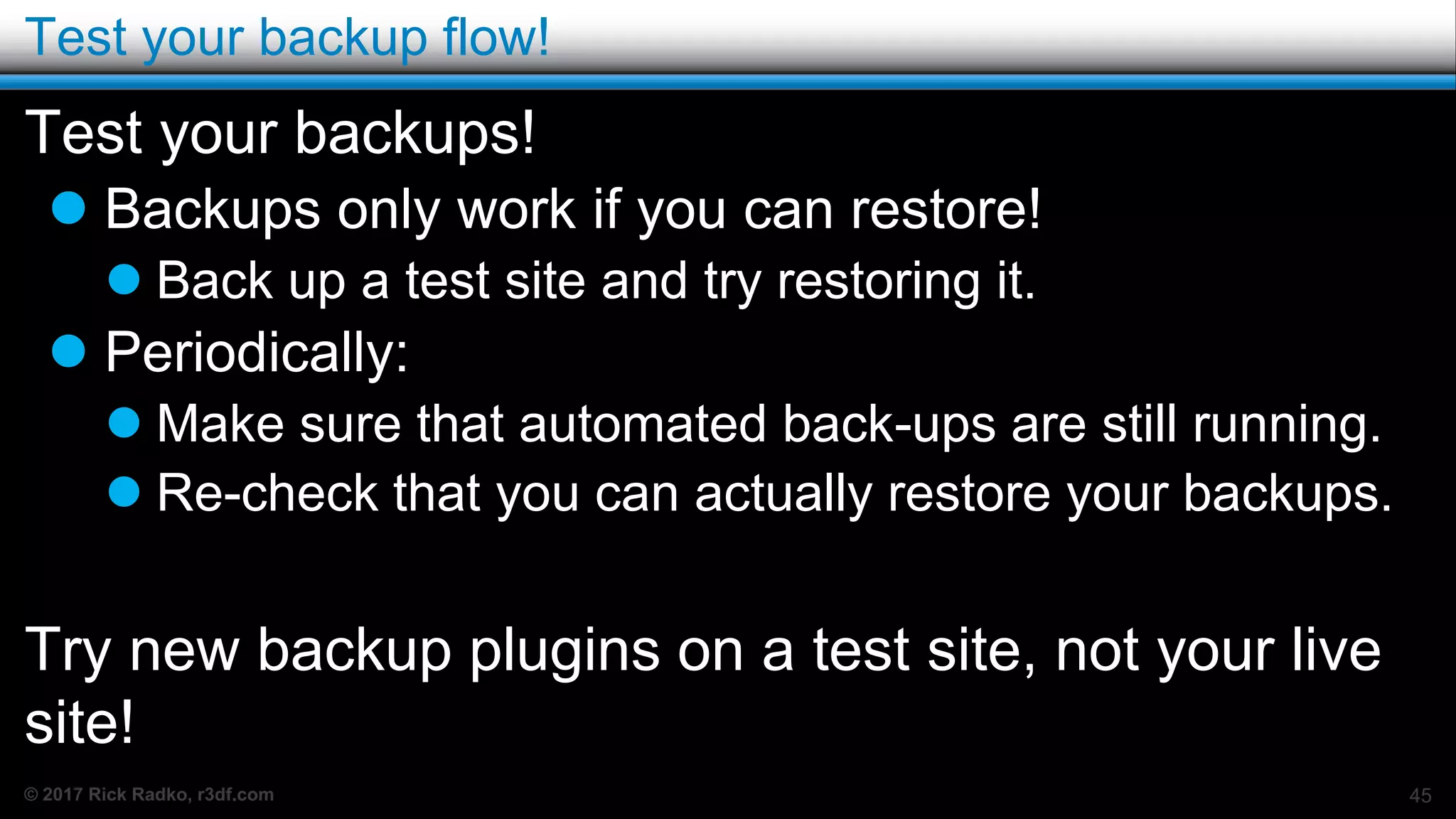
Test your backup flow!
Test your backups!
 Backups only work if you can restore!
 Back up a test site and try restoring it.
 Periodically:
 Make sure that automated back-ups are still running.
 Re-check that you can actually restore your backups.
Try new backup plugins on a test site, not your live
site!
45
© 2017 Rick Radko, r3df.com
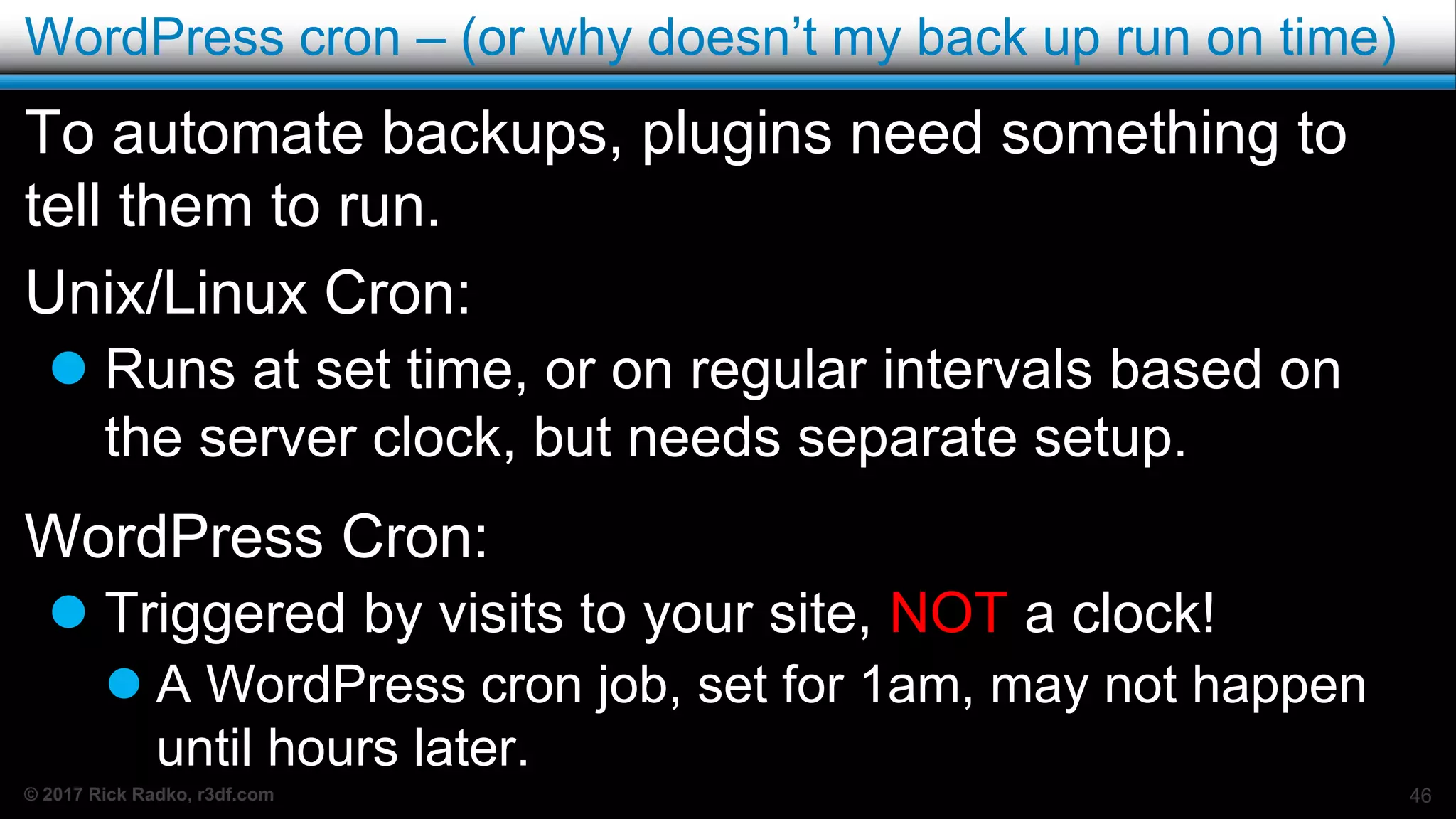
WordPress cron – (or why doesn’t my back up run on time)
To automate backups, plugins need something to
tell them to run.
Unix/Linux Cron:
 Runs at set time, or on regular intervals based on
the server clock, but needs separate setup.
WordPress Cron:
 Triggered by visits to your site, NOT a clock!
 A WordPress cron job, set for 1am, may not happen
until hours later.
46
© 2017 Rick Radko, r3df.com
One final note on backups
Backup is often not spelled correctly, a bit of
Googling reveals that:
The verb form is back up in two words, whereas the
noun is backup.
 Did you back up the hard drive?
 Where did you store the backup?
47
© 2017 Rick Radko, r3df.com
Contact
Rick Radko
 Website: r3df.com
 Twitter: @r3designforge
Slides at: slideshare.net/r3df
48
r3df.com
Rick Radko
Backups,
Backups,
Backups
Ottawa WordPress Meetup
May 6th, 2020
Slides at: slideshare.net/r3df

Backups, Backups, Backups

  • 1.
  • 2.
    © 2017 RickRadko, r3df.com Goal Answer the questions:  Why back up?  What to back up?  When to back up?  Where to back up?  How to back up? Slides: slideshare.net/r3df 1
  • 3.
    © 2017 RickRadko, r3df.com I'm Rick Radko – R-Cubed Design Forge: r3df.com  Website and app developer/designer, & trainer.  Custom web sites since 1996.  WordPress sites since 2008.  Plugins: profiles.wordpress.org/r3df/#content-plugins  WordPress enthusiast:  Co-organizer of:  The Ottawa WordPress Group  WordCamp Ottawa: 2013, 2014, 2016, 2017  Co-organizer of The Ottawa PHP Meetup 2
  • 4.
    © 2017 RickRadko, r3df.com Why back up? 3
  • 5.
    © 2017 RickRadko, r3df.com Why back up? Hardware failures:  Disk drives fail. Accidental deletions & damage:  Who makes mistakes? - Everybody! One of the creators of Backup Buddy mentions both of these issues happening to him, in this talk:  wordpress.tv/2011/01/29/matt-danner-why-you-need-a- wordpress-backup 4
  • 6.
    © 2017 RickRadko, r3df.com More reasons you need a backup Hacking/Malware/Virus:  Could completely trash your site.  Entire site deleted/replaced.  Files could be altered.  May be obvious or hidden.  There are over 2000 files in WordPress alone.  4000-6000 files in typical small sites.  10,000+ files in large sites with complex plugins  Database can be compromised. 5
  • 7.
    © 2017 RickRadko, r3df.com Other reasons you need a backup Updates:  Bugs  Incompatibility  Update fails to complete 6
  • 8.
    © 2017 RickRadko, r3df.com Time and $ to rebuild If you lost your WordPress site, how long would it take you to rebuild? a) Minutes – because I have reliable backup. b) Hours? c) Days? d) Weeks? 7
  • 9.
    © 2017 RickRadko, r3df.com Reconstructing a site without a backup Even small sites take significant effort to recover… Rebuild the WordPress install:  Plugins  Setup and configure  Theme  Add customizations  Add content 8
  • 10.
    © 2017 RickRadko, r3df.com Reconstructing content Recovering content:  Google, Bing etc. may have cached copies, if you lost the site recently.  Get them immediately! (save as html files)  A lot of cut and paste and editing work.  Re-uploading images. Rebuilds cost: $$ and lost uptime. 9
  • 11.
    © 2017 RickRadko, r3df.com Why back up: TL;DR Because the most expensive backup is the one you didn’t do! 10
  • 12.
    © 2017 RickRadko, r3df.com What to back up? 11
  • 13.
    © 2017 RickRadko, r3df.com What to back up? To completely back up a WordPress website, you need: 1. A copy of the database - Which stores:  All of your site content.  Settings and config for WordPress, plugins and themes. 2. A copy of the files:  Complete site, all the files… Or  Just the wp-content folder:  Plugin files, theme files, your images & other added data. 12
  • 14.
    © 2017 RickRadko, r3df.com That’s a lot of data! Backups can be pretty big:  A complete backup of:  An empty WordPress install is about 12 MB  Average sites are 200-500 MB  Large sites can be GB’s. 13
  • 15.
    © 2017 RickRadko, r3df.com Partial backups Some back-up systems will let you take a ”partial” or “incremental” backup.  Only saves the changes since the last backup.  Reduces data to save.  Increases restore complexity.  Higher risk of a corrupted backup. 14
  • 16.
    © 2017 RickRadko, r3df.com Database dominant backups If you don’t do any file or media uploads* - only your database is changing and you can:  Back up your database regularly.  Back up your files only when they change.  Or at a lower frequency Each database backup will pair with the last file backup, until changes are made to the files. * Embeds (Youtube etc.) are not uploads. 15
  • 17.
    © 2017 RickRadko, r3df.com What to back up? TL;DR  Files and database  Backup types:  Everything  Partial or incremental  Database dominant 16
  • 18.
    © 2017 RickRadko, r3df.com When to back up? 17
  • 19.
    © 2017 RickRadko, r3df.com When to back up? For regular backups consider:  The amount of data being added routinely:  Your posting frequency.  Multiple authors.  Visitor contribution frequency. – comments etc.  How critical your site is.  E-Commerce?  How big the site is.  Amount of data that needs to be moved and stored. 18
  • 20.
    © 2017 RickRadko, r3df.com When to back up continued? Extra backups for:  Significant changes.  WordPress, plugin or theme updates.  Site overhaul or new content launch. Plan for the unexpected. 19
  • 21.
    © 2017 RickRadko, r3df.com When to back up? TL;DR The decision to back up daily, weekly or monthly:  Depends on how much data you are willing to loose… 20
  • 22.
    © 2017 RickRadko, r3df.com Where to back up? 21
  • 23.
    © 2017 RickRadko, r3df.com Where to back up Off of your server!  A backup on your server:  Does not help with server failures.  A backup file on your server could be a security issue. 22
  • 24.
    © 2017 RickRadko, r3df.com Where to back up continued… Other points:  Off site (different physical location).  Keeping 3 separate backups is recommended.  At least one at a different location!  Backup history – a period of older copies.  Week of daily backups + 2 monthly backups. 23
  • 25.
    © 2017 RickRadko, r3df.com Send it to the cloud Many plugins will let you store your backups on one of the many cloud services.  Amazon S3  Dropbox  Google Drive  +More This is a reasonable option for most sites.  Cloud storage fees are quite low.  Off site. 24
  • 26.
    © 2017 RickRadko, r3df.com How much does the cloud cost? Peanuts… 25
  • 27.
    © 2017 RickRadko, r3df.com What, when, where? TL;DR Ultimately the decision of :  what  when  where to backup your site will involve assessments of risk and possibly compromises. 26
  • 28.
    © 2017 RickRadko, r3df.com How to back up? 27
  • 29.
    © 2017 RickRadko, r3df.com How to back up Lets look at some tools/methods to do backups. I’ve grouped them into 4 rough categories:  Manual backups  Backup plugins  Backup services  Site managers 28
  • 30.
    © 2017 RickRadko, r3df.com Manual backups Hosting control panel  Most hosting control panels offer a backup option.  Usually not automated.  May not be very granular. (entire account only) File archive and SQL dump:  Compress (zip/archive) your files into an archive.  Dump (export ) your MySQL database. (phpMyAdmin, and other tools)  FTP the files off the server. 29
  • 31.
    © 2017 RickRadko, r3df.com File archive and SQL dump – pros  Very granular – any site/part of a site you want.  Very reliable, .zip + sql dump is very portable  No special software/tools needed to export or restore.  Quick for experienced developers taking a “right now” copy. Tip:  Including the date, 2017-04-03, in the names of both the .zip and .sql files, helps keep backup files together. 30
  • 32.
    © 2017 RickRadko, r3df.com File archive and SQL dump – cons  Need some knowledge:  Database imports/exports.  Some GUI tools: phpMyAdmin.  How to archive/un-archive (compress, .zip, gzip etc.)  Comfortable with file systems on the server  Often Linux, or Unix variant.  Need additional scripts for site migration.  Simple "search and replace" does not take into account serialized data.  See wordpress.org/support/article/moving-wordpress 31
  • 33.
    © 2017 RickRadko, r3df.com The biggest issue with manual back ups? 32 Making sure it happens! Backups should be automated, or they will not happen regularly.  It’s not a fun task!  We forget, or “don’t have time”
  • 34.
    © 2017 RickRadko, r3df.com Back up plugins There are a lot of choices in plugins for back ups.  Many are free. (wordpress.org)  Some are paid. Key features to look for:  Automated/scheduled backups.  A must if you want backups you can count on.  Manual backups (on demand)  Using the same settings as your automated backups. 33
  • 35.
    © 2017 RickRadko, r3df.com More plugin features:  File/directory exclusions.  You may have some files you don’t want backed up.  Allows backing up database only, files only or both.  Flexibility in your backup strategy.  Schedule multiple back ups on different timings.  Offers choice of backup locations:  Backups to cloud:  Dropbox, Amazon, Rackspace, Google Drive, Others?  FTP to other servers/computers 34
  • 36.
    © 2017 RickRadko, r3df.com Restore and migration features Restore features:  No install restores.  Don’t need WordPress installed.  May need a supporting script.  Malware scans.  Database optimization/repair. Site migration:  Important only if you want to move your site to a new domain. 35
  • 37.
    © 2017 RickRadko, r3df.com Multisite issues If you have multisite enabled, consider whether the backup plugin can:  Backup sites individually?  Backup a sub-network?  Restore sites individually?  Restore a sub-network?  Migrate a single multisite site to/from a single site install? 36
  • 38.
    © 2017 RickRadko, r3df.com Some plugins (no order, or recommendation given) On wordpress.org: (freemium)  UpdraftPlus WordPress Backup Plugin  wordpress.org/plugins/updraftplus  Duplicator/Duplicator Pro  wordpress.org/plugins/duplicator  All-in-One WP Migration  wordpress.org/plugins/all-in-one-wp-migration  + Many more on wordpress.org  wordpress.org/plugins/search/backup BackupBuddy - $  ithemes.com/purchase/backupbuddy 37
  • 39.
    © 2017 RickRadko, r3df.com Back up services When considering a service:  Most of the same features as for plugins need to be considered.  One item that is key:  Where are they storing your files?  Secure – encrypted? 38
  • 40.
    © 2017 RickRadko, r3df.com More on back up services Unlike plugins:  Most of the services cost.  But they include storage.  Threat and malware scanners are common in the services.  Most offer incremental & partial backups.  Only backup what has changed instead of the whole site.  Lower cost for them – less data  Most don’t store files on your server. 39
  • 41.
    © 2017 RickRadko, r3df.com A couple of services (no order, or recommendation given) VaultPress  From the people who make WordPress  Starts at $20/month (USD)  vaultpress.com BlogVault  Starts at $7.40/month (USD)  blogvault.net 40
  • 42.
    © 2017 RickRadko, r3df.com Site managers Manage multiple WordPress sites from one central admin panel.  Offer a bunch of features for managing sites:  Remote updates  Add plugins themes  Bulk postings  Site analysis  Backups 41
  • 43.
    © 2017 RickRadko, r3df.com Some site managers (no order, or recommendation given) InfiniteWP, MainWP  Download core software - free  Add-on options for many features - $  mainwp.com  infinitewp.com ManageWP  Online service base level - free  Add-on options for many features - $  managewp.com 42
  • 44.
    © 2017 RickRadko, r3df.com How to back up? TL;DR Lots of ways to do backups (some better than others):  Manual backups  Backup plugins  Backup services  Site managers 43
  • 45.
    © 2017 RickRadko, r3df.com Final Points 44
  • 46.
    © 2017 RickRadko, r3df.com Test your backup flow! Test your backups!  Backups only work if you can restore!  Back up a test site and try restoring it.  Periodically:  Make sure that automated back-ups are still running.  Re-check that you can actually restore your backups. Try new backup plugins on a test site, not your live site! 45
  • 47.
    © 2017 RickRadko, r3df.com WordPress cron – (or why doesn’t my back up run on time) To automate backups, plugins need something to tell them to run. Unix/Linux Cron:  Runs at set time, or on regular intervals based on the server clock, but needs separate setup. WordPress Cron:  Triggered by visits to your site, NOT a clock!  A WordPress cron job, set for 1am, may not happen until hours later. 46
  • 48.
    © 2017 RickRadko, r3df.com One final note on backups Backup is often not spelled correctly, a bit of Googling reveals that: The verb form is back up in two words, whereas the noun is backup.  Did you back up the hard drive?  Where did you store the backup? 47
  • 49.
    © 2017 RickRadko, r3df.com Contact Rick Radko  Website: r3df.com  Twitter: @r3designforge Slides at: slideshare.net/r3df 48
  • 50.
    r3df.com Rick Radko Backups, Backups, Backups Ottawa WordPressMeetup May 6th, 2020 Slides at: slideshare.net/r3df

Editor's Notes

  • #2 Tonight I’m talking about backups The title “Backups, Backups, Backups” -> Ties to the idea that a good backup system - should have 3 independent backups
  • #3 The goal of this presentation is to answer the questions: - Why we should do regular back ups -> what’s the risk if we don’t - What we need to back up in order -> to have a complete back up of a WordPress site - When and how often should we do back ups - Where to save those back ups - and finally a few of the many ways that you can make those back ups happen on your WordPress site ------------------- As is often the case with things in computing -> this is a story of compromises -> there is no perfect single solution to all these questions -> I’m going to present concepts and ideas to help you decide how to backup you site.
  • #4 I’m Rick Radko This talk is based on experience with backups - that comes from years of doing them as a WordPress developer. - My opinions and what I have learned over the years I have my own design and development shop: -> R-Cubed Design Forge -> Where I design & develop custom, -> and multilingual WordPress websites I started building websites and web apps around 1996 - back in the days of hand coded html, - long before WordPress existed. I’ve been using WordPress for 12 years… Created many plugins, some are public. - Working on updating them. I’m one of the co-organizers of The Ottawa WordPress Group I’m also a co-organizer of PHP Ottawa - anyone getting into PHP coding may want to join there…
  • #5 Lets get started with the first question: Why back up? ------------------------------------------- Who has a backup of their WordPress site? -> For those that do, who has automated regular off site backups? -> can some one tell us -> why they back up?
  • #6 There are many reasons why you should have a back up of your site: Hardware failures: - Whether you have your own server or pay for hosting - Disk failures are one of the most common reasons to need a backup - a few years ago, one of my hosted servers had a drive failure that lost data - A redundant drive cluster failed -> it’s not supposed to happen - but it did. -> I didn’t know it, until too late, that host’s backups were on the same cluster -> this was my lesson in why need your own backups… - 3-rd Party hosts don’t guarantee that they have you backed up. -> they will try their best but if you google a bit you will see: -> the web is full of stories of bad/non-existent backups for hosting failures Another common reason for needing a backup is accidents and mistakes: - they happen all the time -> no one is immune to mistakes -> click a button -> or hit return too fast -> and OOPS! One of the creators of Backup Buddy has a short WordCamp talk where he discusses being hit by both of these issues. -> drove the development of BackupBuddy
  • #7 Another thing that is common: - Is hacked sites - Hackers may delete all files on the site - Hacking can corrupt every file on your site -> by loading malware & virus payloads in them -> 1000’s of files in WordPress installs – hard to clean up! -> The database can also be altered and include malware -> I've spent days cleaning out malware - and rebuilding sites where this happened without backups -> not any of mine though… I have backups
  • #8 Updates can cause issues that damage your site - Bugs – in WordPress, plugins or themes -> A an update could introduce bugs you can’t live with -> can’t leave it until a bug fix is released -> restore backup -> Incompatibility after updates - Between new versions of WordPress, plugins or themes - Millions of combinations, impossible to test them all - last week - FB post in our group mentioned issue with Yoast 14 - I had a conflict on a site with PMPro and Theme My Login -> Updates can fail, happened to me a couple times over the years. - partway through an update, something choked. -> this can leave your site in a big mess -> could have partial file updates, -> could have partial db updates -> very challenging to repair Easiest way to fix any of these issues: restore from backup.
  • #9 The reason most of us should have a back up -> is to avoid the time and cost of replacing/reconstructing the site. How long would do you think it take you to rebuild your site if it was lost? - Assuming you want to get your site back exactly the way it was… ?? Raise you hand if you think it would be: -> Minutes or hours - If you have a good backup, you could have it back up in minutes -> probably 15-30 depending on site size - If you don’t have a backup, -> the realistic answer for most sites is likely days, -> some bigger sites maybe weeks to rebuild everything Most people don't really think about the cost of replacing a website, but …. ------------------------------------------------------------------------- But that is what backups are about: - recovering from unexpected data loss Who has had a web site damaged, destroyed or lost? -> did you have a backup? - For those of you who don’t have backups - lets look at why we need backups
  • #10 Sites are built over time, and we often forget how much went into creating them I’ve had to rebuild many sites. - it takes a lot longer than you would expect Need to start from a blank slate: -> install WordPress -> figure out which plugins that were being used, and install them -> recreating the custom theme -> next slide for site content
  • #11  then rebuilding the content: -> If your site is indexed, Google and other search sites have cached copies of pages -> if you are quick (before they update their caches to your new lost/trashed site) -> you can often recover a lot of content from them -> rebuilding the pages from the recovered content – Still takes time -> a lot of cut and paste and editing -> caches are not good copies - styling and formatting is lost -> re-upload images – checking links (urls) Obviously this costs!!! $$ for the recovery effort and lost uptime
  • #12 So, the short story from that is - not having a backup will likely cost you more than taking them
  • #13 So now that I have hopefully convinced you that a backup is a must… What to backup?
  • #14 For a complete copy of your site – you need to backup both: -> your database -> and the site files The database has: - all of your content, posts, pages, ie: everything you write/create - also has all the settings and config for: -> WordPress -> the plugins -> your theme Files can be all the installed files for -> WordPress & all your content OR JUST THE SITE CONTENT FILES -> which is the wp-content folder -> plugins, theme, and customizations -> images, videos from posts & pages -> WordPress could be recovered by reinstalling -> but it’s a lot easier to have everything in the backup DOWNSIDE: bigger backup – more data, but not much more these days… - plugins and media are dominant.
  • #15 Full backups of everything can get quite large -> an empty install of WordPress alone is 12 MB Once you start adding some content, - plugins, images, podcasts, locally saved video, downloadable content -> plugins are now a big contributor Your backup will grow quickly All the sites I work with are in excess of 300 Meg. Several I work with are 1 - 1.5 GB Databases alone can be 100M - used to be 10’s of MB not long ago
  • #16 One compromise is partial backups Some back-up systems will let you take a ”partial” or “incremental” backup. - this kind of backup only saves the changes since the last backup. - You could do: weekly full back ups, incremental daily backups -> Reduces data to save. -> But it increases restore complexity. -> Higher risk of a corrupted backup -> relying on a chain of backups – not just one
  • #17 Another compromise you can make to reduce back up sizes on some sites - is to do -> regular database back ups (daily?) -> backup files only when they change. (or weekly) This works well on large sites with frequent content changes. -> beware media uploads -> they are file changes -> compromise: usually have your images on computer -> can reconstruct without backup -> a bit of time This can give you more options for backup strategies - database backups are usually smaller - less storage space
  • #18 Everything - Full database - Full files Partial backups - changes since last backup Database dominant - high frequency database - low frequency files
  • #19 Now that we know what we need to back up, - When do we back it up?
  • #20 To formulate a plan for regular backups you need to consider things like: -> The posting frequency -> Is there 1 post per week or 100? -> 1 post per week, you may only back up weekly or even less -> 100+ per week, you will probably want to back up daily -> Consider: are your posts created off site first? -> inherent “back-ups“ -> may consider relaxing your actual back up frequency -> Multiple Authors – less control over off site copies -> Visitor contribution (comments) -> 1 or 2 additions/week or 100s? -> the more activity -> the more backups needed - can’t easily replace visitor contributions -> How critical is your site? -> is the site - a store front - or personal blog -> how much down time can you tolerate? -> how big is the site? Big site -> more data to move and store -> may not be able to back up as frequently as desired
  • #21 Beyond regular back ups - also need to consider backups when the site has changes -> updates to WordPress, plugins and themes -> Remember updates can fail, or cause bug issues -> for major site overhauls, or content additions -> these occasions need extra on demand backups Once you have a plan, review your plan, consider “what if” conditions -> Back in the time of tape backups and sneaker net -> I worked for a company that did AutoCAD training & consulting That company had a client that backed up regularly at the close of business every Friday. - Tapes were immediately taken off site for storage - sounded like a good plan until: -> ALL their computers were stolen one Thursday night -> Aside from the hardware, they lost a week of design work. - “Stuff” happens when you least expect it. -> more effort, but they started backing up daily
  • #22 In summary, for your regular backups -> frequency depends on what you are willing risk to loosing: -> content -> time -> More backups -> means less to recover -> and less downtime -> But – the compromise - more back-ups means: more data to move and store -> more cost -> may need to reduce back ups to a less optimal level to cope with data on a big site
  • #23 Ok, we have the what and the when, -> where do we put the back ups?
  • #24 Storing a backup safely is a key part of a backup plan. -> Backups should be stored off of your server. -> on server backups are vulnerable to most the reasons for needing a backup Copies on your server could even be considered a security issue. - a whole copy of your site is potentially available for download -> has: -> database credentials – open text -> user credentials – hashed… but easily decrypted
  • #25 An “off site” copy is an important consideration - if disaster strikes where your server is -> you could loose your server and your backups Many backup tutorials will suggest keeping 3 separate backups! - backups can get lost or damaged -> redundant backups! -> at least one off site -> my sites - 3 backups - Host backup - my own server level backup – Amazon S3 - site backups – to cloud of clients choice – often Google Drive You should also have a back-up history, at least 5-7 old versions - sometimes new backups will have been made before a problem that needs recovery is noticed. -> if you only have one backup, then you can’t go back and fix it, -> your backup will have the problem - if you have a history of backups, you can go back and retrieve what you need - 1-2 weeks of dailys, 2 months of monthlys - covers most the bases
  • #26 The best option for offsite is cloud storage: -> meets a lot of the goals we’d like for backup storage - It’s cheap -> For most people less than $1 a month on Amazon - It's off site -> some services offer encrypted transfers and storage Consider data location: - some organizations are sensitive to data privacy -> concerned about the patriot act etc. -> may need to find servers in appropriate regions ** my S3 buckets are in Montreal, or Ireland I’m often asked how much does cloud storage really cost?
  • #27 How much does it cost to backup to the cloud -> peanuts I currently have 100’s GB’s on Amazon S3 monthly bill is around $10 -> mostly for the storage -> about 30 cents for other charges -> transfers in/out etc. - 2 weeks dailies for many websites I’m generally not very into the cloud, -> backup storage is one thing that I do use Can even be free (Google Drive 15G) (Dropbox 2G) - 10-15 GB is more than enough for 10 or more backups of most sites.
  • #28 At this point you may be realizing that I’ve not given you a definitive backup plan. Ultimately, the backup plan for every site is unique What, when & where -> could be different for every site you have. A low priority personal blog - Has different needs than a high traffic corporate/company site -> or an ecommerce site. In each situation, you will need to evaluate your needs and risks, make some compromises and possibly test some options
  • #29 The last topic to cover is the how…
  • #30 Lets look at some tools/methods to do the backups. I’ve grouped things into 4 categories: - Manual backups - Backup plugins - Backup services - Site managers
  • #31 Manual backups Most hosting control panels offer a backup option. -> Often this is not a very good solution for regular backups -> It's used mainly to move a site from one host to another -> Usually not automated. -> May not be very granular. (entire account only) On many hosts you also be able backup by: - Compressing your files to make an archive file (zip/gzip/archive) - Dumping (exporting) your MySQL database -> (phpMyAdmin, and other tools including command line options) - FTPing the resulting files off the server - This has been a common technique for webmasters for years I’ve used this technique for years - and still use it for quick one-off backups -> before doing fixes or updates to a client site -> I can quickly recover from “oops” type errors - as well as migrating sites
  • #32 The archive and SQL dump technique has many things going for it: Very granular - any site/part of a site you want. -> can even get one single file back Very reliable and very portable: - don’t need any special SW (beyond what is normally on a server) to restore I use this technique all the time to backup new client sites before I touch it. -> I’m not immune to “oops”, so need backups before working on site. -> do it even if there are “regular backups” -> no software or plugins needed, so nothing to add that could break the site. -> usually takes longer to move the .zip off the server than to create the 2 files…
  • #33 The problem with this technique is the user interface: -> it’s pretty hands on Need to have some knowledge to do the back ups - Need to know enough about databases to do imports/exports -> phpmyadmin may be available in some cases - Need to know how to archive files - Need to be comfortable with file systems on the server -> Often this is Linux based Need other scripts for site migration. -> moving a site to a new domain or subdomain I use script forked from early version of the interconnect it
  • #34 The biggest issue with manual back ups? -> No automated backups. (unless you script it) Making sure it happens -> is key to a good back up strategy How do we get automated backups? - the other 3 choices I listed a couple of slides back -> plugins -> services -> Site managers
  • #35 Lets look at backup plugins Lots of choices for backup plugins: - many are free - find most of those on wordpress.org - some are paid Some key features you should be looking for are: - automated and scheduled backups -> this is really a must have to have good backups - Manual backups using the same settings as the automated ones - strongly recommend this feature. - keeps your backups working smoothly -> harder to find/use manual backups - if they go to a different location, -> files are named differently, not in sequence - or have a different format
  • #36  - File and directory exclusions are nice -> don’t back up extra stuff that is big or not changing -> musician client – song samples – lot of data… - Flexible settings for backup of any choice of - files - database - or both - Multiple backups, at different timings, different settings -> database daily, files weekly -> some free ones fail here… (freemium) When you are choosing a plugin, check the backup locations - only need to include the ones you need. Not all plugins will save to all locations - some specialize -> Dropbox or Google, or Amazon S3 only - email or FTP
  • #37 Backups are not much good if you can’t restore. Beware of what you need to restore: - Some plugins need WordPress installed to do a restore. -> adds complication to the process -> you need to do the install - Some plugins offer "no install" restores -> but usually need separate scripts installed - Some offer malware scans -> could be useful with all the hacking we have now - Some will do database optimization and repair Site migration - only important if you need to move your site to a different domain -> but VERY helpful if you do need it - helps change all the occurrences of the domain name in your site - unlike what is suggested in many tutorials on the web -> you CAN’T just do a search and replace on the database -> this will break PHP serialized strings -> your site may not have serialized strings in the database -> but if you do - it will get messed up
  • #38 There are some issues to consider if you use multisite: Considerations for multisite - can the plugin: -> backup individual sites -> restore individual sites -> Migrate to/from single site installs Backups for multisite are not well supported - not many plugins handle it
  • #39 Some backup plugins that cover most the points we have discussed: - UpdraftPlus - Duplicator - All in One -> all 3 have over 1 Million installs each -> Free has limits # of scheduled backups may need addons for cloud services All on wordpress.org - have not used any of them extensively Last plugin on the page is backup buddy - It does cost – starts at $80/yr - It is what I currently use -> started with it long time ago -> does what I need -> lifetime, unlimited sites license
  • #40 If you prefer simple online solutions, -> several online backup services are available for WordPress Choosing a service: - Most of the same features as for plugins need to be considered. -> does it offer scheduling choices -> how granular are restores? -> choice of files & database One item that stands out is: - Where are they storing your files? - Secure – encrypted? -> your files are on someone else’s server!
  • #41 Services differ from plugins in that: - Most of them cost -> But they include storage which you would have to pay for with a plugin - Threat and malware scanners are common in services - Some offer incremental backups -> means they only record the changes - most don’t store files on your server.
  • #42 2 of the services are: VaultPress - by automattic – who make WordPress Blog Vault I’ve not used either of these, but many people do.
  • #43 They allow remote management of one or more sites - intended for people – mostly developers/agencies -> with many sites to manage The reason I mentioned them was they include backups - it’s another option that may work for you - BUT: you do need to go paid versions to get automated backup to cloud
  • #44 Two examples are: InfiniteWP, MainWP - Download and install like WordPress - Free - Installs on your servers -> can use a local server for main dashboard - Good selection of basic features - Lots of paid add-ons, which are needed for automated/cloud backup I have both of these, am using MainWP, but not for backups… ManageWP - it’s an online service - automated backup is an upgrade, $2/mo Have not used ManageWP.
  • #45 Lots of ways to do backups (some better than others): - Manual backups - Backup plugins - Backup services - Site managers All have advantages/disadvantages -> each may have time and place -> like manual backup.
  • #46 A few closing notes
  • #47 A few last points: Test your backups! - Backups only work if you can restore! -> Back up a test site and try restoring it. - Make sure that automated back-ups are actually running. - Periodically check that you can restore your backups. Try new backup plugins on a test site, not your live sites! END OF MAIN SLIDES – CAN SKIP REST
  • #48 A bit of a side note: To do the automation of backups the plugins need something to tell them to run - on linux/unix system there is a system known as cron -> runs reliably on timers set on the sever clock But -> Cron needs to be setup separately from plugins/WordPress -> can take a bit of knowledge to set up WordPress has a built in cron function - BUT there is a big difference -> It has no clock to trigger it! -> the only way to start a program on the website is with a visitor! - every time there is a visitor, WordPress runs, and it runs it’s cron function -> checks to see if things should have been done - since the last time it ran, and does them This means that scheduled events often don’t occur exactly on time. Most sites have enough traffic -> even if it’s only spammers & indexing/search bots, that it’s not a major issue. - For most of us, a backup, running a bit late should not be a concern
  • #49 One thing I learned in preparing this presentation: The verb form is back up in two words, whereas the noun is backup. - Did you back up the hard drive? - Where did you store the backup? I’ve tried to correct my spellings but I may have missed some.
  • #50 My contact info Slides are posted on slideshare
  • #51 Tonight I’m talking about backups The title “Backups, Backups, Backups” -> Ties to the idea that a good backup system - should have 3 independent backups