






Google ARCore Code Lab
Dan Miller
XR Evangelist
Unity Technologies
danielmi@unity3d.com
@DanMillerDev
Overview
• ARCore Overview
• Android Development Overview
• Preparing your device to be ARCore Ready
• Workshop
ARCore
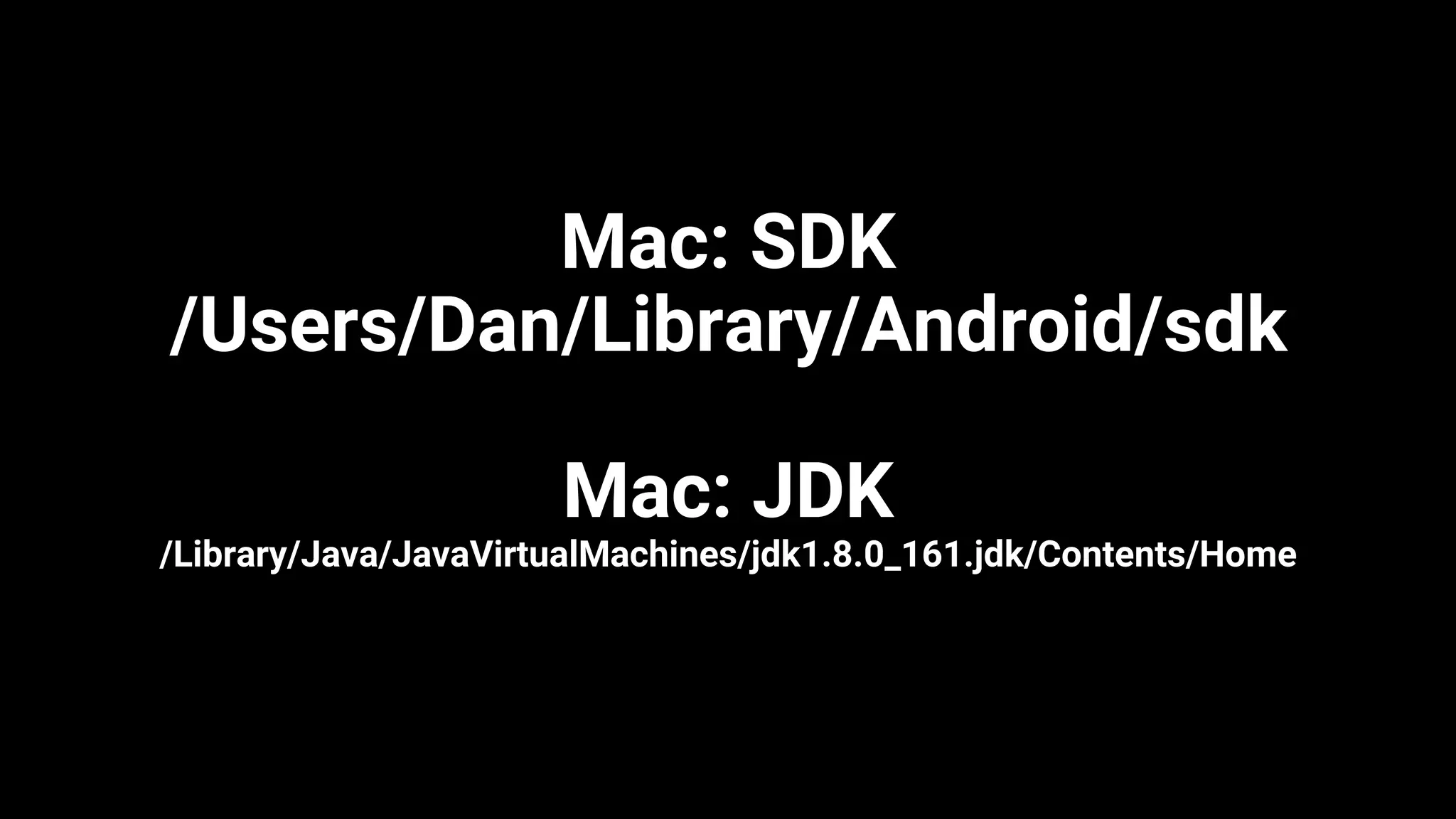
Mac: SDK
/Users/Dan/Library/Android/sdk
Mac: JDK
/Library/Java/JavaVirtualMachines/jdk1.8.0_161.jdk/Contents/Home
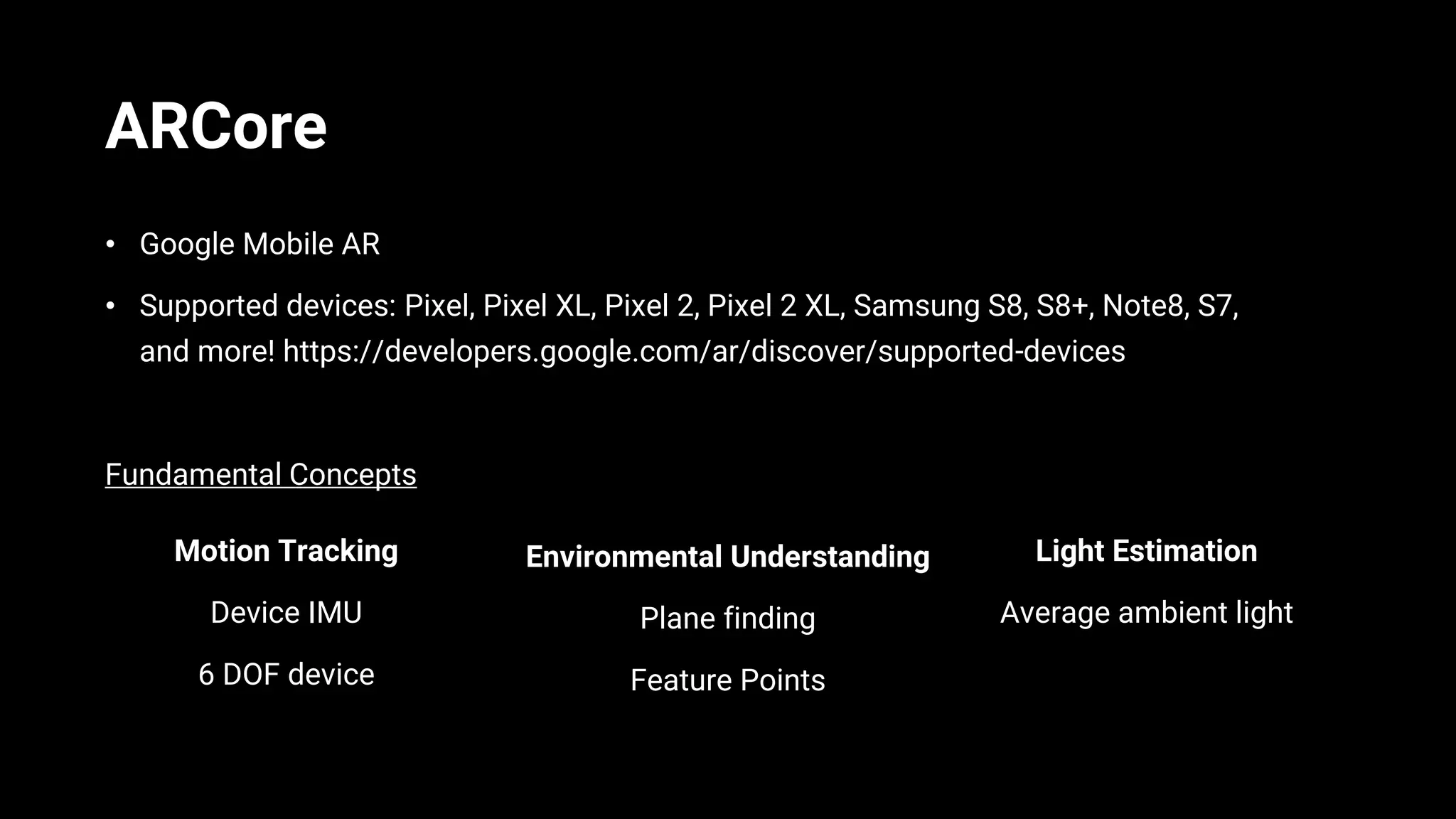
ARCore
• Google Mobile AR
• Supported devices: Pixel, Pixel XL, Pixel 2, Pixel 2 XL, Samsung S8, S8+, Note8, S7,
and more! https://developers.google.com/ar/discover/supported-devices
Fundamental Concepts
Motion Tracking
Device IMU
6 DOF device
Environmental Understanding
Plane finding
Feature Points
Light Estimation
Average ambient light
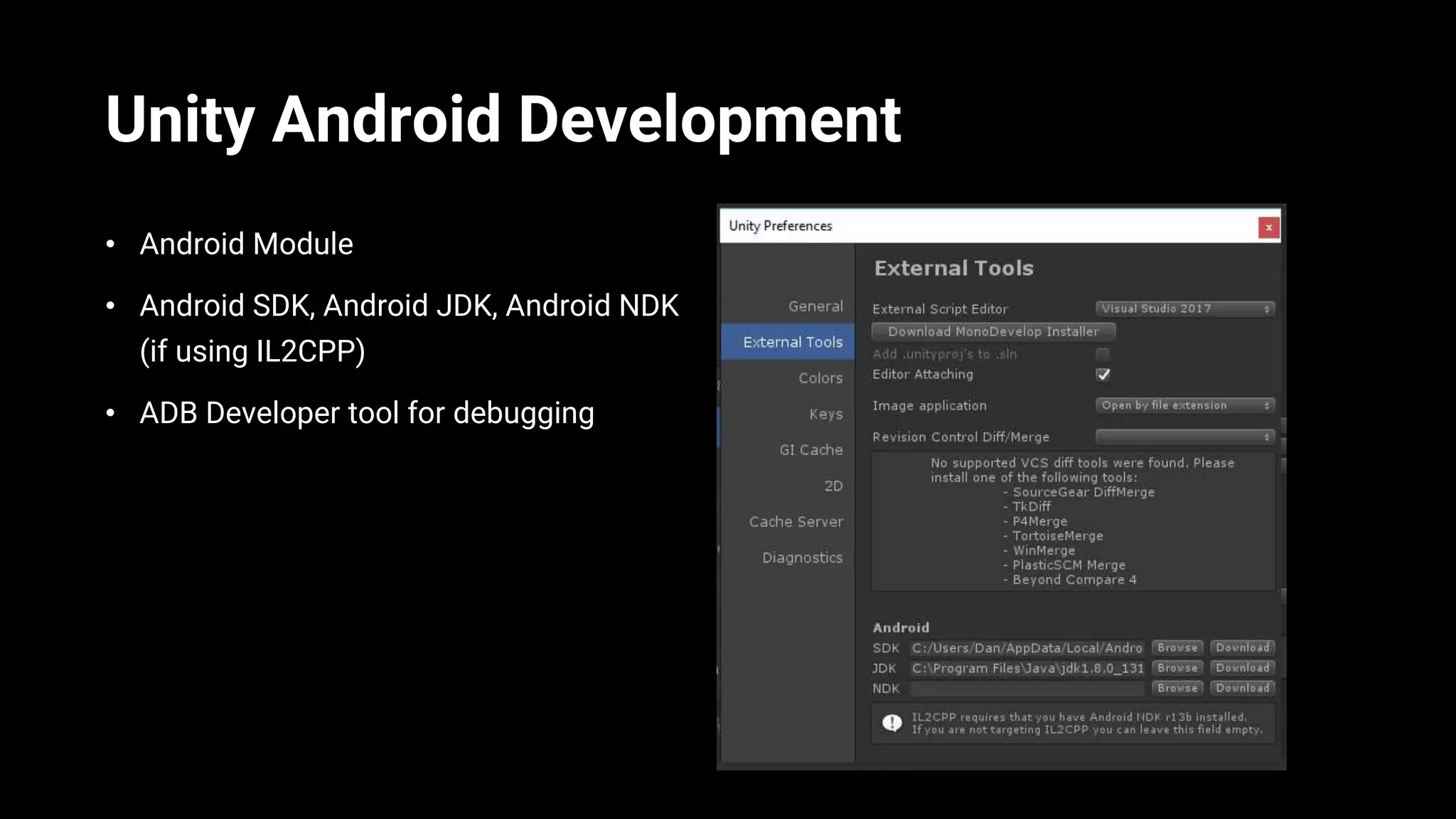
Unity Android Development
• Android Module
• Android SDK, Android JDK, Android NDK
(if using IL2CPP)
• ADB Developer tool for debugging
Getting Started
https://goo.gl/KT8qZj
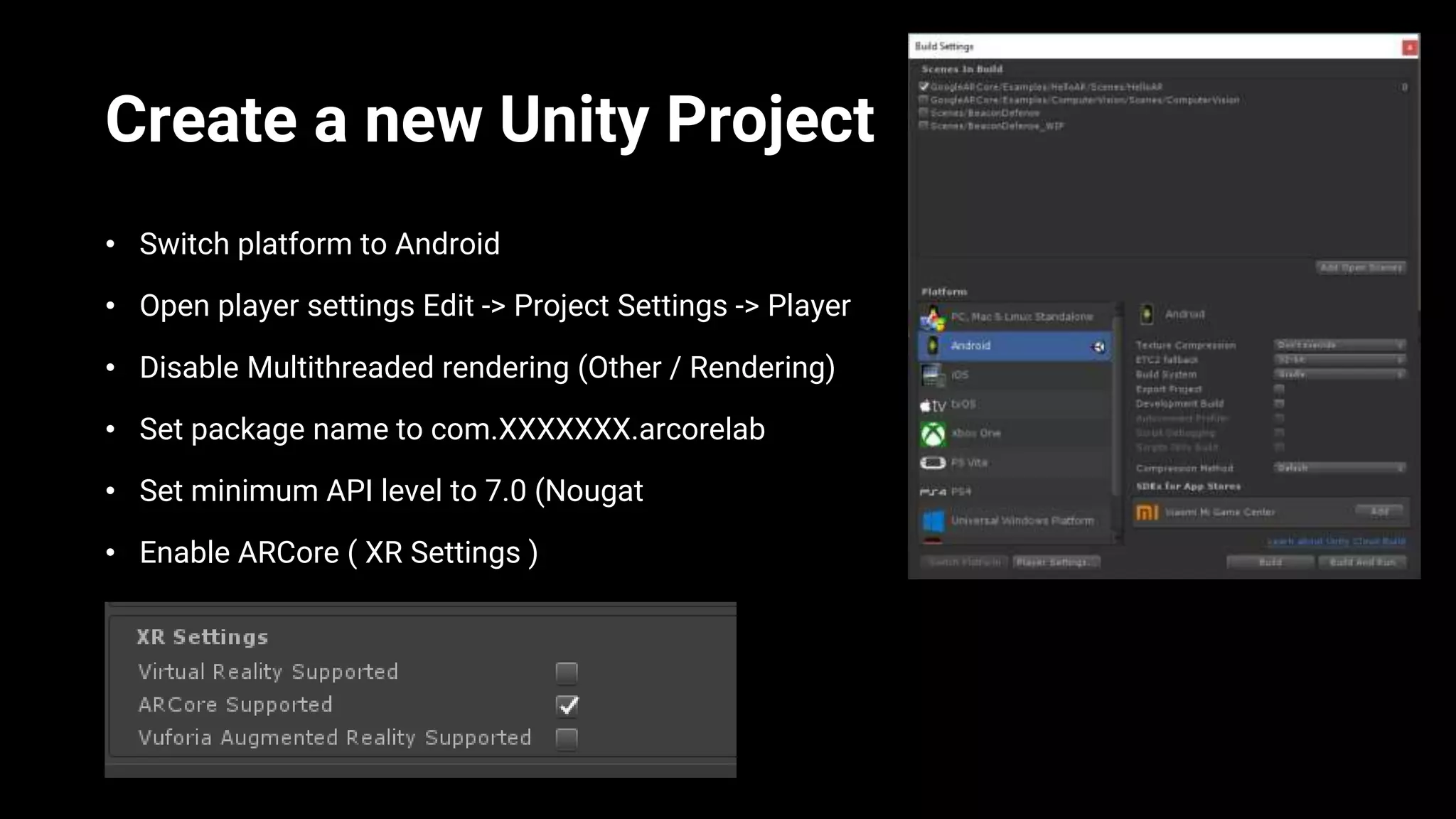
Create a new Unity Project
• Switch platform to Android
• Open player settings Edit -> Project Settings -> Player
• Disable Multithreaded rendering (Other / Rendering)
• Set package name to com.XXXXXXX.arcorelab
• Set minimum API level to 7.0 (Nougat
• Enable ARCore ( XR Settings )
Create your Scene
1. Add the ARCore 1.x SDK package
2. Add the codelab package
3. DELETE everything in your scene
4. Add ARCore Device Prefab to the scene
5. Add Environment Light prefab to the scene
6. Add Event System to the Scene (Create -> UI -> Eventsystem
7. Save the scene
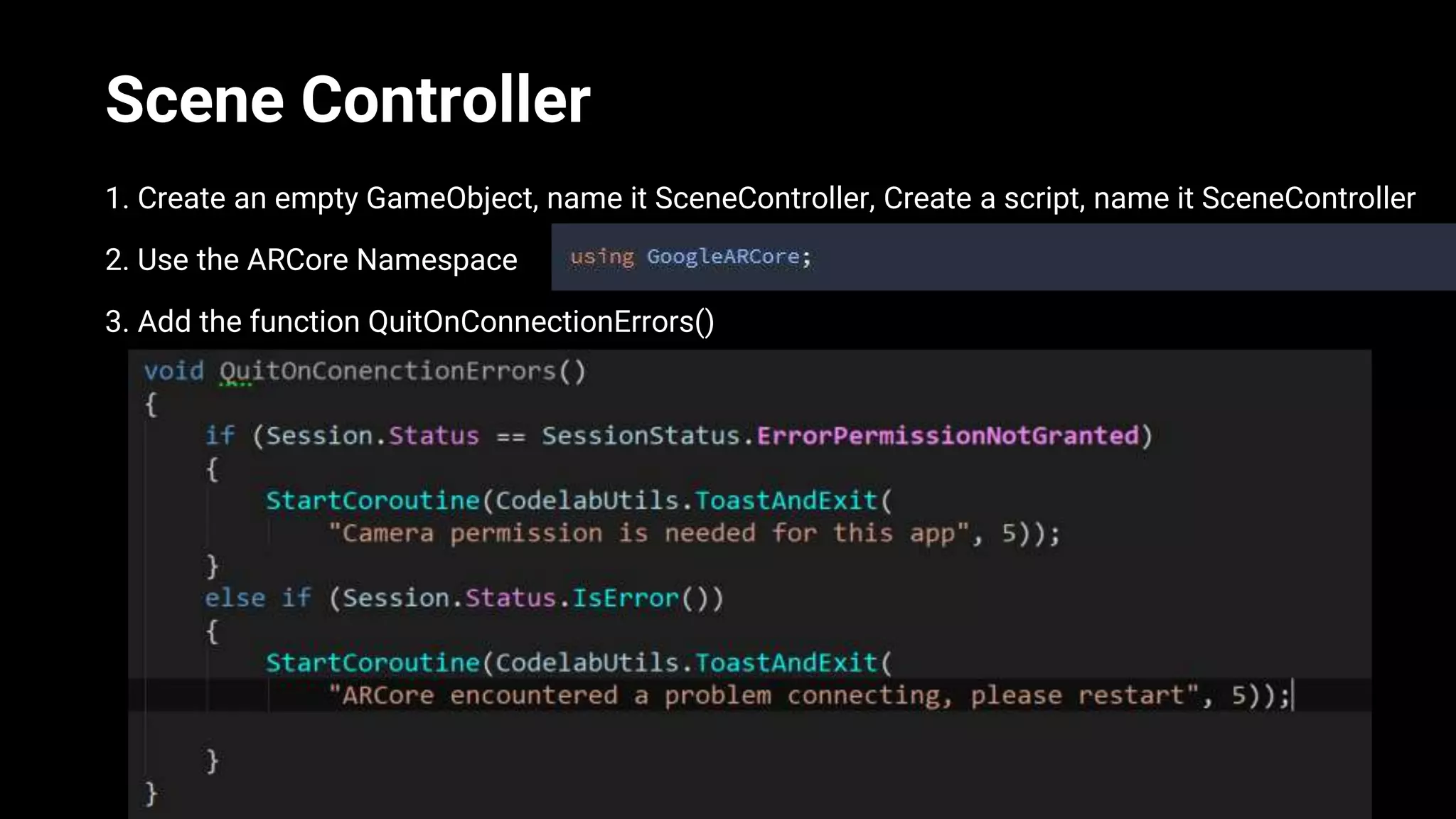
Scene Controller
1. Create an empty GameObject, name it SceneController, Create a script, name it SceneController
2. Use the ARCore Namespace
3. Add the function QuitOnConnectionErrors()
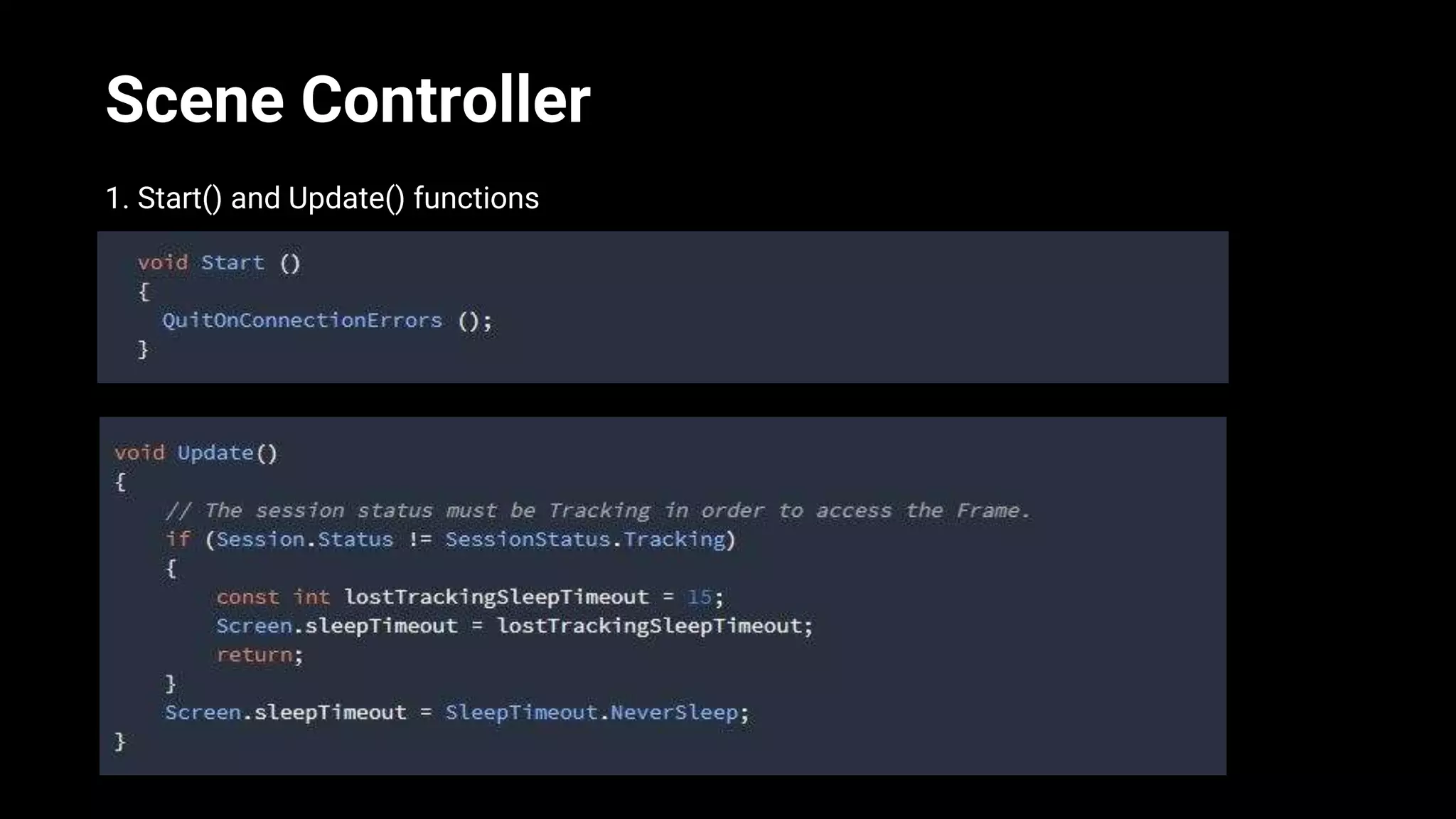
Scene Controller
1. Start() and Update() functions
Build and Run
1. Save your scene
2. Add it to the build settings
2. Build and Run to your device
Global Scale and Tracked Planes
1. Add GlobalScalable.cs to Scene Controller GameObject
- Configure it to Handle Scale Input, NOT adjust scale
2. Create a 3D Plane Object, name it TrackedPlaneDisplay
4. Set TrackedPlaneDisplay’s material to use PlaneGrid
5. Add the script PlaneRender to TrackedPlaneDisplay
6. Add the script TrackedPlaneController to the TrackedPlaneDisplay
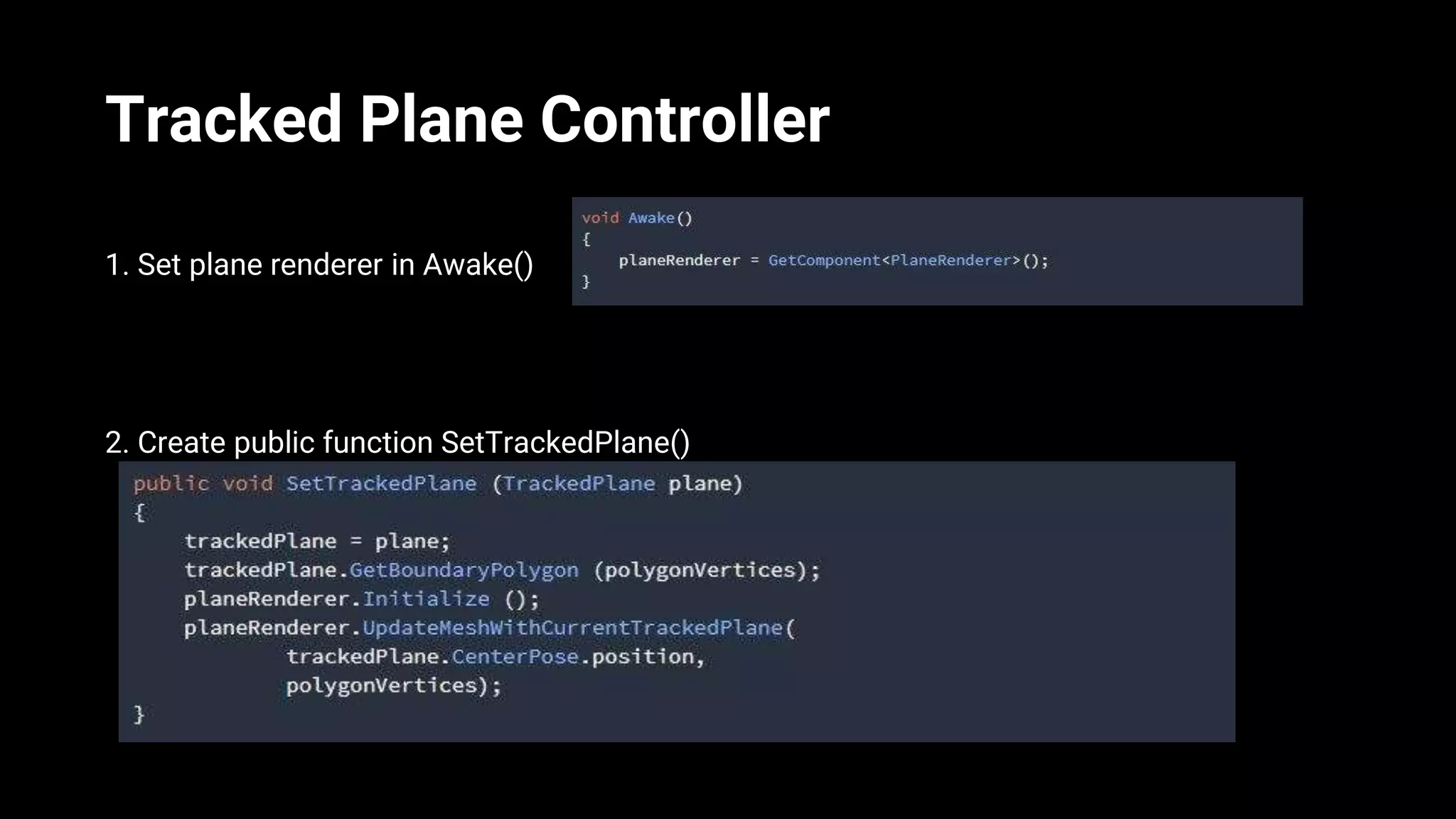
Tracked Plane Controller
1. Set plane renderer in Awake()
2. Create public function SetTrackedPlane()
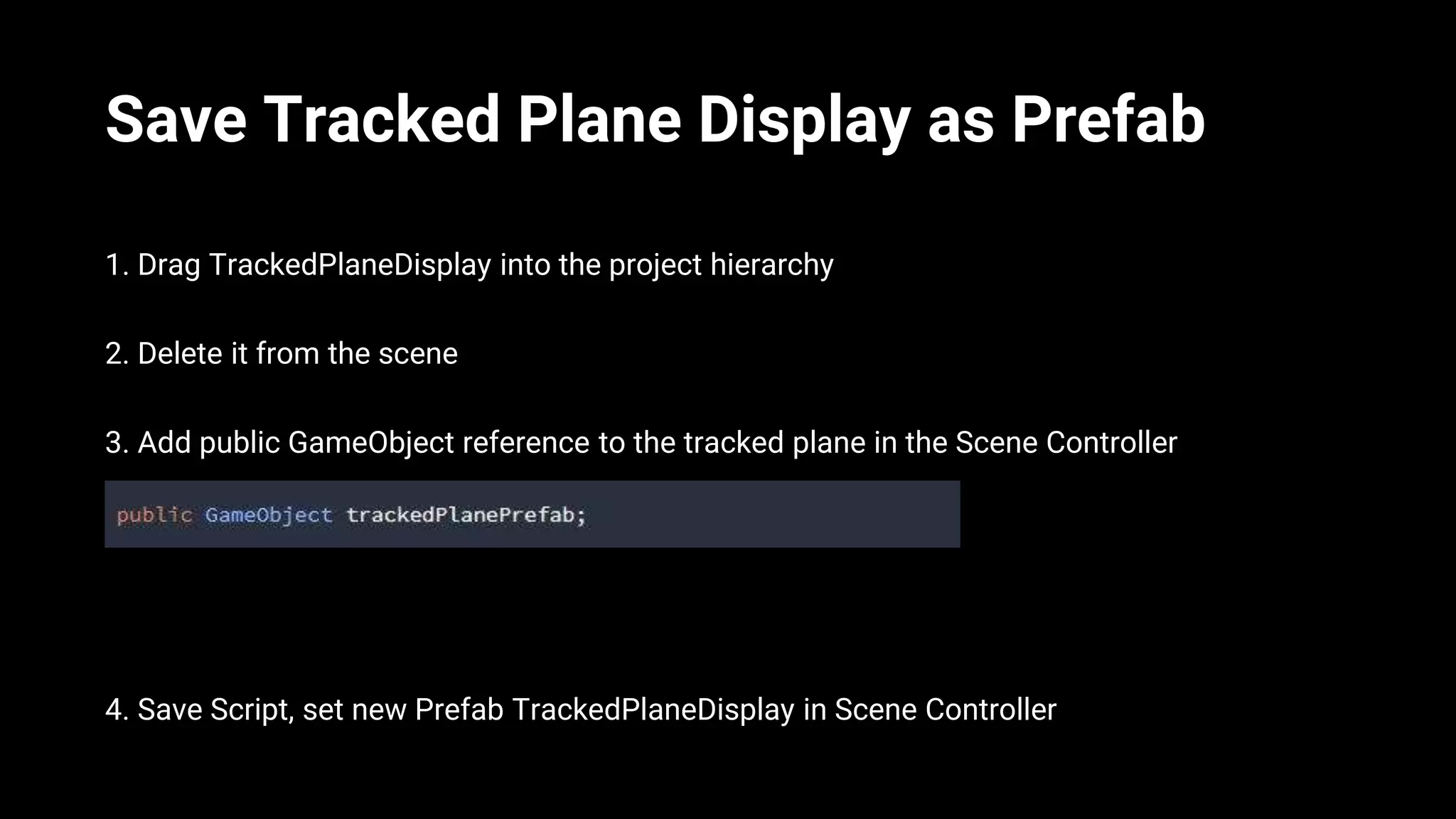
Save Tracked Plane Display as Prefab
1. Drag TrackedPlaneDisplay into the project hierarchy
2. Delete it from the scene
3. Add public GameObject reference to the tracked plane in the Scene Controller
4. Save Script, set new Prefab TrackedPlaneDisplay in Scene Controller
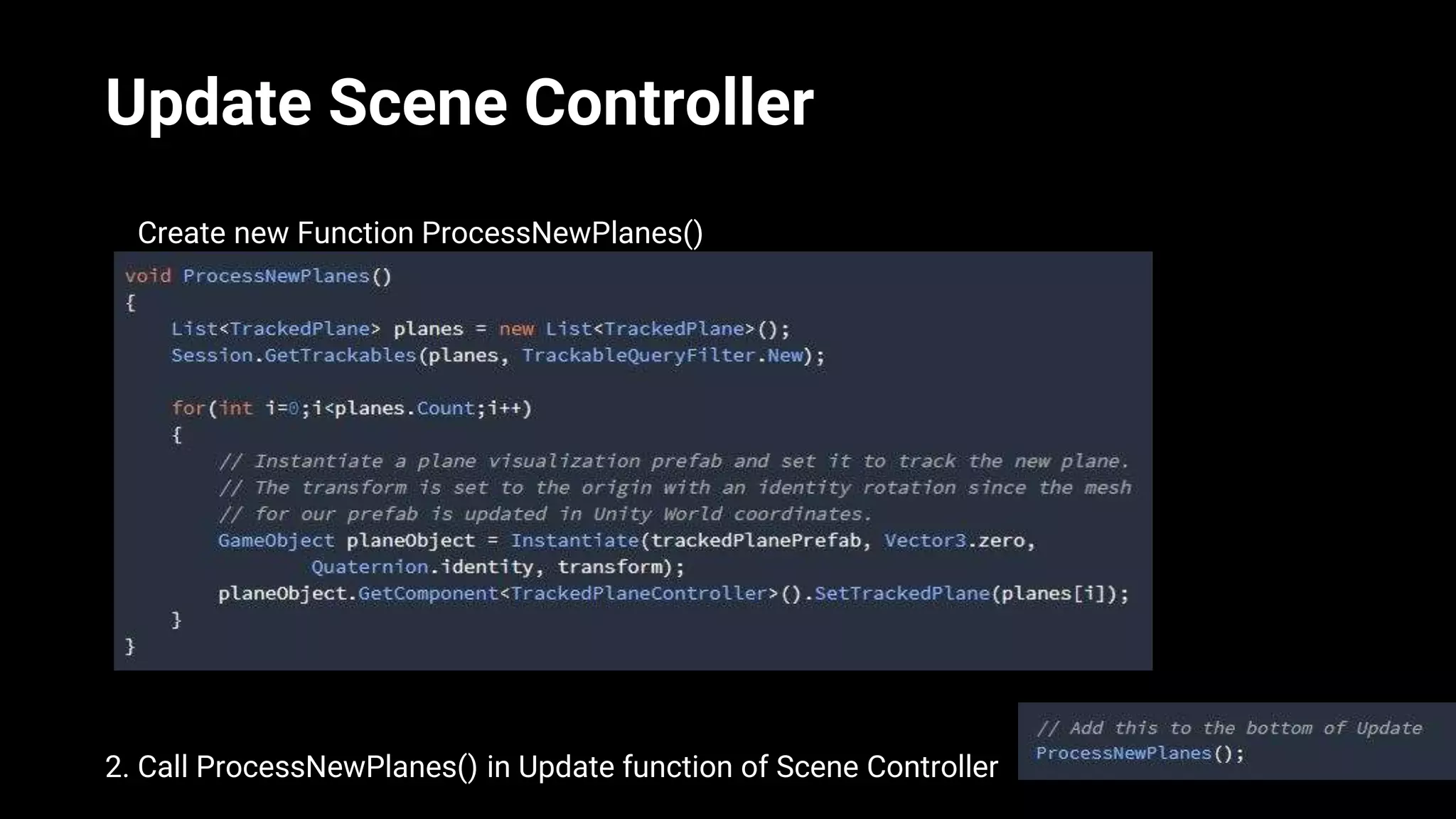
Update Scene Controller
1. Create new Function ProcessNewPlanes()
2. Call ProcessNewPlanes() in Update function of Scene Controller
Build and Run
1. Save your scene
2. Build and Run to your device
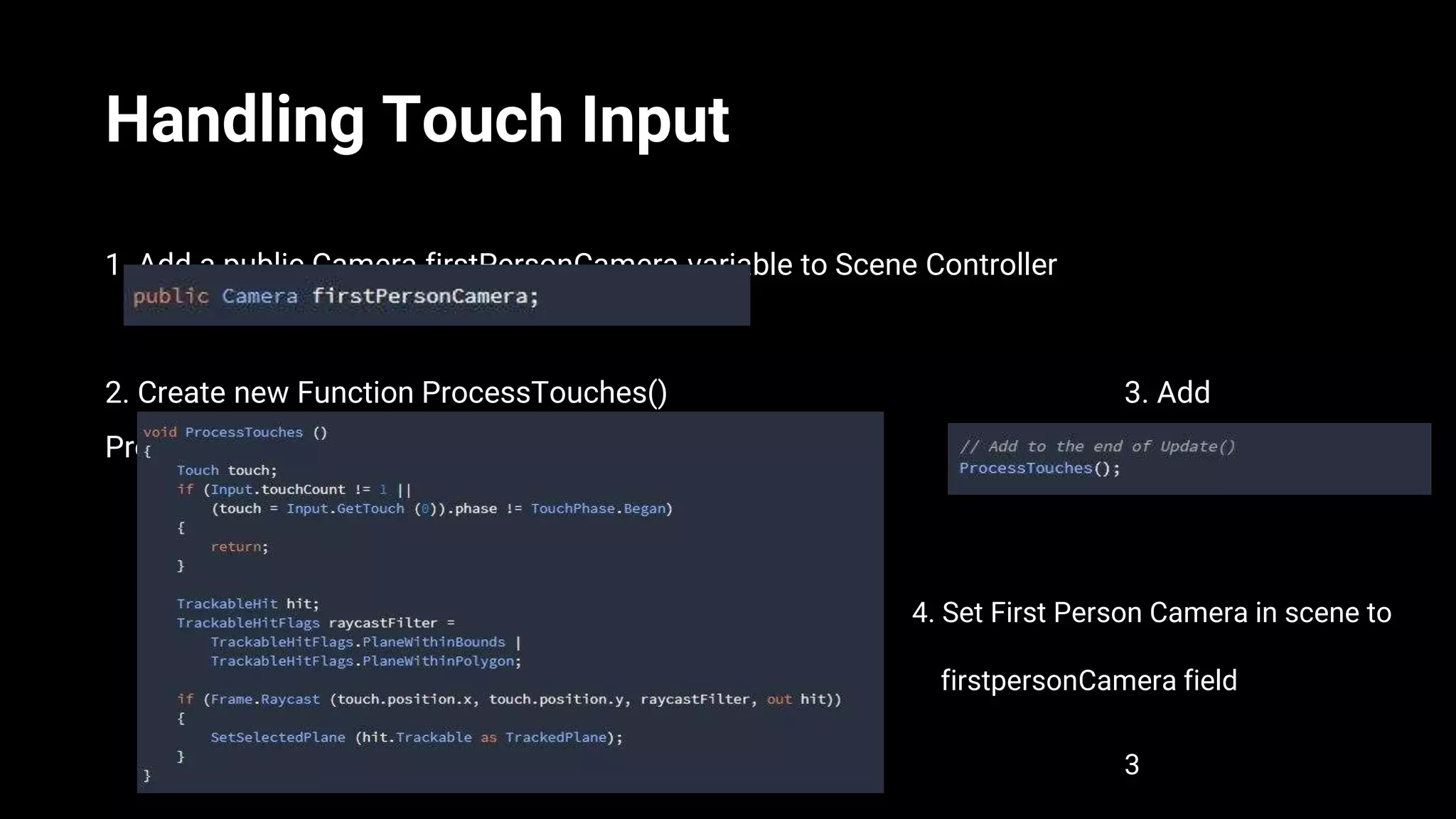
Handling Touch Input
1. Add a public Camera firstPersonCamera variable to Scene Controller
2. Create new Function ProcessTouches() 3. Add
ProcessTouches To Update()
4. Set First Person Camera in scene to
. firstpersonCamera field
3
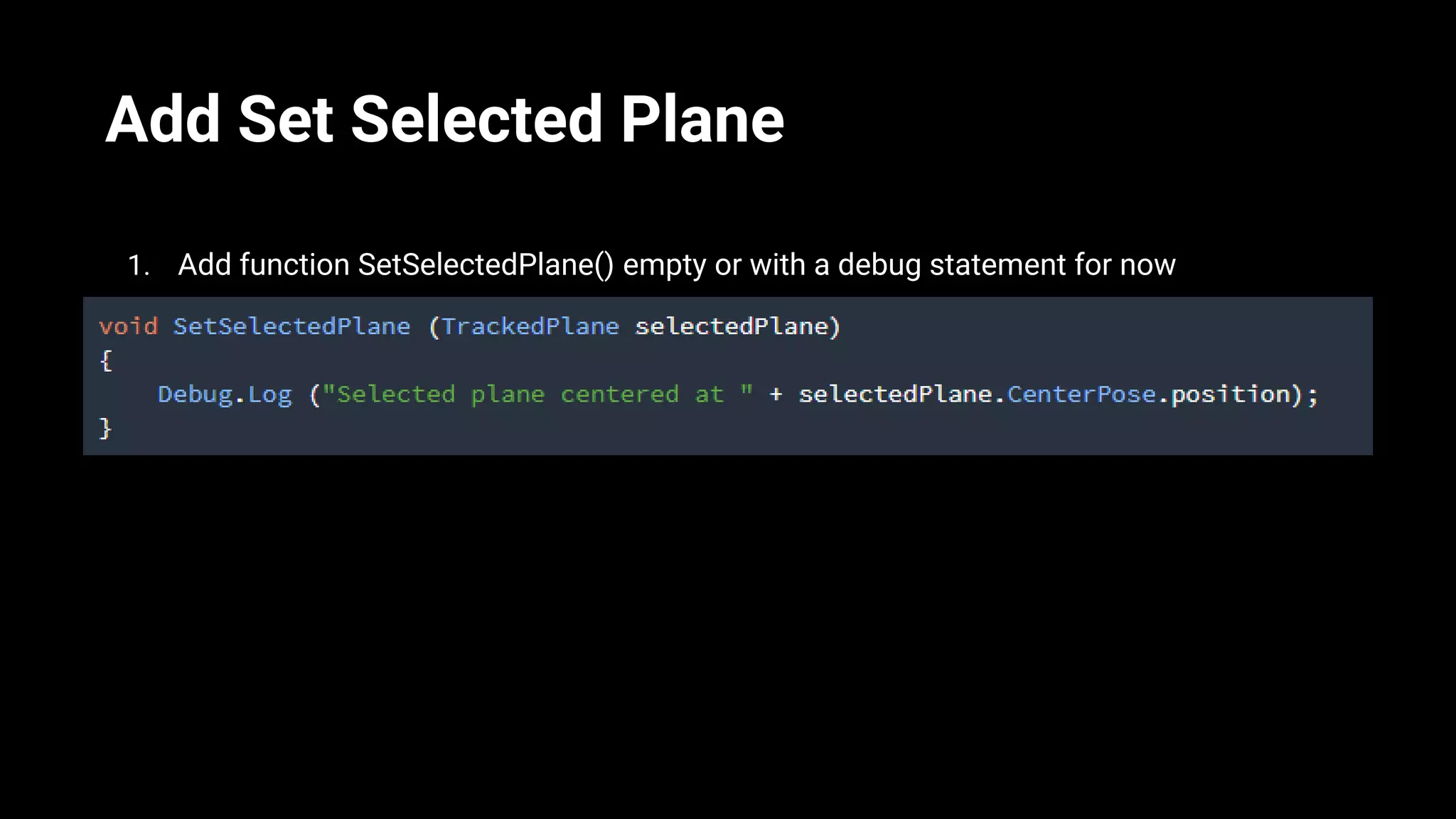
Add Set Selected Plane
1. Add function SetSelectedPlane() empty or with a debug statement for now
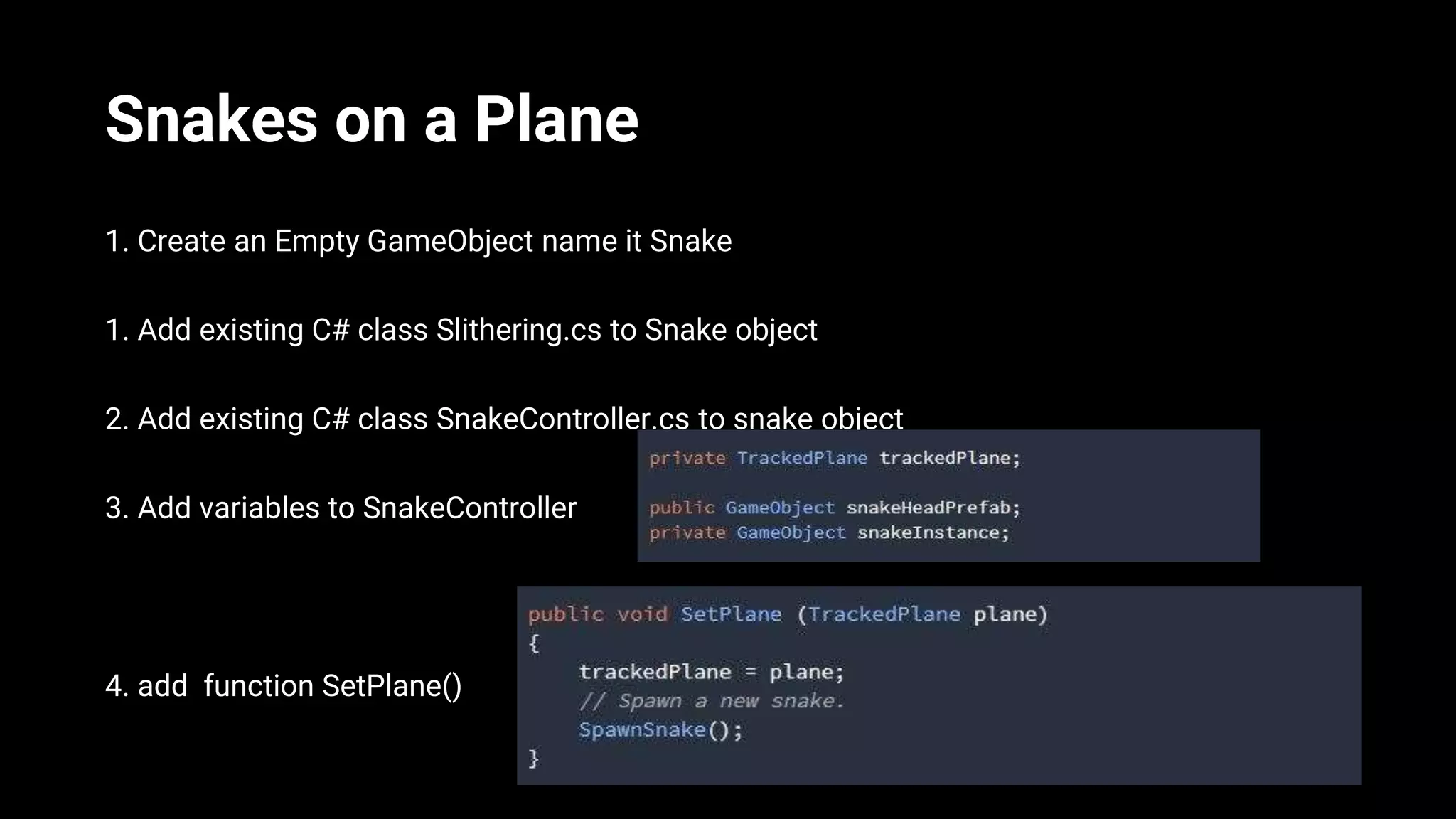
Snakes on a Plane
1. Create an Empty GameObject name it Snake
1. Add existing C# class Slithering.cs to Snake object
2. Add existing C# class SnakeController.cs to snake object
3. Add variables to SnakeController
4. add function SetPlane()
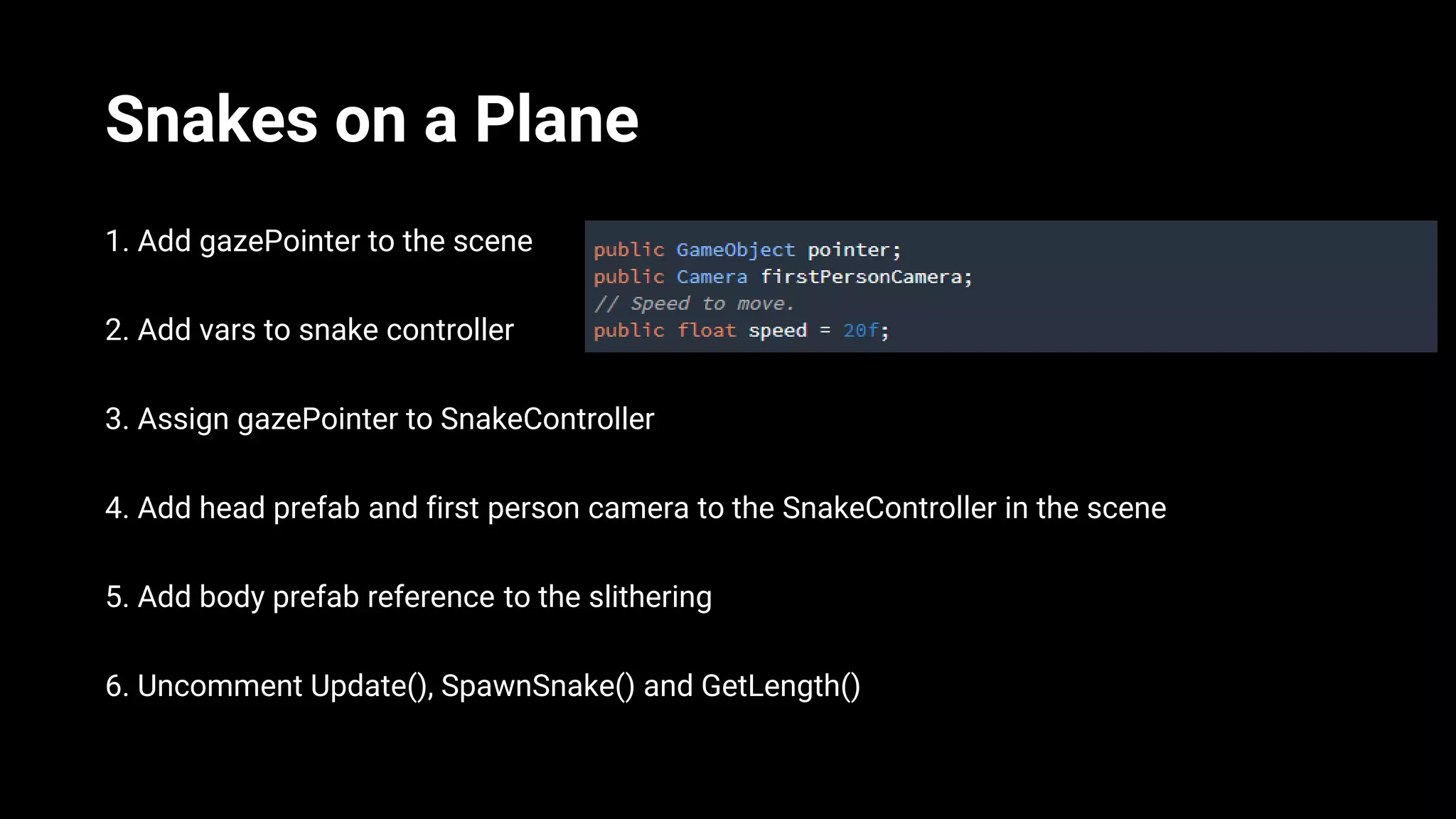
Snakes on a Plane
1. Add gazePointer to the scene
2. Add vars to snake controller
3. Assign gazePointer to SnakeController
4. Add head prefab and first person camera to the SnakeController in the scene
5. Add body prefab reference to the slithering
6. Uncomment Update(), SpawnSnake() and GetLength()
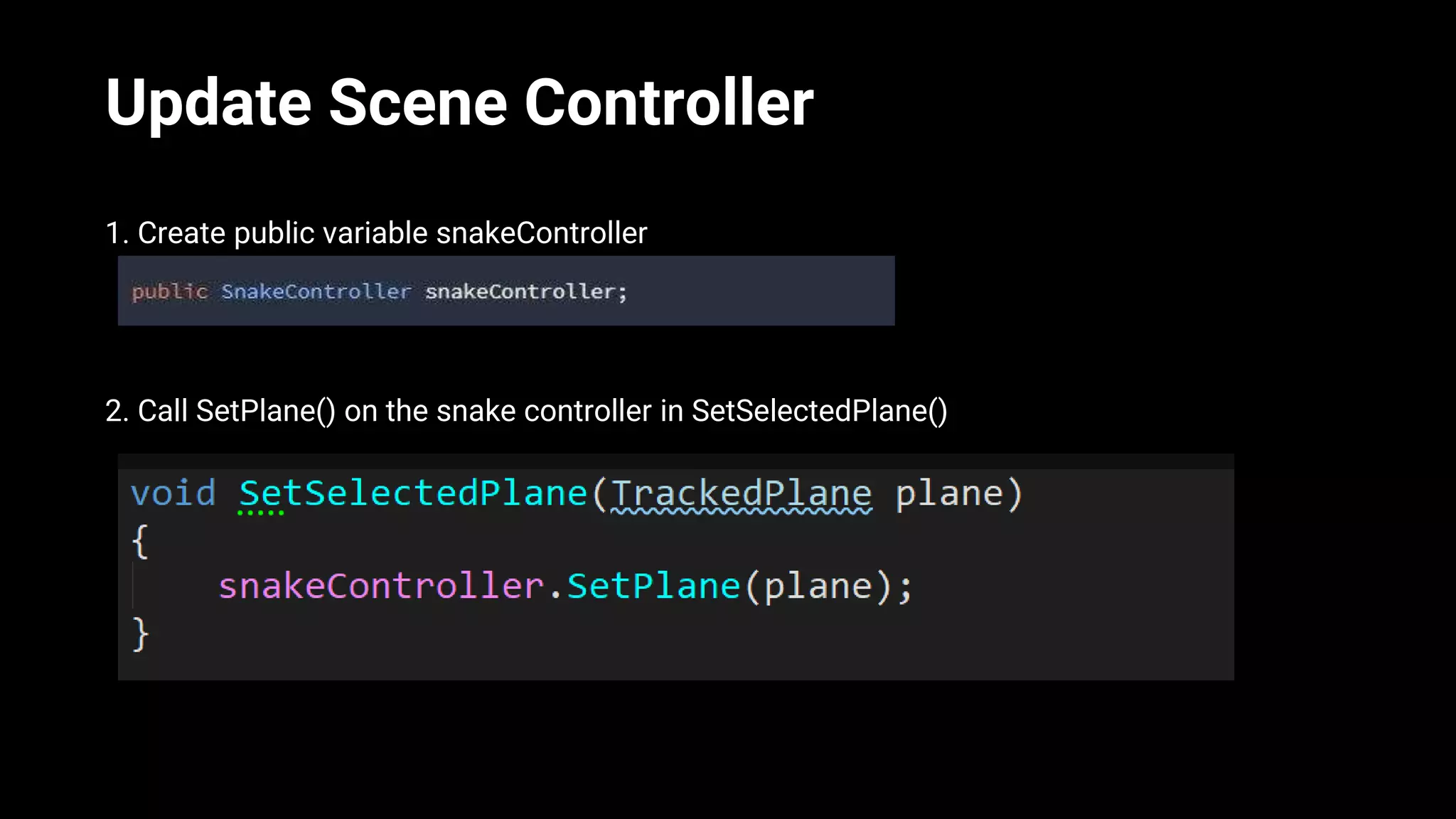
Update Scene Controller
1. Create public variable snakeController
2. Call SetPlane() on the snake controller in SetSelectedPlane()
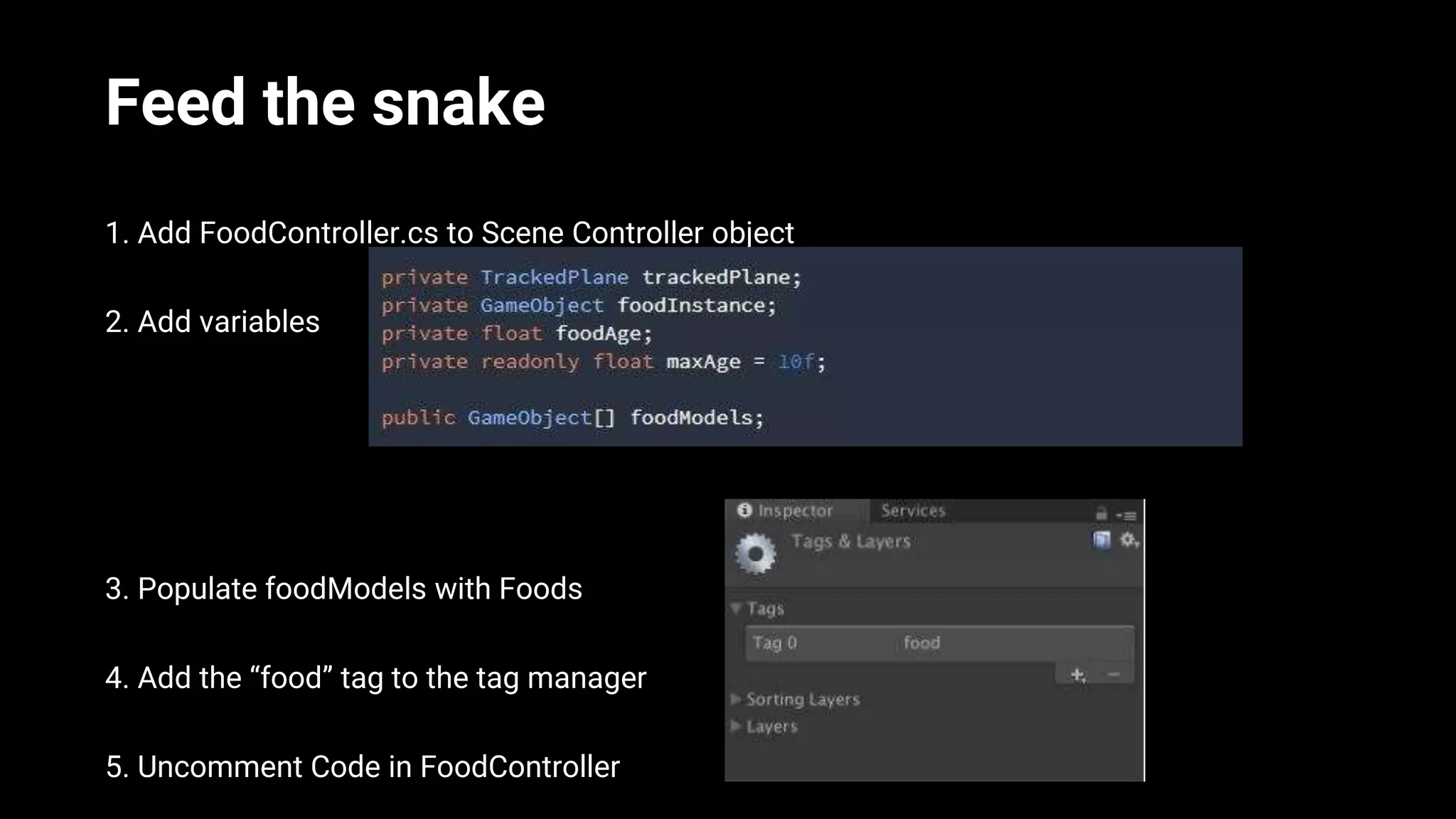
Feed the snake
1. Add FoodController.cs to Scene Controller object
2. Add variables
3. Populate foodModels with Foods
4. Add the “food” tag to the tag manager
5. Uncomment Code in FoodController
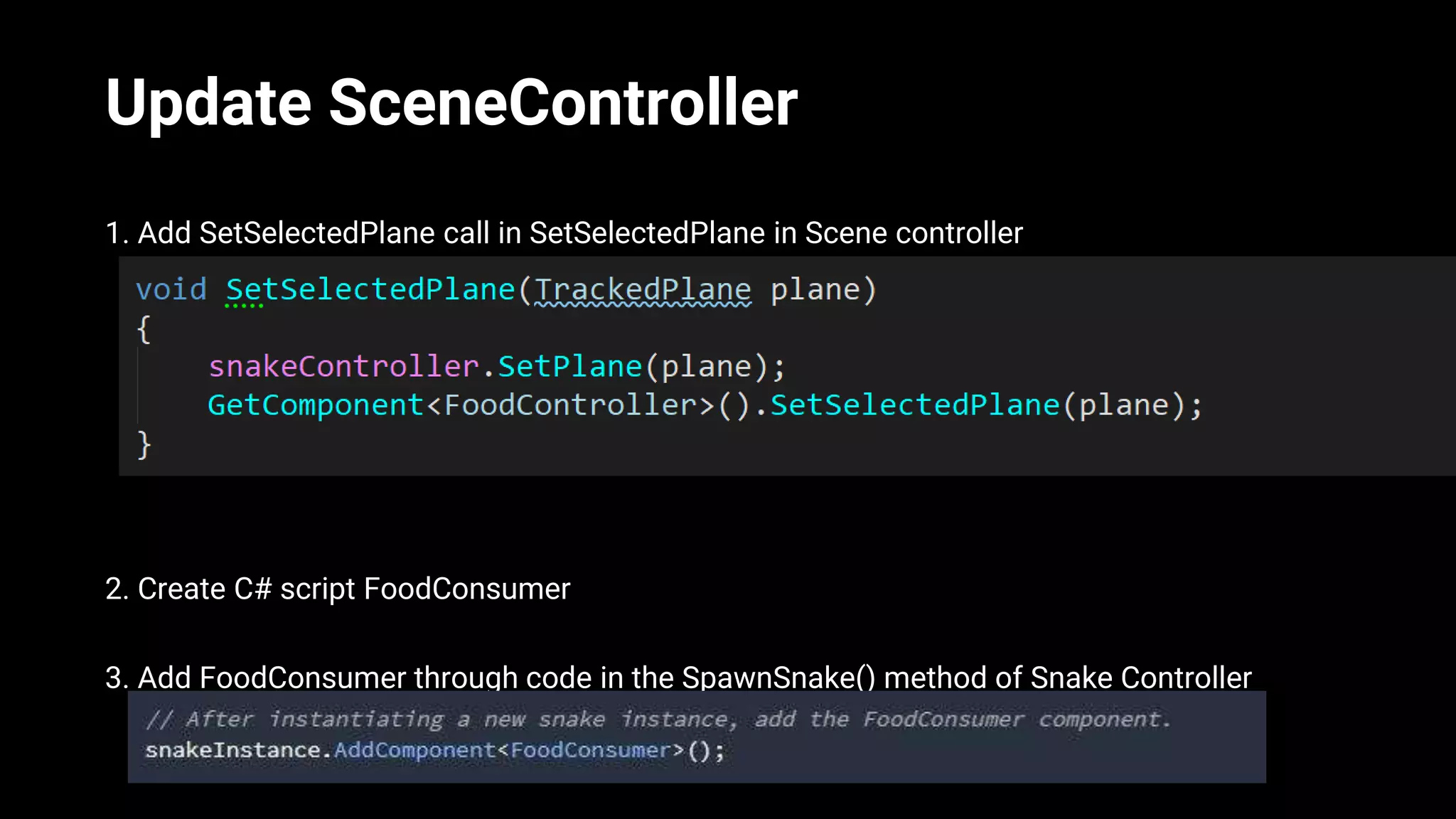
Update SceneController
1. Add SetSelectedPlane call in SetSelectedPlane in Scene controller
2. Create C# script FoodConsumer
3. Add FoodConsumer through code in the SpawnSnake() method of Snake Controller
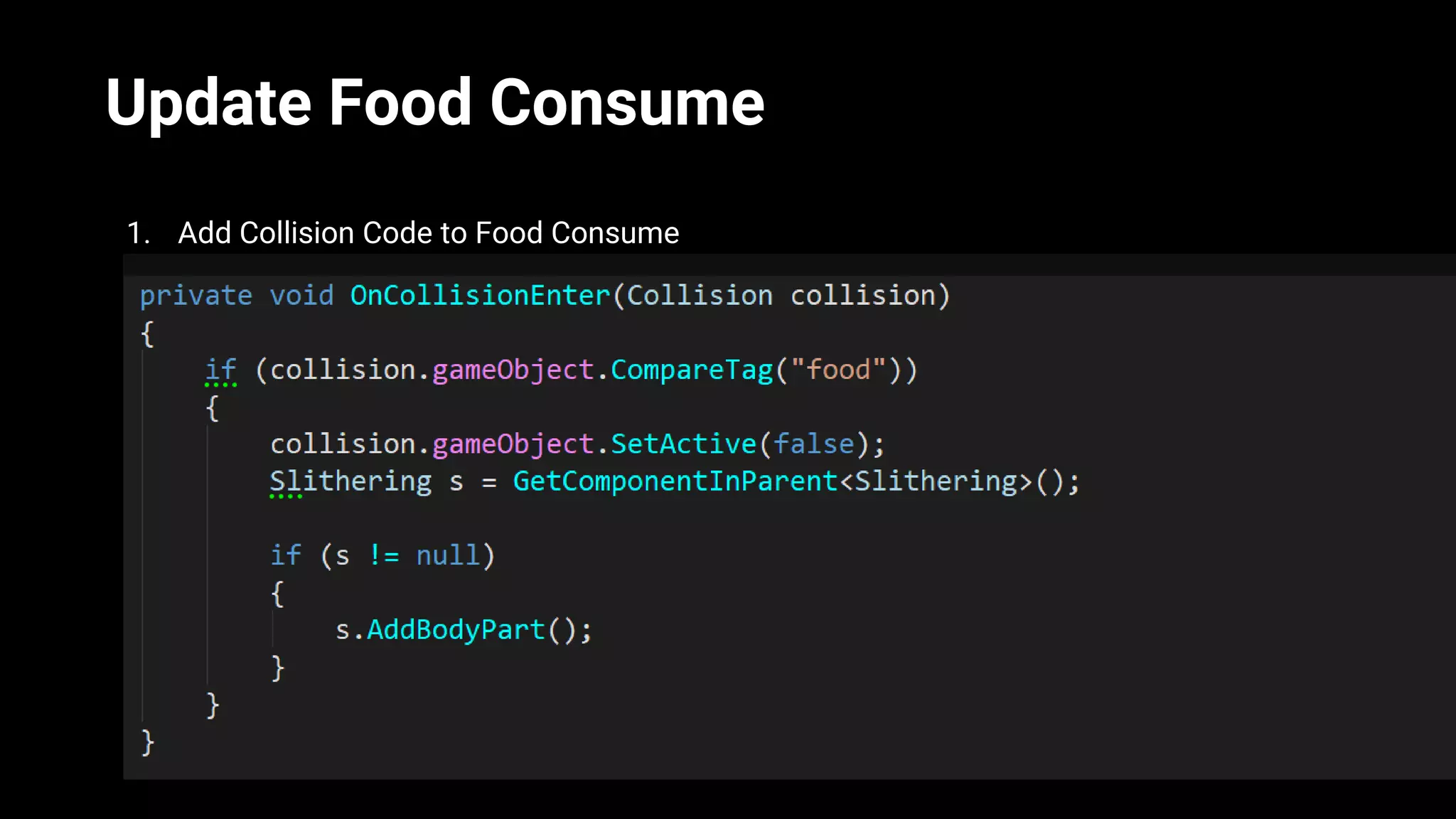
Update Food Consume
1. Add Collision Code to Food Consume
https://codelabs.developers.google.com/codelabs/arcore-intro/index.html#0
Google “Codelab ARCore”
https://goo.gl/forms/WBnNRBEnvLdswiBg1
https://bit.ly/2yqfxng
Survey
38
Learn more at these Google AR / VR
sessions:
ARCore 101: A hands on Workshop
June 20th, 2pm - White Room
Developing Immersive Experiences with ARCore
June 21st, 1:15pm - Breakout 5
Six Degrees of Freedom: Develop for Daydream
Standalone Headsets
June 21st, 2:30pm - Breakout 4
Thank you!

ARCore 101: A Hands-on Workshop

  • 1.
  • 2.
    Dan Miller XR Evangelist UnityTechnologies danielmi@unity3d.com @DanMillerDev
  • 3.
    Overview • ARCore Overview •Android Development Overview • Preparing your device to be ARCore Ready • Workshop
  • 4.
  • 5.
  • 6.
    ARCore • Google MobileAR • Supported devices: Pixel, Pixel XL, Pixel 2, Pixel 2 XL, Samsung S8, S8+, Note8, S7, and more! https://developers.google.com/ar/discover/supported-devices Fundamental Concepts Motion Tracking Device IMU 6 DOF device Environmental Understanding Plane finding Feature Points Light Estimation Average ambient light
  • 7.
    Unity Android Development •Android Module • Android SDK, Android JDK, Android NDK (if using IL2CPP) • ADB Developer tool for debugging
  • 8.
  • 9.
  • 10.
    Create a newUnity Project • Switch platform to Android • Open player settings Edit -> Project Settings -> Player • Disable Multithreaded rendering (Other / Rendering) • Set package name to com.XXXXXXX.arcorelab • Set minimum API level to 7.0 (Nougat • Enable ARCore ( XR Settings )
  • 11.
    Create your Scene 1.Add the ARCore 1.x SDK package 2. Add the codelab package 3. DELETE everything in your scene 4. Add ARCore Device Prefab to the scene 5. Add Environment Light prefab to the scene 6. Add Event System to the Scene (Create -> UI -> Eventsystem 7. Save the scene
  • 12.
    Scene Controller 1. Createan empty GameObject, name it SceneController, Create a script, name it SceneController 2. Use the ARCore Namespace 3. Add the function QuitOnConnectionErrors()
  • 13.
    Scene Controller 1. Start()and Update() functions
  • 14.
    Build and Run 1.Save your scene 2. Add it to the build settings 2. Build and Run to your device
  • 15.
    Global Scale andTracked Planes 1. Add GlobalScalable.cs to Scene Controller GameObject - Configure it to Handle Scale Input, NOT adjust scale 2. Create a 3D Plane Object, name it TrackedPlaneDisplay 4. Set TrackedPlaneDisplay’s material to use PlaneGrid 5. Add the script PlaneRender to TrackedPlaneDisplay 6. Add the script TrackedPlaneController to the TrackedPlaneDisplay
  • 16.
    Tracked Plane Controller 1.Set plane renderer in Awake() 2. Create public function SetTrackedPlane()
  • 17.
    Save Tracked PlaneDisplay as Prefab 1. Drag TrackedPlaneDisplay into the project hierarchy 2. Delete it from the scene 3. Add public GameObject reference to the tracked plane in the Scene Controller 4. Save Script, set new Prefab TrackedPlaneDisplay in Scene Controller
  • 18.
    Update Scene Controller 1.Create new Function ProcessNewPlanes() 2. Call ProcessNewPlanes() in Update function of Scene Controller
  • 19.
    Build and Run 1.Save your scene 2. Build and Run to your device
  • 20.
    Handling Touch Input 1.Add a public Camera firstPersonCamera variable to Scene Controller 2. Create new Function ProcessTouches() 3. Add ProcessTouches To Update() 4. Set First Person Camera in scene to . firstpersonCamera field 3
  • 21.
    Add Set SelectedPlane 1. Add function SetSelectedPlane() empty or with a debug statement for now
  • 22.
    Snakes on aPlane 1. Create an Empty GameObject name it Snake 1. Add existing C# class Slithering.cs to Snake object 2. Add existing C# class SnakeController.cs to snake object 3. Add variables to SnakeController 4. add function SetPlane()
  • 23.
    Snakes on aPlane 1. Add gazePointer to the scene 2. Add vars to snake controller 3. Assign gazePointer to SnakeController 4. Add head prefab and first person camera to the SnakeController in the scene 5. Add body prefab reference to the slithering 6. Uncomment Update(), SpawnSnake() and GetLength()
  • 24.
    Update Scene Controller 1.Create public variable snakeController 2. Call SetPlane() on the snake controller in SetSelectedPlane()
  • 25.
    Feed the snake 1.Add FoodController.cs to Scene Controller object 2. Add variables 3. Populate foodModels with Foods 4. Add the “food” tag to the tag manager 5. Uncomment Code in FoodController
  • 26.
    Update SceneController 1. AddSetSelectedPlane call in SetSelectedPlane in Scene controller 2. Create C# script FoodConsumer 3. Add FoodConsumer through code in the SpawnSnake() method of Snake Controller
  • 27.
    Update Food Consume 1.Add Collision Code to Food Consume
  • 28.
  • 29.
  • 30.
    38 Learn more atthese Google AR / VR sessions: ARCore 101: A hands on Workshop June 20th, 2pm - White Room Developing Immersive Experiences with ARCore June 21st, 1:15pm - Breakout 5 Six Degrees of Freedom: Develop for Daydream Standalone Headsets June 21st, 2:30pm - Breakout 4
  • 31.