Application Design:
UI Controls & Interactions
Align layout choice(s) with user goals
1. Determine the ONE goal for each screen
2. Figure out which screen layout is needed
Interaction layer
(Rules from software design)
#1 Make It Direct
where there is output, there should be input – Alan Cooper
#2 Keep It Lightweight
application should stay out of the user’s way
#3 Stay In the Page
application should stay out of the user’s way
#4 Provide An Invitation
use animations and user events to invite discovery
#5 Use Transitions
help user understand beginnings, endings
#6 React Immediately
provide feedback as soon as possible (auto suggest, live search, etc.)
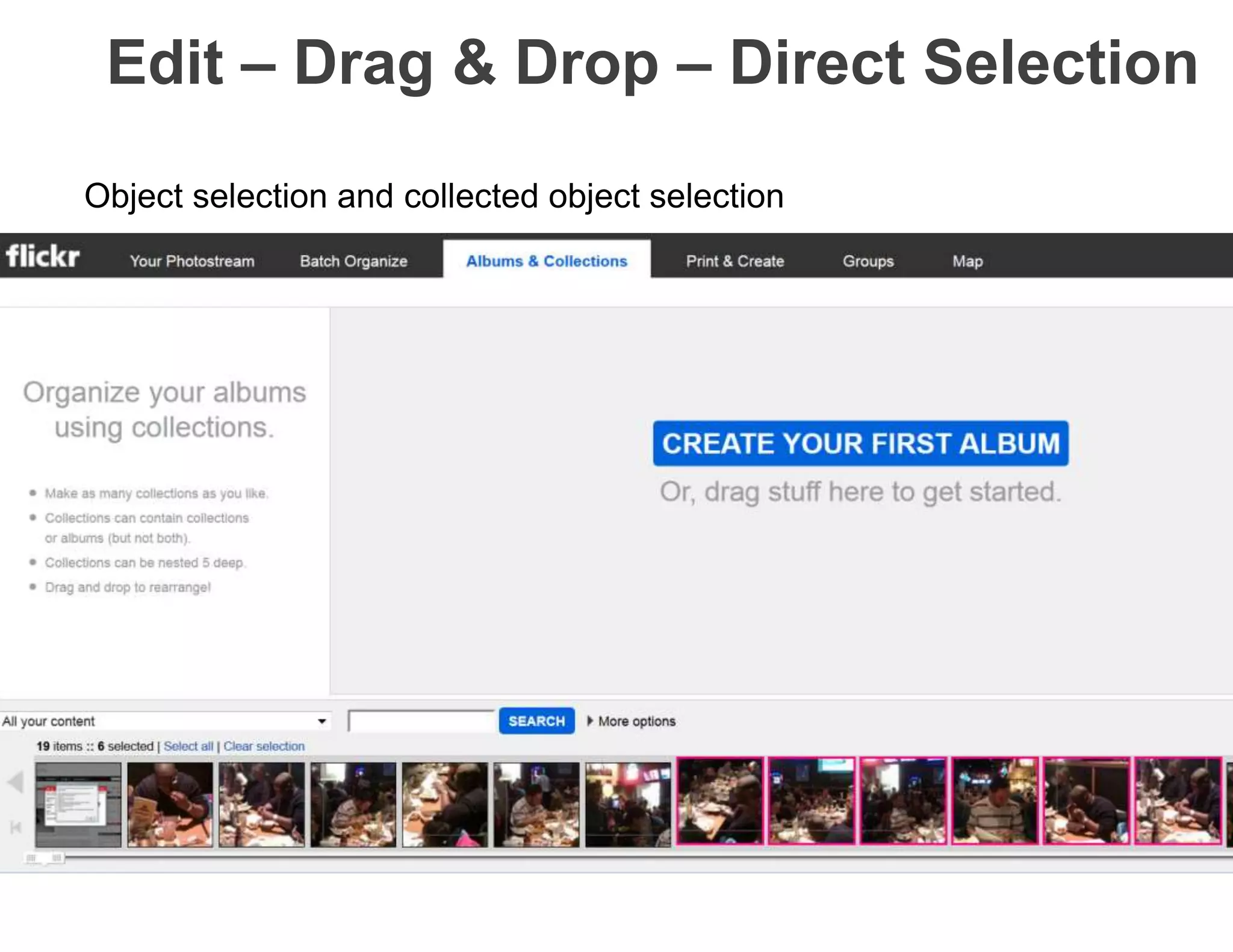
#1 Make it direct
• Whenever there is a need to edit content, make
it happen in context rather than on a separate
screen
1. editing
2. drag and drop
3. direct selection
Edit – Drag & Drop – Direct Selection
Object selection and collected object selection
#2 Keep it lightweight
 Reducing the effort required to interact with a site
or application
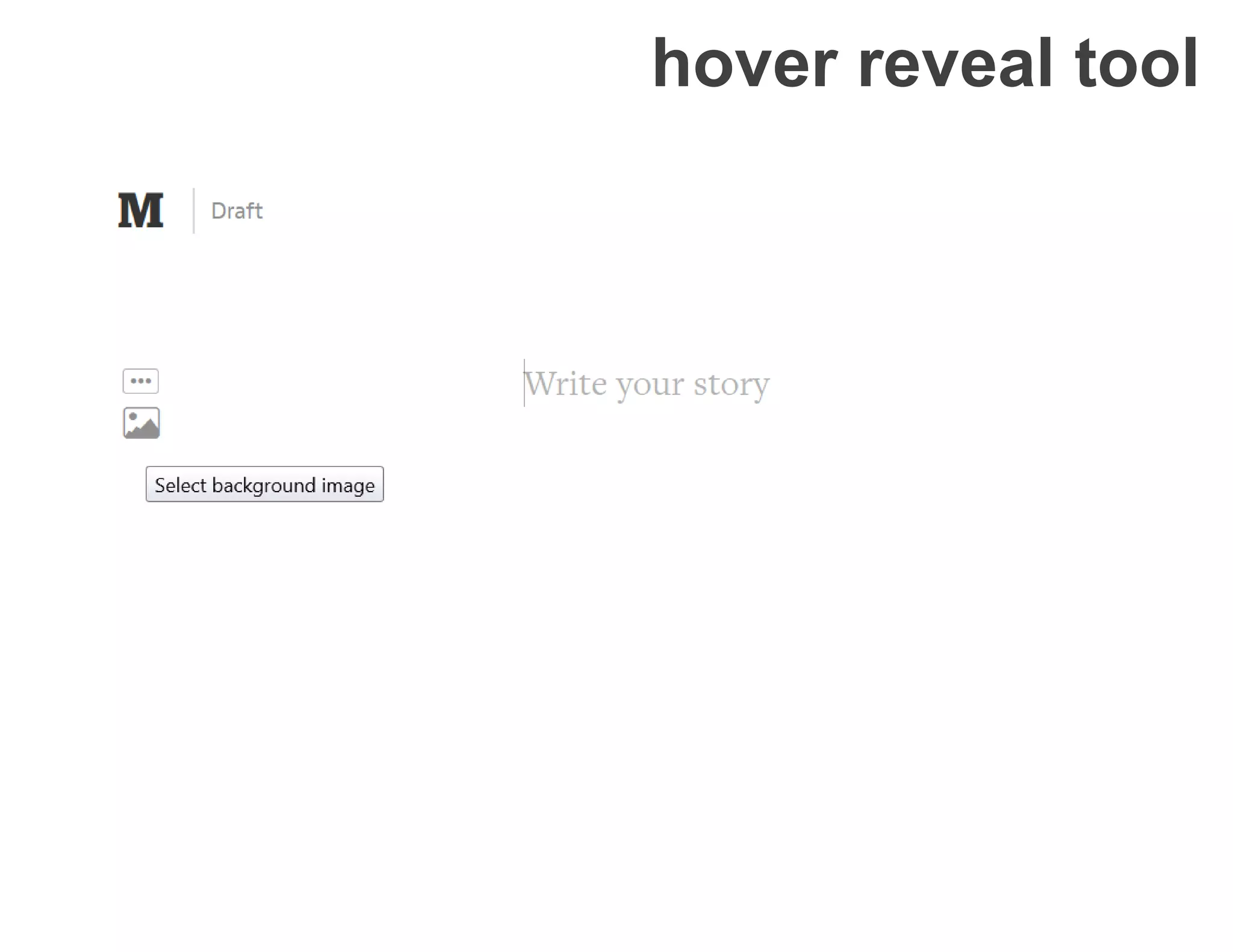
hover reveal tool
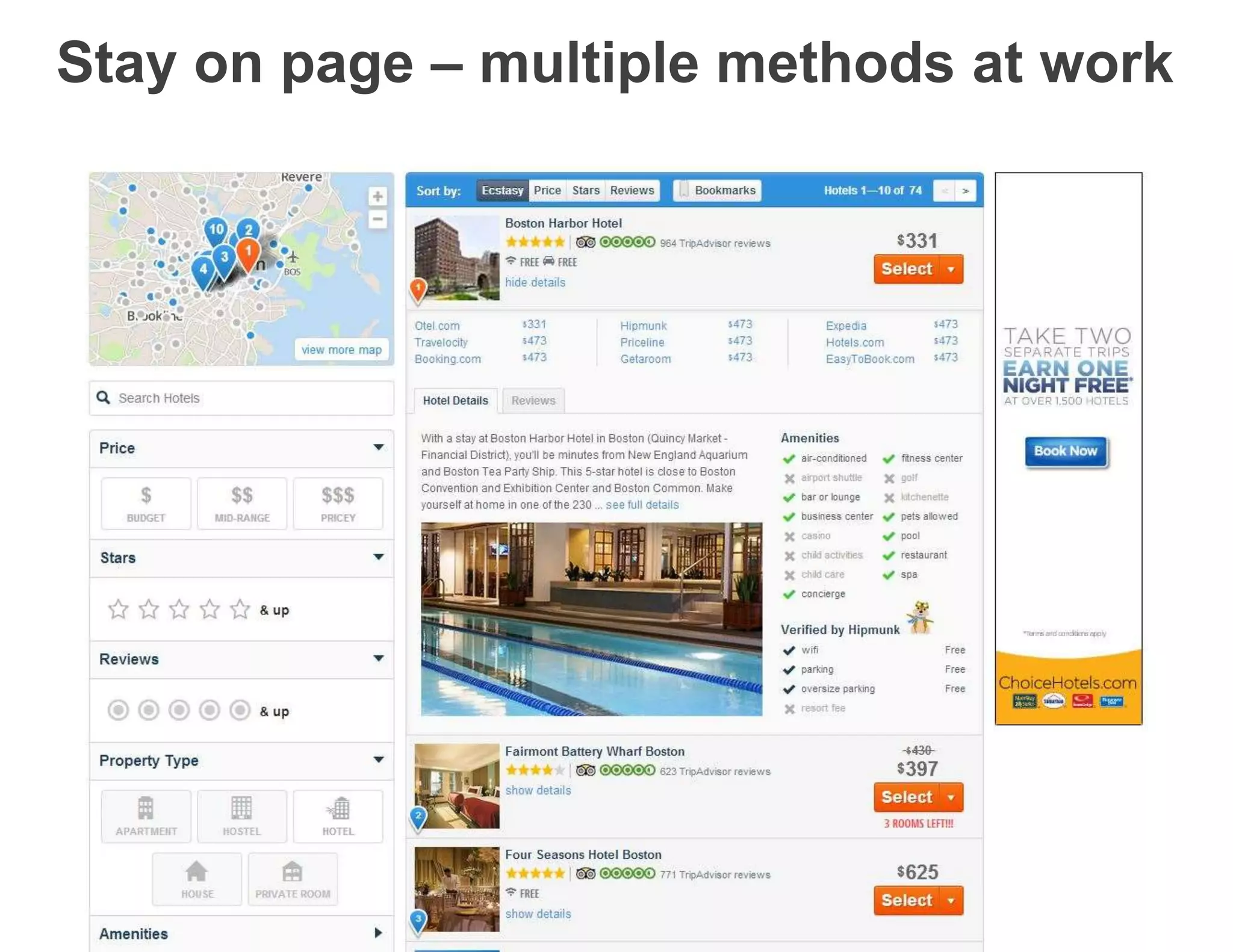
#3 Stay on page
 Stay on page to avoid disrupting flow
 model the user’s work process by keeping all
sub-tasks in the page
 Overlays
 Inlays
 Virtual Paging
 Process Flows
Stay on page – multiple methods at work
#4 Provide an invitation
 Discoverability
 Invitations cue us to another level of interaction
 Contextual and “just in time”
 Types: static and dynamic invitations
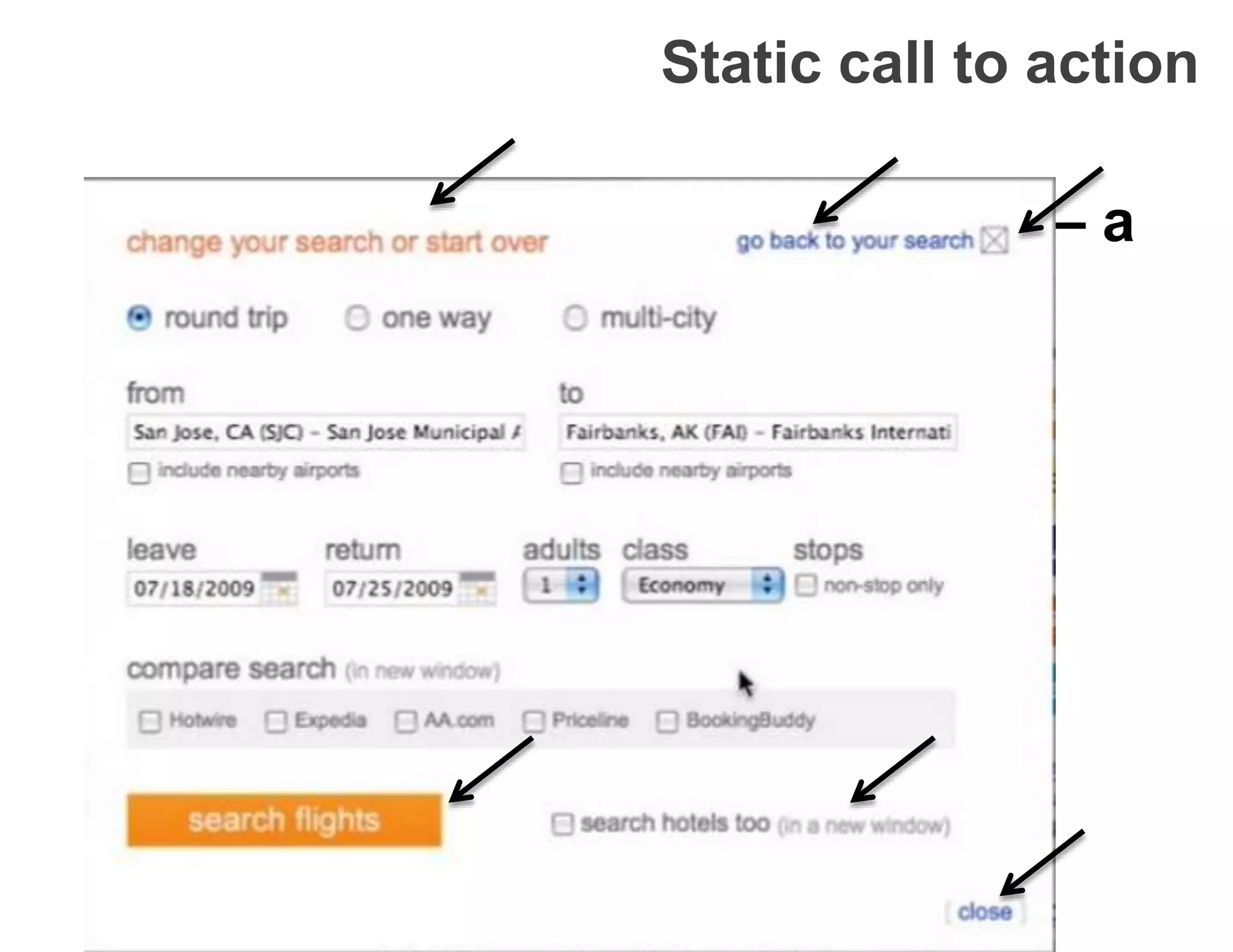
Static call to action
How was that form an anti-pattern – a
bad example of a call to action?
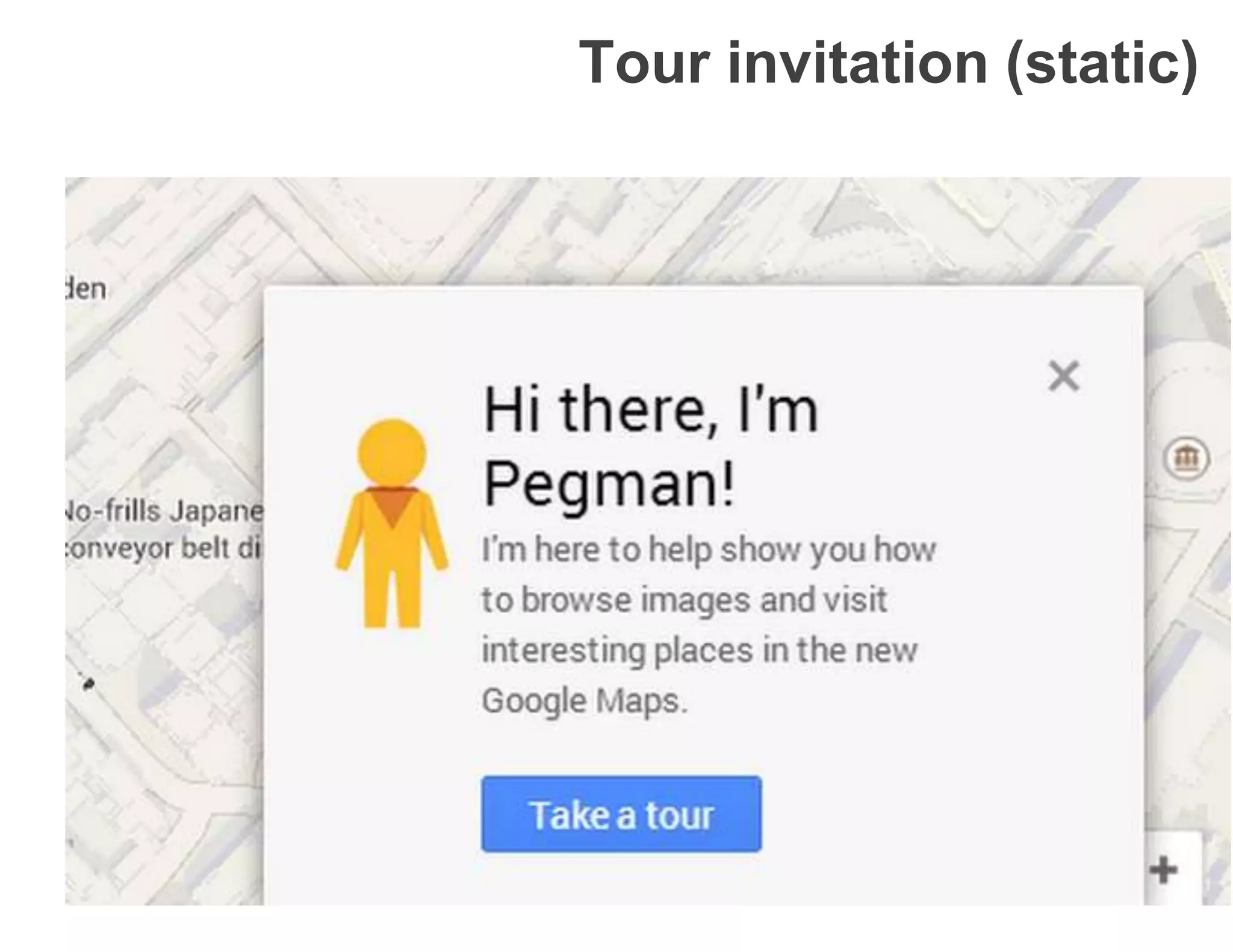
Tour invitation (static)
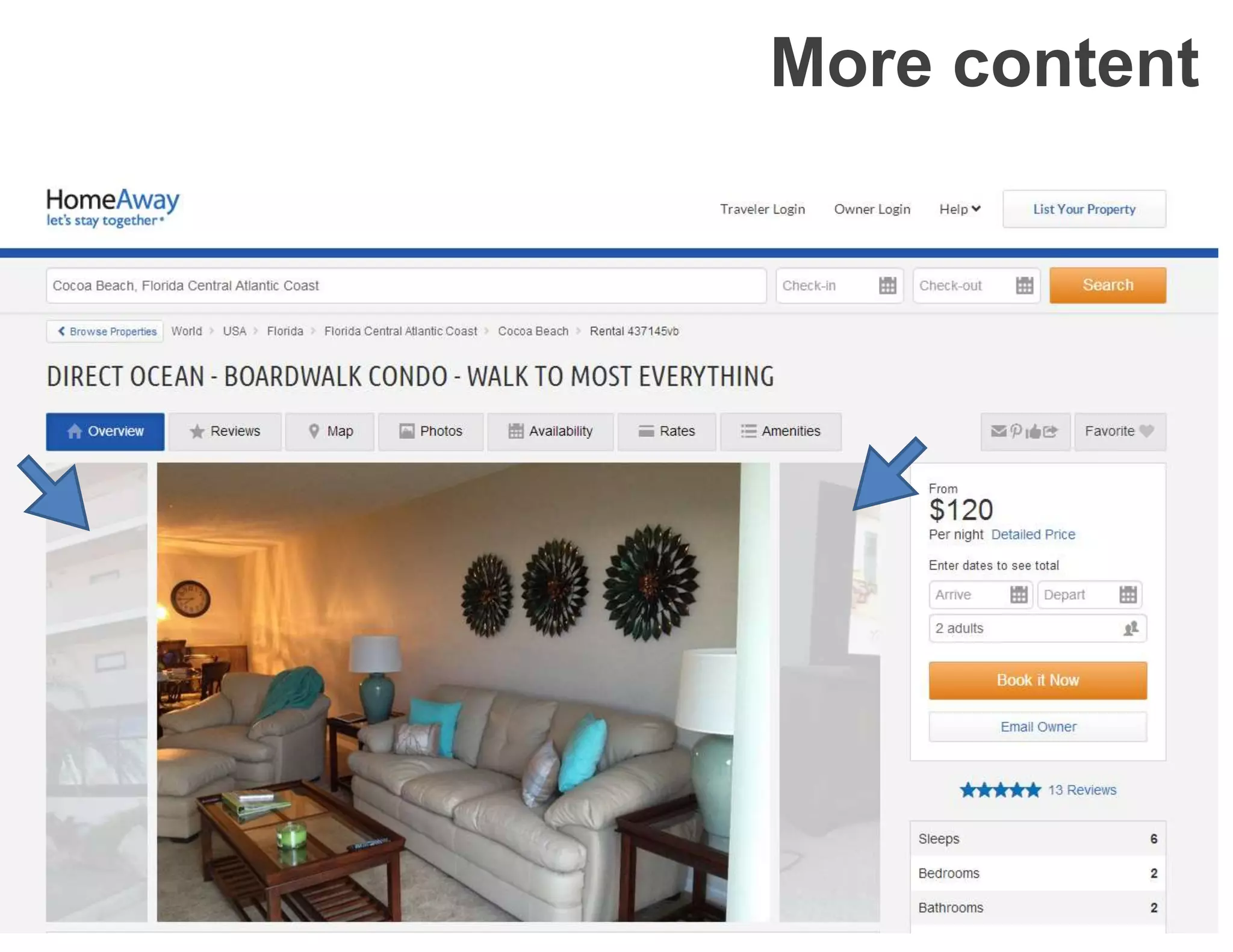
More content
#5 Use transitions
 Special, cinematic effects that occur over time
 Provide feedback during interaction
 Transitions are a form information scent. They
tell the user she’s on the right track
 Smooth the action: makes screens feel human
 Help users understand what has happened and
what could happen
 Movement helps capture and focus attention
 Central vs peripheral vision and “refrigerator
effect”
#5 Use transitions (semantically)
By offloading interpretation of changes to the
perceptual system, animation allows the user to
continue thinking about the task domain, with no
need to shift contexts to the interface domain.
From the paper, Animation: From Cartoons to the User
Interface by Bay-Wei Chang (Stanford) and David Ungar
(at Sun Microsystems) 1995
Transition patterns
 brighten/dim
 expand/collapse
 self-healing fade
 animation
 spotlight
 slide in/out
 enlarge/shrink
 faceplate
 flip
 accordion
 carousel
 fade
 zoom
 perceived performance
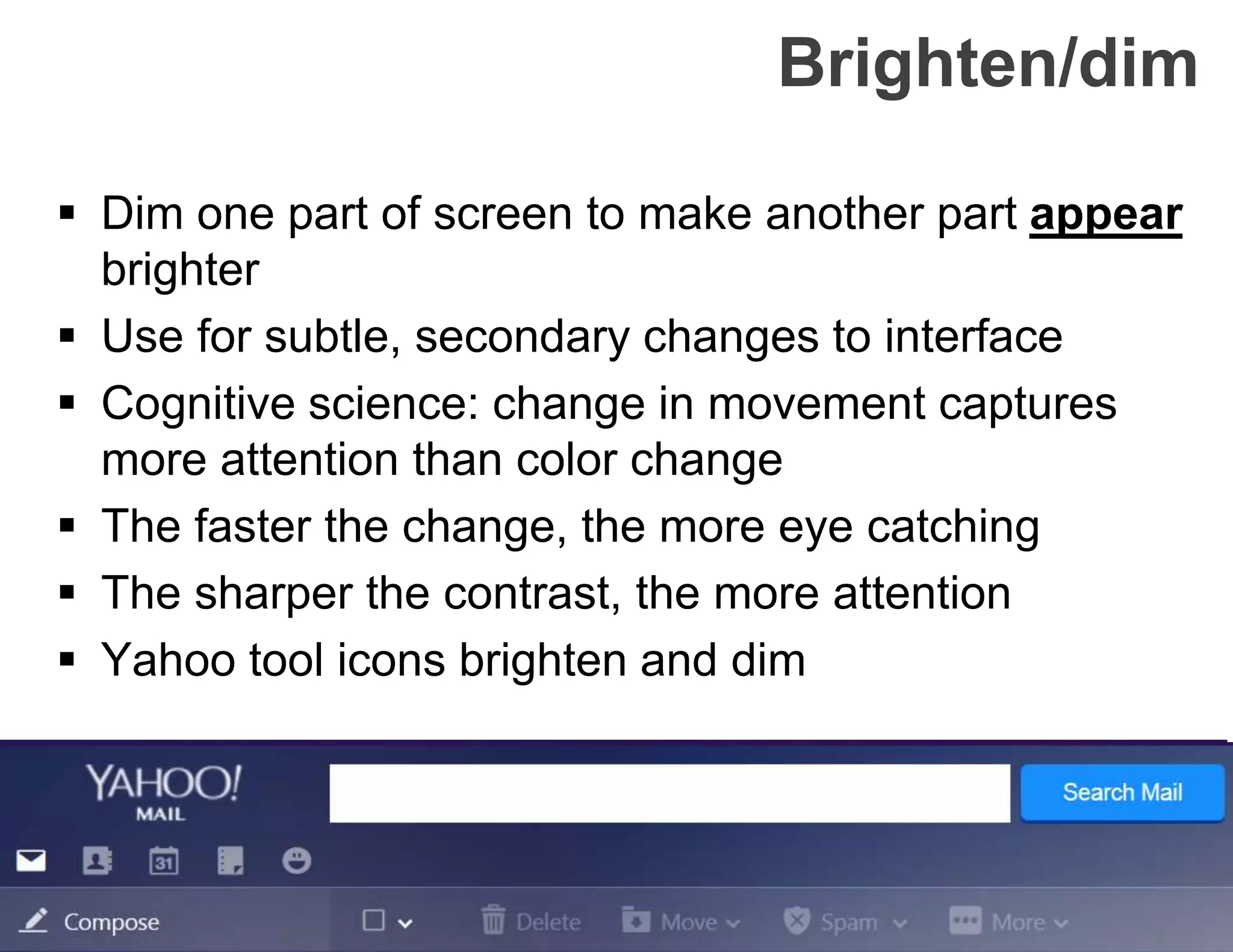
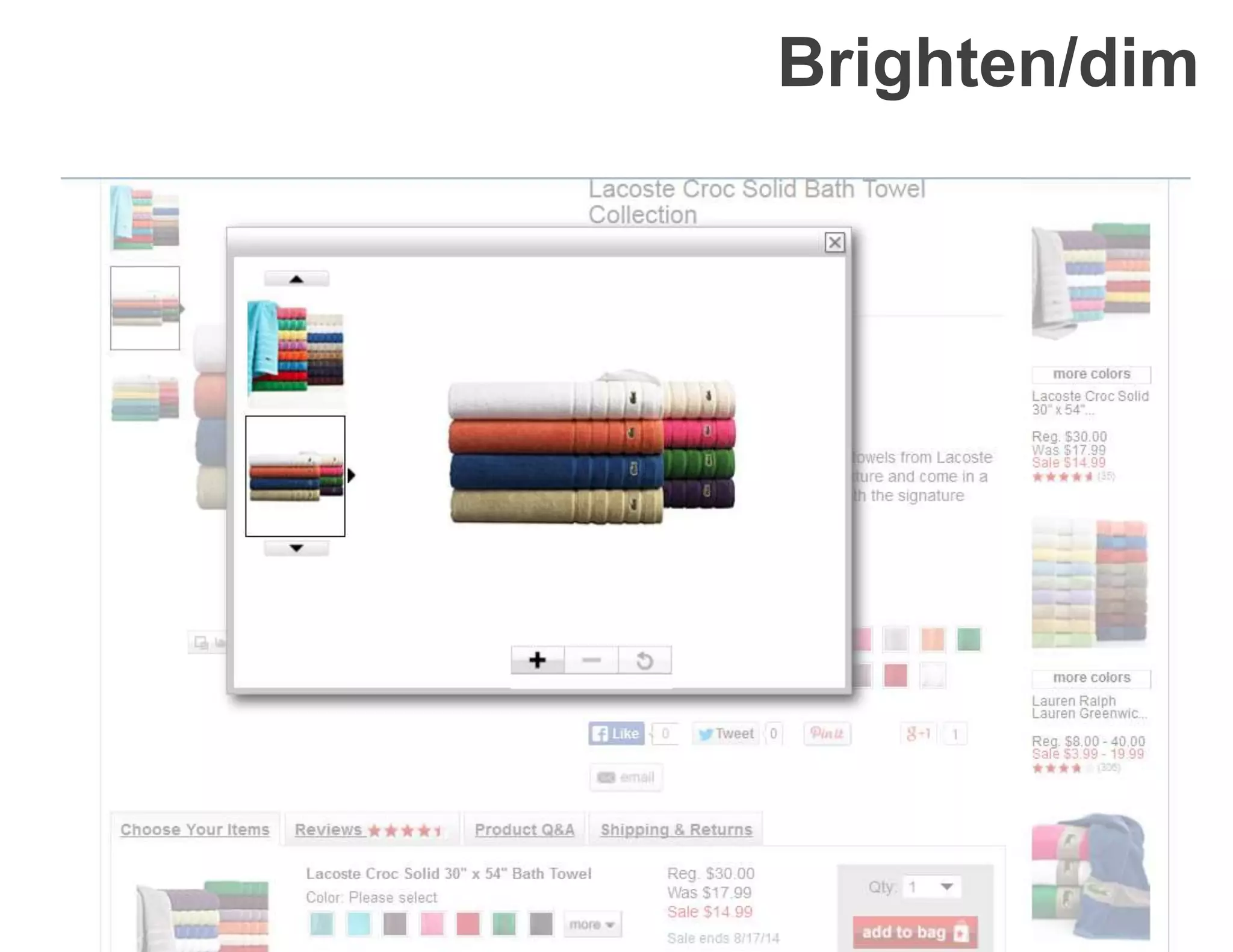
Brighten/dim
 Dim one part of screen to make another part appear
brighter
 Use for subtle, secondary changes to interface
 Cognitive science: change in movement captures
more attention than color change
 The faster the change, the more eye catching
 The sharper the contrast, the more attention
 Yahoo tool icons brighten and dim
Brighten/dim
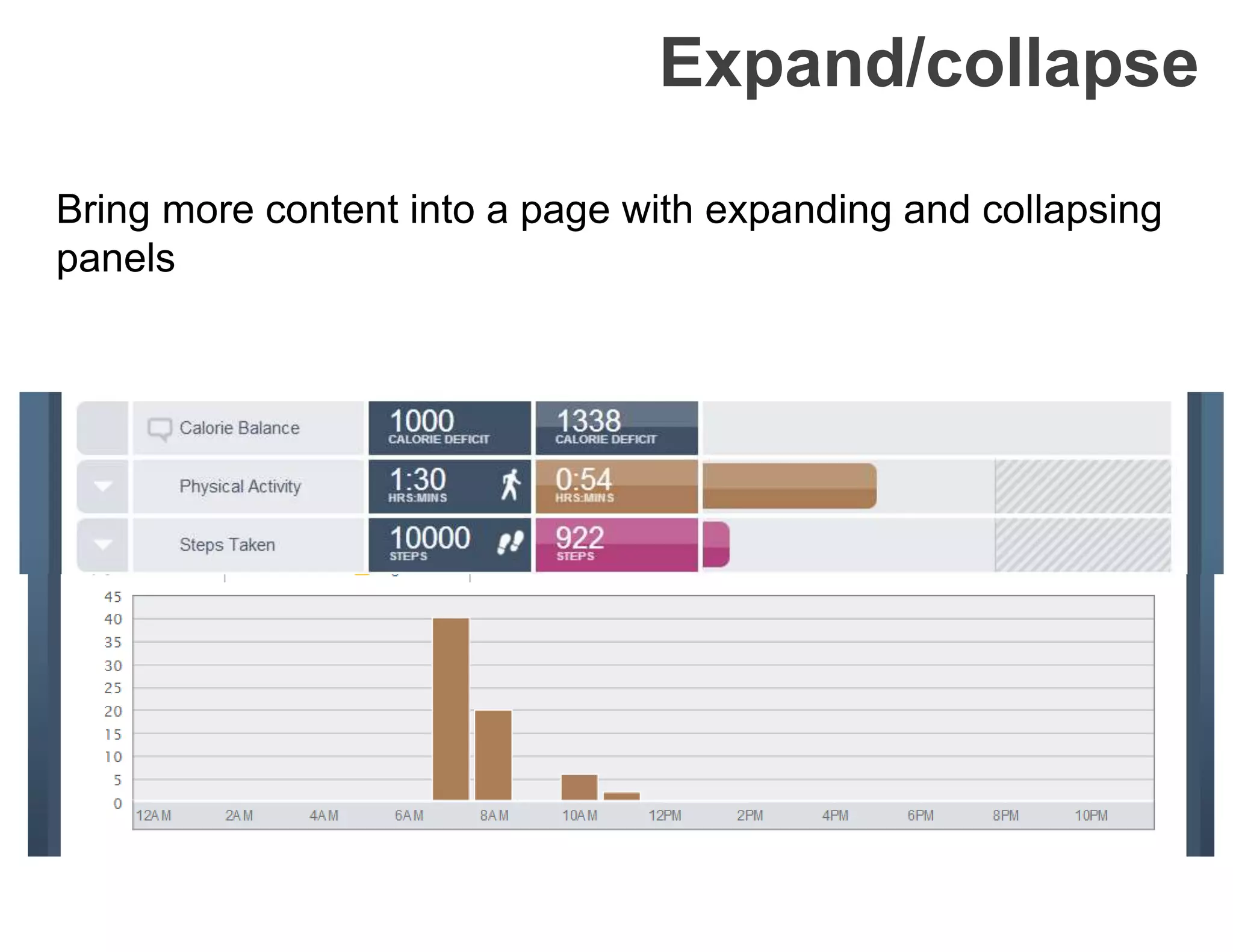
Expand/collapse
Bring more content into a page with expanding and collapsing
panels
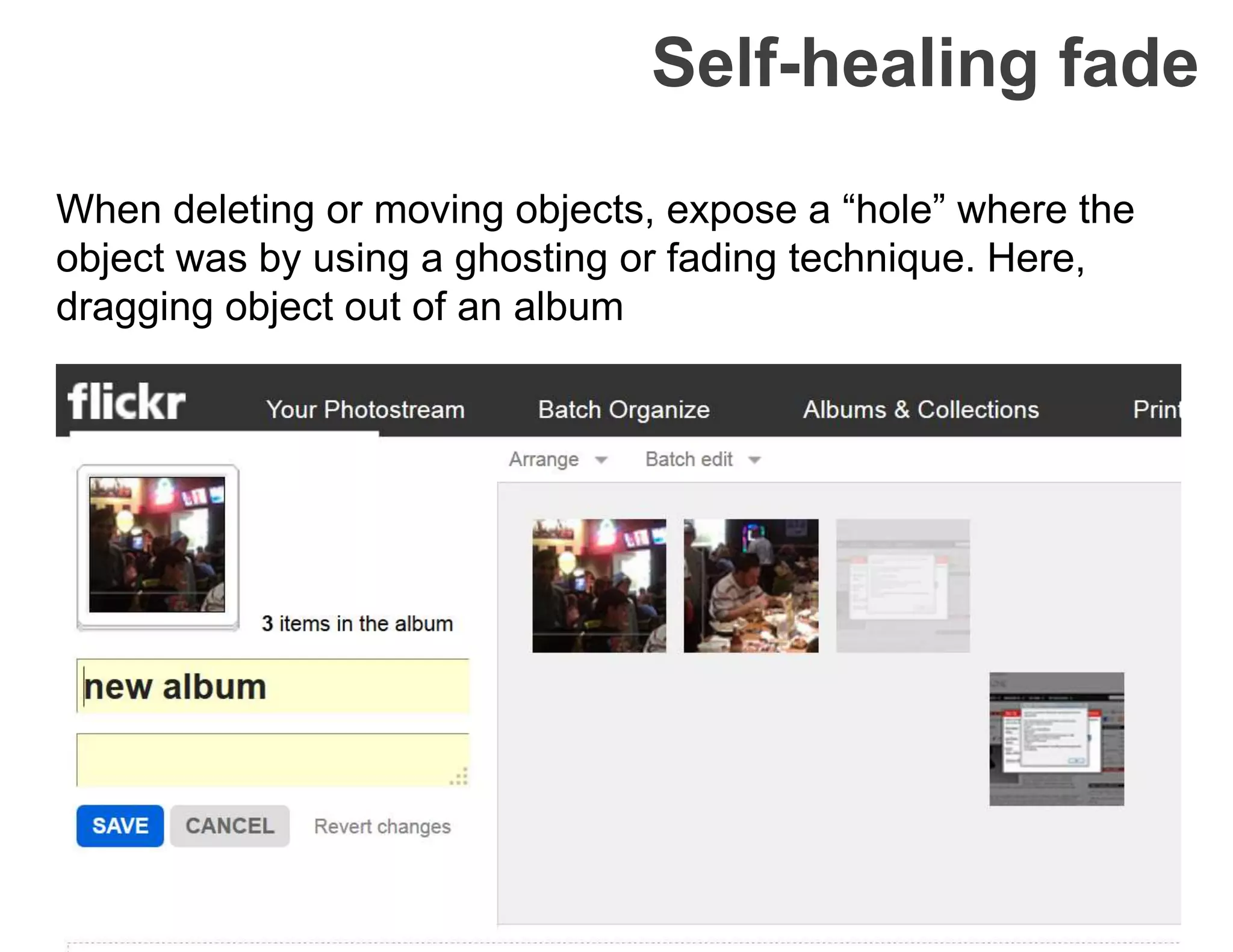
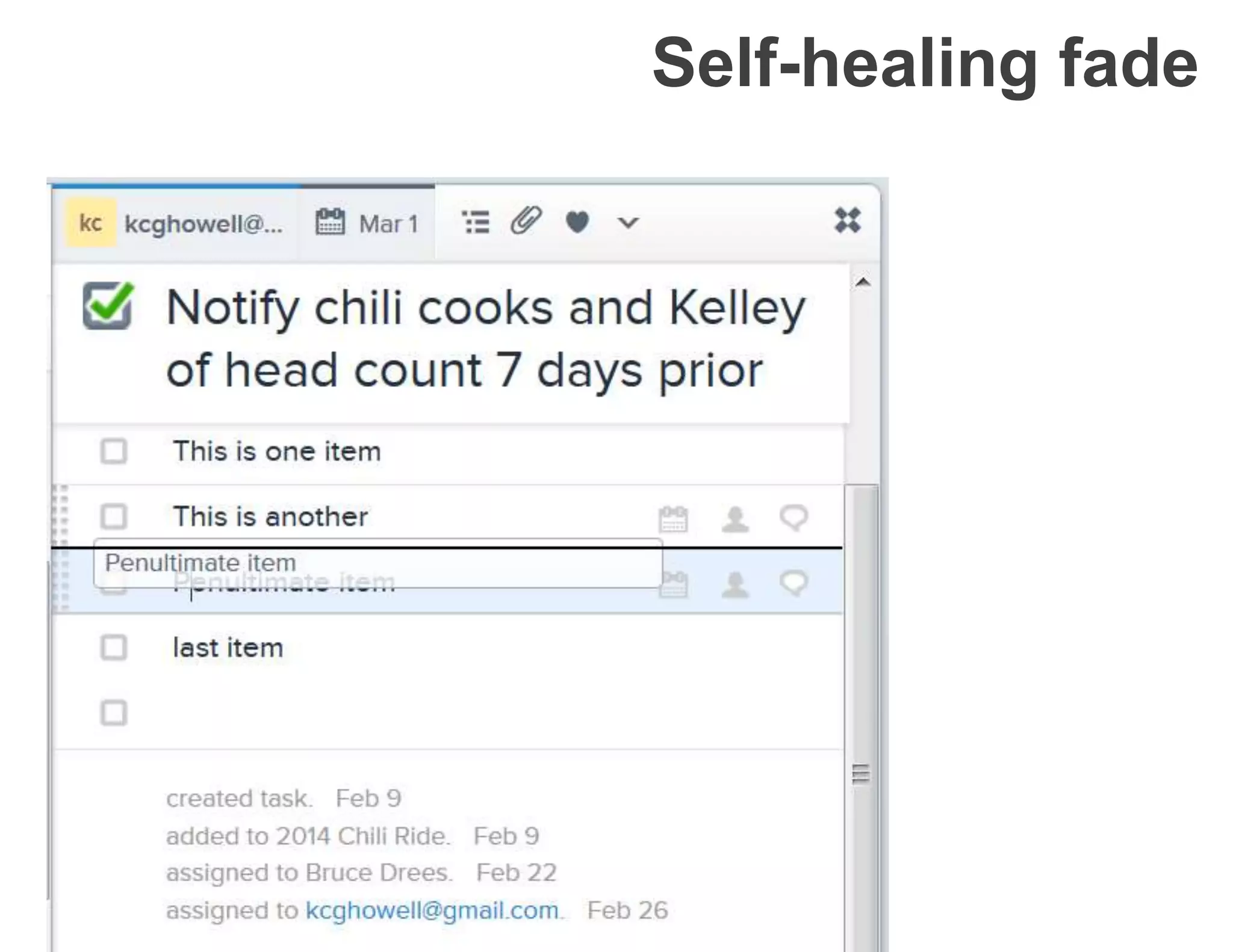
Self-healing fade
When deleting or moving objects, expose a “hole” where the
object was by using a ghosting or fading technique. Here,
dragging object out of an album
Self-healing fade
Animation
 Help make application more life-like
 avoid “I Dream of Jeanie” blink-for-change effect
 Improve delight and enjoyment of environment
Common types:
• Zoom back/snap back: when a drag and drop fails
• drop: mimic the effect of something dropping
• snap to place: mimic effect of something snapping into
place
• genie effect: mimic effect of genie going back into the bottle
• Dog ears: the effect of continuing motion even after stopping
• Magnetism:
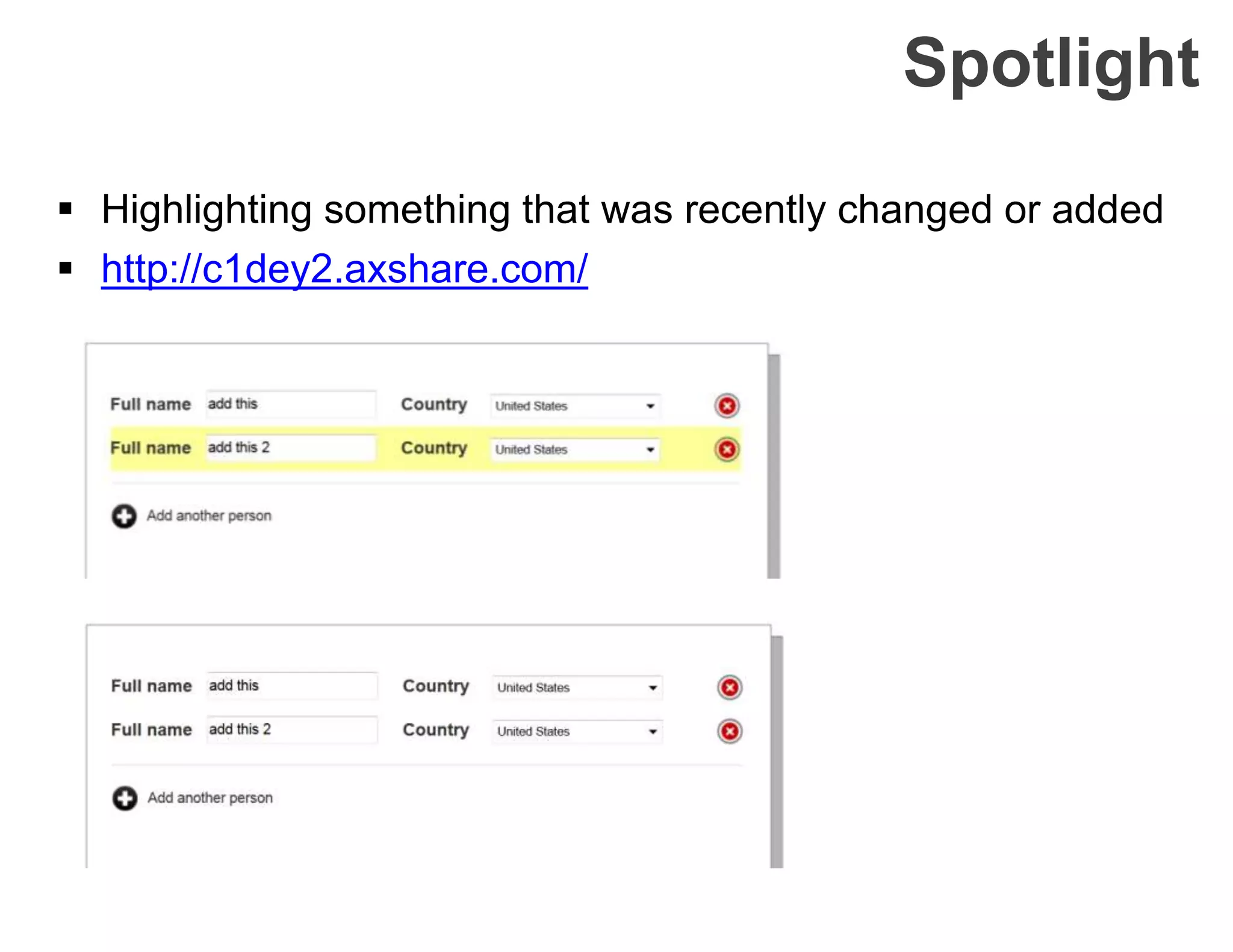
Spotlight
 Highlighting something that was recently changed or added
 http://c1dey2.axshare.com/
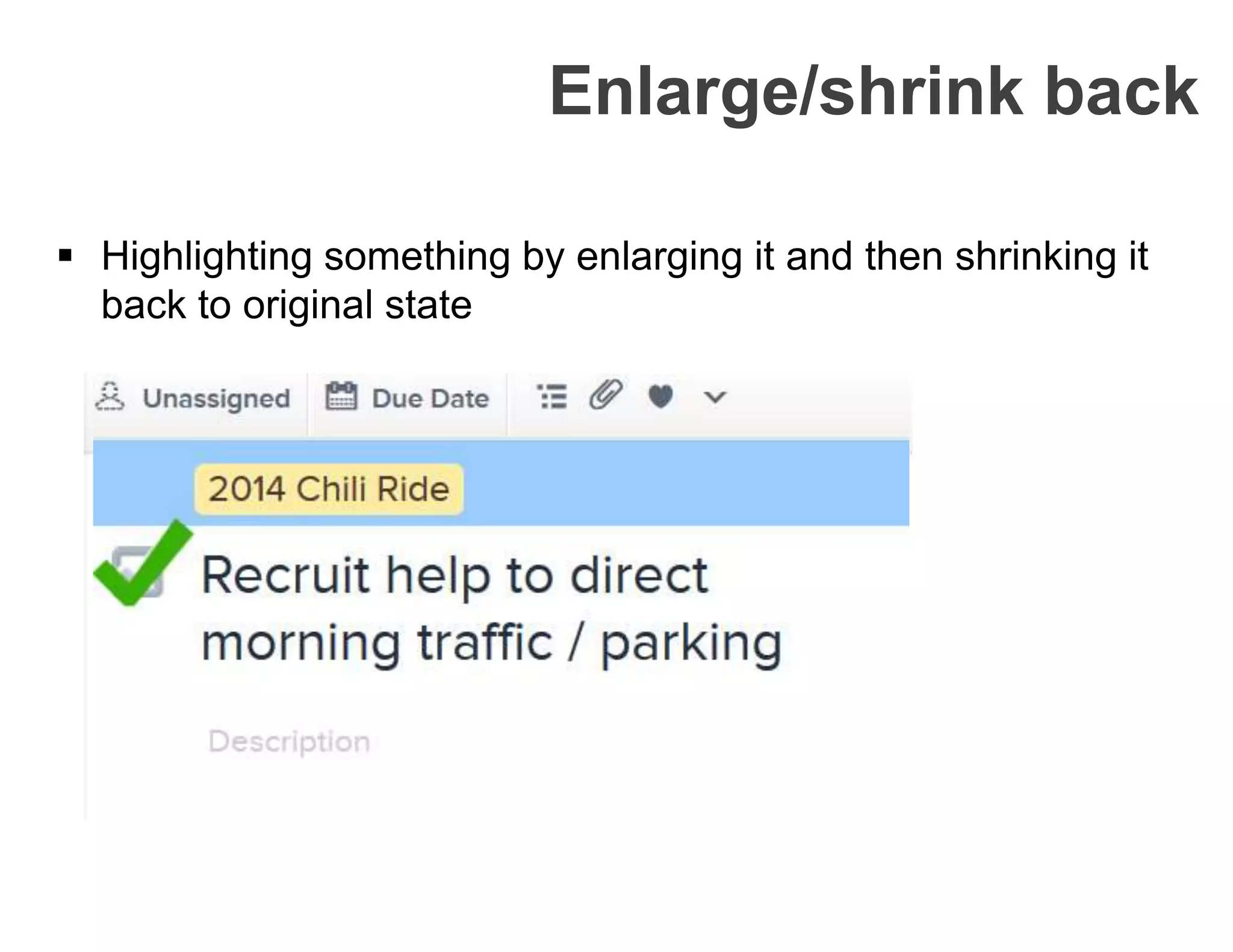
 Highlighting something by enlarging it and then shrinking it
back to original state
Enlarge/shrink back
Wrap up
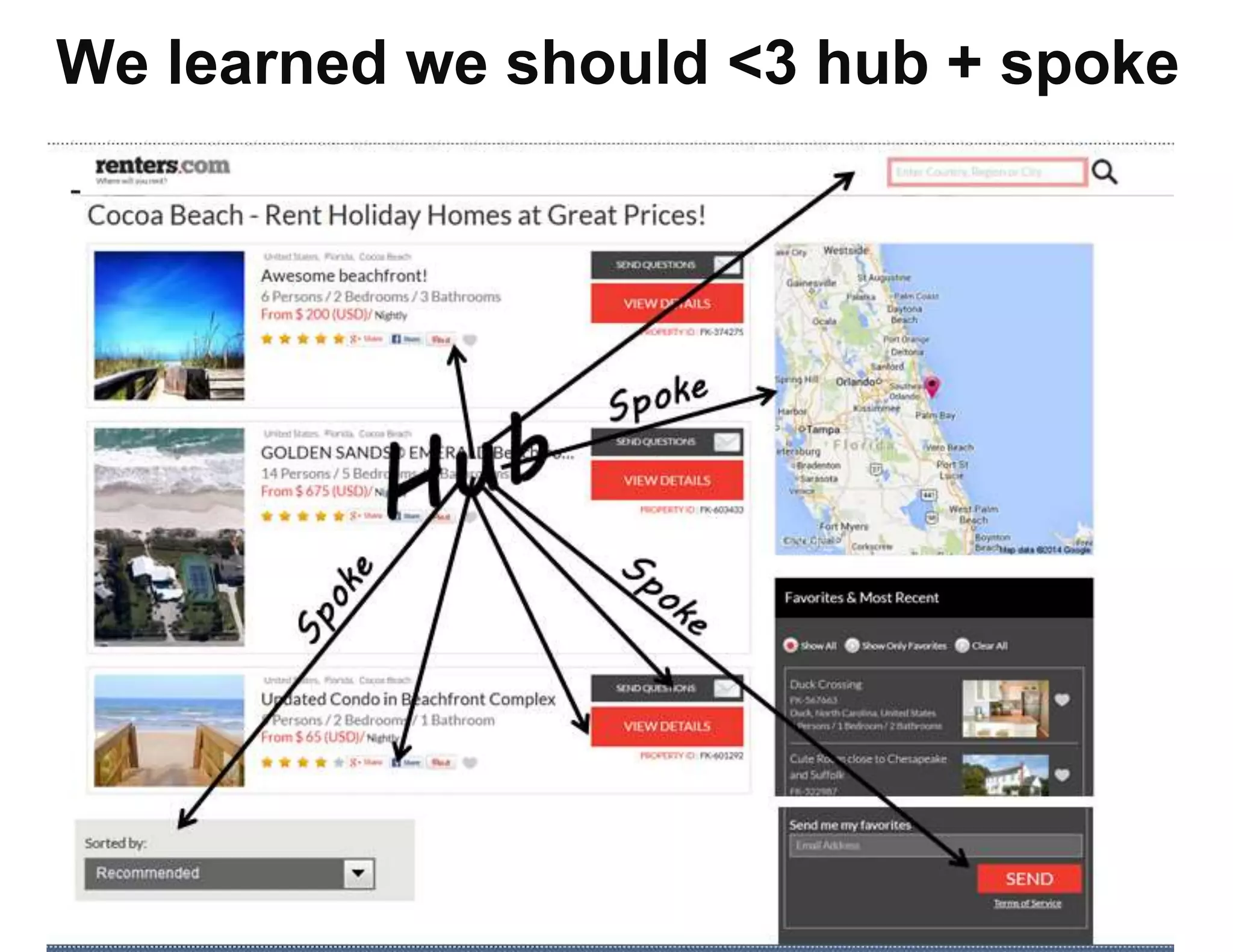
1. Hub and spoke model for app design
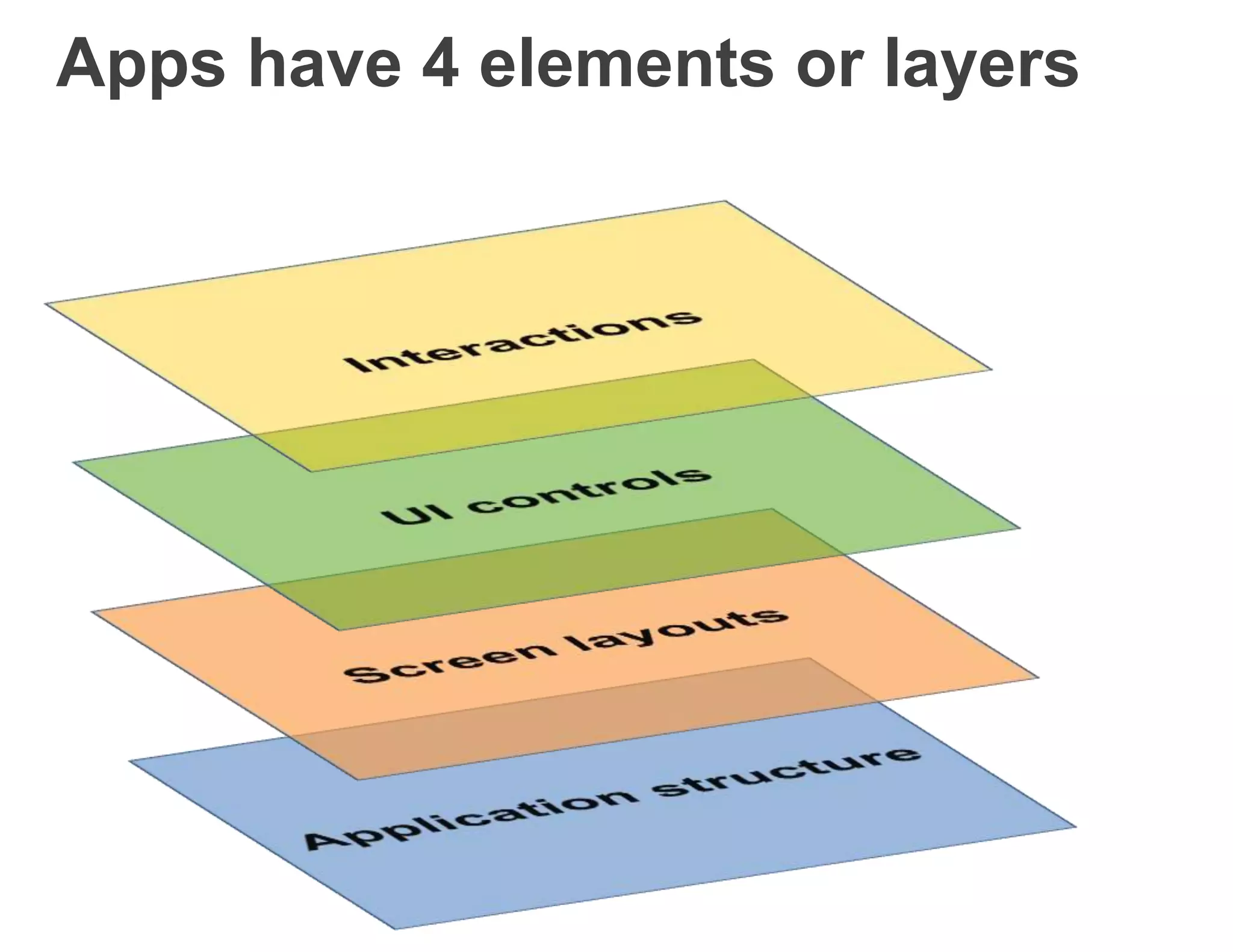
2. 4 basic elements of application design
3. 3 application type(s) to help us meet our
users’ goals
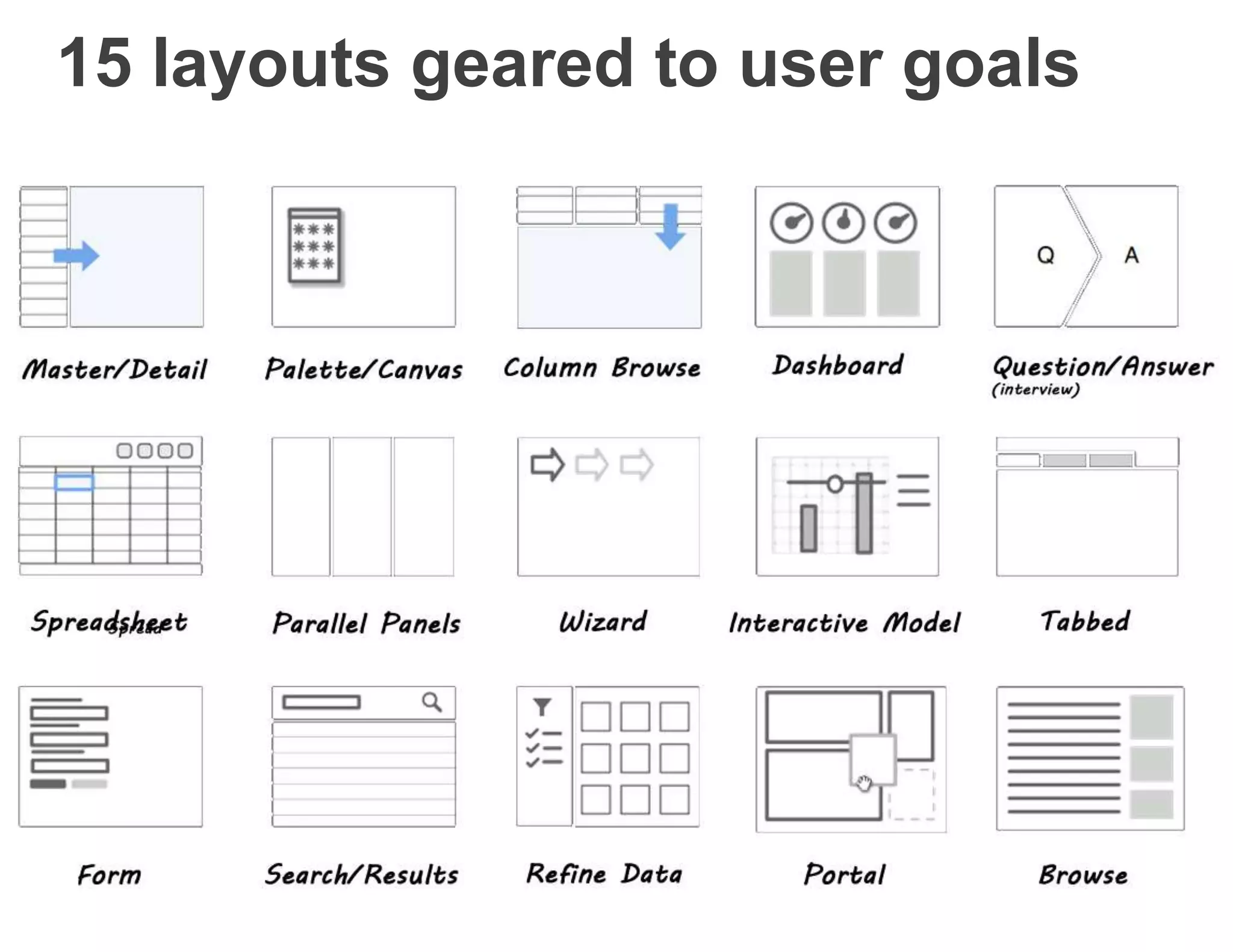
4. 15 basic screen layout patterns known to
help with user work flow
5. 1 goal for 1 screen
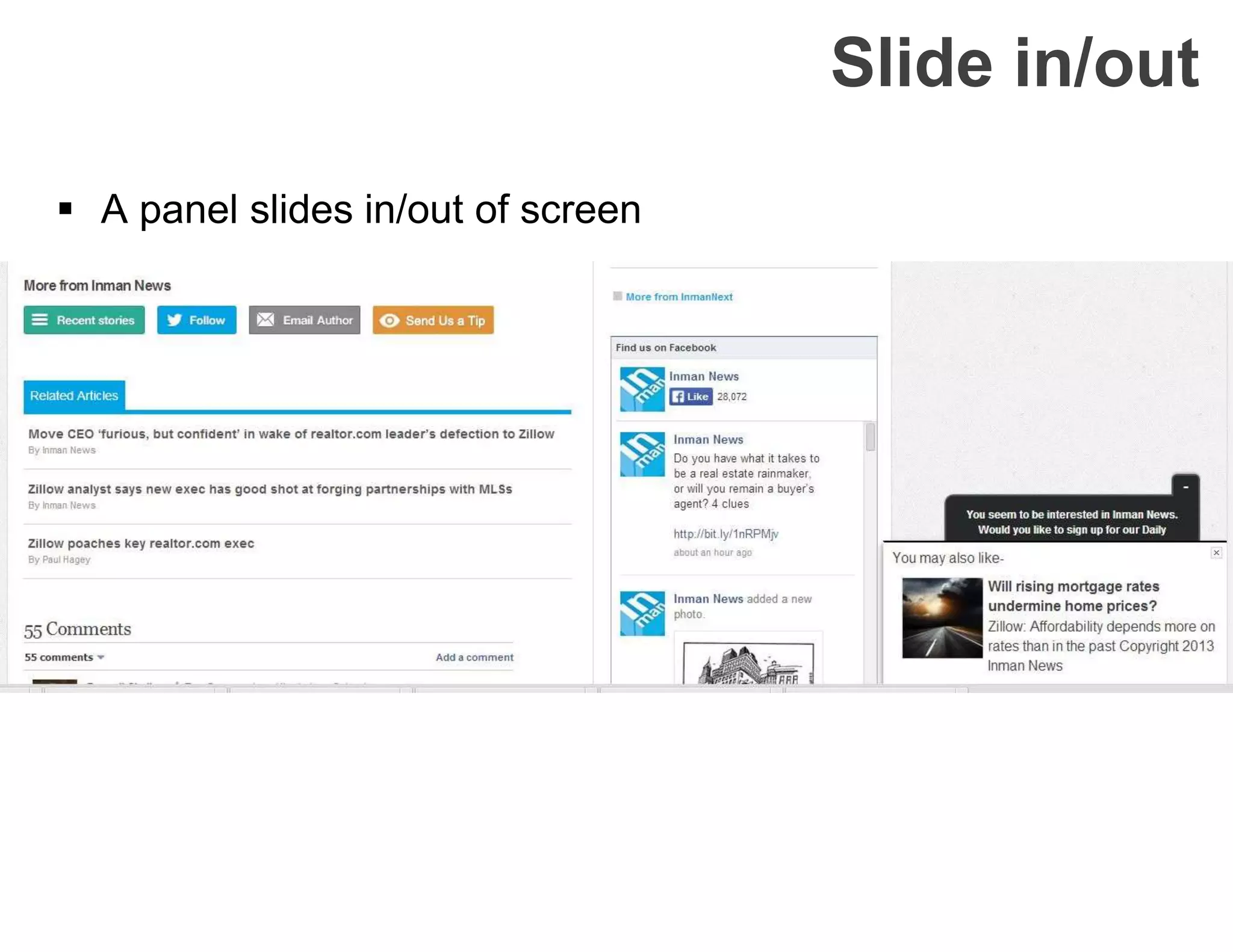
Slide in/out
 A panel slides in/out of screen
#5 Transitions - More transitions
 Faceplate: Move between two faces of an interface by
cross-fading between the two
 Flip: flipping a card over
 Carousel: moving between several objects
 Accordions: variation on a tabbed panel. When you open
one item in the list, the other open item closes
#5 Transitions - Use effectively
Use transitions to help tell a story. If there’s no story, then
transitions are baubles.
 Explain what just happened
 Demonstrate relationship(s) between objects
 Focus user attention
 Improve perceived performance by maintaining engagement
 Create the illusion of virtual space
#5 Transitions - Best practices
 The more rapid the change, the more important the
event
 Rapid movement perceived as more important than
rapid color change
 Movement toward the user is seen as more
important than movement away from the user
 Very slow change can be processed without
disrupting the user's attention
 Movement can communicate an object's new home
 Transitions should be reflexive – view transition and
reverse transition
#5 Transitions - Dont’s
 Don’t overuse
 Don’t rely on transitions to communicate a story;
use multiple methods to communicate
 Don’t rely on transitions to communicate a
changed interface
 Don’t use transitions outside the user’s focus
area. (using it outside the focal area makes the
transition effect feel more like advertising)
 Don’t use gimmicky effects
 Don’t use for the cool factor
#6 React immediately
 A way of providing feedback after an interaction
 Users expect something to happen in response
to their action (perceive apps as rude at best and
broken at worst when they do not respond)
Two patterns:
− Lookup patterns
− Feedback patterns
Lookup patterns
 Since looking up information is a large part of
what user do there are methods of providing
feedback during searches:
− Auto Complete
− Live Suggest
− Live Search
− Refining Search
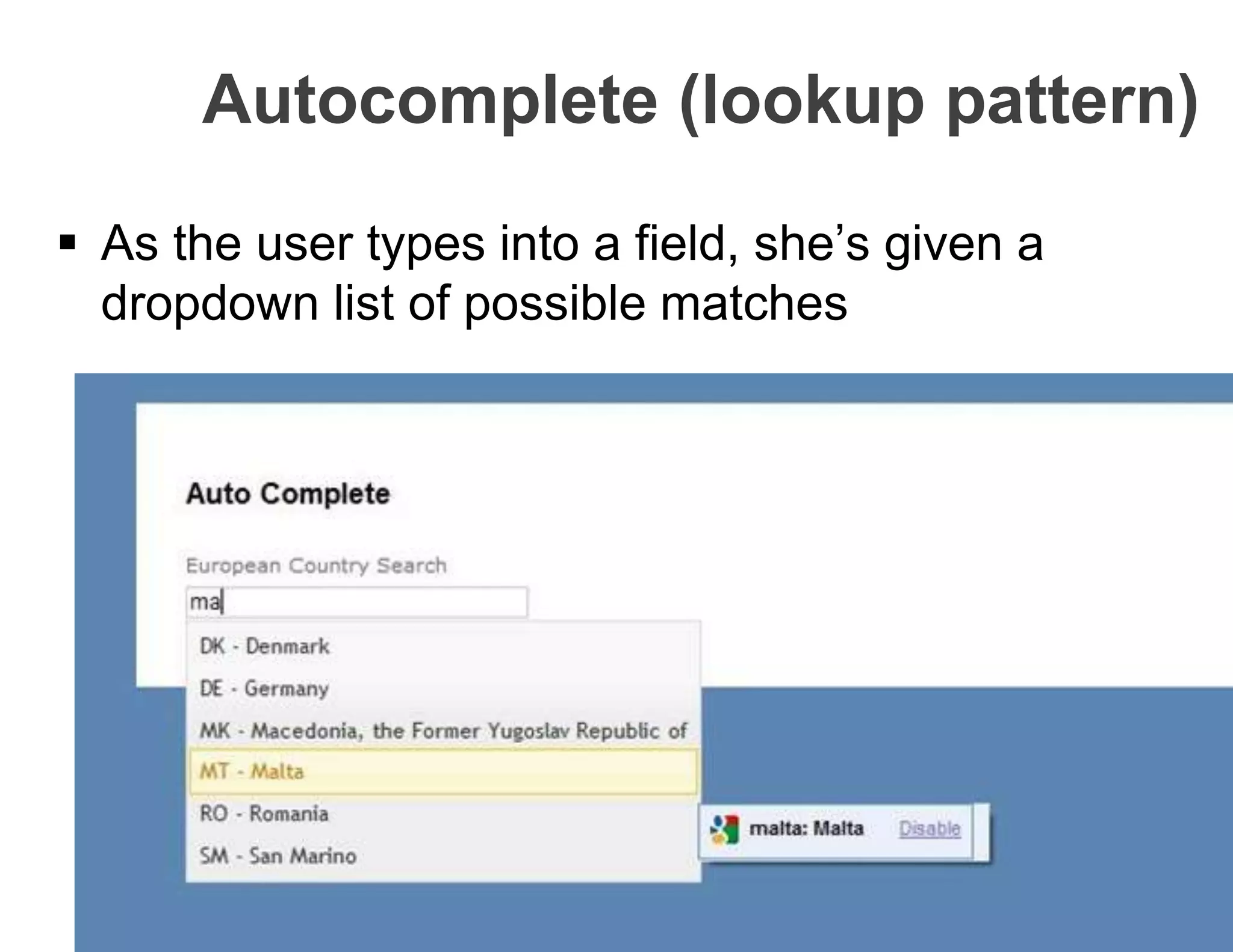
Autocomplete (lookup pattern)
 As the user types into a field, she’s given a
dropdown list of possible matches
Autocomplete – best practices
 Use autocomplete for input assistance
 Match on multiple fields
 Show results when the user pauses
 Allow selecting matched value on Tab key
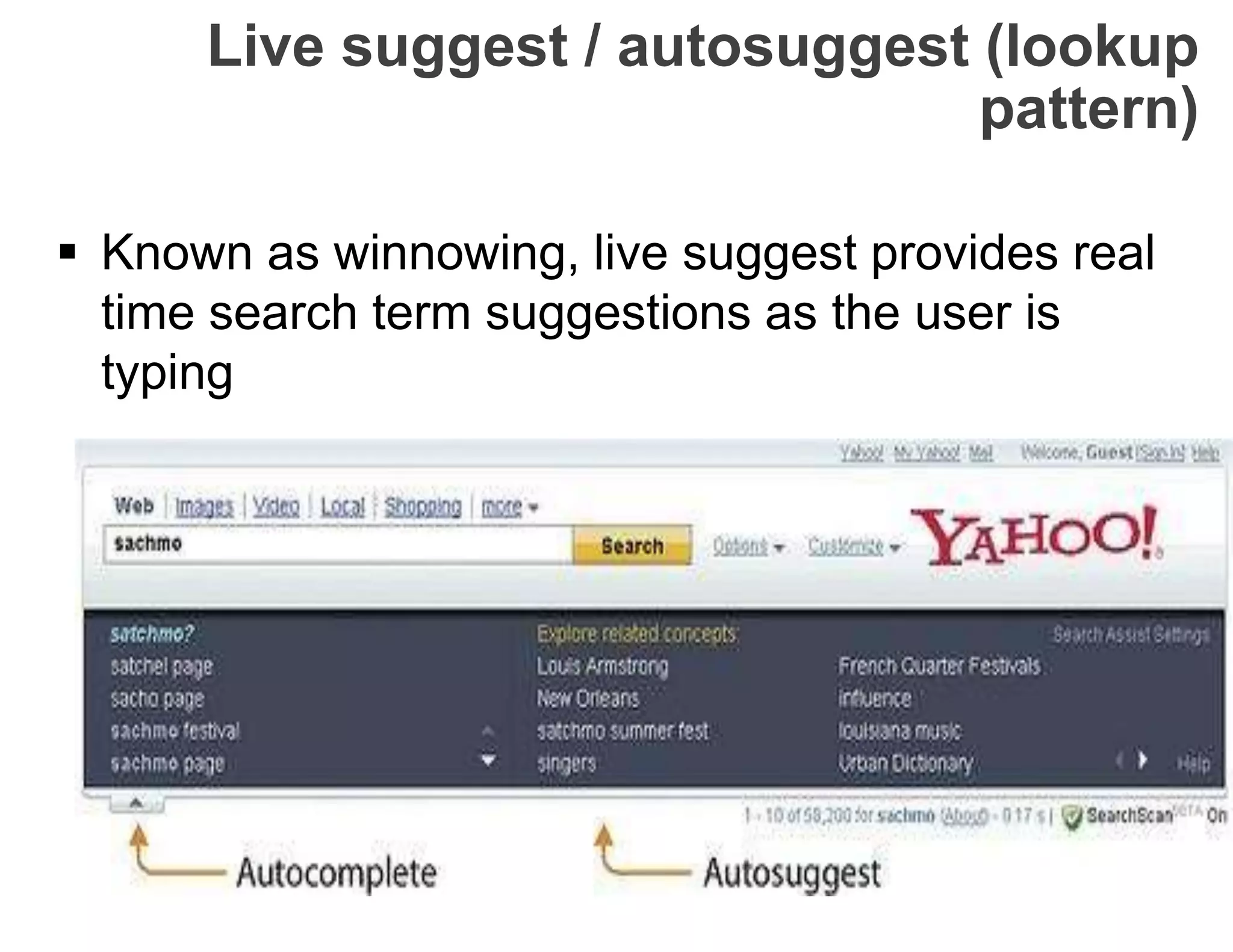
 Known as winnowing, live suggest provides real
time search term suggestions as the user is
typing
Live suggest / autosuggest (lookup
pattern)
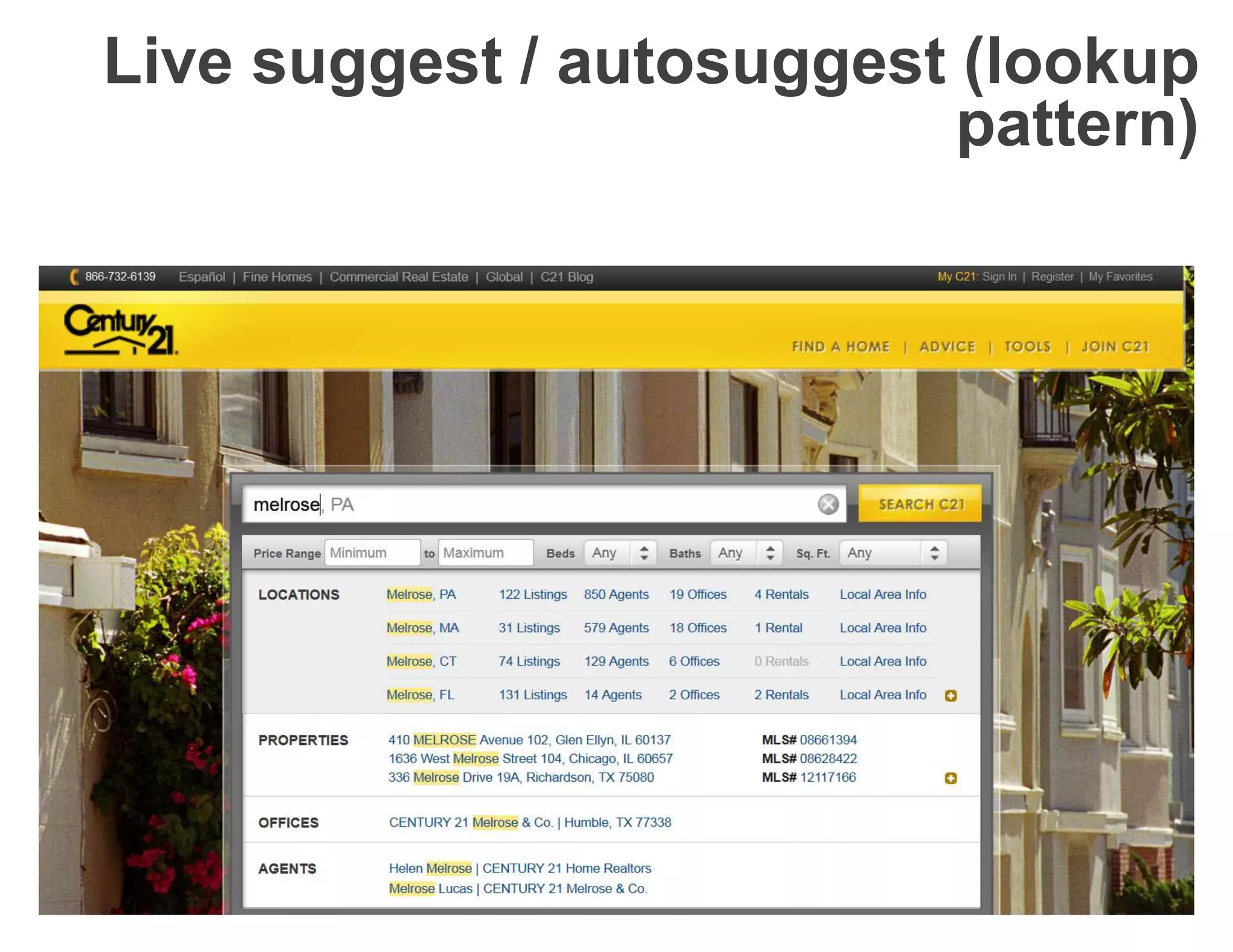
Live suggest / autosuggest (lookup
pattern)
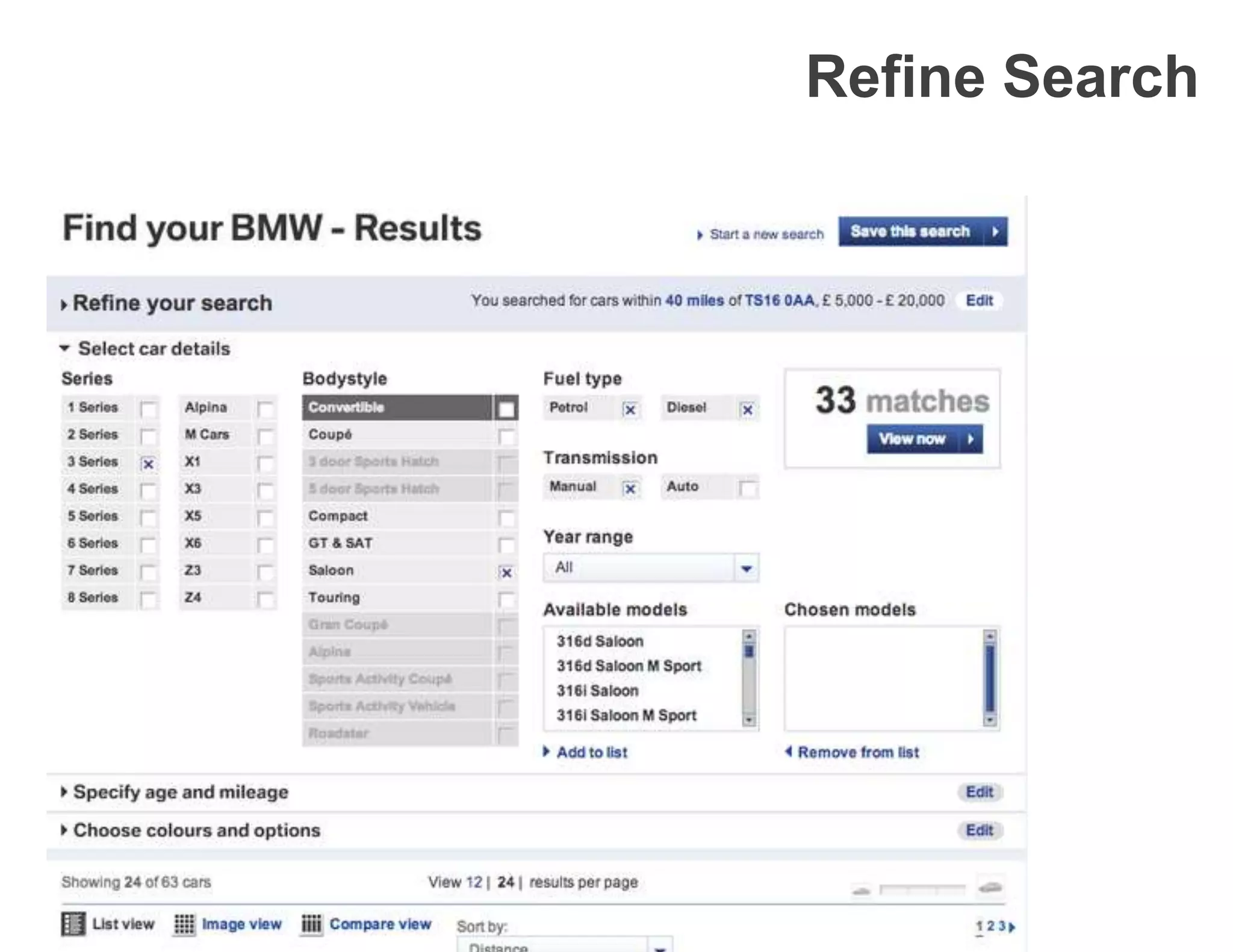
Refine Search
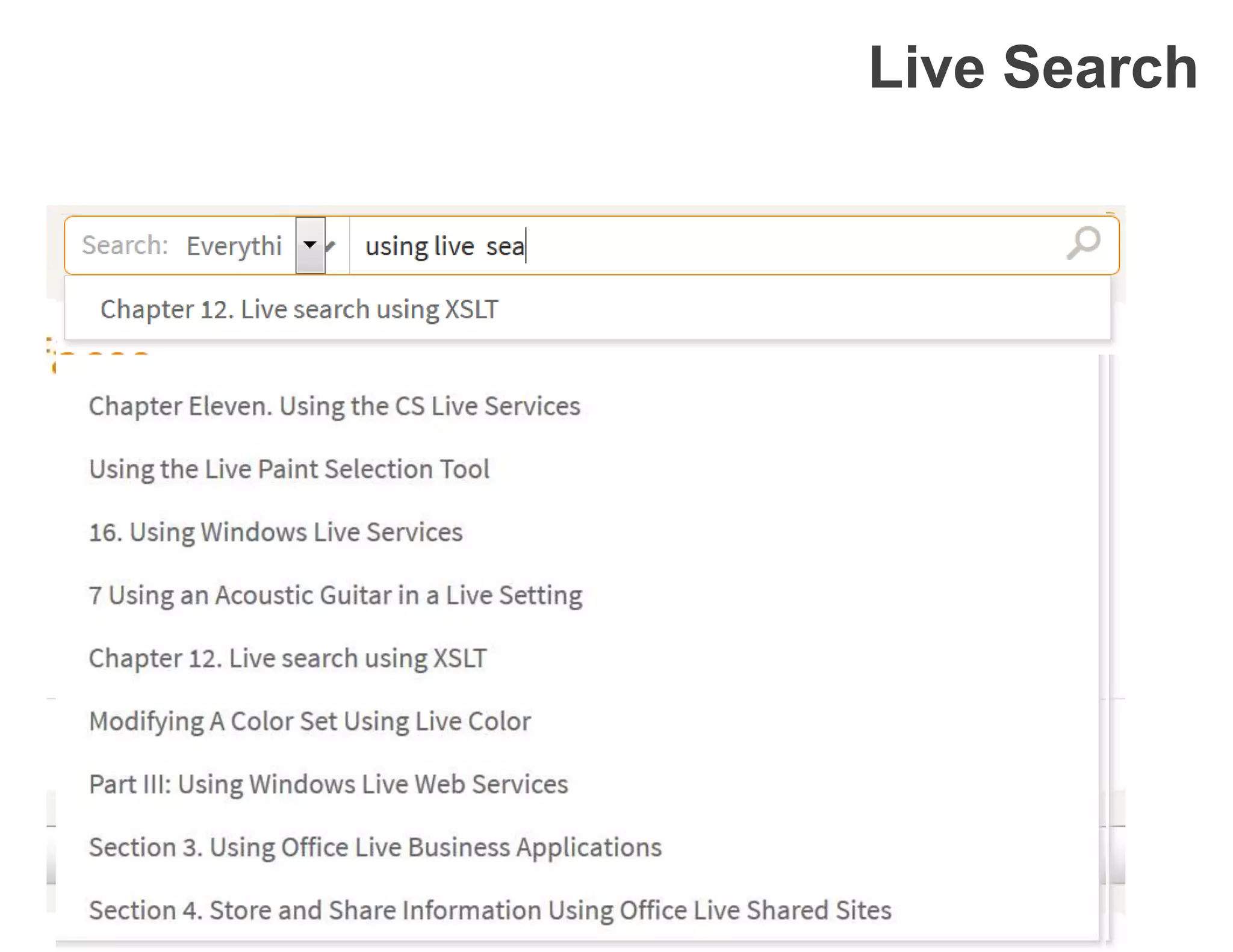
 While someone is typing a query, actual live
search results are shown in real time
Live Search
Live Search
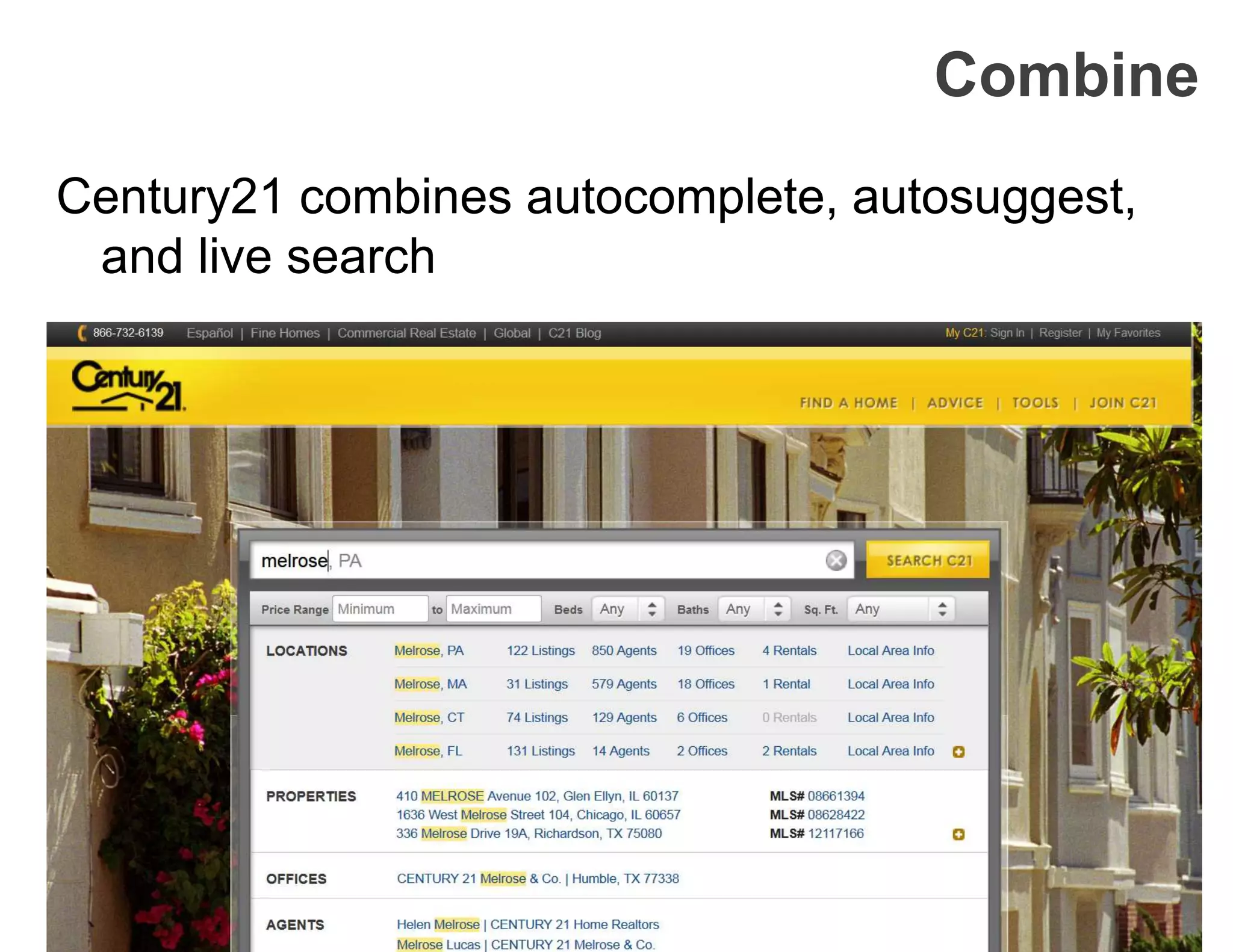
Century21 combines autocomplete, autosuggest,
and live search
Combine
Feedback patterns
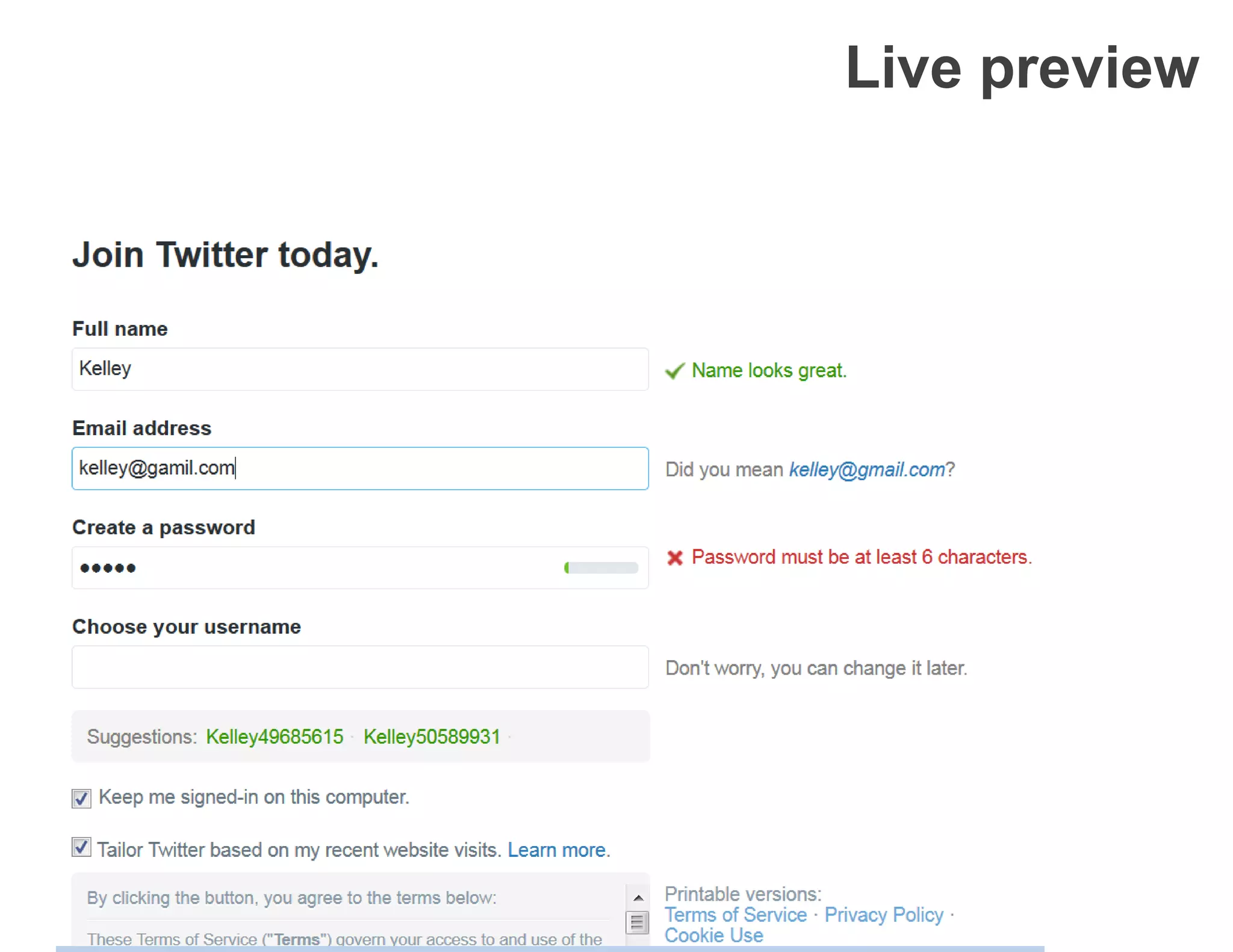
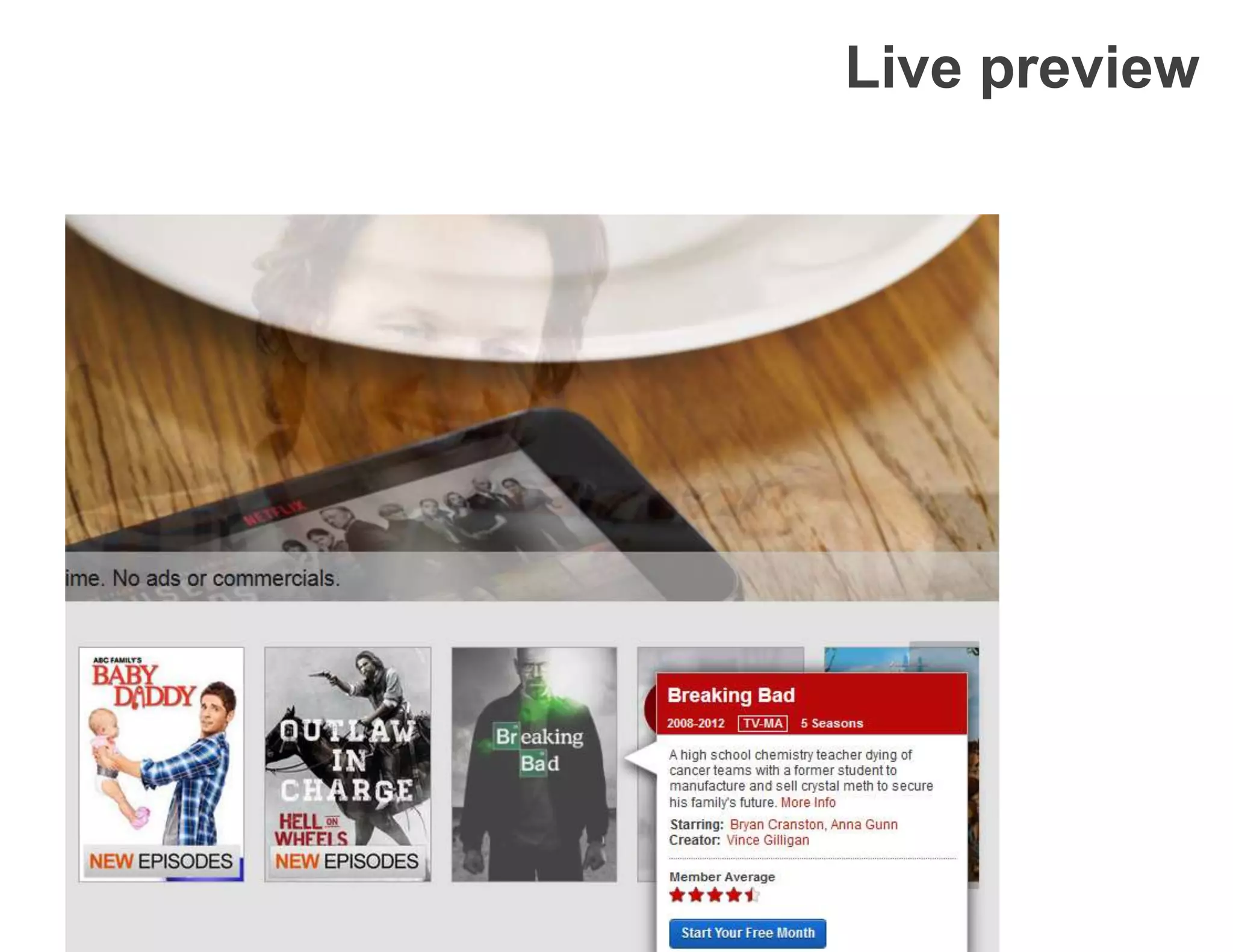
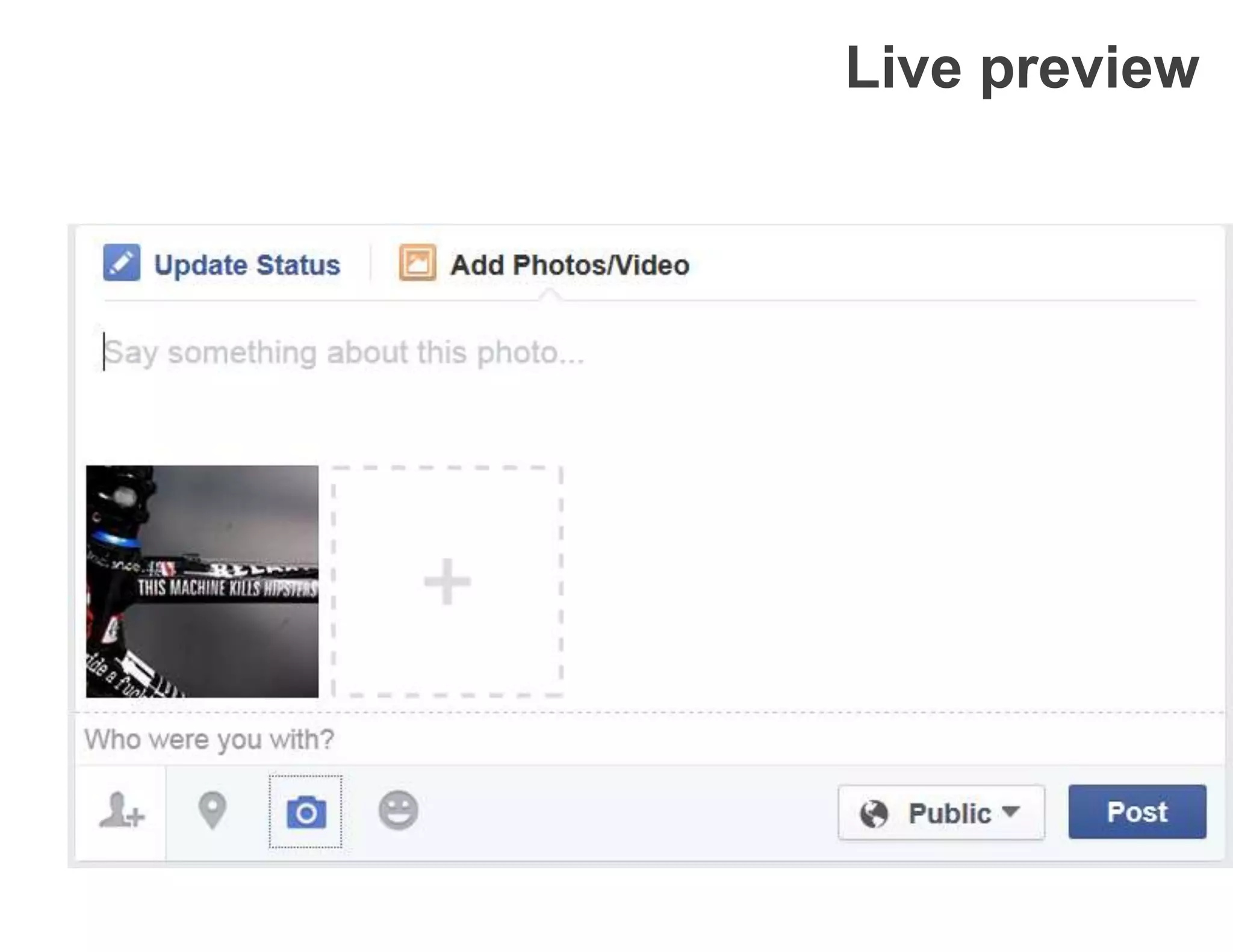
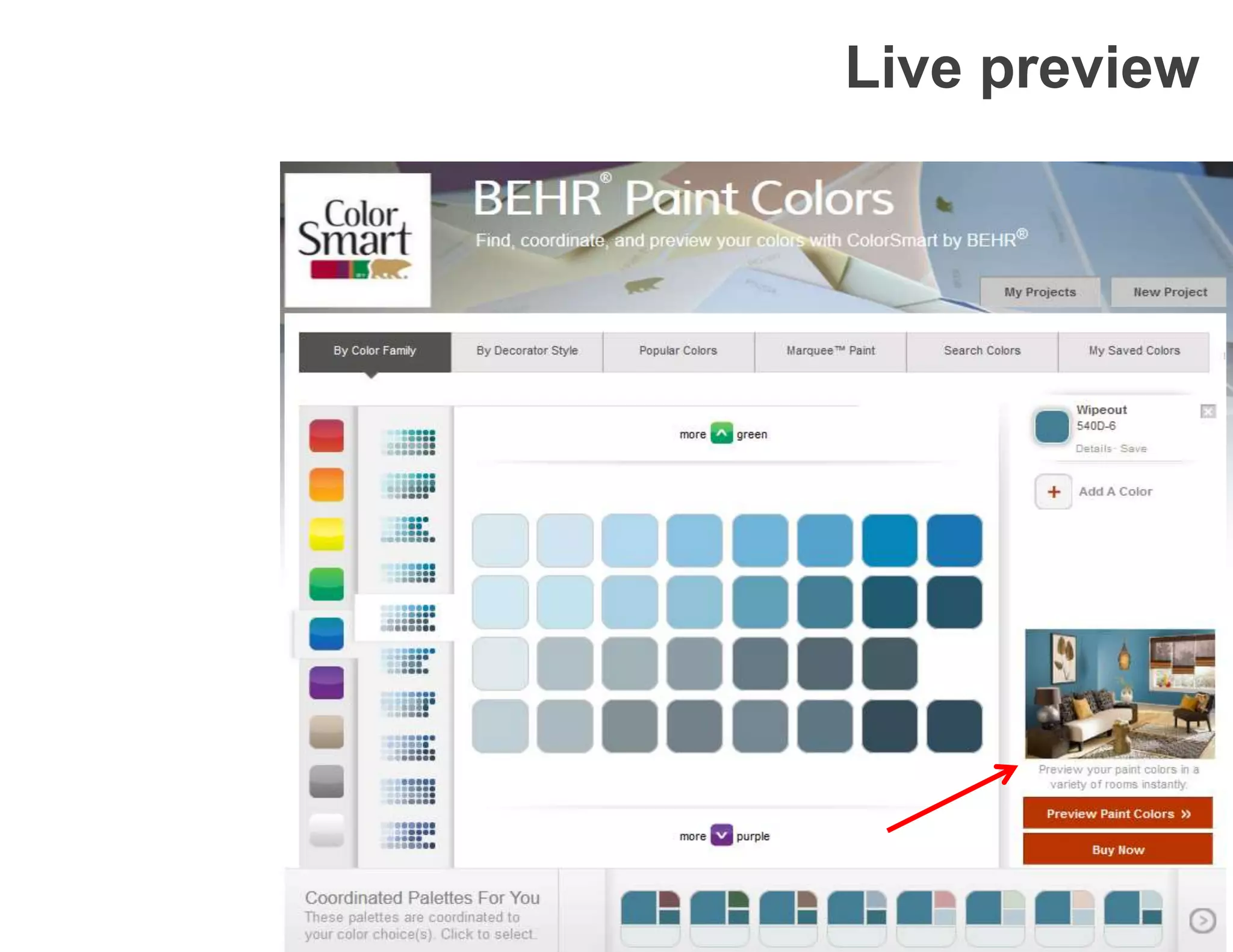
 Interactive feedback for non-lookup situations:
− live preview
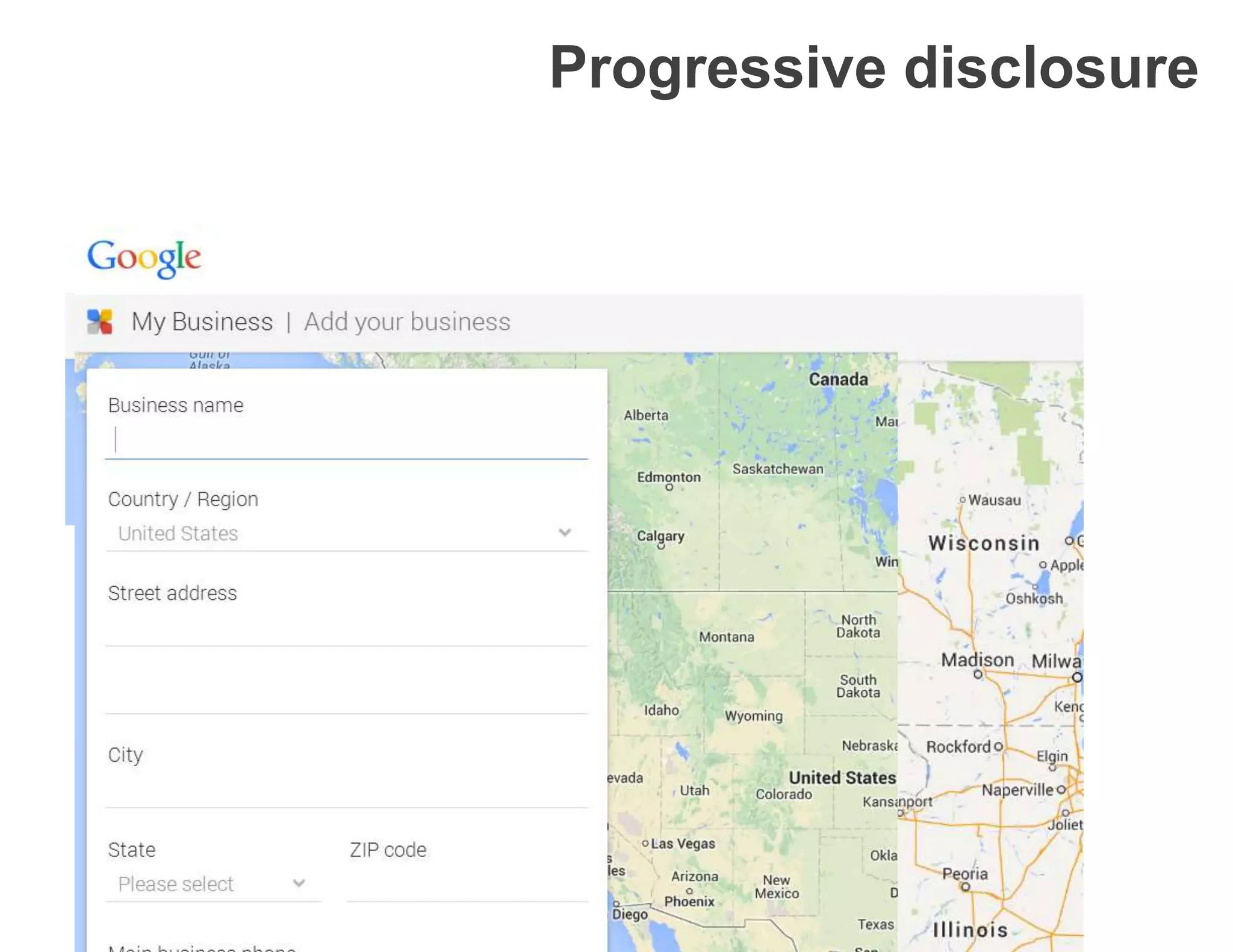
− progressive disclosure
− progress indicator
− periodic refresh
Live preview
Live preview
Live preview
Live preview
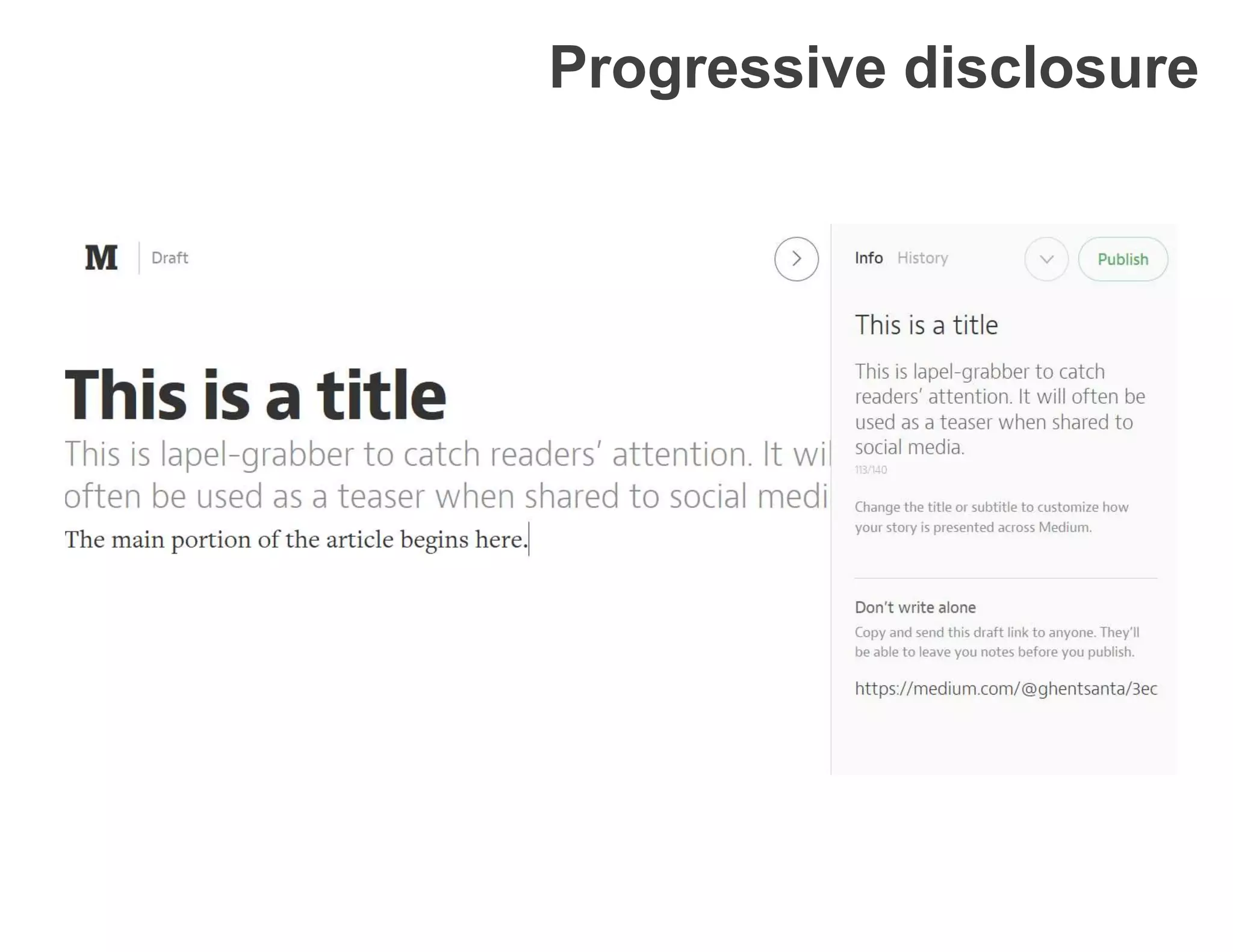
Progressive disclosure
• When there is a logical series of steps, display
hints and contextual tools and menus as they are
needed to avoid cluttering the screen
Progressive disclosure
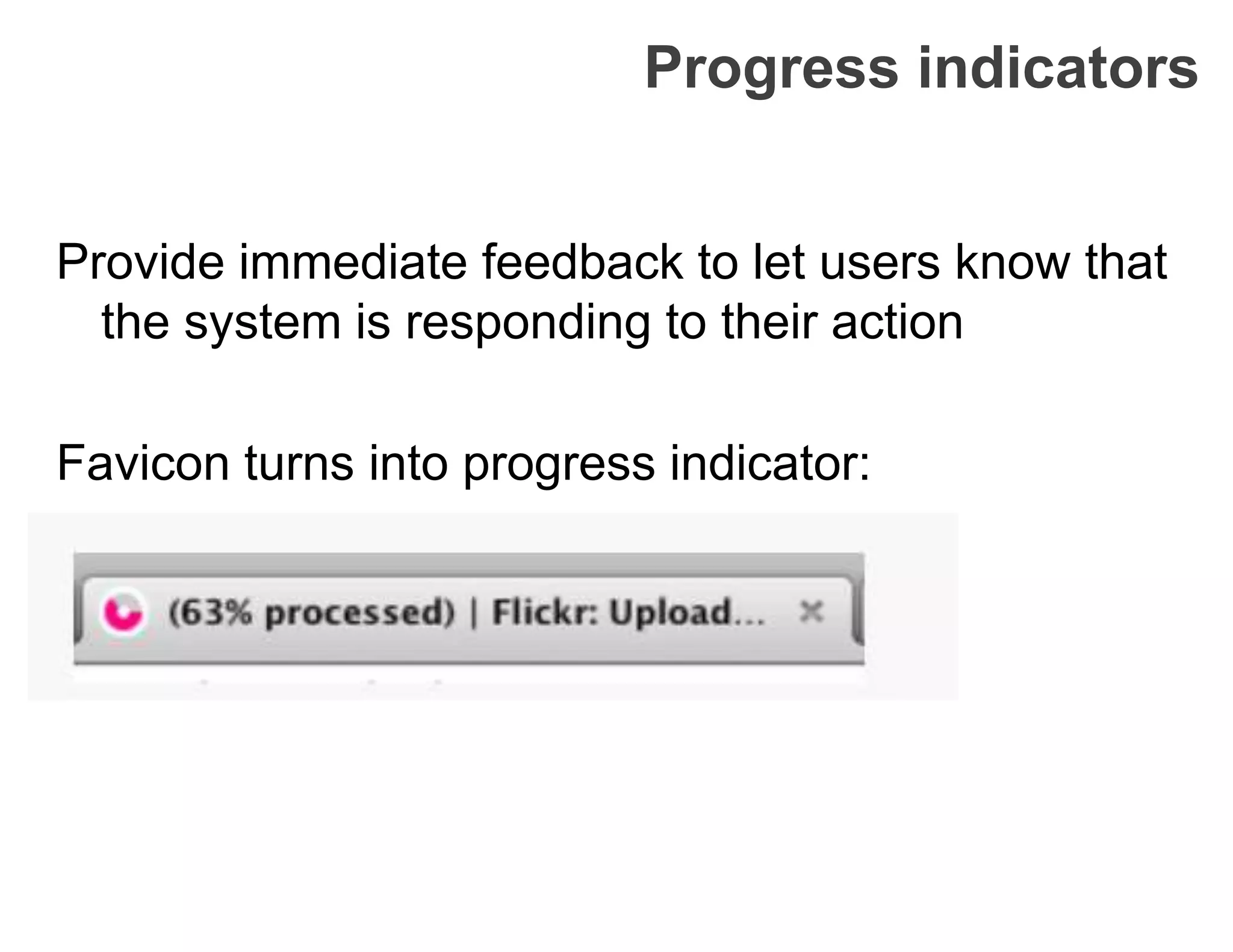
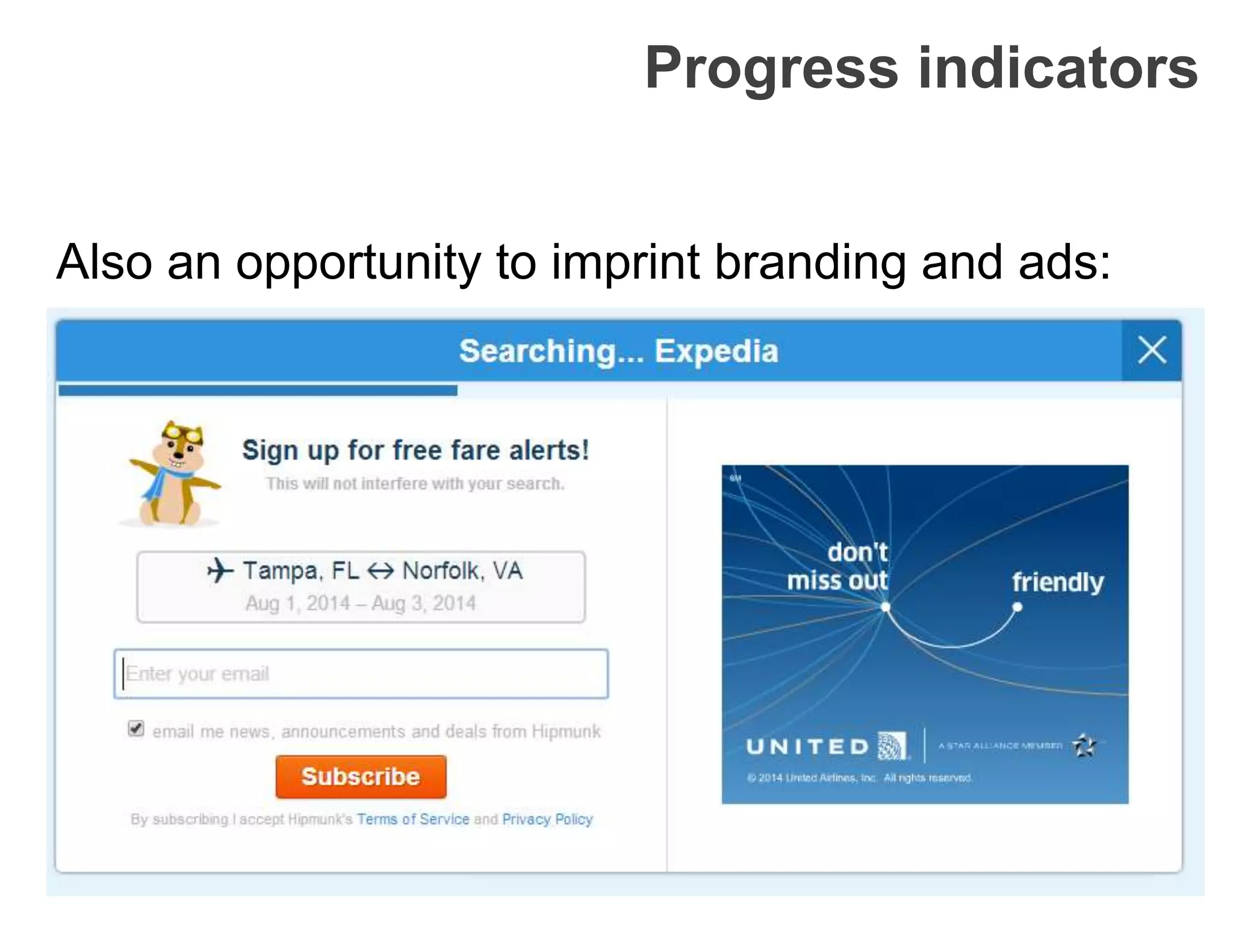
Progress indicators
Provide immediate feedback to let users know that
the system is responding to their action
Favicon turns into progress indicator:
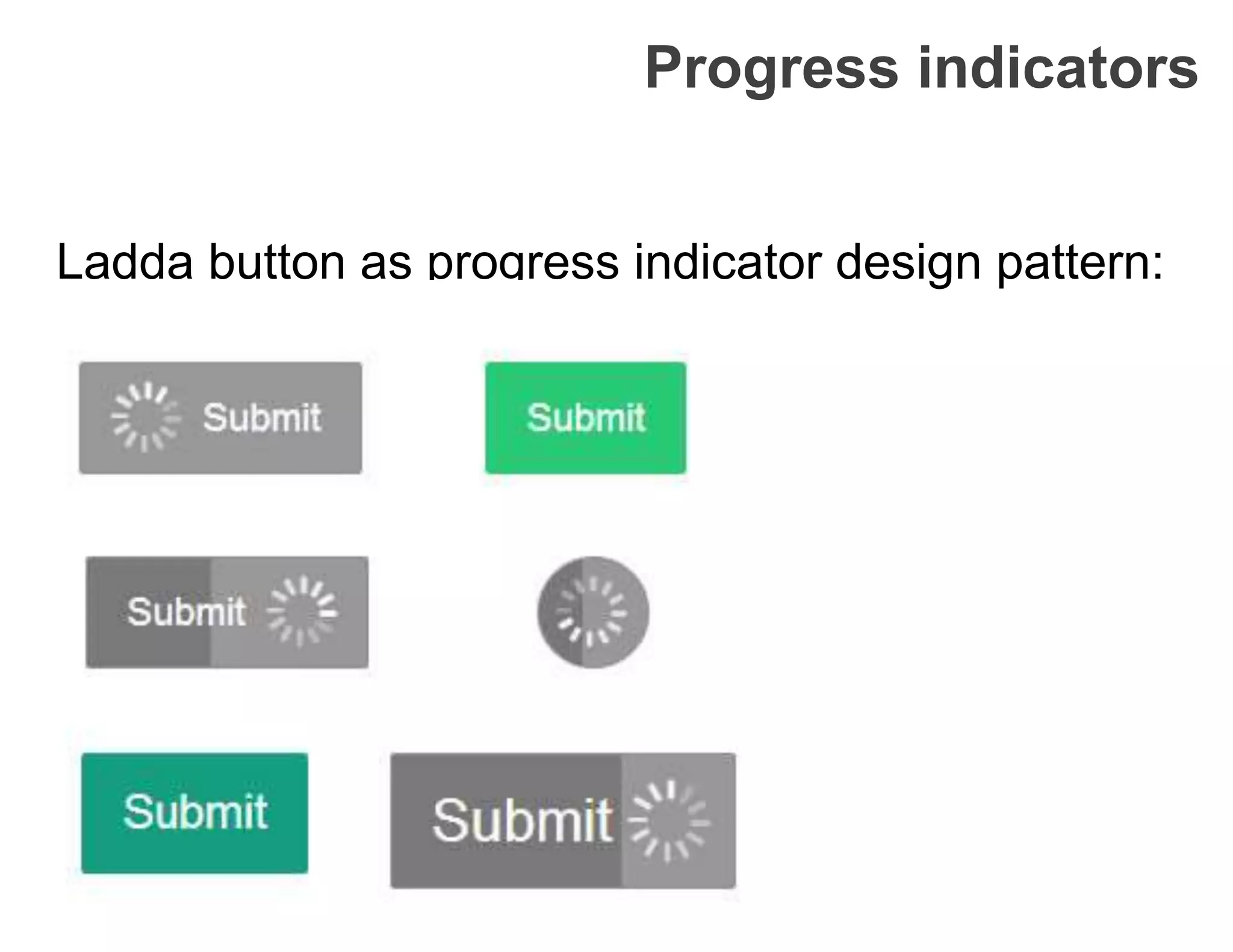
Progress indicators
Ladda button as progress indicator design pattern:
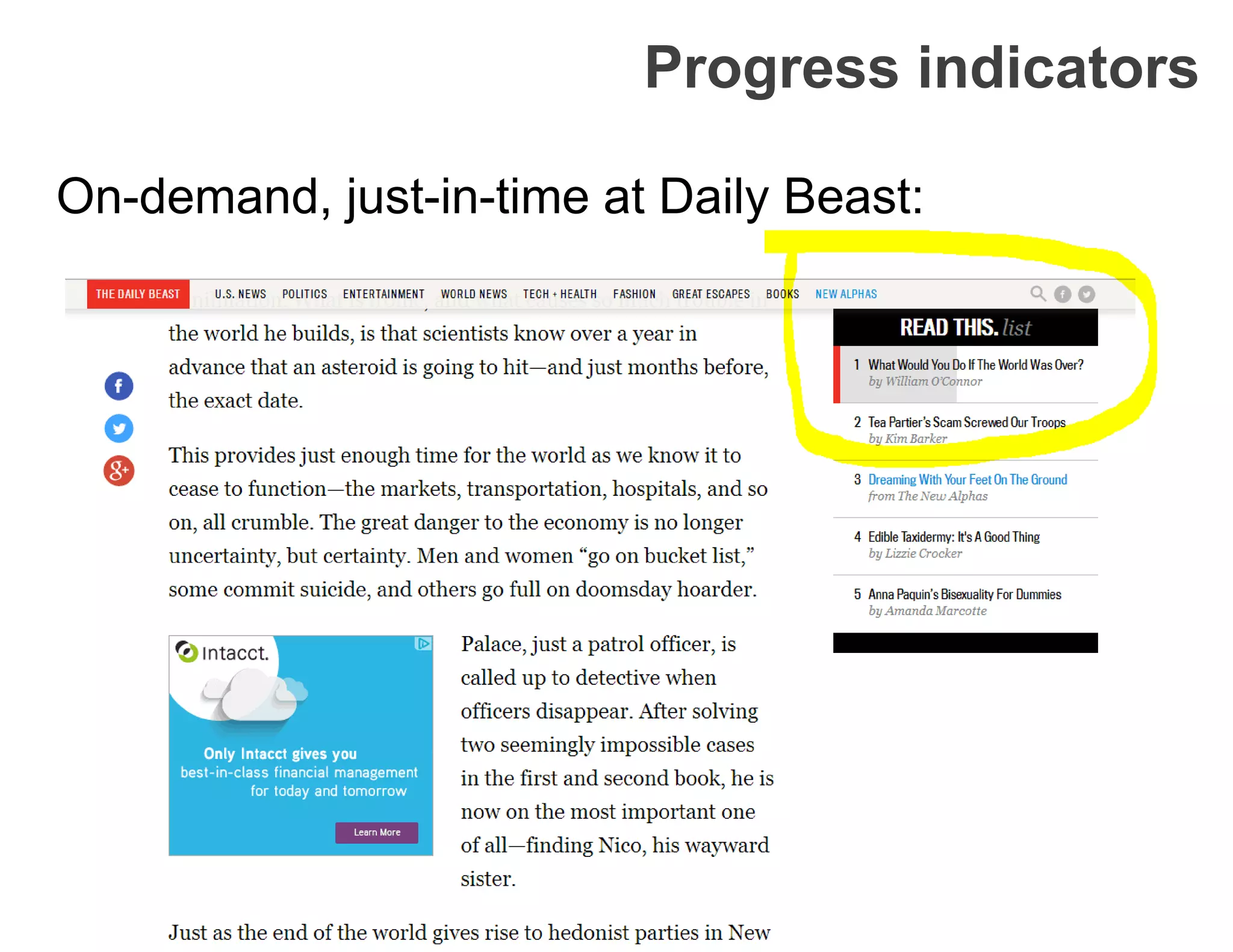
Progress indicators
On-demand, just-in-time at Daily Beast:
Progress indicators
Also an opportunity to imprint branding and ads:
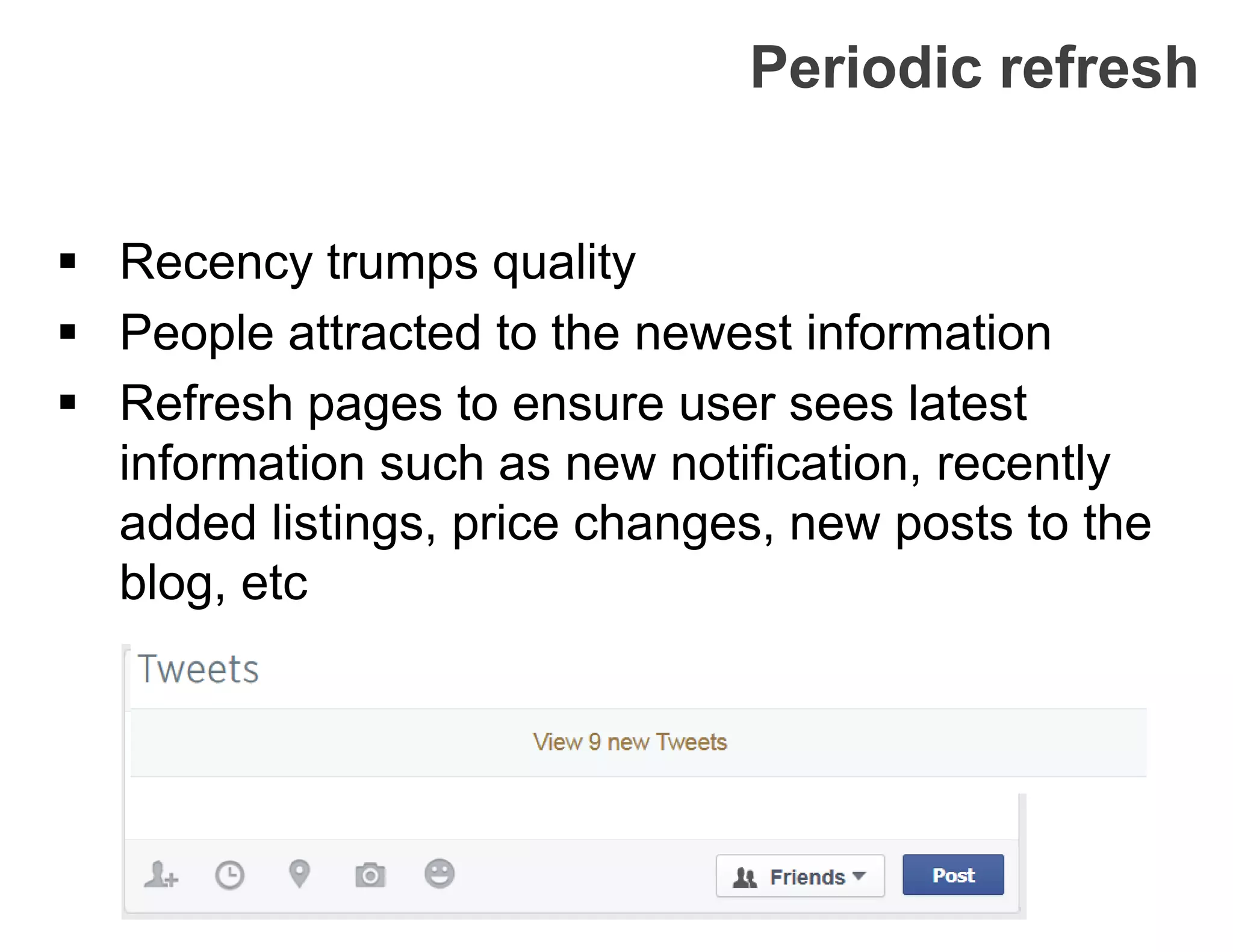
Periodic refresh
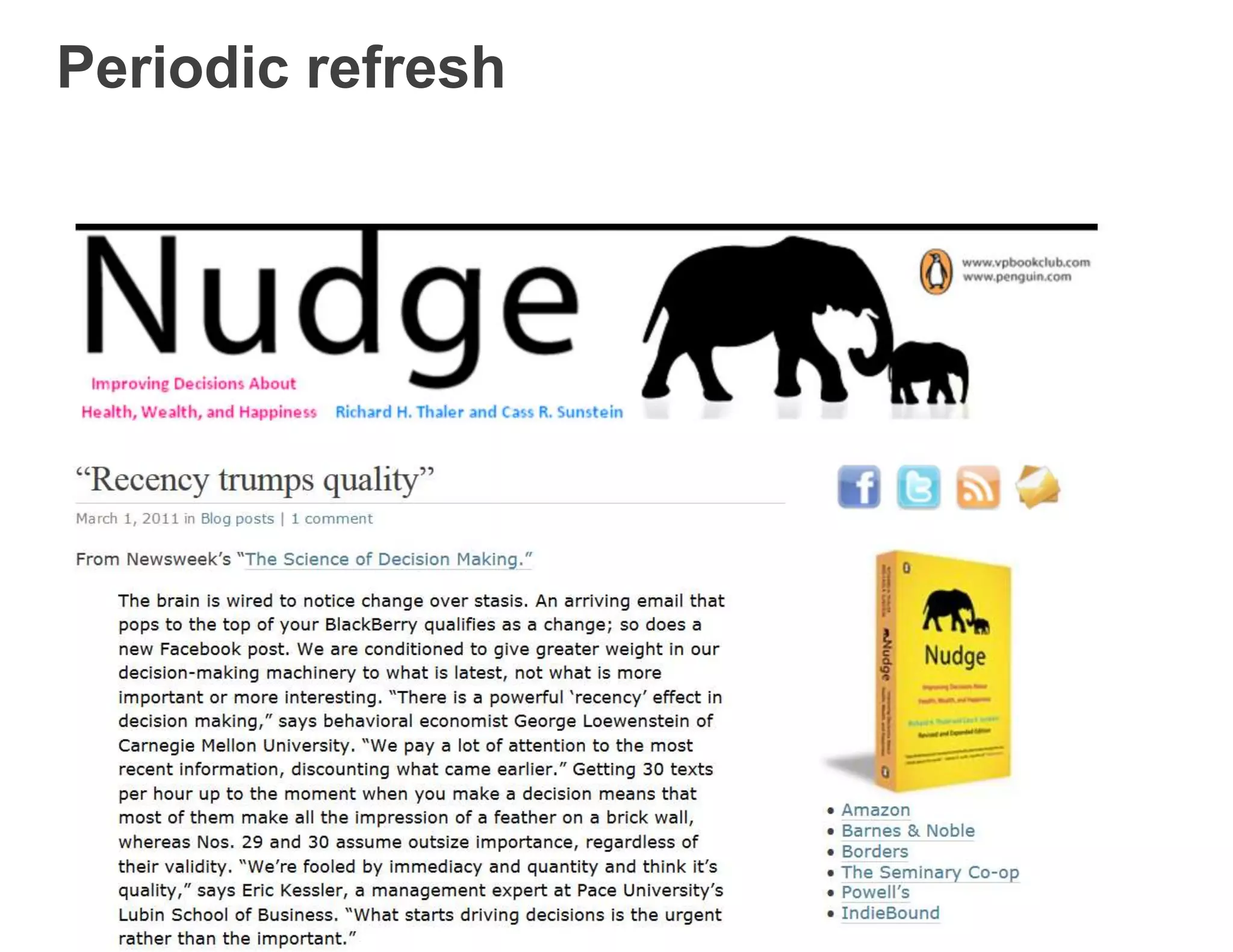
 Recency trumps quality
 People attracted to the newest information
 Refresh pages to ensure user sees latest
information such as new notification, recently
added listings, price changes, new posts to the
blog, etc
Periodic refresh
The Wrap Up
 4 design layers in every app: application
structure, layouts, UI controls, interactions
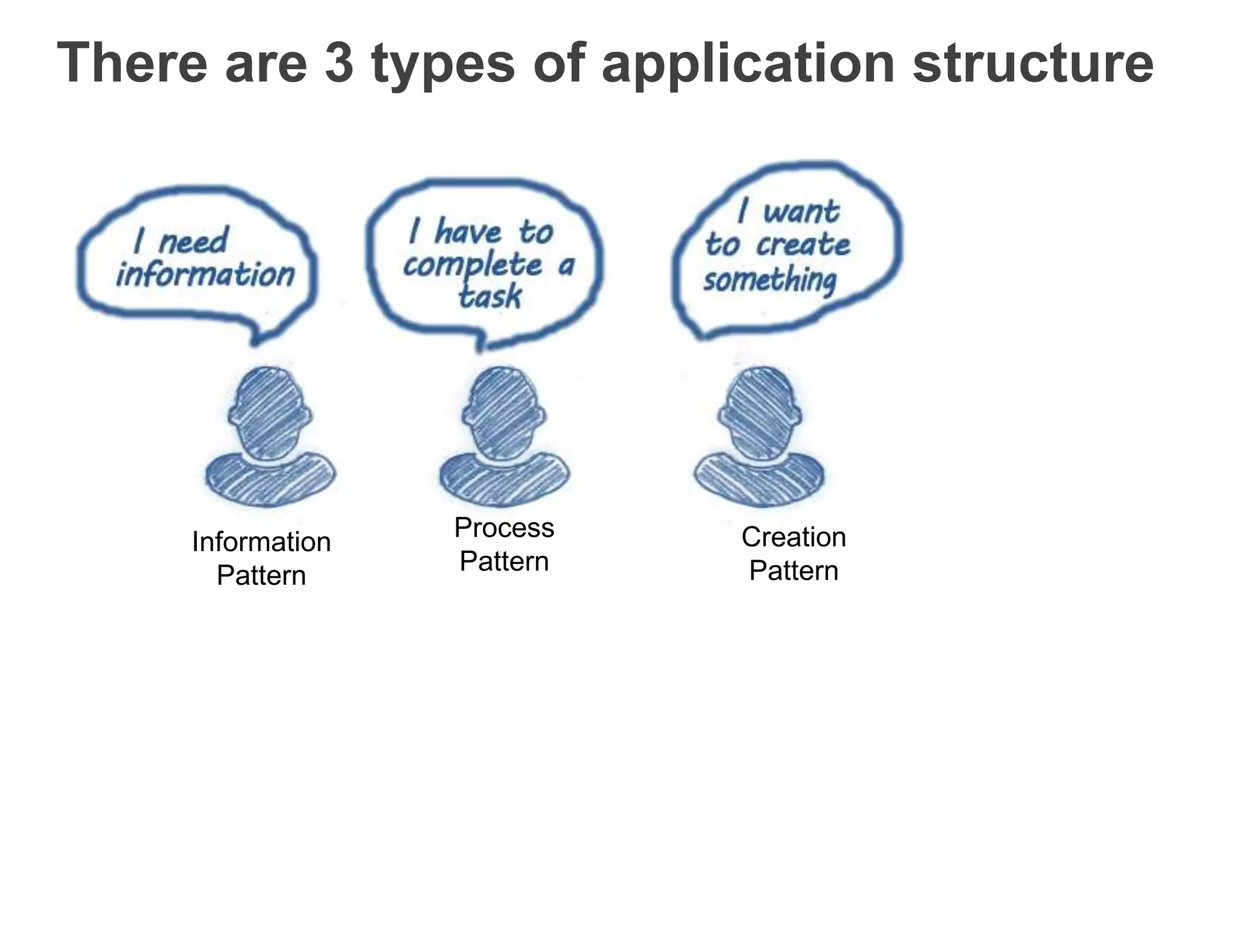
 3 application types: information, process,
creation
 15 screen layout patterns aid user workflow
 1 goal for 1 screen
 Use the hub and spoke model for app design:
Single focus at center
 Employ UI Controls and guidelines for using
them
 6 Interaction principles to guide choices on
interaction layer
We learned we should <3 hub + spoke
Apps have 4 elements or layers
There are 3 types of application structure
Information
Pattern
Process
Pattern
Creation
Pattern
15 layouts geared to user goals
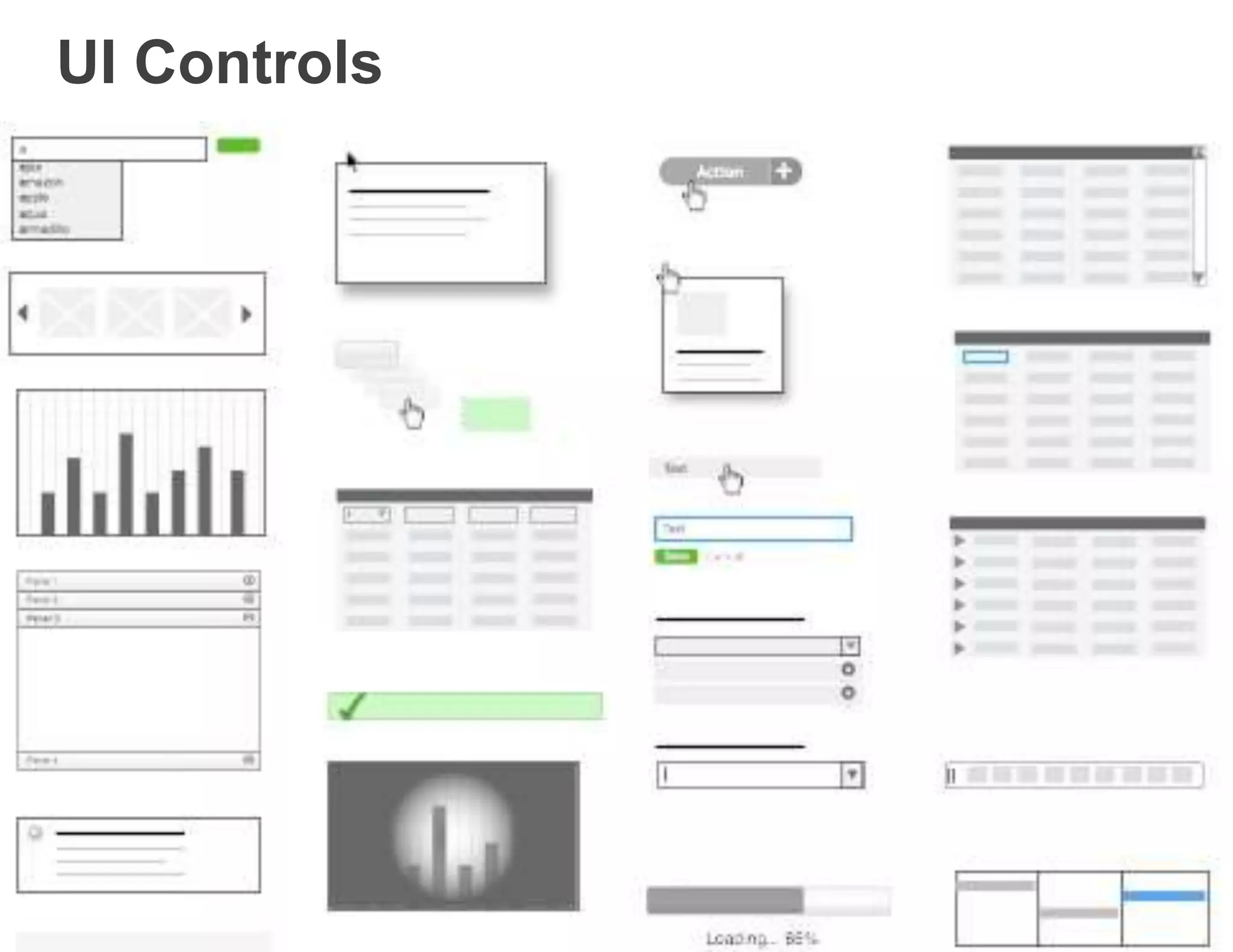
UI Controls
6 Rules for interaction design
(Rules from software design)
#1 Make It Direct
where there is output, let there be input – Alan Cooper
#2 Keep It Lightweight
application should stay out of the user’s way
#3 Stay In the Page
application should stay out of the user’s way
#4 Provide An Invitation
use animations and user events to invite discovery
#5 Use Transitions
help user understand beginnings, endings
#6 React Immediately
provide feedback as soon as possible (auto suggest, live search, etc.)
For more research-based insights
about Redacted users, check out
the UX insights portal
Thoughts? Questions?

Application Design - Part 3

  • 1.
  • 2.
    Align layout choice(s)with user goals 1. Determine the ONE goal for each screen 2. Figure out which screen layout is needed
  • 3.
    Interaction layer (Rules fromsoftware design) #1 Make It Direct where there is output, there should be input – Alan Cooper #2 Keep It Lightweight application should stay out of the user’s way #3 Stay In the Page application should stay out of the user’s way #4 Provide An Invitation use animations and user events to invite discovery #5 Use Transitions help user understand beginnings, endings #6 React Immediately provide feedback as soon as possible (auto suggest, live search, etc.)
  • 4.
    #1 Make itdirect • Whenever there is a need to edit content, make it happen in context rather than on a separate screen 1. editing 2. drag and drop 3. direct selection
  • 5.
    Edit – Drag& Drop – Direct Selection Object selection and collected object selection
  • 6.
    #2 Keep itlightweight  Reducing the effort required to interact with a site or application
  • 7.
  • 8.
    #3 Stay onpage  Stay on page to avoid disrupting flow  model the user’s work process by keeping all sub-tasks in the page  Overlays  Inlays  Virtual Paging  Process Flows
  • 9.
    Stay on page– multiple methods at work
  • 10.
    #4 Provide aninvitation  Discoverability  Invitations cue us to another level of interaction  Contextual and “just in time”  Types: static and dynamic invitations
  • 11.
    Static call toaction How was that form an anti-pattern – a bad example of a call to action?
  • 12.
  • 13.
  • 14.
    #5 Use transitions Special, cinematic effects that occur over time  Provide feedback during interaction  Transitions are a form information scent. They tell the user she’s on the right track  Smooth the action: makes screens feel human  Help users understand what has happened and what could happen  Movement helps capture and focus attention  Central vs peripheral vision and “refrigerator effect”
  • 15.
    #5 Use transitions(semantically) By offloading interpretation of changes to the perceptual system, animation allows the user to continue thinking about the task domain, with no need to shift contexts to the interface domain. From the paper, Animation: From Cartoons to the User Interface by Bay-Wei Chang (Stanford) and David Ungar (at Sun Microsystems) 1995
  • 16.
    Transition patterns  brighten/dim expand/collapse  self-healing fade  animation  spotlight  slide in/out  enlarge/shrink  faceplate  flip  accordion  carousel  fade  zoom  perceived performance
  • 17.
    Brighten/dim  Dim onepart of screen to make another part appear brighter  Use for subtle, secondary changes to interface  Cognitive science: change in movement captures more attention than color change  The faster the change, the more eye catching  The sharper the contrast, the more attention  Yahoo tool icons brighten and dim
  • 18.
  • 19.
    Expand/collapse Bring more contentinto a page with expanding and collapsing panels
  • 20.
    Self-healing fade When deletingor moving objects, expose a “hole” where the object was by using a ghosting or fading technique. Here, dragging object out of an album
  • 21.
  • 22.
    Animation  Help makeapplication more life-like  avoid “I Dream of Jeanie” blink-for-change effect  Improve delight and enjoyment of environment Common types: • Zoom back/snap back: when a drag and drop fails • drop: mimic the effect of something dropping • snap to place: mimic effect of something snapping into place • genie effect: mimic effect of genie going back into the bottle • Dog ears: the effect of continuing motion even after stopping • Magnetism:
  • 23.
    Spotlight  Highlighting somethingthat was recently changed or added  http://c1dey2.axshare.com/
  • 24.
     Highlighting somethingby enlarging it and then shrinking it back to original state Enlarge/shrink back
  • 25.
    Wrap up 1. Huband spoke model for app design 2. 4 basic elements of application design 3. 3 application type(s) to help us meet our users’ goals 4. 15 basic screen layout patterns known to help with user work flow 5. 1 goal for 1 screen
  • 26.
    Slide in/out  Apanel slides in/out of screen
  • 27.
    #5 Transitions -More transitions  Faceplate: Move between two faces of an interface by cross-fading between the two  Flip: flipping a card over  Carousel: moving between several objects  Accordions: variation on a tabbed panel. When you open one item in the list, the other open item closes
  • 28.
    #5 Transitions -Use effectively Use transitions to help tell a story. If there’s no story, then transitions are baubles.  Explain what just happened  Demonstrate relationship(s) between objects  Focus user attention  Improve perceived performance by maintaining engagement  Create the illusion of virtual space
  • 29.
    #5 Transitions -Best practices  The more rapid the change, the more important the event  Rapid movement perceived as more important than rapid color change  Movement toward the user is seen as more important than movement away from the user  Very slow change can be processed without disrupting the user's attention  Movement can communicate an object's new home  Transitions should be reflexive – view transition and reverse transition
  • 30.
    #5 Transitions -Dont’s  Don’t overuse  Don’t rely on transitions to communicate a story; use multiple methods to communicate  Don’t rely on transitions to communicate a changed interface  Don’t use transitions outside the user’s focus area. (using it outside the focal area makes the transition effect feel more like advertising)  Don’t use gimmicky effects  Don’t use for the cool factor
  • 31.
    #6 React immediately A way of providing feedback after an interaction  Users expect something to happen in response to their action (perceive apps as rude at best and broken at worst when they do not respond) Two patterns: − Lookup patterns − Feedback patterns
  • 32.
    Lookup patterns  Sincelooking up information is a large part of what user do there are methods of providing feedback during searches: − Auto Complete − Live Suggest − Live Search − Refining Search
  • 33.
    Autocomplete (lookup pattern) As the user types into a field, she’s given a dropdown list of possible matches
  • 34.
    Autocomplete – bestpractices  Use autocomplete for input assistance  Match on multiple fields  Show results when the user pauses  Allow selecting matched value on Tab key
  • 35.
     Known aswinnowing, live suggest provides real time search term suggestions as the user is typing Live suggest / autosuggest (lookup pattern)
  • 36.
    Live suggest /autosuggest (lookup pattern)
  • 37.
  • 38.
     While someoneis typing a query, actual live search results are shown in real time Live Search
  • 39.
  • 40.
    Century21 combines autocomplete,autosuggest, and live search Combine
  • 41.
    Feedback patterns  Interactivefeedback for non-lookup situations: − live preview − progressive disclosure − progress indicator − periodic refresh
  • 42.
  • 43.
  • 44.
  • 45.
  • 46.
    Progressive disclosure • Whenthere is a logical series of steps, display hints and contextual tools and menus as they are needed to avoid cluttering the screen
  • 47.
  • 48.
  • 49.
    Progress indicators Provide immediatefeedback to let users know that the system is responding to their action Favicon turns into progress indicator:
  • 50.
    Progress indicators Ladda buttonas progress indicator design pattern:
  • 51.
  • 52.
    Progress indicators Also anopportunity to imprint branding and ads:
  • 53.
    Periodic refresh  Recencytrumps quality  People attracted to the newest information  Refresh pages to ensure user sees latest information such as new notification, recently added listings, price changes, new posts to the blog, etc
  • 54.
  • 55.
  • 56.
     4 designlayers in every app: application structure, layouts, UI controls, interactions  3 application types: information, process, creation  15 screen layout patterns aid user workflow  1 goal for 1 screen  Use the hub and spoke model for app design: Single focus at center  Employ UI Controls and guidelines for using them  6 Interaction principles to guide choices on interaction layer
  • 57.
    We learned weshould <3 hub + spoke
  • 58.
    Apps have 4elements or layers
  • 59.
    There are 3types of application structure Information Pattern Process Pattern Creation Pattern
  • 60.
    15 layouts gearedto user goals
  • 61.
  • 62.
    6 Rules forinteraction design (Rules from software design) #1 Make It Direct where there is output, let there be input – Alan Cooper #2 Keep It Lightweight application should stay out of the user’s way #3 Stay In the Page application should stay out of the user’s way #4 Provide An Invitation use animations and user events to invite discovery #5 Use Transitions help user understand beginnings, endings #6 React Immediately provide feedback as soon as possible (auto suggest, live search, etc.)
  • 63.
    For more research-basedinsights about Redacted users, check out the UX insights portal Thoughts? Questions?