



Things you should know.
Always backup your files. Backup refers to making copies of data so that these additional copies may be used to restore the original after a data loss. You can lose all your data due to any virus, power failure or hard disk problem. Make a backup at least twice a year.
You can lose all your data due to any virus, power failure or hard disk problem. Or you can lose your tiny pendrive. Copy your pendrive to your hard disk monthly. Make a backup at least twice a year.
Be patient. Wait 5-10 seconds before trying again.  Program execution isn’t instant and may take a while, don’t click several times because you are executing several copies of the same program and that can hang your computer.
Read carefully. Don’t hit the next button before having read the text.
Save every 10 minutes. It’s very annoying to lose an hour of work when the program hangs up or when the system crashes. It’s way better if you only lose 10 minutes of work.
If it works don’t change it. If your program does what you need it to do, don’t upgrade it. If you upgrade there is a chance that it won’t work on your system or it’s slower than previous version.
Ask Google. If you are lost or don’t know how to solve a problem, you can ask Google the same way you will ask to a person. Ex. “How can I copy a DVD”.
Useful programs .
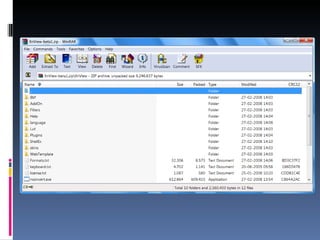
WinRAR WinRAR is a file archiver and data compression utility. Support for RAR and ZIP archives, and unpacking of ARJ, LZH, TAR, GZ, ACE, UUE, BZ2, JAR, ISO, EXE, 7z, and Z archives.
 
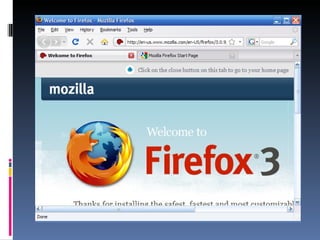
Firefox Mozilla Firefox is a web browser descended from the Mozilla Application Suite It’s safer than Internet Explorer (less virus and pop-ups) but you could find some incompatible pages as online banking or Xadeweb.
 
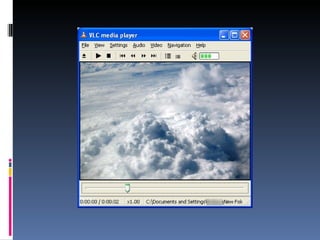
VideoLan (VLC) VLC media player is a portable multimedia player for various audio and video formats (MPEG-1, MPEG-2, MPEG-4, DivX, mp3, ogg, ...) as well as DVDs, VCDs, and various streaming protocols.
 
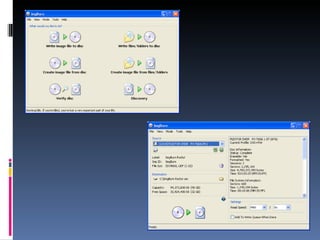
ImgBurn ImgBurn is a lightweight CD / DVD / HD DVD / Blu-ray burning application that everyone should have.
 
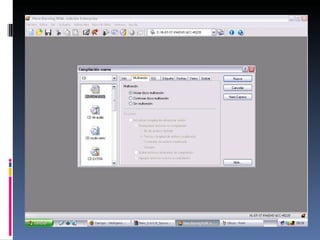
Nero Burning Rom Nero Burning ROM is probably the best all-in-one CDR / DVDR / Blu-ray application on the market. But it’s more complex than ImgBurn.
 
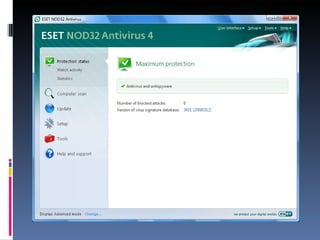
NOD32 Antivirus ESET NOD32 Antivirus, commonly known as NOD32, is an antivirus, antispyware and firewall package. Important: Only one antivirus should be installed on your computer.
 
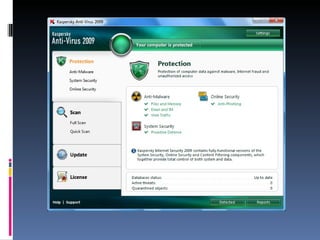
Kaspersky Antivirus Kaspersky Antivirus is an antivirus, antispyware and firewall package. Important: Only one antivirus should be installed on your computer.
 
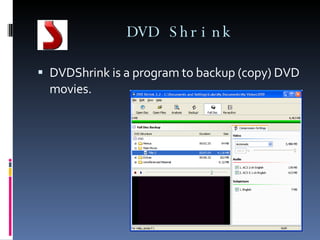
DVD Shrink DVDShrink is a program to backup (copy) DVD movies.
How to …
Download videos from YouTube. Using an Online service as: http://www.keepvid.com/ http://kickyoutube.com http://catchvideo.net/ http://www.savevideodownload.com/
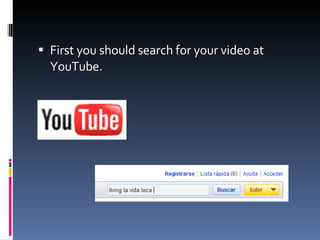
First you should search for your video at YouTube.
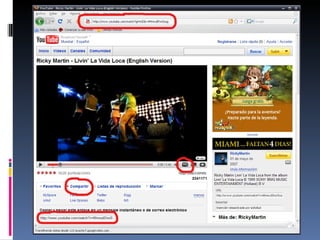
Copy the video address in your web browser address bar, or look for it in share (compartir) tab at YouTube tabs. Also don’t forget to use the HD button for the best quality.
 
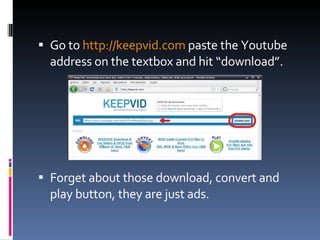
Go to  http://keepvid.com  paste the Youtube address on the textbox and hit “download”. Forget about those download, convert and play button, they are just ads.
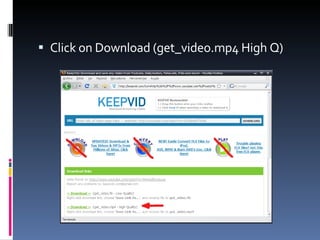
Click on Download (get_video.mp4 High Q)
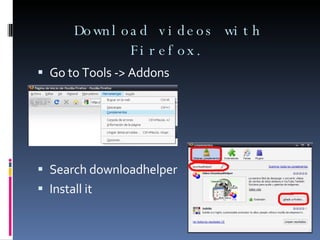
Download videos with Firefox. Go to Tools -> Addons Search downloadhelper Install it
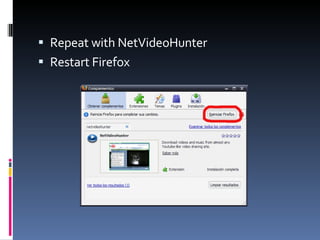
Repeat with NetVideoHunter Restart Firefox
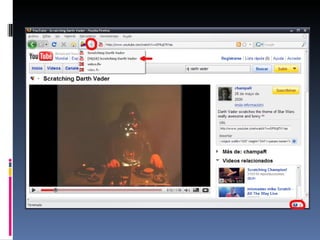
Search for your video at YouTube with Firefox. Click on the tiny arrow besides colored balls (DownloadHelper). Select HQ when avaliable. Or you can click on the tiny icon on the right bottom (NetvideoHunter). First one is better.
 
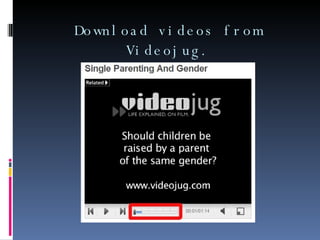
Download videos from Videojug.
Using Firefox addons should do the trick but there is a especial type of videos that can cause some trouble. Did you see that strips on the video timeline? That means video is composed by several parts and we cant download as one big file.
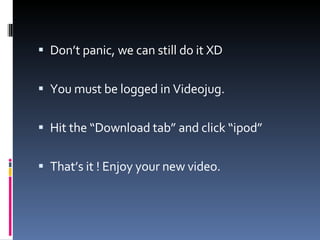
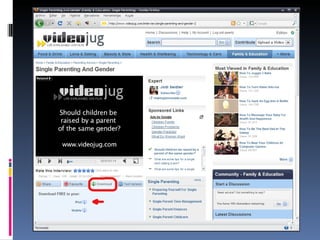
Don’t panic, we can still do it XD You must be logged in Videojug. Hit the “Download tab” and click “ipod” That’s it ! Enjoy your new video.
 
Backup a DVD movie. You will need the following software for this guide: DVD Shrink DVD burning program
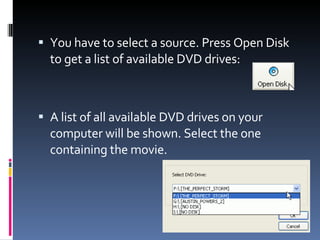
You have to select a source. Press Open Disk to get a list of available DVD drives: A list of all available DVD drives on your computer will be shown. Select the one containing the movie.
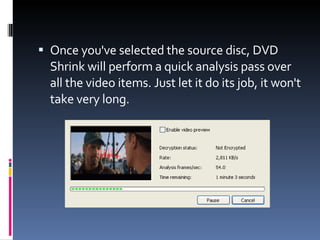
Once you've selected the source disc, DVD Shrink will perform a quick analysis pass over all the video items. Just let it do its job, it won't take very long.
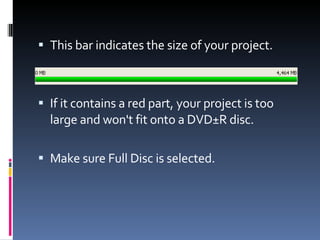
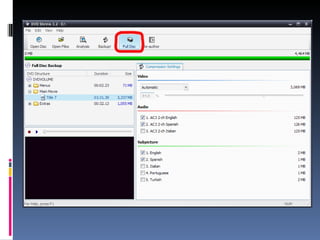
This bar indicates the size of your project. If it contains a red part, your project is too large and won't fit onto a DVD±R disc. Make sure Full Disc is selected.
 
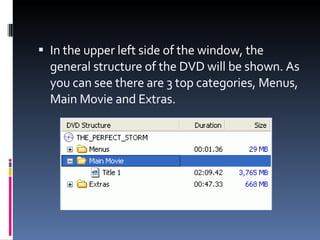
In the upper left side of the window, the general structure of the DVD will be shown. As you can see there are 3 top categories, Menus, Main Movie and Extras.
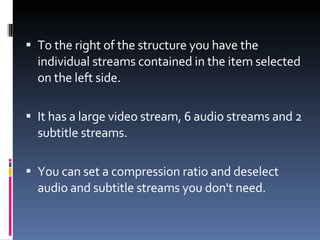
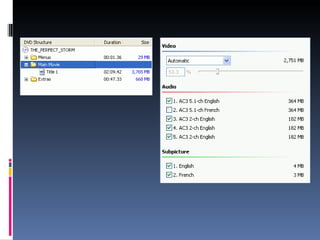
To the right of the structure you have the individual streams contained in the item selected on the left side.  It has a large video stream, 6 audio streams and 2 subtitle streams. You can set a compression ratio and deselect audio and subtitle streams you don't need.
 
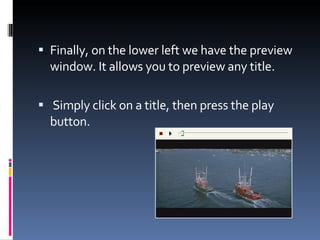
Finally, on the lower left we have the preview window. It allows you to preview any title. Simply click on a title, then press the play button.
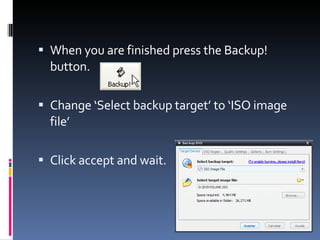
When you are finished press the Backup! button.  Change ‘Select backup target’ to ‘ISO image file’ Click accept and wait.
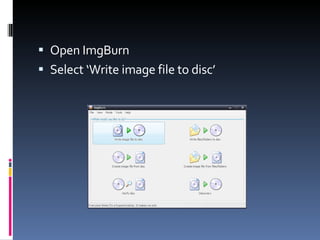
Open ImgBurn Select ‘Write image file to disc’
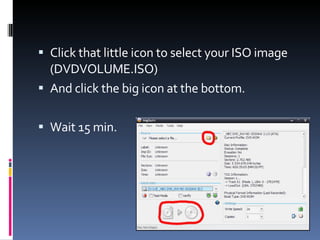
Click that little icon to select your ISO image (DVDVOLUME.ISO) And click the big icon at the bottom. Wait 15 min.
 
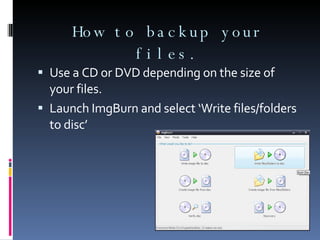
How to backup your files. Use a CD or DVD depending on the size of your files. Launch ImgBurn and select ‘Write files/folders to disc’
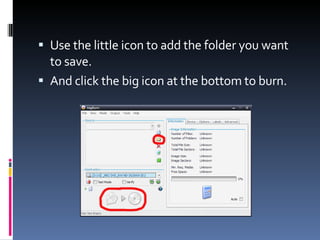
Use the little icon to add the folder you want to save. And click the big icon at the bottom to burn.
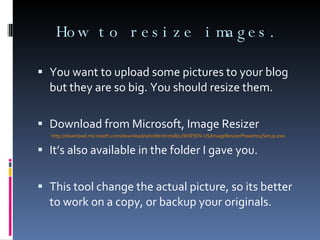
How to resize images. You want to upload some pictures to your blog but they are so big. You should resize them. Download from Microsoft, Image Resizer http://download.microsoft.com/download/whistler/Install/2/WXP/EN-US/ImageResizerPowertoySetup.exe It’s also available in the folder I gave you. This tool change the actual picture, so its better to work on a copy, or backup your originals.
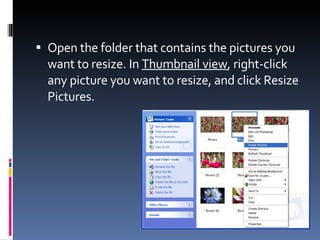
Open the folder that contains the pictures you want to resize. In  Thumbnail view , right-click any picture you want to resize, and click Resize Pictures.
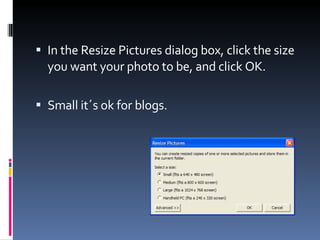
In the Resize Pictures dialog box, click the size you want your photo to be, and click OK. Small it´s ok for blogs.
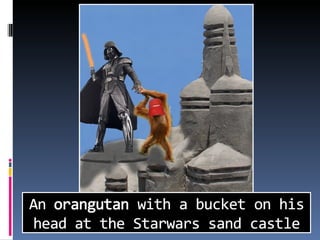
And finally… Something you where waiting ages for …
 

Antonio´s presentation

  • 1.
  • 2.
  • 3.
    Always backup yourfiles. Backup refers to making copies of data so that these additional copies may be used to restore the original after a data loss. You can lose all your data due to any virus, power failure or hard disk problem. Make a backup at least twice a year.
  • 4.
    You can loseall your data due to any virus, power failure or hard disk problem. Or you can lose your tiny pendrive. Copy your pendrive to your hard disk monthly. Make a backup at least twice a year.
  • 5.
    Be patient. Wait5-10 seconds before trying again. Program execution isn’t instant and may take a while, don’t click several times because you are executing several copies of the same program and that can hang your computer.
  • 6.
    Read carefully. Don’thit the next button before having read the text.
  • 7.
    Save every 10minutes. It’s very annoying to lose an hour of work when the program hangs up or when the system crashes. It’s way better if you only lose 10 minutes of work.
  • 8.
    If it worksdon’t change it. If your program does what you need it to do, don’t upgrade it. If you upgrade there is a chance that it won’t work on your system or it’s slower than previous version.
  • 9.
    Ask Google. Ifyou are lost or don’t know how to solve a problem, you can ask Google the same way you will ask to a person. Ex. “How can I copy a DVD”.
  • 10.
  • 11.
    WinRAR WinRAR isa file archiver and data compression utility. Support for RAR and ZIP archives, and unpacking of ARJ, LZH, TAR, GZ, ACE, UUE, BZ2, JAR, ISO, EXE, 7z, and Z archives.
  • 12.
  • 13.
    Firefox Mozilla Firefoxis a web browser descended from the Mozilla Application Suite It’s safer than Internet Explorer (less virus and pop-ups) but you could find some incompatible pages as online banking or Xadeweb.
  • 14.
  • 15.
    VideoLan (VLC) VLCmedia player is a portable multimedia player for various audio and video formats (MPEG-1, MPEG-2, MPEG-4, DivX, mp3, ogg, ...) as well as DVDs, VCDs, and various streaming protocols.
  • 16.
  • 17.
    ImgBurn ImgBurn isa lightweight CD / DVD / HD DVD / Blu-ray burning application that everyone should have.
  • 18.
  • 19.
    Nero Burning RomNero Burning ROM is probably the best all-in-one CDR / DVDR / Blu-ray application on the market. But it’s more complex than ImgBurn.
  • 20.
  • 21.
    NOD32 Antivirus ESETNOD32 Antivirus, commonly known as NOD32, is an antivirus, antispyware and firewall package. Important: Only one antivirus should be installed on your computer.
  • 22.
  • 23.
    Kaspersky Antivirus KasperskyAntivirus is an antivirus, antispyware and firewall package. Important: Only one antivirus should be installed on your computer.
  • 24.
  • 25.
    DVD Shrink DVDShrinkis a program to backup (copy) DVD movies.
  • 26.
  • 27.
    Download videos fromYouTube. Using an Online service as: http://www.keepvid.com/ http://kickyoutube.com http://catchvideo.net/ http://www.savevideodownload.com/
  • 28.
    First you shouldsearch for your video at YouTube.
  • 29.
    Copy the videoaddress in your web browser address bar, or look for it in share (compartir) tab at YouTube tabs. Also don’t forget to use the HD button for the best quality.
  • 30.
  • 31.
    Go to http://keepvid.com paste the Youtube address on the textbox and hit “download”. Forget about those download, convert and play button, they are just ads.
  • 32.
    Click on Download(get_video.mp4 High Q)
  • 33.
    Download videos withFirefox. Go to Tools -> Addons Search downloadhelper Install it
  • 34.
  • 35.
    Search for yourvideo at YouTube with Firefox. Click on the tiny arrow besides colored balls (DownloadHelper). Select HQ when avaliable. Or you can click on the tiny icon on the right bottom (NetvideoHunter). First one is better.
  • 36.
  • 37.
  • 38.
    Using Firefox addonsshould do the trick but there is a especial type of videos that can cause some trouble. Did you see that strips on the video timeline? That means video is composed by several parts and we cant download as one big file.
  • 39.
    Don’t panic, wecan still do it XD You must be logged in Videojug. Hit the “Download tab” and click “ipod” That’s it ! Enjoy your new video.
  • 40.
  • 41.
    Backup a DVDmovie. You will need the following software for this guide: DVD Shrink DVD burning program
  • 42.
    You have toselect a source. Press Open Disk to get a list of available DVD drives: A list of all available DVD drives on your computer will be shown. Select the one containing the movie.
  • 43.
    Once you've selectedthe source disc, DVD Shrink will perform a quick analysis pass over all the video items. Just let it do its job, it won't take very long.
  • 44.
    This bar indicatesthe size of your project. If it contains a red part, your project is too large and won't fit onto a DVD±R disc. Make sure Full Disc is selected.
  • 45.
  • 46.
    In the upperleft side of the window, the general structure of the DVD will be shown. As you can see there are 3 top categories, Menus, Main Movie and Extras.
  • 47.
    To the rightof the structure you have the individual streams contained in the item selected on the left side. It has a large video stream, 6 audio streams and 2 subtitle streams. You can set a compression ratio and deselect audio and subtitle streams you don't need.
  • 48.
  • 49.
    Finally, on thelower left we have the preview window. It allows you to preview any title. Simply click on a title, then press the play button.
  • 50.
    When you arefinished press the Backup! button. Change ‘Select backup target’ to ‘ISO image file’ Click accept and wait.
  • 51.
    Open ImgBurn Select‘Write image file to disc’
  • 52.
    Click that littleicon to select your ISO image (DVDVOLUME.ISO) And click the big icon at the bottom. Wait 15 min.
  • 53.
  • 54.
    How to backupyour files. Use a CD or DVD depending on the size of your files. Launch ImgBurn and select ‘Write files/folders to disc’
  • 55.
    Use the littleicon to add the folder you want to save. And click the big icon at the bottom to burn.
  • 56.
    How to resizeimages. You want to upload some pictures to your blog but they are so big. You should resize them. Download from Microsoft, Image Resizer http://download.microsoft.com/download/whistler/Install/2/WXP/EN-US/ImageResizerPowertoySetup.exe It’s also available in the folder I gave you. This tool change the actual picture, so its better to work on a copy, or backup your originals.
  • 57.
    Open the folderthat contains the pictures you want to resize. In Thumbnail view , right-click any picture you want to resize, and click Resize Pictures.
  • 58.
    In the ResizePictures dialog box, click the size you want your photo to be, and click OK. Small it´s ok for blogs.
  • 59.
    And finally… Somethingyou where waiting ages for …
  • 60.