ELDER Project
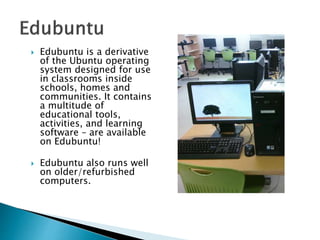
 Edubuntu is a derivative
of the Ubuntu operating
system designed for use
in classrooms inside
schools, homes and
communities. It contains
a multitude of
educational tools,
activities, and learning
software – are available
on Edubuntu!
 Edubuntu also runs well
on older/refurbished
computers.
Create your
Edubuntu
USB
Change your
BIOS
Settings
Install on
Computers!
 2 GB or Higher USB stick
 Edubuntu ISO file
◦ (download here at:
http://cdimage.ubuntu.com/edubuntu/releases/10.
10/release/edubuntu-10.10-dvd-i386.iso)
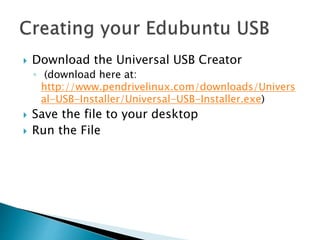
 Download the Universal USB Creator
◦ (download here at:
http://www.pendrivelinux.com/downloads/Univers
al-USB-Installer/Universal-USB-Installer.exe)
 A Computer/Laptop!
 Download the ISO file first. Depending on
your internet connection, this may take up to
an hour or more.
◦ http://cdimage.ubuntu.com/edubuntu/releases/10.
10/release/edubuntu-10.10-dvd-i386.iso
 Save the ISO file on your desktop.
 Download the Universal USB Creator
◦ (download here at:
http://www.pendrivelinux.com/downloads/Univers
al-USB-Installer/Universal-USB-Installer.exe)
 Save the file to your desktop
 Run the File
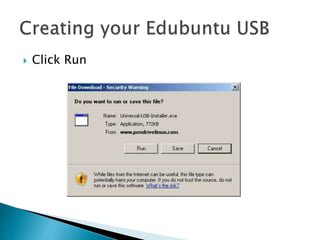
 Click Run
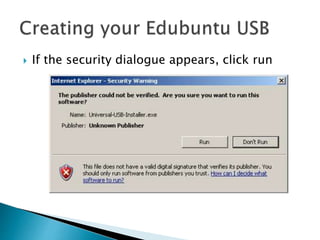
 If the security dialogue appears, click run
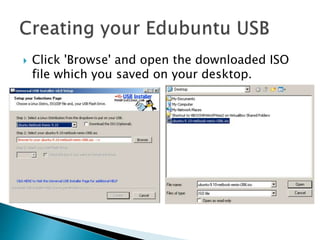
 Click 'Browse' and open the downloaded ISO
file which you saved on your desktop.
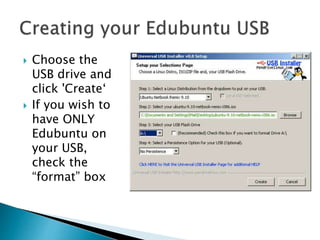
 Choose the
USB drive and
click 'Create‘
 If you wish to
have ONLY
Edubuntu on
your USB,
check the
“format” box
 Wait for your USB to finish!
 When USB creator is complete, remove your
USB.
 Now, we are going to install Edubuntu side by
side with Windows.
 What we are going to do install Edubuntu
side-by-side with Windows
 Please restart your computer
 Most newer computers can boot from USB. You
should see a welcome screen prompting you to
choose your language and giving you the option to
install Ubuntu or try it from the CD.
 If your computer does not automatically do so, you
might need to edit the BIOS settings. Restart your
computer, and watch for a message telling you which
key to press to enter the BIOS setup. It will usually be
one of F1, F2, DEL, ESC or F10. Press this key while
your computer is booting to edit your BIOS settings.
 An example of editing BIOS is as follows:
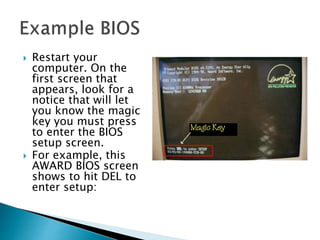
 Restart your
computer. On the
first screen that
appears, look for a
notice that will let
you know the magic
key you must press
to enter the BIOS
setup screen.
 For example, this
AWARD BIOS screen
shows to hit DEL to
enter setup:
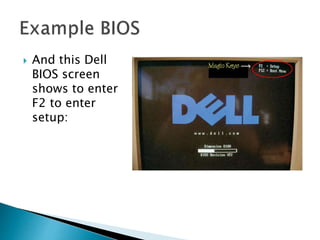
 And this Dell
BIOS screen
shows to enter
F2 to enter
setup:
 Press the “magic key” before the notice
disappears. (You have to act quickly or press the
PAUSE key on the keyboard so the screen freezes
and you have all the time to look for the notice
and press the “magic key”. Most of the time the
“magic key” is DEL, but sometimes it can be F2 or
other. If you can't find it, you can press all the F
keys until one works for you. This method is
called by trial and error and it's a good way to
learn things and gain experience in your life. You
will know when you're in the BIOS setup when
your screen changes into a blue or gray one with
lots of options.
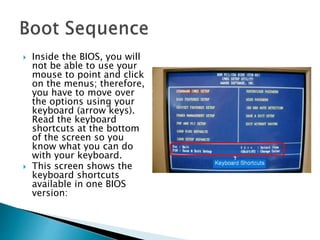
 Inside the BIOS, you will
not be able to use your
mouse to point and click
on the menus; therefore,
you have to move over
the options using your
keyboard (arrow keys).
Read the keyboard
shortcuts at the bottom
of the screen so you
know what you can do
with your keyboard.
 This screen shows the
keyboard shortcuts
available in one BIOS
version:
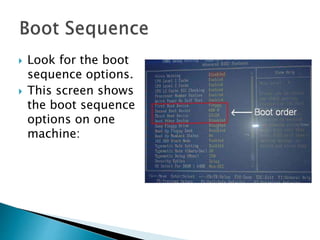
 Look for the boot
sequence options.
 This screen shows
the boot sequence
options on one
machine:
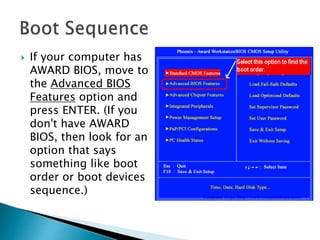
 If your computer has
AWARD BIOS, move to
the Advanced BIOS
Features option and
press ENTER. (If you
don't have AWARD
BIOS, then look for an
option that says
something like boot
order or boot devices
sequence.)
 Change the boot order using the PAGE UP and PAGE DOWN
keys on your keyboard (read the keyboard shortcuts to
find out which keys are for your BIOS screen.) The idea is
to set the USB as the first boot device and the HARD DISK
DRIVE as the second boot device, so when your computer
starts, it looks for what's inside the USB and if it doesn't
find a boot disk, then it will move on the hard drive and
start Windows. It doesn't matter what the third boot device
is; you can leave it as it is or disabled, just make sure that
you set the HDD-0 as any of the devices or your computer
will not boot into Windows when the Ubuntu USB is not in
the drive. The options on your screen should look like this:
 First Boot Device [USB]
 Second Boot Device [HDD-0]
 Third Boot Device [Disabled]
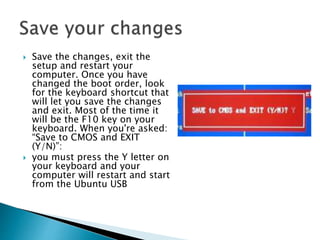
 Save the changes, exit the
setup and restart your
computer. Once you have
changed the boot order, look
for the keyboard shortcut that
will let you save the changes
and exit. Most of the time it
will be the F10 key on your
keyboard. When you're asked:
“Save to CMOS and EXIT
(Y/N)”:
 you must press the Y letter on
your keyboard and your
computer will restart and start
from the Ubuntu USB
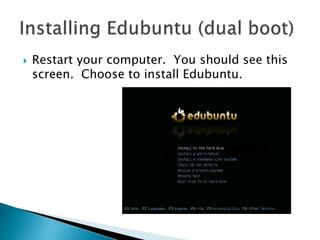
 Restart your computer. You should see this
screen. Choose to install Edubuntu.
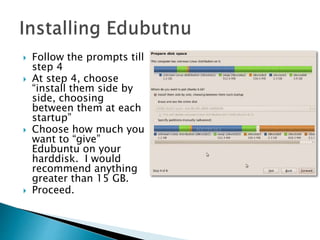
 Follow the prompts till
step 4
 At step 4, choose
“install them side by
side, choosing
between them at each
startup”
 Choose how much you
want to “give”
Edubuntu on your
harddisk. I would
recommend anything
greater than 15 GB.
 Proceed.
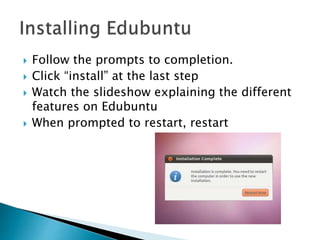
 Follow the prompts to completion.
 Click “install” at the last step
 Watch the slideshow explaining the different
features on Edubuntu
 When prompted to restart, restart
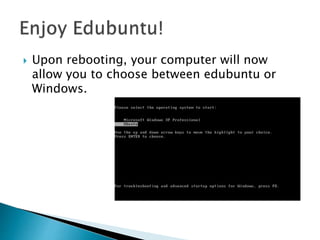
 Upon rebooting, your computer will now
allow you to choose between edubuntu or
Windows.
 Please email Michael Mak at
makamizz@gmail.com

Installing edubuntu

  • 1.
  • 2.
     Edubuntu isa derivative of the Ubuntu operating system designed for use in classrooms inside schools, homes and communities. It contains a multitude of educational tools, activities, and learning software – are available on Edubuntu!  Edubuntu also runs well on older/refurbished computers.
  • 3.
  • 4.
     2 GBor Higher USB stick  Edubuntu ISO file ◦ (download here at: http://cdimage.ubuntu.com/edubuntu/releases/10. 10/release/edubuntu-10.10-dvd-i386.iso)  Download the Universal USB Creator ◦ (download here at: http://www.pendrivelinux.com/downloads/Univers al-USB-Installer/Universal-USB-Installer.exe)  A Computer/Laptop!
  • 5.
     Download theISO file first. Depending on your internet connection, this may take up to an hour or more. ◦ http://cdimage.ubuntu.com/edubuntu/releases/10. 10/release/edubuntu-10.10-dvd-i386.iso  Save the ISO file on your desktop.
  • 6.
     Download theUniversal USB Creator ◦ (download here at: http://www.pendrivelinux.com/downloads/Univers al-USB-Installer/Universal-USB-Installer.exe)  Save the file to your desktop  Run the File
  • 7.
  • 8.
     If thesecurity dialogue appears, click run
  • 9.
     Click 'Browse'and open the downloaded ISO file which you saved on your desktop.
  • 10.
     Choose the USBdrive and click 'Create‘  If you wish to have ONLY Edubuntu on your USB, check the “format” box
  • 11.
     Wait foryour USB to finish!  When USB creator is complete, remove your USB.  Now, we are going to install Edubuntu side by side with Windows.
  • 12.
     What weare going to do install Edubuntu side-by-side with Windows  Please restart your computer
  • 13.
     Most newercomputers can boot from USB. You should see a welcome screen prompting you to choose your language and giving you the option to install Ubuntu or try it from the CD.  If your computer does not automatically do so, you might need to edit the BIOS settings. Restart your computer, and watch for a message telling you which key to press to enter the BIOS setup. It will usually be one of F1, F2, DEL, ESC or F10. Press this key while your computer is booting to edit your BIOS settings.  An example of editing BIOS is as follows:
  • 14.
     Restart your computer.On the first screen that appears, look for a notice that will let you know the magic key you must press to enter the BIOS setup screen.  For example, this AWARD BIOS screen shows to hit DEL to enter setup:
  • 15.
     And thisDell BIOS screen shows to enter F2 to enter setup:
  • 16.
     Press the“magic key” before the notice disappears. (You have to act quickly or press the PAUSE key on the keyboard so the screen freezes and you have all the time to look for the notice and press the “magic key”. Most of the time the “magic key” is DEL, but sometimes it can be F2 or other. If you can't find it, you can press all the F keys until one works for you. This method is called by trial and error and it's a good way to learn things and gain experience in your life. You will know when you're in the BIOS setup when your screen changes into a blue or gray one with lots of options.
  • 17.
     Inside theBIOS, you will not be able to use your mouse to point and click on the menus; therefore, you have to move over the options using your keyboard (arrow keys). Read the keyboard shortcuts at the bottom of the screen so you know what you can do with your keyboard.  This screen shows the keyboard shortcuts available in one BIOS version:
  • 18.
     Look forthe boot sequence options.  This screen shows the boot sequence options on one machine:
  • 19.
     If yourcomputer has AWARD BIOS, move to the Advanced BIOS Features option and press ENTER. (If you don't have AWARD BIOS, then look for an option that says something like boot order or boot devices sequence.)
  • 20.
     Change theboot order using the PAGE UP and PAGE DOWN keys on your keyboard (read the keyboard shortcuts to find out which keys are for your BIOS screen.) The idea is to set the USB as the first boot device and the HARD DISK DRIVE as the second boot device, so when your computer starts, it looks for what's inside the USB and if it doesn't find a boot disk, then it will move on the hard drive and start Windows. It doesn't matter what the third boot device is; you can leave it as it is or disabled, just make sure that you set the HDD-0 as any of the devices or your computer will not boot into Windows when the Ubuntu USB is not in the drive. The options on your screen should look like this:  First Boot Device [USB]  Second Boot Device [HDD-0]  Third Boot Device [Disabled]
  • 21.
     Save thechanges, exit the setup and restart your computer. Once you have changed the boot order, look for the keyboard shortcut that will let you save the changes and exit. Most of the time it will be the F10 key on your keyboard. When you're asked: “Save to CMOS and EXIT (Y/N)”:  you must press the Y letter on your keyboard and your computer will restart and start from the Ubuntu USB
  • 22.
     Restart yourcomputer. You should see this screen. Choose to install Edubuntu.
  • 23.
     Follow theprompts till step 4  At step 4, choose “install them side by side, choosing between them at each startup”  Choose how much you want to “give” Edubuntu on your harddisk. I would recommend anything greater than 15 GB.  Proceed.
  • 24.
     Follow theprompts to completion.  Click “install” at the last step  Watch the slideshow explaining the different features on Edubuntu  When prompted to restart, restart
  • 25.
     Upon rebooting,your computer will now allow you to choose between edubuntu or Windows.
  • 26.
     Please emailMichael Mak at makamizz@gmail.com