FacebookA guide on how to set up, and use a facebook account.                           by: Jody Start
HistoryOriginally called thefacebook, Facebook was founded by former-Harvard student Mark Zuckerberg. While at Harvard, he ran it as one of his hobby projects with some financial help from Eduardo Saverin. Within months, Facebook and its core idea spread across the dorm rooms of Harvard where it was very well received. Soon, it was extended to Stanford and Yale where it was extremely popular.
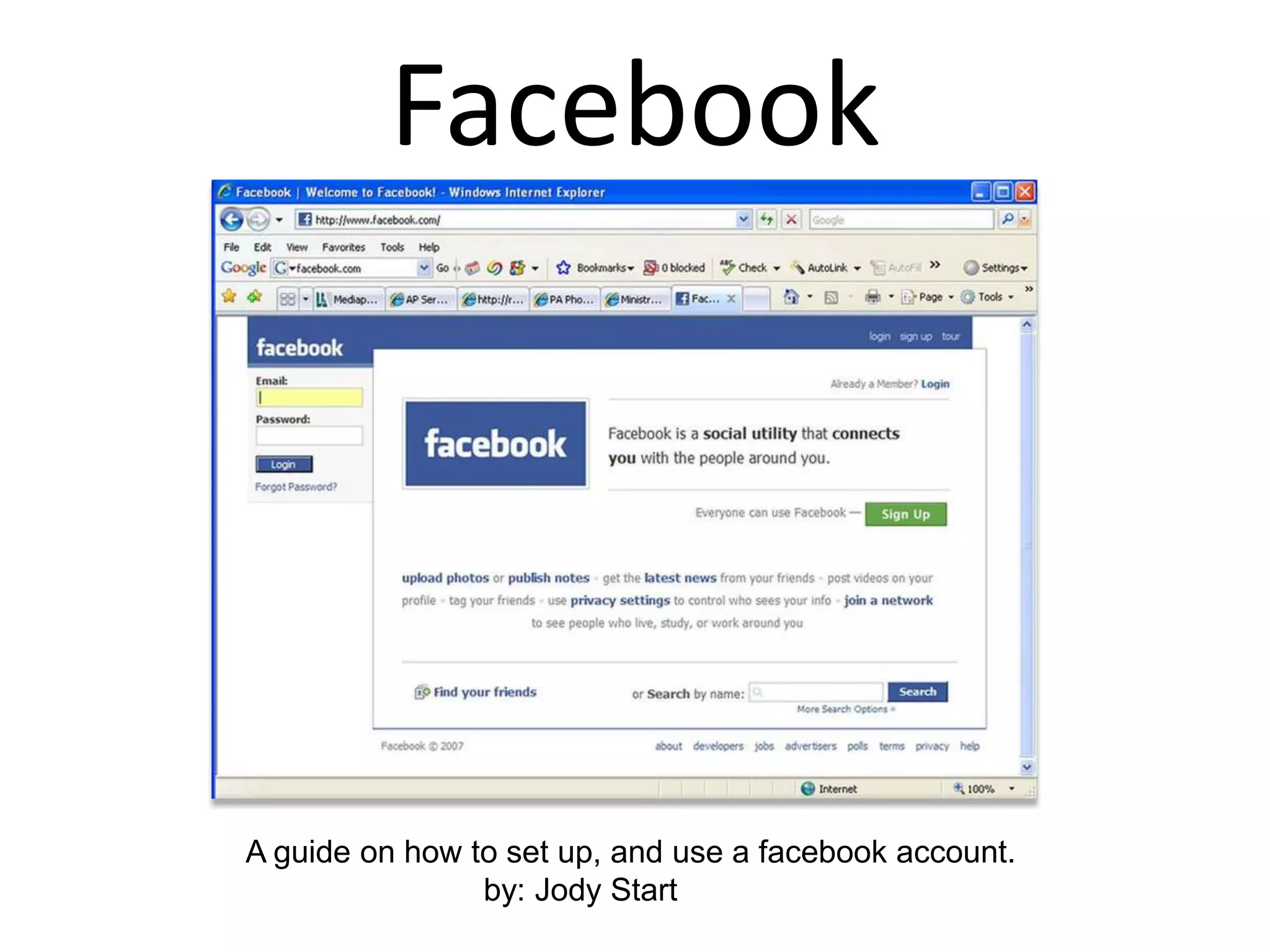
Mark Zuckerberg was joined by two other fellow Harvard students, Dustin Moskovitz and Chris Hughes, to help him take the site to the next level. Only months later when it was officially a national student network phenomenon, Zuckerberg and Moskovitz dropped out of Harvard to pursue their dreams and run Facebook full time. In August 2005, thefacebook was officially called Facebook and the domain facebook.com was purchased for a reported $200,000.Create an AccountThe first thing to do when getting a facebook, is set up an account. Go to www.facebook.com to begin. Once on the facebook welcome page, provide your name, e-mail, and a few other details to get your account created.
Find FriendsAfter you have created your account, you will be asked to search for your friends. Type in your email address and facebook with search through your address book and find which of your friends have a facebook page. You will also have an option to invite friends to join who do not yet have a facebook.The next step in setting up your profile helps you find more friends on facebook. You will be asked to enter your high school and university along with graduation dates, and facebook brings up matches of people you may know. You can select them to send them a friend request, or skip the ones you may not want to add.
Add a Profile PictureNext you will be asked to add a picture that will be your main photo on your profile page. There are two ways to do this; you can use a picture that is saved on your computer, or take a photo of yourself (if you have a built-in camera or web cam).
Set Up Your ProfileNow your facebook page is ready to be personalized. You will want to add information about yourself for you profile. There is basic information, personal information, contact information, and education and work. Fill these out with as little or as much detail as you wish, keeping in mind your facebook friends will be viewing it. Make sure to save the changes and click done editing.
StatusTo set your status, click on the tab labeled “Wall”. Click on the words, “What’s on your mind?” to type in your status. For example, you could say “is creating a facebook” so people would read: “(Your Name) is creating a facebook.”
Write on Someone’s WallOnce you have requested a friend and they have accepted that request, you will be able to write on their wall. Go to that person’s profile by clicking on their picture. The wall is the main form of communication. This is where you leave public messages for each other.
Wall-to-WallOnce you have written on a friend’s wall, and they have written on yours, you will have to option to view your conversation. This is called your wall-to-wall. Below where they have written on your wall it will give you an option to click on to view the wall-to-wall.
Join A Group or Become A FanIf you are looking to meet new people on facebook, a great way to do this is by joining groups. To join a group type a hobby, movie, or anything else into the box that says “search”. This box is located on the top right of your page. For example, you could type in your favorite sport, such as volleyball. Many groups come up and some you can become fan, or others you may actually join the group.
Make an EventView your profile by clicking on your name or on “profile”. Click on the tab that looks like a plus sign (+). Click on Events. This shows your what events are coming up in the future, or allows you to create one.
Using InboxAlong the top of the page is your inbox. This is where you send/receive messages that are not public like the messages on your wall. Your inbox is set up to be used like email. Inbox is very useful for sending people you phone number, address, or other information that you may not want to share with them over their wall.
HomepageThe facebook homepage is where stories are posted about your friends. Status updates, new picture albums, and many other alerts show up to keep you updated on what is going on with your facebook friends. The homepage also shows you which friends have birthdays coming soon, and shows you if you have any events coming up.
NotificationsWhen somebody posts something on your wall, comments on a picture, or some other form of activity to your account, you will be sent a notification. These are seen by a little red flag on the bottom right of the page. Clicking on the flag will say what the notification is, who it is from, and the date/time posted.
Facebook ChatOne of the most popular new features of facebook is facebook chat. This is an instant messaging system created as an easier way to communicate with your friend on facebook. On the bottom right of the page, next to where you receive notifications, is where you find your buddy list. To chat with them, just click on their name and type your message.
Account SettingsOn the top left of the screen, click settings. There are three different settings options: Account Settings, Privacy Settings, and Application Settings. Under Account Settings is where you can determine how you are notified, the language, your networks, and other settings as well.
Privacy SettingsPrivacy Settings is an important part of facebook. This is where you determine how public you make your information, and who is allowed to view your profile, pictures, videos, wall, and so on.
VideosOne really fun part of facebook is sending people videos. You can either make your own video and leave it on their wall like a message, or add a link to their wall with a video from youtube or some other video source. Leaving a video message on a friends wall is a great way to communicate, especially if you are far away. It is always nice to see a friendly face!
Picture AlbumThere are two ways of getting pictures of yourself on facebook. You can create a photo album, or if someone else has created a photo album with you in it you can tag yourself in the pictures.
Help CenterFacebook has a help center to provide answers to questions you may still have. To access the help center page click on help center on the bottom right side of the page. Enjoy facebook!
Facebook

Facebook

  • 1.
    FacebookA guide onhow to set up, and use a facebook account. by: Jody Start
  • 2.
    HistoryOriginally called thefacebook,Facebook was founded by former-Harvard student Mark Zuckerberg. While at Harvard, he ran it as one of his hobby projects with some financial help from Eduardo Saverin. Within months, Facebook and its core idea spread across the dorm rooms of Harvard where it was very well received. Soon, it was extended to Stanford and Yale where it was extremely popular.
  • 3.
    Mark Zuckerberg wasjoined by two other fellow Harvard students, Dustin Moskovitz and Chris Hughes, to help him take the site to the next level. Only months later when it was officially a national student network phenomenon, Zuckerberg and Moskovitz dropped out of Harvard to pursue their dreams and run Facebook full time. In August 2005, thefacebook was officially called Facebook and the domain facebook.com was purchased for a reported $200,000.Create an AccountThe first thing to do when getting a facebook, is set up an account. Go to www.facebook.com to begin. Once on the facebook welcome page, provide your name, e-mail, and a few other details to get your account created.
  • 4.
    Find FriendsAfter youhave created your account, you will be asked to search for your friends. Type in your email address and facebook with search through your address book and find which of your friends have a facebook page. You will also have an option to invite friends to join who do not yet have a facebook.The next step in setting up your profile helps you find more friends on facebook. You will be asked to enter your high school and university along with graduation dates, and facebook brings up matches of people you may know. You can select them to send them a friend request, or skip the ones you may not want to add.
  • 5.
    Add a ProfilePictureNext you will be asked to add a picture that will be your main photo on your profile page. There are two ways to do this; you can use a picture that is saved on your computer, or take a photo of yourself (if you have a built-in camera or web cam).
  • 6.
    Set Up YourProfileNow your facebook page is ready to be personalized. You will want to add information about yourself for you profile. There is basic information, personal information, contact information, and education and work. Fill these out with as little or as much detail as you wish, keeping in mind your facebook friends will be viewing it. Make sure to save the changes and click done editing.
  • 7.
    StatusTo set yourstatus, click on the tab labeled “Wall”. Click on the words, “What’s on your mind?” to type in your status. For example, you could say “is creating a facebook” so people would read: “(Your Name) is creating a facebook.”
  • 8.
    Write on Someone’sWallOnce you have requested a friend and they have accepted that request, you will be able to write on their wall. Go to that person’s profile by clicking on their picture. The wall is the main form of communication. This is where you leave public messages for each other.
  • 9.
    Wall-to-WallOnce you havewritten on a friend’s wall, and they have written on yours, you will have to option to view your conversation. This is called your wall-to-wall. Below where they have written on your wall it will give you an option to click on to view the wall-to-wall.
  • 10.
    Join A Groupor Become A FanIf you are looking to meet new people on facebook, a great way to do this is by joining groups. To join a group type a hobby, movie, or anything else into the box that says “search”. This box is located on the top right of your page. For example, you could type in your favorite sport, such as volleyball. Many groups come up and some you can become fan, or others you may actually join the group.
  • 11.
    Make an EventViewyour profile by clicking on your name or on “profile”. Click on the tab that looks like a plus sign (+). Click on Events. This shows your what events are coming up in the future, or allows you to create one.
  • 12.
    Using InboxAlong thetop of the page is your inbox. This is where you send/receive messages that are not public like the messages on your wall. Your inbox is set up to be used like email. Inbox is very useful for sending people you phone number, address, or other information that you may not want to share with them over their wall.
  • 13.
    HomepageThe facebook homepageis where stories are posted about your friends. Status updates, new picture albums, and many other alerts show up to keep you updated on what is going on with your facebook friends. The homepage also shows you which friends have birthdays coming soon, and shows you if you have any events coming up.
  • 14.
    NotificationsWhen somebody postssomething on your wall, comments on a picture, or some other form of activity to your account, you will be sent a notification. These are seen by a little red flag on the bottom right of the page. Clicking on the flag will say what the notification is, who it is from, and the date/time posted.
  • 15.
    Facebook ChatOne ofthe most popular new features of facebook is facebook chat. This is an instant messaging system created as an easier way to communicate with your friend on facebook. On the bottom right of the page, next to where you receive notifications, is where you find your buddy list. To chat with them, just click on their name and type your message.
  • 16.
    Account SettingsOn thetop left of the screen, click settings. There are three different settings options: Account Settings, Privacy Settings, and Application Settings. Under Account Settings is where you can determine how you are notified, the language, your networks, and other settings as well.
  • 17.
    Privacy SettingsPrivacy Settingsis an important part of facebook. This is where you determine how public you make your information, and who is allowed to view your profile, pictures, videos, wall, and so on.
  • 18.
    VideosOne really funpart of facebook is sending people videos. You can either make your own video and leave it on their wall like a message, or add a link to their wall with a video from youtube or some other video source. Leaving a video message on a friends wall is a great way to communicate, especially if you are far away. It is always nice to see a friendly face!
  • 19.
    Picture AlbumThere aretwo ways of getting pictures of yourself on facebook. You can create a photo album, or if someone else has created a photo album with you in it you can tag yourself in the pictures.
  • 20.
    Help CenterFacebook hasa help center to provide answers to questions you may still have. To access the help center page click on help center on the bottom right side of the page. Enjoy facebook!