Facebook
An introduction to Social Media
Social Media
Social Media is a digital tool that can be accessed via a computer, tablet or
smartphone.
Social Media
● Allows users to share
information either as text,
audio, video, picture or links
(User generated content )
● Allows users to also create
information to share as either
text, audio, video, picture or
links (User generated content )
Social Media
● Users can share
information with
individuals, or groups of
people
● Users are able to
network with other
individuals or groups
Social Media
Individuals Use Social Media
● Individuals use social media to
share content with friends
and/or groups
● Connect and communicate with
people
● Learn what is going on in their
community, state, country or
world
● Connect with groups of people
with similar interests
Businesses and Organizations Use Social Media
● Connect with possible
patrons/customers in their
community
● Share information about
upcoming events or past
events
● Connect patrons to additional
resources
Facebook
● Started in 2004
● As of April, 2016 there
were 1.65 billion monthly
users
● 29.7% of Facebook users
are between 25-34 years
old
Statistics found at Zephoria Digital Marketing
To Start using Facebook, Sign Up
● You will need to enter your
name
● A Mobile phone number or
email
● Create a password
● Share your birthday
● Identify your gender
Steps to Signing Up
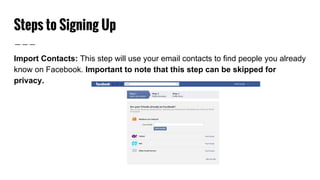
Import Contacts: This step will use your email contacts to find people you already
know on Facebook. Important to note that this step can be skipped for
privacy.
Steps to Signing Up
Profile Information: After your account is created you can always go back and
edit your profile information. This step expedites the process of finding additional
people you know via groups or organizations you are affiliated with. Important to
note that this step can be skipped for privacy.
Steps to Signing Up
Profile Picture: This step allows you to upload a picture for you to use for your
profile. At anytime after signing up you can edit the picture. Important to note
that this step can be skipped for privacy.
Steps to Signing Up
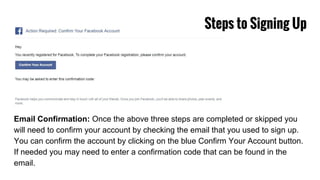
Email Confirmation: Once the above three steps are completed or skipped you
will need to confirm your account by checking the email that you used to sign up.
You can confirm the account by clicking on the blue Confirm Your Account button.
If needed you may need to enter a confirmation code that can be found in the
email.
Business and Organization Page Creation
On the Sign Up page there is a link in
blue under the sign up button. The link
says Create a Page. Click this link to
create a page for your business or
organization.
Business and Organization Page Creation
Clicking the Create a Page link will
direct you to the following page. On this
page decide which category best fits
your purpose. Clicking on the category
will bring up a drop down menu to make
further selections.
Business and Organization Page Creation
Here is screenshot of the drop down menu for Company,
Organization or Institution.
Once you have made your selections click Get
Started.
Business and Organization Page Creation
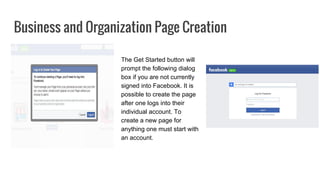
The Get Started button will
prompt the following dialog
box if you are not currently
signed into Facebook. It is
possible to create the page
after one logs into their
individual account. To
create a new page for
anything one must start with
an account.
Business and Organization Page Creation
Setting Up Your New Page
After logging in to Facebook you
will be prompted to Set Up your
new page.
Business and Organization Page Creation
About: The first step is to
describe you company or
organization. At anytime
after signing up you can edit
this information. As with the
individual signup and profile
setup this can be skipped.
Business and Organization Page Creation
Profile Picture: This
step allows you to
upload a picture for you
to use for your profile. At
anytime after signing up
you can edit the picture.
Important to note that
this step can be
skipped for privacy.
Business and Organization Page Creation
Add to Favorites: This allows you to add your new page to your favorites.
Important to note that this step can be skipped for privacy.
Business and Organization Page Creation
Preferred Page Audience:
This step allows you to
identify characteristics of the
audience you are trying to
target. Options include
locations, age, gender,
interests and languages.
Important to note that this
step can be skipped for
privacy.
Business and Organization Page Creation Version 2
Creating a Page When
Logged In
If you already have an
account you can create a
page by clicking on the drop
down menu next to the image
of the lock.
Then click on Create Page.
This will then walk you
through the same steps as
seen above.
Editing your New Page
Once your page is created you will
want to make edits, add post,
announce events and add photos to
the page. To do this you need to
make sure that you are working on
your business or organization’s
page and not your individual page.
You can find your newly created
page a couple of different ways
from your individual page.
Editing your New Page: Finding your New Page
Home Page: On the right hand side of the page
under the menu bar there is a sidebar (white box)
that has the title Your Pages. Under the title you
will see a list of your pages.
If you do not see a box like the image above,
but more like the image below click on the
gray arrow on the right side to expand the
box.
Editing your New Page: Finding your New Page
From Your Profile Page
You can also find your page(s) from your profile
page and any other page by clicking on the drop
down menu next to the lock in the menu bar.
The pages that you have created will be at top
of the drop down menu under Your Pages.
Editing your New Page
Main Page: Once you have clicked on
the page you created it will take you to
the Main page that Facebook users will
see.
Editing your New Page: Cover and Profile Pictures
Cover
Photo
Profile
Photo
Editing your New Page: Cover and Profile Pictures
These photos can be changed by
clicking on the little gray camera on
the image. When you hover over
them text will pop up that says
Change Cover or Update Profile
Picture. Once clicked it will ask you
to upload photo (Cover) or in the
case of the profile picture take
photo or upload photo.
Gray
Editing
Camera
Editing your New Page: Banner Image
The banner image includes the cover photo, profile picture, a menu bar and several
other buttons.
Editing your New Page: Banner Image
Menu Bar
This bar includes navigation tabs to the About page, Photos, and any other items you choose from the
More drop down. You can even change the arrangement of the tabs.
Menu Bar
Editing your New Page: Banner Image
More Tab
Additional Tabs
that can be
added.
Used to arrange
and add or
remove tabs.
Editing your New Page: Banner Image
Manage Tabs
Used to
arrange tabs
Used to add or
remove tabs
Make sure to save
changes.
Editing your New Page: Banner Image
About Tab
The About tab has
information about you
business or organization
such as hours, contact
information, and location
maps.
Editing your New Page: Banner Image
Photos Tab
The photos tab allows you
to add photos related to
your business or
organization such as
photos from events. There
is a video tab also that
allows you to add videos. If
this is not on the menu bar
click on the More tab.
Editing your New Page: Home Page
Home Page
The home page is where you
can make posts that can be text
only, combination of text and
photos/videos and add events.
Editing your New Page: Making Posts
Posting Identity
When making a post the first
thing to do is make sure you
are posting as right person,
group, business or
organization. Since this page
may have been created under
an individual account it is
important to pay attention to
who you are posting as.
Click this
drop down
button to
see menu.
Editing your New Page: Making Posts
Status Post
The most common post is a status post. This can be text only or include photos/videos. There is an
emoticon option to identify how you are feeling also. The posts that are created are then organized
chronologically in what is called your Timeline. This box is different from an individual’s Status Post. An
Individual’s post allows for the addition of tags and set the time and date of the post.
Status
Post
Add a
Photo or
Video
Add an
Emoticon
When finished
make sure to
Publish.
Editing your New Page: Making Posts
Publish Button
The drop down menu next to publish allows you to Save your post as a draft,
Backdate it, or Schedule when you would like to post it.
Publish Drop
Down Menu
Editing your New Page: Making Posts
Photo/Video Post
If instead you are posting a photo(s) or
video click on the Photo /Video link.
This will open a menu of different photo
display options.
Photo Post
Editing your New Page: Making Posts
Event Post
This option allows you to create
posts that provide users
information on an event, offer
(businesses), milestones and
notes. Pick the option that best fits
your needs. Clicking on the
different options will open new
windows where you can provide
the necessary information.
Event Post

Facebook tutorial

  • 1.
  • 2.
    Social Media Social Mediais a digital tool that can be accessed via a computer, tablet or smartphone.
  • 3.
    Social Media ● Allowsusers to share information either as text, audio, video, picture or links (User generated content ) ● Allows users to also create information to share as either text, audio, video, picture or links (User generated content )
  • 4.
    Social Media ● Userscan share information with individuals, or groups of people ● Users are able to network with other individuals or groups
  • 5.
  • 6.
    Individuals Use SocialMedia ● Individuals use social media to share content with friends and/or groups ● Connect and communicate with people ● Learn what is going on in their community, state, country or world ● Connect with groups of people with similar interests
  • 7.
    Businesses and OrganizationsUse Social Media ● Connect with possible patrons/customers in their community ● Share information about upcoming events or past events ● Connect patrons to additional resources
  • 8.
    Facebook ● Started in2004 ● As of April, 2016 there were 1.65 billion monthly users ● 29.7% of Facebook users are between 25-34 years old Statistics found at Zephoria Digital Marketing
  • 9.
    To Start usingFacebook, Sign Up ● You will need to enter your name ● A Mobile phone number or email ● Create a password ● Share your birthday ● Identify your gender
  • 10.
    Steps to SigningUp Import Contacts: This step will use your email contacts to find people you already know on Facebook. Important to note that this step can be skipped for privacy.
  • 11.
    Steps to SigningUp Profile Information: After your account is created you can always go back and edit your profile information. This step expedites the process of finding additional people you know via groups or organizations you are affiliated with. Important to note that this step can be skipped for privacy.
  • 12.
    Steps to SigningUp Profile Picture: This step allows you to upload a picture for you to use for your profile. At anytime after signing up you can edit the picture. Important to note that this step can be skipped for privacy.
  • 13.
    Steps to SigningUp Email Confirmation: Once the above three steps are completed or skipped you will need to confirm your account by checking the email that you used to sign up. You can confirm the account by clicking on the blue Confirm Your Account button. If needed you may need to enter a confirmation code that can be found in the email.
  • 14.
    Business and OrganizationPage Creation On the Sign Up page there is a link in blue under the sign up button. The link says Create a Page. Click this link to create a page for your business or organization.
  • 15.
    Business and OrganizationPage Creation Clicking the Create a Page link will direct you to the following page. On this page decide which category best fits your purpose. Clicking on the category will bring up a drop down menu to make further selections.
  • 16.
    Business and OrganizationPage Creation Here is screenshot of the drop down menu for Company, Organization or Institution. Once you have made your selections click Get Started.
  • 17.
    Business and OrganizationPage Creation The Get Started button will prompt the following dialog box if you are not currently signed into Facebook. It is possible to create the page after one logs into their individual account. To create a new page for anything one must start with an account.
  • 18.
    Business and OrganizationPage Creation Setting Up Your New Page After logging in to Facebook you will be prompted to Set Up your new page.
  • 19.
    Business and OrganizationPage Creation About: The first step is to describe you company or organization. At anytime after signing up you can edit this information. As with the individual signup and profile setup this can be skipped.
  • 20.
    Business and OrganizationPage Creation Profile Picture: This step allows you to upload a picture for you to use for your profile. At anytime after signing up you can edit the picture. Important to note that this step can be skipped for privacy.
  • 21.
    Business and OrganizationPage Creation Add to Favorites: This allows you to add your new page to your favorites. Important to note that this step can be skipped for privacy.
  • 22.
    Business and OrganizationPage Creation Preferred Page Audience: This step allows you to identify characteristics of the audience you are trying to target. Options include locations, age, gender, interests and languages. Important to note that this step can be skipped for privacy.
  • 23.
    Business and OrganizationPage Creation Version 2 Creating a Page When Logged In If you already have an account you can create a page by clicking on the drop down menu next to the image of the lock. Then click on Create Page. This will then walk you through the same steps as seen above.
  • 24.
    Editing your NewPage Once your page is created you will want to make edits, add post, announce events and add photos to the page. To do this you need to make sure that you are working on your business or organization’s page and not your individual page. You can find your newly created page a couple of different ways from your individual page.
  • 25.
    Editing your NewPage: Finding your New Page Home Page: On the right hand side of the page under the menu bar there is a sidebar (white box) that has the title Your Pages. Under the title you will see a list of your pages. If you do not see a box like the image above, but more like the image below click on the gray arrow on the right side to expand the box.
  • 26.
    Editing your NewPage: Finding your New Page From Your Profile Page You can also find your page(s) from your profile page and any other page by clicking on the drop down menu next to the lock in the menu bar. The pages that you have created will be at top of the drop down menu under Your Pages.
  • 27.
    Editing your NewPage Main Page: Once you have clicked on the page you created it will take you to the Main page that Facebook users will see.
  • 28.
    Editing your NewPage: Cover and Profile Pictures Cover Photo Profile Photo
  • 29.
    Editing your NewPage: Cover and Profile Pictures These photos can be changed by clicking on the little gray camera on the image. When you hover over them text will pop up that says Change Cover or Update Profile Picture. Once clicked it will ask you to upload photo (Cover) or in the case of the profile picture take photo or upload photo. Gray Editing Camera
  • 30.
    Editing your NewPage: Banner Image The banner image includes the cover photo, profile picture, a menu bar and several other buttons.
  • 31.
    Editing your NewPage: Banner Image Menu Bar This bar includes navigation tabs to the About page, Photos, and any other items you choose from the More drop down. You can even change the arrangement of the tabs. Menu Bar
  • 32.
    Editing your NewPage: Banner Image More Tab Additional Tabs that can be added. Used to arrange and add or remove tabs.
  • 33.
    Editing your NewPage: Banner Image Manage Tabs Used to arrange tabs Used to add or remove tabs Make sure to save changes.
  • 34.
    Editing your NewPage: Banner Image About Tab The About tab has information about you business or organization such as hours, contact information, and location maps.
  • 35.
    Editing your NewPage: Banner Image Photos Tab The photos tab allows you to add photos related to your business or organization such as photos from events. There is a video tab also that allows you to add videos. If this is not on the menu bar click on the More tab.
  • 36.
    Editing your NewPage: Home Page Home Page The home page is where you can make posts that can be text only, combination of text and photos/videos and add events.
  • 37.
    Editing your NewPage: Making Posts Posting Identity When making a post the first thing to do is make sure you are posting as right person, group, business or organization. Since this page may have been created under an individual account it is important to pay attention to who you are posting as. Click this drop down button to see menu.
  • 38.
    Editing your NewPage: Making Posts Status Post The most common post is a status post. This can be text only or include photos/videos. There is an emoticon option to identify how you are feeling also. The posts that are created are then organized chronologically in what is called your Timeline. This box is different from an individual’s Status Post. An Individual’s post allows for the addition of tags and set the time and date of the post. Status Post Add a Photo or Video Add an Emoticon When finished make sure to Publish.
  • 39.
    Editing your NewPage: Making Posts Publish Button The drop down menu next to publish allows you to Save your post as a draft, Backdate it, or Schedule when you would like to post it. Publish Drop Down Menu
  • 40.
    Editing your NewPage: Making Posts Photo/Video Post If instead you are posting a photo(s) or video click on the Photo /Video link. This will open a menu of different photo display options. Photo Post
  • 41.
    Editing your NewPage: Making Posts Event Post This option allows you to create posts that provide users information on an event, offer (businesses), milestones and notes. Pick the option that best fits your needs. Clicking on the different options will open new windows where you can provide the necessary information. Event Post