Specific Uses for Teachers & School Library Media Specialists
Why Would a School Library Media Specialist Want to Use Twitter? To Ask for Help To Be Helpful To Promote One’s LMC To Make Connections Cole (2009)
20 Ways School Librarians Can Use Twitter Ask other librarians for recommended books,  products, or services Ask other librarians for help or advice about a topic or professional interest Recommend a book, product, or service to teachers or other librarians Tweet a book list or link to a book list on the web Cole (2009)
20 Ways School Librarians Can Use Twitter Tweet about a useful resource, blog, video, podcast, or website Provide a daily word of the day or book of the day Share new ideas with other professionals Celebrate events such as authors birthdays or  Banned Books Week Tweet about your library’s website or blog   Cole (2009)
20 Ways School Librarians Can Use Twitter 10.   Link to a book trailer or video booktalk 11.   Start a twitter book club for students 12.   Invite followers to online events such as book clubs and webchats 13.   Link to photos of your library and events 14.   Retweet someone’s post that was interesting Tweet with students about new books, authors, and library services   Cole (2009)
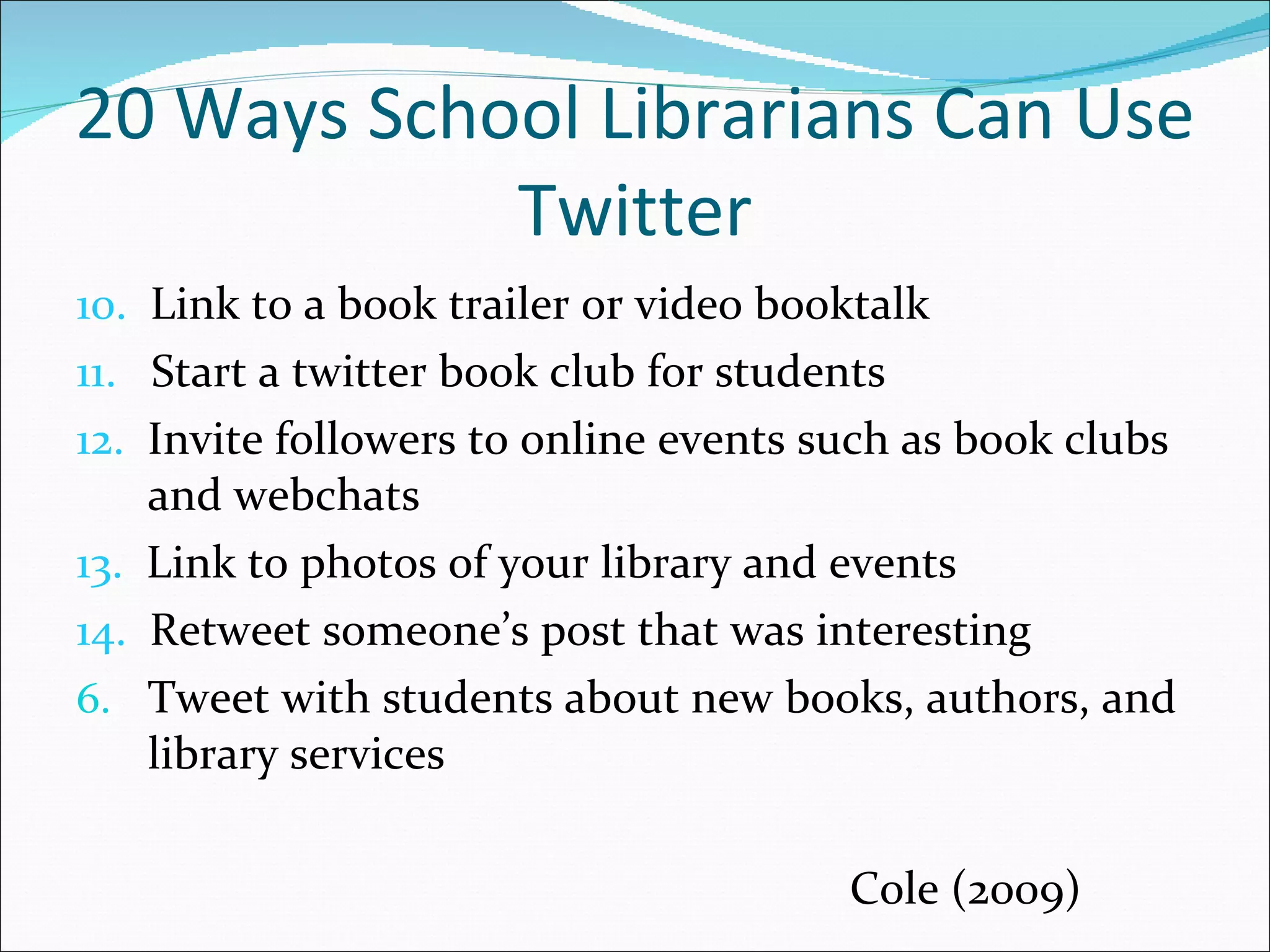
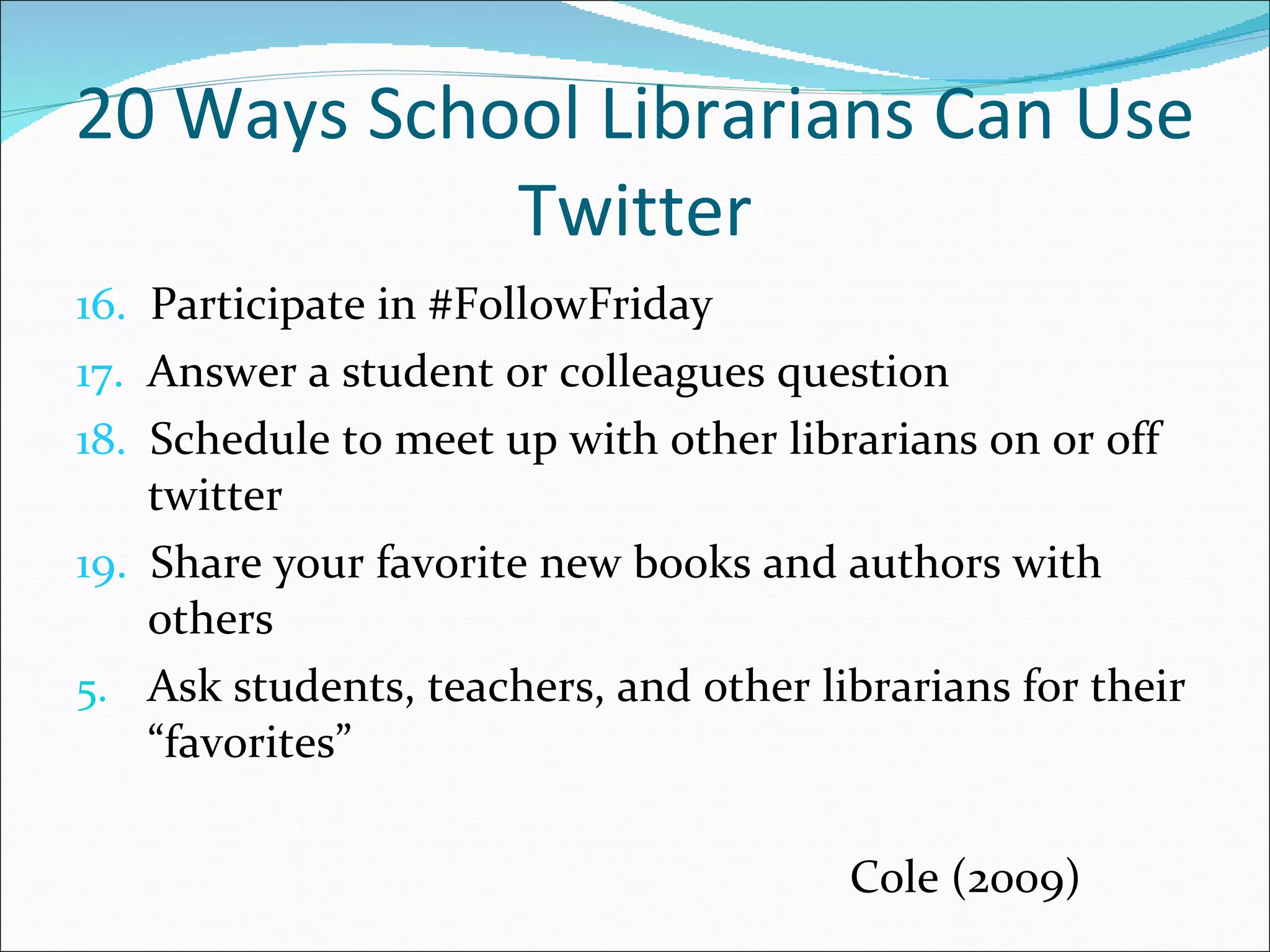
20 Ways School Librarians Can Use Twitter 16.   Participate in #FollowFriday 17.   Answer a student or colleagues question 18.   Schedule to meet up with other librarians on or off twitter  19.   Share your favorite new books and authors with others Ask students, teachers, and other librarians for their “favorites”   Cole (2009)
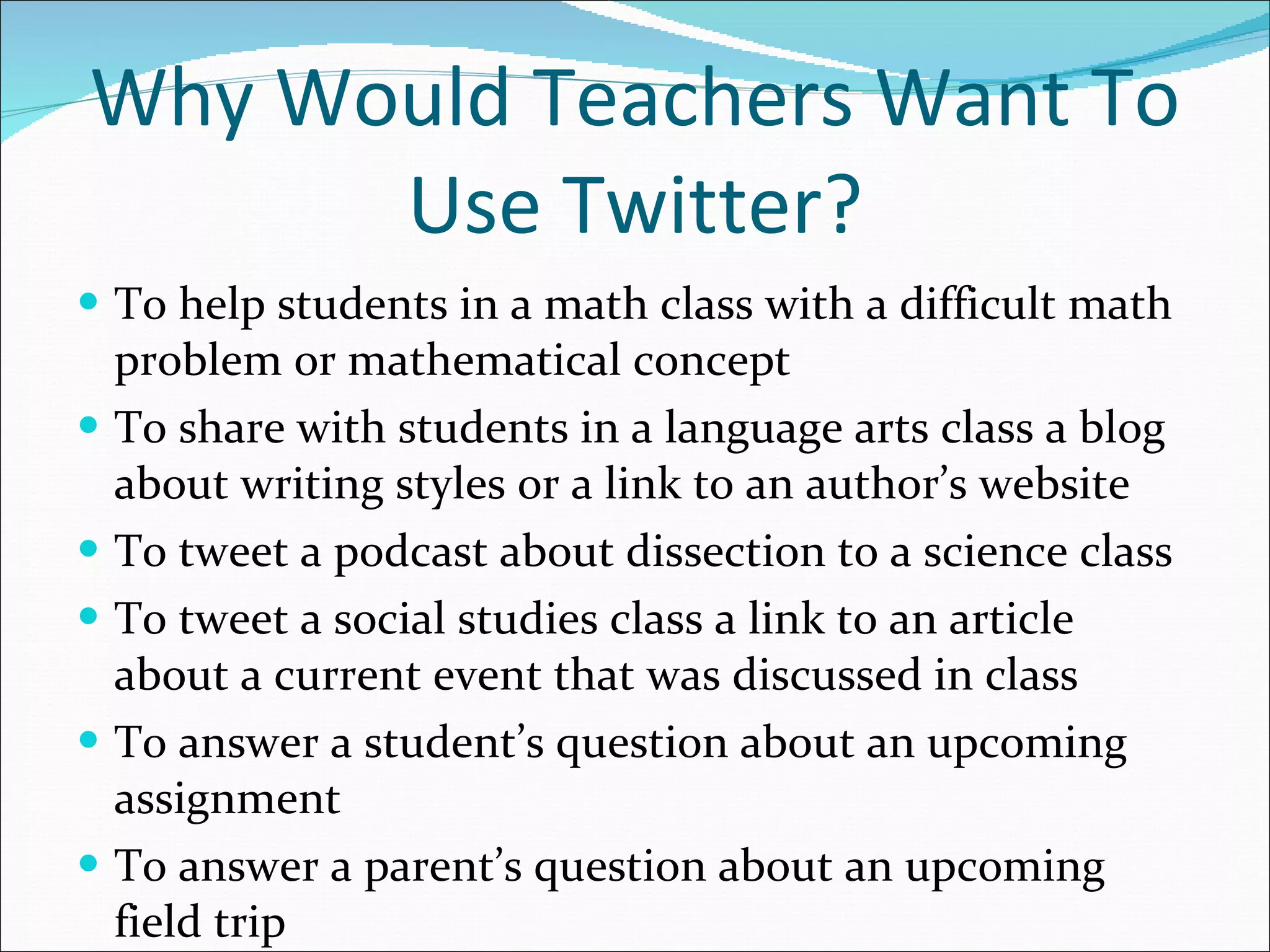
Why Would Teachers Want To Use Twitter? To help students in a math class with a difficult math problem or mathematical concept To share with students in a language arts class a blog about writing styles or a link to an author’s website To tweet a podcast about dissection to a science class  To tweet a social studies class a link to an article about a current event that was discussed in class To answer a student’s question about an upcoming assignment To answer a parent’s question about an upcoming field trip
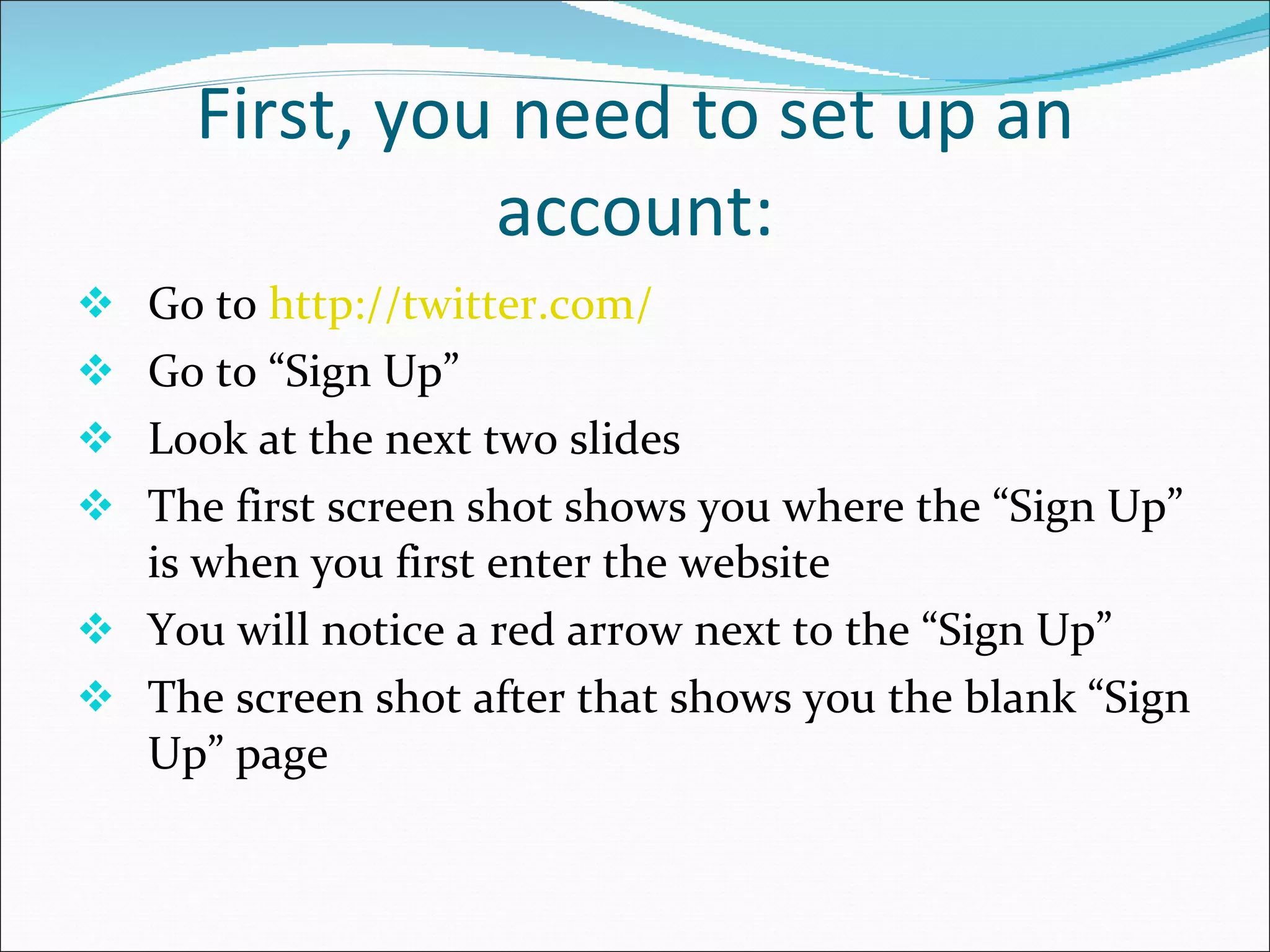
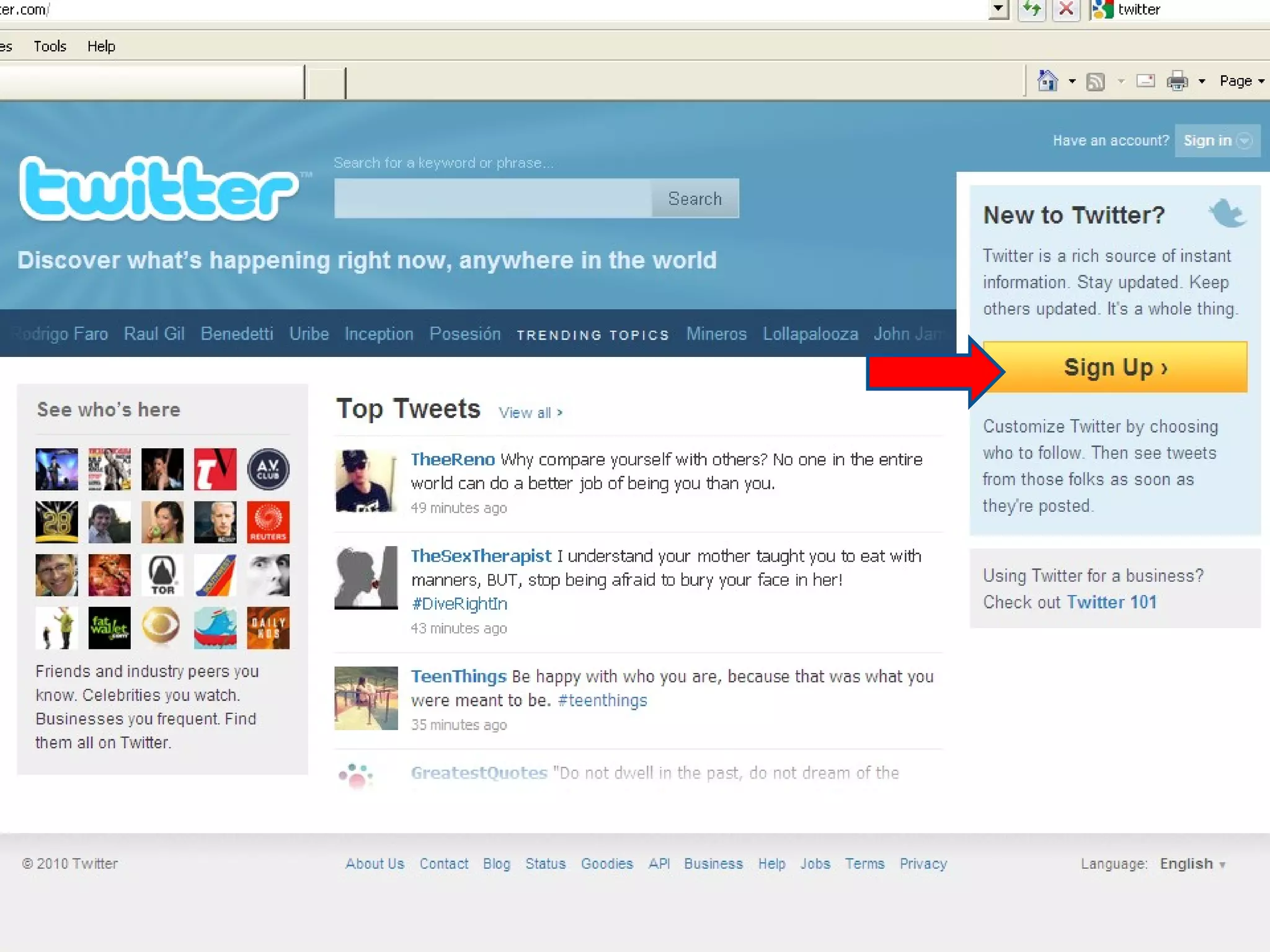
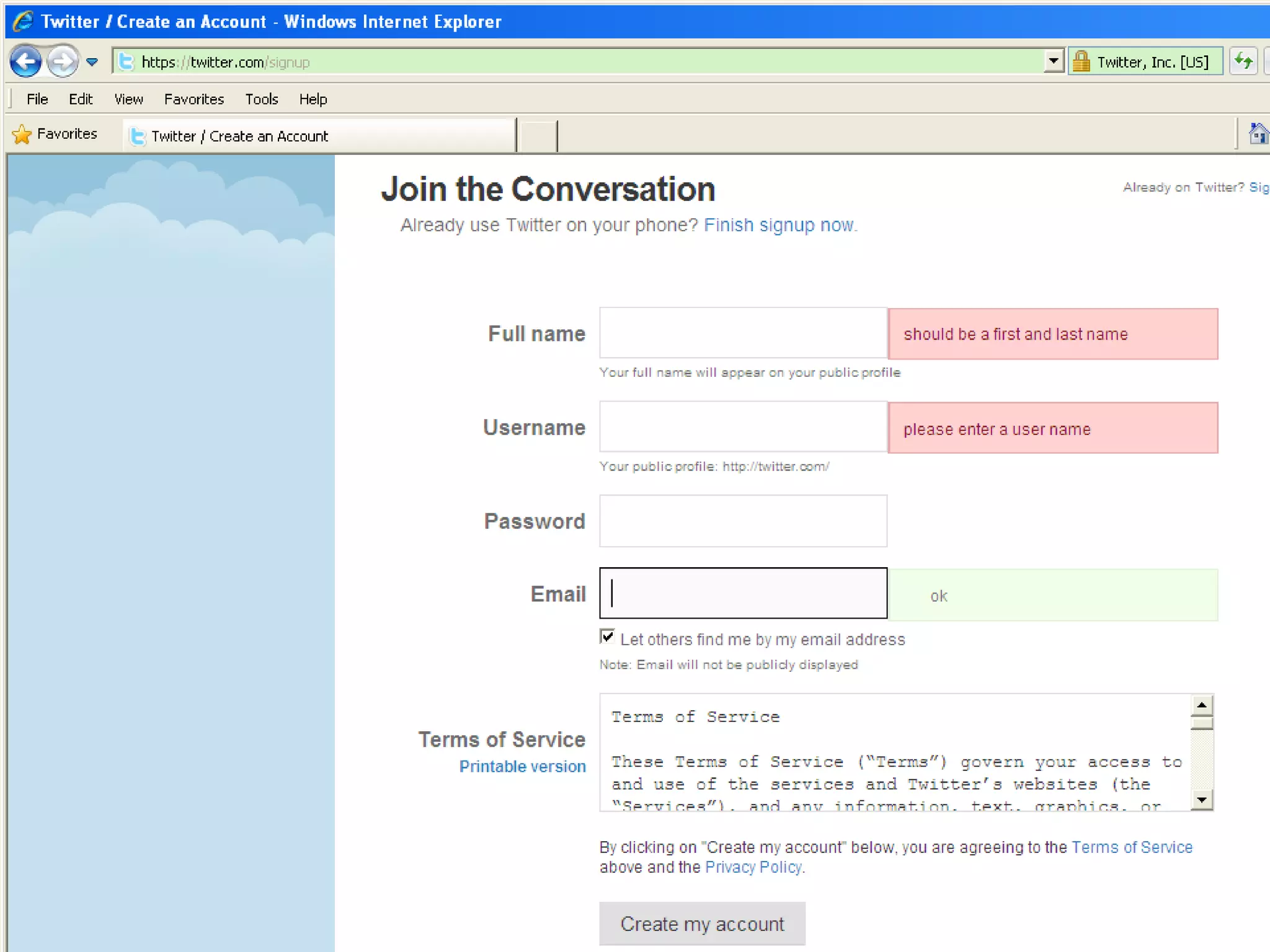
First, you need to set up an account: Go to  http://twitter.com/ Go to “Sign Up” Look at the next two slides The first screen shot shows you where the “Sign Up” is when you first enter the website You will notice a red arrow next to the “Sign Up” The screen shot after that shows you the blank “Sign Up” page
 
 
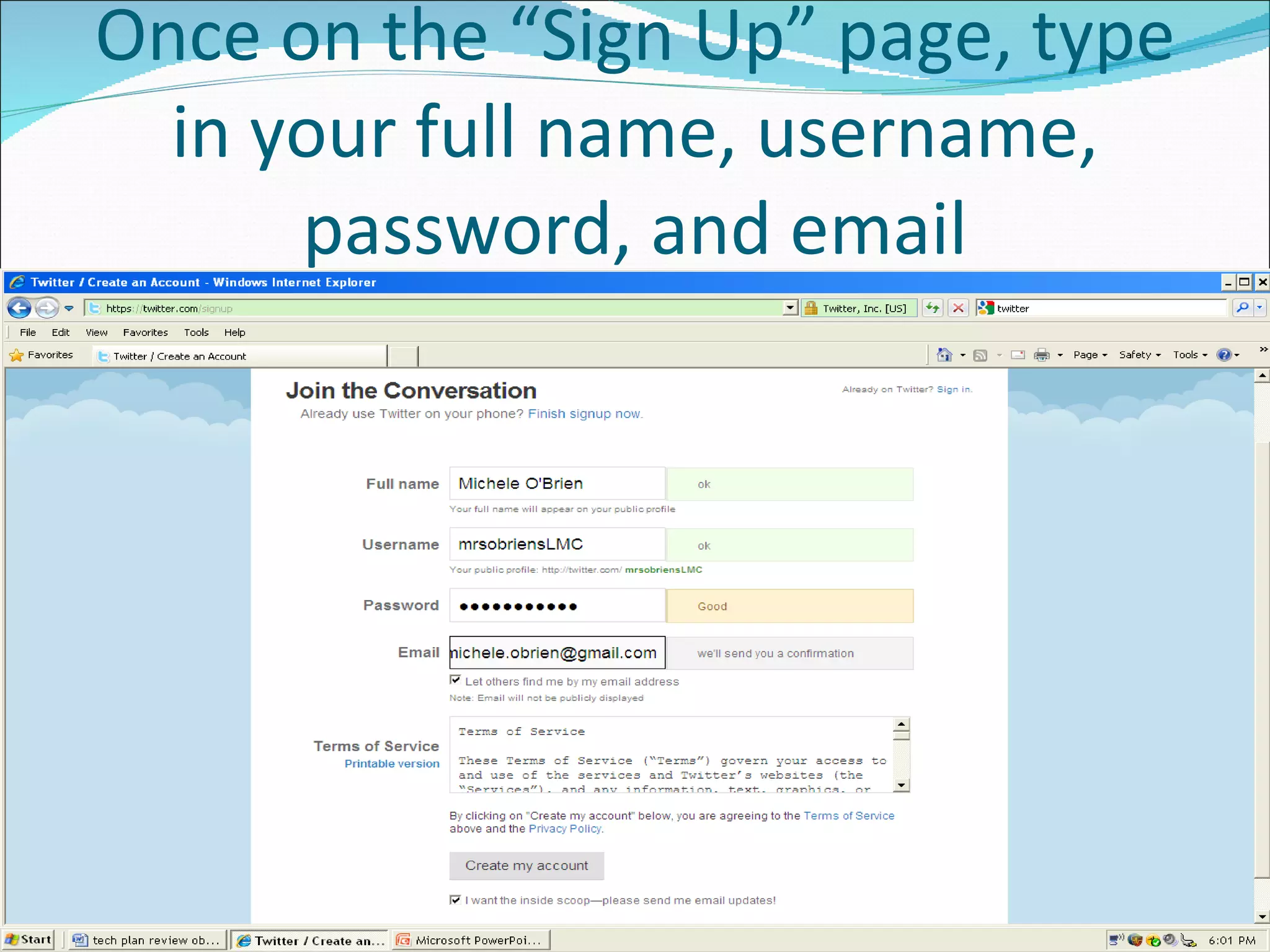
Once on the “Sign Up” page, type in your full name, username, password, and email
As you type in the info, it will tell you the availability of your username and strength of your selected password Change this as necessary Click to agree to the “Terms of Service” when you have it set the way you want it Click “Create Account” You are now ready to “Sign In” and create your “Profile”
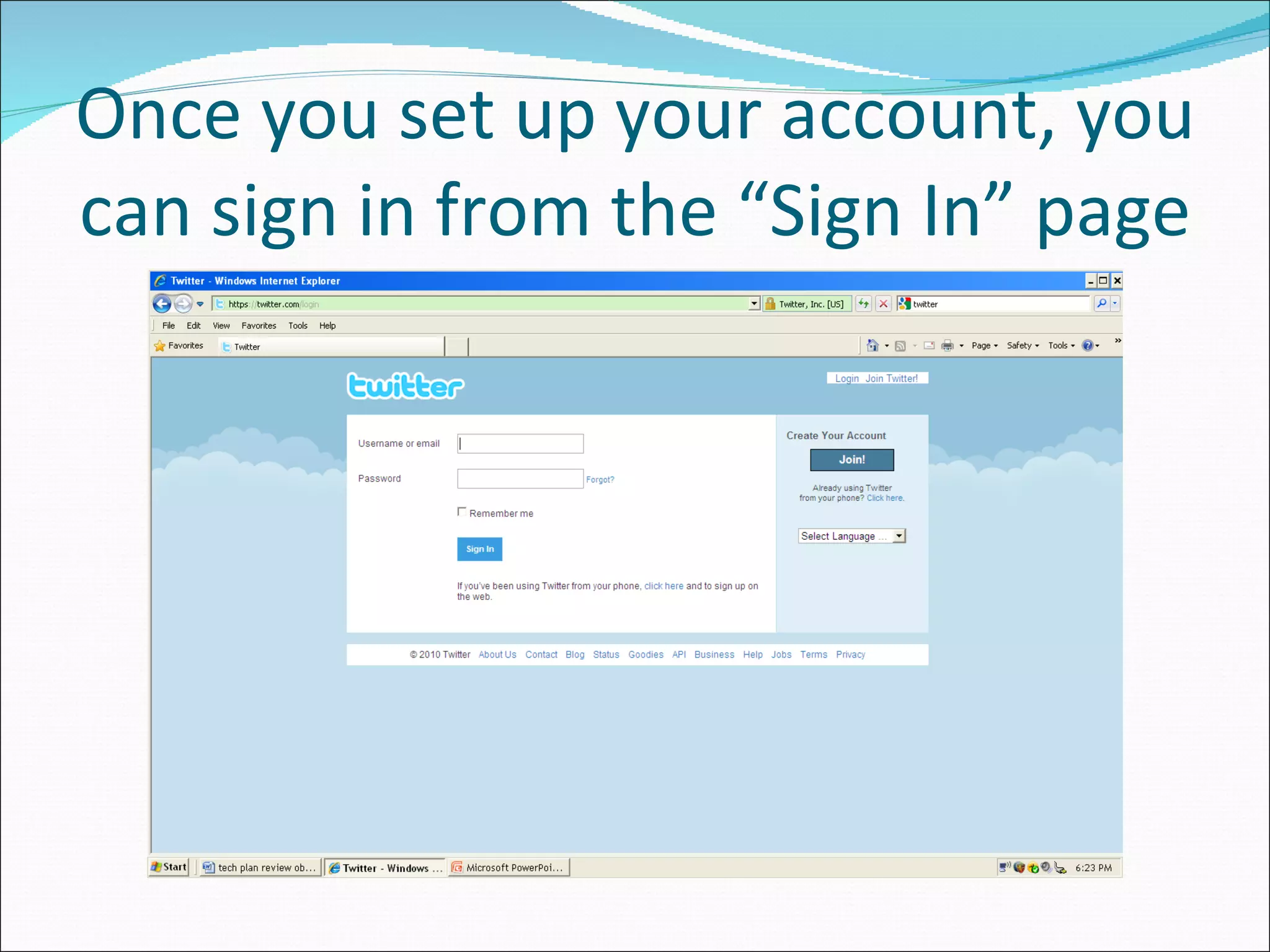
Once you set up your account, you can sign in from the “Sign In” page
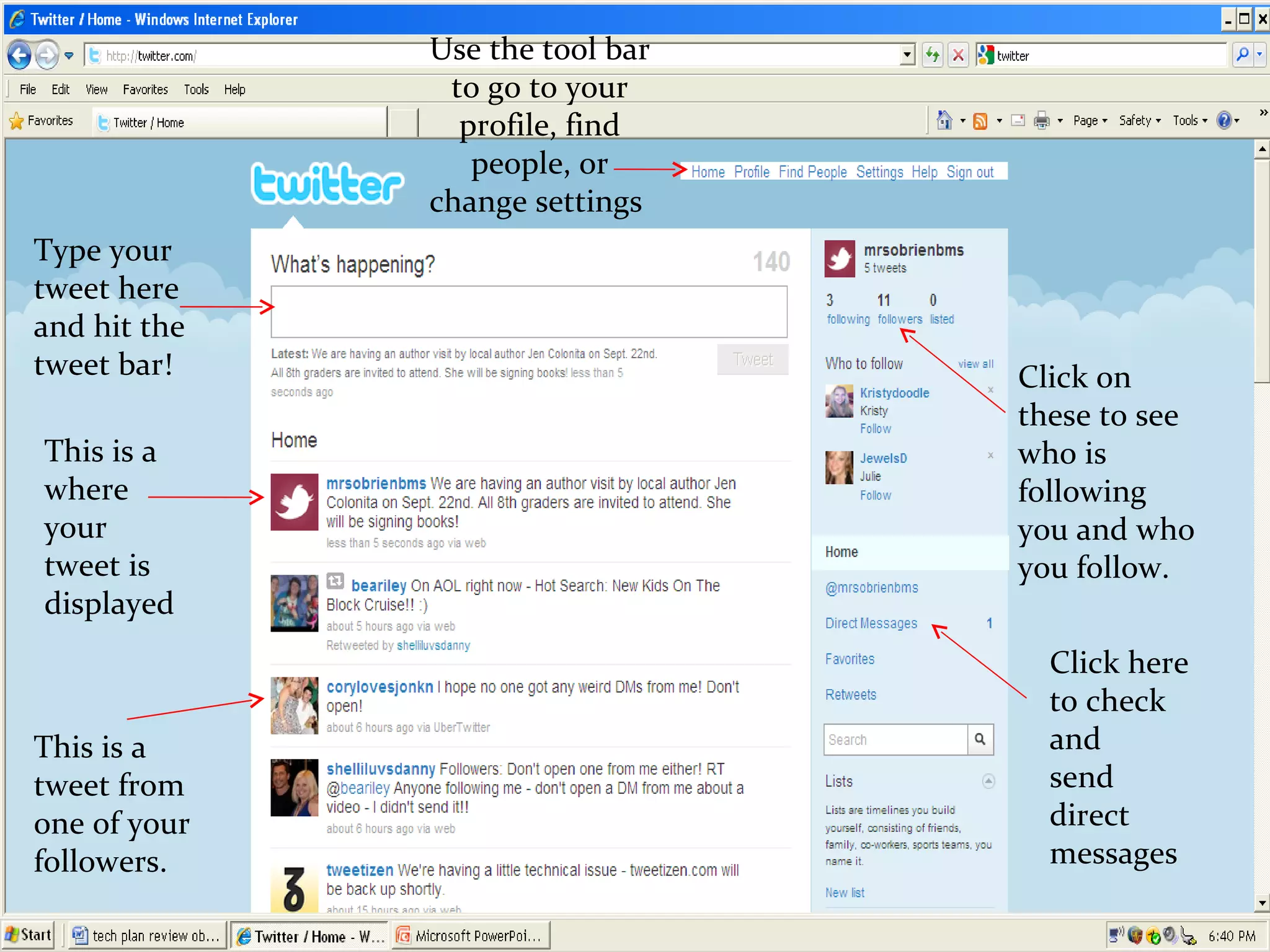
The next slide shows what your home page looks like. Notice all of the information contained on your twitter “Home” page.
Click on these to see who is following you and who you follow. Use the tool bar to go to your profile, find people, or change settings  This is a where your tweet is displayed This is a tweet from one of your followers. Click here to check and  send direct messages Type your tweet here and hit the  tweet bar!
How to set up your “Profile” Go to “Profile” on the home page to view your page before you make changes Next, click on “Settings” Then, click on “Profile” You can add a picture, write a bio, and even add a location to your tweets!
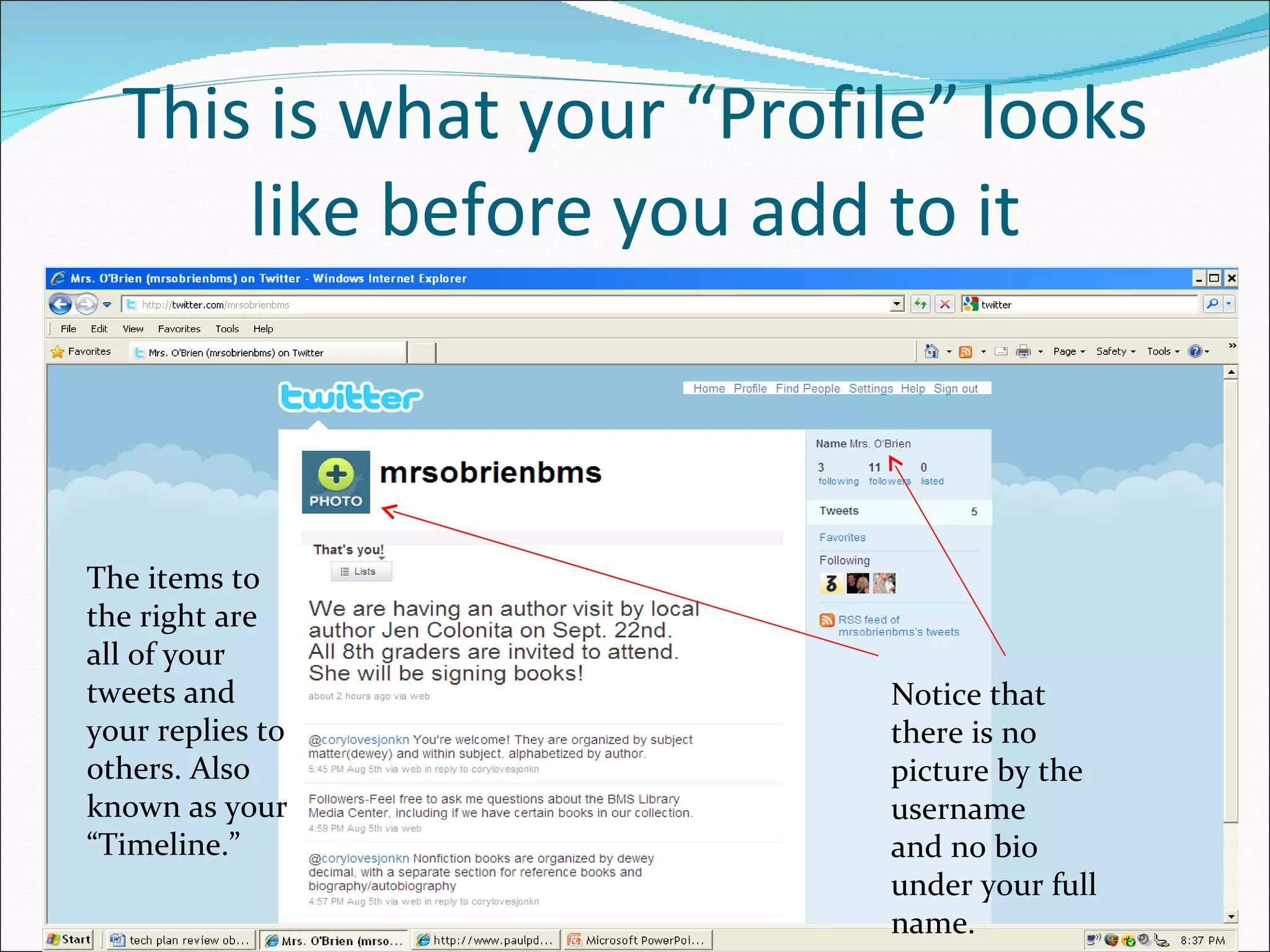
This is what your “Profile” looks like before you add to it The items to the right are all of your tweets and your replies to others. Also known as your “ Timeline.” Notice that there is no picture by the username and no bio under your full name.
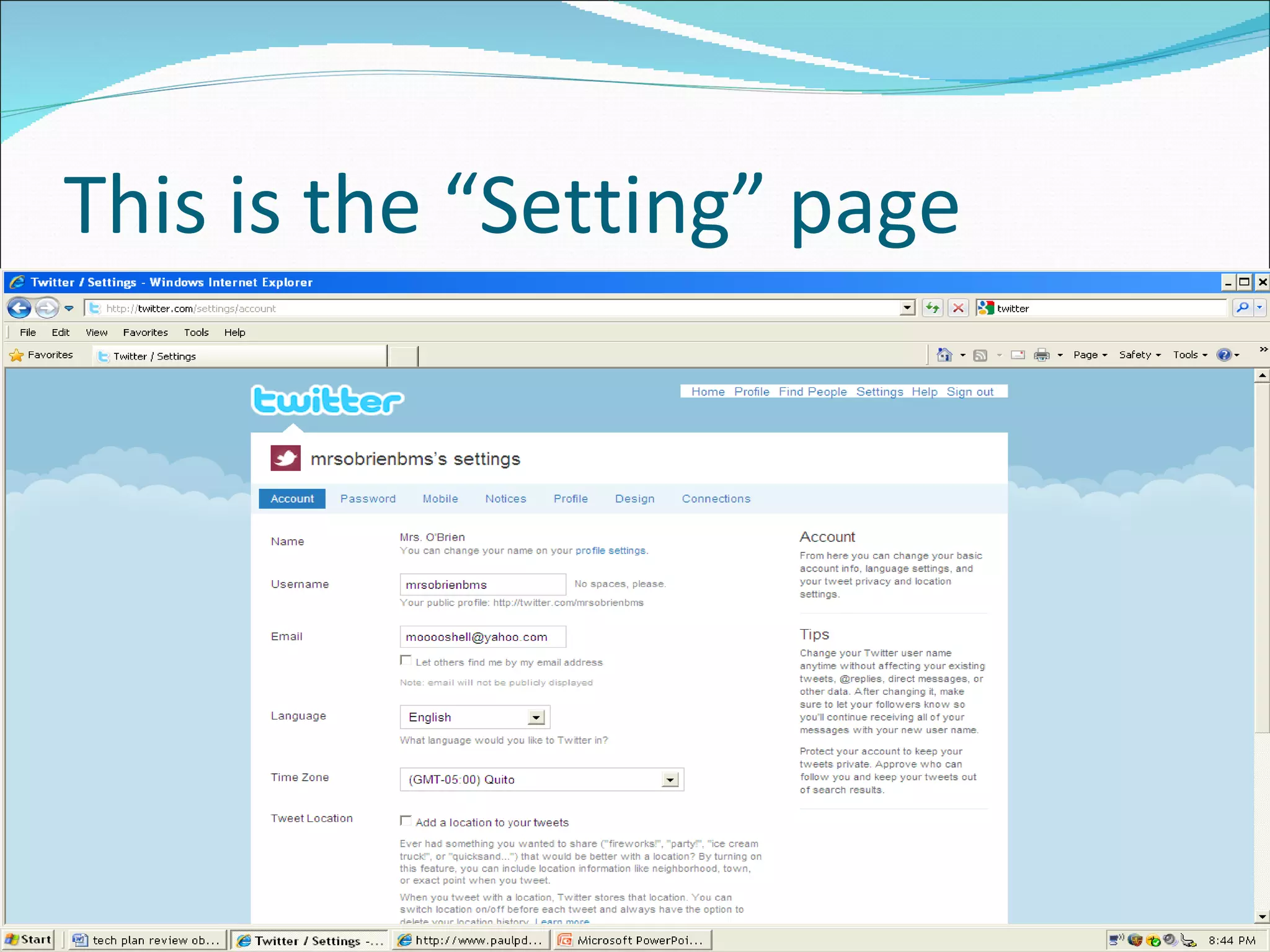
This is the “Setting” page
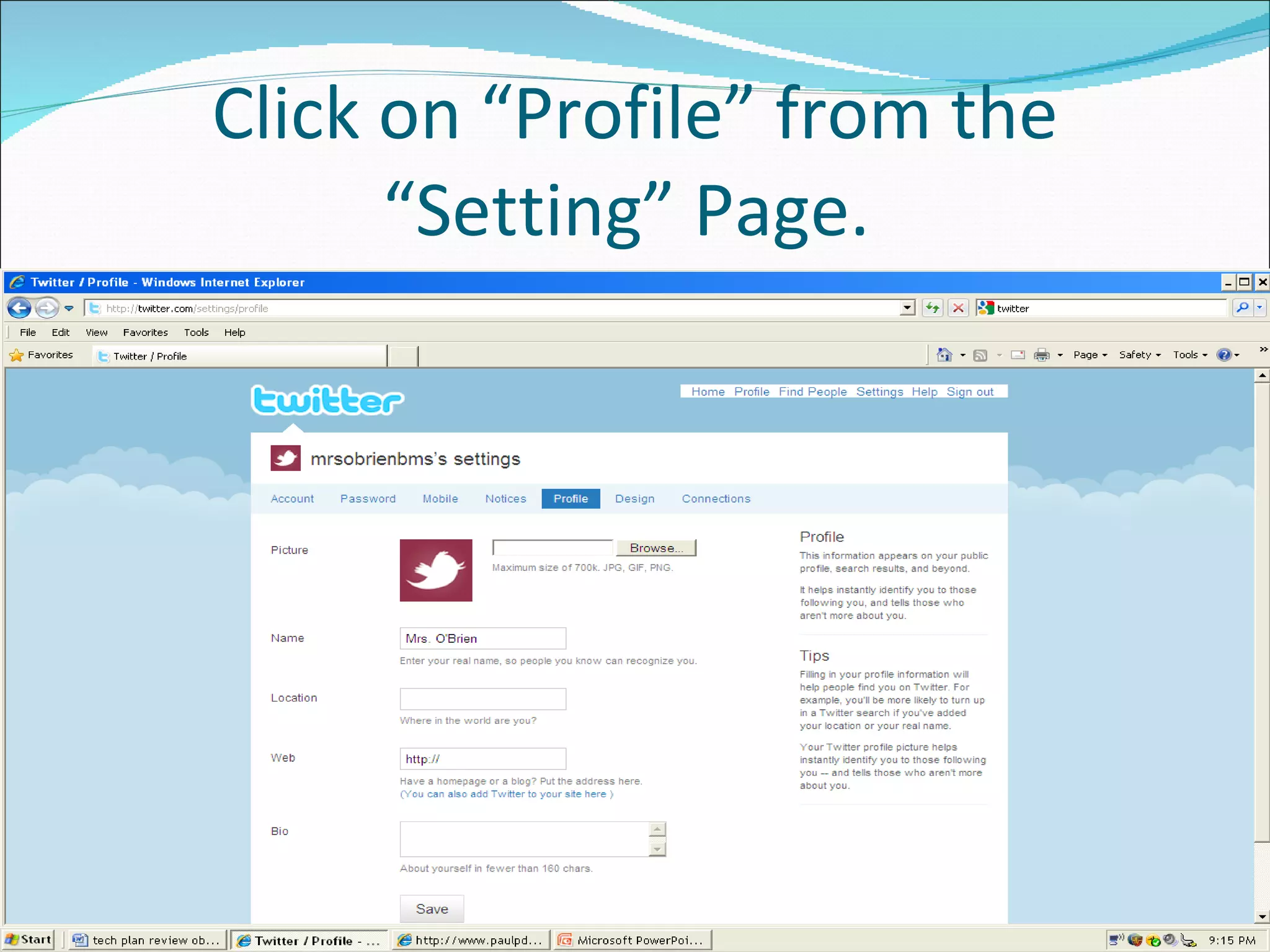
Click on “Profile” from the “Setting” Page.
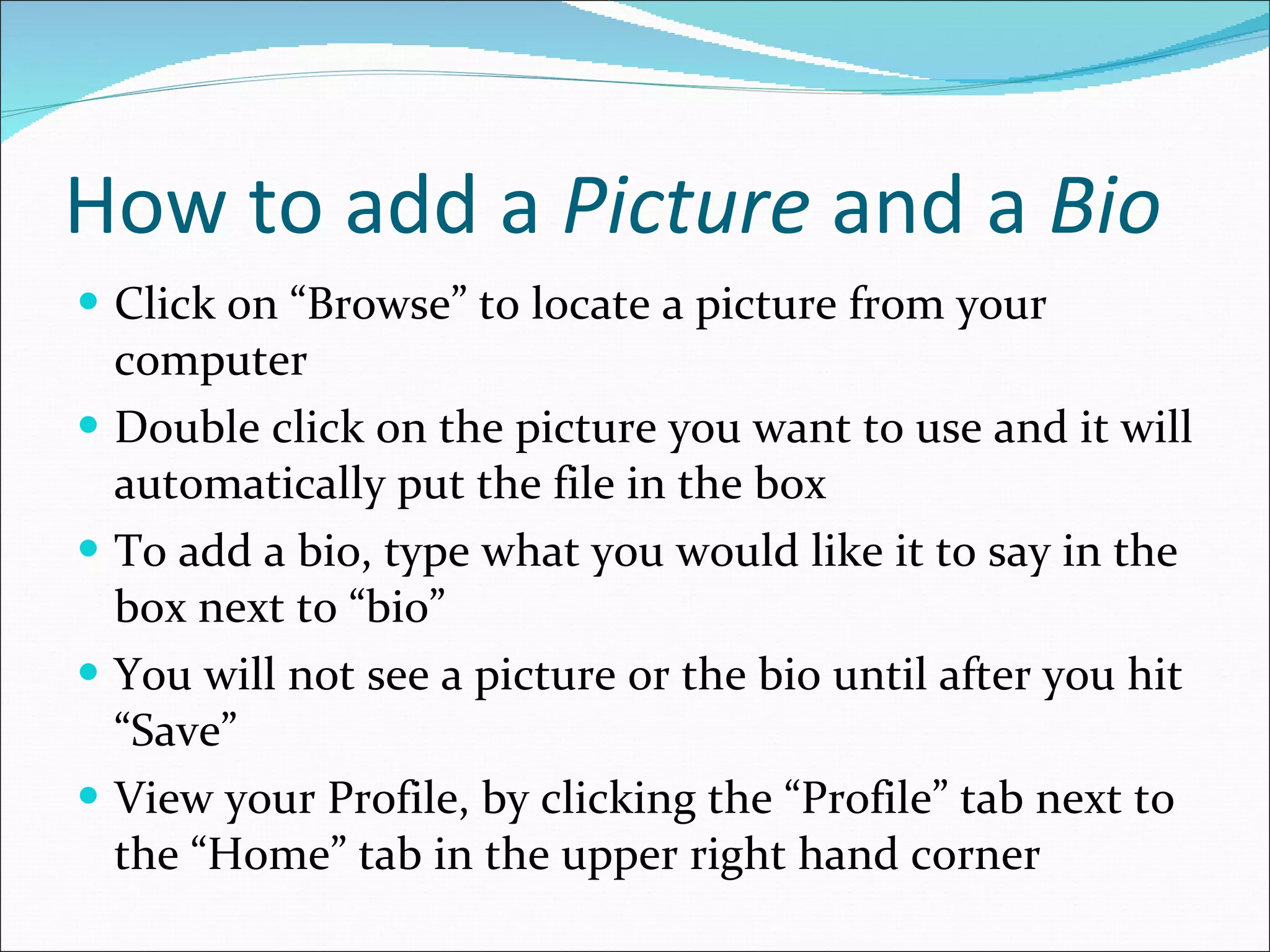
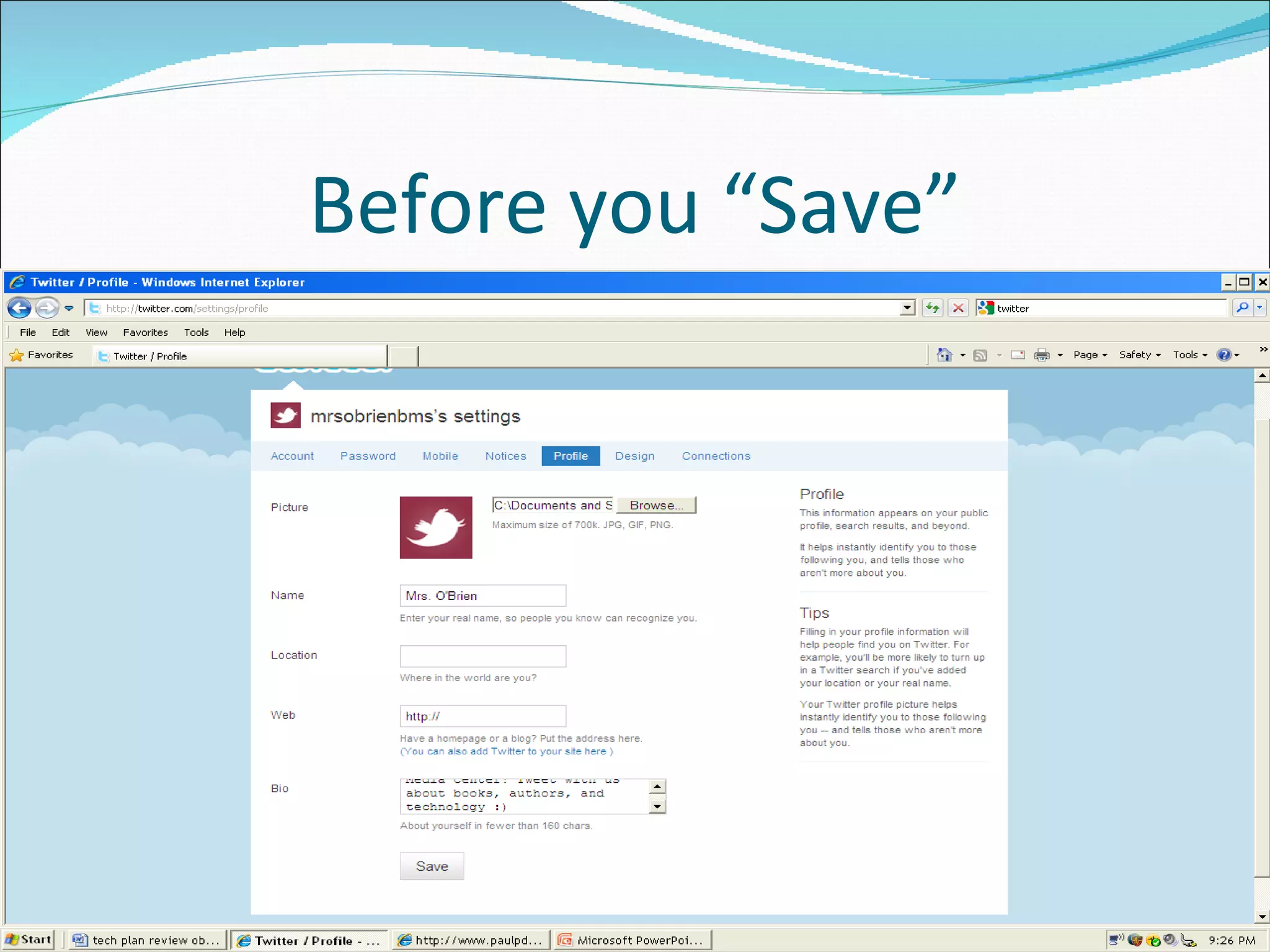
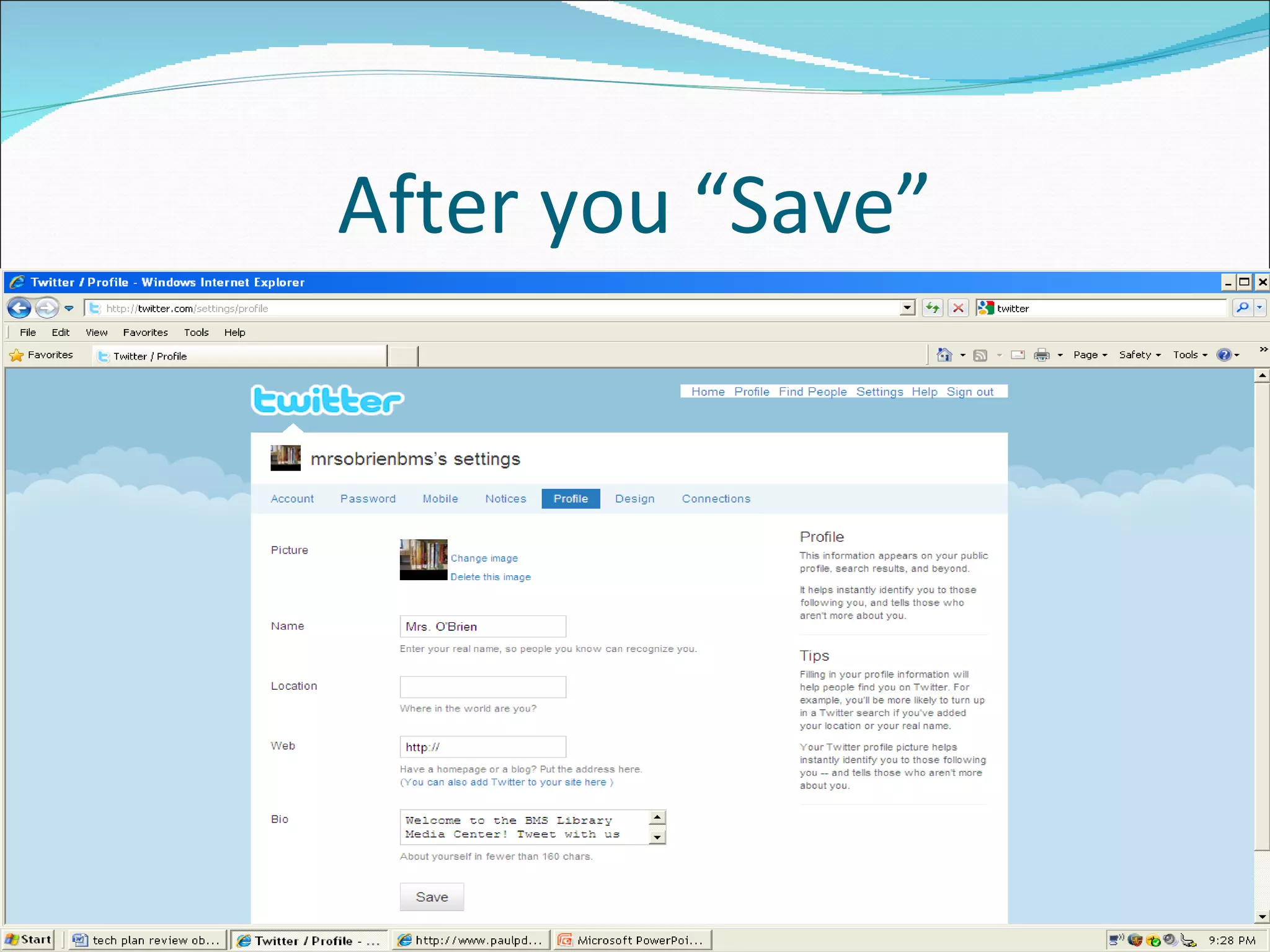
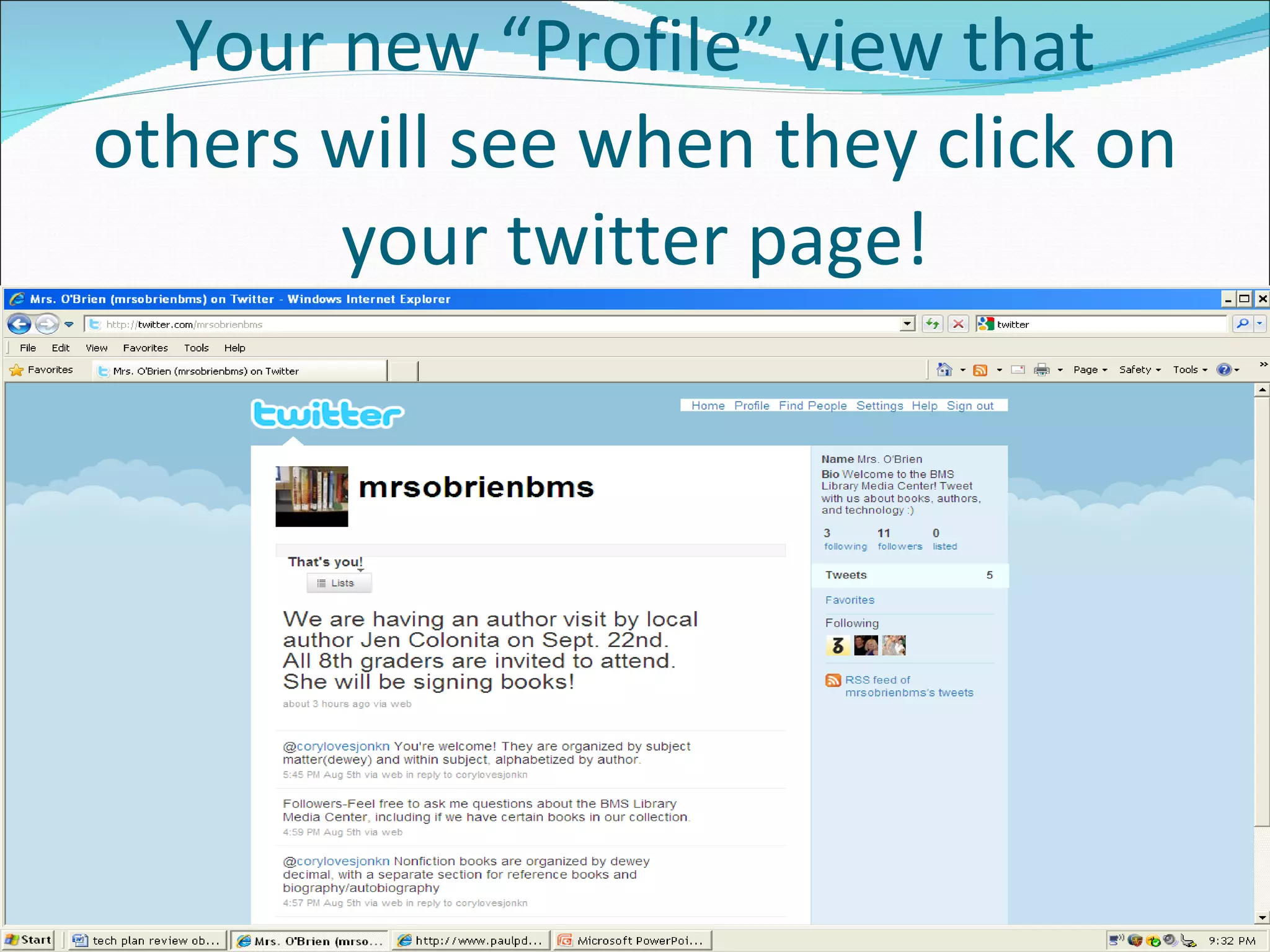
How to add a  Picture  and a  Bio Click on “Browse” to locate a picture from your computer Double click on the picture you want to use and it will automatically put the file in the box To add a bio, type what you would like it to say in the box next to “bio” You will not see a picture or the bio until after you hit “Save” View your Profile, by clicking the “Profile” tab next to the “Home” tab in the upper right hand corner
Before you “Save”
After you “Save”
Your new “Profile” view that others will see when they click on your twitter page!
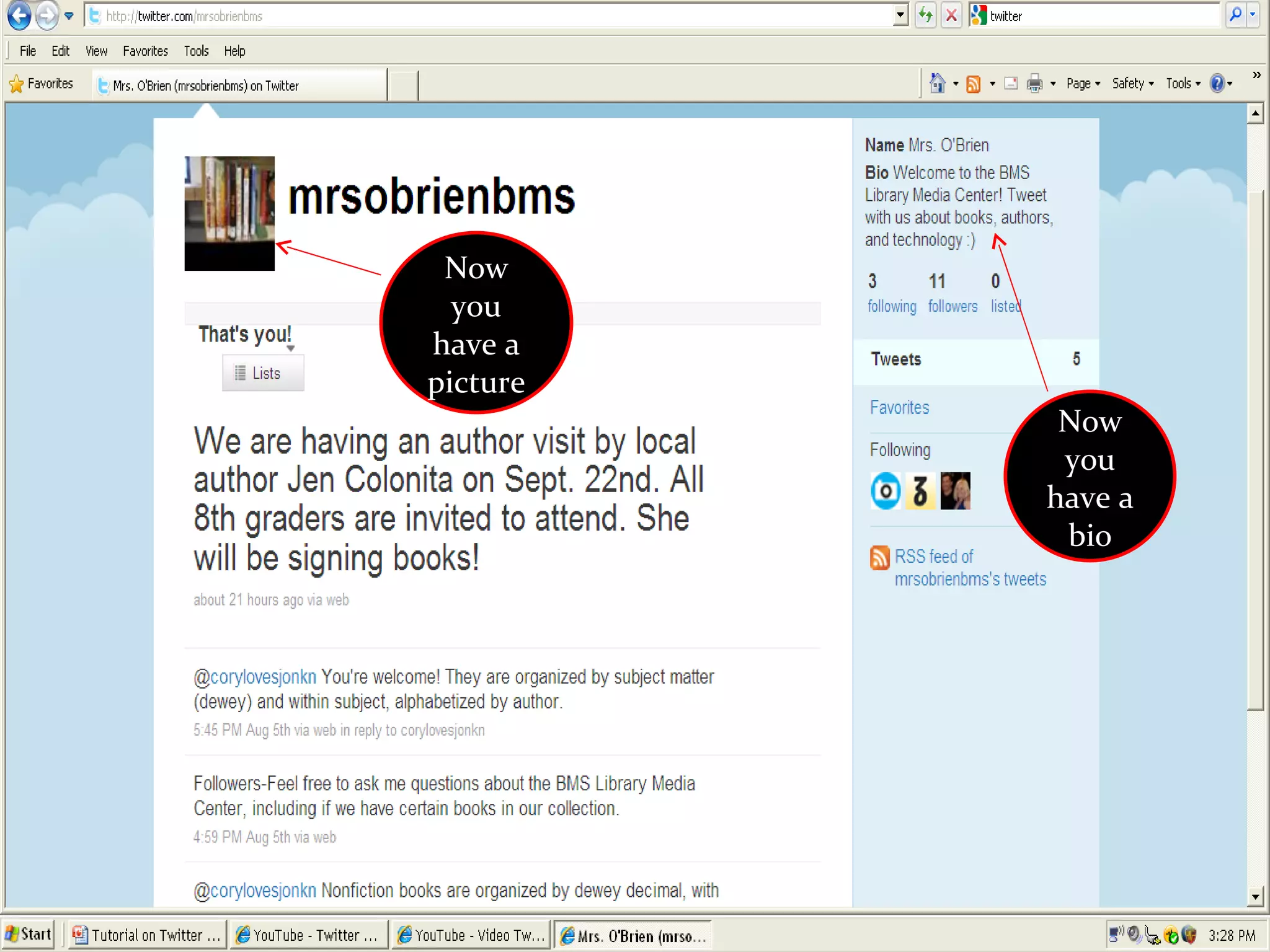
Now you have a picture Now you have a bio
You are now ready to learn the following: How to Tweet How to Reply to a Followers Tweet How to Retweet and Favorite a Tweet How to Follow, Unfollow, or Block Another User How to Read a Direct Message (DM) How to Send a Direct Message (DM) How to Tweet a Link to a Website How to Tweet a Photo (Twitpic) How to Tweet a Video (Twitvid)
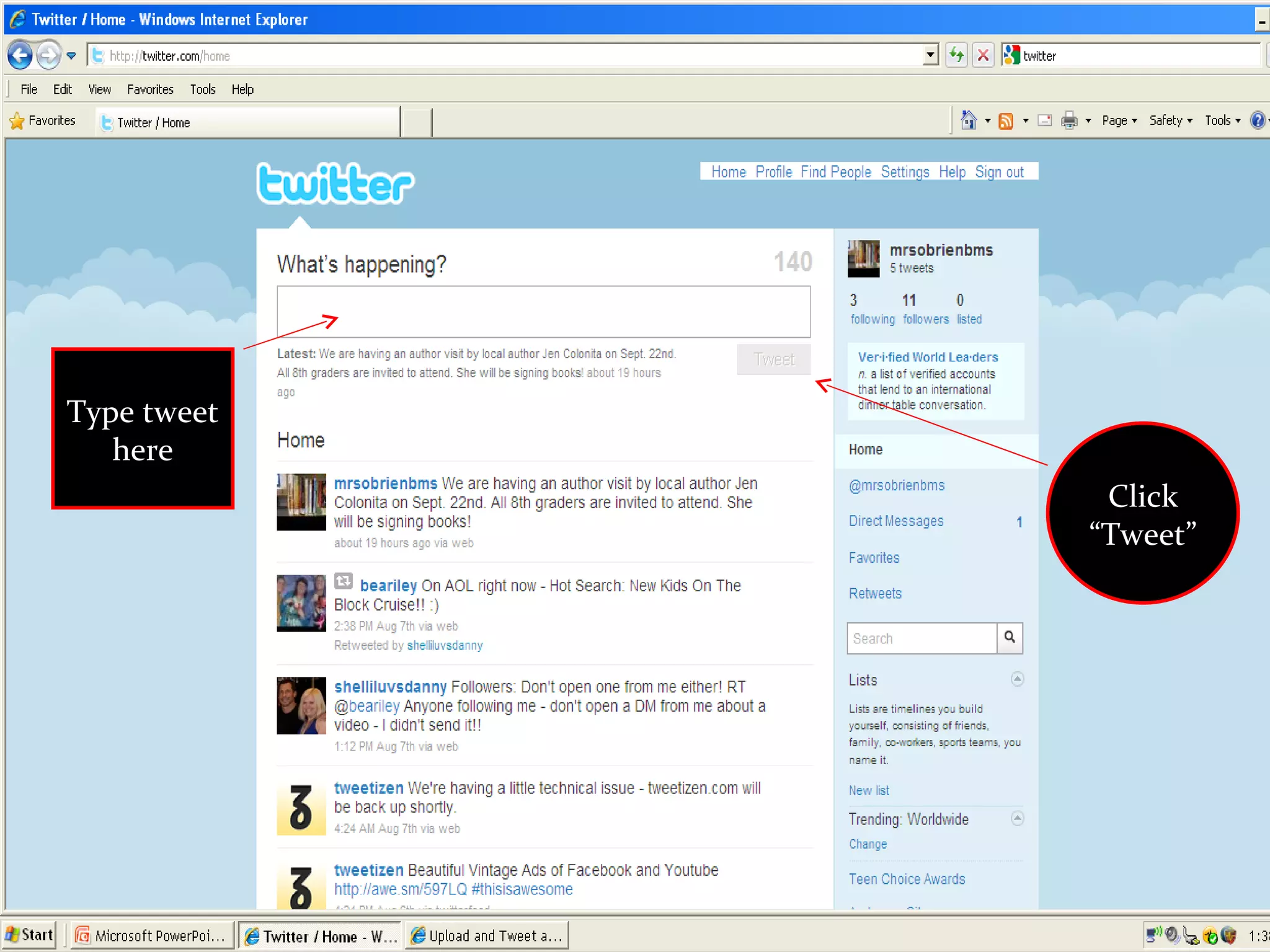
How to Tweet From the “Home” page under “What’s happening?”, type what you want to tweet in the text book in 140 characters or less  Click “Tweet” The tweet will be displayed in your timeline next to your username and picture
Type tweet here Click “Tweet”
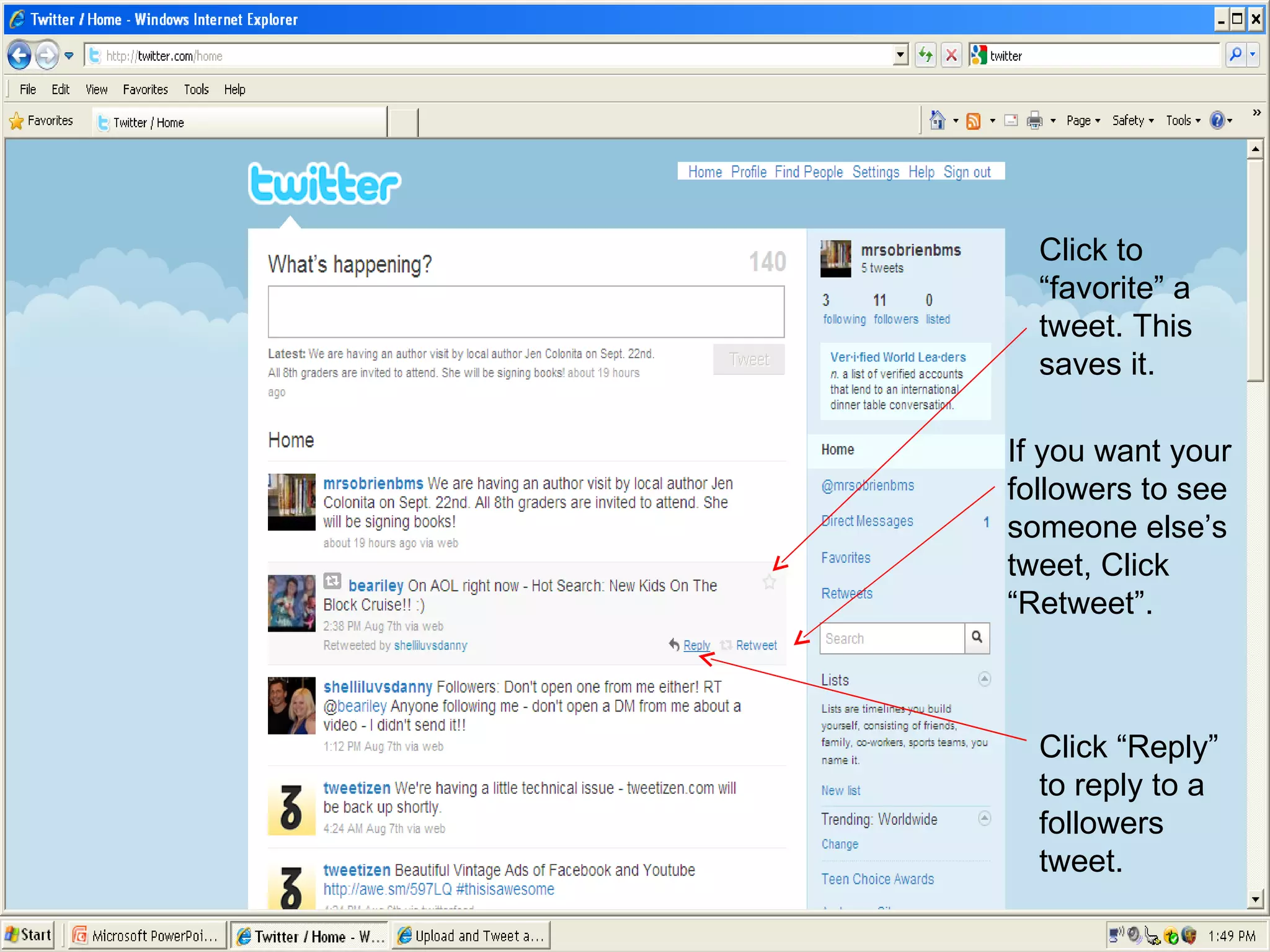
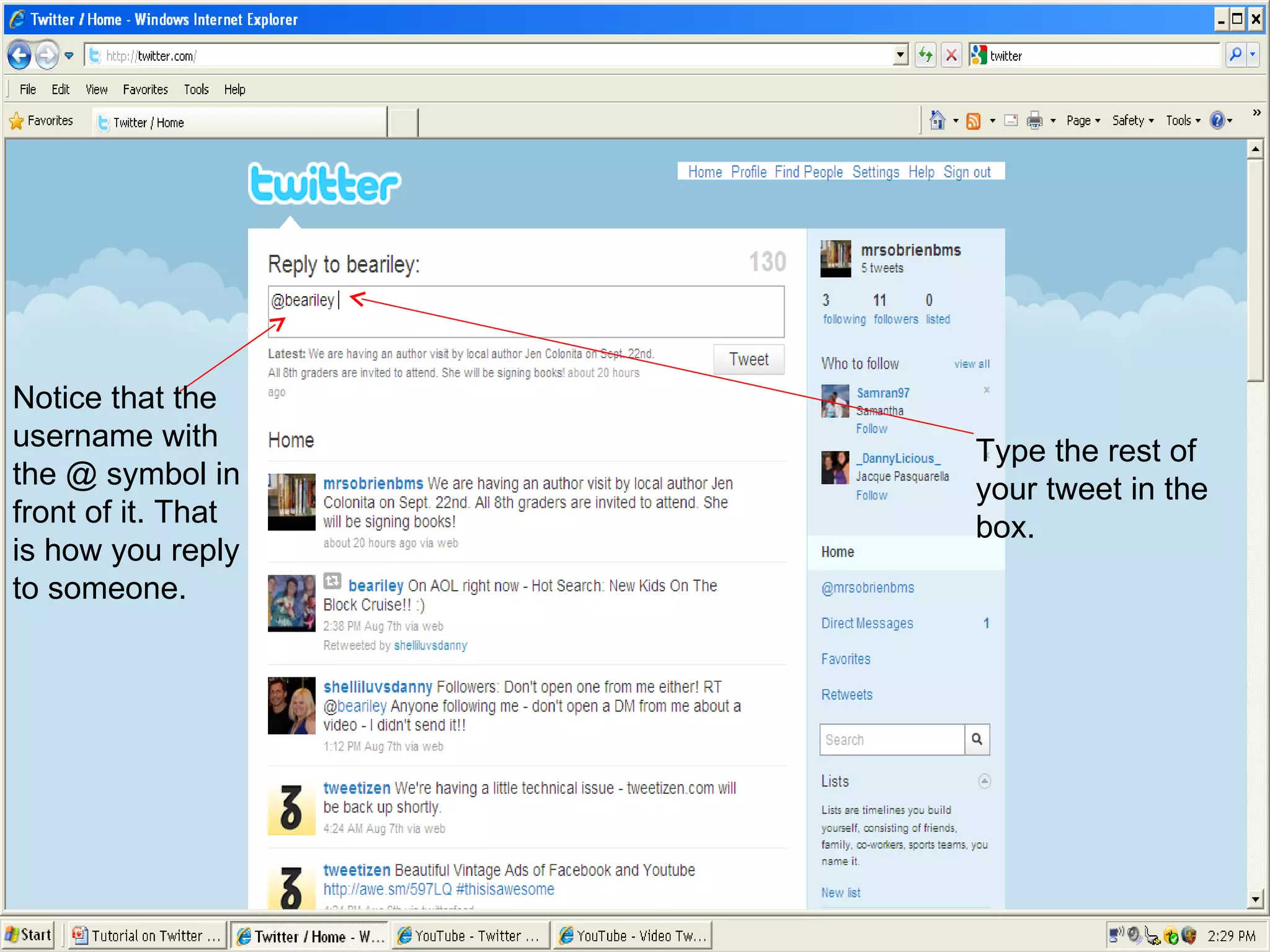
  How to Reply to a Follower’s Tweet Click “Reply” next to the follower’s tweet Replies use the @ symbol When you click “Reply”, you will notice the following appears in the tweet box: @username After the @ symbol and the person’s username, type your reply. Anything in the tweet box counts towards the 140 character limit The next 2 slides give more details about Reply, Retweet, and Favorite
Click to “favorite” a tweet. This saves it. If you want your followers to see someone else’s tweet, Click “Retweet”. Click “Reply” to reply to a followers tweet.
Notice that the username with the @ symbol in front of it. That is how you reply to someone. Type the rest of your tweet in the box.
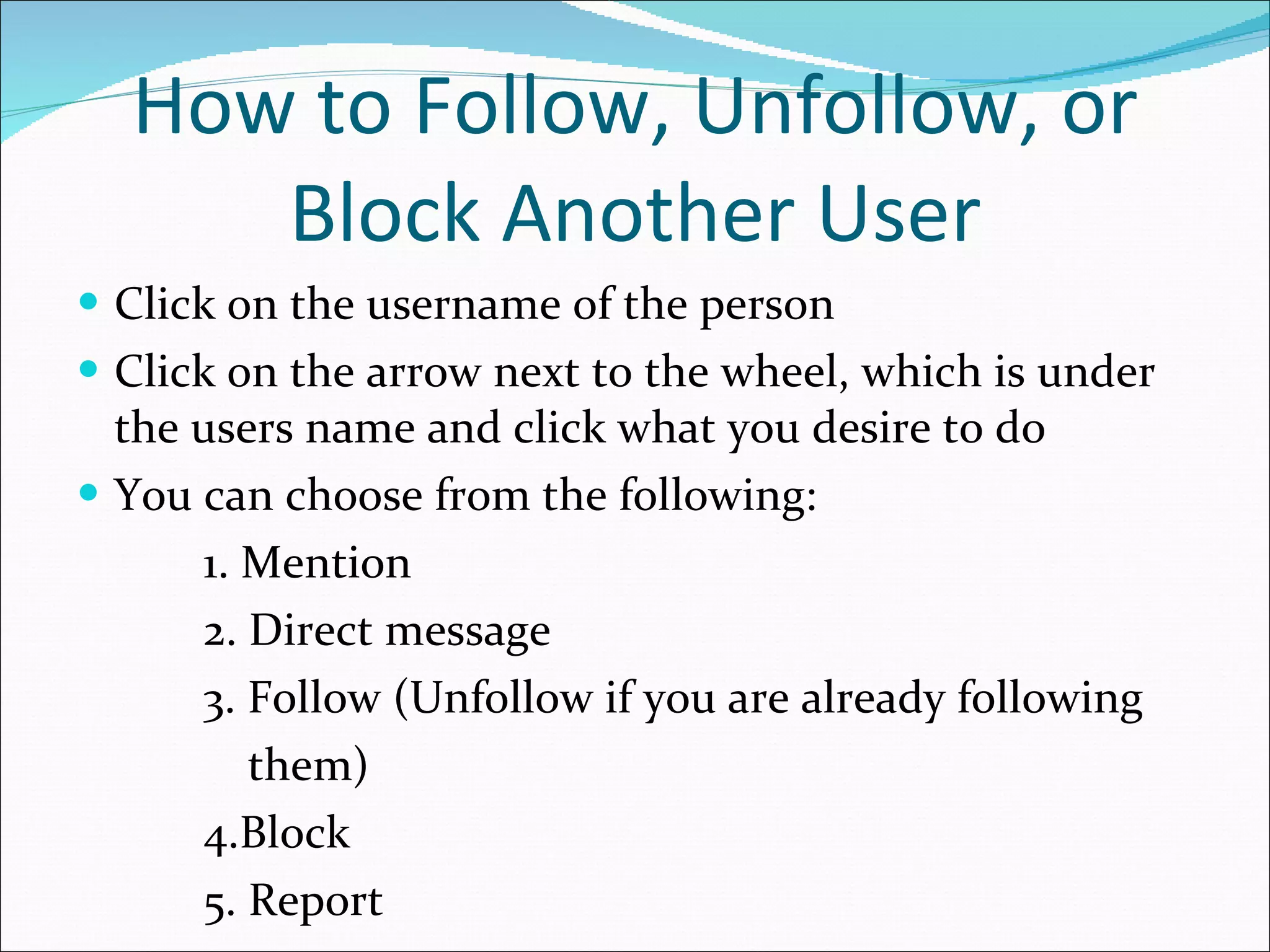
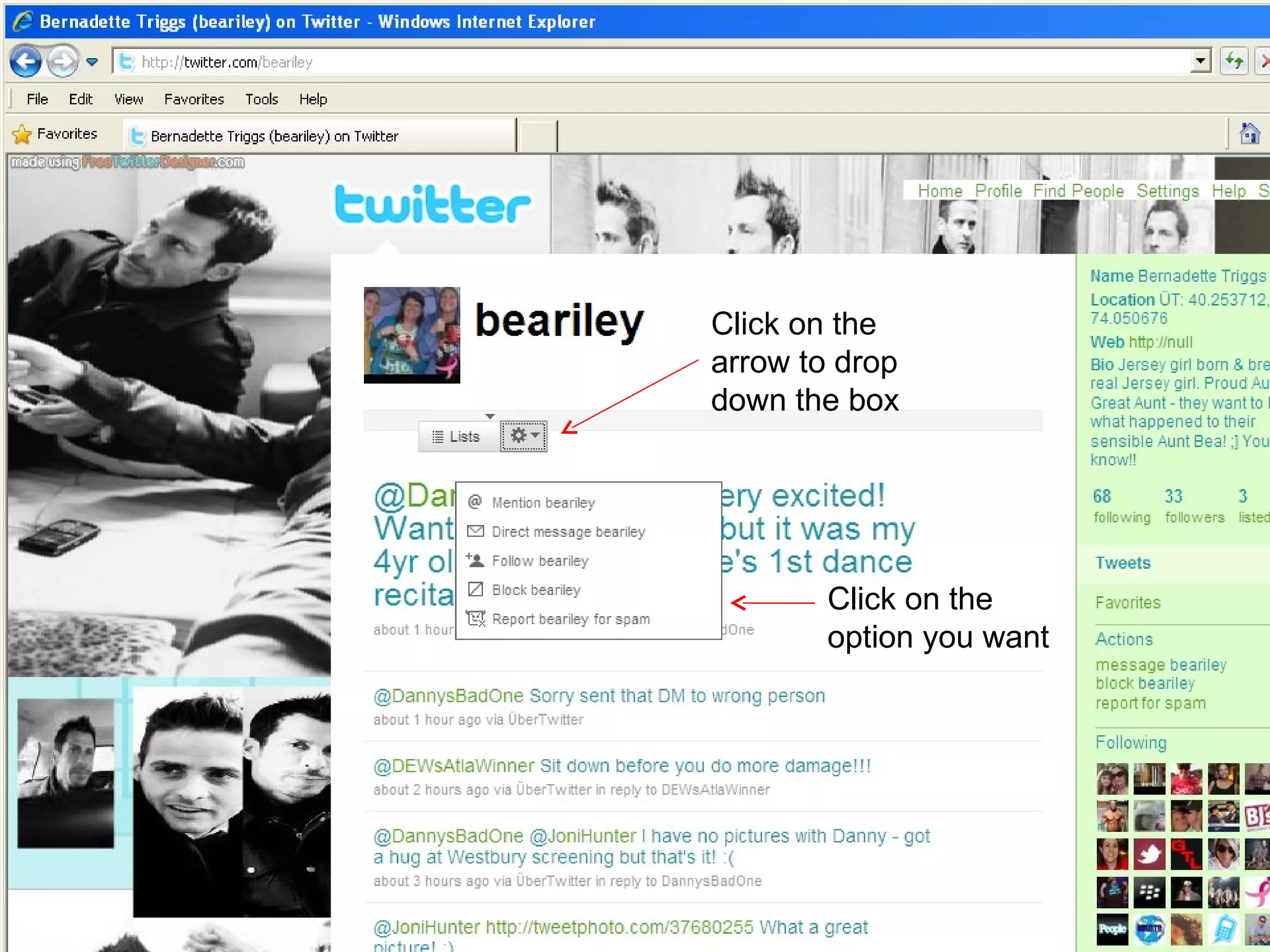
How to Follow, Unfollow, or Block Another User Click on the username of the person Click on the arrow next to the wheel, which is under the users name and click what you desire to do You can choose from the following: 1. Mention 2. Direct message 3. Follow (Unfollow if you are already following  them) 4.Block 5. Report
Click on the arrow to drop down the box Click on the option you want
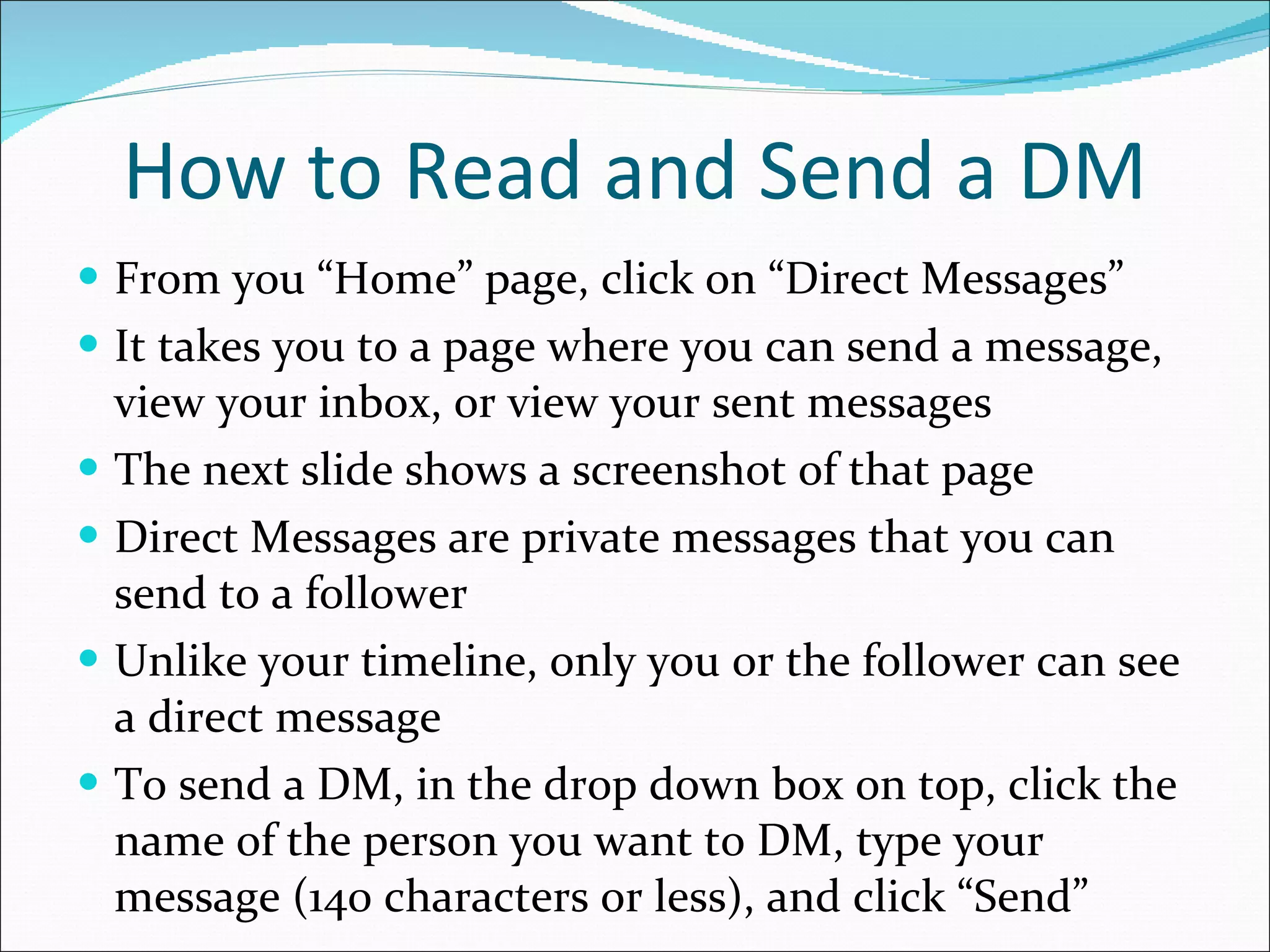
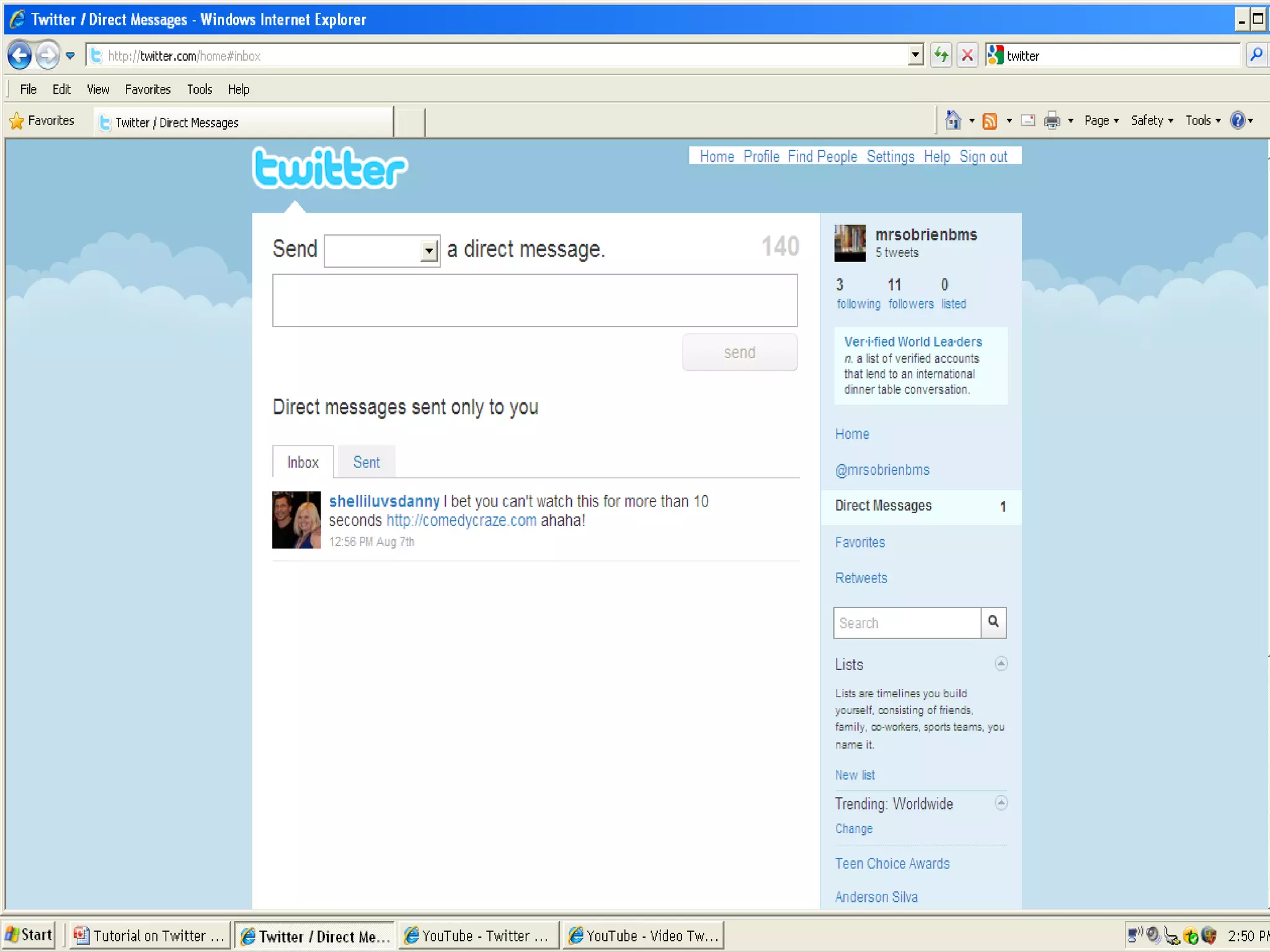
How to Read and Send a DM From you “Home” page, click on “Direct Messages” It takes you to a page where you can send a message, view your inbox, or view your sent messages The next slide shows a screenshot of that page Direct Messages are private messages that you can send to a follower Unlike your timeline, only you or the follower can see a direct message To send a DM, in the drop down box on top, click the name of the person you want to DM, type your message (140 characters or less), and click “Send”
 
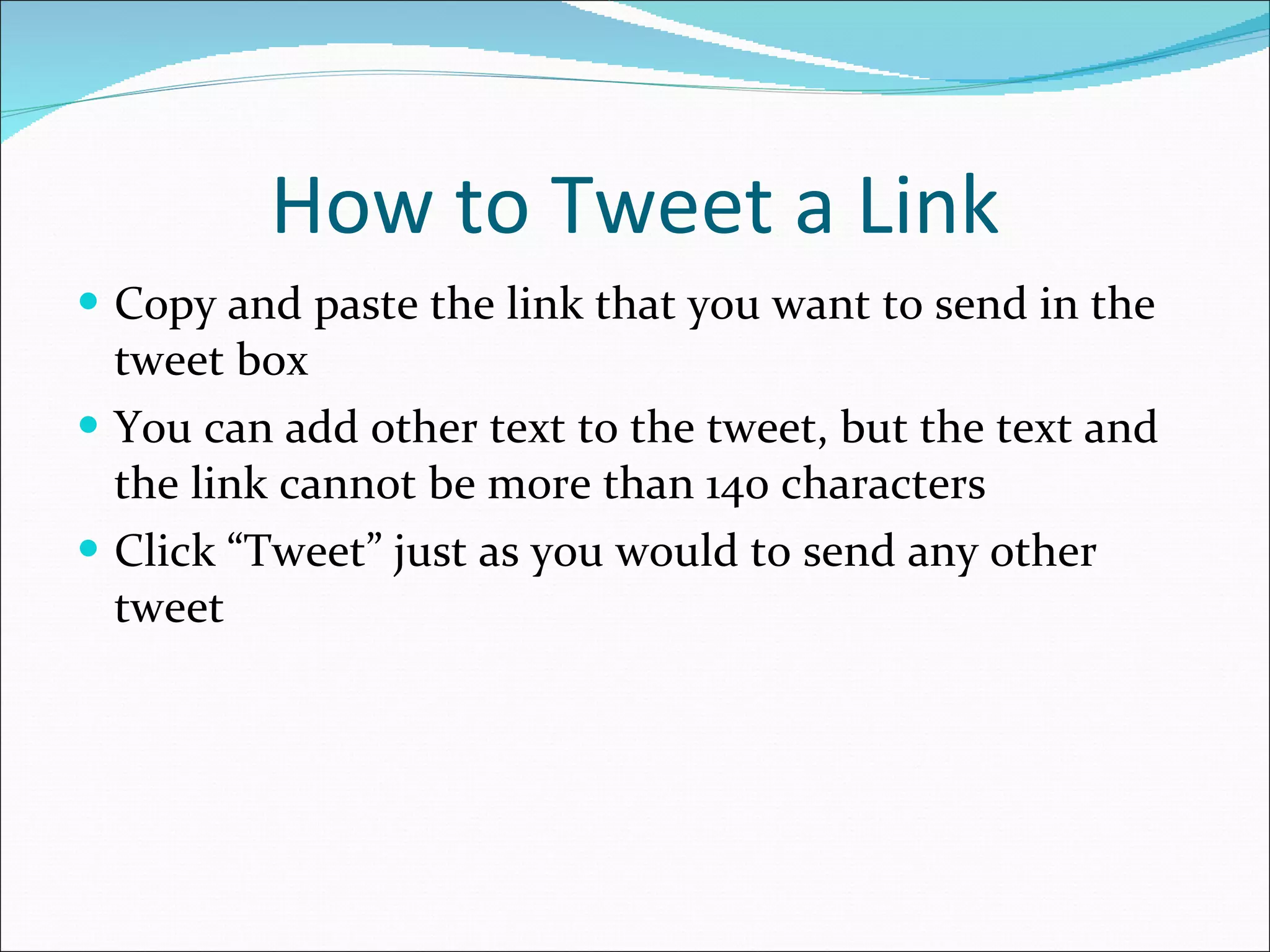
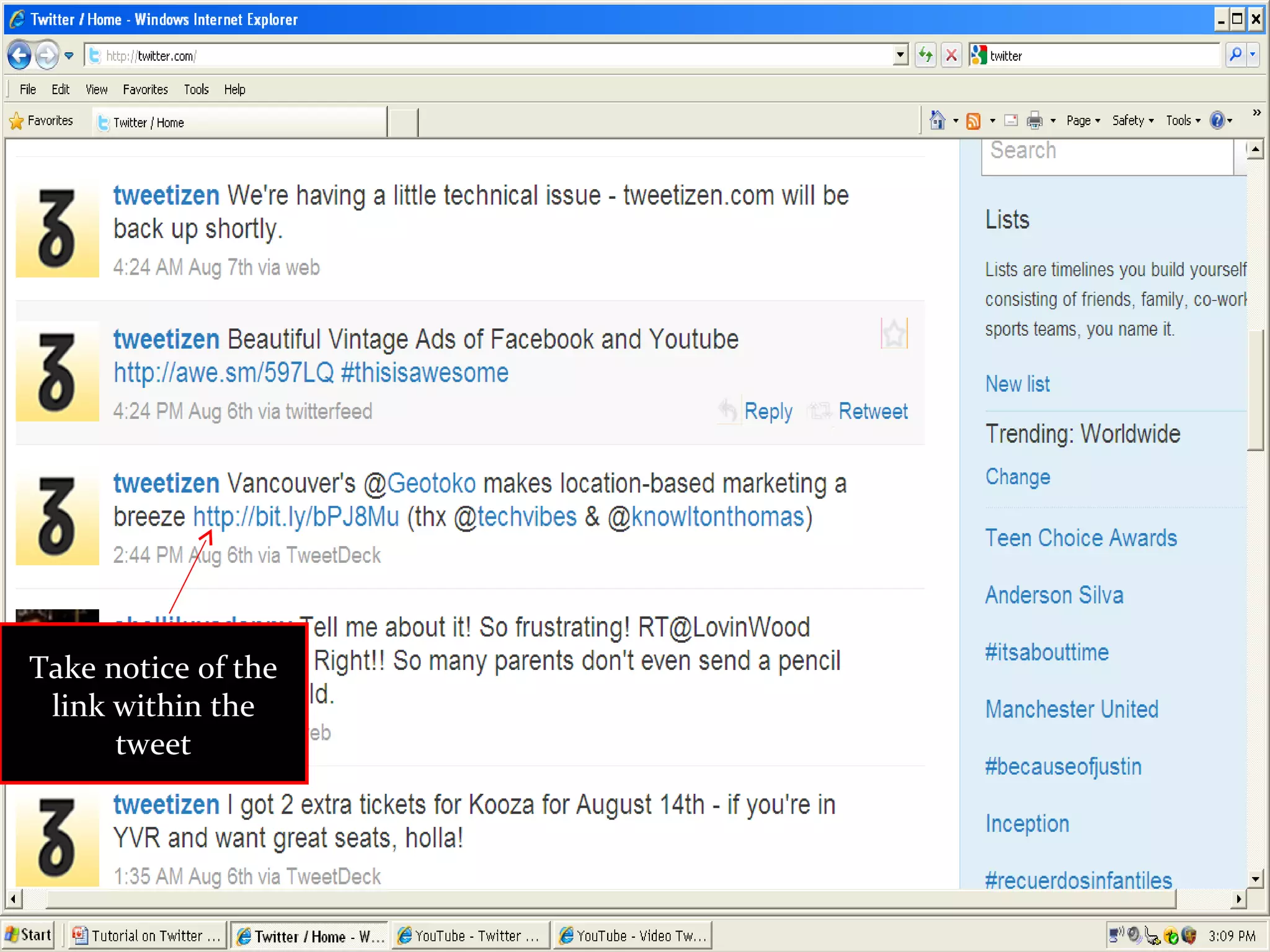
How to Tweet a Link Copy and paste the link that you want to send in the tweet box You can add other text to the tweet, but the text and the link cannot be more than 140 characters Click “Tweet” just as you would to send any other tweet
Take notice of the link within the tweet
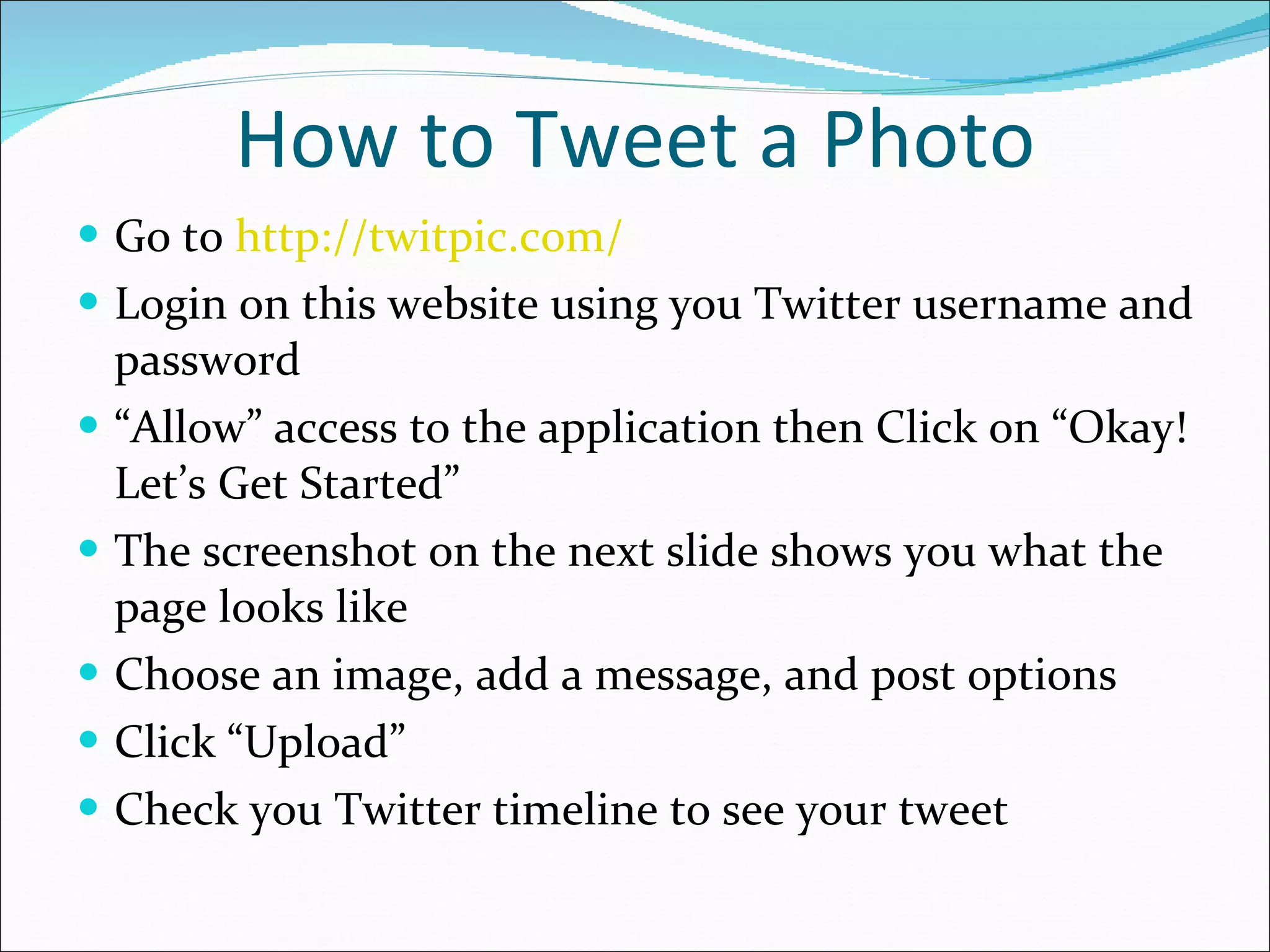
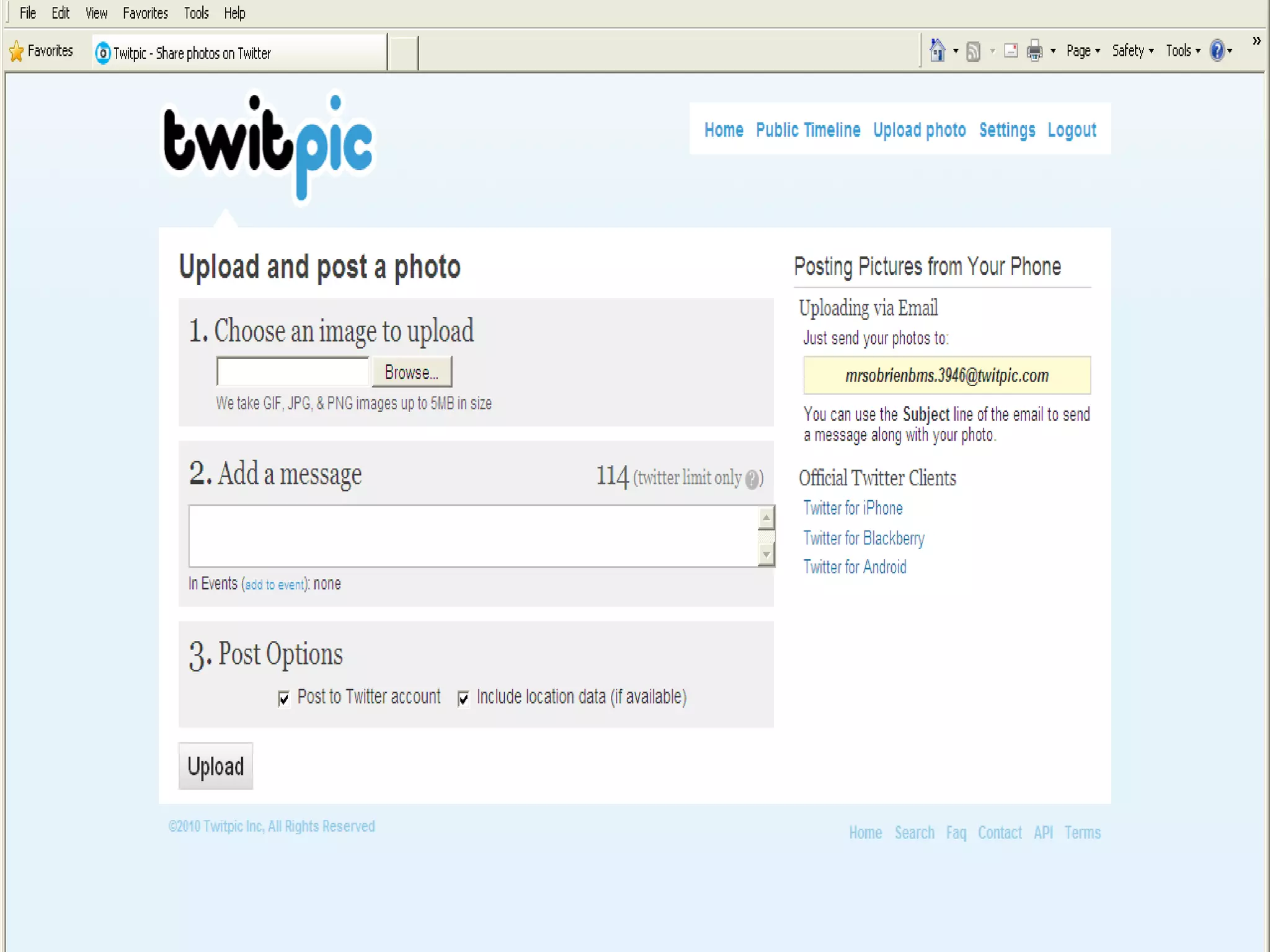
How to Tweet a Photo Go to  http://twitpic.com/ Login on this website using you Twitter username and password “ Allow” access to the application then Click on “Okay! Let’s Get Started” The screenshot on the next slide shows you what the page looks like Choose an image, add a message, and post options Click “Upload” Check you Twitter timeline to see your tweet
 
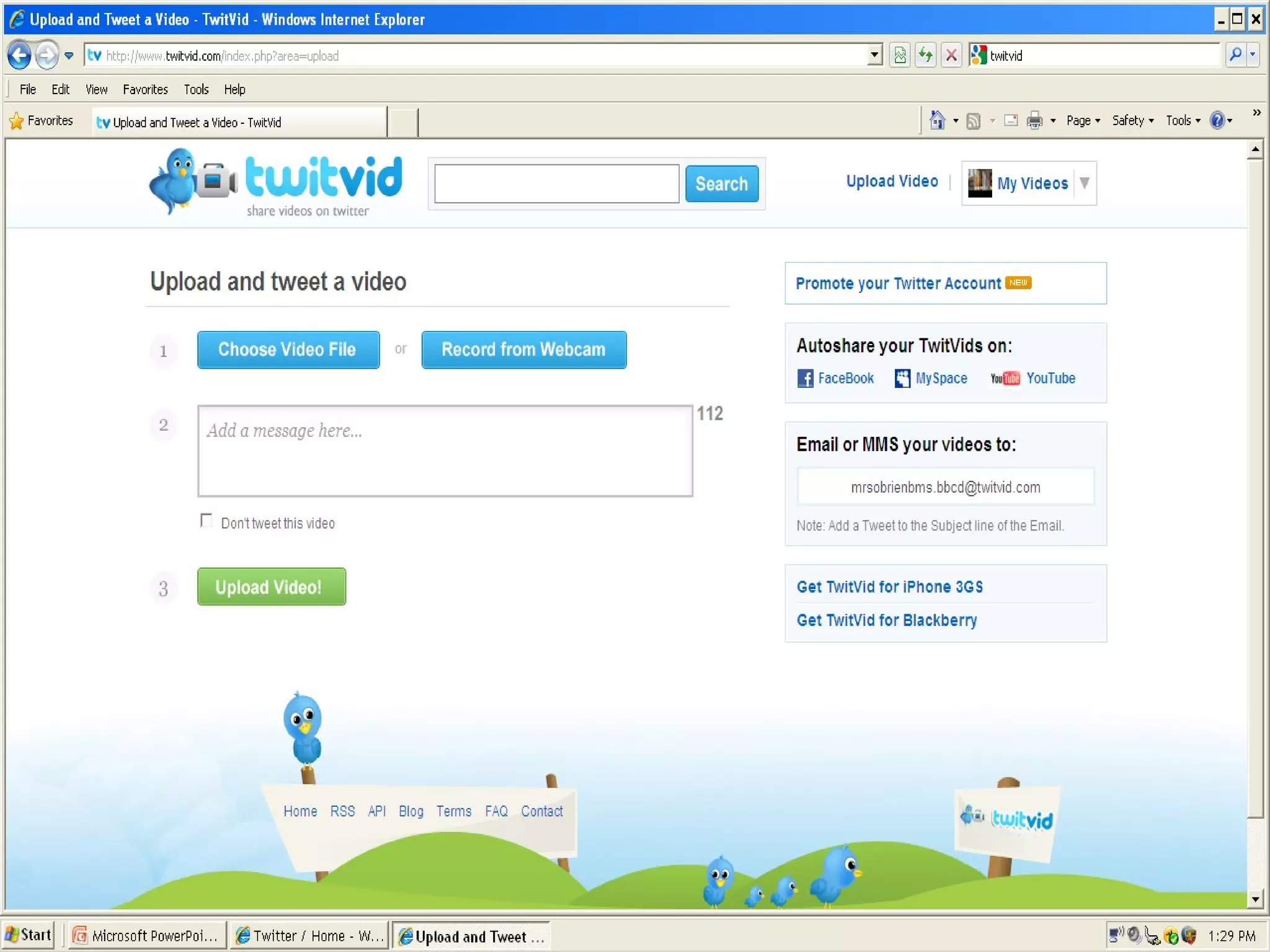
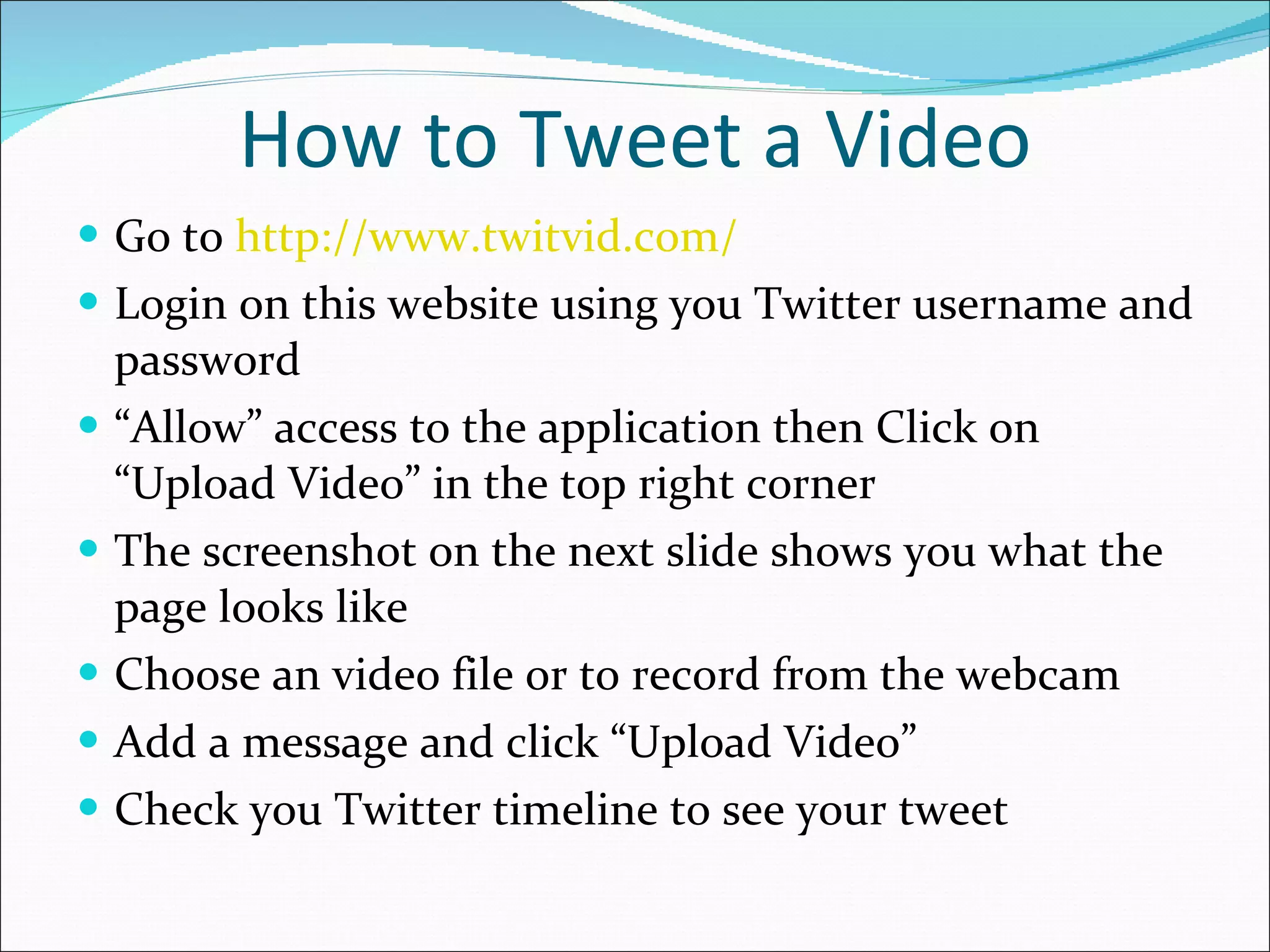
How to Tweet a Video Go to  http://www.twitvid.com/ Login on this website using you Twitter username and password “ Allow” access to the application then Click on “Upload Video” in the top right corner The screenshot on the next slide shows you what the page looks like Choose an video file or to record from the webcam Add a message and click “Upload Video” Check you Twitter timeline to see your tweet
 
Now You are Ready to Promote Your Classroom or School Library Media Center Using Twitter!
References Cole, S. (2009). 20 ways for librarians to use twitter.  Library Journal, 134 (11), 25. Twitter tutorial Twitpic your photos [Video file]. Retrieved from  http://www.youtube.com/watch?v=Lu594QgehFc on August 7, 2010. Video tweeting using Twitvid [Video file]. Retrieved from http://www.youtube.com/watch?v=F5XeeXHz5Ok on August 7, 2010.

Tutorial on Twitter

  • 1.
    Specific Uses forTeachers & School Library Media Specialists
  • 2.
    Why Would aSchool Library Media Specialist Want to Use Twitter? To Ask for Help To Be Helpful To Promote One’s LMC To Make Connections Cole (2009)
  • 3.
    20 Ways SchoolLibrarians Can Use Twitter Ask other librarians for recommended books, products, or services Ask other librarians for help or advice about a topic or professional interest Recommend a book, product, or service to teachers or other librarians Tweet a book list or link to a book list on the web Cole (2009)
  • 4.
    20 Ways SchoolLibrarians Can Use Twitter Tweet about a useful resource, blog, video, podcast, or website Provide a daily word of the day or book of the day Share new ideas with other professionals Celebrate events such as authors birthdays or Banned Books Week Tweet about your library’s website or blog Cole (2009)
  • 5.
    20 Ways SchoolLibrarians Can Use Twitter 10. Link to a book trailer or video booktalk 11. Start a twitter book club for students 12. Invite followers to online events such as book clubs and webchats 13. Link to photos of your library and events 14. Retweet someone’s post that was interesting Tweet with students about new books, authors, and library services Cole (2009)
  • 6.
    20 Ways SchoolLibrarians Can Use Twitter 16. Participate in #FollowFriday 17. Answer a student or colleagues question 18. Schedule to meet up with other librarians on or off twitter 19. Share your favorite new books and authors with others Ask students, teachers, and other librarians for their “favorites” Cole (2009)
  • 7.
    Why Would TeachersWant To Use Twitter? To help students in a math class with a difficult math problem or mathematical concept To share with students in a language arts class a blog about writing styles or a link to an author’s website To tweet a podcast about dissection to a science class To tweet a social studies class a link to an article about a current event that was discussed in class To answer a student’s question about an upcoming assignment To answer a parent’s question about an upcoming field trip
  • 8.
    First, you needto set up an account: Go to http://twitter.com/ Go to “Sign Up” Look at the next two slides The first screen shot shows you where the “Sign Up” is when you first enter the website You will notice a red arrow next to the “Sign Up” The screen shot after that shows you the blank “Sign Up” page
  • 9.
  • 10.
  • 11.
    Once on the“Sign Up” page, type in your full name, username, password, and email
  • 12.
    As you typein the info, it will tell you the availability of your username and strength of your selected password Change this as necessary Click to agree to the “Terms of Service” when you have it set the way you want it Click “Create Account” You are now ready to “Sign In” and create your “Profile”
  • 13.
    Once you setup your account, you can sign in from the “Sign In” page
  • 14.
    The next slideshows what your home page looks like. Notice all of the information contained on your twitter “Home” page.
  • 15.
    Click on theseto see who is following you and who you follow. Use the tool bar to go to your profile, find people, or change settings This is a where your tweet is displayed This is a tweet from one of your followers. Click here to check and send direct messages Type your tweet here and hit the tweet bar!
  • 16.
    How to setup your “Profile” Go to “Profile” on the home page to view your page before you make changes Next, click on “Settings” Then, click on “Profile” You can add a picture, write a bio, and even add a location to your tweets!
  • 17.
    This is whatyour “Profile” looks like before you add to it The items to the right are all of your tweets and your replies to others. Also known as your “ Timeline.” Notice that there is no picture by the username and no bio under your full name.
  • 18.
    This is the“Setting” page
  • 19.
    Click on “Profile”from the “Setting” Page.
  • 20.
    How to adda Picture and a Bio Click on “Browse” to locate a picture from your computer Double click on the picture you want to use and it will automatically put the file in the box To add a bio, type what you would like it to say in the box next to “bio” You will not see a picture or the bio until after you hit “Save” View your Profile, by clicking the “Profile” tab next to the “Home” tab in the upper right hand corner
  • 21.
  • 22.
  • 23.
    Your new “Profile”view that others will see when they click on your twitter page!
  • 24.
    Now you havea picture Now you have a bio
  • 25.
    You are nowready to learn the following: How to Tweet How to Reply to a Followers Tweet How to Retweet and Favorite a Tweet How to Follow, Unfollow, or Block Another User How to Read a Direct Message (DM) How to Send a Direct Message (DM) How to Tweet a Link to a Website How to Tweet a Photo (Twitpic) How to Tweet a Video (Twitvid)
  • 26.
    How to TweetFrom the “Home” page under “What’s happening?”, type what you want to tweet in the text book in 140 characters or less Click “Tweet” The tweet will be displayed in your timeline next to your username and picture
  • 27.
    Type tweet hereClick “Tweet”
  • 28.
    Howto Reply to a Follower’s Tweet Click “Reply” next to the follower’s tweet Replies use the @ symbol When you click “Reply”, you will notice the following appears in the tweet box: @username After the @ symbol and the person’s username, type your reply. Anything in the tweet box counts towards the 140 character limit The next 2 slides give more details about Reply, Retweet, and Favorite
  • 29.
    Click to “favorite”a tweet. This saves it. If you want your followers to see someone else’s tweet, Click “Retweet”. Click “Reply” to reply to a followers tweet.
  • 30.
    Notice that theusername with the @ symbol in front of it. That is how you reply to someone. Type the rest of your tweet in the box.
  • 31.
    How to Follow,Unfollow, or Block Another User Click on the username of the person Click on the arrow next to the wheel, which is under the users name and click what you desire to do You can choose from the following: 1. Mention 2. Direct message 3. Follow (Unfollow if you are already following them) 4.Block 5. Report
  • 32.
    Click on thearrow to drop down the box Click on the option you want
  • 33.
    How to Readand Send a DM From you “Home” page, click on “Direct Messages” It takes you to a page where you can send a message, view your inbox, or view your sent messages The next slide shows a screenshot of that page Direct Messages are private messages that you can send to a follower Unlike your timeline, only you or the follower can see a direct message To send a DM, in the drop down box on top, click the name of the person you want to DM, type your message (140 characters or less), and click “Send”
  • 34.
  • 35.
    How to Tweeta Link Copy and paste the link that you want to send in the tweet box You can add other text to the tweet, but the text and the link cannot be more than 140 characters Click “Tweet” just as you would to send any other tweet
  • 36.
    Take notice ofthe link within the tweet
  • 37.
    How to Tweeta Photo Go to http://twitpic.com/ Login on this website using you Twitter username and password “ Allow” access to the application then Click on “Okay! Let’s Get Started” The screenshot on the next slide shows you what the page looks like Choose an image, add a message, and post options Click “Upload” Check you Twitter timeline to see your tweet
  • 38.
  • 39.
    How to Tweeta Video Go to http://www.twitvid.com/ Login on this website using you Twitter username and password “ Allow” access to the application then Click on “Upload Video” in the top right corner The screenshot on the next slide shows you what the page looks like Choose an video file or to record from the webcam Add a message and click “Upload Video” Check you Twitter timeline to see your tweet
  • 40.
  • 41.
    Now You areReady to Promote Your Classroom or School Library Media Center Using Twitter!
  • 42.
    References Cole, S.(2009). 20 ways for librarians to use twitter. Library Journal, 134 (11), 25. Twitter tutorial Twitpic your photos [Video file]. Retrieved from http://www.youtube.com/watch?v=Lu594QgehFc on August 7, 2010. Video tweeting using Twitvid [Video file]. Retrieved from http://www.youtube.com/watch?v=F5XeeXHz5Ok on August 7, 2010.