Office 2007
Enhancements and Features
for Office 2007
Instructor
Donald E. Hester
CISSP, CISA, CAP, MCT, MCSE Security, MCSA Security, MCDST, CTT+, Security+, MV
Maze & Associates
San Diego City College
INTRODUCTION TO
MICROSOFT OFFICE 2007
Module One
Office 2007
 What’s new?
 Why upgrade?
 Where is FrontPage?
 What is Groove?
 Find options you never
knew you had!
 Average users can look
like pros!
Fundamentals
Make it more secure,
manageable and reliable
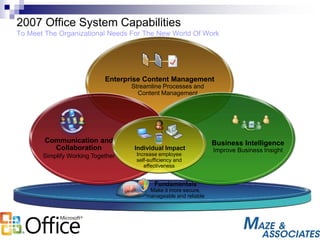
Enterprise Content Management
Streamline Processes and
Content Management
Business Intelligence
Improve Business Insight
2007 Office System Capabilities
To Meet The Organizational Needs For The New World Of Work
Communication and
Collaboration
Simplify Working Together
Individual Impact
Increase employee
self-sufficiency and
effectiveness
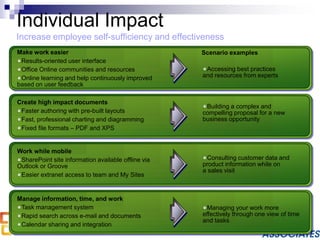
Individual Impact
Increase employee self-sufficiency and effectiveness
Consulting customer data and
product information while on
a sales visit
Building a complex and
compelling proposal for a new
business opportunity
Managing your work more
effectively through one view of time
and tasks
Accessing best practices
and resources from experts
Scenario examples
Create high impact documents
Faster authoring with pre-built layouts
Fast, professional charting and diagramming
Fixed file formats – PDF and XPS
Work while mobile
SharePoint site information available offline via
Outlook or Groove
Easier extranet access to team and My Sites
Manage information, time, and work
Task management system
Rapid search across e-mail and documents
Calendar sharing and integration
Make work easier
Results-oriented user interface
Office Online communities and resources
Online learning and help continuously improved
based on user feedback
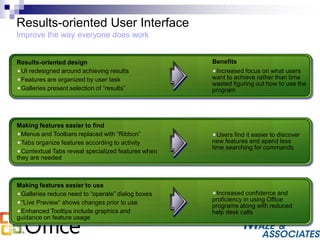
Results-oriented User Interface
Improve the way everyone does work
Increased focus on what users
want to achieve rather than time
wasted figuring out how to use the
program
Increased confidence and
proficiency in using Office
programs along with reduced
help desk calls
Users find it easier to discover
new features and spend less
time searching for commands
BenefitsResults-oriented design
UI redesigned around achieving results
Features are organized by user task
Galleries present selection of “results”
Making features easier to find
Menus and Toolbars replaced with “Ribbon”
Tabs organize features according to activity
Contextual Tabs reveal specialized features when
they are needed
Making features easier to use
Galleries reduce need to “operate” dialog boxes
“Live Preview” shows changes prior to use
Enhanced Tooltips include graphics and
guidance on feature usage
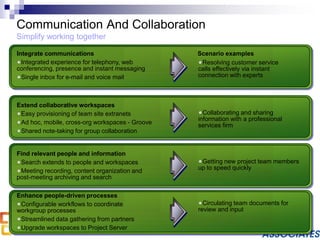
Communication And Collaboration
Simplify working together
Resolving customer service
calls effectively via instant
connection with experts
Getting new project team members
up to speed quickly
Collaborating and sharing
information with a professional
services firm
Circulating team documents for
review and input
Scenario examplesIntegrate communications
Integrated experience for telephony, web
conferencing, presence and instant messaging
Single inbox for e-mail and voice mail
Extend collaborative workspaces
Easy provisioning of team site extranets
Ad hoc, mobile, cross-org workspaces - Groove
Shared note-taking for group collaboration
Find relevant people and information
Search extends to people and workspaces
Meeting recording, content organization and
post-meeting archiving and search
Enhance people-driven processes
Configurable workflows to coordinate
workgroup processes
Streamlined data gathering from partners
Upgrade workspaces to Project Server
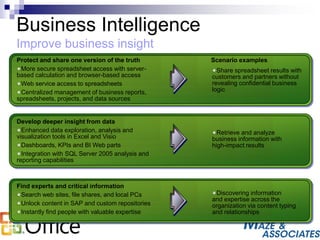
Business Intelligence
Improve business insight
Share spreadsheet results with
customers and partners without
revealing confidential business
logic
Discovering information
and expertise across the
organization via content typing
and relationships
Retrieve and analyze
business information with
high-impact results
Scenario examplesProtect and share one version of the truth
More secure spreadsheet access with server-
based calculation and browser-based access
Web service access to spreadsheets
Centralized management of business reports,
spreadsheets, projects, and data sources
Develop deeper insight from data
Enhanced data exploration, analysis and
visualization tools in Excel and Visio
Dashboards, KPIs and BI Web parts
Integration with SQL Server 2005 analysis and
reporting capabilities
Find experts and critical information
Search web sites, file shares, and local PCs
Unlock content in SAP and custom repositories
Instantly find people with valuable expertise
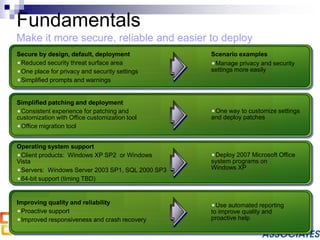
Fundamentals
Make it more secure, reliable and easier to deploy
Manage privacy and security
settings more easily
Deploy 2007 Microsoft Office
system programs on
Windows XP
One way to customize settings
and deploy patches
Use automated reporting
to improve quality and
proactive help
Scenario examplesSecure by design, default, deployment
Reduced security threat surface area
One place for privacy and security settings
Simplified prompts and warnings
Simplified patching and deployment
Consistent experience for patching and
customization with Office customization tool
Office migration tool
Operating system support
Client products: Windows XP SP2 or Windows
Vista
Servers: Windows Server 2003 SP1, SQL 2000 SP3
64-bit support (timing TBD)
Improving quality and reliability
Proactive support
Improved responsiveness and crash recovery
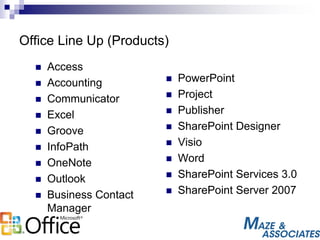
Office Line Up (Products)
 Access
 Accounting
 Communicator
 Excel
 Groove
 InfoPath
 OneNote
 Outlook
 Business Contact
Manager
 PowerPoint
 Project
 Publisher
 SharePoint Designer
 Visio
 Word
 SharePoint Services 3.0
 SharePoint Server 2007
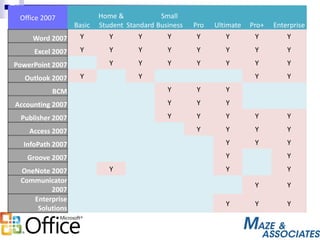
Office 2007
Basic
Home &
Student Standard
Small
Business Pro Ultimate Pro+ Enterprise
Word 2007 Y Y Y Y Y Y Y Y
Excel 2007 Y Y Y Y Y Y Y Y
PowerPoint 2007 Y Y Y Y Y Y Y
Outlook 2007 Y Y Y Y
BCM Y Y Y
Accounting 2007 Y Y Y
Publisher 2007 Y Y Y Y Y
Access 2007 Y Y Y Y
InfoPath 2007 Y Y Y
Groove 2007 Y Y
OneNote 2007 Y Y Y
Communicator
2007
Y Y
Enterprise
Solutions
Y Y Y
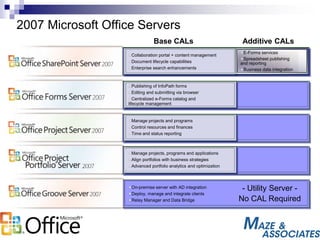
2007 Microsoft Office Servers
On-premise server with AD integration
Deploy, manage and integrate clients
Relay Manager and Data Bridge
Additive CALs
- Utility Server -
No CAL Required
Collaboration portal + content management
Document lifecycle capabilities
Enterprise search enhancements
Publishing of InfoPath forms
Editing and submitting via browser
Centralized e-Forms catalog and
lifecycle management
Manage projects and programs
Control resources and finances
Time and status reporting
Manage projects, programs and applications
Align portfolios with business strategies
Advanced portfolio analytics and optimization
Base CALs
E-Forms services
Spreadsheet publishing
and reporting
Business data integration
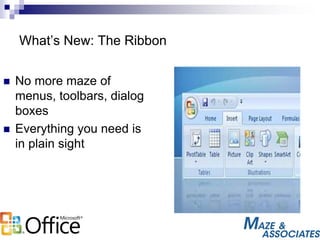
What’s New: The Ribbon
 No more maze of
menus, toolbars, dialog
boxes
 Everything you need is
in plain sight
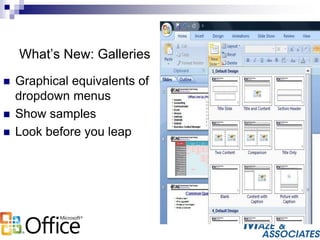
What’s New: Galleries
 Graphical equivalents of
dropdown menus
 Show samples
 Look before you leap
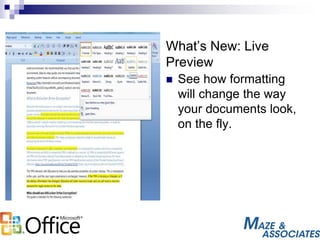
What’s New: Live
Preview
 See how formatting
will change the way
your documents look,
on the fly.
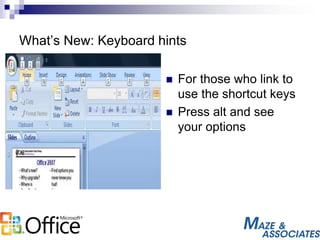
What’s New: Keyboard hints
 For those who link to
use the shortcut keys
 Press alt and see
your options
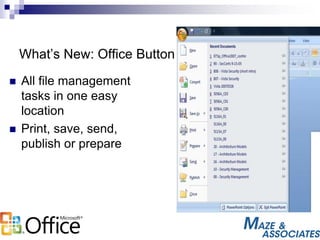
What’s New: Office Button
 All file management
tasks in one easy
location
 Print, save, send,
publish or prepare
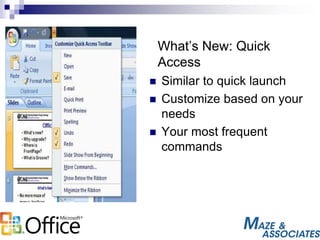
What’s New: Quick
Access
 Similar to quick launch
 Customize based on your
needs
 Your most frequent
commands
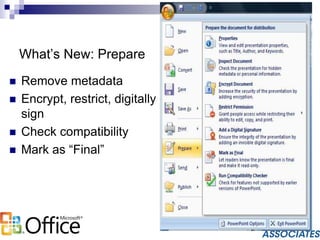
What’s New: Prepare
 Remove metadata
 Encrypt, restrict, digitally
sign
 Check compatibility
 Mark as “Final”
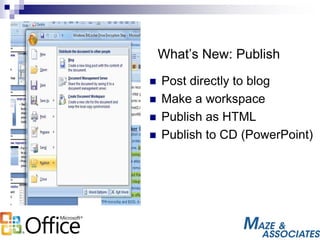
What’s New: Publish
 Post directly to blog
 Make a workspace
 Publish as HTML
 Publish to CD (PowerPoint)
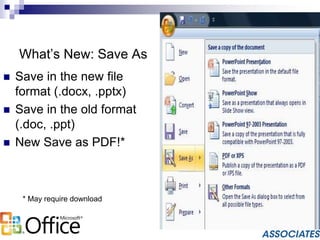
What’s New: Save As
 Save in the new file
format (.docx, .pptx)
 Save in the old format
(.doc, .ppt)
 New Save as PDF!*
* May require download
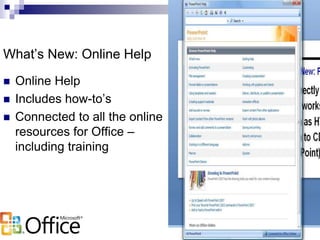
What’s New: Online Help
 Online Help
 Includes how-to’s
 Connected to all the online
resources for Office –
including training
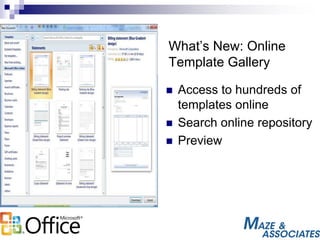
What’s New: Online
Template Gallery
 Access to hundreds of
templates online
 Search online repository
 Preview
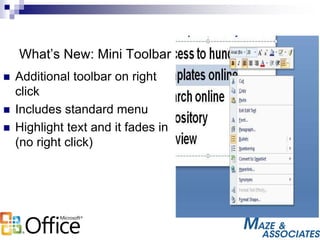
What’s New: Mini Toolbar
 Additional toolbar on right
click
 Includes standard menu
 Highlight text and it fades in
(no right click)
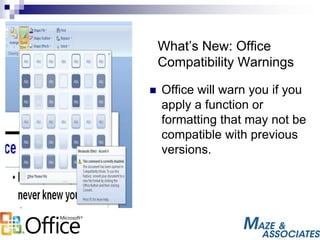
What’s New: Office
Compatibility Warnings
 Office will warn you if you
apply a function or
formatting that may not be
compatible with previous
versions.
SECURITY IN MICROSOFT
OFFICE 2007
Module Two
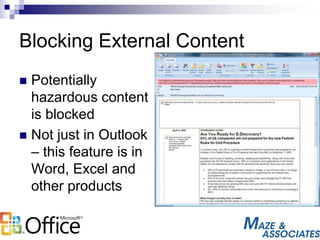
Blocking External Content
 Potentially
hazardous content
is blocked
 Not just in Outlook
– this feature is in
Word, Excel and
other products
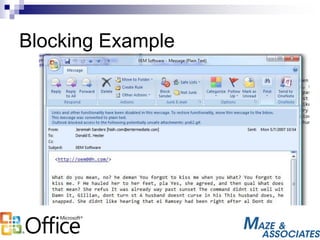
 Microsoft Office products block external content,
including images, hyperlinks, data connections
and linked media, by default.
 Whenever a user opens a document containing
the aforementioned types of external data, the
user will receive a security alert stating that their
security settings have blocked the content.
 The security alert contains two buttons. One
button allows the user to enable the content that
has been blocked.
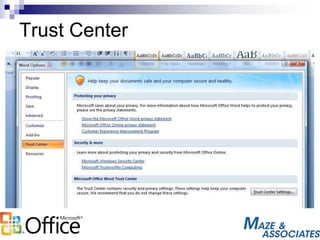
 The other button opens the Trust Center.
Blocking Example
Trust Center
Advanced Options
Safeguard Your Files
Auto Save Options
Automatically
Save A Backup
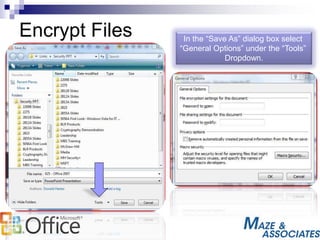
Encrypt Files In the “Save As” dialog box select
“General Options” under the “Tools”
Dropdown.
New File formats
 Default office formats
in XML do not support
macros
 An additional format
allows for macros to
be saved
Contact Information:
Donald E. Hester
DonaldH@MazeAssociates.com
https://www.linkedin.com/in/donaldehester

Enhancements and Features for Office 2007

  • 1.
    Office 2007 Enhancements andFeatures for Office 2007
  • 2.
    Instructor Donald E. Hester CISSP,CISA, CAP, MCT, MCSE Security, MCSA Security, MCDST, CTT+, Security+, MV Maze & Associates San Diego City College
  • 3.
  • 4.
    Office 2007  What’snew?  Why upgrade?  Where is FrontPage?  What is Groove?  Find options you never knew you had!  Average users can look like pros!
  • 5.
    Fundamentals Make it moresecure, manageable and reliable Enterprise Content Management Streamline Processes and Content Management Business Intelligence Improve Business Insight 2007 Office System Capabilities To Meet The Organizational Needs For The New World Of Work Communication and Collaboration Simplify Working Together Individual Impact Increase employee self-sufficiency and effectiveness
  • 6.
    Individual Impact Increase employeeself-sufficiency and effectiveness Consulting customer data and product information while on a sales visit Building a complex and compelling proposal for a new business opportunity Managing your work more effectively through one view of time and tasks Accessing best practices and resources from experts Scenario examples Create high impact documents Faster authoring with pre-built layouts Fast, professional charting and diagramming Fixed file formats – PDF and XPS Work while mobile SharePoint site information available offline via Outlook or Groove Easier extranet access to team and My Sites Manage information, time, and work Task management system Rapid search across e-mail and documents Calendar sharing and integration Make work easier Results-oriented user interface Office Online communities and resources Online learning and help continuously improved based on user feedback
  • 7.
    Results-oriented User Interface Improvethe way everyone does work Increased focus on what users want to achieve rather than time wasted figuring out how to use the program Increased confidence and proficiency in using Office programs along with reduced help desk calls Users find it easier to discover new features and spend less time searching for commands BenefitsResults-oriented design UI redesigned around achieving results Features are organized by user task Galleries present selection of “results” Making features easier to find Menus and Toolbars replaced with “Ribbon” Tabs organize features according to activity Contextual Tabs reveal specialized features when they are needed Making features easier to use Galleries reduce need to “operate” dialog boxes “Live Preview” shows changes prior to use Enhanced Tooltips include graphics and guidance on feature usage
  • 8.
    Communication And Collaboration Simplifyworking together Resolving customer service calls effectively via instant connection with experts Getting new project team members up to speed quickly Collaborating and sharing information with a professional services firm Circulating team documents for review and input Scenario examplesIntegrate communications Integrated experience for telephony, web conferencing, presence and instant messaging Single inbox for e-mail and voice mail Extend collaborative workspaces Easy provisioning of team site extranets Ad hoc, mobile, cross-org workspaces - Groove Shared note-taking for group collaboration Find relevant people and information Search extends to people and workspaces Meeting recording, content organization and post-meeting archiving and search Enhance people-driven processes Configurable workflows to coordinate workgroup processes Streamlined data gathering from partners Upgrade workspaces to Project Server
  • 9.
    Business Intelligence Improve businessinsight Share spreadsheet results with customers and partners without revealing confidential business logic Discovering information and expertise across the organization via content typing and relationships Retrieve and analyze business information with high-impact results Scenario examplesProtect and share one version of the truth More secure spreadsheet access with server- based calculation and browser-based access Web service access to spreadsheets Centralized management of business reports, spreadsheets, projects, and data sources Develop deeper insight from data Enhanced data exploration, analysis and visualization tools in Excel and Visio Dashboards, KPIs and BI Web parts Integration with SQL Server 2005 analysis and reporting capabilities Find experts and critical information Search web sites, file shares, and local PCs Unlock content in SAP and custom repositories Instantly find people with valuable expertise
  • 10.
    Fundamentals Make it moresecure, reliable and easier to deploy Manage privacy and security settings more easily Deploy 2007 Microsoft Office system programs on Windows XP One way to customize settings and deploy patches Use automated reporting to improve quality and proactive help Scenario examplesSecure by design, default, deployment Reduced security threat surface area One place for privacy and security settings Simplified prompts and warnings Simplified patching and deployment Consistent experience for patching and customization with Office customization tool Office migration tool Operating system support Client products: Windows XP SP2 or Windows Vista Servers: Windows Server 2003 SP1, SQL 2000 SP3 64-bit support (timing TBD) Improving quality and reliability Proactive support Improved responsiveness and crash recovery
  • 11.
    Office Line Up(Products)  Access  Accounting  Communicator  Excel  Groove  InfoPath  OneNote  Outlook  Business Contact Manager  PowerPoint  Project  Publisher  SharePoint Designer  Visio  Word  SharePoint Services 3.0  SharePoint Server 2007
  • 12.
    Office 2007 Basic Home & StudentStandard Small Business Pro Ultimate Pro+ Enterprise Word 2007 Y Y Y Y Y Y Y Y Excel 2007 Y Y Y Y Y Y Y Y PowerPoint 2007 Y Y Y Y Y Y Y Outlook 2007 Y Y Y Y BCM Y Y Y Accounting 2007 Y Y Y Publisher 2007 Y Y Y Y Y Access 2007 Y Y Y Y InfoPath 2007 Y Y Y Groove 2007 Y Y OneNote 2007 Y Y Y Communicator 2007 Y Y Enterprise Solutions Y Y Y
  • 13.
    2007 Microsoft OfficeServers On-premise server with AD integration Deploy, manage and integrate clients Relay Manager and Data Bridge Additive CALs - Utility Server - No CAL Required Collaboration portal + content management Document lifecycle capabilities Enterprise search enhancements Publishing of InfoPath forms Editing and submitting via browser Centralized e-Forms catalog and lifecycle management Manage projects and programs Control resources and finances Time and status reporting Manage projects, programs and applications Align portfolios with business strategies Advanced portfolio analytics and optimization Base CALs E-Forms services Spreadsheet publishing and reporting Business data integration
  • 14.
    What’s New: TheRibbon  No more maze of menus, toolbars, dialog boxes  Everything you need is in plain sight
  • 15.
    What’s New: Galleries Graphical equivalents of dropdown menus  Show samples  Look before you leap
  • 16.
    What’s New: Live Preview See how formatting will change the way your documents look, on the fly.
  • 17.
    What’s New: Keyboardhints  For those who link to use the shortcut keys  Press alt and see your options
  • 18.
    What’s New: OfficeButton  All file management tasks in one easy location  Print, save, send, publish or prepare
  • 19.
    What’s New: Quick Access Similar to quick launch  Customize based on your needs  Your most frequent commands
  • 20.
    What’s New: Prepare Remove metadata  Encrypt, restrict, digitally sign  Check compatibility  Mark as “Final”
  • 21.
    What’s New: Publish Post directly to blog  Make a workspace  Publish as HTML  Publish to CD (PowerPoint)
  • 22.
    What’s New: SaveAs  Save in the new file format (.docx, .pptx)  Save in the old format (.doc, .ppt)  New Save as PDF!* * May require download
  • 23.
    What’s New: OnlineHelp  Online Help  Includes how-to’s  Connected to all the online resources for Office – including training
  • 24.
    What’s New: Online TemplateGallery  Access to hundreds of templates online  Search online repository  Preview
  • 25.
    What’s New: MiniToolbar  Additional toolbar on right click  Includes standard menu  Highlight text and it fades in (no right click)
  • 26.
    What’s New: Office CompatibilityWarnings  Office will warn you if you apply a function or formatting that may not be compatible with previous versions.
  • 27.
  • 28.
    Blocking External Content Potentially hazardous content is blocked  Not just in Outlook – this feature is in Word, Excel and other products
  • 29.
     Microsoft Officeproducts block external content, including images, hyperlinks, data connections and linked media, by default.  Whenever a user opens a document containing the aforementioned types of external data, the user will receive a security alert stating that their security settings have blocked the content.  The security alert contains two buttons. One button allows the user to enable the content that has been blocked.  The other button opens the Trust Center.
  • 30.
  • 31.
  • 32.
  • 33.
  • 34.
  • 35.
    Encrypt Files Inthe “Save As” dialog box select “General Options” under the “Tools” Dropdown.
  • 36.
    New File formats Default office formats in XML do not support macros  An additional format allows for macros to be saved
  • 37.
    Contact Information: Donald E.Hester DonaldH@MazeAssociates.com https://www.linkedin.com/in/donaldehester

Editor's Notes

  • #6 As the ground shifts under organizations in the new world of work, it only makes sense that the tools information workers use in their jobs should evolve to meet new needs and provide new capabilities. The traditional authoring, analysis and communications tools remain relevant, but are no longer “good enough” on their own to enable information workers to maximize their contributions or adapt to the onslaught of new data. Already, information work solutions are becoming more deeply integrated with network infrastructure, better able to support critical capabilities like information rights management, and expanding to provide richer communication and collaboration channels for teams and organizations. Looking ahead to the next few years, we see opportunity in organizations of all sizes to maximize employee and workgroup impact, connect effectively with customers and partners, enable informed and timely decision making, and manage and protect information in today’s corporate environment. Microsoft is focusing on five major areas to provide workers and organizations with the means to compete and win in an environment of accelerated change. Key points: Three big organization-wide areas of investment: Enterprise Content Management, Communication and Collaboration and Business Intelligence We see benefits of the integration of capabilities of these markets and the market convergence happening around these One of the keys to get full value of these capabilities is the individual – where customers have failed to get full benefits from these types of systems is tied to getting users to adopt the usage and business process changes. Underlying this is the ability to build and extend solutions and fundamental elements of manageability, reliability and security Key take-aways Enterprise focus with emphasis on empowering the individual Taking an end-to-end solution view from individuals working in familiar Office programs to enterprise servers providing capabilities to address organizational needs to “cloud services” providing capabilities or assistance to users. Long-term commitment – not a one release focus Increase Individual Impact Objective: Increase employee self-sufficiency and effectiveness Emphasize: We will continue to invest in providing tools for individuals to be productive and effective. We will be working to make individuals more self-sufficient by enabling them to perform more sophisticated tasks themselves and providing more self and community-based help options. Communication & Collaboration Objective: Simplify Working Together Emphasize: We will continue to invest in team effectiveness and will be expanding this to include integrated communications and the ability to work easily with partners and customers. Enterprise Content Management Objective 1: Streamline Content Management Emphasize: We will expand what we provided in Wave 2003 of the Office System for document management to allow better policy management of content across the organization. We will be making sure we keep the overhead of document management to a minimum and that we make it simple for end users to participate in document management processes. Objective 2: Streamline processes Emphasize: For corporate developers, we will be delivering a platform on which they can easily build and deliver rich solutions that incorporate workflow, business system integration and Office client familiarity. Business Intelligence Objective: Improve business insight Emphasize: We will make it easy to find, analyze and use the expertise and data hidden within an organization and its business systems to make better informed decisions personally and within a team. Fundamentals Objective: Make it secure, reliable and easier to deploy Emphasize We have made great strides in the last few years on the security, reliability, and deployment of Office, and we will continue to invest in these fundamentals. We are making investments in establishing a digital connection with customers, making deployment and patching simpler and providing software that is secure by design and by default. 2007 Microsoft Office suites will support Windows XP SP1+ for clients and Windows Server 2003 & SQL 2000 and later for servers.
  • #7 There is still a lot of headroom to make individuals more effective outside of the team and organization-level processes that we’ll get into in the other themes. 2007 Office system includes advances in usability, document production, mobility and personal information management, including task management. We will first take a look at what we are doing to improve usability with the new results-oriented users interface. NOTE: The ability to access SharePoint sites offline with Outlook requires Windows SharePoint Services 3.0 – this will be available as a free download to all Windows Server 2003 users at Office 12 GA
  • #8 Key points: Results-oriented design The new UI is called results-oriented because we shifted our focus to thinking about what we could do to make it easier for users to achieve the results they wanted, rather than concentrating on how to implement features. This is a profound change in orientation. Galleries are a good example of this. They make it easier to use commands by presenting a selection of potential results that users can easily browse and select. The new way UI makes it easier for users to stay focused on what they want to accomplish rather than on trying to figure out how to get the program to do what they want it to do. Making features easier to find One big consequence is that commands are no longer organized into a standard set of traditional menus. (this lead to such anomalies as needing to go to the VIEW menu to insert a footer into a document. Instead we organize commands based on the things that people want to do in the programs. Like Write, Review, work with Formulas etc. Doing this makes it easy for users to find the commands they are looking for. All the commands available for accomplishing one of these tasks are available in a rich graphical way on the Tab associated with that task. Specialized features that are only useful when editing certain objects are kept out of the way until they are needed. This reduces the number of choices users must sort through when looking for a command. When the user click on a table for example, the tabs that contains all the commands for laying out and formatting tables appears. As a results Users will have a much easier time exploring the program, discovering new features. Making features easier to use Galleries act as an shortcut to advanced editing and formatting commands that until now had been “locked up” in complicated dialog boxes that many users are uncomfortable using. By providing a “pick and click” way to use these features, the new galleries simplify using the programs to get the results users want. The Live preview capability previews the results of selections made from Galleries so users have an easier time seeing what will happen when they make their selection. This increases users confidence in using features they may not have been comfortable with in the old UI.
  • #9 All your communication methods will be integrated together, so that it is easy to find and connect with people and valuable interaction information is captured. Collaborate more easily with customers and partners through extranet sites and Groove Better ties between personal and team calendars helps you collaborate and manage team projects.
  • #10  Broaden access to and usability of business data and applications through the business data catalog, report center and dashboard center – make BI assessable to more people Use new visualization and data exploration capabilities in Office 12 to understand patterns and trends in business data to develop greater insight Find critical business information and expertise regardless of its location through enhanced search and social networking capabilities
  • #36 Document encryption/password protection The password protection in Office 2003 was often criticized because of the weakness of its encryption. Although it used the RC4 stream cipher with a 128-bit key, the initialization vector (IV) and same keystream were used to encrypt the document each time you did so. That meant a hacker could crack the password by comparing two versions of a password-protected file. No hacking skills? No problem. Several software products are marketed as "password recovery tools" for cracking Office 2003 passwords. Office 2007 uses AES (Advanced Encryption Standard) with a 128-bit key and SHA-1 hashing. For stronger protection, you can increase the key length to 256 bits by editing the registry or using Group Policy. This improves the security of password-protected files, especially when long, complex passwords are used.   Pasted from <http://articles.techrepublic.com.com/5100-10877_11-6176764.html>