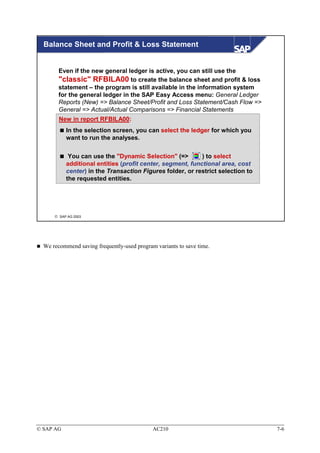
AC210 Das neue Hauptbuch
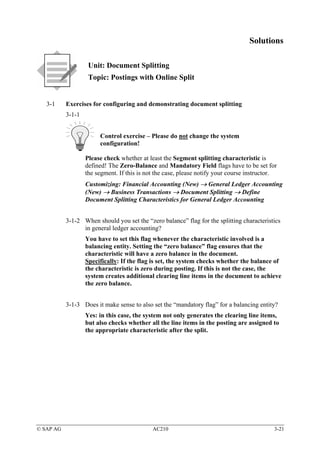
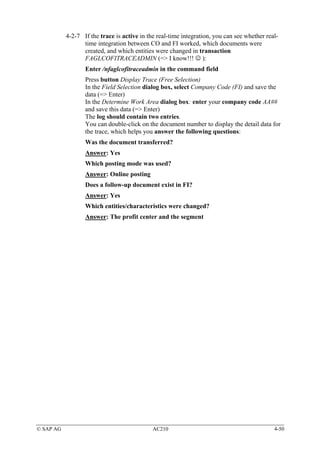
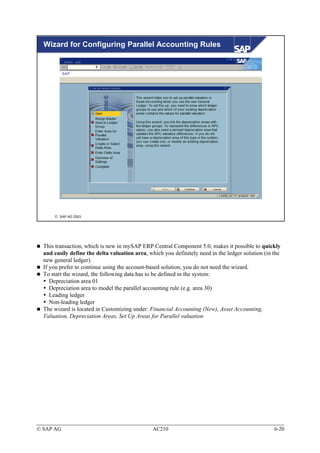
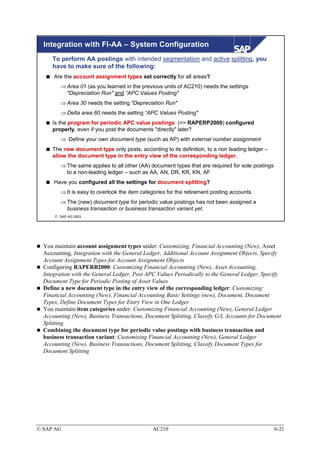
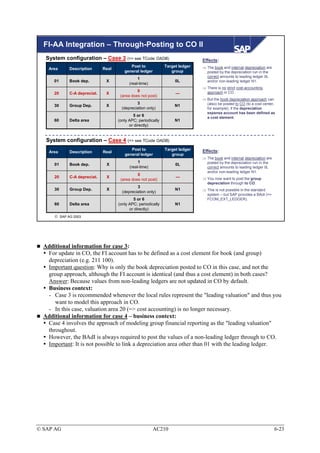
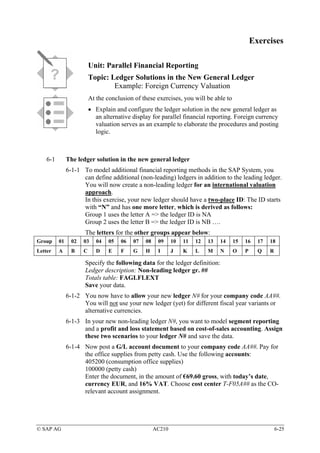
FS310 Inkasso/Exkasso


          AC210
          The New General Ledger


           THE BEST-RUN BUSINESSES RUN SAP

    SAP AG© SAP AG 2005
           2003


mySAP ERP Central Component 5.0
2005/Q2
Material number 50073592
Copyright


        Copyright 2005 SAP AG. All rights reserved.
        Neither this publication nor any part of it may be copied or
        reproduced in any form or by any means without the prior
        written consent of SAP AG. The information contained in this
        publication is subject to change without prior notice.


         SAP AG 2003


Trademarks
  Some software products marketed by SAP AG and its distributors contain proprietary software components of
  other software vendors.
  Microsoft, Windows, Outlook and PowerPoint are registered trademarks of Microsoft Corporation.
  IBM, DB2, DB2 Universal Database, OS/2, Parallel Sysplex, MVS/ESA, AIX, S/390, AS/400, OS/390,
  OS/400, iSeries, pSeries, xSeries, zSeries, z/OS, AFP, Intelligent Miner, WebSphere, Netfinity, Tivoli, and
  Informix are trademarks or registered trademarks of IBM Corp. in the USA and/or other countries.
  ORACLE is a registered trademark of ORACLE Corporation.
  UNIX, X/Open, OSF/1, and Motif are registered trademarks of the Open Group.
  Citrix, ICA, Program Neighborhood, MetaFrame, WinFrame, VideoFrame, and MultiWin are trademarks or
  registered trademarks of Citrix Systems, Inc.
  HTML, XML, XHTML, and W3C are trademarks or registered trademarks of W3C®, World Wide Web
  Consortium, Massachusetts Institute of Technology.
  JAVA is a registered trademark of Sun Microsystems, Inc.
  JavaScript is a registered trademark of Sun Microsystems, Inc., used under license for technology invented and
  implemented by Netscape.
  MaxDB is a trademark of MySQL AB, Sweden.
  SAP, R/3, mySAP.com, xApps, xApp and other SAP products and services mentioned herein as well as their
  respective logos are trademarks or registered trademarks of SAP AG in Germany and in other countries
  worldwide. All other product and service names mentioned are the trademarks of their respective owners. Data
  contained in this document serves informational purposes only. National product specifications may vary.
  The information contained in this publication is subject to change without prior notice. These materials are
  provided by SAP AG and its affiliated companies ("SAP Group") for informational purposes only, without
  representation or warranty of any kind, and SAP Group shall not be liable for errors or omissions with respect
  to the materials. The only warranties for SAP Group products and services are those that are set forth in the
  express warranty statements accompanying such products and services, if any. Nothing herein should be
  construed as constituting an additional warranty.
Prerequisites for Course Participants


  Required:
       Familiarity with operation and use of the conventional
       general ledger
  Recommended:
       Familiarity with FI subledger accounting and Management
       Accounting (=> CO)


    SAP AG 2003
Target Audience


  Participants
      People responsible for implementing the new general
      ledger
      (SAP) consultants
  Duration
      3 days


   SAP AG 2003
Course Objectives


                       After the course, the participants will be able to
                       understand the logic behind the new general ledger
                       After the course, the participants will be able to
                       activate, configure, and use the new general ledger


     SAP AG 2003


These course materials are not suitable for self-learning. The information you will get from your
course instructor is essential to completing the materials.
In some cases, there may not be enough time to perform all the exercises during the course. The
exercises represent additional examples that are covered during the course. You can also go through
the exercises yourself after the course, to reinforce what you learned.
Contents


             Leader

Unit 1       Introduction              Unit 5   Periodic Processing
Unit 2       Ledger Definition         Unit 6   Parallel Accounting
Unit 3       Document Splitting        Unit 7   Reporting
Unit 4       Integration               Unit 8   Migration


             Exercises and Solutions


   SAP AG 2003
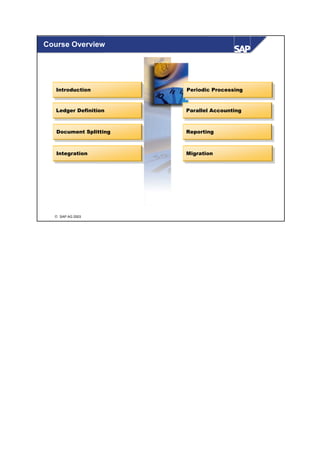
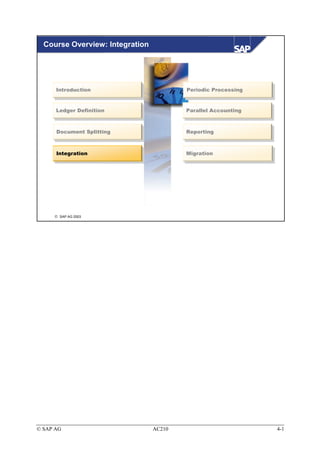
Course Overview


   Introduction
    Introduction         Periodic Processing
                          Periodic Processing


   Ledger Definition
    Ledger Definition    Parallel Accounting
                          Parallel Accounting


   Document Splitting
    Document Splitting   Reporting
                          Reporting


   Integration
    Integration          Migration
                         Migration


   SAP AG 2003
Course Overview: Introduction


      Introduction
       Introduction                   Periodic Processing
                                       Periodic Processing


      Ledger Definition
       Ledger Definition              Parallel Accounting
                                       Parallel Accounting


      Document Splitting
       Document Splitting             Reporting
                                       Reporting


      Integration
       Integration                    Migration
                                      Migration


      SAP AG 2003


© SAP AG                      AC210                          1-1
Introduction


           Contents:

               This unit summarizes the most important properties and
               benefits of the new general ledger in a compact overview


      SAP AG 2003


© SAP AG                              AC210                               1-2
Introduction: Objectives


                     At the conclusion of this unit, you will be able to

                        Outline the advantages and benefits of the new
                        general ledger
                        Name possible functions of the new general ledger


      SAP AG 2003


© SAP AG                                 AC210                              1-3
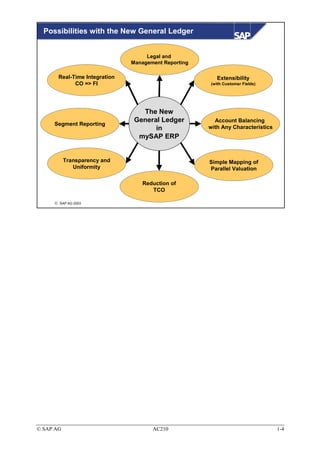
Possibilities with the New General Ledger


                                    Legal and
                               Management Reporting

       Real-Time Integration                             Extensibility
             CO => FI                                 (with Customer Fields)


                                  The New
                                General Ledger          Account Balancing
     Segment Reporting
                                      in              with Any Characteristics
                                 mySAP ERP


           Transparency and                           Simple Mapping of
              Uniformity                              Parallel Valuation

                                  Reduction of
                                     TCO

      SAP AG 2003


© SAP AG                              AC210                                      1-4
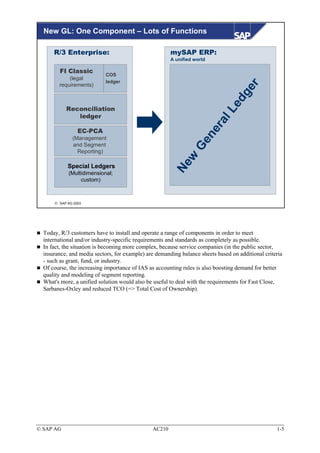
New GL: One Component – Lots of Functions

      R/3 Enterprise:                                  mySAP ERP:
                                                       A unified world

        FI Classic
                            COS
            (legal
                            ledger
        requirements)


                                                                                 er
                                                                               dg
                                                                            Le
           Reconciliation
              ledger


                                                                    r    al
                 EC-PCA


                                                                 ne
              (Management


                                                               Ge
              and Segment
                Reporting)


                                                         w
                                                       Ne
            Special Ledgers
            (Multidimensional;
                 custom)


       SAP AG 2003


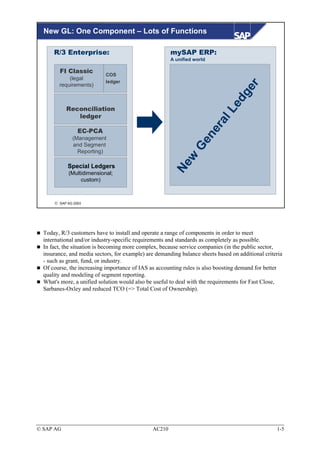
  Today, R/3 customers have to install and operate a range of components in order to meet
  international and/or industry-specific requirements and standards as completely as possible.
  In fact, the situation is becoming more complex, because service companies (in the public sector,
  insurance, and media sectors, for example) are demanding balance sheets based on additional criteria
  - such as grant, fund, or industry.
  Of course, the increasing importance of IAS as accounting rules is also boosting demand for better
  quality and modeling of segment reporting.
  What's more, a unified solution would also be useful to deal with the requirements for Fast Close,
  Sarbanes-Oxley and reduced TCO (=> Total Cost of Ownership).


© SAP AG                                       AC210                                               1-5
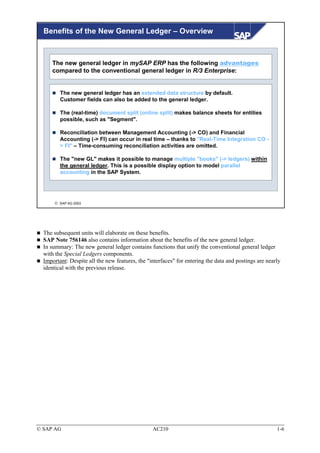
Benefits of the New General Ledger – Overview


     The new general ledger in mySAP ERP has the following advantages
     compared to the conventional general ledger in R/3 Enterprise:


         The new general ledger has an extended data structure by default.
         Customer fields can also be added to the general ledger.

         The (real-time) document split (online split) makes balance sheets for entities
         possible, such as "Segment".

         Reconciliation between Management Accounting (-> CO) and Financial
         Accounting (-> FI) can occur in real time – thanks to "Real-Time Integration CO -
         > FI" – Time-consuming reconciliation activities are omitted.

         The "new GL" makes it possible to manage multiple "books" (-> ledgers) within
         the general ledger. This is a possible display option to model parallel
         accounting in the SAP System.


       SAP AG 2003


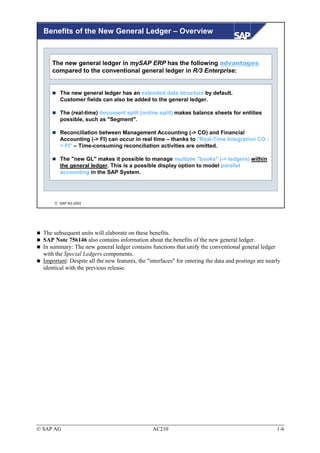
  The subsequent units will elaborate on these benefits.
  SAP Note 756146 also contains information about the benefits of the new general ledger.
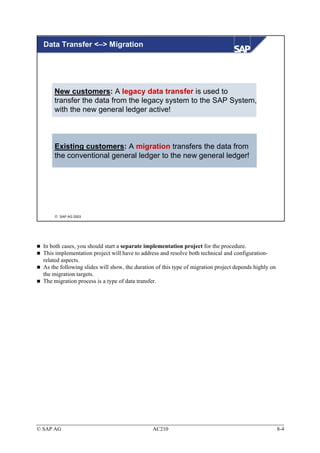
  In summary: The new general ledger contains functions that unify the conventional general ledger
  with the Special Ledgers components.
  Important: Despite all the new features, the "interfaces" for entering the data and postings are nearly
  identical with the previous release.


© SAP AG                                         AC210                                                 1-6
Introduction: Summary


                     You can now:

                       Describe the functions of the new general ledger
                       Briefly describe the benefits of the new general
                       ledger


      SAP AG 2003


© SAP AG                               AC210                              1-7
© SAP AG   AC210   1-8
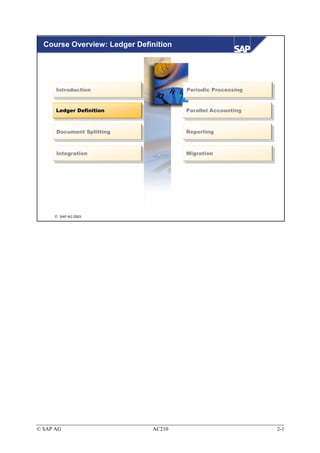
Course Overview: Ledger Definition


      Introduction
       Introduction                    Periodic Processing
                                        Periodic Processing


      Ledger Definition
       Ledger Definition               Parallel Accounting
                                        Parallel Accounting


      Document Splitting
       Document Splitting              Reporting
                                        Reporting


      Integration
       Integration                     Migration
                                       Migration


      SAP AG 2003


© SAP AG                      AC210                           2-1
Ledger Definition


           Contents:

               Activating the new general ledger
               Familiarization with the new totals table FAGLFLEXT
               Assigning and importance of scenarios
               Entry view and general ledger view for Financial
               Accounting documents
               The segment characteristic
               Deriving the segment


      SAP AG 2003


© SAP AG                              AC210                          2-2
Ledger Definition: Objectives


                     At the conclusion of this unit, you will be able to

                        Activate the new general ledger
                        Name the new fields in the totals table
                        Describe the importance of scenarios
                        Tell the difference between the entry view and the
                        general ledger view
                        Define and derive segments


      SAP AG 2003


© SAP AG                                 AC210                               2-3
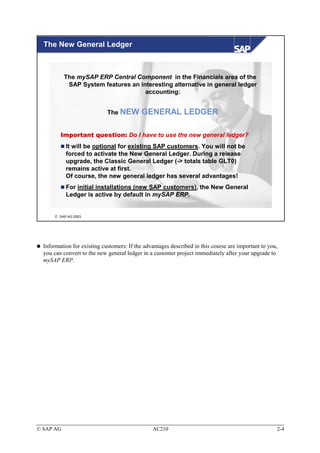
The New General Ledger


           The mySAP ERP Central Component in the Financials area of the
            SAP System features an interesting alternative in general ledger
                                     accounting:


                             The NEW       GENERAL LEDGER

         Important question: Do I have to use the new general ledger?
           It will be optional for existing SAP customers. You will not be
           forced to activate the New General Ledger. During a release
           upgrade, the Classic General Ledger (-> totals table GLT0)
           remains active at first.
           Of course, the new general ledger has several advantages!
           For initial installations (new SAP customers), the New General
           Ledger is active by default in mySAP ERP.


       SAP AG 2003


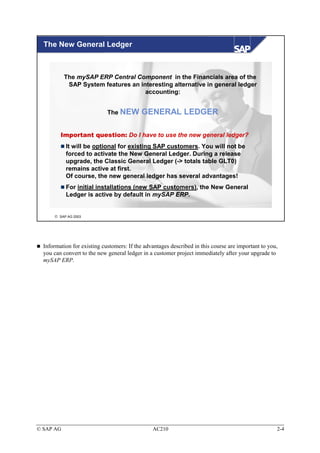
  Information for existing customers: If the advantages described in this course are important to you,
  you can convert to the new general ledger in a customer project immediately after your upgrade to
  mySAP ERP.


© SAP AG                                        AC210                                                2-4
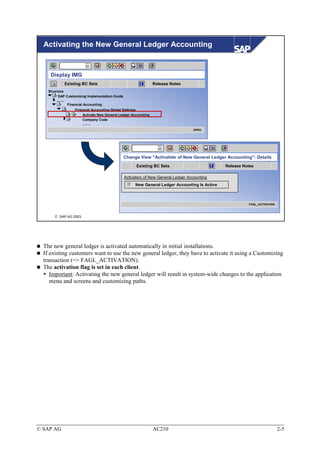
Activating the New General Ledger Accounting


     Display IMG
             Existing BC Sets                                  Release Notes
    Structure
          SAP Customizing Implementation Guide
          .......
                  Financial Accounting
                  Financial Accounting Global Settings
                      Activate New General Ledger Accounting
                      Company Code
                      …….
                                                                                     SPRO


                                                 Change View "Activation of New General Ledger Accounting": Details
                                                       Existing BC Sets                         Release Notes

                                                 Activation of New General Ledger Accounting
                                                      New General Ledger Accounting Is Active


                                                                                                          FAGL_ACTIVATION


        SAP AG 2003


  The new general ledger is activated automatically in initial installations.
  If existing customers want to use the new general ledger, they have to activate it using a Customizing
  transaction (=> FAGL_ACTIVATION).
  The activation flag is set in each client.
     Important: Activating the new general ledger will result in system-wide changes to the application
     menu and screens and customizing paths.


© SAP AG                                                       AC210                                                        2-5
New Menu Paths After Activation


                  Display IMG
                         Existing BC Sets                                  Release Notes
                 Structure
                       SAP Customizing Implementation Guide
                       .......
                               Financial Accounting
                               Financial Accounting (New)
                               Financial Accounting Basic Settings (New)
                                  Ledgers
                                  Global Parameters for Company Codes
                                  Document
                                  ……
                               General Ledger Accounting (New)
                                 Master Data
                                  Business Transactions
                                  Planning
                                  Periodic Processing
                                   …….
                               Accounts Receivable and Accounts Payable
                               Bank Accounting
                                Asset Accounting
                                 ……
                           Controlling
                           Investment Management
                           ……

                                                                                           SPRO


       SAP AG 2003


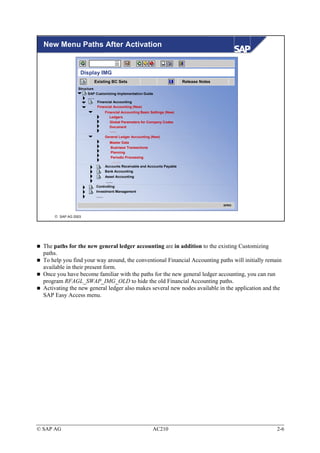
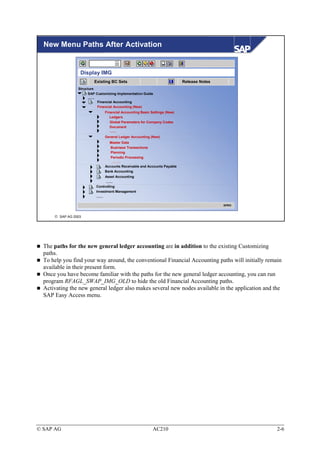
  The paths for the new general ledger accounting are in addition to the existing Customizing
  paths.
  To help you find your way around, the conventional Financial Accounting paths will initially remain
  available in their present form.
  Once you have become familiar with the paths for the new general ledger accounting, you can run
  program RFAGL_SWAP_IMG_OLD to hide the old Financial Accounting paths.
  Activating the new general ledger also makes several new nodes available in the application and the
  SAP Easy Access menu.


© SAP AG                                                   AC210                                   2-6
Ledger Definition

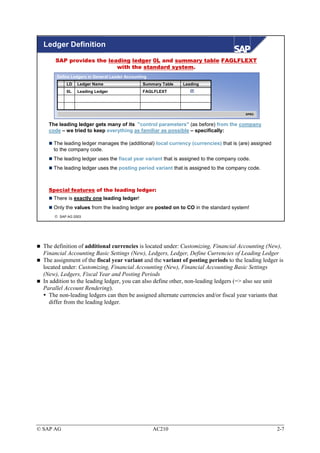
       SAP provides the leading ledger 0L and summary table FAGLFLEXT
                           with the standard system.
       Define Ledgers in General Leader Accounting
           LD    Ledger Name                    Summary Table   Leading
           0L    Leading Ledger                 FAGLFLEXT


                                                                                         SPRO


    The leading ledger gets many of its "control parameters" (as before) from the company
    code – we tried to keep everything as familiar as possible – specifically:

      The leading ledger manages the (additional) local currency (currencies) that is (are) assigned
      to the company code.
      The leading ledger uses the fiscal year variant that is assigned to the company code.
      The leading ledger uses the posting period variant that is assigned to the company code.


    Special features of the leading ledger:
      There is exactly one leading ledger!
      Only the values from the leading ledger are posted on to CO in the standard system!
       SAP AG 2003


  The definition of additional currencies is located under: Customizing, Financial Accounting (New),
  Financial Accounting Basic Settings (New), Ledgers, Ledger, Define Currencies of Leading Ledger
  The assignment of the fiscal year variant and the variant of posting periods to the leading ledger is
  located under: Customizing, Financial Accounting (New), Financial Accounting Basic Settings
  (New), Ledgers, Fiscal Year and Posting Periods
  In addition to the leading ledger, you can also define other, non-leading ledgers (=> also see unit
  Parallel Account Rendering).
    The non-leading ledgers can then be assigned alternate currencies and/or fiscal year variants that
    differ from the leading ledger.


© SAP AG                                             AC210                                             2-7
Summary/Totals Table FAGLFLEXT

     One look at the database tables makes the primary standard extension of the data
     structure visible immediately:

                              New General Ledger
                              Totals table FAGLFLEXT
                              Selection of available fields:

                                 Field        …      Short Text
                                 …            …      ...
                                 RYEAR        …      Fiscal Year
                                 RACCT        …      Account Number
                                 COST_ELEM    …      Cost Element
                                 BUKRS        …      Company Code
                                 RCNTR        …      Cost Center
                                 PRCTR        …      Profit Center
                                 RFAREA       …      Functional Area
                                 RBUSA        …      Business Area
                                 SEGMENT      …      Segment for Seg. Report
                                 …            …      …
                                                                         SE11_OLD


       SAP AG 2003


  The totals table of the new general ledger (=> FAGLFLEXT) updates more characteristics/ data
  elements than was possible in the classic totals table (=> GLT0).
  Examples of the new standard fields include:
     Cost Center
     Profit Center
     Segment
  Totals table FAGLFLEXT can be extended with additional fields – both predefined SAP fields and
  entirely new customer fields. To add customer fields to totals table FAGLFLEXT, they have to be
  added to the account assignment block (=> Function: Edit Account Assignment Block) first.
     Important: Please do not test this during the course, because extending the account assignment
     block will lock out all other transactions (including the other course participants').


© SAP AG                                           AC210                                         2-8
Scenarios – Definition and Assignment

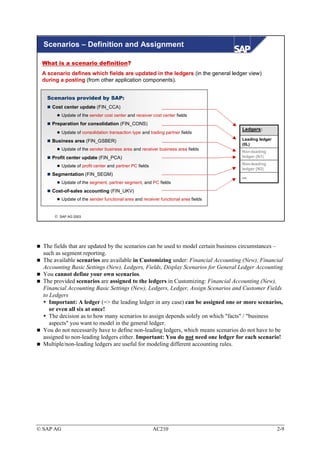
 What is a scenario definition?
 A scenario defines which fields are updated in the ledgers (in the general ledger view)
 during a posting (from other application components).


   Scenarios provided by SAP:
     Cost center update (FIN_CCA)
           Update of the sender cost center and receiver cost center fields
     Preparation for consolidation (FIN_CONS)
                                                                                      Ledgers:
           Update of consolidation transaction type and trading partner fields
     Business area (FIN_GSBER)                                                        Leading ledger
                                                                                      (0L)
           Update of the sender business area and receiver business area fields
                                                                                      Non-leading
     Profit center update (FIN_PCA)                                                   ledger (N1)
                                                                                      Non-leading
           Update of profit center and partner PC fields
                                                                                      ledger (N2)
     Segmentation (FIN_SEGM)
                                                                                      ...
           Update of the segment, partner segment, and PC fields
     Cost-of-sales accounting (FIN_UKV)
           Update of the sender functional area and receiver functional area fields


       SAP AG 2003


  The fields that are updated by the scenarios can be used to model certain business circumstances –
  such as segment reporting.
  The available scenarios are available in Customizing under: Financial Accounting (New), Financial
  Accounting Basic Settings (New), Ledgers, Fields, Display Scenarios for General Ledger Accounting
  You cannot define your own scenarios.
  The provided scenarios are assigned to the ledgers in Customizing: Financial Accounting (New),
  Financial Accounting Basic Settings (New), Ledgers, Ledger, Assign Scenarios and Customer Fields
  to Ledgers
     Important: A ledger (=> the leading ledger in any case) can be assigned one or more scenarios,
     or even all six at once!
     The decision as to how many scenarios to assign depends solely on which "facts" / "business
     aspects" you want to model in the general ledger.
  You do not necessarily have to define non-leading ledgers, which means scenarios do not have to be
  assigned to non-leading ledgers either. Important: You do not need one ledger for each scenario!
  Multiple/non-leading ledgers are useful for modeling different accounting rules.


© SAP AG                                                   AC210                                       2-9
Entry View and General Ledger View


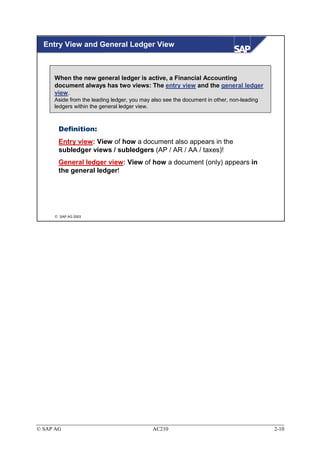
     When the new general ledger is active, a Financial Accounting
     document always has two views: The entry view and the general ledger
     view.
     Aside from the leading ledger, you may also see the document in other, non-leading
     ledgers within the general ledger view.


       Definition:
       Entry view: View of how a document also appears in the
       subledger views / subledgers (AP / AR / AA / taxes)!
       General ledger view: View of how a document (only) appears in
       the general ledger!


      SAP AG 2003


© SAP AG                                    AC210                                         2-10
Scenarios – Assignment and Functions I

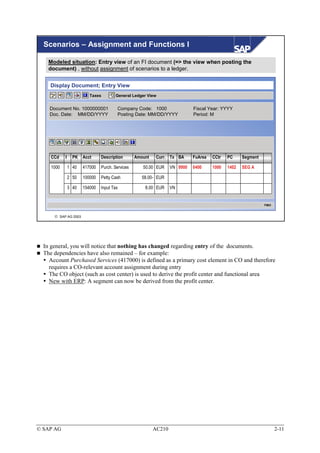
    Modeled situation: Entry view of an FI document (=> the view when posting the
    document) , without assignment of scenarios to a ledger.


    Display Document; Entry View
                          Taxes        General Ledger View


    Document No. 1000000001             Company Code: 1000                   Fiscal Year: YYYY
    Doc. Date: MM/DD/YYYY               Posting Date: MM/DD/YYYY             Period: M


     CCd    I     PK   Acct     Description       Amount    Curr. Tx BA      FuArea   CCtr   PC     Segment

     1000       1 40   417000   Purch. Services      50.00 EUR     VN 9900   0400     1000   1402   SEG A

                2 50   100000   Petty Cash           58.00- EUR

                3 40   154000   Input Tax             8.00 EUR     VN


                                                                                                              FB03


       SAP AG 2003


  In general, you will notice that nothing has changed regarding entry of the documents.
  The dependencies have also remained – for example:
    Account Purchased Services (417000) is defined as a primary cost element in CO and therefore
    requires a CO-relevant account assignment during entry
    The CO object (such as cost center) is used to derive the profit center and functional area
    New with ERP: A segment can now be derived from the profit center.


© SAP AG                                                   AC210                                                     2-11
Scenarios – Assignment and Functions II

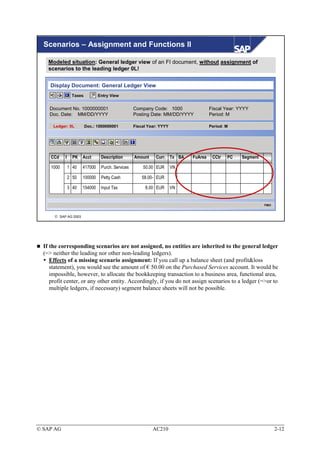
    Modeled situation: General ledger view of an FI document, without assignment of
    scenarios to the leading ledger 0L!


     Display Document: General Ledger View
                 Taxes          Entry View


    Document No. 1000000001                        Company Code: 1000                Fiscal Year: YYYY
    Doc. Date: MM/DD/YYYY                          Posting Date: MM/DD/YYYY          Period: M

      Ledger: 0L         Doc.: 1000000001          Fiscal Year: YYYY                 Period: M


     CCd    I     PK   Acct      Description       Amount     Curr. Tx BA   FuArea    CCtr   PC    Segment

     1000       1 40   417000    Purch. Services       50.00 EUR       VN

                2 50   100000    Petty Cash            58.00- EUR

                3 40   154000    Input Tax              8.00 EUR       VN


                                                                                                             FB03


       SAP AG 2003


  If the corresponding scenarios are not assigned, no entities are inherited to the general ledger
  (=> neither the leading nor other non-leading ledgers).
     Effects of a missing scenario assignment: If you call up a balance sheet (and profit&loss
     statement), you would see the amount of € 50.00 on the Purchased Services account. It would be
     impossible, however, to allocate the bookkeeping transaction to a business area, functional area,
     profit center, or any other entity. Accordingly, if you do not assign scenarios to a ledger (=>or to
     multiple ledgers, if necessary) segment balance sheets will not be possible.


© SAP AG                                                    AC210                                                   2-12
Scenarios – Assignment and Functions III

    Modeled situation: General ledger view of an FI document, with previous assignment of
    scenarios "Annual Report" and "Cost Center Update" to the leading ledger!


     Display Document: General Ledger View
                 Taxes          Entry View


    Document No. 1000000001                        Company Code: 1000                     Fiscal Year: YYYY
    Doc. Date: MM/DD/YYYY                          Posting Date: MM/DD/YYYY               Period: M

      Ledger: 0L         Doc.: 1000000001          Fiscal Year: YYYY                      Period: M


     CCd    I     PK   Acct      Description       Amount     Curr. Tx BA        FuArea    CCtr   PC    Segment

     1000       1 40   417000    Purch. Services       50.00 EUR       VN 9900             1000

                2 50   100000    Petty Cash            58.00- EUR

                3 40   154000    Input Tax              8.00 EUR       VN


                                                                                                                  FB03


       SAP AG 2003


  Because scenarios Cost Center Update and Business Area are assigned to the leading ledger, 0L,
  these two entities are updated in the general ledger and displayed in the corresponding general ledger
  view.
  The Segment field is not updated or displayed in the general ledger view, however, because this
  scenario has not been assigned to the leading ledger yet.
  Important: Scenario assignment is not capable of creating a "zero balance position" for any given
  entity.
    In terms of the business area (=> BA): It is not yet possible to create a correct BA balance sheet
    (for BA 9900, for example), because the BA was not inherited to posting lines 2 and 3.
    To use this function, document splitting must be configured with active inheritance.


© SAP AG                                                    AC210                                                        2-13
Use of the Segment Entity


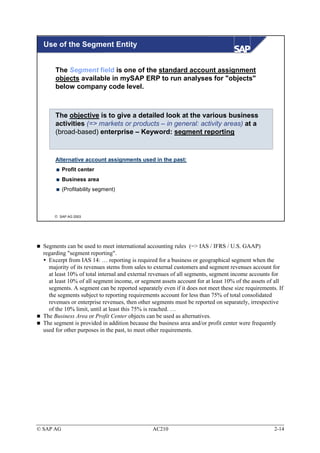
       The Segment field is one of the standard account assignment
       objects available in mySAP ERP to run analyses for "objects"
       below company code level.


       The objective is to give a detailed look at the various business
       activities (=> markets or products – in general: activity areas) at a
       (broad-based) enterprise – Keyword: segment reporting


       Alternative account assignments used in the past:
           Profit center
           Business area
           (Profitability segment)


       SAP AG 2003


  Segments can be used to meet international accounting rules (=> IAS / IFRS / U.S. GAAP)
  regarding "segment reporting".
    Excerpt from IAS 14: … reporting is required for a business or geographical segment when the
    majority of its revenues stems from sales to external customers and segment revenues account for
    at least 10% of total internal and external revenues of all segments, segment income accounts for
    at least 10% of all segment income, or segment assets account for at least 10% of the assets of all
    segments. A segment can be reported separately even if it does not meet these size requirements. If
    the segments subject to reporting requirements account for less than 75% of total consolidated
    revenues or enterprise revenues, then other segments must be reported on separately, irrespective
    of the 10% limit, until at least this 75% is reached. …
  The Business Area or Profit Center objects can be used as alternatives.
  The segment is provided in addition because the business area and/or profit center were frequently
  used for other purposes in the past, to meet other requirements.


© SAP AG                                        AC210                                              2-14
Deriving a Segment


           Change Profit Center
                Analysis Time Frame           Validity Period

           General Data

           Profit Center              1000     Profit Center 1000

           Controlling Area           1000     CO Europe


           Basic Data

           Person Responsible         James Patterson
           Department                 Department IV
           Hierarchy Area             H1023
           Segment


                                                                                           KE52


       SAP AG 2003


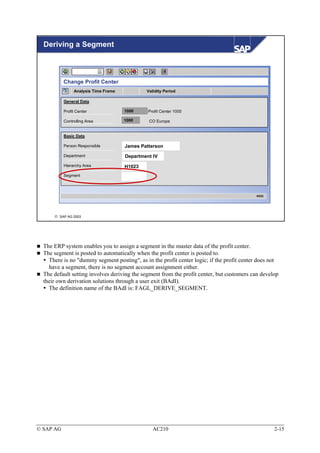
  The ERP system enables you to assign a segment in the master data of the profit center.
  The segment is posted to automatically when the profit center is posted to.
    There is no "dummy segment posting", as in the profit center logic; if the profit center does not
    have a segment, there is no segment account assignment either.
  The default setting involves deriving the segment from the profit center, but customers can develop
  their own derivation solutions through a user exit (BAdI).
    The definition name of the BAdI is: FAGL_DERIVE_SEGMENT.


© SAP AG                                         AC210                                             2-15
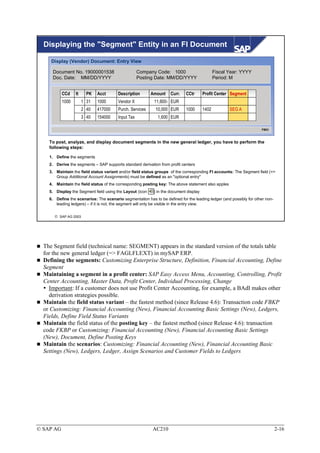
Displaying the "Segment" Entity in an FI Document

     Display (Vendor) Document: Entry View

     Document No. 19000001538                       Company Code: 1000                        Fiscal Year: YYYY
     Doc. Date: MM/DD/YYYY                          Posting Date: MM/DD/YYYY                  Period: M


           CCd    It     PK   Acct      Description       Amount    Curr.    CCtr      Profit Center Segment
           1000        1 31   1000      Vendor X            11,600- EUR
                       2 40   417000    Purch. Services     10,000 EUR       1000      1402          SEG A
                       3 40   154000    Input Tax             1,600 EUR

                                                                                                                     FB03


    To post, analyze, and display document segments in the new general ledger, you have to perform the
    following steps:

    1. Define the segments
    2. Derive the segments – SAP supports standard derivation from profit centers
    3. Maintain the field status variant and/or field status groups of the corresponding FI accounts: The Segment field (=>
       Group Additional Account Assignments) must be defined as an "optional entry"
    4. Maintain the field status of the corresponding posting key: The above statement also apples
    5. Display the Segment field using the Layout (icon    ) in the document display
    6. Define the scenarios: The scenario segmentation has to be defined for the leading ledger (and possibly for other non-
       leading ledgers) – if it is not, the segment will only be visible in the entry view.


       SAP AG 2003


  The Segment field (technical name: SEGMENT) appears in the standard version of the totals table
  for the new general ledger (=> FAGLFLEXT) in mySAP ERP.
  Defining the segments: Customizing Enterprise Structure, Definition, Financial Accounting, Define
  Segment
  Maintaining a segment in a profit center: SAP Easy Access Menu, Accounting, Controlling, Profit
  Center Accounting, Master Data, Profit Center, Individual Processing, Change
    Important: If a customer does not use Profit Center Accounting, for example, a BAdI makes other
    derivation strategies possible.
  Maintain the field status variant – the fastest method (since Release 4.6): Transaction code FBKP
  or Customizing: Financial Accounting (New), Financial Accounting Basic Settings (New), Ledgers,
  Fields, Define Field Status Variants
  Maintain the field status of the posting key – the fastest method (since Release 4.6): transaction
  code FKBP or Customizing: Financial Accounting (New), Financial Accounting Basic Settings
  (New), Document, Define Posting Keys
  Maintain the scenarios: Customizing: Financial Accounting (New), Financial Accounting Basic
  Settings (New), Ledgers, Ledger, Assign Scenarios and Customer Fields to Ledgers


© SAP AG                                                   AC210                                                               2-16
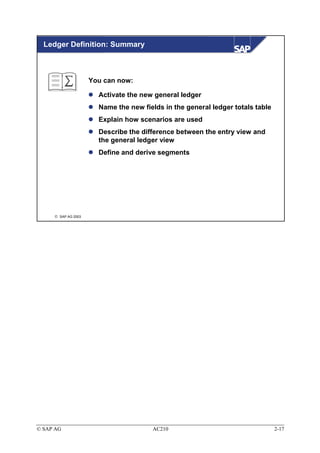
Ledger Definition: Summary


                     You can now:

                       Activate the new general ledger
                       Name the new fields in the general ledger totals table
                       Explain how scenarios are used
                       Describe the difference between the entry view and
                       the general ledger view
                       Define and derive segments


      SAP AG 2003


© SAP AG                               AC210                                    2-17
© SAP AG   AC210   2-18
Exercises

                    Unit: Ledger Definition
                    Topic: Configuring the New General Ledger

                    At the conclusion of these exercises, you will be able to
                    • Activate and configure the new general ledger. You will understand
                      the scenarios of the new general ledger accounting, how to create and
                      derive segments, and how to tell the difference between the entry view
                      and the general ledger view of a Financial Accounting document.

   2-1     Exercises for configuring the new general ledger
           2-1-1


                        Control exercise – Please do not change the system
                        configuration!

                   Call up the activation flag for the new general ledger and make sure the
                   new general ledger has been activated!
                   Which transaction code can you use to call up the activation flag?
                   What does the acronym “FAGL” stand for?


           2-1-2


                        Control exercise – Please do not change the system
                        configuration!

                   Check the Customizing settings to find out the ID of the leading ledger, as
                   well as the totals table where the values are saved.


           2-1-3
                        Control exercise – Please do not change the system
                        configuration!
                        Important: In all future exercises, the two hash keys (=> ##)
                        stand for your two-digit group number!
                   Check the “new” IMG paths to find out , which fiscal year variant your
                   company code AA## uses, which fiscal year variant the leading ledger uses,
                   and which field status variant is assigned to your company code AA##.


© SAP AG                                     AC210                                            2-19
2-1-4


                        Control exercise – Please do not change the system
                        configuration!

                   Which scenarios can you assign to the leading ledger, 0L?


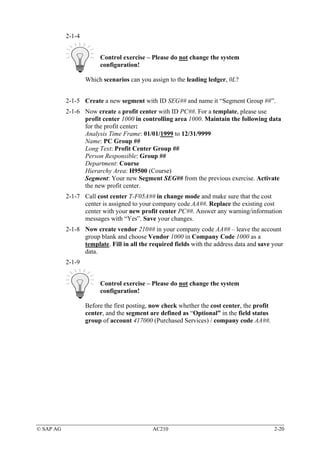
           2-1-5 Create a new segment with ID SEG## and name it “Segment Group ##”.
           2-1-6 Now create a profit center with ID PC##. For a template, please use
                 profit center 1000 in controlling area 1000. Maintain the following data
                 for the profit center:
                 Analysis Time Frame: 01/01/1999 to 12/31/9999
                 Name: PC Group ##
                 Long Text: Profit Center Group ##
                 Person Responsible: Group ##
                 Department: Course
                 Hierarchy Area: H9500 (Course)
                 Segment: Your new Segment SEG## from the previous exercise. Activate
                 the new profit center.
           2-1-7 Call cost center T-F05A## in change mode and make sure that the cost
                 center is assigned to your company code AA##. Replace the existing cost
                 center with your new profit center PC##. Answer any warning/information
                 messages with “Yes”. Save your changes.
           2-1-8 Now create vendor 210## in your company code AA## – leave the account
                 group blank and choose Vendor 1000 in Company Code 1000 as a
                 template. Fill in all the required fields with the address data and save your
                 data.
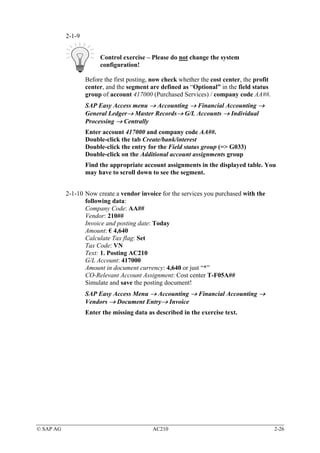
           2-1-9


                        Control exercise – Please do not change the system
                        configuration!

                   Before the first posting, now check whether the cost center, the profit
                   center, and the segment are defined as “Optional” in the field status
                   group of account 417000 (Purchased Services) / company code AA##.


© SAP AG                                    AC210                                            2-20
2-1-10 Now create a vendor invoice for the services you purchased with the
                  following data:
                  Company Code: AA##
                  Vendor: 210##
                  Invoice and posting date: Today
                  Amount: € 4,640
                  Calculate Tax flag: Set
                  Tax Code: VN
                  Text: 1. Posting AC210
                  G/L Account: 417000
                  Amount in document currency: 4,640 or just “*”
                  CO-Relevant Account Assignment: Cost center T-F05A##
                  Simulate and save the posting document!
           2-1-11 Display the document. Change the layout in the entry view such that the
                  cost center, profit center, and segment are displayed! Save this layout
                  user-specifically, with name L1. If you want, you can also save your new
                  layout as the default setting. If you do, layout L1 will be started
                  automatically whenever you display the document.


© SAP AG                                   AC210                                        2-21
© SAP AG   AC210   2-22
Solutions

                    Unit: Ledger Definition
                    Topic: Configuring the New General Ledger


   2-1     Exercises for configuring the new general ledger
           2-1-1


                        Control exercise – Please do not change the system
                        configuration!

                   Call up the activation flag for the new general ledger and make sure the
                   new general ledger has been activated!
                   Customizing: Financial Accounting→ Financial Accounting Global
                   Settings → Activate New General Ledger Accounting


                   Which transaction code can you use to call up the activation flag?
                   Transaction code: FAGL_ACTIVATION


                   What does the acronym “FAGL” stand for?
                   Financial Accounting General Ledger


           2-1-2


                        Control exercise – Please do not change the system
                        configuration!

                   Check the Customizing settings to find out the ID of the leading ledger, as
                   well as the totals table where the values are saved.
                   Customizing: Financial Accounting (New) → Financial Accounting Basic
                   Settings (New) → Ledgers → Ledger → Define Ledgers for General
                   Ledger Accounting
                   → The ID is 0L
                   → The totals table name is FAGLFLEXT


© SAP AG                                     AC210                                            2-23
2-1-3
                        Control exercise – Please do not change the system
                        configuration!
                        Important: In all future exercises, the two hash keys (=> ##)
                        stand for your two-digit group number!
                   Check the “new” IMG paths to find out , which fiscal year variant your
                   company code AA## uses, and which fiscal year variant the leading ledger
                   uses …
                   Customizing: Financial Accounting (New) → Financial Accounting Basic
                   Settings (New) → Ledgers → Fiscal Year and Posting Periods→ Assign
                   Company Code to a Fiscal Year Variant
                   Your company code AA## has fiscal year variant K4

                   ... and which field status variant is assigned to your company code AA##?
                   Customizing: Financial Accounting (New) → Financial Accounting Basic
                   Settings (New) → Ledgers → Fields → Assign Company Code to Field
                   Status Variants
                   Your company code AA## has field status variant 1000


           2-1-4


                        Control exercise – Please do not change the system
                        configuration!

                   Which scenarios can you assign to the leading ledger, 0L?
                   Customizing: Financial Accounting (New) → Financial Accounting Basic
                   Settings (New) → Ledgers → Ledger → Assign Scenarios and Customer
                   Fields to Ledgers
                   Select ledger 0L double-click to select the Scenarios entry in the dialog
                   structure. The following scenarios should be visible:
                   Cost Center Update
                   Preparations for Consolidation
                   Business Area
                   Profit Center Update
                   Segmentation
                   Cost of Sales Accounting


© SAP AG                                    AC210                                         2-24
2-1-5 Create a new segment with ID SEG## and name it “Segment Group ##”.
                  Customizing: Enterprise Structure → Definition → Financial Accounting
                  → Define Segment
                  Maintain the new entry as described in the exercise text.


           2-1-6 Now create a profit center with ID PC##. For a template, please use
                 profit center 1000 in controlling area 1000. Maintain the following data
                 for the profit center:
                 Analysis Time Frame: 01/01/1999 to 12/31/9999
                 Name: PC Group ##
                 Long Text: Profit Center Group ##
                 Person Responsible: Group ##
                 Department: Course
                 Hierarchy Area: H9500 (Course)
                 Segment: Your new Segment SEG## from the previous exercise. Activate
                 the new profit center.
                  Customizing: Enterprise Structure → Definition → Financial Accounting
                  → Define Profit Center
                  In the displayed dialog box, choose EC-PCA: Create profit center
                  Maintain the new entry, with the reference profit center as described in
                  the exercise text.


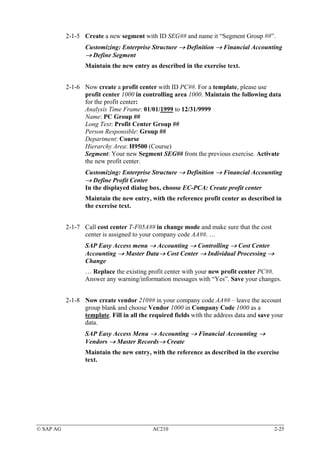
           2-1-7 Call cost center T-F05A## in change mode and make sure that the cost
                 center is assigned to your company code AA##. …
                  SAP Easy Access menu → Accounting → Controlling → Cost Center
                  Accounting → Master Data→ Cost Center → Individual Processing →
                  Change
                  … Replace the existing profit center with your new profit center PC##.
                  Answer any warning/information messages with “Yes”. Save your changes.


           2-1-8 Now create vendor 210## in your company code AA## – leave the account
                 group blank and choose Vendor 1000 in Company Code 1000 as a
                 template. Fill in all the required fields with the address data and save your
                 data.
                  SAP Easy Access Menu → Accounting → Financial Accounting →
                  Vendors → Master Records→ Create
                  Maintain the new entry, with the reference as described in the exercise
                  text.


© SAP AG                                    AC210                                         2-25
2-1-9


                        Control exercise – Please do not change the system
                        configuration!

                   Before the first posting, now check whether the cost center, the profit
                   center, and the segment are defined as “Optional” in the field status
                   group of account 417000 (Purchased Services) / company code AA##.
                   SAP Easy Access menu → Accounting → Financial Accounting →
                   General Ledger→ Master Records→ G/L Accounts → Individual
                   Processing → Centrally
                   Enter account 417000 and company code AA##.
                   Double-click the tab Create/bank/interest
                   Double-click the entry for the Field status group (=> G033)
                   Double-click on the Additional account assignments group
                   Find the appropriate account assignments in the displayed table. You
                   may have to scroll down to see the segment.


           2-1-10 Now create a vendor invoice for the services you purchased with the
                  following data:
                  Company Code: AA##
                  Vendor: 210##
                  Invoice and posting date: Today
                  Amount: € 4,640
                  Calculate Tax flag: Set
                  Tax Code: VN
                  Text: 1. Posting AC210
                  G/L Account: 417000
                  Amount in document currency: 4,640 or just “*”
                  CO-Relevant Account Assignment: Cost center T-F05A##
                  Simulate and save the posting document!
                   SAP Easy Access Menu → Accounting → Financial Accounting →
                   Vendors → Document Entry→ Invoice
                   Enter the missing data as described in the exercise text.


© SAP AG                                    AC210                                            2-26
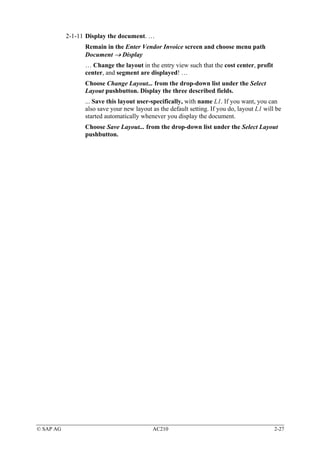
2-1-11 Display the document. …
                 Remain in the Enter Vendor Invoice screen and choose menu path
                 Document → Display
                 … Change the layout in the entry view such that the cost center, profit
                 center, and segment are displayed! …
                 Choose Change Layout... from the drop-down list under the Select
                 Layout pushbutton. Display the three described fields.
                 ... Save this layout user-specifically, with name L1. If you want, you can
                 also save your new layout as the default setting. If you do, layout L1 will be
                 started automatically whenever you display the document.
                 Choose Save Layout... from the drop-down list under the Select Layout
                 pushbutton.


© SAP AG                                   AC210                                            2-27
© SAP AG   AC210   2-28
Course Overview: Introduction


      Introduction
       Introduction                   Periodic Processing
                                       Periodic Processing


      Ledger Definition
       Ledger Definition              Parallel Accounting
                                       Parallel Accounting


      Document Splitting
       Document Splitting             Reporting
                                       Reporting


      Integration
       Integration                    Migration
                                      Migration


      SAP AG 2003


© SAP AG                      AC210                          1-1
Introduction


           Contents:

               This unit summarizes the most important properties and
               benefits of the new general ledger in a compact overview


      SAP AG 2003


© SAP AG                              AC210                               1-2
Introduction: Objectives


                     At the conclusion of this unit, you will be able to

                        Outline the advantages and benefits of the new
                        general ledger
                        Name possible functions of the new general ledger


      SAP AG 2003


© SAP AG                                 AC210                              1-3
Possibilities with the New General Ledger


                                    Legal and
                               Management Reporting

       Real-Time Integration                             Extensibility
             CO => FI                                 (with Customer Fields)


                                  The New
                                General Ledger          Account Balancing
     Segment Reporting
                                      in              with Any Characteristics
                                 mySAP ERP


           Transparency and                           Simple Mapping of
              Uniformity                              Parallel Valuation

                                  Reduction of
                                     TCO

      SAP AG 2003


© SAP AG                              AC210                                      1-4
New GL: One Component – Lots of Functions

      R/3 Enterprise:                                  mySAP ERP:
                                                       A unified world

        FI Classic
                            COS
            (legal
                            ledger
        requirements)


                                                                                 er
                                                                               dg
                                                                            Le
           Reconciliation
              ledger


                                                                    r    al
                 EC-PCA


                                                                 ne
              (Management


                                                               Ge
              and Segment
                Reporting)


                                                         w
                                                       Ne
            Special Ledgers
            (Multidimensional;
                 custom)


       SAP AG 2003


  Today, R/3 customers have to install and operate a range of components in order to meet
  international and/or industry-specific requirements and standards as completely as possible.
  In fact, the situation is becoming more complex, because service companies (in the public sector,
  insurance, and media sectors, for example) are demanding balance sheets based on additional criteria
  - such as grant, fund, or industry.
  Of course, the increasing importance of IAS as accounting rules is also boosting demand for better
  quality and modeling of segment reporting.
  What's more, a unified solution would also be useful to deal with the requirements for Fast Close,
  Sarbanes-Oxley and reduced TCO (=> Total Cost of Ownership).


© SAP AG                                       AC210                                               1-5
Benefits of the New General Ledger – Overview


     The new general ledger in mySAP ERP has the following advantages
     compared to the conventional general ledger in R/3 Enterprise:


         The new general ledger has an extended data structure by default.
         Customer fields can also be added to the general ledger.

         The (real-time) document split (online split) makes balance sheets for entities
         possible, such as "Segment".

         Reconciliation between Management Accounting (-> CO) and Financial
         Accounting (-> FI) can occur in real time – thanks to "Real-Time Integration CO -
         > FI" – Time-consuming reconciliation activities are omitted.

         The "new GL" makes it possible to manage multiple "books" (-> ledgers) within
         the general ledger. This is a possible display option to model parallel
         accounting in the SAP System.


       SAP AG 2003


  The subsequent units will elaborate on these benefits.
  SAP Note 756146 also contains information about the benefits of the new general ledger.
  In summary: The new general ledger contains functions that unify the conventional general ledger
  with the Special Ledgers components.
  Important: Despite all the new features, the "interfaces" for entering the data and postings are nearly
  identical with the previous release.


© SAP AG                                         AC210                                                 1-6
Introduction: Summary


                     You can now:

                       Describe the functions of the new general ledger
                       Briefly describe the benefits of the new general
                       ledger


      SAP AG 2003


© SAP AG                               AC210                              1-7
© SAP AG   AC210   1-8
Course Overview: Ledger Definition


      Introduction
       Introduction                    Periodic Processing
                                        Periodic Processing


      Ledger Definition
       Ledger Definition               Parallel Accounting
                                        Parallel Accounting


      Document Splitting
       Document Splitting              Reporting
                                        Reporting


      Integration
       Integration                     Migration
                                       Migration


      SAP AG 2003


© SAP AG                      AC210                           2-1
Ledger Definition


           Contents:

               Activating the new general ledger
               Familiarization with the new totals table FAGLFLEXT
               Assigning and importance of scenarios
               Entry view and general ledger view for Financial
               Accounting documents
               The segment characteristic
               Deriving the segment


      SAP AG 2003


© SAP AG                              AC210                          2-2
Ledger Definition: Objectives


                     At the conclusion of this unit, you will be able to

                        Activate the new general ledger
                        Name the new fields in the totals table
                        Describe the importance of scenarios
                        Tell the difference between the entry view and the
                        general ledger view
                        Define and derive segments


      SAP AG 2003


© SAP AG                                 AC210                               2-3
The New General Ledger


           The mySAP ERP Central Component in the Financials area of the
            SAP System features an interesting alternative in general ledger
                                     accounting:


                             The NEW       GENERAL LEDGER

         Important question: Do I have to use the new general ledger?
           It will be optional for existing SAP customers. You will not be
           forced to activate the New General Ledger. During a release
           upgrade, the Classic General Ledger (-> totals table GLT0)
           remains active at first.
           Of course, the new general ledger has several advantages!
           For initial installations (new SAP customers), the New General
           Ledger is active by default in mySAP ERP.


       SAP AG 2003


  Information for existing customers: If the advantages described in this course are important to you,
  you can convert to the new general ledger in a customer project immediately after your upgrade to
  mySAP ERP.


© SAP AG                                        AC210                                                2-4
Activating the New General Ledger Accounting


     Display IMG
             Existing BC Sets                                  Release Notes
    Structure
          SAP Customizing Implementation Guide
          .......
                  Financial Accounting
                  Financial Accounting Global Settings
                      Activate New General Ledger Accounting
                      Company Code
                      …….
                                                                                     SPRO


                                                 Change View "Activation of New General Ledger Accounting": Details
                                                       Existing BC Sets                         Release Notes

                                                 Activation of New General Ledger Accounting
                                                      New General Ledger Accounting Is Active


                                                                                                          FAGL_ACTIVATION


        SAP AG 2003


  The new general ledger is activated automatically in initial installations.
  If existing customers want to use the new general ledger, they have to activate it using a Customizing
  transaction (=> FAGL_ACTIVATION).
  The activation flag is set in each client.
     Important: Activating the new general ledger will result in system-wide changes to the application
     menu and screens and customizing paths.


© SAP AG                                                       AC210                                                        2-5
New Menu Paths After Activation


                  Display IMG
                         Existing BC Sets                                  Release Notes
                 Structure
                       SAP Customizing Implementation Guide
                       .......
                               Financial Accounting
                               Financial Accounting (New)
                               Financial Accounting Basic Settings (New)
                                  Ledgers
                                  Global Parameters for Company Codes
                                  Document
                                  ……
                               General Ledger Accounting (New)
                                 Master Data
                                  Business Transactions
                                  Planning
                                  Periodic Processing
                                   …….
                               Accounts Receivable and Accounts Payable
                               Bank Accounting
                                Asset Accounting
                                 ……
                           Controlling
                           Investment Management
                           ……

                                                                                           SPRO


       SAP AG 2003


  The paths for the new general ledger accounting are in addition to the existing Customizing
  paths.
  To help you find your way around, the conventional Financial Accounting paths will initially remain
  available in their present form.
  Once you have become familiar with the paths for the new general ledger accounting, you can run
  program RFAGL_SWAP_IMG_OLD to hide the old Financial Accounting paths.
  Activating the new general ledger also makes several new nodes available in the application and the
  SAP Easy Access menu.


© SAP AG                                                   AC210                                   2-6
Ledger Definition

       SAP provides the leading ledger 0L and summary table FAGLFLEXT
                           with the standard system.
       Define Ledgers in General Leader Accounting
           LD    Ledger Name                    Summary Table   Leading
           0L    Leading Ledger                 FAGLFLEXT


                                                                                         SPRO


    The leading ledger gets many of its "control parameters" (as before) from the company
    code – we tried to keep everything as familiar as possible – specifically:

      The leading ledger manages the (additional) local currency (currencies) that is (are) assigned
      to the company code.
      The leading ledger uses the fiscal year variant that is assigned to the company code.
      The leading ledger uses the posting period variant that is assigned to the company code.


    Special features of the leading ledger:
      There is exactly one leading ledger!
      Only the values from the leading ledger are posted on to CO in the standard system!
       SAP AG 2003


  The definition of additional currencies is located under: Customizing, Financial Accounting (New),
  Financial Accounting Basic Settings (New), Ledgers, Ledger, Define Currencies of Leading Ledger
  The assignment of the fiscal year variant and the variant of posting periods to the leading ledger is
  located under: Customizing, Financial Accounting (New), Financial Accounting Basic Settings
  (New), Ledgers, Fiscal Year and Posting Periods
  In addition to the leading ledger, you can also define other, non-leading ledgers (=> also see unit
  Parallel Account Rendering).
    The non-leading ledgers can then be assigned alternate currencies and/or fiscal year variants that
    differ from the leading ledger.


© SAP AG                                             AC210                                             2-7
Summary/Totals Table FAGLFLEXT

     One look at the database tables makes the primary standard extension of the data
     structure visible immediately:

                              New General Ledger
                              Totals table FAGLFLEXT
                              Selection of available fields:

                                 Field        …      Short Text
                                 …            …      ...
                                 RYEAR        …      Fiscal Year
                                 RACCT        …      Account Number
                                 COST_ELEM    …      Cost Element
                                 BUKRS        …      Company Code
                                 RCNTR        …      Cost Center
                                 PRCTR        …      Profit Center
                                 RFAREA       …      Functional Area
                                 RBUSA        …      Business Area
                                 SEGMENT      …      Segment for Seg. Report
                                 …            …      …
                                                                         SE11_OLD


       SAP AG 2003


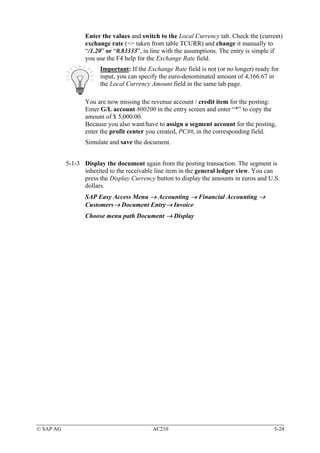
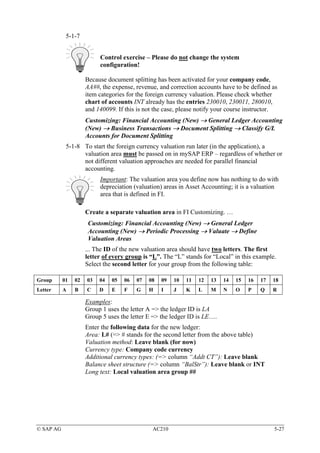
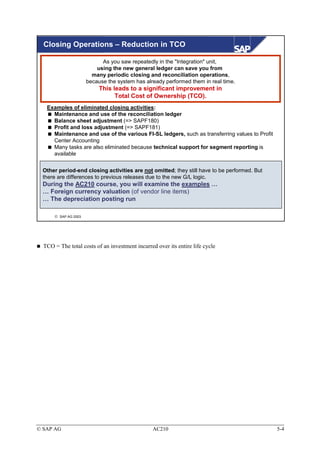
  The totals table of the new general ledger (=> FAGLFLEXT) updates more characteristics/ data
  elements than was possible in the classic totals table (=> GLT0).
  Examples of the new standard fields include:
     Cost Center
     Profit Center
     Segment
  Totals table FAGLFLEXT can be extended with additional fields – both predefined SAP fields and
  entirely new customer fields. To add customer fields to totals table FAGLFLEXT, they have to be
  added to the account assignment block (=> Function: Edit Account Assignment Block) first.
     Important: Please do not test this during the course, because extending the account assignment
     block will lock out all other transactions (including the other course participants').


© SAP AG                                           AC210                                         2-8
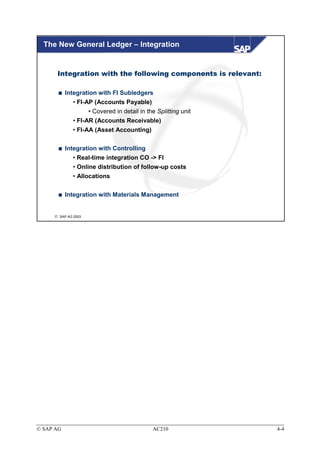
Scenarios – Definition and Assignment

 What is a scenario definition?
 A scenario defines which fields are updated in the ledgers (in the general ledger view)
 during a posting (from other application components).


   Scenarios provided by SAP:
     Cost center update (FIN_CCA)
           Update of the sender cost center and receiver cost center fields
     Preparation for consolidation (FIN_CONS)
                                                                                      Ledgers:
           Update of consolidation transaction type and trading partner fields
     Business area (FIN_GSBER)                                                        Leading ledger
                                                                                      (0L)
           Update of the sender business area and receiver business area fields
                                                                                      Non-leading
     Profit center update (FIN_PCA)                                                   ledger (N1)
                                                                                      Non-leading
           Update of profit center and partner PC fields
                                                                                      ledger (N2)
     Segmentation (FIN_SEGM)
                                                                                      ...
           Update of the segment, partner segment, and PC fields
     Cost-of-sales accounting (FIN_UKV)
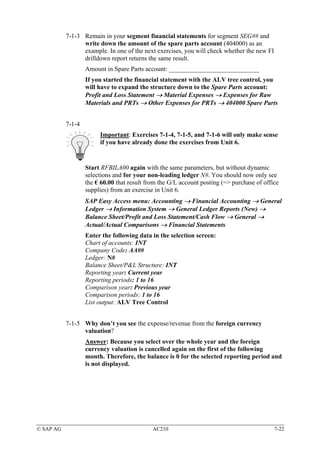
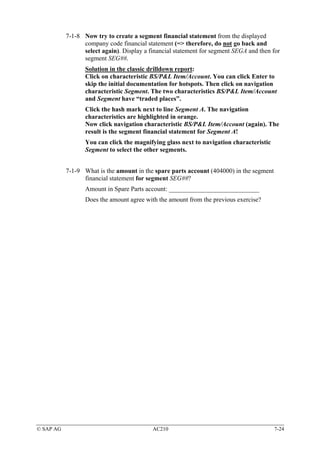
           Update of the sender functional area and receiver functional area fields


       SAP AG 2003


  The fields that are updated by the scenarios can be used to model certain business circumstances –
  such as segment reporting.
  The available scenarios are available in Customizing under: Financial Accounting (New), Financial
  Accounting Basic Settings (New), Ledgers, Fields, Display Scenarios for General Ledger Accounting
  You cannot define your own scenarios.
  The provided scenarios are assigned to the ledgers in Customizing: Financial Accounting (New),
  Financial Accounting Basic Settings (New), Ledgers, Ledger, Assign Scenarios and Customer Fields
  to Ledgers
     Important: A ledger (=> the leading ledger in any case) can be assigned one or more scenarios,
     or even all six at once!
     The decision as to how many scenarios to assign depends solely on which "facts" / "business
     aspects" you want to model in the general ledger.
  You do not necessarily have to define non-leading ledgers, which means scenarios do not have to be
  assigned to non-leading ledgers either. Important: You do not need one ledger for each scenario!
  Multiple/non-leading ledgers are useful for modeling different accounting rules.


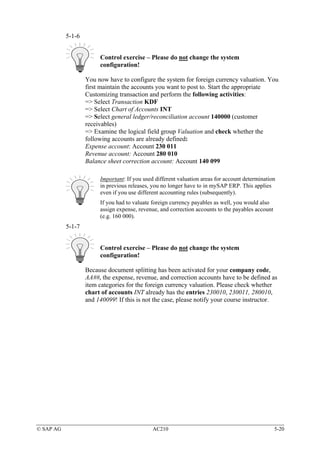
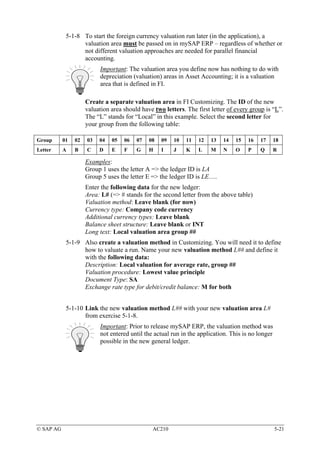
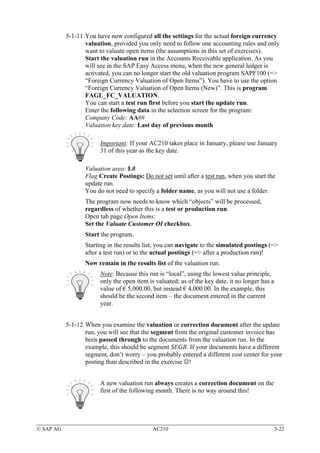
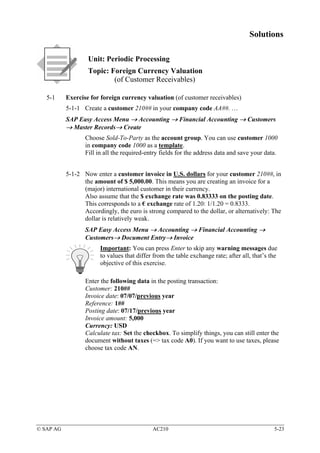
© SAP AG                                                   AC210                                       2-9
Entry View and General Ledger View


     When the new general ledger is active, a Financial Accounting
     document always has two views: The entry view and the general ledger
     view.
     Aside from the leading ledger, you may also see the document in other, non-leading
     ledgers within the general ledger view.


       Definition:
       Entry view: View of how a document also appears in the
       subledger views / subledgers (AP / AR / AA / taxes)!
       General ledger view: View of how a document (only) appears in
       the general ledger!


      SAP AG 2003


© SAP AG                                    AC210                                         2-10
Scenarios – Assignment and Functions I

    Modeled situation: Entry view of an FI document (=> the view when posting the
    document) , without assignment of scenarios to a ledger.


    Display Document; Entry View
                          Taxes        General Ledger View


    Document No. 1000000001             Company Code: 1000                   Fiscal Year: YYYY
    Doc. Date: MM/DD/YYYY               Posting Date: MM/DD/YYYY             Period: M


     CCd    I     PK   Acct     Description       Amount    Curr. Tx BA      FuArea   CCtr   PC     Segment

     1000       1 40   417000   Purch. Services      50.00 EUR     VN 9900   0400     1000   1402   SEG A

                2 50   100000   Petty Cash           58.00- EUR

                3 40   154000   Input Tax             8.00 EUR     VN


                                                                                                              FB03


       SAP AG 2003


  In general, you will notice that nothing has changed regarding entry of the documents.
  The dependencies have also remained – for example:
    Account Purchased Services (417000) is defined as a primary cost element in CO and therefore
    requires a CO-relevant account assignment during entry
    The CO object (such as cost center) is used to derive the profit center and functional area
    New with ERP: A segment can now be derived from the profit center.


© SAP AG                                                   AC210                                                     2-11
Scenarios – Assignment and Functions II

    Modeled situation: General ledger view of an FI document, without assignment of
    scenarios to the leading ledger 0L!


     Display Document: General Ledger View
                 Taxes          Entry View


    Document No. 1000000001                        Company Code: 1000                Fiscal Year: YYYY
    Doc. Date: MM/DD/YYYY                          Posting Date: MM/DD/YYYY          Period: M

      Ledger: 0L         Doc.: 1000000001          Fiscal Year: YYYY                 Period: M


     CCd    I     PK   Acct      Description       Amount     Curr. Tx BA   FuArea    CCtr   PC    Segment

     1000       1 40   417000    Purch. Services       50.00 EUR       VN

                2 50   100000    Petty Cash            58.00- EUR

                3 40   154000    Input Tax              8.00 EUR       VN


                                                                                                             FB03


       SAP AG 2003


  If the corresponding scenarios are not assigned, no entities are inherited to the general ledger
  (=> neither the leading nor other non-leading ledgers).
     Effects of a missing scenario assignment: If you call up a balance sheet (and profit&loss
     statement), you would see the amount of € 50.00 on the Purchased Services account. It would be
     impossible, however, to allocate the bookkeeping transaction to a business area, functional area,
     profit center, or any other entity. Accordingly, if you do not assign scenarios to a ledger (=>or to
     multiple ledgers, if necessary) segment balance sheets will not be possible.


© SAP AG                                                    AC210                                                   2-12
Scenarios – Assignment and Functions III

    Modeled situation: General ledger view of an FI document, with previous assignment of
    scenarios "Annual Report" and "Cost Center Update" to the leading ledger!


     Display Document: General Ledger View
                 Taxes          Entry View


    Document No. 1000000001                        Company Code: 1000                     Fiscal Year: YYYY
    Doc. Date: MM/DD/YYYY                          Posting Date: MM/DD/YYYY               Period: M

      Ledger: 0L         Doc.: 1000000001          Fiscal Year: YYYY                      Period: M


     CCd    I     PK   Acct      Description       Amount     Curr. Tx BA        FuArea    CCtr   PC    Segment

     1000       1 40   417000    Purch. Services       50.00 EUR       VN 9900             1000

                2 50   100000    Petty Cash            58.00- EUR

                3 40   154000    Input Tax              8.00 EUR       VN


                                                                                                                  FB03


       SAP AG 2003


  Because scenarios Cost Center Update and Business Area are assigned to the leading ledger, 0L,
  these two entities are updated in the general ledger and displayed in the corresponding general ledger
  view.
  The Segment field is not updated or displayed in the general ledger view, however, because this
  scenario has not been assigned to the leading ledger yet.
  Important: Scenario assignment is not capable of creating a "zero balance position" for any given
  entity.
    In terms of the business area (=> BA): It is not yet possible to create a correct BA balance sheet
    (for BA 9900, for example), because the BA was not inherited to posting lines 2 and 3.
    To use this function, document splitting must be configured with active inheritance.


© SAP AG                                                    AC210                                                        2-13
Use of the Segment Entity


       The Segment field is one of the standard account assignment
       objects available in mySAP ERP to run analyses for "objects"
       below company code level.


       The objective is to give a detailed look at the various business
       activities (=> markets or products – in general: activity areas) at a
       (broad-based) enterprise – Keyword: segment reporting


       Alternative account assignments used in the past:
           Profit center
           Business area
           (Profitability segment)


       SAP AG 2003


  Segments can be used to meet international accounting rules (=> IAS / IFRS / U.S. GAAP)
  regarding "segment reporting".
    Excerpt from IAS 14: … reporting is required for a business or geographical segment when the
    majority of its revenues stems from sales to external customers and segment revenues account for
    at least 10% of total internal and external revenues of all segments, segment income accounts for
    at least 10% of all segment income, or segment assets account for at least 10% of the assets of all
    segments. A segment can be reported separately even if it does not meet these size requirements. If
    the segments subject to reporting requirements account for less than 75% of total consolidated
    revenues or enterprise revenues, then other segments must be reported on separately, irrespective
    of the 10% limit, until at least this 75% is reached. …
  The Business Area or Profit Center objects can be used as alternatives.
  The segment is provided in addition because the business area and/or profit center were frequently
  used for other purposes in the past, to meet other requirements.


© SAP AG                                        AC210                                              2-14
Deriving a Segment


           Change Profit Center
                Analysis Time Frame           Validity Period

           General Data

           Profit Center              1000     Profit Center 1000

           Controlling Area           1000     CO Europe


           Basic Data

           Person Responsible         James Patterson
           Department                 Department IV
           Hierarchy Area             H1023
           Segment


                                                                                           KE52


       SAP AG 2003


  The ERP system enables you to assign a segment in the master data of the profit center.
  The segment is posted to automatically when the profit center is posted to.
    There is no "dummy segment posting", as in the profit center logic; if the profit center does not
    have a segment, there is no segment account assignment either.
  The default setting involves deriving the segment from the profit center, but customers can develop
  their own derivation solutions through a user exit (BAdI).
    The definition name of the BAdI is: FAGL_DERIVE_SEGMENT.


© SAP AG                                         AC210                                             2-15
Displaying the "Segment" Entity in an FI Document

     Display (Vendor) Document: Entry View

     Document No. 19000001538                       Company Code: 1000                        Fiscal Year: YYYY
     Doc. Date: MM/DD/YYYY                          Posting Date: MM/DD/YYYY                  Period: M


           CCd    It     PK   Acct      Description       Amount    Curr.    CCtr      Profit Center Segment
           1000        1 31   1000      Vendor X            11,600- EUR
                       2 40   417000    Purch. Services     10,000 EUR       1000      1402          SEG A
                       3 40   154000    Input Tax             1,600 EUR

                                                                                                                     FB03


    To post, analyze, and display document segments in the new general ledger, you have to perform the
    following steps:

    1. Define the segments
    2. Derive the segments – SAP supports standard derivation from profit centers
    3. Maintain the field status variant and/or field status groups of the corresponding FI accounts: The Segment field (=>
       Group Additional Account Assignments) must be defined as an "optional entry"
    4. Maintain the field status of the corresponding posting key: The above statement also apples
    5. Display the Segment field using the Layout (icon    ) in the document display
    6. Define the scenarios: The scenario segmentation has to be defined for the leading ledger (and possibly for other non-
       leading ledgers) – if it is not, the segment will only be visible in the entry view.


       SAP AG 2003


  The Segment field (technical name: SEGMENT) appears in the standard version of the totals table
  for the new general ledger (=> FAGLFLEXT) in mySAP ERP.
  Defining the segments: Customizing Enterprise Structure, Definition, Financial Accounting, Define
  Segment
  Maintaining a segment in a profit center: SAP Easy Access Menu, Accounting, Controlling, Profit
  Center Accounting, Master Data, Profit Center, Individual Processing, Change
    Important: If a customer does not use Profit Center Accounting, for example, a BAdI makes other
    derivation strategies possible.
  Maintain the field status variant – the fastest method (since Release 4.6): Transaction code FBKP
  or Customizing: Financial Accounting (New), Financial Accounting Basic Settings (New), Ledgers,
  Fields, Define Field Status Variants
  Maintain the field status of the posting key – the fastest method (since Release 4.6): transaction
  code FKBP or Customizing: Financial Accounting (New), Financial Accounting Basic Settings
  (New), Document, Define Posting Keys
  Maintain the scenarios: Customizing: Financial Accounting (New), Financial Accounting Basic
  Settings (New), Ledgers, Ledger, Assign Scenarios and Customer Fields to Ledgers


© SAP AG                                                   AC210                                                               2-16
Ledger Definition: Summary


                     You can now:

                       Activate the new general ledger
                       Name the new fields in the general ledger totals table
                       Explain how scenarios are used
                       Describe the difference between the entry view and
                       the general ledger view
                       Define and derive segments


      SAP AG 2003


© SAP AG                               AC210                                    2-17
© SAP AG   AC210   2-18
Exercises

                    Unit: Ledger Definition
                    Topic: Configuring the New General Ledger

                    At the conclusion of these exercises, you will be able to
                    • Activate and configure the new general ledger. You will understand
                      the scenarios of the new general ledger accounting, how to create and
                      derive segments, and how to tell the difference between the entry view
                      and the general ledger view of a Financial Accounting document.

   2-1     Exercises for configuring the new general ledger
           2-1-1


                        Control exercise – Please do not change the system
                        configuration!

                   Call up the activation flag for the new general ledger and make sure the
                   new general ledger has been activated!
                   Which transaction code can you use to call up the activation flag?
                   What does the acronym “FAGL” stand for?


           2-1-2


                        Control exercise – Please do not change the system
                        configuration!

                   Check the Customizing settings to find out the ID of the leading ledger, as
                   well as the totals table where the values are saved.


           2-1-3
                        Control exercise – Please do not change the system
                        configuration!
                        Important: In all future exercises, the two hash keys (=> ##)
                        stand for your two-digit group number!
                   Check the “new” IMG paths to find out , which fiscal year variant your
                   company code AA## uses, which fiscal year variant the leading ledger uses,
                   and which field status variant is assigned to your company code AA##.


© SAP AG                                     AC210                                            2-19
2-1-4


                        Control exercise – Please do not change the system
                        configuration!

                   Which scenarios can you assign to the leading ledger, 0L?


           2-1-5 Create a new segment with ID SEG## and name it “Segment Group ##”.
           2-1-6 Now create a profit center with ID PC##. For a template, please use
                 profit center 1000 in controlling area 1000. Maintain the following data
                 for the profit center:
                 Analysis Time Frame: 01/01/1999 to 12/31/9999
                 Name: PC Group ##
                 Long Text: Profit Center Group ##
                 Person Responsible: Group ##
                 Department: Course
                 Hierarchy Area: H9500 (Course)
                 Segment: Your new Segment SEG## from the previous exercise. Activate
                 the new profit center.
           2-1-7 Call cost center T-F05A## in change mode and make sure that the cost
                 center is assigned to your company code AA##. Replace the existing cost
                 center with your new profit center PC##. Answer any warning/information
                 messages with “Yes”. Save your changes.
           2-1-8 Now create vendor 210## in your company code AA## – leave the account
                 group blank and choose Vendor 1000 in Company Code 1000 as a
                 template. Fill in all the required fields with the address data and save your
                 data.
           2-1-9


                        Control exercise – Please do not change the system
                        configuration!

                   Before the first posting, now check whether the cost center, the profit
                   center, and the segment are defined as “Optional” in the field status
                   group of account 417000 (Purchased Services) / company code AA##.


© SAP AG                                    AC210                                            2-20
2-1-10 Now create a vendor invoice for the services you purchased with the
                  following data:
                  Company Code: AA##
                  Vendor: 210##
                  Invoice and posting date: Today
                  Amount: € 4,640
                  Calculate Tax flag: Set
                  Tax Code: VN
                  Text: 1. Posting AC210
                  G/L Account: 417000
                  Amount in document currency: 4,640 or just “*”
                  CO-Relevant Account Assignment: Cost center T-F05A##
                  Simulate and save the posting document!
           2-1-11 Display the document. Change the layout in the entry view such that the
                  cost center, profit center, and segment are displayed! Save this layout
                  user-specifically, with name L1. If you want, you can also save your new
                  layout as the default setting. If you do, layout L1 will be started
                  automatically whenever you display the document.


© SAP AG                                   AC210                                        2-21
© SAP AG   AC210   2-22
Solutions

                    Unit: Ledger Definition
                    Topic: Configuring the New General Ledger


   2-1     Exercises for configuring the new general ledger
           2-1-1


                        Control exercise – Please do not change the system
                        configuration!

                   Call up the activation flag for the new general ledger and make sure the
                   new general ledger has been activated!
                   Customizing: Financial Accounting→ Financial Accounting Global
                   Settings → Activate New General Ledger Accounting


                   Which transaction code can you use to call up the activation flag?
                   Transaction code: FAGL_ACTIVATION


                   What does the acronym “FAGL” stand for?
                   Financial Accounting General Ledger


           2-1-2


                        Control exercise – Please do not change the system
                        configuration!

                   Check the Customizing settings to find out the ID of the leading ledger, as
                   well as the totals table where the values are saved.
                   Customizing: Financial Accounting (New) → Financial Accounting Basic
                   Settings (New) → Ledgers → Ledger → Define Ledgers for General
                   Ledger Accounting
                   → The ID is 0L
                   → The totals table name is FAGLFLEXT


© SAP AG                                     AC210                                            2-23
2-1-3
                        Control exercise – Please do not change the system
                        configuration!
                        Important: In all future exercises, the two hash keys (=> ##)
                        stand for your two-digit group number!
                   Check the “new” IMG paths to find out , which fiscal year variant your
                   company code AA## uses, and which fiscal year variant the leading ledger
                   uses …
                   Customizing: Financial Accounting (New) → Financial Accounting Basic
                   Settings (New) → Ledgers → Fiscal Year and Posting Periods→ Assign
                   Company Code to a Fiscal Year Variant
                   Your company code AA## has fiscal year variant K4

                   ... and which field status variant is assigned to your company code AA##?
                   Customizing: Financial Accounting (New) → Financial Accounting Basic
                   Settings (New) → Ledgers → Fields → Assign Company Code to Field
                   Status Variants
                   Your company code AA## has field status variant 1000


           2-1-4


                        Control exercise – Please do not change the system
                        configuration!

                   Which scenarios can you assign to the leading ledger, 0L?
                   Customizing: Financial Accounting (New) → Financial Accounting Basic
                   Settings (New) → Ledgers → Ledger → Assign Scenarios and Customer
                   Fields to Ledgers
                   Select ledger 0L double-click to select the Scenarios entry in the dialog
                   structure. The following scenarios should be visible:
                   Cost Center Update
                   Preparations for Consolidation
                   Business Area
                   Profit Center Update
                   Segmentation
                   Cost of Sales Accounting


© SAP AG                                    AC210                                         2-24
2-1-5 Create a new segment with ID SEG## and name it “Segment Group ##”.
                  Customizing: Enterprise Structure → Definition → Financial Accounting
                  → Define Segment
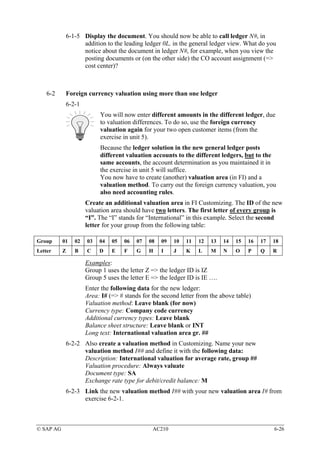
                  Maintain the new entry as described in the exercise text.


           2-1-6 Now create a profit center with ID PC##. For a template, please use
                 profit center 1000 in controlling area 1000. Maintain the following data
                 for the profit center:
                 Analysis Time Frame: 01/01/1999 to 12/31/9999
                 Name: PC Group ##
                 Long Text: Profit Center Group ##
                 Person Responsible: Group ##
                 Department: Course
                 Hierarchy Area: H9500 (Course)
                 Segment: Your new Segment SEG## from the previous exercise. Activate
                 the new profit center.
                  Customizing: Enterprise Structure → Definition → Financial Accounting
                  → Define Profit Center
                  In the displayed dialog box, choose EC-PCA: Create profit center
                  Maintain the new entry, with the reference profit center as described in
                  the exercise text.


           2-1-7 Call cost center T-F05A## in change mode and make sure that the cost
                 center is assigned to your company code AA##. …
                  SAP Easy Access menu → Accounting → Controlling → Cost Center
                  Accounting → Master Data→ Cost Center → Individual Processing →
                  Change
                  … Replace the existing profit center with your new profit center PC##.
                  Answer any warning/information messages with “Yes”. Save your changes.


           2-1-8 Now create vendor 210## in your company code AA## – leave the account
                 group blank and choose Vendor 1000 in Company Code 1000 as a
                 template. Fill in all the required fields with the address data and save your
                 data.
                  SAP Easy Access Menu → Accounting → Financial Accounting →
                  Vendors → Master Records→ Create
                  Maintain the new entry, with the reference as described in the exercise
                  text.


© SAP AG                                    AC210                                         2-25
2-1-9


                        Control exercise – Please do not change the system
                        configuration!

                   Before the first posting, now check whether the cost center, the profit
                   center, and the segment are defined as “Optional” in the field status
                   group of account 417000 (Purchased Services) / company code AA##.
                   SAP Easy Access menu → Accounting → Financial Accounting →
                   General Ledger→ Master Records→ G/L Accounts → Individual
                   Processing → Centrally
                   Enter account 417000 and company code AA##.
                   Double-click the tab Create/bank/interest
                   Double-click the entry for the Field status group (=> G033)
                   Double-click on the Additional account assignments group
                   Find the appropriate account assignments in the displayed table. You
                   may have to scroll down to see the segment.


           2-1-10 Now create a vendor invoice for the services you purchased with the
                  following data:
                  Company Code: AA##
                  Vendor: 210##
                  Invoice and posting date: Today
                  Amount: € 4,640
                  Calculate Tax flag: Set
                  Tax Code: VN
                  Text: 1. Posting AC210
                  G/L Account: 417000
                  Amount in document currency: 4,640 or just “*”
                  CO-Relevant Account Assignment: Cost center T-F05A##
                  Simulate and save the posting document!
                   SAP Easy Access Menu → Accounting → Financial Accounting →
                   Vendors → Document Entry→ Invoice
                   Enter the missing data as described in the exercise text.


© SAP AG                                    AC210                                            2-26
2-1-11 Display the document. …
                 Remain in the Enter Vendor Invoice screen and choose menu path
                 Document → Display
                 … Change the layout in the entry view such that the cost center, profit
                 center, and segment are displayed! …
                 Choose Change Layout... from the drop-down list under the Select
                 Layout pushbutton. Display the three described fields.
                 ... Save this layout user-specifically, with name L1. If you want, you can
                 also save your new layout as the default setting. If you do, layout L1 will be
                 started automatically whenever you display the document.
                 Choose Save Layout... from the drop-down list under the Select Layout
                 pushbutton.


© SAP AG                                   AC210                                            2-27
© SAP AG   AC210   2-28
Course Overview: Document Splitting


      Introduction
       Introduction                     Periodic Processing
                                         Periodic Processing


      Ledger Definition
       Ledger Definition                Parallel Accounting
                                         Parallel Accounting


      Document Splitting
       Document Splitting               Reporting
                                         Reporting


      Integration
       Integration                      Migration
                                        Migration


      SAP AG 2003


© SAP AG                      AC210                            3-1
Document Splitting


           Contents:

               Motivation for splitting
               Splitting functions
               Activating splitting
               Defining splitting characteristics
               Inheritance in the splitting framework
               Example postings with splitting


      SAP AG 2003


© SAP AG                                  AC210         3-2
Document Splitting: Objectives


                     At the conclusion of this unit, you will be able to

                        Explain the motivation and theory behind splitting
                        Activate and use splitting
                        Enter example postings with splitting


      SAP AG 2003


© SAP AG                                 AC210                               3-3
Document Splitting – Motivation

   Available functions in the SAP System (Release SAP ERP Central Component
   5.0 and later) to create segment financial statements:


                                                                                                      SE16: FAGLFLEXT
     The Segment field is a standard field in the totals table for
     the new general ledger (FAGLFLEXT)


     New FI drill-down reporting functions let you create segment
     financial statements


                             Requirement: Example: Posting w/diff. segment assignment

                             CCd    It     PK   Acct     Description       Amount   Curr.   Segment
                             1000        1 31   1000     Vendor X           11,600- EUR
                Entry View


                                         2 40   417000   Purch. Services     4,000 EUR      SEG A
                                         3 40   417000   Purch. Services     6,000 EUR      SEG B
                                         4 40   154000   Input Tax           1,600 EUR


                             Solution: Online spilt
       SAP AG 2003


  The system requirements can be even more "simple" – there do not necessarily have to be different
  segment assignments in the expense lines. At the very least, the payables line (in the general ledger
  view) has to have a "segment assignment" line, for example, to create balanced segment financial
  statements at all.


© SAP AG                                                      AC210                                                     3-4
Assumptions for Document Splitting

    Assumptions for Splitting:
      The operative process (of document entry) must not be disturbed (changed) by the
      online split – specific example:
      When entering the following vendor invoice in the system ...

      Description             Amount    Curr.           Segment

      Vendor X                  11,600- EUR

      Purch. Services             4,000 EUR             SEG A

      Purch. Services             6,000 EUR             SEG B

      Input Tax                   1,600 EUR


      …. the user only wants to enter the vendor once.
      Later, of course, when segment financial statements are required (for segment A, for
      example), the payables (in the general ledger) should report the corresponding share
      (=> 4,640).
       When a vendor line item list is called (in the FI-AP subledger), of course, there
       should still only be one open item for the above invoice.
       Therefore: Splitting is only relevant for the general ledger; it does not need to be
       visible from within the subledgers.
      SAP AG 2003


© SAP AG                                        AC210                                         3-5
Steps Involved in Document Splitting

            Simplified, you can divide the splitting process into
            three steps:

               Passive split:
                  During clearing (during a payment, for example) the account assignments
       1.         of the items to clear are inherited to the clearing line item[s]
                  (=> such as payables line item[s]).
                  This step cannot be customized.

               Active (rule-based) split:
       2.         The system splits documents due to (provided or custom defined )
                  splitting rules
                  Splitting rules can be configured


              Clearing lines/zero balance formation by document:
       3.         The system creates new clearing lines automatically to achieve a split
                  You can control this process with the "zero balance flag"


        SAP AG 2003


⇒ In "clearing situations", the passive split not only ensures that the account itself is balanced, but also
  the additional dimensions. See example in the next slides.
  The logic behind the rules for active splits is explained in the following slides.
  Clearing lines are always formed when values have to be reposted between account assignment
  objects, for example: Transfer posting from profit center A to profit center B.
    The clearing lines ensure that not only the document itself is balanced internally, but also the
    additional dimensions (=> such as business area, segment, or profit center).


© SAP AG                                           AC210                                                 3-6
Document Splitting – Split Logic, Active Split

   Splitting logic based on the example of a vendor invoice:
   => Basic terms printed in black / bold
   => Specific example data printed in blue / italic


                                              Business                   Business
      Splitting Method                                                                           Document
                                             Transaction       + Transaction Variant               Type
        0000000012                          Vendor invoice          Standard (0001)
                                                                                                    KR
                                                (0300)


                                             Splitting Rule:
                                             => Item categories to be split
                                                 Vendor (03000)
                                                 Value-added tax (05100)
                                                        => Base item category
                                                           Expenses (20000)

   Effects in the application (without any reference to an explicit splitting characteristic):
   Vendor document (entry view):                             Vendor document split (G/L view):
   Expense                 10                                Expense                   10
   Expense                 90                                Tax                        1
   Tax                     10                                to vendor                 11
   to vendor              110                                Expense                   90
                                                             Tax                        9
                                                             to vendor                 99
        SAP AG 2003


  A splitting procedure, defined in brief, is the total of all splitting rules of all business
  transactions. As such, the splitting procedure defines how and under which circumstances document
  splits will be performed. In detail, this means each splitting procedure defines how each item
  category will be handled in the individual business transactions - for example, whether the account
  assignment of a customer item will be copied from the revenue item to a customer invoice or not.
  (=> See rule-based split)
    The business transaction is a general breakdown of actual business processes that SAP provides
    and that is assigned a wide variety of item categories.
    The business transaction variant is a specific version of the predefined business transaction
    provided by SAP and the (technical) modeling of a real business process for document splitting.
    An item category is a (technical) map of the posted line items. It describes the items that appear
    within a document (business transaction). They are derived from, among other things, the general
    ledger account categories.
    - In other words: The item category is the semantic description for the document split.
    An individual splitting rule defines which item categories can/will be split (=> item categories to
    be split) and at the same time defines which foundation (=> base) can be used (=> base item
    categories).


© SAP AG                                               AC210                                                3-7
Document Splitting – Splitting Rule Detail View

     Splitting Method                    0000000012           Splitting: Like 0000000002 (follow-up costs online)
     Accounting Transaction              03000                Vendor Invoice
     Transaction Variant                 0001                 Standard

        +   Assigned Item Categories
        -   Splitting Rule
            Account Determination Zero Account Posting               000           Standard Account for Zero Balance
            Leading Item Category                                    03000         Vendor
            -   Item Categories to be Split

                +       ……..          …………………………………

                +       03000         Vendor
                -       05100         Taxes on Sales/Purchases
                        Splitting based on base items
                        Base position with VAT indicator of the item to be split

                    -       Base Item Categories

                                 01000          Balance sheet account
                                 ……             …………
                                 20000          Expense
                                 ……             …………


       SAP AG 2003


  The view shown above is displayed when you click the printer icon for an explicit splitting rule:
  Customizing: Financial Accounting (New), General Ledger Accounting (New), Business
  Transactions, Document Splitting, Extended Document Splitting, Define Splitting Rule
    You can also call the splitting rules with transaction code GSP_RD


© SAP AG                                                      AC210                                                    3-8
Document Splitting Characteristics

       After you've defined how you want the system to split the documents
       (=> with the splitting rules), you now have to define which characteristics
       to use for splitting in general ledger accounting


          Typical splitting characteristics:
          • Business area
          • Profit center
          • Segment
           Important: User-defined entities can also be used for splitting

           Splitting Characteristics for General Ledger
               Field                        Zero Bal.      Mand. Field    ....
               PRCTR Profit Center                                        ....
               SEGMENT Segment                                            ….


                                                                                           SPRO


        SAP AG 2003


  Of course, you define the splitting characteristics in Customizing for the new general ledger
  accounting: Customizing: Financial Accounting (New), General Ledger Accounting (New), Business
  Transactions, Document Splitting, Define Document Splitting Characteristics for General Ledger
  Accounting
     The system proposes logical document splitting characteristics based on the assigned scenarios.
     If you elect to use additional splitting characteristics, you should manage these characteristics in at
     least one ledger.
  You should always set the "zero balance" flag if you plan to use the characteristics to create
  financial statements. The balance of the involved entities is then always 0 for every posting,
  ensuring "entity balancing".
  The “mandatory field" flag has two meanings:
     Firstly, it is an extension of the field status for accounts in which the characteristics cannot be
     "entered" during document entry, and/or for accounts that cannot be controlled through the field
     status. Example: Vendor lines should always include a profit center or a segment.
     Secondly, it is a check as to whether a business process-equivalent business transaction variant
     was selected (which determines whether a splitting rule can be found).


© SAP AG                                           AC210                                                 3-9
Activating Document Splitting and Inheritance

           Splitting is first activated client-wide in Customizing
           In a further step (in the dialog structure) you can activate/deactivating splitting in
           each company code


            Activate Document Splitting
                 Splitting
            Method                0000000012           Splitting: Like 0000000002 ….


            Level of Detail
                Inheritance
                Default Account Assignment           Constant

                                                                                          SPRO


           Inheritance means that when you create a customer invoice from a revenue line,
           for example, the entities (such as business area or segment) are projected
           (inherited) to the customer and tax lines in the general ledger view.
           The default account assignment can be used to replace all account assignments
           that could not be derived from the posting with a constant "value"
       SAP AG 2003


  Splitting is activated in Customizing for the new general ledger accounting: Customizing: Financial
  Accounting (New), General Ledger Accounting (New) Business Transactions, Document Splitting,
  Activate Document Splitting
    Splitting procedure 0000000012 is the default procedure provided by SAP.
  There is no reason why you shouldn't activate inheritance when splitting is active.
    If you didn't use inheritance, you'd have to define "rules" for the business processes to ensure that
    the account assignments are projected, for example, to achieve a zero balance in order to post
    the item.
    Activation of inheritance is a first practical step to enable documents with active splitting, without
    any other Customizing activities.
    Inheritance is performed online and at the line item level.
  To use a default account assignment, you first have to define a constant: Customizing: Financial
  Accounting (New), General Ledger Accounting (New) Business Transactions, Document Splitting,
  Edit Constants for Nonassigned Processes


© SAP AG                                         AC210                                                 3-10
Document Splitting / Inheritance – Example Figures
   Modeled business transaction:
       G/L account postings – Expense line item, taxes to petty cash
   System configuration:
       Scenarios Profit Center Update and Segmentation are assigned
       Splitting activated – Splitting characteristics Profit Center and Segment are defined

   Entry view:
   CCd       I     PK Acct              Description            Amount        Curr.   Tx   CCtr            PC     Segment
   1000          1 40     476000        Office materials             50.00 EUR       VN 1000              1402   SEG A
                 2 50     100000        Petty Cash                   58.00- EUR
                 3 40     154000        Input Tax                     8.00 EUR       VN
 Inheritance flag not set!                                                                                Inheritance flag set!
 General ledger view / Ledger 0L:                                        General ledger view / Ledger 0L:
                        Amount CCtr              PC        Segment                            Amount CCtr        PC      Segment
     Important:                                                              Important:
  Missing columns            50.00 1000          1402      SEG A          Missing columns        50.00 1000      1402    SEG A
   are identical to         58.00-                                         are identical to      58.00-          1402    SEG A
   the entry view.                                                         the entry view.
                               8.00                                                               8.00           1402    SEG A
    Balancing field "Segment" is not filled in line item 002
         SAP AG 2003


  The Inheritance flag ensures that the corresponding account assignment objects are projected to the
  petty cash and tax line items.
    This is a huge step compared to prior releases, because everything is performed online for each
    line item.
  The Inheritance flag ensures a zero balance position for entities selected for splitting, without
  requiring you to define any other system settings.


© SAP AG                                                             AC210                                                       3-11
Document Splitting – Example Figures I
   Modeled business transaction:
      G/L account posting – Transfer posting within an account
   System configuration:
      Scenarios Profit Center Update and Segmentation are assigned
      Splitting activated – Splitting characteristics Profit Center and Segment are defined

            Entry view:
            CCd I PK Acct            Description         Amount    Curr. Tx CCtr   PC   Segment
            1000 1 40 113100 Bank                         10,000.00 EUR                 SEG A
                      2 50 113100 Bank                   10,000.00- EUR                 SEG B

            General ledger view / Ledger 0L:
            CCd I PK Acct            Description         Amount    Curr. Tx CCtr   PC   Segment
            1000 1 40 113100 Bank                        10,000.00 EUR                  SEG A
                      3 50 194500 Clear. Seg.            10,000.00- EUR
                      2 50 113100 Bank                   10,000.00- EUR                 SEG B
                      4 40 194500 Clear. Seg.            10,000.00 EUR
           Layout sorted by segment in ascending order

       SAP AG 2003


  Reason for reposting: A vendor invoice was incorrectly assigned to an incorrect segment and paid
  with this incorrect segment.
  The above case is an example of clearing line formation.


© SAP AG                                                 AC210                                    3-12
Document Splitting – Example Figures II

   Modeled business transaction:
      Vendor invoice with multiple expense line items and different account assignments


             Entry view:
             CCd       I     PK Acct       Description         Amount     Curr.   Tx CCtr   PC     Segment
             1000          1 31   1000     Miller Inc.          11,600.00- EUR    VN
                           2 40   477000   Advertising Costs     1,000.00 EUR     VN 1000   1000   SEG A
                           3 40   417000   Purch. Services       9,000.00 EUR     VN 4140   1402   SEG B
                           4 40   154000   Input Tax             1,600.00 EUR     VN

             General ledger view / Ledger 0L:
             CCd       I     PK Acct       Description            Amount Curr.    Tx CCtr   PC     Segment
             1000          1 31   160000   Vendor Payable        1,160.00- EUR    VN        1000   SEG A
                           2 40   477000   Advertising Costs     1,000.00 EUR     VN 1000   1000
                           4 40   154000   Input Tax               160.00 EUR     VN        1000
                           1 31   160000   Vendor Payable       10,440.00- EUR    VN        1402   SEG B
                           3 40   417000   Purch. Services       9,000.00 EUR     VN 4140   1402
                           4 40   154000   Input Tax             1,440.00 EUR     VN        1402
            Layout sorted by segment in ascending order
        SAP AG 2003


  The entities defined as splitting characteristics are inherited in non-account-assigned posting lines.
  As you can see clearly in the slide, the individual posting components always balance to zero.
  In this rule-based split, the vendor and tax lines (items 1 and 4) in the general ledger view are split in
  accordance with the expense lines / base item category expense (items 2 and 3; expense accounts
  477000 and 417000).


© SAP AG                                                       AC210                                         3-13
Split – Follow-Up Process I
   Modeled business transaction:
      The vendor invoice (see Example Figures II) is now paid
           It is paid with a retention amount of 3% cash discount – amount paid: 11.252.00 €.
      What to watch out for:
           The selected split characteristics now have to be inherited to the posting lines of
           the payment document as well.
           The payment document is allocated according to the splitting rules of the original
           expense posting / vendor invoice.


        Entry view:
         CCd I PK Acct        Description    Amount     Curr. Tx CCtr    PC     Segment
         1000 1 50 113100 Bank               11,252.00- EUR
                2 50 276000 Discount rec.        30.00- EUR   VN         1000 SEG A
                3 50 276000 Discount rec.       270.00- EUR   VN         1402 SEG B
                4 25 1000     Miller Inc.     11,600.00 EUR
                5 50 154000 Input Tax            48.00- EUR   VN
                                                                         See overleaf for general ledger view

       SAP AG 2003


  For more information on "cash discount received" lines, see the Integration unit, topic Online
  Distribution of Follow-Up Costs.


© SAP AG                                        AC210                                                     3-14
Document Splitting – Follow-Up Process II


        General ledger view / Ledger 0L:
        CCd I PK Acct             Description        ?   Amount Curr. Tx CCtr    PC     Segment
        1000 1 50 113100 Bank                            1,125.20- EUR           1000 SEG A
                2 50 276000 Discount rec.                  30.00- EUR      VN    1000
                4 25 160000 Vendor Payable               1,160.00 EUR            1000
                5 50 154000 Input Tax                       4.80- EUR      VN    1000
                                                             0.00 EUR                   SEG A
        1000 1 50 113100 Bank                        10,126.80- EUR              1402 SEG B
                3 50 276000 Discount rec.                 270.00- EUR      VN    1402
                4 25 160000 Vendor Payable               10,440.00 EUR           1402
                5 50 154000 Input Tax                      43.20- EUR      VN    1402
                                                             0.00 EUR                   SEG B

        Layout sorted by segment in ascending order and with segment subtotals


       SAP AG 2003


  In the line item display, the payment document and original invoice document appear as cleared
  items, as in prior releases.
  The splitting rules for splitting the payment of a vendor invoice are provided in the standard SAP
  System.
     The "payables lines" (=> account 160000) are created through a passive document split.
  If we assume that the invoice was not paid in full and a residual item of €2,000.00 remains, this
  creates a new vendor line item; this residual item would in turn be split among the original expenses
  in the general ledger view in invoice entry.


© SAP AG                                                   AC210                                    3-15
Document Splitting – Modeling

   Modeled business transaction:
      G/L account postings – Multiple expense line items, taxes to petty cash
   System configuration:
      Scenarios Profit Center Update and Segmentation are assigned
      Splitting activated – Splitting characteristics Profit Center and Segment are defined


           Entry view:
           CCd I PK Acct              Description         Amount Curr. Tx CCtr      PC   Segment
           1000 1 40 476000 Office materials                  50.00 EUR   VN 1000   1000 SEG A
                  2 40 476000 Office materials              100.00 EUR    VN 4140   1410 SEG B
                  3 50 100000 Petty Cash                    174.00- EUR
                  4 40 154000 Input Tax                       24.00 EUR   VN
             Balancing field "Segment" is not filled in line item 003                            FB50


    The standard splitting rules do not cover this type of business transaction
    To post the transaction, you will have to enhance the existing splitting rules


       SAP AG 2003


  What are the reasons for the error message during the error message?
     No base item category is assigned for item category "cash account" (nor in item category "value-
     added tax) in the corresponding "business transaction/business transaction variant combination"
     that is assigned to the respective document type.
     "Inheritance" of the segment is not possible because it is not unique.
  If you have to modify a rule, you should create your own allocation procedure and copy the assigned
  rules from the standard configuration.


© SAP AG                                                      AC210                                     3-16
Splitting: Summary


                     You can now:

                       Explain the motivation behind splitting and how it
                       works
                       Activate and use splitting
                       Duplicate example postings with the online split
                       function


      SAP AG 2003


© SAP AG                               AC210                                3-17
© SAP AG   AC210   3-18
Exercises

                    Unit: Document Splitting
                    Topic: Postings with Online Split

                    At the conclusion of these exercises, you will be able to
                    • Understand and configure document splits. You will also be able to
                      enter and analyze split documents.


   3-1     Exercises for configuring and demonstrating document splitting
           3-1-1


                        Control exercise – Please do not change the system
                        configuration!

                   Please check whether at least the Segment splitting characteristic is
                   defined! The Zero-Balance and Mandatory Field flags have to be set for
                   the segment. If this is not the case, please notify your course instructor.
           3-1-2 When should you set the “zero balance” flag for the splitting characteristics
                 in general ledger accounting?
           3-1-3 Does it make sense to also set the “mandatory flag” for a balancing entity?
           3-1-4 Activate document splitting for your company code AA##. As already
                 configured, use splitting method 0000000012 (splitting: like 0000000002
                 [follow-up costs online]) for your company code, and make sure
                 inheritance is activated. You do not need to enter a constant for a default
                 account assignment.
           3-1-5 Now create a vendor invoice for the spare parts you purchased with the
                 following data:
                 Company Code: AA##
                 Vendor: 210##
                 Invoice and posting date: Today
                 Amount: € 2320
                 Calculate tax flag: Set
                 Tax Code: VN
                 Text: Spare parts purchase group ##
                 G/L Account: 404000
                 Amount in document currency: 2,320 or just “*”
                 CO-Relevant Account Assignment: Cost center T-F05A##
                 Simulate and save the posting document!


© SAP AG                                     AC210                                           3-19
3-1-6 Display the document. You can see in the entry view that your segment
                 SEG## was derived. Now switch to the general ledger view: The segment
                 should now be inherited in the payables and tax line items.
                        Important: If your instructor has (also) defined the profit center
                        (and/or business area) as a splitting characteristic, these entities will
                        also be inherited in the payables and tax line items.


           3-1-7 Active split: You will now enter an additional spare parts invoice for
                 vendor 210##. In contrast to the previous exercise, some of the spare parts
                 should now be assigned to your defined segment SEG##, with the rest
                 assigned to segment SEGA!
                  3-1-7-1To make sure that the second part of the posted amount is really
                  assigned to segment SEGA, check the settings for cost center T-F05B##
                  before you post: Which profit center is defined in cost center T-F05B##?
                  3-1-7-2Which segment is defined in the corresponding profit center?
                  Hopefully segment SEGA ☺
                  The invoice total should amount to € 10,000 net. Split the costs for the
                  spare parts however you like, as long as you assign some parts to cost
                  center T-F05A## and the others to cost center T-F05B##.
                  You can use account 404000 or 400000 as the expense account. Use the
                  data and control parameters from the previous exercise.
           3-1-8 Display the document. You can already see in the entry view that the
                 expense has been split – of course in the ratio you defined yourself in the
                 posting. Now switch to the general ledger view: You should now see 6
                 line items instead of the 4 posting line items.
           3-1-9 To instantly see whether a zero balance has been reached for each segment,
                 change the layout of the document: Sort by segment and calculate a
                 subtotal for the Segment column.
           3-1-10 You can save this layout as user-specific layout L2.
           3-1-11 To demonstrate that the split is really only performed in the general ledger,
                  and not in the subledgers, call a vendor line item list for your vendor
                  210##.
                  You should see 3 open items. The last recorded document is displayed as
                  one open item in the amount of EUR 11,600.00. To show the split by
                  segment, you have to display the document from within the Open item list.


© SAP AG                                     AC210                                              3-20
Solutions

                    Unit: Document Splitting
                    Topic: Postings with Online Split


   3-1     Exercises for configuring and demonstrating document splitting
           3-1-1


                        Control exercise – Please do not change the system
                        configuration!

                   Please check whether at least the Segment splitting characteristic is
                   defined! The Zero-Balance and Mandatory Field flags have to be set for
                   the segment. If this is not the case, please notify your course instructor.
                   Customizing: Financial Accounting (New) → General Ledger Accounting
                   (New) → Business Transactions → Document Splitting → Define
                   Document Splitting Characteristics for General Ledger Accounting


           3-1-2 When should you set the “zero balance” flag for the splitting characteristics
                 in general ledger accounting?
                   You have to set this flag whenever the characteristic involved is a
                   balancing entity. Setting the “zero balance” flag ensures that the
                   characteristic will have a zero balance in the document.
                   Specifically: If the flag is set, the system checks whether the balance of
                   the characteristic is zero during posting. If this is not the case, the
                   system creates additional clearing line items in the document to achieve
                   the zero balance.


           3-1-3 Does it make sense to also set the “mandatory flag” for a balancing entity?
                   Yes: in this case, the system not only generates the clearing line items,
                   but also checks whether all the line items in the posting are assigned to
                   the appropriate characteristic after the split.


© SAP AG                                     AC210                                           3-21
3-1-4 Activate document splitting for your company code AA##. As already
                 configured, use splitting method 0000000012 (splitting: like 0000000002
                 [follow-up costs online]) for your company code, and make sure
                 inheritance is activated. You do not need to enter a constant for a default
                 account assignment.
                  Customizing: Financial Accounting (New) → General Ledger Accounting
                  (New) → Business Transactions → Document Splitting → Activate
                  Document Splitting
                  The settings in the first screen should already be correct.
                  Switch to Deactivation per Company Code in the dialog structure. Find
                  the line with your company code, AA##, and delete the inactive flag.


           3-1-5 Now create a vendor invoice for the spare parts you purchased with the
                 following data:
                 Company Code: AA##
                 Vendor: 210##
                 Invoice and posting date: Today
                 Amount: € 2320
                 Calculate tax flag: Set
                 Tax Code: VN
                 Text: Spare parts purchase group ##
                 G/L Account: 404000
                 Amount in document currency: 2,320 or just “*”
                 CO-Relevant Account Assignment: Cost center T-F05A##
                 Simulate and save the posting document!
                  SAP Easy Access Menu → Accounting → Financial Accounting →
                  Vendors → Document Entry→ Invoice
                  Enter the required data as described in the exercise text.


           3-1-6 Display the document. …
                  Remain in the Enter Vendor Invoice screen and choose menu path
                  Document → Display
                  ... You can see in the entry view that your segment SEG## was derived.
                  Now switch to the general ledger view: The segment should now be
                  inherited in the payables and tax line items.
                        Important: If your instructor has (also) defined the profit center
                        (and/or business area) as a splitting characteristic, these entities will
                        also be inherited in the payables and tax line items.


© SAP AG                                     AC210                                              3-22
3-1-7 Active split: You will now enter an additional spare parts invoice for
                 vendor 210##. In contrast to the previous exercise, some of the spare parts
                 should now be assigned to your defined segment SEG##, with the rest
                 assigned to segment SEGA!
                  3-1-7-1To make sure that the second part of the posted amount is really
                  assigned to segment SEGA, check the settings for cost center T-F05B##
                  before you post: Which profit center is defined in cost center T-F05B##?
                  SAP Easy Access menu → Accounting → Controlling → Cost Center
                  Accounting → Master Data→ Cost Center → Individual Processing →
                  Display
                  Profit center 1402 is defined.


                  3-1-7-2   Which segment is defined in the corresponding profit center?
                            Hopefully segment SEGA ☺
                  SAP Easy Access menu → Accounting → Controlling → Profit Center
                  Accounting → Master Data→ Profit Center → Individual Processing →
                  Display
                  Enter profit center 1402 and display the master data. Input field
                  Segment appears in the logical field group Basic Data.


                  The invoice total should amount to € 10,000 net. Split the costs for the
                  spare parts however you like, as long as you assign some parts to cost
                  center T-F05A## and the others to cost center T-F05B##.
                  You can use account 404000 or 400000 as the expense account. Use the
                  data and control parameters from the previous exercise.
                  SAP Easy Access Menu → Accounting → Financial Accounting →
                  Vendors → Document Entry→ Invoice
                  Enter the required data as described in the exercise text.


           3-1-8 Display the document. …
                  Remain in the Enter Vendor Invoice screen and choose menu path
                  Document → Display
                  ... You can already see in the entry view that the expense has been split – of
                  course in the ratio you defined yourself in the posting. Now switch to the
                  general ledger view: You should now see 6 line items instead of the 4
                  posting line items.


© SAP AG                                    AC210                                            3-23
3-1-9 To instantly see whether a zero balance has been reached for each segment,
                 change the layout of the document: Sort by segment and calculate a
                 subtotal for the Segment column.
                  Select the Segment column in the display document and press the Sort
                  Ascending button. Select the Amount column and press the Totals
                  button. Then select the Segment column again and press the Subtotal
                  button.


           3-1-10 You can save this layout as user-specific layout L2.
                  Choose Save Layout... from the drop-down list under the Select Layout
                  pushbutton.


           3-1-11 To demonstrate that the split is really only performed in the general ledger,
                  and not in the subledgers, call a vendor line item list for your vendor
                  210##. …
                  SAP Easy Access Menu → Accounting → Financial Accounting →
                  Vendors → Account → Display/Change Line Items
                  Enter vendor 210## and company code AA##, then start the selection of
                  your open items, open as of today.
                  ... You should see 3 open items. The last recorded document is displayed as
                  one open item in the amount of EUR 11,600.00. To show the split by
                  segment, you have to display the document from within the Open item list.
                  Double-click the displayed document number.
                  Choose menu path Goto → Document Overview


© SAP AG                                     AC210                                           3-24
Course Overview: Integration


      Introduction
       Introduction                      Periodic Processing
                                          Periodic Processing


      Ledger Definition
       Ledger Definition                 Parallel Accounting
                                          Parallel Accounting


      Document Splitting
       Document Splitting                Reporting
                                          Reporting


      Integration
       Integration                       Migration
                                         Migration


      SAP AG 2003


© SAP AG                         AC210                          4-1
Integration


           Contents:

               Integration with FI Subledgers
               Integration with Controlling
               Integration with Materials Management


      SAP AG 2003


© SAP AG                               AC210           4-2
Integration: Objectives


                     At the conclusion of this unit, you will be able to

                        Enter postings in accounts payable and accounts
                        receivable
                        Enter post-capitalization of cash discounts for assets
                        in real time
                        Understand and configure the real-time configuration
                        from CO to FI
                        Distribute follow-up costs online
                        Perform allocations in FI
                        Determine whether the new general ledger is also
                        integrated with Materials Management


      SAP AG 2003


© SAP AG                                 AC210                                   4-3
The New General Ledger – Integration


      Integration with the following components is relevant:

           Integration with FI Subledgers
              • FI-AP (Accounts Payable)
                    • Covered in detail in the Splitting unit
              • FI-AR (Accounts Receivable)
              • FI-AA (Asset Accounting)


           Integration with Controlling
              • Real-time integration CO -> FI
              • Online distribution of follow-up costs
              • Allocations


           Integration with Materials Management


      SAP AG 2003


© SAP AG                                     AC210              4-4
The New General Ledger – Integration


      Integration with the following components is relevant:

           Integration with FI Subledgers
              • FI-AP (Accounts Payable)
                    • Covered in detail in the Splitting unit
              • FI-AR (Accounts Receivable)
              • FI-AA (Asset Accounting)


           Integration with Controlling
              • Real-time integration CO -> FI
              • Online distribution of follow-up costs
              • Allocations


           Integration with Materials Management


      SAP AG 2003


© SAP AG                                     AC210              4-5
New General Ledger – Integration with FI-AR


        Customer documents are subject to the same rules as in
          accounts payable:

        The account assignment objects in the revenue line item is inherited to
          the customer and tax lines in the invoice. You can see this in the general
          ledger view of the document display.

        The customer and tax line items of a customer invoice with different
          account assignment objects in the revenue lines are split online, in
          proportion to the amounts in the revenue line items. You can also see
          this in the general ledger view of the document display.

        The customer line item list still only outputs one item per document.

        When payments are received, the bank and any cash discount items are
         split analogous to the revenue lines in the original customer invoice –
         Key word: follow-up process.


       SAP AG 2003


  You can see the inheritance of customer items clearly in transaction FB70 (=> Enter Customer
  Invoice).
  When you enter a customer invoice with different account assignments in the revenue line items, you
  see that nothing has changed compared to the prior releases: You have to enter the various revenue
  line items by hand for the different account assignment objects – the tax and customer line items are
  created automatically.
     After posting, you can view the online split in the general ledger view of the document – The entry
     view shows the document as it was posted.


© SAP AG                                        AC210                                                4-6
The New General Ledger – Integration


      Integration with the following components is relevant:

           Integration with FI Subledgers
              • FI-AP (Accounts Payable)
                    • Covered in detail in the Splitting unit
              • FI-AR (Accounts Receivable)
              • FI-AA (Asset Accounting)


           Integration with Controlling
              • Real-time integration CO -> FI
              • Online distribution of follow-up costs
              • Allocations


           Integration with Materials Management


      SAP AG 2003


© SAP AG                                     AC210              4-7
New General Ledger – Integration with FI-AA I

       Assumed system configuration: Asset accounting is managed as a subledger with
             two depreciation areas (=> Book [01] and Costing [20]). The costing-based
                      depreciation is passed on to CO in the costing area. Parallel
   Target / option: (also) model asset transactions not relevant (yet). centers):
                                     Valuation is in segments (or profit

         Both account assignment elements are generally derived
           from the assigned CO objects in the asset master record (=> cost center or order)
   1.
         To actually assign a segment (or a PC) for asset transactions,
           you have to activate Account Assignment Type APC Values Posting for Area 01
           for the corresponding CO object.


     Company Code: 1000
     Depreciation Area: 01               Area 01 / Book Depreciation

   Account Assignment Objects
        AA              Name of AA Object            TTy     TTy Text         Acct. Assign. Type   Assign
        Object
        KOSTL           Cost Center                  *       Gen. Trn. Type   APC Values Posting

        CAUFN           Internal order               *       Gen. Trn. Type   APC Values Posting


                                                                                                            ACSET


         SAP AG 2003


  Business embedding: The specified target must be reached, because you have assigned the
  segmentation scenario (or profit center update) to the leading ledger.
    In addition, the Segment characteristic (or PC or BA) should be a balancing entity.
  The above example shows a typical configuration for Asset Accounting (component FI-AA) if the
  involved company does not have to follow any accounting rules other than book depreciation:
    Area 01: Posts values to general ledger in real time
    Area 20: Only posts depreciation
  The new entities within the new general ledger in mySAP ERP, such as segment or profit center,
  cannot be defined directly in the asset master record. The system derives these two objects from
  the cost center or order, which can be maintained in the "time-dependent data" for the asset.
  The account assignment types are defined in Customizing for Asset Accounting: Customizing,
  Financial Accounting (New), Asset Accounting, Integration with the General Ledger, Additional
  Account Assignment Objects, Specify Account Assignment Types for Account Assignment Objects
    You can only maintain account assignment types for active account assignment objects.


© SAP AG                                                   AC210                                                    4-8
New General Ledger – Integration with FI-AA II

   Target / option: Model asset transactions in segments (or profit centers):

         The segment (or PC) now has to be inherited from the asset line to the vendor and tax lines
           (or, if inbound is not integrated, to the clearing account line.
   2.
         Solution: Activate splitting with inheritance


         Posting result of an integrated asset acquisition (TCode F-90):

          General ledger view / Ledger 0L:
          CCd I PK Acct             Description              Amount Curr. Tx CCtr   PC   Segment
          1000 1 31 160000 Vendor Payable 116,000.00- EUR VN                        1000 SEG A
                 2 70 11000         00002002 0000          100,000.00 EUR VN        1000 SEG A
                 3 40 154000 Input Tax                     16,000.00 EUR VN         1000 SEG A
                                                                0.00 EUR
         Layout with totals formation for amount column.


         SAP AG 2003


  The document split also works when an asset acquisition is posted for multiple assets (with different
  segment assignments).
    Document types AA (or AN) are assigned the default business transaction 0000 (unspecified
    posting) and business transaction variant 0001 (standard) in the context of document splitting.
    The reconciliation accounts (asset accounts and value adjustment accounts) are already classified
    internally as item categories.
    The item categories for the asset retirement nodes may still have to be defined.
  New FI drilldown reports let you create segment or profit center financial statements immediately
  (=> TCode FGI0)!
    As a result, you no longer have to "transfer assets to Profit Center Accounting" (TCode 1KEI)
    for profit center financial statements.
  The cost center for the asset is not transferred to the general ledger view by default. To assign it
  during posting (=> Entry view), read SAP Note 395762!


© SAP AG                                                     AC210                                     4-9
Post-Capitalization of Cash Discount for Asset 1

   Same initial situation: Payment of invoice for asset with deduction of 3% cash discount


   Target / option: (also) model asset transactions in segments (or profit centers):


     Processing until Release R/3 Enterprise (inclusive):
     1. Enter the invoice with posting against the cash discount received account
     General ledger view / Ledger 0L:

            CCd I PK Acct              Description             Amount Curr. Tx CCtr   PC   Segment
            1000 1 50 113100 Bank                            112,520.00- EUR          1000 SEG A
                    2 50 276000 Cash disc. rec.                3,000.00- EUR VN       1000 SEG A
                    3 25 160000 Vendor Payable               116,000.00 EUR           1000 SEG A
                    4 50 154000 Input Tax                       480.00- EUR VN        1000 SEG A
                                                                   0.00 EUR
           Layout with totals formation for amount column.
     The asset still has a value of € 100,000.00. Deduction of the cash discount amount
     from the asset only takes place using a second step:
     2. Start (periodic) program SAPF181


       SAP AG 2003


  Of course, the above example with gross entry of the invoice document (=> capitalizing the asset
  without deducting the cash discount) and the subsequent payment with deduction of cash discount
  can also take place in the reverse order: Capitalization of the asset with deduction for cash discount
  and (delayed) payment of the invoice amount without deduction for cash discount.
    In the reverse case as well, in R/3 Enterprise and earlier versions, the asset value is only corrected
    in a second step, with program SAPF181.


© SAP AG                                                     AC210                                     4-10
Post-Capitalization of Cash Discount for Asset II

   Same initial situation: Payment of invoice for asset with deduction of 3% cash discount


   Processing using the possibilities of the new general ledger:
     1. Enter the invoice referring to the asset:
     General ledger view / Ledger 0L:

            CCd I PK Acct              Description                   ?   Curr. Tx CCtr      PC    Segment
                                                               Amount
            1000 1 50 113100 Bank                            112,520.00- EUR                1000 SEG A
                    2 75 011000 00002002 0000                  3,000.00- EUR VN             1000 SEG A
                    3 25 160000 Vendor Payable               116,000.00 EUR                 1000 SEG A
                    4 50 154000 Input Tax                       480.00- EUR VN              1000 SEG A

           Layout with totals formation for amount column.         0.00 EUR
     I.e. the asset has (immediately after payment) a value of € 97,000.
     It consists of two (asset) transactions:
            Amount            Trans. Type         Transaction Type Text
                 100,000.00   100                 Purchase acquisition (=> from vendor invoice)
                  3,000.00-   100                 Purchase acquisition (=> from payment)
       SAP AG 2003


  The "post-capitalization of cash discount to asset" is only possible if the document split is active.
     Important: You do not necessarily have to define splitting characteristics, however.
  Path: Customizing: Financial Accounting (New), General Ledger Accounting (New) Business
  Transactions, Document Splitting, Define Post-Capitalization of Cash Discount to Assets
  The "post-capitalization of cash discount to asset" only works if the function was already configured
  when the invoice was entered. It is not enough to simply activate the function before entering the
  payment.
  If you use the "post-capitalization of cash discount to asset", you can eliminate the (periodic) run of
  program SAPF181.


© SAP AG                                                     AC210                                          4-11
The New General Ledger – Integration


      Integration with the following components is relevant:

           Integration with FI Subledgers
              • FI-AP (Accounts Payable)
                    • Covered in detail in the Splitting unit
              • FI-AR (Accounts Receivable)
              • FI-AA (Asset Accounting)


           Integration with Controlling
              • Real-time integration CO -> FI
              • Online distribution of follow-up costs
              • Allocations


           Integration with Materials Management


      SAP AG 2003


© SAP AG                                     AC210              4-12
Real-Time Integration CO -> FI

       Financial Accounting                                          Controlling


  Transaction 1: Posting to expense account:
  System activity:
     Charge an FI account
  If account is defined as cost element ...               System activity:
                                                            Charge a CO object, such as a cost center


                                                          Transaction 2: Transfer posting in CO,
                                                          e.g. to another cost center …
  System activity – New in mySAP ERP:                     … with a different company code, BA,
                                                  New     PC, or other segment, …
     Changes result in a real-time
     (reconciliation) posting in FI for each CO
     document
     You no longer have to manage the
     reconciliation ledger


       SAP AG 2003


  (Real-time) integration from Financial Accounting (=> FI) to Controlling (=> CO) has been
  available in the SAP System for some time now.
  Merely the opposite direction, from CO to FI, was not previously possible in real time. This
  involves, for example, changes to characteristics in the following processes/transactions such
  as:
     Periodic allocations (assessment, distribution, transfer posting)
     Manual transfer postings to CO [=> TCode KB11(N)]
     Activity allocations [TCode KB21(N)]
     Settlement from orders or projects [TCode KO88 and CJ88]
  CO reconciliation with Financial Accounting always required the reconciliation ledger, which was
  maintained in Cost Element Accounting.
     Periodic program runs carried out summary adjustment/reconciliation postings for each cost
     element/expense account: Transaction code KALC.
  Transaction KALC is no longer available (by default) after the new general ledger is activated – an
  information message points out the new real-time integration between CO and FI.
     The Segment characteristic could not be reconciled with transaction KALC.


© SAP AG                                          AC210                                             4-13
Variants for CO -> FI Real-Time Integration

   You can use a Customizing variant for real-time integration to configure (example):
      The criteria for real-time integration
      The activation date for the real-time integration


    Variants for CO -> FI Real-Time Integration


            Real-Time Int. Act.    Key Date: Act.from: MM/DD/YYYY
            Acct. Determ. Act.
     ....
     ....

    Selection of Document Lines for CO->FI Integration:

                                                  Cross-company code         Cross-profit center
            Use Checkboxes                        Cross-business area        Cross-segment
                                                  Cross-functional area      Cross-fund
                                                  Cross-functional area
     ....

            Trace Active

                                                                                                   SPRO


        SAP AG 2003


  You define the variants for CO->FI real-time integration under: Customizing, Financial Accounting
  (New), Financial Accounting Basic Settings (New), Ledgers, Real-Time Integration of Controlling
  with Financial Accounting, Define Variants for Real-Time Integration
  In a further step, you assign the variant to your company code(s).
  To determine which characteristic changes will generate real-time FI line items, you can use the
  checkboxes, define Boolean rules, or implement a BAdI with your own program logic.
    Please note that it does not make any sense to select characteristics that you have not assigned to at
    least one ledger through the scenarios.
  The key date activation defines when (from which posting date of the CO document) CO-FI
  reconciliation is possible through real-time integration.
    You can also create Financial Accounting documents for CO documents entered before the new
    general ledger was activated.
  To transfer secondary cost elements from CO to FI, you have to define an account assignment.
  You define account determination under: Customizing, Financial Accounting (New), Financial
  Accounting Basic Settings (New), Ledgers, Real-Time Integration of Controlling with Financial
  Accounting, Account Determination for Real-Time Integration
    It is also possible to transfer primary costs to FI through account determination; the original cost
    elements are generally used for this.


© SAP AG                                            AC210                                                 4-14
Real-Time Integration CO -> FI – Example Figures

          A posting for wages/salaries (=> account 420000)            The following now occurs in real               time:
   1.     is entered in FI!
          Cost center 1000 is also assigned and is used to derive
          functional area 0400.
                                                                      CO     Cost center 1000        Cost center 4140
   FI               420000                  Payables                          420000    + 500.00     420000    + 500.00
               500.00                               500.00             2a.    420000    - 500.00
                                                                                           0.00
             Functional area 0400:         500.00
                                                                       FI          420000                420000
  CO                                                                          500.00                           500.00
                        Cost center 1000
                                                                       2b.
                         420000     + 500.00
                                                                             Functional area 0400:          500.00
                                                                                                          - 500.00
                                                                                                             0.00–

                                                                             Functional area 0100:         500.00
          The value in cost center 1000 is now, through a manual
   2.
          transfer posting in CO, for example, transferred to cost
          center 4140 – but this cost center is assigned to FKBER
          0100.


         SAP AG 2003


  This slide demonstrates CO->FI real-time integration based on the characteristic/entity
  Functional Area.
    The characteristics Profit Center, Segment, and Business Area have been omitted from the
    example for clarity's sake.
  What do you see in the Financial Accounting document (=> 2b.)?
    The posting is real time (for each CO document) – (periodic) reconciliation using the
    reconciliation ledger and transaction KALC is omitted.
    In this case, the FI follow-on document has no clearing accounts. Clearing lines are only
    necessary if the activity in Management Accounting / CO (=> 2.) results in a change of a
    balancing entity.
    You can navigate from the real-time follow-on Financial Accounting document to the
    Management Accounting document (=> 2./2a.) and vice versa – key word: Traceability of the
    accounting documents.


© SAP AG                                                      AC210                                                       4-15
Real Time Integration CO -> FI – Trace / Log


 Transaction FAGLCOFITRACEADMIN
       If necessary, the CO=>FI real-time integration can be logged with a trace.
       If the trace was active during a CO posting, you can analyze the real-time integration
       data again at any time – including the following data:
             The document number of the original CO document
             Whether it was a transfer or a test run
             The document number of the follow-up document in FI if a transfer to FI took
             place
             The reason for transfer, but also the reason for a failed transfer
             The posting mode: online posting or subsequent transfer (subsequent posting
             / follow-up)
             Posting date, posting time, and user
             Line item data for the documents:
                   All posted to objects and partner objects


        SAP AG 2003


  You can activate the trace in the real-time integration variant; it is then active for all users at all
  times. You cannot deactivate it subsequently. Please note that this may result in a significant -
  potentially undesired - number of log entries.
  If the trace is not activated in the real-time integration variant, it can still be activated and deactivated
  user-specifically at any time.
     The corresponding transaction code to enter (in the command field) is: FAGLCOFITRACEADMIN
  If the Management Accounting activity (CO activity) does not change any FI characteristics (=>
  company code, segment, etc.), then no FI follow-on document is created. But if the trace is active, a
  trace entry is created anyway.


© SAP AG                                           AC210                                                  4-16
Real-Time Integration CO -> FI – Document Flow


                  Display CO Document:
                  From CO reporting line item:
                        • Menu path Environment, Accounting Documents
                  From originally used CO transaction (e.g. GB13N):
                        • Menu path Goto, Accounting Documents


                  Dialog box opens with a list of Financial Accounting documents – at
                  least:
                  • One accounting document
                  • One controlling document


                  Enter transaction code FB03 (Display [FI] Document):
                  Entry view and general ledger view can be displayed
                         • Menu path Environment, Document Environment, Accounting
                         Documents


       SAP AG 2003


  You can navigate from the CO document to the FI [reconciliation] document generated in real time –
  and in the opposite direction.
    This guarantees the traceability of the accounting documents.
  This bidirectional navigation between documents is possible because the real-time CO-FI integration
  creates an FI follow-on document for each activity, and not just a totals posting at the end of the
  month.


© SAP AG                                         AC210                                           4-17
The New General Ledger – Integration


      Integration with the following components is relevant:

           Integration with FI Subledgers
              • FI-AP (Accounts Payable)
                    • Covered in detail in the Splitting unit
              • FI-AR (Accounts Receivable)
              • FI-AA (Asset Accounting)


           Integration with Controlling
              • Real-Time Integration CO -> FI
              • Online distribution of follow-up costs
              • Allocations


           Integration with Materials Management


      SAP AG 2003


© SAP AG                                     AC210              4-18
Online Distribution of Follow-Up Costs (Upon
  Payment)


      Objective/motivation for the online distribution of follow-up costs:
      A vendor invoice is paid with a deduction for cash discount.
      The cash discount amount is now to credit the CO object (typically a cost center, order, or
      project) that was originally charged when the invoice was entered in real time.


           CO Actual/plan/variance report (example: order 100...):
           FI activities:
              Posting a vendor invoice in the amount of €1,160.00 (gross)
              Invoice paid with 3% cash discount => Amount paid: 1,125.20

         Cost Elements                                            Actual             Planned
         276000 Cash discount received                                      30.00-
         417000 Purchased services                                      1,000.00           1,150.00
         * Costs                                                            970.00         1,150.00


       SAP AG 2003


  Even in Release R/3 Enterprise, crediting the original CO account assignment with the amount of
  the cash discount was only possible through a (periodic) run of program SAPF181.
    The program transferred the amount from the default account assignment (=> TCode OKB9) to the
    original CO account assignment.
    A direct link between the Financial Accounting and Management Accounting documents was not
    possible.
  This involved a subsequent debit to the P&L, not an online distribution; online distribution is now
  possible with the mySAP ERP solution.


© SAP AG                                             AC210                                            4-19
Online Distribution of Follow-Up Costs – Premises

      Premises for the online distribution of follow-up costs: :
         Document Splitting (for the new general ledger) must be active.
         The cash discount account must be defined as (primary) cost element
         The CO object that you want to credit online must be defined as an "optional entry" in the
         additional account assignments of the field status group for the cash discount account.
         (=> Otherwise you won't see it in the FI document!)
         The splitting characteristics for controlling, to credit the cash discount account,
         have to be defined:


              Additional Splitting Characteristics
               Field
               AUFNR Order
               KOSTL Cost Center


                                                                                                SPRO


       SAP AG 2003


  You define the splitting characteristics for Controlling under: Customizing: Financial Accounting
  (New), General Ledger Accounting (New) Business Transactions, Document Splitting, Define
  Document Splitting Characteristics for Controlling
  The following splitting characteristics (among others) are available in addition to defined customer
  fields:
     Order, cost center, WBS element, network, sales order, profitability segment number, real estate
     key (IMKEY), cost object
  The splitting characteristics for Controlling must be configured before the (original) vendor invoice
  is entered! If this not the case, the CO object will not be written to the vendor document and
  therefore cannot be inherited (to the payment document).


© SAP AG                                             AC210                                             4-20
Online Distribution – Accounting Documents
                                                                       Environment
                                                                       …………
     Display (FI) Document: General Ledger                         ViewDoc. Envir.              ……………….
                                                                       …………                     Accounting Documents
                    Taxes            Entry View


    Document No. 1500000…                                Company Code: AA00                        Fiscal Year: YYYY
                                                                                                Controlling document        020013…..
    Doc. Date: MM/DD/YYYY                                Posting Date: MM/DD/YYYY                  Period: M

    Ledger: 0L              Doc.: 1500000001             Fiscal Year: YYYY                         Period: M


     CCd       I     PK     Acct       Description       Amount     Curr. Tx CCtr          PC      Segment      FKBER     Order
     AA00          1 50     113100     Bank                1,125.20- EUR                   1000    SEG B
                   2 50     276000     Cash disc. rec.       30.00- EUR      VN            1000    SEG B        0400      1004..
                   3 25     160000     Vendor Payables     1,160.00 EUR                    1000    SEG B
                   4 50     154000     Input Tax              4.80- EUR      VN            1000    SEG B
                                                                                                                                   FB03


  Display (CO) Actual Cost Documents:
    Doc. No.              Doc. Date                          Ref. Doc. No.        User               Quantity
    Obj.Type              Object              Cost Elem.     Cost Elem. Ref.      Value                                 Offs. Acct.

    20013…                MM/DD/YYYY                         15000000...          AC210-##
    TO                    1004..              276000         Cash disc. rec.      30.00-                                K 30500
          SAP AG 2003


  The defined splitting characteristic for Controlling is already managed in the FI document during
  invoice entry; the system passes it on all the way through to the payment document.
  If no characteristics are defined for the online split, the payment document only displays FI entities.
  Context/repetition/outlook:
     Assume you credit CO internal order 1004..., through a settlement, for example: If "CO->FI Real-
     Time Integration" is configured, this would generate an FI follow-up document.
     Even if more than one ledger is defined in the new general ledger, the CO characteristic would be
     displayed in the general ledger view of the leading leader, because only the leading ledger has CO
     integration.


© SAP AG                                                          AC210                                                                   4-21
The New General Ledger – Integration


      Integration with the following components is relevant:

           Integration with FI Subledgers
              • FI-AP (Accounts Payable)
                    • Covered in detail in the Splitting unit
              • FI-AR (Accounts Receivable)
              • FI-AA (Asset Accounting)


           Integration with Controlling
              • Real-time integration CO -> FI
              • Online distribution of follow-up costs
              • Allocations


           Integration with Materials Management


      SAP AG 2003


© SAP AG                                     AC210              4-22
Allocations

   You can now use FI (=> no longer only CO) in the mySAP ERP solution
   to perform allocations (assessment and distribution).

  Why are allocations needed in FI?
  Because the new general ledger now lets you model profit center accounting as well,
  allocations make sense, for example, to distribute "overhead costs" (cafeteria expenses,
  electricity, water, ...) from one profit center (such as the dummy PC) to another at the
  end of the period.

                                                 Profit center
                                                        1

              Profit center
                  9999
                                                         Profit center
           41XXXX      10,000                                   2
           417XXX      35,000
           42000        8,500                                       Profit center
                                                                           3
                                                                               Profit center
                                                                                      4

       SAP AG 2003


  A typical period-end closing for allocation could involve the following steps:
    Allocation of the cost centers in CO
    End-of-period tasks in FI (foreign currency valuation, ...)
    Allocation of profit centers (or segments) in FI
    - Important: There are no longer any "transactions" in the cost centers. If different segments are
      assigned to the corresponding profit centers, they will also be allocated.


© SAP AG                                        AC210                                              4-23
Allocations – Cycle-Segment Technique


                      Sender                       Segment 1                     Receiver

                                   Credit how                                     Profit center
                  Profit center
                                   much?                                                1
                                                                Charge how
                       XY                                                         Profit center
                                                                much?
                                                                                        2
    Cycle


                               Sender values            Tracing factor
                               e.g. 100%, actual        e.g. fixed shares


                                                   Segment 2

                                                                                        …
                       ……                                                         …. ……..


       SAP AG 2003


  The cycle-segment technique described here applies to both distribution and assessment. Periodic
  reposting is not used in the new general ledger.
  To represent the clearing relationship between the sender and receiver in the system, you have to
  make the following entries for each (allocation) segment:
    From which object(s) will the costs be allocated – sender values?
    To which objects will the costs be allocated – receiver values?
    Which costs will be allocated?
    What is the basis for distributing the costs among the receivers – tracing factor?
  An (allocation) segment combines sender profit centers with receiver profit centers in accordance
  with the clearing relationships described above.
  Several segments are grouped together in a cycle.
    A cycle must always be assigned to a "version" – Please use version 1 in FI!


© SAP AG                                        AC210                                             4-24
Allocation – Sender and Receiver Rules


                              Credit how                     Charge how                Profit Center
                              much?                          much?                            1
      Profit Center
      Management                                                                       Profit Center
                                                                                              2


               Sender values                                        Tracing factor


       Posted amounts                                                  Fixed amounts
       Fixed amounts                                                   Fixed percentages
       Fixed rates                                                     Fixed shares
                                                                       Variable shares

                                                          Type of variable shares:
                                                          (for each planned/actual value)
                                                          => Currencies
                                                          => Consumption

       SAP AG 2003


  You can combine sender and receiver relationships in accordance with the rules described above.
  Sender values can be either posted amounts, fixed amounts, or fixed rates. If you use posted
  amounts, you can use both planned and actual amounts. You can enter a percentage below 100%,
  which leaves a corresponding residual amount on the sending profit center.
  On the receiver side, you can define fixed amounts, fixed percentages, fixed shares, and variable
  shares as rules.
    The tracing factor of the variable share identifies a value posted to the profit center as the basis
    for clearing.
    Statistical key figures cannot be used (yet) as the tracing factor for the variable share; this option
    will be available in a future release.


© SAP AG                                         AC210                                                 4-25
Allocations – Distribution

                                                                      Profit Center XY
    Power                              Cost center
     bill                              Energy                         416100             + 22,000
                                                                      416110             + 8,000
                                                                      Credit (through distribution):
                                                                      416100                - 22,000
                                                                      416110                - 8,000

                                             Rate rule:
                                     e.g. fixed percentages

                      30%                             20%                               50%


              Profit center 1                 Profit center 2                Profit center 3


            416100       + 6,600           416100        + 4,400          416100       + 11,000
            416110       + 2,400           416110        + 1,600          416110       + 4,000


       SAP AG 2003


  Distribution is used to distribute values from one profit center to other profit centers.
    The charge of cost center Energy does not change the allocation in FI.
  In the receiver profit centers, the values have the same account (which is usually, but not necessarily,
  the cost element defined in CO) used for posting to the sender profit center – the original account is
  used.
    In our example, accounts 416100 and 416110.
  Distribution generates an FI document.
    The FI document number is displayed in the basic list for clearing.
  Distributions can be reversed and repeated as often as necessary.
  The sender-receiver relationships are defined using the cycle-segment technique.


© SAP AG                                         AC210                                                 4-26
Allocations – Assessments

                                                                   Profit Center XY
     Cafeteria invoices:                                           420000              + 60,000
          - Wages                       Cost center
                                                                   416100              + 8,000
        - Electricity                   Cafeteria
                                                                   417000              + 32,000
   - Maintenance/upkeep                                                                 100,000
                                                                   Credit (through assessment):
                                                                   630099             - 100,000


                                             Rate rule:
                                         e.g. fixed shares


                  1 share                       1 share                       2 shares

              Profit center 1               Profit center 2               Profit center 3

           630099      + 25,000           630099 + 25,000              630099 + 50,000


       SAP AG 2003


  You should define a separate assessment account (each) for assessment in the new general ledger.
    In our example, this is account 630099.
    The assessment account must not be a secondary cost element in CO – which means you can't
    simply use the assessment cost elements (=> cost element category 42) from CO.
  The account used to enter the original invoices is no longer visible in the receiver objects.
    As such, you use assessment when the original accounts should not be visible on the receiver side
    (e.g. for security reasons).
  Distribution generates an FI document that is output in the basic list.
  Assessments can be reversed and repeated as often as necessary.
  The sender-receiver relationships are defined using the cycle-segment technique.


© SAP AG                                       AC210                                              4-27
The New General Ledger – Integration


      Integration with the following components is relevant:

           Integration with FI Subledgers
              • FI-AP (Accounts Payable)
                    • Covered in detail in the Splitting unit
              • FI-AR (Accounts Receivable)
              • FI-AA (Asset Accounting)


           Integration with Controlling
              • Real-time integration CO -> FI
              • Online distribution of follow-up costs
              • Allocations


           Integration with Materials Management


      SAP AG 2003


© SAP AG                                     AC210              4-28
Logistics Process Chain
                      Logistics

           Purchase requisition

                                                      Depending on the account assignment
                                                      category of the purchase order, a
           Purchase order                             commitment is created or cancelled (in CO)

         Delivery tab:
         GI valuated?     GE non-valuated?
                                                                  Financial Accounting
                                                            FI document that manages the entities
Actual
                                                            of the object whose account was
Values     Goods receipt                                    assigned in the purchase order,
                                                            dependent on the assigned scenario
                                                            in the general ledger view

                                           Actual
           Invoice receipt                 Values
                                                            FI document that manages the entities
                                                            of the object whose account was
                                                            assigned in the purchase order,
                                                            dependent on the assigned scenario
                                                            in the general ledger view
       SAP AG 2003


  This slide shows the logistics process chain "Purchase requisition – Purchase order – Goods receipt –
  Invoice receipt"
    Expressed in transaction codes, this chain reads: ME51N – ME21N – MIGO – MIRO
  Integration with Financial Accounting is provided, as in previous releases.


© SAP AG                                        AC210                                               4-29
FI Integration for Goods Movements

    Mat. master record – Raw mat. (MM02):                              CO internal order (KO04):
    • Tab Accounting 1 / Current values:                               • Assignments tab:
      Standard price: €100.00 / KG                                       CCd: 1000
      Total stock: 1256 KG                                               Plant: 1000
    • Tab Costing 1 / General Data:                                      FKBER: 0400
      Profit center: 1000                                                Profit center: 1402


       50 KG of the material is required for the internal order:
       1. A goods issue (=> GI / Other / TTy 261) is posted in logistics.
       2. The FI document linked with the material document (raw materials
           consumption to raw materials) looks like this in the general ledger view,
           if the segments and/or profit centers are to be balancing characteristics:
       General ledger view / Ledger 0L:
       CCd I PK Acct            Description         Amount    Curr. Ordr   PC     Segment   PSegment
       1000 2 81 400000 Material Cons.               5,000.00 EUR    100… 1402 SEG A        SEGB
              3 50 194500 Clear. Seg.                5,000.00- EUR         1402             SEGB
              1 99 300000 Raw Materials              5,000.00- EUR         1000 SEG B       SEGA
              4 40 194500 Clear. Seg.                5,000.00 EUR          1000             SEGA
      Layout sorted by segment in ascending order

       SAP AG 2003


  The segments are also derived from the profit center in the material master for logistics processes.
  The system uses the document split to create various clearing lines, to achieve a "zero balance".
  The clearing lines typically include the partner objects of the balancing characteristics.
    During the split of an FI document that originates from Materials Management, the partner
    information is also managed in the expense and material stock lines.


© SAP AG                                                AC210                                          4-30
Integration: Summary


                     You can now:

                       Explain the integration of the FI-AP and FI-AR
                       subledgers with the new general ledger
                       Post-capitalize a cash discount for an asset in real
                       time
                       Understand and configure the real-time configuration
                       from CO to FI
                       Distribute follow-up costs online
                       Perform allocations in FI
                       Understand the integration between Materials
                       Management and the new general ledger


      SAP AG 2003


© SAP AG                                AC210                                 4-31
© SAP AG   AC210   4-32
Exercises

                   Unit: Integration
                   Topic: Post-Capitalization of Cash Discounts to Assets and
                           Real-Time Integration Between CO and FI
                   At the conclusion of these exercises, you will be able to
                   • Post an asset acquisition with a segment assignment in the FI-AA
                     component. You will also learn how the system has to be configured in
                     order to deduct (or add) a cash discount that is selected (or not
                     selected) for payment of an asset invoice, automatically and in real
                     time, to that asset. This saves you from having to run the periodic
                     closing activities (=> SAPF181) and from incorrect reporting for the
                     asset in the financial statements.
                   • You will also learn how to configure real-time integration between CO
                     and FI, followed with a specific example. Realtime integration is a full
                     replacement for the reconciliation ledger.

   4-1     Post-capitalization of cash discount to assets
           4-1-1 In this exercise, you will enter an integrated asset acquisition using a net
                 document type (=> standard document type AN). But you will not pay
                 the invoice until 3 months later, and accordingly do not deduct a cash
                 discount from the invoiced amount. You will first configure the system such
                 that the deducted cash discount amount is post-capitalized with payment for
                 the asset in real time.
                        Before you start this exercise, note the following:
                        Your company code AA## is assigned sample chart of
                        depreciation 1DE in Customizing for Asset Accounting. Area 01
                        models book depreciation; it posts to the general ledger in real
                        time. There are no other value-posting areas.
                  Create an asset master record with the following data in Class 2100 (=>
                  Machinery) in your company code AA##:
                  Description: Machinery Group ##
                  Cost center: T-F05A##
                  No other fields are required in the training system; you can use the default
                  values from the class for the depreciation parameters.


© SAP AG                                    AC210                                          4-33
4-1-2 Now try to enter an integrated asset acquisition with the following data –
                 you can try, but you will not be able to quite yet – ☺:
                 Document Date: 01/07/TY (TY = This Year)
                 Document Type: KN (Net document type with automatic deduction of cash
                 discount)
                 Company Code: AA##
                 Posting Date: 01/07/TY
                 First line item:
                 Posting key: 31
                 Account: 210## (Your vendor)
                 If any warning messages appear prompting you to adjust dates, click Enter
                 to confirm
                 Amount: € 116,000.00
                 Calculate tax flag: Set
                 Tax Code: VN
                 If any warning messages appear regarding cash discounts, click Enter to
                 confirm
                 Next line item:
                 Posting key: 70
                 Account: Asset number from the first exercise in this section
                 Transaction Type: 100 => Enter
                 If any warning messages appear regarding cash discounts, click Enter to
                 confirm
                 Amount: 116,000.00 or “*” => Enter
                 Now try to save the document.

                   4-1-2-1Why does an error message appear?

           4-1-3 Define account assignment type APC Values Posting in Customizing (for
                 Asset Accounting) for your Company Code AA##, Depreciation Area 01,
                 Account Assignment Object Cost Center and Account Assignment Type
                 Stock Posting. Enter “*” in the Transaction Type column and don’t forget
                 to set the Assign checkbox. Save your entries.


           4-1-4


                         Control exercise – Please do not change the system
                         configuration!

                   Stay in Customizing and check whether the cash discount activated for
                   fixed assets in customizing is already defined. This is the case when the
                   table in the corresponding transaction contains an entry for “Asset”. If this is
                   not the case, please notify your course instructor.


© SAP AG                                      AC210                                            4-34
4-1-5 Now try again to post an integrated asset acquisition. Enter the following
                 data again:
                 Document Date: 01/07/TY (TY = This Year)
                 Document Type: KN (Net document type with automatic deduction of cash
                 discount)
                 Company Code: AA##
                 Posting Date: 01/07/TY
                 First line item:
                 Posting key: 31
                 Account: 210## (Your vendor)
                 If any warning messages appear prompting you to adjust dates, click Enter
                 to confirm
                 Amount: 116,000.00
                 Calculate tax flag: Set
                 Tax Code: VN
                 If any warning messages appear regarding cash discounts, click Enter to
                 confirm
                 Next line item:
                 Posting key: 70
                 Account: Asset number from the first exercise in this section
                 Transaction Type: 100 => Enter
                 If any warning messages appear regarding cash discounts, click Enter to
                 confirm
                 Amount: 116,000.00 or “*” => Enter
                 Simulate and save the document.
           4-1-6 Now call the Asset Explorer for your asset, to analyze the values of the
                 acquisition. The Acquisition Amount should (only) amount to € 97,000.00,
                 due to the net document type. The corresponding scheduled depreciation
                 then equals € 9,700.00
           4-1-7 From the Asset Explorer Goto the Financial Accounting document and
                 examine the entry view and general ledger view of the document.


© SAP AG                                   AC210                                        4-35
4-1-8 Now enter payment of the asset. Because you do not pay the invoice until
                 early April, pay the full invoiced amount of € 116,000.00. No cash
                 discount is deducted. Use the following data:
                 Document Date: 04/05/TY
                 Document Type: KZ
                 Company Code: AA##
                 Posting Date: 04/05/TY
                 Bank Data:
                 Account: 113100
                 Amount: 116,000.00
                 Selection of open items:
                 Account: 210##
                 Account Type: K
                 Enter – Press Enter to confirm any warning messages
                 First deactivate all the open items, by selecting all items and deactivating
                 them.
                 Then position the cursor on the line item with the document number of the
                 asset acquisition posting – it should be the only line item that has
                 document type KN. Activate this line item.
                 The “recorded” and “assigned” amounts should be identical, and you can
                 simulate the document.
                 You can see in the document simulation that the amount of EUR 3,000.00
                 is (post-)capitalized to the asset directly, because asset account 11000 is
                 addressed
                 Save your data.
           4-1-9 In the Asset Explorer, the asset (in all depreciation areas except area 03)
                 now has an acquisition value of € 100,000. The scheduled depreciation has
                 been corrected to € 10,000.00 by the posting. To display the payment
                 posting, double-click on the second transaction in the Asset Explorer.


© SAP AG                                    AC210                                         4-36
4-2     CO -> FI real-time integration
           4-2-1 You will now configure and test the real-time integration between CO
                 and FI.
                 To do this, define your own variant for real-time integration with the ID
                 V##. Your variant, V##, should have the following settings:
                 Variants for CO -> FI Realtime Integration:
                 Real-Time Integration checkbox: Set
                 Key Date: Active from: 01/01/TY
                 Activate Account Determination checkbox: Set
                 Document Type: AB
                 Ledger Group (FI): 0L
                 Text: Variant for real-time integration group ##
                 Select line items for CO->FI real-time integration:
                 Radio button Use Checkboxes: Set
                 => Select all entities
                 Technical Settings:
                 Trace Active checkbox: Set
                       Important: You do not necessarily have to activate the trace in the
                       variant; it can be activated as needed at any time.
                       In fact, we recommend leaving the trace inactive by default in
                       production systems, as the system may otherwise generate a huge
                       number of log entries.
                       You will activate the trace immediately, however, in this AC210
                       exercise.


           4-2-2 Now assign your new variant V## to your company code AA##.
           4-2-3 Examine your first posted vendor invoice again (=> Exercise 2-1-10): It
                 should have document number 1900000000 – if it doesn’t, find the first
                 document you posted.
                 You assigned € 4,000.00 to cost center T-F05A##.
                 Now assume that this account assignment was incorrect: Instead, you
                 should have posted the expense to cost center T-F05C##.


© SAP AG                                    AC210                                            4-37
4-2-4 You will now therefore repost a line item in Controlling. Call the
                 appropriate transaction in the CO application and enter the following data
                 for the accounting document:
                 Important: If the controlling area is required, please use Controlling Area
                 1000
                 Document Number: 1900000000 (or the first document you posted)
                 Company Code: AA##
                 Fiscal Year: Current year
                 Delete any other selection criteria (such as cost center) and Execute.
                  In the results list, change the account assignment (specifically: Account
                  Assignment 1) from Cost Center T-F05A## to Cost Center T-F05C##.
                  Save your data.
           4-2-5 Start a cost center actual/planned variance report for cost center T-
                 F05C## and check whether the costs (=> cost element Purchased Services)
                 have arrived at the new cost center. Goto the CO line items and display the
                 segment in the layout. You can see that segment SEGA was derived from
                 the cost center through the profit center. But you originally posted the
                 purchased services in the amount of € 4,000.00 to segment SEG##!
                 To avoid inconsistencies between Controlling and Financial Accounting,
                 the system must have generated an accounting document that maps the
                 change in the segment assignment:
                 From the CO line item list, check whether a suitable FI document was
                 posted in real time and go to it.
           4-2-6 The entry view of the FI follow-up document already contains various
                 assignments to the segments. The general ledger view shows clearly what
                 it means when we say the Segment characteristic has to have a “zero
                 balance” according to Customizing: Clearing line items are created
                 automatically to achieve a zero balance for each segment.
                 To make things even clearer, use your L2 layout to display the document in
                 the general ledger view.


© SAP AG                                    AC210                                             4-38
4-2-7 If the trace is active in the real-time integration, you can see whether real-
                 time integration between CO and FI worked, which documents were
                 created, and which entities were changed in transaction
                 FAGLCOFITRACEADMIN (=> I know!!! ☺ ):
                 Press button Display Trace (Free Selection)
                 In the Field Selection dialog box, select Company Code (FI) and save the
                 data (=> Enter)
                 In the Determine Work Area dialog box: enter your company code AA##
                 and save this data (=> Enter)
                 The log should contain two entries.
                 You can double-click on the document number to display the detail data for
                 the trace, which helps you answer the following questions:
                  Was the document transferred?
                  Which posting mode was used?
                  Does a follow-up document exist in FI?
                  Which entities/characteristics were changed?


© SAP AG                                    AC210                                           4-39
© SAP AG   AC210   4-40
Solutions

                   Unit: Integration
                   Topic: Post-Capitalization of Cash Discounts to Assets and
                           Real-Time Integration Between CO and FI

   4-1     Post-capitalization of cash discount to assets
           4-1-1 In this exercise, you will enter an integrated asset acquisition using a net
                 document type (=> standard document type AN). But you will not pay
                 the invoice until 3 months later, and accordingly do not deduct a cash
                 discount from the invoiced amount. You will first configure the system such
                 that the deducted cash discount amount is post-capitalized with payment for
                 the asset in real time.
                        Before you start this exercise, note the following:
                        Your company code AA## is assigned sample chart of accounts
                        1DE in Customizing for Asset Accounting. Area 01 models book
                        depreciation; it posts to the general ledger in real time. There are
                        no other value-posting areas.
                  Create an asset master record with the following data in Class 2100 (=>
                  Machinery) in your company code AA##:
                  Description: Machinery Group ##
                  Cost center: T-F05A##
                  No other fields are required in the training system; you can use the default
                  values from the class for the depreciation parameters.
                  SAP Easy Access Menu → Accounting → Financial Accounting → Fixed
                  Assets → Asset→ Create → Asset
                  Enter the required data as described in the exercise text.


© SAP AG                                    AC210                                              4-41
4-1-2 Now try to enter an integrated asset acquisition with the following data –
                 you can try, but you will not be able to quite yet – ☺:
                     SAP Easy Access menu → Accounting → Financial Accounting →
                     Fixed Assets → Posting → Acquisition → External Acquisition → With
                     Vendor
                  Document Date: 01/07/TY (TY = This Year)
                  Document Type: KN (Net document type with automatic deduction of cash
                  discount)
                  Company Code: AA##
                  Posting Date: 01/07/TY
                  First line item:
                  Posting key: 31
                  Account: 210## (Your vendor)
                  If any warning messages appear prompting you to adjust dates, click Enter
                  to confirm
                  Amount: 116,000.00
                  Calculate tax flag: Set
                  Tax Code: VN
                  If any warning messages appear regarding cash discounts, click Enter to
                  confirm
                  Next line item:
                  Posting key: 70
                  Account: Asset number from the first exercise in this section
                  Transaction Type: 100 => Enter
                  If any warning messages appear regarding cash discounts, click Enter to
                  confirm
                  Amount: 116,000.00 or “*” => Enter
                  Now try to save the document.


           4-1-2-1     Why does an error message appear?
                  Answer: You have activated splitting and set the zero-balance flag for
                  the segment for your company code. But the segment cannot be derived
                  from the asset master record yet.


© SAP AG                                   AC210                                         4-42
4-1-3 Define account assignment type APC Values Posting in Customizing (for
                 Asset Accounting) for your Company Code AA##, Depreciation Area 01,
                 and Account Assignment Object Cost Center. Enter “*” in the
                 Transaction Type column and don’t forget to set the Assign checkbox.
                 Save your entries.
                 Customizing: Financial Accounting (New) → Asset Accounting →
                 Integration with the General Ledger → Additional Account Assignment
                 Objects → Specify Account Assignment Types for Account Assignment
                 Objects
                 Select your company code AA## in the table on the right.
                 Double-click the Depreciation Area in the dialog structure.
                 Select area 01 in the table on the right.
                 Double-click the Account Assignment Objects in the dialog structure.
                 Maintain the new entry as described in the exercise text.


© SAP AG                                 AC210                                          4-43
4-1-4


                         Control exercise – Please do not change the system
                         configuration!

                   Stay in Customizing and check whether the cash discount activated for
                   fixed assets in customizing is already defined. This is the case when the
                   table in the corresponding transaction contains an entry for “Asset”. If this is
                   not the case, please notify your course instructor.
                   Customizing: Financial Accounting (New) → General Ledger Accounting
                   (New) → Business Transactions → Document Splitting → Define Post-
                   Capitalization of Cash Discounts to Assets


           4-1-5 Now try again to post an integrated asset acquisition. …
                   SAP Easy Access menu → Accounting → Financial Accounting → Fixed
                   Assets → Posting → Acquisition → External Acquisition → With Vendor
                   ... Enter the following data again:
                   Document Date: 01/07/TY (TY = This Year)
                   Document Type: KN (Net document type with automatic deduction of cash
                   discount)
                   Company Code: AA##
                   Posting Date: 01/07/TY
                   First line item:
                   Posting key: 31
                   Account: 210## (Your vendor)
                   If any warning messages appear prompting you to adjust dates, click Enter
                   to confirm
                   Amount: 116,000.00
                   Calculate tax flag: Set
                   Tax Code: VN
                   If any warning messages appear regarding cash discounts, click Enter to
                   confirm
                   Next line item:
                   Posting key: 70
                   Account: Asset number from the first exercise in this section
                   Transaction Type: 100 => Enter
                   If any warning messages appear regarding cash discounts, click Enter to
                   confirm
                   Amount: 116,000.00 or “*” => Enter
                   Simulate and save the document.


© SAP AG                                      AC210                                            4-44
4-1-6 Now call the Asset Explorer for your asset, to analyze the values of the
                 acquisition. The Acquisition Amount should (only) amount to € 97,000.00,
                 due to the net document type. The corresponding scheduled depreciation
                 then equals € 9,700.00
                 SAP Easy Access Menu → Accounting → Financial Accounting → Fixed
                 Assets → Asset→ Asset Explorer


           4-1-7 From the Asset Explorer Goto the Financial Accounting document and
                 examine the entry view and general ledger view of the document.
                 SAP Easy Access Menu → Accounting → Financial Accounting → Fixed
                 Assets → Asset→ Asset Explorer
                 Double-click the displayed acquisition item in the Transactions area.


           4-1-8 Now enter payment of the asset. …
                 SAP Easy Access Menu → Accounting → Financial Accounting →
                 Vendors → Document Entry→ Outgoing Payment → Post
                 ... Because you do not pay the invoice until early April, pay the full
                 invoiced amount of € 116,000.00. No cash discount is deducted. Use the
                 following data:
                 Document Date: 04/05/TY
                 Document Type: KZ
                 Company Code: AA##
                 Posting Date: 04/05/TY
                 Bank Data:
                 Account: 113100
                 Amount: 116,000.00
                 Selection of open items:
                 Account: 210##
                 Account Type: K
                 Enter – Press Enter to confirm any warning messages
                 First deactivate all the open items, by selecting all items and deactivating
                 them.
                 Then position the cursor on the line item with the document number of the
                 asset acquisition posting – it should be the only line item that has
                 document type KN. Activate this line item.
                 The “recorded” and “assigned” amounts should be identical, and you can
                 simulate the document.
                 You can see in the document simulation that the amount of EUR 3,000.00
                 is (post-)capitalized to the asset directly, because asset account 11000 is
                 addressed
                 Save your data.


© SAP AG                                   AC210                                          4-45
4-1-9 In the Asset Explorer, the asset (in all depreciation areas except area 03)
                 now has an acquisition value of € 100,000.
                 The scheduled depreciation has been corrected to € 10,000.00 by the
                 posting. To display the payment posting, double-click on the second
                 transaction in the Asset Explorer.
                  SAP Easy Access Menu → Accounting → Financial Accounting → Fixed
                  Assets → Asset→ Asset Explorer


© SAP AG                                    AC210                                              4-46
4-2     CO -> FI real-time integration
           4-2-1 You will now configure and test the real-time integration between CO
                 and FI.
                 To do this, define your own variant for real-time integration with the ID
                 V##.
                  Customizing: Financial Accounting (New) → Financial Accounting Basic
                  Settings (New) → Ledgers → Real-Time Integration of Controlling with
                  Financial Accounting → Define Variants for Real-Time Integration
                  Your variant, V##, should have the following settings:
                  Variants for CO -> FI Real-Time Integration:
                  Real-Time Integration checkbox: Set
                  Key Date: Active from: 01/01/TY
                  Activate Account Determination checkbox: Set
                  Document Type: AB
                  Ledger Group (FI): 0L
                  Text: Variant for real-time integration group ##
                  Select line items for CO->FI real-time integration:
                  Radio button Use Checkboxes: Set
                  => Select all entities (company code, business area, ...)
                  Technical Settings:
                  Trace Active checkbox: Set
                       Important: You do not necessarily have to activate the trace in the
                       variant; it can be activated as needed at any time.
                       In fact, we recommend leaving the trace inactive by default in
                       production systems, as the system may otherwise generate a huge
                       number of log entries.
                       You will activate the trace immediately, however, in this AC210
                       exercise.


           4-2-2 Now assign your new variant V## to your company code AA##.
                  Customizing: Financial Accounting (New) → Financial Accounting Basic
                  Settings (New) → Ledgers → Real-Time Integration of Controlling with
                  Financial Accounting → Assign Variants for Real-Time Integration to
                  Company Codes
                  Click New Entries to assign your variant V## to your company code
                  AA00.


© SAP AG                                    AC210                                            4-47
4-2-3 Examine your first posted vendor invoice again (=> Exercise 2-1-10): It
                 should have document number 1900000000 – if it doesn’t, find the first
                 document you posted.
                  SAP Easy Access menu Accounting → Financial Accounting → Vendors
                  → Document → Display
                  Enter the document number, your company code AA##, and the current
                  fiscal year and press Enter.
                  You assigned € 4,000.00 to cost center T-F05A##.
                  Now assume that this account assignment was incorrect: Instead, you
                  should have posted the expense to cost center T-F05C##.


           4-2-4 You will now therefore repost a line item in Controlling. Call the
                 corresponding transaction in CO:
                  SAP Easy Access Menu: Accounting → Controlling → Cost Center
                  Accounting → Actual Postings → Repost Line Items → Enter
                  ... and enter the following data for the accounting document:
                  Important: If the controlling area is required, please use Controlling Area
                  1000
                  Document Number: 1900000000 (or the first document you posted)
                  Company Code: AA##
                  Fiscal Year: Current year
                  Delete any other selection criteria (such as cost center) and Execute.
                  In the results list, change the account assignment (specifically: Account
                  Assignment 1) from Cost Center T-F05A## to Cost Center T-F05C##.
                  Save your data.


© SAP AG                                    AC210                                             4-48
4-2-5 Start a cost center actual/planned variance report for cost center T-
                 F05C## and check whether the costs (=> cost element Purchased Services)
                 have arrived at the new cost center. …
                  SAP Easy Access Menu: Accounting → Controlling → Cost Center
                  Accounting → Information Systems → Reports for Cost Center
                  Accounting → Plan/Actual Comparisons → Cost Centers:
                  Actual/Plan/Variance
                  Go to the CO line items ...
                  Double-click one of the displayed cost elements. In the Select Report
                  dialog window, double-click entry Cost Centers: Actual Line Items to
                  select it.
                  ... and display the segment with the Layout function.
                  To change the layout, choose menu path Settings → Layout → Change.
                  Copy the segment to the Displayed Columns.
                  You can see that segment SEGA was derived from the cost center through
                  the profit center.
                  But you originally posted the purchased services in the amount of
                  € 4,000.00 to segment SEG##!
                  To avoid inconsistencies between Controlling and Financial Accounting,
                  the system must have generated an accounting document that maps the
                  change in the segment assignment:
                  From the CO line item list, check whether a suitable FI document was
                  posted in real time and go to it.
                  Menu path Environment → Accounting Documents. Choose Accounting
                  Document in the List of Documents in Accounting dialog box.


           4-2-6 The entry view of the FI follow-up document already contains various
                 assignments to the segments. The general ledger view shows clearly what
                 it means when we say the Segment characteristic has to have a “zero
                 balance” according to Customizing: Clearing line items are created
                 automatically to achieve a zero balance for each segment.
                 To make things even clearer, use your L2 layout to display the document in
                 the general ledger view.
                  Button Select Layout → Click layout L2


© SAP AG                                    AC210                                       4-49
4-2-7 If the trace is active in the real-time integration, you can see whether real-
                 time integration between CO and FI worked, which documents were
                 created, and which entities were changed in transaction
                 FAGLCOFITRACEADMIN (=> I know!!! ☺ ):
                  Enter /nfaglcofitraceadmin in the command field
                  Press button Display Trace (Free Selection)
                  In the Field Selection dialog box, select Company Code (FI) and save the
                  data (=> Enter)
                  In the Determine Work Area dialog box: enter your company code AA##
                  and save this data (=> Enter)
                  The log should contain two entries.
                  You can double-click on the document number to display the detail data for
                  the trace, which helps you answer the following questions:
                  Was the document transferred?
                  Answer: Yes
                  Which posting mode was used?
                  Answer: Online posting
                  Does a follow-up document exist in FI?
                  Answer: Yes
                  Which entities/characteristics were changed?
                  Answer: The profit center and the segment


© SAP AG                                     AC210                                           4-50
Course Overview: Periodic Processing


      Introduction
       Introduction                      Periodic Processing
                                          Periodic Processing


      Ledger Definition
       Ledger Definition                 Parallel Accounting
                                          Parallel Accounting


      Document Splitting
       Document Splitting                Reporting
                                          Reporting


      Integration
       Integration                       Migration
                                         Migration


      SAP AG 2003


© SAP AG                      AC210                             5-1
Periodic Processing


           Contents:

               Reduction of TCO with the new general ledger
               Foreign currency valuation (FAGL_FC_VALUATION)
               Depreciation posting program (RAPOST2000)


      SAP AG 2003


© SAP AG                             AC210                      5-2
Periodic Processing: Objectives


                     At the conclusion of this unit, you will be able to

                        Analyze which periodic tasks will be omitted when
                        you use the new general ledger
                        Configure and run a foreign currency valuation
                        Configure and run a depreciation run


      SAP AG 2003


© SAP AG                                 AC210                              5-3
Closing Operations – Reduction in TCO

                            As you saw repeatedly in the "Integration" unit,
                          using the new general ledger can save you from
                        many periodic closing and reconciliation operations,
                      because the system has already performed them in real time.
                           This leads to a significant improvement in
                                 Total Cost of Ownership (TCO).
   Examples of eliminated closing activities:
     Maintenance and use of the reconciliation ledger
     Balance sheet adjustment (=> SAPF180)
     Profit and loss adjustment (=> SAPF181)
     Maintenance and use of the various FI-SL ledgers, such as transferring values to Profit
     Center Accounting
     Many tasks are also eliminated because technical support for segment reporting is
     available


 Other period-end closing activities are not omitted; they still have to be performed. But
 there are differences to previous releases due to the new G/L logic.
 During the AC210 course, you will examine the examples …
 … Foreign currency valuation (of vendor line items)
 … The depreciation posting run

       SAP AG 2003


  TCO = The total costs of an investment incurred over its entire life cycle


© SAP AG                                         AC210                                         5-4
Periodic Processing


   Topic

      Foreign Currency Valuation

      Depreciation Posting Program


      SAP AG 2003


© SAP AG                           AC210   5-5
FC Valuation – FAGL_FC_VALUATION

   Initial situation: Vendor invoice in foreign currency of $10,000.00 – posted on 02/15/TY
   with a €/$ exchange rate of 1.25

           General ledger view / Ledger 0L / Document
           19000...:PK Acct
           CCd I               Description      Amount Curr. Tx CCtr              PC    Segment
           1000 1 31 160000 Vendor Payable          10,000.00- USD V9             1000 SEG A
                    2 40 417000 Purch. Services          8,620.69 USD V9 1000     1000 SEG A
                    3 40 154000 Input Tax                1,379.31 USD V9          1000 SEG A
                                                            0,00 USD

  Vendor LI list for above document as of key date 02/28/TY:
   Stat.   Doc. No.    Ty.   Doc. Date   Due   Net Due     Int.   LC Amt     LC   CCC Amt     CC   Exc.Rate


           19000…      KR    02/15/TY          04/01/TY    -32    8,000.00    €   10,000.00    $   /1.25000

           ……          ….    ……..        …..   ……….        …..    …….        …    …….         …    ……..


  If we assume that the euro/dollar exchange rate falls to parity as of the key date, 02/28/TY,
  the payables will be €2,000 higher than on the posting date.
  Therefore: An expense in the amount of €2,000 has to be entered – The foreign
  currency valuation run takes care of it!
        SAP AG 2003


  To start the correction posting, start program FAGL_FC_VALUATION in mySAP ERP.
     The old program, SAPF100, is no longer executable after you activate the new general ledger.
  You will find the program in the SAP Easy Access menu for accounts payable/accounts receivable,
  under "Foreign Currency Valuation of Open Items (New)"
  The inheritance of the profit center and segment in the vendor and tax line items shows that splitting
  is active for the posting shown in the example.
     Therefore: The accounts selected by the correction posting must have been defined as item
     categories for the document split.


© SAP AG                                              AC210                                                   5-6
FC Valuation – FAGL_FC_VALUATION II

    New in mySAP ERP:
      A valuation run requires the entry of a valuation area (from FI).
      This area must be defined in Customizing and be assigned a valuation method
      – You can't do it during the run itself!
              The valuation method defines, as before, "how" / which valuation approach
              (such as the maximum value principle for payables).
      Only for balance valuation / not line item valuation: In a further Customizing step, you
      combine the valuation area with an accounting principles (AP).
           o The AP is also required if you want/have to work with multiple valuation approaches
             (for example, IAS and local) – more about that later!


                 Valuation           Valuation                           Accounting
                   area               method                              principles


       SAP AG 2003


  The corresponding Customizing paths to the facts in the slide are found under: Customizing:
  Financial Accounting (New), General Ledger Accounting (New), Periodic Processing, Valuate, ...
  The valuation areas to define should not be confused with the depreciation areas in Asset Accounting
  (=> FI-AA). These are original FI valuation areas.
  You also use these valuation areas if you want to model parallel financial reporting in the SAP
  System. If you only need the local valuation approach, as is assumed in this unit, then you will only
  have to define one valuation area. You can select the ID and name freely.
    Proposal: LO – local valuation area
  Outlook: The "Parallel Accounting" unit of AC210 covers the modeling of multiple valuation
  approaches.


© SAP AG                                         AC210                                              5-7
FC Valuation – FAGL_FC_VALUATION III

   Account determination for transaction "KDF" (exch. rate diff. open items / GL account):
   Chart of accounts: INT
   Valuation area: --
   G/L account: 160000 (vendor payables)
   Valuation:
              Expense:         230010 (revaluations from currency valuation)
             Revenue:          280010 (revenue from currency valuation)
             FS correction:    161099 (correction account: vendor payables)


  FC-valuation at end of month TY / Valuation area XY – Posting results:
  General ledger view / Ledger 0L / Document 100...20 / Posting date:
  02/28/TYPK Acct
  CCd I               Description       Amount Curr. Tx CCtr PC       Segment
   1000 1 40 230010 Expen. from Val.       2,000.00 EUR              1000 SEG A
           2 50 161099 Corr. Vend.Pay.    2,000.00- EUR              1000 SEG A
  and always the same – correction/reversal posting:
  General ledger view / Ledger 0L / Document 100...21 / Posting date:
  03/01/TYPK Acct
  CCd I               Description       Amount Curr. Tx CCtr PC             Segment
   1000 1 50 230010 Expen. from Val.      2,000.00- EUR              1000 SEG A
           2 40 161099 Corr. Vend.Pay.     2,000.00 EUR              1000 SEG A


       SAP AG 2003


  To create a posting, the expense and correction accounts have to be defined first in the system:
  Customizing: Financial Accounting (New), General Ledger Accounting (New), Periodic Processing,
  Valuate, Foreign Currency Valuation, Prepare Automatic Postings for Foreign Currency Valuation
  => Transaction Exchange Rate Difference of Open Items / G/L Account => e.g. account 160000
     Although the foreign currency valuation program, FAGL_FC_VALUATION, requires a valuation
     area, valuation area "Blank" is sufficient in account maintenance – that is, you define the
     accounts without a valuation area.
  The FI entities from the original vendor invoice/open items are inherited in the FC valuation
  documents if splitting is active.
     If splitting is not active, the accounts are only supplied with the corresponding values; the FI
     entities are not inherited in the correction posting.
  If the above example involved an original vendor invoice with various expense line items and
  different characteristic value assignments, the correction document would also be split if splitting
  were active. For more information, see an example (based on a customer item) in the unit "Parallel
  Financial Reporting".


© SAP AG                                       AC210                                                5-8
FC Valuation – FAGL_FC_VALUATION IV
    The cherry on top: If you want, you can also post the revaluation amount online to the
    original CO object that was charged directly in controlling.
    Prerequisites:
    => Splitting active
              => [expense, revenue, and correction accounts defined as item categories]
    => Splitting characteristic ("Cost Center" in our example) defined for CO
    => Revaluation account defined as (primary) cost element
    Result: You can navigate directly to a CO document from the respective foreign currency
    valuation documents.
               Cost Centers: Plan/Actual/Variance Cost Center: 1000 (charged with
               (original) CO 19000….)
               Reporting Period: 02 to 02 TY

                Cost Elements                                   Actual       Plan


                230010 Reval. from valuation                      2,000.00
                417000 Purchased services                        6,896.55*


                *    Costs                                        8,896.55

               * €6,896.55 € = $8,620.69 = original expense
       SAP AG 2003


  Important: The (system) prerequisites described in the slide must already be met when the vendor
  invoice is posted (in a foreign currency).
  International context: The revenue account from currency valuation can also be defined as a cost
  element. In this case, negative costs would be posted to the corresponding CO object after a
  currency-related reduction of the payable.
  If you ran the cost center report in February with the entire year as reporting period, cost element
  230010 would not show any values.
  You can navigate from the line items of the CO report to the posted CO document, and from there
  back to the FI document.
     In contrast to the document shown in the slide, the FI document would have cost center 1000 as an
     additional characteristic.


© SAP AG                                                AC210                                      5-9
Periodic Processing


   Topic

      Foreign Currency Valuation

      Depreciation Posting Program


      SAP AG 2003


© SAP AG                           AC210   5-10
RAPOST2000 / RAPOST2010

     Log for Posting Run
     _______________________________________________________________________
     Posting Date: 07/31/YYYY Creation Date: 08/02/YYYY                                Period: YYYY/007/01
     Asset           CCD              BsAr             CCtr       Order    Doc. No.   Descrip.    Plan.        Posted        For Post.
                    20000            9900                                  400000010 Sched.Dep. 1,200.00-        600.00-        100.00-
                    30000            3000                                                         4,800.00-     2,400.00-       400.00-
                                                                                      Sched.Dep. 6,000.00-      3,000.00-       500.00-
     Depreciation Area 1                                                                          6,000.00-     3,000.00-       500.00-
                     20000            9900             T-F05A00            400000011 Sched.Dep.     600.00-       300.00-        50.00-
                     30000            3000             T-F05E00                                   4,800.00-     2,400.00-       400.00-
                                                                                      Sched.Dep. 5,400.00-      2,700.00-        450.00-
                    20000            9900             T-F05A00            400000011 Interest         120.00        60.00          10.00
                    30000            3000             T-F05E00                                      240.00        120.00          20.00
                                                                                      Interest      360.00        180.00         30.00
     Valuation Area 20 *                                                                           5,040.00-     2,520.00-      420.00-
     * Note: This totals line is not relevant for business

                 2 documents were created


    To run the depreciation posting program properly, the following settings are
    needed ...
        SAP AG 2003


  Program RAPOST2000 posts depreciation for Asset Accounting in Release R/3 Enterprise and later.
  This program is the successor to program RABUCH00.
  The main difference between RAPOST2000 and RABUCH00 is that the newer depreciation posting
  program no longer uses batch processing, but instead posts depreciation through the general ledger
  accounts immediately during the program run.
  Another interesting question is whether and how the FI entities (such as the segment) are passed on
  in the depreciation posting documents.


© SAP AG                                                                  AC210                                                            5-11
Settings for the Depreciation Posting Run

   Business context: Because asset transactions are supplied with the "Segment" (or PC)
   characteristic to enable segment reporting, this should logically also be done in the
   depreciation documents.
   The "Segment" entity is derived from the CO account assignment of the asset master
   record (through the profit center), but the depreciation posting program has to derive this CO
   account assignment in the first place – This is done using "account assignment types":

    Company Code: AA00
    Depreciation Area: 01 (book depreciation) and 20 (cost-accounting depreciation)

       Account Assignment Objects
        AA Object     Name of AA Object     TTy     TTy Text        Acct. Assg. Ty.   Assign
        KOSTL         Cost Center           *       Gen. Trn. Ty.   Deprec. run         X
        CAUFN         Internal order        *       Gen. Trn. Ty.   Deprec. run         X
        PS_PSP_...    WBS element           *       Gen. Trn. Ty.   Deprec. run         X


   If Document splitting is active, the corresponding account have to be defined as item categories
   – Usually these accounts, for example:
   => Depreciation expense accounts (scheduled depreciation, unplanned deprecation)
   => Cost-accounting expense accounts (depreciation, interest)
   => Clearing accounts for cost-accounting expenses
   Important: Value adjustment accounts are predefined as item categories.
       SAP AG 2003


  About account assignment types:
    Depreciation area 20 must have account assignment type "depreciation account assignment" if
    area 20 is the area for posting the cost-accounting values (depreciation / interest) through to
    controlling. In this case, the "cost-accounting depreciation" account is defined as a cost element,
    and requires a CO-relevant account assignment during the depreciation posting run. However, this
    account can only be selected if the corresponding CO object (e.g. cost center, order, or WBS
    element) is linked with account assignment type "depreciation account assignment". Furthermore,
    the segment is then derived (indirectly) from the CO object.
    Valuation area 01 records book depreciation. The system demands account assignment type
    "depreciation account assignment" for area 01 even if the depreciation expense account is not
    defined as a cost element - which means these values are only posted in FI. This is the only way
    for the system to derive the profit center and then (possibly) the segment from the CO object for
    the book depreciation document.
  Only the actual amount posted to an account defined as (primary) cost element actually ends up in
  Controlling – both depreciation amounts end up in the leading ledger.
  As soon as the document split is activated, the depreciation documents also have to meet the
  document split criteria, which means the corresponding accounts have to be defined as item
  categories. FI-AA already takes care of the split at segment level for depreciation documents.


© SAP AG                                          AC210                                               5-12
Depreciation – FI Documents I


       Entry/general ledger view / Ledger 0L / Book Depreciation Document (40…..10)
       CCd I PK Acct        Description      ?   Amt      Curr.   Tx CCtr   PC   Segment
       AA00 1 40 211100 Depr. Tang. Asst           100.00 EUR               1402 SEG A
              2 40 211100 Depr. Tang. Asst         400.00 EUR               1000 SEG B
              3 75 11010    *    *                100.00- EUR               1402 SEG A
              4 75 11010    *    *                400.00- EUR               1000 SEG B

      The document is cleared at account level, as well as segment and profit center
      levels.
      Under book depreciation, there is (usually) no direct posting to CO – The Cost
      Center characteristic is blank.


       SAP AG 2003


  The Financial Accounting document shown is generated from the values in area 01.


© SAP AG                                          AC210                                    5-13
Depreciation – FI Documents II

      Entry/general ledger view / Ledger 0L / Costing Document (40…..11)
      CCd I PK Acct            Description   ?   Amount Curr. Tx Cost Center   PC     Segment
      AA00 1 40 481000 C-A depr.                   50.00 EUR      T-F05A00     1402 SEG A
      AA00 3 40 483000 Imputed Interest            10.00 EUR      T-F05A00     1402
      AA00 5 50 261000 Clear. C-A depr.            50.00- EUR                  1402
      AA00 7 50 263000 Clear. Imp. Int.            10.00- EUR                  1402
                                             *      0.00 EUR                          SEG A
      AA00 2 40 481000 C-A depr.                  400.00 EUR      T-F05E00     1000 SEG B
      AA00 4 40 483000 Imputed Interest            20.00 EUR      T-F05E00     1000
      AA00 6 50 261000 Clear. C-A depr.           400.00- EUR                  1000
      AA00 8 50 263000 Clear. Imp. Int.            20.00- EUR                  1000
                                             *      0.00 EUR                          SEG B
                                             **     0.00 EUR
     Sorted and totaled by segment

     The FI document has a corresponding CO document, which writes cost-accounting
     depreciation and imputed interest to the requested CO object.


       SAP AG 2003


  The Financial Accounting document shown is generated from the values in area 20.


© SAP AG                                          AC210                                         5-14
Periodic Processing Summary


                     You can now:

                       Describe the potential for improving TCO
                       Configure and use the new foreign currency valuation
                       program
                        Configure and run the depreciation posting program
                       in Asset Accounting


      SAP AG 2003


© SAP AG                               AC210                                  5-15
© SAP AG   AC210   5-16
Exercises

                   Unit: Periodic Processing
                   Topic: Foreign Currency Valuation
                           (of Customer Receivables)
                   At the conclusion of these exercises, you will be able to
                   • Understand and start the program for foreign currency valuation. You
                     will only run the local valuation in this unit; you will add an
                     international valuation in the following unit.


   5-1     Exercise for foreign currency valuation (of customer receivables)
           5-1-1 Create a customer 210## in your company code AA##. Choose Sold-To-
                 Party as the account group. You can use customer 1000 in company code
                 1000 as a template. Fill in all the required-entry fields for the address data
                 and save your data.
           5-1-2 Now enter a customer invoice in U.S. dollars for your customer 210##, in
                 the amount of $ 5,000.00. This means you are creating an invoice for a
                 (major) international customer in their currency.
                 Also assume that the $ exchange rate was 0.83333 on the posting date.
                 This corresponds to a € exchange rate of 1.20: 1/1.20 = 0.8333.
                 Accordingly, the euro is strong compared to the dollar, or alternatively: The
                 dollar is relatively weak.
                  Enter the following data in the posting transaction:
                  Customer: 210##
                  Invoice date: 07/07/previous year
                  Reference: 1##
                  Posting date: 07/17/previous year
                  Invoice amount: 5,000
                  Currency: USD
                  Calculate tax: Set the checkbox. To simplify things, you can still enter the
                  document without taxes (=> tax code A0). If you want to use taxes, please
                  choose tax code AN.
                  Enter the values and switch to the Local Currency tab. Check the (current)
                  exchange rate (=> taken from table TCURR) and change it manually to
                  “/1.20” or “0.83333”, in line with the assumptions. The entry is simple if
                  you use the F4 help for the Exchange Rate field.


© SAP AG                                    AC210                                           5-17
Please also observe the following:
                       Important: You can press Enter to skip any warning messages due
                       to values that differ from the table exchange rate; after all, that’s the
                       objective of this exercise.
                       Also important: If the Exchange Rate field is not (or no longer)
                       ready for input, you can specify the euro-denominated amount of
                       4,166.67 in the Local Currency Amount field in the same tab page.
                  You are now missing the revenue account / credit item for the posting:
                  Enter G/L account 800200 in the entry screen and enter “*” to copy the
                  amount of $ 5,000.00.
                  Because you also want/have to assign a segment account for the posting,
                  enter the profit center you created, PC##, in the corresponding field.
                  Simulate and save the document.
           5-1-3 Display the document again from the posting transaction. The segment is
                 inherited to the receivable line item in the general ledger view. You can
                 press the Display Currency button to display the amounts in euros and U.S.
                 dollars.


© SAP AG                                    AC210                                             5-18
5-1-4 Now enter a second invoice for the same customer. We now assume,
                 however, that the invoice is posted later, at a time when the dollar is
                 relatively strong (compared to the euro) – use a $ exchange rate of 1.25.
                 This implies a (relatively weak) € exchange rate of 0.8, as 1/1.25 = 0.8
                  Otherwise, the procedure is similar to exercise 5-1-2. Use the following
                  data:
                  Customer: 210##
                  Invoice date: 01/08/ of the current year
                  Reference: 2##
                  Posting date: 01/10/ of the current year
                  Invoice amount: 4,000
                  Currency: USD
                  Calculate tax: Set the checkbox. To simplify things, you can still enter the
                  document without taxes (=> tax code A0). If you want to use taxes, please
                  choose tax code AN.
                  Enter the values and switch to the Local Currency tab. Change the
                  displayed exchange rate manually to “/0.8” or “1.25”, in line with the
                  above assumption. The entry is simple if you use the F4 help for the
                  Exchange Rate field.
                       Important: You can press Enter to skip any warning messages due
                       to values that differ from the table exchange rate; after all, that’s the
                       objective of this exercise.


                       Also important: If the Exchange Rate field is not ready for input,
                       you can specify the euro-denominated amount of 5,000 in the Local
                       Currency Amount field in the same tab page.
                  You are now missing the revenue account / credit item for the posting:
                  Enter G/L account 800200 in the entry screen and enter “*” to copy the
                  amount of $ 4.000. Because you also want/have to assign a segment
                  account for the posting, enter profit center 1000 in the corresponding field.
                  Simulate and save the document.
           5-1-5 Now start a customer line item list for your customer 210## to display the
                 posted open customer invoices.
                  Optional: If you desire, you can change the layout (of the results list) to
                  display the effective exchange rate (=> technical field name: 1-KURSE) and
                  the reference field (=> technical field name: 1-XBLNR). Save your user-
                  specific layout, L##, with name Layout Gr. ##.


© SAP AG                                    AC210                                             5-19
5-1-6


                        Control exercise – Please do not change the system
                        configuration!

                   You now have to configure the system for foreign currency valuation. You
                   first maintain the accounts you want to post to. Start the appropriate
                   Customizing transaction and perform the following activities:
                   => Select Transaction KDF
                   => Select Chart of Accounts INT
                   => Select general ledger/reconciliation account 140000 (customer
                   receivables)
                   => Examine the logical field group Valuation and check whether the
                   following accounts are already defined:
                   Expense account: Account 230 011
                   Revenue account: Account 280 010
                   Balance sheet correction account: Account 140 099

                        Important: If you used different valuation areas for account determination
                        in previous releases, you no longer have to in mySAP ERP. This applies
                        even if you use different accounting rules (subsequently).
                        If you had to valuate foreign currency payables as well, you would also
                        assign expense, revenue, and correction accounts to the payables account
                        (e.g. 160 000).
           5-1-7


                        Control exercise – Please do not change the system
                        configuration!

                   Because document splitting has been activated for your company code,
                   AA##, the expense, revenue, and correction accounts have to be defined as
                   item categories for the foreign currency valuation. Please check whether
                   chart of accounts INT already has the entries 230010, 230011, 280010,
                   and 140099! If this is not the case, please notify your course instructor.


© SAP AG                                      AC210                                                5-20
5-1-8 To start the foreign currency valuation run later (in the application), a
                  valuation area must be passed on in mySAP ERP – regardless of whether or
                  not different valuation approaches are needed for parallel financial
                  accounting.
                          Important: The valuation area you define now has nothing to do with
                          depreciation (valuation) areas in Asset Accounting; it is a valuation
                          area that is defined in FI.

                     Create a separate valuation area in FI Customizing. The ID of the new
                     valuation area should have two letters. The first letter of every group is “L”.
                     The “L” stands for “Local” in this example. Select the second letter for
                     your group from the following table:

Group      01   02   03   04   05   06   07   08   09   10   11   12   13   14   15   16   17   18
Letter     A    B    C    D    E    F    G    H    I    J    K    L    M    N    O    P    Q    R

                     Examples:
                     Group 1 uses the letter A => the ledger ID is LA
                     Group 5 uses the letter E => the ledger ID is LE….
                     Enter the following data for the new ledger:
                     Area: L# (=> # stands for the second letter from the above table)
                     Valuation method: Leave blank (for now)
                     Currency type: Company code currency
                     Additional currency types: Leave blank
                     Balance sheet structure: Leave blank or INT
                     Long text: Local valuation area group ##
            5-1-9 Also create a valuation method in Customizing. You will need it to define
                  how to valuate a run. Name your new valuation method L## and define it
                  with the following data:
                  Description: Local valuation for average rate, group ##
                  Valuation procedure: Lowest value principle
                  Document Type: SA
                  Exchange rate type for debit/credit balance: M for both


            5-1-10 Link the new valuation method L## with your new valuation area L#
                   from exercise 5-1-8.
                          Important: Prior to release mySAP ERP, the valuation method was
                          not entered until the actual run in the application. This is no longer
                          possible in the new general ledger.


© SAP AG                                       AC210                                               5-21
5-1-11 You have now configured all the settings for the actual foreign currency
                  valuation, provided you only need to follow one accounting rules and only
                  want to valuate open items (the assumptions in this set of exercises).
                  Start the valuation run in the Accounts Receivable application. As you
                  will see in the SAP Easy Access menu, when the new general ledger is
                  activated, you can no longer start the old valuation program SAPF100 (=>
                  “Foreign Currency Valuation of Open Items”). You have to use the option
                  “Foreign Currency Valuation of Open Items (New)”. This is program
                  FAGL_FC_VALUATION.
                  You can start a test run first before you start the update run.
                  Enter the following data in the selection screen for the program:
                  Company Code: AA##
                  Valuation key date: Last day of previous month

                        Important: If your AC210 takes place in January, please use January
                        31 of this year as the key date.

                  Valuation area: L#
                  Flag Create Postings: Do not set until after a test run, when you start the
                  update run.
                  You do not need to specify a folder name, as you will not use a folder.
                  The program now needs to know which “objects” will be processed,
                  regardless of whether this is a test or production run.
                  Open tab page Open Items:
                  Set the Valuate Customer OI checkbox.
                  Start the program.
                  Starting in the results list, you can navigate to the simulated postings (=>
                  after a test run) or to the actual postings (=> after a production run)!
                  Now remain in the results list of the valuation run.
                        Note: Because this run is “local”, using the lowest value principle,
                        only the open item is valuated; as of the key date, it no longer has a
                        value of € 5,000.00, but instead € 4,000.00. In the example, this
                        should be the second item – the document entered in the current
                        year.


           5-1-12 When you examine the valuation or correction document after the update
                  run, you will see that the segment from the original customer invoice has
                  been passed through to the documents from the valuation run. In the
                  example, this should be segment SEGB. If your documents have a different
                  segment, don’t worry – you probably entered a different cost center for your
                  posting than described in the exercise ☺!


                        A new valuation run always creates a correction document on the
                        first of the following month. There is no way around this!


© SAP AG                                     AC210                                               5-22
Solutions

                   Unit: Periodic Processing
                   Topic: Foreign Currency Valuation
                           (of Customer Receivables)

   5-1     Exercise for foreign currency valuation (of customer receivables)
           5-1-1 Create a customer 210## in your company code AA##. …
           SAP Easy Access Menu → Accounting → Financial Accounting → Customers
           → Master Records→ Create
                  Choose Sold-To-Party as the account group. You can use customer 1000
                  in company code 1000 as a template.
                  Fill in all the required-entry fields for the address data and save your data.


           5-1-2 Now enter a customer invoice in U.S. dollars for your customer 210##, in
                 the amount of $ 5,000.00. This means you are creating an invoice for a
                 (major) international customer in their currency.
                 Also assume that the $ exchange rate was 0.83333 on the posting date.
                 This corresponds to a € exchange rate of 1.20: 1/1.20 = 0.8333.
                 Accordingly, the euro is strong compared to the dollar, or alternatively: The
                 dollar is relatively weak.
                  SAP Easy Access Menu → Accounting → Financial Accounting →
                  Customers→ Document Entry→ Invoice
                        Important: You can press Enter to skip any warning messages due
                        to values that differ from the table exchange rate; after all, that’s the
                        objective of this exercise.

                  Enter the following data in the posting transaction:
                  Customer: 210##
                  Invoice date: 07/07/previous year
                  Reference: 1##
                  Posting date: 07/17/previous year
                  Invoice amount: 5,000
                  Currency: USD
                  Calculate tax: Set the checkbox. To simplify things, you can still enter the
                  document without taxes (=> tax code A0). If you want to use taxes, please
                  choose tax code AN.


© SAP AG                                     AC210                                             5-23
Enter the values and switch to the Local Currency tab. Check the (current)
                  exchange rate (=> taken from table TCURR) and change it manually to
                  “/1.20” or “0.83333”, in line with the assumptions. The entry is simple if
                  you use the F4 help for the Exchange Rate field.
                       Important: If the Exchange Rate field is not (or no longer) ready for
                       input, you can specify the euro-denominated amount of 4,166.67 in
                       the Local Currency Amount field in the same tab page.

                  You are now missing the revenue account / credit item for the posting:
                  Enter G/L account 800200 in the entry screen and enter “*” to copy the
                  amount of $ 5,000.00.
                  Because you also want/have to assign a segment account for the posting,
                  enter the profit center you created, PC##, in the corresponding field.
                  Simulate and save the document.


           5-1-3 Display the document again from the posting transaction. The segment is
                 inherited to the receivable line item in the general ledger view. You can
                 press the Display Currency button to display the amounts in euros and U.S.
                 dollars.
                  SAP Easy Access Menu → Accounting → Financial Accounting →
                  Customers→ Document Entry→ Invoice
                  Choose menu path Document → Display


© SAP AG                                   AC210                                          5-24
5-1-4 Now enter a second invoice for the same customer. We now assume,
                 however, that the invoice is posted later, at a time when the dollar is
                 relatively strong (compared to the euro) – use a $ exchange rate of 1.25.
                 This implies a (relatively weak) € exchange rate of 0.8, as 1/1.25 = 0.8
                  Otherwise, the procedure is similar to exercise 5-1-2.
                  SAP Easy Access Menu → Accounting → Financial Accounting →
                  Customers→ Document Entry→ Invoice
                  Use the following data:
                  Customer: 210##
                  Invoice date: 01/08/ of the current year
                  Reference: 2##
                  Posting date: 01/10/ of the current year
                  Invoice amount: 4.000
                  Currency: USD
                  Calculate tax: Set the checkbox. To simplify things, you can still enter the
                  document without taxes (=> tax code A0). If you want to use taxes, please
                  choose tax code AN.
                  Enter the values and switch to the Local Currency tab. Change the
                  displayed exchange rate manually to “/0.8” or “1.25”, in line with the
                  above assumption. The entry is simple if you use the F4 help for the
                  Exchange Rate field.
                       Important: You can press Enter to skip any warning messages due
                       to values that differ from the table exchange rate; after all, that’s the
                       objective of this exercise.
                       Also important: If the Exchange Rate field is not ready for input,
                       you can specify the euro-denominated amount of 5,000 in the Local
                       Currency Amount field in the same tab page.
                  You are now missing the revenue account / credit item for the posting:
                  Enter G/L account 800200 in the entry screen and enter “*” to copy the
                  amount of $ 4.000. Because you also want/have to assign a segment
                  account for the posting, enter profit center 1000 in the corresponding field.
                  Simulate and save the document.


© SAP AG                                    AC210                                             5-25
5-1-5 Now start a customer line item list for your customer 210## to display the
                 posted open customer invoices.
                   SAP Easy Access Menu → Accounting → Financial Accounting →
                   Customers → Account → Display/Change Line Items
                   Enter your customer 210## and your company code AA##, and run the
                   program to display the open items as of today’s date: Menu path
                   Program → Execute
                   Optional: If you desire, you can change the layout (of the results list) to
                   display the effective exchange rate (=> technical field name: 1-KURSE) and
                   the reference field (=> technical field name: 1-XBLNR). Save your user-
                   specific layout, L##, with name Layout Gr. ##.
                   Press the Change Layout ... button to display the fields. To save the
                   changes to your layout, press Save Layout … .
           5-1-6


                        Control exercise – Please do not change the system
                        configuration!

                   You now have to configure the system for foreign currency valuation. You
                   first maintain the accounts you want to post to. Choose the appropriate
                   transaction in Customizing ...
                   Customizing → Financial Accounting (New) → General Ledger
                   Accounting (New) → Periodic Processing → Valuate → Foreign
                   Currency Valuation → Prepare Automatic Postings for Foreign Currency
                   Valuation
                   ... and perform the following activities:
                   => Select Transaction KDF
                   => Select Chart of Accounts INT
                   => Double-click to select general ledger/reconciliation account 140000
                   (customer receivables)
                   => Examine the logical field group Valuation and check whether the
                   following accounts are already defined:
                   Expense account: Account 230 011
                   Revenue account: Account 280 010
                   Balance sheet correction account: Account 140 099

                        Important: If you used different valuation areas for account
                        determination in previous releases, you no longer have to in mySAP
                        ERP. This applies even if you use different accounting rules
                        (subsequently).
                        If you had to valuate foreign currency payables as well, you would
                        also assign expense, revenue, and correction accounts to the payables
                        account (e.g. 160 000).


© SAP AG                                    AC210                                           5-26
5-1-7


                          Control exercise – Please do not change the system
                          configuration!

                     Because document splitting has been activated for your company code,
                     AA##, the expense, revenue, and correction accounts have to be defined as
                     item categories for the foreign currency valuation. Please check whether
                     chart of accounts INT already has the entries 230010, 230011, 280010,
                     and 140099. If this is not the case, please notify your course instructor.
                     Customizing: Financial Accounting (New) → General Ledger Accounting
                     (New) → Business Transactions → Document Splitting → Classify G/L
                     Accounts for Document Splitting
            5-1-8 To start the foreign currency valuation run later (in the application), a
                  valuation area must be passed on in mySAP ERP – regardless of whether or
                  not different valuation approaches are needed for parallel financial
                  accounting.
                          Important: The valuation area you define now has nothing to do with
                          depreciation (valuation) areas in Asset Accounting; it is a valuation
                          area that is defined in FI.

                     Create a separate valuation area in FI Customizing. …
                      Customizing: Financial Accounting (New) → General Ledger
                      Accounting (New) → Periodic Processing → Valuate → Define
                      Valuation Areas
                     ... The ID of the new valuation area should have two letters. The first
                     letter of every group is “L”. The “L” stands for “Local” in this example.
                     Select the second letter for your group from the following table:

Group      01   02   03   04   05   06   07   08   09   10   11   12   13   14   15   16   17   18
Letter     A    B    C    D    E    F    G    H    I    J    K    L    M    N    O    P    Q    R

                     Examples:
                     Group 1 uses the letter A => the ledger ID is LA
                     Group 5 uses the letter E => the ledger ID is LE….
                     Enter the following data for the new ledger:
                     Area: L# (=> # stands for the second letter from the above table)
                     Valuation method: Leave blank (for now)
                     Currency type: Company code currency
                     Additional currency types: (=> column “Addt CT”): Leave blank
                     Balance sheet structure (=> column “BalStr”): Leave blank or INT
                     Long text: Local valuation area group ##


© SAP AG                                       AC210                                            5-27
5-1-9 Also create a valuation method in Customizing. You will need it to define
                 how to valuate a run. …
                  Customizing: Financial Accounting (New) → General Ledger Accounting
                  (New) → Periodic Processing → Valuate → Define Valuation Methods
                  ... Name your new valuation method L## and define it with the following
                  data:
                  Description: Local valuation for average rate, group ##
                  Valuation procedure: Lowest value principle
                  Document Type: SA
                  Exchange rate type for debit/credit balance: M for both
           5-1-10 Link the new valuation method L## with your new valuation area L#
                  from exercise 5-1-8.
                  Customizing: Financial Accounting (New) → General Ledger Accounting
                  (New) → Periodic Processing → Valuate → Define Valuation Areas
                       Important: Prior to release mySAP ERP, the valuation method was
                       not entered until the actual run in the application. This is no longer
                       possible in the new general ledger.


© SAP AG                                    AC210                                               5-28
5-1-11 You have now configured all the settings for the actual foreign currency
                  valuation, provided you only need to follow one accounting rules and only
                  want to valuate open items (the assumptions in this set of exercises).
                  Start the valuation run in the Accounts Receivable application. As you
                  will see in the SAP Easy Access menu, when the new general ledger is
                  activated, you can no longer start the old valuation program SAPF100 (=>
                  “Foreign Currency Valuation of Open Items”). You have to use the option
                  “Foreign Currency Valuation of Open Items (New)”. This is program
                  FAGL_FC_VALUATION.
                  SAP Easy Access menu → Accounting → Financial Accounting →
                  Customers → Periodic Processing → Closing → Valuate → Foreign
                  Currency Valuation of Open Items (New)
                  You can start a test run first before you start the update run.
                  Enter the following data in the selection screen for the program:
                  Company Code: AA##
                  Valuation key date: Last day of previous month

                       Important: If your AC210 takes place in January, please use January
                       31 of this year as the key date.

                  Valuation area: L#
                  Flag Create Postings: Do not set until after a test run, when you start the
                  update run.
                  You do not need to specify a folder name, as you will not use a folder.
                  The program now needs to know which “objects” will be processed,
                  regardless of whether this is a test or production run.
                  Open tab page Open Items:
                  Set the Valuate Customer OI checkbox.
                  Start the program.
                  Starting in the results list, you can navigate to the simulated postings (=>
                  after a test run) or to the actual postings (=> after a production run)!
                  Press the Postings button in the results list.
                  Now remain in the results list of the valuation run.
                       Note: Because this run is “local”, using the lowest value principle,
                       only the open item is valuated; as of the key date, it no longer has a
                       value of € 5,000.00, but instead € 4,000.00. In the example, this
                       should be the second item – the document entered in the current
                       year.


© SAP AG                                    AC210                                               5-29
5-1-12 When you examine the valuation or correction document after the update
                  run, you will see that the segment from the original customer invoice has
                  been passed through to the documents from the valuation run. In the
                  example, this should be segment SEGB. If your documents have a different
                  segment, don’t worry – you probably entered a different cost center for your
                  posting than described in the exercise ☺!
                  Press the Postings button in the results list. Position the cursor on the
                  document number of the posting document from the last day of the
                  previous months and press Display Document. The document is
                  displayed first in U.S. dollars, the document currency – but the
                  corrections are only recorded in the local currency. To see the euro-
                  denominated correction amount, press the Display Currency button.


                        A new valuation run always creates a correction document on the
                        first of the following month. There is no way around this!


© SAP AG                                    AC210                                         5-30
Course Overview: Periodic Processing


      Introduction
       Introduction                      Periodic Processing
                                          Periodic Processing


      Ledger Definition
       Ledger Definition                 Parallel Accounting
                                          Parallel Accounting


      Document Splitting
       Document Splitting                Reporting
                                          Reporting


      Integration
       Integration                       Migration
                                         Migration


      SAP AG 2003


© SAP AG                      AC210                             5-1
Periodic Processing


           Contents:

               Reduction of TCO with the new general ledger
               Foreign currency valuation (FAGL_FC_VALUATION)
               Depreciation posting program (RAPOST2000)


      SAP AG 2003


© SAP AG                             AC210                      5-2
Periodic Processing: Objectives


                     At the conclusion of this unit, you will be able to

                        Analyze which periodic tasks will be omitted when
                        you use the new general ledger
                        Configure and run a foreign currency valuation
                        Configure and run a depreciation run


      SAP AG 2003


© SAP AG                                 AC210                              5-3
Closing Operations – Reduction in TCO

                            As you saw repeatedly in the "Integration" unit,
                          using the new general ledger can save you from
                        many periodic closing and reconciliation operations,
                      because the system has already performed them in real time.
                           This leads to a significant improvement in
                                 Total Cost of Ownership (TCO).
   Examples of eliminated closing activities:
     Maintenance and use of the reconciliation ledger
     Balance sheet adjustment (=> SAPF180)
     Profit and loss adjustment (=> SAPF181)
     Maintenance and use of the various FI-SL ledgers, such as transferring values to Profit
     Center Accounting
     Many tasks are also eliminated because technical support for segment reporting is
     available


 Other period-end closing activities are not omitted; they still have to be performed. But
 there are differences to previous releases due to the new G/L logic.
 During the AC210 course, you will examine the examples …
 … Foreign currency valuation (of vendor line items)
 … The depreciation posting run

       SAP AG 2003


  TCO = The total costs of an investment incurred over its entire life cycle


© SAP AG                                         AC210                                         5-4
Periodic Processing


   Topic

      Foreign Currency Valuation

      Depreciation Posting Program


      SAP AG 2003


© SAP AG                           AC210   5-5
FC Valuation – FAGL_FC_VALUATION

   Initial situation: Vendor invoice in foreign currency of $10,000.00 – posted on 02/15/TY
   with a €/$ exchange rate of 1.25

           General ledger view / Ledger 0L / Document
           19000...:PK Acct
           CCd I               Description      Amount Curr. Tx CCtr              PC    Segment
           1000 1 31 160000 Vendor Payable          10,000.00- USD V9             1000 SEG A
                    2 40 417000 Purch. Services          8,620.69 USD V9 1000     1000 SEG A
                    3 40 154000 Input Tax                1,379.31 USD V9          1000 SEG A
                                                            0,00 USD

  Vendor LI list for above document as of key date 02/28/TY:
   Stat.   Doc. No.    Ty.   Doc. Date   Due   Net Due     Int.   LC Amt     LC   CCC Amt     CC   Exc.Rate


           19000…      KR    02/15/TY          04/01/TY    -32    8,000.00    €   10,000.00    $   /1.25000

           ……          ….    ……..        …..   ……….        …..    …….        …    …….         …    ……..


  If we assume that the euro/dollar exchange rate falls to parity as of the key date, 02/28/TY,
  the payables will be €2,000 higher than on the posting date.
  Therefore: An expense in the amount of €2,000 has to be entered – The foreign
  currency valuation run takes care of it!
        SAP AG 2003


  To start the correction posting, start program FAGL_FC_VALUATION in mySAP ERP.
     The old program, SAPF100, is no longer executable after you activate the new general ledger.
  You will find the program in the SAP Easy Access menu for accounts payable/accounts receivable,
  under "Foreign Currency Valuation of Open Items (New)"
  The inheritance of the profit center and segment in the vendor and tax line items shows that splitting
  is active for the posting shown in the example.
     Therefore: The accounts selected by the correction posting must have been defined as item
     categories for the document split.


© SAP AG                                              AC210                                                   5-6
FC Valuation – FAGL_FC_VALUATION II

    New in mySAP ERP:
      A valuation run requires the entry of a valuation area (from FI).
      This area must be defined in Customizing and be assigned a valuation method
      – You can't do it during the run itself!
              The valuation method defines, as before, "how" / which valuation approach
              (such as the maximum value principle for payables).
      Only for balance valuation / not line item valuation: In a further Customizing step, you
      combine the valuation area with an accounting principles (AP).
           o The AP is also required if you want/have to work with multiple valuation approaches
             (for example, IAS and local) – more about that later!


                 Valuation           Valuation                           Accounting
                   area               method                              principles


       SAP AG 2003


  The corresponding Customizing paths to the facts in the slide are found under: Customizing:
  Financial Accounting (New), General Ledger Accounting (New), Periodic Processing, Valuate, ...
  The valuation areas to define should not be confused with the depreciation areas in Asset Accounting
  (=> FI-AA). These are original FI valuation areas.
  You also use these valuation areas if you want to model parallel financial reporting in the SAP
  System. If you only need the local valuation approach, as is assumed in this unit, then you will only
  have to define one valuation area. You can select the ID and name freely.
    Proposal: LO – local valuation area
  Outlook: The "Parallel Accounting" unit of AC210 covers the modeling of multiple valuation
  approaches.


© SAP AG                                         AC210                                              5-7
FC Valuation – FAGL_FC_VALUATION III

   Account determination for transaction "KDF" (exch. rate diff. open items / GL account):
   Chart of accounts: INT
   Valuation area: --
   G/L account: 160000 (vendor payables)
   Valuation:
              Expense:         230010 (revaluations from currency valuation)
             Revenue:          280010 (revenue from currency valuation)
             FS correction:    161099 (correction account: vendor payables)


  FC-valuation at end of month TY / Valuation area XY – Posting results:
  General ledger view / Ledger 0L / Document 100...20 / Posting date:
  02/28/TYPK Acct
  CCd I               Description       Amount Curr. Tx CCtr PC       Segment
   1000 1 40 230010 Expen. from Val.       2,000.00 EUR              1000 SEG A
           2 50 161099 Corr. Vend.Pay.    2,000.00- EUR              1000 SEG A
  and always the same – correction/reversal posting:
  General ledger view / Ledger 0L / Document 100...21 / Posting date:
  03/01/TYPK Acct
  CCd I               Description       Amount Curr. Tx CCtr PC             Segment
   1000 1 50 230010 Expen. from Val.      2,000.00- EUR              1000 SEG A
           2 40 161099 Corr. Vend.Pay.     2,000.00 EUR              1000 SEG A


       SAP AG 2003


  To create a posting, the expense and correction accounts have to be defined first in the system:
  Customizing: Financial Accounting (New), General Ledger Accounting (New), Periodic Processing,
  Valuate, Foreign Currency Valuation, Prepare Automatic Postings for Foreign Currency Valuation
  => Transaction Exchange Rate Difference of Open Items / G/L Account => e.g. account 160000
     Although the foreign currency valuation program, FAGL_FC_VALUATION, requires a valuation
     area, valuation area "Blank" is sufficient in account maintenance – that is, you define the
     accounts without a valuation area.
  The FI entities from the original vendor invoice/open items are inherited in the FC valuation
  documents if splitting is active.
     If splitting is not active, the accounts are only supplied with the corresponding values; the FI
     entities are not inherited in the correction posting.
  If the above example involved an original vendor invoice with various expense line items and
  different characteristic value assignments, the correction document would also be split if splitting
  were active. For more information, see an example (based on a customer item) in the unit "Parallel
  Financial Reporting".


© SAP AG                                       AC210                                                5-8
FC Valuation – FAGL_FC_VALUATION IV
    The cherry on top: If you want, you can also post the revaluation amount online to the
    original CO object that was charged directly in controlling.
    Prerequisites:
    => Splitting active
              => [expense, revenue, and correction accounts defined as item categories]
    => Splitting characteristic ("Cost Center" in our example) defined for CO
    => Revaluation account defined as (primary) cost element
    Result: You can navigate directly to a CO document from the respective foreign currency
    valuation documents.
               Cost Centers: Plan/Actual/Variance Cost Center: 1000 (charged with
               (original) CO 19000….)
               Reporting Period: 02 to 02 TY

                Cost Elements                                   Actual       Plan


                230010 Reval. from valuation                      2,000.00
                417000 Purchased services                        6,896.55*


                *    Costs                                        8,896.55

               * €6,896.55 € = $8,620.69 = original expense
       SAP AG 2003


  Important: The (system) prerequisites described in the slide must already be met when the vendor
  invoice is posted (in a foreign currency).
  International context: The revenue account from currency valuation can also be defined as a cost
  element. In this case, negative costs would be posted to the corresponding CO object after a
  currency-related reduction of the payable.
  If you ran the cost center report in February with the entire year as reporting period, cost element
  230010 would not show any values.
  You can navigate from the line items of the CO report to the posted CO document, and from there
  back to the FI document.
     In contrast to the document shown in the slide, the FI document would have cost center 1000 as an
     additional characteristic.


© SAP AG                                                AC210                                      5-9
Periodic Processing


   Topic

      Foreign Currency Valuation

      Depreciation Posting Program


      SAP AG 2003


© SAP AG                           AC210   5-10
RAPOST2000 / RAPOST2010

     Log for Posting Run
     _______________________________________________________________________
     Posting Date: 07/31/YYYY Creation Date: 08/02/YYYY                                Period: YYYY/007/01
     Asset           CCD              BsAr             CCtr       Order    Doc. No.   Descrip.    Plan.        Posted        For Post.
                    20000            9900                                  400000010 Sched.Dep. 1,200.00-        600.00-        100.00-
                    30000            3000                                                         4,800.00-     2,400.00-       400.00-
                                                                                      Sched.Dep. 6,000.00-      3,000.00-       500.00-
     Depreciation Area 1                                                                          6,000.00-     3,000.00-       500.00-
                     20000            9900             T-F05A00            400000011 Sched.Dep.     600.00-       300.00-        50.00-
                     30000            3000             T-F05E00                                   4,800.00-     2,400.00-       400.00-
                                                                                      Sched.Dep. 5,400.00-      2,700.00-        450.00-
                    20000            9900             T-F05A00            400000011 Interest         120.00        60.00          10.00
                    30000            3000             T-F05E00                                      240.00        120.00          20.00
                                                                                      Interest      360.00        180.00         30.00
     Valuation Area 20 *                                                                           5,040.00-     2,520.00-      420.00-
     * Note: This totals line is not relevant for business

                 2 documents were created


    To run the depreciation posting program properly, the following settings are
    needed ...
        SAP AG 2003


  Program RAPOST2000 posts depreciation for Asset Accounting in Release R/3 Enterprise and later.
  This program is the successor to program RABUCH00.
  The main difference between RAPOST2000 and RABUCH00 is that the newer depreciation posting
  program no longer uses batch processing, but instead posts depreciation through the general ledger
  accounts immediately during the program run.
  Another interesting question is whether and how the FI entities (such as the segment) are passed on
  in the depreciation posting documents.


© SAP AG                                                                  AC210                                                            5-11
Settings for the Depreciation Posting Run

   Business context: Because asset transactions are supplied with the "Segment" (or PC)
   characteristic to enable segment reporting, this should logically also be done in the
   depreciation documents.
   The "Segment" entity is derived from the CO account assignment of the asset master
   record (through the profit center), but the depreciation posting program has to derive this CO
   account assignment in the first place – This is done using "account assignment types":

    Company Code: AA00
    Depreciation Area: 01 (book depreciation) and 20 (cost-accounting depreciation)

       Account Assignment Objects
        AA Object     Name of AA Object     TTy     TTy Text        Acct. Assg. Ty.   Assign
        KOSTL         Cost Center           *       Gen. Trn. Ty.   Deprec. run         X
        CAUFN         Internal order        *       Gen. Trn. Ty.   Deprec. run         X
        PS_PSP_...    WBS element           *       Gen. Trn. Ty.   Deprec. run         X


   If Document splitting is active, the corresponding account have to be defined as item categories
   – Usually these accounts, for example:
   => Depreciation expense accounts (scheduled depreciation, unplanned deprecation)
   => Cost-accounting expense accounts (depreciation, interest)
   => Clearing accounts for cost-accounting expenses
   Important: Value adjustment accounts are predefined as item categories.
       SAP AG 2003


  About account assignment types:
    Depreciation area 20 must have account assignment type "depreciation account assignment" if
    area 20 is the area for posting the cost-accounting values (depreciation / interest) through to
    controlling. In this case, the "cost-accounting depreciation" account is defined as a cost element,
    and requires a CO-relevant account assignment during the depreciation posting run. However, this
    account can only be selected if the corresponding CO object (e.g. cost center, order, or WBS
    element) is linked with account assignment type "depreciation account assignment". Furthermore,
    the segment is then derived (indirectly) from the CO object.
    Valuation area 01 records book depreciation. The system demands account assignment type
    "depreciation account assignment" for area 01 even if the depreciation expense account is not
    defined as a cost element - which means these values are only posted in FI. This is the only way
    for the system to derive the profit center and then (possibly) the segment from the CO object for
    the book depreciation document.
  Only the actual amount posted to an account defined as (primary) cost element actually ends up in
  Controlling – both depreciation amounts end up in the leading ledger.
  As soon as the document split is activated, the depreciation documents also have to meet the
  document split criteria, which means the corresponding accounts have to be defined as item
  categories. FI-AA already takes care of the split at segment level for depreciation documents.


© SAP AG                                          AC210                                               5-12
Depreciation – FI Documents I


       Entry/general ledger view / Ledger 0L / Book Depreciation Document (40…..10)
       CCd I PK Acct        Description      ?   Amt      Curr.   Tx CCtr   PC   Segment
       AA00 1 40 211100 Depr. Tang. Asst           100.00 EUR               1402 SEG A
              2 40 211100 Depr. Tang. Asst         400.00 EUR               1000 SEG B
              3 75 11010    *    *                100.00- EUR               1402 SEG A
              4 75 11010    *    *                400.00- EUR               1000 SEG B

      The document is cleared at account level, as well as segment and profit center
      levels.
      Under book depreciation, there is (usually) no direct posting to CO – The Cost
      Center characteristic is blank.


       SAP AG 2003


  The Financial Accounting document shown is generated from the values in area 01.


© SAP AG                                          AC210                                    5-13
Depreciation – FI Documents II

      Entry/general ledger view / Ledger 0L / Costing Document (40…..11)
      CCd I PK Acct            Description   ?   Amount Curr. Tx Cost Center   PC     Segment
      AA00 1 40 481000 C-A depr.                   50.00 EUR      T-F05A00     1402 SEG A
      AA00 3 40 483000 Imputed Interest            10.00 EUR      T-F05A00     1402
      AA00 5 50 261000 Clear. C-A depr.            50.00- EUR                  1402
      AA00 7 50 263000 Clear. Imp. Int.            10.00- EUR                  1402
                                             *      0.00 EUR                          SEG A
      AA00 2 40 481000 C-A depr.                  400.00 EUR      T-F05E00     1000 SEG B
      AA00 4 40 483000 Imputed Interest            20.00 EUR      T-F05E00     1000
      AA00 6 50 261000 Clear. C-A depr.           400.00- EUR                  1000
      AA00 8 50 263000 Clear. Imp. Int.            20.00- EUR                  1000
                                             *      0.00 EUR                          SEG B
                                             **     0.00 EUR
     Sorted and totaled by segment

     The FI document has a corresponding CO document, which writes cost-accounting
     depreciation and imputed interest to the requested CO object.


       SAP AG 2003


  The Financial Accounting document shown is generated from the values in area 20.


© SAP AG                                          AC210                                         5-14
Periodic Processing Summary


                     You can now:

                       Describe the potential for improving TCO
                       Configure and use the new foreign currency valuation
                       program
                        Configure and run the depreciation posting program
                       in Asset Accounting


      SAP AG 2003


© SAP AG                               AC210                                  5-15
© SAP AG   AC210   5-16
Exercises

                   Unit: Periodic Processing
                   Topic: Foreign Currency Valuation
                           (of Customer Receivables)
                   At the conclusion of these exercises, you will be able to
                   • Understand and start the program for foreign currency valuation. You
                     will only run the local valuation in this unit; you will add an
                     international valuation in the following unit.


   5-1     Exercise for foreign currency valuation (of customer receivables)
           5-1-1 Create a customer 210## in your company code AA##. Choose Sold-To-
                 Party as the account group. You can use customer 1000 in company code
                 1000 as a template. Fill in all the required-entry fields for the address data
                 and save your data.
           5-1-2 Now enter a customer invoice in U.S. dollars for your customer 210##, in
                 the amount of $ 5,000.00. This means you are creating an invoice for a
                 (major) international customer in their currency.
                 Also assume that the $ exchange rate was 0.83333 on the posting date.
                 This corresponds to a € exchange rate of 1.20: 1/1.20 = 0.8333.
                 Accordingly, the euro is strong compared to the dollar, or alternatively: The
                 dollar is relatively weak.
                  Enter the following data in the posting transaction:
                  Customer: 210##
                  Invoice date: 07/07/previous year
                  Reference: 1##
                  Posting date: 07/17/previous year
                  Invoice amount: 5,000
                  Currency: USD
                  Calculate tax: Set the checkbox. To simplify things, you can still enter the
                  document without taxes (=> tax code A0). If you want to use taxes, please
                  choose tax code AN.
                  Enter the values and switch to the Local Currency tab. Check the (current)
                  exchange rate (=> taken from table TCURR) and change it manually to
                  “/1.20” or “0.83333”, in line with the assumptions. The entry is simple if
                  you use the F4 help for the Exchange Rate field.


© SAP AG                                    AC210                                           5-17
Please also observe the following:
                       Important: You can press Enter to skip any warning messages due
                       to values that differ from the table exchange rate; after all, that’s the
                       objective of this exercise.
                       Also important: If the Exchange Rate field is not (or no longer)
                       ready for input, you can specify the euro-denominated amount of
                       4,166.67 in the Local Currency Amount field in the same tab page.
                  You are now missing the revenue account / credit item for the posting:
                  Enter G/L account 800200 in the entry screen and enter “*” to copy the
                  amount of $ 5,000.00.
                  Because you also want/have to assign a segment account for the posting,
                  enter the profit center you created, PC##, in the corresponding field.
                  Simulate and save the document.
           5-1-3 Display the document again from the posting transaction. The segment is
                 inherited to the receivable line item in the general ledger view. You can
                 press the Display Currency button to display the amounts in euros and U.S.
                 dollars.


© SAP AG                                    AC210                                             5-18
5-1-4 Now enter a second invoice for the same customer. We now assume,
                 however, that the invoice is posted later, at a time when the dollar is
                 relatively strong (compared to the euro) – use a $ exchange rate of 1.25.
                 This implies a (relatively weak) € exchange rate of 0.8, as 1/1.25 = 0.8
                  Otherwise, the procedure is similar to exercise 5-1-2. Use the following
                  data:
                  Customer: 210##
                  Invoice date: 01/08/ of the current year
                  Reference: 2##
                  Posting date: 01/10/ of the current year
                  Invoice amount: 4,000
                  Currency: USD
                  Calculate tax: Set the checkbox. To simplify things, you can still enter the
                  document without taxes (=> tax code A0). If you want to use taxes, please
                  choose tax code AN.
                  Enter the values and switch to the Local Currency tab. Change the
                  displayed exchange rate manually to “/0.8” or “1.25”, in line with the
                  above assumption. The entry is simple if you use the F4 help for the
                  Exchange Rate field.
                       Important: You can press Enter to skip any warning messages due
                       to values that differ from the table exchange rate; after all, that’s the
                       objective of this exercise.


                       Also important: If the Exchange Rate field is not ready for input,
                       you can specify the euro-denominated amount of 5,000 in the Local
                       Currency Amount field in the same tab page.
                  You are now missing the revenue account / credit item for the posting:
                  Enter G/L account 800200 in the entry screen and enter “*” to copy the
                  amount of $ 4.000. Because you also want/have to assign a segment
                  account for the posting, enter profit center 1000 in the corresponding field.
                  Simulate and save the document.
           5-1-5 Now start a customer line item list for your customer 210## to display the
                 posted open customer invoices.
                  Optional: If you desire, you can change the layout (of the results list) to
                  display the effective exchange rate (=> technical field name: 1-KURSE) and
                  the reference field (=> technical field name: 1-XBLNR). Save your user-
                  specific layout, L##, with name Layout Gr. ##.


© SAP AG                                    AC210                                             5-19
5-1-6


                        Control exercise – Please do not change the system
                        configuration!

                   You now have to configure the system for foreign currency valuation. You
                   first maintain the accounts you want to post to. Start the appropriate
                   Customizing transaction and perform the following activities:
                   => Select Transaction KDF
                   => Select Chart of Accounts INT
                   => Select general ledger/reconciliation account 140000 (customer
                   receivables)
                   => Examine the logical field group Valuation and check whether the
                   following accounts are already defined:
                   Expense account: Account 230 011
                   Revenue account: Account 280 010
                   Balance sheet correction account: Account 140 099

                        Important: If you used different valuation areas for account determination
                        in previous releases, you no longer have to in mySAP ERP. This applies
                        even if you use different accounting rules (subsequently).
                        If you had to valuate foreign currency payables as well, you would also
                        assign expense, revenue, and correction accounts to the payables account
                        (e.g. 160 000).
           5-1-7


                        Control exercise – Please do not change the system
                        configuration!

                   Because document splitting has been activated for your company code,
                   AA##, the expense, revenue, and correction accounts have to be defined as
                   item categories for the foreign currency valuation. Please check whether
                   chart of accounts INT already has the entries 230010, 230011, 280010,
                   and 140099! If this is not the case, please notify your course instructor.


© SAP AG                                      AC210                                                5-20
5-1-8 To start the foreign currency valuation run later (in the application), a
                  valuation area must be passed on in mySAP ERP – regardless of whether or
                  not different valuation approaches are needed for parallel financial
                  accounting.
                          Important: The valuation area you define now has nothing to do with
                          depreciation (valuation) areas in Asset Accounting; it is a valuation
                          area that is defined in FI.

                     Create a separate valuation area in FI Customizing. The ID of the new
                     valuation area should have two letters. The first letter of every group is “L”.
                     The “L” stands for “Local” in this example. Select the second letter for
                     your group from the following table:

Group      01   02   03   04   05   06   07   08   09   10   11   12   13   14   15   16   17   18
Letter     A    B    C    D    E    F    G    H    I    J    K    L    M    N    O    P    Q    R

                     Examples:
                     Group 1 uses the letter A => the ledger ID is LA
                     Group 5 uses the letter E => the ledger ID is LE….
                     Enter the following data for the new ledger:
                     Area: L# (=> # stands for the second letter from the above table)
                     Valuation method: Leave blank (for now)
                     Currency type: Company code currency
                     Additional currency types: Leave blank
                     Balance sheet structure: Leave blank or INT
                     Long text: Local valuation area group ##
            5-1-9 Also create a valuation method in Customizing. You will need it to define
                  how to valuate a run. Name your new valuation method L## and define it
                  with the following data:
                  Description: Local valuation for average rate, group ##
                  Valuation procedure: Lowest value principle
                  Document Type: SA
                  Exchange rate type for debit/credit balance: M for both


            5-1-10 Link the new valuation method L## with your new valuation area L#
                   from exercise 5-1-8.
                          Important: Prior to release mySAP ERP, the valuation method was
                          not entered until the actual run in the application. This is no longer
                          possible in the new general ledger.


© SAP AG                                       AC210                                               5-21
5-1-11 You have now configured all the settings for the actual foreign currency
                  valuation, provided you only need to follow one accounting rules and only
                  want to valuate open items (the assumptions in this set of exercises).
                  Start the valuation run in the Accounts Receivable application. As you
                  will see in the SAP Easy Access menu, when the new general ledger is
                  activated, you can no longer start the old valuation program SAPF100 (=>
                  “Foreign Currency Valuation of Open Items”). You have to use the option
                  “Foreign Currency Valuation of Open Items (New)”. This is program
                  FAGL_FC_VALUATION.
                  You can start a test run first before you start the update run.
                  Enter the following data in the selection screen for the program:
                  Company Code: AA##
                  Valuation key date: Last day of previous month

                        Important: If your AC210 takes place in January, please use January
                        31 of this year as the key date.

                  Valuation area: L#
                  Flag Create Postings: Do not set until after a test run, when you start the
                  update run.
                  You do not need to specify a folder name, as you will not use a folder.
                  The program now needs to know which “objects” will be processed,
                  regardless of whether this is a test or production run.
                  Open tab page Open Items:
                  Set the Valuate Customer OI checkbox.
                  Start the program.
                  Starting in the results list, you can navigate to the simulated postings (=>
                  after a test run) or to the actual postings (=> after a production run)!
                  Now remain in the results list of the valuation run.
                        Note: Because this run is “local”, using the lowest value principle,
                        only the open item is valuated; as of the key date, it no longer has a
                        value of € 5,000.00, but instead € 4,000.00. In the example, this
                        should be the second item – the document entered in the current
                        year.


           5-1-12 When you examine the valuation or correction document after the update
                  run, you will see that the segment from the original customer invoice has
                  been passed through to the documents from the valuation run. In the
                  example, this should be segment SEGB. If your documents have a different
                  segment, don’t worry – you probably entered a different cost center for your
                  posting than described in the exercise ☺!


                        A new valuation run always creates a correction document on the
                        first of the following month. There is no way around this!


© SAP AG                                     AC210                                               5-22
Solutions

                   Unit: Periodic Processing
                   Topic: Foreign Currency Valuation
                           (of Customer Receivables)

   5-1     Exercise for foreign currency valuation (of customer receivables)
           5-1-1 Create a customer 210## in your company code AA##. …
           SAP Easy Access Menu → Accounting → Financial Accounting → Customers
           → Master Records→ Create
                  Choose Sold-To-Party as the account group. You can use customer 1000
                  in company code 1000 as a template.
                  Fill in all the required-entry fields for the address data and save your data.


           5-1-2 Now enter a customer invoice in U.S. dollars for your customer 210##, in
                 the amount of $ 5,000.00. This means you are creating an invoice for a
                 (major) international customer in their currency.
                 Also assume that the $ exchange rate was 0.83333 on the posting date.
                 This corresponds to a € exchange rate of 1.20: 1/1.20 = 0.8333.
                 Accordingly, the euro is strong compared to the dollar, or alternatively: The
                 dollar is relatively weak.
                  SAP Easy Access Menu → Accounting → Financial Accounting →
                  Customers→ Document Entry→ Invoice
                        Important: You can press Enter to skip any warning messages due
                        to values that differ from the table exchange rate; after all, that’s the
                        objective of this exercise.

                  Enter the following data in the posting transaction:
                  Customer: 210##
                  Invoice date: 07/07/previous year
                  Reference: 1##
                  Posting date: 07/17/previous year
                  Invoice amount: 5,000
                  Currency: USD
                  Calculate tax: Set the checkbox. To simplify things, you can still enter the
                  document without taxes (=> tax code A0). If you want to use taxes, please
                  choose tax code AN.


© SAP AG                                     AC210                                             5-23
Enter the values and switch to the Local Currency tab. Check the (current)
                  exchange rate (=> taken from table TCURR) and change it manually to
                  “/1.20” or “0.83333”, in line with the assumptions. The entry is simple if
                  you use the F4 help for the Exchange Rate field.
                       Important: If the Exchange Rate field is not (or no longer) ready for
                       input, you can specify the euro-denominated amount of 4,166.67 in
                       the Local Currency Amount field in the same tab page.

                  You are now missing the revenue account / credit item for the posting:
                  Enter G/L account 800200 in the entry screen and enter “*” to copy the
                  amount of $ 5,000.00.
                  Because you also want/have to assign a segment account for the posting,
                  enter the profit center you created, PC##, in the corresponding field.
                  Simulate and save the document.


           5-1-3 Display the document again from the posting transaction. The segment is
                 inherited to the receivable line item in the general ledger view. You can
                 press the Display Currency button to display the amounts in euros and U.S.
                 dollars.
                  SAP Easy Access Menu → Accounting → Financial Accounting →
                  Customers→ Document Entry→ Invoice
                  Choose menu path Document → Display


© SAP AG                                   AC210                                          5-24
5-1-4 Now enter a second invoice for the same customer. We now assume,
                 however, that the invoice is posted later, at a time when the dollar is
                 relatively strong (compared to the euro) – use a $ exchange rate of 1.25.
                 This implies a (relatively weak) € exchange rate of 0.8, as 1/1.25 = 0.8
                  Otherwise, the procedure is similar to exercise 5-1-2.
                  SAP Easy Access Menu → Accounting → Financial Accounting →
                  Customers→ Document Entry→ Invoice
                  Use the following data:
                  Customer: 210##
                  Invoice date: 01/08/ of the current year
                  Reference: 2##
                  Posting date: 01/10/ of the current year
                  Invoice amount: 4.000
                  Currency: USD
                  Calculate tax: Set the checkbox. To simplify things, you can still enter the
                  document without taxes (=> tax code A0). If you want to use taxes, please
                  choose tax code AN.
                  Enter the values and switch to the Local Currency tab. Change the
                  displayed exchange rate manually to “/0.8” or “1.25”, in line with the
                  above assumption. The entry is simple if you use the F4 help for the
                  Exchange Rate field.
                       Important: You can press Enter to skip any warning messages due
                       to values that differ from the table exchange rate; after all, that’s the
                       objective of this exercise.
                       Also important: If the Exchange Rate field is not ready for input,
                       you can specify the euro-denominated amount of 5,000 in the Local
                       Currency Amount field in the same tab page.
                  You are now missing the revenue account / credit item for the posting:
                  Enter G/L account 800200 in the entry screen and enter “*” to copy the
                  amount of $ 4.000. Because you also want/have to assign a segment
                  account for the posting, enter profit center 1000 in the corresponding field.
                  Simulate and save the document.


© SAP AG                                    AC210                                             5-25
5-1-5 Now start a customer line item list for your customer 210## to display the
                 posted open customer invoices.
                   SAP Easy Access Menu → Accounting → Financial Accounting →
                   Customers → Account → Display/Change Line Items
                   Enter your customer 210## and your company code AA##, and run the
                   program to display the open items as of today’s date: Menu path
                   Program → Execute
                   Optional: If you desire, you can change the layout (of the results list) to
                   display the effective exchange rate (=> technical field name: 1-KURSE) and
                   the reference field (=> technical field name: 1-XBLNR). Save your user-
                   specific layout, L##, with name Layout Gr. ##.
                   Press the Change Layout ... button to display the fields. To save the
                   changes to your layout, press Save Layout … .
           5-1-6


                        Control exercise – Please do not change the system
                        configuration!

                   You now have to configure the system for foreign currency valuation. You
                   first maintain the accounts you want to post to. Choose the appropriate
                   transaction in Customizing ...
                   Customizing → Financial Accounting (New) → General Ledger
                   Accounting (New) → Periodic Processing → Valuate → Foreign
                   Currency Valuation → Prepare Automatic Postings for Foreign Currency
                   Valuation
                   ... and perform the following activities:
                   => Select Transaction KDF
                   => Select Chart of Accounts INT
                   => Double-click to select general ledger/reconciliation account 140000
                   (customer receivables)
                   => Examine the logical field group Valuation and check whether the
                   following accounts are already defined:
                   Expense account: Account 230 011
                   Revenue account: Account 280 010
                   Balance sheet correction account: Account 140 099

                        Important: If you used different valuation areas for account
                        determination in previous releases, you no longer have to in mySAP
                        ERP. This applies even if you use different accounting rules
                        (subsequently).
                        If you had to valuate foreign currency payables as well, you would
                        also assign expense, revenue, and correction accounts to the payables
                        account (e.g. 160 000).


© SAP AG                                    AC210                                           5-26
5-1-7


                          Control exercise – Please do not change the system
                          configuration!

                     Because document splitting has been activated for your company code,
                     AA##, the expense, revenue, and correction accounts have to be defined as
                     item categories for the foreign currency valuation. Please check whether
                     chart of accounts INT already has the entries 230010, 230011, 280010,
                     and 140099. If this is not the case, please notify your course instructor.
                     Customizing: Financial Accounting (New) → General Ledger Accounting
                     (New) → Business Transactions → Document Splitting → Classify G/L
                     Accounts for Document Splitting
            5-1-8 To start the foreign currency valuation run later (in the application), a
                  valuation area must be passed on in mySAP ERP – regardless of whether or
                  not different valuation approaches are needed for parallel financial
                  accounting.
                          Important: The valuation area you define now has nothing to do with
                          depreciation (valuation) areas in Asset Accounting; it is a valuation
                          area that is defined in FI.

                     Create a separate valuation area in FI Customizing. …
                      Customizing: Financial Accounting (New) → General Ledger
                      Accounting (New) → Periodic Processing → Valuate → Define
                      Valuation Areas
                     ... The ID of the new valuation area should have two letters. The first
                     letter of every group is “L”. The “L” stands for “Local” in this example.
                     Select the second letter for your group from the following table:

Group      01   02   03   04   05   06   07   08   09   10   11   12   13   14   15   16   17   18
Letter     A    B    C    D    E    F    G    H    I    J    K    L    M    N    O    P    Q    R

                     Examples:
                     Group 1 uses the letter A => the ledger ID is LA
                     Group 5 uses the letter E => the ledger ID is LE….
                     Enter the following data for the new ledger:
                     Area: L# (=> # stands for the second letter from the above table)
                     Valuation method: Leave blank (for now)
                     Currency type: Company code currency
                     Additional currency types: (=> column “Addt CT”): Leave blank
                     Balance sheet structure (=> column “BalStr”): Leave blank or INT
                     Long text: Local valuation area group ##


© SAP AG                                       AC210                                            5-27
5-1-9 Also create a valuation method in Customizing. You will need it to define
                 how to valuate a run. …
                  Customizing: Financial Accounting (New) → General Ledger Accounting
                  (New) → Periodic Processing → Valuate → Define Valuation Methods
                  ... Name your new valuation method L## and define it with the following
                  data:
                  Description: Local valuation for average rate, group ##
                  Valuation procedure: Lowest value principle
                  Document Type: SA
                  Exchange rate type for debit/credit balance: M for both
           5-1-10 Link the new valuation method L## with your new valuation area L#
                  from exercise 5-1-8.
                  Customizing: Financial Accounting (New) → General Ledger Accounting
                  (New) → Periodic Processing → Valuate → Define Valuation Areas
                       Important: Prior to release mySAP ERP, the valuation method was
                       not entered until the actual run in the application. This is no longer
                       possible in the new general ledger.


© SAP AG                                    AC210                                               5-28
5-1-11 You have now configured all the settings for the actual foreign currency
                  valuation, provided you only need to follow one accounting rules and only
                  want to valuate open items (the assumptions in this set of exercises).
                  Start the valuation run in the Accounts Receivable application. As you
                  will see in the SAP Easy Access menu, when the new general ledger is
                  activated, you can no longer start the old valuation program SAPF100 (=>
                  “Foreign Currency Valuation of Open Items”). You have to use the option
                  “Foreign Currency Valuation of Open Items (New)”. This is program
                  FAGL_FC_VALUATION.
                  SAP Easy Access menu → Accounting → Financial Accounting →
                  Customers → Periodic Processing → Closing → Valuate → Foreign
                  Currency Valuation of Open Items (New)
                  You can start a test run first before you start the update run.
                  Enter the following data in the selection screen for the program:
                  Company Code: AA##
                  Valuation key date: Last day of previous month

                       Important: If your AC210 takes place in January, please use January
                       31 of this year as the key date.

                  Valuation area: L#
                  Flag Create Postings: Do not set until after a test run, when you start the
                  update run.
                  You do not need to specify a folder name, as you will not use a folder.
                  The program now needs to know which “objects” will be processed,
                  regardless of whether this is a test or production run.
                  Open tab page Open Items:
                  Set the Valuate Customer OI checkbox.
                  Start the program.
                  Starting in the results list, you can navigate to the simulated postings (=>
                  after a test run) or to the actual postings (=> after a production run)!
                  Press the Postings button in the results list.
                  Now remain in the results list of the valuation run.
                       Note: Because this run is “local”, using the lowest value principle,
                       only the open item is valuated; as of the key date, it no longer has a
                       value of € 5,000.00, but instead € 4,000.00. In the example, this
                       should be the second item – the document entered in the current
                       year.


© SAP AG                                    AC210                                               5-29
5-1-12 When you examine the valuation or correction document after the update
                  run, you will see that the segment from the original customer invoice has
                  been passed through to the documents from the valuation run. In the
                  example, this should be segment SEGB. If your documents have a different
                  segment, don’t worry – you probably entered a different cost center for your
                  posting than described in the exercise ☺!
                  Press the Postings button in the results list. Position the cursor on the
                  document number of the posting document from the last day of the
                  previous months and press Display Document. The document is
                  displayed first in U.S. dollars, the document currency – but the
                  corrections are only recorded in the local currency. To see the euro-
                  denominated correction amount, press the Display Currency button.


                        A new valuation run always creates a correction document on the
                        first of the following month. There is no way around this!


© SAP AG                                    AC210                                         5-30
Course Overview: Parallel Accounting


      Introduction
       Introduction                      Periodic Processing
                                          Periodic Processing


      Ledger Definition
       Ledger Definition                 Parallel Accounting
                                          Parallel Accounting


      Document Splitting
       Document Splitting                Reporting
                                          Reporting


      Integration
       Integration                       Migration
                                         Migration


      SAP AG 2003


© SAP AG                      AC210                             6-1
Parallel Accounting


           Contents:

               Ledger solution in the new general ledger
               Non-leading ledgers
               Ledger groups
               Ledger solution (in the new general ledger) and entering
               different valuation approaches; example: foreign currency
               valuation
               Ledger solution (in the new general ledger) and the Asset
               Accounting component (FI-AA)


      SAP AG 2003


© SAP AG                              AC210                                6-2
Parallel Accounting: Objectives


                     At the conclusion of this unit, you will be able to

                        Understand the ledger solution (in the new general
                        ledger) and how to model parallel accounting rules
                        Define, configure and use non-leading ledgers
                        Explain when and how to use ledger groups
                        Understand the integration of the ledger solution (in
                        the new general ledger) with Asset Accounting


      SAP AG 2003


© SAP AG                                 AC210                                  6-3
Parallel Accounting


              To model a parallel valuation, the mySAP ERP
               solution features an entirely new approach,
                  in addition to the account-based solution:
     The ledger solution (in the new general ledger)


            It is introduced in the following pages based on
                        several specific examples.


       SAP AG 2003


  Parallel financial reporting means that a company's financial statements have to be created in
  accordance with different accounting rules. This is because a local view (=> by U.S. GAAP in the
  U.S.) is no longer sufficient by itself in a globalized world of creditors (banks, shareholders) and
  business partners. An internationally recognized accounting standard is increasingly in demand.
  Examples of internationally recognized accounting rules include:
    IAS/IFRS
    U.S. GAAP
  Different accounting rules can (still) be modeled using the "account-based solution" in the new
  general ledger. In addition to accounts, however, the new general ledger also lets you use different
  ledgers to save the different valuation approaches – this is called the ledger solution (in the new
  general ledger).
  Do not confuse the new ledger approach with the Special Ledgers (FI-SL), however these
  Special Ledgers can be used in Release R/3 Enterprise, but they are not as functional and uniform as
  the ledger solution in the new general ledger.
  Which valuation approach should you model? We should emphasize that SAP generally considers
  the ledger solution and the account-based solution as equivalents. For more information, see SAP
  Note 779251.


© SAP AG                                       AC210                                               6-4
Defining Non-Leading Ledgers

        In the system, each client has exactly one leading ledger in the new
        general ledger.
        Moreover, you can also define additional ledgers (within the general
        ledger).
        You can use these different ledgers, for example, to model different
        accounting rules.
     Example:


                       Leading            Non-Leading         Non-Leading
                        Ledger             Ledger 1            Ledger 2


       SAP AG 2003


  An important question to decide is which accounting rule will be modeled in the leading ledger:
    SAP recommends that existing customers who upgrade to mySAP ERP do not change the leading
    view as well.
    A change of the leading view, as before, should always be targeted in a separate project.
    The leading ledger is the (only) ledger that is integrated with CO.
  The use of non-leading ledgers also makes it possible to use different fiscal year variants within one
  company code (=> also see the following slides)


© SAP AG                                        AC210                                                 6-5
Activating Non-Leading Ledgers

                              The leading ledger/the new general ledger is activated
                              at client level.
                              Important: All non-leading ledgers (such as N1) also
                              have to be activated by company code, after they are
                              defined:
                                                                         Other option: In
                                                                         this transaction, you
                                                                         can assign
                                                                         additional local
                                                                         currencies or
                                                                         alternate fiscal
                                                                         year variants
                                                                         (alternate from the
                                                                         leading ledger) to
                                                                         the non-leading
                                                                         ledgers.


       SAP AG 2003


  Path: Customizing, Financial Accounting (New), Financial Accounting Basic Settings (New),
  Ledgers, Ledger, Define and Activate Non-Leading Ledgers
  An additional, non-leading ledger can be useful, for example, if your company wants to model the
  (same) company code with different fiscal year variants, for example: The leading ledger uses FY
  variant K4, while the non-leading ledger uses FY variant V9.
  Important: The SAP System did not previously permit use of different FY variants within a company
  code within the FI general ledger.
    Only the Special Ledger component (FI-SL) featured these options.
    In case of using FI-HH please consider note 844029


© SAP AG                                      AC210                                              6-6
Scenario Assignment


  You have to define the fields that will be updated for non-leading ledgers as
  well – which means you have to assign the scenario(s):


   Scenarios provided by SAP:
     Cost center update (FIN_CCA)
           Update of the sender cost center and receiver cost center fields
     Preparations for consolidation (FIN_CONS)                                        Ledgers:
           Update of consolidation transaction type and trading partner fields        Leading ledger
     Business area (FIN_GSBER)                                                        (0L)
                                                                                      Non-leading
           Update of the sender business area and receiver business area fields
                                                                                      ledger (N1)
     Profit center update (FIN_PCA)                                                   Non-leading
           Update of profit center and partner PC fields                              ledger (N2)

     Segmentation (FIN_SEGM)                                                          ...

           Update of the segment, partner segment, and PC fields
     Cost-of-sales accounting (FIN_UKV)
           Update of the sender functional area and receiver functional area fields


       SAP AG 2003


  The provided scenarios are assigned to the (non-leading) ledgers in Customizing: Financial
  Accounting (New), Financial Accounting Basic Settings (New), Ledgers, Ledger, Assign Scenarios
  and Customer Fields to Ledgers
    A ledger can be assigned one scenario, several scenarios, or even all six at once.
    The decision as to how many scenarios to assign depends solely on which "facts" / "business
    aspects" you want to model in the corresponding (non-leading) ledger.


© SAP AG                                                   AC210                                       6-7
General Ledger Views in FI Document

                            Press this button to display the general ledger view of the non-
                            leading ledgers.


   Display Document: General Ledger View
                Taxes         Entry View                Other Ledger


    Document No. 1000000001                    Company Code: 1000                     Fiscal Year: YYYY
    Doc. Date: MM/DD/YYYY                      Posting Date: MM/DD/YYYY               Period: M

     Ledger: 0L         Doc.: 1000000001       Fiscal Year: YYYY                      Period: M


    CCd    I     PK Acct       Description     Amount     Curr. Tx BA         Func.   CCtr   PC     Segment
                                                                              Area
    1000       1 40   417000 Purch. Services      50.00 EUR VN 9900           0100    1000   1402   SEGA
               2 50   100000 Petty Cash          58.00- EUR            9900                  1402   SEGA
               3 40   154000 Input Tax             8.00 EUR VN 9900                          1402   SEGA


                                                                                                              FB03


      SAP AG 2003


© SAP AG                                                  AC210                                                      6-8
Specific Example 1


   Topic

   Foreign currency valuation with different accounting rules


      SAP AG 2003


© SAP AG                           AC210                        6-9
Valuation Differences – Foreign Currency Valuation

          Valuation differences can arise due to different accounting rules, for example, those
                           involving foreign currency valuation (of open items).
                                    Example: A CUSTOMER line item
 Customer LI List for Key Date 01/31/TY:
 => Displays an open customer receivable in the amount of $1,000.00, entered at an exchange rate of €1.00=$1.25
  Stat.     Doc. No.      Ty.   Doc. Date   Due    Net Due     Int.    LC Amt         LC    CCC Amt        CC     Exc.Rate


            1800013       DR    01/13/TY           02/27/TY    -44     800.00          €    1,000.00        $     /1.25000

            ……            ….    ……..        …..    ……….        …..     …….            …     …….            …      ……..


   Assumption:
   On key date 01/31/TY the euro exchange rate drops (dives) from 1.25 to "1" (=> parity)
   Calculation effect:
   => The receivable is worth €1,000 on the key date
   Accounting consequence:
   => No need to act for GCC – Key word: Lowest value principle
   => International (e.g. IAS/IFRS or U.S. GAAP) must be revaluated – Key word: Current
   valuation
   Modeling of valuation principles:
   The different valuation principles have been modeled in the SAP System as
   valuation methods.
           SAP AG 2003


  The valuation methods are located in Customizing under: Customizing: Financial Accounting
  (New), General Ledger Accounting (New), Periodic Processing, Valuate, Define Valuation Methods
  In mySAP ERP, the valuation methods are linked with the valuation areas (in FI) in: Customizing:
  Financial Accounting (New), General Ledger Accounting (New), Periodic Processing, Valuate,
  Define Valuation Areas
    A valuation area is assigned exactly one valuation method – but the same valuation method can be
    assigned to multiple valuation areas.
    In releases up to and including SAP R/3 Enterprise, the valuation method is not assigned until you
    start the actual foreign currency valuation program (=> SAPF100).


© SAP AG                                                   AC210                                                             6-10
Customizing FC Valuation / New General Ledger
  1. Define valuation areas (and assign valuation methods):
   Valuation Areas
                                                                                       Valuation methods
       Val. Area      Val. Method       Currency Type                                  have to be defined
       LO(cal)        DEMO              CCode currency                                 previously.
       IA(S)          INT               CCode currency
       US (GAAP)      INT               CCode currency
                                                                         SPRO

                             2. Assign accounting principles to the valuation areas:
                              Assign Valuation Area to Accounting Rule
                                    Val.Area      Acctg. Principle
                                                                                              APs are defined
                                    LO(cal)       01 (e.g. local)
                                                                                              previously, in a
                                    IA(S)         02 (e.g. IAS)                               separate
                                                                                              Customizing step.
                                    US (GAAP)     03 (e.g. U.S. GAAP)
                                                                                SPRO


                                                    3. Assign accounting principle to ledgers:
                                                     Assign Accounting Principle to Target Ledger Group
                                                          AP        Target ledger group    Description
                                                          01        0L                     Leading Ledger
                                                          02        N1                     IAS Ledger
                                                          03        N2                     U.S. GAAP Ledger

                                                                                                                  SPRO
       SAP AG 2003


  The slide shows how you can tell which valuation approach is used in which ledger (=> values
  from different valuation areas):
     In addition to the leading ledger, you need (of course) at least one non-leading ledger
     You define valuation areas (originating in FI). (=> See slide 1.)
     You define accounting principles (AP). (=> See slide 2.)
     => You assign an accounting principle to the valuation areas (=> See slide 2.)
     => In turn, you combine the accounting principles with the corresponding ledgers. (=> See slide
        3.)
  You also define which valuation method (e.g. lowest value principle or basic valuation) will be
  used for each valuation area in Customizing. (=> See 1. in this slide and the previous slide)
  The slide does not show the Customizing for maintaining the account determination, where
  expense, revenue, and balance sheet correction accounts are defined: Customizing: Financial
  Accounting (New), General Ledger Accounting (New), Periodic Processing, Valuate, Foreign
  Currency Valuation, Prepare Automatic Postings for Foreign Currency Valuation => Transaction
  KDF
     Important: Because the same accounts are posted to in the different ledgers in the ledger solution
     (in the new general ledger), it is enough to define the account determination only for valuation
     area Blank in foreign currency valuation.


© SAP AG                                                 AC210                                                      6-11
FC Valuation – Example Figures (Customer LI)
 The starting point is the open customer invoice of $1,000, entered with a euro exchange rage of 1.25:

   Stat.   Doc. No.       Ty.        Doc. Date     Due      Net Due      Int.     LC Amt      LC       CCC Amt         CC   Exc.Rate


           1800013        DR         01/13/TY               02/27/TY     -44      800.00          €    1,000.00        $    /1.25000

                      FI document 1800013 could look like this:
                      Entry view (in document currency):
                      CCd       I     PK Acct       Description        Amount     Curr. Tx CCtr       PC     Segment
                      1000          1 01   140000 Cust. Janning         1,000.00 USD A0
                                    2 50   800200 Revenues              300.00- USD A0                1402   SEG A
                                    3 50   800200 Revenues              700.00- USD A0                1000   SEG B
                      => A configured document split (by segment) creates another customer line item in the general ledger view.

  => Start the new foreign currency valuation program FAGL_FC_VALUATION on 01/31/TY, with a key date
  exchange rate of 1, so €1.00 = $1.00 – Accordingly, the receivable now has a value of €1,000:
  => A valuation run for valuation area IA(S), for example, records a revaluation of €200.00 – the document is even
  split accordingly, if the online split (for segments) is defined:
  Entry/general ledger view (in document currency) of the assigned ledger (in the example: Ledger N1):
   CCd     I     PK Acct             Description     Amount       Curr. Tx CCtr     PC     Segment
   1000        1 50    280010 Gain from Val.             60.00- EUR                        SEG A
               2 40    140099 Cust.Rec.Corr.              60.00 EUR                        SEG A
               3 50    280010 Gain from Val.             140.00- EUR                       SEG B
                                                                                                             The document is always
               4 40    140099 Cust.Rec.Corr.             140.00 EUR                        SEG B             reversed on 02/01/TY.
          SAP AG 2003


  The system derives the accounts to post (=> 280010 and 140099) from the account determination
  (for valuation area Blank) of transaction "Exchange Rate Difference OI / G/L Account" (=>
  transaction KDF).
  The posting document generated by the foreign currency program is reversed automatically with
  the same program, on the first day of the next month.
     New in mySAP ERP: The reversal is independent of the valuation area for which the foreign
     currency valuation run was started.
  An (additional) valuation run for a local valuation area (such as a valuation area for the rules of
  the German Commercial Code) does not register a revaluation in this case.
     The original customer document updates the amount "0" for the corresponding valuation area.
  The correction document illustrated in the slide is only posted to ledger N1.
     Therefore, to post the document, you have to assign a number range interval to the corresponding
     document type in the entry view of the ledger: Customizing: Financial Accounting (New),
     Financial Accounting Basic Settings (New), Document, Document Types, Define Document Types
     for Entry View in One Ledger


© SAP AG                                                            AC210                                                              6-12
Defining Ledger Groups

  Business context: You now have to run the foreign currency valuation for both U.S.
  GAAP and IAS/IFRS. In both cases, open items (and balances) have to be “always
  evaluated”

   Option 1: Definition of two valuation areas    Option 2: Define a valuation area (e.g.
   and two accounting principles. The foreign     International) and an accounting principle. A
   currency valuation runs twice – each time
   updating the appropriate G/L ledger (=> e.g.   ledger group (N99 in the example) is also defined,
   ledger "US" and ledger "IA")                   which contains the (non-leading) ledgers "US"
                                                  and "IA":


   Effect: The foreign currency valuation program only has to be started once (for the new
   valuation area). The values are then (only) written to the ledgers in the ledger group.


       SAP AG 2003


  Path: Customizing, Financial Accounting (New), Financial Accounting Basic Settings (New),
  Ledgers, Ledger, Define Ledger Group


© SAP AG                                              AC210                                            6-13
Ledger Groups – New Transactions

     A posting document is always initially posted to all ledgers.
     There are now two new transactions for making adjustment and correction postings
     in only one or several certain ledgers (in the case of parallel valuation, for example):
       FB01L
       FB50L


      You can now enter a ledger (e.g. ledger N1 or O1) or the ledger group (such
      as N99) in the Ledger Group field.


       SAP AG 2003


  The document is then only posted to the selected ledgers.
  If the ledger group only consists of one or more non-leading ledgers, you have to define the
  "document types for entry view in one ledger": Customizing: Financial Accounting (New), Financial
  Accounting Basic Settings (New), Document, Document Types, Define Document Types for Entry
  View in One Ledger
  Accordingly, you can only display this one ledger in the general ledger view.


© SAP AG                                      AC210                                             6-14
Flat-Rate Individual Value Adjustment ...
... Versus Foreign Currency Valuation:

  What is the same in both programs in mySAP ERP:
     Definition and assignment of the "objects":
           Valuation area => Accounting rule => Ledger
    Both valuation programs can no longer be started (in the application) without entering a
  valuation area

  Differences that already existed before mySAP ERP:
     The flat-rate individual value adjustment requires a value adjustment key
     The value adjustment key is (still) saved in the customer master

  Differences in mySAP ERP for the first time:
     Account determination must be defined explicitly by valuation area for flat-rate
  individual value adjustment (=>   ). You cannot define valuation area "blank".
     There is no new program for for the flat-rate individual value adjustment


       SAP AG 2003


  Whereas foreign currency valuation with the new program FAGL_FC_VALUATION has completely
  replaced the old valuation program, SAPF100, the flat-rate individual value adjustment is still
  performed with program SAPF107(V).


© SAP AG                                      AC210                                            6-15
Specific Numeric Example 2


   Topic

   Parallel Valuation/Accounting and Asset Accounting (FI-AA)


      SAP AG 2003


© SAP AG                          AC210                         6-16
Integration with FI-AA – Example Figures I


    Example processes in component FI-AA:
                                                                                    Date:
           Asset acquisition (here: not integrated)                €20,000.00       January


            Depreciation run – depreciation parameters:                             End of
                                                                                    December
                Area 01 – Book (straight-line over 10 years) €2,000.00
                Area 30 – IFRS (straight-line over 5 years)         €4,000.00

           Asset sale (=> sales price)                                              End of
                                                                    €17,000.00
                                                                                    December
           (here: not integrated)


       SAP AG 2003


  To simplify the example, only "non-integrated" processes were examined. Of course, the acquisition
  and retirement postings can be posted at any time with a vendor (or customer), thus "integrated".


© SAP AG                                       AC210                                             6-17
Integration with FI-AA – Example Figures II


                                                             Dep.                             Retire-
                                  Transaction:   Acquis.
                                                             run                              ment

                                                                                                         Gain       Loss
                                                                                              Clear.
                                                 Asset     Acc. dep.   Asset      Acc. dep.              from       from
                                  FI account:    account   account     account    account
                                                                                              Asset
                                                                                                         asset      asset
                                                                                              Retirem.
                                                                                                         retirem.   retirem.


                    Post in          Target
                     G/L          ledger group

  Depreciation                      Leading                 - 2,000
  area 01            Online          ledger      20,000     (UL: 10    - 20,000    2,000      17,000       ----      1,000
  (local)                           (e.g. 0L)                years)


  Depreciation       Depre-       Non-leading               - 4,000
                                                 20,000                - 20,000    2,000      17,000        ----     1,000
  area 30            ciation        ledger                   (UL: 5
                                                 20,000                - 20,000    4,000      17,000     - 1,000      ----
  (international)     only         (e.g. N1)                 years)


  Delta
                     Values,      Non-leading
  Depreciation
                     periodic       ledger          ----      ----       ----      2,000         ----    - 1,000    - 1,000
  area 60 (30 –     (or direct)    (e.g. N1)
  01)


         SAP AG 2003


  The FI accounts that are posted to in the ledger solution in the new general ledger are exactly the
  same ones in each depreciation area. The valuation approaches can still differ, however, because
  they are saved in different (general) ledgers.
  The asset values are updated in all the ledgers simultaneously during a posting – also see the
  acquisition posting in the graphic.
  Of course, a document will only be created in the delta depreciation area for an acquisition posting if
  different APC values have to be entered. The delta valuation area is often required for retirement
  postings - whenever different depreciation amounts have been calculated for local and international
  rules during the utilization phase.
  Therefore, the FI document from the delta area (=> see the retirement posting for area 60 in the
  above chart) is not informative in itself. You can only read it together with the areas from value 30
  (see next slide).
  Assumption: An IFRS approach is modeled in area 30 (and 60). Now, however, you also have to
  follow the U.S. accounting rules. In this case, you need an area for "U.S. GAAP" (such as area 31)
  and a further delta area (such as area 61 [=> 31-01]).


© SAP AG                                                   AC210                                                           6-18
Integration with FI-AA – Example Figures III

                          Asset retirement: International valuation approach
                            – Derived from depreciation areas 30 and 60
   Posted FI document from area 30 (=> internat. approach) in the non-
   leading ledger (=> e.g. N1) through the retirement transaction:
   (011000) Value account (asset)              - 20,000.00
   (011010) Value adjustments (asset)             2,000.00
   (825000) Clearing asset retirement            17,000.00
   (200000) Loss from asset retirement            1,000.00

        The amount of this FI document is wrong –
                                                                     If the financial statement is called for
        Internationally, a €4,000 value adjustment is required!
                                                                     the non-leading ledger (e.g. N1), the
        But by default, the amounts from the leading ledger are
                                                                     following correct, combined value
        first distributed to all other ledgers!
                                                                     approach is used:
                                                                     (011000) Value account       - 20,000.00
                                                                     (011010) Value adjustment        4,000.00
                                                                     (825000) Clear. asset ret.      17,000.00
                                                                     (200000) Loss from AA                0.00
   FI document from the delta area in the non-leading ledger (=>     (250000) Gain from AA          - 1,000.00
   e.g. N1), triggered by the retirement transaction (using
   program RAPERP2000 or posted "directly"):
   (200000) Loss from asset retirement         - 1.000,00
   (250000) Gain from asset retirement         - 1.000,00
   (011010) Value adjustments (asset)            2.000,00


        SAP AG 2003


  As described above, the values from the leading area are also posted to the group area, and therefore
  to non-leading ledgers as well. As a result, navigating from the Asset Explorer / group area to an FI
  document (only) displays the valuation approaches from the leading area.
  If you want to see the correct international values in the Asset Explorer, you have to examine the
  transaction line items in the lower section of the tool. The mySAP ERP solution displays gains and
  losses from asset retirement here.
  Items 1 and 2 above refer to periodic posting of the delta area (=> RAPERB2000). If you decide on
  "direct posting" for this area, you can navigate from the Asset Explorer in the group and delta
  area directly to the delta document.
  You can also display the international valuation approach for the fixed asset at any time, in the
  detail screen of the corresponding asset document: TCode AB03.
  A retirement report (=> RAABGA_ALV01) also displays the correct values for each area
  immediately.
  Important: When you call the financial statement, the asset value account (in the leading and non-
  leading ledgers) will of course always report the value "0", because the previous acquisition and the
  retirement balance each other out.


© SAP AG                                          AC210                                                          6-19
Wizard for Configuring Parallel Accounting Rules


       SAP AG 2003


  This transaction, which is new in mySAP ERP Central Component 5.0, makes it possible to quickly
  and easily define the delta valuation area, which you definitely need in the ledger solution (in the
  new general ledger).
  If you prefer to continue using the account-based solution, you do not need the wizard.
  To start the wizard, the following data has to be defined in the system:
     Depreciation area 01
     Depreciation area to model the parallel accounting rule (e.g. area 30)
     Leading ledger
     Non-leading ledger
  The wizard is located in Customizing under: Financial Accounting (New), Asset Accounting,
  Valuation, Depreciation Areas, Set Up Areas for Parallel valuation


© SAP AG                                        AC210                                              6-20
Integration with FI-AA – System Configuration
     To perform AA postings with intended segmentation and active splitting, you
     have to make sure of the following:
      Are the account assignment types set correctly for all areas?
         ⇒ Area 01 (as you learned in the previous units of AC210) needs the settings
           "Depreciation Run" and “APC Values Posting"
         ⇒ Area 30 needs the setting "Depreciation Run"
         ⇒ Delta area 60 needs the setting “APC Values Posting"
     Is the program for periodic APC value postings (=> RAPERP2000) configured
     properly, even if you post the documents "directly" later?
         ⇒ Define your own document type (such as AP) with external number assignment
     The new document type only posts, according to its definition, to a non leading ledger –
     allow the document type in the entry view of the corresponding ledger.
         ⇒ The same applies to all other (AA) document types that are required for sole postings
           to a non-leading ledger – such as AA, AN, DR, KR, KN, AF
      Have you configured all the settings for document splitting?
         ⇒ It is easy to overlook the item categories for the retirement posting accounts
         ⇒ The (new) document type for periodic value postings has not been assigned a
           business transaction or business transaction variant yet.
       SAP AG 2003


  You maintain account assignment types under: Customizing, Financial Accounting (New), Asset
  Accounting, Integration with the General Ledger, Additional Account Assignment Objects, Specify
  Account Assignment Types for Account Assignment Objects
  Configuring RAPERB2000: Customizing Financial Accounting (New), Asset Accounting,
  Integration with the General Ledger, Post APC Values Periodically to the General Ledger, Specify
  Document Type for Periodic Posting of Asset Values
  Define a new document type in the entry view of the corresponding ledger: Customizing:
  Financial Accounting (New), Financial Accounting Basic Settings (new), Document, Document
  Types, Define Document Types for Entry View in One Ledger
  You maintain item categories under: Customizing Financial Accounting (New), General Ledger
  Accounting (New), Business Transactions, Document Splitting, Classify G/L Accounts for Document
  Splitting
  Combining the document type for periodic value postings with business transaction and
  business transaction variant: Customizing Financial Accounting (New), General Ledger
  Accounting (New), Business Transactions, Document Splitting, Classify Document Types for
  Document Splitting


© SAP AG                                       AC210                                               6-21
FI-AA Integration – Through-Posting to CO I
   System configuration – Case 1 (=> see TCode OADB)                           Effects:
                                           Post to             Target ledger   ⇒ The book and internal depreciation are
    Area     Description      Real
                                        general ledger            group          posted by the depreciation run in the correct
                                                                                 amounts to leading ledger 0L and/or non-
                                                1                                leading ledger N1.
      01     Book dep.         X                                    0L
                                           (real-time)
                                                                               ⇒ But the cost-accounting depreciation is also
                                               3                                 posted to ledgers 0L and N1 (through the
      20     C-A depreciat.    X                                    ---
                                       (depreciation only)                       depreciation run).
                                               3                               ⇒ Only the cost-accounting depreciation
      30     Group Dep.        X                                    N1           amount is visible in CO, however (in the cost
                                       (depreciation only)
                                                                                 center, for example), but not the amount
                                             5 or 6                              from area 01 or 30 – Reason: The cost-
      60     Delta area              (only APC; periodically        N1           accounting depreciation account is also
                                           or directly)                          defined as a cost element in CO!


   System configuration – Case 2 (=> see TCode OADB)
                                           Post to             Target ledger   Effects:
    Area     Description      Real
                                        general ledger            group        ⇒ The book and internal depreciation are
                                                                                 posted by the depreciation run in the
                                                1
      01     Book dep.         X                                    0L           correct amounts to leading ledger 0L
                                           (real-time)
                                                                                 and/or non-leading ledger N1.
                                               3                               ⇒ The cost-accounting depreciation is
      20     C-A depreciat.    X                                    0L
                                       (depreciation only)                       managed in the leading ledger 0L, in
                                               3                                 addition to the book depreciation
      30     Group Dep.        X                                    N1           approach, and is posted through to the
                                       (depreciation only)
                                                                                 corresponding CO objects.
                                             5 or 6
                                                                               ⇒ The group approach in ledger N1 does
      60     Delta area              (only APC; periodically        N1           not manage any cost accounting values.
                                           or directly)
       SAP AG 2003


  The examples with specific figures are described here in more detail – Initial situation:
    Asset acquisition in January of a year in the amount of 20,000 monetary units
    Useful life (book depreciation): 10 years straight-line – Therefore: Annual depreciation: 2.000
    Useful life (group depreciation): 5 years straight-line – Therefore: Annual depreciation: 4.000
    Useful life (cost accounting): 8 years straight-line – Therefore: Annual depreciation: 2.500
  Account settings:
    FI account for book (and group) depreciation – e.g. 211 100
    - Account 211 100 is not defined as a cost element in Management Accounting (=> CO).
    FI account for cost-accounting depreciation – e.g. 481 000
    - Account 481 000 is defined as a cost element in Management Accounting (=> CO).
  Business context:
    The above case 1 does not make a lot of sense from a business perspective.
    In case 2, we assume that the local rules represent the "leading valuation" and that a cost-
    accounting approach will be modeled in CO.


© SAP AG                                                 AC210                                                             6-22
FI-AA Integration – Through-Posting to CO II
   System configuration – Case 3 (=> see TCode OADB)                           Effects:
                                           Post to             Target ledger   ⇒ The book and internal depreciation are
    Area     Description      Real
                                        general ledger            group          posted by the depreciation run in the
                                                                                 correct amounts to leading ledger 0L
                                                1
      01     Book dep.         X                                    0L           and/or non-leading ledger N1.
                                           (real-time)
                                                                               ⇒ There is no strict cost-accounting
                                               0                                 approach in CO.
      20     C-A depreciat.    X                                    ---
                                      (area does not post)
                                                                               ⇒ But the book depreciation approach can
                                               3                                 (also) be posted to CO (to a cost center,
      30     Group Dep.        X                                    N1
                                       (depreciation only)                       for example), if the depreciation
                                                                                 expense account has been defined as
                                             5 or 6                              a cost element.
      60     Delta area              (only APC; periodically        N1
                                           or directly)


   System configuration – Case 4 (=> see TCode OADB)
                                           Post to             Target ledger   Effects:
    Area     Description      Real
                                        general ledger            group
                                                                               ⇒ The book and internal depreciation are
                                                1                                posted by the depreciation run in the
      01     Book dep.         X                                    0L
                                           (real-time)                           correct amounts to leading ledger 0L
                                                                                 and/or non-leading ledger N1.
                                               0
      20     C-A depreciat.    X                                    ---        ⇒ You now want to post the group
                                      (area does not post)
                                                                                 depreciation through to CO.
                                               3
      30     Group Dep.        X                                    N1         ⇒ This is not possible in the standard
                                       (depreciation only)
                                                                                 system – but SAP provides a BAdI (=>
                                             5 or 6                              FCOM_EXT_LEDGER).
      60     Delta area              (only APC; periodically        N1
                                           or directly)
       SAP AG 2003


  Additional information for case 3:
   For update in CO, the FI account has to be defined as a cost element for book (and group)
   depreciation (e.g. 211 100).
   Important question: Why is only the book depreciation posted to CO in this case, and not the
   group approach, although the FI account is identical (and thus a cost element) in both cases?
   Answer: Because values from non-leading ledgers are not updated in CO by default.
   Business context:
   - Case 3 is recommended whenever the local rules represent the "leading valuation" and thus you
      want to model this approach in CO.
   - In this case, valuation area 20 (=> cost accounting) is no longer necessary.
  Additional information for case 4 – business context:
   Case 4 involves the approach of modeling group financial reporting as the "leading valuation"
   throughout.
   However, the BAdI is always required to post the values of a non-leading ledger through to CO.
   Important: It is not possible to link a depreciation area other than 01 with the leading ledger.


© SAP AG                                                 AC210                                                            6-23
Parallel Financial Reporting: Summary


                     You can now:

                       Describe how to model parallel financial reporting
                       with the ledger solution (in the new general ledger)
                       and explain the difference to the account-based
                       solution
                       Define, configure and use non-leading ledgers
                       Model parallel valuation approaches, using foreign
                       currency valuation and asset accounting as examples


      SAP AG 2003


© SAP AG                                AC210                                 6-24
Exercises

                          Unit: Parallel Financial Reporting
                          Topic: Ledger Solutions in the New General Ledger
                                  Example: Foreign Currency Valuation
                          At the conclusion of these exercises, you will be able to
                          • Explain and configure the ledger solution in the new general ledger as
                            an alternative display for parallel financial reporting. Foreign currency
                            valuation serves as an example to elaborate the procedures and posting
                            logic.


    6-1        The ledger solution in the new general ledger
               6-1-1 To model additional financial reporting methods in the SAP System, you
                     can define additional (non-leading) ledgers in addition to the leading ledger.
                     You will now create a non-leading ledger for an international valuation
                     approach.
                     In this exercise, your new ledger should have a two-place ID: The ID starts
                     with “N” and has one more letter, which is derived as follows:
                     Group 1 uses the letter A => the ledger ID is NA
                     Group 2 uses the letter B => the ledger ID is NB ….
                      The letters for the other groups appear below:
Group     01     02   03     04   05   06   07   08    09     10   11   12   13   14   15   16    17   18
Letter    A      B    C      D    E    F    G    H     I      J    K    L    M    N    O    P     Q    R

                      Specify the following data for the ledger definition:
                      Ledger description: Non-leading ledger gr. ##
                      Totals table: FAGLFLEXT
                      Save your data.
               6-1-2 You now have to allow your new ledger N# for your company code AA##.
                     You will not use your new ledger (yet) for different fiscal year variants or
                     alternative currencies.
               6-1-3 In your new non-leading ledger N#, you want to model segment reporting
                     and a profit and loss statement based on cost-of-sales accounting. Assign
                     these two scenarios to your ledger N# and save the data.
               6-1-4 Now post a G/L account document to your company code AA##. Pay for
                     the office supplies from petty cash. Use the following accounts:
                     405200 (consumption office supplies)
                     100000 (petty cash)
                     Enter the document, in the amount of €69.60 gross, with today’s date,
                     currency EUR, and 16% VAT. Choose cost center T-F05A## as the CO-
                     relevant account assignment.


© SAP AG                                              AC210                                                6-25
6-1-5 Display the document. You should now be able to call ledger N#, in
                  addition to the leading ledger 0L, in the general ledger view. What do you
                  notice about the document in ledger N#, for example, when you view the
                  posting documents or (on the other side) the CO account assignment (=>
                  cost center)?


    6-2     Foreign currency valuation using more than one ledger
            6-2-1
                          You will now enter different amounts in the different ledger, due
                          to valuation differences. To do so, use the foreign currency
                          valuation again for your two open customer items (from the
                          exercise in unit 5).
                          Because the ledger solution in the new general ledger posts
                          different valuation accounts to the different ledgers, but to the
                          same accounts, the account determination as you maintained it in
                          the exercise in unit 5 will suffice.
                          You now have to create (another) valuation area (in FI) and a
                          valuation method. To carry out the foreign currency valuation, you
                          also need accounting rules.
                     Create an additional valuation area in FI Customizing. The ID of the new
                     valuation area should have two letters. The first letter of every group is
                     “I”. The “I” stands for “International” in this example. Select the second
                     letter for your group from the following table:

Group      01   02   03   04   05   06   07   08   09   10   11   12   13   14   15   16   17   18
Letter     Z    B    C    D    E    F    G    H    I    J    K    L    M    N    O    P    Q    R

                     Examples:
                     Group 1 uses the letter Z => the ledger ID is IZ
                     Group 5 uses the letter E => the ledger ID is IE ….
                     Enter the following data for the new ledger:
                     Area: I# (=> # stands for the second letter from the above table)
                     Valuation method: Leave blank (for now)
                     Currency type: Company code currency
                     Additional currency types: Leave blank
                     Balance sheet structure: Leave blank or INT
                     Long text: International valuation area gr. ##
            6-2-2 Also create a valuation method in Customizing. Name your new
                  valuation method I## and define it with the following data:
                  Description: International valuation for average rate, group ##
                  Valuation procedure: Always valuate
                  Document type: SA
                  Exchange rate type for debit/credit balance: M
            6-2-3 Link the new valuation method I## with your new valuation area I# from
                  exercise 6-2-1.


© SAP AG                                       AC210                                            6-26
6-2-4 To uniquely define which valuation area will post to which ledger, you now
                 have to define the accounting rules (AR). Create the following two
                 accounting rules:
                 => LO## with Description “Local AR group ##” and
                 => IA## with Description “International AR group ##”.
           6-2-5 You now need two (types of) links/assignments:

                  First link the accounting rules with the corresponding ledgers:
                  AR LO##        Ledger 0L and
                  AR IA##       Ledger N#

                  Then link the valuation areas (in FI) with the accounting rules:
                  (local) valuation area L# (from the exercise in unit 5)  AR LO##
                  (international valuation area I#   AR IA##
                  You have now clearly defined which valuation approach will be posted to
                  which ledger in the new general ledger.
           6-2-6 You are still missing an important system setting for the international
                 valuation: After all, a run for the international valuation area will post
                 exclusively to the non-leading ledger, N#. As a result, you have to assign a
                 number range interval to the corresponding document type (=> SA
                 according to the valuation method) for the entry view of the non-leading
                 ledger N#.
                 You can use the same number range interval as you use in the
                 (conventional) entry view – number range interval 01 in our training
                 scenario.
                        You can skip any warning messages due to gaps in the document
                        number assignment. If you want gap-free document number
                        assignment in each ledger, you will have to define new number
                        range intervals first.


© SAP AG                                    AC210                                          6-27
6-2-7 You can now start the foreign currency valuation run.
                       Think about what you already did in the previous unit, and which
                       prerequisites you have met:
                       => You have two open customer invoices that were entered in U.S:
                       dollars – if you can’t remember the document numbers, just call the
                       customer line item list for your customer 210##.
                       => The current exchange rate from U.S. dollar to euro is 1
                       => The local/book valuation run ran on the last day of the previous
                       month. You can start it again, but no result will be posted. Due to the
                       lowest value principle, your valuation run only valuated one of the
                       two customer items.
                  Call the foreign currency valuation program in accounts receivable and
                  enter the following data:
                  Company Code: AA##
                  Valuation key date: Last day of previous month

                       Important: If your AC210 takes place in January, please use January
                       31 of this year as the key date.

                  Valuation area: I#
                  Flag Create Postings: Do not set until after a test run, when you start the
                  update run.
                  You do not need to specify a folder name, as you will not use a folder.
                  You now have to tell the program which “objects” you want it to process:
                  Open tab page Open Items:
                  Set the Valuate Customer OI checkbox.
                  Start the program.
                  Because you ran this program with an international approach, you should
                  see that both open items were valuated – once, like in the local valuation,
                  with a devaluation/expense (in the amount of € 1,000.00) and once with a
                  revaluation/revenue!
           6-2-8 Display the posted valuation document. If you see posting amounts of
                 0.00, this is because you are displaying the document in U.S. dollars. To
                 display the euro-denominated values, click Change Display Currency.
                 You can see in the entry view that the segments were taken from the original
                 customer invoices. When you go to the general ledger, the system
                 immediately shows the document only (and correctly) in the non-leading
                 ledger, N#.


© SAP AG                                    AC210                                           6-28
Solutions

                         Unit: Parallel Financial Reporting
                         Topic: Ledger Solutions in the New General Ledger
                                 Example: Foreign Currency Valuation

      6-1       The ledger solution in the new general ledger
                6-1-1 To model additional financial reporting methods in the SAP System, you
                      can define additional (non-leading) ledgers in addition to the leading ledger.
                      You will now create a non-leading ledger for an international valuation
                      approach.
                      In this exercise, your new ledger should have a two-place ID: The ID starts
                      with “N” and has one more letter, which is derived as follows:
                      Group 1 uses the letter A => the ledger ID is NA
                      Group 2 uses the letter B => the ledger ID is NB ….
                        The letters for the other groups appear below:
Gr    01    02     03   04   05   06   07   08   09    10    11   12   13   14   15   16   17   18
ou
p
Le    A     B      C    D    E    F    G    H    I     J     K    L    M    N    O    P    Q    R
tte
r

                        Customizing: Financial Accounting (New) → Financial Accounting Basic
                        Settings (New) → Ledgers → Ledger → Define Ledgers for General
                        Ledger Accounting
                        Choose menu path Edit → New Entries
                        In addition to the ID, N#, specify the following data for the ledger
                        definition:
                        Ledger name: Non-leading ledger gr. ##
                        Totals table: FAGLFLEXT
                        Save your data.
                        The new ledger N# and a ledger group with the same name are created.


© SAP AG                                             AC210                                           6-29
6-1-2 You now have to allow your new ledger N# for your company code AA##.
                 You will not use your new ledger (yet) for different fiscal year variants or
                 alternative currencies.
                  Customizing: Financial Accounting (New) → Financial Accounting Basic
                  Settings (New) → Ledgers → Ledger → Define and Activate Non-Leading
                  Ledgers
                  In the Determine Work Area: Entry dialog box, enter your new non-
                  leading ledger N# and copy the data.
                  Choose menu path Edit → New Entries
                  Enter your company code AA## in the Company Code column and
                  confirm your entry. Leave the other columns blank for this exercise.
                  Save your new entry.


           6-1-3 In your new non-leading ledger N#, you want to model segment reporting
                 and a profit and loss statement based on cost-of-sales accounting. Assign
                 these two scenarios to your ledger N# and save the data.
                  Customizing: Financial Accounting (New) → Financial Accounting Basic
                  Settings (New) → Ledgers → Ledger → Assign Scenarios and Customer
                  Fields to Ledgers
                  Select ledger N# and double-click to select the Scenarios entry in the
                  dialog structure.
                  Choose menu path Edit → New Entries
                  Select the Segmentation entry in the Scenario for General Ledger
                  Accounting column and Cost-of-Sales Accounting for the second
                  column.
                  Save your data.


© SAP AG                                    AC210                                          6-30
6-1-4 Now post a G/L account document to your company code AA##.
                 SAP Easy Access Menu → Accounting → Financial Accounting →
                 General Ledger → Posting → Enter G/L Account Document
                 Enter the remaining data as described in the exercise text.
                 Pay for the office supplies from petty cash. Use the following accounts:
                 405200 (consumption office supplies) => Debit item
                 100000 (petty cash) => Credit item
                 Enter the document, in the amount of €69.60 gross, with today’s date,
                 currency EUR, and 16% VAT (=> tax code VN) Choose cost center T-
                 F05A## as the CO-relevant account assignment.
                 Before you post, go to the Detail tab page and set the Calculate Tax
                 checkbox.
                 Simulate and save the document.


           6-1-5 Display the document. …
                 SAP Easy Access Menu → Accounting → Financial Accounting →
                 General Ledger → Posting → Enter G/L Account Document
                 Choose menu path Document → Display
                 ... You should now be able to call ledger N#, in addition to the leading
                 ledger 0L, in the general ledger view. …
                 Press the Other Ledger button
                 ... What do you notice about the document in ledger N#, for example, when
                 you view the posting documents or (on the other side) the CO account
                 assignment (=> cost center)?
                 Answer: The posting amounts are the same as in the leading ledger,
                 because items are posted to all ledgers by default.
                 The cost center characteristic is not displayed (or updated) in ledger
                 N#, because the Cost Center Update scenario has not been defined for
                 ledger N#.


© SAP AG                                   AC210                                            6-31
6-2     Foreign currency valuation using more than one ledger
            6-2-1
                          You will now enter different amounts in the different ledger, due
                          to valuation differences. To do so, use the foreign currency
                          valuation again for your two open customer items (from the
                          exercise in unit 5).
                          Because the ledger solution in the new general ledger posts
                          different valuation accounts to the different ledgers, but to the
                          same accounts, the account determination as you maintained it in
                          the exercise in unit 5 will suffice.
                          You now have create (another) valuation area (in FI) and a
                          valuation method. To carry out the foreign currency valuation, you
                          also need accounting rules.
                           Create an additional valuation area in FI Customizing. …
                           Customizing: Financial Accounting (New) → General Ledger
                           Accounting (New) → Periodic Processing → Valuate → Define
                           Valuation Areas
                           Choose menu path Edit → New Entries
                              Enter the remaining data as described in the exercise text.
                     ... The ID of the new valuation area should have two letters. The first
                     letter of every group is “I”. The “I” stands for “International” in this
                     example. Select the second letter for your group from the following table:

Group      01   02   03   04    05   06   07   08   09   10   11   12   13   14   15   16   17   18
Letter     Z    B    C    D     E    F    G    H    I    J    K    L    M    N    O    P    Q    R

                     Examples:
                     Group 1 uses the letter Z => the ledger ID is IZ
                     Group 5 uses the letter E => the ledger ID is IE ….
                     Enter the following data for the new ledger:
                     Area: I# (=> # stands for the second letter from the above table)
                     Valuation method: Leave blank (for now)
                     Currency type: Company code currency
                     Additional currency types: (=> “Addt CT”): Leave blank
                     Balance sheet structure (=>”BalStr”): Leave blank or INT
                     Long text: International valuation area gr. ##


© SAP AG                                        AC210                                            6-32
6-2-2 Also create a valuation method in Customizing. …
                  Customizing: Financial Accounting (New) → General Ledger Accounting
                  (New) → Periodic Processing → Valuate → Define Valuation Methods
                  Choose menu path Edit → New Entries
                  ... Name your new valuation method I## and define it with the following
                  data:
                  Description: International valuation for average rate, group ##
                  Valuation procedure: Always valuate
                  Document type: SA
                  Exchange rate type for debit/credit balance: M for both
                  You do not need to fill in any other fields for this exercise.


           6-2-3 Link the new valuation method I## with your new valuation area I# from
                 exercise 6-2-1.
                  Customizing: Financial Accounting (New) → General Ledger Accounting
                  (New) → Periodic Processing → Valuate → Define Valuation Areas


           6-2-4 To uniquely define which valuation area will post to which ledger, you now
                 have to define the accounting rules (AR). Create the following two
                 accounting rules:
                 => LO## with Description “Local AR group ##” and
                 => IA## with Description “International AR group ##”.
                  Customizing: Financial Accounting (New) → Financial Accounting Basic
                  Settings (New) → Ledgers → Parallel Accounting → Define Accounting
                  Principles
                  Choose menu path Edit → New Entries, define the two new accounting
                  rules as described in the exercise, and save your data.


© SAP AG                                    AC210                                       6-33
6-2-5 You now need two (types of) links/assignments:
                 First link the accounting rules with the corresponding ledgers:
                 AR LO##        Ledger 0L and
                 AR IA##       Ledger N#
                  Customizing: Financial Accounting (New) → Financial Accounting Basic
                  Settings (New) → Ledgers → Parallel Accounting → Assign Accounting
                  Principle to Ledger Groups
                  Choose menu path Edit → New Entries, link the two new accounting
                  rules with the ledgers as described in the exercise, and save your data.


                  You then have to link the valuation areas (in FI) with the accounting
                  rules:
                  (local) valuation area L# (from the exercise in unit 5)   AR LO##
                  (international valuation area I#   AR IA## ...
                  Customizing: Financial Accounting (New) → General Ledger Accounting
                  (New) → Periodic Processing → Valuate → Assign Valuation Areas and
                  Accounting Principles
                  Choose menu path Edit → New Entries, link the two new accounting
                  rules with the valuation areas as described in the exercise, and save
                  your data.
                  ... You have now clearly defined which valuation approach will be posted to
                  which ledger in the new general ledger.


           6-2-6 You are still missing an important system setting for the international
                 valuation: After all, a run for the international valuation area will post
                 exclusively to the non-leading ledger, N#. As a result, you have to assign a
                 number range interval to the corresponding document type (=> SA
                 according to the valuation method) for the entry view of the non-leading
                 ledger N#.
                 You can use the same number range interval as you use in the
                 (conventional) entry view – number range interval 01 in our training
                 scenario.
                        You can skip any warning messages due to gaps in the document
                        number assignment. If you want gap-free document number
                        assignment in each ledger, you will have to define new number
                        range intervals first.
                   Customizing: Financial Accounting (New) → Financial Accounting
                   Basic Settings (New) → Document → Document Types → Define
                   Document Types for Entry View in One Ledger
                  In the Determine Work Area: Entry dialog box, enter your new non-
                  leading ledger N# and copy the data.
                  Choose menu path Edit → New Entries and assign document type SA to
                  number range 01. Save your entries.


© SAP AG                                    AC210                                          6-34
6-2-7 You can now start the foreign currency valuation run.
                       Think about what you already did in the previous unit, and which
                       prerequisites you have met:
                       => You have two open customer invoices that were entered in U.S:
                       dollars – if you can’t remember the document numbers, just call the
                       customer line item list for your customer 210## – see exercise 5-1-5!
                       => The current exchange rate from U.S. dollar to euro is 1
                       => The local/book valuation run ran on the last day of the previous
                       month. You can start it again, but no result will be posted. Due to the
                       lowest value principle, your valuation run only valuated one of the
                       two customer items.
                  Call the foreign currency valuation program in the Accounts Receivable
                  application...
                  SAP Easy Access menu → Accounting → Financial Accounting →
                  Customers → Periodic Processing → Closing → Valuate → Foreign
                  Currency Valuation of Open Items (New)
                  ... and enter the following data in the selection screen for the program:
                  Company Code: AA##
                  Valuation key date: Last day of previous month

                       Important: If your AC210 takes place in January, please use January
                       31 of this year as the key date.

                  Valuation area: I#
                  Flag Create Postings: Do not set until after a test run, when you start the
                  update run.
                  You do not need to specify a folder name, as you will not use a folder.
                  You now have to tell the program which “objects” you want it to process:
                  Open tab page Open Items:
                  Set the Valuate Customer OI checkbox.
                  Start the program.
                  Because you ran this program with an international approach, you should
                  see that both open items were valuated – once, like in the local valuation,
                  with a devaluation/expense (in the amount of € 1,000.00) and once with a
                  revaluation/revenue!


© SAP AG                                    AC210                                             6-35
6-2-8 Display the posted valuation document. …
                 Press the Postings document in the results list after the update run.
                 Position the cursor on the document number of the posting document
                 from the last day of the previous months and press Display Document.
                 ... If you see posting amounts of 0.00, this is because you are displaying the
                 document in U.S. dollars. To display the euro-denominated values, click
                 Change Display Currency. …
                  Press the Display Currency button.
                 ... You can see in the entry view that the segments were taken from the
                 original customer invoices. When you go to the general ledger, the system
                 immediately shows the document only (and correctly) in the non-leading
                 ledger, N#.


© SAP AG                                   AC210                                            6-36
Course Overview: Reporting


      Introduction
       Introduction                    Periodic Processing
                                        Periodic Processing


      Ledger Definition
       Ledger Definition               Parallel Accounting
                                        Parallel Accounting


      Document Splitting
       Document Splitting              Reporting
                                        Reporting


      Integration
       Integration                     Migration
                                       Migration


      SAP AG 2003


© SAP AG                       AC210                          7-1
Reporting


           Contents:

               Comparison of data in the conventional and new general
               ledgers
               Using FI drilldown reporting in the new general ledger
               accounting


      SAP AG 2003


© SAP AG                              AC210                             7-2
Reporting: Objectives


                     At the conclusion of this unit, you will be able to

                        Compare values in the new general ledger with
                        values in the classic general ledger
                        Use RFBILA00 for different ledgers and for new
                        characteristics
                        Use the flexibility of FI drilldown reporting to report
                        on various characteristics


      SAP AG 2003


© SAP AG                                 AC210                                    7-3
Reporting: Data Source


     Change View "Update/Read Classic G/L": Details

     Update / Read Classic General Ledger
           Write to Classic General Ledger (GLT0)
           Read from Classic General Ledger (GLT0)

                                                                                           SPRO


    By default, after activation of the new general ledger, the reports only the
    read the tables for the new general ledger accounting – the "Read from
    classic general ledger" flag is not set ☺.

    If you want to update the tables for classic general ledger accounting (=> table
    GLT0) at first (possibly for security reasons or for verification), and you can also
    read/analyze data from these tables.
     Please note that you will only be able to use the “old” reports in this case –          !


       SAP AG 2003


  Any update of the Classic General Ledger tables should be deactivated after you run and verify
  the first end-of-period closing, at the latest. If you update the tables of both the conventional and
  the new general ledger, you will generate too many unneeded data records.
  Path: Customizing, Financial Accounting (New), Financial Accounting Basic Settings (New), Tools,
  Deactivate Update of Classic General Ledger (GLT0)


© SAP AG                                        AC210                                               7-4
Comparing the Different Ledgers
     Our initial use of the classic general ledger will let us
     compare the conventional and new general ledgers:
     Selection data for base ledger
     Ledger                  0L (leading ledger)
     Version                 1
     Company Code            1000
     ……

     Selection data for comparison ledger
     Ledger                  0 (G/L accounts transaction figures [GLT0])
     Version                 1


                      CCd       Acct       Curr    Year     Base Ledger     Comp. Led.     Diff.


                      1000     11000     EUR       2005      1,756,000.00   1,756,000.00   0.00
                      1000     11010     EUR       2005        560,785.00    560,785.00    0.00
                      …..      …..       ….        ….                …….           ……        …
                      1000     417000    EUR       2005         22,345.89     22,345.89    0.00
                      …..      …..       ….        ….                …….           ……        …
       SAP AG 2003


  Path: Customizing, Financial Accounting (New), Financial Accounting Basic Settings (New), Tools,
  Compare Ledgers
  In contrast to CO, data is often written to FI in version 1.
  You can also use this transaction to compare leading and non-leading ledgers.


© SAP AG                                           AC210                                           7-5
Balance Sheet and Profit & Loss Statement


        Even if the new general ledger is active, you can still use the
        "classic" RFBILA00 to create the balance sheet and profit & loss
        statement – the program is still available in the information system
        for the general ledger in the SAP Easy Access menu: General Ledger
        Reports (New) => Balance Sheet/Profit and Loss Statement/Cash Flow =>
        General => Actual/Actual Comparisons => Financial Statements
        New in report RFBILA00:
           In the selection screen, you can select the ledger for which you
           want to run the analyses.

            You can use the "Dynamic Selection" (=>         ) to select
           additional entities (profit center, segment, functional area, cost
           center) in the Transaction Figures folder, or restrict selection to
           the requested entities.


       SAP AG 2003


  We recommend saving frequently-used program variants to save time.


© SAP AG                                     AC210                               7-6
Financial Statements – An Alternative
        A new FI drilldown report is available as an alternative to the conventional
        financial statements.
        The new report appears directly above RFBILA00 in the SAP Easy Access menu:
        General Ledger Reports (New) => Balance Sheet/Profit and Loss Statement/Cash Flow
        => General => Actual/Actual Comparisons => Fin. Statement: Actual/Actual
        Comparison
       Advantages of drilldown reporting compared to RFBILA00:
           A drilldown report is much more flexible than the "old" ABAP program (=> more
           later)
           Selection by standard characteristics (such as profit center, business area,
           functional area, and segment; as well as company code, account number, and partner
           objects) is possible directly in the entry screen


       SAP AG 2003


  Defining suitable programming variants can save you lots of time in the drilldown reports.


© SAP AG                                        AC210                                           7-7
Balance Sheet/P&L Actual/Actual Comparison I

     Classic drilldown report:


       SAP AG 2003


  You can choose in the selection screen for the drilldown report whether you want to call the report in
  the classic or graphical layout.


© SAP AG                                        AC210                                                7-8
Balance Sheet/P&L Actual/Actual Comparison II

     Graphical report output:


       SAP AG 2003


  The result is, of course, identical when the selection is the same.


© SAP AG                                          AC210                 7-9
Navigation in Drilldown Reporting


    The flexibility of drilldown reporting comes from your ability to navigate through
    nearly any characteristics.
    The following characteristics are selected by default in the drilldown financial
    statement:
    => Profit center
    => Account number
    => Segment
    => Functional area
    It is simple to select other and/or additional characteristics, such as the business
    area or cost center.

   Result / effects:
   By "navigating" through drilldown reporting, it is very easy to turn a company
   code financial statement into a segment financial statement (=> key word:
   segment reporting) or a profit center financial statement!
   Navigation is available in both the conventional and graphics-based drilldown
   reports.


       SAP AG 2003


  The program's flexibility lets you break down to an individual financial accounting document:
    Press the button “call up report” in the results screen => Choose Line Items
    Double-click on one of the document numbers to display the original FI document


© SAP AG                                     AC210                                            7-10
New FI Drilldown Reports

       In addition to the drilldown report for creating financial statements, mySAP ERP
      also features other new FI drill down reports. An excellent overview is available in
                                           transaction:


                                          FGI0


       SAP AG 2003


  Transaction FGI0 displays a list of defined program variants, which you can run instantly.
  Drilldown reporting is available in Financial Accounting in releases prior to mySAP ERP as well. To
  display an overview of FI drilldown reports that you can also use with the conventional general
  ledger, start transaction FSI0.


© SAP AG                                       AC210                                             7-11
FI Drilldown Transaction Figures - Account Balance

                   The drilldown report "Transaction Figures – Account Balance" gives you a
                   fast, easy G/L account balance list for all accounts:
    Options for navigation let you display the balance list for each
    segment or per segment-account combination


                                   SAP AG 2003


  We recommend using conventional drill-down reporting to display the G/L account balances. Of
  course, the graphical list also returns the correct results.
  You can also navigate from here to the originally posted documents.
  The actual G/L account balance display has also been redone in mySAP ERP – TCode FAGLB03!


© SAP AG                                                               AC210                  7-12
FI Drilldown Reporting: G/L Account Balances

      The graphical output of this drilldown report makes it easy, for example, to create
      a cost center report (in FI):


  FI drilldown
  report:


  In comparison:
  CO report


       SAP AG 2003


  As this slide shows, the new general ledger can also model "simple CO".
  Although the slide only shows primary processes, secondary cost processes - such as activity
  allocation between cost centers - is also shown in the FI drilldown report. Prerequisites:
     CO => FI real-time integration is active
     The corresponding CO transaction (such as transaction RLK - actual activity allocation) must be
     assigned an FI account in account determination.


© SAP AG                                       AC210                                              7-13
FI Drilldown Reporting: G/L Account Balances II

                  Even better for the “wow effect":
                  G/L account balances with classic drilldown report

  FI drilldown
  report:


  CO
  report:


       SAP AG 2003


  The similarity with the CO report is achieved through the flexibility of drilldown reporting, which
  enables you to change the display format relatively simply. You can, for example, display and hide
  specific columns, as well as change the characteristic display.

  Customers with a BI (Business Integration Warehouse) are provided with InfoSources for extracting
  the data into the BI – such as InfoSource 0FI_GL_10.


© SAP AG                                        AC210                                              7-14
Reporting: Summary


                     You can now:

                       Use the standard programs to run various analyses
                       of the data in the new general ledger


      SAP AG 2003


© SAP AG                              AC210                                7-15
© SAP AG   AC210   7-16
Exercises

                   Unit: Reporting
                   Topic: Displaying Various Financial Statements

                   At the conclusion of these exercises, you will be able to
                   • Call up financial statements for company codes, segments, or profit
                     centers. You will not only be able to configure RFBILA00 properly;
                     you will also be able to use the new FI drilldown reports.


   7-1     Exercises for evaluating the new general ledger
           7-1-1 Call the balance sheet/profit and loss report RFBILA00 and display the
                 financial statements for your company code AA## and ledger 0L. Enter
                 the following data in the selection screen:
                 Chart of accounts: INT
                 Company Code: AA##
                 Ledger: 0L or leave blank
                 Financial statement version: INT
                 Reporting year: Current year
                 Reporting periods: 1 to 16
                 Comparison year: Previous year
                 Comparison periods: 1 to 16
                 List output: ALV Tree Control

                  If you want, you can save your selection data as a report variant. Save it
                  as variant VAR## with meaning (description) Variant for company code
                  AA##.


           7-1-2 Start RFBILA00 again with the same parameters, but now try to (only)
                 create financial statements for your segment SEG##.


           7-1-3 Remain in your segment financial statements for segment SEG## and
                 write down the amount of the spare parts account (404000) as an
                 example. In one of the next exercises, you will check whether the new FI
                 drilldown report returns the same result.
                  Amount in Spare Parts account: ____________________________


© SAP AG                                    AC210                                           7-17
7-1-4
                        Important: Exercises 7-1-4, 7-1-5, and 7-1-6 will only make sense
                        if you have already done the exercises from Unit 6.


                   Start RFBILA00 again with the same parameters, but without dynamic
                   selections and for your non-leading ledger N#. You should now only see
                   the € 60.00 that result from the G/L account posting (=> purchase of office
                   supplies) from an exercise in Unit 6.
           7-1-5 Why don’t you see the expense/revenue from the foreign currency
                 valuation?
           7-1-6 Select the following values in the selection screen for RFBILA00:
                 Chart of accounts: INT
                 Company Code: AA##
                 Ledger: N#
                 Balance Sheet/P&L Structure: INT
                 Reporting year: Current year
                 Reporting periods: Previous Month to Previous Month
                        Important: If the exchange rate is defined in January of a year,
                        choose “From January to January” for the reporting periods of the
                        current year.

                   Comparison year: Previous year
                   Comparison periods: Previous Month to Previous Month
                   List output: ALV Tree Control


           7-1-7 Now call the balance sheet for your company code AA## and ledger 0L,
                 using the new FI drilldown report in mySAP ERP Balance Sheet/P&L
                 Actual/Actual Comparison.
                 You can start this report from the SAP Easy Access menu or with
                 transaction code FGI0.
                        Important: It is up to you whether you want to use the classic
                        drilldown report or the graphical output. Of course, to compare
                        the two, you can simply try both output types in succession and then
                        decide which one you prefer.
                   You can use program variants to simplify entering the data for drilldown
                   reports – the procedure is the same as the one described in Exercise 7-1-1.


© SAP AG                                     AC210                                          7-18
7-1-8 Now try to create a segment financial statement from the displayed
                 company code financial statement (=> therefore, do not go back and
                 select again). Display a financial statement for segment SEGA and then for
                 segment SEG##.


           7-1-9 What is the amount in the spare parts account (404000) in the segment
                 financial statement for segment SEG##?
                  Amount in Spare Parts account: ____________________________
                  Does the amount agree with the amount from the previous exercise?


© SAP AG                                   AC210                                         7-19
© SAP AG   AC210   7-20
Solutions

                   Unit: Reporting
                   Topic: Displaying Various Financial Statements


   7-1     Exercises for evaluating the new general ledger
           7-1-1 Call the balance sheet/profit and loss report RFBILA00 and display the
                 financial statements for your company code AA## and ledger 0L. …
                  SAP Easy Access menu: Accounting → Financial Accounting → General
                  Ledger → Information System → General Ledger Reports (New) →
                  Balance Sheet/Profit and Loss Statement/Cash Flow → General →
                  Actual/Actual Comparisons → Financial Statements
                  ... Enter the following data in the selection screen:
                  Chart of accounts: INT
                  Company Code: AA##
                  Ledger: 0L or leave blank
                  Financial statement version: INT
                  Reporting year: Current year
                  Reporting periods: 1 to 16
                  Comparison year: Previous year
                  Comparison periods: 1 to 16
                  List output: ALV Tree Control

                  If you want, you can save your selection data as a report variant. Save it
                  as variant VAR## with meaning (description) Variant for company code
                  AA##.
                  Go from the financial statements back to the selection screen of the
                  program and choose menu path Goto → Variants → Save as Variant …


           7-1-2 Start RFBILA00 again with the same parameters, but now try to (only)
                 create financial statements for your segment SEG##.
                  Within the selection screen for RFBILA00, choose menu path Edit →
                  Dynamic Selections
                  Additional input options appear. Scroll down to the button of the screen
                  area that appears. Enter your segment SEG## in the Segment field.
                  Start the report again.


© SAP AG                                    AC210                                         7-21
7-1-3 Remain in your segment financial statements for segment SEG## and
                 write down the amount of the spare parts account (404000) as an
                 example. In one of the next exercises, you will check whether the new FI
                 drilldown report returns the same result.
                   Amount in Spare Parts account: ____________________________
                   If you started the financial statement with the ALV tree control, you
                   will have to expand the structure down to the Spare Parts account:
                   Profit and Loss Statement → Material Expenses → Expenses for Raw
                   Materials and PRTs → Other Expenses for PRTs → 404000 Spare Parts


           7-1-4
                        Important: Exercises 7-1-4, 7-1-5, and 7-1-6 will only make sense
                        if you have already done the exercises from Unit 6.


                   Start RFBILA00 again with the same parameters, but without dynamic
                   selections and for your non-leading ledger N#. You should now only see
                   the € 60.00 that result from the G/L account posting (=> purchase of office
                   supplies) from an exercise in Unit 6.
                   SAP Easy Access menu: Accounting → Financial Accounting → General
                   Ledger → Information System → General Ledger Reports (New) →
                   Balance Sheet/Profit and Loss Statement/Cash Flow → General →
                   Actual/Actual Comparisons → Financial Statements
                   Enter the following data in the selection screen:
                   Chart of accounts: INT
                   Company Code: AA##
                   Ledger: N#
                   Balance Sheet/P&L Structure: INT
                   Reporting year: Current year
                   Reporting periods: 1 to 16
                   Comparison year: Previous year
                   Comparison periods: 1 to 16
                   List output: ALV Tree Control


           7-1-5 Why don’t you see the expense/revenue from the foreign currency
                 valuation?
                   Answer: Because you select over the whole year and the foreign
                   currency valuation is cancelled again on the first of the following
                   month. Therefore, the balance is 0 for the selected reporting period and
                   is not displayed.


© SAP AG                                     AC210                                          7-22
7-1-6 Select the following values in the selection screen for RFBILA00:
                 Chart of accounts: INT
                 Company Code: AA##
                 Ledger: N#
                 Balance Sheet/P&L Structure: INT
                 Reporting year: Current year
                 Reporting periods: Previous Month to Previous Month
                       Important: If the exchange rate is defined in January of a year,
                       choose “From January to January” for the reporting periods of the
                       current year.

                  Comparison year: Previous year
                  Comparison periods: Previous Month to Previous Month
                  List output: ALV Tree Control


           7-1-7 Now call the balance sheet for your company code AA## and ledger 0L,
                 using the new FI drilldown report in mySAP ERP Balance Sheet/P&L
                 Actual/Actual Comparison.
                 You can start this report from the SAP Easy Access menu ...
                  SAP Easy Access menu: Accounting → Financial Accounting → General
                  Ledger → Information System → General Ledger Reports (New) →
                  Balance Sheet/Profit and Loss Statement/Cash Flow → General →
                  Actual/Actual Comparisons → Fin. Statement: Actual/Actual Comparison
                  … or with transaction code FGI0.
                  Enter the following data in the selection screen:
                  Currency Type: 10 (company code currency)
                  Company Code: AA##
                  Ledger: 0L
                  Balance Sheet/P&L Structure: INT
                  Reporting year: Current year
                  Reporting period from: 1
                  Reporting period to: 16
                  Comparison year: Previous year
                  Comparison period from: 1
                  Comparison period to: 16

                       Important: It is up to you whether you want to use the classic
                       drilldown report or the graphical output. Of course, to compare
                       the two, you can simply try both output types in succession and then
                       decide which one you prefer.
                  You can use program variants to simplify entering the data for drilldown
                  reports – the procedure is the same as the one described in Exercise 7-1-1.
                  In the selection screen for the program, choose menu path Goto →
                  Variants → Save as Variant …


© SAP AG                                    AC210                                          7-23
7-1-8 Now try to create a segment financial statement from the displayed
                 company code financial statement (=> therefore, do not go back and
                 select again). Display a financial statement for segment SEGA and then for
                 segment SEG##.
                  Solution in the classic drilldown report:
                  Click on characteristic BS/P&L Item/Account. You can click Enter to
                  skip the initial documentation for hotspots. Then click on navigation
                  characteristic Segment. The two characteristics BS/P&L Item/Account
                  and Segment have “traded places”.
                  Click the hash mark next to line Segment A. The navigation
                  characteristics are highlighted in orange.
                  Now click navigation characteristic BS/P&L Item/Account (again). The
                  result is the segment financial statement for Segment A!
                  You can click the magnifying glass next to navigation characteristic
                  Segment to select the other segments.


           7-1-9 What is the amount in the spare parts account (404000) in the segment
                 financial statement for segment SEG##?
                  Amount in Spare Parts account: ____________________________
                  Does the amount agree with the amount from the previous exercise?


© SAP AG                                   AC210                                         7-24
Course Overview: Migration


      Introduction
       Introduction                    Periodic Processing
                                        Periodic Processing


      Ledger Definition
       Ledger Definition               Parallel Accounting
                                        Parallel Accounting


      Document Splitting
       Document Splitting              Reporting
                                        Reporting


      Integration
       Integration                     Migration
                                       Migration


      SAP AG 2003


© SAP AG                       AC210                          8-1
Migration


           Contents:

               Difference between legacy data transfer and migration
               Considerations before and during migration
               Data migration and its levels of complexity


      SAP AG 2003


© SAP AG                              AC210                            8-2
Migration: Objectives


                     At the conclusion of this unit, you will be able to

                        Consider the important factors before a data
                        migration and make informed decisions based upon
                        them
                        Understand the various requirements of a (future)
                        migration tool


      SAP AG 2003


© SAP AG                                 AC210                              8-3
Data Transfer <–> Migration


      New customers: A legacy data transfer is used to
      transfer the data from the legacy system to the SAP System,
      with the new general ledger active!


      Existing customers: A migration transfers the data from
      the conventional general ledger to the new general ledger!


       SAP AG 2003


  In both cases, you should start a separate implementation project for the procedure.
  This implementation project will have to address and resolve both technical and configuration-
  related aspects.
  As the following slides will show, the duration of this type of migration project depends highly on
  the migration targets.
  The migration process is a type of data transfer.


© SAP AG                                        AC210                                                   8-4
Migration – Initial Considerations

    Which functions of the new general ledger will you use in future? In other words:
    What do you want to do?
             For which characteristics/entities do you want to report?
                      Do you want to model profit center accounting in the new general ledger?
                      Do you want to use segment reporting?
                            From where do you want to derive the account assignments and/or is
                            multiple account assignment needed?
             Do you want to model functional areas in the new general ledger?
             Do you want to use the new general ledger for preparation for consolidation?
             To you want to use the new general ledger to analyze your cost centers?
             Do you need additional ledgers, aside from the leading ledger?
                      Do you want to keep an existing "account-based solution" or migrate it to
                      the "ledger solution in the new general ledger?


    Therefore: A variety of different migration scenarios will be required,
    depending on the specific enterprise's initial situation and targets.


       SAP AG 2003


  The slide lists several configuration-related aspects.


© SAP AG                                          AC210                                           8-5
Migration – Complexity Levels – An Example


                                          (Strict) Balance move: The balances are moved from the
                                          old environment to the new environment.
                  Increasing Complexity


                                          The values are moved from the old environment
                                          to the new environment, and document splitting
                                          will be used in the new environment.


                                          The balances are moved from the old environment
                                          to the new environment – you want to convert parallel
                                          rendering of accounts from an account-based solution
                                          to a ledger solution in the new general ledger.


        SAP AG 2003


  SAP plans to publish a consultants' guide with standard scenarios in the third quarter of 2005.
  In light of the large number of different migration scenarios, however, it is clear that it will not be
  possible to provide standard processes for every eventuality.


© SAP AG                                              AC210                                                 8-6
Migration – Process Flow – Outlook

    Your mySAP ERP Central Component 6.0 will include a "migration                           plan" * that,
    with additional Customizing (=> migration Customizing), lets you:
      Define a migration date (migration time)


      Define the company codes to be transferred


      Execute the necessary activities in the correct sequence


      Start the migration programs


      Monitor the migration activities with status management functions


    * There will be different migration plans for migration with and without document splitting!


       SAP AG 2003


  What should existing customers who want to use the new general ledger with mySAP ERP
  Central Component 5.0 do?
    Some functions from the new developments can be retrofitted to mySAP ERP Central Component
    6.0.
    Please contact SAP for more information.
    At the present time (=> 2005), SAP is still looking for customers who want to participate in a
    ramp-up migration.
    For more information, see SAP Note 812919.


© SAP AG                                              AC210                                                  8-7
Migration – Time and Posting Data


     Time:
        The migration date should be the start of the current or next fiscal year.
        The old fiscal year (fiscal year prior to the migration date) must be closed before
        the migration.


     Posting data (mySAP ERP Central Component 6.0):
        In the default settings no individual documents from before the migration date
        are transferred:
              Merely the balances are carried forward (=> balance carryforward).
              Open items from previous years are created based on the items themselves,
              without or without split information about additional entities (such as the segment)
              – depending on whether splitting is active.
        Follow-up postings for documents from the current year are possible with
        complete split information and additional entities.


       SAP AG 2003


  Status in mySAP ERP Central Component 5.0:
    To create the opening balance in the new general ledger from the legacy data (postings prior to the
    migration date), you use program RFAGL_UPLOAD_CARRY_FORWARD. (=> balance
    carryforward)
    To copy the documents from the current year to the new general ledger, use program
    RGURECGLFLEX. Please note that this program is not (yet) capable of deriving additional
    entities, however, the split information is already derived.
    The program transfers the posting data made in Financial Accounting so far to the new general as
    the opening balance.
    Before the actual migration, you can display the documents that will be transferred in a test run.
    You can select by company code, fiscal year, and period.
    Please only transfer the fiscal years/periods for which you will really use the general ledger
    actively. SAP recommends only transferring the current fiscal year.


© SAP AG                                        AC210                                                8-8
Migration Timeline

                                       Activation date for new G/L
                 Migration key date
                                             Migration date


    Phase 0                       Phase 1                    Phase 2


                                                                                 Time
       Year-end closing/fiscal year change

      Phase 0:
      Single documents are not transferred during phase 0; only a (cumulative)
      balance carryforward is possible.
      Phase 1:
      Documents from phase 1 can be followed up at activation time. Any document
      split will be (post)processed.
      Phase 2:
      The new general ledger is active and uses the configured functions.


      SAP AG 2003


© SAP AG                                     AC210                                      8-9
Migration: Summary


                     You can now:

                       Consider the factors that affect data migration and
                       make informed decisions with regard to your own
                       migration project
                       Tell that migrating from the conventional general
                       ledger to the new general ledger can involve a variety
                       of starting points and different levels of complexity


      SAP AG 2003


© SAP AG                               AC210                                    8-10

54627666 ac210-new-gl

  • 1.
    AC210 Das neueHauptbuch FS310 Inkasso/Exkasso AC210 The New General Ledger THE BEST-RUN BUSINESSES RUN SAP  SAP AG© SAP AG 2005 2003 mySAP ERP Central Component 5.0 2005/Q2 Material number 50073592
  • 2.
    Copyright Copyright 2005 SAP AG. All rights reserved. Neither this publication nor any part of it may be copied or reproduced in any form or by any means without the prior written consent of SAP AG. The information contained in this publication is subject to change without prior notice.  SAP AG 2003 Trademarks Some software products marketed by SAP AG and its distributors contain proprietary software components of other software vendors. Microsoft, Windows, Outlook and PowerPoint are registered trademarks of Microsoft Corporation. IBM, DB2, DB2 Universal Database, OS/2, Parallel Sysplex, MVS/ESA, AIX, S/390, AS/400, OS/390, OS/400, iSeries, pSeries, xSeries, zSeries, z/OS, AFP, Intelligent Miner, WebSphere, Netfinity, Tivoli, and Informix are trademarks or registered trademarks of IBM Corp. in the USA and/or other countries. ORACLE is a registered trademark of ORACLE Corporation. UNIX, X/Open, OSF/1, and Motif are registered trademarks of the Open Group. Citrix, ICA, Program Neighborhood, MetaFrame, WinFrame, VideoFrame, and MultiWin are trademarks or registered trademarks of Citrix Systems, Inc. HTML, XML, XHTML, and W3C are trademarks or registered trademarks of W3C®, World Wide Web Consortium, Massachusetts Institute of Technology. JAVA is a registered trademark of Sun Microsystems, Inc. JavaScript is a registered trademark of Sun Microsystems, Inc., used under license for technology invented and implemented by Netscape. MaxDB is a trademark of MySQL AB, Sweden. SAP, R/3, mySAP.com, xApps, xApp and other SAP products and services mentioned herein as well as their respective logos are trademarks or registered trademarks of SAP AG in Germany and in other countries worldwide. All other product and service names mentioned are the trademarks of their respective owners. Data contained in this document serves informational purposes only. National product specifications may vary. The information contained in this publication is subject to change without prior notice. These materials are provided by SAP AG and its affiliated companies ("SAP Group") for informational purposes only, without representation or warranty of any kind, and SAP Group shall not be liable for errors or omissions with respect to the materials. The only warranties for SAP Group products and services are those that are set forth in the express warranty statements accompanying such products and services, if any. Nothing herein should be construed as constituting an additional warranty.
  • 3.
    Prerequisites for CourseParticipants Required: Familiarity with operation and use of the conventional general ledger Recommended: Familiarity with FI subledger accounting and Management Accounting (=> CO)  SAP AG 2003
  • 4.
    Target Audience Participants People responsible for implementing the new general ledger (SAP) consultants Duration 3 days  SAP AG 2003
  • 5.
    Course Objectives After the course, the participants will be able to understand the logic behind the new general ledger After the course, the participants will be able to activate, configure, and use the new general ledger  SAP AG 2003 These course materials are not suitable for self-learning. The information you will get from your course instructor is essential to completing the materials. In some cases, there may not be enough time to perform all the exercises during the course. The exercises represent additional examples that are covered during the course. You can also go through the exercises yourself after the course, to reinforce what you learned.
  • 6.
    Contents Leader Unit 1 Introduction Unit 5 Periodic Processing Unit 2 Ledger Definition Unit 6 Parallel Accounting Unit 3 Document Splitting Unit 7 Reporting Unit 4 Integration Unit 8 Migration Exercises and Solutions  SAP AG 2003
  • 7.
    Course Overview Introduction Introduction Periodic Processing Periodic Processing Ledger Definition Ledger Definition Parallel Accounting Parallel Accounting Document Splitting Document Splitting Reporting Reporting Integration Integration Migration Migration  SAP AG 2003
  • 9.
    Course Overview: Introduction Introduction Introduction Periodic Processing Periodic Processing Ledger Definition Ledger Definition Parallel Accounting Parallel Accounting Document Splitting Document Splitting Reporting Reporting Integration Integration Migration Migration  SAP AG 2003 © SAP AG AC210 1-1
  • 10.
    Introduction Contents: This unit summarizes the most important properties and benefits of the new general ledger in a compact overview  SAP AG 2003 © SAP AG AC210 1-2
  • 11.
    Introduction: Objectives At the conclusion of this unit, you will be able to Outline the advantages and benefits of the new general ledger Name possible functions of the new general ledger  SAP AG 2003 © SAP AG AC210 1-3
  • 12.
    Possibilities with theNew General Ledger Legal and Management Reporting Real-Time Integration Extensibility CO => FI (with Customer Fields) The New General Ledger Account Balancing Segment Reporting in with Any Characteristics mySAP ERP Transparency and Simple Mapping of Uniformity Parallel Valuation Reduction of TCO  SAP AG 2003 © SAP AG AC210 1-4
  • 13.
    New GL: OneComponent – Lots of Functions R/3 Enterprise: mySAP ERP: A unified world FI Classic COS (legal ledger requirements) er dg Le Reconciliation ledger r al EC-PCA ne (Management Ge and Segment Reporting) w Ne Special Ledgers (Multidimensional; custom)  SAP AG 2003 Today, R/3 customers have to install and operate a range of components in order to meet international and/or industry-specific requirements and standards as completely as possible. In fact, the situation is becoming more complex, because service companies (in the public sector, insurance, and media sectors, for example) are demanding balance sheets based on additional criteria - such as grant, fund, or industry. Of course, the increasing importance of IAS as accounting rules is also boosting demand for better quality and modeling of segment reporting. What's more, a unified solution would also be useful to deal with the requirements for Fast Close, Sarbanes-Oxley and reduced TCO (=> Total Cost of Ownership). © SAP AG AC210 1-5
  • 14.
    Benefits of theNew General Ledger – Overview The new general ledger in mySAP ERP has the following advantages compared to the conventional general ledger in R/3 Enterprise: The new general ledger has an extended data structure by default. Customer fields can also be added to the general ledger. The (real-time) document split (online split) makes balance sheets for entities possible, such as "Segment". Reconciliation between Management Accounting (-> CO) and Financial Accounting (-> FI) can occur in real time – thanks to "Real-Time Integration CO - > FI" – Time-consuming reconciliation activities are omitted. The "new GL" makes it possible to manage multiple "books" (-> ledgers) within the general ledger. This is a possible display option to model parallel accounting in the SAP System.  SAP AG 2003 The subsequent units will elaborate on these benefits. SAP Note 756146 also contains information about the benefits of the new general ledger. In summary: The new general ledger contains functions that unify the conventional general ledger with the Special Ledgers components. Important: Despite all the new features, the "interfaces" for entering the data and postings are nearly identical with the previous release. © SAP AG AC210 1-6
  • 15.
    Introduction: Summary You can now: Describe the functions of the new general ledger Briefly describe the benefits of the new general ledger  SAP AG 2003 © SAP AG AC210 1-7
  • 16.
    © SAP AG AC210 1-8
  • 17.
    Course Overview: LedgerDefinition Introduction Introduction Periodic Processing Periodic Processing Ledger Definition Ledger Definition Parallel Accounting Parallel Accounting Document Splitting Document Splitting Reporting Reporting Integration Integration Migration Migration  SAP AG 2003 © SAP AG AC210 2-1
  • 18.
    Ledger Definition Contents: Activating the new general ledger Familiarization with the new totals table FAGLFLEXT Assigning and importance of scenarios Entry view and general ledger view for Financial Accounting documents The segment characteristic Deriving the segment  SAP AG 2003 © SAP AG AC210 2-2
  • 19.
    Ledger Definition: Objectives At the conclusion of this unit, you will be able to Activate the new general ledger Name the new fields in the totals table Describe the importance of scenarios Tell the difference between the entry view and the general ledger view Define and derive segments  SAP AG 2003 © SAP AG AC210 2-3
  • 20.
    The New GeneralLedger The mySAP ERP Central Component in the Financials area of the SAP System features an interesting alternative in general ledger accounting: The NEW GENERAL LEDGER Important question: Do I have to use the new general ledger? It will be optional for existing SAP customers. You will not be forced to activate the New General Ledger. During a release upgrade, the Classic General Ledger (-> totals table GLT0) remains active at first. Of course, the new general ledger has several advantages! For initial installations (new SAP customers), the New General Ledger is active by default in mySAP ERP.  SAP AG 2003 Information for existing customers: If the advantages described in this course are important to you, you can convert to the new general ledger in a customer project immediately after your upgrade to mySAP ERP. © SAP AG AC210 2-4
  • 21.
    Activating the NewGeneral Ledger Accounting Display IMG Existing BC Sets Release Notes Structure SAP Customizing Implementation Guide ....... Financial Accounting Financial Accounting Global Settings Activate New General Ledger Accounting Company Code ……. SPRO Change View "Activation of New General Ledger Accounting": Details Existing BC Sets Release Notes Activation of New General Ledger Accounting New General Ledger Accounting Is Active FAGL_ACTIVATION  SAP AG 2003 The new general ledger is activated automatically in initial installations. If existing customers want to use the new general ledger, they have to activate it using a Customizing transaction (=> FAGL_ACTIVATION). The activation flag is set in each client. Important: Activating the new general ledger will result in system-wide changes to the application menu and screens and customizing paths. © SAP AG AC210 2-5
  • 22.
    New Menu PathsAfter Activation Display IMG Existing BC Sets Release Notes Structure SAP Customizing Implementation Guide ....... Financial Accounting Financial Accounting (New) Financial Accounting Basic Settings (New) Ledgers Global Parameters for Company Codes Document …… General Ledger Accounting (New) Master Data Business Transactions Planning Periodic Processing ……. Accounts Receivable and Accounts Payable Bank Accounting Asset Accounting …… Controlling Investment Management …… SPRO  SAP AG 2003 The paths for the new general ledger accounting are in addition to the existing Customizing paths. To help you find your way around, the conventional Financial Accounting paths will initially remain available in their present form. Once you have become familiar with the paths for the new general ledger accounting, you can run program RFAGL_SWAP_IMG_OLD to hide the old Financial Accounting paths. Activating the new general ledger also makes several new nodes available in the application and the SAP Easy Access menu. © SAP AG AC210 2-6
  • 23.
    Ledger Definition SAP provides the leading ledger 0L and summary table FAGLFLEXT with the standard system. Define Ledgers in General Leader Accounting LD Ledger Name Summary Table Leading 0L Leading Ledger FAGLFLEXT SPRO The leading ledger gets many of its "control parameters" (as before) from the company code – we tried to keep everything as familiar as possible – specifically: The leading ledger manages the (additional) local currency (currencies) that is (are) assigned to the company code. The leading ledger uses the fiscal year variant that is assigned to the company code. The leading ledger uses the posting period variant that is assigned to the company code. Special features of the leading ledger: There is exactly one leading ledger! Only the values from the leading ledger are posted on to CO in the standard system!  SAP AG 2003 The definition of additional currencies is located under: Customizing, Financial Accounting (New), Financial Accounting Basic Settings (New), Ledgers, Ledger, Define Currencies of Leading Ledger The assignment of the fiscal year variant and the variant of posting periods to the leading ledger is located under: Customizing, Financial Accounting (New), Financial Accounting Basic Settings (New), Ledgers, Fiscal Year and Posting Periods In addition to the leading ledger, you can also define other, non-leading ledgers (=> also see unit Parallel Account Rendering). The non-leading ledgers can then be assigned alternate currencies and/or fiscal year variants that differ from the leading ledger. © SAP AG AC210 2-7
  • 24.
    Summary/Totals Table FAGLFLEXT One look at the database tables makes the primary standard extension of the data structure visible immediately: New General Ledger Totals table FAGLFLEXT Selection of available fields: Field … Short Text … … ... RYEAR … Fiscal Year RACCT … Account Number COST_ELEM … Cost Element BUKRS … Company Code RCNTR … Cost Center PRCTR … Profit Center RFAREA … Functional Area RBUSA … Business Area SEGMENT … Segment for Seg. Report … … … SE11_OLD  SAP AG 2003 The totals table of the new general ledger (=> FAGLFLEXT) updates more characteristics/ data elements than was possible in the classic totals table (=> GLT0). Examples of the new standard fields include: Cost Center Profit Center Segment Totals table FAGLFLEXT can be extended with additional fields – both predefined SAP fields and entirely new customer fields. To add customer fields to totals table FAGLFLEXT, they have to be added to the account assignment block (=> Function: Edit Account Assignment Block) first. Important: Please do not test this during the course, because extending the account assignment block will lock out all other transactions (including the other course participants'). © SAP AG AC210 2-8
  • 25.
    Scenarios – Definitionand Assignment What is a scenario definition? A scenario defines which fields are updated in the ledgers (in the general ledger view) during a posting (from other application components). Scenarios provided by SAP: Cost center update (FIN_CCA) Update of the sender cost center and receiver cost center fields Preparation for consolidation (FIN_CONS) Ledgers: Update of consolidation transaction type and trading partner fields Business area (FIN_GSBER) Leading ledger (0L) Update of the sender business area and receiver business area fields Non-leading Profit center update (FIN_PCA) ledger (N1) Non-leading Update of profit center and partner PC fields ledger (N2) Segmentation (FIN_SEGM) ... Update of the segment, partner segment, and PC fields Cost-of-sales accounting (FIN_UKV) Update of the sender functional area and receiver functional area fields  SAP AG 2003 The fields that are updated by the scenarios can be used to model certain business circumstances – such as segment reporting. The available scenarios are available in Customizing under: Financial Accounting (New), Financial Accounting Basic Settings (New), Ledgers, Fields, Display Scenarios for General Ledger Accounting You cannot define your own scenarios. The provided scenarios are assigned to the ledgers in Customizing: Financial Accounting (New), Financial Accounting Basic Settings (New), Ledgers, Ledger, Assign Scenarios and Customer Fields to Ledgers Important: A ledger (=> the leading ledger in any case) can be assigned one or more scenarios, or even all six at once! The decision as to how many scenarios to assign depends solely on which "facts" / "business aspects" you want to model in the general ledger. You do not necessarily have to define non-leading ledgers, which means scenarios do not have to be assigned to non-leading ledgers either. Important: You do not need one ledger for each scenario! Multiple/non-leading ledgers are useful for modeling different accounting rules. © SAP AG AC210 2-9
  • 26.
    Entry View andGeneral Ledger View When the new general ledger is active, a Financial Accounting document always has two views: The entry view and the general ledger view. Aside from the leading ledger, you may also see the document in other, non-leading ledgers within the general ledger view. Definition: Entry view: View of how a document also appears in the subledger views / subledgers (AP / AR / AA / taxes)! General ledger view: View of how a document (only) appears in the general ledger!  SAP AG 2003 © SAP AG AC210 2-10
  • 27.
    Scenarios – Assignmentand Functions I Modeled situation: Entry view of an FI document (=> the view when posting the document) , without assignment of scenarios to a ledger. Display Document; Entry View Taxes General Ledger View Document No. 1000000001 Company Code: 1000 Fiscal Year: YYYY Doc. Date: MM/DD/YYYY Posting Date: MM/DD/YYYY Period: M CCd I PK Acct Description Amount Curr. Tx BA FuArea CCtr PC Segment 1000 1 40 417000 Purch. Services 50.00 EUR VN 9900 0400 1000 1402 SEG A 2 50 100000 Petty Cash 58.00- EUR 3 40 154000 Input Tax 8.00 EUR VN FB03  SAP AG 2003 In general, you will notice that nothing has changed regarding entry of the documents. The dependencies have also remained – for example: Account Purchased Services (417000) is defined as a primary cost element in CO and therefore requires a CO-relevant account assignment during entry The CO object (such as cost center) is used to derive the profit center and functional area New with ERP: A segment can now be derived from the profit center. © SAP AG AC210 2-11
  • 28.
    Scenarios – Assignmentand Functions II Modeled situation: General ledger view of an FI document, without assignment of scenarios to the leading ledger 0L! Display Document: General Ledger View Taxes Entry View Document No. 1000000001 Company Code: 1000 Fiscal Year: YYYY Doc. Date: MM/DD/YYYY Posting Date: MM/DD/YYYY Period: M Ledger: 0L Doc.: 1000000001 Fiscal Year: YYYY Period: M CCd I PK Acct Description Amount Curr. Tx BA FuArea CCtr PC Segment 1000 1 40 417000 Purch. Services 50.00 EUR VN 2 50 100000 Petty Cash 58.00- EUR 3 40 154000 Input Tax 8.00 EUR VN FB03  SAP AG 2003 If the corresponding scenarios are not assigned, no entities are inherited to the general ledger (=> neither the leading nor other non-leading ledgers). Effects of a missing scenario assignment: If you call up a balance sheet (and profit&loss statement), you would see the amount of € 50.00 on the Purchased Services account. It would be impossible, however, to allocate the bookkeeping transaction to a business area, functional area, profit center, or any other entity. Accordingly, if you do not assign scenarios to a ledger (=>or to multiple ledgers, if necessary) segment balance sheets will not be possible. © SAP AG AC210 2-12
  • 29.
    Scenarios – Assignmentand Functions III Modeled situation: General ledger view of an FI document, with previous assignment of scenarios "Annual Report" and "Cost Center Update" to the leading ledger! Display Document: General Ledger View Taxes Entry View Document No. 1000000001 Company Code: 1000 Fiscal Year: YYYY Doc. Date: MM/DD/YYYY Posting Date: MM/DD/YYYY Period: M Ledger: 0L Doc.: 1000000001 Fiscal Year: YYYY Period: M CCd I PK Acct Description Amount Curr. Tx BA FuArea CCtr PC Segment 1000 1 40 417000 Purch. Services 50.00 EUR VN 9900 1000 2 50 100000 Petty Cash 58.00- EUR 3 40 154000 Input Tax 8.00 EUR VN FB03  SAP AG 2003 Because scenarios Cost Center Update and Business Area are assigned to the leading ledger, 0L, these two entities are updated in the general ledger and displayed in the corresponding general ledger view. The Segment field is not updated or displayed in the general ledger view, however, because this scenario has not been assigned to the leading ledger yet. Important: Scenario assignment is not capable of creating a "zero balance position" for any given entity. In terms of the business area (=> BA): It is not yet possible to create a correct BA balance sheet (for BA 9900, for example), because the BA was not inherited to posting lines 2 and 3. To use this function, document splitting must be configured with active inheritance. © SAP AG AC210 2-13
  • 30.
    Use of theSegment Entity The Segment field is one of the standard account assignment objects available in mySAP ERP to run analyses for "objects" below company code level. The objective is to give a detailed look at the various business activities (=> markets or products – in general: activity areas) at a (broad-based) enterprise – Keyword: segment reporting Alternative account assignments used in the past: Profit center Business area (Profitability segment)  SAP AG 2003 Segments can be used to meet international accounting rules (=> IAS / IFRS / U.S. GAAP) regarding "segment reporting". Excerpt from IAS 14: … reporting is required for a business or geographical segment when the majority of its revenues stems from sales to external customers and segment revenues account for at least 10% of total internal and external revenues of all segments, segment income accounts for at least 10% of all segment income, or segment assets account for at least 10% of the assets of all segments. A segment can be reported separately even if it does not meet these size requirements. If the segments subject to reporting requirements account for less than 75% of total consolidated revenues or enterprise revenues, then other segments must be reported on separately, irrespective of the 10% limit, until at least this 75% is reached. … The Business Area or Profit Center objects can be used as alternatives. The segment is provided in addition because the business area and/or profit center were frequently used for other purposes in the past, to meet other requirements. © SAP AG AC210 2-14
  • 31.
    Deriving a Segment Change Profit Center Analysis Time Frame Validity Period General Data Profit Center 1000 Profit Center 1000 Controlling Area 1000 CO Europe Basic Data Person Responsible James Patterson Department Department IV Hierarchy Area H1023 Segment KE52  SAP AG 2003 The ERP system enables you to assign a segment in the master data of the profit center. The segment is posted to automatically when the profit center is posted to. There is no "dummy segment posting", as in the profit center logic; if the profit center does not have a segment, there is no segment account assignment either. The default setting involves deriving the segment from the profit center, but customers can develop their own derivation solutions through a user exit (BAdI). The definition name of the BAdI is: FAGL_DERIVE_SEGMENT. © SAP AG AC210 2-15
  • 32.
    Displaying the "Segment"Entity in an FI Document Display (Vendor) Document: Entry View Document No. 19000001538 Company Code: 1000 Fiscal Year: YYYY Doc. Date: MM/DD/YYYY Posting Date: MM/DD/YYYY Period: M CCd It PK Acct Description Amount Curr. CCtr Profit Center Segment 1000 1 31 1000 Vendor X 11,600- EUR 2 40 417000 Purch. Services 10,000 EUR 1000 1402 SEG A 3 40 154000 Input Tax 1,600 EUR FB03 To post, analyze, and display document segments in the new general ledger, you have to perform the following steps: 1. Define the segments 2. Derive the segments – SAP supports standard derivation from profit centers 3. Maintain the field status variant and/or field status groups of the corresponding FI accounts: The Segment field (=> Group Additional Account Assignments) must be defined as an "optional entry" 4. Maintain the field status of the corresponding posting key: The above statement also apples 5. Display the Segment field using the Layout (icon ) in the document display 6. Define the scenarios: The scenario segmentation has to be defined for the leading ledger (and possibly for other non- leading ledgers) – if it is not, the segment will only be visible in the entry view.  SAP AG 2003 The Segment field (technical name: SEGMENT) appears in the standard version of the totals table for the new general ledger (=> FAGLFLEXT) in mySAP ERP. Defining the segments: Customizing Enterprise Structure, Definition, Financial Accounting, Define Segment Maintaining a segment in a profit center: SAP Easy Access Menu, Accounting, Controlling, Profit Center Accounting, Master Data, Profit Center, Individual Processing, Change Important: If a customer does not use Profit Center Accounting, for example, a BAdI makes other derivation strategies possible. Maintain the field status variant – the fastest method (since Release 4.6): Transaction code FBKP or Customizing: Financial Accounting (New), Financial Accounting Basic Settings (New), Ledgers, Fields, Define Field Status Variants Maintain the field status of the posting key – the fastest method (since Release 4.6): transaction code FKBP or Customizing: Financial Accounting (New), Financial Accounting Basic Settings (New), Document, Define Posting Keys Maintain the scenarios: Customizing: Financial Accounting (New), Financial Accounting Basic Settings (New), Ledgers, Ledger, Assign Scenarios and Customer Fields to Ledgers © SAP AG AC210 2-16
  • 33.
    Ledger Definition: Summary You can now: Activate the new general ledger Name the new fields in the general ledger totals table Explain how scenarios are used Describe the difference between the entry view and the general ledger view Define and derive segments  SAP AG 2003 © SAP AG AC210 2-17
  • 34.
    © SAP AG AC210 2-18
  • 35.
    Exercises Unit: Ledger Definition Topic: Configuring the New General Ledger At the conclusion of these exercises, you will be able to • Activate and configure the new general ledger. You will understand the scenarios of the new general ledger accounting, how to create and derive segments, and how to tell the difference between the entry view and the general ledger view of a Financial Accounting document. 2-1 Exercises for configuring the new general ledger 2-1-1 Control exercise – Please do not change the system configuration! Call up the activation flag for the new general ledger and make sure the new general ledger has been activated! Which transaction code can you use to call up the activation flag? What does the acronym “FAGL” stand for? 2-1-2 Control exercise – Please do not change the system configuration! Check the Customizing settings to find out the ID of the leading ledger, as well as the totals table where the values are saved. 2-1-3 Control exercise – Please do not change the system configuration! Important: In all future exercises, the two hash keys (=> ##) stand for your two-digit group number! Check the “new” IMG paths to find out , which fiscal year variant your company code AA## uses, which fiscal year variant the leading ledger uses, and which field status variant is assigned to your company code AA##. © SAP AG AC210 2-19
  • 36.
    2-1-4 Control exercise – Please do not change the system configuration! Which scenarios can you assign to the leading ledger, 0L? 2-1-5 Create a new segment with ID SEG## and name it “Segment Group ##”. 2-1-6 Now create a profit center with ID PC##. For a template, please use profit center 1000 in controlling area 1000. Maintain the following data for the profit center: Analysis Time Frame: 01/01/1999 to 12/31/9999 Name: PC Group ## Long Text: Profit Center Group ## Person Responsible: Group ## Department: Course Hierarchy Area: H9500 (Course) Segment: Your new Segment SEG## from the previous exercise. Activate the new profit center. 2-1-7 Call cost center T-F05A## in change mode and make sure that the cost center is assigned to your company code AA##. Replace the existing cost center with your new profit center PC##. Answer any warning/information messages with “Yes”. Save your changes. 2-1-8 Now create vendor 210## in your company code AA## – leave the account group blank and choose Vendor 1000 in Company Code 1000 as a template. Fill in all the required fields with the address data and save your data. 2-1-9 Control exercise – Please do not change the system configuration! Before the first posting, now check whether the cost center, the profit center, and the segment are defined as “Optional” in the field status group of account 417000 (Purchased Services) / company code AA##. © SAP AG AC210 2-20
  • 37.
    2-1-10 Now createa vendor invoice for the services you purchased with the following data: Company Code: AA## Vendor: 210## Invoice and posting date: Today Amount: € 4,640 Calculate Tax flag: Set Tax Code: VN Text: 1. Posting AC210 G/L Account: 417000 Amount in document currency: 4,640 or just “*” CO-Relevant Account Assignment: Cost center T-F05A## Simulate and save the posting document! 2-1-11 Display the document. Change the layout in the entry view such that the cost center, profit center, and segment are displayed! Save this layout user-specifically, with name L1. If you want, you can also save your new layout as the default setting. If you do, layout L1 will be started automatically whenever you display the document. © SAP AG AC210 2-21
  • 38.
    © SAP AG AC210 2-22
  • 39.
    Solutions Unit: Ledger Definition Topic: Configuring the New General Ledger 2-1 Exercises for configuring the new general ledger 2-1-1 Control exercise – Please do not change the system configuration! Call up the activation flag for the new general ledger and make sure the new general ledger has been activated! Customizing: Financial Accounting→ Financial Accounting Global Settings → Activate New General Ledger Accounting Which transaction code can you use to call up the activation flag? Transaction code: FAGL_ACTIVATION What does the acronym “FAGL” stand for? Financial Accounting General Ledger 2-1-2 Control exercise – Please do not change the system configuration! Check the Customizing settings to find out the ID of the leading ledger, as well as the totals table where the values are saved. Customizing: Financial Accounting (New) → Financial Accounting Basic Settings (New) → Ledgers → Ledger → Define Ledgers for General Ledger Accounting → The ID is 0L → The totals table name is FAGLFLEXT © SAP AG AC210 2-23
  • 40.
    2-1-3 Control exercise – Please do not change the system configuration! Important: In all future exercises, the two hash keys (=> ##) stand for your two-digit group number! Check the “new” IMG paths to find out , which fiscal year variant your company code AA## uses, and which fiscal year variant the leading ledger uses … Customizing: Financial Accounting (New) → Financial Accounting Basic Settings (New) → Ledgers → Fiscal Year and Posting Periods→ Assign Company Code to a Fiscal Year Variant Your company code AA## has fiscal year variant K4 ... and which field status variant is assigned to your company code AA##? Customizing: Financial Accounting (New) → Financial Accounting Basic Settings (New) → Ledgers → Fields → Assign Company Code to Field Status Variants Your company code AA## has field status variant 1000 2-1-4 Control exercise – Please do not change the system configuration! Which scenarios can you assign to the leading ledger, 0L? Customizing: Financial Accounting (New) → Financial Accounting Basic Settings (New) → Ledgers → Ledger → Assign Scenarios and Customer Fields to Ledgers Select ledger 0L double-click to select the Scenarios entry in the dialog structure. The following scenarios should be visible: Cost Center Update Preparations for Consolidation Business Area Profit Center Update Segmentation Cost of Sales Accounting © SAP AG AC210 2-24
  • 41.
    2-1-5 Create anew segment with ID SEG## and name it “Segment Group ##”. Customizing: Enterprise Structure → Definition → Financial Accounting → Define Segment Maintain the new entry as described in the exercise text. 2-1-6 Now create a profit center with ID PC##. For a template, please use profit center 1000 in controlling area 1000. Maintain the following data for the profit center: Analysis Time Frame: 01/01/1999 to 12/31/9999 Name: PC Group ## Long Text: Profit Center Group ## Person Responsible: Group ## Department: Course Hierarchy Area: H9500 (Course) Segment: Your new Segment SEG## from the previous exercise. Activate the new profit center. Customizing: Enterprise Structure → Definition → Financial Accounting → Define Profit Center In the displayed dialog box, choose EC-PCA: Create profit center Maintain the new entry, with the reference profit center as described in the exercise text. 2-1-7 Call cost center T-F05A## in change mode and make sure that the cost center is assigned to your company code AA##. … SAP Easy Access menu → Accounting → Controlling → Cost Center Accounting → Master Data→ Cost Center → Individual Processing → Change … Replace the existing profit center with your new profit center PC##. Answer any warning/information messages with “Yes”. Save your changes. 2-1-8 Now create vendor 210## in your company code AA## – leave the account group blank and choose Vendor 1000 in Company Code 1000 as a template. Fill in all the required fields with the address data and save your data. SAP Easy Access Menu → Accounting → Financial Accounting → Vendors → Master Records→ Create Maintain the new entry, with the reference as described in the exercise text. © SAP AG AC210 2-25
  • 42.
    2-1-9 Control exercise – Please do not change the system configuration! Before the first posting, now check whether the cost center, the profit center, and the segment are defined as “Optional” in the field status group of account 417000 (Purchased Services) / company code AA##. SAP Easy Access menu → Accounting → Financial Accounting → General Ledger→ Master Records→ G/L Accounts → Individual Processing → Centrally Enter account 417000 and company code AA##. Double-click the tab Create/bank/interest Double-click the entry for the Field status group (=> G033) Double-click on the Additional account assignments group Find the appropriate account assignments in the displayed table. You may have to scroll down to see the segment. 2-1-10 Now create a vendor invoice for the services you purchased with the following data: Company Code: AA## Vendor: 210## Invoice and posting date: Today Amount: € 4,640 Calculate Tax flag: Set Tax Code: VN Text: 1. Posting AC210 G/L Account: 417000 Amount in document currency: 4,640 or just “*” CO-Relevant Account Assignment: Cost center T-F05A## Simulate and save the posting document! SAP Easy Access Menu → Accounting → Financial Accounting → Vendors → Document Entry→ Invoice Enter the missing data as described in the exercise text. © SAP AG AC210 2-26
  • 43.
    2-1-11 Display thedocument. … Remain in the Enter Vendor Invoice screen and choose menu path Document → Display … Change the layout in the entry view such that the cost center, profit center, and segment are displayed! … Choose Change Layout... from the drop-down list under the Select Layout pushbutton. Display the three described fields. ... Save this layout user-specifically, with name L1. If you want, you can also save your new layout as the default setting. If you do, layout L1 will be started automatically whenever you display the document. Choose Save Layout... from the drop-down list under the Select Layout pushbutton. © SAP AG AC210 2-27
  • 44.
    © SAP AG AC210 2-28
  • 45.
    Course Overview: Introduction Introduction Introduction Periodic Processing Periodic Processing Ledger Definition Ledger Definition Parallel Accounting Parallel Accounting Document Splitting Document Splitting Reporting Reporting Integration Integration Migration Migration  SAP AG 2003 © SAP AG AC210 1-1
  • 46.
    Introduction Contents: This unit summarizes the most important properties and benefits of the new general ledger in a compact overview  SAP AG 2003 © SAP AG AC210 1-2
  • 47.
    Introduction: Objectives At the conclusion of this unit, you will be able to Outline the advantages and benefits of the new general ledger Name possible functions of the new general ledger  SAP AG 2003 © SAP AG AC210 1-3
  • 48.
    Possibilities with theNew General Ledger Legal and Management Reporting Real-Time Integration Extensibility CO => FI (with Customer Fields) The New General Ledger Account Balancing Segment Reporting in with Any Characteristics mySAP ERP Transparency and Simple Mapping of Uniformity Parallel Valuation Reduction of TCO  SAP AG 2003 © SAP AG AC210 1-4
  • 49.
    New GL: OneComponent – Lots of Functions R/3 Enterprise: mySAP ERP: A unified world FI Classic COS (legal ledger requirements) er dg Le Reconciliation ledger r al EC-PCA ne (Management Ge and Segment Reporting) w Ne Special Ledgers (Multidimensional; custom)  SAP AG 2003 Today, R/3 customers have to install and operate a range of components in order to meet international and/or industry-specific requirements and standards as completely as possible. In fact, the situation is becoming more complex, because service companies (in the public sector, insurance, and media sectors, for example) are demanding balance sheets based on additional criteria - such as grant, fund, or industry. Of course, the increasing importance of IAS as accounting rules is also boosting demand for better quality and modeling of segment reporting. What's more, a unified solution would also be useful to deal with the requirements for Fast Close, Sarbanes-Oxley and reduced TCO (=> Total Cost of Ownership). © SAP AG AC210 1-5
  • 50.
    Benefits of theNew General Ledger – Overview The new general ledger in mySAP ERP has the following advantages compared to the conventional general ledger in R/3 Enterprise: The new general ledger has an extended data structure by default. Customer fields can also be added to the general ledger. The (real-time) document split (online split) makes balance sheets for entities possible, such as "Segment". Reconciliation between Management Accounting (-> CO) and Financial Accounting (-> FI) can occur in real time – thanks to "Real-Time Integration CO - > FI" – Time-consuming reconciliation activities are omitted. The "new GL" makes it possible to manage multiple "books" (-> ledgers) within the general ledger. This is a possible display option to model parallel accounting in the SAP System.  SAP AG 2003 The subsequent units will elaborate on these benefits. SAP Note 756146 also contains information about the benefits of the new general ledger. In summary: The new general ledger contains functions that unify the conventional general ledger with the Special Ledgers components. Important: Despite all the new features, the "interfaces" for entering the data and postings are nearly identical with the previous release. © SAP AG AC210 1-6
  • 51.
    Introduction: Summary You can now: Describe the functions of the new general ledger Briefly describe the benefits of the new general ledger  SAP AG 2003 © SAP AG AC210 1-7
  • 52.
    © SAP AG AC210 1-8
  • 53.
    Course Overview: LedgerDefinition Introduction Introduction Periodic Processing Periodic Processing Ledger Definition Ledger Definition Parallel Accounting Parallel Accounting Document Splitting Document Splitting Reporting Reporting Integration Integration Migration Migration  SAP AG 2003 © SAP AG AC210 2-1
  • 54.
    Ledger Definition Contents: Activating the new general ledger Familiarization with the new totals table FAGLFLEXT Assigning and importance of scenarios Entry view and general ledger view for Financial Accounting documents The segment characteristic Deriving the segment  SAP AG 2003 © SAP AG AC210 2-2
  • 55.
    Ledger Definition: Objectives At the conclusion of this unit, you will be able to Activate the new general ledger Name the new fields in the totals table Describe the importance of scenarios Tell the difference between the entry view and the general ledger view Define and derive segments  SAP AG 2003 © SAP AG AC210 2-3
  • 56.
    The New GeneralLedger The mySAP ERP Central Component in the Financials area of the SAP System features an interesting alternative in general ledger accounting: The NEW GENERAL LEDGER Important question: Do I have to use the new general ledger? It will be optional for existing SAP customers. You will not be forced to activate the New General Ledger. During a release upgrade, the Classic General Ledger (-> totals table GLT0) remains active at first. Of course, the new general ledger has several advantages! For initial installations (new SAP customers), the New General Ledger is active by default in mySAP ERP.  SAP AG 2003 Information for existing customers: If the advantages described in this course are important to you, you can convert to the new general ledger in a customer project immediately after your upgrade to mySAP ERP. © SAP AG AC210 2-4
  • 57.
    Activating the NewGeneral Ledger Accounting Display IMG Existing BC Sets Release Notes Structure SAP Customizing Implementation Guide ....... Financial Accounting Financial Accounting Global Settings Activate New General Ledger Accounting Company Code ……. SPRO Change View "Activation of New General Ledger Accounting": Details Existing BC Sets Release Notes Activation of New General Ledger Accounting New General Ledger Accounting Is Active FAGL_ACTIVATION  SAP AG 2003 The new general ledger is activated automatically in initial installations. If existing customers want to use the new general ledger, they have to activate it using a Customizing transaction (=> FAGL_ACTIVATION). The activation flag is set in each client. Important: Activating the new general ledger will result in system-wide changes to the application menu and screens and customizing paths. © SAP AG AC210 2-5
  • 58.
    New Menu PathsAfter Activation Display IMG Existing BC Sets Release Notes Structure SAP Customizing Implementation Guide ....... Financial Accounting Financial Accounting (New) Financial Accounting Basic Settings (New) Ledgers Global Parameters for Company Codes Document …… General Ledger Accounting (New) Master Data Business Transactions Planning Periodic Processing ……. Accounts Receivable and Accounts Payable Bank Accounting Asset Accounting …… Controlling Investment Management …… SPRO  SAP AG 2003 The paths for the new general ledger accounting are in addition to the existing Customizing paths. To help you find your way around, the conventional Financial Accounting paths will initially remain available in their present form. Once you have become familiar with the paths for the new general ledger accounting, you can run program RFAGL_SWAP_IMG_OLD to hide the old Financial Accounting paths. Activating the new general ledger also makes several new nodes available in the application and the SAP Easy Access menu. © SAP AG AC210 2-6
  • 59.
    Ledger Definition SAP provides the leading ledger 0L and summary table FAGLFLEXT with the standard system. Define Ledgers in General Leader Accounting LD Ledger Name Summary Table Leading 0L Leading Ledger FAGLFLEXT SPRO The leading ledger gets many of its "control parameters" (as before) from the company code – we tried to keep everything as familiar as possible – specifically: The leading ledger manages the (additional) local currency (currencies) that is (are) assigned to the company code. The leading ledger uses the fiscal year variant that is assigned to the company code. The leading ledger uses the posting period variant that is assigned to the company code. Special features of the leading ledger: There is exactly one leading ledger! Only the values from the leading ledger are posted on to CO in the standard system!  SAP AG 2003 The definition of additional currencies is located under: Customizing, Financial Accounting (New), Financial Accounting Basic Settings (New), Ledgers, Ledger, Define Currencies of Leading Ledger The assignment of the fiscal year variant and the variant of posting periods to the leading ledger is located under: Customizing, Financial Accounting (New), Financial Accounting Basic Settings (New), Ledgers, Fiscal Year and Posting Periods In addition to the leading ledger, you can also define other, non-leading ledgers (=> also see unit Parallel Account Rendering). The non-leading ledgers can then be assigned alternate currencies and/or fiscal year variants that differ from the leading ledger. © SAP AG AC210 2-7
  • 60.
    Summary/Totals Table FAGLFLEXT One look at the database tables makes the primary standard extension of the data structure visible immediately: New General Ledger Totals table FAGLFLEXT Selection of available fields: Field … Short Text … … ... RYEAR … Fiscal Year RACCT … Account Number COST_ELEM … Cost Element BUKRS … Company Code RCNTR … Cost Center PRCTR … Profit Center RFAREA … Functional Area RBUSA … Business Area SEGMENT … Segment for Seg. Report … … … SE11_OLD  SAP AG 2003 The totals table of the new general ledger (=> FAGLFLEXT) updates more characteristics/ data elements than was possible in the classic totals table (=> GLT0). Examples of the new standard fields include: Cost Center Profit Center Segment Totals table FAGLFLEXT can be extended with additional fields – both predefined SAP fields and entirely new customer fields. To add customer fields to totals table FAGLFLEXT, they have to be added to the account assignment block (=> Function: Edit Account Assignment Block) first. Important: Please do not test this during the course, because extending the account assignment block will lock out all other transactions (including the other course participants'). © SAP AG AC210 2-8
  • 61.
    Scenarios – Definitionand Assignment What is a scenario definition? A scenario defines which fields are updated in the ledgers (in the general ledger view) during a posting (from other application components). Scenarios provided by SAP: Cost center update (FIN_CCA) Update of the sender cost center and receiver cost center fields Preparation for consolidation (FIN_CONS) Ledgers: Update of consolidation transaction type and trading partner fields Business area (FIN_GSBER) Leading ledger (0L) Update of the sender business area and receiver business area fields Non-leading Profit center update (FIN_PCA) ledger (N1) Non-leading Update of profit center and partner PC fields ledger (N2) Segmentation (FIN_SEGM) ... Update of the segment, partner segment, and PC fields Cost-of-sales accounting (FIN_UKV) Update of the sender functional area and receiver functional area fields  SAP AG 2003 The fields that are updated by the scenarios can be used to model certain business circumstances – such as segment reporting. The available scenarios are available in Customizing under: Financial Accounting (New), Financial Accounting Basic Settings (New), Ledgers, Fields, Display Scenarios for General Ledger Accounting You cannot define your own scenarios. The provided scenarios are assigned to the ledgers in Customizing: Financial Accounting (New), Financial Accounting Basic Settings (New), Ledgers, Ledger, Assign Scenarios and Customer Fields to Ledgers Important: A ledger (=> the leading ledger in any case) can be assigned one or more scenarios, or even all six at once! The decision as to how many scenarios to assign depends solely on which "facts" / "business aspects" you want to model in the general ledger. You do not necessarily have to define non-leading ledgers, which means scenarios do not have to be assigned to non-leading ledgers either. Important: You do not need one ledger for each scenario! Multiple/non-leading ledgers are useful for modeling different accounting rules. © SAP AG AC210 2-9
  • 62.
    Entry View andGeneral Ledger View When the new general ledger is active, a Financial Accounting document always has two views: The entry view and the general ledger view. Aside from the leading ledger, you may also see the document in other, non-leading ledgers within the general ledger view. Definition: Entry view: View of how a document also appears in the subledger views / subledgers (AP / AR / AA / taxes)! General ledger view: View of how a document (only) appears in the general ledger!  SAP AG 2003 © SAP AG AC210 2-10
  • 63.
    Scenarios – Assignmentand Functions I Modeled situation: Entry view of an FI document (=> the view when posting the document) , without assignment of scenarios to a ledger. Display Document; Entry View Taxes General Ledger View Document No. 1000000001 Company Code: 1000 Fiscal Year: YYYY Doc. Date: MM/DD/YYYY Posting Date: MM/DD/YYYY Period: M CCd I PK Acct Description Amount Curr. Tx BA FuArea CCtr PC Segment 1000 1 40 417000 Purch. Services 50.00 EUR VN 9900 0400 1000 1402 SEG A 2 50 100000 Petty Cash 58.00- EUR 3 40 154000 Input Tax 8.00 EUR VN FB03  SAP AG 2003 In general, you will notice that nothing has changed regarding entry of the documents. The dependencies have also remained – for example: Account Purchased Services (417000) is defined as a primary cost element in CO and therefore requires a CO-relevant account assignment during entry The CO object (such as cost center) is used to derive the profit center and functional area New with ERP: A segment can now be derived from the profit center. © SAP AG AC210 2-11
  • 64.
    Scenarios – Assignmentand Functions II Modeled situation: General ledger view of an FI document, without assignment of scenarios to the leading ledger 0L! Display Document: General Ledger View Taxes Entry View Document No. 1000000001 Company Code: 1000 Fiscal Year: YYYY Doc. Date: MM/DD/YYYY Posting Date: MM/DD/YYYY Period: M Ledger: 0L Doc.: 1000000001 Fiscal Year: YYYY Period: M CCd I PK Acct Description Amount Curr. Tx BA FuArea CCtr PC Segment 1000 1 40 417000 Purch. Services 50.00 EUR VN 2 50 100000 Petty Cash 58.00- EUR 3 40 154000 Input Tax 8.00 EUR VN FB03  SAP AG 2003 If the corresponding scenarios are not assigned, no entities are inherited to the general ledger (=> neither the leading nor other non-leading ledgers). Effects of a missing scenario assignment: If you call up a balance sheet (and profit&loss statement), you would see the amount of € 50.00 on the Purchased Services account. It would be impossible, however, to allocate the bookkeeping transaction to a business area, functional area, profit center, or any other entity. Accordingly, if you do not assign scenarios to a ledger (=>or to multiple ledgers, if necessary) segment balance sheets will not be possible. © SAP AG AC210 2-12
  • 65.
    Scenarios – Assignmentand Functions III Modeled situation: General ledger view of an FI document, with previous assignment of scenarios "Annual Report" and "Cost Center Update" to the leading ledger! Display Document: General Ledger View Taxes Entry View Document No. 1000000001 Company Code: 1000 Fiscal Year: YYYY Doc. Date: MM/DD/YYYY Posting Date: MM/DD/YYYY Period: M Ledger: 0L Doc.: 1000000001 Fiscal Year: YYYY Period: M CCd I PK Acct Description Amount Curr. Tx BA FuArea CCtr PC Segment 1000 1 40 417000 Purch. Services 50.00 EUR VN 9900 1000 2 50 100000 Petty Cash 58.00- EUR 3 40 154000 Input Tax 8.00 EUR VN FB03  SAP AG 2003 Because scenarios Cost Center Update and Business Area are assigned to the leading ledger, 0L, these two entities are updated in the general ledger and displayed in the corresponding general ledger view. The Segment field is not updated or displayed in the general ledger view, however, because this scenario has not been assigned to the leading ledger yet. Important: Scenario assignment is not capable of creating a "zero balance position" for any given entity. In terms of the business area (=> BA): It is not yet possible to create a correct BA balance sheet (for BA 9900, for example), because the BA was not inherited to posting lines 2 and 3. To use this function, document splitting must be configured with active inheritance. © SAP AG AC210 2-13
  • 66.
    Use of theSegment Entity The Segment field is one of the standard account assignment objects available in mySAP ERP to run analyses for "objects" below company code level. The objective is to give a detailed look at the various business activities (=> markets or products – in general: activity areas) at a (broad-based) enterprise – Keyword: segment reporting Alternative account assignments used in the past: Profit center Business area (Profitability segment)  SAP AG 2003 Segments can be used to meet international accounting rules (=> IAS / IFRS / U.S. GAAP) regarding "segment reporting". Excerpt from IAS 14: … reporting is required for a business or geographical segment when the majority of its revenues stems from sales to external customers and segment revenues account for at least 10% of total internal and external revenues of all segments, segment income accounts for at least 10% of all segment income, or segment assets account for at least 10% of the assets of all segments. A segment can be reported separately even if it does not meet these size requirements. If the segments subject to reporting requirements account for less than 75% of total consolidated revenues or enterprise revenues, then other segments must be reported on separately, irrespective of the 10% limit, until at least this 75% is reached. … The Business Area or Profit Center objects can be used as alternatives. The segment is provided in addition because the business area and/or profit center were frequently used for other purposes in the past, to meet other requirements. © SAP AG AC210 2-14
  • 67.
    Deriving a Segment Change Profit Center Analysis Time Frame Validity Period General Data Profit Center 1000 Profit Center 1000 Controlling Area 1000 CO Europe Basic Data Person Responsible James Patterson Department Department IV Hierarchy Area H1023 Segment KE52  SAP AG 2003 The ERP system enables you to assign a segment in the master data of the profit center. The segment is posted to automatically when the profit center is posted to. There is no "dummy segment posting", as in the profit center logic; if the profit center does not have a segment, there is no segment account assignment either. The default setting involves deriving the segment from the profit center, but customers can develop their own derivation solutions through a user exit (BAdI). The definition name of the BAdI is: FAGL_DERIVE_SEGMENT. © SAP AG AC210 2-15
  • 68.
    Displaying the "Segment"Entity in an FI Document Display (Vendor) Document: Entry View Document No. 19000001538 Company Code: 1000 Fiscal Year: YYYY Doc. Date: MM/DD/YYYY Posting Date: MM/DD/YYYY Period: M CCd It PK Acct Description Amount Curr. CCtr Profit Center Segment 1000 1 31 1000 Vendor X 11,600- EUR 2 40 417000 Purch. Services 10,000 EUR 1000 1402 SEG A 3 40 154000 Input Tax 1,600 EUR FB03 To post, analyze, and display document segments in the new general ledger, you have to perform the following steps: 1. Define the segments 2. Derive the segments – SAP supports standard derivation from profit centers 3. Maintain the field status variant and/or field status groups of the corresponding FI accounts: The Segment field (=> Group Additional Account Assignments) must be defined as an "optional entry" 4. Maintain the field status of the corresponding posting key: The above statement also apples 5. Display the Segment field using the Layout (icon ) in the document display 6. Define the scenarios: The scenario segmentation has to be defined for the leading ledger (and possibly for other non- leading ledgers) – if it is not, the segment will only be visible in the entry view.  SAP AG 2003 The Segment field (technical name: SEGMENT) appears in the standard version of the totals table for the new general ledger (=> FAGLFLEXT) in mySAP ERP. Defining the segments: Customizing Enterprise Structure, Definition, Financial Accounting, Define Segment Maintaining a segment in a profit center: SAP Easy Access Menu, Accounting, Controlling, Profit Center Accounting, Master Data, Profit Center, Individual Processing, Change Important: If a customer does not use Profit Center Accounting, for example, a BAdI makes other derivation strategies possible. Maintain the field status variant – the fastest method (since Release 4.6): Transaction code FBKP or Customizing: Financial Accounting (New), Financial Accounting Basic Settings (New), Ledgers, Fields, Define Field Status Variants Maintain the field status of the posting key – the fastest method (since Release 4.6): transaction code FKBP or Customizing: Financial Accounting (New), Financial Accounting Basic Settings (New), Document, Define Posting Keys Maintain the scenarios: Customizing: Financial Accounting (New), Financial Accounting Basic Settings (New), Ledgers, Ledger, Assign Scenarios and Customer Fields to Ledgers © SAP AG AC210 2-16
  • 69.
    Ledger Definition: Summary You can now: Activate the new general ledger Name the new fields in the general ledger totals table Explain how scenarios are used Describe the difference between the entry view and the general ledger view Define and derive segments  SAP AG 2003 © SAP AG AC210 2-17
  • 70.
    © SAP AG AC210 2-18
  • 71.
    Exercises Unit: Ledger Definition Topic: Configuring the New General Ledger At the conclusion of these exercises, you will be able to • Activate and configure the new general ledger. You will understand the scenarios of the new general ledger accounting, how to create and derive segments, and how to tell the difference between the entry view and the general ledger view of a Financial Accounting document. 2-1 Exercises for configuring the new general ledger 2-1-1 Control exercise – Please do not change the system configuration! Call up the activation flag for the new general ledger and make sure the new general ledger has been activated! Which transaction code can you use to call up the activation flag? What does the acronym “FAGL” stand for? 2-1-2 Control exercise – Please do not change the system configuration! Check the Customizing settings to find out the ID of the leading ledger, as well as the totals table where the values are saved. 2-1-3 Control exercise – Please do not change the system configuration! Important: In all future exercises, the two hash keys (=> ##) stand for your two-digit group number! Check the “new” IMG paths to find out , which fiscal year variant your company code AA## uses, which fiscal year variant the leading ledger uses, and which field status variant is assigned to your company code AA##. © SAP AG AC210 2-19
  • 72.
    2-1-4 Control exercise – Please do not change the system configuration! Which scenarios can you assign to the leading ledger, 0L? 2-1-5 Create a new segment with ID SEG## and name it “Segment Group ##”. 2-1-6 Now create a profit center with ID PC##. For a template, please use profit center 1000 in controlling area 1000. Maintain the following data for the profit center: Analysis Time Frame: 01/01/1999 to 12/31/9999 Name: PC Group ## Long Text: Profit Center Group ## Person Responsible: Group ## Department: Course Hierarchy Area: H9500 (Course) Segment: Your new Segment SEG## from the previous exercise. Activate the new profit center. 2-1-7 Call cost center T-F05A## in change mode and make sure that the cost center is assigned to your company code AA##. Replace the existing cost center with your new profit center PC##. Answer any warning/information messages with “Yes”. Save your changes. 2-1-8 Now create vendor 210## in your company code AA## – leave the account group blank and choose Vendor 1000 in Company Code 1000 as a template. Fill in all the required fields with the address data and save your data. 2-1-9 Control exercise – Please do not change the system configuration! Before the first posting, now check whether the cost center, the profit center, and the segment are defined as “Optional” in the field status group of account 417000 (Purchased Services) / company code AA##. © SAP AG AC210 2-20
  • 73.
    2-1-10 Now createa vendor invoice for the services you purchased with the following data: Company Code: AA## Vendor: 210## Invoice and posting date: Today Amount: € 4,640 Calculate Tax flag: Set Tax Code: VN Text: 1. Posting AC210 G/L Account: 417000 Amount in document currency: 4,640 or just “*” CO-Relevant Account Assignment: Cost center T-F05A## Simulate and save the posting document! 2-1-11 Display the document. Change the layout in the entry view such that the cost center, profit center, and segment are displayed! Save this layout user-specifically, with name L1. If you want, you can also save your new layout as the default setting. If you do, layout L1 will be started automatically whenever you display the document. © SAP AG AC210 2-21
  • 74.
    © SAP AG AC210 2-22
  • 75.
    Solutions Unit: Ledger Definition Topic: Configuring the New General Ledger 2-1 Exercises for configuring the new general ledger 2-1-1 Control exercise – Please do not change the system configuration! Call up the activation flag for the new general ledger and make sure the new general ledger has been activated! Customizing: Financial Accounting→ Financial Accounting Global Settings → Activate New General Ledger Accounting Which transaction code can you use to call up the activation flag? Transaction code: FAGL_ACTIVATION What does the acronym “FAGL” stand for? Financial Accounting General Ledger 2-1-2 Control exercise – Please do not change the system configuration! Check the Customizing settings to find out the ID of the leading ledger, as well as the totals table where the values are saved. Customizing: Financial Accounting (New) → Financial Accounting Basic Settings (New) → Ledgers → Ledger → Define Ledgers for General Ledger Accounting → The ID is 0L → The totals table name is FAGLFLEXT © SAP AG AC210 2-23
  • 76.
    2-1-3 Control exercise – Please do not change the system configuration! Important: In all future exercises, the two hash keys (=> ##) stand for your two-digit group number! Check the “new” IMG paths to find out , which fiscal year variant your company code AA## uses, and which fiscal year variant the leading ledger uses … Customizing: Financial Accounting (New) → Financial Accounting Basic Settings (New) → Ledgers → Fiscal Year and Posting Periods→ Assign Company Code to a Fiscal Year Variant Your company code AA## has fiscal year variant K4 ... and which field status variant is assigned to your company code AA##? Customizing: Financial Accounting (New) → Financial Accounting Basic Settings (New) → Ledgers → Fields → Assign Company Code to Field Status Variants Your company code AA## has field status variant 1000 2-1-4 Control exercise – Please do not change the system configuration! Which scenarios can you assign to the leading ledger, 0L? Customizing: Financial Accounting (New) → Financial Accounting Basic Settings (New) → Ledgers → Ledger → Assign Scenarios and Customer Fields to Ledgers Select ledger 0L double-click to select the Scenarios entry in the dialog structure. The following scenarios should be visible: Cost Center Update Preparations for Consolidation Business Area Profit Center Update Segmentation Cost of Sales Accounting © SAP AG AC210 2-24
  • 77.
    2-1-5 Create anew segment with ID SEG## and name it “Segment Group ##”. Customizing: Enterprise Structure → Definition → Financial Accounting → Define Segment Maintain the new entry as described in the exercise text. 2-1-6 Now create a profit center with ID PC##. For a template, please use profit center 1000 in controlling area 1000. Maintain the following data for the profit center: Analysis Time Frame: 01/01/1999 to 12/31/9999 Name: PC Group ## Long Text: Profit Center Group ## Person Responsible: Group ## Department: Course Hierarchy Area: H9500 (Course) Segment: Your new Segment SEG## from the previous exercise. Activate the new profit center. Customizing: Enterprise Structure → Definition → Financial Accounting → Define Profit Center In the displayed dialog box, choose EC-PCA: Create profit center Maintain the new entry, with the reference profit center as described in the exercise text. 2-1-7 Call cost center T-F05A## in change mode and make sure that the cost center is assigned to your company code AA##. … SAP Easy Access menu → Accounting → Controlling → Cost Center Accounting → Master Data→ Cost Center → Individual Processing → Change … Replace the existing profit center with your new profit center PC##. Answer any warning/information messages with “Yes”. Save your changes. 2-1-8 Now create vendor 210## in your company code AA## – leave the account group blank and choose Vendor 1000 in Company Code 1000 as a template. Fill in all the required fields with the address data and save your data. SAP Easy Access Menu → Accounting → Financial Accounting → Vendors → Master Records→ Create Maintain the new entry, with the reference as described in the exercise text. © SAP AG AC210 2-25
  • 78.
    2-1-9 Control exercise – Please do not change the system configuration! Before the first posting, now check whether the cost center, the profit center, and the segment are defined as “Optional” in the field status group of account 417000 (Purchased Services) / company code AA##. SAP Easy Access menu → Accounting → Financial Accounting → General Ledger→ Master Records→ G/L Accounts → Individual Processing → Centrally Enter account 417000 and company code AA##. Double-click the tab Create/bank/interest Double-click the entry for the Field status group (=> G033) Double-click on the Additional account assignments group Find the appropriate account assignments in the displayed table. You may have to scroll down to see the segment. 2-1-10 Now create a vendor invoice for the services you purchased with the following data: Company Code: AA## Vendor: 210## Invoice and posting date: Today Amount: € 4,640 Calculate Tax flag: Set Tax Code: VN Text: 1. Posting AC210 G/L Account: 417000 Amount in document currency: 4,640 or just “*” CO-Relevant Account Assignment: Cost center T-F05A## Simulate and save the posting document! SAP Easy Access Menu → Accounting → Financial Accounting → Vendors → Document Entry→ Invoice Enter the missing data as described in the exercise text. © SAP AG AC210 2-26
  • 79.
    2-1-11 Display thedocument. … Remain in the Enter Vendor Invoice screen and choose menu path Document → Display … Change the layout in the entry view such that the cost center, profit center, and segment are displayed! … Choose Change Layout... from the drop-down list under the Select Layout pushbutton. Display the three described fields. ... Save this layout user-specifically, with name L1. If you want, you can also save your new layout as the default setting. If you do, layout L1 will be started automatically whenever you display the document. Choose Save Layout... from the drop-down list under the Select Layout pushbutton. © SAP AG AC210 2-27
  • 80.
    © SAP AG AC210 2-28
  • 81.
    Course Overview: DocumentSplitting Introduction Introduction Periodic Processing Periodic Processing Ledger Definition Ledger Definition Parallel Accounting Parallel Accounting Document Splitting Document Splitting Reporting Reporting Integration Integration Migration Migration  SAP AG 2003 © SAP AG AC210 3-1
  • 82.
    Document Splitting Contents: Motivation for splitting Splitting functions Activating splitting Defining splitting characteristics Inheritance in the splitting framework Example postings with splitting  SAP AG 2003 © SAP AG AC210 3-2
  • 83.
    Document Splitting: Objectives At the conclusion of this unit, you will be able to Explain the motivation and theory behind splitting Activate and use splitting Enter example postings with splitting  SAP AG 2003 © SAP AG AC210 3-3
  • 84.
    Document Splitting –Motivation Available functions in the SAP System (Release SAP ERP Central Component 5.0 and later) to create segment financial statements: SE16: FAGLFLEXT The Segment field is a standard field in the totals table for the new general ledger (FAGLFLEXT) New FI drill-down reporting functions let you create segment financial statements Requirement: Example: Posting w/diff. segment assignment CCd It PK Acct Description Amount Curr. Segment 1000 1 31 1000 Vendor X 11,600- EUR Entry View 2 40 417000 Purch. Services 4,000 EUR SEG A 3 40 417000 Purch. Services 6,000 EUR SEG B 4 40 154000 Input Tax 1,600 EUR Solution: Online spilt  SAP AG 2003 The system requirements can be even more "simple" – there do not necessarily have to be different segment assignments in the expense lines. At the very least, the payables line (in the general ledger view) has to have a "segment assignment" line, for example, to create balanced segment financial statements at all. © SAP AG AC210 3-4
  • 85.
    Assumptions for DocumentSplitting Assumptions for Splitting: The operative process (of document entry) must not be disturbed (changed) by the online split – specific example: When entering the following vendor invoice in the system ... Description Amount Curr. Segment Vendor X 11,600- EUR Purch. Services 4,000 EUR SEG A Purch. Services 6,000 EUR SEG B Input Tax 1,600 EUR …. the user only wants to enter the vendor once. Later, of course, when segment financial statements are required (for segment A, for example), the payables (in the general ledger) should report the corresponding share (=> 4,640). When a vendor line item list is called (in the FI-AP subledger), of course, there should still only be one open item for the above invoice. Therefore: Splitting is only relevant for the general ledger; it does not need to be visible from within the subledgers.  SAP AG 2003 © SAP AG AC210 3-5
  • 86.
    Steps Involved inDocument Splitting Simplified, you can divide the splitting process into three steps: Passive split: During clearing (during a payment, for example) the account assignments 1. of the items to clear are inherited to the clearing line item[s] (=> such as payables line item[s]). This step cannot be customized. Active (rule-based) split: 2. The system splits documents due to (provided or custom defined ) splitting rules Splitting rules can be configured Clearing lines/zero balance formation by document: 3. The system creates new clearing lines automatically to achieve a split You can control this process with the "zero balance flag"  SAP AG 2003 ⇒ In "clearing situations", the passive split not only ensures that the account itself is balanced, but also the additional dimensions. See example in the next slides. The logic behind the rules for active splits is explained in the following slides. Clearing lines are always formed when values have to be reposted between account assignment objects, for example: Transfer posting from profit center A to profit center B. The clearing lines ensure that not only the document itself is balanced internally, but also the additional dimensions (=> such as business area, segment, or profit center). © SAP AG AC210 3-6
  • 87.
    Document Splitting –Split Logic, Active Split Splitting logic based on the example of a vendor invoice: => Basic terms printed in black / bold => Specific example data printed in blue / italic Business Business Splitting Method Document Transaction + Transaction Variant Type 0000000012 Vendor invoice Standard (0001) KR (0300) Splitting Rule: => Item categories to be split Vendor (03000) Value-added tax (05100) => Base item category Expenses (20000) Effects in the application (without any reference to an explicit splitting characteristic): Vendor document (entry view): Vendor document split (G/L view): Expense 10 Expense 10 Expense 90 Tax 1 Tax 10 to vendor 11 to vendor 110 Expense 90 Tax 9 to vendor 99  SAP AG 2003 A splitting procedure, defined in brief, is the total of all splitting rules of all business transactions. As such, the splitting procedure defines how and under which circumstances document splits will be performed. In detail, this means each splitting procedure defines how each item category will be handled in the individual business transactions - for example, whether the account assignment of a customer item will be copied from the revenue item to a customer invoice or not. (=> See rule-based split) The business transaction is a general breakdown of actual business processes that SAP provides and that is assigned a wide variety of item categories. The business transaction variant is a specific version of the predefined business transaction provided by SAP and the (technical) modeling of a real business process for document splitting. An item category is a (technical) map of the posted line items. It describes the items that appear within a document (business transaction). They are derived from, among other things, the general ledger account categories. - In other words: The item category is the semantic description for the document split. An individual splitting rule defines which item categories can/will be split (=> item categories to be split) and at the same time defines which foundation (=> base) can be used (=> base item categories). © SAP AG AC210 3-7
  • 88.
    Document Splitting –Splitting Rule Detail View Splitting Method 0000000012 Splitting: Like 0000000002 (follow-up costs online) Accounting Transaction 03000 Vendor Invoice Transaction Variant 0001 Standard + Assigned Item Categories - Splitting Rule Account Determination Zero Account Posting 000 Standard Account for Zero Balance Leading Item Category 03000 Vendor - Item Categories to be Split + …….. ………………………………… + 03000 Vendor - 05100 Taxes on Sales/Purchases Splitting based on base items Base position with VAT indicator of the item to be split - Base Item Categories 01000 Balance sheet account …… ………… 20000 Expense …… …………  SAP AG 2003 The view shown above is displayed when you click the printer icon for an explicit splitting rule: Customizing: Financial Accounting (New), General Ledger Accounting (New), Business Transactions, Document Splitting, Extended Document Splitting, Define Splitting Rule You can also call the splitting rules with transaction code GSP_RD © SAP AG AC210 3-8
  • 89.
    Document Splitting Characteristics After you've defined how you want the system to split the documents (=> with the splitting rules), you now have to define which characteristics to use for splitting in general ledger accounting Typical splitting characteristics: • Business area • Profit center • Segment Important: User-defined entities can also be used for splitting Splitting Characteristics for General Ledger Field Zero Bal. Mand. Field .... PRCTR Profit Center .... SEGMENT Segment …. SPRO  SAP AG 2003 Of course, you define the splitting characteristics in Customizing for the new general ledger accounting: Customizing: Financial Accounting (New), General Ledger Accounting (New), Business Transactions, Document Splitting, Define Document Splitting Characteristics for General Ledger Accounting The system proposes logical document splitting characteristics based on the assigned scenarios. If you elect to use additional splitting characteristics, you should manage these characteristics in at least one ledger. You should always set the "zero balance" flag if you plan to use the characteristics to create financial statements. The balance of the involved entities is then always 0 for every posting, ensuring "entity balancing". The “mandatory field" flag has two meanings: Firstly, it is an extension of the field status for accounts in which the characteristics cannot be "entered" during document entry, and/or for accounts that cannot be controlled through the field status. Example: Vendor lines should always include a profit center or a segment. Secondly, it is a check as to whether a business process-equivalent business transaction variant was selected (which determines whether a splitting rule can be found). © SAP AG AC210 3-9
  • 90.
    Activating Document Splittingand Inheritance Splitting is first activated client-wide in Customizing In a further step (in the dialog structure) you can activate/deactivating splitting in each company code Activate Document Splitting Splitting Method 0000000012 Splitting: Like 0000000002 …. Level of Detail Inheritance Default Account Assignment Constant SPRO Inheritance means that when you create a customer invoice from a revenue line, for example, the entities (such as business area or segment) are projected (inherited) to the customer and tax lines in the general ledger view. The default account assignment can be used to replace all account assignments that could not be derived from the posting with a constant "value"  SAP AG 2003 Splitting is activated in Customizing for the new general ledger accounting: Customizing: Financial Accounting (New), General Ledger Accounting (New) Business Transactions, Document Splitting, Activate Document Splitting Splitting procedure 0000000012 is the default procedure provided by SAP. There is no reason why you shouldn't activate inheritance when splitting is active. If you didn't use inheritance, you'd have to define "rules" for the business processes to ensure that the account assignments are projected, for example, to achieve a zero balance in order to post the item. Activation of inheritance is a first practical step to enable documents with active splitting, without any other Customizing activities. Inheritance is performed online and at the line item level. To use a default account assignment, you first have to define a constant: Customizing: Financial Accounting (New), General Ledger Accounting (New) Business Transactions, Document Splitting, Edit Constants for Nonassigned Processes © SAP AG AC210 3-10
  • 91.
    Document Splitting /Inheritance – Example Figures Modeled business transaction: G/L account postings – Expense line item, taxes to petty cash System configuration: Scenarios Profit Center Update and Segmentation are assigned Splitting activated – Splitting characteristics Profit Center and Segment are defined Entry view: CCd I PK Acct Description Amount Curr. Tx CCtr PC Segment 1000 1 40 476000 Office materials 50.00 EUR VN 1000 1402 SEG A 2 50 100000 Petty Cash 58.00- EUR 3 40 154000 Input Tax 8.00 EUR VN Inheritance flag not set! Inheritance flag set! General ledger view / Ledger 0L: General ledger view / Ledger 0L: Amount CCtr PC Segment Amount CCtr PC Segment Important: Important: Missing columns 50.00 1000 1402 SEG A Missing columns 50.00 1000 1402 SEG A are identical to 58.00- are identical to 58.00- 1402 SEG A the entry view. the entry view. 8.00 8.00 1402 SEG A Balancing field "Segment" is not filled in line item 002  SAP AG 2003 The Inheritance flag ensures that the corresponding account assignment objects are projected to the petty cash and tax line items. This is a huge step compared to prior releases, because everything is performed online for each line item. The Inheritance flag ensures a zero balance position for entities selected for splitting, without requiring you to define any other system settings. © SAP AG AC210 3-11
  • 92.
    Document Splitting –Example Figures I Modeled business transaction: G/L account posting – Transfer posting within an account System configuration: Scenarios Profit Center Update and Segmentation are assigned Splitting activated – Splitting characteristics Profit Center and Segment are defined Entry view: CCd I PK Acct Description Amount Curr. Tx CCtr PC Segment 1000 1 40 113100 Bank 10,000.00 EUR SEG A 2 50 113100 Bank 10,000.00- EUR SEG B General ledger view / Ledger 0L: CCd I PK Acct Description Amount Curr. Tx CCtr PC Segment 1000 1 40 113100 Bank 10,000.00 EUR SEG A 3 50 194500 Clear. Seg. 10,000.00- EUR 2 50 113100 Bank 10,000.00- EUR SEG B 4 40 194500 Clear. Seg. 10,000.00 EUR Layout sorted by segment in ascending order  SAP AG 2003 Reason for reposting: A vendor invoice was incorrectly assigned to an incorrect segment and paid with this incorrect segment. The above case is an example of clearing line formation. © SAP AG AC210 3-12
  • 93.
    Document Splitting –Example Figures II Modeled business transaction: Vendor invoice with multiple expense line items and different account assignments Entry view: CCd I PK Acct Description Amount Curr. Tx CCtr PC Segment 1000 1 31 1000 Miller Inc. 11,600.00- EUR VN 2 40 477000 Advertising Costs 1,000.00 EUR VN 1000 1000 SEG A 3 40 417000 Purch. Services 9,000.00 EUR VN 4140 1402 SEG B 4 40 154000 Input Tax 1,600.00 EUR VN General ledger view / Ledger 0L: CCd I PK Acct Description Amount Curr. Tx CCtr PC Segment 1000 1 31 160000 Vendor Payable 1,160.00- EUR VN 1000 SEG A 2 40 477000 Advertising Costs 1,000.00 EUR VN 1000 1000 4 40 154000 Input Tax 160.00 EUR VN 1000 1 31 160000 Vendor Payable 10,440.00- EUR VN 1402 SEG B 3 40 417000 Purch. Services 9,000.00 EUR VN 4140 1402 4 40 154000 Input Tax 1,440.00 EUR VN 1402 Layout sorted by segment in ascending order  SAP AG 2003 The entities defined as splitting characteristics are inherited in non-account-assigned posting lines. As you can see clearly in the slide, the individual posting components always balance to zero. In this rule-based split, the vendor and tax lines (items 1 and 4) in the general ledger view are split in accordance with the expense lines / base item category expense (items 2 and 3; expense accounts 477000 and 417000). © SAP AG AC210 3-13
  • 94.
    Split – Follow-UpProcess I Modeled business transaction: The vendor invoice (see Example Figures II) is now paid It is paid with a retention amount of 3% cash discount – amount paid: 11.252.00 €. What to watch out for: The selected split characteristics now have to be inherited to the posting lines of the payment document as well. The payment document is allocated according to the splitting rules of the original expense posting / vendor invoice. Entry view: CCd I PK Acct Description Amount Curr. Tx CCtr PC Segment 1000 1 50 113100 Bank 11,252.00- EUR 2 50 276000 Discount rec. 30.00- EUR VN 1000 SEG A 3 50 276000 Discount rec. 270.00- EUR VN 1402 SEG B 4 25 1000 Miller Inc. 11,600.00 EUR 5 50 154000 Input Tax 48.00- EUR VN See overleaf for general ledger view  SAP AG 2003 For more information on "cash discount received" lines, see the Integration unit, topic Online Distribution of Follow-Up Costs. © SAP AG AC210 3-14
  • 95.
    Document Splitting –Follow-Up Process II General ledger view / Ledger 0L: CCd I PK Acct Description ? Amount Curr. Tx CCtr PC Segment 1000 1 50 113100 Bank 1,125.20- EUR 1000 SEG A 2 50 276000 Discount rec. 30.00- EUR VN 1000 4 25 160000 Vendor Payable 1,160.00 EUR 1000 5 50 154000 Input Tax 4.80- EUR VN 1000 0.00 EUR SEG A 1000 1 50 113100 Bank 10,126.80- EUR 1402 SEG B 3 50 276000 Discount rec. 270.00- EUR VN 1402 4 25 160000 Vendor Payable 10,440.00 EUR 1402 5 50 154000 Input Tax 43.20- EUR VN 1402 0.00 EUR SEG B Layout sorted by segment in ascending order and with segment subtotals  SAP AG 2003 In the line item display, the payment document and original invoice document appear as cleared items, as in prior releases. The splitting rules for splitting the payment of a vendor invoice are provided in the standard SAP System. The "payables lines" (=> account 160000) are created through a passive document split. If we assume that the invoice was not paid in full and a residual item of €2,000.00 remains, this creates a new vendor line item; this residual item would in turn be split among the original expenses in the general ledger view in invoice entry. © SAP AG AC210 3-15
  • 96.
    Document Splitting –Modeling Modeled business transaction: G/L account postings – Multiple expense line items, taxes to petty cash System configuration: Scenarios Profit Center Update and Segmentation are assigned Splitting activated – Splitting characteristics Profit Center and Segment are defined Entry view: CCd I PK Acct Description Amount Curr. Tx CCtr PC Segment 1000 1 40 476000 Office materials 50.00 EUR VN 1000 1000 SEG A 2 40 476000 Office materials 100.00 EUR VN 4140 1410 SEG B 3 50 100000 Petty Cash 174.00- EUR 4 40 154000 Input Tax 24.00 EUR VN Balancing field "Segment" is not filled in line item 003 FB50 The standard splitting rules do not cover this type of business transaction To post the transaction, you will have to enhance the existing splitting rules  SAP AG 2003 What are the reasons for the error message during the error message? No base item category is assigned for item category "cash account" (nor in item category "value- added tax) in the corresponding "business transaction/business transaction variant combination" that is assigned to the respective document type. "Inheritance" of the segment is not possible because it is not unique. If you have to modify a rule, you should create your own allocation procedure and copy the assigned rules from the standard configuration. © SAP AG AC210 3-16
  • 97.
    Splitting: Summary You can now: Explain the motivation behind splitting and how it works Activate and use splitting Duplicate example postings with the online split function  SAP AG 2003 © SAP AG AC210 3-17
  • 98.
    © SAP AG AC210 3-18
  • 99.
    Exercises Unit: Document Splitting Topic: Postings with Online Split At the conclusion of these exercises, you will be able to • Understand and configure document splits. You will also be able to enter and analyze split documents. 3-1 Exercises for configuring and demonstrating document splitting 3-1-1 Control exercise – Please do not change the system configuration! Please check whether at least the Segment splitting characteristic is defined! The Zero-Balance and Mandatory Field flags have to be set for the segment. If this is not the case, please notify your course instructor. 3-1-2 When should you set the “zero balance” flag for the splitting characteristics in general ledger accounting? 3-1-3 Does it make sense to also set the “mandatory flag” for a balancing entity? 3-1-4 Activate document splitting for your company code AA##. As already configured, use splitting method 0000000012 (splitting: like 0000000002 [follow-up costs online]) for your company code, and make sure inheritance is activated. You do not need to enter a constant for a default account assignment. 3-1-5 Now create a vendor invoice for the spare parts you purchased with the following data: Company Code: AA## Vendor: 210## Invoice and posting date: Today Amount: € 2320 Calculate tax flag: Set Tax Code: VN Text: Spare parts purchase group ## G/L Account: 404000 Amount in document currency: 2,320 or just “*” CO-Relevant Account Assignment: Cost center T-F05A## Simulate and save the posting document! © SAP AG AC210 3-19
  • 100.
    3-1-6 Display thedocument. You can see in the entry view that your segment SEG## was derived. Now switch to the general ledger view: The segment should now be inherited in the payables and tax line items. Important: If your instructor has (also) defined the profit center (and/or business area) as a splitting characteristic, these entities will also be inherited in the payables and tax line items. 3-1-7 Active split: You will now enter an additional spare parts invoice for vendor 210##. In contrast to the previous exercise, some of the spare parts should now be assigned to your defined segment SEG##, with the rest assigned to segment SEGA! 3-1-7-1To make sure that the second part of the posted amount is really assigned to segment SEGA, check the settings for cost center T-F05B## before you post: Which profit center is defined in cost center T-F05B##? 3-1-7-2Which segment is defined in the corresponding profit center? Hopefully segment SEGA ☺ The invoice total should amount to € 10,000 net. Split the costs for the spare parts however you like, as long as you assign some parts to cost center T-F05A## and the others to cost center T-F05B##. You can use account 404000 or 400000 as the expense account. Use the data and control parameters from the previous exercise. 3-1-8 Display the document. You can already see in the entry view that the expense has been split – of course in the ratio you defined yourself in the posting. Now switch to the general ledger view: You should now see 6 line items instead of the 4 posting line items. 3-1-9 To instantly see whether a zero balance has been reached for each segment, change the layout of the document: Sort by segment and calculate a subtotal for the Segment column. 3-1-10 You can save this layout as user-specific layout L2. 3-1-11 To demonstrate that the split is really only performed in the general ledger, and not in the subledgers, call a vendor line item list for your vendor 210##. You should see 3 open items. The last recorded document is displayed as one open item in the amount of EUR 11,600.00. To show the split by segment, you have to display the document from within the Open item list. © SAP AG AC210 3-20
  • 101.
    Solutions Unit: Document Splitting Topic: Postings with Online Split 3-1 Exercises for configuring and demonstrating document splitting 3-1-1 Control exercise – Please do not change the system configuration! Please check whether at least the Segment splitting characteristic is defined! The Zero-Balance and Mandatory Field flags have to be set for the segment. If this is not the case, please notify your course instructor. Customizing: Financial Accounting (New) → General Ledger Accounting (New) → Business Transactions → Document Splitting → Define Document Splitting Characteristics for General Ledger Accounting 3-1-2 When should you set the “zero balance” flag for the splitting characteristics in general ledger accounting? You have to set this flag whenever the characteristic involved is a balancing entity. Setting the “zero balance” flag ensures that the characteristic will have a zero balance in the document. Specifically: If the flag is set, the system checks whether the balance of the characteristic is zero during posting. If this is not the case, the system creates additional clearing line items in the document to achieve the zero balance. 3-1-3 Does it make sense to also set the “mandatory flag” for a balancing entity? Yes: in this case, the system not only generates the clearing line items, but also checks whether all the line items in the posting are assigned to the appropriate characteristic after the split. © SAP AG AC210 3-21
  • 102.
    3-1-4 Activate documentsplitting for your company code AA##. As already configured, use splitting method 0000000012 (splitting: like 0000000002 [follow-up costs online]) for your company code, and make sure inheritance is activated. You do not need to enter a constant for a default account assignment. Customizing: Financial Accounting (New) → General Ledger Accounting (New) → Business Transactions → Document Splitting → Activate Document Splitting The settings in the first screen should already be correct. Switch to Deactivation per Company Code in the dialog structure. Find the line with your company code, AA##, and delete the inactive flag. 3-1-5 Now create a vendor invoice for the spare parts you purchased with the following data: Company Code: AA## Vendor: 210## Invoice and posting date: Today Amount: € 2320 Calculate tax flag: Set Tax Code: VN Text: Spare parts purchase group ## G/L Account: 404000 Amount in document currency: 2,320 or just “*” CO-Relevant Account Assignment: Cost center T-F05A## Simulate and save the posting document! SAP Easy Access Menu → Accounting → Financial Accounting → Vendors → Document Entry→ Invoice Enter the required data as described in the exercise text. 3-1-6 Display the document. … Remain in the Enter Vendor Invoice screen and choose menu path Document → Display ... You can see in the entry view that your segment SEG## was derived. Now switch to the general ledger view: The segment should now be inherited in the payables and tax line items. Important: If your instructor has (also) defined the profit center (and/or business area) as a splitting characteristic, these entities will also be inherited in the payables and tax line items. © SAP AG AC210 3-22
  • 103.
    3-1-7 Active split:You will now enter an additional spare parts invoice for vendor 210##. In contrast to the previous exercise, some of the spare parts should now be assigned to your defined segment SEG##, with the rest assigned to segment SEGA! 3-1-7-1To make sure that the second part of the posted amount is really assigned to segment SEGA, check the settings for cost center T-F05B## before you post: Which profit center is defined in cost center T-F05B##? SAP Easy Access menu → Accounting → Controlling → Cost Center Accounting → Master Data→ Cost Center → Individual Processing → Display Profit center 1402 is defined. 3-1-7-2 Which segment is defined in the corresponding profit center? Hopefully segment SEGA ☺ SAP Easy Access menu → Accounting → Controlling → Profit Center Accounting → Master Data→ Profit Center → Individual Processing → Display Enter profit center 1402 and display the master data. Input field Segment appears in the logical field group Basic Data. The invoice total should amount to € 10,000 net. Split the costs for the spare parts however you like, as long as you assign some parts to cost center T-F05A## and the others to cost center T-F05B##. You can use account 404000 or 400000 as the expense account. Use the data and control parameters from the previous exercise. SAP Easy Access Menu → Accounting → Financial Accounting → Vendors → Document Entry→ Invoice Enter the required data as described in the exercise text. 3-1-8 Display the document. … Remain in the Enter Vendor Invoice screen and choose menu path Document → Display ... You can already see in the entry view that the expense has been split – of course in the ratio you defined yourself in the posting. Now switch to the general ledger view: You should now see 6 line items instead of the 4 posting line items. © SAP AG AC210 3-23
  • 104.
    3-1-9 To instantlysee whether a zero balance has been reached for each segment, change the layout of the document: Sort by segment and calculate a subtotal for the Segment column. Select the Segment column in the display document and press the Sort Ascending button. Select the Amount column and press the Totals button. Then select the Segment column again and press the Subtotal button. 3-1-10 You can save this layout as user-specific layout L2. Choose Save Layout... from the drop-down list under the Select Layout pushbutton. 3-1-11 To demonstrate that the split is really only performed in the general ledger, and not in the subledgers, call a vendor line item list for your vendor 210##. … SAP Easy Access Menu → Accounting → Financial Accounting → Vendors → Account → Display/Change Line Items Enter vendor 210## and company code AA##, then start the selection of your open items, open as of today. ... You should see 3 open items. The last recorded document is displayed as one open item in the amount of EUR 11,600.00. To show the split by segment, you have to display the document from within the Open item list. Double-click the displayed document number. Choose menu path Goto → Document Overview © SAP AG AC210 3-24
  • 105.
    Course Overview: Integration Introduction Introduction Periodic Processing Periodic Processing Ledger Definition Ledger Definition Parallel Accounting Parallel Accounting Document Splitting Document Splitting Reporting Reporting Integration Integration Migration Migration  SAP AG 2003 © SAP AG AC210 4-1
  • 106.
    Integration Contents: Integration with FI Subledgers Integration with Controlling Integration with Materials Management  SAP AG 2003 © SAP AG AC210 4-2
  • 107.
    Integration: Objectives At the conclusion of this unit, you will be able to Enter postings in accounts payable and accounts receivable Enter post-capitalization of cash discounts for assets in real time Understand and configure the real-time configuration from CO to FI Distribute follow-up costs online Perform allocations in FI Determine whether the new general ledger is also integrated with Materials Management  SAP AG 2003 © SAP AG AC210 4-3
  • 108.
    The New GeneralLedger – Integration Integration with the following components is relevant: Integration with FI Subledgers • FI-AP (Accounts Payable) • Covered in detail in the Splitting unit • FI-AR (Accounts Receivable) • FI-AA (Asset Accounting) Integration with Controlling • Real-time integration CO -> FI • Online distribution of follow-up costs • Allocations Integration with Materials Management  SAP AG 2003 © SAP AG AC210 4-4
  • 109.
    The New GeneralLedger – Integration Integration with the following components is relevant: Integration with FI Subledgers • FI-AP (Accounts Payable) • Covered in detail in the Splitting unit • FI-AR (Accounts Receivable) • FI-AA (Asset Accounting) Integration with Controlling • Real-time integration CO -> FI • Online distribution of follow-up costs • Allocations Integration with Materials Management  SAP AG 2003 © SAP AG AC210 4-5
  • 110.
    New General Ledger– Integration with FI-AR Customer documents are subject to the same rules as in accounts payable: The account assignment objects in the revenue line item is inherited to the customer and tax lines in the invoice. You can see this in the general ledger view of the document display. The customer and tax line items of a customer invoice with different account assignment objects in the revenue lines are split online, in proportion to the amounts in the revenue line items. You can also see this in the general ledger view of the document display. The customer line item list still only outputs one item per document. When payments are received, the bank and any cash discount items are split analogous to the revenue lines in the original customer invoice – Key word: follow-up process.  SAP AG 2003 You can see the inheritance of customer items clearly in transaction FB70 (=> Enter Customer Invoice). When you enter a customer invoice with different account assignments in the revenue line items, you see that nothing has changed compared to the prior releases: You have to enter the various revenue line items by hand for the different account assignment objects – the tax and customer line items are created automatically. After posting, you can view the online split in the general ledger view of the document – The entry view shows the document as it was posted. © SAP AG AC210 4-6
  • 111.
    The New GeneralLedger – Integration Integration with the following components is relevant: Integration with FI Subledgers • FI-AP (Accounts Payable) • Covered in detail in the Splitting unit • FI-AR (Accounts Receivable) • FI-AA (Asset Accounting) Integration with Controlling • Real-time integration CO -> FI • Online distribution of follow-up costs • Allocations Integration with Materials Management  SAP AG 2003 © SAP AG AC210 4-7
  • 112.
    New General Ledger– Integration with FI-AA I Assumed system configuration: Asset accounting is managed as a subledger with two depreciation areas (=> Book [01] and Costing [20]). The costing-based depreciation is passed on to CO in the costing area. Parallel Target / option: (also) model asset transactions not relevant (yet). centers): Valuation is in segments (or profit Both account assignment elements are generally derived from the assigned CO objects in the asset master record (=> cost center or order) 1. To actually assign a segment (or a PC) for asset transactions, you have to activate Account Assignment Type APC Values Posting for Area 01 for the corresponding CO object. Company Code: 1000 Depreciation Area: 01 Area 01 / Book Depreciation Account Assignment Objects AA Name of AA Object TTy TTy Text Acct. Assign. Type Assign Object KOSTL Cost Center * Gen. Trn. Type APC Values Posting CAUFN Internal order * Gen. Trn. Type APC Values Posting ACSET  SAP AG 2003 Business embedding: The specified target must be reached, because you have assigned the segmentation scenario (or profit center update) to the leading ledger. In addition, the Segment characteristic (or PC or BA) should be a balancing entity. The above example shows a typical configuration for Asset Accounting (component FI-AA) if the involved company does not have to follow any accounting rules other than book depreciation: Area 01: Posts values to general ledger in real time Area 20: Only posts depreciation The new entities within the new general ledger in mySAP ERP, such as segment or profit center, cannot be defined directly in the asset master record. The system derives these two objects from the cost center or order, which can be maintained in the "time-dependent data" for the asset. The account assignment types are defined in Customizing for Asset Accounting: Customizing, Financial Accounting (New), Asset Accounting, Integration with the General Ledger, Additional Account Assignment Objects, Specify Account Assignment Types for Account Assignment Objects You can only maintain account assignment types for active account assignment objects. © SAP AG AC210 4-8
  • 113.
    New General Ledger– Integration with FI-AA II Target / option: Model asset transactions in segments (or profit centers): The segment (or PC) now has to be inherited from the asset line to the vendor and tax lines (or, if inbound is not integrated, to the clearing account line. 2. Solution: Activate splitting with inheritance Posting result of an integrated asset acquisition (TCode F-90): General ledger view / Ledger 0L: CCd I PK Acct Description Amount Curr. Tx CCtr PC Segment 1000 1 31 160000 Vendor Payable 116,000.00- EUR VN 1000 SEG A 2 70 11000 00002002 0000 100,000.00 EUR VN 1000 SEG A 3 40 154000 Input Tax 16,000.00 EUR VN 1000 SEG A 0.00 EUR Layout with totals formation for amount column.  SAP AG 2003 The document split also works when an asset acquisition is posted for multiple assets (with different segment assignments). Document types AA (or AN) are assigned the default business transaction 0000 (unspecified posting) and business transaction variant 0001 (standard) in the context of document splitting. The reconciliation accounts (asset accounts and value adjustment accounts) are already classified internally as item categories. The item categories for the asset retirement nodes may still have to be defined. New FI drilldown reports let you create segment or profit center financial statements immediately (=> TCode FGI0)! As a result, you no longer have to "transfer assets to Profit Center Accounting" (TCode 1KEI) for profit center financial statements. The cost center for the asset is not transferred to the general ledger view by default. To assign it during posting (=> Entry view), read SAP Note 395762! © SAP AG AC210 4-9
  • 114.
    Post-Capitalization of CashDiscount for Asset 1 Same initial situation: Payment of invoice for asset with deduction of 3% cash discount Target / option: (also) model asset transactions in segments (or profit centers): Processing until Release R/3 Enterprise (inclusive): 1. Enter the invoice with posting against the cash discount received account General ledger view / Ledger 0L: CCd I PK Acct Description Amount Curr. Tx CCtr PC Segment 1000 1 50 113100 Bank 112,520.00- EUR 1000 SEG A 2 50 276000 Cash disc. rec. 3,000.00- EUR VN 1000 SEG A 3 25 160000 Vendor Payable 116,000.00 EUR 1000 SEG A 4 50 154000 Input Tax 480.00- EUR VN 1000 SEG A 0.00 EUR Layout with totals formation for amount column. The asset still has a value of € 100,000.00. Deduction of the cash discount amount from the asset only takes place using a second step: 2. Start (periodic) program SAPF181  SAP AG 2003 Of course, the above example with gross entry of the invoice document (=> capitalizing the asset without deducting the cash discount) and the subsequent payment with deduction of cash discount can also take place in the reverse order: Capitalization of the asset with deduction for cash discount and (delayed) payment of the invoice amount without deduction for cash discount. In the reverse case as well, in R/3 Enterprise and earlier versions, the asset value is only corrected in a second step, with program SAPF181. © SAP AG AC210 4-10
  • 115.
    Post-Capitalization of CashDiscount for Asset II Same initial situation: Payment of invoice for asset with deduction of 3% cash discount Processing using the possibilities of the new general ledger: 1. Enter the invoice referring to the asset: General ledger view / Ledger 0L: CCd I PK Acct Description ? Curr. Tx CCtr PC Segment Amount 1000 1 50 113100 Bank 112,520.00- EUR 1000 SEG A 2 75 011000 00002002 0000 3,000.00- EUR VN 1000 SEG A 3 25 160000 Vendor Payable 116,000.00 EUR 1000 SEG A 4 50 154000 Input Tax 480.00- EUR VN 1000 SEG A Layout with totals formation for amount column. 0.00 EUR I.e. the asset has (immediately after payment) a value of € 97,000. It consists of two (asset) transactions: Amount Trans. Type Transaction Type Text 100,000.00 100 Purchase acquisition (=> from vendor invoice) 3,000.00- 100 Purchase acquisition (=> from payment)  SAP AG 2003 The "post-capitalization of cash discount to asset" is only possible if the document split is active. Important: You do not necessarily have to define splitting characteristics, however. Path: Customizing: Financial Accounting (New), General Ledger Accounting (New) Business Transactions, Document Splitting, Define Post-Capitalization of Cash Discount to Assets The "post-capitalization of cash discount to asset" only works if the function was already configured when the invoice was entered. It is not enough to simply activate the function before entering the payment. If you use the "post-capitalization of cash discount to asset", you can eliminate the (periodic) run of program SAPF181. © SAP AG AC210 4-11
  • 116.
    The New GeneralLedger – Integration Integration with the following components is relevant: Integration with FI Subledgers • FI-AP (Accounts Payable) • Covered in detail in the Splitting unit • FI-AR (Accounts Receivable) • FI-AA (Asset Accounting) Integration with Controlling • Real-time integration CO -> FI • Online distribution of follow-up costs • Allocations Integration with Materials Management  SAP AG 2003 © SAP AG AC210 4-12
  • 117.
    Real-Time Integration CO-> FI Financial Accounting Controlling Transaction 1: Posting to expense account: System activity: Charge an FI account If account is defined as cost element ... System activity: Charge a CO object, such as a cost center Transaction 2: Transfer posting in CO, e.g. to another cost center … System activity – New in mySAP ERP: … with a different company code, BA, New PC, or other segment, … Changes result in a real-time (reconciliation) posting in FI for each CO document You no longer have to manage the reconciliation ledger  SAP AG 2003 (Real-time) integration from Financial Accounting (=> FI) to Controlling (=> CO) has been available in the SAP System for some time now. Merely the opposite direction, from CO to FI, was not previously possible in real time. This involves, for example, changes to characteristics in the following processes/transactions such as: Periodic allocations (assessment, distribution, transfer posting) Manual transfer postings to CO [=> TCode KB11(N)] Activity allocations [TCode KB21(N)] Settlement from orders or projects [TCode KO88 and CJ88] CO reconciliation with Financial Accounting always required the reconciliation ledger, which was maintained in Cost Element Accounting. Periodic program runs carried out summary adjustment/reconciliation postings for each cost element/expense account: Transaction code KALC. Transaction KALC is no longer available (by default) after the new general ledger is activated – an information message points out the new real-time integration between CO and FI. The Segment characteristic could not be reconciled with transaction KALC. © SAP AG AC210 4-13
  • 118.
    Variants for CO-> FI Real-Time Integration You can use a Customizing variant for real-time integration to configure (example): The criteria for real-time integration The activation date for the real-time integration Variants for CO -> FI Real-Time Integration Real-Time Int. Act. Key Date: Act.from: MM/DD/YYYY Acct. Determ. Act. .... .... Selection of Document Lines for CO->FI Integration: Cross-company code Cross-profit center Use Checkboxes Cross-business area Cross-segment Cross-functional area Cross-fund Cross-functional area .... Trace Active SPRO  SAP AG 2003 You define the variants for CO->FI real-time integration under: Customizing, Financial Accounting (New), Financial Accounting Basic Settings (New), Ledgers, Real-Time Integration of Controlling with Financial Accounting, Define Variants for Real-Time Integration In a further step, you assign the variant to your company code(s). To determine which characteristic changes will generate real-time FI line items, you can use the checkboxes, define Boolean rules, or implement a BAdI with your own program logic. Please note that it does not make any sense to select characteristics that you have not assigned to at least one ledger through the scenarios. The key date activation defines when (from which posting date of the CO document) CO-FI reconciliation is possible through real-time integration. You can also create Financial Accounting documents for CO documents entered before the new general ledger was activated. To transfer secondary cost elements from CO to FI, you have to define an account assignment. You define account determination under: Customizing, Financial Accounting (New), Financial Accounting Basic Settings (New), Ledgers, Real-Time Integration of Controlling with Financial Accounting, Account Determination for Real-Time Integration It is also possible to transfer primary costs to FI through account determination; the original cost elements are generally used for this. © SAP AG AC210 4-14
  • 119.
    Real-Time Integration CO-> FI – Example Figures A posting for wages/salaries (=> account 420000) The following now occurs in real time: 1. is entered in FI! Cost center 1000 is also assigned and is used to derive functional area 0400. CO Cost center 1000 Cost center 4140 FI 420000 Payables 420000 + 500.00 420000 + 500.00 500.00 500.00 2a. 420000 - 500.00 0.00 Functional area 0400: 500.00 FI 420000 420000 CO 500.00 500.00 Cost center 1000 2b. 420000 + 500.00 Functional area 0400: 500.00 - 500.00 0.00– Functional area 0100: 500.00 The value in cost center 1000 is now, through a manual 2. transfer posting in CO, for example, transferred to cost center 4140 – but this cost center is assigned to FKBER 0100.  SAP AG 2003 This slide demonstrates CO->FI real-time integration based on the characteristic/entity Functional Area. The characteristics Profit Center, Segment, and Business Area have been omitted from the example for clarity's sake. What do you see in the Financial Accounting document (=> 2b.)? The posting is real time (for each CO document) – (periodic) reconciliation using the reconciliation ledger and transaction KALC is omitted. In this case, the FI follow-on document has no clearing accounts. Clearing lines are only necessary if the activity in Management Accounting / CO (=> 2.) results in a change of a balancing entity. You can navigate from the real-time follow-on Financial Accounting document to the Management Accounting document (=> 2./2a.) and vice versa – key word: Traceability of the accounting documents. © SAP AG AC210 4-15
  • 120.
    Real Time IntegrationCO -> FI – Trace / Log Transaction FAGLCOFITRACEADMIN If necessary, the CO=>FI real-time integration can be logged with a trace. If the trace was active during a CO posting, you can analyze the real-time integration data again at any time – including the following data: The document number of the original CO document Whether it was a transfer or a test run The document number of the follow-up document in FI if a transfer to FI took place The reason for transfer, but also the reason for a failed transfer The posting mode: online posting or subsequent transfer (subsequent posting / follow-up) Posting date, posting time, and user Line item data for the documents: All posted to objects and partner objects  SAP AG 2003 You can activate the trace in the real-time integration variant; it is then active for all users at all times. You cannot deactivate it subsequently. Please note that this may result in a significant - potentially undesired - number of log entries. If the trace is not activated in the real-time integration variant, it can still be activated and deactivated user-specifically at any time. The corresponding transaction code to enter (in the command field) is: FAGLCOFITRACEADMIN If the Management Accounting activity (CO activity) does not change any FI characteristics (=> company code, segment, etc.), then no FI follow-on document is created. But if the trace is active, a trace entry is created anyway. © SAP AG AC210 4-16
  • 121.
    Real-Time Integration CO-> FI – Document Flow Display CO Document: From CO reporting line item: • Menu path Environment, Accounting Documents From originally used CO transaction (e.g. GB13N): • Menu path Goto, Accounting Documents Dialog box opens with a list of Financial Accounting documents – at least: • One accounting document • One controlling document Enter transaction code FB03 (Display [FI] Document): Entry view and general ledger view can be displayed • Menu path Environment, Document Environment, Accounting Documents  SAP AG 2003 You can navigate from the CO document to the FI [reconciliation] document generated in real time – and in the opposite direction. This guarantees the traceability of the accounting documents. This bidirectional navigation between documents is possible because the real-time CO-FI integration creates an FI follow-on document for each activity, and not just a totals posting at the end of the month. © SAP AG AC210 4-17
  • 122.
    The New GeneralLedger – Integration Integration with the following components is relevant: Integration with FI Subledgers • FI-AP (Accounts Payable) • Covered in detail in the Splitting unit • FI-AR (Accounts Receivable) • FI-AA (Asset Accounting) Integration with Controlling • Real-Time Integration CO -> FI • Online distribution of follow-up costs • Allocations Integration with Materials Management  SAP AG 2003 © SAP AG AC210 4-18
  • 123.
    Online Distribution ofFollow-Up Costs (Upon Payment) Objective/motivation for the online distribution of follow-up costs: A vendor invoice is paid with a deduction for cash discount. The cash discount amount is now to credit the CO object (typically a cost center, order, or project) that was originally charged when the invoice was entered in real time. CO Actual/plan/variance report (example: order 100...): FI activities: Posting a vendor invoice in the amount of €1,160.00 (gross) Invoice paid with 3% cash discount => Amount paid: 1,125.20 Cost Elements Actual Planned 276000 Cash discount received 30.00- 417000 Purchased services 1,000.00 1,150.00 * Costs 970.00 1,150.00  SAP AG 2003 Even in Release R/3 Enterprise, crediting the original CO account assignment with the amount of the cash discount was only possible through a (periodic) run of program SAPF181. The program transferred the amount from the default account assignment (=> TCode OKB9) to the original CO account assignment. A direct link between the Financial Accounting and Management Accounting documents was not possible. This involved a subsequent debit to the P&L, not an online distribution; online distribution is now possible with the mySAP ERP solution. © SAP AG AC210 4-19
  • 124.
    Online Distribution ofFollow-Up Costs – Premises Premises for the online distribution of follow-up costs: : Document Splitting (for the new general ledger) must be active. The cash discount account must be defined as (primary) cost element The CO object that you want to credit online must be defined as an "optional entry" in the additional account assignments of the field status group for the cash discount account. (=> Otherwise you won't see it in the FI document!) The splitting characteristics for controlling, to credit the cash discount account, have to be defined: Additional Splitting Characteristics Field AUFNR Order KOSTL Cost Center SPRO  SAP AG 2003 You define the splitting characteristics for Controlling under: Customizing: Financial Accounting (New), General Ledger Accounting (New) Business Transactions, Document Splitting, Define Document Splitting Characteristics for Controlling The following splitting characteristics (among others) are available in addition to defined customer fields: Order, cost center, WBS element, network, sales order, profitability segment number, real estate key (IMKEY), cost object The splitting characteristics for Controlling must be configured before the (original) vendor invoice is entered! If this not the case, the CO object will not be written to the vendor document and therefore cannot be inherited (to the payment document). © SAP AG AC210 4-20
  • 125.
    Online Distribution –Accounting Documents Environment ………… Display (FI) Document: General Ledger ViewDoc. Envir. ………………. ………… Accounting Documents Taxes Entry View Document No. 1500000… Company Code: AA00 Fiscal Year: YYYY Controlling document 020013….. Doc. Date: MM/DD/YYYY Posting Date: MM/DD/YYYY Period: M Ledger: 0L Doc.: 1500000001 Fiscal Year: YYYY Period: M CCd I PK Acct Description Amount Curr. Tx CCtr PC Segment FKBER Order AA00 1 50 113100 Bank 1,125.20- EUR 1000 SEG B 2 50 276000 Cash disc. rec. 30.00- EUR VN 1000 SEG B 0400 1004.. 3 25 160000 Vendor Payables 1,160.00 EUR 1000 SEG B 4 50 154000 Input Tax 4.80- EUR VN 1000 SEG B FB03 Display (CO) Actual Cost Documents: Doc. No. Doc. Date Ref. Doc. No. User Quantity Obj.Type Object Cost Elem. Cost Elem. Ref. Value Offs. Acct. 20013… MM/DD/YYYY 15000000... AC210-## TO 1004.. 276000 Cash disc. rec. 30.00- K 30500  SAP AG 2003 The defined splitting characteristic for Controlling is already managed in the FI document during invoice entry; the system passes it on all the way through to the payment document. If no characteristics are defined for the online split, the payment document only displays FI entities. Context/repetition/outlook: Assume you credit CO internal order 1004..., through a settlement, for example: If "CO->FI Real- Time Integration" is configured, this would generate an FI follow-up document. Even if more than one ledger is defined in the new general ledger, the CO characteristic would be displayed in the general ledger view of the leading leader, because only the leading ledger has CO integration. © SAP AG AC210 4-21
  • 126.
    The New GeneralLedger – Integration Integration with the following components is relevant: Integration with FI Subledgers • FI-AP (Accounts Payable) • Covered in detail in the Splitting unit • FI-AR (Accounts Receivable) • FI-AA (Asset Accounting) Integration with Controlling • Real-time integration CO -> FI • Online distribution of follow-up costs • Allocations Integration with Materials Management  SAP AG 2003 © SAP AG AC210 4-22
  • 127.
    Allocations You can now use FI (=> no longer only CO) in the mySAP ERP solution to perform allocations (assessment and distribution). Why are allocations needed in FI? Because the new general ledger now lets you model profit center accounting as well, allocations make sense, for example, to distribute "overhead costs" (cafeteria expenses, electricity, water, ...) from one profit center (such as the dummy PC) to another at the end of the period. Profit center 1 Profit center 9999 Profit center 41XXXX 10,000 2 417XXX 35,000 42000 8,500 Profit center 3 Profit center 4  SAP AG 2003 A typical period-end closing for allocation could involve the following steps: Allocation of the cost centers in CO End-of-period tasks in FI (foreign currency valuation, ...) Allocation of profit centers (or segments) in FI - Important: There are no longer any "transactions" in the cost centers. If different segments are assigned to the corresponding profit centers, they will also be allocated. © SAP AG AC210 4-23
  • 128.
    Allocations – Cycle-SegmentTechnique Sender Segment 1 Receiver Credit how Profit center Profit center much? 1 Charge how XY Profit center much? 2 Cycle Sender values Tracing factor e.g. 100%, actual e.g. fixed shares Segment 2 … …… …. ……..  SAP AG 2003 The cycle-segment technique described here applies to both distribution and assessment. Periodic reposting is not used in the new general ledger. To represent the clearing relationship between the sender and receiver in the system, you have to make the following entries for each (allocation) segment: From which object(s) will the costs be allocated – sender values? To which objects will the costs be allocated – receiver values? Which costs will be allocated? What is the basis for distributing the costs among the receivers – tracing factor? An (allocation) segment combines sender profit centers with receiver profit centers in accordance with the clearing relationships described above. Several segments are grouped together in a cycle. A cycle must always be assigned to a "version" – Please use version 1 in FI! © SAP AG AC210 4-24
  • 129.
    Allocation – Senderand Receiver Rules Credit how Charge how Profit Center much? much? 1 Profit Center Management Profit Center 2 Sender values Tracing factor Posted amounts Fixed amounts Fixed amounts Fixed percentages Fixed rates Fixed shares Variable shares Type of variable shares: (for each planned/actual value) => Currencies => Consumption  SAP AG 2003 You can combine sender and receiver relationships in accordance with the rules described above. Sender values can be either posted amounts, fixed amounts, or fixed rates. If you use posted amounts, you can use both planned and actual amounts. You can enter a percentage below 100%, which leaves a corresponding residual amount on the sending profit center. On the receiver side, you can define fixed amounts, fixed percentages, fixed shares, and variable shares as rules. The tracing factor of the variable share identifies a value posted to the profit center as the basis for clearing. Statistical key figures cannot be used (yet) as the tracing factor for the variable share; this option will be available in a future release. © SAP AG AC210 4-25
  • 130.
    Allocations – Distribution Profit Center XY Power Cost center bill Energy 416100 + 22,000 416110 + 8,000 Credit (through distribution): 416100 - 22,000 416110 - 8,000 Rate rule: e.g. fixed percentages 30% 20% 50% Profit center 1 Profit center 2 Profit center 3 416100 + 6,600 416100 + 4,400 416100 + 11,000 416110 + 2,400 416110 + 1,600 416110 + 4,000  SAP AG 2003 Distribution is used to distribute values from one profit center to other profit centers. The charge of cost center Energy does not change the allocation in FI. In the receiver profit centers, the values have the same account (which is usually, but not necessarily, the cost element defined in CO) used for posting to the sender profit center – the original account is used. In our example, accounts 416100 and 416110. Distribution generates an FI document. The FI document number is displayed in the basic list for clearing. Distributions can be reversed and repeated as often as necessary. The sender-receiver relationships are defined using the cycle-segment technique. © SAP AG AC210 4-26
  • 131.
    Allocations – Assessments Profit Center XY Cafeteria invoices: 420000 + 60,000 - Wages Cost center 416100 + 8,000 - Electricity Cafeteria 417000 + 32,000 - Maintenance/upkeep 100,000 Credit (through assessment): 630099 - 100,000 Rate rule: e.g. fixed shares 1 share 1 share 2 shares Profit center 1 Profit center 2 Profit center 3 630099 + 25,000 630099 + 25,000 630099 + 50,000  SAP AG 2003 You should define a separate assessment account (each) for assessment in the new general ledger. In our example, this is account 630099. The assessment account must not be a secondary cost element in CO – which means you can't simply use the assessment cost elements (=> cost element category 42) from CO. The account used to enter the original invoices is no longer visible in the receiver objects. As such, you use assessment when the original accounts should not be visible on the receiver side (e.g. for security reasons). Distribution generates an FI document that is output in the basic list. Assessments can be reversed and repeated as often as necessary. The sender-receiver relationships are defined using the cycle-segment technique. © SAP AG AC210 4-27
  • 132.
    The New GeneralLedger – Integration Integration with the following components is relevant: Integration with FI Subledgers • FI-AP (Accounts Payable) • Covered in detail in the Splitting unit • FI-AR (Accounts Receivable) • FI-AA (Asset Accounting) Integration with Controlling • Real-time integration CO -> FI • Online distribution of follow-up costs • Allocations Integration with Materials Management  SAP AG 2003 © SAP AG AC210 4-28
  • 133.
    Logistics Process Chain Logistics Purchase requisition Depending on the account assignment category of the purchase order, a Purchase order commitment is created or cancelled (in CO) Delivery tab: GI valuated? GE non-valuated? Financial Accounting FI document that manages the entities Actual of the object whose account was Values Goods receipt assigned in the purchase order, dependent on the assigned scenario in the general ledger view Actual Invoice receipt Values FI document that manages the entities of the object whose account was assigned in the purchase order, dependent on the assigned scenario in the general ledger view  SAP AG 2003 This slide shows the logistics process chain "Purchase requisition – Purchase order – Goods receipt – Invoice receipt" Expressed in transaction codes, this chain reads: ME51N – ME21N – MIGO – MIRO Integration with Financial Accounting is provided, as in previous releases. © SAP AG AC210 4-29
  • 134.
    FI Integration forGoods Movements Mat. master record – Raw mat. (MM02): CO internal order (KO04): • Tab Accounting 1 / Current values: • Assignments tab: Standard price: €100.00 / KG CCd: 1000 Total stock: 1256 KG Plant: 1000 • Tab Costing 1 / General Data: FKBER: 0400 Profit center: 1000 Profit center: 1402 50 KG of the material is required for the internal order: 1. A goods issue (=> GI / Other / TTy 261) is posted in logistics. 2. The FI document linked with the material document (raw materials consumption to raw materials) looks like this in the general ledger view, if the segments and/or profit centers are to be balancing characteristics: General ledger view / Ledger 0L: CCd I PK Acct Description Amount Curr. Ordr PC Segment PSegment 1000 2 81 400000 Material Cons. 5,000.00 EUR 100… 1402 SEG A SEGB 3 50 194500 Clear. Seg. 5,000.00- EUR 1402 SEGB 1 99 300000 Raw Materials 5,000.00- EUR 1000 SEG B SEGA 4 40 194500 Clear. Seg. 5,000.00 EUR 1000 SEGA Layout sorted by segment in ascending order  SAP AG 2003 The segments are also derived from the profit center in the material master for logistics processes. The system uses the document split to create various clearing lines, to achieve a "zero balance". The clearing lines typically include the partner objects of the balancing characteristics. During the split of an FI document that originates from Materials Management, the partner information is also managed in the expense and material stock lines. © SAP AG AC210 4-30
  • 135.
    Integration: Summary You can now: Explain the integration of the FI-AP and FI-AR subledgers with the new general ledger Post-capitalize a cash discount for an asset in real time Understand and configure the real-time configuration from CO to FI Distribute follow-up costs online Perform allocations in FI Understand the integration between Materials Management and the new general ledger  SAP AG 2003 © SAP AG AC210 4-31
  • 136.
    © SAP AG AC210 4-32
  • 137.
    Exercises Unit: Integration Topic: Post-Capitalization of Cash Discounts to Assets and Real-Time Integration Between CO and FI At the conclusion of these exercises, you will be able to • Post an asset acquisition with a segment assignment in the FI-AA component. You will also learn how the system has to be configured in order to deduct (or add) a cash discount that is selected (or not selected) for payment of an asset invoice, automatically and in real time, to that asset. This saves you from having to run the periodic closing activities (=> SAPF181) and from incorrect reporting for the asset in the financial statements. • You will also learn how to configure real-time integration between CO and FI, followed with a specific example. Realtime integration is a full replacement for the reconciliation ledger. 4-1 Post-capitalization of cash discount to assets 4-1-1 In this exercise, you will enter an integrated asset acquisition using a net document type (=> standard document type AN). But you will not pay the invoice until 3 months later, and accordingly do not deduct a cash discount from the invoiced amount. You will first configure the system such that the deducted cash discount amount is post-capitalized with payment for the asset in real time. Before you start this exercise, note the following: Your company code AA## is assigned sample chart of depreciation 1DE in Customizing for Asset Accounting. Area 01 models book depreciation; it posts to the general ledger in real time. There are no other value-posting areas. Create an asset master record with the following data in Class 2100 (=> Machinery) in your company code AA##: Description: Machinery Group ## Cost center: T-F05A## No other fields are required in the training system; you can use the default values from the class for the depreciation parameters. © SAP AG AC210 4-33
  • 138.
    4-1-2 Now tryto enter an integrated asset acquisition with the following data – you can try, but you will not be able to quite yet – ☺: Document Date: 01/07/TY (TY = This Year) Document Type: KN (Net document type with automatic deduction of cash discount) Company Code: AA## Posting Date: 01/07/TY First line item: Posting key: 31 Account: 210## (Your vendor) If any warning messages appear prompting you to adjust dates, click Enter to confirm Amount: € 116,000.00 Calculate tax flag: Set Tax Code: VN If any warning messages appear regarding cash discounts, click Enter to confirm Next line item: Posting key: 70 Account: Asset number from the first exercise in this section Transaction Type: 100 => Enter If any warning messages appear regarding cash discounts, click Enter to confirm Amount: 116,000.00 or “*” => Enter Now try to save the document. 4-1-2-1Why does an error message appear? 4-1-3 Define account assignment type APC Values Posting in Customizing (for Asset Accounting) for your Company Code AA##, Depreciation Area 01, Account Assignment Object Cost Center and Account Assignment Type Stock Posting. Enter “*” in the Transaction Type column and don’t forget to set the Assign checkbox. Save your entries. 4-1-4 Control exercise – Please do not change the system configuration! Stay in Customizing and check whether the cash discount activated for fixed assets in customizing is already defined. This is the case when the table in the corresponding transaction contains an entry for “Asset”. If this is not the case, please notify your course instructor. © SAP AG AC210 4-34
  • 139.
    4-1-5 Now tryagain to post an integrated asset acquisition. Enter the following data again: Document Date: 01/07/TY (TY = This Year) Document Type: KN (Net document type with automatic deduction of cash discount) Company Code: AA## Posting Date: 01/07/TY First line item: Posting key: 31 Account: 210## (Your vendor) If any warning messages appear prompting you to adjust dates, click Enter to confirm Amount: 116,000.00 Calculate tax flag: Set Tax Code: VN If any warning messages appear regarding cash discounts, click Enter to confirm Next line item: Posting key: 70 Account: Asset number from the first exercise in this section Transaction Type: 100 => Enter If any warning messages appear regarding cash discounts, click Enter to confirm Amount: 116,000.00 or “*” => Enter Simulate and save the document. 4-1-6 Now call the Asset Explorer for your asset, to analyze the values of the acquisition. The Acquisition Amount should (only) amount to € 97,000.00, due to the net document type. The corresponding scheduled depreciation then equals € 9,700.00 4-1-7 From the Asset Explorer Goto the Financial Accounting document and examine the entry view and general ledger view of the document. © SAP AG AC210 4-35
  • 140.
    4-1-8 Now enterpayment of the asset. Because you do not pay the invoice until early April, pay the full invoiced amount of € 116,000.00. No cash discount is deducted. Use the following data: Document Date: 04/05/TY Document Type: KZ Company Code: AA## Posting Date: 04/05/TY Bank Data: Account: 113100 Amount: 116,000.00 Selection of open items: Account: 210## Account Type: K Enter – Press Enter to confirm any warning messages First deactivate all the open items, by selecting all items and deactivating them. Then position the cursor on the line item with the document number of the asset acquisition posting – it should be the only line item that has document type KN. Activate this line item. The “recorded” and “assigned” amounts should be identical, and you can simulate the document. You can see in the document simulation that the amount of EUR 3,000.00 is (post-)capitalized to the asset directly, because asset account 11000 is addressed Save your data. 4-1-9 In the Asset Explorer, the asset (in all depreciation areas except area 03) now has an acquisition value of € 100,000. The scheduled depreciation has been corrected to € 10,000.00 by the posting. To display the payment posting, double-click on the second transaction in the Asset Explorer. © SAP AG AC210 4-36
  • 141.
    4-2 CO -> FI real-time integration 4-2-1 You will now configure and test the real-time integration between CO and FI. To do this, define your own variant for real-time integration with the ID V##. Your variant, V##, should have the following settings: Variants for CO -> FI Realtime Integration: Real-Time Integration checkbox: Set Key Date: Active from: 01/01/TY Activate Account Determination checkbox: Set Document Type: AB Ledger Group (FI): 0L Text: Variant for real-time integration group ## Select line items for CO->FI real-time integration: Radio button Use Checkboxes: Set => Select all entities Technical Settings: Trace Active checkbox: Set Important: You do not necessarily have to activate the trace in the variant; it can be activated as needed at any time. In fact, we recommend leaving the trace inactive by default in production systems, as the system may otherwise generate a huge number of log entries. You will activate the trace immediately, however, in this AC210 exercise. 4-2-2 Now assign your new variant V## to your company code AA##. 4-2-3 Examine your first posted vendor invoice again (=> Exercise 2-1-10): It should have document number 1900000000 – if it doesn’t, find the first document you posted. You assigned € 4,000.00 to cost center T-F05A##. Now assume that this account assignment was incorrect: Instead, you should have posted the expense to cost center T-F05C##. © SAP AG AC210 4-37
  • 142.
    4-2-4 You willnow therefore repost a line item in Controlling. Call the appropriate transaction in the CO application and enter the following data for the accounting document: Important: If the controlling area is required, please use Controlling Area 1000 Document Number: 1900000000 (or the first document you posted) Company Code: AA## Fiscal Year: Current year Delete any other selection criteria (such as cost center) and Execute. In the results list, change the account assignment (specifically: Account Assignment 1) from Cost Center T-F05A## to Cost Center T-F05C##. Save your data. 4-2-5 Start a cost center actual/planned variance report for cost center T- F05C## and check whether the costs (=> cost element Purchased Services) have arrived at the new cost center. Goto the CO line items and display the segment in the layout. You can see that segment SEGA was derived from the cost center through the profit center. But you originally posted the purchased services in the amount of € 4,000.00 to segment SEG##! To avoid inconsistencies between Controlling and Financial Accounting, the system must have generated an accounting document that maps the change in the segment assignment: From the CO line item list, check whether a suitable FI document was posted in real time and go to it. 4-2-6 The entry view of the FI follow-up document already contains various assignments to the segments. The general ledger view shows clearly what it means when we say the Segment characteristic has to have a “zero balance” according to Customizing: Clearing line items are created automatically to achieve a zero balance for each segment. To make things even clearer, use your L2 layout to display the document in the general ledger view. © SAP AG AC210 4-38
  • 143.
    4-2-7 If thetrace is active in the real-time integration, you can see whether real- time integration between CO and FI worked, which documents were created, and which entities were changed in transaction FAGLCOFITRACEADMIN (=> I know!!! ☺ ): Press button Display Trace (Free Selection) In the Field Selection dialog box, select Company Code (FI) and save the data (=> Enter) In the Determine Work Area dialog box: enter your company code AA## and save this data (=> Enter) The log should contain two entries. You can double-click on the document number to display the detail data for the trace, which helps you answer the following questions: Was the document transferred? Which posting mode was used? Does a follow-up document exist in FI? Which entities/characteristics were changed? © SAP AG AC210 4-39
  • 144.
    © SAP AG AC210 4-40
  • 145.
    Solutions Unit: Integration Topic: Post-Capitalization of Cash Discounts to Assets and Real-Time Integration Between CO and FI 4-1 Post-capitalization of cash discount to assets 4-1-1 In this exercise, you will enter an integrated asset acquisition using a net document type (=> standard document type AN). But you will not pay the invoice until 3 months later, and accordingly do not deduct a cash discount from the invoiced amount. You will first configure the system such that the deducted cash discount amount is post-capitalized with payment for the asset in real time. Before you start this exercise, note the following: Your company code AA## is assigned sample chart of accounts 1DE in Customizing for Asset Accounting. Area 01 models book depreciation; it posts to the general ledger in real time. There are no other value-posting areas. Create an asset master record with the following data in Class 2100 (=> Machinery) in your company code AA##: Description: Machinery Group ## Cost center: T-F05A## No other fields are required in the training system; you can use the default values from the class for the depreciation parameters. SAP Easy Access Menu → Accounting → Financial Accounting → Fixed Assets → Asset→ Create → Asset Enter the required data as described in the exercise text. © SAP AG AC210 4-41
  • 146.
    4-1-2 Now tryto enter an integrated asset acquisition with the following data – you can try, but you will not be able to quite yet – ☺: SAP Easy Access menu → Accounting → Financial Accounting → Fixed Assets → Posting → Acquisition → External Acquisition → With Vendor Document Date: 01/07/TY (TY = This Year) Document Type: KN (Net document type with automatic deduction of cash discount) Company Code: AA## Posting Date: 01/07/TY First line item: Posting key: 31 Account: 210## (Your vendor) If any warning messages appear prompting you to adjust dates, click Enter to confirm Amount: 116,000.00 Calculate tax flag: Set Tax Code: VN If any warning messages appear regarding cash discounts, click Enter to confirm Next line item: Posting key: 70 Account: Asset number from the first exercise in this section Transaction Type: 100 => Enter If any warning messages appear regarding cash discounts, click Enter to confirm Amount: 116,000.00 or “*” => Enter Now try to save the document. 4-1-2-1 Why does an error message appear? Answer: You have activated splitting and set the zero-balance flag for the segment for your company code. But the segment cannot be derived from the asset master record yet. © SAP AG AC210 4-42
  • 147.
    4-1-3 Define accountassignment type APC Values Posting in Customizing (for Asset Accounting) for your Company Code AA##, Depreciation Area 01, and Account Assignment Object Cost Center. Enter “*” in the Transaction Type column and don’t forget to set the Assign checkbox. Save your entries. Customizing: Financial Accounting (New) → Asset Accounting → Integration with the General Ledger → Additional Account Assignment Objects → Specify Account Assignment Types for Account Assignment Objects Select your company code AA## in the table on the right. Double-click the Depreciation Area in the dialog structure. Select area 01 in the table on the right. Double-click the Account Assignment Objects in the dialog structure. Maintain the new entry as described in the exercise text. © SAP AG AC210 4-43
  • 148.
    4-1-4 Control exercise – Please do not change the system configuration! Stay in Customizing and check whether the cash discount activated for fixed assets in customizing is already defined. This is the case when the table in the corresponding transaction contains an entry for “Asset”. If this is not the case, please notify your course instructor. Customizing: Financial Accounting (New) → General Ledger Accounting (New) → Business Transactions → Document Splitting → Define Post- Capitalization of Cash Discounts to Assets 4-1-5 Now try again to post an integrated asset acquisition. … SAP Easy Access menu → Accounting → Financial Accounting → Fixed Assets → Posting → Acquisition → External Acquisition → With Vendor ... Enter the following data again: Document Date: 01/07/TY (TY = This Year) Document Type: KN (Net document type with automatic deduction of cash discount) Company Code: AA## Posting Date: 01/07/TY First line item: Posting key: 31 Account: 210## (Your vendor) If any warning messages appear prompting you to adjust dates, click Enter to confirm Amount: 116,000.00 Calculate tax flag: Set Tax Code: VN If any warning messages appear regarding cash discounts, click Enter to confirm Next line item: Posting key: 70 Account: Asset number from the first exercise in this section Transaction Type: 100 => Enter If any warning messages appear regarding cash discounts, click Enter to confirm Amount: 116,000.00 or “*” => Enter Simulate and save the document. © SAP AG AC210 4-44
  • 149.
    4-1-6 Now callthe Asset Explorer for your asset, to analyze the values of the acquisition. The Acquisition Amount should (only) amount to € 97,000.00, due to the net document type. The corresponding scheduled depreciation then equals € 9,700.00 SAP Easy Access Menu → Accounting → Financial Accounting → Fixed Assets → Asset→ Asset Explorer 4-1-7 From the Asset Explorer Goto the Financial Accounting document and examine the entry view and general ledger view of the document. SAP Easy Access Menu → Accounting → Financial Accounting → Fixed Assets → Asset→ Asset Explorer Double-click the displayed acquisition item in the Transactions area. 4-1-8 Now enter payment of the asset. … SAP Easy Access Menu → Accounting → Financial Accounting → Vendors → Document Entry→ Outgoing Payment → Post ... Because you do not pay the invoice until early April, pay the full invoiced amount of € 116,000.00. No cash discount is deducted. Use the following data: Document Date: 04/05/TY Document Type: KZ Company Code: AA## Posting Date: 04/05/TY Bank Data: Account: 113100 Amount: 116,000.00 Selection of open items: Account: 210## Account Type: K Enter – Press Enter to confirm any warning messages First deactivate all the open items, by selecting all items and deactivating them. Then position the cursor on the line item with the document number of the asset acquisition posting – it should be the only line item that has document type KN. Activate this line item. The “recorded” and “assigned” amounts should be identical, and you can simulate the document. You can see in the document simulation that the amount of EUR 3,000.00 is (post-)capitalized to the asset directly, because asset account 11000 is addressed Save your data. © SAP AG AC210 4-45
  • 150.
    4-1-9 In theAsset Explorer, the asset (in all depreciation areas except area 03) now has an acquisition value of € 100,000. The scheduled depreciation has been corrected to € 10,000.00 by the posting. To display the payment posting, double-click on the second transaction in the Asset Explorer. SAP Easy Access Menu → Accounting → Financial Accounting → Fixed Assets → Asset→ Asset Explorer © SAP AG AC210 4-46
  • 151.
    4-2 CO -> FI real-time integration 4-2-1 You will now configure and test the real-time integration between CO and FI. To do this, define your own variant for real-time integration with the ID V##. Customizing: Financial Accounting (New) → Financial Accounting Basic Settings (New) → Ledgers → Real-Time Integration of Controlling with Financial Accounting → Define Variants for Real-Time Integration Your variant, V##, should have the following settings: Variants for CO -> FI Real-Time Integration: Real-Time Integration checkbox: Set Key Date: Active from: 01/01/TY Activate Account Determination checkbox: Set Document Type: AB Ledger Group (FI): 0L Text: Variant for real-time integration group ## Select line items for CO->FI real-time integration: Radio button Use Checkboxes: Set => Select all entities (company code, business area, ...) Technical Settings: Trace Active checkbox: Set Important: You do not necessarily have to activate the trace in the variant; it can be activated as needed at any time. In fact, we recommend leaving the trace inactive by default in production systems, as the system may otherwise generate a huge number of log entries. You will activate the trace immediately, however, in this AC210 exercise. 4-2-2 Now assign your new variant V## to your company code AA##. Customizing: Financial Accounting (New) → Financial Accounting Basic Settings (New) → Ledgers → Real-Time Integration of Controlling with Financial Accounting → Assign Variants for Real-Time Integration to Company Codes Click New Entries to assign your variant V## to your company code AA00. © SAP AG AC210 4-47
  • 152.
    4-2-3 Examine yourfirst posted vendor invoice again (=> Exercise 2-1-10): It should have document number 1900000000 – if it doesn’t, find the first document you posted. SAP Easy Access menu Accounting → Financial Accounting → Vendors → Document → Display Enter the document number, your company code AA##, and the current fiscal year and press Enter. You assigned € 4,000.00 to cost center T-F05A##. Now assume that this account assignment was incorrect: Instead, you should have posted the expense to cost center T-F05C##. 4-2-4 You will now therefore repost a line item in Controlling. Call the corresponding transaction in CO: SAP Easy Access Menu: Accounting → Controlling → Cost Center Accounting → Actual Postings → Repost Line Items → Enter ... and enter the following data for the accounting document: Important: If the controlling area is required, please use Controlling Area 1000 Document Number: 1900000000 (or the first document you posted) Company Code: AA## Fiscal Year: Current year Delete any other selection criteria (such as cost center) and Execute. In the results list, change the account assignment (specifically: Account Assignment 1) from Cost Center T-F05A## to Cost Center T-F05C##. Save your data. © SAP AG AC210 4-48
  • 153.
    4-2-5 Start acost center actual/planned variance report for cost center T- F05C## and check whether the costs (=> cost element Purchased Services) have arrived at the new cost center. … SAP Easy Access Menu: Accounting → Controlling → Cost Center Accounting → Information Systems → Reports for Cost Center Accounting → Plan/Actual Comparisons → Cost Centers: Actual/Plan/Variance Go to the CO line items ... Double-click one of the displayed cost elements. In the Select Report dialog window, double-click entry Cost Centers: Actual Line Items to select it. ... and display the segment with the Layout function. To change the layout, choose menu path Settings → Layout → Change. Copy the segment to the Displayed Columns. You can see that segment SEGA was derived from the cost center through the profit center. But you originally posted the purchased services in the amount of € 4,000.00 to segment SEG##! To avoid inconsistencies between Controlling and Financial Accounting, the system must have generated an accounting document that maps the change in the segment assignment: From the CO line item list, check whether a suitable FI document was posted in real time and go to it. Menu path Environment → Accounting Documents. Choose Accounting Document in the List of Documents in Accounting dialog box. 4-2-6 The entry view of the FI follow-up document already contains various assignments to the segments. The general ledger view shows clearly what it means when we say the Segment characteristic has to have a “zero balance” according to Customizing: Clearing line items are created automatically to achieve a zero balance for each segment. To make things even clearer, use your L2 layout to display the document in the general ledger view. Button Select Layout → Click layout L2 © SAP AG AC210 4-49
  • 154.
    4-2-7 If thetrace is active in the real-time integration, you can see whether real- time integration between CO and FI worked, which documents were created, and which entities were changed in transaction FAGLCOFITRACEADMIN (=> I know!!! ☺ ): Enter /nfaglcofitraceadmin in the command field Press button Display Trace (Free Selection) In the Field Selection dialog box, select Company Code (FI) and save the data (=> Enter) In the Determine Work Area dialog box: enter your company code AA## and save this data (=> Enter) The log should contain two entries. You can double-click on the document number to display the detail data for the trace, which helps you answer the following questions: Was the document transferred? Answer: Yes Which posting mode was used? Answer: Online posting Does a follow-up document exist in FI? Answer: Yes Which entities/characteristics were changed? Answer: The profit center and the segment © SAP AG AC210 4-50
  • 155.
    Course Overview: PeriodicProcessing Introduction Introduction Periodic Processing Periodic Processing Ledger Definition Ledger Definition Parallel Accounting Parallel Accounting Document Splitting Document Splitting Reporting Reporting Integration Integration Migration Migration  SAP AG 2003 © SAP AG AC210 5-1
  • 156.
    Periodic Processing Contents: Reduction of TCO with the new general ledger Foreign currency valuation (FAGL_FC_VALUATION) Depreciation posting program (RAPOST2000)  SAP AG 2003 © SAP AG AC210 5-2
  • 157.
    Periodic Processing: Objectives At the conclusion of this unit, you will be able to Analyze which periodic tasks will be omitted when you use the new general ledger Configure and run a foreign currency valuation Configure and run a depreciation run  SAP AG 2003 © SAP AG AC210 5-3
  • 158.
    Closing Operations –Reduction in TCO As you saw repeatedly in the "Integration" unit, using the new general ledger can save you from many periodic closing and reconciliation operations, because the system has already performed them in real time. This leads to a significant improvement in Total Cost of Ownership (TCO). Examples of eliminated closing activities: Maintenance and use of the reconciliation ledger Balance sheet adjustment (=> SAPF180) Profit and loss adjustment (=> SAPF181) Maintenance and use of the various FI-SL ledgers, such as transferring values to Profit Center Accounting Many tasks are also eliminated because technical support for segment reporting is available Other period-end closing activities are not omitted; they still have to be performed. But there are differences to previous releases due to the new G/L logic. During the AC210 course, you will examine the examples … … Foreign currency valuation (of vendor line items) … The depreciation posting run  SAP AG 2003 TCO = The total costs of an investment incurred over its entire life cycle © SAP AG AC210 5-4
  • 159.
    Periodic Processing Topic Foreign Currency Valuation Depreciation Posting Program  SAP AG 2003 © SAP AG AC210 5-5
  • 160.
    FC Valuation –FAGL_FC_VALUATION Initial situation: Vendor invoice in foreign currency of $10,000.00 – posted on 02/15/TY with a €/$ exchange rate of 1.25 General ledger view / Ledger 0L / Document 19000...:PK Acct CCd I Description Amount Curr. Tx CCtr PC Segment 1000 1 31 160000 Vendor Payable 10,000.00- USD V9 1000 SEG A 2 40 417000 Purch. Services 8,620.69 USD V9 1000 1000 SEG A 3 40 154000 Input Tax 1,379.31 USD V9 1000 SEG A 0,00 USD Vendor LI list for above document as of key date 02/28/TY: Stat. Doc. No. Ty. Doc. Date Due Net Due Int. LC Amt LC CCC Amt CC Exc.Rate 19000… KR 02/15/TY 04/01/TY -32 8,000.00 € 10,000.00 $ /1.25000 …… …. …….. ….. ………. ….. ……. … ……. … …….. If we assume that the euro/dollar exchange rate falls to parity as of the key date, 02/28/TY, the payables will be €2,000 higher than on the posting date. Therefore: An expense in the amount of €2,000 has to be entered – The foreign currency valuation run takes care of it!  SAP AG 2003 To start the correction posting, start program FAGL_FC_VALUATION in mySAP ERP. The old program, SAPF100, is no longer executable after you activate the new general ledger. You will find the program in the SAP Easy Access menu for accounts payable/accounts receivable, under "Foreign Currency Valuation of Open Items (New)" The inheritance of the profit center and segment in the vendor and tax line items shows that splitting is active for the posting shown in the example. Therefore: The accounts selected by the correction posting must have been defined as item categories for the document split. © SAP AG AC210 5-6
  • 161.
    FC Valuation –FAGL_FC_VALUATION II New in mySAP ERP: A valuation run requires the entry of a valuation area (from FI). This area must be defined in Customizing and be assigned a valuation method – You can't do it during the run itself! The valuation method defines, as before, "how" / which valuation approach (such as the maximum value principle for payables). Only for balance valuation / not line item valuation: In a further Customizing step, you combine the valuation area with an accounting principles (AP). o The AP is also required if you want/have to work with multiple valuation approaches (for example, IAS and local) – more about that later! Valuation Valuation Accounting area method principles  SAP AG 2003 The corresponding Customizing paths to the facts in the slide are found under: Customizing: Financial Accounting (New), General Ledger Accounting (New), Periodic Processing, Valuate, ... The valuation areas to define should not be confused with the depreciation areas in Asset Accounting (=> FI-AA). These are original FI valuation areas. You also use these valuation areas if you want to model parallel financial reporting in the SAP System. If you only need the local valuation approach, as is assumed in this unit, then you will only have to define one valuation area. You can select the ID and name freely. Proposal: LO – local valuation area Outlook: The "Parallel Accounting" unit of AC210 covers the modeling of multiple valuation approaches. © SAP AG AC210 5-7
  • 162.
    FC Valuation –FAGL_FC_VALUATION III Account determination for transaction "KDF" (exch. rate diff. open items / GL account): Chart of accounts: INT Valuation area: -- G/L account: 160000 (vendor payables) Valuation: Expense: 230010 (revaluations from currency valuation) Revenue: 280010 (revenue from currency valuation) FS correction: 161099 (correction account: vendor payables) FC-valuation at end of month TY / Valuation area XY – Posting results: General ledger view / Ledger 0L / Document 100...20 / Posting date: 02/28/TYPK Acct CCd I Description Amount Curr. Tx CCtr PC Segment 1000 1 40 230010 Expen. from Val. 2,000.00 EUR 1000 SEG A 2 50 161099 Corr. Vend.Pay. 2,000.00- EUR 1000 SEG A and always the same – correction/reversal posting: General ledger view / Ledger 0L / Document 100...21 / Posting date: 03/01/TYPK Acct CCd I Description Amount Curr. Tx CCtr PC Segment 1000 1 50 230010 Expen. from Val. 2,000.00- EUR 1000 SEG A 2 40 161099 Corr. Vend.Pay. 2,000.00 EUR 1000 SEG A  SAP AG 2003 To create a posting, the expense and correction accounts have to be defined first in the system: Customizing: Financial Accounting (New), General Ledger Accounting (New), Periodic Processing, Valuate, Foreign Currency Valuation, Prepare Automatic Postings for Foreign Currency Valuation => Transaction Exchange Rate Difference of Open Items / G/L Account => e.g. account 160000 Although the foreign currency valuation program, FAGL_FC_VALUATION, requires a valuation area, valuation area "Blank" is sufficient in account maintenance – that is, you define the accounts without a valuation area. The FI entities from the original vendor invoice/open items are inherited in the FC valuation documents if splitting is active. If splitting is not active, the accounts are only supplied with the corresponding values; the FI entities are not inherited in the correction posting. If the above example involved an original vendor invoice with various expense line items and different characteristic value assignments, the correction document would also be split if splitting were active. For more information, see an example (based on a customer item) in the unit "Parallel Financial Reporting". © SAP AG AC210 5-8
  • 163.
    FC Valuation –FAGL_FC_VALUATION IV The cherry on top: If you want, you can also post the revaluation amount online to the original CO object that was charged directly in controlling. Prerequisites: => Splitting active => [expense, revenue, and correction accounts defined as item categories] => Splitting characteristic ("Cost Center" in our example) defined for CO => Revaluation account defined as (primary) cost element Result: You can navigate directly to a CO document from the respective foreign currency valuation documents. Cost Centers: Plan/Actual/Variance Cost Center: 1000 (charged with (original) CO 19000….) Reporting Period: 02 to 02 TY Cost Elements Actual Plan 230010 Reval. from valuation 2,000.00 417000 Purchased services 6,896.55* * Costs 8,896.55 * €6,896.55 € = $8,620.69 = original expense  SAP AG 2003 Important: The (system) prerequisites described in the slide must already be met when the vendor invoice is posted (in a foreign currency). International context: The revenue account from currency valuation can also be defined as a cost element. In this case, negative costs would be posted to the corresponding CO object after a currency-related reduction of the payable. If you ran the cost center report in February with the entire year as reporting period, cost element 230010 would not show any values. You can navigate from the line items of the CO report to the posted CO document, and from there back to the FI document. In contrast to the document shown in the slide, the FI document would have cost center 1000 as an additional characteristic. © SAP AG AC210 5-9
  • 164.
    Periodic Processing Topic Foreign Currency Valuation Depreciation Posting Program  SAP AG 2003 © SAP AG AC210 5-10
  • 165.
    RAPOST2000 / RAPOST2010 Log for Posting Run _______________________________________________________________________ Posting Date: 07/31/YYYY Creation Date: 08/02/YYYY Period: YYYY/007/01 Asset CCD BsAr CCtr Order Doc. No. Descrip. Plan. Posted For Post. 20000 9900 400000010 Sched.Dep. 1,200.00- 600.00- 100.00- 30000 3000 4,800.00- 2,400.00- 400.00- Sched.Dep. 6,000.00- 3,000.00- 500.00- Depreciation Area 1 6,000.00- 3,000.00- 500.00- 20000 9900 T-F05A00 400000011 Sched.Dep. 600.00- 300.00- 50.00- 30000 3000 T-F05E00 4,800.00- 2,400.00- 400.00- Sched.Dep. 5,400.00- 2,700.00- 450.00- 20000 9900 T-F05A00 400000011 Interest 120.00 60.00 10.00 30000 3000 T-F05E00 240.00 120.00 20.00 Interest 360.00 180.00 30.00 Valuation Area 20 * 5,040.00- 2,520.00- 420.00- * Note: This totals line is not relevant for business 2 documents were created To run the depreciation posting program properly, the following settings are needed ...  SAP AG 2003 Program RAPOST2000 posts depreciation for Asset Accounting in Release R/3 Enterprise and later. This program is the successor to program RABUCH00. The main difference between RAPOST2000 and RABUCH00 is that the newer depreciation posting program no longer uses batch processing, but instead posts depreciation through the general ledger accounts immediately during the program run. Another interesting question is whether and how the FI entities (such as the segment) are passed on in the depreciation posting documents. © SAP AG AC210 5-11
  • 166.
    Settings for theDepreciation Posting Run Business context: Because asset transactions are supplied with the "Segment" (or PC) characteristic to enable segment reporting, this should logically also be done in the depreciation documents. The "Segment" entity is derived from the CO account assignment of the asset master record (through the profit center), but the depreciation posting program has to derive this CO account assignment in the first place – This is done using "account assignment types": Company Code: AA00 Depreciation Area: 01 (book depreciation) and 20 (cost-accounting depreciation) Account Assignment Objects AA Object Name of AA Object TTy TTy Text Acct. Assg. Ty. Assign KOSTL Cost Center * Gen. Trn. Ty. Deprec. run X CAUFN Internal order * Gen. Trn. Ty. Deprec. run X PS_PSP_... WBS element * Gen. Trn. Ty. Deprec. run X If Document splitting is active, the corresponding account have to be defined as item categories – Usually these accounts, for example: => Depreciation expense accounts (scheduled depreciation, unplanned deprecation) => Cost-accounting expense accounts (depreciation, interest) => Clearing accounts for cost-accounting expenses Important: Value adjustment accounts are predefined as item categories.  SAP AG 2003 About account assignment types: Depreciation area 20 must have account assignment type "depreciation account assignment" if area 20 is the area for posting the cost-accounting values (depreciation / interest) through to controlling. In this case, the "cost-accounting depreciation" account is defined as a cost element, and requires a CO-relevant account assignment during the depreciation posting run. However, this account can only be selected if the corresponding CO object (e.g. cost center, order, or WBS element) is linked with account assignment type "depreciation account assignment". Furthermore, the segment is then derived (indirectly) from the CO object. Valuation area 01 records book depreciation. The system demands account assignment type "depreciation account assignment" for area 01 even if the depreciation expense account is not defined as a cost element - which means these values are only posted in FI. This is the only way for the system to derive the profit center and then (possibly) the segment from the CO object for the book depreciation document. Only the actual amount posted to an account defined as (primary) cost element actually ends up in Controlling – both depreciation amounts end up in the leading ledger. As soon as the document split is activated, the depreciation documents also have to meet the document split criteria, which means the corresponding accounts have to be defined as item categories. FI-AA already takes care of the split at segment level for depreciation documents. © SAP AG AC210 5-12
  • 167.
    Depreciation – FIDocuments I Entry/general ledger view / Ledger 0L / Book Depreciation Document (40…..10) CCd I PK Acct Description ? Amt Curr. Tx CCtr PC Segment AA00 1 40 211100 Depr. Tang. Asst 100.00 EUR 1402 SEG A 2 40 211100 Depr. Tang. Asst 400.00 EUR 1000 SEG B 3 75 11010 * * 100.00- EUR 1402 SEG A 4 75 11010 * * 400.00- EUR 1000 SEG B The document is cleared at account level, as well as segment and profit center levels. Under book depreciation, there is (usually) no direct posting to CO – The Cost Center characteristic is blank.  SAP AG 2003 The Financial Accounting document shown is generated from the values in area 01. © SAP AG AC210 5-13
  • 168.
    Depreciation – FIDocuments II Entry/general ledger view / Ledger 0L / Costing Document (40…..11) CCd I PK Acct Description ? Amount Curr. Tx Cost Center PC Segment AA00 1 40 481000 C-A depr. 50.00 EUR T-F05A00 1402 SEG A AA00 3 40 483000 Imputed Interest 10.00 EUR T-F05A00 1402 AA00 5 50 261000 Clear. C-A depr. 50.00- EUR 1402 AA00 7 50 263000 Clear. Imp. Int. 10.00- EUR 1402 * 0.00 EUR SEG A AA00 2 40 481000 C-A depr. 400.00 EUR T-F05E00 1000 SEG B AA00 4 40 483000 Imputed Interest 20.00 EUR T-F05E00 1000 AA00 6 50 261000 Clear. C-A depr. 400.00- EUR 1000 AA00 8 50 263000 Clear. Imp. Int. 20.00- EUR 1000 * 0.00 EUR SEG B ** 0.00 EUR Sorted and totaled by segment The FI document has a corresponding CO document, which writes cost-accounting depreciation and imputed interest to the requested CO object.  SAP AG 2003 The Financial Accounting document shown is generated from the values in area 20. © SAP AG AC210 5-14
  • 169.
    Periodic Processing Summary You can now: Describe the potential for improving TCO Configure and use the new foreign currency valuation program Configure and run the depreciation posting program in Asset Accounting  SAP AG 2003 © SAP AG AC210 5-15
  • 170.
    © SAP AG AC210 5-16
  • 171.
    Exercises Unit: Periodic Processing Topic: Foreign Currency Valuation (of Customer Receivables) At the conclusion of these exercises, you will be able to • Understand and start the program for foreign currency valuation. You will only run the local valuation in this unit; you will add an international valuation in the following unit. 5-1 Exercise for foreign currency valuation (of customer receivables) 5-1-1 Create a customer 210## in your company code AA##. Choose Sold-To- Party as the account group. You can use customer 1000 in company code 1000 as a template. Fill in all the required-entry fields for the address data and save your data. 5-1-2 Now enter a customer invoice in U.S. dollars for your customer 210##, in the amount of $ 5,000.00. This means you are creating an invoice for a (major) international customer in their currency. Also assume that the $ exchange rate was 0.83333 on the posting date. This corresponds to a € exchange rate of 1.20: 1/1.20 = 0.8333. Accordingly, the euro is strong compared to the dollar, or alternatively: The dollar is relatively weak. Enter the following data in the posting transaction: Customer: 210## Invoice date: 07/07/previous year Reference: 1## Posting date: 07/17/previous year Invoice amount: 5,000 Currency: USD Calculate tax: Set the checkbox. To simplify things, you can still enter the document without taxes (=> tax code A0). If you want to use taxes, please choose tax code AN. Enter the values and switch to the Local Currency tab. Check the (current) exchange rate (=> taken from table TCURR) and change it manually to “/1.20” or “0.83333”, in line with the assumptions. The entry is simple if you use the F4 help for the Exchange Rate field. © SAP AG AC210 5-17
  • 172.
    Please also observethe following: Important: You can press Enter to skip any warning messages due to values that differ from the table exchange rate; after all, that’s the objective of this exercise. Also important: If the Exchange Rate field is not (or no longer) ready for input, you can specify the euro-denominated amount of 4,166.67 in the Local Currency Amount field in the same tab page. You are now missing the revenue account / credit item for the posting: Enter G/L account 800200 in the entry screen and enter “*” to copy the amount of $ 5,000.00. Because you also want/have to assign a segment account for the posting, enter the profit center you created, PC##, in the corresponding field. Simulate and save the document. 5-1-3 Display the document again from the posting transaction. The segment is inherited to the receivable line item in the general ledger view. You can press the Display Currency button to display the amounts in euros and U.S. dollars. © SAP AG AC210 5-18
  • 173.
    5-1-4 Now entera second invoice for the same customer. We now assume, however, that the invoice is posted later, at a time when the dollar is relatively strong (compared to the euro) – use a $ exchange rate of 1.25. This implies a (relatively weak) € exchange rate of 0.8, as 1/1.25 = 0.8 Otherwise, the procedure is similar to exercise 5-1-2. Use the following data: Customer: 210## Invoice date: 01/08/ of the current year Reference: 2## Posting date: 01/10/ of the current year Invoice amount: 4,000 Currency: USD Calculate tax: Set the checkbox. To simplify things, you can still enter the document without taxes (=> tax code A0). If you want to use taxes, please choose tax code AN. Enter the values and switch to the Local Currency tab. Change the displayed exchange rate manually to “/0.8” or “1.25”, in line with the above assumption. The entry is simple if you use the F4 help for the Exchange Rate field. Important: You can press Enter to skip any warning messages due to values that differ from the table exchange rate; after all, that’s the objective of this exercise. Also important: If the Exchange Rate field is not ready for input, you can specify the euro-denominated amount of 5,000 in the Local Currency Amount field in the same tab page. You are now missing the revenue account / credit item for the posting: Enter G/L account 800200 in the entry screen and enter “*” to copy the amount of $ 4.000. Because you also want/have to assign a segment account for the posting, enter profit center 1000 in the corresponding field. Simulate and save the document. 5-1-5 Now start a customer line item list for your customer 210## to display the posted open customer invoices. Optional: If you desire, you can change the layout (of the results list) to display the effective exchange rate (=> technical field name: 1-KURSE) and the reference field (=> technical field name: 1-XBLNR). Save your user- specific layout, L##, with name Layout Gr. ##. © SAP AG AC210 5-19
  • 174.
    5-1-6 Control exercise – Please do not change the system configuration! You now have to configure the system for foreign currency valuation. You first maintain the accounts you want to post to. Start the appropriate Customizing transaction and perform the following activities: => Select Transaction KDF => Select Chart of Accounts INT => Select general ledger/reconciliation account 140000 (customer receivables) => Examine the logical field group Valuation and check whether the following accounts are already defined: Expense account: Account 230 011 Revenue account: Account 280 010 Balance sheet correction account: Account 140 099 Important: If you used different valuation areas for account determination in previous releases, you no longer have to in mySAP ERP. This applies even if you use different accounting rules (subsequently). If you had to valuate foreign currency payables as well, you would also assign expense, revenue, and correction accounts to the payables account (e.g. 160 000). 5-1-7 Control exercise – Please do not change the system configuration! Because document splitting has been activated for your company code, AA##, the expense, revenue, and correction accounts have to be defined as item categories for the foreign currency valuation. Please check whether chart of accounts INT already has the entries 230010, 230011, 280010, and 140099! If this is not the case, please notify your course instructor. © SAP AG AC210 5-20
  • 175.
    5-1-8 To startthe foreign currency valuation run later (in the application), a valuation area must be passed on in mySAP ERP – regardless of whether or not different valuation approaches are needed for parallel financial accounting. Important: The valuation area you define now has nothing to do with depreciation (valuation) areas in Asset Accounting; it is a valuation area that is defined in FI. Create a separate valuation area in FI Customizing. The ID of the new valuation area should have two letters. The first letter of every group is “L”. The “L” stands for “Local” in this example. Select the second letter for your group from the following table: Group 01 02 03 04 05 06 07 08 09 10 11 12 13 14 15 16 17 18 Letter A B C D E F G H I J K L M N O P Q R Examples: Group 1 uses the letter A => the ledger ID is LA Group 5 uses the letter E => the ledger ID is LE…. Enter the following data for the new ledger: Area: L# (=> # stands for the second letter from the above table) Valuation method: Leave blank (for now) Currency type: Company code currency Additional currency types: Leave blank Balance sheet structure: Leave blank or INT Long text: Local valuation area group ## 5-1-9 Also create a valuation method in Customizing. You will need it to define how to valuate a run. Name your new valuation method L## and define it with the following data: Description: Local valuation for average rate, group ## Valuation procedure: Lowest value principle Document Type: SA Exchange rate type for debit/credit balance: M for both 5-1-10 Link the new valuation method L## with your new valuation area L# from exercise 5-1-8. Important: Prior to release mySAP ERP, the valuation method was not entered until the actual run in the application. This is no longer possible in the new general ledger. © SAP AG AC210 5-21
  • 176.
    5-1-11 You havenow configured all the settings for the actual foreign currency valuation, provided you only need to follow one accounting rules and only want to valuate open items (the assumptions in this set of exercises). Start the valuation run in the Accounts Receivable application. As you will see in the SAP Easy Access menu, when the new general ledger is activated, you can no longer start the old valuation program SAPF100 (=> “Foreign Currency Valuation of Open Items”). You have to use the option “Foreign Currency Valuation of Open Items (New)”. This is program FAGL_FC_VALUATION. You can start a test run first before you start the update run. Enter the following data in the selection screen for the program: Company Code: AA## Valuation key date: Last day of previous month Important: If your AC210 takes place in January, please use January 31 of this year as the key date. Valuation area: L# Flag Create Postings: Do not set until after a test run, when you start the update run. You do not need to specify a folder name, as you will not use a folder. The program now needs to know which “objects” will be processed, regardless of whether this is a test or production run. Open tab page Open Items: Set the Valuate Customer OI checkbox. Start the program. Starting in the results list, you can navigate to the simulated postings (=> after a test run) or to the actual postings (=> after a production run)! Now remain in the results list of the valuation run. Note: Because this run is “local”, using the lowest value principle, only the open item is valuated; as of the key date, it no longer has a value of € 5,000.00, but instead € 4,000.00. In the example, this should be the second item – the document entered in the current year. 5-1-12 When you examine the valuation or correction document after the update run, you will see that the segment from the original customer invoice has been passed through to the documents from the valuation run. In the example, this should be segment SEGB. If your documents have a different segment, don’t worry – you probably entered a different cost center for your posting than described in the exercise ☺! A new valuation run always creates a correction document on the first of the following month. There is no way around this! © SAP AG AC210 5-22
  • 177.
    Solutions Unit: Periodic Processing Topic: Foreign Currency Valuation (of Customer Receivables) 5-1 Exercise for foreign currency valuation (of customer receivables) 5-1-1 Create a customer 210## in your company code AA##. … SAP Easy Access Menu → Accounting → Financial Accounting → Customers → Master Records→ Create Choose Sold-To-Party as the account group. You can use customer 1000 in company code 1000 as a template. Fill in all the required-entry fields for the address data and save your data. 5-1-2 Now enter a customer invoice in U.S. dollars for your customer 210##, in the amount of $ 5,000.00. This means you are creating an invoice for a (major) international customer in their currency. Also assume that the $ exchange rate was 0.83333 on the posting date. This corresponds to a € exchange rate of 1.20: 1/1.20 = 0.8333. Accordingly, the euro is strong compared to the dollar, or alternatively: The dollar is relatively weak. SAP Easy Access Menu → Accounting → Financial Accounting → Customers→ Document Entry→ Invoice Important: You can press Enter to skip any warning messages due to values that differ from the table exchange rate; after all, that’s the objective of this exercise. Enter the following data in the posting transaction: Customer: 210## Invoice date: 07/07/previous year Reference: 1## Posting date: 07/17/previous year Invoice amount: 5,000 Currency: USD Calculate tax: Set the checkbox. To simplify things, you can still enter the document without taxes (=> tax code A0). If you want to use taxes, please choose tax code AN. © SAP AG AC210 5-23
  • 178.
    Enter the valuesand switch to the Local Currency tab. Check the (current) exchange rate (=> taken from table TCURR) and change it manually to “/1.20” or “0.83333”, in line with the assumptions. The entry is simple if you use the F4 help for the Exchange Rate field. Important: If the Exchange Rate field is not (or no longer) ready for input, you can specify the euro-denominated amount of 4,166.67 in the Local Currency Amount field in the same tab page. You are now missing the revenue account / credit item for the posting: Enter G/L account 800200 in the entry screen and enter “*” to copy the amount of $ 5,000.00. Because you also want/have to assign a segment account for the posting, enter the profit center you created, PC##, in the corresponding field. Simulate and save the document. 5-1-3 Display the document again from the posting transaction. The segment is inherited to the receivable line item in the general ledger view. You can press the Display Currency button to display the amounts in euros and U.S. dollars. SAP Easy Access Menu → Accounting → Financial Accounting → Customers→ Document Entry→ Invoice Choose menu path Document → Display © SAP AG AC210 5-24
  • 179.
    5-1-4 Now entera second invoice for the same customer. We now assume, however, that the invoice is posted later, at a time when the dollar is relatively strong (compared to the euro) – use a $ exchange rate of 1.25. This implies a (relatively weak) € exchange rate of 0.8, as 1/1.25 = 0.8 Otherwise, the procedure is similar to exercise 5-1-2. SAP Easy Access Menu → Accounting → Financial Accounting → Customers→ Document Entry→ Invoice Use the following data: Customer: 210## Invoice date: 01/08/ of the current year Reference: 2## Posting date: 01/10/ of the current year Invoice amount: 4.000 Currency: USD Calculate tax: Set the checkbox. To simplify things, you can still enter the document without taxes (=> tax code A0). If you want to use taxes, please choose tax code AN. Enter the values and switch to the Local Currency tab. Change the displayed exchange rate manually to “/0.8” or “1.25”, in line with the above assumption. The entry is simple if you use the F4 help for the Exchange Rate field. Important: You can press Enter to skip any warning messages due to values that differ from the table exchange rate; after all, that’s the objective of this exercise. Also important: If the Exchange Rate field is not ready for input, you can specify the euro-denominated amount of 5,000 in the Local Currency Amount field in the same tab page. You are now missing the revenue account / credit item for the posting: Enter G/L account 800200 in the entry screen and enter “*” to copy the amount of $ 4.000. Because you also want/have to assign a segment account for the posting, enter profit center 1000 in the corresponding field. Simulate and save the document. © SAP AG AC210 5-25
  • 180.
    5-1-5 Now starta customer line item list for your customer 210## to display the posted open customer invoices. SAP Easy Access Menu → Accounting → Financial Accounting → Customers → Account → Display/Change Line Items Enter your customer 210## and your company code AA##, and run the program to display the open items as of today’s date: Menu path Program → Execute Optional: If you desire, you can change the layout (of the results list) to display the effective exchange rate (=> technical field name: 1-KURSE) and the reference field (=> technical field name: 1-XBLNR). Save your user- specific layout, L##, with name Layout Gr. ##. Press the Change Layout ... button to display the fields. To save the changes to your layout, press Save Layout … . 5-1-6 Control exercise – Please do not change the system configuration! You now have to configure the system for foreign currency valuation. You first maintain the accounts you want to post to. Choose the appropriate transaction in Customizing ... Customizing → Financial Accounting (New) → General Ledger Accounting (New) → Periodic Processing → Valuate → Foreign Currency Valuation → Prepare Automatic Postings for Foreign Currency Valuation ... and perform the following activities: => Select Transaction KDF => Select Chart of Accounts INT => Double-click to select general ledger/reconciliation account 140000 (customer receivables) => Examine the logical field group Valuation and check whether the following accounts are already defined: Expense account: Account 230 011 Revenue account: Account 280 010 Balance sheet correction account: Account 140 099 Important: If you used different valuation areas for account determination in previous releases, you no longer have to in mySAP ERP. This applies even if you use different accounting rules (subsequently). If you had to valuate foreign currency payables as well, you would also assign expense, revenue, and correction accounts to the payables account (e.g. 160 000). © SAP AG AC210 5-26
  • 181.
    5-1-7 Control exercise – Please do not change the system configuration! Because document splitting has been activated for your company code, AA##, the expense, revenue, and correction accounts have to be defined as item categories for the foreign currency valuation. Please check whether chart of accounts INT already has the entries 230010, 230011, 280010, and 140099. If this is not the case, please notify your course instructor. Customizing: Financial Accounting (New) → General Ledger Accounting (New) → Business Transactions → Document Splitting → Classify G/L Accounts for Document Splitting 5-1-8 To start the foreign currency valuation run later (in the application), a valuation area must be passed on in mySAP ERP – regardless of whether or not different valuation approaches are needed for parallel financial accounting. Important: The valuation area you define now has nothing to do with depreciation (valuation) areas in Asset Accounting; it is a valuation area that is defined in FI. Create a separate valuation area in FI Customizing. … Customizing: Financial Accounting (New) → General Ledger Accounting (New) → Periodic Processing → Valuate → Define Valuation Areas ... The ID of the new valuation area should have two letters. The first letter of every group is “L”. The “L” stands for “Local” in this example. Select the second letter for your group from the following table: Group 01 02 03 04 05 06 07 08 09 10 11 12 13 14 15 16 17 18 Letter A B C D E F G H I J K L M N O P Q R Examples: Group 1 uses the letter A => the ledger ID is LA Group 5 uses the letter E => the ledger ID is LE…. Enter the following data for the new ledger: Area: L# (=> # stands for the second letter from the above table) Valuation method: Leave blank (for now) Currency type: Company code currency Additional currency types: (=> column “Addt CT”): Leave blank Balance sheet structure (=> column “BalStr”): Leave blank or INT Long text: Local valuation area group ## © SAP AG AC210 5-27
  • 182.
    5-1-9 Also createa valuation method in Customizing. You will need it to define how to valuate a run. … Customizing: Financial Accounting (New) → General Ledger Accounting (New) → Periodic Processing → Valuate → Define Valuation Methods ... Name your new valuation method L## and define it with the following data: Description: Local valuation for average rate, group ## Valuation procedure: Lowest value principle Document Type: SA Exchange rate type for debit/credit balance: M for both 5-1-10 Link the new valuation method L## with your new valuation area L# from exercise 5-1-8. Customizing: Financial Accounting (New) → General Ledger Accounting (New) → Periodic Processing → Valuate → Define Valuation Areas Important: Prior to release mySAP ERP, the valuation method was not entered until the actual run in the application. This is no longer possible in the new general ledger. © SAP AG AC210 5-28
  • 183.
    5-1-11 You havenow configured all the settings for the actual foreign currency valuation, provided you only need to follow one accounting rules and only want to valuate open items (the assumptions in this set of exercises). Start the valuation run in the Accounts Receivable application. As you will see in the SAP Easy Access menu, when the new general ledger is activated, you can no longer start the old valuation program SAPF100 (=> “Foreign Currency Valuation of Open Items”). You have to use the option “Foreign Currency Valuation of Open Items (New)”. This is program FAGL_FC_VALUATION. SAP Easy Access menu → Accounting → Financial Accounting → Customers → Periodic Processing → Closing → Valuate → Foreign Currency Valuation of Open Items (New) You can start a test run first before you start the update run. Enter the following data in the selection screen for the program: Company Code: AA## Valuation key date: Last day of previous month Important: If your AC210 takes place in January, please use January 31 of this year as the key date. Valuation area: L# Flag Create Postings: Do not set until after a test run, when you start the update run. You do not need to specify a folder name, as you will not use a folder. The program now needs to know which “objects” will be processed, regardless of whether this is a test or production run. Open tab page Open Items: Set the Valuate Customer OI checkbox. Start the program. Starting in the results list, you can navigate to the simulated postings (=> after a test run) or to the actual postings (=> after a production run)! Press the Postings button in the results list. Now remain in the results list of the valuation run. Note: Because this run is “local”, using the lowest value principle, only the open item is valuated; as of the key date, it no longer has a value of € 5,000.00, but instead € 4,000.00. In the example, this should be the second item – the document entered in the current year. © SAP AG AC210 5-29
  • 184.
    5-1-12 When youexamine the valuation or correction document after the update run, you will see that the segment from the original customer invoice has been passed through to the documents from the valuation run. In the example, this should be segment SEGB. If your documents have a different segment, don’t worry – you probably entered a different cost center for your posting than described in the exercise ☺! Press the Postings button in the results list. Position the cursor on the document number of the posting document from the last day of the previous months and press Display Document. The document is displayed first in U.S. dollars, the document currency – but the corrections are only recorded in the local currency. To see the euro- denominated correction amount, press the Display Currency button. A new valuation run always creates a correction document on the first of the following month. There is no way around this! © SAP AG AC210 5-30
  • 185.
    Course Overview: PeriodicProcessing Introduction Introduction Periodic Processing Periodic Processing Ledger Definition Ledger Definition Parallel Accounting Parallel Accounting Document Splitting Document Splitting Reporting Reporting Integration Integration Migration Migration  SAP AG 2003 © SAP AG AC210 5-1
  • 186.
    Periodic Processing Contents: Reduction of TCO with the new general ledger Foreign currency valuation (FAGL_FC_VALUATION) Depreciation posting program (RAPOST2000)  SAP AG 2003 © SAP AG AC210 5-2
  • 187.
    Periodic Processing: Objectives At the conclusion of this unit, you will be able to Analyze which periodic tasks will be omitted when you use the new general ledger Configure and run a foreign currency valuation Configure and run a depreciation run  SAP AG 2003 © SAP AG AC210 5-3
  • 188.
    Closing Operations –Reduction in TCO As you saw repeatedly in the "Integration" unit, using the new general ledger can save you from many periodic closing and reconciliation operations, because the system has already performed them in real time. This leads to a significant improvement in Total Cost of Ownership (TCO). Examples of eliminated closing activities: Maintenance and use of the reconciliation ledger Balance sheet adjustment (=> SAPF180) Profit and loss adjustment (=> SAPF181) Maintenance and use of the various FI-SL ledgers, such as transferring values to Profit Center Accounting Many tasks are also eliminated because technical support for segment reporting is available Other period-end closing activities are not omitted; they still have to be performed. But there are differences to previous releases due to the new G/L logic. During the AC210 course, you will examine the examples … … Foreign currency valuation (of vendor line items) … The depreciation posting run  SAP AG 2003 TCO = The total costs of an investment incurred over its entire life cycle © SAP AG AC210 5-4
  • 189.
    Periodic Processing Topic Foreign Currency Valuation Depreciation Posting Program  SAP AG 2003 © SAP AG AC210 5-5
  • 190.
    FC Valuation –FAGL_FC_VALUATION Initial situation: Vendor invoice in foreign currency of $10,000.00 – posted on 02/15/TY with a €/$ exchange rate of 1.25 General ledger view / Ledger 0L / Document 19000...:PK Acct CCd I Description Amount Curr. Tx CCtr PC Segment 1000 1 31 160000 Vendor Payable 10,000.00- USD V9 1000 SEG A 2 40 417000 Purch. Services 8,620.69 USD V9 1000 1000 SEG A 3 40 154000 Input Tax 1,379.31 USD V9 1000 SEG A 0,00 USD Vendor LI list for above document as of key date 02/28/TY: Stat. Doc. No. Ty. Doc. Date Due Net Due Int. LC Amt LC CCC Amt CC Exc.Rate 19000… KR 02/15/TY 04/01/TY -32 8,000.00 € 10,000.00 $ /1.25000 …… …. …….. ….. ………. ….. ……. … ……. … …….. If we assume that the euro/dollar exchange rate falls to parity as of the key date, 02/28/TY, the payables will be €2,000 higher than on the posting date. Therefore: An expense in the amount of €2,000 has to be entered – The foreign currency valuation run takes care of it!  SAP AG 2003 To start the correction posting, start program FAGL_FC_VALUATION in mySAP ERP. The old program, SAPF100, is no longer executable after you activate the new general ledger. You will find the program in the SAP Easy Access menu for accounts payable/accounts receivable, under "Foreign Currency Valuation of Open Items (New)" The inheritance of the profit center and segment in the vendor and tax line items shows that splitting is active for the posting shown in the example. Therefore: The accounts selected by the correction posting must have been defined as item categories for the document split. © SAP AG AC210 5-6
  • 191.
    FC Valuation –FAGL_FC_VALUATION II New in mySAP ERP: A valuation run requires the entry of a valuation area (from FI). This area must be defined in Customizing and be assigned a valuation method – You can't do it during the run itself! The valuation method defines, as before, "how" / which valuation approach (such as the maximum value principle for payables). Only for balance valuation / not line item valuation: In a further Customizing step, you combine the valuation area with an accounting principles (AP). o The AP is also required if you want/have to work with multiple valuation approaches (for example, IAS and local) – more about that later! Valuation Valuation Accounting area method principles  SAP AG 2003 The corresponding Customizing paths to the facts in the slide are found under: Customizing: Financial Accounting (New), General Ledger Accounting (New), Periodic Processing, Valuate, ... The valuation areas to define should not be confused with the depreciation areas in Asset Accounting (=> FI-AA). These are original FI valuation areas. You also use these valuation areas if you want to model parallel financial reporting in the SAP System. If you only need the local valuation approach, as is assumed in this unit, then you will only have to define one valuation area. You can select the ID and name freely. Proposal: LO – local valuation area Outlook: The "Parallel Accounting" unit of AC210 covers the modeling of multiple valuation approaches. © SAP AG AC210 5-7
  • 192.
    FC Valuation –FAGL_FC_VALUATION III Account determination for transaction "KDF" (exch. rate diff. open items / GL account): Chart of accounts: INT Valuation area: -- G/L account: 160000 (vendor payables) Valuation: Expense: 230010 (revaluations from currency valuation) Revenue: 280010 (revenue from currency valuation) FS correction: 161099 (correction account: vendor payables) FC-valuation at end of month TY / Valuation area XY – Posting results: General ledger view / Ledger 0L / Document 100...20 / Posting date: 02/28/TYPK Acct CCd I Description Amount Curr. Tx CCtr PC Segment 1000 1 40 230010 Expen. from Val. 2,000.00 EUR 1000 SEG A 2 50 161099 Corr. Vend.Pay. 2,000.00- EUR 1000 SEG A and always the same – correction/reversal posting: General ledger view / Ledger 0L / Document 100...21 / Posting date: 03/01/TYPK Acct CCd I Description Amount Curr. Tx CCtr PC Segment 1000 1 50 230010 Expen. from Val. 2,000.00- EUR 1000 SEG A 2 40 161099 Corr. Vend.Pay. 2,000.00 EUR 1000 SEG A  SAP AG 2003 To create a posting, the expense and correction accounts have to be defined first in the system: Customizing: Financial Accounting (New), General Ledger Accounting (New), Periodic Processing, Valuate, Foreign Currency Valuation, Prepare Automatic Postings for Foreign Currency Valuation => Transaction Exchange Rate Difference of Open Items / G/L Account => e.g. account 160000 Although the foreign currency valuation program, FAGL_FC_VALUATION, requires a valuation area, valuation area "Blank" is sufficient in account maintenance – that is, you define the accounts without a valuation area. The FI entities from the original vendor invoice/open items are inherited in the FC valuation documents if splitting is active. If splitting is not active, the accounts are only supplied with the corresponding values; the FI entities are not inherited in the correction posting. If the above example involved an original vendor invoice with various expense line items and different characteristic value assignments, the correction document would also be split if splitting were active. For more information, see an example (based on a customer item) in the unit "Parallel Financial Reporting". © SAP AG AC210 5-8
  • 193.
    FC Valuation –FAGL_FC_VALUATION IV The cherry on top: If you want, you can also post the revaluation amount online to the original CO object that was charged directly in controlling. Prerequisites: => Splitting active => [expense, revenue, and correction accounts defined as item categories] => Splitting characteristic ("Cost Center" in our example) defined for CO => Revaluation account defined as (primary) cost element Result: You can navigate directly to a CO document from the respective foreign currency valuation documents. Cost Centers: Plan/Actual/Variance Cost Center: 1000 (charged with (original) CO 19000….) Reporting Period: 02 to 02 TY Cost Elements Actual Plan 230010 Reval. from valuation 2,000.00 417000 Purchased services 6,896.55* * Costs 8,896.55 * €6,896.55 € = $8,620.69 = original expense  SAP AG 2003 Important: The (system) prerequisites described in the slide must already be met when the vendor invoice is posted (in a foreign currency). International context: The revenue account from currency valuation can also be defined as a cost element. In this case, negative costs would be posted to the corresponding CO object after a currency-related reduction of the payable. If you ran the cost center report in February with the entire year as reporting period, cost element 230010 would not show any values. You can navigate from the line items of the CO report to the posted CO document, and from there back to the FI document. In contrast to the document shown in the slide, the FI document would have cost center 1000 as an additional characteristic. © SAP AG AC210 5-9
  • 194.
    Periodic Processing Topic Foreign Currency Valuation Depreciation Posting Program  SAP AG 2003 © SAP AG AC210 5-10
  • 195.
    RAPOST2000 / RAPOST2010 Log for Posting Run _______________________________________________________________________ Posting Date: 07/31/YYYY Creation Date: 08/02/YYYY Period: YYYY/007/01 Asset CCD BsAr CCtr Order Doc. No. Descrip. Plan. Posted For Post. 20000 9900 400000010 Sched.Dep. 1,200.00- 600.00- 100.00- 30000 3000 4,800.00- 2,400.00- 400.00- Sched.Dep. 6,000.00- 3,000.00- 500.00- Depreciation Area 1 6,000.00- 3,000.00- 500.00- 20000 9900 T-F05A00 400000011 Sched.Dep. 600.00- 300.00- 50.00- 30000 3000 T-F05E00 4,800.00- 2,400.00- 400.00- Sched.Dep. 5,400.00- 2,700.00- 450.00- 20000 9900 T-F05A00 400000011 Interest 120.00 60.00 10.00 30000 3000 T-F05E00 240.00 120.00 20.00 Interest 360.00 180.00 30.00 Valuation Area 20 * 5,040.00- 2,520.00- 420.00- * Note: This totals line is not relevant for business 2 documents were created To run the depreciation posting program properly, the following settings are needed ...  SAP AG 2003 Program RAPOST2000 posts depreciation for Asset Accounting in Release R/3 Enterprise and later. This program is the successor to program RABUCH00. The main difference between RAPOST2000 and RABUCH00 is that the newer depreciation posting program no longer uses batch processing, but instead posts depreciation through the general ledger accounts immediately during the program run. Another interesting question is whether and how the FI entities (such as the segment) are passed on in the depreciation posting documents. © SAP AG AC210 5-11
  • 196.
    Settings for theDepreciation Posting Run Business context: Because asset transactions are supplied with the "Segment" (or PC) characteristic to enable segment reporting, this should logically also be done in the depreciation documents. The "Segment" entity is derived from the CO account assignment of the asset master record (through the profit center), but the depreciation posting program has to derive this CO account assignment in the first place – This is done using "account assignment types": Company Code: AA00 Depreciation Area: 01 (book depreciation) and 20 (cost-accounting depreciation) Account Assignment Objects AA Object Name of AA Object TTy TTy Text Acct. Assg. Ty. Assign KOSTL Cost Center * Gen. Trn. Ty. Deprec. run X CAUFN Internal order * Gen. Trn. Ty. Deprec. run X PS_PSP_... WBS element * Gen. Trn. Ty. Deprec. run X If Document splitting is active, the corresponding account have to be defined as item categories – Usually these accounts, for example: => Depreciation expense accounts (scheduled depreciation, unplanned deprecation) => Cost-accounting expense accounts (depreciation, interest) => Clearing accounts for cost-accounting expenses Important: Value adjustment accounts are predefined as item categories.  SAP AG 2003 About account assignment types: Depreciation area 20 must have account assignment type "depreciation account assignment" if area 20 is the area for posting the cost-accounting values (depreciation / interest) through to controlling. In this case, the "cost-accounting depreciation" account is defined as a cost element, and requires a CO-relevant account assignment during the depreciation posting run. However, this account can only be selected if the corresponding CO object (e.g. cost center, order, or WBS element) is linked with account assignment type "depreciation account assignment". Furthermore, the segment is then derived (indirectly) from the CO object. Valuation area 01 records book depreciation. The system demands account assignment type "depreciation account assignment" for area 01 even if the depreciation expense account is not defined as a cost element - which means these values are only posted in FI. This is the only way for the system to derive the profit center and then (possibly) the segment from the CO object for the book depreciation document. Only the actual amount posted to an account defined as (primary) cost element actually ends up in Controlling – both depreciation amounts end up in the leading ledger. As soon as the document split is activated, the depreciation documents also have to meet the document split criteria, which means the corresponding accounts have to be defined as item categories. FI-AA already takes care of the split at segment level for depreciation documents. © SAP AG AC210 5-12
  • 197.
    Depreciation – FIDocuments I Entry/general ledger view / Ledger 0L / Book Depreciation Document (40…..10) CCd I PK Acct Description ? Amt Curr. Tx CCtr PC Segment AA00 1 40 211100 Depr. Tang. Asst 100.00 EUR 1402 SEG A 2 40 211100 Depr. Tang. Asst 400.00 EUR 1000 SEG B 3 75 11010 * * 100.00- EUR 1402 SEG A 4 75 11010 * * 400.00- EUR 1000 SEG B The document is cleared at account level, as well as segment and profit center levels. Under book depreciation, there is (usually) no direct posting to CO – The Cost Center characteristic is blank.  SAP AG 2003 The Financial Accounting document shown is generated from the values in area 01. © SAP AG AC210 5-13
  • 198.
    Depreciation – FIDocuments II Entry/general ledger view / Ledger 0L / Costing Document (40…..11) CCd I PK Acct Description ? Amount Curr. Tx Cost Center PC Segment AA00 1 40 481000 C-A depr. 50.00 EUR T-F05A00 1402 SEG A AA00 3 40 483000 Imputed Interest 10.00 EUR T-F05A00 1402 AA00 5 50 261000 Clear. C-A depr. 50.00- EUR 1402 AA00 7 50 263000 Clear. Imp. Int. 10.00- EUR 1402 * 0.00 EUR SEG A AA00 2 40 481000 C-A depr. 400.00 EUR T-F05E00 1000 SEG B AA00 4 40 483000 Imputed Interest 20.00 EUR T-F05E00 1000 AA00 6 50 261000 Clear. C-A depr. 400.00- EUR 1000 AA00 8 50 263000 Clear. Imp. Int. 20.00- EUR 1000 * 0.00 EUR SEG B ** 0.00 EUR Sorted and totaled by segment The FI document has a corresponding CO document, which writes cost-accounting depreciation and imputed interest to the requested CO object.  SAP AG 2003 The Financial Accounting document shown is generated from the values in area 20. © SAP AG AC210 5-14
  • 199.
    Periodic Processing Summary You can now: Describe the potential for improving TCO Configure and use the new foreign currency valuation program Configure and run the depreciation posting program in Asset Accounting  SAP AG 2003 © SAP AG AC210 5-15
  • 200.
    © SAP AG AC210 5-16
  • 201.
    Exercises Unit: Periodic Processing Topic: Foreign Currency Valuation (of Customer Receivables) At the conclusion of these exercises, you will be able to • Understand and start the program for foreign currency valuation. You will only run the local valuation in this unit; you will add an international valuation in the following unit. 5-1 Exercise for foreign currency valuation (of customer receivables) 5-1-1 Create a customer 210## in your company code AA##. Choose Sold-To- Party as the account group. You can use customer 1000 in company code 1000 as a template. Fill in all the required-entry fields for the address data and save your data. 5-1-2 Now enter a customer invoice in U.S. dollars for your customer 210##, in the amount of $ 5,000.00. This means you are creating an invoice for a (major) international customer in their currency. Also assume that the $ exchange rate was 0.83333 on the posting date. This corresponds to a € exchange rate of 1.20: 1/1.20 = 0.8333. Accordingly, the euro is strong compared to the dollar, or alternatively: The dollar is relatively weak. Enter the following data in the posting transaction: Customer: 210## Invoice date: 07/07/previous year Reference: 1## Posting date: 07/17/previous year Invoice amount: 5,000 Currency: USD Calculate tax: Set the checkbox. To simplify things, you can still enter the document without taxes (=> tax code A0). If you want to use taxes, please choose tax code AN. Enter the values and switch to the Local Currency tab. Check the (current) exchange rate (=> taken from table TCURR) and change it manually to “/1.20” or “0.83333”, in line with the assumptions. The entry is simple if you use the F4 help for the Exchange Rate field. © SAP AG AC210 5-17
  • 202.
    Please also observethe following: Important: You can press Enter to skip any warning messages due to values that differ from the table exchange rate; after all, that’s the objective of this exercise. Also important: If the Exchange Rate field is not (or no longer) ready for input, you can specify the euro-denominated amount of 4,166.67 in the Local Currency Amount field in the same tab page. You are now missing the revenue account / credit item for the posting: Enter G/L account 800200 in the entry screen and enter “*” to copy the amount of $ 5,000.00. Because you also want/have to assign a segment account for the posting, enter the profit center you created, PC##, in the corresponding field. Simulate and save the document. 5-1-3 Display the document again from the posting transaction. The segment is inherited to the receivable line item in the general ledger view. You can press the Display Currency button to display the amounts in euros and U.S. dollars. © SAP AG AC210 5-18
  • 203.
    5-1-4 Now entera second invoice for the same customer. We now assume, however, that the invoice is posted later, at a time when the dollar is relatively strong (compared to the euro) – use a $ exchange rate of 1.25. This implies a (relatively weak) € exchange rate of 0.8, as 1/1.25 = 0.8 Otherwise, the procedure is similar to exercise 5-1-2. Use the following data: Customer: 210## Invoice date: 01/08/ of the current year Reference: 2## Posting date: 01/10/ of the current year Invoice amount: 4,000 Currency: USD Calculate tax: Set the checkbox. To simplify things, you can still enter the document without taxes (=> tax code A0). If you want to use taxes, please choose tax code AN. Enter the values and switch to the Local Currency tab. Change the displayed exchange rate manually to “/0.8” or “1.25”, in line with the above assumption. The entry is simple if you use the F4 help for the Exchange Rate field. Important: You can press Enter to skip any warning messages due to values that differ from the table exchange rate; after all, that’s the objective of this exercise. Also important: If the Exchange Rate field is not ready for input, you can specify the euro-denominated amount of 5,000 in the Local Currency Amount field in the same tab page. You are now missing the revenue account / credit item for the posting: Enter G/L account 800200 in the entry screen and enter “*” to copy the amount of $ 4.000. Because you also want/have to assign a segment account for the posting, enter profit center 1000 in the corresponding field. Simulate and save the document. 5-1-5 Now start a customer line item list for your customer 210## to display the posted open customer invoices. Optional: If you desire, you can change the layout (of the results list) to display the effective exchange rate (=> technical field name: 1-KURSE) and the reference field (=> technical field name: 1-XBLNR). Save your user- specific layout, L##, with name Layout Gr. ##. © SAP AG AC210 5-19
  • 204.
    5-1-6 Control exercise – Please do not change the system configuration! You now have to configure the system for foreign currency valuation. You first maintain the accounts you want to post to. Start the appropriate Customizing transaction and perform the following activities: => Select Transaction KDF => Select Chart of Accounts INT => Select general ledger/reconciliation account 140000 (customer receivables) => Examine the logical field group Valuation and check whether the following accounts are already defined: Expense account: Account 230 011 Revenue account: Account 280 010 Balance sheet correction account: Account 140 099 Important: If you used different valuation areas for account determination in previous releases, you no longer have to in mySAP ERP. This applies even if you use different accounting rules (subsequently). If you had to valuate foreign currency payables as well, you would also assign expense, revenue, and correction accounts to the payables account (e.g. 160 000). 5-1-7 Control exercise – Please do not change the system configuration! Because document splitting has been activated for your company code, AA##, the expense, revenue, and correction accounts have to be defined as item categories for the foreign currency valuation. Please check whether chart of accounts INT already has the entries 230010, 230011, 280010, and 140099! If this is not the case, please notify your course instructor. © SAP AG AC210 5-20
  • 205.
    5-1-8 To startthe foreign currency valuation run later (in the application), a valuation area must be passed on in mySAP ERP – regardless of whether or not different valuation approaches are needed for parallel financial accounting. Important: The valuation area you define now has nothing to do with depreciation (valuation) areas in Asset Accounting; it is a valuation area that is defined in FI. Create a separate valuation area in FI Customizing. The ID of the new valuation area should have two letters. The first letter of every group is “L”. The “L” stands for “Local” in this example. Select the second letter for your group from the following table: Group 01 02 03 04 05 06 07 08 09 10 11 12 13 14 15 16 17 18 Letter A B C D E F G H I J K L M N O P Q R Examples: Group 1 uses the letter A => the ledger ID is LA Group 5 uses the letter E => the ledger ID is LE…. Enter the following data for the new ledger: Area: L# (=> # stands for the second letter from the above table) Valuation method: Leave blank (for now) Currency type: Company code currency Additional currency types: Leave blank Balance sheet structure: Leave blank or INT Long text: Local valuation area group ## 5-1-9 Also create a valuation method in Customizing. You will need it to define how to valuate a run. Name your new valuation method L## and define it with the following data: Description: Local valuation for average rate, group ## Valuation procedure: Lowest value principle Document Type: SA Exchange rate type for debit/credit balance: M for both 5-1-10 Link the new valuation method L## with your new valuation area L# from exercise 5-1-8. Important: Prior to release mySAP ERP, the valuation method was not entered until the actual run in the application. This is no longer possible in the new general ledger. © SAP AG AC210 5-21
  • 206.
    5-1-11 You havenow configured all the settings for the actual foreign currency valuation, provided you only need to follow one accounting rules and only want to valuate open items (the assumptions in this set of exercises). Start the valuation run in the Accounts Receivable application. As you will see in the SAP Easy Access menu, when the new general ledger is activated, you can no longer start the old valuation program SAPF100 (=> “Foreign Currency Valuation of Open Items”). You have to use the option “Foreign Currency Valuation of Open Items (New)”. This is program FAGL_FC_VALUATION. You can start a test run first before you start the update run. Enter the following data in the selection screen for the program: Company Code: AA## Valuation key date: Last day of previous month Important: If your AC210 takes place in January, please use January 31 of this year as the key date. Valuation area: L# Flag Create Postings: Do not set until after a test run, when you start the update run. You do not need to specify a folder name, as you will not use a folder. The program now needs to know which “objects” will be processed, regardless of whether this is a test or production run. Open tab page Open Items: Set the Valuate Customer OI checkbox. Start the program. Starting in the results list, you can navigate to the simulated postings (=> after a test run) or to the actual postings (=> after a production run)! Now remain in the results list of the valuation run. Note: Because this run is “local”, using the lowest value principle, only the open item is valuated; as of the key date, it no longer has a value of € 5,000.00, but instead € 4,000.00. In the example, this should be the second item – the document entered in the current year. 5-1-12 When you examine the valuation or correction document after the update run, you will see that the segment from the original customer invoice has been passed through to the documents from the valuation run. In the example, this should be segment SEGB. If your documents have a different segment, don’t worry – you probably entered a different cost center for your posting than described in the exercise ☺! A new valuation run always creates a correction document on the first of the following month. There is no way around this! © SAP AG AC210 5-22
  • 207.
    Solutions Unit: Periodic Processing Topic: Foreign Currency Valuation (of Customer Receivables) 5-1 Exercise for foreign currency valuation (of customer receivables) 5-1-1 Create a customer 210## in your company code AA##. … SAP Easy Access Menu → Accounting → Financial Accounting → Customers → Master Records→ Create Choose Sold-To-Party as the account group. You can use customer 1000 in company code 1000 as a template. Fill in all the required-entry fields for the address data and save your data. 5-1-2 Now enter a customer invoice in U.S. dollars for your customer 210##, in the amount of $ 5,000.00. This means you are creating an invoice for a (major) international customer in their currency. Also assume that the $ exchange rate was 0.83333 on the posting date. This corresponds to a € exchange rate of 1.20: 1/1.20 = 0.8333. Accordingly, the euro is strong compared to the dollar, or alternatively: The dollar is relatively weak. SAP Easy Access Menu → Accounting → Financial Accounting → Customers→ Document Entry→ Invoice Important: You can press Enter to skip any warning messages due to values that differ from the table exchange rate; after all, that’s the objective of this exercise. Enter the following data in the posting transaction: Customer: 210## Invoice date: 07/07/previous year Reference: 1## Posting date: 07/17/previous year Invoice amount: 5,000 Currency: USD Calculate tax: Set the checkbox. To simplify things, you can still enter the document without taxes (=> tax code A0). If you want to use taxes, please choose tax code AN. © SAP AG AC210 5-23
  • 208.
    Enter the valuesand switch to the Local Currency tab. Check the (current) exchange rate (=> taken from table TCURR) and change it manually to “/1.20” or “0.83333”, in line with the assumptions. The entry is simple if you use the F4 help for the Exchange Rate field. Important: If the Exchange Rate field is not (or no longer) ready for input, you can specify the euro-denominated amount of 4,166.67 in the Local Currency Amount field in the same tab page. You are now missing the revenue account / credit item for the posting: Enter G/L account 800200 in the entry screen and enter “*” to copy the amount of $ 5,000.00. Because you also want/have to assign a segment account for the posting, enter the profit center you created, PC##, in the corresponding field. Simulate and save the document. 5-1-3 Display the document again from the posting transaction. The segment is inherited to the receivable line item in the general ledger view. You can press the Display Currency button to display the amounts in euros and U.S. dollars. SAP Easy Access Menu → Accounting → Financial Accounting → Customers→ Document Entry→ Invoice Choose menu path Document → Display © SAP AG AC210 5-24
  • 209.
    5-1-4 Now entera second invoice for the same customer. We now assume, however, that the invoice is posted later, at a time when the dollar is relatively strong (compared to the euro) – use a $ exchange rate of 1.25. This implies a (relatively weak) € exchange rate of 0.8, as 1/1.25 = 0.8 Otherwise, the procedure is similar to exercise 5-1-2. SAP Easy Access Menu → Accounting → Financial Accounting → Customers→ Document Entry→ Invoice Use the following data: Customer: 210## Invoice date: 01/08/ of the current year Reference: 2## Posting date: 01/10/ of the current year Invoice amount: 4.000 Currency: USD Calculate tax: Set the checkbox. To simplify things, you can still enter the document without taxes (=> tax code A0). If you want to use taxes, please choose tax code AN. Enter the values and switch to the Local Currency tab. Change the displayed exchange rate manually to “/0.8” or “1.25”, in line with the above assumption. The entry is simple if you use the F4 help for the Exchange Rate field. Important: You can press Enter to skip any warning messages due to values that differ from the table exchange rate; after all, that’s the objective of this exercise. Also important: If the Exchange Rate field is not ready for input, you can specify the euro-denominated amount of 5,000 in the Local Currency Amount field in the same tab page. You are now missing the revenue account / credit item for the posting: Enter G/L account 800200 in the entry screen and enter “*” to copy the amount of $ 4.000. Because you also want/have to assign a segment account for the posting, enter profit center 1000 in the corresponding field. Simulate and save the document. © SAP AG AC210 5-25
  • 210.
    5-1-5 Now starta customer line item list for your customer 210## to display the posted open customer invoices. SAP Easy Access Menu → Accounting → Financial Accounting → Customers → Account → Display/Change Line Items Enter your customer 210## and your company code AA##, and run the program to display the open items as of today’s date: Menu path Program → Execute Optional: If you desire, you can change the layout (of the results list) to display the effective exchange rate (=> technical field name: 1-KURSE) and the reference field (=> technical field name: 1-XBLNR). Save your user- specific layout, L##, with name Layout Gr. ##. Press the Change Layout ... button to display the fields. To save the changes to your layout, press Save Layout … . 5-1-6 Control exercise – Please do not change the system configuration! You now have to configure the system for foreign currency valuation. You first maintain the accounts you want to post to. Choose the appropriate transaction in Customizing ... Customizing → Financial Accounting (New) → General Ledger Accounting (New) → Periodic Processing → Valuate → Foreign Currency Valuation → Prepare Automatic Postings for Foreign Currency Valuation ... and perform the following activities: => Select Transaction KDF => Select Chart of Accounts INT => Double-click to select general ledger/reconciliation account 140000 (customer receivables) => Examine the logical field group Valuation and check whether the following accounts are already defined: Expense account: Account 230 011 Revenue account: Account 280 010 Balance sheet correction account: Account 140 099 Important: If you used different valuation areas for account determination in previous releases, you no longer have to in mySAP ERP. This applies even if you use different accounting rules (subsequently). If you had to valuate foreign currency payables as well, you would also assign expense, revenue, and correction accounts to the payables account (e.g. 160 000). © SAP AG AC210 5-26
  • 211.
    5-1-7 Control exercise – Please do not change the system configuration! Because document splitting has been activated for your company code, AA##, the expense, revenue, and correction accounts have to be defined as item categories for the foreign currency valuation. Please check whether chart of accounts INT already has the entries 230010, 230011, 280010, and 140099. If this is not the case, please notify your course instructor. Customizing: Financial Accounting (New) → General Ledger Accounting (New) → Business Transactions → Document Splitting → Classify G/L Accounts for Document Splitting 5-1-8 To start the foreign currency valuation run later (in the application), a valuation area must be passed on in mySAP ERP – regardless of whether or not different valuation approaches are needed for parallel financial accounting. Important: The valuation area you define now has nothing to do with depreciation (valuation) areas in Asset Accounting; it is a valuation area that is defined in FI. Create a separate valuation area in FI Customizing. … Customizing: Financial Accounting (New) → General Ledger Accounting (New) → Periodic Processing → Valuate → Define Valuation Areas ... The ID of the new valuation area should have two letters. The first letter of every group is “L”. The “L” stands for “Local” in this example. Select the second letter for your group from the following table: Group 01 02 03 04 05 06 07 08 09 10 11 12 13 14 15 16 17 18 Letter A B C D E F G H I J K L M N O P Q R Examples: Group 1 uses the letter A => the ledger ID is LA Group 5 uses the letter E => the ledger ID is LE…. Enter the following data for the new ledger: Area: L# (=> # stands for the second letter from the above table) Valuation method: Leave blank (for now) Currency type: Company code currency Additional currency types: (=> column “Addt CT”): Leave blank Balance sheet structure (=> column “BalStr”): Leave blank or INT Long text: Local valuation area group ## © SAP AG AC210 5-27
  • 212.
    5-1-9 Also createa valuation method in Customizing. You will need it to define how to valuate a run. … Customizing: Financial Accounting (New) → General Ledger Accounting (New) → Periodic Processing → Valuate → Define Valuation Methods ... Name your new valuation method L## and define it with the following data: Description: Local valuation for average rate, group ## Valuation procedure: Lowest value principle Document Type: SA Exchange rate type for debit/credit balance: M for both 5-1-10 Link the new valuation method L## with your new valuation area L# from exercise 5-1-8. Customizing: Financial Accounting (New) → General Ledger Accounting (New) → Periodic Processing → Valuate → Define Valuation Areas Important: Prior to release mySAP ERP, the valuation method was not entered until the actual run in the application. This is no longer possible in the new general ledger. © SAP AG AC210 5-28
  • 213.
    5-1-11 You havenow configured all the settings for the actual foreign currency valuation, provided you only need to follow one accounting rules and only want to valuate open items (the assumptions in this set of exercises). Start the valuation run in the Accounts Receivable application. As you will see in the SAP Easy Access menu, when the new general ledger is activated, you can no longer start the old valuation program SAPF100 (=> “Foreign Currency Valuation of Open Items”). You have to use the option “Foreign Currency Valuation of Open Items (New)”. This is program FAGL_FC_VALUATION. SAP Easy Access menu → Accounting → Financial Accounting → Customers → Periodic Processing → Closing → Valuate → Foreign Currency Valuation of Open Items (New) You can start a test run first before you start the update run. Enter the following data in the selection screen for the program: Company Code: AA## Valuation key date: Last day of previous month Important: If your AC210 takes place in January, please use January 31 of this year as the key date. Valuation area: L# Flag Create Postings: Do not set until after a test run, when you start the update run. You do not need to specify a folder name, as you will not use a folder. The program now needs to know which “objects” will be processed, regardless of whether this is a test or production run. Open tab page Open Items: Set the Valuate Customer OI checkbox. Start the program. Starting in the results list, you can navigate to the simulated postings (=> after a test run) or to the actual postings (=> after a production run)! Press the Postings button in the results list. Now remain in the results list of the valuation run. Note: Because this run is “local”, using the lowest value principle, only the open item is valuated; as of the key date, it no longer has a value of € 5,000.00, but instead € 4,000.00. In the example, this should be the second item – the document entered in the current year. © SAP AG AC210 5-29
  • 214.
    5-1-12 When youexamine the valuation or correction document after the update run, you will see that the segment from the original customer invoice has been passed through to the documents from the valuation run. In the example, this should be segment SEGB. If your documents have a different segment, don’t worry – you probably entered a different cost center for your posting than described in the exercise ☺! Press the Postings button in the results list. Position the cursor on the document number of the posting document from the last day of the previous months and press Display Document. The document is displayed first in U.S. dollars, the document currency – but the corrections are only recorded in the local currency. To see the euro- denominated correction amount, press the Display Currency button. A new valuation run always creates a correction document on the first of the following month. There is no way around this! © SAP AG AC210 5-30
  • 215.
    Course Overview: ParallelAccounting Introduction Introduction Periodic Processing Periodic Processing Ledger Definition Ledger Definition Parallel Accounting Parallel Accounting Document Splitting Document Splitting Reporting Reporting Integration Integration Migration Migration  SAP AG 2003 © SAP AG AC210 6-1
  • 216.
    Parallel Accounting Contents: Ledger solution in the new general ledger Non-leading ledgers Ledger groups Ledger solution (in the new general ledger) and entering different valuation approaches; example: foreign currency valuation Ledger solution (in the new general ledger) and the Asset Accounting component (FI-AA)  SAP AG 2003 © SAP AG AC210 6-2
  • 217.
    Parallel Accounting: Objectives At the conclusion of this unit, you will be able to Understand the ledger solution (in the new general ledger) and how to model parallel accounting rules Define, configure and use non-leading ledgers Explain when and how to use ledger groups Understand the integration of the ledger solution (in the new general ledger) with Asset Accounting  SAP AG 2003 © SAP AG AC210 6-3
  • 218.
    Parallel Accounting To model a parallel valuation, the mySAP ERP solution features an entirely new approach, in addition to the account-based solution: The ledger solution (in the new general ledger) It is introduced in the following pages based on several specific examples.  SAP AG 2003 Parallel financial reporting means that a company's financial statements have to be created in accordance with different accounting rules. This is because a local view (=> by U.S. GAAP in the U.S.) is no longer sufficient by itself in a globalized world of creditors (banks, shareholders) and business partners. An internationally recognized accounting standard is increasingly in demand. Examples of internationally recognized accounting rules include: IAS/IFRS U.S. GAAP Different accounting rules can (still) be modeled using the "account-based solution" in the new general ledger. In addition to accounts, however, the new general ledger also lets you use different ledgers to save the different valuation approaches – this is called the ledger solution (in the new general ledger). Do not confuse the new ledger approach with the Special Ledgers (FI-SL), however these Special Ledgers can be used in Release R/3 Enterprise, but they are not as functional and uniform as the ledger solution in the new general ledger. Which valuation approach should you model? We should emphasize that SAP generally considers the ledger solution and the account-based solution as equivalents. For more information, see SAP Note 779251. © SAP AG AC210 6-4
  • 219.
    Defining Non-Leading Ledgers In the system, each client has exactly one leading ledger in the new general ledger. Moreover, you can also define additional ledgers (within the general ledger). You can use these different ledgers, for example, to model different accounting rules. Example: Leading Non-Leading Non-Leading Ledger Ledger 1 Ledger 2  SAP AG 2003 An important question to decide is which accounting rule will be modeled in the leading ledger: SAP recommends that existing customers who upgrade to mySAP ERP do not change the leading view as well. A change of the leading view, as before, should always be targeted in a separate project. The leading ledger is the (only) ledger that is integrated with CO. The use of non-leading ledgers also makes it possible to use different fiscal year variants within one company code (=> also see the following slides) © SAP AG AC210 6-5
  • 220.
    Activating Non-Leading Ledgers The leading ledger/the new general ledger is activated at client level. Important: All non-leading ledgers (such as N1) also have to be activated by company code, after they are defined: Other option: In this transaction, you can assign additional local currencies or alternate fiscal year variants (alternate from the leading ledger) to the non-leading ledgers.  SAP AG 2003 Path: Customizing, Financial Accounting (New), Financial Accounting Basic Settings (New), Ledgers, Ledger, Define and Activate Non-Leading Ledgers An additional, non-leading ledger can be useful, for example, if your company wants to model the (same) company code with different fiscal year variants, for example: The leading ledger uses FY variant K4, while the non-leading ledger uses FY variant V9. Important: The SAP System did not previously permit use of different FY variants within a company code within the FI general ledger. Only the Special Ledger component (FI-SL) featured these options. In case of using FI-HH please consider note 844029 © SAP AG AC210 6-6
  • 221.
    Scenario Assignment You have to define the fields that will be updated for non-leading ledgers as well – which means you have to assign the scenario(s): Scenarios provided by SAP: Cost center update (FIN_CCA) Update of the sender cost center and receiver cost center fields Preparations for consolidation (FIN_CONS) Ledgers: Update of consolidation transaction type and trading partner fields Leading ledger Business area (FIN_GSBER) (0L) Non-leading Update of the sender business area and receiver business area fields ledger (N1) Profit center update (FIN_PCA) Non-leading Update of profit center and partner PC fields ledger (N2) Segmentation (FIN_SEGM) ... Update of the segment, partner segment, and PC fields Cost-of-sales accounting (FIN_UKV) Update of the sender functional area and receiver functional area fields  SAP AG 2003 The provided scenarios are assigned to the (non-leading) ledgers in Customizing: Financial Accounting (New), Financial Accounting Basic Settings (New), Ledgers, Ledger, Assign Scenarios and Customer Fields to Ledgers A ledger can be assigned one scenario, several scenarios, or even all six at once. The decision as to how many scenarios to assign depends solely on which "facts" / "business aspects" you want to model in the corresponding (non-leading) ledger. © SAP AG AC210 6-7
  • 222.
    General Ledger Viewsin FI Document Press this button to display the general ledger view of the non- leading ledgers. Display Document: General Ledger View Taxes Entry View Other Ledger Document No. 1000000001 Company Code: 1000 Fiscal Year: YYYY Doc. Date: MM/DD/YYYY Posting Date: MM/DD/YYYY Period: M Ledger: 0L Doc.: 1000000001 Fiscal Year: YYYY Period: M CCd I PK Acct Description Amount Curr. Tx BA Func. CCtr PC Segment Area 1000 1 40 417000 Purch. Services 50.00 EUR VN 9900 0100 1000 1402 SEGA 2 50 100000 Petty Cash 58.00- EUR 9900 1402 SEGA 3 40 154000 Input Tax 8.00 EUR VN 9900 1402 SEGA FB03  SAP AG 2003 © SAP AG AC210 6-8
  • 223.
    Specific Example 1 Topic Foreign currency valuation with different accounting rules  SAP AG 2003 © SAP AG AC210 6-9
  • 224.
    Valuation Differences –Foreign Currency Valuation Valuation differences can arise due to different accounting rules, for example, those involving foreign currency valuation (of open items). Example: A CUSTOMER line item Customer LI List for Key Date 01/31/TY: => Displays an open customer receivable in the amount of $1,000.00, entered at an exchange rate of €1.00=$1.25 Stat. Doc. No. Ty. Doc. Date Due Net Due Int. LC Amt LC CCC Amt CC Exc.Rate 1800013 DR 01/13/TY 02/27/TY -44 800.00 € 1,000.00 $ /1.25000 …… …. …….. ….. ………. ….. ……. … ……. … …….. Assumption: On key date 01/31/TY the euro exchange rate drops (dives) from 1.25 to "1" (=> parity) Calculation effect: => The receivable is worth €1,000 on the key date Accounting consequence: => No need to act for GCC – Key word: Lowest value principle => International (e.g. IAS/IFRS or U.S. GAAP) must be revaluated – Key word: Current valuation Modeling of valuation principles: The different valuation principles have been modeled in the SAP System as valuation methods.  SAP AG 2003 The valuation methods are located in Customizing under: Customizing: Financial Accounting (New), General Ledger Accounting (New), Periodic Processing, Valuate, Define Valuation Methods In mySAP ERP, the valuation methods are linked with the valuation areas (in FI) in: Customizing: Financial Accounting (New), General Ledger Accounting (New), Periodic Processing, Valuate, Define Valuation Areas A valuation area is assigned exactly one valuation method – but the same valuation method can be assigned to multiple valuation areas. In releases up to and including SAP R/3 Enterprise, the valuation method is not assigned until you start the actual foreign currency valuation program (=> SAPF100). © SAP AG AC210 6-10
  • 225.
    Customizing FC Valuation/ New General Ledger 1. Define valuation areas (and assign valuation methods): Valuation Areas Valuation methods Val. Area Val. Method Currency Type have to be defined LO(cal) DEMO CCode currency previously. IA(S) INT CCode currency US (GAAP) INT CCode currency SPRO 2. Assign accounting principles to the valuation areas: Assign Valuation Area to Accounting Rule Val.Area Acctg. Principle APs are defined LO(cal) 01 (e.g. local) previously, in a IA(S) 02 (e.g. IAS) separate Customizing step. US (GAAP) 03 (e.g. U.S. GAAP) SPRO 3. Assign accounting principle to ledgers: Assign Accounting Principle to Target Ledger Group AP Target ledger group Description 01 0L Leading Ledger 02 N1 IAS Ledger 03 N2 U.S. GAAP Ledger SPRO  SAP AG 2003 The slide shows how you can tell which valuation approach is used in which ledger (=> values from different valuation areas): In addition to the leading ledger, you need (of course) at least one non-leading ledger You define valuation areas (originating in FI). (=> See slide 1.) You define accounting principles (AP). (=> See slide 2.) => You assign an accounting principle to the valuation areas (=> See slide 2.) => In turn, you combine the accounting principles with the corresponding ledgers. (=> See slide 3.) You also define which valuation method (e.g. lowest value principle or basic valuation) will be used for each valuation area in Customizing. (=> See 1. in this slide and the previous slide) The slide does not show the Customizing for maintaining the account determination, where expense, revenue, and balance sheet correction accounts are defined: Customizing: Financial Accounting (New), General Ledger Accounting (New), Periodic Processing, Valuate, Foreign Currency Valuation, Prepare Automatic Postings for Foreign Currency Valuation => Transaction KDF Important: Because the same accounts are posted to in the different ledgers in the ledger solution (in the new general ledger), it is enough to define the account determination only for valuation area Blank in foreign currency valuation. © SAP AG AC210 6-11
  • 226.
    FC Valuation –Example Figures (Customer LI) The starting point is the open customer invoice of $1,000, entered with a euro exchange rage of 1.25: Stat. Doc. No. Ty. Doc. Date Due Net Due Int. LC Amt LC CCC Amt CC Exc.Rate 1800013 DR 01/13/TY 02/27/TY -44 800.00 € 1,000.00 $ /1.25000 FI document 1800013 could look like this: Entry view (in document currency): CCd I PK Acct Description Amount Curr. Tx CCtr PC Segment 1000 1 01 140000 Cust. Janning 1,000.00 USD A0 2 50 800200 Revenues 300.00- USD A0 1402 SEG A 3 50 800200 Revenues 700.00- USD A0 1000 SEG B => A configured document split (by segment) creates another customer line item in the general ledger view. => Start the new foreign currency valuation program FAGL_FC_VALUATION on 01/31/TY, with a key date exchange rate of 1, so €1.00 = $1.00 – Accordingly, the receivable now has a value of €1,000: => A valuation run for valuation area IA(S), for example, records a revaluation of €200.00 – the document is even split accordingly, if the online split (for segments) is defined: Entry/general ledger view (in document currency) of the assigned ledger (in the example: Ledger N1): CCd I PK Acct Description Amount Curr. Tx CCtr PC Segment 1000 1 50 280010 Gain from Val. 60.00- EUR SEG A 2 40 140099 Cust.Rec.Corr. 60.00 EUR SEG A 3 50 280010 Gain from Val. 140.00- EUR SEG B The document is always 4 40 140099 Cust.Rec.Corr. 140.00 EUR SEG B reversed on 02/01/TY.  SAP AG 2003 The system derives the accounts to post (=> 280010 and 140099) from the account determination (for valuation area Blank) of transaction "Exchange Rate Difference OI / G/L Account" (=> transaction KDF). The posting document generated by the foreign currency program is reversed automatically with the same program, on the first day of the next month. New in mySAP ERP: The reversal is independent of the valuation area for which the foreign currency valuation run was started. An (additional) valuation run for a local valuation area (such as a valuation area for the rules of the German Commercial Code) does not register a revaluation in this case. The original customer document updates the amount "0" for the corresponding valuation area. The correction document illustrated in the slide is only posted to ledger N1. Therefore, to post the document, you have to assign a number range interval to the corresponding document type in the entry view of the ledger: Customizing: Financial Accounting (New), Financial Accounting Basic Settings (New), Document, Document Types, Define Document Types for Entry View in One Ledger © SAP AG AC210 6-12
  • 227.
    Defining Ledger Groups Business context: You now have to run the foreign currency valuation for both U.S. GAAP and IAS/IFRS. In both cases, open items (and balances) have to be “always evaluated” Option 1: Definition of two valuation areas Option 2: Define a valuation area (e.g. and two accounting principles. The foreign International) and an accounting principle. A currency valuation runs twice – each time updating the appropriate G/L ledger (=> e.g. ledger group (N99 in the example) is also defined, ledger "US" and ledger "IA") which contains the (non-leading) ledgers "US" and "IA": Effect: The foreign currency valuation program only has to be started once (for the new valuation area). The values are then (only) written to the ledgers in the ledger group.  SAP AG 2003 Path: Customizing, Financial Accounting (New), Financial Accounting Basic Settings (New), Ledgers, Ledger, Define Ledger Group © SAP AG AC210 6-13
  • 228.
    Ledger Groups –New Transactions A posting document is always initially posted to all ledgers. There are now two new transactions for making adjustment and correction postings in only one or several certain ledgers (in the case of parallel valuation, for example): FB01L FB50L You can now enter a ledger (e.g. ledger N1 or O1) or the ledger group (such as N99) in the Ledger Group field.  SAP AG 2003 The document is then only posted to the selected ledgers. If the ledger group only consists of one or more non-leading ledgers, you have to define the "document types for entry view in one ledger": Customizing: Financial Accounting (New), Financial Accounting Basic Settings (New), Document, Document Types, Define Document Types for Entry View in One Ledger Accordingly, you can only display this one ledger in the general ledger view. © SAP AG AC210 6-14
  • 229.
    Flat-Rate Individual ValueAdjustment ... ... Versus Foreign Currency Valuation: What is the same in both programs in mySAP ERP: Definition and assignment of the "objects": Valuation area => Accounting rule => Ledger Both valuation programs can no longer be started (in the application) without entering a valuation area Differences that already existed before mySAP ERP: The flat-rate individual value adjustment requires a value adjustment key The value adjustment key is (still) saved in the customer master Differences in mySAP ERP for the first time: Account determination must be defined explicitly by valuation area for flat-rate individual value adjustment (=> ). You cannot define valuation area "blank". There is no new program for for the flat-rate individual value adjustment  SAP AG 2003 Whereas foreign currency valuation with the new program FAGL_FC_VALUATION has completely replaced the old valuation program, SAPF100, the flat-rate individual value adjustment is still performed with program SAPF107(V). © SAP AG AC210 6-15
  • 230.
    Specific Numeric Example2 Topic Parallel Valuation/Accounting and Asset Accounting (FI-AA)  SAP AG 2003 © SAP AG AC210 6-16
  • 231.
    Integration with FI-AA– Example Figures I Example processes in component FI-AA: Date: Asset acquisition (here: not integrated) €20,000.00 January Depreciation run – depreciation parameters: End of December Area 01 – Book (straight-line over 10 years) €2,000.00 Area 30 – IFRS (straight-line over 5 years) €4,000.00 Asset sale (=> sales price) End of €17,000.00 December (here: not integrated)  SAP AG 2003 To simplify the example, only "non-integrated" processes were examined. Of course, the acquisition and retirement postings can be posted at any time with a vendor (or customer), thus "integrated". © SAP AG AC210 6-17
  • 232.
    Integration with FI-AA– Example Figures II Dep. Retire- Transaction: Acquis. run ment Gain Loss Clear. Asset Acc. dep. Asset Acc. dep. from from FI account: account account account account Asset asset asset Retirem. retirem. retirem. Post in Target G/L ledger group Depreciation Leading - 2,000 area 01 Online ledger 20,000 (UL: 10 - 20,000 2,000 17,000 ---- 1,000 (local) (e.g. 0L) years) Depreciation Depre- Non-leading - 4,000 20,000 - 20,000 2,000 17,000 ---- 1,000 area 30 ciation ledger (UL: 5 20,000 - 20,000 4,000 17,000 - 1,000 ---- (international) only (e.g. N1) years) Delta Values, Non-leading Depreciation periodic ledger ---- ---- ---- 2,000 ---- - 1,000 - 1,000 area 60 (30 – (or direct) (e.g. N1) 01)  SAP AG 2003 The FI accounts that are posted to in the ledger solution in the new general ledger are exactly the same ones in each depreciation area. The valuation approaches can still differ, however, because they are saved in different (general) ledgers. The asset values are updated in all the ledgers simultaneously during a posting – also see the acquisition posting in the graphic. Of course, a document will only be created in the delta depreciation area for an acquisition posting if different APC values have to be entered. The delta valuation area is often required for retirement postings - whenever different depreciation amounts have been calculated for local and international rules during the utilization phase. Therefore, the FI document from the delta area (=> see the retirement posting for area 60 in the above chart) is not informative in itself. You can only read it together with the areas from value 30 (see next slide). Assumption: An IFRS approach is modeled in area 30 (and 60). Now, however, you also have to follow the U.S. accounting rules. In this case, you need an area for "U.S. GAAP" (such as area 31) and a further delta area (such as area 61 [=> 31-01]). © SAP AG AC210 6-18
  • 233.
    Integration with FI-AA– Example Figures III Asset retirement: International valuation approach – Derived from depreciation areas 30 and 60 Posted FI document from area 30 (=> internat. approach) in the non- leading ledger (=> e.g. N1) through the retirement transaction: (011000) Value account (asset) - 20,000.00 (011010) Value adjustments (asset) 2,000.00 (825000) Clearing asset retirement 17,000.00 (200000) Loss from asset retirement 1,000.00 The amount of this FI document is wrong – If the financial statement is called for Internationally, a €4,000 value adjustment is required! the non-leading ledger (e.g. N1), the But by default, the amounts from the leading ledger are following correct, combined value first distributed to all other ledgers! approach is used: (011000) Value account - 20,000.00 (011010) Value adjustment 4,000.00 (825000) Clear. asset ret. 17,000.00 (200000) Loss from AA 0.00 FI document from the delta area in the non-leading ledger (=> (250000) Gain from AA - 1,000.00 e.g. N1), triggered by the retirement transaction (using program RAPERP2000 or posted "directly"): (200000) Loss from asset retirement - 1.000,00 (250000) Gain from asset retirement - 1.000,00 (011010) Value adjustments (asset) 2.000,00  SAP AG 2003 As described above, the values from the leading area are also posted to the group area, and therefore to non-leading ledgers as well. As a result, navigating from the Asset Explorer / group area to an FI document (only) displays the valuation approaches from the leading area. If you want to see the correct international values in the Asset Explorer, you have to examine the transaction line items in the lower section of the tool. The mySAP ERP solution displays gains and losses from asset retirement here. Items 1 and 2 above refer to periodic posting of the delta area (=> RAPERB2000). If you decide on "direct posting" for this area, you can navigate from the Asset Explorer in the group and delta area directly to the delta document. You can also display the international valuation approach for the fixed asset at any time, in the detail screen of the corresponding asset document: TCode AB03. A retirement report (=> RAABGA_ALV01) also displays the correct values for each area immediately. Important: When you call the financial statement, the asset value account (in the leading and non- leading ledgers) will of course always report the value "0", because the previous acquisition and the retirement balance each other out. © SAP AG AC210 6-19
  • 234.
    Wizard for ConfiguringParallel Accounting Rules  SAP AG 2003 This transaction, which is new in mySAP ERP Central Component 5.0, makes it possible to quickly and easily define the delta valuation area, which you definitely need in the ledger solution (in the new general ledger). If you prefer to continue using the account-based solution, you do not need the wizard. To start the wizard, the following data has to be defined in the system: Depreciation area 01 Depreciation area to model the parallel accounting rule (e.g. area 30) Leading ledger Non-leading ledger The wizard is located in Customizing under: Financial Accounting (New), Asset Accounting, Valuation, Depreciation Areas, Set Up Areas for Parallel valuation © SAP AG AC210 6-20
  • 235.
    Integration with FI-AA– System Configuration To perform AA postings with intended segmentation and active splitting, you have to make sure of the following: Are the account assignment types set correctly for all areas? ⇒ Area 01 (as you learned in the previous units of AC210) needs the settings "Depreciation Run" and “APC Values Posting" ⇒ Area 30 needs the setting "Depreciation Run" ⇒ Delta area 60 needs the setting “APC Values Posting" Is the program for periodic APC value postings (=> RAPERP2000) configured properly, even if you post the documents "directly" later? ⇒ Define your own document type (such as AP) with external number assignment The new document type only posts, according to its definition, to a non leading ledger – allow the document type in the entry view of the corresponding ledger. ⇒ The same applies to all other (AA) document types that are required for sole postings to a non-leading ledger – such as AA, AN, DR, KR, KN, AF Have you configured all the settings for document splitting? ⇒ It is easy to overlook the item categories for the retirement posting accounts ⇒ The (new) document type for periodic value postings has not been assigned a business transaction or business transaction variant yet.  SAP AG 2003 You maintain account assignment types under: Customizing, Financial Accounting (New), Asset Accounting, Integration with the General Ledger, Additional Account Assignment Objects, Specify Account Assignment Types for Account Assignment Objects Configuring RAPERB2000: Customizing Financial Accounting (New), Asset Accounting, Integration with the General Ledger, Post APC Values Periodically to the General Ledger, Specify Document Type for Periodic Posting of Asset Values Define a new document type in the entry view of the corresponding ledger: Customizing: Financial Accounting (New), Financial Accounting Basic Settings (new), Document, Document Types, Define Document Types for Entry View in One Ledger You maintain item categories under: Customizing Financial Accounting (New), General Ledger Accounting (New), Business Transactions, Document Splitting, Classify G/L Accounts for Document Splitting Combining the document type for periodic value postings with business transaction and business transaction variant: Customizing Financial Accounting (New), General Ledger Accounting (New), Business Transactions, Document Splitting, Classify Document Types for Document Splitting © SAP AG AC210 6-21
  • 236.
    FI-AA Integration –Through-Posting to CO I System configuration – Case 1 (=> see TCode OADB) Effects: Post to Target ledger ⇒ The book and internal depreciation are Area Description Real general ledger group posted by the depreciation run in the correct amounts to leading ledger 0L and/or non- 1 leading ledger N1. 01 Book dep. X 0L (real-time) ⇒ But the cost-accounting depreciation is also 3 posted to ledgers 0L and N1 (through the 20 C-A depreciat. X --- (depreciation only) depreciation run). 3 ⇒ Only the cost-accounting depreciation 30 Group Dep. X N1 amount is visible in CO, however (in the cost (depreciation only) center, for example), but not the amount 5 or 6 from area 01 or 30 – Reason: The cost- 60 Delta area (only APC; periodically N1 accounting depreciation account is also or directly) defined as a cost element in CO! System configuration – Case 2 (=> see TCode OADB) Post to Target ledger Effects: Area Description Real general ledger group ⇒ The book and internal depreciation are posted by the depreciation run in the 1 01 Book dep. X 0L correct amounts to leading ledger 0L (real-time) and/or non-leading ledger N1. 3 ⇒ The cost-accounting depreciation is 20 C-A depreciat. X 0L (depreciation only) managed in the leading ledger 0L, in 3 addition to the book depreciation 30 Group Dep. X N1 approach, and is posted through to the (depreciation only) corresponding CO objects. 5 or 6 ⇒ The group approach in ledger N1 does 60 Delta area (only APC; periodically N1 not manage any cost accounting values. or directly)  SAP AG 2003 The examples with specific figures are described here in more detail – Initial situation: Asset acquisition in January of a year in the amount of 20,000 monetary units Useful life (book depreciation): 10 years straight-line – Therefore: Annual depreciation: 2.000 Useful life (group depreciation): 5 years straight-line – Therefore: Annual depreciation: 4.000 Useful life (cost accounting): 8 years straight-line – Therefore: Annual depreciation: 2.500 Account settings: FI account for book (and group) depreciation – e.g. 211 100 - Account 211 100 is not defined as a cost element in Management Accounting (=> CO). FI account for cost-accounting depreciation – e.g. 481 000 - Account 481 000 is defined as a cost element in Management Accounting (=> CO). Business context: The above case 1 does not make a lot of sense from a business perspective. In case 2, we assume that the local rules represent the "leading valuation" and that a cost- accounting approach will be modeled in CO. © SAP AG AC210 6-22
  • 237.
    FI-AA Integration –Through-Posting to CO II System configuration – Case 3 (=> see TCode OADB) Effects: Post to Target ledger ⇒ The book and internal depreciation are Area Description Real general ledger group posted by the depreciation run in the correct amounts to leading ledger 0L 1 01 Book dep. X 0L and/or non-leading ledger N1. (real-time) ⇒ There is no strict cost-accounting 0 approach in CO. 20 C-A depreciat. X --- (area does not post) ⇒ But the book depreciation approach can 3 (also) be posted to CO (to a cost center, 30 Group Dep. X N1 (depreciation only) for example), if the depreciation expense account has been defined as 5 or 6 a cost element. 60 Delta area (only APC; periodically N1 or directly) System configuration – Case 4 (=> see TCode OADB) Post to Target ledger Effects: Area Description Real general ledger group ⇒ The book and internal depreciation are 1 posted by the depreciation run in the 01 Book dep. X 0L (real-time) correct amounts to leading ledger 0L and/or non-leading ledger N1. 0 20 C-A depreciat. X --- ⇒ You now want to post the group (area does not post) depreciation through to CO. 3 30 Group Dep. X N1 ⇒ This is not possible in the standard (depreciation only) system – but SAP provides a BAdI (=> 5 or 6 FCOM_EXT_LEDGER). 60 Delta area (only APC; periodically N1 or directly)  SAP AG 2003 Additional information for case 3: For update in CO, the FI account has to be defined as a cost element for book (and group) depreciation (e.g. 211 100). Important question: Why is only the book depreciation posted to CO in this case, and not the group approach, although the FI account is identical (and thus a cost element) in both cases? Answer: Because values from non-leading ledgers are not updated in CO by default. Business context: - Case 3 is recommended whenever the local rules represent the "leading valuation" and thus you want to model this approach in CO. - In this case, valuation area 20 (=> cost accounting) is no longer necessary. Additional information for case 4 – business context: Case 4 involves the approach of modeling group financial reporting as the "leading valuation" throughout. However, the BAdI is always required to post the values of a non-leading ledger through to CO. Important: It is not possible to link a depreciation area other than 01 with the leading ledger. © SAP AG AC210 6-23
  • 238.
    Parallel Financial Reporting:Summary You can now: Describe how to model parallel financial reporting with the ledger solution (in the new general ledger) and explain the difference to the account-based solution Define, configure and use non-leading ledgers Model parallel valuation approaches, using foreign currency valuation and asset accounting as examples  SAP AG 2003 © SAP AG AC210 6-24
  • 239.
    Exercises Unit: Parallel Financial Reporting Topic: Ledger Solutions in the New General Ledger Example: Foreign Currency Valuation At the conclusion of these exercises, you will be able to • Explain and configure the ledger solution in the new general ledger as an alternative display for parallel financial reporting. Foreign currency valuation serves as an example to elaborate the procedures and posting logic. 6-1 The ledger solution in the new general ledger 6-1-1 To model additional financial reporting methods in the SAP System, you can define additional (non-leading) ledgers in addition to the leading ledger. You will now create a non-leading ledger for an international valuation approach. In this exercise, your new ledger should have a two-place ID: The ID starts with “N” and has one more letter, which is derived as follows: Group 1 uses the letter A => the ledger ID is NA Group 2 uses the letter B => the ledger ID is NB …. The letters for the other groups appear below: Group 01 02 03 04 05 06 07 08 09 10 11 12 13 14 15 16 17 18 Letter A B C D E F G H I J K L M N O P Q R Specify the following data for the ledger definition: Ledger description: Non-leading ledger gr. ## Totals table: FAGLFLEXT Save your data. 6-1-2 You now have to allow your new ledger N# for your company code AA##. You will not use your new ledger (yet) for different fiscal year variants or alternative currencies. 6-1-3 In your new non-leading ledger N#, you want to model segment reporting and a profit and loss statement based on cost-of-sales accounting. Assign these two scenarios to your ledger N# and save the data. 6-1-4 Now post a G/L account document to your company code AA##. Pay for the office supplies from petty cash. Use the following accounts: 405200 (consumption office supplies) 100000 (petty cash) Enter the document, in the amount of €69.60 gross, with today’s date, currency EUR, and 16% VAT. Choose cost center T-F05A## as the CO- relevant account assignment. © SAP AG AC210 6-25
  • 240.
    6-1-5 Display thedocument. You should now be able to call ledger N#, in addition to the leading ledger 0L, in the general ledger view. What do you notice about the document in ledger N#, for example, when you view the posting documents or (on the other side) the CO account assignment (=> cost center)? 6-2 Foreign currency valuation using more than one ledger 6-2-1 You will now enter different amounts in the different ledger, due to valuation differences. To do so, use the foreign currency valuation again for your two open customer items (from the exercise in unit 5). Because the ledger solution in the new general ledger posts different valuation accounts to the different ledgers, but to the same accounts, the account determination as you maintained it in the exercise in unit 5 will suffice. You now have to create (another) valuation area (in FI) and a valuation method. To carry out the foreign currency valuation, you also need accounting rules. Create an additional valuation area in FI Customizing. The ID of the new valuation area should have two letters. The first letter of every group is “I”. The “I” stands for “International” in this example. Select the second letter for your group from the following table: Group 01 02 03 04 05 06 07 08 09 10 11 12 13 14 15 16 17 18 Letter Z B C D E F G H I J K L M N O P Q R Examples: Group 1 uses the letter Z => the ledger ID is IZ Group 5 uses the letter E => the ledger ID is IE …. Enter the following data for the new ledger: Area: I# (=> # stands for the second letter from the above table) Valuation method: Leave blank (for now) Currency type: Company code currency Additional currency types: Leave blank Balance sheet structure: Leave blank or INT Long text: International valuation area gr. ## 6-2-2 Also create a valuation method in Customizing. Name your new valuation method I## and define it with the following data: Description: International valuation for average rate, group ## Valuation procedure: Always valuate Document type: SA Exchange rate type for debit/credit balance: M 6-2-3 Link the new valuation method I## with your new valuation area I# from exercise 6-2-1. © SAP AG AC210 6-26
  • 241.
    6-2-4 To uniquelydefine which valuation area will post to which ledger, you now have to define the accounting rules (AR). Create the following two accounting rules: => LO## with Description “Local AR group ##” and => IA## with Description “International AR group ##”. 6-2-5 You now need two (types of) links/assignments: First link the accounting rules with the corresponding ledgers: AR LO## Ledger 0L and AR IA## Ledger N# Then link the valuation areas (in FI) with the accounting rules: (local) valuation area L# (from the exercise in unit 5) AR LO## (international valuation area I# AR IA## You have now clearly defined which valuation approach will be posted to which ledger in the new general ledger. 6-2-6 You are still missing an important system setting for the international valuation: After all, a run for the international valuation area will post exclusively to the non-leading ledger, N#. As a result, you have to assign a number range interval to the corresponding document type (=> SA according to the valuation method) for the entry view of the non-leading ledger N#. You can use the same number range interval as you use in the (conventional) entry view – number range interval 01 in our training scenario. You can skip any warning messages due to gaps in the document number assignment. If you want gap-free document number assignment in each ledger, you will have to define new number range intervals first. © SAP AG AC210 6-27
  • 242.
    6-2-7 You cannow start the foreign currency valuation run. Think about what you already did in the previous unit, and which prerequisites you have met: => You have two open customer invoices that were entered in U.S: dollars – if you can’t remember the document numbers, just call the customer line item list for your customer 210##. => The current exchange rate from U.S. dollar to euro is 1 => The local/book valuation run ran on the last day of the previous month. You can start it again, but no result will be posted. Due to the lowest value principle, your valuation run only valuated one of the two customer items. Call the foreign currency valuation program in accounts receivable and enter the following data: Company Code: AA## Valuation key date: Last day of previous month Important: If your AC210 takes place in January, please use January 31 of this year as the key date. Valuation area: I# Flag Create Postings: Do not set until after a test run, when you start the update run. You do not need to specify a folder name, as you will not use a folder. You now have to tell the program which “objects” you want it to process: Open tab page Open Items: Set the Valuate Customer OI checkbox. Start the program. Because you ran this program with an international approach, you should see that both open items were valuated – once, like in the local valuation, with a devaluation/expense (in the amount of € 1,000.00) and once with a revaluation/revenue! 6-2-8 Display the posted valuation document. If you see posting amounts of 0.00, this is because you are displaying the document in U.S. dollars. To display the euro-denominated values, click Change Display Currency. You can see in the entry view that the segments were taken from the original customer invoices. When you go to the general ledger, the system immediately shows the document only (and correctly) in the non-leading ledger, N#. © SAP AG AC210 6-28
  • 243.
    Solutions Unit: Parallel Financial Reporting Topic: Ledger Solutions in the New General Ledger Example: Foreign Currency Valuation 6-1 The ledger solution in the new general ledger 6-1-1 To model additional financial reporting methods in the SAP System, you can define additional (non-leading) ledgers in addition to the leading ledger. You will now create a non-leading ledger for an international valuation approach. In this exercise, your new ledger should have a two-place ID: The ID starts with “N” and has one more letter, which is derived as follows: Group 1 uses the letter A => the ledger ID is NA Group 2 uses the letter B => the ledger ID is NB …. The letters for the other groups appear below: Gr 01 02 03 04 05 06 07 08 09 10 11 12 13 14 15 16 17 18 ou p Le A B C D E F G H I J K L M N O P Q R tte r Customizing: Financial Accounting (New) → Financial Accounting Basic Settings (New) → Ledgers → Ledger → Define Ledgers for General Ledger Accounting Choose menu path Edit → New Entries In addition to the ID, N#, specify the following data for the ledger definition: Ledger name: Non-leading ledger gr. ## Totals table: FAGLFLEXT Save your data. The new ledger N# and a ledger group with the same name are created. © SAP AG AC210 6-29
  • 244.
    6-1-2 You nowhave to allow your new ledger N# for your company code AA##. You will not use your new ledger (yet) for different fiscal year variants or alternative currencies. Customizing: Financial Accounting (New) → Financial Accounting Basic Settings (New) → Ledgers → Ledger → Define and Activate Non-Leading Ledgers In the Determine Work Area: Entry dialog box, enter your new non- leading ledger N# and copy the data. Choose menu path Edit → New Entries Enter your company code AA## in the Company Code column and confirm your entry. Leave the other columns blank for this exercise. Save your new entry. 6-1-3 In your new non-leading ledger N#, you want to model segment reporting and a profit and loss statement based on cost-of-sales accounting. Assign these two scenarios to your ledger N# and save the data. Customizing: Financial Accounting (New) → Financial Accounting Basic Settings (New) → Ledgers → Ledger → Assign Scenarios and Customer Fields to Ledgers Select ledger N# and double-click to select the Scenarios entry in the dialog structure. Choose menu path Edit → New Entries Select the Segmentation entry in the Scenario for General Ledger Accounting column and Cost-of-Sales Accounting for the second column. Save your data. © SAP AG AC210 6-30
  • 245.
    6-1-4 Now posta G/L account document to your company code AA##. SAP Easy Access Menu → Accounting → Financial Accounting → General Ledger → Posting → Enter G/L Account Document Enter the remaining data as described in the exercise text. Pay for the office supplies from petty cash. Use the following accounts: 405200 (consumption office supplies) => Debit item 100000 (petty cash) => Credit item Enter the document, in the amount of €69.60 gross, with today’s date, currency EUR, and 16% VAT (=> tax code VN) Choose cost center T- F05A## as the CO-relevant account assignment. Before you post, go to the Detail tab page and set the Calculate Tax checkbox. Simulate and save the document. 6-1-5 Display the document. … SAP Easy Access Menu → Accounting → Financial Accounting → General Ledger → Posting → Enter G/L Account Document Choose menu path Document → Display ... You should now be able to call ledger N#, in addition to the leading ledger 0L, in the general ledger view. … Press the Other Ledger button ... What do you notice about the document in ledger N#, for example, when you view the posting documents or (on the other side) the CO account assignment (=> cost center)? Answer: The posting amounts are the same as in the leading ledger, because items are posted to all ledgers by default. The cost center characteristic is not displayed (or updated) in ledger N#, because the Cost Center Update scenario has not been defined for ledger N#. © SAP AG AC210 6-31
  • 246.
    6-2 Foreign currency valuation using more than one ledger 6-2-1 You will now enter different amounts in the different ledger, due to valuation differences. To do so, use the foreign currency valuation again for your two open customer items (from the exercise in unit 5). Because the ledger solution in the new general ledger posts different valuation accounts to the different ledgers, but to the same accounts, the account determination as you maintained it in the exercise in unit 5 will suffice. You now have create (another) valuation area (in FI) and a valuation method. To carry out the foreign currency valuation, you also need accounting rules. Create an additional valuation area in FI Customizing. … Customizing: Financial Accounting (New) → General Ledger Accounting (New) → Periodic Processing → Valuate → Define Valuation Areas Choose menu path Edit → New Entries Enter the remaining data as described in the exercise text. ... The ID of the new valuation area should have two letters. The first letter of every group is “I”. The “I” stands for “International” in this example. Select the second letter for your group from the following table: Group 01 02 03 04 05 06 07 08 09 10 11 12 13 14 15 16 17 18 Letter Z B C D E F G H I J K L M N O P Q R Examples: Group 1 uses the letter Z => the ledger ID is IZ Group 5 uses the letter E => the ledger ID is IE …. Enter the following data for the new ledger: Area: I# (=> # stands for the second letter from the above table) Valuation method: Leave blank (for now) Currency type: Company code currency Additional currency types: (=> “Addt CT”): Leave blank Balance sheet structure (=>”BalStr”): Leave blank or INT Long text: International valuation area gr. ## © SAP AG AC210 6-32
  • 247.
    6-2-2 Also createa valuation method in Customizing. … Customizing: Financial Accounting (New) → General Ledger Accounting (New) → Periodic Processing → Valuate → Define Valuation Methods Choose menu path Edit → New Entries ... Name your new valuation method I## and define it with the following data: Description: International valuation for average rate, group ## Valuation procedure: Always valuate Document type: SA Exchange rate type for debit/credit balance: M for both You do not need to fill in any other fields for this exercise. 6-2-3 Link the new valuation method I## with your new valuation area I# from exercise 6-2-1. Customizing: Financial Accounting (New) → General Ledger Accounting (New) → Periodic Processing → Valuate → Define Valuation Areas 6-2-4 To uniquely define which valuation area will post to which ledger, you now have to define the accounting rules (AR). Create the following two accounting rules: => LO## with Description “Local AR group ##” and => IA## with Description “International AR group ##”. Customizing: Financial Accounting (New) → Financial Accounting Basic Settings (New) → Ledgers → Parallel Accounting → Define Accounting Principles Choose menu path Edit → New Entries, define the two new accounting rules as described in the exercise, and save your data. © SAP AG AC210 6-33
  • 248.
    6-2-5 You nowneed two (types of) links/assignments: First link the accounting rules with the corresponding ledgers: AR LO## Ledger 0L and AR IA## Ledger N# Customizing: Financial Accounting (New) → Financial Accounting Basic Settings (New) → Ledgers → Parallel Accounting → Assign Accounting Principle to Ledger Groups Choose menu path Edit → New Entries, link the two new accounting rules with the ledgers as described in the exercise, and save your data. You then have to link the valuation areas (in FI) with the accounting rules: (local) valuation area L# (from the exercise in unit 5) AR LO## (international valuation area I# AR IA## ... Customizing: Financial Accounting (New) → General Ledger Accounting (New) → Periodic Processing → Valuate → Assign Valuation Areas and Accounting Principles Choose menu path Edit → New Entries, link the two new accounting rules with the valuation areas as described in the exercise, and save your data. ... You have now clearly defined which valuation approach will be posted to which ledger in the new general ledger. 6-2-6 You are still missing an important system setting for the international valuation: After all, a run for the international valuation area will post exclusively to the non-leading ledger, N#. As a result, you have to assign a number range interval to the corresponding document type (=> SA according to the valuation method) for the entry view of the non-leading ledger N#. You can use the same number range interval as you use in the (conventional) entry view – number range interval 01 in our training scenario. You can skip any warning messages due to gaps in the document number assignment. If you want gap-free document number assignment in each ledger, you will have to define new number range intervals first. Customizing: Financial Accounting (New) → Financial Accounting Basic Settings (New) → Document → Document Types → Define Document Types for Entry View in One Ledger In the Determine Work Area: Entry dialog box, enter your new non- leading ledger N# and copy the data. Choose menu path Edit → New Entries and assign document type SA to number range 01. Save your entries. © SAP AG AC210 6-34
  • 249.
    6-2-7 You cannow start the foreign currency valuation run. Think about what you already did in the previous unit, and which prerequisites you have met: => You have two open customer invoices that were entered in U.S: dollars – if you can’t remember the document numbers, just call the customer line item list for your customer 210## – see exercise 5-1-5! => The current exchange rate from U.S. dollar to euro is 1 => The local/book valuation run ran on the last day of the previous month. You can start it again, but no result will be posted. Due to the lowest value principle, your valuation run only valuated one of the two customer items. Call the foreign currency valuation program in the Accounts Receivable application... SAP Easy Access menu → Accounting → Financial Accounting → Customers → Periodic Processing → Closing → Valuate → Foreign Currency Valuation of Open Items (New) ... and enter the following data in the selection screen for the program: Company Code: AA## Valuation key date: Last day of previous month Important: If your AC210 takes place in January, please use January 31 of this year as the key date. Valuation area: I# Flag Create Postings: Do not set until after a test run, when you start the update run. You do not need to specify a folder name, as you will not use a folder. You now have to tell the program which “objects” you want it to process: Open tab page Open Items: Set the Valuate Customer OI checkbox. Start the program. Because you ran this program with an international approach, you should see that both open items were valuated – once, like in the local valuation, with a devaluation/expense (in the amount of € 1,000.00) and once with a revaluation/revenue! © SAP AG AC210 6-35
  • 250.
    6-2-8 Display theposted valuation document. … Press the Postings document in the results list after the update run. Position the cursor on the document number of the posting document from the last day of the previous months and press Display Document. ... If you see posting amounts of 0.00, this is because you are displaying the document in U.S. dollars. To display the euro-denominated values, click Change Display Currency. … Press the Display Currency button. ... You can see in the entry view that the segments were taken from the original customer invoices. When you go to the general ledger, the system immediately shows the document only (and correctly) in the non-leading ledger, N#. © SAP AG AC210 6-36
  • 251.
    Course Overview: Reporting Introduction Introduction Periodic Processing Periodic Processing Ledger Definition Ledger Definition Parallel Accounting Parallel Accounting Document Splitting Document Splitting Reporting Reporting Integration Integration Migration Migration  SAP AG 2003 © SAP AG AC210 7-1
  • 252.
    Reporting Contents: Comparison of data in the conventional and new general ledgers Using FI drilldown reporting in the new general ledger accounting  SAP AG 2003 © SAP AG AC210 7-2
  • 253.
    Reporting: Objectives At the conclusion of this unit, you will be able to Compare values in the new general ledger with values in the classic general ledger Use RFBILA00 for different ledgers and for new characteristics Use the flexibility of FI drilldown reporting to report on various characteristics  SAP AG 2003 © SAP AG AC210 7-3
  • 254.
    Reporting: Data Source Change View "Update/Read Classic G/L": Details Update / Read Classic General Ledger Write to Classic General Ledger (GLT0) Read from Classic General Ledger (GLT0) SPRO By default, after activation of the new general ledger, the reports only the read the tables for the new general ledger accounting – the "Read from classic general ledger" flag is not set ☺. If you want to update the tables for classic general ledger accounting (=> table GLT0) at first (possibly for security reasons or for verification), and you can also read/analyze data from these tables. Please note that you will only be able to use the “old” reports in this case – !  SAP AG 2003 Any update of the Classic General Ledger tables should be deactivated after you run and verify the first end-of-period closing, at the latest. If you update the tables of both the conventional and the new general ledger, you will generate too many unneeded data records. Path: Customizing, Financial Accounting (New), Financial Accounting Basic Settings (New), Tools, Deactivate Update of Classic General Ledger (GLT0) © SAP AG AC210 7-4
  • 255.
    Comparing the DifferentLedgers Our initial use of the classic general ledger will let us compare the conventional and new general ledgers: Selection data for base ledger Ledger 0L (leading ledger) Version 1 Company Code 1000 …… Selection data for comparison ledger Ledger 0 (G/L accounts transaction figures [GLT0]) Version 1 CCd Acct Curr Year Base Ledger Comp. Led. Diff. 1000 11000 EUR 2005 1,756,000.00 1,756,000.00 0.00 1000 11010 EUR 2005 560,785.00 560,785.00 0.00 ….. ….. …. …. ……. …… … 1000 417000 EUR 2005 22,345.89 22,345.89 0.00 ….. ….. …. …. ……. …… …  SAP AG 2003 Path: Customizing, Financial Accounting (New), Financial Accounting Basic Settings (New), Tools, Compare Ledgers In contrast to CO, data is often written to FI in version 1. You can also use this transaction to compare leading and non-leading ledgers. © SAP AG AC210 7-5
  • 256.
    Balance Sheet andProfit & Loss Statement Even if the new general ledger is active, you can still use the "classic" RFBILA00 to create the balance sheet and profit & loss statement – the program is still available in the information system for the general ledger in the SAP Easy Access menu: General Ledger Reports (New) => Balance Sheet/Profit and Loss Statement/Cash Flow => General => Actual/Actual Comparisons => Financial Statements New in report RFBILA00: In the selection screen, you can select the ledger for which you want to run the analyses. You can use the "Dynamic Selection" (=> ) to select additional entities (profit center, segment, functional area, cost center) in the Transaction Figures folder, or restrict selection to the requested entities.  SAP AG 2003 We recommend saving frequently-used program variants to save time. © SAP AG AC210 7-6
  • 257.
    Financial Statements –An Alternative A new FI drilldown report is available as an alternative to the conventional financial statements. The new report appears directly above RFBILA00 in the SAP Easy Access menu: General Ledger Reports (New) => Balance Sheet/Profit and Loss Statement/Cash Flow => General => Actual/Actual Comparisons => Fin. Statement: Actual/Actual Comparison Advantages of drilldown reporting compared to RFBILA00: A drilldown report is much more flexible than the "old" ABAP program (=> more later) Selection by standard characteristics (such as profit center, business area, functional area, and segment; as well as company code, account number, and partner objects) is possible directly in the entry screen  SAP AG 2003 Defining suitable programming variants can save you lots of time in the drilldown reports. © SAP AG AC210 7-7
  • 258.
    Balance Sheet/P&L Actual/ActualComparison I Classic drilldown report:  SAP AG 2003 You can choose in the selection screen for the drilldown report whether you want to call the report in the classic or graphical layout. © SAP AG AC210 7-8
  • 259.
    Balance Sheet/P&L Actual/ActualComparison II Graphical report output:  SAP AG 2003 The result is, of course, identical when the selection is the same. © SAP AG AC210 7-9
  • 260.
    Navigation in DrilldownReporting The flexibility of drilldown reporting comes from your ability to navigate through nearly any characteristics. The following characteristics are selected by default in the drilldown financial statement: => Profit center => Account number => Segment => Functional area It is simple to select other and/or additional characteristics, such as the business area or cost center. Result / effects: By "navigating" through drilldown reporting, it is very easy to turn a company code financial statement into a segment financial statement (=> key word: segment reporting) or a profit center financial statement! Navigation is available in both the conventional and graphics-based drilldown reports.  SAP AG 2003 The program's flexibility lets you break down to an individual financial accounting document: Press the button “call up report” in the results screen => Choose Line Items Double-click on one of the document numbers to display the original FI document © SAP AG AC210 7-10
  • 261.
    New FI DrilldownReports In addition to the drilldown report for creating financial statements, mySAP ERP also features other new FI drill down reports. An excellent overview is available in transaction: FGI0  SAP AG 2003 Transaction FGI0 displays a list of defined program variants, which you can run instantly. Drilldown reporting is available in Financial Accounting in releases prior to mySAP ERP as well. To display an overview of FI drilldown reports that you can also use with the conventional general ledger, start transaction FSI0. © SAP AG AC210 7-11
  • 262.
    FI Drilldown TransactionFigures - Account Balance The drilldown report "Transaction Figures – Account Balance" gives you a fast, easy G/L account balance list for all accounts: Options for navigation let you display the balance list for each segment or per segment-account combination  SAP AG 2003 We recommend using conventional drill-down reporting to display the G/L account balances. Of course, the graphical list also returns the correct results. You can also navigate from here to the originally posted documents. The actual G/L account balance display has also been redone in mySAP ERP – TCode FAGLB03! © SAP AG AC210 7-12
  • 263.
    FI Drilldown Reporting:G/L Account Balances The graphical output of this drilldown report makes it easy, for example, to create a cost center report (in FI): FI drilldown report: In comparison: CO report  SAP AG 2003 As this slide shows, the new general ledger can also model "simple CO". Although the slide only shows primary processes, secondary cost processes - such as activity allocation between cost centers - is also shown in the FI drilldown report. Prerequisites: CO => FI real-time integration is active The corresponding CO transaction (such as transaction RLK - actual activity allocation) must be assigned an FI account in account determination. © SAP AG AC210 7-13
  • 264.
    FI Drilldown Reporting:G/L Account Balances II Even better for the “wow effect": G/L account balances with classic drilldown report FI drilldown report: CO report:  SAP AG 2003 The similarity with the CO report is achieved through the flexibility of drilldown reporting, which enables you to change the display format relatively simply. You can, for example, display and hide specific columns, as well as change the characteristic display. Customers with a BI (Business Integration Warehouse) are provided with InfoSources for extracting the data into the BI – such as InfoSource 0FI_GL_10. © SAP AG AC210 7-14
  • 265.
    Reporting: Summary You can now: Use the standard programs to run various analyses of the data in the new general ledger  SAP AG 2003 © SAP AG AC210 7-15
  • 266.
    © SAP AG AC210 7-16
  • 267.
    Exercises Unit: Reporting Topic: Displaying Various Financial Statements At the conclusion of these exercises, you will be able to • Call up financial statements for company codes, segments, or profit centers. You will not only be able to configure RFBILA00 properly; you will also be able to use the new FI drilldown reports. 7-1 Exercises for evaluating the new general ledger 7-1-1 Call the balance sheet/profit and loss report RFBILA00 and display the financial statements for your company code AA## and ledger 0L. Enter the following data in the selection screen: Chart of accounts: INT Company Code: AA## Ledger: 0L or leave blank Financial statement version: INT Reporting year: Current year Reporting periods: 1 to 16 Comparison year: Previous year Comparison periods: 1 to 16 List output: ALV Tree Control If you want, you can save your selection data as a report variant. Save it as variant VAR## with meaning (description) Variant for company code AA##. 7-1-2 Start RFBILA00 again with the same parameters, but now try to (only) create financial statements for your segment SEG##. 7-1-3 Remain in your segment financial statements for segment SEG## and write down the amount of the spare parts account (404000) as an example. In one of the next exercises, you will check whether the new FI drilldown report returns the same result. Amount in Spare Parts account: ____________________________ © SAP AG AC210 7-17
  • 268.
    7-1-4 Important: Exercises 7-1-4, 7-1-5, and 7-1-6 will only make sense if you have already done the exercises from Unit 6. Start RFBILA00 again with the same parameters, but without dynamic selections and for your non-leading ledger N#. You should now only see the € 60.00 that result from the G/L account posting (=> purchase of office supplies) from an exercise in Unit 6. 7-1-5 Why don’t you see the expense/revenue from the foreign currency valuation? 7-1-6 Select the following values in the selection screen for RFBILA00: Chart of accounts: INT Company Code: AA## Ledger: N# Balance Sheet/P&L Structure: INT Reporting year: Current year Reporting periods: Previous Month to Previous Month Important: If the exchange rate is defined in January of a year, choose “From January to January” for the reporting periods of the current year. Comparison year: Previous year Comparison periods: Previous Month to Previous Month List output: ALV Tree Control 7-1-7 Now call the balance sheet for your company code AA## and ledger 0L, using the new FI drilldown report in mySAP ERP Balance Sheet/P&L Actual/Actual Comparison. You can start this report from the SAP Easy Access menu or with transaction code FGI0. Important: It is up to you whether you want to use the classic drilldown report or the graphical output. Of course, to compare the two, you can simply try both output types in succession and then decide which one you prefer. You can use program variants to simplify entering the data for drilldown reports – the procedure is the same as the one described in Exercise 7-1-1. © SAP AG AC210 7-18
  • 269.
    7-1-8 Now tryto create a segment financial statement from the displayed company code financial statement (=> therefore, do not go back and select again). Display a financial statement for segment SEGA and then for segment SEG##. 7-1-9 What is the amount in the spare parts account (404000) in the segment financial statement for segment SEG##? Amount in Spare Parts account: ____________________________ Does the amount agree with the amount from the previous exercise? © SAP AG AC210 7-19
  • 270.
    © SAP AG AC210 7-20
  • 271.
    Solutions Unit: Reporting Topic: Displaying Various Financial Statements 7-1 Exercises for evaluating the new general ledger 7-1-1 Call the balance sheet/profit and loss report RFBILA00 and display the financial statements for your company code AA## and ledger 0L. … SAP Easy Access menu: Accounting → Financial Accounting → General Ledger → Information System → General Ledger Reports (New) → Balance Sheet/Profit and Loss Statement/Cash Flow → General → Actual/Actual Comparisons → Financial Statements ... Enter the following data in the selection screen: Chart of accounts: INT Company Code: AA## Ledger: 0L or leave blank Financial statement version: INT Reporting year: Current year Reporting periods: 1 to 16 Comparison year: Previous year Comparison periods: 1 to 16 List output: ALV Tree Control If you want, you can save your selection data as a report variant. Save it as variant VAR## with meaning (description) Variant for company code AA##. Go from the financial statements back to the selection screen of the program and choose menu path Goto → Variants → Save as Variant … 7-1-2 Start RFBILA00 again with the same parameters, but now try to (only) create financial statements for your segment SEG##. Within the selection screen for RFBILA00, choose menu path Edit → Dynamic Selections Additional input options appear. Scroll down to the button of the screen area that appears. Enter your segment SEG## in the Segment field. Start the report again. © SAP AG AC210 7-21
  • 272.
    7-1-3 Remain inyour segment financial statements for segment SEG## and write down the amount of the spare parts account (404000) as an example. In one of the next exercises, you will check whether the new FI drilldown report returns the same result. Amount in Spare Parts account: ____________________________ If you started the financial statement with the ALV tree control, you will have to expand the structure down to the Spare Parts account: Profit and Loss Statement → Material Expenses → Expenses for Raw Materials and PRTs → Other Expenses for PRTs → 404000 Spare Parts 7-1-4 Important: Exercises 7-1-4, 7-1-5, and 7-1-6 will only make sense if you have already done the exercises from Unit 6. Start RFBILA00 again with the same parameters, but without dynamic selections and for your non-leading ledger N#. You should now only see the € 60.00 that result from the G/L account posting (=> purchase of office supplies) from an exercise in Unit 6. SAP Easy Access menu: Accounting → Financial Accounting → General Ledger → Information System → General Ledger Reports (New) → Balance Sheet/Profit and Loss Statement/Cash Flow → General → Actual/Actual Comparisons → Financial Statements Enter the following data in the selection screen: Chart of accounts: INT Company Code: AA## Ledger: N# Balance Sheet/P&L Structure: INT Reporting year: Current year Reporting periods: 1 to 16 Comparison year: Previous year Comparison periods: 1 to 16 List output: ALV Tree Control 7-1-5 Why don’t you see the expense/revenue from the foreign currency valuation? Answer: Because you select over the whole year and the foreign currency valuation is cancelled again on the first of the following month. Therefore, the balance is 0 for the selected reporting period and is not displayed. © SAP AG AC210 7-22
  • 273.
    7-1-6 Select thefollowing values in the selection screen for RFBILA00: Chart of accounts: INT Company Code: AA## Ledger: N# Balance Sheet/P&L Structure: INT Reporting year: Current year Reporting periods: Previous Month to Previous Month Important: If the exchange rate is defined in January of a year, choose “From January to January” for the reporting periods of the current year. Comparison year: Previous year Comparison periods: Previous Month to Previous Month List output: ALV Tree Control 7-1-7 Now call the balance sheet for your company code AA## and ledger 0L, using the new FI drilldown report in mySAP ERP Balance Sheet/P&L Actual/Actual Comparison. You can start this report from the SAP Easy Access menu ... SAP Easy Access menu: Accounting → Financial Accounting → General Ledger → Information System → General Ledger Reports (New) → Balance Sheet/Profit and Loss Statement/Cash Flow → General → Actual/Actual Comparisons → Fin. Statement: Actual/Actual Comparison … or with transaction code FGI0. Enter the following data in the selection screen: Currency Type: 10 (company code currency) Company Code: AA## Ledger: 0L Balance Sheet/P&L Structure: INT Reporting year: Current year Reporting period from: 1 Reporting period to: 16 Comparison year: Previous year Comparison period from: 1 Comparison period to: 16 Important: It is up to you whether you want to use the classic drilldown report or the graphical output. Of course, to compare the two, you can simply try both output types in succession and then decide which one you prefer. You can use program variants to simplify entering the data for drilldown reports – the procedure is the same as the one described in Exercise 7-1-1. In the selection screen for the program, choose menu path Goto → Variants → Save as Variant … © SAP AG AC210 7-23
  • 274.
    7-1-8 Now tryto create a segment financial statement from the displayed company code financial statement (=> therefore, do not go back and select again). Display a financial statement for segment SEGA and then for segment SEG##. Solution in the classic drilldown report: Click on characteristic BS/P&L Item/Account. You can click Enter to skip the initial documentation for hotspots. Then click on navigation characteristic Segment. The two characteristics BS/P&L Item/Account and Segment have “traded places”. Click the hash mark next to line Segment A. The navigation characteristics are highlighted in orange. Now click navigation characteristic BS/P&L Item/Account (again). The result is the segment financial statement for Segment A! You can click the magnifying glass next to navigation characteristic Segment to select the other segments. 7-1-9 What is the amount in the spare parts account (404000) in the segment financial statement for segment SEG##? Amount in Spare Parts account: ____________________________ Does the amount agree with the amount from the previous exercise? © SAP AG AC210 7-24
  • 275.
    Course Overview: Migration Introduction Introduction Periodic Processing Periodic Processing Ledger Definition Ledger Definition Parallel Accounting Parallel Accounting Document Splitting Document Splitting Reporting Reporting Integration Integration Migration Migration  SAP AG 2003 © SAP AG AC210 8-1
  • 276.
    Migration Contents: Difference between legacy data transfer and migration Considerations before and during migration Data migration and its levels of complexity  SAP AG 2003 © SAP AG AC210 8-2
  • 277.
    Migration: Objectives At the conclusion of this unit, you will be able to Consider the important factors before a data migration and make informed decisions based upon them Understand the various requirements of a (future) migration tool  SAP AG 2003 © SAP AG AC210 8-3
  • 278.
    Data Transfer <–>Migration New customers: A legacy data transfer is used to transfer the data from the legacy system to the SAP System, with the new general ledger active! Existing customers: A migration transfers the data from the conventional general ledger to the new general ledger!  SAP AG 2003 In both cases, you should start a separate implementation project for the procedure. This implementation project will have to address and resolve both technical and configuration- related aspects. As the following slides will show, the duration of this type of migration project depends highly on the migration targets. The migration process is a type of data transfer. © SAP AG AC210 8-4
  • 279.
    Migration – InitialConsiderations Which functions of the new general ledger will you use in future? In other words: What do you want to do? For which characteristics/entities do you want to report? Do you want to model profit center accounting in the new general ledger? Do you want to use segment reporting? From where do you want to derive the account assignments and/or is multiple account assignment needed? Do you want to model functional areas in the new general ledger? Do you want to use the new general ledger for preparation for consolidation? To you want to use the new general ledger to analyze your cost centers? Do you need additional ledgers, aside from the leading ledger? Do you want to keep an existing "account-based solution" or migrate it to the "ledger solution in the new general ledger? Therefore: A variety of different migration scenarios will be required, depending on the specific enterprise's initial situation and targets.  SAP AG 2003 The slide lists several configuration-related aspects. © SAP AG AC210 8-5
  • 280.
    Migration – ComplexityLevels – An Example (Strict) Balance move: The balances are moved from the old environment to the new environment. Increasing Complexity The values are moved from the old environment to the new environment, and document splitting will be used in the new environment. The balances are moved from the old environment to the new environment – you want to convert parallel rendering of accounts from an account-based solution to a ledger solution in the new general ledger.  SAP AG 2003 SAP plans to publish a consultants' guide with standard scenarios in the third quarter of 2005. In light of the large number of different migration scenarios, however, it is clear that it will not be possible to provide standard processes for every eventuality. © SAP AG AC210 8-6
  • 281.
    Migration – ProcessFlow – Outlook Your mySAP ERP Central Component 6.0 will include a "migration plan" * that, with additional Customizing (=> migration Customizing), lets you: Define a migration date (migration time) Define the company codes to be transferred Execute the necessary activities in the correct sequence Start the migration programs Monitor the migration activities with status management functions * There will be different migration plans for migration with and without document splitting!  SAP AG 2003 What should existing customers who want to use the new general ledger with mySAP ERP Central Component 5.0 do? Some functions from the new developments can be retrofitted to mySAP ERP Central Component 6.0. Please contact SAP for more information. At the present time (=> 2005), SAP is still looking for customers who want to participate in a ramp-up migration. For more information, see SAP Note 812919. © SAP AG AC210 8-7
  • 282.
    Migration – Timeand Posting Data Time: The migration date should be the start of the current or next fiscal year. The old fiscal year (fiscal year prior to the migration date) must be closed before the migration. Posting data (mySAP ERP Central Component 6.0): In the default settings no individual documents from before the migration date are transferred: Merely the balances are carried forward (=> balance carryforward). Open items from previous years are created based on the items themselves, without or without split information about additional entities (such as the segment) – depending on whether splitting is active. Follow-up postings for documents from the current year are possible with complete split information and additional entities.  SAP AG 2003 Status in mySAP ERP Central Component 5.0: To create the opening balance in the new general ledger from the legacy data (postings prior to the migration date), you use program RFAGL_UPLOAD_CARRY_FORWARD. (=> balance carryforward) To copy the documents from the current year to the new general ledger, use program RGURECGLFLEX. Please note that this program is not (yet) capable of deriving additional entities, however, the split information is already derived. The program transfers the posting data made in Financial Accounting so far to the new general as the opening balance. Before the actual migration, you can display the documents that will be transferred in a test run. You can select by company code, fiscal year, and period. Please only transfer the fiscal years/periods for which you will really use the general ledger actively. SAP recommends only transferring the current fiscal year. © SAP AG AC210 8-8
  • 283.
    Migration Timeline Activation date for new G/L Migration key date Migration date Phase 0 Phase 1 Phase 2 Time Year-end closing/fiscal year change Phase 0: Single documents are not transferred during phase 0; only a (cumulative) balance carryforward is possible. Phase 1: Documents from phase 1 can be followed up at activation time. Any document split will be (post)processed. Phase 2: The new general ledger is active and uses the configured functions.  SAP AG 2003 © SAP AG AC210 8-9
  • 284.
    Migration: Summary You can now: Consider the factors that affect data migration and make informed decisions with regard to your own migration project Tell that migrating from the conventional general ledger to the new general ledger can involve a variety of starting points and different levels of complexity  SAP AG 2003 © SAP AG AC210 8-10