30 Microsoft Excel
Tips in 30 Minutes
Presented by: 360training.com
Today’s webinar led by…
Heather
Ferrise
Excel 2010 Tips & Tricks, Features & Shortcuts
Tip #
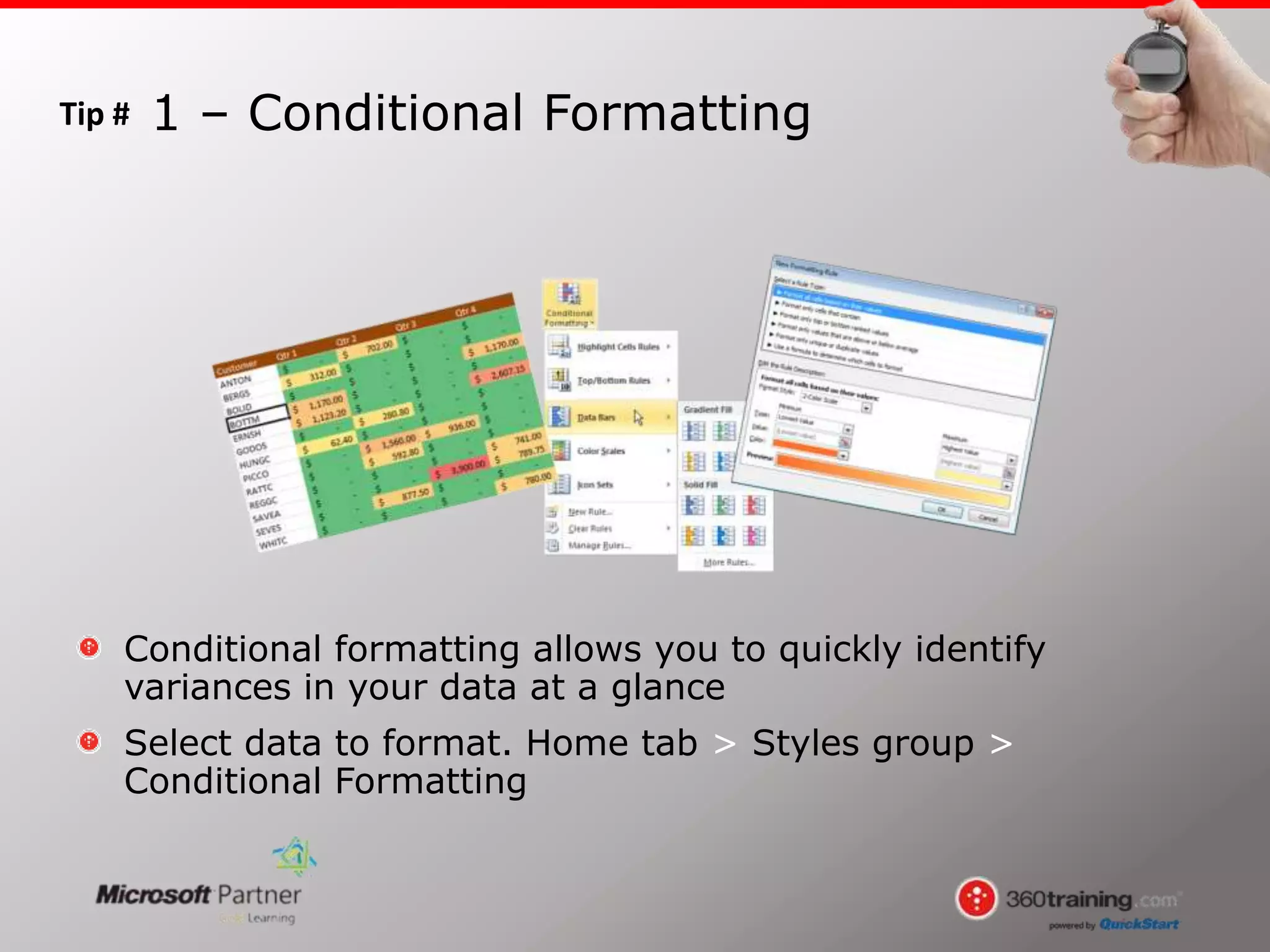
Conditional formatting allows you to quickly identify
variances in your data at a glance
Select data to format. Home tab > Styles group >
Conditional Formatting
1 – Conditional Formatting
Tip #
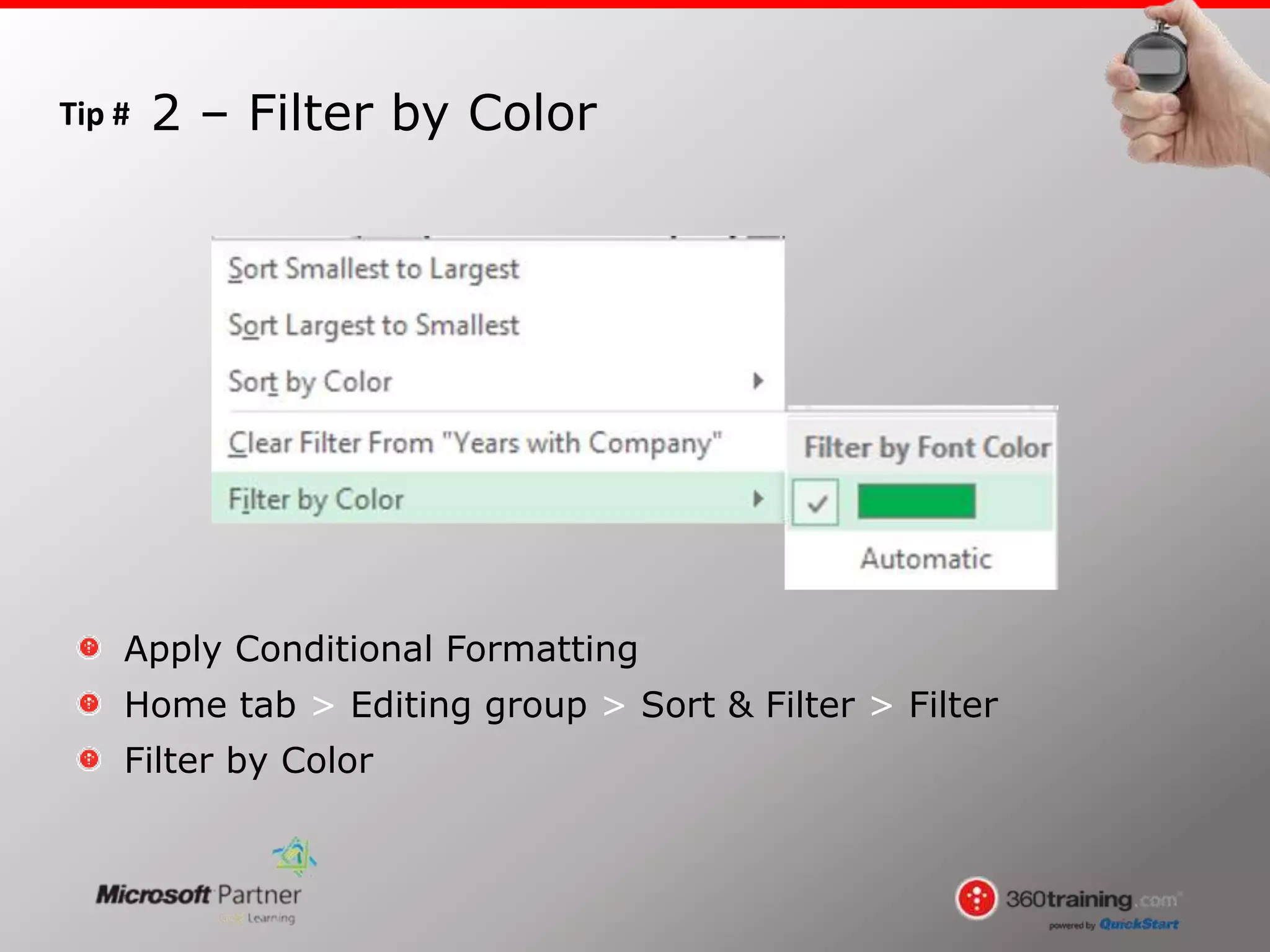
Apply Conditional Formatting
Home tab > Editing group > Sort & Filter > Filter
Filter by Color
2 – Filter by Color
Tip #
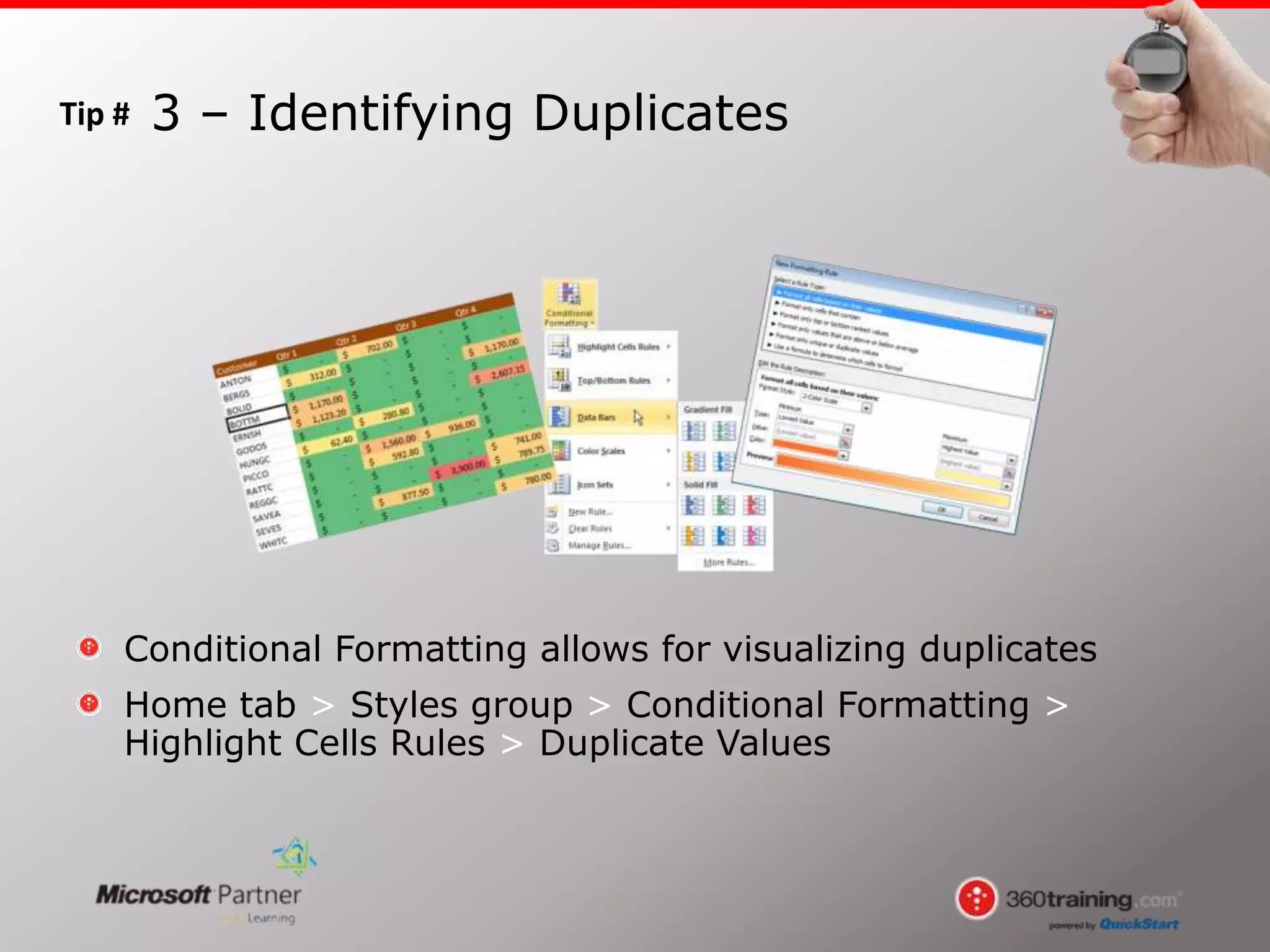
Conditional Formatting allows for visualizing duplicates
Home tab > Styles group > Conditional Formatting >
Highlight Cells Rules > Duplicate Values
3 – Identifying Duplicates
Tip #
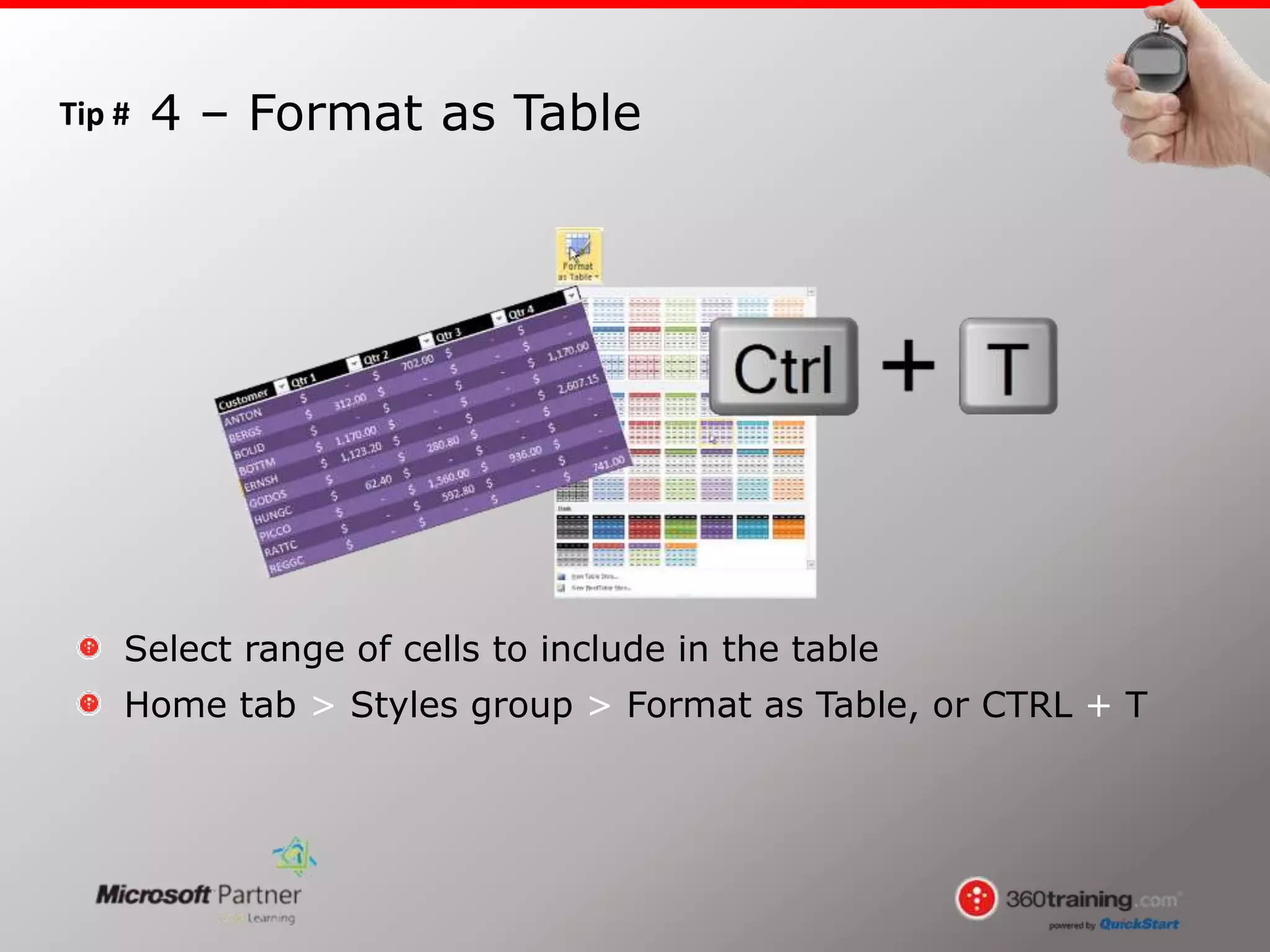
Select range of cells to include in the table
Home tab > Styles group > Format as Table, or CTRL + T
4 – Format as Table
Tip #
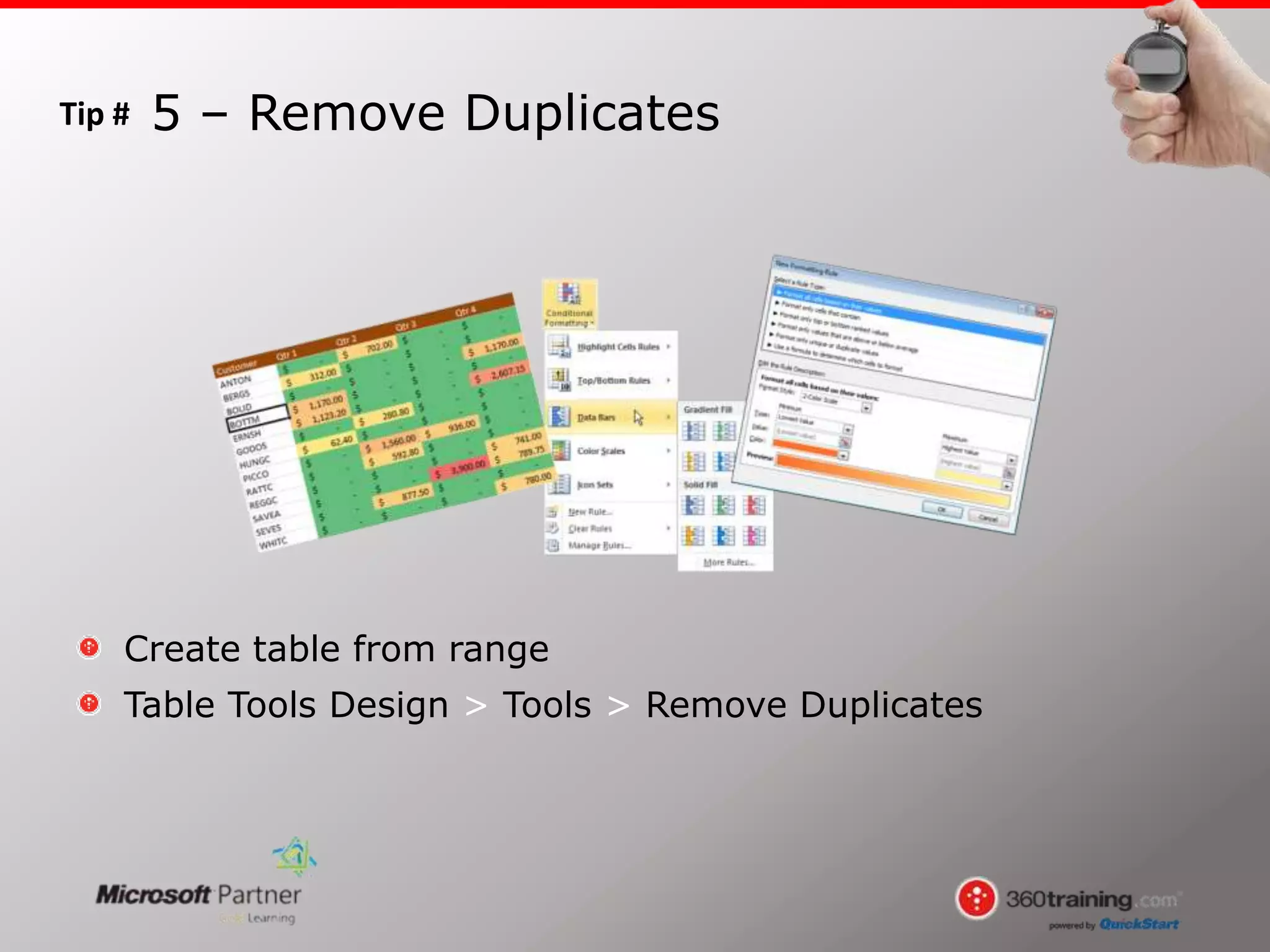
Create table from range
Table Tools Design > Tools > Remove Duplicates
5 – Remove Duplicates
Tip #
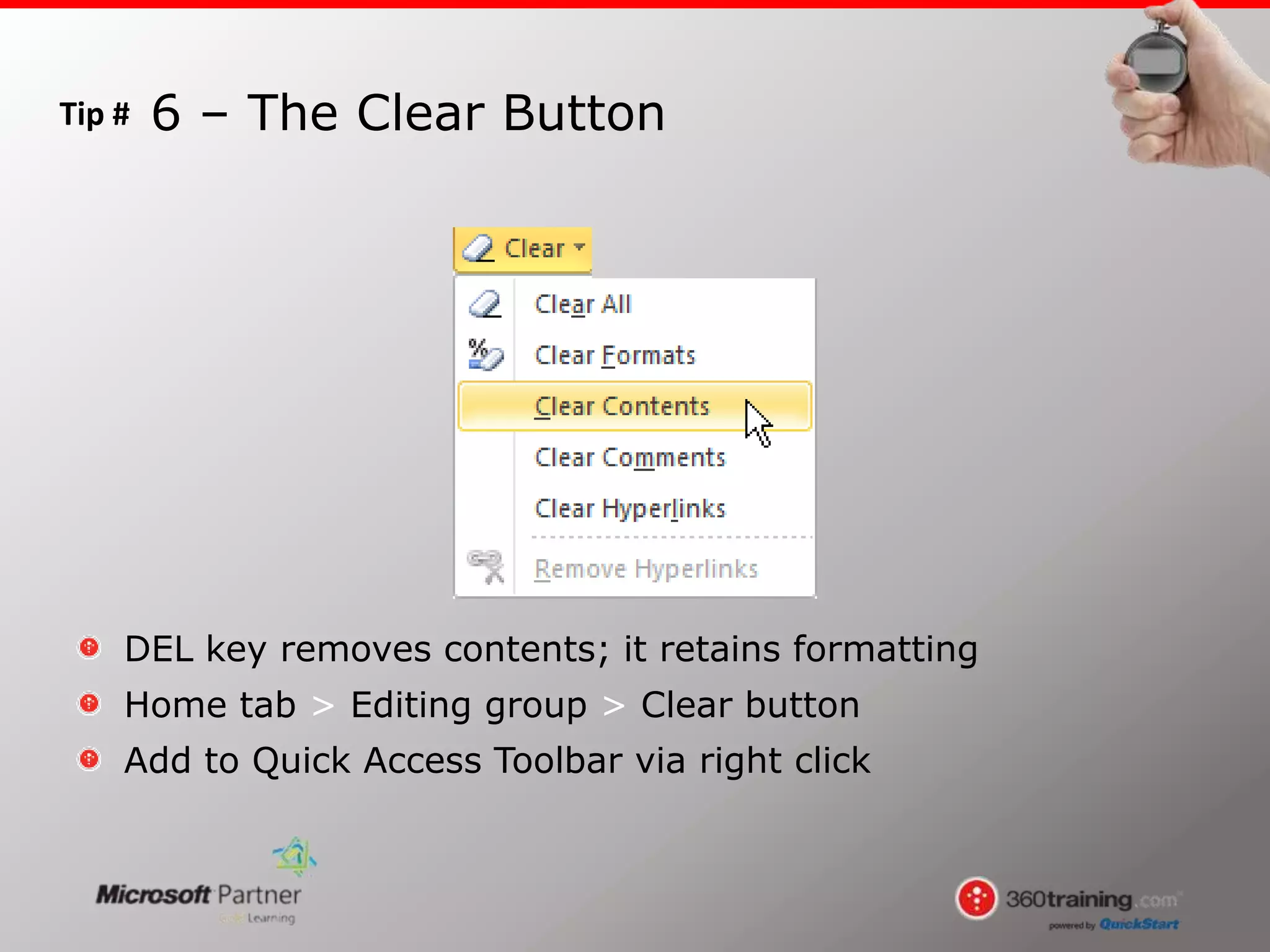
DEL key removes contents; it retains formatting
Home tab > Editing group > Clear button
Add to Quick Access Toolbar via right click
6 – The Clear Button
Tip #
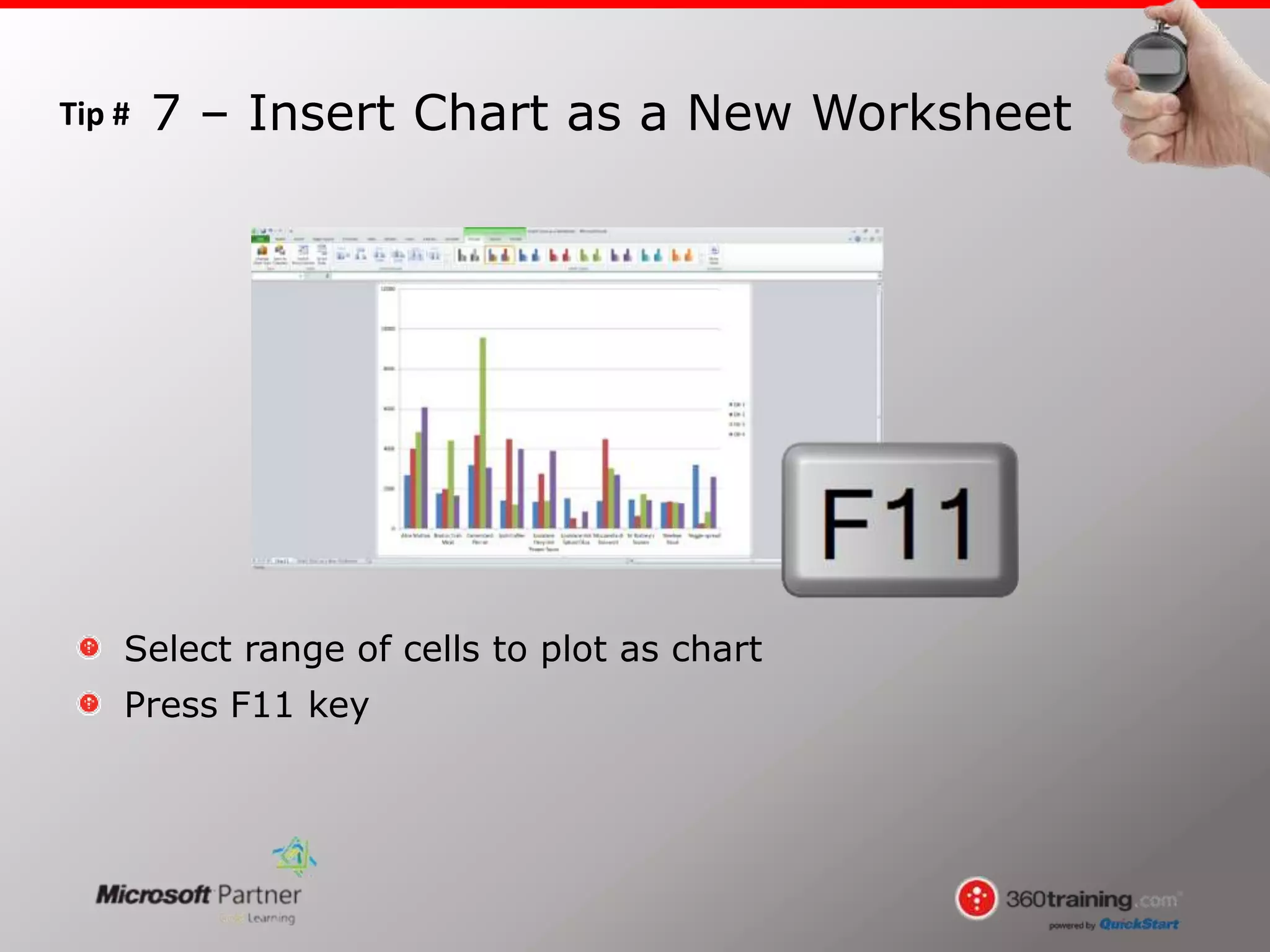
Select range of cells to plot as chart
Press F11 key
7 – Insert Chart as a New Worksheet
Tip #
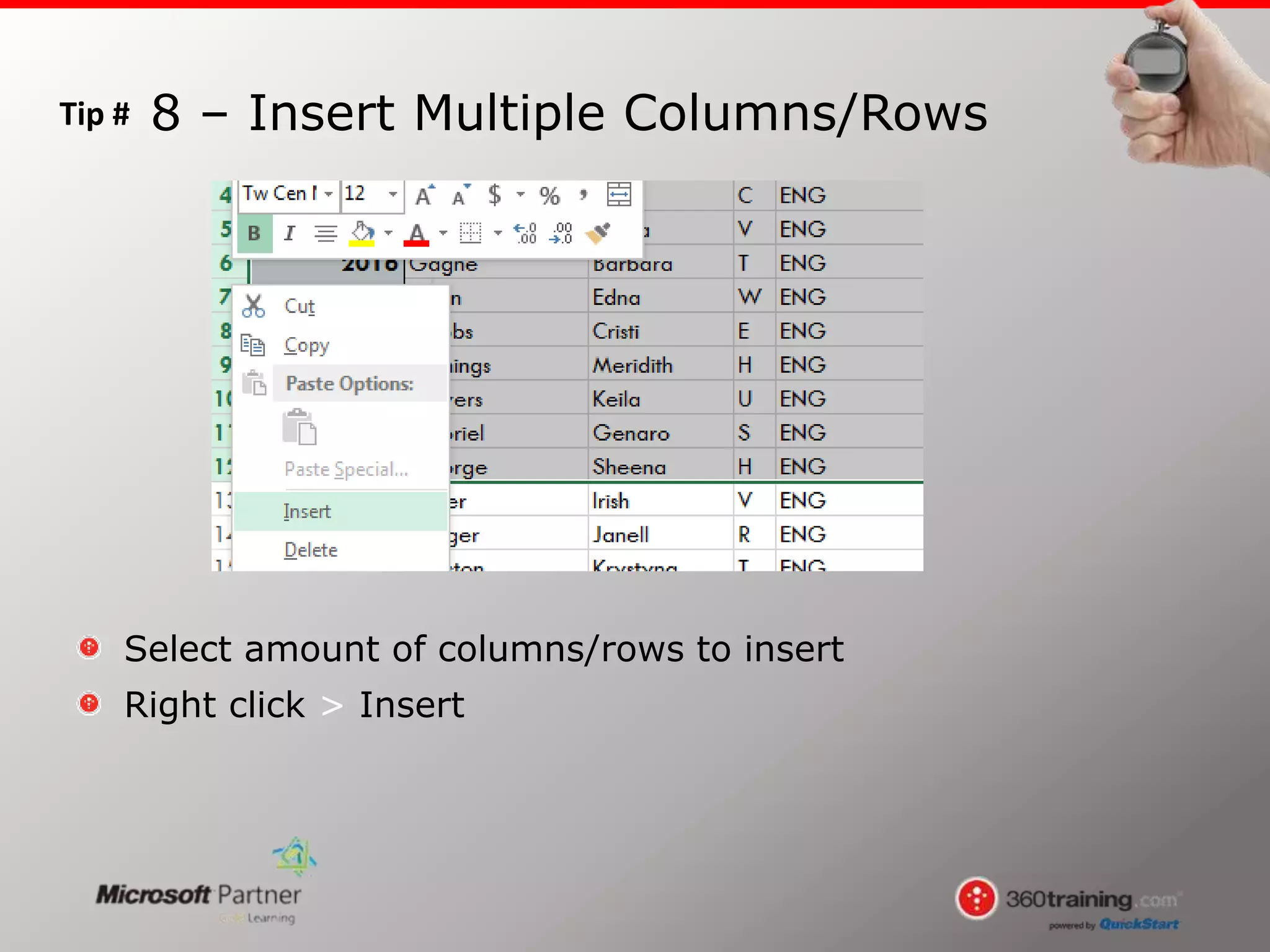
Select amount of columns/rows to insert
Right click > Insert
8 – Insert Multiple Columns/Rows
Tip #
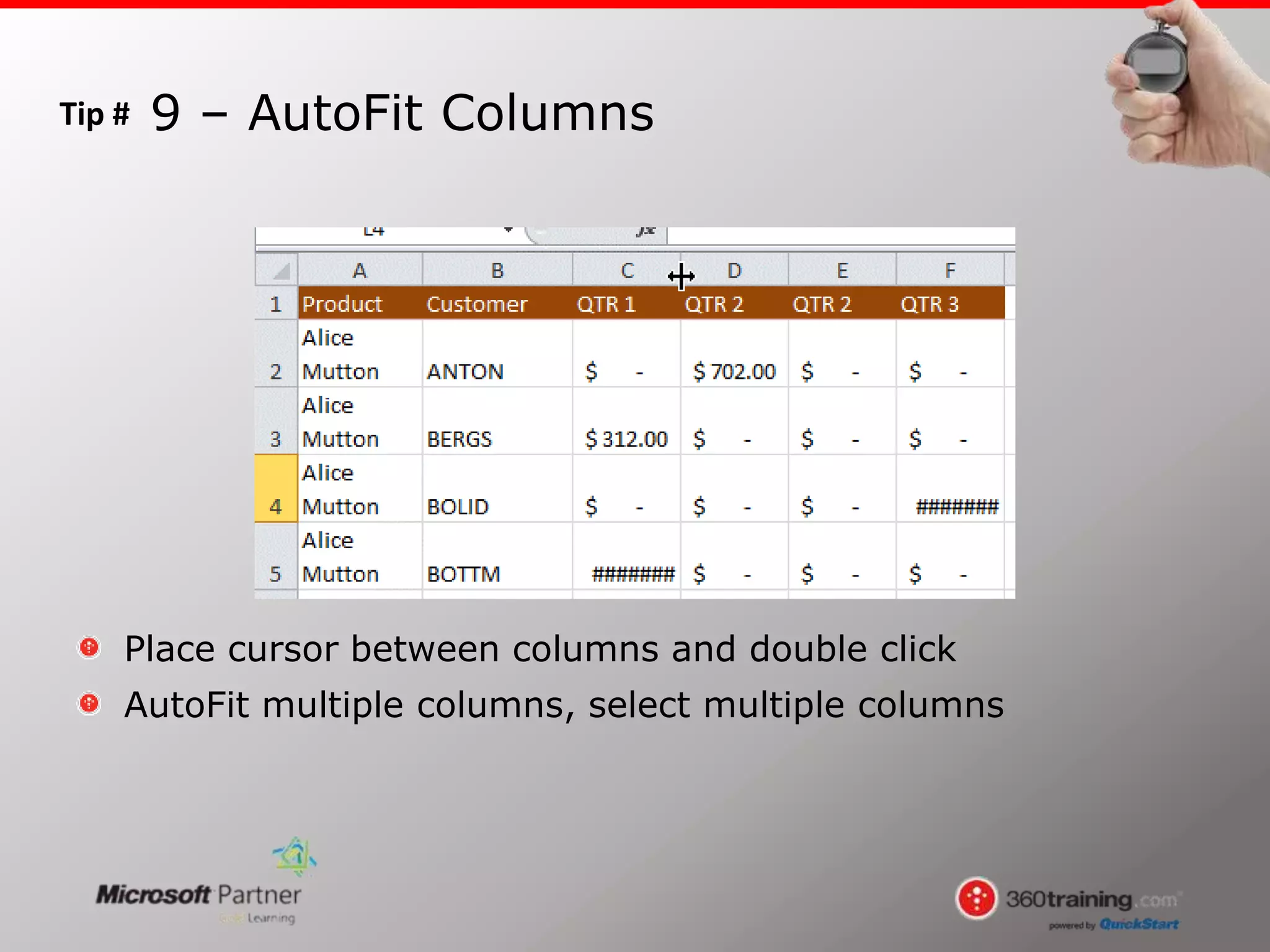
Place cursor between columns and double click
AutoFit multiple columns, select multiple columns
9 – AutoFit Columns
Tip #
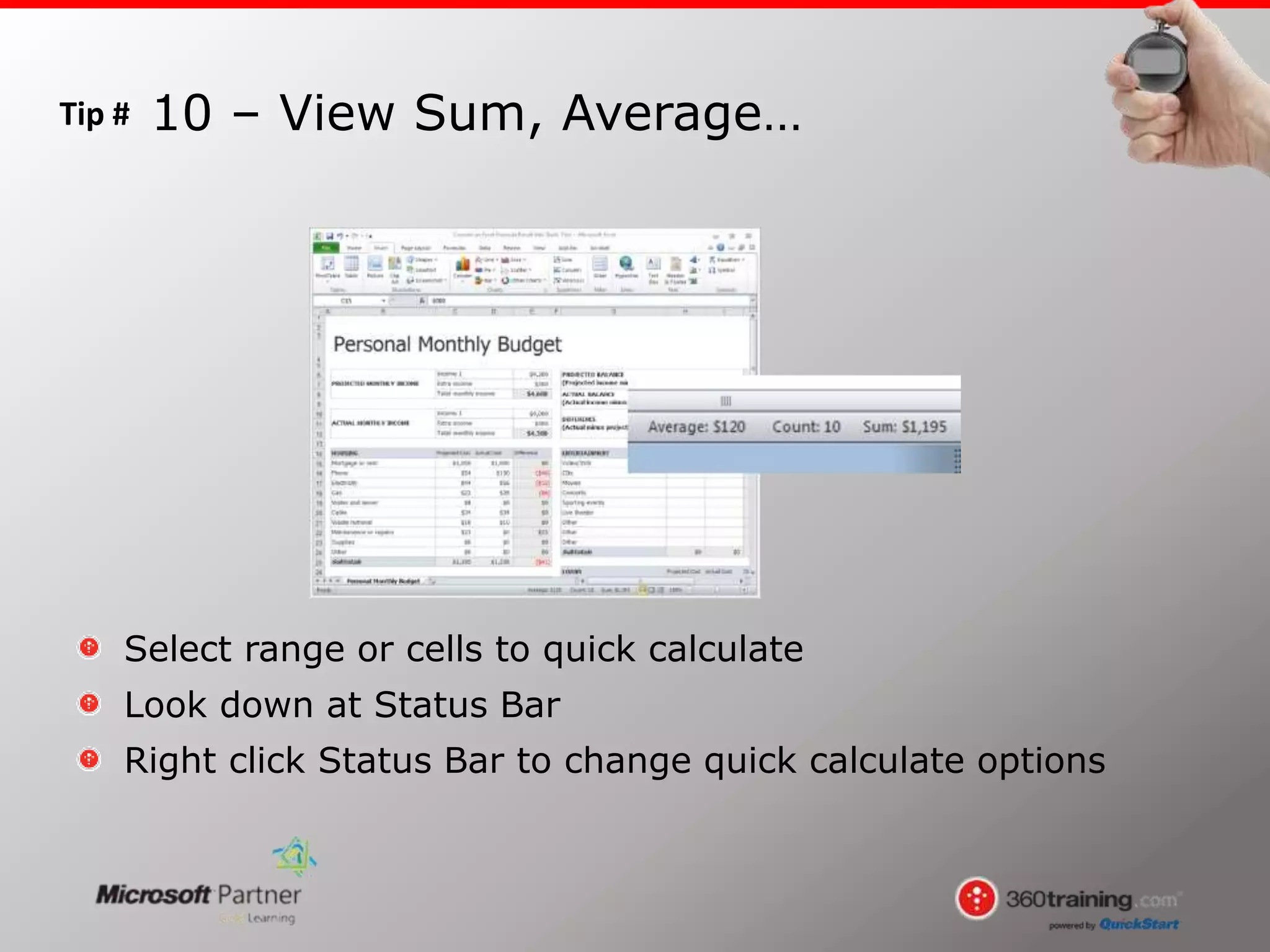
Select range or cells to quick calculate
Look down at Status Bar
Right click Status Bar to change quick calculate options
10 – View Sum, Average…
Tip #
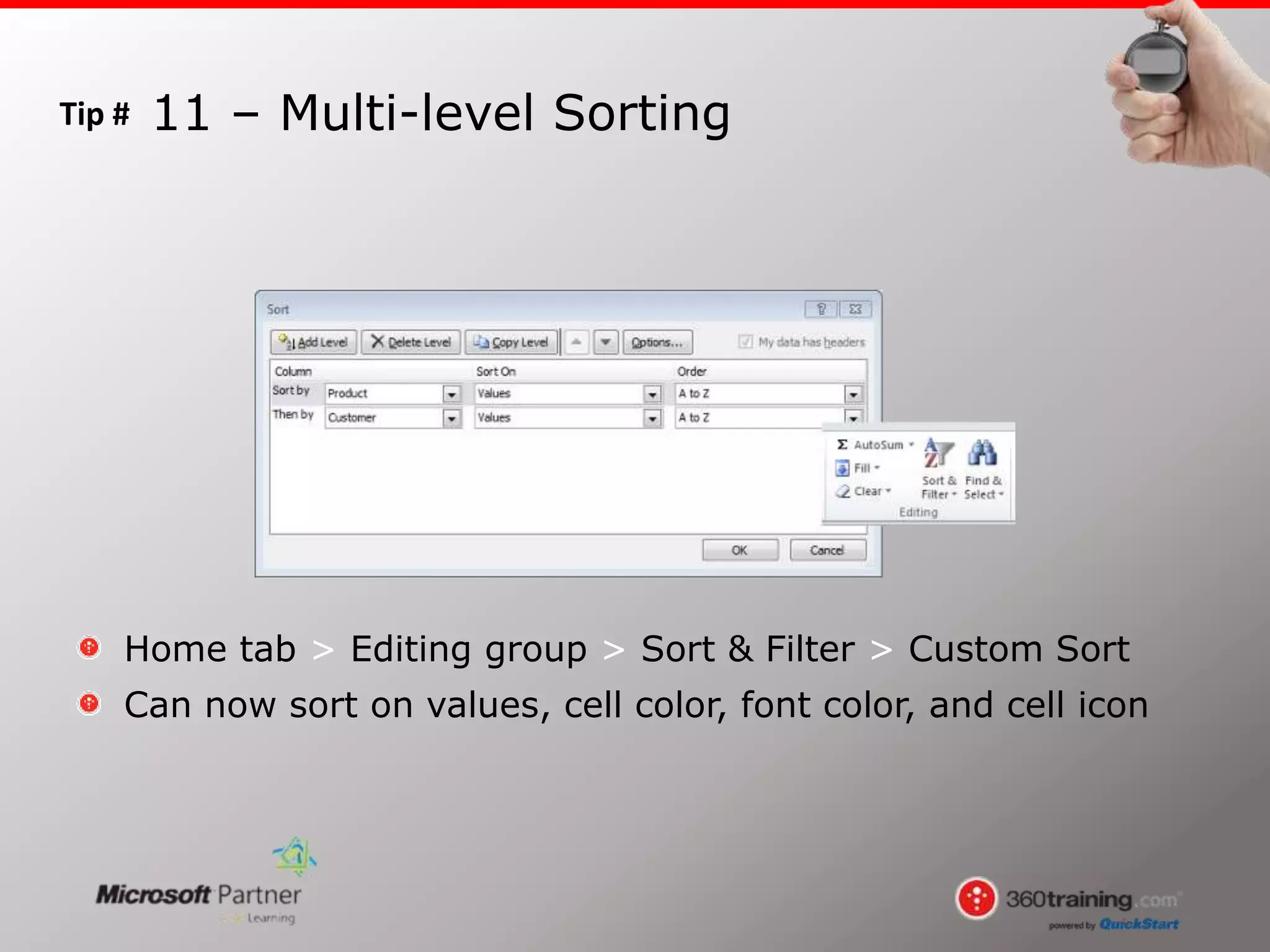
Home tab > Editing group > Sort & Filter > Custom Sort
Can now sort on values, cell color, font color, and cell icon
11 – Multi-level Sorting
Tip #
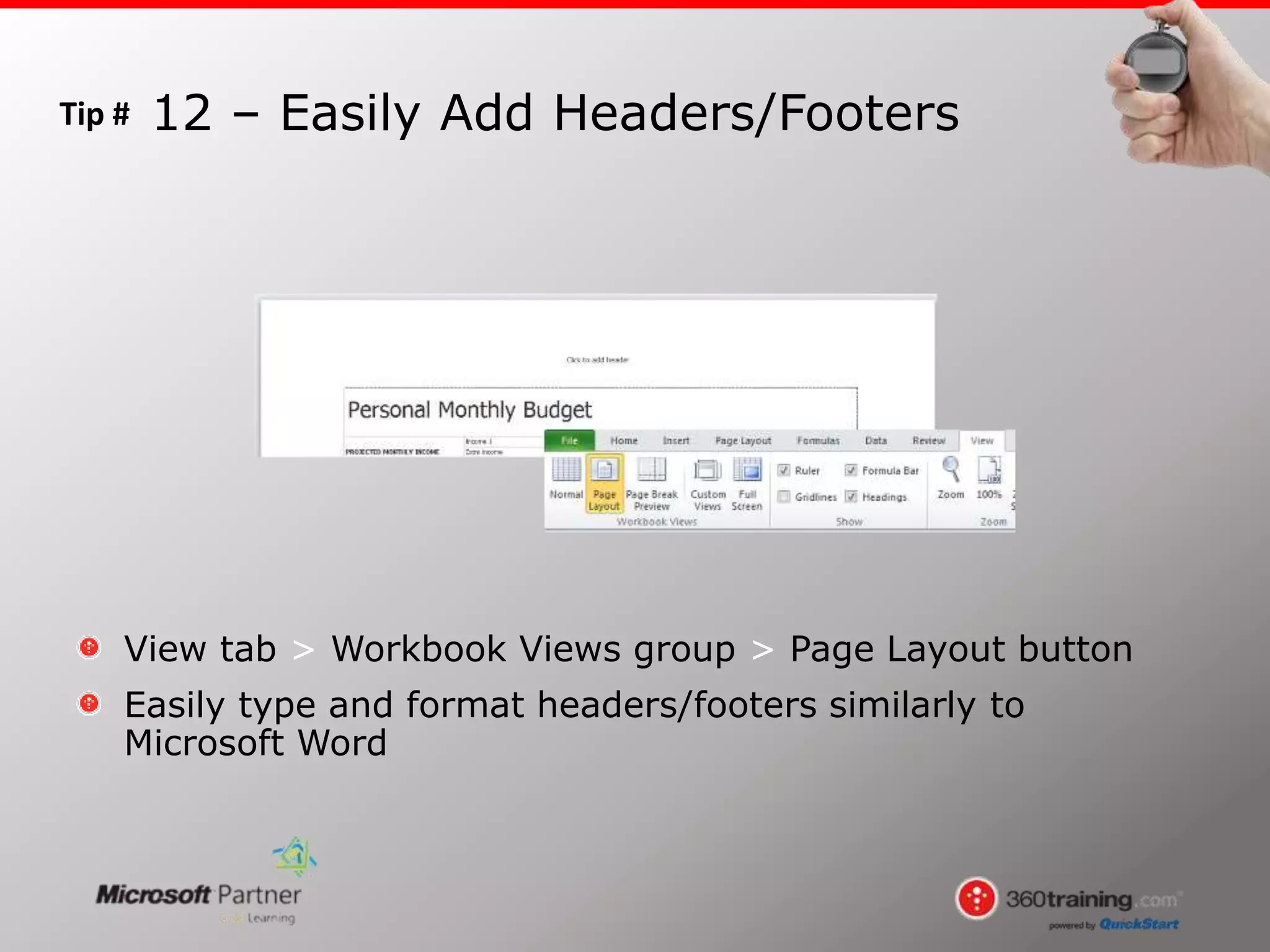
View tab > Workbook Views group > Page Layout button
Easily type and format headers/footers similarly to
Microsoft Word
12 – Easily Add Headers/Footers
Tip #
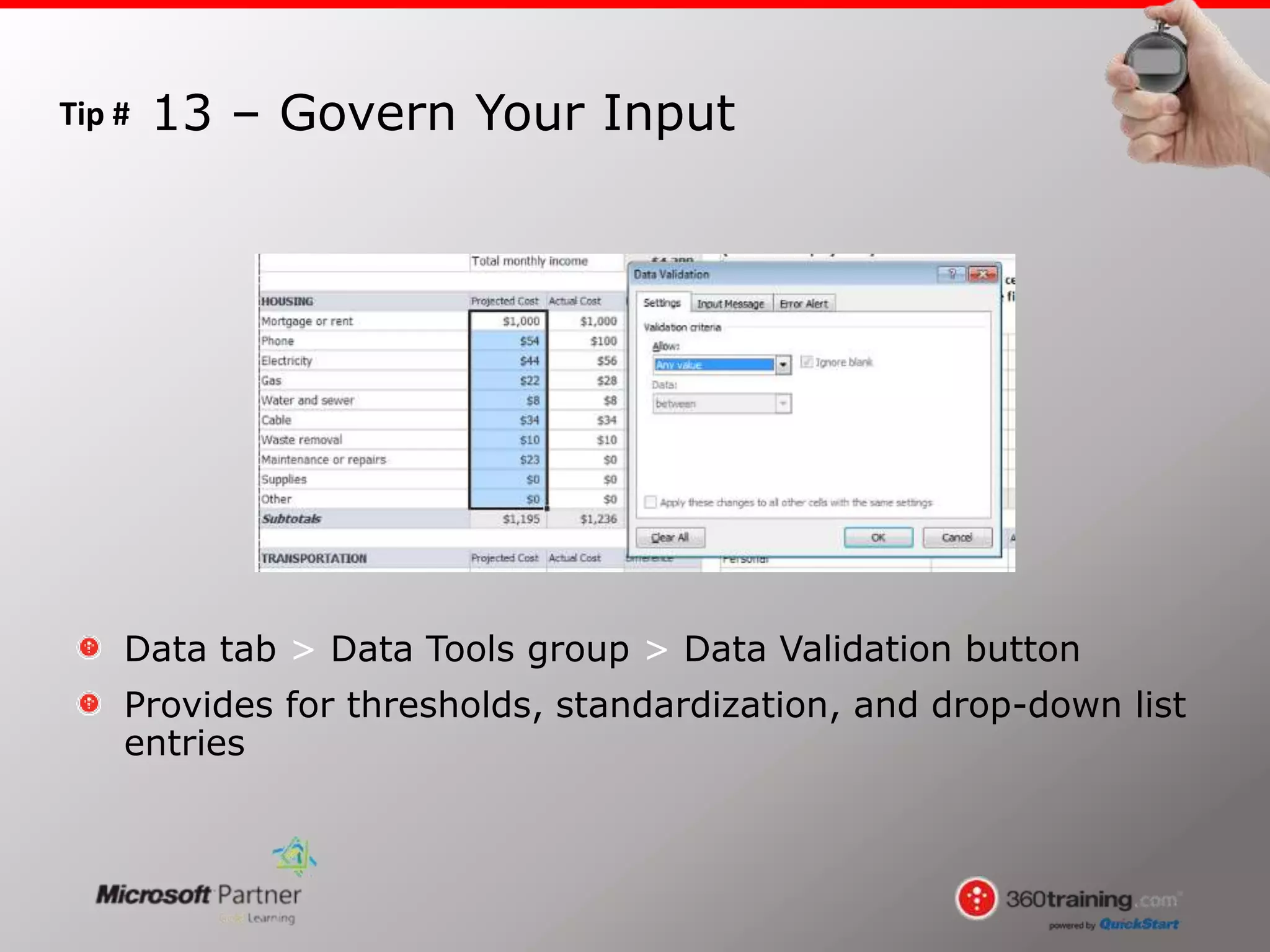
Data tab > Data Tools group > Data Validation button
Provides for thresholds, standardization, and drop-down list
entries
13 – Govern Your Input
Tip #
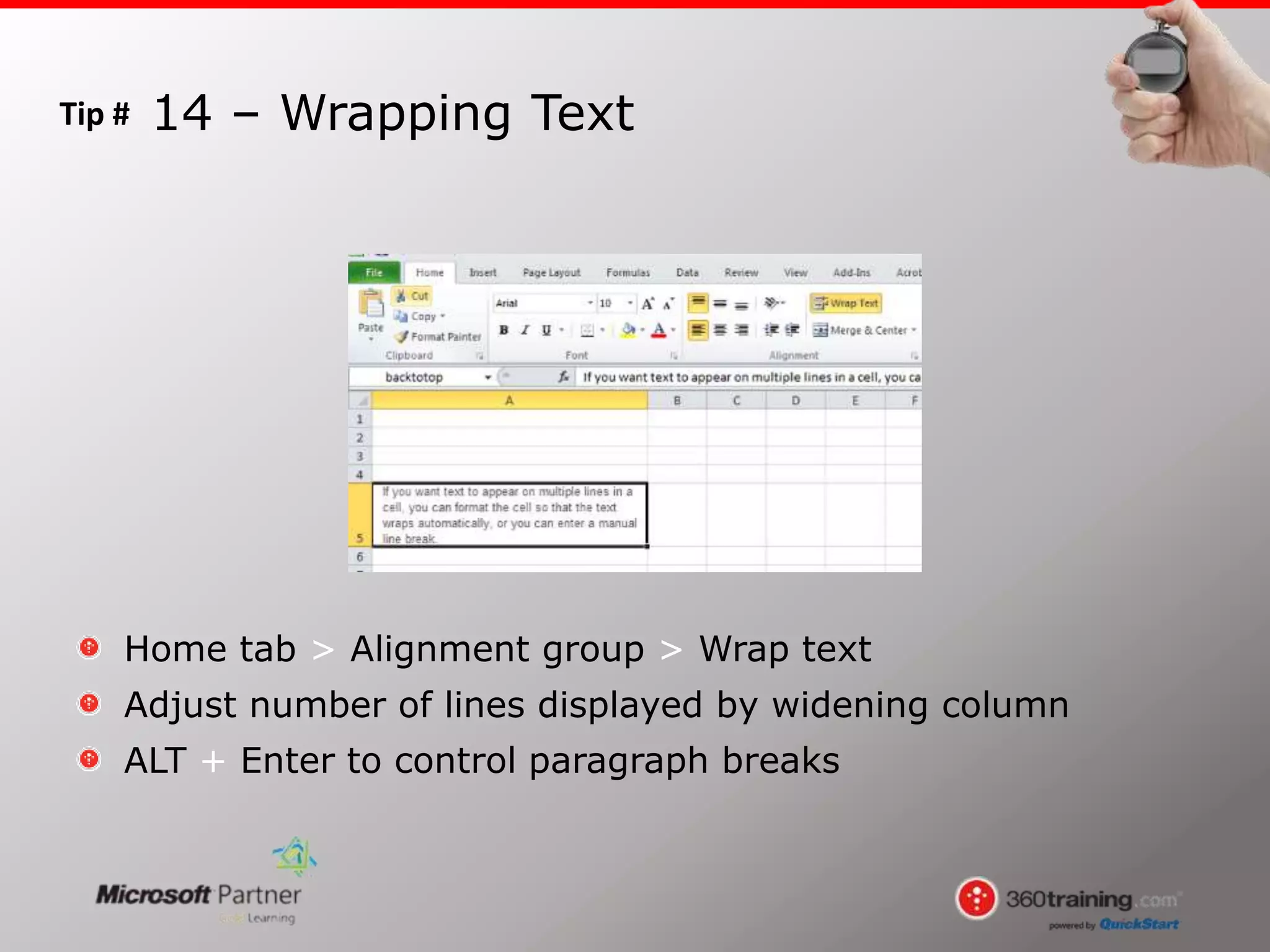
Home tab > Alignment group > Wrap text
Adjust number of lines displayed by widening column
ALT + Enter to control paragraph breaks
14 – Wrapping Text
Tip #
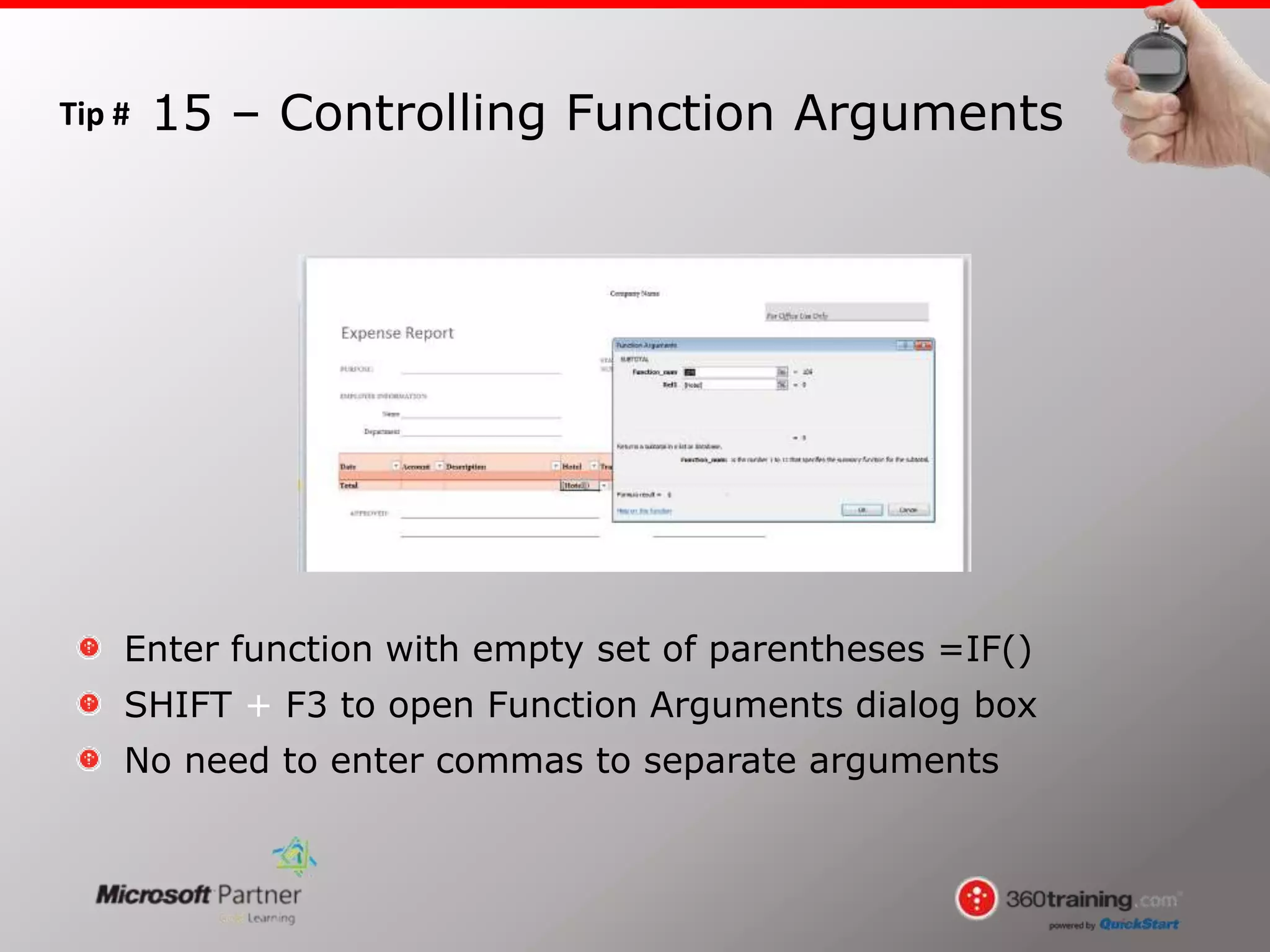
Enter function with empty set of parentheses =IF()
SHIFT + F3 to open Function Arguments dialog box
No need to enter commas to separate arguments
15 – Controlling Function Arguments
Tip #
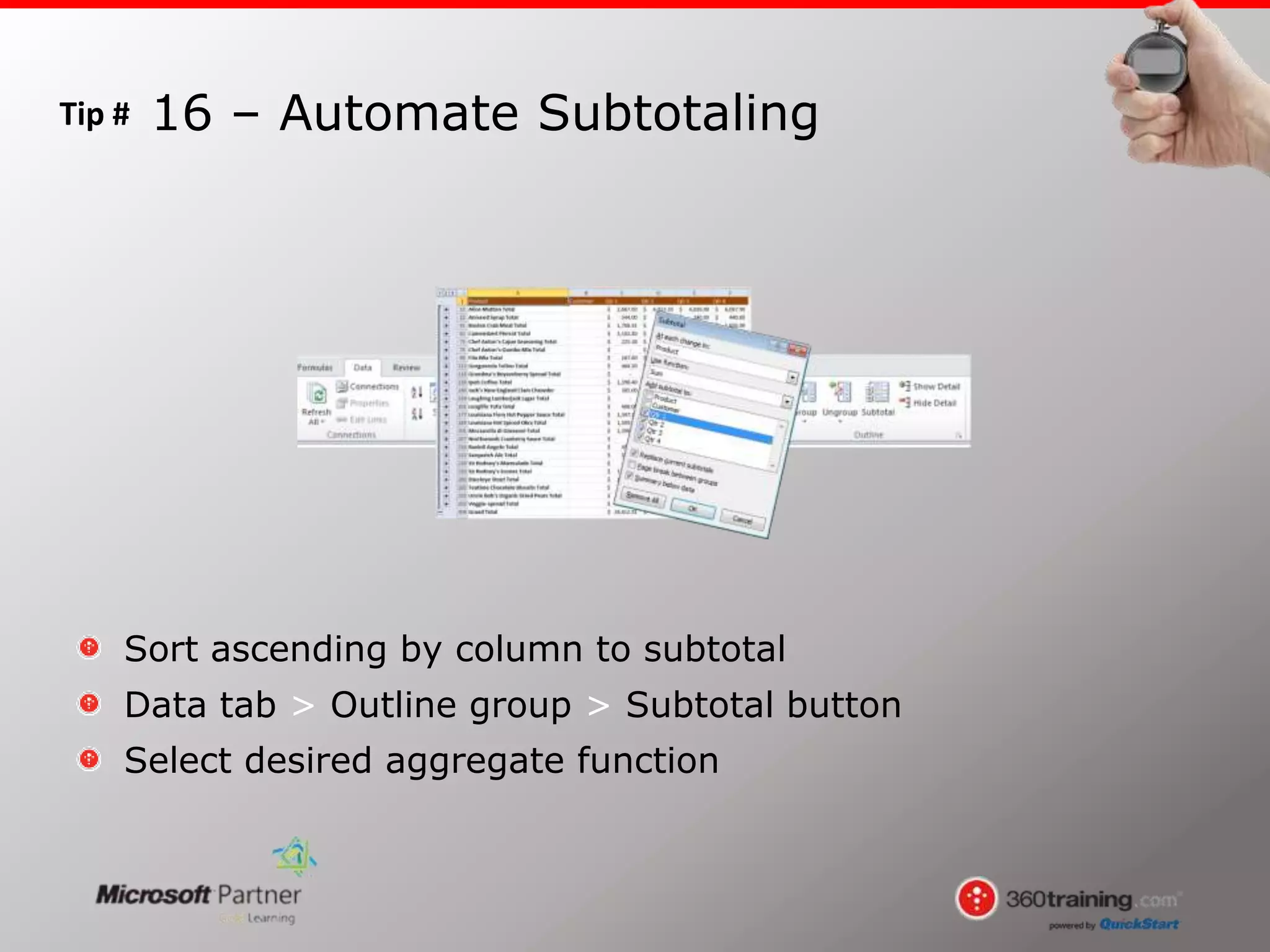
Sort ascending by column to subtotal
Data tab > Outline group > Subtotal button
Select desired aggregate function
16 – Automate Subtotaling
Tip #
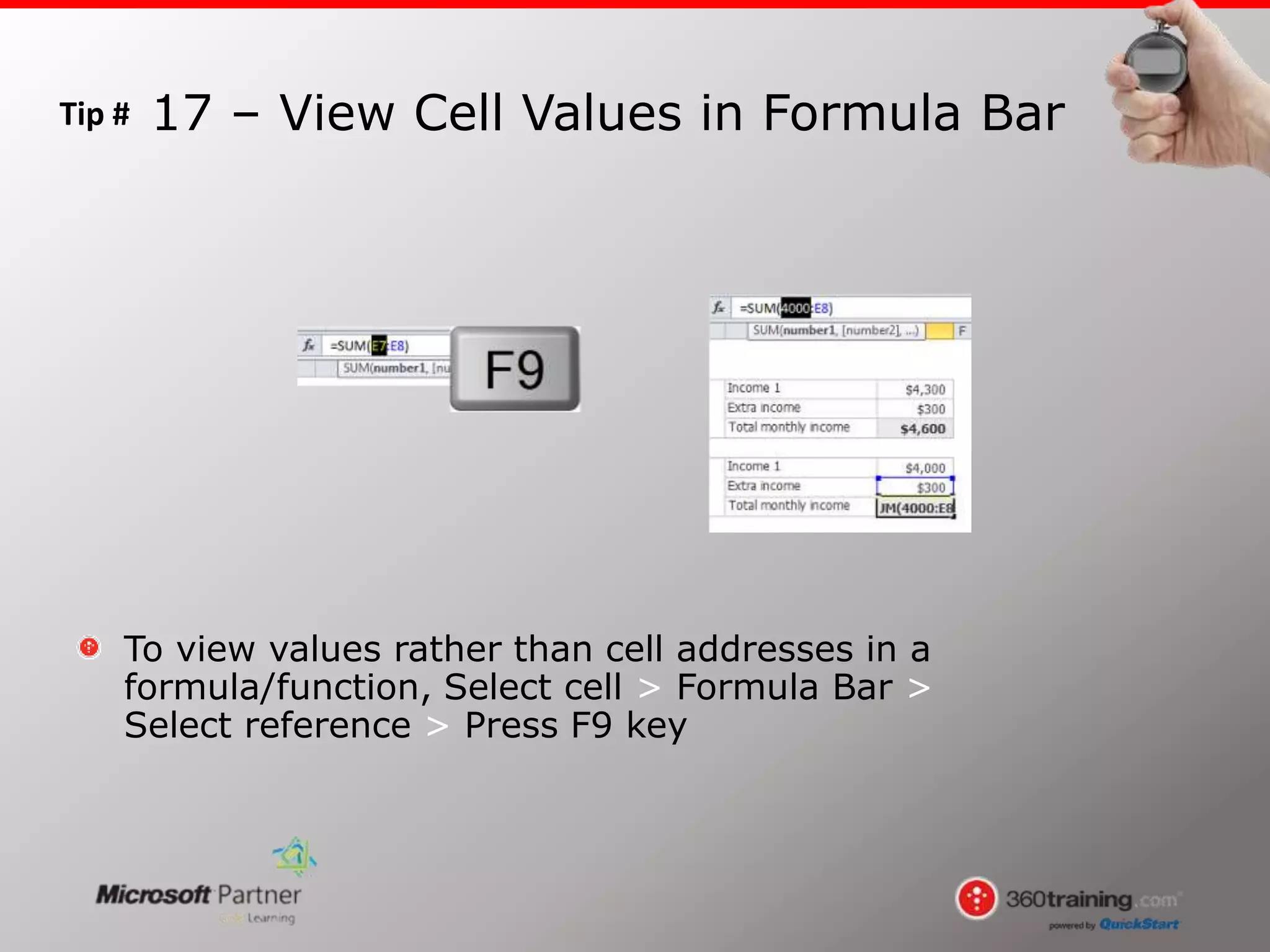
To view values rather than cell addresses in a
formula/function, Select cell > Formula Bar >
Select reference > Press F9 key
17 – View Cell Values in Formula Bar
Tip #
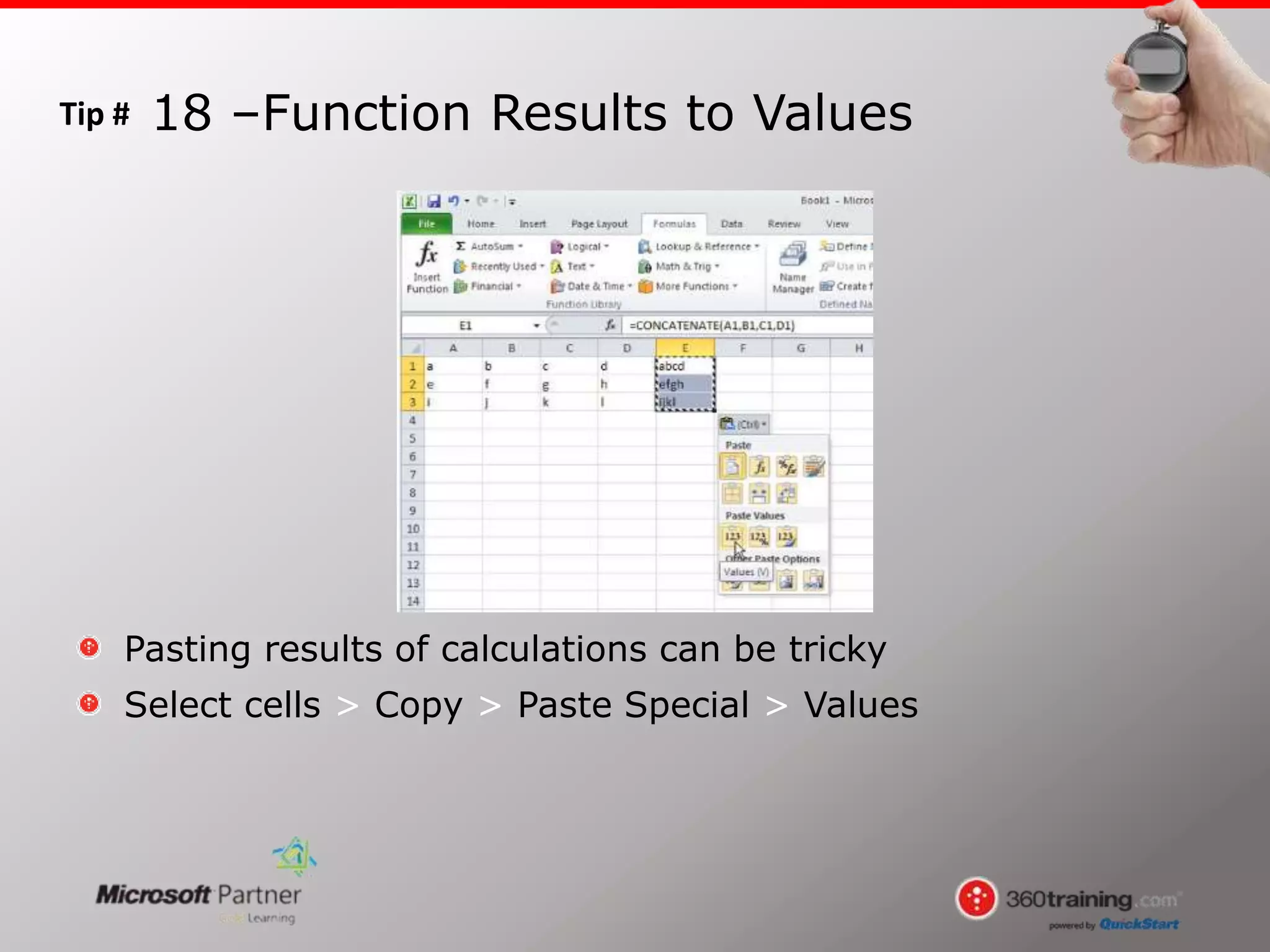
Pasting results of calculations can be tricky
Select cells > Copy > Paste Special > Values
18 –Function Results to Values
Tip #
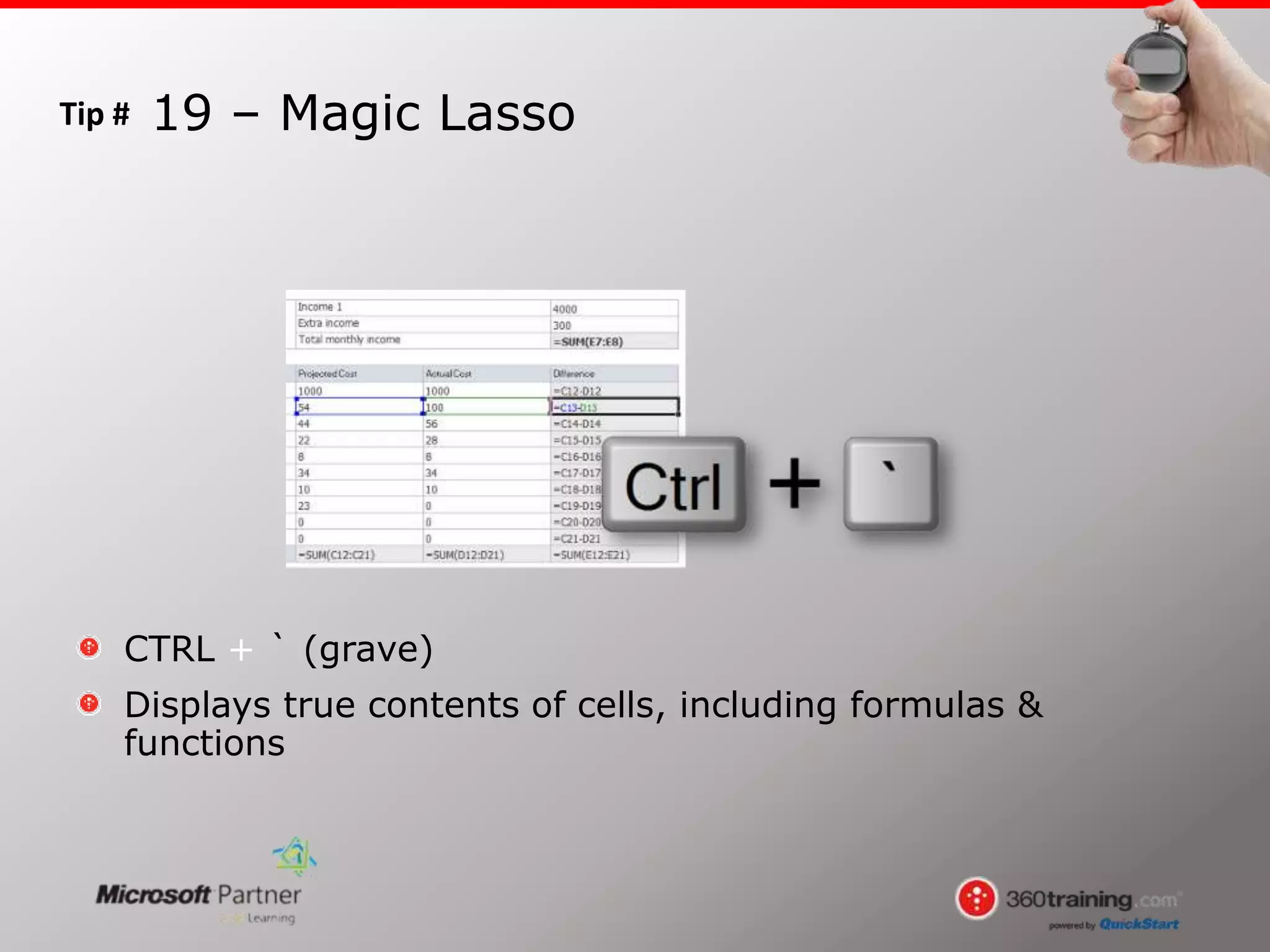
CTRL + ` (grave)
Displays true contents of cells, including formulas &
functions
19 – Magic Lasso
Tip #
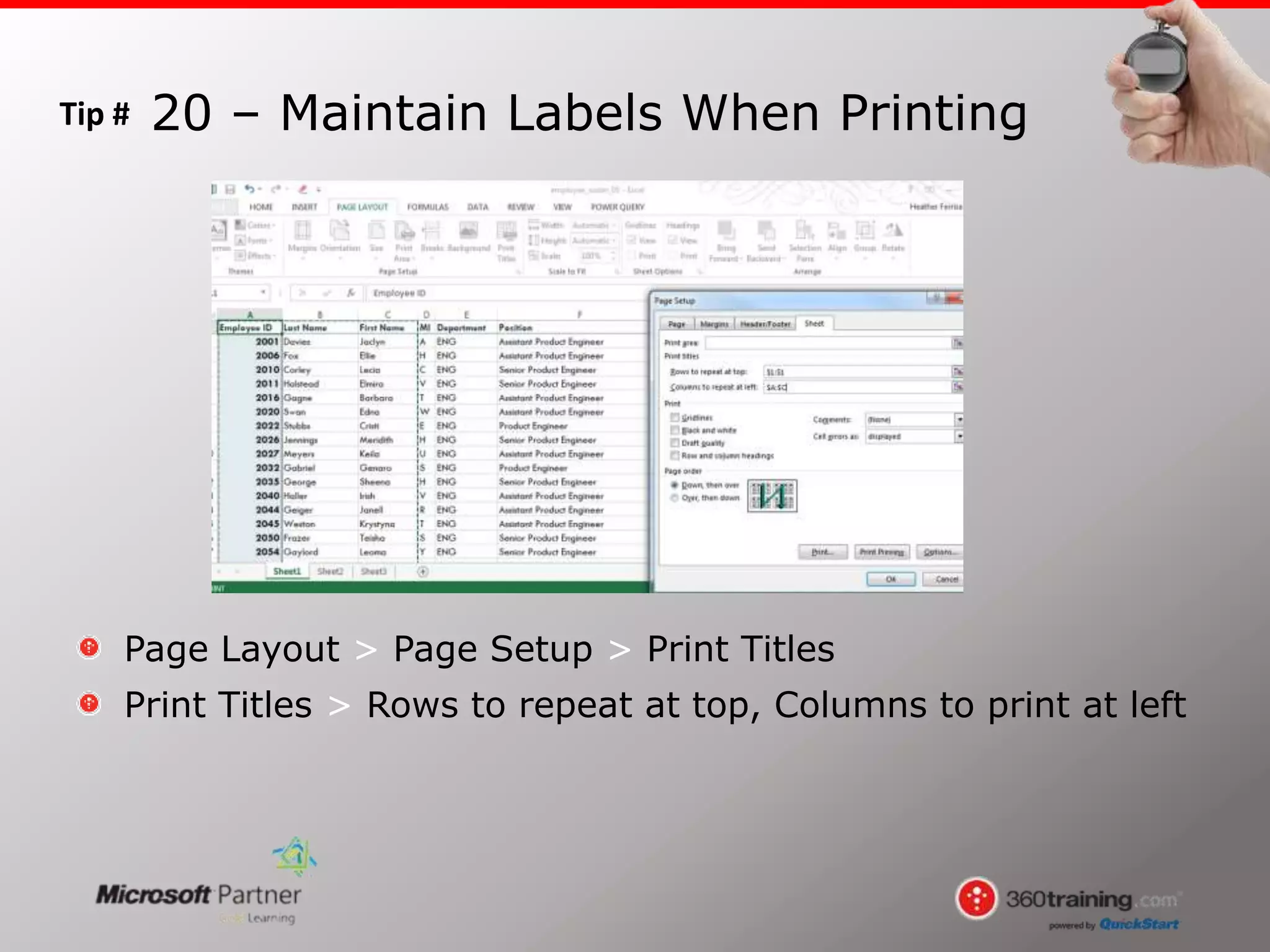
Page Layout > Page Setup > Print Titles
Print Titles > Rows to repeat at top, Columns to print at left
20 – Maintain Labels When Printing
Tip #
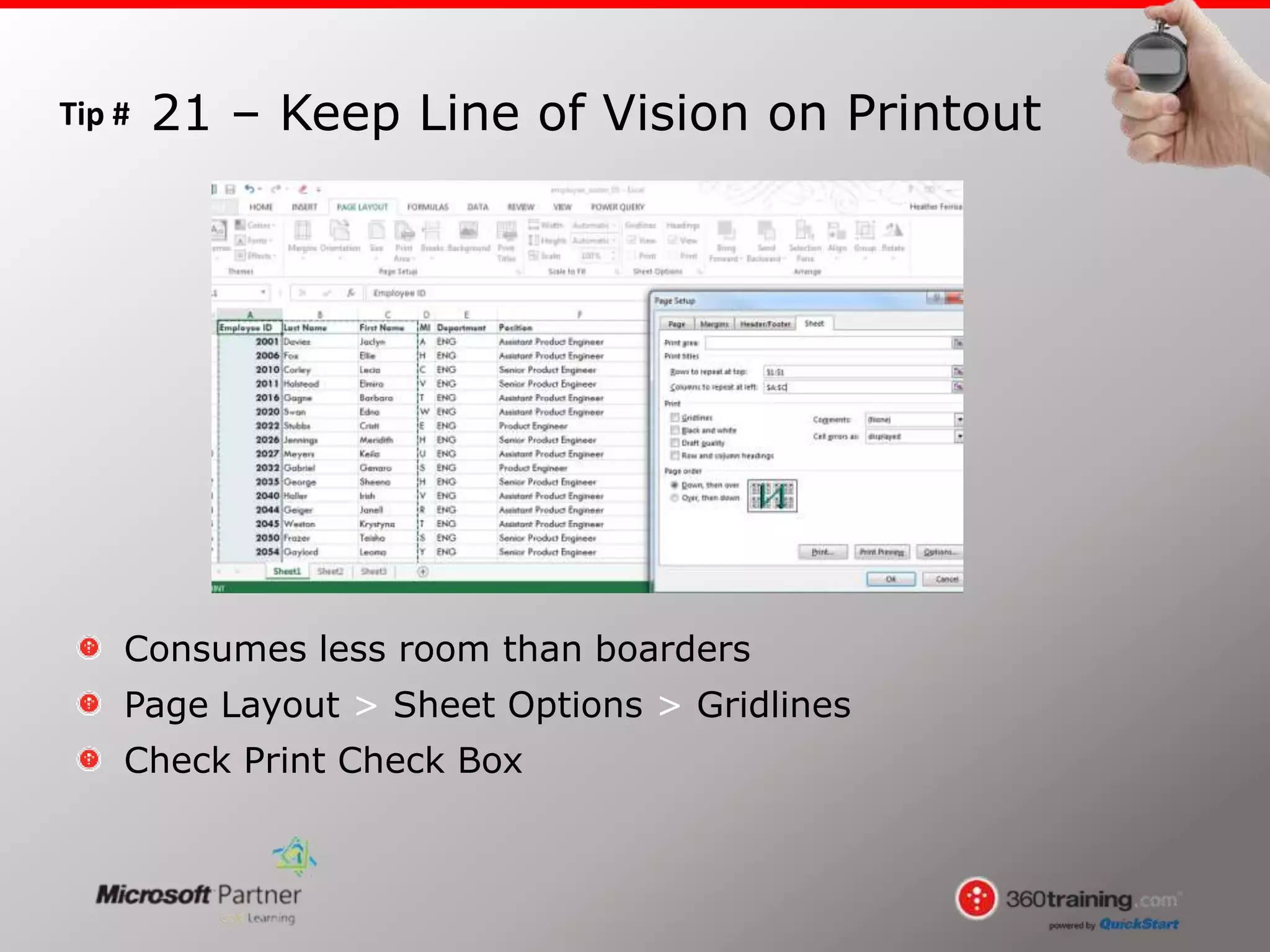
Consumes less room than boarders
Page Layout > Sheet Options > Gridlines
Check Print Check Box
21 – Keep Line of Vision on Printout
Tip #
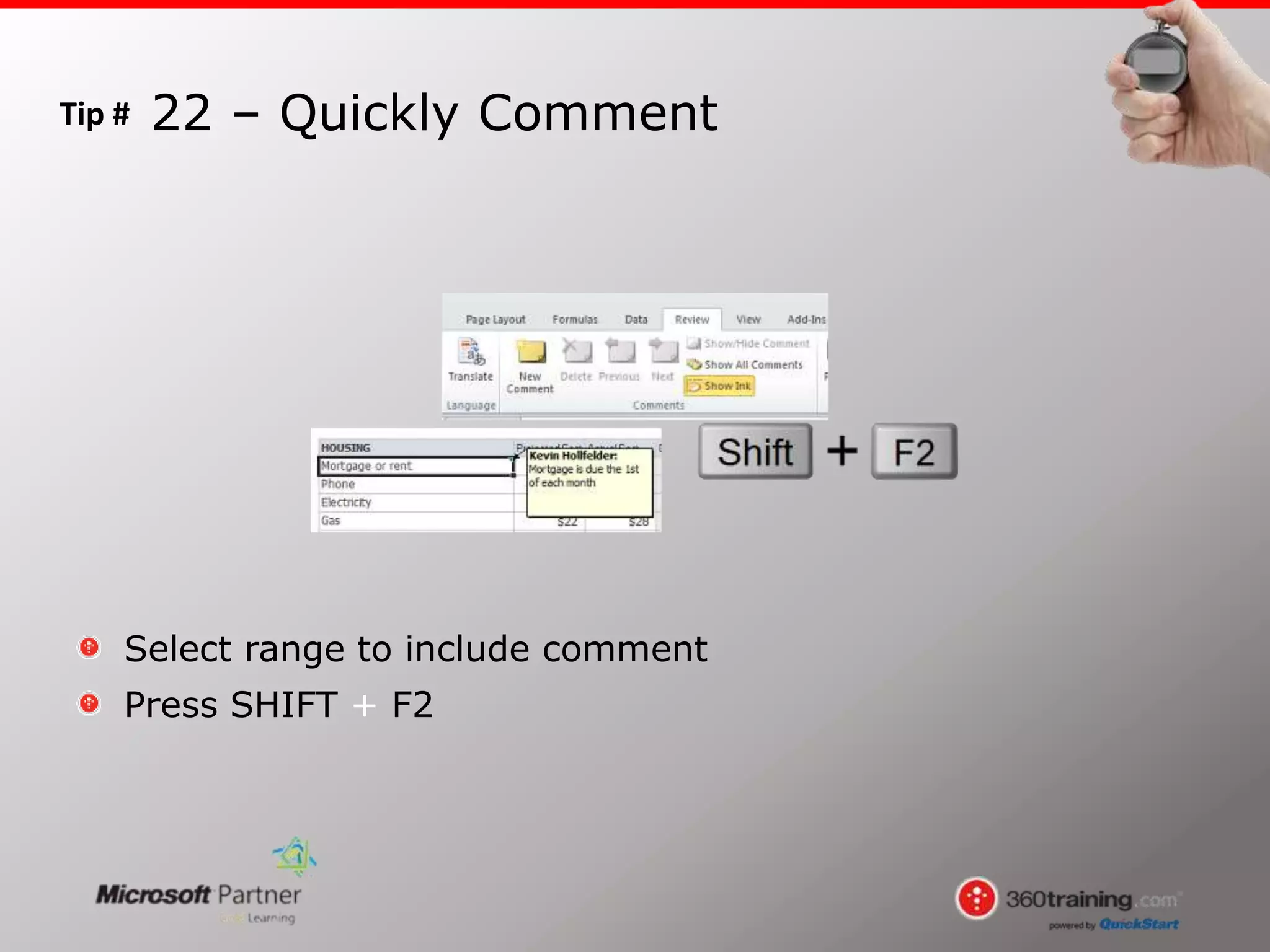
Select range to include comment
Press SHIFT + F2
22 – Quickly Comment
Tip #
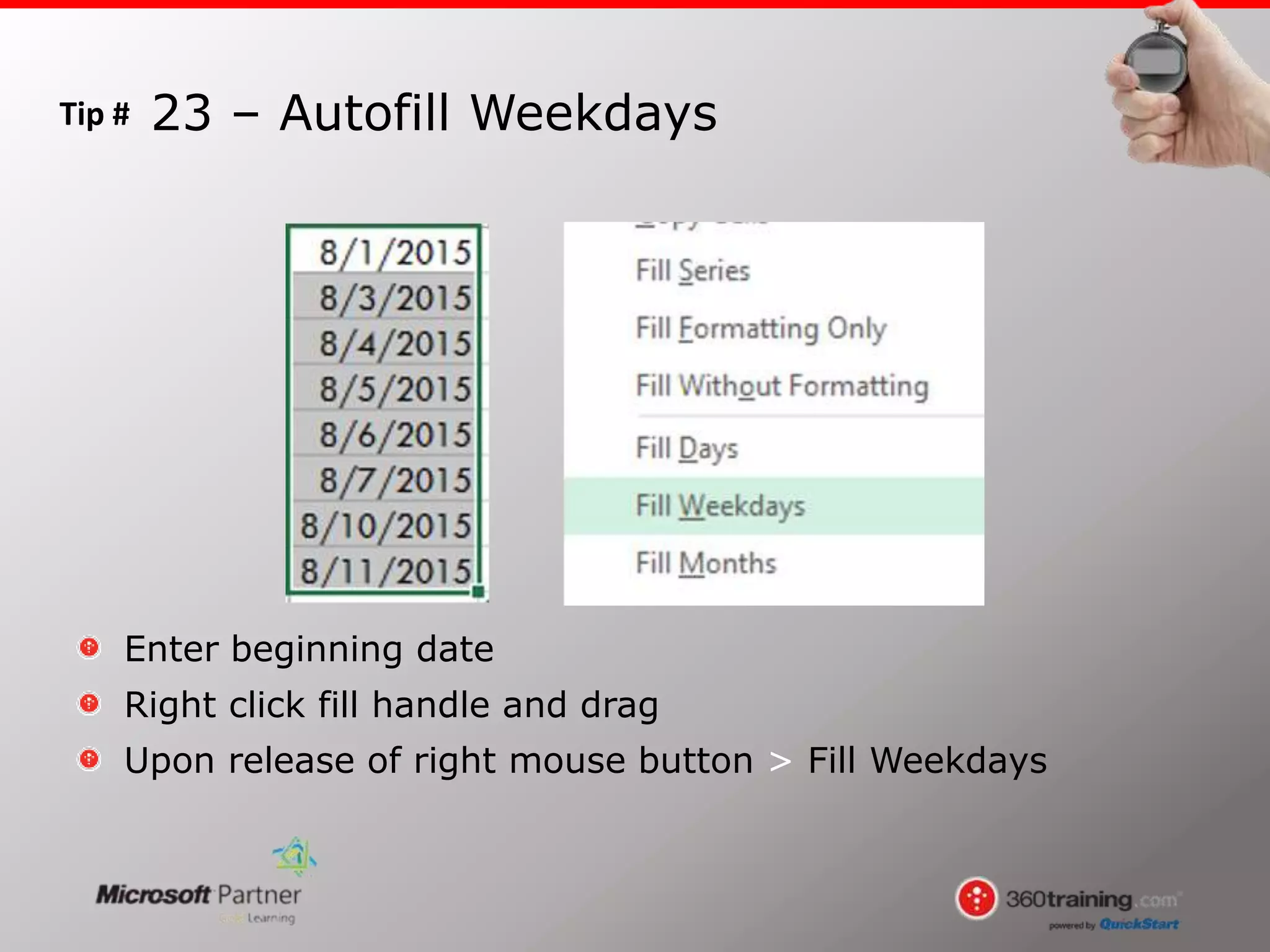
Enter beginning date
Right click fill handle and drag
Upon release of right mouse button > Fill Weekdays
23 – Autofill Weekdays
Tip #
Enter values within range
Double click Autofill handle
Carries content of cell to bottom of range
24 – Autofill Control
Tip #
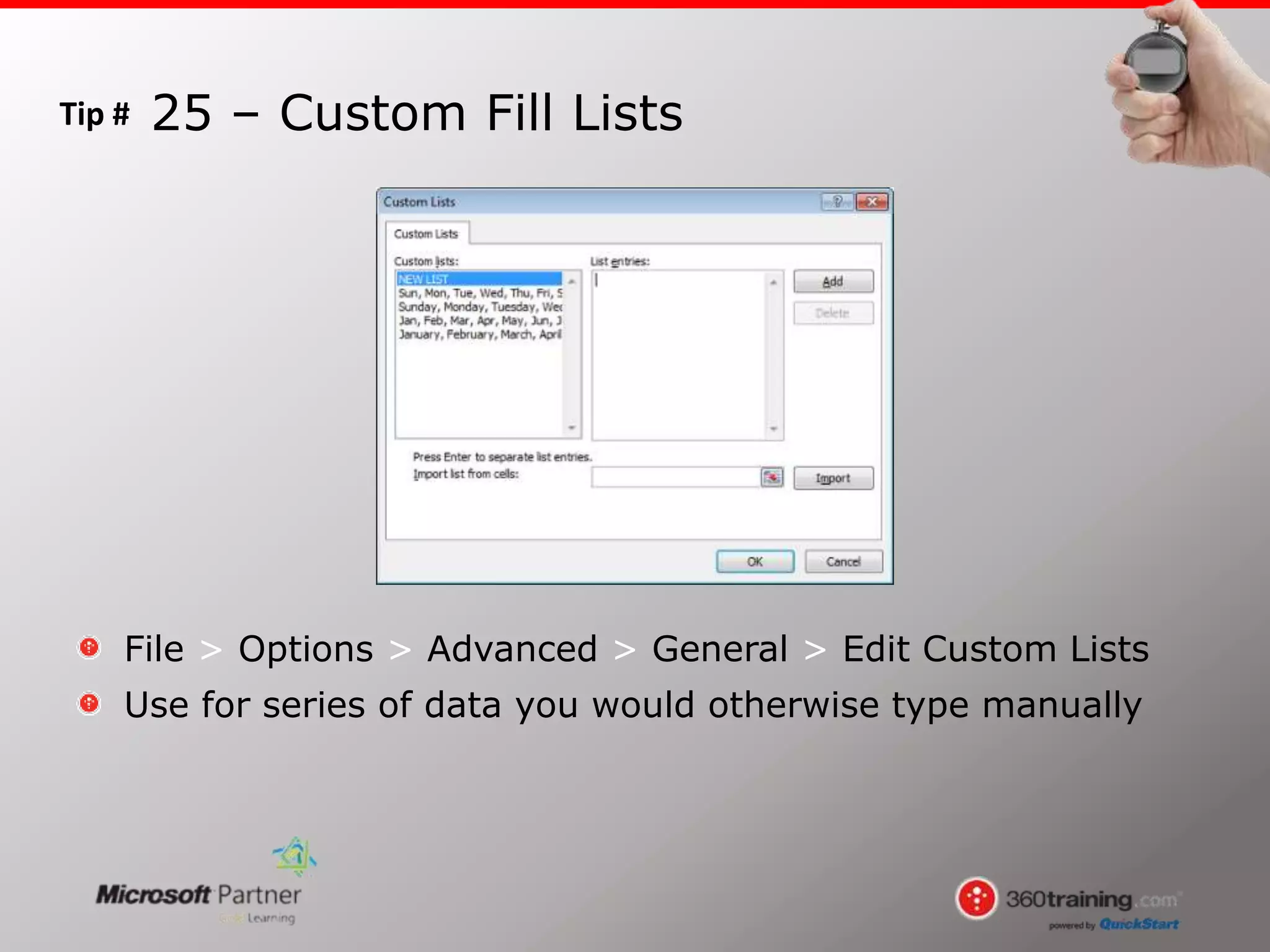
File > Options > Advanced > General > Edit Custom Lists
Use for series of data you would otherwise type manually
25 – Custom Fill Lists
Tip #
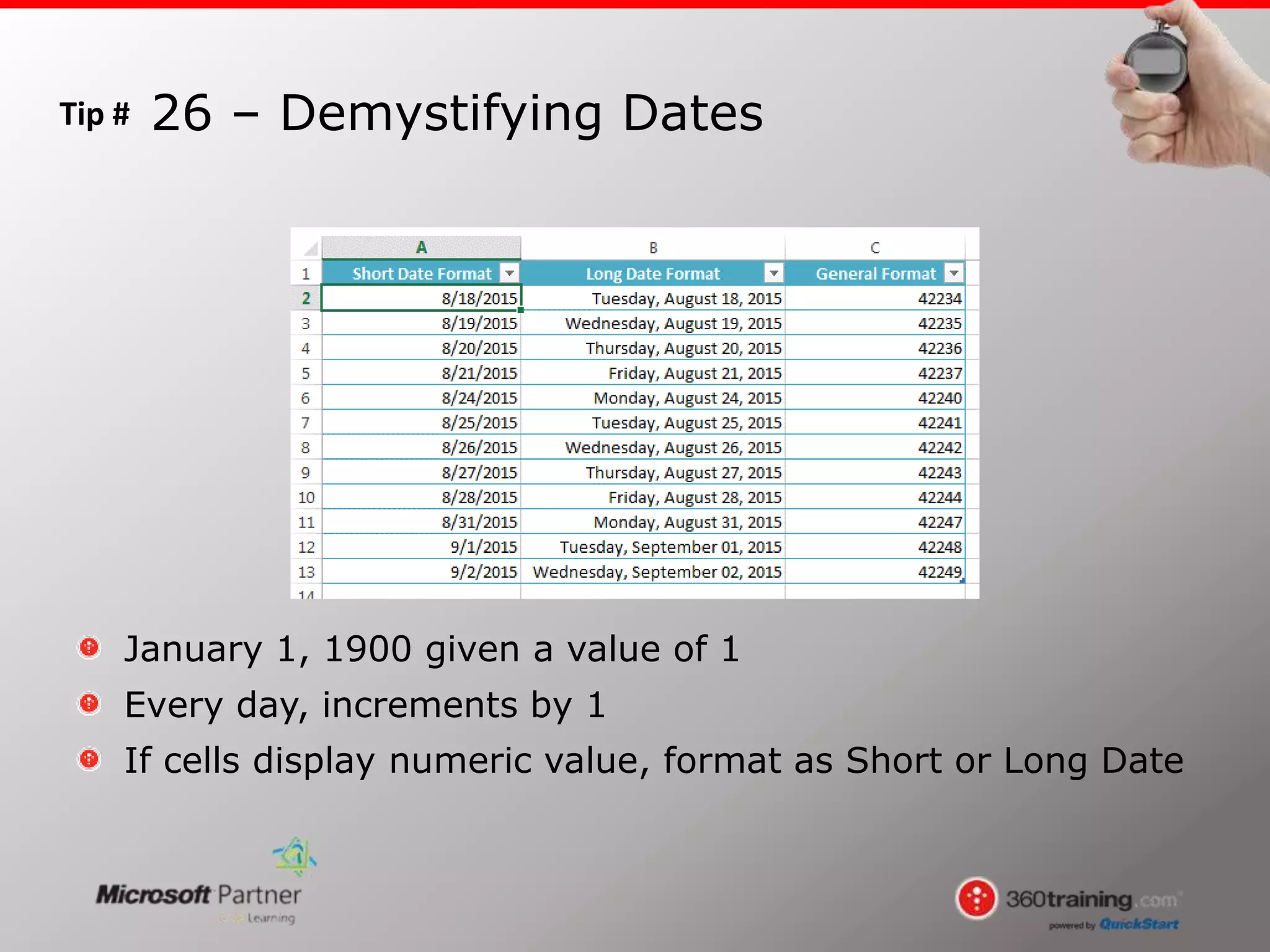
January 1, 1900 given a value of 1
Every day, increments by 1
If cells display numeric value, format as Short or Long Date
26 – Demystifying Dates
Tip #
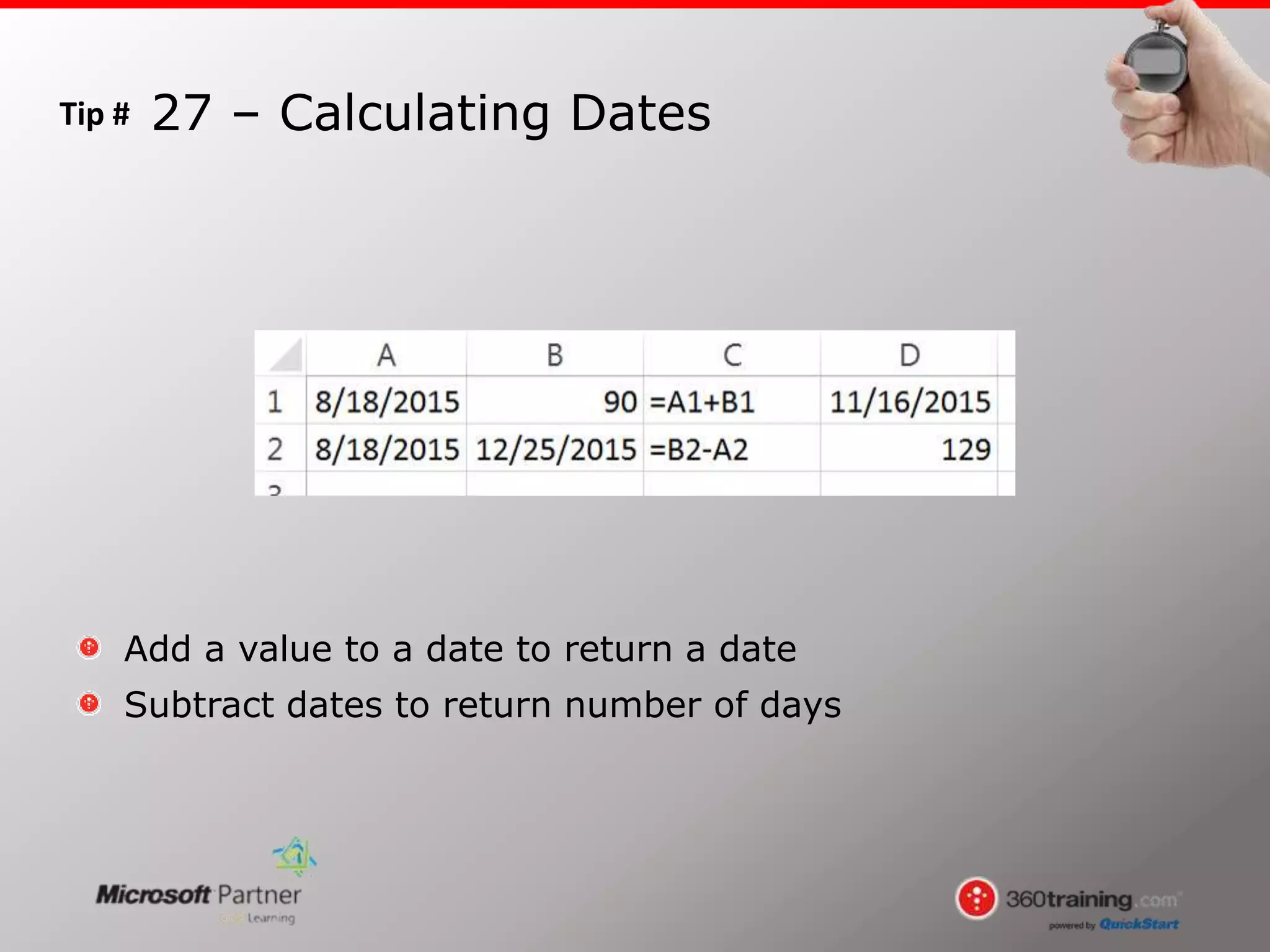
Add a value to a date to return a date
Subtract dates to return number of days
27 – Calculating Dates
Tip #
MiniToolbar enabled by default
Can block view of data
File tab > Options > General > User Interface options
28 – Disable MiniToolbar on Selection
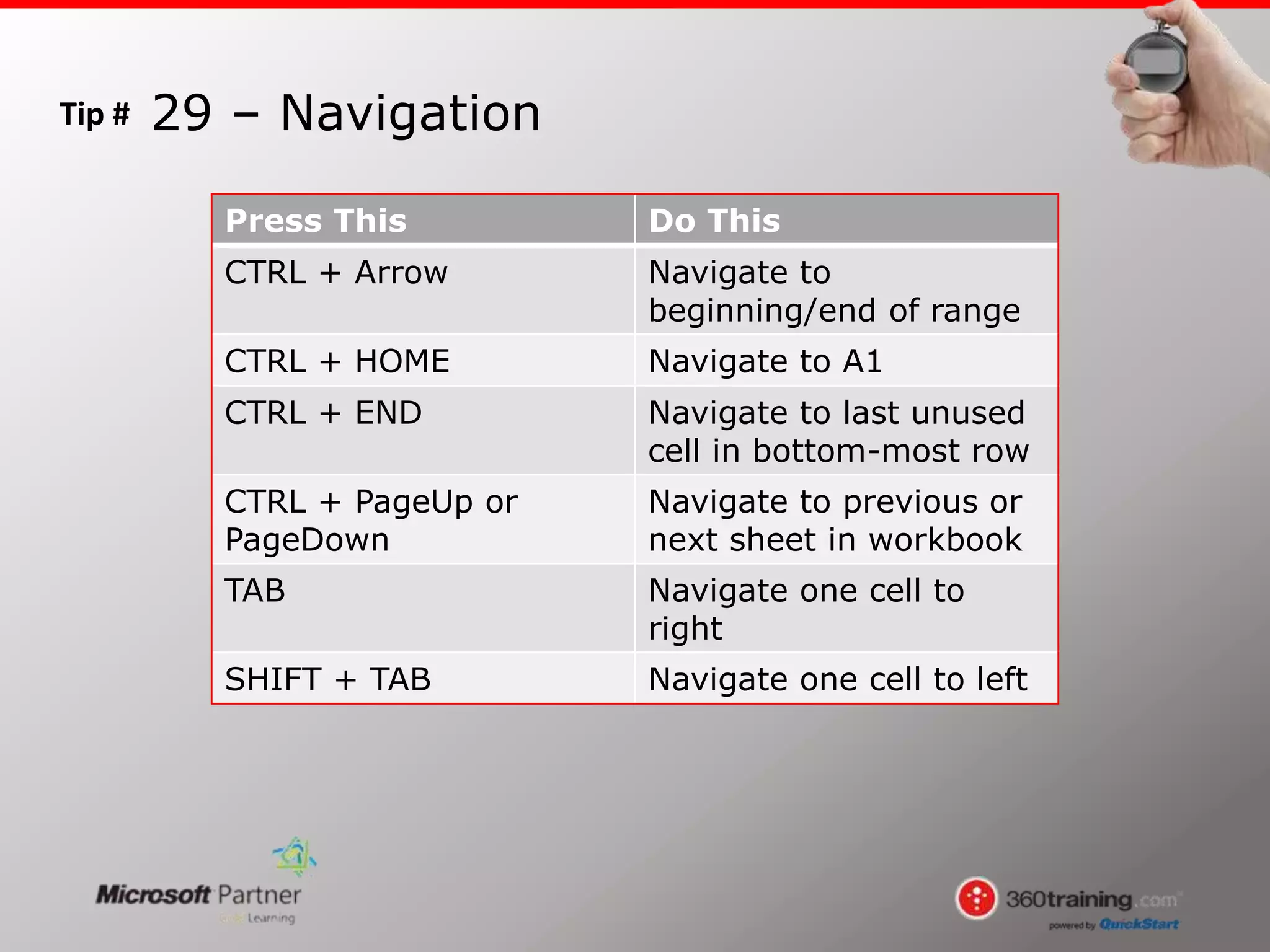
Tip # 29 – Navigation
Press This Do This
CTRL + Arrow Navigate to
beginning/end of range
CTRL + HOME Navigate to A1
CTRL + END Navigate to last unused
cell in bottom-most row
CTRL + PageUp or
PageDown
Navigate to previous or
next sheet in workbook
TAB Navigate one cell to
right
SHIFT + TAB Navigate one cell to left
Tip # 30 – Selection
Press This Do This
CTRL + SHIFT + Arrow Select to beginning/end
of range
CTRL + A Select current range
CTRL + A + A Selects all cells in
current worksheet
Click + SHIFT + Click Creates selected range
Click + CTRL + Click Selects non-adjacent
cells & worksheets
Type range in Name box
+ Enter
Selects large range of
cells without need to
scroll

30 Excel Tips in 30 Minutes

  • 1.
    30 Microsoft Excel Tipsin 30 Minutes Presented by: 360training.com Today’s webinar led by… Heather Ferrise Excel 2010 Tips & Tricks, Features & Shortcuts
  • 2.
    Tip # Conditional formattingallows you to quickly identify variances in your data at a glance Select data to format. Home tab > Styles group > Conditional Formatting 1 – Conditional Formatting
  • 3.
    Tip # Apply ConditionalFormatting Home tab > Editing group > Sort & Filter > Filter Filter by Color 2 – Filter by Color
  • 4.
    Tip # Conditional Formattingallows for visualizing duplicates Home tab > Styles group > Conditional Formatting > Highlight Cells Rules > Duplicate Values 3 – Identifying Duplicates
  • 5.
    Tip # Select rangeof cells to include in the table Home tab > Styles group > Format as Table, or CTRL + T 4 – Format as Table
  • 6.
    Tip # Create tablefrom range Table Tools Design > Tools > Remove Duplicates 5 – Remove Duplicates
  • 7.
    Tip # DEL keyremoves contents; it retains formatting Home tab > Editing group > Clear button Add to Quick Access Toolbar via right click 6 – The Clear Button
  • 8.
    Tip # Select rangeof cells to plot as chart Press F11 key 7 – Insert Chart as a New Worksheet
  • 9.
    Tip # Select amountof columns/rows to insert Right click > Insert 8 – Insert Multiple Columns/Rows
  • 10.
    Tip # Place cursorbetween columns and double click AutoFit multiple columns, select multiple columns 9 – AutoFit Columns
  • 11.
    Tip # Select rangeor cells to quick calculate Look down at Status Bar Right click Status Bar to change quick calculate options 10 – View Sum, Average…
  • 12.
    Tip # Home tab> Editing group > Sort & Filter > Custom Sort Can now sort on values, cell color, font color, and cell icon 11 – Multi-level Sorting
  • 13.
    Tip # View tab> Workbook Views group > Page Layout button Easily type and format headers/footers similarly to Microsoft Word 12 – Easily Add Headers/Footers
  • 14.
    Tip # Data tab> Data Tools group > Data Validation button Provides for thresholds, standardization, and drop-down list entries 13 – Govern Your Input
  • 15.
    Tip # Home tab> Alignment group > Wrap text Adjust number of lines displayed by widening column ALT + Enter to control paragraph breaks 14 – Wrapping Text
  • 16.
    Tip # Enter functionwith empty set of parentheses =IF() SHIFT + F3 to open Function Arguments dialog box No need to enter commas to separate arguments 15 – Controlling Function Arguments
  • 17.
    Tip # Sort ascendingby column to subtotal Data tab > Outline group > Subtotal button Select desired aggregate function 16 – Automate Subtotaling
  • 18.
    Tip # To viewvalues rather than cell addresses in a formula/function, Select cell > Formula Bar > Select reference > Press F9 key 17 – View Cell Values in Formula Bar
  • 19.
    Tip # Pasting resultsof calculations can be tricky Select cells > Copy > Paste Special > Values 18 –Function Results to Values
  • 20.
    Tip # CTRL +` (grave) Displays true contents of cells, including formulas & functions 19 – Magic Lasso
  • 21.
    Tip # Page Layout> Page Setup > Print Titles Print Titles > Rows to repeat at top, Columns to print at left 20 – Maintain Labels When Printing
  • 22.
    Tip # Consumes lessroom than boarders Page Layout > Sheet Options > Gridlines Check Print Check Box 21 – Keep Line of Vision on Printout
  • 23.
    Tip # Select rangeto include comment Press SHIFT + F2 22 – Quickly Comment
  • 24.
    Tip # Enter beginningdate Right click fill handle and drag Upon release of right mouse button > Fill Weekdays 23 – Autofill Weekdays
  • 25.
    Tip # Enter valueswithin range Double click Autofill handle Carries content of cell to bottom of range 24 – Autofill Control
  • 26.
    Tip # File >Options > Advanced > General > Edit Custom Lists Use for series of data you would otherwise type manually 25 – Custom Fill Lists
  • 27.
    Tip # January 1,1900 given a value of 1 Every day, increments by 1 If cells display numeric value, format as Short or Long Date 26 – Demystifying Dates
  • 28.
    Tip # Add avalue to a date to return a date Subtract dates to return number of days 27 – Calculating Dates
  • 29.
    Tip # MiniToolbar enabledby default Can block view of data File tab > Options > General > User Interface options 28 – Disable MiniToolbar on Selection
  • 30.
    Tip # 29– Navigation Press This Do This CTRL + Arrow Navigate to beginning/end of range CTRL + HOME Navigate to A1 CTRL + END Navigate to last unused cell in bottom-most row CTRL + PageUp or PageDown Navigate to previous or next sheet in workbook TAB Navigate one cell to right SHIFT + TAB Navigate one cell to left
  • 31.
    Tip # 30– Selection Press This Do This CTRL + SHIFT + Arrow Select to beginning/end of range CTRL + A Select current range CTRL + A + A Selects all cells in current worksheet Click + SHIFT + Click Creates selected range Click + CTRL + Click Selects non-adjacent cells & worksheets Type range in Name box + Enter Selects large range of cells without need to scroll