

GSP - Asian Soil
Partnership
Training Workshop on
Soil Organic Carbon
Mapping
Bangkok, Thailand,
24-29 April 2017
Yusuf YIGINI, PhD - FAO, Land and Water Division (CBL)
DAY 4 – 28 April 2017
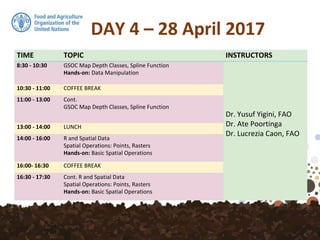
TIME TOPIC INSTRUCTORS
8:30 - 10:30 GSOC Map Depth Classes, Spline Function
Hands-on: Data Manipulation
Dr. Yusuf Yigini, FAO
Dr. Ate Poortinga
Dr. Lucrezia Caon, FAO
10:30 - 11:00 COFFEE BREAK
11:00 - 13:00 Cont.
GSOC Map Depth Classes, Spline Function
13:00 - 14:00 LUNCH
14:00 - 16:00 R and Spatial Data
Spatial Operations: Points, Rasters
Hands-on: Basic Spatial Operations
16:00- 16:30 COFFEE BREAK
16:30 - 17:30 Cont. R and Spatial Data
Spatial Operations: Points, Rasters
Hands-on: Basic Spatial Operations
R - Getting Spatial
Sample Data - Points
We will be working with a data set of soil information that
was collected from Macedonia (FYROM).
https://goo.gl/EKKMAF
Vectors
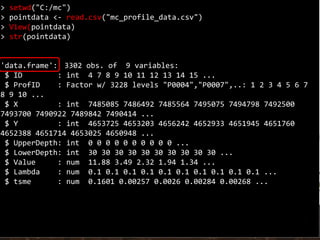
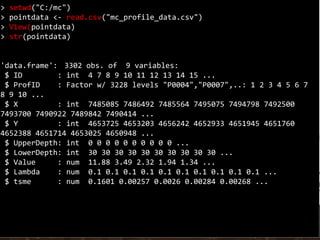
> setwd("C:/mc")
> pointdata <- read.csv("mc_profile_data.csv")
> View(pointdata)
> str(pointdata)
'data.frame': 3302 obs. of 9 variables:
$ ID : int 4 7 8 9 10 11 12 13 14 15 ...
$ ProfID : Factor w/ 3228 levels "P0004","P0007",..: 1 2 3 4 5 6 7
8 9 10 ...
$ X : int 7485085 7486492 7485564 7495075 7494798 7492500
7493700 7490922 7489842 7490414 ...
$ Y : int 4653725 4653203 4656242 4652933 4651945 4651760
4652388 4651714 4653025 4650948 ...
$ UpperDepth: int 0 0 0 0 0 0 0 0 0 0 ...
$ LowerDepth: int 30 30 30 30 30 30 30 30 30 30 ...
$ Value : num 11.88 3.49 2.32 1.94 1.34 ...
$ Lambda : num 0.1 0.1 0.1 0.1 0.1 0.1 0.1 0.1 0.1 0.1 ...
$ tsme : num 0.1601 0.00257 0.0026 0.00284 0.00268 ...
Required Packages
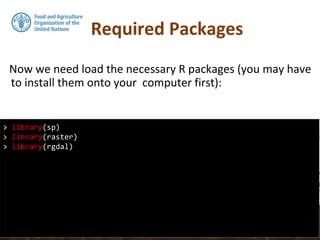
Now we need load the necessary R packages (you may have
to install them onto your computer first):
> library(sp)
> library(raster)
> library(rgdal)
Coordinates
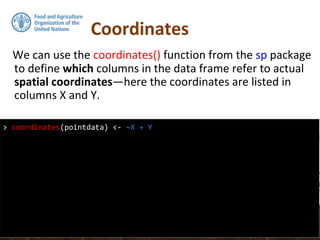
We can use the coordinates() function from the sp package
to define which columns in the data frame refer to actual
spatial coordinates—here the coordinates are listed in
columns X and Y.
> coordinates(pointdata) <- ~X + Y
Coordinates
> coordinates(pointdata) <- ~X + Y
> str(pointdata)
Formal class 'SpatialPointsDataFrame' [package "sp"] with 5 slots
..@ data :'data.frame': 3302 obs. of 7 variables:
.. ..$ ID : int [1:3302] 4 7 8 9 10 11 12 13 14 15 ...
.. ..$ ProfID : Factor w/ 3228 levels "P0004","P0007",..: 1 2 3 4
5 6 7 8 9 10 ...
.. ..$ UpperDepth: int [1:3302] 0 0 0 0 0 0 0 0 0 0 ...
.. ..$ LowerDepth: int [1:3302] 30 30 30 30 30 30 30 30 30 30 ...
.. ..$ Value : num [1:3302] 11.88 3.49 2.32 1.94 1.34 ...
.. ..$ Lambda : num [1:3302] 0.1 0.1 0.1 0.1 0.1 0.1 0.1 0.1 0.1
0.1 ...
.. ..$ tsme : num [1:3302] 0.1601 0.00257 0.0026 0.00284 0.00268
...
..@ coords.nrs : int [1:2] 3 4
..@ coords : num [1:3302, 1:2] 7485085 7486492 7485564 7495075
7494798 ...
.. ..- attr(*, "dimnames")=List of 2
.. .. ..$ : chr [1:3302] "1" "2" "3" "4" ...
.. .. ..$ : chr [1:2] "X" "Y"
..@ bbox : num [1:2, 1:2] 7455723 4526565 7667660 4691342
.. ..- attr(*, "dimnames")=List of 2
.. .. ..$ : chr [1:2] "X" "Y"
.. .. ..$ : chr [1:2] "min" "max"
Coordinates
> coordinates(pointdata) <- ~X + Y
> str(pointdata)
Formal class 'SpatialPointsDataFrame' [package "sp"] with 5 slots
..@ data :'data.frame': 3302 obs. of 7 variables:
.. ..$ ID : int [1:3302] 4 7 8 9 10 11 12 13 14 15 ...
.. ..$ ProfID : Factor w/ 3228 levels "P0004","P0007",..: 1 2 3 4
5 6 7 8 9 10 ...
.. ..$ UpperDepth: int [1:3302] 0 0 0 0 0 0 0 0 0 0 ...
.. ..$ LowerDepth: int [1:3302] 30 30 30 30 30 30 30 30 30 30 ...
.. ..$ Value : num [1:3302] 11.88 3.49 2.32 1.94 1.34 ...
.. ..$ Lambda : num [1:3302] 0.1 0.1 0.1 0.1 0.1 0.1 0.1 0.1 0.1
0.1 ...
.. ..$ tsme : num [1:3302] 0.1601 0.00257 0.0026 0.00284 0.00268
...
..@ coords.nrs : int [1:2] 3 4
..@ coords : num [1:3302, 1:2] 7485085 7486492 7485564 7495075
7494798 ...
.. ..- attr(*, "dimnames")=List of 2
.. .. ..$ : chr [1:3302] "1" "2" "3" "4" ...
.. .. ..$ : chr [1:2] "X" "Y"
..@ bbox : num [1:2, 1:2] 7455723 4526565 7667660 4691342
.. ..- attr(*, "dimnames")=List of 2
.. .. ..$ : chr [1:2] "X" "Y"
.. .. ..$ : chr [1:2] "min" "max"
Note that by using the str function, the class
of pointdata has now changed from a
dataframe to a SpatialPointsDataFrame.
We can do a spatial plot of these points
using the spplot plotting function in the sp
package.
> setwd("C:/mc")
> pointdata <- read.csv("mc_profile_data.csv")
> View(pointdata)
> str(pointdata)
'data.frame': 3302 obs. of 9 variables:
$ ID : int 4 7 8 9 10 11 12 13 14 15 ...
$ ProfID : Factor w/ 3228 levels "P0004","P0007",..: 1 2 3 4 5 6 7
8 9 10 ...
$ X : int 7485085 7486492 7485564 7495075 7494798 7492500
7493700 7490922 7489842 7490414 ...
$ Y : int 4653725 4653203 4656242 4652933 4651945 4651760
4652388 4651714 4653025 4650948 ...
$ UpperDepth: int 0 0 0 0 0 0 0 0 0 0 ...
$ LowerDepth: int 30 30 30 30 30 30 30 30 30 30 ...
$ Value : num 11.88 3.49 2.32 1.94 1.34 ...
$ Lambda : num 0.1 0.1 0.1 0.1 0.1 0.1 0.1 0.1 0.1 0.1 ...
$ tsme : num 0.1601 0.00257 0.0026 0.00284 0.00268 ...
Spatial Data Frame
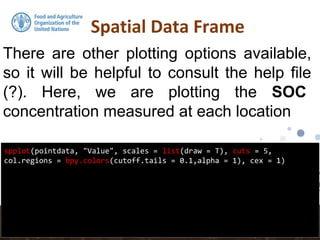
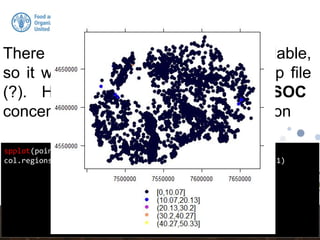
spplot(pointdata, "Value", scales = list(draw = T), cuts = 5,
col.regions = bpy.colors(cutoff.tails = 0.1,alpha = 1), cex = 1)
There are other plotting options available,
so it will be helpful to consult the help file
(?). Here, we are plotting the SOC
concentration measured at each location
Spatial Data Frame
spplot(pointdata, "Value", scales = list(draw = T), cuts = 5,
col.regions = bpy.colors(cutoff.tails = 0.1,alpha = 1), cex = 1)
There are other plotting options available,
so it will be helpful to consult the help file
(?). Here, we are plotting the SOC
concentration measured at each location
Spatial Data Frame
SpatialPointsDataFrame structure is essentially the same data
frame, except that additional “spatial” elements have been added
or partitioned into slots. Some important ones being the bounding
box (sort of like the spatial extent of the data), and the coordinate
reference system proj4string(), which we need to
define for the sample dataset.
To define the CRS, we must know where our data are from, and
what was the corresponding CRS used when recording the
spatial information in the field. For this data set the CRS used
was: Macedonia_State_Coordinate_System_zone_7
Coordinate Reference System
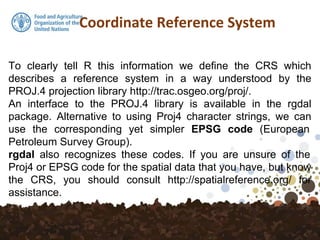
To clearly tell R this information we define the CRS which
describes a reference system in a way understood by the
PROJ.4 projection library http://trac.osgeo.org/proj/.
An interface to the PROJ.4 library is available in the rgdal
package. Alternative to using Proj4 character strings, we can
use the corresponding yet simpler EPSG code (European
Petroleum Survey Group).
rgdal also recognizes these codes. If you are unsure of the
Proj4 or EPSG code for the spatial data that you have, but know
the CRS, you should consult http://spatialreference.org/ for
assistance.
Spatial Data Frame
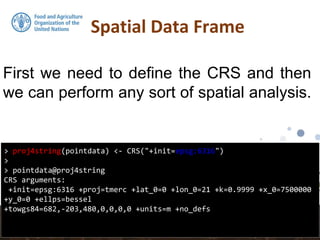
> proj4string(pointdata) <- CRS("+init=epsg:6316")
>
> pointdata@proj4string
CRS arguments:
+init=epsg:6316 +proj=tmerc +lat_0=0 +lon_0=21 +k=0.9999 +x_0=7500000
+y_0=0 +ellps=bessel
+towgs84=682,-203,480,0,0,0,0 +units=m +no_defs
First we need to define the CRS and then
we can perform any sort of spatial analysis.
Spatial Data Frame
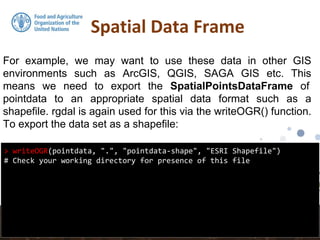
> writeOGR(pointdata, ".", "pointdata-shape", "ESRI Shapefile")
# Check your working directory for presence of this file
For example, we may want to use these data in other GIS
environments such as ArcGIS, QGIS, SAGA GIS etc. This
means we need to export the SpatialPointsDataFrame of
pointdata to an appropriate spatial data format such as a
shapefile. rgdal is again used for this via the writeOGR() function.
To export the data set as a shapefile:
Spatial Data Frame
> writeOGR(pointdata, ".", "pointdata-shape", "ESRI Shapefile")
# Check your working directory for presence of this file
For example, we may want to use these data in other GIS
environments such as ArcGIS, QGIS, SAGA GIS etc. This
means we need to export the SpatialPointsDataFrame of
pointdata to an appropriate spatial data format such as a
shapefile. rgdal is again used for this via the writeOGR() function.
To export the data set as a shapefile:
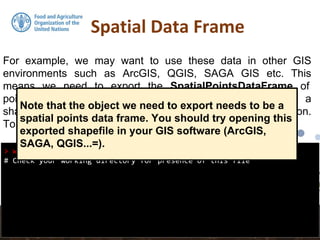
Note that the object we need to export needs to be a
spatial points data frame. You should try opening this
exported shapefile in your GIS software (ArcGIS,
SAGA, QGIS...=).
Coordinate Transformation
> pointdata.kml <- spTransform(pointdata, CRS("+init=epsg:4326"))
> writeOGR(pointdata.kml, "pointdata.kml", "ID", "KML")
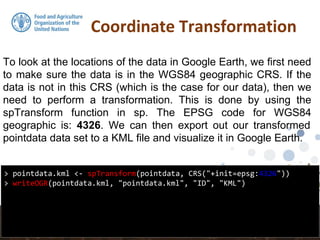
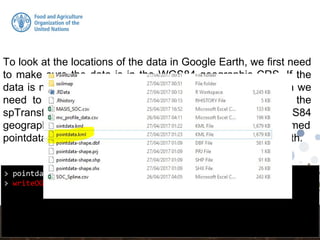
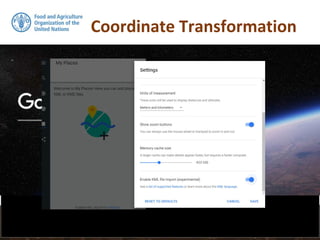
To look at the locations of the data in Google Earth, we first need
to make sure the data is in the WGS84 geographic CRS. If the
data is not in this CRS (which is the case for our data), then we
need to perform a transformation. This is done by using the
spTransform function in sp. The EPSG code for WGS84
geographic is: 4326. We can then export out our transformed
pointdata data set to a KML file and visualize it in Google Earth.
> pointdata.kml <- spTransform(pointdata, CRS("+init=epsg:4326"))
> writeOGR(pointdata.kml, "pointdata.kml", "ID", "KML")
To look at the locations of the data in Google Earth, we first need
to make sure the data is in the WGS84 geographic CRS. If the
data is not in this CRS (which is the case for our data), then we
need to perform a transformation. This is done by using the
spTransform function in sp. The EPSG code for WGS84
geographic is: 4326. We can then export out our transformed
pointdata data set to a KML file and visualize it in Google Earth.
KML’s
> pointdata.kml <- spTransform(pointdata, CRS("+init=epsg:4326"))
To look at the locations of the data in Google Earth, we first need
to make sure the data is in the WGS84 geographic CRS. If the
data is not in this CRS (which is the case for our data), then we
need to perform a transformation. This is done by using the
spTransform function in sp. The EPSG code for WGS84
geographic is: 4326. We can then export out our transformed
pointdata data set to a KML file and visualize it in Google Earth.
Coordinate Transformation
> pointdata.kml <- spTransform(pointdata, CRS("+init=epsg:4326"))
To look at the locations of the data in Google Earth, we first need
to make sure the data is in the WGS84 geographic CRS. If the
data is not in this CRS (which is the case for our data), then we
need to perform a transformation. This is done by using the
spTransform function in sp. The EPSG code for WGS84
geographic is: 4326. We can then export out our transformed
pointdata data set to a KML file and visualize it in Google Earth.
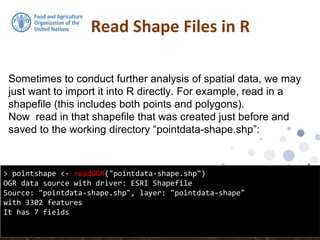
Sometimes to conduct further analysis of spatial data, we may
just want to import it into R directly. For example, read in a
shapefile (this includes both points and polygons).
Now read in that shapefile that was created just before and
saved to the working directory “pointdata-shape.shp”:
Read Shape Files in R
> pointshape <- readOGR("pointdata-shape.shp")
OGR data source with driver: ESRI Shapefile
Source: "pointdata-shape.shp", layer: "pointdata-shape"
with 3302 features
It has 7 fields
The imported shapefile is now a SpatialPointsDataFrame, just
like the pointdata data that was worked on before, and is
ready for further analysis.
Read Shape Files in R
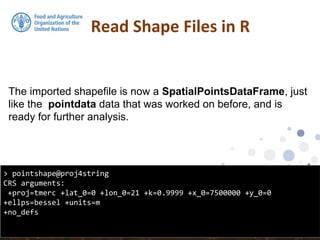
> pointshape@proj4string
CRS arguments:
+proj=tmerc +lat_0=0 +lon_0=21 +k=0.9999 +x_0=7500000 +y_0=0
+ellps=bessel +units=m
+no_defs
The imported shapefile is now a SpatialPointsDataFrame, just
like the pointdata data that was worked on before, and is
ready for further analysis.
Read Shape Files in R
> str(pointshape)
Formal class 'SpatialPointsDataFrame' [package "sp"] with 5 slots
..@ data :'data.frame': 3302 obs. of 7 variables:
...
The imported shapefile is now a SpatialPointsDataFrame, just
like the pointdata data that was worked on before, and is
ready for further analysis.
Read Shape Files in R
> str(pointshape)
Formal class 'SpatialPointsDataFrame' [package "sp"] with 5 slots
..@ data :'data.frame': 3302 obs. of 7 variables:
...
Rasters
Rasters
Most of the functions for handling raster data are
available in the raster package. There are
functions for reading and writing raster files from
and to different formats.
In digital soil mapping we mostly work with data in
table format and then rasterise this data so that we
can make a continuous map. For doing this in R
environment, we will load raster data in a data
frame. This data is a digital elevation model
provided by ISRIC for FYROM.
Rasters
Most of the functions for handling raster data are
available in the raster package. There are
functions for reading and writing raster files from
and to different formats.
In digital soil mapping we mostly work with data in
table format and then rasterise this data so that we
can make a continuous map.
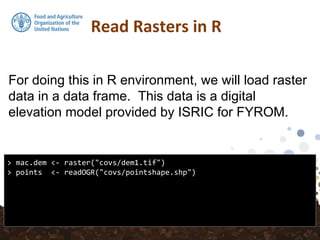
For doing this in R environment, we will load raster
data in a data frame. This data is a digital
elevation model provided by ISRIC for FYROM.
Read Rasters in R
> mac.dem <- raster("covs/dem1.tif")
> points <- readOGR("covs/pointshape.shp")
For doing this in R environment, we will load raster
data in a data frame. This data is a digital
elevation model provided by ISRIC for FYROM.
Read Rasters in R
> str(mac.dem)
Formal class 'RasterLayer' [package "raster"] with 12 slots
..@ file :Formal class '.RasterFile' [package "raster"] with 13
slots
.. .. ..@ name : chr "C:mccovsdem1.tif"
.. .. ..@ datanotation: chr "INT2S"
.. .. ..@ byteorder : chr "little"
.. .. ..@ nodatavalue : num -Inf
.. .. ..@ NAchanged : logi FALSE
.. .. ..@ nbands : int 1
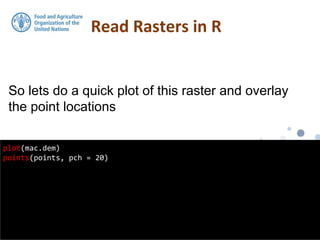
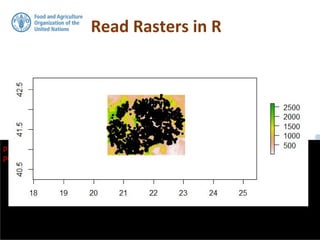
So lets do a quick plot of this raster and overlay
the point locations
Read Rasters in R
plot(mac.dem)
points(points, pch = 20)
So lets do a quick plot of this raster and overlay
the point locations
Read Rasters in R
plot(mac.dem)
points(points, pch = 20)
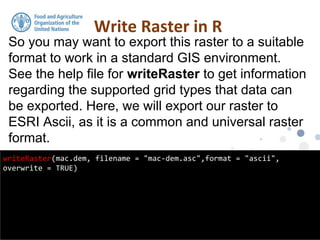
So you may want to export this raster to a suitable
format to work in a standard GIS environment.
See the help file for writeRaster to get information
regarding the supported grid types that data can
be exported. Here, we will export our raster to
ESRI Ascii, as it is a common and universal raster
format.
Write Raster in R
writeRaster(mac.dem, filename = "mac-dem.asc",format = "ascii",
overwrite = TRUE)
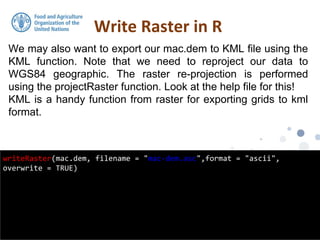
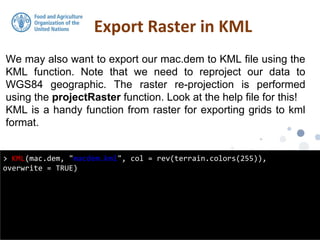
We may also want to export our mac.dem to KML file using the
KML function. Note that we need to reproject our data to
WGS84 geographic. The raster re-projection is performed
using the projectRaster function. Look at the help file for this!
KML is a handy function from raster for exporting grids to kml
format.
Write Raster in R
writeRaster(mac.dem, filename = "mac-dem.asc",format = "ascii",
overwrite = TRUE)
We may also want to export our mac.dem to KML file using the
KML function. Note that we need to reproject our data to
WGS84 geographic. The raster re-projection is performed
using the projectRaster function. Look at the help file for this!
KML is a handy function from raster for exporting grids to kml
format.
Export Raster in KML
> KML(mac.dem, "macdem.kml", col = rev(terrain.colors(255)),
overwrite = TRUE)
We may also want to export our mac.dem to KML file using the
KML function. Note that we need to reproject our data to
WGS84 geographic. The raster re-projection is performed
using the projectRaster function. Look at the help file for this!
KML is a handy function from raster for exporting grids to kml
format.
Export Raster in KML
> KML(mac.dem, "macdem.kml", col = rev(terrain.colors(255)),
overwrite = TRUE)
Check your working space for
presence of the kml file!
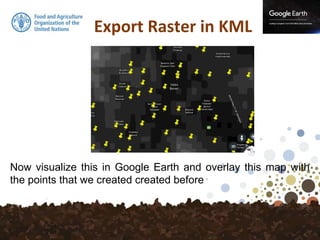
Now visualize this in Google Earth and overlay this map with
the points that we created created before
Export Raster in KML
The other useful procedure we can perform is to import rasters
directly into R so we can perform further analyses. rgdal
interfaces with the GDAL library, which means that there are
many supported grid formats that can be read into R.
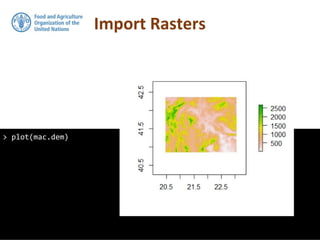
Import Rasters
http://www.gdal.org/formats_list.html
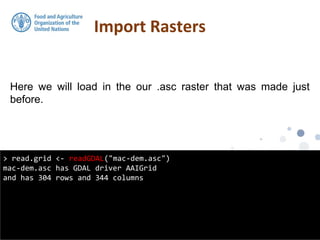
Here we will load in the our .asc raster that was made just
before.
Import Rasters
> read.grid <- readGDAL("mac-dem.asc")
mac-dem.asc has GDAL driver AAIGrid
and has 304 rows and 344 columns
The imported raster read.grid is a SpatialGridDataFrame,
which is a class of the sp package. To be able to use the raster
functions from raster we need to convert it to the RasterLayer
class.
Import Rasters
> str(grid.dem)
Formal class 'RasterLayer' [package "raster"] with 12 slots
..@ file :Formal class '.RasterFile' [package "raster"] with 13
slots
.. .. ..@ name : chr ""
.. .. ..@ datanotation: chr "FLT4S"
.. .. ..@ byteorder : chr "little"
.. .. ..@ nodatavalue : num -Inf
.. .. ..@ NAchanged : logi FALSE
.. .. ..@ nbands : int 1
.. .. ..@ bandorder : chr "BIL"
.. .. ..@ offset : int 0
.. .. ..@ toptobottom : logi TRUE
.. .. ..@ blockrows : int 0
It should be noted that R generated data source is loaded into
memory. This is fine for small size data but can become a
problem when working with very large rasters. A really useful
feature of the raster package is the ability to point to the
location of a raster file without loading it into the memory.
Import Rasters
grid.dem <- raster(paste(paste(getwd(), "/", sep = ""),"mac-dem.asc",
sep = ""))
> grid.dem
class : RasterLayer
dimensions : 304, 344, 104576 (nrow, ncol, ncell)
resolution : 0.008327968, 0.008327968 (x, y)
extent : 20.27042, 23.13524, 40.24997, 42.78167 (xmin, xmax,
ymin, ymax)
coord. ref. : NA
data source : C:mcmac-dem.asc
names : mac.dem
Import Rasters
> plot(mac.dem)
Overlaying Soil Point Observations with
Environmental Covariates
Data Preparation for DSM
In order to carry out digital soil mapping techniques for
evaluating the significance of environmental variables in
explaining the spatial variation of the target soil variable (for
example SOC) , we need to link both sets of data together
and extract raster values from covariates at the locations of
the soil point data.
Data Preparation for DSM
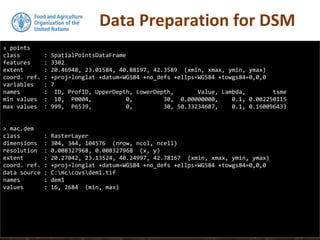
> points
class : SpatialPointsDataFrame
features : 3302
extent : 20.46948, 23.01584, 40.88197, 42.3589 (xmin, xmax, ymin, ymax)
coord. ref. : +proj=longlat +datum=WGS84 +no_defs +ellps=WGS84 +towgs84=0,0,0
variables : 7
names : ID, ProfID, UpperDepth, LowerDepth, Value, Lambda, tsme
min values : 10, P0004, 0, 30, 0.00000000, 0.1, 0.002250115
max values : 999, P6539, 0, 30, 50.33234687, 0.1, 0.160096433
> mac.dem
class : RasterLayer
dimensions : 304, 344, 104576 (nrow, ncol, ncell)
resolution : 0.008327968, 0.008327968 (x, y)
extent : 20.27042, 23.13524, 40.24997, 42.78167 (xmin, xmax, ymin, ymax)
coord. ref. : +proj=longlat +datum=WGS84 +no_defs +ellps=WGS84 +towgs84=0,0,0
data source : C:mccovsdem1.tif
names : dem1
values : 16, 2684 (min, max)
Data Preparation for DSM
> points
class : SpatialPointsDataFrame
features : 3302
extent : 20.46948, 23.01584, 40.88197, 42.3589 (xmin, xmax, ymin, ymax)
coord. ref. : +proj=longlat +datum=WGS84 +no_defs +ellps=WGS84 +towgs84=0,0,0
variables : 7
names : ID, ProfID, UpperDepth, LowerDepth, Value, Lambda, tsme
min values : 10, P0004, 0, 30, 0.00000000, 0.1, 0.002250115
max values : 999, P6539, 0, 30, 50.33234687, 0.1, 0.160096433
> mac.dem
class : RasterLayer
dimensions : 304, 344, 104576 (nrow, ncol, ncell)
resolution : 0.008327968, 0.008327968 (x, y)
extent : 20.27042, 23.13524, 40.24997, 42.78167 (xmin, xmax, ymin, ymax)
coord. ref. : +proj=longlat +datum=WGS84 +no_defs +ellps=WGS84 +towgs84=0,0,0
data source : C:mccovsdem1.tif
names : dem1
values : 16, 2684 (min, max)
Data Preparation for DSM
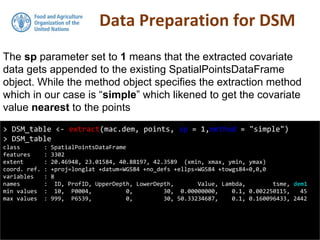
> DSM_table <- extract(mac.dem, points, sp = 1,method = "simple")
> DSM_table
class : SpatialPointsDataFrame
features : 3302
extent : 20.46948, 23.01584, 40.88197, 42.3589 (xmin, xmax, ymin, ymax)
coord. ref. : +proj=longlat +datum=WGS84 +no_defs +ellps=WGS84 +towgs84=0,0,0
variables : 8
names : ID, ProfID, UpperDepth, LowerDepth, Value, Lambda, tsme, dem1
min values : 10, P0004, 0, 30, 0.00000000, 0.1, 0.002250115, 45
max values : 999, P6539, 0, 30, 50.33234687, 0.1, 0.160096433, 2442
The sp parameter set to 1 means that the extracted covariate
data gets appended to the existing SpatialPointsDataFrame
object. While the method object specifies the extraction method
which in our case is “simple” which likened to get the covariate
value nearest to the points
Data Preparation for DSM
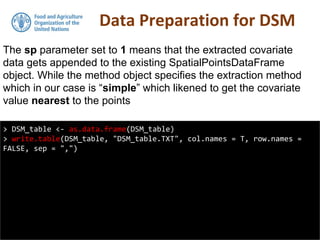
> DSM_table <- as.data.frame(DSM_table)
> write.table(DSM_table, "DSM_table.TXT", col.names = T, row.names =
FALSE, sep = ",")
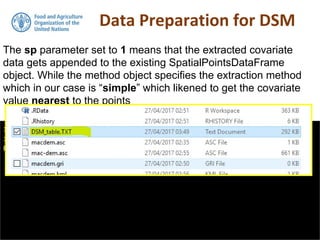
The sp parameter set to 1 means that the extracted covariate
data gets appended to the existing SpatialPointsDataFrame
object. While the method object specifies the extraction method
which in our case is “simple” which likened to get the covariate
value nearest to the points
Data Preparation for DSM
> DSM_table <- as.data.frame(DSM_table)
> write.table(DSM_table, "DSM_table.TXT", col.names = T, row.names =
FALSE, sep = ",")
The sp parameter set to 1 means that the extracted covariate
data gets appended to the existing SpatialPointsDataFrame
object. While the method object specifies the extraction method
which in our case is “simple” which likened to get the covariate
value nearest to the points
Using Covariates from Disc
> list.files(path = "C:/mc/covs", pattern = ".tif$",
+ full.names = TRUE)
[1] "C:/mc/covs/dem.tif" "C:/mc/covs/dem1.tif" "C:/mc/covs/prec.tif"
"C:/mc/covs/slp.tif"
> list.files(path = "C:/mc/covs")
[1] "dem.tif" "dem1.tfw" "dem1.tif"
"dem1.tif.aux.xml" "dem1.tif.ovr"
[6] "desktop.ini" "pointshape.cpg" "pointshape.dbf"
"pointshape.prj" "pointshape.sbn"
[11] "pointshape.sbx" "pointshape.shp" "pointshape.shx"
"prec.tif" "slp.tif"
This utility is obviously a very handy feature when we are
working with large or large number of rasters. The work function
we need is list.files. For example:
Using Covariates from Disc
> list.files(path = "C:/mc/covs", pattern = ".tif$",
+ full.names = TRUE)
[1] "C:/mc/covs/dem.tif" "C:/mc/covs/dem1.tif" "C:/mc/covs/prec.tif"
"C:/mc/covs/slp.tif"
> list.files(path = "C:/mc/covs")
[1] "dem.tif" "dem1.tfw" "dem1.tif"
"dem1.tif.aux.xml" "dem1.tif.ovr"
[6] "desktop.ini" "pointshape.cpg" "pointshape.dbf"
"pointshape.prj" "pointshape.sbn"
[11] "pointshape.sbx" "pointshape.shp" "pointshape.shx"
"prec.tif" "slp.tif"
This utility is obviously a very handy feature when we are
working with large or large number of rasters. The work function
we need is list.files. For example:
Using Covariates from Disc
Covs <- list.files(path = "C:/mc/covs", pattern = ".tif$",full.names
= TRUE)
> Covs
[1] "C:/mc/covs/dem.tif" "C:/mc/covs/dem1.tif" "C:/mc/covs/prec.tif"
"C:/mc/covs/slp.tif"
> covStack <- stack(Covs)
> covStack
Error in compareRaster(rasters) : different extent
When the covariates in common resolution and extent, rather
than working with each raster independently it is more efficient to
stack them all into a single object. The stack function from raster
is ready-made for this, and is
simple as follow,
Using Covariates from Disc
Covs <- list.files(path = "C:/mc/covs", pattern = ".tif$",full.names
= TRUE)
> Covs
[1] "C:/mc/covs/dem.tif" "C:/mc/covs/dem1.tif" "C:/mc/covs/prec.tif"
"C:/mc/covs/slp.tif"
> covStack <- stack(Covs)
> covStack
Error in compareRaster(rasters) : different extent
If the rasters are not in same resolution and extent you will find
the other raster package functions resample and projectRaster as
invaluable methods for harmonizing all your different raster layers.
Exploratory Data Analysis
We will continue using the DSM_table object that we created in the
previous section. As the data set was saved to file you will also find it
in your working directory.
> str(points)
Formal class 'SpatialPointsDataFrame' [package "sp"] with 5 slots
..@ data :'data.frame': 3302 obs. of 7 variables:
.. ..$ ID : Factor w/ 3228 levels "10","100","1000",..: 1896
3083 3136 3172 1 66 117 141 144 179 ...
.. ..$ ProfID : Factor w/ 3228 levels "P0004","P0007",..: 1 2 3 4
5 6 7 8 9 10 ...
.. ..$ UpperDepth: Factor w/ 1 level "0": 1 1 1 1 1 1 1 1 1 1 ...
.. ..$ LowerDepth: Factor w/ 1 level "30": 1 1 1 1 1 1 1 1 1 1 ...
.. ..$ Value : num [1:3302] 11.88 3.49 2.32 1.94 1.34 ...
.. ..$ Lambda : num [1:3302] 0.1 0.1 0.1 0.1 0.1 0.1 0.1 0.1 0.1
0.1 ...
Exploratory Data Analysis
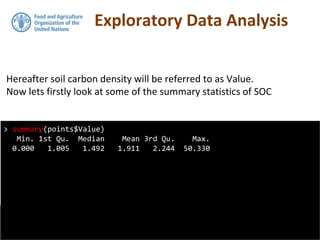
Hereafter soil carbon density will be referred to as Value.
Now lets firstly look at some of the summary statistics of SOC
> summary(points$Value)
Min. 1st Qu. Median Mean 3rd Qu. Max.
0.000 1.005 1.492 1.911 2.244 50.330
Exploratory Data Analysis
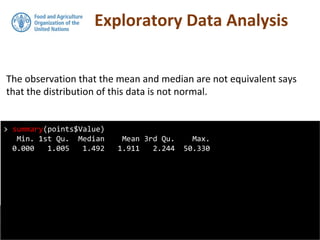
The observation that the mean and median are not equivalent says
that the distribution of this data is not normal.
> summary(points$Value)
Min. 1st Qu. Median Mean 3rd Qu. Max.
0.000 1.005 1.492 1.911 2.244 50.330
Exploratory Data Analysis
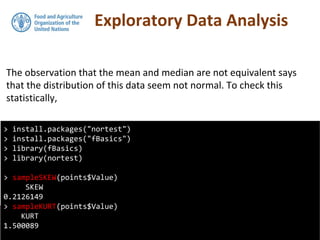
The observation that the mean and median are not equivalent says
that the distribution of this data seem not normal. To check this
statistically,
> install.packages("nortest")
> install.packages("fBasics")
> library(fBasics)
> library(nortest)
> sampleSKEW(points$Value)
SKEW
0.2126149
> sampleKURT(points$Value)
KURT
1.500089
Exploratory Data Analysis
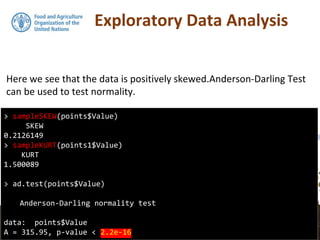
Here we see that the data is positively skewed.Anderson-Darling Test
can be used to test normality.
> sampleSKEW(points$Value)
SKEW
0.2126149
> sampleKURT(points1$Value)
KURT
1.500089
> ad.test(points$Value)
Anderson-Darling normality test
data: points$Value
A = 315.95, p-value < 2.2e-16
Exploratory Data Analysis
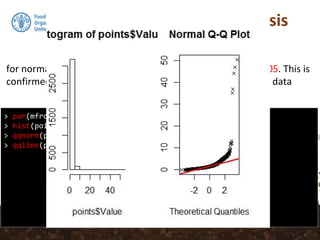
for normally distributed data the p value should be > than 0.05. This is
confirmed when we look at the histogram and qq-plot of this data
> par(mfrow = c(1, 2))
> hist(points$Value)
> qqnorm(points$Value, plot.it = TRUE, pch = 4, cex = 0.7)
> qqline(points$Value, col = "red", lwd = 2)
Exploratory Data Analysis
for normally distributed data the p value should be > than 0.05. This is
confirmed when we look at the histogram and qq-plot of this data
> par(mfrow = c(1, 2))
> hist(points$Value)
> qqnorm(points$Value, plot.it = TRUE, pch = 4, cex = 0.7)
> qqline(points$Value, col = "red", lwd = 2)
Exploratory Data Analysis
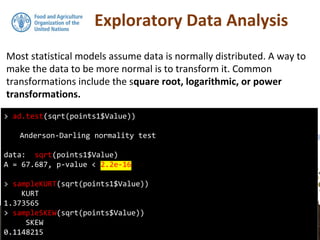
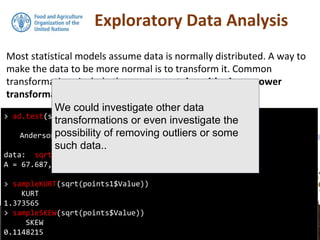
Most statistical models assume data is normally distributed. A way to
make the data to be more normal is to transform it. Common
transformations include the square root, logarithmic, or power
transformations.
> ad.test(sqrt(points1$Value))
Anderson-Darling normality test
data: sqrt(points1$Value)
A = 67.687, p-value < 2.2e-16
> sampleKURT(sqrt(points1$Value))
KURT
1.373565
> sampleSKEW(sqrt(points$Value))
SKEW
0.1148215
Exploratory Data Analysis
Most statistical models assume data is normally distributed. A way to
make the data to be more normal is to transform it. Common
transformations include the square root, logarithmic, or power
transformations.
> ad.test(sqrt(points1$Value))
Anderson-Darling normality test
data: sqrt(points1$Value)
A = 67.687, p-value < 2.2e-16
> sampleKURT(sqrt(points1$Value))
KURT
1.373565
> sampleSKEW(sqrt(points$Value))
SKEW
0.1148215
We could investigate other data
transformations or even investigate the
possibility of removing outliers or some
such data..

10. Getting Spatial

  • 1.
    GSP - AsianSoil Partnership Training Workshop on Soil Organic Carbon Mapping Bangkok, Thailand, 24-29 April 2017 Yusuf YIGINI, PhD - FAO, Land and Water Division (CBL)
  • 2.
    DAY 4 –28 April 2017 TIME TOPIC INSTRUCTORS 8:30 - 10:30 GSOC Map Depth Classes, Spline Function Hands-on: Data Manipulation Dr. Yusuf Yigini, FAO Dr. Ate Poortinga Dr. Lucrezia Caon, FAO 10:30 - 11:00 COFFEE BREAK 11:00 - 13:00 Cont. GSOC Map Depth Classes, Spline Function 13:00 - 14:00 LUNCH 14:00 - 16:00 R and Spatial Data Spatial Operations: Points, Rasters Hands-on: Basic Spatial Operations 16:00- 16:30 COFFEE BREAK 16:30 - 17:30 Cont. R and Spatial Data Spatial Operations: Points, Rasters Hands-on: Basic Spatial Operations
  • 3.
    R - GettingSpatial
  • 4.
    Sample Data -Points We will be working with a data set of soil information that was collected from Macedonia (FYROM). https://goo.gl/EKKMAF
  • 5.
  • 6.
    > setwd("C:/mc") > pointdata<- read.csv("mc_profile_data.csv") > View(pointdata) > str(pointdata) 'data.frame': 3302 obs. of 9 variables: $ ID : int 4 7 8 9 10 11 12 13 14 15 ... $ ProfID : Factor w/ 3228 levels "P0004","P0007",..: 1 2 3 4 5 6 7 8 9 10 ... $ X : int 7485085 7486492 7485564 7495075 7494798 7492500 7493700 7490922 7489842 7490414 ... $ Y : int 4653725 4653203 4656242 4652933 4651945 4651760 4652388 4651714 4653025 4650948 ... $ UpperDepth: int 0 0 0 0 0 0 0 0 0 0 ... $ LowerDepth: int 30 30 30 30 30 30 30 30 30 30 ... $ Value : num 11.88 3.49 2.32 1.94 1.34 ... $ Lambda : num 0.1 0.1 0.1 0.1 0.1 0.1 0.1 0.1 0.1 0.1 ... $ tsme : num 0.1601 0.00257 0.0026 0.00284 0.00268 ...
  • 7.
    Required Packages Now weneed load the necessary R packages (you may have to install them onto your computer first): > library(sp) > library(raster) > library(rgdal)
  • 8.
    Coordinates We can usethe coordinates() function from the sp package to define which columns in the data frame refer to actual spatial coordinates—here the coordinates are listed in columns X and Y. > coordinates(pointdata) <- ~X + Y
  • 9.
    Coordinates > coordinates(pointdata) <-~X + Y > str(pointdata) Formal class 'SpatialPointsDataFrame' [package "sp"] with 5 slots ..@ data :'data.frame': 3302 obs. of 7 variables: .. ..$ ID : int [1:3302] 4 7 8 9 10 11 12 13 14 15 ... .. ..$ ProfID : Factor w/ 3228 levels "P0004","P0007",..: 1 2 3 4 5 6 7 8 9 10 ... .. ..$ UpperDepth: int [1:3302] 0 0 0 0 0 0 0 0 0 0 ... .. ..$ LowerDepth: int [1:3302] 30 30 30 30 30 30 30 30 30 30 ... .. ..$ Value : num [1:3302] 11.88 3.49 2.32 1.94 1.34 ... .. ..$ Lambda : num [1:3302] 0.1 0.1 0.1 0.1 0.1 0.1 0.1 0.1 0.1 0.1 ... .. ..$ tsme : num [1:3302] 0.1601 0.00257 0.0026 0.00284 0.00268 ... ..@ coords.nrs : int [1:2] 3 4 ..@ coords : num [1:3302, 1:2] 7485085 7486492 7485564 7495075 7494798 ... .. ..- attr(*, "dimnames")=List of 2 .. .. ..$ : chr [1:3302] "1" "2" "3" "4" ... .. .. ..$ : chr [1:2] "X" "Y" ..@ bbox : num [1:2, 1:2] 7455723 4526565 7667660 4691342 .. ..- attr(*, "dimnames")=List of 2 .. .. ..$ : chr [1:2] "X" "Y" .. .. ..$ : chr [1:2] "min" "max"
  • 10.
    Coordinates > coordinates(pointdata) <-~X + Y > str(pointdata) Formal class 'SpatialPointsDataFrame' [package "sp"] with 5 slots ..@ data :'data.frame': 3302 obs. of 7 variables: .. ..$ ID : int [1:3302] 4 7 8 9 10 11 12 13 14 15 ... .. ..$ ProfID : Factor w/ 3228 levels "P0004","P0007",..: 1 2 3 4 5 6 7 8 9 10 ... .. ..$ UpperDepth: int [1:3302] 0 0 0 0 0 0 0 0 0 0 ... .. ..$ LowerDepth: int [1:3302] 30 30 30 30 30 30 30 30 30 30 ... .. ..$ Value : num [1:3302] 11.88 3.49 2.32 1.94 1.34 ... .. ..$ Lambda : num [1:3302] 0.1 0.1 0.1 0.1 0.1 0.1 0.1 0.1 0.1 0.1 ... .. ..$ tsme : num [1:3302] 0.1601 0.00257 0.0026 0.00284 0.00268 ... ..@ coords.nrs : int [1:2] 3 4 ..@ coords : num [1:3302, 1:2] 7485085 7486492 7485564 7495075 7494798 ... .. ..- attr(*, "dimnames")=List of 2 .. .. ..$ : chr [1:3302] "1" "2" "3" "4" ... .. .. ..$ : chr [1:2] "X" "Y" ..@ bbox : num [1:2, 1:2] 7455723 4526565 7667660 4691342 .. ..- attr(*, "dimnames")=List of 2 .. .. ..$ : chr [1:2] "X" "Y" .. .. ..$ : chr [1:2] "min" "max" Note that by using the str function, the class of pointdata has now changed from a dataframe to a SpatialPointsDataFrame. We can do a spatial plot of these points using the spplot plotting function in the sp package.
  • 11.
    > setwd("C:/mc") > pointdata<- read.csv("mc_profile_data.csv") > View(pointdata) > str(pointdata) 'data.frame': 3302 obs. of 9 variables: $ ID : int 4 7 8 9 10 11 12 13 14 15 ... $ ProfID : Factor w/ 3228 levels "P0004","P0007",..: 1 2 3 4 5 6 7 8 9 10 ... $ X : int 7485085 7486492 7485564 7495075 7494798 7492500 7493700 7490922 7489842 7490414 ... $ Y : int 4653725 4653203 4656242 4652933 4651945 4651760 4652388 4651714 4653025 4650948 ... $ UpperDepth: int 0 0 0 0 0 0 0 0 0 0 ... $ LowerDepth: int 30 30 30 30 30 30 30 30 30 30 ... $ Value : num 11.88 3.49 2.32 1.94 1.34 ... $ Lambda : num 0.1 0.1 0.1 0.1 0.1 0.1 0.1 0.1 0.1 0.1 ... $ tsme : num 0.1601 0.00257 0.0026 0.00284 0.00268 ...
  • 12.
    Spatial Data Frame spplot(pointdata,"Value", scales = list(draw = T), cuts = 5, col.regions = bpy.colors(cutoff.tails = 0.1,alpha = 1), cex = 1) There are other plotting options available, so it will be helpful to consult the help file (?). Here, we are plotting the SOC concentration measured at each location
  • 13.
    Spatial Data Frame spplot(pointdata,"Value", scales = list(draw = T), cuts = 5, col.regions = bpy.colors(cutoff.tails = 0.1,alpha = 1), cex = 1) There are other plotting options available, so it will be helpful to consult the help file (?). Here, we are plotting the SOC concentration measured at each location
  • 14.
    Spatial Data Frame SpatialPointsDataFramestructure is essentially the same data frame, except that additional “spatial” elements have been added or partitioned into slots. Some important ones being the bounding box (sort of like the spatial extent of the data), and the coordinate reference system proj4string(), which we need to define for the sample dataset. To define the CRS, we must know where our data are from, and what was the corresponding CRS used when recording the spatial information in the field. For this data set the CRS used was: Macedonia_State_Coordinate_System_zone_7
  • 15.
    Coordinate Reference System Toclearly tell R this information we define the CRS which describes a reference system in a way understood by the PROJ.4 projection library http://trac.osgeo.org/proj/. An interface to the PROJ.4 library is available in the rgdal package. Alternative to using Proj4 character strings, we can use the corresponding yet simpler EPSG code (European Petroleum Survey Group). rgdal also recognizes these codes. If you are unsure of the Proj4 or EPSG code for the spatial data that you have, but know the CRS, you should consult http://spatialreference.org/ for assistance.
  • 16.
    Spatial Data Frame >proj4string(pointdata) <- CRS("+init=epsg:6316") > > pointdata@proj4string CRS arguments: +init=epsg:6316 +proj=tmerc +lat_0=0 +lon_0=21 +k=0.9999 +x_0=7500000 +y_0=0 +ellps=bessel +towgs84=682,-203,480,0,0,0,0 +units=m +no_defs First we need to define the CRS and then we can perform any sort of spatial analysis.
  • 17.
    Spatial Data Frame >writeOGR(pointdata, ".", "pointdata-shape", "ESRI Shapefile") # Check your working directory for presence of this file For example, we may want to use these data in other GIS environments such as ArcGIS, QGIS, SAGA GIS etc. This means we need to export the SpatialPointsDataFrame of pointdata to an appropriate spatial data format such as a shapefile. rgdal is again used for this via the writeOGR() function. To export the data set as a shapefile:
  • 18.
    Spatial Data Frame >writeOGR(pointdata, ".", "pointdata-shape", "ESRI Shapefile") # Check your working directory for presence of this file For example, we may want to use these data in other GIS environments such as ArcGIS, QGIS, SAGA GIS etc. This means we need to export the SpatialPointsDataFrame of pointdata to an appropriate spatial data format such as a shapefile. rgdal is again used for this via the writeOGR() function. To export the data set as a shapefile: Note that the object we need to export needs to be a spatial points data frame. You should try opening this exported shapefile in your GIS software (ArcGIS, SAGA, QGIS...=).
  • 19.
    Coordinate Transformation > pointdata.kml<- spTransform(pointdata, CRS("+init=epsg:4326")) > writeOGR(pointdata.kml, "pointdata.kml", "ID", "KML") To look at the locations of the data in Google Earth, we first need to make sure the data is in the WGS84 geographic CRS. If the data is not in this CRS (which is the case for our data), then we need to perform a transformation. This is done by using the spTransform function in sp. The EPSG code for WGS84 geographic is: 4326. We can then export out our transformed pointdata data set to a KML file and visualize it in Google Earth.
  • 20.
    > pointdata.kml <-spTransform(pointdata, CRS("+init=epsg:4326")) > writeOGR(pointdata.kml, "pointdata.kml", "ID", "KML") To look at the locations of the data in Google Earth, we first need to make sure the data is in the WGS84 geographic CRS. If the data is not in this CRS (which is the case for our data), then we need to perform a transformation. This is done by using the spTransform function in sp. The EPSG code for WGS84 geographic is: 4326. We can then export out our transformed pointdata data set to a KML file and visualize it in Google Earth.
  • 21.
    KML’s > pointdata.kml <-spTransform(pointdata, CRS("+init=epsg:4326")) To look at the locations of the data in Google Earth, we first need to make sure the data is in the WGS84 geographic CRS. If the data is not in this CRS (which is the case for our data), then we need to perform a transformation. This is done by using the spTransform function in sp. The EPSG code for WGS84 geographic is: 4326. We can then export out our transformed pointdata data set to a KML file and visualize it in Google Earth.
  • 22.
    Coordinate Transformation > pointdata.kml<- spTransform(pointdata, CRS("+init=epsg:4326")) To look at the locations of the data in Google Earth, we first need to make sure the data is in the WGS84 geographic CRS. If the data is not in this CRS (which is the case for our data), then we need to perform a transformation. This is done by using the spTransform function in sp. The EPSG code for WGS84 geographic is: 4326. We can then export out our transformed pointdata data set to a KML file and visualize it in Google Earth.
  • 23.
    Sometimes to conductfurther analysis of spatial data, we may just want to import it into R directly. For example, read in a shapefile (this includes both points and polygons). Now read in that shapefile that was created just before and saved to the working directory “pointdata-shape.shp”: Read Shape Files in R > pointshape <- readOGR("pointdata-shape.shp") OGR data source with driver: ESRI Shapefile Source: "pointdata-shape.shp", layer: "pointdata-shape" with 3302 features It has 7 fields
  • 24.
    The imported shapefileis now a SpatialPointsDataFrame, just like the pointdata data that was worked on before, and is ready for further analysis. Read Shape Files in R > pointshape@proj4string CRS arguments: +proj=tmerc +lat_0=0 +lon_0=21 +k=0.9999 +x_0=7500000 +y_0=0 +ellps=bessel +units=m +no_defs
  • 25.
    The imported shapefileis now a SpatialPointsDataFrame, just like the pointdata data that was worked on before, and is ready for further analysis. Read Shape Files in R > str(pointshape) Formal class 'SpatialPointsDataFrame' [package "sp"] with 5 slots ..@ data :'data.frame': 3302 obs. of 7 variables: ...
  • 26.
    The imported shapefileis now a SpatialPointsDataFrame, just like the pointdata data that was worked on before, and is ready for further analysis. Read Shape Files in R > str(pointshape) Formal class 'SpatialPointsDataFrame' [package "sp"] with 5 slots ..@ data :'data.frame': 3302 obs. of 7 variables: ...
  • 27.
  • 28.
    Rasters Most of thefunctions for handling raster data are available in the raster package. There are functions for reading and writing raster files from and to different formats. In digital soil mapping we mostly work with data in table format and then rasterise this data so that we can make a continuous map. For doing this in R environment, we will load raster data in a data frame. This data is a digital elevation model provided by ISRIC for FYROM.
  • 29.
    Rasters Most of thefunctions for handling raster data are available in the raster package. There are functions for reading and writing raster files from and to different formats. In digital soil mapping we mostly work with data in table format and then rasterise this data so that we can make a continuous map.
  • 30.
    For doing thisin R environment, we will load raster data in a data frame. This data is a digital elevation model provided by ISRIC for FYROM. Read Rasters in R > mac.dem <- raster("covs/dem1.tif") > points <- readOGR("covs/pointshape.shp")
  • 31.
    For doing thisin R environment, we will load raster data in a data frame. This data is a digital elevation model provided by ISRIC for FYROM. Read Rasters in R > str(mac.dem) Formal class 'RasterLayer' [package "raster"] with 12 slots ..@ file :Formal class '.RasterFile' [package "raster"] with 13 slots .. .. ..@ name : chr "C:mccovsdem1.tif" .. .. ..@ datanotation: chr "INT2S" .. .. ..@ byteorder : chr "little" .. .. ..@ nodatavalue : num -Inf .. .. ..@ NAchanged : logi FALSE .. .. ..@ nbands : int 1
  • 32.
    So lets doa quick plot of this raster and overlay the point locations Read Rasters in R plot(mac.dem) points(points, pch = 20)
  • 33.
    So lets doa quick plot of this raster and overlay the point locations Read Rasters in R plot(mac.dem) points(points, pch = 20)
  • 34.
    So you maywant to export this raster to a suitable format to work in a standard GIS environment. See the help file for writeRaster to get information regarding the supported grid types that data can be exported. Here, we will export our raster to ESRI Ascii, as it is a common and universal raster format. Write Raster in R writeRaster(mac.dem, filename = "mac-dem.asc",format = "ascii", overwrite = TRUE)
  • 35.
    We may alsowant to export our mac.dem to KML file using the KML function. Note that we need to reproject our data to WGS84 geographic. The raster re-projection is performed using the projectRaster function. Look at the help file for this! KML is a handy function from raster for exporting grids to kml format. Write Raster in R writeRaster(mac.dem, filename = "mac-dem.asc",format = "ascii", overwrite = TRUE)
  • 36.
    We may alsowant to export our mac.dem to KML file using the KML function. Note that we need to reproject our data to WGS84 geographic. The raster re-projection is performed using the projectRaster function. Look at the help file for this! KML is a handy function from raster for exporting grids to kml format. Export Raster in KML > KML(mac.dem, "macdem.kml", col = rev(terrain.colors(255)), overwrite = TRUE)
  • 37.
    We may alsowant to export our mac.dem to KML file using the KML function. Note that we need to reproject our data to WGS84 geographic. The raster re-projection is performed using the projectRaster function. Look at the help file for this! KML is a handy function from raster for exporting grids to kml format. Export Raster in KML > KML(mac.dem, "macdem.kml", col = rev(terrain.colors(255)), overwrite = TRUE) Check your working space for presence of the kml file!
  • 38.
    Now visualize thisin Google Earth and overlay this map with the points that we created created before Export Raster in KML
  • 39.
    The other usefulprocedure we can perform is to import rasters directly into R so we can perform further analyses. rgdal interfaces with the GDAL library, which means that there are many supported grid formats that can be read into R. Import Rasters http://www.gdal.org/formats_list.html
  • 40.
    Here we willload in the our .asc raster that was made just before. Import Rasters > read.grid <- readGDAL("mac-dem.asc") mac-dem.asc has GDAL driver AAIGrid and has 304 rows and 344 columns
  • 41.
    The imported rasterread.grid is a SpatialGridDataFrame, which is a class of the sp package. To be able to use the raster functions from raster we need to convert it to the RasterLayer class. Import Rasters > str(grid.dem) Formal class 'RasterLayer' [package "raster"] with 12 slots ..@ file :Formal class '.RasterFile' [package "raster"] with 13 slots .. .. ..@ name : chr "" .. .. ..@ datanotation: chr "FLT4S" .. .. ..@ byteorder : chr "little" .. .. ..@ nodatavalue : num -Inf .. .. ..@ NAchanged : logi FALSE .. .. ..@ nbands : int 1 .. .. ..@ bandorder : chr "BIL" .. .. ..@ offset : int 0 .. .. ..@ toptobottom : logi TRUE .. .. ..@ blockrows : int 0
  • 42.
    It should benoted that R generated data source is loaded into memory. This is fine for small size data but can become a problem when working with very large rasters. A really useful feature of the raster package is the ability to point to the location of a raster file without loading it into the memory. Import Rasters grid.dem <- raster(paste(paste(getwd(), "/", sep = ""),"mac-dem.asc", sep = "")) > grid.dem class : RasterLayer dimensions : 304, 344, 104576 (nrow, ncol, ncell) resolution : 0.008327968, 0.008327968 (x, y) extent : 20.27042, 23.13524, 40.24997, 42.78167 (xmin, xmax, ymin, ymax) coord. ref. : NA data source : C:mcmac-dem.asc names : mac.dem
  • 43.
  • 44.
    Overlaying Soil PointObservations with Environmental Covariates
  • 45.
    Data Preparation forDSM In order to carry out digital soil mapping techniques for evaluating the significance of environmental variables in explaining the spatial variation of the target soil variable (for example SOC) , we need to link both sets of data together and extract raster values from covariates at the locations of the soil point data.
  • 46.
    Data Preparation forDSM > points class : SpatialPointsDataFrame features : 3302 extent : 20.46948, 23.01584, 40.88197, 42.3589 (xmin, xmax, ymin, ymax) coord. ref. : +proj=longlat +datum=WGS84 +no_defs +ellps=WGS84 +towgs84=0,0,0 variables : 7 names : ID, ProfID, UpperDepth, LowerDepth, Value, Lambda, tsme min values : 10, P0004, 0, 30, 0.00000000, 0.1, 0.002250115 max values : 999, P6539, 0, 30, 50.33234687, 0.1, 0.160096433 > mac.dem class : RasterLayer dimensions : 304, 344, 104576 (nrow, ncol, ncell) resolution : 0.008327968, 0.008327968 (x, y) extent : 20.27042, 23.13524, 40.24997, 42.78167 (xmin, xmax, ymin, ymax) coord. ref. : +proj=longlat +datum=WGS84 +no_defs +ellps=WGS84 +towgs84=0,0,0 data source : C:mccovsdem1.tif names : dem1 values : 16, 2684 (min, max)
  • 47.
    Data Preparation forDSM > points class : SpatialPointsDataFrame features : 3302 extent : 20.46948, 23.01584, 40.88197, 42.3589 (xmin, xmax, ymin, ymax) coord. ref. : +proj=longlat +datum=WGS84 +no_defs +ellps=WGS84 +towgs84=0,0,0 variables : 7 names : ID, ProfID, UpperDepth, LowerDepth, Value, Lambda, tsme min values : 10, P0004, 0, 30, 0.00000000, 0.1, 0.002250115 max values : 999, P6539, 0, 30, 50.33234687, 0.1, 0.160096433 > mac.dem class : RasterLayer dimensions : 304, 344, 104576 (nrow, ncol, ncell) resolution : 0.008327968, 0.008327968 (x, y) extent : 20.27042, 23.13524, 40.24997, 42.78167 (xmin, xmax, ymin, ymax) coord. ref. : +proj=longlat +datum=WGS84 +no_defs +ellps=WGS84 +towgs84=0,0,0 data source : C:mccovsdem1.tif names : dem1 values : 16, 2684 (min, max)
  • 48.
    Data Preparation forDSM > DSM_table <- extract(mac.dem, points, sp = 1,method = "simple") > DSM_table class : SpatialPointsDataFrame features : 3302 extent : 20.46948, 23.01584, 40.88197, 42.3589 (xmin, xmax, ymin, ymax) coord. ref. : +proj=longlat +datum=WGS84 +no_defs +ellps=WGS84 +towgs84=0,0,0 variables : 8 names : ID, ProfID, UpperDepth, LowerDepth, Value, Lambda, tsme, dem1 min values : 10, P0004, 0, 30, 0.00000000, 0.1, 0.002250115, 45 max values : 999, P6539, 0, 30, 50.33234687, 0.1, 0.160096433, 2442 The sp parameter set to 1 means that the extracted covariate data gets appended to the existing SpatialPointsDataFrame object. While the method object specifies the extraction method which in our case is “simple” which likened to get the covariate value nearest to the points
  • 49.
    Data Preparation forDSM > DSM_table <- as.data.frame(DSM_table) > write.table(DSM_table, "DSM_table.TXT", col.names = T, row.names = FALSE, sep = ",") The sp parameter set to 1 means that the extracted covariate data gets appended to the existing SpatialPointsDataFrame object. While the method object specifies the extraction method which in our case is “simple” which likened to get the covariate value nearest to the points
  • 50.
    Data Preparation forDSM > DSM_table <- as.data.frame(DSM_table) > write.table(DSM_table, "DSM_table.TXT", col.names = T, row.names = FALSE, sep = ",") The sp parameter set to 1 means that the extracted covariate data gets appended to the existing SpatialPointsDataFrame object. While the method object specifies the extraction method which in our case is “simple” which likened to get the covariate value nearest to the points
  • 51.
    Using Covariates fromDisc > list.files(path = "C:/mc/covs", pattern = ".tif$", + full.names = TRUE) [1] "C:/mc/covs/dem.tif" "C:/mc/covs/dem1.tif" "C:/mc/covs/prec.tif" "C:/mc/covs/slp.tif" > list.files(path = "C:/mc/covs") [1] "dem.tif" "dem1.tfw" "dem1.tif" "dem1.tif.aux.xml" "dem1.tif.ovr" [6] "desktop.ini" "pointshape.cpg" "pointshape.dbf" "pointshape.prj" "pointshape.sbn" [11] "pointshape.sbx" "pointshape.shp" "pointshape.shx" "prec.tif" "slp.tif" This utility is obviously a very handy feature when we are working with large or large number of rasters. The work function we need is list.files. For example:
  • 52.
    Using Covariates fromDisc > list.files(path = "C:/mc/covs", pattern = ".tif$", + full.names = TRUE) [1] "C:/mc/covs/dem.tif" "C:/mc/covs/dem1.tif" "C:/mc/covs/prec.tif" "C:/mc/covs/slp.tif" > list.files(path = "C:/mc/covs") [1] "dem.tif" "dem1.tfw" "dem1.tif" "dem1.tif.aux.xml" "dem1.tif.ovr" [6] "desktop.ini" "pointshape.cpg" "pointshape.dbf" "pointshape.prj" "pointshape.sbn" [11] "pointshape.sbx" "pointshape.shp" "pointshape.shx" "prec.tif" "slp.tif" This utility is obviously a very handy feature when we are working with large or large number of rasters. The work function we need is list.files. For example:
  • 53.
    Using Covariates fromDisc Covs <- list.files(path = "C:/mc/covs", pattern = ".tif$",full.names = TRUE) > Covs [1] "C:/mc/covs/dem.tif" "C:/mc/covs/dem1.tif" "C:/mc/covs/prec.tif" "C:/mc/covs/slp.tif" > covStack <- stack(Covs) > covStack Error in compareRaster(rasters) : different extent When the covariates in common resolution and extent, rather than working with each raster independently it is more efficient to stack them all into a single object. The stack function from raster is ready-made for this, and is simple as follow,
  • 54.
    Using Covariates fromDisc Covs <- list.files(path = "C:/mc/covs", pattern = ".tif$",full.names = TRUE) > Covs [1] "C:/mc/covs/dem.tif" "C:/mc/covs/dem1.tif" "C:/mc/covs/prec.tif" "C:/mc/covs/slp.tif" > covStack <- stack(Covs) > covStack Error in compareRaster(rasters) : different extent If the rasters are not in same resolution and extent you will find the other raster package functions resample and projectRaster as invaluable methods for harmonizing all your different raster layers.
  • 55.
  • 56.
    Exploratory Data Analysis Wewill continue using the DSM_table object that we created in the previous section. As the data set was saved to file you will also find it in your working directory. > str(points) Formal class 'SpatialPointsDataFrame' [package "sp"] with 5 slots ..@ data :'data.frame': 3302 obs. of 7 variables: .. ..$ ID : Factor w/ 3228 levels "10","100","1000",..: 1896 3083 3136 3172 1 66 117 141 144 179 ... .. ..$ ProfID : Factor w/ 3228 levels "P0004","P0007",..: 1 2 3 4 5 6 7 8 9 10 ... .. ..$ UpperDepth: Factor w/ 1 level "0": 1 1 1 1 1 1 1 1 1 1 ... .. ..$ LowerDepth: Factor w/ 1 level "30": 1 1 1 1 1 1 1 1 1 1 ... .. ..$ Value : num [1:3302] 11.88 3.49 2.32 1.94 1.34 ... .. ..$ Lambda : num [1:3302] 0.1 0.1 0.1 0.1 0.1 0.1 0.1 0.1 0.1 0.1 ...
  • 57.
    Exploratory Data Analysis Hereaftersoil carbon density will be referred to as Value. Now lets firstly look at some of the summary statistics of SOC > summary(points$Value) Min. 1st Qu. Median Mean 3rd Qu. Max. 0.000 1.005 1.492 1.911 2.244 50.330
  • 58.
    Exploratory Data Analysis Theobservation that the mean and median are not equivalent says that the distribution of this data is not normal. > summary(points$Value) Min. 1st Qu. Median Mean 3rd Qu. Max. 0.000 1.005 1.492 1.911 2.244 50.330
  • 59.
    Exploratory Data Analysis Theobservation that the mean and median are not equivalent says that the distribution of this data seem not normal. To check this statistically, > install.packages("nortest") > install.packages("fBasics") > library(fBasics) > library(nortest) > sampleSKEW(points$Value) SKEW 0.2126149 > sampleKURT(points$Value) KURT 1.500089
  • 60.
    Exploratory Data Analysis Herewe see that the data is positively skewed.Anderson-Darling Test can be used to test normality. > sampleSKEW(points$Value) SKEW 0.2126149 > sampleKURT(points1$Value) KURT 1.500089 > ad.test(points$Value) Anderson-Darling normality test data: points$Value A = 315.95, p-value < 2.2e-16
  • 61.
    Exploratory Data Analysis fornormally distributed data the p value should be > than 0.05. This is confirmed when we look at the histogram and qq-plot of this data > par(mfrow = c(1, 2)) > hist(points$Value) > qqnorm(points$Value, plot.it = TRUE, pch = 4, cex = 0.7) > qqline(points$Value, col = "red", lwd = 2)
  • 62.
    Exploratory Data Analysis fornormally distributed data the p value should be > than 0.05. This is confirmed when we look at the histogram and qq-plot of this data > par(mfrow = c(1, 2)) > hist(points$Value) > qqnorm(points$Value, plot.it = TRUE, pch = 4, cex = 0.7) > qqline(points$Value, col = "red", lwd = 2)
  • 63.
    Exploratory Data Analysis Moststatistical models assume data is normally distributed. A way to make the data to be more normal is to transform it. Common transformations include the square root, logarithmic, or power transformations. > ad.test(sqrt(points1$Value)) Anderson-Darling normality test data: sqrt(points1$Value) A = 67.687, p-value < 2.2e-16 > sampleKURT(sqrt(points1$Value)) KURT 1.373565 > sampleSKEW(sqrt(points$Value)) SKEW 0.1148215
  • 64.
    Exploratory Data Analysis Moststatistical models assume data is normally distributed. A way to make the data to be more normal is to transform it. Common transformations include the square root, logarithmic, or power transformations. > ad.test(sqrt(points1$Value)) Anderson-Darling normality test data: sqrt(points1$Value) A = 67.687, p-value < 2.2e-16 > sampleKURT(sqrt(points1$Value)) KURT 1.373565 > sampleSKEW(sqrt(points$Value)) SKEW 0.1148215 We could investigate other data transformations or even investigate the possibility of removing outliers or some such data..