GSP - Asian Soil
Partnership
Training Workshop on
Soil Organic Carbon
Mapping
Bangkok, Thailand,
24-29 April 2017
Ate Poortinga, PhD - SERVIR Mekong
Yusuf YIGINI, PhD - FAO, Land and Water Division (CBL)
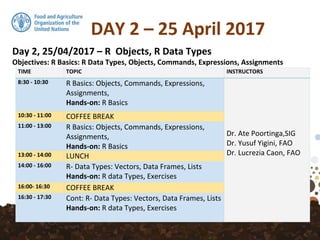
DAY 2 – 25 April 2017
TIME TOPIC INSTRUCTORS
8:30 - 10:30 R Basics: Objects, Commands, Expressions,
Assignments,
Hands-on: R Basics
Dr. Ate Poortinga,SIG
Dr. Yusuf Yigini, FAO
Dr. Lucrezia Caon, FAO
10:30 - 11:00 COFFEE BREAK
11:00 - 13:00 R Basics: Objects, Commands, Expressions,
Assignments,
Hands-on: R Basics
13:00 - 14:00 LUNCH
14:00 - 16:00 R- Data Types: Vectors, Data Frames, Lists
Hands-on: R data Types, Exercises
16:00- 16:30 COFFEE BREAK
16:30 - 17:30 Cont: R- Data Types: Vectors, Data Frames, Lists
Hands-on: R data Types, Exercises
Day 2, 25/04/2017 – R Objects, R Data Types
Objectives: R Basics: R Data Types, Objects, Commands, Expressions, Assignments
Acquiring R Skills
R Basics
In the morning session we start learning the
basics of R.
We first introduce the idea of 'objects' and do
some very simple calculations using expressions.
The first session focuses and learns the basics.More
complicated analyses in the later sessions.
NOTE: R is case-sensitive!
R as a Calculator
> 6 + 98
[1] 104
> 90 * 44
[1] 3960
> 36 / 2
[1] 18
> 33 - 30
[1] 3
The most basic use of R is to use it as a simple calculator.
For example, enter:
R as a Calculator
> 1:40
[1] 1 2 3 4 5 6 7 8 9 10 11 12 13 14 15 16 17
[18] 18 19 20 21 22 23 24 25 26 27 28 29 30 31 32 33 34
[35] 35 36 37 38 39 40
You should see the result of the calculation as well as [1].
The [1] means first result. In this example it is the only
result. Other commands return multiple values. For
example, we can create a simple vector of values from 1
to 40 using:
R as a Calculator
> 3 * 5
[1] 15
> 3 - 8
[1] -5
> 12 / 4
[1] 3
> 23 + 34
[1] 57
Most of R commands deal with vectors and it is one of its
strengths - We shall see more of them soon.
Of course, R has all the basic mathematical operators. *
is used for multiplication, + for addition, / is for division, -
is for subtraction.
R Basics
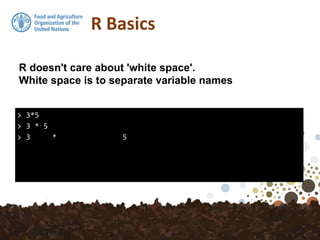
> 3*5
> 3 * 5
> 3 * 5
R doesn't care about 'white space'.
White space is to separate variable names
R Basics
> 12 * 56 + 34
[1] 706
> 12 * (56 + 34)
[1] 1080
The order of precedence is standard and can be
controlled using parenthesis.
For example,
R Basics
> 3^2
[1] 9
> 12 %% 3
[1] 0
> 10 %% 3
[1] 1
> 10 %/% 3
[1] 3
You may use the symbol "^" to denote exponentiation 'little
hat'.We can also calculate the remainder, or modular, using
%%: Notice that the operators %% and %/% for integer
remainder and divide have higher precedence than multiply
and divide:
R Basics
> 1e2
[1] 100
> 1e3
[1] 1000
> 1e5
[1] 1e+05
Scientific notation is dealt with using e.
Exercise (10 mins)
1- Calculate square root of 765
2- Compute the volume of a sphere with radius 5:
the volume of a sphere is 4/3 times pi times the radius to
the third power
R Basics
> q()
Quitting from R, RStudio
To close R and quit you can either:
press ctrl + q
or type q()
> q
R Basics
Either way you probably get the option to save your
'workspace' (this can be turned off in the global options).
The workspace is a recording place for all your operations and
saved outputs.
If you save it the workspace will be automatically loaded next
time you start RStudio ( this can be disabled).
Note that q() has parenthesis. () it means that q is a
FUNCTION .
If you just typed q you get the code for the function.
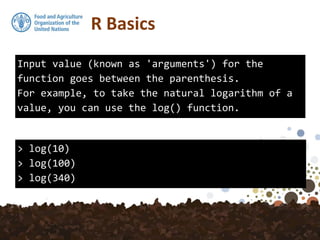
R Basics
Input value (known as 'arguments') for the
function goes between the parenthesis.
For example, to take the natural logarithm of a
value, you can use the log() function.
> log(10)
> log(100)
> log(340)
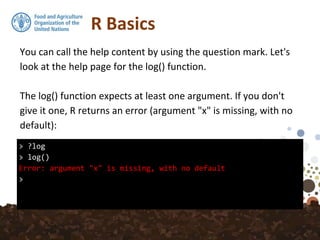
R Basics
> ?log
> log()
Error: argument "x" is missing, with no default
>
You can call the help content by using the question mark. Let's
look at the help page for the log() function.
The log() function expects at least one argument. If you don't
give it one, R returns an error (argument "x" is missing, with no
default):
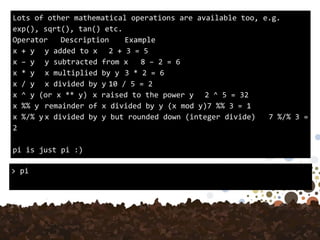
R BasicsLots of other mathematical operations are available too, e.g.
exp(), sqrt(), tan() etc.
Operator Description Example
x + y y added to x 2 + 3 = 5
x – y y subtracted from x 8 – 2 = 6
x * y x multiplied by y 3 * 2 = 6
x / y x divided by y 10 / 5 = 2
x ^ y (or x ** y) x raised to the power y 2 ^ 5 = 32
x %% y remainder of x divided by y (x mod y)7 %% 3 = 1
x %/% y x divided by y but rounded down (integer divide) 7 %/% 3 =
2
pi is just pi :)
> pi
Trigonometric Functions
These functions give the obvious trigonometric functions.
They respectively compute the cosine, sine, tangent,
arc-cosine, arc-sine, arc-tangent, and the two-argument
arctangent.
So, you may want to try to calculate the cosine of an
angle of 120 degrees like this:
> cos(120)
[1] 0.814181
Trigonometric Functions
> cos(120)
[1] 0.814181
This code doesn’t give you the correct result,
however, because R always works with
angles in radians, not in degrees. Pay
attention to this fact; if you forget, the
resulting bugs may bite you hard!
Trigonometric Functions
> cos(120*pi/180)
[1] -0.5
The correct way to calculate the cosine of an
angle of 120 degrees, then, is this:
(1 rad = 180°/π)
R Basics
There are also some special values to be aware of:
Missing value indicator!
In R, missing values are represented by the symbol NA (Not
Available).
Impossible values (e.g., dividing by zero) are represented by
the symbol NaN (not a number). Unlike SAS, R uses the same
symbol for character and numeric data.
> 0/0
[1] NaN
> 4/0
[1] Inf
R Basics - NA
NA Can be very common when reading in your data.
It is important to note that NA does not mean 0.
Also, NAs propagate through calculations, for example:
> 3 + NA
[1] NA
R Basics
Incomplete commands!
If a command is incomplete, for example you don't' close a
parenthesis, R lets you know by displaying +:
+ missing bracket, eval=FALSE
> (2 + 3) * (3 + 1
+ )
[1] 20
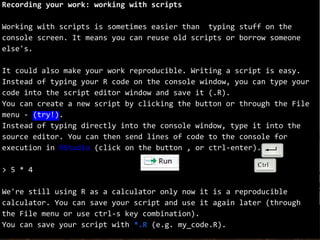
Recording your work: working with scripts
Working with scripts is sometimes easier than typing stuff on the
console screen. It means you can reuse old scripts or borrow someone
else's.
It could also make your work reproducible. Writing a script is easy.
Instead of typing your R code on the console window, you can type your
code into the script editor window and save it (.R).
You can create a new script by clicking the button or through the File
menu - (try!).
Instead of typing directly into the console window, type it into the
source editor. You can then send lines of code to the console for
execution in RStudio (click on the button , or ctrl-enter).
> 5 * 4
We're still using R as a calculator only now it is a reproducible
calculator. You can save your script and use it again later (through
the File menu or use ctrl-s key combination).
You can save your script with *.R (e.g. my_code.R).
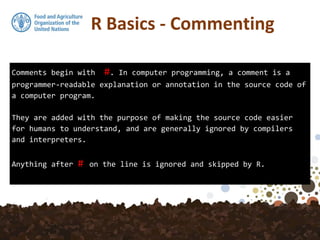
Comments begin with #. In computer programming, a comment is a
programmer-readable explanation or annotation in the source code of
a computer program.
They are added with the purpose of making the source code easier
for humans to understand, and are generally ignored by compilers
and interpreters.
Anything after # on the line is ignored and skipped by R.
R Basics - Commenting
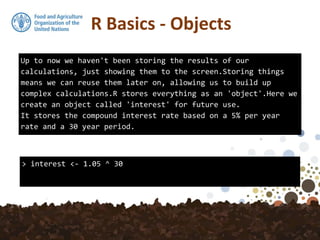
Up to now we haven't been storing the results of our
calculations, just showing them to the screen.Storing things
means we can reuse them later on, allowing us to build up
complex calculations.R stores everything as an 'object'.Here we
create an object called 'interest' for future use.
It stores the compound interest rate based on a 5% per year
rate and a 30 year period.
> interest <- 1.05 ^ 30
R Basics - Objects
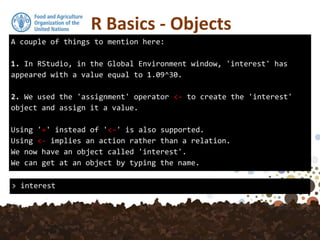
A couple of things to mention here:
1. In RStudio, in the Global Environment window, 'interest' has
appeared with a value equal to 1.09^30.
2. We used the 'assignment' operator <- to create the 'interest'
object and assign it a value.
Using '=' instead of '<-' is also supported.
Using <- implies an action rather than a relation.
We now have an object called 'interest'.
We can get at an object by typing the name.
R Basics - Objects
> interest
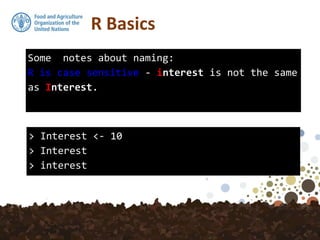
Some notes about naming:
R is case sensitive - interest is not the same
as Interest.
> Interest <- 10
> Interest
> interest
R Basics
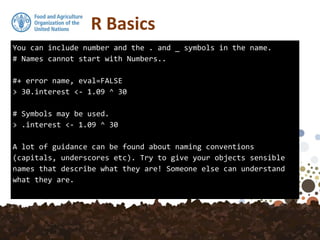
You can include number and the . and _ symbols in the name.
# Names cannot start with Numbers..
#+ error name, eval=FALSE
> 30.interest <- 1.09 ^ 30
# Symbols may be used.
> .interest <- 1.09 ^ 30
A lot of guidance can be found about naming conventions
(capitals, underscores etc). Try to give your objects sensible
names that describe what they are! Someone else can understand
what they are.
R Basics
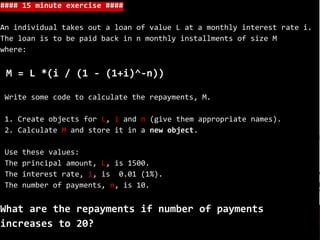
#### 15 minute exercise ####
An individual takes out a loan of value L at a monthly interest rate i.
The loan is to be paid back in n monthly installments of size M
where:
M = L *(i / (1 - (1+i)^-n))
Write some code to calculate the repayments, M.
1. Create objects for L, i and n (give them appropriate names).
2. Calculate M and store it in a new object.
Use these values:
The principal amount, L, is 1500.
The interest rate, i, is 0.01 (1%).
The number of payments, n, is 10.
What are the repayments if number of payments
increases to 20?
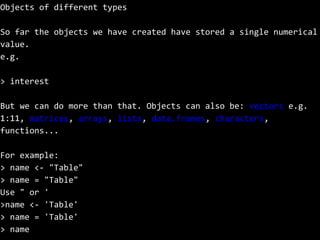
Objects of different types
So far the objects we have created have stored a single numerical
value.
e.g.
> interest
But we can do more than that. Objects can also be: vectors e.g.
1:11, matrices, arrays, lists, data.frames, characters,
functions...
For example:
> name <- "Table"
> name = "Table"
Use " or '
>name <- 'Table'
> name = 'Table'
> name
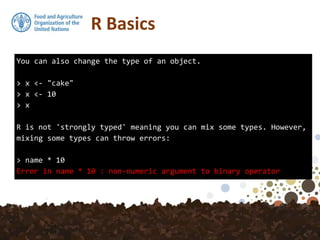
You can also change the type of an object.
> x <- "cake"
> x <- 10
> x
R is not 'strongly typed' meaning you can mix some types. However,
mixing some types can throw errors:
> name * 10
Error in name * 10 : non-numeric argument to binary operator
R Basics
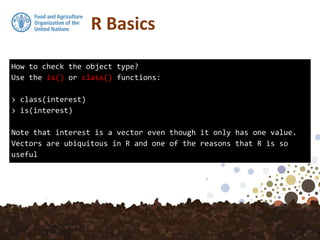
How to check the object type?
Use the is() or class() functions:
> class(interest)
> is(interest)
Note that interest is a vector even though it only has one value.
Vectors are ubiquitous in R and one of the reasons that R is so
useful
R Basics
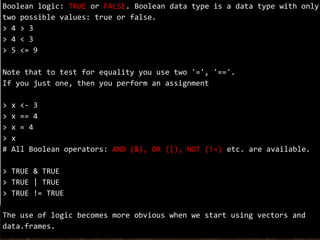
Boolean logic: TRUE or FALSE. Boolean data type is a data type with only
two possible values: true or false.
> 4 > 3
> 4 < 3
> 5 <= 9
Note that to test for equality you use two '=', '=='.
If you just one, then you perform an assignment
> x <- 3
> x == 4
> x = 4
> x
# All Boolean operators: AND (&), OR (|), NOT (!=) etc. are available.
> TRUE & TRUE
> TRUE | TRUE
> TRUE != TRUE
The use of logic becomes more obvious when we start using vectors and
data.frames.
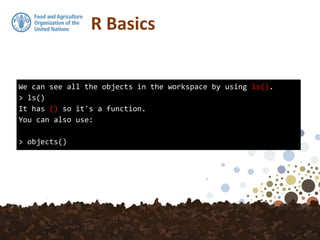
We can see all the objects in the workspace by using ls().
> ls()
It has () so it's a function.
You can also use:
> objects()
R Basics
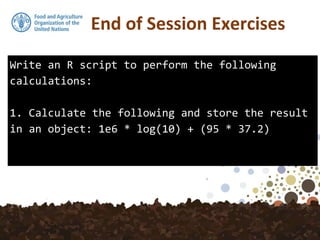
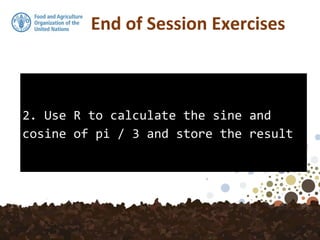
End of Session Exercises
Write an R script to perform the following
calculations:
1. Calculate the following and store the result
in an object: 1e6 * log(10) + (95 * 37.2)
2. Use R to calculate the sine and
cosine of pi / 3 and store the result
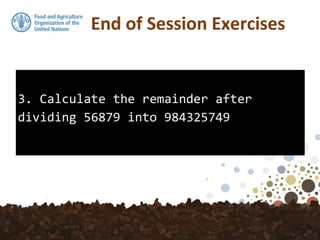
End of Session Exercises
3. Calculate the remainder after
dividing 56879 into 984325749
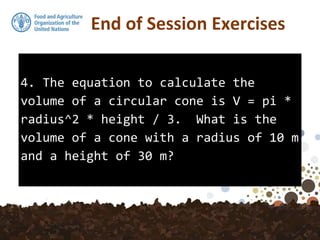
End of Session Exercises
4. The equation to calculate the
volume of a circular cone is V = pi *
radius^2 * height / 3. What is the
volume of a cone with a radius of 10 m
and a height of 30 m?
End of Session Exercises
5. Write an equality test to see if
'wine' equals 'beer'.
End of Session Exercises
More Exercises
http://www.r-exercises.com/

5. R basics

  • 1.
    GSP - AsianSoil Partnership Training Workshop on Soil Organic Carbon Mapping Bangkok, Thailand, 24-29 April 2017 Ate Poortinga, PhD - SERVIR Mekong Yusuf YIGINI, PhD - FAO, Land and Water Division (CBL)
  • 2.
    DAY 2 –25 April 2017 TIME TOPIC INSTRUCTORS 8:30 - 10:30 R Basics: Objects, Commands, Expressions, Assignments, Hands-on: R Basics Dr. Ate Poortinga,SIG Dr. Yusuf Yigini, FAO Dr. Lucrezia Caon, FAO 10:30 - 11:00 COFFEE BREAK 11:00 - 13:00 R Basics: Objects, Commands, Expressions, Assignments, Hands-on: R Basics 13:00 - 14:00 LUNCH 14:00 - 16:00 R- Data Types: Vectors, Data Frames, Lists Hands-on: R data Types, Exercises 16:00- 16:30 COFFEE BREAK 16:30 - 17:30 Cont: R- Data Types: Vectors, Data Frames, Lists Hands-on: R data Types, Exercises Day 2, 25/04/2017 – R Objects, R Data Types Objectives: R Basics: R Data Types, Objects, Commands, Expressions, Assignments
  • 3.
  • 4.
    In the morningsession we start learning the basics of R. We first introduce the idea of 'objects' and do some very simple calculations using expressions. The first session focuses and learns the basics.More complicated analyses in the later sessions. NOTE: R is case-sensitive!
  • 5.
    R as aCalculator > 6 + 98 [1] 104 > 90 * 44 [1] 3960 > 36 / 2 [1] 18 > 33 - 30 [1] 3 The most basic use of R is to use it as a simple calculator. For example, enter:
  • 6.
    R as aCalculator > 1:40 [1] 1 2 3 4 5 6 7 8 9 10 11 12 13 14 15 16 17 [18] 18 19 20 21 22 23 24 25 26 27 28 29 30 31 32 33 34 [35] 35 36 37 38 39 40 You should see the result of the calculation as well as [1]. The [1] means first result. In this example it is the only result. Other commands return multiple values. For example, we can create a simple vector of values from 1 to 40 using:
  • 7.
    R as aCalculator > 3 * 5 [1] 15 > 3 - 8 [1] -5 > 12 / 4 [1] 3 > 23 + 34 [1] 57 Most of R commands deal with vectors and it is one of its strengths - We shall see more of them soon. Of course, R has all the basic mathematical operators. * is used for multiplication, + for addition, / is for division, - is for subtraction.
  • 8.
    R Basics > 3*5 >3 * 5 > 3 * 5 R doesn't care about 'white space'. White space is to separate variable names
  • 9.
    R Basics > 12* 56 + 34 [1] 706 > 12 * (56 + 34) [1] 1080 The order of precedence is standard and can be controlled using parenthesis. For example,
  • 10.
    R Basics > 3^2 [1]9 > 12 %% 3 [1] 0 > 10 %% 3 [1] 1 > 10 %/% 3 [1] 3 You may use the symbol "^" to denote exponentiation 'little hat'.We can also calculate the remainder, or modular, using %%: Notice that the operators %% and %/% for integer remainder and divide have higher precedence than multiply and divide:
  • 11.
    R Basics > 1e2 [1]100 > 1e3 [1] 1000 > 1e5 [1] 1e+05 Scientific notation is dealt with using e.
  • 12.
    Exercise (10 mins) 1-Calculate square root of 765 2- Compute the volume of a sphere with radius 5: the volume of a sphere is 4/3 times pi times the radius to the third power
  • 13.
    R Basics > q() Quittingfrom R, RStudio To close R and quit you can either: press ctrl + q or type q()
  • 14.
    > q R Basics Eitherway you probably get the option to save your 'workspace' (this can be turned off in the global options). The workspace is a recording place for all your operations and saved outputs. If you save it the workspace will be automatically loaded next time you start RStudio ( this can be disabled). Note that q() has parenthesis. () it means that q is a FUNCTION . If you just typed q you get the code for the function.
  • 15.
    R Basics Input value(known as 'arguments') for the function goes between the parenthesis. For example, to take the natural logarithm of a value, you can use the log() function. > log(10) > log(100) > log(340)
  • 16.
    R Basics > ?log >log() Error: argument "x" is missing, with no default > You can call the help content by using the question mark. Let's look at the help page for the log() function. The log() function expects at least one argument. If you don't give it one, R returns an error (argument "x" is missing, with no default):
  • 17.
    R BasicsLots ofother mathematical operations are available too, e.g. exp(), sqrt(), tan() etc. Operator Description Example x + y y added to x 2 + 3 = 5 x – y y subtracted from x 8 – 2 = 6 x * y x multiplied by y 3 * 2 = 6 x / y x divided by y 10 / 5 = 2 x ^ y (or x ** y) x raised to the power y 2 ^ 5 = 32 x %% y remainder of x divided by y (x mod y)7 %% 3 = 1 x %/% y x divided by y but rounded down (integer divide) 7 %/% 3 = 2 pi is just pi :) > pi
  • 18.
    Trigonometric Functions These functionsgive the obvious trigonometric functions. They respectively compute the cosine, sine, tangent, arc-cosine, arc-sine, arc-tangent, and the two-argument arctangent. So, you may want to try to calculate the cosine of an angle of 120 degrees like this: > cos(120) [1] 0.814181
  • 19.
    Trigonometric Functions > cos(120) [1]0.814181 This code doesn’t give you the correct result, however, because R always works with angles in radians, not in degrees. Pay attention to this fact; if you forget, the resulting bugs may bite you hard!
  • 20.
    Trigonometric Functions > cos(120*pi/180) [1]-0.5 The correct way to calculate the cosine of an angle of 120 degrees, then, is this: (1 rad = 180°/π)
  • 21.
    R Basics There arealso some special values to be aware of: Missing value indicator! In R, missing values are represented by the symbol NA (Not Available). Impossible values (e.g., dividing by zero) are represented by the symbol NaN (not a number). Unlike SAS, R uses the same symbol for character and numeric data. > 0/0 [1] NaN > 4/0 [1] Inf
  • 22.
    R Basics -NA NA Can be very common when reading in your data. It is important to note that NA does not mean 0. Also, NAs propagate through calculations, for example: > 3 + NA [1] NA
  • 23.
    R Basics Incomplete commands! Ifa command is incomplete, for example you don't' close a parenthesis, R lets you know by displaying +: + missing bracket, eval=FALSE > (2 + 3) * (3 + 1 + ) [1] 20
  • 24.
    Recording your work:working with scripts Working with scripts is sometimes easier than typing stuff on the console screen. It means you can reuse old scripts or borrow someone else's. It could also make your work reproducible. Writing a script is easy. Instead of typing your R code on the console window, you can type your code into the script editor window and save it (.R). You can create a new script by clicking the button or through the File menu - (try!). Instead of typing directly into the console window, type it into the source editor. You can then send lines of code to the console for execution in RStudio (click on the button , or ctrl-enter). > 5 * 4 We're still using R as a calculator only now it is a reproducible calculator. You can save your script and use it again later (through the File menu or use ctrl-s key combination). You can save your script with *.R (e.g. my_code.R).
  • 25.
    Comments begin with#. In computer programming, a comment is a programmer-readable explanation or annotation in the source code of a computer program. They are added with the purpose of making the source code easier for humans to understand, and are generally ignored by compilers and interpreters. Anything after # on the line is ignored and skipped by R. R Basics - Commenting
  • 26.
    Up to nowwe haven't been storing the results of our calculations, just showing them to the screen.Storing things means we can reuse them later on, allowing us to build up complex calculations.R stores everything as an 'object'.Here we create an object called 'interest' for future use. It stores the compound interest rate based on a 5% per year rate and a 30 year period. > interest <- 1.05 ^ 30 R Basics - Objects
  • 27.
    A couple ofthings to mention here: 1. In RStudio, in the Global Environment window, 'interest' has appeared with a value equal to 1.09^30. 2. We used the 'assignment' operator <- to create the 'interest' object and assign it a value. Using '=' instead of '<-' is also supported. Using <- implies an action rather than a relation. We now have an object called 'interest'. We can get at an object by typing the name. R Basics - Objects > interest
  • 28.
    Some notes aboutnaming: R is case sensitive - interest is not the same as Interest. > Interest <- 10 > Interest > interest R Basics
  • 29.
    You can includenumber and the . and _ symbols in the name. # Names cannot start with Numbers.. #+ error name, eval=FALSE > 30.interest <- 1.09 ^ 30 # Symbols may be used. > .interest <- 1.09 ^ 30 A lot of guidance can be found about naming conventions (capitals, underscores etc). Try to give your objects sensible names that describe what they are! Someone else can understand what they are. R Basics
  • 30.
    #### 15 minuteexercise #### An individual takes out a loan of value L at a monthly interest rate i. The loan is to be paid back in n monthly installments of size M where: M = L *(i / (1 - (1+i)^-n)) Write some code to calculate the repayments, M. 1. Create objects for L, i and n (give them appropriate names). 2. Calculate M and store it in a new object. Use these values: The principal amount, L, is 1500. The interest rate, i, is 0.01 (1%). The number of payments, n, is 10. What are the repayments if number of payments increases to 20?
  • 31.
    Objects of differenttypes So far the objects we have created have stored a single numerical value. e.g. > interest But we can do more than that. Objects can also be: vectors e.g. 1:11, matrices, arrays, lists, data.frames, characters, functions... For example: > name <- "Table" > name = "Table" Use " or ' >name <- 'Table' > name = 'Table' > name
  • 32.
    You can alsochange the type of an object. > x <- "cake" > x <- 10 > x R is not 'strongly typed' meaning you can mix some types. However, mixing some types can throw errors: > name * 10 Error in name * 10 : non-numeric argument to binary operator R Basics
  • 33.
    How to checkthe object type? Use the is() or class() functions: > class(interest) > is(interest) Note that interest is a vector even though it only has one value. Vectors are ubiquitous in R and one of the reasons that R is so useful R Basics
  • 34.
    Boolean logic: TRUEor FALSE. Boolean data type is a data type with only two possible values: true or false. > 4 > 3 > 4 < 3 > 5 <= 9 Note that to test for equality you use two '=', '=='. If you just one, then you perform an assignment > x <- 3 > x == 4 > x = 4 > x # All Boolean operators: AND (&), OR (|), NOT (!=) etc. are available. > TRUE & TRUE > TRUE | TRUE > TRUE != TRUE The use of logic becomes more obvious when we start using vectors and data.frames.
  • 35.
    We can seeall the objects in the workspace by using ls(). > ls() It has () so it's a function. You can also use: > objects() R Basics
  • 36.
    End of SessionExercises Write an R script to perform the following calculations: 1. Calculate the following and store the result in an object: 1e6 * log(10) + (95 * 37.2)
  • 37.
    2. Use Rto calculate the sine and cosine of pi / 3 and store the result End of Session Exercises
  • 38.
    3. Calculate theremainder after dividing 56879 into 984325749 End of Session Exercises
  • 39.
    4. The equationto calculate the volume of a circular cone is V = pi * radius^2 * height / 3. What is the volume of a cone with a radius of 10 m and a height of 30 m? End of Session Exercises
  • 40.
    5. Write anequality test to see if 'wine' equals 'beer'. End of Session Exercises
  • 41.