Demo Projects
• Employee Salary Calculation
What will you learn?
• Adding class with business logic to windows form application
it in application
• Using following controls:
o Labels
o Textboxes
o Buttons
o Group-box
Windows Forms for Beginners
Employee Salary Calculation (Object oriented approach)
Adding class with business logic to windows form application
Using following controls:
Bhushan Mulmule
bhushan.mulmule@gmail.com
www.dotnetvideotutorial.com
Windows Forms for Beginners
Part 2
Adding class with business logic to windows form application and using
Bhushan Mulmule
bhushan.mulmule@gmail.com
www.dotnetvideotutorial.com
Windows Forms for Beginners
Project 1: Employee Salary Calculation
Object Oriented Approach
Note: Instead of using variables to save data (as in previous example) here we will
write class Employee with required fields and then will save data in the object of
Employee class
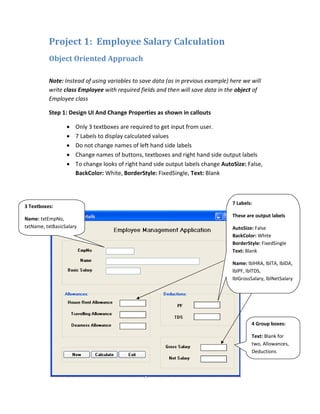
Step 1: Design UI And Change Properties as shown in callouts
• Only 3 textboxes are required to get input from user.
• 7 Labels to display calculated values
• Do not change names of left hand side labels
• Change names of buttons, textboxes and right hand side output labels
• To change looks of right hand side output labels change AutoSize: False,
BackColor: White, BorderStyle: FixedSingle, Text: Blank
7 Labels:
These are output labels
AutoSize: False
BackColor: White
BorderStyle: FixedSingle
Text: Blank
Name: lblHRA, lblTA, lblDA,
lblPF, lblTDS,
lblGrossSalary, lblNetSalary
3 Textboxes:
Name: txtEmpNo,
txtName, txtBasicSalary
4 Group boxes:
Text: Blank for
two, Allowances,
Deductions
www.dotnetvideotutorial.com
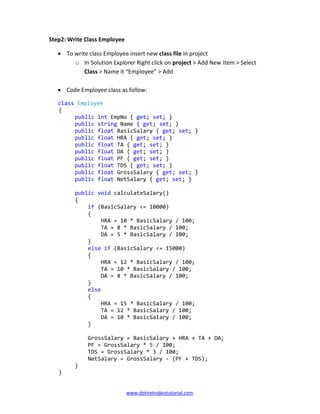
Step2: Write Class Employee
• To write class Employee insert new class file in project
o In Solution Explorer Right click on project > Add New Item > Select
Class > Name it “Employee” > Add
• Code Employee class as follow:
class Employee
{
public int EmpNo { get; set; }
public string Name { get; set; }
public float BasicSalary { get; set; }
public float HRA { get; set; }
public float TA { get; set; }
public float DA { get; set; }
public float PF { get; set; }
public float TDS { get; set; }
public float GrossSalary { get; set; }
public float NetSalary { get; set; }
public void calculateSalary()
{
if (BasicSalary <= 10000)
{
HRA = 10 * BasicSalary / 100;
TA = 8 * BasicSalary / 100;
DA = 5 * BasicSalary / 100;
}
else if (BasicSalary <= 15000)
{
HRA = 12 * BasicSalary / 100;
TA = 10 * BasicSalary / 100;
DA = 8 * BasicSalary / 100;
}
else
{
HRA = 15 * BasicSalary / 100;
TA = 12 * BasicSalary / 100;
DA = 10 * BasicSalary / 100;
}
GrossSalary = BasicSalary + HRA + TA + DA;
PF = GrossSalary * 5 / 100;
TDS = GrossSalary * 3 / 100;
NetSalary = GrossSalary - (PF + TDS);
}
}
www.dotnetvideotutorial.com
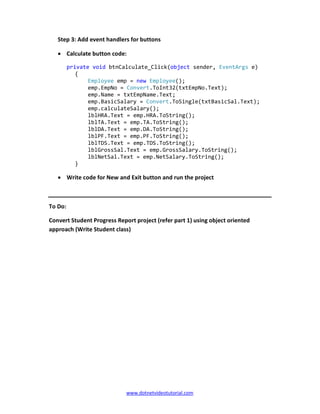
Step 3: Add event handlers for buttons
• Calculate button code:
private void btnCalculate_Click(object sender, EventArgs e)
{
Employee emp = new Employee();
emp.EmpNo = Convert.ToInt32(txtEmpNo.Text);
emp.Name = txtEmpName.Text;
emp.BasicSalary = Convert.ToSingle(txtBasicSal.Text);
emp.calculateSalary();
lblHRA.Text = emp.HRA.ToString();
lblTA.Text = emp.TA.ToString();
lblDA.Text = emp.DA.ToString();
lblPF.Text = emp.PF.ToString();
lblTDS.Text = emp.TDS.ToString();
lblGrossSal.Text = emp.GrossSalary.ToString();
lblNetSal.Text = emp.NetSalary.ToString();
}
• Write code for New and Exit button and run the project
To Do:
Convert Student Progress Report project (refer part 1) using object oriented
approach (Write Student class)

Windows Forms For Beginners Part - 2

  • 1.
    Demo Projects • EmployeeSalary Calculation What will you learn? • Adding class with business logic to windows form application it in application • Using following controls: o Labels o Textboxes o Buttons o Group-box Windows Forms for Beginners Employee Salary Calculation (Object oriented approach) Adding class with business logic to windows form application Using following controls: Bhushan Mulmule bhushan.mulmule@gmail.com www.dotnetvideotutorial.com Windows Forms for Beginners Part 2 Adding class with business logic to windows form application and using Bhushan Mulmule bhushan.mulmule@gmail.com www.dotnetvideotutorial.com Windows Forms for Beginners
  • 2.
    Project 1: EmployeeSalary Calculation Object Oriented Approach Note: Instead of using variables to save data (as in previous example) here we will write class Employee with required fields and then will save data in the object of Employee class Step 1: Design UI And Change Properties as shown in callouts • Only 3 textboxes are required to get input from user. • 7 Labels to display calculated values • Do not change names of left hand side labels • Change names of buttons, textboxes and right hand side output labels • To change looks of right hand side output labels change AutoSize: False, BackColor: White, BorderStyle: FixedSingle, Text: Blank 7 Labels: These are output labels AutoSize: False BackColor: White BorderStyle: FixedSingle Text: Blank Name: lblHRA, lblTA, lblDA, lblPF, lblTDS, lblGrossSalary, lblNetSalary 3 Textboxes: Name: txtEmpNo, txtName, txtBasicSalary 4 Group boxes: Text: Blank for two, Allowances, Deductions
  • 3.
    www.dotnetvideotutorial.com Step2: Write ClassEmployee • To write class Employee insert new class file in project o In Solution Explorer Right click on project > Add New Item > Select Class > Name it “Employee” > Add • Code Employee class as follow: class Employee { public int EmpNo { get; set; } public string Name { get; set; } public float BasicSalary { get; set; } public float HRA { get; set; } public float TA { get; set; } public float DA { get; set; } public float PF { get; set; } public float TDS { get; set; } public float GrossSalary { get; set; } public float NetSalary { get; set; } public void calculateSalary() { if (BasicSalary <= 10000) { HRA = 10 * BasicSalary / 100; TA = 8 * BasicSalary / 100; DA = 5 * BasicSalary / 100; } else if (BasicSalary <= 15000) { HRA = 12 * BasicSalary / 100; TA = 10 * BasicSalary / 100; DA = 8 * BasicSalary / 100; } else { HRA = 15 * BasicSalary / 100; TA = 12 * BasicSalary / 100; DA = 10 * BasicSalary / 100; } GrossSalary = BasicSalary + HRA + TA + DA; PF = GrossSalary * 5 / 100; TDS = GrossSalary * 3 / 100; NetSalary = GrossSalary - (PF + TDS); } }
  • 4.
    www.dotnetvideotutorial.com Step 3: Addevent handlers for buttons • Calculate button code: private void btnCalculate_Click(object sender, EventArgs e) { Employee emp = new Employee(); emp.EmpNo = Convert.ToInt32(txtEmpNo.Text); emp.Name = txtEmpName.Text; emp.BasicSalary = Convert.ToSingle(txtBasicSal.Text); emp.calculateSalary(); lblHRA.Text = emp.HRA.ToString(); lblTA.Text = emp.TA.ToString(); lblDA.Text = emp.DA.ToString(); lblPF.Text = emp.PF.ToString(); lblTDS.Text = emp.TDS.ToString(); lblGrossSal.Text = emp.GrossSalary.ToString(); lblNetSal.Text = emp.NetSalary.ToString(); } • Write code for New and Exit button and run the project To Do: Convert Student Progress Report project (refer part 1) using object oriented approach (Write Student class)