Actions Queries
Understanding Action Queries
 Action queries are a way to make corrections to
  database. They can make an enormous mess of
  database if used incorrectly.
 Action queries differ from select queries:
 − A select query shows you data that meet your
   criteria.
 − An action query looks for the data that meets
   your criteria, and then does something with it,
   such as making changes to the data or moving
   records to a new table.
Testing Action Queries (Carefully)
 Most importantly, before you use an action
  query, make a database backup! because it may
  not always generate the result you expect
  (mong đợi).
 To make a backup, you can copy your .accdb
  database file or File➝Save & Publish to enter
  Backstage view, look in the Advanced section of
  the Save Database As list Back Up Database.
The Action Query Family
 An update query changes the values in one or
  more records.
 An append query selects one or more records,
  and then adds them to an existing table.
 A make-table query selects one or more
  records, and then creates a new table for them.
 A delete query deletes one or more records.
Update Queries
 An update query searches for some records and
  then modifies them.
 Using the update query when you work on lots
  of data or when you want to update multiple
  fields.
 Update query makes to change multiple records
  at same time.
Update Queries
 To Create a Update Query:
 − Select Create tab  Queries  Query Design.
 − Add each table you want to include in query
   by selecting it and then clicking Add.
 − Change query to an update query by choosing
   Query Tools  Design  Query Type 
   Update.
 − Add the field you want to use for filtering, and
   then set the Criteria box for each one.
Update Queries
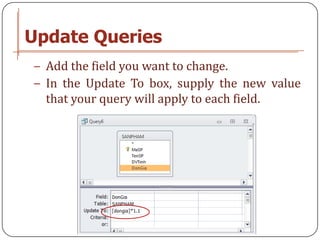
− Add the field you want to change.
− In the Update To box, supply the new value
  that your query will apply to each field.
Update Queries
− Add any other fields that you want to inspect
  to confirm that you’re selecting the correct
  records.
− Right-click the query’s tab title, and choose
  Datasheet View to see the rows that query
  affects.
− Now switch back to Design view, choose
  Query Tools  Design  Results Run to run
  update query and have Access apply your
  changes.
Update Queries
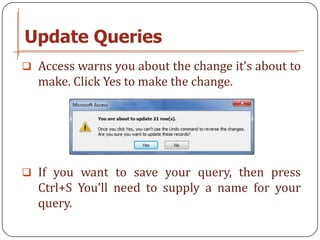
 Access warns you about the change it’s about to
  make. Click Yes to make the change.


 If you want to save your query, then press
  Ctrl+S You’ll need to supply a name for your
  query.
Append Queries
 An append query selects records from a table
  and then inserts them into the end another
  table.
 You may want to use an append query to
  transfer records from one database to another.
  This technique is handy if you have duplicate
  tables in different databases.
 To transfer the records, you need to make sure
  the two tables line up. (Page 255)
Append Queries
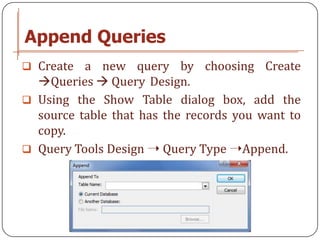
 Create  a new query by choosing Create
  Queries  Query Design.
 Using the Show Table dialog box, add the
  source table that has the records you want to
  copy.
 Query Tools Design ➝ Query Type ➝Append.
Append Queries
− Another Database: transfer the records to
  another database click       Browse        to
  select database file OK.
− Table Name box: enter the name of the table to
  which you want to transfer the records.
− Click OK to close the Append or Make Table
  dialog box.
− Add the field you want to copy from the
  source table.
Append Queries
− If you’re creating an append query, then fill in
  the names of the destination fields in the
  Append To boxes.
− If want to copy only some of the records in the
  source table, then set the filter conditions you
  need.
− Choose Datasheet View to see the rows that
  your query affects.
Append Queries
− Switch back to Design view, and then choose
  Query Tools Design  Results  Run to
  transfer your records.
− Press Ctrl+S to save query.
Make-Table Query
 The make-table query creates the destination
  table, and then copies the records to it.
 − Open the source database.
 − Choosing Create ➝ Queries ➝ Query Design.
 − Add the source table that has the records you
    want to copy.
 − Select Query Tools ➝ Design ➝ Query Type
    ➝ Make Table.
Make-Table Query


− Another database: transfer the records to
  another Database, click Browse to select
  database file  OK.
− Table Name: enter the name of the table which
  you want to transfer the records.
Make-Table Query
− Add the field you want to copy from the
    source table.
−   To copy only some of the records in the source
    table, then set the filter conditions.
−   Choose Datasheet View to see the rows that
    your query affects.
−   Switch back to Design view  Results ➝ Run
    to transfer the records.
−   Press Ctrl + S to save query.
Delete Queries
 Delete queries are the simplest and most
  dangerous of the action queries.
 Delete query erases records from the database.
 To create a delete query:
 − Select Create tab ➝ Queries ➝ Query Design.
 − Add the table that has the records you want to
   delete.
 − Select Query Tools Design ➝ Query Type ➝
   Delete.
Delete Queries
− Add the fields you want to use for filtering,
  and then set filter conditions.
− Add the fields that you want to inspect to
  confirm you’re getting the correct records in
  the datasheet view.
− Choose Datasheet View to see the rows that’ll
  be affected by query.
− Switch back to Design view, choose Query
  Tools  Design  Results  Run to remove
  the records.

004.action query

  • 1.
  • 2.
    Understanding Action Queries Action queries are a way to make corrections to database. They can make an enormous mess of database if used incorrectly.  Action queries differ from select queries: − A select query shows you data that meet your criteria. − An action query looks for the data that meets your criteria, and then does something with it, such as making changes to the data or moving records to a new table.
  • 3.
    Testing Action Queries(Carefully)  Most importantly, before you use an action query, make a database backup! because it may not always generate the result you expect (mong đợi).  To make a backup, you can copy your .accdb database file or File➝Save & Publish to enter Backstage view, look in the Advanced section of the Save Database As list Back Up Database.
  • 4.
    The Action QueryFamily  An update query changes the values in one or more records.  An append query selects one or more records, and then adds them to an existing table.  A make-table query selects one or more records, and then creates a new table for them.  A delete query deletes one or more records.
  • 5.
    Update Queries  Anupdate query searches for some records and then modifies them.  Using the update query when you work on lots of data or when you want to update multiple fields.  Update query makes to change multiple records at same time.
  • 6.
    Update Queries  ToCreate a Update Query: − Select Create tab  Queries  Query Design. − Add each table you want to include in query by selecting it and then clicking Add. − Change query to an update query by choosing Query Tools  Design  Query Type  Update. − Add the field you want to use for filtering, and then set the Criteria box for each one.
  • 7.
    Update Queries − Addthe field you want to change. − In the Update To box, supply the new value that your query will apply to each field.
  • 8.
    Update Queries − Addany other fields that you want to inspect to confirm that you’re selecting the correct records. − Right-click the query’s tab title, and choose Datasheet View to see the rows that query affects. − Now switch back to Design view, choose Query Tools  Design  Results Run to run update query and have Access apply your changes.
  • 9.
    Update Queries  Accesswarns you about the change it’s about to make. Click Yes to make the change.  If you want to save your query, then press Ctrl+S You’ll need to supply a name for your query.
  • 10.
    Append Queries  Anappend query selects records from a table and then inserts them into the end another table.  You may want to use an append query to transfer records from one database to another. This technique is handy if you have duplicate tables in different databases.  To transfer the records, you need to make sure the two tables line up. (Page 255)
  • 11.
    Append Queries  Create a new query by choosing Create Queries  Query Design.  Using the Show Table dialog box, add the source table that has the records you want to copy.  Query Tools Design ➝ Query Type ➝Append.
  • 12.
    Append Queries − AnotherDatabase: transfer the records to another database click Browse to select database file OK. − Table Name box: enter the name of the table to which you want to transfer the records. − Click OK to close the Append or Make Table dialog box. − Add the field you want to copy from the source table.
  • 13.
    Append Queries − Ifyou’re creating an append query, then fill in the names of the destination fields in the Append To boxes. − If want to copy only some of the records in the source table, then set the filter conditions you need. − Choose Datasheet View to see the rows that your query affects.
  • 14.
    Append Queries − Switchback to Design view, and then choose Query Tools Design  Results  Run to transfer your records. − Press Ctrl+S to save query.
  • 15.
    Make-Table Query  Themake-table query creates the destination table, and then copies the records to it. − Open the source database. − Choosing Create ➝ Queries ➝ Query Design. − Add the source table that has the records you want to copy. − Select Query Tools ➝ Design ➝ Query Type ➝ Make Table.
  • 16.
    Make-Table Query − Anotherdatabase: transfer the records to another Database, click Browse to select database file  OK. − Table Name: enter the name of the table which you want to transfer the records.
  • 17.
    Make-Table Query − Addthe field you want to copy from the source table. − To copy only some of the records in the source table, then set the filter conditions. − Choose Datasheet View to see the rows that your query affects. − Switch back to Design view  Results ➝ Run to transfer the records. − Press Ctrl + S to save query.
  • 18.
    Delete Queries  Deletequeries are the simplest and most dangerous of the action queries.  Delete query erases records from the database.  To create a delete query: − Select Create tab ➝ Queries ➝ Query Design. − Add the table that has the records you want to delete. − Select Query Tools Design ➝ Query Type ➝ Delete.
  • 19.
    Delete Queries − Addthe fields you want to use for filtering, and then set filter conditions. − Add the fields that you want to inspect to confirm you’re getting the correct records in the datasheet view. − Choose Datasheet View to see the rows that’ll be affected by query. − Switch back to Design view, choose Query Tools  Design  Results  Run to remove the records.