Techniques  for Reviewing  a User Interface Rhonda Bracey [email_address] http://www.cybertext.com.au
Communication What is communication in this context? What's the cost of NOT reviewing an interface?
It's not just about text 'Communication' encompasses not only the words created for manuals and help systems, and not even the words used in the interface, but the interface itself, and the way it does—or doesn't—inherently communicate its functionality. --Chuck Martin (HATT post, 9 Jan 2008)
Three Cs of communication Clarity Consistency Conciseness All help reduce that other 'C'—CONFUSION
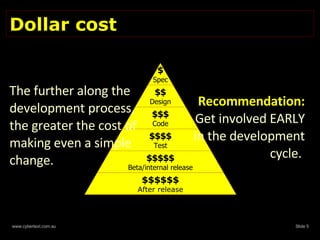
Dollar cost  The further along the development process, the greater the cost of making even a simple change.  Recommendation: Get involved EARLY in the development cycle.  $ Spec $$ Design $$$ Code $$$$ Test $$$$$ Beta/internal release $$$$$$ After release
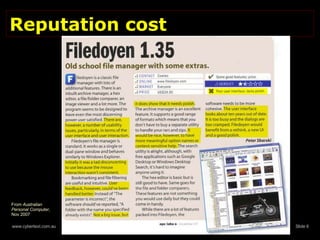
Reputation cost From  Australian Personal Computer , Nov 2007
Design Elements Does it 'look good'?  (Aesthetics) Does it work?  (Function) Is there anything that makes you hesitate?
Quotable quote… Design is NOT about decoration. It's about communication and problem solving.  --Garrett Dimon, "Improving Interface Design" (Web Visions 2007)  http://garrettdimon.com/pages/ improving_interface_design
Quotable quote… Sometimes there is a huge disconnect between the people who make a product and the people who use it.  --Barbara Whitaker, NY Times, 8 July 2007 http://www.nytimes.com/2007/07/08/ business/yourmoney/08starts.html
Overall design  Object placement  (label, group all related features) Object alignment  Logical flow  (left to right, top to bottom; TAB order; visual layout; focus on opening) Scrolling  (vertical,  horizontal, non-scrolling regions) Keyboard access to ALL elements Sufficient space for translation
Text Elements What to check? Check for what?
Check these text elements Title and status bars Menu and selection list items Grouping box, field, column labels  Error messages—validation, system; correct icon Icons, buttons—labels, graphics, tooltips  Hyperlinks—avoid "click here" User assistance on interface
Check text for… Spelling Misspellings, typos US, UK English Correctness against style guide Punctuation, capitalization (e.g. sentence/title case) Font size, family, weight   Terminology Language & structure Plain English appropriate for users Parallel structure and consistent wording   (e.g. gerunds vs imperatives) Impact of other languages on text display Avoid abbreviations
Internationalization Design must consider Right-to-left languages (e.g. Hebrew, Arabic) Double-byte languages (e.g. Chinese, Japanese, Korean) Long labels (e.g. German) Default language used Hard-coded or in linked resource files? Anything culturally specific?
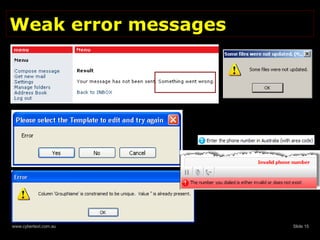
Weak error messages
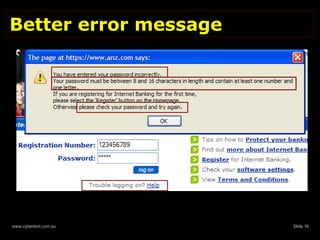
Better error message
Link Elements Internal (navigational and page) External
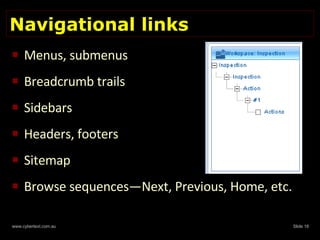
Navigational links Menus, submenus Breadcrumb trails Sidebars Headers, footers Sitemap Browse sequences—Next, Previous, Home, etc.
Page links Text hyperlinks Within page Within application To external location Popups Expand/collapse elements Back to Top Images, image maps Links to Help (go to TOC, page, field, web?)
External links URLs 'Mailto' links Internal and external files (e.g. PDFs) FTP links
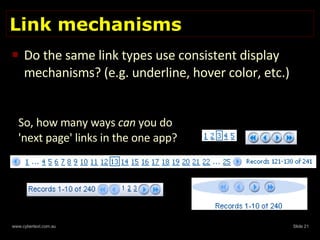
Link mechanisms Do the same link types use consistent display mechanisms? (e.g. underline, hover color, etc.) So, how many ways  can  you do 'next page' links in the one app?
Visual Elements Graphics, color, display…
Do all graphics add value? Are any unnecessary?  Are any too large/small?  What displays when graphics are turned off? (ALT/TITLE tags) Are common graphics used for common actions? (e.g. new, open, save, email)
Check these elements Check graphical elements for: 'Jaggies', blurred, or broken images Appropriate cropping Transparency renders correctly Image maps in web apps cover correct elements
Color… Renders differently on screen and on paper Displays differently on every monitor Is seen differently by color-blind users Is symbolic, with distinct meanings in many cultures (e.g. white means purity—and death) Is personal
Check these color elements Check: How color elements print The color palette (limited/extensive range of colors)  If user/admin can change color schemes How special elements are distinguished from standard (e.g. read-only, required fields)
Styles Text styles should follow the style guide (e.g. bold, headings, fonts) Web apps only: Does the page validate correctly?   (HTML, DOCTYPE, CSS, etc.) Turn off the CSS—is the page still usable?  Can the user apply their own CSS or modify yours? Print a page: 'Wrapper' elements should not print Is any content missing? (e.g. large images, wide tables)
How do web apps display? Test in the main browsers IE and FF at least Turn off JavaScript, cookies, frames, etc.—what happens? Resize the browser window Resize fonts Apply other browser/Windows settings (color schemes, CSS) Test on various devices   (large and small) Test at different resolutions   (large and small)
How do installed apps display? How do ALL screen elements display when you: Change the screen resolution Change the Windows color scheme Resize all resizable windows Install on other devices (e.g. cell phones) Do the new settings hold: For the current session? On shutdown and restart?
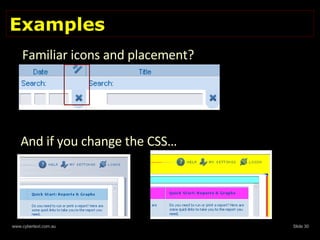
Examples Familiar icons and placement? And if you change the CSS…
User Actions What happens when you do something?  Do you get what you expect?
Quotable quotes… The GUI is the only contact the user has with an application Users want to invest as little time as possible in learning applications --Leah Guren, 2006 "It may be GUI…" http://www.wordsisrael.com/training_presentations.html
Check all user ACTIONS Menu, submenu items Command buttons Toolbar buttons All other clickable icons, buttons, tabs, controls  (e.g. calendar and spin controls) Keyboard commands (e.g. ALT, TAB, ENTER, Function keys)
Check all user INTERACTIONS Search Boolean operators (AND, OR, NOT , +, -, !, |, =) Wildcards (*, ?) Phrases, multiple terms (with/without quotes) Forms Validation errors—on entry or submission? On-screen user assistance Text/visual indicators for required fields
Performance Waiting, waiting…
Speed and response times Check for acceptable system response times for: Opening, closing the application Loading new pages, dialogs, tabs Results of actions Running processes, such as time taken to: Save a record Display a report
'It needs work' You don’t want to hurt anyone's feelings, but…
It's not about what YOU like It's not about you… It's about improving the USER'S experience Offer constructive suggestions/alternatives Avoid emotive and unsubstantiated comments like "It's ugly", "I don’t like it"  Be assertive, not aggressive ALWAYS back up an assertion with a reason
Some good reasons Usability Readability Accessibility Familiarity Legislative compliance Accepted industry standards Legislation and standards : W3C Web Content Accessibility Guidelines checklist : http://www.w3.org/TR/WCAG10/ full-checklist.html US : Section 508 of Rehabilitation Act UK : British Disability Discrimination Act Australia : Disability Discrimination Act
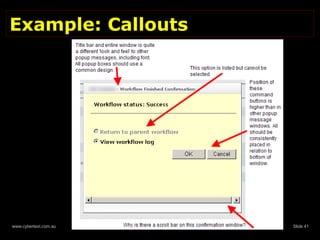
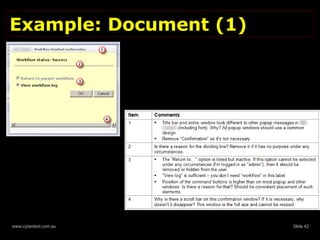
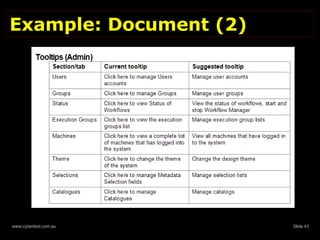
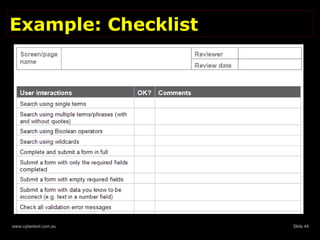
Document the issues Bug tracking software:   Use what the developers use Get 'write' access to their system Learn how to use it Follow up—make your voice heard Checklists Documents Use screen shots, callouts, comments Animations 'Show and tell' Examples : Microsoft's  Visual Studio Team System  products Bugzilla: http://www.bugzilla.org
Example: Callouts
Example: Document (1)
Example: Document (2)
Example: Checklist
Sell your skills Build relationships with developers, project managers, team leads Convince them you can: Help them create a better interface for  ALL  users Free them from tasks they may find tedious (e.g. checking spelling, writing tooltips) "Walk the 'user advocate' walk" (adapted from Leah Guren's  "It may be GUI…" )
Some developers get it …  your matter-of-fact, no-holds-barred, warts-and-all style of constructive criticism is new to the [team]…  Have you been asked to do further in-depth reviews of their applications? It would be good to have your recommendations/guidelines adhered to from the outset.   --email from Team Architect and Integration Coordinator, Oct 2007
But there's a long way to go In my opinion, trapping exceptions with … plain English dialogs is folly; a waste of developers’ time, a waste of development budget when there are more important things to do.  --email from QA Tester (ex-colleague), Jan 2007
Handy Tools and Resources
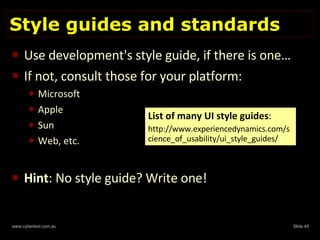
Style guides and standards Use development's style guide, if there is one… If not, consult those for your platform: Microsoft Apple Sun Web, etc. Hint : No style guide? Write one! List of many UI style guides : http://www.experiencedynamics.com/science_of_usability/ui_style_guides/
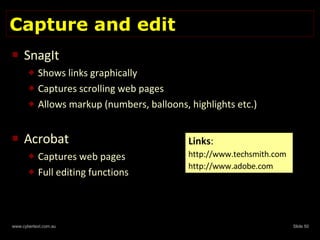
Capture and edit SnagIt Shows links graphically Captures scrolling web pages Allows markup (numbers, balloons, highlights etc.) Acrobat Captures web pages Full editing functions Links : http://www.techsmith.com http://www.adobe.com
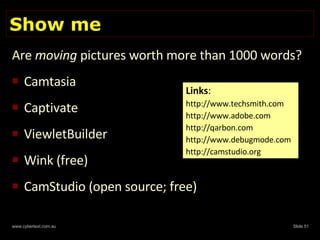
Show me Are  moving  pictures worth more than 1000 words?  Camtasia Captivate ViewletBuilder Wink (free) CamStudio (open source; free) Links : http://www.techsmith.com http://www.adobe.com  http://qarbon.com http://www.debugmode.com http://camstudio.org
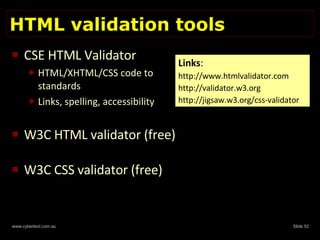
HTML validation tools CSE HTML Validator  HTML/XHTML/CSS code to standards Links, spelling, accessibility W3C HTML validator (free) W3C CSS validator (free) Links : http://www.htmlvalidator.com http://validator.w3.org  http://jigsaw.w3.org/css-validator
Accessibility tools Web applications VisCheck AIS Web Accessibility Toolbar (IE only)  Web Developer Extension (Firefox only) Installed applications Screen readers (e.g. JAWS) Microsoft accessibility features and assistive technologies Links : http://www.vischeck.com/vischeck/ http://www.visionaustralia.org.au http://chrispederick.com http://www.freedomscientific.com http://www.microsoft.com/enable/
Other useful tools Screen Ruler Screen sharing and meeting applications Skype  Other resources: Don’t make me think!  (Steve Krug) My usability links User Interface Design Patterns Library Links : http://www.microfox.com http://www.webex.com http://www.gotomeeting.com http://www.adobe.com http://www.gotomypc.com http://www.skype.com Links : http://www.cybertext.com.au/ links_usability.htm http://ui-patterns.com/
Summary Remember the  three Cs of communication Clarity Consistency Conciseness Use tools to assist you, but ultimately, your  eyes and brain  are the best tools you have It's about making a better product for everyone
Thank you! Any questions? Please complete your evaluation sheets Contact me: [email_address] http://www.cybertext.com.au
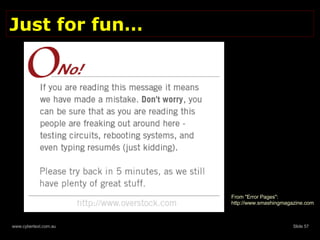
Just for fun… From "Error Pages": http://www.smashingmagazine.com
Late additions Jakob Nielsen's "Top 10 application design mistakes": http://www.useit.com/alertbox/application-mistakes.html (19 Feb 2008 ) Alan Cooper:  The inmates are running the asylum CyberText Newsletter/blog: http://cybertext.wordpress.com

Techniques for Reviewing a User Interface

  • 1.
    Techniques forReviewing a User Interface Rhonda Bracey [email_address] http://www.cybertext.com.au
  • 2.
    Communication What iscommunication in this context? What's the cost of NOT reviewing an interface?
  • 3.
    It's not justabout text 'Communication' encompasses not only the words created for manuals and help systems, and not even the words used in the interface, but the interface itself, and the way it does—or doesn't—inherently communicate its functionality. --Chuck Martin (HATT post, 9 Jan 2008)
  • 4.
    Three Cs ofcommunication Clarity Consistency Conciseness All help reduce that other 'C'—CONFUSION
  • 5.
    Dollar cost The further along the development process, the greater the cost of making even a simple change. Recommendation: Get involved EARLY in the development cycle. $ Spec $$ Design $$$ Code $$$$ Test $$$$$ Beta/internal release $$$$$$ After release
  • 6.
    Reputation cost From Australian Personal Computer , Nov 2007
  • 7.
    Design Elements Doesit 'look good'? (Aesthetics) Does it work? (Function) Is there anything that makes you hesitate?
  • 8.
    Quotable quote… Designis NOT about decoration. It's about communication and problem solving. --Garrett Dimon, "Improving Interface Design" (Web Visions 2007) http://garrettdimon.com/pages/ improving_interface_design
  • 9.
    Quotable quote… Sometimesthere is a huge disconnect between the people who make a product and the people who use it. --Barbara Whitaker, NY Times, 8 July 2007 http://www.nytimes.com/2007/07/08/ business/yourmoney/08starts.html
  • 10.
    Overall design Object placement (label, group all related features) Object alignment Logical flow (left to right, top to bottom; TAB order; visual layout; focus on opening) Scrolling (vertical, horizontal, non-scrolling regions) Keyboard access to ALL elements Sufficient space for translation
  • 11.
    Text Elements Whatto check? Check for what?
  • 12.
    Check these textelements Title and status bars Menu and selection list items Grouping box, field, column labels Error messages—validation, system; correct icon Icons, buttons—labels, graphics, tooltips Hyperlinks—avoid "click here" User assistance on interface
  • 13.
    Check text for…Spelling Misspellings, typos US, UK English Correctness against style guide Punctuation, capitalization (e.g. sentence/title case) Font size, family, weight Terminology Language & structure Plain English appropriate for users Parallel structure and consistent wording (e.g. gerunds vs imperatives) Impact of other languages on text display Avoid abbreviations
  • 14.
    Internationalization Design mustconsider Right-to-left languages (e.g. Hebrew, Arabic) Double-byte languages (e.g. Chinese, Japanese, Korean) Long labels (e.g. German) Default language used Hard-coded or in linked resource files? Anything culturally specific?
  • 15.
  • 16.
  • 17.
    Link Elements Internal(navigational and page) External
  • 18.
    Navigational links Menus,submenus Breadcrumb trails Sidebars Headers, footers Sitemap Browse sequences—Next, Previous, Home, etc.
  • 19.
    Page links Texthyperlinks Within page Within application To external location Popups Expand/collapse elements Back to Top Images, image maps Links to Help (go to TOC, page, field, web?)
  • 20.
    External links URLs'Mailto' links Internal and external files (e.g. PDFs) FTP links
  • 21.
    Link mechanisms Dothe same link types use consistent display mechanisms? (e.g. underline, hover color, etc.) So, how many ways can you do 'next page' links in the one app?
  • 22.
    Visual Elements Graphics,color, display…
  • 23.
    Do all graphicsadd value? Are any unnecessary? Are any too large/small? What displays when graphics are turned off? (ALT/TITLE tags) Are common graphics used for common actions? (e.g. new, open, save, email)
  • 24.
    Check these elementsCheck graphical elements for: 'Jaggies', blurred, or broken images Appropriate cropping Transparency renders correctly Image maps in web apps cover correct elements
  • 25.
    Color… Renders differentlyon screen and on paper Displays differently on every monitor Is seen differently by color-blind users Is symbolic, with distinct meanings in many cultures (e.g. white means purity—and death) Is personal
  • 26.
    Check these colorelements Check: How color elements print The color palette (limited/extensive range of colors) If user/admin can change color schemes How special elements are distinguished from standard (e.g. read-only, required fields)
  • 27.
    Styles Text stylesshould follow the style guide (e.g. bold, headings, fonts) Web apps only: Does the page validate correctly? (HTML, DOCTYPE, CSS, etc.) Turn off the CSS—is the page still usable? Can the user apply their own CSS or modify yours? Print a page: 'Wrapper' elements should not print Is any content missing? (e.g. large images, wide tables)
  • 28.
    How do webapps display? Test in the main browsers IE and FF at least Turn off JavaScript, cookies, frames, etc.—what happens? Resize the browser window Resize fonts Apply other browser/Windows settings (color schemes, CSS) Test on various devices (large and small) Test at different resolutions (large and small)
  • 29.
    How do installedapps display? How do ALL screen elements display when you: Change the screen resolution Change the Windows color scheme Resize all resizable windows Install on other devices (e.g. cell phones) Do the new settings hold: For the current session? On shutdown and restart?
  • 30.
    Examples Familiar iconsand placement? And if you change the CSS…
  • 31.
    User Actions Whathappens when you do something? Do you get what you expect?
  • 32.
    Quotable quotes… TheGUI is the only contact the user has with an application Users want to invest as little time as possible in learning applications --Leah Guren, 2006 "It may be GUI…" http://www.wordsisrael.com/training_presentations.html
  • 33.
    Check all userACTIONS Menu, submenu items Command buttons Toolbar buttons All other clickable icons, buttons, tabs, controls (e.g. calendar and spin controls) Keyboard commands (e.g. ALT, TAB, ENTER, Function keys)
  • 34.
    Check all userINTERACTIONS Search Boolean operators (AND, OR, NOT , +, -, !, |, =) Wildcards (*, ?) Phrases, multiple terms (with/without quotes) Forms Validation errors—on entry or submission? On-screen user assistance Text/visual indicators for required fields
  • 35.
  • 36.
    Speed and responsetimes Check for acceptable system response times for: Opening, closing the application Loading new pages, dialogs, tabs Results of actions Running processes, such as time taken to: Save a record Display a report
  • 37.
    'It needs work'You don’t want to hurt anyone's feelings, but…
  • 38.
    It's not aboutwhat YOU like It's not about you… It's about improving the USER'S experience Offer constructive suggestions/alternatives Avoid emotive and unsubstantiated comments like "It's ugly", "I don’t like it" Be assertive, not aggressive ALWAYS back up an assertion with a reason
  • 39.
    Some good reasonsUsability Readability Accessibility Familiarity Legislative compliance Accepted industry standards Legislation and standards : W3C Web Content Accessibility Guidelines checklist : http://www.w3.org/TR/WCAG10/ full-checklist.html US : Section 508 of Rehabilitation Act UK : British Disability Discrimination Act Australia : Disability Discrimination Act
  • 40.
    Document the issuesBug tracking software: Use what the developers use Get 'write' access to their system Learn how to use it Follow up—make your voice heard Checklists Documents Use screen shots, callouts, comments Animations 'Show and tell' Examples : Microsoft's Visual Studio Team System products Bugzilla: http://www.bugzilla.org
  • 41.
  • 42.
  • 43.
  • 44.
  • 45.
    Sell your skillsBuild relationships with developers, project managers, team leads Convince them you can: Help them create a better interface for ALL users Free them from tasks they may find tedious (e.g. checking spelling, writing tooltips) "Walk the 'user advocate' walk" (adapted from Leah Guren's "It may be GUI…" )
  • 46.
    Some developers getit … your matter-of-fact, no-holds-barred, warts-and-all style of constructive criticism is new to the [team]… Have you been asked to do further in-depth reviews of their applications? It would be good to have your recommendations/guidelines adhered to from the outset. --email from Team Architect and Integration Coordinator, Oct 2007
  • 47.
    But there's along way to go In my opinion, trapping exceptions with … plain English dialogs is folly; a waste of developers’ time, a waste of development budget when there are more important things to do. --email from QA Tester (ex-colleague), Jan 2007
  • 48.
    Handy Tools andResources
  • 49.
    Style guides andstandards Use development's style guide, if there is one… If not, consult those for your platform: Microsoft Apple Sun Web, etc. Hint : No style guide? Write one! List of many UI style guides : http://www.experiencedynamics.com/science_of_usability/ui_style_guides/
  • 50.
    Capture and editSnagIt Shows links graphically Captures scrolling web pages Allows markup (numbers, balloons, highlights etc.) Acrobat Captures web pages Full editing functions Links : http://www.techsmith.com http://www.adobe.com
  • 51.
    Show me Are moving pictures worth more than 1000 words? Camtasia Captivate ViewletBuilder Wink (free) CamStudio (open source; free) Links : http://www.techsmith.com http://www.adobe.com http://qarbon.com http://www.debugmode.com http://camstudio.org
  • 52.
    HTML validation toolsCSE HTML Validator HTML/XHTML/CSS code to standards Links, spelling, accessibility W3C HTML validator (free) W3C CSS validator (free) Links : http://www.htmlvalidator.com http://validator.w3.org http://jigsaw.w3.org/css-validator
  • 53.
    Accessibility tools Webapplications VisCheck AIS Web Accessibility Toolbar (IE only) Web Developer Extension (Firefox only) Installed applications Screen readers (e.g. JAWS) Microsoft accessibility features and assistive technologies Links : http://www.vischeck.com/vischeck/ http://www.visionaustralia.org.au http://chrispederick.com http://www.freedomscientific.com http://www.microsoft.com/enable/
  • 54.
    Other useful toolsScreen Ruler Screen sharing and meeting applications Skype Other resources: Don’t make me think! (Steve Krug) My usability links User Interface Design Patterns Library Links : http://www.microfox.com http://www.webex.com http://www.gotomeeting.com http://www.adobe.com http://www.gotomypc.com http://www.skype.com Links : http://www.cybertext.com.au/ links_usability.htm http://ui-patterns.com/
  • 55.
    Summary Remember the three Cs of communication Clarity Consistency Conciseness Use tools to assist you, but ultimately, your eyes and brain are the best tools you have It's about making a better product for everyone
  • 56.
    Thank you! Anyquestions? Please complete your evaluation sheets Contact me: [email_address] http://www.cybertext.com.au
  • 57.
    Just for fun…From "Error Pages": http://www.smashingmagazine.com
  • 58.
    Late additions JakobNielsen's "Top 10 application design mistakes": http://www.useit.com/alertbox/application-mistakes.html (19 Feb 2008 ) Alan Cooper: The inmates are running the asylum CyberText Newsletter/blog: http://cybertext.wordpress.com